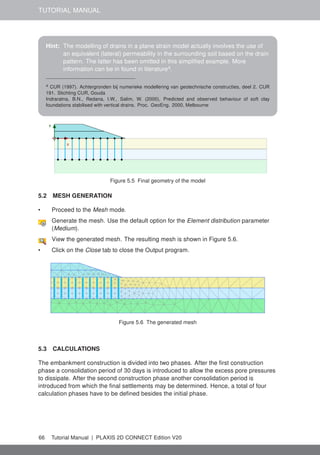
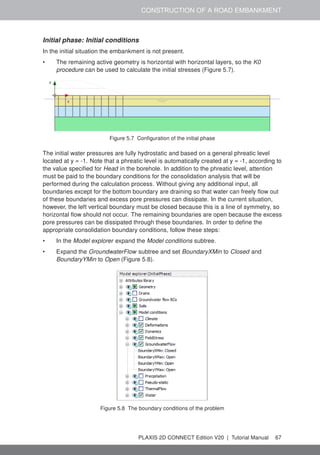
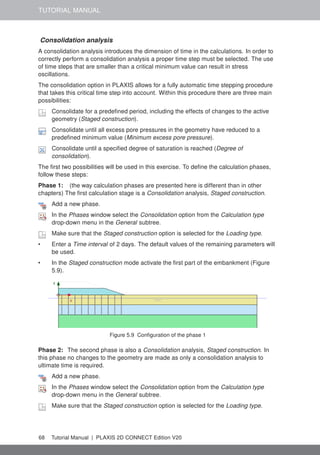
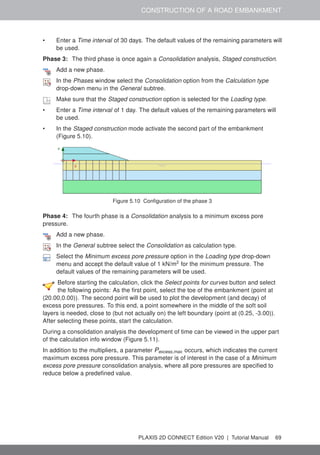
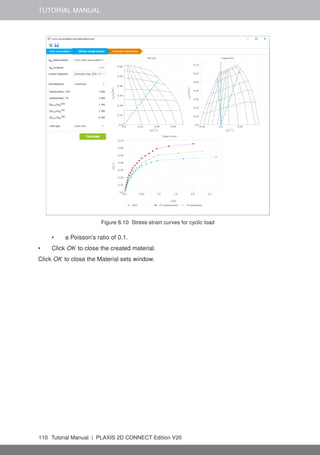
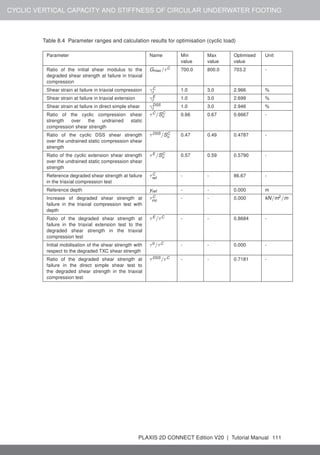
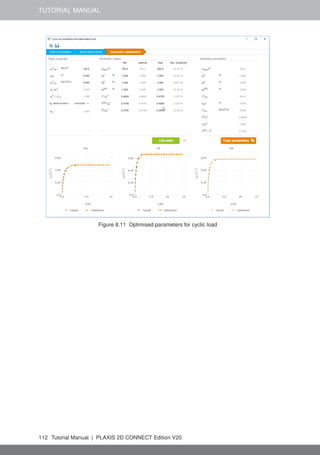
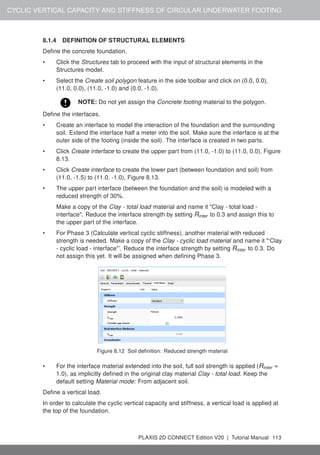
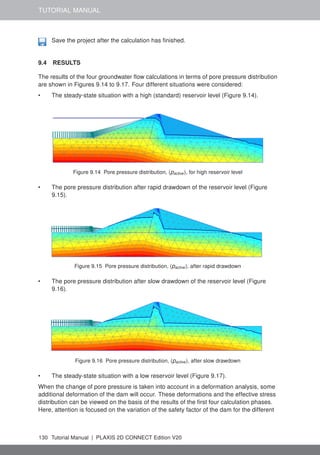
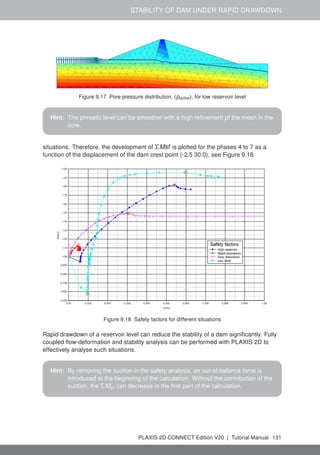
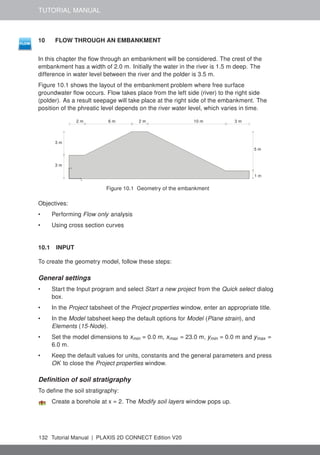
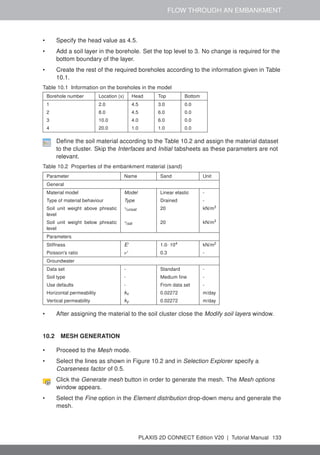
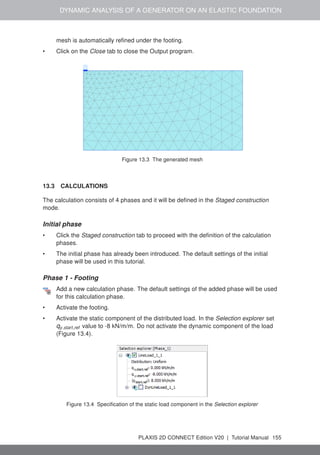
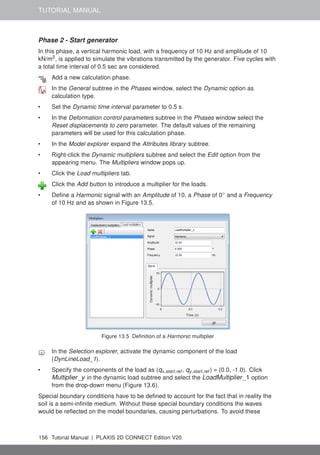
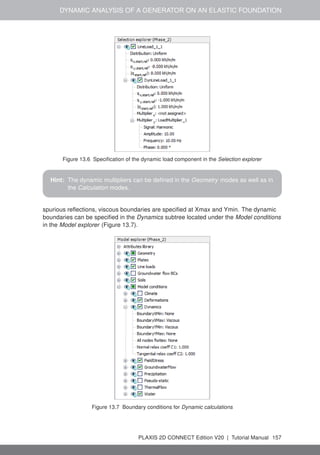
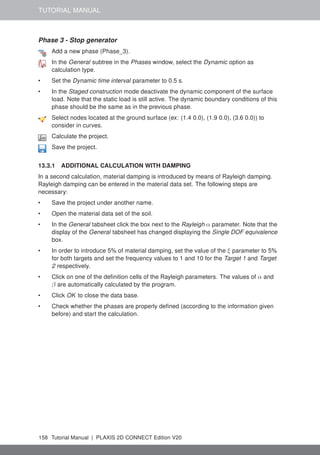
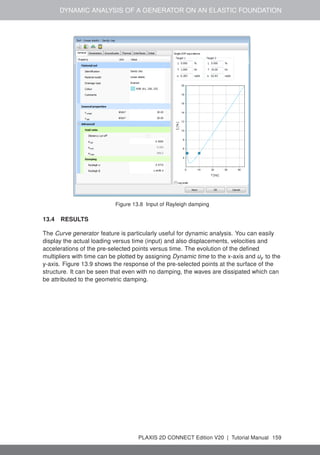
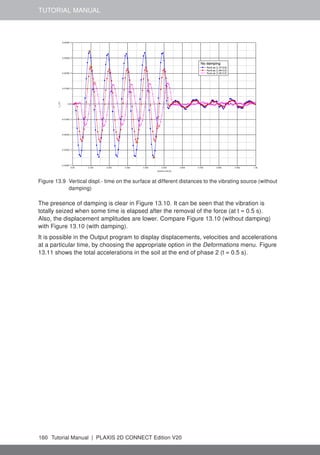
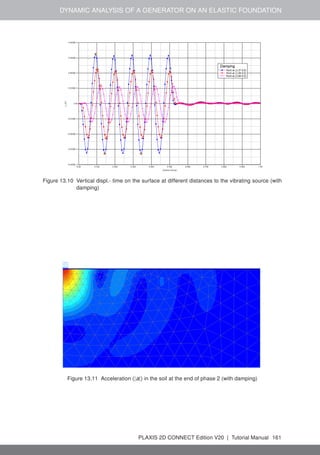
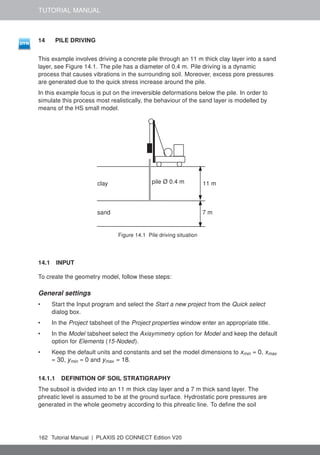
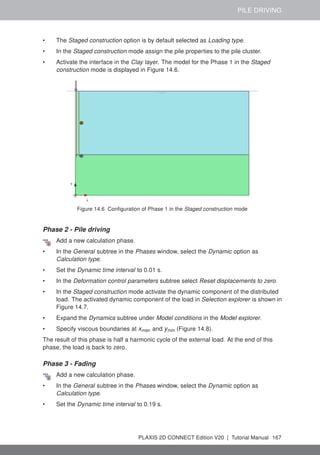
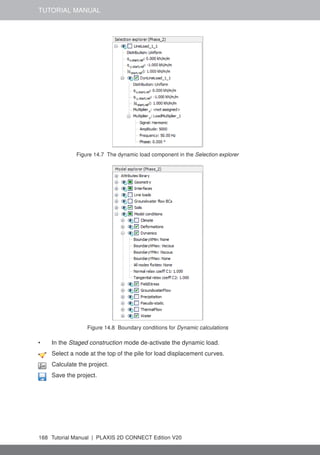
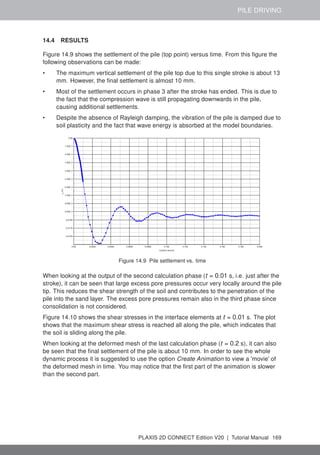
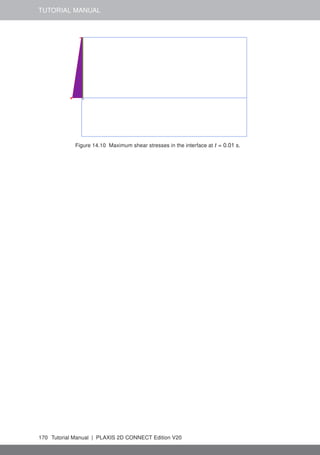
PLAXIS 2D Tutorial Manual
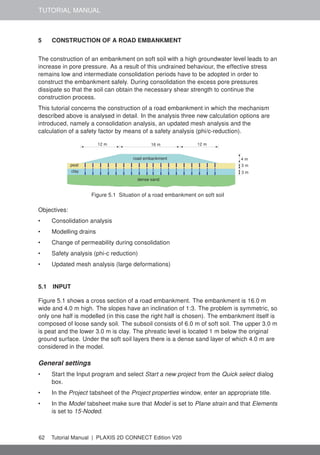
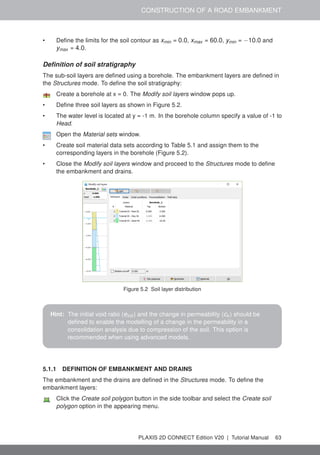
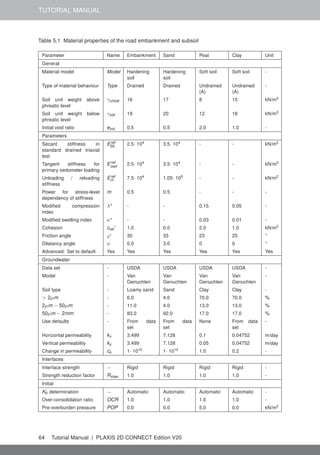
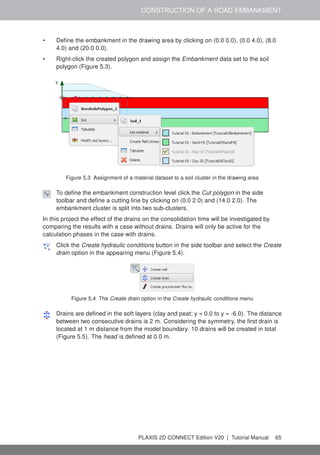
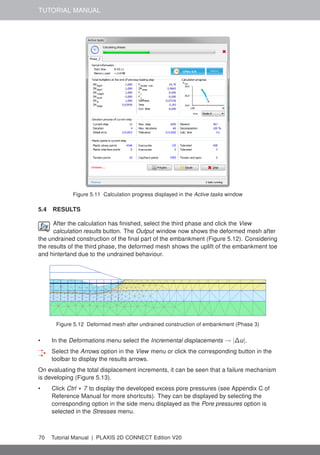
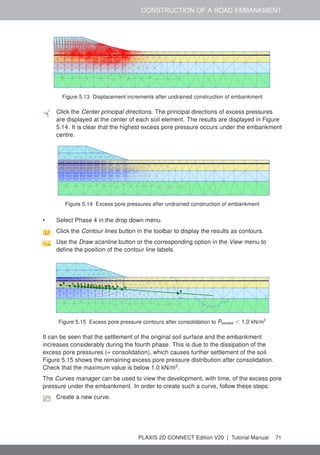
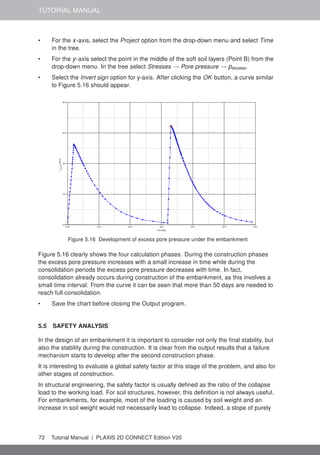
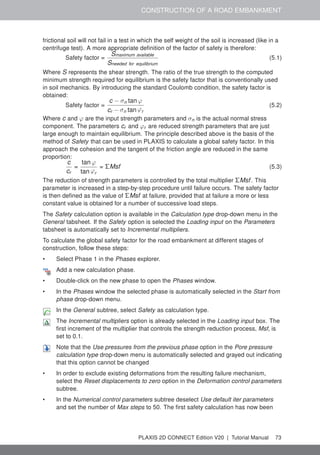
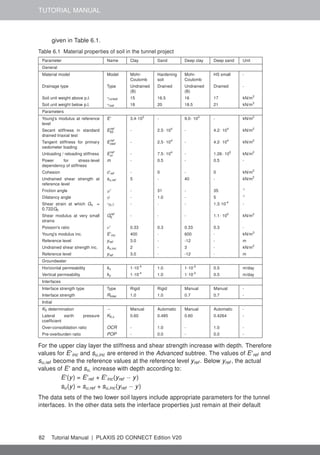
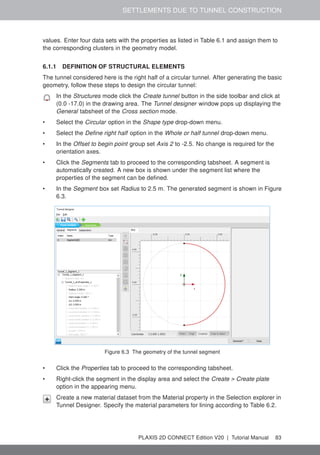
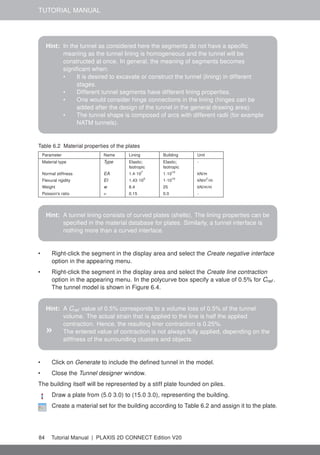
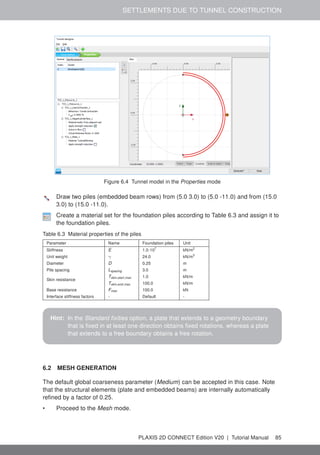
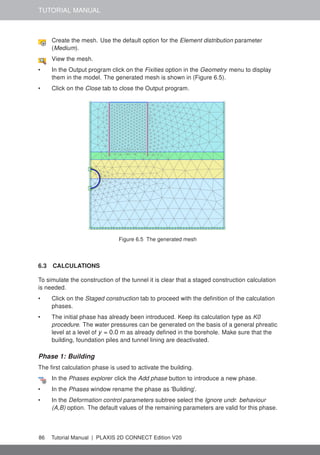
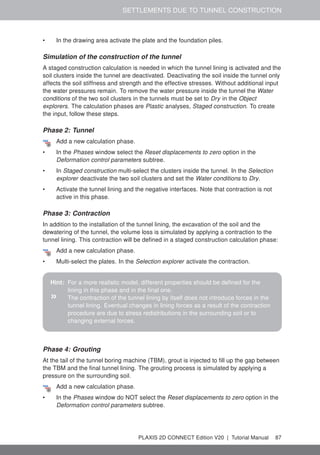
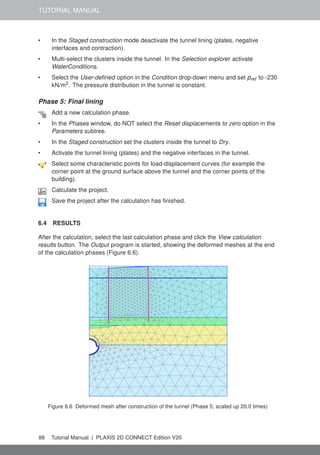
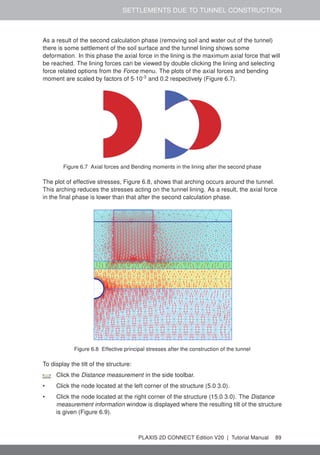
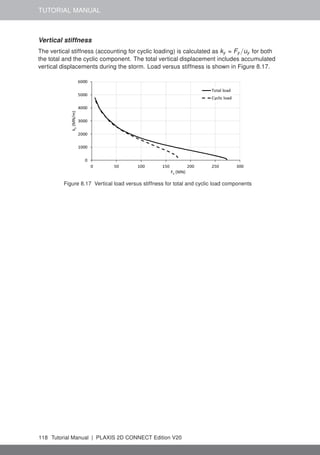
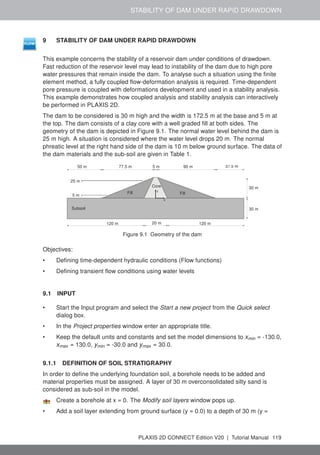
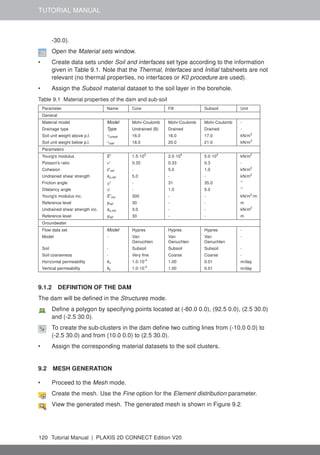
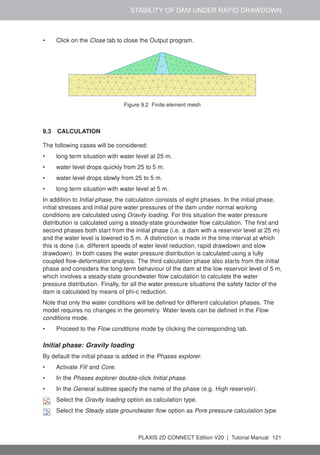
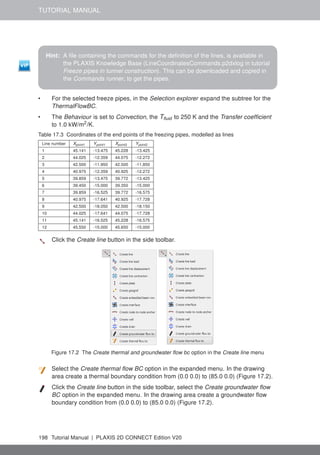
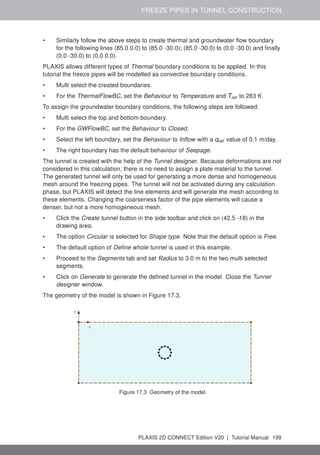
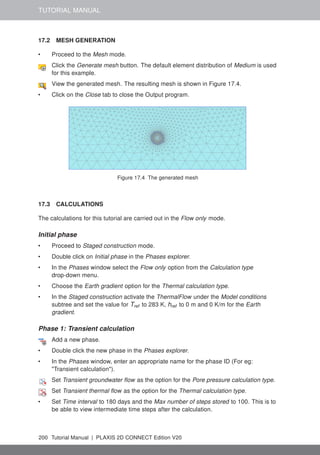
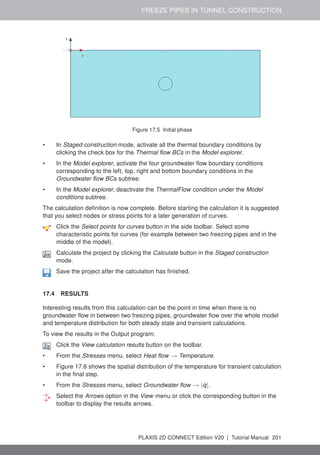
CONNECT Edition V20
Build 10265
TABLE OF CONTENTS
TABLE OF CONTENTS
1 Settlement of a circular footing on sand 6
1.1 Geometry 6
1.2 Case A: Rigid footing 7
1.3 Case B: Flexible footing 22
2 Submerged construction of an excavation 29
2.1 Input 30
2.2 Mesh generation 35
2.3 Calculations 36
2.4 Results 40
3 Dry excavation using a tie back wall 44
3.1 Input 44
3.2 Mesh generation 49
3.3 Calculations 49
3.4 Results 55
4 Dry excavation using a tie back wall - ULS 57
4.1 Input 57
4.2 Calculations 60
4.3 Results 61
5 Construction of a road embankment 62
5.1 Input 62
5.2 Mesh generation 66
5.3 Calculations 66
5.4 Results 70
5.5 Safety analysis 72
5.6 Using drains 77
5.7 Updated mesh + Updated water pressures analysis 78
6 Settlements due to tunnel construction 80
6.1 Input 80
6.2 Mesh generation 85
6.3 Calculations 86
6.4 Results 88
7 Excavation of an NATM tunnel 91
7.1 Input 91
7.2 Mesh generation 95
7.3 Calculations 95
7.4 Results 98
8 Cyclic vertical capacity and stiffness of circular underwater footing 100
8.1 Input 101
8.2 Mesh generation 114
8.3 Calculations 115
8.4 Results 116
PLAXIS 2D CONNECT Edition V20 | Tutorial Manual 3
TUTORIAL MANUAL
9 Stability of dam under rapid drawdown 119
9.1 Input 119
9.2 Mesh generation 120
9.3 Calculation 121
9.4 Results 130
10 Flow through an embankment 132
10.1 Input 132
10.2 Mesh generation 133
10.3 Calculations 134
10.4 Results 138
11 Flow around a sheet pile wall 141
11.1 Input 141
11.2 Mesh generation 141
11.3 Calculations 142
11.4 Results 143
12 Potato field moisture content 145
12.1 Input 145
12.2 Mesh generation 147
12.3 Calculations 148
12.4 Results 151
13 Dynamic analysis of a generator on an elastic foundation 152
13.1 Input 152
13.2 Mesh generation 154
13.3 Calculations 155
13.4 Results 159
14 Pile driving 162
14.1 Input 162
14.2 Mesh generation 166
14.3 Calculations 166
14.4 Results 169
15 Free vibration and earthquake analysis of a building 171
15.1 Input 171
15.2 Mesh generation 177
15.3 Calculations 177
15.4 Results 180
16 Thermal expansion of a navigable lock 183
16.1 Input 183
16.2 Mesh generation 186
16.3 Calculations 187
16.4 Results 191
17 Freeze pipes in tunnel construction 195
17.1 Input 195
17.2 Mesh generation 200
4 Tutorial Manual | PLAXIS 2D CONNECT Edition V20
TABLE OF CONTENTS
17.3 Calculations 200
17.4 Results 201
18 Menu tree 203
18.1 Input Menu 203
18.2 Output Menu 206
19 References 208
PLAXIS 2D CONNECT Edition V20 | Tutorial Manual 5
TUTORIAL MANUAL
1 SETTLEMENT OF A CIRCULAR FOOTING ON SAND
In this chapter a first application is considered, namely the settlement of a circular
foundation footing on sand. This is the first step in becoming familiar with the practical
use of PLAXIS 2D. The general procedures for the creation of a geometry model, the
generation of a finite element mesh, the execution of a finite element calculation and the
evaluation of the output results are described here in detail. The information provided in
this chapter will be utilised in the later tutorials. Therefore, it is important to complete this
first tutorial before attempting any further tutorial examples.
Objectives:
• Starting a new project.
• Creating an axisymmetric model
• Creating soil stratigraphy using the Borehole feature.
• Creating and assigning of material data sets for soil (Mohr-Coulomb model).
• Defining prescribed displacements.
• Creation of footing using the Plate feature.
• Creating and assigning material data sets for plates.
• Creating loads.
• Generating the mesh.
• Generating initial stresses using the K0 procedure.
• Defining a Plastic calculation.
• Activating and modifying the values of loads in calculation phases.
• Viewing the calculation results.
• Selecting points for curves.
• Creating a 'Load - displacement' curve.
1.1 GEOMETRY
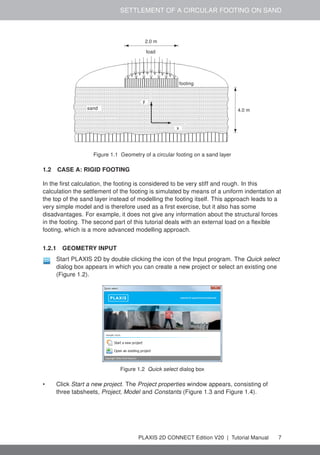
A circular footing with a radius of 1.0 m is placed on a sand layer of 4.0 m thickness as
shown in Figure 1.1. Under the sand layer there is a stiff rock layer that extends to a large
depth. The purpose of the exercise is to find the displacements and stresses in the soil
caused by the load applied to the footing. Calculations are performed for both rigid and
flexible footings. The geometry of the finite element model for these two situations is
similar. The rock layer is not included in the model; instead, an appropriate boundary
condition is applied at the bottom of the sand layer. To enable any possible mechanism in
the sand and to avoid any influence of the outer boundary, the model is extended in
horizontal direction to a total radius of 5.0 m.
6 Tutorial Manual | PLAXIS 2D CONNECT Edition V20
SETTLEMENT OF A CIRCULAR FOOTING ON SAND
2.0 m
4.0 m
load
footing
x
y
sand
a
Figure 1.1 Geometry of a circular footing on a sand layer
1.2 CASE A: RIGID FOOTING
In the first calculation, the footing is considered to be very stiff and rough. In this
calculation the settlement of the footing is simulated by means of a uniform indentation at
the top of the sand layer instead of modelling the footing itself. This approach leads to a
very simple model and is therefore used as a first exercise, but it also has some
disadvantages. For example, it does not give any information about the structural forces
in the footing. The second part of this tutorial deals with an external load on a flexible
footing, which is a more advanced modelling approach.
1.2.1 GEOMETRY INPUT
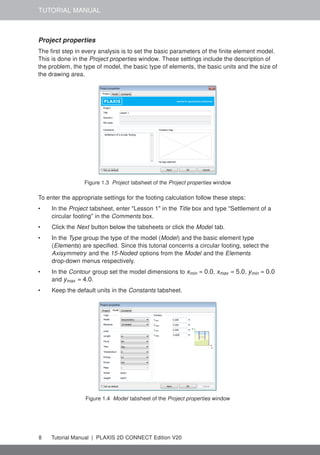
Start PLAXIS 2D by double clicking the icon of the Input program. The Quick select
dialog box appears in which you can create a new project or select an existing one
(Figure 1.2).
Figure 1.2 Quick select dialog box
• Click Start a new project. The Project properties window appears, consisting of
three tabsheets, Project, Model and Constants (Figure 1.3 and Figure 1.4).
PLAXIS 2D CONNECT Edition V20 | Tutorial Manual 7
TUTORIAL MANUAL
Project properties
The first step in every analysis is to set the basic parameters of the finite element model.
This is done in the Project properties window. These settings include the description of
the problem, the type of model, the basic type of elements, the basic units and the size of
the drawing area.
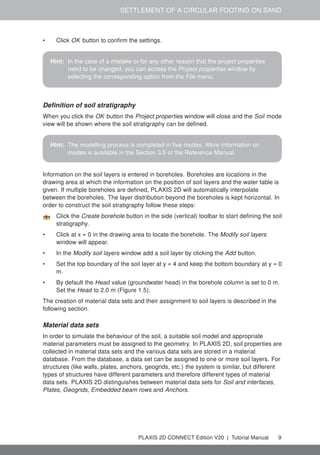
Figure 1.3 Project tabsheet of the Project properties window
To enter the appropriate settings for the footing calculation follow these steps:
• In the Project tabsheet, enter "Lesson 1" in the Title box and type "Settlement of a
circular footing" in the Comments box.
• Click the Next button below the tabsheets or click the Model tab.
• In the Type group the type of the model (Model) and the basic element type
(Elements) are specified. Since this tutorial concerns a circular footing, select the
Axisymmetry and the 15-Noded options from the Model and the Elements
drop-down menus respectively.
• In the Contour group set the model dimensions to xmin = 0.0, xmax = 5.0, ymin = 0.0
and ymax = 4.0.
• Keep the default units in the Constants tabsheet.
Figure 1.4 Model tabsheet of the Project properties window
8 Tutorial Manual | PLAXIS 2D CONNECT Edition V20
SETTLEMENT OF A CIRCULAR FOOTING ON SAND
• Click OK button to confirm the settings.
Hint: In the case of a mistake or for any other reason that the project properties
need to be changed, you can access the Project properties window by
selecting the corresponding option from the File menu.
Definition of soil stratigraphy
When you click the OK button the Project properties window will close and the Soil mode
view will be shown where the soil stratigraphy can be defined.
Hint: The modelling process is completed in five modes. More information on
modes is available in the Section 3.5 of the Reference Manual.
Information on the soil layers is entered in boreholes. Boreholes are locations in the
drawing area at which the information on the position of soil layers and the water table is
given. If multiple boreholes are defined, PLAXIS 2D will automatically interpolate
between the boreholes. The layer distribution beyond the boreholes is kept horizontal. In
order to construct the soil stratigraphy follow these steps:
Click the Create borehole button in the side (vertical) toolbar to start defining the soil
stratigraphy.
• Click at x = 0 in the drawing area to locate the borehole. The Modify soil layers
window will appear.
• In the Modify soil layers window add a soil layer by clicking the Add button.
• Set the top boundary of the soil layer at y = 4 and keep the bottom boundary at y = 0
m.
• By default the Head value (groundwater head) in the borehole column is set to 0 m.
Set the Head to 2.0 m (Figure 1.5).
The creation of material data sets and their assignment to soil layers is described in the
following section.
Material data sets
In order to simulate the behaviour of the soil, a suitable soil model and appropriate
material parameters must be assigned to the geometry. In PLAXIS 2D, soil properties are
collected in material data sets and the various data sets are stored in a material
database. From the database, a data set can be assigned to one or more soil layers. For
structures (like walls, plates, anchors, geogrids, etc.) the system is similar, but different
types of structures have different parameters and therefore different types of material
data sets. PLAXIS 2D distinguishes between material data sets for Soil and interfaces,
Plates, Geogrids, Embedded beam rows and Anchors.
PLAXIS 2D CONNECT Edition V20 | Tutorial Manual 9
TUTORIAL MANUAL
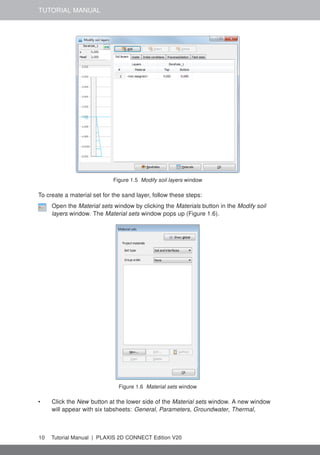
Figure 1.5 Modify soil layers window
To create a material set for the sand layer, follow these steps:
Open the Material sets window by clicking the Materials button in the Modify soil
layers window. The Material sets window pops up (Figure 1.6).
Figure 1.6 Material sets window
• Click the New button at the lower side of the Material sets window. A new window
will appear with six tabsheets: General, Parameters, Groundwater, Thermal,
10 Tutorial Manual | PLAXIS 2D CONNECT Edition V20
SETTLEMENT OF A CIRCULAR FOOTING ON SAND
Interfaces and Initial.
• In the Material set box of the General tabsheet, write "Sand" in the Identification box.
• The default material model (Mohr-Coulomb) and drainage type (Drained) are valid
for this example.
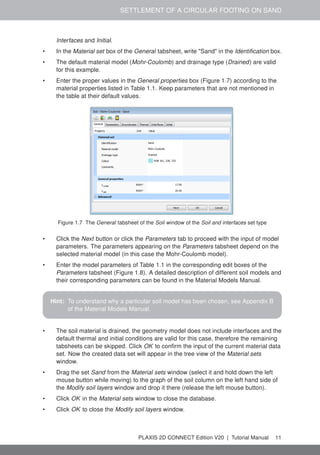
• Enter the proper values in the General properties box (Figure 1.7) according to the
material properties listed in Table 1.1. Keep parameters that are not mentioned in
the table at their default values.
Figure 1.7 The General tabsheet of the Soil window of the Soil and interfaces set type
• Click the Next button or click the Parameters tab to proceed with the input of model
parameters. The parameters appearing on the Parameters tabsheet depend on the
selected material model (in this case the Mohr-Coulomb model).
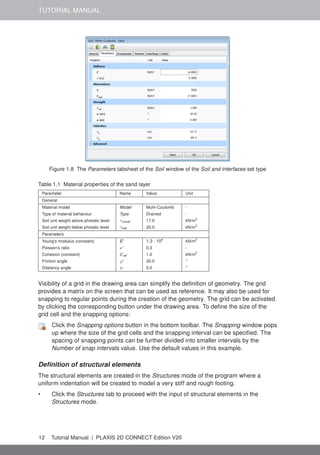
• Enter the model parameters of Table 1.1 in the corresponding edit boxes of the
Parameters tabsheet (Figure 1.8). A detailed description of different soil models and
their corresponding parameters can be found in the Material Models Manual.
Hint: To understand why a particular soil model has been chosen, see Appendix B
of the Material Models Manual.
• The soil material is drained, the geometry model does not include interfaces and the
default thermal and initial conditions are valid for this case, therefore the remaining
tabsheets can be skipped. Click OK to confirm the input of the current material data
set. Now the created data set will appear in the tree view of the Material sets
window.
• Drag the set Sand from the Material sets window (select it and hold down the left
mouse button while moving) to the graph of the soil column on the left hand side of
the Modify soil layers window and drop it there (release the left mouse button).
• Click OK in the Material sets window to close the database.
• Click OK to close the Modify soil layers window.
PLAXIS 2D CONNECT Edition V20 | Tutorial Manual 11
TUTORIAL MANUAL
Figure 1.8 The Parameters tabsheet of the Soil window of the Soil and interfaces set type
Table 1.1 Material properties of the sand layer
Parameter Name Value Unit
General
Material model Model Mohr-Coulomb -
Type of material behaviour Type Drained -
Soil unit weight above phreatic level γunsat 17.0 kN/m3
Soil unit weight below phreatic level γsat 20.0 kN/m3
Parameters
Young's modulus (constant) E' 1.3 · 104
kN/m2
Poisson's ratio ν' 0.3 -
Cohesion (constant) c'ref 1.0 kN/m2
Friction angle ϕ' 30.0 ◦
Dilatancy angle ψ 0.0 ◦
Visibility of a grid in the drawing area can simplify the definition of geometry. The grid
provides a matrix on the screen that can be used as reference. It may also be used for
snapping to regular points during the creation of the geometry. The grid can be activated
by clicking the corresponding button under the drawing area. To define the size of the
grid cell and the snapping options:
Click the Snapping options button in the bottom toolbar. The Snapping window pops
up where the size of the grid cells and the snapping interval can be specified. The
spacing of snapping points can be further divided into smaller intervals by the
Number of snap intervals value. Use the default values in this example.
Definition of structural elements
The structural elements are created in the Structures mode of the program where a
uniform indentation will be created to model a very stiff and rough footing.
• Click the Structures tab to proceed with the input of structural elements in the
Structures mode.
12 Tutorial Manual | PLAXIS 2D CONNECT Edition V20
SETTLEMENT OF A CIRCULAR FOOTING ON SAND
Hint: Existing data sets may be changed by opening the Material sets window,
selecting the data set to be changed from the tree view and clicking the Edit
button. As an alternative, the Material sets window can be opened by clicking
the corresponding button in the side toolbar.
» PLAXIS 2D distinguishes between a project database and a global database
of material sets. Data sets may be exchanged from one project to another
using the global database. The global database can be shown in the Material
sets window by clicking the Show global button. The data sets of all tutorials
in the Tutorial Manual are stored in the global database during the installation
of the program.
» The material assigned to a selected entity in the model can be changed in
the Material drop-down menu in the Selection explorer. Note that all the
material datasets assignable to the entity are listed in the drop-down menu.
However, only the materials listed under Project materials are listed, and not
the ones listed under Global materials.
» The program performs a consistency check on the material parameters and
will give a warning message in the case of a detected inconsistency in the
data.
Click the Create prescribed displacement button in the side toolbar.
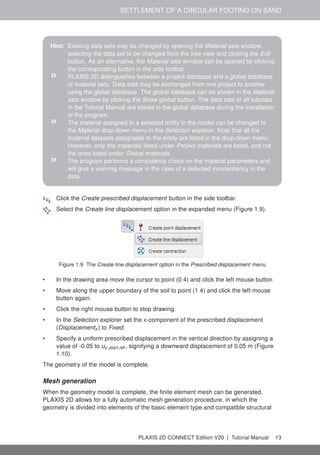
Select the Create line displacement option in the expanded menu (Figure 1.9).
Figure 1.9 The Create line displacement option in the Prescribed displacement menu
• In the drawing area move the cursor to point (0 4) and click the left mouse button
• Move along the upper boundary of the soil to point (1 4) and click the left mouse
button again.
• Click the right mouse button to stop drawing.
• In the Selection explorer set the x-component of the prescribed displacement
(Displacementx ) to Fixed.
• Specify a uniform prescribed displacement in the vertical direction by assigning a
value of -0.05 to uy,start,ref , signifying a downward displacement of 0.05 m (Figure
1.10).
The geometry of the model is complete.
Mesh generation
When the geometry model is complete, the finite element mesh can be generated.
PLAXIS 2D allows for a fully automatic mesh generation procedure, in which the
geometry is divided into elements of the basic element type and compatible structural
PLAXIS 2D CONNECT Edition V20 | Tutorial Manual 13
TUTORIAL MANUAL
Figure 1.10 Prescribed displacement in the Selection explorer
elements, if applicable.
The mesh generation takes full account of the position of points and lines in the model,
so that the exact position of layers, loads and structures is accounted for in the finite
element mesh. The generation process is based on a robust triangulation principle that
searches for optimised triangles. In addition to the mesh generation itself, a
transformation of input data (properties, boundary conditions, material sets, etc.) from the
geometry model (points, lines and clusters) to the finite element mesh (elements, nodes
and stress points) is made.
In order to generate the mesh, follow these steps:
• Proceed to the Mesh mode by clicking the corresponding tab.
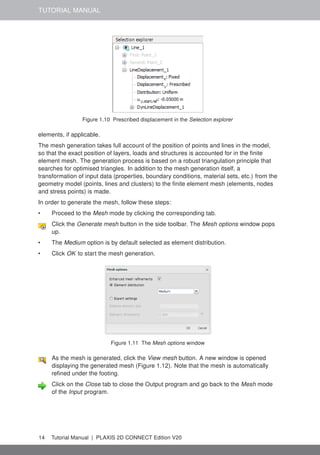
Click the Generate mesh button in the side toolbar. The Mesh options window pops
up.
• The Medium option is by default selected as element distribution.
• Click OK to start the mesh generation.
Figure 1.11 The Mesh options window
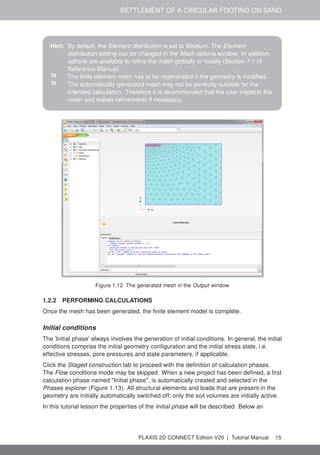
As the mesh is generated, click the View mesh button. A new window is opened
displaying the generated mesh (Figure 1.12). Note that the mesh is automatically
refined under the footing.
Click on the Close tab to close the Output program and go back to the Mesh mode
of the Input program.
14 Tutorial Manual | PLAXIS 2D CONNECT Edition V20
SETTLEMENT OF A CIRCULAR FOOTING ON SAND
Hint: By default, the Element distribution is set to Medium. The Element
distribution setting can be changed in the Mesh options window. In addition,
options are available to refine the mesh globally or locally (Section 7.1 of
Reference Manual).
» The finite element mesh has to be regenerated if the geometry is modified.
» The automatically generated mesh may not be perfectly suitable for the
intended calculation. Therefore it is recommended that the user inspects the
mesh and makes refinements if necessary.
Figure 1.12 The generated mesh in the Output window
1.2.2 PERFORMING CALCULATIONS
Once the mesh has been generated, the finite element model is complete.
Initial conditions
The 'Initial phase' always involves the generation of initial conditions. In general, the initial
conditions comprise the initial geometry configuration and the initial stress state, i.e.
effective stresses, pore pressures and state parameters, if applicable.
Click the Staged construction tab to proceed with the definition of calculation phases.
The Flow conditions mode may be skipped. When a new project has been defined, a first
calculation phase named "Initial phase", is automatically created and selected in the
Phases explorer (Figure 1.13). All structural elements and loads that are present in the
geometry are initially automatically switched off; only the soil volumes are initially active.
In this tutorial lesson the properties of the Initial phase will be described. Below an
PLAXIS 2D CONNECT Edition V20 | Tutorial Manual 15
TUTORIAL MANUAL
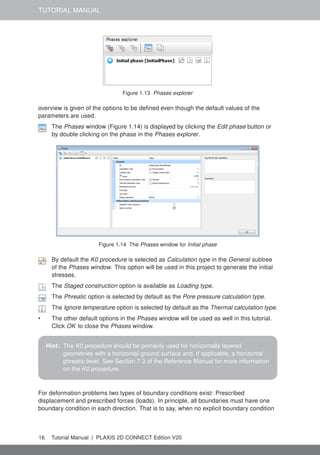
Figure 1.13 Phases explorer
overview is given of the options to be defined even though the default values of the
parameters are used.
The Phases window (Figure 1.14) is displayed by clicking the Edit phase button or
by double clicking on the phase in the Phases explorer.
Figure 1.14 The Phases window for Initial phase
By default the K0 procedure is selected as Calculation type in the General subtree
of the Phases window. This option will be used in this project to generate the initial
stresses.
The Staged construction option is available as Loading type.
The Phreatic option is selected by default as the Pore pressure calculation type.
The Ignore temperature option is selected by default as the Thermal calculation type.
• The other default options in the Phases window will be used as well in this tutorial.
Click OK to close the Phases window.
Hint: The K0 procedure should be primarily used for horizontally layered
geometries with a horizontal ground surface and, if applicable, a horizontal
phreatic level. See Section 7.3 of the Reference Manual for more information
on the K0 procedure.
For deformation problems two types of boundary conditions exist: Prescribed
displacement and prescribed forces (loads). In principle, all boundaries must have one
boundary condition in each direction. That is to say, when no explicit boundary condition
16 Tutorial Manual | PLAXIS 2D CONNECT Edition V20
SETTLEMENT OF A CIRCULAR FOOTING ON SAND
is given to a certain boundary (a free boundary), the natural condition applies, which is a
prescribed force equal to zero and a free displacement.
To avoid the situation where the displacements of the geometry are undetermined, some
points of the geometry must have prescribed displacements. The simplest form of a
prescribed displacement is a fixity (zero displacement), but non-zero prescribed
displacements may also be given.
• In the Model explorer expand the Model conditions subtree.
• Expand the Deformations subtree. Note that the box is checked by default. By
default, a full fixity is generated at the base of the geometry, whereas roller supports
are assigned to the vertical boundaries (BoundaryXMin and BoundaryXMax are
normally fixed, BoundaryYMin is fully fixed and BoundaryYMax is free).
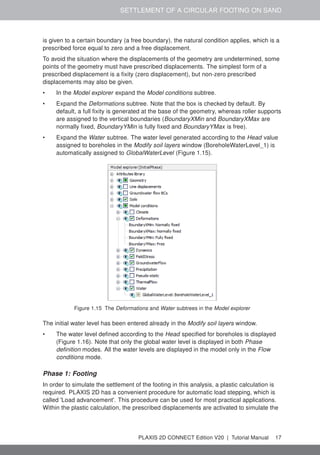
• Expand the Water subtree. The water level generated according to the Head value
assigned to boreholes in the Modify soil layers window (BoreholeWaterLevel_1) is
automatically assigned to GlobalWaterLevel (Figure 1.15).
Figure 1.15 The Deformations and Water subtrees in the Model explorer
The initial water level has been entered already in the Modify soil layers window.
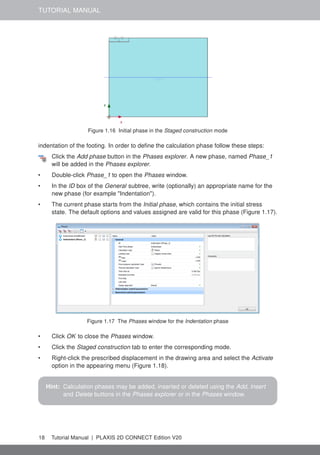
• The water level defined according to the Head specified for boreholes is displayed
(Figure 1.16). Note that only the global water level is displayed in both Phase
definition modes. All the water levels are displayed in the model only in the Flow
conditions mode.
Phase 1: Footing
In order to simulate the settlement of the footing in this analysis, a plastic calculation is
required. PLAXIS 2D has a convenient procedure for automatic load stepping, which is
called 'Load advancement'. This procedure can be used for most practical applications.
Within the plastic calculation, the prescribed displacements are activated to simulate the
PLAXIS 2D CONNECT Edition V20 | Tutorial Manual 17
TUTORIAL MANUAL
Figure 1.16 Initial phase in the Staged construction mode
indentation of the footing. In order to define the calculation phase follow these steps:
Click the Add phase button in the Phases explorer. A new phase, named Phase_1
will be added in the Phases explorer.
• Double-click Phase_1 to open the Phases window.
• In the ID box of the General subtree, write (optionally) an appropriate name for the
new phase (for example "Indentation").
• The current phase starts from the Initial phase, which contains the initial stress
state. The default options and values assigned are valid for this phase (Figure 1.17).
Figure 1.17 The Phases window for the Indentation phase
• Click OK to close the Phases window.
• Click the Staged construction tab to enter the corresponding mode.
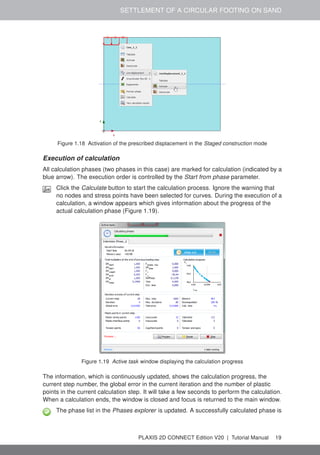
• Right-click the prescribed displacement in the drawing area and select the Activate
option in the appearing menu (Figure 1.18).
Hint: Calculation phases may be added, inserted or deleted using the Add, Insert
and Delete buttons in the Phases explorer or in the Phases window.
18 Tutorial Manual | PLAXIS 2D CONNECT Edition V20
SETTLEMENT OF A CIRCULAR FOOTING ON SAND
Figure 1.18 Activation of the prescribed displacement in the Staged construction mode
Execution of calculation
All calculation phases (two phases in this case) are marked for calculation (indicated by a
blue arrow). The execution order is controlled by the Start from phase parameter.
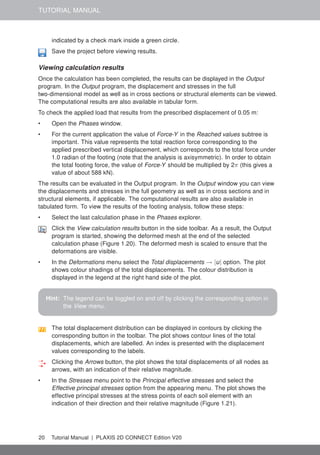
Click the Calculate button to start the calculation process. Ignore the warning that
no nodes and stress points have been selected for curves. During the execution of a
calculation, a window appears which gives information about the progress of the
actual calculation phase (Figure 1.19).
Figure 1.19 Active task window displaying the calculation progress
The information, which is continuously updated, shows the calculation progress, the
current step number, the global error in the current iteration and the number of plastic
points in the current calculation step. It will take a few seconds to perform the calculation.
When a calculation ends, the window is closed and focus is returned to the main window.
The phase list in the Phases explorer is updated. A successfully calculated phase is
PLAXIS 2D CONNECT Edition V20 | Tutorial Manual 19
TUTORIAL MANUAL
indicated by a check mark inside a green circle.
Save the project before viewing results.
Viewing calculation results
Once the calculation has been completed, the results can be displayed in the Output
program. In the Output program, the displacement and stresses in the full
two-dimensional model as well as in cross sections or structural elements can be viewed.
The computational results are also available in tabular form.
To check the applied load that results from the prescribed displacement of 0.05 m:
• Open the Phases window.
• For the current application the value of Force-Y in the Reached values subtree is
important. This value represents the total reaction force corresponding to the
applied prescribed vertical displacement, which corresponds to the total force under
1.0 radian of the footing (note that the analysis is axisymmetric). In order to obtain
the total footing force, the value of Force-Y should be multiplied by 2π (this gives a
value of about 588 kN).
The results can be evaluated in the Output program. In the Output window you can view
the displacements and stresses in the full geometry as well as in cross sections and in
structural elements, if applicable. The computational results are also available in
tabulated form. To view the results of the footing analysis, follow these steps:
• Select the last calculation phase in the Phases explorer.
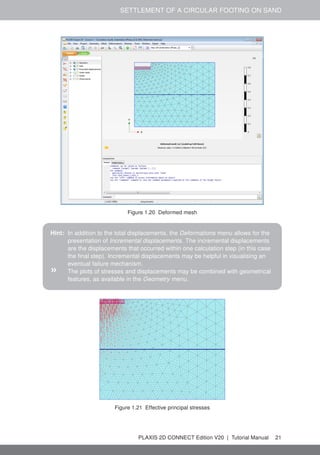
Click the View calculation results button in the side toolbar. As a result, the Output
program is started, showing the deformed mesh at the end of the selected
calculation phase (Figure 1.20). The deformed mesh is scaled to ensure that the
deformations are visible.
• In the Deformations menu select the Total displacements → |u| option. The plot
shows colour shadings of the total displacements. The colour distribution is
displayed in the legend at the right hand side of the plot.
Hint: The legend can be toggled on and off by clicking the corresponding option in
the View menu.
The total displacement distribution can be displayed in contours by clicking the
corresponding button in the toolbar. The plot shows contour lines of the total
displacements, which are labelled. An index is presented with the displacement
values corresponding to the labels.
Clicking the Arrows button, the plot shows the total displacements of all nodes as
arrows, with an indication of their relative magnitude.
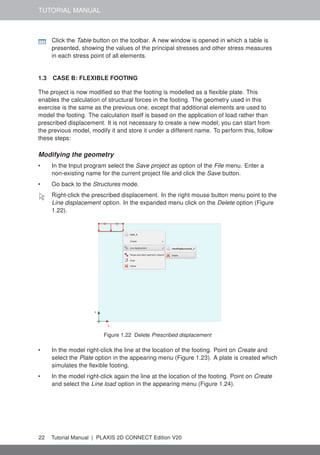
• In the Stresses menu point to the Principal effective stresses and select the
Effective principal stresses option from the appearing menu. The plot shows the
effective principal stresses at the stress points of each soil element with an
indication of their direction and their relative magnitude (Figure 1.21).
20 Tutorial Manual | PLAXIS 2D CONNECT Edition V20
SETTLEMENT OF A CIRCULAR FOOTING ON SAND
Figure 1.20 Deformed mesh
Hint: In addition to the total displacements, the Deformations menu allows for the
presentation of Incremental displacements. The incremental displacements
are the displacements that occurred within one calculation step (in this case
the final step). Incremental displacements may be helpful in visualising an
eventual failure mechanism.
» The plots of stresses and displacements may be combined with geometrical
features, as available in the Geometry menu.
Figure 1.21 Effective principal stresses
PLAXIS 2D CONNECT Edition V20 | Tutorial Manual 21
TUTORIAL MANUAL
Click the Table button on the toolbar. A new window is opened in which a table is
presented, showing the values of the principal stresses and other stress measures
in each stress point of all elements.
1.3 CASE B: FLEXIBLE FOOTING
The project is now modified so that the footing is modelled as a flexible plate. This
enables the calculation of structural forces in the footing. The geometry used in this
exercise is the same as the previous one, except that additional elements are used to
model the footing. The calculation itself is based on the application of load rather than
prescribed displacement. It is not necessary to create a new model; you can start from
the previous model, modify it and store it under a different name. To perform this, follow
these steps:
Modifying the geometry
• In the Input program select the Save project as option of the File menu. Enter a
non-existing name for the current project file and click the Save button.
• Go back to the Structures mode.
Right-click the prescribed displacement. In the right mouse button menu point to the
Line displacement option. In the expanded menu click on the Delete option (Figure
1.22).
Figure 1.22 Delete Prescribed displacement
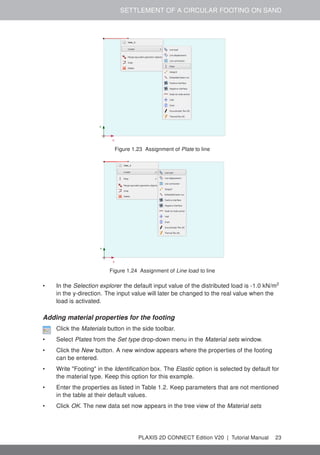
• In the model right-click the line at the location of the footing. Point on Create and
select the Plate option in the appearing menu (Figure 1.23). A plate is created which
simulates the flexible footing.
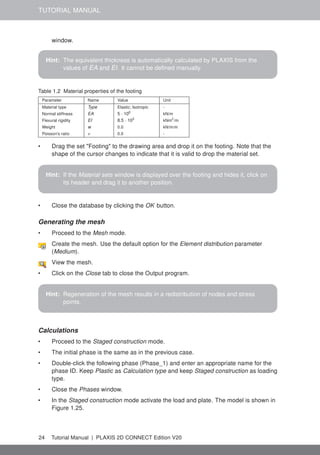
• In the model right-click again the line at the location of the footing. Point on Create
and select the Line load option in the appearing menu (Figure 1.24).
22 Tutorial Manual | PLAXIS 2D CONNECT Edition V20
SETTLEMENT OF A CIRCULAR FOOTING ON SAND
Figure 1.23 Assignment of Plate to line
Figure 1.24 Assignment of Line load to line
• In the Selection explorer the default input value of the distributed load is -1.0 kN/m2
in the y-direction. The input value will later be changed to the real value when the
load is activated.
Adding material properties for the footing
Click the Materials button in the side toolbar.
• Select Plates from the Set type drop-down menu in the Material sets window.
• Click the New button. A new window appears where the properties of the footing
can be entered.
• Write "Footing" in the Identification box. The Elastic option is selected by default for
the material type. Keep this option for this example.
• Enter the properties as listed in Table 1.2. Keep parameters that are not mentioned
in the table at their default values.
• Click OK. The new data set now appears in the tree view of the Material sets
PLAXIS 2D CONNECT Edition V20 | Tutorial Manual 23
TUTORIAL MANUAL
window.
Hint: The equivalent thickness is automatically calculated by PLAXIS from the
values of EA and EI. It cannot be defined manually.
Table 1.2 Material properties of the footing
Parameter Name Value Unit
Material type Type Elastic; Isotropic -
Normal stiffness EA 5 · 106
kN/m
Flexural rigidity EI 8.5 · 103
kNm2
/m
Weight w 0.0 kN/m/m
Poisson's ratio ν 0.0 -
• Drag the set "Footing" to the drawing area and drop it on the footing. Note that the
shape of the cursor changes to indicate that it is valid to drop the material set.
Hint: If the Material sets window is displayed over the footing and hides it, click on
its header and drag it to another position.
• Close the database by clicking the OK button.
Generating the mesh
• Proceed to the Mesh mode.
Create the mesh. Use the default option for the Element distribution parameter
(Medium).
View the mesh.
• Click on the Close tab to close the Output program.
Hint: Regeneration of the mesh results in a redistribution of nodes and stress
points.
Calculations
• Proceed to the Staged construction mode.
• The initial phase is the same as in the previous case.
• Double-click the following phase (Phase_1) and enter an appropriate name for the
phase ID. Keep Plastic as Calculation type and keep Staged construction as loading
type.
• Close the Phases window.
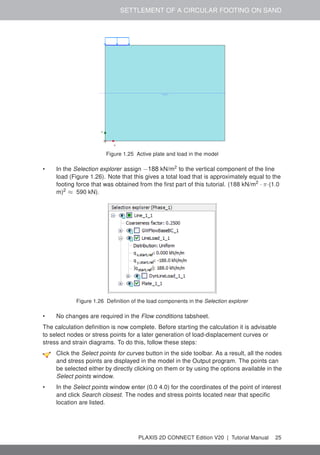
• In the Staged construction mode activate the load and plate. The model is shown in
Figure 1.25.
24 Tutorial Manual | PLAXIS 2D CONNECT Edition V20
SETTLEMENT OF A CIRCULAR FOOTING ON SAND
Figure 1.25 Active plate and load in the model
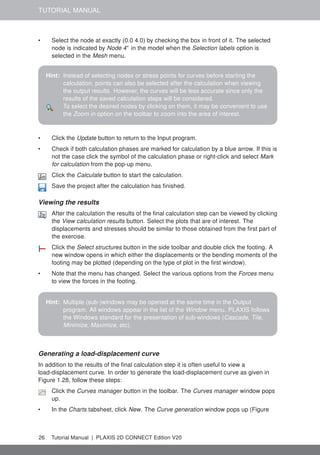
• In the Selection explorer assign −188 kN/m2
to the vertical component of the line
load (Figure 1.26). Note that this gives a total load that is approximately equal to the
footing force that was obtained from the first part of this tutorial. (188 kN/m2
· π·(1.0
m)2
≈ 590 kN).
Figure 1.26 Definition of the load components in the Selection explorer
• No changes are required in the Flow conditions tabsheet.
The calculation definition is now complete. Before starting the calculation it is advisable
to select nodes or stress points for a later generation of load-displacement curves or
stress and strain diagrams. To do this, follow these steps:
Click the Select points for curves button in the side toolbar. As a result, all the nodes
and stress points are displayed in the model in the Output program. The points can
be selected either by directly clicking on them or by using the options available in the
Select points window.
• In the Select points window enter (0.0 4.0) for the coordinates of the point of interest
and click Search closest. The nodes and stress points located near that specific
location are listed.
PLAXIS 2D CONNECT Edition V20 | Tutorial Manual 25
TUTORIAL MANUAL
• Select the node at exactly (0.0 4.0) by checking the box in front of it. The selected
node is indicated by Node 4∗
in the model when the Selection labels option is
selected in the Mesh menu.
Hint: Instead of selecting nodes or stress points for curves before starting the
calculation, points can also be selected after the calculation when viewing
the output results. However, the curves will be less accurate since only the
results of the saved calculation steps will be considered.
To select the desired nodes by clicking on them, it may be convenient to use
the Zoom in option on the toolbar to zoom into the area of interest.
• Click the Update button to return to the Input program.
• Check if both calculation phases are marked for calculation by a blue arrow. If this is
not the case click the symbol of the calculation phase or right-click and select Mark
for calculation from the pop-up menu.
Click the Calculate button to start the calculation.
Save the project after the calculation has finished.
Viewing the results
After the calculation the results of the final calculation step can be viewed by clicking
the View calculation results button. Select the plots that are of interest. The
displacements and stresses should be similar to those obtained from the first part of
the exercise.
Click the Select structures button in the side toolbar and double click the footing. A
new window opens in which either the displacements or the bending moments of the
footing may be plotted (depending on the type of plot in the first window).
• Note that the menu has changed. Select the various options from the Forces menu
to view the forces in the footing.
Hint: Multiple (sub-)windows may be opened at the same time in the Output
program. All windows appear in the list of the Window menu. PLAXIS follows
the Windows standard for the presentation of sub-windows (Cascade, Tile,
Minimize, Maximize, etc).
Generating a load-displacement curve
In addition to the results of the final calculation step it is often useful to view a
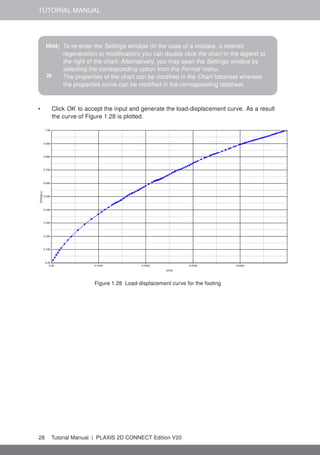
load-displacement curve. In order to generate the load-displacement curve as given in
Figure 1.28, follow these steps:
Click the Curves manager button in the toolbar. The Curves manager window pops
up.
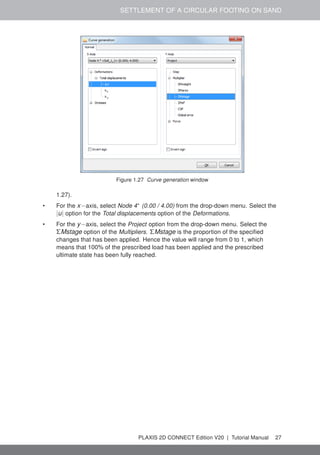
• In the Charts tabsheet, click New. The Curve generation window pops up (Figure
26 Tutorial Manual | PLAXIS 2D CONNECT Edition V20
SETTLEMENT OF A CIRCULAR FOOTING ON SAND
Figure 1.27 Curve generation window
1.27).
• For the x−axis, select Node 4∗
(0.00 / 4.00) from the drop-down menu. Select the
|u| option for the Total displacements option of the Deformations.
• For the y−axis, select the Project option from the drop-down menu. Select the
ΣMstage option of the Multipliers. ΣMstage is the proportion of the specified
changes that has been applied. Hence the value will range from 0 to 1, which
means that 100% of the prescribed load has been applied and the prescribed
ultimate state has been fully reached.
PLAXIS 2D CONNECT Edition V20 | Tutorial Manual 27
TUTORIAL MANUAL
Hint: To re-enter the Settings window (in the case of a mistake, a desired
regeneration or modification) you can double click the chart in the legend at
the right of the chart. Alternatively, you may open the Settings window by
selecting the corresponding option from the Format menu.
» The properties of the chart can be modified in the Chart tabsheet whereas
the properties curve can be modified in the corresponding tabsheet.
• Click OK to accept the input and generate the load-displacement curve. As a result
the curve of Figure 1.28 is plotted.
Figure 1.28 Load-displacement curve for the footing
28 Tutorial Manual | PLAXIS 2D CONNECT Edition V20
SUBMERGED CONSTRUCTION OF AN EXCAVATION
2 SUBMERGED CONSTRUCTION OF AN EXCAVATION
This tutorial illustrates the use of PLAXIS for the analysis of submerged construction of
an excavation. Most of the program features that were used in Tutorial 1 will be utilised
here again. In addition, some new features will be used, such as the use of interfaces
and anchor elements, the generation of water pressures and the use of multiple
calculation phases. The new features will be described in full detail, whereas the features
that were treated in Tutorial 1 will be described in less detail. Therefore it is suggested
that Tutorial 1 should be completed before attempting this exercise.
This tutorial concerns the construction of an excavation close to a river. The submerged
excavation is carried out in order to construct a tunnel by the installation of prefabricated
tunnel segments which are 'floated' into the excavation and 'sunk' onto the excavation
bottom. The excavation is 30 m wide and the final depth is 20 m. It extends in longitudinal
direction for a large distance, so that a plane strain model is applicable. The sides of the
excavation are supported by 30 m long diaphragm walls, which are braced by horizontal
struts at an interval of 5 m. Along the excavation a surface load is taken into account.
The load is applied from 2 m from the diaphragm wall up to 7 m from the wall and has a
magnitude of 5 kN/m2
/m (Figure 2.1).
The upper 20 m of the subsoil consists of soft soil layers, which are modelled as a single
homogeneous clay layer. Underneath this clay layer there is a stiffer sand layer, which
extends to a large depth. 30 m of the sand layer are considered in the model.
x
y
43 m
43 m 5 m
5 m 2 m
2 m 30 m
1 m
19 m
10 m
20 m
Clay
Clay
Sand
Diaphragm wall
to be excavated
Strut
5 kN/m2/m
5 kN/m2/m
Figure 2.1 Geometry model of the situation of a submerged excavation
Since the geometry is symmetric, only one half (the left side) is considered in the
analysis. The excavation process is simulated in three separate excavation stages. The
diaphragm wall is modelled by means of a plate, such as used for the footing in the
previous tutorial. The interaction between the wall and the soil is modelled at both sides
by means of interfaces. The interfaces allow for the specification of a reduced wall friction
compared to the friction in the soil. The strut is modelled as a spring element for which
the normal stiffness is a required input parameter.
PLAXIS 2D CONNECT Edition V20 | Tutorial Manual 29
TUTORIAL MANUAL
Objectives:
• Modelling soil-structure interaction using the Interface feature.
• Advanced soil models (Soft Soil model and Hardening Soil model).
• Undrained (A) drainage type.
• Defining Fixed-end-anchor.
• Creating and assigning material data sets for anchors.
• Simulation of excavation (cluster de-activation).
2.1 INPUT
To create the geometry model, follow these steps:
General settings
• Start the Input program and select Start a new project from the Quick select dialog
box.
• In the Project tabsheet of the Project properties window, enter an appropriate title.
• In the Model tabsheet keep the default options for Model (Plane strain), and
Elements (15-Node).
• Set the model dimensions to xmin = 0.0 m, xmax = 65.0 m, ymin = -30.0 m and ymax =
20.0.
• Keep the default values for units and constants and press OK to close the Project
properties window.
Definition of soil stratigraphy
To define the soil stratigraphy:
Create a borehole at x = 0. The Modify soil layers window pops up.
• Add the top soil layer and specify its height by setting the top level to 20 m and the
bottom level to 0 m.
• Add the bottom soil layer and specify its height by keeping the top level at 0 m and
by setting the bottom level to -30 m.
• Set the Head in the borehole to 18.0 m.
Two data sets need to be created; one for the clay layer and one for the sand layer. To
create the material data sets, follow these steps:
Click the Materials button in the Modify soil layers window. The Material sets window
pops up where the Soil and interfaces option is selected by default as the Set type.
• Click the New button in the Material sets window to create a new data set.
• For the clay layer, enter "Clay" for the Identification and select Soft soil as the
Material model. Set the Drainage type to Undrained (A).
• Enter the properties of the clay layer, as listed in Table 2.1, in the General,
30 Tutorial Manual | PLAXIS 2D CONNECT Edition V20
SUBMERGED CONSTRUCTION OF AN EXCAVATION
Parameters and Flow parameters tabsheets.
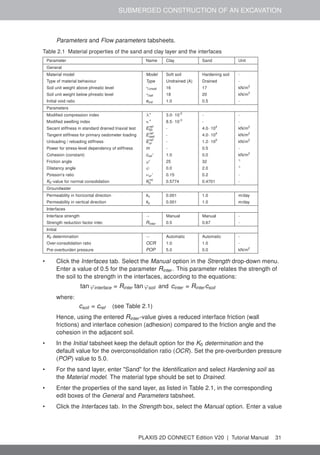
Table 2.1 Material properties of the sand and clay layer and the interfaces
Parameter Name Clay Sand Unit
General
Material model Model Soft soil Hardening soil -
Type of material behaviour Type Undrained (A) Drained -
Soil unit weight above phreatic level γunsat 16 17 kN/m3
Soil unit weight below phreatic level γsat 18 20 kN/m3
Initial void ratio einit 1.0 0.5 -
Parameters
Modified compression index λ∗
3.0· 10-2
- -
Modified swelling index κ∗
8.5· 10-3
- -
Secant stiffness in standard drained triaxial test Eref
50 - 4.0· 104
kN/m2
Tangent stiffness for primary oedometer loading Eref
oed - 4.0· 104
kN/m2
Unloading / reloading stiffness Eref
ur - 1.2· 105
kN/m2
Power for stress-level dependency of stiffness m - 0.5 -
Cohesion (constant) cref ' 1.0 0.0 kN/m2
Friction angle ϕ' 25 32 ◦
Dilatancy angle ψ 0.0 2.0 ◦
Poisson's ratio νur ' 0.15 0.2 -
K0-value for normal consolidation Knc
0 0.5774 0.4701 -
Groundwater
Permeability in horizontal direction kx 0.001 1.0 m/day
Permeability in vertical direction ky 0.001 1.0 m/day
Interfaces
Interface strength − Manual Manual -
Strength reduction factor inter. Rinter 0.5 0.67 -
Initial
K0 determination − Automatic Automatic -
Over-consolidation ratio OCR 1.0 1.0 -
Pre-overburden pressure POP 5.0 0.0 kN/m2
• Click the Interfaces tab. Select the Manual option in the Strength drop-down menu.
Enter a value of 0.5 for the parameter Rinter . This parameter relates the strength of
the soil to the strength in the interfaces, according to the equations:
tan ϕinterface = Rinter tan ϕsoil and cinter = Rinter csoil
where:
csoil = cref (see Table 2.1)
Hence, using the entered Rinter -value gives a reduced interface friction (wall
frictions) and interface cohesion (adhesion) compared to the friction angle and the
cohesion in the adjacent soil.
• In the Initial tabsheet keep the default option for the K0 determination and the
default value for the overconsolidation ratio (OCR). Set the pre-overburden pressure
(POP) value to 5.0.
• For the sand layer, enter "Sand" for the Identification and select Hardening soil as
the Material model. The material type should be set to Drained.
• Enter the properties of the sand layer, as listed in Table 2.1, in the corresponding
edit boxes of the General and Parameters tabsheet.
• Click the Interfaces tab. In the Strength box, select the Manual option. Enter a value
PLAXIS 2D CONNECT Edition V20 | Tutorial Manual 31
TUTORIAL MANUAL
of 0.67 for the parameter Rinter . Close the data set.
• Assign the material datasets to the corresponding soil layers.
Hint: When the Rigid option is selected in the Strength drop-down, the interface
has the same strength properties as the soil (Rinter = 1.0).
» Note that a value of Rinter < 1.0, reduces the strength as well as the stiffness
of the interface (Section 6.1.7 of the Reference Manual).
» Instead of accepting the default data sets of interfaces, data sets can directly
be assigned to interfaces by selecting the proper data set in the Material
mode drop-down menu in the Object explorers.
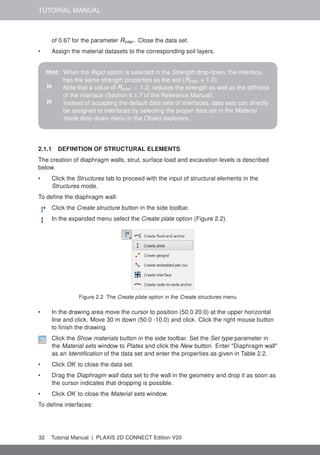
2.1.1 DEFINITION OF STRUCTURAL ELEMENTS
The creation of diaphragm walls, strut, surface load and excavation levels is described
below.
• Click the Structures tab to proceed with the input of structural elements in the
Structures mode.
To define the diaphragm wall:
Click the Create structure button in the side toolbar.
In the expanded menu select the Create plate option (Figure 2.2).
Figure 2.2 The Create plate option in the Create structures menu
• In the drawing area move the cursor to position (50.0 20.0) at the upper horizontal
line and click. Move 30 m down (50.0 -10.0) and click. Click the right mouse button
to finish the drawing.
Click the Show materials button in the side toolbar. Set the Set type parameter in
the Material sets window to Plates and click the New button. Enter "Diaphragm wall"
as an Identification of the data set and enter the properties as given in Table 2.2.
• Click OK to close the data set.
• Drag the Diaphragm wall data set to the wall in the geometry and drop it as soon as
the cursor indicates that dropping is possible.
• Click OK to close the Material sets window.
To define interfaces:
32 Tutorial Manual | PLAXIS 2D CONNECT Edition V20
SUBMERGED CONSTRUCTION OF AN EXCAVATION
Table 2.2 Material properties of the diaphragm wall (Plate)
Parameter Name Value Unit
Type of behaviour Material type Elastic; Isotropic
Normal stiffness EA 7.5 · 106
kN/m
Flexural rigidity EI 1.0 · 106
kNm2
/m
Unit weight w 10.0 kN/m/m
Poisson's ratio ν 0.0 -
Hint: In general, only one point can exist at a certain coordinate and only one line
can exist between two points. Coinciding points or lines will automatically be
reduced to single points or lines. More information is available in Section
5.2.4 of the Reference Manual.
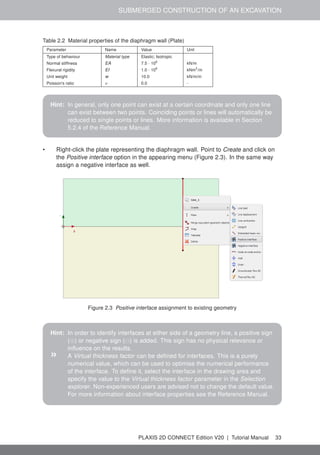
• Right-click the plate representing the diaphragm wall. Point to Create and click on
the Positive interface option in the appearing menu (Figure 2.3). In the same way
assign a negative interface as well.
Figure 2.3 Positive interface assignment to existing geometry
Hint: In order to identify interfaces at either side of a geometry line, a positive sign
(⊕) or negative sign (	) is added. This sign has no physical relevance or
influence on the results.
» A Virtual thickness factor can be defined for interfaces. This is a purely
numerical value, which can be used to optimise the numerical performance
of the interface. To define it, select the interface in the drawing area and
specify the value to the Virtual thickness factor parameter in the Selection
explorer. Non-experienced users are advised not to change the default value.
For more information about interface properties see the Reference Manual.
PLAXIS 2D CONNECT Edition V20 | Tutorial Manual 33
TUTORIAL MANUAL
To define the excavation levels:
Click the Create line button in the side toolbar.
• To define the first excavation stage move the cursor to position (50.0 18.0) at the
wall and click. Move the cursor 15 m to the right (65.0 18.0) and click again. Click
the right mouse button to finish drawing the first excavation stage.
• To define the second excavation stage move the cursor to position (50.0 10.0) and
click. Move to (65.0 10.0) and click again. Click the right mouse button to finish
drawing the second excavation stage.
• The third excavation stage is automatically defined as it corresponds to the
boundary between the soil layers (y = 0.0).
To define the strut:
Click the Create structure button in the side toolbar and select the Create fixed-end
anchor button in the expanded menu.
• Move the cursor to (50.0 19.0) and click the left mouse button. A fixed-end anchor is
is added, being represented by a rotated T with a fixed size.
Click the Show materials button in the side toolbar. Set the Set type parameter in
the Material sets window to Anchor and click the New button. Enter "Strut" as an
Identification of the data set and enter the properties as given in Table 2.3. Click OK
to close the data set.
• Click OK to close the Material sets window.
Table 2.3 Material properties of the strut (anchor)
Parameter Name Value Unit
Type of behaviour Material type Elastic -
Normal stiffness EA 2·106
kN
Spacing out-of-plane Lspacing 5.0 m
• Make sure that the fixed-end anchor is selected in the drawing area.
• In the Selection explorer assign the material data set to the strut by selecting the
corresponding option in the Material drop-down menu.
• The anchor is oriented in the model according to the Directionx and Directiony
parameters in the Selection explorer. The default orientation is valid in this tutorial.
• Enter an Equivalent length of 15 m corresponding to half the width of the excavation
(Figure 2.4).
Hint: The Equivalent length is the distance between the connection point and the
position in the direction of the anchor rod where the displacement is zero.
To define the distributed load:
Click the Create load button in the side toolbar
Select the Create line load option in the expanded menu to define a distributed load
(Figure 2.5).
34 Tutorial Manual | PLAXIS 2D CONNECT Edition V20
SUBMERGED CONSTRUCTION OF AN EXCAVATION
Figure 2.4 Parameters for fixed-end anchors in the Selection explorer
Figure 2.5 The Create line load option in the Create load menu
• Move the cursor to (43.0 20.0) and click. Move the cursor 5 m to the right to (48.0
20.0) and click again. Right-click to finish drawing.
• In the Selection explorer assign a value of -5 kN/m/m to the y-component of the load
(qy,start,ref ) (Figure 2.6).
Figure 2.6 Components of the distributed load in the Selection explorer
2.2 MESH GENERATION
• Proceed to the Mesh mode.
Create the mesh. Use the default option for the Element distribution parameter
(Medium).
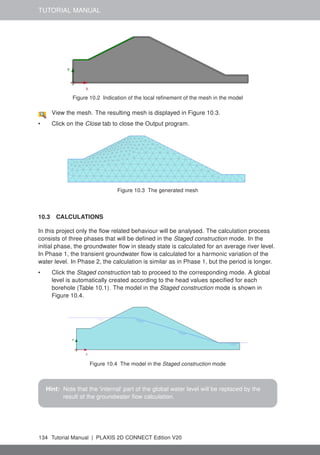
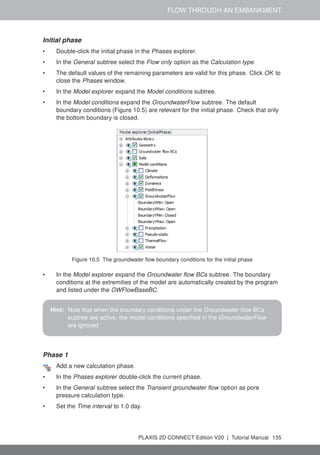
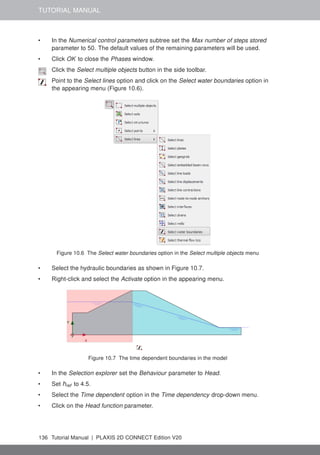
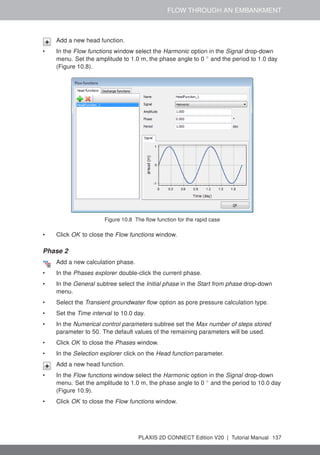
View the mesh. The resulting mesh is displayed in Figure 2.7.
• Click on the Close tab to close the Output program.
PLAXIS 2D CONNECT Edition V20 | Tutorial Manual 35
TUTORIAL MANUAL
Figure 2.7 The generated mesh
2.3 CALCULATIONS
In practice, the construction of an excavation is a process that can consist of several
phases. First, the wall is installed to the desired depth. Then some excavation is carried
out to create space to install an anchor or a strut. Then the soil is gradually removed to
the final depth of the excavation. Special measures are usually taken to keep the water
out of the excavation. Props may also be provided to support the retaining wall.
In PLAXIS, these processes can be simulated with the Staged construction loading type
available in the General subtree of the Phases window. It enables the activation or
deactivation of weight, stiffness and strength of selected components of the finite element
model. Note that modifications in the Staged construction mode of the program are
possible only for this type of loading. The current tutorial explains the use of this powerful
calculation option for the simulation of excavations.
• Click on the Staged construction tab to proceed with the definition of the calculation
phases.
• The initial phase has already been introduced. Keep its calculation type as K0
procedure. Make sure all the soil volumes are active and all the structural elements
and load are inactive.
Phase 1: External load
In the Phases explorer click the Add phase button to introduce a new phase.
• The default settings are valid for this phase. In the model the full geometry is active
except for the wall, interfaces, strut and load.
Click the Select multiple objects button in the side toolbar. In the appearing menu
point to Select line and click on the Select plates option (Figure 2.8).
• In the drawing area define a rectangle including all the plate elements (Figure 2.9).
• Right-click the wall in the drawing area and select the Activate option from the
appearing menu. The wall is now visible in the color that is specified in the material
dataset.
• Right-click the distributed load to activate it and select the Activate option from the
36 Tutorial Manual | PLAXIS 2D CONNECT Edition V20
SUBMERGED CONSTRUCTION OF AN EXCAVATION
Figure 2.8 The Select plates option
Figure 2.9 Multi-selection of plates in the drawing area
appearing menu. The load has been defined in the Structures mode as −5 kN/m/m.
The value can be checked in the Selection explorer.
• Make sure all the interfaces in the model are active.
Phase 2: First excavation stage
In the Phases explorer click the Add phase button to introduce a new phase.
• A new calculation phase appears in the Phases explorer. Note that the program
PLAXIS 2D CONNECT Edition V20 | Tutorial Manual 37
TUTORIAL MANUAL
Hint: The selection of an interface is done by right-clicking the corresponding
geometry line and subsequently selecting the corresponding interface
(positive or negative) from the appearing menu.
automatically presumes that the current phase should start from the previous one
and that the same objects are active.
Hint: To copy the settings of the parent phase, select the phase in the Phases
explorer and then click the Add phase button. Note that the settings of the
parent phase are not copied when it is specified by selecting it in the Start
from phase drop-down menu in the Phases window.
• The default settings are valid for this phase. In the Staged construction mode all the
structure elements except the fixed-end anchor are active.
• In the drawing area right-click the top right cluster and select the Deactivate option in
the appearing menu. Figure 2.10 displays the model for the first excavation phase.
Figure 2.10 Model view for the first excavation phase
Phase 3: Installation of strut
Add a new phase.
• Activate the strut. The strut should turn black to indicate it is active.
Phase 4: Second (submerged) excavation stage
Add a new phase.
• Deactivate the second cluster from the top on the right side of the mesh. It should
be the topmost active cluster (Figure 2.11).
38 Tutorial Manual | PLAXIS 2D CONNECT Edition V20
SUBMERGED CONSTRUCTION OF AN EXCAVATION
Figure 2.11 Model view for the second excavation phase
Hint: Note that in PLAXIS the pore pressures are not automatically deactivated
when deactivating a soil cluster. Hence, in this case, the water remains in the
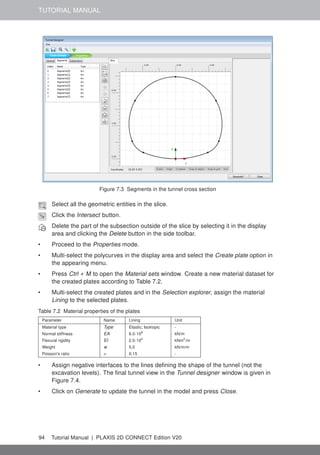
excavated area and a submerged excavation is simulated.
Phase 5: Third excavation stage
Add a new phase.
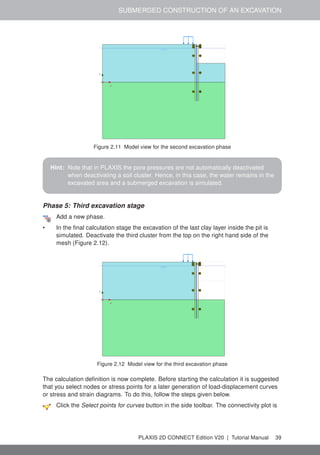
• In the final calculation stage the excavation of the last clay layer inside the pit is
simulated. Deactivate the third cluster from the top on the right hand side of the
mesh (Figure 2.12).
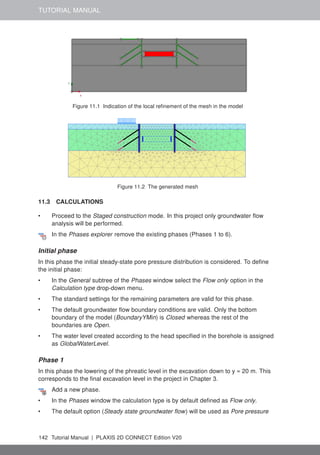
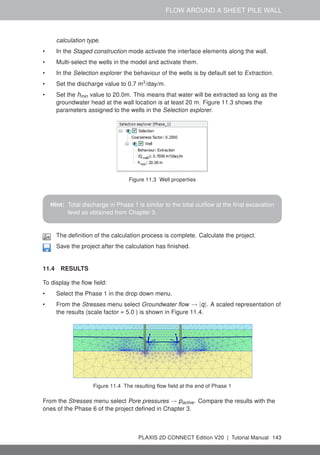
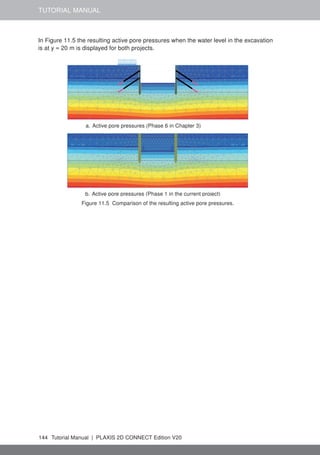
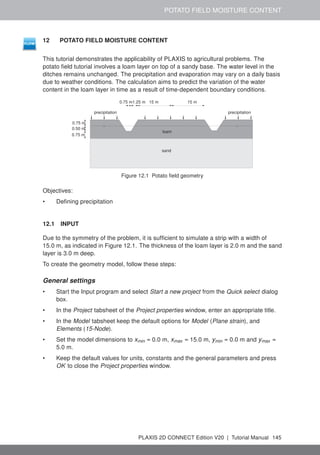
Figure 2.12 Model view for the third excavation phase
The calculation definition is now complete. Before starting the calculation it is suggested
that you select nodes or stress points for a later generation of load-displacement curves
or stress and strain diagrams. To do this, follow the steps given below.
Click the Select points for curves button in the side toolbar. The connectivity plot is
PLAXIS 2D CONNECT Edition V20 | Tutorial Manual 39
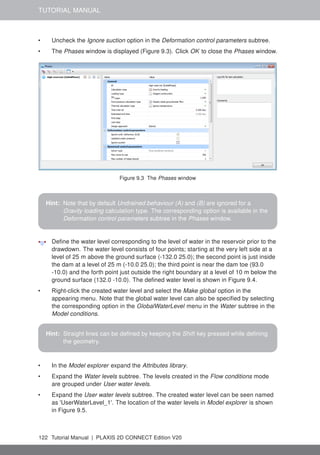
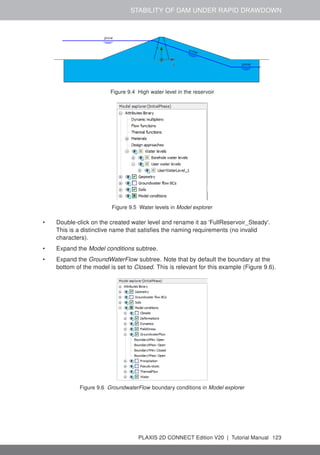
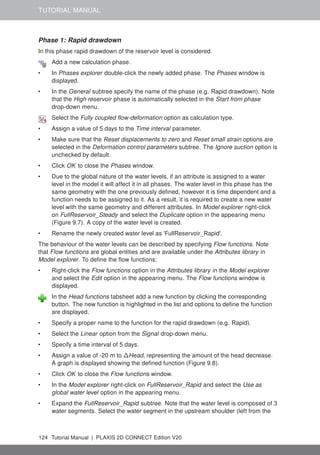
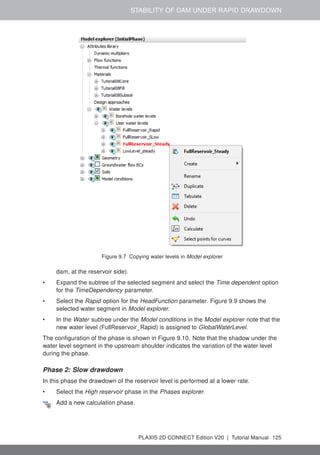
TUTORIAL MANUAL
displayed in the Output program and the Select points window is activated.
• Select some nodes on the wall at points where large deflections can be expected
(e.g. 50.0 10.0). The nodes located near that specific location are listed. Select the
convenient one by checking the box in front of it in the list. Close the Select points
window.
• Click on the Update tab to close the Output program and go back to the Input
program.
Calculate the project.
During a Staged construction calculation phase, a multiplier called ΣMstage is increased
from 0.0 to 1.0. This parameter is displayed on the calculation info window. As soon as
ΣMstage has reached the value 1.0, the construction stage is completed and the
calculation phase is finished. If a Staged construction calculation finishes while ΣMstage
is smaller than 1.0, the program will give a warning message. The most likely reason for
not finishing a construction stage is that a failure mechanism has occurred, but there can
be other causes as well. See the Reference Manual for more information about Staged
construction.
2.4 RESULTS
In addition to the displacements and the stresses in the soil, the Output program can be
used to view the forces in structural objects. To examine the results of this project, follow
these steps:
• Click the final calculation phase in the Calculations window.
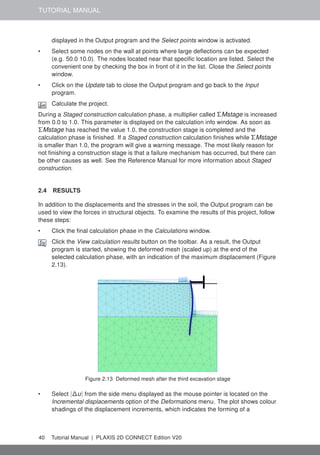
Click the View calculation results button on the toolbar. As a result, the Output
program is started, showing the deformed mesh (scaled up) at the end of the
selected calculation phase, with an indication of the maximum displacement (Figure
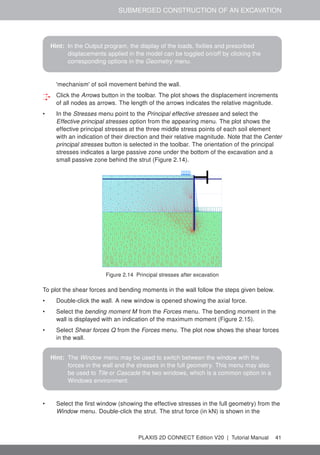
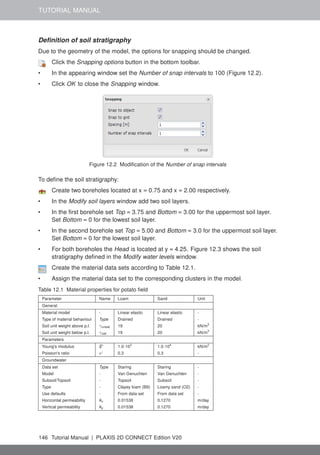
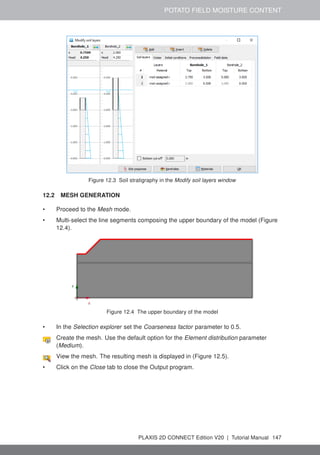
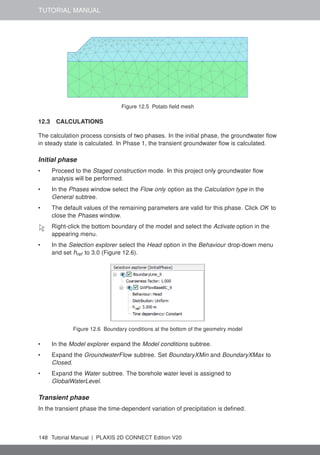
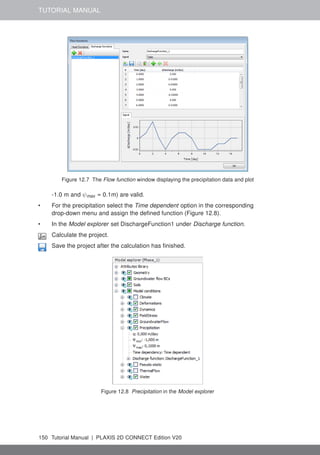
2.13).
Figure 2.13 Deformed mesh after the third excavation stage
• Select |∆u| from the side menu displayed as the mouse pointer is located on the
Incremental displacements option of the Deformations menu. The plot shows colour
shadings of the displacement increments, which indicates the forming of a
40 Tutorial Manual | PLAXIS 2D CONNECT Edition V20
SUBMERGED CONSTRUCTION OF AN EXCAVATION
Hint: In the Output program, the display of the loads, fixities and prescribed
displacements applied in the model can be toggled on/off by clicking the
corresponding options in the Geometry menu.
'mechanism' of soil movement behind the wall.
Click the Arrows button in the toolbar. The plot shows the displacement increments
of all nodes as arrows. The length of the arrows indicates the relative magnitude.
• In the Stresses menu point to the Principal effective stresses and select the
Effective principal stresses option from the appearing menu. The plot shows the
effective principal stresses at the three middle stress points of each soil element
with an indication of their direction and their relative magnitude. Note that the Center
principal stresses button is selected in the toolbar. The orientation of the principal
stresses indicates a large passive zone under the bottom of the excavation and a
small passive zone behind the strut (Figure 2.14).
Figure 2.14 Principal stresses after excavation
To plot the shear forces and bending moments in the wall follow the steps given below.
• Double-click the wall. A new window is opened showing the axial force.
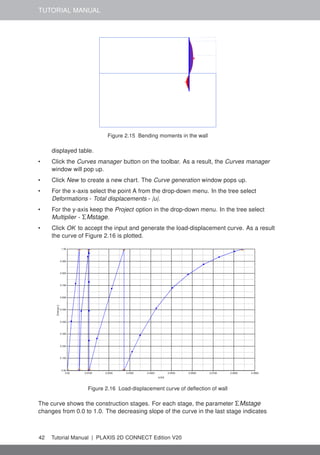
• Select the bending moment M from the Forces menu. The bending moment in the
wall is displayed with an indication of the maximum moment (Figure 2.15).
• Select Shear forces Q from the Forces menu. The plot now shows the shear forces
in the wall.
Hint: The Window menu may be used to switch between the window with the
forces in the wall and the stresses in the full geometry. This menu may also
be used to Tile or Cascade the two windows, which is a common option in a
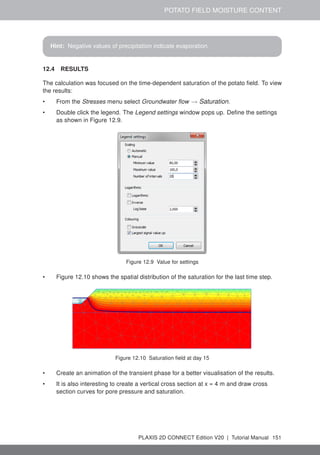
Windows environment.
• Select the first window (showing the effective stresses in the full geometry) from the
Window menu. Double-click the strut. The strut force (in kN) is shown in the
PLAXIS 2D CONNECT Edition V20 | Tutorial Manual 41
TUTORIAL MANUAL
Figure 2.15 Bending moments in the wall
displayed table.
• Click the Curves manager button on the toolbar. As a result, the Curves manager
window will pop up.
• Click New to create a new chart. The Curve generation window pops up.
• For the x-axis select the point A from the drop-down menu. In the tree select
Deformations - Total displacements - |u|.
• For the y-axis keep the Project option in the drop-down menu. In the tree select
Multiplier - ΣMstage.
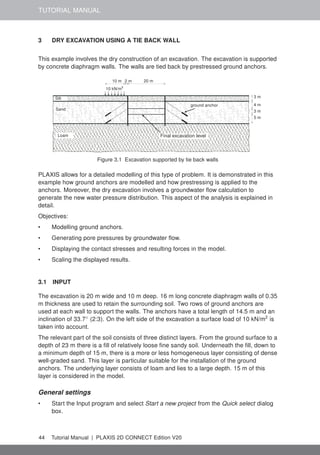
• Click OK to accept the input and generate the load-displacement curve. As a result
the curve of Figure 2.16 is plotted.
Figure 2.16 Load-displacement curve of deflection of wall
The curve shows the construction stages. For each stage, the parameter ΣMstage
changes from 0.0 to 1.0. The decreasing slope of the curve in the last stage indicates
42 Tutorial Manual | PLAXIS 2D CONNECT Edition V20
SUBMERGED CONSTRUCTION OF AN EXCAVATION
that the amount of plastic deformation is increasing. The results of the calculation
indicate, however, that the excavation remains stable at the end of construction.
PLAXIS 2D CONNECT Edition V20 | Tutorial Manual 43
TUTORIAL MANUAL
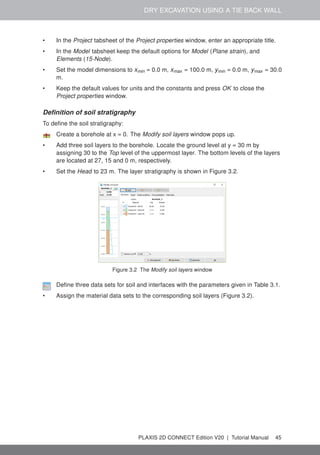
3 DRY EXCAVATION USING A TIE BACK WALL
This example involves the dry construction of an excavation. The excavation is supported
by concrete diaphragm walls. The walls are tied back by prestressed ground anchors.
10 m 2 m 20 m
5 m
Silt
Sand
Loam
ground anchor
Final excavation level
3 m
3 m
4 m
10 kN/m2
Figure 3.1 Excavation supported by tie back walls
PLAXIS allows for a detailed modelling of this type of problem. It is demonstrated in this
example how ground anchors are modelled and how prestressing is applied to the
anchors. Moreover, the dry excavation involves a groundwater flow calculation to
generate the new water pressure distribution. This aspect of the analysis is explained in
detail.
Objectives:
• Modelling ground anchors.
• Generating pore pressures by groundwater flow.
• Displaying the contact stresses and resulting forces in the model.
• Scaling the displayed results.
3.1 INPUT
The excavation is 20 m wide and 10 m deep. 16 m long concrete diaphragm walls of 0.35
m thickness are used to retain the surrounding soil. Two rows of ground anchors are
used at each wall to support the walls. The anchors have a total length of 14.5 m and an
inclination of 33.7◦
(2:3). On the left side of the excavation a surface load of 10 kN/m2
is
taken into account.
The relevant part of the soil consists of three distinct layers. From the ground surface to a
depth of 23 m there is a fill of relatively loose fine sandy soil. Underneath the fill, down to
a minimum depth of 15 m, there is a more or less homogeneous layer consisting of dense
well-graded sand. This layer is particular suitable for the installation of the ground
anchors. The underlying layer consists of loam and lies to a large depth. 15 m of this
layer is considered in the model.
General settings
• Start the Input program and select Start a new project from the Quick select dialog
box.
44 Tutorial Manual | PLAXIS 2D CONNECT Edition V20
DRY EXCAVATION USING A TIE BACK WALL
• In the Project tabsheet of the Project properties window, enter an appropriate title.
• In the Model tabsheet keep the default options for Model (Plane strain), and
Elements (15-Node).
• Set the model dimensions to xmin = 0.0 m, xmax = 100.0 m, ymin = 0.0 m, ymax = 30.0
m.
• Keep the default values for units and the constants and press OK to close the
Project properties window.
Definition of soil stratigraphy
To define the soil stratigraphy:
Create a borehole at x = 0. The Modify soil layers window pops up.
• Add three soil layers to the borehole. Locate the ground level at y = 30 m by
assigning 30 to the Top level of the uppermost layer. The bottom levels of the layers
are located at 27, 15 and 0 m, respectively.
• Set the Head to 23 m. The layer stratigraphy is shown in Figure 3.2.
Figure 3.2 The Modify soil layers window
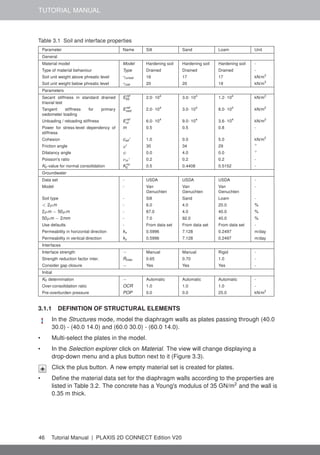
Define three data sets for soil and interfaces with the parameters given in Table 3.1.
• Assign the material data sets to the corresponding soil layers (Figure 3.2).
PLAXIS 2D CONNECT Edition V20 | Tutorial Manual 45
TUTORIAL MANUAL
Table 3.1 Soil and interface properties
Parameter Name Silt Sand Loam Unit
General
Material model Model Hardening soil Hardening soil Hardening soil -
Type of material behaviour Type Drained Drained Drained -
Soil unit weight above phreatic level γunsat 16 17 17 kN/m3
Soil unit weight below phreatic level γsat 20 20 19 kN/m3
Parameters
Secant stiffness in standard drained
triaxial test
Eref
50 2.0· 104
3.0· 104
1.2· 104
kN/m2
Tangent stiffness for primary
oedometer loading
Eref
oed 2.0· 104
3.0· 104
8.0· 103
kN/m2
Unloading / reloading stiffness Eref
ur 6.0· 104
9.0· 104
3.6· 104
kN/m2
Power for stress-level dependency of
stiffness
m 0.5 0.5 0.8 -
Cohesion cref ' 1.0 0.0 5.0 kN/m2
Friction angle ϕ' 30 34 29 ◦
Dilatancy angle ψ 0.0 4.0 0.0 ◦
Poisson's ratio νur ' 0.2 0.2 0.2 -
K0-value for normal consolidation Knc
0 0.5 0.4408 0.5152 -
Groundwater
Data set - USDA USDA USDA -
Model - Van
Genuchten
Van
Genuchten
Van
Genuchten
-
Soil type - Silt Sand Loam -
< 2µm - 6.0 4.0 20.0 %
2µm − 50µm - 87.0 4.0 40.0 %
50µm − 2mm - 7.0 92.0 40.0 %
Use defaults - From data set From data set From data set -
Permeability in horizontal direction kx 0.5996 7.128 0.2497 m/day
Permeability in vertical direction ky 0.5996 7.128 0.2497 m/day
Interfaces
Interface strength − Manual Manual Rigid -
Strength reduction factor inter. Rinter 0.65 0.70 1.0 -
Consider gap closure − Yes Yes Yes -
Initial
K0 determination − Automatic Automatic Automatic -
Over-consolidation ratio OCR 1.0 1.0 1.0 -
Pre-overburden pressure POP 0.0 0.0 25.0 kN/m2
3.1.1 DEFINITION OF STRUCTURAL ELEMENTS
In the Structures mode, model the diaphragm walls as plates passing through (40.0
30.0) - (40.0 14.0) and (60.0 30.0) - (60.0 14.0).
• Multi-select the plates in the model.
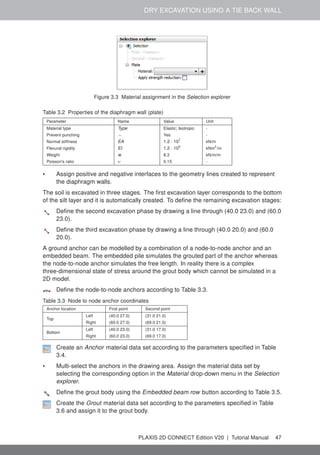
• In the Selection explorer click on Material. The view will change displaying a
drop-down menu and a plus button next to it (Figure 3.3).
Click the plus button. A new empty material set is created for plates.
• Define the material data set for the diaphragm walls according to the properties are
listed in Table 3.2. The concrete has a Young's modulus of 35 GN/m2
and the wall is
0.35 m thick.
46 Tutorial Manual | PLAXIS 2D CONNECT Edition V20
DRY EXCAVATION USING A TIE BACK WALL
Figure 3.3 Material assignment in the Selection explorer
Table 3.2 Properties of the diaphragm wall (plate)
Parameter Name Value Unit
Material type Type Elastic; Isotropic -
Prevent punching − Yes -
Normal stiffness EA 1.2 · 107
kN/m
Flexural rigidity EI 1.2 · 105
kNm2
/m
Weight w 8.3 kN/m/m
Poisson's ratio ν 0.15 -
• Assign positive and negative interfaces to the geometry lines created to represent
the diaphragm walls.
The soil is excavated in three stages. The first excavation layer corresponds to the bottom
of the silt layer and it is automatically created. To define the remaining excavation stages:
Define the second excavation phase by drawing a line through (40.0 23.0) and (60.0
23.0).
Define the third excavation phase by drawing a line through (40.0 20.0) and (60.0
20.0).
A ground anchor can be modelled by a combination of a node-to-node anchor and an
embedded beam. The embedded pile simulates the grouted part of the anchor whereas
the node-to-node anchor simulates the free length. In reality there is a complex
three-dimensional state of stress around the grout body which cannot be simulated in a
2D model.
Define the node-to-node anchors according to Table 3.3.
Table 3.3 Node to node anchor coordinates
Anchor location First point Second point
Top
Left (40.0 27.0) (31.0 21.0)
Right (60.0 27.0) (69.0 21.0)
Bottom
Left (40.0 23.0) (31.0 17.0)
Right (60.0 23.0) (69.0 17.0)
Create an Anchor material data set according to the parameters specified in Table
3.4.
• Multi-select the anchors in the drawing area. Assign the material data set by
selecting the corresponding option in the Material drop-down menu in the Selection
explorer.
Define the grout body using the Embedded beam row button according to Table 3.5.
Create the Grout material data set according to the parameters specified in Table
3.6 and assign it to the grout body.
PLAXIS 2D CONNECT Edition V20 | Tutorial Manual 47
TUTORIAL MANUAL
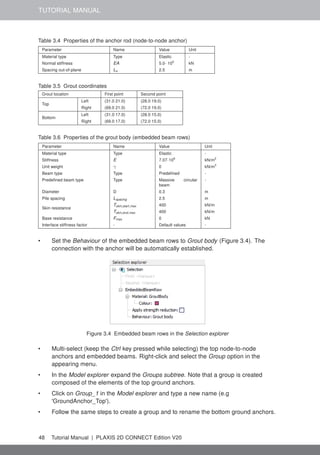
Table 3.4 Properties of the anchor rod (node-to-node anchor)
Parameter Name Value Unit
Material type Type Elastic -
Normal stiffness EA 5.0· 105
kN
Spacing out-of-plane Ls 2.5 m
Table 3.5 Grout coordinates
Grout location First point Second point
Top
Left (31.0 21.0) (28.0 19.0)
Right (69.0 21.0) (72.0 19.0)
Bottom
Left (31.0 17.0) (28.0 15.0)
Right (69.0 17.0) (72.0 15.0)
Table 3.6 Properties of the grout body (embedded beam rows)
Parameter Name Value Unit
Material type Type Elastic -
Stiffness E 7.07·106
kN/m2
Unit weight γ 0 kN/m3
Beam type Type Predefined -
Predefined beam type Type Massive circular
beam
-
Diameter D 0.3 m
Pile spacing Lspacing 2.5 m
Skin resistance
Tskin,start,max 400 kN/m
Tskin,end,max 400 kN/m
Base resistance Fmax 0 kN
Interface stiffness factor - Default values -
• Set the Behaviour of the embedded beam rows to Grout body (Figure 3.4). The
connection with the anchor will be automatically established.
Figure 3.4 Embedded beam rows in the Selection explorer
• Multi-select (keep the Ctrl key pressed while selecting) the top node-to-node
anchors and embedded beams. Right-click and select the Group option in the
appearing menu.
• In the Model explorer expand the Groups subtree. Note that a group is created
composed of the elements of the top ground anchors.
• Click on Group_1 in the Model explorer and type a new name (e.g
'GroundAnchor_Top').
• Follow the same steps to create a group and to rename the bottom ground anchors.
48 Tutorial Manual | PLAXIS 2D CONNECT Edition V20
DRY EXCAVATION USING A TIE BACK WALL
Although the precise stress state and interaction with the soil cannot be modelled with
this 2D model, it is possible in this way to estimate the stress distribution, the
deformations and the stability of the structure on a global level, assuming that the grout
body does not slip relative to the soil. With this model it is certainly not possible to
evaluate the pullout force of the ground anchor.
Create a line load between (28.0 30.0) and (38.0 30.0).
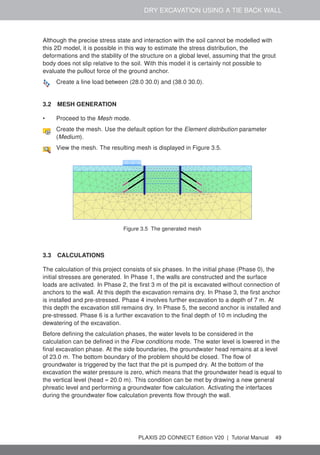
3.2 MESH GENERATION
• Proceed to the Mesh mode.
Create the mesh. Use the default option for the Element distribution parameter
(Medium).
View the mesh. The resulting mesh is displayed in Figure 3.5.
Figure 3.5 The generated mesh
3.3 CALCULATIONS
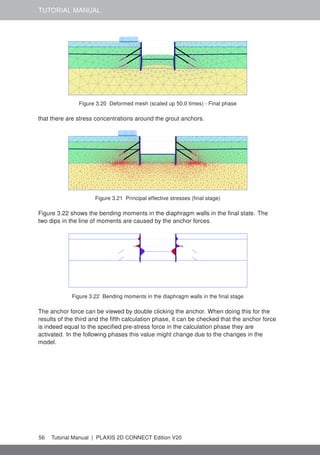
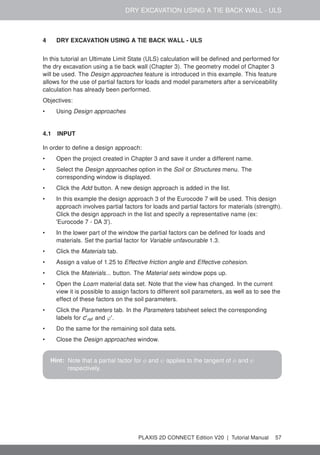
The calculation of this project consists of six phases. In the initial phase (Phase 0), the
initial stresses are generated. In Phase 1, the walls are constructed and the surface
loads are activated. In Phase 2, the first 3 m of the pit is excavated without connection of
anchors to the wall. At this depth the excavation remains dry. In Phase 3, the first anchor
is installed and pre-stressed. Phase 4 involves further excavation to a depth of 7 m. At
this depth the excavation still remains dry. In Phase 5, the second anchor is installed and
pre-stressed. Phase 6 is a further excavation to the final depth of 10 m including the
dewatering of the excavation.
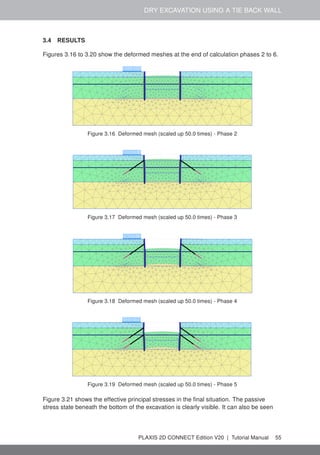
Before defining the calculation phases, the water levels to be considered in the
calculation can be defined in the Flow conditions mode. The water level is lowered in the
final excavation phase. At the side boundaries, the groundwater head remains at a level
of 23.0 m. The bottom boundary of the problem should be closed. The flow of
groundwater is triggered by the fact that the pit is pumped dry. At the bottom of the
excavation the water pressure is zero, which means that the groundwater head is equal to
the vertical level (head = 20.0 m). This condition can be met by drawing a new general
phreatic level and performing a groundwater flow calculation. Activating the interfaces
during the groundwater flow calculation prevents flow through the wall.
PLAXIS 2D CONNECT Edition V20 | Tutorial Manual 49
TUTORIAL MANUAL
Initial phase:
The initial stress field is generated by means of the K0 procedure using the default
K0-values in all clusters defined automatically by the program.
• Proceed to the Staged construction mode.
• Initially, all structural components and loads are inactive. Hence, make sure that the
plates, the node-to-node anchors, the embedded beam rows and the surface loads
are deactivated.
• In the Phases explorer double-click the initial phase. The default parameters for the
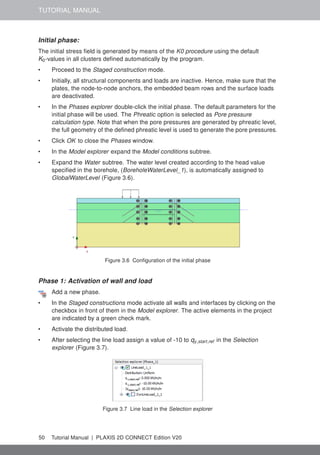
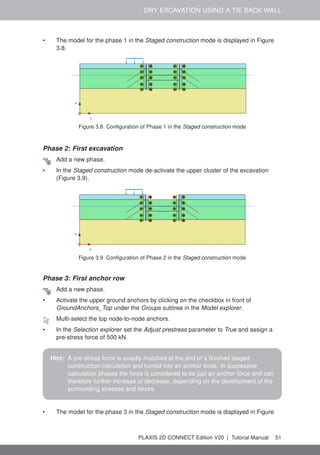
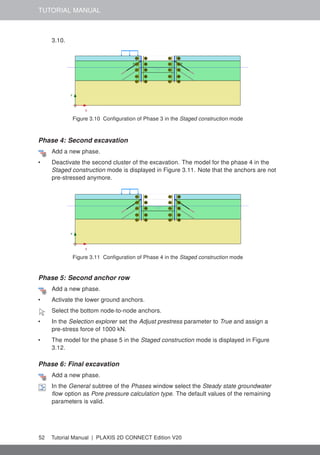
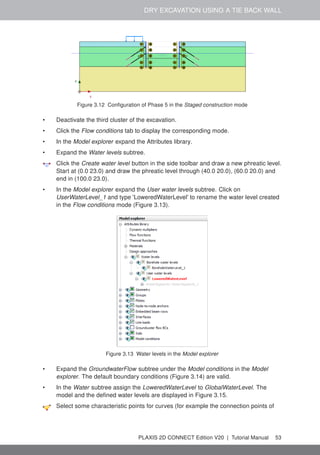
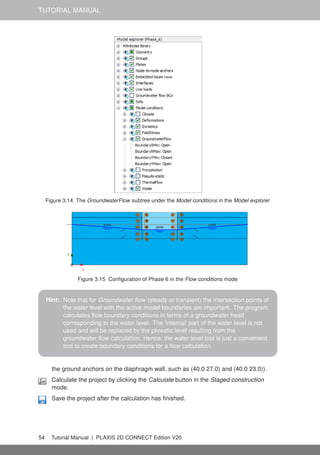
initial phase will be used. The Phreatic option is selected as Pore pressure
calculation type. Note that when the pore pressures are generated by phreatic level,
the full geometry of the defined phreatic level is used to generate the pore pressures.
• Click OK to close the Phases window.
• In the Model explorer expand the Model conditions subtree.
• Expand the Water subtree. The water level created according to the head value
specified in the borehole, (BoreholeWaterLevel_1), is automatically assigned to
GlobalWaterLevel (Figure 3.6).
Figure 3.6 Configuration of the initial phase
Phase 1: Activation of wall and load
Add a new phase.
• In the Staged constructions mode activate all walls and interfaces by clicking on the
checkbox in front of them in the Model explorer. The active elements in the project
are indicated by a green check mark.
• Activate the distributed load.
• After selecting the line load assign a value of -10 to qy,start,ref in the Selection
explorer (Figure 3.7).
Figure 3.7 Line load in the Selection explorer
50 Tutorial Manual | PLAXIS 2D CONNECT Edition V20
DRY EXCAVATION USING A TIE BACK WALL
• The model for the phase 1 in the Staged construction mode is displayed in Figure
3.8.
Figure 3.8 Configuration of Phase 1 in the Staged construction mode
Phase 2: First excavation
Add a new phase.
• In the Staged construction mode de-activate the upper cluster of the excavation
(Figure 3.9).
Figure 3.9 Configuration of Phase 2 in the Staged construction mode
Phase 3: First anchor row
Add a new phase.
• Activate the upper ground anchors by clicking on the checkbox in front of
GroundAnchors_Top under the Groups subtree in the Model explorer.
Multi-select the top node-to-node anchors.
• In the Selection explorer set the Adjust prestress parameter to True and assign a
pre-stress force of 500 kN.
Hint: A pre-stress force is exactly matched at the end of a finished staged
construction calculation and turned into an anchor force. In successive
calculation phases the force is considered to be just an anchor force and can
therefore further increase or decrease, depending on the development of the
surrounding stresses and forces.
• The model for the phase 3 in the Staged construction mode is displayed in Figure
PLAXIS 2D CONNECT Edition V20 | Tutorial Manual 51
TUTORIAL MANUAL
3.10.
Figure 3.10 Configuration of Phase 3 in the Staged construction mode
Phase 4: Second excavation
Add a new phase.
• Deactivate the second cluster of the excavation. The model for the phase 4 in the
Staged construction mode is displayed in Figure 3.11. Note that the anchors are not
pre-stressed anymore.
Figure 3.11 Configuration of Phase 4 in the Staged construction mode
Phase 5: Second anchor row
Add a new phase.
• Activate the lower ground anchors.
Select the bottom node-to-node anchors.
• In the Selection explorer set the Adjust prestress parameter to True and assign a
pre-stress force of 1000 kN.
• The model for the phase 5 in the Staged construction mode is displayed in Figure
3.12.
Phase 6: Final excavation
Add a new phase.
In the General subtree of the Phases window select the Steady state groundwater
flow option as Pore pressure calculation type. The default values of the remaining
parameters is valid.
52 Tutorial Manual | PLAXIS 2D CONNECT Edition V20
DRY EXCAVATION USING A TIE BACK WALL
Figure 3.12 Configuration of Phase 5 in the Staged construction mode
• Deactivate the third cluster of the excavation.
• Click the Flow conditions tab to display the corresponding mode.
• In the Model explorer expand the Attributes library.
• Expand the Water levels subtree.
Click the Create water level button in the side toolbar and draw a new phreatic level.
Start at (0.0 23.0) and draw the phreatic level through (40.0 20.0), (60.0 20.0) and
end in (100.0 23.0).
• In the Model explorer expand the User water levels subtree. Click on
UserWaterLevel_1 and type 'LoweredWaterLevel' to rename the water level created
in the Flow conditions mode (Figure 3.13).
Figure 3.13 Water levels in the Model explorer
• Expand the GroundwaterFlow subtree under the Model conditions in the Model
explorer. The default boundary conditions (Figure 3.14) are valid.
• In the Water subtree assign the LoweredWaterLevel to GlobalWaterLevel. The
model and the defined water levels are displayed in Figure 3.15.
Select some characteristic points for curves (for example the connection points of
PLAXIS 2D CONNECT Edition V20 | Tutorial Manual 53
TUTORIAL MANUAL
Figure 3.14 The GroundwaterFlow subtree under the Model conditions in the Model explorer
Figure 3.15 Configuration of Phase 6 in the Flow conditions mode
Hint: Note that for Groundwater flow (steady or transient) the intersection points of
the water level with the active model boundaries are important. The program
calculates flow boundary conditions in terms of a groundwater head
corresponding to the water level. The 'internal' part of the water level is not
used and will be replaced by the phreatic level resulting from the
groundwater flow calculation. Hence, the water level tool is just a convenient
tool to create boundary conditions for a flow calculation.
the ground anchors on the diaphragm wall, such as (40.0 27.0) and (40.0 23.0)).
Calculate the project by clicking the Calculate button in the Staged construction
mode.
Save the project after the calculation has finished.
54 Tutorial Manual | PLAXIS 2D CONNECT Edition V20
DRY EXCAVATION USING A TIE BACK WALL
3.4 RESULTS
Figures 3.16 to 3.20 show the deformed meshes at the end of calculation phases 2 to 6.
Figure 3.16 Deformed mesh (scaled up 50.0 times) - Phase 2
Figure 3.17 Deformed mesh (scaled up 50.0 times) - Phase 3
Figure 3.18 Deformed mesh (scaled up 50.0 times) - Phase 4
Figure 3.19 Deformed mesh (scaled up 50.0 times) - Phase 5
Figure 3.21 shows the effective principal stresses in the final situation. The passive
stress state beneath the bottom of the excavation is clearly visible. It can also be seen
PLAXIS 2D CONNECT Edition V20 | Tutorial Manual 55
TUTORIAL MANUAL
Figure 3.20 Deformed mesh (scaled up 50.0 times) - Final phase
that there are stress concentrations around the grout anchors.
Figure 3.21 Principal effective stresses (final stage)
Figure 3.22 shows the bending moments in the diaphragm walls in the final state. The
two dips in the line of moments are caused by the anchor forces.
Figure 3.22 Bending moments in the diaphragm walls in the final stage
The anchor force can be viewed by double clicking the anchor. When doing this for the
results of the third and the fifth calculation phase, it can be checked that the anchor force
is indeed equal to the specified pre-stress force in the calculation phase they are
activated. In the following phases this value might change due to the changes in the
model.
56 Tutorial Manual | PLAXIS 2D CONNECT Edition V20
DRY EXCAVATION USING A TIE BACK WALL - ULS
4 DRY EXCAVATION USING A TIE BACK WALL - ULS
In this tutorial an Ultimate Limit State (ULS) calculation will be defined and performed for
the dry excavation using a tie back wall (Chapter 3). The geometry model of Chapter 3
will be used. The Design approaches feature is introduced in this example. This feature
allows for the use of partial factors for loads and model parameters after a serviceability
calculation has already been performed.
Objectives:
• Using Design approaches
4.1 INPUT
In order to define a design approach:
• Open the project created in Chapter 3 and save it under a different name.
• Select the Design approaches option in the Soil or Structures menu. The
corresponding window is displayed.
• Click the Add button. A new design approach is added in the list.
• In this example the design approach 3 of the Eurocode 7 will be used. This design
approach involves partial factors for loads and partial factors for materials (strength).
Click the design approach in the list and specify a representative name (ex:
'Eurocode 7 - DA 3').
• In the lower part of the window the partial factors can be defined for loads and
materials. Set the partial factor for Variable unfavourable 1.3.
• Click the Materials tab.
• Assign a value of 1.25 to Effective friction angle and Effective cohesion.
• Click the Materials... button. The Material sets window pops up.
• Open the Loam material data set. Note that the view has changed. In the current
view it is possible to assign factors to different soil parameters, as well as to see the
effect of these factors on the soil parameters.
• Click the Parameters tab. In the Parameters tabsheet select the corresponding
labels for c'ref and ϕ'.
• Do the same for the remaining soil data sets.
• Close the Design approaches window.
Hint: Note that a partial factor for φ and ψ applies to the tangent of φ and ψ
respectively.
PLAXIS 2D CONNECT Edition V20 | Tutorial Manual 57
TUTORIAL MANUAL
Figure 4.1 Partial factors for loads
58 Tutorial Manual | PLAXIS 2D CONNECT Edition V20
DRY EXCAVATION USING A TIE BACK WALL - ULS
Figure 4.2 Partial factors for materials
PLAXIS 2D CONNECT Edition V20 | Tutorial Manual 59
TUTORIAL MANUAL
4.2 CALCULATIONS
There are two main schemes to perform design calculations in relation to serviceability
calculations (Section 5.9 of the Reference Manual). The first approach is used in this
tutorial.
• Proceed to the Staged construction mode.
• Click Phase_1 in the Phases explorer.
Add a new phase.
• Double-click the newly added phase to open the Phases window.
• In the General subtree of the Phases window select the defined design approach in
the corresponding drop-down menu.
• In the Model explorer expand the Line loads and all the subtrees under it.
• Select the Variable unfavourable option in the LoadFactorLabel drop-down menu of
the static component of the load (Figure 4.3).
Figure 4.3 Assignment of factor label to loads in the Selection explorer
• Follow the same steps to define ULS phases for all the remaining SLS phases.
Make sure that the Phase 7 starts from Phase 1, Phase 8 from Phase 2, Phase 9
from Phase 3 and so on.
Select some characteristic points for curves (for example the connection points of
the ground anchors on the diaphragm wall, such as (40.0 27.0) and (40.0 23.0)).
Calculate the project.
Save the project after the calculation has finished.
60 Tutorial Manual | PLAXIS 2D CONNECT Edition V20
DRY EXCAVATION USING A TIE BACK WALL - ULS
4.3 RESULTS
The results obtained for the design approach phases can be evaluated in Output. Figure
4.4 displays the ΣMstage - |u| plot for the node located at (40.0 27.0).
Figure 4.4 Σ − Mstage - |u| plot for the ULS phases
If the ULS calculations have successfully finished, the model complies with the
corresponding design approach. If there are doubts about this due to excessive
deformations, an additional Safety calculation may be considered using the same design
approach, which should then result in a stable ΣMsf value larger than 1.0. Note that if
partial factors have been used it is not necessary that ΣMsf also includes a safety margin.
Hence, in this case ΣMsf just larger that 1.0 is enough. Figure 4.5 displays the ΣMsf -
|u| plot for the Safety calculations of the Phase 6 and the corresponding ULS phase
(Phase 12). It can be concluded that the situation complies with the design requirements.
Figure 4.5 ΣMsf - |u| plot for the last calculation phase and the corresponding ULS phase
PLAXIS 2D CONNECT Edition V20 | Tutorial Manual 61
TUTORIAL MANUAL
5 CONSTRUCTION OF A ROAD EMBANKMENT
The construction of an embankment on soft soil with a high groundwater level leads to an
increase in pore pressure. As a result of this undrained behaviour, the effective stress
remains low and intermediate consolidation periods have to be adopted in order to
construct the embankment safely. During consolidation the excess pore pressures
dissipate so that the soil can obtain the necessary shear strength to continue the
construction process.
This tutorial concerns the construction of a road embankment in which the mechanism
described above is analysed in detail. In the analysis three new calculation options are
introduced, namely a consolidation analysis, an updated mesh analysis and the
calculation of a safety factor by means of a safety analysis (phi/c-reduction).
4 m
3 m
3 m
12 m
12 m 16 m
road embankment
peat
clay
dense sand
Figure 5.1 Situation of a road embankment on soft soil
Objectives:
• Consolidation analysis
• Modelling drains
• Change of permeability during consolidation
• Safety analysis (phi-c reduction)
• Updated mesh analysis (large deformations)
5.1 INPUT
Figure 5.1 shows a cross section of a road embankment. The embankment is 16.0 m
wide and 4.0 m high. The slopes have an inclination of 1:3. The problem is symmetric, so
only one half is modelled (in this case the right half is chosen). The embankment itself is
composed of loose sandy soil. The subsoil consists of 6.0 m of soft soil. The upper 3.0 m
is peat and the lower 3.0 m is clay. The phreatic level is located 1 m below the original
ground surface. Under the soft soil layers there is a dense sand layer of which 4.0 m are
considered in the model.
General settings
• Start the Input program and select Start a new project from the Quick select dialog
box.
• In the Project tabsheet of the Project properties window, enter an appropriate title.
• In the Model tabsheet make sure that Model is set to Plane strain and that Elements
is set to 15-Noded.
62 Tutorial Manual | PLAXIS 2D CONNECT Edition V20
CONSTRUCTION OF A ROAD EMBANKMENT
• Define the limits for the soil contour as xmin = 0.0, xmax = 60.0, ymin = −10.0 and
ymax = 4.0.
Definition of soil stratigraphy
The sub-soil layers are defined using a borehole. The embankment layers are defined in
the Structures mode. To define the soil stratigraphy:
Create a borehole at x = 0. The Modify soil layers window pops up.
• Define three soil layers as shown in Figure 5.2.
• The water level is located at y = -1 m. In the borehole column specify a value of -1 to
Head.
Open the Material sets window.
• Create soil material data sets according to Table 5.1 and assign them to the
corresponding layers in the borehole (Figure 5.2).
• Close the Modify soil layers window and proceed to the Structures mode to define
the embankment and drains.
Figure 5.2 Soil layer distribution
Hint: The initial void ratio (einit ) and the change in permeability (ck ) should be
defined to enable the modelling of a change in the permeability in a
consolidation analysis due to compression of the soil. This option is
recommended when using advanced models.
5.1.1 DEFINITION OF EMBANKMENT AND DRAINS
The embankment and the drains are defined in the Structures mode. To define the
embankment layers:
Click the Create soil polygon button in the side toolbar and select the Create soil
polygon option in the appearing menu.
PLAXIS 2D CONNECT Edition V20 | Tutorial Manual 63
TUTORIAL MANUAL
Table 5.1 Material properties of the road embankment and subsoil
Parameter Name Embankment Sand Peat Clay Unit
General
Material model Model Hardening
soil
Hardening
soil
Soft soil Soft soil -
Type of material behaviour Type Drained Drained Undrained
(A)
Undrained
(A)
-
Soil unit weight above
phreatic level
γunsat 16 17 8 15 kN/m3
Soil unit weight below
phreatic level
γsat 19 20 12 18 kN/m3
Initial void ratio einit 0.5 0.5 2.0 1.0 -
Parameters
Secant stiffness in
standard drained triaxial
test
Eref
50 2.5· 104 3.5· 104 - - kN/m2
Tangent stiffness for
primary oedometer loading
Eref
oed
2.5· 104 3.5· 104 - - kN/m2
Unloading / reloading
stiffness
Eref
ur 7.5· 104 1.05· 105 - - kN/m2
Power for stress-level
dependency of stiffness
m 0.5 0.5 - - -
Modified compression
index
λ∗ - - 0.15 0.05 -
Modified swelling index κ∗ - - 0.03 0.01 -
Cohesion cref ' 1.0 0.0 2.0 1.0 kN/m2
Friction angle ϕ' 30 33 23 25 ◦
Dilatancy angle ψ 0.0 3.0 0 0 ◦
Advanced: Set to default Yes Yes Yes Yes Yes Yes
Groundwater
Data set - USDA USDA USDA USDA -
Model - Van
Genuchten
Van
Genuchten
Van
Genuchten
Van
Genuchten
-
Soil type - Loamy sand Sand Clay Clay -
> 2µm - 6.0 4.0 70.0 70.0 %
2µm − 50µm - 11.0 4.0 13.0 13.0 %
50µm − 2mm - 83.0 92.0 17.0 17.0 %
Use defaults - From data
set
From data
set
None From data
set
-
Horizontal permeability kx 3.499 7.128 0.1 0.04752 m/day
Vertical permeability ky 3.499 7.128 0.05 0.04752 m/day
Change in permeability ck 1· 1015 1· 1015 1.0 0.2 -
Interfaces
Interface strength − Rigid Rigid Rigid Rigid -
Strength reduction factor Rinter 1.0 1.0 1.0 1.0 -
Initial
K0 determination − Automatic Automatic Automatic Automatic -
Over-consolidation ratio OCR 1.0 1.0 1.0 1.0 -
Pre-overburden pressure POP 0.0 0.0 5.0 0.0 kN/m2
64 Tutorial Manual | PLAXIS 2D CONNECT Edition V20
CONSTRUCTION OF A ROAD EMBANKMENT
• Define the embankment in the drawing area by clicking on (0.0 0.0), (0.0 4.0), (8.0
4.0) and (20.0 0.0).
• Right-click the created polygon and assign the Embankment data set to the soil
polygon (Figure 5.3).
Figure 5.3 Assignment of a material dataset to a soil cluster in the drawing area
To define the embankment construction level click the Cut polygon in the side
toolbar and define a cutting line by clicking on (0.0 2.0) and (14.0 2.0). The
embankment cluster is split into two sub-clusters.
In this project the effect of the drains on the consolidation time will be investigated by
comparing the results with a case without drains. Drains will only be active for the
calculation phases in the case with drains.
Click the Create hydraulic conditions button in the side toolbar and select the Create
drain option in the appearing menu (Figure 5.4).
Figure 5.4 The Create drain option in the Create hydraulic conditions menu
Drains are defined in the soft layers (clay and peat; y = 0.0 to y = -6.0). The distance
between two consecutive drains is 2 m. Considering the symmetry, the first drain is
located at 1 m distance from the model boundary. 10 drains will be created in total
(Figure 5.5). The head is defined at 0.0 m.
PLAXIS 2D CONNECT Edition V20 | Tutorial Manual 65
TUTORIAL MANUAL
Hint: The modelling of drains in a plane strain model actually involves the use of
an equivalent (lateral) permeability in the surrounding soil based on the drain
pattern. The latter has been omitted in this simplified example. More
information can be in found in literaturea
.
a CUR (1997). Achtergronden bij numerieke modellering van geotechnische constructies, deel 2. CUR
191. Stichting CUR, Gouda
Indraratna, B.N., Redana, I.W., Salim, W. (2000), Predicted and observed behaviour of soft clay
foundations stabilised with vertical drains. Proc. GeoEng. 2000, Melbourne
Figure 5.5 Final geometry of the model
5.2 MESH GENERATION
• Proceed to the Mesh mode.
Generate the mesh. Use the default option for the Element distribution parameter
(Medium).
View the generated mesh. The resulting mesh is shown in Figure 5.6.
• Click on the Close tab to close the Output program.
Figure 5.6 The generated mesh
5.3 CALCULATIONS
The embankment construction is divided into two phases. After the first construction
phase a consolidation period of 30 days is introduced to allow the excess pore pressures
to dissipate. After the second construction phase another consolidation period is
introduced from which the final settlements may be determined. Hence, a total of four
calculation phases have to be defined besides the initial phase.
66 Tutorial Manual | PLAXIS 2D CONNECT Edition V20
CONSTRUCTION OF A ROAD EMBANKMENT
Initial phase: Initial conditions
In the initial situation the embankment is not present.
• The remaining active geometry is horizontal with horizontal layers, so the K0
procedure can be used to calculate the initial stresses (Figure 5.7).
Figure 5.7 Configuration of the initial phase
The initial water pressures are fully hydrostatic and based on a general phreatic level
located at y = -1. Note that a phreatic level is automatically created at y = -1, according to
the value specified for Head in the borehole. In addition to the phreatic level, attention
must be paid to the boundary conditions for the consolidation analysis that will be
performed during the calculation process. Without giving any additional input, all
boundaries except for the bottom boundary are draining so that water can freely flow out
of these boundaries and excess pore pressures can dissipate. In the current situation,
however, the left vertical boundary must be closed because this is a line of symmetry, so
horizontal flow should not occur. The remaining boundaries are open because the excess
pore pressures can be dissipated through these boundaries. In order to define the
appropriate consolidation boundary conditions, follow these steps:
• In the Model explorer expand the Model conditions subtree.
• Expand the GroundwaterFlow subtree and set BoundaryXMin to Closed and
BoundaryYMin to Open (Figure 5.8).
Figure 5.8 The boundary conditions of the problem
PLAXIS 2D CONNECT Edition V20 | Tutorial Manual 67
TUTORIAL MANUAL
Consolidation analysis
A consolidation analysis introduces the dimension of time in the calculations. In order to
correctly perform a consolidation analysis a proper time step must be selected. The use
of time steps that are smaller than a critical minimum value can result in stress
oscillations.
The consolidation option in PLAXIS allows for a fully automatic time stepping procedure
that takes this critical time step into account. Within this procedure there are three main
possibilities:
Consolidate for a predefined period, including the effects of changes to the active
geometry (Staged construction).
Consolidate until all excess pore pressures in the geometry have reduced to a
predefined minimum value (Minimum excess pore pressure).
Consolidate until a specified degree of saturation is reached (Degree of
consolidation).
The first two possibilities will be used in this exercise. To define the calculation phases,
follow these steps:
Phase 1: (the way calculation phases are presented here is different than in other
chapters) The first calculation stage is a Consolidation analysis, Staged construction.
Add a new phase.
In the Phases window select the Consolidation option from the Calculation type
drop-down menu in the General subtree.
Make sure that the Staged construction option is selected for the Loading type.
• Enter a Time interval of 2 days. The default values of the remaining parameters will
be used.
• In the Staged construction mode activate the first part of the embankment (Figure
5.9).
Figure 5.9 Configuration of the phase 1
Phase 2: The second phase is also a Consolidation analysis, Staged construction. In
this phase no changes to the geometry are made as only a consolidation analysis to
ultimate time is required.
Add a new phase.
In the Phases window select the Consolidation option from the Calculation type
drop-down menu in the General subtree.
Make sure that the Staged construction option is selected for the Loading type.
68 Tutorial Manual | PLAXIS 2D CONNECT Edition V20
CONSTRUCTION OF A ROAD EMBANKMENT
• Enter a Time interval of 30 days. The default values of the remaining parameters will
be used.
Phase 3: The third phase is once again a Consolidation analysis, Staged construction.
Add a new phase.
In the Phases window select the Consolidation option from the Calculation type
drop-down menu in the General subtree.
Make sure that the Staged construction option is selected for the Loading type.
• Enter a Time interval of 1 day. The default values of the remaining parameters will
be used.
• In the Staged construction mode activate the second part of the embankment
(Figure 5.10).
Figure 5.10 Configuration of the phase 3
Phase 4: The fourth phase is a Consolidation analysis to a minimum excess pore
pressure.
Add a new phase.
In the General subtree select the Consolidation as calculation type.
Select the Minimum excess pore pressure option in the Loading type drop-down
menu and accept the default value of 1 kN/m2
for the minimum pressure. The
default values of the remaining parameters will be used.
Before starting the calculation, click the Select points for curves button and select
the following points: As the first point, select the toe of the embankment (point at
(20.00,0.00)). The second point will be used to plot the development (and decay) of
excess pore pressures. To this end, a point somewhere in the middle of the soft soil
layers is needed, close to (but not actually on) the left boundary (point at (0.25, -3.00)).
After selecting these points, start the calculation.
During a consolidation analysis the development of time can be viewed in the upper part
of the calculation info window (Figure 5.11).
In addition to the multipliers, a parameter Pexcess,max occurs, which indicates the current
maximum excess pore pressure. This parameter is of interest in the case of a Minimum
excess pore pressure consolidation analysis, where all pore pressures are specified to
reduce below a predefined value.
PLAXIS 2D CONNECT Edition V20 | Tutorial Manual 69
TUTORIAL MANUAL
Figure 5.11 Calculation progress displayed in the Active tasks window
5.4 RESULTS
After the calculation has finished, select the third phase and click the View
calculation results button. The Output window now shows the deformed mesh after
the undrained construction of the final part of the embankment (Figure 5.12). Considering
the results of the third phase, the deformed mesh shows the uplift of the embankment toe
and hinterland due to the undrained behaviour.
Figure 5.12 Deformed mesh after undrained construction of embankment (Phase 3)
• In the Deformations menu select the Incremental displacements → |∆u|.
Select the Arrows option in the View menu or click the corresponding button in the
toolbar to display the results arrows.
On evaluating the total displacement increments, it can be seen that a failure mechanism
is developing (Figure 5.13).
• Click Ctrl + 7 to display the developed excess pore pressures (see Appendix C of
Reference Manual for more shortcuts). They can be displayed by selecting the
corresponding option in the side menu displayed as the Pore pressures option is
selected in the Stresses menu.
70 Tutorial Manual | PLAXIS 2D CONNECT Edition V20
CONSTRUCTION OF A ROAD EMBANKMENT
Figure 5.13 Displacement increments after undrained construction of embankment
Click the Center principal directions. The principal directions of excess pressures
are displayed at the center of each soil element. The results are displayed in Figure
5.14. It is clear that the highest excess pore pressure occurs under the embankment
centre.
Figure 5.14 Excess pore pressures after undrained construction of embankment
• Select Phase 4 in the drop down menu.
Click the Contour lines button in the toolbar to display the results as contours.
Use the Draw scanline button or the corresponding option in the View menu to
define the position of the contour line labels.
Figure 5.15 Excess pore pressure contours after consolidation to Pexcess < 1.0 kN/m2
It can be seen that the settlement of the original soil surface and the embankment
increases considerably during the fourth phase. This is due to the dissipation of the
excess pore pressures (= consolidation), which causes further settlement of the soil.
Figure 5.15 shows the remaining excess pore pressure distribution after consolidation.
Check that the maximum value is below 1.0 kN/m2
.
The Curves manager can be used to view the development, with time, of the excess pore
pressure under the embankment. In order to create such a curve, follow these steps:
Create a new curve.
PLAXIS 2D CONNECT Edition V20 | Tutorial Manual 71
TUTORIAL MANUAL
• For the x-axis, select the Project option from the drop-down menu and select Time
in the tree.
• For the y-axis select the point in the middle of the soft soil layers (Point B) from the
drop-down menu. In the tree select Stresses → Pore pressure → pexcess.
• Select the Invert sign option for y-axis. After clicking the OK button, a curve similar
to Figure 5.16 should appear.
Figure 5.16 Development of excess pore pressure under the embankment
Figure 5.16 clearly shows the four calculation phases. During the construction phases
the excess pore pressure increases with a small increase in time while during the
consolidation periods the excess pore pressure decreases with time. In fact,
consolidation already occurs during construction of the embankment, as this involves a
small time interval. From the curve it can be seen that more than 50 days are needed to
reach full consolidation.
• Save the chart before closing the Output program.
5.5 SAFETY ANALYSIS
In the design of an embankment it is important to consider not only the final stability, but
also the stability during the construction. It is clear from the output results that a failure
mechanism starts to develop after the second construction phase.
It is interesting to evaluate a global safety factor at this stage of the problem, and also for
other stages of construction.
In structural engineering, the safety factor is usually defined as the ratio of the collapse
load to the working load. For soil structures, however, this definition is not always useful.
For embankments, for example, most of the loading is caused by soil weight and an
increase in soil weight would not necessarily lead to collapse. Indeed, a slope of purely
72 Tutorial Manual | PLAXIS 2D CONNECT Edition V20
CONSTRUCTION OF A ROAD EMBANKMENT
frictional soil will not fail in a test in which the self weight of the soil is increased (like in a
centrifuge test). A more appropriate definition of the factor of safety is therefore:
Safety factor =
Smaximum available
Sneeded for equilibrium
(5.1)
Where S represents the shear strength. The ratio of the true strength to the computed
minimum strength required for equilibrium is the safety factor that is conventionally used
in soil mechanics. By introducing the standard Coulomb condition, the safety factor is
obtained:
Safety factor =
c − σn tan ϕ
cr − σn tan ϕr
(5.2)
Where c and ϕ are the input strength parameters and σn is the actual normal stress
component. The parameters cr and ϕr are reduced strength parameters that are just
large enough to maintain equilibrium. The principle described above is the basis of the
method of Safety that can be used in PLAXIS to calculate a global safety factor. In this
approach the cohesion and the tangent of the friction angle are reduced in the same
proportion:
c
cr
=
tan ϕ
tan ϕr
= ΣMsf (5.3)
The reduction of strength parameters is controlled by the total multiplier ΣMsf. This
parameter is increased in a step-by-step procedure until failure occurs. The safety factor
is then defined as the value of ΣMsf at failure, provided that at failure a more or less
constant value is obtained for a number of successive load steps.
The Safety calculation option is available in the Calculation type drop-down menu in the
General tabsheet. If the Safety option is selected the Loading input on the Parameters
tabsheet is automatically set to Incremental multipliers.
To calculate the global safety factor for the road embankment at different stages of
construction, follow these steps:
• Select Phase 1 in the Phases explorer.
Add a new calculation phase.
• Double-click on the new phase to open the Phases window.
• In the Phases window the selected phase is automatically selected in the Start from
phase drop-down menu.
In the General subtree, select Safety as calculation type.
The Incremental multipliers option is already selected in the Loading input box. The
first increment of the multiplier that controls the strength reduction process, Msf, is
set to 0.1.
Note that the Use pressures from the previous phase option in the Pore pressure
calculation type drop-down menu is automatically selected and grayed out indicating
that this option cannot be changed
• In order to exclude existing deformations from the resulting failure mechanism,
select the Reset displacements to zero option in the Deformation control parameters
subtree.
• In the Numerical control parameters subtree deselect Use default iter parameters
and set the number of Max steps to 50. The first safety calculation has now been
PLAXIS 2D CONNECT Edition V20 | Tutorial Manual 73
TUTORIAL MANUAL
defined.
• Follow the same steps to create new calculation phases that analyse the stability at
the end of each consolidation phase.
Hint: The default value of Max steps in a Safety calculation is 100. In contrast to
an Staged construction calculation, the specified number of steps is always
fully executed. In most Safety calculations, 100 steps are sufficient to arrive
at a state of failure. If not, the number of steps can be increased to a
maximum of 1000.
» For most Safety analyses Msf = 0.1 is an adequate first step to start up the
process. During the calculation process, the development of the total
multiplier for the strength reduction, ΣMsf, is automatically controlled by the
load advancement procedure.
Figure 5.17 Phases explorer displaying the Safety calculation phases
Evaluation of results
Additional displacements are generated during a Safety calculation. The total
displacements do not have a physical meaning, but the incremental displacements in the
final step (at failure) give an indication of the likely failure mechanism.
In order to view the mechanisms in the three different stages of the embankment
construction:
Select one of these phases and click the View calculation results button.
• From the Deformations menu select Incremental displacements → |∆u|.
Change the presentation from Arrows to Shadings. The resulting plots give a good
impression of the failure mechanisms (Figure 5.18). The magnitude of the
displacement increments is not relevant.
The safety factor can be obtained from the Calculation info option of the Project menu.
The Multipliers tabsheet of the Calculation information window represents the actual
values of the load multipliers. The value of ΣMsf represents the safety factor, provided
that this value is indeed more or less constant during the previous few steps.
74 Tutorial Manual | PLAXIS 2D CONNECT Edition V20
CONSTRUCTION OF A ROAD EMBANKMENT
Figure 5.18 Shadings of the total displacement increments indicating the most applicable failure
mechanism of the embankment in the final stage
The best way to evaluate the safety factor, however, is to plot a curve in which the
parameter ΣMsf is plotted against the displacements of a certain node. Although the
displacements are not relevant, they indicate whether or not a failure mechanism has
developed.
In order to evaluate the safety factors for the three situations in this way, follow these
steps:
• Click the Curves manager button in the toolbar.
• Click New in the Charts tabsheet.
• In the Curve generation window, select the embankment toe (Point A) for the x-axis.
Select Deformations → Total displacements → |u|.
• For the y-axis, select Project and then select Multipliers → ΣMsf. The Safety
phases are considered in the chart.
• Right-click on the chart and select the Settings option in the appearing menu. The
Settings window pops up.
• In the tabsheet corresponding to the curve click the Phases button.
• In the Select phases window select Phase 5 (Figure 5.19).
Figure 5.19 The Select phases window
• Click OK to close the Select phases window.
• In the Settings window change the titles of the curve in the corresponding tabsheet.
• Click the Add curve button and select the From current project... option in the
appearing menu. Define curves for phases 6, 7 and 8 by following the described
steps.
PLAXIS 2D CONNECT Edition V20 | Tutorial Manual 75
TUTORIAL MANUAL
• In the Settings window click the Chart tab to open the corresponding tabsheet.
• In the Chart tabsheet specify the chart name.
• Set the scaling of the x-axis to Manual and set the value of Maximum to 1 (Figure
5.20).
Figure 5.20 The Chart tabsheet in the Settings window
• Click Apply to update the chart according to the changes made and click OK to
close the Settings window.
• To modify the location of the legend right-click on the legend.
• In the appearing menu point at View and select the Legend in chart option (Figure
5.21).
Figure 5.21 Enabling legend in chart
• The legend can be relocated in the chart by dragging it. The plot is shown in Figure
5.22.
The maximum displacements plotted are not relevant. It can be seen that for all curves a
more or less constant value of ΣMsf is obtained. Hovering the mouse cursor over a point
on the curves, a box showing the exact value of ΣMsf can be obtained.
76 Tutorial Manual | PLAXIS 2D CONNECT Edition V20
CONSTRUCTION OF A ROAD EMBANKMENT
Figure 5.22 Evaluation of safety factor
5.6 USING DRAINS
In this section the effect of the drains in the project will be investigated. Four new phases
will be introduced having the same properties as the first four consolidation phases. The
first of these new phases should start from the initial phase. The differences in the new
phases are:
• The drains should be active in all the new phases. Activate them in the Staged
construction mode.
• The Time interval in the first three of the consolidation phases (9 to 11) is 1 day. The
last phase is set to Minimum excess pore pressure and a value of 1.0 kN/m2
is
assigned to the minimum pressure (|P-stop|).
After the calculation is finished save the project, select the last phase and click the
View calculation results button. The Output window now shows the deformed mesh
after the drained construction of the final part of the embankment. In order to compare
the effect of the drains, the excess pore pressure dissipation in the second point can be
used.
Open the Curves manager.
• In the Chart tabsheet double click Chart 1 (pexcess of the second point (at
(0.25,-3.00)) versus time). The chart is displayed. Close the Curves manager.
• Double-click the curve in the legend at the right of the chart. The Settings window
pops up.
• Click the Add curve button and select the Add from current project option in the
appearing menu. The Curve generation window pops up.
• Select the Invert sign option for y-axis and click OK to accept the selected options.
• In the chart a new curve is added and a new tabsheet corresponding to it is opened
PLAXIS 2D CONNECT Edition V20 | Tutorial Manual 77
TUTORIAL MANUAL
in the Settings window. Click the Phases button. From the displayed window select
the Initial phase and the last four phases (drains) and click OK.
• In the Settings window change the titles of the curves in the corresponding
tabsheets.
• In the Chart tabsheet specify the chart name.
• Click Apply to preview the generated curve and click OK to close the Settings
window. The chart (Figure 5.23) gives a clear view of the effect of drains in the time
required for the excess pore pressures to dissipate.
Figure 5.23 Effect of drains
Hint: Instead of adding a new curve, the existing curve can be regenerated using
the corresponding button in the Curves settings window.
5.7 UPDATED MESH + UPDATED WATER PRESSURES ANALYSIS
As can be seen from the output of the Deformed mesh at the end of consolidation (stage
4), the embankment settles about one meter since the start of construction. Part of the
sand fill that was originally above the phreatic level will settle below the phreatic level.
As a result of buoyancy forces the effective weight of the soil that settles below the water
level will change, which leads to a reduction of the effective overburden in time. This
effect can be simulated in PLAXIS using the Updated mesh and Updated water pressures
options. For the road embankment the effect of using these options will be investigated.
• Select the initial phase in the Phases explorer.
Add a new calculation phase.
78 Tutorial Manual | PLAXIS 2D CONNECT Edition V20
CONSTRUCTION OF A ROAD EMBANKMENT
• Define the new phase in the same way as Phase 1. In the Deformation control
parameters subtree check the Updated mesh and Updated water pressures options.
• Define in the same way the other 3 phases.
When the calculation has finished, compare the settlements for the two different
calculation methods.
• In the Curve generation window select time for the x-axis and select the vertical
displacement (uy ) of the point in the middle of the soft soil layers (point at
(0.25,-3.00)) for the y-axis.
• In this curve the results for Initial phase and phases from 1 to 4 will be considered.
• Add a new curve to the chart.
• In this curve the results for Initial phase and phases from 13 to 16 will be
considered. The resulting chart is shown in Figure 5.24.
Figure 5.24 Effect of Updated mesh and water pressures analysis on resulting settlements
In Figure 5.24 it can be seen that the settlements are less when the Updated mesh and
Updated water pressures options are used (red curve). This is partly because the
Updated mesh procedure includes second order deformation effects by which changes of
the geometry are taken into account, and partly because the Updated water pressures
procedure results in smaller effective weights of the embankment. This last effect is
caused by the buoyancy of the soil settling below the (constant) phreatic level. The use of
these procedures allows for a realistic analysis of settlements, taking into account the
positive effects of large deformations.
PLAXIS 2D CONNECT Edition V20 | Tutorial Manual 79
TUTORIAL MANUAL
6 SETTLEMENTS DUE TO TUNNEL CONSTRUCTION
In this tutorial the construction of a shield tunnel in medium soft soil and the influence on
a pile foundation is considered. A shield tunnel is constructed by excavating soil at the
front of a tunnel boring machine (TBM) and installing a tunnel lining behind it. In this
procedure the soil is generally over-excavated, which means that the cross sectional area
occupied by the final tunnel lining is always less than the excavated soil area. Although
measures are taken to fill up this gap, one cannot avoid stress re-distributions and
deformations in the soil as a result of the tunnel construction process. To avoid damage
to existing buildings or foundations on the soil above, it is necessary to predict these
effects and to take proper measures. Such an analysis can be performed by means of
the finite element method. This tutorial shows an example of such an analysis.
x
y
+3 m
0 m
-10 m
-12 m
-17 m
-30 m
5 m 10 m 20 m
clay
piles
sand
deep clay
deep sand
Figure 6.1 Geometry of the tunnel project with an indication of the soil layers
Objectives:
• Modelling of the tunnel boring process
• Modelling undrained behaviour using the Undrained (B) option
6.1 INPUT
The tunnel considered in this tutorial has a diameter of 5.0 m and is located at an average
depth of 20 m. To create the geometry model, follow these steps:
80 Tutorial Manual | PLAXIS 2D CONNECT Edition V20
SETTLEMENTS DUE TO TUNNEL CONSTRUCTION
General settings
• Start the Input program and select Start a new project from the Quick select dialog
box.
• In the Project tabsheet of the Project properties window, enter an appropriate title.
• In the Model tabsheet keep the default options for Model (Plane strain), and
Elements (15-Noded).
• Set the model dimensions to xmin = 0.0 m, xmax = 35.0 m, ymin = -30.0 m and ymax =
3.0 m.
• Keep the default values for units and constants and press OK to close the Project
properties window.
Definition of soil stratigraphy
The soil profile indicates four distinct layers: The upper 13 m consists of soft clay type
soil with stiffness that increases approximately linearly with depth. Under the clay layer
there is a 2.0 m thick fine sand layer. This layer is used as a foundation layer for old
wooden piles on which traditional brickwork houses were built. The pile foundation of
such a building is modelled next to the tunnel. Displacements of these piles may cause
damage to the building, which is highly undesirable. Below the sand layer there is a 5.0 m
thick deep loamy clay layer.
To define the soil stratigraphy:
Create a borehole at x = 0. The Modify soil layers window pops up.
• Create the soil stratigraphy as shown in Figure 6.2.
Figure 6.2 The soil stratigraphy in the Modify soil layers window
• Keep the Head in the borehole at 0.0 m.
Open the Material sets window.
• Create data sets under the Soil and interfaces set type according to the information
PLAXIS 2D CONNECT Edition V20 | Tutorial Manual 81
TUTORIAL MANUAL
given in Table 6.1.
Table 6.1 Material properties of soil in the tunnel project
Parameter Name Clay Sand Deep clay Deep sand Unit
General
Material model Model Mohr-
Coulomb
Hardening
soil
Mohr-
Coulomb
HS small -
Drainage type Type Undrained
(B)
Drained Undrained
(B)
Drained -
Soil unit weight above p.l. γunsat 15 16.5 16 17 kN/m3
Soil unit weight below p.l. γsat 18 20 18.5 21 kN/m3
Parameters
Young's modulus at reference
level
E' 3.4·103
- 9.0· 103
- kN/m2
Secant stiffness in standard
drained triaxial test
Eref
50 - 2.5· 104
- 4.2· 104
kN/m2
Tangent stiffness for primary
oedometer loading
Eref
oed - 2.5· 104
- 4.2· 104
kN/m2
Unloading / reloading stiffness Eref
ur - 7.5· 104
- 1.26· 105
kN/m2
Power for stress-level
dependency of stiffness
m - 0.5 - 0.5 -
Cohesion c'ref - 0 - 0 kN/m2
Undrained shear strength at
reference level
su,ref 5 - 40 - kN/m2
Friction angle ϕ' - 31 - 35 ◦
Dilatancy angle ψ - 1.0 - 5 ◦
Shear strain at which Gs =
0.722G0
γ0.7 - - - 1.3·10-4
-
Shear modulus at very small
strains
Gref
0 - - - 1.1· 105
kN/m2
Poisson's ratio ν' 0.33 0.3 0.33 0.3 -
Young's modulus inc. E'inc 400 - 600 - kN/m3
Reference level yref 3.0 - -12 - m
Undrained shear strength inc. su,inc 2 - 3 - kN/m2
Reference level yref 3.0 - -12 - m
Groundwater
Horizontal permeability kx 1·10-4
1.0 1·10-2
0.5 m/day
Vertical permeability ky 1·10-4
1.0 1·10-2
0.5 m/day
Interfaces
Interface strength type Type Rigid Rigid Manual Manual -
Interface strength Rinter 1.0 1.0 0.7 0.7 -
Initial
K0 determination − Manual Automatic Manual Automatic -
Lateral earth pressure
coefficient
K0,x 0.60 0.485 0.60 0.4264 -
Over-consolidation ratio OCR - 1.0 - 1.0 -
Pre-overburden ratio POP - 0.0 - 0.0 -
For the upper clay layer the stiffness and shear strength increase with depth. Therefore
values for E'inc and su,inc are entered in the Advanced subtree. The values of E'ref and
su,ref become the reference values at the reference level yref . Below yref , the actual
values of E' and su, increase with depth according to:
E'(y) = E'ref + E'inc(yref − y)
su(y) = su,ref + su,inc(yref − y)
The data sets of the two lower soil layers include appropriate parameters for the tunnel
interfaces. In the other data sets the interface properties just remain at their default
82 Tutorial Manual | PLAXIS 2D CONNECT Edition V20
SETTLEMENTS DUE TO TUNNEL CONSTRUCTION
values. Enter four data sets with the properties as listed in Table 6.1 and assign them to
the corresponding clusters in the geometry model.
6.1.1 DEFINITION OF STRUCTURAL ELEMENTS
The tunnel considered here is the right half of a circular tunnel. After generating the basic
geometry, follow these steps to design the circular tunnel:
In the Structures mode click the Create tunnel button in the side toolbar and click at
(0.0 -17.0) in the drawing area. The Tunnel designer window pops up displaying the
General tabsheet of the Cross section mode.
• Select the Circular option in the Shape type drop-down menu.
• Select the Define right half option in the Whole or half tunnel drop-down menu.
• In the Offset to begin point group set Axis 2 to -2.5. No change is required for the
orientation axes.
• Click the Segments tab to proceed to the corresponding tabsheet. A segment is
automatically created. A new box is shown under the segment list where the
properties of the segment can be defined.
• In the Segment box set Radius to 2.5 m. The generated segment is shown in Figure
6.3.
Figure 6.3 The geometry of the tunnel segment
• Click the Properties tab to proceed to the corresponding tabsheet.
• Right-click the segment in the display area and select the Create > Create plate
option in the appearing menu.
Create a new material dataset from the Material property in the Selection explorer in
Tunnel Designer. Specify the material parameters for lining according to Table 6.2.
PLAXIS 2D CONNECT Edition V20 | Tutorial Manual 83
TUTORIAL MANUAL
Hint: In the tunnel as considered here the segments do not have a specific
meaning as the tunnel lining is homogeneous and the tunnel will be
constructed at once. In general, the meaning of segments becomes
significant when:
• It is desired to excavate or construct the tunnel (lining) in different
stages.
• Different tunnel segments have different lining properties.
• One would consider hinge connections in the lining (hinges can be
added after the design of the tunnel in the general drawing area).
• The tunnel shape is composed of arcs with different radii (for example
NATM tunnels).
Table 6.2 Material properties of the plates
Parameter Name Lining Building Unit
Material type Type Elastic;
Isotropic
Elastic;
Isotropic
-
Normal stiffness EA 1.4·107
1·1010
kN/m
Flexural rigidity EI 1.43·105
1·1010
kNm2
/m
Weight w 8.4 25 kN/m/m
Poisson's ratio ν 0.15 0.0 -
Hint: A tunnel lining consists of curved plates (shells). The lining properties can be
specified in the material database for plates. Similarly, a tunnel interface is
nothing more than a curved interface.
• Right-click the segment in the display area and select the Create negative interface
option in the appearing menu.
• Right-click the segment in the display area and select the Create line contraction
option in the appearing menu. In the polycurve box specify a value of 0.5% for Cref .
The tunnel model is shown in Figure 6.4.
Hint: A Cref value of 0.5% corresponds to a volume loss of 0.5% of the tunnel
volume. The actual strain that is applied to the line is half the applied
contraction. Hence, the resulting liner contraction is 0.25%.
» The entered value of contraction is not always fully applied, depending on the
stiffness of the surrounding clusters and objects.
• Click on Generate to include the defined tunnel in the model.
• Close the Tunnel designer window.
The building itself will be represented by a stiff plate founded on piles.
Draw a plate from (5.0 3.0) to (15.0 3.0), representing the building.
Create a material set for the building according to Table 6.2 and assign it to the plate.
84 Tutorial Manual | PLAXIS 2D CONNECT Edition V20
SETTLEMENTS DUE TO TUNNEL CONSTRUCTION
Figure 6.4 Tunnel model in the Properties mode
Draw two piles (embedded beam rows) from (5.0 3.0) to (5.0 -11.0) and from (15.0
3.0) to (15.0 -11.0).
Create a material set for the foundation piles according to Table 6.3 and assign it to
the foundation piles.
Table 6.3 Material properties of the piles
Parameter Name Foundation piles Unit
Stiffness E 1.0·107
kN/m2
Unit weight γ 24.0 kN/m3
Diameter D 0.25 m
Pile spacing Lspacing 3.0 m
Skin resistance
Tskin,start,max 1.0 kN/m
Tskin,end,max 100.0 kN/m
Base resistance Fmax 100.0 kN
Interface stiffness factors - Default -
Hint: In the Standard fixities option, a plate that extends to a geometry boundary
that is fixed in at least one direction obtains fixed rotations, whereas a plate
that extends to a free boundary obtains a free rotation.
6.2 MESH GENERATION
The default global coarseness parameter (Medium) can be accepted in this case. Note
that the structural elements (plate and embedded beams) are internally automatically
refined by a factor of 0.25.
• Proceed to the Mesh mode.
PLAXIS 2D CONNECT Edition V20 | Tutorial Manual 85
TUTORIAL MANUAL
Create the mesh. Use the default option for the Element distribution parameter
(Medium).
View the mesh.
• In the Output program click on the Fixities option in the Geometry menu to display
them in the model. The generated mesh is shown in (Figure 6.5).
• Click on the Close tab to close the Output program.
Figure 6.5 The generated mesh
6.3 CALCULATIONS
To simulate the construction of the tunnel it is clear that a staged construction calculation
is needed.
• Click on the Staged construction tab to proceed with the definition of the calculation
phases.
• The initial phase has already been introduced. Keep its calculation type as K0
procedure. The water pressures can be generated on the basis of a general phreatic
level at a level of y = 0.0 m as already defined in the borehole. Make sure that the
building, foundation piles and tunnel lining are deactivated.
Phase 1: Building
The first calculation phase is used to activate the building.
In the Phases explorer click the Add phase button to introduce a new phase.
• In the Phases window rename the phase as 'Building'.
• In the Deformation control parameters subtree select the Ignore undr. behaviour
(A,B) option. The default values of the remaining parameters are valid for this phase.
86 Tutorial Manual | PLAXIS 2D CONNECT Edition V20
SETTLEMENTS DUE TO TUNNEL CONSTRUCTION
• In the drawing area activate the plate and the foundation piles.
Simulation of the construction of the tunnel
A staged construction calculation is needed in which the tunnel lining is activated and the
soil clusters inside the tunnel are deactivated. Deactivating the soil inside the tunnel only
affects the soil stiffness and strength and the effective stresses. Without additional input
the water pressures remain. To remove the water pressure inside the tunnel the Water
conditions of the two soil clusters in the tunnels must be set to Dry in the Object
explorers. The calculation phases are Plastic analyses, Staged construction. To create
the input, follow these steps.
Phase 2: Tunnel
Add a new calculation phase.
• In the Phases window select the Reset displacements to zero option in the
Deformation control parameters subtree.
• In Staged construction multi-select the clusters inside the tunnel. In the Selection
explorer deactivate the two soil clusters and set the Water conditions to Dry.
• Activate the tunnel lining and the negative interfaces. Note that contraction is not
active in this phase.
Phase 3: Contraction
In addition to the installation of the tunnel lining, the excavation of the soil and the
dewatering of the tunnel, the volume loss is simulated by applying a contraction to the
tunnel lining. This contraction will be defined in a staged construction calculation phase:
Add a new calculation phase.
• Multi-select the plates. In the Selection explorer activate the contraction.
Hint: For a more realistic model, different properties should be defined for the
lining in this phase and in the final one.
» The contraction of the tunnel lining by itself does not introduce forces in the
tunnel lining. Eventual changes in lining forces as a result of the contraction
procedure are due to stress redistributions in the surrounding soil or to
changing external forces.
Phase 4: Grouting
At the tail of the tunnel boring machine (TBM), grout is injected to fill up the gap between
the TBM and the final tunnel lining. The grouting process is simulated by applying a
pressure on the surrounding soil.
Add a new calculation phase.
• In the Phases window do NOT select the Reset displacements to zero option in the
Deformation control parameters subtree.
PLAXIS 2D CONNECT Edition V20 | Tutorial Manual 87
TUTORIAL MANUAL
• In the Staged construction mode deactivate the tunnel lining (plates, negative
interfaces and contraction).
• Multi-select the clusters inside the tunnel. In the Selection explorer activate
WaterConditions.
• Select the User-defined option in the Condition drop-down menu and set pref to -230
kN/m2
. The pressure distribution in the tunnel is constant.
Phase 5: Final lining
Add a new calculation phase.
• In the Phases window, do NOT select the Reset displacements to zero option in the
Parameters subtree.
• In the Staged construction set the clusters inside the tunnel to Dry.
• Activate the tunnel lining (plates) and the negative interfaces in the tunnel.
Select some characteristic points for load-displacement curves (for example the
corner point at the ground surface above the tunnel and the corner points of the
building).
Calculate the project.
Save the project after the calculation has finished.
6.4 RESULTS
After the calculation, select the last calculation phase and click the View calculation
results button. The Output program is started, showing the deformed meshes at the end
of the calculation phases (Figure 6.6).
Figure 6.6 Deformed mesh after construction of the tunnel (Phase 5; scaled up 20.0 times)
88 Tutorial Manual | PLAXIS 2D CONNECT Edition V20
SETTLEMENTS DUE TO TUNNEL CONSTRUCTION
As a result of the second calculation phase (removing soil and water out of the tunnel)
there is some settlement of the soil surface and the tunnel lining shows some
deformation. In this phase the axial force in the lining is the maximum axial force that will
be reached. The lining forces can be viewed by double clicking the lining and selecting
force related options from the Force menu. The plots of the axial forces and bending
moment are scaled by factors of 5·10-3
and 0.2 respectively (Figure 6.7).
Figure 6.7 Axial forces and Bending moments in the lining after the second phase
The plot of effective stresses, Figure 6.8, shows that arching occurs around the tunnel.
This arching reduces the stresses acting on the tunnel lining. As a result, the axial force
in the final phase is lower than that after the second calculation phase.
Figure 6.8 Effective principal stresses after the construction of the tunnel
To display the tilt of the structure:
Click the Distance measurement in the side toolbar.
• Click the node located at the left corner of the structure (5.0 3.0).
• Click the node located at the right corner of the structure (15.0 3.0). The Distance
measurement information window is displayed where the resulting tilt of the structure
is given (Figure 6.9).
PLAXIS 2D CONNECT Edition V20 | Tutorial Manual 89
TUTORIAL MANUAL
Figure 6.9 Distance measurement information window
90 Tutorial Manual | PLAXIS 2D CONNECT Edition V20
EXCAVATION OF AN NATM TUNNEL
7 EXCAVATION OF AN NATM TUNNEL
This tutorial illustrates the use of PLAXIS for the analysis of the construction of a NATM
tunnel. The NATM is a technique in which ground exposed by excavation is stabilised
with shotcrete to form a temporary lining.
x
y
28 m 8 m 7 m 7 m 50 m
5 m
6 m
13 m
11 m
Top layer
Clay - Siltstone
Clay - Limestone
(-50 0)
(-50 11)
(-50 24)
(-22 24)
(-14 30)
(-7 35)
Figure 7.1 Geometry of the project
Objectives:
• Modelling the construction of an NATM tunnel using the Deconfinement method.
• Using Gravity loading to generate initial stresses.
7.1 INPUT
General settings
• Start the Input program and select Start a new project from the Quick select dialog
box.
• In the Project tabsheet of the Project properties window, enter an appropriate title.
• In the Model tabsheet make sure that Model is set to Plane strain and that Elements
is set to 15-Noded.
• Define the limits for the soil contour as xmin = −50.0, xmax = 50.0, ymin = 0.0 and
ymax = 35.0.
Definition of soil stratigraphy
The basic stratigraphy will be created using the Borehole feature. In the model 11 m of
the Clay-limestone layer is considered. The bottom of this layer is considered as
reference in y direction (ymin = 0). To define the soil stratigraphy:
Create the first borehole x = -22.0.
• In the Modify soil layers window create three soil layers. The layer number 1 has a
depth equal to zero in Borehole_1. Assign 24.00 to Top and Bottom of the layer 1.
The layer number 2 lies from Top = 24.00 to Bottom = 11.00. The layer number 3
lies from Top = 11.00 to Bottom = 0.00.
• Click the Boreholes button at the bottom of the Modify soil layers window.
PLAXIS 2D CONNECT Edition V20 | Tutorial Manual 91
TUTORIAL MANUAL
• In the appearing menu select the Add option. The Add borehole window pops up.
• Specify the location of the second borehole (X = -14).
• Note that the soil layers are available for Borehole_2. The layer number 1 has a
depth equal to zero in Borehole_2. However as the depth of layer 2 is higher assign
30.00 to Top and Bottom of the layer 1. The layer number 2 lies from Top = 30.00 to
Bottom = 11.00. The layer number 3 lies from Top = 11.00 to Bottom = 0.00.
• Create a new borehole (Borehole_3) at X = -7.
• In Borehole_3 the layer number 1 has a non-zero thicknesss and lies from Top =
35.00 to Bottom = 30.00. The layer number 2 lies from Top = 30.00 to Bottom =
11.00. The layer number 3 lies from Top = 11.00 to Bottom = 0.00.
• In all the boreholes the water level is located at y = 0 m.
• Specify the soil layer distribution as shown in Figure 7.2.
• Create soil material data sets according to Table 7.1 and assign them to the
corresponding layers (Figure 7.2).
• Close the Modify soil layers window and proceed to the Structures mode to define
the structural elements.
Note that the layering of the model left from the first borehole is based on Borehole_1 and
the layering right from the last borehole is based on Borehole_3. Hence, no borehole is
needed at x = −50 m or x = 50 m.
Table 7.1 Material properties of the soil layers
Parameter Name Top layer Clay-siltstone Clay-limestone Unit
General
Material model Model Hardening soil Hoek-Brown Hoek-Brown -
Type of material behaviour Type Drained Drained Drained -
Soil unit weight above phreatic level γunsat 20 25 24 kN/m3
Soil unit weight below phreatic level γsat 22 25 24 kN/m3
Initial void ratio einit 0.5 0.5 0.5 -
Parameters
Secant stiffness in standard drained triaxial
test
Eref
50 4.0·104
- - kN/m2
Tangent stiffness for primary oedometer
loading
Eref
oed 4.0·104
- - kN/m2
Unloading / reloading stiffness Eref
ur 1.2·105
- - kN/m2
Power for stress-level dependency of
stiffness
m 0.5 - - -
Young's modulus E'rm - 1.0·106
2.5·106
kN/m2
Poisson's ratio ν'ur 0.2 0.25 0.25 -
Uniaxial compressive strength σci - 2.5·104
5.0·104
kN/m2
Material constant for the intact rock mi - 4.0 10.0 -
Geological Strength Index GSI - 40.0 55.0 -
Disturbance factor D - 0.2 0.0 -
Cohesion c'ref 10.0 - - kN/m2
Friction angle ϕ' 30 - - ◦
Dilatancy parameter ψmax - 30.0 35.0 ◦
Dilatancy parameter σψ - 400 1000 kN/m2
Interfaces
Interface strength − Rigid Manual Rigid -
Strength reduction factor Rinter 1.0 0.5 1.0 -
92 Tutorial Manual | PLAXIS 2D CONNECT Edition V20
EXCAVATION OF AN NATM TUNNEL
Figure 7.2 Soil layer distribution
7.1.1 DEFINITION OF TUNNEL
In the Structures mode click the Create tunnel button in the side toolbar and click on
(0.0 16.0) in the drawing area to specify the location of the tunnel. The Tunnel
designer window pops up.
• The default shape option (Free) will be used. The default values of the rest of the
parameters defining the location of the tunnel in the model are valid as well.
• Click on the Segments tab.
Click the Add button in the side toolbar.
• In the segment info box set the Segment type to Arc. Set Radius to 10.4 m and the
Segment angle to 22◦
. The default values of the remaining parameters are valid.
Add a new arc segment. Set Radius to 2.4 m and the Segment angle to 47◦
. The
default values of the remaining parameters are valid.
Add a new arc segment. Set Radius to 5.8 m and the Segment angle to 50◦
. The
default values of the remaining parameters are valid.
Click the Extend to symmetry axis option to complete the right half of the tunnel. A
new arc segment is automatically added closing the half of the tunnel.
Click the Symmetric close button to complete the tunnel. Four new arc segment are
automatically added closing the tunnel.
• Click on the Subsections tab.
Add a new subsection. This subsection will be used to separate the top heading
(upper excavation cluster) from the invert (lower excavation cluster).
• Set Offset 2 to 3 m. Select the Arc option from the Segment type drop-down menu.
Set Radius to 11 m and Segment angle to 360 ◦
.
PLAXIS 2D CONNECT Edition V20 | Tutorial Manual 93
TUTORIAL MANUAL
Figure 7.3 Segments in the tunnel cross section
Select all the geometric entities in the slice.
Click the Intersect button.
Delete the part of the subsection outside of the slice by selecting it in the display
area and clicking the Delete button in the side toolbar.
• Proceed to the Properties mode.
• Multi-select the polycurves in the display area and select the Create plate option in
the appearing menu.
• Press Ctrl + M to open the Material sets window. Create a new material dataset for
the created plates according to Table 7.2.
• Multi-select the created plates and in the Selection explorer, assign the material
Lining to the selected plates.
Table 7.2 Material properties of the plates
Parameter Name Lining Unit
Material type Type Elastic; Isotropic -
Normal stiffness EA 6.0·106
kN/m
Flexural rigidity EI 2.0·104
kNm2
/m
Weight w 5.0 kN/m/m
Poisson's ratio ν 0.15 -
• Assign negative interfaces to the lines defining the shape of the tunnel (not the
excavation levels). The final tunnel view in the Tunnel designer window is given in
Figure 7.4.
• Click on Generate to update the tunnel in the model and press Close.
94 Tutorial Manual | PLAXIS 2D CONNECT Edition V20
EXCAVATION OF AN NATM TUNNEL
Figure 7.4 Final tunnel
7.2 MESH GENERATION
The default global coarseness parameter (Medium) can be accepted in this case.
• Proceed to the Mesh mode.
Create the mesh. Use the default option for the Element distribution parameter
(Medium).
View the mesh. The generated mesh is shown in Figure 7.5.
• Click on the Close tab to close the Output program.
Figure 7.5 The generated mesh
7.3 CALCULATIONS
To simulate the construction of the tunnel it is clear that a staged construction calculation
is needed.
PLAXIS 2D CONNECT Edition V20 | Tutorial Manual 95
TUTORIAL MANUAL
• Click on the Staged construction tab to proceed with the definition of the calculation
phases.
The initial phase has already been introduced. Note that the soil layers are not
horizontal. It is not recommended in this case to use the K0 procedure to generate
the initial effective stresses. Instead Gravity loading will be used. This option is
available in the General subtree of the Phases window.
• Water will not be considered in this example. The general phreatic level should
remain at the model base.
• Make sure that the tunnel is inactive.
7.3.1 SIMULATION OF THE CONSTRUCTION OF THE TUNNEL
A staged construction calculation is needed in which the tunnel lining is activated and the
soil clusters inside the tunnel are deactivated. The calculation phases are Plastic
analyses, Staged construction. The three-dimensional arching effect is emulated by
using the so-called β-method. The idea is that the initial stresses pk acting around the
location where the tunnel is to be constructed are divided into a part (1 − β) pk that is
applied to the unsupported tunnel and a part Deconfinement method that is applied to
the supported tunnel.To apply this method in PLAXIS, one can use the Deconfinement
option, which is available for each de-activated soil cluster in the model explorer.
Deconfinement is defined as the aforementioned factor (1 − β). For example, if 60% of
the initial stresses in a de-activated soil cluster should disappear in the current calculation
phase (so the remaining 40% is to be considered later), it means that the Deconfinement
(1 − β) parameter of that inactive cluster should be set to 0.6. The value of
Deconfinement can be increased in subsequent calculation phases until it reaches 1.0.
To define the calculation process follow these steps:
Phase 1: First tunnel excavation (deconfinement)
Add a new calculation phase.
• In the Staged construction mode deactivate the upper cluster in the tunnel. Do NOT
activate the tunnel lining. The model for Phase 1 is displayed in Figure 7.6.
• While the de-activated cluster is still selected, set in the Selection explorer
Deconfinement(1 − β) to 60%.
Figure 7.6 Configuration of Phase 1
96 Tutorial Manual | PLAXIS 2D CONNECT Edition V20
EXCAVATION OF AN NATM TUNNEL
Phase 2: First (temporary) lining
Add a new calculation phase.
• In the Staged construction mode activate the lining and interfaces of the part of the
tunnel excavated in the previous phase (Figure 7.7).
• Select the de-activated cluster. In the Selection explorer set Deconfinement to
100%.
Figure 7.7 Configuration of Phase 2
Phase 3: Second tunnel excavation (deconfinement)
Add a new calculation phase.
• In the Staged construction mode deactivate the lower cluster (invert) and the
temporary lining in the middle of the tunnel (Figure 7.8).
• While the lower de-activated cluster is still selected, set in the Selection explorer
Deconfinement to 60%.
Figure 7.8 Configuration of Phase 3
Phase 4: Second (final) lining
Add a new calculation phase.
• Activate the remaining lining and interfaces. All the plates and interfaces around the
full tunnel are active (Figure 7.9).
• Select the lower de-activated cluster. In the Selection explorer set Deconfinement to
100%.
Select a node at the slope crest point and the tunnel crest. These points might be of
PLAXIS 2D CONNECT Edition V20 | Tutorial Manual 97
TUTORIAL MANUAL
Figure 7.9 Configuration of Phase 4
interest to evaluate the deformation during the construction phases.
Calculate the project.
Save the project after the calculation has finished.
7.4 RESULTS
After the calculation, select the last calculation phase and click the View calculation
results button. The Output program is started, showing the deformed mesh at the end of
the calculation phases (Figure 7.10).
Figure 7.10 The deformed mesh at the end of the final calculation phase
To display the bending moments resulting in the tunnel:
To select the lining of all the tunnel sections, click the corresponding button in the
side toolbar and drag the mouse to define a rectangle where all the tunnel sections
are included. Select the Plate option in the appearing window (Figure 7.11) and
press View. Note that the tunnel lining is displayed in the Structures view.
• From the Forces menu select the Bending moment M option. The result, scaled by a
factor of 0.5 is displayed in Figure 7.12.
98 Tutorial Manual | PLAXIS 2D CONNECT Edition V20
EXCAVATION OF AN NATM TUNNEL
Figure 7.11 Select structures window
Figure 7.12 Resulting bending moments in the NATM tunnel
PLAXIS 2D CONNECT Edition V20 | Tutorial Manual 99
TUTORIAL MANUAL
8 CYCLIC VERTICAL CAPACITY AND STIFFNESS OF CIRCULAR UNDERWATER
FOOTING
This tutorial illustrates how to calculate the vertical bearing capacity and vertical stiffness
of a circular stiff underwater footing (e.g. one of the footings of a jacket structure)
exposed to cyclic loading during a storm. The storm is idealised by a distribution of load
parcels with different magnitude. The cyclic accumulation tool is used to obtain soil
parameters for the UDCAM-S model. The example considers a circular concrete footing
with a radius of 11 m, placed on an over-consolidated clay layer.
The procedure for establishing non-linear stress-strain relationships and calculating
load-displacement curves of a foundation under a cyclic vertical load component is
presented. The analysis of the circular footing is performed with a 2D axisymmetric
model. The soil profile consists of clay with an overconsolidation ratio, OCR, of 4,
submerged unit weight of 10 kN/m3
and an earth pressure coefficient, K0, of 1.The
(static) undrained shear strength from anisotropically consolidated triaxial compression
tests has a constant value with a depth of sC
u = 130 kPa. The maximum shear modulus,
Gmax , of the clay is 67275 kPa. The cyclic behaviour of the soil is based on contour
diagrams for Drammen clay (Andersen, Kleven & Heien, 1988) assuming that the
behaviour is representative of the actual clay. The soil properties and footing geometry
are shown in Figure 8.1.
OCR = 4
S = 130 kPa
= 67275 kPa
G
D = 22 m
w = 52 %
= 10 kPa
'
I = 27 %
1 m
γ
u
c
p
max
Figure 8.1 Properties of the soil and footing
Objectives:
• Obtain the UDCAM-S model input parameters by running the cyclic accumulation
procedure, determining the stress-strain curves and optimising the material model
parameters.
• Calculate the total cyclic vertical bearing capacity.
• Calculate the vertical stiffness accounting for cyclic loading for both the total and the
cyclic component.
100 Tutorial Manual | PLAXIS 2D CONNECT Edition V20
CYCLIC VERTICAL CAPACITY AND STIFFNESS OF CIRCULAR UNDERWATER FOOTING
8.1 INPUT
To create the geometry model, follow these steps:
8.1.1 GENERAL SETTINGS
1. Start the Input program and select Start a new project from the Quick select dialog
box.
2. In the Project tab sheet of the Project properties window, enter an appropriate title.
3. In the Model tab sheet make sure that
• Model is set to Axisymmetry and that
• Elements is set to 15-Noded.
4. Define the limits for the soil contour as
• xmin = 0.0 and xmax = 40.0
• ymin = −30.0 and ymax = 0.
8.1.2 DEFINITION OF SOIL STRATIGRAPHY
The sub-soil layers are defined using a borehole.
Create a borehole at x = 0. The Modify soil layers window pops up.
• Create a single soil layer with top level at 0.0 m and bottom level at -30.0m as shown
in Figure 8.2.
• For simplicity, water is not taken into account in this example. The groundwater table
is therefore set below the bottom of the model, and the soil weight is based on the
effective (underwater) weight.
In the borehole column specify a value of -50,00 for Head.
Figure 8.2 Soil layer
PLAXIS 2D CONNECT Edition V20 | Tutorial Manual 101
TUTORIAL MANUAL
8.1.3 DEFINITION OF MATERIALS
Three material data sets need to be created; two for the clay layer (Clay - total load and
Clay - cyclic load) and one for the concrete foundation.
Open the Material sets window.
Material: Clay - total load
• Create a new soil material data set: Choose Soil and interfaces as the Set type and
click the New button.
• On the General tab enter the values according to Table 8.1
Table 8.1 Material properties
Parameter Name Clay - total load Unit
Identification name Identification Clay - total load -
Material model Model UDCAM-S -
Type of material behaviour Type Undrained(C) -
Soil unit weight above phreatic level γunsat 10 kN/m3
• Proceed to the Parameters tab.
Instead of entering the model parameters in this tab sheet, we will run the cyclic
accumulation and optimisation tool. This procedure consists of three steps.
Click the Cyclic accumulation and optimisation tool button on the Parameters tab,
see Figure 8.3. A new window opens as shown in Figure 8.4.
Figure 8.3 Cyclic accumulation and optimisation tool
The three steps of the cyclic accumulation and optimisation procedure are
represented by the three tab sheets (Cyclic accumulation, Stress-strain curves and
Parameter optimisation) in the window.
1. Cyclic accumulation
102 Tutorial Manual | PLAXIS 2D CONNECT Edition V20
CYCLIC VERTICAL CAPACITY AND STIFFNESS OF CIRCULAR UNDERWATER FOOTING
Figure 8.4 Cyclic accumulation tool window
The purpose of this step is to determine the equivalent number of undrained
cycles of the peak load, Neq, for a given soil contour diagram and load
distribution.
• Select an appropriate contour diagram from Select contour diagram data in
the Cyclic accumulation tab. In this case, select Drammen clay, OCR = 4.
Hint: For more information about contour diagrams, see Andersen (2015) and
Section 6.1.4.
• The load ratios and number of cycles from the storm composition can be
entered in the empty table. The storm composition is given in Table 8.2
(Jostad, Torgersrud, Engin & Hofstede, 2015) as the cyclic vertical load
normalized with respect to the maximum cyclic vertical load (Load ratio)
and the number of cycles (N cycles). It is here assumed that the cyclic
shear stress history in the soil is proportional to the maximum cyclic
vertical load of the footing. The table should be entered such that the
smallest load ratio is at the top and the highest load ratio is at the bottom.
Hint: The design storm is a load history that is transformed into parcels of constant
cyclic load. Each parcel corresponds to a number of cycles at a constant
amplitude determined from the time record of the load component. See
Section 6.1.4 of the Reference Manual for more information.
When you’ve entered the load parcels in the table, the Load ratio vs N
cycles graph will show a graphic representation of the data. For the data
given here and the logarithmic scale turned on, it will look like Figure 8.5.
• Click Calculate to calculate the equivalent number of cycles Neq. The
selected contour diagram is plotted together with the shear stress history
for a scaling factor where the soil fails (here defined at 15% shear strain) at
PLAXIS 2D CONNECT Edition V20 | Tutorial Manual 103
TUTORIAL MANUAL
Table 8.2 Composition of cyclic vertical load for a 6-hour design storm
# Load ratio N cycles
1 0.02 2371
2 0.11 2877
3 0.26 1079
4 0.40 163
5 0.51 64
6 0.62 25
7 0.75 10
8 0.89 3
9 1.0 1
Figure 8.5 Load ratio vs N cycles graph (logarithmic scale)
the last cycle (Figure 8.6) and the loci of end-points of the stress history for
different scaling factors. The calculated equivalent number of cycles
corresponds to the value on the x-axis at the last point of the locus of
end-points and is equal to 6.001.
2. Stress-strain curves
The purpose of this tab is to obtain non-linear stress-strain curves for a given
(calculated) Neq and given cyclic over average shear stress ratio (here taken
equal to the ratio between cyclic and average vertical load during the storm).
• Go to the Stress-strain curves tab.
• For the Neq determination, keep the default option From cyclic
accumulation. The calculated equivalent number of cycles is adopted from
the previous tab.
• Keep the Soil behaviour as Anisotropic, and the Scaling factor, DSS and
Scaling factor, TX as 1.
104 Tutorial Manual | PLAXIS 2D CONNECT Edition V20
CYCLIC VERTICAL CAPACITY AND STIFFNESS OF CIRCULAR UNDERWATER FOOTING
Figure 8.6 Cyclic accumulation in PLAXIS
Hint: Cyclic strength can be scaled based on available soil specific cyclic strength.
» If the plasticity index and/or water content of the soil is different from
Drammen clay, the cyclic strength can be scaled by applying a scaling factor
different from 1 (see Andersen (2015) for details).
• Set the cyclic to average shear stress ratio for DSS, triaxial compression
and triaxial extension, describing the inclination of the stress path, to
appropriate values. In this example, the following input values are selected
to obtain strain compatibility at failure, i.e. the same cyclic and average
shear strain for the different stress paths at failure.
• cyclic to average ratio for DSS (∆τcyc/∆τ)
DSS
= 1.1,
• triaxial compression (∆τcyc/∆τ)
TXC
= 1.3 and
• extension (∆τcyc/∆τ)
TXE
= −6.3
• Select the load type of interest, Total load case is selected for this first
material. DSS and triaxial contour diagrams are plotted together with
stress paths described by the cyclic to average ratios Figure 8.7. Notice
that the shear stresses are normalised with respect to the static undrained
shear strength in compression. The extracted stress-strain curves are
plotted below the contour diagrams.
• Press Calculate to produce the corresponding normalised stress-strain
curves below the contour diagrams. See Figure 8.7 for the outcome.
3. Parameter optimisation
The purpose of the optimisation is to obtain a set of parameters for the
UDCAM-S model.
• Click the Parameter optimisation tab.
• Enter the parameters of the clay in the Static properties. Set sC
u ref to 130.0
and K0 determination to Manual and set K0 to 1.0.
PLAXIS 2D CONNECT Edition V20 | Tutorial Manual 105
TUTORIAL MANUAL
Figure 8.7 Stress-strain curves for total load
• Propose minimum and maximum values for the parameters listed below
Parameter ranges, see (Table 8.3) for values.
Hint: In the optimisation, set minimum and maximum values of τC
/SC
u , τDSS
/SC
u ,
and τE
/SC
u close to the results from the strain interpolation if one wants to
keep these values. Calculate Gmax /τC
by dividing Gmax from soil properties
with results for (τC
/SC
u ) ∗ SC
u . Set the minimum and maximum values close
to this value.
• Click Calculate to obtain optimised parameters (Figure 8.8 and column
’Optimised value’ of Table 8.3).
After a few seconds, the optimal values are shown in the corresponding
column in the Parameter ranges table. Based on these values, the
optimised parameters are calculated and listed in the right-hand table.
The resulting stress-strain curves from test simulations with the UDCAM-S
model using the optimised parameters are shown together with the target
points from the contour diagrams.
• When the calculation has finished, save the application state of the Cyclic
accumulation and optimisation tool. The saved data will be used when
creating another material.
106 Tutorial Manual | PLAXIS 2D CONNECT Edition V20
CYCLIC VERTICAL CAPACITY AND STIFFNESS OF CIRCULAR UNDERWATER FOOTING
Table 8.3 Parameter ranges and calculation results for optimisation (total load)
Parameter Name Min
value
Max
value
Optimised
value
Unit
Ratio of the initial shear modulus to the
degraded shear strength at failure in triaxial
compression
Gmax /τC 400.0 480.0 420.4 -
Shear strain at failure in triaxial compression γC
f
6.0 8.0 6.431 %
Shear strain at failure in triaxial extension γE
f 5.0 8.0 7.873 %
Shear strain at failure in direct simple shear γDSS
f
8.0 12.0 11.97 %
Ratio of the cyclic compression shear
strength over the undrained static
compression shear strength
τC/SC
u 1.14 1.16 1.152 -
Ratio of the cyclic DSS shear strength
over the undrained static compression shear
strength
τDSS/SC
u 0.89 0.91 0.9051 -
Ratio of the cyclic extension shear strength
over the undrained static compression shear
strength
τE /SC
u 0.62 0.64 0.6208 -
Reference degraded shear strength at failure
in the triaxial compression test
τC
ref
- - 149.7 -
Reference depth yref - - 0.000 m
Increase of degraded shear strength at
failure in the triaxial compression test with
depth
τC
inc
- - 0.000 kN/m2/m
Ratio of the degraded shear strength at
failure in the triaxial extension test to the
degraded shear strength in the triaxial
compression test
τE /τC - - 0.5389 -
Initial mobilisation of the shear strength with
respect to the degraded TXC shear strength
τ0/τC - - 2.332E-3 -
Ratio of the degraded shear strength at
failure in the direct simple shear test to
the degraded shear strength in the triaxial
compression test
τDSS/τC - - 0.7858 -
• Buttons/Input/ButtonSaveFile.png To save the application state, press the
Save button at the top of the window. Save the state under the file name
optimised_total.json.
• Copy the optimised material parameters: Press the Copy parameters
button and go back to the Soil-UDCAM-S window describing the material.
Press the Paste material button, and the values in the Parameters tab are
replaced with the new values, see Figure 8.9.
• Go to the Initial tab and set K0 to 1 by setting K0 determination to Manual,
check K0,x = K0,z (default) and set K0,x to 1.
• Click OK to close the created material.
• Assign the Clay - total load material set to the soil layer in the borehole.
PLAXIS 2D CONNECT Edition V20 | Tutorial Manual 107
TUTORIAL MANUAL
Figure 8.8 Optimised parameters for total load
Figure 8.9 Copy parameters into Clay total material
108 Tutorial Manual | PLAXIS 2D CONNECT Edition V20
CYCLIC VERTICAL CAPACITY AND STIFFNESS OF CIRCULAR UNDERWATER FOOTING
Material: Clay - cyclic load
Create a material for the second clay. Some information from the Clay - total load
material will be reused. The optimisation of the parameters has to be recalculated
though, based on other conditions.
• Copy the Clay - total load material.
• Enter "Clay - cyclic load" for the identification.
• Go to the Parameters tab. Like for the first material, also here the parameters will be
determined using the Cyclic accumulation and optimisation tool. Click the Cyclic
accumulation and optimisation tool button on the Parameters tab to open the tool.
Click the Open file and choose the application state optimised_total.json that
was saved after optimisation of the first material. All tabs will be filled with data.
The Cyclic accumulation tab is left as is.
• Go to the Stress-strain curves tab, set load type to Cyclic load.
• Press Calculate and let the calculation finish. The stress-strain curves are shown,
see Figure 8.10.
• Go to the Parameter optimisation tab.
Accept the notification about resetting the optimisation tab to get updated values.
• Make sure that sC
u ref is set to 130.0 and set K0 determination to Automatic.
• Modify the minimum and maximum values for the Parameter ranges, see Table 8.4
for values.
• Click Calculate to get the optimised parameters. The optimised parameters are
shown in Figure 8.11 and listed in the column ’Optimised value’ in Table 8.4.
• Save the application state under the file name optimised_cyclic.json.
• Copy the optimised material parameters: Press the Copy parameters button and go
back to the Soil-UDCAM-S window.
Press the Paste material button, and the values in the Parameters tab are replaced
with the new values.
• Click OK to close the created material.
Material: Concrete
Create a new material for the concrete foundation.
• Choose Soil and interfaces as the Set type and click the New button.
• Enter "Concrete footing" for the Identification and select Linear elastic as the
Material model.
• Set the Drainage type to Non-porous.
• Enter the properties of the layer:
• a unit weight of 24 kN/m3
,
• Young’s modulus of 30E6 kN/m2
and
PLAXIS 2D CONNECT Edition V20 | Tutorial Manual 109
TUTORIAL MANUAL
Figure 8.10 Stress-strain curves for cyclic load
• a Poisson’s ratio of 0.1.
• Click OK to close the created material.
Click OK to close the Material sets window.
110 Tutorial Manual | PLAXIS 2D CONNECT Edition V20
CYCLIC VERTICAL CAPACITY AND STIFFNESS OF CIRCULAR UNDERWATER FOOTING
Table 8.4 Parameter ranges and calculation results for optimisation (cyclic load)
Parameter Name Min
value
Max
value
Optimised
value
Unit
Ratio of the initial shear modulus to the
degraded shear strength at failure in triaxial
compression
Gmax /τC 700.0 800.0 703.2 -
Shear strain at failure in triaxial compression γC
f
1.0 3.0 2.966 %
Shear strain at failure in triaxial extension γE
f 1.0 3.0 2.699 %
Shear strain at failure in direct simple shear γDSS
f
1.0 3.0 2.946 %
Ratio of the cyclic compression shear
strength over the undrained static
compression shear strength
τC/SC
u 0.66 0.67 0.6667 -
Ratio of the cyclic DSS shear strength
over the undrained static compression shear
strength
τDSS/SC
u 0.47 0.49 0.4787 -
Ratio of the cyclic extension shear strength
over the undrained static compression shear
strength
τE /SC
u 0.57 0.59 0.5790 -
Reference degraded shear strength at failure
in the triaxial compression test
τC
ref
- - 86.67 -
Reference depth yref - - 0.000 m
Increase of degraded shear strength at
failure in the triaxial compression test with
depth
τC
inc
- - 0.000 kN/m2/m
Ratio of the degraded shear strength at
failure in the triaxial extension test to the
degraded shear strength in the triaxial
compression test
τE /τC - - 0.8684 -
Initial mobilisation of the shear strength with
respect to the degraded TXC shear strength
τ0/τC - - 0.000 -
Ratio of the degraded shear strength at
failure in the direct simple shear test to
the degraded shear strength in the triaxial
compression test
τDSS/τC - - 0.7181 -
PLAXIS 2D CONNECT Edition V20 | Tutorial Manual 111
TUTORIAL MANUAL
Figure 8.11 Optimised parameters for cyclic load
112 Tutorial Manual | PLAXIS 2D CONNECT Edition V20
CYCLIC VERTICAL CAPACITY AND STIFFNESS OF CIRCULAR UNDERWATER FOOTING
8.1.4 DEFINITION OF STRUCTURAL ELEMENTS
Define the concrete foundation.
• Click the Structures tab to proceed with the input of structural elements in the
Structures model.
• Select the Create soil polygon feature in the side toolbar and click on (0.0, 0.0),
(11.0, 0.0), (11.0, -1.0) and (0.0, -1.0).
NOTE: Do not yet assign the Concrete footing material to the polygon.
Define the interfaces.
• Create an interface to model the interaction of the foundation and the surrounding
soil. Extend the interface half a meter into the soil. Make sure the interface is at the
outer side of the footing (inside the soil). The interface is created in two parts.
• Click Create interface to create the upper part from (11.0, -1.0) to (11.0, 0.0), Figure
8.13.
• Click Create interface to create the lower part (between foundation and soil) from
(11.0, -1.5) to (11.0, -1.0), Figure 8.13.
• The upper part interface (between the foundation and the soil) is modeled with a
reduced strength of 30%.
Make a copy of the Clay - total load material and name it "Clay - total load -
interface". Reduce the interface strength by setting Rinter to 0.3 and assign this to
the upper part of the interface.
• For Phase 3 (Calculate vertical cyclic stiffness), another material with reduced
strength is needed. Make a copy of the Clay - cyclic load material and name it "‘Clay
- cyclic load - interface"’. Reduce the interface strength by setting Rinter to 0.3. Do
not assign this yet. It will be assigned when defining Phase 3.
Figure 8.12 Soil definition: Reduced strength material
• For the interface material extended into the soil, full soil strength is applied (Rinter =
1.0), as implicitly defined in the original clay material Clay - total load. Keep the
default setting Material mode: From adjacent soil.
Define a vertical load.
In order to calculate the cyclic vertical capacity and stiffness, a vertical load is applied at
the top of the foundation.
PLAXIS 2D CONNECT Edition V20 | Tutorial Manual 113
TUTORIAL MANUAL
• Define a distributed load by selecting Create line load and click (0.0, 0.0) and (11.0,
0.0).
• In the Selection explorer set the value of qy,start,ref to -1000 kN/m/m.
Figure 8.13 Geometry of the model
8.2 MESH GENERATION
• Proceed to the Mesh mode.
Generate the mesh. Use the default option for the Element distribution parameter
(Medium).
View the generated mesh. The resulting mesh is shown in Figure 8.14.
• Click on the Close tab to close the Output program.
114 Tutorial Manual | PLAXIS 2D CONNECT Edition V20
CYCLIC VERTICAL CAPACITY AND STIFFNESS OF CIRCULAR UNDERWATER FOOTING
Figure 8.14 The generated mesh
8.3 CALCULATIONS
The calculation consists of three phases. In the Initial phase, the initial stress conditions
are generated by the K0 procedure, using the default values. In Phase 1 the footing is
activated by assigning the Concrete material to the corresponding polygon. The
interfaces are also activated. In Phase 2 the total cyclic vertical bearing capacity and
stiffness are calculated. In Phase 3 the cyclic vertical bearing capacity and stiffness are
computed.
Initial phase:
• Proceed to Staged construction mode.
• In the Phases explorer double-click the initial phase.
• Make sure that Calculation type is set to K0 procedure.
• Click OK to close the Phases window.
Phase 1: Footing and interface activation
Add a new phase.
• Phase 1 starts from the Initial phase.
• Activate the footing by assigning the Concrete footing material to the corresponding
polygon.
• Activate the interfaces as well.
Phase 2: Bearing capacity and stiffness
In Phase 2 the total cyclic vertical bearing capacity and stiffness are calculated. The
vertical bearing capacity is obtained by increasing the vertical load (stress) until failure.
The stiffness is calculated as the force divided by the displacement.
PLAXIS 2D CONNECT Edition V20 | Tutorial Manual 115
TUTORIAL MANUAL
Add a new phase.
• Phase 2 starts from Phase 1.
• In the Phases window go to the Deformation control parameters subtree and select
the Reset displacements to zero option and Reset small strain.
• Activate the line load.
Phase 3: Calculate vertical cyclic stiffness
In Phase 3, which also starts from Phase 1, the vertical cyclic stiffness is calculated by
activating the Clay - cyclic load material. The vertical bearing capacity is obtained by
increasing the vertical load (stress) until failure.
Add a new phase.
• In the Phases window set the Start from phase to Phase 1.
• Go to the Deformation control parameters subtree and select the Reset
displacements to zero option and Reset small strain. Close this window.
• Replace the soil material with the Clay - cyclic load.
• Assign the material Clay - cyclic load - interface material to the upper part of the
interface. The material mode of the lower part of the interface remains From
adjacent soil.
• Activate the line load.
The calculation definition is now complete. Before starting the calculation it is
recommended to select nodes or stress points for a later generation of load-displacement
curves or stress and strain diagrams. To do this, follow these steps:
Click the Select points for curves button in the side toolbar. The connectivity plot is
displayed in the Output program and the Select points window is activated.
• Select a node at the bottom of the footing (0.0, 0.0). Close the Select points window.
• Click on the Update tab to close the Output program and go back to the Input
program.
Calculate the project.
8.4 RESULTS
Total load cyclic vertical bearing capacity
Applied vertical stress (load): qy = - 1000 kN/m2
Failure at: qy = 719.1 kN/m2
(Figure 8.15)
Total vertical bearing capacity:
Vcap = qy ∗ Area = 719.1kN/m2
∗ π ∗ (11m)2
= 273.35MN
For comparison, the static vertical bearing capacity (using the static undrained shear
strength) is found to be 228.1 MN. The reason for the larger vertical bearing capacity is
that the shear strengths increase due to the higher strain rate during wave loading,
compared to the value obtained from standard monotonic laboratory tests, and this effect
116 Tutorial Manual | PLAXIS 2D CONNECT Edition V20
CYCLIC VERTICAL CAPACITY AND STIFFNESS OF CIRCULAR UNDERWATER FOOTING
Figure 8.15 Load displacement curve for total load)
is larger than the cyclic degradation during the storm.
Cyclic load cyclic vertical bearing capacity
Applied vertical stress (load): qy = - 1000 kN/m2
Failure at: qy = 458.1 kN/m2
(Figure 8.16)
Total vertical bearing capacity:
Vcap = qy ∗ Area = 458.1kN/m2
∗ π ∗ (11m)2
= 174.14MN
Figure 8.16 Load displacement curve for cyclic load)
PLAXIS 2D CONNECT Edition V20 | Tutorial Manual 117
TUTORIAL MANUAL
Vertical stiffness
The vertical stiffness (accounting for cyclic loading) is calculated as ky = Fy /uy for both
the total and the cyclic component. The total vertical displacement includes accumulated
vertical displacements during the storm. Load versus stiffness is shown in Figure 8.17.
Figure 8.17 Vertical load versus stiffness for total and cyclic load components
118 Tutorial Manual | PLAXIS 2D CONNECT Edition V20
STABILITY OF DAM UNDER RAPID DRAWDOWN
9 STABILITY OF DAM UNDER RAPID DRAWDOWN
This example concerns the stability of a reservoir dam under conditions of drawdown.
Fast reduction of the reservoir level may lead to instability of the dam due to high pore
water pressures that remain inside the dam. To analyse such a situation using the finite
element method, a fully coupled flow-deformation analysis is required. Time-dependent
pore pressure is coupled with deformations development and used in a stability analysis.
This example demonstrates how coupled analysis and stability analysis can interactively
be performed in PLAXIS 2D.
The dam to be considered is 30 m high and the width is 172.5 m at the base and 5 m at
the top. The dam consists of a clay core with a well graded fill at both sides. The
geometry of the dam is depicted in Figure 9.1. The normal water level behind the dam is
25 m high. A situation is considered where the water level drops 20 m. The normal
phreatic level at the right hand side of the dam is 10 m below ground surface. The data of
the dam materials and the sub-soil are given in Table 1.
x
y
50 m 77.5 m
5 m
5 m
25 m
20 m 120 m
120 m
37.5 m
30 m
30 m
90 m
Core
Fill
Fill
Subsoil
Figure 9.1 Geometry of the dam
Objectives:
• Defining time-dependent hydraulic conditions (Flow functions)
• Defining transient flow conditions using water levels
9.1 INPUT
• Start the Input program and select the Start a new project from the Quick select
dialog box.
• In the Project properties window enter an appropriate title.
• Keep the default units and constants and set the model dimensions to xmin = -130.0,
xmax = 130.0, ymin = -30.0 and ymax = 30.0.
9.1.1 DEFINITION OF SOIL STRATIGRAPHY
In order to define the underlying foundation soil, a borehole needs to be added and
material properties must be assigned. A layer of 30 m overconsolidated silty sand is
considered as sub-soil in the model.
Create a borehole at x = 0. The Modify soil layers window pops up.
• Add a soil layer extending from ground surface (y = 0.0) to a depth of 30 m (y =
PLAXIS 2D CONNECT Edition V20 | Tutorial Manual 119
TUTORIAL MANUAL
-30.0).
Open the Material sets window.
• Create data sets under Soil and interfaces set type according to the information
given in Table 9.1. Note that the Thermal, Interfaces and Initial tabsheets are not
relevant (no thermal properties, no interfaces or K0 procedure are used).
• Assign the Subsoil material dataset to the soil layer in the borehole.
Table 9.1 Material properties of the dam and sub-soil
Parameter Name Core Fill Subsoil Unit
General
Material model Model Mohr-Coulomb Mohr-Coulomb Mohr-Coulomb -
Drainage type Type Undrained (B) Drained Drained -
Soil unit weight above p.l. γunsat 16.0 16.0 17.0 kN/m3
Soil unit weight below p.l. γsat 18.0 20.0 21.0 kN/m3
Parameters
Young's modulus E' 1.5·103
2.0·104
5.0·104
kN/m2
Poisson's ratio ν' 0.35 0.33 0.3 -
Cohesion c'ref - 5.0 1.0 kN/m2
Undrained shear strength su,ref 5.0 - - kN/m2
Friction angle ϕ' - 31 35.0 ◦
Dilatancy angle ψ - 1.0 5.0 ◦
Young's modulus inc. E'inc 300 - - kN/m2
/m
Reference level yref 30 - - m
Undrained shear strength inc. su,inc 3.0 - - kN/m2
Reference level yref 30 - - m
Groundwater
Flow data set Model Hypres Hypres Hypres -
Model - Van
Genuchten
Van
Genuchten
Van
Genuchten
-
Soil - Subsoil Subsoil Subsoil -
Soil coarseness - Very fine Coarse Coarse -
Horizontal permeability kx 1.0·10-4
1.00 0.01 m/day
Vertical permeability ky 1.0·10-4
1.00 0.01 m/day
9.1.2 DEFINITION OF THE DAM
The dam will be defined in the Structures mode.
Define a polygon by specifying points located at (-80.0 0.0), (92.5 0.0), (2.5 30.0)
and (-2.5 30.0).
To create the sub-clusters in the dam define two cutting lines from (-10.0 0.0) to
(-2.5 30.0) and from (10.0 0.0) to (2.5 30.0).
• Assign the corresponding material datasets to the soil clusters.
9.2 MESH GENERATION
• Proceed to the Mesh mode.
Create the mesh. Use the Fine option for the Element distribution parameter.
View the generated mesh. The generated mesh is shown in Figure 9.2.
120 Tutorial Manual | PLAXIS 2D CONNECT Edition V20
STABILITY OF DAM UNDER RAPID DRAWDOWN
• Click on the Close tab to close the Output program.
Figure 9.2 Finite element mesh
9.3 CALCULATION
The following cases will be considered:
• long term situation with water level at 25 m.
• water level drops quickly from 25 to 5 m.
• water level drops slowly from 25 to 5 m.
• long term situation with water level at 5 m.
In addition to Initial phase, the calculation consists of eight phases. In the initial phase,
initial stresses and initial pore water pressures of the dam under normal working
conditions are calculated using Gravity loading. For this situation the water pressure
distribution is calculated using a steady-state groundwater flow calculation. The first and
second phases both start from the initial phase (i.e. a dam with a reservoir level at 25 m)
and the water level is lowered to 5 m. A distinction is made in the time interval at which
this is done (i.e. different speeds of water level reduction; rapid drawdown and slow
drawdown). In both cases the water pressure distribution is calculated using a fully
coupled flow-deformation analysis. The third calculation phase also starts from the initial
phase and considers the long-term behaviour of the dam at the low reservoir level of 5 m,
which involves a steady-state groundwater flow calculation to calculate the water
pressure distribution. Finally, for all the water pressure situations the safety factor of the
dam is calculated by means of phi-c reduction.
Note that only the water conditions will be defined for different calculation phases. The
model requires no changes in the geometry. Water levels can be defined in the Flow
conditions mode.
• Proceed to the Flow conditions mode by clicking the corresponding tab.
Initial phase: Gravity loading
By default the initial phase is added in the Phases explorer.
• Activate Fill and Core.
• In the Phases explorer double-click Initial phase.
• In the General subtree specify the name of the phase (e.g. High reservoir).
Select the Gravity loading option as calculation type.
Select the Steady state groundwater flow option as Pore pressure calculation type.
PLAXIS 2D CONNECT Edition V20 | Tutorial Manual 121
TUTORIAL MANUAL
• Uncheck the Ignore suction option in the Deformation control parameters subtree.
• The Phases window is displayed (Figure 9.3). Click OK to close the Phases window.
Figure 9.3 The Phases window
Hint: Note that by default Undrained behaviour (A) and (B) are ignored for a
Gravity loading calculation type. The corresponding option is available in the
Deformation control parameters subtree in the Phases window.
Define the water level corresponding to the level of water in the reservoir prior to the
drawdown. The water level consists of four points; starting at the very left side at a
level of 25 m above the ground surface (-132.0 25.0); the second point is just inside
the dam at a level of 25 m (-10.0 25.0); the third point is near the dam toe (93.0
-10.0) and the forth point just outside the right boundary at a level of 10 m below the
ground surface (132.0 -10.0). The defined water level is shown in Figure 9.4.
• Right-click the created water level and select the Make global option in the
appearing menu. Note that the global water level can also be specified by selecting
the corresponding option in the GlobalWaterLevel menu in the Water subtree in the
Model conditions.
Hint: Straight lines can be defined by keeping the Shift key pressed while defining
the geometry.
• In the Model explorer expand the Attributes library.
• Expand the Water levels subtree. The levels created in the Flow conditions mode
are grouped under User water levels.
• Expand the User water levels subtree. The created water level can be seen named
as 'UserWaterLevel_1'. The location of the water levels in Model explorer is shown
in Figure 9.5.
122 Tutorial Manual | PLAXIS 2D CONNECT Edition V20
STABILITY OF DAM UNDER RAPID DRAWDOWN
Figure 9.4 High water level in the reservoir
Figure 9.5 Water levels in Model explorer
• Double-click on the created water level and rename it as 'FullReservoir_Steady'.
This is a distinctive name that satisfies the naming requirements (no invalid
characters).
• Expand the Model conditions subtree.
• Expand the GroundWaterFlow subtree. Note that by default the boundary at the
bottom of the model is set to Closed. This is relevant for this example (Figure 9.6).
Figure 9.6 GroundwaterFlow boundary conditions in Model explorer
PLAXIS 2D CONNECT Edition V20 | Tutorial Manual 123
TUTORIAL MANUAL
Phase 1: Rapid drawdown
In this phase rapid drawdown of the reservoir level is considered.
Add a new calculation phase.
• In Phases explorer double-click the newly added phase. The Phases window is
displayed.
• In the General subtree specify the name of the phase (e.g. Rapid drawdown). Note
that the High reservoir phase is automatically selected in the Start from phase
drop-down menu.
Select the Fully coupled flow-deformation option as calculation type.
• Assign a value of 5 days to the Time interval parameter.
• Make sure that the Reset displacements to zero and Reset small strain options are
selected in the Deformation control parameters subtree. The Ignore suction option is
unchecked by default.
• Click OK to close the Phases window.
• Due to the global nature of the water levels, if an attribute is assigned to a water
level in the model it will affect it in all phases. The water level in this phase has the
same geometry with the one previously defined, however it is time dependent and a
function needs to be assigned to it. As a result, it is required to create a new water
level with the same geometry and different attributes. In Model explorer right-click
on FullReservoir_Steady and select the Duplicate option in the appearing menu
(Figure 9.7). A copy of the water level is created.
• Rename the newly created water level as 'FullReservoir_Rapid'.
The behaviour of the water levels can be described by specifying Flow functions. Note
that Flow functions are global entities and are available under the Attributes library in
Model explorer. To define the flow functions:
• Right-click the Flow functions option in the Attributes library in the Model explorer
and select the Edit option in the appearing menu. The Flow functions window is
displayed.
In the Head functions tabsheet add a new function by clicking the corresponding
button. The new function is highlighted in the list and options to define the function
are displayed.
• Specify a proper name to the function for the rapid drawdown (e.g. Rapid).
• Select the Linear option from the Signal drop-down menu.
• Specify a time interval of 5 days.
• Assign a value of -20 m to ∆Head, representing the amount of the head decrease.
A graph is displayed showing the defined function (Figure 9.8).
• Click OK to close the Flow functions window.
• In the Model explorer right-click on FullReservoir_Rapid and select the Use as
global water level option in the appearing menu.
• Expand the FullReservoir_Rapid subtree. Note that the water level is composed of 3
water segments. Select the water segment in the upstream shoulder (left from the
124 Tutorial Manual | PLAXIS 2D CONNECT Edition V20
STABILITY OF DAM UNDER RAPID DRAWDOWN
Figure 9.7 Copying water levels in Model explorer
dam, at the reservoir side).
• Expand the subtree of the selected segment and select the Time dependent option
for the TimeDependency parameter.
• Select the Rapid option for the HeadFunction parameter. Figure 9.9 shows the
selected water segment in Model explorer.
• In the Water subtree under the Model conditions in the Model explorer note that the
new water level (FullReservoir_Rapid) is assigned to GlobalWaterLevel.
The configuration of the phase is shown in Figure 9.10. Note that the shadow under the
water level segment in the upstream shoulder indicates the variation of the water level
during the phase.
Phase 2: Slow drawdown
In this phase the drawdown of the reservoir level is performed at a lower rate.
• Select the High reservoir phase in the Phases explorer.
Add a new calculation phase.
PLAXIS 2D CONNECT Edition V20 | Tutorial Manual 125
TUTORIAL MANUAL
Figure 9.8 The flow function for the rapid drawdown case
Figure 9.9 Properties of the lowering water segment
• In Phases explorer double-click the newly added phase. The Phases window is
displayed.
• In the General subtree specify the name of the phase (e.g. Slow drawdown). The
High reservoir phase is automatically selected for the Start from phase parameter.
Select the Fully coupled flow deformation option as calculation type.
126 Tutorial Manual | PLAXIS 2D CONNECT Edition V20
STABILITY OF DAM UNDER RAPID DRAWDOWN
Figure 9.10 Configuration of the rapid drawdown phase
• Assign a value of 50 days to the Time interval parameter.
• Make sure that the Reset displacements to zero and Reset small strain options are
selected in the Deformation control parameters subtree. The Ignore suction option is
unchecked by default.
• Click OK to close the Phases window.
• Create a new duplicate of the high water level. The newly created water level will be
used as Global water level in the slow drawdown phase. Even though the water
level in this phase has the same geometry as the previously defined ones, the flow
function for the time dependency is different.
• Rename the newly created water level as 'FullReservoir_Slow'.
Add a new flow function following the steps described for the previous phase.
• Specify a proper name to the function for the slow drawdown (e.g. Slow).
• Select the Linear option from the Signal drop-down menu.
• Specify a time interval of 50 days.
• Assign a value of -20 m to ∆Head, representing the amount of the head decrease.
A graph is displayed showing the defined function (Figure 9.11).
• Click OK to close the Flow functions window.
• In the Model explorer right-click on FullReservoir_Slow and select the Use as global
water level option in the appearing menu.
• Expand the FullReservoir_Slow subtree. Select the water segment in the upstream
shoulder (left from the dam, at the reservoir side). The segment selected in Model
explorer is indicated by a red colour in the model.
• Expand the subtree of the selected segment and select the Time dependent option
for the TimeDependency parameter.
• Select the Slow option for the HeadFunction parameter.
• In the Water subtree under the Model conditions in the Model explorer note that the
new water level (FullReservoir_Slow) is assigned to GlobalWaterLevel.
Phase 3: Low level
This phase considers the steady-state situation of a low reservoir level.
• Select the High reservoir phase in the Phases explorer.
Add a new calculation phase.
PLAXIS 2D CONNECT Edition V20 | Tutorial Manual 127
TUTORIAL MANUAL
Figure 9.11 The flow function for the slow drawdown case
• In Phases explorer double-click the newly added phase. The Phases window is
displayed.
• In the General subtree specify the name of the phase (e.g. Low level). The High
reservoir phase is automatically selected for the Start from phase parameter.
Make sure that the Plastic option is selected as calculation type.
Make sure that the Steady state groundwater flow option is selected as Pore
pressure calculation type
• In the Deformation control subtree, select Ignore und. behaviour (A,B) and make
sure that the Reset displacements to zero and Reset small strain options are
selected in the Deformation control parameters subtree.
• Uncheck the Ignore suction option in the Deformation control parameters subtree.
• Click OK to close the Phases window.
Define the water level corresponding to the level of water in the reservoir after the
drawdown. The water level consists of four points; starting at the very left side at a
level of 5 m above the ground the surface (-132.0 5.0); the second point is inside the
dam at a level of 5 m (-60.0 5.0); third point at (93.0 -10.0) and the fourth point just
outside the right boundary at a level of 10 m below the ground surface (132.0 -10.0).
• Rename the newly created water level as 'LowLevel_Steady'.
• In the Water subtree under the Model conditions in the Model explorer assign the
new water level (LowLevel_Steady) to GlobalWaterLevel. All the defined water
levels are shown in Figure 9.12.
Phase 4 to 7:
In Phases 4 to 7 stability calculations are defined for the previous phases.
128 Tutorial Manual | PLAXIS 2D CONNECT Edition V20
STABILITY OF DAM UNDER RAPID DRAWDOWN
Figure 9.12 Model for the low level case in the Flow conditions mode
• Select the parent phase in the Phases explorer.
Add a new calculation phase and proceed to the Phases window.
Set Calculation type to Safety.
• In the Deformation control subtree, select Reset displacements to zero.
• In the Numerical control parameters subtree, uncheck Use default iter parameter
box and set the Max steps parameter to 30 for Phase 4 and to 50 for phases 5 to 7.
The final view of Phases explorer is given in Figure 9.13.
• In the Deformation control parameters subtree, check the Ignore suction option for
all the safety analyses.
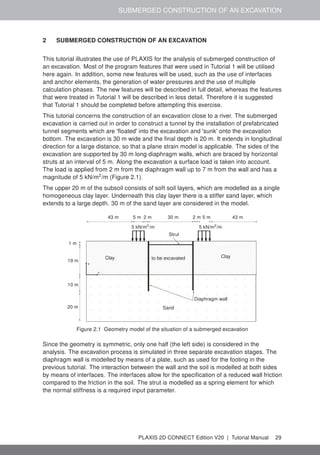
Hint: Taking suction into account in a Safety phase gives a higher factor of safety,
hence ignoring suction in a Safety phase is more conservative. In the Safety
analysis of PLAXIS, any unbalance due to changing from suction to no
suction is first solved before the factor of safety is determined. As a result,
ΣMsf can decrease in the first part of the calculation.
Figure 9.13 The final view of Phases explorer
• Proceed to the Staged construction mode.
Select nodes located at the crest (-2.5 30.0) and at the toe of the dam (-80.0 0.0).
Click Calculate button and ignore the warnings regarding the influence of suction in
the Safety analysis.
PLAXIS 2D CONNECT Edition V20 | Tutorial Manual 129
TUTORIAL MANUAL
Save the project after the calculation has finished.
9.4 RESULTS
The results of the four groundwater flow calculations in terms of pore pressure distribution
are shown in Figures 9.14 to 9.17. Four different situations were considered:
• The steady-state situation with a high (standard) reservoir level (Figure 9.14).
Figure 9.14 Pore pressure distribution, (pactive), for high reservoir level
• The pore pressure distribution after rapid drawdown of the reservoir level (Figure
9.15).
Figure 9.15 Pore pressure distribution, (pactive), after rapid drawdown
• The pore pressure distribution after slow drawdown of the reservoir level (Figure
9.16).
Figure 9.16 Pore pressure distribution, (pactive), after slow drawdown
• The steady-state situation with a low reservoir level (Figure 9.17).
When the change of pore pressure is taken into account in a deformation analysis, some
additional deformation of the dam will occur. These deformations and the effective stress
distribution can be viewed on the basis of the results of the first four calculation phases.
Here, attention is focused on the variation of the safety factor of the dam for the different
130 Tutorial Manual | PLAXIS 2D CONNECT Edition V20
STABILITY OF DAM UNDER RAPID DRAWDOWN
Figure 9.17 Pore pressure distribution, (pactive), for low reservoir level
Hint: The phreatic level can be smoother with a high refinement pf the mesh in the
core.
situations. Therefore, the development of ΣMsf is plotted for the phases 4 to 7 as a
function of the displacement of the dam crest point (-2.5 30.0), see Figure 9.18.
Figure 9.18 Safety factors for different situations
Rapid drawdown of a reservoir level can reduce the stability of a dam significantly. Fully
coupled flow-deformation and stability analysis can be performed with PLAXIS 2D to
effectively analyse such situations.
Hint: By removing the suction in the safety analysis, an out-of-balance force is
introduced at the beginning of the calculation. Without the contribution of the
suction, the ΣMsf can decrease in the first part of the calculation.
PLAXIS 2D CONNECT Edition V20 | Tutorial Manual 131
TUTORIAL MANUAL
10 FLOW THROUGH AN EMBANKMENT
In this chapter the flow through an embankment will be considered. The crest of the
embankment has a width of 2.0 m. Initially the water in the river is 1.5 m deep. The
difference in water level between the river and the polder is 3.5 m.
Figure 10.1 shows the layout of the embankment problem where free surface
groundwater flow occurs. Flow takes place from the left side (river) to the right side
(polder). As a result seepage will take place at the right side of the embankment. The
position of the phreatic level depends on the river water level, which varies in time.
x
y
1 m
2 m
2 m
3 m
3 m
3 m
10 m
5 m
6 m
Figure 10.1 Geometry of the embankment
Objectives:
• Performing Flow only analysis
• Using cross section curves
10.1 INPUT
To create the geometry model, follow these steps:
General settings
• Start the Input program and select Start a new project from the Quick select dialog
box.
• In the Project tabsheet of the Project properties window, enter an appropriate title.
• In the Model tabsheet keep the default options for Model (Plane strain), and
Elements (15-Node).
• Set the model dimensions to xmin = 0.0 m, xmax = 23.0 m, ymin = 0.0 m and ymax =
6.0 m.
• Keep the default values for units, constants and the general parameters and press
OK to close the Project properties window.
Definition of soil stratigraphy
To define the soil stratigraphy:
Create a borehole at x = 2. The Modify soil layers window pops up.
132 Tutorial Manual | PLAXIS 2D CONNECT Edition V20
FLOW THROUGH AN EMBANKMENT
• Specify the head value as 4.5.
• Add a soil layer in the borehole. Set the top level to 3. No change is required for the
bottom boundary of the layer.
• Create the rest of the required boreholes according to the information given in Table
10.1.
Table 10.1 Information on the boreholes in the model
Borehole number Location (x) Head Top Bottom
1 2.0 4.5 3.0 0.0
2 8.0 4.5 6.0 0.0
3 10.0 4.0 6.0 0.0
4 20.0 1.0 1.0 0.0
Define the soil material according to the Table 10.2 and assign the material dataset
to the cluster. Skip the Interfaces and Initial tabsheets as these parameters are not
relevant.
Table 10.2 Properties of the embankment material (sand)
Parameter Name Sand Unit
General
Material model Model Linear elastic -
Type of material behaviour Type Drained -
Soil unit weight above phreatic
level
γunsat 20 kN/m3
Soil unit weight below phreatic
level
γsat 20 kN/m3
Parameters
Stiffness E' 1.0· 104 kN/m2
Poisson's ratio ν' 0.3 -
Groundwater
Data set - Standard -
Soil type - Medium fine -
Use defaults - From data set -
Horizontal permeability kx 0.02272 m/day
Vertical permeability ky 0.02272 m/day
• After assigning the material to the soil cluster close the Modify soil layers window.
10.2 MESH GENERATION
• Proceed to the Mesh mode.
• Select the lines as shown in Figure 10.2 and in Selection Explorer specify a
Coarseness factor of 0.5.
Click the Generate mesh button in order to generate the mesh. The Mesh options
window appears.
• Select the Fine option in the Element distribution drop-down menu and generate the
mesh.
PLAXIS 2D CONNECT Edition V20 | Tutorial Manual 133
TUTORIAL MANUAL
Figure 10.2 Indication of the local refinement of the mesh in the model
View the mesh. The resulting mesh is displayed in Figure 10.3.
• Click on the Close tab to close the Output program.
Figure 10.3 The generated mesh
10.3 CALCULATIONS
In this project only the flow related behaviour will be analysed. The calculation process
consists of three phases that will be defined in the Staged construction mode. In the
initial phase, the groundwater flow in steady state is calculated for an average river level.
In Phase 1, the transient groundwater flow is calculated for a harmonic variation of the
water level. In Phase 2, the calculation is similar as in Phase 1, but the period is longer.
• Click the Staged construction tab to proceed to the corresponding mode. A global
level is automatically created according to the head values specified for each
borehole (Table 10.1). The model in the Staged construction mode is shown in
Figure 10.4.
Figure 10.4 The model in the Staged construction mode
Hint: Note that the 'internal' part of the global water level will be replaced by the
result of the groundwater flow calculation.
134 Tutorial Manual | PLAXIS 2D CONNECT Edition V20
FLOW THROUGH AN EMBANKMENT
Initial phase
• Double-click the initial phase in the Phases explorer.
• In the General subtree select the Flow only option as the Calculation type.
• The default values of the remaining parameters are valid for this phase. Click OK to
close the Phases window.
• In the Model explorer expand the Model conditions subtree.
• In the Model conditions expand the GroundwaterFlow subtree. The default
boundary conditions (Figure 10.5) are relevant for the initial phase. Check that only
the bottom boundary is closed.
Figure 10.5 The groundwater flow boundary conditions for the initial phase
• In the Model explorer expand the Groundwater flow BCs subtree. The boundary
conditions at the extremities of the model are automatically created by the program
and listed under the GWFlowBaseBC.
Hint: Note that when the boundary conditions under the Groundwater flow BCs
subtree are active, the model conditions specified in the GroundwaterFlow
are ignored.
Phase 1
Add a new calculation phase.
• In the Phases explorer double-click the current phase.
• In the General subtree select the Transient groundwater flow option as pore
pressure calculation type.
• Set the Time interval to 1.0 day.
PLAXIS 2D CONNECT Edition V20 | Tutorial Manual 135
TUTORIAL MANUAL
• In the Numerical control parameters subtree set the Max number of steps stored
parameter to 50. The default values of the remaining parameters will be used.
• Click OK to close the Phases window.
Click the Select multiple objects button in the side toolbar.
Point to the Select lines option and click on the Select water boundaries option in
the appearing menu (Figure 10.6).
Figure 10.6 The Select water boundaries option in the Select multiple objects menu
• Select the hydraulic boundaries as shown in Figure 10.7.
• Right-click and select the Activate option in the appearing menu.
Figure 10.7 The time dependent boundaries in the model
• In the Selection explorer set the Behaviour parameter to Head.
• Set href to 4.5.
• Select the Time dependent option in the Time dependency drop-down menu.
• Click on the Head function parameter.
136 Tutorial Manual | PLAXIS 2D CONNECT Edition V20
FLOW THROUGH AN EMBANKMENT
Add a new head function.
• In the Flow functions window select the Harmonic option in the Signal drop-down
menu. Set the amplitude to 1.0 m, the phase angle to 0 ◦
and the period to 1.0 day
(Figure 10.8).
Figure 10.8 The flow function for the rapid case
• Click OK to close the Flow functions window.
Phase 2
Add a new calculation phase.
• In the Phases explorer double-click the current phase.
• In the General subtree select the Initial phase in the Start from phase drop-down
menu.
• Select the Transient groundwater flow option as pore pressure calculation type.
• Set the Time interval to 10.0 day.
• In the Numerical control parameters subtree set the Max number of steps stored
parameter to 50. The default values of the remaining parameters will be used.
• Click OK to close the Phases window.
• In the Selection explorer click on the Head function parameter.
Add a new head function.
• In the Flow functions window select the Harmonic option in the Signal drop-down
menu. Set the amplitude to 1.0 m, the phase angle to 0 ◦
and the period to 10.0 day
(Figure 10.9).
• Click OK to close the Flow functions window.
PLAXIS 2D CONNECT Edition V20 | Tutorial Manual 137
TUTORIAL MANUAL
Figure 10.9 The flow function for the slow case
To select points to be considered in curves:
In the Staged construction mode click the Select point for curves button in the side
toolbar. The Connectivity plot is displayed in the Output program.
• In the Select points window select nodes located nearest to (0.0 3.0) and (8.0 2.5) to
be considered in curves.
• Click Update to close the output program.
Calculate the project.
Save the project after the calculation has finished.
10.4 RESULTS
In the Output program the Create animation tool can be used to animate the results
displayed in the Output program. To create the animation follow these steps:
• In the Stresses menu select the Pore pressures → Groundwater head.
• Select the Create animation option in the File menu. The corresponding window
pops up.
• Define the name of the animation file and the location where it will be stored. By
default the program names it according to the project and stores it in the project
folder. In the same way animations can be created to compare the development of
pore pressures or flow field.
• Deselect the initial phase and Phase 2, such that only Phase 1 is included in the
animations and rename the animation accordingly. The Create animation window is
shown in Figure 10.10.
To view the results in a cross section:
138 Tutorial Manual | PLAXIS 2D CONNECT Edition V20
FLOW THROUGH AN EMBANKMENT
Figure 10.10 Create animation window
Click the Cross section button in the side toolbar. The Cross section points window
pops up and the start and the end points of the cross section can be defined. Draw
a cross section through the points (2.0 3.0) and (20.0 1.0). The results in the cross
section are displayed in a new window.
• In the Cross section view select Pore pressures → pactive in the Stresses menu.
Select the Cross section curves option in the Tools menu. After the curves window
pops up select Individual steps from Selection style drop down menu.
• Select Phase 1. The variation of the results in the cross section is displayed in a
new window.
• Do the same for Phase 2. This may take about 30 seconds,
• The variation of the results due to different time intervals in harmonic variation at a
specific cross section can be compared (Figure 10.11 and Figure 10.12).
It can be seen that the slower variation of the external water level has a more significant
influence on the pore pressures in the embankment and over a larger distance.
PLAXIS 2D CONNECT Edition V20 | Tutorial Manual 139
TUTORIAL MANUAL
Figure 10.11 Active pore pressure variation in the cross section in Phase 1
Figure 10.12 Active pore pressure variation in the cross section in Phase 2
140 Tutorial Manual | PLAXIS 2D CONNECT Edition V20
FLOW AROUND A SHEET PILE WALL
11 FLOW AROUND A SHEET PILE WALL
In this tutorial the flow around a sheetpile wall will be analysed. The geometry model of
Chapter 3 will be used. The Well feature is introduced in this example.
Objectives:
• Using wells
11.1 INPUT
To create the geometry:
• Open the project defined in Chapter 3.
• Save the project under a different name (e.g. 'Flow around a sheet pile wall'). The
material parameters remain unchanged. The used groundwater parameters are
shown in Table 11.1.
Table 11.1 Flow parameters
Parameter Name Silt Sand Loam Unit
Groundwater
Data set - USDA USDA USDA -
Model - Van Genuchten Van Genuchten Van Genuchten -
Soil type - Silt Sand Loam -
> 2µm - 6.0 4.0 20.0 %
2µm − 50µm - 87.0 4.0 40.0 %
50µm − 2mm - 7.0 92.0 40.0 %
Use defaults - From data set From data set From data set -
Permeability in horizontal direction kx 0.5996 7.128 0.2497 m/day
Permeability in vertical direction ky 0.5996 7.128 0.2497 m/day
In the Structures mode click the Create hydraulic conditions button in the side
toolbar.
Select the Create well option in the appearing menu.
• Draw the first well by clicking on (42.0 23.0) and (42.0 20.0).
• Draw the second well by clicking on (58.0 23.0) and (58.0 20.0).
11.2 MESH GENERATION
• Proceed to the Mesh mode.
• Select the cluster and two wells as shown in Figure 11.1 and in Selection Explorer
specify a Coarseness factor of 0.25.
Create the mesh. Use the default option for the Element distribution parameter
(Medium).
View the mesh. The resulting mesh is displayed in Figure 11.2.
• Click on the Close tab to close the Output program.
PLAXIS 2D CONNECT Edition V20 | Tutorial Manual 141
TUTORIAL MANUAL
Figure 11.1 Indication of the local refinement of the mesh in the model
Figure 11.2 The generated mesh
11.3 CALCULATIONS
• Proceed to the Staged construction mode. In this project only groundwater flow
analysis will be performed.
In the Phases explorer remove the existing phases (Phases 1 to 6).
Initial phase
In this phase the initial steady-state pore pressure distribution is considered. To define
the initial phase:
• In the General subtree of the Phases window select the Flow only option in the
Calculation type drop-down menu.
• The standard settings for the remaining parameters are valid for this phase.
• The default groundwater flow boundary conditions are valid. Only the bottom
boundary of the model (BoundaryYMin) is Closed whereas the rest of the
boundaries are Open.
• The water level created according to the head specified in the borehole is assigned
as GlobalWaterLevel.
Phase 1
In this phase the lowering of the phreatic level in the excavation down to y = 20 m. This
corresponds to the final excavation level in the project in Chapter 3.
Add a new phase.
• In the Phases window the calculation type is by default defined as Flow only.
• The default option (Steady state groundwater flow) will be used as Pore pressure
142 Tutorial Manual | PLAXIS 2D CONNECT Edition V20
FLOW AROUND A SHEET PILE WALL
calculation type.
• In the Staged construction mode activate the interface elements along the wall.
• Multi-select the wells in the model and activate them.
• In the Selection explorer the behaviour of the wells is by default set to Extraction.
• Set the discharge value to 0.7 m3
/day/m.
• Set the hmin value to 20.0m. This means that water will be extracted as long as the
groundwater head at the wall location is at least 20 m. Figure 11.3 shows the
parameters assigned to the wells in the Selection explorer.
Figure 11.3 Well properties
Hint: Total discharge in Phase 1 is similar to the total outflow at the final excavation
level as obtained from Chapter 3.
The definition of the calculation process is complete. Calculate the project.
Save the project after the calculation has finished.
11.4 RESULTS
To display the flow field:
• Select the Phase 1 in the drop down menu.
• From the Stresses menu select Groundwater flow → |q|. A scaled representation of
the results (scale factor = 5.0 ) is shown in Figure 11.4.
Figure 11.4 The resulting flow field at the end of Phase 1
From the Stresses menu select Pore pressures → pactive. Compare the results with the
ones of the Phase 6 of the project defined in Chapter 3.
PLAXIS 2D CONNECT Edition V20 | Tutorial Manual 143
TUTORIAL MANUAL
In Figure 11.5 the resulting active pore pressures when the water level in the excavation
is at y = 20 m is displayed for both projects.
a. Active pore pressures (Phase 6 in Chapter 3)
b. Active pore pressures (Phase 1 in the current project)
Figure 11.5 Comparison of the resulting active pore pressures.
144 Tutorial Manual | PLAXIS 2D CONNECT Edition V20
POTATO FIELD MOISTURE CONTENT
12 POTATO FIELD MOISTURE CONTENT
This tutorial demonstrates the applicability of PLAXIS to agricultural problems. The
potato field tutorial involves a loam layer on top of a sandy base. The water level in the
ditches remains unchanged. The precipitation and evaporation may vary on a daily basis
due to weather conditions. The calculation aims to predict the variation of the water
content in the loam layer in time as a result of time-dependent boundary conditions.
precipitation precipitation
sand
loam
15 m
15 m
0.75 m
0.75 m
0.75 m
0.50 m
1.25 m
Figure 12.1 Potato field geometry
Objectives:
• Defining precipitation
12.1 INPUT
Due to the symmetry of the problem, it is sufficient to simulate a strip with a width of
15.0 m, as indicated in Figure 12.1. The thickness of the loam layer is 2.0 m and the sand
layer is 3.0 m deep.
To create the geometry model, follow these steps:
General settings
• Start the Input program and select Start a new project from the Quick select dialog
box.
• In the Project tabsheet of the Project properties window, enter an appropriate title.
• In the Model tabsheet keep the default options for Model (Plane strain), and
Elements (15-Node).
• Set the model dimensions to xmin = 0.0 m, xmax = 15.0 m, ymin = 0.0 m and ymax =
5.0 m.
• Keep the default values for units, constants and the general parameters and press
OK to close the Project properties window.
PLAXIS 2D CONNECT Edition V20 | Tutorial Manual 145
TUTORIAL MANUAL
Definition of soil stratigraphy
Due to the geometry of the model, the options for snapping should be changed.
Click the Snapping options button in the bottom toolbar.
• In the appearing window set the Number of snap intervals to 100 (Figure 12.2).
• Click OK to close the Snapping window.
Figure 12.2 Modification of the Number of snap intervals
To define the soil stratigraphy:
Create two boreholes located at x = 0.75 and x = 2.00 respectively.
• In the Modify soil layers window add two soil layers.
• In the first borehole set Top = 3.75 and Bottom = 3.00 for the uppermost soil layer.
Set Bottom = 0 for the lowest soil layer.
• In the second borehole set Top = 5.00 and Bottom = 3.0 for the uppermost soil layer.
Set Bottom = 0 for the lowest soil layer.
• For both boreholes the Head is located at y = 4.25. Figure 12.3 shows the soil
stratigraphy defined in the Modify water levels window.
Create the material data sets according to Table 12.1.
• Assign the material data set to the corresponding clusters in the model.
Table 12.1 Material properties for potato field
Parameter Name Loam Sand Unit
General
Material model - Linear elastic Linear elastic -
Type of material behaviour Type Drained Drained -
Soil unit weight above p.l. γunsat 19 20 kN/m3
Soil unit weight below p.l. γsat 19 20 kN/m3
Parameters
Young's modulus E' 1.0·103
1.0·104
kN/m2
Poisson's ratio ν' 0.3 0.3 -
Groundwater
Data set Type Staring Staring -
Model - Van Genuchten Van Genuchten -
Subsoil/Topsoil - Topsoil Subsoil -
Type - Clayey loam (B9) Loamy sand (O2) -
Use defaults - From data set From data set -
Horizontal permeability kx 0.01538 0.1270 m/day
Vertical permeability ky 0.01538 0.1270 m/day
146 Tutorial Manual | PLAXIS 2D CONNECT Edition V20
POTATO FIELD MOISTURE CONTENT
Figure 12.3 Soil stratigraphy in the Modify soil layers window
12.2 MESH GENERATION
• Proceed to the Mesh mode.
• Multi-select the line segments composing the upper boundary of the model (Figure
12.4).
Figure 12.4 The upper boundary of the model
• In the Selection explorer set the Coarseness factor parameter to 0.5.
Create the mesh. Use the default option for the Element distribution parameter
(Medium).
View the mesh. The resulting mesh is displayed in (Figure 12.5).
• Click on the Close tab to close the Output program.
PLAXIS 2D CONNECT Edition V20 | Tutorial Manual 147
TUTORIAL MANUAL
Figure 12.5 Potato field mesh
12.3 CALCULATIONS
The calculation process consists of two phases. In the initial phase, the groundwater flow
in steady state is calculated. In Phase 1, the transient groundwater flow is calculated.
Initial phase
• Proceed to the Staged construction mode. In this project only groundwater flow
analysis will be performed.
• In the Phases window select the Flow only option as the Calculation type in the
General subtree.
• The default values of the remaining parameters are valid for this phase. Click OK to
close the Phases window.
Right-click the bottom boundary of the model and select the Activate option in the
appearing menu.
• In the Selection explorer select the Head option in the Behaviour drop-down menu
and set href to 3.0 (Figure 12.6).
Figure 12.6 Boundary conditions at the bottom of the geometry model
• In the Model explorer expand the Model conditions subtree.
• Expand the GroundwaterFlow subtree. Set BoundaryXMin and BoundaryXMax to
Closed.
• Expand the Water subtree. The borehole water level is assigned to
GlobalWaterLevel.
Transient phase
In the transient phase the time-dependent variation of precipitation is defined.
148 Tutorial Manual | PLAXIS 2D CONNECT Edition V20
POTATO FIELD MOISTURE CONTENT
Hint: Note that the conditions explicitly assigned to groundwater flow boundaries
are taken into account. In this tutorial the specified Head will be considered
for the bottom boundary of the model, NOT the Closed condition specified in
the GroundwaterFlow subtree under the Model conditions.
Add a new calculation phase.
• In General subtree of the Phases window select the Transient groundwater flow as
Pore pressure calculation type.
• Set the Time interval to 15 days.
• In the Numerical control parameters subtree set the Max number of steps stored to
250. The default values of the remaining parameters will be used.
• Click OK to close the Phases window.
To define the precipitation data a discharge function should be defined.
• In the Model explorer expand the Attributes library subtree.
• Right-click on Flow functions and select the Edit option in the appearing menu. The
Flow functions window pops up.
• In the Discharge functions tabsheet add a new function.
• Specify a name for the function and select the Table option in the Signal drop-down
menu.
• Click the Add row button to introduce a new row in the table. Complete the data
using the values given in the Table 12.2.
Table 12.2 Precipitation data
ID Time [day] ∆Discharge [m3
/day/m]
1 0 0
2 1 1·10-2
3 2 3·10-2
4 3 0
5 4 -2·10-2
6 5 0
7 6 1·10-2
8 7 1·10-2
9 8 0
10 9 -2·10-2
11 10 -2·10-2
12 11 -2·10-2
13 12 -1·10-2
14 13 -1·10-2
15 14 0
16 15 0
• Figure 12.7 shows the defined function for precipitation. Close the windows by
clicking OK.
• In the Model explorer expand the Precipitation subtree under Model conditions and
activate it. The default values for discharge (q) and condition parameters (ψmin =
PLAXIS 2D CONNECT Edition V20 | Tutorial Manual 149
TUTORIAL MANUAL
Figure 12.7 The Flow function window displaying the precipitation data and plot
-1.0 m and ψmax = 0.1m) are valid.
• For the precipitation select the Time dependent option in the corresponding
drop-down menu and assign the defined function (Figure 12.8).
• In the Model explorer set DischargeFunction1 under Discharge function.
Calculate the project.
Save the project after the calculation has finished.
Figure 12.8 Precipitation in the Model explorer
150 Tutorial Manual | PLAXIS 2D CONNECT Edition V20
POTATO FIELD MOISTURE CONTENT
Hint: Negative values of precipitation indicate evaporation.
12.4 RESULTS
The calculation was focused on the time-dependent saturation of the potato field. To view
the results:
• From the Stresses menu select Groundwater flow → Saturation.
• Double click the legend. The Legend settings window pops up. Define the settings
as shown in Figure 12.9.
Figure 12.9 Value for settings
• Figure 12.10 shows the spatial distribution of the saturation for the last time step.
Figure 12.10 Saturation field at day 15
• Create an animation of the transient phase for a better visualisation of the results.
• It is also interesting to create a vertical cross section at x = 4 m and draw cross
section curves for pore pressure and saturation.
PLAXIS 2D CONNECT Edition V20 | Tutorial Manual 151
TUTORIAL MANUAL
13 DYNAMIC ANALYSIS OF A GENERATOR ON AN ELASTIC FOUNDATION
Using PLAXIS, it is possible to simulate dynamic soil-structure interaction. Here the
influence of a vibrating source on its surrounding soil is studied. The vibrating source is a
generator founded on a 0.2 m thick concrete footing of 1 m in diameter, see Figure 13.1.
Oscillations caused by the generator are transmitted through the footing into the subsoil.
sandy clay
1m
generator
Figure 13.1 Generator founded on elastic subsoil
The physical damping due to the viscous effects is taken into consideration via the
Rayleigh damping. Also, due to axisymmetry 'geometric damping' can be significant in
attenuating the vibration.
The modelling of the boundaries is one of the key points. In order to avoid spurious wave
reflections at the model boundaries (which do not exist in reality), special conditions have
to be applied in order to absorb waves reaching the boundaries.
Objectives:
• Defining a Dynamic calculation
• Defining dynamic loads
• Defining dynamic boundary conditions (viscous)
• Defining material damping by means of Rayleigh damping
13.1 INPUT
To create the geometry model, follow these steps:
General settings
• Start the Input program and select Start a new project from the Quick select dialog
box.
• In the Project tabsheet of the Project properties window, enter an appropriate title.
• Due to the three dimensional nature of the problem, an axisymmetric model is used.
In the Model tabsheet select the Axisymmetric option for Model and keep the
default option for Elements (15-Noded).
• Keep the default values for units and constants and set the model dimensions to
152 Tutorial Manual | PLAXIS 2D CONNECT Edition V20
DYNAMIC ANALYSIS OF A GENERATOR ON AN ELASTIC FOUNDATION
xmin = 0.0 m, xmax = 20.0 m, ymin = 0.0 m, ymax = 20.0 m.
Hint: The model boundaries should be sufficiently far from the region of interest, to
avoid disturbances due to possible reflections. Although special measures
are adopted in order to avoid spurious reflections (viscous boundaries), there
is always a small influence and it is still a good habit to put boundaries far
away. In a dynamic analysis, model boundaries are generally taken further
away than in a static analysis.
13.1.1 DEFINITION OF SOIL STRATIGRAPHY
The subsoil consists of one layer with a depth of 10 m. The ground level is defined at y =
0. Note that water conditions are not considered in this example. To define the soil
stratigraphy:
Create a borehole at x = 0.
• Create a soil layer extending from ground surface (y = 0.0) to a depth of 10 m (y =
-10.0).
• Keep the Head in the borehole at 0.0 m. This means that the sub-soil is fully
saturated.
The soil layer consists of sandy clay, which is assumed to be elastic. Create a data
set under the Soil and interfaces set type according to the information given in Table
13.1. The specified Young's modulus seems relatively high. This is because the
dynamic stiffness of the ground is generally considerably larger than the static
stiffness, since dynamic loadings are usually fast and cause very small strains.
Table 13.1 Material properties of the subsoil
Parameter Name Value Unit
General
Material model Model Linear elastic -
Type of material behaviour Type Drained -
Soil unit weight above phreatic level γunsat 20 kN/m3
Soil unit weight below phreatic level γsat 20 kN/m3
Parameters
Young's modulus (constant) E' 5.0 · 104 kN/m2
Poisson's ratio ν' 0.3 -
Initial
K0 determination − Automatic -
Lateral earth pressure coefficient K0,x 0.50 -
PLAXIS 2D CONNECT Edition V20 | Tutorial Manual 153
TUTORIAL MANUAL
Hint: When using Mohr-Coulomb or linear elastic models the wave velocities Vp
and Vs are calculated from the elastic parameters and the soil weight. Vp
and Vs can also be entered as input; the elastic parameters are then
calculated automatically. See also Elastic parameters and the Wave Velocity
relationships in Section 6.1.2 of the Reference Manual.
13.1.2 DEFINITION OF STRUCTURAL ELEMENTS
The generator is defined in the Structures mode.
Create a plate extending from (0.0 0.0) to (0.5 0.0) to represent the footing.
Define a material data set for the footing according to the information given in Table
13.2. The footing is assumed to be elastic and has a weight of 5 kN/m2
.
Table 13.2 Material properties of the footing
Parameter Name Value Unit
Material type Type Elastic; Isotropic -
Normal stiffness EA 7.6 · 106 kN/m
Flexural rigidity EI 2.4 · 104 kNm2/m
Weight w 5.0 kN/m/m
Poisson's ratio ν 0.0 -
• Apply a distributed load on the footing to model the weight of the generator as well
as the vibrations that it produces. The actual value of the load will be defined later.
The model is shown in Figure 13.2.
Figure 13.2 Model layout
13.2 MESH GENERATION
• Proceed to the Mesh mode.
Generate the mesh. Use the default option for the Element distribution parameter
(Medium).
View the generated mesh. The resulting mesh is shown in Figure 13.3. Note that the
154 Tutorial Manual | PLAXIS 2D CONNECT Edition V20
DYNAMIC ANALYSIS OF A GENERATOR ON AN ELASTIC FOUNDATION
mesh is automatically refined under the footing.
• Click on the Close tab to close the Output program.
Figure 13.3 The generated mesh
13.3 CALCULATIONS
The calculation consists of 4 phases and it will be defined in the Staged construction
mode.
Initial phase
• Click the Staged construction tab to proceed with the definition of the calculation
phases.
• The initial phase has already been introduced. The default settings of the initial
phase will be used in this tutorial.
Phase 1 - Footing
Add a new calculation phase. The default settings of the added phase will be used
for this calculation phase.
• Activate the footing.
• Activate the static component of the distributed load. In the Selection explorer set
qy,start,ref value to -8 kN/m/m. Do not activate the dynamic component of the load
(Figure 13.4).
Figure 13.4 Specification of the static load component in the Selection explorer
PLAXIS 2D CONNECT Edition V20 | Tutorial Manual 155
TUTORIAL MANUAL
Phase 2 - Start generator
In this phase, a vertical harmonic load, with a frequency of 10 Hz and amplitude of 10
kN/m2
, is applied to simulate the vibrations transmitted by the generator. Five cycles with
a total time interval of 0.5 sec are considered.
Add a new calculation phase.
In the General subtree in the Phases window, select the Dynamic option as
calculation type.
• Set the Dynamic time interval parameter to 0.5 s.
• In the Deformation control parameters subtree in the Phases window select the
Reset displacements to zero parameter. The default values of the remaining
parameters will be used for this calculation phase.
• In the Model explorer expand the Attributes library subtree.
• Right-click the Dynamic multipliers subtree and select the Edit option from the
appearing menu. The Multipliers window pops up.
• Click the Load multipliers tab.
Click the Add button to introduce a multiplier for the loads.
• Define a Harmonic signal with an Amplitude of 10, a Phase of 0◦
and a Frequency
of 10 Hz and as shown in Figure 13.5.
Figure 13.5 Definition of a Harmonic multiplier
In the Selection explorer, activate the dynamic component of the load
(DynLineLoad_1).
• Specify the components of the load as (qx,start,ref , qy,start,ref ) = (0.0, -1.0). Click
Multiplier_y in the dynamic load subtree and select the LoadMultiplier_1 option
from the drop-down menu (Figure 13.6).
Special boundary conditions have to be defined to account for the fact that in reality the
soil is a semi-infinite medium. Without these special boundary conditions the waves
would be reflected on the model boundaries, causing perturbations. To avoid these
156 Tutorial Manual | PLAXIS 2D CONNECT Edition V20
DYNAMIC ANALYSIS OF A GENERATOR ON AN ELASTIC FOUNDATION
Figure 13.6 Specification of the dynamic load component in the Selection explorer
Hint: The dynamic multipliers can be defined in the Geometry modes as well as in
the Calculation modes.
spurious reflections, viscous boundaries are specified at Xmax and Ymin. The dynamic
boundaries can be specified in the Dynamics subtree located under the Model conditions
in the Model explorer (Figure 13.7).
Figure 13.7 Boundary conditions for Dynamic calculations
PLAXIS 2D CONNECT Edition V20 | Tutorial Manual 157
TUTORIAL MANUAL
Phase 3 - Stop generator
Add a new phase (Phase_3).
In the General subtree in the Phases window, select the Dynamic option as
calculation type.
• Set the Dynamic time interval parameter to 0.5 s.
• In the Staged construction mode deactivate the dynamic component of the surface
load. Note that the static load is still active. The dynamic boundary conditions of this
phase should be the same as in the previous phase.
Select nodes located at the ground surface (ex: (1.4 0.0), (1.9 0.0), (3.6 0.0)) to
consider in curves.
Calculate the project.
Save the project.
13.3.1 ADDITIONAL CALCULATION WITH DAMPING
In a second calculation, material damping is introduced by means of Rayleigh damping.
Rayleigh damping can be entered in the material data set. The following steps are
necessary:
• Save the project under another name.
• Open the material data set of the soil.
• In the General tabsheet click the box next to the Rayleigh α parameter. Note that the
display of the General tabsheet has changed displaying the Single DOF equivalence
box.
• In order to introduce 5% of material damping, set the value of the ξ parameter to 5%
for both targets and set the frequency values to 1 and 10 for the Target 1 and Target
2 respectively.
• Click on one of the definition cells of the Rayleigh parameters. The values of α and
β are automatically calculated by the program.
• Click OK to close the data base.
• Check whether the phases are properly defined (according to the information given
before) and start the calculation.
158 Tutorial Manual | PLAXIS 2D CONNECT Edition V20
DYNAMIC ANALYSIS OF A GENERATOR ON AN ELASTIC FOUNDATION
Figure 13.8 Input of Rayleigh damping
13.4 RESULTS
The Curve generator feature is particularly useful for dynamic analysis. You can easily
display the actual loading versus time (input) and also displacements, velocities and
accelerations of the pre-selected points versus time. The evolution of the defined
multipliers with time can be plotted by assigning Dynamic time to the x-axis and uy to the
y-axis. Figure 13.9 shows the response of the pre-selected points at the surface of the
structure. It can be seen that even with no damping, the waves are dissipated which can
be attributed to the geometric damping.
PLAXIS 2D CONNECT Edition V20 | Tutorial Manual 159
TUTORIAL MANUAL
Figure 13.9 Vertical displ.- time on the surface at different distances to the vibrating source (without
damping)
The presence of damping is clear in Figure 13.10. It can be seen that the vibration is
totally seized when some time is elapsed after the removal of the force (at t = 0.5 s).
Also, the displacement amplitudes are lower. Compare Figure 13.10 (without damping)
with Figure 13.10 (with damping).
It is possible in the Output program to display displacements, velocities and accelerations
at a particular time, by choosing the appropriate option in the Deformations menu. Figure
13.11 shows the total accelerations in the soil at the end of phase 2 (t = 0.5 s).
160 Tutorial Manual | PLAXIS 2D CONNECT Edition V20
DYNAMIC ANALYSIS OF A GENERATOR ON AN ELASTIC FOUNDATION
Figure 13.10 Vertical displ.- time on the surface at different distances to the vibrating source (with
damping)
Figure 13.11 Acceleration (|a|) in the soil at the end of phase 2 (with damping)
PLAXIS 2D CONNECT Edition V20 | Tutorial Manual 161
TUTORIAL MANUAL
14 PILE DRIVING
This example involves driving a concrete pile through an 11 m thick clay layer into a sand
layer, see Figure 14.1. The pile has a diameter of 0.4 m. Pile driving is a dynamic
process that causes vibrations in the surrounding soil. Moreover, excess pore pressures
are generated due to the quick stress increase around the pile.
In this example focus is put on the irreversible deformations below the pile. In order to
simulate this process most realistically, the behaviour of the sand layer is modelled by
means of the HS small model.
clay
sand
pile Ø 0.4 m 11 m
7 m
Figure 14.1 Pile driving situation
14.1 INPUT
To create the geometry model, follow these steps:
General settings
• Start the Input program and select the Start a new project from the Quick select
dialog box.
• In the Project tabsheet of the Project properties window enter an appropriate title.
• In the Model tabsheet select the Axisymmetry option for Model and keep the default
option for Elements (15-Noded).
• Keep the default units and constants and set the model dimensions to xmin = 0, xmax
= 30, ymin = 0 and ymax = 18.
14.1.1 DEFINITION OF SOIL STRATIGRAPHY
The subsoil is divided into an 11 m thick clay layer and a 7 m thick sand layer. The
phreatic level is assumed to be at the ground surface. Hydrostatic pore pressures are
generated in the whole geometry according to this phreatic line. To define the soil
162 Tutorial Manual | PLAXIS 2D CONNECT Edition V20
PILE DRIVING
stratigraphy:
Create a borehole at x = 0.
• Create two soil layers extending from y = 18.0 to y = 7.0 and from y = 7.0 to y = 0.0.
• Set the Head in the borehole at 18.0 m.
The clay layer is modelled with the Mohr-Coulomb model. The behaviour is considered to
be Undrained (B). An interface strength reduction factor is used to simulate the reduced
friction along the pile shaft.
In order to model the non-linear deformations below the tip of the pile in a right way, the
sand layer is modelled by means of the HS small model. Because of the fast loading
process, the sand layer is also considered to behave undrained. The short interface in
the sand layer does not represent soil-structure interaction. As a result, the interface
strength reduction factor should be taken equal to unity (rigid).
Create the material data sets according to the information given in Table 14.1.
Table 14.1 Material properties of the subsoil and pile
Parameter Symbol Clay Sand Pile Unit
General
Material model Model Mohr-Coulomb HS small Linear elastic -
Type of behaviour Type Undrained (B) Undrained (A) Non-porous -
Unit weight above phreatic line γunsat 16 17 24 kN/m3
Unit weight below phreatic line γsat 18 20 - kN/m3
Parameters
Young's modulus (constant) E' 5.0· 103
- 3·107
kN/m2
Secant stiffness in standard
drained triaxial test
Eref
50 - 5.0· 104
- kN/m2
Tangent stiffness for primary
oedometer loading
Eref
oed - 5.0· 104
- kN/m2
Unloading / reloading stiffness Eref
ur - 1.5· 105
- kN/m2
Power for stress-level dependency
of stiffness
m - 0.5 - -
Poisson's ratio ν'ur 0.3 0.2 0.1 -
Cohesion c'ref - 0 - kN/m2
Undrained shear strength su,ref 5.0 - - kN/m2
Friction angle ϕ' 0 31.0 - ◦
Dilatancy parameter ψ 0 0 - ◦
Shear strain at which Gs =
0.722G0
γ0.7 - 1.0·10-4
- -
Shear modulus at very small
strains
Gref
0 - 1.2·105
- kN/m2
Young's modulus inc. E'inc 1.0·103
- - kN/m2
Reference level yref 18 - - m
Undrained shear strength inc. su,inc 3 - - kN/m2
Reference level yref 18 - - m
Interface
Interface strength type Type Manual Rigid Rigid -
Interface strength Rinter 0.5 1.0 1.0 -
Initial
K0 determination − Automatic Automatic Automatic -
Lateral earth pressure coefficient K0,x 0.5000 0.4850 0.5000 -
PLAXIS 2D CONNECT Edition V20 | Tutorial Manual 163
TUTORIAL MANUAL
14.1.2 DEFINITION OF STRUCTURAL ELEMENTS
The pile is defined as a column of 0.2 m width. The Interface elements are placed along
the pile to model the interaction between the pile and the soil. The interface should be
extended to about half a meter into the sand layer (see Figure 14.2). Note that the
interface should be defined only at the side of the soil. A proper modelling of the pile-soil
interaction is important to include the material damping caused by the sliding of the soil
along the pile during penetration and to allow for sufficient flexibility around the pile tip.
Hint: Use the Zoom in feature to create the pile and the interface.
Pile
Interface
Clay
Extended interface
Sand
(0.0, 7.0)
(0.2, 7.0)
(0.2, 6.6)
Figure 14.2 Extended interface
To define the concrete pile:
• Click the Structures tab to proceed with the input of structural elements in the
Structures mode.
Select the Create polygon feature in the side toolbar and click on (0.0 18.0), (0.2
18.0), (0.2 7.0) and (0.0 7.0).
Create a negative interface to model the interaction of the pile with the surrounding
soil by clicking on (0.2 6.6) and (0.2 18.0).
The pile is made of concrete, which is modelled by means of the linear elastic model
considering non-porous behaviour (Table 14.1). In the beginning, the pile is not present,
so initially the clay properties are also assigned to the pile cluster.
In order to model the driving force, a distributed unit load is created on top of the pile. To
create a dynamic load:
Define a distributed load by clicking on Create load > Create line load from the tool
bar and then on (0.0 18.0) and (0.2 18.0).
• The load components will be defined in the Selection explorer. Note that the static
component of the load will not be used in this project. The program will neglect the
static components of the load if it (static load) is not activated.
• Expand the Dynamic load subtree and specify a unit load in the gravity direction.
Click the Multiplier_y drop down menu and click on the appearing plus button. The
Multipliers window pops up and a new load multiplier is automatically added.
• Define a Harmonic signal with an Amplitude of 5000, a Phase of 0◦
and a
164 Tutorial Manual | PLAXIS 2D CONNECT Edition V20
PILE DRIVING
Frequency of 50 Hz and as shown in Figure 14.3. During the pile driving phase, we
will only consider half a cycle (0.01 s) of this signal.
Figure 14.3 Definition of a Harmonic multiplier
Hint: Note that dynamic multipliers can be defined by right-clicking the Dynamic
multipliers subtree under Attributes library in the Model explorer.
» Note that dynamic multipliers are attributes and as such it is possible to
define them in all the program's modes.
The final geometry model is shown in Figure 14.4.
Figure 14.4 The geometry model
PLAXIS 2D CONNECT Edition V20 | Tutorial Manual 165
TUTORIAL MANUAL
14.2 MESH GENERATION
• Proceed to the Mesh mode.
Generate the mesh. Use the default option for the Element distribution parameter
(Medium).
View the generated mesh. The resulting mesh is shown in Figure 14.5.
• Click on the Close tab to close the Output program.
Figure 14.5 The generated mesh
14.3 CALCULATIONS
The calculation consists of 3 phases. In the Initial phase, the initial stress conditions are
generated. In the Phase 1 the pile is created. In the Phase 2 the pile is subjected to a
single stroke, which is simulated by activating half a harmonic cycle of load. In the Phase
3 the load is kept zero and the dynamic response of the pile and soil is analysed in time.
The last two phases involve dynamic calculations.
Initial phase
Initial effective stresses are generated by the K0 procedure, using the default values.
Note that in the initial situation the pile does not exist and that the clay properties should
be assigned to the corresponding cluster. The phreatic level is assumed to be at the
ground surface. Hydrostatic pore pressures are generated in the whole geometry
according to this phreatic line.
Phase 1 - Pile activation
Add a new calculation phase.
• In the General subtree in the Phases window, the Plastic option is selected as
Calculation type.
166 Tutorial Manual | PLAXIS 2D CONNECT Edition V20
PILE DRIVING
• The Staged construction option is by default selected as Loading type.
• In the Staged construction mode assign the pile properties to the pile cluster.
• Activate the interface in the Clay layer. The model for the Phase 1 in the Staged
construction mode is displayed in Figure 14.6.
Figure 14.6 Configuration of Phase 1 in the Staged construction mode
Phase 2 - Pile driving
Add a new calculation phase.
• In the General subtree in the Phases window, select the Dynamic option as
Calculation type.
• Set the Dynamic time interval to 0.01 s.
• In the Deformation control parameters subtree select Reset displacements to zero.
• In the Staged construction mode activate the dynamic component of the distributed
load. The activated dynamic component of the load in Selection explorer is shown in
Figure 14.7.
• Expand the Dynamics subtree under Model conditions in the Model explorer.
• Specify viscous boundaries at xmax and ymin (Figure 14.8).
The result of this phase is half a harmonic cycle of the external load. At the end of this
phase, the load is back to zero.
Phase 3 - Fading
Add a new calculation phase.
• In the General subtree in the Phases window, select the Dynamic option as
Calculation type.
• Set the Dynamic time interval to 0.19 s.
PLAXIS 2D CONNECT Edition V20 | Tutorial Manual 167
TUTORIAL MANUAL
Figure 14.7 The dynamic load component in the Selection explorer
Figure 14.8 Boundary conditions for Dynamic calculations
• In the Staged construction mode de-activate the dynamic load.
Select a node at the top of the pile for load displacement curves.
Calculate the project.
Save the project.
168 Tutorial Manual | PLAXIS 2D CONNECT Edition V20
PILE DRIVING
14.4 RESULTS
Figure 14.9 shows the settlement of the pile (top point) versus time. From this figure the
following observations can be made:
• The maximum vertical settlement of the pile top due to this single stroke is about 13
mm. However, the final settlement is almost 10 mm.
• Most of the settlement occurs in phase 3 after the stroke has ended. This is due to
the fact that the compression wave is still propagating downwards in the pile,
causing additional settlements.
• Despite the absence of Rayleigh damping, the vibration of the pile is damped due to
soil plasticity and the fact that wave energy is absorbed at the model boundaries.
Figure 14.9 Pile settlement vs. time
When looking at the output of the second calculation phase (t = 0.01 s, i.e. just after the
stroke), it can be seen that large excess pore pressures occur very locally around the pile
tip. This reduces the shear strength of the soil and contributes to the penetration of the
pile into the sand layer. The excess pore pressures remain also in the third phase since
consolidation is not considered.
Figure 14.10 shows the shear stresses in the interface elements at t = 0.01 s. The plot
shows that the maximum shear stress is reached all along the pile, which indicates that
the soil is sliding along the pile.
When looking at the deformed mesh of the last calculation phase (t = 0.2 s), it can also
be seen that the final settlement of the pile is about 10 mm. In order to see the whole
dynamic process it is suggested to use the option Create Animation to view a 'movie' of
the deformed mesh in time. You may notice that the first part of the animation is slower
than the second part.
PLAXIS 2D CONNECT Edition V20 | Tutorial Manual 169
TUTORIAL MANUAL
Figure 14.10 Maximum shear stresses in the interface at t = 0.01 s.
170 Tutorial Manual | PLAXIS 2D CONNECT Edition V20
FREE VIBRATION AND EARTHQUAKE ANALYSIS OF A BUILDING
15 FREE VIBRATION AND EARTHQUAKE ANALYSIS OF A BUILDING
This example demonstrates the natural frequency of a five-storey building when
subjected to free vibration and earthquake loading. The two calculations employ different
dynamic boundary conditions:
• In the free vibration, the Viscous boundary conditions are considered. This option is
suitable for problems where the dynamic source is inside the mesh.
• For the earthquake loading, the Free-field and Compliant base boundary conditions
are considered. This option is preferred for earthquake analysis, where the dynamic
input is applied at the bottom of the model.
The building consists of 5 floors and a basement. It is 10 m wide and 17 m high including
basement. The total height from the ground level is 5 x 3 m = 15 m and the basement is
2 m deep. A value of 5 kN/m2
is taken as the weight of the floors and the walls. The
building is constructed on a clay layer of 15 m depth underlain by a deep sand layer. In
the model, 25 m of the sand layer will be considered.
Objectives:
• Performing a Dynamic calculation
• Defining dynamic boundary conditions (free-field, compliant base and viscous)
• Defining earthquakes by means of dynamic multipliers
• Modelling free vibration of structures
• Modelling hysteretic behaviour by means of HS small model
• Evaluating the natural frequency from Fourier spectrum
15.1 INPUT
General settings
• Start the Input program and select the Start a new project from the Quick select
dialog box.
• In the Project tabsheet of the Project properties window enter an appropriate title.
• In the Model tabsheet keep the default options for Model (Plane strain) and
Elements (15-Noded).
• Keep the default units and constants and set the model dimensions to xmin = -80.0,
xmax = 80.0, ymin = -40.0 and ymax = 15.0.
15.1.1 DEFINITION OF SOIL STRATIGRAPHY
The subsoil is divided into a 15 m thick clay layer and a 25 m thick sand layer. The
phreatic level is assumed to be at y = -15.0 m. Hydrostatic pore pressures are generated
in the whole geometry according to this phreatic line.
Create a borehole at x = 0. The Modify soil layers window pops up.
• Add two soil layers extending from y = 0.0 to y = -15.0 and from y = -15.0 to y = -40.
PLAXIS 2D CONNECT Edition V20 | Tutorial Manual 171
TUTORIAL MANUAL
x
y
15 m
15 m
25 m
75 m
75 m 10 m
2 m
Figure 15.1 Geometry of the project
• Set the Head in the borehole at -15.0 m.
The upper layer consists of mostly clayey soil and the lower one is sandy. Both have HS
small model properties. The presence of the groundwater is neglected. The soil layers
with HS small model properties have inherent hysteretic damping.
Open the Material sets window.
• Create data sets under Soil and interfaces set type according to the information
given in Table 15.1.
• Assign the material datasets to the corresponding soil layers in the borehole.
Table 15.1 Material properties of the subsoil layers
Parameter Name Upper clay layer Lower sand layer Unit
General
Material model Model HS small HS small -
Type of material behaviour Type Drained Drained -
Soil unit weight above phreatic
level
γunsat 16 20 kN/m3
Soil unit weight below phreatic
level
γsat 20 20 kN/m3
Parameters
Secant stiffness in standard
drained triaxial test
Eref
50 2.0·104
3.0·104
kN/m2
Tangent stiffness for primary
oedometer loading
Eref
oed 2.561·104
3.601·104
kN/m2
Unloading / reloading stiffness Eref
ur 9.484·104
1.108·105
kN/m2
Power for stress-level dependency
of stiffness
m 0.5 0.5 -
Cohesion c'ref 10 5 kN/m2
Friction angle ϕ' 18 28 ◦
Dilatancy angle ψ 0 0 ◦
Shear strain at which Gs =
0.722G0
γ0.7 1.2·10-4
1.5·10-4
-
Shear modulus at very small
strains
Gref
0 2.7·105
1.0·105
kN/m2
Poisson's ratio ν'ur 0.2 0.2 -
When subjected to cyclic shear loading, the HS small model will show typical hysteretic
behaviour. Starting from the small-strain shear stiffness, Gref
0 , the actual stiffness will
decrease with increasing shear. Figures 15.2 and 15.3 display the Modulus reduction
curves, i.e. the decay of the shear modulus with strain. The upper curve shows the
secant shear modulus and the lower curve shows the tangent shear modulus.
172 Tutorial Manual | PLAXIS 2D CONNECT Edition V20
FREE VIBRATION AND EARTHQUAKE ANALYSIS OF A BUILDING
0
100000
50000
150000
200000
250000
Shear
modulus
Shear strain
0.00001 0.0001 0.001 0.01
Gt Gs
γ0.7
0.722G0
G used
Figure 15.2 Modulus reduction curves for the upper clayey layer
20000
40000
60000
80000
100000
Shear
modulus
Shear strain
0.00001 0.0001 0.001 0.01
Gt
Gs
γ0.7
0.722G0
G used
Figure 15.3 Modulus reduction curve for the lower sandy layer
In the HS small model, the tangent shear modulus is bound by a lower limit, Gur .
Gur =
Eur
2(1 + νur )
The values of Gref
ur for the Upper clay layer and Lower sand layer and the ratio to Gref
0 are
shown in Table 15.2. This ratio determines the maximum damping ratio that can be
obtained.
Table 15.2 Gur values and ratio to Gref
0
Parameter Unit Upper clayey
layer
Lower sandy
layer
Gur kN/m2
39517 41167
Gref
0 /Gur - 6.75 2.5
Figures 15.4 and 15.5 show the damping ratio as a function of the shear strain for the
material used in the model. For a more detailed description and elaboration from the
PLAXIS 2D CONNECT Edition V20 | Tutorial Manual 173
TUTORIAL MANUAL
modulus reduction curve to the damping curve can be found in the literature∗
.
0
0.2
0.15
0.1
0.05
Damping
ratio
Cyclic shear strain
0.00001 0.0001 0.001 0.01
Figure 15.4 Damping curve for the upper clay layer
0
0.2
0.15
0.1
0.05
Damping
ratio
Cyclic shear strain
0.00001 0.0001 0.001 0.01
Figure 15.5 Damping curve for the lower sand layer
15.1.2 DEFINITION OF STRUCTURAL ELEMENTS
The structural elements of the model are defined in the Structures mode.
Building
The building consists of 5 floors and a basement. It is 10 m wide and 17 m high including
the basement. A value of 5 kN/m2
is taken as the weight of the floors and the walls.The
total height from the ground level is 5 x 3 m = 15 m and the basement is 2 m deep. To
define the structure:
Create the vertical walls of the building passing through (-5.0 0.0) to (-5.0 15.0) and
through (5.0 0.0) to (5.0 15.0).
• Use the same feature to define the vertical walls of the basement passing through
(-5.0 -2.0) to (-5.0 0.0) and through (5.0 -2.0) to (5.0 0.0).
• Define the floors and the basement of the building as plates passing through (-5.0
-2.0) to (5.0 -2.0), (-5.0 0.0) to (5.0 0.0), (-5.0 3.0) to (5.0 3.0), (-5.0 6.0) to (5.0 6.0),
(-5.0 9.0) to (5.0 9.0), (-5.0 12.0) to (5.0 12.0) and (-5.0 15.0) to (5.0 15.0).
∗ Brinkgreve, R.B.J., Kappert, M.H., Bonnier, P.G. (2007). Hysteretic damping in small-strain stiffness model. In
Proc. 10th Int. Conf. on Comp. Methods and Advances in Geomechanics. Rhodes, Greece, 737 − 742
174 Tutorial Manual | PLAXIS 2D CONNECT Edition V20
FREE VIBRATION AND EARTHQUAKE ANALYSIS OF A BUILDING
The plates, representing the walls and the floors in the building, are considered to be
linear elastic. Note that two different material datasets are used, one for the basement
and the other for the rest of the building. The physical damping in the building is
simulated by means of Rayleigh damping. A description of Rayleigh damping parameters
is given in Section 6.1.1 of the Reference Manual.
Define the material datasets for the structural elements in the building according to
Table 15.3.
Table 15.3 Material properties of the building (plate properties)
Parameter Name Rest of building Basement Unit
Material type Type Elastic; Isotropic Elastic; Isotropic -
Normal stiffness EA 9.0·106
1.2·107
kN/m
Flexural rigidity EI 6.75·104
1.6·105
kNm2
/m
Weight w 10 20 kN/m/m
Poisson's ratio ν 0.0 0.0 -
Rayleigh damping
α 0.2320 0.2320 -
β 8.0·10-3
8.0·10-3
-
• Assign the Basement material dataset to the vertical plates (2) and the lowest
horizontal plate (all under the ground level) in the model.
• Assign the Rest of the building material dataset to the remaining plates in the model.
Use the Node-to-node anchor feature to define the column at the centre of the
building connecting consecutive floors, (0.0 -2.0) to (0.0 0.0), (0.0 0.0) to (0.0 3.0),
(0.0 3.0) to (0.0 6.0), (0.0 6.0) to (0.0 9.0), (0.0 9.0) to (0.0 12.0) and (0.0 12.0) to
(0.0 15.0).
• Define the properties of the anchor according to Table 15.4 and assign the material
dataset to the anchors in the model.
Table 15.4 Material properties of the node-to-node anchor
Parameter Name Column Unit
Material type Type Elastic -
Normal stiffness EA 2.5· 106
kN
Spacing out-of-plane Lspacing 3.0 m
Define an interface to model the interaction between soil and
Loads
A static lateral force of 10 kN/m is applied laterally at the top left corner of the building. To
create the load:
Create a point load at the top left corner of the building.
• Specify the components of the load as (10.0 0.0).
The earthquake is modelled by imposing a prescribed displacement at the bottom
boundary. To define the prescribed displacement:
Define a prescribed displacement at the bottom of the model, through (-80.0 -40.0)
and (80.0 -40.0).
• Set the x-component of the prescribed displacement to Prescribed and assign a
value of 1.0. The y-component of the prescribed displacement is Fixed. The default
distribution (Uniform) is valid.
PLAXIS 2D CONNECT Edition V20 | Tutorial Manual 175
TUTORIAL MANUAL
To define the dynamic multipliers for the prescribed displacement:
• Expand the Dynamic displacement
Click the Multiplier_x drop down menu and click on the appearing plus button. The
Multipliers window pops up and a new displacement multiplier is automatically
added.
• From the Signal drop-down menu select the Table option.
• The file containing the earthquake data is available in the PLAXIS Knowledge Base
(tutorial Free vibration and earthquake analysis of a building). Copy all the data to a
text editor file (e.g. Notepad) and save the file in your computer with the extension
.smc.
• In the Multipliers window click the Open button and select the saved .smc file. In the
Import data window select the Strong motion CD-ROM files option from the Parsing
method drop-down menu and press OK to close the window.
• Select the Acceleration option in the Data type drop-down menu.
• Select the Drift correction options and click OK to finalize the definition of the
multiplier. The defined multiplier is displayed (Figure 15.6).
Figure 15.6 Dynamic multipliers window
Create interfaces on the boundary
Free-field and Compliant base boundaries require the creation of interface elements
along the vertical and bottom boundaries of the model in the Structures mode. The
interface elements must be added inside the model, else the Free-field and Compliant
base boundary conditions are ignored. To define the interfaces:
176 Tutorial Manual | PLAXIS 2D CONNECT Edition V20
FREE VIBRATION AND EARTHQUAKE ANALYSIS OF A BUILDING
Click the Create interfaces on the boundary button to automatically generate the
interfaces at the boundary of the model.
The geometry of the model is shown in Figure 15.7.
Figure 15.7 Geometry of the model
15.2 MESH GENERATION
• Proceed to the Mesh mode.
Click the Generate mesh button. Set the element distribution to Fine.
View the generated mesh. The resulting mesh is shown in Figure 15.8.
• Click on the Close tab to close the Output program.
Figure 15.8 The generated mesh
15.3 CALCULATIONS
The calculation process consists of the initial conditions phase, simulation of the
construction of the building, loading, free vibration analysis and earthquake analysis.
Initial phase
• Click on the Staged construction tab to proceed with definition of the calculation
phases.
• The initial phase has already been introduced. The default settings of the initial
PLAXIS 2D CONNECT Edition V20 | Tutorial Manual 177
TUTORIAL MANUAL
phase will be used in this tutorial.
• In the Staged construction mode check that the building and load are inactive
(Figure 15.9).
Figure 15.9 Initial phase
Phase 1 - Building
Add a new phase (Phase_1). The default settings of the added phase will be used
for this calculation phase.
• In the Staged construction mode construct the building (activate all the plates, the
interfaces and the anchors) and deactivate the basement volume (Figure 15.10).
Figure 15.10 Construction of the building
Phase 2 - Excitation
Add a new phase (Phase_2).
• In the Phases window select the Reset displacement to zero in the Deformation
control parameters subtree. The default values of the remaining parameters will be
used in this calculation phase.
• In the Staged construction mode activate the load. The value of the load is already
defined in the Structures mode.
Phase 3 - Free vibration
Add a new phase (Phase_3).
178 Tutorial Manual | PLAXIS 2D CONNECT Edition V20
FREE VIBRATION AND EARTHQUAKE ANALYSIS OF A BUILDING
In the Phases window select the Dynamic option as Calculation type.
• Set the Dynamic time interval parameter to 5 sec.
• In the Staged construction mode release (deactivate) the point load.
• In the Model explorer expand the Model conditions subtree.
• Expand the Dynamics subtree. Check the boundary conditions BoundaryXMin,
BoundaryXMax and BoundaryYMin are viscous (Figure 15.11) which is the default
option.
Figure 15.11 Boundary conditions for Dynamic calculations
Hint: For a better visualisation of the results, animations of the free vibration and
earthquake can be created. If animations are to be created, it is advised to
increase the number of the saved steps by assigning a proper value to the
Max steps saved parameter in the Parameters tabsheet of the Phases
window.
Phase 4 - Earthquake
Add a new phase (Phase_4).
• In the Phases window set the Start from phase option to Phase 1 (construction of
building).
Select the Dynamic option as Calculation type.
• Set the Dynamic time interval parameter to 20 sec.
PLAXIS 2D CONNECT Edition V20 | Tutorial Manual 179
TUTORIAL MANUAL
• Select the Reset displacement to zero in the Deformation control parameters
subtree. The default values of the remaining parameters will be used in this
calculation phase.
• In the Model explorer expand the Model conditions subtree.
• Expand the Dynamics subtree. Set the BoundaryXMin and BoundaryXMax to
Free-field. Set the BoundaryYMin to Compliant base (Figure 15.12).
• Interface elements do not need to be active to enable the use of Free-field or
Compliant base boundaries.
• In the Model explorer activate the Line displacements and its dynamic component.
Make sure that the value of ux,start,ref is set to 0.5 m. Considering that the boundary
condition at the base of the model will be defined using a Compliant base, the input
signal has to be taken as half of the bedrock (within) motion.
Select a point at the top of the building for curves (0.0 15.0).
Calculate the project.
Save the project.
Figure 15.12 Boundary conditions for Dynamic calculations (Phase_4)
15.4 RESULTS
Figure 15.13 shows the deformed structure at the end of the Phase 2 (application of
horizontal load).
Figure 15.14 shows the time history of displacements of the selected points A (0 15) for
the free vibration phase. It may be seen from the figure that the vibration slowly decays
with time due to damping in the soil and in the building.
180 Tutorial Manual | PLAXIS 2D CONNECT Edition V20
FREE VIBRATION AND EARTHQUAKE ANALYSIS OF A BUILDING
Figure 15.13 Deformed mesh of the system
Figure 15.14 Time history of displacements at selected points
In the Fourier tabsheet of the Curve generation window select the Power (spectrum) and
click OK to create the plot. The plot is shown in Figure 15.15. From this figure it can be
evaluated that the dominant building frequency is around 1 Hz.
Figure 15.16 shows the time history of the lateral acceleration of the selected points A (0
15) for the earthquake phase (dynamic analysis). For a better visualisation of the results
animations of the free vibration and earthquake can be created.
PLAXIS 2D CONNECT Edition V20 | Tutorial Manual 181
TUTORIAL MANUAL
Figure 15.15 Frequency representation (spectrum)
Figure 15.16 Variation of acceleration in dynamic time
182 Tutorial Manual | PLAXIS 2D CONNECT Edition V20
THERMAL EXPANSION OF A NAVIGABLE LOCK
16 THERMAL EXPANSION OF A NAVIGABLE LOCK
A navigable lock is temporarily 'empty' due to maintenance. After some time there is
significant increase of the air temperature, which causes thermal expansion of the inner
side of the lock, while the soil-side of the concrete block remains relatively cold. This
leads to backward bending of the wall and, consequently, to increased lateral stress in
the soil behind the wall and increased bending moments in the wall itself.
50 m
16
m
5
m
6
m
12 m
10 m
Excavation
Concrete lock
Sand
Figure 16.1 Concrete lock
This example demonstrates the use of the Thermal module to analyse this kind of
situations.
Objectives:
• Defining a thermal temperature function
• Use of thermal expansion
• Performing a fully coupled analysis for THM calculation
16.1 INPUT
General settings
• Start the input program and select Start a new project from the Quick select dialog
box.
• In the Project tabsheet of the Project properties window, enter an appropriate title.
• In the Model tabsheet, the default options for Model and Elements are used for this
project. Also the default options for the units are used in this tutorial.
• Set the model dimensions to xmin = 0.0 m, xmax = 25.0 m, ymin = -16.0 m and ymax =
0.0 m.
• Click Ok to exit the Project properties window.
Definition of soil stratigraphy
Create a borehole at x = 0. The Modify soil layers window pops up.
PLAXIS 2D CONNECT Edition V20 | Tutorial Manual 183
TUTORIAL MANUAL
• Create a single soil layer with top level at 0.0 m and bottom level at -16.0 m. Set the
head at -4.0 m.
Click the Materials button in the Modify soil layers window.
Two data sets need to be created; one for the sand layer and one for the concrete block.
• Define a data set for the Sand layer with the parameters given in Table 16.1, for the
General, Parameters, Groundwater, Thermal and Initial tabsheets.
• Create another dataset for Concrete according to the Table 16.1.
• Assign the material dataset Sand to the borehole soil layer.
Table 16.1 Soil properties of the sand
Parameter Name Sand Concrete Unit
General
Material model Model HS small Linear elastic -
Type of material behaviour Type Drained Non-porous -
Soil unit weight above phreatic level γunsat 20.0 24.0 kN/m3
Soil unit weight below phreatic level γsat 20.0 - kN/m3
Initial void ratio einit 0.5 0.5 -
Parameters
Young’s modulus E' - 25·106
kN/m2
Poisson’s ratio ν - 0.15 -
Secant stiffness in standard drained triaxial test Eref
50 40·103
- kN/m2
Tangent stiffness for primary oedometer loading Eref
oed 40·103
- kN/m2
Unloading / reloading stiffness Eref
ur 1.2·105
- kN/m2
Power for stress-level dependency of stiffness m 0.5 - -
Cohesion cref ' 2.0 - kN/m2
Angle of internal friction φ' 32.0 - ◦
Dilatancy angle ψ 2.0 - ◦
Shear strain at which Gs = 0.722G0 γ0.7 0.1·10−3
- -
Shear modulus at very small strains Gref
0 8·104
- kN/m2
Groundwater
Data set - USDA - -
Model - Van
Genuchten
- -
Soil type - Sandy clay - -
Use defaults - From data set - -
Thermal
Specific heat capacity cs 860 900 kJ/t/K
Thermal conductivity λs 4.0·10−3
1.0·10−3
kW/m/K
Solid thermal expansion - Linear Linear -
Soil density ρs 2.6 2.5 t/m3
X-component of thermal expansion αx 0.5·10−6
0.1·10−4
1/K
Y-component of thermal expansion αy 0.5·10−6
0.1·10−4
1/K
Z-component of thermal expansion αz 0.5·10−6
0.1·10−4
1/K
Interfaces
Interface strength - Rigid Manual -
Strength reduction factor inter. Rinter 1.0 0.67 -
Initial
K0 determination - Automatic Automatic
Definition of structural elements
The lock will be modelled as a concrete block during the staged construction.
184 Tutorial Manual | PLAXIS 2D CONNECT Edition V20
THERMAL EXPANSION OF A NAVIGABLE LOCK
• Proceed to Structures mode.
Click the Create soil polygon button in the side toolbar and select the Create soil
polygon option in the appearing menu.
• Define the lock in the drawing area by clicking on (0.0 -5.0), (5.0 -5.0), (5.0 0.0), (5.5
0.0), (6.0 -6.0), (0.0 -6.0) and (0.0 -5.0).
Hint: The Snapping options can be selected, and the Spacing can be set to 0.5 to
easily create the polygon.
The Concrete material will be assigned later in the Staged construction.
Click the Create line button in the side toolbar.
Select the Create thermal flow bc option in the expanded menu (Figure 16.2).
• Create thermal boundaries at vertical boundaries and the bottom boundary (Xmin,
Xmax and Ymin).
Figure 16.2 The Create thermal bc option in the Create line menu
• The vertical boundaries have the default option of Closed for the Behaviour.
• Select the bottom boundary, in the Selection explorer set the Behaviour to
Temperature.
• Set the reference temperature, Tref to 283.4 K (Figure 16.3).
Figure 16.3 Thermal boundary condition in the Selection explorer
The geometry of the model is now complete (Figure 16.4).
PLAXIS 2D CONNECT Edition V20 | Tutorial Manual 185
TUTORIAL MANUAL
Figure 16.4 Geometry of the model
16.2 MESH GENERATION
• Proceed to the Mesh mode.
• Select the polygon representing the concrete block, and in the Selection explorer set
the Coarseness factor to 0.25.
Click the Generate mesh button. The default element distribution of Medium is used
for this example.
View the generated mesh. The resulting mesh is shown in Figure 16.5.
• Click on the Close tab to close the Output program.
Figure 16.5 The generated mesh
186 Tutorial Manual | PLAXIS 2D CONNECT Edition V20
THERMAL EXPANSION OF A NAVIGABLE LOCK
16.3 CALCULATIONS
The calculations for this tutorial is carried out in three phases. The concrete lock is
activated in a plastic calculation, after which the temperature increase is defined as a fully
coupled flow deformation analysis.
Initial phase
• Proceed to Staged construction mode.
• Double click on Initial phase in the Phases explorer.
• The default options for Calculation type and Pore pressure calculation type are used
in this example.
• Select Earth gradient for the Thermal calculation type option and close the Phases
window.
• In the Staged construction activate the ThermalFlow under the Model conditions
subtree and set the value for Tref to 283 K. The default values for href and Earth
gradient are valid (Figure 16.6).
Figure 16.6 Thermal flow in the Selection explorer
Figure 16.7 Initial phase
PLAXIS 2D CONNECT Edition V20 | Tutorial Manual 187
TUTORIAL MANUAL
Phase 1: Construction
Add a new phase (Phase_1).
• Double click on Phase_1 in the Phases explorer.
In the Phases window, enter an appropriate name for the phase ID and select
Steady state groundwater flow as Pore pressure calculation type.
Set the Steady state thermal flow for the Thermal calculation type.
• Make sure that the Reset displacements to zero and Ignore suction options are
selected.
• In the Staged construction mode, assign the Concrete dataset to the created
polygon which represents the navigable lock (Figure 16.8).
Figure 16.8 Assigning Concrete soil data set to the navigable lock
Right click the soil cluster which is cut-off by the polygon and select the option
Deactivate from the appearing menu.
• In the Selection explorer, set the WaterConditions of this cluster to Dry.
• Multi-select the vertical and bottom horizontal wall of the excavation.
• In the Selection explorer, activate the Groundwater flow boundary condition.
• Set the Behaviour to Head and the href to -5.0 m (Figure 16.9). This will simulate an
'empty' lock.
• In the Model explorer, activate all the Thermal flow boundary conditions.
• In the Model explorer, activate the Climate condition under the subtree Model
conditions.
• Set the Air temperature to 283.0 K and the Surface transfer to 1.0 kW/m2
/K (Figure
16.10). This will define the thermal conditions at the ground surface and the inside
of the lock.
188 Tutorial Manual | PLAXIS 2D CONNECT Edition V20
THERMAL EXPANSION OF A NAVIGABLE LOCK
Figure 16.9 Groundwater flow boundary condition in the Selection explorer
• Deactivate the ThermalFlow option. This is because the thermal flow boundary
conditions, including climate condition, are used in a steady state thermal flow
calculation, instead of the earth gradient option.
• Figure 16.11 shows the model at the end of Phase_1.
Figure 16.10 Model conditions for Phase_1
Phase 2: Heating
Add a new phase (Phase_2).
• Double click on Phase_2 in the Phases explorer.
Set the Calculation type to Fully coupled flow deformation.
The Thermal calculation type is set to Use temperatures from previous phase. This
is to indicate that temperature needs to be considered and that the initial
temperature is taken from the previous phase.
• The Time interval is set to 10 days.
• Make sure that the Reset displacements to zero and Reset small strain options are
selected in the Deformation control parameters subtree. The Ignore suction option is
unchecked by default.
PLAXIS 2D CONNECT Edition V20 | Tutorial Manual 189
TUTORIAL MANUAL
Figure 16.11 The model at the end of Phase_1
A temperature function is defined for the Time dependency in Climate which is used for
this phase. Follow these steps to create a temperature function.
• Right-click the Thermal functions option in the Attributes library in the Model
explorer and select Edit option in the appearing menu. The Thermal functions
window is displayed.
In the Temperature functions tabsheet add a new function by clicking on the
corresponding button. The new function is highlighted in the list and options to
define the function are displayed.
• The default option of Harmonic is used for this signal.
• Assign a value of 15.0 for the Amplitude and 40 days for the Period. A graph is
displayed showing the defined function (Figure 16.12). Since the time interval of the
phase is 10 days, only a quarter of a temperature cycle is considered in this phase,
which means that after 10 days the temperature has increased by 15 K.
• Click OK to close the Thermal functions window.
• Expand the subtree Model conditions in the Model explorer.
• In the Climate option, set the Time dependency to Time dependent and assign the
temperature function which was created (Figure 16.13).
The calculation definition is now complete. Before starting the calculation it is suggested
that you select nodes or stress points for a later generation of curves.
Click the Select points for curves button in the side toolbar. Select some
characteristic points for curves (for example at the top of the excavation, (5.0, 0.0)).
Calculate the project by clicking the Calculate button and ignore the warnings
regarding different stress type used in the Fully coupled flow deformation analysis.
Save the project after the calculation has finished.
190 Tutorial Manual | PLAXIS 2D CONNECT Edition V20
THERMAL EXPANSION OF A NAVIGABLE LOCK
Figure 16.12 The temperature function
Figure 16.13 Model conditions for Phase_2
16.4 RESULTS
In the Phases explorer, select the Initial phase and click the View calculation results
button on the toolbar. In the Output program, select Temperature from the Heat flow
option in the Stresses menu.
Figure 16.14 shows the initial temperature distribution, which is obtained from the
reference temperature at the ground surface and the earth gradient. This gives a
temperature of 283.0 K at the ground surface and 283.4 at the bottom of the model.
Figure 16.15 shows the temperature distribution obtained from Phase_1 using a
steady-state thermal flow calculation. In fact, the temperatures at the top and bottom are
equal to the temperatures as defined in the Initial phase; however, since the temperature
PLAXIS 2D CONNECT Edition V20 | Tutorial Manual 191
TUTORIAL MANUAL
Figure 16.14 Initial temperature distribution
at the ground surface is now defined in terms of Climate conditions (air temperature), this
temperature is also applied at the inner side of the lock and affects the temperature
distribution in the ground.
Figure 16.15 Steady-state temperature distribution in Phase_1
The most interesting results are obtained in Phase_2 in which the air temperature in the
Climate condition increases gradually from 283 K to 298 K (defined by a quarter of a
harmonic cycle with an amplitude of 15K). Figure 16.16 shows the temperature at the
192 Tutorial Manual | PLAXIS 2D CONNECT Edition V20
THERMAL EXPANSION OF A NAVIGABLE LOCK
ground surface as a function of time.
Figure 16.16 Temperature distribution in Point A as a function of time
As a result of the short increase in temperature at the inside of the concrete block, while
the outer side (soil side) remains 'cold', the wall will bend towards the soil. Figure 16.17
shows the deformed mesh at the end of Phase_2. As a result of this backward bending,
the lateral stresses in the soil right behind the concrete block will increase, tending
towards a passive stress state (Figure 16.18). Note that the visualisation is different for
Figure 16.18, because it displays the stresses in the porous materials. This can be
changed in View > Settings on the tab Results (Section 8.5.2 of the Reference Manual).
PLAXIS 2D CONNECT Edition V20 | Tutorial Manual 193
TUTORIAL MANUAL
Figure 16.17 Deformed mesh at the end of Phase_2
Figure 16.18 Effective principal stresses at the end of Phase_2 in the Principal directions
194 Tutorial Manual | PLAXIS 2D CONNECT Edition V20
FREEZE PIPES IN TUNNEL CONSTRUCTION
17 FREEZE PIPES IN TUNNEL CONSTRUCTION
This tutorial illustrates change in coupling of groundwater flow and thermal flow as a
result of ground freezing. A tunnel is constructed with the use of freeze pipes. By first
installing freeze pipes in the soil, the soil freezes and becomes watertight so that tunnel
construction can take place. This method of construction requires a lot of energy for the
cooling of the soil, so by being able to model the cooling behaviour while groundwater
flow is present an optimal freezing system can be designed.
In this tutorial a tunnel with a radius of 3.0 m will be constructed in a 30 m deep soil layer
(Figure 17.1). A groundwater flow from left to right is present, influencing the thermal
behaviour of the soil. First the soil will be subjected to the low temperatures of the freeze
pipes, and once the soil has frozen sufficiently, tunnel construction can take place. The
latter is not included in this tutorial.
Because groundwater flow causes an asymmetric temperature distribution, the whole
geometry needs to be modelled, where in previous examples only half of the geometry
was sufficient.
Objectives:
• Modelling soil freezing, coupling between thermal flow and groundwater flow
• Modelling unfrozen water content.
• Using the command line for structure definition.
Figure 17.1 Input geometry
17.1 INPUT
General settings
• Start the input program and select Start a new project from the Quick select dialog
box.
• In the Project tabsheet of the Project properties window, enter an appropriate title.
• In the Model tabsheet, the default options for Model and Elements are used for this
project. Also the default options for the units are used in this tutorial. Note that the
unit of Mass is set automatically to tonnes.
• Set the model dimensions to xmin = 0.0 m, xmax = 85.0 m, ymin = -30.0 m and ymax =
PLAXIS 2D CONNECT Edition V20 | Tutorial Manual 195
TUTORIAL MANUAL
0.0 m.
• In the Constants tabsheet, set Twater and Tref to 283 K, other constants keep their
default values. A description of constants can be found in the Reference Manual.
Click Ok to exit the Project properties window.
Definition of soil stratigraphy
Create a borehole at x = 0. The Modify soil layers window pops up.
• Create a single soil layer with top level at 0.0 m and bottom level at -30.0 m. Set the
head at ground level (0.0 m).
Click the Materials button in the Modify soil layers window.
• Define a data set for soil with the parameters given in Table 17.1, for the General,
Parameters and Groundwater tabsheets.
Table 17.1 Soil properties of the sand
Parameter Name Sand Unit
General
Material model Model Mohr-Coulomb -
Type of material behaviour Type Drained -
Soil unit weight above phreatic level γunsat 18.0 kN/m3
Soil unit weight below phreatic level γsat 18.0 kN/m3
Initial void ratio einit 0.5 -
Parameters
Young’s modulus E' 1·105
kN/m2
Poisson’s ratio ν 0.3 -
Cohesion cref ' 0.0 kN/m2
Angle of internal friction φ' 37.0 ◦
Dilatancy angle ψ 0.0 ◦
Groundwater
Data set - Standard -
Type - Medium -
Horizontal permeability kx 1.00 m/day
Vertical permeability ky 1.00 m/day
Change of permeability ck 1.0·1015
-
Thermal
Specific heat capacity cs 860 kJ/t/K
Thermal conductivity λs 4.0·10−3
kW/m/K
Soil density ρs 2.6 t/m3
X-component of thermal expansion αx 5.0·10−6
1/K
Y-component of thermal expansion αy 5.0·10−6
1/K
Z-component of thermal expansion αz 5.0·10−6
1/K
Unfrozen water content - User defined
(Table 17.2)
-
Interfaces
Interface strength - Rigid -
Thermal resistance R 0 m2
K/kW
Initial
K0 determination - Automatic -
To model the amount of (fluid) water available to flow through the soil at certain
temperatures, a curve for unfrozen water content needs to be determined by defining a
table with values for unfrozen water content at certain temperatures. The same curve can
be applied in other projects, hence the table can be saved and loaded into the soil
196 Tutorial Manual | PLAXIS 2D CONNECT Edition V20
FREEZE PIPES IN TUNNEL CONSTRUCTION
properties of other projects. For more information, refer Section 6.1.6 of the Reference
Manual.
• Click the Thermal tab. Enter the values as given in the Table 17.1.
• Select the option User defined from the drop down menu for Unfrozen water content
at the bottom of the tabsheet.
Add rows to the table by clicking the Add row button to introduce a new row in the
table. Complete the data using the values given in the Table 17.2.
• Enter the values for Interfaces and Initial tabsheets as given in Table 17.1.
• Click OK to close the dataset.
• Assign the material dataset to the soil layer.
Hint: The table can be saved by clicking the Save button in the table. The file must
be given an appropriate name. For convenience, save the file in the same
folder as the project is saved.
Table 17.2 Input for unfrozen water content curve for sand
# Temperature [K] Unfrozen water content [-]
1 273.0 1.00
2 272.0 0.99
3 271.6 0.96
4 271.4 0.90
5 271.3 0.81
6 271.0 0.38
7 270.8 0.15
8 270.6 0.06
9 270.2 0.02
10 269.5 0.00
Definition of structural elements
The freeze pipes are modelled by defining lines with a length similar to the freeze pipe
diameter (10 cm), containing a convective boundary condition. For simplicity, in this
tutorial only 12 cooling elements are defined, while in reality more elements may be
implemented in order to achieve a sufficient share of frozen soil.
• Proceed to Structures mode.
Click the Create line button in the side toolbar.
• Click the command line and type "_line 45.141 -13.475 45.228 -13.425". Press
Enter to create the first freezing pipe. For more information regarding command
line, see Section 3.7 of the Reference Manual.
• Similarly create the remaining freeze pipes according to Table 17.3.
Multi select the created lines using the Select lines from the side toolbar.
Right click the selected lines and select Thermal flow BC to create the thermal flow
boundary conditions for the freeze pipes.
PLAXIS 2D CONNECT Edition V20 | Tutorial Manual 197
TUTORIAL MANUAL
Hint: A file containing the commands for the definition of the lines, is available in
the PLAXIS Knowledge Base (LineCoordinatesCommands.p2dxlog in tutorial
Freeze pipes in tunnel construction). This can be downloaded and copied in
the Commands runner, to get the pipes.
• For the selected freeze pipes, in the Selection explorer expand the subtree for the
ThermalFlowBC.
• The Behaviour is set to Convection, the Tfluid to 250 K and the Transfer coefficient
to 1.0 kW/m2
/K.
Table 17.3 Coordinates of the end points of the freezing pipes, modelled as lines
Line number Xpoint1 Ypoint1 Xpoint2 Ypoint2
1 45.141 -13.475 45.228 -13.425
2 44.025 -12.359 44.075 -12.272
3 42.500 -11.950 42.500 -11.850
4 40.975 -12.359 40.925 -12.272
5 39.859 -13.475 39.772 -13.425
6 39.450 -15.000 39.350 -15.000
7 39.859 -16.525 39.772 -16.575
8 40.975 -17.641 40.925 -17.728
9 42.500 -18.050 42.500 -18.150
10 44.025 -17.641 44.075 -17.728
11 45.141 -16.525 45.228 -16.575
12 45.550 -15.000 45.650 -15.000
Click the Create line button in the side toolbar.
Figure 17.2 The Create thermal and groundwater flow bc option in the Create line menu
Select the Create thermal flow BC option in the expanded menu. In the drawing
area create a thermal boundary condition from (0.0 0.0) to (85.0 0.0) (Figure 17.2).
Click the Create line button in the side toolbar, select the Create groundwater flow
BC option in the expanded menu. In the drawing area create a groundwater flow
boundary condition from (0.0 0.0) to (85.0 0.0) (Figure 17.2).
198 Tutorial Manual | PLAXIS 2D CONNECT Edition V20
FREEZE PIPES IN TUNNEL CONSTRUCTION
• Similarly follow the above steps to create thermal and groundwater flow boundary
for the following lines (85.0 0.0) to (85.0 -30.0); (85.0 -30.0) to (0.0 -30.0) and finally
(0.0 -30.0) to (0.0 0.0).
PLAXIS allows different types of Thermal boundary conditions to be applied. In this
tutorial the freeze pipes will be modelled as convective boundary conditions.
• Multi select the created boundaries.
• For the ThermalFlowBC, set the Behaviour to Temperature and Tref to 283 K.
To assign the groundwater boundary conditions, the following steps are followed:
• Multi select the top and bottom boundary.
• For the GWFlowBC, set the Behaviour to Closed.
• Select the left boundary, set the Behaviour to Inflow with a qref value of 0.1 m/day.
• The right boundary has the default behaviour of Seepage.
The tunnel is created with the help of the Tunnel designer. Because deformations are not
considered in this calculation, there is no need to assign a plate material to the tunnel.
The generated tunnel will only be used for generating a more dense and homogeneous
mesh around the freezing pipes. The tunnel will not be activated during any calculation
phase, but PLAXIS will detect the line elements and will generate the mesh according to
these elements. Changing the coarseness factor of the pipe elements will cause a
denser, but not a more homogeneous mesh.
• Click the Create tunnel button in the side toolbar and click on (42.5 -18) in the
drawing area.
• The option Circular is selected for Shape type. Note that the default option is Free.
• The default option of Define whole tunnel is used in this example.
• Proceed to the Segments tab and set Radius to 3.0 m to the two multi selected
segments.
• Click on Generate to generate the defined tunnel in the model. Close the Tunnel
designer window.
The geometry of the model is shown in Figure 17.3.
Figure 17.3 Geometry of the model
PLAXIS 2D CONNECT Edition V20 | Tutorial Manual 199
TUTORIAL MANUAL
17.2 MESH GENERATION
• Proceed to the Mesh mode.
Click the Generate mesh button. The default element distribution of Medium is used
for this example.
View the generated mesh. The resulting mesh is shown in Figure 17.4.
• Click on the Close tab to close the Output program.
Figure 17.4 The generated mesh
17.3 CALCULATIONS
The calculations for this tutorial are carried out in the Flow only mode.
Initial phase
• Proceed to Staged construction mode.
• Double click on Initial phase in the Phases explorer.
• In the Phases window select the Flow only option from the Calculation type
drop-down menu.
• Choose the Earth gradient option for the Thermal calculation type.
• In the Staged construction activate the ThermalFlow under the Model conditions
subtree and set the value for Tref to 283 K, href to 0 m and 0 K/m for the Earth
gradient.
Phase 1: Transient calculation
Add a new phase.
• Double click the new phase in the Phases explorer.
• In the Phases window, enter an appropriate name for the phase ID (For eg:
"Transient calculation").
Set Transient groundwater flow as the option for the Pore pressure calculation type.
Set Transient thermal flow as the option for the Thermal calculation type.
• Set Time interval to 180 days and the Max number of steps stored to 100. This is to
be able to view intermediate time steps after the calculation.
200 Tutorial Manual | PLAXIS 2D CONNECT Edition V20
FREEZE PIPES IN TUNNEL CONSTRUCTION
Figure 17.5 Initial phase
• In Staged construction mode, activate all the thermal boundary conditions by
clicking the check box for the Thermal flow BCs in the Model explorer.
• In the Model explorer, activate the four groundwater flow boundary conditions
corresponding to the left, top, right and bottom boundary conditions in the
Groundwater flow BCs subtree.
• In the Model explorer, deactivate the ThermalFlow condition under the Model
conditions subtree.
The calculation definition is now complete. Before starting the calculation it is suggested
that you select nodes or stress points for a later generation of curves.
Click the Select points for curves button in the side toolbar. Select some
characteristic points for curves (for example between two freezing pipes and in the
middle of the model).
Calculate the project by clicking the Calculate button in the Staged construction
mode.
Save the project after the calculation has finished.
17.4 RESULTS
Interesting results from this calculation can be the point in time when there is no
groundwater flow in between two freezing pipes, groundwater flow over the whole model
and temperature distribution for both steady state and transient calculations.
To view the results in the Output program:
Click the View calculation results button on the toolbar.
• From the Stresses menu, select Heat flow → Temperature.
• Figure 17.6 shows the spatial distribution of the temperature for transient calculation
in the final step.
• From the Stresses menu, select Groundwater flow → |q|.
Select the Arrows option in the View menu or click the corresponding button in the
toolbar to display the results arrows.
PLAXIS 2D CONNECT Edition V20 | Tutorial Manual 201
TUTORIAL MANUAL
Figure 17.6 Temperature distribution for transient phase
In the Output program, it is possible to view the results for the intermediate saved steps.
More information is available in Section 8.4.9 of the Reference Manual. It is possible to
view the progression of the freezing of the tunnel.
• Figure 17.7 shows the distribution of the of groundwater flow field for an
intermediate step for the transient calculation (around 80 days).
• Figure 17.8 shows the groundwater flow field for the last time step for the transient
flow calculation. Here it is clearly noticeable that the entire tunnel area is frozen and
no flow occurs.
Figure 17.7 Groundwater flow field for transient phase for an intermediate step (t ≈ 38 days)
Figure 17.8 Groundwater flow field after 180 days
202 Tutorial Manual | PLAXIS 2D CONNECT Edition V20
MENU TREE
18 MENU TREE
18.1 INPUT MENU
INPUT
MENU
1
File
Edit
Soil
Structures
Mesh
Flow
conditions
New
project
Undo
Modify
soil
layers
Import
geometry
Generate
mesh
Import
water
levels
Open
project
Redo
Import
geometry
Show
materials
Show
materials
Recent
projects
Copy
screen
image
Show
materials
Show
dynamic
multipliers
Show
flow
functions
Save
project
Cut
Design
approaches
Show
flow
functions
Show
thermal
functions
Save
project
as
Copy
Show
thermal
functions
Pack
project
Paste
Design
approaches
Close
project
Delete
Export
geometry...
Select
all
Project
properties
Deselect
all
Print
Exit
PLAXIS 2D CONNECT Edition V20 | Tutorial Manual 203
TUTORIAL MANUAL
INPUT
MENU
2
Phases
Expert
Help
Edit
phases
Examine
commands
Manuals
Show
materials
Run
commands
Command
reference
Show
dynamic
multipliers
Macro
library
Instruction
movies
Show
flow
functions
Configure
remote
scripting
server
Request
support
Show
thermal
functions
Sensitivity
and
parameter
variation
Update
licence
View
files
http://www.plaxis.nl
Disclaimer
About
204 Tutorial Manual | PLAXIS 2D CONNECT Edition V20
MENU TREE
PLAXIS 2D CONNECT Edition V20 | Tutorial Manual 205
TUTORIAL MANUAL
18.2 OUTPUT MENU
OUTPUT
MENU
(1)
File
View
Project
Geometry
Mesh
Deformations
Open
project
Zoom
out
Input
nodes
Phreatic
level
Quality
Deformed
mesh
|u|
Close
active
project
Reset
view
Node
fixities
Fixities
Quality
table
Total
displacements
Close
all
projects
Save
view
Load
information
Filter
Area
Sum
phase
displacements
Work
directory
Show
saved
views
Water
load
information
Area
table
Phase
displacements
Export
to
file
Scale
Prescribed
displacement
information
Connectivity
plot
Incremental
displacements
Report
generator
Legend
settings
Virtual
interface
thickness
Cluster
borders
Total
cartesian
strains
Create
animation
Scan
line
Applied
volume
strain
Element
contours
Phase
cartesian
strains
Print
Use
result
smoothing
Volume
information
Element
deformation
contours
Incremental
cartesian
strains
(List
of
recent
projects)
Rulers
Material
information
(all
load
cases)
Materials
Total
strains
Exit
Title
Material
information
(current
load
cases)
Element
numbers
Phase
strains
Legend
General
project
information
Material
set
numbers
Incremental
strains
Axes
Calculation
information
Structure
material
set
numbers
Settings
Calculation
info
per
phase
Cluster
numbers
Arrows
Calculation
info
per
step
Group
numbering
Contour
lines
Step
info
Input
points
Shadings
Structures
per
phase
Node
numbers
Node
labels
Stress
point
numbers
Selection
labels
206 Tutorial Manual | PLAXIS 2D CONNECT Edition V20
MENU TREE
OUTPUT
MENU
(2)
Stresses
Forces
Interface
stresses
Tools
Window
Help
Cross
section
Axial
forces
Effective
Σ
'
N
Copy
Project
manager
Manuals
Cartesian
effective
stresses
Shear
forces
Total
Σ
N
Select
points
for
curves
Duplicate
model
view
Instruction
movies
Cartesian
total
stresses
Bending
moments
Shear
τ
N
Mesh
point
selection
Close
window
http://www.plaxis.nl/
Principal
effective
stresses
Table
of
forces
Relative
shear
τ
rel
Curves
manager
Cascade
Disclaimer
Principal
total
stresses
Maximum
shear
τ
max
Table
Tile
vertically
About
State
parameters
Groundwater
head
Cross
section
Tile
horizontally
Pore
pressures
p
active
Cross
section
curves
(List
of
active
views)
Groundwater
flow
p
water
Forces
view
Plastic
points
p
steady
Structural
forces
in
volumes
Plastic
point
history
p
excess
Hint
box
Fixed-end
anchors
Suction
Remove
annotations
Node
to
node
anchors
Suction
eff
Wells
Plastic
points
Drains
Table
of
nodal
values
PLAXIS 2D CONNECT Edition V20 | Tutorial Manual 207
TUTORIAL MANUAL
19 REFERENCES
[1] Andersen, K.H. (2015). Cyclic soil parameters for offshore foundation design,
volume The 3rd ISSMGE McClelland Lecture of Frontiers in Offshore Geotechnics
III. Meyer (Ed). Taylor & Francis Group, London, ISFOG 2015. ISBN
978-1-138-02848-7.
[2] Andersen, K.H., Kleven, A., Heien, .D. (1988). Cyclic soil data for design of gravity
structures. Journal of Geotechnical Engineering, 517–539.
[3] Jostad, H.P., Torgersrud, Ø., Engin, H.K., Hofstede, H. (2015). A FE procedure for
calculation of fixity of jack-up foundations with skirts using cyclic strain contour
diagrams. City University London, UK.
208 Tutorial Manual | PLAXIS 2D CONNECT Edition V20

Plaxis 2 d tutorial

  • 1.
    PLAXIS 2D TutorialManual CONNECT Edition V20
  • 2.
  • 3.
    TABLE OF CONTENTS TABLEOF CONTENTS 1 Settlement of a circular footing on sand 6 1.1 Geometry 6 1.2 Case A: Rigid footing 7 1.3 Case B: Flexible footing 22 2 Submerged construction of an excavation 29 2.1 Input 30 2.2 Mesh generation 35 2.3 Calculations 36 2.4 Results 40 3 Dry excavation using a tie back wall 44 3.1 Input 44 3.2 Mesh generation 49 3.3 Calculations 49 3.4 Results 55 4 Dry excavation using a tie back wall - ULS 57 4.1 Input 57 4.2 Calculations 60 4.3 Results 61 5 Construction of a road embankment 62 5.1 Input 62 5.2 Mesh generation 66 5.3 Calculations 66 5.4 Results 70 5.5 Safety analysis 72 5.6 Using drains 77 5.7 Updated mesh + Updated water pressures analysis 78 6 Settlements due to tunnel construction 80 6.1 Input 80 6.2 Mesh generation 85 6.3 Calculations 86 6.4 Results 88 7 Excavation of an NATM tunnel 91 7.1 Input 91 7.2 Mesh generation 95 7.3 Calculations 95 7.4 Results 98 8 Cyclic vertical capacity and stiffness of circular underwater footing 100 8.1 Input 101 8.2 Mesh generation 114 8.3 Calculations 115 8.4 Results 116 PLAXIS 2D CONNECT Edition V20 | Tutorial Manual 3
  • 4.
    TUTORIAL MANUAL 9 Stabilityof dam under rapid drawdown 119 9.1 Input 119 9.2 Mesh generation 120 9.3 Calculation 121 9.4 Results 130 10 Flow through an embankment 132 10.1 Input 132 10.2 Mesh generation 133 10.3 Calculations 134 10.4 Results 138 11 Flow around a sheet pile wall 141 11.1 Input 141 11.2 Mesh generation 141 11.3 Calculations 142 11.4 Results 143 12 Potato field moisture content 145 12.1 Input 145 12.2 Mesh generation 147 12.3 Calculations 148 12.4 Results 151 13 Dynamic analysis of a generator on an elastic foundation 152 13.1 Input 152 13.2 Mesh generation 154 13.3 Calculations 155 13.4 Results 159 14 Pile driving 162 14.1 Input 162 14.2 Mesh generation 166 14.3 Calculations 166 14.4 Results 169 15 Free vibration and earthquake analysis of a building 171 15.1 Input 171 15.2 Mesh generation 177 15.3 Calculations 177 15.4 Results 180 16 Thermal expansion of a navigable lock 183 16.1 Input 183 16.2 Mesh generation 186 16.3 Calculations 187 16.4 Results 191 17 Freeze pipes in tunnel construction 195 17.1 Input 195 17.2 Mesh generation 200 4 Tutorial Manual | PLAXIS 2D CONNECT Edition V20
  • 5.
    TABLE OF CONTENTS 17.3Calculations 200 17.4 Results 201 18 Menu tree 203 18.1 Input Menu 203 18.2 Output Menu 206 19 References 208 PLAXIS 2D CONNECT Edition V20 | Tutorial Manual 5
  • 6.
    TUTORIAL MANUAL 1 SETTLEMENTOF A CIRCULAR FOOTING ON SAND In this chapter a first application is considered, namely the settlement of a circular foundation footing on sand. This is the first step in becoming familiar with the practical use of PLAXIS 2D. The general procedures for the creation of a geometry model, the generation of a finite element mesh, the execution of a finite element calculation and the evaluation of the output results are described here in detail. The information provided in this chapter will be utilised in the later tutorials. Therefore, it is important to complete this first tutorial before attempting any further tutorial examples. Objectives: • Starting a new project. • Creating an axisymmetric model • Creating soil stratigraphy using the Borehole feature. • Creating and assigning of material data sets for soil (Mohr-Coulomb model). • Defining prescribed displacements. • Creation of footing using the Plate feature. • Creating and assigning material data sets for plates. • Creating loads. • Generating the mesh. • Generating initial stresses using the K0 procedure. • Defining a Plastic calculation. • Activating and modifying the values of loads in calculation phases. • Viewing the calculation results. • Selecting points for curves. • Creating a 'Load - displacement' curve. 1.1 GEOMETRY A circular footing with a radius of 1.0 m is placed on a sand layer of 4.0 m thickness as shown in Figure 1.1. Under the sand layer there is a stiff rock layer that extends to a large depth. The purpose of the exercise is to find the displacements and stresses in the soil caused by the load applied to the footing. Calculations are performed for both rigid and flexible footings. The geometry of the finite element model for these two situations is similar. The rock layer is not included in the model; instead, an appropriate boundary condition is applied at the bottom of the sand layer. To enable any possible mechanism in the sand and to avoid any influence of the outer boundary, the model is extended in horizontal direction to a total radius of 5.0 m. 6 Tutorial Manual | PLAXIS 2D CONNECT Edition V20
  • 7.
    SETTLEMENT OF ACIRCULAR FOOTING ON SAND 2.0 m 4.0 m load footing x y sand a Figure 1.1 Geometry of a circular footing on a sand layer 1.2 CASE A: RIGID FOOTING In the first calculation, the footing is considered to be very stiff and rough. In this calculation the settlement of the footing is simulated by means of a uniform indentation at the top of the sand layer instead of modelling the footing itself. This approach leads to a very simple model and is therefore used as a first exercise, but it also has some disadvantages. For example, it does not give any information about the structural forces in the footing. The second part of this tutorial deals with an external load on a flexible footing, which is a more advanced modelling approach. 1.2.1 GEOMETRY INPUT Start PLAXIS 2D by double clicking the icon of the Input program. The Quick select dialog box appears in which you can create a new project or select an existing one (Figure 1.2). Figure 1.2 Quick select dialog box • Click Start a new project. The Project properties window appears, consisting of three tabsheets, Project, Model and Constants (Figure 1.3 and Figure 1.4). PLAXIS 2D CONNECT Edition V20 | Tutorial Manual 7
  • 8.
    TUTORIAL MANUAL Project properties Thefirst step in every analysis is to set the basic parameters of the finite element model. This is done in the Project properties window. These settings include the description of the problem, the type of model, the basic type of elements, the basic units and the size of the drawing area. Figure 1.3 Project tabsheet of the Project properties window To enter the appropriate settings for the footing calculation follow these steps: • In the Project tabsheet, enter "Lesson 1" in the Title box and type "Settlement of a circular footing" in the Comments box. • Click the Next button below the tabsheets or click the Model tab. • In the Type group the type of the model (Model) and the basic element type (Elements) are specified. Since this tutorial concerns a circular footing, select the Axisymmetry and the 15-Noded options from the Model and the Elements drop-down menus respectively. • In the Contour group set the model dimensions to xmin = 0.0, xmax = 5.0, ymin = 0.0 and ymax = 4.0. • Keep the default units in the Constants tabsheet. Figure 1.4 Model tabsheet of the Project properties window 8 Tutorial Manual | PLAXIS 2D CONNECT Edition V20
  • 9.
    SETTLEMENT OF ACIRCULAR FOOTING ON SAND • Click OK button to confirm the settings. Hint: In the case of a mistake or for any other reason that the project properties need to be changed, you can access the Project properties window by selecting the corresponding option from the File menu. Definition of soil stratigraphy When you click the OK button the Project properties window will close and the Soil mode view will be shown where the soil stratigraphy can be defined. Hint: The modelling process is completed in five modes. More information on modes is available in the Section 3.5 of the Reference Manual. Information on the soil layers is entered in boreholes. Boreholes are locations in the drawing area at which the information on the position of soil layers and the water table is given. If multiple boreholes are defined, PLAXIS 2D will automatically interpolate between the boreholes. The layer distribution beyond the boreholes is kept horizontal. In order to construct the soil stratigraphy follow these steps: Click the Create borehole button in the side (vertical) toolbar to start defining the soil stratigraphy. • Click at x = 0 in the drawing area to locate the borehole. The Modify soil layers window will appear. • In the Modify soil layers window add a soil layer by clicking the Add button. • Set the top boundary of the soil layer at y = 4 and keep the bottom boundary at y = 0 m. • By default the Head value (groundwater head) in the borehole column is set to 0 m. Set the Head to 2.0 m (Figure 1.5). The creation of material data sets and their assignment to soil layers is described in the following section. Material data sets In order to simulate the behaviour of the soil, a suitable soil model and appropriate material parameters must be assigned to the geometry. In PLAXIS 2D, soil properties are collected in material data sets and the various data sets are stored in a material database. From the database, a data set can be assigned to one or more soil layers. For structures (like walls, plates, anchors, geogrids, etc.) the system is similar, but different types of structures have different parameters and therefore different types of material data sets. PLAXIS 2D distinguishes between material data sets for Soil and interfaces, Plates, Geogrids, Embedded beam rows and Anchors. PLAXIS 2D CONNECT Edition V20 | Tutorial Manual 9
  • 10.
    TUTORIAL MANUAL Figure 1.5Modify soil layers window To create a material set for the sand layer, follow these steps: Open the Material sets window by clicking the Materials button in the Modify soil layers window. The Material sets window pops up (Figure 1.6). Figure 1.6 Material sets window • Click the New button at the lower side of the Material sets window. A new window will appear with six tabsheets: General, Parameters, Groundwater, Thermal, 10 Tutorial Manual | PLAXIS 2D CONNECT Edition V20
  • 11.
    SETTLEMENT OF ACIRCULAR FOOTING ON SAND Interfaces and Initial. • In the Material set box of the General tabsheet, write "Sand" in the Identification box. • The default material model (Mohr-Coulomb) and drainage type (Drained) are valid for this example. • Enter the proper values in the General properties box (Figure 1.7) according to the material properties listed in Table 1.1. Keep parameters that are not mentioned in the table at their default values. Figure 1.7 The General tabsheet of the Soil window of the Soil and interfaces set type • Click the Next button or click the Parameters tab to proceed with the input of model parameters. The parameters appearing on the Parameters tabsheet depend on the selected material model (in this case the Mohr-Coulomb model). • Enter the model parameters of Table 1.1 in the corresponding edit boxes of the Parameters tabsheet (Figure 1.8). A detailed description of different soil models and their corresponding parameters can be found in the Material Models Manual. Hint: To understand why a particular soil model has been chosen, see Appendix B of the Material Models Manual. • The soil material is drained, the geometry model does not include interfaces and the default thermal and initial conditions are valid for this case, therefore the remaining tabsheets can be skipped. Click OK to confirm the input of the current material data set. Now the created data set will appear in the tree view of the Material sets window. • Drag the set Sand from the Material sets window (select it and hold down the left mouse button while moving) to the graph of the soil column on the left hand side of the Modify soil layers window and drop it there (release the left mouse button). • Click OK in the Material sets window to close the database. • Click OK to close the Modify soil layers window. PLAXIS 2D CONNECT Edition V20 | Tutorial Manual 11
  • 12.
    TUTORIAL MANUAL Figure 1.8The Parameters tabsheet of the Soil window of the Soil and interfaces set type Table 1.1 Material properties of the sand layer Parameter Name Value Unit General Material model Model Mohr-Coulomb - Type of material behaviour Type Drained - Soil unit weight above phreatic level γunsat 17.0 kN/m3 Soil unit weight below phreatic level γsat 20.0 kN/m3 Parameters Young's modulus (constant) E' 1.3 · 104 kN/m2 Poisson's ratio ν' 0.3 - Cohesion (constant) c'ref 1.0 kN/m2 Friction angle ϕ' 30.0 ◦ Dilatancy angle ψ 0.0 ◦ Visibility of a grid in the drawing area can simplify the definition of geometry. The grid provides a matrix on the screen that can be used as reference. It may also be used for snapping to regular points during the creation of the geometry. The grid can be activated by clicking the corresponding button under the drawing area. To define the size of the grid cell and the snapping options: Click the Snapping options button in the bottom toolbar. The Snapping window pops up where the size of the grid cells and the snapping interval can be specified. The spacing of snapping points can be further divided into smaller intervals by the Number of snap intervals value. Use the default values in this example. Definition of structural elements The structural elements are created in the Structures mode of the program where a uniform indentation will be created to model a very stiff and rough footing. • Click the Structures tab to proceed with the input of structural elements in the Structures mode. 12 Tutorial Manual | PLAXIS 2D CONNECT Edition V20
  • 13.
    SETTLEMENT OF ACIRCULAR FOOTING ON SAND Hint: Existing data sets may be changed by opening the Material sets window, selecting the data set to be changed from the tree view and clicking the Edit button. As an alternative, the Material sets window can be opened by clicking the corresponding button in the side toolbar. » PLAXIS 2D distinguishes between a project database and a global database of material sets. Data sets may be exchanged from one project to another using the global database. The global database can be shown in the Material sets window by clicking the Show global button. The data sets of all tutorials in the Tutorial Manual are stored in the global database during the installation of the program. » The material assigned to a selected entity in the model can be changed in the Material drop-down menu in the Selection explorer. Note that all the material datasets assignable to the entity are listed in the drop-down menu. However, only the materials listed under Project materials are listed, and not the ones listed under Global materials. » The program performs a consistency check on the material parameters and will give a warning message in the case of a detected inconsistency in the data. Click the Create prescribed displacement button in the side toolbar. Select the Create line displacement option in the expanded menu (Figure 1.9). Figure 1.9 The Create line displacement option in the Prescribed displacement menu • In the drawing area move the cursor to point (0 4) and click the left mouse button • Move along the upper boundary of the soil to point (1 4) and click the left mouse button again. • Click the right mouse button to stop drawing. • In the Selection explorer set the x-component of the prescribed displacement (Displacementx ) to Fixed. • Specify a uniform prescribed displacement in the vertical direction by assigning a value of -0.05 to uy,start,ref , signifying a downward displacement of 0.05 m (Figure 1.10). The geometry of the model is complete. Mesh generation When the geometry model is complete, the finite element mesh can be generated. PLAXIS 2D allows for a fully automatic mesh generation procedure, in which the geometry is divided into elements of the basic element type and compatible structural PLAXIS 2D CONNECT Edition V20 | Tutorial Manual 13
  • 14.
    TUTORIAL MANUAL Figure 1.10Prescribed displacement in the Selection explorer elements, if applicable. The mesh generation takes full account of the position of points and lines in the model, so that the exact position of layers, loads and structures is accounted for in the finite element mesh. The generation process is based on a robust triangulation principle that searches for optimised triangles. In addition to the mesh generation itself, a transformation of input data (properties, boundary conditions, material sets, etc.) from the geometry model (points, lines and clusters) to the finite element mesh (elements, nodes and stress points) is made. In order to generate the mesh, follow these steps: • Proceed to the Mesh mode by clicking the corresponding tab. Click the Generate mesh button in the side toolbar. The Mesh options window pops up. • The Medium option is by default selected as element distribution. • Click OK to start the mesh generation. Figure 1.11 The Mesh options window As the mesh is generated, click the View mesh button. A new window is opened displaying the generated mesh (Figure 1.12). Note that the mesh is automatically refined under the footing. Click on the Close tab to close the Output program and go back to the Mesh mode of the Input program. 14 Tutorial Manual | PLAXIS 2D CONNECT Edition V20
  • 15.
    SETTLEMENT OF ACIRCULAR FOOTING ON SAND Hint: By default, the Element distribution is set to Medium. The Element distribution setting can be changed in the Mesh options window. In addition, options are available to refine the mesh globally or locally (Section 7.1 of Reference Manual). » The finite element mesh has to be regenerated if the geometry is modified. » The automatically generated mesh may not be perfectly suitable for the intended calculation. Therefore it is recommended that the user inspects the mesh and makes refinements if necessary. Figure 1.12 The generated mesh in the Output window 1.2.2 PERFORMING CALCULATIONS Once the mesh has been generated, the finite element model is complete. Initial conditions The 'Initial phase' always involves the generation of initial conditions. In general, the initial conditions comprise the initial geometry configuration and the initial stress state, i.e. effective stresses, pore pressures and state parameters, if applicable. Click the Staged construction tab to proceed with the definition of calculation phases. The Flow conditions mode may be skipped. When a new project has been defined, a first calculation phase named "Initial phase", is automatically created and selected in the Phases explorer (Figure 1.13). All structural elements and loads that are present in the geometry are initially automatically switched off; only the soil volumes are initially active. In this tutorial lesson the properties of the Initial phase will be described. Below an PLAXIS 2D CONNECT Edition V20 | Tutorial Manual 15
  • 16.
    TUTORIAL MANUAL Figure 1.13Phases explorer overview is given of the options to be defined even though the default values of the parameters are used. The Phases window (Figure 1.14) is displayed by clicking the Edit phase button or by double clicking on the phase in the Phases explorer. Figure 1.14 The Phases window for Initial phase By default the K0 procedure is selected as Calculation type in the General subtree of the Phases window. This option will be used in this project to generate the initial stresses. The Staged construction option is available as Loading type. The Phreatic option is selected by default as the Pore pressure calculation type. The Ignore temperature option is selected by default as the Thermal calculation type. • The other default options in the Phases window will be used as well in this tutorial. Click OK to close the Phases window. Hint: The K0 procedure should be primarily used for horizontally layered geometries with a horizontal ground surface and, if applicable, a horizontal phreatic level. See Section 7.3 of the Reference Manual for more information on the K0 procedure. For deformation problems two types of boundary conditions exist: Prescribed displacement and prescribed forces (loads). In principle, all boundaries must have one boundary condition in each direction. That is to say, when no explicit boundary condition 16 Tutorial Manual | PLAXIS 2D CONNECT Edition V20
  • 17.
    SETTLEMENT OF ACIRCULAR FOOTING ON SAND is given to a certain boundary (a free boundary), the natural condition applies, which is a prescribed force equal to zero and a free displacement. To avoid the situation where the displacements of the geometry are undetermined, some points of the geometry must have prescribed displacements. The simplest form of a prescribed displacement is a fixity (zero displacement), but non-zero prescribed displacements may also be given. • In the Model explorer expand the Model conditions subtree. • Expand the Deformations subtree. Note that the box is checked by default. By default, a full fixity is generated at the base of the geometry, whereas roller supports are assigned to the vertical boundaries (BoundaryXMin and BoundaryXMax are normally fixed, BoundaryYMin is fully fixed and BoundaryYMax is free). • Expand the Water subtree. The water level generated according to the Head value assigned to boreholes in the Modify soil layers window (BoreholeWaterLevel_1) is automatically assigned to GlobalWaterLevel (Figure 1.15). Figure 1.15 The Deformations and Water subtrees in the Model explorer The initial water level has been entered already in the Modify soil layers window. • The water level defined according to the Head specified for boreholes is displayed (Figure 1.16). Note that only the global water level is displayed in both Phase definition modes. All the water levels are displayed in the model only in the Flow conditions mode. Phase 1: Footing In order to simulate the settlement of the footing in this analysis, a plastic calculation is required. PLAXIS 2D has a convenient procedure for automatic load stepping, which is called 'Load advancement'. This procedure can be used for most practical applications. Within the plastic calculation, the prescribed displacements are activated to simulate the PLAXIS 2D CONNECT Edition V20 | Tutorial Manual 17
  • 18.
    TUTORIAL MANUAL Figure 1.16Initial phase in the Staged construction mode indentation of the footing. In order to define the calculation phase follow these steps: Click the Add phase button in the Phases explorer. A new phase, named Phase_1 will be added in the Phases explorer. • Double-click Phase_1 to open the Phases window. • In the ID box of the General subtree, write (optionally) an appropriate name for the new phase (for example "Indentation"). • The current phase starts from the Initial phase, which contains the initial stress state. The default options and values assigned are valid for this phase (Figure 1.17). Figure 1.17 The Phases window for the Indentation phase • Click OK to close the Phases window. • Click the Staged construction tab to enter the corresponding mode. • Right-click the prescribed displacement in the drawing area and select the Activate option in the appearing menu (Figure 1.18). Hint: Calculation phases may be added, inserted or deleted using the Add, Insert and Delete buttons in the Phases explorer or in the Phases window. 18 Tutorial Manual | PLAXIS 2D CONNECT Edition V20
  • 19.
    SETTLEMENT OF ACIRCULAR FOOTING ON SAND Figure 1.18 Activation of the prescribed displacement in the Staged construction mode Execution of calculation All calculation phases (two phases in this case) are marked for calculation (indicated by a blue arrow). The execution order is controlled by the Start from phase parameter. Click the Calculate button to start the calculation process. Ignore the warning that no nodes and stress points have been selected for curves. During the execution of a calculation, a window appears which gives information about the progress of the actual calculation phase (Figure 1.19). Figure 1.19 Active task window displaying the calculation progress The information, which is continuously updated, shows the calculation progress, the current step number, the global error in the current iteration and the number of plastic points in the current calculation step. It will take a few seconds to perform the calculation. When a calculation ends, the window is closed and focus is returned to the main window. The phase list in the Phases explorer is updated. A successfully calculated phase is PLAXIS 2D CONNECT Edition V20 | Tutorial Manual 19
  • 20.
    TUTORIAL MANUAL indicated bya check mark inside a green circle. Save the project before viewing results. Viewing calculation results Once the calculation has been completed, the results can be displayed in the Output program. In the Output program, the displacement and stresses in the full two-dimensional model as well as in cross sections or structural elements can be viewed. The computational results are also available in tabular form. To check the applied load that results from the prescribed displacement of 0.05 m: • Open the Phases window. • For the current application the value of Force-Y in the Reached values subtree is important. This value represents the total reaction force corresponding to the applied prescribed vertical displacement, which corresponds to the total force under 1.0 radian of the footing (note that the analysis is axisymmetric). In order to obtain the total footing force, the value of Force-Y should be multiplied by 2π (this gives a value of about 588 kN). The results can be evaluated in the Output program. In the Output window you can view the displacements and stresses in the full geometry as well as in cross sections and in structural elements, if applicable. The computational results are also available in tabulated form. To view the results of the footing analysis, follow these steps: • Select the last calculation phase in the Phases explorer. Click the View calculation results button in the side toolbar. As a result, the Output program is started, showing the deformed mesh at the end of the selected calculation phase (Figure 1.20). The deformed mesh is scaled to ensure that the deformations are visible. • In the Deformations menu select the Total displacements → |u| option. The plot shows colour shadings of the total displacements. The colour distribution is displayed in the legend at the right hand side of the plot. Hint: The legend can be toggled on and off by clicking the corresponding option in the View menu. The total displacement distribution can be displayed in contours by clicking the corresponding button in the toolbar. The plot shows contour lines of the total displacements, which are labelled. An index is presented with the displacement values corresponding to the labels. Clicking the Arrows button, the plot shows the total displacements of all nodes as arrows, with an indication of their relative magnitude. • In the Stresses menu point to the Principal effective stresses and select the Effective principal stresses option from the appearing menu. The plot shows the effective principal stresses at the stress points of each soil element with an indication of their direction and their relative magnitude (Figure 1.21). 20 Tutorial Manual | PLAXIS 2D CONNECT Edition V20
  • 21.
    SETTLEMENT OF ACIRCULAR FOOTING ON SAND Figure 1.20 Deformed mesh Hint: In addition to the total displacements, the Deformations menu allows for the presentation of Incremental displacements. The incremental displacements are the displacements that occurred within one calculation step (in this case the final step). Incremental displacements may be helpful in visualising an eventual failure mechanism. » The plots of stresses and displacements may be combined with geometrical features, as available in the Geometry menu. Figure 1.21 Effective principal stresses PLAXIS 2D CONNECT Edition V20 | Tutorial Manual 21
  • 22.
    TUTORIAL MANUAL Click theTable button on the toolbar. A new window is opened in which a table is presented, showing the values of the principal stresses and other stress measures in each stress point of all elements. 1.3 CASE B: FLEXIBLE FOOTING The project is now modified so that the footing is modelled as a flexible plate. This enables the calculation of structural forces in the footing. The geometry used in this exercise is the same as the previous one, except that additional elements are used to model the footing. The calculation itself is based on the application of load rather than prescribed displacement. It is not necessary to create a new model; you can start from the previous model, modify it and store it under a different name. To perform this, follow these steps: Modifying the geometry • In the Input program select the Save project as option of the File menu. Enter a non-existing name for the current project file and click the Save button. • Go back to the Structures mode. Right-click the prescribed displacement. In the right mouse button menu point to the Line displacement option. In the expanded menu click on the Delete option (Figure 1.22). Figure 1.22 Delete Prescribed displacement • In the model right-click the line at the location of the footing. Point on Create and select the Plate option in the appearing menu (Figure 1.23). A plate is created which simulates the flexible footing. • In the model right-click again the line at the location of the footing. Point on Create and select the Line load option in the appearing menu (Figure 1.24). 22 Tutorial Manual | PLAXIS 2D CONNECT Edition V20
  • 23.
    SETTLEMENT OF ACIRCULAR FOOTING ON SAND Figure 1.23 Assignment of Plate to line Figure 1.24 Assignment of Line load to line • In the Selection explorer the default input value of the distributed load is -1.0 kN/m2 in the y-direction. The input value will later be changed to the real value when the load is activated. Adding material properties for the footing Click the Materials button in the side toolbar. • Select Plates from the Set type drop-down menu in the Material sets window. • Click the New button. A new window appears where the properties of the footing can be entered. • Write "Footing" in the Identification box. The Elastic option is selected by default for the material type. Keep this option for this example. • Enter the properties as listed in Table 1.2. Keep parameters that are not mentioned in the table at their default values. • Click OK. The new data set now appears in the tree view of the Material sets PLAXIS 2D CONNECT Edition V20 | Tutorial Manual 23
  • 24.
    TUTORIAL MANUAL window. Hint: Theequivalent thickness is automatically calculated by PLAXIS from the values of EA and EI. It cannot be defined manually. Table 1.2 Material properties of the footing Parameter Name Value Unit Material type Type Elastic; Isotropic - Normal stiffness EA 5 · 106 kN/m Flexural rigidity EI 8.5 · 103 kNm2 /m Weight w 0.0 kN/m/m Poisson's ratio ν 0.0 - • Drag the set "Footing" to the drawing area and drop it on the footing. Note that the shape of the cursor changes to indicate that it is valid to drop the material set. Hint: If the Material sets window is displayed over the footing and hides it, click on its header and drag it to another position. • Close the database by clicking the OK button. Generating the mesh • Proceed to the Mesh mode. Create the mesh. Use the default option for the Element distribution parameter (Medium). View the mesh. • Click on the Close tab to close the Output program. Hint: Regeneration of the mesh results in a redistribution of nodes and stress points. Calculations • Proceed to the Staged construction mode. • The initial phase is the same as in the previous case. • Double-click the following phase (Phase_1) and enter an appropriate name for the phase ID. Keep Plastic as Calculation type and keep Staged construction as loading type. • Close the Phases window. • In the Staged construction mode activate the load and plate. The model is shown in Figure 1.25. 24 Tutorial Manual | PLAXIS 2D CONNECT Edition V20
  • 25.
    SETTLEMENT OF ACIRCULAR FOOTING ON SAND Figure 1.25 Active plate and load in the model • In the Selection explorer assign −188 kN/m2 to the vertical component of the line load (Figure 1.26). Note that this gives a total load that is approximately equal to the footing force that was obtained from the first part of this tutorial. (188 kN/m2 · π·(1.0 m)2 ≈ 590 kN). Figure 1.26 Definition of the load components in the Selection explorer • No changes are required in the Flow conditions tabsheet. The calculation definition is now complete. Before starting the calculation it is advisable to select nodes or stress points for a later generation of load-displacement curves or stress and strain diagrams. To do this, follow these steps: Click the Select points for curves button in the side toolbar. As a result, all the nodes and stress points are displayed in the model in the Output program. The points can be selected either by directly clicking on them or by using the options available in the Select points window. • In the Select points window enter (0.0 4.0) for the coordinates of the point of interest and click Search closest. The nodes and stress points located near that specific location are listed. PLAXIS 2D CONNECT Edition V20 | Tutorial Manual 25
  • 26.
    TUTORIAL MANUAL • Selectthe node at exactly (0.0 4.0) by checking the box in front of it. The selected node is indicated by Node 4∗ in the model when the Selection labels option is selected in the Mesh menu. Hint: Instead of selecting nodes or stress points for curves before starting the calculation, points can also be selected after the calculation when viewing the output results. However, the curves will be less accurate since only the results of the saved calculation steps will be considered. To select the desired nodes by clicking on them, it may be convenient to use the Zoom in option on the toolbar to zoom into the area of interest. • Click the Update button to return to the Input program. • Check if both calculation phases are marked for calculation by a blue arrow. If this is not the case click the symbol of the calculation phase or right-click and select Mark for calculation from the pop-up menu. Click the Calculate button to start the calculation. Save the project after the calculation has finished. Viewing the results After the calculation the results of the final calculation step can be viewed by clicking the View calculation results button. Select the plots that are of interest. The displacements and stresses should be similar to those obtained from the first part of the exercise. Click the Select structures button in the side toolbar and double click the footing. A new window opens in which either the displacements or the bending moments of the footing may be plotted (depending on the type of plot in the first window). • Note that the menu has changed. Select the various options from the Forces menu to view the forces in the footing. Hint: Multiple (sub-)windows may be opened at the same time in the Output program. All windows appear in the list of the Window menu. PLAXIS follows the Windows standard for the presentation of sub-windows (Cascade, Tile, Minimize, Maximize, etc). Generating a load-displacement curve In addition to the results of the final calculation step it is often useful to view a load-displacement curve. In order to generate the load-displacement curve as given in Figure 1.28, follow these steps: Click the Curves manager button in the toolbar. The Curves manager window pops up. • In the Charts tabsheet, click New. The Curve generation window pops up (Figure 26 Tutorial Manual | PLAXIS 2D CONNECT Edition V20
  • 27.
    SETTLEMENT OF ACIRCULAR FOOTING ON SAND Figure 1.27 Curve generation window 1.27). • For the x−axis, select Node 4∗ (0.00 / 4.00) from the drop-down menu. Select the |u| option for the Total displacements option of the Deformations. • For the y−axis, select the Project option from the drop-down menu. Select the ΣMstage option of the Multipliers. ΣMstage is the proportion of the specified changes that has been applied. Hence the value will range from 0 to 1, which means that 100% of the prescribed load has been applied and the prescribed ultimate state has been fully reached. PLAXIS 2D CONNECT Edition V20 | Tutorial Manual 27
  • 28.
    TUTORIAL MANUAL Hint: Tore-enter the Settings window (in the case of a mistake, a desired regeneration or modification) you can double click the chart in the legend at the right of the chart. Alternatively, you may open the Settings window by selecting the corresponding option from the Format menu. » The properties of the chart can be modified in the Chart tabsheet whereas the properties curve can be modified in the corresponding tabsheet. • Click OK to accept the input and generate the load-displacement curve. As a result the curve of Figure 1.28 is plotted. Figure 1.28 Load-displacement curve for the footing 28 Tutorial Manual | PLAXIS 2D CONNECT Edition V20
  • 29.
    SUBMERGED CONSTRUCTION OFAN EXCAVATION 2 SUBMERGED CONSTRUCTION OF AN EXCAVATION This tutorial illustrates the use of PLAXIS for the analysis of submerged construction of an excavation. Most of the program features that were used in Tutorial 1 will be utilised here again. In addition, some new features will be used, such as the use of interfaces and anchor elements, the generation of water pressures and the use of multiple calculation phases. The new features will be described in full detail, whereas the features that were treated in Tutorial 1 will be described in less detail. Therefore it is suggested that Tutorial 1 should be completed before attempting this exercise. This tutorial concerns the construction of an excavation close to a river. The submerged excavation is carried out in order to construct a tunnel by the installation of prefabricated tunnel segments which are 'floated' into the excavation and 'sunk' onto the excavation bottom. The excavation is 30 m wide and the final depth is 20 m. It extends in longitudinal direction for a large distance, so that a plane strain model is applicable. The sides of the excavation are supported by 30 m long diaphragm walls, which are braced by horizontal struts at an interval of 5 m. Along the excavation a surface load is taken into account. The load is applied from 2 m from the diaphragm wall up to 7 m from the wall and has a magnitude of 5 kN/m2 /m (Figure 2.1). The upper 20 m of the subsoil consists of soft soil layers, which are modelled as a single homogeneous clay layer. Underneath this clay layer there is a stiffer sand layer, which extends to a large depth. 30 m of the sand layer are considered in the model. x y 43 m 43 m 5 m 5 m 2 m 2 m 30 m 1 m 19 m 10 m 20 m Clay Clay Sand Diaphragm wall to be excavated Strut 5 kN/m2/m 5 kN/m2/m Figure 2.1 Geometry model of the situation of a submerged excavation Since the geometry is symmetric, only one half (the left side) is considered in the analysis. The excavation process is simulated in three separate excavation stages. The diaphragm wall is modelled by means of a plate, such as used for the footing in the previous tutorial. The interaction between the wall and the soil is modelled at both sides by means of interfaces. The interfaces allow for the specification of a reduced wall friction compared to the friction in the soil. The strut is modelled as a spring element for which the normal stiffness is a required input parameter. PLAXIS 2D CONNECT Edition V20 | Tutorial Manual 29
  • 30.
    TUTORIAL MANUAL Objectives: • Modellingsoil-structure interaction using the Interface feature. • Advanced soil models (Soft Soil model and Hardening Soil model). • Undrained (A) drainage type. • Defining Fixed-end-anchor. • Creating and assigning material data sets for anchors. • Simulation of excavation (cluster de-activation). 2.1 INPUT To create the geometry model, follow these steps: General settings • Start the Input program and select Start a new project from the Quick select dialog box. • In the Project tabsheet of the Project properties window, enter an appropriate title. • In the Model tabsheet keep the default options for Model (Plane strain), and Elements (15-Node). • Set the model dimensions to xmin = 0.0 m, xmax = 65.0 m, ymin = -30.0 m and ymax = 20.0. • Keep the default values for units and constants and press OK to close the Project properties window. Definition of soil stratigraphy To define the soil stratigraphy: Create a borehole at x = 0. The Modify soil layers window pops up. • Add the top soil layer and specify its height by setting the top level to 20 m and the bottom level to 0 m. • Add the bottom soil layer and specify its height by keeping the top level at 0 m and by setting the bottom level to -30 m. • Set the Head in the borehole to 18.0 m. Two data sets need to be created; one for the clay layer and one for the sand layer. To create the material data sets, follow these steps: Click the Materials button in the Modify soil layers window. The Material sets window pops up where the Soil and interfaces option is selected by default as the Set type. • Click the New button in the Material sets window to create a new data set. • For the clay layer, enter "Clay" for the Identification and select Soft soil as the Material model. Set the Drainage type to Undrained (A). • Enter the properties of the clay layer, as listed in Table 2.1, in the General, 30 Tutorial Manual | PLAXIS 2D CONNECT Edition V20
  • 31.
    SUBMERGED CONSTRUCTION OFAN EXCAVATION Parameters and Flow parameters tabsheets. Table 2.1 Material properties of the sand and clay layer and the interfaces Parameter Name Clay Sand Unit General Material model Model Soft soil Hardening soil - Type of material behaviour Type Undrained (A) Drained - Soil unit weight above phreatic level γunsat 16 17 kN/m3 Soil unit weight below phreatic level γsat 18 20 kN/m3 Initial void ratio einit 1.0 0.5 - Parameters Modified compression index λ∗ 3.0· 10-2 - - Modified swelling index κ∗ 8.5· 10-3 - - Secant stiffness in standard drained triaxial test Eref 50 - 4.0· 104 kN/m2 Tangent stiffness for primary oedometer loading Eref oed - 4.0· 104 kN/m2 Unloading / reloading stiffness Eref ur - 1.2· 105 kN/m2 Power for stress-level dependency of stiffness m - 0.5 - Cohesion (constant) cref ' 1.0 0.0 kN/m2 Friction angle ϕ' 25 32 ◦ Dilatancy angle ψ 0.0 2.0 ◦ Poisson's ratio νur ' 0.15 0.2 - K0-value for normal consolidation Knc 0 0.5774 0.4701 - Groundwater Permeability in horizontal direction kx 0.001 1.0 m/day Permeability in vertical direction ky 0.001 1.0 m/day Interfaces Interface strength − Manual Manual - Strength reduction factor inter. Rinter 0.5 0.67 - Initial K0 determination − Automatic Automatic - Over-consolidation ratio OCR 1.0 1.0 - Pre-overburden pressure POP 5.0 0.0 kN/m2 • Click the Interfaces tab. Select the Manual option in the Strength drop-down menu. Enter a value of 0.5 for the parameter Rinter . This parameter relates the strength of the soil to the strength in the interfaces, according to the equations: tan ϕinterface = Rinter tan ϕsoil and cinter = Rinter csoil where: csoil = cref (see Table 2.1) Hence, using the entered Rinter -value gives a reduced interface friction (wall frictions) and interface cohesion (adhesion) compared to the friction angle and the cohesion in the adjacent soil. • In the Initial tabsheet keep the default option for the K0 determination and the default value for the overconsolidation ratio (OCR). Set the pre-overburden pressure (POP) value to 5.0. • For the sand layer, enter "Sand" for the Identification and select Hardening soil as the Material model. The material type should be set to Drained. • Enter the properties of the sand layer, as listed in Table 2.1, in the corresponding edit boxes of the General and Parameters tabsheet. • Click the Interfaces tab. In the Strength box, select the Manual option. Enter a value PLAXIS 2D CONNECT Edition V20 | Tutorial Manual 31
  • 32.
    TUTORIAL MANUAL of 0.67for the parameter Rinter . Close the data set. • Assign the material datasets to the corresponding soil layers. Hint: When the Rigid option is selected in the Strength drop-down, the interface has the same strength properties as the soil (Rinter = 1.0). » Note that a value of Rinter < 1.0, reduces the strength as well as the stiffness of the interface (Section 6.1.7 of the Reference Manual). » Instead of accepting the default data sets of interfaces, data sets can directly be assigned to interfaces by selecting the proper data set in the Material mode drop-down menu in the Object explorers. 2.1.1 DEFINITION OF STRUCTURAL ELEMENTS The creation of diaphragm walls, strut, surface load and excavation levels is described below. • Click the Structures tab to proceed with the input of structural elements in the Structures mode. To define the diaphragm wall: Click the Create structure button in the side toolbar. In the expanded menu select the Create plate option (Figure 2.2). Figure 2.2 The Create plate option in the Create structures menu • In the drawing area move the cursor to position (50.0 20.0) at the upper horizontal line and click. Move 30 m down (50.0 -10.0) and click. Click the right mouse button to finish the drawing. Click the Show materials button in the side toolbar. Set the Set type parameter in the Material sets window to Plates and click the New button. Enter "Diaphragm wall" as an Identification of the data set and enter the properties as given in Table 2.2. • Click OK to close the data set. • Drag the Diaphragm wall data set to the wall in the geometry and drop it as soon as the cursor indicates that dropping is possible. • Click OK to close the Material sets window. To define interfaces: 32 Tutorial Manual | PLAXIS 2D CONNECT Edition V20
  • 33.
    SUBMERGED CONSTRUCTION OFAN EXCAVATION Table 2.2 Material properties of the diaphragm wall (Plate) Parameter Name Value Unit Type of behaviour Material type Elastic; Isotropic Normal stiffness EA 7.5 · 106 kN/m Flexural rigidity EI 1.0 · 106 kNm2 /m Unit weight w 10.0 kN/m/m Poisson's ratio ν 0.0 - Hint: In general, only one point can exist at a certain coordinate and only one line can exist between two points. Coinciding points or lines will automatically be reduced to single points or lines. More information is available in Section 5.2.4 of the Reference Manual. • Right-click the plate representing the diaphragm wall. Point to Create and click on the Positive interface option in the appearing menu (Figure 2.3). In the same way assign a negative interface as well. Figure 2.3 Positive interface assignment to existing geometry Hint: In order to identify interfaces at either side of a geometry line, a positive sign (⊕) or negative sign ( ) is added. This sign has no physical relevance or influence on the results. » A Virtual thickness factor can be defined for interfaces. This is a purely numerical value, which can be used to optimise the numerical performance of the interface. To define it, select the interface in the drawing area and specify the value to the Virtual thickness factor parameter in the Selection explorer. Non-experienced users are advised not to change the default value. For more information about interface properties see the Reference Manual. PLAXIS 2D CONNECT Edition V20 | Tutorial Manual 33
  • 34.
    TUTORIAL MANUAL To definethe excavation levels: Click the Create line button in the side toolbar. • To define the first excavation stage move the cursor to position (50.0 18.0) at the wall and click. Move the cursor 15 m to the right (65.0 18.0) and click again. Click the right mouse button to finish drawing the first excavation stage. • To define the second excavation stage move the cursor to position (50.0 10.0) and click. Move to (65.0 10.0) and click again. Click the right mouse button to finish drawing the second excavation stage. • The third excavation stage is automatically defined as it corresponds to the boundary between the soil layers (y = 0.0). To define the strut: Click the Create structure button in the side toolbar and select the Create fixed-end anchor button in the expanded menu. • Move the cursor to (50.0 19.0) and click the left mouse button. A fixed-end anchor is is added, being represented by a rotated T with a fixed size. Click the Show materials button in the side toolbar. Set the Set type parameter in the Material sets window to Anchor and click the New button. Enter "Strut" as an Identification of the data set and enter the properties as given in Table 2.3. Click OK to close the data set. • Click OK to close the Material sets window. Table 2.3 Material properties of the strut (anchor) Parameter Name Value Unit Type of behaviour Material type Elastic - Normal stiffness EA 2·106 kN Spacing out-of-plane Lspacing 5.0 m • Make sure that the fixed-end anchor is selected in the drawing area. • In the Selection explorer assign the material data set to the strut by selecting the corresponding option in the Material drop-down menu. • The anchor is oriented in the model according to the Directionx and Directiony parameters in the Selection explorer. The default orientation is valid in this tutorial. • Enter an Equivalent length of 15 m corresponding to half the width of the excavation (Figure 2.4). Hint: The Equivalent length is the distance between the connection point and the position in the direction of the anchor rod where the displacement is zero. To define the distributed load: Click the Create load button in the side toolbar Select the Create line load option in the expanded menu to define a distributed load (Figure 2.5). 34 Tutorial Manual | PLAXIS 2D CONNECT Edition V20
  • 35.
    SUBMERGED CONSTRUCTION OFAN EXCAVATION Figure 2.4 Parameters for fixed-end anchors in the Selection explorer Figure 2.5 The Create line load option in the Create load menu • Move the cursor to (43.0 20.0) and click. Move the cursor 5 m to the right to (48.0 20.0) and click again. Right-click to finish drawing. • In the Selection explorer assign a value of -5 kN/m/m to the y-component of the load (qy,start,ref ) (Figure 2.6). Figure 2.6 Components of the distributed load in the Selection explorer 2.2 MESH GENERATION • Proceed to the Mesh mode. Create the mesh. Use the default option for the Element distribution parameter (Medium). View the mesh. The resulting mesh is displayed in Figure 2.7. • Click on the Close tab to close the Output program. PLAXIS 2D CONNECT Edition V20 | Tutorial Manual 35
  • 36.
    TUTORIAL MANUAL Figure 2.7The generated mesh 2.3 CALCULATIONS In practice, the construction of an excavation is a process that can consist of several phases. First, the wall is installed to the desired depth. Then some excavation is carried out to create space to install an anchor or a strut. Then the soil is gradually removed to the final depth of the excavation. Special measures are usually taken to keep the water out of the excavation. Props may also be provided to support the retaining wall. In PLAXIS, these processes can be simulated with the Staged construction loading type available in the General subtree of the Phases window. It enables the activation or deactivation of weight, stiffness and strength of selected components of the finite element model. Note that modifications in the Staged construction mode of the program are possible only for this type of loading. The current tutorial explains the use of this powerful calculation option for the simulation of excavations. • Click on the Staged construction tab to proceed with the definition of the calculation phases. • The initial phase has already been introduced. Keep its calculation type as K0 procedure. Make sure all the soil volumes are active and all the structural elements and load are inactive. Phase 1: External load In the Phases explorer click the Add phase button to introduce a new phase. • The default settings are valid for this phase. In the model the full geometry is active except for the wall, interfaces, strut and load. Click the Select multiple objects button in the side toolbar. In the appearing menu point to Select line and click on the Select plates option (Figure 2.8). • In the drawing area define a rectangle including all the plate elements (Figure 2.9). • Right-click the wall in the drawing area and select the Activate option from the appearing menu. The wall is now visible in the color that is specified in the material dataset. • Right-click the distributed load to activate it and select the Activate option from the 36 Tutorial Manual | PLAXIS 2D CONNECT Edition V20
  • 37.
    SUBMERGED CONSTRUCTION OFAN EXCAVATION Figure 2.8 The Select plates option Figure 2.9 Multi-selection of plates in the drawing area appearing menu. The load has been defined in the Structures mode as −5 kN/m/m. The value can be checked in the Selection explorer. • Make sure all the interfaces in the model are active. Phase 2: First excavation stage In the Phases explorer click the Add phase button to introduce a new phase. • A new calculation phase appears in the Phases explorer. Note that the program PLAXIS 2D CONNECT Edition V20 | Tutorial Manual 37
  • 38.
    TUTORIAL MANUAL Hint: Theselection of an interface is done by right-clicking the corresponding geometry line and subsequently selecting the corresponding interface (positive or negative) from the appearing menu. automatically presumes that the current phase should start from the previous one and that the same objects are active. Hint: To copy the settings of the parent phase, select the phase in the Phases explorer and then click the Add phase button. Note that the settings of the parent phase are not copied when it is specified by selecting it in the Start from phase drop-down menu in the Phases window. • The default settings are valid for this phase. In the Staged construction mode all the structure elements except the fixed-end anchor are active. • In the drawing area right-click the top right cluster and select the Deactivate option in the appearing menu. Figure 2.10 displays the model for the first excavation phase. Figure 2.10 Model view for the first excavation phase Phase 3: Installation of strut Add a new phase. • Activate the strut. The strut should turn black to indicate it is active. Phase 4: Second (submerged) excavation stage Add a new phase. • Deactivate the second cluster from the top on the right side of the mesh. It should be the topmost active cluster (Figure 2.11). 38 Tutorial Manual | PLAXIS 2D CONNECT Edition V20
  • 39.
    SUBMERGED CONSTRUCTION OFAN EXCAVATION Figure 2.11 Model view for the second excavation phase Hint: Note that in PLAXIS the pore pressures are not automatically deactivated when deactivating a soil cluster. Hence, in this case, the water remains in the excavated area and a submerged excavation is simulated. Phase 5: Third excavation stage Add a new phase. • In the final calculation stage the excavation of the last clay layer inside the pit is simulated. Deactivate the third cluster from the top on the right hand side of the mesh (Figure 2.12). Figure 2.12 Model view for the third excavation phase The calculation definition is now complete. Before starting the calculation it is suggested that you select nodes or stress points for a later generation of load-displacement curves or stress and strain diagrams. To do this, follow the steps given below. Click the Select points for curves button in the side toolbar. The connectivity plot is PLAXIS 2D CONNECT Edition V20 | Tutorial Manual 39
  • 40.
    TUTORIAL MANUAL displayed inthe Output program and the Select points window is activated. • Select some nodes on the wall at points where large deflections can be expected (e.g. 50.0 10.0). The nodes located near that specific location are listed. Select the convenient one by checking the box in front of it in the list. Close the Select points window. • Click on the Update tab to close the Output program and go back to the Input program. Calculate the project. During a Staged construction calculation phase, a multiplier called ΣMstage is increased from 0.0 to 1.0. This parameter is displayed on the calculation info window. As soon as ΣMstage has reached the value 1.0, the construction stage is completed and the calculation phase is finished. If a Staged construction calculation finishes while ΣMstage is smaller than 1.0, the program will give a warning message. The most likely reason for not finishing a construction stage is that a failure mechanism has occurred, but there can be other causes as well. See the Reference Manual for more information about Staged construction. 2.4 RESULTS In addition to the displacements and the stresses in the soil, the Output program can be used to view the forces in structural objects. To examine the results of this project, follow these steps: • Click the final calculation phase in the Calculations window. Click the View calculation results button on the toolbar. As a result, the Output program is started, showing the deformed mesh (scaled up) at the end of the selected calculation phase, with an indication of the maximum displacement (Figure 2.13). Figure 2.13 Deformed mesh after the third excavation stage • Select |∆u| from the side menu displayed as the mouse pointer is located on the Incremental displacements option of the Deformations menu. The plot shows colour shadings of the displacement increments, which indicates the forming of a 40 Tutorial Manual | PLAXIS 2D CONNECT Edition V20
  • 41.
    SUBMERGED CONSTRUCTION OFAN EXCAVATION Hint: In the Output program, the display of the loads, fixities and prescribed displacements applied in the model can be toggled on/off by clicking the corresponding options in the Geometry menu. 'mechanism' of soil movement behind the wall. Click the Arrows button in the toolbar. The plot shows the displacement increments of all nodes as arrows. The length of the arrows indicates the relative magnitude. • In the Stresses menu point to the Principal effective stresses and select the Effective principal stresses option from the appearing menu. The plot shows the effective principal stresses at the three middle stress points of each soil element with an indication of their direction and their relative magnitude. Note that the Center principal stresses button is selected in the toolbar. The orientation of the principal stresses indicates a large passive zone under the bottom of the excavation and a small passive zone behind the strut (Figure 2.14). Figure 2.14 Principal stresses after excavation To plot the shear forces and bending moments in the wall follow the steps given below. • Double-click the wall. A new window is opened showing the axial force. • Select the bending moment M from the Forces menu. The bending moment in the wall is displayed with an indication of the maximum moment (Figure 2.15). • Select Shear forces Q from the Forces menu. The plot now shows the shear forces in the wall. Hint: The Window menu may be used to switch between the window with the forces in the wall and the stresses in the full geometry. This menu may also be used to Tile or Cascade the two windows, which is a common option in a Windows environment. • Select the first window (showing the effective stresses in the full geometry) from the Window menu. Double-click the strut. The strut force (in kN) is shown in the PLAXIS 2D CONNECT Edition V20 | Tutorial Manual 41
  • 42.
    TUTORIAL MANUAL Figure 2.15Bending moments in the wall displayed table. • Click the Curves manager button on the toolbar. As a result, the Curves manager window will pop up. • Click New to create a new chart. The Curve generation window pops up. • For the x-axis select the point A from the drop-down menu. In the tree select Deformations - Total displacements - |u|. • For the y-axis keep the Project option in the drop-down menu. In the tree select Multiplier - ΣMstage. • Click OK to accept the input and generate the load-displacement curve. As a result the curve of Figure 2.16 is plotted. Figure 2.16 Load-displacement curve of deflection of wall The curve shows the construction stages. For each stage, the parameter ΣMstage changes from 0.0 to 1.0. The decreasing slope of the curve in the last stage indicates 42 Tutorial Manual | PLAXIS 2D CONNECT Edition V20
  • 43.
    SUBMERGED CONSTRUCTION OFAN EXCAVATION that the amount of plastic deformation is increasing. The results of the calculation indicate, however, that the excavation remains stable at the end of construction. PLAXIS 2D CONNECT Edition V20 | Tutorial Manual 43
  • 44.
    TUTORIAL MANUAL 3 DRYEXCAVATION USING A TIE BACK WALL This example involves the dry construction of an excavation. The excavation is supported by concrete diaphragm walls. The walls are tied back by prestressed ground anchors. 10 m 2 m 20 m 5 m Silt Sand Loam ground anchor Final excavation level 3 m 3 m 4 m 10 kN/m2 Figure 3.1 Excavation supported by tie back walls PLAXIS allows for a detailed modelling of this type of problem. It is demonstrated in this example how ground anchors are modelled and how prestressing is applied to the anchors. Moreover, the dry excavation involves a groundwater flow calculation to generate the new water pressure distribution. This aspect of the analysis is explained in detail. Objectives: • Modelling ground anchors. • Generating pore pressures by groundwater flow. • Displaying the contact stresses and resulting forces in the model. • Scaling the displayed results. 3.1 INPUT The excavation is 20 m wide and 10 m deep. 16 m long concrete diaphragm walls of 0.35 m thickness are used to retain the surrounding soil. Two rows of ground anchors are used at each wall to support the walls. The anchors have a total length of 14.5 m and an inclination of 33.7◦ (2:3). On the left side of the excavation a surface load of 10 kN/m2 is taken into account. The relevant part of the soil consists of three distinct layers. From the ground surface to a depth of 23 m there is a fill of relatively loose fine sandy soil. Underneath the fill, down to a minimum depth of 15 m, there is a more or less homogeneous layer consisting of dense well-graded sand. This layer is particular suitable for the installation of the ground anchors. The underlying layer consists of loam and lies to a large depth. 15 m of this layer is considered in the model. General settings • Start the Input program and select Start a new project from the Quick select dialog box. 44 Tutorial Manual | PLAXIS 2D CONNECT Edition V20
  • 45.
    DRY EXCAVATION USINGA TIE BACK WALL • In the Project tabsheet of the Project properties window, enter an appropriate title. • In the Model tabsheet keep the default options for Model (Plane strain), and Elements (15-Node). • Set the model dimensions to xmin = 0.0 m, xmax = 100.0 m, ymin = 0.0 m, ymax = 30.0 m. • Keep the default values for units and the constants and press OK to close the Project properties window. Definition of soil stratigraphy To define the soil stratigraphy: Create a borehole at x = 0. The Modify soil layers window pops up. • Add three soil layers to the borehole. Locate the ground level at y = 30 m by assigning 30 to the Top level of the uppermost layer. The bottom levels of the layers are located at 27, 15 and 0 m, respectively. • Set the Head to 23 m. The layer stratigraphy is shown in Figure 3.2. Figure 3.2 The Modify soil layers window Define three data sets for soil and interfaces with the parameters given in Table 3.1. • Assign the material data sets to the corresponding soil layers (Figure 3.2). PLAXIS 2D CONNECT Edition V20 | Tutorial Manual 45
  • 46.
    TUTORIAL MANUAL Table 3.1Soil and interface properties Parameter Name Silt Sand Loam Unit General Material model Model Hardening soil Hardening soil Hardening soil - Type of material behaviour Type Drained Drained Drained - Soil unit weight above phreatic level γunsat 16 17 17 kN/m3 Soil unit weight below phreatic level γsat 20 20 19 kN/m3 Parameters Secant stiffness in standard drained triaxial test Eref 50 2.0· 104 3.0· 104 1.2· 104 kN/m2 Tangent stiffness for primary oedometer loading Eref oed 2.0· 104 3.0· 104 8.0· 103 kN/m2 Unloading / reloading stiffness Eref ur 6.0· 104 9.0· 104 3.6· 104 kN/m2 Power for stress-level dependency of stiffness m 0.5 0.5 0.8 - Cohesion cref ' 1.0 0.0 5.0 kN/m2 Friction angle ϕ' 30 34 29 ◦ Dilatancy angle ψ 0.0 4.0 0.0 ◦ Poisson's ratio νur ' 0.2 0.2 0.2 - K0-value for normal consolidation Knc 0 0.5 0.4408 0.5152 - Groundwater Data set - USDA USDA USDA - Model - Van Genuchten Van Genuchten Van Genuchten - Soil type - Silt Sand Loam - < 2µm - 6.0 4.0 20.0 % 2µm − 50µm - 87.0 4.0 40.0 % 50µm − 2mm - 7.0 92.0 40.0 % Use defaults - From data set From data set From data set - Permeability in horizontal direction kx 0.5996 7.128 0.2497 m/day Permeability in vertical direction ky 0.5996 7.128 0.2497 m/day Interfaces Interface strength − Manual Manual Rigid - Strength reduction factor inter. Rinter 0.65 0.70 1.0 - Consider gap closure − Yes Yes Yes - Initial K0 determination − Automatic Automatic Automatic - Over-consolidation ratio OCR 1.0 1.0 1.0 - Pre-overburden pressure POP 0.0 0.0 25.0 kN/m2 3.1.1 DEFINITION OF STRUCTURAL ELEMENTS In the Structures mode, model the diaphragm walls as plates passing through (40.0 30.0) - (40.0 14.0) and (60.0 30.0) - (60.0 14.0). • Multi-select the plates in the model. • In the Selection explorer click on Material. The view will change displaying a drop-down menu and a plus button next to it (Figure 3.3). Click the plus button. A new empty material set is created for plates. • Define the material data set for the diaphragm walls according to the properties are listed in Table 3.2. The concrete has a Young's modulus of 35 GN/m2 and the wall is 0.35 m thick. 46 Tutorial Manual | PLAXIS 2D CONNECT Edition V20
  • 47.
    DRY EXCAVATION USINGA TIE BACK WALL Figure 3.3 Material assignment in the Selection explorer Table 3.2 Properties of the diaphragm wall (plate) Parameter Name Value Unit Material type Type Elastic; Isotropic - Prevent punching − Yes - Normal stiffness EA 1.2 · 107 kN/m Flexural rigidity EI 1.2 · 105 kNm2 /m Weight w 8.3 kN/m/m Poisson's ratio ν 0.15 - • Assign positive and negative interfaces to the geometry lines created to represent the diaphragm walls. The soil is excavated in three stages. The first excavation layer corresponds to the bottom of the silt layer and it is automatically created. To define the remaining excavation stages: Define the second excavation phase by drawing a line through (40.0 23.0) and (60.0 23.0). Define the third excavation phase by drawing a line through (40.0 20.0) and (60.0 20.0). A ground anchor can be modelled by a combination of a node-to-node anchor and an embedded beam. The embedded pile simulates the grouted part of the anchor whereas the node-to-node anchor simulates the free length. In reality there is a complex three-dimensional state of stress around the grout body which cannot be simulated in a 2D model. Define the node-to-node anchors according to Table 3.3. Table 3.3 Node to node anchor coordinates Anchor location First point Second point Top Left (40.0 27.0) (31.0 21.0) Right (60.0 27.0) (69.0 21.0) Bottom Left (40.0 23.0) (31.0 17.0) Right (60.0 23.0) (69.0 17.0) Create an Anchor material data set according to the parameters specified in Table 3.4. • Multi-select the anchors in the drawing area. Assign the material data set by selecting the corresponding option in the Material drop-down menu in the Selection explorer. Define the grout body using the Embedded beam row button according to Table 3.5. Create the Grout material data set according to the parameters specified in Table 3.6 and assign it to the grout body. PLAXIS 2D CONNECT Edition V20 | Tutorial Manual 47
  • 48.
    TUTORIAL MANUAL Table 3.4Properties of the anchor rod (node-to-node anchor) Parameter Name Value Unit Material type Type Elastic - Normal stiffness EA 5.0· 105 kN Spacing out-of-plane Ls 2.5 m Table 3.5 Grout coordinates Grout location First point Second point Top Left (31.0 21.0) (28.0 19.0) Right (69.0 21.0) (72.0 19.0) Bottom Left (31.0 17.0) (28.0 15.0) Right (69.0 17.0) (72.0 15.0) Table 3.6 Properties of the grout body (embedded beam rows) Parameter Name Value Unit Material type Type Elastic - Stiffness E 7.07·106 kN/m2 Unit weight γ 0 kN/m3 Beam type Type Predefined - Predefined beam type Type Massive circular beam - Diameter D 0.3 m Pile spacing Lspacing 2.5 m Skin resistance Tskin,start,max 400 kN/m Tskin,end,max 400 kN/m Base resistance Fmax 0 kN Interface stiffness factor - Default values - • Set the Behaviour of the embedded beam rows to Grout body (Figure 3.4). The connection with the anchor will be automatically established. Figure 3.4 Embedded beam rows in the Selection explorer • Multi-select (keep the Ctrl key pressed while selecting) the top node-to-node anchors and embedded beams. Right-click and select the Group option in the appearing menu. • In the Model explorer expand the Groups subtree. Note that a group is created composed of the elements of the top ground anchors. • Click on Group_1 in the Model explorer and type a new name (e.g 'GroundAnchor_Top'). • Follow the same steps to create a group and to rename the bottom ground anchors. 48 Tutorial Manual | PLAXIS 2D CONNECT Edition V20
  • 49.
    DRY EXCAVATION USINGA TIE BACK WALL Although the precise stress state and interaction with the soil cannot be modelled with this 2D model, it is possible in this way to estimate the stress distribution, the deformations and the stability of the structure on a global level, assuming that the grout body does not slip relative to the soil. With this model it is certainly not possible to evaluate the pullout force of the ground anchor. Create a line load between (28.0 30.0) and (38.0 30.0). 3.2 MESH GENERATION • Proceed to the Mesh mode. Create the mesh. Use the default option for the Element distribution parameter (Medium). View the mesh. The resulting mesh is displayed in Figure 3.5. Figure 3.5 The generated mesh 3.3 CALCULATIONS The calculation of this project consists of six phases. In the initial phase (Phase 0), the initial stresses are generated. In Phase 1, the walls are constructed and the surface loads are activated. In Phase 2, the first 3 m of the pit is excavated without connection of anchors to the wall. At this depth the excavation remains dry. In Phase 3, the first anchor is installed and pre-stressed. Phase 4 involves further excavation to a depth of 7 m. At this depth the excavation still remains dry. In Phase 5, the second anchor is installed and pre-stressed. Phase 6 is a further excavation to the final depth of 10 m including the dewatering of the excavation. Before defining the calculation phases, the water levels to be considered in the calculation can be defined in the Flow conditions mode. The water level is lowered in the final excavation phase. At the side boundaries, the groundwater head remains at a level of 23.0 m. The bottom boundary of the problem should be closed. The flow of groundwater is triggered by the fact that the pit is pumped dry. At the bottom of the excavation the water pressure is zero, which means that the groundwater head is equal to the vertical level (head = 20.0 m). This condition can be met by drawing a new general phreatic level and performing a groundwater flow calculation. Activating the interfaces during the groundwater flow calculation prevents flow through the wall. PLAXIS 2D CONNECT Edition V20 | Tutorial Manual 49
  • 50.
    TUTORIAL MANUAL Initial phase: Theinitial stress field is generated by means of the K0 procedure using the default K0-values in all clusters defined automatically by the program. • Proceed to the Staged construction mode. • Initially, all structural components and loads are inactive. Hence, make sure that the plates, the node-to-node anchors, the embedded beam rows and the surface loads are deactivated. • In the Phases explorer double-click the initial phase. The default parameters for the initial phase will be used. The Phreatic option is selected as Pore pressure calculation type. Note that when the pore pressures are generated by phreatic level, the full geometry of the defined phreatic level is used to generate the pore pressures. • Click OK to close the Phases window. • In the Model explorer expand the Model conditions subtree. • Expand the Water subtree. The water level created according to the head value specified in the borehole, (BoreholeWaterLevel_1), is automatically assigned to GlobalWaterLevel (Figure 3.6). Figure 3.6 Configuration of the initial phase Phase 1: Activation of wall and load Add a new phase. • In the Staged constructions mode activate all walls and interfaces by clicking on the checkbox in front of them in the Model explorer. The active elements in the project are indicated by a green check mark. • Activate the distributed load. • After selecting the line load assign a value of -10 to qy,start,ref in the Selection explorer (Figure 3.7). Figure 3.7 Line load in the Selection explorer 50 Tutorial Manual | PLAXIS 2D CONNECT Edition V20
  • 51.
    DRY EXCAVATION USINGA TIE BACK WALL • The model for the phase 1 in the Staged construction mode is displayed in Figure 3.8. Figure 3.8 Configuration of Phase 1 in the Staged construction mode Phase 2: First excavation Add a new phase. • In the Staged construction mode de-activate the upper cluster of the excavation (Figure 3.9). Figure 3.9 Configuration of Phase 2 in the Staged construction mode Phase 3: First anchor row Add a new phase. • Activate the upper ground anchors by clicking on the checkbox in front of GroundAnchors_Top under the Groups subtree in the Model explorer. Multi-select the top node-to-node anchors. • In the Selection explorer set the Adjust prestress parameter to True and assign a pre-stress force of 500 kN. Hint: A pre-stress force is exactly matched at the end of a finished staged construction calculation and turned into an anchor force. In successive calculation phases the force is considered to be just an anchor force and can therefore further increase or decrease, depending on the development of the surrounding stresses and forces. • The model for the phase 3 in the Staged construction mode is displayed in Figure PLAXIS 2D CONNECT Edition V20 | Tutorial Manual 51
  • 52.
    TUTORIAL MANUAL 3.10. Figure 3.10Configuration of Phase 3 in the Staged construction mode Phase 4: Second excavation Add a new phase. • Deactivate the second cluster of the excavation. The model for the phase 4 in the Staged construction mode is displayed in Figure 3.11. Note that the anchors are not pre-stressed anymore. Figure 3.11 Configuration of Phase 4 in the Staged construction mode Phase 5: Second anchor row Add a new phase. • Activate the lower ground anchors. Select the bottom node-to-node anchors. • In the Selection explorer set the Adjust prestress parameter to True and assign a pre-stress force of 1000 kN. • The model for the phase 5 in the Staged construction mode is displayed in Figure 3.12. Phase 6: Final excavation Add a new phase. In the General subtree of the Phases window select the Steady state groundwater flow option as Pore pressure calculation type. The default values of the remaining parameters is valid. 52 Tutorial Manual | PLAXIS 2D CONNECT Edition V20
  • 53.
    DRY EXCAVATION USINGA TIE BACK WALL Figure 3.12 Configuration of Phase 5 in the Staged construction mode • Deactivate the third cluster of the excavation. • Click the Flow conditions tab to display the corresponding mode. • In the Model explorer expand the Attributes library. • Expand the Water levels subtree. Click the Create water level button in the side toolbar and draw a new phreatic level. Start at (0.0 23.0) and draw the phreatic level through (40.0 20.0), (60.0 20.0) and end in (100.0 23.0). • In the Model explorer expand the User water levels subtree. Click on UserWaterLevel_1 and type 'LoweredWaterLevel' to rename the water level created in the Flow conditions mode (Figure 3.13). Figure 3.13 Water levels in the Model explorer • Expand the GroundwaterFlow subtree under the Model conditions in the Model explorer. The default boundary conditions (Figure 3.14) are valid. • In the Water subtree assign the LoweredWaterLevel to GlobalWaterLevel. The model and the defined water levels are displayed in Figure 3.15. Select some characteristic points for curves (for example the connection points of PLAXIS 2D CONNECT Edition V20 | Tutorial Manual 53
  • 54.
    TUTORIAL MANUAL Figure 3.14The GroundwaterFlow subtree under the Model conditions in the Model explorer Figure 3.15 Configuration of Phase 6 in the Flow conditions mode Hint: Note that for Groundwater flow (steady or transient) the intersection points of the water level with the active model boundaries are important. The program calculates flow boundary conditions in terms of a groundwater head corresponding to the water level. The 'internal' part of the water level is not used and will be replaced by the phreatic level resulting from the groundwater flow calculation. Hence, the water level tool is just a convenient tool to create boundary conditions for a flow calculation. the ground anchors on the diaphragm wall, such as (40.0 27.0) and (40.0 23.0)). Calculate the project by clicking the Calculate button in the Staged construction mode. Save the project after the calculation has finished. 54 Tutorial Manual | PLAXIS 2D CONNECT Edition V20
  • 55.
    DRY EXCAVATION USINGA TIE BACK WALL 3.4 RESULTS Figures 3.16 to 3.20 show the deformed meshes at the end of calculation phases 2 to 6. Figure 3.16 Deformed mesh (scaled up 50.0 times) - Phase 2 Figure 3.17 Deformed mesh (scaled up 50.0 times) - Phase 3 Figure 3.18 Deformed mesh (scaled up 50.0 times) - Phase 4 Figure 3.19 Deformed mesh (scaled up 50.0 times) - Phase 5 Figure 3.21 shows the effective principal stresses in the final situation. The passive stress state beneath the bottom of the excavation is clearly visible. It can also be seen PLAXIS 2D CONNECT Edition V20 | Tutorial Manual 55
  • 56.
    TUTORIAL MANUAL Figure 3.20Deformed mesh (scaled up 50.0 times) - Final phase that there are stress concentrations around the grout anchors. Figure 3.21 Principal effective stresses (final stage) Figure 3.22 shows the bending moments in the diaphragm walls in the final state. The two dips in the line of moments are caused by the anchor forces. Figure 3.22 Bending moments in the diaphragm walls in the final stage The anchor force can be viewed by double clicking the anchor. When doing this for the results of the third and the fifth calculation phase, it can be checked that the anchor force is indeed equal to the specified pre-stress force in the calculation phase they are activated. In the following phases this value might change due to the changes in the model. 56 Tutorial Manual | PLAXIS 2D CONNECT Edition V20
  • 57.
    DRY EXCAVATION USINGA TIE BACK WALL - ULS 4 DRY EXCAVATION USING A TIE BACK WALL - ULS In this tutorial an Ultimate Limit State (ULS) calculation will be defined and performed for the dry excavation using a tie back wall (Chapter 3). The geometry model of Chapter 3 will be used. The Design approaches feature is introduced in this example. This feature allows for the use of partial factors for loads and model parameters after a serviceability calculation has already been performed. Objectives: • Using Design approaches 4.1 INPUT In order to define a design approach: • Open the project created in Chapter 3 and save it under a different name. • Select the Design approaches option in the Soil or Structures menu. The corresponding window is displayed. • Click the Add button. A new design approach is added in the list. • In this example the design approach 3 of the Eurocode 7 will be used. This design approach involves partial factors for loads and partial factors for materials (strength). Click the design approach in the list and specify a representative name (ex: 'Eurocode 7 - DA 3'). • In the lower part of the window the partial factors can be defined for loads and materials. Set the partial factor for Variable unfavourable 1.3. • Click the Materials tab. • Assign a value of 1.25 to Effective friction angle and Effective cohesion. • Click the Materials... button. The Material sets window pops up. • Open the Loam material data set. Note that the view has changed. In the current view it is possible to assign factors to different soil parameters, as well as to see the effect of these factors on the soil parameters. • Click the Parameters tab. In the Parameters tabsheet select the corresponding labels for c'ref and ϕ'. • Do the same for the remaining soil data sets. • Close the Design approaches window. Hint: Note that a partial factor for φ and ψ applies to the tangent of φ and ψ respectively. PLAXIS 2D CONNECT Edition V20 | Tutorial Manual 57
  • 58.
    TUTORIAL MANUAL Figure 4.1Partial factors for loads 58 Tutorial Manual | PLAXIS 2D CONNECT Edition V20
  • 59.
    DRY EXCAVATION USINGA TIE BACK WALL - ULS Figure 4.2 Partial factors for materials PLAXIS 2D CONNECT Edition V20 | Tutorial Manual 59
  • 60.
    TUTORIAL MANUAL 4.2 CALCULATIONS Thereare two main schemes to perform design calculations in relation to serviceability calculations (Section 5.9 of the Reference Manual). The first approach is used in this tutorial. • Proceed to the Staged construction mode. • Click Phase_1 in the Phases explorer. Add a new phase. • Double-click the newly added phase to open the Phases window. • In the General subtree of the Phases window select the defined design approach in the corresponding drop-down menu. • In the Model explorer expand the Line loads and all the subtrees under it. • Select the Variable unfavourable option in the LoadFactorLabel drop-down menu of the static component of the load (Figure 4.3). Figure 4.3 Assignment of factor label to loads in the Selection explorer • Follow the same steps to define ULS phases for all the remaining SLS phases. Make sure that the Phase 7 starts from Phase 1, Phase 8 from Phase 2, Phase 9 from Phase 3 and so on. Select some characteristic points for curves (for example the connection points of the ground anchors on the diaphragm wall, such as (40.0 27.0) and (40.0 23.0)). Calculate the project. Save the project after the calculation has finished. 60 Tutorial Manual | PLAXIS 2D CONNECT Edition V20
  • 61.
    DRY EXCAVATION USINGA TIE BACK WALL - ULS 4.3 RESULTS The results obtained for the design approach phases can be evaluated in Output. Figure 4.4 displays the ΣMstage - |u| plot for the node located at (40.0 27.0). Figure 4.4 Σ − Mstage - |u| plot for the ULS phases If the ULS calculations have successfully finished, the model complies with the corresponding design approach. If there are doubts about this due to excessive deformations, an additional Safety calculation may be considered using the same design approach, which should then result in a stable ΣMsf value larger than 1.0. Note that if partial factors have been used it is not necessary that ΣMsf also includes a safety margin. Hence, in this case ΣMsf just larger that 1.0 is enough. Figure 4.5 displays the ΣMsf - |u| plot for the Safety calculations of the Phase 6 and the corresponding ULS phase (Phase 12). It can be concluded that the situation complies with the design requirements. Figure 4.5 ΣMsf - |u| plot for the last calculation phase and the corresponding ULS phase PLAXIS 2D CONNECT Edition V20 | Tutorial Manual 61
  • 62.
    TUTORIAL MANUAL 5 CONSTRUCTIONOF A ROAD EMBANKMENT The construction of an embankment on soft soil with a high groundwater level leads to an increase in pore pressure. As a result of this undrained behaviour, the effective stress remains low and intermediate consolidation periods have to be adopted in order to construct the embankment safely. During consolidation the excess pore pressures dissipate so that the soil can obtain the necessary shear strength to continue the construction process. This tutorial concerns the construction of a road embankment in which the mechanism described above is analysed in detail. In the analysis three new calculation options are introduced, namely a consolidation analysis, an updated mesh analysis and the calculation of a safety factor by means of a safety analysis (phi/c-reduction). 4 m 3 m 3 m 12 m 12 m 16 m road embankment peat clay dense sand Figure 5.1 Situation of a road embankment on soft soil Objectives: • Consolidation analysis • Modelling drains • Change of permeability during consolidation • Safety analysis (phi-c reduction) • Updated mesh analysis (large deformations) 5.1 INPUT Figure 5.1 shows a cross section of a road embankment. The embankment is 16.0 m wide and 4.0 m high. The slopes have an inclination of 1:3. The problem is symmetric, so only one half is modelled (in this case the right half is chosen). The embankment itself is composed of loose sandy soil. The subsoil consists of 6.0 m of soft soil. The upper 3.0 m is peat and the lower 3.0 m is clay. The phreatic level is located 1 m below the original ground surface. Under the soft soil layers there is a dense sand layer of which 4.0 m are considered in the model. General settings • Start the Input program and select Start a new project from the Quick select dialog box. • In the Project tabsheet of the Project properties window, enter an appropriate title. • In the Model tabsheet make sure that Model is set to Plane strain and that Elements is set to 15-Noded. 62 Tutorial Manual | PLAXIS 2D CONNECT Edition V20
  • 63.
    CONSTRUCTION OF AROAD EMBANKMENT • Define the limits for the soil contour as xmin = 0.0, xmax = 60.0, ymin = −10.0 and ymax = 4.0. Definition of soil stratigraphy The sub-soil layers are defined using a borehole. The embankment layers are defined in the Structures mode. To define the soil stratigraphy: Create a borehole at x = 0. The Modify soil layers window pops up. • Define three soil layers as shown in Figure 5.2. • The water level is located at y = -1 m. In the borehole column specify a value of -1 to Head. Open the Material sets window. • Create soil material data sets according to Table 5.1 and assign them to the corresponding layers in the borehole (Figure 5.2). • Close the Modify soil layers window and proceed to the Structures mode to define the embankment and drains. Figure 5.2 Soil layer distribution Hint: The initial void ratio (einit ) and the change in permeability (ck ) should be defined to enable the modelling of a change in the permeability in a consolidation analysis due to compression of the soil. This option is recommended when using advanced models. 5.1.1 DEFINITION OF EMBANKMENT AND DRAINS The embankment and the drains are defined in the Structures mode. To define the embankment layers: Click the Create soil polygon button in the side toolbar and select the Create soil polygon option in the appearing menu. PLAXIS 2D CONNECT Edition V20 | Tutorial Manual 63
  • 64.
    TUTORIAL MANUAL Table 5.1Material properties of the road embankment and subsoil Parameter Name Embankment Sand Peat Clay Unit General Material model Model Hardening soil Hardening soil Soft soil Soft soil - Type of material behaviour Type Drained Drained Undrained (A) Undrained (A) - Soil unit weight above phreatic level γunsat 16 17 8 15 kN/m3 Soil unit weight below phreatic level γsat 19 20 12 18 kN/m3 Initial void ratio einit 0.5 0.5 2.0 1.0 - Parameters Secant stiffness in standard drained triaxial test Eref 50 2.5· 104 3.5· 104 - - kN/m2 Tangent stiffness for primary oedometer loading Eref oed 2.5· 104 3.5· 104 - - kN/m2 Unloading / reloading stiffness Eref ur 7.5· 104 1.05· 105 - - kN/m2 Power for stress-level dependency of stiffness m 0.5 0.5 - - - Modified compression index λ∗ - - 0.15 0.05 - Modified swelling index κ∗ - - 0.03 0.01 - Cohesion cref ' 1.0 0.0 2.0 1.0 kN/m2 Friction angle ϕ' 30 33 23 25 ◦ Dilatancy angle ψ 0.0 3.0 0 0 ◦ Advanced: Set to default Yes Yes Yes Yes Yes Yes Groundwater Data set - USDA USDA USDA USDA - Model - Van Genuchten Van Genuchten Van Genuchten Van Genuchten - Soil type - Loamy sand Sand Clay Clay - > 2µm - 6.0 4.0 70.0 70.0 % 2µm − 50µm - 11.0 4.0 13.0 13.0 % 50µm − 2mm - 83.0 92.0 17.0 17.0 % Use defaults - From data set From data set None From data set - Horizontal permeability kx 3.499 7.128 0.1 0.04752 m/day Vertical permeability ky 3.499 7.128 0.05 0.04752 m/day Change in permeability ck 1· 1015 1· 1015 1.0 0.2 - Interfaces Interface strength − Rigid Rigid Rigid Rigid - Strength reduction factor Rinter 1.0 1.0 1.0 1.0 - Initial K0 determination − Automatic Automatic Automatic Automatic - Over-consolidation ratio OCR 1.0 1.0 1.0 1.0 - Pre-overburden pressure POP 0.0 0.0 5.0 0.0 kN/m2 64 Tutorial Manual | PLAXIS 2D CONNECT Edition V20
  • 65.
    CONSTRUCTION OF AROAD EMBANKMENT • Define the embankment in the drawing area by clicking on (0.0 0.0), (0.0 4.0), (8.0 4.0) and (20.0 0.0). • Right-click the created polygon and assign the Embankment data set to the soil polygon (Figure 5.3). Figure 5.3 Assignment of a material dataset to a soil cluster in the drawing area To define the embankment construction level click the Cut polygon in the side toolbar and define a cutting line by clicking on (0.0 2.0) and (14.0 2.0). The embankment cluster is split into two sub-clusters. In this project the effect of the drains on the consolidation time will be investigated by comparing the results with a case without drains. Drains will only be active for the calculation phases in the case with drains. Click the Create hydraulic conditions button in the side toolbar and select the Create drain option in the appearing menu (Figure 5.4). Figure 5.4 The Create drain option in the Create hydraulic conditions menu Drains are defined in the soft layers (clay and peat; y = 0.0 to y = -6.0). The distance between two consecutive drains is 2 m. Considering the symmetry, the first drain is located at 1 m distance from the model boundary. 10 drains will be created in total (Figure 5.5). The head is defined at 0.0 m. PLAXIS 2D CONNECT Edition V20 | Tutorial Manual 65
  • 66.
    TUTORIAL MANUAL Hint: Themodelling of drains in a plane strain model actually involves the use of an equivalent (lateral) permeability in the surrounding soil based on the drain pattern. The latter has been omitted in this simplified example. More information can be in found in literaturea . a CUR (1997). Achtergronden bij numerieke modellering van geotechnische constructies, deel 2. CUR 191. Stichting CUR, Gouda Indraratna, B.N., Redana, I.W., Salim, W. (2000), Predicted and observed behaviour of soft clay foundations stabilised with vertical drains. Proc. GeoEng. 2000, Melbourne Figure 5.5 Final geometry of the model 5.2 MESH GENERATION • Proceed to the Mesh mode. Generate the mesh. Use the default option for the Element distribution parameter (Medium). View the generated mesh. The resulting mesh is shown in Figure 5.6. • Click on the Close tab to close the Output program. Figure 5.6 The generated mesh 5.3 CALCULATIONS The embankment construction is divided into two phases. After the first construction phase a consolidation period of 30 days is introduced to allow the excess pore pressures to dissipate. After the second construction phase another consolidation period is introduced from which the final settlements may be determined. Hence, a total of four calculation phases have to be defined besides the initial phase. 66 Tutorial Manual | PLAXIS 2D CONNECT Edition V20
  • 67.
    CONSTRUCTION OF AROAD EMBANKMENT Initial phase: Initial conditions In the initial situation the embankment is not present. • The remaining active geometry is horizontal with horizontal layers, so the K0 procedure can be used to calculate the initial stresses (Figure 5.7). Figure 5.7 Configuration of the initial phase The initial water pressures are fully hydrostatic and based on a general phreatic level located at y = -1. Note that a phreatic level is automatically created at y = -1, according to the value specified for Head in the borehole. In addition to the phreatic level, attention must be paid to the boundary conditions for the consolidation analysis that will be performed during the calculation process. Without giving any additional input, all boundaries except for the bottom boundary are draining so that water can freely flow out of these boundaries and excess pore pressures can dissipate. In the current situation, however, the left vertical boundary must be closed because this is a line of symmetry, so horizontal flow should not occur. The remaining boundaries are open because the excess pore pressures can be dissipated through these boundaries. In order to define the appropriate consolidation boundary conditions, follow these steps: • In the Model explorer expand the Model conditions subtree. • Expand the GroundwaterFlow subtree and set BoundaryXMin to Closed and BoundaryYMin to Open (Figure 5.8). Figure 5.8 The boundary conditions of the problem PLAXIS 2D CONNECT Edition V20 | Tutorial Manual 67
  • 68.
    TUTORIAL MANUAL Consolidation analysis Aconsolidation analysis introduces the dimension of time in the calculations. In order to correctly perform a consolidation analysis a proper time step must be selected. The use of time steps that are smaller than a critical minimum value can result in stress oscillations. The consolidation option in PLAXIS allows for a fully automatic time stepping procedure that takes this critical time step into account. Within this procedure there are three main possibilities: Consolidate for a predefined period, including the effects of changes to the active geometry (Staged construction). Consolidate until all excess pore pressures in the geometry have reduced to a predefined minimum value (Minimum excess pore pressure). Consolidate until a specified degree of saturation is reached (Degree of consolidation). The first two possibilities will be used in this exercise. To define the calculation phases, follow these steps: Phase 1: (the way calculation phases are presented here is different than in other chapters) The first calculation stage is a Consolidation analysis, Staged construction. Add a new phase. In the Phases window select the Consolidation option from the Calculation type drop-down menu in the General subtree. Make sure that the Staged construction option is selected for the Loading type. • Enter a Time interval of 2 days. The default values of the remaining parameters will be used. • In the Staged construction mode activate the first part of the embankment (Figure 5.9). Figure 5.9 Configuration of the phase 1 Phase 2: The second phase is also a Consolidation analysis, Staged construction. In this phase no changes to the geometry are made as only a consolidation analysis to ultimate time is required. Add a new phase. In the Phases window select the Consolidation option from the Calculation type drop-down menu in the General subtree. Make sure that the Staged construction option is selected for the Loading type. 68 Tutorial Manual | PLAXIS 2D CONNECT Edition V20
  • 69.
    CONSTRUCTION OF AROAD EMBANKMENT • Enter a Time interval of 30 days. The default values of the remaining parameters will be used. Phase 3: The third phase is once again a Consolidation analysis, Staged construction. Add a new phase. In the Phases window select the Consolidation option from the Calculation type drop-down menu in the General subtree. Make sure that the Staged construction option is selected for the Loading type. • Enter a Time interval of 1 day. The default values of the remaining parameters will be used. • In the Staged construction mode activate the second part of the embankment (Figure 5.10). Figure 5.10 Configuration of the phase 3 Phase 4: The fourth phase is a Consolidation analysis to a minimum excess pore pressure. Add a new phase. In the General subtree select the Consolidation as calculation type. Select the Minimum excess pore pressure option in the Loading type drop-down menu and accept the default value of 1 kN/m2 for the minimum pressure. The default values of the remaining parameters will be used. Before starting the calculation, click the Select points for curves button and select the following points: As the first point, select the toe of the embankment (point at (20.00,0.00)). The second point will be used to plot the development (and decay) of excess pore pressures. To this end, a point somewhere in the middle of the soft soil layers is needed, close to (but not actually on) the left boundary (point at (0.25, -3.00)). After selecting these points, start the calculation. During a consolidation analysis the development of time can be viewed in the upper part of the calculation info window (Figure 5.11). In addition to the multipliers, a parameter Pexcess,max occurs, which indicates the current maximum excess pore pressure. This parameter is of interest in the case of a Minimum excess pore pressure consolidation analysis, where all pore pressures are specified to reduce below a predefined value. PLAXIS 2D CONNECT Edition V20 | Tutorial Manual 69
  • 70.
    TUTORIAL MANUAL Figure 5.11Calculation progress displayed in the Active tasks window 5.4 RESULTS After the calculation has finished, select the third phase and click the View calculation results button. The Output window now shows the deformed mesh after the undrained construction of the final part of the embankment (Figure 5.12). Considering the results of the third phase, the deformed mesh shows the uplift of the embankment toe and hinterland due to the undrained behaviour. Figure 5.12 Deformed mesh after undrained construction of embankment (Phase 3) • In the Deformations menu select the Incremental displacements → |∆u|. Select the Arrows option in the View menu or click the corresponding button in the toolbar to display the results arrows. On evaluating the total displacement increments, it can be seen that a failure mechanism is developing (Figure 5.13). • Click Ctrl + 7 to display the developed excess pore pressures (see Appendix C of Reference Manual for more shortcuts). They can be displayed by selecting the corresponding option in the side menu displayed as the Pore pressures option is selected in the Stresses menu. 70 Tutorial Manual | PLAXIS 2D CONNECT Edition V20
  • 71.
    CONSTRUCTION OF AROAD EMBANKMENT Figure 5.13 Displacement increments after undrained construction of embankment Click the Center principal directions. The principal directions of excess pressures are displayed at the center of each soil element. The results are displayed in Figure 5.14. It is clear that the highest excess pore pressure occurs under the embankment centre. Figure 5.14 Excess pore pressures after undrained construction of embankment • Select Phase 4 in the drop down menu. Click the Contour lines button in the toolbar to display the results as contours. Use the Draw scanline button or the corresponding option in the View menu to define the position of the contour line labels. Figure 5.15 Excess pore pressure contours after consolidation to Pexcess < 1.0 kN/m2 It can be seen that the settlement of the original soil surface and the embankment increases considerably during the fourth phase. This is due to the dissipation of the excess pore pressures (= consolidation), which causes further settlement of the soil. Figure 5.15 shows the remaining excess pore pressure distribution after consolidation. Check that the maximum value is below 1.0 kN/m2 . The Curves manager can be used to view the development, with time, of the excess pore pressure under the embankment. In order to create such a curve, follow these steps: Create a new curve. PLAXIS 2D CONNECT Edition V20 | Tutorial Manual 71
  • 72.
    TUTORIAL MANUAL • Forthe x-axis, select the Project option from the drop-down menu and select Time in the tree. • For the y-axis select the point in the middle of the soft soil layers (Point B) from the drop-down menu. In the tree select Stresses → Pore pressure → pexcess. • Select the Invert sign option for y-axis. After clicking the OK button, a curve similar to Figure 5.16 should appear. Figure 5.16 Development of excess pore pressure under the embankment Figure 5.16 clearly shows the four calculation phases. During the construction phases the excess pore pressure increases with a small increase in time while during the consolidation periods the excess pore pressure decreases with time. In fact, consolidation already occurs during construction of the embankment, as this involves a small time interval. From the curve it can be seen that more than 50 days are needed to reach full consolidation. • Save the chart before closing the Output program. 5.5 SAFETY ANALYSIS In the design of an embankment it is important to consider not only the final stability, but also the stability during the construction. It is clear from the output results that a failure mechanism starts to develop after the second construction phase. It is interesting to evaluate a global safety factor at this stage of the problem, and also for other stages of construction. In structural engineering, the safety factor is usually defined as the ratio of the collapse load to the working load. For soil structures, however, this definition is not always useful. For embankments, for example, most of the loading is caused by soil weight and an increase in soil weight would not necessarily lead to collapse. Indeed, a slope of purely 72 Tutorial Manual | PLAXIS 2D CONNECT Edition V20
  • 73.
    CONSTRUCTION OF AROAD EMBANKMENT frictional soil will not fail in a test in which the self weight of the soil is increased (like in a centrifuge test). A more appropriate definition of the factor of safety is therefore: Safety factor = Smaximum available Sneeded for equilibrium (5.1) Where S represents the shear strength. The ratio of the true strength to the computed minimum strength required for equilibrium is the safety factor that is conventionally used in soil mechanics. By introducing the standard Coulomb condition, the safety factor is obtained: Safety factor = c − σn tan ϕ cr − σn tan ϕr (5.2) Where c and ϕ are the input strength parameters and σn is the actual normal stress component. The parameters cr and ϕr are reduced strength parameters that are just large enough to maintain equilibrium. The principle described above is the basis of the method of Safety that can be used in PLAXIS to calculate a global safety factor. In this approach the cohesion and the tangent of the friction angle are reduced in the same proportion: c cr = tan ϕ tan ϕr = ΣMsf (5.3) The reduction of strength parameters is controlled by the total multiplier ΣMsf. This parameter is increased in a step-by-step procedure until failure occurs. The safety factor is then defined as the value of ΣMsf at failure, provided that at failure a more or less constant value is obtained for a number of successive load steps. The Safety calculation option is available in the Calculation type drop-down menu in the General tabsheet. If the Safety option is selected the Loading input on the Parameters tabsheet is automatically set to Incremental multipliers. To calculate the global safety factor for the road embankment at different stages of construction, follow these steps: • Select Phase 1 in the Phases explorer. Add a new calculation phase. • Double-click on the new phase to open the Phases window. • In the Phases window the selected phase is automatically selected in the Start from phase drop-down menu. In the General subtree, select Safety as calculation type. The Incremental multipliers option is already selected in the Loading input box. The first increment of the multiplier that controls the strength reduction process, Msf, is set to 0.1. Note that the Use pressures from the previous phase option in the Pore pressure calculation type drop-down menu is automatically selected and grayed out indicating that this option cannot be changed • In order to exclude existing deformations from the resulting failure mechanism, select the Reset displacements to zero option in the Deformation control parameters subtree. • In the Numerical control parameters subtree deselect Use default iter parameters and set the number of Max steps to 50. The first safety calculation has now been PLAXIS 2D CONNECT Edition V20 | Tutorial Manual 73
  • 74.
    TUTORIAL MANUAL defined. • Followthe same steps to create new calculation phases that analyse the stability at the end of each consolidation phase. Hint: The default value of Max steps in a Safety calculation is 100. In contrast to an Staged construction calculation, the specified number of steps is always fully executed. In most Safety calculations, 100 steps are sufficient to arrive at a state of failure. If not, the number of steps can be increased to a maximum of 1000. » For most Safety analyses Msf = 0.1 is an adequate first step to start up the process. During the calculation process, the development of the total multiplier for the strength reduction, ΣMsf, is automatically controlled by the load advancement procedure. Figure 5.17 Phases explorer displaying the Safety calculation phases Evaluation of results Additional displacements are generated during a Safety calculation. The total displacements do not have a physical meaning, but the incremental displacements in the final step (at failure) give an indication of the likely failure mechanism. In order to view the mechanisms in the three different stages of the embankment construction: Select one of these phases and click the View calculation results button. • From the Deformations menu select Incremental displacements → |∆u|. Change the presentation from Arrows to Shadings. The resulting plots give a good impression of the failure mechanisms (Figure 5.18). The magnitude of the displacement increments is not relevant. The safety factor can be obtained from the Calculation info option of the Project menu. The Multipliers tabsheet of the Calculation information window represents the actual values of the load multipliers. The value of ΣMsf represents the safety factor, provided that this value is indeed more or less constant during the previous few steps. 74 Tutorial Manual | PLAXIS 2D CONNECT Edition V20
  • 75.
    CONSTRUCTION OF AROAD EMBANKMENT Figure 5.18 Shadings of the total displacement increments indicating the most applicable failure mechanism of the embankment in the final stage The best way to evaluate the safety factor, however, is to plot a curve in which the parameter ΣMsf is plotted against the displacements of a certain node. Although the displacements are not relevant, they indicate whether or not a failure mechanism has developed. In order to evaluate the safety factors for the three situations in this way, follow these steps: • Click the Curves manager button in the toolbar. • Click New in the Charts tabsheet. • In the Curve generation window, select the embankment toe (Point A) for the x-axis. Select Deformations → Total displacements → |u|. • For the y-axis, select Project and then select Multipliers → ΣMsf. The Safety phases are considered in the chart. • Right-click on the chart and select the Settings option in the appearing menu. The Settings window pops up. • In the tabsheet corresponding to the curve click the Phases button. • In the Select phases window select Phase 5 (Figure 5.19). Figure 5.19 The Select phases window • Click OK to close the Select phases window. • In the Settings window change the titles of the curve in the corresponding tabsheet. • Click the Add curve button and select the From current project... option in the appearing menu. Define curves for phases 6, 7 and 8 by following the described steps. PLAXIS 2D CONNECT Edition V20 | Tutorial Manual 75
  • 76.
    TUTORIAL MANUAL • Inthe Settings window click the Chart tab to open the corresponding tabsheet. • In the Chart tabsheet specify the chart name. • Set the scaling of the x-axis to Manual and set the value of Maximum to 1 (Figure 5.20). Figure 5.20 The Chart tabsheet in the Settings window • Click Apply to update the chart according to the changes made and click OK to close the Settings window. • To modify the location of the legend right-click on the legend. • In the appearing menu point at View and select the Legend in chart option (Figure 5.21). Figure 5.21 Enabling legend in chart • The legend can be relocated in the chart by dragging it. The plot is shown in Figure 5.22. The maximum displacements plotted are not relevant. It can be seen that for all curves a more or less constant value of ΣMsf is obtained. Hovering the mouse cursor over a point on the curves, a box showing the exact value of ΣMsf can be obtained. 76 Tutorial Manual | PLAXIS 2D CONNECT Edition V20
  • 77.
    CONSTRUCTION OF AROAD EMBANKMENT Figure 5.22 Evaluation of safety factor 5.6 USING DRAINS In this section the effect of the drains in the project will be investigated. Four new phases will be introduced having the same properties as the first four consolidation phases. The first of these new phases should start from the initial phase. The differences in the new phases are: • The drains should be active in all the new phases. Activate them in the Staged construction mode. • The Time interval in the first three of the consolidation phases (9 to 11) is 1 day. The last phase is set to Minimum excess pore pressure and a value of 1.0 kN/m2 is assigned to the minimum pressure (|P-stop|). After the calculation is finished save the project, select the last phase and click the View calculation results button. The Output window now shows the deformed mesh after the drained construction of the final part of the embankment. In order to compare the effect of the drains, the excess pore pressure dissipation in the second point can be used. Open the Curves manager. • In the Chart tabsheet double click Chart 1 (pexcess of the second point (at (0.25,-3.00)) versus time). The chart is displayed. Close the Curves manager. • Double-click the curve in the legend at the right of the chart. The Settings window pops up. • Click the Add curve button and select the Add from current project option in the appearing menu. The Curve generation window pops up. • Select the Invert sign option for y-axis and click OK to accept the selected options. • In the chart a new curve is added and a new tabsheet corresponding to it is opened PLAXIS 2D CONNECT Edition V20 | Tutorial Manual 77
  • 78.
    TUTORIAL MANUAL in theSettings window. Click the Phases button. From the displayed window select the Initial phase and the last four phases (drains) and click OK. • In the Settings window change the titles of the curves in the corresponding tabsheets. • In the Chart tabsheet specify the chart name. • Click Apply to preview the generated curve and click OK to close the Settings window. The chart (Figure 5.23) gives a clear view of the effect of drains in the time required for the excess pore pressures to dissipate. Figure 5.23 Effect of drains Hint: Instead of adding a new curve, the existing curve can be regenerated using the corresponding button in the Curves settings window. 5.7 UPDATED MESH + UPDATED WATER PRESSURES ANALYSIS As can be seen from the output of the Deformed mesh at the end of consolidation (stage 4), the embankment settles about one meter since the start of construction. Part of the sand fill that was originally above the phreatic level will settle below the phreatic level. As a result of buoyancy forces the effective weight of the soil that settles below the water level will change, which leads to a reduction of the effective overburden in time. This effect can be simulated in PLAXIS using the Updated mesh and Updated water pressures options. For the road embankment the effect of using these options will be investigated. • Select the initial phase in the Phases explorer. Add a new calculation phase. 78 Tutorial Manual | PLAXIS 2D CONNECT Edition V20
  • 79.
    CONSTRUCTION OF AROAD EMBANKMENT • Define the new phase in the same way as Phase 1. In the Deformation control parameters subtree check the Updated mesh and Updated water pressures options. • Define in the same way the other 3 phases. When the calculation has finished, compare the settlements for the two different calculation methods. • In the Curve generation window select time for the x-axis and select the vertical displacement (uy ) of the point in the middle of the soft soil layers (point at (0.25,-3.00)) for the y-axis. • In this curve the results for Initial phase and phases from 1 to 4 will be considered. • Add a new curve to the chart. • In this curve the results for Initial phase and phases from 13 to 16 will be considered. The resulting chart is shown in Figure 5.24. Figure 5.24 Effect of Updated mesh and water pressures analysis on resulting settlements In Figure 5.24 it can be seen that the settlements are less when the Updated mesh and Updated water pressures options are used (red curve). This is partly because the Updated mesh procedure includes second order deformation effects by which changes of the geometry are taken into account, and partly because the Updated water pressures procedure results in smaller effective weights of the embankment. This last effect is caused by the buoyancy of the soil settling below the (constant) phreatic level. The use of these procedures allows for a realistic analysis of settlements, taking into account the positive effects of large deformations. PLAXIS 2D CONNECT Edition V20 | Tutorial Manual 79
  • 80.
    TUTORIAL MANUAL 6 SETTLEMENTSDUE TO TUNNEL CONSTRUCTION In this tutorial the construction of a shield tunnel in medium soft soil and the influence on a pile foundation is considered. A shield tunnel is constructed by excavating soil at the front of a tunnel boring machine (TBM) and installing a tunnel lining behind it. In this procedure the soil is generally over-excavated, which means that the cross sectional area occupied by the final tunnel lining is always less than the excavated soil area. Although measures are taken to fill up this gap, one cannot avoid stress re-distributions and deformations in the soil as a result of the tunnel construction process. To avoid damage to existing buildings or foundations on the soil above, it is necessary to predict these effects and to take proper measures. Such an analysis can be performed by means of the finite element method. This tutorial shows an example of such an analysis. x y +3 m 0 m -10 m -12 m -17 m -30 m 5 m 10 m 20 m clay piles sand deep clay deep sand Figure 6.1 Geometry of the tunnel project with an indication of the soil layers Objectives: • Modelling of the tunnel boring process • Modelling undrained behaviour using the Undrained (B) option 6.1 INPUT The tunnel considered in this tutorial has a diameter of 5.0 m and is located at an average depth of 20 m. To create the geometry model, follow these steps: 80 Tutorial Manual | PLAXIS 2D CONNECT Edition V20
  • 81.
    SETTLEMENTS DUE TOTUNNEL CONSTRUCTION General settings • Start the Input program and select Start a new project from the Quick select dialog box. • In the Project tabsheet of the Project properties window, enter an appropriate title. • In the Model tabsheet keep the default options for Model (Plane strain), and Elements (15-Noded). • Set the model dimensions to xmin = 0.0 m, xmax = 35.0 m, ymin = -30.0 m and ymax = 3.0 m. • Keep the default values for units and constants and press OK to close the Project properties window. Definition of soil stratigraphy The soil profile indicates four distinct layers: The upper 13 m consists of soft clay type soil with stiffness that increases approximately linearly with depth. Under the clay layer there is a 2.0 m thick fine sand layer. This layer is used as a foundation layer for old wooden piles on which traditional brickwork houses were built. The pile foundation of such a building is modelled next to the tunnel. Displacements of these piles may cause damage to the building, which is highly undesirable. Below the sand layer there is a 5.0 m thick deep loamy clay layer. To define the soil stratigraphy: Create a borehole at x = 0. The Modify soil layers window pops up. • Create the soil stratigraphy as shown in Figure 6.2. Figure 6.2 The soil stratigraphy in the Modify soil layers window • Keep the Head in the borehole at 0.0 m. Open the Material sets window. • Create data sets under the Soil and interfaces set type according to the information PLAXIS 2D CONNECT Edition V20 | Tutorial Manual 81
  • 82.
    TUTORIAL MANUAL given inTable 6.1. Table 6.1 Material properties of soil in the tunnel project Parameter Name Clay Sand Deep clay Deep sand Unit General Material model Model Mohr- Coulomb Hardening soil Mohr- Coulomb HS small - Drainage type Type Undrained (B) Drained Undrained (B) Drained - Soil unit weight above p.l. γunsat 15 16.5 16 17 kN/m3 Soil unit weight below p.l. γsat 18 20 18.5 21 kN/m3 Parameters Young's modulus at reference level E' 3.4·103 - 9.0· 103 - kN/m2 Secant stiffness in standard drained triaxial test Eref 50 - 2.5· 104 - 4.2· 104 kN/m2 Tangent stiffness for primary oedometer loading Eref oed - 2.5· 104 - 4.2· 104 kN/m2 Unloading / reloading stiffness Eref ur - 7.5· 104 - 1.26· 105 kN/m2 Power for stress-level dependency of stiffness m - 0.5 - 0.5 - Cohesion c'ref - 0 - 0 kN/m2 Undrained shear strength at reference level su,ref 5 - 40 - kN/m2 Friction angle ϕ' - 31 - 35 ◦ Dilatancy angle ψ - 1.0 - 5 ◦ Shear strain at which Gs = 0.722G0 γ0.7 - - - 1.3·10-4 - Shear modulus at very small strains Gref 0 - - - 1.1· 105 kN/m2 Poisson's ratio ν' 0.33 0.3 0.33 0.3 - Young's modulus inc. E'inc 400 - 600 - kN/m3 Reference level yref 3.0 - -12 - m Undrained shear strength inc. su,inc 2 - 3 - kN/m2 Reference level yref 3.0 - -12 - m Groundwater Horizontal permeability kx 1·10-4 1.0 1·10-2 0.5 m/day Vertical permeability ky 1·10-4 1.0 1·10-2 0.5 m/day Interfaces Interface strength type Type Rigid Rigid Manual Manual - Interface strength Rinter 1.0 1.0 0.7 0.7 - Initial K0 determination − Manual Automatic Manual Automatic - Lateral earth pressure coefficient K0,x 0.60 0.485 0.60 0.4264 - Over-consolidation ratio OCR - 1.0 - 1.0 - Pre-overburden ratio POP - 0.0 - 0.0 - For the upper clay layer the stiffness and shear strength increase with depth. Therefore values for E'inc and su,inc are entered in the Advanced subtree. The values of E'ref and su,ref become the reference values at the reference level yref . Below yref , the actual values of E' and su, increase with depth according to: E'(y) = E'ref + E'inc(yref − y) su(y) = su,ref + su,inc(yref − y) The data sets of the two lower soil layers include appropriate parameters for the tunnel interfaces. In the other data sets the interface properties just remain at their default 82 Tutorial Manual | PLAXIS 2D CONNECT Edition V20
  • 83.
    SETTLEMENTS DUE TOTUNNEL CONSTRUCTION values. Enter four data sets with the properties as listed in Table 6.1 and assign them to the corresponding clusters in the geometry model. 6.1.1 DEFINITION OF STRUCTURAL ELEMENTS The tunnel considered here is the right half of a circular tunnel. After generating the basic geometry, follow these steps to design the circular tunnel: In the Structures mode click the Create tunnel button in the side toolbar and click at (0.0 -17.0) in the drawing area. The Tunnel designer window pops up displaying the General tabsheet of the Cross section mode. • Select the Circular option in the Shape type drop-down menu. • Select the Define right half option in the Whole or half tunnel drop-down menu. • In the Offset to begin point group set Axis 2 to -2.5. No change is required for the orientation axes. • Click the Segments tab to proceed to the corresponding tabsheet. A segment is automatically created. A new box is shown under the segment list where the properties of the segment can be defined. • In the Segment box set Radius to 2.5 m. The generated segment is shown in Figure 6.3. Figure 6.3 The geometry of the tunnel segment • Click the Properties tab to proceed to the corresponding tabsheet. • Right-click the segment in the display area and select the Create > Create plate option in the appearing menu. Create a new material dataset from the Material property in the Selection explorer in Tunnel Designer. Specify the material parameters for lining according to Table 6.2. PLAXIS 2D CONNECT Edition V20 | Tutorial Manual 83
  • 84.
    TUTORIAL MANUAL Hint: Inthe tunnel as considered here the segments do not have a specific meaning as the tunnel lining is homogeneous and the tunnel will be constructed at once. In general, the meaning of segments becomes significant when: • It is desired to excavate or construct the tunnel (lining) in different stages. • Different tunnel segments have different lining properties. • One would consider hinge connections in the lining (hinges can be added after the design of the tunnel in the general drawing area). • The tunnel shape is composed of arcs with different radii (for example NATM tunnels). Table 6.2 Material properties of the plates Parameter Name Lining Building Unit Material type Type Elastic; Isotropic Elastic; Isotropic - Normal stiffness EA 1.4·107 1·1010 kN/m Flexural rigidity EI 1.43·105 1·1010 kNm2 /m Weight w 8.4 25 kN/m/m Poisson's ratio ν 0.15 0.0 - Hint: A tunnel lining consists of curved plates (shells). The lining properties can be specified in the material database for plates. Similarly, a tunnel interface is nothing more than a curved interface. • Right-click the segment in the display area and select the Create negative interface option in the appearing menu. • Right-click the segment in the display area and select the Create line contraction option in the appearing menu. In the polycurve box specify a value of 0.5% for Cref . The tunnel model is shown in Figure 6.4. Hint: A Cref value of 0.5% corresponds to a volume loss of 0.5% of the tunnel volume. The actual strain that is applied to the line is half the applied contraction. Hence, the resulting liner contraction is 0.25%. » The entered value of contraction is not always fully applied, depending on the stiffness of the surrounding clusters and objects. • Click on Generate to include the defined tunnel in the model. • Close the Tunnel designer window. The building itself will be represented by a stiff plate founded on piles. Draw a plate from (5.0 3.0) to (15.0 3.0), representing the building. Create a material set for the building according to Table 6.2 and assign it to the plate. 84 Tutorial Manual | PLAXIS 2D CONNECT Edition V20
  • 85.
    SETTLEMENTS DUE TOTUNNEL CONSTRUCTION Figure 6.4 Tunnel model in the Properties mode Draw two piles (embedded beam rows) from (5.0 3.0) to (5.0 -11.0) and from (15.0 3.0) to (15.0 -11.0). Create a material set for the foundation piles according to Table 6.3 and assign it to the foundation piles. Table 6.3 Material properties of the piles Parameter Name Foundation piles Unit Stiffness E 1.0·107 kN/m2 Unit weight γ 24.0 kN/m3 Diameter D 0.25 m Pile spacing Lspacing 3.0 m Skin resistance Tskin,start,max 1.0 kN/m Tskin,end,max 100.0 kN/m Base resistance Fmax 100.0 kN Interface stiffness factors - Default - Hint: In the Standard fixities option, a plate that extends to a geometry boundary that is fixed in at least one direction obtains fixed rotations, whereas a plate that extends to a free boundary obtains a free rotation. 6.2 MESH GENERATION The default global coarseness parameter (Medium) can be accepted in this case. Note that the structural elements (plate and embedded beams) are internally automatically refined by a factor of 0.25. • Proceed to the Mesh mode. PLAXIS 2D CONNECT Edition V20 | Tutorial Manual 85
  • 86.
    TUTORIAL MANUAL Create themesh. Use the default option for the Element distribution parameter (Medium). View the mesh. • In the Output program click on the Fixities option in the Geometry menu to display them in the model. The generated mesh is shown in (Figure 6.5). • Click on the Close tab to close the Output program. Figure 6.5 The generated mesh 6.3 CALCULATIONS To simulate the construction of the tunnel it is clear that a staged construction calculation is needed. • Click on the Staged construction tab to proceed with the definition of the calculation phases. • The initial phase has already been introduced. Keep its calculation type as K0 procedure. The water pressures can be generated on the basis of a general phreatic level at a level of y = 0.0 m as already defined in the borehole. Make sure that the building, foundation piles and tunnel lining are deactivated. Phase 1: Building The first calculation phase is used to activate the building. In the Phases explorer click the Add phase button to introduce a new phase. • In the Phases window rename the phase as 'Building'. • In the Deformation control parameters subtree select the Ignore undr. behaviour (A,B) option. The default values of the remaining parameters are valid for this phase. 86 Tutorial Manual | PLAXIS 2D CONNECT Edition V20
  • 87.
    SETTLEMENTS DUE TOTUNNEL CONSTRUCTION • In the drawing area activate the plate and the foundation piles. Simulation of the construction of the tunnel A staged construction calculation is needed in which the tunnel lining is activated and the soil clusters inside the tunnel are deactivated. Deactivating the soil inside the tunnel only affects the soil stiffness and strength and the effective stresses. Without additional input the water pressures remain. To remove the water pressure inside the tunnel the Water conditions of the two soil clusters in the tunnels must be set to Dry in the Object explorers. The calculation phases are Plastic analyses, Staged construction. To create the input, follow these steps. Phase 2: Tunnel Add a new calculation phase. • In the Phases window select the Reset displacements to zero option in the Deformation control parameters subtree. • In Staged construction multi-select the clusters inside the tunnel. In the Selection explorer deactivate the two soil clusters and set the Water conditions to Dry. • Activate the tunnel lining and the negative interfaces. Note that contraction is not active in this phase. Phase 3: Contraction In addition to the installation of the tunnel lining, the excavation of the soil and the dewatering of the tunnel, the volume loss is simulated by applying a contraction to the tunnel lining. This contraction will be defined in a staged construction calculation phase: Add a new calculation phase. • Multi-select the plates. In the Selection explorer activate the contraction. Hint: For a more realistic model, different properties should be defined for the lining in this phase and in the final one. » The contraction of the tunnel lining by itself does not introduce forces in the tunnel lining. Eventual changes in lining forces as a result of the contraction procedure are due to stress redistributions in the surrounding soil or to changing external forces. Phase 4: Grouting At the tail of the tunnel boring machine (TBM), grout is injected to fill up the gap between the TBM and the final tunnel lining. The grouting process is simulated by applying a pressure on the surrounding soil. Add a new calculation phase. • In the Phases window do NOT select the Reset displacements to zero option in the Deformation control parameters subtree. PLAXIS 2D CONNECT Edition V20 | Tutorial Manual 87
  • 88.
    TUTORIAL MANUAL • Inthe Staged construction mode deactivate the tunnel lining (plates, negative interfaces and contraction). • Multi-select the clusters inside the tunnel. In the Selection explorer activate WaterConditions. • Select the User-defined option in the Condition drop-down menu and set pref to -230 kN/m2 . The pressure distribution in the tunnel is constant. Phase 5: Final lining Add a new calculation phase. • In the Phases window, do NOT select the Reset displacements to zero option in the Parameters subtree. • In the Staged construction set the clusters inside the tunnel to Dry. • Activate the tunnel lining (plates) and the negative interfaces in the tunnel. Select some characteristic points for load-displacement curves (for example the corner point at the ground surface above the tunnel and the corner points of the building). Calculate the project. Save the project after the calculation has finished. 6.4 RESULTS After the calculation, select the last calculation phase and click the View calculation results button. The Output program is started, showing the deformed meshes at the end of the calculation phases (Figure 6.6). Figure 6.6 Deformed mesh after construction of the tunnel (Phase 5; scaled up 20.0 times) 88 Tutorial Manual | PLAXIS 2D CONNECT Edition V20
  • 89.
    SETTLEMENTS DUE TOTUNNEL CONSTRUCTION As a result of the second calculation phase (removing soil and water out of the tunnel) there is some settlement of the soil surface and the tunnel lining shows some deformation. In this phase the axial force in the lining is the maximum axial force that will be reached. The lining forces can be viewed by double clicking the lining and selecting force related options from the Force menu. The plots of the axial forces and bending moment are scaled by factors of 5·10-3 and 0.2 respectively (Figure 6.7). Figure 6.7 Axial forces and Bending moments in the lining after the second phase The plot of effective stresses, Figure 6.8, shows that arching occurs around the tunnel. This arching reduces the stresses acting on the tunnel lining. As a result, the axial force in the final phase is lower than that after the second calculation phase. Figure 6.8 Effective principal stresses after the construction of the tunnel To display the tilt of the structure: Click the Distance measurement in the side toolbar. • Click the node located at the left corner of the structure (5.0 3.0). • Click the node located at the right corner of the structure (15.0 3.0). The Distance measurement information window is displayed where the resulting tilt of the structure is given (Figure 6.9). PLAXIS 2D CONNECT Edition V20 | Tutorial Manual 89
  • 90.
    TUTORIAL MANUAL Figure 6.9Distance measurement information window 90 Tutorial Manual | PLAXIS 2D CONNECT Edition V20
  • 91.
    EXCAVATION OF ANNATM TUNNEL 7 EXCAVATION OF AN NATM TUNNEL This tutorial illustrates the use of PLAXIS for the analysis of the construction of a NATM tunnel. The NATM is a technique in which ground exposed by excavation is stabilised with shotcrete to form a temporary lining. x y 28 m 8 m 7 m 7 m 50 m 5 m 6 m 13 m 11 m Top layer Clay - Siltstone Clay - Limestone (-50 0) (-50 11) (-50 24) (-22 24) (-14 30) (-7 35) Figure 7.1 Geometry of the project Objectives: • Modelling the construction of an NATM tunnel using the Deconfinement method. • Using Gravity loading to generate initial stresses. 7.1 INPUT General settings • Start the Input program and select Start a new project from the Quick select dialog box. • In the Project tabsheet of the Project properties window, enter an appropriate title. • In the Model tabsheet make sure that Model is set to Plane strain and that Elements is set to 15-Noded. • Define the limits for the soil contour as xmin = −50.0, xmax = 50.0, ymin = 0.0 and ymax = 35.0. Definition of soil stratigraphy The basic stratigraphy will be created using the Borehole feature. In the model 11 m of the Clay-limestone layer is considered. The bottom of this layer is considered as reference in y direction (ymin = 0). To define the soil stratigraphy: Create the first borehole x = -22.0. • In the Modify soil layers window create three soil layers. The layer number 1 has a depth equal to zero in Borehole_1. Assign 24.00 to Top and Bottom of the layer 1. The layer number 2 lies from Top = 24.00 to Bottom = 11.00. The layer number 3 lies from Top = 11.00 to Bottom = 0.00. • Click the Boreholes button at the bottom of the Modify soil layers window. PLAXIS 2D CONNECT Edition V20 | Tutorial Manual 91
  • 92.
    TUTORIAL MANUAL • Inthe appearing menu select the Add option. The Add borehole window pops up. • Specify the location of the second borehole (X = -14). • Note that the soil layers are available for Borehole_2. The layer number 1 has a depth equal to zero in Borehole_2. However as the depth of layer 2 is higher assign 30.00 to Top and Bottom of the layer 1. The layer number 2 lies from Top = 30.00 to Bottom = 11.00. The layer number 3 lies from Top = 11.00 to Bottom = 0.00. • Create a new borehole (Borehole_3) at X = -7. • In Borehole_3 the layer number 1 has a non-zero thicknesss and lies from Top = 35.00 to Bottom = 30.00. The layer number 2 lies from Top = 30.00 to Bottom = 11.00. The layer number 3 lies from Top = 11.00 to Bottom = 0.00. • In all the boreholes the water level is located at y = 0 m. • Specify the soil layer distribution as shown in Figure 7.2. • Create soil material data sets according to Table 7.1 and assign them to the corresponding layers (Figure 7.2). • Close the Modify soil layers window and proceed to the Structures mode to define the structural elements. Note that the layering of the model left from the first borehole is based on Borehole_1 and the layering right from the last borehole is based on Borehole_3. Hence, no borehole is needed at x = −50 m or x = 50 m. Table 7.1 Material properties of the soil layers Parameter Name Top layer Clay-siltstone Clay-limestone Unit General Material model Model Hardening soil Hoek-Brown Hoek-Brown - Type of material behaviour Type Drained Drained Drained - Soil unit weight above phreatic level γunsat 20 25 24 kN/m3 Soil unit weight below phreatic level γsat 22 25 24 kN/m3 Initial void ratio einit 0.5 0.5 0.5 - Parameters Secant stiffness in standard drained triaxial test Eref 50 4.0·104 - - kN/m2 Tangent stiffness for primary oedometer loading Eref oed 4.0·104 - - kN/m2 Unloading / reloading stiffness Eref ur 1.2·105 - - kN/m2 Power for stress-level dependency of stiffness m 0.5 - - - Young's modulus E'rm - 1.0·106 2.5·106 kN/m2 Poisson's ratio ν'ur 0.2 0.25 0.25 - Uniaxial compressive strength σci - 2.5·104 5.0·104 kN/m2 Material constant for the intact rock mi - 4.0 10.0 - Geological Strength Index GSI - 40.0 55.0 - Disturbance factor D - 0.2 0.0 - Cohesion c'ref 10.0 - - kN/m2 Friction angle ϕ' 30 - - ◦ Dilatancy parameter ψmax - 30.0 35.0 ◦ Dilatancy parameter σψ - 400 1000 kN/m2 Interfaces Interface strength − Rigid Manual Rigid - Strength reduction factor Rinter 1.0 0.5 1.0 - 92 Tutorial Manual | PLAXIS 2D CONNECT Edition V20
  • 93.
    EXCAVATION OF ANNATM TUNNEL Figure 7.2 Soil layer distribution 7.1.1 DEFINITION OF TUNNEL In the Structures mode click the Create tunnel button in the side toolbar and click on (0.0 16.0) in the drawing area to specify the location of the tunnel. The Tunnel designer window pops up. • The default shape option (Free) will be used. The default values of the rest of the parameters defining the location of the tunnel in the model are valid as well. • Click on the Segments tab. Click the Add button in the side toolbar. • In the segment info box set the Segment type to Arc. Set Radius to 10.4 m and the Segment angle to 22◦ . The default values of the remaining parameters are valid. Add a new arc segment. Set Radius to 2.4 m and the Segment angle to 47◦ . The default values of the remaining parameters are valid. Add a new arc segment. Set Radius to 5.8 m and the Segment angle to 50◦ . The default values of the remaining parameters are valid. Click the Extend to symmetry axis option to complete the right half of the tunnel. A new arc segment is automatically added closing the half of the tunnel. Click the Symmetric close button to complete the tunnel. Four new arc segment are automatically added closing the tunnel. • Click on the Subsections tab. Add a new subsection. This subsection will be used to separate the top heading (upper excavation cluster) from the invert (lower excavation cluster). • Set Offset 2 to 3 m. Select the Arc option from the Segment type drop-down menu. Set Radius to 11 m and Segment angle to 360 ◦ . PLAXIS 2D CONNECT Edition V20 | Tutorial Manual 93
  • 94.
    TUTORIAL MANUAL Figure 7.3Segments in the tunnel cross section Select all the geometric entities in the slice. Click the Intersect button. Delete the part of the subsection outside of the slice by selecting it in the display area and clicking the Delete button in the side toolbar. • Proceed to the Properties mode. • Multi-select the polycurves in the display area and select the Create plate option in the appearing menu. • Press Ctrl + M to open the Material sets window. Create a new material dataset for the created plates according to Table 7.2. • Multi-select the created plates and in the Selection explorer, assign the material Lining to the selected plates. Table 7.2 Material properties of the plates Parameter Name Lining Unit Material type Type Elastic; Isotropic - Normal stiffness EA 6.0·106 kN/m Flexural rigidity EI 2.0·104 kNm2 /m Weight w 5.0 kN/m/m Poisson's ratio ν 0.15 - • Assign negative interfaces to the lines defining the shape of the tunnel (not the excavation levels). The final tunnel view in the Tunnel designer window is given in Figure 7.4. • Click on Generate to update the tunnel in the model and press Close. 94 Tutorial Manual | PLAXIS 2D CONNECT Edition V20
  • 95.
    EXCAVATION OF ANNATM TUNNEL Figure 7.4 Final tunnel 7.2 MESH GENERATION The default global coarseness parameter (Medium) can be accepted in this case. • Proceed to the Mesh mode. Create the mesh. Use the default option for the Element distribution parameter (Medium). View the mesh. The generated mesh is shown in Figure 7.5. • Click on the Close tab to close the Output program. Figure 7.5 The generated mesh 7.3 CALCULATIONS To simulate the construction of the tunnel it is clear that a staged construction calculation is needed. PLAXIS 2D CONNECT Edition V20 | Tutorial Manual 95
  • 96.
    TUTORIAL MANUAL • Clickon the Staged construction tab to proceed with the definition of the calculation phases. The initial phase has already been introduced. Note that the soil layers are not horizontal. It is not recommended in this case to use the K0 procedure to generate the initial effective stresses. Instead Gravity loading will be used. This option is available in the General subtree of the Phases window. • Water will not be considered in this example. The general phreatic level should remain at the model base. • Make sure that the tunnel is inactive. 7.3.1 SIMULATION OF THE CONSTRUCTION OF THE TUNNEL A staged construction calculation is needed in which the tunnel lining is activated and the soil clusters inside the tunnel are deactivated. The calculation phases are Plastic analyses, Staged construction. The three-dimensional arching effect is emulated by using the so-called β-method. The idea is that the initial stresses pk acting around the location where the tunnel is to be constructed are divided into a part (1 − β) pk that is applied to the unsupported tunnel and a part Deconfinement method that is applied to the supported tunnel.To apply this method in PLAXIS, one can use the Deconfinement option, which is available for each de-activated soil cluster in the model explorer. Deconfinement is defined as the aforementioned factor (1 − β). For example, if 60% of the initial stresses in a de-activated soil cluster should disappear in the current calculation phase (so the remaining 40% is to be considered later), it means that the Deconfinement (1 − β) parameter of that inactive cluster should be set to 0.6. The value of Deconfinement can be increased in subsequent calculation phases until it reaches 1.0. To define the calculation process follow these steps: Phase 1: First tunnel excavation (deconfinement) Add a new calculation phase. • In the Staged construction mode deactivate the upper cluster in the tunnel. Do NOT activate the tunnel lining. The model for Phase 1 is displayed in Figure 7.6. • While the de-activated cluster is still selected, set in the Selection explorer Deconfinement(1 − β) to 60%. Figure 7.6 Configuration of Phase 1 96 Tutorial Manual | PLAXIS 2D CONNECT Edition V20
  • 97.
    EXCAVATION OF ANNATM TUNNEL Phase 2: First (temporary) lining Add a new calculation phase. • In the Staged construction mode activate the lining and interfaces of the part of the tunnel excavated in the previous phase (Figure 7.7). • Select the de-activated cluster. In the Selection explorer set Deconfinement to 100%. Figure 7.7 Configuration of Phase 2 Phase 3: Second tunnel excavation (deconfinement) Add a new calculation phase. • In the Staged construction mode deactivate the lower cluster (invert) and the temporary lining in the middle of the tunnel (Figure 7.8). • While the lower de-activated cluster is still selected, set in the Selection explorer Deconfinement to 60%. Figure 7.8 Configuration of Phase 3 Phase 4: Second (final) lining Add a new calculation phase. • Activate the remaining lining and interfaces. All the plates and interfaces around the full tunnel are active (Figure 7.9). • Select the lower de-activated cluster. In the Selection explorer set Deconfinement to 100%. Select a node at the slope crest point and the tunnel crest. These points might be of PLAXIS 2D CONNECT Edition V20 | Tutorial Manual 97
  • 98.
    TUTORIAL MANUAL Figure 7.9Configuration of Phase 4 interest to evaluate the deformation during the construction phases. Calculate the project. Save the project after the calculation has finished. 7.4 RESULTS After the calculation, select the last calculation phase and click the View calculation results button. The Output program is started, showing the deformed mesh at the end of the calculation phases (Figure 7.10). Figure 7.10 The deformed mesh at the end of the final calculation phase To display the bending moments resulting in the tunnel: To select the lining of all the tunnel sections, click the corresponding button in the side toolbar and drag the mouse to define a rectangle where all the tunnel sections are included. Select the Plate option in the appearing window (Figure 7.11) and press View. Note that the tunnel lining is displayed in the Structures view. • From the Forces menu select the Bending moment M option. The result, scaled by a factor of 0.5 is displayed in Figure 7.12. 98 Tutorial Manual | PLAXIS 2D CONNECT Edition V20
  • 99.
    EXCAVATION OF ANNATM TUNNEL Figure 7.11 Select structures window Figure 7.12 Resulting bending moments in the NATM tunnel PLAXIS 2D CONNECT Edition V20 | Tutorial Manual 99
  • 100.
    TUTORIAL MANUAL 8 CYCLICVERTICAL CAPACITY AND STIFFNESS OF CIRCULAR UNDERWATER FOOTING This tutorial illustrates how to calculate the vertical bearing capacity and vertical stiffness of a circular stiff underwater footing (e.g. one of the footings of a jacket structure) exposed to cyclic loading during a storm. The storm is idealised by a distribution of load parcels with different magnitude. The cyclic accumulation tool is used to obtain soil parameters for the UDCAM-S model. The example considers a circular concrete footing with a radius of 11 m, placed on an over-consolidated clay layer. The procedure for establishing non-linear stress-strain relationships and calculating load-displacement curves of a foundation under a cyclic vertical load component is presented. The analysis of the circular footing is performed with a 2D axisymmetric model. The soil profile consists of clay with an overconsolidation ratio, OCR, of 4, submerged unit weight of 10 kN/m3 and an earth pressure coefficient, K0, of 1.The (static) undrained shear strength from anisotropically consolidated triaxial compression tests has a constant value with a depth of sC u = 130 kPa. The maximum shear modulus, Gmax , of the clay is 67275 kPa. The cyclic behaviour of the soil is based on contour diagrams for Drammen clay (Andersen, Kleven & Heien, 1988) assuming that the behaviour is representative of the actual clay. The soil properties and footing geometry are shown in Figure 8.1. OCR = 4 S = 130 kPa = 67275 kPa G D = 22 m w = 52 % = 10 kPa ' I = 27 % 1 m γ u c p max Figure 8.1 Properties of the soil and footing Objectives: • Obtain the UDCAM-S model input parameters by running the cyclic accumulation procedure, determining the stress-strain curves and optimising the material model parameters. • Calculate the total cyclic vertical bearing capacity. • Calculate the vertical stiffness accounting for cyclic loading for both the total and the cyclic component. 100 Tutorial Manual | PLAXIS 2D CONNECT Edition V20
  • 101.
    CYCLIC VERTICAL CAPACITYAND STIFFNESS OF CIRCULAR UNDERWATER FOOTING 8.1 INPUT To create the geometry model, follow these steps: 8.1.1 GENERAL SETTINGS 1. Start the Input program and select Start a new project from the Quick select dialog box. 2. In the Project tab sheet of the Project properties window, enter an appropriate title. 3. In the Model tab sheet make sure that • Model is set to Axisymmetry and that • Elements is set to 15-Noded. 4. Define the limits for the soil contour as • xmin = 0.0 and xmax = 40.0 • ymin = −30.0 and ymax = 0. 8.1.2 DEFINITION OF SOIL STRATIGRAPHY The sub-soil layers are defined using a borehole. Create a borehole at x = 0. The Modify soil layers window pops up. • Create a single soil layer with top level at 0.0 m and bottom level at -30.0m as shown in Figure 8.2. • For simplicity, water is not taken into account in this example. The groundwater table is therefore set below the bottom of the model, and the soil weight is based on the effective (underwater) weight. In the borehole column specify a value of -50,00 for Head. Figure 8.2 Soil layer PLAXIS 2D CONNECT Edition V20 | Tutorial Manual 101
  • 102.
    TUTORIAL MANUAL 8.1.3 DEFINITIONOF MATERIALS Three material data sets need to be created; two for the clay layer (Clay - total load and Clay - cyclic load) and one for the concrete foundation. Open the Material sets window. Material: Clay - total load • Create a new soil material data set: Choose Soil and interfaces as the Set type and click the New button. • On the General tab enter the values according to Table 8.1 Table 8.1 Material properties Parameter Name Clay - total load Unit Identification name Identification Clay - total load - Material model Model UDCAM-S - Type of material behaviour Type Undrained(C) - Soil unit weight above phreatic level γunsat 10 kN/m3 • Proceed to the Parameters tab. Instead of entering the model parameters in this tab sheet, we will run the cyclic accumulation and optimisation tool. This procedure consists of three steps. Click the Cyclic accumulation and optimisation tool button on the Parameters tab, see Figure 8.3. A new window opens as shown in Figure 8.4. Figure 8.3 Cyclic accumulation and optimisation tool The three steps of the cyclic accumulation and optimisation procedure are represented by the three tab sheets (Cyclic accumulation, Stress-strain curves and Parameter optimisation) in the window. 1. Cyclic accumulation 102 Tutorial Manual | PLAXIS 2D CONNECT Edition V20
  • 103.
    CYCLIC VERTICAL CAPACITYAND STIFFNESS OF CIRCULAR UNDERWATER FOOTING Figure 8.4 Cyclic accumulation tool window The purpose of this step is to determine the equivalent number of undrained cycles of the peak load, Neq, for a given soil contour diagram and load distribution. • Select an appropriate contour diagram from Select contour diagram data in the Cyclic accumulation tab. In this case, select Drammen clay, OCR = 4. Hint: For more information about contour diagrams, see Andersen (2015) and Section 6.1.4. • The load ratios and number of cycles from the storm composition can be entered in the empty table. The storm composition is given in Table 8.2 (Jostad, Torgersrud, Engin & Hofstede, 2015) as the cyclic vertical load normalized with respect to the maximum cyclic vertical load (Load ratio) and the number of cycles (N cycles). It is here assumed that the cyclic shear stress history in the soil is proportional to the maximum cyclic vertical load of the footing. The table should be entered such that the smallest load ratio is at the top and the highest load ratio is at the bottom. Hint: The design storm is a load history that is transformed into parcels of constant cyclic load. Each parcel corresponds to a number of cycles at a constant amplitude determined from the time record of the load component. See Section 6.1.4 of the Reference Manual for more information. When you’ve entered the load parcels in the table, the Load ratio vs N cycles graph will show a graphic representation of the data. For the data given here and the logarithmic scale turned on, it will look like Figure 8.5. • Click Calculate to calculate the equivalent number of cycles Neq. The selected contour diagram is plotted together with the shear stress history for a scaling factor where the soil fails (here defined at 15% shear strain) at PLAXIS 2D CONNECT Edition V20 | Tutorial Manual 103
  • 104.
    TUTORIAL MANUAL Table 8.2Composition of cyclic vertical load for a 6-hour design storm # Load ratio N cycles 1 0.02 2371 2 0.11 2877 3 0.26 1079 4 0.40 163 5 0.51 64 6 0.62 25 7 0.75 10 8 0.89 3 9 1.0 1 Figure 8.5 Load ratio vs N cycles graph (logarithmic scale) the last cycle (Figure 8.6) and the loci of end-points of the stress history for different scaling factors. The calculated equivalent number of cycles corresponds to the value on the x-axis at the last point of the locus of end-points and is equal to 6.001. 2. Stress-strain curves The purpose of this tab is to obtain non-linear stress-strain curves for a given (calculated) Neq and given cyclic over average shear stress ratio (here taken equal to the ratio between cyclic and average vertical load during the storm). • Go to the Stress-strain curves tab. • For the Neq determination, keep the default option From cyclic accumulation. The calculated equivalent number of cycles is adopted from the previous tab. • Keep the Soil behaviour as Anisotropic, and the Scaling factor, DSS and Scaling factor, TX as 1. 104 Tutorial Manual | PLAXIS 2D CONNECT Edition V20
  • 105.
    CYCLIC VERTICAL CAPACITYAND STIFFNESS OF CIRCULAR UNDERWATER FOOTING Figure 8.6 Cyclic accumulation in PLAXIS Hint: Cyclic strength can be scaled based on available soil specific cyclic strength. » If the plasticity index and/or water content of the soil is different from Drammen clay, the cyclic strength can be scaled by applying a scaling factor different from 1 (see Andersen (2015) for details). • Set the cyclic to average shear stress ratio for DSS, triaxial compression and triaxial extension, describing the inclination of the stress path, to appropriate values. In this example, the following input values are selected to obtain strain compatibility at failure, i.e. the same cyclic and average shear strain for the different stress paths at failure. • cyclic to average ratio for DSS (∆τcyc/∆τ) DSS = 1.1, • triaxial compression (∆τcyc/∆τ) TXC = 1.3 and • extension (∆τcyc/∆τ) TXE = −6.3 • Select the load type of interest, Total load case is selected for this first material. DSS and triaxial contour diagrams are plotted together with stress paths described by the cyclic to average ratios Figure 8.7. Notice that the shear stresses are normalised with respect to the static undrained shear strength in compression. The extracted stress-strain curves are plotted below the contour diagrams. • Press Calculate to produce the corresponding normalised stress-strain curves below the contour diagrams. See Figure 8.7 for the outcome. 3. Parameter optimisation The purpose of the optimisation is to obtain a set of parameters for the UDCAM-S model. • Click the Parameter optimisation tab. • Enter the parameters of the clay in the Static properties. Set sC u ref to 130.0 and K0 determination to Manual and set K0 to 1.0. PLAXIS 2D CONNECT Edition V20 | Tutorial Manual 105
  • 106.
    TUTORIAL MANUAL Figure 8.7Stress-strain curves for total load • Propose minimum and maximum values for the parameters listed below Parameter ranges, see (Table 8.3) for values. Hint: In the optimisation, set minimum and maximum values of τC /SC u , τDSS /SC u , and τE /SC u close to the results from the strain interpolation if one wants to keep these values. Calculate Gmax /τC by dividing Gmax from soil properties with results for (τC /SC u ) ∗ SC u . Set the minimum and maximum values close to this value. • Click Calculate to obtain optimised parameters (Figure 8.8 and column ’Optimised value’ of Table 8.3). After a few seconds, the optimal values are shown in the corresponding column in the Parameter ranges table. Based on these values, the optimised parameters are calculated and listed in the right-hand table. The resulting stress-strain curves from test simulations with the UDCAM-S model using the optimised parameters are shown together with the target points from the contour diagrams. • When the calculation has finished, save the application state of the Cyclic accumulation and optimisation tool. The saved data will be used when creating another material. 106 Tutorial Manual | PLAXIS 2D CONNECT Edition V20
  • 107.
    CYCLIC VERTICAL CAPACITYAND STIFFNESS OF CIRCULAR UNDERWATER FOOTING Table 8.3 Parameter ranges and calculation results for optimisation (total load) Parameter Name Min value Max value Optimised value Unit Ratio of the initial shear modulus to the degraded shear strength at failure in triaxial compression Gmax /τC 400.0 480.0 420.4 - Shear strain at failure in triaxial compression γC f 6.0 8.0 6.431 % Shear strain at failure in triaxial extension γE f 5.0 8.0 7.873 % Shear strain at failure in direct simple shear γDSS f 8.0 12.0 11.97 % Ratio of the cyclic compression shear strength over the undrained static compression shear strength τC/SC u 1.14 1.16 1.152 - Ratio of the cyclic DSS shear strength over the undrained static compression shear strength τDSS/SC u 0.89 0.91 0.9051 - Ratio of the cyclic extension shear strength over the undrained static compression shear strength τE /SC u 0.62 0.64 0.6208 - Reference degraded shear strength at failure in the triaxial compression test τC ref - - 149.7 - Reference depth yref - - 0.000 m Increase of degraded shear strength at failure in the triaxial compression test with depth τC inc - - 0.000 kN/m2/m Ratio of the degraded shear strength at failure in the triaxial extension test to the degraded shear strength in the triaxial compression test τE /τC - - 0.5389 - Initial mobilisation of the shear strength with respect to the degraded TXC shear strength τ0/τC - - 2.332E-3 - Ratio of the degraded shear strength at failure in the direct simple shear test to the degraded shear strength in the triaxial compression test τDSS/τC - - 0.7858 - • Buttons/Input/ButtonSaveFile.png To save the application state, press the Save button at the top of the window. Save the state under the file name optimised_total.json. • Copy the optimised material parameters: Press the Copy parameters button and go back to the Soil-UDCAM-S window describing the material. Press the Paste material button, and the values in the Parameters tab are replaced with the new values, see Figure 8.9. • Go to the Initial tab and set K0 to 1 by setting K0 determination to Manual, check K0,x = K0,z (default) and set K0,x to 1. • Click OK to close the created material. • Assign the Clay - total load material set to the soil layer in the borehole. PLAXIS 2D CONNECT Edition V20 | Tutorial Manual 107
  • 108.
    TUTORIAL MANUAL Figure 8.8Optimised parameters for total load Figure 8.9 Copy parameters into Clay total material 108 Tutorial Manual | PLAXIS 2D CONNECT Edition V20
  • 109.
    CYCLIC VERTICAL CAPACITYAND STIFFNESS OF CIRCULAR UNDERWATER FOOTING Material: Clay - cyclic load Create a material for the second clay. Some information from the Clay - total load material will be reused. The optimisation of the parameters has to be recalculated though, based on other conditions. • Copy the Clay - total load material. • Enter "Clay - cyclic load" for the identification. • Go to the Parameters tab. Like for the first material, also here the parameters will be determined using the Cyclic accumulation and optimisation tool. Click the Cyclic accumulation and optimisation tool button on the Parameters tab to open the tool. Click the Open file and choose the application state optimised_total.json that was saved after optimisation of the first material. All tabs will be filled with data. The Cyclic accumulation tab is left as is. • Go to the Stress-strain curves tab, set load type to Cyclic load. • Press Calculate and let the calculation finish. The stress-strain curves are shown, see Figure 8.10. • Go to the Parameter optimisation tab. Accept the notification about resetting the optimisation tab to get updated values. • Make sure that sC u ref is set to 130.0 and set K0 determination to Automatic. • Modify the minimum and maximum values for the Parameter ranges, see Table 8.4 for values. • Click Calculate to get the optimised parameters. The optimised parameters are shown in Figure 8.11 and listed in the column ’Optimised value’ in Table 8.4. • Save the application state under the file name optimised_cyclic.json. • Copy the optimised material parameters: Press the Copy parameters button and go back to the Soil-UDCAM-S window. Press the Paste material button, and the values in the Parameters tab are replaced with the new values. • Click OK to close the created material. Material: Concrete Create a new material for the concrete foundation. • Choose Soil and interfaces as the Set type and click the New button. • Enter "Concrete footing" for the Identification and select Linear elastic as the Material model. • Set the Drainage type to Non-porous. • Enter the properties of the layer: • a unit weight of 24 kN/m3 , • Young’s modulus of 30E6 kN/m2 and PLAXIS 2D CONNECT Edition V20 | Tutorial Manual 109
  • 110.
    TUTORIAL MANUAL Figure 8.10Stress-strain curves for cyclic load • a Poisson’s ratio of 0.1. • Click OK to close the created material. Click OK to close the Material sets window. 110 Tutorial Manual | PLAXIS 2D CONNECT Edition V20
  • 111.
    CYCLIC VERTICAL CAPACITYAND STIFFNESS OF CIRCULAR UNDERWATER FOOTING Table 8.4 Parameter ranges and calculation results for optimisation (cyclic load) Parameter Name Min value Max value Optimised value Unit Ratio of the initial shear modulus to the degraded shear strength at failure in triaxial compression Gmax /τC 700.0 800.0 703.2 - Shear strain at failure in triaxial compression γC f 1.0 3.0 2.966 % Shear strain at failure in triaxial extension γE f 1.0 3.0 2.699 % Shear strain at failure in direct simple shear γDSS f 1.0 3.0 2.946 % Ratio of the cyclic compression shear strength over the undrained static compression shear strength τC/SC u 0.66 0.67 0.6667 - Ratio of the cyclic DSS shear strength over the undrained static compression shear strength τDSS/SC u 0.47 0.49 0.4787 - Ratio of the cyclic extension shear strength over the undrained static compression shear strength τE /SC u 0.57 0.59 0.5790 - Reference degraded shear strength at failure in the triaxial compression test τC ref - - 86.67 - Reference depth yref - - 0.000 m Increase of degraded shear strength at failure in the triaxial compression test with depth τC inc - - 0.000 kN/m2/m Ratio of the degraded shear strength at failure in the triaxial extension test to the degraded shear strength in the triaxial compression test τE /τC - - 0.8684 - Initial mobilisation of the shear strength with respect to the degraded TXC shear strength τ0/τC - - 0.000 - Ratio of the degraded shear strength at failure in the direct simple shear test to the degraded shear strength in the triaxial compression test τDSS/τC - - 0.7181 - PLAXIS 2D CONNECT Edition V20 | Tutorial Manual 111
  • 112.
    TUTORIAL MANUAL Figure 8.11Optimised parameters for cyclic load 112 Tutorial Manual | PLAXIS 2D CONNECT Edition V20
  • 113.
    CYCLIC VERTICAL CAPACITYAND STIFFNESS OF CIRCULAR UNDERWATER FOOTING 8.1.4 DEFINITION OF STRUCTURAL ELEMENTS Define the concrete foundation. • Click the Structures tab to proceed with the input of structural elements in the Structures model. • Select the Create soil polygon feature in the side toolbar and click on (0.0, 0.0), (11.0, 0.0), (11.0, -1.0) and (0.0, -1.0). NOTE: Do not yet assign the Concrete footing material to the polygon. Define the interfaces. • Create an interface to model the interaction of the foundation and the surrounding soil. Extend the interface half a meter into the soil. Make sure the interface is at the outer side of the footing (inside the soil). The interface is created in two parts. • Click Create interface to create the upper part from (11.0, -1.0) to (11.0, 0.0), Figure 8.13. • Click Create interface to create the lower part (between foundation and soil) from (11.0, -1.5) to (11.0, -1.0), Figure 8.13. • The upper part interface (between the foundation and the soil) is modeled with a reduced strength of 30%. Make a copy of the Clay - total load material and name it "Clay - total load - interface". Reduce the interface strength by setting Rinter to 0.3 and assign this to the upper part of the interface. • For Phase 3 (Calculate vertical cyclic stiffness), another material with reduced strength is needed. Make a copy of the Clay - cyclic load material and name it "‘Clay - cyclic load - interface"’. Reduce the interface strength by setting Rinter to 0.3. Do not assign this yet. It will be assigned when defining Phase 3. Figure 8.12 Soil definition: Reduced strength material • For the interface material extended into the soil, full soil strength is applied (Rinter = 1.0), as implicitly defined in the original clay material Clay - total load. Keep the default setting Material mode: From adjacent soil. Define a vertical load. In order to calculate the cyclic vertical capacity and stiffness, a vertical load is applied at the top of the foundation. PLAXIS 2D CONNECT Edition V20 | Tutorial Manual 113
  • 114.
    TUTORIAL MANUAL • Definea distributed load by selecting Create line load and click (0.0, 0.0) and (11.0, 0.0). • In the Selection explorer set the value of qy,start,ref to -1000 kN/m/m. Figure 8.13 Geometry of the model 8.2 MESH GENERATION • Proceed to the Mesh mode. Generate the mesh. Use the default option for the Element distribution parameter (Medium). View the generated mesh. The resulting mesh is shown in Figure 8.14. • Click on the Close tab to close the Output program. 114 Tutorial Manual | PLAXIS 2D CONNECT Edition V20
  • 115.
    CYCLIC VERTICAL CAPACITYAND STIFFNESS OF CIRCULAR UNDERWATER FOOTING Figure 8.14 The generated mesh 8.3 CALCULATIONS The calculation consists of three phases. In the Initial phase, the initial stress conditions are generated by the K0 procedure, using the default values. In Phase 1 the footing is activated by assigning the Concrete material to the corresponding polygon. The interfaces are also activated. In Phase 2 the total cyclic vertical bearing capacity and stiffness are calculated. In Phase 3 the cyclic vertical bearing capacity and stiffness are computed. Initial phase: • Proceed to Staged construction mode. • In the Phases explorer double-click the initial phase. • Make sure that Calculation type is set to K0 procedure. • Click OK to close the Phases window. Phase 1: Footing and interface activation Add a new phase. • Phase 1 starts from the Initial phase. • Activate the footing by assigning the Concrete footing material to the corresponding polygon. • Activate the interfaces as well. Phase 2: Bearing capacity and stiffness In Phase 2 the total cyclic vertical bearing capacity and stiffness are calculated. The vertical bearing capacity is obtained by increasing the vertical load (stress) until failure. The stiffness is calculated as the force divided by the displacement. PLAXIS 2D CONNECT Edition V20 | Tutorial Manual 115
  • 116.
    TUTORIAL MANUAL Add anew phase. • Phase 2 starts from Phase 1. • In the Phases window go to the Deformation control parameters subtree and select the Reset displacements to zero option and Reset small strain. • Activate the line load. Phase 3: Calculate vertical cyclic stiffness In Phase 3, which also starts from Phase 1, the vertical cyclic stiffness is calculated by activating the Clay - cyclic load material. The vertical bearing capacity is obtained by increasing the vertical load (stress) until failure. Add a new phase. • In the Phases window set the Start from phase to Phase 1. • Go to the Deformation control parameters subtree and select the Reset displacements to zero option and Reset small strain. Close this window. • Replace the soil material with the Clay - cyclic load. • Assign the material Clay - cyclic load - interface material to the upper part of the interface. The material mode of the lower part of the interface remains From adjacent soil. • Activate the line load. The calculation definition is now complete. Before starting the calculation it is recommended to select nodes or stress points for a later generation of load-displacement curves or stress and strain diagrams. To do this, follow these steps: Click the Select points for curves button in the side toolbar. The connectivity plot is displayed in the Output program and the Select points window is activated. • Select a node at the bottom of the footing (0.0, 0.0). Close the Select points window. • Click on the Update tab to close the Output program and go back to the Input program. Calculate the project. 8.4 RESULTS Total load cyclic vertical bearing capacity Applied vertical stress (load): qy = - 1000 kN/m2 Failure at: qy = 719.1 kN/m2 (Figure 8.15) Total vertical bearing capacity: Vcap = qy ∗ Area = 719.1kN/m2 ∗ π ∗ (11m)2 = 273.35MN For comparison, the static vertical bearing capacity (using the static undrained shear strength) is found to be 228.1 MN. The reason for the larger vertical bearing capacity is that the shear strengths increase due to the higher strain rate during wave loading, compared to the value obtained from standard monotonic laboratory tests, and this effect 116 Tutorial Manual | PLAXIS 2D CONNECT Edition V20
  • 117.
    CYCLIC VERTICAL CAPACITYAND STIFFNESS OF CIRCULAR UNDERWATER FOOTING Figure 8.15 Load displacement curve for total load) is larger than the cyclic degradation during the storm. Cyclic load cyclic vertical bearing capacity Applied vertical stress (load): qy = - 1000 kN/m2 Failure at: qy = 458.1 kN/m2 (Figure 8.16) Total vertical bearing capacity: Vcap = qy ∗ Area = 458.1kN/m2 ∗ π ∗ (11m)2 = 174.14MN Figure 8.16 Load displacement curve for cyclic load) PLAXIS 2D CONNECT Edition V20 | Tutorial Manual 117
  • 118.
    TUTORIAL MANUAL Vertical stiffness Thevertical stiffness (accounting for cyclic loading) is calculated as ky = Fy /uy for both the total and the cyclic component. The total vertical displacement includes accumulated vertical displacements during the storm. Load versus stiffness is shown in Figure 8.17. Figure 8.17 Vertical load versus stiffness for total and cyclic load components 118 Tutorial Manual | PLAXIS 2D CONNECT Edition V20
  • 119.
    STABILITY OF DAMUNDER RAPID DRAWDOWN 9 STABILITY OF DAM UNDER RAPID DRAWDOWN This example concerns the stability of a reservoir dam under conditions of drawdown. Fast reduction of the reservoir level may lead to instability of the dam due to high pore water pressures that remain inside the dam. To analyse such a situation using the finite element method, a fully coupled flow-deformation analysis is required. Time-dependent pore pressure is coupled with deformations development and used in a stability analysis. This example demonstrates how coupled analysis and stability analysis can interactively be performed in PLAXIS 2D. The dam to be considered is 30 m high and the width is 172.5 m at the base and 5 m at the top. The dam consists of a clay core with a well graded fill at both sides. The geometry of the dam is depicted in Figure 9.1. The normal water level behind the dam is 25 m high. A situation is considered where the water level drops 20 m. The normal phreatic level at the right hand side of the dam is 10 m below ground surface. The data of the dam materials and the sub-soil are given in Table 1. x y 50 m 77.5 m 5 m 5 m 25 m 20 m 120 m 120 m 37.5 m 30 m 30 m 90 m Core Fill Fill Subsoil Figure 9.1 Geometry of the dam Objectives: • Defining time-dependent hydraulic conditions (Flow functions) • Defining transient flow conditions using water levels 9.1 INPUT • Start the Input program and select the Start a new project from the Quick select dialog box. • In the Project properties window enter an appropriate title. • Keep the default units and constants and set the model dimensions to xmin = -130.0, xmax = 130.0, ymin = -30.0 and ymax = 30.0. 9.1.1 DEFINITION OF SOIL STRATIGRAPHY In order to define the underlying foundation soil, a borehole needs to be added and material properties must be assigned. A layer of 30 m overconsolidated silty sand is considered as sub-soil in the model. Create a borehole at x = 0. The Modify soil layers window pops up. • Add a soil layer extending from ground surface (y = 0.0) to a depth of 30 m (y = PLAXIS 2D CONNECT Edition V20 | Tutorial Manual 119
  • 120.
    TUTORIAL MANUAL -30.0). Open theMaterial sets window. • Create data sets under Soil and interfaces set type according to the information given in Table 9.1. Note that the Thermal, Interfaces and Initial tabsheets are not relevant (no thermal properties, no interfaces or K0 procedure are used). • Assign the Subsoil material dataset to the soil layer in the borehole. Table 9.1 Material properties of the dam and sub-soil Parameter Name Core Fill Subsoil Unit General Material model Model Mohr-Coulomb Mohr-Coulomb Mohr-Coulomb - Drainage type Type Undrained (B) Drained Drained - Soil unit weight above p.l. γunsat 16.0 16.0 17.0 kN/m3 Soil unit weight below p.l. γsat 18.0 20.0 21.0 kN/m3 Parameters Young's modulus E' 1.5·103 2.0·104 5.0·104 kN/m2 Poisson's ratio ν' 0.35 0.33 0.3 - Cohesion c'ref - 5.0 1.0 kN/m2 Undrained shear strength su,ref 5.0 - - kN/m2 Friction angle ϕ' - 31 35.0 ◦ Dilatancy angle ψ - 1.0 5.0 ◦ Young's modulus inc. E'inc 300 - - kN/m2 /m Reference level yref 30 - - m Undrained shear strength inc. su,inc 3.0 - - kN/m2 Reference level yref 30 - - m Groundwater Flow data set Model Hypres Hypres Hypres - Model - Van Genuchten Van Genuchten Van Genuchten - Soil - Subsoil Subsoil Subsoil - Soil coarseness - Very fine Coarse Coarse - Horizontal permeability kx 1.0·10-4 1.00 0.01 m/day Vertical permeability ky 1.0·10-4 1.00 0.01 m/day 9.1.2 DEFINITION OF THE DAM The dam will be defined in the Structures mode. Define a polygon by specifying points located at (-80.0 0.0), (92.5 0.0), (2.5 30.0) and (-2.5 30.0). To create the sub-clusters in the dam define two cutting lines from (-10.0 0.0) to (-2.5 30.0) and from (10.0 0.0) to (2.5 30.0). • Assign the corresponding material datasets to the soil clusters. 9.2 MESH GENERATION • Proceed to the Mesh mode. Create the mesh. Use the Fine option for the Element distribution parameter. View the generated mesh. The generated mesh is shown in Figure 9.2. 120 Tutorial Manual | PLAXIS 2D CONNECT Edition V20
  • 121.
    STABILITY OF DAMUNDER RAPID DRAWDOWN • Click on the Close tab to close the Output program. Figure 9.2 Finite element mesh 9.3 CALCULATION The following cases will be considered: • long term situation with water level at 25 m. • water level drops quickly from 25 to 5 m. • water level drops slowly from 25 to 5 m. • long term situation with water level at 5 m. In addition to Initial phase, the calculation consists of eight phases. In the initial phase, initial stresses and initial pore water pressures of the dam under normal working conditions are calculated using Gravity loading. For this situation the water pressure distribution is calculated using a steady-state groundwater flow calculation. The first and second phases both start from the initial phase (i.e. a dam with a reservoir level at 25 m) and the water level is lowered to 5 m. A distinction is made in the time interval at which this is done (i.e. different speeds of water level reduction; rapid drawdown and slow drawdown). In both cases the water pressure distribution is calculated using a fully coupled flow-deformation analysis. The third calculation phase also starts from the initial phase and considers the long-term behaviour of the dam at the low reservoir level of 5 m, which involves a steady-state groundwater flow calculation to calculate the water pressure distribution. Finally, for all the water pressure situations the safety factor of the dam is calculated by means of phi-c reduction. Note that only the water conditions will be defined for different calculation phases. The model requires no changes in the geometry. Water levels can be defined in the Flow conditions mode. • Proceed to the Flow conditions mode by clicking the corresponding tab. Initial phase: Gravity loading By default the initial phase is added in the Phases explorer. • Activate Fill and Core. • In the Phases explorer double-click Initial phase. • In the General subtree specify the name of the phase (e.g. High reservoir). Select the Gravity loading option as calculation type. Select the Steady state groundwater flow option as Pore pressure calculation type. PLAXIS 2D CONNECT Edition V20 | Tutorial Manual 121
  • 122.
    TUTORIAL MANUAL • Uncheckthe Ignore suction option in the Deformation control parameters subtree. • The Phases window is displayed (Figure 9.3). Click OK to close the Phases window. Figure 9.3 The Phases window Hint: Note that by default Undrained behaviour (A) and (B) are ignored for a Gravity loading calculation type. The corresponding option is available in the Deformation control parameters subtree in the Phases window. Define the water level corresponding to the level of water in the reservoir prior to the drawdown. The water level consists of four points; starting at the very left side at a level of 25 m above the ground surface (-132.0 25.0); the second point is just inside the dam at a level of 25 m (-10.0 25.0); the third point is near the dam toe (93.0 -10.0) and the forth point just outside the right boundary at a level of 10 m below the ground surface (132.0 -10.0). The defined water level is shown in Figure 9.4. • Right-click the created water level and select the Make global option in the appearing menu. Note that the global water level can also be specified by selecting the corresponding option in the GlobalWaterLevel menu in the Water subtree in the Model conditions. Hint: Straight lines can be defined by keeping the Shift key pressed while defining the geometry. • In the Model explorer expand the Attributes library. • Expand the Water levels subtree. The levels created in the Flow conditions mode are grouped under User water levels. • Expand the User water levels subtree. The created water level can be seen named as 'UserWaterLevel_1'. The location of the water levels in Model explorer is shown in Figure 9.5. 122 Tutorial Manual | PLAXIS 2D CONNECT Edition V20
  • 123.
    STABILITY OF DAMUNDER RAPID DRAWDOWN Figure 9.4 High water level in the reservoir Figure 9.5 Water levels in Model explorer • Double-click on the created water level and rename it as 'FullReservoir_Steady'. This is a distinctive name that satisfies the naming requirements (no invalid characters). • Expand the Model conditions subtree. • Expand the GroundWaterFlow subtree. Note that by default the boundary at the bottom of the model is set to Closed. This is relevant for this example (Figure 9.6). Figure 9.6 GroundwaterFlow boundary conditions in Model explorer PLAXIS 2D CONNECT Edition V20 | Tutorial Manual 123
  • 124.
    TUTORIAL MANUAL Phase 1:Rapid drawdown In this phase rapid drawdown of the reservoir level is considered. Add a new calculation phase. • In Phases explorer double-click the newly added phase. The Phases window is displayed. • In the General subtree specify the name of the phase (e.g. Rapid drawdown). Note that the High reservoir phase is automatically selected in the Start from phase drop-down menu. Select the Fully coupled flow-deformation option as calculation type. • Assign a value of 5 days to the Time interval parameter. • Make sure that the Reset displacements to zero and Reset small strain options are selected in the Deformation control parameters subtree. The Ignore suction option is unchecked by default. • Click OK to close the Phases window. • Due to the global nature of the water levels, if an attribute is assigned to a water level in the model it will affect it in all phases. The water level in this phase has the same geometry with the one previously defined, however it is time dependent and a function needs to be assigned to it. As a result, it is required to create a new water level with the same geometry and different attributes. In Model explorer right-click on FullReservoir_Steady and select the Duplicate option in the appearing menu (Figure 9.7). A copy of the water level is created. • Rename the newly created water level as 'FullReservoir_Rapid'. The behaviour of the water levels can be described by specifying Flow functions. Note that Flow functions are global entities and are available under the Attributes library in Model explorer. To define the flow functions: • Right-click the Flow functions option in the Attributes library in the Model explorer and select the Edit option in the appearing menu. The Flow functions window is displayed. In the Head functions tabsheet add a new function by clicking the corresponding button. The new function is highlighted in the list and options to define the function are displayed. • Specify a proper name to the function for the rapid drawdown (e.g. Rapid). • Select the Linear option from the Signal drop-down menu. • Specify a time interval of 5 days. • Assign a value of -20 m to ∆Head, representing the amount of the head decrease. A graph is displayed showing the defined function (Figure 9.8). • Click OK to close the Flow functions window. • In the Model explorer right-click on FullReservoir_Rapid and select the Use as global water level option in the appearing menu. • Expand the FullReservoir_Rapid subtree. Note that the water level is composed of 3 water segments. Select the water segment in the upstream shoulder (left from the 124 Tutorial Manual | PLAXIS 2D CONNECT Edition V20
  • 125.
    STABILITY OF DAMUNDER RAPID DRAWDOWN Figure 9.7 Copying water levels in Model explorer dam, at the reservoir side). • Expand the subtree of the selected segment and select the Time dependent option for the TimeDependency parameter. • Select the Rapid option for the HeadFunction parameter. Figure 9.9 shows the selected water segment in Model explorer. • In the Water subtree under the Model conditions in the Model explorer note that the new water level (FullReservoir_Rapid) is assigned to GlobalWaterLevel. The configuration of the phase is shown in Figure 9.10. Note that the shadow under the water level segment in the upstream shoulder indicates the variation of the water level during the phase. Phase 2: Slow drawdown In this phase the drawdown of the reservoir level is performed at a lower rate. • Select the High reservoir phase in the Phases explorer. Add a new calculation phase. PLAXIS 2D CONNECT Edition V20 | Tutorial Manual 125
  • 126.
    TUTORIAL MANUAL Figure 9.8The flow function for the rapid drawdown case Figure 9.9 Properties of the lowering water segment • In Phases explorer double-click the newly added phase. The Phases window is displayed. • In the General subtree specify the name of the phase (e.g. Slow drawdown). The High reservoir phase is automatically selected for the Start from phase parameter. Select the Fully coupled flow deformation option as calculation type. 126 Tutorial Manual | PLAXIS 2D CONNECT Edition V20
  • 127.
    STABILITY OF DAMUNDER RAPID DRAWDOWN Figure 9.10 Configuration of the rapid drawdown phase • Assign a value of 50 days to the Time interval parameter. • Make sure that the Reset displacements to zero and Reset small strain options are selected in the Deformation control parameters subtree. The Ignore suction option is unchecked by default. • Click OK to close the Phases window. • Create a new duplicate of the high water level. The newly created water level will be used as Global water level in the slow drawdown phase. Even though the water level in this phase has the same geometry as the previously defined ones, the flow function for the time dependency is different. • Rename the newly created water level as 'FullReservoir_Slow'. Add a new flow function following the steps described for the previous phase. • Specify a proper name to the function for the slow drawdown (e.g. Slow). • Select the Linear option from the Signal drop-down menu. • Specify a time interval of 50 days. • Assign a value of -20 m to ∆Head, representing the amount of the head decrease. A graph is displayed showing the defined function (Figure 9.11). • Click OK to close the Flow functions window. • In the Model explorer right-click on FullReservoir_Slow and select the Use as global water level option in the appearing menu. • Expand the FullReservoir_Slow subtree. Select the water segment in the upstream shoulder (left from the dam, at the reservoir side). The segment selected in Model explorer is indicated by a red colour in the model. • Expand the subtree of the selected segment and select the Time dependent option for the TimeDependency parameter. • Select the Slow option for the HeadFunction parameter. • In the Water subtree under the Model conditions in the Model explorer note that the new water level (FullReservoir_Slow) is assigned to GlobalWaterLevel. Phase 3: Low level This phase considers the steady-state situation of a low reservoir level. • Select the High reservoir phase in the Phases explorer. Add a new calculation phase. PLAXIS 2D CONNECT Edition V20 | Tutorial Manual 127
  • 128.
    TUTORIAL MANUAL Figure 9.11The flow function for the slow drawdown case • In Phases explorer double-click the newly added phase. The Phases window is displayed. • In the General subtree specify the name of the phase (e.g. Low level). The High reservoir phase is automatically selected for the Start from phase parameter. Make sure that the Plastic option is selected as calculation type. Make sure that the Steady state groundwater flow option is selected as Pore pressure calculation type • In the Deformation control subtree, select Ignore und. behaviour (A,B) and make sure that the Reset displacements to zero and Reset small strain options are selected in the Deformation control parameters subtree. • Uncheck the Ignore suction option in the Deformation control parameters subtree. • Click OK to close the Phases window. Define the water level corresponding to the level of water in the reservoir after the drawdown. The water level consists of four points; starting at the very left side at a level of 5 m above the ground the surface (-132.0 5.0); the second point is inside the dam at a level of 5 m (-60.0 5.0); third point at (93.0 -10.0) and the fourth point just outside the right boundary at a level of 10 m below the ground surface (132.0 -10.0). • Rename the newly created water level as 'LowLevel_Steady'. • In the Water subtree under the Model conditions in the Model explorer assign the new water level (LowLevel_Steady) to GlobalWaterLevel. All the defined water levels are shown in Figure 9.12. Phase 4 to 7: In Phases 4 to 7 stability calculations are defined for the previous phases. 128 Tutorial Manual | PLAXIS 2D CONNECT Edition V20
  • 129.
    STABILITY OF DAMUNDER RAPID DRAWDOWN Figure 9.12 Model for the low level case in the Flow conditions mode • Select the parent phase in the Phases explorer. Add a new calculation phase and proceed to the Phases window. Set Calculation type to Safety. • In the Deformation control subtree, select Reset displacements to zero. • In the Numerical control parameters subtree, uncheck Use default iter parameter box and set the Max steps parameter to 30 for Phase 4 and to 50 for phases 5 to 7. The final view of Phases explorer is given in Figure 9.13. • In the Deformation control parameters subtree, check the Ignore suction option for all the safety analyses. Hint: Taking suction into account in a Safety phase gives a higher factor of safety, hence ignoring suction in a Safety phase is more conservative. In the Safety analysis of PLAXIS, any unbalance due to changing from suction to no suction is first solved before the factor of safety is determined. As a result, ΣMsf can decrease in the first part of the calculation. Figure 9.13 The final view of Phases explorer • Proceed to the Staged construction mode. Select nodes located at the crest (-2.5 30.0) and at the toe of the dam (-80.0 0.0). Click Calculate button and ignore the warnings regarding the influence of suction in the Safety analysis. PLAXIS 2D CONNECT Edition V20 | Tutorial Manual 129
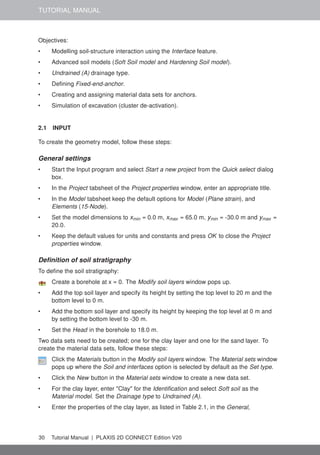
  • 130.
    TUTORIAL MANUAL Save theproject after the calculation has finished. 9.4 RESULTS The results of the four groundwater flow calculations in terms of pore pressure distribution are shown in Figures 9.14 to 9.17. Four different situations were considered: • The steady-state situation with a high (standard) reservoir level (Figure 9.14). Figure 9.14 Pore pressure distribution, (pactive), for high reservoir level • The pore pressure distribution after rapid drawdown of the reservoir level (Figure 9.15). Figure 9.15 Pore pressure distribution, (pactive), after rapid drawdown • The pore pressure distribution after slow drawdown of the reservoir level (Figure 9.16). Figure 9.16 Pore pressure distribution, (pactive), after slow drawdown • The steady-state situation with a low reservoir level (Figure 9.17). When the change of pore pressure is taken into account in a deformation analysis, some additional deformation of the dam will occur. These deformations and the effective stress distribution can be viewed on the basis of the results of the first four calculation phases. Here, attention is focused on the variation of the safety factor of the dam for the different 130 Tutorial Manual | PLAXIS 2D CONNECT Edition V20
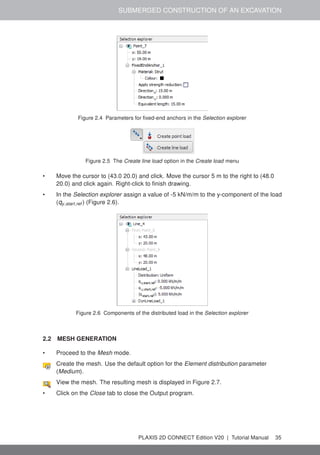
  • 131.
    STABILITY OF DAMUNDER RAPID DRAWDOWN Figure 9.17 Pore pressure distribution, (pactive), for low reservoir level Hint: The phreatic level can be smoother with a high refinement pf the mesh in the core. situations. Therefore, the development of ΣMsf is plotted for the phases 4 to 7 as a function of the displacement of the dam crest point (-2.5 30.0), see Figure 9.18. Figure 9.18 Safety factors for different situations Rapid drawdown of a reservoir level can reduce the stability of a dam significantly. Fully coupled flow-deformation and stability analysis can be performed with PLAXIS 2D to effectively analyse such situations. Hint: By removing the suction in the safety analysis, an out-of-balance force is introduced at the beginning of the calculation. Without the contribution of the suction, the ΣMsf can decrease in the first part of the calculation. PLAXIS 2D CONNECT Edition V20 | Tutorial Manual 131
  • 132.
    TUTORIAL MANUAL 10 FLOWTHROUGH AN EMBANKMENT In this chapter the flow through an embankment will be considered. The crest of the embankment has a width of 2.0 m. Initially the water in the river is 1.5 m deep. The difference in water level between the river and the polder is 3.5 m. Figure 10.1 shows the layout of the embankment problem where free surface groundwater flow occurs. Flow takes place from the left side (river) to the right side (polder). As a result seepage will take place at the right side of the embankment. The position of the phreatic level depends on the river water level, which varies in time. x y 1 m 2 m 2 m 3 m 3 m 3 m 10 m 5 m 6 m Figure 10.1 Geometry of the embankment Objectives: • Performing Flow only analysis • Using cross section curves 10.1 INPUT To create the geometry model, follow these steps: General settings • Start the Input program and select Start a new project from the Quick select dialog box. • In the Project tabsheet of the Project properties window, enter an appropriate title. • In the Model tabsheet keep the default options for Model (Plane strain), and Elements (15-Node). • Set the model dimensions to xmin = 0.0 m, xmax = 23.0 m, ymin = 0.0 m and ymax = 6.0 m. • Keep the default values for units, constants and the general parameters and press OK to close the Project properties window. Definition of soil stratigraphy To define the soil stratigraphy: Create a borehole at x = 2. The Modify soil layers window pops up. 132 Tutorial Manual | PLAXIS 2D CONNECT Edition V20
  • 133.
    FLOW THROUGH ANEMBANKMENT • Specify the head value as 4.5. • Add a soil layer in the borehole. Set the top level to 3. No change is required for the bottom boundary of the layer. • Create the rest of the required boreholes according to the information given in Table 10.1. Table 10.1 Information on the boreholes in the model Borehole number Location (x) Head Top Bottom 1 2.0 4.5 3.0 0.0 2 8.0 4.5 6.0 0.0 3 10.0 4.0 6.0 0.0 4 20.0 1.0 1.0 0.0 Define the soil material according to the Table 10.2 and assign the material dataset to the cluster. Skip the Interfaces and Initial tabsheets as these parameters are not relevant. Table 10.2 Properties of the embankment material (sand) Parameter Name Sand Unit General Material model Model Linear elastic - Type of material behaviour Type Drained - Soil unit weight above phreatic level γunsat 20 kN/m3 Soil unit weight below phreatic level γsat 20 kN/m3 Parameters Stiffness E' 1.0· 104 kN/m2 Poisson's ratio ν' 0.3 - Groundwater Data set - Standard - Soil type - Medium fine - Use defaults - From data set - Horizontal permeability kx 0.02272 m/day Vertical permeability ky 0.02272 m/day • After assigning the material to the soil cluster close the Modify soil layers window. 10.2 MESH GENERATION • Proceed to the Mesh mode. • Select the lines as shown in Figure 10.2 and in Selection Explorer specify a Coarseness factor of 0.5. Click the Generate mesh button in order to generate the mesh. The Mesh options window appears. • Select the Fine option in the Element distribution drop-down menu and generate the mesh. PLAXIS 2D CONNECT Edition V20 | Tutorial Manual 133
  • 134.
    TUTORIAL MANUAL Figure 10.2Indication of the local refinement of the mesh in the model View the mesh. The resulting mesh is displayed in Figure 10.3. • Click on the Close tab to close the Output program. Figure 10.3 The generated mesh 10.3 CALCULATIONS In this project only the flow related behaviour will be analysed. The calculation process consists of three phases that will be defined in the Staged construction mode. In the initial phase, the groundwater flow in steady state is calculated for an average river level. In Phase 1, the transient groundwater flow is calculated for a harmonic variation of the water level. In Phase 2, the calculation is similar as in Phase 1, but the period is longer. • Click the Staged construction tab to proceed to the corresponding mode. A global level is automatically created according to the head values specified for each borehole (Table 10.1). The model in the Staged construction mode is shown in Figure 10.4. Figure 10.4 The model in the Staged construction mode Hint: Note that the 'internal' part of the global water level will be replaced by the result of the groundwater flow calculation. 134 Tutorial Manual | PLAXIS 2D CONNECT Edition V20
  • 135.
    FLOW THROUGH ANEMBANKMENT Initial phase • Double-click the initial phase in the Phases explorer. • In the General subtree select the Flow only option as the Calculation type. • The default values of the remaining parameters are valid for this phase. Click OK to close the Phases window. • In the Model explorer expand the Model conditions subtree. • In the Model conditions expand the GroundwaterFlow subtree. The default boundary conditions (Figure 10.5) are relevant for the initial phase. Check that only the bottom boundary is closed. Figure 10.5 The groundwater flow boundary conditions for the initial phase • In the Model explorer expand the Groundwater flow BCs subtree. The boundary conditions at the extremities of the model are automatically created by the program and listed under the GWFlowBaseBC. Hint: Note that when the boundary conditions under the Groundwater flow BCs subtree are active, the model conditions specified in the GroundwaterFlow are ignored. Phase 1 Add a new calculation phase. • In the Phases explorer double-click the current phase. • In the General subtree select the Transient groundwater flow option as pore pressure calculation type. • Set the Time interval to 1.0 day. PLAXIS 2D CONNECT Edition V20 | Tutorial Manual 135
  • 136.
    TUTORIAL MANUAL • Inthe Numerical control parameters subtree set the Max number of steps stored parameter to 50. The default values of the remaining parameters will be used. • Click OK to close the Phases window. Click the Select multiple objects button in the side toolbar. Point to the Select lines option and click on the Select water boundaries option in the appearing menu (Figure 10.6). Figure 10.6 The Select water boundaries option in the Select multiple objects menu • Select the hydraulic boundaries as shown in Figure 10.7. • Right-click and select the Activate option in the appearing menu. Figure 10.7 The time dependent boundaries in the model • In the Selection explorer set the Behaviour parameter to Head. • Set href to 4.5. • Select the Time dependent option in the Time dependency drop-down menu. • Click on the Head function parameter. 136 Tutorial Manual | PLAXIS 2D CONNECT Edition V20
  • 137.
    FLOW THROUGH ANEMBANKMENT Add a new head function. • In the Flow functions window select the Harmonic option in the Signal drop-down menu. Set the amplitude to 1.0 m, the phase angle to 0 ◦ and the period to 1.0 day (Figure 10.8). Figure 10.8 The flow function for the rapid case • Click OK to close the Flow functions window. Phase 2 Add a new calculation phase. • In the Phases explorer double-click the current phase. • In the General subtree select the Initial phase in the Start from phase drop-down menu. • Select the Transient groundwater flow option as pore pressure calculation type. • Set the Time interval to 10.0 day. • In the Numerical control parameters subtree set the Max number of steps stored parameter to 50. The default values of the remaining parameters will be used. • Click OK to close the Phases window. • In the Selection explorer click on the Head function parameter. Add a new head function. • In the Flow functions window select the Harmonic option in the Signal drop-down menu. Set the amplitude to 1.0 m, the phase angle to 0 ◦ and the period to 10.0 day (Figure 10.9). • Click OK to close the Flow functions window. PLAXIS 2D CONNECT Edition V20 | Tutorial Manual 137
  • 138.
    TUTORIAL MANUAL Figure 10.9The flow function for the slow case To select points to be considered in curves: In the Staged construction mode click the Select point for curves button in the side toolbar. The Connectivity plot is displayed in the Output program. • In the Select points window select nodes located nearest to (0.0 3.0) and (8.0 2.5) to be considered in curves. • Click Update to close the output program. Calculate the project. Save the project after the calculation has finished. 10.4 RESULTS In the Output program the Create animation tool can be used to animate the results displayed in the Output program. To create the animation follow these steps: • In the Stresses menu select the Pore pressures → Groundwater head. • Select the Create animation option in the File menu. The corresponding window pops up. • Define the name of the animation file and the location where it will be stored. By default the program names it according to the project and stores it in the project folder. In the same way animations can be created to compare the development of pore pressures or flow field. • Deselect the initial phase and Phase 2, such that only Phase 1 is included in the animations and rename the animation accordingly. The Create animation window is shown in Figure 10.10. To view the results in a cross section: 138 Tutorial Manual | PLAXIS 2D CONNECT Edition V20
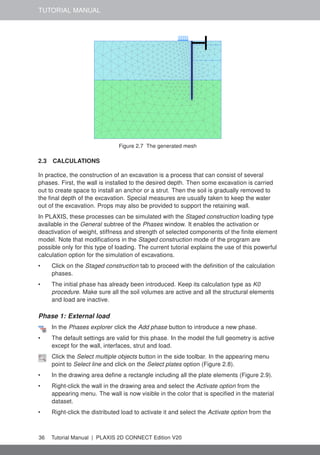
  • 139.
    FLOW THROUGH ANEMBANKMENT Figure 10.10 Create animation window Click the Cross section button in the side toolbar. The Cross section points window pops up and the start and the end points of the cross section can be defined. Draw a cross section through the points (2.0 3.0) and (20.0 1.0). The results in the cross section are displayed in a new window. • In the Cross section view select Pore pressures → pactive in the Stresses menu. Select the Cross section curves option in the Tools menu. After the curves window pops up select Individual steps from Selection style drop down menu. • Select Phase 1. The variation of the results in the cross section is displayed in a new window. • Do the same for Phase 2. This may take about 30 seconds, • The variation of the results due to different time intervals in harmonic variation at a specific cross section can be compared (Figure 10.11 and Figure 10.12). It can be seen that the slower variation of the external water level has a more significant influence on the pore pressures in the embankment and over a larger distance. PLAXIS 2D CONNECT Edition V20 | Tutorial Manual 139
  • 140.
    TUTORIAL MANUAL Figure 10.11Active pore pressure variation in the cross section in Phase 1 Figure 10.12 Active pore pressure variation in the cross section in Phase 2 140 Tutorial Manual | PLAXIS 2D CONNECT Edition V20
  • 141.
    FLOW AROUND ASHEET PILE WALL 11 FLOW AROUND A SHEET PILE WALL In this tutorial the flow around a sheetpile wall will be analysed. The geometry model of Chapter 3 will be used. The Well feature is introduced in this example. Objectives: • Using wells 11.1 INPUT To create the geometry: • Open the project defined in Chapter 3. • Save the project under a different name (e.g. 'Flow around a sheet pile wall'). The material parameters remain unchanged. The used groundwater parameters are shown in Table 11.1. Table 11.1 Flow parameters Parameter Name Silt Sand Loam Unit Groundwater Data set - USDA USDA USDA - Model - Van Genuchten Van Genuchten Van Genuchten - Soil type - Silt Sand Loam - > 2µm - 6.0 4.0 20.0 % 2µm − 50µm - 87.0 4.0 40.0 % 50µm − 2mm - 7.0 92.0 40.0 % Use defaults - From data set From data set From data set - Permeability in horizontal direction kx 0.5996 7.128 0.2497 m/day Permeability in vertical direction ky 0.5996 7.128 0.2497 m/day In the Structures mode click the Create hydraulic conditions button in the side toolbar. Select the Create well option in the appearing menu. • Draw the first well by clicking on (42.0 23.0) and (42.0 20.0). • Draw the second well by clicking on (58.0 23.0) and (58.0 20.0). 11.2 MESH GENERATION • Proceed to the Mesh mode. • Select the cluster and two wells as shown in Figure 11.1 and in Selection Explorer specify a Coarseness factor of 0.25. Create the mesh. Use the default option for the Element distribution parameter (Medium). View the mesh. The resulting mesh is displayed in Figure 11.2. • Click on the Close tab to close the Output program. PLAXIS 2D CONNECT Edition V20 | Tutorial Manual 141
  • 142.
    TUTORIAL MANUAL Figure 11.1Indication of the local refinement of the mesh in the model Figure 11.2 The generated mesh 11.3 CALCULATIONS • Proceed to the Staged construction mode. In this project only groundwater flow analysis will be performed. In the Phases explorer remove the existing phases (Phases 1 to 6). Initial phase In this phase the initial steady-state pore pressure distribution is considered. To define the initial phase: • In the General subtree of the Phases window select the Flow only option in the Calculation type drop-down menu. • The standard settings for the remaining parameters are valid for this phase. • The default groundwater flow boundary conditions are valid. Only the bottom boundary of the model (BoundaryYMin) is Closed whereas the rest of the boundaries are Open. • The water level created according to the head specified in the borehole is assigned as GlobalWaterLevel. Phase 1 In this phase the lowering of the phreatic level in the excavation down to y = 20 m. This corresponds to the final excavation level in the project in Chapter 3. Add a new phase. • In the Phases window the calculation type is by default defined as Flow only. • The default option (Steady state groundwater flow) will be used as Pore pressure 142 Tutorial Manual | PLAXIS 2D CONNECT Edition V20
  • 143.
    FLOW AROUND ASHEET PILE WALL calculation type. • In the Staged construction mode activate the interface elements along the wall. • Multi-select the wells in the model and activate them. • In the Selection explorer the behaviour of the wells is by default set to Extraction. • Set the discharge value to 0.7 m3 /day/m. • Set the hmin value to 20.0m. This means that water will be extracted as long as the groundwater head at the wall location is at least 20 m. Figure 11.3 shows the parameters assigned to the wells in the Selection explorer. Figure 11.3 Well properties Hint: Total discharge in Phase 1 is similar to the total outflow at the final excavation level as obtained from Chapter 3. The definition of the calculation process is complete. Calculate the project. Save the project after the calculation has finished. 11.4 RESULTS To display the flow field: • Select the Phase 1 in the drop down menu. • From the Stresses menu select Groundwater flow → |q|. A scaled representation of the results (scale factor = 5.0 ) is shown in Figure 11.4. Figure 11.4 The resulting flow field at the end of Phase 1 From the Stresses menu select Pore pressures → pactive. Compare the results with the ones of the Phase 6 of the project defined in Chapter 3. PLAXIS 2D CONNECT Edition V20 | Tutorial Manual 143
  • 144.
    TUTORIAL MANUAL In Figure11.5 the resulting active pore pressures when the water level in the excavation is at y = 20 m is displayed for both projects. a. Active pore pressures (Phase 6 in Chapter 3) b. Active pore pressures (Phase 1 in the current project) Figure 11.5 Comparison of the resulting active pore pressures. 144 Tutorial Manual | PLAXIS 2D CONNECT Edition V20
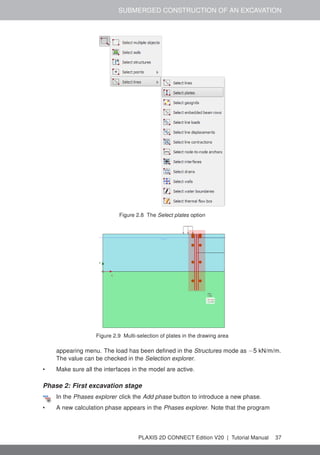
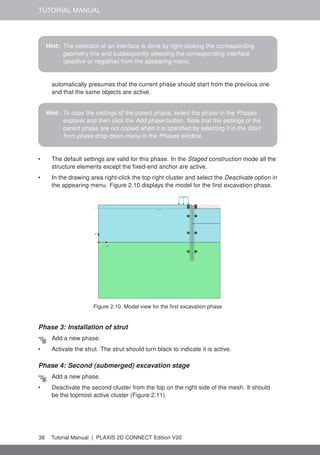
  • 145.
    POTATO FIELD MOISTURECONTENT 12 POTATO FIELD MOISTURE CONTENT This tutorial demonstrates the applicability of PLAXIS to agricultural problems. The potato field tutorial involves a loam layer on top of a sandy base. The water level in the ditches remains unchanged. The precipitation and evaporation may vary on a daily basis due to weather conditions. The calculation aims to predict the variation of the water content in the loam layer in time as a result of time-dependent boundary conditions. precipitation precipitation sand loam 15 m 15 m 0.75 m 0.75 m 0.75 m 0.50 m 1.25 m Figure 12.1 Potato field geometry Objectives: • Defining precipitation 12.1 INPUT Due to the symmetry of the problem, it is sufficient to simulate a strip with a width of 15.0 m, as indicated in Figure 12.1. The thickness of the loam layer is 2.0 m and the sand layer is 3.0 m deep. To create the geometry model, follow these steps: General settings • Start the Input program and select Start a new project from the Quick select dialog box. • In the Project tabsheet of the Project properties window, enter an appropriate title. • In the Model tabsheet keep the default options for Model (Plane strain), and Elements (15-Node). • Set the model dimensions to xmin = 0.0 m, xmax = 15.0 m, ymin = 0.0 m and ymax = 5.0 m. • Keep the default values for units, constants and the general parameters and press OK to close the Project properties window. PLAXIS 2D CONNECT Edition V20 | Tutorial Manual 145
  • 146.
    TUTORIAL MANUAL Definition ofsoil stratigraphy Due to the geometry of the model, the options for snapping should be changed. Click the Snapping options button in the bottom toolbar. • In the appearing window set the Number of snap intervals to 100 (Figure 12.2). • Click OK to close the Snapping window. Figure 12.2 Modification of the Number of snap intervals To define the soil stratigraphy: Create two boreholes located at x = 0.75 and x = 2.00 respectively. • In the Modify soil layers window add two soil layers. • In the first borehole set Top = 3.75 and Bottom = 3.00 for the uppermost soil layer. Set Bottom = 0 for the lowest soil layer. • In the second borehole set Top = 5.00 and Bottom = 3.0 for the uppermost soil layer. Set Bottom = 0 for the lowest soil layer. • For both boreholes the Head is located at y = 4.25. Figure 12.3 shows the soil stratigraphy defined in the Modify water levels window. Create the material data sets according to Table 12.1. • Assign the material data set to the corresponding clusters in the model. Table 12.1 Material properties for potato field Parameter Name Loam Sand Unit General Material model - Linear elastic Linear elastic - Type of material behaviour Type Drained Drained - Soil unit weight above p.l. γunsat 19 20 kN/m3 Soil unit weight below p.l. γsat 19 20 kN/m3 Parameters Young's modulus E' 1.0·103 1.0·104 kN/m2 Poisson's ratio ν' 0.3 0.3 - Groundwater Data set Type Staring Staring - Model - Van Genuchten Van Genuchten - Subsoil/Topsoil - Topsoil Subsoil - Type - Clayey loam (B9) Loamy sand (O2) - Use defaults - From data set From data set - Horizontal permeability kx 0.01538 0.1270 m/day Vertical permeability ky 0.01538 0.1270 m/day 146 Tutorial Manual | PLAXIS 2D CONNECT Edition V20
  • 147.
    POTATO FIELD MOISTURECONTENT Figure 12.3 Soil stratigraphy in the Modify soil layers window 12.2 MESH GENERATION • Proceed to the Mesh mode. • Multi-select the line segments composing the upper boundary of the model (Figure 12.4). Figure 12.4 The upper boundary of the model • In the Selection explorer set the Coarseness factor parameter to 0.5. Create the mesh. Use the default option for the Element distribution parameter (Medium). View the mesh. The resulting mesh is displayed in (Figure 12.5). • Click on the Close tab to close the Output program. PLAXIS 2D CONNECT Edition V20 | Tutorial Manual 147
  • 148.
    TUTORIAL MANUAL Figure 12.5Potato field mesh 12.3 CALCULATIONS The calculation process consists of two phases. In the initial phase, the groundwater flow in steady state is calculated. In Phase 1, the transient groundwater flow is calculated. Initial phase • Proceed to the Staged construction mode. In this project only groundwater flow analysis will be performed. • In the Phases window select the Flow only option as the Calculation type in the General subtree. • The default values of the remaining parameters are valid for this phase. Click OK to close the Phases window. Right-click the bottom boundary of the model and select the Activate option in the appearing menu. • In the Selection explorer select the Head option in the Behaviour drop-down menu and set href to 3.0 (Figure 12.6). Figure 12.6 Boundary conditions at the bottom of the geometry model • In the Model explorer expand the Model conditions subtree. • Expand the GroundwaterFlow subtree. Set BoundaryXMin and BoundaryXMax to Closed. • Expand the Water subtree. The borehole water level is assigned to GlobalWaterLevel. Transient phase In the transient phase the time-dependent variation of precipitation is defined. 148 Tutorial Manual | PLAXIS 2D CONNECT Edition V20
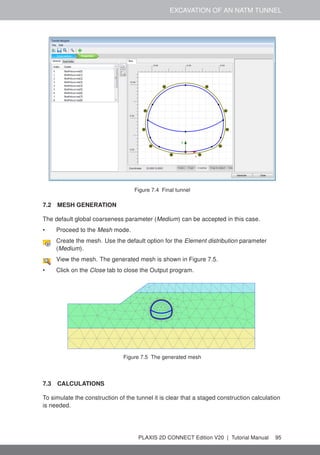
  • 149.
    POTATO FIELD MOISTURECONTENT Hint: Note that the conditions explicitly assigned to groundwater flow boundaries are taken into account. In this tutorial the specified Head will be considered for the bottom boundary of the model, NOT the Closed condition specified in the GroundwaterFlow subtree under the Model conditions. Add a new calculation phase. • In General subtree of the Phases window select the Transient groundwater flow as Pore pressure calculation type. • Set the Time interval to 15 days. • In the Numerical control parameters subtree set the Max number of steps stored to 250. The default values of the remaining parameters will be used. • Click OK to close the Phases window. To define the precipitation data a discharge function should be defined. • In the Model explorer expand the Attributes library subtree. • Right-click on Flow functions and select the Edit option in the appearing menu. The Flow functions window pops up. • In the Discharge functions tabsheet add a new function. • Specify a name for the function and select the Table option in the Signal drop-down menu. • Click the Add row button to introduce a new row in the table. Complete the data using the values given in the Table 12.2. Table 12.2 Precipitation data ID Time [day] ∆Discharge [m3 /day/m] 1 0 0 2 1 1·10-2 3 2 3·10-2 4 3 0 5 4 -2·10-2 6 5 0 7 6 1·10-2 8 7 1·10-2 9 8 0 10 9 -2·10-2 11 10 -2·10-2 12 11 -2·10-2 13 12 -1·10-2 14 13 -1·10-2 15 14 0 16 15 0 • Figure 12.7 shows the defined function for precipitation. Close the windows by clicking OK. • In the Model explorer expand the Precipitation subtree under Model conditions and activate it. The default values for discharge (q) and condition parameters (ψmin = PLAXIS 2D CONNECT Edition V20 | Tutorial Manual 149
  • 150.
    TUTORIAL MANUAL Figure 12.7The Flow function window displaying the precipitation data and plot -1.0 m and ψmax = 0.1m) are valid. • For the precipitation select the Time dependent option in the corresponding drop-down menu and assign the defined function (Figure 12.8). • In the Model explorer set DischargeFunction1 under Discharge function. Calculate the project. Save the project after the calculation has finished. Figure 12.8 Precipitation in the Model explorer 150 Tutorial Manual | PLAXIS 2D CONNECT Edition V20
  • 151.
    POTATO FIELD MOISTURECONTENT Hint: Negative values of precipitation indicate evaporation. 12.4 RESULTS The calculation was focused on the time-dependent saturation of the potato field. To view the results: • From the Stresses menu select Groundwater flow → Saturation. • Double click the legend. The Legend settings window pops up. Define the settings as shown in Figure 12.9. Figure 12.9 Value for settings • Figure 12.10 shows the spatial distribution of the saturation for the last time step. Figure 12.10 Saturation field at day 15 • Create an animation of the transient phase for a better visualisation of the results. • It is also interesting to create a vertical cross section at x = 4 m and draw cross section curves for pore pressure and saturation. PLAXIS 2D CONNECT Edition V20 | Tutorial Manual 151
  • 152.
    TUTORIAL MANUAL 13 DYNAMICANALYSIS OF A GENERATOR ON AN ELASTIC FOUNDATION Using PLAXIS, it is possible to simulate dynamic soil-structure interaction. Here the influence of a vibrating source on its surrounding soil is studied. The vibrating source is a generator founded on a 0.2 m thick concrete footing of 1 m in diameter, see Figure 13.1. Oscillations caused by the generator are transmitted through the footing into the subsoil. sandy clay 1m generator Figure 13.1 Generator founded on elastic subsoil The physical damping due to the viscous effects is taken into consideration via the Rayleigh damping. Also, due to axisymmetry 'geometric damping' can be significant in attenuating the vibration. The modelling of the boundaries is one of the key points. In order to avoid spurious wave reflections at the model boundaries (which do not exist in reality), special conditions have to be applied in order to absorb waves reaching the boundaries. Objectives: • Defining a Dynamic calculation • Defining dynamic loads • Defining dynamic boundary conditions (viscous) • Defining material damping by means of Rayleigh damping 13.1 INPUT To create the geometry model, follow these steps: General settings • Start the Input program and select Start a new project from the Quick select dialog box. • In the Project tabsheet of the Project properties window, enter an appropriate title. • Due to the three dimensional nature of the problem, an axisymmetric model is used. In the Model tabsheet select the Axisymmetric option for Model and keep the default option for Elements (15-Noded). • Keep the default values for units and constants and set the model dimensions to 152 Tutorial Manual | PLAXIS 2D CONNECT Edition V20
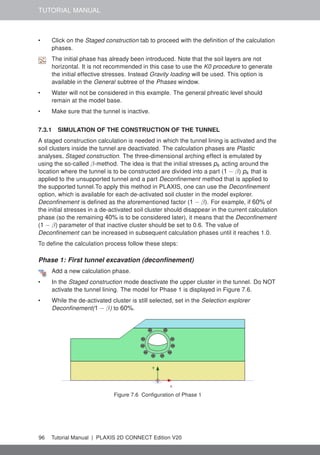
  • 153.
    DYNAMIC ANALYSIS OFA GENERATOR ON AN ELASTIC FOUNDATION xmin = 0.0 m, xmax = 20.0 m, ymin = 0.0 m, ymax = 20.0 m. Hint: The model boundaries should be sufficiently far from the region of interest, to avoid disturbances due to possible reflections. Although special measures are adopted in order to avoid spurious reflections (viscous boundaries), there is always a small influence and it is still a good habit to put boundaries far away. In a dynamic analysis, model boundaries are generally taken further away than in a static analysis. 13.1.1 DEFINITION OF SOIL STRATIGRAPHY The subsoil consists of one layer with a depth of 10 m. The ground level is defined at y = 0. Note that water conditions are not considered in this example. To define the soil stratigraphy: Create a borehole at x = 0. • Create a soil layer extending from ground surface (y = 0.0) to a depth of 10 m (y = -10.0). • Keep the Head in the borehole at 0.0 m. This means that the sub-soil is fully saturated. The soil layer consists of sandy clay, which is assumed to be elastic. Create a data set under the Soil and interfaces set type according to the information given in Table 13.1. The specified Young's modulus seems relatively high. This is because the dynamic stiffness of the ground is generally considerably larger than the static stiffness, since dynamic loadings are usually fast and cause very small strains. Table 13.1 Material properties of the subsoil Parameter Name Value Unit General Material model Model Linear elastic - Type of material behaviour Type Drained - Soil unit weight above phreatic level γunsat 20 kN/m3 Soil unit weight below phreatic level γsat 20 kN/m3 Parameters Young's modulus (constant) E' 5.0 · 104 kN/m2 Poisson's ratio ν' 0.3 - Initial K0 determination − Automatic - Lateral earth pressure coefficient K0,x 0.50 - PLAXIS 2D CONNECT Edition V20 | Tutorial Manual 153
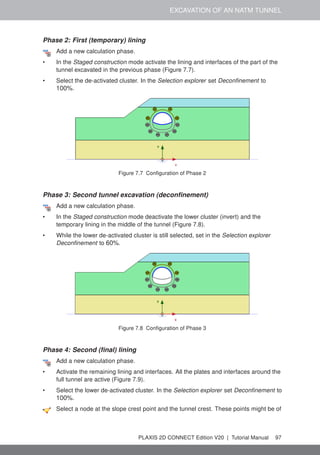
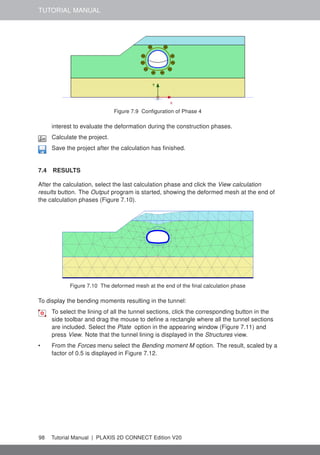
  • 154.
    TUTORIAL MANUAL Hint: Whenusing Mohr-Coulomb or linear elastic models the wave velocities Vp and Vs are calculated from the elastic parameters and the soil weight. Vp and Vs can also be entered as input; the elastic parameters are then calculated automatically. See also Elastic parameters and the Wave Velocity relationships in Section 6.1.2 of the Reference Manual. 13.1.2 DEFINITION OF STRUCTURAL ELEMENTS The generator is defined in the Structures mode. Create a plate extending from (0.0 0.0) to (0.5 0.0) to represent the footing. Define a material data set for the footing according to the information given in Table 13.2. The footing is assumed to be elastic and has a weight of 5 kN/m2 . Table 13.2 Material properties of the footing Parameter Name Value Unit Material type Type Elastic; Isotropic - Normal stiffness EA 7.6 · 106 kN/m Flexural rigidity EI 2.4 · 104 kNm2/m Weight w 5.0 kN/m/m Poisson's ratio ν 0.0 - • Apply a distributed load on the footing to model the weight of the generator as well as the vibrations that it produces. The actual value of the load will be defined later. The model is shown in Figure 13.2. Figure 13.2 Model layout 13.2 MESH GENERATION • Proceed to the Mesh mode. Generate the mesh. Use the default option for the Element distribution parameter (Medium). View the generated mesh. The resulting mesh is shown in Figure 13.3. Note that the 154 Tutorial Manual | PLAXIS 2D CONNECT Edition V20
  • 155.
    DYNAMIC ANALYSIS OFA GENERATOR ON AN ELASTIC FOUNDATION mesh is automatically refined under the footing. • Click on the Close tab to close the Output program. Figure 13.3 The generated mesh 13.3 CALCULATIONS The calculation consists of 4 phases and it will be defined in the Staged construction mode. Initial phase • Click the Staged construction tab to proceed with the definition of the calculation phases. • The initial phase has already been introduced. The default settings of the initial phase will be used in this tutorial. Phase 1 - Footing Add a new calculation phase. The default settings of the added phase will be used for this calculation phase. • Activate the footing. • Activate the static component of the distributed load. In the Selection explorer set qy,start,ref value to -8 kN/m/m. Do not activate the dynamic component of the load (Figure 13.4). Figure 13.4 Specification of the static load component in the Selection explorer PLAXIS 2D CONNECT Edition V20 | Tutorial Manual 155
  • 156.
    TUTORIAL MANUAL Phase 2- Start generator In this phase, a vertical harmonic load, with a frequency of 10 Hz and amplitude of 10 kN/m2 , is applied to simulate the vibrations transmitted by the generator. Five cycles with a total time interval of 0.5 sec are considered. Add a new calculation phase. In the General subtree in the Phases window, select the Dynamic option as calculation type. • Set the Dynamic time interval parameter to 0.5 s. • In the Deformation control parameters subtree in the Phases window select the Reset displacements to zero parameter. The default values of the remaining parameters will be used for this calculation phase. • In the Model explorer expand the Attributes library subtree. • Right-click the Dynamic multipliers subtree and select the Edit option from the appearing menu. The Multipliers window pops up. • Click the Load multipliers tab. Click the Add button to introduce a multiplier for the loads. • Define a Harmonic signal with an Amplitude of 10, a Phase of 0◦ and a Frequency of 10 Hz and as shown in Figure 13.5. Figure 13.5 Definition of a Harmonic multiplier In the Selection explorer, activate the dynamic component of the load (DynLineLoad_1). • Specify the components of the load as (qx,start,ref , qy,start,ref ) = (0.0, -1.0). Click Multiplier_y in the dynamic load subtree and select the LoadMultiplier_1 option from the drop-down menu (Figure 13.6). Special boundary conditions have to be defined to account for the fact that in reality the soil is a semi-infinite medium. Without these special boundary conditions the waves would be reflected on the model boundaries, causing perturbations. To avoid these 156 Tutorial Manual | PLAXIS 2D CONNECT Edition V20
  • 157.
    DYNAMIC ANALYSIS OFA GENERATOR ON AN ELASTIC FOUNDATION Figure 13.6 Specification of the dynamic load component in the Selection explorer Hint: The dynamic multipliers can be defined in the Geometry modes as well as in the Calculation modes. spurious reflections, viscous boundaries are specified at Xmax and Ymin. The dynamic boundaries can be specified in the Dynamics subtree located under the Model conditions in the Model explorer (Figure 13.7). Figure 13.7 Boundary conditions for Dynamic calculations PLAXIS 2D CONNECT Edition V20 | Tutorial Manual 157
  • 158.
    TUTORIAL MANUAL Phase 3- Stop generator Add a new phase (Phase_3). In the General subtree in the Phases window, select the Dynamic option as calculation type. • Set the Dynamic time interval parameter to 0.5 s. • In the Staged construction mode deactivate the dynamic component of the surface load. Note that the static load is still active. The dynamic boundary conditions of this phase should be the same as in the previous phase. Select nodes located at the ground surface (ex: (1.4 0.0), (1.9 0.0), (3.6 0.0)) to consider in curves. Calculate the project. Save the project. 13.3.1 ADDITIONAL CALCULATION WITH DAMPING In a second calculation, material damping is introduced by means of Rayleigh damping. Rayleigh damping can be entered in the material data set. The following steps are necessary: • Save the project under another name. • Open the material data set of the soil. • In the General tabsheet click the box next to the Rayleigh α parameter. Note that the display of the General tabsheet has changed displaying the Single DOF equivalence box. • In order to introduce 5% of material damping, set the value of the ξ parameter to 5% for both targets and set the frequency values to 1 and 10 for the Target 1 and Target 2 respectively. • Click on one of the definition cells of the Rayleigh parameters. The values of α and β are automatically calculated by the program. • Click OK to close the data base. • Check whether the phases are properly defined (according to the information given before) and start the calculation. 158 Tutorial Manual | PLAXIS 2D CONNECT Edition V20
  • 159.
    DYNAMIC ANALYSIS OFA GENERATOR ON AN ELASTIC FOUNDATION Figure 13.8 Input of Rayleigh damping 13.4 RESULTS The Curve generator feature is particularly useful for dynamic analysis. You can easily display the actual loading versus time (input) and also displacements, velocities and accelerations of the pre-selected points versus time. The evolution of the defined multipliers with time can be plotted by assigning Dynamic time to the x-axis and uy to the y-axis. Figure 13.9 shows the response of the pre-selected points at the surface of the structure. It can be seen that even with no damping, the waves are dissipated which can be attributed to the geometric damping. PLAXIS 2D CONNECT Edition V20 | Tutorial Manual 159
  • 160.
    TUTORIAL MANUAL Figure 13.9Vertical displ.- time on the surface at different distances to the vibrating source (without damping) The presence of damping is clear in Figure 13.10. It can be seen that the vibration is totally seized when some time is elapsed after the removal of the force (at t = 0.5 s). Also, the displacement amplitudes are lower. Compare Figure 13.10 (without damping) with Figure 13.10 (with damping). It is possible in the Output program to display displacements, velocities and accelerations at a particular time, by choosing the appropriate option in the Deformations menu. Figure 13.11 shows the total accelerations in the soil at the end of phase 2 (t = 0.5 s). 160 Tutorial Manual | PLAXIS 2D CONNECT Edition V20
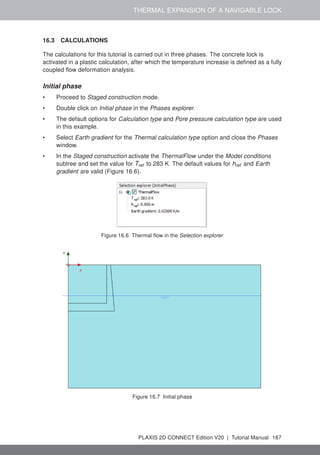
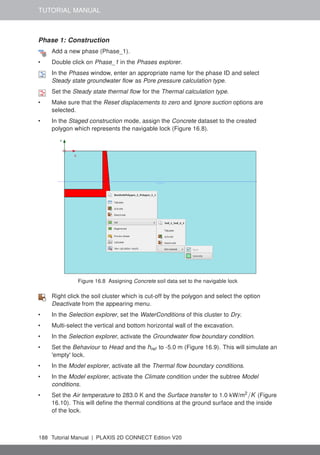
  • 161.
    DYNAMIC ANALYSIS OFA GENERATOR ON AN ELASTIC FOUNDATION Figure 13.10 Vertical displ.- time on the surface at different distances to the vibrating source (with damping) Figure 13.11 Acceleration (|a|) in the soil at the end of phase 2 (with damping) PLAXIS 2D CONNECT Edition V20 | Tutorial Manual 161
  • 162.
    TUTORIAL MANUAL 14 PILEDRIVING This example involves driving a concrete pile through an 11 m thick clay layer into a sand layer, see Figure 14.1. The pile has a diameter of 0.4 m. Pile driving is a dynamic process that causes vibrations in the surrounding soil. Moreover, excess pore pressures are generated due to the quick stress increase around the pile. In this example focus is put on the irreversible deformations below the pile. In order to simulate this process most realistically, the behaviour of the sand layer is modelled by means of the HS small model. clay sand pile Ø 0.4 m 11 m 7 m Figure 14.1 Pile driving situation 14.1 INPUT To create the geometry model, follow these steps: General settings • Start the Input program and select the Start a new project from the Quick select dialog box. • In the Project tabsheet of the Project properties window enter an appropriate title. • In the Model tabsheet select the Axisymmetry option for Model and keep the default option for Elements (15-Noded). • Keep the default units and constants and set the model dimensions to xmin = 0, xmax = 30, ymin = 0 and ymax = 18. 14.1.1 DEFINITION OF SOIL STRATIGRAPHY The subsoil is divided into an 11 m thick clay layer and a 7 m thick sand layer. The phreatic level is assumed to be at the ground surface. Hydrostatic pore pressures are generated in the whole geometry according to this phreatic line. To define the soil 162 Tutorial Manual | PLAXIS 2D CONNECT Edition V20
  • 163.
    PILE DRIVING stratigraphy: Create aborehole at x = 0. • Create two soil layers extending from y = 18.0 to y = 7.0 and from y = 7.0 to y = 0.0. • Set the Head in the borehole at 18.0 m. The clay layer is modelled with the Mohr-Coulomb model. The behaviour is considered to be Undrained (B). An interface strength reduction factor is used to simulate the reduced friction along the pile shaft. In order to model the non-linear deformations below the tip of the pile in a right way, the sand layer is modelled by means of the HS small model. Because of the fast loading process, the sand layer is also considered to behave undrained. The short interface in the sand layer does not represent soil-structure interaction. As a result, the interface strength reduction factor should be taken equal to unity (rigid). Create the material data sets according to the information given in Table 14.1. Table 14.1 Material properties of the subsoil and pile Parameter Symbol Clay Sand Pile Unit General Material model Model Mohr-Coulomb HS small Linear elastic - Type of behaviour Type Undrained (B) Undrained (A) Non-porous - Unit weight above phreatic line γunsat 16 17 24 kN/m3 Unit weight below phreatic line γsat 18 20 - kN/m3 Parameters Young's modulus (constant) E' 5.0· 103 - 3·107 kN/m2 Secant stiffness in standard drained triaxial test Eref 50 - 5.0· 104 - kN/m2 Tangent stiffness for primary oedometer loading Eref oed - 5.0· 104 - kN/m2 Unloading / reloading stiffness Eref ur - 1.5· 105 - kN/m2 Power for stress-level dependency of stiffness m - 0.5 - - Poisson's ratio ν'ur 0.3 0.2 0.1 - Cohesion c'ref - 0 - kN/m2 Undrained shear strength su,ref 5.0 - - kN/m2 Friction angle ϕ' 0 31.0 - ◦ Dilatancy parameter ψ 0 0 - ◦ Shear strain at which Gs = 0.722G0 γ0.7 - 1.0·10-4 - - Shear modulus at very small strains Gref 0 - 1.2·105 - kN/m2 Young's modulus inc. E'inc 1.0·103 - - kN/m2 Reference level yref 18 - - m Undrained shear strength inc. su,inc 3 - - kN/m2 Reference level yref 18 - - m Interface Interface strength type Type Manual Rigid Rigid - Interface strength Rinter 0.5 1.0 1.0 - Initial K0 determination − Automatic Automatic Automatic - Lateral earth pressure coefficient K0,x 0.5000 0.4850 0.5000 - PLAXIS 2D CONNECT Edition V20 | Tutorial Manual 163
  • 164.
    TUTORIAL MANUAL 14.1.2 DEFINITIONOF STRUCTURAL ELEMENTS The pile is defined as a column of 0.2 m width. The Interface elements are placed along the pile to model the interaction between the pile and the soil. The interface should be extended to about half a meter into the sand layer (see Figure 14.2). Note that the interface should be defined only at the side of the soil. A proper modelling of the pile-soil interaction is important to include the material damping caused by the sliding of the soil along the pile during penetration and to allow for sufficient flexibility around the pile tip. Hint: Use the Zoom in feature to create the pile and the interface. Pile Interface Clay Extended interface Sand (0.0, 7.0) (0.2, 7.0) (0.2, 6.6) Figure 14.2 Extended interface To define the concrete pile: • Click the Structures tab to proceed with the input of structural elements in the Structures mode. Select the Create polygon feature in the side toolbar and click on (0.0 18.0), (0.2 18.0), (0.2 7.0) and (0.0 7.0). Create a negative interface to model the interaction of the pile with the surrounding soil by clicking on (0.2 6.6) and (0.2 18.0). The pile is made of concrete, which is modelled by means of the linear elastic model considering non-porous behaviour (Table 14.1). In the beginning, the pile is not present, so initially the clay properties are also assigned to the pile cluster. In order to model the driving force, a distributed unit load is created on top of the pile. To create a dynamic load: Define a distributed load by clicking on Create load > Create line load from the tool bar and then on (0.0 18.0) and (0.2 18.0). • The load components will be defined in the Selection explorer. Note that the static component of the load will not be used in this project. The program will neglect the static components of the load if it (static load) is not activated. • Expand the Dynamic load subtree and specify a unit load in the gravity direction. Click the Multiplier_y drop down menu and click on the appearing plus button. The Multipliers window pops up and a new load multiplier is automatically added. • Define a Harmonic signal with an Amplitude of 5000, a Phase of 0◦ and a 164 Tutorial Manual | PLAXIS 2D CONNECT Edition V20
  • 165.
    PILE DRIVING Frequency of50 Hz and as shown in Figure 14.3. During the pile driving phase, we will only consider half a cycle (0.01 s) of this signal. Figure 14.3 Definition of a Harmonic multiplier Hint: Note that dynamic multipliers can be defined by right-clicking the Dynamic multipliers subtree under Attributes library in the Model explorer. » Note that dynamic multipliers are attributes and as such it is possible to define them in all the program's modes. The final geometry model is shown in Figure 14.4. Figure 14.4 The geometry model PLAXIS 2D CONNECT Edition V20 | Tutorial Manual 165
  • 166.
    TUTORIAL MANUAL 14.2 MESHGENERATION • Proceed to the Mesh mode. Generate the mesh. Use the default option for the Element distribution parameter (Medium). View the generated mesh. The resulting mesh is shown in Figure 14.5. • Click on the Close tab to close the Output program. Figure 14.5 The generated mesh 14.3 CALCULATIONS The calculation consists of 3 phases. In the Initial phase, the initial stress conditions are generated. In the Phase 1 the pile is created. In the Phase 2 the pile is subjected to a single stroke, which is simulated by activating half a harmonic cycle of load. In the Phase 3 the load is kept zero and the dynamic response of the pile and soil is analysed in time. The last two phases involve dynamic calculations. Initial phase Initial effective stresses are generated by the K0 procedure, using the default values. Note that in the initial situation the pile does not exist and that the clay properties should be assigned to the corresponding cluster. The phreatic level is assumed to be at the ground surface. Hydrostatic pore pressures are generated in the whole geometry according to this phreatic line. Phase 1 - Pile activation Add a new calculation phase. • In the General subtree in the Phases window, the Plastic option is selected as Calculation type. 166 Tutorial Manual | PLAXIS 2D CONNECT Edition V20
  • 167.
    PILE DRIVING • TheStaged construction option is by default selected as Loading type. • In the Staged construction mode assign the pile properties to the pile cluster. • Activate the interface in the Clay layer. The model for the Phase 1 in the Staged construction mode is displayed in Figure 14.6. Figure 14.6 Configuration of Phase 1 in the Staged construction mode Phase 2 - Pile driving Add a new calculation phase. • In the General subtree in the Phases window, select the Dynamic option as Calculation type. • Set the Dynamic time interval to 0.01 s. • In the Deformation control parameters subtree select Reset displacements to zero. • In the Staged construction mode activate the dynamic component of the distributed load. The activated dynamic component of the load in Selection explorer is shown in Figure 14.7. • Expand the Dynamics subtree under Model conditions in the Model explorer. • Specify viscous boundaries at xmax and ymin (Figure 14.8). The result of this phase is half a harmonic cycle of the external load. At the end of this phase, the load is back to zero. Phase 3 - Fading Add a new calculation phase. • In the General subtree in the Phases window, select the Dynamic option as Calculation type. • Set the Dynamic time interval to 0.19 s. PLAXIS 2D CONNECT Edition V20 | Tutorial Manual 167
  • 168.
    TUTORIAL MANUAL Figure 14.7The dynamic load component in the Selection explorer Figure 14.8 Boundary conditions for Dynamic calculations • In the Staged construction mode de-activate the dynamic load. Select a node at the top of the pile for load displacement curves. Calculate the project. Save the project. 168 Tutorial Manual | PLAXIS 2D CONNECT Edition V20
  • 169.
    PILE DRIVING 14.4 RESULTS Figure14.9 shows the settlement of the pile (top point) versus time. From this figure the following observations can be made: • The maximum vertical settlement of the pile top due to this single stroke is about 13 mm. However, the final settlement is almost 10 mm. • Most of the settlement occurs in phase 3 after the stroke has ended. This is due to the fact that the compression wave is still propagating downwards in the pile, causing additional settlements. • Despite the absence of Rayleigh damping, the vibration of the pile is damped due to soil plasticity and the fact that wave energy is absorbed at the model boundaries. Figure 14.9 Pile settlement vs. time When looking at the output of the second calculation phase (t = 0.01 s, i.e. just after the stroke), it can be seen that large excess pore pressures occur very locally around the pile tip. This reduces the shear strength of the soil and contributes to the penetration of the pile into the sand layer. The excess pore pressures remain also in the third phase since consolidation is not considered. Figure 14.10 shows the shear stresses in the interface elements at t = 0.01 s. The plot shows that the maximum shear stress is reached all along the pile, which indicates that the soil is sliding along the pile. When looking at the deformed mesh of the last calculation phase (t = 0.2 s), it can also be seen that the final settlement of the pile is about 10 mm. In order to see the whole dynamic process it is suggested to use the option Create Animation to view a 'movie' of the deformed mesh in time. You may notice that the first part of the animation is slower than the second part. PLAXIS 2D CONNECT Edition V20 | Tutorial Manual 169
  • 170.
    TUTORIAL MANUAL Figure 14.10Maximum shear stresses in the interface at t = 0.01 s. 170 Tutorial Manual | PLAXIS 2D CONNECT Edition V20
  • 171.
    FREE VIBRATION ANDEARTHQUAKE ANALYSIS OF A BUILDING 15 FREE VIBRATION AND EARTHQUAKE ANALYSIS OF A BUILDING This example demonstrates the natural frequency of a five-storey building when subjected to free vibration and earthquake loading. The two calculations employ different dynamic boundary conditions: • In the free vibration, the Viscous boundary conditions are considered. This option is suitable for problems where the dynamic source is inside the mesh. • For the earthquake loading, the Free-field and Compliant base boundary conditions are considered. This option is preferred for earthquake analysis, where the dynamic input is applied at the bottom of the model. The building consists of 5 floors and a basement. It is 10 m wide and 17 m high including basement. The total height from the ground level is 5 x 3 m = 15 m and the basement is 2 m deep. A value of 5 kN/m2 is taken as the weight of the floors and the walls. The building is constructed on a clay layer of 15 m depth underlain by a deep sand layer. In the model, 25 m of the sand layer will be considered. Objectives: • Performing a Dynamic calculation • Defining dynamic boundary conditions (free-field, compliant base and viscous) • Defining earthquakes by means of dynamic multipliers • Modelling free vibration of structures • Modelling hysteretic behaviour by means of HS small model • Evaluating the natural frequency from Fourier spectrum 15.1 INPUT General settings • Start the Input program and select the Start a new project from the Quick select dialog box. • In the Project tabsheet of the Project properties window enter an appropriate title. • In the Model tabsheet keep the default options for Model (Plane strain) and Elements (15-Noded). • Keep the default units and constants and set the model dimensions to xmin = -80.0, xmax = 80.0, ymin = -40.0 and ymax = 15.0. 15.1.1 DEFINITION OF SOIL STRATIGRAPHY The subsoil is divided into a 15 m thick clay layer and a 25 m thick sand layer. The phreatic level is assumed to be at y = -15.0 m. Hydrostatic pore pressures are generated in the whole geometry according to this phreatic line. Create a borehole at x = 0. The Modify soil layers window pops up. • Add two soil layers extending from y = 0.0 to y = -15.0 and from y = -15.0 to y = -40. PLAXIS 2D CONNECT Edition V20 | Tutorial Manual 171
  • 172.
    TUTORIAL MANUAL x y 15 m 15m 25 m 75 m 75 m 10 m 2 m Figure 15.1 Geometry of the project • Set the Head in the borehole at -15.0 m. The upper layer consists of mostly clayey soil and the lower one is sandy. Both have HS small model properties. The presence of the groundwater is neglected. The soil layers with HS small model properties have inherent hysteretic damping. Open the Material sets window. • Create data sets under Soil and interfaces set type according to the information given in Table 15.1. • Assign the material datasets to the corresponding soil layers in the borehole. Table 15.1 Material properties of the subsoil layers Parameter Name Upper clay layer Lower sand layer Unit General Material model Model HS small HS small - Type of material behaviour Type Drained Drained - Soil unit weight above phreatic level γunsat 16 20 kN/m3 Soil unit weight below phreatic level γsat 20 20 kN/m3 Parameters Secant stiffness in standard drained triaxial test Eref 50 2.0·104 3.0·104 kN/m2 Tangent stiffness for primary oedometer loading Eref oed 2.561·104 3.601·104 kN/m2 Unloading / reloading stiffness Eref ur 9.484·104 1.108·105 kN/m2 Power for stress-level dependency of stiffness m 0.5 0.5 - Cohesion c'ref 10 5 kN/m2 Friction angle ϕ' 18 28 ◦ Dilatancy angle ψ 0 0 ◦ Shear strain at which Gs = 0.722G0 γ0.7 1.2·10-4 1.5·10-4 - Shear modulus at very small strains Gref 0 2.7·105 1.0·105 kN/m2 Poisson's ratio ν'ur 0.2 0.2 - When subjected to cyclic shear loading, the HS small model will show typical hysteretic behaviour. Starting from the small-strain shear stiffness, Gref 0 , the actual stiffness will decrease with increasing shear. Figures 15.2 and 15.3 display the Modulus reduction curves, i.e. the decay of the shear modulus with strain. The upper curve shows the secant shear modulus and the lower curve shows the tangent shear modulus. 172 Tutorial Manual | PLAXIS 2D CONNECT Edition V20
  • 173.
    FREE VIBRATION ANDEARTHQUAKE ANALYSIS OF A BUILDING 0 100000 50000 150000 200000 250000 Shear modulus Shear strain 0.00001 0.0001 0.001 0.01 Gt Gs γ0.7 0.722G0 G used Figure 15.2 Modulus reduction curves for the upper clayey layer 20000 40000 60000 80000 100000 Shear modulus Shear strain 0.00001 0.0001 0.001 0.01 Gt Gs γ0.7 0.722G0 G used Figure 15.3 Modulus reduction curve for the lower sandy layer In the HS small model, the tangent shear modulus is bound by a lower limit, Gur . Gur = Eur 2(1 + νur ) The values of Gref ur for the Upper clay layer and Lower sand layer and the ratio to Gref 0 are shown in Table 15.2. This ratio determines the maximum damping ratio that can be obtained. Table 15.2 Gur values and ratio to Gref 0 Parameter Unit Upper clayey layer Lower sandy layer Gur kN/m2 39517 41167 Gref 0 /Gur - 6.75 2.5 Figures 15.4 and 15.5 show the damping ratio as a function of the shear strain for the material used in the model. For a more detailed description and elaboration from the PLAXIS 2D CONNECT Edition V20 | Tutorial Manual 173
  • 174.
    TUTORIAL MANUAL modulus reductioncurve to the damping curve can be found in the literature∗ . 0 0.2 0.15 0.1 0.05 Damping ratio Cyclic shear strain 0.00001 0.0001 0.001 0.01 Figure 15.4 Damping curve for the upper clay layer 0 0.2 0.15 0.1 0.05 Damping ratio Cyclic shear strain 0.00001 0.0001 0.001 0.01 Figure 15.5 Damping curve for the lower sand layer 15.1.2 DEFINITION OF STRUCTURAL ELEMENTS The structural elements of the model are defined in the Structures mode. Building The building consists of 5 floors and a basement. It is 10 m wide and 17 m high including the basement. A value of 5 kN/m2 is taken as the weight of the floors and the walls.The total height from the ground level is 5 x 3 m = 15 m and the basement is 2 m deep. To define the structure: Create the vertical walls of the building passing through (-5.0 0.0) to (-5.0 15.0) and through (5.0 0.0) to (5.0 15.0). • Use the same feature to define the vertical walls of the basement passing through (-5.0 -2.0) to (-5.0 0.0) and through (5.0 -2.0) to (5.0 0.0). • Define the floors and the basement of the building as plates passing through (-5.0 -2.0) to (5.0 -2.0), (-5.0 0.0) to (5.0 0.0), (-5.0 3.0) to (5.0 3.0), (-5.0 6.0) to (5.0 6.0), (-5.0 9.0) to (5.0 9.0), (-5.0 12.0) to (5.0 12.0) and (-5.0 15.0) to (5.0 15.0). ∗ Brinkgreve, R.B.J., Kappert, M.H., Bonnier, P.G. (2007). Hysteretic damping in small-strain stiffness model. In Proc. 10th Int. Conf. on Comp. Methods and Advances in Geomechanics. Rhodes, Greece, 737 − 742 174 Tutorial Manual | PLAXIS 2D CONNECT Edition V20
  • 175.
    FREE VIBRATION ANDEARTHQUAKE ANALYSIS OF A BUILDING The plates, representing the walls and the floors in the building, are considered to be linear elastic. Note that two different material datasets are used, one for the basement and the other for the rest of the building. The physical damping in the building is simulated by means of Rayleigh damping. A description of Rayleigh damping parameters is given in Section 6.1.1 of the Reference Manual. Define the material datasets for the structural elements in the building according to Table 15.3. Table 15.3 Material properties of the building (plate properties) Parameter Name Rest of building Basement Unit Material type Type Elastic; Isotropic Elastic; Isotropic - Normal stiffness EA 9.0·106 1.2·107 kN/m Flexural rigidity EI 6.75·104 1.6·105 kNm2 /m Weight w 10 20 kN/m/m Poisson's ratio ν 0.0 0.0 - Rayleigh damping α 0.2320 0.2320 - β 8.0·10-3 8.0·10-3 - • Assign the Basement material dataset to the vertical plates (2) and the lowest horizontal plate (all under the ground level) in the model. • Assign the Rest of the building material dataset to the remaining plates in the model. Use the Node-to-node anchor feature to define the column at the centre of the building connecting consecutive floors, (0.0 -2.0) to (0.0 0.0), (0.0 0.0) to (0.0 3.0), (0.0 3.0) to (0.0 6.0), (0.0 6.0) to (0.0 9.0), (0.0 9.0) to (0.0 12.0) and (0.0 12.0) to (0.0 15.0). • Define the properties of the anchor according to Table 15.4 and assign the material dataset to the anchors in the model. Table 15.4 Material properties of the node-to-node anchor Parameter Name Column Unit Material type Type Elastic - Normal stiffness EA 2.5· 106 kN Spacing out-of-plane Lspacing 3.0 m Define an interface to model the interaction between soil and Loads A static lateral force of 10 kN/m is applied laterally at the top left corner of the building. To create the load: Create a point load at the top left corner of the building. • Specify the components of the load as (10.0 0.0). The earthquake is modelled by imposing a prescribed displacement at the bottom boundary. To define the prescribed displacement: Define a prescribed displacement at the bottom of the model, through (-80.0 -40.0) and (80.0 -40.0). • Set the x-component of the prescribed displacement to Prescribed and assign a value of 1.0. The y-component of the prescribed displacement is Fixed. The default distribution (Uniform) is valid. PLAXIS 2D CONNECT Edition V20 | Tutorial Manual 175
  • 176.
    TUTORIAL MANUAL To definethe dynamic multipliers for the prescribed displacement: • Expand the Dynamic displacement Click the Multiplier_x drop down menu and click on the appearing plus button. The Multipliers window pops up and a new displacement multiplier is automatically added. • From the Signal drop-down menu select the Table option. • The file containing the earthquake data is available in the PLAXIS Knowledge Base (tutorial Free vibration and earthquake analysis of a building). Copy all the data to a text editor file (e.g. Notepad) and save the file in your computer with the extension .smc. • In the Multipliers window click the Open button and select the saved .smc file. In the Import data window select the Strong motion CD-ROM files option from the Parsing method drop-down menu and press OK to close the window. • Select the Acceleration option in the Data type drop-down menu. • Select the Drift correction options and click OK to finalize the definition of the multiplier. The defined multiplier is displayed (Figure 15.6). Figure 15.6 Dynamic multipliers window Create interfaces on the boundary Free-field and Compliant base boundaries require the creation of interface elements along the vertical and bottom boundaries of the model in the Structures mode. The interface elements must be added inside the model, else the Free-field and Compliant base boundary conditions are ignored. To define the interfaces: 176 Tutorial Manual | PLAXIS 2D CONNECT Edition V20
  • 177.
    FREE VIBRATION ANDEARTHQUAKE ANALYSIS OF A BUILDING Click the Create interfaces on the boundary button to automatically generate the interfaces at the boundary of the model. The geometry of the model is shown in Figure 15.7. Figure 15.7 Geometry of the model 15.2 MESH GENERATION • Proceed to the Mesh mode. Click the Generate mesh button. Set the element distribution to Fine. View the generated mesh. The resulting mesh is shown in Figure 15.8. • Click on the Close tab to close the Output program. Figure 15.8 The generated mesh 15.3 CALCULATIONS The calculation process consists of the initial conditions phase, simulation of the construction of the building, loading, free vibration analysis and earthquake analysis. Initial phase • Click on the Staged construction tab to proceed with definition of the calculation phases. • The initial phase has already been introduced. The default settings of the initial PLAXIS 2D CONNECT Edition V20 | Tutorial Manual 177
  • 178.
    TUTORIAL MANUAL phase willbe used in this tutorial. • In the Staged construction mode check that the building and load are inactive (Figure 15.9). Figure 15.9 Initial phase Phase 1 - Building Add a new phase (Phase_1). The default settings of the added phase will be used for this calculation phase. • In the Staged construction mode construct the building (activate all the plates, the interfaces and the anchors) and deactivate the basement volume (Figure 15.10). Figure 15.10 Construction of the building Phase 2 - Excitation Add a new phase (Phase_2). • In the Phases window select the Reset displacement to zero in the Deformation control parameters subtree. The default values of the remaining parameters will be used in this calculation phase. • In the Staged construction mode activate the load. The value of the load is already defined in the Structures mode. Phase 3 - Free vibration Add a new phase (Phase_3). 178 Tutorial Manual | PLAXIS 2D CONNECT Edition V20
  • 179.
    FREE VIBRATION ANDEARTHQUAKE ANALYSIS OF A BUILDING In the Phases window select the Dynamic option as Calculation type. • Set the Dynamic time interval parameter to 5 sec. • In the Staged construction mode release (deactivate) the point load. • In the Model explorer expand the Model conditions subtree. • Expand the Dynamics subtree. Check the boundary conditions BoundaryXMin, BoundaryXMax and BoundaryYMin are viscous (Figure 15.11) which is the default option. Figure 15.11 Boundary conditions for Dynamic calculations Hint: For a better visualisation of the results, animations of the free vibration and earthquake can be created. If animations are to be created, it is advised to increase the number of the saved steps by assigning a proper value to the Max steps saved parameter in the Parameters tabsheet of the Phases window. Phase 4 - Earthquake Add a new phase (Phase_4). • In the Phases window set the Start from phase option to Phase 1 (construction of building). Select the Dynamic option as Calculation type. • Set the Dynamic time interval parameter to 20 sec. PLAXIS 2D CONNECT Edition V20 | Tutorial Manual 179
  • 180.
    TUTORIAL MANUAL • Selectthe Reset displacement to zero in the Deformation control parameters subtree. The default values of the remaining parameters will be used in this calculation phase. • In the Model explorer expand the Model conditions subtree. • Expand the Dynamics subtree. Set the BoundaryXMin and BoundaryXMax to Free-field. Set the BoundaryYMin to Compliant base (Figure 15.12). • Interface elements do not need to be active to enable the use of Free-field or Compliant base boundaries. • In the Model explorer activate the Line displacements and its dynamic component. Make sure that the value of ux,start,ref is set to 0.5 m. Considering that the boundary condition at the base of the model will be defined using a Compliant base, the input signal has to be taken as half of the bedrock (within) motion. Select a point at the top of the building for curves (0.0 15.0). Calculate the project. Save the project. Figure 15.12 Boundary conditions for Dynamic calculations (Phase_4) 15.4 RESULTS Figure 15.13 shows the deformed structure at the end of the Phase 2 (application of horizontal load). Figure 15.14 shows the time history of displacements of the selected points A (0 15) for the free vibration phase. It may be seen from the figure that the vibration slowly decays with time due to damping in the soil and in the building. 180 Tutorial Manual | PLAXIS 2D CONNECT Edition V20
  • 181.
    FREE VIBRATION ANDEARTHQUAKE ANALYSIS OF A BUILDING Figure 15.13 Deformed mesh of the system Figure 15.14 Time history of displacements at selected points In the Fourier tabsheet of the Curve generation window select the Power (spectrum) and click OK to create the plot. The plot is shown in Figure 15.15. From this figure it can be evaluated that the dominant building frequency is around 1 Hz. Figure 15.16 shows the time history of the lateral acceleration of the selected points A (0 15) for the earthquake phase (dynamic analysis). For a better visualisation of the results animations of the free vibration and earthquake can be created. PLAXIS 2D CONNECT Edition V20 | Tutorial Manual 181
  • 182.
    TUTORIAL MANUAL Figure 15.15Frequency representation (spectrum) Figure 15.16 Variation of acceleration in dynamic time 182 Tutorial Manual | PLAXIS 2D CONNECT Edition V20
  • 183.
    THERMAL EXPANSION OFA NAVIGABLE LOCK 16 THERMAL EXPANSION OF A NAVIGABLE LOCK A navigable lock is temporarily 'empty' due to maintenance. After some time there is significant increase of the air temperature, which causes thermal expansion of the inner side of the lock, while the soil-side of the concrete block remains relatively cold. This leads to backward bending of the wall and, consequently, to increased lateral stress in the soil behind the wall and increased bending moments in the wall itself. 50 m 16 m 5 m 6 m 12 m 10 m Excavation Concrete lock Sand Figure 16.1 Concrete lock This example demonstrates the use of the Thermal module to analyse this kind of situations. Objectives: • Defining a thermal temperature function • Use of thermal expansion • Performing a fully coupled analysis for THM calculation 16.1 INPUT General settings • Start the input program and select Start a new project from the Quick select dialog box. • In the Project tabsheet of the Project properties window, enter an appropriate title. • In the Model tabsheet, the default options for Model and Elements are used for this project. Also the default options for the units are used in this tutorial. • Set the model dimensions to xmin = 0.0 m, xmax = 25.0 m, ymin = -16.0 m and ymax = 0.0 m. • Click Ok to exit the Project properties window. Definition of soil stratigraphy Create a borehole at x = 0. The Modify soil layers window pops up. PLAXIS 2D CONNECT Edition V20 | Tutorial Manual 183
  • 184.
    TUTORIAL MANUAL • Createa single soil layer with top level at 0.0 m and bottom level at -16.0 m. Set the head at -4.0 m. Click the Materials button in the Modify soil layers window. Two data sets need to be created; one for the sand layer and one for the concrete block. • Define a data set for the Sand layer with the parameters given in Table 16.1, for the General, Parameters, Groundwater, Thermal and Initial tabsheets. • Create another dataset for Concrete according to the Table 16.1. • Assign the material dataset Sand to the borehole soil layer. Table 16.1 Soil properties of the sand Parameter Name Sand Concrete Unit General Material model Model HS small Linear elastic - Type of material behaviour Type Drained Non-porous - Soil unit weight above phreatic level γunsat 20.0 24.0 kN/m3 Soil unit weight below phreatic level γsat 20.0 - kN/m3 Initial void ratio einit 0.5 0.5 - Parameters Young’s modulus E' - 25·106 kN/m2 Poisson’s ratio ν - 0.15 - Secant stiffness in standard drained triaxial test Eref 50 40·103 - kN/m2 Tangent stiffness for primary oedometer loading Eref oed 40·103 - kN/m2 Unloading / reloading stiffness Eref ur 1.2·105 - kN/m2 Power for stress-level dependency of stiffness m 0.5 - - Cohesion cref ' 2.0 - kN/m2 Angle of internal friction φ' 32.0 - ◦ Dilatancy angle ψ 2.0 - ◦ Shear strain at which Gs = 0.722G0 γ0.7 0.1·10−3 - - Shear modulus at very small strains Gref 0 8·104 - kN/m2 Groundwater Data set - USDA - - Model - Van Genuchten - - Soil type - Sandy clay - - Use defaults - From data set - - Thermal Specific heat capacity cs 860 900 kJ/t/K Thermal conductivity λs 4.0·10−3 1.0·10−3 kW/m/K Solid thermal expansion - Linear Linear - Soil density ρs 2.6 2.5 t/m3 X-component of thermal expansion αx 0.5·10−6 0.1·10−4 1/K Y-component of thermal expansion αy 0.5·10−6 0.1·10−4 1/K Z-component of thermal expansion αz 0.5·10−6 0.1·10−4 1/K Interfaces Interface strength - Rigid Manual - Strength reduction factor inter. Rinter 1.0 0.67 - Initial K0 determination - Automatic Automatic Definition of structural elements The lock will be modelled as a concrete block during the staged construction. 184 Tutorial Manual | PLAXIS 2D CONNECT Edition V20
  • 185.
    THERMAL EXPANSION OFA NAVIGABLE LOCK • Proceed to Structures mode. Click the Create soil polygon button in the side toolbar and select the Create soil polygon option in the appearing menu. • Define the lock in the drawing area by clicking on (0.0 -5.0), (5.0 -5.0), (5.0 0.0), (5.5 0.0), (6.0 -6.0), (0.0 -6.0) and (0.0 -5.0). Hint: The Snapping options can be selected, and the Spacing can be set to 0.5 to easily create the polygon. The Concrete material will be assigned later in the Staged construction. Click the Create line button in the side toolbar. Select the Create thermal flow bc option in the expanded menu (Figure 16.2). • Create thermal boundaries at vertical boundaries and the bottom boundary (Xmin, Xmax and Ymin). Figure 16.2 The Create thermal bc option in the Create line menu • The vertical boundaries have the default option of Closed for the Behaviour. • Select the bottom boundary, in the Selection explorer set the Behaviour to Temperature. • Set the reference temperature, Tref to 283.4 K (Figure 16.3). Figure 16.3 Thermal boundary condition in the Selection explorer The geometry of the model is now complete (Figure 16.4). PLAXIS 2D CONNECT Edition V20 | Tutorial Manual 185
  • 186.
    TUTORIAL MANUAL Figure 16.4Geometry of the model 16.2 MESH GENERATION • Proceed to the Mesh mode. • Select the polygon representing the concrete block, and in the Selection explorer set the Coarseness factor to 0.25. Click the Generate mesh button. The default element distribution of Medium is used for this example. View the generated mesh. The resulting mesh is shown in Figure 16.5. • Click on the Close tab to close the Output program. Figure 16.5 The generated mesh 186 Tutorial Manual | PLAXIS 2D CONNECT Edition V20
  • 187.
    THERMAL EXPANSION OFA NAVIGABLE LOCK 16.3 CALCULATIONS The calculations for this tutorial is carried out in three phases. The concrete lock is activated in a plastic calculation, after which the temperature increase is defined as a fully coupled flow deformation analysis. Initial phase • Proceed to Staged construction mode. • Double click on Initial phase in the Phases explorer. • The default options for Calculation type and Pore pressure calculation type are used in this example. • Select Earth gradient for the Thermal calculation type option and close the Phases window. • In the Staged construction activate the ThermalFlow under the Model conditions subtree and set the value for Tref to 283 K. The default values for href and Earth gradient are valid (Figure 16.6). Figure 16.6 Thermal flow in the Selection explorer Figure 16.7 Initial phase PLAXIS 2D CONNECT Edition V20 | Tutorial Manual 187
  • 188.
    TUTORIAL MANUAL Phase 1:Construction Add a new phase (Phase_1). • Double click on Phase_1 in the Phases explorer. In the Phases window, enter an appropriate name for the phase ID and select Steady state groundwater flow as Pore pressure calculation type. Set the Steady state thermal flow for the Thermal calculation type. • Make sure that the Reset displacements to zero and Ignore suction options are selected. • In the Staged construction mode, assign the Concrete dataset to the created polygon which represents the navigable lock (Figure 16.8). Figure 16.8 Assigning Concrete soil data set to the navigable lock Right click the soil cluster which is cut-off by the polygon and select the option Deactivate from the appearing menu. • In the Selection explorer, set the WaterConditions of this cluster to Dry. • Multi-select the vertical and bottom horizontal wall of the excavation. • In the Selection explorer, activate the Groundwater flow boundary condition. • Set the Behaviour to Head and the href to -5.0 m (Figure 16.9). This will simulate an 'empty' lock. • In the Model explorer, activate all the Thermal flow boundary conditions. • In the Model explorer, activate the Climate condition under the subtree Model conditions. • Set the Air temperature to 283.0 K and the Surface transfer to 1.0 kW/m2 /K (Figure 16.10). This will define the thermal conditions at the ground surface and the inside of the lock. 188 Tutorial Manual | PLAXIS 2D CONNECT Edition V20
  • 189.
    THERMAL EXPANSION OFA NAVIGABLE LOCK Figure 16.9 Groundwater flow boundary condition in the Selection explorer • Deactivate the ThermalFlow option. This is because the thermal flow boundary conditions, including climate condition, are used in a steady state thermal flow calculation, instead of the earth gradient option. • Figure 16.11 shows the model at the end of Phase_1. Figure 16.10 Model conditions for Phase_1 Phase 2: Heating Add a new phase (Phase_2). • Double click on Phase_2 in the Phases explorer. Set the Calculation type to Fully coupled flow deformation. The Thermal calculation type is set to Use temperatures from previous phase. This is to indicate that temperature needs to be considered and that the initial temperature is taken from the previous phase. • The Time interval is set to 10 days. • Make sure that the Reset displacements to zero and Reset small strain options are selected in the Deformation control parameters subtree. The Ignore suction option is unchecked by default. PLAXIS 2D CONNECT Edition V20 | Tutorial Manual 189
  • 190.
    TUTORIAL MANUAL Figure 16.11The model at the end of Phase_1 A temperature function is defined for the Time dependency in Climate which is used for this phase. Follow these steps to create a temperature function. • Right-click the Thermal functions option in the Attributes library in the Model explorer and select Edit option in the appearing menu. The Thermal functions window is displayed. In the Temperature functions tabsheet add a new function by clicking on the corresponding button. The new function is highlighted in the list and options to define the function are displayed. • The default option of Harmonic is used for this signal. • Assign a value of 15.0 for the Amplitude and 40 days for the Period. A graph is displayed showing the defined function (Figure 16.12). Since the time interval of the phase is 10 days, only a quarter of a temperature cycle is considered in this phase, which means that after 10 days the temperature has increased by 15 K. • Click OK to close the Thermal functions window. • Expand the subtree Model conditions in the Model explorer. • In the Climate option, set the Time dependency to Time dependent and assign the temperature function which was created (Figure 16.13). The calculation definition is now complete. Before starting the calculation it is suggested that you select nodes or stress points for a later generation of curves. Click the Select points for curves button in the side toolbar. Select some characteristic points for curves (for example at the top of the excavation, (5.0, 0.0)). Calculate the project by clicking the Calculate button and ignore the warnings regarding different stress type used in the Fully coupled flow deformation analysis. Save the project after the calculation has finished. 190 Tutorial Manual | PLAXIS 2D CONNECT Edition V20
  • 191.
    THERMAL EXPANSION OFA NAVIGABLE LOCK Figure 16.12 The temperature function Figure 16.13 Model conditions for Phase_2 16.4 RESULTS In the Phases explorer, select the Initial phase and click the View calculation results button on the toolbar. In the Output program, select Temperature from the Heat flow option in the Stresses menu. Figure 16.14 shows the initial temperature distribution, which is obtained from the reference temperature at the ground surface and the earth gradient. This gives a temperature of 283.0 K at the ground surface and 283.4 at the bottom of the model. Figure 16.15 shows the temperature distribution obtained from Phase_1 using a steady-state thermal flow calculation. In fact, the temperatures at the top and bottom are equal to the temperatures as defined in the Initial phase; however, since the temperature PLAXIS 2D CONNECT Edition V20 | Tutorial Manual 191
  • 192.
    TUTORIAL MANUAL Figure 16.14Initial temperature distribution at the ground surface is now defined in terms of Climate conditions (air temperature), this temperature is also applied at the inner side of the lock and affects the temperature distribution in the ground. Figure 16.15 Steady-state temperature distribution in Phase_1 The most interesting results are obtained in Phase_2 in which the air temperature in the Climate condition increases gradually from 283 K to 298 K (defined by a quarter of a harmonic cycle with an amplitude of 15K). Figure 16.16 shows the temperature at the 192 Tutorial Manual | PLAXIS 2D CONNECT Edition V20
  • 193.
    THERMAL EXPANSION OFA NAVIGABLE LOCK ground surface as a function of time. Figure 16.16 Temperature distribution in Point A as a function of time As a result of the short increase in temperature at the inside of the concrete block, while the outer side (soil side) remains 'cold', the wall will bend towards the soil. Figure 16.17 shows the deformed mesh at the end of Phase_2. As a result of this backward bending, the lateral stresses in the soil right behind the concrete block will increase, tending towards a passive stress state (Figure 16.18). Note that the visualisation is different for Figure 16.18, because it displays the stresses in the porous materials. This can be changed in View > Settings on the tab Results (Section 8.5.2 of the Reference Manual). PLAXIS 2D CONNECT Edition V20 | Tutorial Manual 193
  • 194.
    TUTORIAL MANUAL Figure 16.17Deformed mesh at the end of Phase_2 Figure 16.18 Effective principal stresses at the end of Phase_2 in the Principal directions 194 Tutorial Manual | PLAXIS 2D CONNECT Edition V20
  • 195.
    FREEZE PIPES INTUNNEL CONSTRUCTION 17 FREEZE PIPES IN TUNNEL CONSTRUCTION This tutorial illustrates change in coupling of groundwater flow and thermal flow as a result of ground freezing. A tunnel is constructed with the use of freeze pipes. By first installing freeze pipes in the soil, the soil freezes and becomes watertight so that tunnel construction can take place. This method of construction requires a lot of energy for the cooling of the soil, so by being able to model the cooling behaviour while groundwater flow is present an optimal freezing system can be designed. In this tutorial a tunnel with a radius of 3.0 m will be constructed in a 30 m deep soil layer (Figure 17.1). A groundwater flow from left to right is present, influencing the thermal behaviour of the soil. First the soil will be subjected to the low temperatures of the freeze pipes, and once the soil has frozen sufficiently, tunnel construction can take place. The latter is not included in this tutorial. Because groundwater flow causes an asymmetric temperature distribution, the whole geometry needs to be modelled, where in previous examples only half of the geometry was sufficient. Objectives: • Modelling soil freezing, coupling between thermal flow and groundwater flow • Modelling unfrozen water content. • Using the command line for structure definition. Figure 17.1 Input geometry 17.1 INPUT General settings • Start the input program and select Start a new project from the Quick select dialog box. • In the Project tabsheet of the Project properties window, enter an appropriate title. • In the Model tabsheet, the default options for Model and Elements are used for this project. Also the default options for the units are used in this tutorial. Note that the unit of Mass is set automatically to tonnes. • Set the model dimensions to xmin = 0.0 m, xmax = 85.0 m, ymin = -30.0 m and ymax = PLAXIS 2D CONNECT Edition V20 | Tutorial Manual 195
  • 196.
    TUTORIAL MANUAL 0.0 m. •In the Constants tabsheet, set Twater and Tref to 283 K, other constants keep their default values. A description of constants can be found in the Reference Manual. Click Ok to exit the Project properties window. Definition of soil stratigraphy Create a borehole at x = 0. The Modify soil layers window pops up. • Create a single soil layer with top level at 0.0 m and bottom level at -30.0 m. Set the head at ground level (0.0 m). Click the Materials button in the Modify soil layers window. • Define a data set for soil with the parameters given in Table 17.1, for the General, Parameters and Groundwater tabsheets. Table 17.1 Soil properties of the sand Parameter Name Sand Unit General Material model Model Mohr-Coulomb - Type of material behaviour Type Drained - Soil unit weight above phreatic level γunsat 18.0 kN/m3 Soil unit weight below phreatic level γsat 18.0 kN/m3 Initial void ratio einit 0.5 - Parameters Young’s modulus E' 1·105 kN/m2 Poisson’s ratio ν 0.3 - Cohesion cref ' 0.0 kN/m2 Angle of internal friction φ' 37.0 ◦ Dilatancy angle ψ 0.0 ◦ Groundwater Data set - Standard - Type - Medium - Horizontal permeability kx 1.00 m/day Vertical permeability ky 1.00 m/day Change of permeability ck 1.0·1015 - Thermal Specific heat capacity cs 860 kJ/t/K Thermal conductivity λs 4.0·10−3 kW/m/K Soil density ρs 2.6 t/m3 X-component of thermal expansion αx 5.0·10−6 1/K Y-component of thermal expansion αy 5.0·10−6 1/K Z-component of thermal expansion αz 5.0·10−6 1/K Unfrozen water content - User defined (Table 17.2) - Interfaces Interface strength - Rigid - Thermal resistance R 0 m2 K/kW Initial K0 determination - Automatic - To model the amount of (fluid) water available to flow through the soil at certain temperatures, a curve for unfrozen water content needs to be determined by defining a table with values for unfrozen water content at certain temperatures. The same curve can be applied in other projects, hence the table can be saved and loaded into the soil 196 Tutorial Manual | PLAXIS 2D CONNECT Edition V20
  • 197.
    FREEZE PIPES INTUNNEL CONSTRUCTION properties of other projects. For more information, refer Section 6.1.6 of the Reference Manual. • Click the Thermal tab. Enter the values as given in the Table 17.1. • Select the option User defined from the drop down menu for Unfrozen water content at the bottom of the tabsheet. Add rows to the table by clicking the Add row button to introduce a new row in the table. Complete the data using the values given in the Table 17.2. • Enter the values for Interfaces and Initial tabsheets as given in Table 17.1. • Click OK to close the dataset. • Assign the material dataset to the soil layer. Hint: The table can be saved by clicking the Save button in the table. The file must be given an appropriate name. For convenience, save the file in the same folder as the project is saved. Table 17.2 Input for unfrozen water content curve for sand # Temperature [K] Unfrozen water content [-] 1 273.0 1.00 2 272.0 0.99 3 271.6 0.96 4 271.4 0.90 5 271.3 0.81 6 271.0 0.38 7 270.8 0.15 8 270.6 0.06 9 270.2 0.02 10 269.5 0.00 Definition of structural elements The freeze pipes are modelled by defining lines with a length similar to the freeze pipe diameter (10 cm), containing a convective boundary condition. For simplicity, in this tutorial only 12 cooling elements are defined, while in reality more elements may be implemented in order to achieve a sufficient share of frozen soil. • Proceed to Structures mode. Click the Create line button in the side toolbar. • Click the command line and type "_line 45.141 -13.475 45.228 -13.425". Press Enter to create the first freezing pipe. For more information regarding command line, see Section 3.7 of the Reference Manual. • Similarly create the remaining freeze pipes according to Table 17.3. Multi select the created lines using the Select lines from the side toolbar. Right click the selected lines and select Thermal flow BC to create the thermal flow boundary conditions for the freeze pipes. PLAXIS 2D CONNECT Edition V20 | Tutorial Manual 197
  • 198.
    TUTORIAL MANUAL Hint: Afile containing the commands for the definition of the lines, is available in the PLAXIS Knowledge Base (LineCoordinatesCommands.p2dxlog in tutorial Freeze pipes in tunnel construction). This can be downloaded and copied in the Commands runner, to get the pipes. • For the selected freeze pipes, in the Selection explorer expand the subtree for the ThermalFlowBC. • The Behaviour is set to Convection, the Tfluid to 250 K and the Transfer coefficient to 1.0 kW/m2 /K. Table 17.3 Coordinates of the end points of the freezing pipes, modelled as lines Line number Xpoint1 Ypoint1 Xpoint2 Ypoint2 1 45.141 -13.475 45.228 -13.425 2 44.025 -12.359 44.075 -12.272 3 42.500 -11.950 42.500 -11.850 4 40.975 -12.359 40.925 -12.272 5 39.859 -13.475 39.772 -13.425 6 39.450 -15.000 39.350 -15.000 7 39.859 -16.525 39.772 -16.575 8 40.975 -17.641 40.925 -17.728 9 42.500 -18.050 42.500 -18.150 10 44.025 -17.641 44.075 -17.728 11 45.141 -16.525 45.228 -16.575 12 45.550 -15.000 45.650 -15.000 Click the Create line button in the side toolbar. Figure 17.2 The Create thermal and groundwater flow bc option in the Create line menu Select the Create thermal flow BC option in the expanded menu. In the drawing area create a thermal boundary condition from (0.0 0.0) to (85.0 0.0) (Figure 17.2). Click the Create line button in the side toolbar, select the Create groundwater flow BC option in the expanded menu. In the drawing area create a groundwater flow boundary condition from (0.0 0.0) to (85.0 0.0) (Figure 17.2). 198 Tutorial Manual | PLAXIS 2D CONNECT Edition V20
  • 199.
    FREEZE PIPES INTUNNEL CONSTRUCTION • Similarly follow the above steps to create thermal and groundwater flow boundary for the following lines (85.0 0.0) to (85.0 -30.0); (85.0 -30.0) to (0.0 -30.0) and finally (0.0 -30.0) to (0.0 0.0). PLAXIS allows different types of Thermal boundary conditions to be applied. In this tutorial the freeze pipes will be modelled as convective boundary conditions. • Multi select the created boundaries. • For the ThermalFlowBC, set the Behaviour to Temperature and Tref to 283 K. To assign the groundwater boundary conditions, the following steps are followed: • Multi select the top and bottom boundary. • For the GWFlowBC, set the Behaviour to Closed. • Select the left boundary, set the Behaviour to Inflow with a qref value of 0.1 m/day. • The right boundary has the default behaviour of Seepage. The tunnel is created with the help of the Tunnel designer. Because deformations are not considered in this calculation, there is no need to assign a plate material to the tunnel. The generated tunnel will only be used for generating a more dense and homogeneous mesh around the freezing pipes. The tunnel will not be activated during any calculation phase, but PLAXIS will detect the line elements and will generate the mesh according to these elements. Changing the coarseness factor of the pipe elements will cause a denser, but not a more homogeneous mesh. • Click the Create tunnel button in the side toolbar and click on (42.5 -18) in the drawing area. • The option Circular is selected for Shape type. Note that the default option is Free. • The default option of Define whole tunnel is used in this example. • Proceed to the Segments tab and set Radius to 3.0 m to the two multi selected segments. • Click on Generate to generate the defined tunnel in the model. Close the Tunnel designer window. The geometry of the model is shown in Figure 17.3. Figure 17.3 Geometry of the model PLAXIS 2D CONNECT Edition V20 | Tutorial Manual 199
  • 200.
    TUTORIAL MANUAL 17.2 MESHGENERATION • Proceed to the Mesh mode. Click the Generate mesh button. The default element distribution of Medium is used for this example. View the generated mesh. The resulting mesh is shown in Figure 17.4. • Click on the Close tab to close the Output program. Figure 17.4 The generated mesh 17.3 CALCULATIONS The calculations for this tutorial are carried out in the Flow only mode. Initial phase • Proceed to Staged construction mode. • Double click on Initial phase in the Phases explorer. • In the Phases window select the Flow only option from the Calculation type drop-down menu. • Choose the Earth gradient option for the Thermal calculation type. • In the Staged construction activate the ThermalFlow under the Model conditions subtree and set the value for Tref to 283 K, href to 0 m and 0 K/m for the Earth gradient. Phase 1: Transient calculation Add a new phase. • Double click the new phase in the Phases explorer. • In the Phases window, enter an appropriate name for the phase ID (For eg: "Transient calculation"). Set Transient groundwater flow as the option for the Pore pressure calculation type. Set Transient thermal flow as the option for the Thermal calculation type. • Set Time interval to 180 days and the Max number of steps stored to 100. This is to be able to view intermediate time steps after the calculation. 200 Tutorial Manual | PLAXIS 2D CONNECT Edition V20
  • 201.
    FREEZE PIPES INTUNNEL CONSTRUCTION Figure 17.5 Initial phase • In Staged construction mode, activate all the thermal boundary conditions by clicking the check box for the Thermal flow BCs in the Model explorer. • In the Model explorer, activate the four groundwater flow boundary conditions corresponding to the left, top, right and bottom boundary conditions in the Groundwater flow BCs subtree. • In the Model explorer, deactivate the ThermalFlow condition under the Model conditions subtree. The calculation definition is now complete. Before starting the calculation it is suggested that you select nodes or stress points for a later generation of curves. Click the Select points for curves button in the side toolbar. Select some characteristic points for curves (for example between two freezing pipes and in the middle of the model). Calculate the project by clicking the Calculate button in the Staged construction mode. Save the project after the calculation has finished. 17.4 RESULTS Interesting results from this calculation can be the point in time when there is no groundwater flow in between two freezing pipes, groundwater flow over the whole model and temperature distribution for both steady state and transient calculations. To view the results in the Output program: Click the View calculation results button on the toolbar. • From the Stresses menu, select Heat flow → Temperature. • Figure 17.6 shows the spatial distribution of the temperature for transient calculation in the final step. • From the Stresses menu, select Groundwater flow → |q|. Select the Arrows option in the View menu or click the corresponding button in the toolbar to display the results arrows. PLAXIS 2D CONNECT Edition V20 | Tutorial Manual 201
  • 202.
    TUTORIAL MANUAL Figure 17.6Temperature distribution for transient phase In the Output program, it is possible to view the results for the intermediate saved steps. More information is available in Section 8.4.9 of the Reference Manual. It is possible to view the progression of the freezing of the tunnel. • Figure 17.7 shows the distribution of the of groundwater flow field for an intermediate step for the transient calculation (around 80 days). • Figure 17.8 shows the groundwater flow field for the last time step for the transient flow calculation. Here it is clearly noticeable that the entire tunnel area is frozen and no flow occurs. Figure 17.7 Groundwater flow field for transient phase for an intermediate step (t ≈ 38 days) Figure 17.8 Groundwater flow field after 180 days 202 Tutorial Manual | PLAXIS 2D CONNECT Edition V20
  • 203.
    MENU TREE 18 MENUTREE 18.1 INPUT MENU INPUT MENU 1 File Edit Soil Structures Mesh Flow conditions New project Undo Modify soil layers Import geometry Generate mesh Import water levels Open project Redo Import geometry Show materials Show materials Recent projects Copy screen image Show materials Show dynamic multipliers Show flow functions Save project Cut Design approaches Show flow functions Show thermal functions Save project as Copy Show thermal functions Pack project Paste Design approaches Close project Delete Export geometry... Select all Project properties Deselect all Print Exit PLAXIS 2D CONNECT Edition V20 | Tutorial Manual 203
  • 204.
  • 205.
    MENU TREE PLAXIS 2DCONNECT Edition V20 | Tutorial Manual 205
  • 206.
    TUTORIAL MANUAL 18.2 OUTPUTMENU OUTPUT MENU (1) File View Project Geometry Mesh Deformations Open project Zoom out Input nodes Phreatic level Quality Deformed mesh |u| Close active project Reset view Node fixities Fixities Quality table Total displacements Close all projects Save view Load information Filter Area Sum phase displacements Work directory Show saved views Water load information Area table Phase displacements Export to file Scale Prescribed displacement information Connectivity plot Incremental displacements Report generator Legend settings Virtual interface thickness Cluster borders Total cartesian strains Create animation Scan line Applied volume strain Element contours Phase cartesian strains Print Use result smoothing Volume information Element deformation contours Incremental cartesian strains (List of recent projects) Rulers Material information (all load cases) Materials Total strains Exit Title Material information (current load cases) Element numbers Phase strains Legend General project information Material set numbers Incremental strains Axes Calculation information Structure material set numbers Settings Calculation info per phase Cluster numbers Arrows Calculation info per step Group numbering Contour lines Step info Input points Shadings Structures per phase Node numbers Node labels Stress point numbers Selection labels 206 Tutorial Manual | PLAXIS 2D CONNECT Edition V20
  • 207.
    MENU TREE OUTPUT MENU (2) Stresses Forces Interface stresses Tools Window Help Cross section Axial forces Effective Σ ' N Copy Project manager Manuals Cartesian effective stresses Shear forces Total Σ N Select points for curves Duplicate model view Instruction movies Cartesian total stresses Bending moments Shear τ N Mesh point selection Close window http://www.plaxis.nl/ Principal effective stresses Table of forces Relative shear τ rel Curves manager Cascade Disclaimer Principal total stresses Maximum shear τ max Table Tile vertically About State parameters Groundwater head Cross section Tile horizontally Pore pressures p active Cross section curves (List of active views) Groundwater flow p water Forces view Plastic points p steady Structural forces in volumes Plastic point history p excess Hint box Fixed-end anchors Suction Remove annotations Node to node anchors Suction eff Wells Plastic points Drains Table of nodal values PLAXIS 2DCONNECT Edition V20 | Tutorial Manual 207
  • 208.
    TUTORIAL MANUAL 19 REFERENCES [1]Andersen, K.H. (2015). Cyclic soil parameters for offshore foundation design, volume The 3rd ISSMGE McClelland Lecture of Frontiers in Offshore Geotechnics III. Meyer (Ed). Taylor & Francis Group, London, ISFOG 2015. ISBN 978-1-138-02848-7. [2] Andersen, K.H., Kleven, A., Heien, .D. (1988). Cyclic soil data for design of gravity structures. Journal of Geotechnical Engineering, 517–539. [3] Jostad, H.P., Torgersrud, Ø., Engin, H.K., Hofstede, H. (2015). A FE procedure for calculation of fixity of jack-up foundations with skirts using cyclic strain contour diagrams. City University London, UK. 208 Tutorial Manual | PLAXIS 2D CONNECT Edition V20