Pinterest 4 Beginners: 
Everything you need to know 
Follow me on Pinterest & Twitter: @Myofficebooks
Why use Pinterest? 
Pinterest is a virtual bulletin or cork board that allows you to find and curate images and videos 
from all over the internet. The emphasis is on discovering and curating ideas, inspiration and 
information. Pins can be any type of image, graphics, photograph, product and brand. Large 
online stores are using the site as a virtual store front. So to can small business easily use 
this platform to spread images, products or skills! 
Follow me on Pinterest & Twitter: @Myofficebooks
Visual Content is the new 
buzzword 
There is much talk about the importance of “visual 
content” with social media. Humans are visual 
creatures and process pictures and images better 
and faster then text. 
That’s why image-focused social media sites are 
starting to catch up and surppass the popularity of 
more traditional social networks. 
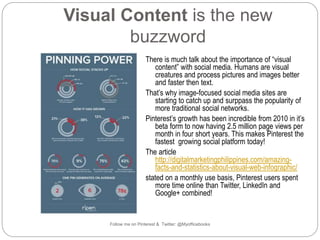
Pinterest’s growth has been incredible from 2010 in it’s 
beta form to now having 2.5 million page views per 
month in four short years. This makes Pinterest the 
fastest growing social platform today! 
The article 
http://digitalmarketingphilippines.com/amazing-facts- 
and-statistics-about-visual-web-infographic/ 
stated on a monthly use basis, Pinterest users spent 
more time online than Twitter, LinkedIn and 
Google+ combined! 
Follow me on Pinterest & Twitter: @Myofficebooks
Social media and brand email growth 
Follow me on Pinterest & Twitter: @Myofficebooks
Pinterest statistics 
This infographic was created by an 
online marketing firm called 
CoSchedule, after posting 1 million 
blog posts. 
Pinterest leads the way with 90% of 
shares. 
Other facts: 
 70 million Pinterest users 
worldwide as at 16 August 2014. 
[http://expandedramblings.com/index.php/pinterest-stats/#.VAvi0fmSx8E] 
 Average time spent per visit is 
14.2 minutes. 
 80% of Pinterest users are 
women. 
 9 million users have their Pinterest 
Followa cmec oon uPinntet relsint &k Tewditte rt: o@ MFyoaffciceebobooksok.
Pinterest statistics 
Follow me on Pinterest & Twitter: @Myofficebooks
1. Sign up 
Sign up as a business at: 
http://business.pinterest.com/en 
If you already have an 
account, under the red 
‘Join as a business’ 
you will see 
‘Already have an account? 
Convert now’. 
Follow me on Pinterest & Twitter: @Myofficebooks
2. Sign up 
Fill in the blanks: 
 Email address 
 Password 
 Business name 
 Business type 
 Contact name 
 Username 
 About 
 Website 
Follow me on Pinterest & Twitter: @Myofficebooks
3. Your interests 
What are your interests? 
Take 20 minutes here to consider: 
•Who is my ideal client? 
•What topics are they interested in? 
•What pain points do they have? 
•Are they families? Singles? Or Dinks? 
Then create your boards to appeal to 
that (1) client. 
Follow me on Pinterest & Twitter: @Myofficebooks
4. Personalise 
It’s time to 
edit your profile 
Upload your profile picture, 
you could use: 
•your image 
•a logo 
•a brand picture. 
NOTE: 
An individual’s actual face 
will have more followers 
than a logo/brand. 
Follow me on Pinterest & Twitter: @Myofficebooks
5. Create boards 
Create some boards 
Think about your 
industry. 
In what areas do you 
want to be an influencer? 
Click on ‘Create a Board’ 
 Name the board 
 Describe the board 
 Be mindful of 
keywords 
 Explain what is in the 
board 
 Add your URL (if 
applicable) 
 Add hashtags 
Follow me on Pinterest & Twitter: @Myofficebooks
6. Create a pin (web) 
Create a pin 
Use a web address or your 
computer. 
Web address pins 
Cut/paste the web address 
Click ‘Next’. 
Choose an image by 
clicking on it. 
In the description field: 
•type what the pin is about 
•share the URL 
•include hashtags 
•include keywords. 
NOTE: Pinterest does not 
allow bitly.com or other 
shorteners. Follow me on Pinterest & Twitter: @Myofficebooks
7. Create a pin (computer) 
Create a pin 
Computer pins 
 Click on ‘Choose 
Image’ 
 Select your image 
 Pick a board or create 
a new one 
 Fill in the description 
 Include keywords 
 Include the link 
 Pin it! 
Follow me on Pinterest & Twitter: @Myofficebooks
8. Verify your website 
1. Go to settings. 
2. You will see the ‘Verify 
Your Website’ button. 
3. You will see a link to 
download html or 
metatag to attach. 
4. See help 
http://help.pinterest.com/en/a 
rticles/verify-your-website 
5. Your settings page will 
update as follows in the 
second image. 
6. If you have any 
problems please refer to 
your IT specialist. 
Follow me on Pinterest & Twitter: @Myofficebooks
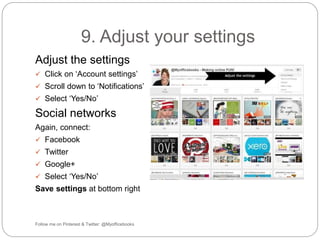
9. Adjust your settings 
Adjust the settings 
 Click on ‘Account settings’ 
 Scroll down to ‘Notifications’ 
 Select ‘Yes/No’ 
Social networks 
Again, connect: 
 Facebook 
 Twitter 
 Google+ 
 Select ‘Yes/No’ 
Save settings at bottom right 
Follow me on Pinterest & Twitter: @Myofficebooks
How to join Pinterest to Facebook? 
The process 
Follow me on Pinterest & Twitter: @Myofficebooks
1. Google search 
Google – 
Pinterest app for facebook 
Follow me on Pinterest & Twitter: @Myofficebooks
2. Add Pinterest app 
When you CLICK on the 
Link, you will be taken to 
Facebook. 
Follow me on Pinterest & Twitter: @Myofficebooks
3. Select your Facebook page 
Follow me on Pinterest & Twitter: @Myofficebooks
4. Configure the page tab 
This is where having 
A Pinterest Strategy will 
Become effective. 
Ensure your pins will 
Appeal to your ideal client 
Or customer...... 
Follow me on Pinterest & Twitter: @Myofficebooks
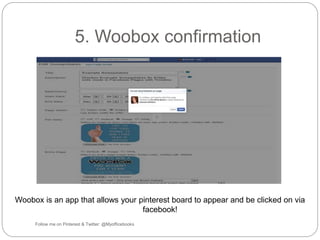
5. Woobox confirmation 
Woobox is an app that allows your pinterest board to appear and be clicked on via 
Follow me on Pinterest & Twitter: @Myofficebooks 
facebook!
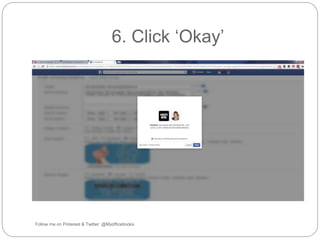
6. Click ‘Okay’ 
Follow me on Pinterest & Twitter: @Myofficebooks
7. Allow permission 
This allows the app to streamline pinterest within your business page 
See User terms at this link : http://woobox.com/terms 
Follow me on Pinterest & Twitter: @Myofficebooks
8. Select how to show pins 
Follow me on Pinterest & Twitter: @Myofficebooks
9. Complete Woobox 
Follow me on Pinterest & Twitter: @Myofficebooks
10. Select ‘Manage Tabs’ 
Follow me on Pinterest & Twitter: @Myofficebooks
11. Arrange the order of tabs 
Follow me on Pinterest & Twitter: @Myofficebooks
Pinterest is now attached 
Follow me on Pinterest & Twitter: @Myofficebooks
How do I find more followers? 
Practical tips 
Follow me on Pinterest & Twitter: @Myofficebooks
Ways to drive traffic from 
Pinterest 
When uploading pins (add a pin) from your 
computer, the pin will not automatically contain a url 
link. 
You will need to add this manually as follows: 
Tip #1 Edit the pin to include the source link or 
URL. 
1. Add a pin 2. Pin it and click ‘See it now’ 3. Add in the URL 
Follow me on Pinterest & Twitter: @Myofficebooks
Ways to drive traffic from 
Pinterest 
Put your link into the 
pin’s description. 
Tip #2 
Clickable Links 
Note: 
bitly.com links or 
other shorteners will 
not work. 
Follow me on Pinterest & Twitter: @Myofficebooks
Ways to drive traffic from 
Pinterest 
Tip #3 
Get rich pins for your website. 
This is a more complicated process that requires basic HTML knowledge. You 
may require the assistance of an IT expert for this to work. I have included some 
links if you wish to find out more. 
See these links : 
https://developers.pinterest.com/rich_pins_overview/ 
http://blog.pinterest.com/post/50883178638/introducing-more-useful-pins 
http://www.socialmediaexaminer.com/rich-pins-on-pinterest/ 
Follow me on Pinterest & Twitter: @Myofficebooks
Ways to drive traffic from 
Pinterest 
Tip #4 
Have a strategy 
 Pin for your ideal client 
 Organise the boards 
into broad categories 
 Break the categories 
down into keywords 
 Do not fear having too 
many boards—be 
specific 
 Set your boards up 
alphabetically 
 Keep focused 
 Be creative 
Follow me on Pinterest & Twitter: @Myofficebooks
Ways to drive traffic from 
Pinterest 
Tip #5 
Pin often 
I would suggest 10 – 15 
daily. 
Test what times are best 
for your followers. I have 
found that between 8 pm 
to 3 am is my best time to 
pin and have repins/new 
followers. 
But you might find another 
time is best. Test and see! 
Follow me on Pinterest & Twitter: @Myofficebooks
Tools to build great images 
I use a combination of PicMonkey and Canva to create all my images. 
www.picmoney.com 
www.canva.com 
How to links: 
http://www.picmonkey.com/blog/category/tutorials/ 
https://support.canva.com/hc/en-us 
Follow me on Pinterest & Twitter: @Myofficebooks
Stay in touch 
If you’ve found this Pinterest 4 Beginners workshop useful and would like to 
stay in touch, or would like to receive more information on how best to utilise 
social media, contact me at: 
http://au.linkedin.com/in/amandahoffmann1 
Follow me on Pinterest & Twitter: @Myofficebooks

Pinterest 4 beginners

  • 1.
    Pinterest 4 Beginners: Everything you need to know Follow me on Pinterest & Twitter: @Myofficebooks
  • 2.
    Why use Pinterest? Pinterest is a virtual bulletin or cork board that allows you to find and curate images and videos from all over the internet. The emphasis is on discovering and curating ideas, inspiration and information. Pins can be any type of image, graphics, photograph, product and brand. Large online stores are using the site as a virtual store front. So to can small business easily use this platform to spread images, products or skills! Follow me on Pinterest & Twitter: @Myofficebooks
  • 3.
    Visual Content isthe new buzzword There is much talk about the importance of “visual content” with social media. Humans are visual creatures and process pictures and images better and faster then text. That’s why image-focused social media sites are starting to catch up and surppass the popularity of more traditional social networks. Pinterest’s growth has been incredible from 2010 in it’s beta form to now having 2.5 million page views per month in four short years. This makes Pinterest the fastest growing social platform today! The article http://digitalmarketingphilippines.com/amazing-facts- and-statistics-about-visual-web-infographic/ stated on a monthly use basis, Pinterest users spent more time online than Twitter, LinkedIn and Google+ combined! Follow me on Pinterest & Twitter: @Myofficebooks
  • 4.
    Social media andbrand email growth Follow me on Pinterest & Twitter: @Myofficebooks
  • 5.
    Pinterest statistics Thisinfographic was created by an online marketing firm called CoSchedule, after posting 1 million blog posts. Pinterest leads the way with 90% of shares. Other facts:  70 million Pinterest users worldwide as at 16 August 2014. [http://expandedramblings.com/index.php/pinterest-stats/#.VAvi0fmSx8E]  Average time spent per visit is 14.2 minutes.  80% of Pinterest users are women.  9 million users have their Pinterest Followa cmec oon uPinntet relsint &k Tewditte rt: o@ MFyoaffciceebobooksok.
  • 6.
    Pinterest statistics Followme on Pinterest & Twitter: @Myofficebooks
  • 7.
    1. Sign up Sign up as a business at: http://business.pinterest.com/en If you already have an account, under the red ‘Join as a business’ you will see ‘Already have an account? Convert now’. Follow me on Pinterest & Twitter: @Myofficebooks
  • 8.
    2. Sign up Fill in the blanks:  Email address  Password  Business name  Business type  Contact name  Username  About  Website Follow me on Pinterest & Twitter: @Myofficebooks
  • 9.
    3. Your interests What are your interests? Take 20 minutes here to consider: •Who is my ideal client? •What topics are they interested in? •What pain points do they have? •Are they families? Singles? Or Dinks? Then create your boards to appeal to that (1) client. Follow me on Pinterest & Twitter: @Myofficebooks
  • 10.
    4. Personalise It’stime to edit your profile Upload your profile picture, you could use: •your image •a logo •a brand picture. NOTE: An individual’s actual face will have more followers than a logo/brand. Follow me on Pinterest & Twitter: @Myofficebooks
  • 11.
    5. Create boards Create some boards Think about your industry. In what areas do you want to be an influencer? Click on ‘Create a Board’  Name the board  Describe the board  Be mindful of keywords  Explain what is in the board  Add your URL (if applicable)  Add hashtags Follow me on Pinterest & Twitter: @Myofficebooks
  • 12.
    6. Create apin (web) Create a pin Use a web address or your computer. Web address pins Cut/paste the web address Click ‘Next’. Choose an image by clicking on it. In the description field: •type what the pin is about •share the URL •include hashtags •include keywords. NOTE: Pinterest does not allow bitly.com or other shorteners. Follow me on Pinterest & Twitter: @Myofficebooks
  • 13.
    7. Create apin (computer) Create a pin Computer pins  Click on ‘Choose Image’  Select your image  Pick a board or create a new one  Fill in the description  Include keywords  Include the link  Pin it! Follow me on Pinterest & Twitter: @Myofficebooks
  • 14.
    8. Verify yourwebsite 1. Go to settings. 2. You will see the ‘Verify Your Website’ button. 3. You will see a link to download html or metatag to attach. 4. See help http://help.pinterest.com/en/a rticles/verify-your-website 5. Your settings page will update as follows in the second image. 6. If you have any problems please refer to your IT specialist. Follow me on Pinterest & Twitter: @Myofficebooks
  • 15.
    9. Adjust yoursettings Adjust the settings  Click on ‘Account settings’  Scroll down to ‘Notifications’  Select ‘Yes/No’ Social networks Again, connect:  Facebook  Twitter  Google+  Select ‘Yes/No’ Save settings at bottom right Follow me on Pinterest & Twitter: @Myofficebooks
  • 16.
    How to joinPinterest to Facebook? The process Follow me on Pinterest & Twitter: @Myofficebooks
  • 17.
    1. Google search Google – Pinterest app for facebook Follow me on Pinterest & Twitter: @Myofficebooks
  • 18.
    2. Add Pinterestapp When you CLICK on the Link, you will be taken to Facebook. Follow me on Pinterest & Twitter: @Myofficebooks
  • 19.
    3. Select yourFacebook page Follow me on Pinterest & Twitter: @Myofficebooks
  • 20.
    4. Configure thepage tab This is where having A Pinterest Strategy will Become effective. Ensure your pins will Appeal to your ideal client Or customer...... Follow me on Pinterest & Twitter: @Myofficebooks
  • 21.
    5. Woobox confirmation Woobox is an app that allows your pinterest board to appear and be clicked on via Follow me on Pinterest & Twitter: @Myofficebooks facebook!
  • 22.
    6. Click ‘Okay’ Follow me on Pinterest & Twitter: @Myofficebooks
  • 23.
    7. Allow permission This allows the app to streamline pinterest within your business page See User terms at this link : http://woobox.com/terms Follow me on Pinterest & Twitter: @Myofficebooks
  • 24.
    8. Select howto show pins Follow me on Pinterest & Twitter: @Myofficebooks
  • 25.
    9. Complete Woobox Follow me on Pinterest & Twitter: @Myofficebooks
  • 26.
    10. Select ‘ManageTabs’ Follow me on Pinterest & Twitter: @Myofficebooks
  • 27.
    11. Arrange theorder of tabs Follow me on Pinterest & Twitter: @Myofficebooks
  • 28.
    Pinterest is nowattached Follow me on Pinterest & Twitter: @Myofficebooks
  • 29.
    How do Ifind more followers? Practical tips Follow me on Pinterest & Twitter: @Myofficebooks
  • 30.
    Ways to drivetraffic from Pinterest When uploading pins (add a pin) from your computer, the pin will not automatically contain a url link. You will need to add this manually as follows: Tip #1 Edit the pin to include the source link or URL. 1. Add a pin 2. Pin it and click ‘See it now’ 3. Add in the URL Follow me on Pinterest & Twitter: @Myofficebooks
  • 31.
    Ways to drivetraffic from Pinterest Put your link into the pin’s description. Tip #2 Clickable Links Note: bitly.com links or other shorteners will not work. Follow me on Pinterest & Twitter: @Myofficebooks
  • 32.
    Ways to drivetraffic from Pinterest Tip #3 Get rich pins for your website. This is a more complicated process that requires basic HTML knowledge. You may require the assistance of an IT expert for this to work. I have included some links if you wish to find out more. See these links : https://developers.pinterest.com/rich_pins_overview/ http://blog.pinterest.com/post/50883178638/introducing-more-useful-pins http://www.socialmediaexaminer.com/rich-pins-on-pinterest/ Follow me on Pinterest & Twitter: @Myofficebooks
  • 33.
    Ways to drivetraffic from Pinterest Tip #4 Have a strategy  Pin for your ideal client  Organise the boards into broad categories  Break the categories down into keywords  Do not fear having too many boards—be specific  Set your boards up alphabetically  Keep focused  Be creative Follow me on Pinterest & Twitter: @Myofficebooks
  • 34.
    Ways to drivetraffic from Pinterest Tip #5 Pin often I would suggest 10 – 15 daily. Test what times are best for your followers. I have found that between 8 pm to 3 am is my best time to pin and have repins/new followers. But you might find another time is best. Test and see! Follow me on Pinterest & Twitter: @Myofficebooks
  • 35.
    Tools to buildgreat images I use a combination of PicMonkey and Canva to create all my images. www.picmoney.com www.canva.com How to links: http://www.picmonkey.com/blog/category/tutorials/ https://support.canva.com/hc/en-us Follow me on Pinterest & Twitter: @Myofficebooks
  • 36.
    Stay in touch If you’ve found this Pinterest 4 Beginners workshop useful and would like to stay in touch, or would like to receive more information on how best to utilise social media, contact me at: http://au.linkedin.com/in/amandahoffmann1 Follow me on Pinterest & Twitter: @Myofficebooks

Editor's Notes

  • #18 Not sure why you do the search—it doesn’t seem to connect to the next step ….
  • #19 I think you need to state here that you should be in Facebook to start and then where you need to find the ‘add app’ button.
  • #21 Is this page tab visible to others? If so, maybe you need to say include items/images/text that will interest your client.
  • #22 Brief description of what Woobox is and why I need it.
  • #24 ‘Allowing permission to connect with Woobox means X’
  • #31 Not sure the wording is clear here—do you mean that if Pinterest fails to allow you to add a website, you should use this tip? Let me know and we can change it around.
  • #33 Suggest you describe what a ‘rich pin’ is.