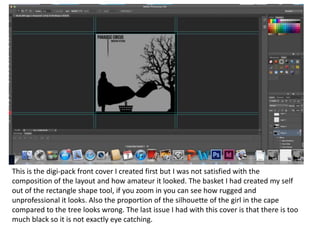
This is the digi-pack front cover I created first but I was not satisfied with the
composition of the layout and how amateur it looked. The basket I had created my self
out of the rectangle shape tool, if you zoom in you can see how rugged and
unprofessional it looks. Also the proportion of the silhouette of the girl in the cape
compared to the tree looks wrong. The last issue I had with this cover is that there is too
much black so it is not exactly eye catching.
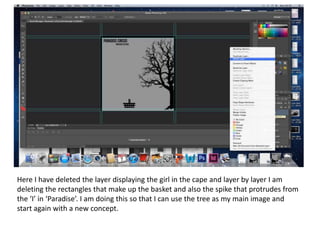
Here I have deleted the layer displaying the girl in the cape and layer by layer I am
deleting the rectangles that make up the basket and also the spike that protrudes from
the ‘I’ in ‘Paradise’. I am doing this so that I can use the tree as my main image and
start again with a new concept.
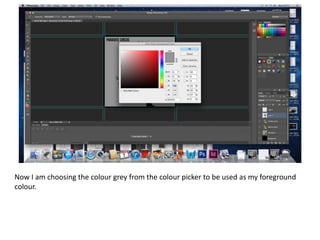
Now I am choosing the colour grey from the colour picker to be used as my foreground
colour.
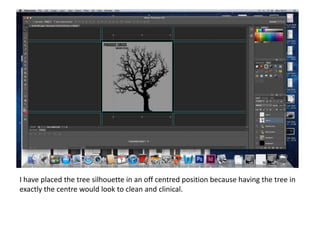
I have placed the tree silhouette in an off centred position because having the tree in
exactly the centre would look to clean and clinical.
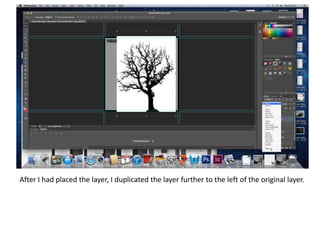
After I had placed the layer, I duplicated the layer further to the left of the original layer.
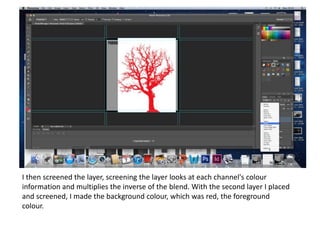
I then screened the layer, screening the layer looks at each channel's colour
information and multiplies the inverse of the blend. With the second layer I placed
and screened, I made the background colour, which was red, the foreground
colour.
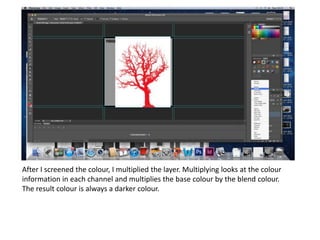
After I screened the colour, I multiplied the layer. Multiplying looks at the colour
information in each channel and multiplies the base colour by the blend colour.
The result colour is always a darker colour.
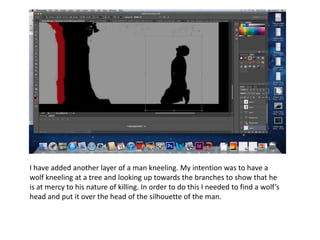
I have added another layer of a man kneeling. My intention was to have a
wolf kneeling at a tree and looking up towards the branches to show that he
is at mercy to his nature of killing. In order to do this I needed to find a wolf’s
head and put it over the head of the silhouette of the man.
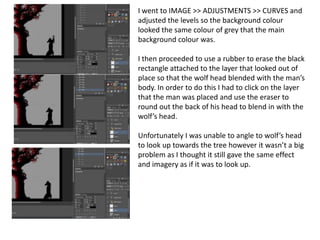
I went to IMAGE >> ADJUSTMENTS >> CURVES and
adjusted the levels so the background colour
looked the same colour of grey that the main
background colour was.
I then proceeded to use a rubber to erase the black
rectangle attached to the layer that looked out of
place so that the wolf head blended with the man’s
body. In order to do this I had to click on the layer
that the man was placed and use the eraser to
round out the back of his head to blend in with the
wolf’s head.
Unfortunately I was unable to angle to wolf’s head
to look up towards the tree however it wasn’t a big
problem as I thought it still gave the same effect
and imagery as if it was to look up.
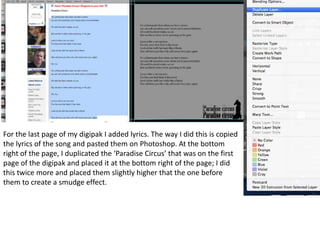
For the last page of my digipak I added lyrics. The way I did this is copied
the lyrics of the song and pasted them on Photoshop. At the bottom
right of the page, I duplicated the ‘Paradise Circus’ that was on the first
page of the digipak and placed it at the bottom right of the page; I did
this twice more and placed them slightly higher that the one before
them to create a smudge effect.

Photoshop screen shots 3

  • 1.
    This is thedigi-pack front cover I created first but I was not satisfied with the composition of the layout and how amateur it looked. The basket I had created my self out of the rectangle shape tool, if you zoom in you can see how rugged and unprofessional it looks. Also the proportion of the silhouette of the girl in the cape compared to the tree looks wrong. The last issue I had with this cover is that there is too much black so it is not exactly eye catching.
  • 2.
    Here I havedeleted the layer displaying the girl in the cape and layer by layer I am deleting the rectangles that make up the basket and also the spike that protrudes from the ‘I’ in ‘Paradise’. I am doing this so that I can use the tree as my main image and start again with a new concept.
  • 3.
    Now I amchoosing the colour grey from the colour picker to be used as my foreground colour.
  • 4.
    I have placedthe tree silhouette in an off centred position because having the tree in exactly the centre would look to clean and clinical.
  • 5.
    After I hadplaced the layer, I duplicated the layer further to the left of the original layer.
  • 6.
    I then screenedthe layer, screening the layer looks at each channel's colour information and multiplies the inverse of the blend. With the second layer I placed and screened, I made the background colour, which was red, the foreground colour.
  • 7.
    After I screenedthe colour, I multiplied the layer. Multiplying looks at the colour information in each channel and multiplies the base colour by the blend colour. The result colour is always a darker colour.
  • 8.
    I have addedanother layer of a man kneeling. My intention was to have a wolf kneeling at a tree and looking up towards the branches to show that he is at mercy to his nature of killing. In order to do this I needed to find a wolf’s head and put it over the head of the silhouette of the man.
  • 9.
    I went toIMAGE >> ADJUSTMENTS >> CURVES and adjusted the levels so the background colour looked the same colour of grey that the main background colour was. I then proceeded to use a rubber to erase the black rectangle attached to the layer that looked out of place so that the wolf head blended with the man’s body. In order to do this I had to click on the layer that the man was placed and use the eraser to round out the back of his head to blend in with the wolf’s head. Unfortunately I was unable to angle to wolf’s head to look up towards the tree however it wasn’t a big problem as I thought it still gave the same effect and imagery as if it was to look up.
  • 10.
    For the lastpage of my digipak I added lyrics. The way I did this is copied the lyrics of the song and pasted them on Photoshop. At the bottom right of the page, I duplicated the ‘Paradise Circus’ that was on the first page of the digipak and placed it at the bottom right of the page; I did this twice more and placed them slightly higher that the one before them to create a smudge effect.