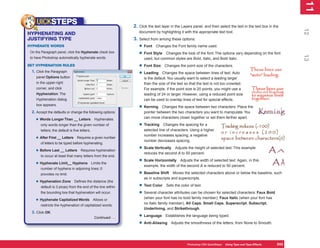
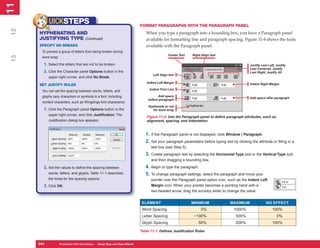
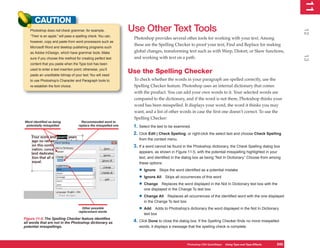
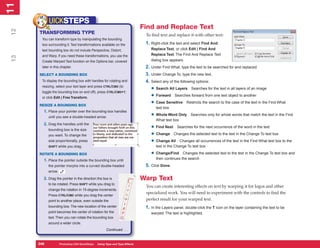
®

PHOTOSHOP CS4
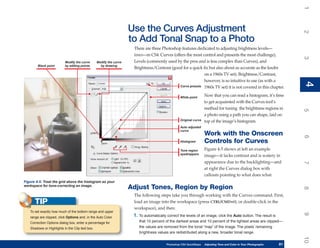
      QuickSteps
About the Authors
 Gary Bouton has been illustrating and producing videos for over 30 years;
 the co-author came from a background in advertising and has been teaching
 his crafts through books for the past 18 years. To his credit, the titles include
 guides to Adobe Photoshop, CorelDraw, modeling and animation software,
 and Xara Xtreme: The Official Guide, for McGraw-Hill. With his wife Barbara, the
 Boutons support Gary’s books through www.theboutons.com, where readers
 can also find a lively discussion forum dedicated to digital graphics, free
 content downloads, and several non-free commercial goods. Currently, Gary
 is working on post-production editing and CG effects for music videos for
 Australia-based Monkey Pants Media.

 Carole Boggs Matthews has been around computers as a programmer, systems
 analyst, technical consultant, and founder, co-owner, and vice president of a
 software company. She has been on all sides of computer software products,
 from designer and builder to an accomplished user of software in her business.
 Together with Marty Matthews, her husband, she has authored or co-authored
 over 50 books, including Adobe Photoshop CS QuickSteps, Adobe Photoshop
 Elements QuickSteps, Microsoft Office PowerPoint 2010, and Microsoft Word 2010
 QuickSteps.
®

                                   PHOTOSHOP CS4
                                         QuickSteps

                                         GARY DAVID BOUTON
                                         CAROLE MATTHEWS


New York Chicago San Francisco
Lisbon London Madrid Mexico City
Milan New Delhi San Juan
Seoul Singapore Sydney Toronto
Copyright © 2009 by Matthews Technology. All rights reserved. Except as permitted under the United States Copyright Act of 1976, no part of this publication may be reproduced or distributed in any
form or by any means, or stored in a database or retrieval system, without the prior written permission of the publisher.

ISBN: 978-0-07-162538-8

MHID: 0-07-162538-0

The material in this eBook also appears in the print version of this title: ISBN: 978-0-07-162537-1, MHID: 0-07-162537-2.

All trademarks are trademarks of their respective owners. Rather than put a trademark symbol after every occurrence of a trademarked name, we use names in an editorial fashion only, and to the bene-
fit of the trademark owner, with no intention of infringement of the trademark. Where such designations appear in this book, they have been printed with initial caps.

McGraw-Hill eBooks are available at special quantity discounts to use as premiums and sales promotions, or for use in corporate training programs. To contact a representative please e-mail us at
bulksales@mcgraw-hill.com.

Information has been obtained by McGraw-Hill from sources believed to be reliable. However, because of the possibility of human or mechanical error by our sources, McGraw-Hill, or others,
McGraw-Hill does not guarantee the accuracy, adequacy, or completeness of any information and is not responsible for any errors or omissions or the results obtained from the use of such information.

TERMS OF USE

This is a copyrighted work and The McGraw-Hill Companies, Inc. (“McGraw-Hill”) and its licensors reserve all rights in and to the work. Use of this work is subject to these terms. Except as permitted
under the Copyright Act of 1976 and the right to store and retrieve one copy of the work, you may not decompile, disassemble, reverse engineer, reproduce, modify, create derivative works based upon,
transmit, distribute, disseminate, sell, publish or sublicense the work or any part of it without McGraw-Hill’s prior consent. You may use the work for your own noncommercial and personal use; any other
use of the work is strictly prohibited. Your right to use the work may be terminated if you fail to comply with these terms.

THE WORK IS PROVIDED “AS IS.” McGRAW-HILL AND ITS LICENSORS MAKE NO GUARANTEES OR WARRANTIES AS TO THE ACCURACY, ADEQUACY OR COMPLETENESS OF
OR RESULTS TO BE OBTAINED FROM USING THE WORK, INCLUDING ANY INFORMATION THAT CAN BE ACCESSED THROUGH THE WORK VIA HYPERLINK OR OTHERWISE,
AND EXPRESSLY DISCLAIM ANY WARRANTY, EXPRESS OR IMPLIED, INCLUDING BUT NOT LIMITED TO IMPLIED WARRANTIES OF MERCHANTABILITY OR FITNESS FOR A
PARTICULAR PURPOSE. McGraw-Hill and its licensors do not warrant or guarantee that the functions contained in the work will meet your requirements or that its operation will be uninterrupted or
error free. Neither McGraw-Hill nor its licensors shall be liable to you or anyone else for any inaccuracy, error or omission, regardless of cause, in the work or for any damages resulting therefrom.
McGraw-Hill has no responsibility for the content of any information accessed through the work. Under no circumstances shall McGraw-Hill and/or its licensors be liable for any indirect, incidental,
special, punitive, consequential or similar damages that result from the use of or inability to use the work, even if any of them has been advised of the possibility of such damages. This limitation of
liability shall apply to any claim or cause whatsoever whether such claim or cause arises in contract, tort or otherwise.
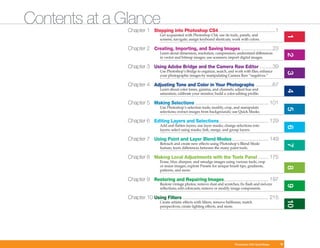
Contents at a Glance
               Chapter 1 Stepping into Photoshop CS4........................................1
                                 Get acquainted with Photoshop CS4; use its tools, panels, and


                                                                                                                 1
                                 screens; navigate; assign keyboard shortcuts; work with colors.

               Chapter 2 Creating, Importing, and Saving Images ......................23
                                 Learn about dimension, resolution, compression; understand differences


                                                                                                                 2
                                 in vector and bitmap images; use scanners; import digital images.

               Chapter 3 Using Adobe Bridge and the Camera Raw Editor .........39
                                 Use Photoshop’s Bridge to organize, search, and work with files; enhance


                                                                                                                 3
                                 your photographic images by manipulating Camera Raw “negatives.”

               Chapter 4 Adjusting Tone and Color in Your Photographs ............67
                                 Learn about color tones, gamma, and channels; adjust hue and


                                                                                                                 4
                                 saturation; calibrate your monitor; build a color-editing profile.

               Chapter 5 Making Selections ................................................... 101
                                 Use Photoshop’s selection tools; modify, crop, and manipulate


                                                                                                                 5
                                 selections; extract images from backgrounds; use Quick Masks.

               Chapter 6 Editing Layers and Selections .................................. 129
                                 Add and flatten layers; use layer masks; change selections into


                                                                                                                 6
                                 layers; select using masks; link, merge, and group layers.

               Chapter 7 Using Paint and Layer Blend Modes ......................... 149
                                 Retouch and create new effects using Photoshop’s Blend Mode


                                                                                                                 7
                                 feature; learn differences between the many paint tools.

               Chapter 8 Making Local Adjustments with the Tools Panel ....... 175
                                 Erase, blur, sharpen, and smudge images using various tools; crop
                                 or resize images; explore Presets for unique brush tips, gradients,


                                                                                                                 8
                                 patterns, and more.

               Chapter 9 Restoring and Repairing Images............................... 197
                                 Restore vintage photos; remove dust and scratches; fix flash and red-eye


                                                                                                                 9
                                 reflections; edit colorcasts; remove or modify image components.

               Chapter 10 Using Filters ............................................................ 215


                                                                                                                 10
                                 Create artistic effects with filters; remove halftones; match
                                 perspectives; create lighting effects, and more.


                                                                                  Photoshop CS4 QuickSteps   v
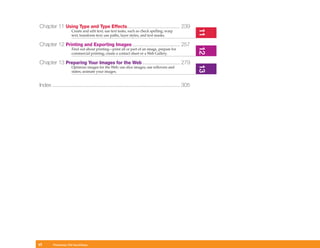
Chapter 11 Using Type and Type Effects..................................... 239


                                                                                                      11
                     Create and edit text; use text tasks, such as check spelling; warp
                     text; transform text; use paths, layer styles, and text masks.

Chapter 12 Printing and Exporting Images ................................. 257


                                                                                                      12
                     Find out about printing—print all or part of an image, prepare for
                     commercial printing; create a contact sheet or a Web Gallery.

Chapter 13 Preparing Your Images for the Web .......................... 279


                                                                                                      13
                     Optimize images for the Web; use slice images; use rollovers and
                     states; animate your images.


Index ......................................................................................... 305


vi      Photoshop CS4 QuickSteps
Acknowledgments                                                   Introduction
 A wonderful part of working with this QuickSteps series is        QuickSteps books are recipe books for computer users. They
 the people who have worked on it. This book, as the others        answer the question “How do I...?” by providing quick sets
 in the series, has been blessed with an exceptionally talented    of steps to accomplish the most common tasks in a particular
 and hard-working team. Each person has been dedicated             program. The sets of steps are the central focus of the book.
 to making this book one to match their capabilities, which        QuickSteps sidebars show you how to quickly do many small
 are substantial. One by-product of the book has been the          functions or tasks that support the primary functions. Notes,
 supportive and cohesive team that has been developed.             Tips, and Cautions augment the steps, yet they are presented
 Although many members of the team may never personally            in such a manner as to not interrupt the flow of the steps.
 meet, they have interacted in a professional and caring way.      The brief introductions are minimal rather than narrative,
 We offer a heart-felt thank-you to all on the team.               and numerous illustrations and figures, many with callouts,
                                                                   support the steps.
 We would also like to thank Lyra Ziegler, who helped make
 this book better with her comments and technical corrections.     QuickSteps books are organized by function and the tasks
 Mark Clarkson, an author on the first edition of this book,        needed to perform that function. Each function is a chapter.
 kindly gave us permission to use some of his photos. We           Each task, or “How To,” contains the steps needed for
 are very appreciative of his generosity. And a very special       accomplishing the function along with relevant Notes, Tips,
 thanks to our friends and families for allowing the authors to    Cautions, and screenshots. Tasks will be easy to find through:
 use their pictures in this book. They worked hard and were
                                                                    •   The Table of Contents, which lists the functional areas
 compensated usually with pizza with all the toppings, except
                                                                        (chapters) and tasks in the order they are presented
 anchovies.
                                                                    •   A How To list of tasks on the opening page of each
                                                                        chapter

                                                                    •   The index with its alphabetical list of terms used in
                                                                        describing the functions and tasks

                                                                    •   Color-coded tabs for each chapter or functional area,
                                                                        with an index to the tabs just before the Table of Contents


                                                                                                      Photoshop CS4 QuickSteps    vii
QUICKFACTS
ONLINE EXTRA!                                              Conventions Used
  For everyone who loves creating superb photography,
  the authors have written a free bonus chapter you
                                                           in This Book
  can download in PDF format. With more than 30 pages
                                                            Photoshop CS4 QuickSteps uses several conventions designed to make the book
  of advanced tutorials, “Tricks of the Trade” shows
                                                            easier for you to follow. Among these are
  you professional methods for editing in 3D, using
  Content-Aware Scaling, creating high dynamic range         •   A     or a     in the Table of Contents or the How To list in each chapter
  (HDR) photos, and more.                                        references a QuickSteps or a QuickFacts sidebar in a chapter.
  The bonus chapter is available on the book’s home page
  at the McGraw-Hill web site: www.mhprofessional.com/       •   Bold type is used for words on the screen that you are to do something
  computingdownload.                                             with, such as click Save As or open File.
  You can also visit Gary Bouton’s web site at               •   Italic type is used for a word or phrase that is being defined or otherwise
  www.theboutons.com to get the chapter and join
                                                                 deserves special emphasis.
  The Pixel Dust Forum for graphics discussions and
  special member downloads.                                  •   Underlined type is used for text that you are to type from the keyboard.
  Carole Matthews’ web site at www.quicksteps.org
                                                             •   When you see the command, CTRL/CMD, you are to press the CTRL key
  also hosts the bonus material and provides a wealth
                                                                 in Windows or the CMD key on the Mac; ALT/OPT, press the ALT key in
  of additional information about the QuickSteps series.
                                                                 Windows or the OPTIONS key on the Mac.

                                                             •   small capital letters are used for keys on the keyboard such as ENTER
                                                                 and SHIFT.

                                                             •   When you are expected to enter a command, you are told to press the
                                                                 key(s). If you are to enter text or numbers, you are told to type them.
                                                                 Specific letters or numbers to be entered will be underlined.

                                                             •   When you are to click the mouse button on a screen command or menu,
                                                                 you will be told to “Click File | Open,” which means, “Click File, then
                                                                 click Open.”


viii      Photoshop CS4 QuickSteps
1
                                                                                                                                1
How to…
•   Start and Close Photoshop


                                                                                                                                2
•   Learn About the Photoshop
    Workspace
•   Open and Create Images


                                                                                                                                3
•   Customize Photoshop
    Understanding Interpolation
    Methods                           Chapter 1
                                                                          Stepping into


                                                                                                                                4
•   Work with Photoshop’s Interface
    Navigating Within a Document
•   Work with Photoshop Controls
                                                                        Photoshop CS4
    Using Photoshop’s Online Help


                                                                                                                                5
    Using Kulor                        This chapter will introduce you to some of Photoshop’s basic
•   Work with Panels                   capabilities and its user interface. You will learn how to open
    Using Scrubby Sliders              and close Photoshop, how to navigate and use its screens


                                                                                                                                6
    Selecting Screen Modes             and toolbars, and how to set up the program according to
•   Display the Tools in Two           your personal needs. You will learn how to use Photoshop’s
    Columns                            Help and how to find additional help and tutorials online. You


                                                                                                                                7
•   Work with Tool Options             will also get a glimpse at the tools that Photoshop offers and
•   Switch Tools in a Menu             an introduction to working with color and calibration.
•   Set Foreground and


                                                                                                                                8
    Background Colors
•   Use the History Panel             Get Acquainted with Photoshop
    Undoing and Redoing Actions        Getting acquainted with Photoshop involves starting and closing it; setting
                                       preferences, such as how to display the mouse pointer; working with the


                                                                                                                                9
                                       Photoshop workspace and its menus, panels, and other components; opening
                                       and creating images; and using Photoshop’s interface, including navigating,
                                       zooming, and working with panels.


                                                                                                                                10
                                                                   Photoshop CS4 QuickSteps   Stepping into Photoshop CS4   1
1
1
            TIP
                                                                        This chapter assumes that you already know how to turn on the computer and
         Click Help to find many great tutorials, such as “How
2


                                                                        load Windows and that Photoshop has been installed on your computer. Once
         to Create Web Images” or “How to Customize and
                                                                        Photoshop is installed, you start it as you would any other program.
         Automate” (a task, panels, or tool presets, for instance).


                                                                       Start and Close Photoshop
3


                                                                        You can start Photoshop with a menu, shortcut, or keyboard combination.
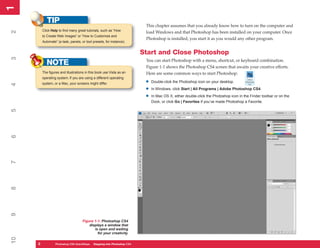
            NOTE                                                        Figure 1-1 shows the Photoshop CS4 screen that awaits your creative efforts.
         The figures and illustrations in this book use Vista as an     Here are some common ways to start Photoshop:
         operating system. If you are using a different operating
         system, or a Mac, your screens might differ.                   •   Double-click the Photoshop icon on your desktop.
4


                                                                        •   In Windows, click Start | All Programs | Adobe Photoshop CS4.

                                                                        •   In Mac OS X, either double-click the Photoshop icon in the Finder toolbar or on the
                                                                            Dock, or click Go | Favorites if you’ve made Photoshop a Favorite.
5
6
7
8
9


                                     Figure 1-1: Photoshop CS4
                                         displays a window that
                                            is open and waiting
                                              for your creativity.
10


     2
     2           PC QuickSteps QuickSteps Know Your PC Photoshop CS4
                 Photoshop CS4   Getting to Stepping into
1
                                                                                                                                                                     1
                                                                   Here are some common ways to close Photoshop:


                                                                                                                                                                     2
                                                                   •   Click File | Exit. You will be prompted to save any unsaved work.

                                                                   •   In Windows, you can also click the Close icon          in the upper-right corner of the
                                                                       Photoshop CS4 window.
                                                                   •   On the Mac, you can also click Quit from the menu bar.


                                                                                                                                                                     3
                                                                   •   In both operating systems, press CTRL/CMD+Q.


                                                                  Learn About the Photoshop Workspace
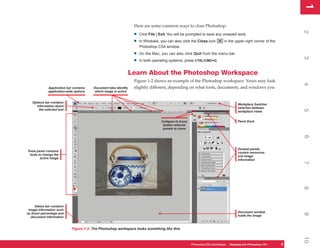
                                                                   Figure 1-2 shows an example of the Photoshop workspace. Yours may look


                                                                                                                                                                     4
              Application bar contains   Document tabs identify    slightly different, depending on what tools, documents, and windows you
              application-wide options    which image is active


   Options bar contains
                                                                                                                                       Workplace Switcher
     information about
                                                                                                                                       switches between
       the selected tool


                                                                                                                                                                     5
                                                                                                                                       workplace views


                                                                                    Collapse to Icons                                  Panel Dock
                                                                                     button reduces
                                                                                     panels to icons


                                                                                                                                                                     6
                                                                                                                                       Docked panels
Tools panel contains                                                                                                                   contain resources
 tools to change the                                                                                                                   and image
        active image                                                                                                                   information


                                                                                                                                                                     7
                                                                                                                                                                     8
     Status bar contains
 image information such
as Zoom percentage and                                                                                                                 Document window


                                                                                                                                                                     9
  document information                                                                                                                 holds the image


                             Figure 1-2: The Photoshop workspace looks something like this.


                                                                                                                                                                     10
                                                                                                        Photoshop CS4 QuickSteps Stepping intoKnow Your PC
                                                                                                                    PC QuickSteps  Getting to Photoshop CS4      3
                                                                                                                                                                 3
1
1

                                                                         have open. Any of the items can be closed or moved about on the screen, as
                                                                         you’ll see. In Windows, the empty workspace is gray.
2


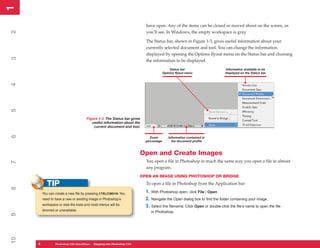
                                                                         The Status bar, shown in Figure 1-3, gives useful information about your
                                                                         currently selected document and tool. You can change the information
                                                                         displayed by opening the Options flyout menu on the Status bar and choosing
3


                                                                         the information to be displayed.
                                                                                           Status bar                    Information available to be
                                                                                      Options flyout menu                displayed on the Status bar
4
5


                                      Figure 1-3: The Status bar gives
                                         useful information about the
                                          current document and tool.
6


                                                                           Zoom          Information contained in
                                                                         percentage        the document profile


                                                                       Open and Create Images
                                                                         You open a file in Photoshop in much the same way you open a file in almost
7


                                                                         any program.
                                                                       OPEN AN IMAGE USING PHOTOSHOP OR BRIDGE

           TIP                                                           To open a file in Photoshop from the Application bar:
8


         You can create a new file by pressing CTRL/CMD+N. You           1. With Photoshop open, click File | Open.
         need to have a new or existing image in Photoshop’s             2. Navigate the Open dialog box to find the folder containing your image.
         workspace or else the tools and most menus will be              3. Select the filename. Click Open or double-click the file’s name to open the file
         dimmed or unavailable.                                             in Photoshop.
9
10


     4
     4           PC QuickSteps QuickSteps Know Your PC Photoshop CS4
                 Photoshop CS4   Getting to Stepping into
1
                                                                                                                                                             1
   TIP
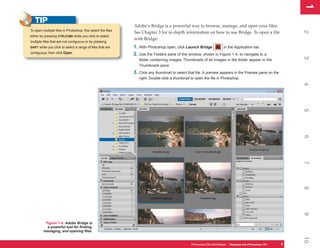
                                                              Adobe’s Bridge is a powerful way to browse, manage, and open your files.
To open multiple files in Photoshop, first select the files


                                                                                                                                                             2
                                                              See Chapter 3 for in-depth information on how to use Bridge. To open a file
either by pressing CTRL/CMD while you click to select
                                                              with Bridge:
multiple files that are not contiguous or by pressing
SHIFT while you click to select a range of files that are     1. With Photoshop open, click Launch Bridge       in the Application bar.
contiguous; then click Open.                                  2. Use the Folders pane of the window, shown in Figure 1-4, to navigate to a


                                                                                                                                                             3
                                                                 folder containing images. Thumbnails of all images in the folder appear in the
                                                                 Thumbnails pane.
                                                              3. Click any thumbnail to select that file. A preview appears in the Preview pane on the
                                                                 right. Double-click a thumbnail to open the file in Photoshop.


                                                                                                                                                             4
                                                                                                                                                             5
                                                                                                                                                             6
                                                                                                                                                             7
                                                                                                                                                             8
                                                                                                                                                             9
          Figure 1-4: Adobe Bridge is
           a powerful tool for finding,
         managing, and opening files.


                                                                                                                                                             10
                                                                                                 Photoshop CS4 QuickSteps Stepping intoKnow Your PC
                                                                                                             PC QuickSteps  Getting to Photoshop CS4     5
                                                                                                                                                         5
1
1
                                                                      CREATE A NEW IMAGE CANVAS FROM A PRESET
2


                                                                        Photoshop allows you to easily create an image canvas from a list of preset sizes
                                                                        and resolutions. To create a new, blank canvas for your image:
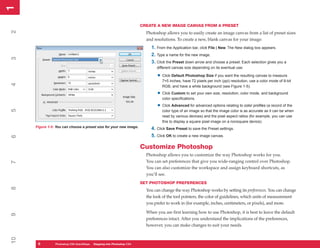
                                                                          1. From the Application bar, click File | New. The New dialog box appears.
                                                                          2. Type a name for the new image.
3


                                                                          3. Click the Preset down arrow and choose a preset. Each selection gives you a
                                                                             different canvas size depending on its eventual use:

                                                                              • Click Default Photoshop Size if you want the resulting canvas to measure
                                                                                7×5 inches, have 72 pixels per inch (ppi) resolution, use a color mode of 8-bit
4


                                                                                RGB, and have a white background (see Figure 1-5).

                                                                              • Click Custom to set your own size, resolution, color mode, and background
                                                                                color specifications.

                                                                              • Click Advanced for advanced options relating to color profiles (a record of the
5


                                                                                color type of an image so that the image color is as accurate as it can be when
                                                                                read by various devices) and the pixel aspect ratios (for example, you can use
                                                                                this to display a square pixel image on a nonsquare device).
     Figure 1-5: You can choose a preset size for your new image.
                                                                          4. Click Save Preset to save the Preset settings.
                                                                          5. Click OK to create a new image canvas.
6


                                                                      Customize Photoshop
                                                                        Photoshop allows you to customize the way Photoshop works for you.
                                                                        You can set preferences that give you wide-ranging control over Photoshop.
7


                                                                        You can also customize the workspace and assign keyboard shortcuts, as
                                                                        you’ll see.
                                                                      SET PHOTOSHOP PREFERENCES
8


                                                                        You can change the way Photoshop works by setting its preferences. You can change
                                                                        the look of the tool pointers, the color of guidelines, which units of measurement
                                                                        you prefer to work in (for example, inches, centimeters, or pixels), and more.

                                                                        When you are first learning how to use Photoshop, it is best to leave the default
9


                                                                        preferences intact. After you understand the implications of the preferences,
                                                                        however, you can make changes to suit your needs.
10


      6
      6         PC QuickSteps QuickSteps Know Your PC Photoshop CS4
                Photoshop CS4   Getting to Stepping into
1
                                                                                                                                                                 1
   NOTE
                                                                    To set your preferences:
Photoshop CS4 comes with several filters and software


                                                                                                                                                                 2
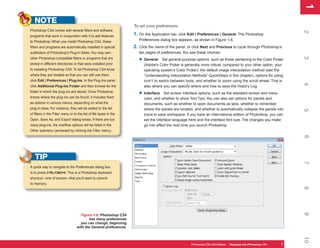
programs that work in conjunction with it to add features           1. On the Application bar, click Edit | Preferences | General. The Photoshop
to Photoshop. When you install Photoshop CS4, these                    Preferences dialog box appears, as shown in Figure 1-6.
filters and programs are automatically installed in special         2. Click the name of the panel, or click Next and Previous to cycle through Photoshop’s
subfolders of Photoshop’s Plug-In folder. You may own                  ten pages of preferences. You see these choices:


                                                                                                                                                                 3
other Photoshop-compatible filters or programs that are
                                                                       • General     Set general-purpose options, such as those pertaining to the Color Picker
stored in different directories or that were installed prior              (Adobe’s Color Picker is generally more robust, compared to your other option, your
to installing Photoshop CS4. To let Photoshop CS4 know                    operating system’s Color Picker), the default image interpolation method (see the
where they are located so that you can still use them,                    “Understanding Interpolation Methods” QuickSteps in this chapter), options for using
click Edit | Preferences | Plug-Ins. In the Plug-Ins panel,               SHIFT to switch between tools, and whether to zoom using the scroll wheel. This is


                                                                                                                                                                 4
click Additional Plug-Ins Folder and then browse for the                  also where you can specify where and how to save the History Log.
folder in which the plug-ins are stored. Once Photoshop
                                                                       • Interface     Set screen interface options, such as the standard screen and menu
knows where the plug-ins can be found, it includes them                   color, and whether to show Tool Tips. You can also set options for panels and
as options in various menus, depending on what the                        documents, such as whether to open documents as tabs, whether to remember
plug-in does. For instance, they will be added to the list                where the panels are located, and whether to automatically collapse the panels into


                                                                                                                                                                 5
of filters in the Filter menu or to the list of file types in the         icons to save workspace. If you have an international edition of Photoshop, you can
Open, Save As, and Export dialog boxes. If there are too                  set the interface language here and the interface font size. The changes you make
many plug-ins, the overflow options will be listed in the                 go into effect the next time you launch Photoshop.
Other submenu (accessed by clicking the Filter menu).


                                                                                                                                                                 6
   TIP


                                                                                                                                                                 7
A quick way to navigate to the Preferences dialog box
is to press CTRL/CMD+K. This is a Photoshop keyboard
shortcut—one of scores—that you’ll want to commit
to memory.


                                                                                                                                                                 8
                                                                                                                                                                 9
                                     Figure 1-6: Photoshop CS4
                                          has many preferences
                                     you can change, beginning
                                   with the General preferences.


                                                                                                                                                                 10
                                                                                                      Photoshop CS4 QuickSteps Stepping intoKnow Your PC
                                                                                                                  PC QuickSteps  Getting to Photoshop CS4   7
                                                                                                                                                            7
1
1
             QUICKFACTS
                                                                         • File Handling      Set options for saving files, determining file compatibility, and
     UNDERSTANDING INTERPOLATION
2


                                                                            whether to use Version Cue workgroup file management, and the number of files
     METHODS                                                                retained for the list. Version Cue is used to track and manage projects that have
         Interpolation is the technique used when you increase              several people working on versions of data.
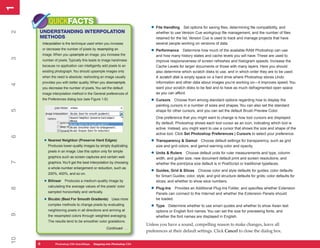
         or decrease the number of pixels by resampling an
                                                                         • Performance       Determine how much of the available RAM Photoshop can use
         image. When you upsample an image, you increase the                and how many history states and cache levels you will have. These are used to
3


         number of pixels. Typically this leads to image harshness          improve responsiveness of screen refreshes and histogram speeds. Increase the
         because no application can intelligently add pixels to an          Cache Levels for larger documents or those with many layers. Here you should
         existing photograph. You should upsample images only               also determine which scratch disks to use, and in which order they are to be used.
         when the need is absolute; reshooting an image usually             A scratch disk is empty space on a hard drive where Photoshop stores Undo
         provides you with better quality. When you downsample,             information and other data about images you’re working on—it improves speed. You
4


         you decrease the number of pixels. You set the default             want your scratch disks to be fast and to have as much defragmented open space
         image interpolation method in the General preferences of           as you can afford.
         the Preferences dialog box (see Figure 1-6):                    • Cursors     Choose from among standard options regarding how to display the
                                                                            painting cursors in a number of sizes and shapes. You can also set the standard
5


                                                                            shape for other cursors, and you can set the default Brush Preview Color.
                                                                            One preference that you might want to change is how tool cursors are displayed.
                                                                            By default, Photoshop shows each tool cursor as an icon, indicating which tool is
                                                                            active. Instead, you might want to use a cursor that shows the size and shape of the
                                                                            active tool. Click Set Photoshop Preferences | Cursors to select your preference.
6


          • Nearest Neighbor (Preserve Hard Edges)                       • Transparency & Gamut        Choose default settings for transparency, such as grid
            Produces lower-quality images by simply duplicating             size and grid colors, and gamut warning color and opacity.
            pixels in an image. Use this option only for simple
                                                                         • Units & Rulers     Choose default units for ruler measurements and type, column
            graphics such as screen captures and certain web                width, and gutter size, new document default print and screen resolutions, and
7


            graphics. You’ll get the best interpolation by choosing         whether the point/pica size default is in PostScript or traditional typefaces.
            a whole-number enlargement or reduction, such as
            200%, 400%, and so on.
                                                                         • Guides, Grid & Slices      Choose color and style defaults for guides; color defaults
                                                                            for Smart Guides; color, style, and grid structure defaults for grids; color defaults for
          • Bilinear    Produces a medium-quality image by                  slices; and whether to show slice numbers.
            calculating the average values of the pixels’ color
                                                                         • Plug-Ins
8


                                                                                       Provides an Additional Plug-Ins Folder, and specifies whether Extension
            sampled horizontally and vertically.                            Panels can connect to the Internet and whether the Extension Panels should
          • Bicubic (Best For Smooth Gradients)         Uses more           be loaded.
            complex methods to change pixels by evaluating
                                                                         • Type    Determine whether to use smart quotes and whether to show Asian text
            neighboring pixels in all directions and arriving at            options or English font names. You can set the size for previewing fonts, and
9


            the resampled colors through weighted averaging.                whether the font names are displayed in English.
            The results tend to be smoother color gradations.
                                                                       Unless you have a sound, compelling reason to make changes, leave all
                                                    Continued . . .
                                                                       preferences at their default settings. Click Cancel to close the dialog box.
10


     8
     8           PC QuickSteps QuickSteps Know Your PC Photoshop CS4
                 Photoshop CS4   Getting to Stepping into
1
                                                                                                                                                       1
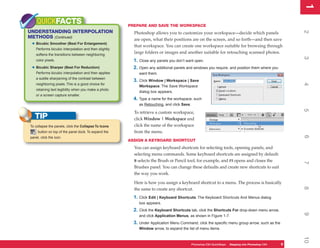
    QUICKFACTS                                         PREPARE AND SAVE THE WORKSPACE
UNDERSTANDING INTERPOLATION


                                                                                                                                                       2
                                                         Photoshop allows you to customize your workspace—decide which panels
METHODS (Continued)                                      are open, what their positions are on the screen, and so forth—and then save
 • Bicubic Smoother (Best For Enlargement)               that workspace. You can create one workspace suitable for browsing through
    Performs bicubic interpolation and then slightly
    softens the transitions between neighboring
                                                         large folders or images and another suitable for retouching scanned photos.


                                                                                                                                                       3
    color pixels.                                        1. Close any panels you don’t want open.
 • Bicubic Sharper (Best For Reduction)                  2. Open any additional panels and windows you require, and position them where you
    Performs bicubic interpolation and then applies         want them.
    a subtle sharpening of the contrast between
                                                         3. Click Window | Workspace | Save


                                                                                                                                                       4
    neighboring pixels. This is a good choice for
                                                            Workspace. The Save Workspace
    retaining text legibility when you make a photo
                                                            dialog box appears.
    or a screen capture smaller.
                                                         4. Type a name for the workspace, such
                                                            as Retouching, and click Save.


                                                                                                                                                       5
                                                         To retrieve a custom workspace,
   TIP                                                   click Window | Workspace and
To collapse the panels, click the Collapse To Icons      click the name of the workspace
     button on top of the panel dock. To expand the      from the menu.


                                                                                                                                                       6
panel, click the icon.
                                                       ASSIGN A KEYBOARD SHORTCUT
                                                         You can assign keyboard shortcuts for selecting tools, opening panels, and
                                                         selecting menu commands. Some keyboard shortcuts are assigned by default:
                                                         B selects the Brush or Pencil tool, for example, and F5 opens and closes the


                                                                                                                                                       7
                                                         Brushes panel. You can change these defaults and create new shortcuts to suit
                                                         the way you work.

                                                         Here is how you assign a keyboard shortcut to a menu. The process is basically


                                                                                                                                                       8
                                                         the same to create any shortcut.
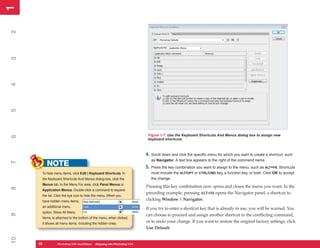
                                                         1. Click Edit | Keyboard Shortcuts. The Keyboard Shortcuts And Menus dialog
                                                            box appears.
                                                         2. Click the Keyboard Shortcuts tab, click the Shortcuts For drop-down menu arrow,


                                                                                                                                                       9
                                                            and click Application Menus, as shown in Figure 1-7.
                                                         3. Under Application Menu Command, click the specific menu group arrow, such as the
                                                            Window arrow, to expand the list of menu items.


                                                                                                                                                       10
                                                                                             Photoshop CS4 QuickSteps Stepping intoKnow Your PC
                                                                                                         PC QuickSteps  Getting to Photoshop CS4   9
                                                                                                                                                   9
1
1
2
3
4
5


                                                                        Figure 1-7: Use the Keyboard Shortcuts And Menus dialog box to assign new
6


                                                                        keyboard shortcuts.


                                                                       4. Scroll down and click the specific menu for which you want to create a shortcut, such
                                                                          as Navigator. A text box appears to the right of the command name.
          NOTE
7


                                                                       5. Press the key combination you want to assign to the menu, such as ALT+F6. Shortcuts
      To hide menu items, click Edit | Keyboard Shortcuts. In             must include the ALT/OPT or CTRL/CMD key, a function key, or both. Click OK to accept
      the Keyboard Shortcuts And Menus dialog box, click the              the change.
      Menus tab. In the Menu For area, click Panel Menus or
                                                                       Pressing this key combination now opens and closes the menu you want. In the
8


      Application Menus. Double-click a command to expand
                                                                       preceding example, pressing ALT+F6 opens the Navigator panel, a shortcut to
      the list. Click the eye icon to hide the menu. When you
      have hidden menu items,                                          clicking Window | Navigator.
      an additional menu
                                                                       If you try to enter a shortcut key that is already in use, you will be warned. You
      option, Show All Menu
9


                                                                       can choose to proceed and assign another shortcut to the conflicting command,
      Items, is attached to the bottom of the menu; when clicked,
      it shows all menu items, including the hidden ones.
                                                                       or to undo your change. If you want to restore the original factory settings, click
                                                                       Use Default.
10


     10
     10         Photoshop CS4 QuickStepsto Know Your PCPhotoshop CS4
                PC QuickSteps    Getting   Stepping into
1
                                                                                                                                                             1
                                                             Work with Photoshop’s Interface


                                                                                                                                                             2
                                                               For the most part, Photoshop uses standard interface conventions for opening
                                                               and closing dialog boxes and windows, entering and changing values, and so
                                                               forth, but it also offers some unique controls.
                                                             ZOOM IN AND OUT
   NOTE


                                                                                                                                                             3
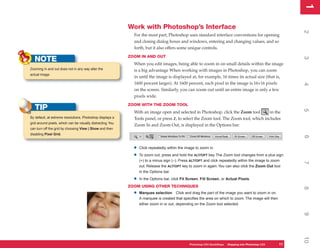
                                                               When you edit images, being able to zoom in on small details within the image
Zooming in and out does not in any way alter the               is a big advantage When working with images in Photoshop, you can zoom
actual image.
                                                               in until the image is displayed at, for example, 16 times its actual size (that is,
                                                               1600 percent larger). At 1600 percent, each pixel in the image is 16×16 pixels


                                                                                                                                                             4
                                                               on the screen. Similarly, you can zoom out until an entire image is only a few
                                                               pixels wide.
                                                             ZOOM WITH THE ZOOM TOOL
   TIP


                                                                                                                                                             5
                                                               With an image open and selected in Photoshop, click the Zoom tool         in the
By default, at extreme resolutions, Photoshop displays a       Tools panel, or press Z, to select the Zoom tool. The Zoom tool, which includes
grid around pixels, which can be visually distracting. You
                                                               Zoom In and Zoom Out, is displayed in the Options bar:
can turn off the grid by choosing View | Show and then
disabling Pixel Grid.


                                                                                                                                                             6
                                                               •   Click repeatedly within the image to zoom in.

                                                               •   To zoom out, press and hold the ALT/OPT key. The Zoom tool changes from a plus sign
                                                                   (+) to a minus sign (–). Press ALT/OPT and click repeatedly within the image to zoom


                                                                                                                                                             7
                                                                   out. Release the ALT/OPT key to zoom in again. You can also click the Zoom Out tool
                                                                   in the Options bar.

                                                               •   In the Options bar, click Fit Screen, Fill Screen, or Actual Pixels.
                                                             ZOOM USING OTHER TECHNIQUES


                                                                                                                                                             8
                                                               •   Marquee selection Click and drag the part of the image you want to zoom in on.
                                                                   A marquee is created that specifies the area on which to zoom. The image will then
                                                                   either zoom in or out, depending on the Zoom tool selected.


                                                                                                                                                             9
                                                                                                                                                             10
                                                                                                 Photoshop CS4 QuickSteps Stepping into PhotoshopPC
                                                                                                             PC QuickSteps  Getting to Know Your CS4   11
                                                                                                                                                        11
1
1
     Use the Hand tool to drag the selection box
                                                                           •   Status bar Type a zoom amount in the text box at the far left of the Status bar.
2


                                                                           •   Hand tool Double-click the Hand tool in the Tools panel to zoom the current image
                                                                               to fit on the screen.
                                                                         ZOOM WITH THE KEYBOARD
                                                                           •   With an image open and selected in Photoshop, press and hold CTRL/CMD and
3


                                                                               repeatedly press the plus (+) key to zoom in.

                                                                           •   Press and hold CTRL/CMD and repeatedly press the minus (–) key to zoom out.

                                                                           •   Press CTRL/CMD+0 to zoom the current image to fit on the screen. Press ALT/
                                                                               OPT+CTRL+0 to zoom the current image to 100 percent.
4


                                                                         ZOOM WITH THE NAVIGATOR PANEL
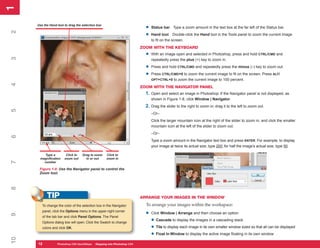
                                                                           1. Open and select an image in Photoshop. If the Navigator panel is not displayed, as
                                                                               shown in Figure 1-8, click Window | Navigator.
                                                                           2. Drag the slider to the right to zoom in; drag it to the left to zoom out.
5


                                                                               –Or–
                                                                               Click the larger mountain icon at the right of the slider to zoom in, and click the smaller
                                                                               mountain icon at the left of the slider to zoom out.
                                                                               –Or–
6


                                                                               Type a zoom amount in the Navigator text box and press ENTER. For example, to display
                                                                               your image at twice its actual size, type 200; for half the image’s actual size, type 50.

        Type a          Click to   Drag to zoom    Click to
      magnification    zoom out      in or out     zoom in
7


        number

      Figure 1-8: Use the Navigator panel to control the
      Zoom tool.
8


           TIP                                                           ARRANGE YOUR IMAGES IN THE WINDOW

        To change the color of the selection box in the Navigator          To arrange your images within the workspace:
        panel, click the Options menu in the upper-right corner
                                                                           •   Click Window | Arrange and then choose an option:
9


        of the tab bar and click Panel Options. The Panel
        Options dialog box will open. Click the Swatch to change               • Cascade to display the images in a cascading stack
        colors and click OK.                                                   • Tile to display each image in its own smaller window sized so that all can be displayed
                                                                               • Float In Window to display the active image floating in its own window
10


     12
     12           Photoshop CS4 QuickStepsto Know Your PCPhotoshop CS4
                  PC QuickSteps    Getting   Stepping into
1
                                                                                                                                                                  1
     UICKSTEPS
                                                                  • Float All In Windows to display all images floating


                                                                                                                                                                  2
NAVIGATING WITHIN A DOCUMENT                                      • Consolidate All To Tabs to dock all images and display
 You need to be able to move around within your image,                names in individual tabs
 especially when you are zoomed in for detail work.
                                                                  • Match Zoom, Match Location, Match Rotation, Match
PAN AN IMAGE WITH THE HAND TOOL                                       All to display images with similar zoom properties, similar
                                                                      location or matched as to which part of the image is


                                                                                                                                                                  3
  1. Open an image. Hold down CTRL/CMD and
                                                                      displayed, similar degree of rotation, or similar zoom plus
     repeatedly press the plus (+) key until your image
                                                                      location properties.
     is larger than the Navigator window.
                                                                      –Or–
  2. Click the Hand tool         in the Tools panel,
     or press H to select the Hand tool.                          • Click the Arrange Document icon on the Application


                                                                                                                                                                  4
                                                                      bar and select the view you’d like based on the visual
  3. Drag your image to pan (move) it around the
                                                                      thumbnail. You can also find choices described in the
     window.
                                                                      preceding bullets.


                                                             Work with Photoshop Controls


                                                                                                                                                                  5
                                                               Use sliders, drop-down lists and controls, flyout menus, and swatches when
                                                               working with Photoshop.
                                                             USE SLIDERS


                                                                                                                                                                  6
                                                               Many Photoshop controls use sliders to change values. To use a slider control in
                                                               Photoshop, click the down arrow to open the slider, and drag the slider to the
    TIP                                                        left to decrease the value or drag it to the right to
 To manipulate or paint in inconvenient image areas, you       increase the value.


                                                                                                                                                                  7
 can rotate your image—without transforming it—with          USE DROP-DOWN LISTS
 the Rotate View tool, which you can access either on
                                                               Drop-down lists in Photoshop are indicated by a little down arrow. To access a
 the Application bar or in the Hand tool group on the
 Tool panel. You drag left or right with the tool on the       drop-down list:


                                                                                                                                                                  8
 document to rotate it; a compass overlay helps keep           1. Click the down arrow.
 track of the image orientation. All tools are oriented to
                                                               2. Click your selection in the list.
 the same rotation angle. To restore your view of the
 document, double-click the Rotate View tool in the Tool       –Or–
 panel. This feature requires
                                                               1. Click within the displayed text of the drop-down list.


                                                                                                                                                                  9
 that you use a video card
 that is OpenGL enabled.                                       2. Use the UP ARROW and DOWN ARROW keys to scroll through the list.


                                                                                                                                                                  10
                                                                                                      Photoshop CS4 QuickSteps Stepping into PhotoshopPC
                                                                                                                  PC QuickSteps  Getting to Know Your CS4   13
                                                                                                                                                             13
1
1
             UICKSTEPS                                                     USE FLYOUT MENUS
2


     USING PHOTOSHOP’S                                                       Flyout menus are indicated in Photoshop by a small arrow in a dialog box or by
     ONLINE HELP                                                             a small arrow at the corner of a tool in the Tools panel.
      Photoshop has a comprehensive online Help system
      available. To access Help:
                                                                             To use a flyout menu:

          • Press F1.                                                        1. Click the flyout arrow.
3


                                                                                                                          Click the
                                                                                                                 arrow to display
      –Or–                                                                   2. Click your selection in             a flyout menu
                                                                                 the menu.
          • On the Application bar, click Help | Photoshop
            Help.                                                          USE SHORTCUT MENUS
                                                                             You access shortcut menus (also called context menus), which display
4


      The Photoshop Help and Support page opens in
      your default web browser. On the right sidebar, click                  additional options, by right-clicking within the canvas—that is, right-
      Photoshop Help (web). Navigate through Help by                         clicking the image. You can also access shortcut menus for various panels by
      searching for keywords in the left sidebar or by using
                                                                             right-clicking inside them. To close a shortcut menu, either select an option
      the Search feature.
                                                                             and begin using the tool, or click anywhere outside of the current canvas
5


      For those times when you can’t always rely on a web
                                                                             or image.
      connection, seriously consider downloading the Help
      file in PDF format from Adobe’s online Help site, for                CHOOSE COLORS
      reference when you don’t have a web connection. It’s a
                                                                             Photoshop has several panels and dialog
6


      40MB Acrobat document.
                                                                             boxes for picking colors with which you can
                                                                             then paint using the Tools panel’s painting
                                                                             tools. These include the Swatches panel and
                                                                             the Color panel, as well as the foreground and
7


                                                                             background swatches, which, when clicked,
                                                                             open the Color Picker. From a swatch, simply
                                                                             click a color to select it.
                                                                           ARRANGE DOCUMENT WINDOWS
8


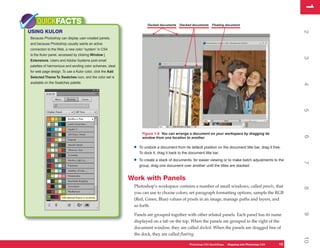
                                                                             As you can see in Figure 1-9, document windows contain tabs when more
                                                                             than one document is open. You can dock, undock, stack, and unstack your
                                                                             documents.

                                                                             •
9


                                                                                 To select a window, click its tab.

                                                                             •   To move a document window to a different location on the workspace, simply drag it by
                                                                                 its title bar or tab.
10


     14
     14             Photoshop CS4 QuickStepsto Know Your PCPhotoshop CS4
                    PC QuickSteps    Getting   Stepping into
1
                                                                                                                                                          1
    QUICKFACTS                                                       Docked documents Stacked documents      Floating document

USING KULOR


                                                                                                                                                          2
Because Photoshop can display user-created panels,
and because Photoshop usually wants an active
connection to the Web, a new color “system” in CS4
is the Kulor panel, accessed by clicking Window |


                                                                                                                                                          3
Extensions. Users and Adobe Systems post small
palettes of harmonious and exciting color schemes, ideal
for web page design. To use a Kulor color, click the Add
Selected Theme To Swatches icon, and the color set is
available on the Swatches palette.


                                                                                                                                                          4
                                                                                                                                                          5
                                                                 Figure 1-9: You can arrange a document on your workspace by dragging its


                                                                                                                                                          6
                                                                 window from one location to another.

                                                            •   To undock a document from its default position on the document title bar, drag it free.
                                                                To dock it, drag it back to the document title bar.

                                                            •   To create a stack of documents, for easier viewing or to make batch adjustments to the


                                                                                                                                                          7
                                                                group, drag one document over another until the titles are stacked.


                                                           Work with Panels
                                                            Photoshop’s workspace contains a number of small windows, called panels, that


                                                                                                                                                          8
                                                            you can use to choose colors, set paragraph formatting options, sample the RGB
                                                            (Red, Green, Blue) values of pixels in an image, manage paths and layers, and
                                                            so forth.


                                                                                                                                                          9
                                                            Panels are grouped together with other related panels. Each panel has its name
                                                            displayed on a tab on the top. When the panels are grouped to the right of the
                                                            document window, they are called docked. When the panels are dragged free of
                                                            the dock, they are called floating.


                                                                                                                                                          10
                                                                                              Photoshop CS4 QuickSteps Stepping into PhotoshopPC
                                                                                                          PC QuickSteps  Getting to Know Your CS4   15
                                                                                                                                                     15
1
1
          QUICKFACTS                                                     OPEN OR CLOSE PANELS
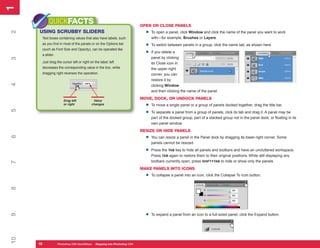
     USING SCRUBBY SLIDERS                                                 •
2


                                                                               To open a panel, click Window and click the name of the panel you want to work
      Text boxes containing values that also have labels, such                 with—for example, Brushes or Layers.
      as you find in most of the panels or on the Options bar
                                                                           •   To switch between panels in a group, click the name tab, as shown here.
      (such as Font Size and Opacity), can be operated like
      a slider.
                                                                           •   If you delete a
                                                                               panel by clicking
3


      Just drag the cursor left or right on the label; left                    its Close icon in
      decreases the corresponding value in the box, while                      the upper-right
      dragging right reverses the operation.                                   corner, you can
                                                                               restore it by
4


                                                                               clicking Window
                                                                               and then clicking the name of the panel.

                      Drag left            Value
                                                                         MOVE, DOCK, OR UNDOCK PANELS
                      or right            changes
                                                                           •   To move a single panel or a group of panels docked together, drag the title bar.
5


                                                                           •   To separate a panel from a group of panels, click its tab and drag it. A panel may be
                                                                               part of the docked group, part of a stacked group not in the panel dock, or floating in its
                                                                               own panel window.
                                                                         RESIZE OR HIDE PANELS
                                                                           •
6


                                                                               You can resize a panel in the Panel dock by dragging its lower-right corner. Some
                                                                               panels cannot be resized.

                                                                           •   Press the TAB key to hide all panels and toolbars and have an uncluttered workspace.
                                                                               Press TAB again to restore them to their original positions. While still displaying any
                                                                               toolbars currently open, press SHIFT+TAB to hide or show only the panels.
7


                                                                         MAKE PANELS INTO ICONS
                                                                           •   To collapse a panel into an icon, click the Collapse To Icon button.
8


                                                                           •
9


                                                                               To expand a panel from an icon to a full-sized panel, click the Expand button.
10


     16
     16           Photoshop CS4 QuickStepsto Know Your PCPhotoshop CS4
                  PC QuickSteps    Getting   Stepping into
1
                                                                                                                                                        1
    UICKSTEPS


                                                                                                                                                        2
SELECTING SCREEN MODES
Photoshop offers three different screen modes. You can
display them one at a time by pressing F repeatedly
to cycle through the screen modes. You can also click
View | Screen Mode, and then click the screen view


                                                                                                                                                        3
you want from the submenu.

 • Standard Screen mode         Your image is placed
   within a window. You can view multiple images at
   once in Standard Screen mode, as shown earlier


                                                                                                                                                        4
   in Figure 1-9.

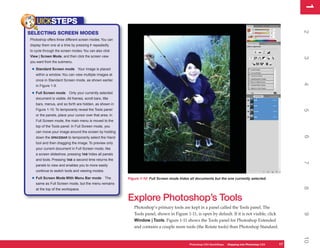
 • Full Screen mode       Only your currently selected
   document is visible. All frames, scroll bars, title
   bars, menus, and so forth are hidden, as shown in
   Figure 1-10. To temporarily reveal the Tools panel


                                                                                                                                                        5
   or the panels, place your cursor over that area. In
   Full Screen mode, the main menu is moved to the
   top of the Tools panel. In Full Screen mode, you
   can move your image around the screen by holding


                                                                                                                                                        6
   down the SPACEBAR to temporarily select the Hand
   tool and then dragging the image. To preview only
   your current document in Full Screen mode, like
   a screen slideshow, pressing TAB hides all panels
   and tools. Pressing TAB a second time returns the


                                                                                                                                                        7
   panels to view and enables you to more easily
   continue to switch tools and viewing modes.

 • Full Screen Mode With Menu Bar mode             The   Figure 1-10: Full Screen mode hides all documents but the one currently selected.
   same as Full Screen mode, but the menu remains


                                                                                                                                                        8
   at the top of the workspace.

                                                         Explore Photoshop’s Tools
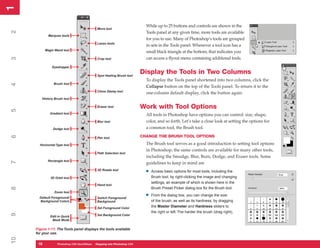
                                                            Photoshop’s primary tools are kept in a panel called the Tools panel. The
                                                            Tools panel, shown in Figure 1-11, is open by default. If it is not visible, click


                                                                                                                                                        9
                                                            Window | Tools. Figure 1-11 shows the Tools panel for Photoshop Extended
                                                            and contains a couple more tools (the Rotate tools) than Photoshop Standard.


                                                                                                                                                        10
                                                                                            Photoshop CS4 QuickSteps Stepping into PhotoshopPC
                                                                                                        PC QuickSteps  Getting to Know Your CS4   17
                                                                                                                                                   17
1
1

                                                                           While up to 25 buttons and controls are shown in the
                                             Move tool
2


                                                                           Tools panel at any given time, more tools are available
             Marquee tools
                                                                           for you to use. Many of Photoshop’s tools are grouped
                                             Lasso tools
                                                                           in sets in the Tools panel. Whenever a tool icon has a
           Magic Wand tool
                                                                           small black triangle at the bottom, that indicates you
                                                                           can access a flyout menu containing additional tools.
3


                                             Crop tool

               Eyedropper

                                             Spot Healing Brush tool
                                                                         Display the Tools in Two Columns
                                                                           To display the Tools panel shortened into two columns, click the
                Brush tool
4


                                                                           Collapse button on the top of the Tools panel. To return it to the
                                             Clone Stamp tool
                                                                           one-column default display, click the button again.
        History Brush tool

                                             Eraser tool                 Work with Tool Options
5


              Gradient tool                                                All tools in Photoshop have options you can control: size, shape,
                                             Blur tool                     color, and so forth. Let’s take a close look at setting the options for
                Dodge tool                                                 a common tool, the Brush tool.
                                                                         CHANGE THE BRUSH TOOL OPTIONS
6


                                             Pen tool

       Horizontal Type tool                                                The Brush tool serves as a good introduction to setting tool options
                                                                           in Photoshop; the same controls are available for many other tools,
                                             Path Selection tool
                                                                           including the Smudge, Blur, Burn, Dodge, and Eraser tools. Some
            Rectangle tool
7


                                                                           guidelines to keep in mind are
                                             3D Rotate tool
                                                                           •   Access basic options for most tools, including the
              3D Orbit tool                                                    Brush tool, by right-clicking the image and changing
                                                                               settings, an example of which is shown here in the
                                             Hand tool
                                                                               Brush Preset Picker dialog box for the Brush tool.
8


                Zoom tool
       Default Foreground/                   Switch Foreground/
                                                                           •   From the dialog box, you can change the size
       Background Colors                     Background                        of the brush, as well as its hardness, by dragging
                                             Set Foreground Color              the Master Diameter and Hardness sliders to
                                                                               the right or left. The harder the brush (drag right),
9


              Edit in Quick                  Set Background Color
               Mask Mode

     Figure 1-11: The Tools panel displays the tools available
     for your use.
10


      18
      18          Photoshop CS4 QuickStepsto Know Your PCPhotoshop CS4
                  PC QuickSteps    Getting   Stepping into
1
                                                                                                                                                                             1
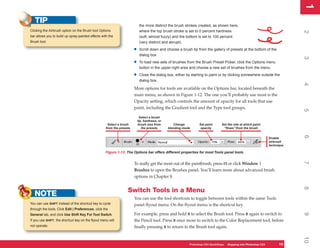
   TIP                                                                      the more distinct the brush strokes created, as shown here,
Clicking the Airbrush option on the Brush tool Options                      where the top brush stroke is set to 0 percent hardness


                                                                                                                                                                             2
bar allows you to build up spray-painted effects with the                   (soft, almost fuzzy) and the bottom is set to 100 percent
Brush tool.                                                                 (very distinct and abrupt).

                                                                       •    Scroll down and choose a brush tip from the gallery of presets at the bottom of the
                                                                            dialog box.


                                                                                                                                                                             3
                                                                       •    To load new sets of brushes from the Brush Preset Picker, click the Options menu
                                                                            button in the upper-right area and choose a new set of brushes from the menu.

                                                                       •    Close the dialog box, either by starting to paint or by clicking somewhere outside the
                                                                            dialog box.


                                                                                                                                                                             4
                                                                       More options for tools are available on the Options bar, located beneath the
                                                                       main menu, as shown in Figure 1-12. The one you’ll probably use most is the
                                                                       Opacity setting, which controls the amount of opacity for all tools that use
                                                                       paint, including the Gradient tool and the Type tool groups.


                                                                                                                                                                             5
                                                                            Select a brush
                                                                           tip, hardness, or
                                                     Select a brush        brush size from        Change         Set paint      Set the rate at which paint
                                                    from the presets          the presets      blending mode      opacity        “flows” from the brush


                                                                                                                                                                             6
                                                                                                                                                                 Enable
                                                                                                                                                                 airbrush
                                                                                                                                                                 technique

                                                    Figure 1-12: The Options bar offers different properties for most Tools panel tools.


                                                                                                                                                                             7
                                                                       To really get the most out of the paintbrush, press F5 or click Window |
                                                                       Brushes to open the Brushes panel. You’ll learn more about advanced brush
                                                                       options in Chapter 8.


                                                                                                                                                                             8
                                                                  Switch Tools in a Menu
   NOTE                                                                You can use the tool shortcuts to toggle between tools within the same Tools
You can use SHIFT instead of the shortcut key to cycle                 panel flyout menu. On the flyout menu is the shortcut key.
through the tools. Click Edit | Preferences, click the
                                                                       For example, press and hold B to select the Brush tool. Press B again to switch to


                                                                                                                                                                             9
General tab, and click Use Shift Key For Tool Switch.
If you use SHIFT, the shortcut key on the flyout menu will             the Pencil tool. Press B once more to switch to the Color Replacement tool, before
not operate.                                                           finally pressing B to return to the Brush tool again.


                                                                                                                                                                             10
                                                                                                           Photoshop CS4 QuickSteps Stepping into PhotoshopPC
                                                                                                                       PC QuickSteps  Getting to Know Your CS4        19
                                                                                                                                                                       19
1
1

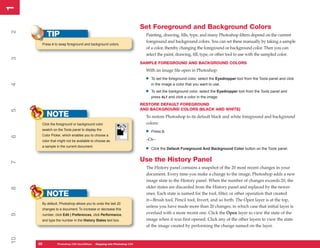
                                                                       Set Foreground and Background Colors
2


          TIP                                                            Painting, drawing, fills, type, and many Photoshop filters depend on the current
                                                                         foreground and background colors. You can set these manually by taking a sample
      Press X to swap foreground and background colors.
                                                                         of a color, thereby changing the foreground or background color. Then you can
                                                                         select the paint, drawing, fill, type, or other tool to use with the sampled color.
3


                                                                       SAMPLE FOREGROUND AND BACKGROUND COLORS
                                                                         With an image file open in Photoshop:

                                                                         •   To set the foreground color, select the Eyedropper tool from the Tools panel and click
                                                                             in the image a color that you want to use.
4


                                                                         •   To set the background color, select the Eyedropper tool from the Tools panel and
                                                                             press ALT and click a color in the image.
                                                                       RESTORE DEFAULT FOREGROUND
                                                                       AND BACKGROUND COLORS (BLACK AND WHITE)
5


          NOTE                                                           To restore Photoshop to its default black and white foreground and background
      Click the foreground or background color                           colors:
      swatch on the Tools panel to display the
                                                                         •   Press D.
      Color Picker, which enables you to choose a
6


      color that might not be available to choose as                     –Or–
      a sample in the current document.
                                                                         •   Click the Default Foreground And Background Color button on the Tools panel.


                                                                       Use the History Panel
7


                                                                         The History panel contains a snapshot of the 20 most recent changes in your
                                                                         document. Every time you make a change to the image, Photoshop adds a new
                                                                         image state to the History panel. When the number of changes exceeds 20, the
                                                                         older states are discarded from the History panel and replaced by the newer
8


          NOTE                                                           ones. Each state is named for the tool, filter, or other operation that created
                                                                         it—Brush tool, Pencil tool, Invert, and so forth. The Open layer is at the top,
      By default, Photoshop allows you to undo the last 20
                                                                         unless you have made more than 20 changes, in which case that initial layer is
      changes to a document. To increase or decrease this
                                                                         overlaid with a more recent one. Click the Open layer to view the state of the
9


      number, click Edit | Preferences, click Performance,
      and type the number in the History States text box.                image when it was first opened. Click any of the other layers to view the state
                                                                         of the image created by performing the change named on the layer.
10


     20
     20         Photoshop CS4 QuickStepsto Know Your PCPhotoshop CS4
                PC QuickSteps    Getting   Stepping into
1
                                                                                                                                                             1
   TIP
                                                           To revert to a previous state, click that layer in the History panel, and save the
If you’re not sure if a change is an improvement or not,


                                                                                                                                                             2
                                                           file or begin working on it again. Any changes that existed in the panel after this
press CTRL/CMD+Z repeatedly to switch between the
                                                           state will be discarded from the History panel as soon as you save the work or
original image and the changed image to compare them.
                                                           make new changes.

                                                           The following procedure explains how Photoshop’s History panel keeps track


                                                                                                                                                             3
                                                           of recent changes and allows you to easily compare earlier states and revert to
                                                           an earlier state:
                                                           1. Open an image in Photoshop and make your changes to it.
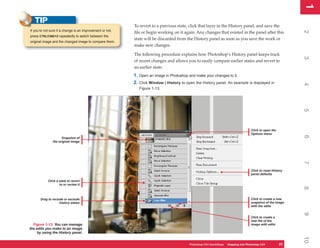
                                                           2. Click Window | History to open the History panel. An example is displayed in


                                                                                                                                                             4
                                                              Figure 1-13.


                                                                                                                                                             5
                                                                                                                                   Click to open the
                                                                                                                                   Options menu


                                                                                                                                                             6
                     Snapshot of
               the original image


                                                                                                                                                             7
                                                                                                                                   Click to reset History
                                                                                                                                   panel defaults

            Click a state to revert
                    to or review it


                                                                                                                                                             8
       Drag to include or exclude                                                                                                  Click to create a new
                    history states                                                                                                 snapshot of the image
                                                                                                                                   with the edits


                                                                                                                                                             9
                                                                                                                                   Click to create a
                                                                                                                                   new file of the
  Figure 1-13: You can manage                                                                                                      image with edits
the edits you make to an image
     by using the History panel.


                                                                                                                                                             10
                                                                                          Photoshop CS4 QuickSteps Stepping into PhotoshopPC
                                                                                                      PC QuickSteps  Getting to Know Your CS4          21
                                                                                                                                                        21
1
1
             UICKSTEPS                                                     3. Click a layer to select it. The image will revert to that state.
2


     UNDOING AND REDOING ACTIONS                                              • All states after the selected state will be dimmed, but they are still available if you
      In addition to the History panel, you can also use the                     click them.
      Undo and Redo commands to undo your most recent                         • If you begin to work with the image at this point, all succeeding states are deleted.
      actions.
                                                                              • You can drag the slider along the edge of each history state up or down to exclude
          • To undo the most recent action, press CTRL/
3


                                                                                 or reinstate history states.
            CMD+Z or click Edit | Undo.
                                                                         MAKE A HISTORY PANEL SNAPSHOT
          • To redo the most recent change, press CTRL/                    Twenty undo actions may seem like a lot, but you can use them up before you
            CMD+Z or click Edit | Redo operation.
                                                                           know it. Twenty quick strokes with the Brush tool, for example, will do it. The
      The Undo command only undoes the most recent
4


      operation. If you want to undo more than one operation,
                                                                           History panel can take a snapshot of an image at a particular point in time. This
      use the Step Backward command:                                       snapshot will remain available until you delete it or close the document.

          • To move backward through recent changes, press                 To take a snapshot of an image:
            ALT+CTRL+Z or click Edit | Step Backward.
                                                                           1. If the History panel is not open, click Window | History.
5


          • To move forward again through recent changes,
            press SHIFT+CTRL+Z or click Edit | Step Forward.
                                                                           2. If you want to take a snapshot of an earlier state, click that layer in the History panel.
                                                                              The image reverts to that state.
          • To step backward or step forward through the
            History states, you can also click the Options
                                                                           3. Click the Create New Snapshot button at the bottom of the panel, as shown in
                                                                              Figure 1-13.
6


            menu and click the option Step Backward or
            Step Forward.                                                REVERT TO A SNAPSHOT
                                                                           1. If the History panel is not open, open it by clicking Window | History.
                                                                           2. In the History panel, click the snapshot. The image reverts to that state.
7


           TIP
8


      You can double-click a default snapshot name to rename
      it with a more meaningful name.
9
10


     22
     22           Photoshop CS4 QuickStepsto Know Your PCPhotoshop CS4
                  PC QuickSteps    Getting   Stepping into
1
How to…


                                                                                                                                 2
•   Understand Bitmaps


                                                                                                                                 2
•   Understand Vector Shapes
    Understanding Compression
•   Understand Dimensions


                                                                                                                                 3
    vs. Resolution
•   Understand Image Size,
    Resampling, and Resolution   Chapter 2
                                                       Creating, Importing,


                                                                                                                                 4
•   Choose a Color Mode
    Using Indexed Color Mode
•   Scan an Image in Photoshop
                                                        and Saving Images
•   Import Digital Photos


                                                                                                                                 5
•   Download Your “Negatives”     With Photoshop, you can organize, sort, search for, preview,
    to Bridge
                                  and open files on your hard drive or network, as well as
    Saving as DNG
                                  import images from scanners and digital cameras. First you


                                                                                                                                 6
•   Save Your Files
                                  will learn about the differences between vector-based and
                                  bitmap-based images.


                                                                                                                                 7
                                 Work with Image Types
                                  Computer graphics files—images, photos, drawings—can come in different
                                  file formats, color models, and compression schemes. Fortunately, Photoshop


                                                                                                                                 8
                                  allows you to work with almost any image file in use today, as well as some
                                  legacy file formats.


                                 Understand Bitmaps


                                                                                                                                 9
                                  Bitmap images (sometimes called raster images) are composed of rectangular
                                  color cells called pixels. Think of a pixel as a placeholder for color within a grid


                                                                                                                                 10
                                                        Photoshop CS4 QuickSteps   Creating, Importing, and Saving Images   23
1

                                                                                     that makes up an image—a pixel doesn’t have a fixed size; you can change
2
2


                                                                                     the size of pixels relative to the overall image in Photoshop, as discussed
                                                                                     later in this chapter. If you open a color photograph in Photoshop and zoom
                                                                                     all the way in by holding down the CTRL/CMD key and pressing the plus (+)
                                                                                     key ten times, you can clearly see the pixels that make up the photograph.
                                                                                     The number of pixels is proportional to image resolution: the more pixels per
3


                                                                                     inch, the higher the resolution. Most of the different image-file formats you’ll
                                                                                     encounter—including PSD, BMP, PICT, GIF, JPG, TIF, and PNG—are bitmap
                                                                                     formats. (See Table 2-1 for more information about the individual file types.)
     Table 2-1: Short Description of Common File Types
4


      PSD       Photoshop native file format. Saves all Photoshop-specific features such as layers, effects, Smart Filters. Retains image resolution and
                accepts color management profiles. Compatible between Windows and Mac OS.
      (TIFF)    Tagged Image File Format. Saves almost all Photoshop-specific features such as layers, but not dynamic effects, layer masks, and so
      TIF       on. Can retain image resolution info and color management profiles. Compatible between Windows and Mac OS.
5


      PDF       Adobe Acrobat Portable Document File. Saves compressed page with full-color images. Compositions can be saved and reopened in
                Photoshop with text embedded with subset of font used. Ideal file format for sharing searchable text and graphics as Web documents.
      PNG       Portable Network Graphic. Supports 8- and 24-bit color depths, can be saved as a single layer file containing transparency. Compatible
                with many other graphics software, can be placed in Word documents, email inline graphics, and most Web browsers will display PNGs
                correctly (if you do not use transparency).
6


      (JPEG)    Joint Photographic Experts Group; supports 24-bit color, can retain image resolution and color management profiles. Uses lossy
      JPG       compression, occasionally visible in image, the de facto image format for Web pages.
      GIF       Graphics Interchange Format. Limited to an index of 256 maximum colors, usually displays dithering in photographs. Does not use
                RGB color composite channels, useful for logos on the Web, and GIF animations can be created and exported in PS.
7


      DNG       Digital Negative. File format you can use in Camera Raw (editor) to save digital camera photos from nearly all camera manufacturers,
                retaining all exposure settings and metadata. Photoshop can open a DNG file and you can perform editing work outside of Camera
                Raw. DNG standardizes the wide variations in file formats used by different camera manufacturers. TIFF and JPEG images can also be
                saved as DNGs via Camera Raw.
      AI        Adobe Illustrator file, not a bitmap, but instead a vector graphic. You can place an AI file in a PS composition as a Smart Object, and
8


                paste AI data from the clipboard directly into a document in PS as vector paths.
      EPS       Encapsulated PostScript. PS can write this type of file, and usually can open one. Typically an EPS file contains bitmap information
                although it can contain vector paths as well. Used mostly for placing in desktop publishing documents, EPS files are actually printer
                data that must be interpreted by Photoshop to be viewable and editable. EPS files are much larger than an equivalent PSD image.
      BMP       Older Windows bitmap file format. Can save 24-bit color information, BMP files cannot retain image resolution data or color
9


                management profiles.
      PICT      Macintosh native image file format. Can save 24-bit color information and an alpha channel for masking. Photoshop is one of the few
                programs that can read and write a PICT file that can be opened and edited by both Windows and Mac users.
10


      24
      24         Photoshop CS4 QuickStepsto Know Your PC
                 PC QuickSteps    Getting   Creating, Importing, and Saving Images
1
   NOTE
                                                              Bitmaps:


                                                                                                                                                               2
Photoshop supports a black-or-white color mode called


                                                                                                                                                               2
Bitmap mode. It is not the same thing as a bitmap image.      •   Contain comprehensive information about an image, subtle color differentiation,
Since Bitmap mode is black or white, pixels can be either         shading, and complexity.
black or white, with no in-between grayscale shades that      •   Are resolution-dependent; photo quality varies proportionately to image dimensions,
you see in black and white photography.                           so high-quality photos that contain megapixels of visual data can be quite large in


                                                                                                                                                               3
                                                                  saved file size.
                                                              •   Can be recognized using
                                                                  most programs, making them
   NOTE                                                           nearly universally accessible.
                                                              •   Can be decreased in


                                                                                                                                                               4
When working with a composition in Photoshop that
                                                                  image size or dimension
contains layers or effects, you can make a clipboard
                                                                  with little degradation in
copy of the composition that can be pasted into almost
                                                                  quality, but increasing size
any program. Press CTRL/CMD+A to select all, then click
                                                                  can result in the loss of
Edit | Copy Merged. Photoshop makes a flattened copy


                                                                                                                                                               5
                                                                  quality—usually focus, with
of all the special elements in the composition that cannot
                                                                  the introduction of blotchy,
be opened in, for example, Word, and copies the image
                                                                  unwanted artifacts.
data to the clipboard as standard bitmap data, without
changing the composition in PS.
                                                                                                                          Magnified area
                                                                                                                          showing pixels


                                                                                                                                                               6
                                                             Understand Vector Shapes
                                                              Whereas bitmaps are made up of pixels, vector-based images are made up of
                                                              points, lines, and curves, which combine to form the paths that visually describe
                                                              the vector shape. A vector-based image file doesn’t record the position and color


                                                                                                                                                               7
                                                              of every pixel; rather, it records the position and color of every curve (called
                                                              paths when you use Photoshop’s Pen tool). Whereas a bitmap-based image
   NOTE                                                       file is like a photo or painting, a vector-based file is more like a coloring book,
                                                              containing only outlines and fills. Adobe Illustrator and CorelDraw are vector-


                                                                                                                                                               8
Your computer’s monitor is a raster device, displaying
                                                              drawing programs that can import bitmaps, whereas Photoshop is a bitmap-
one or more dots of color that correspond to a pixel
                                                              editing program that contains a few tools for creating and editing vectors.
in an image. At a resolution of 800×600, your monitor
displays 480,000 pixels at a time. Because your monitor       Because they are composed of shapes rather than individual pixels, vectors can
is raster based, lines in vector-based images might not


                                                                                                                                                               9
                                                              be scaled up or down as far as you like without losing the original design quality.
be perfectly smooth onscreen unless the application uses
                                                              When vectors are resized, the positions of the points, lines, curves, and paths are
an anti-aliasing filter to display the artwork.


                                                                                                                                                               10
                                                                                       Photoshop CS4 QuickSteps QuickSteps Importing, andKnow Your PC
                                                                                                             PC Creating,     Getting to Saving Images   25
                                                                                                                                                          25
1
          NOTE
                                                                                    mathematically calculated and scaled. For example, these two images look
      Most computer monitors have a resolution of either 72 or
2
2


                                                                                    identical at normal size, but when they are enlarged, you can see the difference.
      96 ppi (pixels per inch). Traditionally, standard-definition
      monitors have been calibrated to 72 ppi, which is an
      Adobe/Apple standard. Microsoft and some other software
      vendors have adopted 96 ppi; Photoshop “likes” 72 ppi.
3


          TIP                                                                       Here are two characteristics of vectors:

      When creating JPGs, always keep a version of your image
                                                                                •     Vector artwork is usually smaller in saved file size than a bitmap equivalent piece
                                                                                      of art.
4


      in an uncompressed format, such as Photoshop PSD.
                                                                                •     Vector files are not as commonly accepted by other programs as bitmaps.

                                                                                    Vector-based image files are generally much smaller than raster image files.
                                                                                    If a vector-based image file of a red circle on a white background weighs in at
          QUICKFACTS
5


                                                                                    2000 bytes (2KB) in vector format, it will be about the same file size regardless
                                                                                    of the image size. A ten-inch circle will be the same file size as a one-inch circle.
     UNDERSTANDING COMPRESSION
                                                                                    In contrast, a bitmap of the same circle grows larger as you increase the
      To mitigate the size of bitmap images, you can
      compress them. Consider a red circle on a                                     dimensions, because file size for bitmaps is resolution dependent. This isn’t to
6


      white background.                                                             say that vector files are always small—if you had the patience to draw a vector
      Imagine recording every pixel in that image, starting with                    piece of art with 3000 vector paths, it’s likely that the file size would be larger
      the upper-left corner and reading from left to right and                      than a bitmap equivalent of the same art.
      top to bottom, just as you read a page of text. You would
                                                                                    Vector-based files are best suited to such things as clip art, logos, and bold
7


      write, “pixel 1: white; pixel 2: white; pixel 3: white…” and
      so forth, until you finally reached a red pixel—pixel 199.                    graphics with large, smooth areas filled with relatively simple colors. Common
      Suppose, instead, that you wrote, “pixel 1 is white and                       vector file formats include Adobe Illustrator (AI), SVG (the Web’s Scalable
      so are the next 197 pixels in this row.” That’s an example                    Vector Graphic), WMF (Windows metafile), and proprietary formats such as
      of lossless compression; no visual or file data has                           CorelDraw’s CDR and Xara’s XAR formats. Of these pure vector file formats,
8


      been discarded in the compression process. Instead of
                                                                                    Photoshop can only import Illustrator paths, either from the Clipboard into
      198 numbers—the color of each of the first 198 pixels—
                                                                                    a document or by placing the design as a Smart Object.
      you have two numbers: the number of pixels of the same
      color and the color itself. Typically, programs that apply                    Photoshop files can include both vector and raster components. A given
      lossless compression to bitmap images use a variation                         Photoshop PSD file can have all vector components, all raster components,
9


      on LZW compression (a lossless data compression
                                                                                    or some combination of the two. Photoshop files can include several forms
                                                    Continued . . .                 of vector objects: text, shapes, and paths.
10


     26
     26         Photoshop CS4 QuickStepsto Know Your PC
                PC QuickSteps    Getting   Creating, Importing, and Saving Images
1
     QUICKFACTS


                                                                                                                                                               2
UNDERSTANDING COMPRESSION


                                                                                                                                                               2
(Continued)
 algorithm created by Abraham Lempel, Jacob Ziv, and
 Terry Welch in 1984). Photoshop has the capability to
 compress losslessly to its own file format (PSD) and also


                                                                                                                                                               3
 to TIFF and PNG. Think of lossless compression the
 same way you consider Zip and StuffIt file compression;
 the compressing process simply removes redundant
 data, substituting more efficient code, similar to the
 example of the red circle. But unlike file compression


                                                                                                                                                               4
 formats, image files do not need to be decompressed—
 Photoshop does this on-the-fly whenever you open a file.

 Compression is a good thing, but there’s a catch. There
 is also a lossy compression type—JPEG and GIF, for


                                                                                                                                                               5
 example, use lossy compression—in which visual data
 is averaged, and some original data that the compression
                                                                       Figure 2-1: On the left you see the original image vs. the heavily
 scheme believes is unimportant data is discarded.                     compressed JPG image on the right. You can see the loss of detail
 Although the file size will be smaller, often an advantage,           in the image to the right.
 once image information is gone, you cannot get it back.


                                                                                                                                                               6
 JPG (or JPEG) compression is the worst offender.
 Figure 2-1 shows an example of a TIF file next to a JPG       Understand Dimensions vs. Resolution
 file. JPG uses a lossy algorithm that actually throws          Because bitmap images are resolution dependent, the dimensions of your photo
 away information in order to squeeze the image down to
                                                                are inversely proportional to its resolution. Resolution is the frequency of pixels


                                                                                                                                                               7
 a smaller size, and at higher compression settings, the
                                                                per unit of physical, traditional measurement; 300 pixels/inch, 240 pixels/cm,
 degradation becomes quite apparent. For instance, JPG
 compression discards pixels with similar hues. Keep in
                                                                and 120 pixels/pica are all examples of resolution, expressed as a fraction, or
 mind that a pixel is a mixture of colors. For example,         more commonly in the United States as “ppi”—pixels per inch. Consider an
 in the RGB (Red, Green, Blue) format, the pixel is a           image of 300×300 pixels. At a resolution of 72 dpi, the document dimensions will


                                                                                                                                                               8
 mixture of a shade of red, green, and blue, so some            print out a bit larger than four inches square. At a resolution of 150 dpi, it will
 adjacent pixels with similar mixtures of red, green, and       print out at two inches square. At a resolution of 300 dpi, document dimensions
 blue hues might be lost.
                                                                will print out at an inch square. However, the image’s pixel dimensions remain
                                                                unchanged at 300×300 pixels. You can examine and change an image’s dimensions,


                                                                                                                                                               9
                                                                resolution, and printed size by clicking Image | Image Size.


                                                                                                                                                               10
                                                                                       Photoshop CS4 QuickSteps QuickSteps Importing, andKnow Your PC
                                                                                                             PC Creating,     Getting to Saving Images   27
                                                                                                                                                          27
1

                                                                      Understand Image Size,
2
2


                                                                      Resampling, and Resolution
                                                                              In Photoshop you have the option in the Image Size dialog box to resize an
                                                                              image, or to resample it. Resampling alters original photo visual information.
                                                                              This might not be what you desire, so read this section carefully.
3


                                                                          •     Resizing leaves the original pixels in your photo unchanged. When you increase
                                                                                dimensions, you decrease resolution, and vice versa.

                                                                          •     Resampling an image changes the number of pixels in the file, making the dimensions,
                                                                                resolution, and saved file size smaller or larger. Resampling might be necessary in
4


                                                                                your work, but usually the result is some loss of photo focus, because Photoshop either
                                                                                discards original pixels or creates new ones; in neither case is 100 percent of the finished
                                                                                image made up of only the pixels your camera took. See the “Understanding Interpolation
                                                                                Methods” QuickFacts in Chapter 1 for additional information on setting standards for
                                                                                sampling and resampling.
5


                                                                      CHANGE IMAGE RESOLUTION
                                                                              To change an image’s resolution without changing its pixel dimensions at the
                                                                              same time:
6


                                                                          1. Click Image | Image Size. The Image Size dialog box appears.
                                                                          2. Deselect Resample Image.
                                                                          3. Type a new Resolution value and click OK.
                                                                        To change an image’s resolution and its pixel dimensions:
7


                                                                          1. Click Image | Image Size.
                                                                          2. Click the Resample Image check box.
                                                                          3. Type a new Resolution value. Under Pixel Dimensions, the Width and Height
8


                                                                                fields automatically update to reflect the new resolution.
                                                                          4. Click OK.
                                                                      RESAMPLE AN IMAGE
                                                                              When you decrease the size of a bitmap image and leave the option Resample
9


                                                                              Image checked in the Image Size dialog box, you throw away some of the
                                                                              pixels. Normally this is not a problem because the smaller image diminishes the
                                                                              viewer’s ability to discern details that are missing. When you increase the size
10


     28
     28   Photoshop CS4 QuickStepsto Know Your PC
          PC QuickSteps    Getting   Creating, Importing, and Saving Images
1
 of that same original image, Photoshop needs to add pixels to it. In a nutshell,


                                                                                                2
                                                                                                2
 Photoshop wasn’t around at your shoot to see what details need to be added,
 so it has to guess via a process called “interpolation” and the result is always
 some sort of degradation to your original image: detailed images suffer the
 most, whereas simple landscape scenes tend to hide the artificially enlarged file.
 To minimize the obviousness of upsampling a photo, try to increase the size no


                                                                                                3
 more than 10 percent at a time. See the “Understanding Interpolation Methods”
 QuickSteps in Chapter 1.

 To change the pixel dimensions of an image:


                                                                                                4
 1. Click Image | Image Size. The Image Size dialog box appears.
 2. Check the Resample Image checkbox.
 3. Under Pixel Dimensions, type a new Width or Height for the image. The other
    dimension automatically updates.


                                                                                                5
                                                                                                6
                                                                                                7
    –Or–


                                                                                                8
    Under Document Size, type a new Width or Height for the image. Photoshop
    automatically updates the other dimensions.


Choose a Color Mode


                                                                                                9
 Taking the time to think about color when you are creating an image can be a wise
 decision. Four common color modes are grayscale, RGB, CMYK, and LAB color.
 The mode you choose depends on whether you will be printing your images from


                                                                                                10
                        Photoshop CS4 QuickSteps QuickSteps Importing, andKnow Your PC
                                              PC Creating,     Getting to Saving Images   29
                                                                                           29
1
          QUICKFACTS                                                                 your own paper, using a printing press, or using your images on the computer,
2
     USING INDEXED COLOR MODE
2


                                                                                     such as in a web page.
      Indexed Color mode structures an image quite differently
                                                                                 1. Click File | New. The New dialog box appears.
      from the way in which RGB Color mode structures images.
      RGB Color mode images are built out of additive channels                   2. Select a file size from the Preset drop-down list, or manually enter image dimensions
      of red, green, and blue; the color capability, for example,                      and resolution.
3


      of an 8-bit/pixel RGB image is 16.7 million possible colors.               3. Click the Color Mode drop-down arrow and choose one of the following options:
      In contrast, Indexed Color mode images use a color table
                                                                                       • Bitmap mode images use black or white color values. They have a depth of 1 bit.
      header within the saved file structure that has a maximum                           This mode will probably be of interest only if you need to convert a monochrome
      color capability of 256 possible colors. This Indexed Color                         (Grayscale mode) photo or other image so that it prints crisply at large sizes. In
      mode table in the header of the file is commonly called its                         the Bitmap mode dialog box, you have options for Diffusion Dithering and Pattern
4


      palette. Indexed color mode images typically are smaller                            Dithering a grayscale photo down to black or white. Bitmap mode can produce
      than their RGB Color mode equivalent. How successfully                              visually interesting, stylized results such as a view through a ground-glass window.
      an Indexed Color image can represent an RGB photo                                   However, a document in this mode cannot be edited using most of Photoshop’s
      depends largely on the photographic content of the original                         sophisticated selection and painting tools—the Brush tool, for example, will not
5


      photo. Photoshop dithers—alternates available colors in the                         produce soft edges, and regardless of any color you choose with which to paint,
      palette to make a checkerboard sort of image—to simulate                            you’ll only be able to paint with the nearest match to black, or white.
      missing colors, which, depending on the visual complexity                        • Grayscale images have no color; rather, a grayscale image is 256 shades of black,
      of the original image, can make the file size larger than a                         from pure black (0) to pure white (255). In photography, grayscale is known as
      full-color JPEG equivalent image. In most cases, you should                         “black and white.”
6


      use Indexed Color mode only for the Web and on images
      with large areas of solid color, such as logos. GIF is the
                                                                                       • RGB Color (Red, Green, Blue) is the standard color mode for images displayed on
                                                                                          your monitor. RGB mode images are assigned a value from 0 (black) to 255 (white)
      most common file type that uses Indexed Color mode.                                 for each of the red, green, or blue values of a pixel. Images for web pages and
      You cannot create a new Indexed Color-mode file in                                  other computer applications should almost always be RGB. Although the inks used
                                                                                          in personal inkjet printers are based around CMY and K pigments, most of today’s
7


      Photoshop, but you can convert an existing image
      to Indexed Color mode, or you can save a file in any                                printers have internal circuitry that performs the conversion between RGB images
      color-mode file as an Indexed Color-mode GIF file via                               and the CMYK equivalent inks. For all intents and purposes, CMYK (and the newer
      Photoshop’s File | Save For Web & Devices command.                                  hex ink) printers are based on RGB imagery.

                                                                                       • CMYK Color (Cyan, Magenta, Yellow, Black) is the standard color mode for
8


                                                                                          commercial offset printing. Very seldom will you find a personal printer that prints
                                                                                          a CMYK mode photo correctly (see RGB mode above). Pixels are assigned a
          NOTE                                                                            percentage value representing color—so the lightest colors have the smallest
      Your Working CMYK View mode is completely dependent                                 percentages in each of the four color channels. Images destined to be published
      on the choice you make under Edit | Color Settings.                                 on a commercial printer ultimately might need to be changed to CMYK mode, but
9


      Usually (for the United States), US Web-Coated SWOP
                                                                                          generally this is not the responsibility of the photographer. To see an image in a
                                                                                          screen simulation of CMYK mode, click View | Proof Setup | Working CMYK.
      is a good working CMYK Working Space option to
                                                                                          Don’t forget to switch this back to RGB, or your future editing work will be in print
      choose from the drop-down list.
                                                                                          and not monitor mode.
10


     30
     30          Photoshop CS4 QuickStepsto Know Your PC
                 PC QuickSteps    Getting   Creating, Importing, and Saving Images
1
                                                                 • LAB Color is considered a device-independent color mode; its values apply to


                                                                                                                                                                2
                                                                                                                                                                2
                                                                     inkjet printing, reflexography (printing on plastic or film), and other devices that
                                                                     apply a pigment, dye, even pure light, to a surface. It’s a good mode to work in
                                                                     if your assignment is, for example, a photo or logo that needs to color match the
                                                                     printed version of the logo on a T-shirt or bumper sticker. LAB color mode is based
                                                                     on the human vision spectrum, rather than empirical values in RGB additive and


                                                                                                                                                                3
                                                                     CMYK subtractive color modes. Briefly, LAB mode provides you with, “What you
                                                                     see onscreen is more or less what you’ll get when you print this to paper, film, or
                                                                     other surface.” Unfortunately, LAB mode images cannot be saved to common file
                                                                     formats, but the good news is that LAB and RGB color spaces almost completely
                                                                     overlap: essentially, they’re the same except for their structure. The color values are


                                                                                                                                                                4
                                                                     made up of light (L), green-red values (A), and blue-yellow values (B) from +128 to
                                                                     –127 for each.
                                                              4. Click OK to create the file.
                                                            CONVERT AN IMAGE TO A DIFFERENT COLOR MODE
   NOTE


                                                                                                                                                                5
                                                              Even though an image exists in a certain color mode, you can change it. You
To move from a higher bit-per-pixel mode to a lower one,      would want to do this if you have an image destined for a web site or online
you must travel progressively (in several steps) down the
                                                              gallery, for example.
ladder, so to speak. For example, an RGB image must
become Grayscale mode before you can access Bitmap            From the Application bar, click Image | Mode and choose an option:


                                                                                                                                                                6
from the menu.                                                RGB Color or Grayscale.
                                                            CONVERT A COLOR IMAGE TO GRAYSCALE
                                                              Click Image | Adjustments | Desaturate. This removes the color but leaves


                                                                                                                                                                7
                                                              the image in its color mode. You can, for example, paint on color with the
                                                              Brush tool.

                                                              –Or–
                                                              1. Click Image | Mode | Grayscale. Photoshop prompts you to confirm either that you


                                                                                                                                                                8
                                                                 want to flatten the image (assuming you have more than one layer) or that you want
                                                                 to discard color information.
                                                              2. Click Flatten to reduce the image to one layer, or click OK to discard the color
                                                                 information. You can now only paint on the image in shades of gray.


                                                                                                                                                                9
                                                            USE GRAYSCALE ALTERNATIVE
                                                              You can use the Black and White adjustment feature as an alternative to
                                                              creating a grayscale image. Click Image | Adjustments | Black & White.


                                                                                                                                                                10
                                                                                        Photoshop CS4 QuickSteps QuickSteps Importing, andKnow Your PC
                                                                                                              PC Creating,     Getting to Saving Images   31
                                                                                                                                                           31
1

                                                                                    In the Black And White dialog box, click the Preset drop-down arrow and
2
2


                                                                                    choose a filter, and then mix the channels so that they give you the effect
                                                                                    you want. You get a much better looking image than you do when traveling
                                                                                    directly from RGB Color mode to Grayscale mode. The added benefit is that
                                                                                    the image is still in RGB Color mode, which means not only that you’ll save
                                                                                    on the black cartridge when you print to inkjet (your inkjet printer will use
3


                                                                                    all the cartridges and not just the black one), but you can also add RGB color
                                                                                    images to this apparently grayscale photo, to create stunning visual effects
                                                                                    using Photoshop layers.
4


                                                                            CONVERT AN RGB IMAGE TO INDEXED COLOR MODE
                                                                                1. From the Application bar, click Image | Mode | Indexed Color. The Indexed Color
                                                                                      dialog box appears.
                                                                                2. In the Colors text box, type a number between 2 and 256 to set the number of
5


                                                                                      colors to be used. Photoshop shows you a preview of the image as it appears when
                                                                                      converted to that number of colors.
                                                                                3. Choose the type of dithering you want Photoshop to use. Generally, for photos,
                                                                                      Diffusion type produces the most eye-pleasing color reduction.
                                                                                4. Click OK to accept the conversion.
6


                                                                            Use Scanners and Digital Cameras
                                                                                    Photoshop allows you to import images directly from scanners and digital
7


                                                                                    cameras connected to your computer.
          TIP
      Scan the photograph using at least the resolution at                  Scan an Image in Photoshop
8


      which it will be displayed. The standard for displaying on                    To scan an image from within Photoshop:
      a computer monitor is 72 dpi. If the photo will be printed,
      scan at the same resolution as will be used when it is
                                                                                1. Make certain the drivers are installed for your scanning hardware; the disc that
      printed (for example, 300 dpi). Scanning at a higher
                                                                                      came with your scanner will serve you well, but it’s usually better to download the
      resolution is acceptable; scanning at a lower resolution is
                                                                                      latest drivers from the manufacturer’s web site. The scanner could have been in
9


      not. Even so, more than 300 ppi is usually unnecessary
                                                                                      a warehouse for several months, and reputable scanner manufacturers offer easy
      unless you’re planning to print an enlarged version of the
                                                                                      installation files from their web sites. Then, make sure the scanner is connected to
      original material.
                                                                                      your computer using either a USB or FireWire cable, and that it’s powered on. Many
                                                                                      of the newer power-efficient scanners go into sleep mode after a period of inactivity.
10


     32
     32         Photoshop CS4 QuickStepsto Know Your PC
                PC QuickSteps    Getting   Creating, Importing, and Saving Images
1
                                                                  2. From the Application bar, click File | Import. A submenu appears, listing the devices


                                                                                                                                                                  2
                                                                                                                                                                  2
                                                                     from which Photoshop can import.
                                                                  3. The choices on the menu will vary, depending on your operating system and the
                                                                     devices physically attached to your computer. The Mac OS typically uses TWAIN
                                                                     drivers for scanners, while Windows systems can use TWAIN or WIA support to get
                                                                     the data from the scanner into Photoshop. Click the menu choice that applies to your


                                                                                                                                                                  3
                                                                     scanning device from the Import list, and then click OK. WIA support for a Canon
                                                                     combo scanner/inkjet is shown here.


                                                                                                                                                                  4
                                                                  4. The combination interface and device driver displays options for your scan, as shown
                                                                     in Figure 2-2:


                                                                                                                                                                  5
Figure 2-2: The scanning interface will lead you through
scanning your images.                                                • Click the type of image you want to scan: Color Picture, Grayscale Picture, or
                                                                        Black And White Picture Or Text, for instance.

                                                                     • Click Custom Settings to enter unique specifications.
                                                                     • Click Adjust The Quality Of The Scanned Picture for advanced properties that


                                                                                                                                                                  6
      NOTE                                                              allow you to adjust the brightness or contrast, resolution of the picture type, and
                                                                        the picture type.
   If you’re scanning an heirloom black and white photograph,
   you’ll get better editing results (see Chapter 9) if you
   scan in color, RGB mode. You’ll be surprised how much


                                                                                                                                                                  7
   visual content is disguised or hidden under years of
   photographic emulsion aging.


                                                                                                                                                                  8
       TIP
  If you scan to a file on your hard drive or network, open the
                                                                     • Click Preview to see onscreen an image of what will be scanned.


                                                                                                                                                                  9
  file normally in Photoshop.
                                                                  5. Click Scan to perform the scan. The scanned image opens in Photoshop.


                                                                                                                                                                  10
                                                                                          Photoshop CS4 QuickSteps QuickSteps Importing, andKnow Your PC
                                                                                                                PC Creating,     Getting to Saving Images   33
                                                                                                                                                             33
1
                                                                            SCAN LINE ART
2
2


                                                                                    Although most scanning software has a setting for scanning line art, you will
                                                                                    get better results by scanning the image as a grayscale photograph:
                                                                                1. Scan the photo into Photoshop as a grayscale (black and white) photograph.
                                                                                2. Press ALT+CTRL+0 or double-click the
          NOTE
3


                                                                                      Zoom tool to zoom to 100 percent.
      Although you can import scanner data directly into                        3. Click Image | Adjustments |
      Photoshop, you may or may not get more options and                              Threshold. The Threshold dialog
      better results using the scanner’s software—there’s                             box appears.
      a 99 percent chance your scanner installed its own
4


                                                                                4. Using the Threshold command will
      interface when it installed the drivers. Occasionally,
                                                                                      render your image in black or white,
      operating system support for scanning, be it TWAIN or
                                                                                      with the same apparent results as
      WIA, cannot call special effects and other options your
                                                                                      Bitmap mode, except the image
      scanner is capable of that can be called directly through
                                                                                      retains its original color mode.
5


      the manufacturer’s provided interface. Additionally, if
                                                                                      Drag the Threshold Level slider
      you have two dozen photos you want to scan, scanning
                                                                                      to the left to make lines lighter; drag
      directly into Photoshop is a “one pop” deal; conversely,
                                                                                      it to the right to make lines heavier
      if you use the scanner manufacturer’s interface, you
                                                                                      (see Figure 2-3).
      can scan one photo after the other without interruption
6


      or pauses. Images scanned directly through the                            5. Click OK to accept the threshold
      manufacturer’s software and saved to disk can be                                adjustment.
      opened in Photoshop just like any other photo you take,                   6. Use the Eraser and Brush tools to
      or acquired through other means.                                                clean up any extra spots and specks.
7


                                                                                    You’ll learn more about converting
                                                                                    and retouching images in Chapter 6.         Figure 2-3: You can scan a line drawing and
                                                                                                                                change the line weight using Photoshop.

                                                                            Import Digital Photos
8


                                                                                    To import digital photos into Photoshop:
          TIP
                                                                                1. From the Application bar, click File | Import. In the submenu that appears, choose
      If you transfer a photo from the camera to a file on                            your camera from the list of devices.
      your hard drive or network, you can open the file
                                                                                2. Click OK; the connection is made and the camera is ready to download the pictures.
9


      normally in Photoshop.
                                                                                      –Or–
10


     34
     34         Photoshop CS4 QuickStepsto Know Your PC
                PC QuickSteps    Getting   Creating, Importing, and Saving Images
1
                                                                                     The Adobe Photo Downloader will automatically retrieve your photos


                                                                                                                                                                 2
                                                                                                                                                                 2
                                                                                     if the card reader is connected to the computer (see Figure 2-4).
                                                                                3.   Select one or more photos, complete any settings, and click the
                                                                                     appropriate button (OK, Get Photos, and so on) to import the photos
                                                                                     into Photoshop. The exact appearance and operation will depend on
                                                                                     your camera.


                                                                                                                                                                 3
                                                                                Download Your “Negatives” to Bridge
                                                                                Adobe Bridge can act as a host for downloading raw image files
                                                                                from your camera or memory card reader. Bridge also offers


                                                                                                                                                                 4
                                                                                more options for downloading—such as auto-naming your files
                                                                                and selecting only the ones you want—than the software that
                                                                                came with your camera. Once you’ve powered up your camera
                                                                                and connected its cable to your computer, and your computer


                                                                                                                                                                 5
                                                                                acknowledges the connection:
                                                                                1.   Click the Get Photos From Camera icon.
                                                                                     This displays the Adobe Bridge Photo Downloader dialog box. Click the
                                                                                     Get Photos From drop-


                                                                                                                                                                 6
                                                                                     down list to choose the
                                                                                     right connection to your
                                                                                     camera or card reader.
Figure 2-4: The Adobe Photo Downloader will automatically retrieve your
photos from your digital camera, store them in the folder you want, and              Bridge acknowledges
number and rename the files.                                                         device drivers, what you’re


                                                                                                                                                                 7
                                                                                     actually seeing on the list,
                                                                                     regardless of whether the
                                                                                     device is connected at the
      NOTE                                                                           moment or not!


                                                                                                                                                                 8
   If Windows users don’t have Bridge open when the            2. Click Browse to locate a destination for your
   connection is made between the computer and camera,            images. You can also create subfolders in
   a dialog box might open—one triggered by the camera            case your camera’s images were taken on
   device—and you’ll be prompted with choices for what to         several dates: click the Create Subfolders


                                                                                                                                                                 9
   do with the newly discovered data. You can then choose         drop-down list to specify the format for the
   Download Images Using Adobe Bridge CS4 from                    date the subfolder(s) are labeled with.
   the list.


                                                                                                                                                                 10
                                                                                         Photoshop CS4 QuickSteps QuickSteps Importing, andKnow Your PC
                                                                                                               PC Creating,     Getting to Saving Images   35
                                                                                                                                                            35
1
          CAUTION
                                                                                3. You might want to rename the files with a custom name or a particular sequence for
      You might see—as illustrated in these figures—that
2
2

                                                                                    the date taken. Choose these options from the Rename Files drop-down list.
      some files that Bridge wants to download aren’t photos.
                                                                                4. Click Advanced Dialog to preview your images and access more features, such as
      Choose to download them anyway: they’re external
                                                                                    applying a template to all the images you download.
      metadata files that should accompany your raw images,
      similar to what Bridge writes to image file types that                    5. Type in basic user-defined metadata such as credit and copyright information, or
                                                                                    choose a saved template for your downloaded images. In future Bridge sessions,
3


      cannot hold internal metadata.
                                                                                    you can load the saved metadata, making cataloguing and copyrighting scores of
                                                                                    photos a simple task. This is covered more thoroughly in Chapter 3.
4
5
6
7


                                                                                                                                                      Click here to select
                              External
                                                                                                                                                      template options
                         metadata file.
                       Allow Bridge to
                          download it!
8


          NOTE
      Bridge handles more than just camera raw data. If
9


      you shot your photos using your camera’s JPEG save
      settings, or TIFF, you can use Bridge, too, to download
      and catalog your photos.
10


     36
     36         Photoshop CS4 QuickStepsto Know Your PC
                PC QuickSteps    Getting   Creating, Importing, and Saving Images
1
    QUICKFACTS                                               6. Click Get Photos. Depending on the number of photos you have stored on the


                                                                                                                                                             2
SAVING AS DNG


                                                                                                                                                             2
                                                                camera, this might take a while.
The Save As DNG option lets you save an image from
your camera to Adobe’s file format for Digital Negative
(DNG) files. The advantage to saving a camera raw file
as a DNG is that as an Adobe standard, the file will be


                                                                                                                                                             3
able to be opened with all the camera data at any time
in the future. In contrast, because there are so many
different formats for camera raw files from different
hardware manufacturers, you’re not assured in the future
that a proprietary camera raw file can be opened. The


                                                                                                                                                             4
disadvantage to saving as DNG is that Photoshop and
only a few other applications can read a DNG file.


                                                                                                                                                             5
   TIP
If you click Cancel while Bridge is downloading your
images, you’ll get an information box that tells you that


                                                                                                                                                             6
the images it has downloaded prior to the cancellation
have been successfully written to hard disk.


                                                             When the images you’ve chosen have completely downloaded, they appear


                                                                                                                                                             7
                                                             in the Content panel, and you can confirm the hard disk location of the new
                                                             images on the Folder panel.


                                                            Save Your Files


                                                                                                                                                             8
                                                             Photoshop offers you the option to save a photo in its original format, or as any
                                                             other file type that is valid for the file’s color mode, bit depth, and anything
                                                             “special” about your editing work, such as transparency, alpha channels, and
                                                             Photoshop effects.


                                                                                                                                                             9
                                                                                                                                                             10
                                                                                     Photoshop CS4 QuickSteps QuickSteps Importing, andKnow Your PC
                                                                                                           PC Creating,     Getting to Saving Images   37
                                                                                                                                                        37
1
          NOTE                                                              SAVE AN EXISTING FILE
      Part of metadata is image orientation. Most cameras are
2
2


                                                                                    To save changes to an existing file, click File | Save or press CTRL/CMD+S.
      smart enough to discern whether a photo is supposed
      to be in portrait or landscape orientation. However, you
                                                                                    However, if you’ve added Photoshop-specific data to the file—text as editable
      might have taken a photo whose content is ambiguous,                          text, layers, shapes—that sort of stuff you’re best off choosing File | Save As.
      such as a shot straight down to capture pebbles or sand.                      Otherwise, Photoshop saves the file using the Photoshop PSD file format.
3


      If a thumbnail is incorrectly oriented, click one of the two
                                                                            SAVE A NEW, RENAMED, OR REFORMATTED FILE
      Rotate 90° buttons. The orientation will be written to the
      file as metadata so that it will display correctly now and in                 To save a new file or to save a previous file with a new name or file format (for
      future sessions.                                                              example, to save a JPG as a TIFF):
                                                                                1. Click File | Save As. The Save As dialog box appears.
4


                                                                                2. Type a file name in the File Name field.
                                                                                3. Choose a file format from the Format drop-down list.
                                                                                4. Click Save.
5
6
7
8
9
10


     38
     38         Photoshop CS4 QuickStepsto Know Your PC
                PC QuickSteps    Getting   Creating, Importing, and Saving Images
1
How to…
•   Use the Bridge Workspace


                                                                                                                                 2
•   View and Write Metadata
    Working with Metadata and
    Sidecar Information


                                                                                                                                 3
                                                                                                                                 3
•   Create Labels
•
•
    Batch Rename Files
    Use Image Stacks
                                 Chapter 3
                                 Using Adobe Bridge and the


                                                                                                                                 4
•   Open the Camera Raw Editor
    Defining the Properties of
    a Processed Raw File
                                         Camera Raw Editor
•   Work with Camera Raw


                                                                                                                                 5
    Editor’s Tools
                                  If you’re using a digital camera that saves to the Raw file
•   Refine Images with
    Other Adjustments             format, this chapter gets you up and running on how to process
                                  Raw photos before performing any edits in Photoshop. As you’ll


                                                                                                                                 6
                                  see, you can adjust exposure, color temperature, and a host
                                  of other parameters, much in the same way you might push-
                                  process traditional, physical film, modify its exposure during


                                                                                                                                 7
                                  printing, and so on. This chapter also shows you how to use
                                  Adobe Bridge to tag your images with identifying information,
                                  organize your images, and preview a collection of images.


                                                                                                                                 8
                                 Work with Bridge
                                  It’s easy to take hundreds of photos in a single session with digital cameras.


                                                                                                                                 9
                                  Suppose you’re looking for a specific photo you want to color correct and
                                  print today. Adobe Bridge is the best start to sorting through a collection of
                                  photographs, which you can do without launching Photoshop. Bridge can


                                                                                                                                 10
                                                  Photoshop CS4 QuickSteps   Using Adobe Bridge and the Camera Raw Editor   39
1
              CAUTION
                                                                                   display every type of media that Adobe programs support. It displays all sorts
          Executable files (program files) will indeed launch if
2


                                                                                   of bitmap image formats, can play movie files and audio files, and enables you
          you double-click their icon in Bridge’s Content panel,
                                                                                   to browse PDF documents in its Preview panel. Files that aren’t supported show
          so exercise caution.
                                                                                   up with an icon instead of a thumbnail preview. Bridge connects user content to
                                                                                   the appropriate Adobe application.
3
3


               Favorites and      Directory                                                   Metadata and
     Filter       Folders            tree       Content                 Workspaces             Keywords      Preview      Use the Bridge
                                                                                                                          Workspace
                                                                                                                           You can perform scores of useful tasks
4


                                                                                                                           in Bridge’s workspace, an interface
                                                                                                                           that’s not visually intimidating.
                                                                                                                           Figure 3-1 shows the interface after
                                                                                                                           a folder has been loaded: the callouts
5


                                                                                                                           describe the default workspace areas,
                                                                                                                           discussed shortly.
                                                                                                                           USE FOLDERS AND FAVORITES
                                                                                                                           The Folders panel looks and acts
6


                                                                                                                           exactly like a folder window you
                                                                                                                           navigate using your operating
                                                                                                                           system, except files within folders are
                                                                                                                           displayed in the Content panel, not in
7


                                                                                                                           the Folders panel. The current folder
                                                                                                                           you’re viewing is also at the end of a
                                                                                                                           hierarchical directory tree at the top of
                                                                                                                           the interface, enabling you to navigate
8


                                                                                                                           up and down the directory tree
                                                                                                                           without using the Folders panel.
9


                                                                                                                          Figure 3-1: The user interface to Adobe
                                                                                                                          Bridge has areas for viewing images and
                                                                                                                          information, and offers common tasks via
      Collections and                                                                             Content panel views     the menu, context menus, and tools.
     Smart Collections
10


      40
      40            Photoshop CS4 QuickStepsto Know Your PC
                    PC QuickSteps    Getting   Using Adobe Bridge and the Camera Raw Editor
1
                                                                                                When you first open Bridge, you have a Favorites list,


                                                                                                                                                                     2
                                                                                                and by default it’s populated with system folders such
 Go To Parent                                                 Reveal Recent File
 Or Favorites                                                 or Go To Recent                   as My Pictures and My Documents. Conveniently,
                                                              Folder menu
   Go forward                                                                                   you have a directory tree above the Favorites and
      Go back                                                                                   Folders grouped panels, plus folder navigation icons.


                                                                                                                                                                     3
                                                                                                Regardless of whether the Folders panel is hidden by


                                                                                                                                                                     3
                                                                                                the Favorites panel, it’s always easy to navigate to a
                                     Directory tree           Click to display
                                                                 folder list                    desired folder.

                                                                  •   To switch back and forth between the displays you’ve used, click the back arrow and


                                                                                                                                                                     4
                                                                      forward arrow buttons above the directory tree.

                                                                  •   To select a folder and display its contents, click a folder icon on the tree.

                                                                  •   To see a list of subfolders within a folder, click the “greater than” icon that separates
                                                                      the folders on the directory tree.


                                                                                                                                                                     5
                                                                  •   To go to a recently accessed folder, click the Go To Parent Or Favorites icon.

                                                                   Once you have the contents of a folder displayed in the Content panel, it’s easy
                                                                   to add images to the Favorites panel and to open them:

                                                                  •   To add one or more images to the Favorites list, click the thumbnails in the Content


                                                                                                                                                                     6
   NOTE                                                               panel, and then drag them onto the Favorites list.

When you drag a file using Bridge, you aren’t moving              •   To add noncontiguous images to your Favorites, press CTRL/CMD and click the
the physical location of files. You’re simply making a                filenames in turn; to select contiguous thumbnails, press SHIFT while you click the first
favorite image of yours easier to retrieve in future Bridge           and last filenames in the list.


                                                                                                                                                                     7
sessions.                                                         •   To open a Favorites image in Photoshop CS4, double-click its filename or icon.
                                                              USE COLLECTIONS AND SMART COLLECTIONS
                                                                   Collections and Smart Collections are Bridge methods for organizing your
                                                                   photos, but they differ in the way they work and the way you set them up.


                                                                                                                                                                     8
                                                                   A Smart Collection is created by conducting a search based on criteria you
                                                                   define (explained in the steps to follow) and Smart Collections dynamically
                                                                   update whenever you’ve added photos to a folder that matches your search
                                                                   criteria. In contrast, you create a regular Collection by manually dragging image


                                                                                                                                                                     9
                                                                   files into a folder you create.


                                                                                                                                                                     10
                                                                                     Photoshop CS4 QuickSteps   Using Adobe Bridge and the Camera Raw Editor
                                                                                                                   PC QuickSteps    Getting to Know Your PC    41
                                                                                                                                                                41
1

                                                                               The Collections panel lets you organize files located all over your hard drive,
2


                                                                               and organize them in indexed collections that can be easily accessed and loaded
                                                                               into Photoshop. Similar to Favorites, a collection doesn’t move files on your
                                                                               hard drives; your collections are shortcuts to different places where your images
                                                                               are located.
3
3


                                                                               A Smart Collection can be used to organize only the Camera Raw images you’ve
                                                                               taken. To create a Smart Collection:
                                                                              1. Right-click over the list area of the Collections panel and then click New Smart
                                                                                  Collection, as shown next—or click the icon on the bottom right of the panel. The
4


                                                                                  Smart Collection dialog box appears, where you define the criteria for your collection
                                                                                  that will update as you add new files to a folder or a folder’s subfolders.
5


                                                                                                    Collection
                                                                                                        Smart
                                                                                                    Collection
6


                                                                                                          New                                            New Smart
                                                                                                    Collection                                           Collection

                                                                                                          Edit                                           Delete selected
                                                                                                    Collection                                           Collection
7


                                                                              2. Under Source, click the Look In down arrow and choose Browse.
                                                                              3. Use the directory window to browse to a folder that contains images for which you
                                                                                  want a collection, choose it, and then click OK.
                            Figure 3-2: Choose almost any sort
                            of criteria for your search to have               4. Click the leftmost Criteria down arrow and then choose Document Type. As you can
8


                            Bridge build a Collection for you.                    see in Figure 3-2, you have a very wide range of selections when creating a Smart
                                                                                  Collection criteria.
                                                                              5. Set the middle drop-down list selection to equals. Which selections are available to
          TIP                                                                     you in the middle and right drop-down lists depends on your first criteria choice.
9


      Using the Criteria selections, it’s easy to create an                   6. Click Camera Raw Image from the far right drop-down list. You can type the first letter
      “anything but” collection: choose “does not equal” from                     of your file type to make Bridge automatically scoot to this area on the list.
      the drop-down list.
10


     42
     42         Photoshop CS4 QuickStepsto Know Your PC
                PC QuickSteps    Getting   Using Adobe Bridge and the Camera Raw Editor
1
                                                                    7. The Results field offers a drop-down list where you choose if “any” or “all” criteria
       TIP


                                                                                                                                                                       2
                                                                       are met (then the files are added to your new Collection). Check the Include All
    If you need to rename a Collection in the future, click the        Subfolders box and, because this is your first time using the Collection feature and you
    title to open it for editing, and then type the new name.          are yet to index any images, Bridge-style, check the Include Non-indexed Files box.
                                                                    8. Click Save. When Bridge indicates it’s finished, you see a new entry on the Collections
                                                                       list and its title is highlighted with the default name entered. Type the name you want


                                                                                                                                                                       3
                                                                                                                                                                       3
                                                                       for the collection, and then click outside the text field to make your entry complete and
                                                                       deselect the text.
                                                                                                                  USE THE FILTER PANEL
                                                                                                                  Essentially, when you open a collection


                                                                                                                                                                       4
                                                                                                                  or any folder, you can hide images that
                                                                                                                  aren’t tagged to specific criteria. The
                                                                                                                  Filter panel works in combination with
                                                                                                                  Keywords, Labels, or other data you’ve


                                                                                                                                                                       5
                                                                                                                  tagged to specific images—see “Create
                                                                                                                  and Find Keywords,” later in this section.
                                                                                                                  In Figure 3-3, a filter has been defined
                                                                                                                  to show only images labeled with the


                                                                                                                                                                       6
                                                                                                                  Approved tag; out of dozens of photos
                                                                                                                  in the selected folder, only two appear in
                                                                                                                  the Content panel, because the rest of the
Figure 3-3: Use a filter to hide in a folder images that
                                                                                                                  images don’t fit the “Approved” criterion.


                                                                                                                                                                       7
don’t meet your search criteria.
                                                                    To filter your display of images:
                                                                    1. Tag your images using the criteria you want, such as Keywords or Labels.
       TIP                                                          2. Click the Filter tab, such as shown in Figure 3-3.


                                                                                                                                                                       8
    You can determine the way your images are displayed in
                                                                    3. Click the option you want to use to filter your selection of images. The files
                                                                       corresponding to the criteria will be displayed in the Content panel.
    the Content panel by clicking View and then choosing As
    Thumbnails, As Details, or As List.
                                                                  EXPLORE THE CONTENT PANEL


                                                                                                                                                                       9
                                                                    The Content panel is where, by default, you can view thumbnails of photos
                                                                    and other bitmap-type files, as well as videos. You can change your view in the
                                                                    Content panel, however, to display View content as details and View content


                                                                                                                                                                       10
                                                                                       Photoshop CS4 QuickSteps   Using Adobe Bridge and the Camera Raw Editor
                                                                                                                     PC QuickSteps    Getting to Know Your PC    43
                                                                                                                                                                  43
1
           TIP
                                                                                as list format that shows very small thumbnails but well-organized image-
       Right-clicking an image thumbnail displays the context
2


                                                                                related data.
       menu, which provides task options specific to that file.
                                                                               •   To increase or decrease the size of the thumbnails in the Content panel, drag the
                                                                                   slider left or right.

                                                                               •   To prevent accidental resizing of the grid that the thumbnails make up while you work
3
3


                              View content as    View content                      in the Content panel, click the Lock Grid icon.
                                 thumbnail        as details
                                                                               •   To put image properties to the right of thumbnails (decreasing the thumbnail size), click
                                                                                   the View Content As Detail icon.

                                                                               •   To view a folder’s content as a list, click the View Content As List icon.
4


                                                                                In Figure 3-4 you can see the icons; by default, View Content As Thumbnail is
                                                                                your viewing option.
                                                                           WORK WITH IMAGE VIEWS
          Zoom                           Lock Grid     View content
                                                          as list               As discussed in “Process Camera Raw Images” later in this chapter, Bridge can
5


      Figure 3-4: Views of the Content panel can provide                        display previews of varying quality, and without reading embedded processing
      different visual and text data.
                                                                                information. Click the Options For Thumbnail Quality And Preview Generation
                                                                                button down arrow on the address bar to see the options for displaying images.

                                                                               •
6


                                                                                   Prefer Embedded Choose this option when you want to preview images that contain
                                                                                   camera data and any other additional image processing data (such as exposure and
                                                                                   color temperature). With this option chosen, the Content panel loads and displays
                                                                                   images in a collection or a selected folder noticeably faster.

                                                                               •   High Quality On Demand This option does not automatically generate high-quality
7


                                                                                   (high-resolution) images, which in turn saves hard disk space. To enable a high-quality
                                                                                   screen version of an image, right-click the image and choose Generate High Quality
                                                                                   Thumbnail from the context menu.

                                                                               •   Always High Quality This option creates high-quality thumbnails whenever you load
8


                                                                                   a folder.

                                                                               •   Generate 100% Previews If you choose this option, you’ll get an attention box that
                                                                                   extols the virtues of a 100% preview, but also cautions you that this option will require
                                                                                   an unspecified amount of hard disk space.
9


                                                                                A 100% Preview is not the actual size of the image you’ve selected—the 100%
                                                                                Preview is screen resolution, typically 72 pixels per inch. The 100% Preview
                                                                                option lets you display a selected file in Full Screen mode (press ENTER; press
10


     44
     44          Photoshop CS4 QuickStepsto Know Your PC
                 PC QuickSteps    Getting   Using Adobe Bridge and the Camera Raw Editor
1
                                                            ENTER a second time to return to Bridge). While in Full Screen mode, you can


                                                                                                                                                              2
                                                            use the mouse wheel to zoom in and out of the image: scrolling away from you
                                                            zooms in, scrolling toward yourself scrolls out.
                                                          BUILD WORKSPACES
                                                            The tabs above the directory tree are used to configure Bridge. In Figure 3-5,


                                                                                                                                                              3
                                                                                                                                                              3
Figure 3-5: Choose the workspace layout that best suits
your task within Bridge.                                    you can see four of the more popular workspaces for Bridge.

                                                                                                                                If you’re a photographer,
                                                                                                                                you probably want
                                                                                                                                to stick to the default


                                                                                                                                                              4
                                                                                                                                Essentials or the Light
                                                                                                                                Table configuration.
                                                                                                                                The following list
                                                                                                                                describes your options


                                                                                                                                                              5
                                                                                                                                for viewing files:
                                                                                                                                •   To show your images
                                                                                                                                    in a Filmstrip layout,
                                                                                                                                    choose Filmstrip from


                                                                                                                                                              6
                                                                                                                                    the drop-down list (or
                                                                                                                                    press CTRL/CMD+F3).

                                                                                                                                •   To show images in a
                                                                                                                                    Light Table layout—


                                                                                                                                                              7
                                                                                                                                    which maximizes the
                                                                                                                                    Content panel so you
                                                                                                                                    can view and arrange
                                                                                                                                    images just like a
                                                                                                                                    physical light table—


                                                                                                                                                              8
                                                                                                                                    choose Light Table from
                                                                                                                                    the drop-down list.

                                                                                                                                •   To only show an
                                                                                                                                    image’s Keywords,


                                                                                                                                                              9
                                                                                                                                    choose Keywords from
                                                                                                                                    the drop-down list (or
                                                                                                                                    press CTRL/CMD+F6).


                                                                                                                                                              10
                                                                            Photoshop CS4 QuickSteps   Using Adobe Bridge and the Camera Raw Editor
                                                                                                          PC QuickSteps    Getting to Know Your PC      45
                                                                                                                                                         45
1

                                                                        •   To return to the default workspace layout, click Reset Standard Workspaces from the
2


                                                                            drop-down list.


                                                                    View and Write Metadata
                                                                         Metadata is literally “data about data”; photographers can access data about
3
3


                                                                         when a photo was taken, f-stop, film speed, and image size, all of which was
                                                                         recorded by the camera. Users can write additional metadata, too: Bridge can
                                                                         display and save many different “pages” (fields) of metadata with notes you
                                                                         might want to tag to images.
4


                                                                                                 LOOK AT AN IMAGE’S CAMERA DATA
                                                                                                 (EXIF METADATA)
                                                                                                 When you click the Metadata tab, you’ll see several
                                                                                                 fields of data, which you can expand and collapse by
5


                                                                                                 clicking the triangle to the left of the field category.
                                                                                                 The two most pertinent interface areas for judging
                                                                                                 what might need to be corrected in a photo are the File
                                                                                                 Properties and Camera Data (EXIF—Exchangeable
6


                                                                                                 Image File format), metadata that is not editable. In
                                                                                                 the following example, the JPEG file was taken at a
                                                                                                 narrow f-stop and the flash did not fire; this is valuable
                                                                                                 information to remember and use in the Camera Raw
7


                                                                                                 editor to correct, in this case, sharpness and color-casting
                                                                                                 (images tend to cast warm when a flash fails to fire).
                                                                                                 WRITE IPTC METADATA
                                                                                                 There are several ways to add user data to an image,
8


                                                                                                 but perhaps the simplest is to use the IPTC (International
                                                                                                 Press Telecommunications Council) Core tab to add
                                                                                                 notes, credits, and other information. And, no, you
                                                                                                 don’t have to be a card-carrying press member to use
9


                             EXIF data
                                                                                                 the feature!
10


     46
     46   Photoshop CS4 QuickStepsto Know Your PC
          PC QuickSteps    Getting   Using Adobe Bridge and the Camera Raw Editor
1
                                                                  1. Expand the IPTC Core tab by clicking the triangle to the left of its title on the


                                                                                                                                                                      2
                                                                     Metadata panel.
                                                                  2. Click a field to highlight it and open it for an entry.
                                                                  3. Enter the desired information.


                                                                                                                                                                      3
                                                                                                                                                                      3
                                                                                                                                                                      4
                                                                                                                                                                      5
                                                                                                                                                                      6
                                                                CREATE A METADATA TEMPLATE
                                                                  To create XMP metadata (Adobe’s Extensible Metadata Platform) for an image
                                                                  in a more comprehensive fashion than using the Metadata IPTC Core feature,
    QUICKFACTS


                                                                                                                                                                      7
                                                                  you use File Info feature, but it’s usually a smarter workflow approach to create
WORKING WITH METADATA AND                                         a template first, with reoccurring fields filled in. To make an XMP template:
SIDECAR INFORMATION
                                                                  1. From the main menu, click Tools | Create Metadata Template.
Metadata is written to files as header information—brief


                                                                                                                                                                      8
text information (not visible in image viewers) within            2. Type a name in the Template Name field. For example, “Generic for Web posts” is
certain file types that support metadata; JPEG, TIF, DNG,            easy to remember; you add your name, contact information, and a copyright status,
and PSD are usually good choices. However, other file                and this is written into all the images that use this template.
formats such as PNG, cannot internally hold metadata,             3. Click to the left of the items to check those items that you want automatically filled in


                                                                                                                                                                      9
but can still be written about the file externally as sidecar        the template whenever you attach this template to images. Description, Keywords, and
information. Sidecar data comprises small files marked               Copyright Notice are good ones that quite often contain the same text content.
with the .xmp file extension.


                                                                                                                                                                      10
                                                                                      Photoshop CS4 QuickSteps   Using Adobe Bridge and the Camera Raw Editor
                                                                                                                    PC QuickSteps    Getting to Know Your PC    47
                                                                                                                                                                 47
1

                                                                              4. Fill in the fields you’ve chosen.
2


                                                                              5. When you’re done filling the fields—and you’re certain your spelling is correct—click
                                                                                  OK and Bridge saves the template.

                                                                              USE YOUR XMP METADATA TEMPLATE
                                                                               To use a template you’ve created:
3
3


                                                                              1. Click to select one or more images in the Content panel.
                                                                              2. Right-click and then choose File Info from the context menu.
                                                                              3. Click the Import button. You’ll get an attention box asking whether you want to
4


                                                                                  overwrite existing metadata as one of the options—no, you probably don’t. Click
                                                                                  the bottom button (keep original metadata, but append matching properties from
                                                                                  template), and then click OK.
                                                                              4. Choose the template you want to use from the Metadata Templates folder in the dialog
                                                                                  box; click Open.
5


                                                                              5. Enter custom data that relates to individual images. You can also add Favorites stars
                                                                                  and Keywords (covered next as panel features).

                                                                          CREATE AND FIND KEYWORDS
6


                                                                               Using Keywords is a fast and nonambiguous way to tag a file or several
                                                                               files with a word the user can remember, and later images in a folder or
                                                                               collection can be filtered to display only the photos that are tagged with a
                                                                               specific Keyword.
          NOTE
7


                                                                               Follow these steps to create a new Keyword and tag an image with a Keyword:
      By default, the Keywords panel has categories such as
      People, Places, and Other Keywords. Click an entry in a                 1. Load a folder of images in Bridge so you can see the images in the Content panel.
      category to create a new entry within that category. Click              2. Decide on a keyword to which you can refer later. In Figure 3-6, there are hundreds
8


      the + symbol to add a new Keyword, or right-click and                       of photos of a carnival in a folder, but the photographer wants later to only locate the
      then choose New Keyword from the context menu.                              photos of the Ferris wheel.
9
10


     48
     48         Photoshop CS4 QuickStepsto Know Your PC
                PC QuickSteps    Getting   Using Adobe Bridge and the Camera Raw Editor
1
                                                                                       3. Type the name of your new category in the


                                                                                                                                            2
                                                                                           open text field; press ENTER to finalize your
                                                                                           new entry and close the text editing box.
                                                                                       4. Click an image thumbnail (or click several
                                                                                           images if they can use the same Keyword)
                                                                                           and then check your category check box.


                                                                                                                                            3
                                                                                                                                            3
                                                                                       That’s it; the image is now tagged with the
                                                                                       keyword. If you’d like to verify that you
                                                                                       have tagged the photo(s), click an image
                                                                                       that isn’t tagged (to clear the Keyword


                                                                                                                                            4
                                                                                       panel), and then click an image you
Create a new
  Keyword                                                                              tagged—you’ll see a check appear to the
                                                                                       left of the Keyword you created in Step 3.
Figure 3-6: Narrow searches by tagging


                                                                                                                                            5
images with Keywords.                     Displaying images in the Content panel that are tagged with a Keyword
                                          requires that you perform a search on a Collection, or a folder you’ve loaded.
                                          To find, for example, only the photos that in the previous steps were tagged
                                          with “Ferris wheel”:


                                                                                                                                            6
                                          1. Right-click this Keyword in the Keywords list and choose Find from the context menu.
      TIP                                 2. In the Find dialog box, if the criteria looks correct, either click Find or press ENTER.

   To increase the size of the Preview                                          USE THE PREVIEW PANEL
   panel, click and drag its edge away


                                                                                                                                            7
                                                                                The Preview panel shows you one or more of
   from its center. This action doesn’t
   change the size of the thumbnails in                                         the currently selected images in the Content
   the Content panel.                                                           panel. To select two or more photos that are not
                                                                                displayed in sequence, hold CTRL/CMD while


                                                                                                                                            8
                                                                                you click the thumbnails.

                                                                                One of the handy features of the Preview panel
                                                                                is that it has a loupe; you can check an image
                                                                                for focus and other properties before sending,


                                                                                                                                            9
                                                                                for example, a Camera Raw image off for


                                                                                                                                            10
                                                            Photoshop CS4 QuickSteps   Using Adobe Bridge and the Camera Raw Editor
                                                                                          PC QuickSteps    Getting to Know Your PC    49
                                                                                                                                       49
1

                                                                               processing in Adobe’s Camera Raw editor. To open the loupe to your view of
2


                                                                               a Preview image:
                                                                              1. Hover your cursor over the area of the Preview panel image: you should see a Zoom tool.
                                                                              2. Click the image area you want to examine. Your cursor turns into a Hand tool; drag the
                                                                                  Preview image to examine the smallest details in different areas.
3
3


                                                                              3. Click to return to the Zoom tool.


          TIP                                                                                         Zoom the
4


                                                                                                       preview

      The labels are purely arbitrary, and neither the text nor
      the color can be changed. Therefore, if you’re prioritizing                                 Pan the loupe

      images in a collection, you might want to assign stars
      instead of labels. Conversely, if you want to filter a
5


      collection later only for Approved images, for example,
      then use the Approved label. Stars are essentially the              Create Labels
      same as labels, similar metadata, but with different tag                 If you don’t have thousands of digital photographs, but only a few dozen, there are
      appearance.
                                                                               features in Bridge that are ideally suited to address modest, “local” imaging needs.
6


                                                                                                                  APPLY AND SORT LABELS
                                                                                                                  An Adobe Label on a photograph is written
                                                                                                                  as metadata; in Bridge you have five levels of
7


                                                                                                                  importance with which you can tag an image
                                                                                                                  (or several at once through multiple selections).

                                                                                                                  To label photos:
                                                                                                                  1. Right-click the image thumbnail in the Content panel.
8


                                                                                                                  2. Choose Label from the context menu and then click
                                                                                                                     a label type.

                                                                                                                  The image now has a brightly colored horizontal
                                                                                                                  bar, a different color for each label type, below
9


                                                                                                                  the thumbnail.
10


     50
     50         Photoshop CS4 QuickStepsto Know Your PC
                PC QuickSteps    Getting   Using Adobe Bridge and the Camera Raw Editor
1
  To review those images you’ve labeled with a label:


                                                                                                     2
  1. Click the down arrow to the right of the star icon, the Filter Items By Rating drop-
     down arrow.
  2. Choose an option that suits your specific browsing need; the Content panel then only
     displays items that have a label you’ve previously applied.


                                                                                                     3
                                                                                                     3
TAG FAVORITES
  Tagging an image as a Favorite is similar to labeling it, but there’s no “To Do” or
  any other action associated with a Favorite. Favorites are ranked as no stars and
  one through five stars. You can quickly search a collection


                                                                                                     4
  or a folder to show only your Favorites in the Content
  panel. To give a thumbnail a star or two:
  1. Click an image thumbnail, and then click your cursor over the
     tiny dots just above the name of the file in the Content panel;


                                                                                                     5
     increase the size of the image to see the dots if needed. The
     second through last dots represent stars in increasing order.
  2. To remove a Favorites ranking, click the first, leftmost dot.
  By tagging your collections as ranked Favorites, it’s very easy to filter, for


                                                                                                     6
  example, for only the five-star photos in a collection. You can then click the star
  down arrow and choose Show One Or More Stars to display only images that
  you tagged with at least one star.


                                                                                                     7
Batch Rename Files
  As part of organizing, you might want to rename some or all files in a specific
  folder. To do this in Bridge:


                                                                                                     8
  1. Select the images you want to rename.
  2. Right-click and then click Batch Rename from the context menu.
  3. In the Batch Rename dialog box, you can leave the Destination Folder option set to
     Rename In Same Folder if you then check the Preserve Current Filename In XMP


                                                                                                     9
     Metadata check box. Doing this keeps the original filename and it doesn’t matter
     now what the new filename will be—you can later look up the original photo name by
     viewing the metadata.


                                                                                                     10
                     Photoshop CS4 QuickSteps   Using Adobe Bridge and the Camera Raw Editor
                                                   PC QuickSteps    Getting to Know Your PC    51
                                                                                                51
1

                                                                                                      4. In the New Filenames area, it’s best to rename the files using
2

                                                                                                         text, and not numerically (the other option in the first drop-
                                                                                                         down list). Type the new name prefix for your selected photos
                                                                                                         in the entry field to the right of Text.
                                                                                                      5. The Date Time is probably best left at its default, unless you
                                                                                                         want to sort by month or other criteria in the future.
3
3


                                                                                                      6. You can remove other fields if you have no use for them by
                                                                                                         clicking the minus (–) button at the right of a row.
                                                                                                      7. The Sequence Number is usually the best option for file
                                                                                                         renaming; in Figure 3-7 you can see that the text for a group
4


                                                                                                         of images is labeled with the location, Sackett’s Harbor, and
                                                                                                         by starting at 1, and allowing four digits as the suffix for the
                                                                                                         “Sackett’s Harbor” prefix, 9999 images can have the same
                                                                                                         prefix in the name.
                                                                                                      8. Click the Rename button. The files are renamed, and you’re
5


                                                                                                         returned to the folder in Bridge’s Content panel, with your
     Figure 3-7: Batch rename photos to make your time sorting images much easier.
                                                                                                         newly renamed—and much easier to review—photos.


                                                                           Use Image Stacks
6


                                                                                Creating stacks of images not only enables you to see more of a collection, but
                                                                                is also terrific for thumbing through to see, for example, which photo out of a
                                                                                series has the best exposure or camera angle. To make a stack:
7


                                                                               1. CTRL/CMD+click several image thumbnails in the Content panel.
                                                                               2. Right-click and choose Stack | Group As Stack from the context menu.
                                                                                To unstack a stack, Choose Ungroup from Stack from the right-click context
                                                                                menu or choose Stack | Ungroup From Stack.
8


                                                                                An image stack is readily identified by the unique number tag at the top left of
                                                                                an image thumbnail.

                                                                                You’ll note that in this section, the main menu in Bridge has not been thoroughly
9


                                                                                documented; this is for a good reason. Almost all the commands you use and
                                                                                features at your disposal in Bridge can be accessed from the right-click context
                                                                                menu, or can be performed by dragging on an interface element or a thumbnail.
10


      52
      52         Photoshop CS4 QuickStepsto Know Your PC
                 PC QuickSteps    Getting   Using Adobe Bridge and the Camera Raw Editor
1
 You’ve just learned the smart way to work in Adobe Bridge and will be hard-


                                                                                                   2
 pressed to find a significant item on the menu (except for Help) that cannot be
 accessed through the methods you’ve just learned in this chapter.


Travel from Bridge to Photoshop


                                                                                                   3
                                                                                                   3
 It’s easy to open an image—or a number of selected images—in Photoshop
 from Bridge: right-click over the image(s) and choose Open With | Adobe
                 Photoshop CS4 (Default). In seconds you have your selected


                                                                                                   4
                 images in a tabbed window in PS CS4. As you can see next, the
                 Open With submenu includes other applications you can launch;
                 which programs are listed depends on the programs you own,
                 and the operating system’s associations with the file type, such


                                                                                                   5
                 as JPEG, TIF, and others.

 You can also use the Open command on the context menu to launch Photoshop
 with your selected image(s), but only if CS4 is the default application; an


                                                                                                   6
 application you’ve installed after you install CS4 might have made the
 association, for example, for PNG file types, so to be sure you’re launching
 Photoshop, use Open With instead of Open.

 Raw file types have many different extensions because no two camera


                                                                                                   7
 manufacturers can agree on a common file format. A Raw image is an
 unprocessed image and therefore needs to pass through Adobe Camera Raw
 Editor before it can be edited in Photoshop. There are two ways to spot a camera
 Raw image in the Content panel:


                                                                                                   8
 •   The Metadata File Properties area states that the selected image is a Raw file in the
     Document Type field.

 •   For Windows users and others who use file extensions, a camera Raw file has an
     unusual file extension such as CRW (Canon), NEF, NRW (Nikon), MRW (Minolta),


                                                                                                   9
     or any of more than 15 other popular ones. Additionally, Adobe has an omnibus file
     exchange format for Raw files with the extension DNG.


                                                                                                   10
                   Photoshop CS4 QuickSteps   Using Adobe Bridge and the Camera Raw Editor
                                                 PC QuickSteps    Getting to Know Your PC    53
                                                                                              53
1

                                                                         As a rule, when you right-click a thumbnail in Bridge and choose Open, JPEG,
2


                                                                         TIFF, and Camera Raw file types are sent to the Camera Raw Editor before you
                                                                         can open them in Photoshop; Adobe specifies these files types as ones that can
                                                                         retain camera metadata internally.
3


                                                                    Process Camera Raw Images
3


                                                                         Chances are good that any digital camera model from 2002 and later will take
                                                                         camera raw images (in addition to JPEGs and TIFFs). Camera raw images
                                                                         produce the highest-quality images to date, but unlike JPEG and other file
4


                                                                         formats, you can define a raw image’s exposure, color temperature, and other
                                                                         properties, very much like the traditional darkroom enhancing you can perform
                                                                         on a film negative when printing a photo.
5


                                                                    Open the Camera Raw Editor
                                                                         A camera raw image isn’t developed: you need to create a processed image based
          No ISO or other    No EXIF data     Type of file               on the raw “negative” file—which also makes it less likely you’ll accidentally
           camera data
                                                                         alter your negatives. To open one or more raw images for processing:
6


                                                                        •   In Bridge, select the images, right-click, and click Open In Camera Raw from the
                                                                            context menu. Camera raw files as well as file formats saved to your camera’s
                                                                            memory card, such as JPEG and TIFF, will open in the Camera Raw Editor.
                                                                            –Or–
7


                                                                        •   In Photoshop, click File | Open, select the image (alternatively, Marquee-select several
                                                                            images or press CTRL/CMD and click nonsequential images), and then click Open.
                                                                            Note that Camera Raw will only open if you choose one or more raw files—JPEGs and
                                                                            TIFFs will not trigger the Camera Raw Editor.
8


                                                                         The “darkroom” for raw film processing is the Camera Raw Editor, shown
                                                                         in Figure 3-8.

                                                                         The elements in the interface are as follows:
9


                                                                        •   Tools panel Here you can find the tools for removing Red Eye, adding a graduated
                                                                            tint, and many other features you can also use directly in Photoshop. The tools are a
                                                                            convenience if you’re in a hurry and don’t have time to launch Photoshop for a minor
                                                                            correction or enhancement.
10


     54
     54   Photoshop CS4 QuickStepsto Know Your PC
          PC QuickSteps    Getting   Using Adobe Bridge and the Camera Raw Editor
1
                            Camera name                                                      Toggle Full
                            and/or file type              Tools panel                       Screen Mode            Histogram


                                                                                                                                                                  2
                                                                                                                                                                  3
                                                                                                                                                                  3
                                                                                                                                            Image
                                                                                                                                            adjustment
                                                                                                                                            tabs
                                                                                                                                            Camera Raw
                                                                                                                                            Settings menu


                                                                                                                                                                  4
      Filmstrip


                                                                                                                                                                  5
                                                                                                                                            Adjustment
                                                                                                                                            sliders


                                                                                                                                                                  6
Click to display
       Workflow                                                                                                                             Navigation


                                                                                                                                                                  7
        Options                                                                                                                             arrows


   Zoom levels

                   Figure 3-8: The Camera Raw interface


                                                                                                                                                                  8
                                                             •   Filmstrip To the left of the interface you’ll find one or more images you’ve chosen for
                                                                 processing. Click one to edit it and preview it in the main window.

                                                             •   Toggle Full Screen Mode This button offers alternative views between a normal and
                                                                 a maximized interface onscreen.


                                                                                                                                                                  9
                                                             •   Camera name and/or file format On the title bar (hidden when in Full Screen mode)
                                                                 you’ll see the name of the camera when a camera raw file is loaded. When a JPEG or
                                                                 other image file format is loaded, you’ll see the file format here.


                                                                                                                                                                  10
                                                                               Photoshop CS4 QuickSteps   Using Adobe Bridge and the Camera Raw Editor
                                                                                                             PC QuickSteps    Getting to Know Your PC       55
                                                                                                                                                             55
1

                                                                        •   Image adjustment tabs By default, you can process images using the Basic
2


                                                                            adjustment tab sliders and settings. There are additional adjustment settings on the
                                                                            other tabs, described in the following section.

                                                                        •   Histogram Here you can see how many pixels are at various brightness levels in the
                                                                            selected image: the red, green, and blue channels are overlaid with a white composite
                                                                            channel. You can adjust the distribution of pixels at different brightness levels using the
3
3


                                                                            Tone Curve tab in the adjustment tabs section. See Chapter 4 for details on working
                                                                            with Levels, Curves, and other Photoshop adjustments for correcting and enhancing
                                                                            the shadows, midtones, and highlights in your photos.
                                                                    SAVE OR RESET YOUR PROCESSING WORK
4


                                                                         Before you get too far into Camera Raw image processing, it’s good to
                                                                         understand what the buttons along the bottom of the interface do and mean:

                                                                        •   Save Image Click to save an image—with or without any adjustments. The Save
                                                                            Options dialog box opens. If you want to save a copy of a camera raw image, choose
5


                                                                            Digital Negative (DNG) from the Format drop-down list. You can also save to TIFF,
                                                                            JPEG, and Photoshop’s native file format. To save with the most future editing options,
                                                                            choose Digital Negative Or PSD—saving a JPEG as a JPEG only allows further
                                                                            degradation of the file because JPEG is a lossy file format.
6


                                                                                                       • Open Image       Click to open the file as a Smart Object in
                                                                                                          Photoshop. The image will need to be saved in Photoshop
                                                                                                          using File | Save or File | Save As; Smart Objects do not
                                                                                                          have a file format and they are not saved to hard disk.

                                                                                                       • Cancel
7


                                                                                                                    Click to return to Bridge. Alternatively, press
                                                                                                          ALT/OPT and the Cancel button becomes the Reset
                                                                                                          button, which, when clicked, discards all your editing of
                                                                                                          the image in the Camera Raw Editor.

                                                                                                       • Done      Click to apply the edits. You’re returned to
8


                                                                                                          Bridge. Note that a small icon appears to the upper right
                                                                           Image has                      of an edited image. Because edits are nondestructive
                                                                        Develop settings
                                                                                                          in the Camera Raw Editor, you can elect to remove all
                                                                                                          edits at any time within Bridge. Here you can see an
                                                                                                          image that has been cropped. To remove the crop, right-
9


                                                                                                          click the thumbnail in Bridge’s Content panel and then
                                                                                                          choose Develop Settings | Clear Settings from the
                                                                                                          context menu.
10


     56
     56   Photoshop CS4 QuickStepsto Know Your PC
          PC QuickSteps    Getting   Using Adobe Bridge and the Camera Raw Editor
1
    UICKSTEPS                                               UNDERSTAND THE CAMERA RAW SETTINGS MENU


                                                                                                                                                               2
DEFINING THE PROPERTIES OF                                    Say you’ve taken several raw images at about the same time, and they’re all
A PROCESSED RAW FILE                                          consistently running colder than you’d like. The Camera Raw Settings menu is
To get the most out of your Photoshop editing work,           invaluable for saving processing settings you perform on one image, and then
it’s important to save a copy of your Raw image in a
                                                              applying the setting to several photos:
color space and color depth that allows high-fidelity


                                                                                                                                                               3
                                                                                                                                                               3
corrections with the least loss of original camera data.      1. Make your corrections using the adjustment sliders and/or other controls on the image
Here are the steps to ensure that every pixel of your            adjustment tabs.
photo arrives in Photoshop with as much editing potential     2. Choose Save Settings from the menu, check the boxes that you want to apply to other
as you need:                                                     images, and then click Save.


                                                                                                                                                               4
 1. Click the Workflow Options text label below the           3. Load an image to which you want to apply the saved settings.
    current image.
                                                              4. Choose Load Settings from the menu and choose the file you saved in Step 3.
 2. Choose Adobe (1998) RGB for the color space.
                                                              Other options on the menu can be used to reset the defaults to a raw image
    This is the largest color space available; the
    larger the color space, the more freedom you              (thus removing any custom processing settings), load the conversion you used


                                                                                                                                                               5
    have to create dramatic changes to image areas            previously, and write an external XMP file for an image you’ve processed that
    in Photoshop—such as burning and dodging—                 cannot store metadata internally, such as PNG images.
    without creating flat, super-saturated areas that
                                                            USE ZOOM LEVELS
    look unnatural.
                                                              Choose from the drop-down list to increase and/or decrease your view in the


                                                                                                                                                               6
 3. Choose 16 Bits/Channel as the depth. A 16-bit
    image contains a broader range of tones than              main image window. Also, to the left are + and – buttons; if you want to zoom
    standard 8-bit-per-pixel photos, enabling you to          in or out by predefined multiples, you click either of these buttons.
    play with exposure without introducing banding
                                                            WORKFLOW OPTIONS
    or other artifacts. The trick is to create smooth


                                                                                                                                                               7
    areas when you edit in Photoshop; 16-bit-per-pixel        Eventually you’ll want to perform a little advanced editing in Photoshop, even
    images provide the capability.                            with the best of photos. When you click the blue underscored label beneath the
 4. It’s best to leave the Size setting of your image at      current image, the Workflow Options dialog box appears, in which you can
    the size at which it was taken; when an image is          define the color space, color depth, size, and resolution of the image as it will


                                                                                                                                                               8
    resized, pixel color values are reassigned and this       open in Photoshop.
    sometimes leads to blurring the photo.
                                                              Checking the Open In Photoshop As Smart Objects check box sends your
 5. It’s also best to leave the Resolution setting at its
    current value. Changing resolution can create the         processed image to Photoshop as a Smart Object. Smart Object layers display a
                                                              unique identifier in the corner of their thumbnail on the Layers panel. You can


                                                                                                                                                               9
    same image softening as changing the image’s
    size. Size and resolution are both best changed           also click Open Object to open the raw image in Photoshop as a Smart Object.
    using Photoshop’s advanced features.


                                                                                                                                                               10
                                                                               Photoshop CS4 QuickSteps   Using Adobe Bridge and the Camera Raw Editor
                                                                                                             PC QuickSteps    Getting to Know Your PC    57
                                                                                                                                                          57
1

                                                                                                                Smart Objects are in a special “wrapper”; some but
2


                                                                                                                not all edits can be performed on Smart Objects. The
                                                                                                                purpose of a Smart Object is to retain all the original
                                                                                                                properties of the file, to make edits nondestructive.
                                                                                                                Figure 3-9 shows an example of the Workflow
3


                                                                                                                Options dialog box and the identifier for a Smart
3


                                                                                                                Object as displayed on Photoshop’s Layers panel.
                                                                                                                NAVIGATION ARROWS
                                                                                                               These arrows take you from the current image to the
4


                                                                                                               previous and next ones only if you’ve loaded several
                                                                      Smart Object tag       Photoshop         images in the Camera Raw editor for editing—a
       Click to set depth                                                                   Layers panel
      and other properties                                                                                     single loaded image doesn’t call these arrows and, in
                                                                                                               this case, they’re hidden. You can manually navigate
5


                                                                                                               through your images by clicking their thumbnails
                               Click to open image
                                in Photoshop as a                                                              in the Filmstrip panel.
                                   Smart Object
                                                                            ADJUSTMENT SLIDERS
     Figure 3-9: Use the Workflow Options dialog box to
     save the raw image for editing at custom resolutions                        This is the area where the most significant global changes are made while
6


     and depth.
                                                                                 you process your images in the Camera Raw editor. It’s often best to make
                                                                                 adjustments starting at the top of the panel, working down.

                                                                                •   Use the White Balance drop-down list to make a baseline correction to the image.
7


                                                                                    Then use the sliders to refine the color and tone corrections.

                                                                                •   Use the Temperature slider to change the color casting of the photo. Drag left to cool
                                                                                    the image, and drag right to warm up a cold image.

                                                                                •   Use the Tint slider to compensate for Temperature corrections. Add a green tint by
                                                                                    dragging the slider left, and add magenta by dragging to the right.
8


                                                                                •   Click the Auto button to allow the Editor to estimate the parameters for the sliders below;
                                                                                    click the Default button to reset the sliders.
9
10


      58
      58          Photoshop CS4 QuickStepsto Know Your PC
                  PC QuickSteps    Getting   Using Adobe Bridge and the Camera Raw Editor
1
                                                               •   Drag the Exposure slider to the right to increase the global brightness of the image


                                                                                                                                                                     2
                                                                   (most noticeably in the lighter areas). Drag to the left to darken the image. Use the
                                                                   number box to enter precise values: every whole value you type in is equivalent to a
                                                                   camera’s f-stop.

                                                               •   Drag the Recovery slider to the right if your Exposure setting is making white areas too
                                                                   brilliant (called “clipping to white” or “whiter than white”). Drag the slider to the left to


                                                                                                                                                                     3
                                                                                                                                                                     3
                                                                   diminish the effect of Recovery.

                                                               •   Drag the Fill Light slider to the right to add detail to shadow areas of your photo
                                                                   without brightening the absolute blacks in the image. Drag left to lessen the effect.

                                                               •   Drag the Blacks slider to the right to add overall contrast and punch to the photograph;


                                                                                                                                                                     4
                                                                   doing this expands the areas in the photo that are mapped to absolute black. Drag to
                                                                   the left to contract the areas in the photo that are mapped to absolute black (0,0,0).

                                                               •   Drag the Brightness slider to the right to compress the highlight range and expand the
   TIP                                                             shadow range in the photo.


                                                                                                                                                                     5
If after adjusting Brightness the image still isn’t exactly    •   Drag the Contrast slider to the right to narrow the range of midtones in the image. Drag
the way you envision it, readjust Exposure and Blacks.             left to lessen the effect, broadening the midtones primarily, with secondary, less impact
Tonal controls in the Camera Raw editor are interrelated.          on the shadow and highlight tone regions.

                                                               •   Drag the Clarity slider to the right to apply sharpening to the midtone region of objects


                                                                                                                                                                     6
                                                                   in the scene. You might see an improved sense of depth in photos where fine details
                                                                   are bunched together, for example foliage or a plate of pasta. If objects visibly begin to
                                                                   display a halo effect while you’re viewing the main preview at 100% viewing resolution,
                                                                   back the slider to the left a little.

                                                               •   Drag the Vibrance slider to the right to add saturation to dull image areas without


                                                                                                                                                                     7
                                                                   oversaturating areas that already are quite “juicy.”

                                                               •   Drag the Saturation slider to the right to add saturation; drag the slider to the left to
                                                                   eventually create a black and white photo at –100.


                                                                                                                                                                     8
                                                              Work with Camera Raw Editor’s Tools
                                                               Many of the tools you’ll find in the Camera Raw Editor are also available
                                                               within Photoshop, and in several cases you have more options for performing
                                                               tasks with precision within Photoshop. However, the Editor’s tools, shown


                                                                                                                                                                     9
                                                                                                                                                                     10
                                                                                   Photoshop CS4 QuickSteps   Using Adobe Bridge and the Camera Raw Editor
                                                                                                                 PC QuickSteps    Getting to Know Your PC      59
                                                                                                                                                                59
1

                                                                                   in Figure 3-10, are an excellent starting point for photographers; learn these
2


                                                                                   tools and you’ll feel more at home in Photoshop.

                                                                                   The tools offered in Camera Raw are quite similar to those in Photoshop. Here is
                                                                                   what they perform:
     Figure 3-10: The adjustment tools available in the Camera
                                                                                                                                    •   Zoom into the current image by clicking
3


     Raw Editor
3


                                                                                                                                        it with the Zoom tool. Press ALT/OPT and
                                                                                         Click the Rotate
                                               Spot                                     Image 90° Counter      Click the Rotate         click to zoom your view out; you can also
                      White                   Removal      Adjustment                    Clockwise button    Image 90° Clockwise
                                                                                                                                        Marquee-drag to zoom into a specific
     Zoom tool     Balance tool   Crop tool     tool         Brush       Preferences        (or press L)      button (or press R)
                                                                                                                                        area of the image.
4


                                                                                                                                    •   Shift your view of a magnified
                                                                                                                                        image by dragging in the image
                                                                                                                                        window with the Hand tool. Hold the
                                                                                                                                        spacebar to temporarily toggle to the
           Hand tool          Color           Straighten         Red-eye      Graduated         Rotate 90  Delete                       Hand tool from other tools such as
5


                             Sampler             tool            Removal      Filter tool       degrees adjustments
                               tool                                tool                                                                 the Zoom tool.

                                                                                  •    Change the color temperature and tint of an image by clicking with the White Balance
                                                                                       tool an image area you think should be a completely neutral color.

                                                                                  •    Mark specific image areas for future reference using the Color Sampler tool. This is a
6


     Color value      Color Sampler tool
                                                                                       terrific feature to see the true value of a color pixel so you can better evaluate the white
                                                                                       balance of an image. Click the Clear Samples button to get rid of the markers. You can
                                                                                       drag a marker anywhere in the image by click-dragging. To remove only one marker,
                                                                                       hold ALT/OPT and click over it.

                                                                                  •
7


                                                                                       Crop an image using the Crop tool:

                                                                                       • By default, the aspect ratio of the Crop tool is unconstrained; click-drag to create
                                                                                            a crop.
                                                       Take new sample
                                                                                       • To choose a preset crop aspect ratio, drag on the Crop Tool button to
                                                                                            reveal a menu.
8


                                                                                       • To create a custom aspect ratio, choose Custom from the drop-down
                                                                                            list, and then type the ratio numbers you want.

                                                                                       • To rotate the crop area you’ve defined, hover the cursor around a
                                                                                            corner until it turns into a bent double-arrow, and then click-drag any
9


                                                                                            of the four handles bounding the crop area.

                                                       Move color sample
10


      60
      60            Photoshop CS4 QuickStepsto Know Your PC
                    PC QuickSteps    Getting   Using Adobe Bridge and the Camera Raw Editor
1
           Move crop    Crop area   Scale crop   Rotate crop
                                                                      • To scale the area you propose to crop, hover the cursor around a corner until it


                                                                                                                                                                            2
                                                                          turns into a straight diagonal double-arrow, and then click-drag any of the four
                                                                          handles bounding the crop area.

                                                                      • To move the crop area, drag inside of the crop area.
                                                                  As shown in Figure 3-11, you can perform significant editing through cropping,


                                                                                                                                                                            3
                                                                                                                                                                            3
                                                                  but the beauty of Camera Raw is that these are nondestructive edits; you can
                                                                  undo a crop or a rotation at any time in the future.

                                                                  The following list offers practical uses for the other tools:

                                                                  •   Straighten the horizon of a photo by click-dragging with the Straighten tool. After


                                                                                                                                                                            4
                                                                      performing the correction, the tool changes to the Crop tool—the image needs to be
                                                                      cropped after straightening; see the previous section.

                                                                  •   To repair noise, unwanted spots, or other visual debris in a photo, use the Spot
                                                                      Removal tool. Beginning at the unwanted area, click-drag to create a circle, which


                                                                                                                                                                            5
                                                                      appears as a dashed red outline (see Figure 3-12). A dashed green outline of
                                                                      the same size appears—this is the sample area for replacing the damaged area.


Figure 3-11: Adjust the angle, size, and position of your
crop after you’ve defined it by click-dragging with the


                                                                                                                                                                            6
Crop tool.


                                                                                                                                                                            7
                                                                                                                                                        Area to be healed


                                                                                                                                                                            8
                                                                                                                                                        Sample area


                                                                                                                                                                            9
                                    Figure 3-12: Use the Spot Removal
                                            tool to repair image areas.


                                                                                                                                                                            10
                                                                                      Photoshop CS4 QuickSteps   Using Adobe Bridge and the Camera Raw Editor
                                                                                                                    PC QuickSteps    Getting to Know Your PC          61
                                                                                                                                                                       61
1
                                                                                    To move the sample area, drag inside of it to reposition it. Use the Radius slider
                                                                                    under the Histogram to adjust the size of the damaged area as well as the sample
2


                                                                                    area. Use the Opacity slider to make the repairs more subtle. By default Heal
                                                                                    mode is used, but if you need a more significant replacement, use the Clone mode
                                                                                    available on the drop-down list above the Radius slider.

                                                                                •   Remove the red-eye effect from portrait photography by first zooming to 100% viewing
3
3


                                                                                    resolution. Drag a selection area around the red eye, and then adjust the size of the
                                                                                    area to be corrected by dragging on the edges of the selection. Use the Pupil Size
                                                                                    slider below the Histogram to increase or decrease the pupil area in the photo. Drag
                                                                                    the Darken slider (to the right) to darken the pupil inside your selection and the iris
                                                                                    outside your selection.
4


                                                                                                                               • Use the Adjustment Brush to make small,
                                                                                                                                 local exposure corrections to a photo, after
                                                                                                                                 you’re happy with your color temperature
                                                                                                                                 and tint work. Stroke over an area that
5


                                                                                                                                 needs minor correction, and then set the
                                                                                                                                 Exposure, Brightness, Contrast, and other
                                                                                                                                 sliders to adjust only the areas you’ve
                                                                                                                                 stroked over. To see the affected areas
                                                                                                                                 as a color overlay in the image, check
6


                                                                                                                                 the Auto Mask check box and then hover
                                                                                                                                 your cursor over the pin in the image that
                                                                                                                                 indicates where you began stroking the
                                                                                                                                 adjustment. The dashed outline around
7


                                                                                                                                 the brush indicates the falloff—the Feather
                                                                                                                                 amount—to create a degree of transition
                                                                                                                                 between adjusted and original photo
                                                                                                                                 areas. In Figure 3-13, you can see that the
                                                                                                                                 original image is good, but the right side
8


                                                                                                                                 is slightly in the shade. Using increased
                                                        Feather          Size               Pin
                                                                                                                                 Brightness and a little Color tinting, the
                                                                                                                                 Adjustment Brush used over the shaded
     Figure 3-13: After performing coarse adjustments to exposure and colors, use the Adjustment Brush
     to tweak minor areas.                                                                                                       areas makes this photo exceptional.

                                                                                •   Use the Graduated Filter tool to create effects that your camera didn’t originally use
9


                                                                                    through custom filters. Additionally, you can perform the same correction options as
                                                                                    those you use with the Adjustment Brush using the Graduated Filter tool, to visually
10


      62
      62         Photoshop CS4 QuickStepsto Know Your PC
                 PC QuickSteps    Getting   Using Adobe Bridge and the Camera Raw Editor
1
                                                                  ease an effect as a transition between it and the original photo. After choosing this tool,
                                                                  click the New radio button, and then drag the cursor from where you’d like the effect to


                                                                                                                                                                 2
                                                                  begin to where you feel it should end. Then make your adjustments using the sliders at
                                                                  the right of the interface. At any time you can change the direction of the gradient and
                                                                  its position by dragging on either the start or end point for the gradient, the green and
                                                                  red markers, respectively.


                                                                                                                                                                 3
                                                                                                                                                                 3
                                                              •   Click the Preferences button to specify defaults when loading images (or press CTRL/
                                                                  CMD+K). Some of the options are better performed manually in Photoshop, such as
                                                                  sharpening and tone adjustments. Clicking this icon opens a dialog box where you:

                                                                  • Choose from the Save Image Settings drop-down list if you prefer to save XMP
                                                                     metadata in a sidecar file or have the metadata written directly into the image file.


                                                                                                                                                                 4
                                                                  • If you trust Camera Raw’s Auto settings, you can elect to apply the Auto settings by
                                                                     default to all future images you open by checking Apply Auto Tone Adjustments
                                                                     in the Default Image Settings field.

                                                                  • If you want to speed up color-corrected previews of camera raw files, choose how


                                                                                                                                                                 5
                                                                     much hard disk space you feel you can afford and then set the location for the
                                                                     cache data in the Camera Raw Cache field. This option is a trade-off: if you have
                                                                     thousands of images, conceivably you can take up a lot of hard drive space with
                                                                     caching. Conversely, it’s a pain to delete image caches and have to slog through
                                                                     thousands of camera raw files, waiting every time for Bridge to build a cache for


                                                                                                                                                                 6
                                                                     the custom metadata in the file.

                                                                  • If you took JPEG and/or TIFF file format images with your digital camera, you can
   NOTE                                                              choose to open these files with any custom metadata editing you’ve performed
                                                                     (such as Adjustment Brush and Healing Brush edits). You choose this option in the


                                                                                                                                                                 7
If rotating a photo is the only adjustment you need                  JPEG and TIFF Handling field in Preferences.
to make, you can do this directly in Bridge, using the
buttons directly to the right of the Sort Manually legend.
                                                                  • Rotate the image 90 degrees counterclockwise or clockwise by clicking the
                                                                     Rotate buttons.


                                                                                                                                                                 8
                                                             Refine Images with Other Adjustments
                                                              The other adjustment tabs have features that can help you move your images
                                                              closer to what you envision, through both correction and enhancement options,
                                                              and with some special effects opportunities:


                                                                                                                                                                 9
                                                              •   Tone Curve tab Use to correct and emphasize those brightness regions that
                                                                  might be lacking in the current image. The Tone Curve tab operates in two modes:
                                                                  Parametric and Point. Drag the sliders in Parametric mode to emphasize or reduce


                                                                                                                                                                 10
                                                                                 Photoshop CS4 QuickSteps   Using Adobe Bridge and the Camera Raw Editor
                                                                                                               PC QuickSteps    Getting to Know Your PC    63
                                                                                                                                                            63
1
                                                                                                       specific brightness ranges such as Highlights and
                                                                                                       Darks. The graph displays adjustments as a line
2


                                                                                                       that takes on several curves, depending on what
                                                                                                       you do with the sliders: the curve bends upward in
                                                                                                       the regions to which you increase the emphasis.
                                                                                                       Below the curve is a histogram that shows how many
3
3


                                                                                                       pixels in the image lie at what brightness level. If an
                                                                                                       image looks muddy, for example, a good approach to
                                                                                                       manually correcting this defect is to brighten and/or
                                                                                                       lessen the contrast in the brightness range where the
                                                                                                       most pixels are located on the histogram. More pixels
4


                                                                                                       usually equals more discernable image information.
                                                                                                       To use a click-and-drag technique instead of the
                                                                                                       sliders to work with the Tone Curve tab, switch to
                                                                                                       Point mode. You have presets in Point mode you can
                                                                                                       apply, or manually drag points on the curve on the
5


                                                                                                       graph to adjust the brightness—the tone quality—of
                                                                                                       your image.

                                                                                                                •   Detail tab Use to sharpen image detail
                                                                                                                    and to lessen image noise. As you grow
6


                                                                                                                    more experienced with Photoshop, you’ll
                                                                                                                    probably use the Camera Raw Sharpening
                                                                                                                    sliders less often, because Photoshop’s
                                                                                                                    Sharpen filters are more complete,
                                                                                                                    sophisticated, and robust than Camera
7


                                                                                                                    Raw’s. However, the Noise Reduction
                                                                                                                    features on this tab are quite good and
                                                                                                                    help reduce or eliminate entirely noise that
                                                                                                                    is a product of JPEG lossy compression
8


                                                                                                                    in images, particularly noticeable in clear
                                                                                                                    blue sky image areas. You might often find
                                                                                                                    dragging the Luminance slider to the right
                                                                                                                    produces a better photo than dragging the
                                                                                                                    Color slider.
9


                                                                        •   HSL/Grayscale tab Use to reduce or change the hue, saturation, or luminance
                                                                            of any of the ROYGBIV spectrum that makes up a color image. Here, you can
10


     64
     64   Photoshop CS4 QuickStepsto Know Your PC
          PC QuickSteps    Getting   Using Adobe Bridge and the Camera Raw Editor
1
                                             make special-effects photos, emphasizing
                                             only one or two hues, or turn your color


                                                                                                   2
                                             photo into a grayscale (“black and white”)
                                             image. When colors have their saturation
                                             component lessened, there is an uneven
                                             balance between what becomes grayscale


                                                                                                   3
                                                                                                   3
                                             tones, so you have complete control, for
                                             example, over how bright the blues in an
                                             image become when you want to make
                                             a black and white photo from a color
                                             image. Note that Photoshop’s Image |


                                                                                                   4
                                             Adjustments Black And White and Hue/
                                             Saturation features offer better control
                                             over color-to-grayscale conversions, but
                                             this feature in the Camera Raw Editor is
                                             good for a “quick fix.” Also, adjustments


                                                                                                   5
                                             you make to photos in Camera Raw
    aren’t permanent: they can be reset at any time using the Develop Settings | Clear
    Settings command.

•   Split Toning tab Use to create images that look like you used infrared film, or just to


                                                                                                   6
    add a funky effect to a photo. Here, you set the hue and saturation of the lighter image
    areas as a separate entity from the darker image areas. There is no right or wrong way
    to use this adjustment: it’s just fun and you should simply experiment with it. Black and
    white images in particular, and compositions that don’t have a lot of color, can benefit
    the most from Split Toning tab options.


                                                                                                   7
•   Lens Corrections tab Because even moderately expensive cameras may have
    charge-coupled devices (CCDs, the digital sensors) that have slightly different color
    sensitivities, photos might show chromatic aberration, usually most visible as purple
    fringing along the edges of objects in photos with high contrast. Use the Fix Red/


                                                                                                   8
    Cyan Fringe and the Fix Blue/Yellow Fringe sliders on this tab to reduce or remove
    chromatic aberration in the photo. Zooming into 100% and higher resolutions will
    help you locate and correct the defects. Drag the Lens Vignetting slider to the
    right to compensate for light falloff around the perimeter of the photo: usually, the
    longer the lens you use in photography, the more-visible vignetting that happens.


                                                                                                   9
    Alternatively, you might want to deliberately add vignetting to a photo as an effect.


                                                                                                   10
                   Photoshop CS4 QuickSteps   Using Adobe Bridge and the Camera Raw Editor
                                                 PC QuickSteps    Getting to Know Your PC    65
                                                                                              65
1
                                                                            If this is the case, drag the slider to the left instead of to the right. If you’ve used
                                                                            the Crop tool before entering the Lens Corrections tab, you can use the Post Crop
2


                                                                            Vignetting sliders.
3
3
4
5
6


                                                                        •   Camera Calibration tab Use to compensate for the perceived difference between
                                                                            what you think you digitally captured and what the camera raw metadata is telling
7


                                                                            the Camera Raw Editor to show you. With moderately expensive cameras, the
                                                                            discrepancies should be minor, if any, but here’s how to re-profile the metadata. See
                                                                            the following item for the step on how to save this profile and then apply it to future
                                                                            images you want to process.
8


                                                                        •   Presets tab Save any and all changes you’ve made in the Camera Raw Editor by
                                                                            choosing the Presets tab, and then click the drop-down menu. Choose Save Settings,
                                                                            and then leave checked all the settings you want saved to an XMP file. You can also
                                                                            simply export the XMP settings from the Presets menu. To apply the settings you’ve
                                                                            saved to new images, load the images in the Camera Raw Editor and then choose
9


                                                                            Load Settings from the Presets menu.
10


     66
     66   Photoshop CS4 QuickStepsto Know Your PC
          PC QuickSteps    Getting   Using Adobe Bridge and the Camera Raw Editor
1
How to…
•   Use Adobe Gamma Control Panel


                                                                                                                                     2
    Understanding Gamma
    Calibrating Your Hardware
•   Set Up Working Spaces


                                                                                                                                     3
•   Receive Warnings on Missing
    and Mismatched Profiles
    Using Color Space and
    Working Space                         Chapter 4
                                          Adjusting Tone and Color in


                                                                                                                                     4
•   Use Conversion Options


                                                                                                                                     4
•   Use Advanced Color Settings Options
•   Save Your Color Settings                       Your Photographs
•   Work with the Histogram Panel’s
    Features


                                                                                                                                     5
•   Work with the Onscreen Controls
    for Curves                            When we evaluate photos, we usually look at the overall
•   Adjust Tones, Region by Region        color and brightness of different areas. However, digital
    Beefing Up a Wimpy Photo              photographs we see onscreen are arranged into red, green,


                                                                                                                                     6
•   Use Basic Levels Adjustments          and blue color channels, not exactly the arrangement
•   Work with the Midpoint Dropper
    and Color-Casting
                                          artists would prefer when we want to make a pale violet in
    Use Input or Output Levels            an image more saturated or darker. Fortunately, Photoshop


                                                                                                                                     7
•   Use Exposure                          has the features for isolating a brightness and hue region
•   Restore an Image with                 in a picture so that you can adjust it with different color
    Shadows/Highlights
                                          models. This chapter shows you how to calibrate your
•


                                                                                                                                     8
    Use Color Balance
•   Correct Hue and Saturation
                                          monitor and build a profile so that your color-editing
•   Change a Specific Hue in a Photo      work is consistent from day to day. You can then perform
•   Create a Vintage Photo Using          sophisticated edits to photos that enhance them without


                                                                                                                                     9
    Hue/Saturation
                                          detracting from your presentation.
•   Use Replace Color
•   Work with the Color
    Replacement Tool


                                                                                                                                     10
                                                      Photoshop CS4 QuickSteps   Adjusting Tone and Color in Your Photographs   67
1

                                                                          Calibrate and Manage Color
2


                                                                               Calibration is necessary at three stages of digital photography work:
                                                                              •    When you take a photo, the acquisition stage. See Chapter 3 on downloading
                                                                                   camera files and working with camera metadata.

                                                                              •
3


                                                                                   When you view, the onscreen editing stage you perform in Photoshop, and when
                                                                                   you’ve saved to file.

                                                                              •    When you print (covered in Chapter 12). When your input corresponds to what you
                                                                                   see in Photoshop, and that work prints with corresponding colors, it’s because your
                                                                                   equipment is calibrated properly, which is the topic of this section.
4
4


                                                                               But calibration is only half the equation to image editing with consistent
                                                                               results: color management through color profiles preserves the color space and
                                                                               other parameters of images you save; using color profiles is covered right after
                                                                               calibration in this chapter.
5


                                                                          Use Adobe Gamma Control Panel
                                                                               For color calibration, Mac users have the operating system’s ColorSync, and
          NOTE
6


                                                                               should refer to the operating system manual for its use. Windows users need
      If you don’t see Adobe Control Panel in Control Panel,                   a helper application to calibrate monitors. Fortunately, a software calibrator
      go to C:Program FilesCommon FilesAdobeCalibration.                   called Adobe Gamma is included with Adobe products and is installed with
      Consider dragging the control panel file to your Desktop
                                                                               Photoshop. Look under Start | Control Panel for Adobe Gamma.
      as a shortcut; your monitor will age over time, and it’s a
7


      good idea to recalibrate your system at least once every                 Make sure your workspace lighting is subdued and consistent from day
      two months or so.                                                        to day. Don’t have any lights pointing at or reflecting in your monitor, and
                                                                               if possible, load as desktop wallpaper or in an image previewer an image
                                                                               whose colors and tones you are familiar with—the photo will make a good
8


                                                                               reference as you adjust your monitor’s calibration. Follow these steps to
                                                                               calibrate your monitor:
                                                                              1.   Double-click the Adobe Gamma icon. Upon launch, Adobe Gamma asks you
                                                                                   whether you want the Step By Step (Wizard) interface or the Control Panel—choose
9


                                                                                   the Step By Step (Wizard) button, enter a Description (or load a profile), and then
10


     68
     68         Photoshop CS4 QuickStepsto Know Your PC and Color in Your Photographs
                PC QuickSteps    Getting   Adjusting Tone
1
                                                                click Next. You’ll see how to work with the Control Panel mode of calibration later
                                                                in this section.


                                                                                                                                                                 2
                                                                                                                                                                 3
                                                                                                                                                                 4
                                                                                                                                                                 4
                                                             2. To adjust the tones of your display for brightness and contrast, turn your monitor’s controls
                                                                so that the black square inside the black square is just a tad lighter than the outside


                                                                                                                                                                 5
                                                                square while keeping the white a bright white. Take your time; most of today’s monitors
                                                                have buttons and not dials and screen readouts. Click Next when you’re done.
                                                             3. You can probably skip this wizard step on defining your screen’s phosphors. The drop-
                                                                down list has only a few choices of monitors, you’d be ill-advised to guess at the phosphor


                                                                                                                                                                 6
                                                                response, and today’s flat-panel screens don’t even use phosphors. Click Next.
                                                             4. You can adjust the gamma for all three color
                                                                channels individually by unchecking the
                                                                View Single Gamma Only check box, but
                                                                unless your monitor is very old and burned
    QUICKFACTS


                                                                                                                                                                 7
                                                                in, leave the box checked and evaluate
UNDERSTANDING GAMMA                                             gamma as a composite. Drag the slider
                                                                ever so slightly back and forth and squint a
Gamma is the amount of contrast in the midrange of a
                                                                little at the target box; when the solid color
photograph. We usually divide an image’s tones—the


                                                                                                                                                                 8
                                                                visually fades into the stripes in back, you’re
brightnesses, not the colors—into three ranges: the
                                                                all set. Click Next.
shadow regions, the midtones, and the highlights.
Although there is no such thing as a “typical photo,” most   5. Unless you’ve looked up your hardware’s
of the recognizable detail in images lie in the midtones;       white point in its manual, you’re best off
shadows and highlights shade the visual content of an           leaving the current Hardware White Point


                                                                                                                                                                 9
image. This is why it’s important to be able to read a          setting at its default. Click Measure; a dialog
Photoshop histogram, discussed later in this chapter.           box advises you that Adobe Gamma is going


                                                                                                                                                                 10
                                                                                 Photoshop CS4 QuickSteps   Adjusting Tone and Color in Your Photographs
                                                                                                             PC QuickSteps     Getting to Know Your PC     69
                                                                                                                                                            69
1
                                                                                  to black the screen and have you choose from three squares to determine the most
                                                                                  neutral square. Click OK and then click on either the left or right square to change the
2


                                                                                  color cast of the center square. You might only need to do this once or twice to arrive
                                                                                  at a perfectly neutral center square.
                                                                              6. Click the center square to finalize your setting, and then click Next.
3
4
4
5
6


                                                                              7. Choose a white point from the Adjusted White Point drop-down list if you want to work
          TIP                                                                     with one onscreen that is different from the calibration done on the monitor hardware
      The color temperature derived at the whitest point                          at the factory. Click Next.
7


      onscreen is very hard to determine by eye alone; we
      recommend that you choose Same As Hardware.
8
9
10


     70
     70         Photoshop CS4 QuickStepsto Know Your PC and Color in Your Photographs
                PC QuickSteps    Getting   Adjusting Tone
1
                                                              8.   Click the Before and After buttons to compare what you see onscreen; this is why we


                                                                                                                                                                   2
                                                                   recommended before you began to have an image onscreen as wallpaper. If you’re
                                                                   happy with your new calibration, click Finish, and if not, click Back and adjust some
                                                                   of the settings in the previous steps.
                                                              9. After clicking Finish, you’re prompted to save the ICC profile with a name. This file is
   NOTE                                                            then used by Photoshop and other well-engineered graphics applications to read the


                                                                                                                                                                   3
ICC stands for International Color Consortium, the                 profile’s instructions concerning how an image file should look both onscreen and
organization that first developed a device-independent             when printed. It’s a good idea to save the profile using today’s date as its name for
scheme for creating and saving color information                   easy reference and as a reminder to reprofile your monitor every few months.
and instructions. Because an ICC profile is device


                                                                                                                                                                   4
                                                                                                                                                                   4
independent, it makes no difference to rendering devices
that put pigment on plastic bottles, put drops of ink on
paper, or mix paints for your living room.


                                                                                                                                                                   5
                                                                                                                                                                   6
                                                                                                                                                                   7
                                                              Now that you’ve stepped through Adobe Gamma wizard-style, there’s really
   CAUTION


                                                                                                                                                                   8
                                                              no need to use this mode the next time you want to calibrate. Choose Control
If you see no change in your desktop after Windows            Panel mode instead of Step By Step (Wizard) in the future (in step 1 of the
loads, it’s possible Adobe Gamma Loader is not loading        preceding list). The Control Panel mode offers the same settings as the step-
the file that uses your ICC profiles. To correct this, find
                                                              by-step mode; you can simply recalibrate your settings in one fell swoop in


                                                                                                                                                                   9
Adobe Gamma Loader.exe and then put it (or a shortcut)
                                                              the future.
in C:Documents and Settings(username)Start Menu
ProgramsStartup.


                                                                                                                                                                   10
                                                                                   Photoshop CS4 QuickSteps   Adjusting Tone and Color in Your Photographs
                                                                                                               PC QuickSteps     Getting to Know Your PC     71
                                                                                                                                                              71
1
             QUICKFACTS
     CALIBRATE YOUR HARDWARE                                                Get Photoshop to Use
2


      Hardware calibration is more expensive, but
      correspondingly more accurate, than software calibration.
                                                                            Color Settings
      If your work is color-critical, there is commercial                        Now that you’ve calibrated your monitor, it’s time to tell Photoshop how to use
      hardware for monitor calibration to suit every wallet size.                a color space for your imaging work. A fair analogy is that a color profile—which
3


      PANTONE offers an active calibrator called huey; the                       you just created for your system devices—is a set of instructions on how to
      entry-level edition is about $80 and the tiny, unobtrusive
                                                                                 build a house, whereas a color space determines how much real estate you have
      hardware unit updates your monitor’s settings as light
                                                                                 upon which to build your house. Choose Edit|Color Settings.
      changes throughout the day. Also check out www
      .drycreekphoto.com/Learn/monitor_calibration_tools.htm                     By setting up color consistency and warnings, as described in this section using
4
4


      for more information on different types of hardware and                    the Color Settings dialog box shown in Figure 4-1, you ensure color consistency
      software calibration products.
                                                                                 and high-fidelity output when editing images. The first thing you might
                                                                                 notice is that if you own more than one Adobe product (such as InDesign and
                                                                                 Illustrator), you’ll see one of two icons at the top left of the dialog box.
5


                                                                                                                              Not
                                                                                                           Synchronized   synchronized
6


                                                                                 If this is your maiden voyage with color management, don’t worry if you see
                                                                                 the “not synchronized” icon, telling you that you’re not using consistent color
7


                                                                                 management between Adobe applications. If you’ve used color management
                                                                                 in the past with other products, and you see the “not synchronized,” the
                                                                                 following section describes how to get everything in sync.

                                                                                 Once you’ve made and saved color settings, you can synchronize your color
8


                                                                                 settings within the Adobe applications by setting and saving the color settings
                                                                                 in one application and then choosing to use them in another. Applications made
                                                                                 by companies other than Adobe sometimes can read and write color profiles,
                                                                                 and many of today’s inkjet printers understand ICC profiles.
9


          Figure 4-1: Use the Color Settings dialog box to
          allow color profiles a wide enough color space to
          properly display your images.
10


     72
     72           Photoshop CS4 QuickStepsto Know Your PC and Color in Your Photographs
                  PC QuickSteps    Getting   Adjusting Tone
1
                                                               Set Up Working Spaces


                                                                                                                                                                     2
                                                                Photoshop will operate flawlessly if you tell it to use large color spaces in
                                                                which to edit your images. When changing colors or brightness in images, you
                                                                really need a large working space, because from moment to moment your edits
                                                                are stepping outside of the default color space for an image file. It’s a similar


                                                                                                                                                                     3
                                                                theory to mixing a drink in a glass: if you have plenty of room in the glass
                                                                (color space), you’re less likely to spill any liquids outside of the glass while
                                                                mixing. The metaphor of “outside the glass” is color gamut, the available digital
                                                                space for color expression in an image. The following steps show you how to


                                                                                                                                                                     4
                                                                                                                                                                     4
                                                                set up a color space for Photoshop to recognize and use:
                                                                1. Choose Edit | Color Settings to open the Color Settings dialog box (see Figure 4-1).
                                                                2. In the Working Spaces area, choose Adobe RGB (1998) from the RGB drop-down list.
                                                                     Usually, it’s best to work with an image—and save an embedded color profile—using


                                                                                                                                                                     5
                                                                     the broadest possible color space. The sRGB color space is smaller than Adobe RGB
                                                                     and, as a consequence, some colors are clipped out of range if you work in this space,
                                                                     which is good for web posts but not for hi-fi imaging. If you own a wider color space
                                                                     setting than Adobe RGB (such as ProPhoto RGB or Bruce RGB), choose it instead.
                                                                3. Choose just about anything you please for the CMYK color space—the default is fine.


                                                                                                                                                                     6
   TIP                                                               The reason for the relative unimportance of the CMYK color setting is that most of the
If you’re printing to a home inkjet printer, you do not need         time you’ll be editing RGB images. CMYK color settings are of the most importance
to, or want to, print a CMYK version of your RGB image.              when you’re editing a CMYK mode photo for printing in a magazine. Soft-proofing of
Most of today’s even moderately priced inkjets take RGB              CMYK images is covered later in this chapter.


                                                                                                                                                                     7
information and perform a better conversion than can be         4. Choose the Gray setting that is specific to your operating system. For example,
achieved through manual conversion.. In fact, a CMYK                 Windows uses a gamma of 2.2 while the Mac OS uses 1.8, deeper, which presents a
mode image usually prints to inkjet with less color fidelity         more faithful representation of black and white photography. Again, you probably won’t
than an RGB image, even though the ink cartridges are                be editing Grayscale mode photography in Grayscale mode, so this is not a critical color


                                                                                                                                                                     8
CMY and K.                                                           setting unless you understand a specific commercial printing press’s characteristics.
                                                                5.    Unless you run an image setting device (commonly found at production houses, not
                                                                     common to most households), you’re best off leaving the Spot setting at its default.
                                                                     Spot color is created by a printing plate in addition to the four C,M,Y, and K print
                                                                     production plates. Dot gain is the physical effect that occurs when an imaging plate


                                                                                                                                                                     9
                                                                     renders ink or other pigment to a surface (usually paper). The dots of pigment tend to
                                                                     spread, and Dot Gain is a calculation specific to one print press to anticipate the ink
                                                                     spreading with this custom spot color.


                                                                                                                                                                     10
                                                                                     Photoshop CS4 QuickSteps   Adjusting Tone and Color in Your Photographs
                                                                                                                 PC QuickSteps     Getting to Know Your PC     73
                                                                                                                                                                73
1

                                                                          Receive Warnings on Missing
2


                                                                          and Mismatched Profiles
                                                                               It’s usually a good idea to save at least a copy of your work in PSD, JPEG, or
                                                                               TIFF file format, because these formats can retain color profiles. This means that
                                                                               a day or a year from now, your images open with correct color settings because
3


                                                                               metadata has been written into them about how bright an image should look,
                                                                               or how it will print.

                                                                               In the Color Management Policies area of the Color Settings dialog box, it’s a
4


                                                                               good idea to select Preserve Embedded Profiles for all three image modes. So if
4


                                                                               your current workspace (for example, Adobe RGB, as recommended earlier) is
                                                                               not the same as the space embedded as metadata in an image you open, you’ll
                                                                               be warned about the mismatch and prompted for what you want Photoshop to
                                                                               do about this event.
5


                                                                               To ask to be prompted for mismatches:
                                                                              •   Check the Profile Mismatches Ask When Opening box to receive an attention dialog
                                                                                  box when you open an image that has a profile but the profile is not the same as the
6


                                                                                  color space in which you’re working in Photoshop.

                                                                              •   Check the Profile Mismatches Ask When Pasting box if you want an alert that you’re
                                                                                  pasting (or copying, or duplicating an image layer) into a document that does not share
                                                                                  the same color settings as the image you’re copying.
          QUICKFACTS
7


                                                                              •   Check the Missing Profiles Ask When Opening box if you want an alert that an
                                                                                  image you’re opening doesn’t have a color profile. You might not want this option
     USING COLOR SPACE AND
     WORKING SPACE                                                                checked if you work with a lot of files that aren’t JPEG, TIFF, or PSD file format (such
                                                                                  as PNG files), because you don’t want the interruption.
      Photoshop offers to put an image you open that has
8


      no color profile information into a working color space,                 Here you can see a dialog box
      the most common of which is Adobe RGB (1998). This                       that’s the result of opening a file—
      working color space can be thought of as a temporary
                                                                               that has no color profile metadata
      residence that allows you to work in a larger color space
                                                                               information embedded—after
      for editing purposes. However, you’ll need to save the
                                                                               defining Photoshop’s working
9


      work space settings with the finished image file or else
      your color settings will be lost.                                        color space as Adobe RGB (1998).
10


     74
     74         Photoshop CS4 QuickStepsto Know Your PC and Color in Your Photographs
                PC QuickSteps    Getting   Adjusting Tone
1
 Your options are


                                                                                                     2
 •   Leave As Is (Don’t Color Manage) Choose this option if you’re only looking at a
     file, not editing it. If you don’t color manage the file but do edit it, the chances are
     good you will inadvertently drive some colors out of gamut (expressible range within
     a digital color space).

 •


                                                                                                     3
     Assign Working RGB This option assigns to the image you open a working
     (temporary, not saved or embedded) space you’ve specified in the Color Settings
     dialog box. This is a good, noncommittal road to take with most image editing; you
     work with the file in a wide color space, but do not save or convert the image to this
     working space’s color parameters.


                                                                                                     4
                                                                                                     4
 •   Assign Profile Use this option to actually convert the image’s color space to one of
     the color spaces on the drop-down list. If you’re confident the document you’re opening
     has no tagged color space, or it’s not the one you desire, click this option. Below it is
     a check box you’ll want to check that makes the working color space the same as the
     profile you assign.


                                                                                                     5
Use Conversion Options
 In the Color Settings dialog box (see Figure 4-1), you can see in the Conversion
 Options area that Photoshop by default uses the Adobe Color Engine (ACE)


                                                                                                     6
 as the color space in which it can convert an image’s profile to the one you
 want. The ACE is based around CIELAB color, which is the largest color space
 commonly available to software applications, so there is little chance colors will
 be clipped out of the destination color space from their original color space.


                                                                                                     7
 The second drop-down list in the Conversion Options area, Intent, enables you
 to specify a rendering intent, a “style,” a set of specifications that can produce
 different results. Your options are as follows:


                                                                                                     8
 •   Relative Colorimetric This is the best choice for moving colors that cannot be
     faithfully reproduced in the destination color space from the original color space.
     Out-of-gamut colors are shifted to the closest reproducible color, and original colors
     are preserved, resulting in the most subtle, often unnoticeable color shifting. This is
     the default.


                                                                                                     9
 •   Perceptual This choice makes the overall photo look natural, as colors relate to one
     another. However, Perceptual does shift colors as out-of-gamut colors are fit into the
     destination color space.


                                                                                                     10
                     Photoshop CS4 QuickSteps   Adjusting Tone and Color in Your Photographs
                                                 PC QuickSteps     Getting to Know Your PC     75
                                                                                                75
1

                                                                        •   Absolute Colorimetric This choice clips colors (discards them) when they fall
2


                                                                            outside the range of the destination color space. It’s a useful conversion for proofing
                                                                            because it best represents how paper color influences image colors when printed.
                                                                            However, Absolute Colorimetric is not acceptable for converting an image you want to
                                                                            edit from its color space to a monitor color space such as Adobe RGB.

                                                                        •   Saturation This is the best choice for moving an image’s color space to a destination
3


                                                                            to be used for business graphics and logos, but not worthy of putting delicately shaded
                                                                            photographs into. This rendering intent accentuates brilliant hues, is good for overhead
                                                                            slide reproduction, and would be the last choice for serious photographic work.
4
4


                                                                    Use Advanced Color Settings Options
                                                                         Click the More Options button to extend the Color Settings dialog box to
                                                                         produce two more options for color settings, under Advanced Controls:
5


                                                                        1. Check the Desaturate Monitor Colors By box (and leave the value at the default of
                                                                            20%) to more accurately view 16 bit/pixel, 32 bit/pixel, HDR images, and other images
6


                                                                            that occupy a wider color range than your monitor can display. Colors will look duller,
                                                                            but the relationship between different colors is more accurate.
                                                                        2. Check Blend RGB Colors Using Gamma (then type a value in the field) to view
                                                                            colors more accurately when you blend them on Photoshop Layers. In theory, a
7


                                                                            gamma of 1.00 is mathematically correct, but your monitor, depending on its age
                                                                            and the operating system you use, might display fringing on layers, or just look plain
                                                                            wrong. Leave it at the default of 1.00; if documents using layers are visually difficult to
                                                                            edit, try increasing the gamma; new settings take effect immediately in Photoshop.
8


                                                                    Save Your Color Settings
                                                                         Finally, you want to save your settings. A descriptive name is good to choose—
                                                                         such as the date. When you click Save, the dialog box for saving also provides
9


                                                                         the opportunity to make notes, which are then visible at the bottom of the Color
                                                                         Settings dialog box in the Description field.
10


     76
     76   Photoshop CS4 QuickStepsto Know Your PC and Color in Your Photographs
          PC QuickSteps    Getting   Adjusting Tone
1
                                                            Read a Histogram


                                                                                                                                                                      2
                                                            for Image “Evidence”
                                                                A histogram is displayed in the Histogram panel, the Curves and Levels dialogs
                                                                in Photoshop. Being able to read a histogram will speed up your editing work,


                                                                                                                                                                      3
                                                                because an image histogram can tell you what is right, and specifically what is
                                                                wrong, with the brightness in a photograph.

                                                                A histogram is a graph—Photoshop’s histograms plot brightness along the


                                                                                                                                                                      4
                                                                X axis, from dark at left to light at right. Up and down along the Y axis of a
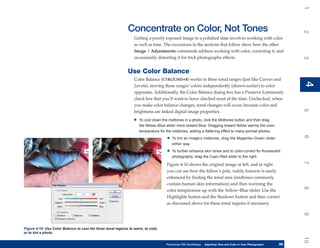


                                                                                                                                                                      4
                                                                histogram is the population, sometimes called the pixel count, for the current
                                                                image. If the histogram looks “good,” you have your work cut out for you
                                                                trying to figure out how to enhance an image; if, on the other hand, there’s
                                                                something “wrong” about an image’s histogram, it’s easy to locate and then fix


                                                                                                                                                                      5
                              Uncached
             Brightness (X)    Refresh   Menu
                                                                the problem using the features and tools in this section.


                                                                                                   Work with the Histogram
                                                                                                   Panel’s Features


                                                                                                                                                                      6
   Pixel
count (Y)                                                                                          Figure 4-2 shows the Histogram panel extended, with
                                                                                                   the menu displayed and the Channel drop-down list
                                                                                                   set to Luminosity. Access the Histogram panel via the


                                                                                                                                                                      7
                                                                                                   docking strip or through the Window menu.

                                                                                                   You’ll probably get the best idea of how an image’s
                                                                                                   colors map to a histogram graph by clicking the
                                                                                                   Channel down arrow and selecting the Luminosity


                                                                                                                                                                      8
                                                                                                   setting. This setting works best because color
                                                                                                   influence is not figured into the histogram map,
                                                                                                   giving you a more stark or definitive understanding
                                                                                                   of the distribution of brightness in the image,


                                                                                                                                                                      9
            Figure 4-2: The Histogram panel is your first stop to understanding the                although the Colors and RGB choices can also
            corrections a photo might need.                                                        provide a graphical idea of how many pixels
                                                                                                   account for different brightness levels in the image.


                                                                                                                                                                      10
                                                                                      Photoshop CS4 QuickSteps   Adjusting Tone and Color in Your Photographs
                                                                                                                  PC QuickSteps     Getting to Know Your PC     77
                                                                                                                                                                 77
1

                                                                               Overall, if you have the room on your screen (many Photoshop users have two
2


                                                                               screens, which allow panels to be put on a separate monitor), choose a Channel
                                                                               setting and then, on the menu, choose All Channels View to extend the panel to
                                                                               include a color breakdown of the pixel count.

                                                                               In addition to the information on the graph, when you choose Expanded View
3


                                                                               from the menu, you can see:

                                                                              •   Mean Use the Mean value to assess an image’s average brightness. For example,
                                                                                  if your photo is of a sunny day and most of the visual content of the image is bright,
                                                                                  yet the Mean value is below 128 on the histogram’s scale of 0 to 255, the image is
4
4


                                                                                  probably underexposed and could use a pass through the Curves or Levels command.

                                                                              •   Std Dev Use the Standard Deviation information to evaluate how crisp or dull the
                                                                                  image appears. For example, if the photo you took has a lot of bright and dark areas,
                                                                                  and yet the Std Dev is below 40, chances are good that the image lacks contrast;
                                                                                  again, turn to Curves or Levels to redistribute brightness values.
5


                                                                              •   Median Use this value as a baseline for correcting the area that should be the midpoint
                                                                                  between the lightest and darkest areas in the photo. For example, a hypothetically perfect
                                                                                  photo would have a Median of 128, the middle of a range from 0–255 in brightness
          NOTE                                                                    values. If an average photograph’s Median is much below 128, this suggests the image
6


      You can use any Photoshop selection tool to select                          requires lightening. There are, of course, exceptions to this rule—much of a histogram’s
      an image area, to then see the histogram of only that                       reading depends on the visual content of the photo. The histogram shown in Figure 4-2
      selected area.                                                              has a Median of 131, which is a little high but close to a “perfect” Median of 128. The
                                                                                  variance is due to the visual content of the photo, explained in the following section.
7


                                                                              •   Pixels Use this field to determine how many pixels are in an image, or a selected
                                                                                  area. This is a useful readout when trying to calculate how many pixels (total) should
                                                                                  make up highlight, shadow, and midtone regions in a properly exposed photo.

                                                                              •   Level Hover your cursor over the histogram to see how bright a range of pixels is.
                                                                                  A properly exposed photo most likely will read about 128 (on a scale from 0–255).
8


                                                                                  If the Level is wildly off, and your own eye confirms this, you need to edit the area.

                                                                              •   Count Hover your cursor over any point in the histogram to determine how many
                                                                                  pixels have a specific brightness.

                                                                              •   Percentile Hover your cursor over any point in the histogram to determine what
9


                                                                                  percentage of the total image’s pixels exist at or below this level. If, for example,
                                                                                  75 percent of all pixels fall below a brightness value of 35—and the photo is of a sunny
                                                                                  day—clearly the photo is underexposed.
10


     78
     78         Photoshop CS4 QuickStepsto Know Your PC and Color in Your Photographs
                PC QuickSteps    Getting   Adjusting Tone
1
      CAUTION
                                                                UNDERSTAND AND WORK WITH CACHE
   If you see an exclamation mark inside a triangle, it


                                                                                                                                                                      2
                                                                  Caching is used by Photoshop to speed up operations: Photoshop predicts which
   means that the readout is being created from cached, not
   current, data. If you’ve been editing, zooming, or reading
                                                                  data you will use in the immediate future and stores it in memory so that it
   the histogram from a selection area, click the warning         doesn’t have to refetch it from disk. You set Cache level in Edit | Preferences
   icon to refresh the data. Clicking the Uncached Refresh        (or press CTRL/CMD+K) | Performance; typically, the default of 4 for Cache


                                                                                                                                                                      3
   button will do the same thing; so does double-clicking         Levels is good, and higher settings not only take up more RAM but can also
   anywhere inside the histogram graph.                           slow your work due to Photoshop prefetching data you don’t want.

                                                                  On the Histogram panel there is an Uncached Refresh button to recycle—
                                                                  refresh—uncached data, thus making the histogram more accurate as you zoom


                                                                                                                                                                      4
                                                                                                                                                                      4
                                                                  in and out or edit the image.
                                                                                                        READ “GOOD” HISTOGRAMS
                                                                                                        As a rule of thumb, if an image itself looks
                                                                                                        fine, then it is fine. Histograms displayed


                                                                                                                                                                      5
                                                                                                        in Photoshop can be misleading and cause
                                                                                                        you to draw the wrong conclusions unless
                                                                                                        you can distinguish between a “good” and
                                                                                                        a “bad” (balanced and unbalanced) histogram


                                                                                                                                                                      6
                                                                                                        for the brightness information it provides. In
                                                                                                        Figure 4-3, you can see three example images
                                                                                                        and their corresponding histograms. These are
                                                                                                        good images— they represent the visual data


                                                                                                                                                                      7
                                                                                                        correctly, and yet there is a heavy population of
Figure 4-3: Each image displays a different histogram, according to image content.                      image pixels at different levels of brightness:

                                                                  •   The histogram for the picture of the flower shows that most of the pixels have very


                                                                                                                                                                      8
                                                                      little brightness, and this is correct for the exposure and its visual content—the flower
                                                                      doesn’t take up very much of the frame and is represented on the histogram as the
                                                                      upper brightness pixels, while the deep green background slopes off toward bright and
                                                                      dark, providing fair contrast for the overall picture.

                                                                  •   The photo of the wooden rooster contains a lot of visual detail in the midrange, and


                                                                                                                                                                      9
                                                                      consequently there is a large pixel count in the middle area of the histogram, with
                                                                      a gradual decrease in brightness both toward the highlights and the shadow areas.
                                                                      However, the emphasis is on the lower (darker) midtones, and this is the sort of
                                                                      histogram that a good portrait photograph would have.


                                                                                                                                                                      10
                                                                                      Photoshop CS4 QuickSteps   Adjusting Tone and Color in Your Photographs
                                                                                                                  PC QuickSteps     Getting to Know Your PC     79
                                                                                                                                                                 79
1

                                                                              •   The sky photo at right shows many more pixels in the highlight range, with few or none
2


                                                                                  in the shadow regions. This is correct: there are no shadows in a brilliant but cloudy
                                                                                  sky. Notice that there is a smooth slope toward darkness in the histogram, indicating
                                                                                  that the light clouds make a smooth blend into the slightly deeper blue sky. Also,
                                                                                  the falloff on the brighter side of the histogram is steep, indicating contrast—hence
                                                                                  good visual detail—in the upper brightness regions, adding visual detail to the clouds
3


                                                                                  themselves.
                                                                                                          SPOT AN AWFUL HISTOGRAM
                                                                                                          Figure 4-4 shows at left a before photo where a flash
                                                                                                          didn’t go off in a dark museum. Its histogram before
4
4


                                                                                                          adjusting the photo shows two things:

                                                                                                          •   Almost all of the pixels are in the shadow area, with
                                                                                                              a steep (“contrasty”) falloff before pixels are even
                                                                                                              represented in the upper midtones.
5


                                                                                                          •   These pixels are uniformly distributed; there’s no
                                                                                                              contrast in the shadow area, but only a “lump” of dark,
                                                                                                              undifferentiated brightness values.

                                                                                                The photo has been corrected using the Levels
6


                                                                                                command at right, a feature discussed later in this
                                                                                                chapter in “Correct Tones with Levels.” Not only
                                                                                                have pixels been redistributed to occupy more of the
          Poor contrast in ranges                         Good contrast in ranges
                                                                                                midrange, but a “combing” effect is automatically
7


     Figure 4-4: Use your own eye first, and then the Histogram panel, to spot the brightness   performed in Photoshop, to stagger the brightness
     regions that are just plain wrong in a photograph.
                                                                                                levels between adjacent tones. This effect in Levels
                                                                       produces differences in brightness by adding contrast between, for example,
                                                                       brightness levels 29 and 30 (on the scale from 0–255), and this results in
8


                                                                       clarity and more detail forced out of a photo that has a bad histogram. The
                                                                       result in Figure 4-4 is not world-class photography—such an image will
                                                                       never become a great photo—but if you’re documenting an event and you
                                                                       have no light, adjusting the histogram levels can bring a picture back from
9


                                                                       illegible to legible.
10


     80
     80         Photoshop CS4 QuickStepsto Know Your PC and Color in Your Photographs
                PC QuickSteps    Getting   Adjusting Tone
1
                                                                    Use the Curves Adjustment


                                                                                                                                                                         2
                                                                    to Add Tonal Snap to a Photo
                                                                     There are three Photoshop features dedicated to adjusting brightness levels—
                                                                     tones—in CS4: Curves (offers the most control and presents the most challenge),


                                                                                                                                                                         3
                          Modify the curve       Modify the curve    Levels (commonly used by the pros and is less complex than Curves), and
        Black point       by editing points        by drawing
                                                                     Brightness/Contrast (good for a quick fix but also about as accurate as the knobs
                                                                                                            on a 1960s TV set). Brightness/Contrast,
                                                                                                            however, is so intuitive to use (as with a


                                                                                                                                                                         4
                                                                                                                                                                         4
                                                                                              Curve presets 1960s TV set) it is not covered in this chapter.


                                                                                                  White point
                                                                                                                    Now that you can read a histogram, it’s time
                                                                                                                    to get acquainted with the Curves tool’s
                                                                                                                    method for tuning the brightness regions in


                                                                                                                                                                         5
                                                                                                                    a photo using a path you can shape, laid on
                                                                                                  Original curve    top of the image’s histogram.
                                                                                                  Auto adjusted
                                                                                                  curve
                                                                                                                    Work with the Onscreen


                                                                                                                                                                         6
                                                                                                  Histogram         Controls for Curves
                                                                                                  Tone region       Figure 4-5 shows at left an example
                                                                                                  eyedroppers
                                                                                                                    image—it lacks contrast and is watery in
                                                                                                                    appearance due to the backlighting—and


                                                                                                                                                                         7
                                                                                                                    at right the Curves dialog box with
                                                                                                                    callouts pointing to what does what.
Figure 4-5: Treat the grid above the histogram as your
workspace for tone-correcting an image.
                                                                    Adjust Tones, Region by Region


                                                                                                                                                                         8
                                                                     The following steps take you through working with the Curves command. First,
      TIP                                                            load an image into the workspace (press CTRL/CMD+O, or double-click in the
                                                                     workspace), and then:
   To set exactly how much of the bottom range and upper


                                                                                                                                                                         9
   range are clipped, click Options and, in the Auto Color           1. To automatically correct the levels of an image, click the Auto button. The result is
   Correction Options dialog box, enter a percentage for                that 10 percent of the darkest areas and 10 percent of the lightest areas are clipped—
   Shadows or Highlights in the Clip text box.                          the values are removed from the tonal “map” of the image. The pixels’ remaining
                                                                        brightness values are redistributed along a new, broader tonal range.


                                                                                                                                                                         10
                                                                                         Photoshop CS4 QuickSteps   Adjusting Tone and Color in Your Photographs
                                                                                                                     PC QuickSteps     Getting to Know Your PC     81
                                                                                                                                                                    81
1
          NOTE
                                                                              2. To manually correct an image’s brightness values, click the Edit Points To Modify
      When you clip tone values in Curves and other tools
2

                                                                                  Curve button       , and then click points on the curve in “problem areas” along the
      under Image | Adjustments, you’re not deleting pixels.                      line above the histogram. Then drag the points; the document window updates as you
      You’re broadening the brightness range by only deleting                     make changes:
      the tonal values—not the image pixels—so a new, broader
      range can be defined.
                                                                                  • To add contrast (and darken the image slightly), drag a point to the right. Dragging
                                                                                        left decreases contrast and slightly lightens the tonal range where you originally
3


                                                                                        clicked a point.

                                                                                  • To lighten a tonal range, drag the point upward; dragging downward darkens the
          NOTE                                                                          tonal range under the point you’re dragging.
                                                                              3. Click the Draw To Modify The Curve button (the pencil icon) only if you’re feeling
      To Reset the curve, destroying any work without canceling
4
4


                                                                                  very skilled at this point, to draw the ideal curve tone mapping for the image.
      out of the box, press ALT/OPT, which toggles the Cancel
                                                                                  After drawing the curve, you can smooth the curve by repeatedly clicking the
      button to a Reset button, and then click Reset.
                                                                                  Smooth button.
                                                                              4. If the photo only needs minor adjusting for tones, use the eyedropper tools beneath
                                                                                  the Curves grid. Click the Black Point eyedropper tool and then click an area in the
5


          CAUTION                                                                 photo (not on the histogram) to define the darkest area in the image. Then click the
                                                                                  White Point eyedropper tool and click in the image to set what you believe should be a
      If you set the gray in Curves with the Gray Point                           pure white area in the photo. If your photo has an area that is a perfectly color-neutral
      eyedropper tool on an area in the image that has a strong                   gray, click the Gray Point eyedropper tool and then click the perfectly neutral gray in
      color, you will introduce color-casting into the image,
6


                                                                                  the image. It’s okay if there is no perfect gray in the image, and you might be better off
      which usually is unwanted. If you do this, press ALT/OPT                    manually setting gray on the histogram.
      and then click Reset to undo the damage.


                                                                          Correct Tones with Levels
7


                                                                               Often, you can use the Levels adjustment (Image | Adjustments | Levels,
                                                                               CTRL/CMD+L) more quickly than Curves for exposure correction; you don’t
                                                                               have as many options, but the sliders in Levels get around the need to work
8


                                                                               with a tone curve. Like the Curves adjustment, you have eyedropper tools for
                                                                               selecting the Black, White, and (color-neutral) Gray points for choosing these
                                                                               points in a photo, and you also have the Auto button.
9
10


     82
     82         Photoshop CS4 QuickStepsto Know Your PC and Color in Your Photographs
                PC QuickSteps    Getting   Adjusting Tone
1
                                                                Use Basic Levels Adjustments


                                                                                                                                                                         2
                                                                 Figure 4-6 shows an example image that is a perfect target for correction using
                                                                 Levels: like the image corrected using Curves, the pumpkins photo is dull, but
                                                                 the tones aren’t weak. Instead they are bunched together, hiding much tonal
                                                                 (and secondarily color) information.


                                                                                                                                                                         3
                                                                 1. With your image in the documents window, click Image | Adjustments | Levels to
                                                                    open the Levels dialog box.
                                                                 2. To define the darkest area of a photo, drag the Input Black Point slider below the
                                                                    histogram to the right. You know now how to evaluate a histogram; this pumpkin


                                                                                                                                                                         4
                                                                                                                                                                         4
                                                                    image—looks fine in the shadow regions—there are lots of pixels in the low range so
    UICKSTEPS                                                       the slider isn’t used in this example.
                                                                                                                                              Slider
BEEFING UP A WIMPY PHOTO
Especially when working with a scene that is heavily


                                                                                                                                                                         5
backlit, the Curves feature is terrific for adding tonal
“bottom” without ruining the delicate play of detail in
the highlight regions. You use the traditional “S curve,”
demonstrated in the following steps. As you can see
here, the histogram reports that true black on the tonal


                                                                                                                                                                         6
scale doesn’t exist in the image, and that too much visual
detail lies in the upper ranges instead of in midtones.

 1. Move the Black Point slider below the histogram
    to the right, to the area on the histogram where


                                                                                                                                                                         7
    pixels begin to populate the image.

 2. If necessary drag the White Point slider to the left,
    to accentuate the brightest regions of the photo.

 3. Click a point on the histogram toward the


                                                                                                                                                                         8
    shadow region, where you see a lot of pixels on
    the graph. Then drag the point down (to deepen                                                                                          Midpoint White Point
    the tones) and to the right (to add contrast),
    using the visual feedback of what you see
    changing in the document window to evaluate


                                                                                                                                                                         9
    when to stop dragging.                                         Figure 4-6: Use the Input sliders to remap brightness in three tonal regions.
                                              Continued . . .


                                                                                                                                                                         10
                                                                                     Photoshop CS4 QuickSteps   Adjusting Tone and Color in Your Photographs
                                                                                                                 PC QuickSteps     Getting to Know Your PC         83
                                                                                                                                                                    83
1
             UICKSTEPS                                                      Figure 4-7: Use Curves to correct tonal ranges in a photograph.
2


     BEEFING UP A WIMPY PHOTO
      (Continued)
          4. Click a point on the curve where there are
            a lot of pixels toward the upper midtones,
            below the highlights. Then drag the point a
3


            little upward (to lighten tonal range) and to
            the right (to add contrast). As you can see
            in Figure 4-7, the “S curve” is a gentle one;
            every image will need a different curve to
4
4


            correct overall exposure, and clearly the
            finished photo is better than the original to
            its left. Some color is gained in the process
            because brightness is inextricably linked
            to saturation; however, because you’re
5


            working primarily with brightness in Curves,
            more tonal work has been accomplished
            than color work.


                                                                                3. To increase the brightness in the highlights, drag the White Point slider to the left
6


                                                                                    to about the point where pixels in the highlight range begin to become evident on
                                                                                    the histogram.
                                                                                4. To reveal detail in a muddy midtone range, drag the Midpoint slider to the left.
                                                                                    Figure 4-6 shows the original image and close-ups of the White Point and Midpoint
7


                                                                                    sliders at their new, desired location.


                                                                            Work with the Midpoint
                                                                            Dropper and Color-Casting
8


                                          No black
                                           point
                                                                                 The previous steps did not cover the eyedropper sampling for the tones in the
                                                                                 pumpkin photo, and for good reason. Most of the time, you can achieve good
                                                  Not enough
                                                   pixels in                     midtone contrast and exposure by manually dragging the Midpoint slider.
                                                   midtones
                                                                                 However, when you can clearly see an element in a photo that should be a
9


                                                                                 neutral midtone, such as the wood toward the back of the pumpkins photo,
                                                                                 you can define the midtone range using the Midpoint Dropper tool to not only
10


     84
     84           Photoshop CS4 QuickStepsto Know Your PC and Color in Your Photographs
                  PC QuickSteps    Getting   Adjusting Tone
1
                                                             achieve tonal balance but also remove color-casting at the same time. If your


                                                                                                                                                                  2
                                                             photo, after it was corrected in the previous steps, looks good but areas are
                                                             casting the wrong hue, before you click OK, you have the opportunity to play a
                                                             little more with the new midpoint in the photo. Then tune the color-casting by
                                                             choosing only a single color channel for final refinements:


                                                                                                                                                                  3
                                                             1. Click the middle eyedropper icon, and then look carefully for an image area that should
                                                                be a neutral gray.
                                                             2. Click on this area in the document window.
                                                             3. If in addition to correcting the color-cast, clicking the (color neutral) midpoint in the


                                                                                                                                                                  4
                                                                                                                                                                  4
                                                                image makes the midtones too dense, drag the Midpoint slider slightly to the left. The
                                                                Midpoint slider and the Midpoint Dropper tool operate independently of each other.
                                                                As shown in Figure 4-8, the wood that is casted way too cold is warmed up to the
                                                                appropriate hue for the image.

                                                                  It’s common when neutralizing the color at any brightness level to introduce


                                                                                                                                                                  5
                                                                  unwanted color-casting in other areas. For this reason, this chapter covers
                                                                                                            color correction that’s mostly
                                                                                                            independent of tone correction,
                                                                                                            but there’s also a quick fix in


                                                                                                                                                                  6
                                                                                                            Levels—you correct tones in one
                                                                                                            selected color channel of the image.
                                                                                                            This a terrific feature, but you need
                                                                                                            to take a crash course in digital


                                                                                                                                                                  7
                                                                                                            color opposites to make the most
                                                                                                            of Levels corrections in channels.
                                                                                                            Digital images are typically broken
                                                                                                            down into red, green, and blue


                                                                                                                                                                  8
                                                                                                            color channels. When you edit
                                                                                                            levels in, for example, the image’s
                                                                                                            blue channel, you move the tonal
                                                                                                            range in the photo toward this color


                                                                                                                                                                  9
                                                                                                            when you drag the White Point
Figure 4-8: Use the Midpoint Dropper tool in combination with the Midpoint slider to correct and neutralize or the Midtone slider to the left.
midtone image areas.


                                                                                                                                                                  10
                                                                                  Photoshop CS4 QuickSteps   Adjusting Tone and Color in Your Photographs
                                                                                                              PC QuickSteps     Getting to Know Your PC     85
                                                                                                                                                             85
1

                                                                               When you drag sliders to the right, you move the color-casting to that color
2


                                                                               channel’s color opposite—yellow, in this case. Here is a traditional artist’s
                                                                               color wheel that represents the hue spectrum; you’ll want to refer to this
                                                                               wheel in later sections of this chapter, as well as in other chapters.
                                                                                                                 Magenta Red (0 degrees)
3


                                                                                                                                           Orange
                                                                                                  Violet
                                                                                                                                           Yellow
4
4


                                                                                                   Blue
                                                                                                                                           Green
5


                                                                                                                     Cyan

                                                                               Clearly, the color opposite across the wheel from blue is yellow. Because
                                                                               the wood in the pumpkins photo was color neutralized, the orange of the
          QUICKFACTS
6


                                                                               pumpkins might have been moved a little too far into the blue hues. To correct
                                                                               colors in Levels:
     USE INPUT OR OUTPUT LEVELS
      When you add contrast and detail to the tones in an                     •   If your warm colors are casting cold, choose Blue from the Channel drop-down list,
      image with Levels, you’re using the Input Level sliders.                    and then drag the Black Point and/or Midpoint (Input) sliders to the right.
7


      The Output Level sliders at the bottom of the box perform
                                                                              •   If an image is casting too red, choose Red from the Channel drop-down list and then
      the opposite function: they decrease contrast and in                        drag the Black Point or Midpoint Input sliders to the right.
      general make an image tonally weaker. The purpose of
      these sliders is primarily to prep an image for commercial
                                                                              •   If an image has an unattractive greenish cast because it’s a scan of an old photo or
                                                                                  you used fluorescent lighting, choose Green from the Channel drop-down list and then
      offset printing; printers cannot capture all the details you
8


                                                                                  drag the Black Point or Midpoint Input sliders to the right.
      see on your monitor, and the practice goes that when
      you decrease contrast, thus clipping the lower and upper
      tones, a printing press tends to render these areas back            Use Exposure
      into the finished printed product. So unless you’re a                    Although the Exposure feature is primarily used in the creation of a High
9


      commercial press guru, the only reason you’d ever want
                                                                               Dynamic Range (HDR) image—this adjustment can also be used on 8- and
      to touch the Output sliders is to deliberately create a
                                                                               16-bit photographs, primarily for tonal changes.
      special-effects faded image.
10


     86
     86         Photoshop CS4 QuickStepsto Know Your PC and Color in Your Photographs
                PC QuickSteps    Getting   Adjusting Tone
1
                                                                 To use Exposure, click Image | Adjustments | Exposure to open the


                                                                                                                                                              2
                                                                 Exposure dialog box, shown in Figure 4-9. You have these options:

                                                                 •      Exposure To increase the brightness of lighter areas with much less impact
                                                                        on the shadow areas, drag this slider to the right.

                                                                                          • Offset     To decrease the shadows and midtones with


                                                                                                                                                              3
                                                                                             much less effect on the highlights, drag this slider to the
                                                                                             left. Dragging right reverses the effect.

                                                                                          • Gamma Correction          To add contrast to the midtones,
                                                                                             drag this slider to the right. Dragging left broadens the


                                                                                                                                                              4
                                                                                             midtone range and can often help restore image detail.


                                                                                                                                                              4
                                                                                          The thumbnails in Figure 4-9 were driven to extremes
                                                                                          with Exposure to serve as a better visual example.
                                                                                                     The Exposure dialog box shown at right
                                                                                                     displays a realistic group of settings for


                                                                                                                                                              5
                                                                                                     a typical photo.


                                                                                                          Restore an Image with


                                                                                                                                                              6
Exposure                             Offset                  Gamma                                        Shadows/Highlights
      +1                              +0.2                      2.0
                                                                                                              The Shadows/Highlights tone
      –1                              –0.2                         .8                                         correction feature is invaluable for
                                                                                                              restoring photos taken with strong


                                                                                                                                                              7
                                                                                                              backlighting. It lightens the shadow
                                                                                                              areas with very little effect on
                                                                                                              midtones or highlights. To adjust the
                                                                                                              shadows and highlights:
Figure 4-9: Use Exposure to correct an image after


                                                                                                                                                              8
you’ve taken it, the same way you’d use exposure with   1. Click Image | Adjustments | Shadows/Highlights.
your camera.
                                                        2. Click Show More Options to access the complete set of controls.
                                                        3. Under Shadows:
                                                           • Drag the Amount slider to the right to lighten shadow areas in the photo.


                                                                                                                                                              9
                                                           • Drag the Tonal Width slider to the right to increase the range of pixels lightened in
                                                              the shadow region; think of this as an “intensity” slider.


                                                                                                                                                              10
                                                                              Photoshop CS4 QuickSteps   Adjusting Tone and Color in Your Photographs
                                                                                                          PC QuickSteps     Getting to Know Your PC     87
                                                                                                                                                         87
1

                                                                                  • Drag the Radius slider to the right to lighten more pixels that neighbor one another.
2


                                                                                        The result is similar to adding contrast to the lightened shadow areas.
                                                                              4. Under Highlights:
                                                                                  • Drag the Amount slider to the right to “recover” areas that might become blown out
          NOTE                                                                          from too excessive of an Amount value under Shadows.
3


      Dragging left on any of the sliders (that can be dragged left)              • Drag the Tonal Width slider to the right to affect more highlight areas.
      produces the opposite effect as from what is stated here.
                                                                                  • Drag the Radius slider to the right to increase contrast in the highlight areas.
                                                                              5. Under Adjustments:
                                                                                  • Drag the Color Correction slider left to decrease saturation; drag right to add
4
4


                                                                                        saturation.

                                                                                  • Increase midtone contrast by dragging the Midtone Contrast slider to the right;
                                                                                        dragging left decreases contrast in the midtones.
                                                                              6. To save a file with these settings—useful if you have lots of photographs that need the
5


                                                                                  same correction, click Save, name your file, and click Save again. To apply the saved
                                                                                  file, with a new image loaded, click Load and then locate the file you saved.
6
7
8
9
10


     88
     88         Photoshop CS4 QuickStepsto Know Your PC and Color in Your Photographs
                PC QuickSteps    Getting   Adjusting Tone
1
                                                              Concentrate on Color, Not Tones


                                                                                                                                                                     2
                                                                  Getting a poorly exposed image to a polished state involves working with color
                                                                  as well as tone. The excursions in the sections that follow show how the other
                                                                  Image | Adjustments commands address working with color, correcting it, and
                                                                  occasionally distorting it for trick photography effects.


                                                                                                                                                                     3
                                                              Use Color Balance
                                                                  Color Balance (CTRL/CMD+B) works in three tonal ranges (just like Curves and


                                                                                                                                                                     4
                                                                                                                                                                     4
                                                                  Levels), moving these ranges’ colors independently (shown earlier) to color
                                                                  opposites. Additionally, the Color Balance dialog box has a Preserve Luminosity
                                                                  check box that you’ll want to leave checked most of the time. Unchecked, when
                                                                  you make color balance changes, tonal changes will occur, because color and


                                                                                                                                                                     5
                                                                  brightness are linked digital image properties.
                                                                 •   To cool down the midtones in a photo, click the Midtones button and then drag
                                                                     the Yellow–Blue slider more toward Blue. Dragging toward Yellow warms the color
                                                                     temperature for the midtones, adding a flattering effect to many portrait photos.


                                                                                                                                                                     6
                                                                                     •   To tint an image’s midtones, drag the Magenta–Green slider
                                                                                         either way.

                                                                                     •   To further enhance skin tones and to color-correct for fluorescent
                                                                                         photography, drag the Cyan–Red slider to the right.


                                                                                                                                                                     7
                                                                                     Figure 4-10 shows the original image at left, and at right
                                                                                     you can see how the fellow’s pale, ruddy forearm is easily
                                                                                     enhanced by finding the tonal area (midtones commonly
                                                                                     contain human skin information) and then warming the


                                                                                                                                                                     8
                                                                                     color temperature up with the Yellow–Blue slider. Use the
                                                                                     Highlights button and the Shadows button and then correct
                                                                                     as discussed above for these tonal regions if necessary.


                                                                                                                                                                     9
Figure 4-10: Use Color Balance to cast the three tonal regions to warm, to cold,
or to tint a photo.


                                                                                                                                                                     10
                                                                                     Photoshop CS4 QuickSteps   Adjusting Tone and Color in Your Photographs
                                                                                                                 PC QuickSteps     Getting to Know Your PC     89
                                                                                                                                                                89
1

                                                                    Correct Hue and Saturation
2


                                                                         Choosing Image | Adjustments | Hue/Saturation (CTRL/CMD+U) provides a
                                                                         convenient way to adjust color properties in an RGB image without resorting
                                                                         to the fairly unintuitive color opposites convention. The Hue/Saturation
                                                                         dialog box offers Hue, Saturation (the purity, the distinctiveness of a Hue), and
3


                                                                         Lightness sliders, for adjusting all the characteristics of an RGB image without
                                                                         the inconvenience of dealing with the red, green, and blue color channels.

                                                                         You’d be ill advised to correct all the hues in a photo with Hue/Saturation—
                                                                         Color Balance and other Photoshop features address color balance more
4
4


                                                                         precisely and intuitively—but if you need to desaturate or change the hue of
                                                                         only part of the color spectrum, Hue/Saturation is your ticket.


                                                                    Change a Specific Hue in a Photo
5


                                                                         Adjacent is an attractive street scene of pre-War buildings. However, the
                                                                         choice of green accent paint distracts the viewer from the overall loveliness
                                                                         of the photo. Because “reality” is distorted every day in magazine ads and
6


                                                                         newspapers using Photoshop, toning down the bright green paint is not so
                                                                         much an artistic lie as it is an editorial image enhancement: what if the owner
                                                                         used better taste in paint color?
                                                                        1. Press CTRL/CMD+U, or click Image | Adjustments | Hue/Saturation to open the Hue/
7


                                                                            Saturation dialog box, shown in Figure 4-11.
                                                                        2. Choose the color you want to modify from the drop-down list, which by default is
                                                                            loaded with the Master spectrum (all hues in the image). You have to choose a color to
                                                                            make the Eyedropper tool used in the next steps available.
8


                                                                        3. Click the Eyedropper tool and then click over the area in the document window where
                                                                            some of the color that you want to change is located.
                                                                        4. If you want a narrower range of the hue you clicked in the photo to change, drag
                                                                            the vertical sliders on the spectrum bar at bottom inward; dragging them outward
                                                                            increases the breadth of the hue you change.
9
10


     90
     90   Photoshop CS4 QuickStepsto Know Your PC and Color in Your Photographs
          PC QuickSteps    Getting   Adjusting Tone
1
                                                                                                             5.   Fall-off is “fuzzy” area outside of the hue you’ve


                                                                                                                                                                          2
                                                                                                                  targeted; some bounding hues will be partially
                                                                                                                  changed, while others won’t. To increase the fall-
                                                                                                                  off to include some neighboring hues, drag the
                                                                                                                  fall-off triangle sliders outward. If you want a more
                                                                                                                  precise and occasionally hard transition between


                                                                                                                                                                          3
                                                                                                                  edited hues and unaffected ones, drag the triangle
                                                                                                                  sliders toward the vertical sliders.
                                                                                                             6.   To change the hue to the targeted hue, drag the
                                                                                                                  Hue slider to the left or right.


                                                                                                                                                                          4
                                                                                                                                                                          4
                                                                                                             7.   To change the saturation of the targeted
                                                                                                                  color—the most common and popular Hue/
Figure 4-11: Use one or more hues from the drop-down                                                              Saturation task—drag the Saturation slider
list to correct only part of a photo.                         Vertical sliders   Fall-off triangle sliders
                                                                                                                  left or right.
                                                                 8. After changing hue and saturation, you may want or need to increase or decrease the


                                                                                                                                                                          5
      NOTE                                                           targeted hue’s brightness. Drag the Lightness slider left or right to accomplish this.

                                                                 Figure 4-11 shows the correction in progress with a live update to changes
   The Lightness slider affects the overall luminosity of a
   hue. You cannot, therefore, accomplish the same dense,        in the document window. By keeping the vertical sliders to a fairly narrow
   rich changes as you would on tones using Curves or            range, the adjustment affected the green façade but not the green in the


                                                                                                                                                                          6
   Levels. You might want to go back to Curves or Levels to      neighboring trees.
   make tonal changes after using Hue/Saturation.

                                                              Create a Vintage Photo Using Hue/Saturation


                                                                                                                                                                          7
                                                                 There will be times when you want to diminish or completely remove the color
                                                                 from a photo, to let the audience concentrate on the composition of a picture,
                                                                 and not its colors. In Hue/Saturation, you have several presets that enable you
                                                                 to instantly convert your photo to a sepia version, convert it to a cyanotype


                                                                                                                                                                          8
                                                                 (sometimes called a steeltone), or auto-reduce its color to produce an old-style
                                                                 photo. The following describes how to work with the Preset list and use some
                                                                 fancy manual moves to produce images whose colors are not intended to
                                                                 faithfully represent the originals.


                                                                                                                                                                          9
                                                                                                                                                                          10
                                                                                         Photoshop CS4 QuickSteps    Adjusting Tone and Color in Your Photographs
                                                                                                                      PC QuickSteps     Getting to Know Your PC     91
                                                                                                                                                                     91
1

                                                                         With your photo in the document window, click Image | Adjustments | Hue/
2


                                                                         Saturation. You have these options for working with sepia versions:

                                                                        •   To create a vintage sepiatone-style photo, click Sepia in the Preset drop-down list.

                                                                        •   To tint a photo to any other hue you like, click the Colorize check box and then drag
                                                                            the Hue slider to the desired color. Then adjust the Saturation slider and finally the
3


                                                                            Lightness slider to create an “orangetone,” an “emeraldtone,” or any other version of
                                                                            your photo.

                                                                        •   To create a black and white photo from your original, drag the Saturation slider all the
                                                                            way to the left.
4
4
5
6


                                                                         There are other features in Photoshop, particularly Image | Adjustments |
7


                                                                         Black & White, described next, that offer more control in making a black and
                                                                         white image as well as a monochrome-tinted one.


                                                                    Make Black and White Photographs
8


                                                                         Because colors in digital images also have a brightness component, it’s usually
                                                                         a bad idea to choose Image | Mode | Grayscale when you want a black and
                                                                         white version of your work. The grayscale version of, for example, red usually
9
10


     92
     92   Photoshop CS4 QuickStepsto Know Your PC and Color in Your Photographs
          PC QuickSteps    Getting   Adjusting Tone
1
                                                                    casts a deeper tone than you expect or want, while cooler colors result in fainter-


                                                                                                                                                                          2
                                                                    than-desired grayscale equivalents. If you have a nice color photo that you want
                                                                    a grayscale (“black and white”) copy of, or even a tinted image:
                                                                    1. Click Image | Adjustments | Black
                                                                       & White to open the Black And White


                                                                                                                                                                          3
                                                                       dialog box.
                                                                    2. Take a spin through the Preset list. There
                                                                       is no such thing as a “typical” image,
                                                                       but the Neutral Density preset and
                                                                       the Red preset tend to work well with


                                                                                                                                                                          4
                                                                                                                                                                          4
                                                                       human portrait photography. Click the
                                                                       Auto button to get the widest range of
                                                                       grayscale detail from your color image—
                                                                       you might need to go back to the Levels
                                                                       adjustment afterward to open up some


                                                                                                                                                                          5
                                                                       midtone brightness values.
                                                                    3. Manually, open up color ranges that seem
                                                                       to have too much contrast and are blocked
                                                                       in. On a color wheel, the secondary colors


                                                                                                                                                                          6
                                                                       are neighbored by the primary hues displayed as sliders in this adjustment. For example,
                                                                       in Figure 4-12, the ginger tabby is orangish; orange is a secondary color derived from
Figure 4-12: Use Black and White to correct the balance
of colors as you remove hues from your photo.                          red and yellow, so by moving these sliders to the right—and watching the preview in
                                                                                                                          the document window—the grayscale
                                                                                                                          version of the cat becomes a little


                                                                                                                                                                          7
                                                                                                                          brighter with more detail.
                                                                                                                            4. If you’d like to tint your grayscale
                                                                                                                                image, click the Tint check box,
                                                                                                                                choose a hue (or click the swatch to


                                                                                                                                                                          8
                                                                                                                                choose using the Color Picker), and
                                                                                                                                then drag the Saturation slider left
                                                                                                                                or right to make the tint effect subtle
                                                                                                                                or pronounced.


                                                                                                                                                                          9
          Original                          Straight to grayscale                          Black and White
                                                 conversion                                  adjustment


                                                                                                                                                                          10
                                                                                       Photoshop CS4 QuickSteps   Adjusting Tone and Color in Your Photographs
                                                                                                                   PC QuickSteps     Getting to Know Your PC      93
                                                                                                                                                                   93
1

                                                                              Match Colors Between Photos
2


                                                                                   If you have a series of photos with similar visual content, but taken over
                                                                                   time under different lighting conditions, the Match Color adjustment is
                                                                                   indispensable for correcting one (or several) bum photos:
3


                                                                                  1. Open the good photo and then open the photo that requires color matching.
                                                                                  2. Click Image | Adjustments | Match Color.
                                                                                  3. Choose the good image from the Source drop-down list.
                                                                                  4. Drag the Luminance slider (if necessary) to brighten or darken the image. The
4
4


                                                                                      document window displays an instant preview, so it’s a good idea to move the Match
                                                                                      Color box out of the way for a good working view.
                                                                                  5. Drag the Color Intensity slider to saturate or desaturate the finished image as needed.
                                                                                  6. Click the Neutralize check box to remove color-casting if needed.
5


                                                                                  7. Drag the Fade slider (this is an artistic judgment call) to blend the Color Match result
                                                                                      with the original photo. In essence, it diminishes the effect as you drag the slider to
     Figure 4-13: Reconcile the color and exposure
     differences between photos using Match Color.                                    the right.
                                                                                                    8.   If you have several poorly exposed photos, click Save Statistics,
6


                                                                                                         save the file, and then click Load Statistics In Future Sessions to
                                                                                                         load your saved settings and apply them to the other photos.

                                                                                                    You also have the option to use a selection tool to select only a
                                                                                                    portion of a photo for the Color Match adjustment. Take care,
7


                                                                                                    however, if an image area or the entire photo bears no color
                                                                                                    or tone resemblance to your source image, because you’ll get
                                                                                                    unacceptable, or at very least surreal, results (if this is your
                                                                                                    intention, go for it). Figure 4-13 shows a very hard assignment:
8


           Match Color               Original                                                       matching a brilliant beach scene and one that was taken during a
           result photo               photo
                                                                                                    summer storm.

                                                                                                    Flatten the file before converting it; right-click over any layer title
                                 Match Color
                                source photo
                                                                                                    on the Layers Panel (press F7 to display it) and then click Flatten
9


                                                                                                    Image on the context menu. The interaction of colors between
                                                                                                    layer blending modes changes when the mode changes.
10


      94
      94            Photoshop CS4 QuickStepsto Know Your PC and Color in Your Photographs
                    PC QuickSteps    Getting   Adjusting Tone
1
Use a Photo Filter


                                                                                                     2
 You’ve seen very strong color alterations with Hue/Saturation, but if you need
 a hint instead of a shove, the Photo Filter adjustment is very good at imitating
 the traditional tinted lenses that photographers screw onto the shooting lens:


                                                                                                     3
 1. Choose an image that is casting too cold as an example, and then click Image |
    Adjustments | Photo Filter.
 2. Click Warming Filter (85) in the Filter drop-down list.
 3. This might not be the right hue for your image, so click the Color button, and then click


                                                                                                     4
                                                                                                     4
    the swatch to go to the Color Picker (the Select Color Filter box).
 4. Choose a color that’s warmer (more toward red), and then click OK.
 5. Drag the Density slider left or right to increase or decrease the amount of the filter.
 6. If you uncheck Preserve Luminosity, the brightness of the color you selected will be


                                                                                                     5
    taken into account and you might get a denser image than you like. As a rule, leave
    Preserve Luminosity checked.

 If you have a warm image, on the other hand, that needs a little cooling, choose
 one of the Cooling Filters from the drop-down list. Also, you can perform a little


                                                                                                     6
 color correction in Photo Filter using cyan, red, or any of the other choices.


                                                                                                     7
                                                                                                     8
                                                                                                     9
                                                                                                     10
                     Photoshop CS4 QuickSteps   Adjusting Tone and Color in Your Photographs
                                                 PC QuickSteps     Getting to Know Your PC     95
                                                                                                95
1

                                                                          Change Saturation and
2


                                                                          Color Cast in Variations
                                                                               A nice “one-stop shop” on the Adjustments menu is Variations. This command
                                                                               opens a large interface in which you can choose thumbnails that represent
3


                                                                               variations on colors, arranged like the color wheel shown earlier in the chapter.
                                                                               It’s very simple to click your way through the thumbnails, choosing the color
                                                                               opposites to neutralize shadow, midtone, and highlight areas in your image.
                                                                               Additionally, you have Saturation and Lightness controls—Variations is a very
4
4


                                                                               good feature for prepping an image for personal inkjet printing; what it lacks
                                                                               in controls compared to Color Balance and Hue/Saturation it makes up for
                                                                               in immediate visual feedback and the ability to control Hue, Saturation, and
                                                                               Lightness all in one fell swoop. Click Image | Adjustments | Variations to
5


                                                                               open the Variations dialog box, shown in Figure 4-14, and then:
                                                                              1. Begin by clicking Midtones, the tonal region where much visual detail lies.
                                                                              2. If you want to make gross color adjustments, leave the Fine–Coarse slider at its
                                                                                  default. But if you want to make subtle changes, drag the slider two notches or so
6


                                                                                  toward Fine.
                                                                              3. Look at the Original thumbnail at upper left. If it’s too blue, click the More Yellow
                                                                                  thumbnail, the color opposite of blue. Similarly, work your way around the other color
                                                                                  primaries and secondary colors—click the color’s opposite to neutralize any unwanted
7


                                                                                  color cast.
                                                                              4. If you want the midtones to be darker, click the Darker thumbnail on the row of
          TIP                                                                     thumbnails at right. Or choose Lighter if you want to open the midtones.
      You can click the same thumbnail to apply a “double                     5. Click the Shadows button and then perform the same operations as you did in Steps 3
8


      dose” of the same color correction. This is a particularly                  and 4.
      welcome technique when you’re previewing fine, not
                                                                              6. Click the Highlights button and repeat Steps 3 and 4.
      coarse, variations.
                                                                              7. After analyzing the Current Pick thumbnail, if the colors look good but are too faint,
                                                                                  click the Show Clipping check box. This feature puts a green-tinted overlay on areas
9


                                                                                  that are super-saturated and will look and print as a flat (really ugly) color with no
                                                                                  variation in tone.
10


     96
     96         Photoshop CS4 QuickStepsto Know Your PC and Color in Your Photographs
                PC QuickSteps    Getting   Adjusting Tone
1
                                                                                                          8. Click the Saturation button, and


                                                                                                                                                          2
                                                                                                              then click Less Saturation if the
                                                                                                              Current Pick thumbnail has any of
                                                                                                              this clipping overlay on it. If the image
                                                                                                              needs more saturation, play with the
                                                                                                              Fine–Coarse slider, and then click


                                                                                                                                                          3
                                                                                                              the More Saturation thumbnail until
                                                                                                              you can detect clipping, then back off
                                                                                                              the saturation by clicking the Less
                                                                                                              Saturation thumbnail.
                                                                                                          9. If you have several images that need


                                                                                                                                                          4
                                                                                                                                                          4
                                                                                                              the same type of correction, click
                                                                                                              Save and save the settings; you then
                                                                                                              can load them in the future. Click OK
                                                                                                              to return to the document with your


                                                                                                                                                          5
                                                                                                              changes applied.

                                                                                                          Figure 4-14 shows a use of the
                                                                                                          Variations adjustment to make the
                                                                                                          background a little warmer and


                                                                                                                                                          6
                                                                                                          the wings of the butterfly cast a
                                                                                                          little colder, but keep the red about
                                                                                                          the same.


                                                                                                                                                          7
                                                                                                          Replace Certain
                                                                                                          Colors


                                                                                                                                                          8
                                       Color clipping   One of the most dramatic editing effects you can apply to an image is to
Figure 4-14: Use Variations to make tone and color
                                                        change a color in an area without changing others: you can make one orange
changes and preview them all in the same interface.     grape in a bunch, change a tacky necktie’s color in a group portrait, and make
                                                        “reality” whatever you envision it to be. There are two ways to change a color:


                                                                                                                                                          9
                                                        use the Replace Color adjustment, or use the Color Replacement tool on the
                                                        Tools panel.


                                                                                                                                                          10
                                                                         Photoshop CS4 QuickSteps   Adjusting Tone and Color in Your Photographs
                                                                                                     PC QuickSteps     Getting to Know Your PC     97
                                                                                                                                                    97
1

                                                                    Use Replace Color
2


                                                                         With all the examples in this chapter, it really helps if you know how to create
                                                                         a selection so that you’re not affecting areas you don’t want to change—see
                                                                         Chapter 5 and you’ll get more out of this chapter. However, you don’t need
                                                                         to be a selection wizard to use Replace Color. Follow these steps to see how
3


                                                                         to replace a color that is distinctly different from other image colors:
                                                                        1. The Quick Selection tool is perfect for stroking a selection in an area where there’s
                                                                            one, pronounced, clearly defined color, such as a stripe on a candy cane, beach
                                                                            ball, or garment. Drag the Magic Wand tool on the Tools panel to access the Quick
4
4


                                                                            Selection tool—it’s part of this nested tool group.
                                                                                                        2. Using the Quick Selection tool, stroke just a little over
                                                                                                            the area you want to define for color replacement. This
                                                                                                            is a “safety” step for precise editing, but not absolutely
                                                                                                            necessary to use Replace Color. If the entire area is
5


                                                                                                            not selected, click the Add To Selection button on the
                                                                                                            Options bar and then complete the selection.
                                                                                                        3. Click Image | Adjustments | Replace Color.
                                                                                                        4. Choose Localized Color Clusters only if you want to
6


                                                                                                            choose several different colors to replace with one
                                                                                                            new color.
                                                                                                        5. Click the eyedropper tool at the far left of the Replace
                                                                                                            Color dialog box, and then click inside the color
7


                                                                                                            area you selected in Step 2. If you elect not to use a
                                                                                                            selection to speed up your work, you might need now
                                                                                                            to click the Add To Sample eyedropper tool to select
                                                                                                            a broader range of sampled color to replace.
8
9
10


     98
     98   Photoshop CS4 QuickStepsto Know Your PC and Color in Your Photographs
          PC QuickSteps    Getting   Adjusting Tone
1
                                                                                            6.   Drag the Saturation slider to the right temporarily so that


                                                                                                                                                               2
                                                                                                 you can see the replacement color swatch. Then drag
                                                                                                 the Hue slider until you see the replacement color swatch
                                                                                                 more clearly. Then ease off on the Saturation until you
                                                                                                 have a photorealistic color; drag the Lightness slider left
                                                                                                 or right to fine-tune the replacement color. Alternatively,


                                                                                                                                                               3
                                                                                                 skip Step 6 and click on the replacement color swatch.
                                                                                                 Doing this displays the Color Picker.
                                                                                            7.   To get a realistic replacement color, drag the Hue slider
                                                                                                 to get the hue you want; usually you can leave the


                                                                                                                                                               4
                                                                                                 brightness and saturation color field marker right where


                                                                                                                                                               4
                                                                                                 it is. Colors in the real world are less saturated than you
                                                                                                 might imagine—our eyes sometimes lie to us, and this
                                                                                                 is why paint stores let us take sample chips home.
                                                                                            8.   Click OK in the Color Picker, and then click OK in the


                                                                                                                                                               5
                                                                                                 Replace Color dialog box.

                                                                                            Figure 4-15 shows the work in progress. If you wanted
                                                                                            a red and green ball in this example image, you’d
                                                                                            simply make a new selection using the Quick Selection


                                                                                                                                                               6
                                                                                            tool and repeat these steps.

                              Select area

Figure 4-15: The Replace Color adjustment can produce
                                                           Work with the Color Replacement Tool
surreal imagery, or repair work that will go undetected.    As you read Chapter 7 on blending modes, you’ll see that the Color


                                                                                                                                                               7
                                                            Replacement tool is a convenient, automated way to use color blend mode to
                                                            replace a current color with one you define. For now, it’s enough to understand
                                                            that using the Color Replacement tool can be simpler for Photoshop beginners
                                                            to create dramatic color changes in specific images areas. It’s less intense


                                                                                                                                                               8
                                                            than Replace Color, the results can sometimes look like you’ve hand-tinted
                                                            a photo, and you have complete hands-on control over changes, rather than
                                                            manipulating controls in a dialog box.


                                                                                                                                                               9
                                                            1. Click the Color Replacement tool on the Tools panel, in the Brush Tool group of tools.


                                                                                                                                                               10
                                                                               Photoshop CS4 QuickSteps   Adjusting Tone and Color in Your Photographs
                                                                                                           PC QuickSteps     Getting to Know Your PC     99
                                                                                                                                                          99
1

                                                                                2. Right-click in the document window to get the size and hardness parameters for the
2

                                                                                     brush. Scale the size according to the area you want to recolor, and usually 80%
                                                                                     Hardness will make definitive changes without a harsh, telltale edge around your
                                                                                     editing work.
                                                                                3. Choose a replacement color by either bringing up the Color Picker or, better still,
                                                                                     scouting down a replacement color in your image to make it a “natural,” subdued,
3


                                                                                     medium-tone color—press ALT/OPT, click over an image area, and then release ALT/OPT.
                                                                                4. Choose a sampling style from the Options bar; Continuous is usually the best choice.
           NOTE                                                                      If you click the Once button, the tool will replace colors only in areas containing the
      If you choose the Once Sampling style, you can                                 color that you clicked to sample in Step 3. If you choose the Background color button,
4
4


      resample a replacement color at any time by pressing                           only areas in the image that have the current background color (on the Tools panel)
      ALT/OPT and clicking a color in the document or by using                       will be changed.
      the Color Picker.                                                         5. In the Limits drop-down list, choose Discontiguous, which replaces color wherever
                                                                                     you stroke. Contiguous replaces only those color pixels that directly neighbor one
                                                                                     another, and this sometimes leads to splotchy retouching. If you need sharp, detailed
5


                                                                                     edges in your retouching work, choose Find Edges.
                                                                                6. Depending on the specific image, you might want to increase the Tolerance—this is
                                                                                     how closely the colors you replace match the original colors. A lower Tolerance setting
                                                                                     can lead to specks or splotches in your recoloring work.
6


                                                                                7. Zoom into your image and then stroke over the areas you want to replace with the
                                                                                     new color.
7
8
9
10


     100
     100         Photoshop CS4 QuickSteps to Adjusting Tone and Color in Your Photographs
                 PC QuickSteps    Getting    Know Your PC
1
How to…
•   Use the Marquee Tool


                                                                                                                       2
    Constraining Your Selections
•   Select by Color Using the Magic
    Wand Tool


                                                                                                                       3
•   Use the Quick Selection Tool
    Refining Edges
•
•
    Use the Lasso Tools
    Select a Range of Colors
                                       Chapter 5
                                                           Making Selections


                                                                                                                       4
    Feathering and Anti-Aliasing
•   Exclude Areas Using Selections
•   Modify a Selection
•   Crop to Fit a Selection            Selections are the key to using Photoshop to its fullest.


                                                                                                                       5
                                                                                                                       5
•   Remove Fringe Pixels               Selections allow you to confine your edits to a limited area of
•   Save and Load Selections           an image. Any operations you perform on the image will affect
•   Copy to a New Layer                only the selected pixels, as shown in Figure 5-1 where only


                                                                                                                       6
    Moving and Duplicating
                                       the pixels within the elliptical selection are being replaced.
•   Copy to a New Document
                                       You can perform almost any Photoshop operation—applying
    Expanding Selections
                                       filters, adjusting colors, painting, erasing, cutting, copying,
•   Use the Magic Eraser Tool
                                       and so on—on the pixels within a selection; any unselected


                                                                                                                       7
•   Use the Background Eraser Tool
    Deciding What Your Quick           pixels are unaffected.
    Mask Indicates
•   Work with Quick Masks


                                                                                                                       8
    Doing Just About Anything to
    a Quick Mask
    Exploring the Elements of a Path
•   Use Paths for Selections


                                                                                                                       9
    Modifying a Path


                                                                                                                       10
                                                                  Photoshop CS4 QuickSteps   Making Selections   101
1

                                                                                                    Create New Selections
2


                                                                                                    Photoshop provides a number of ways to select areas
                                                                                                    of an image, such as by defining a geometric area using
                                                                                                    any of the Marquee tools, or by selecting specific pixel
                                                                                                    properties such as similar image colors. You can then
3


                                                                                                    modify selections once they are created. Photoshop gives
                                                                                                    you the power both to crop a photo, using either the
                                                                                                    Crop or other selection tools, and to manipulate your
                                                                                                    photos, using sophisticated techniques for defining areas
4


                                                                                                    to be changed and areas to be protected from change
                                                                                                    (called masking).


                                                                                                    Use the Marquee Tool
5
5


                                                                                                    You can use the Marquee tool to select a rectangular
                                                                                                    or elliptically shaped area. You also have options for a
                                                                                                    selection of only one single-pixel-wide row or column.
     Figure 5-1: Filters, adjustments, and other edits are only applied to the active
6


     selection, as shown in this elliptical selection.


            NOTE
7


        Only the pixels inside of the marquee are selected.

                                                                     MAKE A RECTANGULAR OR ELLIPTICAL SELECTION
                                                                         You can make a rectangular or elliptical selection using a special Marquee tool:
8


                                                                        1. If the correct Marquee tool isn’t selected, click the current Marquee tool icon in the
                                                                            Tools panel, and hold down the mouse button. The Marquee tool pop-up menu appears.
                                                                        2. Click the Rectangular Marquee tool or the Elliptical Marquee tool.
            TIP
                                                                        3. Drag within the image to create the marquee selection.
9


         You can select the Marquee tool and switch between the
                                                                            –Or–
         Rectangular and Elliptical Marquee tools by pressing
         SHIFT+M.
                                                                            Hold down SHIFT while dragging to constrain the selection to a
                                                                            square or circle.
10


      102
      102           Photoshop CS4 QuickSteps to Making Selections
                    PC QuickSteps    Getting    Know Your PC
1
    NOTE
 You can create a selection of only 1 pixel by using the
                                                                 Select by Color Using the Magic Wand Tool


                                                                                                                                                                     2
 Single Row Marquee tool for a 1-pixel row or the Single           Marquee selections are great for selecting circular and rectangular areas of
 Column Marquee tool for a 1-pixel column.                         an image, but sometimes you need to select all the pixels of the same color,
                                                                   regardless of the shape. Then it’s time for the Magic Wand tool       .


                                                                                                                                                                     3
     UICKSTEPS
CONSTRAINING YOUR SELECTIONS
 You can make your selection conform to certain parameters


                                                                                                                                                                     4
 to make it a specific height and width, or to make sure the
 selection retains the proportions of the image.

MAKE A SELECTION OF A FIXED SIZE
 You can tell Photoshop exactly what size you want


                                                                                                                                                                     5
                                                                 SELECT AN AREA WITH THE MAGIC WAND TOOL


                                                                                                                                                                     5
 future rectangular or elliptical selections to be. With the
 Rectangular Marquee or Elliptical Marquee tool selected:          1. Select the Magic Wand tool from the Tools panel.
  1. From the Options bar, click the Style down arrow
     and click Fixed Size.

  2. Using the scrubby slider        , drag the pointer over
                                                                      • Set the Tolerance level on the Magic Wand Options bar. This tells Photoshop


                                                                                                                                                                     6
     the Width or Height label to establish the width                    how similar in color pixels must be to be included in the selection. The larger the
     or height in pixels. Or you can type the number                     tolerance, the broader the range of similar colors that will be selected, based on
     directly into the text box.                                         the color pixel you initially click upon. A tolerance level of 32 (the default) is a good
                                                                         place to start.


                                                                                                                                                                     7
     • Notice that if you type in the Width and Height                • Click the Anti-Alias check box to soften the edges of the selection.
        text boxes, you also may have to type the units;              • From the Options bar, click Contiguous to select contiguous colors. Contiguous in
        the default units may be inches, not pixels,                     this sense means “only pixels that touch one another.”
        unless you have changed the default.                       2. Click within the area you want to select.


                                                                                                                                                                     8
     • To change the default size and units, press CTRL/           3. If too many pixels are selected, press CTRL/CMD+D to deselect the current selection,
        CMD+R to display the ruler, right-click the ruler,            and then reduce the tolerance. If too few pixels are selected, increase the tolerance.
        and click the units you want, such as Pixels.                 Click within the selection to reselect the area using the new tolerance level.
  3. Click to establish the upper-left corner of the
                                                                   The Magic Wand tool’s Options bar, shown in Figure 5-2, gives you more


                                                                                                                                                                     9
     selection, and then drag inside the marquee
                                                                   control over the tool’s selections. The “Refining Edges” QuickFacts gives you
     selection to position it.
                                                                   information about advanced edge control.
                                               Continued . . .


                                                                                                                                                                     10
                                                                                                             Photoshop CS4 QuickSteps Making Selections
                                                                                                               PC QuickSteps    Getting to Know Your PC      103
                                                                                                                                                              103
1
           UICKSTEPS                                                                                Select the
                                                                                                   intersection          Click to
2


     CONSTRAINING YOUR SELECTIONS                                                    Add to the   of the existing   smooth out the       Click to sample
                                                                        Contains      existing    selection and      jagged edges        colors from the
     (Continued)                                                      tool presets   selection      a new one         of selections     composite image

     MAKE A SELECTION OF A FIXED-ASPECT RATIO
      You can constrain the aspect ratio of a selection so that,
3


      for example, it is twice as tall as it is wide, regardless of
      the actual size of the area selected. With the Rectangular      Create a new    Subtract from     The higher        Click to              Click for a selection
      Marquee or Elliptical Marquee tool selected:                     selection       the existing   the tolerance,     select only            of refining options
                                                                                        selection        the more         adjacent                   for edges
       1. From the Options bar, click the Style down arrow                                            colors will be    pixels of the
                                                                                                         selected       same color
           and click Fixed Ratio.
4


                                                                      Figure 5-2: For more control, use the Magic Wand Options bar.
       2. Use the scrubby slider to set the ratio by dragging
           over the labels, or type directly into the Width and
                                                                      MAKE CONTIGUOUS AND NONCONTIGUOUS SELECTIONS
           Height text boxes.
                                                                      WITH THE MAGIC WAND TOOL
                                                                         •
5


                                                                             If you click Contiguous on the Magic Wand Options bar, the tool will select only pixels
5


       3. Drag in the document window to create the selection.               of similar color that directly neighbor—actually touch—one another. Pixels of the same
       4. After making the selection, you can reposition it by               color elsewhere in the image will not be selected.
           dragging inside the marquee lines.
6


           TIP
7


      Both Fixed Size and Fixed Aspect Ratio settings for the
      Marquee selection tools offer value-swapping: you can
      reverse the orientation of your proposed selection with
      just a click on the Swaps Height and Width icon         . So,      •   If you deselect Contiguous on the Magic Wand Options bar, the tool will select all
                                                                             pixels of similar color, regardless of their location within the image.
      for example, if you set up a 5×7-inch aspect ratio and
8


      then decide you want it to be 7×5, click the Swaps Height
      and Width icon and you’re all set to select.
9
10


     104
     104           Photoshop CS4 QuickSteps to Making Selections
                   PC QuickSteps    Getting    Know Your PC
1
                                                             Use the Quick Selection Tool


                                                                                                                                                         2
                                                              The Quick Selection tool (grouped with the Magic Wand tool) is used by
                                                              stroking over an image area. The tool seeks similar color values, and then
                                                              creates a marquee selection that stops when it detects dissimilar colors—it’s
                                                              indeed quick and invaluable when you need to select photo areas that are well


                                                                                                                                                         3
                                                              defined by differing color values.
   TIP                                                        Like the Magic Wand, after you make an initial stroke in an image, the Options
When you have a complicated selection to make, you            bar reveals Add To and Subtract From operation buttons, as well as the Refine
can sometimes use the Magic Wand tool to select the
                                                              Edge button (see the “Refining Edges” QuickFacts).


                                                                                                                                                         4
background based on color, and then use the Inverse
feature to select what you really want. This only works if    By adjusting the size and hardness of the Quick Selection Brush tool on the
the background is of a similar color—it won’t work on a       Options bar drop-down list, you can get into intricate edges of flower petals,
scenic background when you’re trying to select a person,
                                                              machine parts, and similar photo areas. Figure 5-3 shows the ease and accuracy


                                                                                                                                                         5
for instance.


                                                                                                                                                         5
                                                              of the tool when an image clearly has well-defined color edges in its elements.


                                                                                                                                                         6
                                                                                                                                                         7
   NOTE
The quality of “color,” specific to the Magic Wand, the


                                                                                                                                                         8
Quick Selection tool, and the Select | Color Range
command, applies to both hue and tone. So if you have
a monochrome image, such as a brick wall, don’t be
deterred from using these color selection tools. If a
photo doesn’t have pronounced colors but has a lot of


                                                                                                                                                         9
variations in brightness (tone), you can indeed use these
selection tools.
                                                               Figure 5-3: Use the Quick Selection tool instead of the Magic Wand when electing
                                                               both geometry and similar colors.


                                                                                                                                                         10
                                                                                                   Photoshop CS4 QuickSteps Making Selections
                                                                                                     PC QuickSteps    Getting to Know Your PC     105
                                                                                                                                                   105
1

           QUICKFACTS
2


     REFINING EDGES
      The Refine Edge button appears whenever you’ve made a
      selection. When you click the button, the dialog box offers
      numerous controls for finessing the selection edge, but not
3


      the general shape of the selection itself. Your options are as
      follows, for adjusting the selection edge and previewing it:

       • Radius       Determines the extent from the existing
           selection edge at which the refining process
4


           occurs. Think of Radius as limiting or “choking” the
           refinement.

       • Contrast        Works in tandem with the Radius
           setting; if you use a high Radius, specify an                 Marquee
                                                                         selection
5


           accordingly high Contrast to remove noise from
5


           areas near the edge of the current selection.               Quick Mask
                                                                                                                      Mask
                                                                          Against
       • Smooth       Takes the irregularities, the tiny slopes
                                                                           Black                                      Against
           and sudden bends in the selection edge, and                                                                White
           simplifies the selection outline.
6


                                                                                      Figure 5-4: The Refine Edge dialog box contains extended options for
       • Feather      Creates a transition along the border                           working with selections and edges.
           of the selection to go from fully selected, to
           partially selected, to not selected (masked). This
           effect is similar to traditional darkroom feathering,
                                                                       Use the Lasso Tools
                                                                          Photoshop has three different Lasso tools: the Lasso tool, the Polygonal Lasso
7


           where photographers slightly blur image edges
           by waving a soft cloth or a physical feather along             tool, and the Magnetic Lasso tool.
           edges while the photographic paper is being
           exposed.

       • Contract/Expand         Makes the selection larger or
8


           smaller in size.
                                                                       SKETCH A FREEHAND SELECTION
       • Previews of selection        You have a number of
           ways to preview your selection refinement work,                You can make a freehand sketch of the outline of your selection:
           which is handy if you have a visually complex                  1. If the Lasso tool is not selected, click the current Lasso tool icon in the Tools panel,
9


           background outside of the selection. Figure 5-4                   and hold down the mouse button. The Lasso tool pop-up menu appears. Click the
           shows an example of a selection enclosed in                       Lasso tool.
                                                     Continued . . .
10


     106
     106          Photoshop CS4 QuickSteps to Making Selections
                  PC QuickSteps    Getting    Know Your PC
1
    QUICKFACTS                                                 2. Click within the image and drag to sketch a selection.
REFINING EDGES


                                                                                                                                                                2
                             (Continued)
    a Quick Mask. Other options are for an image
    with a normal selection border, image with black
    background, image with white background, and
    a preview of the mask of the selection. Press F to


                                                                                                                                                                3
    cycle through the various previews; press X to view
    the image itself without the selection.


                                                                                                                                                                4
   TIP                                                         3. Release the mouse button to close the selection.
                                                               You can fine-tune the way the Lasso tool works by changing its options, shown
You can add to a selection either by pressing and holding
                                                               in Figure 5-5.
SHIFT or clicking Add To Selection in the Options bar,
                                                                                                          Select the


                                                                                                                                                                5
and then using the selection tool to drag over the area to


                                                                                                                                                                5
                                                                                                         intersection
be added. Subtracting an area from a selection is similar.                                              of the existing      Smooth
                                                                            Click to see    Add to a    selection and     ragged edges
You can either press and hold ALT/OPT or click Subtract
                                                                            tool presets    selection     a new one       of a selection
From Selection, and then use a selection tool to drag
over the area to be subtracted from the selection.


                                                                                                                                                                6
   TIP                                                                       Create a new
                                                                              selection
                                                                                            Subtract from
                                                                                             a selection
                                                                                                              Soften or blur
                                                                                                             the edges of the
                                                                                                                                  Apply more
                                                                                                                                   control to
                                                                                                             selection by the       edges
You can toggle the Lasso tool’s function to that of the                                                     specified number


                                                                                                                                                                7
                                                                                                                 of pixels
Polygon Lasso tool by holding ALT/OPT, and then click
points to define straight segments for a selection.                         Figure 5-5: Change the Lasso tool and Polygonal Lasso tool
                                                                            options.


                                                             SELECT AN AREA WITH THE POLYGONAL LASSO TOOL


                                                                                                                                                                8
                                                               You can create a selection made up of a number of straight segments, by
                                                               clicking to define points that surround an area:
                                                               1. If the Polygonal Lasso tool is not selected, click the current Lasso tool icon in the Tools
                                                                  panel, and hold down the mouse button. The Lasso tool pop-up menu is displayed.


                                                                                                                                                                9
                                                                  Click the Polygonal Lasso tool.
                                                               2. Click inside the image to define the starting point of your selection.
                                                               3. Move the mouse to a new position. A line segment follows the cursor.


                                                                                                                                                                10
                                                                                                         Photoshop CS4 QuickSteps Making Selections
                                                                                                           PC QuickSteps    Getting to Know Your PC    107
                                                                                                                                                        107
1

                                                                          4. Click the image repeatedly to create your
2

                                                                             selection.
                                                                          5. Double-click to finish the selection.
            TIP                                                              Alternatively, single-click at your beginning
        While using the Polygon Lasso tool, you can also sketch              point to close the marquee selection. When
        an area, exactly like you would with the Lasso tool, by              you’re near your initial click point, the cursor
3


        holding ALT/OPT and dragging. Release ALT/OPT and the                changes to feature a tiny circle        , at which
        tool’s behavior reverts to the Polygon Lasso, single-click           point you can close the polygon selection with
        operation.                                                           a single click.
4


             The edge detection                                         SELECT AN AREA WITH THE MAGNETIC
               width determines                The higher the value,    LASSO TOOL
              how wide an area                    the more often
            Photoshop will search             Photoshop anchors the       Use the Magnetic Lasso tool to select an
              to detect the edge                selection in place
                                                                          image with sharp contrast in its edges.
5


                                                                          The Magnetic Lasso tool will attempt to automatically follow and “snap to”
5


                                                                          edges. You can fine-tune the way the Magnetic Lasso tool works by changing its
                                                                          options. The Magnetic Lasso tool shares many of the options shown in Figure 5-5
                           The higher the       When selected edge
                         value, the sharper       detection width         but contains a few additional options, shown in Figure 5-6.
                         the contrast must        varies with pen
6


                         be to be selected      pressure (requires a      1. If the Magnetic Lasso tool is not selected, click the current Lasso tool icon in the Tools
                                                pen-sensitive tablet)
                                                                             panel, and hold down the mouse button. The Lasso tool pop-up menu is displayed.
     Figure 5-6: Change the Magnetic Lasso tool options to                   Click the Magnetic Lasso tool.
     gain greater control.
                                                                          2. Click your image once near an edge of color or tonal contrast
7


                                                                             to begin creating a selection.

                                                                             • Move the cursor to a new position. A line segment follows
            TIP                                                                 the cursor. Photoshop places small, fastening points as it
                                                                                goes. These points are only for user reference and cannot
        You can press ALT/OPT and then drag the pointer to
                                                                                be moved.
        momentarily switch to the Lasso tool. When you release
8


        ALT/OPT, the Magnetic Lasso tool returns.                            • Press BACKSPACE at any time to delete the last anchor.
                                                                             • Click the image at any time to force the Magnetic Lasso tool
                                                                                to place a fastening point at the cursor location.
                                                                          3. Double-click to finish the selection. Alternatively, when your cursor is close to the
9


                                                                             beginning point of the selection, a single-click will close the selection. Like the Polygon
                                                                             Lasso tool, a small circle at the lower right of the cursor indicates you’re in position to
                                                                             single-click close the selection marquee.
10


      108
      108            Photoshop CS4 QuickSteps to Making Selections
                     PC QuickSteps    Getting    Know Your PC
1
  NOTE
The Color Range command is unavailable for 32-bit
                                                                Select a Range of Colors


                                                                                                                                                                    2
images.                                                               Using the Color Range command, you can select a range of similar colors or
                                                                      tones from an image. You can also select within an already defined selection
                                                                      area—create a rectangular selection, for example, and then use the Color Range
                                                                      command within that selection. You can either change an existing selection


                                                                                                                                                                    3
                                                                      or replace it. The selections can be cumulative: make one selection, click OK,
                                                                      open the Color Range dialog box again to make another selection, and so on.
                                                                      To replace a selection, the previous selection must be deselected, most easily
                                                                      accomplished by pressing CTRL/CMD+D (Select | Deselect). To select pixels


                                                                                                                                                                    4
                                                                      within a range of colors:
                                                                      1. From the Application bar, click Select and then click Color Range. The Color Range
                                                                          dialog box appears, as shown in Figure 5-7.
                                                               Click to


                                                                                                                                                                    5
                                                                                                                                                                    5
                                         Click for the type   sample or
                                           of color to be     to add or     Click to reverse,
                                          included in the      subtract      or invert, the       Selection
                                             selection          colors          selection       Preview: None


                                                                                                                                                                    6
                 Drag to increase or
                   reduce the colors
                    included—either
                    partially selected
              pixels or a tonal range


                                                                                                                                                                    7
                                                                                                                                                                    8
                                          Click to choose
                                              between
                                          previewing the
                                          selection or the
                                               image
                                                                                                            Selection
                                                Click to select the                                         Preview:


                                                                                                                                                                    9
                                                 type of preview:                                           Black Matte
                                                Grayscale, Black
                                                or White Matte, or
                                                                                                           Figure 5-7: Selecting colors using the Color Range
                                                   Quick Mask
                                                                                                           command allows you to select more precisely and
                                                                                                           to use a masking tool to perfect the selection.


                                                                                                                                                                    10
                                                                                                                Photoshop CS4 QuickSteps Making Selections
                                                                                                                  PC QuickSteps    Getting to Know Your PC   109
                                                                                                                                                              109
1

                                                                    • Click the Select down arrow to select the color range that will be tested and
2


                                                                      selected. You will find most flexibility if you retain the default option of Sampled
                                                                      Colors—otherwise, your adjustment options are limited to presets covering primary
                                                                      colors and tonal ranges.

                                                                    • Click the Selection button to then display selected areas you define (using the
                                                                      eyedropper in the document window) as white in the proxy window in the dialog
3


                                                                      box. Alternatively, click the Image button to make selections in the proxy window
                                                                      itself, while watching the results in the document window. Some users prefer this
                                                                      technique, but many stick with Selection.

                                                                    • Click Localized Color Clusters to limit the search for selected colors to a proximity
                                                                      to where you click the eyedropper to make a sample. The Range slider becomes
4


                                                                      active after you check this box and click in the image.

                                                                    • Drag the Range slider to determine the extent to the Localized Color Clusters option.
                                                                    • Use the Fuzziness slider to adjust the range of color you selected with the
                                                                      eyedropper. The greater the value, the more partially selected colors will be
5
5


                                                                      included in the selection.

                                                                    • Click the Selection Preview down arrow to select how the image selection will
                                                                      be displayed. Your choices are None (best used in combination with the Selection
                                                                      option below the proxy window), Grayscale, Black Matte, White Matte, and
6


                                                                      Quick Mask.

                                                                    • With Selection chosen, click within the image to sample the color you want to select;
                                                                      click in the proxy window if you’ve chosen Image. White areas preview selected
                                                                      areas, black areas are masked (not selected), and gray areas will be partially
                                                                      selected. An example is shown in Figure 5-7.
7


                                                                    • To select additional colors, click the Add To Sample (the eyedropper with the
                                                                      plus (+), or hold down the SHIFT key while clicking the image to activate it.

                                                                    • To subtract colors from the selection, click the Subtract From Sample (the
           TIP                                                        eyedropper with the minus (-), or hold down the ALT/OPT key while clicking the
8


                                                                      image to activate it.
      When using the Color Range command, press ALT/OPT,
      and the Cancel button changes to a Reset button. Click        • To make subtle refinements, click Select and click Sampled Colors, any of the
      Reset to restore the original selection.                        preset colors on the list, Highlights, Midtones, Shadows, or Out Of Gamut
                                                                      colors.
                                                                 2. When finished, click OK.
9
10


     110
     110         Photoshop CS4 QuickSteps to Making Selections
                 PC QuickSteps    Getting    Know Your PC
1
      UICKSTEPS
                                                                   Exclude Areas Using Selections


                                                                                                                                                                2
FEATHERING AND ANTI-ALIASING                                         Sometimes, the elements you want excluded from editing are easier to define
                                                                     than the areas you want to edit, as in the case of a complicated object on a
                                                                     simple background. In that case, select the background elements first, and then
                                                                     invert the selection:


                                                                                                                                                                3
 Feathering and anti-aliasing smooth the edges of your
 selections. Feathering softens a selection by creating an           1. Use any combination of selection tools to select the background elements you do not
 intermediate transition between the inside selection and               ultimately want selected.
 the exterior mask. The pixels bordering the selection are           2. Click Select and then click Inverse, or press SHIFT+CTRL/CMD+I, to invert the
 only partially selected. When they are copied, they will               selection. SHIFT+F7 performs the same selection inversion. Everything that was


                                                                                                                                                                4
 be partially transparent. If an effect or filter is applied to         selected is deselected, and everything that was deselected is now selected.
 them, that filter or effect is rendered partially transparent.
                                                  With
  Without                                         feathering of
feathering                                        20 percent


                                                                                                                                                                5
                                                                                                                                                                5
 Anti-aliasing is another Photoshop smoothing feature, not
 exactly the same as feathering, but related to smoothing
 in general. Because the components of digital images—
 pixels—are four-sided, it’s difficult for many applications


                                                                                                                                                                6
 to reconcile a curved selection, such as one created with
 the Lasso tool, with the right-angled edges of the pixels
 in the underlying image. An element selected and copied
 without anti-aliasing and then pasted in front of a different-
                                                                   Change, Save, and Load Selections


                                                                                                                                                                7
 colored background will display an unsightly, ragged edge.
 Anti-aliasing smoothes round and other curved selections            Once you have created a selection, you can change it.
 by adding edge pixels whose color is an average of pixel
 colors found inside and outside the very edge of the
 selection. The math is complex, but fortunately the feature
                                                                   Modify a Selection


                                                                                                                                                                8
 is easy to use and provides high-fidelity editing results.          You can modify a selection in a number of ways: reposition it, resize it, expand
                                                     With anti-      or contract it, add to it, or subtract from it.
     Without                                         aliasing
anti-aliasing                                                      MOVE A SELECTION BORDER
                                                                     To move a selection border:


                                                                                                                                                                9
                                                 Continued . . .     1. Using any selection tool, click inside the active selection border.
                                                                     2. Hold down the mouse button, and drag the border to a new position.


                                                                                                                                                                10
                                                                                                            Photoshop CS4 QuickSteps Making Selections
                                                                                                              PC QuickSteps    Getting to Know Your PC   111
                                                                                                                                                          111
1
           UICKSTEPS                                               TRANSFORM A SELECTION
2


     FEATHERING AND ANTI-ALIASING                                    You can transform a selection—making it larger or smaller, moving it…basically,
     (Continued)                                                     anything you can do to an object on a layer, you can do to a selection. To
     FEATHER A SELECTION
                                                                     transform an existing selection:
       1. To feather an existing selection, from the                 1. With any selection tool (such as the Lasso), right-click within the existing selection
3


           Application bar, click Select | Feather. When a              and choose Transform Selection. Or, from the Application bar, click Select |
           selection tool is active, you can also access this           Transform Selection.
           command from the right-click context menu.

           –Or–                                                        Drag the handles to
                                                                       resize the selection
4


           To feather a new selection, select any of the
           Lasso or Marquee tools.

       2. In the Options bar, type a Feather Radius value
           between 0.2 and 250 pixels. The larger the
           number, the more the edges of the selection will
5
5


           be softened.                                                    Drag inside the
                                                                         bounding box to
     ENABLE ANTI-ALIASING                                               move the selection

      When the correct selection tool is selected, click the
      Anti-Aliased check box on the Options bar.                         Drag outside the
6


                                                                         handles to rotate
     FEATHERING AND ANTI-ALIASING EXCLUSIONS                                the selection

       • You cannot apply anti-aliasing to an existing
           selection.                                                2. The Free Transform bounding box with eight handles appears at the edge of the
                                                                        selection. Here are the functions you can perform by directly manipulating the
       • Images in GIF file format will not accept anti-
7


                                                                        bounding box and its handles:
           aliasing or feathered edges. You must first click
           Image | Mode, and then convert the image from                • Drag the bounding box by any of its four edges to scale one dimension of the selection.
           Indexed Color to Grayscale or RGB color mode.                • Press and hold CTRL/CMD+ALT/OPT and drag on one side of the bounding box to
                                                                           scale one dimension of the selection—from its center equilaterally away or toward
8


                                                                           its center.

                                                                        • Drag a bounding box edge while holding CTRL/CMD+SHIFT to skew (slant, italicize)
                                                                           the selection.

                                                                        • Drag inside the bounding box to reposition the selection.
                                                                        • Drag outside a corner bounding box handle to rotate the selection.
9


                                                                        • Drag directly on a corner bounding box handle to scale the selection. To constrain
                                                                           the scaling, hold SHIFT while you drag.
10


     112
     112           Photoshop CS4 QuickSteps to Making Selections
                   PC QuickSteps    Getting    Know Your PC
1
Outside the bounding          Place your cursor                         Additionally, if you require precise selection transformation, use
 box your cursor will        inside the bounding


                                                                                                                                                           2
  morph into this to        box and drag to move                        the Options bar’s field to type degrees and/or amounts. You can
 rotate the selection        the whole selection
                                                                        also perform a distort (move the bounding box’s corner handles
                                                                        independent of each other), perspective, and use the Warp Grid
                                                                        to treat the selection as though it’s soft plastic by dragging within
                                                                        the Warp Grid. Mirroring the selection and rotating in 90-degree


                                                                                                                                                           3
                                                                        increments can also be done, but this requires that you choose a
                                                                        Transform mode first; right-click once the selection is in Transform
                                                   Place your cursor    mode and then choose a transformation type from the context menu.
                                                   over the handles


                                                                                                                                                           4
                                                   of the bounding      ADD TO A SELECTION OR MAKE MULTIPLE SELECTIONS
                                                   box to change
                                                   the size of the      To add to an existing selection or make multiple selections using any
                                                   selection in the
                                                   direction you drag   combination of selection tools:
                                                                        1. Choose a selection tool from the Tools panel.


                                                                                                                                                           5
                                                                                                                                                           5
                                                                        2. Hold down the SHIFT key, and make another selection.
                                                                        3. Change tools at any time, and hold down the SHIFT key to continue adding
                                                                           to the current selection.
    Transform           Selection being
   bounding box          transformed                      SUBTRACT FROM A SELECTION


                                                                                                                                                           6
                                                             To subtract from an existing selection:
                                                             1. Choose any selection tool from the Tools panel.
                                                             2. Hold down the ALT/OPT key, and drag with the selection tool over the area you want to


                                                                                                                                                           7
                                                                subtract from the active selection.
                                                             3. Change tools at any time, and hold down the ALT/OPT key to continue subtracting from
                                                                the current selection.
                                                         CONVERT A SELECTION TO A BORDER


                                                                                                                                                           8
                                                             You can create a border around any subject in an image from a selection you
                                                             create. To convert an active selection into a border:
                                                             1. From the Application bar, click Select | Modify | Border.
                                                             2. Type the width of the border in pixels, and click OK. Photoshop creates a border


                                                                                                                                                           9
                                                                selection centered about the original selection.


                                                                                                                                                           10
                                                                                                       Photoshop CS4 QuickSteps Making Selections
                                                                                                         PC QuickSteps    Getting to Know Your PC   113
                                                                                                                                                     113
1
                                                                    EXPAND OR CONTRACT A SELECTION
2


                                                                      Sometimes, you might want a selection to be slightly larger overall. To expand a
                                                                      selection by a fixed number of pixels:
                                                                      1. Click Select | Modify | Expand.
                                                                      2. Type the number of pixels by which to expand the selection.
3


                                                                      3. Click OK.
                                                                      To contract a selection:
                                                                      1. Click Select | Modify | Contract.
4


                                                                      2. Type the number of pixels by which to contract the selection.
                                                                      3. Click OK.
                                                                    DESELECT OR RESELECT A SELECTION

           NOTE                                                       To quickly deselect a selection, press CTRL/CMD+D. To quickly reselect a
5
5


                                                                      previous selection, press CTRL/CMD+SHIFT+D.
      You can crop an image to a nonrectangular selection
      as well, such as an elliptical selection. The image will
      be cropped to the smallest dimensions that include all        Crop to Fit a Selection
      selected pixels. The end result will still be a rectangular
                                                                      Cropping cuts off unwanted areas from the perimeter of an image. Photoshop
6


      image and will include pixels outside of the selection.
                                                                      has a Crop tool, but it is often easier to crop an image to fit a selection:
                                                                      1. Choose a selection tool from the Tools panel.
                                                                      2. Make your selection.
7


           NOTE                                                       3. If necessary, move, resize, or rotate the selection by clicking Select and then clicking
                                                                         Transform Selection.
      If a selection is active, pressing the DELETE key
                                                                      4. From the Application bar, click Image and then click Crop. The crop will be rectangular
      only deletes pixels within the selection. You can use
                                                                         to fit the dimensions of the selection.
      selections to quickly erase large parts of an image.
8


      Using BACKSPACE also works.
9
10


     114
     114          Photoshop CS4 QuickSteps to Making Selections
                  PC QuickSteps    Getting    Know Your PC
1
Remove Fringe Pixels


                                                                                                   2
  When you copy the contents of an anti-aliased selection to a new layer or
  document, a fringe of the original background color is occasionally retained.
  The Defringe command replaces the color of edge pixels with colors found
  inside the selection. To remove a fringe:


                                                                                                   3
  1. Click Layer | Matting | Defringe. The Defringe dialog box appears.
  2. Type the width in pixels of the edge pixels to be replaced. Typically, the default value of
     1 works well.
  3. Click OK. The colored halo disappears.


                                                                                                   4
  If the Defringe command replaces the color on too many or too few pixels, press
  CTRL/CMD+Z to undo the Defringe command and try again, this time specifying
  a different width.


                                                                                                   5
                                                                                                   5
Save and Load Selections
  You can save selections and then load them again later in the session, easily
  reselecting the same area. Keep in mind that saved selections will not be saved


                                                                                                   6
  with your image in all image formats. If you want to load a selection the next
  time you open an image, save the document in Photoshop (PSD) format or TIFF.
SAVE A SELECTION
  With a selection active:


                                                                                                   7
  1. Click Select | Save Selection. The Save Selection dialog box appears.


                                                                                                   8
                                                                                                   9
  2. Type a name for your selection.
  3. Leave the other settings alone, and click OK to save your selection.


                                                                                                   10
                                           Photoshop CS4 QuickSteps Making Selections
                                             PC QuickSteps    Getting to Know Your PC     115
                                                                                           115
1
           TIP
                                                                          LOAD A SELECTION
        You can load a selection when you have other parts of
2


                                                                              To reload a previously saved selection:
        the image selected, and use the Operation options to add
        to, subtract from, or intersect with the selection.                   1. Click Select | Load Selection. The Load
                                                                                  Selection dialog box appears.
                                                                              2. Click the Channel down arrow, and click
3


           NOTE                                                                   your named selection.
                                                                              3. Click Invert to invert, or reverse, the
        A quick way to load a selection saved in an alpha                         selection.
        channel is to CTRL/CMD+click the thumbnail on the
                                                                              4. Leave the other settings alone, and click
        Channels panel.
4


                                                                                  OK to load your selection.

                                                                              Selections are saved in your Photoshop document as new channels (images that
                                                                              store information, such as color and image masks).
                 Object on background image
     Eye icon       copied to a new layer
5
5


                                                                                               Do Something with
                                                                                               the Selection
                                                                                               You can subtract or eliminate an area of an image from its
6


                                                                                               background to get the precise image you want. You can do it by
                                                                                               copying to a new layer or to a new document or by using the
                                                                                               Extract filter. In this case, you select the edges of the object—with
                                                                                               many options for refining the area to be extracted—and then
7


                                                                                               extract just the selected image.


                                                                                               Copy to a New Layer
8


                                                                                               To copy a selection to a new layer:
                                                                                               1. Use any combination of selection tools to select the elements you
                                                                                                   want to extract from the background.
                                                                                               2. Press CTRL/CMD+J to copy the contents of the selection to a new layer.
9


                                                                                                   Since the copy will be positioned on a new layer directly above the
          Figure 5-8: You can copy a selection to another layer, which may be invisible to         original, the results of this process will not be apparent at first. You can
          you until you click the eye icon in the Layers panel to make the background layer
          invisible.                                                                               see it in the Layers panel, as shown in Figure 5-8.
10


     116
     116            Photoshop CS4 QuickSteps to Making Selections
                    PC QuickSteps    Getting    Know Your PC
1
                                                                 To see the copy by itself:
    TIP


                                                                                                                                                                 2
                                                                 1. Open the Layers panel by clicking Window | Layers. The Layers panel is displayed.
 Another way to copy the pixels defined by a selection to        2. In the Layers panel, click the eye icon to the left of the Background layer to hide the
 a new layer, with a selection tool active, is to right-click       background layer. The new copy, without the background, becomes apparent.
 inside the selection marquee and then click Layer Via           Layers are covered in more depth in Chapter 6.


                                                                                                                                                                 3
 Copy from the context menu.

                                                                Copy to a New Document
                                                                 Although Photoshop adheres to your operating system’s convention of copying
                                                                 and pasting (in this case, copying and pasting image selections), you can ease


                                                                                                                                                                 4
                                                                 the burden on the operating system of holding large chunks of data in system
      UICKSTEPS                                                  memory by using Photoshop’s internal copying/pasting feature.

MOVING AND DUPLICATING                                           To copy a selected image area to a new document:


                                                                                                                                                                 5
                                                                                                                                                                 5
MOVE THE CONTENTS OF A SELECTION                                 1. With a selection tool, right-click inside the selection marquee and then click Layer Via
 With a selection active:                                           Copy from the context menu.
  1. Select the Move tool from the                               2. On the Layers panel, right-click over the title of the new layer (for example, “Layer 1”),
     Tools panel.                                                   not the layer thumbnail, and then click Duplicate Layer.


                                                                                                                                                                 6
  2. Drag within the selection to                                3. In the Duplicate Layer dialog box, you can name the layer in the As: filename (or leave
     move the contents.                                             it at its default name), and then in the Destination field, choose New from the drop-
 v is the shortcut key for the Move tool. You can also              down list. You can name the document at this point, or leave it at the default name.
 move a selection while you’re using a selection tool            4. Click OK and a new document is created, the same size as the original photo, and there’s
 by pressing v.                                                     nothing on the Clipboard to stress out your system or a potential receiving application.


                                                                                                                                                                 7
DUPLICATE THE CONTENTS OF A SELECTION                            5. If you want to trim this new document to scale to only the copied image area, hold
 With a selection active:                                           CTRL/CMD and then click on the layer thumbnail on the Layers panel.

  1. Select the Move tool from the                               6. Click Image | Crop.


                                                                                                                                                                 8
     Tools panel.                                                   –OR–
  2. Hold down the ALT/OPT key,                                     If the selection is a relatively small image area, press CTRL/CMD+K to display
     and drag within the selection to                               Preferences if you’re not certain Export Clipboard is checked in General Preferences.
     duplicate the contents.                                        If it’s not, check it and then close Preferences.
                                                                 7. Press CTRL/CMD+C.


                                                                                                                                                                 9
                                                                 8. Press CTRL/CMD+N (File | New). Photoshop reads the Clipboard and offers a New
                                                                    Document size scaled to the copied image area; the Preset field confirms this. Click OK.
                                                                 9. Press CTRL/CMD+V to paste the copied image area to the new document window.


                                                                                                                                                                 10
                                                                                                          Photoshop CS4 QuickSteps Making Selections
                                                                                                            PC QuickSteps    Getting to Know Your PC      117
                                                                                                                                                           117
1
           UICKSTEPS
                                                                          Use the Magic Eraser Tool
2


     EXPANDING SELECTIONS                                                     The Magic Eraser tool works like a combination of the Magic Wand tool and the
      The Grow and Similar commands expand the current
                                                                              DELETE key. It selects an area of similar color and deletes it:
      selection, adding pixels of similar color to those pixels
      already selected.                                                       1. If the Magic Eraser tool is not selected, click the current Eraser tool icon in the Tools
                                                                                 panel, and hold down the mouse button. The Eraser tool pop-up menu appears. Click
3


                                                                                 the Magic Eraser tool.
                                                                              2. You have these options on the Options bar:
                                                                                 • Tolerance       The higher the value, the wider the range of colors erased. A good
            Original                                                                 starting tolerance level is 32, which is also the default.
4


           selection
                                                                                 • Anti-Alias Click this check box to soften the edges of the selection.
                                                                                 • Contiguous Click this check box to erase only connected (contiguous) areas of
                                                                                     the sampled color. If this is unselected, all occurrences of the sampled color will be
                                                                                     deleted regardless of where they are in the image.
5


                                                                                 • Sample All Layers
5


                                                                                                           Click to sample the erased color in all visible layers of an
     EXPAND A SELECTION WITH                                                         image, not just the current layer.
     THE GROW COMMAND
                                                                                 • Opacity     Drag the slider to vary how much of the color will be erased. The higher
      The Grow command expands the selection to include                              the Opacity, the more color is erased.
      only adjacent pixels that fall within the Tolerance range
                                                                              3. Click a color area in your image to delete all similar colors in the image. Figure 5-9
6


                                                    Continued . . .              shows the original image, the image after two clicks of the Magic Eraser (set to a fairly
                                                                                 high Tolerance), and finally a simple gradient fill placed on a layer behind the flower.
7


           TIP
8


      Try using the Defringe command after using the Magic
      Eraser to clean up layer edges and make it easy to
      create a multilayer composite image.
9


                                                                      Figure 5-9: You can click in
                                                                      the image to quickly erase
                                                                         pixels of a similar color.
10


     118
     118          Photoshop CS4 QuickSteps to Making Selections
                  PC QuickSteps    Getting    Know Your PC
1
     UICKSTEPS
                                                            Use the Background Eraser Tool


                                                                                                                                                                     2
EXPANDING SELECTIONS                         (Continued)     The Background Eraser tool erases areas of similar color—it’s like a manual
 specified in the Magic Wand tool Options bar. With a
                                                             version of the Magic Eraser tool. Use the Background Eraser tool to erase similar
 selection active:
                                                             background colors you define around a foreground element. When you first
 From the Application bar, click Select | Grow. Similarly
                                                             click in the image using the Background Eraser tool, it samples the background


                                                                                                                                                                     3
 colored adjacent pixels are selected.
                                                             color, the background is automatically turned into a layer, and you follow these
                                                             steps and options to surround your foreground subject with transparency.
                                                             Figure 5-10 shows the options on the Options bar when the tool is selected.
                                                                                     Resample the           Choose whether you want


                                                                                                                                                                     4
      Selection                                                 Click to change       background            to erase contiguous, erase
      expanded                                                 brush size, shape,   color only when           non-contiguous colors,
  with the Grow                                                  and hardness       you click the tool           or preserve edges
      command


                                                                                                                                                                     5
                                                                                                                                                                     5
                                                                Continuously sample        Only erase areas        The higher the         Will not erase
                                                                the background color     containing the current   number the wider     areas of the current
EXPAND A SELECTION WITH                                          beneath the pointer       background color          the range of       foreground color
THE SIMILAR COMMAND                                                                                                 colors erased         when checked
 The Similar command expands the selection to include        Figure 5-10: The Options bar offers Tolerance and other settings to use on almost any


                                                                                                                                                                     6
 any pixels throughout the image that fall within the        sort of photo to remove the background pixels.
 Magic Wand’s Tolerance range, whether those pixels are
 adjacent to the current selection or not.
                                                             1. If the Background Eraser tool is not selected, click the current Eraser tool icon in
                                                                the Tools panel, and hold down the mouse button. The Eraser tool pop-up menu is
 With a selection active, from the Application bar, click
                                                                displayed. Click the Background Eraser tool.


                                                                                                                                                                     7
 Select | Similar. Similarly colored pixels are selected
 throughout the image.
                                                             2. Click the Limits down arrow, and select an option:
                                                                • Click Contiguous to erase only areas of the sampled color pixels that directly
                                                                   neighbor one another.

                                                                • Click Discontiguous to erase any area matching the sampled color.


                                                                                                                                                                     8
      Selection
                                                                • Click Find Edges to make it easier to guide the cursor along distinct edges in the
 expanded with                                                     photo. This option produces cleaner edges between color and transparent areas.
    the Similar
     command                                                 3. Click one of the Sampling buttons to the left of the Limits field:
                                                                • Sampling: Continuous         As you drag to erase, the color you erase to continually


                                                                                                                                                                     9
                                                                   updates, which is useful if the background has several different, distinct hues.

                                                                • Sampling: Once        The background color targeted to erase is only sampled the first
                                                                   time you click in the background.


                                                                                                                                                                     10
                                                                                                         Photoshop CS4 QuickSteps Making Selections
                                                                                                           PC QuickSteps    Getting to Know Your PC           119
                                                                                                                                                               119
1

                                                              • Sampling: Background Swatch           The tool only erases the
2


                                                                 current background swatch you see on the Tools panel. You
                                                                 can hold ALT/OPT to temporarily toggle to the Eyedropper
                                                                 tool, click the background color (which sends the color to the
                                                                 foreground color swatch on the Tools panel), then press X to
                                                                 swap foreground/background colors, and you’re all set to use
3


                                                                 this Sampling style. If you have a fairly solid background, this
                                                                 is a good Sampling choice.
                                                           4. Click in an area you want to erase to sample the background color.
                                                           5. Without releasing the mouse button, drag the tool over the background to erase pixels
4


                                                              of similar color. You can see an example in process in Figure 5-11. Note that the
                                                              foreground swatch on the Tools panel has been defined as the green of the apples
                                                              and that Protect Foreground Color is enabled on the Options bar. This helps the tool
                                                              distinguish between the Forest Green background colors and the lighter apple colors.
5
5
6
7
8
9


                                                           Figure 5-11: Erase the background colors while protecting the foreground colors.

                                                           6. To erase multiple areas or multiple colors, repeat Steps 4 and 5.
10


     120
     120   Photoshop CS4 QuickSteps to Making Selections
           PC QuickSteps    Getting    Know Your PC
1
                                                                                          The payoff, naturally, is the ability to slip a new


                                                                                                                                                           2
                                                                                          background beneath the image after the background
                                                                                          has been completely erased. In Figure 5-12 you can
                                                                                          see that a layer containing elements warmer in color
                                                                                          than the original photo background is added behind the
                                                                                          original, and the overall color cast of the photo is more


                                                                                                                                                           3
                                                                                          eye-pleasing.


                                                                                          Paint Selections with


                                                                                                                                                           4
                                                                                          Quick Masks
                                                                                           A Quick Mask is a selection that you paint on, usually
                                                                                           with the Brush tool (see Figures 5-13 and 5-14).


                                                                                                                                                           5
                                                                                                                                                           5
                                                                                           You can convert a current selection to a Quick Mask.
Figure 5-12: Use the Background Eraser tool when you
need manual control over deleting areas, with a little          A mask is a colored overlay that allows you to edit one selected part of the
assistance from Photoshop.                                      image and protect the rest of it. You can control the opacity of a mask to vary
                                                                the intensity of the editing.


                                                                                                                                                           6
                                                                                                                                                           7
      TIP


                                                                                                                                                           8
   Switching to a soft-edged brush creates a soft edge
   for the selection, leveraging the anti-aliasing quality of
   Photoshop’s Brushes.


                                                                                                                                                           9
                                                                  Figure 5-13: The mask defines the         Figure 5-14: The selection surrounds
                                                                  area to be protected; that is, the        the image of Tank the cocker spaniel,
                                                                  image not masked will be selected.        which can be edited as with any
                                                                                                            selection.


                                                                                                                                                           10
                                                                                                       Photoshop CS4 QuickSteps Making Selections
                                                                                                         PC QuickSteps    Getting to Know Your PC   121
                                                                                                                                                     121
1
           QUICKFACTS
                                                                     Work with Quick Masks
     DECIDING WHAT YOUR QUICK
2


     MASK INDICATES                                                   To select an area using a Quick Mask:
      Adobe considers black to be “color,” and by default,            1. Click the Edit In Quick Mask Mode button              in the Tools panel, or press Q to enter
      when you paint a Quick Mask overlay to define an area,             Quick Mask mode.
      the area is masked—protected from editing, and not                                                    Click to restore     Click to switch
3


      available for editing (“selected”). However, you can work                                               default colors    foreground and
                                                                                                             for foreground       background
      vice versa in Quick Mask (and other areas of Photoshop)                                               and background           colors
      and make the areas you paint selection areas:

       • Double-click the Edit In Quick Mask Mode                                         Click to display Color
           button on the Tools panel to open the Quick Mask                                    Picker to change
4


                                                                                                 foreground and
           Options dialog box. Here you have a number of                                     background colors
           customizable goodies that will make your Quick
           Mask work a joy to perform.
                                                                                                            Toggle between Quick
       • Click the Color Indicates: Selected Areas button.
5


                                                                                                               Mask mode and
5


           Now whenever you paint, the area will have a                                                     Standard mode editing

           selection marquee around it when you return to
                                                                      2. Click the Brush tool in the Tools panel.
           Standard mode.
                                                                      3. Press D to set the foreground and background colors to the default black foreground
       • Click the color swatch to go to the Color Picker. You           and white background.
6


           can define the visible Quick Mask overlay as any
           color you like, which is handy if, for example, you’re
                                                                      4. With the Brush tool (or other paint application tool), paint over the areas you do not
                                                                         want selected; they are masked.
           creating a selection in an image that has a lot of red
           objects. Your solution for high visibility of the Quick    5. You can work with a Quick Mask in the following ways:
           Mask is to choose blue as the Quick Mask Color.               • To remove some of the masked area from the selection, click the Swap
7


       • Set the Opacity of the Quick Mask higher or lower,                 Foreground And Background Colors button, or press X, and paint (white) over
           depending on how visible you want the underlying                 the areas to be subtracted from the selected area.
           image to be.                                                  • To add some additional area to the mask, press D to make the foreground color
      Click OK and you’re in Quick Mask mode. Click the Edit In             black, and paint over the areas to be added to the selection.
8


      Quick Mask Mode button to toggle back to Standard mode.            • Switch back and forth between the Edit In Standard Mode button, to see the
                                                                            marquee outline for a visual look-see, and the Edit In Quick Mask Mode button,
                                                                            to see the mask. You can press Q to quickly toggle between the two modes.
                                                                      6. When you have the mask selection the way you want it, click Edit In Standard Mode
                                                                         to perform edits on the pixels that lie under the selection. Quick Mask mode is only for
9


                                                                         previewing a proposed selection area; you cannot edit image pixels in this mode.
10


     122
     122           Photoshop CS4 QuickSteps to Making Selections
                   PC QuickSteps    Getting    Know Your PC
1
                                                                TOUCH UP A SELECTION WITH QUICK MASK
   TIP


                                                                                                                                                                2
                                                                  You can use Quick Mask mode in combination with other selection tools to
The title bar of your document tells you when it’s in Quick       select images more easily:
Mask mode. Look for it after the document name if you’re
experiencing difficulty working on your image.                    1. Use a selection tool, such as the Magic Wand tool, to
                                                                     create a rough selection. In this example we selected


                                                                                                                                                                3
                                                                     Tank, the cocker spaniel, with the Elliptical Marquee
                                                                     tool and then did an Inverse selection.
                                                                  2. Click the Quick Mask button in the Tools panel, or
                                                                     press Q to enter Quick Mask mode.
                                                                  3. Press D to set the foreground and background colors to black and white, respectively.


                                                                                                                                                                4
                                                                  4. Select the Brush tool from the Tools panel.
                                                                  5. Right-click the image and adjust the brush’s size and shape.
                                                                  6. Paint with the Brush tool to touch up the mask.


                                                                                                                                                                5
                                                                                                                                                                5
    QUICKFACTS
DOING JUST ABOUT ANYTHING
TO A QUICK MASK


                                                                                                                                                                6
Although Quick Mask is nonprinting screen data, it is a real
part of your document in the sense that most editing you
can perform on an image, you can perform on the Quick
                                                                  7. Press X to switch the foreground color between black and white. Black adds to the
Mask overlay. And this leads to some interesting effects
                                                                     mask; white subtracts from the mask. Edit your mask as needed.


                                                                                                                                                                7
possibilities. For example, you can apply the Filter | Blur |
Gaussian Blur filter on a Quick Mask overlay to really
                                                                  8. When the mask is complete, press Q again to leave Quick Mask mode and view your
soften it and thus create an extremely smooth selection
                                                                     selection in Standard mode. Here, too, you can edit the image with white and black
to vignette a portrait photo. You can apply Quick Mask
                                                                     brush strokes, finalizing your selection before you perform other editing tasks, such as
with the Pattern Stamp tool to create selections that fade
                                                                     filling the background with white as shown here:


                                                                                                                                                                8
in and out at intervals to make a selection that, when cut
or copied, looks like distressed fabric. You can use the
Gradient tool to create a transition from selected to masked
to then blend the edge of a photo into a different photo.


                                                                                                                                                                9
There are 256 brightness levels you have at your disposal
when creating a Quick Mask. Use intermediate levels of
selection to create sophisticated and intricate compositions.
                                                                  9. If necessary, flatten and save your image when the editing is complete.


                                                                                                                                                                10
                                                                                                          Photoshop CS4 QuickSteps Making Selections
                                                                                                            PC QuickSteps    Getting to Know Your PC    123
                                                                                                                                                         123
1
           QUICKFACTS
                                                                   Use Paths for Selections
     EXPLORING THE ELEMENTS
2


     OF A PATH                                                       Like type and Shapes in Photoshop, paths are vector data—not bitmap pixels—
      A path is a vector graphic composed of geometrical
                                                                     with one important distinction: vector paths don’t print unless you fill them
      primitives such as points, lines, curves, and polygons.        with pixels, and paths can be used as the shape for stroking with a brush, as
      There are three components to a Photoshop path:                well as defining an area you want to select. As vector data, paths are resolution-
3


       • The segment        A curved path can change                 independent, so you can smoothly scale them, and you also can zoom into an
           direction. Where it does this, we see an anchor           area (even to Photoshop’s maximum viewing of 3200% of the original), create
           point placed along the curve. In Photoshop, we            a closed path, and edit an area smaller than a pixel!
           break down an entire path into path segments,
           which begin and end at anchor points.                     Paths can be the most accurate, smoothest basis for creating a selection; to create
4


                                                                     a path, you use the Pen tool, of which there are the standard and the Freeform.
       • The anchor point        A point in space where a
           path might change direction. An anchor point is
           not necessarily an indication of path direction
           change—a straight line can have any number
5
5


           of anchor points. A path that changes course,
           however, always must do so by passing through
           an anchor point. You reshape a path by relocating
           an anchor point.                                        WORK WITH THE PEN TOOL
6


       • Direction lines and points         An anchor point          Closed and open paths are used in Photoshop to define selections—if a path
           that is intersected by a curve has direction points       is open and loaded as a selection, the selection auto-closes with a straight line
           (handles) sprouting from direction lines connected
                                                                     between the first and last anchor points. Additionally, you can have a subpath
           to the anchor. Usually there are two direction
                                                                     within a path by creating a closed path, saving the path, and then drawing a
           lines that sprout from an anchor. You drag on the
7


           direction handles to steer the slope of the curve         closed path inside of the first one, which is useful for making donut selections.
           passing through the anchor point; one handle              When you use the Pen or Freeform Pen tool, you have Add To, Subtract From,
           controls the previous path segment and the other          and other operation buttons on the Options bar. As you work, it might look as
           controls the following segment. Shaping a curve           though you’re intersecting paths, but when you load the paths and subpaths as
           using direction points is an intuitive art, but you
8


                                                                     selections, the selections have no overlaps but instead contain subtractions from
           can also drag directly on a path segment with
                                                                     the outermost path.
           the direct selection tool to create significant, less
           predictable path segment shapes.                          To trace a path along the edge of an image element:
      Figure 5-15 shows examples of shapes that can be
                                                                     1. Click+hold on the Pen Tool group on the Tools panel to reveal all the tools, and then
9


      created with Photoshop’s Pen tool(s), and the properties
                                                                        click the Pen tool.
      the components of the vector shapes.
                                                                     2. Click a point at the edge of a photo area where you want to start a selection.
10


     124
     124          Photoshop CS4 QuickSteps to Making Selections
                  PC QuickSteps    Getting    Know Your PC
1
                          Anchor point     Direction
                          (unselected)   point (handle)


                                                                                              2
                                                              Curve with cusp nchor
                                                                  point attribute
        Path segment


                                                                                              3
        Anchor point
          (selected)


       Direction point
              (handle)


                                                                                              4
                             Curve with smooth anchor
                                  point attribute


                                                                                              5
                                                                                              5
                               Path with Corner point
                                                           Straight path segments
                                      attribute
                                                          (Corner point attributes)

      Figure 5-15: Anchor points determine the shape of path segments.


                                                                                              6
3. Click+drag at a tangent along the outline of the object you want to select. The click
   action sets an anchor point while the drag adjusts the curve of the path segment that
   precedes the anchor.


                                                                                              7
4. Repeat Step 3, click+dragging at points where the outline of the underlying object
   makes a change in direction (the apogee of a curve, the tangent point).
5. When you come to a corner—an area where the outline makes an abrupt turn—click,
   don’t click+drag. This sets a corner-type anchor.


                                                                                              8
6. Click at the beginning point of the curve. This closes the curve. Figure 5-16 shows
   a partially complete path around a fairly complex shape.
7. You’ve created a Work Path, which is temporary and will be overwritten by any future
   path you draw unless you click the Paths tab on the Layers (grouped) panel, and then
   double-click the Work Path title. This brings up the Save Path dialog box where you


                                                                                              9
   save the work path by typing a name or simply clicking OK and letting Photoshop use
   the default path name.


                                                                                              10
                                         Photoshop CS4 QuickSteps Making Selections
                                           PC QuickSteps    Getting to Know Your PC    125
                                                                                        125
1
                                                                                     Click+drag Click+drag Click Click+drag
2
3
4


                                                   Figure 5-16: Create different
                                               types of anchor by clicking and
                                              click+dragging with the Pen tool.
5
5


                                                                            8. If your path is perfect, it’s time to load the path as a
           NOTE                                                                    selection. If the path isn’t perfect, read the upcoming
                                                                                   section “Choose and Use the Path Tools You Need.”
      It can be visually frustrating to have a path displayed                      To load a selection based on the shape of the path:
6


      in your photo when you’re trying to work on something                                                                                       CTRL/CMD+

      other than the path! To hide paths, click on an empty area
                                                                                   • On the Paths panel, click the Loads Path As A               click to load
                                                                                      Selection button on the bottom of the panel. An
      of the Path panel’s list. To reveal—but not load—a path,
                                                                                      alternative method is to CTRL/CMD+click the path
      click on its title.                                                             thumbnail on the Paths list.
7


                                                                         SKETCH WITH THE FREEFORM PEN TOOL
                                                                             The Freeform Pen tool is used exactly like the Lasso tool—you sketch a selection
                                                                             area. However, the result is quite different; what you sketch is a path. The
8


                                                                             advantage to using this tool is that after sketching the area you want selected,
                                                                             you can refine the selection with the Direct Selection tool:
                                                                            1. Drag the Freeform Pen tool to define a selection area.
                                                                            2. Close the path at the beginning point; the cursor features a tiny circle to the bottom
9


                                                                                   right of the pen that tells you when you’re in proximity to the beginning point.
                                                                                   Alternatively, you can leave the path open and the selection based on the path will
                                                                                   auto-close in a straight line from beginning to end point.
10


     126
     126            Photoshop CS4 QuickSteps to Making Selections
                    PC QuickSteps    Getting    Know Your PC
1
                                                           3. Click the Direct Selection tool on the Tools panel.


                                                                                                                                                             2
                                                                                                  Freeform
                                                                                                   Pen tool

                                                                                                      Direct
                                                                                              Selection tool

                                                               • Click once to choose the path. The anchor points are revealed.


                                                                                                                                                             3
                                                               • Click-drag an anchor to reposition it.
                                                               • Click-drag a direction point to alter the associated path segment.


                                                                                                                                                             4
                                                         CHOOSE AND USE THE PATH TOOLS YOU NEED
    QUICKFACTS                                             Although there are seven tools for creating and modifying paths, you really need
                                                           to choose only the Pen tool and the Selection tool in your work, because you can
MODIFYING A PATH
                                                           use keyboard modifiers to choose the rest of the tools. Here is a list of the path
 • To constrain a direction point to 45 degree


                                                                                                                                                             5
                                                                                                                                                             5
   increments, hold SHIFT.                                 creation and editing tools, what they do, and the shortcut keys for toggling to them
                                                           so you don’t need to reach for a different tool all the time during path creation:
 • To create cusp anchors that have only one direction
   handle, as you draw a path, hold ALT/OPT.


                                                                                                                                                             6
                                                           •   Pen tool The basic path creation tool. Choose this or the Freeform Pen tool for
                                                               99 percent of all your path work.


                                                                                                                                                             7
                                                           •   Add Anchor Point tool Adds an anchor to an existing path when you click on the
                                                               path. You don’t really need this tool when you’ve checked the Options bar’s Auto
                                                               Add/Delete check box. With the Auto Add/Delete option turned on, clicking over a path
                                                               segment with the Pen tool adds an anchor.


                                                                                                                                                             8
                                                           •   Delete Anchor Point tool Removes an anchor point along a path, thus reshaping
                                                               the path a little. Similarly, with Auto Add/Delete enabled, clicking on an anchor with the
                                                               Pen tool deletes the anchor.

                                                           •   Convert Point tool    An invaluable tool for redefining an anchor point’s attribute:


                                                                                                                                                             9
                                                               • If you have a smooth anchor point that you want to make into a cusp point, click its
                                                                  related path segment to make every anchor point available for changing; then drag
                                                                  on the exposed direction point (handle) to convert the anchor’s attribute and, at the
                                                                  same time, reshape the path segment.


                                                                                                                                                             10
                                                                                                     Photoshop CS4 QuickSteps Making Selections
                                                                                                       PC QuickSteps    Getting to Know Your PC       127
                                                                                                                                                       127
1
           CAUTION
      Paths take precedence over image areas when you
                                                                       • To convert an anchor to a corner attribute (removing the direction points), click once
2


                                                                          on the anchor point.
      press BACKSPACE or DELETE. Suppose you want to
      delete a selected image area and have a visible path             • To convert a cusp or corner anchor point to smooth, click-drag on the anchor point.
      onscreen. Pressing DELETE will delete a closed path              • If you’re really into your work and don’t care to switch from the Pen tool to the Convert
      or the latest segment in an open path. To delete image              Point tool, hold ALT/OPT and the Pen tool temporarily toggles to the Convert Point tool.

                                                                   •
3


      areas when working with paths, the paths must be                 Direct Selection tool Selects components of paths. You use it to move anchor points,
      hidden—to hide a path, click on a vacant area on the list        and when path segments are curved, you can drag directly on the curve to change its
      on the Paths panel.                                              slope. The tool is located in the group directly below the Pen Tool group. The keyboard
                                                                       modifier to access the Direct Selection tool while using the Pen tool is to hold CTRL/CMD.
4


           TIP                                                     •   Path Selection tool Selects an entire path for repositioning. When you’re working on
                                                                       a path (or it’s simply selected), you can move it by pressing CTRL/CMD+A to select the
      To change a selection marquee into a path, with the path         entire path and then using the Direct Selection tool to move it; the Path Selection tool
5
5


      onscreen, click the Make Work Path From Selection                becomes unnecessary.
      icon on the bottom of the Paths panel. The path created
      is a rough approximation of the selection marquee and
      you’ll almost certainly want to edit it after creating and
      saving the Work Path. If you hold ALT/OPT while clicking
6


      this button, you can choose a Tolerance, an amount of
      fidelity with which Photoshop traces your active marquee
      selection as a path. The default value is 2 pixels.
7
8
9
10


     128
     128          Photoshop CS4 QuickSteps to Making Selections
                  PC QuickSteps    Getting    Know Your PC
1
How to…
    Working with Transparency


                                                                                                                          2
•   Use the Layers Panel
•   Create New Layers
    Linking and Unlinking Layers


                                                                                                                          3
•   Edit with Layers
    Manipulating Layer Groups      Chapter 6
•   Create a Layer Group
                                                                    Editing Layers


                                                                                                                          4
    Flattening an Image
•   Merge a Layer with the Layer                                    and Selections
    Beneath It


                                                                                                                          5
•   Merge Linked Layers
•   Merge Visible Layers           Layers and layer masks are the key to creating advanced
    Checking File Size             effects, such as replacing backgrounds, combining photos,
                                   and making collages. They allow you to build complex


                                                                                                                          6
                                                                                                                          6
    Using the Masks Panel
•   Create Layer Masks
                                   compositions while still maintaining control of the individual
                                   elements. Better yet, they allow you to keep all your assets
    Editing a Mask
                                   intact so you can change how you use them later. Think


                                                                                                                          7
    Masking a Layer Group
                                   of layers as a combination of photographs and overhead
•   Work with Clipping Masks
                                   transparencies that can be stacked up, one on top of the
•   Work with Opacity and Fill
                                   other, almost indefinitely. You can use a layer mask to hide all


                                                                                                                          8
•   Adjust Layer Opacity or Fill
                                   or part of a layer and then vary a layer’s opacity to achieve
                                   the desired effect. You can use layer styles to create drop
                                   shadows and other effects.


                                                                                                                          9
                                                                                                                          10
                                                         Photoshop CS4 QuickSteps   Editing Layers and Selections   129
1
           QUICKFACTS
     WORKING WITH TRANSPARENCY                                                Work with Layers
2


      One of the big advantages of working with a stack of layers              As you work with an image, making changes to it, you can make the changes
      is that you can make all or parts of layers transparent,                 to other layers instead of to the original image, which is thereby protected from
      thereby revealing or hiding the images they contain. In
                                                                               being altered as you experiment and edit the new image you’re trying to create.
      this way, you build up an image, layer by layer. See “Work
                                                                               This is referred to as nondestructive editing. Only when you merge the layers into
3


      with Opacity and Fill” and “Work with Layer Masks” in this
      chapter to see how to use these tools to create and control              one is the image permanently altered. As long as you retain the layers, you can
      transparency when you create layered images.                             always return to the original image.

                                                                               There are several kinds of layers that you may be working with:
4


                                                                                                 •   Background layer The original image containing the contents to be
                                                                                                     altered. It is always on the bottom of the stack of layers. You cannot
                                                                                                     change the opacity or blend mode of a background layer. You can,
           NOTE                                                                                      however, convert a background layer into a regular layer or make a
                                                                                                     copy of it, and then you can modify it and move it in the stack.
5


      When working on documents with multiple
      layers, you often need to temporarily hide                                                 •   Adjustment layer A layer that changes the layers beneath it with
      individual layers. By doing so, you avoid                                                      color or tonal alternations, but without changing the actual pixels
      having to sort through layers that are crucial                                                 of the image layer. Unlike the background layer or another image
      to the document but that do not currently                                                      layer, the adjustment layer doesn’t contain recognizable image
6
6


      need editing. To hide a layer so that you can                                                  contents. Rather, it contains color or tonal changes. The adjustment
      see only the visible layers, click the eye icon                                                layer is a mask that you paint on using black, white, and shades
      at the far left of the layer thumbnail in the                                                  in between to hide or reveal the effect attributed to the adjustment
      Layers panel. The icon disappears and the                                                      layer.
7


      layer is hidden.                                                                           •   Fill layer Fills a layer with a solid, gradient, or patterned fill. The
      To reveal a hidden layer, click the empty                                                      fill layer itself contains the color, unlike the adjustment layer, which
      space at the far left of the layer thumbnail in                                                modifies other layers beneath it.
      the Layers panel. The eye icon reappears                                                   •   Layer group A group of linked layers. By linking several image
      and the layer is revealed.                                                                     elements, you can treat them as a single element. An image can
8


                                                                                                     be made up of several layer groups.

                                                                                                 •   Masked layer Enables you to paint a selection, or mask, that
                                                                                                     alters the image by blocking out parts of the image or partially
                                                                                                     revealing the image (making it more or less transparent).
9


                                                                                                 •   Clipping mask A layer beneath another layer whose
                                                                                                     nontransparent regions determine what is visible on the layer
                                                                                                     above it. It is a nondestructive arrangement and produces effects
                                                                                                     visually similar to looking at an image through a cut-out stencil.
10


     130
     130          Photoshop CS4 QuickSteps to Editing Layers and Selections
                  PC QuickSteps    Getting    Know Your PC
1
                               Locks the layer editing—    Sets blend           Toggles                     When you save a file in the PSD format, the default
                                   disables editing         modes              icon view


                                                                                                                                                                           2
                                                                                                            Photoshop file format, you can retain its layers—
                                                                                           Panel Options
                                                                                                            images, adjustment layers, masks, and so on. You
Locks nontransparent pixels                                                                menu             lose the history (the Undo steps listed on the History
                                                                                                            panel) but retain the last-saved information of each
                                                                                                            layer. As a consequence, your PSD files may be very


                                                                                                                                                                           3
   Locks transparent pixels
                                                                                                            large. When you are finished with your editing,
      Locks layer positions
                                                                                                            you may want to retain one version of your file in
                                                                                                            the PSD format so that you can return to it at some
                                                                                                            future time. For other uses, however, you will want


                                                                                                                                                                           4
       Shows or hides layer
                                                                                                            to save the file to another format, such as JPG, TIFF,
                                                                                                            GIF, or PNG, formats in which your layers will be
     Edits adjustment layer                                                                                 compressed into a single layer containing the image.


                                                                                                                                                                           5
               Edits a layer
                                                                                           Locks or
                                                                                           unlocks layers   Use the Layers Panel
         Adds a layer mask
          Adds layer styles
                                                                                                            The Layers panel helps you manage the layers in an
                                                                                           Deletes
       Links selected layers                                                               selected layer   image. It enables you to identify, create, copy, delete,


                                                                                                                                                                           6
                                                                                                                                                                           6
                                                                                                            rearrange, and add special effects to your images.
                                Adds an adjustment layer      Creates a layer group   Creates a new layer   Figure 6-1 shows an example of the Layers panel.
Figure 6-1: Use the Layers panel to control image layers.
                                                                        Create New Layers
                                                                           You can create layers in a variety of ways: by clicking a button in the Layers


                                                                                                                                                                           7
                                                                           panel, by using a keyboard shortcut, or by using a menu command. When you
      NOTE                                                                 create a new blank layer using a menu command, the New Layer dialog box
                                                                           appears, which enables you to create a clipping mask (the transparent pixels of
    Hidden layers cannot be modified or copied.


                                                                                                                                                                           8
                                                                           the underlying layers are used to mask the new layer), specify the blend mode,
                                                                           and set layer opacity.
                                                                        CREATE A NEW BLANK LAYER

       TIP                                                                 To create a new blank layer, choose one of these options:


                                                                                                                                                                           9
    To rename a layer, double-click the layer’s name in the                •   Click the Create New Layer icon at the bottom of the Layers panel.

    Layers panel and type a new name.                                      •   Click Layer | New | Layer.

                                                                           •   Press SHIFT+CTRL/CMD+N.


                                                                                                                                                                           10
                                                                                                            Photoshop CS4 QuickSteps Editing LayersKnowSelections
                                                                                                                        PC QuickSteps   Getting to and Your PC      131
                                                                                                                                                                     131
1
           NOTE
                                                                                 COPY AN EXISTING LAYER
      If a selection is active, the Layer Via Copy command
2


                                                                                    You also can create a new layer by copying an existing layer. In the Layers panel,
      (CTRL/CMD+J) copies the selected portions to a new
      layer. If there is no selection, then the command copies                      click the source layer. The cursor changes to a fist. Perform one of these options:
      the entire layer.                                                             •   Drag the layer to the Create A New Layer icon at the bottom of the Layers panel.

                                                                                    •   Click Layer | New | Layer Via Copy.
3


                                                                                    •   Press CTRL/CMD+J.

           UICKSTEPS                                                                Photoshop creates a new layer that is an exact copy of the original. The new
                                                                                    layer appears immediately above the source layer in the Layers panel.
     LINKING AND UNLINKING LAYERS
4


                                                                                 CREATE A NEW LAYER FROM A SELECTION
      Layers that are linked move, rotate, and transform
      together. If you move the contents of a layer 50 pixels                       You can create a new layer by copying only the selected portions of an existing
      to the left, the contents of all layers linked to that layer                  layer. This is a useful way to separate a selected element or elements from the
      will also move 50 pixels to the left. You can also link                       background while leaving your original image intact.
      groups of layers. Linked layers can be unlinked, unlinked
5


      temporarily, and then relinked as needed to edit or view                      1. Use any of the selection tools to select the portions of a layer that you want to copy.
      the effects.                                                                  2. Click Layer | New | Layer Via Copy.
     LINK LAYERS                                                                        –Or–
      To link another layer to the currently selected layer, select                     Press CTRL/CMD+J.
6
6


      the layers you want to link; this is done by holding SHIFT
      as you click neighboring                                               Shows these two
      layer titles on the Layers
                                                                             layers are linked       Edit with Layers
      panel, or by holding CTRL/                                                                     You can add as many layers to a document as needed (as the
                                                                                                     amount of system RAM and scratch disk space you’ve allocated
7


      CMD to select noncontiguous
      layers. Then click the Link                                                                    to Photoshop allows). Some commands, such as painting, can
      Layers icon at the bottom
                                                                                                     only be made to one layer at a time. Other adjustments, such
      of the Layers panel. A chain
                                                                                                     as moving, applying styles, or transforming, can be made
      icon appears to the right of
                                                                                                     to multiple layers at a time. To identify which layers will be
8


      each layer’s name.
                                               Another type of link          Click here to link or
                                           between selection and style      unlink selected layers   included in an edit, select layers, link, or group them. Here is
     UNLINK LAYERS
                                                                                                     how you can manipulate the layers, make the background layer
      Select a linked layer and then click the Link Layers
      icon at the bottom of the Layers panel. The chain icon
                                                                                                     editable, and add additional layers as needed.
9


      disappears.
10


     132
     132             Photoshop CS4 QuickSteps to Editing Layers and Selections
                     PC QuickSteps    Getting    Know Your PC
1
                                                             UNLOCK THE BACKGROUND LAYER


                                                                                                                                                              2
                                                               The background layer in a Photoshop document is initially locked. You cannot
                                                               erase it (other than painting over it with a background color). You cannot move,
                                                               rotate, or resize it as you would a document layer (there are commands to rotate
                                                               and scale a background that can be found in the Image menu); nor can you


                                                                                                                                                              3
                                                               create a mask for it. To make these kinds of changes on the background, you
                                                               must first turn it into a normal layer:
                                                               •   Click Layer | New | Layer From Background. The background becomes a normal
                                                                   layer.
   NOTE


                                                                                                                                                              4
                                                                   –Or–

The background layer is fixed to the bottom of the stack       •   Double-click the background layer thumbnail on the Layers panel, and then respond to
and cannot be moved unless you rename it or convert                the New Layer dialog box.
it to a new layer. You will want to do this to have more


                                                                                                                                                              5
flexibility in what you can do to the image. Once you have
converted a background layer to a normal layer, you can
convert it back to a background layer by clicking Layer
| New | Background From Layer. You cannot create a
background layer simply by renaming it “Background.”


                                                                                                                                                              6
                                                                                                                                                              6
                                                             COPY MERGED LAYERS
                                                               You might want to copy a merged version of a layered document—a version
                                                               that looks the same but does not contain multiple layers—to the Clipboard.


                                                                                                                                                              7
                                                               Remember that the size of image files may cause this to be an unwise way of
   TIP                                                         copying your images.
Double-click the background layer lock icon to create a
                                                               1. Select the entire document by clicking Select | All or by pressing CTRL/CMD+A.
layer from the background.
                                                               2. Click Edit | Copy Merged or press SHIFT+CTRL/CMD+C. All layers in the document are


                                                                                                                                                              8
                                                                   copied to the Clipboard as a single layer.

                                                               When you copy the contents of the Clipboard to a new document, the contents
   NOTE                                                        appear as a new layer made up of all layers from the parent document


                                                                                                                                                              9
Any time you paste something into a Photoshop                  (see Figure 6-2 and Figure 6-3). If the original layers had transparency, the
document, it goes on a new layer located immediately           transparent regions that did not overlap any opaque areas on other layers will
above the currently selected layer.                            still be transparent.


                                                                                                                                                              10
                                                                                               Photoshop CS4 QuickSteps Editing LayersKnowSelections
                                                                                                           PC QuickSteps   Getting to and Your PC      133
                                                                                                                                                        133
1
                                                                              COPY FROM ANOTHER APPLICATION
                                                                              TO A NEW LAYER
2


                                                                                To copy an item from another application (for example,
                                                                                Microsoft Internet Explorer) to a Photoshop document:
                                                                                1. Open an image in Photoshop.
3


                                                                                2. Switch to another application, such as a web browser, and select
                                                                                   and copy an image.
                                                                                3. Return to Photoshop and click Edit | Paste. The new image is
                                                                                   pasted into the Photoshop document on a new layer. CTRL/CMD+V
                                                                                   is the keyboard shortcut.
4


                                                                                If you need to copy text as editable text into Photoshop,
                                                                                click the Type tool on the Tools panel before pasting. Click
                                                                                an insertion point in your document, and then press CTRL/
5


                                                                                CMD+V. Reformatting your text is usually necessary, but this
     Figure 6-2: Before using the Copy Merged command, the document is
     composed of many layers.                                                   beats retyping a paragraph of text. If you choose to paste
                                                                                using a tool other than the Type tool, a new layer is created,
                                                                                but the pasted text is a bitmap, and not editable text.
6
6


                                                                                The system clipboard typically doesn’t handle transparency
                                                                                between applications. Usually, if you copy an image containing
                                                                                transparent regions and try to paste it into a Photoshop
                                                                                document, you’ll get a black area instead of the original image
7


                                                                                transparency. You can copy and paste to new layers within
                                                                                Photoshop because Photoshop uses an internal clipboard, not
                                                                                your system’s clipboard.
                                                                              COPY A LAYER BY DRAGGING
8


                                                                                You can drag layers directly from one Photoshop document
                                                                                to another. To copy a layer from one Photoshop document
                                                                                to another:
9


                                                                                1. Open two images in Photoshop with the Layers panel open.
     Figure 6-3: Copying the merged layers into a new document results in a     2. Click Window | Arrange | Tile to display both images at once.
     single layer.
10


      134
      134         Photoshop CS4 QuickSteps to Editing Layers and Selections
                  PC QuickSteps    Getting    Know Your PC
1
   NOTE
                                                             3. Make sure the source document is selected. If it is not, you can just click its title bar.
You cannot copy a layer to a background layer. You must


                                                                                                                                                              2
                                                             4. Click the desired layer title on the Layers panel and drag it into the destination
first convert the background layer to a regular layer.
                                                                document. It will be added to the second document as a new layer.

                                                             Press and hold SHIFT as you drag a layer from one document to a different
                                                             document window to make it centered in the receiving document.


                                                                                                                                                              3
                                                          REARRANGE LAYER ORDER
                                                             The order of layers in the Layers panel usually determines the final result, as
                                                             shown in Figures 6-4 and 6-5.


                                                                                                                                                              4
                                                             To change the order of layers:
                                                             1. Click a layer title on the Layers panel.
                                                             2. Drag the layer up or down to a new position.
   TIP
                                                             The original background layer is locked and therefore cannot be moved.


                                                                                                                                                              5
Before making changes, copy your work to a new layer.
Make changes on the new layer, and if you don’t like
them, delete the layer.


                                                                                                                                                              6
                                                                                                                                                              6
                                                                                                                                                              7
                                                                                                                                                              8
                                                                                                                                                              9
                                                          Figure 6-4: The image of the “bear” is partially obscured by the other layers
                                                          when it is not the top layer.


                                                                                                                                                              10
                                                                                              Photoshop CS4 QuickSteps Editing LayersKnowSelections
                                                                                                          PC QuickSteps   Getting to and Your PC       135
                                                                                                                                                        135
1
2
3


           UICKSTEPS
4


     MANIPULATING LAYER GROUPS
     MOVE THE CONTENTS OF A LAYER GROUP
       1. Select the Move tool from the Tools panel.
5


       2. Click a layer group in the Layers panel.
       3. Drag the image to move the entire layer group.
                                                                              Figure 6-5: When the “bear” layer is moved, it appears as the top layer,
     RESIZE A LAYER GROUP                                                     no longer obscured by the others.
       1. In the Layers panel, click the layer group you want
6
6


           to resize.                                                         DELETE A LAYER
       2. Press CTRL/CMD+T to enter Free Transform mode,                         To delete a layer:
           or click Edit | Free Transform.
                                                                                 1. Click a layer’s thumbnail in the Layers panel.
       3. Drag the handles to resize all layers in the layer
           group at once. Press and hold SHIFT while you drag
                                                                                 2. Drag the layer to the Delete Layer button at the bottom of the panel.
7


           to constrain the resizing to proportional resizing.                      –Or–
       4. Press ENTER/RETURN, click Commit (the check                            1. Right-click the layer’s name in the Layers panel, and click Delete Layer.
           button on the Options bar), or double-click the                       2. Photoshop asks you to confirm the deletion. Click Yes.
           image to accept the changes.
8


     DELETE A LAYER GROUP
       1. Click a layer group thumbnail in the Layers panel.                  Consolidate Layers into
       2. Drag the layer group to the Delete Layer button at
           the bottom of the panel.
                                                                              Layer Groups
9


                                                                                 Layers can be grouped together into folders called layer groups. Layer groups
           –Or–
                                                                                 help you keep multilayer documents organized. You can group parts of an
                                                     Continued . . .             image together so that they work as a single component of the image.
10


     136
     136          Photoshop CS4 QuickSteps to Editing Layers and Selections
                  PC QuickSteps    Getting    Know Your PC
1
     UICKSTEPS                                                  With ambitious and complex compositions, you may have several groups.


                                                                                                                                                               2
MANIPULATING LAYER GROUPS                                       Although you cannot paint on a layer group, in most other ways, they act the
(Continued)                                                     same as individual layers. You can reposition, resize, mask, and hide all layers
  1. Right-click the layer group’s name in the Layers           in a layer group at the same time.
     panel, and click Delete Group.
  2. Photoshop asks you to confirm the deletion. You
                                                              Create a Layer Group


                                                                                                                                                               3
     can choose between deleting both the group layer
     and its contents or only the group layer. Click            When you create a new layer group, you first create a blank folder into which
     Group And Contents or click Group Only.                    you can drag other layers in the document. Creating layer groups when
DUPLICATE A LAYER GROUP                                         working with a multilayer document makes it easier for you to work within


                                                                                                                                                               4
  1. Click a layer group thumbnail in the Layers panel.         the Layers panel, since you can collapse any layer groups you are not currently
  2. Drag the layer group to the Create A New Layer             editing to eliminate clutter and confusion in the Layers panel.
     button at the bottom of the panel. Photoshop               To create a new layer group:
     creates a duplicate of the layer group and
                                                                •


                                                                                                                                                               5
     appends the layer group name with “Copy.”                      Click the Create A New Group icon at the bottom of the Layers panel.

     –Or–

     Right-click the layer group’s name in the Layers
     panel, and click Duplicate Group.


                                                                                                                                                               6
                                                                    –Or–


                                                                                                                                                               6
                                                                •   Click Layer | Group Layers.
                                                              MOVE A LAYER INTO A LAYER GROUP
                                                                To move a layer into a layer group:


                                                                                                                                                               7
    TIP                                                         1. In the Layers panel, click an existing layer.
 Rename a duplicated layer group to reflect the duplicated
                                                                2. Drag it to the desired layer group.
 group’s intended purpose.


                                                                                                                                                               8
    CAUTION


                                                                                                                                                               9
 You may need to relocate your layer group to a different
 place in the stack in order to maintain the intended image
 effect.


                                                                                                                                                               10
                                                                                                Photoshop CS4 QuickSteps Editing LayersKnowSelections
                                                                                                            PC QuickSteps   Getting to and Your PC      137
                                                                                                                                                         137
1
           UICKSTEPS                                                          REMOVE A LAYER FROM A LAYER GROUP
2


     FLATTENING AN IMAGE                                                        To remove a layer from a layer group:
      When you flatten an image, you condense all layers in                     1. In the Layers panel, within the layer group, click the layer that you want to remove.
      the document into a single layer. As a result, you can no
      longer edit the layers you created. Flattening an image
                                                                                2. Drag it to a position outside of the layer group.
      is generally the last step prior to saving an image in
3


      a file format other than PSD for clients who don’t own
      Photoshop or don’t need editable layers in their work. If               Merge Layers
      you intend to edit the image further in another session,                  When you are finished editing several layers in a document, you can select
      do not flatten it. Save the document as a Photoshop
                                                                                them and then merge them into a single layer. When you merge selected layers,
4


      (PSD) document. Doing so preserves all layers in the
      document for further editing.
                                                                                the other layers in the document are still editable. You can apply edits to the
                                                                                layer created by merging other layers. You can also select other layers in the
      To flatten all layers into a single layer:
                                                                                document and merge them.
       • Click Layer | Flatten Image.
5


           –Or–
                                                                              Merge a Layer with the Layer Beneath It
       1. In the Layers panel, click the Options button. The
           Options menu appears.                                                When you have edited two layers to your liking, you can select a layer and
                                                                                merge it with the underlying layer. This creates a new layer, which can be
       2. Click Flatten Image.
                                                                                further edited.
6
6


                                                                                1. In the Layers panel, select the topmost layer of the two layers you want to merge.
                                                                                2. Click the Options button in the upper-right area of the Layers panel, and click Merge
           TIP                                                                     Layers from the flyout menu.
7


      If you want to work on a composition later, but need to                      –Or–
      send a copy of your work to someone, it’s often a good                       Press CTRL/CMD+E.
      technique to save your work as a PSD file, then click
      File | Save As, choose the file format you need in the
                                                                              Merge Linked Layers
      Save As dialog box, choose a location for the copy, then
8


      click Save. You’ll see that the As A Copy check box is                    To merge all linked layers into a single layer:
      automatically checked and a little caution icon appears at                1. In the Layers panel, click one of the linked layers to select it.
      the bottom of the dialog box, telling you that the file format
                                                                                2. Click Layer | Select Linked Layers.
      you chose necessitates that special Photoshop-specific
                                                                                3. Click Layer | Merge Layers.
9


      features such as layers won’t be saved. Your work is auto-
      flattened to conform to the new file format’s structure.                     –Or–
10


     138
     138          Photoshop CS4 QuickSteps to Editing Layers and Selections
                  PC QuickSteps    Getting    Know Your PC
1
   NOTE
                                                                   1. Click the Options button in the upper-right area of the Layers panel. The panel
The Merge Layers command will not be available if the


                                                                                                                                                                  2
                                                                      Options menu appears.
bottom layer is a text or shape layer.
                                                                   2. Click Select Linked Layers.
                                                                   3. Right-click the selected layers and click Merge Layers.

     UICKSTEPS                                                    Merge Visible Layers


                                                                                                                                                                  3
CHECKING FILE SIZE                                                 To merge visible layers into a single layer, you first must hide the layers you
The file size for your image depends on the image                  don’t want to merge:
size—specifically the number of pixels it contains. If you         1. In the Layers panel, click the eye icon for all layers you want to hide, or do not want


                                                                                                                                                                  4
have many layers, depending on the number of pixels                   to merge.
in each layer, your file size can become quite large. You
                                                                                                   2.   Click a visible layer to select it.
may find that you need to reduce your file size to make
editing easier, to make web page loading faster, or to                                             3.   Click the Options button in the upper-right area of the
reduce disk space.                                                                                      Layers panel. The panel Options menu appears.


                                                                                                                                                                  5
To check your file size:                                                                           4.   Click Merge Visible.

 1. On the Status bar, click the right-pointing                                                         –Or–
    arrow in the lower-left corner of the                                                               Press CTRL/CMD+SHIFT+E.
    document window. A context menu will


                                                                                                                                                                  6
                                                                                                        –Or–


                                                                                                                                                                  6
    display.
                                                                                                        Right-click a layer title to access the merge commands
 2. Click Show for a submenu.                                                                           from the context menu.
 3. Click Document Sizes.
The Doc Size will be displayed. It contains two numbers:


                                                                                                                                                                  7
the size on the left is the size of the flattened image; on the   Work with Layer Masks
right is the size of the file with all its layers and channels.
                                                                   When working with layers, you may find that you want only part of a layer to
                                                                   show, or perhaps a layer to show only faintly in the background. In this case,
                                                                   you can use layer masks. A layer mask hides, or masks, part of a layer. Layer


                                                                                                                                                                  8
                                                                   masks are by default black, white, and shades of black. Where the layer mask is
   TIP                                                             black, the masked layer is not visible. If the mask is a shade of black (gray), the
                                                                   underlying mask is partially visible. If the mask is white, the layer is completely
Mask, don’t erase. When you erase a pixel, it’s gone
                                                                   visible. You can add or subtract from a layer’s visibility by painting on the mask


                                                                                                                                                                  9
forever; but you can always change a mask if you
                                                                   with shades of gray to partially reveal areas on underlying layers, or with black
change your mind later—nothing is ever lost.
                                                                   to completely reveal areas of the underlying layer.


                                                                                                                                                                  10
                                                                                                   Photoshop CS4 QuickSteps Editing LayersKnowSelections
                                                                                                               PC QuickSteps   Getting to and Your PC      139
                                                                                                                                                            139
1
           QUICKFACTS                                                                                               Click to create a pixel
                                                                                                                   mask for a bitmap image
     USING THE MASKS PANEL
2


      The Masks panel helps you to refine your layer mask. You
      display the panel by clicking Window | Masks. With it you
                                                                               Indicates active mask                                             Click to create a vector
      can create a pixel or vector mask by clicking the appropriate
                                                                                                                                                 mask for a vector image
      button, as shown in Figure 6-6. You can also set the density
3


      of the mask, soften the edges of the mask with feathering,
                                                                                  Drag to control the
      refine the mask edges, and do other editing.                               opacity of the mask                                             Click for more options
                                                                                                                                                 for the mask edges
                                                                                  Drag to soften the
                                                                                  edges of the mask
                                                                                                                                                 Create a layer mask or
                                                                                                                                                 selection using sampled
4


                                                                                                                                                 color ranges

                                                                                                                                                 Toggle between hide all
                                                                                                                                                 and reveal all mask type
           TIP                                                                        Click to load a
                                                                              previously saved mask

      To move the masked layer slightly, with the Move tool
5


                                                                                                        Click to apply       Toggle to hide or
      selected, press ARROW to move the mask one pixel. To                                                the mask            show the mask
      move it ten pixels, press SHIFT+ARROW.
                                                                               Figure 6-6: The Masks panel provides controls for working with your layer masks.
6
6


                                                                                  Masks come in two types in Photoshop, but their use is the same:
           CAUTION
                                                                                 •   Bitmap masks Created with paint tools such as the Brush tool, and also by creating
      A layer mask is by default linked in its position to the                       selections you then fill with foreground color.
7


      contents of a layer, so when you move a mask, you move
      the contents of the layer as well, which might not be what                 •   Vector masks Created using the Pen tools. They produce crisp edges (so feathering
                                                                                     is best done using bitmap masks) and can be edited and moved using the selection
      you have in mind. To move a mask but keep the layer
                                                                                     tools on the Tools panel.
      contents in the same position, click the link icon between
      the layer thumbnail and the mask; the icon disappears
8


      (disabling the link) and you can then move the mask,                    Create Layer Masks
      revealing different areas of the layer. Make certain before                 You can create a layer mask from an image, from a Quick Mask, or from a
      you move the mask that the layer mask is highlighted
                                                                                  selection. Figure 6-7 shows an example of a layer mask that shows part of the
      on the Layers panel list and not the layer thumbnail. You
                                                                                  image as a background and hides part of it.
9


      can link the mask once more by clicking the vacant area
      between the mask and the layer thumbnail.
10


     140
     140          Photoshop CS4 QuickSteps to Editing Layers and Selections
                  PC QuickSteps    Getting    Know Your PC
1
                                                                                                                                                                2
                                                                                                                                                                3
   TIP
If the mask is not perfect, press Q to revert to Quick Mask
mode, and then paint white over the areas you do not
want to mask or black over those you do want to mask.


                                                                                                                                                                4
   NOTE


                                                                                                                                                                5
Be sure that the mask, not the layer, is selected when
you are working with the mask. Click on the layer mask
thumbnail in the Layers panel to select the mask. When
the layer mask is selected you will see a selection border


                                                                                                                                                                6
                                                              Figure 6-7: Using layer masks, you can hide, obscure parts of, or reveal all of an image,


                                                                                                                                                                6
around its thumbnail, or, in the Masks panel thumbnail,
                                                              such as this one where the background sky is hidden and the cliffs are dimmed using
a “Pixel Mask” or “Vector Mask” notation confirms the         the Opacity setting.
selection.


                                                              PAINT A LAYER MASK


                                                                                                                                                                7
                                                                 Overall, layer masks without previous selections are created in two steps:
             Click the layer thumbnail
                  to edit the layer                              1. You create a mask that will either hide all or reveal all.
                                                                 2. You refine the mask by painting the parts you want to be seen, seen partially, or


                                                                                                                                                                8
                                                                    hidden.

                                                                 To either hide or show the whole layer, follow these steps:
                    Click the mask thumbnail
                         to edit the mask
                                                                 1. Deselect any active selections so that none of the image is selected.
                                                                 2. In the Layers panel, select the layer or group to be masked.


                                                                                                                                                                9
                                                                                                                                                                10
                                                                                                 Photoshop CS4 QuickSteps Editing LayersKnowSelections
                                                                                                             PC QuickSteps   Getting to and Your PC      141
                                                                                                                                                          141
1

                                                                                3. These are your options:
2


                                                                                   • To reveal the whole layer, either click the Add Layer Mask button at the bottom of
                                                                                      the Layers panel, or click Layer | Layer Mask | Reveal All, or click the Pixel Mask
                                                                                      button in the Masks panel. A new white mask for the selected layer is created,
                                                                                      identified by the white icon to the immediate right of the layer image thumbnail.

                                                                                   • To hide the whole layer, either ALT/OPT+click the Add Layer Mask button at the
3


                                                                                      bottom of the Layers panel, or click Layer | Layer Mask | Hide Selection, or
                                                                                      ALT/OPT+click the Pixel Mask button in the Masks panel. A new black mask for the
                                                                                      selected layer will be created, which you identify by the black icon to the immediate
                                                                                      right of the layer thumbnail.
4


                                                                                4. Select the Brush tool or other painting tool from the Tools panel.
           TIP                                                                  5. Notice that the foreground and background colors are changed with active masks. If
                                                                                   you want to change the mask colors, click the foreground or background thumbnails
      If at any time you want an onscreen preview of what is                       and select the image you want.
      hidden and revealed with layer masks, press and hold
                                                                                6. Paint the mask with the color you need for the effect you want, as shown in Figure 6-8.
5


      SHIFT+ALT/OPT and then click the layer mask thumbnail
      on the Layers panel. The Quick Mask tinted overlay shows
      you where you’ve painted. SHIFT+ALT/OPT+click the mask
      thumbnail again to hide the Quick Mask indicator.
6
6
7
8
9


                                                                             Figure 6-8: Paint on a layer mask to reveal or conceal underlying layers.
10


     142
     142         Photoshop CS4 QuickSteps to Editing Layers and Selections
                 PC QuickSteps    Getting    Know Your PC
1
     UICKSTEPS                                             CREATE A LAYER MASK FROM A QUICK MASK


                                                                                                                                                            2
EDITING A MASK                                               Chapter 5 describes selecting using Quick Mask mode:
 The best thing about masks is that they aren’t              1. Select the layer image for which you want to create a Quick Mask.
 permanent. You can edit them at any time, hiding or
 revealing the underlying image.
                                                             2. Press Q to switch to Quick Mask mode.
                                                             3. Select a painting or drawing tool from the Tools panel.


                                                                                                                                                            3
EDIT A MASK WITH THE BRUSH TOOL
  1. In the Layers panel, click the layer mask you want      4. Set the foreground color to black, and paint on the areas of the image you want to
     to edit.                                                    mask.

  2. Select the Brush tool or other painting tool from       5. Press Q again to leave Quick Mask mode. An animated dashed outline (called
     the Tools panel.                                            “marching ants” by Photoshop pros) signifies the area to be masked.


                                                                                                                                                            4
  3. Select a foreground color: black to mask, white to      6. In the Layers panel, click the layer to be masked.
     reveal, or gray to partially reveal.                    7. Click the Add Layer Mask button (or press ALT/OPT+ click Add Layer Mask to hide
  4. Paint to alter the mask.                                    the pixels within the selection) at the bottom of the Layers panel. Photoshop creates a
                                                                 new layer mask from the selection.


                                                                                                                                                            5
ADD A SELECTION TO A MASK
                                                           CREATE A LAYER MASK FROM A SELECTED AREA
 You can expand a layer mask by selecting additional
 pixels to be masked and adding them to the layer mask:      1. In the Layers panel, click the layer to be masked.
  1. In the Layers panel, click the layer mask you want      2. Use one or more of Photoshop’s selection tools, such as the Rectangular Marquee or
     to modify.                                                  Lasso tool, to select the part of the image to be masked.


                                                                                                                                                            6
                                                                                                                                                            6
  2. Use any selection tool to select an area you want       3. Click the Add Layer Mask button at the bottom of the Layers panel. Photoshop
     to mask.                                                    creates a new layer mask from the selection. Only pixels that were within the selection
                                                                 are now visible in this layer.
  3. Press D to set the foreground and background
     colors to black and white.                            CREATE A NEW BLANK LAYER MASK


                                                                                                                                                            7
  4. Press CTRL/CMD+BACKSPACE to fill the selected           •   Click the Add Layer Mask button at the bottom of the Layers panel.
     area of the mask with black.                                –Or–

CREATE A NEW SELECTION FROM A MASK                           •   Click Layer | Layer Mask | Reveal All.
 In the Layers panel, press CTRL/CMD while you click the     You can now paint in the layer mask with black or shades of gray to hide parts


                                                                                                                                                            8
 mask thumbnail. All unmasked pixels are selected.
                                                             of the layer.
                                                           HIDE A LAYER WITH A NEW LAYER MASK
                                                             •   Click Layer | Layer Mask | Hide All.


                                                                                                                                                            9
                                                             You can now paint in the layer mask with white or shades of gray to reveal
                                                             parts of the underlying layer.


                                                                                                                                                            10
                                                                                             Photoshop CS4 QuickSteps Editing LayersKnowSelections
                                                                                                         PC QuickSteps   Getting to and Your PC      143
                                                                                                                                                      143
1
           NOTE                                                              CREATE A GRADIENT MASK
      You cannot mask the original background layer.
                                                                               1. Press D to set the foreground and background colors to black and white.
2


                                                                               2. In the Layers panel, click the layer to be masked.
                                                                               3. Click Add Layer Mask at the bottom of the Layers panel to create a new blank layer mask.
           NOTE                                                                4. Select the Gradient tool from the Tools panel.
3


      It’s not necessary for the gradient to run completely                    5. Right-click within the image to bring up the Gradient context menu.
      across the image. You can create gradient masks that                     6. If you hover the pointer over a gradient, a Tool Tip appears showing you that gradient’s
      shade from white to black over a smaller area to smooth                     name. Click Foreground To Background from the presets menu.
      edge transitions.                                                        7. Drag in the image from left to right or from top to bottom to create the background
4


                                                                                  gradient, as shown in Figure 6-9. The areas of the gradient that are white reveal the
                                                                                  underlying layer; black reveals the entire masked layer; while shades of gray partially
                                                                                  reveal the underlying layer.
5
6
6
7
8
9


                            Figure 6-9: A linear gradient mask
                          causes the top layer to fade in from
                          left to right, giving the image depth.
10


     144
     144         Photoshop CS4 QuickSteps to Editing Layers and Selections
                 PC QuickSteps    Getting    Know Your PC
1
    UICKSTEPS                                                       In the same way, you can use any of Photoshop’s other gradient settings—


                                                                                                                                                                  2
MASKING A LAYER GROUP                                               Radial, Angle, Reflected, or Diamond—to create different effects, as shown
Layer groups can be masked in the same way as can                   in Figure 6-9.
individual layers:
                                                                  TURN MASKS OFF AND ON
 1. In the Layers panel, click a layer group thumbnail.
                                                                    To temporarily disable a layer mask, in the Layers panel, right-click a layer


                                                                                                                                                                  3
 2. Click the Add Layer Mask button at the bottom of                mask and click Disable Layer Mask. A red X appears across the layer mask.
    the panel.

 3. Use the Brush or Gradient tool to paint a
    new mask.


                                                                                                                                                                  4
                                                                    Disabling a mask does not delete it.

                                                                    To turn the mask on again, in the Layers panel, right-click a layer mask and
   TIP                                                              click Enable Layer Mask. The red X disappears from the layer mask.
To see a mask full-screen while you edit it, press


                                                                                                                                                                  5
ALT/OPT while clicking the layer’s mask thumbnail in
                                                                  DELETE A LAYER MASK
the Layers panel. Press ALT/OPT and click the layer                 To delete a layer mask, in the Layers panel, right-click a layer mask and click
thumbnail again to return to layer view.                            Delete Layer Mask.
                                                                  APPLY A MASK


                                                                                                                                                                  6
                                                                                                                                                                  6
                                                                    When you apply a mask, masked pixels are permanently deleted from the layer
                                                                    and the layer mask is discarded. Visually, the image will look the same, but the
                                                                    mask is no longer available for editing. In the Layers panel, right-click a layer
                                                                    mask and click Apply Layer Mask.


                                                                                                                                                                  7
                                           Layer used             Work with Clipping Masks
                                           for content
                                                                    Clipping masks are used to reveal contents of a layer masked by the layer


                                                                                                                                                                  8
                                           Pointer morphs
                                           into a double circle
                                                                    beneath it. The resulting image of a clipping mask is that content from the
                                           when creating the        upper layers are displayed in the pattern defined in the bottom masking layer.
                                           clipping mask
                                                                    Figure 6-10 shows an example of a clipping layer.
                                           Clipping
                                           mask layer               1. Place your images in order, the mask image below the content image.


                                                                                                                                                                  9
                                           Base or background       2. Press and hold ALT/OPT and place the pointer over the line between the layer you want
                                           layer of the image
                                                                       as the clipping mask and the layer that will be used as the content. When the pointer
                                                                       turns into two circles, click the pointer.


                                                                                                                                                                  10
                                                                                                   Photoshop CS4 QuickSteps Editing LayersKnowSelections
                                                                                                               PC QuickSteps   Getting to and Your PC      145
                                                                                                                                                            145
1
2
3
4
5


                                                                             Figure 6-10: A clipping mask lets you provide content for a pattern using an image, such as
6
6


                                                                             the color-enhanced, sandy beach layer used as the content for the text layer.
7


                                                                                   –Or–
                                                                                   Select the layer above the layer that is the background or base for the image, and click

           TIP                                                                     Layer | Create Clipping Mask.
                                                                                3. You will see a downward-pointing arrow next to an indented layer that is directly above
      To undo the clipping mask effects, click Layer | Release
8


                                                                                   the clipping mask layer, as shown in Figure 6-10.
      Clipping Mask. Or you can press ALT/OPT and click the
                                                                                4. If you have additional layers to add to the effects of the clipping mask, continue with
      line between the clipping mask and the layer above it.
                                                                                   each layer, using the previously used top layer as the line between the two layers.
9
10


     146
     146         Photoshop CS4 QuickSteps to Editing Layers and Selections
                 PC QuickSteps    Getting    Know Your PC
1
                                                                Use Fill and Opacity for


                                                                                                                                                             2
                                                                Transparency
                                                                   When working with layers, you often want ways to vary the opaqueness of
                                                                   a layer. Photoshop’s Layers panel provides two options, Fill and Opacity, to


                                                                                                                                                             3
                                                                   control the transparency or background opaqueness of an image. Opacity
                                                                   varies the degree to which all pixels on an image are hidden or revealed, while
    NOTE                                                           Fill controls the opacity of drawn or painted pixels without affecting the other
 You can change the opacity and fill of layers in any blend
                                                                   pixels of an image. (Blend modes can also play a part, changing the appearance


                                                                                                                                                             4
 mode, not just Normal mode.                                       of an image by changing the way a layer interacts with any layers beneath it.
                                                                   See Chapter 7 for an in-depth discussion about blend modes.)


                                                                                    Work with Opacity and Fill


                                                                                                                                                             5
                                                                                    There is a distinct creative difference between opacity and fill,
                                                                                    which becomes clear and very useful when you’ve applied
                                                                                    a layer effect to the contents of a layer. A layer containing a
                                                                                    photograph looks the same at 50 percent opacity as it does


                                                                                                                                                             6
                                                                                                                                                             6
                                                                                    at 50 percent fill, as you can see in Figures 6-11 and 6-12. The
                                                                                    difference is that the Fill setting affects the pixels in the layer;
                                                                                    it does not affect any layer effects, such as drop shadows.
                                                                                    Opacity, on the other hand, affects the pixels in the layer and


                                                                                                                                                             7
                                                                                    any layer effects. See Figures 6-13 and 6-14 for a comparison.
                                                                                    These show a text layer with several effects applied. As you
                                                                                    can see, reducing the fill to 25 percent leaves the actual text
                                                                                    and the effects entirely intact. On the other hand, reducing the


                                                                                                                                                             8
                                                                                    opacity to 25 percent renders the entire layer, including the
Figure 6-11: Example of an image               Figure 6-12: Example of an image
layer at 70 percent opacity                    layer at 70 percent fill             stroke effect, partially transparent.


                                                                                                                                                             9
                                                                                                                                                             10
                                                                                              Photoshop CS4 QuickSteps Editing LayersKnowSelections
                                                                                                          PC QuickSteps   Getting to and Your PC      147
                                                                                                                                                       147
1
2
3


     Figure 6-13: Example of a text layer with special effects at 25 percent opacity            Figure 6-14: Reducing the text layer fill to 25 percent still preserves the
                                                                                                layer effects.
4


                                                                               Adjust Layer Opacity or Fill
                                                                                1. In the Layers panel, click the thumbnail of the layer you want to adjust.
5


                                                                                2. Locate the Opacity or Fill control at the top of the Layers panel.
                                                                                3. Click the arrow to the right of the current value, and use the drop-down slider to reduce
                                                                                   the layer’s opacity or fill.
6
6
7
8
9
10


      148
      148          Photoshop CS4 QuickSteps to Editing Layers and Selections
                   PC QuickSteps    Getting    Know Your PC
1
How to…
•   Create a Ghosted Image


                                                                                                                          2
•   Work with Dissolve Mode
    Adding Grit and Warmth to
    a Photograph


                                                                                                                          3
•   Work with Lighten and Darken
    Modes
    Merging Your Blend Layers
    Together
                                    Chapter 7
                                               Using Paint and Layer


                                                                                                                          4
•   Know When to Use Screen and
    Multiply Modes
•   Use Multiply Mode for Shadows                      Blend Modes
•   Work with Lighter and Darker


                                                                                                                          5
    Colors
    Replacing Lighter Colors        Whenever you decrease the opacity of an image layer, you’re
    with Darker Ones                using a blend mode; by default, this is called Normal mode,
•   Use Color Burn and Linear       and the results are predictable. However, Photoshop has


                                                                                                                          6
    Burn Modes
                                    over two dozen blend modes for layers, and additional ones
•   Consider Color Dodge and
    Linear Dodge                    for painting—they’re not “Normal,” but instead they open
                                    myriad editing and retouching possibilities. The following


                                                                                                                          7
    Using Hard Light to Retain


                                                                                                                          7
    Blend Colors                    sections take you beyond Normal blend mode; some modes
•   Know When to Use Overlay        are closely related to others, and in this chapter they are
    and Light Blend Modes
                                    grouped accordingly. The distinction between painting


                                                                                                                          8
•   Explore the Difference
    Blend Mode                      with the Brush tool, the Clone Stamp tool, and other paint
    Understanding Exclusion Mode    application tools in a mode, and using Normal mode paint
•   Work with HSL Blend Modes       or a photo on a layer that is in a blend mode is made in the


                                                                                                                          9
    Using Luminosity Mode           specific sections in this chapter.
•   Paint with Clear


                                                                                                                          10
                                                     Photoshop CS4 QuickSteps   Using Paint and Layer Blend Modes   149
1

                                                                         Use Layer Blend Modes
2


                                                                               The great things about layer blend modes is that they don’t alter the
                                                                               underlying image; they’re nondestructive, and you can create stunning,
                                                                               significant changes to your finished image, usually without any knowledge
                                                                               of selection tools. Depending on the blend mode you use, you might or might
3


                                                                               not see a difference in a composition if you use a painting tool in a mode,
                                                                               or you use Normal mode paint on a layer that is in a blend mode. However,
                                                                               when you paint directly on an image (not using a layer) with a painting tool
                                                                               in a specific blend mode, you make permanent changes to your work; the
4


                                                                               only way to back out of a blunder is to revert your work (press F12) or use
                                                                               the History panel to undo your edits. You have a hypothetically unlimited
                                                                               number of layers in a Photoshop document, and each layer can have its own
                                                                               blend mode and opacity setting.
5


                                                                         Create a Ghosted Image
                                                                               Perhaps you want to compose a composition that’s collage-style, such as
6


                                                                               a motion-picture treatment in which a large image is ghosted—partially
                                                                               superimposed on top of—the main background image. Many times this is easily
                                                                               performed as follows:
                                                                               1. Float the two images you will use for this creation—the background image and the
7
7


                                                                                  superimposed ghost image—in your document window, with the ghosted image in
                                                                                  the foreground.
                                                                               2. Drag the thumbnail in the Layers panel for the ghosted image onto the document
           NOTE                                                                   window containing the background image. You’ve duplicated the layer to a different
8


      If your “ghost” image is the wrong size for the                             document; this is usually the easiest way to make a multilayer document—see
      composition, press T to display the Free Transform                          Chapter 6 for comprehensive details on layers. Use the Move tool (press V) in the new
      handles on the layer’s nontransparent areas, and                            combined-image window to position the layer you want to ghost (superimpose). By
      then scale the object by first holding SHIFT (constrains                    default, this new layer is highlighted on the Layers panel, so it’s immediately available
      proportions) and then dragging a corner bounding box                        for editing.
9


      handle. When you’re happy with the scaling, click the                    3. Drag the scrubby slider for Opacity to the left until the document looks correct.
      check button on the Options bar to finalize your edit.
10


     150
     150         Photoshop CS4 QuickSteps to Using PaintPC Layer Blend Modes
                 PC QuickSteps    Getting    Know Your and
1
   NOTE
                                                                     4. Right-click over either layer title on the Layers panel, and then choose Flatten Image,
Alternative ways to decrease the opacity of a layer are:


                                                                                                                                                                    2
                                                                        but only if you’re certain you’re finished and want to save a little hard drive space
Type a value in the box to the right of the Opacity scrubby
                                                                        (or save as a JPEG or PNG file).
slider, then press ENTER.
Click the button directly to the right of the value box to reveal    The preceding steps assume that you’re using Normal blend mode, indicated by
a slider that you drag to increase or decrease opacity.              its name on the drop-down list on the Layers panel. Normal blend mode might


                                                                                                                                                                    3
Click on the document window so the Layers panel is not in           not always get you where you want to go compositionally; partially opaque red
“focus.” Then type a number on your keypad. For example,             on top of blue produces purple, for example, but you can use other blend modes
type 5 to make the currently highlighted layer 50% opaque;
                                                                     to make the result in your composition lighter, darker, and even the inverse of
type 3 for 30%; typing two numbers sets a precise opacity
                                                                     two colors on different layers.
level, such as 54; type 0 to set the opacity to 100%.


                                                                                                                                                                    4
   TIP


                                                                                                                                                                    5
You’ll achieve different results if you reorder layers on the
Layers panel. If, for example, you can’t achieve an effect
using a blend mode, try dragging the bottom layer to the
top of the stack on the Layers panel, and then assign this
layer a blend mode instead of the bottom one. You are not


                                                                                                                                                                    6
limited to using only two layers in a blend composition;
however, as you begin to experiment, the results are
more predictable if you use only two, and one layer is in
Normal mode.


                                                                                                                                                                    7
                                                                                                                                                                    7
   TIP                                                              Work with Dissolve Mode


                                                                                                                                                                    8
Layer blend modes are not permanent. Like opacity, you               Dissolve is both a painting and a layer mode. This mode scatters random pixels
can change a layer’s blend mode at any time and then                 wherever you paint, single pixels (not clumps of pixels, such as you see with
save your settings in a PSD file. Close it, and reopen it to         photographic noise) that are aliased—you can see them very clearly— by itself,
expect the same blend mode associated with the layer,                Dissolve produces a harsh look. However, if you combine Dissolve painting
the way you last left it.


                                                                                                                                                                    9
                                                                     mode with Overlay blend mode for a layer, you can achieve a pleasing, even
                                                                     dramatic lighting effect on a photo on the bottom layer.


                                                                                                                                                                    10
                                                                                                Photoshop CS4 QuickSteps Using Paint and Layer Blend Modes
                                                                                                                  PC QuickSteps   Getting to Know Your PC    151
                                                                                                                                                              151
1
           NOTE
                                                                                  Here’s a nice close-up photograph of some nachos , but the lighting is a little cold.
      Overlay mode screens (bleaches; see “Know When to
2


      Use Screen and Multiply Modes) colors below the layer
      whose colors are brighter than 128 on the scale of 0–255
      possible brightness values. At the same time, Overlay
      multiplies (deepens) underlying pixels whose brightness
      value is less than 128. It’s an interesting effect all by
3


      itself: Screen, Multiply, and Overlay modes are covered
      in “Know When to Use Overlay and Light Blend Modes”
      later in this chapter.
4


           UICKSTEPS
                                                                            Work with Lighten and Darken Modes
     ADDING GRIT AND WARMTH                                                       Lighten and Darken modes are the flip sides of the same coin: in Lighten mode,
5


     TO A PHOTOGRAPH                                                              the blend layer lightens only areas on the base (the bottom) layer—or multiple
      Let’s make the nachos image—or just about any food
                                                                                  layers—that are darker, and in Darken mode, blend layer areas only darken
      photography image—more appealing for print and
                                                                                  underlying areas that are lighter than the corresponding area. Lighten painting
      Web display. Follow these steps to add some stylizing,
      warmth, and a little Dissolve mode toning to an image:                      mode is useful for brightening image areas without totally ruining image detail:
6


       1. With your image in Photoshop, click Create                              1. Pick a neutral, medium tone image color using the Eyedropper tool to sample.
           A New Layer                  on the Layers panel to                    2. Create a new layer above the base layer, and choose Lighten mode for the layer on the
           create a new blank layer on top of the image.                             Layers panel.
           By default this is the current editing layer.
7


                                                                                  Areas darker than your brush color are lightened to the color of your
7


       2. Press D (default colors) so your foreground color
                                                                                  foreground color, but areas lighter than this color are unaffected.
           swatch on the Tools panel is black.

       3. Choose the Gradient tool. It’s a painting tool, and               USE LIGHTEN MODE
           it works in Dissolve mode.                                             Suppose you took a photo of a striking sky, but your framing was a little off and
8


       4. On the Options bar, click the Radial Gradient                           a water tower or trees invade the bottom of the photo. There is no need to crop
           button              . Then click the Gradient Picker                   to cope in this situation. You use Lighten mode in combination with the Clone
           down arrow to the right of the gradient preset                         Stamp tool—this is yet another painting tool—to clone away the offending
           thumbnail and choose the second one, foreground
                                                                                  items. You don’t even have to mask the image.
           to transparent. Then choose Dissolve mode from
9


           the Mode drop-down list on the Options bar.                            1. On the Layers panel, click Create A New Layer to create a new layer above your photo.
                                                     Continued . . .              2. Choose Lighten mode from the Layers panel’s drop-down list.
10


     152
     152            Photoshop CS4 QuickSteps to Using PaintPC Layer Blend Modes
                    PC QuickSteps    Getting    Know Your and
1
     UICKSTEPS


                                                                                                                                                  2
ADDING GRIT AND WARMTH
TO A PHOTOGRAPH (Continued)


                                                                                                                                                  3
  5. Click the Reverse, Dither, and Transparency


                                                                                                                                                  4
     check boxes on the Options bar so that the
     Gradient tool travels from transparent to black.

  6. To display the gradient effect, drag from the
     center of the image to the edge, and you’ll
     get a somewhat unpleasant result, but this is


                                                                                                                                                  5
     okay—you’re not done yet. Figure 7-1 shows the
     two layers composited, and a close-up of what
     Dissolve mode looks like when you paint.                  Figure 7-1: Dissolve blend mode spreads foreground color
                                                               pixels in a random arrangement.
  7. Soften the pixels on Layer 1: click Filter | Blur |


                                                                                                                                                  6
     Gaussian Blur, set the Radius to 1 pixel, and
     then click OK.

  8. On the Layers panel, click the Modes down
     arrow and then choose Overlay. As you can see


                                                                                                                                                  7
     in Figure 7-2, the nachos image has a pleasing


                                                                                                                                                  7
     vignette effect; the overall image looks warmer
     and a little stylized, and is perfect for a poster at
     a fast-food restaurant.

 Dissolve mode produces different results depending on


                                                                                                                                                  8
 the Opacity setting you choose. Because a gradient can
 travel from opaque to transparent, using Dissolve mode
 creates an arrangement of single pixels that vary as the
 opacity of the gradient decreases.


                                                                                                                                                  9
                                                             Figure 7-2: Use Dissolve mode in combination with Overlay mode to
                                                             stylize images.


                                                                                                                                                  10
                                                                              Photoshop CS4 QuickSteps Using Paint and Layer Blend Modes
                                                                                                PC QuickSteps   Getting to Know Your PC    153
                                                                                                                                            153
1
           QUICKFACTS                                                           3. Choose the Clone Stamp tool from the Tools panel. Set the size on the Options bar to
     MERGING YOUR BLEND
2

                                                                                   scale in relation to the area(s) you want to retouch. Uncheck the Aligned check box
     LAYERS TOGETHER                                                               and then choose All Layers from the Sample drop-down list.
      When you decide to merge a layer down, any layer                          4. To prevent stroking unwanted areas into your retouching areas, ALT/OPT+click a sample
      takes on the blend mode of the layer to which you merge                      area that is nowhere near the area you plan to stroke into.
      beneath it. Therefore, if you merge a layer in Normal
                                                                                5. When your sampling area runs out of room, release the mouse button and then
3


      mode to a layer that’s in Multiply mode, the combination
                                                                                   resume stroking—the Clone Stamp resumes cloning from your original point,
      becomes a single Multiply mode layer, and that might
                                                                                   because it’s not aligned (bound to) the sample area. As you can see in Figure 7-3,
      not be visually what you want. Therefore, don’t merge
                                                                                   the retouching work is seamless because the Clone Stamp tool is not lightening
      layers until you’re satisfied with your composition, and it’s
                                                                                   areas of clouds lighter than the sample area. The original cloud areas are more or
      a good idea—to retain all layer blend properties—to use
4


                                                                                   less retained.
      either Flatten Image or Merge Visible; both commands
      are available when you right-click over a layer’s title on
      the Layers panel.

      If you don’t want a layer to be affected, you need to hide
5


      it by clicking its associated eye icon on the Layers panel.
      Once a layer is hidden, you can choose Merge Visible
      from the context menu that appears when you right-click
      over a layer title on the Layers panel. If you’re unhappy
      with the result, press CTRL/CMD+D to undo the merge
6


      operation. Then you can restore the hidden layer to
      visibility and continue working on your image.
7
7
8


           TIP
                                                                                       Figure 7-3: Lighten blend mode only looks at the layer data, and not
      Lighten mode when used with the Clone Stamp tool also                            which painting tool you use.
      comes in very handy for removing telephone wires and
      other obstructions from backgrounds.
9


                                                                          USE DARKEN MODE
                                                                                Darken mode is terrific for toning down background areas while still keeping some
                                                                                detail, so the background doesn’t look like a solid color. Use this mode to get rid
10


     154
     154          Photoshop CS4 QuickSteps to Using PaintPC Layer Blend Modes
                  PC QuickSteps    Getting    Know Your and
1
            of annoying reflections when you need to photograph


                                                                                                          2
            objects in front of store windows. For example, notice
            that the image alongside has strong color and geometric
            composition, but the window of the store shows off
            a motley assortment of antiques that only distract
            from the foreground. The solution is to tone down the


                                                                                                          3
            window’s contents using Darken mode. Here is how
            you use Darken mode to handle reflections:
            1. Click the Create A New Layer icon on the Layers panel.


                                                                                                          4
            2. Choose Darken blend mode from the Layers panel drop-down list.
            3. Click the Eyedropper tool on the Tools panel, and then on the Options bar, choose 3
               by 3 Average from the Sampling Size drop-down list. If you’re working on a very large
               image, use a larger sampling size.


                                                                                                          5
            4. Click over a medium tone area within the larger area you want to tone down.
               Remember: only image colors lighter than the color sample you created will be toned
               down to this color. (In the case of Figure 7-4, the darker background in the window was
               selected as the sample since the lighter reflection needed to be toned down to match
               the sampled background.)


                                                                                                          6
                  Sampled area


                                                                                                          7
                                                                                                          7
                                                                                                          8
                                                                                                          9
  Figure 7-4: Areas that are too
     light in images can benefit
from Darken layer blend mode.


                                                                                                          10
                                      Photoshop CS4 QuickSteps Using Paint and Layer Blend Modes
                                                        PC QuickSteps   Getting to Know Your PC    155
                                                                                                    155
1

                                                                         5. Click the Brush tool, and then on the Options bar, set the Brush Size appropriately to
2

                                                                             your overall image and choose a soft brush. Digital photos, full frame, generally call for
                                                                             a Brush tip of anywhere from 65 to 200 pixels in diameter.
                                                                         6. Stroke over the bright areas in the photo you want to tone down. As you can see
                                                                             in Figure 7-4, the photo still features what is clearly a glass window, but the visual
                                                                             content is toned down so the audience can focus on the chairs in the foreground.
3


                                                                   Know When to Use Screen and Multiply Modes
                                                                         Screen and Multiply modes can be thought of as similar to Lighten and Darken
                                                                         modes, with an important distinction:
4


                                                                         •   When painting or using a layer in Screen blend mode, image areas always result in a
                                                                             lighter color as a combination of the blend and the base layer colors. A black layer in
                                                                             Screen mode results in no image change. Applying white to a layer in Screen mode—
                                                                             or painting on a normal layer with a brush in Screen painting mode, depending on the
5


                                                                             Opacity you choose—results in a bright or even white result image area.

                                                                         •   When using Multiply blend mode, the result image area color is always darker than the
                                                                             original. Multiply can be thought of as a “stain,” while its opposite, Screen, is a sort of
                                                                             “bleach.” Using white in Multiply mode results in no change.
6


                                                                         Screen is great for creating glows and Multiply is the choice for creating
                                                                         shadows in an image.
                                                                   LEARN A PRACTICAL APPLICATION FOR SCREEN
                                                                         Although you can create a halo effect above a person using Photoshop’s Styles
7
7


                                                                         panel (see Chapter 11), a manual approach using a layer in Screen mode can
                                                                         produce the same, if not better, effect. Here’s how to use Screen mode in
                                                                         combination with other simple Photoshop features to create a T-shirt transfer
                                                                         for a proud father, of his son:
8


                                                                         1. Open the image to which you want to add a halo.
                                                                         2. Click Create A New layer on the Layers panel, the dog-eared page icon.
                                                                         3. Click Screen from the blend modes drop-down list on the Layers panel. The current
9


                                                                             layer is now in Screen blend mode.
                                                                         4. Click+hold the Marquee Tools group icon on the Tools panel to reveal the entire group
                                                                             and then click the Elliptical Marquee tool.
10


     156
     156   Photoshop CS4 QuickSteps to Using PaintPC Layer Blend Modes
           PC QuickSteps    Getting    Know Your and
1
                                                                5. Click the Set Foreground color swatch on the Tools panel and then choose a bright


                                                                                                                                                               2
                                                                   yellow from the Color Picker. Click OK to return to the document.
                                                                6. Drag an ellipse above the head of the person to whom you’ll confer sainthood.
                                                                7. Click Edit | Stroke. In the Stroke dialog box, set the Width to a scale proportional to
                                                                   your overall image. A width of 8 pixels will probably serve you well for a portrait photo
                                                                   from a 9 megapixel digital camera. You’ve already defined the color, but if you want


                                                                                                                                                               3
                                                                   something other than the current foreground swatch on the Tools panel, click the color
                                                                   swatch here to redefine the stroke color. Choose Location: Center, and leave the
                                                                   blend mode at Normal, Opacity 100%. Click OK to apply the stroke. This is not the
                                                                   finished effect; don’t worry that this stroke width is on the narrow side. Use Figure 7-5


                                                                                                                                                               4
                                                                   as a visual reference.


                                                                                                                                                               5
                                                                                                                                                               6
   TIP
When stroking a selection, you’ll get a more pronounced


                                                                                                                                                               7
                                                                                                                                                               7
effect using the Blend mode setting if you’re stroking a
normal, single-layer photo. It’s hard to predict the results,
for example, of stroking in Dissolve mode to a layer that’s
in Screen mode.


                                                                                                                                                               8
                                                                     Figure 7-5: Use the Stroke command to draw an outline around an active
                                                                     selection.

                                                                8. Click the background layer title on the Layers panel and then click the Create A New


                                                                                                                                                               9
                                                                   Layer icon. By default, new layers appear just above the current editing layer, so you
                                                                   now have a blank layer sandwiched between the stroked layer and the background
                                                                   image. Put this layer into Screen mode, and do not deselect the ellipse selection yet.


                                                                                                                                                               10
                                                                                           Photoshop CS4 QuickSteps Using Paint and Layer Blend Modes
                                                                                                             PC QuickSteps   Getting to Know Your PC    157
                                                                                                                                                         157
1

                                                                                9. Click Edit | Stroke; the dialog box has remembered your last-used settings, so the
2

                                                                                   only thing to change here is the Width: set it to about 50 pixels and then click OK.
                                                                                   Click anywhere outside the selection with the Elliptical Marquee tool to deselect the
                                                                                   selection. Alternatively, Deselect’s shortcut is CTRL/CMD+D.
                                                                            10. Click Filter | Blur | Gaussian Blur, an intense blurring effect that Photoshop uses
                                                                                   in the Styles panel presets quite frequently. Set the Radius to about 17 pixels or
3


                                                                                   whatever looks good in the document window, which by default previews an effect in
                                                                                   real time. Click OK, and as you can see in Figure 7-6, the image is perfect for a T-shirt
                                                                                   transfer or other printing need for your client. You can try reducing the opacity for the
                                                                                   blurred layer to further emphasize the crisp halo on the top layer.
4


                                                                          Use Multiply Mode for Shadows
                                                                                Multiply blend mode, used with either painting or assigned to an entire layer,
                                                                                always creates a resulting color that’s darker than the lightest area on either
5


                                                                                the base or the blend layer. Part of the beauty of Multiply mode is in its use
                                                                                at partial opacity. If you can paint the general shape of an object’s shadow,
     Figure 7-6: Use multiple layers with different image                       you can create a composition where the background layer’s visual content is
     content to create complex and intriguing compositions.
                                                                                anything you like: a park, a wall, anything your creativity suggests. Follow
6


                                                                                these steps after reading Chapter 5 on creating selections, and Chapter 6 on
                                                                                working with layers:
                                                                                1. Create a selection around an image object you want to put in front of a background image.
                                                                                2. With your cursor inside the selection marquee, right-click and then click Layer Via
7
7


                                                                                   Copy. You’ll see a new layer containing your selection appear in the Layers panel.
                                                                                3. Open your background document. Detach it from the grouped windows by dragging its
                                                                                   title bar outside of the current document window.
                                                                                4. In the Layers panel of the foreground object image, click the title of the layer containing
8


                                                                                   the selected object, and drag it onto the background document window. The selected
                                                                                   object will be duplicated onto the background image.
                                                                                5. Click the original background layer title on the Layers panel, then click the Create
                                                                                   A New Layer icon to produce Layer 2, the current editing layer.
9


                                                                                6. Click the blend mode down arrow and click Multiply.
10


      158
      158         Photoshop CS4 QuickSteps to Using PaintPC Layer Blend Modes
                  PC QuickSteps    Getting    Know Your and
1
                                                                                       7.   Click the Brush tool; on the Options bar, choose a


                                                                                                                                                         2
                                                                                            size for the brush that will scale well to paint a shadow.
                                                                                            Depending on your composition, use a hard brush
                                                                                            for crisp shadow edges (outdoor photography usually
                                                                                            displays sharp shadow edges) or use a soft tip brush for
                                                                                            more diffuse lighting.


                                                                                                                                                         3
                                                                                       8.   Hold ALT/OPT to toggle to the Eyedropper tool, and then
                                                                                            sample a darkish tone from the composition. This is
                                                                                            going to be your shadow color.
                                                                                      9.    Paint the shadow, as shown in Figure 7-7.


                                                                                                                                                         4
                                                                                     10.    If the shadow looks too dense, drag the Opacity slider on
                                                                                            the Layers panel to the left.


                                                                                     Work with Lighter


                                                                                                                                                         5
                                                                                     and Darker Colors
                                                                                     Not only are the Lighter and Darker Color blend
                                                                                     modes less intense than their next-of-kin—Screen
        Sample background color                                                      and Multiply—but they can also have entirely


                                                                                                                                                         6
Figure 7-7: Use Multiply layer blend mode to simulate                                different purposes:
a cast or drop shadow.
                                                        •    A layer in Lighter Color mode will only be visible in areas that have corresponding
                                                             darker colors on the layer(s) beneath.

                                                        •    A layer’s visual contents in Darker Color mode are only visible when they are on top


                                                                                                                                                         7
                                                                                                                                                         7
                                                             of lighter colors on the layer(s) beneath.

                                                        These two opposite blend modes have little regard for hue or saturation, but
                                                        instead are most effective when, for example, your photo has high brightness
                                                        difference between the foreground and background subjects. You can actually


                                                                                                                                                         8
                                                        recolor image areas without creating a mask, as shown in the following steps,
                                                        where you’ll learn how to create a solarized effect only in the shadow regions of
                                                        a photo:


                                                                                                                                                         9
                                                        1.   Choose an image that has very high contrast; the shadows might be too harsh, and
                                                             this is a perfect sort of image to soften by colorizing the shadows, thus creating a
                                                             special effect.


                                                                                                                                                         10
                                                                                    Photoshop CS4 QuickSteps Using Paint and Layer Blend Modes
                                                                                                      PC QuickSteps   Getting to Know Your PC    159
                                                                                                                                                  159
1

                                                                         2. Click the Create A New Layer icon on the Layers panel, and then choose Lighter
2

                                                                            Color from the blend modes drop-down list.
                                                                         3. Choose the Brush tool, hold ALT/OPT to toggle to the Eyedropper tool, and then click
                                                                            in the image to sample a dark, but not quite black area. This color, now the foreground
                                                                            color on the Tools panel, will replace (on the new layer) any color in the bottom layer
                                                                            that is darker than this color. Release the ALT/OPT key.
3


                                                                         4. Click the Set Foreground color swatch on the Tools panel to display the Color Picker.
                                                                         5. In the Color Picker, you’re free to drag left or right in the color field, but don’t drag the target
                                                                            circle up or down; that would change the brightness. Also, change the hue by dragging the
                                                                            Hue slider up or down. In Figure 7-8 you can see that a deep brown is chosen to fill in a lot
4


                                                                            of the shadow areas in the photograph. Click OK to return to the workspace.
5
6


                                                                                                                                                                   Sample here
7
7
8


                         Figure 7-8: Change the hue and
                       saturation, but not the brightness,
                                of the color you sampled.
9


                                                                                           Change saturation, but not brightness
10


     160
     160   Photoshop CS4 QuickSteps to Using PaintPC Layer Blend Modes
           PC QuickSteps    Getting    Know Your and
1
                                                                6. Choose a brush size and type that scales well to the areas you want to replace; right-


                                                                                                                                                               2
                                                                    click over the document and then choose from the brushes presets—click outside the
                                                                    document window to dismiss the pop-up preset box.
                                                                7. Stroke over the areas you want to replace. You’ll see that light image areas don’t
                                                                    change, but only the colors darker than your chosen color are replaced with…the
                                                                    lighter color!


                                                                                                                                                               3
    UICKSTEPS
REPLACING LIGHTER COLORS
WITH DARKER ONES
Suppose you have a photo or a scanned image whose


                                                                                                                                                               4
background is almost white, making a somewhat bland
composition. You can add colors to the background
without altering the foreground element when you use
Darker Color mode on a layer. Here’s how:


                                                                                                                                                               5
 1. Choose a photo whose foreground subject is
    overall medium to dark in brightness, while the
    background is fairly light.

 2. Click the Create A New Layer icon on the Layers


                                                                                                                                                               6
    panel, and then choose Darker Color from the
    blend modes drop-down list.

 3. Click the Brush tool, and then right-click anywhere
    in the document window to choose an interesting
    brush from the pop-up panel. The maple leaf is


                                                                                                                                                               7
                                                               Use Color Burn and Linear Burn Modes


                                                                                                                                                               7
    used in this example because the color jitters
    and the stroke scatters when you use it. See                The Burn tool on the Tools panel (see Chapter 8) is the basis for Color Burn and
    Chapter 11 for the low-down on the Brushes panel.           Linear Burn blend and painting modes—you get a similar effect as using the
 4. Hold ALT/OPT to toggle to the Eyedropper tool.              Burn tool but you have the advantage of using a foreground color to refine the


                                                                                                                                                               8
 5. Click over the lightest area of the foreground subject      operation. Using Burn painting or layer blend mode:
    in the photo. By doing this, you assure yourself that
    when you paint on the Darker Color mode layer,
                                                                •   Color Burn decreases brightness and, depending on the color you use, increases
                                                                    contrast between the blend and the base colors. Using white as the blend color
    only areas darker than the lightest foreground color
                                                                    produces no change. If Overlay mode doesn’t produce an increase in contrast and


                                                                                                                                                               9
    will be colored over. This is an awesome technique
                                                                    saturation, Color Burn is usually a satisfactory alternative.
    for editing without using a selection!
                                             Continued . . .    •   Linear Burn decreases brightness like Color Burn, but instead of increasing contrast, it
                                                                    further decreases brightness, producing an effect closer to Multiply mode. Using white
                                                                    in a Linear Burn blend produces no visible change.


                                                                                                                                                               10
                                                                                           Photoshop CS4 QuickSteps Using Paint and Layer Blend Modes
                                                                                                             PC QuickSteps   Getting to Know Your PC    161
                                                                                                                                                         161
1
           UICKSTEPS
2


     REPLACING LIGHTER COLORS
     WITH DARKER ONES (Continued)
       6. Click the Set Foreground color swatch on the                                                                                          Sample here
           Tools panel. In the Color Picker, feel free to
           adjust the hue and saturation, but don’t drag
3


           up or down in the color field, as this changes
           brightness. Just drag the target circle directly left
           or right, and change the Hue slider’s indicator.
           Click OK when you’re finished, and check out
           Figure 7-9 as a reference.
4


       7. Stroke over the layer; you do not have to stroke
           very accurately to replace the lighter areas with
           the darker color, while preserving details in the
           darker foreground; in Figure 7-9: a scan of an
5


           autumn leaf.

                                                                                        Figure 7-9: Keep your special effects work fresh and unique by
                                                                                        choosing a novelty brush and interesting colors.
6


                                                                                Color Burn is quite useful in image retouching to put a tattoo on a model’s forearm
                                                                                (or other anatomical area), to put makeup on a subject, and to put a logo on a
                                                                                textured product—all letting some of the base tonal values show through. In effect,
                                                                                you can paint into a photo instead of painting on to it. Figure 7-10 shows clown
7
7


                                                                                makeup applied to a clown’s base white face color, using Color Burn and then
                                                                                Linear Burn. Notice the subtle yet distinct difference using the same layer colors:
                                                                                Color Burn retains more of the hue on a blend layer than Linear Burn. Where the
                                                                                clown makeup is decreased in saturation on the right of the layer, Linear Burn
8


                                                                                darkens more than it tints the clown’s face. And yet the clown still looks happy.


                                                                          Consider Color Dodge and Linear Dodge
                                                                                Think of the opposite effect as Color Burn to better understand the Color Dodge
9


                                                                                blend modes. Dodging lightens areas and usually adds saturation; color dodging
                                                                                mixes a color into the overall recipe. Linear Dodge (Add) is useful for tinting the
                                                                                base layer while adding a little Screen function—lighter base layer areas become
10


     162
     162          Photoshop CS4 QuickSteps to Using PaintPC Layer Blend Modes
                  PC QuickSteps    Getting    Know Your and
1
    QUICKFACTS                                                           Color Burn                              Linear Burn

USING HARD LIGHT TO RETAIN


                                                                                                                                                     2
BLEND COLORS
Hard Light mode is one of many variations on the result
of putting a colored gel in front of a spotlight. Hard Light
primarily uses the brightness of colors used on a blend


                                                                                                                                                     3
layer or brush in this blend mode; if your blend color is
brighter than 128 on the 0–255 scale Photoshop uses,
Hard Light bleaches and tints the underlying layer(s)—
when you use a color darker than 128, you’ll get a
Multiply, staining sort of effect.


                                                                                                                                                     4
Keep in mind that painting with pure black and white in
Hard Light mode results in pure black or white.

Here’s a good example of the difference between
applying Screen mode and Hard Light in a composition:


                                                                                                                                                     5
the sun illustration in Figure 7-11 is on top of a light cloud
background, and like the kid’s halo effect discussed             Figure 7-10: Use Linear Burn for duller tinting jobs, and Color
                                                                 Burn for a more pronounced coloring effect.
earlier, yellow was Gaussian blurred to create some
illumination behind the sun layer. In Screen mode, you
can hardly see the yellow in the sunburst. However, in


                                                                                                                                                     6
Hard Light mode, the sunburst layer is easy to read for
color, and produces a much better effect.


                                                                                                                                                     7
                                                                                                                                                     7
                                                                                                                                                     8
   TIP


                                                                                                                                                     9
If you want an effect close to but not exactly the same as
Hard Light, use light colors and use Color Burn instead.
The effect of these two blend modes is related.                          Figure 7-11: Use Hard Light to emphasize
                                                                         and tint a color you need to add to your
                                                                         composition.


                                                                                                                                                     10
                                                                                 Photoshop CS4 QuickSteps Using Paint and Layer Blend Modes
                                                                                                   PC QuickSteps   Getting to Know Your PC    163
                                                                                                                                               163
1

                                                                                washed out. Use the Dodge blend modes with deep saturated colors (such as
2


                                                                                R:15, G:0, B:126, an ultramarine color, good for sky areas) when you want to tint
                                                                                the base layer but don’t want to decrease the brightness of any underlying layer area.


                                                                          Know When to Use Overlay
3


                                                                          and Light Blend Modes
                                                                                On the blend mode menu, the group of modes beginning with Overlay and
                                                                                ending with Hard Mix all produce different blend effects but are based on a
                                                                                similar idea—the Overlay and Light modes affect the base layer as though
4


                                                                                you’re looking through colored gels or lenses.

                                                                                Let’s say you have an assignment where you’re asked to bring out a little color,
                                                                                add a little contrast, and warm parts of the image slightly: this is not impossible,
                                                                                and it’s not even difficult if you paint on a layer that’s in Overlay blend mode:
5


                                                                                1. Click Create A New Layer from the Layers panel to add a new layer to the document,
                                                                                    and then choose Overlay from the modes drop-down list on the Layers panel.
                                                                                2. Depending on the original brightness of the photo, use the Eyedropper tool and click the
                                                                                    Set Foreground color swatch on the Tools panel, and then pick a medium bright, slightly
6


                                                                                    warm color in the Color Picker. In Figure 7-12, Red: 95, Green: 92, Blue: 71 is chosen to
                                                                                    add a little less blue to the paint color, to better warm up the underlying image.
                                                                                3. Click the Brush tool and stroke over only the areas that need contrast and a little
                                                                                    warmer, more intense colors. To back off the effect, drag the Opacity slider or scrubby
           TIP
7
7


                                                                                    slider (drag over the label “Opacity”) to the left.

      Remember, Overlay mode screens underlying areas                           The other Light blend modes are of limited use in day-to-day assignments;
      whose pixel brightness is higher than 128 on the                          they’re of more use in creating special effects than in practical blend operations:
      0–255 scale, and multiplies pixel colors darker than 128.
                                                                                •
8


      If you’re not getting the effect you seek, try one of the                     Soft Light Creates the effect of a soft spotlight, but the effect is faint even if you
      other Light blend modes; or use a different brightness                        paint with pure white. If you want to direct the viewer to a specific image area, paint in
      blend color.                                                                  Overlay mode instead.

                                                                                •   Vivid Light Decreases contrast if the blend color you use is greater than 128 (out of
                                                                                    255), and increases contrast if the blend color is darker than 128. Hue and saturation
9


                                                                                    are not used in determining the result colors, so feel free to experiment with these two
                                                                                    properties when you use the Color Picker. You might find that Vivid Light is of limited
                                                                                    use in photo retouching.
10


     164
     164          Photoshop CS4 QuickSteps to Using PaintPC Layer Blend Modes
                  PC QuickSteps    Getting    Know Your and
1
         Original                Overlay area
                                                                 R:95, G:92, B:71
                                                                                    •   Linear Light Similar to Vivid Light: using light blend colors increases the


                                                                                                                                                                       2
                                                                                        resulting brightness, while using dark blend colors decreases brightness.
                                                                                        Linear Light is useful for simulating Day for Night photography—put
                                                                                        medium blue on a Linear Light layer with a daytime photo beneath, and
                                                                                        you’ll get a very credible version of the same scene taken at midnight!

                                                                                    •   Pin Light A combination of Lighter Color and Darker Color blend modes.


                                                                                                                                                                       3
                                                                                        If the blend color is lighter than 128 on the 0–255 scale of brightness,
                                                                                        underlying pixels darker than the blend color are replaced, while lighter
                                                                                        pixels remain unchanged. But if you use a dark blend color, pixels on
                                                                                        underlying layers that are lighter than the blend color are replaced, while


                                                                                                                                                                       4
                                                                                        the darker pixels do not change. It can be considered a “special effects”
                                                                                        mode that you won’t use often in day-to-day retouching.

                                                                                    •   Hard Mix Changes all underlying colors to primary and secondary
                                                                                        colors, and includes pure black and white. It’s quite useful for posterizing
                                                                                        all or only part of an underlying image layer. Here you can see the same


                                                                                                                                                                       5
                                                                                        vintage auto composition, with 60% gray applied on a Hard Mix mode
                                                                                        layer. When you add color to a Hard Mix layer, depending on the color,
                                                                                        you can cycle the underlying image colors.
Figure 7-12: Use Overlay blend mode to emphasize color and contrast.                                                             60% Gray


                                                                                                                                                                       6
                                                                                                                                                                       7
                                                                                                                                                                       7
      TIP


                                                                                                                                                                       8
   To preview a lot of different Hard Mix possibilities, use a
   medium gray, and then use the Hue/Saturation (CTRL/
   CMD+U) Adjustment, then check Colorize to tint the gray.
   Then, before you click OK, drag the Hue slider to the


                                                                                                                                                                       9
   left and right. In the document window, you can preview
   the variations you can achieve and decide on one before
   exiting the adjustment.


                                                                                                                                                                       10
                                                                                                   Photoshop CS4 QuickSteps Using Paint and Layer Blend Modes
                                                                                                                     PC QuickSteps   Getting to Know Your PC    165
                                                                                                                                                                 165
1

                                                                           Explore the Difference Blend Mode
2


                                                                                 In the Difference blend mode, each color channel of the blend layer is
                                                                                 mathematically subtracted from the color channel of the base layer’s colors.
                                                                                 The blend process looks at all the document’s color channels; the blend color is
                                                                                 then subtracted from the base or the base is subtracted from the blend layer—
3


                                                                                 depending on which layer has the greater brightness at any given pixel.

                                                                                 This mode is not intuitive; however, you can produce very surreal imagery if you:
                                                                                 •   Remember that Hue, the distinguishing property in a color, travels around the
                                                                                     traditional color wheel starting at red (0 degrees) and increasing clockwise—yellow
4


                                                                                     is at 90 degrees, add 180 to arrive at yellow’s color opposite (blue) at 240 degrees,
                                                                                     and continue until you arrive back at red at 360 degrees. The process is difference—
                                                                                     delta, change—not exactly subtraction. So, for example, a base color of magenta
                                                                                     (300 degrees) and a Difference blend color of green (120 degrees) results in a cyan-
5


                                                                                     blue, a 180-degree difference in hue.

                                                                                 •   Use Figure 7-13 as a cheat sheet. It provides many common Difference combinations
                                                                                     and features a traditional color wheel. As you can see, the result color usually lies
                                                                                     between the base and difference color around the wheel.
6


                                                                                             Base    Result   Difference
                                                                                                                                  Base    Difference    Result
                                                                                             Color   Color      Color
                                                                                                                                  Color     Color       Color
7
7


                                          Figure 7-13: Difference blend mode
                                                  calculates the difference in
8


                                                hue between the layer in this
                                            mode and the layer(s) beneath it.

           TIP
      If you own Photoshop CS4 Extended, you can easily
9


      make dramatic video clips by changing the position of the                  If the two colors are exactly the same, the result—your view of the
      blend layer’s contents or the base layer’s visual content
                                                                                 composition—will be black, no difference. If the two colors are on exactly
      over time.
                                                                                 opposite sides of the color spectrum, the result will be white.
10


     166
     166           Photoshop CS4 QuickSteps to Using PaintPC Layer Blend Modes
                   PC QuickSteps    Getting    Know Your and
1
                                                               As shown in Figure 7-14, the glass of the blender is blue and the bananas


                                                                                                                                                          2
                                                               outside of the glass area are completely unsaturated, color neutral, white in
                                                               some areas. But where the bananas coincide with the blue glass, the result is
                                                               yellow, the difference between white and blue.


                                                                                                                                                          3
   NOTE
In Figure 7-14, notice that the bottom layer’s background
is apparently unaffected by the Difference layer’s color


                                                                                                                                                          4
content. All underlying layers are affected by the top
layer’s blend mode; however, the background behind the
blender’s glass was selected and tinted a neutral color,
so the audience doesn’t see any effect. Read Chapter 5


                                                                                                                                                          5
to learn how to work with the contents of a selection
you create.


                                                                                  Figure 7-14: Create dramatic changes
                                                                                  using Difference blend mode and different


                                                                                                                                                          6
                                                                                  base and blend colors.
    QUICKFACTS
UNDERSTANDING EXCLUSION                                      Work with HSL Blend Modes
MODE                                                           The remaining blend modes on the drop-down list on the Layers panel are terrific


                                                                                                                                                          7
You can create an effect similar to Difference mode            for performing significant edits to images, and they are quite straightforward.


                                                                                                                                                          7
with Exclusion, which lowers the contrast of the affected
                                                               Hue, Color, and the other modes covered in the next sections only modify one
layer(s), but still produces the psychedelic inversions
                                                               color attribute based on the HSL color model—such as saturation. In contrast
of Difference mode. Blending with white inverts the
base color values, and blending with black produces            Color Burn or Overlay alter both saturation plus brightness, begging some


                                                                                                                                                          8
no change.                                                     guesswork on the user’s part.
                                                             CREATING EFFECTS WITH HUE BLEND MODE
                                                               The Hue blend mode will do absolutely nothing to underlying layer image
   NOTE                                                        areas that have no Saturation, but has a great effect on areas with adequate


                                                                                                                                                          9
                                                               saturation and medium brightness. Hue blend mode is therefore ineffective at
Saturation is the presence of hue, so you cannot expect
Hue blend mode to add color to areas that lack saturation.


                                                                                                                                                          10
                                                                                      Photoshop CS4 QuickSteps Using Paint and Layer Blend Modes
                                                                                                        PC QuickSteps   Getting to Know Your PC    167
                                                                                                                                                    167
1

                                                                                 hand-tinting grayscale images, but you can turn this to your advantage when
2


                                                                                 you have a photo with a combination of saturated and dull image areas.

                                                                                            The design possibilities for Hue blend mode are only limited to your
                                                                                            imagination: you can change the color of leaves in a nature scene
                                                                                            while leaving dull tree bark and rocks unchanged. You can also
3


                                                                                            remove the saturation from image areas if you paint with white on
                                                                                            the Hue blend layer:
                                                                                            1.   Choose an image that has both unsaturated areas and colorful areas.
                                                                                            2.   Click the Create A New Layer icon on the Layers panel to create a new
4


                                                                                                 layer on top of your original photo.
                                                                                            3.   Choose Hue from the blend mode drop-down list on the Layers panel.
                                                                                            4.   Click the Gradient tool on the Tools panel, then on the Options bar, click
                                                                                                 the presets pop-up arrow and click the Spectrum preset gradient.
5


                                                                                            5.   Click the Radial Gradient style button to the right of the presets pop-up,
                                                                                                 drag the cursor from the area in your photo where there is little saturation
                                                                                                 to an area of more colorful visual content, and then release the mouse
                                                                                                 button. If you’re unhappy with the result, repeat this step: you don’t have
6


                                                                                                 to erase your current layer or create a new one. When a gradient has no
     Figure 7-15: Use Hue blend mode to replace saturated colors with                            transparency in it, you overwrite the layer’s pixels. Figure 7-15 shows
     different hues.                                                                             a beautiful, dreamlike image as a result of using Hue blend mode in
                                                                                                 combination with an appropriate photograph.
                                                                           COLOR BLEND MODE
7
7


            NOTE                                                                 Color blend mode is perhaps the best all-purpose feature for hand-tinting
        You don’t have to use the Gradient tool to use Hue blend                 photographs; unlike Hue, Color mode tints every underlying image area,
        mode; it’s just fun to do! Use the Brush tool, the Clone                 including areas that have no saturation. The only caveat with working with
        Stamp, or any other paint application tool you like to
8


                                                                                 Color mode is that the amount of saturation you use when defining a color to use
        create changes via Hue blend mode.
                                                                                 with this mode has an impact on how vivid the result color is. The other deciding
                                                                                 factor is the brightness of any given pixel on the base layer: generally, a medium
                                                                                 tone takes the Color mode the best—light areas can produce pastels (or no color
                                                                                 at all) and, similarly, dark or black areas will not result in a colorized photo.
9
10


      168
      168          Photoshop CS4 QuickSteps to Using PaintPC Layer Blend Modes
                   PC QuickSteps    Getting    Know Your and
1
                                                              Here is a white on white composition; through careful lighting, there are a


                                                                                                                                                            2
                                                              lot of shades of black in this image, which means most of the image can be
                                                              manually colorized.


                                                                                                                                                            3
                                                                                                                                                            4
                                                              To colorize an image—that is, to add color to an image using the Color blend mode:


                                                                                                                                                            5
                                                              1. Click the Create A New Layer icon on the Layers panel to add a layer to your photo.
                                                              2. Choose Color from the Layers panel’s blend mode drop-down list.
                                                              3. Click the Set Foreground color swatch on the Tools panel to display the Color Picker.


                                                                                                                                                            6
                                                              4. Choose a color, but do not fully saturate it. Somewhere between the left and right of
                                                                 the color field is a good choice for brightness and saturation. Choose an appropriate
                                                                 hue using the slider, then click OK.
                                                              5. Click the Brush tool on the Tools panel and set the size to scale with your photo using


                                                                                                                                                            7
                                                                                                                                                            7
                                                                 the controls on the Options bar (or right-click in the document window to choose a
                                                                 preset from the pop-up menu).
                                                              6. Paint away, changing hues from the Color Picker when appropriate. You can see the
                                                                 choice of green in Figure 7-16, and the result in the document window. It’s brighter
                                                                 than one would expect; this is a function of both the brightness on the bottom layer’s


                                                                                                                                                            8
Figure 7-16: Choose a duller color than you anticipate to        pixels and the choice of saturation for the color.
keep the Color blend layer’s output looking natural.
                                                            CORRECT PHOTOS WITH SATURATION
                                                              Saturation blend mode produces results depending on the saturation value of


                                                                                                                                                            9
                                                              the color you apply; it makes no difference what hue you apply, so you can, in
                                                              practice, apply saturated green to a blue sky and the sky would remain blue.


                                                                                                                                                            10
                                                                                        Photoshop CS4 QuickSteps Using Paint and Layer Blend Modes
                                                                                                          PC QuickSteps   Getting to Know Your PC    169
                                                                                                                                                      169
1

                                                                         When you apply a highly saturated color, you increase the native saturation
2


                                                                         of colors on the base layers; applying gray, black, and white removes the
                                                                         saturation from underlying image areas.

                                                                         Here is a picture of a cookbook cover; the image was saved in CMYK mode
                                                                         and, as a result, the colors are duller than those that could be shown in monitor
3


                                                                         RGB mode.
4
5
6


                                                                         To bring out the saturation in the image:
7
7


                                                                         1. Add a new layer to the document by clicking the Create A New Layer button on the
                                                                            Layers panel.
                                                                         2. Choose Saturation from the blend modes drop-down list on the Layers panel.
                                                                         3. Click the Set Foreground color swatch on the Tools panel, and then drag the marker
8


                                                                            in the color field to the right, and then upward to increase the brightness of the color.
                                                                            Click OK to set the color and return to the composition.
                                                                         4. Click the Brush tool on the Tools panel.
                                                                         5. Stroke over the areas in which you want to increase the saturation.
9


                                                                         6. Optionally, if you want to play down certain overly saturated areas, choose white in the
                                                                            Color Picker and then stroke over these areas.
10


     170
     170   Photoshop CS4 QuickSteps to Using PaintPC Layer Blend Modes
           PC QuickSteps    Getting    Know Your and
1
    QUICKFACTS                                                As shown in Figure 7-17, the food on the cookbook cover looks a lot more
USING LUMINOSITY MODE


                                                                                                                                                          2
                                                              appetizing; although some of the background was stroked over with white, it
The Luminosity blend mode is one of the few blend             doesn’t become white, but instead grayscale. Use this trick to make certain areas
modes that is better used to paint with than to assign to     of a color image grayscale, imitating the special effect used in the classic motion
a layer blend mode. This is because you will have more
                                                              picture Pleasantville!
control and visual feedback. Luminance doesn’t touch


                                                                                                                                                          3
the hue or saturation of the underlying pixels; you use it
to apply shading to a photo as you’d use the Dodge and
Burn tools on the Tools panel.

One suggestion is to create several shades of black and


                                                                                                                                                          4
save them to the Swatches panel so you can quickly
choose different ones. Then paint using Luminosity
mode, varying your foreground color via the Swatches
panel, and you can quickly fix the tones in a photo.


                                                                                                                                                          5
                                                                                                                                                          6
                                                                 Figure 7-17: Use Saturation blend mode to increase or remove saturation.


                                                                                                                                                          7
                                                                                                                                                          7
                                                             Use the Paint-Only Blend Modes
                                                              There are two modes reserved for painting; you won’t find Behind or Clear
                                                              on the Layers panel’s drop-down list. They’re good modes and here’s how to


                                                                                                                                                          8
                                                              use them.


                                                             Paint with Clear
                                                              Essentially, the Clear painting mode is an Eraser tool, with the advantage of


                                                                                                                                                          9
                                                              being able to use it with any painting tool: the Clone Stamp, the Paint Bucket
                                                              tool, and the Gradient tool can all be used to produce wild, interesting effects.


                                                                                                                                                          10
                                                                                      Photoshop CS4 QuickSteps Using Paint and Layer Blend Modes
                                                                                                        PC QuickSteps   Getting to Know Your PC    171
                                                                                                                                                    171
1

                                                                               However, the more straightforward use of the Clear painting mode is to just
2


                                                                               use the Brush tool. You can vary a “buildup” of opacity on an image layer by
                                                                               stroking at partial opacity: set the Opacity for Brush tools on the Options bar.

                                                                               Here you can see an eyesore in an otherwise beautiful image in the process of
                                                                               being removed.
3
4
5
6
7
7


                                                                               To use Clear painting mode:
                                                                               1. Double-click the background layer title on the Layers panel, and then click OK in the
                                                                                  New Layer dialog box. The normal image is now a layer image, and Clear paint mode
8


                                                                                  will now be available on the Options bar when a painting tool is chosen.
                                                                               2. Choose a painting tool (the Clone Stamp, the Brush tool, or others) and a size for it
                                                                                  from the Options bar, and then stroke over the area you want to make clear (delete).

                                                                                  • If you overdid an area, press CTRL/CMD+Z to undo the step.
           NOTE
9


                                                                                  • If you overdid the Clear painting a little, but want to retain a little transparency, press
                                                                                     CTRL/CMD+SHIFT+F to fade the last editing move you made. Alternatively, use a low
      Your current foreground color makes absolutely no
                                                                                     Opacity for the brush, such as 40%, and then repeatedly stroke over an area to
      difference when you paint in Clear mode.
                                                                                     gradually build up an area of transparency on the layer.
10


     172
     172         Photoshop CS4 QuickSteps to Using PaintPC Layer Blend Modes
                 PC QuickSteps    Getting    Know Your and
1
                        Sample point     Clone Behind        GET BEHIND YOUR WORK


                                                                                                                                                             2
                                                               Behind painting mode treats an image layer as though it is a two-sided sheet
                                                               of acetate, and you’re only painting on the back side. Use it when you need to
                                                               replace an area on a layer you’ve erased (or painted in Clear mode), and you
                                                               don’t want to alter any surrounding pixels.


                                                                                                                                                             3
                                                               To paint behind a layer (using the Clone Stamp tool is the best use of Behind
                                                               when photo restoring) you:
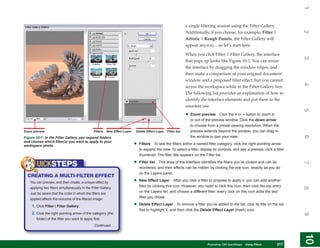
                                                               1. Choose a painting tool; in this example, choose the Clone Stamp tool from the
                                                                  Tools panel.


                                                                                                                                                             4
                                                               2. ALT/OPT+click an area of the image you want to use as a replacement for the current
                                                                  hole in your layered photo.
                                                               3. Choose a brush size from the Options bar and then choose Behind from the Mode
                                                                  drop-down list on the Options bar. For a scene such as that shown in Figure 7-18,


                                                                                                                                                             5
                                                                  it’s best to uncheck the Aligned box on the Options bar before you begin. By doing
                                                                  this, every time you release the mouse button, the sample origin point snaps back to
                                                                  its first sampled position in the document, thus avoiding inadvertently sampling over
                                                                  something you don’t want for cloning.
Figure 7-18: Use Behind mode on a layer transparency to
                                                               4. Stroke over the area you want to mend. It’s fast and produces great, undetectable


                                                                                                                                                             6
retain the original image pixels, and to add new opaque
ones only to transparent areas.                                   editing. However, this is Behind mode, so if you make a mistake, you can’t paint over
                                                                  your error—it’s behind mode. You need to be prepared to press CTRL/CMD+Z, or switch
                                                                  to Normal paint mode to finish your work.

      NOTE


                                                                                                                                                             7
                                                                                                                                                             7
   When you’re done with your mode blend work, you can
   make your layered image a normal one by right-clicking
   the bottom layer title and then clicking Flatten Image.
   The photo can now be saved to any file format, not just


                                                                                                                                                             8
   Photoshop’s native PSD.


                                                                                                                                                             9
                                                                                                                                                             10
                                                                                         Photoshop CS4 QuickSteps Using Paint and Layer Blend Modes
                                                                                                           PC QuickSteps   Getting to Know Your PC    173
                                                                                                                                                       173
This page intentionally left blank
1
How to…
•   Use the Brush Tool


                                                                                                                                 2
    Using Mode, Opacity,
    and Flow
    Using the Preset Manager


                                                                                                                                 3
•   Work with Custom


•
    Brush Presets
    Erase Pixels                    Chapter 8
                                                                    Making Local


                                                                                                                                 4
    Fine-Tuning with the Sharpen,
    Blur, and Smudge Tools
•   Remove Fringe Pixels                                        Adjustments with
•   Use the Gradient Tool
                                                                  the Tools Panel


                                                                                                                                 5
•   Use the Paint Bucket Tool
    Using the Dodge, Burn, and
    Sponge Tools
                                    Photoshop contains several tools that you can use to directly


                                                                                                                                 6
•   Create and Manage Patterns
                                    change the color of the pixels in images. If you want to perform
•   Use the Art History Brush       color editing using brush strokes, you can use the Brush tool.
•   Crop a Photo with the           If you want to fill areas of an image, you can use the Gradient
    Crop Tool


                                                                                                                                 7
                                    tool to add gradations to an image, or the Paint Bucket tool to
•   Use the Shape Tools
                                    create new colors and patterns within selections. Tools like the
    Converting Paths
                                    Eraser tool, Blur tool, Sharpen tool, and Smudge tool change
•   Edit Shapes


                                                                                                                                 8
                                    image areas by erasing them, softening them, sharpening


                                                                                                                                 8
                                    them, or smudging them, respectively. Along with the painting
                                    tools, Photoshop CS4 provides many presets for brush tips,
                                    gradients of color, color swatches, patterns, and more, so that


                                                                                                                                 9
                                    your opportunities for varying your images are extraordinary.
                                    Plus you can create your own presets.


                                                                                                                                 10
                                                Photoshop CS4 QuickSteps   Making Local Adjustments with the Tools Panel   175
1

                                                                            Work with Paint
2


                                                                                 Painting is how we change the color in images; it reassigns the color value of
                                                                                 pixels in images. As you have seen in other chapters, by using tools such as
                                                                                 the Brush, Pencil, Eraser, Gradient, Pattern, Smudge, Blur, Sharpen, and Stamp
                                                                                 tools, you can repair images, create new images, and create masks to protect
3


                                                                                 image areas as you edit images. If you have a digital stylus or are adept at
                                                                                 drawing with a mouse, you can use the Photoshop brushes to paint inside a
                                                                                 document and add artistic splashes of color. You can also create a stylized work
                                                                                 of art by painting on a separate layer with an underlying image as a template.
4


                                                                                 This chapter explores painting in detail.


                                                                            Use the Brush Tool
5


                                                                                 You use brushes in Photoshop for many things: creating selections, specifying
                                                                                 how a path guides a paint stroke, and so on. You also use the Brush tool to
                                                                                 create an artistic daub of color in a document and to paint stylized strokes of
                                                                                 color in a document. The foreground color is what is painted on the image. To
6


                                                                                 use the Brush tool:
                                                                                 1. Click the Set Foreground color swatch on the Tools panel, and choose a color from
           TIP                                                                       the Color Picker.
      When you click either the Set Foreground or Set
7


      Background color swatch, if you move your cursor
      outside of the Color Picker box and into a document
      window, the cursor changes to the Eyedropper tool. Click
      the Eyedropper tool to replace the current color in the
      Color Picker with the sampled color. Click OK to exit
8
8


      the Color Picker and apply to a document the current
      foreground color you sampled.
9


                                                                                 2. Select the Brush tool.
10


     176
     176         Photoshop CS4 QuickSteps to Making Local Adjustments with the Tools Panel
                 PC QuickSteps    Getting    Know Your PC
1
                                                               3. In the Options bar, click the down arrow to the right of the current brush tip to reveal


                                                                                                                                                                     2
                                                                  the Brush Preset Picker, which gives you these options:


                                                                                                                                                                     3
                                                                                                                                                                     4
                                                                  • Drag the Master Diameter slider to specify the size of the brush tip in pixels.


                                                                                                                                                                     5
                                                                  • Drag the Hardness slider to specify a value. Choose a low value for a soft-edged
                                                                     brush; choose a high value for a hard-edged brush.

   TIP                                                            • Drag the scroll bar to reveal thumbnail images of available brush types. The
                                                                     thumbnail represents the shape of the brush nib you stroke with. Click a brush tip
Use the airbrush feature to “spray” paint over the area              thumbnail to replace the current tip.


                                                                                                                                                                     6
according to the Opacity and Flow options. The paint will      4. In the Options bar, specify the Mode, Opacity, and Flow options for the brush. See
build up—increase in opacity and spread outward—if                the “Using Mode, Opacity, and Flow” QuickFacts.
you keep the cursor in one spot while holding the mouse
                                                               5. Click the Airbrush Capabilities button      to enable airbrush capabilities.
button, just as a regular paint spray gun does.
                                                               6. Drag inside the document to create the desired brush strokes.


                                                                                                                                                                     7
                                                             CHANGE BRUSH TIP GROUPS
                                                               Photoshop supplies a library of preset brush tips you can use to create
                                                               calligraphic brush strokes, watercolor brush strokes, and facsimiles of objects


                                                                                                                                                                     8
                                                                                                                                                                     8
                                                               such as grass. The default brush group is powerful, but if you want more
                                                               options, you need look no further than the Brush Options menu or the
   TIP                                                         Preset Manager:
You can restore the default foreground and background
                                                               1. Select the Brush tool.


                                                                                                                                                                     9
colors (black and white) by clicking the small icon to the
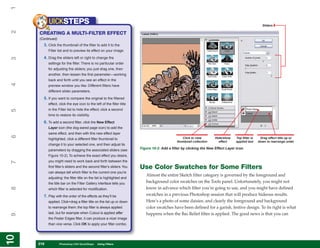
left of the color swatches    or by pressing D.
                                                               2. Click the down arrow to the right of the current brush tip to reveal the Brush
                                                                  Preset Picker.


                                                                                                                                                                     10
                                                                                   Photoshop CS4 QuickSteps   Making Local Adjustments with Know Your PC
                                                                                                               PC QuickSteps     Getting to the Tools Panel   177
                                                                                                                                                               177
1
           QUICKFACTS                                                             3. Click the right-pointing arrow in the upper-right corner of the Brush Preset Picker, to
     USING MODE, OPACITY, AND FLOW
2

                                                                                      display the Brush Options menu, and select a brush group as shown in Figure 8-1.
      When you choose a Brush tool, you have these options                               Click here to           Click here to
      for refining the stroke of the brush:                                           display the Brush       display the Brush
                                                                                        Preset Picker           Options menu
3


       • Mode       Establishes how the paint will blend with
           an image’s pixels. Chapter 7 covers blend modes
           in detail. Normal is the default Mode setting.

       • Opacity      Sets the coverage of color you apply to
4


           an image or image layer; the higher the number,                                                                               How to display
           the more opaque the paint stroke will be. The                                                                                 the Preset Brush
                                                                                                                                         library choices
           default is 100%, which is completely opaque; 0%
           is completely transparent.
5


       • Flow      Measures how fast the paint will flow from
                                                                                                                                         Tools to work
           the brush. Its effect is to build up a layer of paint                                                                         with the Preset
                                                                                                                                         Brush libraries
           as you press and hold the brush over an area,
           similar in effect to decreasing the Opacity for a
           brush. It will build the layer of paint up to the value                                                                       List of Preset
6


           of Opacity, unless you release the brush and apply                                                                            Brush libraries;
                                                                                                                                         click one to
           it again over the same place. Then it will apply it                                                                           replace the
           again up to the value of the Opacity. The default                                                                             currently
                                                                                                                                         displayed library
           Flow value is 100%.                                                                                                           of brush tips
                                                                                                                                         (Basic Brushes)
7


                                                                                                                                         Example of a
                                                                                                                                         custom library

           TIP                                                                      Figure 8-1: In addition to the brush tip options you see on the main list, there are
                                                                                    many other interesting groups that ship and install with Photoshop.
8
8


      Press B to select the Brush tool. Press B again to switch
      to the Pencil tool. Press B once more to switch to the                      See the Chapter 1 section “Change the Brush Tool Options” to learn some basics
      Color Replacement tool, before finally pressing B to
                                                                                  about changing brush tool options.
      return to the Brush tool again.
                                                                             CREATE A CUSTOM BRUSH
9


                                                                                  If you like diversity, you can modify a brush preset. You can also create a
                                                                                  brush from an image or from a portion of an image. After doing either, you
10


     178
     178          Photoshop CS4 QuickSteps to Making Local Adjustments with the Tools Panel
                  PC QuickSteps    Getting    Know Your PC
1
                                                              can save the brush preset for future use. Here’s the short overview of how to


                                                                                                                                                                 2
                                                              do it:
                                                              1. Open an image that contains an area you want to use for a brush preset.
                                                              2. Using one of the selection tools, select the area of the image you want to define as the
                                                                 brush tip. You can also select the entire image (press CTRL/CMD+A).
   TIP


                                                                                                                                                                 3
                                                              3. Click Edit and then click Define Brush Preset (you may need to click Show All Menu
                                                                 Items to see it). The Brush Name dialog box appears.
From the Brushes panel you can rename brushes
by double-clicking the brush thumbnail and typing
a new name.


                                                                                                                                                                 4
   TIP
To change the size of a chosen brush tip using the


                                                                                                                                                                 5
keyboard, press the RIGHT BRACKET key ( ] ) to increase
the brush tip size; press the LEFT BRACKET key ( [ ) to
decrease the tip size. Hold down the applicable key until
the brush is the desired size.                                4. Type a name for the preset.


                                                                                                                                                                 6
                                                              5. Click OK to add the preset to the Brushes panel using the selection area as the
                                                                 tip size.
    UICKSTEPS
USING THE PRESET MANAGER


                                                                                                                                                                 7
In Photoshop CS4 you can access several libraries of
presets: Brushes, Swatches, Gradients, Styles, Patterns,
Contours, Custom Shapes, and Tools. All of these
libraries can be accessed and managed with the Preset


                                                                                                                                                                 8
                                                                                                                                                                 8
Manager, shown in Figure 8-2. This chapter provides
additional information on using individual preset libraries
such as Brushes and Patterns, and subsequent chapters
cover other preset libraries. Here is a quick overview of
how to use this feature.


                                                                                                                                                                 9
 1. To display the Preset Manager, click Edit |
                                                                              Figure 8-2: The Preset Manager is where you manage
    Preset Manager.                                                           the contents of the preset libraries.
                                            Continued . . .


                                                                                                                                                                 10
                                                                               Photoshop CS4 QuickSteps   Making Local Adjustments with Know Your PC
                                                                                                           PC QuickSteps     Getting to the Tools Panel   179
                                                                                                                                                           179
1
           UICKSTEPS
                                                                                Work with Custom Brush Presets
2


     USING THE PRESET MANAGER                                                        Photoshop CS4 comes with many preset brush tips, which are arranged in
     (Continued)
                                                                                     libraries, as shown previously in Figure 8-1. Before you stroke with a brush
       2. Click the Preset Type down arrow and click the
                                                                                     in a document, you first select a brush tip. If you need to change Preset Brush
           library you want to use.
                                                                                     libraries to get the exact brush tip you want for a brush stroke, you can easily
3


       3. Click the Options right-pointing arrow for a pop-up
                                                                                     do so. If you don’t find the one you need, you can create your own, as described
           menu. You have these options:
                                                                                     previously in “Create a Custom Brush.” When you add several custom brushes
           • To change the size of the thumbnail, choose                             to an existing library, you may find that the sheer number of presets makes
              Text Only, Small Thumbnail, Large
              Thumbnail, Small List (which contains both
                                                                                     finding a specific brush a difficult task. You can create a custom library just for
4


              a small thumbnail and the name of the preset),                         your brushes.
              or Large List.
                                                                                CREATE A CUSTOM BRUSH LIBRARY
           • To restore the default presets, click Reset                             To create a new brush library for your own use:
              Preset Type. If you’ve created custom presets
                                                                                     1. Select any Brush tool. You can delete the brushes you don’t want later.
5


              and have not saved them, don’t do this—your
              unsaved presets will be deleted.                                       2. In the Options bar, click the down arrow to the right of the current brush tip to reveal
           • To replace the current pattern with a custom                                the Brush Preset Picker.
              one, click Replace Preset Type, select the                             3. Click the right-pointing arrow in the upper-right corner to open the Options menu, and
              preset file you want, and click Load.
6


                                                                                         click Save Brushes. The Save dialog box appears.
       4. Click the name of the preset library you want to                           4. In Save In, type a filename for the new brush library.
           work with. A dialog box will ask what you want
                                                                                     5. Click Save.
           to do. Click OK to replace the current pattern
           with the selected one. Click Append to add the                            6. At this point, after saving an existing library under another name, delete all but one
7


           selected pattern to the current one.                                          of the presets that are duplicates of the original library. You must retain at least one
                                                                                         preset in a library.
      When you have selected the preset you want, you can
      manage the contents with these options:                                        7. Next add at least one of your own custom brushes or frequently used brushes, and
                                                                                         then delete the last original remaining preset. If you have additional brushes for this
       • Load        Adds a new preset to the active library.
                                                                                         library, add all that you want.
8
8


           The preset must have been previously created
           and saved.                                                                8. Save your custom library again.
       • Save Set         Saves the selected preset in the
           default folder.
9


       • Rename          Changes the name of the selected
           preset.

       • Delete        Deletes the selected preset.
10


     180
     180             Photoshop CS4 QuickSteps to Making Local Adjustments with the Tools Panel
                     PC QuickSteps    Getting    Know Your PC
1
   NOTE
                                                                  DISPLAY A CUSTOM BRUSH LIBRARY
If you save the brush library in the default folder, it will be


                                                                                                                                                                        2
                                                                    You can either add one custom library’s brushes to the currently displayed
displayed in the list of Preset Brush libraries on the Brush
menu—after you restart Photoshop.
                                                                    library brushes or replace one library with another:
                                                                    1. Select any Brush tool.
                                                                    2. In the Options bar, click the down arrow to the right of the current brush tip to reveal


                                                                                                                                                                        3
                                                                        the Brush Preset Picker.
                                                                    3. Click the right-pointing arrow to open the Options menu.
                                                                        • To add to the currently displayed library, click Load Brushes.
                                                                        • To replace the currently displayed library, click Replace Brushes. The Load dialog


                                                                                                                                                                        4
                                                                          box appears, as shown in Figure 8-3.
                                                                    4. Select the brush library you want to display and click Load or Replace.
                                                                  DELETE A BRUSH
                                                                    1. Select a Brush tool.


                                                                                                                                                                        5
                                                                    2. Click the down arrow to the right of the current brush tip to reveal the Brush Preset
                                                                        Picker, and select the thumbnail of the brush you want to delete.
  Figure 8-3: You create and display your own                       3. Click the right-pointing arrow in the upper-right corner to
  custom Preset Brush library with the Preset
  Manager or the Brush Options menu.                                    display the Brush Options menu, and click Delete Brush.


                                                                                                                                                                        6
                                                                        The Delete Brush dialog box appears.
                                                                    4. Click OK to delete the brush.
   TIP
To reset the brushes to the default set, click Reset
                                                                  Erase Pixels


                                                                                                                                                                        7
Brushes from the Brush options pop-up menu. You can                 Because Photoshop is both an image editing program and a painting program,
also click Append to add the default set to the currently           you have a selection of three Eraser tools:
displayed brushes.
                                                                    •   Eraser tool Erases foreground pixel colors to the current background color


                                                                                                                                                                        8
                                                                        swatch you have defined on the Tools panel, and to transparency when used on


                                                                                                                                                                        8
                                                                        an image layer


                                                                                                                                                                        9
                                                                    •   Background Eraser tool Erases parts of a layer to transparency while preserving
                                                                        the edges of an object in the foreground

                                                                    •   Magic Eraser tool    Erases pixels similar in color to transparency


                                                                                                                                                                        10
                                                                                      Photoshop CS4 QuickSteps   Making Local Adjustments with Know Your PC
                                                                                                                  PC QuickSteps     Getting to the Tools Panel   181
                                                                                                                                                                  181
1
                                                                             USING THE ERASER TOOL
2


                                                                                  What happens when you stroke with the Eraser tool depends on the type of
                                                                                  layer you’re working with. If a layer’s transparency is locked, the pixels are
                                                                                  changed to the background color; similarly, a typical photo that only has a
                                                                                  background layer listed on the Layers panel is erased to the current background
3


                                                                                  color swatch. If the layer is unlocked, the pixels are changed to be transparent.
                                                                                  Figure 8-4 illustrates this.
4


                                                                                                                                              Locked
                                                                                                                                              background
                                                                                                                                              color white
5


                                                                                                                                              Locked
                                                                                                                                              background
                                                                                                                                              color black with
                                                                                                                                              75% Opacity
6


                                                                                                                                              Unlocked
                                                                                                                                              background
7


                                                                                                 Figure 8-4: The Eraser tool changes the pixels of an
                                                                                                 image to the background color or to transparent.


                                                                                  1. Select the Eraser tool.
                                                                                  2. In the Options bar, click the Mode down arrow, and click Block for rectangular or
8
8


           NOTE                                                                       larger erasures, click Brush (the default mode) to perform erasures that require
                                                                                      intricacy and an anti-aliased edge, or click Pencil, which offers shaped tips but aliased,
      To undo edits instead of erasing the background of a                            hard edges, good for coarse area erasing. Block mode has no additional options.
      document, click Window | History, set the point at which
                                                                                  3. Specify the brush size and tip if you’ve selected Brush or Pencil mode.
      you want to erase to by clicking one of the boxes at left
9


      (don’t click the title on the History Panel list; this changes              4. Specify the Opacity if you’ve selected Brush or Pencil mode.
      the document history), check the Erase To History box                       5. Specify the Flow if you’ve selected Brush mode.
      on the Options bar, and then use the Eraser tool.
                                                                                  6. Drag inside the document to erase pixels.
10


     182
     182          Photoshop CS4 QuickSteps to Making Local Adjustments with the Tools Panel
                  PC QuickSteps    Getting    Know Your PC
1
                                                         USE THE BACKGROUND ERASER TOOL


                                                                                                                                                              2
                                                           The Background Eraser tool considers the color it is erasing and makes similar
                                                           colors transparent. The locked status of the layer does not matter. In Figure 8-5,
                                                           you can see that by choosing Contiguous, the integrity of the selection edges
                                                           is maintained. The pixels are tested to see if the color matches that in the “hot


                                                                                                                                                              3
                                                           spot” of the brush. If it does, the pixels are erased to transparent. So in this
                                                           case, the dissimilar colors in the image are not affected. You can make them
                                                           transparent by going over them again, as is seen in the left leg and arm of the
                                                           background man in Figure 8-5.


                                                                                                                                                              4
                                                           1. Select the Background Eraser tool.
                                                           2. In the Options bar, click the down arrow to reveal the Background Eraser Settings
                                                              dialog box. You have these options:


                                                                                                                                                              5
Figure 8-5: The Background Eraser tool tests for color
as it erases image pixels to transparent.


                                                                                                                                                              6
                                                                                                                                                              7
                                                              • Drag the Diameter slider for the size of the eraser.
                                                              • Drag the Hardness slider to set the sharpness of the edge of the eraser.
                                                              • Drag the Spacing slider to set how close together each application of the eraser
                                                                 will erase the image (whether there will be spaces between the erasures).


                                                                                                                                                              8
                                                                                                                                                              8
                                                              • Type in an Angle setting or drag in the thumbnail diagram to alter the angle of the
                                                                 eraser tip (this is only applicable when the Roundness is less than 100%).

                                                              • Type the Roundness setting for the percent of roundness that the eraser shape holds.
                                                              • If you’re using a digital stylus, click the Size and Tolerance down arrows, and click


                                                                                                                                                              9
                                                                 Pen Pressure or Stylus Wheel, depending on the type of digital stylus you’re
                                                                 using. Click Off if you’re not using a digital stylus.


                                                                                                                                                              10
                                                                            Photoshop CS4 QuickSteps   Making Local Adjustments with Know Your PC
                                                                                                        PC QuickSteps     Getting to the Tools Panel   183
                                                                                                                                                        183
1

                                                                                  3. In the Options bar, shown in Figure 8-6, click the Limits down arrow to select any of
2

                                                                                      the following options:

                                                                                      • Discontiguous          Erases pixels of the sampled color wherever they occur under
                                                                                         the brush

                                                                                      • Contiguous      Erases pixels of the sampled color that are connected to each other

                                                                                      • Find Edges     Erases pixels of the sampled color that are connected to each other
3


                                                                                         while preserving the integrity of edges

                                                                                                Samples                                  Sets how closely a
                                                                               Eraser tool       color            Erases only the        match of the color
                                                                                presets       continuously       background color         must be to erase
4


     Figure 8-6: The Erase Background tool Options bar has
                   options for sampling color; defining limits                     Contains a list    Samples color          Determines whether to       Determines whether
                 of the erasure, tolerance, or selection ability                  of eraser shapes    once per brush        erase contiguous areas,          to protect the
5


                  of the erasure; and whether to preserve the                         and sizes         selection         noncontiguous areas, or only     foreground color
                         foreground color during the erasure.                                                                at the edges of a color      from being erased


                                                                                  4. Type a value in the Tolerance text box. Specify a low value to erase areas similar to
                                                                                      the sampled color; specify a high value to erase a broader range of colors.
6


                                                                                  5. Click the Protect Foreground Color check box to prevent the tool from erasing pixels
                                                                                      of the foreground color.

           TIP                                                                    6. In the Options bar, choose one of the following options:
                                                                                      • Once Erases only areas of the sampled color that you first click
7


       To prevent erasing an area such as a silhouette of a
       building or a line of trees, click the Set Foreground color                    • Continuous Samples colors under the Eraser tool continuously as you drag the
                                                                                         tool across the document
       swatch, and use the Eyedropper tool to sample the
       color you want to protect. Click the Protect Foreground                        • Background Swatch           Erases only pixels of the current background color
       Color check box for the Background Eraser tool prior to                    7. Drag the tool across the area you want to erase.
8
8


       dragging the tool along the border of the area you want
                                                                             USE THE MAGIC ERASER TOOL
       to preserve.
                                                                                  The Magic Eraser tool erases pixels based on color. If the layer is locked for
                                                                                  transparency, the background color is used to erase. If transparency is unlocked,
                                                                                  pixels are made transparent.
9
10


     184
     184          Photoshop CS4 QuickSteps to Making Local Adjustments with the Tools Panel
                  PC QuickSteps    Getting    Know Your PC
1
                                                               1. Select the Magic Eraser tool.


                                                                                                                                                                     2
                                                               2. In the Options bar, shown in Figure 8-7, you have these choices:
                                                                            When selected,
                                                                Tool       smoothes erasure         Erases the color
                                                               presets          edges                 in all layers


                                                                                                                                                                     3
         Figure 8-7: The Magic Eraser tool Options bar            Sets the tolerance       Erases only contiguous              Sets the strength
                     allows you to refine the tool when          for the hues of color    colors; leave unselected to            of the eraser


                                                                                                                                                                     4
                         selecting what will be erased.           that will be erased    erase noncontiguous colors


                                                                  • Type a value in the Tolerance text box. Specify a low tolerance to erase pixels
                                                                      similar in color to the first pixels you click with the tool; specify a high tolerance to
                                                                      erase a wider range of colors.


                                                                                                                                                                     5
                                                                  • Click the Anti-Alias check box (selected by default), and Photoshop smoothes the
                                                                      edges of areas you erase.

                                                                  • Click the Contiguous check box (selected by default) to erase only areas of
                                                                      contiguous pixels (pixels that directly neighbor one another) containing the sampled


                                                                                                                                                                     6
                                                                      color. Deselect the option to erase all areas of pixels of similar color to the pixel

   TIP                                                                you click over.

                                                                  • Click the Sample All Layers check box to erase similar colors on all visible layers
When using the Magic Eraser tool, in addition to dragging,            in the document.
you can just click on the background image to create a
                                                                  • Type a value in the Opacity field. The default value of 100% erases pixels completely.


                                                                                                                                                                     7
layer out of the background layer. The pixels corresponding
                                                                      Specify a lower value to partially erase pixels.
to the Options setting are automatically erased.
                                                               3. Drag the tool over the area you want to erase.


                                                                                                                                                                     8
                                                                                                                                                                     8
                                                              Use Other Adjustment Tools
                                                               In addition to painting tools, Photoshop CS4 provides several other tools for
                                                               modifying images. You can adjust areas of an image or edges with Sharpen, Blur
                                                               and Smudge tools, use the Gradient or Paint Bucket tools to create or replace


                                                                                                                                                                     9
                                                               color, and use the Dodge, Burn, and Sponge tools to adjust light or saturation.


                                                                                                                                                                     10
                                                                                   Photoshop CS4 QuickSteps   Making Local Adjustments with Know Your PC
                                                                                                               PC QuickSteps     Getting to the Tools Panel   185
                                                                                                                                                               185
1
           UICKSTEPS                                                              You will also see how to create patterns from images or select Pattern Presets
2


     FINE-TUNING WITH THE SHARPEN,                                                from a library, to create stylized art from images using the Art History Brush,
     BLUR, AND SMUDGE TOOLS                                                       and crop images.
      When you edit an image, you often want to touch up
      small areas. For example, you can bring out an edge of
      an object that’s slightly blurred with the Sharpen tool.
                                                                             Remove Fringe Pixels
3


      You can also smudge or blur an area that you want to                        When you copy the contents of an anti-aliased selection to a new layer or
      de-emphasize. Since these tools use the same brush                          document, a fringe or halo of the original background color is often retained.
      tips as the painting tools to change image areas, you                       The Defringe command replaces the color of edge pixels with the color of pixels
      have available controls such as opacity of the brush,                       inside the selection (or inside the edge of nontransparent pixels on a layer). To
      brush size, mode, strength, and so on.
4


                                                                                  remove a fringe:
       1. Select the Sharpen, Blur, or Smudge tool from
           the Tools panel:
                                                                                  1. Click Layer | Matting | Defringe. The Defringe dialog box appears.
                                                                                  2. Type the width in pixels of the colored halo to be replaced.
                                                                                      For a photo that’s approximately 2500 pixels on a side, usually
5


                                                                                      1-pixel width will do the trick, 3 pixels at most.
           • Click Sharpen to increase contrast between                           3. Click OK. The colored halo disappears.
              dissimilarly colored pixels in an area, making
                                                                                  If the Defringe command replaces the color of too many or too few pixels, press
              the edges sharper.
                                                                                  CTRL/CMD+Z to undo the Defringe command and try again, this time specifying
6


           • Click Blur to soften or blur the area stroked.                       a different width.
           • Click Smudge to drag color from one area to
              another (much like smearing wet paint) as you
              stroke, evening out blemishes.                                 Use the Gradient Tool
7


       2. In the Options bar, specify the values in the Brush                     Use the Gradient tool to apply a blend of two or
           Size, Brush Tip, Mode, and Strength fields.                            more colors to a background layer or to a selection.
       3. Drag the tool over the area you want to touch up.                       Figure 8-8 shows an example of a gradient fill.
                                                                                  You can select a gradient preset or create a custom
8
8


                                                                                  gradient.
                                                                             APPLY A GRADIENT FILL
           TIP                                                                    To apply the gradient, you select the pattern and
      When you use the Smudge tool, it normally uses the                          then drag the pointer across the area you want
9


      color beneath the brush tip where you make your initial                                                                                      Figure 8-8: A gradient fill can
                                                                                  to fill:                                                         create interesting effects.
      click point to smudge. If you click the Finger Painting
      option, the foreground color will be used to smudge.                        1. Select the layer to which you want to apply the gradient fill. You can also use one of the
                                                                                      selection tools to select the area to which you want to apply the fill.
10


     186
     186          Photoshop CS4 QuickSteps to Making Local Adjustments with the Tools Panel
                  PC QuickSteps    Getting    Know Your PC
1
                                                                     2. Select the Gradient tool.


                                                                                                                                                                                      2
                                                                     3. In the Options bar, shown in Figure 8-9, click the Gradient
                                                                         Picker down (menu) arrow, and select one of the presets.

                                                                                                                                            Click to reverse
                                                                     Click to set   Click to set      Click to set                           the design (for        Click to allow
                                                                      a Linear       a Radial         a Diamond                            instance from red      transparency to


                                                                                                                                                                                      3
                                                            Tool      gradient       gradient          gradient        Click to select    to green instead of     work if used in a
                                                           presets     option         option            option         a blend mode           green to red)       gradient preset


                                                                                                                                                                                      4
                                                             Click to    Click to    Click to set     Click to set       Click and drag the scrubby        Click to minimize
                                                           display the   select a     an Angle        a Reflected         slider to set the opacity       banding if document
             Figure 8-9: The Gradient Options bar           Gradient     gradient     gradient          gradient            percentage (or type a            is for printing
                         displays ways to vary the           Editor       preset       option            option            value, or click arrow to
                           effects of a gradient fill.                                                                          reveal slider)


                                                                                                                                                                                      5
                                                                     4. In the Options bar, click the appropriate options to select one of the following
                                                                         gradient types:

                                                                         • Linear Creates a fill that blends colors in a straight line from the starting point
                                                                         • Radial Creates a circular fill that radiates from the starting point outward


                                                                                                                                                                                      6
                                                                         • Angle Creates an angular fill in a counterclockwise direction from the starting point
                                                                         • Reflected Creates symmetrical linear fills on either side of the starting point
                                                                         • Diamond Creates a diamond-shaped fill that radiates from the starting point outward
   NOTE                                                              5. Specify a blend Mode and Opacity.


                                                                                                                                                                                      7
To select a different library of Gradient presets, click             6. Click the Reverse check box to reverse the order in which the gradient colors are applied.
the Gradient Picker for the Gradient Editor dialog box.              7. Click the Dither check box to create a smoother blend of colors without distinct bands.
Then click the right-pointing arrow for the Options menu
located in the upper right of the Presets thumbnail
                                                                     8. If the preset gradient you chose contains transparency, click the Transparency
                                                                         check box to include the transparency on a layer when you use the Gradient tool.


                                                                                                                                                                                      8
                                                                                                                                                                                      8
display box. On the lower half of the menu are the
                                                                         With Transparency unchecked, all areas of the layer (or selection) are filled with the
Preset library names.
                                                                         gradient pattern; transparent areas are filled with the closest nontransparent color in
                                                                         the gradient blend.
                                                                     9. Click inside the document where you want the gradient fill to start, and then drag to


                                                                                                                                                                                      9
                                                                         create the fill.


                                                                                                                                                                                      10
                                                                                            Photoshop CS4 QuickSteps    Making Local Adjustments with Know Your PC
                                                                                                                         PC QuickSteps     Getting to the Tools Panel        187
                                                                                                                                                                              187
1
                                                                             EDIT A GRADIENT
2


                                                                                  You can alter the presets or create a custom preset by saving it under a new name:
                                                                                  1. Select the Gradient tool and select a gradient, as outlined previously.
                                                                                  2. Click the Gradient Picker (second button from the left, as shown in Figure 8-9) in the
                                                                                      Options bar to open the Gradient Editor dialog box, shown in Figure 8-10.
3


                                                                                  3. Click a Presets thumbnail to set the values for the color bar.
                                                                                  4. Click New and name the preset so that you duplicate, and don’t overwrite, the existing
                                                                                      preset you chose.
                                                                                  5. Click the Gradient Type down arrow, and click either Solid or Noise (which creates
4


                                                                                      scores of color bands, not individually editable, but visually interesting). If you choose
                                                                                      Noise, new options appear.

     Figure 8-10: The Gradient Editor is used to modify and                       6. If you choose a gradient type of Solid, drag the sliders on the color bar above the
     customize gradient-fill presets.                                                 Stops area:
5


                                                                                      • Drag the top sliders (pins) to move the opacity stops. As you drag the stops, you
                                                                                         determine where the opacity appears in the gradient. To add another opacity stop
                                                                                         to the color bar, click the top edge of the color bar; the pointer will change from an
                                                                                         eyedropper to a hand, indicating the point at which you click to add the stop. As you
                                                                                         select or move the opacity sliders above the color bar, the opacity stops beneath
6


                                                                                         it become available. All new stops you add default to the opacity of a stop you’ve
                                                                                         previously clicked on.

                                                                                      • To duplicate an opacity stop, press ALT/OPT and drag. You can drag the duplicate
                                                                                         through other opacity stops when you reposition the duplicate.
7


                                                                                      • Vary the opacity for a selected stop by clicking the stop, clicking the Opacity down
                                                                                         arrow, and then dragging the slider to the percentage you want. To delete an opacity
                                                                                         stop, select the stop and click Delete. Alternatively, you can drag a stop away from
                                                                                         the color bar and it disappears.

                                                                                      • Drag the bottom sliders to move the color stops. As you drag the stops, you
8
8


                                                                                         determine where the color appears in the gradient. To add another color stop to
                                                                                         the color bar, click the bottom edge of the color bar (the pointer will morph from an
                                                                                         eyedropper to a hand, indicating you can insert a stop) where you want the stop
                                                                                         inserted. Beneath the color bar, the color stops become available when you move or
                                                                                         select a color stop.
9


                                                                                      • Color stops have similar behavior to opacity stops: press ALT/OPT and drag to
                                                                                         duplicate an existing one. Deleting stops can be accomplished by dragging the stop
                                                                                         away from the color bar.
10


      188
      188         Photoshop CS4 QuickSteps to Making Local Adjustments with the Tools Panel
                  PC QuickSteps    Getting    Know Your PC
1
   TIP
To save a modified gradient, type a name in the Name
                                                           • Vary the color for a selected stop by clicking the stop, clicking the Color down


                                                                                                                                                            2
                                                              arrow, and clicking Foreground, Background, or User Color. To delete a color
field and then click Save.
                                                              stop, select the stop and click Delete.
                                                        7. If you have chosen a gradient type of Noise:
                                                           • Click the Roughness down arrow, and drag the slider to set the amount of random
                                                              color bands you want.


                                                                                                                                                            3
                                                           • Click the Color Model down arrow, and click RGB, HSB, or LAB. Beneath the color
                                                              model, three smaller color bars appear:

                                                           • Drag the sliders on the color bars to determine where the color or opacity stops
                                                              appear in the gradient. For example, you can limit a noise gradient type to grayscale


                                                                                                                                                            4
                                                              by choosing LAB as the color model and then dragging the sliders for both the
                                                              A and B channels to the center of their color bars. The narrower the range you
                                                              determine with the sliders, the less of the color component is featured in your
                                                              custom gradient. Dragging a slider skews that amount of color component to
                                                              become less predominant in the final gradient. Dragging the L color channel slider’s


                                                                                                                                                            5
                                                              white slider to the left, for example, favors darker tones in the final gradient—white
                                                              is moving toward black in the mix.

                                                           • Click the Restrict Colors check box to decrease the number of colors in a noise
                                                              gradient.


                                                                                                                                                            6
                                                           • Click the Add Transparency check box to add random bands of transparency to
                                                              the gradient. You have no options for determining precisely where the transparent
                                                              regions are generated.

                                                           • Click Randomize to display a random version of the noise-based gradient. If one is
                                                              generated that looks appealing, save it. Chances are good you’ll never rediscover a


                                                                                                                                                            7
                                                              random setting!
                                                        8. Click OK to apply the changes.

                                                       Use the Paint Bucket Tool


                                                                                                                                                            8
                                                                                                                                                            8
                                                        Use the Paint Bucket tool to replace areas of color with a different color. You can
                                                        determine the extent of the color replacement by specifying a Tolerance value:
                                                        1. Click the Set Foreground color swatch and select a color from the Color Picker.


                                                                                                                                                            9
                                                        2. Select the Paint Bucket tool.


                                                                                                                                                            10
                                                                          Photoshop CS4 QuickSteps   Making Local Adjustments with Know Your PC
                                                                                                      PC QuickSteps     Getting to the Tools Panel   189
                                                                                                                                                      189
1
           TIP
                                                                                  3. In the Options bar, click the Set Source For Fill Area down arrow, and click
      If you want to fill an area whose target pixel—the one you
2

                                                                                      Foreground to fill the tool with the foreground color; or you can click Pattern. If you
      target to fill an area containing similarly colored pixels—is                   click Pattern, the Pattern field becomes available. Click the down arrow to the right of
      quite small, you need to be precise. Press CTRL/CMD+K,                          the current pattern preview, and select a preset.
      click Preferences | Cursors, and then click Precise
      in the Other Cursors field. Your cursor becomes a
3


      crosshair for the Paint Bucket and other tools. If you only
      need precision temporarily, press CAPS LOCK to toggle                       4. Click the Mode down arrow to choose a blend mode, and click the Opacity down
      to a precise cursor, then press CAPS LOCK when you’re                           arrow to set the opacity for the Paint Bucket tool.
      finished to toggle back to a normal cursor display.                         5. Type a value in the Tolerance text box. This value determines how closely pixels must
                                                                                      match the color of the pixel you initially click over before an area is filled. You can
4


                                                                                      specify a value between 0 and 255. Type a low value to fill pixels that are similar in

           UICKSTEPS                                                                  color; type a high value to fill pixels with a wider color range.
                                                                                  6. Leave the Anti-Alias check box selected to ensure smooth blending of adjacent pixels.
     USING THE DODGE, BURN, AND                                                   7. Leave the Contiguous check box selected to fill contiguous pixels of similar color.
5


     SPONGE TOOLS                                                                     Deselect the option to fill all similar pixels within the image.
      There are times when you want to lighten or darken
                                                                                  8. Click the All Layers check box to apply the fill to pixels of similar color in all layers.
      areas without affecting the whole image. You can use the
      Dodge tool to lighten an area, or the Burn tool to darken                   9. Click inside the area you want to fill.
      it. The Sponge tool increases or decreases the saturation
6


      of an image. (See Chapter 7                                            Create and Manage Patterns
      for how to use the Color Dodge
                                                                                  You can create patterns by sampling an area from within an image. After
      and Color Burn effects using
      layer blend modes.)
                                                                                  creating a pattern, you can apply it as a fill using the Paint Bucket tool, as a
                                                                                  new pattern-filled layer via Layer | New Fill Layer | Pattern, with the Pattern
7


     ADJUST LIGHT WITH DODGE AND BURN
                                                                                  Stamp tool, or by clicking Edit | Fill | Pattern.
       1. Select the Dodge or Burn tool from the Tools panel:
                                                                             CREATE A PATTERN
           • Click Dodge to lighten an image area.
                                                                                  1. Open the desired image.
           • Click Burn to darken an image area.
8
8


       2. In the Options bar, you have these choices:
                                                                                  2. Select the Rectangular Marquee tool, and select the pixels you want to use as the
                                                                                      basis for your pattern. Generally, if your sample contains little distinct detail but instead
           • Specify the shape, hardness, and diameter of                             is diffuse, like the rhododendron shown in Figure 8-11, the pattern is much less likely
             the tip by clicking the Brush Preset Picker
                                                                                      to visibly repeat.
             down arrow. Choose a preset and then modify
                                                                                  3. Click Edit Define Pattern. The Pattern Name dialog box is displayed.
9


             its size and hardness using the sliders or the
             number fields.                                                       4. Type the name you want for the pattern and click OK.
                                                    Continued . . .
10


     190
     190          Photoshop CS4 QuickSteps to Making Local Adjustments with the Tools Panel
                  PC QuickSteps    Getting    Know Your PC
1
    UICKSTEPS


                                                                                                                                                                  2
USING THE DODGE, BURN, AND
SPONGE TOOLS (Continued)
   • Click the Range down arrow and select
       Midtones to alter the middle tones, Shadows
       to alter the dark pixels, or


                                                                                                                                                                  3
       Highlights to alter the light
       pixels of an area.

   • Click the Exposure down arrow and drag
       the slider to the percentage of what’s best


                                                                                                                                                                  4
       described as “intensity” of Dodge and Burn.

   • Click the Airbrush tool to enable the ability
       to concentrate the effects by holding without
       dragging the cursor.                                                 Figure 8-11: Create a pattern to add to your pattern library.


                                                                                                                                                                  5
   • Select the Protect Tones check box to maintain
       the level of saturation in areas you dodge or          5. The pattern will be added to the current active pattern library. If you click the Pattern
       burn. Without this option checked, it’s quite             presets, you’ll see the new pattern appended to the bottom of the list.
       easy to increase saturation to an unrealistic
       (and unappealing) degree when you use


                                                                                                                                                                  6
       the Toning tools. Pixel brightness is usually
       irrevocably tied to pixel color.

 3. Drag the tool over the area you want to touch up.
ADJUST SATURATION WITH THE SPONGE


                                                                                                                                                                  7
 1. Select the Sponge tool from the Tools panel.
 2. In the Options bar, click the
    Mode down arrow:
                                                            USE THE PATTERN PRESET MANAGER
   • Click Saturate to increase the distinct hue in


                                                                                                                                                                  8
                                                                                                                                                                  8
       areas you stroke over.                                 You can find and manage your patterns using the Preset Manager. You manage
                                                              your pattern libraries from the Pattern Preset Picker panel. To load a library
   • Click Desaturate to reduce distinct hues. If
       you scrub over an area several times with the          of patterns:
       Sponge tool, eventually you’ll get grayscale           1. Click the Pattern tool, and then on the Options bar, click the Pattern Preset Picker


                                                                                                                                                                  9
       image areas.                                              down arrow. The currently selected presets are displayed.
                                          Continued . . .     2. Click the Options menu right-pointing arrow and click Preset Manager.
                                                              3. Follow the guidelines in the “Using the Preset Manager” QuickSteps earlier in this chapter.


                                                                                                                                                                  10
                                                                                Photoshop CS4 QuickSteps   Making Local Adjustments with Know Your PC
                                                                                                            PC QuickSteps     Getting to the Tools Panel   191
                                                                                                                                                            191
1
            UICKSTEPS
                                                                              Use the Art History Brush
2


       USING THE DODGE, BURN, AND                                                  The Art History Brush, as its name suggests, makes somewhat stylized artwork
       SPONGE TOOLS (Continued)
                                                                                   out of photographs, based on a state (a point in time) you find on the History
         3. In the Options bar, click Flow to control how
                                                                                   panel. The Art History Brush examines the colors and general geometry of
            fast the Sponge tool decreases or increases
            saturation.                                                            the scene as it existed at a point on the History panel, and then randomizes
3


                                                                                   the original colors, using geometric variations you set using the Style presets
         4. In the Options bar, specify the values in the Brush
            Size, Brush Tip, and Strength fields.                                  on the Options bar drop-down list. Further randomization and modification
         5. Drag the tool over the area you want to touch up.
                                                                                   is achieved through the Painting Area slider, which determines the size and
                                                                                   number of individual strokes the brush applies, Tolerance slider, which when
4


                                                                                   set at 0 enables you to modify the entire image, while setting it at a higher value
                                                                                   increases the tolerance so that some strokes may not result in a change, and the
                                                                                   Opacity and blending Mode. To get the best artistic effect using this brush, use
                                                                                   the following points as recommendations:
5


                                                                                               •   Apply a filter to your original image, ideally one that creates a lot of pleasing
                                                                                                   color changes in your photo. Because the Art History Brush doesn’t change
                                                                                                   original colors, the filter can add a dramatic modification to the original. Bas
                                                                                                   Relief, Water Paper, and even Image | Adjustments | Gradient Map can prep
6


                                                                                                   your work well for the Art History Brush, as shown in Figure 8-12.
                                                                       Original
                                                                                               •   Choose a tip for the Art History Brush that has some texture, and possibly
                                                                                                   some Jitter in it. The Chalk 44 Pixels tip in the default collection of Brushes
                                                                                                   can serve you well; you add texture as you add abstraction.

                                                                                               •
7


                                                                                                   Set the History panel (click Window | History) to an early point in the changes
                                                                       Find the image
                                                                                                   you make by clicking the box to the left of the state’s title. You can use the
                                                                       state in the                original image, or a state between multiple filter applications.
                                                                       History panel
                                                                       that you want
                                                                       to paint
                                                                                               •   Work a little with one style, then change styles as a specific area calls for it.
                                                                                                   Use your artistic eye. The Tight Long style actually works well in Figure 8-13;
8
8


                                                                       Click the Set               a combination of the right filters, the right History state, and not overdoing it
                                                                       Source For The              can result in an eye-pleasing variation on your photographic work.
                                                                       History Brush
9


     Figure 8-12: The original image with and without
     a filter before the Art History Brush is applied.
10


      192
      192          Photoshop CS4 QuickSteps to Making Local Adjustments with the Tools Panel
                   PC QuickSteps    Getting    Know Your PC
1
                                                           Crop a Photo with the Crop Tool


                                                                                                                                                                2
                                                            Use the Crop tool to trim an image to the desired size. You can make a freehand
                                                            selection, or you can specify the resolution and size of the area to which the tool
                                                            will crop.
                                                            1. Open the image you want to crop and click the Crop tool.


                                                                                                                                                                3
                                                            2. Drag diagonally inside the image to define the size of the cropped image. Photoshop
                                                               displays a cropping rectangle inside the image. Eight sizing handles appear on the
                                                               perimeter of the rectangle, as shown in Figure 8-14.


                                                                                                                                                                4
                                                                                                                                                                5
Figure 8-13: You can create stylized artwork by painting
inside an image with the Art History Brush.


                                                                                                                                                                6
                                                                        Figure 8-14: Adjust the cropping rectangle to the desired size.


                                                                                                                                                                7
                                                            3. If the cropping rectangle is not sized as desired, do one of the following:
                                                               • Drag a corner handle to resize the width and height of the cropping rectangle. Press
                                                                  SHIFT to resize proportionately.

                                                               • Drag the middle handle on the left or right border to change the width of the


                                                                                                                                                                8
                                                                                                                                                                8
                                                                  cropping rectangle.

                                                               • Drag the center handle on the top or bottom border to change the height of the
                                                                  cropping rectangle.

                                                               • Drag inside the cropping rectangle to move it to a different position.


                                                                                                                                                                9
                                                               • Drag outside the cropping rectangle to rotate it in a free-form manner.
                                                            4. Press ENTER or click the Commit button on the Options bar to crop the image.


                                                                                                                                                                10
                                                                              Photoshop CS4 QuickSteps   Making Local Adjustments with Know Your PC
                                                                                                          PC QuickSteps     Getting to the Tools Panel   193
                                                                                                                                                          193
1

                                                                              Create Vector-Shaped Shapes
2


                                                                                   You can use the Shape tools to add vector-based shapes to a document. Shapes act
                                                                                   as masks for pixels on a layer, which can be modified when converted to vector
                                                                                   paths. You also have the option not to draw vector shapes on layers at all, but
                                                                                   instead to draw shapes as paths and also as an ordinary collection of pixels—you
3


                                                                                   click one of the option buttons for shape creation at the left of the Options bar
                                                                                   when the Shape tool is selected.


                                                                              Use the Shape Tools
4


                                                                                   You have six Shape tools from which to choose: Rectangle, Rounded Rectangle,
                                                                                   Ellipse, Polygon, Line, and Custom Shape. You specify the settings for each tool in
                                                                                   the Options bar (see Figure 8-15). For example, when you create a shape using the
5


                                                                                   Rounded Rectangle tool, you can specify the radius of the rectangle’s corners. When
                                                                                   you select the Custom Shape tool, you can select a preset shape.

                                                                                  Paths creates   Pen tool and
                                                                        Tool       a working       Freeform                       Polygonal     Custom        Blending         Smooth
6


                                                                       presets        path          Pen tool     Ellipse tool        tool      Shape tool      modes            edges
7


                                                                       Shape Layers         Fill Pixels   Rectangle tool        Line tool      Radius for                  Opacity or
         Figure 8-15: The Shape and Pen tools Options                    creates a           creates a    and Rounded                       rounded corners              transparency
      bar has features for customizing the way you add                 shape with a         rasterized    Rectangle tool
                 predefined geometry to a composition.                 vector mask       (bitmap) shape


                                                                                   Here is how you use the Shape tools:
8
8


                                                                                   1. Select one of the Shape tools.
           TIP                                                                     2. In the Options bar, click one of the following buttons to define the type of shape:
       When you use a Shape tool, hold down the SHIFT key                              • Shape Layers         Creates a shape on its own layer. You can create shape layers with
9


                                                                                          Shape tools or Pen tools. Shape layers are often used for creating graphics. If you
       while dragging to create a rectangle or polygon of equal
                                                                                          look at a selected shape layer in the Paths panel, you’ll find that it contains both a
       width and height or to create a circle.
                                                                                          fill layer with the shape color and a linked vector mask defining the shape path.
10


     194
     194           Photoshop CS4 QuickSteps to Making Local Adjustments with the Tools Panel
                   PC QuickSteps    Getting    Know Your PC
1
    UICKSTEPS
                                                               • Paths     Creates a working path that can be used to make a selection, create a


                                                                                                                                                                 2
CONVERTING PATHS                                                  vector mask, or fill or stroke the path with a color or a gradient. You can create
You can create an intricate path with the Pen tool and            raster graphics with paths, and you can save them.
then convert it to a selection. Trace the shape you want       • Fill Pixels  Creates a rasterized (bitmap) shape. The shape is not vector-based,
to select, and then convert it to a path:                         but as you paint, the pixels in the image are changed.
 1. Select the Pen tool from the Tools panel, and           3. If you have selected the Fill Pixels option, specify the Mode, Opacity, and Anti-Alias


                                                                                                                                                                 3
    click it around the shape you want to select,              options for the shape you are about to create. The Anti-Alias option prevents jagged
    creating a path.                                           edges at the border of the shape.
 2. Click Window and then click Paths. The Paths            4. Specify other options for the shape you have selected—they vary.
    panel is displayed.                                     5. Click the down arrow on the Options bar next to the Custom Shape tool icon to reveal


                                                                                                                                                                 4
 3. Click the Options button in the upper-right area           a menu that enables you to specify geometry options for the tool. Here you can see
    of the Paths panel, and click Make Selection.              the options for the Rounded Rectangle tool. Note that you can specify the exact size
                                                               of the shape.
 4. In the Make Selection dialog box, select these
    options:


                                                                                                                                                                 5
    • Create a feathered effect by entering the
       Feather Radius in pixels.

    • Click Anti-Alias to smooth the selection edges.
    • Click New Selection to create a new selection;


                                                                                                                                                                 6
       click Add To Selection to add to an existing
                                                            6. Drag diagonally inside the document to create the shape. If you’ve specified the size
       selection; click Subtract From Selection to
                                                               of the shape, click inside the document.
       decrease an existing selection by this new one
       being defined; or click Intersect With Selection    Edit Shapes
       to create one selection with the intersecting


                                                                                                                                                                 7
                                                            If you create a shape using the Shape Layers or Paths option, you can edit the
       points on the new selection being defined.
                                                            shape by adding, converting, moving, or deleting points, as outlined in Chapter 5:
 5. Click OK.
                                                            1. Select the Direct Selection tool.


                                                                                                                                                                 8
                                                                                                                                                                 8
                                                            2. Select the shape you want to edit to reveal the points used to create the shape.
                                                            3. Select the applicable tool to edit the points as needed.


                                                                                                                                                                 9
                                                            When a path is selected with the Path Selection tool or Direct Selection tool, all
                                                            anchor points are displayed.


                                                                                                                                                                 10
                                                                               Photoshop CS4 QuickSteps   Making Local Adjustments with Know Your PC
                                                                                                           PC QuickSteps     Getting to the Tools Panel   195
                                                                                                                                                           195
This page intentionally left blank
1
How to…
    Preparing Vintage Pictures


                                                                                                                              2
    for Scanning
•   Straighten a Scanned Photo
•   Crop Away Superfluous


                                                                                                                              3
    Photo Areas
•
•
    Improve Image Focus
    Remove Dust and Scratches     Chapter 9
                                                                  Restoring and


                                                                                                                              4
•   Use the Smudge Tool
•   Fix Flash Reflections
    Using Quick Mask to Paint
                                                               Repairing Images
    Selections


                                                                                                                              5
    Editing an Old B&W Photo
    in RGB Mode                    For a lot of us, Photoshop and digital photography came a
•   Put a Smile on a Face          little too late for us to archive everlasting digital photos of our
                                   parents, grandparents, and other loved ones. Fortunately, if


                                                                                                                              6
•   Remove a Family Member
    in Front of a Different One    you still have a snapshot and read Chapter 2 on scanning
    Making Fixes when Areas        (and have access to a scanner), you not only can archive
    Shouldn’t Be Mirrored
                                   your heirloom photos, but also make significant improvements


                                                                                                                              7
•   Reveal Hidden Detail           to their appearance. This chapter shows you how.
•   Even Out the Overall
    Photo Tones
                                  Repair a Photograph


                                                                                                                              8
•   Remove the Color
•   Remove Red Eye                 Figure 9-1 shows a good example of a bad image. In addition to the poor scan,
                                   which includes dust and a crooked baseline, the original photo suffers from
                                   flash photography fall-off and soft focus, and the years haven’t improved the


                                                                                                                              9
                                                                                                                              9
                                   photo either. If you have a similar photograph, the following sections take
                                   you step by step through the Photoshop remedies that will cure this valuable
                                   heirloom image.


                                                                                                                              10
                                                            Photoshop CS4 QuickSteps   Restoring and Repairing Images   197
1
           QUICKFACTS
     PREPARING VINTAGE PICTURES
2


     FOR SCANNING
      Although you probably know how to use your scanner,
      there are a few things to consider before you scan your
      one-and-only 1928 photo of your grandmother:                                                                                                     Scratches
3


       • Without ruining them, try to clean your precious
           photos as thoroughly as possible. The less
           garbage on a photo, the more detail is revealed for                                                                                         Dust
           scanning, and the less work is required to restore
           the photo. Take the photos out of glassine holders;
4


                                                                                                                                                       Flash fall-off
           don’t scan through a surface but instead scan
           the photo itself. Additionally, remove any photo
                                                                                                                                                       Sepia aging
           corners—anything that increases the height of
           the photo will prevent the lid of the scanner from
5


           closing completely, letting light leak into your scan.                                                                                      Baseline is
           A scanner is a camera in many ways; remember                                                                                                crooked

           what happened to a roll of film in your old camera
           when you didn’t close the back completely?
                                                                                      Figure 9-1: The photo is aged, it was taken with a cheap camera,
       • To wipe photographs (don’t use fluids of any kind
6


                                                                                      and the scan was performed ineptly.
           that might melt the photo emulsion), buy a pack
           of lens-wipe cloths from the photo supply store.
           Specially treated cloths have antistatic properties,                Straighten a Scanned Photo
           helping to remove lint and dust, and these cloths
                                                                                Although it’s best to get a scan straight in the scanner, a slight crookedness can
7


           are made of long-fiber fabric, the type that doesn’t
           leave fibers as you clean.                                           happen sometimes. To straighten a crooked photo:

       • Clean the platen—the glass plate above the                             1. With the image open in the workspace, click the Layers panel on the docking strip to
           scanning mechanics that you rest the photos on.                         open it.
           Use a long-fiber cloth; don’t use paper towels,                      2. Double-click the layer thumbnail. The New Layer dialog box opens, shown in Figure 9-2,
8


           which are short fiber and shed all over anything                        asking you to name the new layer; accept the default name and click OK. You’ll notice
           you wipe. It’s up to you whether to use glass                           that the layer titled “Background” is now renamed and it no longer has a locked icon on
           cleaner. Typically, the platen doesn’t have a special                   it. This means it can be rotated now.
           coating, but if you use window cleaner, make sure
                                                                                3. Press CTRL/CMD+R to display the rules, and then drag a guide out of the top ruler to
9
9


           you don’t leave streaks, and that the platen is
                                                                                   the top edge of the photo, and then drag a guide from the left ruler so that it meets at
           completely dry before scanning.
                                                                                   the upper-left corner of the photo. You’ll want to zoom into the corner before you add
                                                    Continued . . .
10


     198
     198          Photoshop CS4 QuickSteps to Restoring and Repairing Images
                  PC QuickSteps    Getting    Know Your PC
1
    QUICKFACTS
PREPARING VINTAGE PICTURES


                                                                                                                                                   2
FOR SCANNING (Continued)
 • Get an inexpensive measuring triangle (try the
   stationery department at the supermarket) to
   ensure that the photo you place on the platen is


                                                                                                                                                   3
   parallel to the platen. This isn’t always possible if
   one of your ancestors got creative and trimmed
   the photo with a fancy border, but if it’s just a
   rectangular photo, try to ensure that it’s at a
   perfect 90° angle to the platen. Photoshop can


                                                                                                                                                   4
   rotate a photo, but rotation changes the original
   pixels in the picture and inevitably degrades
   image quality.

 • If your scanner supports it, scan at 48 bits


                                                                                                                                                   5
   instead of the usual 8. The more scanned visual
   information you have, the easier it will be to
   precisely restore the photo. Also, scan at a high
   resolution such as 600 pixels/inch. If the result
                                                            Figure 9-2: Turn a normal photo into a layer document to gain access to
   is a 25MB file, that is completely okay; restoring       more of Photoshop’s editing features.


                                                                                                                                                   6
   vintage photos is time consuming and should be
   done only once, on a high-resolution copy.
                                                           the guides; you can use your mouse scroll wheel to zoom—push the wheel toward
                                                           your screen and away from yourself to zoom in.


                                                                                                                                                   7
                                                                                                                                                   8
                                                              Drag from ruler


                                                                                                                                                   9
                                                                                                                                                   9
                                                                                                                                                   10
                                                                                   Photoshop CS4 QuickSteps Restoring andto Know Your PC
                                                                                                  PC QuickSteps  Getting Repairing Images   199
                                                                                                                                             199
1

                                                                         4. Press CTRL/CMD+T to put the layer photo into Free Transform mode and then drag the
2

                                                                            center of rotation icon    in the center of the bounding box to the point where your
                                                                            guides meet.
                                                                         5. Hover over a corner bounding box handle          until it turns into a bent-arrow cursor
                                                                            and then drag until the bottom of the photo is aligned with the guide, as shown in
                                                                            Figure 9-3. Then either click Commit Transform (the check icon on the Options bar) or
3


                                                                            press ENTER to finalize the rotation.
4
5
6
7


                                                                            Figure 9-3: Rotating an image to de-skew it is a simple Photoshop feat.
8


                                                                        Crop Away Superfluous Photo Areas
                                                                         Cropping a photo is simple: click the Rectangular Marquee tool, drag a
                                                                         selection, and then click Image | Crop. However, judging where to crop,
                                                                         what remains, and what you crop away is an artistic call. Remember: the more
9
9


                                                                         excess you trim from your work, the less retouching you’ll need to perform.
                                                                         This means, for example, a distracting painting on the wall, a lamp, and even
                                                                         a family member who is partially out of frame and as such unrecognizable.
10


     200
     200   Photoshop CS4 QuickSteps to Restoring and Repairing Images
           PC QuickSteps    Getting    Know Your PC
1
                                                               Here’s a creative decision you might need to make; the little girl on mom’s lap is


                                                                                                                                                            2
                                                               partially out of frame. However, the picture (not the family itself) would benefit
                                                               if the girl was cropped out:
                                                               1. Click the Rectangular Marquee tool and drag an area that includes what you want
                                                                  shown in the finished photo. If necessary, to reposition the marquee, drag inside the


                                                                                                                                                            3
                                                                  marquee. Pull guides from the rulers if you want to previsualize the crop.
                                                               2. Click Image | Crop.


                                                                                                                                                            4
                                                                                                                                                            5
                                                                                                                                                            6
   TIP


                                                                                                                                                            7
If a family member is out of frame, it’s more than possible
the family has a separate photo of the missing member
                                                               3. Click File | Save As, and then save the image to a folder using a name other than the
you can composite into the family photo.
                                                                  original. Choose PSD as the file format.


                                                                                                                                                            8
                                                              Restore a Photograph
                                                               Now that the scan itself looks better, it’s time to concentrate on improving


                                                                                                                                                            9
                                                                                                                                                            9
                                                               the visual content of the scan, the photograph. The following sections walk
                                                               you through various features in Photoshop used to enhance what your family
                                                               remembers in the photo, but can’t see due to hidden and missing image details.


                                                                                                                                                            10
                                                                                            Photoshop CS4 QuickSteps Restoring andto Know Your PC
                                                                                                           PC QuickSteps  Getting Repairing Images   201
                                                                                                                                                      201
1

                                                                                 Improve Image Focus
2


                                                                                  Although it’s impossible to command a software application to put something
            NOTE                                                                  into a photo that wasn’t originally there, you can “enhance” focus in a photo
        On the Filter menu, some filters do not work with                         using any of the Filter | Sharpen commands. In particular, Smart Sharpen is
        images whose bit depth is greater than 8 bits/channel.                    useful on scans of older images, to allow you to better see the dust and scratches
3


        Fortunately, the Sharpen filters do, so if you scanned an                 that need to be removed:
        antique photo at a high bit depth, all is well. Click Image |
        Mode and choose a different bit depth if you want to use
                                                                                  1. Click Filter | Sharpen | Smart Sharpen.
        a specific filter and yet the command is dimmed.                             • Use the zoom in button (+) below the preview area to zoom to an area where you
                                                                                        can best evaluate the amount of edge detail you want to apply.
4


                                                                                     • To sharpen edges, drag the Amount slider to the right. Usually, the default amount
                                                                                        of 100% will serve you well. If you begin to see harshness where there should be
                                                                                        smooth skin tones, drag the slider left.

                                                                                     • To make the filter search pixels neighboring an edge to emphasize edges, drag the
5


                                                                                        Radius slider to the right. Typically with large photos, an amount of 1–3 pixels will
                                                                                        do; high amounts can actually result in less-visible edge sharpening. To compare
                                                                                        the proposed sharpening to the original, click-hold your cursor (a hand cursor) in
            NOTE                                                                        the preview area—this shows the original. Release the mouse button to return to the
                                                                                        Smart Sharpen preview.
        For more complex sharpening, click the Advanced
6


        button in the Smart Sharpen dialog box. This reveals                         • Choose the defect that best fits your image from the Remove drop-down list.
        settings for highlight and shadow areas so that you can                         Gaussian is the default, but Lens Blur may work better on vintage snapshots taken
        apply a specific sharpening setting to one tonal area                           with a relatively inexpensive camera lens.
        while leaving the other alone.                                               • Click the More Accurate check box.
7


                                                                                  2. Click OK to apply the Smart Sharpen filter.
                                                                                               As you can see in Figure 9-4, the Smart Sharpen filter reveals a lot
                                                                                               more image detail than the original at left.
8


                                                                                               Remove Dust and Scratches
                                                                                               There are two techniques for reducing—and even occasionally
                                                                                               removing—dust acquired from the scanner and the photo, as well
9


                                                                                               as scratches; the Dust & Scratches filter can be used when you have
9


                                                                                               dozens of images to fix, while a manual approach lies with the
                                                                                               Healing Brushes on the Tools panel.
     Figure 9-4: Use Smart Sharpen to bring out detail that
     the camera might not have adequately captured.
10


      202
      202           Photoshop CS4 QuickSteps to Restoring and Repairing Images
                    PC QuickSteps    Getting    Know Your PC
1
                                                             USE THE DUST & SCRATCHES FILTER


                                                                                                                                                                        2
                                                                  The Filter | Noise | Dust & Scratches filter is very potent and works its magic
                                                                  by seeking out pixels whose color value is exceedingly off the norm of its
                                                                  neighboring pixels. Here’s how to use this filter:
                                                                  1. Click Filter | Noise | Dust & Scratches.


                                                                                                                                                                        3
                                                                  2. Click the zoom in button (+) below the preview image and then drag in the image until
                                                                      you can see an area that can show the filter’s results.
                                                                  3. Drag the Radius slider, which the filter uses to compare any given pixel to its neighbor,
                                                                      resulting in smoother transitions of the corrected pixels. Try starting with 1 or 2 pixels; you


                                                                                                                                                                        4
                                                                      can use a fractional amount such as 1.3 pixels for images that are large in resolution,
                                                                      because occasionally a fractional amount gives you exactly the filtering you need.
                                                                  4. Drag the Threshold slider to specify how many brightness levels (0–255) in the
                                                                      image are affected by the filtering. At high Threshold levels, the Dust & Scratches filter
                                                                      decreases the overall effect—for example, a value of 255 produces no filter effect.


                                                                                                                                                                        5
                                                                  5. Click OK to apply the filter.
                                                                                     Figure 9-5 shows a close-up of the family photo at left and the
                                                                                     result of the Dust & Scratches filter at right. Clearly, this filter is


                                                                                                                                                                        6
                                                                                     not a panacea for all images; the focus that was gained by Smart
                                                                                     Sharpen is lost due to the Dust & Scratches filter. The solution
                                                                                     for this and many other photos is the manual approach, covered
                                                                                     in the next section.


                                                                                                                                                                        7
                                                                                     WORK WITH THE HEALING BRUSHES
                                                                                     The Healing Brushes perform a lot of the function of
                                                                                     Photoshop’s Clone Stamp tool, but they’re a little more
                                                                                     intelligent and don’t require you to constantly resample an


                                                                                                                                                                        8
Figure 9-5: The Dust & Scratches filter smoothes images, so its                      image area. The difference between the two brushes is
best use is on photos with good, crisp focus to begin with.
                                                                  •   The Spot Healing Brush does not provide results as quickly as the regular Healing
                                                                      Brush, but it can be used very effectively to remove spots of dust in areas that do not
                                                                      have a lot of visual detail. With this tool you also have the option to create a texture


                                                                                                                                                                        9
                                                                                                                                                                        9
                                                                      based on the area where you first click; you click the Create Texture button on the
                                                                      Options bar, then click an image area to instruct Photoshop to sample it, and then


                                                                                                                                                                        10
                                                                                                  Photoshop CS4 QuickSteps Restoring andto Know Your PC
                                                                                                                 PC QuickSteps  Getting Repairing Images      203
                                                                                                                                                               203
1
            NOTE
                                                                                     apply it as you drag into the area that needs repair. Therefore, your technique with
        The Healing Brush has an option that is similar to using                     Spot Healing is to scout down an area that needs repair, begin your stroke just outside
2


        the Pattern Stamp tool: on the Options bar, you can                          of it, drag into the area, and then release the mouse button.
        choose Pattern instead of the default Sampled Source.
        However, you need to have saved and chosen a pattern
                                                                                 •   The (regular) Healing Brush requires that you initially ALT/OPT+click a sampling point
                                                                                     before you stroke, but it’s excellent for cloning good, large, recognizable areas into
        before using this option, which is terrific for retouching
                                                                                     bad ones.
        fine textures such as sand on a beach.
3


                                                                                 Follow these steps to use the Healing Brush:
                                                                                 1. Zoom into an area that needs healing.
            CAUTION                                                              2. With the Healing Brush chosen, right-click in the document window to bring up the
                                                                                     brush options. Depending on the area you want to heal, drag the Diameter slider to
4


        The Healing Brush doesn’t always get it right—even
        though you set up the sampling point perfectly. The                          increase or decrease the size of the tip and drag the Hardness slider left to decrease
        Healing Brush occasionally gets confused in its                              the hardness of the tip to about 50%.
        calculations and you stroke dark areas that should be                    3. ALT/OPT+click near a good area, outside of a scratch area. Then release ALT/OPT and
        light, and vice versa. If this happens at any point in your                  make a brisk, definitive stroke over the scratch.
5


        work, press CTRL/CMD+Z to undo, and then continue.
                                                                                 Figure 9-6 shows a before image at left, and the results achieved with the
                                                                                 Healing Brush in less than 10 minutes.


                                                                                                       Use the Smudge Tool
6


                                                                                                       The Smudge tool is great for repairing image areas that contain
                                                                                                       little or no visual detail. It drags pixel color values from one
                                                                                                       area to another, which causes blurring, but if there’s no visual
7


                                                                                                       detail to begin with—such as a shadow or highlight area—you
                                                                                                       can repair areas and remove spots at lightning speed.
                                                                                                       1.   Choose the Smudge tool from the Focus Tools group on the
                                                                                                            Tools panel.
8


                                                                                                       2.   Right-click in the document window and then click the Brush
                                                                                                            down arrow to choose a small tip for the Smudge tool.
                                                                                                       3.   Drag the Master Diameter slider to set the brush size in
                                                                                                            proportion to the area you want to smudge, and on the Options
9
9


                                                                                                            bar, click the Strength slider to an average of 50%.
                                                                                                       4.   Zoom into the area you want to correct.
     Figure 9-6: Use the Healing Brush to fix photo scratches.
10


      204
      204           Photoshop CS4 QuickSteps to Restoring and Repairing Images
                    PC QuickSteps    Getting    Know Your PC
1
   TIP
                                                             5. To move a good area into one that needs correcting, drag from the good area into the
Various modes are available for the Smudge tool,


                                                                                                                                                         2
                                                                bad one. As you can see here, because of the camera’s flash, mom’s left canine tooth
accessed via the Options bar. You can, in practice,             appeared to be a fang. This is easily corrected with the Smudge tool, moving a darker
choose Lighten blend mode and then only the pixel tones         area into the highlight area.
that are lighter than the target area for retouching are
smudged into this area. See Chapter 7 for details on


                                                                                                                                                         3
blend modes.


                                                                                                                                                         4
                                                                                                                                                         5
                                                                                                                                                         6
                                                           Fix Flash Reflections
                                                             Another show-stopper in older family photos was the use of a flash; in the
                                                             photo shown in this chapter, the flash is particularly evident because mom and


                                                                                                                                                         7
                                                             dad are quite far apart and the wood paneling reflected a hideous highlight.
                                                             This sort of thing is quickly fixed by adjusting the levels of brightness where the
                                                             flash produces a hot spot. You use a combination of tools and features, first for
                                                             selecting the offending area, and then for correcting it.


                                                                                                                                                         8
                                                           EDIT A SELECTION USING QUICK SELECTION AND QUICK MASK
                                                             You use the Quick Selection tool when you want to select an area by stroking
                                                             over it, instead of using a selection tool such as the Lasso. This tool allows
                                                             you to be very precise in your selection, and the Quick Selection tool helps by


                                                                                                                                                         9
                                                                                                                                                         9
                                                             making assumptions about what you want to select. The Quick Selection tool
                                                             might not always precisely select an area you want (the tones in neighboring
                                                             areas might be too similar) but you can manually refine a Quick Selection.


                                                                                                                                                         10
                                                                                         Photoshop CS4 QuickSteps Restoring andto Know Your PC
                                                                                                        PC QuickSteps  Getting Repairing Images   205
                                                                                                                                                   205
1

                                                                                You can add or subtract from the selection as you paint by pressing ALT/OPT
2


                                                                                to switch from one mode (add or subtract) to the other. Alternatively, use the
                                                                                buttons for switching selection operation with the Quick Selection tool on the
                                                                                Options bar.

                                                                                Quick Mask mode is also used in the steps to follow. See the “Using Quick
3


                                                                                Masks to Paint Selections” QuickFacts to learn about the Quick Mask process.
           QUICKFACTS                                                           1. Choose the Quick Selection tool, and then make a brisk stroke over the area
                                                                                   you want to select. Make sure the Add To Selection button is chosen on the
     USING QUICK MASK TO PAINT
                                                                                   Options bar (it is by default). Then make additional strokes if necessary until the
     SELECTIONS
4


                                                                                   area is selected.
      Quick Mask mode is a special selection mode in which a
      tinted color overlay, and not a marquee, is used to define                2. Click the Edit In Quick Mask Mode button on the bottom of the Tools panel. The
      an image area—for copying, editing, and other creative                       selection (by default) turns a bright red. If the outside and not the inside area of your
      purposes. Quick Mask mode is a temporary mode; to                            selection turns red, press CTRL/CMD+I to invert the Quick Mask. You can also reset the
                                                                                   Quick Mask selection by double-clicking the Quick Mask button and then
5


      permanently save a selection that you create in Quick
      Mask mode, you need to drag the “Quick Mask” channel                         clicking Color Indicates Selected Areas (but don’t do this while you want
      title on the Channels panel into the Create A New                            the Quick Mask to be active).
      Channel icon at the bottom.                                               3. Click the Brush tool, and then press D, then X—you’re painting with white now, which
      You can use any painting tool—even the Pattern Stamp                         adds to the size of the selection, removing the Quick Mask as you paint.
6


      tool—to make a Quick Mask selection. One of the                           4. Set the Opacity to about 50% on the Options bar.
      more advanced uses of Quick Mask mode is to use
                                                                                5. Right-click in the document, and then choose a large brush tip such as 200 pixels.
      a painting tool at partial opacity to partially select an
      image area—you can’t do this with a regular selection
                                                                                6. Stroke over the edges of the Quick Mask until it fades slightly. Figure 9-7 shows the
                                                                                   edges of the Quick Mask being reduced in opacity. Less opacity means that the area is
7


      tool such as the Lasso. You can also combine editing
                                                                                   “less selected”—in short, the editing will be subtle and blend well with the original areas.
      techniques while in Quick Mask mode. For example, you
      can paint a selection area, switch to the Rectangular                     7. Click the Blur tool, choose a brush about 200 pixels in diameter, and drag the
      Marquee tool, drag a selection area, and then fill it with                   Strength slider on the Options bar to 100%.
      foreground color. Remember: painting with black applies                   8. Stroke around the edges of the Quick Mask until you can see that they’re soft,
8


      a Quick Mask selection, while painting with white erases                     preventing any edges in your selection work.
      any selection area. If you paint with a shade of black,
                                                                                9. Click the Quick Mask button to toggle back to Standard mode and the selection marquee.
      the result is a partially selected area, just like if you used
      black at partial opacity.                                                10. Choose any geometric selection tool (such as the Lasso tool), and then right-click
                                                                                   inside the selection marquee and choose Layer Via Copy from the context menu.
9
9


      You can’t edit the image below the Quick Mask overlay
                                                                                   The layer containing the area to be fixed is now on its own layer (to prevent accidental
      until you click the Quick Mask button a second time to
                                                                                   editing of the background image) and is now the current editing layer.
      toggle the document back to Standard mode.
10


     206
     206          Photoshop CS4 QuickSteps to Restoring and Repairing Images
                  PC QuickSteps    Getting    Know Your PC
1
                                                        WORK ON THE LAYER AREA WITH THE BURN TOOL
                                                        1.


                                                                                                                                                    2
                                                             To correct our flash reflection, we are choosing certain qualities that you may need
                                                             to accommodate your own specific task. Click the Burn tool on the Tools panel, on
                                                             the Options bar click Shadows from the Range drop-down list, set the Exposure
                                                             to 30%, and uncheck Protect Tones—the tones are exactly what you want to
                                                             change. Choose a large brush—100 to 200 pixels in diameter will do the trick.


                                                                                                                                                    3
                                                        2.   Click, don’t drag, over the washed-out area until you can see more detail
                                                             and so that overall it looks similar in tone to the rest of the background photo.
                                                             Figure 9-8 shows the work in progress.
                                                        3.   The color of the burned area will change; that’s a result of using the Burn tool.


                                                                                                                                                    4
                                                             To desaturate the colors, click the Sponge tool in the Toning Tool group on the
                                                             Tools panel.
                                                        4.   Choose Desaturate from the drop-down box on the Options bar, leave
                                                             Vibrance checked, and then, with a large brush, stroke over the content on
                                                             the layer until it loses most of its unique color and blends into the rest of the


                                                                                                                                                    5
                                                             background photo. See Figure 9-9.
Figure 9-7: Anything you can do to pixels in an image
you can do to a Quick Mask.                             5.   Consider using the Eraser tool to clean up any unwanted edges on the layer.
                                                             Then right-click on the Layer 1 title (not the thumbnail image) on the Layers
                                                             panel and click Flatten Image.


                                                                                                                                                    6
                                                                                                                                                    7
                                                                                                                                                    8
                                                                                                                                                    9
                                                                                                                                                    9
Figure 9-8: Use the Burn tool to bring out detail in
washed-out areas.                                        Figure 9-9: Use the Sponge tool to de-emphasize colors.


                                                                                                                                                    10
                                                                                Photoshop CS4 QuickSteps Restoring andto Know Your PC
                                                                                               PC QuickSteps  Getting Repairing Images     207
                                                                                                                                            207
1
           QUICKFACTS
                                                                               Put a Smile on a Face
     EDITING AN OLD B&W PHOTO
2


     IN RGB MODE                                                                Altering reality is just as important as improving upon reality when you’re
      There is often important visual detail in black and white
                                                                                restoring images. With some care and artistic sensitivity, you can improve the
      photos that time fades. However, some of the detail still                 expression of a subject in only a few steps using Photoshop’s Liquify filter:
      exists in one or more of the individual colors channels.                  1. Click the Lasso tool and create a selection around the area of a face you want to
3


      This detail can be brought out using techniques                              change, such as the mouth. You’re doing this to confine your editing to this area,
      demonstrated in the “Reveal Hidden Detail” section later in                  preventing accidents.
      this chapter. This is why you should scan a vintage B&W
      photo in RGB mode, and only when you’re finished editing
                                                                                2. Right-click within the marquee selection, and then click Feather from the context
                                                                                   menu; doing this creates a smooth transition between areas you’ll edit and the original
      should you convert a copy of your work to grayscale.
4


                                                                                   photo areas.
                                                                                3. Type a value that’s in scale to the overall size of the photo. For example, this scan is
                                                                                   about 24MB and the child’s lower face area is about 300 pixels in width, so a Feather
                                                                                   of 24 pixels works.
5


                                                                                4. Click Filter | Liquify.
                                                                                5. Zoom into the untinted area of the photo for a good look at what you’re going to
                                                                                   do. Liquify displays Quick Mask instead of your marquee selection, and the edges
                                                                                   of the image preview are not at the photo’s edges, but instead at the point where
                                                                                   the feathering ends. If you find this distracting, uncheck the Show Mask check box
6


                                                                                   (or you can change the color of the mask).
                                                                                6. Click the Forward Warp tool at the top of the vertical toolbox. This tool moves pixels,
                                                                                   but unlike the Smudge tool, it retains image focus. Set the Brush Size under Tool
                                                                                   Options to scale with the selected photo area; 55 pixels in this example image is fine.
7


                                                                                7. Use Brush Density to set the softness of the tip, the amount of edge feathering. 50 is
                                                                                   a good choice for subtle retouching.
                                                                                8. Set the Brush Pressure to 100; this controls the speed, the flow of the brush as
                                                                                   you retouch.
8


                                                                                9. Check the Show Mesh check box; when you make alterations, the mesh overlay
                                                                                   serves as a visual guide.
           TIP                                                                 10. Drag ever so slightly beginning at the corner of a lip, moving up and away from the
      Press F8 to display the Info panel whenever you need                         point where you begin. Don’t overdo it!
9
9


      to measure an existing selection. The bottom-right                       11. Repeat Step 10 with the other corner. If you’ve overdone the edit, you can undo by
      area on the panel tells you the X (width) and Y (height)                     pressing CTRL/CMD+Z. However, a better alternative is a partial, manual undo: click the
      measurements.                                                                Reconstruct tool and then tap, don’t drag, on an area you want to restore. The Liquify
                                                                                   effect is shown in Figure 9-10; click OK when you’ve finished to apply the effect.
10


     208
     208          Photoshop CS4 QuickSteps to Restoring and Repairing Images
                  PC QuickSteps    Getting    Know Your PC
1
Forward Warp tool        Reconstruct tool
                                                                                    Remove a Family Member in Front


                                                                                                                                                             2
                                                                                    of a Different One
                                                                                    When you have a group photo, many times one member
                                                                                    is partially hiding another toward the back. If you want
                                                                                    the photo to show the person in back rather than the


                                                                                                                                                             3
                                                                                    person in front, you are confronted with one of the most
                                                                                    difficult retouching assignments. Fortunately, Photoshop,
                                                                                    and the way human beings are designed, makes this
                                                                                    possible. Naturally, when someone completely hides


                                                                                                                                                             4
                                                                                    another person in the back, there’s nothing to copy of the
                                                                                    individual in the back row—but this seldom happens, and
                                                                                    there’s usually at least half of the person in back in the
                                                                                    clear to copy.


                                                                                                                                                             5
                                                                                    The following steps show how to duplicate, mirror, and
                                                                                    then use the mirrored copy of someone to reconstruct the
                                                                                    person, hiding the individual in the front of the photo. Thank
                                                                                    goodness mankind is bilaterally symmetrical!


                                                                                                                                                             6
Figure 9-10: A little use of the Liquify filter can produce
amazing results.                                              1. Click the Zoom tool and zoom into the subject behind the one you want to remove.
                                                                 Look for areas that are good source areas in the back subject to use to cover the
                                                                 front subject.
                                                              2. Click the Quick Mask Mode button. You’ll want to select areas while you paint in the


                                                                                                                                                             7
                                                                 next step, not mask areas, so if Quick Mask is set up for Color Indicates: Masked
                                                                 Areas, double-click the Quick Mask Mode button on the Tools panel and change the
                                                                 setting in the Options box before continuing.
                                                              3. Click the Brush tool.


                                                                                                                                                             8
                                                              4. You need to select (by painting with Quick Mask) the opposite area that needs
                                                                 to be replaced in the photo; in this example, a copy of mom’s right arm will serve
                                                                 as a duplicate for her hidden left arm. Choose a hard brush for the Brush tool to
                                                                 accurately define the silhouette edge of the area—an arm, a hand—that you need


                                                                                                                                                             9
                                                                                                                                                             9
                                                                 to duplicate.
                                                              5. Stroke with the Brush tool to trace the inside edge of the area. Then choose a larger
                                                                 brush with a soft edge and begin filling in the interior of the area you want to copy.


                                                                                                                                                             10
                                                                                            Photoshop CS4 QuickSteps Restoring andto Know Your PC
                                                                                                           PC QuickSteps  Getting Repairing Images    209
                                                                                                                                                       209
1

                                                                                                            6.   Reduce the Opacity of the Brush tool on the Options bar
2

                                                                                                                 and finish stroking over areas that should blend into the
                                                                                 Hard edge                       original photo. See Figure 9-11.
                                                                                                            7.   Click the Edit In Quick Mask Mode button to toggle
                                                                                                                 to Edit In Standard Edit Mode, and then press L
                                                                                                                 (a keyboard shortcut to the Lasso tool).
3


                                                                                                            8.   Right-click inside the selection and then choose Layer
                                                                                                                 Via Copy from the context menu.
                                                                                                            9.   Press CTRL/CMD+T to put the layer’s contents (the copied
                                                                                                                 background-person areas) into Free Transform mode.
4


                                                                                                          10.    Press V (Move tool), right-click inside the Free Transform
                                                                                                                 bounding box, and then choose Flip Horizontal from
                                                                                                                 the context menu, as shown in Figure 9-12.
                                                                                     Soft edge            11.    Drag the copy to the appropriate position in the image,
5


                                                                                                                 lining it up with the area of the foreground person you
                                                                                                                 want to hide. Then click the Commit check mark on the
                                                                                                                 Options bar to confirm the transformation when you’ve
     Figure 9-11: The mask should be crisp around the edge of the                                                got the positioning correct.
     person, but soft in the interior.
6


            TIP
7


        If copying and mirroring areas of a background person
        doesn’t completely hide the unwanted foreground
        person, you can simply paint over areas of little visual
8


        detail. Click the Eyedropper tool, sample a color
        of a background area—a solid shirt or dress, for
        example—and then click the Brush tool and paint over
        the foreground areas to complete the retouching illusion.
        The same is true of extreme highlight and shadow areas;
9
9


        these, too, can be painted over to complete a retouching
        assignment because they contain little or no visual
        detail, but only color.                                                              Figure 9-12: You can often copy and flip body areas as
                                                                                             replacement areas.
10


      210
      210           Photoshop CS4 QuickSteps to Restoring and Repairing Images
                    PC QuickSteps    Getting    Know Your PC
1
    QUICKFACTS
                                                              Reveal Hidden Detail
MAKING FIXES WHEN AREAS


                                                                                                                                                             2
SHOULDN’T BE MIRRORED                                          Particularly with color scans of faded black and white photos, there might be some
There are certain areas—mom’s ring finger, for
                                                               texture in a scarf or a pattern in a dress you were certain was there. The visual
example—that don’t copy and mirror logically; people           detail might not be missing but instead simply hidden under 40 years of rotting
don’t usually wear a wedding ring on both hands!               photo emulsion. Play detective and check out the individual color channels:


                                                                                                                                                             3
Fortunately, there is not a significant difference in size,
                                                               1. Press F7 if the Layers/Channels/Paths grouped panel isn’t onscreen.
and usually not in position, between one’s middle and
ring finger. So if you need to duplicate and flip someone’s    2. Click the Channels panel, and then one at a time, click the Red, then the Green, then
left hand (who is visibly married), select and then               the Blue Channel title to display each channel in the document window. You’re looking
copy the middle finger, scale it if necessary using Free          for the channel that has the most detail and contrast in the areas that are faded in the


                                                                                                                                                             4
Transform, reposition it over the offending ring finger,          RGB composite channel.
and then right-click for the context menu and click Merge      3. Click the RGB composite channel title to return to the composite (the normal) view of
Down to complete the edit.                                        the image.

                                                               To restore the image detail, you need to first select the affected area, and then


                                                                                                                                                             5
                                                               adjust the levels of the selected area. Be aware that the result of the following steps
                                                               will tint the area to which you reveal detail, and should only be used with color
                                                               scans of black and white images that ultimately are converted to Grayscale mode.
                                                               1. Click the Quick Selection tool, and then make a brisk stroke over the area to which


                                                                                                                                                             6
                                                                  you want to bring out detail and texture. If the marquee selection extends outside the
                                                                  desired area, click the Subtract From Selection button on the Options bar or hold
                                                                  ALT/OPT, and then stroke over the area to be subtracted.


                                                                                                                                                             7
                                                                                                                                                             8
                                                                                                                                                             9
                                                                                                                                                             9
                                                                                                                                                             10
                                                                                            Photoshop CS4 QuickSteps Restoring andto Know Your PC
                                                                                                           PC QuickSteps  Getting Repairing Images   211
                                                                                                                                                      211
1

                                                                                2. Switch back to Standard mode and then, on the Channels panel, click the title of the
2

                                                                                   channel that shows the most contrast and detail, in this example, the Green channel.
                                                                                3. Press CTRL/CMD+L to display the Levels command.
                                                                                4. You need to alter the Levels so that the black, midpoint, and white points all lie
                                                                                   somewhere around the area on the histogram where pixels actually exist. Drag the
                                                                                   Black Point (at left) input slider to the right. Then, drag the Midpoint slider to the left to
3


                                                                                   open the midtones or to the right to create more contrast. Finally, drag the White Point
                                                                                   slider to the left until you can clearly see the texture in the selected area. Click OK,
                                                                                   and then press CTRL/CMD+D to deselect the marquee. As you can see in Figure 9-13,
                                                                                   much more detail has been revealed in the little girl’s sweater.
4


                                                                                5. Return to the RGB view of the photo by clicking the RGB channel at the top of the
                                                                                   Channels panel. Save your work now.

                                                                                You will indeed see color casting in the color composite, RGB view of the
     Figure 9-13: Reassign brightness values within the selection               photo now. This is okay, however; the finished image will be black and white,
5


     to add detail to the selection.
                                                                                disregarding the colors you now see in the photo.


                                                                               Even Out the Overall Photo Tones
                                                                                In your own work, and certainly in this example image, overall lighting can
6


                                                                                look awkward, particularly when a camera flash was used. If your photo has a
                                                                                hot spot in a corner or the center, with steep fall-off toward the edges, one quick
                                                                                fix is to use Quick Mask mode and the Gradient tool to create a “reverse fall-off”
                                                                                in a selection, and then use Levels to correct the image:
7


                                                                                1. Double-click the Edit In Quick Mask Mode button on the Tools panel.
                                                                                2. In the Quick Mask Options box, click the Color Indicates Selected Areas. Photoshop
                                                                                   considers black to be a color. Click OK and you’re now editing in Quick Mask mode.
8


                                                                                3. Click the Gradient tool.
                                                                                4. Choose a style from the Options bar that best describes the exposure fall-off problem:
                                                                                   • If one side of the photo is darker than the other,
                                                                                      click the Linear Gradient style button.
9
9


                                                                                   • If the center of the photo is well exposed but light falls off at the edges, click the
                                                                                      Radial Gradient style button.
                                                                                5. Press D (default colors) and then click the first gradient preset by clicking the down
                                                                                   arrow to the left of the linear gradient button.
10


      212
      212         Photoshop CS4 QuickSteps to Restoring and Repairing Images
                  PC QuickSteps    Getting    Know Your PC
1
                                                               6. Drag, beginning at the point that requires                                    Black (completely
                                                                                                                        White (not selected)        selected)


                                                                                                                                                                    2
                                                                  the most editing, to the point you don’t
                                                                  want edited at all.
                                                               7. Return to Standard mode, press CTRL/
                                                                  CMD+H to hide the marquee, and then
                                                                  press CTRL/CMD+L to display Levels.


                                                                                                                                                                    3
                                                               8. Drag the Midpoint slider to the left
                                                                  until the overall photo looks as though
                                                                  the lighting is uneven, as shown in
                                                                  Figure 9-14. Click OK, and save


                                                                                                                                                                    4
                                                                  your work.


                                                             Remove the Color
    Figure 9-14: Use Quick Mask mode in
                                                               The Black and White adjustment goes


                                                                                                                                                                    5
    combination with a gradient to even out a                  far beyond a simple image mode conversion: this feature can emphasize or
    photograph’s exposure.
                                                               reduce any of the primary and secondary hues to grayscale, while still leaving
                                                               your work in RGB color mode. This is a boon to photographers working with
                                                                             vintage photos that contain a lot of sepia aging; you increase the


                                                                                                                                                                    6
                                                                             amounts of red or yellow and you brighten the photo while you
                                                                             remove colors and color casting. Additionally, you can tint the
                                                                             photograph (some customers actually like sepia tone images!);
                                                                             here’s how:


                                                                                                                                                                    7
                                                                                1. Click Image | Adjustments | Black & White.
                                                                                2. Drag to the right the sliders that are appropriate for the hues in
                                                                                   the image that look too dark. For example, in Figure 9-15, the
                                                                                   sepia tone family photo looks brighter and has better contrast by


                                                                                                                                                                    8
                                                                                   increasing the values for yellow and red (the components of the
                                                                                   sepia tones).
                                                                                3. Optionally, click the Tint check box, and then choose a Hue; a
                                                      Tint
                                                                                   burgundy-tone image can be quite attractive. Drag the Saturation


                                                                                                                                                                    9
                                                                                   slider left or right to decrease or increase the tint effect, and then click


                                                                                                                                                                    9
                                                                                   OK to apply your settings.
Figure 9-15: Use the Black and White adjustment to remove color-casting from
a color scan of a black and white photo.


                                                                                                                                                                    10
                                                                                             Photoshop CS4 QuickSteps Restoring andto Know Your PC
                                                                                                            PC QuickSteps  Getting Repairing Images        213
                                                                                                                                                            213
1

                                                                                   Remove Red Eye
2


                                                                                   When a flash is too close to the camera lens, often the subject receives the
                                                                                   dreaded “red eye” effect; the blood-rich pupil in the person’s eyes reflects
                                                                                   into the lens. Photoshop has a very simple and effective tool to remove red
                                                                                   eye, which you use as follows:
3


                                                                                   1.   Zoom into the subject’s eyes area (see Figure 9-16).
                                                                                   2.   Use the Red Eye tool (in the Healing Tools group on the Tools panel) in one of
                                                                                        two ways:

                                                                                        • Click over the pupil
4


                                                                                        • Marquee select the pupil area
                                                                                There’s a distinct, visible advantage to marquee selecting. First, you constrain
                                                                                the tool’s effect to the subject’s eye region; suppose, for example, your subject
                                                                                was caught being showered with brightly colored confetti. The Red Eye tool
5


     Figure 9-16: Use the Red Eye tool to remove the result of
     an ill-placed camera flash.                                                only recognizes red, so in such a situation, it could remove red eye and also
                                                                                any red confetti in the photo! Second, any highlight that was in the subject’s
                                                                                eye is preserved as red eye is removed. So marquee drag around a person’s
                                                                                right eye and then his left eye.
6


            TIP
        The options on the Options bar for the Red Eye tool do
        not produce a noticeable difference with most images.                                                                      Click technique
7


            NOTE
                                                                                                                                   Marquee drag
        The Red Eye tool doesn’t work on pet photography. Cats,
8


                                                                                                                                   technique
        for example, who frequently exhibit a greenish pupil, do
        so because of a second eyelid reflecting a flash, and this
        has nothing to do with a retinal reflection. The Red Eye
        tool is for human photography correction.
9
9
10


      214
      214          Photoshop CS4 QuickSteps to Restoring and Repairing Images
                   PC QuickSteps    Getting    Know Your PC
1
How to…
    Changing Original Image Data


                                                                                                                        2
    Creating a Multi-Filter Effect
•   Use Color Swatches for
    Some Filters


                                                                                                                        3
•   Use Smart Filters
•
•
    Flatter Your Subject
    Create a Cartoon from a Photo
                                       Chapter 10
                                                                           Using Filters


                                                                                                                        4
•   Choose from Photoshop’s
    Blur Filters
•   Put Blurring to Practical Use
•   Use Radial Blur
                                       A filter in Photoshop is a routine the program performs


                                                                                                                        5
                                       that alters the pixels in an image, usually in an inspiring,
    Using Lens Blur to Play Down
    Halftoning                         artistic way, over which you have a varying degree of input,
•   Sharpen Photos                     depending on the filter. There are over 100 filters available


                                                                                                                        6
    Exploring Advanced Smart           in most image modes on the Filter menu; obviously, this
    Sharpen Settings                   chapter can’t possibly document over 100 filters. The good
•   Do Plastic Surgery with the        news is that many of the filters are self-explanatory; they’re
    Liquify Filter
                                       predictable, and invite experimentation on your own. The


                                                                                                                        7
    Identifying the Tools in Liquify
                                       best news, though, is that this chapter contains a potpourri of
•   Use Lighting Effects               creative uses for some of Photoshop’s most dramatic filters;
    Understanding Your Lighting        with a few manual techniques described in the sections to


                                                                                                                        8
    Effects Options
                                       follow, you’ll be able to take an average snapshot and make
•   Get More Filters for Free
                                       it more visually interesting. You’ll also be able to take a great
                                       photo and make it out of this world!


                                                                                                                        9
                                                                                                                        10
                                                                                                                         10
                                                                       Photoshop CS4 QuickSteps   Using Filters   215
1


           QUICKFACTS                                                  Sift Through the Filter Menu’s
2


     CHANGING ORIGINAL IMAGE DATA
                                                                       Organization
      Regardless of the effect a filter creates, all filters produce    Toward the top of the Filter menu is the Filter Gallery, a very useful organizer
      a similar side effect: they change original image data.           of many of Photoshop’s filters (covered in the following section). If you’re
3


      Whether it’s the Watercolor preset filter or the elegant          cruising the main Filter menu, the individual filters are arranged in a somewhat
      Liquify command, the resulting image is an abstraction of         arbitrary order; however, within this huge list the filters can be broken down
      the original photo. Therefore, you should only use a filter
                                                                        into the following categories by their intended use:
      if it’s your intention to remove or replace original data.
      Additionally, there is no real “instant art” filter, although     •   Preset special effects These include the Artistic subcategory, along with Distort,
4


      you can indeed make a visually boring piece more                      Sketch, and several others which do not appear in sequential order on the Filter menu.
      interesting in two or three steps. Just remember that the             These filters offer a limited number of variations you set by dragging sliders, and
      more work you put behind tweaking a filter’s settings, the            they all provide quick transformation of designs and photographs into simulations of
      better the chances you’ll be happy with the results—and               traditional media such as watercolors and charcoal. Several of the cooler ones are
5


      the results will make your work more outstanding and                  documented in this chapter.
      harder for someone else to imitate.                               •   Photographic filters These include blurring, sharpening, removing dust and
                                                                            scratches (Noise), and the filters in the Other submenu. Although these filters can
                                                                            be used to create fancy special effects, their true forte is image correction, not
                                                                            enhancement or stylizing.
6


                                                                        •   The heavy-duty filters Liquify and Vanishing Point—at the top of the Filter main
                                                                            menu—perform the most substantial alterations to images. These filters have their own
                                                                            interfaces, and these filters are part of what makes Photoshop several cuts above an
                                                                            average image-editing program.
7


           TIP                                                          •   Third-party filters If your Filter menu list ends at Other, you haven’t bought or
                                                                            installed a third-party filter such as those available from Auto F/X, Richard Rosenman,
      If you cannot see all these filters (see if Other is on the           Alien Skin, Corel’s KPT suite, or other vendors. If you have a third-party filter installed,
      bottom of the list), click Show All Menu Items to extend              it should be listed below Other and you should read the documentation for its use.
      the list.
8


                                                                       Explore with the Filter Gallery
                                                                        The best place to start investigating the Artistic, Distort, Sketch, and other
                                                                        submenus on the Filter menu is with the Filter Gallery. The Filter Gallery isn’t
9


                                                                        simply an organizer like Adobe Bridge; you can apply one or more filters in
10
10


     216
     216          Photoshop CS4 QuickSteps to Using Filters
                  PC QuickSteps    Getting    Know Your PC
1
                                                                                                                  a single filtering session using the Filter Gallery.


                                                                                                                                                                                    2
                                                                                                                  Additionally, if you choose, for example, Filter |
                                                                                                                  Artistic | Rough Pastels, the Filter Gallery will
                                                                                                                  appear anyway…so let’s start here.

                                                                                                                  When you click Filter | Filter Gallery, the interface


                                                                                                                                                                                    3
                                                                                                                  that pops up looks like Figure 10-1. You can resize
                                                                                                                  the interface by dragging the window edges, and
                                                                                                                  then make a comparison of your original document
                                                                                                                  window and a proposed filter effect, but you cannot


                                                                                                                                                                                    4
                                                                                                                  access the workspace while in the Filter Gallery box.
                                                                                                                  The following list provides an explanation of how to
                                                                                                                  identify the interface elements and put them to the
                                                                                                                  smartest use:


                                                                                                                                                                                    5
                                                                                                                  • Zoom preview       Click the + or – button to zoom in
                                                                                                                    or out of the preview window. Click the down arrow
                                                                                                                    to choose from a preset viewing resolution. When the
Zoom preview                                     Filters   New Effect Layer   Delete Effect Layer   Filter list     preview extends beyond the window, you can drag in


                                                                                                                                                                                    6
Figure 10-1: In the Filter Gallery, you expand folders                                                              the window to pan your view.
and choose which filter(s) you want to apply to your
workspace photo.                                                              •   Filters To see the filters within a named filter category, click the right-pointing arrow
                                                                                  to expand the view. To select a filter, display its controls, and see a preview, click a filter
                                                                                  thumbnail. The filter title appears on the Filter list.

        UICKSTEPS                                                             •   Filter list This area of the interface identifies the filters you’ve clicked and can be


                                                                                                                                                                                    7
                                                                                  reordered, and their effects can be hidden by clicking the eye icon, exactly as you do
                                                                                  on the Layers panel.
  CREATING A MULTI-FILTER EFFECT
   You can preview, and then create, a unique effect by                       •   New Effect Layer After you click a filter to propose to apply it, you can add another
                                                                                  filter by clicking this icon. However, you need to click this icon, then click the top entry


                                                                                                                                                                                    8
   applying two filters simultaneously in the Filter Gallery.
   Just be aware that the order in which the filters are
                                                                                  on the Layers list, and choose a different filter; every click on this icon adds the last
   applied affects the outcome of the filtered image:
                                                                                  filter you chose.

     1. Click Filter | Filter Gallery.                                        •   Delete Effect Layer To remove a filter you’ve added to the list, click its title on the list
                                                                                  first to highlight it, and then click the Delete Effect Layer (trash) icon.
     2. Click the right-pointing arrow of the category (the


                                                                                                                                                                                    9
        folder) of the filter you want to apply first.
                                                 Continued . . .


                                                                                                                                                                                    10
                                                                                                                                                                                     10
                                                                                                                            PCPhotoshop CS4 QuickStepsKnow Your PC
                                                                                                                               QuickSteps   Getting to  Using Filters     217
                                                                                                                                                                           217
1
           UICKSTEPS                                                                                                                                  Sliders
2


     CREATING A MULTI-FILTER EFFECT
     (Continued)
       3. Click the thumbnail of the filter to add it to the
           Filter list and to preview its effect on your image.

       4. Drag the sliders left or right to change the
3


           settings for the filter. There is no particular order
           for adjusting the sliders; you just drag one, then
           another, then lessen the first parameter—working
           back and forth until you see an effect in the
4


           preview window you like. Different filters have
           different slider parameters.

       5. If you want to compare the original to the filtered
           effect, click the eye icon to the left of the filter title
           in the Filter list to hide the effect; click a second
5


           time to restore its visibility.

       6. To add a second filter, click the New Effect
           Layer icon (the dog-eared page icon) to add the
           same effect, and then with this new effect layer
6


           highlighted, click a different filter thumbnail to                                     Click to view        Hide/show    Top filter is    Drag effect title up or
                                                                                               thumbnail collection      effect     applied last    down to rearrange order
           change it to your selected one, and then adjust its
           parameters by dragging the associated sliders (see            Figure 10-2: Add a filter by clicking the New Effect Layer icon.

           Figure 10-2). To achieve the exact effect you desire,
           you might need to work back and forth between the
7


           first filter’s sliders and the second filter’s sliders. You   Use Color Swatches for Some Filters
           can always tell which filter is the current one you’re
                                                                            Almost the entire Sketch filter category is governed by the foreground and
           adjusting: the filter title on the list is highlighted and
           the title bar on the Filter Gallery interface tells you          background color swatches on the Tools panel. Unfortunately, you might not
                                                                            know in advance which filter you’re going to use, and you might have defined
8


           which filter is selected for modification.

       7. Play with the order of the effects as they’ll be                  swatches in a previous Photoshop session that will produce hideous results.
           applied. Click+drag a filter title on the list up or down        Here’s a photo of some daisies, and clearly the foreground and background
           to rearrange them; the top filter is always applied              color swatches have been defined for a garish, festive design. To its right is what
           last, but for example when Cutout is applied after               happens when the Bas Relief filter is applied. The good news is that you can
9


           the Poster Edges filter, it can produce a nicer image
           than vice versa. Click OK to apply your filter combo.
10
10


     218
     218           Photoshop CS4 QuickSteps to Using Filters
                   PC QuickSteps    Getting    Know Your PC
1
                                                             preview this and other filters in the Filter Gallery interface, and click Cancel if


                                                                                                                                                             2
                                                             you’re about to commit a crime against art!


                                                                                                                                                             3
                                                                                                                                                             4
   NOTE


                                                                                                                                                             5
Usually, but now always, you’re safe to choose a light       Actually, you can use the swatch colors needed by some filters in a creative
foreground and a deep background color for the Sketch        way; here is the same daisy photo, and the same Bas Relief filtering, except you
and certain other filters. However, if the preview in the
                                                             perform the following:
Filter Gallery isn’t exactly what you had in mind, click
                                                             1. Before selecting a filter, click the Set Foreground color swatch, and choose an


                                                                                                                                                             6
Cancel, and then press X to swap the foreground and
background swatches. Then try the filter again.                 eye-pleasing and appropriate foreground color in the Color Picker (then click OK).
                                                             2. Click the Set Background color swatch, and, similarly, choose a nice background
                                                                color—your best choice is one that has tone contrast with the current foreground color.
                                                                If you chose a bright yellow foreground color, try a deep color for the background.


                                                                                                                                                             7
                                                             3. Now you’re all set to apply Bas Relief, Photocopy, or any other filter that uses the color
                                                                swatches. Click Filter | Filter Gallery and make your selection.

                                                             Clearly, the daisies look more aesthetically pleasing with the light yellow/deep
                                                             green color combination now.


                                                                                                                                                             8
                                                            Use Smart Filters
                                                             If you want to take the power of Photoshop filters into your own hands and


                                                                                                                                                             9
                                                             direct where and how much a filter is applied to a photo, laborious selecting,


                                                                                                                                                             10
                                                                                                                                                              10
                                                                                                        PCPhotoshop CS4 QuickStepsKnow Your PC
                                                                                                           QuickSteps   Getting to  Using Filters   219
                                                                                                                                                     219
1

                                                                           feathering, and copying to a new layer is not necessary—you can convert a
2


                                                                           layer to a Smart Object and then all filters are applied as Smart Filters:

                                                                           •   A Smart Object is an image area on a layer that you cannot directly edit but can do a
                                                                               lot of creative things with, such as applying Smart Filters. To make a layer into a Smart
            NOTE                                                               Object layer, right-click the layer title on the Layers panel and then click Convert To
                                                                               Smart Object from the context menu. A Smart Object icon is inserted on the layer
3


        To edit a Smart Object (layer) that was created in
                                                                               thumbnail in the Layers panel.
        Photoshop, double-click the thumbnail on the Layers
        panel, and then follow the onscreen instructions in the            •   A Smart Filter is the same as the filter you choose on the Filter menu, except it
        dialog boxes.                                                          adds a masking layer to the Layers panel, which you then edit to hide and reveal
                                                                               certain image areas. When the mask is highlighted on the panel, you paint with dark
4


                                                                               foreground tones in the document to hide effect areas (revealing the original photo),
                                                                               and use lighter tones to restore the visibility of the effect.

                                                                           Here is how to create a Smart Object, apply a Smart Filter, and then edit the
                                                                           Smart Filter to create a manual, visually stunning composition:
5


                                                                           1. Load an image you’d like to stylize. In the figures shown in this section, a bowl of
                                                                               Szechuan dumplings looks colorful, but the edges could use some emphasis using the
                                                                               Artistic Poster Edges filter.
                                                                           2. On the Layers panel, right-click the layer title and click Convert To Smart Object from
6


                                                                               the context menu. The Smart Object icon will be inserted in the layer thumbnail.
                                                                           3. Click Filter, click a down arrow to expand the category of filter in which there is one
                                                                               you think appropriate to apply to your image, and then click the filter. Note that the
                                                                               majority of filters are unavailable for Smart Objects.
7


                                                                           4. Experiment with the parameter sliders for the filter. In Figure 10-3, Poster Edges—with
                                                                               a medium Edge Thickness and a high Edge Intensity—helps define the similar bright
                                                                               color areas of the food; it cleans up the photo as a graphic, but there are areas that
                                                                               also get blotchy and unappetizing. This is why a Smart Filter is appropriate here.
                                                                               Certain filtered areas can be erased.
8


                                                        Smart Object tag
                                                                           5. Click OK.
                                                                           6. Click on the Smart Filters thumbnail on the Layers panel. Notice that the foreground/
                                                                               background swatches on the Tools panel are now in grayscale. The swatches will
                                                                               return to your last-used colors when you return to editing a layer and not a layer mask.
9


                                                                               Click the Brush tool and choose a size from the Options bar appropriate for removing
     Figure 10-3: Smart Objects accept Smart Filters, whose                    small imperfections created by the filter you applied.
     results can be manually edited in the filtered image.
10
10


      220
      220          Photoshop CS4 QuickSteps to Using Filters
                   PC QuickSteps    Getting    Know Your PC
1
                                                                                   7. Black hides the filter effect and white restores the effect. Stroke black


                                                                                                                                                                  2
                                                                                      over areas the filter created that you feel are wrong. As you can see
                                                                                      in Figure 10-4, the unappetizing black flecks in the dumpling have
                                                                                      been removed by stroking with black over these areas. The thumbnail
                                                                                      is updated on the Layers panel to show where you’ve removed the
                                                                                      filter’s effect.


                                                                                                                                                                  3
                                                                                   8. You can print your completed image now, or save to Photoshop’s
                                                                                      PSD file format to keep your editing work on the Smart Filter mask
                                                                                      intact. To make a copy of your work to share with friends (who don’t
                                                                                      own Photoshop), click File | Save As, choose any file format you
                                                                                      like from the Format drop-down list, choose a folder, and then click


                                                                                                                                                                  4
                                                                                      Save. Note that a caution icon is displayed for most file formats, and
                                                                                      that the As A Copy check box is checked. The copy is saved as a
                                                                                      flattened image with no masking, Smart Filter, or other Photoshop
                                                                                      proprietary data. The copy is not loaded in Photoshop and your
Figure 10-4: Hide areas of the filtered photograph by stroking with the


                                                                                                                                                                  5
foreground black swatch color.                                                        document in the workspace is still the original file.


                                                              Flatter Your Subject
                                                                  One of the hardest portrait photography subjects is an elderly person. Try as
      TIP


                                                                                                                                                                  6
                                                                  you might with soft, warm lighting and perhaps even makeup, when you get
   You can also edit a Smart Filter mask using the Gradient       over 60, it’s just hard to disguise wrinkles and liver spots. The condition of a
   tool and other paint-application tools.                        subject’s skin—and this goes for teenagers with adolescent blemishes, too—
                                                                  greatly affects the overall photograph, and the Dry Brush filter can help soften


                                                                                                                                                                  7
                                                                  or even eliminate skin problems. To flatter the portrait of a subject:
                                                                  1. Click Filter | Artistic | Dry Brush.
      TIP                                                         2. Drag the Brush Size to its minimum of 0.
                                                                  3. Drag the Brush Detail to its maximum of 10. The smaller the Detail value, the more


                                                                                                                                                                  8
   Watercolor tends to make an image less bright. Using
   the Hue/Saturation adjustment (CTRL/CMD+U) to increase            random strokes are applied. The goal here is to soften the harsh details, not to make
   saturation before using Watercolor helps to retain more           the image an obvious attempt at a painting.
   of the original image’s visual integrity…and traditional       4. To get a sharper focus in images, increase the Texture value.
   watercolors are usually brighter than their photographic
                                                                  5. If Dry Brush doesn’t provide you with a more aesthetically pleasing image, try


                                                                                                                                                                  9
   equivalents.
                                                                     Watercolor and then Paint Daubs. Figure 10-5 shows a before and after on a
                                                                     distinguished, 60-ish gentleman, and clearly the image is sharper, contrast is better,
                                                                     the colors are warmer, and age lines have been reduced.


                                                                                                                                                                  10
                                                                                                                                                                   10
                                                                                                             PCPhotoshop CS4 QuickStepsKnow Your PC
                                                                                                                QuickSteps   Getting to  Using Filters   221
                                                                                                                                                          221
1

                                                                Create a Cartoon from a Photo
2


                                                                 Making a photograph look like a hand-
                                                                 illustrated cartoon printed in the Sunday
                                                                 funnies requires the use of two filters:
                                                                 •   The best filter to make a line drawing from a
3


                                                                     photograph is Sketch | Photocopy, although
                                                                     occasionally you can use the Threshold
                                                                     Adjustment layer with success.

                                                                 •   Pixelate | Color Halftone does a splendid job
4


                                                                     of making solid colors into coarse, halftone
     Figure 10-5: Some of the Artistic filters can be used to
     reduce original image details and make a portrait more          screened image areas, completing the illusion.
     flattering to the subject.
                                                                 To make a really good cartoon from a photo,
                                                                 the photo itself should be cartoonish, as is the
5


                                                                 case with the example image here.

                                                                 To make a photo into a cartoon:
                                                                 1. With the image open in the workspace, make sure the Set Foreground color swatch
                                                                     is black and the Set Background color swatch is white on the Tools panel. Photocopy
6


                                                                     uses the Tools panel color swatches.
                                                                 2. Click Filter | Filter Gallery, and then click Photocopy in the Sketch folder.
                                                                 3. Drag the Detail slider, a contrast control, to about 11 for good black and white balance.
                                                                 4. Drag the Darkness slider, which controls brightness, to 48 for the best-looking ink
7


                                                                     sketch. Ease up on both Detail and Darkness with photos that have a lot of shadows
                                                                     and contrast. In Figure 10-6, you can see that the photograph is flatly lit, providing a lot
                                                                     of edge detail for the filter. Click OK to apply the filter.
                                                                 5. Double-click the background layer title on the Layers panel to turn the document into a
8


                                                                     layered image. Accept the default name in the New Layer dialog box; click OK.
                                                                 6. Click the down arrow on the Layers panel and then click Multiply blend mode.
                                                                 7. Click the Create A New Layer icon on the Layers panel; this will be the layer for
                                                                     painting color into the cartoon composition, the target layer for the Color Halftone
9


                                                                     effect.
     Figure 10-6: Use the Photocopy filter to create stylized
     line art from photographs.                                  8. Drag the new layer title on the Layers panel list to below the original layer.
10
10


      222
      222          Photoshop CS4 QuickSteps to Using Filters
                   PC QuickSteps    Getting    Know Your PC
1
      NOTE
   When choosing colors you eventually want to filter using


                                                                                                                                                                 2
   Color Halftone, avoid pure cyan, magenta, and yellow.
   These colors are used for simulating the halftone screen,
   and therefore, as pure component colors, won’t produce
   halftone dots. Instead, choose pastel shades of greens,


                                                                                                                                                                 3
   magentas, and so on.


                                                                                                                                                                 4
                                                                                                                                                                 5
                                                               Figure 10-7: Color in the areas below the Photocopy filtered layer to prep the


                                                                                                                                                                 6
                                                               layer for the Color Halftone filter.

                                                                  9. Press F6 (Window | Colors) or click the Swatches icon on the docking strip if it’s on
                                                                     the strip. With the Brush tool chosen, click a flesh tone on the Swatches panel and
                                                                     paint on the bottom layer in the area corresponding to flesh areas on the top layer.


                                                                                                                                                                 7
                                                                10. Continue filling in the bottom layer with bright colors. Because the top (Photocopy
                                                                     filtered) layer is in Multiply blend mode, your view of your work is completely
                                                                     unobstructed, as shown in Figure 10-7.
                                                                11. Click Filter | Pixelate | Color Halftone. A small dialog box appears; the Filter Gallery


                                                                                                                                                                 8
                                                                     does not display this filter, nor is there a preview in the document window.
                                                                12. Depending on the size of your image and how subtle the effect should be, type a value
                                                                     in the Max Radius field—for example, use 6 for images that are about 4MB in file size.
                                                                     Click OK to apply the filter.


                                                                                                                                                                 9
                                                                13. Optionally, consider adding some humorous text. See Chapter 11 for the details on
Figure 10-8: Use two or more filters in succession                   working with the Type tool. Figure 10-8 shows a finished cartoon panel. The image can
to make unique, stylized interpretations of your                     be flattened now, or you can click File | Save As, and save a copy to a file format such
photographs.
                                                                     as JPG that you can e-mail to the undeserving subject!


                                                                                                                                                                 10
                                                                                                                                                                  10
                                                                                                             PCPhotoshop CS4 QuickStepsKnow Your PC
                                                                                                                QuickSteps   Getting to  Using Filters    223
                                                                                                                                                           223
1

                                                                Choose from Photoshop’s Blur Filters
2


                                                                  The most common blurring filters to use in everyday work are Blur, Blur More,
                                                                  and Gaussian Blur on the Filter | Blur menu (see Figure 10-9):
                                                                                                •   If your image is less than 1MB in file size, and you
                                                                                                    need to slightly unfocus an image area, plain Blur is
3


                                                                                                    your ticket.

                                                                                                •   Blur More performs four times the strength of
                                                                                                    the Blur filter; both filters create greater similarity
                                                                                                    between neighboring color pixels.
4


                                                                                                •   Gaussian Blur is used for extremely intense
                                                                                                    blurring effects. Unlike Blur and Blur More,
                 Original                           Blur            Blur More
                                                                                                    Gaussian Blur uses a weighted distribution curve to
                                                                                                    reassign pixel color values. Think of a bell-shaped
                                                                                                    curve—Gaussian blur produces an effect that is
5


                                                                                                    most intense at the center (of the bell) and tapers
                                                                                                    off, in a curve, to the outskirts of the bell shape.


                                                                                                Put Blurring to
6


                                                                                                Practical Use
                                                                                                  There are quite a few things you can do with
                                                                                                  Photoshop’s Blur filters, particularly when
                                                Gaussian Blur                                     you’ve copied or cut an image area to its own
7


     Figure 10-9: Blurring reduces the color differences          layer, to add motion, depth of field, and other enhancements to your imaging
     between neighboring pixels.
                                                                  assignments. The following sections show you how to make an average photo
                                                                  into an outstanding one through the creative use of the Blur filters.
8


                                                                CREATE REALISTIC SHADOWS IN COMPOSITIONS
                                                                  Suppose you’ve copied an image area to a new background and, so
                                                                  that the object looks as though it’s in the scene and not simply on top
                                                                  of a background, it needs a shadow casting onto the scene below it to
9


                                                                  photorealistically anchor it. For example, assume you have a multilayer
10
10


      224
      224          Photoshop CS4 QuickSteps to Using Filters
                   PC QuickSteps    Getting    Know Your PC
1
  composition in which a foreground object has a sharp shadow but the


                                                                                                   2
  background objects’ shadows are soft. To make all shadows similar in such
  a scene:
 1. Select the object in the image (a bowling ball, in the example shown in Figure 10-10, is
     simple; you use the Elliptical Marquee tool), and then press CTRL/CMD+C to copy it to


                                                                                                   3
     the clipboard.
 2. In the document that has the background you need, press CTRL/CMD+V to paste the
     object as a new layer.
 3. Create a new layer below it for the shadow. Think about the direction of the shadow; it
     should be in the opposite direction from the scene’s light source. If, for example, there


                                                                                                   4
     is illumination from the top left, a shadow should be cast from the object toward its
     bottom right.
 4. Use a selection tool to create the shadow shape. Again, in this example, the Elliptical
     Marquee tool was used for the ball shape.


                                                                                                   5
 5. Fill the selection with a deep foreground color. Ideally, it shouldn’t be pure black
     but instead should contain some of the scene’s ambient color, which in this example
     is bluish.
 6. Put the layer into Multiply blend mode on the Layers panel’s drop-down list.


                                                                                                   6
     Depending on the background scene’s lightness, anywhere from 35% to 80% opacity
     for this layer will work.
 7. The critical eye will see that the surface and the lighting in this bowling ball
     composition calls for a little softness around the edge of the fake shadow created
     for the ball. It is seldom that a shadow’s edge is crisp; outdoor lighting sometimes


                                                                                                   7
     produces a sharp shadow, but this is indoor lighting in this scene, so one solution is
     to use the Gaussian Blur filter to make the shadow fit into the scene better.
 8. Click Filter | Blur | Gaussian Blur.
 9. Click in the document window, on the edge of the shadow shape, which pinpoints the


                                                                                                   8
     area in the Gaussian Blur preview window so that you get a good idea of the proposed
     filter effect.
10. If necessary, click the + button below the preview window to zoom into the area
     you’ll filter.


                                                                                                   9
11. Drag the Radius slider to the right until your eyes tell you it’s the right amount of
     blurring, then click OK to apply it, as shown in Figure 10-10.


                                                                                                   10
                                                                                                    10
                                              PCPhotoshop CS4 QuickStepsKnow Your PC
                                                 QuickSteps   Getting to  Using Filters     225
                                                                                             225
1

                                                                                                  “Nuance” is a very important quality in your
2


                                                                                                  work, and Photoshop provides subtlety in editing
                                                                                                  that helps you achieve this quality. The shadow
                                                                                                  now looks correct for the scene; the surface the
                                                                                                  bowling ball appears to be resting on is diffusely
                                                                                                  lit and not perfectly smooth. And the shadow
3


                                                                                                  reflects these photographic traits.
                                                                                                  USE LENS BLUR
                                                                                                  The Lens Blur filter was created primarily for
4


                                                                                                  professionals who work with 3D modeling
                                                                                                  applications such as Vue, AutoDesk Maya, and
                                                                                                  Cinema 4D. These programs can write a depth
                                                                                                  map—a grayscale image that corresponds to the
5


                                                                                                  RGB image pixel for pixel—that indicates the
                                                                                                  closeness of objects to the camera as white or
                                                                                                  light shades, and distant objects as dark or even
                                                                                                  black. When added to the RGB image as an alpha
6


                                                                                                  channel, Lens Blur can create a depth of field
     Figure 10-10: Soften a shadow when it’s called for, to
     match a shadow you create with its new environment.                                          effect similar to using your camera’s narrowest
                                                                                                  f-stop in the rendered model image, creating a
                                                                                                  more believable simulation of a real-world scene.
            NOTE
7


                                                                    However, as you’ll soon learn in the following QuickSteps, the Lens Blur filter
        Even if you have no knowledge or use for a modeling         can be used for other purposes, specifically to reduce or eliminate halftone dots
        program, Lens Blur can be used effectively on a
                                                                    in a scanned newspaper clipping or other printed material.
        photograph to create vignette blurring, a common
8


        stylizing effect you might see in wedding photography.
        You create an alpha channel in the photo, and then use     Use Radial Blur
        the Radial mode of the Gradient tool to create a central
                                                                    A very common photographic effect professionals use to force the audience
        white area in the alpha channel progressing to black at
                                                                    to pay attention to the star of a scene is called rack zooming, done by keeping
        the document edges. The white area of alpha will keep
9


        the corresponding center of the photo in focus, tapering
                                                                    the camera shutter open while a motorized zoom operates. The Radial Blur
        off to a blur at the edges of the photo, where the alpha    filter—like many of the filters in Photoshop—is best used on an object on its
        channel is black.                                           own layer, thus ensuring that a rack zoom effect you create directs the audience
10
10


      226
      226          Photoshop CS4 QuickSteps to Using Filters
                   PC QuickSteps    Getting    Know Your PC
1
    UICKSTEPS


                                                                                                                                                               2
USING LENS BLUR TO PLAY
DOWN HALFTONING
When you look at an old halftoned newspaper photo,
you see that the line screen value is crude compared
to that of today’s newspaper photos and that the dots


                                                                                                                                                               3
used to represent continuous tones really detract from
what the dots are supposed to represent—a handful of
huge black circles to portray a person’s face is difficult to
make out! And squinting at the halftoned photo usually


                                                                                                                                                               4
compensates a little. Similarly, you can use the Lens Blur
to degrade a scanned halftone photo so the dots aren’t
quite so apparent—a simulated “squint,” in a manner of
describing the effect:

 1. Click Filter | Blur | Lens Blur.


                                                                                                                                                               5
 2. Set the Depth Map Source to None (you don’t
    need or want alpha channel information here).
                                                                Figure 10-11: Lens Blur can play down halftone dots while retaining edge sharpness in a
 3. Set the Iris Shape to Triangle. This is the key             way the other Blur filters do not.
    that appears to work; blurring rectangular pixels


                                                                                                                                                               6
    with a triangularly shaped iris performs halftone
    dot averaging in a way that tends to avoid harsh
                                                                   with precision and perfection. Radial Blur has two settings: Spin, which looks
    artifacting.                                                   nothing like rack zooming but can be used very effectively for making leaves in
 4. Drag the Radius slider to the right until the
                                                                   a scene appear to be blowing and flying, and Zoom, which does the rack zoom
                                                                   effect quite well.


                                                                                                                                                               7
    preview window shows decent focus but softer
    halftone dots that appear to merge together.
                                                                ZOOM AN OBJECT AT THE CAMERA
 5. Use the Specular Highlights Brightness slider
                                                                   Figure 10-12 shows a vintage auto that has been separated from a fairly
    (in this use of Lens Blur) to add contrast in the
                                                                   boring background (Chapter 5 describes how to use the Pen tool to create a
    highlight regions of the scan if necessary.


                                                                                                                                                               8
                                                                   crisp selection such as this one). The car currently has a new, more interesting
 6. Don’t use Noise at all; just click OK.
                                                                   background than its original surroundings; to duplicate a layer to a different
Figure 10-11 shows an enlargement of a halftoned rock
                                                                   document, you can click Window | Arrange | Float All Windows, then drag
band poster from decades ago, and without the original
                                                                   a layer’s title on the Layers panel into the other document window. This is
image, it would be nice to soften the harsh halftone dots


                                                                                                                                                               9
to add visual warmth to the scan.                                  the setup for creating a zoom-style Radial Blur to focus on the car (or other
                                                                   foreground object) while making the background speed away from the viewer.


                                                                                                                                                               10
                                                                                                                                                                10
                                                                                                            PCPhotoshop CS4 QuickStepsKnow Your PC
                                                                                                               QuickSteps   Getting to  Using Filters   227
                                                                                                                                                         227
1
            CAUTION
         Scanning published halftoned photos is your own
2


         business, but publishing someone else’s published work
         violates copyright laws. Use care and ask permission
         when duplicating and editing published works.
3
4
5


                                                                   Figure 10-12: Keep the object of interest on its own layer when applying Radial Blur to
                                                                   the background photo.
                                                                                                  To “zoom” the background and create a stunning,
6


                                                                                                  action-packed composition:
                                                                                                  1. Click the background layer title on the Layers panel list to
                                                                                                     select it for editing.
                                                                                                  2. Click Filter | Blur | Radial Blur.
7


                                                                                                  3. In the Radial Blur dialog box, click Zoom as the Blur Method.
                                                                                                  4. Drag the slider to an amount proportional to your
                                                                                                     composition’s dimensions and the amount of effect you
                                                                                                     want. The example image here is 1024×768 pixels, and
8


                                                                                                     32 as the amount works well.

        Drag to                                                                                   5. Under Quality, choose Good. Actually, the effect is less
     position center                                                                                 dramatic if you choose Best, and Draft produces some
                                                                                                     harsh artifacting.
                                                                                                  6. Your final step is to direct the center of the zoom. In
9


     Figure 10-13: The Radial Blur Zoom setting is great for suggesting speed in an image.
                                                                                                     Figure 10-13, the car is positioned in the vertical center of the
                                                                                                     background, but horizontally it’s low. Drag in the proxy box to
                                                                                                     set the center of the effect. Then click OK to apply the filter.
10
10


      228
      228              Photoshop CS4 QuickSteps to Using Filters
                       PC QuickSteps    Getting    Know Your PC
1
                                                              CREATE SWOOPING MOTION BLUR


                                                                                                                                                                         2
                                                                     Another Radial Blur type, Spin, can be used to suggest motion in a back and
                                                                     forth direction and not into an image, as Zoom does. Let’s suppose you want to
                                                                     suggest a lateral motion blur, a spin along the width and height of a frame, but
                                                                     not into the frame. Leaves blowing in the autumn, a hammer striking a nail, or,


                                                                                                                                                                         3
                                                                     in this example, the first domino falling in a row are all scenes ideal for some
                                                                     Spin Radial Blur action.

                                                                     Although the proxy window in Radial Blur specifies the effect for all of the
                                                                     image, you can create a selection to “guide” the Spin blur applied to an object


                                                                                                                                                                         4
                                                                     on a layer, and the beauty of this is that you can select transparency in addition to
                                                                     the object on a layer—and the Spin effect calculates the entire selection area.
                                                                     Here’s how to control the selection area and create the Spin effect:
                                                                     1. Create a selection around an object to isolate it from the original background.


                                                                                                                                                                         5
                                       Pivot point
                                                                     2. Duplicate the object to a new layer in a different document.
Figure 10-14: Create a selection marquee around the                  3. With the Lasso tool, drag a selection around the object, taking into account the
object to confine the blur to a specific area.
                                                                        object’s pivot point, as shown in Figure 10-14. Here, the selection is created, so when
                                                                                       the Radial Blur dialog box is displayed, it’s very obvious where the pivot


                                                                                                                                                                         6
                                                                                       (the point of least blurring for Spin) will happen: toward the bottom, a little
                                                                                       right of a vertical center.
                                                                                      4.   Click Filter | Blur | Radial Blur.
                                                                                      5.   Click Spin for Blur Method and Best for Quality to ensure a smooth


                                                                                                                                                                         7
                                                                                           blur. Good, when used in this example, doesn’t produce a very
                                                                                           pronounced motion effect.
                                                                                      6.   Drag the Amount slider anywhere from 6 (a mild breeze) to 20 (an
                                                                                           elephant falling down!).


                                                                                                                                                                         8
                                                                                      7.   Drag in the proxy window to the location you decided on for the
                                                                                           pivot point for the object, and then click OK. Figure 10-15 shows the
                                                                                           finished effect, beautiful and dramatic. Because the effect is confined
                                                                                           to the selection you dragged, the object appears to be moving within
                                                                                           a very limited image area.


                                                                                                                                                                         9
Figure 10-15: By creating a selection, you confine the Radial Blur
to just the selected area.


                                                                                                                                                                         10
                                                                                                                                                                          10
                                                                                                                  PCPhotoshop CS4 QuickStepsKnow Your PC
                                                                                                                     QuickSteps   Getting to  Using Filters     229
                                                                                                                                                                 229
1

                                                                  Sharpen Photos
2


                                                                      Although blurring can produce realistic photo effects, its converse, sharpening,
                                                                      does not restore image detail or add data to an image. Filters remove original
                                                                      picture data, but you can often improve the appearance of a picture by
                                                                      modifying data. The following sections take you through two of the strongest
3


                                                                      sharpening filters, their recommended use, and how not to attempt to sharpen
                                                                      an image.
                                                                  USE SMART SHARPEN
                                                                      Figure 10-16 shows a photo of a clock and a close-up that reveals not only
4


                                                                      that the image is blurred, but also why: it’s not poor focus but rather that
                                                                      the photographer moved when the shutter was open. This makes the photo
                                                                      flaw an ideal candidate for the Smart Sharpen filter, which has an option for
                                                                      motion blur.
5


                                                                                 When you have a photo that’s slightly blurred from camera motion,
                                                                                 and there are clear signs in the photo of the direction of the motion
                                                                                 (such as lettering, spokes on a wheel, and so on), here’s how to
6


                                                                                 compensate:
                                                                                 1. Click Filter | Sharpen | Smart Sharpen.
                                                                                 2. Click the Advanced button, and then choose Motion Blur from the
                                                                                    Remove drop-down list.
7


                                                                                 3. Look carefully at the document or in the preview window (where you can
                                                                                    zoom your view); set the Angle by dragging the wheel icon to the degree
                                                                                    that shows the most “smearing” in your photo.
                                                                                 4. To control how far the filter will search from each pixel to create more
8


                                                                                    contrast, drag the Radius slider to the right.
                                                                                 5. Drag the Amount slider to the right until you notice an improvement
                                                                                    in focus without introducing artifacting. Hold your cursor in the preview
                                                                                    window, then release the mouse button to make a before and after
                                                                                    comparison as you adjust the Amount.
9


     Figure 10-16: The Smart Sharpen filter has options for both lens and
     motion blur corrections.
10
10


      230
      230         Photoshop CS4 QuickSteps to Using Filters
                  PC QuickSteps    Getting    Know Your PC
1
    QUICKFACTS                                                  6. Click OK to apply the filter once you’re satisfied with the settings you’ve made.
EXPLORING ADVANCED SMART


                                                                                                                                                                2
SHARPEN SETTINGS
The other settings and other tabs in Smart Sharpen are
worth a little more exploration. You also have Lens Blur
and Gaussian in the Remove drop-down. Both of these


                                                                                                                                                                3
corrections will introduce a mild embossing around object
edges in the photo, Gaussian more so than Lens Blur. So
if your scene is intricately detailed, you might notice the
faint emboss effect. But if your scene has broad areas of
solid color, avoid these Remove types.


                                                                                                                                                                4
The Shadow and Highlight tabs can be used to reduce
artifacting. If you set the Tonal Width very high and then
drag the Fade Amount to 100%, what you’re doing is
removing the Smart Sharpen from the Highlight areas on


                                                                                                                                                                5
the Highlight tab, and the image’s shadow regions using
                                                              USE UNSHARP MASK
the Shadow tab’s controls. Additionally, the Radius slider
is again used to determine how closely you want the filter      The Unsharp Mask does indeed sharpen images; the name comes from a
to search from a specific pixel outward to a neighboring        chemical darkroom technique of exposing photographic paper through an
pixel of different color. Then Smart Sharpen increases          underexposed, blurred positive film copy of the negative, sandwiched with the


                                                                                                                                                                6
the pixel color difference.
                                                                original negative. The results are often quite good, and if you can’t get where
                                                                you want to go with Smart Sharpen, Unsharp Mask would be your next choice.
                                                                However, some embossing is introduced to strengthen object edge details, but
                                                                Unsharp Mask can also introduce less artifacting than Smart Sharpen. Follow


                                                                                                                                                                7
                                                                these steps to evaluate how well Unsharp Mask works on the same problem
                                                                photo you used Smart Sharpen on:
                                                                1. Click Filter | Sharpen | Unsharp Mask.


                                                                                                                                                                8
                                                                2. Set the Radius amount before you do anything else. You determine this amount by the
                                                                   size of your photo and how far the blurriness travels, measured in pixels. Generally, for
                                                                   1024×768-pixel images that have slight blurring, start at .5 pixels Radius, and for larger
                                                                   photos try 1 to 2 pixels.
                                                                3. Set the Amount to 100 and then back it down until the image looks sharper but


                                                                                                                                                                9
                                                                   doesn’t have any visible embossing.


                                                                                                                                                                10
                                                                                                                                                                 10
                                                                                                           PCPhotoshop CS4 QuickStepsKnow Your PC
                                                                                                              QuickSteps   Getting to  Using Filters   231
                                                                                                                                                        231
1

                                                                   4. Threshold determines the number of levels (tones) in the image you want to affect.
2

                                                                      Higher values produce less sharpening; try 0 to begin with. Hold your cursor in the
                                                                      preview window, and then release to compare the original to the Unsharp Mask
                                                                      version. Whether you use Smart Sharpen (with possible noise artifacting) or Unsharp
                                                                      Mask (which might introduce an embossing effect) is a matter of personal aesthetics.
                                                                      The clock image in this example appears to enjoy a better restoration using Smart
3


                                                                      Sharpen.


                                                                  Do Plastic Surgery with the Liquify Filter
                                                                   The Liquify filter has been used on every third greeting card in stores to
4


                                                                   make cats with eyes the size of saucers and a guy who looks like he’s about to
           Unsharp Mask                     Smart Sharpen
                                                                   swallow his own head. However, Liquify has serious and aesthetic uses; it treats
                                                                   the canvas as though it’s malleable plastic, and plastic surgery is the example
                                                                   shown in this section.
           NOTE
5


                                                                   Figure 10-17 shows a fellow whose nose is aquiline but strays to his right a little
      This book’s bonus chapter, “Tricks of the Trade,” covers
                                                                   too much for movie star quality. Also, his smile has distorted his cheeks and
      the Vanishing Point filter. See the “Online Extra!”
                                                                   neck so his face appears heavier than it really is.
      QuickFacts in the Introduction of this book for details
6


      on downloading the chapter.


           TIP
7


      Part of facial heaviness in typical photography is due to
      flash photography. The camera adds anywhere from 10
                                                                                                                                  Nose is
      to 15 pounds to a person, particularly when a flashbulb                                                                     crooked
8


      flattens the depth of a portrait photo. That’s why if you
      met a runway model or movie star you’d think they look a
      little too skinny: they diet for the camera.
                                                                                                                                  Cheeks are
                                                                                                                                  distorted
9


                                                                                     Figure 10-17: You can make an average person
                                                                                     look like a movie star via the Liquify filter.
10
10


     232
     232          Photoshop CS4 QuickSteps to Using Filters
                  PC QuickSteps    Getting    Know Your PC
1
    QUICKFACTS                                                Subtlety is the name of the game in photorealistic retouching. You don’t want
IDENTIFYING THE TOOLS


                                                                                                                                                              2
                                                              too large a Liquify brush, and your strokes should be short, definitive ones.
IN LIQUIFY                                                    Let’s take a trip through the Liquify filter’s interface now and retouch someone
Liquify has its own interface and its own tools. Here’s a
                                                              (see Figure 10-18):
guide to what the tools do:
                                                              1. Click Filter | Liquify.
 • Forward Warp        Pushes pixels in the direction in


                                                                                                                                                              3
   which you drag.                                            2. Click the top tool at left, the Forward Warp tool.
 • Reconstruct       Reverses—undoes—things                   3. Click the Brush Pressure down arrow to choose how fast an edit is achieved: 50 is
   you’ve done with the Forward Warp and other                   a good value to begin with—computers in general are quite powerful these days, and
   modification tools.                                           if you’re editing, for example, an 11-megapixel photo, you might want to increase the


                                                                                                                                                              4
                                                                 Pressure. Pressure works with or without a pressure-sensitive digitizing stylus.
 • Twirl Clockwise*      This tool is invaluable
   to putting a small smile on the corners of                 4. Click the Brush Density down arrow to choose the fall-off (the feathering) of a brush.
   people’s lips who didn’t care to smile during the             100 is a good value for very subtle edits with all the tools in Liquify.
   photographic session. The way you use the tool             5. To straighten a nose, use a large brush size; 250 pixels in diameter works well with this
   is to click or click+hold—don’t attempt to drag the


                                                                                                                                                              5
                                                                 768×1024-pixel photo. Although the cursor in the image window looks mighty large,
   tool—just a touch to dramatically transform an                there’s a good reason for working large for this specific task. At small sizes, you indeed
   image. Twirl Clockwise also has a hidden Twirl                move small areas, but you want to partially move areas surrounding the fellow’s nose
   Counterclockwise option, accessed by choosing                 to keep the overall integrity of the face.
   Twirl Clockwise and then holding ALT/OPT. There is
                                                              6. Put the center crosshair of the cursor on the side of the nose you want to move, and


                                                                                                                                                              6
   no counterclockwise tool per se.
                                                                 then drag left ever-so-slightly. If you go too far, press CTRL/CMD+Z—the Reconstruct
 • Pucker      Like the Twirl tool, you click+hold, don’t        tool isn’t always necessary. Work a little at a time up the length of the nose to
   drag, to shrink an area from the outside of the               straighten it and move it toward the correct direction.
   tool’s onscreen cursor toward the center crosshair.
                                                              7. Click the Pucker tool to fix facial distortion of cheek areas. You can increase the Brush
 • Bloat


                                                                                                                                                              7
            To enlarge an area (very common on                   Size for this task; about 300 works well, and a Brush Rate of about 20 will make your
   commercial greeting cards), click+hold with                   edits predictable and refined.
   the tool.
                                                              8. Click, don’t drag, on one of the cheek areas that appears too large. Now try
 • Mirror      Useful for making a face more                     click+holding on a different area. The Pucker tool doesn’t use a drag; you click or
   symmetrical or creating water reflections.                    click+hold to work its magic.


                                                                                                                                                              8
   Drag with the tool to create reflected areas
                                                              9. Pucker is also useful for “squaring” a man’s rounded chin, making it more angular.
   perpendicular to the direction of your stroke.
                                                                 Click repeatedly along the chin area to shape it. As you can see in Figure 10-18,
   Unless used with artistic sensitivity and precision,
                                                                 the fellow still looks like himself—his friends will recognize him in the photo—but the
   it can be a Fun House Mirror tool, and overall not
                                                                 Liquify cosmetics have simply made a good picture look better.


                                                                                                                                                              9
   an everyday cosmetics tool.
                                            Continued . . .


                                                                                                                                                              10
                                                                                                                                                               10
                                                                                                           PCPhotoshop CS4 QuickStepsKnow Your PC
                                                                                                              QuickSteps   Getting to  Using Filters   233
                                                                                                                                                        233
1
           QUICKFACTS                                                Pucker tool

     IDENTIFYING THE TOOLS
2


     IN LIQUIFY (Continued)
       • Push Left        Very similar in effect to the Forward
           Warp tool. To move pixels to the left, drag up; drag
           down to move pixels to the right. Clockwise and
3


           counterclockwise strokes increase/decrease the
           size of areas over which you stroke, but if you’re
           inexperienced with Liquify, it’s more predictable to
           use Pucker and Bloat to achieve these effects.

       • Turbulence        Adds a touch of randomness
4


           to areas you drag over. Note that right when
           you choose the tool, there is a Jitter control;
           this controls how tightly (low values) or widely
           (high values) the tool’s randomness is applied.
5


           Turbulence is good for displacing water and
           making campfires look more like blazing infernos.
           It’s usually not an appropriate tool for any portrait
           photography.

       • Freeze Mask         Paint with this tool to protect
6


           an area from changes you then make with                 Forward Warp tool       Figure 10-18: A little Liquify goes a long way toward successfully
           other tools.                                                                    glamorizing an average portrait photo.
                                                                   Reconstruct tool
       • Thaw Mask         Erases frozen areas of
                                                                   Twirl Clockwise* tool
           the image.
                                                                                           Use Lighting Effects
7


                                                                   Pucker tool
       • Hand and Zoom           Perform the same
                                                                                           The Lighting Effects filter cannot change the lighting in a scene;
           functions as the tools on the Tools panel in            Bloat tool

           the main Photoshop interface. Use them to
                                                                                           for example, if you want to turn an overcast day into a sunny
                                                                   Mirror tool
           navigate the document while in Liquify.                                         autumn afternoon, nope, uh-uh. However, what Lighting Effects
                                                                   Push Left tool
8


      Additionally, there are two buttons at the right
                                                                                           can do is render a spotlight or a directional light, one or more,
                                                                   Turbulence tool
      of the interface, Reconstruct and Restore All.                                       with gel options, onto an image to achieve an effect like museum
      Reconstruct is a global step-by-step “undo tool;”            Freeze Mask tool        lighting on paintings and sculptures. You can achieve a mood
      click once to undo an edit, click several times              Thaw Mask tool          and even apply a texture while you light to simulate anything
      to step backwards in your editing. Restore All is                                    from bas relief to a plaster mold. You’ll find it by clicking Filter |
9


                                                                   Hand tool
      a “revert” button; clicking it undoes all changes
                                                                   Zoom tool
                                                                                           Render | Lighting Effects.
      you’ve made.
10
10


     234
     234          Photoshop CS4 QuickSteps to Using Filters
                  PC QuickSteps    Getting    Know Your PC
1
    QUICKFACTS                                                  One of the secrets to creating a relief image—using the Texture Channel controls
UNDERSTANDING YOUR LIGHTING


                                                                                                                                                               2
                                                                in Lighting Effects—is to actually blur a copy of one of the image channels,
EFFECTS OPTIONS                                                 red, green, or blue, whichever contains the most tonal variation. The Texture
The Lighting Effects filter dialog box has a mind-boggling
                                                                Channel feature is called bump-mapping in other design applications, and the
number of sliders and boxes, so before you experiment
                                                                smoother the transition between light and dark areas of the channel, the more
it’s a good idea to know what the controls do and what
                                                                evident and smooth the resulting embossed image will be. Follow these steps to


                                                                                                                                                               3
they’re best used for:
                                                                create a dramatic, museum-type lit scene of a photo. In this example, a photo of
 • The Style drop-down list contains numerous
   preset effects. If you care to define your own style,        a sculpture is used, and it makes a lovely filtered image, but feel free to choose
   this is where the style is saved after you set up            an interesting subject of your own.


                                                                                                                                                               4
   your lights and properties and click Save. The Five
                                                                1. Click the Channels panel of the Layers/Channels/Paths grouped panel. Look at each
   Lights Down preset is really nice for imitating an
                                                                   color channel in the document window by clicking its title on the Paths panel, and then
   art gallery effect.
                                                                   decide which channel has the most tonal detail.
 • The Light Type drop-down list contains Spotlight,            2. Drag this channel’s title onto the Create New Channel icon at the bottom of the panel;
   Directional, and Omni light styles. The Omni light
                                                                   Photoshop duplicates the channel. You can use an existing channel in Lighting Effects,


                                                                                                                                                               5
   cannot be moved (it’s sort of like our sun) and your
                                                                   but this duplicate channel will be filtered before entering the Lighting Effects filter,
   only options are to adjust its intensity and color.
                                                                   destroying it as a useful color composite channel within the image itself. Click the RGB
   Directional lighting is very soft—it produces no fall-
                                                                   channel title now to return to the normal view of your document.
   off edges, and can be effectively used to emboss
   an image without introducing lighting edges or
                                                                3. Click Filter | Blur | Gaussian Blur. Blur the channel by about 2 to 4 pixels, depending


                                                                                                                                                               6
                                                                   on the size of your image; type this amount in and then click OK.
   changing the exposure of the image.

 • Intensity and Focus are both available with
   Spotlight types (Directional only features Intensity).
   Intensity controls the amount of light while Focus


                                                                                                                                                               7
   controls the spread of Spotlight types. Additionally,
   you can color your lights; by default your lights are
   white, but you can click the color swatch and choose
   any color you like. If your intention is to tint a photo,
   use Image | Adjustments | Photo Filter instead for


                                                                                                                                                               8
   more predictable and less intense results.

                                              Continued . . .

                                                                4. Click Filter | Render | Lighting Effects. In the Lighting Effects dialog box, shown in


                                                                                                                                                               9
                                                                   Figure 10-19, the default Spotlight is active, and this is fine to both shade the photo
                                                                   and apply a little embossing effect.


                                                                                                                                                               10
                                                                                                                                                                10
                                                                                                           PCPhotoshop CS4 QuickStepsKnow Your PC
                                                                                                              QuickSteps   Getting to  Using Filters    235
                                                                                                                                                         235
1
           QUICKFACTS
     UNDERSTANDING YOUR LIGHTING
2


     EFFECTS OPTIONS (Continued)
       • In Properties, you have controls for determining
           how your scene reacts to the lights. The Gloss
           slider produces highlights in the scene when
3


           dragged toward Shiny, and the Material slider is
           dependent upon scene shininess and will vary
           the scene from bright highlights (Plastic) to more
           subtle ones (Metallic), which tends to take on
           highlight color that’s the same hue as the image
4


           area color.

       • Exposure can help adjust the overall brightness
           of the scene; you can brighten and dim the scene
           without affecting the shapes cast by the lights
5


           in your setup. Ambience works similarly to the
           Exposure control. You can add or subtract from the
           overall image’s brightness while keeping your lights
           in the scene at the same intensity. Ambient lighting
           is called indirect lighting, light that bounces from a
6


           wall or other semi-reflective surface into a scene.           Figure 10-19: Lighting Effects creates textured embossing effects in addition
                                                                         to simulating background lighting.
       • In the proxy window, you have your light(s). Click
           Preview to see it reflect your changes. You will
           see a single Spotlight in the scene when first             5. Drag the direction handle in the proxy window that lies on the circumference of the
7


           using this filter; this is the default setup when             light in the scene, the dot connected to the light source in the proxy window by a
           you enter the filter interface. The direction handle          straight line; drag the dot to about 11 o’clock to direct the lighting. Also click+drag the
           for spotlights serves two purposes. You drag the              center dot in the proxy window to reposition the light if necessary.
           direction handle clockwise or counterclockwise to          6. Drag the side dots on the circumference of the light away from its center to widen the
           point your spotlight, and you drag away from the              Spotlight beam. The proxy window shows a hot spot and the image looks overexposed,
8


           proxy window or toward it to shape the spotlight              but you’re not done yet.
           to tall or squat. You drag the light source control to
                                                                      7. Drag the Intensity slider left to dim the spotlight. Then drag the Ambience slider to the
           move the spotlight. There are three other controls,
                                                                         right until the image in the proxy window looks well lit and well exposed.
           used to shape the light and work symmetrically—if
           you drag one handle, its opposing one drags in an          8. Click the Texture Channel down arrow and then choose Red Copy as the channel
9


           equal and opposite direction.                                 you want to use to emboss the photo. Then drag the Height slider left to about 30. If
                                                    Continued . . .      you want to make the image look like an engraving instead of an embossed image,
                                                                         uncheck the White Is High box. Click OK to apply the Lighting Effects.
10
10


     236
     236          Photoshop CS4 QuickSteps to Using Filters
                  PC QuickSteps    Getting    Know Your PC
1
    QUICKFACTS                                                             As you can see, with the possible exception of
UNDERSTANDING YOUR LIGHTING


                                                                                                                                                                            2
                                                                           the price tag around the kid’s neck (we weren’t
EFFECTS OPTIONS (Continued)                                                permitted to remove it at the statuary store), a
 • There are additional lights that you can add to                         simple photo of a detailed object now serves
   your scene by clicking the lightbulb icon. You must
                                                                           as a handsome piece of High Art. Don’t use
   select the light you’ve added by clicking on it in
                                                                           Lighting Effects on your entire photo collection,


                                                                                                                                                                            3
   the preview window to then modify its attributes
   (Direction type, plastic Gloss, and so on). It’s very                   but let it serve as a safety net when you’re in a
   easy to make a mistake and modify a light you                           rush for time and need interesting imagery.
   don’t want to modify in a scene of three or more
   lights. To delete a light, click it and then click the
                                                                       Get More Filters for Free


                                                                                                                                                                            4
   trash icon.
                                                                           Photoshop CS4 accepts a new architecture
 • The Texture Channel controls are for making
   embossed images. It’s a good idea to have an                            called Pixel Bender technology, which is
   alpha channel set up in your document before                            hardware independent and can process in


                                                                                                                                                                            5
   launching this filter, but you’ll notice that if you click              8-, 16-, and 32-bit depth modes, so regardless
   the down arrow, the color channels and layers that
   contain transparency are always available from                         Spotlight shape    Predefined and saved user
                                                                           control handle      lighting arrangements
   the Texture Channel drop-down list. Once you’ve
   defined a texture channel, you have two controls.


                                                                                                                                                                            6
   White Is High means lighter areas in the alpha
   channel correspond to bumping outward; if your
                                                                                                                                      Types of lights
   potential embossed image looks
                                              Proxy window
   to be puckering inward instead of                                                                                                  Amount of light
   bumping outward, uncheck White                                                                                                     Color


                                                                                                                                                                            7
                                                Light source
   Is High. The Height slider controls                control
                                                                                                                                      Spread for
                                                                                                                                      Spotlight
   the amount of the embossing. Start
   out with small values, such as 25%
   or less, because the effect can be Direction handle                                                                                Light characteristics


                                                                                                                                                                            8
   more intense than when you see it                                                                                                  Color
   in the preview window.

                                                  Add a light


                                                                                                                                                                            9
                                                                Delete selected light   Controls for embossing with a channel


                                                                                                                                                                            10
                                                                                                                                                                             10
                                                                                                                         PCPhotoshop CS4 QuickStepsKnow Your PC
                                                                                                                            QuickSteps   Getting to  Using Filters   237
                                                                                                                                                                      237
1

                                                                       of whether you want to filter a camera Raw image or a regular JPG, the plug-in
2


                                                                       modules for Pixel Bender are always available on the Filter menu. Developed by
                                                                       Adobe Labs, the Pixel Bender filter runs very fast on large images because it can
                                                                       process using both your Graphics Processing Unit (GPU, your video memory)
                                                                       and your computer’s processors.
3


                                                                       Pixel Bender didn’t ship with Photoshop CS4, but the core—the host unit that
                                                                       will run many different plug-ins—is available for download after you register at
                                                                       Adobe Labs at
                                                                       www.adobe.com/cfusion/membership/index.cfm?loc=en_us&nl=1&nf=1.
4


                                                                       Choose your operating system platform and then run the install program.
                                                                       Download http://labs.adobe.com/downloads/pixelbender.html. This is the
                                                                       core, but not the filters themselves that are being developed by independent
                                                                       programmers in a community effort. Not only are the individual plug-ins (called
5


                                                                       *.PBK and *.PBG files) free, but the list of effects is being continually updated.

                                                                       Go to
                                                                       www.adobe.com/cfusion/exchange/index.cfm?event=productHome&exc=26&
6


                                                                       loc=en_us. Expand the files, and then manually copy the files to your new
                                                                                                 Adobe Photoshop CS4Pixel Bender Files folder
                                                                                                 (where you installed Photoshop on your hard drive).
                                                                                                 Once you open Photoshop, you will have a new
7


                                                                                                 Filter entry, Pixel Bender | Pixel Bender Gallery, an
                                                                                                 interface much like the Filter Gallery, where you can
                                                                                                 choose installed plug-ins for the Pixel Bender “host”
                                                                                                 program from a drop-down list.
8


                                                                                                  Figure 10-20 shows a fascinating effect applied to a
                                                                                                  colorful scene, very Escher-like in its vortex repeating
                                                                                                  quality. There are almost 20 filters for Pixel Bender
                                                                                                  to date and most of them are completely unlike the
9


                                                                                                  filter set that shipped with CS4. Your best guide to
                                                                                                  using these filters is Experimentation…and bring
     Figure 10-20: Pixel Bender is a host filter for independently developed plug-ins.            along Inspiration as a chaperone!
10
10


      238
      238          Photoshop CS4 QuickSteps to Using Filters
                   PC QuickSteps    Getting    Know Your PC
11
                                                                                                                              1
How to…


                                                                                                                             12
    Committing Type
•   Create Text
•   Edit Type


                                                                                                                             13
    Hyphenating and Justifying Type
•   Use the Spelling Checker
    Transforming Type                  Chapter 11
•
•
    Find and Replace Text
    Warp Text
                                       Using Type and Type Effects
•   Create Text on a Path
•   Edit Text on a Path                 Text is an important accompaniment to images, and
•   Flipping and Moving Text            Photoshop handles text with the same grace and finesse
    on a Path                           as it handles your bitmap photographs. In this chapter you
•   Create Text Within a Closed Path    will discover how to create and edit type on images using
•   Add Special Type Effects with       typical formatting techniques, hyphenation, and justification.
    Layer Styles
                                        You will see how to perform the commonly needed tasks of
    Finding and Using Layer Styles
                                        checking spelling and finding and replacing text. Then, with
•   Create Text Masks
                                        the knowledge of text basics addressed, you will see how to
                                        play with your type: warping it, and transforming it by rotating,
                                        skewing, and resizing it. You will find out how to use layer
                                        styles that let you create special effects like drop shadows,
                                        beveling and embossing, inside and outside glows, and
                                        gradient fills. Finally, you will learn how to mask your type,
                                        thereby enabling you to copy images as fill for type, and how
                                        to make a selection of type, which you can then manipulate
                                        just like any other selection.

                                                              Photoshop CS4 QuickSteps   Using Type and Type Effects   239
11
 1

                                                                             Create and Edit Text
12


                                                                                 When you use the Text tool to type text, it creates its own text layer, which can
            TIP                                                                  be edited until you rasterize it. Initially, text is vector based; however, when
                                                                                 you rasterize it, it becomes a bitmap object. At this point, it can no longer
       A new layer is not created when you create text in
 13


                                                                                 be accessed as editable text (you can’t easily correct spelling mistakes, for
       multichannel, bitmap, or indexed color modes, since
                                                                                 example). Some of the special tools and effects, such as the Paint tools and
       they do not support layers. For these modes, type will
       not be vector based, but will be rasterized text on the
                                                                                 filter effects, can be used to enhance text once it is rasterized. See Chapter 2 for
       background layer.                                                         additional information on the differences between bitmaps and vector-based
                                                                                 graphics.

                                                                                 When you select the Type tool, the Options bar becomes a Formatting toolbar.
                                                                                 Figure 11-1 shows the tools available for creating and editing text.

                                                                                             Font Style: Regular,            Anti-aliasing option   Toggle between displaying and hiding
                                                                            Tool Presets   Bold, Italic, or Bold Italic     to smooth text edges     the Character and Paragraph panels


                                                                              Text Orientation:      Font Family          Font Size   Text Alignment: Align Left, Text Color Warped Text
                                                                            Profile or Landscape       Name                           Align Center, or Align Right
            UICKSTEPS                                                        Figure 11-1: The Options bar contains formatting tools when you select the Type tool.

      COMMITTING TYPE
       After your text has been entered and you are satisfied
       with the results, you commit the text to accept the                   Create Text
       changes. You can still edit the text after it has been                    You can enter text in two ways: as point type or as paragraph type. You indicate
       committed. Just click the text layer and a text tool. Do                  which type you are creating by the way you begin to insert the text: if you
       one of these to accept, or commit, the changes:
                                                                                 are creating point type, you click on the image and type; if you are creating
        • Click Commit in the Options bar.                                       paragraph type, click and drag and then type within a bounding box. Use point
            Click to cancel                     Click to commit
                                                                                 type when you have only a few words to enter. Use paragraph type when you
                                                                                 are working with more than a few words. In both cases, a new type layer will
        • On the numeric keyboard, press ENTER.                                  be created.
        • On the main keyboard, press CTRL/CMD+ENTER.
        • Select another tool or select a menu option.


      240
      240          Photoshop CS4 QuickSteps to Using Type PC Type Effects
                   PC QuickSteps    Getting    Know Your and
11
                                                                                                                                                                     1
                                                                  ENTER POINT TYPE


                                                                                                                                                                    12
                                                                    As you are entering text, it doesn’t wrap to the next line; rather, it continues on
                                                                    the same line. To enter point text:
                                                                           1.   Open an image and set attributes for the text (see the section “Format Type with
                                                                                the Character Panel” later in the chapter).


                                                                                                                                                                    13
                                                                           2.   Select either the Horizontal Type tool or the Vertical Type tool.


                                                                           3.   Click in the image area, and the pointer changes into an I-beam
                                                                                pointer. Click where you want the text to begin. For horizontal type,
                                                                                the small intersecting line marks where the bottom of the type will
                                                                                appear. For vertical type, the intersecting line identifies the center
                                                                                of the type. Figure 11-2 shows both horizontal and vertical type on
                                                                                an image.


                                                                           4.   Select any formatting you want from the type options in the Options bar, the
                                                                                Character panel, or the Paragraph panel (see “Edit Type” later in this chapter).
                                                                           5.   Type your characters. Press ENTER to begin a new line.
Figure 11-2: Point type entered using the Horizontal Type                  6.   Click Commit on the Options bar (see “Committing Type” earlier in
and Vertical Type tools creates a useful label for photos.
                                                                                the chapter).
                                                                  ENTER PARAGRAPH TYPE
                                                                    You type a paragraph of text into a bounding box that contains the text and
      NOTE                                                          creates a separate text object on its own layer. Then you set attributes for the
                                                                    paragraph (see “Format Paragraphs with the Paragraph Panel”). To enter
   You can change from point type to paragraph type or
                                                                    paragraph text:
   vice versa. Select the type layer (not the text itself), and
   click Layer | Type | Convert To Point Text or Convert To         1. Select either the Horizontal Type tool or the Vertical Type tool.
   Paragraph Text.                                                  2. Drag the pointer diagonally so that a bounding box is created.


                                                                                                      Photoshop CS4 QuickSteps Using Type and Type Effects
                                                                                                                 PC QuickSteps  Getting to Know Your PC      241
                                                                                                                                                              241
11
 1

                                                                               3. Select any formatting you want from the type options in the Options bar, the Character
            TIP
12

                                                                                   panel, or the Paragraph panel (see “Format Type with the Character Panel” later in this
       You can resize the bounding box using the handles on its                    chapter).
       perimeter; doing this changes the container for the text                4. Type your characters. To break to a new line, press ENTER. The
       but doesn’t affect the size of the text itself.                             text will automatically wrap to the next line when it reaches the
                                                                                   end of the bounding box.
 13


                                                                               5. Click Commit on the Options bar (see “Committing Type” earlier in the chapter).

                                                                            Edit Type
                                                                                You can edit your text by changing the font, text color, font size and style, leading,
            NOTE                                                                and kerning. You can tell when you are in Edit mode by looking for the Commit
       If you press ALT/OPT as you drag to form a bounding box                  and Cancel Transform buttons in the Option bar. If these buttons are there, you are
       for paragraph text, the Paragraph Text Size dialog box
                                                                                in Edit mode. This is most easily done using the Character or Paragraph panels.
       appears. Type values in points in the Height and Width
       text boxes for the bounding box, and click OK.                       FORMAT TYPE WITH THE CHARACTER PANEL
                                                                                You can use the Character panel to edit the most common text attributes:
                                                                               1. If it is not already showing, display the Character panel, shown in Figure 11-3, by
                                                                                   clicking Window | Character.

                                                                                             Selected text   Font Family Name Font Style, i.e. Bold, Italic


                                                                                                                                                     Options menu button
                                                                                       Font Size
                                                                                                                                                     Leading between lines
                                                                               Kerning between                                                       Tracking for selected characters
                                                                                 two characters
                                                                                                                                                     Scale Line Horizontally
                                                                            Scale Line Vertically
                                                                                                                                                     Text Color
                                                                              Set Baseline Shift                                                     Strikethrough

                                                                                      Faux Bold                                                      Underline

                                                                                                                                                     Anti-aliasing method


                                                                                              Faux Italic All Caps Small Caps Superscript Subscript

                                                                            Figure 11-3: The Character panel contains tools for editing text.


      242
      242          Photoshop CS4 QuickSteps to Using Type PC Type Effects
                   PC QuickSteps    Getting    Know Your and
11
                                                                                                                                                                   1
     UICKSTEPS                                                    2. Click the text layer in the Layers panel, and then select the text in the text box in the


                                                                                                                                                                  12
                                                                     document by highlighting it with the appropriate text tool.
HYPHENATING AND
JUSTIFYING TYPE                                                   3. Select from among these options:
HYPHENATE WORDS                                                      • Font Changes the Font family name used.
 On the Paragraph panel, click the Hyphenate check box
                                                                     • Font Style Changes the look of the font. The options vary depending on the font


                                                                                                                                                                  13
 to have Photoshop automatically hyphenate words.                       used, but common styles are Bold, Italic, and Bold Italic.
SET HYPHENATION RULES                                                • Font Size Changes the point size of the characters.
  1. Click the Paragraph
                                                                     • Leading Changes the space between lines of text. Auto
    panel Options button                                                is the default. You usually want to select a leading larger
    in the upper-right                                                  than the size of the text so that the text is not too crowded.
    corner, and click                                                   For example, if the point size is 20 points, you might use a
    Hyphenation. The                                                    leading of 24 or larger. However, using a reduced point size
    Hyphenation dialog                                                  can be used to overlap lines of text for special effects.
    box appears.
                                                                     • Kerning     Changes the space between two characters. Place the
  2. Accept the defaults or change the following options:               pointer between the two characters you want to manipulate. You
                                                                        can move characters closer together or set them farther apart.
    • Words Longer Than __ Letters               Hyphenates
       only words longer than the given number of                    • Tracking     Changes the spacing for a
       letters; the default is five letters.                            selected line of characters. Using a higher
                                                                        number increases spacing; a negative
    • After First __ Letters     Requires a given number
                                                                        number decreases spacing.
       of letters to be typed before hyphenating.

    • Before Last __ Letters        Requires hyphenation
                                                                     • Scale Vertically  Adjusts the height of selected text. This example
                                                                        reduces the second A to 50 percent.
       to occur at least that many letters from the end.

    • Hyphenate Limit__ Hyphens                Limits the
                                                                     • Scale Horizontally     Adjusts the width of selected text. Again, in this
                                                                        example, the width of the second A is reduced to 50 percent.
       number of hyphens in adjoining lines; 0
       provides no limit.                                            • Baseline Shift     Moves the selected characters above or below the baseline, such
                                                                        as in subscripts and superscripts.
    • Hyphenation Zone         Defines the distance (the
       default is 3 picas) from the end of the line within           • Text Color Sets the color of text.
       the bounding box that hyphenation will occur.                 • Several character attributes can be chosen for selected characters: Faux Bold
                                                                        (when your font has no bold family member), Faux Italic (when your font has
    • Hyphenate Capitalized Words               Allows or
                                                                        no italic family member), All Caps, Small Caps, Superscript, Subscript,
       restricts the hyphenation of capitalized words.
                                                                        Underlining, and Strikethrough.
  3. Click OK.
                                                Continued . . .      • Language Establishes the language being typed.
                                                                     • Anti-Aliasing Adjusts the smoothness of the letters, from None to Smooth.


                                                                                                    Photoshop CS4 QuickSteps Using Type and Type Effects
                                                                                                               PC QuickSteps  Getting to Know Your PC      243
                                                                                                                                                            243
11
 1
            UICKSTEPS                                                        FORMAT PARAGRAPHS WITH THE PARAGRAPH PANEL
12


      HYPHENATING AND                                                           When you type a paragraph into a bounding box, you have a Paragraph panel
      JUSTIFYING TYPE (Continued)                                               available for formatting line and paragraph spacing. Figure 11-4 shows the tools
      SPECIFY NO BREAKS                                                         available with the Paragraph panel.
       To prevent a group of letters from being broken during
                                                                                               Center Text   Right Align text
 13


       word wrap:

        1. Select the letters that are not to be broken.                                                                                         Justify Last Left, Justify
                                                                                                                                                 Last Centered, Justify
        2. Click the Character panel Options button in the                                                                                       Last Right, Justify All
                                                                                     Left Align text
            upper-right corner, and click No Break.
                                                                                 Indent Left Margin                                              Indent Right Margin
      SET JUSTIFY RULES
                                                                                  Indent First Line
       You can set the spacing between words, letters, and
       glyphs (any characters or symbols in a font, including                           Add space
                                                                                                                                                 Add space after paragraph
                                                                                  before paragraph
       nontext characters, such as Wingdings font characters):
                                                                                 Hyphenate or not
        1. Click the Paragraph panel Options button in the                          for word wrap
            upper-right corner, and click Justification. The
                                                                                 Figure 11-4: Use the Paragraph panel to define paragraph attributes, such as
            Justification dialog box appears.                                    alignment, spacing, and indentation.


                                                                                1. If the Paragraph panel is not displayed, click Window | Paragraph.
                                                                                2. Set your paragraph parameters before typing text by clicking the attribute or filling in a
                                                                                   text box (see Step 5).
                                                                                3. Create paragraph text by selecting the Horizontal Type tool or the Vertical Type tool
                                                                                   and then dragging a bounding box.

        2. Set the values to define the spacing between                         4. Begin to type the paragraph.
            words, letters, and glyphs. Table 11-1 describes                    5. To change paragraph settings, select the paragraph and move your
            the limits for the spacing options.                                    pointer over the Paragraph panel option icon, such as the Indent Left
        3. Click OK.                                                               Margin icon. When your pointer becomes a pointing hand with a
                                                                                   two-headed arrow, drag the scrubby slider to change the value.


                                                                              ELEMENT                        MINIMUM                MAXIMUM                 NO EFFECT
                                                                              Word Spacing                        0%                   1000%                     100%
                                                                              Letter Spacing                  −100%                     500%                        0%
                                                                              Glyph Spacing                      50%                    200%                     100%

                                                                             Table 11-1: Defines Justification Rules


      244
      244           Photoshop CS4 QuickSteps to Using Type PC Type Effects
                    PC QuickSteps    Getting    Know Your and
11
                                                                                                                                                                  1
      CAUTION
                                                                  Use Other Text Tools


                                                                                                                                                                 12
   Photoshop does not check grammar; for example,
   “Their is an apple.” will pass a spelling check. You can,
                                                                   Photoshop provides several other tools for working with your text. Among
   however, copy and paste from word processors such as
                                                                   these are the Spelling Checker to proof your text, Find and Replace for making
   Microsoft Word and desktop publishing programs such
   as Adobe InDesign, which have grammar tools. Make               global changes, transforming text such as with Warp, Distort, or Skew functions,


                                                                                                                                                                 13
   sure if you choose this method for creating perfect text        and working with text on a path.
   content that you paste when the Type tool has been
   used to enter a text insertion point; otherwise, you’ll
   paste an uneditable bitmap of your text. You will need
                                                                  Use the Spelling Checker
   to use Photoshop’s Character and Paragraph tools to             To check whether the words in your paragraph are spelled correctly, use the
   re-establish the font choice.                                   Spelling Checker feature. Photoshop uses an internal dictionary that comes
                                                                   with the product. You can add your own words to it. Your selected words are
                                                                   compared to the dictionary, and if the word is not there, Photoshop thinks your
                                                                   word has been misspelled. It displays your word, the word it thinks you may
                                                                   want, and a list of other words in case the first one doesn’t correct. To use the
                                                                   Spelling Checker:
Word identified as being               Recommended word to
 potentially misspelled              replace the misspelled one    1. Select the text to be examined.
                                                                   2. Click Edit | Check Spelling, or right-click the select text and choose Check Spelling
                                                                      from the context menu.
                                                                   3. If a word cannot be found in the Photoshop dictionary, the Check Spelling dialog box
                                                                      appears, as shown in Figure 11-5, with the potential misspelling highlighted in your
                                                                      text, and identified in the dialog box as being “Not In Dictionary.” Choose from among
                                                                      these options:

                                                                      • Ignore Skips the word identified as a potential mistake
                                                                      • Ignore All Skips all occurrences of this word
                                                                      • Change Replaces the word displayed in the Not In Dictionary text box with the
                                                                         one displayed in the Change To text box

                                                                      • Change All    Replaces all occurrences of the identified word with the one displayed
                                                                         in the Change To text box
                                       Other possible
                                     replacement words
                                                                      • Add     Adds to Photoshop’s dictionary the word displayed in the Not In Dictionary
                                                                         text box
Figure 11-5: The Spelling Checker feature identifies
all words that are not in the Photoshop dictionary as              4. Click Done to close the dialog box. If the Spelling Checker finds no more misspelled
potential misspellings.                                               words, it displays a message that the spelling check is complete.


                                                                                                   Photoshop CS4 QuickSteps Using Type and Type Effects
                                                                                                              PC QuickSteps  Getting to Know Your PC      245
                                                                                                                                                           245
11
 1
            UICKSTEPS
                                                                              Find and Replace Text
12


      TRANSFORMING TYPE                                                        To find text and replace it with other text:
       You can transform type by manipulating the bounding
       box surrounding it. Text transformations available on the               1. Right-click the text and select Find And
       text bounding box do not include Perspective, Distort,                     Replace Text, or click Edit | Find And
       and Warp. If you need these transformations, you use the                   Replace Text. The Find And Replace Text
 13


       Create Warped Text function on the Options bar, covered                    dialog box appears.
       later in this chapter.                                                  2. Under Find What, type the text to be searched for and replaced.
      SELECT A BOUNDING BOX                                                    3. Under Change To, type the new text.
       To display the bounding box with handles for rotating and               4. Select any of the following options:
       resizing, select your text layer and press CTRL/CMD (to
       toggle the bounding box on and off), press CTRL/CMD+T,
                                                                                  • Search All Layers Searches for the text in all layers of an image
       or click Edit | Free Transform.                                            • Forward Searches forward from one text object to another
      RESIZE A BOUNDING BOX
                                                                                  • Case Sensitive Restricts the search to the case of the text in the Find What
                                                                                     text box
        1. Place your pointer over the bounding-box handles
            until you see a double-headed arrow.                                  • Whole Word Only       Searches only for whole words that match the text in the Find
                                                                                     What text box
        2. Drag the handles until the
            bounding box is the size
                                                                                  • Find Next Searches for the next occurrence of the word in the text
            you want. To change the                                               • Change Changes the selected text to the text in the Change To text box
            size proportionally, press                                            • Change All Changes all occurrences of the text in the Find What text box to the
            SHIFT while you drag.                                                    text in the Change To text box

      ROTATE A BOUNDING BOX                                                       • Change/Find      Changes the selected text to the text in the Change To text box and
        1. Place the pointer outside the bounding box until                          then continues the search
            the pointer morphs into a curved double-headed                     5. Click Done.
            arrow.

        2. Drag the pointer in the direction the box is                       Warp Text
            to be rotated. Press SHIFT while you drag to
                                                                               You can create interesting effects on text by warping it for logos and other
            change the rotation in 15-degree increments.
                                                                               specialized work. You will need to experiment with the controls to find the
            Press CTRL/CMD while you drag the center
            point to another place, even outside the                           perfect result for your warped text.
            bounding box. The new location of the center                       1. In the Layers panel, double-click the T icon on the layer containing the text to be
            point becomes the center of rotation for the                          warped. The text is highlighted.
            text. Then you can rotate the bounding box
            around a wider circle.
                                                       Continued . . .


      246
      246            Photoshop CS4 QuickSteps to Using Type PC Type Effects
                     PC QuickSteps    Getting    Know Your and
11
                                                                                                                                                                                  1
      UICKSTEPS                                                                                Set Vertical Position of
                                                                 Reference Point Position       the Reference Point           Set Vertical Scale   Set Horizontal Skew


                                                                                                                                                                                 12
TRANSFORMING TYPE                       (Continued)
USE THE OPTIONS BAR TO TRANSFORM TEXT
 You can also use the Options bar, shown in Figure 11-6,
 to make changes to text. When the text is selected and
                                                                 Set Horizontal Position    Use Relative     Set Horizontal         Maintain        Rotate        Set Vertical


                                                                                                                                                                                 13
 you have used CTRL/CMD+T or the menu to display the             of the Reference Point     Positioning          Scale            Aspect Ratio                       Skew
 transform bounding box:
                                                                 Figure 11-6: Use the Options bar to skew text within the bounding box.
  •   Click a point on the Reference Point Position icon
      to locate the reference point within the text box.
                                                                    2. Right-click the highlighted text and click Warp Text from the context menu. The Warp
  • Place the pointer over the X or Y until a hand                      Text dialog box, shown in Figure 11-7, is displayed.
      appears—the scrubby slider. Drag it right or left
      to move the bounding box right or left (X sets the
      horizontal position of the reference point), or up or
      down (Y sets the vertical position of the reference
      point). You can also type the specific value into the
      text box.

  • Click the triangle between the X and Y to toggle
      between using specific or relative positioning of the
      reference point. Then drag the appropriate scrubby
      sliders of the X, Y, or W to set those values.

  • To set the horizontal and vertical scale of the
      bounding box and text, place the pointer over the W
      (Set Horizontal Scale) or H (Set Vertical Scale) until
      a hand appears. Drag the scrubby slider to increase
      or decrease the width or height of the bounding box.
      You can also type a value in the text box.

  • Click the chain icon between the W and H to
      maintain the aspect ratio.

  • Place the pointer over the Rotate icon and drag
      the scrubby slider to rotate the text.
                                                                              Figure 11-7: The Warp Text dialog box presents options for the style
  • Place the pointer over the H (Set Horizontal Skew)                        of warp you want.
      or V (Set Vertical Skew) and drag the scrubby
      slider to skew the text horizontally or vertically.           3. Click the Style down arrow, and select a warp style.
                                               Continued . . .      4. Click Horizontal or Vertical to orient the text horizontally or vertically.


                                                                                                           Photoshop CS4 QuickSteps Using Type and Type Effects
                                                                                                                      PC QuickSteps  Getting to Know Your PC             247
                                                                                                                                                                          247
11
 1
            NOTE
                                                                              5. Drag the Bend slider to exaggerate or lessen the warp of the text. You can also type a
12

       You cannot warp text that is formatted with Faux Bold.                    percentage in the Bend text box to set the degree of warp.
       Nor can you warp text that is rasterized to bitmap format.
                                                                              6. Drag the Horizontal Distortion slider to increase or decrease the horizontal warp, or
                                                                                 you can type a percentage in the text box.
                                                                              7. Drag the Vertical Distortion slider to increase or decrease the vertical warp, or type a
 13


                                                                                 percentage in the text box.
            UICKSTEPS
                                                                              8. Click OK when the warp effect is as you want.
      TRANSFORMING TYPE                          (Continued)
      SKEW TEXT IN A BOUNDING BOX                                            Create Text on a Path
        1. Select the text layer that you want                                You can type text along a path, such as that shown in Figure 11-8. First you
            to skew.
                                                                              create a path and then you type text, pulling it along the path:
        2. Right-click the text and select Skew
                                                                              1. Select a tool, such as the Pen tool or the Freeform Pen tool, to create a path. (See
            from the context menu, or click Edit |
                                                                                 Chapter 5 for additional information on creating paths.)
            Transform | Skew. The pointer
            changes into an arrow that you can use
            to drag the handles, thus skewing the
            shape of the bounding box.

      FLIP THE TEXT
       To flip the text, click in the text to select it,
       press CTRL/CMD, and drag the bounding box
       across itself to the other side. For example,
       click the right handle and drag it to the left
       until the text flips. You can also right-click
       the text and click Flip Horizontal or Flip
       Vertical for printing T-shirt transfers and other
       reversed signage.


                                                                                    Figure 11-8: Type text on a path for special effects.


      248
      248           Photoshop CS4 QuickSteps to Using Type PC Type Effects
                    PC QuickSteps    Getting    Know Your and
11
                                                                                                                                                                          1
                                                                2.   Click Paths on the Options bar, and draw the path.           Text will appear in the


                                                                                                                                                                         12
                                                                     direction that a path is drawn, so if you draw a line from left to right, that is how

   NOTE                                                              letters will be inserted. If a path is too short or the text comes to the end of the
                                                                     path before all the letters are on the path, the letters will follow the path and curve
If your letters seem to disappear as you type, you may               around the end of it.
need to pull the text string along the path. Select the Path
                                                                3. Select the Horizontal Type tool for text parallel to the path, or select the Vertical Type


                                                                                                                                                                         13
Selection tool, and where the text disappears, drag an
                                                                     tool for text perpendicular to the path.
anchor point along the path in the direction the text is to
flow. As you release the Path Selection tool, the missing
                                                                4. Place the pointer above the path until it morphs into an I-beam. Click the path, and an
                                                                     insertion point appears.
letters will appear.
                                                                5. Type your text.

                                                               Edit Text on a Path
                                                                To edit the text on a path by inserting and deleting letters and making
                                                                formatting changes:
                                                                1. Select the text layer containing the text to be edited.
                                                                2. Click either the Horizontal Type tool or the Vertical Type tool.
                                                                3. Click the text string to place the insertion point, or highlight the text to select it.
                                                                4. Make your changes.

                                                               Flipping and Moving Text on a Path
                                                                To move text along a path or to flip it to the opposite side of a path, follow
                                                                these steps:
                                                                1. Select the Selection Tool or the Path Selection Tool.
                                                                2. Hold the tool over the type until it changes
                                                                     to an I-beam with an arrow.

                                                                     • To move the tool along the path, drag the
                                                                        the I-beam along the path.

                                                                     • To flip the text to the opposite side of the   Normal type direction     Flipped type direction
                                                                        path, drag the I-beam across the path.

                                                                     • To move text on the other side of a path without also flipping it upside down, select
                                                                        the text. On the Character panel, set the Baseline Shift option to a negative
                                                                        number. To move whole characters across the path, enter a number equal to the
                                                                        point side of the type.

                                                                                                   Photoshop CS4 QuickSteps Using Type and Type Effects
                                                                                                              PC QuickSteps  Getting to Know Your PC           249
                                                                                                                                                                249
11
 1

                                                                                Create Text Within a Closed Path
12


                                                                                 To type text within a closed path, such as a circle or ellipse, create a path around
                                                                                 a shape and type text, dragging the text where you want it:
                                                                                 1. Select a shape tool, and draw a shape, such as the oval shown in Figure 11-9.
                                                                                 2. Click Path on the Options bar to make the shape into a path.
 13


                                                                                 3. Click the Horizontal Type tool or the Vertical Type tool, and place the insertion point
                                                                                    on the path.
                                                                                 4. Type the text.
                                                                                 5. Adjust the positioning using the Path Selection tool or the Direct Selection tool to
                                                                                    pull the text string one way or the other. You may also want to rotate the text, format it,
                                                                                    or apply layer styles to it before you finish.


               Figure 11-9: You can type text around a
                                                                                Use Special Effects with Text
               closed path to create unusual effects.                            You can apply special effects to your text using options from the Styles panel.
                                                                                 You can also create masks to select or fill type with images.

                                                                                                     Drop
                                                                                                     Shadow          Add Special Type Effects
                                                                                                     style
                                                                                                                     with Layer Styles
      Gradient style
                                                                                                                     Photoshop has several predefined, or preset,
                                                                                                     Emboss          styles that you can use to create drop shadows,
                                                                                                     style
                                                                                                                     embossing or beveling, inside and outside
                                                                                                                     glows, gradient coloring, patterns, and more.
        Stroke style
                                                                                                                     Figure 11-10 shows examples of some effects
                                                                                                     Inner Glow
                                                                                                                     described in this section that can be applied
                                                                                                     style           to type. Three commonly used styles are
             Nebula
         (from Style
                                                                                                                     described next.
              panel)


                                                                                                     Bevel style

      Figure 11-10: Examples of effects you can create using layer styles


       250
       250             Photoshop CS4 QuickSteps to Using Type PC Type Effects
                       PC QuickSteps    Getting    Know Your and
11
                                                                                                                                                               1
                                                                         CREATE DROP SHADOWS


                                                                                                                                                              12
                                                                         To create a slight shadow on selected type:
                                                                         1. Select the text to which you want to apply the effect.
                                                                         2. Click Layer | Layer Style | Drop Shadow. The Layer Style dialog box appears
                                                                             with the Drop Shadow options displayed, as shown in Figure 11-11. (You can


                                                                                                                                                              13
                                                                             also click the Add A Layer Style button on the Layers panel, and then click
                                                                             Drop Shadow to display the relevant options in the Layer Style dialog box.)
                                                                         3. Experiment with the options and view the results in the preview:
                                                                            • Blend Mode       By default, this is set to Multiply, and the default color
                                                                               is black. (You can change the color by clicking the color preview and
                                                                               selecting a color from the Color Picker dialog box.)

                                                                            • Opacity    The Blend Mode determines how much of the image
                                                                               underlying the shadow is visible. At a value of 100, the shadow obscures
                                                                               anything underneath it.

                                                                            • Angle     Directs the source of the light.
Figure 11-11: The Layer Style dialog box can create and
control special effects, such as the Drop Shadow style.           • Use Global Light     When checked, keeps all layers with effects in synch. If you
                                                                     have, for example, two different type layers with a Drop Shadow style, click Use
                                                                     Global Light to make Photoshop keep the Angle of the light on both layers the
                                                                     same, which is great for making a complex composition visually integrated.
                                                                  • Distance Controls how far the shadow is offset from the type.
      TIP                                                         • Spread Relates to the percentage of thickness a shadow has, and it is related to
   To open the Layer Style dialog box, click the Layer Style         the Size option.
   button at the bottom of the Layers panel.                      • Size Controls how sharp or fuzzy the shadow is.
                                                                  • Contour Opens a submenu of shadow curves or shapes.
                                                                  • Anti-Aliased Blends the edges of the letters with the surrounding pixels of color
                                                                     to eliminate jagged edges.
                                                                  • Noise     Makes the shadow smoother, clumpier, or noisier. Drag the slider to add
                                                                     noise to the shadow.
                                                                  • Layer Knocks Out Drop Shadow             Determines whether the shadow will be visible
                                                                     on a semitransparent layer. When the check box is selected, the type layer knocks
                                                                     out the shadow, so if you turn the layer fill down, you can still see where the type
                                                                     cuts the shadow. If the check box is unselected and you turn the layer fill down,
                                                                     as the type disappears, the shadow still shows fully—a shadow with no type, and
                                                                     interesting effect to suggest text is carved out of objects on layers beneath it.
                                                               4. When you are satisfied, click OK.

                                                                                               Photoshop CS4 QuickSteps Using Type and Type Effects
                                                                                                          PC QuickSteps  Getting to Know Your PC       251
                                                                                                                                                        251
11
 1
            UICKSTEPS                                                        BEVEL AND EMBOSS TYPE
12


      FINDING AND USING LAYER STYLES                                           To create either beveling or embossing on type:
       Preset layer styles can be found in a couple of places in               1. Select the layer containing the text to which you want to apply the effect.
       Photoshop CS4. There is a difference between adding a
                                                                               2. Click Layer | Layer Style | Bevel And Emboss. The Layer Style dialog box appears.
       layer style (singular) via the Add A Layer Style command
                                                                                  (You can also click the Add A Layer Style icon   on the Layers panel and click
 13


       on the Layers Panel and using the presets on the Styles
                                                                                  Bevel And Emboss to display the Layer Style dialog box.)
       (plural) panel. If you want a single effect for a layer—such
       as a Drop Shadow, you can choose it from the Add Layer                  3. The options for controlling the beveling and embossing are displayed in the dialog
       Style drop-down list on the Layers panel. However, if you                  box, as shown in Figure 11-12. As you select options, you can view the results in the
       want to apply several effects (styles) at once, you use                    preview box.
       the Styles panel, with collections of style “recipes” that                 • Style    Displays a menu of styles you can use: Outer Bevel forms the bevel beyond
       produce more elaborate looks through the use of multiple                      the edge of the original type; Inner Bevel forms the bevel from the edge of the text
       styles than a single style alone.                                             inward; Emboss makes the type look as if it were stamped, or standing apart from
                                                                                     the background; Pillow Emboss is a more rounded look; Stroke Emboss adds an
      USE THE STYLES PANEL
                                                                                     edge to the outline.
        1. Click Window | Styles. The Styles
            panel is displayed. This contains                                     • Technique      Displays three options: Smooth blurs the edges; Chisel Hard makes it
                                                                                     look crisp and defined; Chisel Soft is less sharp than Chisel Hard but more defined
            thumbnails showing what the style
                                                                                     than Smooth.
            effects will look like.

        2. Select the text layer to which the layer style will
            be applied.

        3. Click the style, or drag the style to the selected text.
        4. Press SHIFT while you drag to add the selected
            style to those already applied to the selected
            text. Without pressing SHIFT, the selected style
            replaces any styles currently applied.

      USE THE LAYER STYLE DIALOG BOX
        1. Select the text layer to which the style will
            be applied.

        2. Click Layer | Layer Style, and click an option to
            display the dialog box for layer styles. (An example
            of the dialog box is shown under “Create Drop
            Shadows.”) You can also click Add A Layer Style
            icon       from the bottom of the Layers panel and
            click the option you want from the context menu.
                                                                                     Figure 11-12: The Bevel and Emboss effects can give your text depth
                                                     Continued . . .                 and a more dimensional look.


      252
      252           Photoshop CS4 QuickSteps to Using Type PC Type Effects
                    PC QuickSteps    Getting    Know Your and
11
                                                                                                                                                                  1
    UICKSTEPS
                                                                    • Depth Sets the depth of the bevel or embossing.


                                                                                                                                                                 12
FINDING AND USING LAYER STYLES                                      • Direction Determines whether the surface of the type is up and rounded or down
(Continued)                                                            and indented.
 3. Choose the settings for the option you selected.                • Size Determines the size of the shading—that is, how deep into the text it is.
    The choices will vary, depending on which style you
                                                                    • Soften Blurs the shaded part of the bevel or embossing.


                                                                                                                                                                 13
    picked. See “Add Special Type Effects with Layer
    Styles” for specifics on the common styles used.
                                                                    • Angle Establishes the degree of the light source and whether all the type has the
                                                                       same light source.
 4. Click OK.
                                                                    • Altitude Determines how high the light source is.
                                                                    • Gloss Contour Displays a menu of options for the shape, or contour, of the bevel.
                                                                    • Anti-Aliased Smoothes the edges of the contour.
                                                                    • Highlight Mode Applied to the highlights of the bevel or embossing. By default,
                                                                       this is set to Screen, and the default color is white.
   TIP                                                                 •   Opacity Connected to Highlight Mode and varies it. Drag the sliders to set
                                                                           the values.
To copy an effect from one layer to another, right-click the
“fx” legend at the right of a layer, and click Copy Layer           • Shadow Mode         Applied to the shadows of the bevel or embossing. By default, this
Style. Then CTRL/CMD+click other layers that you want                  is set to Multiply, and the default color is black.
to have the style, right-click, and then click Paste Layer             •   Opacity     Can be varied for the Shadow Mode. Drag the slider to set the values.
Style off the context menu.
                                                                 4. When you are satisfied, click OK.
                                                               MAKE TYPE GLOW INSIDE AND OUT
                                                                 The Inner Glow and Outer Glow effects make your type look as if there were a
   CAUTION                                                       light source either inside or behind the type. You’ll want to experiment with the
                                                                 options to get the effect you want:
If your text does not conform to the path or if the path
disappears, make sure you are on the right layer.                1. Select the layer containing the text to which you want to apply the effect.
                                                                 2. Click Layer | Layer Style | Inner Glow. The Layer Style dialog box appears. (You can
                                                                    also click the Add A Layer Style button       on the Layers panel, and then click Inner
                                                                    Glow to display its options on the Layer Style dialog box.)
                                                                 3. The options for controlling the inside and outside glows are displayed on the dialog
                                                                    box, as shown in Figure 11-13. As you select options, you can view the results in
                                                                    the preview box. You can see that many of the options are the same as with the
                                                                    Drop Shadow or Bevel and Emboss effects. The following lists some of the options
                                                                    unique to Inner Glow.


                                                                                                   Photoshop CS4 QuickSteps Using Type and Type Effects
                                                                                                              PC QuickSteps  Getting to Know Your PC      253
                                                                                                                                                           253
11
 1
12
 13


                                                                           Figure 11-13: The Inner Glow effect makes your type look as if there
                                                                           were an inside source of light.


                                                                        • Noise     Makes the glow harsher and is actually a good way to simulate fluorescent
                                                                           lighting with objects and text and can prevent banding when printing. Drag the
                                                                           Noise slider to add more noise to the glow. Specify a value between 0 (no noise)
                                                                           and 100 (maximum noise).

                                                                        • Fill    Can be solid or you can select a graduated color scheme from the drop-down
                                                                           list. Click the small color swatch to determine the color for the glow and click the
                                                                           down arrow on the larger swatch for the gradient.

                                                                        • Technique Determines whether the effect is blurry or sharp.
                                                                        • Source Determines whether the light source is coming from the center of the type
                                                                           or from the inside edges.

                                                                        • Choke Increases or decreases the perimeter of the matte of the glow.
                                                                        • Size Defines the size of the glow.
                                                                        • Contour Pertains to the pattern of the fading of the glow.
                                                                        • Range Describes where the contour will be applied to the glow.
                                                                        • Jitter Increases or decreases the variations around the layer.
                                                                     4. When you are satisfied, click OK.

      254
      254   Photoshop CS4 QuickSteps to Using Type PC Type Effects
            PC QuickSteps    Getting    Know Your and
11
                                                                                                                                      1
                                      Create Text Masks


                                                                                                                                     12
                                       You can use a text mask either to create a selection of type or to fill type with the
                                       background from one image or layer that you want to use on another image or
                                       layer. It is like making a cutout of one image to use in another.
                                       1. In the Layers panel, select the layer that contains the image you want to use.


                                                                                                                                     13
                                       2. Select the Horizontal Mask Type tool or the Vertical Mask Type tool.
                                       3. Set your formatting the way you want, as described previously in this chapter. Click the
                                          image to set the insertion point. The document should immediately turn to Quick Mask
                                          tint overlay color, and as you type, your text appears as clear areas in the Quick Mask
                                          (see Figure 11-14).


Figure 11-14: Quick Mask indicates
          selected areas, while the
              text you type reveals
          underlying layer content.


                                                                       Photoshop CS4 QuickSteps Using Type and Type Effects
                                                                                  PC QuickSteps  Getting to Know Your PC      255
                                                                                                                               255
11
 1

                                                                     4. Type the words you want to mask, and then click
12

                                                                        Commit. You will now see a selection marquee
                                                                        representing your text.
                                                                     5. You can do several tasks, although you cannot edit the type as text at this point
                                                                        (no editing can be done after clicking Commit):

                                                                        • Copy and paste the contents within the marquee selection to a new layer—put a
 13


                                                                           selection tool inside the marquee, right-click, and then click Layer Via Copy. The
                                                                           background image is not affected.

                                                                        • Move the selection marquee (with a selection tool inside the marquee); it can be
                                                                           dragged to another position, the underlying content can be copied, the selection
                                                                           can be filled, or it can be treated like any other Photoshop selection.

                                                                     The text shown in Figure 11-15 is a copy of the photo area on the bottom layer
                                                                     and has been repositioned in the document on the top layer.


                                                    Figure 11-15: The photo areas of the selected words “Puget Sound Sunset” were copied and then
                                                    repositioned.


      256
      256   Photoshop CS4 QuickSteps to Using Type PC Type Effects
            PC QuickSteps    Getting    Know Your and
11
How to…


                                                                                                                                12
•   Choose a File Format


                                                                                                                                 2
    Saving to Acrobat PDF Format
•   Save to PSD


                                                                                                                                13
•   Save as a PNG
•   Use JPEG
•   Use TIF                         Chapter 12
•
•
    Save a GIF
    Use EPS Under Certain
                                                                     Printing and
    Circumstances
                                                                 Exporting Images
•   Prepare Your Images
    for Printing
•   Print to an Inkjet Printer
                                     The photos and artwork you create with Photoshop can have
    Choosing a Rendering Intent
                                     a life of their own outside of Photoshop; this chapter dives into
                                     personal and professional printing of your work, as well as
•   Preview Print Jobs with Soft
    Proofing and Gamut Warning       exporting from Photoshop to file formats you can share online
    Using CMYK Inks and              with others. Tips and techniques for prepping your work for a
    RGB Color Profiles               commercial printer are also covered.
•   Care for Inkjet Prints
•   Create a Contact Sheet          Choose a File Format
•   Create a Personal Web Gallery    Photoshop can save your work to dozens of different file formats, although
                                     you and your clients probably will only need PSD, PDF, PNG, JPG, TIF, GIF,
•   Learn the Basics of
                                     and EPS. So which one should you use to save your hard work? If you will be
    Commercial Printing
                                     working with this file again in Photoshop, you’ll want to be sure to save it in
•   Print on Something Other         Photoshop’s native format PSD so that all of Photoshop’s specialized layers and
    than Paper
                                     other effects are saved. But you will also probably want to save a copy of your
•   Use a Service Bureau             file in some other file format, such as JPG or PNG for use on the Web or TIF,
    for High-End Output              EPS, or PDF for printing.


                                                               Photoshop CS4 QuickSteps   Printing and Exporting Images   257
11
           UICKSTEPS
                                                                              Save to PSD
12
 2


     SAVING TO ACROBAT PDF FORMAT                                              You should use Photoshop’s native file format, PSD, whenever you think you’ll
      Adobe’s Acrobat PDF file format is useful for e-mailing
                                                                               want to perform future editing to a composition. PSD retains layer information,
      to clients, and the quality of text and graphics in a PDF
                                                                               alpha channels, text, paths, and all special effects such as Layer Styles you
      is generally suitable for sending to a commercial printer.
      PDFs can retain font information as an embedded subset                   might have placed in the document. When you save to PSD file format, a dialog
13


      of the font you use; text is vector in structure, so it prints           box is displayed offering only one option: to enable backward compatibility,
      crisp at any resolution, but only the characters used are                or not. Maximize Compatibility means that the file will degrade gracefully to
      embedded, making it difficult for recipients to unlawfully               successfully open in previous versions of Photoshop—although features specific
      extract a commercial typeface from the PDF document.
                                                                               to CS4 might be simplified or removed when, for example, a Photoshop 7
      A PDF saved from Photoshop can display the text layer
                                                                               user opens the file. The data is there; it simply is hidden to prevent previous
      intact when you open it in Photoshop, depending on the
      backward compatibility setting you choose when you
                                                                               Photoshop versions from
      save and the version of PDF to which you save. Here is                   faulting on data they
      how you can create a PDF file from Photoshop:                            weren’t designed to handle.
       1. Click File | Save As and Photoshop displays a
           small reminder box that if you could care less                     Save as a PNG
           about PDF options, a quick way to save a copy
           of your file is via the Actions panel, which has a
                                                                               A Portable Network Graphic (PNG) file can be created by clicking either File |
           high-quality, press-ready Action all set up for you                 Save As or File | Save For Web & Devices. It’s usually more error-proof to
           in the Default Actions folder.                                      save in the Save For Web & Devices feature, particularly if your composition has
       2. Choose the options that best apply to your                           transparency. A PNG file can only have one layer, with or without transparency,
           intended audience from one of these categories in                   and no alpha channels. In addition to being great for the Web, it’s also useful for
           the Save Adobe PDF dialog box:                                      archiving photos that have transparency; PNG’s file format is lossless, and it’s
           • General     This category offers a number of                      understood by many other graphics applications. See Chapter 13 for details on
             presets (click the Adobe PDF Preset down                          PNG’s use on the Web.
             arrow) that are a good jumping-off point if you
             want to customize the settings. If you or your
             client has a specific version of Acrobat, click
             the Compatibility down arrow and choose the
             version of Acrobat Reader as the target. Also,
             there are a number of standards for PDF files
             for PDF Exchange (PDF/X) you might or might
             not need to set. When you select an Exchange

                                                     Continued . . .


     258
     258          Photoshop CS4 QuickSteps to Printing and Exporting Images
                  PC QuickSteps    Getting    Know Your PC
11
     UICKSTEPS
                                                               Use JPEG


                                                                                                                                                          12
                                                                                                                                                           2
SAVING TO ACROBAT PDF FORMAT                                    This file format should only be used on a copy of your original Photoshop
(Continued)
                                                                composition, because it uses lossy compression (data that is judged to be
       as a preset, the standards are identified in the
        Standard drop-down list, and a brief summary
                                                                unimportant is discarded, to save on overall file size). Great for the Web and
        is displayed in the Description text box. The           e-mail attachments, JPEG images can be created via File | Save As and File |


                                                                                                                                                          13
        Exchange Standard eliminates discrepancies              Save For Web & Devices; Save For Web & Devices is a better route because you
        in the document that relate to font embedding           can preview how the lossy compressed file looks before you save it. Refer to
        and color trapping for commercial output.               Chapter 13 on how to prepare a JPEG for posting on a web page.
        Therefore, if your press operator can’t handle a
        PSD file, you should set an appropriate PDF/X
        version; a PDF is not editable by a commercial
        press operator without Photoshop, so removing
        halftone screen and transfer (brightness)
        functions before you send this file to a printer
        ensures fewer “show-stoppers.”

     • Compression       These settings give you the
        opportunity to create a custom downsampling
        of your PDF file so, for example, a copy you
        need to e-mail is 72 pixels per inch (ppi)
        instead of the more press-ready image
        resolution of 266–300 ppi. However, choosing
        [Smallest File Size] from the Adobe PDF
        Preset drop-down list automatically calculates
        the best-quality, smallest file for e-mailing. Of
        some importance under Compression are the
        options to use JPEG, Zip, or No Compression.
        Zip compression creates larger saved files             Use TIF
        than JPEG compression, but Zip is lossless
                                                                The Tagged Image File (Format) is one of the oldest high-fidelity formats for
        compression while JPEG is lossy. If you’re a
        purist about your imaging work, you might want          images, and its current “custodian” (the party who determines its standards
        to choose lossless or no compression. (See              and features in the future) is Adobe Systems. At present, the TIF file format
        Chapter 2 for a discussion of the compression           has almost every capability that PSD does—special effects and text, along with
        techniques.)                                            paths in a saved TIF can be successfully reopened in Photoshop. However, many
                                                                other applications cannot parse (understand, decode) the special data, although
                                             Continued . . .


                                                                                          Photoshop CS4PC QuickStepsPrinting andto Know Your PC
                                                                                                       QuickSteps       Getting Exporting Images   259
                                                                                                                                                    259
11
           UICKSTEPS                                                            they can indeed open the TIF file format. The best you might get, for example,
12
 2


     SAVING TO ACROBAT PDF FORMAT                                               if you try to place a Photoshop TIF with layers in a Microsoft Word document,
     (Continued)                                                                is that the layers will be flattened (this is called “gracefully degrading” data).
           • Output     This category gives you the chance to                   But the worst is that an application might not recognize the special data, or even
             specify a Color Conversion for when you send                       crash. If a client requests a TIF image, it’s probably best to assume they don’t
             a PDF to a commercial press and the RGB
13


                                                                                own the latest version of Photoshop—so go ahead and flatten a copy and delete
             visual data needs to be read as CMYK data. If
             you’re uncertain of what the destination’s color
                                                                                alpha channels unless the client specifically asked for alpha channels.
             space is, you can choose No Conversion; a                          TIF file types can also be saved using compression; the Layer Compression area
             good print house should be able to work with
                                                                                of the dialog box is quite explicit about saving fast or saving small. If you work
             Adobe’s native color space for a conversion
                                                                                cross platform, you might want to use the Byte Order of the intended recipient
             because Adobe RGB color space is based
             on the CIELAB color model, which is device                         of your file.
             independent.

           • Security     This category enables you to set up
             security for your document if it’s very sensitive
             in content and you’re e-mailing it to an insecure
             ftp site. However, you shouldn’t be doing this in
             the first place (password protection is relatively
             feeble against cracks using supercomputers),
             and it’s very common to password-protect
             yourself or your client from the document!


                                                                               Save a GIF
                                                                                The Graphic Interchange Format (GIF) is a very old and not terribly color-capable
                                                                                file format for high-quality images. GIFs are Indexed Color mode, capable of
                                                                                only containing up to 256 unique colors, and as a result files are quite small.


     260
     260           Photoshop CS4 QuickSteps to Printing and Exporting Images
                   PC QuickSteps    Getting    Know Your PC
11
                               GIF images are still used on the Web for small icons


                                                                                            12
                                                                                             2
                               and animations; the best way to save a copy of
                               images and the only way to save an animated GIF is
                               via File | Save For Web & Devices. See Chapter 13
                               for the steps on how to build a GIF animation.


                                                                                            13
                               Use EPS Under Certain
                               Circumstances
                               Encapsulated PostScript (EPS) is falling out of
                               favor commercially, giving way to PDF, but it’s
                               still a useful file format for sharing graphics,
                               text, and images with coworkers who don’t own
                               Photoshop. Briefly, an EPS file contains printing
                               instructions about the graphical content of the
                               file; if the file contains both vector (such as text)
                               and bitmap data, it will be hard to impossible for
anyone to view the file in programs other than Photoshop, although vector-
only contents can often be opened using Illustrator, CorelDRAW, and Xara
Xtreme. An EPS file can contain printing plates for CMYK, Duotone, and two-
color print jobs, and when you choose this file format for saving a copy of a
file, you’re given the option to include a small thumbnail that others can see
for the purpose of accurately placing the data file in DTP programs such as
InDesign. EPS files will be your least common choice of formats in everyday
imaging and file-sharing work.

When you save to EPS, it’s a fairly standard convention that the file should be in
CMYK color mode, but it’s not a mandate and you can indeed save an RGB image
to EPS. If you have layers or alpha channels, you must save the file As A Copy;
however, additional channels are accepted as EPS data—this is how spot color
plates are saved for custom inks used in commercial signage. After you choose
a filename and click OK, you will see the options for Preview and Encoding.


                            Photoshop CS4PC QuickStepsPrinting andto Know Your PC
                                         QuickSteps       Getting Exporting Images   261
                                                                                      261
11
           NOTE
                                                                              The Preview is a coded-in thumbnail that is used for placement in DTP
12
      Only PSD, JPEG, and TIFF file formats will retain user-
 2


                                                                              applications; a grayscale, 8-bit per pixel offers a better preview than 1 bit
      entered metadata. See Chapter 3 on how to embed
                                                                              per pixel for placement in a document. Ask your coworker or press operator
      metadata using either Photoshop’s File | File Info
      command and Adobe Bridge to add metadata to scores                      what sort of encoding they want; although ASCII is commonly accepted, if you
      of images at one time.                                                  work on the same operating system as the print shop does, they might ask for
13


                                                                              Binary encoding, which speeds up rendering time a little. Unless you’re a press
                                                                              operator or really, really know what you’re doing, do not check Include Transfer
                                                                              Function or Include Halftone Screen. An EPS file usually cannot be edited or
                                                                              otherwise tweaked by a press operator; if you use screening angles for the wrong
                                                                              imagesetting device, the operator can’t change this, it adds up to needless expense
                                                                              and migraines. Expect an EPS file to be a lot larger than its original PSD file;
                                                                              PostScript information adds significantly to pixel data.


                                                                             Prepare Your Images for Printing
                                                                              Although pressing CTRL/CMD+P prints documents in Windows and the Mac in
                                                                              most applications, you get more out of prints generated from Photoshop with
                                                                              the investment of a few additional moments of time and a little understanding
                                                                              of what it takes to print terrific-looking images. Color management, resolution,
                                                                              and color spaces are all important to get every pixel looking its best, whether
                                                                              you pull prints from a home inkjet or intend to have your work commercially
                                                                              printed for magazines and posters. The following sections take you through
                                                                              the smartest and quickest workflow for ensuring that what you see onscreen is
                                                                              basically what you see in print.


     262
     262         Photoshop CS4 QuickSteps to Printing and Exporting Images
                 PC QuickSteps    Getting    Know Your PC
11
                                                       USE COLOR MANAGEMENT


                                                                                                                                                    12
                                                                                                                                                     2
                                                         Every device that accepts color images will display, modify, and reproduce
                                                         color differently. A color management system is your best insurance to get color
                                                         consistency between your monitor and an output device; without consistency,
                                                         you have no certainty of color accuracy from day to day. Additionally colors


                                                                                                                                                    13
                                                         can shift from device to device: your images are all about color—in a nutshell,
                                                         you need color management. The Adobe Color Management (ACM) system that
                                                         is built into Photoshop and other Adobe products is based on the universally
                                                         accepted International Color Consortium’s ICC (color) profile.

                                                         What you see on your screen will never be 100 percent the same as what you see
                                                         in printed output because the colors on your monitor are produced by mixing
                                                         light, whereas printed colors are produced by mixing pigments or dyes. Light
                                                         uses an additive color model, while printed material uses the subtractive CMYK
                                                         (or other) model. When you use the appropriate ICC profile for your output
                                                         device, Photoshop can more accurately reconcile the differences between the
   CAUTION                                               colors you see on your screen and those that can be printed by your chosen
                                                         device. If you don’t bother to use Photoshop’s color management tools, the
Color management is useless without calibrating your
monitor. Be sure to read Chapter 4 before printing.
                                                         color accuracy of your printed output becomes highly unpredictable, with some
                                                         colors almost certainly being noticeably off-color.

                                                         If you have a properly calibrated monitor, you can effectively use the Adobe
                                                         preset and third-party add-in color profiles available for various devices such as
                                                         printers, print presses, monitors, and web browsers. Photoshop also has a very
                                                         useful feature called Soft Proofing that helps you see what your image will look
                                                         like when output.


                                                       Print to an Inkjet Printer
                                                         In Photoshop, you have access to both your system’s printing options and
                                                         Photoshop’s own printing options. Fortunately, you can access your operating
                                                         system’s functions—to decide on which printer to use and to set up the size of
                                                         the page you have physically loaded into the printer’s tray—all from within


                                                                                    Photoshop CS4PC QuickStepsPrinting andto Know Your PC
                                                                                                 QuickSteps       Getting Exporting Images   263
                                                                                                                                              263
11
                                                                                Photoshop’s Print dialog box. The following sections take you through your
12
 2


                                                                                options and guide you through potential stumbling blocks that might thwart
                                                                                your very best print from Photoshop.
                                                                              SIZE AN IMAGE FOR PRINTING
                                                                                Before printing, it’s a good idea to ensure that the image is scaled to fit on the
13


                                                                                printable page. Photoshop has options in the Print dialog box for scaling your
                                                                                image to the page, but the amount of image data sent to a printer affects the
                                                                                time it takes to print an image. Photoshop does not touch the image itself when
                                                                                you set printing options; let’s say you have a 26×18-inch image at 300 ppi. The
                                                                                image file size is 120MB and it’s too large to fit on an 8½×11-inch sheet of paper.
                                                                                The quick and dirty remedy is to scale the image down using the features in
                                                                                Photoshop’s Print dialog box, but you’re still sending 120MB of file information
                                                                                to the printer, and the printer will take a seeming eternity to render the print as
                                                                                it examines and then discards the excess of file information.

                                                                                Instead of wasting your time and electricity, to scale an image, follow these steps:
                                                                                1. Click Image | Duplicate. Click OK to accept the default name of the file. You’re doing
                                                                                   this to not mess up your valuable original image.
                                                                                2. Close the original image and then click Image | Image Size (CTRL/CMD+ALT/OPT+I is
                                                                                   one of the handful of keyboard shortcuts you really do want to commit to memory).
                                                                                3. In the Image Size dialog box, shown in Figure 12-1, click Bicubic Sharper (Best For
                                                                                   Reduction) on the bottom drop-down list as the reduction method.
                                                                                4. Click Inches in the Document Size increments drop-down list (unless you use European
                                                                                   increments, then choose mm or cm); make sure that Constrain Proportions is checked.
                                                                                5. Type 10.5 in the greater of the two dimensions boxes; 10.5 inches clears the standard
                                                                                   paper size limit of 11 inches.
                                                                                6. Image resolution corresponds to the maximum number of inkjet dots or laser printer
                                                                                   toner dots. Typically, the true printing resolution of an inkjet printer today doesn’t
                                                                                   exceed the need for a corresponding 225 to 255 ppi, so in this example type 255 in
                                                                                   the Resolution field. As you can see at the top of Figure 12-1, the file size is reduced
                                                                                   dramatically and the file will take an order of magnitude shorter time to print.
     Figure 12-1: Photoshop’s Image Size command can
     scale a copy of your image to make it print-ready.                         7. Click OK to resize the image; it’s basically ready to print.


      264
      264         Photoshop CS4 QuickSteps to Printing and Exporting Images
                  PC QuickSteps    Getting    Know Your PC
11
                                            ENTER THE PRINT DIALOG BOX


                                                                                                                                                         12
                                                                                                                                                          2
                                                  Before you actually pull a print of your own, simply peruse Photoshop’s Print
                                                  dialog box first; open any image you have on hard disk and then press CTRL/
                                                  CMD+P. Figure 12-2 shows your options in the first of two fields within this
                                                  dialog box: click the down arrow in the upper-right corner of the Print dialog


                                                                                                                                                         13
                                                  box, and click Output. Here are the features that are relevant to inkjet printing
                                                  in this section; more details concerning high-quality commercial printing are
                                                  covered later in this chapter:
                                                    Operating
                                 Bounding box     system’s Print          Choose
                                   handles          properties          your printer             Orientation


                                                                                                                                            Printing
                                                                                                                                            marks


                                                                                                                                            Border and
                                                                                                                                            background


Figure 12-2: Photoshop’s Print
           (Output) dialog box

                                                Preview window     Print only marquee-          Position of
                                                    options           selected area            print on page


                                                  •   Printer, Copies, and Page Orientation The two icons tell Photoshop which page
                                                      orientation (profile or landscape) to use. You can also override this setting by using your
                                                      system’s printing options box; click Page Setup | Finishing tab. Naturally, defining your
                                                      printer and the number of copies are musts. It’s usually wise to print only one copy of an
                                                      image to see how it comes out before printing a dozen greeting cards, for example.

                                                                                   Photoshop CS4PC QuickStepsPrinting andto Know Your PC
                                                                                                QuickSteps       Getting Exporting Images        265
                                                                                                                                                  265
11

                                                                       •   Position You’d need a compelling reason not to center your image on the page, such
12
 2


                                                                           as wanting to write a note on the page after it’s been printed. But if you do want to vary
                                                                           the position, remove the Center Image check mark and type the positions for the top
                                                                           left of the image.

                                                                       •   Scaled Print Size If you click the Scale To Fit Media check box, Photoshop auto-
13


                                                                           scales the image to fit on the printable page. You might not want this; for example, you
                                                                           might want a 5×7-inch print. If you uncheck this check box, you’re free to manually
                                                                           scale the image for printing. To do this, you drag the scrubby slider (place your cursor
                                                                           over the text label Scale, Height, or Width), or enter values manually. You can also
                                                                           manually scale the image by dragging the bounding box handles in the preview
                                                                           window. Although it is the default to show the bounding box, if it is not shown initially,
                                                                           click the Bounding Box check box.

                                                                       •   Print Selected Area You must create a marquee selection in your image (using the
                                                                           Rectangle tool or other selection tool) prior to entering the Print dialog box. With this
                                                                           option checked, only the selected area of an image is sent to your printer.

                                                                       •   Registration Marks Use this feature if and when you print color separations. It’s
                                                                           a useless feature for printing composite images; registration marks are used by
                                                                           printers to ensure that the individual C, M, Y, and K plates are aligned at press time.
                                                                           Registration Marks are unavailable when you’re outputting to a defined color inkjet;
                                                                           inkjets print finished composite photos and not black and white separations.

                                                                       •   Corner and Center Crop Marks These are useful options for trimming your printed
                                                                           images to fit in a picture frame. See the Bleed option later in this list.

                                                                       •   Description and Labels If you’re printing a picture for framing, there’s no reason to
                                                                           have text outside of the image. But if you’re scrapbooking, you might want to include
                                                                           descriptions. Descriptions are automatically added from metadata information you
                                                                           must first add to an image through File | File Info.

                                                                       •   Emulsion Down and Negative These options are for printing color separations,
                                                                           discussed later in this chapter. Don’t check them for inkjet printing.

                                                                       •   Background Use this option to choose a background color to be printed on the
                                                                           page outside the image area. Click Background, and then select a color from the
                                                                           Color Picker. This option does not affect your document, but only the print background
                                                                           of your document.

                                                                       •   Border Prints a black border around an image; you cannot choose any other
                                                                           color. Type a number (it is limited to a size equal to or smaller than .15 of an inch or
                                                                           equivalent for other units) and choose a unit value to specify the width of the border.


     266
     266   Photoshop CS4 QuickSteps to Printing and Exporting Images
           PC QuickSteps    Getting    Know Your PC
11
                                                                 If you want a fancy border, use Photoshop’s Shapes tool or a third-party plug-in filter to


                                                                                                                                                                  12
                                                                 create one prior to printing.


                                                                                                                                                                   2
                                                             •   Bleed Prints thin crop marks inside rather than outside the image. Use this option to
                                                                 trim the image within the graphic. For example, you’d use this option on an image that
                                                                 does not print exactly to a picture frame size.

                                                             •


                                                                                                                                                                  13
                                                                 Print preview options Found beneath the image preview, these options are enabled
                                                                 when you choose Photoshop Manages Colors under Color Handling in the Color
                                                                 Management pane. Match Print Colors displays a very good onscreen simulation of
                                                                 how the colors in your image will actually look when printed. Gamut Warning displays
   TIP                                                           an overlay in the image preview window of “problem areas”—areas that fall outside of
Once you have options set up for printing, it’s nice to          the printer’s color range capability, and will most likely print terribly. Fluorescent colors,
save the settings for future work. To keep your options          bubble gum colors, and any area that is oversaturated will print dull. Cancel out of your
and close the Print dialog box without actually printing a       print job if you see a visible Gamut Warning in the preview window; later in this chapter
piece, click Done. To print one copy of an image, press          you’ll learn how to correct gamut discrepancies between screen and printed images.
ALT/OPT and then click Print One.                                Show Paper White is a preview compensation in the event that you’re not printing to
                                                                 high-quality white-balanced paper but instead to newsprint or other tinted paper. Your
                                                                 preview will most likely look brownish, and that’s what you’ll get in your print; generally
                                                                 you should stick to glossy high-quality photographic paper for imagery you’ll be proud
                                                                 of in print.

                                          Image color        You’re more than halfway to achieving the print of your dreams now. Click the
                                          profile
                                                             down arrow in the upper-right corner (where you chose Output) and now click
                                                             Color Management. In the Color Management fields, shown in Figure 12-3, set
                                          Printer or
                                          Photoshop          these options:
                                          handles color
                                                             •   Document or Proof Click either one of these buttons; the Document setting will
                                                                 send color settings to your inkjet printer using the color profile of the image; this is set
                                          Printer profile        in Edit | Assign Profile in Photoshop before you use File | Print. If at this point you
                                                                 don’t fully understand color profiles, it won’t kill your intended print—it will just wound it
                                          Compensation
                                          for profile            a little! See Chapter 4 for tips and documentation on color profiles and how they relate
                                          mismatch
                                                                 to color management. If you click Proof, Photoshop assumes you want to print a “hard
                                                                 proof”—a print that simulates what a commercial print job will turn out like, using the
                                                                 CMYK parameters you’ve previously defined in Edit | Color Settings (see Chapter 4).
                                                                 If this is a print for your portfolio or to give to your mom, choose Document; the colors
                                                                 will be more vivid than a commercial press simulation of your work.


Figure 12-3: The Color Management settings in the
Print dialog box


                                                                                              Photoshop CS4PC QuickStepsPrinting andto Know Your PC
                                                                                                           QuickSteps       Getting Exporting Images     267
                                                                                                                                                          267
11
           QUICKFACTS
                                                                                •   Color Handling The decision of whether to let Photoshop or your inkjet printer
12
     CHOOSING A RENDERING INTENT
 2


                                                                                    handle colors is only really determined by printing a copy each way. It totally depends
      A rendering intent refers to a set of rules that a color                      on the make and model of your inkjet printer. Through experience, the authors have
      management system uses to manage color as you                                 witnessed—using three different makes and models of printers—that most of the
      move from color space to color space and device to                            time (but not always), Photoshop sends better color data handling info to the printer
      device. It’s typical for non-PostScript printers (inkjets                     than the printer’s interpretation. The exception is if your inkjet can actually read color
13


      don’t use PostScript) to “presume” Perceptual rendering                       management data; a Canon Pixma inkjet can read color profiles, works well with the
      intent, but printer specs change almost daily; you’re                         sRGB color space, and typically renders a more faithful representation of digital work
      usually safe letting Photoshop decide how colors are                          than Photoshop does.
      handled. Different rendering intents favor different
      aspects of color such as saturation or the relationship
                                                                                •   Printer Profile Either read the manual that came with your inkjet or go online to
                                                                                    the manufacturer’s web site and see what color profile the printer is set up to use.
      between colors. Your choices in the Rendering Intent
                                                                                    Generally, an image’s color profile should match the color profile of the printer. For
      drop-down list are
                                                                                    example, you might be disappointed if your document is assigned the Adobe RGB
       • Perceptual       Favors changing colors in ways                            color space while your printer prints to sRGB. Colors can be either too brilliant or too
           that most closely match the way the human eye                            dull in the case of a profile mismatch.
           sees color; so this is good when you are printing
           photographs.
                                                                                •   Rendering Intent Rendering Intent is your parachute and your lifesaver—it is used
                                                                                    to reconcile the difference between your document’s color profile and your printer’s,
       • Saturation       Good for charts, cartoons, and so                         on-the-fly, so you don’t have to cancel a print and return to pondering Photoshop’s
           forth in which bold color is used to tell the story                      Edit menu. This option deserves a more lengthy explanation. See the “Choosing a
           and where accuracy or subtle nuanced color is                            Rendering Intent” QuickSteps for details.
           not needed.
                                                                              CONSIDER OTHER PRINT SITUATIONS
       • Relative Colorimetric        Usually the best choice
                                                                                If for some reason your print is too large to fit on the page and you click Print,
           if you are printing documents on a press in the
                                                                                you’ll get an attention box from Photoshop telling you this; your options are to
           United States and Europe because it shifts all out-
           of-gamut colors into gamut. In Japan, commercial                     Proceed or Cancel:
           printers are set up differently and Perceptual
                                                                                •   If you click Cancel, the whole print setup is cancelled and you’re returned to
           should be used for commercial print work instead.                        Photoshop’s workspace.
       • Absolute Colorimetric         Clips out-of-gamut colors
                                                                                •   If you click Proceed, you’re taken to your system’s printing options box where you can
           and emphasizes maintaining color accuracy. Some                          choose your printer. Some (but not all) printer drivers offer scaling options for printing
           devices or media such as paper and video produce                         so you might not have to cancel your intended print.
           better results when this rendering intent is used.
                                                                                Similarly, if Photoshop detects that the resolution capability of your printer
      Photoshop is pretty good at picking the right rendering
                                                                                is greater than the resolution of the digital image you intend to print, you’ll
      intent for the output device, so when in doubt it is
      safe to choose to go with the default rendering intent                    receive an attention box. However, if you want a down-and-dirty print,
      Photoshop’s various dialog boxes provide.                                 you might be pleased if you continue and print. Inkjet printers don’t use


     268
     268          Photoshop CS4 QuickSteps to Printing and Exporting Images
                  PC QuickSteps    Getting    Know Your PC
11
      TIP
                                                                  PostScript halftone dots to render images—they spray ink on a semiporous


                                                                                                                                                                12
   Desktop printers often come with a number of profiles that


                                                                                                                                                                 2
                                                                  page and physically the inks will blend, making somewhat less of a coarse
   correspond to prints produced using various combinations
                                                                  image. For now, click Cancel, and it’s time to explore other, commercial
   of the printer manufacturer’s custom inks and papers.
   Paper companies like Ilford offer free downloadable
                                                                  printing possibilities.
   profiles that match paper they produce. If you are going


                                                                                                                                                                13
   to use a commercial printer, ask them to recommend or        Preview Print Jobs with Soft Proofing
   provide you with a profile that most closely matches the
   press, paper, and ink your job will use.
                                                                and Gamut Warning
                                                                  Clipping is one of the issues that arise when printing from a large additive
                                                                  color space, such as your monitor’s RGB space, to the comparatively small
      NOTE                                                        subtractive color space of inkjets and other CMYK printing methods. If you saw
                                                                  a tint overlay in image areas earlier when exploring the Print preview, these
   One of the ways to ensure that a document is not color-
                                                                  areas are out of the printer’s color gamut and will be clipped. Clipping is the
   clipped when printed is to set up your image to reside in
   a color space that fits within your printer’s color space.
                                                                  unwanted discarding of original document colors when you print; colors that
   To do this, choose Edit | Convert To Profile, and then         cannot be described using subtractive pigments are called out-of-gamut colors
   choose your printer’s color space. This changes your           (a gamut is a color range, also known as a color space).
   image’s color data, but this is okay when you’re working
                                                                PREVIEW ON YOUR SCREEN BEFORE PRINTING
   with a copy of your original image, which we heartily
   recommend that you do when you are manipulating an             There is a way to see an approximation of how your image’s colors will print
   image in Photoshop.                                            via the View menu, and there is also a way to reduce how far out of gamut
                                                                  image areas might be for printing. Use the following steps with any of your
                                                                  images to bring areas back into a printer’s color gamut:
                                                                  1. Click View | Proof Setup | Custom.
                                                                  2. In the Customize Proof Condition dialog box (see Figure 12-4), click sRGB
                                                                     IEC61966-2.1 in the Device To Simulate drop-down list. The chances are very good
                                                                     that your inkjet printer is hard-wired to the sRGB color space.
                                                                  3. In the Rendering Intent drop-down list, you have the four options discussed earlier
                                                                     in the “Choosing a Rendering Intent” QuickSteps. If your piece is an illustration, you
                                                                     might want to choose Saturation, which gives up color accuracy in favor of brilliant,
                                                                     juicy colors. However, if you print more photographs than illustrations, choose
                                                                     Relative Colorimetric, which shifts out-of-gamut colors to the closest reproducible
                                                                     color in the destination color space, using the source document’s highlight regions
Figure 12-4: The Customize Proof Condition dialog box                as a base point.


                                                                                                Photoshop CS4PC QuickStepsPrinting andto Know Your PC
                                                                                                             QuickSteps       Getting Exporting Images   269
                                                                                                                                                          269
11

                                                                              4. Check Black Point Compensation. This option ensures that the shadow detail in the
12
 2

                                                                                 image is preserved by simulating in Photoshop’s workspace the full dynamic range of
                                                                                 the printer. Also choose this option if you plan to use black point compensation when
                                                                                 printing.
                                                                              5. Click OK and your screen image looks as close as possible to a physical print, but
                                                                                 note that showing dots of ink on a piece of paper—on your monitor—is like judging the
13


                                                                                 color of a sweater you buy from a printed catalog.
                                                                            DETECT OUT-OF-GAMUT COLORS
                                                                              Gamut Warning is an onscreen color overlay on your photo that indicates areas
                                                                              that are out of gamut and will not print properly. However, most of the problem
                                                                              with out-of-gamut colors is that they have too much saturation. Without
                                                                              touching hue or brightness, thus ensuring a lot of color consistency, you can
                                                                              bring colors in your image back into printer gamut using the Sponge tool on a
                                                                              copy of your photo. Here are the steps to take to correct an image’s out-of-gamut
                                                                              colors for more accurate printing:
                                                                              1. Press F8 to display the Info panel. If the top-right field is not set up to show CMYK values,
      Figure 12-5: An exclamation mark next to a CMYK
      value means the area won’t print accurately.
                                                                                 click the eyedropper-arrow next to this field and then click CMYK as the color model.
                                                                              2. Click the Sponge tool on the Tools panel, and then choose Desaturate on the Options
                                                                                 bar. Set the Flow (the amount, or intensity) to less than 50% and choose a brush tip
                                                                                 on the Options bar that is in scale with the elements in your photograph.
                                                                              3. Hover (don’t click) over some areas in the image. As shown in Figure 12-5, there are
                                                                                 exclamation marks to the right of the CMYK values on the Info panel in a lot of areas
                                                                                 over which the cursor lies. These areas are out of gamut for your custom soft proof and
                                                                                 need to be corrected.
                                                                              4. Click View | Gamut Warning. A tint overlay appears over image areas that are out
                                                                                 of gamut as defined by your preview settings. Depending on the color content of the
                                                                                 image, you might need to change the Gamut Warning color to better see the warning.
                                                                                 For example, if your image has a lot of reds, you press CTRL/CMD+K and then, on
                                                                                 the Transparency & Gamut page, specify a contrasting Gamut Warning color such as
                                                                                 green or blue.
                                                                              5. With the Sponge tool, stroke over areas that are highlighted with the Gamut Warning
                                                                                 tinted overlay. As you can see in Figure 12-6, the tint is disappearing from the
                                                                                 document; what’s actually happening is that these areas are decreasing in saturation
       Figure 12-6: Reduce saturation to move colors                             and thus move into a printer’s color range.
       into printable range.

     270
     270        Photoshop CS4 QuickSteps to Printing and Exporting Images
                PC QuickSteps    Getting    Know Your PC
11
    QUICKFACTS
                                                          Care for Inkjet Prints


                                                                                                                                                            12
USING CMYK INKS AND RGB


                                                                                                                                                             2
COLOR PROFILES                                             If you really want your pictures to last, archival inks are usually mated to
Although inkjet printers use CMYK inks, they do not use
                                                           specific archival paper when you buy them; the experts know the chemical
a CMYK color space. Most inkjets use the sRGB color        interaction of ink on paper, so trust the experts, because ink and paper go hand
space and perform the translation to the CMYK inks         in hand usually. Archival ink goes for about $60 for the C, M, Y, and black set,


                                                                                                                                                            13
used in the rendering process. Therefore, never convert    and you can get archival paper, acid-free, for around $1 per 8½×11-inch page.
an image from RGB to CMYK via Image | Mode as a            Archival inks are pigment based, while standard cartridges are filled with less-
preprinting technique. The rendered colors will be very
                                                           permanent dyes.
inaccurate and much duller than they need to be.
                                                           Once you’ve made your print, bear in mind these physical realities about your
                                                           digital prints:
                                                           •   Treat printed sheets as fine art and handle them to avoid scuffing. If you stack prints
                                                               to store unframed ones, interleave them with soft, smooth, acid-free paper or acid-free
                                                               glassine slip sheets.

                                                           •   If you’re thinking of laminating prints, pretest a laminate before applying it. Liquid
                                                               laminates such as Clearshield, FrogJuice, and Golden MSA Varnish are compatible
                                                               with many archival papers.

                                                           •   If you want mounted prints, follow museum mounting techniques, including Japanese
                                                               hinges and Mylar corners. Detailed information about fine art care and treatment
                                                               standards is available at www.artfacts.org.

                                                           •   Although glass frames are much better (and classier) than acrylics (inkjet ink seeps
                                                               into the acrylic over time), don’t let the print touch the glass. Instead, buy or make a
                                                               matte, or use a frame that stands off from the face of the print.

                                                           •   Display your work in room lighting, avoiding direct sunlight. Inkjet colors shift and fade
                                                               at uneven ratios, like store signs whose cyan ink has disappeared.

                                                           •   Store blank paper at 72°F, and after a year, buy fresh paper. Unused paper should be
                                                               stored in its original packaging in the poly bag.


                                                          Create a Contact Sheet
                                                           A contact sheet, a page filled with a collection of image thumbnails, is even more
                                                           useful in the digital world of photography than it was in the physical, film-
                                                           based world of photography. Unlike film, you can’t hold a DVD or a disk drive
                                                           up to the window or put it on a light table to see what images are stored there!


                                                                                           Photoshop CS4PC QuickStepsPrinting andto Know Your PC
                                                                                                        QuickSteps       Getting Exporting Images   271
                                                                                                                                                     271
11
           NOTE
                                                                               If you’re upgrading from a previous version of Photoshop, the Contact Sheet Script
12
      To the disappointment of previous users of Photoshop,
 2


                                                                               is no longer on the File menu—contact sheets are now created in Adobe Bridge.
      many of the neat Scripts are being phased out by Adobe
      Systems, such as Picture Package printing. However,                      To create a contact sheet of some or all files in a hard disk folder:
      the script itself is still supported by CS4; if you don’t care
                                                                               1. Launch Bridge.
      to work in Bridge, you can download and install scripts
                                                                               2. Press CTRL/CMD+K (Edit | Preferences in all Adobe programs), then click Startup
13


      available from Adobe.com.
                                                                                  Scripts on the list and put a check in the Adobe Bridge CS4 box. By default, Adobe
                                                                                  has not enabled scripts, scripts drive contact sheets and other former Photoshop
                                                                                  Script choices, and scripts can slow down Bridge performance. You may need to close
                                                                                  and restart Bridge after clicking OK.
                                                                               3. If Output isn’t on the Application bar, click the workspaces down arrow and choose
                                                                                  Output. The Output panel is displayed. Use the scroll bar as needed to display all the
                                                                                  options described in the following steps.
                                                                               4. Navigate the Folders panel for the collection of images you want produced as a PDF
                                                                                  contact sheet. Once the folder is opened, you can select only the images you want
                                                                                  from the Content panel by CTRL/CMD+clicking their thumbnails; they’ll display in the
                                                                                  Preview panel, and once they’re there, you can drag on thumbnails to arrange them.
                                                                               5. In the Output panel (see Figure 12-7), click the PDF icon, and then choose your
                                                                                  printer’s page size and orientation from the Document area.
                                                                               6. Choose in the Layout area a layout that suits your needs. For example, if your contact
                                                                                  sheet has eight images, in landscape orientation, choosing two rows of four columns will
                                                                                  display nice large thumbnails; thumbnails don’t necessarily have to be thumbnail-sized!
                                                                               7. Click Refresh Preview to see how your PDF file is coming along in the Output
                                                                                  Preview panel. Do this often throughout the following steps.
                                                                               8. In the Overlays area, choose a font, a color for the font, and whether you want the
                                                                                  file extension printed below each thumbnail or not. If you uncheck both Filename and
                                                                                  Extension, nothing will print.
                                                                               9. You can make a slideshow out of a PDF document, whose recipient can enjoy auto-
                                                                                  turning pages with Transition effects and durations for the show. Set up your Hollywood
                                                                                  epic using the Playback options.
                                                                              10. Protect your work from an unintended recipient copying your photos from the PDF by
                                                                                  typing a polite but firm ownership statement in the appropriate Watermark field.
                                                                              11. The Save button might be hidden on the Output panel; use the scroll bar as needed
       Figure 12-7: Create a contact sheet, or several,                           until you can see the bottom of the panel. Check View PDF After Save, click Save,
       directly within Adobe Bridge.                                              and you now have a PDF contact sheet, as shown in Figure 12-7.

     272
     272          Photoshop CS4 QuickSteps to Printing and Exporting Images
                  PC QuickSteps    Getting    Know Your PC
11
                                      Create a Personal Web Gallery


                                                                                                                                     12
                                                                                                                                      2
                                       Creating a gallery for a web site is only marginally more difficult than printing
                                       a PDF contact sheet. Be aware that if you’re dreaming of an extraordinarily
                                       interactive, jazzy, slick, and unique web gallery, you’d contract a designer to do
                                       this sort of thing. It’s not super robust, but Web Gallery creation is performed


                                                                                                                                     13
                                       in Bridge, and the code Bridge generates is very clean XHTML and conforms
                                       to web standards. You can perform some customizing to the eight templates
                                       Bridge offers, and users can anticipate that additional templates will be offered
                                       in the future on Adobe’s Exchange web site.

                                       To create a Web Gallery, you can either upload the code and images to an ftp site
                                       supplied by your ISP, or you can save the code and images to your computer
                                       hard disk. If you upload to an ftp site, you will need to know its address and an
                                       ID name and password with which you can log on. Here are the steps to create
                                       and upload or save a Web Gallery:
                                       1. In Bridge, click Web Gallery in the Output pane.
                                       2. Select the images you want to feature on your Web Gallery from the Content pane,
                                          and then arrange them to your liking in the Output Preview pane (see Figure 12-8).


Figure 12-8: Bridge’s Web Gallery
 creation features consist largely
 of making choices and dragging
     files you want in your online
         gallery to the appropriate
               onscreen locations.


                                                                     Photoshop CS4PC QuickStepsPrinting andto Know Your PC
                                                                                  QuickSteps       Getting Exporting Images   273
                                                                                                                               273
11

                                                                        3. In the Output pane, choose a template from the Template drop-down list and then
12
 2

                                                                           click Refresh Preview to see it in the Preview pane. Some templates have a choice of
                                                                           style: click the Style down arrow to pick other style options for your page.
                                                                        4. Scroll down and set colors for the page’s Background, the Title on the page, the
                                                                           Menu visitors use to navigate through your images, and how the border of the
                                                                           Thumbnail reacts when the visitor clicks and hovers over the thumbnail.
13


                                                                        5. In the Appearance area, you might or might not want Bridge to auto-generate the
                                                                           filename’s title below the main display of each image; sometimes this is a visual
                                                                           distraction, while other times a filename might be personal. You can set the Thumbnail
                                                                           Size in this area (Medium is usually good, considering a lot of visitors have relatively
                                                                           large monitors today), and the size of the main image on the page, called the Preview
                                                                           Size. You can also make the preview images cycle in your uploaded collection at
                                                                           any speed (Slide Duration), and you have a passel of neat Transition Effects at your
                                                                           disposal from the drop-down list.
                                                                        6. In the Create Gallery area, name your gallery by typing in the Gallery Name field.
                                                                           If you don’t, visitors will read “Adobe Web Gallery” when they land on your gallery—
                                                                           flattering for Adobe Systems but probably not what you envision!
                                                                        7. Click the Save To Disk button if you’re unsure of your ISP’s ftp login information, then
                                                                           click Browse to locate a good folder location on your hard drive. Click Save to save
                                                                           the Web Gallery on your hard disk. At a later time, you can send the files to your ISP
                                                                           for them to put in place. Alternatively, click Upload, fill in the ftp address and your login
                                                                           information, and then click Upload. Be patient at this point and don’t click anything in
                                                                           Bridge; Bridge needs to connect to your host’s server and upload your files.
                                                                        8. When Bridge notifies you that it’s finished, you can close Bridge, open your favorite
                                                                           web browser, and surf to your new Web Gallery online, and live.


                                                                       Learn the Basics of Commercial Printing
                                                                        The “Prepare Your Images for Printing” section earlier in this chapter contains
                                                                        valid information not only for personal inkjet printing, but also for commercial
                                                                        printing, the sort that involves line screens, CMYK and custom colors, and
                                                                        color separations. Although Photoshop can generate color “seps,” you need
                                                                        to understand that unless you work at a print house, you don’t create your
                                                                        own color separations; you give a press operator a disk with either a PSD file
                                                                        or a PDF. Why?


     274
     274   Photoshop CS4 QuickSteps to Printing and Exporting Images
           PC QuickSteps    Getting    Know Your PC
11
  •   High-resolution commercial printing is usually produced from color separations that


                                                                                                  12
                                                                                                   2
      are written to a material such as film; paper like you’d buy at an office supply store
      can’t hold the sheer volume of printing dots required for a high-quality reproduction nor
      does paper have the tensile strength of film for accurate reproduction of pixels to dots.
      Commercial printers historically have used a PostScript device called an imagesetter
      for making color seps for printing plates. An imagesetter is a piece of hardware that is


                                                                                                  13
      sufficiently expensive that you do not go to an office supply store and put one on your
      credit card!

  •   When press plates are made from color separations, these plates are mounted on
      presses whose precise calibration is a mystery to all but the operator. You don’t know
      the ink pressure, nor how much undercolor removal (UCR) needs to be adjusted
      so puddling doesn’t occur during printing. A press operator knows the physical
      characteristics of a specific print press and how it needs to be recalibrated as wear
      and tear take their toll. They can compensate for printing characteristics by adjusting
      the seps. You, sadly, cannot.

  Take heart: You’re a creative spirit, a photographer or a retoucher, and physical
  output is just a different type of art from what you perform. This is the stuff
  business relationships are made of; read on to see what you can do to help this
  business partner by setting up a few things with your Photoshop work so the
  printer can reproduce your efforts and skill, using their own efforts and skill.
UNDERSTAND (AND OBEY) THE TIMES TWO RULE
  Separation plates necessarily have to be made of dots—halftones whose size
  corresponds to continuous tone colors you see onscreen and in physically
  printed material. Resolution plays a big part in not seeing the dots; the higher
  the resolution in the image file you send to a commercial printer, the smaller
  the printed dots, until at a certain point the resolution is high enough that the
  average audience cannot see the dots without using a photographer’s loupe.

  What makes PostScript the printing method from digital media the de facto
  standard is how the dots are arranged line per line. Non-PostScript printers
  occasionally don’t even bother to align halftone dots with the precision
  necessary from which to make high-resolution separation plates. These
  lines of dots are arranged on the C, M, Y, and K plates at different angles
  to prevent a patterning effect. There is additionally something called line


                                  Photoshop CS4PC QuickStepsPrinting andto Know Your PC
                                               QuickSteps       Getting Exporting Images   275
                                                                                            275
11
                                                                               frequency (how many dots per line), and happily for you, this mind-boggling
12
 2


                                                                               math is at an end if you only understand the “Times Two Rule:”

                                                                                    For the best reproduction, the digital file must be of twice the pixel per
                                                                                    inch (ppi) resolution as the line per inch (lpi) value of the printing screens.
13


                                                                               To make this less abstract, we typically use 300 ppi, at printing size (measured
                                                                               in inches or cm, or mm) for digital files to be reproduced in “coffee table book”
                                                                               quality, 2540 dpi and occasionally higher. The reason for this value (300 ppi)
                                                                               is that it’s a little more than twice the line/inch value of high-quality printing:
                                                                               133 lpi. In theory, your images can be 266 ppi for a 133 lpi screen, but “300” is
                                                                               so easy to remember that even Adobe Systems recommends this value.
                                                                             PREPARE YOUR FILES FOR THE INTENDED OUTPUT
           CAUTION                                                             The most common means of transporting a digital file to a commercial printer,
      If you are considering an online service or a local                      a photofinisher, or other party who will render your digital work to a physical
      photofinisher for high-quality prints, ask about Photoshop               surface is a CD or DVD. To write files to a CD, you can use your operating
      first. You might be asked not to write PSD image files to
                                                                               system’s accessory or a third-party program such as Nero.
      the CD; photofinishers use TIF images primarily (and
      JPEGs), and usually can’t work with layered images. A                    File sizes are a relative issue. For 5×7s, a 9MB image—5×7 at 300 ppi—is fine. Use
      good rule of thumb is if your operating system shows an                  Photoshop’s Image Size command, covered earlier, before saving a copy or an
      icon of an image in Thumbnails folder view, don’t copy it.
                                                                               image to TIFF format. Similarly, an 8×10 at 300 ppi is a 20.6MB file. Photofinishers
      Your last name or telephone number also makes a good
                                                                               occasionally prefer to have your camera’s memory card over a CD, but these are
      volume label for the CD you burn.
                                                                               unedited images—call ahead and ask them if they’ll take a thumb drive.

                                                                               With most online services, you’re provided the option of uploading files or
                                                                               snail-mailing them on CD or DVD, which is welcome if you have a dial-up
                                                                               connection. Online photofinishers almost always have an “upload wizard”
                                                                               to simplify file transfer. In terms of acceptable file formats, TIF is ubiquitous,
                                                                               but the TIF file must be uncompressed with layers flattened, and no saved
           TIP                                                                 selections to alpha channels. Some photofinishers will accept JPEG images, but
                                                                               these lossy file formats aren’t really acceptable for serious imaging work. Many
      The high-end professional places require that you                        online places ask for image resolutions of 250–300 ppi, and although they’ll
      download a color profile to use on images for print to
                                                                               accept smaller files, they make the disclaimer that larger prints—8×10s and
      ensure the best quality.
                                                                               up—will look grainy; you’ll be able to see the ink, pigment, or dye dots.


     276
     276         Photoshop CS4 QuickSteps to Printing and Exporting Images
                 PC QuickSteps    Getting    Know Your PC
11
   NOTE                                                      Print on Something Other than Paper


                                                                                                                                                            12
                                                                                                                                                             2
                                                              Mugs, canvas bags, and T-shirts are the most common items you can have your
Try increasing the saturation of an image to be printed on
a novelty item to an extent that verges on the unrealistic
                                                              images affixed to, but you can find via an online search specialty paraphernalia
to compensate for CMYK pigment’s inherent narrow color        printers, offering to print on items ranging from baseball caps to wall clocks
space; naturally, do this to a copy of your work. Expect      to men’s boxer shorts. In terms of availability, you can have these gift items


                                                                                                                                                            13
your image to last longer—you should be able to expect        ordered through just about any local photofinisher; the service takes about a
a machine-washed image, on a mug for instance, to last        week because the photofinisher usually has to send out for these items.
over 6 years without apparent fading or chipping of the
image. A photofinisher will provide the dimensions for        Expect to pay about $10 for a coffee mug, $20 for a baseball cap, and $25 for
your photo or artwork, and they will probably ask for a       a messenger-style bag with your photo on it. As far as quality is concerned,
300-dpi image in TIFF file format.                            you must expect the colors to be a little dull due to the media onto which your
                                                              image is rendered.


                                                             Use a Service Bureau for High-End Output
   TIP                                                        There are two types of service bureaus:
If you have access to an inkjet, you can print your own       •   The standard service bureau
T-shirts quicker and for about the same price as you
                                                              •   The full-service bureau
could order online. A ten-pack of T-shirt transfer paper
runs $1 per page, and you can usually buy it at the
                                                              Standard service bureaus offer short-run offset printing and basically serve business
supermarket or office supply stores.                          needs—you want a full-service bureau for artistic needs. Service bureaus can turn
                                                              your images into overhead transparencies and, more importantly, 35mm slides.
                                                              Although slide projectors have mostly given way to LCD projectors (owned by
                                                              large organizations and typically $1200 and up), there’s something convenient and
                                                              personal about 35mm slides (chromes); they’re extremely portable and suit the need
                                                              to present images from your trip to Europe to clubs and small community groups.

                                                              If you live in or near a city of 100,000 or more, chances are you and the disc you
                                                              burn are only a short drive from a service bureau. You need to call ahead and
                                                              ask for pricing, turnaround time, and file format and image size. Many service
                                                              bureaus can turn around a 35mm slide in 24 hours. Suppose you want 35mm
                                                              slide work—after asking these questions, you follow these steps:
                                                              1. The bureau wants at least a 6MB image. Not a problem; today’s digital cameras produce
                                                                  12MB images and higher, and you know how to resize your image using steps discussed
                                                                  earlier in this chapter.

                                                                                            Photoshop CS4PC QuickStepsPrinting andto Know Your PC
                                                                                                         QuickSteps       Getting Exporting Images   277
                                                                                                                                                      277
11

                                                                               2. The bureau typically asks for 35mm portrait aspect ratio; again, no problem if you
12
 2

                                                                                  haven’t cropped your 35mm image. Click Image | Image Size. In the Image Size dialog
                                                                                  box, uncheck Resample Image, and then type 1 in the smaller of the Height or Width
                                                                                  boxes. If the other field turns to 1.33, you’re all set to write the file to disc. Alternatively,
                                                                                  click the Crop tool, type 1.33 in the Width field and 1 in the Height field on the Options
                                                                                  bar. If the image looks bad with the proposed cropping, click the Cancel icon.
13


                                                                               If the two techniques above fail, use these advanced steps to manually change
                                                                               the aspect ratio to that of 35mm:
                                                                               1. Click Image | Image Size, and then uncheck Resample Image.
                                                                               2. Type 3.75 in the lesser amount proportion box, then click OK. You’re going to create a
                                                                                  4×5.32-inch image, which is a multiple of 1/1.33; the 3.75 is to allow a little background
                                                                                  on the narrower side of the photo, because background color or texture on only two
                                                                                  sides of a photo looks unprofessional.
                                                                               3. Double-click the layer title on the Layers panel to turn the photo into a layered image if
                                                                                  it’s not so already.
           CAUTION                                                             4. Click Image | Canvas Size. Type 4 and 5.32 inches in the fields, depending on
                                                                                  whether the image is tall (portrait) or wide (landscape). Click OK.
      A service bureau isn’t responsible for matting your
      images before writing them to 35mm slides, and often                     5. On the Layers panel, click the Create A New Layer icon and then drag this layer title
      they’ll just go with white (clear) to proportion your work.                 to below the photo layer.
      Then your projected slide will blast your audience in a                  6. Fill the bottom layer with a solid color or a pattern.
      dimmed room with white on its sides, and no one will
                                                                               7. Flatten a copy of the image, save to TIFF or other file format the service bureau
      thank you.
                                                                                  requests, and then burn a disk for the service bureau.


     278
     278           Photoshop CS4 QuickSteps to Printing and Exporting Images
                   PC QuickSteps    Getting    Know Your PC
11
How to…


                                                                                                                                12
•   Optimize Using the Save For
    Web & Devices Dialog Box
•   Set Output Options
    Making Part of an Image


                                                                                                                                13
                                                                                                                                13
    Transparent
•
•
    Use Animated GIFs
    Create a GIF Animation        Chapter 13
    Timing of GIF Animations                                  Preparing Your
•   Build an Animation
    Optimizing Animations
                                                          Images for the Web
    Saving Sliced Images

                                   This chapter shows you how to use Photoshop’s tools for
                                   preparing images for display on the World Wide Web. You will
                                   learn how to optimize images and create animations, image
                                   maps, and rollover effects using Photoshop CS4.


                                  Optimize Images for the Web
                                   Images for use on the Web need to be “lean and mean”—the file size needs
                                   to be as small as possible with a minimum of loss in image quality. Smaller
                                   file sizes result in images that are transmitted and displayed faster, thereby
                                   reducing the time it takes a web page to load. Three factors determine the file
                                   size of an image (for a set width and height): the file format (usually GIF, JPEG,
                                   or PNG), the number of colors (determined, in part, by the file format chosen),
                                   and the dimensions of the image—its height and width as measured in pixels
                                   per inch. Of the file types, GIF and JPEG formats are the most common. PNG
                                   is not as widely supported, although it is gaining popularity in recent years


                                                           Photoshop CS4 QuickSteps   Preparing Your Images for the Web   279
11
            TIP
                                                                                   due to the fact that PNG uses lossless file compression. Characteristics of these
 12

       The Save For Web & Devices dialog box automatically
                                                                                   common file types include:
       converts the image resolution to 72 pixels per inch (ppi),
       long considered the highest resolution needed for web                       •   GIF (Graphic Interchange Format) Images in this format use Indexed Color mode,
       work. If you wish to use a different image resolution, you                      containing a maximum of 256 colors. Images with large areas of solid color and
       must use Save As instead of Save For Web & Devices.                             sharp detail work best as GIFs, such as with icons and animations. GIF also supports
13
 13


                                                                                       transparency, allowing the area under the transparent portions of the GIF to be visible.

                                                                                   •   JPEG (Joint Photographic Experts Group) This format compresses an image,
                                                                                       using lossy compression, to reduce the file size. When images are compressed in this
                                                                                       format, data is lost—specifically, similar colors are removed from the image during
                                                                                       compression. The amount of data lost depends on the amount of compression applied.
                                                                                       JPEG supports 24-bit color, which yields approximately 16 million colors. This works
            NOTE                                                                       well for web images.
       When you save an image for the Web, you can consider                        •   PNG (Portable Network Graphic) This format comes in two varieties: PNG-8, which
       resizing the image to web-friendly dimensions. Most                             is similar to GIF; and PNG-24, which is similar to JPEG but uses lossless compression
       users today run 1024×768-pixel screen displays. When                            (no colors are removed). PNG files are often used to contain transparent image areas.
       posting to online galleries, you can prep your work                             Using Photoshop, the files are reduced to a single layer, and retain no alpha channel or
       to accommodate the host’s gallery space, minus any                              image resolution information, unlike TIFF and other less-optimized image file formats.
       headers a web page might have. Essentially, if you’re
                                                                                   •   WBMP (Wireless Application Protocol Bitmap Format) This format is ideal for
       posting to a gallery, you could and should go 900 pixels                        optimizing images to be used for mobile instruments. It is 1-bit-per-pixel color mode,
       wide and as high as the page will accommodate: 600 is                           and thus color images are reduced to either black or white pixels.
       usually fine.
                                                                                   You set the file type, number of colors, and resolution when you save images.


                                                                              Optimize Using the Save
                                                                              For Web & Devices Dialog Box
                                                                                   Photoshop uses the Save For Web & Devices dialog box to optimize files for the
                                                                                   Web. You can display four file versions of an image, optimizing each and then
                                                                                   saving all four or one, if you choose. You can apply certain other adjustments
                                                                                   in this dialog box, such as to change image size or to apply transparency. As
                                                                                   you set the optimization options, the estimated file size and download time are
                                                                                   shown below the preview window, as shown in Figure 13-1. Here are the steps
                                                                                   and possibilities:
                                                                                   1. With an image open in Photoshop, click File | Save For Web & Devices. The Save For
                                                                                       Web & Devices dialog box appears, as shown in Figure 13-1.


      280
      280          Photoshop CS4 QuickSteps to Preparing Your Images for the Web
                   PC QuickSteps    Getting    Know Your PC
11
                                                                               The Hand tool
                                                                             moves the image in


                                                                                                                                                                        12
                                                 The Slice Select tool      the selected window
                                                  selects slices in the
                                                        current image

                                              The Zoom tool changes
                                                   the magnification


                                                                                                                                                                        13
                                                                                                                                                                        13
                                                      The Eyedropper
                                                   tool selects a color

                                                      Shows the color
                                                       selected by the
                                                      Eyedropper tool

                                                      Shows or hides
                                                        slice borders


                                                              Original
                                                          image details

                                                             Optimized
   CAUTION                                                image details

                                                                  Zoom
Don’t tinker around with color modes in Photoshop when           image

you’re preparing a photo for the Web. Using File | Save
For Web & Devices can handle all your color mode needs                            Preview the image with the
                                                                                 selected optimization options
automatically on a copy of your original.                                            in the default browser

                                                                  Figure 13-1: This Save For Web & Devices dialog box shows the 2-Up tab selected.


                                                                      2. Click the 2-Up tab so that you can see the original and modified images side by side
                                                                          as you set the options.
                                                                      3. Depending on your image type, read one of the following sections to learn how to
                                                                          optimize your image. The optimization options vary by file type.
                                                                  OPTIMIZE A GIF OR PNG-8 IMAGE
                                                                      GIF and PNG-8 images are similar and use an indexed color panel. Previewing
                                                                      the settings you choose is the key to a small, good-looking GIF or PNG export.
                                                                      The optimization options are shown in Figure 13-2.


                                                                                                    Photoshop CS4 QuickSteps Preparing Your Images for the Web
                                                                                                                      PC QuickSteps  Getting to Know Your PC     281
                                                                                                                                                                  281
11
                                                                                                     Saved Sets of
                                                                     Use the Preset or the        Optimized Settings      Use Color Reduction        Colors sets the
 12


                                                                     Optimized File Format      contains preconfigured   Algorithm to select the    number of colors
                                                                    to select the file format    optimization settings     type of color panel        in the image

                                                                                                                                                                   Dither combines various
                                                                                                                                                                   colors to smooth or
                                                                                                                                                                   avoid banding
13
 13


                                                                                                                                                                   Specify Transparency
                                                                                                                                                                   Dither Algorithm to
                                                                                                                                                                   select the type of
                                                                                                                                                                   transparency

                                                                                                                                                                   Web Snap sets
                                                                                                                                                                   the degree of
                                                                                                                                                                   matching to the
                                                                                                                                                                   Web-Safe panel

                                                                                                                                                                   Lossy sets the
                                                                                                                                                                   degree of color
                                                                                                                                                                   reduction (for
                                                                                                                                                                   GIF only)


                                                                                                                                                                   Scale the
                                                                                                                                                                   image by exact
                                                                                                                                                                   measurements
                                                                                                                                                                   or percentage


                                                        Original file                   Optimized file                                               Select the
                                                       type and size                    type, size, and                                            Interpolation
                                                                                        transfer speed                                                method

                                                      Figure 13-2: Optimization options for GIF and PNG-8 images


                                                                                  To optimize a GIF or PNG-8 image in Photoshop:
                                                                                  1. Click the Optimized File Format down arrow and choose GIF or PNG-8.
                                                                                     –Or–
            NOTE                                                                     Click the Preset down arrow, and click one of the GIF options or PNG-8. The options
                                                                                     particular to this file format are displayed. (If the GIF is intended as an animated GIF,
       An algorithm is a procedure or formula for solving a
                                                                                     the animation preview controls will also be available.) Notice that if you choose a GIF-24
       problem. Photoshop uses algorithms for color reduction
                                                                                     to GIF-128 option, the Color Table preview displays the closest match of original image
       and dithering, among other things.
                                                                                     colors to new color approximations for the limited palette of unique colors.


      282
      282         Photoshop CS4 QuickSteps to Preparing Your Images for the Web
                  PC QuickSteps    Getting    Know Your PC
11
                                                                  2. Select the desired options, as shown in Figure 13-2:


                                                                                                                                                                 12
                                                                     • Click the Color Reduction Algorithm down arrow, and click the desired color-
                                                                        reduction algorithm (see Table 13-1).

                  NAME                      WHAT IT DOES


                                                                                                                                                                 13
                  Perceptual                Creates a panel that gives precedence to colors for which the human eye has greater sensitivity.


                                                                                                                                                                 13
                  Selective                 Favors broad areas of color and the preservation of web-safe colors.
                  Adaptive                  Samples and uses the colors in the image rather than creating a full-spectrum panel.
                  Restrictive (Web)         Limits the panel to the 216 web-safe colors.
                  Custom                    Enables you to create a custom panel by selecting the colors for the panel from the Color Table dialog box.
                  Black & White             Uses only black and white, which produces an effect similar to the halftones that are used in newspapers.
                  Grayscale                 Uses only shades of gray, including black and white.
                  Mac OS                    Uses the default Macintosh 8-bit system panel.
                  Windows                   Uses the default Windows 8-bit system panel.

                 Table 13-1: Color Reduction Algorithms
                                                                     • Click the Dither Algorithm down arrow, and click the desired option (see Table 13-2).
                                                                        If you specify a Dither Algorithm, click the Dither down arrow, and drag the slider
                                                                        to specify the percentage of dithering. If you have a large variety of colors in the
   NOTE                                                                 original image, specifying a larger amount of dithering may help
                                                                        reduce the file size. Note that using Diffusion Dithering slightly
Dithering is a technique that Photoshop uses to suggest
                                                                        increases file size, but improves a GIF’s appearance: you work
a color when a color is unavailable in the selected color
                                                                        between the number of colors and the Dither Amount scrubby
table. For example, if there is no room in a color table
                                                                        slider to arrive at the best size/best image or animation.
for purple, Photoshop carefully arranges alternating
pixels of available red and blue to simulate purple (when            • If you want an area of your GIF or PNG-8 image to be transparent, click the
viewed from a distance, the red and blue visually merge
                                                                        Transparency check box. Then click the Transparency Dither Algorithm down
                                                                        arrow and choose one. (See Table 13-2.) For example, if you intend to put an
to suggest purple). Dithering is also used to prevent
                                                                        animation on a web page that features a particular color or pattern and want the
banding and to ensure smooth color blending in images.
                                                                        GIF’s background to drop out, click the Transparency check box. Note that unlike
                                                                        Photoshop compositions, whose layers can feature gradual transitions from totally
                                                                        opaque to transparent, GIF files are limited to one specific drop-out color. It is not
                                                                        possible using the GIF file format to, for example, make both green and purple
                                                                        areas drop out to transparent.

                                                                     • If you want your GIF or PNG-8 image to be interlaced, click the Interlaced check
                                                                        box. This causes the image to load in a web page in several passes rather than in a
                                                                        single pass, which enables viewers with a slow connection to see part of the image
                                                                        immediately.


                                                                                             Photoshop CS4 QuickSteps Preparing Your Images for the Web
                                                                                                               PC QuickSteps  Getting to Know Your PC     283
                                                                                                                                                           283
11

                         NAME                       WHAT IT DOES
 12


                         Diffusion                  Applies a random pattern across adjacent pixels. You control the amount of dither using the Dither slider.
                                                    More dither increases the number of colors and the file size.
                         Pattern                    Applies a pattern similar to a halftone. The effect is usually obvious and unwanted; the pattern can take on
                                                    more visual importance than the content of the image.
13
 13


                         Noise                      Applies a random pattern similar to Diffusion but with less scattering of random pixels in areas where
                                                    simulating an unavailable color requires dithering.

                        Table 13-2: Dithering Algorithms
                                                                                  • Click the Colors down arrow, and select the number of colors you
                                                                                    want in your GIF or PNG-8 image. You can also click the Colors
                                                                                    spinners to specify the number of colors in the compressed image.
                                                                                    Fewer colors means a smaller file size, so try to use as few colors as
                                                                                    possible while maintaining some semblance of your original design.

                                                                                  • Click the Matte down arrow, and select the desired matte color from
            NOTE                                                                    the drop-down list (see Table 13-3). This sets the color against which
       Matte, the opposite of transparency, fills transparent
                                                                                    transparent pixels will be dithered, creating a smooth blend
                                                                                    of transparent pixels with the matte colors. If you’ve selected
       pixels with a chosen color to display a solid background
                                                                                    a matte option, drag the Amount slider to specify the value.
       rather than a transparent one.
                                                                                  • Set the amount of web snap by clicking the Web Snap drop-
                                                                                    down list and dragging the slider. This shifts the colors in the
                                                                                    image to the closest web-safe color—the higher the value,
                                                                                    the more colors will be shifted.

                                                                                  • For GIF images, click the Lossy drop-down slider and drag the slider to specify
                                                                                    the lossy value. Specifying a high lossy value removes more colors from the
                                                                                    compressed image, resulting in a smaller file size with poorer image quality.


                                 NAME                       WHAT IT DOES
                                 None                       Makes pixels with more than 50 percent transparency fully transparent and pixels that are 50 percent
                                                            or less fully opaque.
                                 Eyedropper Color           Uses the color selected with the Eyedropper tool.
                                 Foreground Color           Uses the foreground color in the Tools panel swatch.
                                 Background Color           Uses the background color in the Tools panel swatch.
                                 Black or White             Uses black or white, respectively, for the matte color.
                                 Other                      Allows you to select a color using the Color Picker dialog box.

                               Table 13-3: Matte Descriptions


      284
      284         Photoshop CS4 QuickSteps to Preparing Your Images for the Web
                  PC QuickSteps    Getting    Know Your PC
11
                                                              • Convert To sRGB, selected by default, converts the image’s colors to sRGB if they


                                                                                                                                                          12
                                                                 are not already, so that the colors on the various web browsers will look as much as
                                                                 possible like the optimized file being saved.

                                                              • To see how light or dark an image will appear on a computer system, click the
                                                                 Preview down arrow and choose an option. This allows you to take a look at


                                                                                                                                                          13
                                                                 various systems; it does not change the image. Monitor Color, the default setting,


                                                                                                                                                          13
                                                                 displays the image as it is. Macintosh (No Color Management) shows a gamma
                                                                 of 1.8—slightly lighter than Windows (No Color Management) of 2.2 gamma. Use
                                                                 Document Profile displays the image at whatever profile is available for color-
                                                                 managed images.

                                                              • Click the Metadata down arrow to specify what information will be carried in the
                                                                 image. The information can be entered or looked at by clicking File | File Info.
                                                                 If you didn’t previously save metadata using File Info or by using Adobe Bridge,
                                                                 there will be no metadata to write; you cannot enter metadata directly into Save
                                                                 For Web & Devices.


   TIP
                                                              • Under Image Size, you can scale the saved JPEG by using the scrubby slider to
Color profiles are instruction sets that are tagged to           enter a width and height, or a percentage change. (Hold the cursor over the label
an image file that instruct printers and applications            and drag to change the values in the text box.)
(a web browser, Photoshop, other graphics and DTP
applications) how the image should be displayed.
Characteristics such as brightness and saturation take
on a consistency when viewed on different devices when
these devices can read color profiles…and the user takes
the time to tag an image with a specific color profile.
                                                           3. Click Preview beneath the previewed image to see what your optimized image will
                                                              look like in your default browser window.
                                                           4. When you’re satisfied with your selections, click Save. The Save Optimized As dialog
                                                              box appears.
                                                           5. In the Save In drop-down list, select the location for your image, and type the filename
                                                              in the File Name text box. Verify the file type and then click Save.


                                                                                      Photoshop CS4 QuickSteps Preparing Your Images for the Web
                                                                                                        PC QuickSteps  Getting to Know Your PC     285
                                                                                                                                                    285
11
                                                                       OPTIMIZE A JPEG IMAGE
 12


                                                                            JPEG files are recommended for photographs and continuous-tone images
                                                                            because they support more colors than the GIF format. Some of the options
                                                                            differ from those for GIF and PNG-8 files, as shown in Figure 13-3.
13
 13


                                                                            Figure 13-3: JPEG files differ in the options for optimizing.


                                                                            To optimize a JPEG image in Photoshop:
                                                                            1. With your image open in Photoshop, click File and then click Save For Web & Devices.
                                                                            2. Click the Preset or Optimized File Format down arrow, and click a JPEG option.
                                                                            3. Choose the options you want:
                                                                               • Click the Compression Quality down arrow, and select an option from the drop-
                                                                                 down list. Higher compression settings produce fewer colors and smaller images.


      286
      286   Photoshop CS4 QuickSteps to Preparing Your Images for the Web
            PC QuickSteps    Getting    Know Your PC
11
                                                                        • If you want the image to download in successive passes rather than in one pass,


                                                                                                                                                                     12
                                                                           click the Progressive check box. A progressive JPEG is similar to an interlaced
                                                                           PNG; it’s akin to streaming data, and broadband audiences don’t need (and
   TIP                                                                     probably won’t see) this enhancement.
You can optimize a PNG-24 image by clicking PNG-24 in                   • If you want to preserve the ICC profile (the color space) for the image, click the


                                                                                                                                                                     13
either the Preset or Optimized File Format drop-down list.                 ICC Profile check box. (If it is unavailable to you, your image does not have an


                                                                                                                                                                     13
The PNG-24 format is similar to JPEG format, but PNG-24,                   ICC profile.)
unlike JPEG, uses a lossless compression algorithm.
                                                                        • If you want the image optimized, click the Optimized check box. This feature, which
This means that PNG-24 images tend to be larger, but                       is not supported by older browsers, creates a slightly smaller file with no additional
PNG-24 can preserve 256 levels of transparency.                            lossy compression data loss.

                                                                        • If you want to use a compression setting not specified in the Compression
                                                                           Quality drop-down list, click the Quality down arrow and drag the slider to set the
   TIP                                                                     compression amount.

                                                                        • Click the Blur down arrow and drag the slider to set the amount of blur. This
To choose the target file size of the saved JPEG image,                    applies a Gaussian-type blur (an adjustable hazy effect caused by adding detail to
click the Options down arrow in the upper-right corner                     the pixels) to the image and decreases the file size. Recommended values are 0.1
of the dialog box and click Optimize To File Size. In the                  to 0.5.
dialog box, fill in the desired file size and select the initial
settings under Start With and Use. Click OK.
                                                                        • Click the Matte down arrow to select the matte color. The matte color is the fill color
                                                                           for pixels that were transparent in the original image.

                                                                        • For the JPEG file to conform to current web standards for color profiling (currently
                                                                           the standard is sRGB, but this is changing as web browsers are able to detect
   TIP                                                                     metadata color profile information), check the Convert To sRGB check box. If
                                                                           you test check Convert To sRGB, you may see a big color difference between the
The Compression Quality drop-down list in the Save                         original preview window and the preview of the saved JPEG.
For Web & Devices dialog box for a JPEG file offers
preset compression settings. You can also set the level
                                                                        • Other options are described in the previous section, “Optimize a GIF or PNG-8
                                                                           Image.”
of compression using the Quality slider. This gives you
greater control over the compression level and resulting             4. When you’re satisfied with your selections, click Save. The Save Optimized As dialog
file size.                                                              box appears. Click the Save In down arrow, and navigate to the folder in which you
                                                                        want to save the image. Type the filename in the File Name text box, and click Save.
                                                                   SAVE OPTIMIZED IMAGES
                                                                     The process for saving optimized images is similar to that for saving any
                                                                     other image:
                                                                     1. Click the Save button in the Save For Web & Devices dialog box. The Save Optimized
                                                                        As dialog box appears.


                                                                                                 Photoshop CS4 QuickSteps Preparing Your Images for the Web
                                                                                                                   PC QuickSteps  Getting to Know Your PC     287
                                                                                                                                                               287
11
 12
13
 13


                                                                                   2. Click the Save In down arrow, and navigate to the folder in which you want to save
            TIP                                                                       the file.
       When you’re using the Save For Web & Devices dialog box                     3. Type the filename in the File Name text box.
       to optimize images for the Web and you create settings                      4. Verify that the Save As Type is the format you want and for which you have optimized
       you’d like to use on other images, you can “remember”                          the file.
       them. After creating the settings, click Done located on the
       bottom of the dialog box to remember and leave the dialog
                                                                                   5. Click the Settings down arrow, and click the desired option from the drop-down list.
                                                                                      See “Set Output Options” next for details.
       box. To remember, but stay in the dialog box, ALT/OPT+click
       Remember. To cancel the changes you’ve made and leave                       6. If there are slices in your image, click the Slices down arrow, and click one of the
       the dialog box, click Cancel; to cancel the changes but                        following options:
       remain in the dialog box, ALT/OPT+click Reset.                                 • All Slices Saves all the slices in the image
                                                                                      • Selected Slices Saves only the selected slices
                                                                                      • All User Slices Saves only the user slices in the image
                                                                                   7. Click Save, supply a name for the output settings, and click Save again.


            TIP                                                               Set Output Options
                                                                                   Use the Output Settings dialog box to set the output options for Photoshop.
       To open the Output Settings dialog box from the Save
       Optimized or Save Optimized As dialog box, click the
                                                                                   In Photoshop, open the Output Settings dialog box from the Save For Web
       Settings down arrow, and click Other.


      288
      288          Photoshop CS4 QuickSteps to Preparing Your Images for the Web
                   PC QuickSteps    Getting    Know Your PC
11
                                                               & Devices dialog box. Only the Save For Web & Devices dialog box allows


                                                                                                                                                              12
                                                               you to save custom settings. When you save custom settings, they appear on
                                                               the Preset drop-down list.
                                                              1. With an image open in Photoshop, click File | Save For Web & Devices.
                                                              2. Click the Optimize down arrow to the right of Preset, and then click Edit Output


                                                                                                                                                              13
                                                                                                                                                              13
                                                                  Settings. The Output Settings dialog box appears, as seen in Figure 13-4.
                                                                  You can select the different groups of output options from the drop-down list below
                                                                  the Settings field in the Output Settings dialog box. For example, you can click the
                                                                  down arrow and click HTML to set HTML
                                                                  output options. The HTML options are
                                                                  listed in Table 13-4.


Figure 13-4: The Output Setting dialog box sets options
for Photoshop output files, such as background images,
slices, saving files, or HTML.

 HTML OPTIONS            DESCRIPTION
 Output XHTML            Ensures the generated code conforms to the Extensible HTML standard. If selected, some other options (such as
                         Tag Case) are unavailable due to XHTML requirements. XHTML has more stringent syntax than HTML.
 Tags Case               Sets the case of the HTML tags. The options are Lowercase, Uppercase, and Mixed Case (leading caps).
 Attribute Case          Sets the case of the HTML tag attributes. The options are Lowercase, Mixed Case, Mixed With Initial Lower, and
                         Uppercase.
 Indent                  Sets the type and amount of indent for indented lines. The options are Tabs, None, 1 Space, 2 Spaces, 4 Spaces,
                         5 Spaces, and 8 Spaces.
 Line Endings            Sets the line endings for different operating systems. The options are Automatic, Mac (Macintosh), Win (Windows),
                         and Unix.
 Encoding                Sets the character encoding for the generated code. The options are Automatic (iso-8859-1), Western (iso-8859-1),
                         Mac OS Roman (x-mac-roman), and Unicode (utf-8). The iso-8859-1 character set is the standard set of characters used
                         in Western European languages. Unicode (utf-8) is a better choice if you need to support other languages.
 Include Comments        Includes HTML comments within the HTML <!-- --> delimiters. Comments help you understand what is happening on
                         the page.
 Always Add ALT          Includes the ALT attribute for those HTML tags where it is applicable, such as the image (IMG) tag. Web accessibility
 Attributes              standards require the ALT attribute for all nontext elements. The ALT value will be empty, so you will need to enter the tag
                         information separately.

Table 13-4: Descriptions of HTML Settings


                                                                                          Photoshop CS4 QuickSteps Preparing Your Images for the Web
                                                                                                            PC QuickSteps  Getting to Know Your PC     289
                                                                                                                                                        289
11

       HTML OPTIONS               DESCRIPTION
 12


       Always Quote               Places quotes around the values of HTML tag attributes. HTML does not require quotes, but XHTML and XML
       Attributes                 (Extensible Markup Language) do.
       Close All Tags             Inserts the closing HTML tags for all tags that require them. HTML is generally forgiving of unclosed tags, but XHTML
                                  and XML are not.
13
 13


       Include Zero Margins       Adds the Margin attribute set to 0 to the BODY tag. This starts the page content in the upper-left corner of the browser
       On Body Tag                with no margin. This is not supported by all browsers.

      Table 13-4: Descriptions of HTML Settings (continued)

                                                                                   3. Click Next. The Slices section appears. (You can also click the down arrow below the
                                                                                      Settings field, and click Slices from the drop-down list.)


                                                                                      Click one of the following options for slices in your document and then set the default
                                                                                      slice naming:

                                                                                      • Generate Table      Creates an HTML table for displaying the slices.

                                                                                        • Empty Cells      Sets the rules for how empty table cells are generated: GIF, IMG
                                                                                           W&H (GIF spacer image using the IMG tag with width and height specified); GIF,
                                                                                           TD W&H (GIF spacer image using the table data tag [TD] with width and height
                                                                                           specified); and NoWrap, TD W&H (text is not wrapped, using the TD tag with
                                                                                           width and height specified).

                                                                                        • TD W&H      Sets when width and height values will be generated. The options are
                                                                                           Auto, Always, and Never.


       290
       290         Photoshop CS4 QuickSteps to Preparing Your Images for the Web
                   PC QuickSteps    Getting    Know Your PC
11
     • Spacer Cells     Controls whether or not a row of spacer cells will be generated.


                                                                                               12
        Some browsers allow space between cells, which destroys the effect of slices. A
        row of spacer cells at the top or bottom of the table can help ensure that the table
        will have the overall width specified. The options are Auto, Auto (Bottom), Always,
        Always (Bottom), and Never.


                                                                                               13
   • Generate CSS        Generates a Cascading Style Sheet (CSS) rather than a table to


                                                                                               13
      display the slices. When you click the Generate CSS option, the Referenced option
      becomes available.

     • Referenced     Sets how the CSS elements will be referenced in the code: By ID
        (a unique ID value set in the code), Inline (style elements set in the DIV tag), or
        By Name (classes referenced by a unique ID).

   • Default Slice Naming     Provides options, through a series of drop-down lists, for
      automatically generating a filename for each slice.
4. Click the Next button. The Background section appears. (You can also click the down
   arrow below the Settings field, and then click Background from the drop-down list.)
   This option places a background image on the web page. The View Document As
   option determines whether the background is an image or a solid color:


   • Image      Enables you to type the path to the image in the Path text box, or you can
      click the Choose button and browse to an image file.

   • Background      Gives you only the Color option.
   For a solid color, click the Color down arrow, and click an option from the drop-
   down list. Your choices are None, Matte (the current matte color), Black Or White, or
   Eyedropper Color (to select one of the current panel colors); or you can click Other to
   choose a color with the Color Picker.
5. Click the Next button. The Saving Files section appears. (You can also click the
   down arrow below the Settings field, and click Saving Files from the drop-down list.)


                           Photoshop CS4 QuickSteps Preparing Your Images for the Web
                                             PC QuickSteps  Getting to Know Your PC     291
                                                                                         291
11
                                                                                      In the File Naming section, use the series of drop-down menus to specify how the
 12

                                                                                      various files generated are named when you save the document. Accept the defaults,
                                                                                      or choose different options from the drop-down lists.
                                                                                   6. After clicking the desired File Naming options, specify settings for the following options:
                                                                                      • Filename Compatibility         Enables you to specify the operating systems with which
13


                                                                                         the files will be compatible. Your native operating system is chosen by default. You
 13


                                                                                         can choose to generate files compatible with Windows, Mac OS 9, and Unix.

                                                                                      • Put Images In Folder       Enables you to store the images in a separate folder from
                                                                                         the HTML documents. We recommend accepting the default Images folder option.
                                                                                         (Images is the default folder name for almost all host server software.)

                                                                                      • Copy Background Image When Saving       Creates a copy of the specified
                                                                                         background image when the document is saved.
                                                                                   7. Click Save. The Save Output Settings dialog box appears.
                                                                                   8. Type a name for the output settings file, and then click Save.

                                                                              Use Animated GIFs
                                                                                   Animations are a group of images that are displayed sequentially, creating
            UICKSTEPS                                                              a transition from second to second. Although automatically self-running
      MAKING PART OF AN IMAGE                                                      animations are a standard on web pages, animated web content can also be
      TRANSPARENT                                                                  triggered by a user action—for instance, when a viewer hovers a pointer over
       With GIF, PNG-8, and PNG-24 images, you can select                          an image and something happens to it, such as it morphs into another image or
       a color to be transparent in the final image. This is                       is highlighted. Animations are an important part of web sites today. Photoshop
       commonly done when you’re displaying a web page
                                                                                   has two levels of animation, depending on the version of product you have.
       image over a web page with a colored background.
       Choose the same color for the transparency in the
                                                                                   Photoshop Standard’s animation features are described in this book; Photoshop
       image as the background color of the web page, and the                      Extended contains both GIF animation and fairly comprehensive digital video
       image appears to be part of the background. However,                        creation and editing features.
       notice that unlike Photoshop compositions, whose layers
       can feature gradual transitions from totally opaque to
       transparent, GIF files are limited to one specific drop-out
                                                                              Create a GIF Animation
       color. It is not possible using the GIF file format to, for                 GIF animations are great for banners and other elements on web pages;
       example, make both green and purple areas drop out                          however, it’s a good idea to begin with a concept. A good place to begin is with
       to transparent.                                                             an idea of a story, a miniplot. What you can visually say within the limitations
                                                      Continued . . .
                                                                                   of a short, small, animated GIF often boils down to two elements:


      292
      292          Photoshop CS4 QuickSteps to Preparing Your Images for the Web
                   PC QuickSteps    Getting    Know Your PC
11
    UICKSTEPS
                                                           •   A character You the artist decides on the subject you want to animate. A human


                                                                                                                                                           12
MAKING PART OF AN IMAGE                                        figure is very ambitious; an object such as a star or a still photo that changes color
TRANSPARENT (Continued)                                        over time is much easier to create from photos of your own, or Photoshop Shapes.
SELECT A COLOR TO BE TRANSPARENT                           •   An animation treatment You have a wide range of animation techniques at your
 1. If your image is not in Indexed Color mode, click          disposal, but the four most common (and easiest to build) are listed here, followed by


                                                                                                                                                           13
                                                                                                                                                           13
   Image | Mode | Indexed Color. The Indexed                   an advanced technique:
   Color dialog box appears.
                                                               • Transitions     A fade from one scene to another, a wipe, a Venetian blinds effect,
 2. Click the Palette                                             and all the other transitions you see on television shows.
   down arrow, and click                                       • Builds     Your animation starts with an empty screen and then gradually fills up. Use
   Custom. Or, if your                                            of a text build can make an effective and eye-catching advertising message.
   image is already in
   Indexed Color mode,
                                                               • Morphs     You can change one shape to a different shape through Photoshop’s
                                                                  tweening features, demonstrated later in this chapter.
   click Image | Mode |
   Color Table. In either                                      • Filters    You can make a stunning animation by using filters, either applying in a
                                                                  build or a transition. Later in this chapter you’ll learn the steps used to make an
   case, the Color Table
                                                                  animation using some interesting Photoshop filters.
   dialog box appears.

 3. Click the Eyedropper tool and then click the color         • A cycle      This is a very ambitious GIF endeavor and you should be a skilled
                                                                  illustrator or be familiar with a 3D modeling program to attempt it. You can make a
   in the image that you want to be transparent. The
                                                                  character walk, eat, or perform any repetitive action through the use of an animation
   corresponding color swatch in the Color Table
                                                                  cycle. Traditional animators have used cycles for more than 50 years because it
   becomes transparent.
                                                                  requires less manual labor. If they need a character to walk across a screen, they
 4. Click OK to close the Color Table dialog                      build a single walk cycle and then repeat it, eliminating the drudgery and time of
   box. If necessary, click OK again to close                     drawing 100 cells.
   the Indexed Color dialog box. The image will
                                                         UNDERSTANDING THE ANIMATION PANEL
   appear unchanged in Photoshop; however, the
   transparency will be apparent when you add the          You work extensively between the Layers panel and the Animation panel to
   image to a web page.                                    build the stock for your animation that you then export via File | Save For Web
                                                           & Devices. Figure 13-5 shows the Animation panel along with callouts to its
                                                           controls. Choose Window | Animation to display the panel. The following is
                                                           a list of which controls do what:
                                                           •   Animation frame This area provides a thumbnail of a specific GIF animation frame.
                                                               When the frame is highlighted, this means that it’s the current editing fame, but you
                                                               don’t perform edits on the frame, but instead on a layer in a Photoshop document
                                                               using tools, filters, and also the Layers panel. You can drag a frame to reposition it
                                                               on the Animation panel and you can choose multiple frames for editing: press SHIFT
                                                               while you click to select sequential frames, or press CTRL/CMD while you click to select
                                                               nonsequential frames.

                                                                                       Photoshop CS4 QuickSteps Preparing Your Images for the Web
                                                                                                         PC QuickSteps  Getting to Know Your PC     293
                                                                                                                                                     293
11
                                                                                                                    Animation frame                       Panel flyout menu
 12


                                                                                       Looping
13
 13


                                                                                        control
                                                                                 Access the
                                                                              Duration drop-
                                                                                   down list
                                                                                                              Playback    Tweening      Duplicates
                                                                                                              controls                selected frames

                                                                              Figure 13-5: Photoshop’s Animation panel


                                                                                   •   Duration down arrow You click this arrow to define the time for the chosen
                                                                                       (highlighted) frame(s). If you have multiple frames selected, setting one duration sets
            NOTE                                                                       all the selected frame durations.
       Duplicates Selected Frames is a good feature for also                       •   Looping control A GIF animation can play only once when it loads in the audience’s
       creating the next frame in an animation, because                                browser, or it can repeat twice, a hundred times, or forever. Forever is usually a good
       frame 4, for example, usually has visual content very                           choice, so the audience can decide on how long to view the animation, and this is why
       close to frame 3. You just duplicate frame 3 and then                           your animations should begin and end on the same frame.
       slightly edit the contents of frame 4.                                      •   Playback controls These VCR-like buttons let you play, stop, and go to the first or
                                                                                       the last frames in your animation timeline.

                                                                                   •   Tweening Use this feature to have Photoshop create frames in between selected
                                                                                       frames. Opacity, movement, and other attributes of frames are averaged to produce
                                                                                       a smooth animation.

            QUICKFACTS                                                             •   Duplicates Selected Frames This button duplicates one or more of the frames
                                                                                       you’ve chosen and put copies after the current frame.
      TIMING OF GIF ANIMATIONS                                                     •   Panel flyout menu Here you find some features you can also access directly on the
       Because all computers run at different speeds and all                           panel, such as Delete Frame (clicking the Trash icon when a frame is selected does the
       users have different Internet connection speeds, timing                         same thing), and also commands you don’t find elsewhere, such as Reverse Frames.
       a GIF animation is problematic. Photoshop describes
       duration using increments of tenths of a second, while
       other applications use different increments—but what really
                                                                              Build an Animation
       matters is that you have some idea of what an average                       The concept in the following example is to create an antique version of the color
       time is when the animation is played on most machines.                      photo onscreen, progressing from the full-color original to a sepia tone, woodcut
                                                     Continued . . .               version. To do this, you’ll create a Smart Object from the image layer, apply a
                                                                                   filter as a Smart Filter, and then duplicate the layer to use in different frames.

      294
      294          Photoshop CS4 QuickSteps to Preparing Your Images for the Web
                   PC QuickSteps    Getting    Know Your PC
11
    QUICKFACTS                                                 USE FILTERS TO SET UP AN ANIMATION


                                                                                                                                                                12
TIMING OF GIF ANIMATIONS                       (Continued)       The advantage to using Smart Filters is that you can mask areas to reveal the
The following is a list of durations in human terms and what     progression from color to a filtered sepia tone image:
you’d use the duration for:
                                                                 1. Open the image you want to use in an animation, and click Window | Animation
 • No Delay      This duration tells the web browser not
                                                                    to display the Animation panel. If you don’t see the Animation (Frames) view of the


                                                                                                                                                                13
                                                                                                                                                                13
    to wait at all after loading the first frame to move
                                                                    Animation panel (it might happen if you have Photoshop Extended), click the Convert
    to the next frame, and so on. It’s best used for full-
                                                                    To Frame Animation icon          on the lower right of the panel.
    motion animation you’d create by importing still
    frames from movies.                                          2. Right-click the background layer title on the Layers panel and then click Convert
                                                                    To Smart Object from the context menu. The background layer is renamed “Layer 0”
 • .1 sec.    A tenth of a second between frames is
                                                                    (see Figure 13-6).
    useful for a “build” type animation, where elements
    successively populate the screen, such as the
    characters in a line or text.

 • .2 sec.    This duration creates an almost
    unperceivable pause in the animation. There is
    a visual difference the audience will appreciate
    between a .1 and .2 second duration.

 • .5 sec.    A brisk pause, useful for letting a
    character in an animation do a “take,” as in the
    reaction of a character hearing, “Honey, I burned
    the house down.”

 • 1 sec.    A brief pause, useful for letting the
    audience read one or two words before moving on
    to the following frame.

 • 2 or more sec.       A true break in the action. Use
    longer durations to let the audience appreciate a
    message, a logo, a slogan, or a piece of artwork.
    Slideshows timed to 8 seconds per frame provide
    the audience with a good time to assess a piece of              Figure 13-6: Create a Smart Object from the background layer.
    artwork or a photo without becoming bored.
                                                                 3. On the Animation panel, choose 2 seconds for the duration of
                                                                    the first frame by clicking the down arrow on the lower right of the
                                                                    frame (the individual image frame) and selecting 2.0. In film, this
                                                                    is called an establishing shot.


                                                                                            Photoshop CS4 QuickSteps Preparing Your Images for the Web
                                                                                                              PC QuickSteps  Getting to Know Your PC     295
                                                                                                                                                          295
11

                                                                                                                    4.   On the Tools panel, set the current foreground color
 12

                                                                                                                         to deep chocolate and the background color to pale
                                                                                                                         sand. You’ll use the Stamp filter shortly—this filter uses
                                                                                                                         foreground and background color swatches to process
                                                                                                                         the image.
13


                                                                                                                    5.   Click Filter | Filter Gallery.
 13


                                                                                                                    6.   Click Stamp in the Sketch collection. Choose about
                                                                                                                         25 for the Light/Dark Balance and then drag the
                                                                                                                         Smoothness slider to about 5.
                                                                                                                    7.   Click the New Effect Layer icon at bottom right, and
                                                                                                                         then choose Halftone Pattern from the Sketch folder
                                                                                                                         (see Figure 13-7).
                                                                                                                    8.   Set the Size to 2, the Contrast to about 45, and the
                                                                                                                         Pattern Type to Line. This is not exactly the desired
                                                                                                                         effect since the Halftone Pattern is applied at the top
                                                                                                                         filter and Stamp should be the last filter for a more
                                                                                                                         antique look.
      Figure 13-7: Apply one or more filters as Smart Filters
      via the Filter Gallery.                                                       9. Drag the Halftone Pattern title to the bottom of the list, as shown in Figure 13-7. Click
                                                                                       OK to apply the filters as Smart Filters.
                                                                               ANIMATE USING THE FILTER LAYER MASK
                                                                                    You now have the resource for creating the GIF animation. In the following
                                                                                    steps you create a transition over time by duplicating the layer and then
                                                                                    progressively reveal the filter effect by painting on the Smart Filter mask:
                                                                                    1. Click the Smart Filters thumbnail on the Layers panel, the all-white thumbnail, to tell
                                                                                       Photoshop you want to edit the mask and not the image linked to it.
                                                                                    2. With black as the current foreground color, press ALT/OPT+BACKSPACE to fill the
                                                                                       Smart Filter layer mask with black, removing the filter effect from frame 1 and this
                                                                                       layer in the document.
                                                                                    3. Click the Duplicate Frame button on the Animation panel. Set the duration of the new
                                                                                       frame to 0.2 second.
                                                                                    4. Drag the layer on the Layers panel into the Create A New Layer icon. Because by
                                                                                       default, the original Smart Object layer is titled Layer 0, the new layer should be auto-
                                                                                       named Layer 0 copy (just for reference here, and the following one will be named
                                                                                       Layer 0 copy 2, etc.).


       296
       296          Photoshop CS4 QuickSteps to Preparing Your Images for the Web
                    PC QuickSteps    Getting    Know Your PC
11
                                                                                5. Click the Layer 0 copy Smart Filters thumbnail on the Layers


                                                                                                                                                            12
                                                                                   panel to select it; because this layer is on top in the Layers
                                                                                   stack, its contents are now frame 2 on the Animation panel.
                                                                                6. Press X to make the current foreground color white. Then click
                                                                                   the Brush tool on the Tools panel, and set the size to about


                                                                                                                                                            13
                                                                                   1/10 the height or width of the document. You are ready to paint


                                                                                                                                                            13
                                                                                   on the Smart Filter mask, revealing some of the effect.
                                                                                7. Paint an asterisk sort of shape on the frame 2 image, hiding original
                                                                                   areas; don’t paint too much—leave black areas that you’ll fill in for
                                                                                   frame 3, the third of four frames for this animation. See Figure 13-8.
                                                                                8. Repeat Steps 3 through 7, filling in Layer 0 copy 2 almost
                                                                                   completely.
                                                                                9. Click the Duplicate Frame button on the Animation panel.
                                                                                   Set the duration to 0.2 second. Then click the second duplicate
                                                                                   layer title so it’s the active editing layer. Use the white foreground
Figure 13-8: Hide more and more of the original image                              and the Brush tool to paint as you did in Step 6 to reveal more of
by exposing the Smart Filter’s effect.                                             the filter effect, working from the outside inward.
                                                                                        10.    Repeat Steps 3 through 6, and then fill Layer 0 copy 3
                                                                                               completely with white. Set the duration to 2 seconds.
                                                                                               The Layers panel should look like Figure 13-9 now.
                                                                                        TIMING AND EXPORTING YOUR ANIMATION
                                                                                        Two things remain—simple things—to prep your
                                                                                        document for animation export. First, because each
                                                                                        duplicate layer you created is visible, the top layer is
                                                                                        visible for all four frames. This is hardly an animation
                                                                                        just yet!
                                                                                        1. Click frame 3’s thumbnail on the Animation panel, and
                                                                                            then on the Layers panel, click Layer 0 copy 3’s eye
                                                                                            icon to hide this layer when frame 3 plays.
                                                                                        2. Click frame 2’s thumbnail on the Animation panel, and
                                                                                            then on the Layers panel, click Layer 0 copy 3 and 2’s
                                                                                            eye icon to hide these layers when frame 3 plays.


                                                        Figure 13-9: Animation is automation
                                                        when you use Smart Filters.

                                                                                     Photoshop CS4 QuickSteps Preparing Your Images for the Web
                                                                                                       PC QuickSteps  Getting to Know Your PC      297
                                                                                                                                                    297
11

                                                                            3. Click frame 1’s thumbnail on the Animation panel, and then on the Layers panel, click
 12

                                                                               Layer 0 copy 3, 2 and Layer 0 copy’s eye icon to hide these layers when frame 3 plays.
                                                                            4. Click the Play button on the Animation panel to preview the animation now. Click Stop
                                                                               when the amusement wears off and you want to get to the final preparation step.

                                                                            It would be good if this animation returned to the first frame, in a backward
13
 13


                                                                            transition. Here’s how to copy frames on the Animation panel:
                                                                            1. SHIFT+click the second and third frames on the Animation panel, and then duplicate
                                                                               them by dragging their thumbnails into the Duplicate Selected Frames icon.
                                                                            2. Drag the new duplicate frames to the end of the animation.
                                                                            3. With the frames still selected, click the panel menu icon and click Reverse Frames.


                                                                       EXPORT THE DOCUMENT AS AN ANIMATED GIF
                                                                            It’s likely that your document is too large in height and width to make an
                                                                            effective animated GIF for the Web; typically, GIFs are no larger than 200 pixels
                                                                            on a side. The good news is that the dimensions and other techniques for
                                                                            reducing the saved file size of the GIF animation can be handled all within Save
                                                                            For Web & Devices, as follows:


      298
      298   Photoshop CS4 QuickSteps to Preparing Your Images for the Web
            PC QuickSteps    Getting    Know Your PC
11
   TIP
                                                                  1. Click File | Save For Web & Devices.


                                                                                                                                                                          12
Click the Color Table down arrow when exporting to GIF.
                                                                  2. Click the Optimized File Format down arrow (second from top), and click GIF from
By default, the color table is displayed in order of hue
                                                                     the list. Click the Preset down arrow and click GIF 128 Dithered. This preset offers a
(from red, to orange, and so on). However, if you need
                                                                     good balance between reducing the number of possible colors (thus decreasing file
to reduce the table of colors further to make images
                                                                     size) and retaining fair visual fidelity.
smaller, you can click Sort By Popularity. Then click


                                                                                                                                                                          13
                                                                                                                                                                          13
the bottom color(s), the least popular (the least frequent        3. In the Image Size Height or Width field, type 200 (or less), put your cursor in a different
in the GIF image), and click the Trash icon. This usually            field, and Photoshop automatically scales the dimension of the field you didn’t type in.
makes the saved file size a few bytes smaller at very little      4. Check the estimated file size of the optimized file preview—see Figure 13-10. Generally,
chance of visibly altering the exported GIF’s colors.                if the projected image size is more than 100K, the animation will play sluggishly in
                                                                     browsers that use dial-up connections. If you’re over 100K, go to Step 6.

                                                                                                     Reduces file size if
                                                                                                   there’s no transparency


                                                                                                                                                      Presets

                                                                                                                                                      Type of
                                                                                                                                                      web media


                                                                                                                                                      Reduces file
                                                                                                                                                      size at expense
                                                                                                                                                      of image fidelity


                                                                                                                                                      Scaling


                                                                                                                                                      Preview


                                                                     Projected file size

                                        Figure 13-10: Saving a GIF animation can only be performed via Save For Web & Devices.


                                                                                              Photoshop CS4 QuickSteps Preparing Your Images for the Web
                                                                                                                PC QuickSteps  Getting to Know Your PC          299
                                                                                                                                                                 299
11

                                                                                  5. Uncheck the Transparency check box if your animation has no transparent regions—
 12

                                                                                      this example did not use transparency on layers. By unchecking the box, you’ll notice
                                                                                      that you shave a few K off the estimated saved file size.
                                                                                  6. Click the Lossy down arrow and drag the slider a little to the right. Check the preview
                                                                                      image and then check the estimated saved file size. Work between what you think
13


                                                                                      will look good and the saved file size by dragging the Lossy slider back and forth. As
 13


                                                                                      the name suggests, Lossy performs some color averaging, reducing the quality of the
                                                                                      saved GIF animation. The fewer unique colors used in the saved GIF, the smaller the
                                                                                      saved file size.
                                                                                  7. Click Save, find a good location on hard disk for the GIF file, click Save in the Save
                                                                                      Optimized As dialog box, and you’re done.

                                                                                  When you return to Photoshop, you might want to choose to save the document
                                                                                  again. If you close the file, Photoshop will tell you the file has changed. This
            NOTE                                                                  is called a “false flag” in programming terms; the file hasn’t changed, but it’s
       In the future, you can view your animation by dragging                     been handled by Save For Web & Devices, a separate module in Photoshop,
       the file into a web browser window.                                        and Photoshop is flagging you on a possible change because the document has
                                                                                  “left” its workspace for a moment.
                                                                             USE TWEENING
                                                                                  The creation of animations can be simplified by the use of tweening. Tweening
                                                                                  creates intermediate frames in an animation. For example, if you insert one
                                                                                  tweening frame between two target frames, this frame consists of the two
                                                                                  frames neighboring it, a mix of 50 percent opacity of the two, to average
                                                                                  position, colors, or other changes. You create the start and end frames, and
                                                                                  tweening creates the specified number of frames in between those frames; hence,
                                                                                  the term tweening. Tweening can be applied to single or contiguous frames:

                                                                                  •   If applied to a single frame, you select whether to tween between it and the previous or
                                                                                      following frame.

                                                                                  •   If you select two contiguous frames, the tweened frames are placed between the
                                                                                      selected frames.

                                                                                  •   If you select more then two contiguous frames, the intermediate frames are modified.

                                                                                  •   If you select the first and last frames, they are treated as contiguous. This is useful for
                                                                                      smoothing animations that loop more than once.


      300
      300         Photoshop CS4 QuickSteps to Preparing Your Images for the Web
                  PC QuickSteps    Getting    Know Your PC
11
To use tweening:


                                                                                                12
1. In the Animation panel, select the frames to tween.
2. Click the Tween button. The Tween dialog box appears.
3. Click the Tween With down arrow, and click the desired option. If you selected a single


                                                                                                13
   frame, the options Next Frame and Previous Frame are available. If you selected


                                                                                                13
   more than one frame, only the Selected option is available.


4. Type the number of frames to create between the selected frames in the Frames To
   Add text box. This option is not available if you selected more than two frames. In that
   case, only the selected frames are tweened.
5. Click the desired Layers option: All Layers modifies all the layers in the selected
   frames; Selected Layers modifies only the layers selected in the Layers panel. Static
   layers do not need to be modified by tweening, but you may have objects on multiple
   layers that do.
6. Accept the Parameters, which are all selected by default. You can also clear a
   parameter check box to deselect the parameter and not apply it to the tweening. You
   have the following tweening parameters with which to work:

   • Position   Varies the position of the objects evenly between the starting and
      ending frames.

   • Opacity    Varies the opacity of the objects evenly between the starting and ending
      frames. This is useful for making smooth fades.

   • Effects    Varies the layer-effect parameters evenly between the starting and
      ending frames. For example, a drop shadow effect could be used to give the
      impression of a light source moving across the animation, thereby changing the
      angle of the shadow.
7. Click OK to apply your settings.


                           Photoshop CS4 QuickSteps Preparing Your Images for the Web
                                             PC QuickSteps  Getting to Know Your PC      301
                                                                                          301
11
            UICKSTEPS
                                                                              Slice an Image
 12


      OPTIMIZING ANIMATIONS
       You can optimize animations as GIF images only, since                       With Photoshop, you can slice an image, to “cut” a copy of the image into
       this is the only image format that supports them. If                        sections. The copy is made up of the slices, which can be named and saved.
       you optimize an animation as a JPEG or PNG, only                            You then can apply different effects to each slice or designate each slice as a
13


       the current frame of the animation will be displayed.
 13


                                                                                   hyperlink and place them on a web page. The web site reassembles them so
       In addition to the optimization options available for all
                                                                                   that, to the viewer, the slices appear as a single image, even though each slice
       GIF images, with animations, you can limit optimization
                                                                                   may have different properties and actions, such as varying hyperlinks.
       to only the areas that change between frames, which
       greatly reduces the size of the final file:                                 There are two tools specifically for working with slices that are found in the
        1. Click the Animation                                                     Crop menu:
            panel flyout menu on
            the upper right of the
            panel, and then click
            Optimize Animation.
            The Optimize Animation dialog box appears.                             •   Slice tool   Cuts slices in an image. The slices are numbered sequentially left to right.

        2. Choose from the following options:                                      •   Slice Select tool   Selects a slice so it can be modified, resized, or moved.

            • Bounding Box        Crops each frame to the area                     You have three types of slices to choose from:
               that has changed from the preceding frame.
               This option is recommended because it makes
                                                                                   •   Auto slices are created automatically. These are the areas in an image that are not
                                                                                       defined by one of the other slice types. For instance, when you delete a slice, an auto
               for a smaller file, but it isn’t supported by all
                                                                                       slice replaces it. Or, when you define slices on only part of an image, auto slices define
               GIF editors. If your animations will be edited in
                                                                                       the rest of it. This is so the image is balanced or does not contain gaps that would
               other programs, you should determine if this
                                                                                       distort the image. Auto slices can be converted to user slices.
               feature is supported; otherwise, deselect it.
                                                                                   •   User slices are created by using the Slice tool.
            • Redundant Pixel Removal           Makes all pixels
               that are unchanged from the previous frame                          •   Layer-based slices are selected layers in the Layers panel. You select a layer and
               transparent. This option is also recommended
                                                                                       then click Layer | New Layer-Based Slice. This command is unavailable for the
               to reduce the final file size. This feature requires
                                                                                       background layer; you’ll need to create a duplicate to use this command. You can
               that the Transparency checkbox in the Save for
                                                                                       “promote” a layer slice to a user slice.
               Web & Devices dialog box be selected.                          VIEW SLICES
                                                                                   Slices are viewed both in Photoshop and the Save For Web & Devices dialog
                                                                                   box. You can distinguish between different types of slices by looking at the lines
            TIP                                                                    that define them and the color of their symbols. Figure 13-11 shows an example.
       You can switch from the Slice tool to the Slice Select tool
                                                                                   •   User and layer-based slices have solid lines and blue symbols by default.
       by pressing CTRL/CMD.
                                                                                   •   Auto slices have dotted lines and gray symbols by default.


      302
      302          Photoshop CS4 QuickSteps to Preparing Your Images for the Web
                   PC QuickSteps    Getting    Know Your PC
11
                                                               Slices are numbered starting with the slice nearest the upper-left corner of


                                                                                                                                                               12
                                                               the image and moving to the lower-right corner—a numeric symbol is in the
                                                               upper-left corner of each slice. As you add or remove slices, the numbering for
                                                               individual slices will change to reflect the changes. Each slice also has a badge, or
                                                               icon, that displays the properties of the slice.


                                                                                                                                                               13
                                               User slices


                                                                                                                                                               13
                                                             CREATE USER SLICES WITH THE SLICE TOOL
                                                               To create a user slice:
                                                               1. Click the Slice tool in the Tools panel (with the Crop tool).
                                                               2. Click the Style down arrow, and click the desired option. This option determines how
                                                                  the slices you create are drawn. Choose from the following options:


                                               Auto slices

                                                                  • Normal     Uses dragging to set the slice area. A good way to do it is to drag
                                                                     diagonally across the area of the image you wish to make into a slice.
Figure 13-11: An image can be sliced into parts and then
reassembled on a web site.                                        • Fixed Aspect Ratio       Uses a fixed width-to-height ratio, which you set by typing
                                                                     values in the Width and Height text boxes. Or, set the size of the slice by dragging,
                                                                     and the slice is proportionate to the values you type in the Width and Height text
                                                                     boxes.
      NOTE                                                        • Fixed Size    Creates a slice of a specific size in pixels that you type in the Width
   Slices are always rectangular when you use Photoshop.             and Height text boxes.
   You cannot have an oval or irregularly shaped slice.        3. With Normal and Fixed Aspect Ratio slices, drag to select the area of the slice.
                                                               4. With a Fixed Size slice, click to create the slice, and then drag the selection outline to
                                                                  the desired area.
      TIP                                                    CREATE LAYER-BASED SLICES

   Press SHIFT while you drag to constrain the slice to a      A layer-based slice consists of the entire selected layer. These slices are useful
   square, and press ALT/OPT while you drag to draw from       for rollovers. If you apply an effect, such as a drop shadow, to the layer to create
   the center.                                                 a rollover state, the slice automatically adjusts to include the pixels created by
                                                               the effect. To create a layer-based slice in Photoshop, click the layer in the Layers
                                                               panel. Then click Layer | New Layer Based Slice. Be aware that these slices can
                                                               be unwieldy if they are too big.


                                                                                           Photoshop CS4 QuickSteps Preparing Your Images for the Web
                                                                                                             PC QuickSteps  Getting to Know Your PC     303
                                                                                                                                                         303
11
                                                                              CREATE SLICES USING GUIDES
 12


                                                                                   You can also create user slices using guides:
                                                                                   1. Place the guides on your image.
                                                                                   2. Click the Slice tool and click Slices From Guides in the Options bar. Existing slices
                                                                                      on the image are deleted.
13
 13


                                                                              EDIT AND DELETE SLICES
                                                                                   You can edit and delete slices and divide them. You can also reorganize them in
            UICKSTEPS                                                              the stack.
                                                                                   1. Right-click the slice to be changed or deleted.
      SAVING SLICED IMAGES
       The procedure for saving slices in Photoshop is virtually
                                                                                   2. From the context menu, select one of these options:
       the same as with saving any other image:                                       • Click Delete Slice to delete the selected slice. Another way to delete slices is to
                                                                                         select slices to be deleted, click Slice Select, and press BACKSPACE.
        1. Click File and then click Save For Web &
            Devices.                                                                  • Click Edit Slice Options to open a dialog box for altering the slice characteristics,
                                                                                         including the Slice Type (choose between No Image, Image, or Table), Name, URL,
        2. Apply the desired settings as outlined earlier in
                                                                                         and Dimensions of the slice.
            this chapter.

        3. Click Save. The Save Optimized As dialog box
                                                                                      • Click Divide Slice to open a dialog box to specify the number of slices horizontally
                                                                                         or vertically the selected slice is to be divided.
            appears.

        4. Click the Slices down arrow, and select an option
                                                                                      • Click a positional command to change the position of the slice in the stack: you
                                                                                         can bring it to the front of the stack or to the back, or send it one slice forward
            from the drop-down list: All Slices, All User
                                                                                         or backward.
            Slices, or Selected Slices.

        5. Click Save.
                                                                                      • Click Promote To User Slice to change a layer slice to a user slice.
                                                                                      • Click Combine Slices to merge selected slices.


      304
      304          Photoshop CS4 QuickSteps to Preparing Your Images for the Web
                   PC QuickSteps    Getting    Know Your PC
References to figures are in italics.                 Blur filters, 224–226                                Camera Raw Editor
                                                                                                                                           Index
                                                      Blur tool, 186                                             adjustment sliders, 58–59
                                                      bounding boxes, 241                                        Camera Calibration tab, 66
A                                                           manipulating, 246
                                                            skewing text in, 248
                                                                                                                 Detail tab, 64
                                                                                                                 HSL/Grayscale tab, 64–65
Add Anchor Point tool, 127
Adjustment Brush tool, in the Camera Raw              Bridge, 39–40                                              interface, 54–56
   Editor, 62                                               building workspaces, 45–46                           Lens Corrections tab, 65–66
Adjustment layer, 130                                       Collections and Smart Collections, 41–43             navigation arrows, 58
Adobe Bridge. See Bridge                                    Content panel, 43–44                                 opening, 54
Adobe Color Engine (ACE), 75                                downloading raw image files to, 35–37                Preferences, 63
Adobe Color Management (ACM), 263                           Favorites list, 41                                   Presets tab, 66
Adobe Gamma, Control panel, 68–71                           Filmstrip layout, 45                                 saving or resetting processing work, 56
airbrush feature, 177                                       Filter panel, 43                                     Settings menu, 57
animated GIFs, 292–293                                      Folders panel, 40                                    Split Toning tab, 65
      exporting as an animated GIF, 298–300                 image views, 44–45                                   Tone Curve tab, 63–64
      optimizing animations, 302                            Keywords, 45                                         tools, 59–63
      timing and exporting, 297–298                         launching executable files, 40                       workflow options, 57–58
      timing of GIF animations, 294–295                     Light Table layout, 45                               zooming, 57
      tweening, 300–301                                     opening files, 5                               camera raw images, 53–54
      using filters to set up an animation, 295–296         opening images in Photoshop from the Bridge,         defining properties of a processed raw file, 57
      using the filter layer mask, 296–297                     53–54                                             See also Camera Raw Editor
Animation panel, 293–294                                    viewing and writing metadata, 46–50            cartoons, converting photos into, 222–223
anti-aliasing, 111, 112                                     workspace, 40                                  Character panel, 242–243
      removing fringe pixels, 115, 186                Brush tool, 176–177                                  clipping, 269
Application bar, opening files from, 4                      changing brush tip groups, 177–178             clipping masks, 130, 145–146
Art History Brush, 192, 193                                 creating a custom brush library, 180           closing Photoshop, 3
auto slices, 302                                            creating custom brushes, 178–179               CMYK Color mode, 30
                                                            deleting brushes, 181                          CMYK inks, 271
                                                            displaying a custom brush library, 181         collapsing panels, 9

B                                                           editing a mask with, 143
                                                            Flow option, 178
                                                                                                           Collections, 41–43
                                                                                                           color, 14
Background Eraser tool, 119–121, 181, 183–184
                                                            Mode option, 178                                     Kulor panel, 15
background layer, 130
                                                            Opacity option, 178                                  Match Color adjustment, 94
      unlocking, 133
                                                            options, 18–19                                       out-of-gamut colors, 270
batch renaming files, 51–52
                                                      Burn tool, 190–191, 207                                    replacing lighter colors with darker ones,
bitmap images, 23–25
                                                                                                                    161–162
      See also images
                                                                                                                 setting foreground and background colors, 20
Bitmap mode, 25, 30
Black and White dialog box, 93, 213                   C                                                    Color Balance, 89
                                                                                                           color gamut, 73
black and white photographs                           caching, 79
                                                      calibration, 68                                      Color Halftone filter, 222–223
      editing in RGB mode, 208
                                                            calibrating your monitor, 68–71                color management, 263
      See also Grayscale mode
                                                            hardware, 72


                                                                                                                     Windows XP QuickSteps      Index         305
                                                                                                                   Photoshop CS4 QuickSteps Storing Information305
color modes                                                customizing Photoshop                          file formats, 24, 26, 257
      choosing, 29–31                                           assigning keyboard shortcuts, 9–10               EPS format, 261–262
      converting a color image to grayscale, 31                 setting preferences, 6–8                         GIF format, 260–261, 280, 281–285
      converting an image to a different color mode, 31         workspace, 9                                     JPEG format, 26, 259, 280, 286–287
      converting an RGB image to Indexed Color             cyanotypes, 91–92                                     PDF format, 258–260
         mode, 32                                                                                                PNG format, 258, 280, 281–285
      using a grayscale alternative, 31–32                                                                       PSD format, 131, 258
color opposites, 85
Color panel, 14
                                                           D                                                     TIF format, 259–260
                                                                                                                 WBMP format, 280
                                                           Defringe command, 115, 186
Color Picker, 14                                           Delete Anchor Pont tool, 127                   file handling, preferences, 8
color profiles, 68, 74–75                                  dimensions, vs. resolution, 27                 file size, checking, 139
Color Range command, 109–110                               Direct Selection tool, 128, 195                files
Color Reduction Algorithms, 283                            dithering, 30, 283                                    creating, 4
color replacement                                                algorithms, 284                                 opening, 4–5
      Color Replacement tool, 97, 99–100                   DNG files, 37                                         saving, 37–38
      Replace Color adjustment, 97, 98–99                  docking documents, 14–15                       Fill, 147–148
      replacing lighter colors with darker ones, 161–162   document windows, arranging, 14–15             Fill layer, 130
Color Sampler tool, in the Camera Raw Editor, 60           Dodge tool, 190–191                            Filter Gallery, 216–217
Color Settings dialog box, 72                              downloading image files to the Bridge, 35–37   Filter menu, 216
      advanced color options, 76                           downsampling, 8                                filters
      Color Management Policies, 74–75                     drop-down lists, 13                                   Blur filters, 224–226
      Conversion Options, 75–76                            Dry Brush filter, 221, 222                            changing original image data, 216
      saving settings, 76                                  Dust & Scratches filter, 203                          Color Halftone filter, 222–223
      Working Spaces, 73                                                                                         creating a multi-filter effect, 217–218
color space, 74, 269                                                                                             Dry Brush filter, 221, 222
color-casting, 84–86
commercial printing, 274–276
                                                           E                                                     heavy-duty, 216
                                                                                                                 Lens Blur filter, 226, 227
                                                           Ellipse tool, 194
compression, 26–27                                                                                               Lighting Effects filter, 234–237
                                                                 See also Shape tools
contact sheets, 271–272                                                                                          Liquify filter, 208, 209, 232–234
                                                           Elliptical Marquee tool, 102, 103–104
context menus, 14                                                                                                Photocopy filter, 222–223
                                                           EPS format, 261–262
Convert Point tool, 127–128                                                                                      photographic, 216
                                                           Eraser tool, 181, 182
Cooling Filters, 95                                                                                              Pixel Bender filter, 237–238
                                                           EXIF metadata, 46
Crop tool, 193                                                                                                   preset special effects, 216
                                                           exiting Photoshop, 3
      in the Camera Raw Editor, 60–61                                                                            Radial Blur filter, 226–229
                                                           Exposure, 86–87
cropping, 200–201                                                                                                Smart Filters, 219–221
                                                           Eyedropper tool, 176
      to fit a selection, 114                                                                                    Smart Sharpen filter, 230–231
cursors, preferences, 8                                                                                          third-party, 216
Curves, 81–82                                                                                                    Unsharp Mask filter, 231–232
      S Curve, 83–84                                       F                                                     using color swatches for filters, 218–219
Custom Shape tool, 194                                     Favorites list, tagging, 51                    flattening images, 138
      See also Shape tools                                 feathering, 111, 112                           flyout menus, 14


306        Photoshop CS4 QuickSteps      Index
Free Transform, 112–113                                Help                                              International Color Consortium (ICC), 71
Freeform Pen tool, 126–127                                   tutorials, 2                                interpolation methods, 8–9
full-service bureaus, 277–278                                using, 14                                   IPTC metadata, 46–47
                                                       Highlights. See Shadows/Highlights
                                                       histograms, 77
G                                                            bad histograms, 80
                                                             balanced vs. unbalanced, 79–80
                                                                                                     J
gamma                                                                                                    JPEG format, 26, 259, 280
      adjusting, 69                                          and cache, 79                                    optimizing images, 286–287
      See also Adobe Gamma                                   Histogram panel, 77–78
gamut, 269                                             History panel, 20–22
Gamut Warning, 270
Gaussian Blur, 224
                                                             snapshots, 22
                                                       HTML settings, 289–290
                                                                                                     K
                                                                                                         keyboard shortcuts
general preferences, 7                                 Hue/Saturation, 90–92
                                                                                                              assigning, 9–10
ghosted images, 150–151                                                                                       Preferences dialog box, 7
GIF format, 260–261, 280                                                                                      zooming, 12
      optimizing images, 281–285                   I                                                     Keywords, 45, 48–49
      See also animated GIFs                           image canvases, creating from a preset, 6         Kulor panel, 15
gradient masks, 144–145                                image orientation, 38
Gradient tool, 186                                     image views, 44–45
      applying a gradient fill, 186–187
      editing a gradient, 188–189
                                                       images
                                                             arranging in workspace, 12–13
                                                                                                     L
                                                                                                         LAB Color mode, 31
      evening out overall photo tones, 212–213               bitmap images, 23–25
                                                                                                         labels, 50–51
      Gradient Editor dialog box, 188                        changing resolution, 28
                                                                                                               See also tags
      Gradient presets, 187                                  compression, 26–27
                                                                                                         Lasso tools, 106–108
Graduated Filter tool, in the Camera Raw Editor,             dimensions vs. resolution, 27
                                                                                                         layer blend modes, 150
   62–63                                                     ghosted, 150–151
                                                                                                               Behind painting mode, 173
Grayscale mode, 30, 31–32, 92–93                             panning, 13
                                                                                                               Clear painting mode, 171–172
grids, turning off, 11                                       resampling, 28–29
                                                                                                               Color Burn mode, 161–162
Grow command, 118–119                                        resizing, 28
                                                                                                               Color Dodge mode, 162–164
Guides, Grids & Slices, preferences, 8                       rotating, 13
                                                                                                               Color mode, 168–169
                                                             slicing, 302–304
                                                                                                               Darken mode, 154–156
                                                             stacking, 52–53
                                                                                                               Difference mode, 166–167
H                                                            vector images, 25–26
                                                       importing digital photos, 34–35
                                                                                                               Dissolve mode, 151–152, 153
Hand tool                                                                                                      ghosted images, 150–151
     in the Camera Raw Editor, 60                      Indexed Color mode, 30, 32
                                                                                                               Hard Light mode, 163
     panning an image, 13                              inkjet printing, 263–269
                                                                                                               Hue mode, 167–168
     zooming, 12                                             care for inkjet prints, 271
                                                                                                               Light mode, 164–165
hardware calibration, 72                                     CMYK inks and RGB color profiles, 271
                                                                                                               Lighten mode, 152–154
Healing Brushes, 203–204                               interface, preferences, 7
                                                                                                               Lighter and Darker Color modes, 159–161


                                                                                                                   Windows XP QuickSteps      Index       307
                                                                                                                 Photoshop CS4 QuickSteps Storing Information307
layer blend modes (cont.)                                  copying from another application to a new   Masked layer, 130
      Linear Burn mode, 161–162, 163                          layer, 134                               masking, 102
      Linear Dodge mode, 162–164                           copying merged layers, 133, 134                  clipping masks, 130, 145–146
      Luminosity mode, 171                                 creating, 131–132                                layer masks, 139–146
      merging together, 154                                deleting, 136                                    Quick Masks, 121–123
      Multiply mode, 156, 158–159                          editing with, 132                                text masks, 255–256
      Overlay mode, 152, 164, 165                          Fill, 147–148                               Masks panel, 140
      Saturation mode, 169–171                             flattening, 138                             Match Color adjustment, 94
      Screen mode, 156–158                                 hiding and revealing, 130                   matte settings, 284
layer groups, 130, 136–137                                 linking and unlinking, 132                  menus
      creating, 137                                        merging, 138–139                                 flyout menus, 14
      deleting, 136–137                                    Opacity, 147–148                                 hiding menu items, 10
      duplicating, 137                                     rearranging layer order, 135–136                 shortcut menus, 14
      flattening, 138                                      renaming, 131                               metadata, 46
      masking, 145                                         types of, 130                                    EXIF metadata, 46
      moving a layer into a layer group, 137               unlocking the background layer, 133              IPTC metadata, 46–47
      moving the contents of, 136                          working with, 130                                and sidecar information, 47
      removing a layer from a layer group, 138      Layers panel, 131                                       templates, 47–48
      resizing, 136                                 Lens Blur filter, 226, 227                              XMP metadata, 47–48
layer masks, 139–140                                Levels, 82                                              See also Keywords; labels; Preview panel
      applying, 145                                        basic adjustments, 83–84                    Midpoint Dropper, 84–86
      bitmap masks, 140                                    Exposure, 86–87                             mirroring images, 209–210
      clipping masks, 145–146                              Input and Output Levels, 86                 monitors, 25, 26
      creating a gradient mask, 144–145                    Shadows/Highlights, 87–88                        calibrating, 68–71
      creating a new blank layer mask, 143          Lighting Effects filter, 234–237
      creating from a Quick Mask, 143               line art, scanning, 34
      creating from a selected area, 143
      deleting, 145
                                                    line frequency, 274–275
                                                    Line tool, 194
                                                                                                       N
                                                                                                       Navigator panel
      editing, 143                                         See also Shape tools                             changing color of selection box, 12
      hiding a layer with a layer mask, 143         Liquify filter, 208, 209, 232–234                       zooming, 12
      Masks panel, 140                              lossless compression, 26–27                        nondestructive editing, 130
      painting, 141–142                             lossy compression, 27
      turning off and on, 145                       loupe, 49–50
      vector masks, 140
Layer Style dialog box, 252–253
                                                                                                       O
                                                                                                       Opacity, 147–148
layer styles, 250–254
layer-based slices, 302, 303
                                                    M                                                  Open command, 53
                                                    Magic Eraser tool, 118, 181, 184–185               Open With command, 53
layers                                              Magic Wand tool, 103–104, 105                      opening files
      copying, 132                                  Magnetic Lasso tool, 108                                from Application bar, 4
      copying a selection to a new layer, 116–117   marquee selection, zooming in and out, 11               with Bridge, 5
      copying by dragging, 134–135                  Marquee tool, 102, 103                                  opening multiple files, 5


308        Photoshop CS4 QuickSteps      Index
operating systems, 2                                 Pen tool, 124–126, 127
optimizing animations, 302                           performance, preferences, 8                Q
optimizing images, 279–280                           Photo Downloader, 35–37                    Quick Masks, 121–123, 143, 205–206
     Output Settings dialog box, 288–292             Photo Filter adjustment, 95                Quick Selection tool, 105, 205–206
     Save For Web & Devices dialog box, 280–288      Photocopy filter, 222–223
Options bar, 19, 247                                 photos, importing, 34–35
Output Settings dialog box, 288–292                  Pixel Bender filter, 237–238               R
                                                     pixel count, 77                            rack zooming, 226
                                                     pixel dimensions, changing, 28, 29         Radial Blur filter, 226–229
P                                                    pixels, 23–24
                                                     plug-ins, 7
                                                                                                raster images. See bitmap images
                                                                                                rasterizing text layers, 240
Paint Bucket tool, 189–190
panels                                                     preferences, 8                       raw images. See camera raw images
      collapsing, 9                                  PNG format, 258, 280                       Rectangle tool, 194
      collapsing into icons, 16                            optimizing images, 281–285                 See also Shape tools
      docked, 15                                     Polygon tool, 194                          Rectangular Marquee tool, 102, 103–104
      expanding from icons, 16                             See also Shape tools                 Red Eye tool, 214
      floating, 15                                   Polygonal Lasso tool, 107–108              red-eye, removing in the Camera Raw Editor, 62
      moving, docking, or undocking, 16              population, 77                             redoing actions, 22
      opening and closing, 16                        preferences                                      See also History panel
      resizing or hiding, 16                               in the Camera Raw Editor, 63         Refine Edge dialog box, 106–107
      See also individual panels                           setting, 6–8                         renaming files, batch renaming, 51–52
panning an image, 13                                 Preset Manager, 179–180                    rendering intent, 75–76, 268
Paragraph panel, 244                                 presets, creating image canvases from, 6   repairing photographs, 197–198
Path Selection tool, 128                             Preview panel, 49–50                             cropping, 200–201
paths, 25                                            Print dialog box, 265–268                        preparing vintage pictures for scanning, 198–199
      anchor points, 124, 125                        printing                                         straightening a scanned photo, 198–200
      changing selection marquees into, 128                Adobe Color Management (ACM), 263    Replace Color adjustment, 97, 98–99
      converting a selection to a path, 195                care for inkjet prints, 271          resampling, 8, 28–29
      creating with the Freeform Pen tool, 126–127         clipping, 269                        resolution, 24, 25
      creating with the Pen tool, 124–126                  commercial printing, 274–276               changing image resolution, 28
      direction lines and points, 124, 125                 contact sheets, 271–272                    vs. dimensions, 27
      vs. image areas, 128                                 Gamut Warning, 270                   restoring photographs
      modifying, 127                                       to an inkjet printer, 263–269              editing an old black and white photograph in
      segments, 124, 125                                   on items other than paper, 277                RGB mode, 208
      tools for creating and editing, 127–128              preparing images for, 262–263              evening out tones, 212–213
      using for selections, 124                            previewing print jobs, 269–270             fixing a smile, 208, 209
patterns                                                   sizing an image for printing, 264          fixing flash reflections, 205–207
      creating, 190–191                                    using a service bureau, 277–278            improving image focus, 202
      Pattern Preset Manager, 191                    PSD format, 131, 258                             removing a family member in front of a different
PDF format, 258–260                                                                                      one, 209–210


                                                                                                          Windows XP QuickSteps      Index       309
                                                                                                        Photoshop CS4 QuickSteps Storing Information309
restoring photographs (cont.)                                    fixed-size, 103, 104                            sliders, 13
      removing dust and scratches, 202–204                       loading, 116                                          scrubby sliders, 16
      removing red eye, 214                                      making multiple selections, 113                 Smart Collections, 41–43
      removing the color, 213                                    making with the Lasso tools, 106–108            Smart Filters, 219–221
      revealing hidden detail, 211–212                           making with the Magic Wand tool, 103–104, 105   Smart Objects, 57–58
RGB Color mode, 30, 32                                           making with the Marquee tool, 102, 103          Smart Sharpen command, 202
RGB color profiles, 271                                          making with the Quick Selection tool, 105       Smart Sharpen filter, 230–231
Rotate View tool, 13                                             moving a selection border, 111                  Smudge tool, 186, 204–205
Rounded Rectangle tool, 194                                      moving the contents of, 117                     Soft Proofing, 263
      See also Shape tools                                       painting with Quick Mask mode, 206              Spelling Checker, 245
                                                                 refining edges, 106–107                         Spin effect, 229
                                                                 reselecting, 114                                Sponge tool, 190–192, 207
S                                                                saving, 115
                                                                 subtracting from, 113
                                                                                                                 Spot Healing Brush, 203–204
                                                                                                                 Spot Removal tool, in the Camera Raw Editor, 61–62
S Curve, 83–84
      See also Curves                                            touching up, 123                                stacking documents, 14–15, 52–53
Saturation. See Hue/Saturation; Variations adjustment            transforming a selection, 112–113               starting Photoshop, 2
Save For Web & Devices dialog box, 280–288                       using paths for, 124–128                        Status bar, 4
saving files, 37–38                                              using the Color Range command, 109–110                zooming, 12
scanning images, 32–33                                           See also Quick Masks                            steeltones, 91–92
      line art, 34                                        service bureaus, 277–278                               Straighten tool, in the Camera Raw Editor, 61
      preparing vintage pictures for scanning, 198–199    shadows, 224–226                                       Styles panel, 252
      straightening a scanned photo, 198–200              Shadows/Highlights, 87–88                              Swatches panel, 14
screen modes, 17                                          Shape tools, 194–195
scrubby sliders, 16                                       shapes, editing, 195
selections                                                Sharpen tool, 186
                                                                 Smart Sharpen command, 202
                                                                                                                 T
      adding to, 113                                                                                             tags, 51
      adding to a mask, 143                               shortcut menus, 14                                           See also labels
      anti-aliasing, 111, 112                             shortcuts. See keyboard shortcuts                      text
      contiguous and noncontiguous, 104                   Similar command, 119                                         adding special effects with layer styles,
      converting a selection to a border, 113             Single Column Marquee tool, 103                                 250–254
      copying to a new document, 117                      Single Row Marquee tool, 103                                 beveling, 252–253
      copying to a new layer, 116–117                     Slice Select tool, 302                                       committing, 240
      creating a layer mask from, 143                     Slice tool, 302                                              creating, 240–242
      creating from a mask, 143                           slices, 302                                                  creating on a path, 248–249
      cropping to fit a selection, 114                           creating layer-based slices, 303                      creating within a closed path, 250
      deselecting, 114                                           creating user slices with the Slice tool, 303         drop shadows, 251
      duplicating the contents of, 117                           creating using guides, 304                            editing on a path, 249
      excluding areas from, 111                                  deleting, 304                                         embossing, 252–253
      expanding or contracting selections, 114, 118–119          editing, 304                                          finding and replacing, 246
      feathering, 111, 112                                       saving sliced images, 304                             flipping, 248
      fixed-aspect ratio, 104                                    viewing, 302–303                                      flipping and moving on a path, 249


310        Photoshop CS4 QuickSteps      Index
formatting with the Character panel,         transparency
         242–243                                         making part of an image transparent, 292–293   W
      formatting with the Paragraph panel, 244           working with, 130                              Warming Filters, 95
      hyphenating words, 243–244                   Transparency & Gamut, preferences, 8                 WBMP format, 280
      Inner Glow and Outer Glow effects, 253–254   tutorials, 2                                         Web Galleries, creating, 273–274
      justifying, 244                              tweening, 300–301                                    White Balance tool, in the Camera Raw Editor, 60
      paragraph type, 241–242                      type, preferences, 8                                 Working CMYK View mode, 30
      point type, 241                              Type tool, 240                                       working color space, 74
      Spelling Checker, 245                                                                             workspace, 3–4
      text masks, 255–256                                                                                    arranging images in, 12–13
      transforming type, 246–248
      warping, 246–248
                                                   U                                                         Bridge, 40, 45–46
                                                                                                             customizing, 9
                                                   undocking documents, 14–15
      See also bounding boxes                      undoing actions, 20, 22
TIF format, 259–260                                      See also History panel
Times Two Rule, 274–275                            Units & Rulers, preferences, 8                       X
tone correction                                    Unsharp Mask filter, 231–232                         XMP metadata, 47–48
      with Curves, 81–82                           unstacking documents, 14–15
      evening out overall photo tones, 212–213     upsampling, 8

tools
      with Levels, 82–88                           user slices, 302, 303                                Z
                                                                                                        Zoom tool, 11
      cycling through using the shift key, 19                                                               in the Camera Raw Editor, 60
      options, 18–19
      switching in a menu, 19
                                                   V                                                    zooming an object at the camera, 227–228
                                                                                                        zooming in and out, 11–12
                                                   Variations adjustment, 96–97
Tools panel, 17–18                                                                                          in the Camera Raw Editor, 57
                                                   vector images, 25–26
      displaying in two columns, 18
                                                         See also images
Transform Selection command, 112–113


                                                                                                                 Windows XP QuickSteps      Index          311
                                                                                                               Photoshop CS4 QuickSteps Storing Information311

Photoshop Cs4 Quick Steps

  • 2.
  • 3.
    About the Authors Gary Bouton has been illustrating and producing videos for over 30 years; the co-author came from a background in advertising and has been teaching his crafts through books for the past 18 years. To his credit, the titles include guides to Adobe Photoshop, CorelDraw, modeling and animation software, and Xara Xtreme: The Official Guide, for McGraw-Hill. With his wife Barbara, the Boutons support Gary’s books through www.theboutons.com, where readers can also find a lively discussion forum dedicated to digital graphics, free content downloads, and several non-free commercial goods. Currently, Gary is working on post-production editing and CG effects for music videos for Australia-based Monkey Pants Media. Carole Boggs Matthews has been around computers as a programmer, systems analyst, technical consultant, and founder, co-owner, and vice president of a software company. She has been on all sides of computer software products, from designer and builder to an accomplished user of software in her business. Together with Marty Matthews, her husband, she has authored or co-authored over 50 books, including Adobe Photoshop CS QuickSteps, Adobe Photoshop Elements QuickSteps, Microsoft Office PowerPoint 2010, and Microsoft Word 2010 QuickSteps.
  • 4.
    ® PHOTOSHOP CS4 QuickSteps GARY DAVID BOUTON CAROLE MATTHEWS New York Chicago San Francisco Lisbon London Madrid Mexico City Milan New Delhi San Juan Seoul Singapore Sydney Toronto
  • 5.
    Copyright © 2009by Matthews Technology. All rights reserved. Except as permitted under the United States Copyright Act of 1976, no part of this publication may be reproduced or distributed in any form or by any means, or stored in a database or retrieval system, without the prior written permission of the publisher. ISBN: 978-0-07-162538-8 MHID: 0-07-162538-0 The material in this eBook also appears in the print version of this title: ISBN: 978-0-07-162537-1, MHID: 0-07-162537-2. All trademarks are trademarks of their respective owners. Rather than put a trademark symbol after every occurrence of a trademarked name, we use names in an editorial fashion only, and to the bene- fit of the trademark owner, with no intention of infringement of the trademark. Where such designations appear in this book, they have been printed with initial caps. McGraw-Hill eBooks are available at special quantity discounts to use as premiums and sales promotions, or for use in corporate training programs. To contact a representative please e-mail us at bulksales@mcgraw-hill.com. Information has been obtained by McGraw-Hill from sources believed to be reliable. However, because of the possibility of human or mechanical error by our sources, McGraw-Hill, or others, McGraw-Hill does not guarantee the accuracy, adequacy, or completeness of any information and is not responsible for any errors or omissions or the results obtained from the use of such information. TERMS OF USE This is a copyrighted work and The McGraw-Hill Companies, Inc. (“McGraw-Hill”) and its licensors reserve all rights in and to the work. Use of this work is subject to these terms. Except as permitted under the Copyright Act of 1976 and the right to store and retrieve one copy of the work, you may not decompile, disassemble, reverse engineer, reproduce, modify, create derivative works based upon, transmit, distribute, disseminate, sell, publish or sublicense the work or any part of it without McGraw-Hill’s prior consent. You may use the work for your own noncommercial and personal use; any other use of the work is strictly prohibited. Your right to use the work may be terminated if you fail to comply with these terms. THE WORK IS PROVIDED “AS IS.” McGRAW-HILL AND ITS LICENSORS MAKE NO GUARANTEES OR WARRANTIES AS TO THE ACCURACY, ADEQUACY OR COMPLETENESS OF OR RESULTS TO BE OBTAINED FROM USING THE WORK, INCLUDING ANY INFORMATION THAT CAN BE ACCESSED THROUGH THE WORK VIA HYPERLINK OR OTHERWISE, AND EXPRESSLY DISCLAIM ANY WARRANTY, EXPRESS OR IMPLIED, INCLUDING BUT NOT LIMITED TO IMPLIED WARRANTIES OF MERCHANTABILITY OR FITNESS FOR A PARTICULAR PURPOSE. McGraw-Hill and its licensors do not warrant or guarantee that the functions contained in the work will meet your requirements or that its operation will be uninterrupted or error free. Neither McGraw-Hill nor its licensors shall be liable to you or anyone else for any inaccuracy, error or omission, regardless of cause, in the work or for any damages resulting therefrom. McGraw-Hill has no responsibility for the content of any information accessed through the work. Under no circumstances shall McGraw-Hill and/or its licensors be liable for any indirect, incidental, special, punitive, consequential or similar damages that result from the use of or inability to use the work, even if any of them has been advised of the possibility of such damages. This limitation of liability shall apply to any claim or cause whatsoever whether such claim or cause arises in contract, tort or otherwise.
  • 6.
    Contents at aGlance Chapter 1 Stepping into Photoshop CS4........................................1 Get acquainted with Photoshop CS4; use its tools, panels, and 1 screens; navigate; assign keyboard shortcuts; work with colors. Chapter 2 Creating, Importing, and Saving Images ......................23 Learn about dimension, resolution, compression; understand differences 2 in vector and bitmap images; use scanners; import digital images. Chapter 3 Using Adobe Bridge and the Camera Raw Editor .........39 Use Photoshop’s Bridge to organize, search, and work with files; enhance 3 your photographic images by manipulating Camera Raw “negatives.” Chapter 4 Adjusting Tone and Color in Your Photographs ............67 Learn about color tones, gamma, and channels; adjust hue and 4 saturation; calibrate your monitor; build a color-editing profile. Chapter 5 Making Selections ................................................... 101 Use Photoshop’s selection tools; modify, crop, and manipulate 5 selections; extract images from backgrounds; use Quick Masks. Chapter 6 Editing Layers and Selections .................................. 129 Add and flatten layers; use layer masks; change selections into 6 layers; select using masks; link, merge, and group layers. Chapter 7 Using Paint and Layer Blend Modes ......................... 149 Retouch and create new effects using Photoshop’s Blend Mode 7 feature; learn differences between the many paint tools. Chapter 8 Making Local Adjustments with the Tools Panel ....... 175 Erase, blur, sharpen, and smudge images using various tools; crop or resize images; explore Presets for unique brush tips, gradients, 8 patterns, and more. Chapter 9 Restoring and Repairing Images............................... 197 Restore vintage photos; remove dust and scratches; fix flash and red-eye 9 reflections; edit colorcasts; remove or modify image components. Chapter 10 Using Filters ............................................................ 215 10 Create artistic effects with filters; remove halftones; match perspectives; create lighting effects, and more. Photoshop CS4 QuickSteps v
  • 7.
    Chapter 11 UsingType and Type Effects..................................... 239 11 Create and edit text; use text tasks, such as check spelling; warp text; transform text; use paths, layer styles, and text masks. Chapter 12 Printing and Exporting Images ................................. 257 12 Find out about printing—print all or part of an image, prepare for commercial printing; create a contact sheet or a Web Gallery. Chapter 13 Preparing Your Images for the Web .......................... 279 13 Optimize images for the Web; use slice images; use rollovers and states; animate your images. Index ......................................................................................... 305 vi Photoshop CS4 QuickSteps
  • 8.
    Acknowledgments Introduction A wonderful part of working with this QuickSteps series is QuickSteps books are recipe books for computer users. They the people who have worked on it. This book, as the others answer the question “How do I...?” by providing quick sets in the series, has been blessed with an exceptionally talented of steps to accomplish the most common tasks in a particular and hard-working team. Each person has been dedicated program. The sets of steps are the central focus of the book. to making this book one to match their capabilities, which QuickSteps sidebars show you how to quickly do many small are substantial. One by-product of the book has been the functions or tasks that support the primary functions. Notes, supportive and cohesive team that has been developed. Tips, and Cautions augment the steps, yet they are presented Although many members of the team may never personally in such a manner as to not interrupt the flow of the steps. meet, they have interacted in a professional and caring way. The brief introductions are minimal rather than narrative, We offer a heart-felt thank-you to all on the team. and numerous illustrations and figures, many with callouts, support the steps. We would also like to thank Lyra Ziegler, who helped make this book better with her comments and technical corrections. QuickSteps books are organized by function and the tasks Mark Clarkson, an author on the first edition of this book, needed to perform that function. Each function is a chapter. kindly gave us permission to use some of his photos. We Each task, or “How To,” contains the steps needed for are very appreciative of his generosity. And a very special accomplishing the function along with relevant Notes, Tips, thanks to our friends and families for allowing the authors to Cautions, and screenshots. Tasks will be easy to find through: use their pictures in this book. They worked hard and were • The Table of Contents, which lists the functional areas compensated usually with pizza with all the toppings, except (chapters) and tasks in the order they are presented anchovies. • A How To list of tasks on the opening page of each chapter • The index with its alphabetical list of terms used in describing the functions and tasks • Color-coded tabs for each chapter or functional area, with an index to the tabs just before the Table of Contents Photoshop CS4 QuickSteps vii
  • 9.
    QUICKFACTS ONLINE EXTRA! Conventions Used For everyone who loves creating superb photography, the authors have written a free bonus chapter you in This Book can download in PDF format. With more than 30 pages Photoshop CS4 QuickSteps uses several conventions designed to make the book of advanced tutorials, “Tricks of the Trade” shows easier for you to follow. Among these are you professional methods for editing in 3D, using Content-Aware Scaling, creating high dynamic range • A or a in the Table of Contents or the How To list in each chapter (HDR) photos, and more. references a QuickSteps or a QuickFacts sidebar in a chapter. The bonus chapter is available on the book’s home page at the McGraw-Hill web site: www.mhprofessional.com/ • Bold type is used for words on the screen that you are to do something computingdownload. with, such as click Save As or open File. You can also visit Gary Bouton’s web site at • Italic type is used for a word or phrase that is being defined or otherwise www.theboutons.com to get the chapter and join deserves special emphasis. The Pixel Dust Forum for graphics discussions and special member downloads. • Underlined type is used for text that you are to type from the keyboard. Carole Matthews’ web site at www.quicksteps.org • When you see the command, CTRL/CMD, you are to press the CTRL key also hosts the bonus material and provides a wealth in Windows or the CMD key on the Mac; ALT/OPT, press the ALT key in of additional information about the QuickSteps series. Windows or the OPTIONS key on the Mac. • small capital letters are used for keys on the keyboard such as ENTER and SHIFT. • When you are expected to enter a command, you are told to press the key(s). If you are to enter text or numbers, you are told to type them. Specific letters or numbers to be entered will be underlined. • When you are to click the mouse button on a screen command or menu, you will be told to “Click File | Open,” which means, “Click File, then click Open.” viii Photoshop CS4 QuickSteps
  • 10.
    1 1 How to… • Start and Close Photoshop 2 • Learn About the Photoshop Workspace • Open and Create Images 3 • Customize Photoshop Understanding Interpolation Methods Chapter 1 Stepping into 4 • Work with Photoshop’s Interface Navigating Within a Document • Work with Photoshop Controls Photoshop CS4 Using Photoshop’s Online Help 5 Using Kulor This chapter will introduce you to some of Photoshop’s basic • Work with Panels capabilities and its user interface. You will learn how to open Using Scrubby Sliders and close Photoshop, how to navigate and use its screens 6 Selecting Screen Modes and toolbars, and how to set up the program according to • Display the Tools in Two your personal needs. You will learn how to use Photoshop’s Columns Help and how to find additional help and tutorials online. You 7 • Work with Tool Options will also get a glimpse at the tools that Photoshop offers and • Switch Tools in a Menu an introduction to working with color and calibration. • Set Foreground and 8 Background Colors • Use the History Panel Get Acquainted with Photoshop Undoing and Redoing Actions Getting acquainted with Photoshop involves starting and closing it; setting preferences, such as how to display the mouse pointer; working with the 9 Photoshop workspace and its menus, panels, and other components; opening and creating images; and using Photoshop’s interface, including navigating, zooming, and working with panels. 10 Photoshop CS4 QuickSteps Stepping into Photoshop CS4 1
  • 11.
    1 1 TIP This chapter assumes that you already know how to turn on the computer and Click Help to find many great tutorials, such as “How 2 load Windows and that Photoshop has been installed on your computer. Once to Create Web Images” or “How to Customize and Photoshop is installed, you start it as you would any other program. Automate” (a task, panels, or tool presets, for instance). Start and Close Photoshop 3 You can start Photoshop with a menu, shortcut, or keyboard combination. NOTE Figure 1-1 shows the Photoshop CS4 screen that awaits your creative efforts. The figures and illustrations in this book use Vista as an Here are some common ways to start Photoshop: operating system. If you are using a different operating system, or a Mac, your screens might differ. • Double-click the Photoshop icon on your desktop. 4 • In Windows, click Start | All Programs | Adobe Photoshop CS4. • In Mac OS X, either double-click the Photoshop icon in the Finder toolbar or on the Dock, or click Go | Favorites if you’ve made Photoshop a Favorite. 5 6 7 8 9 Figure 1-1: Photoshop CS4 displays a window that is open and waiting for your creativity. 10 2 2 PC QuickSteps QuickSteps Know Your PC Photoshop CS4 Photoshop CS4 Getting to Stepping into
  • 12.
    1 1 Here are some common ways to close Photoshop: 2 • Click File | Exit. You will be prompted to save any unsaved work. • In Windows, you can also click the Close icon in the upper-right corner of the Photoshop CS4 window. • On the Mac, you can also click Quit from the menu bar. 3 • In both operating systems, press CTRL/CMD+Q. Learn About the Photoshop Workspace Figure 1-2 shows an example of the Photoshop workspace. Yours may look 4 Application bar contains Document tabs identify slightly different, depending on what tools, documents, and windows you application-wide options which image is active Options bar contains Workplace Switcher information about switches between the selected tool 5 workplace views Collapse to Icons Panel Dock button reduces panels to icons 6 Docked panels Tools panel contains contain resources tools to change the and image active image information 7 8 Status bar contains image information such as Zoom percentage and Document window 9 document information holds the image Figure 1-2: The Photoshop workspace looks something like this. 10 Photoshop CS4 QuickSteps Stepping intoKnow Your PC PC QuickSteps Getting to Photoshop CS4 3 3
  • 13.
    1 1 have open. Any of the items can be closed or moved about on the screen, as you’ll see. In Windows, the empty workspace is gray. 2 The Status bar, shown in Figure 1-3, gives useful information about your currently selected document and tool. You can change the information displayed by opening the Options flyout menu on the Status bar and choosing 3 the information to be displayed. Status bar Information available to be Options flyout menu displayed on the Status bar 4 5 Figure 1-3: The Status bar gives useful information about the current document and tool. 6 Zoom Information contained in percentage the document profile Open and Create Images You open a file in Photoshop in much the same way you open a file in almost 7 any program. OPEN AN IMAGE USING PHOTOSHOP OR BRIDGE TIP To open a file in Photoshop from the Application bar: 8 You can create a new file by pressing CTRL/CMD+N. You 1. With Photoshop open, click File | Open. need to have a new or existing image in Photoshop’s 2. Navigate the Open dialog box to find the folder containing your image. workspace or else the tools and most menus will be 3. Select the filename. Click Open or double-click the file’s name to open the file dimmed or unavailable. in Photoshop. 9 10 4 4 PC QuickSteps QuickSteps Know Your PC Photoshop CS4 Photoshop CS4 Getting to Stepping into
  • 14.
    1 1 TIP Adobe’s Bridge is a powerful way to browse, manage, and open your files. To open multiple files in Photoshop, first select the files 2 See Chapter 3 for in-depth information on how to use Bridge. To open a file either by pressing CTRL/CMD while you click to select with Bridge: multiple files that are not contiguous or by pressing SHIFT while you click to select a range of files that are 1. With Photoshop open, click Launch Bridge in the Application bar. contiguous; then click Open. 2. Use the Folders pane of the window, shown in Figure 1-4, to navigate to a 3 folder containing images. Thumbnails of all images in the folder appear in the Thumbnails pane. 3. Click any thumbnail to select that file. A preview appears in the Preview pane on the right. Double-click a thumbnail to open the file in Photoshop. 4 5 6 7 8 9 Figure 1-4: Adobe Bridge is a powerful tool for finding, managing, and opening files. 10 Photoshop CS4 QuickSteps Stepping intoKnow Your PC PC QuickSteps Getting to Photoshop CS4 5 5
  • 15.
    1 1 CREATE A NEW IMAGE CANVAS FROM A PRESET 2 Photoshop allows you to easily create an image canvas from a list of preset sizes and resolutions. To create a new, blank canvas for your image: 1. From the Application bar, click File | New. The New dialog box appears. 2. Type a name for the new image. 3 3. Click the Preset down arrow and choose a preset. Each selection gives you a different canvas size depending on its eventual use: • Click Default Photoshop Size if you want the resulting canvas to measure 7×5 inches, have 72 pixels per inch (ppi) resolution, use a color mode of 8-bit 4 RGB, and have a white background (see Figure 1-5). • Click Custom to set your own size, resolution, color mode, and background color specifications. • Click Advanced for advanced options relating to color profiles (a record of the 5 color type of an image so that the image color is as accurate as it can be when read by various devices) and the pixel aspect ratios (for example, you can use this to display a square pixel image on a nonsquare device). Figure 1-5: You can choose a preset size for your new image. 4. Click Save Preset to save the Preset settings. 5. Click OK to create a new image canvas. 6 Customize Photoshop Photoshop allows you to customize the way Photoshop works for you. You can set preferences that give you wide-ranging control over Photoshop. 7 You can also customize the workspace and assign keyboard shortcuts, as you’ll see. SET PHOTOSHOP PREFERENCES 8 You can change the way Photoshop works by setting its preferences. You can change the look of the tool pointers, the color of guidelines, which units of measurement you prefer to work in (for example, inches, centimeters, or pixels), and more. When you are first learning how to use Photoshop, it is best to leave the default 9 preferences intact. After you understand the implications of the preferences, however, you can make changes to suit your needs. 10 6 6 PC QuickSteps QuickSteps Know Your PC Photoshop CS4 Photoshop CS4 Getting to Stepping into
  • 16.
    1 1 NOTE To set your preferences: Photoshop CS4 comes with several filters and software 2 programs that work in conjunction with it to add features 1. On the Application bar, click Edit | Preferences | General. The Photoshop to Photoshop. When you install Photoshop CS4, these Preferences dialog box appears, as shown in Figure 1-6. filters and programs are automatically installed in special 2. Click the name of the panel, or click Next and Previous to cycle through Photoshop’s subfolders of Photoshop’s Plug-In folder. You may own ten pages of preferences. You see these choices: 3 other Photoshop-compatible filters or programs that are • General Set general-purpose options, such as those pertaining to the Color Picker stored in different directories or that were installed prior (Adobe’s Color Picker is generally more robust, compared to your other option, your to installing Photoshop CS4. To let Photoshop CS4 know operating system’s Color Picker), the default image interpolation method (see the where they are located so that you can still use them, “Understanding Interpolation Methods” QuickSteps in this chapter), options for using click Edit | Preferences | Plug-Ins. In the Plug-Ins panel, SHIFT to switch between tools, and whether to zoom using the scroll wheel. This is 4 click Additional Plug-Ins Folder and then browse for the also where you can specify where and how to save the History Log. folder in which the plug-ins are stored. Once Photoshop • Interface Set screen interface options, such as the standard screen and menu knows where the plug-ins can be found, it includes them color, and whether to show Tool Tips. You can also set options for panels and as options in various menus, depending on what the documents, such as whether to open documents as tabs, whether to remember plug-in does. For instance, they will be added to the list where the panels are located, and whether to automatically collapse the panels into 5 of filters in the Filter menu or to the list of file types in the icons to save workspace. If you have an international edition of Photoshop, you can Open, Save As, and Export dialog boxes. If there are too set the interface language here and the interface font size. The changes you make many plug-ins, the overflow options will be listed in the go into effect the next time you launch Photoshop. Other submenu (accessed by clicking the Filter menu). 6 TIP 7 A quick way to navigate to the Preferences dialog box is to press CTRL/CMD+K. This is a Photoshop keyboard shortcut—one of scores—that you’ll want to commit to memory. 8 9 Figure 1-6: Photoshop CS4 has many preferences you can change, beginning with the General preferences. 10 Photoshop CS4 QuickSteps Stepping intoKnow Your PC PC QuickSteps Getting to Photoshop CS4 7 7
  • 17.
    1 1 QUICKFACTS • File Handling Set options for saving files, determining file compatibility, and UNDERSTANDING INTERPOLATION 2 whether to use Version Cue workgroup file management, and the number of files METHODS retained for the list. Version Cue is used to track and manage projects that have Interpolation is the technique used when you increase several people working on versions of data. or decrease the number of pixels by resampling an • Performance Determine how much of the available RAM Photoshop can use image. When you upsample an image, you increase the and how many history states and cache levels you will have. These are used to 3 number of pixels. Typically this leads to image harshness improve responsiveness of screen refreshes and histogram speeds. Increase the because no application can intelligently add pixels to an Cache Levels for larger documents or those with many layers. Here you should existing photograph. You should upsample images only also determine which scratch disks to use, and in which order they are to be used. when the need is absolute; reshooting an image usually A scratch disk is empty space on a hard drive where Photoshop stores Undo provides you with better quality. When you downsample, information and other data about images you’re working on—it improves speed. You 4 you decrease the number of pixels. You set the default want your scratch disks to be fast and to have as much defragmented open space image interpolation method in the General preferences of as you can afford. the Preferences dialog box (see Figure 1-6): • Cursors Choose from among standard options regarding how to display the painting cursors in a number of sizes and shapes. You can also set the standard 5 shape for other cursors, and you can set the default Brush Preview Color. One preference that you might want to change is how tool cursors are displayed. By default, Photoshop shows each tool cursor as an icon, indicating which tool is active. Instead, you might want to use a cursor that shows the size and shape of the active tool. Click Set Photoshop Preferences | Cursors to select your preference. 6 • Nearest Neighbor (Preserve Hard Edges) • Transparency & Gamut Choose default settings for transparency, such as grid Produces lower-quality images by simply duplicating size and grid colors, and gamut warning color and opacity. pixels in an image. Use this option only for simple • Units & Rulers Choose default units for ruler measurements and type, column graphics such as screen captures and certain web width, and gutter size, new document default print and screen resolutions, and 7 graphics. You’ll get the best interpolation by choosing whether the point/pica size default is in PostScript or traditional typefaces. a whole-number enlargement or reduction, such as 200%, 400%, and so on. • Guides, Grid & Slices Choose color and style defaults for guides; color defaults for Smart Guides; color, style, and grid structure defaults for grids; color defaults for • Bilinear Produces a medium-quality image by slices; and whether to show slice numbers. calculating the average values of the pixels’ color • Plug-Ins 8 Provides an Additional Plug-Ins Folder, and specifies whether Extension sampled horizontally and vertically. Panels can connect to the Internet and whether the Extension Panels should • Bicubic (Best For Smooth Gradients) Uses more be loaded. complex methods to change pixels by evaluating • Type Determine whether to use smart quotes and whether to show Asian text neighboring pixels in all directions and arriving at options or English font names. You can set the size for previewing fonts, and 9 the resampled colors through weighted averaging. whether the font names are displayed in English. The results tend to be smoother color gradations. Unless you have a sound, compelling reason to make changes, leave all Continued . . . preferences at their default settings. Click Cancel to close the dialog box. 10 8 8 PC QuickSteps QuickSteps Know Your PC Photoshop CS4 Photoshop CS4 Getting to Stepping into
  • 18.
    1 1 QUICKFACTS PREPARE AND SAVE THE WORKSPACE UNDERSTANDING INTERPOLATION 2 Photoshop allows you to customize your workspace—decide which panels METHODS (Continued) are open, what their positions are on the screen, and so forth—and then save • Bicubic Smoother (Best For Enlargement) that workspace. You can create one workspace suitable for browsing through Performs bicubic interpolation and then slightly softens the transitions between neighboring large folders or images and another suitable for retouching scanned photos. 3 color pixels. 1. Close any panels you don’t want open. • Bicubic Sharper (Best For Reduction) 2. Open any additional panels and windows you require, and position them where you Performs bicubic interpolation and then applies want them. a subtle sharpening of the contrast between 3. Click Window | Workspace | Save 4 neighboring pixels. This is a good choice for Workspace. The Save Workspace retaining text legibility when you make a photo dialog box appears. or a screen capture smaller. 4. Type a name for the workspace, such as Retouching, and click Save. 5 To retrieve a custom workspace, TIP click Window | Workspace and To collapse the panels, click the Collapse To Icons click the name of the workspace button on top of the panel dock. To expand the from the menu. 6 panel, click the icon. ASSIGN A KEYBOARD SHORTCUT You can assign keyboard shortcuts for selecting tools, opening panels, and selecting menu commands. Some keyboard shortcuts are assigned by default: B selects the Brush or Pencil tool, for example, and F5 opens and closes the 7 Brushes panel. You can change these defaults and create new shortcuts to suit the way you work. Here is how you assign a keyboard shortcut to a menu. The process is basically 8 the same to create any shortcut. 1. Click Edit | Keyboard Shortcuts. The Keyboard Shortcuts And Menus dialog box appears. 2. Click the Keyboard Shortcuts tab, click the Shortcuts For drop-down menu arrow, 9 and click Application Menus, as shown in Figure 1-7. 3. Under Application Menu Command, click the specific menu group arrow, such as the Window arrow, to expand the list of menu items. 10 Photoshop CS4 QuickSteps Stepping intoKnow Your PC PC QuickSteps Getting to Photoshop CS4 9 9
  • 19.
    1 1 2 3 4 5 Figure 1-7: Use the Keyboard Shortcuts And Menus dialog box to assign new 6 keyboard shortcuts. 4. Scroll down and click the specific menu for which you want to create a shortcut, such as Navigator. A text box appears to the right of the command name. NOTE 7 5. Press the key combination you want to assign to the menu, such as ALT+F6. Shortcuts To hide menu items, click Edit | Keyboard Shortcuts. In must include the ALT/OPT or CTRL/CMD key, a function key, or both. Click OK to accept the Keyboard Shortcuts And Menus dialog box, click the the change. Menus tab. In the Menu For area, click Panel Menus or Pressing this key combination now opens and closes the menu you want. In the 8 Application Menus. Double-click a command to expand preceding example, pressing ALT+F6 opens the Navigator panel, a shortcut to the list. Click the eye icon to hide the menu. When you have hidden menu items, clicking Window | Navigator. an additional menu If you try to enter a shortcut key that is already in use, you will be warned. You option, Show All Menu 9 can choose to proceed and assign another shortcut to the conflicting command, Items, is attached to the bottom of the menu; when clicked, it shows all menu items, including the hidden ones. or to undo your change. If you want to restore the original factory settings, click Use Default. 10 10 10 Photoshop CS4 QuickStepsto Know Your PCPhotoshop CS4 PC QuickSteps Getting Stepping into
  • 20.
    1 1 Work with Photoshop’s Interface 2 For the most part, Photoshop uses standard interface conventions for opening and closing dialog boxes and windows, entering and changing values, and so forth, but it also offers some unique controls. ZOOM IN AND OUT NOTE 3 When you edit images, being able to zoom in on small details within the image Zooming in and out does not in any way alter the is a big advantage When working with images in Photoshop, you can zoom actual image. in until the image is displayed at, for example, 16 times its actual size (that is, 1600 percent larger). At 1600 percent, each pixel in the image is 16×16 pixels 4 on the screen. Similarly, you can zoom out until an entire image is only a few pixels wide. ZOOM WITH THE ZOOM TOOL TIP 5 With an image open and selected in Photoshop, click the Zoom tool in the By default, at extreme resolutions, Photoshop displays a Tools panel, or press Z, to select the Zoom tool. The Zoom tool, which includes grid around pixels, which can be visually distracting. You Zoom In and Zoom Out, is displayed in the Options bar: can turn off the grid by choosing View | Show and then disabling Pixel Grid. 6 • Click repeatedly within the image to zoom in. • To zoom out, press and hold the ALT/OPT key. The Zoom tool changes from a plus sign (+) to a minus sign (–). Press ALT/OPT and click repeatedly within the image to zoom 7 out. Release the ALT/OPT key to zoom in again. You can also click the Zoom Out tool in the Options bar. • In the Options bar, click Fit Screen, Fill Screen, or Actual Pixels. ZOOM USING OTHER TECHNIQUES 8 • Marquee selection Click and drag the part of the image you want to zoom in on. A marquee is created that specifies the area on which to zoom. The image will then either zoom in or out, depending on the Zoom tool selected. 9 10 Photoshop CS4 QuickSteps Stepping into PhotoshopPC PC QuickSteps Getting to Know Your CS4 11 11
  • 21.
    1 1 Use the Hand tool to drag the selection box • Status bar Type a zoom amount in the text box at the far left of the Status bar. 2 • Hand tool Double-click the Hand tool in the Tools panel to zoom the current image to fit on the screen. ZOOM WITH THE KEYBOARD • With an image open and selected in Photoshop, press and hold CTRL/CMD and 3 repeatedly press the plus (+) key to zoom in. • Press and hold CTRL/CMD and repeatedly press the minus (–) key to zoom out. • Press CTRL/CMD+0 to zoom the current image to fit on the screen. Press ALT/ OPT+CTRL+0 to zoom the current image to 100 percent. 4 ZOOM WITH THE NAVIGATOR PANEL 1. Open and select an image in Photoshop. If the Navigator panel is not displayed, as shown in Figure 1-8, click Window | Navigator. 2. Drag the slider to the right to zoom in; drag it to the left to zoom out. 5 –Or– Click the larger mountain icon at the right of the slider to zoom in, and click the smaller mountain icon at the left of the slider to zoom out. –Or– 6 Type a zoom amount in the Navigator text box and press ENTER. For example, to display your image at twice its actual size, type 200; for half the image’s actual size, type 50. Type a Click to Drag to zoom Click to magnification zoom out in or out zoom in 7 number Figure 1-8: Use the Navigator panel to control the Zoom tool. 8 TIP ARRANGE YOUR IMAGES IN THE WINDOW To change the color of the selection box in the Navigator To arrange your images within the workspace: panel, click the Options menu in the upper-right corner • Click Window | Arrange and then choose an option: 9 of the tab bar and click Panel Options. The Panel Options dialog box will open. Click the Swatch to change • Cascade to display the images in a cascading stack colors and click OK. • Tile to display each image in its own smaller window sized so that all can be displayed • Float In Window to display the active image floating in its own window 10 12 12 Photoshop CS4 QuickStepsto Know Your PCPhotoshop CS4 PC QuickSteps Getting Stepping into
  • 22.
    1 1 UICKSTEPS • Float All In Windows to display all images floating 2 NAVIGATING WITHIN A DOCUMENT • Consolidate All To Tabs to dock all images and display You need to be able to move around within your image, names in individual tabs especially when you are zoomed in for detail work. • Match Zoom, Match Location, Match Rotation, Match PAN AN IMAGE WITH THE HAND TOOL All to display images with similar zoom properties, similar location or matched as to which part of the image is 3 1. Open an image. Hold down CTRL/CMD and displayed, similar degree of rotation, or similar zoom plus repeatedly press the plus (+) key until your image location properties. is larger than the Navigator window. –Or– 2. Click the Hand tool in the Tools panel, or press H to select the Hand tool. • Click the Arrange Document icon on the Application 4 bar and select the view you’d like based on the visual 3. Drag your image to pan (move) it around the thumbnail. You can also find choices described in the window. preceding bullets. Work with Photoshop Controls 5 Use sliders, drop-down lists and controls, flyout menus, and swatches when working with Photoshop. USE SLIDERS 6 Many Photoshop controls use sliders to change values. To use a slider control in Photoshop, click the down arrow to open the slider, and drag the slider to the TIP left to decrease the value or drag it to the right to To manipulate or paint in inconvenient image areas, you increase the value. 7 can rotate your image—without transforming it—with USE DROP-DOWN LISTS the Rotate View tool, which you can access either on Drop-down lists in Photoshop are indicated by a little down arrow. To access a the Application bar or in the Hand tool group on the Tool panel. You drag left or right with the tool on the drop-down list: 8 document to rotate it; a compass overlay helps keep 1. Click the down arrow. track of the image orientation. All tools are oriented to 2. Click your selection in the list. the same rotation angle. To restore your view of the document, double-click the Rotate View tool in the Tool –Or– panel. This feature requires 1. Click within the displayed text of the drop-down list. 9 that you use a video card that is OpenGL enabled. 2. Use the UP ARROW and DOWN ARROW keys to scroll through the list. 10 Photoshop CS4 QuickSteps Stepping into PhotoshopPC PC QuickSteps Getting to Know Your CS4 13 13
  • 23.
    1 1 UICKSTEPS USE FLYOUT MENUS 2 USING PHOTOSHOP’S Flyout menus are indicated in Photoshop by a small arrow in a dialog box or by ONLINE HELP a small arrow at the corner of a tool in the Tools panel. Photoshop has a comprehensive online Help system available. To access Help: To use a flyout menu: • Press F1. 1. Click the flyout arrow. 3 Click the arrow to display –Or– 2. Click your selection in a flyout menu the menu. • On the Application bar, click Help | Photoshop Help. USE SHORTCUT MENUS You access shortcut menus (also called context menus), which display 4 The Photoshop Help and Support page opens in your default web browser. On the right sidebar, click additional options, by right-clicking within the canvas—that is, right- Photoshop Help (web). Navigate through Help by clicking the image. You can also access shortcut menus for various panels by searching for keywords in the left sidebar or by using right-clicking inside them. To close a shortcut menu, either select an option the Search feature. and begin using the tool, or click anywhere outside of the current canvas 5 For those times when you can’t always rely on a web or image. connection, seriously consider downloading the Help file in PDF format from Adobe’s online Help site, for CHOOSE COLORS reference when you don’t have a web connection. It’s a Photoshop has several panels and dialog 6 40MB Acrobat document. boxes for picking colors with which you can then paint using the Tools panel’s painting tools. These include the Swatches panel and the Color panel, as well as the foreground and 7 background swatches, which, when clicked, open the Color Picker. From a swatch, simply click a color to select it. ARRANGE DOCUMENT WINDOWS 8 As you can see in Figure 1-9, document windows contain tabs when more than one document is open. You can dock, undock, stack, and unstack your documents. • 9 To select a window, click its tab. • To move a document window to a different location on the workspace, simply drag it by its title bar or tab. 10 14 14 Photoshop CS4 QuickStepsto Know Your PCPhotoshop CS4 PC QuickSteps Getting Stepping into
  • 24.
    1 1 QUICKFACTS Docked documents Stacked documents Floating document USING KULOR 2 Because Photoshop can display user-created panels, and because Photoshop usually wants an active connection to the Web, a new color “system” in CS4 is the Kulor panel, accessed by clicking Window | 3 Extensions. Users and Adobe Systems post small palettes of harmonious and exciting color schemes, ideal for web page design. To use a Kulor color, click the Add Selected Theme To Swatches icon, and the color set is available on the Swatches palette. 4 5 Figure 1-9: You can arrange a document on your workspace by dragging its 6 window from one location to another. • To undock a document from its default position on the document title bar, drag it free. To dock it, drag it back to the document title bar. • To create a stack of documents, for easier viewing or to make batch adjustments to the 7 group, drag one document over another until the titles are stacked. Work with Panels Photoshop’s workspace contains a number of small windows, called panels, that 8 you can use to choose colors, set paragraph formatting options, sample the RGB (Red, Green, Blue) values of pixels in an image, manage paths and layers, and so forth. 9 Panels are grouped together with other related panels. Each panel has its name displayed on a tab on the top. When the panels are grouped to the right of the document window, they are called docked. When the panels are dragged free of the dock, they are called floating. 10 Photoshop CS4 QuickSteps Stepping into PhotoshopPC PC QuickSteps Getting to Know Your CS4 15 15
  • 25.
    1 1 QUICKFACTS OPEN OR CLOSE PANELS USING SCRUBBY SLIDERS • 2 To open a panel, click Window and click the name of the panel you want to work Text boxes containing values that also have labels, such with—for example, Brushes or Layers. as you find in most of the panels or on the Options bar • To switch between panels in a group, click the name tab, as shown here. (such as Font Size and Opacity), can be operated like a slider. • If you delete a panel by clicking 3 Just drag the cursor left or right on the label; left its Close icon in decreases the corresponding value in the box, while the upper-right dragging right reverses the operation. corner, you can restore it by 4 clicking Window and then clicking the name of the panel. Drag left Value MOVE, DOCK, OR UNDOCK PANELS or right changes • To move a single panel or a group of panels docked together, drag the title bar. 5 • To separate a panel from a group of panels, click its tab and drag it. A panel may be part of the docked group, part of a stacked group not in the panel dock, or floating in its own panel window. RESIZE OR HIDE PANELS • 6 You can resize a panel in the Panel dock by dragging its lower-right corner. Some panels cannot be resized. • Press the TAB key to hide all panels and toolbars and have an uncluttered workspace. Press TAB again to restore them to their original positions. While still displaying any toolbars currently open, press SHIFT+TAB to hide or show only the panels. 7 MAKE PANELS INTO ICONS • To collapse a panel into an icon, click the Collapse To Icon button. 8 • 9 To expand a panel from an icon to a full-sized panel, click the Expand button. 10 16 16 Photoshop CS4 QuickStepsto Know Your PCPhotoshop CS4 PC QuickSteps Getting Stepping into
  • 26.
    1 1 UICKSTEPS 2 SELECTING SCREEN MODES Photoshop offers three different screen modes. You can display them one at a time by pressing F repeatedly to cycle through the screen modes. You can also click View | Screen Mode, and then click the screen view 3 you want from the submenu. • Standard Screen mode Your image is placed within a window. You can view multiple images at once in Standard Screen mode, as shown earlier 4 in Figure 1-9. • Full Screen mode Only your currently selected document is visible. All frames, scroll bars, title bars, menus, and so forth are hidden, as shown in Figure 1-10. To temporarily reveal the Tools panel 5 or the panels, place your cursor over that area. In Full Screen mode, the main menu is moved to the top of the Tools panel. In Full Screen mode, you can move your image around the screen by holding 6 down the SPACEBAR to temporarily select the Hand tool and then dragging the image. To preview only your current document in Full Screen mode, like a screen slideshow, pressing TAB hides all panels and tools. Pressing TAB a second time returns the 7 panels to view and enables you to more easily continue to switch tools and viewing modes. • Full Screen Mode With Menu Bar mode The Figure 1-10: Full Screen mode hides all documents but the one currently selected. same as Full Screen mode, but the menu remains 8 at the top of the workspace. Explore Photoshop’s Tools Photoshop’s primary tools are kept in a panel called the Tools panel. The Tools panel, shown in Figure 1-11, is open by default. If it is not visible, click 9 Window | Tools. Figure 1-11 shows the Tools panel for Photoshop Extended and contains a couple more tools (the Rotate tools) than Photoshop Standard. 10 Photoshop CS4 QuickSteps Stepping into PhotoshopPC PC QuickSteps Getting to Know Your CS4 17 17
  • 27.
    1 1 While up to 25 buttons and controls are shown in the Move tool 2 Tools panel at any given time, more tools are available Marquee tools for you to use. Many of Photoshop’s tools are grouped Lasso tools in sets in the Tools panel. Whenever a tool icon has a Magic Wand tool small black triangle at the bottom, that indicates you can access a flyout menu containing additional tools. 3 Crop tool Eyedropper Spot Healing Brush tool Display the Tools in Two Columns To display the Tools panel shortened into two columns, click the Brush tool 4 Collapse button on the top of the Tools panel. To return it to the Clone Stamp tool one-column default display, click the button again. History Brush tool Eraser tool Work with Tool Options 5 Gradient tool All tools in Photoshop have options you can control: size, shape, Blur tool color, and so forth. Let’s take a close look at setting the options for Dodge tool a common tool, the Brush tool. CHANGE THE BRUSH TOOL OPTIONS 6 Pen tool Horizontal Type tool The Brush tool serves as a good introduction to setting tool options in Photoshop; the same controls are available for many other tools, Path Selection tool including the Smudge, Blur, Burn, Dodge, and Eraser tools. Some Rectangle tool 7 guidelines to keep in mind are 3D Rotate tool • Access basic options for most tools, including the 3D Orbit tool Brush tool, by right-clicking the image and changing settings, an example of which is shown here in the Hand tool Brush Preset Picker dialog box for the Brush tool. 8 Zoom tool Default Foreground/ Switch Foreground/ • From the dialog box, you can change the size Background Colors Background of the brush, as well as its hardness, by dragging Set Foreground Color the Master Diameter and Hardness sliders to the right or left. The harder the brush (drag right), 9 Edit in Quick Set Background Color Mask Mode Figure 1-11: The Tools panel displays the tools available for your use. 10 18 18 Photoshop CS4 QuickStepsto Know Your PCPhotoshop CS4 PC QuickSteps Getting Stepping into
  • 28.
    1 1 TIP the more distinct the brush strokes created, as shown here, Clicking the Airbrush option on the Brush tool Options where the top brush stroke is set to 0 percent hardness 2 bar allows you to build up spray-painted effects with the (soft, almost fuzzy) and the bottom is set to 100 percent Brush tool. (very distinct and abrupt). • Scroll down and choose a brush tip from the gallery of presets at the bottom of the dialog box. 3 • To load new sets of brushes from the Brush Preset Picker, click the Options menu button in the upper-right area and choose a new set of brushes from the menu. • Close the dialog box, either by starting to paint or by clicking somewhere outside the dialog box. 4 More options for tools are available on the Options bar, located beneath the main menu, as shown in Figure 1-12. The one you’ll probably use most is the Opacity setting, which controls the amount of opacity for all tools that use paint, including the Gradient tool and the Type tool groups. 5 Select a brush tip, hardness, or Select a brush brush size from Change Set paint Set the rate at which paint from the presets the presets blending mode opacity “flows” from the brush 6 Enable airbrush technique Figure 1-12: The Options bar offers different properties for most Tools panel tools. 7 To really get the most out of the paintbrush, press F5 or click Window | Brushes to open the Brushes panel. You’ll learn more about advanced brush options in Chapter 8. 8 Switch Tools in a Menu NOTE You can use the tool shortcuts to toggle between tools within the same Tools You can use SHIFT instead of the shortcut key to cycle panel flyout menu. On the flyout menu is the shortcut key. through the tools. Click Edit | Preferences, click the For example, press and hold B to select the Brush tool. Press B again to switch to 9 General tab, and click Use Shift Key For Tool Switch. If you use SHIFT, the shortcut key on the flyout menu will the Pencil tool. Press B once more to switch to the Color Replacement tool, before not operate. finally pressing B to return to the Brush tool again. 10 Photoshop CS4 QuickSteps Stepping into PhotoshopPC PC QuickSteps Getting to Know Your CS4 19 19
  • 29.
    1 1 Set Foreground and Background Colors 2 TIP Painting, drawing, fills, type, and many Photoshop filters depend on the current foreground and background colors. You can set these manually by taking a sample Press X to swap foreground and background colors. of a color, thereby changing the foreground or background color. Then you can select the paint, drawing, fill, type, or other tool to use with the sampled color. 3 SAMPLE FOREGROUND AND BACKGROUND COLORS With an image file open in Photoshop: • To set the foreground color, select the Eyedropper tool from the Tools panel and click in the image a color that you want to use. 4 • To set the background color, select the Eyedropper tool from the Tools panel and press ALT and click a color in the image. RESTORE DEFAULT FOREGROUND AND BACKGROUND COLORS (BLACK AND WHITE) 5 NOTE To restore Photoshop to its default black and white foreground and background Click the foreground or background color colors: swatch on the Tools panel to display the • Press D. Color Picker, which enables you to choose a 6 color that might not be available to choose as –Or– a sample in the current document. • Click the Default Foreground And Background Color button on the Tools panel. Use the History Panel 7 The History panel contains a snapshot of the 20 most recent changes in your document. Every time you make a change to the image, Photoshop adds a new image state to the History panel. When the number of changes exceeds 20, the older states are discarded from the History panel and replaced by the newer 8 NOTE ones. Each state is named for the tool, filter, or other operation that created it—Brush tool, Pencil tool, Invert, and so forth. The Open layer is at the top, By default, Photoshop allows you to undo the last 20 unless you have made more than 20 changes, in which case that initial layer is changes to a document. To increase or decrease this overlaid with a more recent one. Click the Open layer to view the state of the 9 number, click Edit | Preferences, click Performance, and type the number in the History States text box. image when it was first opened. Click any of the other layers to view the state of the image created by performing the change named on the layer. 10 20 20 Photoshop CS4 QuickStepsto Know Your PCPhotoshop CS4 PC QuickSteps Getting Stepping into
  • 30.
    1 1 TIP To revert to a previous state, click that layer in the History panel, and save the If you’re not sure if a change is an improvement or not, 2 file or begin working on it again. Any changes that existed in the panel after this press CTRL/CMD+Z repeatedly to switch between the state will be discarded from the History panel as soon as you save the work or original image and the changed image to compare them. make new changes. The following procedure explains how Photoshop’s History panel keeps track 3 of recent changes and allows you to easily compare earlier states and revert to an earlier state: 1. Open an image in Photoshop and make your changes to it. 2. Click Window | History to open the History panel. An example is displayed in 4 Figure 1-13. 5 Click to open the Options menu 6 Snapshot of the original image 7 Click to reset History panel defaults Click a state to revert to or review it 8 Drag to include or exclude Click to create a new history states snapshot of the image with the edits 9 Click to create a new file of the Figure 1-13: You can manage image with edits the edits you make to an image by using the History panel. 10 Photoshop CS4 QuickSteps Stepping into PhotoshopPC PC QuickSteps Getting to Know Your CS4 21 21
  • 31.
    1 1 UICKSTEPS 3. Click a layer to select it. The image will revert to that state. 2 UNDOING AND REDOING ACTIONS • All states after the selected state will be dimmed, but they are still available if you In addition to the History panel, you can also use the click them. Undo and Redo commands to undo your most recent • If you begin to work with the image at this point, all succeeding states are deleted. actions. • You can drag the slider along the edge of each history state up or down to exclude • To undo the most recent action, press CTRL/ 3 or reinstate history states. CMD+Z or click Edit | Undo. MAKE A HISTORY PANEL SNAPSHOT • To redo the most recent change, press CTRL/ Twenty undo actions may seem like a lot, but you can use them up before you CMD+Z or click Edit | Redo operation. know it. Twenty quick strokes with the Brush tool, for example, will do it. The The Undo command only undoes the most recent 4 operation. If you want to undo more than one operation, History panel can take a snapshot of an image at a particular point in time. This use the Step Backward command: snapshot will remain available until you delete it or close the document. • To move backward through recent changes, press To take a snapshot of an image: ALT+CTRL+Z or click Edit | Step Backward. 1. If the History panel is not open, click Window | History. 5 • To move forward again through recent changes, press SHIFT+CTRL+Z or click Edit | Step Forward. 2. If you want to take a snapshot of an earlier state, click that layer in the History panel. The image reverts to that state. • To step backward or step forward through the History states, you can also click the Options 3. Click the Create New Snapshot button at the bottom of the panel, as shown in Figure 1-13. 6 menu and click the option Step Backward or Step Forward. REVERT TO A SNAPSHOT 1. If the History panel is not open, open it by clicking Window | History. 2. In the History panel, click the snapshot. The image reverts to that state. 7 TIP 8 You can double-click a default snapshot name to rename it with a more meaningful name. 9 10 22 22 Photoshop CS4 QuickStepsto Know Your PCPhotoshop CS4 PC QuickSteps Getting Stepping into
  • 32.
    1 How to… 2 • Understand Bitmaps 2 • Understand Vector Shapes Understanding Compression • Understand Dimensions 3 vs. Resolution • Understand Image Size, Resampling, and Resolution Chapter 2 Creating, Importing, 4 • Choose a Color Mode Using Indexed Color Mode • Scan an Image in Photoshop and Saving Images • Import Digital Photos 5 • Download Your “Negatives” With Photoshop, you can organize, sort, search for, preview, to Bridge and open files on your hard drive or network, as well as Saving as DNG import images from scanners and digital cameras. First you 6 • Save Your Files will learn about the differences between vector-based and bitmap-based images. 7 Work with Image Types Computer graphics files—images, photos, drawings—can come in different file formats, color models, and compression schemes. Fortunately, Photoshop 8 allows you to work with almost any image file in use today, as well as some legacy file formats. Understand Bitmaps 9 Bitmap images (sometimes called raster images) are composed of rectangular color cells called pixels. Think of a pixel as a placeholder for color within a grid 10 Photoshop CS4 QuickSteps Creating, Importing, and Saving Images 23
  • 33.
    1 that makes up an image—a pixel doesn’t have a fixed size; you can change 2 2 the size of pixels relative to the overall image in Photoshop, as discussed later in this chapter. If you open a color photograph in Photoshop and zoom all the way in by holding down the CTRL/CMD key and pressing the plus (+) key ten times, you can clearly see the pixels that make up the photograph. The number of pixels is proportional to image resolution: the more pixels per 3 inch, the higher the resolution. Most of the different image-file formats you’ll encounter—including PSD, BMP, PICT, GIF, JPG, TIF, and PNG—are bitmap formats. (See Table 2-1 for more information about the individual file types.) Table 2-1: Short Description of Common File Types 4 PSD Photoshop native file format. Saves all Photoshop-specific features such as layers, effects, Smart Filters. Retains image resolution and accepts color management profiles. Compatible between Windows and Mac OS. (TIFF) Tagged Image File Format. Saves almost all Photoshop-specific features such as layers, but not dynamic effects, layer masks, and so TIF on. Can retain image resolution info and color management profiles. Compatible between Windows and Mac OS. 5 PDF Adobe Acrobat Portable Document File. Saves compressed page with full-color images. Compositions can be saved and reopened in Photoshop with text embedded with subset of font used. Ideal file format for sharing searchable text and graphics as Web documents. PNG Portable Network Graphic. Supports 8- and 24-bit color depths, can be saved as a single layer file containing transparency. Compatible with many other graphics software, can be placed in Word documents, email inline graphics, and most Web browsers will display PNGs correctly (if you do not use transparency). 6 (JPEG) Joint Photographic Experts Group; supports 24-bit color, can retain image resolution and color management profiles. Uses lossy JPG compression, occasionally visible in image, the de facto image format for Web pages. GIF Graphics Interchange Format. Limited to an index of 256 maximum colors, usually displays dithering in photographs. Does not use RGB color composite channels, useful for logos on the Web, and GIF animations can be created and exported in PS. 7 DNG Digital Negative. File format you can use in Camera Raw (editor) to save digital camera photos from nearly all camera manufacturers, retaining all exposure settings and metadata. Photoshop can open a DNG file and you can perform editing work outside of Camera Raw. DNG standardizes the wide variations in file formats used by different camera manufacturers. TIFF and JPEG images can also be saved as DNGs via Camera Raw. AI Adobe Illustrator file, not a bitmap, but instead a vector graphic. You can place an AI file in a PS composition as a Smart Object, and 8 paste AI data from the clipboard directly into a document in PS as vector paths. EPS Encapsulated PostScript. PS can write this type of file, and usually can open one. Typically an EPS file contains bitmap information although it can contain vector paths as well. Used mostly for placing in desktop publishing documents, EPS files are actually printer data that must be interpreted by Photoshop to be viewable and editable. EPS files are much larger than an equivalent PSD image. BMP Older Windows bitmap file format. Can save 24-bit color information, BMP files cannot retain image resolution data or color 9 management profiles. PICT Macintosh native image file format. Can save 24-bit color information and an alpha channel for masking. Photoshop is one of the few programs that can read and write a PICT file that can be opened and edited by both Windows and Mac users. 10 24 24 Photoshop CS4 QuickStepsto Know Your PC PC QuickSteps Getting Creating, Importing, and Saving Images
  • 34.
    1 NOTE Bitmaps: 2 Photoshop supports a black-or-white color mode called 2 Bitmap mode. It is not the same thing as a bitmap image. • Contain comprehensive information about an image, subtle color differentiation, Since Bitmap mode is black or white, pixels can be either shading, and complexity. black or white, with no in-between grayscale shades that • Are resolution-dependent; photo quality varies proportionately to image dimensions, you see in black and white photography. so high-quality photos that contain megapixels of visual data can be quite large in 3 saved file size. • Can be recognized using most programs, making them NOTE nearly universally accessible. • Can be decreased in 4 When working with a composition in Photoshop that image size or dimension contains layers or effects, you can make a clipboard with little degradation in copy of the composition that can be pasted into almost quality, but increasing size any program. Press CTRL/CMD+A to select all, then click can result in the loss of Edit | Copy Merged. Photoshop makes a flattened copy 5 quality—usually focus, with of all the special elements in the composition that cannot the introduction of blotchy, be opened in, for example, Word, and copies the image unwanted artifacts. data to the clipboard as standard bitmap data, without changing the composition in PS. Magnified area showing pixels 6 Understand Vector Shapes Whereas bitmaps are made up of pixels, vector-based images are made up of points, lines, and curves, which combine to form the paths that visually describe the vector shape. A vector-based image file doesn’t record the position and color 7 of every pixel; rather, it records the position and color of every curve (called paths when you use Photoshop’s Pen tool). Whereas a bitmap-based image NOTE file is like a photo or painting, a vector-based file is more like a coloring book, containing only outlines and fills. Adobe Illustrator and CorelDraw are vector- 8 Your computer’s monitor is a raster device, displaying drawing programs that can import bitmaps, whereas Photoshop is a bitmap- one or more dots of color that correspond to a pixel editing program that contains a few tools for creating and editing vectors. in an image. At a resolution of 800×600, your monitor displays 480,000 pixels at a time. Because your monitor Because they are composed of shapes rather than individual pixels, vectors can is raster based, lines in vector-based images might not 9 be scaled up or down as far as you like without losing the original design quality. be perfectly smooth onscreen unless the application uses When vectors are resized, the positions of the points, lines, curves, and paths are an anti-aliasing filter to display the artwork. 10 Photoshop CS4 QuickSteps QuickSteps Importing, andKnow Your PC PC Creating, Getting to Saving Images 25 25
  • 35.
    1 NOTE mathematically calculated and scaled. For example, these two images look Most computer monitors have a resolution of either 72 or 2 2 identical at normal size, but when they are enlarged, you can see the difference. 96 ppi (pixels per inch). Traditionally, standard-definition monitors have been calibrated to 72 ppi, which is an Adobe/Apple standard. Microsoft and some other software vendors have adopted 96 ppi; Photoshop “likes” 72 ppi. 3 TIP Here are two characteristics of vectors: When creating JPGs, always keep a version of your image • Vector artwork is usually smaller in saved file size than a bitmap equivalent piece of art. 4 in an uncompressed format, such as Photoshop PSD. • Vector files are not as commonly accepted by other programs as bitmaps. Vector-based image files are generally much smaller than raster image files. If a vector-based image file of a red circle on a white background weighs in at QUICKFACTS 5 2000 bytes (2KB) in vector format, it will be about the same file size regardless of the image size. A ten-inch circle will be the same file size as a one-inch circle. UNDERSTANDING COMPRESSION In contrast, a bitmap of the same circle grows larger as you increase the To mitigate the size of bitmap images, you can compress them. Consider a red circle on a dimensions, because file size for bitmaps is resolution dependent. This isn’t to 6 white background. say that vector files are always small—if you had the patience to draw a vector Imagine recording every pixel in that image, starting with piece of art with 3000 vector paths, it’s likely that the file size would be larger the upper-left corner and reading from left to right and than a bitmap equivalent of the same art. top to bottom, just as you read a page of text. You would Vector-based files are best suited to such things as clip art, logos, and bold 7 write, “pixel 1: white; pixel 2: white; pixel 3: white…” and so forth, until you finally reached a red pixel—pixel 199. graphics with large, smooth areas filled with relatively simple colors. Common Suppose, instead, that you wrote, “pixel 1 is white and vector file formats include Adobe Illustrator (AI), SVG (the Web’s Scalable so are the next 197 pixels in this row.” That’s an example Vector Graphic), WMF (Windows metafile), and proprietary formats such as of lossless compression; no visual or file data has CorelDraw’s CDR and Xara’s XAR formats. Of these pure vector file formats, 8 been discarded in the compression process. Instead of Photoshop can only import Illustrator paths, either from the Clipboard into 198 numbers—the color of each of the first 198 pixels— a document or by placing the design as a Smart Object. you have two numbers: the number of pixels of the same color and the color itself. Typically, programs that apply Photoshop files can include both vector and raster components. A given lossless compression to bitmap images use a variation Photoshop PSD file can have all vector components, all raster components, 9 on LZW compression (a lossless data compression or some combination of the two. Photoshop files can include several forms Continued . . . of vector objects: text, shapes, and paths. 10 26 26 Photoshop CS4 QuickStepsto Know Your PC PC QuickSteps Getting Creating, Importing, and Saving Images
  • 36.
    1 QUICKFACTS 2 UNDERSTANDING COMPRESSION 2 (Continued) algorithm created by Abraham Lempel, Jacob Ziv, and Terry Welch in 1984). Photoshop has the capability to compress losslessly to its own file format (PSD) and also 3 to TIFF and PNG. Think of lossless compression the same way you consider Zip and StuffIt file compression; the compressing process simply removes redundant data, substituting more efficient code, similar to the example of the red circle. But unlike file compression 4 formats, image files do not need to be decompressed— Photoshop does this on-the-fly whenever you open a file. Compression is a good thing, but there’s a catch. There is also a lossy compression type—JPEG and GIF, for 5 example, use lossy compression—in which visual data is averaged, and some original data that the compression Figure 2-1: On the left you see the original image vs. the heavily scheme believes is unimportant data is discarded. compressed JPG image on the right. You can see the loss of detail Although the file size will be smaller, often an advantage, in the image to the right. once image information is gone, you cannot get it back. 6 JPG (or JPEG) compression is the worst offender. Figure 2-1 shows an example of a TIF file next to a JPG Understand Dimensions vs. Resolution file. JPG uses a lossy algorithm that actually throws Because bitmap images are resolution dependent, the dimensions of your photo away information in order to squeeze the image down to are inversely proportional to its resolution. Resolution is the frequency of pixels 7 a smaller size, and at higher compression settings, the per unit of physical, traditional measurement; 300 pixels/inch, 240 pixels/cm, degradation becomes quite apparent. For instance, JPG compression discards pixels with similar hues. Keep in and 120 pixels/pica are all examples of resolution, expressed as a fraction, or mind that a pixel is a mixture of colors. For example, more commonly in the United States as “ppi”—pixels per inch. Consider an in the RGB (Red, Green, Blue) format, the pixel is a image of 300×300 pixels. At a resolution of 72 dpi, the document dimensions will 8 mixture of a shade of red, green, and blue, so some print out a bit larger than four inches square. At a resolution of 150 dpi, it will adjacent pixels with similar mixtures of red, green, and print out at two inches square. At a resolution of 300 dpi, document dimensions blue hues might be lost. will print out at an inch square. However, the image’s pixel dimensions remain unchanged at 300×300 pixels. You can examine and change an image’s dimensions, 9 resolution, and printed size by clicking Image | Image Size. 10 Photoshop CS4 QuickSteps QuickSteps Importing, andKnow Your PC PC Creating, Getting to Saving Images 27 27
  • 37.
    1 Understand Image Size, 2 2 Resampling, and Resolution In Photoshop you have the option in the Image Size dialog box to resize an image, or to resample it. Resampling alters original photo visual information. This might not be what you desire, so read this section carefully. 3 • Resizing leaves the original pixels in your photo unchanged. When you increase dimensions, you decrease resolution, and vice versa. • Resampling an image changes the number of pixels in the file, making the dimensions, resolution, and saved file size smaller or larger. Resampling might be necessary in 4 your work, but usually the result is some loss of photo focus, because Photoshop either discards original pixels or creates new ones; in neither case is 100 percent of the finished image made up of only the pixels your camera took. See the “Understanding Interpolation Methods” QuickFacts in Chapter 1 for additional information on setting standards for sampling and resampling. 5 CHANGE IMAGE RESOLUTION To change an image’s resolution without changing its pixel dimensions at the same time: 6 1. Click Image | Image Size. The Image Size dialog box appears. 2. Deselect Resample Image. 3. Type a new Resolution value and click OK. To change an image’s resolution and its pixel dimensions: 7 1. Click Image | Image Size. 2. Click the Resample Image check box. 3. Type a new Resolution value. Under Pixel Dimensions, the Width and Height 8 fields automatically update to reflect the new resolution. 4. Click OK. RESAMPLE AN IMAGE When you decrease the size of a bitmap image and leave the option Resample 9 Image checked in the Image Size dialog box, you throw away some of the pixels. Normally this is not a problem because the smaller image diminishes the viewer’s ability to discern details that are missing. When you increase the size 10 28 28 Photoshop CS4 QuickStepsto Know Your PC PC QuickSteps Getting Creating, Importing, and Saving Images
  • 38.
    1 of thatsame original image, Photoshop needs to add pixels to it. In a nutshell, 2 2 Photoshop wasn’t around at your shoot to see what details need to be added, so it has to guess via a process called “interpolation” and the result is always some sort of degradation to your original image: detailed images suffer the most, whereas simple landscape scenes tend to hide the artificially enlarged file. To minimize the obviousness of upsampling a photo, try to increase the size no 3 more than 10 percent at a time. See the “Understanding Interpolation Methods” QuickSteps in Chapter 1. To change the pixel dimensions of an image: 4 1. Click Image | Image Size. The Image Size dialog box appears. 2. Check the Resample Image checkbox. 3. Under Pixel Dimensions, type a new Width or Height for the image. The other dimension automatically updates. 5 6 7 –Or– 8 Under Document Size, type a new Width or Height for the image. Photoshop automatically updates the other dimensions. Choose a Color Mode 9 Taking the time to think about color when you are creating an image can be a wise decision. Four common color modes are grayscale, RGB, CMYK, and LAB color. The mode you choose depends on whether you will be printing your images from 10 Photoshop CS4 QuickSteps QuickSteps Importing, andKnow Your PC PC Creating, Getting to Saving Images 29 29
  • 39.
    1 QUICKFACTS your own paper, using a printing press, or using your images on the computer, 2 USING INDEXED COLOR MODE 2 such as in a web page. Indexed Color mode structures an image quite differently 1. Click File | New. The New dialog box appears. from the way in which RGB Color mode structures images. RGB Color mode images are built out of additive channels 2. Select a file size from the Preset drop-down list, or manually enter image dimensions of red, green, and blue; the color capability, for example, and resolution. 3 of an 8-bit/pixel RGB image is 16.7 million possible colors. 3. Click the Color Mode drop-down arrow and choose one of the following options: In contrast, Indexed Color mode images use a color table • Bitmap mode images use black or white color values. They have a depth of 1 bit. header within the saved file structure that has a maximum This mode will probably be of interest only if you need to convert a monochrome color capability of 256 possible colors. This Indexed Color (Grayscale mode) photo or other image so that it prints crisply at large sizes. In mode table in the header of the file is commonly called its the Bitmap mode dialog box, you have options for Diffusion Dithering and Pattern 4 palette. Indexed color mode images typically are smaller Dithering a grayscale photo down to black or white. Bitmap mode can produce than their RGB Color mode equivalent. How successfully visually interesting, stylized results such as a view through a ground-glass window. an Indexed Color image can represent an RGB photo However, a document in this mode cannot be edited using most of Photoshop’s depends largely on the photographic content of the original sophisticated selection and painting tools—the Brush tool, for example, will not 5 photo. Photoshop dithers—alternates available colors in the produce soft edges, and regardless of any color you choose with which to paint, palette to make a checkerboard sort of image—to simulate you’ll only be able to paint with the nearest match to black, or white. missing colors, which, depending on the visual complexity • Grayscale images have no color; rather, a grayscale image is 256 shades of black, of the original image, can make the file size larger than a from pure black (0) to pure white (255). In photography, grayscale is known as full-color JPEG equivalent image. In most cases, you should “black and white.” 6 use Indexed Color mode only for the Web and on images with large areas of solid color, such as logos. GIF is the • RGB Color (Red, Green, Blue) is the standard color mode for images displayed on your monitor. RGB mode images are assigned a value from 0 (black) to 255 (white) most common file type that uses Indexed Color mode. for each of the red, green, or blue values of a pixel. Images for web pages and You cannot create a new Indexed Color-mode file in other computer applications should almost always be RGB. Although the inks used in personal inkjet printers are based around CMY and K pigments, most of today’s 7 Photoshop, but you can convert an existing image to Indexed Color mode, or you can save a file in any printers have internal circuitry that performs the conversion between RGB images color-mode file as an Indexed Color-mode GIF file via and the CMYK equivalent inks. For all intents and purposes, CMYK (and the newer Photoshop’s File | Save For Web & Devices command. hex ink) printers are based on RGB imagery. • CMYK Color (Cyan, Magenta, Yellow, Black) is the standard color mode for 8 commercial offset printing. Very seldom will you find a personal printer that prints a CMYK mode photo correctly (see RGB mode above). Pixels are assigned a NOTE percentage value representing color—so the lightest colors have the smallest Your Working CMYK View mode is completely dependent percentages in each of the four color channels. Images destined to be published on the choice you make under Edit | Color Settings. on a commercial printer ultimately might need to be changed to CMYK mode, but 9 Usually (for the United States), US Web-Coated SWOP generally this is not the responsibility of the photographer. To see an image in a screen simulation of CMYK mode, click View | Proof Setup | Working CMYK. is a good working CMYK Working Space option to Don’t forget to switch this back to RGB, or your future editing work will be in print choose from the drop-down list. and not monitor mode. 10 30 30 Photoshop CS4 QuickStepsto Know Your PC PC QuickSteps Getting Creating, Importing, and Saving Images
  • 40.
    1 • LAB Color is considered a device-independent color mode; its values apply to 2 2 inkjet printing, reflexography (printing on plastic or film), and other devices that apply a pigment, dye, even pure light, to a surface. It’s a good mode to work in if your assignment is, for example, a photo or logo that needs to color match the printed version of the logo on a T-shirt or bumper sticker. LAB color mode is based on the human vision spectrum, rather than empirical values in RGB additive and 3 CMYK subtractive color modes. Briefly, LAB mode provides you with, “What you see onscreen is more or less what you’ll get when you print this to paper, film, or other surface.” Unfortunately, LAB mode images cannot be saved to common file formats, but the good news is that LAB and RGB color spaces almost completely overlap: essentially, they’re the same except for their structure. The color values are 4 made up of light (L), green-red values (A), and blue-yellow values (B) from +128 to –127 for each. 4. Click OK to create the file. CONVERT AN IMAGE TO A DIFFERENT COLOR MODE NOTE 5 Even though an image exists in a certain color mode, you can change it. You To move from a higher bit-per-pixel mode to a lower one, would want to do this if you have an image destined for a web site or online you must travel progressively (in several steps) down the gallery, for example. ladder, so to speak. For example, an RGB image must become Grayscale mode before you can access Bitmap From the Application bar, click Image | Mode and choose an option: 6 from the menu. RGB Color or Grayscale. CONVERT A COLOR IMAGE TO GRAYSCALE Click Image | Adjustments | Desaturate. This removes the color but leaves 7 the image in its color mode. You can, for example, paint on color with the Brush tool. –Or– 1. Click Image | Mode | Grayscale. Photoshop prompts you to confirm either that you 8 want to flatten the image (assuming you have more than one layer) or that you want to discard color information. 2. Click Flatten to reduce the image to one layer, or click OK to discard the color information. You can now only paint on the image in shades of gray. 9 USE GRAYSCALE ALTERNATIVE You can use the Black and White adjustment feature as an alternative to creating a grayscale image. Click Image | Adjustments | Black & White. 10 Photoshop CS4 QuickSteps QuickSteps Importing, andKnow Your PC PC Creating, Getting to Saving Images 31 31
  • 41.
    1 In the Black And White dialog box, click the Preset drop-down arrow and 2 2 choose a filter, and then mix the channels so that they give you the effect you want. You get a much better looking image than you do when traveling directly from RGB Color mode to Grayscale mode. The added benefit is that the image is still in RGB Color mode, which means not only that you’ll save on the black cartridge when you print to inkjet (your inkjet printer will use 3 all the cartridges and not just the black one), but you can also add RGB color images to this apparently grayscale photo, to create stunning visual effects using Photoshop layers. 4 CONVERT AN RGB IMAGE TO INDEXED COLOR MODE 1. From the Application bar, click Image | Mode | Indexed Color. The Indexed Color dialog box appears. 2. In the Colors text box, type a number between 2 and 256 to set the number of 5 colors to be used. Photoshop shows you a preview of the image as it appears when converted to that number of colors. 3. Choose the type of dithering you want Photoshop to use. Generally, for photos, Diffusion type produces the most eye-pleasing color reduction. 4. Click OK to accept the conversion. 6 Use Scanners and Digital Cameras Photoshop allows you to import images directly from scanners and digital 7 cameras connected to your computer. TIP Scan the photograph using at least the resolution at Scan an Image in Photoshop 8 which it will be displayed. The standard for displaying on To scan an image from within Photoshop: a computer monitor is 72 dpi. If the photo will be printed, scan at the same resolution as will be used when it is 1. Make certain the drivers are installed for your scanning hardware; the disc that printed (for example, 300 dpi). Scanning at a higher came with your scanner will serve you well, but it’s usually better to download the resolution is acceptable; scanning at a lower resolution is latest drivers from the manufacturer’s web site. The scanner could have been in 9 not. Even so, more than 300 ppi is usually unnecessary a warehouse for several months, and reputable scanner manufacturers offer easy unless you’re planning to print an enlarged version of the installation files from their web sites. Then, make sure the scanner is connected to original material. your computer using either a USB or FireWire cable, and that it’s powered on. Many of the newer power-efficient scanners go into sleep mode after a period of inactivity. 10 32 32 Photoshop CS4 QuickStepsto Know Your PC PC QuickSteps Getting Creating, Importing, and Saving Images
  • 42.
    1 2. From the Application bar, click File | Import. A submenu appears, listing the devices 2 2 from which Photoshop can import. 3. The choices on the menu will vary, depending on your operating system and the devices physically attached to your computer. The Mac OS typically uses TWAIN drivers for scanners, while Windows systems can use TWAIN or WIA support to get the data from the scanner into Photoshop. Click the menu choice that applies to your 3 scanning device from the Import list, and then click OK. WIA support for a Canon combo scanner/inkjet is shown here. 4 4. The combination interface and device driver displays options for your scan, as shown in Figure 2-2: 5 Figure 2-2: The scanning interface will lead you through scanning your images. • Click the type of image you want to scan: Color Picture, Grayscale Picture, or Black And White Picture Or Text, for instance. • Click Custom Settings to enter unique specifications. • Click Adjust The Quality Of The Scanned Picture for advanced properties that 6 NOTE allow you to adjust the brightness or contrast, resolution of the picture type, and the picture type. If you’re scanning an heirloom black and white photograph, you’ll get better editing results (see Chapter 9) if you scan in color, RGB mode. You’ll be surprised how much 7 visual content is disguised or hidden under years of photographic emulsion aging. 8 TIP If you scan to a file on your hard drive or network, open the • Click Preview to see onscreen an image of what will be scanned. 9 file normally in Photoshop. 5. Click Scan to perform the scan. The scanned image opens in Photoshop. 10 Photoshop CS4 QuickSteps QuickSteps Importing, andKnow Your PC PC Creating, Getting to Saving Images 33 33
  • 43.
    1 SCAN LINE ART 2 2 Although most scanning software has a setting for scanning line art, you will get better results by scanning the image as a grayscale photograph: 1. Scan the photo into Photoshop as a grayscale (black and white) photograph. 2. Press ALT+CTRL+0 or double-click the NOTE 3 Zoom tool to zoom to 100 percent. Although you can import scanner data directly into 3. Click Image | Adjustments | Photoshop, you may or may not get more options and Threshold. The Threshold dialog better results using the scanner’s software—there’s box appears. a 99 percent chance your scanner installed its own 4 4. Using the Threshold command will interface when it installed the drivers. Occasionally, render your image in black or white, operating system support for scanning, be it TWAIN or with the same apparent results as WIA, cannot call special effects and other options your Bitmap mode, except the image scanner is capable of that can be called directly through retains its original color mode. 5 the manufacturer’s provided interface. Additionally, if Drag the Threshold Level slider you have two dozen photos you want to scan, scanning to the left to make lines lighter; drag directly into Photoshop is a “one pop” deal; conversely, it to the right to make lines heavier if you use the scanner manufacturer’s interface, you (see Figure 2-3). can scan one photo after the other without interruption 6 or pauses. Images scanned directly through the 5. Click OK to accept the threshold manufacturer’s software and saved to disk can be adjustment. opened in Photoshop just like any other photo you take, 6. Use the Eraser and Brush tools to or acquired through other means. clean up any extra spots and specks. 7 You’ll learn more about converting and retouching images in Chapter 6. Figure 2-3: You can scan a line drawing and change the line weight using Photoshop. Import Digital Photos 8 To import digital photos into Photoshop: TIP 1. From the Application bar, click File | Import. In the submenu that appears, choose If you transfer a photo from the camera to a file on your camera from the list of devices. your hard drive or network, you can open the file 2. Click OK; the connection is made and the camera is ready to download the pictures. 9 normally in Photoshop. –Or– 10 34 34 Photoshop CS4 QuickStepsto Know Your PC PC QuickSteps Getting Creating, Importing, and Saving Images
  • 44.
    1 The Adobe Photo Downloader will automatically retrieve your photos 2 2 if the card reader is connected to the computer (see Figure 2-4). 3. Select one or more photos, complete any settings, and click the appropriate button (OK, Get Photos, and so on) to import the photos into Photoshop. The exact appearance and operation will depend on your camera. 3 Download Your “Negatives” to Bridge Adobe Bridge can act as a host for downloading raw image files from your camera or memory card reader. Bridge also offers 4 more options for downloading—such as auto-naming your files and selecting only the ones you want—than the software that came with your camera. Once you’ve powered up your camera and connected its cable to your computer, and your computer 5 acknowledges the connection: 1. Click the Get Photos From Camera icon. This displays the Adobe Bridge Photo Downloader dialog box. Click the Get Photos From drop- 6 down list to choose the right connection to your camera or card reader. Figure 2-4: The Adobe Photo Downloader will automatically retrieve your photos from your digital camera, store them in the folder you want, and Bridge acknowledges number and rename the files. device drivers, what you’re 7 actually seeing on the list, regardless of whether the device is connected at the NOTE moment or not! 8 If Windows users don’t have Bridge open when the 2. Click Browse to locate a destination for your connection is made between the computer and camera, images. You can also create subfolders in a dialog box might open—one triggered by the camera case your camera’s images were taken on device—and you’ll be prompted with choices for what to several dates: click the Create Subfolders 9 do with the newly discovered data. You can then choose drop-down list to specify the format for the Download Images Using Adobe Bridge CS4 from date the subfolder(s) are labeled with. the list. 10 Photoshop CS4 QuickSteps QuickSteps Importing, andKnow Your PC PC Creating, Getting to Saving Images 35 35
  • 45.
    1 CAUTION 3. You might want to rename the files with a custom name or a particular sequence for You might see—as illustrated in these figures—that 2 2 the date taken. Choose these options from the Rename Files drop-down list. some files that Bridge wants to download aren’t photos. 4. Click Advanced Dialog to preview your images and access more features, such as Choose to download them anyway: they’re external applying a template to all the images you download. metadata files that should accompany your raw images, similar to what Bridge writes to image file types that 5. Type in basic user-defined metadata such as credit and copyright information, or choose a saved template for your downloaded images. In future Bridge sessions, 3 cannot hold internal metadata. you can load the saved metadata, making cataloguing and copyrighting scores of photos a simple task. This is covered more thoroughly in Chapter 3. 4 5 6 7 Click here to select External template options metadata file. Allow Bridge to download it! 8 NOTE Bridge handles more than just camera raw data. If 9 you shot your photos using your camera’s JPEG save settings, or TIFF, you can use Bridge, too, to download and catalog your photos. 10 36 36 Photoshop CS4 QuickStepsto Know Your PC PC QuickSteps Getting Creating, Importing, and Saving Images
  • 46.
    1 QUICKFACTS 6. Click Get Photos. Depending on the number of photos you have stored on the 2 SAVING AS DNG 2 camera, this might take a while. The Save As DNG option lets you save an image from your camera to Adobe’s file format for Digital Negative (DNG) files. The advantage to saving a camera raw file as a DNG is that as an Adobe standard, the file will be 3 able to be opened with all the camera data at any time in the future. In contrast, because there are so many different formats for camera raw files from different hardware manufacturers, you’re not assured in the future that a proprietary camera raw file can be opened. The 4 disadvantage to saving as DNG is that Photoshop and only a few other applications can read a DNG file. 5 TIP If you click Cancel while Bridge is downloading your images, you’ll get an information box that tells you that 6 the images it has downloaded prior to the cancellation have been successfully written to hard disk. When the images you’ve chosen have completely downloaded, they appear 7 in the Content panel, and you can confirm the hard disk location of the new images on the Folder panel. Save Your Files 8 Photoshop offers you the option to save a photo in its original format, or as any other file type that is valid for the file’s color mode, bit depth, and anything “special” about your editing work, such as transparency, alpha channels, and Photoshop effects. 9 10 Photoshop CS4 QuickSteps QuickSteps Importing, andKnow Your PC PC Creating, Getting to Saving Images 37 37
  • 47.
    1 NOTE SAVE AN EXISTING FILE Part of metadata is image orientation. Most cameras are 2 2 To save changes to an existing file, click File | Save or press CTRL/CMD+S. smart enough to discern whether a photo is supposed to be in portrait or landscape orientation. However, you However, if you’ve added Photoshop-specific data to the file—text as editable might have taken a photo whose content is ambiguous, text, layers, shapes—that sort of stuff you’re best off choosing File | Save As. such as a shot straight down to capture pebbles or sand. Otherwise, Photoshop saves the file using the Photoshop PSD file format. 3 If a thumbnail is incorrectly oriented, click one of the two SAVE A NEW, RENAMED, OR REFORMATTED FILE Rotate 90° buttons. The orientation will be written to the file as metadata so that it will display correctly now and in To save a new file or to save a previous file with a new name or file format (for future sessions. example, to save a JPG as a TIFF): 1. Click File | Save As. The Save As dialog box appears. 4 2. Type a file name in the File Name field. 3. Choose a file format from the Format drop-down list. 4. Click Save. 5 6 7 8 9 10 38 38 Photoshop CS4 QuickStepsto Know Your PC PC QuickSteps Getting Creating, Importing, and Saving Images
  • 48.
    1 How to… • Use the Bridge Workspace 2 • View and Write Metadata Working with Metadata and Sidecar Information 3 3 • Create Labels • • Batch Rename Files Use Image Stacks Chapter 3 Using Adobe Bridge and the 4 • Open the Camera Raw Editor Defining the Properties of a Processed Raw File Camera Raw Editor • Work with Camera Raw 5 Editor’s Tools If you’re using a digital camera that saves to the Raw file • Refine Images with Other Adjustments format, this chapter gets you up and running on how to process Raw photos before performing any edits in Photoshop. As you’ll 6 see, you can adjust exposure, color temperature, and a host of other parameters, much in the same way you might push- process traditional, physical film, modify its exposure during 7 printing, and so on. This chapter also shows you how to use Adobe Bridge to tag your images with identifying information, organize your images, and preview a collection of images. 8 Work with Bridge It’s easy to take hundreds of photos in a single session with digital cameras. 9 Suppose you’re looking for a specific photo you want to color correct and print today. Adobe Bridge is the best start to sorting through a collection of photographs, which you can do without launching Photoshop. Bridge can 10 Photoshop CS4 QuickSteps Using Adobe Bridge and the Camera Raw Editor 39
  • 49.
    1 CAUTION display every type of media that Adobe programs support. It displays all sorts Executable files (program files) will indeed launch if 2 of bitmap image formats, can play movie files and audio files, and enables you you double-click their icon in Bridge’s Content panel, to browse PDF documents in its Preview panel. Files that aren’t supported show so exercise caution. up with an icon instead of a thumbnail preview. Bridge connects user content to the appropriate Adobe application. 3 3 Favorites and Directory Metadata and Filter Folders tree Content Workspaces Keywords Preview Use the Bridge Workspace You can perform scores of useful tasks 4 in Bridge’s workspace, an interface that’s not visually intimidating. Figure 3-1 shows the interface after a folder has been loaded: the callouts 5 describe the default workspace areas, discussed shortly. USE FOLDERS AND FAVORITES The Folders panel looks and acts 6 exactly like a folder window you navigate using your operating system, except files within folders are displayed in the Content panel, not in 7 the Folders panel. The current folder you’re viewing is also at the end of a hierarchical directory tree at the top of the interface, enabling you to navigate 8 up and down the directory tree without using the Folders panel. 9 Figure 3-1: The user interface to Adobe Bridge has areas for viewing images and information, and offers common tasks via Collections and Content panel views the menu, context menus, and tools. Smart Collections 10 40 40 Photoshop CS4 QuickStepsto Know Your PC PC QuickSteps Getting Using Adobe Bridge and the Camera Raw Editor
  • 50.
    1 When you first open Bridge, you have a Favorites list, 2 and by default it’s populated with system folders such Go To Parent Reveal Recent File Or Favorites or Go To Recent as My Pictures and My Documents. Conveniently, Folder menu Go forward you have a directory tree above the Favorites and Go back Folders grouped panels, plus folder navigation icons. 3 Regardless of whether the Folders panel is hidden by 3 the Favorites panel, it’s always easy to navigate to a Directory tree Click to display folder list desired folder. • To switch back and forth between the displays you’ve used, click the back arrow and 4 forward arrow buttons above the directory tree. • To select a folder and display its contents, click a folder icon on the tree. • To see a list of subfolders within a folder, click the “greater than” icon that separates the folders on the directory tree. 5 • To go to a recently accessed folder, click the Go To Parent Or Favorites icon. Once you have the contents of a folder displayed in the Content panel, it’s easy to add images to the Favorites panel and to open them: • To add one or more images to the Favorites list, click the thumbnails in the Content 6 NOTE panel, and then drag them onto the Favorites list. When you drag a file using Bridge, you aren’t moving • To add noncontiguous images to your Favorites, press CTRL/CMD and click the the physical location of files. You’re simply making a filenames in turn; to select contiguous thumbnails, press SHIFT while you click the first favorite image of yours easier to retrieve in future Bridge and last filenames in the list. 7 sessions. • To open a Favorites image in Photoshop CS4, double-click its filename or icon. USE COLLECTIONS AND SMART COLLECTIONS Collections and Smart Collections are Bridge methods for organizing your photos, but they differ in the way they work and the way you set them up. 8 A Smart Collection is created by conducting a search based on criteria you define (explained in the steps to follow) and Smart Collections dynamically update whenever you’ve added photos to a folder that matches your search criteria. In contrast, you create a regular Collection by manually dragging image 9 files into a folder you create. 10 Photoshop CS4 QuickSteps Using Adobe Bridge and the Camera Raw Editor PC QuickSteps Getting to Know Your PC 41 41
  • 51.
    1 The Collections panel lets you organize files located all over your hard drive, 2 and organize them in indexed collections that can be easily accessed and loaded into Photoshop. Similar to Favorites, a collection doesn’t move files on your hard drives; your collections are shortcuts to different places where your images are located. 3 3 A Smart Collection can be used to organize only the Camera Raw images you’ve taken. To create a Smart Collection: 1. Right-click over the list area of the Collections panel and then click New Smart Collection, as shown next—or click the icon on the bottom right of the panel. The 4 Smart Collection dialog box appears, where you define the criteria for your collection that will update as you add new files to a folder or a folder’s subfolders. 5 Collection Smart Collection 6 New New Smart Collection Collection Edit Delete selected Collection Collection 7 2. Under Source, click the Look In down arrow and choose Browse. 3. Use the directory window to browse to a folder that contains images for which you want a collection, choose it, and then click OK. Figure 3-2: Choose almost any sort of criteria for your search to have 4. Click the leftmost Criteria down arrow and then choose Document Type. As you can 8 Bridge build a Collection for you. see in Figure 3-2, you have a very wide range of selections when creating a Smart Collection criteria. 5. Set the middle drop-down list selection to equals. Which selections are available to TIP you in the middle and right drop-down lists depends on your first criteria choice. 9 Using the Criteria selections, it’s easy to create an 6. Click Camera Raw Image from the far right drop-down list. You can type the first letter “anything but” collection: choose “does not equal” from of your file type to make Bridge automatically scoot to this area on the list. the drop-down list. 10 42 42 Photoshop CS4 QuickStepsto Know Your PC PC QuickSteps Getting Using Adobe Bridge and the Camera Raw Editor
  • 52.
    1 7. The Results field offers a drop-down list where you choose if “any” or “all” criteria TIP 2 are met (then the files are added to your new Collection). Check the Include All If you need to rename a Collection in the future, click the Subfolders box and, because this is your first time using the Collection feature and you title to open it for editing, and then type the new name. are yet to index any images, Bridge-style, check the Include Non-indexed Files box. 8. Click Save. When Bridge indicates it’s finished, you see a new entry on the Collections list and its title is highlighted with the default name entered. Type the name you want 3 3 for the collection, and then click outside the text field to make your entry complete and deselect the text. USE THE FILTER PANEL Essentially, when you open a collection 4 or any folder, you can hide images that aren’t tagged to specific criteria. The Filter panel works in combination with Keywords, Labels, or other data you’ve 5 tagged to specific images—see “Create and Find Keywords,” later in this section. In Figure 3-3, a filter has been defined to show only images labeled with the 6 Approved tag; out of dozens of photos in the selected folder, only two appear in the Content panel, because the rest of the Figure 3-3: Use a filter to hide in a folder images that images don’t fit the “Approved” criterion. 7 don’t meet your search criteria. To filter your display of images: 1. Tag your images using the criteria you want, such as Keywords or Labels. TIP 2. Click the Filter tab, such as shown in Figure 3-3. 8 You can determine the way your images are displayed in 3. Click the option you want to use to filter your selection of images. The files corresponding to the criteria will be displayed in the Content panel. the Content panel by clicking View and then choosing As Thumbnails, As Details, or As List. EXPLORE THE CONTENT PANEL 9 The Content panel is where, by default, you can view thumbnails of photos and other bitmap-type files, as well as videos. You can change your view in the Content panel, however, to display View content as details and View content 10 Photoshop CS4 QuickSteps Using Adobe Bridge and the Camera Raw Editor PC QuickSteps Getting to Know Your PC 43 43
  • 53.
    1 TIP as list format that shows very small thumbnails but well-organized image- Right-clicking an image thumbnail displays the context 2 related data. menu, which provides task options specific to that file. • To increase or decrease the size of the thumbnails in the Content panel, drag the slider left or right. • To prevent accidental resizing of the grid that the thumbnails make up while you work 3 3 View content as View content in the Content panel, click the Lock Grid icon. thumbnail as details • To put image properties to the right of thumbnails (decreasing the thumbnail size), click the View Content As Detail icon. • To view a folder’s content as a list, click the View Content As List icon. 4 In Figure 3-4 you can see the icons; by default, View Content As Thumbnail is your viewing option. WORK WITH IMAGE VIEWS Zoom Lock Grid View content as list As discussed in “Process Camera Raw Images” later in this chapter, Bridge can 5 Figure 3-4: Views of the Content panel can provide display previews of varying quality, and without reading embedded processing different visual and text data. information. Click the Options For Thumbnail Quality And Preview Generation button down arrow on the address bar to see the options for displaying images. • 6 Prefer Embedded Choose this option when you want to preview images that contain camera data and any other additional image processing data (such as exposure and color temperature). With this option chosen, the Content panel loads and displays images in a collection or a selected folder noticeably faster. • High Quality On Demand This option does not automatically generate high-quality 7 (high-resolution) images, which in turn saves hard disk space. To enable a high-quality screen version of an image, right-click the image and choose Generate High Quality Thumbnail from the context menu. • Always High Quality This option creates high-quality thumbnails whenever you load 8 a folder. • Generate 100% Previews If you choose this option, you’ll get an attention box that extols the virtues of a 100% preview, but also cautions you that this option will require an unspecified amount of hard disk space. 9 A 100% Preview is not the actual size of the image you’ve selected—the 100% Preview is screen resolution, typically 72 pixels per inch. The 100% Preview option lets you display a selected file in Full Screen mode (press ENTER; press 10 44 44 Photoshop CS4 QuickStepsto Know Your PC PC QuickSteps Getting Using Adobe Bridge and the Camera Raw Editor
  • 54.
    1 ENTER a second time to return to Bridge). While in Full Screen mode, you can 2 use the mouse wheel to zoom in and out of the image: scrolling away from you zooms in, scrolling toward yourself scrolls out. BUILD WORKSPACES The tabs above the directory tree are used to configure Bridge. In Figure 3-5, 3 3 Figure 3-5: Choose the workspace layout that best suits your task within Bridge. you can see four of the more popular workspaces for Bridge. If you’re a photographer, you probably want to stick to the default 4 Essentials or the Light Table configuration. The following list describes your options 5 for viewing files: • To show your images in a Filmstrip layout, choose Filmstrip from 6 the drop-down list (or press CTRL/CMD+F3). • To show images in a Light Table layout— 7 which maximizes the Content panel so you can view and arrange images just like a physical light table— 8 choose Light Table from the drop-down list. • To only show an image’s Keywords, 9 choose Keywords from the drop-down list (or press CTRL/CMD+F6). 10 Photoshop CS4 QuickSteps Using Adobe Bridge and the Camera Raw Editor PC QuickSteps Getting to Know Your PC 45 45
  • 55.
    1 • To return to the default workspace layout, click Reset Standard Workspaces from the 2 drop-down list. View and Write Metadata Metadata is literally “data about data”; photographers can access data about 3 3 when a photo was taken, f-stop, film speed, and image size, all of which was recorded by the camera. Users can write additional metadata, too: Bridge can display and save many different “pages” (fields) of metadata with notes you might want to tag to images. 4 LOOK AT AN IMAGE’S CAMERA DATA (EXIF METADATA) When you click the Metadata tab, you’ll see several fields of data, which you can expand and collapse by 5 clicking the triangle to the left of the field category. The two most pertinent interface areas for judging what might need to be corrected in a photo are the File Properties and Camera Data (EXIF—Exchangeable 6 Image File format), metadata that is not editable. In the following example, the JPEG file was taken at a narrow f-stop and the flash did not fire; this is valuable information to remember and use in the Camera Raw 7 editor to correct, in this case, sharpness and color-casting (images tend to cast warm when a flash fails to fire). WRITE IPTC METADATA There are several ways to add user data to an image, 8 but perhaps the simplest is to use the IPTC (International Press Telecommunications Council) Core tab to add notes, credits, and other information. And, no, you don’t have to be a card-carrying press member to use 9 EXIF data the feature! 10 46 46 Photoshop CS4 QuickStepsto Know Your PC PC QuickSteps Getting Using Adobe Bridge and the Camera Raw Editor
  • 56.
    1 1. Expand the IPTC Core tab by clicking the triangle to the left of its title on the 2 Metadata panel. 2. Click a field to highlight it and open it for an entry. 3. Enter the desired information. 3 3 4 5 6 CREATE A METADATA TEMPLATE To create XMP metadata (Adobe’s Extensible Metadata Platform) for an image in a more comprehensive fashion than using the Metadata IPTC Core feature, QUICKFACTS 7 you use File Info feature, but it’s usually a smarter workflow approach to create WORKING WITH METADATA AND a template first, with reoccurring fields filled in. To make an XMP template: SIDECAR INFORMATION 1. From the main menu, click Tools | Create Metadata Template. Metadata is written to files as header information—brief 8 text information (not visible in image viewers) within 2. Type a name in the Template Name field. For example, “Generic for Web posts” is certain file types that support metadata; JPEG, TIF, DNG, easy to remember; you add your name, contact information, and a copyright status, and PSD are usually good choices. However, other file and this is written into all the images that use this template. formats such as PNG, cannot internally hold metadata, 3. Click to the left of the items to check those items that you want automatically filled in 9 but can still be written about the file externally as sidecar the template whenever you attach this template to images. Description, Keywords, and information. Sidecar data comprises small files marked Copyright Notice are good ones that quite often contain the same text content. with the .xmp file extension. 10 Photoshop CS4 QuickSteps Using Adobe Bridge and the Camera Raw Editor PC QuickSteps Getting to Know Your PC 47 47
  • 57.
    1 4. Fill in the fields you’ve chosen. 2 5. When you’re done filling the fields—and you’re certain your spelling is correct—click OK and Bridge saves the template. USE YOUR XMP METADATA TEMPLATE To use a template you’ve created: 3 3 1. Click to select one or more images in the Content panel. 2. Right-click and then choose File Info from the context menu. 3. Click the Import button. You’ll get an attention box asking whether you want to 4 overwrite existing metadata as one of the options—no, you probably don’t. Click the bottom button (keep original metadata, but append matching properties from template), and then click OK. 4. Choose the template you want to use from the Metadata Templates folder in the dialog box; click Open. 5 5. Enter custom data that relates to individual images. You can also add Favorites stars and Keywords (covered next as panel features). CREATE AND FIND KEYWORDS 6 Using Keywords is a fast and nonambiguous way to tag a file or several files with a word the user can remember, and later images in a folder or collection can be filtered to display only the photos that are tagged with a specific Keyword. NOTE 7 Follow these steps to create a new Keyword and tag an image with a Keyword: By default, the Keywords panel has categories such as People, Places, and Other Keywords. Click an entry in a 1. Load a folder of images in Bridge so you can see the images in the Content panel. category to create a new entry within that category. Click 2. Decide on a keyword to which you can refer later. In Figure 3-6, there are hundreds 8 the + symbol to add a new Keyword, or right-click and of photos of a carnival in a folder, but the photographer wants later to only locate the then choose New Keyword from the context menu. photos of the Ferris wheel. 9 10 48 48 Photoshop CS4 QuickStepsto Know Your PC PC QuickSteps Getting Using Adobe Bridge and the Camera Raw Editor
  • 58.
    1 3. Type the name of your new category in the 2 open text field; press ENTER to finalize your new entry and close the text editing box. 4. Click an image thumbnail (or click several images if they can use the same Keyword) and then check your category check box. 3 3 That’s it; the image is now tagged with the keyword. If you’d like to verify that you have tagged the photo(s), click an image that isn’t tagged (to clear the Keyword 4 panel), and then click an image you Create a new Keyword tagged—you’ll see a check appear to the left of the Keyword you created in Step 3. Figure 3-6: Narrow searches by tagging 5 images with Keywords. Displaying images in the Content panel that are tagged with a Keyword requires that you perform a search on a Collection, or a folder you’ve loaded. To find, for example, only the photos that in the previous steps were tagged with “Ferris wheel”: 6 1. Right-click this Keyword in the Keywords list and choose Find from the context menu. TIP 2. In the Find dialog box, if the criteria looks correct, either click Find or press ENTER. To increase the size of the Preview USE THE PREVIEW PANEL panel, click and drag its edge away 7 The Preview panel shows you one or more of from its center. This action doesn’t change the size of the thumbnails in the currently selected images in the Content the Content panel. panel. To select two or more photos that are not displayed in sequence, hold CTRL/CMD while 8 you click the thumbnails. One of the handy features of the Preview panel is that it has a loupe; you can check an image for focus and other properties before sending, 9 for example, a Camera Raw image off for 10 Photoshop CS4 QuickSteps Using Adobe Bridge and the Camera Raw Editor PC QuickSteps Getting to Know Your PC 49 49
  • 59.
    1 processing in Adobe’s Camera Raw editor. To open the loupe to your view of 2 a Preview image: 1. Hover your cursor over the area of the Preview panel image: you should see a Zoom tool. 2. Click the image area you want to examine. Your cursor turns into a Hand tool; drag the Preview image to examine the smallest details in different areas. 3 3 3. Click to return to the Zoom tool. TIP Zoom the 4 preview The labels are purely arbitrary, and neither the text nor the color can be changed. Therefore, if you’re prioritizing Pan the loupe images in a collection, you might want to assign stars instead of labels. Conversely, if you want to filter a 5 collection later only for Approved images, for example, then use the Approved label. Stars are essentially the Create Labels same as labels, similar metadata, but with different tag If you don’t have thousands of digital photographs, but only a few dozen, there are appearance. features in Bridge that are ideally suited to address modest, “local” imaging needs. 6 APPLY AND SORT LABELS An Adobe Label on a photograph is written as metadata; in Bridge you have five levels of 7 importance with which you can tag an image (or several at once through multiple selections). To label photos: 1. Right-click the image thumbnail in the Content panel. 8 2. Choose Label from the context menu and then click a label type. The image now has a brightly colored horizontal bar, a different color for each label type, below 9 the thumbnail. 10 50 50 Photoshop CS4 QuickStepsto Know Your PC PC QuickSteps Getting Using Adobe Bridge and the Camera Raw Editor
  • 60.
    1 Toreview those images you’ve labeled with a label: 2 1. Click the down arrow to the right of the star icon, the Filter Items By Rating drop- down arrow. 2. Choose an option that suits your specific browsing need; the Content panel then only displays items that have a label you’ve previously applied. 3 3 TAG FAVORITES Tagging an image as a Favorite is similar to labeling it, but there’s no “To Do” or any other action associated with a Favorite. Favorites are ranked as no stars and one through five stars. You can quickly search a collection 4 or a folder to show only your Favorites in the Content panel. To give a thumbnail a star or two: 1. Click an image thumbnail, and then click your cursor over the tiny dots just above the name of the file in the Content panel; 5 increase the size of the image to see the dots if needed. The second through last dots represent stars in increasing order. 2. To remove a Favorites ranking, click the first, leftmost dot. By tagging your collections as ranked Favorites, it’s very easy to filter, for 6 example, for only the five-star photos in a collection. You can then click the star down arrow and choose Show One Or More Stars to display only images that you tagged with at least one star. 7 Batch Rename Files As part of organizing, you might want to rename some or all files in a specific folder. To do this in Bridge: 8 1. Select the images you want to rename. 2. Right-click and then click Batch Rename from the context menu. 3. In the Batch Rename dialog box, you can leave the Destination Folder option set to Rename In Same Folder if you then check the Preserve Current Filename In XMP 9 Metadata check box. Doing this keeps the original filename and it doesn’t matter now what the new filename will be—you can later look up the original photo name by viewing the metadata. 10 Photoshop CS4 QuickSteps Using Adobe Bridge and the Camera Raw Editor PC QuickSteps Getting to Know Your PC 51 51
  • 61.
    1 4. In the New Filenames area, it’s best to rename the files using 2 text, and not numerically (the other option in the first drop- down list). Type the new name prefix for your selected photos in the entry field to the right of Text. 5. The Date Time is probably best left at its default, unless you want to sort by month or other criteria in the future. 3 3 6. You can remove other fields if you have no use for them by clicking the minus (–) button at the right of a row. 7. The Sequence Number is usually the best option for file renaming; in Figure 3-7 you can see that the text for a group 4 of images is labeled with the location, Sackett’s Harbor, and by starting at 1, and allowing four digits as the suffix for the “Sackett’s Harbor” prefix, 9999 images can have the same prefix in the name. 8. Click the Rename button. The files are renamed, and you’re 5 returned to the folder in Bridge’s Content panel, with your Figure 3-7: Batch rename photos to make your time sorting images much easier. newly renamed—and much easier to review—photos. Use Image Stacks 6 Creating stacks of images not only enables you to see more of a collection, but is also terrific for thumbing through to see, for example, which photo out of a series has the best exposure or camera angle. To make a stack: 7 1. CTRL/CMD+click several image thumbnails in the Content panel. 2. Right-click and choose Stack | Group As Stack from the context menu. To unstack a stack, Choose Ungroup from Stack from the right-click context menu or choose Stack | Ungroup From Stack. 8 An image stack is readily identified by the unique number tag at the top left of an image thumbnail. You’ll note that in this section, the main menu in Bridge has not been thoroughly 9 documented; this is for a good reason. Almost all the commands you use and features at your disposal in Bridge can be accessed from the right-click context menu, or can be performed by dragging on an interface element or a thumbnail. 10 52 52 Photoshop CS4 QuickStepsto Know Your PC PC QuickSteps Getting Using Adobe Bridge and the Camera Raw Editor
  • 62.
    1 You’ve justlearned the smart way to work in Adobe Bridge and will be hard- 2 pressed to find a significant item on the menu (except for Help) that cannot be accessed through the methods you’ve just learned in this chapter. Travel from Bridge to Photoshop 3 3 It’s easy to open an image—or a number of selected images—in Photoshop from Bridge: right-click over the image(s) and choose Open With | Adobe Photoshop CS4 (Default). In seconds you have your selected 4 images in a tabbed window in PS CS4. As you can see next, the Open With submenu includes other applications you can launch; which programs are listed depends on the programs you own, and the operating system’s associations with the file type, such 5 as JPEG, TIF, and others. You can also use the Open command on the context menu to launch Photoshop with your selected image(s), but only if CS4 is the default application; an 6 application you’ve installed after you install CS4 might have made the association, for example, for PNG file types, so to be sure you’re launching Photoshop, use Open With instead of Open. Raw file types have many different extensions because no two camera 7 manufacturers can agree on a common file format. A Raw image is an unprocessed image and therefore needs to pass through Adobe Camera Raw Editor before it can be edited in Photoshop. There are two ways to spot a camera Raw image in the Content panel: 8 • The Metadata File Properties area states that the selected image is a Raw file in the Document Type field. • For Windows users and others who use file extensions, a camera Raw file has an unusual file extension such as CRW (Canon), NEF, NRW (Nikon), MRW (Minolta), 9 or any of more than 15 other popular ones. Additionally, Adobe has an omnibus file exchange format for Raw files with the extension DNG. 10 Photoshop CS4 QuickSteps Using Adobe Bridge and the Camera Raw Editor PC QuickSteps Getting to Know Your PC 53 53
  • 63.
    1 As a rule, when you right-click a thumbnail in Bridge and choose Open, JPEG, 2 TIFF, and Camera Raw file types are sent to the Camera Raw Editor before you can open them in Photoshop; Adobe specifies these files types as ones that can retain camera metadata internally. 3 Process Camera Raw Images 3 Chances are good that any digital camera model from 2002 and later will take camera raw images (in addition to JPEGs and TIFFs). Camera raw images produce the highest-quality images to date, but unlike JPEG and other file 4 formats, you can define a raw image’s exposure, color temperature, and other properties, very much like the traditional darkroom enhancing you can perform on a film negative when printing a photo. 5 Open the Camera Raw Editor A camera raw image isn’t developed: you need to create a processed image based No ISO or other No EXIF data Type of file on the raw “negative” file—which also makes it less likely you’ll accidentally camera data alter your negatives. To open one or more raw images for processing: 6 • In Bridge, select the images, right-click, and click Open In Camera Raw from the context menu. Camera raw files as well as file formats saved to your camera’s memory card, such as JPEG and TIFF, will open in the Camera Raw Editor. –Or– 7 • In Photoshop, click File | Open, select the image (alternatively, Marquee-select several images or press CTRL/CMD and click nonsequential images), and then click Open. Note that Camera Raw will only open if you choose one or more raw files—JPEGs and TIFFs will not trigger the Camera Raw Editor. 8 The “darkroom” for raw film processing is the Camera Raw Editor, shown in Figure 3-8. The elements in the interface are as follows: 9 • Tools panel Here you can find the tools for removing Red Eye, adding a graduated tint, and many other features you can also use directly in Photoshop. The tools are a convenience if you’re in a hurry and don’t have time to launch Photoshop for a minor correction or enhancement. 10 54 54 Photoshop CS4 QuickStepsto Know Your PC PC QuickSteps Getting Using Adobe Bridge and the Camera Raw Editor
  • 64.
    1 Camera name Toggle Full and/or file type Tools panel Screen Mode Histogram 2 3 3 Image adjustment tabs Camera Raw Settings menu 4 Filmstrip 5 Adjustment sliders 6 Click to display Workflow Navigation 7 Options arrows Zoom levels Figure 3-8: The Camera Raw interface 8 • Filmstrip To the left of the interface you’ll find one or more images you’ve chosen for processing. Click one to edit it and preview it in the main window. • Toggle Full Screen Mode This button offers alternative views between a normal and a maximized interface onscreen. 9 • Camera name and/or file format On the title bar (hidden when in Full Screen mode) you’ll see the name of the camera when a camera raw file is loaded. When a JPEG or other image file format is loaded, you’ll see the file format here. 10 Photoshop CS4 QuickSteps Using Adobe Bridge and the Camera Raw Editor PC QuickSteps Getting to Know Your PC 55 55
  • 65.
    1 • Image adjustment tabs By default, you can process images using the Basic 2 adjustment tab sliders and settings. There are additional adjustment settings on the other tabs, described in the following section. • Histogram Here you can see how many pixels are at various brightness levels in the selected image: the red, green, and blue channels are overlaid with a white composite channel. You can adjust the distribution of pixels at different brightness levels using the 3 3 Tone Curve tab in the adjustment tabs section. See Chapter 4 for details on working with Levels, Curves, and other Photoshop adjustments for correcting and enhancing the shadows, midtones, and highlights in your photos. SAVE OR RESET YOUR PROCESSING WORK 4 Before you get too far into Camera Raw image processing, it’s good to understand what the buttons along the bottom of the interface do and mean: • Save Image Click to save an image—with or without any adjustments. The Save Options dialog box opens. If you want to save a copy of a camera raw image, choose 5 Digital Negative (DNG) from the Format drop-down list. You can also save to TIFF, JPEG, and Photoshop’s native file format. To save with the most future editing options, choose Digital Negative Or PSD—saving a JPEG as a JPEG only allows further degradation of the file because JPEG is a lossy file format. 6 • Open Image Click to open the file as a Smart Object in Photoshop. The image will need to be saved in Photoshop using File | Save or File | Save As; Smart Objects do not have a file format and they are not saved to hard disk. • Cancel 7 Click to return to Bridge. Alternatively, press ALT/OPT and the Cancel button becomes the Reset button, which, when clicked, discards all your editing of the image in the Camera Raw Editor. • Done Click to apply the edits. You’re returned to 8 Bridge. Note that a small icon appears to the upper right Image has of an edited image. Because edits are nondestructive Develop settings in the Camera Raw Editor, you can elect to remove all edits at any time within Bridge. Here you can see an image that has been cropped. To remove the crop, right- 9 click the thumbnail in Bridge’s Content panel and then choose Develop Settings | Clear Settings from the context menu. 10 56 56 Photoshop CS4 QuickStepsto Know Your PC PC QuickSteps Getting Using Adobe Bridge and the Camera Raw Editor
  • 66.
    1 UICKSTEPS UNDERSTAND THE CAMERA RAW SETTINGS MENU 2 DEFINING THE PROPERTIES OF Say you’ve taken several raw images at about the same time, and they’re all A PROCESSED RAW FILE consistently running colder than you’d like. The Camera Raw Settings menu is To get the most out of your Photoshop editing work, invaluable for saving processing settings you perform on one image, and then it’s important to save a copy of your Raw image in a applying the setting to several photos: color space and color depth that allows high-fidelity 3 3 corrections with the least loss of original camera data. 1. Make your corrections using the adjustment sliders and/or other controls on the image Here are the steps to ensure that every pixel of your adjustment tabs. photo arrives in Photoshop with as much editing potential 2. Choose Save Settings from the menu, check the boxes that you want to apply to other as you need: images, and then click Save. 4 1. Click the Workflow Options text label below the 3. Load an image to which you want to apply the saved settings. current image. 4. Choose Load Settings from the menu and choose the file you saved in Step 3. 2. Choose Adobe (1998) RGB for the color space. Other options on the menu can be used to reset the defaults to a raw image This is the largest color space available; the larger the color space, the more freedom you (thus removing any custom processing settings), load the conversion you used 5 have to create dramatic changes to image areas previously, and write an external XMP file for an image you’ve processed that in Photoshop—such as burning and dodging— cannot store metadata internally, such as PNG images. without creating flat, super-saturated areas that USE ZOOM LEVELS look unnatural. Choose from the drop-down list to increase and/or decrease your view in the 6 3. Choose 16 Bits/Channel as the depth. A 16-bit image contains a broader range of tones than main image window. Also, to the left are + and – buttons; if you want to zoom standard 8-bit-per-pixel photos, enabling you to in or out by predefined multiples, you click either of these buttons. play with exposure without introducing banding WORKFLOW OPTIONS or other artifacts. The trick is to create smooth 7 areas when you edit in Photoshop; 16-bit-per-pixel Eventually you’ll want to perform a little advanced editing in Photoshop, even images provide the capability. with the best of photos. When you click the blue underscored label beneath the 4. It’s best to leave the Size setting of your image at current image, the Workflow Options dialog box appears, in which you can the size at which it was taken; when an image is define the color space, color depth, size, and resolution of the image as it will 8 resized, pixel color values are reassigned and this open in Photoshop. sometimes leads to blurring the photo. Checking the Open In Photoshop As Smart Objects check box sends your 5. It’s also best to leave the Resolution setting at its current value. Changing resolution can create the processed image to Photoshop as a Smart Object. Smart Object layers display a unique identifier in the corner of their thumbnail on the Layers panel. You can 9 same image softening as changing the image’s size. Size and resolution are both best changed also click Open Object to open the raw image in Photoshop as a Smart Object. using Photoshop’s advanced features. 10 Photoshop CS4 QuickSteps Using Adobe Bridge and the Camera Raw Editor PC QuickSteps Getting to Know Your PC 57 57
  • 67.
    1 Smart Objects are in a special “wrapper”; some but 2 not all edits can be performed on Smart Objects. The purpose of a Smart Object is to retain all the original properties of the file, to make edits nondestructive. Figure 3-9 shows an example of the Workflow 3 Options dialog box and the identifier for a Smart 3 Object as displayed on Photoshop’s Layers panel. NAVIGATION ARROWS These arrows take you from the current image to the 4 previous and next ones only if you’ve loaded several Smart Object tag Photoshop images in the Camera Raw editor for editing—a Click to set depth Layers panel and other properties single loaded image doesn’t call these arrows and, in this case, they’re hidden. You can manually navigate 5 through your images by clicking their thumbnails Click to open image in Photoshop as a in the Filmstrip panel. Smart Object ADJUSTMENT SLIDERS Figure 3-9: Use the Workflow Options dialog box to save the raw image for editing at custom resolutions This is the area where the most significant global changes are made while 6 and depth. you process your images in the Camera Raw editor. It’s often best to make adjustments starting at the top of the panel, working down. • Use the White Balance drop-down list to make a baseline correction to the image. 7 Then use the sliders to refine the color and tone corrections. • Use the Temperature slider to change the color casting of the photo. Drag left to cool the image, and drag right to warm up a cold image. • Use the Tint slider to compensate for Temperature corrections. Add a green tint by dragging the slider left, and add magenta by dragging to the right. 8 • Click the Auto button to allow the Editor to estimate the parameters for the sliders below; click the Default button to reset the sliders. 9 10 58 58 Photoshop CS4 QuickStepsto Know Your PC PC QuickSteps Getting Using Adobe Bridge and the Camera Raw Editor
  • 68.
    1 • Drag the Exposure slider to the right to increase the global brightness of the image 2 (most noticeably in the lighter areas). Drag to the left to darken the image. Use the number box to enter precise values: every whole value you type in is equivalent to a camera’s f-stop. • Drag the Recovery slider to the right if your Exposure setting is making white areas too brilliant (called “clipping to white” or “whiter than white”). Drag the slider to the left to 3 3 diminish the effect of Recovery. • Drag the Fill Light slider to the right to add detail to shadow areas of your photo without brightening the absolute blacks in the image. Drag left to lessen the effect. • Drag the Blacks slider to the right to add overall contrast and punch to the photograph; 4 doing this expands the areas in the photo that are mapped to absolute black. Drag to the left to contract the areas in the photo that are mapped to absolute black (0,0,0). • Drag the Brightness slider to the right to compress the highlight range and expand the TIP shadow range in the photo. 5 If after adjusting Brightness the image still isn’t exactly • Drag the Contrast slider to the right to narrow the range of midtones in the image. Drag the way you envision it, readjust Exposure and Blacks. left to lessen the effect, broadening the midtones primarily, with secondary, less impact Tonal controls in the Camera Raw editor are interrelated. on the shadow and highlight tone regions. • Drag the Clarity slider to the right to apply sharpening to the midtone region of objects 6 in the scene. You might see an improved sense of depth in photos where fine details are bunched together, for example foliage or a plate of pasta. If objects visibly begin to display a halo effect while you’re viewing the main preview at 100% viewing resolution, back the slider to the left a little. • Drag the Vibrance slider to the right to add saturation to dull image areas without 7 oversaturating areas that already are quite “juicy.” • Drag the Saturation slider to the right to add saturation; drag the slider to the left to eventually create a black and white photo at –100. 8 Work with Camera Raw Editor’s Tools Many of the tools you’ll find in the Camera Raw Editor are also available within Photoshop, and in several cases you have more options for performing tasks with precision within Photoshop. However, the Editor’s tools, shown 9 10 Photoshop CS4 QuickSteps Using Adobe Bridge and the Camera Raw Editor PC QuickSteps Getting to Know Your PC 59 59
  • 69.
    1 in Figure 3-10, are an excellent starting point for photographers; learn these 2 tools and you’ll feel more at home in Photoshop. The tools offered in Camera Raw are quite similar to those in Photoshop. Here is what they perform: Figure 3-10: The adjustment tools available in the Camera • Zoom into the current image by clicking 3 Raw Editor 3 it with the Zoom tool. Press ALT/OPT and Click the Rotate Spot Image 90° Counter Click the Rotate click to zoom your view out; you can also White Removal Adjustment Clockwise button Image 90° Clockwise Marquee-drag to zoom into a specific Zoom tool Balance tool Crop tool tool Brush Preferences (or press L) button (or press R) area of the image. 4 • Shift your view of a magnified image by dragging in the image window with the Hand tool. Hold the spacebar to temporarily toggle to the Hand tool Color Straighten Red-eye Graduated Rotate 90 Delete Hand tool from other tools such as 5 Sampler tool Removal Filter tool degrees adjustments tool tool the Zoom tool. • Change the color temperature and tint of an image by clicking with the White Balance tool an image area you think should be a completely neutral color. • Mark specific image areas for future reference using the Color Sampler tool. This is a 6 Color value Color Sampler tool terrific feature to see the true value of a color pixel so you can better evaluate the white balance of an image. Click the Clear Samples button to get rid of the markers. You can drag a marker anywhere in the image by click-dragging. To remove only one marker, hold ALT/OPT and click over it. • 7 Crop an image using the Crop tool: • By default, the aspect ratio of the Crop tool is unconstrained; click-drag to create a crop. Take new sample • To choose a preset crop aspect ratio, drag on the Crop Tool button to reveal a menu. 8 • To create a custom aspect ratio, choose Custom from the drop-down list, and then type the ratio numbers you want. • To rotate the crop area you’ve defined, hover the cursor around a corner until it turns into a bent double-arrow, and then click-drag any 9 of the four handles bounding the crop area. Move color sample 10 60 60 Photoshop CS4 QuickStepsto Know Your PC PC QuickSteps Getting Using Adobe Bridge and the Camera Raw Editor
  • 70.
    1 Move crop Crop area Scale crop Rotate crop • To scale the area you propose to crop, hover the cursor around a corner until it 2 turns into a straight diagonal double-arrow, and then click-drag any of the four handles bounding the crop area. • To move the crop area, drag inside of the crop area. As shown in Figure 3-11, you can perform significant editing through cropping, 3 3 but the beauty of Camera Raw is that these are nondestructive edits; you can undo a crop or a rotation at any time in the future. The following list offers practical uses for the other tools: • Straighten the horizon of a photo by click-dragging with the Straighten tool. After 4 performing the correction, the tool changes to the Crop tool—the image needs to be cropped after straightening; see the previous section. • To repair noise, unwanted spots, or other visual debris in a photo, use the Spot Removal tool. Beginning at the unwanted area, click-drag to create a circle, which 5 appears as a dashed red outline (see Figure 3-12). A dashed green outline of the same size appears—this is the sample area for replacing the damaged area. Figure 3-11: Adjust the angle, size, and position of your crop after you’ve defined it by click-dragging with the 6 Crop tool. 7 Area to be healed 8 Sample area 9 Figure 3-12: Use the Spot Removal tool to repair image areas. 10 Photoshop CS4 QuickSteps Using Adobe Bridge and the Camera Raw Editor PC QuickSteps Getting to Know Your PC 61 61
  • 71.
    1 To move the sample area, drag inside of it to reposition it. Use the Radius slider under the Histogram to adjust the size of the damaged area as well as the sample 2 area. Use the Opacity slider to make the repairs more subtle. By default Heal mode is used, but if you need a more significant replacement, use the Clone mode available on the drop-down list above the Radius slider. • Remove the red-eye effect from portrait photography by first zooming to 100% viewing 3 3 resolution. Drag a selection area around the red eye, and then adjust the size of the area to be corrected by dragging on the edges of the selection. Use the Pupil Size slider below the Histogram to increase or decrease the pupil area in the photo. Drag the Darken slider (to the right) to darken the pupil inside your selection and the iris outside your selection. 4 • Use the Adjustment Brush to make small, local exposure corrections to a photo, after you’re happy with your color temperature and tint work. Stroke over an area that 5 needs minor correction, and then set the Exposure, Brightness, Contrast, and other sliders to adjust only the areas you’ve stroked over. To see the affected areas as a color overlay in the image, check 6 the Auto Mask check box and then hover your cursor over the pin in the image that indicates where you began stroking the adjustment. The dashed outline around 7 the brush indicates the falloff—the Feather amount—to create a degree of transition between adjusted and original photo areas. In Figure 3-13, you can see that the original image is good, but the right side 8 is slightly in the shade. Using increased Feather Size Pin Brightness and a little Color tinting, the Adjustment Brush used over the shaded Figure 3-13: After performing coarse adjustments to exposure and colors, use the Adjustment Brush to tweak minor areas. areas makes this photo exceptional. • Use the Graduated Filter tool to create effects that your camera didn’t originally use 9 through custom filters. Additionally, you can perform the same correction options as those you use with the Adjustment Brush using the Graduated Filter tool, to visually 10 62 62 Photoshop CS4 QuickStepsto Know Your PC PC QuickSteps Getting Using Adobe Bridge and the Camera Raw Editor
  • 72.
    1 ease an effect as a transition between it and the original photo. After choosing this tool, click the New radio button, and then drag the cursor from where you’d like the effect to 2 begin to where you feel it should end. Then make your adjustments using the sliders at the right of the interface. At any time you can change the direction of the gradient and its position by dragging on either the start or end point for the gradient, the green and red markers, respectively. 3 3 • Click the Preferences button to specify defaults when loading images (or press CTRL/ CMD+K). Some of the options are better performed manually in Photoshop, such as sharpening and tone adjustments. Clicking this icon opens a dialog box where you: • Choose from the Save Image Settings drop-down list if you prefer to save XMP metadata in a sidecar file or have the metadata written directly into the image file. 4 • If you trust Camera Raw’s Auto settings, you can elect to apply the Auto settings by default to all future images you open by checking Apply Auto Tone Adjustments in the Default Image Settings field. • If you want to speed up color-corrected previews of camera raw files, choose how 5 much hard disk space you feel you can afford and then set the location for the cache data in the Camera Raw Cache field. This option is a trade-off: if you have thousands of images, conceivably you can take up a lot of hard drive space with caching. Conversely, it’s a pain to delete image caches and have to slog through thousands of camera raw files, waiting every time for Bridge to build a cache for 6 the custom metadata in the file. • If you took JPEG and/or TIFF file format images with your digital camera, you can NOTE choose to open these files with any custom metadata editing you’ve performed (such as Adjustment Brush and Healing Brush edits). You choose this option in the 7 If rotating a photo is the only adjustment you need JPEG and TIFF Handling field in Preferences. to make, you can do this directly in Bridge, using the buttons directly to the right of the Sort Manually legend. • Rotate the image 90 degrees counterclockwise or clockwise by clicking the Rotate buttons. 8 Refine Images with Other Adjustments The other adjustment tabs have features that can help you move your images closer to what you envision, through both correction and enhancement options, and with some special effects opportunities: 9 • Tone Curve tab Use to correct and emphasize those brightness regions that might be lacking in the current image. The Tone Curve tab operates in two modes: Parametric and Point. Drag the sliders in Parametric mode to emphasize or reduce 10 Photoshop CS4 QuickSteps Using Adobe Bridge and the Camera Raw Editor PC QuickSteps Getting to Know Your PC 63 63
  • 73.
    1 specific brightness ranges such as Highlights and Darks. The graph displays adjustments as a line 2 that takes on several curves, depending on what you do with the sliders: the curve bends upward in the regions to which you increase the emphasis. Below the curve is a histogram that shows how many 3 3 pixels in the image lie at what brightness level. If an image looks muddy, for example, a good approach to manually correcting this defect is to brighten and/or lessen the contrast in the brightness range where the most pixels are located on the histogram. More pixels 4 usually equals more discernable image information. To use a click-and-drag technique instead of the sliders to work with the Tone Curve tab, switch to Point mode. You have presets in Point mode you can apply, or manually drag points on the curve on the 5 graph to adjust the brightness—the tone quality—of your image. • Detail tab Use to sharpen image detail and to lessen image noise. As you grow 6 more experienced with Photoshop, you’ll probably use the Camera Raw Sharpening sliders less often, because Photoshop’s Sharpen filters are more complete, sophisticated, and robust than Camera 7 Raw’s. However, the Noise Reduction features on this tab are quite good and help reduce or eliminate entirely noise that is a product of JPEG lossy compression 8 in images, particularly noticeable in clear blue sky image areas. You might often find dragging the Luminance slider to the right produces a better photo than dragging the Color slider. 9 • HSL/Grayscale tab Use to reduce or change the hue, saturation, or luminance of any of the ROYGBIV spectrum that makes up a color image. Here, you can 10 64 64 Photoshop CS4 QuickStepsto Know Your PC PC QuickSteps Getting Using Adobe Bridge and the Camera Raw Editor
  • 74.
    1 make special-effects photos, emphasizing only one or two hues, or turn your color 2 photo into a grayscale (“black and white”) image. When colors have their saturation component lessened, there is an uneven balance between what becomes grayscale 3 3 tones, so you have complete control, for example, over how bright the blues in an image become when you want to make a black and white photo from a color image. Note that Photoshop’s Image | 4 Adjustments Black And White and Hue/ Saturation features offer better control over color-to-grayscale conversions, but this feature in the Camera Raw Editor is good for a “quick fix.” Also, adjustments 5 you make to photos in Camera Raw aren’t permanent: they can be reset at any time using the Develop Settings | Clear Settings command. • Split Toning tab Use to create images that look like you used infrared film, or just to 6 add a funky effect to a photo. Here, you set the hue and saturation of the lighter image areas as a separate entity from the darker image areas. There is no right or wrong way to use this adjustment: it’s just fun and you should simply experiment with it. Black and white images in particular, and compositions that don’t have a lot of color, can benefit the most from Split Toning tab options. 7 • Lens Corrections tab Because even moderately expensive cameras may have charge-coupled devices (CCDs, the digital sensors) that have slightly different color sensitivities, photos might show chromatic aberration, usually most visible as purple fringing along the edges of objects in photos with high contrast. Use the Fix Red/ 8 Cyan Fringe and the Fix Blue/Yellow Fringe sliders on this tab to reduce or remove chromatic aberration in the photo. Zooming into 100% and higher resolutions will help you locate and correct the defects. Drag the Lens Vignetting slider to the right to compensate for light falloff around the perimeter of the photo: usually, the longer the lens you use in photography, the more-visible vignetting that happens. 9 Alternatively, you might want to deliberately add vignetting to a photo as an effect. 10 Photoshop CS4 QuickSteps Using Adobe Bridge and the Camera Raw Editor PC QuickSteps Getting to Know Your PC 65 65
  • 75.
    1 If this is the case, drag the slider to the left instead of to the right. If you’ve used the Crop tool before entering the Lens Corrections tab, you can use the Post Crop 2 Vignetting sliders. 3 3 4 5 6 • Camera Calibration tab Use to compensate for the perceived difference between what you think you digitally captured and what the camera raw metadata is telling 7 the Camera Raw Editor to show you. With moderately expensive cameras, the discrepancies should be minor, if any, but here’s how to re-profile the metadata. See the following item for the step on how to save this profile and then apply it to future images you want to process. 8 • Presets tab Save any and all changes you’ve made in the Camera Raw Editor by choosing the Presets tab, and then click the drop-down menu. Choose Save Settings, and then leave checked all the settings you want saved to an XMP file. You can also simply export the XMP settings from the Presets menu. To apply the settings you’ve saved to new images, load the images in the Camera Raw Editor and then choose 9 Load Settings from the Presets menu. 10 66 66 Photoshop CS4 QuickStepsto Know Your PC PC QuickSteps Getting Using Adobe Bridge and the Camera Raw Editor
  • 76.
    1 How to… • Use Adobe Gamma Control Panel 2 Understanding Gamma Calibrating Your Hardware • Set Up Working Spaces 3 • Receive Warnings on Missing and Mismatched Profiles Using Color Space and Working Space Chapter 4 Adjusting Tone and Color in 4 • Use Conversion Options 4 • Use Advanced Color Settings Options • Save Your Color Settings Your Photographs • Work with the Histogram Panel’s Features 5 • Work with the Onscreen Controls for Curves When we evaluate photos, we usually look at the overall • Adjust Tones, Region by Region color and brightness of different areas. However, digital Beefing Up a Wimpy Photo photographs we see onscreen are arranged into red, green, 6 • Use Basic Levels Adjustments and blue color channels, not exactly the arrangement • Work with the Midpoint Dropper and Color-Casting artists would prefer when we want to make a pale violet in Use Input or Output Levels an image more saturated or darker. Fortunately, Photoshop 7 • Use Exposure has the features for isolating a brightness and hue region • Restore an Image with in a picture so that you can adjust it with different color Shadows/Highlights models. This chapter shows you how to calibrate your • 8 Use Color Balance • Correct Hue and Saturation monitor and build a profile so that your color-editing • Change a Specific Hue in a Photo work is consistent from day to day. You can then perform • Create a Vintage Photo Using sophisticated edits to photos that enhance them without 9 Hue/Saturation detracting from your presentation. • Use Replace Color • Work with the Color Replacement Tool 10 Photoshop CS4 QuickSteps Adjusting Tone and Color in Your Photographs 67
  • 77.
    1 Calibrate and Manage Color 2 Calibration is necessary at three stages of digital photography work: • When you take a photo, the acquisition stage. See Chapter 3 on downloading camera files and working with camera metadata. • 3 When you view, the onscreen editing stage you perform in Photoshop, and when you’ve saved to file. • When you print (covered in Chapter 12). When your input corresponds to what you see in Photoshop, and that work prints with corresponding colors, it’s because your equipment is calibrated properly, which is the topic of this section. 4 4 But calibration is only half the equation to image editing with consistent results: color management through color profiles preserves the color space and other parameters of images you save; using color profiles is covered right after calibration in this chapter. 5 Use Adobe Gamma Control Panel For color calibration, Mac users have the operating system’s ColorSync, and NOTE 6 should refer to the operating system manual for its use. Windows users need If you don’t see Adobe Control Panel in Control Panel, a helper application to calibrate monitors. Fortunately, a software calibrator go to C:Program FilesCommon FilesAdobeCalibration. called Adobe Gamma is included with Adobe products and is installed with Consider dragging the control panel file to your Desktop Photoshop. Look under Start | Control Panel for Adobe Gamma. as a shortcut; your monitor will age over time, and it’s a 7 good idea to recalibrate your system at least once every Make sure your workspace lighting is subdued and consistent from day two months or so. to day. Don’t have any lights pointing at or reflecting in your monitor, and if possible, load as desktop wallpaper or in an image previewer an image whose colors and tones you are familiar with—the photo will make a good 8 reference as you adjust your monitor’s calibration. Follow these steps to calibrate your monitor: 1. Double-click the Adobe Gamma icon. Upon launch, Adobe Gamma asks you whether you want the Step By Step (Wizard) interface or the Control Panel—choose 9 the Step By Step (Wizard) button, enter a Description (or load a profile), and then 10 68 68 Photoshop CS4 QuickStepsto Know Your PC and Color in Your Photographs PC QuickSteps Getting Adjusting Tone
  • 78.
    1 click Next. You’ll see how to work with the Control Panel mode of calibration later in this section. 2 3 4 4 2. To adjust the tones of your display for brightness and contrast, turn your monitor’s controls so that the black square inside the black square is just a tad lighter than the outside 5 square while keeping the white a bright white. Take your time; most of today’s monitors have buttons and not dials and screen readouts. Click Next when you’re done. 3. You can probably skip this wizard step on defining your screen’s phosphors. The drop- down list has only a few choices of monitors, you’d be ill-advised to guess at the phosphor 6 response, and today’s flat-panel screens don’t even use phosphors. Click Next. 4. You can adjust the gamma for all three color channels individually by unchecking the View Single Gamma Only check box, but unless your monitor is very old and burned QUICKFACTS 7 in, leave the box checked and evaluate UNDERSTANDING GAMMA gamma as a composite. Drag the slider ever so slightly back and forth and squint a Gamma is the amount of contrast in the midrange of a little at the target box; when the solid color photograph. We usually divide an image’s tones—the 8 visually fades into the stripes in back, you’re brightnesses, not the colors—into three ranges: the all set. Click Next. shadow regions, the midtones, and the highlights. Although there is no such thing as a “typical photo,” most 5. Unless you’ve looked up your hardware’s of the recognizable detail in images lie in the midtones; white point in its manual, you’re best off shadows and highlights shade the visual content of an leaving the current Hardware White Point 9 image. This is why it’s important to be able to read a setting at its default. Click Measure; a dialog Photoshop histogram, discussed later in this chapter. box advises you that Adobe Gamma is going 10 Photoshop CS4 QuickSteps Adjusting Tone and Color in Your Photographs PC QuickSteps Getting to Know Your PC 69 69
  • 79.
    1 to black the screen and have you choose from three squares to determine the most neutral square. Click OK and then click on either the left or right square to change the 2 color cast of the center square. You might only need to do this once or twice to arrive at a perfectly neutral center square. 6. Click the center square to finalize your setting, and then click Next. 3 4 4 5 6 7. Choose a white point from the Adjusted White Point drop-down list if you want to work TIP with one onscreen that is different from the calibration done on the monitor hardware The color temperature derived at the whitest point at the factory. Click Next. 7 onscreen is very hard to determine by eye alone; we recommend that you choose Same As Hardware. 8 9 10 70 70 Photoshop CS4 QuickStepsto Know Your PC and Color in Your Photographs PC QuickSteps Getting Adjusting Tone
  • 80.
    1 8. Click the Before and After buttons to compare what you see onscreen; this is why we 2 recommended before you began to have an image onscreen as wallpaper. If you’re happy with your new calibration, click Finish, and if not, click Back and adjust some of the settings in the previous steps. 9. After clicking Finish, you’re prompted to save the ICC profile with a name. This file is NOTE then used by Photoshop and other well-engineered graphics applications to read the 3 ICC stands for International Color Consortium, the profile’s instructions concerning how an image file should look both onscreen and organization that first developed a device-independent when printed. It’s a good idea to save the profile using today’s date as its name for scheme for creating and saving color information easy reference and as a reminder to reprofile your monitor every few months. and instructions. Because an ICC profile is device 4 4 independent, it makes no difference to rendering devices that put pigment on plastic bottles, put drops of ink on paper, or mix paints for your living room. 5 6 7 Now that you’ve stepped through Adobe Gamma wizard-style, there’s really CAUTION 8 no need to use this mode the next time you want to calibrate. Choose Control If you see no change in your desktop after Windows Panel mode instead of Step By Step (Wizard) in the future (in step 1 of the loads, it’s possible Adobe Gamma Loader is not loading preceding list). The Control Panel mode offers the same settings as the step- the file that uses your ICC profiles. To correct this, find by-step mode; you can simply recalibrate your settings in one fell swoop in 9 Adobe Gamma Loader.exe and then put it (or a shortcut) the future. in C:Documents and Settings(username)Start Menu ProgramsStartup. 10 Photoshop CS4 QuickSteps Adjusting Tone and Color in Your Photographs PC QuickSteps Getting to Know Your PC 71 71
  • 81.
    1 QUICKFACTS CALIBRATE YOUR HARDWARE Get Photoshop to Use 2 Hardware calibration is more expensive, but correspondingly more accurate, than software calibration. Color Settings If your work is color-critical, there is commercial Now that you’ve calibrated your monitor, it’s time to tell Photoshop how to use hardware for monitor calibration to suit every wallet size. a color space for your imaging work. A fair analogy is that a color profile—which 3 PANTONE offers an active calibrator called huey; the you just created for your system devices—is a set of instructions on how to entry-level edition is about $80 and the tiny, unobtrusive build a house, whereas a color space determines how much real estate you have hardware unit updates your monitor’s settings as light upon which to build your house. Choose Edit|Color Settings. changes throughout the day. Also check out www .drycreekphoto.com/Learn/monitor_calibration_tools.htm By setting up color consistency and warnings, as described in this section using 4 4 for more information on different types of hardware and the Color Settings dialog box shown in Figure 4-1, you ensure color consistency software calibration products. and high-fidelity output when editing images. The first thing you might notice is that if you own more than one Adobe product (such as InDesign and Illustrator), you’ll see one of two icons at the top left of the dialog box. 5 Not Synchronized synchronized 6 If this is your maiden voyage with color management, don’t worry if you see the “not synchronized” icon, telling you that you’re not using consistent color 7 management between Adobe applications. If you’ve used color management in the past with other products, and you see the “not synchronized,” the following section describes how to get everything in sync. Once you’ve made and saved color settings, you can synchronize your color 8 settings within the Adobe applications by setting and saving the color settings in one application and then choosing to use them in another. Applications made by companies other than Adobe sometimes can read and write color profiles, and many of today’s inkjet printers understand ICC profiles. 9 Figure 4-1: Use the Color Settings dialog box to allow color profiles a wide enough color space to properly display your images. 10 72 72 Photoshop CS4 QuickStepsto Know Your PC and Color in Your Photographs PC QuickSteps Getting Adjusting Tone
  • 82.
    1 Set Up Working Spaces 2 Photoshop will operate flawlessly if you tell it to use large color spaces in which to edit your images. When changing colors or brightness in images, you really need a large working space, because from moment to moment your edits are stepping outside of the default color space for an image file. It’s a similar 3 theory to mixing a drink in a glass: if you have plenty of room in the glass (color space), you’re less likely to spill any liquids outside of the glass while mixing. The metaphor of “outside the glass” is color gamut, the available digital space for color expression in an image. The following steps show you how to 4 4 set up a color space for Photoshop to recognize and use: 1. Choose Edit | Color Settings to open the Color Settings dialog box (see Figure 4-1). 2. In the Working Spaces area, choose Adobe RGB (1998) from the RGB drop-down list. Usually, it’s best to work with an image—and save an embedded color profile—using 5 the broadest possible color space. The sRGB color space is smaller than Adobe RGB and, as a consequence, some colors are clipped out of range if you work in this space, which is good for web posts but not for hi-fi imaging. If you own a wider color space setting than Adobe RGB (such as ProPhoto RGB or Bruce RGB), choose it instead. 3. Choose just about anything you please for the CMYK color space—the default is fine. 6 TIP The reason for the relative unimportance of the CMYK color setting is that most of the If you’re printing to a home inkjet printer, you do not need time you’ll be editing RGB images. CMYK color settings are of the most importance to, or want to, print a CMYK version of your RGB image. when you’re editing a CMYK mode photo for printing in a magazine. Soft-proofing of Most of today’s even moderately priced inkjets take RGB CMYK images is covered later in this chapter. 7 information and perform a better conversion than can be 4. Choose the Gray setting that is specific to your operating system. For example, achieved through manual conversion.. In fact, a CMYK Windows uses a gamma of 2.2 while the Mac OS uses 1.8, deeper, which presents a mode image usually prints to inkjet with less color fidelity more faithful representation of black and white photography. Again, you probably won’t than an RGB image, even though the ink cartridges are be editing Grayscale mode photography in Grayscale mode, so this is not a critical color 8 CMY and K. setting unless you understand a specific commercial printing press’s characteristics. 5. Unless you run an image setting device (commonly found at production houses, not common to most households), you’re best off leaving the Spot setting at its default. Spot color is created by a printing plate in addition to the four C,M,Y, and K print production plates. Dot gain is the physical effect that occurs when an imaging plate 9 renders ink or other pigment to a surface (usually paper). The dots of pigment tend to spread, and Dot Gain is a calculation specific to one print press to anticipate the ink spreading with this custom spot color. 10 Photoshop CS4 QuickSteps Adjusting Tone and Color in Your Photographs PC QuickSteps Getting to Know Your PC 73 73
  • 83.
    1 Receive Warnings on Missing 2 and Mismatched Profiles It’s usually a good idea to save at least a copy of your work in PSD, JPEG, or TIFF file format, because these formats can retain color profiles. This means that a day or a year from now, your images open with correct color settings because 3 metadata has been written into them about how bright an image should look, or how it will print. In the Color Management Policies area of the Color Settings dialog box, it’s a 4 good idea to select Preserve Embedded Profiles for all three image modes. So if 4 your current workspace (for example, Adobe RGB, as recommended earlier) is not the same as the space embedded as metadata in an image you open, you’ll be warned about the mismatch and prompted for what you want Photoshop to do about this event. 5 To ask to be prompted for mismatches: • Check the Profile Mismatches Ask When Opening box to receive an attention dialog box when you open an image that has a profile but the profile is not the same as the 6 color space in which you’re working in Photoshop. • Check the Profile Mismatches Ask When Pasting box if you want an alert that you’re pasting (or copying, or duplicating an image layer) into a document that does not share the same color settings as the image you’re copying. QUICKFACTS 7 • Check the Missing Profiles Ask When Opening box if you want an alert that an image you’re opening doesn’t have a color profile. You might not want this option USING COLOR SPACE AND WORKING SPACE checked if you work with a lot of files that aren’t JPEG, TIFF, or PSD file format (such as PNG files), because you don’t want the interruption. Photoshop offers to put an image you open that has 8 no color profile information into a working color space, Here you can see a dialog box the most common of which is Adobe RGB (1998). This that’s the result of opening a file— working color space can be thought of as a temporary that has no color profile metadata residence that allows you to work in a larger color space information embedded—after for editing purposes. However, you’ll need to save the defining Photoshop’s working 9 work space settings with the finished image file or else your color settings will be lost. color space as Adobe RGB (1998). 10 74 74 Photoshop CS4 QuickStepsto Know Your PC and Color in Your Photographs PC QuickSteps Getting Adjusting Tone
  • 84.
    1 Your optionsare 2 • Leave As Is (Don’t Color Manage) Choose this option if you’re only looking at a file, not editing it. If you don’t color manage the file but do edit it, the chances are good you will inadvertently drive some colors out of gamut (expressible range within a digital color space). • 3 Assign Working RGB This option assigns to the image you open a working (temporary, not saved or embedded) space you’ve specified in the Color Settings dialog box. This is a good, noncommittal road to take with most image editing; you work with the file in a wide color space, but do not save or convert the image to this working space’s color parameters. 4 4 • Assign Profile Use this option to actually convert the image’s color space to one of the color spaces on the drop-down list. If you’re confident the document you’re opening has no tagged color space, or it’s not the one you desire, click this option. Below it is a check box you’ll want to check that makes the working color space the same as the profile you assign. 5 Use Conversion Options In the Color Settings dialog box (see Figure 4-1), you can see in the Conversion Options area that Photoshop by default uses the Adobe Color Engine (ACE) 6 as the color space in which it can convert an image’s profile to the one you want. The ACE is based around CIELAB color, which is the largest color space commonly available to software applications, so there is little chance colors will be clipped out of the destination color space from their original color space. 7 The second drop-down list in the Conversion Options area, Intent, enables you to specify a rendering intent, a “style,” a set of specifications that can produce different results. Your options are as follows: 8 • Relative Colorimetric This is the best choice for moving colors that cannot be faithfully reproduced in the destination color space from the original color space. Out-of-gamut colors are shifted to the closest reproducible color, and original colors are preserved, resulting in the most subtle, often unnoticeable color shifting. This is the default. 9 • Perceptual This choice makes the overall photo look natural, as colors relate to one another. However, Perceptual does shift colors as out-of-gamut colors are fit into the destination color space. 10 Photoshop CS4 QuickSteps Adjusting Tone and Color in Your Photographs PC QuickSteps Getting to Know Your PC 75 75
  • 85.
    1 • Absolute Colorimetric This choice clips colors (discards them) when they fall 2 outside the range of the destination color space. It’s a useful conversion for proofing because it best represents how paper color influences image colors when printed. However, Absolute Colorimetric is not acceptable for converting an image you want to edit from its color space to a monitor color space such as Adobe RGB. • Saturation This is the best choice for moving an image’s color space to a destination 3 to be used for business graphics and logos, but not worthy of putting delicately shaded photographs into. This rendering intent accentuates brilliant hues, is good for overhead slide reproduction, and would be the last choice for serious photographic work. 4 4 Use Advanced Color Settings Options Click the More Options button to extend the Color Settings dialog box to produce two more options for color settings, under Advanced Controls: 5 1. Check the Desaturate Monitor Colors By box (and leave the value at the default of 20%) to more accurately view 16 bit/pixel, 32 bit/pixel, HDR images, and other images 6 that occupy a wider color range than your monitor can display. Colors will look duller, but the relationship between different colors is more accurate. 2. Check Blend RGB Colors Using Gamma (then type a value in the field) to view colors more accurately when you blend them on Photoshop Layers. In theory, a 7 gamma of 1.00 is mathematically correct, but your monitor, depending on its age and the operating system you use, might display fringing on layers, or just look plain wrong. Leave it at the default of 1.00; if documents using layers are visually difficult to edit, try increasing the gamma; new settings take effect immediately in Photoshop. 8 Save Your Color Settings Finally, you want to save your settings. A descriptive name is good to choose— such as the date. When you click Save, the dialog box for saving also provides 9 the opportunity to make notes, which are then visible at the bottom of the Color Settings dialog box in the Description field. 10 76 76 Photoshop CS4 QuickStepsto Know Your PC and Color in Your Photographs PC QuickSteps Getting Adjusting Tone
  • 86.
    1 Read a Histogram 2 for Image “Evidence” A histogram is displayed in the Histogram panel, the Curves and Levels dialogs in Photoshop. Being able to read a histogram will speed up your editing work, 3 because an image histogram can tell you what is right, and specifically what is wrong, with the brightness in a photograph. A histogram is a graph—Photoshop’s histograms plot brightness along the 4 X axis, from dark at left to light at right. Up and down along the Y axis of a 4 histogram is the population, sometimes called the pixel count, for the current image. If the histogram looks “good,” you have your work cut out for you trying to figure out how to enhance an image; if, on the other hand, there’s something “wrong” about an image’s histogram, it’s easy to locate and then fix 5 Uncached Brightness (X) Refresh Menu the problem using the features and tools in this section. Work with the Histogram Panel’s Features 6 Pixel count (Y) Figure 4-2 shows the Histogram panel extended, with the menu displayed and the Channel drop-down list set to Luminosity. Access the Histogram panel via the 7 docking strip or through the Window menu. You’ll probably get the best idea of how an image’s colors map to a histogram graph by clicking the Channel down arrow and selecting the Luminosity 8 setting. This setting works best because color influence is not figured into the histogram map, giving you a more stark or definitive understanding of the distribution of brightness in the image, 9 Figure 4-2: The Histogram panel is your first stop to understanding the although the Colors and RGB choices can also corrections a photo might need. provide a graphical idea of how many pixels account for different brightness levels in the image. 10 Photoshop CS4 QuickSteps Adjusting Tone and Color in Your Photographs PC QuickSteps Getting to Know Your PC 77 77
  • 87.
    1 Overall, if you have the room on your screen (many Photoshop users have two 2 screens, which allow panels to be put on a separate monitor), choose a Channel setting and then, on the menu, choose All Channels View to extend the panel to include a color breakdown of the pixel count. In addition to the information on the graph, when you choose Expanded View 3 from the menu, you can see: • Mean Use the Mean value to assess an image’s average brightness. For example, if your photo is of a sunny day and most of the visual content of the image is bright, yet the Mean value is below 128 on the histogram’s scale of 0 to 255, the image is 4 4 probably underexposed and could use a pass through the Curves or Levels command. • Std Dev Use the Standard Deviation information to evaluate how crisp or dull the image appears. For example, if the photo you took has a lot of bright and dark areas, and yet the Std Dev is below 40, chances are good that the image lacks contrast; again, turn to Curves or Levels to redistribute brightness values. 5 • Median Use this value as a baseline for correcting the area that should be the midpoint between the lightest and darkest areas in the photo. For example, a hypothetically perfect photo would have a Median of 128, the middle of a range from 0–255 in brightness NOTE values. If an average photograph’s Median is much below 128, this suggests the image 6 You can use any Photoshop selection tool to select requires lightening. There are, of course, exceptions to this rule—much of a histogram’s an image area, to then see the histogram of only that reading depends on the visual content of the photo. The histogram shown in Figure 4-2 selected area. has a Median of 131, which is a little high but close to a “perfect” Median of 128. The variance is due to the visual content of the photo, explained in the following section. 7 • Pixels Use this field to determine how many pixels are in an image, or a selected area. This is a useful readout when trying to calculate how many pixels (total) should make up highlight, shadow, and midtone regions in a properly exposed photo. • Level Hover your cursor over the histogram to see how bright a range of pixels is. A properly exposed photo most likely will read about 128 (on a scale from 0–255). 8 If the Level is wildly off, and your own eye confirms this, you need to edit the area. • Count Hover your cursor over any point in the histogram to determine how many pixels have a specific brightness. • Percentile Hover your cursor over any point in the histogram to determine what 9 percentage of the total image’s pixels exist at or below this level. If, for example, 75 percent of all pixels fall below a brightness value of 35—and the photo is of a sunny day—clearly the photo is underexposed. 10 78 78 Photoshop CS4 QuickStepsto Know Your PC and Color in Your Photographs PC QuickSteps Getting Adjusting Tone
  • 88.
    1 CAUTION UNDERSTAND AND WORK WITH CACHE If you see an exclamation mark inside a triangle, it 2 Caching is used by Photoshop to speed up operations: Photoshop predicts which means that the readout is being created from cached, not current, data. If you’ve been editing, zooming, or reading data you will use in the immediate future and stores it in memory so that it the histogram from a selection area, click the warning doesn’t have to refetch it from disk. You set Cache level in Edit | Preferences icon to refresh the data. Clicking the Uncached Refresh (or press CTRL/CMD+K) | Performance; typically, the default of 4 for Cache 3 button will do the same thing; so does double-clicking Levels is good, and higher settings not only take up more RAM but can also anywhere inside the histogram graph. slow your work due to Photoshop prefetching data you don’t want. On the Histogram panel there is an Uncached Refresh button to recycle— refresh—uncached data, thus making the histogram more accurate as you zoom 4 4 in and out or edit the image. READ “GOOD” HISTOGRAMS As a rule of thumb, if an image itself looks fine, then it is fine. Histograms displayed 5 in Photoshop can be misleading and cause you to draw the wrong conclusions unless you can distinguish between a “good” and a “bad” (balanced and unbalanced) histogram 6 for the brightness information it provides. In Figure 4-3, you can see three example images and their corresponding histograms. These are good images— they represent the visual data 7 correctly, and yet there is a heavy population of Figure 4-3: Each image displays a different histogram, according to image content. image pixels at different levels of brightness: • The histogram for the picture of the flower shows that most of the pixels have very 8 little brightness, and this is correct for the exposure and its visual content—the flower doesn’t take up very much of the frame and is represented on the histogram as the upper brightness pixels, while the deep green background slopes off toward bright and dark, providing fair contrast for the overall picture. • The photo of the wooden rooster contains a lot of visual detail in the midrange, and 9 consequently there is a large pixel count in the middle area of the histogram, with a gradual decrease in brightness both toward the highlights and the shadow areas. However, the emphasis is on the lower (darker) midtones, and this is the sort of histogram that a good portrait photograph would have. 10 Photoshop CS4 QuickSteps Adjusting Tone and Color in Your Photographs PC QuickSteps Getting to Know Your PC 79 79
  • 89.
    1 • The sky photo at right shows many more pixels in the highlight range, with few or none 2 in the shadow regions. This is correct: there are no shadows in a brilliant but cloudy sky. Notice that there is a smooth slope toward darkness in the histogram, indicating that the light clouds make a smooth blend into the slightly deeper blue sky. Also, the falloff on the brighter side of the histogram is steep, indicating contrast—hence good visual detail—in the upper brightness regions, adding visual detail to the clouds 3 themselves. SPOT AN AWFUL HISTOGRAM Figure 4-4 shows at left a before photo where a flash didn’t go off in a dark museum. Its histogram before 4 4 adjusting the photo shows two things: • Almost all of the pixels are in the shadow area, with a steep (“contrasty”) falloff before pixels are even represented in the upper midtones. 5 • These pixels are uniformly distributed; there’s no contrast in the shadow area, but only a “lump” of dark, undifferentiated brightness values. The photo has been corrected using the Levels 6 command at right, a feature discussed later in this chapter in “Correct Tones with Levels.” Not only have pixels been redistributed to occupy more of the Poor contrast in ranges Good contrast in ranges midrange, but a “combing” effect is automatically 7 Figure 4-4: Use your own eye first, and then the Histogram panel, to spot the brightness performed in Photoshop, to stagger the brightness regions that are just plain wrong in a photograph. levels between adjacent tones. This effect in Levels produces differences in brightness by adding contrast between, for example, brightness levels 29 and 30 (on the scale from 0–255), and this results in 8 clarity and more detail forced out of a photo that has a bad histogram. The result in Figure 4-4 is not world-class photography—such an image will never become a great photo—but if you’re documenting an event and you have no light, adjusting the histogram levels can bring a picture back from 9 illegible to legible. 10 80 80 Photoshop CS4 QuickStepsto Know Your PC and Color in Your Photographs PC QuickSteps Getting Adjusting Tone
  • 90.
    1 Use the Curves Adjustment 2 to Add Tonal Snap to a Photo There are three Photoshop features dedicated to adjusting brightness levels— tones—in CS4: Curves (offers the most control and presents the most challenge), 3 Modify the curve Modify the curve Levels (commonly used by the pros and is less complex than Curves), and Black point by editing points by drawing Brightness/Contrast (good for a quick fix but also about as accurate as the knobs on a 1960s TV set). Brightness/Contrast, however, is so intuitive to use (as with a 4 4 Curve presets 1960s TV set) it is not covered in this chapter. White point Now that you can read a histogram, it’s time to get acquainted with the Curves tool’s method for tuning the brightness regions in 5 a photo using a path you can shape, laid on Original curve top of the image’s histogram. Auto adjusted curve Work with the Onscreen 6 Histogram Controls for Curves Tone region Figure 4-5 shows at left an example eyedroppers image—it lacks contrast and is watery in appearance due to the backlighting—and 7 at right the Curves dialog box with callouts pointing to what does what. Figure 4-5: Treat the grid above the histogram as your workspace for tone-correcting an image. Adjust Tones, Region by Region 8 The following steps take you through working with the Curves command. First, TIP load an image into the workspace (press CTRL/CMD+O, or double-click in the workspace), and then: To set exactly how much of the bottom range and upper 9 range are clipped, click Options and, in the Auto Color 1. To automatically correct the levels of an image, click the Auto button. The result is Correction Options dialog box, enter a percentage for that 10 percent of the darkest areas and 10 percent of the lightest areas are clipped— Shadows or Highlights in the Clip text box. the values are removed from the tonal “map” of the image. The pixels’ remaining brightness values are redistributed along a new, broader tonal range. 10 Photoshop CS4 QuickSteps Adjusting Tone and Color in Your Photographs PC QuickSteps Getting to Know Your PC 81 81
  • 91.
    1 NOTE 2. To manually correct an image’s brightness values, click the Edit Points To Modify When you clip tone values in Curves and other tools 2 Curve button , and then click points on the curve in “problem areas” along the under Image | Adjustments, you’re not deleting pixels. line above the histogram. Then drag the points; the document window updates as you You’re broadening the brightness range by only deleting make changes: the tonal values—not the image pixels—so a new, broader range can be defined. • To add contrast (and darken the image slightly), drag a point to the right. Dragging left decreases contrast and slightly lightens the tonal range where you originally 3 clicked a point. • To lighten a tonal range, drag the point upward; dragging downward darkens the NOTE tonal range under the point you’re dragging. 3. Click the Draw To Modify The Curve button (the pencil icon) only if you’re feeling To Reset the curve, destroying any work without canceling 4 4 very skilled at this point, to draw the ideal curve tone mapping for the image. out of the box, press ALT/OPT, which toggles the Cancel After drawing the curve, you can smooth the curve by repeatedly clicking the button to a Reset button, and then click Reset. Smooth button. 4. If the photo only needs minor adjusting for tones, use the eyedropper tools beneath the Curves grid. Click the Black Point eyedropper tool and then click an area in the 5 CAUTION photo (not on the histogram) to define the darkest area in the image. Then click the White Point eyedropper tool and click in the image to set what you believe should be a If you set the gray in Curves with the Gray Point pure white area in the photo. If your photo has an area that is a perfectly color-neutral eyedropper tool on an area in the image that has a strong gray, click the Gray Point eyedropper tool and then click the perfectly neutral gray in color, you will introduce color-casting into the image, 6 the image. It’s okay if there is no perfect gray in the image, and you might be better off which usually is unwanted. If you do this, press ALT/OPT manually setting gray on the histogram. and then click Reset to undo the damage. Correct Tones with Levels 7 Often, you can use the Levels adjustment (Image | Adjustments | Levels, CTRL/CMD+L) more quickly than Curves for exposure correction; you don’t have as many options, but the sliders in Levels get around the need to work 8 with a tone curve. Like the Curves adjustment, you have eyedropper tools for selecting the Black, White, and (color-neutral) Gray points for choosing these points in a photo, and you also have the Auto button. 9 10 82 82 Photoshop CS4 QuickStepsto Know Your PC and Color in Your Photographs PC QuickSteps Getting Adjusting Tone
  • 92.
    1 Use Basic Levels Adjustments 2 Figure 4-6 shows an example image that is a perfect target for correction using Levels: like the image corrected using Curves, the pumpkins photo is dull, but the tones aren’t weak. Instead they are bunched together, hiding much tonal (and secondarily color) information. 3 1. With your image in the documents window, click Image | Adjustments | Levels to open the Levels dialog box. 2. To define the darkest area of a photo, drag the Input Black Point slider below the histogram to the right. You know now how to evaluate a histogram; this pumpkin 4 4 image—looks fine in the shadow regions—there are lots of pixels in the low range so UICKSTEPS the slider isn’t used in this example. Slider BEEFING UP A WIMPY PHOTO Especially when working with a scene that is heavily 5 backlit, the Curves feature is terrific for adding tonal “bottom” without ruining the delicate play of detail in the highlight regions. You use the traditional “S curve,” demonstrated in the following steps. As you can see here, the histogram reports that true black on the tonal 6 scale doesn’t exist in the image, and that too much visual detail lies in the upper ranges instead of in midtones. 1. Move the Black Point slider below the histogram to the right, to the area on the histogram where 7 pixels begin to populate the image. 2. If necessary drag the White Point slider to the left, to accentuate the brightest regions of the photo. 3. Click a point on the histogram toward the 8 shadow region, where you see a lot of pixels on the graph. Then drag the point down (to deepen Midpoint White Point the tones) and to the right (to add contrast), using the visual feedback of what you see changing in the document window to evaluate 9 when to stop dragging. Figure 4-6: Use the Input sliders to remap brightness in three tonal regions. Continued . . . 10 Photoshop CS4 QuickSteps Adjusting Tone and Color in Your Photographs PC QuickSteps Getting to Know Your PC 83 83
  • 93.
    1 UICKSTEPS Figure 4-7: Use Curves to correct tonal ranges in a photograph. 2 BEEFING UP A WIMPY PHOTO (Continued) 4. Click a point on the curve where there are a lot of pixels toward the upper midtones, below the highlights. Then drag the point a 3 little upward (to lighten tonal range) and to the right (to add contrast). As you can see in Figure 4-7, the “S curve” is a gentle one; every image will need a different curve to 4 4 correct overall exposure, and clearly the finished photo is better than the original to its left. Some color is gained in the process because brightness is inextricably linked to saturation; however, because you’re 5 working primarily with brightness in Curves, more tonal work has been accomplished than color work. 3. To increase the brightness in the highlights, drag the White Point slider to the left 6 to about the point where pixels in the highlight range begin to become evident on the histogram. 4. To reveal detail in a muddy midtone range, drag the Midpoint slider to the left. Figure 4-6 shows the original image and close-ups of the White Point and Midpoint 7 sliders at their new, desired location. Work with the Midpoint Dropper and Color-Casting 8 No black point The previous steps did not cover the eyedropper sampling for the tones in the pumpkin photo, and for good reason. Most of the time, you can achieve good Not enough pixels in midtone contrast and exposure by manually dragging the Midpoint slider. midtones However, when you can clearly see an element in a photo that should be a 9 neutral midtone, such as the wood toward the back of the pumpkins photo, you can define the midtone range using the Midpoint Dropper tool to not only 10 84 84 Photoshop CS4 QuickStepsto Know Your PC and Color in Your Photographs PC QuickSteps Getting Adjusting Tone
  • 94.
    1 achieve tonal balance but also remove color-casting at the same time. If your 2 photo, after it was corrected in the previous steps, looks good but areas are casting the wrong hue, before you click OK, you have the opportunity to play a little more with the new midpoint in the photo. Then tune the color-casting by choosing only a single color channel for final refinements: 3 1. Click the middle eyedropper icon, and then look carefully for an image area that should be a neutral gray. 2. Click on this area in the document window. 3. If in addition to correcting the color-cast, clicking the (color neutral) midpoint in the 4 4 image makes the midtones too dense, drag the Midpoint slider slightly to the left. The Midpoint slider and the Midpoint Dropper tool operate independently of each other. As shown in Figure 4-8, the wood that is casted way too cold is warmed up to the appropriate hue for the image. It’s common when neutralizing the color at any brightness level to introduce 5 unwanted color-casting in other areas. For this reason, this chapter covers color correction that’s mostly independent of tone correction, but there’s also a quick fix in 6 Levels—you correct tones in one selected color channel of the image. This a terrific feature, but you need to take a crash course in digital 7 color opposites to make the most of Levels corrections in channels. Digital images are typically broken down into red, green, and blue 8 color channels. When you edit levels in, for example, the image’s blue channel, you move the tonal range in the photo toward this color 9 when you drag the White Point Figure 4-8: Use the Midpoint Dropper tool in combination with the Midpoint slider to correct and neutralize or the Midtone slider to the left. midtone image areas. 10 Photoshop CS4 QuickSteps Adjusting Tone and Color in Your Photographs PC QuickSteps Getting to Know Your PC 85 85
  • 95.
    1 When you drag sliders to the right, you move the color-casting to that color 2 channel’s color opposite—yellow, in this case. Here is a traditional artist’s color wheel that represents the hue spectrum; you’ll want to refer to this wheel in later sections of this chapter, as well as in other chapters. Magenta Red (0 degrees) 3 Orange Violet Yellow 4 4 Blue Green 5 Cyan Clearly, the color opposite across the wheel from blue is yellow. Because the wood in the pumpkins photo was color neutralized, the orange of the QUICKFACTS 6 pumpkins might have been moved a little too far into the blue hues. To correct colors in Levels: USE INPUT OR OUTPUT LEVELS When you add contrast and detail to the tones in an • If your warm colors are casting cold, choose Blue from the Channel drop-down list, image with Levels, you’re using the Input Level sliders. and then drag the Black Point and/or Midpoint (Input) sliders to the right. 7 The Output Level sliders at the bottom of the box perform • If an image is casting too red, choose Red from the Channel drop-down list and then the opposite function: they decrease contrast and in drag the Black Point or Midpoint Input sliders to the right. general make an image tonally weaker. The purpose of these sliders is primarily to prep an image for commercial • If an image has an unattractive greenish cast because it’s a scan of an old photo or you used fluorescent lighting, choose Green from the Channel drop-down list and then offset printing; printers cannot capture all the details you 8 drag the Black Point or Midpoint Input sliders to the right. see on your monitor, and the practice goes that when you decrease contrast, thus clipping the lower and upper tones, a printing press tends to render these areas back Use Exposure into the finished printed product. So unless you’re a Although the Exposure feature is primarily used in the creation of a High 9 commercial press guru, the only reason you’d ever want Dynamic Range (HDR) image—this adjustment can also be used on 8- and to touch the Output sliders is to deliberately create a 16-bit photographs, primarily for tonal changes. special-effects faded image. 10 86 86 Photoshop CS4 QuickStepsto Know Your PC and Color in Your Photographs PC QuickSteps Getting Adjusting Tone
  • 96.
    1 To use Exposure, click Image | Adjustments | Exposure to open the 2 Exposure dialog box, shown in Figure 4-9. You have these options: • Exposure To increase the brightness of lighter areas with much less impact on the shadow areas, drag this slider to the right. • Offset To decrease the shadows and midtones with 3 much less effect on the highlights, drag this slider to the left. Dragging right reverses the effect. • Gamma Correction To add contrast to the midtones, drag this slider to the right. Dragging left broadens the 4 midtone range and can often help restore image detail. 4 The thumbnails in Figure 4-9 were driven to extremes with Exposure to serve as a better visual example. The Exposure dialog box shown at right displays a realistic group of settings for 5 a typical photo. Restore an Image with 6 Exposure Offset Gamma Shadows/Highlights +1 +0.2 2.0 The Shadows/Highlights tone –1 –0.2 .8 correction feature is invaluable for restoring photos taken with strong 7 backlighting. It lightens the shadow areas with very little effect on midtones or highlights. To adjust the shadows and highlights: Figure 4-9: Use Exposure to correct an image after 8 you’ve taken it, the same way you’d use exposure with 1. Click Image | Adjustments | Shadows/Highlights. your camera. 2. Click Show More Options to access the complete set of controls. 3. Under Shadows: • Drag the Amount slider to the right to lighten shadow areas in the photo. 9 • Drag the Tonal Width slider to the right to increase the range of pixels lightened in the shadow region; think of this as an “intensity” slider. 10 Photoshop CS4 QuickSteps Adjusting Tone and Color in Your Photographs PC QuickSteps Getting to Know Your PC 87 87
  • 97.
    1 • Drag the Radius slider to the right to lighten more pixels that neighbor one another. 2 The result is similar to adding contrast to the lightened shadow areas. 4. Under Highlights: • Drag the Amount slider to the right to “recover” areas that might become blown out NOTE from too excessive of an Amount value under Shadows. 3 Dragging left on any of the sliders (that can be dragged left) • Drag the Tonal Width slider to the right to affect more highlight areas. produces the opposite effect as from what is stated here. • Drag the Radius slider to the right to increase contrast in the highlight areas. 5. Under Adjustments: • Drag the Color Correction slider left to decrease saturation; drag right to add 4 4 saturation. • Increase midtone contrast by dragging the Midtone Contrast slider to the right; dragging left decreases contrast in the midtones. 6. To save a file with these settings—useful if you have lots of photographs that need the 5 same correction, click Save, name your file, and click Save again. To apply the saved file, with a new image loaded, click Load and then locate the file you saved. 6 7 8 9 10 88 88 Photoshop CS4 QuickStepsto Know Your PC and Color in Your Photographs PC QuickSteps Getting Adjusting Tone
  • 98.
    1 Concentrate on Color, Not Tones 2 Getting a poorly exposed image to a polished state involves working with color as well as tone. The excursions in the sections that follow show how the other Image | Adjustments commands address working with color, correcting it, and occasionally distorting it for trick photography effects. 3 Use Color Balance Color Balance (CTRL/CMD+B) works in three tonal ranges (just like Curves and 4 4 Levels), moving these ranges’ colors independently (shown earlier) to color opposites. Additionally, the Color Balance dialog box has a Preserve Luminosity check box that you’ll want to leave checked most of the time. Unchecked, when you make color balance changes, tonal changes will occur, because color and 5 brightness are linked digital image properties. • To cool down the midtones in a photo, click the Midtones button and then drag the Yellow–Blue slider more toward Blue. Dragging toward Yellow warms the color temperature for the midtones, adding a flattering effect to many portrait photos. 6 • To tint an image’s midtones, drag the Magenta–Green slider either way. • To further enhance skin tones and to color-correct for fluorescent photography, drag the Cyan–Red slider to the right. 7 Figure 4-10 shows the original image at left, and at right you can see how the fellow’s pale, ruddy forearm is easily enhanced by finding the tonal area (midtones commonly contain human skin information) and then warming the 8 color temperature up with the Yellow–Blue slider. Use the Highlights button and the Shadows button and then correct as discussed above for these tonal regions if necessary. 9 Figure 4-10: Use Color Balance to cast the three tonal regions to warm, to cold, or to tint a photo. 10 Photoshop CS4 QuickSteps Adjusting Tone and Color in Your Photographs PC QuickSteps Getting to Know Your PC 89 89
  • 99.
    1 Correct Hue and Saturation 2 Choosing Image | Adjustments | Hue/Saturation (CTRL/CMD+U) provides a convenient way to adjust color properties in an RGB image without resorting to the fairly unintuitive color opposites convention. The Hue/Saturation dialog box offers Hue, Saturation (the purity, the distinctiveness of a Hue), and 3 Lightness sliders, for adjusting all the characteristics of an RGB image without the inconvenience of dealing with the red, green, and blue color channels. You’d be ill advised to correct all the hues in a photo with Hue/Saturation— Color Balance and other Photoshop features address color balance more 4 4 precisely and intuitively—but if you need to desaturate or change the hue of only part of the color spectrum, Hue/Saturation is your ticket. Change a Specific Hue in a Photo 5 Adjacent is an attractive street scene of pre-War buildings. However, the choice of green accent paint distracts the viewer from the overall loveliness of the photo. Because “reality” is distorted every day in magazine ads and 6 newspapers using Photoshop, toning down the bright green paint is not so much an artistic lie as it is an editorial image enhancement: what if the owner used better taste in paint color? 1. Press CTRL/CMD+U, or click Image | Adjustments | Hue/Saturation to open the Hue/ 7 Saturation dialog box, shown in Figure 4-11. 2. Choose the color you want to modify from the drop-down list, which by default is loaded with the Master spectrum (all hues in the image). You have to choose a color to make the Eyedropper tool used in the next steps available. 8 3. Click the Eyedropper tool and then click over the area in the document window where some of the color that you want to change is located. 4. If you want a narrower range of the hue you clicked in the photo to change, drag the vertical sliders on the spectrum bar at bottom inward; dragging them outward increases the breadth of the hue you change. 9 10 90 90 Photoshop CS4 QuickStepsto Know Your PC and Color in Your Photographs PC QuickSteps Getting Adjusting Tone
  • 100.
    1 5. Fall-off is “fuzzy” area outside of the hue you’ve 2 targeted; some bounding hues will be partially changed, while others won’t. To increase the fall- off to include some neighboring hues, drag the fall-off triangle sliders outward. If you want a more precise and occasionally hard transition between 3 edited hues and unaffected ones, drag the triangle sliders toward the vertical sliders. 6. To change the hue to the targeted hue, drag the Hue slider to the left or right. 4 4 7. To change the saturation of the targeted color—the most common and popular Hue/ Figure 4-11: Use one or more hues from the drop-down Saturation task—drag the Saturation slider list to correct only part of a photo. Vertical sliders Fall-off triangle sliders left or right. 8. After changing hue and saturation, you may want or need to increase or decrease the 5 NOTE targeted hue’s brightness. Drag the Lightness slider left or right to accomplish this. Figure 4-11 shows the correction in progress with a live update to changes The Lightness slider affects the overall luminosity of a hue. You cannot, therefore, accomplish the same dense, in the document window. By keeping the vertical sliders to a fairly narrow rich changes as you would on tones using Curves or range, the adjustment affected the green façade but not the green in the 6 Levels. You might want to go back to Curves or Levels to neighboring trees. make tonal changes after using Hue/Saturation. Create a Vintage Photo Using Hue/Saturation 7 There will be times when you want to diminish or completely remove the color from a photo, to let the audience concentrate on the composition of a picture, and not its colors. In Hue/Saturation, you have several presets that enable you to instantly convert your photo to a sepia version, convert it to a cyanotype 8 (sometimes called a steeltone), or auto-reduce its color to produce an old-style photo. The following describes how to work with the Preset list and use some fancy manual moves to produce images whose colors are not intended to faithfully represent the originals. 9 10 Photoshop CS4 QuickSteps Adjusting Tone and Color in Your Photographs PC QuickSteps Getting to Know Your PC 91 91
  • 101.
    1 With your photo in the document window, click Image | Adjustments | Hue/ 2 Saturation. You have these options for working with sepia versions: • To create a vintage sepiatone-style photo, click Sepia in the Preset drop-down list. • To tint a photo to any other hue you like, click the Colorize check box and then drag the Hue slider to the desired color. Then adjust the Saturation slider and finally the 3 Lightness slider to create an “orangetone,” an “emeraldtone,” or any other version of your photo. • To create a black and white photo from your original, drag the Saturation slider all the way to the left. 4 4 5 6 There are other features in Photoshop, particularly Image | Adjustments | 7 Black & White, described next, that offer more control in making a black and white image as well as a monochrome-tinted one. Make Black and White Photographs 8 Because colors in digital images also have a brightness component, it’s usually a bad idea to choose Image | Mode | Grayscale when you want a black and white version of your work. The grayscale version of, for example, red usually 9 10 92 92 Photoshop CS4 QuickStepsto Know Your PC and Color in Your Photographs PC QuickSteps Getting Adjusting Tone
  • 102.
    1 casts a deeper tone than you expect or want, while cooler colors result in fainter- 2 than-desired grayscale equivalents. If you have a nice color photo that you want a grayscale (“black and white”) copy of, or even a tinted image: 1. Click Image | Adjustments | Black & White to open the Black And White 3 dialog box. 2. Take a spin through the Preset list. There is no such thing as a “typical” image, but the Neutral Density preset and the Red preset tend to work well with 4 4 human portrait photography. Click the Auto button to get the widest range of grayscale detail from your color image— you might need to go back to the Levels adjustment afterward to open up some 5 midtone brightness values. 3. Manually, open up color ranges that seem to have too much contrast and are blocked in. On a color wheel, the secondary colors 6 are neighbored by the primary hues displayed as sliders in this adjustment. For example, in Figure 4-12, the ginger tabby is orangish; orange is a secondary color derived from Figure 4-12: Use Black and White to correct the balance of colors as you remove hues from your photo. red and yellow, so by moving these sliders to the right—and watching the preview in the document window—the grayscale version of the cat becomes a little 7 brighter with more detail. 4. If you’d like to tint your grayscale image, click the Tint check box, choose a hue (or click the swatch to 8 choose using the Color Picker), and then drag the Saturation slider left or right to make the tint effect subtle or pronounced. 9 Original Straight to grayscale Black and White conversion adjustment 10 Photoshop CS4 QuickSteps Adjusting Tone and Color in Your Photographs PC QuickSteps Getting to Know Your PC 93 93
  • 103.
    1 Match Colors Between Photos 2 If you have a series of photos with similar visual content, but taken over time under different lighting conditions, the Match Color adjustment is indispensable for correcting one (or several) bum photos: 3 1. Open the good photo and then open the photo that requires color matching. 2. Click Image | Adjustments | Match Color. 3. Choose the good image from the Source drop-down list. 4. Drag the Luminance slider (if necessary) to brighten or darken the image. The 4 4 document window displays an instant preview, so it’s a good idea to move the Match Color box out of the way for a good working view. 5. Drag the Color Intensity slider to saturate or desaturate the finished image as needed. 6. Click the Neutralize check box to remove color-casting if needed. 5 7. Drag the Fade slider (this is an artistic judgment call) to blend the Color Match result with the original photo. In essence, it diminishes the effect as you drag the slider to Figure 4-13: Reconcile the color and exposure differences between photos using Match Color. the right. 8. If you have several poorly exposed photos, click Save Statistics, 6 save the file, and then click Load Statistics In Future Sessions to load your saved settings and apply them to the other photos. You also have the option to use a selection tool to select only a portion of a photo for the Color Match adjustment. Take care, 7 however, if an image area or the entire photo bears no color or tone resemblance to your source image, because you’ll get unacceptable, or at very least surreal, results (if this is your intention, go for it). Figure 4-13 shows a very hard assignment: 8 Match Color Original matching a brilliant beach scene and one that was taken during a result photo photo summer storm. Flatten the file before converting it; right-click over any layer title Match Color source photo on the Layers Panel (press F7 to display it) and then click Flatten 9 Image on the context menu. The interaction of colors between layer blending modes changes when the mode changes. 10 94 94 Photoshop CS4 QuickStepsto Know Your PC and Color in Your Photographs PC QuickSteps Getting Adjusting Tone
  • 104.
    1 Use a PhotoFilter 2 You’ve seen very strong color alterations with Hue/Saturation, but if you need a hint instead of a shove, the Photo Filter adjustment is very good at imitating the traditional tinted lenses that photographers screw onto the shooting lens: 3 1. Choose an image that is casting too cold as an example, and then click Image | Adjustments | Photo Filter. 2. Click Warming Filter (85) in the Filter drop-down list. 3. This might not be the right hue for your image, so click the Color button, and then click 4 4 the swatch to go to the Color Picker (the Select Color Filter box). 4. Choose a color that’s warmer (more toward red), and then click OK. 5. Drag the Density slider left or right to increase or decrease the amount of the filter. 6. If you uncheck Preserve Luminosity, the brightness of the color you selected will be 5 taken into account and you might get a denser image than you like. As a rule, leave Preserve Luminosity checked. If you have a warm image, on the other hand, that needs a little cooling, choose one of the Cooling Filters from the drop-down list. Also, you can perform a little 6 color correction in Photo Filter using cyan, red, or any of the other choices. 7 8 9 10 Photoshop CS4 QuickSteps Adjusting Tone and Color in Your Photographs PC QuickSteps Getting to Know Your PC 95 95
  • 105.
    1 Change Saturation and 2 Color Cast in Variations A nice “one-stop shop” on the Adjustments menu is Variations. This command opens a large interface in which you can choose thumbnails that represent 3 variations on colors, arranged like the color wheel shown earlier in the chapter. It’s very simple to click your way through the thumbnails, choosing the color opposites to neutralize shadow, midtone, and highlight areas in your image. Additionally, you have Saturation and Lightness controls—Variations is a very 4 4 good feature for prepping an image for personal inkjet printing; what it lacks in controls compared to Color Balance and Hue/Saturation it makes up for in immediate visual feedback and the ability to control Hue, Saturation, and Lightness all in one fell swoop. Click Image | Adjustments | Variations to 5 open the Variations dialog box, shown in Figure 4-14, and then: 1. Begin by clicking Midtones, the tonal region where much visual detail lies. 2. If you want to make gross color adjustments, leave the Fine–Coarse slider at its default. But if you want to make subtle changes, drag the slider two notches or so 6 toward Fine. 3. Look at the Original thumbnail at upper left. If it’s too blue, click the More Yellow thumbnail, the color opposite of blue. Similarly, work your way around the other color primaries and secondary colors—click the color’s opposite to neutralize any unwanted 7 color cast. 4. If you want the midtones to be darker, click the Darker thumbnail on the row of TIP thumbnails at right. Or choose Lighter if you want to open the midtones. You can click the same thumbnail to apply a “double 5. Click the Shadows button and then perform the same operations as you did in Steps 3 8 dose” of the same color correction. This is a particularly and 4. welcome technique when you’re previewing fine, not 6. Click the Highlights button and repeat Steps 3 and 4. coarse, variations. 7. After analyzing the Current Pick thumbnail, if the colors look good but are too faint, click the Show Clipping check box. This feature puts a green-tinted overlay on areas 9 that are super-saturated and will look and print as a flat (really ugly) color with no variation in tone. 10 96 96 Photoshop CS4 QuickStepsto Know Your PC and Color in Your Photographs PC QuickSteps Getting Adjusting Tone
  • 106.
    1 8. Click the Saturation button, and 2 then click Less Saturation if the Current Pick thumbnail has any of this clipping overlay on it. If the image needs more saturation, play with the Fine–Coarse slider, and then click 3 the More Saturation thumbnail until you can detect clipping, then back off the saturation by clicking the Less Saturation thumbnail. 9. If you have several images that need 4 4 the same type of correction, click Save and save the settings; you then can load them in the future. Click OK to return to the document with your 5 changes applied. Figure 4-14 shows a use of the Variations adjustment to make the background a little warmer and 6 the wings of the butterfly cast a little colder, but keep the red about the same. 7 Replace Certain Colors 8 Color clipping One of the most dramatic editing effects you can apply to an image is to Figure 4-14: Use Variations to make tone and color change a color in an area without changing others: you can make one orange changes and preview them all in the same interface. grape in a bunch, change a tacky necktie’s color in a group portrait, and make “reality” whatever you envision it to be. There are two ways to change a color: 9 use the Replace Color adjustment, or use the Color Replacement tool on the Tools panel. 10 Photoshop CS4 QuickSteps Adjusting Tone and Color in Your Photographs PC QuickSteps Getting to Know Your PC 97 97
  • 107.
    1 Use Replace Color 2 With all the examples in this chapter, it really helps if you know how to create a selection so that you’re not affecting areas you don’t want to change—see Chapter 5 and you’ll get more out of this chapter. However, you don’t need to be a selection wizard to use Replace Color. Follow these steps to see how 3 to replace a color that is distinctly different from other image colors: 1. The Quick Selection tool is perfect for stroking a selection in an area where there’s one, pronounced, clearly defined color, such as a stripe on a candy cane, beach ball, or garment. Drag the Magic Wand tool on the Tools panel to access the Quick 4 4 Selection tool—it’s part of this nested tool group. 2. Using the Quick Selection tool, stroke just a little over the area you want to define for color replacement. This is a “safety” step for precise editing, but not absolutely necessary to use Replace Color. If the entire area is 5 not selected, click the Add To Selection button on the Options bar and then complete the selection. 3. Click Image | Adjustments | Replace Color. 4. Choose Localized Color Clusters only if you want to 6 choose several different colors to replace with one new color. 5. Click the eyedropper tool at the far left of the Replace Color dialog box, and then click inside the color 7 area you selected in Step 2. If you elect not to use a selection to speed up your work, you might need now to click the Add To Sample eyedropper tool to select a broader range of sampled color to replace. 8 9 10 98 98 Photoshop CS4 QuickStepsto Know Your PC and Color in Your Photographs PC QuickSteps Getting Adjusting Tone
  • 108.
    1 6. Drag the Saturation slider to the right temporarily so that 2 you can see the replacement color swatch. Then drag the Hue slider until you see the replacement color swatch more clearly. Then ease off on the Saturation until you have a photorealistic color; drag the Lightness slider left or right to fine-tune the replacement color. Alternatively, 3 skip Step 6 and click on the replacement color swatch. Doing this displays the Color Picker. 7. To get a realistic replacement color, drag the Hue slider to get the hue you want; usually you can leave the 4 brightness and saturation color field marker right where 4 it is. Colors in the real world are less saturated than you might imagine—our eyes sometimes lie to us, and this is why paint stores let us take sample chips home. 8. Click OK in the Color Picker, and then click OK in the 5 Replace Color dialog box. Figure 4-15 shows the work in progress. If you wanted a red and green ball in this example image, you’d simply make a new selection using the Quick Selection 6 tool and repeat these steps. Select area Figure 4-15: The Replace Color adjustment can produce Work with the Color Replacement Tool surreal imagery, or repair work that will go undetected. As you read Chapter 7 on blending modes, you’ll see that the Color 7 Replacement tool is a convenient, automated way to use color blend mode to replace a current color with one you define. For now, it’s enough to understand that using the Color Replacement tool can be simpler for Photoshop beginners to create dramatic color changes in specific images areas. It’s less intense 8 than Replace Color, the results can sometimes look like you’ve hand-tinted a photo, and you have complete hands-on control over changes, rather than manipulating controls in a dialog box. 9 1. Click the Color Replacement tool on the Tools panel, in the Brush Tool group of tools. 10 Photoshop CS4 QuickSteps Adjusting Tone and Color in Your Photographs PC QuickSteps Getting to Know Your PC 99 99
  • 109.
    1 2. Right-click in the document window to get the size and hardness parameters for the 2 brush. Scale the size according to the area you want to recolor, and usually 80% Hardness will make definitive changes without a harsh, telltale edge around your editing work. 3. Choose a replacement color by either bringing up the Color Picker or, better still, scouting down a replacement color in your image to make it a “natural,” subdued, 3 medium-tone color—press ALT/OPT, click over an image area, and then release ALT/OPT. 4. Choose a sampling style from the Options bar; Continuous is usually the best choice. NOTE If you click the Once button, the tool will replace colors only in areas containing the If you choose the Once Sampling style, you can color that you clicked to sample in Step 3. If you choose the Background color button, 4 4 resample a replacement color at any time by pressing only areas in the image that have the current background color (on the Tools panel) ALT/OPT and clicking a color in the document or by using will be changed. the Color Picker. 5. In the Limits drop-down list, choose Discontiguous, which replaces color wherever you stroke. Contiguous replaces only those color pixels that directly neighbor one another, and this sometimes leads to splotchy retouching. If you need sharp, detailed 5 edges in your retouching work, choose Find Edges. 6. Depending on the specific image, you might want to increase the Tolerance—this is how closely the colors you replace match the original colors. A lower Tolerance setting can lead to specks or splotches in your recoloring work. 6 7. Zoom into your image and then stroke over the areas you want to replace with the new color. 7 8 9 10 100 100 Photoshop CS4 QuickSteps to Adjusting Tone and Color in Your Photographs PC QuickSteps Getting Know Your PC
  • 110.
    1 How to… • Use the Marquee Tool 2 Constraining Your Selections • Select by Color Using the Magic Wand Tool 3 • Use the Quick Selection Tool Refining Edges • • Use the Lasso Tools Select a Range of Colors Chapter 5 Making Selections 4 Feathering and Anti-Aliasing • Exclude Areas Using Selections • Modify a Selection • Crop to Fit a Selection Selections are the key to using Photoshop to its fullest. 5 5 • Remove Fringe Pixels Selections allow you to confine your edits to a limited area of • Save and Load Selections an image. Any operations you perform on the image will affect • Copy to a New Layer only the selected pixels, as shown in Figure 5-1 where only 6 Moving and Duplicating the pixels within the elliptical selection are being replaced. • Copy to a New Document You can perform almost any Photoshop operation—applying Expanding Selections filters, adjusting colors, painting, erasing, cutting, copying, • Use the Magic Eraser Tool and so on—on the pixels within a selection; any unselected 7 • Use the Background Eraser Tool Deciding What Your Quick pixels are unaffected. Mask Indicates • Work with Quick Masks 8 Doing Just About Anything to a Quick Mask Exploring the Elements of a Path • Use Paths for Selections 9 Modifying a Path 10 Photoshop CS4 QuickSteps Making Selections 101
  • 111.
    1 Create New Selections 2 Photoshop provides a number of ways to select areas of an image, such as by defining a geometric area using any of the Marquee tools, or by selecting specific pixel properties such as similar image colors. You can then 3 modify selections once they are created. Photoshop gives you the power both to crop a photo, using either the Crop or other selection tools, and to manipulate your photos, using sophisticated techniques for defining areas 4 to be changed and areas to be protected from change (called masking). Use the Marquee Tool 5 5 You can use the Marquee tool to select a rectangular or elliptically shaped area. You also have options for a selection of only one single-pixel-wide row or column. Figure 5-1: Filters, adjustments, and other edits are only applied to the active 6 selection, as shown in this elliptical selection. NOTE 7 Only the pixels inside of the marquee are selected. MAKE A RECTANGULAR OR ELLIPTICAL SELECTION You can make a rectangular or elliptical selection using a special Marquee tool: 8 1. If the correct Marquee tool isn’t selected, click the current Marquee tool icon in the Tools panel, and hold down the mouse button. The Marquee tool pop-up menu appears. 2. Click the Rectangular Marquee tool or the Elliptical Marquee tool. TIP 3. Drag within the image to create the marquee selection. 9 You can select the Marquee tool and switch between the –Or– Rectangular and Elliptical Marquee tools by pressing SHIFT+M. Hold down SHIFT while dragging to constrain the selection to a square or circle. 10 102 102 Photoshop CS4 QuickSteps to Making Selections PC QuickSteps Getting Know Your PC
  • 112.
    1 NOTE You can create a selection of only 1 pixel by using the Select by Color Using the Magic Wand Tool 2 Single Row Marquee tool for a 1-pixel row or the Single Marquee selections are great for selecting circular and rectangular areas of Column Marquee tool for a 1-pixel column. an image, but sometimes you need to select all the pixels of the same color, regardless of the shape. Then it’s time for the Magic Wand tool . 3 UICKSTEPS CONSTRAINING YOUR SELECTIONS You can make your selection conform to certain parameters 4 to make it a specific height and width, or to make sure the selection retains the proportions of the image. MAKE A SELECTION OF A FIXED SIZE You can tell Photoshop exactly what size you want 5 SELECT AN AREA WITH THE MAGIC WAND TOOL 5 future rectangular or elliptical selections to be. With the Rectangular Marquee or Elliptical Marquee tool selected: 1. Select the Magic Wand tool from the Tools panel. 1. From the Options bar, click the Style down arrow and click Fixed Size. 2. Using the scrubby slider , drag the pointer over • Set the Tolerance level on the Magic Wand Options bar. This tells Photoshop 6 the Width or Height label to establish the width how similar in color pixels must be to be included in the selection. The larger the or height in pixels. Or you can type the number tolerance, the broader the range of similar colors that will be selected, based on directly into the text box. the color pixel you initially click upon. A tolerance level of 32 (the default) is a good place to start. 7 • Notice that if you type in the Width and Height • Click the Anti-Alias check box to soften the edges of the selection. text boxes, you also may have to type the units; • From the Options bar, click Contiguous to select contiguous colors. Contiguous in the default units may be inches, not pixels, this sense means “only pixels that touch one another.” unless you have changed the default. 2. Click within the area you want to select. 8 • To change the default size and units, press CTRL/ 3. If too many pixels are selected, press CTRL/CMD+D to deselect the current selection, CMD+R to display the ruler, right-click the ruler, and then reduce the tolerance. If too few pixels are selected, increase the tolerance. and click the units you want, such as Pixels. Click within the selection to reselect the area using the new tolerance level. 3. Click to establish the upper-left corner of the The Magic Wand tool’s Options bar, shown in Figure 5-2, gives you more 9 selection, and then drag inside the marquee control over the tool’s selections. The “Refining Edges” QuickFacts gives you selection to position it. information about advanced edge control. Continued . . . 10 Photoshop CS4 QuickSteps Making Selections PC QuickSteps Getting to Know Your PC 103 103
  • 113.
    1 UICKSTEPS Select the intersection Click to 2 CONSTRAINING YOUR SELECTIONS Add to the of the existing smooth out the Click to sample Contains existing selection and jagged edges colors from the (Continued) tool presets selection a new one of selections composite image MAKE A SELECTION OF A FIXED-ASPECT RATIO You can constrain the aspect ratio of a selection so that, 3 for example, it is twice as tall as it is wide, regardless of the actual size of the area selected. With the Rectangular Create a new Subtract from The higher Click to Click for a selection Marquee or Elliptical Marquee tool selected: selection the existing the tolerance, select only of refining options selection the more adjacent for edges 1. From the Options bar, click the Style down arrow colors will be pixels of the selected same color and click Fixed Ratio. 4 Figure 5-2: For more control, use the Magic Wand Options bar. 2. Use the scrubby slider to set the ratio by dragging over the labels, or type directly into the Width and MAKE CONTIGUOUS AND NONCONTIGUOUS SELECTIONS Height text boxes. WITH THE MAGIC WAND TOOL • 5 If you click Contiguous on the Magic Wand Options bar, the tool will select only pixels 5 3. Drag in the document window to create the selection. of similar color that directly neighbor—actually touch—one another. Pixels of the same 4. After making the selection, you can reposition it by color elsewhere in the image will not be selected. dragging inside the marquee lines. 6 TIP 7 Both Fixed Size and Fixed Aspect Ratio settings for the Marquee selection tools offer value-swapping: you can reverse the orientation of your proposed selection with just a click on the Swaps Height and Width icon . So, • If you deselect Contiguous on the Magic Wand Options bar, the tool will select all pixels of similar color, regardless of their location within the image. for example, if you set up a 5×7-inch aspect ratio and 8 then decide you want it to be 7×5, click the Swaps Height and Width icon and you’re all set to select. 9 10 104 104 Photoshop CS4 QuickSteps to Making Selections PC QuickSteps Getting Know Your PC
  • 114.
    1 Use the Quick Selection Tool 2 The Quick Selection tool (grouped with the Magic Wand tool) is used by stroking over an image area. The tool seeks similar color values, and then creates a marquee selection that stops when it detects dissimilar colors—it’s indeed quick and invaluable when you need to select photo areas that are well 3 defined by differing color values. TIP Like the Magic Wand, after you make an initial stroke in an image, the Options When you have a complicated selection to make, you bar reveals Add To and Subtract From operation buttons, as well as the Refine can sometimes use the Magic Wand tool to select the Edge button (see the “Refining Edges” QuickFacts). 4 background based on color, and then use the Inverse feature to select what you really want. This only works if By adjusting the size and hardness of the Quick Selection Brush tool on the the background is of a similar color—it won’t work on a Options bar drop-down list, you can get into intricate edges of flower petals, scenic background when you’re trying to select a person, machine parts, and similar photo areas. Figure 5-3 shows the ease and accuracy 5 for instance. 5 of the tool when an image clearly has well-defined color edges in its elements. 6 7 NOTE The quality of “color,” specific to the Magic Wand, the 8 Quick Selection tool, and the Select | Color Range command, applies to both hue and tone. So if you have a monochrome image, such as a brick wall, don’t be deterred from using these color selection tools. If a photo doesn’t have pronounced colors but has a lot of 9 variations in brightness (tone), you can indeed use these selection tools. Figure 5-3: Use the Quick Selection tool instead of the Magic Wand when electing both geometry and similar colors. 10 Photoshop CS4 QuickSteps Making Selections PC QuickSteps Getting to Know Your PC 105 105
  • 115.
    1 QUICKFACTS 2 REFINING EDGES The Refine Edge button appears whenever you’ve made a selection. When you click the button, the dialog box offers numerous controls for finessing the selection edge, but not 3 the general shape of the selection itself. Your options are as follows, for adjusting the selection edge and previewing it: • Radius Determines the extent from the existing selection edge at which the refining process 4 occurs. Think of Radius as limiting or “choking” the refinement. • Contrast Works in tandem with the Radius setting; if you use a high Radius, specify an Marquee selection 5 accordingly high Contrast to remove noise from 5 areas near the edge of the current selection. Quick Mask Mask Against • Smooth Takes the irregularities, the tiny slopes Black Against and sudden bends in the selection edge, and White simplifies the selection outline. 6 Figure 5-4: The Refine Edge dialog box contains extended options for • Feather Creates a transition along the border working with selections and edges. of the selection to go from fully selected, to partially selected, to not selected (masked). This effect is similar to traditional darkroom feathering, Use the Lasso Tools Photoshop has three different Lasso tools: the Lasso tool, the Polygonal Lasso 7 where photographers slightly blur image edges by waving a soft cloth or a physical feather along tool, and the Magnetic Lasso tool. edges while the photographic paper is being exposed. • Contract/Expand Makes the selection larger or 8 smaller in size. SKETCH A FREEHAND SELECTION • Previews of selection You have a number of ways to preview your selection refinement work, You can make a freehand sketch of the outline of your selection: which is handy if you have a visually complex 1. If the Lasso tool is not selected, click the current Lasso tool icon in the Tools panel, 9 background outside of the selection. Figure 5-4 and hold down the mouse button. The Lasso tool pop-up menu appears. Click the shows an example of a selection enclosed in Lasso tool. Continued . . . 10 106 106 Photoshop CS4 QuickSteps to Making Selections PC QuickSteps Getting Know Your PC
  • 116.
    1 QUICKFACTS 2. Click within the image and drag to sketch a selection. REFINING EDGES 2 (Continued) a Quick Mask. Other options are for an image with a normal selection border, image with black background, image with white background, and a preview of the mask of the selection. Press F to 3 cycle through the various previews; press X to view the image itself without the selection. 4 TIP 3. Release the mouse button to close the selection. You can fine-tune the way the Lasso tool works by changing its options, shown You can add to a selection either by pressing and holding in Figure 5-5. SHIFT or clicking Add To Selection in the Options bar, Select the 5 and then using the selection tool to drag over the area to 5 intersection be added. Subtracting an area from a selection is similar. of the existing Smooth Click to see Add to a selection and ragged edges You can either press and hold ALT/OPT or click Subtract tool presets selection a new one of a selection From Selection, and then use a selection tool to drag over the area to be subtracted from the selection. 6 TIP Create a new selection Subtract from a selection Soften or blur the edges of the Apply more control to selection by the edges You can toggle the Lasso tool’s function to that of the specified number 7 of pixels Polygon Lasso tool by holding ALT/OPT, and then click points to define straight segments for a selection. Figure 5-5: Change the Lasso tool and Polygonal Lasso tool options. SELECT AN AREA WITH THE POLYGONAL LASSO TOOL 8 You can create a selection made up of a number of straight segments, by clicking to define points that surround an area: 1. If the Polygonal Lasso tool is not selected, click the current Lasso tool icon in the Tools panel, and hold down the mouse button. The Lasso tool pop-up menu is displayed. 9 Click the Polygonal Lasso tool. 2. Click inside the image to define the starting point of your selection. 3. Move the mouse to a new position. A line segment follows the cursor. 10 Photoshop CS4 QuickSteps Making Selections PC QuickSteps Getting to Know Your PC 107 107
  • 117.
    1 4. Click the image repeatedly to create your 2 selection. 5. Double-click to finish the selection. TIP Alternatively, single-click at your beginning While using the Polygon Lasso tool, you can also sketch point to close the marquee selection. When an area, exactly like you would with the Lasso tool, by you’re near your initial click point, the cursor 3 holding ALT/OPT and dragging. Release ALT/OPT and the changes to feature a tiny circle , at which tool’s behavior reverts to the Polygon Lasso, single-click point you can close the polygon selection with operation. a single click. 4 The edge detection SELECT AN AREA WITH THE MAGNETIC width determines The higher the value, LASSO TOOL how wide an area the more often Photoshop will search Photoshop anchors the Use the Magnetic Lasso tool to select an to detect the edge selection in place image with sharp contrast in its edges. 5 The Magnetic Lasso tool will attempt to automatically follow and “snap to” 5 edges. You can fine-tune the way the Magnetic Lasso tool works by changing its options. The Magnetic Lasso tool shares many of the options shown in Figure 5-5 The higher the When selected edge value, the sharper detection width but contains a few additional options, shown in Figure 5-6. the contrast must varies with pen 6 be to be selected pressure (requires a 1. If the Magnetic Lasso tool is not selected, click the current Lasso tool icon in the Tools pen-sensitive tablet) panel, and hold down the mouse button. The Lasso tool pop-up menu is displayed. Figure 5-6: Change the Magnetic Lasso tool options to Click the Magnetic Lasso tool. gain greater control. 2. Click your image once near an edge of color or tonal contrast 7 to begin creating a selection. • Move the cursor to a new position. A line segment follows TIP the cursor. Photoshop places small, fastening points as it goes. These points are only for user reference and cannot You can press ALT/OPT and then drag the pointer to be moved. momentarily switch to the Lasso tool. When you release 8 ALT/OPT, the Magnetic Lasso tool returns. • Press BACKSPACE at any time to delete the last anchor. • Click the image at any time to force the Magnetic Lasso tool to place a fastening point at the cursor location. 3. Double-click to finish the selection. Alternatively, when your cursor is close to the 9 beginning point of the selection, a single-click will close the selection. Like the Polygon Lasso tool, a small circle at the lower right of the cursor indicates you’re in position to single-click close the selection marquee. 10 108 108 Photoshop CS4 QuickSteps to Making Selections PC QuickSteps Getting Know Your PC
  • 118.
    1 NOTE TheColor Range command is unavailable for 32-bit Select a Range of Colors 2 images. Using the Color Range command, you can select a range of similar colors or tones from an image. You can also select within an already defined selection area—create a rectangular selection, for example, and then use the Color Range command within that selection. You can either change an existing selection 3 or replace it. The selections can be cumulative: make one selection, click OK, open the Color Range dialog box again to make another selection, and so on. To replace a selection, the previous selection must be deselected, most easily accomplished by pressing CTRL/CMD+D (Select | Deselect). To select pixels 4 within a range of colors: 1. From the Application bar, click Select and then click Color Range. The Color Range dialog box appears, as shown in Figure 5-7. Click to 5 5 Click for the type sample or of color to be to add or Click to reverse, included in the subtract or invert, the Selection selection colors selection Preview: None 6 Drag to increase or reduce the colors included—either partially selected pixels or a tonal range 7 8 Click to choose between previewing the selection or the image Selection Click to select the Preview: 9 type of preview: Black Matte Grayscale, Black or White Matte, or Figure 5-7: Selecting colors using the Color Range Quick Mask command allows you to select more precisely and to use a masking tool to perfect the selection. 10 Photoshop CS4 QuickSteps Making Selections PC QuickSteps Getting to Know Your PC 109 109
  • 119.
    1 • Click the Select down arrow to select the color range that will be tested and 2 selected. You will find most flexibility if you retain the default option of Sampled Colors—otherwise, your adjustment options are limited to presets covering primary colors and tonal ranges. • Click the Selection button to then display selected areas you define (using the eyedropper in the document window) as white in the proxy window in the dialog 3 box. Alternatively, click the Image button to make selections in the proxy window itself, while watching the results in the document window. Some users prefer this technique, but many stick with Selection. • Click Localized Color Clusters to limit the search for selected colors to a proximity to where you click the eyedropper to make a sample. The Range slider becomes 4 active after you check this box and click in the image. • Drag the Range slider to determine the extent to the Localized Color Clusters option. • Use the Fuzziness slider to adjust the range of color you selected with the eyedropper. The greater the value, the more partially selected colors will be 5 5 included in the selection. • Click the Selection Preview down arrow to select how the image selection will be displayed. Your choices are None (best used in combination with the Selection option below the proxy window), Grayscale, Black Matte, White Matte, and 6 Quick Mask. • With Selection chosen, click within the image to sample the color you want to select; click in the proxy window if you’ve chosen Image. White areas preview selected areas, black areas are masked (not selected), and gray areas will be partially selected. An example is shown in Figure 5-7. 7 • To select additional colors, click the Add To Sample (the eyedropper with the plus (+), or hold down the SHIFT key while clicking the image to activate it. • To subtract colors from the selection, click the Subtract From Sample (the TIP eyedropper with the minus (-), or hold down the ALT/OPT key while clicking the 8 image to activate it. When using the Color Range command, press ALT/OPT, and the Cancel button changes to a Reset button. Click • To make subtle refinements, click Select and click Sampled Colors, any of the Reset to restore the original selection. preset colors on the list, Highlights, Midtones, Shadows, or Out Of Gamut colors. 2. When finished, click OK. 9 10 110 110 Photoshop CS4 QuickSteps to Making Selections PC QuickSteps Getting Know Your PC
  • 120.
    1 UICKSTEPS Exclude Areas Using Selections 2 FEATHERING AND ANTI-ALIASING Sometimes, the elements you want excluded from editing are easier to define than the areas you want to edit, as in the case of a complicated object on a simple background. In that case, select the background elements first, and then invert the selection: 3 Feathering and anti-aliasing smooth the edges of your selections. Feathering softens a selection by creating an 1. Use any combination of selection tools to select the background elements you do not intermediate transition between the inside selection and ultimately want selected. the exterior mask. The pixels bordering the selection are 2. Click Select and then click Inverse, or press SHIFT+CTRL/CMD+I, to invert the only partially selected. When they are copied, they will selection. SHIFT+F7 performs the same selection inversion. Everything that was 4 be partially transparent. If an effect or filter is applied to selected is deselected, and everything that was deselected is now selected. them, that filter or effect is rendered partially transparent. With Without feathering of feathering 20 percent 5 5 Anti-aliasing is another Photoshop smoothing feature, not exactly the same as feathering, but related to smoothing in general. Because the components of digital images— pixels—are four-sided, it’s difficult for many applications 6 to reconcile a curved selection, such as one created with the Lasso tool, with the right-angled edges of the pixels in the underlying image. An element selected and copied without anti-aliasing and then pasted in front of a different- Change, Save, and Load Selections 7 colored background will display an unsightly, ragged edge. Anti-aliasing smoothes round and other curved selections Once you have created a selection, you can change it. by adding edge pixels whose color is an average of pixel colors found inside and outside the very edge of the selection. The math is complex, but fortunately the feature Modify a Selection 8 is easy to use and provides high-fidelity editing results. You can modify a selection in a number of ways: reposition it, resize it, expand With anti- or contract it, add to it, or subtract from it. Without aliasing anti-aliasing MOVE A SELECTION BORDER To move a selection border: 9 Continued . . . 1. Using any selection tool, click inside the active selection border. 2. Hold down the mouse button, and drag the border to a new position. 10 Photoshop CS4 QuickSteps Making Selections PC QuickSteps Getting to Know Your PC 111 111
  • 121.
    1 UICKSTEPS TRANSFORM A SELECTION 2 FEATHERING AND ANTI-ALIASING You can transform a selection—making it larger or smaller, moving it…basically, (Continued) anything you can do to an object on a layer, you can do to a selection. To FEATHER A SELECTION transform an existing selection: 1. To feather an existing selection, from the 1. With any selection tool (such as the Lasso), right-click within the existing selection 3 Application bar, click Select | Feather. When a and choose Transform Selection. Or, from the Application bar, click Select | selection tool is active, you can also access this Transform Selection. command from the right-click context menu. –Or– Drag the handles to resize the selection 4 To feather a new selection, select any of the Lasso or Marquee tools. 2. In the Options bar, type a Feather Radius value between 0.2 and 250 pixels. The larger the number, the more the edges of the selection will 5 5 be softened. Drag inside the bounding box to ENABLE ANTI-ALIASING move the selection When the correct selection tool is selected, click the Anti-Aliased check box on the Options bar. Drag outside the 6 handles to rotate FEATHERING AND ANTI-ALIASING EXCLUSIONS the selection • You cannot apply anti-aliasing to an existing selection. 2. The Free Transform bounding box with eight handles appears at the edge of the selection. Here are the functions you can perform by directly manipulating the • Images in GIF file format will not accept anti- 7 bounding box and its handles: aliasing or feathered edges. You must first click Image | Mode, and then convert the image from • Drag the bounding box by any of its four edges to scale one dimension of the selection. Indexed Color to Grayscale or RGB color mode. • Press and hold CTRL/CMD+ALT/OPT and drag on one side of the bounding box to scale one dimension of the selection—from its center equilaterally away or toward 8 its center. • Drag a bounding box edge while holding CTRL/CMD+SHIFT to skew (slant, italicize) the selection. • Drag inside the bounding box to reposition the selection. • Drag outside a corner bounding box handle to rotate the selection. 9 • Drag directly on a corner bounding box handle to scale the selection. To constrain the scaling, hold SHIFT while you drag. 10 112 112 Photoshop CS4 QuickSteps to Making Selections PC QuickSteps Getting Know Your PC
  • 122.
    1 Outside the bounding Place your cursor Additionally, if you require precise selection transformation, use box your cursor will inside the bounding 2 morph into this to box and drag to move the Options bar’s field to type degrees and/or amounts. You can rotate the selection the whole selection also perform a distort (move the bounding box’s corner handles independent of each other), perspective, and use the Warp Grid to treat the selection as though it’s soft plastic by dragging within the Warp Grid. Mirroring the selection and rotating in 90-degree 3 increments can also be done, but this requires that you choose a Transform mode first; right-click once the selection is in Transform Place your cursor mode and then choose a transformation type from the context menu. over the handles 4 of the bounding ADD TO A SELECTION OR MAKE MULTIPLE SELECTIONS box to change the size of the To add to an existing selection or make multiple selections using any selection in the direction you drag combination of selection tools: 1. Choose a selection tool from the Tools panel. 5 5 2. Hold down the SHIFT key, and make another selection. 3. Change tools at any time, and hold down the SHIFT key to continue adding to the current selection. Transform Selection being bounding box transformed SUBTRACT FROM A SELECTION 6 To subtract from an existing selection: 1. Choose any selection tool from the Tools panel. 2. Hold down the ALT/OPT key, and drag with the selection tool over the area you want to 7 subtract from the active selection. 3. Change tools at any time, and hold down the ALT/OPT key to continue subtracting from the current selection. CONVERT A SELECTION TO A BORDER 8 You can create a border around any subject in an image from a selection you create. To convert an active selection into a border: 1. From the Application bar, click Select | Modify | Border. 2. Type the width of the border in pixels, and click OK. Photoshop creates a border 9 selection centered about the original selection. 10 Photoshop CS4 QuickSteps Making Selections PC QuickSteps Getting to Know Your PC 113 113
  • 123.
    1 EXPAND OR CONTRACT A SELECTION 2 Sometimes, you might want a selection to be slightly larger overall. To expand a selection by a fixed number of pixels: 1. Click Select | Modify | Expand. 2. Type the number of pixels by which to expand the selection. 3 3. Click OK. To contract a selection: 1. Click Select | Modify | Contract. 4 2. Type the number of pixels by which to contract the selection. 3. Click OK. DESELECT OR RESELECT A SELECTION NOTE To quickly deselect a selection, press CTRL/CMD+D. To quickly reselect a 5 5 previous selection, press CTRL/CMD+SHIFT+D. You can crop an image to a nonrectangular selection as well, such as an elliptical selection. The image will be cropped to the smallest dimensions that include all Crop to Fit a Selection selected pixels. The end result will still be a rectangular Cropping cuts off unwanted areas from the perimeter of an image. Photoshop 6 image and will include pixels outside of the selection. has a Crop tool, but it is often easier to crop an image to fit a selection: 1. Choose a selection tool from the Tools panel. 2. Make your selection. 7 NOTE 3. If necessary, move, resize, or rotate the selection by clicking Select and then clicking Transform Selection. If a selection is active, pressing the DELETE key 4. From the Application bar, click Image and then click Crop. The crop will be rectangular only deletes pixels within the selection. You can use to fit the dimensions of the selection. selections to quickly erase large parts of an image. 8 Using BACKSPACE also works. 9 10 114 114 Photoshop CS4 QuickSteps to Making Selections PC QuickSteps Getting Know Your PC
  • 124.
    1 Remove Fringe Pixels 2 When you copy the contents of an anti-aliased selection to a new layer or document, a fringe of the original background color is occasionally retained. The Defringe command replaces the color of edge pixels with colors found inside the selection. To remove a fringe: 3 1. Click Layer | Matting | Defringe. The Defringe dialog box appears. 2. Type the width in pixels of the edge pixels to be replaced. Typically, the default value of 1 works well. 3. Click OK. The colored halo disappears. 4 If the Defringe command replaces the color on too many or too few pixels, press CTRL/CMD+Z to undo the Defringe command and try again, this time specifying a different width. 5 5 Save and Load Selections You can save selections and then load them again later in the session, easily reselecting the same area. Keep in mind that saved selections will not be saved 6 with your image in all image formats. If you want to load a selection the next time you open an image, save the document in Photoshop (PSD) format or TIFF. SAVE A SELECTION With a selection active: 7 1. Click Select | Save Selection. The Save Selection dialog box appears. 8 9 2. Type a name for your selection. 3. Leave the other settings alone, and click OK to save your selection. 10 Photoshop CS4 QuickSteps Making Selections PC QuickSteps Getting to Know Your PC 115 115
  • 125.
    1 TIP LOAD A SELECTION You can load a selection when you have other parts of 2 To reload a previously saved selection: the image selected, and use the Operation options to add to, subtract from, or intersect with the selection. 1. Click Select | Load Selection. The Load Selection dialog box appears. 2. Click the Channel down arrow, and click 3 NOTE your named selection. 3. Click Invert to invert, or reverse, the A quick way to load a selection saved in an alpha selection. channel is to CTRL/CMD+click the thumbnail on the 4. Leave the other settings alone, and click Channels panel. 4 OK to load your selection. Selections are saved in your Photoshop document as new channels (images that store information, such as color and image masks). Object on background image Eye icon copied to a new layer 5 5 Do Something with the Selection You can subtract or eliminate an area of an image from its 6 background to get the precise image you want. You can do it by copying to a new layer or to a new document or by using the Extract filter. In this case, you select the edges of the object—with many options for refining the area to be extracted—and then 7 extract just the selected image. Copy to a New Layer 8 To copy a selection to a new layer: 1. Use any combination of selection tools to select the elements you want to extract from the background. 2. Press CTRL/CMD+J to copy the contents of the selection to a new layer. 9 Since the copy will be positioned on a new layer directly above the Figure 5-8: You can copy a selection to another layer, which may be invisible to original, the results of this process will not be apparent at first. You can you until you click the eye icon in the Layers panel to make the background layer invisible. see it in the Layers panel, as shown in Figure 5-8. 10 116 116 Photoshop CS4 QuickSteps to Making Selections PC QuickSteps Getting Know Your PC
  • 126.
    1 To see the copy by itself: TIP 2 1. Open the Layers panel by clicking Window | Layers. The Layers panel is displayed. Another way to copy the pixels defined by a selection to 2. In the Layers panel, click the eye icon to the left of the Background layer to hide the a new layer, with a selection tool active, is to right-click background layer. The new copy, without the background, becomes apparent. inside the selection marquee and then click Layer Via Layers are covered in more depth in Chapter 6. 3 Copy from the context menu. Copy to a New Document Although Photoshop adheres to your operating system’s convention of copying and pasting (in this case, copying and pasting image selections), you can ease 4 the burden on the operating system of holding large chunks of data in system UICKSTEPS memory by using Photoshop’s internal copying/pasting feature. MOVING AND DUPLICATING To copy a selected image area to a new document: 5 5 MOVE THE CONTENTS OF A SELECTION 1. With a selection tool, right-click inside the selection marquee and then click Layer Via With a selection active: Copy from the context menu. 1. Select the Move tool from the 2. On the Layers panel, right-click over the title of the new layer (for example, “Layer 1”), Tools panel. not the layer thumbnail, and then click Duplicate Layer. 6 2. Drag within the selection to 3. In the Duplicate Layer dialog box, you can name the layer in the As: filename (or leave move the contents. it at its default name), and then in the Destination field, choose New from the drop- v is the shortcut key for the Move tool. You can also down list. You can name the document at this point, or leave it at the default name. move a selection while you’re using a selection tool 4. Click OK and a new document is created, the same size as the original photo, and there’s by pressing v. nothing on the Clipboard to stress out your system or a potential receiving application. 7 DUPLICATE THE CONTENTS OF A SELECTION 5. If you want to trim this new document to scale to only the copied image area, hold With a selection active: CTRL/CMD and then click on the layer thumbnail on the Layers panel. 1. Select the Move tool from the 6. Click Image | Crop. 8 Tools panel. –OR– 2. Hold down the ALT/OPT key, If the selection is a relatively small image area, press CTRL/CMD+K to display and drag within the selection to Preferences if you’re not certain Export Clipboard is checked in General Preferences. duplicate the contents. If it’s not, check it and then close Preferences. 7. Press CTRL/CMD+C. 9 8. Press CTRL/CMD+N (File | New). Photoshop reads the Clipboard and offers a New Document size scaled to the copied image area; the Preset field confirms this. Click OK. 9. Press CTRL/CMD+V to paste the copied image area to the new document window. 10 Photoshop CS4 QuickSteps Making Selections PC QuickSteps Getting to Know Your PC 117 117
  • 127.
    1 UICKSTEPS Use the Magic Eraser Tool 2 EXPANDING SELECTIONS The Magic Eraser tool works like a combination of the Magic Wand tool and the The Grow and Similar commands expand the current DELETE key. It selects an area of similar color and deletes it: selection, adding pixels of similar color to those pixels already selected. 1. If the Magic Eraser tool is not selected, click the current Eraser tool icon in the Tools panel, and hold down the mouse button. The Eraser tool pop-up menu appears. Click 3 the Magic Eraser tool. 2. You have these options on the Options bar: • Tolerance The higher the value, the wider the range of colors erased. A good Original starting tolerance level is 32, which is also the default. 4 selection • Anti-Alias Click this check box to soften the edges of the selection. • Contiguous Click this check box to erase only connected (contiguous) areas of the sampled color. If this is unselected, all occurrences of the sampled color will be deleted regardless of where they are in the image. 5 • Sample All Layers 5 Click to sample the erased color in all visible layers of an EXPAND A SELECTION WITH image, not just the current layer. THE GROW COMMAND • Opacity Drag the slider to vary how much of the color will be erased. The higher The Grow command expands the selection to include the Opacity, the more color is erased. only adjacent pixels that fall within the Tolerance range 3. Click a color area in your image to delete all similar colors in the image. Figure 5-9 6 Continued . . . shows the original image, the image after two clicks of the Magic Eraser (set to a fairly high Tolerance), and finally a simple gradient fill placed on a layer behind the flower. 7 TIP 8 Try using the Defringe command after using the Magic Eraser to clean up layer edges and make it easy to create a multilayer composite image. 9 Figure 5-9: You can click in the image to quickly erase pixels of a similar color. 10 118 118 Photoshop CS4 QuickSteps to Making Selections PC QuickSteps Getting Know Your PC
  • 128.
    1 UICKSTEPS Use the Background Eraser Tool 2 EXPANDING SELECTIONS (Continued) The Background Eraser tool erases areas of similar color—it’s like a manual specified in the Magic Wand tool Options bar. With a version of the Magic Eraser tool. Use the Background Eraser tool to erase similar selection active: background colors you define around a foreground element. When you first From the Application bar, click Select | Grow. Similarly click in the image using the Background Eraser tool, it samples the background 3 colored adjacent pixels are selected. color, the background is automatically turned into a layer, and you follow these steps and options to surround your foreground subject with transparency. Figure 5-10 shows the options on the Options bar when the tool is selected. Resample the Choose whether you want 4 Selection Click to change background to erase contiguous, erase expanded brush size, shape, color only when non-contiguous colors, with the Grow and hardness you click the tool or preserve edges command 5 5 Continuously sample Only erase areas The higher the Will not erase the background color containing the current number the wider areas of the current EXPAND A SELECTION WITH beneath the pointer background color the range of foreground color THE SIMILAR COMMAND colors erased when checked The Similar command expands the selection to include Figure 5-10: The Options bar offers Tolerance and other settings to use on almost any 6 any pixels throughout the image that fall within the sort of photo to remove the background pixels. Magic Wand’s Tolerance range, whether those pixels are adjacent to the current selection or not. 1. If the Background Eraser tool is not selected, click the current Eraser tool icon in the Tools panel, and hold down the mouse button. The Eraser tool pop-up menu is With a selection active, from the Application bar, click displayed. Click the Background Eraser tool. 7 Select | Similar. Similarly colored pixels are selected throughout the image. 2. Click the Limits down arrow, and select an option: • Click Contiguous to erase only areas of the sampled color pixels that directly neighbor one another. • Click Discontiguous to erase any area matching the sampled color. 8 Selection • Click Find Edges to make it easier to guide the cursor along distinct edges in the expanded with photo. This option produces cleaner edges between color and transparent areas. the Similar command 3. Click one of the Sampling buttons to the left of the Limits field: • Sampling: Continuous As you drag to erase, the color you erase to continually 9 updates, which is useful if the background has several different, distinct hues. • Sampling: Once The background color targeted to erase is only sampled the first time you click in the background. 10 Photoshop CS4 QuickSteps Making Selections PC QuickSteps Getting to Know Your PC 119 119
  • 129.
    1 • Sampling: Background Swatch The tool only erases the 2 current background swatch you see on the Tools panel. You can hold ALT/OPT to temporarily toggle to the Eyedropper tool, click the background color (which sends the color to the foreground color swatch on the Tools panel), then press X to swap foreground/background colors, and you’re all set to use 3 this Sampling style. If you have a fairly solid background, this is a good Sampling choice. 4. Click in an area you want to erase to sample the background color. 5. Without releasing the mouse button, drag the tool over the background to erase pixels 4 of similar color. You can see an example in process in Figure 5-11. Note that the foreground swatch on the Tools panel has been defined as the green of the apples and that Protect Foreground Color is enabled on the Options bar. This helps the tool distinguish between the Forest Green background colors and the lighter apple colors. 5 5 6 7 8 9 Figure 5-11: Erase the background colors while protecting the foreground colors. 6. To erase multiple areas or multiple colors, repeat Steps 4 and 5. 10 120 120 Photoshop CS4 QuickSteps to Making Selections PC QuickSteps Getting Know Your PC
  • 130.
    1 The payoff, naturally, is the ability to slip a new 2 background beneath the image after the background has been completely erased. In Figure 5-12 you can see that a layer containing elements warmer in color than the original photo background is added behind the original, and the overall color cast of the photo is more 3 eye-pleasing. Paint Selections with 4 Quick Masks A Quick Mask is a selection that you paint on, usually with the Brush tool (see Figures 5-13 and 5-14). 5 5 You can convert a current selection to a Quick Mask. Figure 5-12: Use the Background Eraser tool when you need manual control over deleting areas, with a little A mask is a colored overlay that allows you to edit one selected part of the assistance from Photoshop. image and protect the rest of it. You can control the opacity of a mask to vary the intensity of the editing. 6 7 TIP 8 Switching to a soft-edged brush creates a soft edge for the selection, leveraging the anti-aliasing quality of Photoshop’s Brushes. 9 Figure 5-13: The mask defines the Figure 5-14: The selection surrounds area to be protected; that is, the the image of Tank the cocker spaniel, image not masked will be selected. which can be edited as with any selection. 10 Photoshop CS4 QuickSteps Making Selections PC QuickSteps Getting to Know Your PC 121 121
  • 131.
    1 QUICKFACTS Work with Quick Masks DECIDING WHAT YOUR QUICK 2 MASK INDICATES To select an area using a Quick Mask: Adobe considers black to be “color,” and by default, 1. Click the Edit In Quick Mask Mode button in the Tools panel, or press Q to enter when you paint a Quick Mask overlay to define an area, Quick Mask mode. the area is masked—protected from editing, and not Click to restore Click to switch 3 available for editing (“selected”). However, you can work default colors foreground and for foreground background vice versa in Quick Mask (and other areas of Photoshop) and background colors and make the areas you paint selection areas: • Double-click the Edit In Quick Mask Mode Click to display Color button on the Tools panel to open the Quick Mask Picker to change 4 foreground and Options dialog box. Here you have a number of background colors customizable goodies that will make your Quick Mask work a joy to perform. Toggle between Quick • Click the Color Indicates: Selected Areas button. 5 Mask mode and 5 Now whenever you paint, the area will have a Standard mode editing selection marquee around it when you return to 2. Click the Brush tool in the Tools panel. Standard mode. 3. Press D to set the foreground and background colors to the default black foreground • Click the color swatch to go to the Color Picker. You and white background. 6 can define the visible Quick Mask overlay as any color you like, which is handy if, for example, you’re 4. With the Brush tool (or other paint application tool), paint over the areas you do not want selected; they are masked. creating a selection in an image that has a lot of red objects. Your solution for high visibility of the Quick 5. You can work with a Quick Mask in the following ways: Mask is to choose blue as the Quick Mask Color. • To remove some of the masked area from the selection, click the Swap 7 • Set the Opacity of the Quick Mask higher or lower, Foreground And Background Colors button, or press X, and paint (white) over depending on how visible you want the underlying the areas to be subtracted from the selected area. image to be. • To add some additional area to the mask, press D to make the foreground color Click OK and you’re in Quick Mask mode. Click the Edit In black, and paint over the areas to be added to the selection. 8 Quick Mask Mode button to toggle back to Standard mode. • Switch back and forth between the Edit In Standard Mode button, to see the marquee outline for a visual look-see, and the Edit In Quick Mask Mode button, to see the mask. You can press Q to quickly toggle between the two modes. 6. When you have the mask selection the way you want it, click Edit In Standard Mode to perform edits on the pixels that lie under the selection. Quick Mask mode is only for 9 previewing a proposed selection area; you cannot edit image pixels in this mode. 10 122 122 Photoshop CS4 QuickSteps to Making Selections PC QuickSteps Getting Know Your PC
  • 132.
    1 TOUCH UP A SELECTION WITH QUICK MASK TIP 2 You can use Quick Mask mode in combination with other selection tools to The title bar of your document tells you when it’s in Quick select images more easily: Mask mode. Look for it after the document name if you’re experiencing difficulty working on your image. 1. Use a selection tool, such as the Magic Wand tool, to create a rough selection. In this example we selected 3 Tank, the cocker spaniel, with the Elliptical Marquee tool and then did an Inverse selection. 2. Click the Quick Mask button in the Tools panel, or press Q to enter Quick Mask mode. 3. Press D to set the foreground and background colors to black and white, respectively. 4 4. Select the Brush tool from the Tools panel. 5. Right-click the image and adjust the brush’s size and shape. 6. Paint with the Brush tool to touch up the mask. 5 5 QUICKFACTS DOING JUST ABOUT ANYTHING TO A QUICK MASK 6 Although Quick Mask is nonprinting screen data, it is a real part of your document in the sense that most editing you can perform on an image, you can perform on the Quick 7. Press X to switch the foreground color between black and white. Black adds to the Mask overlay. And this leads to some interesting effects mask; white subtracts from the mask. Edit your mask as needed. 7 possibilities. For example, you can apply the Filter | Blur | Gaussian Blur filter on a Quick Mask overlay to really 8. When the mask is complete, press Q again to leave Quick Mask mode and view your soften it and thus create an extremely smooth selection selection in Standard mode. Here, too, you can edit the image with white and black to vignette a portrait photo. You can apply Quick Mask brush strokes, finalizing your selection before you perform other editing tasks, such as with the Pattern Stamp tool to create selections that fade filling the background with white as shown here: 8 in and out at intervals to make a selection that, when cut or copied, looks like distressed fabric. You can use the Gradient tool to create a transition from selected to masked to then blend the edge of a photo into a different photo. 9 There are 256 brightness levels you have at your disposal when creating a Quick Mask. Use intermediate levels of selection to create sophisticated and intricate compositions. 9. If necessary, flatten and save your image when the editing is complete. 10 Photoshop CS4 QuickSteps Making Selections PC QuickSteps Getting to Know Your PC 123 123
  • 133.
    1 QUICKFACTS Use Paths for Selections EXPLORING THE ELEMENTS 2 OF A PATH Like type and Shapes in Photoshop, paths are vector data—not bitmap pixels— A path is a vector graphic composed of geometrical with one important distinction: vector paths don’t print unless you fill them primitives such as points, lines, curves, and polygons. with pixels, and paths can be used as the shape for stroking with a brush, as There are three components to a Photoshop path: well as defining an area you want to select. As vector data, paths are resolution- 3 • The segment A curved path can change independent, so you can smoothly scale them, and you also can zoom into an direction. Where it does this, we see an anchor area (even to Photoshop’s maximum viewing of 3200% of the original), create point placed along the curve. In Photoshop, we a closed path, and edit an area smaller than a pixel! break down an entire path into path segments, which begin and end at anchor points. Paths can be the most accurate, smoothest basis for creating a selection; to create 4 a path, you use the Pen tool, of which there are the standard and the Freeform. • The anchor point A point in space where a path might change direction. An anchor point is not necessarily an indication of path direction change—a straight line can have any number 5 5 of anchor points. A path that changes course, however, always must do so by passing through an anchor point. You reshape a path by relocating an anchor point. WORK WITH THE PEN TOOL 6 • Direction lines and points An anchor point Closed and open paths are used in Photoshop to define selections—if a path that is intersected by a curve has direction points is open and loaded as a selection, the selection auto-closes with a straight line (handles) sprouting from direction lines connected between the first and last anchor points. Additionally, you can have a subpath to the anchor. Usually there are two direction within a path by creating a closed path, saving the path, and then drawing a lines that sprout from an anchor. You drag on the 7 direction handles to steer the slope of the curve closed path inside of the first one, which is useful for making donut selections. passing through the anchor point; one handle When you use the Pen or Freeform Pen tool, you have Add To, Subtract From, controls the previous path segment and the other and other operation buttons on the Options bar. As you work, it might look as controls the following segment. Shaping a curve though you’re intersecting paths, but when you load the paths and subpaths as using direction points is an intuitive art, but you 8 selections, the selections have no overlaps but instead contain subtractions from can also drag directly on a path segment with the outermost path. the direct selection tool to create significant, less predictable path segment shapes. To trace a path along the edge of an image element: Figure 5-15 shows examples of shapes that can be 1. Click+hold on the Pen Tool group on the Tools panel to reveal all the tools, and then 9 created with Photoshop’s Pen tool(s), and the properties click the Pen tool. the components of the vector shapes. 2. Click a point at the edge of a photo area where you want to start a selection. 10 124 124 Photoshop CS4 QuickSteps to Making Selections PC QuickSteps Getting Know Your PC
  • 134.
    1 Anchor point Direction (unselected) point (handle) 2 Curve with cusp nchor point attribute Path segment 3 Anchor point (selected) Direction point (handle) 4 Curve with smooth anchor point attribute 5 5 Path with Corner point Straight path segments attribute (Corner point attributes) Figure 5-15: Anchor points determine the shape of path segments. 6 3. Click+drag at a tangent along the outline of the object you want to select. The click action sets an anchor point while the drag adjusts the curve of the path segment that precedes the anchor. 7 4. Repeat Step 3, click+dragging at points where the outline of the underlying object makes a change in direction (the apogee of a curve, the tangent point). 5. When you come to a corner—an area where the outline makes an abrupt turn—click, don’t click+drag. This sets a corner-type anchor. 8 6. Click at the beginning point of the curve. This closes the curve. Figure 5-16 shows a partially complete path around a fairly complex shape. 7. You’ve created a Work Path, which is temporary and will be overwritten by any future path you draw unless you click the Paths tab on the Layers (grouped) panel, and then double-click the Work Path title. This brings up the Save Path dialog box where you 9 save the work path by typing a name or simply clicking OK and letting Photoshop use the default path name. 10 Photoshop CS4 QuickSteps Making Selections PC QuickSteps Getting to Know Your PC 125 125
  • 135.
    1 Click+drag Click+drag Click Click+drag 2 3 4 Figure 5-16: Create different types of anchor by clicking and click+dragging with the Pen tool. 5 5 8. If your path is perfect, it’s time to load the path as a NOTE selection. If the path isn’t perfect, read the upcoming section “Choose and Use the Path Tools You Need.” It can be visually frustrating to have a path displayed To load a selection based on the shape of the path: 6 in your photo when you’re trying to work on something CTRL/CMD+ other than the path! To hide paths, click on an empty area • On the Paths panel, click the Loads Path As A click to load Selection button on the bottom of the panel. An of the Path panel’s list. To reveal—but not load—a path, alternative method is to CTRL/CMD+click the path click on its title. thumbnail on the Paths list. 7 SKETCH WITH THE FREEFORM PEN TOOL The Freeform Pen tool is used exactly like the Lasso tool—you sketch a selection area. However, the result is quite different; what you sketch is a path. The 8 advantage to using this tool is that after sketching the area you want selected, you can refine the selection with the Direct Selection tool: 1. Drag the Freeform Pen tool to define a selection area. 2. Close the path at the beginning point; the cursor features a tiny circle to the bottom 9 right of the pen that tells you when you’re in proximity to the beginning point. Alternatively, you can leave the path open and the selection based on the path will auto-close in a straight line from beginning to end point. 10 126 126 Photoshop CS4 QuickSteps to Making Selections PC QuickSteps Getting Know Your PC
  • 136.
    1 3. Click the Direct Selection tool on the Tools panel. 2 Freeform Pen tool Direct Selection tool • Click once to choose the path. The anchor points are revealed. 3 • Click-drag an anchor to reposition it. • Click-drag a direction point to alter the associated path segment. 4 CHOOSE AND USE THE PATH TOOLS YOU NEED QUICKFACTS Although there are seven tools for creating and modifying paths, you really need to choose only the Pen tool and the Selection tool in your work, because you can MODIFYING A PATH use keyboard modifiers to choose the rest of the tools. Here is a list of the path • To constrain a direction point to 45 degree 5 5 increments, hold SHIFT. creation and editing tools, what they do, and the shortcut keys for toggling to them so you don’t need to reach for a different tool all the time during path creation: • To create cusp anchors that have only one direction handle, as you draw a path, hold ALT/OPT. 6 • Pen tool The basic path creation tool. Choose this or the Freeform Pen tool for 99 percent of all your path work. 7 • Add Anchor Point tool Adds an anchor to an existing path when you click on the path. You don’t really need this tool when you’ve checked the Options bar’s Auto Add/Delete check box. With the Auto Add/Delete option turned on, clicking over a path segment with the Pen tool adds an anchor. 8 • Delete Anchor Point tool Removes an anchor point along a path, thus reshaping the path a little. Similarly, with Auto Add/Delete enabled, clicking on an anchor with the Pen tool deletes the anchor. • Convert Point tool An invaluable tool for redefining an anchor point’s attribute: 9 • If you have a smooth anchor point that you want to make into a cusp point, click its related path segment to make every anchor point available for changing; then drag on the exposed direction point (handle) to convert the anchor’s attribute and, at the same time, reshape the path segment. 10 Photoshop CS4 QuickSteps Making Selections PC QuickSteps Getting to Know Your PC 127 127
  • 137.
    1 CAUTION Paths take precedence over image areas when you • To convert an anchor to a corner attribute (removing the direction points), click once 2 on the anchor point. press BACKSPACE or DELETE. Suppose you want to delete a selected image area and have a visible path • To convert a cusp or corner anchor point to smooth, click-drag on the anchor point. onscreen. Pressing DELETE will delete a closed path • If you’re really into your work and don’t care to switch from the Pen tool to the Convert or the latest segment in an open path. To delete image Point tool, hold ALT/OPT and the Pen tool temporarily toggles to the Convert Point tool. • 3 areas when working with paths, the paths must be Direct Selection tool Selects components of paths. You use it to move anchor points, hidden—to hide a path, click on a vacant area on the list and when path segments are curved, you can drag directly on the curve to change its on the Paths panel. slope. The tool is located in the group directly below the Pen Tool group. The keyboard modifier to access the Direct Selection tool while using the Pen tool is to hold CTRL/CMD. 4 TIP • Path Selection tool Selects an entire path for repositioning. When you’re working on a path (or it’s simply selected), you can move it by pressing CTRL/CMD+A to select the To change a selection marquee into a path, with the path entire path and then using the Direct Selection tool to move it; the Path Selection tool 5 5 onscreen, click the Make Work Path From Selection becomes unnecessary. icon on the bottom of the Paths panel. The path created is a rough approximation of the selection marquee and you’ll almost certainly want to edit it after creating and saving the Work Path. If you hold ALT/OPT while clicking 6 this button, you can choose a Tolerance, an amount of fidelity with which Photoshop traces your active marquee selection as a path. The default value is 2 pixels. 7 8 9 10 128 128 Photoshop CS4 QuickSteps to Making Selections PC QuickSteps Getting Know Your PC
  • 138.
    1 How to… Working with Transparency 2 • Use the Layers Panel • Create New Layers Linking and Unlinking Layers 3 • Edit with Layers Manipulating Layer Groups Chapter 6 • Create a Layer Group Editing Layers 4 Flattening an Image • Merge a Layer with the Layer and Selections Beneath It 5 • Merge Linked Layers • Merge Visible Layers Layers and layer masks are the key to creating advanced Checking File Size effects, such as replacing backgrounds, combining photos, and making collages. They allow you to build complex 6 6 Using the Masks Panel • Create Layer Masks compositions while still maintaining control of the individual elements. Better yet, they allow you to keep all your assets Editing a Mask intact so you can change how you use them later. Think 7 Masking a Layer Group of layers as a combination of photographs and overhead • Work with Clipping Masks transparencies that can be stacked up, one on top of the • Work with Opacity and Fill other, almost indefinitely. You can use a layer mask to hide all 8 • Adjust Layer Opacity or Fill or part of a layer and then vary a layer’s opacity to achieve the desired effect. You can use layer styles to create drop shadows and other effects. 9 10 Photoshop CS4 QuickSteps Editing Layers and Selections 129
  • 139.
    1 QUICKFACTS WORKING WITH TRANSPARENCY Work with Layers 2 One of the big advantages of working with a stack of layers As you work with an image, making changes to it, you can make the changes is that you can make all or parts of layers transparent, to other layers instead of to the original image, which is thereby protected from thereby revealing or hiding the images they contain. In being altered as you experiment and edit the new image you’re trying to create. this way, you build up an image, layer by layer. See “Work This is referred to as nondestructive editing. Only when you merge the layers into 3 with Opacity and Fill” and “Work with Layer Masks” in this chapter to see how to use these tools to create and control one is the image permanently altered. As long as you retain the layers, you can transparency when you create layered images. always return to the original image. There are several kinds of layers that you may be working with: 4 • Background layer The original image containing the contents to be altered. It is always on the bottom of the stack of layers. You cannot change the opacity or blend mode of a background layer. You can, NOTE however, convert a background layer into a regular layer or make a copy of it, and then you can modify it and move it in the stack. 5 When working on documents with multiple layers, you often need to temporarily hide • Adjustment layer A layer that changes the layers beneath it with individual layers. By doing so, you avoid color or tonal alternations, but without changing the actual pixels having to sort through layers that are crucial of the image layer. Unlike the background layer or another image to the document but that do not currently layer, the adjustment layer doesn’t contain recognizable image 6 6 need editing. To hide a layer so that you can contents. Rather, it contains color or tonal changes. The adjustment see only the visible layers, click the eye icon layer is a mask that you paint on using black, white, and shades at the far left of the layer thumbnail in the in between to hide or reveal the effect attributed to the adjustment Layers panel. The icon disappears and the layer. 7 layer is hidden. • Fill layer Fills a layer with a solid, gradient, or patterned fill. The To reveal a hidden layer, click the empty fill layer itself contains the color, unlike the adjustment layer, which space at the far left of the layer thumbnail in modifies other layers beneath it. the Layers panel. The eye icon reappears • Layer group A group of linked layers. By linking several image and the layer is revealed. elements, you can treat them as a single element. An image can 8 be made up of several layer groups. • Masked layer Enables you to paint a selection, or mask, that alters the image by blocking out parts of the image or partially revealing the image (making it more or less transparent). 9 • Clipping mask A layer beneath another layer whose nontransparent regions determine what is visible on the layer above it. It is a nondestructive arrangement and produces effects visually similar to looking at an image through a cut-out stencil. 10 130 130 Photoshop CS4 QuickSteps to Editing Layers and Selections PC QuickSteps Getting Know Your PC
  • 140.
    1 Locks the layer editing— Sets blend Toggles When you save a file in the PSD format, the default disables editing modes icon view 2 Photoshop file format, you can retain its layers— Panel Options images, adjustment layers, masks, and so on. You Locks nontransparent pixels menu lose the history (the Undo steps listed on the History panel) but retain the last-saved information of each layer. As a consequence, your PSD files may be very 3 Locks transparent pixels large. When you are finished with your editing, Locks layer positions you may want to retain one version of your file in the PSD format so that you can return to it at some future time. For other uses, however, you will want 4 Shows or hides layer to save the file to another format, such as JPG, TIFF, GIF, or PNG, formats in which your layers will be Edits adjustment layer compressed into a single layer containing the image. 5 Edits a layer Locks or unlocks layers Use the Layers Panel Adds a layer mask Adds layer styles The Layers panel helps you manage the layers in an Deletes Links selected layers selected layer image. It enables you to identify, create, copy, delete, 6 6 rearrange, and add special effects to your images. Adds an adjustment layer Creates a layer group Creates a new layer Figure 6-1 shows an example of the Layers panel. Figure 6-1: Use the Layers panel to control image layers. Create New Layers You can create layers in a variety of ways: by clicking a button in the Layers 7 panel, by using a keyboard shortcut, or by using a menu command. When you NOTE create a new blank layer using a menu command, the New Layer dialog box appears, which enables you to create a clipping mask (the transparent pixels of Hidden layers cannot be modified or copied. 8 the underlying layers are used to mask the new layer), specify the blend mode, and set layer opacity. CREATE A NEW BLANK LAYER TIP To create a new blank layer, choose one of these options: 9 To rename a layer, double-click the layer’s name in the • Click the Create New Layer icon at the bottom of the Layers panel. Layers panel and type a new name. • Click Layer | New | Layer. • Press SHIFT+CTRL/CMD+N. 10 Photoshop CS4 QuickSteps Editing LayersKnowSelections PC QuickSteps Getting to and Your PC 131 131
  • 141.
    1 NOTE COPY AN EXISTING LAYER If a selection is active, the Layer Via Copy command 2 You also can create a new layer by copying an existing layer. In the Layers panel, (CTRL/CMD+J) copies the selected portions to a new layer. If there is no selection, then the command copies click the source layer. The cursor changes to a fist. Perform one of these options: the entire layer. • Drag the layer to the Create A New Layer icon at the bottom of the Layers panel. • Click Layer | New | Layer Via Copy. 3 • Press CTRL/CMD+J. UICKSTEPS Photoshop creates a new layer that is an exact copy of the original. The new layer appears immediately above the source layer in the Layers panel. LINKING AND UNLINKING LAYERS 4 CREATE A NEW LAYER FROM A SELECTION Layers that are linked move, rotate, and transform together. If you move the contents of a layer 50 pixels You can create a new layer by copying only the selected portions of an existing to the left, the contents of all layers linked to that layer layer. This is a useful way to separate a selected element or elements from the will also move 50 pixels to the left. You can also link background while leaving your original image intact. groups of layers. Linked layers can be unlinked, unlinked 5 temporarily, and then relinked as needed to edit or view 1. Use any of the selection tools to select the portions of a layer that you want to copy. the effects. 2. Click Layer | New | Layer Via Copy. LINK LAYERS –Or– To link another layer to the currently selected layer, select Press CTRL/CMD+J. 6 6 the layers you want to link; this is done by holding SHIFT as you click neighboring Shows these two layer titles on the Layers layers are linked Edit with Layers panel, or by holding CTRL/ You can add as many layers to a document as needed (as the amount of system RAM and scratch disk space you’ve allocated 7 CMD to select noncontiguous layers. Then click the Link to Photoshop allows). Some commands, such as painting, can Layers icon at the bottom only be made to one layer at a time. Other adjustments, such of the Layers panel. A chain as moving, applying styles, or transforming, can be made icon appears to the right of to multiple layers at a time. To identify which layers will be 8 each layer’s name. Another type of link Click here to link or between selection and style unlink selected layers included in an edit, select layers, link, or group them. Here is UNLINK LAYERS how you can manipulate the layers, make the background layer Select a linked layer and then click the Link Layers icon at the bottom of the Layers panel. The chain icon editable, and add additional layers as needed. 9 disappears. 10 132 132 Photoshop CS4 QuickSteps to Editing Layers and Selections PC QuickSteps Getting Know Your PC
  • 142.
    1 UNLOCK THE BACKGROUND LAYER 2 The background layer in a Photoshop document is initially locked. You cannot erase it (other than painting over it with a background color). You cannot move, rotate, or resize it as you would a document layer (there are commands to rotate and scale a background that can be found in the Image menu); nor can you 3 create a mask for it. To make these kinds of changes on the background, you must first turn it into a normal layer: • Click Layer | New | Layer From Background. The background becomes a normal layer. NOTE 4 –Or– The background layer is fixed to the bottom of the stack • Double-click the background layer thumbnail on the Layers panel, and then respond to and cannot be moved unless you rename it or convert the New Layer dialog box. it to a new layer. You will want to do this to have more 5 flexibility in what you can do to the image. Once you have converted a background layer to a normal layer, you can convert it back to a background layer by clicking Layer | New | Background From Layer. You cannot create a background layer simply by renaming it “Background.” 6 6 COPY MERGED LAYERS You might want to copy a merged version of a layered document—a version that looks the same but does not contain multiple layers—to the Clipboard. 7 Remember that the size of image files may cause this to be an unwise way of TIP copying your images. Double-click the background layer lock icon to create a 1. Select the entire document by clicking Select | All or by pressing CTRL/CMD+A. layer from the background. 2. Click Edit | Copy Merged or press SHIFT+CTRL/CMD+C. All layers in the document are 8 copied to the Clipboard as a single layer. When you copy the contents of the Clipboard to a new document, the contents NOTE appear as a new layer made up of all layers from the parent document 9 Any time you paste something into a Photoshop (see Figure 6-2 and Figure 6-3). If the original layers had transparency, the document, it goes on a new layer located immediately transparent regions that did not overlap any opaque areas on other layers will above the currently selected layer. still be transparent. 10 Photoshop CS4 QuickSteps Editing LayersKnowSelections PC QuickSteps Getting to and Your PC 133 133
  • 143.
    1 COPY FROM ANOTHER APPLICATION TO A NEW LAYER 2 To copy an item from another application (for example, Microsoft Internet Explorer) to a Photoshop document: 1. Open an image in Photoshop. 3 2. Switch to another application, such as a web browser, and select and copy an image. 3. Return to Photoshop and click Edit | Paste. The new image is pasted into the Photoshop document on a new layer. CTRL/CMD+V is the keyboard shortcut. 4 If you need to copy text as editable text into Photoshop, click the Type tool on the Tools panel before pasting. Click an insertion point in your document, and then press CTRL/ 5 CMD+V. Reformatting your text is usually necessary, but this Figure 6-2: Before using the Copy Merged command, the document is composed of many layers. beats retyping a paragraph of text. If you choose to paste using a tool other than the Type tool, a new layer is created, but the pasted text is a bitmap, and not editable text. 6 6 The system clipboard typically doesn’t handle transparency between applications. Usually, if you copy an image containing transparent regions and try to paste it into a Photoshop document, you’ll get a black area instead of the original image 7 transparency. You can copy and paste to new layers within Photoshop because Photoshop uses an internal clipboard, not your system’s clipboard. COPY A LAYER BY DRAGGING 8 You can drag layers directly from one Photoshop document to another. To copy a layer from one Photoshop document to another: 9 1. Open two images in Photoshop with the Layers panel open. Figure 6-3: Copying the merged layers into a new document results in a 2. Click Window | Arrange | Tile to display both images at once. single layer. 10 134 134 Photoshop CS4 QuickSteps to Editing Layers and Selections PC QuickSteps Getting Know Your PC
  • 144.
    1 NOTE 3. Make sure the source document is selected. If it is not, you can just click its title bar. You cannot copy a layer to a background layer. You must 2 4. Click the desired layer title on the Layers panel and drag it into the destination first convert the background layer to a regular layer. document. It will be added to the second document as a new layer. Press and hold SHIFT as you drag a layer from one document to a different document window to make it centered in the receiving document. 3 REARRANGE LAYER ORDER The order of layers in the Layers panel usually determines the final result, as shown in Figures 6-4 and 6-5. 4 To change the order of layers: 1. Click a layer title on the Layers panel. 2. Drag the layer up or down to a new position. TIP The original background layer is locked and therefore cannot be moved. 5 Before making changes, copy your work to a new layer. Make changes on the new layer, and if you don’t like them, delete the layer. 6 6 7 8 9 Figure 6-4: The image of the “bear” is partially obscured by the other layers when it is not the top layer. 10 Photoshop CS4 QuickSteps Editing LayersKnowSelections PC QuickSteps Getting to and Your PC 135 135
  • 145.
    1 2 3 UICKSTEPS 4 MANIPULATING LAYER GROUPS MOVE THE CONTENTS OF A LAYER GROUP 1. Select the Move tool from the Tools panel. 5 2. Click a layer group in the Layers panel. 3. Drag the image to move the entire layer group. Figure 6-5: When the “bear” layer is moved, it appears as the top layer, RESIZE A LAYER GROUP no longer obscured by the others. 1. In the Layers panel, click the layer group you want 6 6 to resize. DELETE A LAYER 2. Press CTRL/CMD+T to enter Free Transform mode, To delete a layer: or click Edit | Free Transform. 1. Click a layer’s thumbnail in the Layers panel. 3. Drag the handles to resize all layers in the layer group at once. Press and hold SHIFT while you drag 2. Drag the layer to the Delete Layer button at the bottom of the panel. 7 to constrain the resizing to proportional resizing. –Or– 4. Press ENTER/RETURN, click Commit (the check 1. Right-click the layer’s name in the Layers panel, and click Delete Layer. button on the Options bar), or double-click the 2. Photoshop asks you to confirm the deletion. Click Yes. image to accept the changes. 8 DELETE A LAYER GROUP 1. Click a layer group thumbnail in the Layers panel. Consolidate Layers into 2. Drag the layer group to the Delete Layer button at the bottom of the panel. Layer Groups 9 Layers can be grouped together into folders called layer groups. Layer groups –Or– help you keep multilayer documents organized. You can group parts of an Continued . . . image together so that they work as a single component of the image. 10 136 136 Photoshop CS4 QuickSteps to Editing Layers and Selections PC QuickSteps Getting Know Your PC
  • 146.
    1 UICKSTEPS With ambitious and complex compositions, you may have several groups. 2 MANIPULATING LAYER GROUPS Although you cannot paint on a layer group, in most other ways, they act the (Continued) same as individual layers. You can reposition, resize, mask, and hide all layers 1. Right-click the layer group’s name in the Layers in a layer group at the same time. panel, and click Delete Group. 2. Photoshop asks you to confirm the deletion. You Create a Layer Group 3 can choose between deleting both the group layer and its contents or only the group layer. Click When you create a new layer group, you first create a blank folder into which Group And Contents or click Group Only. you can drag other layers in the document. Creating layer groups when DUPLICATE A LAYER GROUP working with a multilayer document makes it easier for you to work within 4 1. Click a layer group thumbnail in the Layers panel. the Layers panel, since you can collapse any layer groups you are not currently 2. Drag the layer group to the Create A New Layer editing to eliminate clutter and confusion in the Layers panel. button at the bottom of the panel. Photoshop To create a new layer group: creates a duplicate of the layer group and • 5 appends the layer group name with “Copy.” Click the Create A New Group icon at the bottom of the Layers panel. –Or– Right-click the layer group’s name in the Layers panel, and click Duplicate Group. 6 –Or– 6 • Click Layer | Group Layers. MOVE A LAYER INTO A LAYER GROUP To move a layer into a layer group: 7 TIP 1. In the Layers panel, click an existing layer. Rename a duplicated layer group to reflect the duplicated 2. Drag it to the desired layer group. group’s intended purpose. 8 CAUTION 9 You may need to relocate your layer group to a different place in the stack in order to maintain the intended image effect. 10 Photoshop CS4 QuickSteps Editing LayersKnowSelections PC QuickSteps Getting to and Your PC 137 137
  • 147.
    1 UICKSTEPS REMOVE A LAYER FROM A LAYER GROUP 2 FLATTENING AN IMAGE To remove a layer from a layer group: When you flatten an image, you condense all layers in 1. In the Layers panel, within the layer group, click the layer that you want to remove. the document into a single layer. As a result, you can no longer edit the layers you created. Flattening an image 2. Drag it to a position outside of the layer group. is generally the last step prior to saving an image in 3 a file format other than PSD for clients who don’t own Photoshop or don’t need editable layers in their work. If Merge Layers you intend to edit the image further in another session, When you are finished editing several layers in a document, you can select do not flatten it. Save the document as a Photoshop them and then merge them into a single layer. When you merge selected layers, 4 (PSD) document. Doing so preserves all layers in the document for further editing. the other layers in the document are still editable. You can apply edits to the layer created by merging other layers. You can also select other layers in the To flatten all layers into a single layer: document and merge them. • Click Layer | Flatten Image. 5 –Or– Merge a Layer with the Layer Beneath It 1. In the Layers panel, click the Options button. The Options menu appears. When you have edited two layers to your liking, you can select a layer and merge it with the underlying layer. This creates a new layer, which can be 2. Click Flatten Image. further edited. 6 6 1. In the Layers panel, select the topmost layer of the two layers you want to merge. 2. Click the Options button in the upper-right area of the Layers panel, and click Merge TIP Layers from the flyout menu. 7 If you want to work on a composition later, but need to –Or– send a copy of your work to someone, it’s often a good Press CTRL/CMD+E. technique to save your work as a PSD file, then click File | Save As, choose the file format you need in the Merge Linked Layers Save As dialog box, choose a location for the copy, then 8 click Save. You’ll see that the As A Copy check box is To merge all linked layers into a single layer: automatically checked and a little caution icon appears at 1. In the Layers panel, click one of the linked layers to select it. the bottom of the dialog box, telling you that the file format 2. Click Layer | Select Linked Layers. you chose necessitates that special Photoshop-specific 3. Click Layer | Merge Layers. 9 features such as layers won’t be saved. Your work is auto- flattened to conform to the new file format’s structure. –Or– 10 138 138 Photoshop CS4 QuickSteps to Editing Layers and Selections PC QuickSteps Getting Know Your PC
  • 148.
    1 NOTE 1. Click the Options button in the upper-right area of the Layers panel. The panel The Merge Layers command will not be available if the 2 Options menu appears. bottom layer is a text or shape layer. 2. Click Select Linked Layers. 3. Right-click the selected layers and click Merge Layers. UICKSTEPS Merge Visible Layers 3 CHECKING FILE SIZE To merge visible layers into a single layer, you first must hide the layers you The file size for your image depends on the image don’t want to merge: size—specifically the number of pixels it contains. If you 1. In the Layers panel, click the eye icon for all layers you want to hide, or do not want 4 have many layers, depending on the number of pixels to merge. in each layer, your file size can become quite large. You 2. Click a visible layer to select it. may find that you need to reduce your file size to make editing easier, to make web page loading faster, or to 3. Click the Options button in the upper-right area of the reduce disk space. Layers panel. The panel Options menu appears. 5 To check your file size: 4. Click Merge Visible. 1. On the Status bar, click the right-pointing –Or– arrow in the lower-left corner of the Press CTRL/CMD+SHIFT+E. document window. A context menu will 6 –Or– 6 display. Right-click a layer title to access the merge commands 2. Click Show for a submenu. from the context menu. 3. Click Document Sizes. The Doc Size will be displayed. It contains two numbers: 7 the size on the left is the size of the flattened image; on the Work with Layer Masks right is the size of the file with all its layers and channels. When working with layers, you may find that you want only part of a layer to show, or perhaps a layer to show only faintly in the background. In this case, you can use layer masks. A layer mask hides, or masks, part of a layer. Layer 8 masks are by default black, white, and shades of black. Where the layer mask is TIP black, the masked layer is not visible. If the mask is a shade of black (gray), the underlying mask is partially visible. If the mask is white, the layer is completely Mask, don’t erase. When you erase a pixel, it’s gone visible. You can add or subtract from a layer’s visibility by painting on the mask 9 forever; but you can always change a mask if you with shades of gray to partially reveal areas on underlying layers, or with black change your mind later—nothing is ever lost. to completely reveal areas of the underlying layer. 10 Photoshop CS4 QuickSteps Editing LayersKnowSelections PC QuickSteps Getting to and Your PC 139 139
  • 149.
    1 QUICKFACTS Click to create a pixel mask for a bitmap image USING THE MASKS PANEL 2 The Masks panel helps you to refine your layer mask. You display the panel by clicking Window | Masks. With it you Indicates active mask Click to create a vector can create a pixel or vector mask by clicking the appropriate mask for a vector image button, as shown in Figure 6-6. You can also set the density 3 of the mask, soften the edges of the mask with feathering, Drag to control the refine the mask edges, and do other editing. opacity of the mask Click for more options for the mask edges Drag to soften the edges of the mask Create a layer mask or selection using sampled 4 color ranges Toggle between hide all and reveal all mask type TIP Click to load a previously saved mask To move the masked layer slightly, with the Move tool 5 Click to apply Toggle to hide or selected, press ARROW to move the mask one pixel. To the mask show the mask move it ten pixels, press SHIFT+ARROW. Figure 6-6: The Masks panel provides controls for working with your layer masks. 6 6 Masks come in two types in Photoshop, but their use is the same: CAUTION • Bitmap masks Created with paint tools such as the Brush tool, and also by creating A layer mask is by default linked in its position to the selections you then fill with foreground color. 7 contents of a layer, so when you move a mask, you move the contents of the layer as well, which might not be what • Vector masks Created using the Pen tools. They produce crisp edges (so feathering is best done using bitmap masks) and can be edited and moved using the selection you have in mind. To move a mask but keep the layer tools on the Tools panel. contents in the same position, click the link icon between the layer thumbnail and the mask; the icon disappears 8 (disabling the link) and you can then move the mask, Create Layer Masks revealing different areas of the layer. Make certain before You can create a layer mask from an image, from a Quick Mask, or from a you move the mask that the layer mask is highlighted selection. Figure 6-7 shows an example of a layer mask that shows part of the on the Layers panel list and not the layer thumbnail. You image as a background and hides part of it. 9 can link the mask once more by clicking the vacant area between the mask and the layer thumbnail. 10 140 140 Photoshop CS4 QuickSteps to Editing Layers and Selections PC QuickSteps Getting Know Your PC
  • 150.
    1 2 3 TIP If the mask is not perfect, press Q to revert to Quick Mask mode, and then paint white over the areas you do not want to mask or black over those you do want to mask. 4 NOTE 5 Be sure that the mask, not the layer, is selected when you are working with the mask. Click on the layer mask thumbnail in the Layers panel to select the mask. When the layer mask is selected you will see a selection border 6 Figure 6-7: Using layer masks, you can hide, obscure parts of, or reveal all of an image, 6 around its thumbnail, or, in the Masks panel thumbnail, such as this one where the background sky is hidden and the cliffs are dimmed using a “Pixel Mask” or “Vector Mask” notation confirms the the Opacity setting. selection. PAINT A LAYER MASK 7 Overall, layer masks without previous selections are created in two steps: Click the layer thumbnail to edit the layer 1. You create a mask that will either hide all or reveal all. 2. You refine the mask by painting the parts you want to be seen, seen partially, or 8 hidden. To either hide or show the whole layer, follow these steps: Click the mask thumbnail to edit the mask 1. Deselect any active selections so that none of the image is selected. 2. In the Layers panel, select the layer or group to be masked. 9 10 Photoshop CS4 QuickSteps Editing LayersKnowSelections PC QuickSteps Getting to and Your PC 141 141
  • 151.
    1 3. These are your options: 2 • To reveal the whole layer, either click the Add Layer Mask button at the bottom of the Layers panel, or click Layer | Layer Mask | Reveal All, or click the Pixel Mask button in the Masks panel. A new white mask for the selected layer is created, identified by the white icon to the immediate right of the layer image thumbnail. • To hide the whole layer, either ALT/OPT+click the Add Layer Mask button at the 3 bottom of the Layers panel, or click Layer | Layer Mask | Hide Selection, or ALT/OPT+click the Pixel Mask button in the Masks panel. A new black mask for the selected layer will be created, which you identify by the black icon to the immediate right of the layer thumbnail. 4 4. Select the Brush tool or other painting tool from the Tools panel. TIP 5. Notice that the foreground and background colors are changed with active masks. If you want to change the mask colors, click the foreground or background thumbnails If at any time you want an onscreen preview of what is and select the image you want. hidden and revealed with layer masks, press and hold 6. Paint the mask with the color you need for the effect you want, as shown in Figure 6-8. 5 SHIFT+ALT/OPT and then click the layer mask thumbnail on the Layers panel. The Quick Mask tinted overlay shows you where you’ve painted. SHIFT+ALT/OPT+click the mask thumbnail again to hide the Quick Mask indicator. 6 6 7 8 9 Figure 6-8: Paint on a layer mask to reveal or conceal underlying layers. 10 142 142 Photoshop CS4 QuickSteps to Editing Layers and Selections PC QuickSteps Getting Know Your PC
  • 152.
    1 UICKSTEPS CREATE A LAYER MASK FROM A QUICK MASK 2 EDITING A MASK Chapter 5 describes selecting using Quick Mask mode: The best thing about masks is that they aren’t 1. Select the layer image for which you want to create a Quick Mask. permanent. You can edit them at any time, hiding or revealing the underlying image. 2. Press Q to switch to Quick Mask mode. 3. Select a painting or drawing tool from the Tools panel. 3 EDIT A MASK WITH THE BRUSH TOOL 1. In the Layers panel, click the layer mask you want 4. Set the foreground color to black, and paint on the areas of the image you want to to edit. mask. 2. Select the Brush tool or other painting tool from 5. Press Q again to leave Quick Mask mode. An animated dashed outline (called the Tools panel. “marching ants” by Photoshop pros) signifies the area to be masked. 4 3. Select a foreground color: black to mask, white to 6. In the Layers panel, click the layer to be masked. reveal, or gray to partially reveal. 7. Click the Add Layer Mask button (or press ALT/OPT+ click Add Layer Mask to hide 4. Paint to alter the mask. the pixels within the selection) at the bottom of the Layers panel. Photoshop creates a new layer mask from the selection. 5 ADD A SELECTION TO A MASK CREATE A LAYER MASK FROM A SELECTED AREA You can expand a layer mask by selecting additional pixels to be masked and adding them to the layer mask: 1. In the Layers panel, click the layer to be masked. 1. In the Layers panel, click the layer mask you want 2. Use one or more of Photoshop’s selection tools, such as the Rectangular Marquee or to modify. Lasso tool, to select the part of the image to be masked. 6 6 2. Use any selection tool to select an area you want 3. Click the Add Layer Mask button at the bottom of the Layers panel. Photoshop to mask. creates a new layer mask from the selection. Only pixels that were within the selection are now visible in this layer. 3. Press D to set the foreground and background colors to black and white. CREATE A NEW BLANK LAYER MASK 7 4. Press CTRL/CMD+BACKSPACE to fill the selected • Click the Add Layer Mask button at the bottom of the Layers panel. area of the mask with black. –Or– CREATE A NEW SELECTION FROM A MASK • Click Layer | Layer Mask | Reveal All. In the Layers panel, press CTRL/CMD while you click the You can now paint in the layer mask with black or shades of gray to hide parts 8 mask thumbnail. All unmasked pixels are selected. of the layer. HIDE A LAYER WITH A NEW LAYER MASK • Click Layer | Layer Mask | Hide All. 9 You can now paint in the layer mask with white or shades of gray to reveal parts of the underlying layer. 10 Photoshop CS4 QuickSteps Editing LayersKnowSelections PC QuickSteps Getting to and Your PC 143 143
  • 153.
    1 NOTE CREATE A GRADIENT MASK You cannot mask the original background layer. 1. Press D to set the foreground and background colors to black and white. 2 2. In the Layers panel, click the layer to be masked. 3. Click Add Layer Mask at the bottom of the Layers panel to create a new blank layer mask. NOTE 4. Select the Gradient tool from the Tools panel. 3 It’s not necessary for the gradient to run completely 5. Right-click within the image to bring up the Gradient context menu. across the image. You can create gradient masks that 6. If you hover the pointer over a gradient, a Tool Tip appears showing you that gradient’s shade from white to black over a smaller area to smooth name. Click Foreground To Background from the presets menu. edge transitions. 7. Drag in the image from left to right or from top to bottom to create the background 4 gradient, as shown in Figure 6-9. The areas of the gradient that are white reveal the underlying layer; black reveals the entire masked layer; while shades of gray partially reveal the underlying layer. 5 6 6 7 8 9 Figure 6-9: A linear gradient mask causes the top layer to fade in from left to right, giving the image depth. 10 144 144 Photoshop CS4 QuickSteps to Editing Layers and Selections PC QuickSteps Getting Know Your PC
  • 154.
    1 UICKSTEPS In the same way, you can use any of Photoshop’s other gradient settings— 2 MASKING A LAYER GROUP Radial, Angle, Reflected, or Diamond—to create different effects, as shown Layer groups can be masked in the same way as can in Figure 6-9. individual layers: TURN MASKS OFF AND ON 1. In the Layers panel, click a layer group thumbnail. To temporarily disable a layer mask, in the Layers panel, right-click a layer 3 2. Click the Add Layer Mask button at the bottom of mask and click Disable Layer Mask. A red X appears across the layer mask. the panel. 3. Use the Brush or Gradient tool to paint a new mask. 4 Disabling a mask does not delete it. To turn the mask on again, in the Layers panel, right-click a layer mask and TIP click Enable Layer Mask. The red X disappears from the layer mask. To see a mask full-screen while you edit it, press 5 ALT/OPT while clicking the layer’s mask thumbnail in DELETE A LAYER MASK the Layers panel. Press ALT/OPT and click the layer To delete a layer mask, in the Layers panel, right-click a layer mask and click thumbnail again to return to layer view. Delete Layer Mask. APPLY A MASK 6 6 When you apply a mask, masked pixels are permanently deleted from the layer and the layer mask is discarded. Visually, the image will look the same, but the mask is no longer available for editing. In the Layers panel, right-click a layer mask and click Apply Layer Mask. 7 Layer used Work with Clipping Masks for content Clipping masks are used to reveal contents of a layer masked by the layer 8 Pointer morphs into a double circle beneath it. The resulting image of a clipping mask is that content from the when creating the upper layers are displayed in the pattern defined in the bottom masking layer. clipping mask Figure 6-10 shows an example of a clipping layer. Clipping mask layer 1. Place your images in order, the mask image below the content image. 9 Base or background 2. Press and hold ALT/OPT and place the pointer over the line between the layer you want layer of the image as the clipping mask and the layer that will be used as the content. When the pointer turns into two circles, click the pointer. 10 Photoshop CS4 QuickSteps Editing LayersKnowSelections PC QuickSteps Getting to and Your PC 145 145
  • 155.
    1 2 3 4 5 Figure 6-10: A clipping mask lets you provide content for a pattern using an image, such as 6 6 the color-enhanced, sandy beach layer used as the content for the text layer. 7 –Or– Select the layer above the layer that is the background or base for the image, and click TIP Layer | Create Clipping Mask. 3. You will see a downward-pointing arrow next to an indented layer that is directly above To undo the clipping mask effects, click Layer | Release 8 the clipping mask layer, as shown in Figure 6-10. Clipping Mask. Or you can press ALT/OPT and click the 4. If you have additional layers to add to the effects of the clipping mask, continue with line between the clipping mask and the layer above it. each layer, using the previously used top layer as the line between the two layers. 9 10 146 146 Photoshop CS4 QuickSteps to Editing Layers and Selections PC QuickSteps Getting Know Your PC
  • 156.
    1 Use Fill and Opacity for 2 Transparency When working with layers, you often want ways to vary the opaqueness of a layer. Photoshop’s Layers panel provides two options, Fill and Opacity, to 3 control the transparency or background opaqueness of an image. Opacity varies the degree to which all pixels on an image are hidden or revealed, while NOTE Fill controls the opacity of drawn or painted pixels without affecting the other You can change the opacity and fill of layers in any blend pixels of an image. (Blend modes can also play a part, changing the appearance 4 mode, not just Normal mode. of an image by changing the way a layer interacts with any layers beneath it. See Chapter 7 for an in-depth discussion about blend modes.) Work with Opacity and Fill 5 There is a distinct creative difference between opacity and fill, which becomes clear and very useful when you’ve applied a layer effect to the contents of a layer. A layer containing a photograph looks the same at 50 percent opacity as it does 6 6 at 50 percent fill, as you can see in Figures 6-11 and 6-12. The difference is that the Fill setting affects the pixels in the layer; it does not affect any layer effects, such as drop shadows. Opacity, on the other hand, affects the pixels in the layer and 7 any layer effects. See Figures 6-13 and 6-14 for a comparison. These show a text layer with several effects applied. As you can see, reducing the fill to 25 percent leaves the actual text and the effects entirely intact. On the other hand, reducing the 8 opacity to 25 percent renders the entire layer, including the Figure 6-11: Example of an image Figure 6-12: Example of an image layer at 70 percent opacity layer at 70 percent fill stroke effect, partially transparent. 9 10 Photoshop CS4 QuickSteps Editing LayersKnowSelections PC QuickSteps Getting to and Your PC 147 147
  • 157.
    1 2 3 Figure 6-13: Example of a text layer with special effects at 25 percent opacity Figure 6-14: Reducing the text layer fill to 25 percent still preserves the layer effects. 4 Adjust Layer Opacity or Fill 1. In the Layers panel, click the thumbnail of the layer you want to adjust. 5 2. Locate the Opacity or Fill control at the top of the Layers panel. 3. Click the arrow to the right of the current value, and use the drop-down slider to reduce the layer’s opacity or fill. 6 6 7 8 9 10 148 148 Photoshop CS4 QuickSteps to Editing Layers and Selections PC QuickSteps Getting Know Your PC
  • 158.
    1 How to… • Create a Ghosted Image 2 • Work with Dissolve Mode Adding Grit and Warmth to a Photograph 3 • Work with Lighten and Darken Modes Merging Your Blend Layers Together Chapter 7 Using Paint and Layer 4 • Know When to Use Screen and Multiply Modes • Use Multiply Mode for Shadows Blend Modes • Work with Lighter and Darker 5 Colors Replacing Lighter Colors Whenever you decrease the opacity of an image layer, you’re with Darker Ones using a blend mode; by default, this is called Normal mode, • Use Color Burn and Linear and the results are predictable. However, Photoshop has 6 Burn Modes over two dozen blend modes for layers, and additional ones • Consider Color Dodge and Linear Dodge for painting—they’re not “Normal,” but instead they open myriad editing and retouching possibilities. The following 7 Using Hard Light to Retain 7 Blend Colors sections take you beyond Normal blend mode; some modes • Know When to Use Overlay are closely related to others, and in this chapter they are and Light Blend Modes grouped accordingly. The distinction between painting 8 • Explore the Difference Blend Mode with the Brush tool, the Clone Stamp tool, and other paint Understanding Exclusion Mode application tools in a mode, and using Normal mode paint • Work with HSL Blend Modes or a photo on a layer that is in a blend mode is made in the 9 Using Luminosity Mode specific sections in this chapter. • Paint with Clear 10 Photoshop CS4 QuickSteps Using Paint and Layer Blend Modes 149
  • 159.
    1 Use Layer Blend Modes 2 The great things about layer blend modes is that they don’t alter the underlying image; they’re nondestructive, and you can create stunning, significant changes to your finished image, usually without any knowledge of selection tools. Depending on the blend mode you use, you might or might 3 not see a difference in a composition if you use a painting tool in a mode, or you use Normal mode paint on a layer that is in a blend mode. However, when you paint directly on an image (not using a layer) with a painting tool in a specific blend mode, you make permanent changes to your work; the 4 only way to back out of a blunder is to revert your work (press F12) or use the History panel to undo your edits. You have a hypothetically unlimited number of layers in a Photoshop document, and each layer can have its own blend mode and opacity setting. 5 Create a Ghosted Image Perhaps you want to compose a composition that’s collage-style, such as 6 a motion-picture treatment in which a large image is ghosted—partially superimposed on top of—the main background image. Many times this is easily performed as follows: 1. Float the two images you will use for this creation—the background image and the 7 7 superimposed ghost image—in your document window, with the ghosted image in the foreground. 2. Drag the thumbnail in the Layers panel for the ghosted image onto the document NOTE window containing the background image. You’ve duplicated the layer to a different 8 If your “ghost” image is the wrong size for the document; this is usually the easiest way to make a multilayer document—see composition, press T to display the Free Transform Chapter 6 for comprehensive details on layers. Use the Move tool (press V) in the new handles on the layer’s nontransparent areas, and combined-image window to position the layer you want to ghost (superimpose). By then scale the object by first holding SHIFT (constrains default, this new layer is highlighted on the Layers panel, so it’s immediately available proportions) and then dragging a corner bounding box for editing. 9 handle. When you’re happy with the scaling, click the 3. Drag the scrubby slider for Opacity to the left until the document looks correct. check button on the Options bar to finalize your edit. 10 150 150 Photoshop CS4 QuickSteps to Using PaintPC Layer Blend Modes PC QuickSteps Getting Know Your and
  • 160.
    1 NOTE 4. Right-click over either layer title on the Layers panel, and then choose Flatten Image, Alternative ways to decrease the opacity of a layer are: 2 but only if you’re certain you’re finished and want to save a little hard drive space Type a value in the box to the right of the Opacity scrubby (or save as a JPEG or PNG file). slider, then press ENTER. Click the button directly to the right of the value box to reveal The preceding steps assume that you’re using Normal blend mode, indicated by a slider that you drag to increase or decrease opacity. its name on the drop-down list on the Layers panel. Normal blend mode might 3 Click on the document window so the Layers panel is not in not always get you where you want to go compositionally; partially opaque red “focus.” Then type a number on your keypad. For example, on top of blue produces purple, for example, but you can use other blend modes type 5 to make the currently highlighted layer 50% opaque; to make the result in your composition lighter, darker, and even the inverse of type 3 for 30%; typing two numbers sets a precise opacity two colors on different layers. level, such as 54; type 0 to set the opacity to 100%. 4 TIP 5 You’ll achieve different results if you reorder layers on the Layers panel. If, for example, you can’t achieve an effect using a blend mode, try dragging the bottom layer to the top of the stack on the Layers panel, and then assign this layer a blend mode instead of the bottom one. You are not 6 limited to using only two layers in a blend composition; however, as you begin to experiment, the results are more predictable if you use only two, and one layer is in Normal mode. 7 7 TIP Work with Dissolve Mode 8 Layer blend modes are not permanent. Like opacity, you Dissolve is both a painting and a layer mode. This mode scatters random pixels can change a layer’s blend mode at any time and then wherever you paint, single pixels (not clumps of pixels, such as you see with save your settings in a PSD file. Close it, and reopen it to photographic noise) that are aliased—you can see them very clearly— by itself, expect the same blend mode associated with the layer, Dissolve produces a harsh look. However, if you combine Dissolve painting the way you last left it. 9 mode with Overlay blend mode for a layer, you can achieve a pleasing, even dramatic lighting effect on a photo on the bottom layer. 10 Photoshop CS4 QuickSteps Using Paint and Layer Blend Modes PC QuickSteps Getting to Know Your PC 151 151
  • 161.
    1 NOTE Here’s a nice close-up photograph of some nachos , but the lighting is a little cold. Overlay mode screens (bleaches; see “Know When to 2 Use Screen and Multiply Modes) colors below the layer whose colors are brighter than 128 on the scale of 0–255 possible brightness values. At the same time, Overlay multiplies (deepens) underlying pixels whose brightness value is less than 128. It’s an interesting effect all by 3 itself: Screen, Multiply, and Overlay modes are covered in “Know When to Use Overlay and Light Blend Modes” later in this chapter. 4 UICKSTEPS Work with Lighten and Darken Modes ADDING GRIT AND WARMTH Lighten and Darken modes are the flip sides of the same coin: in Lighten mode, 5 TO A PHOTOGRAPH the blend layer lightens only areas on the base (the bottom) layer—or multiple Let’s make the nachos image—or just about any food layers—that are darker, and in Darken mode, blend layer areas only darken photography image—more appealing for print and underlying areas that are lighter than the corresponding area. Lighten painting Web display. Follow these steps to add some stylizing, warmth, and a little Dissolve mode toning to an image: mode is useful for brightening image areas without totally ruining image detail: 6 1. With your image in Photoshop, click Create 1. Pick a neutral, medium tone image color using the Eyedropper tool to sample. A New Layer on the Layers panel to 2. Create a new layer above the base layer, and choose Lighten mode for the layer on the create a new blank layer on top of the image. Layers panel. By default this is the current editing layer. 7 Areas darker than your brush color are lightened to the color of your 7 2. Press D (default colors) so your foreground color foreground color, but areas lighter than this color are unaffected. swatch on the Tools panel is black. 3. Choose the Gradient tool. It’s a painting tool, and USE LIGHTEN MODE it works in Dissolve mode. Suppose you took a photo of a striking sky, but your framing was a little off and 8 4. On the Options bar, click the Radial Gradient a water tower or trees invade the bottom of the photo. There is no need to crop button . Then click the Gradient Picker to cope in this situation. You use Lighten mode in combination with the Clone down arrow to the right of the gradient preset Stamp tool—this is yet another painting tool—to clone away the offending thumbnail and choose the second one, foreground items. You don’t even have to mask the image. to transparent. Then choose Dissolve mode from 9 the Mode drop-down list on the Options bar. 1. On the Layers panel, click Create A New Layer to create a new layer above your photo. Continued . . . 2. Choose Lighten mode from the Layers panel’s drop-down list. 10 152 152 Photoshop CS4 QuickSteps to Using PaintPC Layer Blend Modes PC QuickSteps Getting Know Your and
  • 162.
    1 UICKSTEPS 2 ADDING GRIT AND WARMTH TO A PHOTOGRAPH (Continued) 3 5. Click the Reverse, Dither, and Transparency 4 check boxes on the Options bar so that the Gradient tool travels from transparent to black. 6. To display the gradient effect, drag from the center of the image to the edge, and you’ll get a somewhat unpleasant result, but this is 5 okay—you’re not done yet. Figure 7-1 shows the two layers composited, and a close-up of what Dissolve mode looks like when you paint. Figure 7-1: Dissolve blend mode spreads foreground color pixels in a random arrangement. 7. Soften the pixels on Layer 1: click Filter | Blur | 6 Gaussian Blur, set the Radius to 1 pixel, and then click OK. 8. On the Layers panel, click the Modes down arrow and then choose Overlay. As you can see 7 in Figure 7-2, the nachos image has a pleasing 7 vignette effect; the overall image looks warmer and a little stylized, and is perfect for a poster at a fast-food restaurant. Dissolve mode produces different results depending on 8 the Opacity setting you choose. Because a gradient can travel from opaque to transparent, using Dissolve mode creates an arrangement of single pixels that vary as the opacity of the gradient decreases. 9 Figure 7-2: Use Dissolve mode in combination with Overlay mode to stylize images. 10 Photoshop CS4 QuickSteps Using Paint and Layer Blend Modes PC QuickSteps Getting to Know Your PC 153 153
  • 163.
    1 QUICKFACTS 3. Choose the Clone Stamp tool from the Tools panel. Set the size on the Options bar to MERGING YOUR BLEND 2 scale in relation to the area(s) you want to retouch. Uncheck the Aligned check box LAYERS TOGETHER and then choose All Layers from the Sample drop-down list. When you decide to merge a layer down, any layer 4. To prevent stroking unwanted areas into your retouching areas, ALT/OPT+click a sample takes on the blend mode of the layer to which you merge area that is nowhere near the area you plan to stroke into. beneath it. Therefore, if you merge a layer in Normal 5. When your sampling area runs out of room, release the mouse button and then 3 mode to a layer that’s in Multiply mode, the combination resume stroking—the Clone Stamp resumes cloning from your original point, becomes a single Multiply mode layer, and that might because it’s not aligned (bound to) the sample area. As you can see in Figure 7-3, not be visually what you want. Therefore, don’t merge the retouching work is seamless because the Clone Stamp tool is not lightening layers until you’re satisfied with your composition, and it’s areas of clouds lighter than the sample area. The original cloud areas are more or a good idea—to retain all layer blend properties—to use 4 less retained. either Flatten Image or Merge Visible; both commands are available when you right-click over a layer’s title on the Layers panel. If you don’t want a layer to be affected, you need to hide 5 it by clicking its associated eye icon on the Layers panel. Once a layer is hidden, you can choose Merge Visible from the context menu that appears when you right-click over a layer title on the Layers panel. If you’re unhappy with the result, press CTRL/CMD+D to undo the merge 6 operation. Then you can restore the hidden layer to visibility and continue working on your image. 7 7 8 TIP Figure 7-3: Lighten blend mode only looks at the layer data, and not Lighten mode when used with the Clone Stamp tool also which painting tool you use. comes in very handy for removing telephone wires and other obstructions from backgrounds. 9 USE DARKEN MODE Darken mode is terrific for toning down background areas while still keeping some detail, so the background doesn’t look like a solid color. Use this mode to get rid 10 154 154 Photoshop CS4 QuickSteps to Using PaintPC Layer Blend Modes PC QuickSteps Getting Know Your and
  • 164.
    1 of annoying reflections when you need to photograph 2 objects in front of store windows. For example, notice that the image alongside has strong color and geometric composition, but the window of the store shows off a motley assortment of antiques that only distract from the foreground. The solution is to tone down the 3 window’s contents using Darken mode. Here is how you use Darken mode to handle reflections: 1. Click the Create A New Layer icon on the Layers panel. 4 2. Choose Darken blend mode from the Layers panel drop-down list. 3. Click the Eyedropper tool on the Tools panel, and then on the Options bar, choose 3 by 3 Average from the Sampling Size drop-down list. If you’re working on a very large image, use a larger sampling size. 5 4. Click over a medium tone area within the larger area you want to tone down. Remember: only image colors lighter than the color sample you created will be toned down to this color. (In the case of Figure 7-4, the darker background in the window was selected as the sample since the lighter reflection needed to be toned down to match the sampled background.) 6 Sampled area 7 7 8 9 Figure 7-4: Areas that are too light in images can benefit from Darken layer blend mode. 10 Photoshop CS4 QuickSteps Using Paint and Layer Blend Modes PC QuickSteps Getting to Know Your PC 155 155
  • 165.
    1 5. Click the Brush tool, and then on the Options bar, set the Brush Size appropriately to 2 your overall image and choose a soft brush. Digital photos, full frame, generally call for a Brush tip of anywhere from 65 to 200 pixels in diameter. 6. Stroke over the bright areas in the photo you want to tone down. As you can see in Figure 7-4, the photo still features what is clearly a glass window, but the visual content is toned down so the audience can focus on the chairs in the foreground. 3 Know When to Use Screen and Multiply Modes Screen and Multiply modes can be thought of as similar to Lighten and Darken modes, with an important distinction: 4 • When painting or using a layer in Screen blend mode, image areas always result in a lighter color as a combination of the blend and the base layer colors. A black layer in Screen mode results in no image change. Applying white to a layer in Screen mode— or painting on a normal layer with a brush in Screen painting mode, depending on the 5 Opacity you choose—results in a bright or even white result image area. • When using Multiply blend mode, the result image area color is always darker than the original. Multiply can be thought of as a “stain,” while its opposite, Screen, is a sort of “bleach.” Using white in Multiply mode results in no change. 6 Screen is great for creating glows and Multiply is the choice for creating shadows in an image. LEARN A PRACTICAL APPLICATION FOR SCREEN Although you can create a halo effect above a person using Photoshop’s Styles 7 7 panel (see Chapter 11), a manual approach using a layer in Screen mode can produce the same, if not better, effect. Here’s how to use Screen mode in combination with other simple Photoshop features to create a T-shirt transfer for a proud father, of his son: 8 1. Open the image to which you want to add a halo. 2. Click Create A New layer on the Layers panel, the dog-eared page icon. 3. Click Screen from the blend modes drop-down list on the Layers panel. The current 9 layer is now in Screen blend mode. 4. Click+hold the Marquee Tools group icon on the Tools panel to reveal the entire group and then click the Elliptical Marquee tool. 10 156 156 Photoshop CS4 QuickSteps to Using PaintPC Layer Blend Modes PC QuickSteps Getting Know Your and
  • 166.
    1 5. Click the Set Foreground color swatch on the Tools panel and then choose a bright 2 yellow from the Color Picker. Click OK to return to the document. 6. Drag an ellipse above the head of the person to whom you’ll confer sainthood. 7. Click Edit | Stroke. In the Stroke dialog box, set the Width to a scale proportional to your overall image. A width of 8 pixels will probably serve you well for a portrait photo from a 9 megapixel digital camera. You’ve already defined the color, but if you want 3 something other than the current foreground swatch on the Tools panel, click the color swatch here to redefine the stroke color. Choose Location: Center, and leave the blend mode at Normal, Opacity 100%. Click OK to apply the stroke. This is not the finished effect; don’t worry that this stroke width is on the narrow side. Use Figure 7-5 4 as a visual reference. 5 6 TIP When stroking a selection, you’ll get a more pronounced 7 7 effect using the Blend mode setting if you’re stroking a normal, single-layer photo. It’s hard to predict the results, for example, of stroking in Dissolve mode to a layer that’s in Screen mode. 8 Figure 7-5: Use the Stroke command to draw an outline around an active selection. 8. Click the background layer title on the Layers panel and then click the Create A New 9 Layer icon. By default, new layers appear just above the current editing layer, so you now have a blank layer sandwiched between the stroked layer and the background image. Put this layer into Screen mode, and do not deselect the ellipse selection yet. 10 Photoshop CS4 QuickSteps Using Paint and Layer Blend Modes PC QuickSteps Getting to Know Your PC 157 157
  • 167.
    1 9. Click Edit | Stroke; the dialog box has remembered your last-used settings, so the 2 only thing to change here is the Width: set it to about 50 pixels and then click OK. Click anywhere outside the selection with the Elliptical Marquee tool to deselect the selection. Alternatively, Deselect’s shortcut is CTRL/CMD+D. 10. Click Filter | Blur | Gaussian Blur, an intense blurring effect that Photoshop uses in the Styles panel presets quite frequently. Set the Radius to about 17 pixels or 3 whatever looks good in the document window, which by default previews an effect in real time. Click OK, and as you can see in Figure 7-6, the image is perfect for a T-shirt transfer or other printing need for your client. You can try reducing the opacity for the blurred layer to further emphasize the crisp halo on the top layer. 4 Use Multiply Mode for Shadows Multiply blend mode, used with either painting or assigned to an entire layer, always creates a resulting color that’s darker than the lightest area on either 5 the base or the blend layer. Part of the beauty of Multiply mode is in its use at partial opacity. If you can paint the general shape of an object’s shadow, Figure 7-6: Use multiple layers with different image you can create a composition where the background layer’s visual content is content to create complex and intriguing compositions. anything you like: a park, a wall, anything your creativity suggests. Follow 6 these steps after reading Chapter 5 on creating selections, and Chapter 6 on working with layers: 1. Create a selection around an image object you want to put in front of a background image. 2. With your cursor inside the selection marquee, right-click and then click Layer Via 7 7 Copy. You’ll see a new layer containing your selection appear in the Layers panel. 3. Open your background document. Detach it from the grouped windows by dragging its title bar outside of the current document window. 4. In the Layers panel of the foreground object image, click the title of the layer containing 8 the selected object, and drag it onto the background document window. The selected object will be duplicated onto the background image. 5. Click the original background layer title on the Layers panel, then click the Create A New Layer icon to produce Layer 2, the current editing layer. 9 6. Click the blend mode down arrow and click Multiply. 10 158 158 Photoshop CS4 QuickSteps to Using PaintPC Layer Blend Modes PC QuickSteps Getting Know Your and
  • 168.
    1 7. Click the Brush tool; on the Options bar, choose a 2 size for the brush that will scale well to paint a shadow. Depending on your composition, use a hard brush for crisp shadow edges (outdoor photography usually displays sharp shadow edges) or use a soft tip brush for more diffuse lighting. 3 8. Hold ALT/OPT to toggle to the Eyedropper tool, and then sample a darkish tone from the composition. This is going to be your shadow color. 9. Paint the shadow, as shown in Figure 7-7. 4 10. If the shadow looks too dense, drag the Opacity slider on the Layers panel to the left. Work with Lighter 5 and Darker Colors Not only are the Lighter and Darker Color blend modes less intense than their next-of-kin—Screen Sample background color and Multiply—but they can also have entirely 6 Figure 7-7: Use Multiply layer blend mode to simulate different purposes: a cast or drop shadow. • A layer in Lighter Color mode will only be visible in areas that have corresponding darker colors on the layer(s) beneath. • A layer’s visual contents in Darker Color mode are only visible when they are on top 7 7 of lighter colors on the layer(s) beneath. These two opposite blend modes have little regard for hue or saturation, but instead are most effective when, for example, your photo has high brightness difference between the foreground and background subjects. You can actually 8 recolor image areas without creating a mask, as shown in the following steps, where you’ll learn how to create a solarized effect only in the shadow regions of a photo: 9 1. Choose an image that has very high contrast; the shadows might be too harsh, and this is a perfect sort of image to soften by colorizing the shadows, thus creating a special effect. 10 Photoshop CS4 QuickSteps Using Paint and Layer Blend Modes PC QuickSteps Getting to Know Your PC 159 159
  • 169.
    1 2. Click the Create A New Layer icon on the Layers panel, and then choose Lighter 2 Color from the blend modes drop-down list. 3. Choose the Brush tool, hold ALT/OPT to toggle to the Eyedropper tool, and then click in the image to sample a dark, but not quite black area. This color, now the foreground color on the Tools panel, will replace (on the new layer) any color in the bottom layer that is darker than this color. Release the ALT/OPT key. 3 4. Click the Set Foreground color swatch on the Tools panel to display the Color Picker. 5. In the Color Picker, you’re free to drag left or right in the color field, but don’t drag the target circle up or down; that would change the brightness. Also, change the hue by dragging the Hue slider up or down. In Figure 7-8 you can see that a deep brown is chosen to fill in a lot 4 of the shadow areas in the photograph. Click OK to return to the workspace. 5 6 Sample here 7 7 8 Figure 7-8: Change the hue and saturation, but not the brightness, of the color you sampled. 9 Change saturation, but not brightness 10 160 160 Photoshop CS4 QuickSteps to Using PaintPC Layer Blend Modes PC QuickSteps Getting Know Your and
  • 170.
    1 6. Choose a brush size and type that scales well to the areas you want to replace; right- 2 click over the document and then choose from the brushes presets—click outside the document window to dismiss the pop-up preset box. 7. Stroke over the areas you want to replace. You’ll see that light image areas don’t change, but only the colors darker than your chosen color are replaced with…the lighter color! 3 UICKSTEPS REPLACING LIGHTER COLORS WITH DARKER ONES Suppose you have a photo or a scanned image whose 4 background is almost white, making a somewhat bland composition. You can add colors to the background without altering the foreground element when you use Darker Color mode on a layer. Here’s how: 5 1. Choose a photo whose foreground subject is overall medium to dark in brightness, while the background is fairly light. 2. Click the Create A New Layer icon on the Layers 6 panel, and then choose Darker Color from the blend modes drop-down list. 3. Click the Brush tool, and then right-click anywhere in the document window to choose an interesting brush from the pop-up panel. The maple leaf is 7 Use Color Burn and Linear Burn Modes 7 used in this example because the color jitters and the stroke scatters when you use it. See The Burn tool on the Tools panel (see Chapter 8) is the basis for Color Burn and Chapter 11 for the low-down on the Brushes panel. Linear Burn blend and painting modes—you get a similar effect as using the 4. Hold ALT/OPT to toggle to the Eyedropper tool. Burn tool but you have the advantage of using a foreground color to refine the 8 5. Click over the lightest area of the foreground subject operation. Using Burn painting or layer blend mode: in the photo. By doing this, you assure yourself that when you paint on the Darker Color mode layer, • Color Burn decreases brightness and, depending on the color you use, increases contrast between the blend and the base colors. Using white as the blend color only areas darker than the lightest foreground color produces no change. If Overlay mode doesn’t produce an increase in contrast and 9 will be colored over. This is an awesome technique saturation, Color Burn is usually a satisfactory alternative. for editing without using a selection! Continued . . . • Linear Burn decreases brightness like Color Burn, but instead of increasing contrast, it further decreases brightness, producing an effect closer to Multiply mode. Using white in a Linear Burn blend produces no visible change. 10 Photoshop CS4 QuickSteps Using Paint and Layer Blend Modes PC QuickSteps Getting to Know Your PC 161 161
  • 171.
    1 UICKSTEPS 2 REPLACING LIGHTER COLORS WITH DARKER ONES (Continued) 6. Click the Set Foreground color swatch on the Sample here Tools panel. In the Color Picker, feel free to adjust the hue and saturation, but don’t drag 3 up or down in the color field, as this changes brightness. Just drag the target circle directly left or right, and change the Hue slider’s indicator. Click OK when you’re finished, and check out Figure 7-9 as a reference. 4 7. Stroke over the layer; you do not have to stroke very accurately to replace the lighter areas with the darker color, while preserving details in the darker foreground; in Figure 7-9: a scan of an 5 autumn leaf. Figure 7-9: Keep your special effects work fresh and unique by choosing a novelty brush and interesting colors. 6 Color Burn is quite useful in image retouching to put a tattoo on a model’s forearm (or other anatomical area), to put makeup on a subject, and to put a logo on a textured product—all letting some of the base tonal values show through. In effect, you can paint into a photo instead of painting on to it. Figure 7-10 shows clown 7 7 makeup applied to a clown’s base white face color, using Color Burn and then Linear Burn. Notice the subtle yet distinct difference using the same layer colors: Color Burn retains more of the hue on a blend layer than Linear Burn. Where the clown makeup is decreased in saturation on the right of the layer, Linear Burn 8 darkens more than it tints the clown’s face. And yet the clown still looks happy. Consider Color Dodge and Linear Dodge Think of the opposite effect as Color Burn to better understand the Color Dodge 9 blend modes. Dodging lightens areas and usually adds saturation; color dodging mixes a color into the overall recipe. Linear Dodge (Add) is useful for tinting the base layer while adding a little Screen function—lighter base layer areas become 10 162 162 Photoshop CS4 QuickSteps to Using PaintPC Layer Blend Modes PC QuickSteps Getting Know Your and
  • 172.
    1 QUICKFACTS Color Burn Linear Burn USING HARD LIGHT TO RETAIN 2 BLEND COLORS Hard Light mode is one of many variations on the result of putting a colored gel in front of a spotlight. Hard Light primarily uses the brightness of colors used on a blend 3 layer or brush in this blend mode; if your blend color is brighter than 128 on the 0–255 scale Photoshop uses, Hard Light bleaches and tints the underlying layer(s)— when you use a color darker than 128, you’ll get a Multiply, staining sort of effect. 4 Keep in mind that painting with pure black and white in Hard Light mode results in pure black or white. Here’s a good example of the difference between applying Screen mode and Hard Light in a composition: 5 the sun illustration in Figure 7-11 is on top of a light cloud background, and like the kid’s halo effect discussed Figure 7-10: Use Linear Burn for duller tinting jobs, and Color Burn for a more pronounced coloring effect. earlier, yellow was Gaussian blurred to create some illumination behind the sun layer. In Screen mode, you can hardly see the yellow in the sunburst. However, in 6 Hard Light mode, the sunburst layer is easy to read for color, and produces a much better effect. 7 7 8 TIP 9 If you want an effect close to but not exactly the same as Hard Light, use light colors and use Color Burn instead. The effect of these two blend modes is related. Figure 7-11: Use Hard Light to emphasize and tint a color you need to add to your composition. 10 Photoshop CS4 QuickSteps Using Paint and Layer Blend Modes PC QuickSteps Getting to Know Your PC 163 163
  • 173.
    1 washed out. Use the Dodge blend modes with deep saturated colors (such as 2 R:15, G:0, B:126, an ultramarine color, good for sky areas) when you want to tint the base layer but don’t want to decrease the brightness of any underlying layer area. Know When to Use Overlay 3 and Light Blend Modes On the blend mode menu, the group of modes beginning with Overlay and ending with Hard Mix all produce different blend effects but are based on a similar idea—the Overlay and Light modes affect the base layer as though 4 you’re looking through colored gels or lenses. Let’s say you have an assignment where you’re asked to bring out a little color, add a little contrast, and warm parts of the image slightly: this is not impossible, and it’s not even difficult if you paint on a layer that’s in Overlay blend mode: 5 1. Click Create A New Layer from the Layers panel to add a new layer to the document, and then choose Overlay from the modes drop-down list on the Layers panel. 2. Depending on the original brightness of the photo, use the Eyedropper tool and click the Set Foreground color swatch on the Tools panel, and then pick a medium bright, slightly 6 warm color in the Color Picker. In Figure 7-12, Red: 95, Green: 92, Blue: 71 is chosen to add a little less blue to the paint color, to better warm up the underlying image. 3. Click the Brush tool and stroke over only the areas that need contrast and a little warmer, more intense colors. To back off the effect, drag the Opacity slider or scrubby TIP 7 7 slider (drag over the label “Opacity”) to the left. Remember, Overlay mode screens underlying areas The other Light blend modes are of limited use in day-to-day assignments; whose pixel brightness is higher than 128 on the they’re of more use in creating special effects than in practical blend operations: 0–255 scale, and multiplies pixel colors darker than 128. • 8 If you’re not getting the effect you seek, try one of the Soft Light Creates the effect of a soft spotlight, but the effect is faint even if you other Light blend modes; or use a different brightness paint with pure white. If you want to direct the viewer to a specific image area, paint in blend color. Overlay mode instead. • Vivid Light Decreases contrast if the blend color you use is greater than 128 (out of 255), and increases contrast if the blend color is darker than 128. Hue and saturation 9 are not used in determining the result colors, so feel free to experiment with these two properties when you use the Color Picker. You might find that Vivid Light is of limited use in photo retouching. 10 164 164 Photoshop CS4 QuickSteps to Using PaintPC Layer Blend Modes PC QuickSteps Getting Know Your and
  • 174.
    1 Original Overlay area R:95, G:92, B:71 • Linear Light Similar to Vivid Light: using light blend colors increases the 2 resulting brightness, while using dark blend colors decreases brightness. Linear Light is useful for simulating Day for Night photography—put medium blue on a Linear Light layer with a daytime photo beneath, and you’ll get a very credible version of the same scene taken at midnight! • Pin Light A combination of Lighter Color and Darker Color blend modes. 3 If the blend color is lighter than 128 on the 0–255 scale of brightness, underlying pixels darker than the blend color are replaced, while lighter pixels remain unchanged. But if you use a dark blend color, pixels on underlying layers that are lighter than the blend color are replaced, while 4 the darker pixels do not change. It can be considered a “special effects” mode that you won’t use often in day-to-day retouching. • Hard Mix Changes all underlying colors to primary and secondary colors, and includes pure black and white. It’s quite useful for posterizing all or only part of an underlying image layer. Here you can see the same 5 vintage auto composition, with 60% gray applied on a Hard Mix mode layer. When you add color to a Hard Mix layer, depending on the color, you can cycle the underlying image colors. Figure 7-12: Use Overlay blend mode to emphasize color and contrast. 60% Gray 6 7 7 TIP 8 To preview a lot of different Hard Mix possibilities, use a medium gray, and then use the Hue/Saturation (CTRL/ CMD+U) Adjustment, then check Colorize to tint the gray. Then, before you click OK, drag the Hue slider to the 9 left and right. In the document window, you can preview the variations you can achieve and decide on one before exiting the adjustment. 10 Photoshop CS4 QuickSteps Using Paint and Layer Blend Modes PC QuickSteps Getting to Know Your PC 165 165
  • 175.
    1 Explore the Difference Blend Mode 2 In the Difference blend mode, each color channel of the blend layer is mathematically subtracted from the color channel of the base layer’s colors. The blend process looks at all the document’s color channels; the blend color is then subtracted from the base or the base is subtracted from the blend layer— 3 depending on which layer has the greater brightness at any given pixel. This mode is not intuitive; however, you can produce very surreal imagery if you: • Remember that Hue, the distinguishing property in a color, travels around the traditional color wheel starting at red (0 degrees) and increasing clockwise—yellow 4 is at 90 degrees, add 180 to arrive at yellow’s color opposite (blue) at 240 degrees, and continue until you arrive back at red at 360 degrees. The process is difference— delta, change—not exactly subtraction. So, for example, a base color of magenta (300 degrees) and a Difference blend color of green (120 degrees) results in a cyan- 5 blue, a 180-degree difference in hue. • Use Figure 7-13 as a cheat sheet. It provides many common Difference combinations and features a traditional color wheel. As you can see, the result color usually lies between the base and difference color around the wheel. 6 Base Result Difference Base Difference Result Color Color Color Color Color Color 7 7 Figure 7-13: Difference blend mode calculates the difference in 8 hue between the layer in this mode and the layer(s) beneath it. TIP If you own Photoshop CS4 Extended, you can easily 9 make dramatic video clips by changing the position of the If the two colors are exactly the same, the result—your view of the blend layer’s contents or the base layer’s visual content composition—will be black, no difference. If the two colors are on exactly over time. opposite sides of the color spectrum, the result will be white. 10 166 166 Photoshop CS4 QuickSteps to Using PaintPC Layer Blend Modes PC QuickSteps Getting Know Your and
  • 176.
    1 As shown in Figure 7-14, the glass of the blender is blue and the bananas 2 outside of the glass area are completely unsaturated, color neutral, white in some areas. But where the bananas coincide with the blue glass, the result is yellow, the difference between white and blue. 3 NOTE In Figure 7-14, notice that the bottom layer’s background is apparently unaffected by the Difference layer’s color 4 content. All underlying layers are affected by the top layer’s blend mode; however, the background behind the blender’s glass was selected and tinted a neutral color, so the audience doesn’t see any effect. Read Chapter 5 5 to learn how to work with the contents of a selection you create. Figure 7-14: Create dramatic changes using Difference blend mode and different 6 base and blend colors. QUICKFACTS UNDERSTANDING EXCLUSION Work with HSL Blend Modes MODE The remaining blend modes on the drop-down list on the Layers panel are terrific 7 You can create an effect similar to Difference mode for performing significant edits to images, and they are quite straightforward. 7 with Exclusion, which lowers the contrast of the affected Hue, Color, and the other modes covered in the next sections only modify one layer(s), but still produces the psychedelic inversions color attribute based on the HSL color model—such as saturation. In contrast of Difference mode. Blending with white inverts the base color values, and blending with black produces Color Burn or Overlay alter both saturation plus brightness, begging some 8 no change. guesswork on the user’s part. CREATING EFFECTS WITH HUE BLEND MODE The Hue blend mode will do absolutely nothing to underlying layer image NOTE areas that have no Saturation, but has a great effect on areas with adequate 9 saturation and medium brightness. Hue blend mode is therefore ineffective at Saturation is the presence of hue, so you cannot expect Hue blend mode to add color to areas that lack saturation. 10 Photoshop CS4 QuickSteps Using Paint and Layer Blend Modes PC QuickSteps Getting to Know Your PC 167 167
  • 177.
    1 hand-tinting grayscale images, but you can turn this to your advantage when 2 you have a photo with a combination of saturated and dull image areas. The design possibilities for Hue blend mode are only limited to your imagination: you can change the color of leaves in a nature scene while leaving dull tree bark and rocks unchanged. You can also 3 remove the saturation from image areas if you paint with white on the Hue blend layer: 1. Choose an image that has both unsaturated areas and colorful areas. 2. Click the Create A New Layer icon on the Layers panel to create a new 4 layer on top of your original photo. 3. Choose Hue from the blend mode drop-down list on the Layers panel. 4. Click the Gradient tool on the Tools panel, then on the Options bar, click the presets pop-up arrow and click the Spectrum preset gradient. 5 5. Click the Radial Gradient style button to the right of the presets pop-up, drag the cursor from the area in your photo where there is little saturation to an area of more colorful visual content, and then release the mouse button. If you’re unhappy with the result, repeat this step: you don’t have 6 to erase your current layer or create a new one. When a gradient has no Figure 7-15: Use Hue blend mode to replace saturated colors with transparency in it, you overwrite the layer’s pixels. Figure 7-15 shows different hues. a beautiful, dreamlike image as a result of using Hue blend mode in combination with an appropriate photograph. COLOR BLEND MODE 7 7 NOTE Color blend mode is perhaps the best all-purpose feature for hand-tinting You don’t have to use the Gradient tool to use Hue blend photographs; unlike Hue, Color mode tints every underlying image area, mode; it’s just fun to do! Use the Brush tool, the Clone including areas that have no saturation. The only caveat with working with Stamp, or any other paint application tool you like to 8 Color mode is that the amount of saturation you use when defining a color to use create changes via Hue blend mode. with this mode has an impact on how vivid the result color is. The other deciding factor is the brightness of any given pixel on the base layer: generally, a medium tone takes the Color mode the best—light areas can produce pastels (or no color at all) and, similarly, dark or black areas will not result in a colorized photo. 9 10 168 168 Photoshop CS4 QuickSteps to Using PaintPC Layer Blend Modes PC QuickSteps Getting Know Your and
  • 178.
    1 Here is a white on white composition; through careful lighting, there are a 2 lot of shades of black in this image, which means most of the image can be manually colorized. 3 4 To colorize an image—that is, to add color to an image using the Color blend mode: 5 1. Click the Create A New Layer icon on the Layers panel to add a layer to your photo. 2. Choose Color from the Layers panel’s blend mode drop-down list. 3. Click the Set Foreground color swatch on the Tools panel to display the Color Picker. 6 4. Choose a color, but do not fully saturate it. Somewhere between the left and right of the color field is a good choice for brightness and saturation. Choose an appropriate hue using the slider, then click OK. 5. Click the Brush tool on the Tools panel and set the size to scale with your photo using 7 7 the controls on the Options bar (or right-click in the document window to choose a preset from the pop-up menu). 6. Paint away, changing hues from the Color Picker when appropriate. You can see the choice of green in Figure 7-16, and the result in the document window. It’s brighter than one would expect; this is a function of both the brightness on the bottom layer’s 8 Figure 7-16: Choose a duller color than you anticipate to pixels and the choice of saturation for the color. keep the Color blend layer’s output looking natural. CORRECT PHOTOS WITH SATURATION Saturation blend mode produces results depending on the saturation value of 9 the color you apply; it makes no difference what hue you apply, so you can, in practice, apply saturated green to a blue sky and the sky would remain blue. 10 Photoshop CS4 QuickSteps Using Paint and Layer Blend Modes PC QuickSteps Getting to Know Your PC 169 169
  • 179.
    1 When you apply a highly saturated color, you increase the native saturation 2 of colors on the base layers; applying gray, black, and white removes the saturation from underlying image areas. Here is a picture of a cookbook cover; the image was saved in CMYK mode and, as a result, the colors are duller than those that could be shown in monitor 3 RGB mode. 4 5 6 To bring out the saturation in the image: 7 7 1. Add a new layer to the document by clicking the Create A New Layer button on the Layers panel. 2. Choose Saturation from the blend modes drop-down list on the Layers panel. 3. Click the Set Foreground color swatch on the Tools panel, and then drag the marker 8 in the color field to the right, and then upward to increase the brightness of the color. Click OK to set the color and return to the composition. 4. Click the Brush tool on the Tools panel. 5. Stroke over the areas in which you want to increase the saturation. 9 6. Optionally, if you want to play down certain overly saturated areas, choose white in the Color Picker and then stroke over these areas. 10 170 170 Photoshop CS4 QuickSteps to Using PaintPC Layer Blend Modes PC QuickSteps Getting Know Your and
  • 180.
    1 QUICKFACTS As shown in Figure 7-17, the food on the cookbook cover looks a lot more USING LUMINOSITY MODE 2 appetizing; although some of the background was stroked over with white, it The Luminosity blend mode is one of the few blend doesn’t become white, but instead grayscale. Use this trick to make certain areas modes that is better used to paint with than to assign to of a color image grayscale, imitating the special effect used in the classic motion a layer blend mode. This is because you will have more picture Pleasantville! control and visual feedback. Luminance doesn’t touch 3 the hue or saturation of the underlying pixels; you use it to apply shading to a photo as you’d use the Dodge and Burn tools on the Tools panel. One suggestion is to create several shades of black and 4 save them to the Swatches panel so you can quickly choose different ones. Then paint using Luminosity mode, varying your foreground color via the Swatches panel, and you can quickly fix the tones in a photo. 5 6 Figure 7-17: Use Saturation blend mode to increase or remove saturation. 7 7 Use the Paint-Only Blend Modes There are two modes reserved for painting; you won’t find Behind or Clear on the Layers panel’s drop-down list. They’re good modes and here’s how to 8 use them. Paint with Clear Essentially, the Clear painting mode is an Eraser tool, with the advantage of 9 being able to use it with any painting tool: the Clone Stamp, the Paint Bucket tool, and the Gradient tool can all be used to produce wild, interesting effects. 10 Photoshop CS4 QuickSteps Using Paint and Layer Blend Modes PC QuickSteps Getting to Know Your PC 171 171
  • 181.
    1 However, the more straightforward use of the Clear painting mode is to just 2 use the Brush tool. You can vary a “buildup” of opacity on an image layer by stroking at partial opacity: set the Opacity for Brush tools on the Options bar. Here you can see an eyesore in an otherwise beautiful image in the process of being removed. 3 4 5 6 7 7 To use Clear painting mode: 1. Double-click the background layer title on the Layers panel, and then click OK in the New Layer dialog box. The normal image is now a layer image, and Clear paint mode 8 will now be available on the Options bar when a painting tool is chosen. 2. Choose a painting tool (the Clone Stamp, the Brush tool, or others) and a size for it from the Options bar, and then stroke over the area you want to make clear (delete). • If you overdid an area, press CTRL/CMD+Z to undo the step. NOTE 9 • If you overdid the Clear painting a little, but want to retain a little transparency, press CTRL/CMD+SHIFT+F to fade the last editing move you made. Alternatively, use a low Your current foreground color makes absolutely no Opacity for the brush, such as 40%, and then repeatedly stroke over an area to difference when you paint in Clear mode. gradually build up an area of transparency on the layer. 10 172 172 Photoshop CS4 QuickSteps to Using PaintPC Layer Blend Modes PC QuickSteps Getting Know Your and
  • 182.
    1 Sample point Clone Behind GET BEHIND YOUR WORK 2 Behind painting mode treats an image layer as though it is a two-sided sheet of acetate, and you’re only painting on the back side. Use it when you need to replace an area on a layer you’ve erased (or painted in Clear mode), and you don’t want to alter any surrounding pixels. 3 To paint behind a layer (using the Clone Stamp tool is the best use of Behind when photo restoring) you: 1. Choose a painting tool; in this example, choose the Clone Stamp tool from the Tools panel. 4 2. ALT/OPT+click an area of the image you want to use as a replacement for the current hole in your layered photo. 3. Choose a brush size from the Options bar and then choose Behind from the Mode drop-down list on the Options bar. For a scene such as that shown in Figure 7-18, 5 it’s best to uncheck the Aligned box on the Options bar before you begin. By doing this, every time you release the mouse button, the sample origin point snaps back to its first sampled position in the document, thus avoiding inadvertently sampling over something you don’t want for cloning. Figure 7-18: Use Behind mode on a layer transparency to 4. Stroke over the area you want to mend. It’s fast and produces great, undetectable 6 retain the original image pixels, and to add new opaque ones only to transparent areas. editing. However, this is Behind mode, so if you make a mistake, you can’t paint over your error—it’s behind mode. You need to be prepared to press CTRL/CMD+Z, or switch to Normal paint mode to finish your work. NOTE 7 7 When you’re done with your mode blend work, you can make your layered image a normal one by right-clicking the bottom layer title and then clicking Flatten Image. The photo can now be saved to any file format, not just 8 Photoshop’s native PSD. 9 10 Photoshop CS4 QuickSteps Using Paint and Layer Blend Modes PC QuickSteps Getting to Know Your PC 173 173
  • 183.
  • 184.
    1 How to… • Use the Brush Tool 2 Using Mode, Opacity, and Flow Using the Preset Manager 3 • Work with Custom • Brush Presets Erase Pixels Chapter 8 Making Local 4 Fine-Tuning with the Sharpen, Blur, and Smudge Tools • Remove Fringe Pixels Adjustments with • Use the Gradient Tool the Tools Panel 5 • Use the Paint Bucket Tool Using the Dodge, Burn, and Sponge Tools Photoshop contains several tools that you can use to directly 6 • Create and Manage Patterns change the color of the pixels in images. If you want to perform • Use the Art History Brush color editing using brush strokes, you can use the Brush tool. • Crop a Photo with the If you want to fill areas of an image, you can use the Gradient Crop Tool 7 tool to add gradations to an image, or the Paint Bucket tool to • Use the Shape Tools create new colors and patterns within selections. Tools like the Converting Paths Eraser tool, Blur tool, Sharpen tool, and Smudge tool change • Edit Shapes 8 image areas by erasing them, softening them, sharpening 8 them, or smudging them, respectively. Along with the painting tools, Photoshop CS4 provides many presets for brush tips, gradients of color, color swatches, patterns, and more, so that 9 your opportunities for varying your images are extraordinary. Plus you can create your own presets. 10 Photoshop CS4 QuickSteps Making Local Adjustments with the Tools Panel 175
  • 185.
    1 Work with Paint 2 Painting is how we change the color in images; it reassigns the color value of pixels in images. As you have seen in other chapters, by using tools such as the Brush, Pencil, Eraser, Gradient, Pattern, Smudge, Blur, Sharpen, and Stamp tools, you can repair images, create new images, and create masks to protect 3 image areas as you edit images. If you have a digital stylus or are adept at drawing with a mouse, you can use the Photoshop brushes to paint inside a document and add artistic splashes of color. You can also create a stylized work of art by painting on a separate layer with an underlying image as a template. 4 This chapter explores painting in detail. Use the Brush Tool 5 You use brushes in Photoshop for many things: creating selections, specifying how a path guides a paint stroke, and so on. You also use the Brush tool to create an artistic daub of color in a document and to paint stylized strokes of color in a document. The foreground color is what is painted on the image. To 6 use the Brush tool: 1. Click the Set Foreground color swatch on the Tools panel, and choose a color from TIP the Color Picker. When you click either the Set Foreground or Set 7 Background color swatch, if you move your cursor outside of the Color Picker box and into a document window, the cursor changes to the Eyedropper tool. Click the Eyedropper tool to replace the current color in the Color Picker with the sampled color. Click OK to exit 8 8 the Color Picker and apply to a document the current foreground color you sampled. 9 2. Select the Brush tool. 10 176 176 Photoshop CS4 QuickSteps to Making Local Adjustments with the Tools Panel PC QuickSteps Getting Know Your PC
  • 186.
    1 3. In the Options bar, click the down arrow to the right of the current brush tip to reveal 2 the Brush Preset Picker, which gives you these options: 3 4 • Drag the Master Diameter slider to specify the size of the brush tip in pixels. 5 • Drag the Hardness slider to specify a value. Choose a low value for a soft-edged brush; choose a high value for a hard-edged brush. TIP • Drag the scroll bar to reveal thumbnail images of available brush types. The thumbnail represents the shape of the brush nib you stroke with. Click a brush tip Use the airbrush feature to “spray” paint over the area thumbnail to replace the current tip. 6 according to the Opacity and Flow options. The paint will 4. In the Options bar, specify the Mode, Opacity, and Flow options for the brush. See build up—increase in opacity and spread outward—if the “Using Mode, Opacity, and Flow” QuickFacts. you keep the cursor in one spot while holding the mouse 5. Click the Airbrush Capabilities button to enable airbrush capabilities. button, just as a regular paint spray gun does. 6. Drag inside the document to create the desired brush strokes. 7 CHANGE BRUSH TIP GROUPS Photoshop supplies a library of preset brush tips you can use to create calligraphic brush strokes, watercolor brush strokes, and facsimiles of objects 8 8 such as grass. The default brush group is powerful, but if you want more options, you need look no further than the Brush Options menu or the TIP Preset Manager: You can restore the default foreground and background 1. Select the Brush tool. 9 colors (black and white) by clicking the small icon to the left of the color swatches or by pressing D. 2. Click the down arrow to the right of the current brush tip to reveal the Brush Preset Picker. 10 Photoshop CS4 QuickSteps Making Local Adjustments with Know Your PC PC QuickSteps Getting to the Tools Panel 177 177
  • 187.
    1 QUICKFACTS 3. Click the right-pointing arrow in the upper-right corner of the Brush Preset Picker, to USING MODE, OPACITY, AND FLOW 2 display the Brush Options menu, and select a brush group as shown in Figure 8-1. When you choose a Brush tool, you have these options Click here to Click here to for refining the stroke of the brush: display the Brush display the Brush Preset Picker Options menu 3 • Mode Establishes how the paint will blend with an image’s pixels. Chapter 7 covers blend modes in detail. Normal is the default Mode setting. • Opacity Sets the coverage of color you apply to 4 an image or image layer; the higher the number, How to display the more opaque the paint stroke will be. The the Preset Brush library choices default is 100%, which is completely opaque; 0% is completely transparent. 5 • Flow Measures how fast the paint will flow from Tools to work the brush. Its effect is to build up a layer of paint with the Preset Brush libraries as you press and hold the brush over an area, similar in effect to decreasing the Opacity for a brush. It will build the layer of paint up to the value List of Preset 6 of Opacity, unless you release the brush and apply Brush libraries; click one to it again over the same place. Then it will apply it replace the again up to the value of the Opacity. The default currently displayed library Flow value is 100%. of brush tips (Basic Brushes) 7 Example of a custom library TIP Figure 8-1: In addition to the brush tip options you see on the main list, there are many other interesting groups that ship and install with Photoshop. 8 8 Press B to select the Brush tool. Press B again to switch to the Pencil tool. Press B once more to switch to the See the Chapter 1 section “Change the Brush Tool Options” to learn some basics Color Replacement tool, before finally pressing B to about changing brush tool options. return to the Brush tool again. CREATE A CUSTOM BRUSH 9 If you like diversity, you can modify a brush preset. You can also create a brush from an image or from a portion of an image. After doing either, you 10 178 178 Photoshop CS4 QuickSteps to Making Local Adjustments with the Tools Panel PC QuickSteps Getting Know Your PC
  • 188.
    1 can save the brush preset for future use. Here’s the short overview of how to 2 do it: 1. Open an image that contains an area you want to use for a brush preset. 2. Using one of the selection tools, select the area of the image you want to define as the brush tip. You can also select the entire image (press CTRL/CMD+A). TIP 3 3. Click Edit and then click Define Brush Preset (you may need to click Show All Menu Items to see it). The Brush Name dialog box appears. From the Brushes panel you can rename brushes by double-clicking the brush thumbnail and typing a new name. 4 TIP To change the size of a chosen brush tip using the 5 keyboard, press the RIGHT BRACKET key ( ] ) to increase the brush tip size; press the LEFT BRACKET key ( [ ) to decrease the tip size. Hold down the applicable key until the brush is the desired size. 4. Type a name for the preset. 6 5. Click OK to add the preset to the Brushes panel using the selection area as the tip size. UICKSTEPS USING THE PRESET MANAGER 7 In Photoshop CS4 you can access several libraries of presets: Brushes, Swatches, Gradients, Styles, Patterns, Contours, Custom Shapes, and Tools. All of these libraries can be accessed and managed with the Preset 8 8 Manager, shown in Figure 8-2. This chapter provides additional information on using individual preset libraries such as Brushes and Patterns, and subsequent chapters cover other preset libraries. Here is a quick overview of how to use this feature. 9 1. To display the Preset Manager, click Edit | Figure 8-2: The Preset Manager is where you manage Preset Manager. the contents of the preset libraries. Continued . . . 10 Photoshop CS4 QuickSteps Making Local Adjustments with Know Your PC PC QuickSteps Getting to the Tools Panel 179 179
  • 189.
    1 UICKSTEPS Work with Custom Brush Presets 2 USING THE PRESET MANAGER Photoshop CS4 comes with many preset brush tips, which are arranged in (Continued) libraries, as shown previously in Figure 8-1. Before you stroke with a brush 2. Click the Preset Type down arrow and click the in a document, you first select a brush tip. If you need to change Preset Brush library you want to use. libraries to get the exact brush tip you want for a brush stroke, you can easily 3 3. Click the Options right-pointing arrow for a pop-up do so. If you don’t find the one you need, you can create your own, as described menu. You have these options: previously in “Create a Custom Brush.” When you add several custom brushes • To change the size of the thumbnail, choose to an existing library, you may find that the sheer number of presets makes Text Only, Small Thumbnail, Large Thumbnail, Small List (which contains both finding a specific brush a difficult task. You can create a custom library just for 4 a small thumbnail and the name of the preset), your brushes. or Large List. CREATE A CUSTOM BRUSH LIBRARY • To restore the default presets, click Reset To create a new brush library for your own use: Preset Type. If you’ve created custom presets 1. Select any Brush tool. You can delete the brushes you don’t want later. 5 and have not saved them, don’t do this—your unsaved presets will be deleted. 2. In the Options bar, click the down arrow to the right of the current brush tip to reveal • To replace the current pattern with a custom the Brush Preset Picker. one, click Replace Preset Type, select the 3. Click the right-pointing arrow in the upper-right corner to open the Options menu, and preset file you want, and click Load. 6 click Save Brushes. The Save dialog box appears. 4. Click the name of the preset library you want to 4. In Save In, type a filename for the new brush library. work with. A dialog box will ask what you want 5. Click Save. to do. Click OK to replace the current pattern with the selected one. Click Append to add the 6. At this point, after saving an existing library under another name, delete all but one 7 selected pattern to the current one. of the presets that are duplicates of the original library. You must retain at least one preset in a library. When you have selected the preset you want, you can manage the contents with these options: 7. Next add at least one of your own custom brushes or frequently used brushes, and then delete the last original remaining preset. If you have additional brushes for this • Load Adds a new preset to the active library. library, add all that you want. 8 8 The preset must have been previously created and saved. 8. Save your custom library again. • Save Set Saves the selected preset in the default folder. 9 • Rename Changes the name of the selected preset. • Delete Deletes the selected preset. 10 180 180 Photoshop CS4 QuickSteps to Making Local Adjustments with the Tools Panel PC QuickSteps Getting Know Your PC
  • 190.
    1 NOTE DISPLAY A CUSTOM BRUSH LIBRARY If you save the brush library in the default folder, it will be 2 You can either add one custom library’s brushes to the currently displayed displayed in the list of Preset Brush libraries on the Brush menu—after you restart Photoshop. library brushes or replace one library with another: 1. Select any Brush tool. 2. In the Options bar, click the down arrow to the right of the current brush tip to reveal 3 the Brush Preset Picker. 3. Click the right-pointing arrow to open the Options menu. • To add to the currently displayed library, click Load Brushes. • To replace the currently displayed library, click Replace Brushes. The Load dialog 4 box appears, as shown in Figure 8-3. 4. Select the brush library you want to display and click Load or Replace. DELETE A BRUSH 1. Select a Brush tool. 5 2. Click the down arrow to the right of the current brush tip to reveal the Brush Preset Picker, and select the thumbnail of the brush you want to delete. Figure 8-3: You create and display your own 3. Click the right-pointing arrow in the upper-right corner to custom Preset Brush library with the Preset Manager or the Brush Options menu. display the Brush Options menu, and click Delete Brush. 6 The Delete Brush dialog box appears. 4. Click OK to delete the brush. TIP To reset the brushes to the default set, click Reset Erase Pixels 7 Brushes from the Brush options pop-up menu. You can Because Photoshop is both an image editing program and a painting program, also click Append to add the default set to the currently you have a selection of three Eraser tools: displayed brushes. • Eraser tool Erases foreground pixel colors to the current background color 8 swatch you have defined on the Tools panel, and to transparency when used on 8 an image layer 9 • Background Eraser tool Erases parts of a layer to transparency while preserving the edges of an object in the foreground • Magic Eraser tool Erases pixels similar in color to transparency 10 Photoshop CS4 QuickSteps Making Local Adjustments with Know Your PC PC QuickSteps Getting to the Tools Panel 181 181
  • 191.
    1 USING THE ERASER TOOL 2 What happens when you stroke with the Eraser tool depends on the type of layer you’re working with. If a layer’s transparency is locked, the pixels are changed to the background color; similarly, a typical photo that only has a background layer listed on the Layers panel is erased to the current background 3 color swatch. If the layer is unlocked, the pixels are changed to be transparent. Figure 8-4 illustrates this. 4 Locked background color white 5 Locked background color black with 75% Opacity 6 Unlocked background 7 Figure 8-4: The Eraser tool changes the pixels of an image to the background color or to transparent. 1. Select the Eraser tool. 2. In the Options bar, click the Mode down arrow, and click Block for rectangular or 8 8 NOTE larger erasures, click Brush (the default mode) to perform erasures that require intricacy and an anti-aliased edge, or click Pencil, which offers shaped tips but aliased, To undo edits instead of erasing the background of a hard edges, good for coarse area erasing. Block mode has no additional options. document, click Window | History, set the point at which 3. Specify the brush size and tip if you’ve selected Brush or Pencil mode. you want to erase to by clicking one of the boxes at left 9 (don’t click the title on the History Panel list; this changes 4. Specify the Opacity if you’ve selected Brush or Pencil mode. the document history), check the Erase To History box 5. Specify the Flow if you’ve selected Brush mode. on the Options bar, and then use the Eraser tool. 6. Drag inside the document to erase pixels. 10 182 182 Photoshop CS4 QuickSteps to Making Local Adjustments with the Tools Panel PC QuickSteps Getting Know Your PC
  • 192.
    1 USE THE BACKGROUND ERASER TOOL 2 The Background Eraser tool considers the color it is erasing and makes similar colors transparent. The locked status of the layer does not matter. In Figure 8-5, you can see that by choosing Contiguous, the integrity of the selection edges is maintained. The pixels are tested to see if the color matches that in the “hot 3 spot” of the brush. If it does, the pixels are erased to transparent. So in this case, the dissimilar colors in the image are not affected. You can make them transparent by going over them again, as is seen in the left leg and arm of the background man in Figure 8-5. 4 1. Select the Background Eraser tool. 2. In the Options bar, click the down arrow to reveal the Background Eraser Settings dialog box. You have these options: 5 Figure 8-5: The Background Eraser tool tests for color as it erases image pixels to transparent. 6 7 • Drag the Diameter slider for the size of the eraser. • Drag the Hardness slider to set the sharpness of the edge of the eraser. • Drag the Spacing slider to set how close together each application of the eraser will erase the image (whether there will be spaces between the erasures). 8 8 • Type in an Angle setting or drag in the thumbnail diagram to alter the angle of the eraser tip (this is only applicable when the Roundness is less than 100%). • Type the Roundness setting for the percent of roundness that the eraser shape holds. • If you’re using a digital stylus, click the Size and Tolerance down arrows, and click 9 Pen Pressure or Stylus Wheel, depending on the type of digital stylus you’re using. Click Off if you’re not using a digital stylus. 10 Photoshop CS4 QuickSteps Making Local Adjustments with Know Your PC PC QuickSteps Getting to the Tools Panel 183 183
  • 193.
    1 3. In the Options bar, shown in Figure 8-6, click the Limits down arrow to select any of 2 the following options: • Discontiguous Erases pixels of the sampled color wherever they occur under the brush • Contiguous Erases pixels of the sampled color that are connected to each other • Find Edges Erases pixels of the sampled color that are connected to each other 3 while preserving the integrity of edges Samples Sets how closely a Eraser tool color Erases only the match of the color presets continuously background color must be to erase 4 Figure 8-6: The Erase Background tool Options bar has options for sampling color; defining limits Contains a list Samples color Determines whether to Determines whether of the erasure, tolerance, or selection ability of eraser shapes once per brush erase contiguous areas, to protect the 5 of the erasure; and whether to preserve the and sizes selection noncontiguous areas, or only foreground color foreground color during the erasure. at the edges of a color from being erased 4. Type a value in the Tolerance text box. Specify a low value to erase areas similar to the sampled color; specify a high value to erase a broader range of colors. 6 5. Click the Protect Foreground Color check box to prevent the tool from erasing pixels of the foreground color. TIP 6. In the Options bar, choose one of the following options: • Once Erases only areas of the sampled color that you first click 7 To prevent erasing an area such as a silhouette of a building or a line of trees, click the Set Foreground color • Continuous Samples colors under the Eraser tool continuously as you drag the tool across the document swatch, and use the Eyedropper tool to sample the color you want to protect. Click the Protect Foreground • Background Swatch Erases only pixels of the current background color Color check box for the Background Eraser tool prior to 7. Drag the tool across the area you want to erase. 8 8 dragging the tool along the border of the area you want USE THE MAGIC ERASER TOOL to preserve. The Magic Eraser tool erases pixels based on color. If the layer is locked for transparency, the background color is used to erase. If transparency is unlocked, pixels are made transparent. 9 10 184 184 Photoshop CS4 QuickSteps to Making Local Adjustments with the Tools Panel PC QuickSteps Getting Know Your PC
  • 194.
    1 1. Select the Magic Eraser tool. 2 2. In the Options bar, shown in Figure 8-7, you have these choices: When selected, Tool smoothes erasure Erases the color presets edges in all layers 3 Figure 8-7: The Magic Eraser tool Options bar Sets the tolerance Erases only contiguous Sets the strength allows you to refine the tool when for the hues of color colors; leave unselected to of the eraser 4 selecting what will be erased. that will be erased erase noncontiguous colors • Type a value in the Tolerance text box. Specify a low tolerance to erase pixels similar in color to the first pixels you click with the tool; specify a high tolerance to erase a wider range of colors. 5 • Click the Anti-Alias check box (selected by default), and Photoshop smoothes the edges of areas you erase. • Click the Contiguous check box (selected by default) to erase only areas of contiguous pixels (pixels that directly neighbor one another) containing the sampled 6 color. Deselect the option to erase all areas of pixels of similar color to the pixel TIP you click over. • Click the Sample All Layers check box to erase similar colors on all visible layers When using the Magic Eraser tool, in addition to dragging, in the document. you can just click on the background image to create a • Type a value in the Opacity field. The default value of 100% erases pixels completely. 7 layer out of the background layer. The pixels corresponding Specify a lower value to partially erase pixels. to the Options setting are automatically erased. 3. Drag the tool over the area you want to erase. 8 8 Use Other Adjustment Tools In addition to painting tools, Photoshop CS4 provides several other tools for modifying images. You can adjust areas of an image or edges with Sharpen, Blur and Smudge tools, use the Gradient or Paint Bucket tools to create or replace 9 color, and use the Dodge, Burn, and Sponge tools to adjust light or saturation. 10 Photoshop CS4 QuickSteps Making Local Adjustments with Know Your PC PC QuickSteps Getting to the Tools Panel 185 185
  • 195.
    1 UICKSTEPS You will also see how to create patterns from images or select Pattern Presets 2 FINE-TUNING WITH THE SHARPEN, from a library, to create stylized art from images using the Art History Brush, BLUR, AND SMUDGE TOOLS and crop images. When you edit an image, you often want to touch up small areas. For example, you can bring out an edge of an object that’s slightly blurred with the Sharpen tool. Remove Fringe Pixels 3 You can also smudge or blur an area that you want to When you copy the contents of an anti-aliased selection to a new layer or de-emphasize. Since these tools use the same brush document, a fringe or halo of the original background color is often retained. tips as the painting tools to change image areas, you The Defringe command replaces the color of edge pixels with the color of pixels have available controls such as opacity of the brush, inside the selection (or inside the edge of nontransparent pixels on a layer). To brush size, mode, strength, and so on. 4 remove a fringe: 1. Select the Sharpen, Blur, or Smudge tool from the Tools panel: 1. Click Layer | Matting | Defringe. The Defringe dialog box appears. 2. Type the width in pixels of the colored halo to be replaced. For a photo that’s approximately 2500 pixels on a side, usually 5 1-pixel width will do the trick, 3 pixels at most. • Click Sharpen to increase contrast between 3. Click OK. The colored halo disappears. dissimilarly colored pixels in an area, making If the Defringe command replaces the color of too many or too few pixels, press the edges sharper. CTRL/CMD+Z to undo the Defringe command and try again, this time specifying 6 • Click Blur to soften or blur the area stroked. a different width. • Click Smudge to drag color from one area to another (much like smearing wet paint) as you stroke, evening out blemishes. Use the Gradient Tool 7 2. In the Options bar, specify the values in the Brush Use the Gradient tool to apply a blend of two or Size, Brush Tip, Mode, and Strength fields. more colors to a background layer or to a selection. 3. Drag the tool over the area you want to touch up. Figure 8-8 shows an example of a gradient fill. You can select a gradient preset or create a custom 8 8 gradient. APPLY A GRADIENT FILL TIP To apply the gradient, you select the pattern and When you use the Smudge tool, it normally uses the then drag the pointer across the area you want 9 color beneath the brush tip where you make your initial Figure 8-8: A gradient fill can to fill: create interesting effects. click point to smudge. If you click the Finger Painting option, the foreground color will be used to smudge. 1. Select the layer to which you want to apply the gradient fill. You can also use one of the selection tools to select the area to which you want to apply the fill. 10 186 186 Photoshop CS4 QuickSteps to Making Local Adjustments with the Tools Panel PC QuickSteps Getting Know Your PC
  • 196.
    1 2. Select the Gradient tool. 2 3. In the Options bar, shown in Figure 8-9, click the Gradient Picker down (menu) arrow, and select one of the presets. Click to reverse Click to set Click to set Click to set the design (for Click to allow a Linear a Radial a Diamond instance from red transparency to 3 Tool gradient gradient gradient Click to select to green instead of work if used in a presets option option option a blend mode green to red) gradient preset 4 Click to Click to Click to set Click to set Click and drag the scrubby Click to minimize display the select a an Angle a Reflected slider to set the opacity banding if document Figure 8-9: The Gradient Options bar Gradient gradient gradient gradient percentage (or type a is for printing displays ways to vary the Editor preset option option value, or click arrow to effects of a gradient fill. reveal slider) 5 4. In the Options bar, click the appropriate options to select one of the following gradient types: • Linear Creates a fill that blends colors in a straight line from the starting point • Radial Creates a circular fill that radiates from the starting point outward 6 • Angle Creates an angular fill in a counterclockwise direction from the starting point • Reflected Creates symmetrical linear fills on either side of the starting point • Diamond Creates a diamond-shaped fill that radiates from the starting point outward NOTE 5. Specify a blend Mode and Opacity. 7 To select a different library of Gradient presets, click 6. Click the Reverse check box to reverse the order in which the gradient colors are applied. the Gradient Picker for the Gradient Editor dialog box. 7. Click the Dither check box to create a smoother blend of colors without distinct bands. Then click the right-pointing arrow for the Options menu located in the upper right of the Presets thumbnail 8. If the preset gradient you chose contains transparency, click the Transparency check box to include the transparency on a layer when you use the Gradient tool. 8 8 display box. On the lower half of the menu are the With Transparency unchecked, all areas of the layer (or selection) are filled with the Preset library names. gradient pattern; transparent areas are filled with the closest nontransparent color in the gradient blend. 9. Click inside the document where you want the gradient fill to start, and then drag to 9 create the fill. 10 Photoshop CS4 QuickSteps Making Local Adjustments with Know Your PC PC QuickSteps Getting to the Tools Panel 187 187
  • 197.
    1 EDIT A GRADIENT 2 You can alter the presets or create a custom preset by saving it under a new name: 1. Select the Gradient tool and select a gradient, as outlined previously. 2. Click the Gradient Picker (second button from the left, as shown in Figure 8-9) in the Options bar to open the Gradient Editor dialog box, shown in Figure 8-10. 3 3. Click a Presets thumbnail to set the values for the color bar. 4. Click New and name the preset so that you duplicate, and don’t overwrite, the existing preset you chose. 5. Click the Gradient Type down arrow, and click either Solid or Noise (which creates 4 scores of color bands, not individually editable, but visually interesting). If you choose Noise, new options appear. Figure 8-10: The Gradient Editor is used to modify and 6. If you choose a gradient type of Solid, drag the sliders on the color bar above the customize gradient-fill presets. Stops area: 5 • Drag the top sliders (pins) to move the opacity stops. As you drag the stops, you determine where the opacity appears in the gradient. To add another opacity stop to the color bar, click the top edge of the color bar; the pointer will change from an eyedropper to a hand, indicating the point at which you click to add the stop. As you select or move the opacity sliders above the color bar, the opacity stops beneath 6 it become available. All new stops you add default to the opacity of a stop you’ve previously clicked on. • To duplicate an opacity stop, press ALT/OPT and drag. You can drag the duplicate through other opacity stops when you reposition the duplicate. 7 • Vary the opacity for a selected stop by clicking the stop, clicking the Opacity down arrow, and then dragging the slider to the percentage you want. To delete an opacity stop, select the stop and click Delete. Alternatively, you can drag a stop away from the color bar and it disappears. • Drag the bottom sliders to move the color stops. As you drag the stops, you 8 8 determine where the color appears in the gradient. To add another color stop to the color bar, click the bottom edge of the color bar (the pointer will morph from an eyedropper to a hand, indicating you can insert a stop) where you want the stop inserted. Beneath the color bar, the color stops become available when you move or select a color stop. 9 • Color stops have similar behavior to opacity stops: press ALT/OPT and drag to duplicate an existing one. Deleting stops can be accomplished by dragging the stop away from the color bar. 10 188 188 Photoshop CS4 QuickSteps to Making Local Adjustments with the Tools Panel PC QuickSteps Getting Know Your PC
  • 198.
    1 TIP To save a modified gradient, type a name in the Name • Vary the color for a selected stop by clicking the stop, clicking the Color down 2 arrow, and clicking Foreground, Background, or User Color. To delete a color field and then click Save. stop, select the stop and click Delete. 7. If you have chosen a gradient type of Noise: • Click the Roughness down arrow, and drag the slider to set the amount of random color bands you want. 3 • Click the Color Model down arrow, and click RGB, HSB, or LAB. Beneath the color model, three smaller color bars appear: • Drag the sliders on the color bars to determine where the color or opacity stops appear in the gradient. For example, you can limit a noise gradient type to grayscale 4 by choosing LAB as the color model and then dragging the sliders for both the A and B channels to the center of their color bars. The narrower the range you determine with the sliders, the less of the color component is featured in your custom gradient. Dragging a slider skews that amount of color component to become less predominant in the final gradient. Dragging the L color channel slider’s 5 white slider to the left, for example, favors darker tones in the final gradient—white is moving toward black in the mix. • Click the Restrict Colors check box to decrease the number of colors in a noise gradient. 6 • Click the Add Transparency check box to add random bands of transparency to the gradient. You have no options for determining precisely where the transparent regions are generated. • Click Randomize to display a random version of the noise-based gradient. If one is generated that looks appealing, save it. Chances are good you’ll never rediscover a 7 random setting! 8. Click OK to apply the changes. Use the Paint Bucket Tool 8 8 Use the Paint Bucket tool to replace areas of color with a different color. You can determine the extent of the color replacement by specifying a Tolerance value: 1. Click the Set Foreground color swatch and select a color from the Color Picker. 9 2. Select the Paint Bucket tool. 10 Photoshop CS4 QuickSteps Making Local Adjustments with Know Your PC PC QuickSteps Getting to the Tools Panel 189 189
  • 199.
    1 TIP 3. In the Options bar, click the Set Source For Fill Area down arrow, and click If you want to fill an area whose target pixel—the one you 2 Foreground to fill the tool with the foreground color; or you can click Pattern. If you target to fill an area containing similarly colored pixels—is click Pattern, the Pattern field becomes available. Click the down arrow to the right of quite small, you need to be precise. Press CTRL/CMD+K, the current pattern preview, and select a preset. click Preferences | Cursors, and then click Precise in the Other Cursors field. Your cursor becomes a 3 crosshair for the Paint Bucket and other tools. If you only need precision temporarily, press CAPS LOCK to toggle 4. Click the Mode down arrow to choose a blend mode, and click the Opacity down to a precise cursor, then press CAPS LOCK when you’re arrow to set the opacity for the Paint Bucket tool. finished to toggle back to a normal cursor display. 5. Type a value in the Tolerance text box. This value determines how closely pixels must match the color of the pixel you initially click over before an area is filled. You can 4 specify a value between 0 and 255. Type a low value to fill pixels that are similar in UICKSTEPS color; type a high value to fill pixels with a wider color range. 6. Leave the Anti-Alias check box selected to ensure smooth blending of adjacent pixels. USING THE DODGE, BURN, AND 7. Leave the Contiguous check box selected to fill contiguous pixels of similar color. 5 SPONGE TOOLS Deselect the option to fill all similar pixels within the image. There are times when you want to lighten or darken 8. Click the All Layers check box to apply the fill to pixels of similar color in all layers. areas without affecting the whole image. You can use the Dodge tool to lighten an area, or the Burn tool to darken 9. Click inside the area you want to fill. it. The Sponge tool increases or decreases the saturation 6 of an image. (See Chapter 7 Create and Manage Patterns for how to use the Color Dodge You can create patterns by sampling an area from within an image. After and Color Burn effects using layer blend modes.) creating a pattern, you can apply it as a fill using the Paint Bucket tool, as a new pattern-filled layer via Layer | New Fill Layer | Pattern, with the Pattern 7 ADJUST LIGHT WITH DODGE AND BURN Stamp tool, or by clicking Edit | Fill | Pattern. 1. Select the Dodge or Burn tool from the Tools panel: CREATE A PATTERN • Click Dodge to lighten an image area. 1. Open the desired image. • Click Burn to darken an image area. 8 8 2. In the Options bar, you have these choices: 2. Select the Rectangular Marquee tool, and select the pixels you want to use as the basis for your pattern. Generally, if your sample contains little distinct detail but instead • Specify the shape, hardness, and diameter of is diffuse, like the rhododendron shown in Figure 8-11, the pattern is much less likely the tip by clicking the Brush Preset Picker to visibly repeat. down arrow. Choose a preset and then modify 3. Click Edit Define Pattern. The Pattern Name dialog box is displayed. 9 its size and hardness using the sliders or the number fields. 4. Type the name you want for the pattern and click OK. Continued . . . 10 190 190 Photoshop CS4 QuickSteps to Making Local Adjustments with the Tools Panel PC QuickSteps Getting Know Your PC
  • 200.
    1 UICKSTEPS 2 USING THE DODGE, BURN, AND SPONGE TOOLS (Continued) • Click the Range down arrow and select Midtones to alter the middle tones, Shadows to alter the dark pixels, or 3 Highlights to alter the light pixels of an area. • Click the Exposure down arrow and drag the slider to the percentage of what’s best 4 described as “intensity” of Dodge and Burn. • Click the Airbrush tool to enable the ability to concentrate the effects by holding without dragging the cursor. Figure 8-11: Create a pattern to add to your pattern library. 5 • Select the Protect Tones check box to maintain the level of saturation in areas you dodge or 5. The pattern will be added to the current active pattern library. If you click the Pattern burn. Without this option checked, it’s quite presets, you’ll see the new pattern appended to the bottom of the list. easy to increase saturation to an unrealistic (and unappealing) degree when you use 6 the Toning tools. Pixel brightness is usually irrevocably tied to pixel color. 3. Drag the tool over the area you want to touch up. ADJUST SATURATION WITH THE SPONGE 7 1. Select the Sponge tool from the Tools panel. 2. In the Options bar, click the Mode down arrow: USE THE PATTERN PRESET MANAGER • Click Saturate to increase the distinct hue in 8 8 areas you stroke over. You can find and manage your patterns using the Preset Manager. You manage your pattern libraries from the Pattern Preset Picker panel. To load a library • Click Desaturate to reduce distinct hues. If you scrub over an area several times with the of patterns: Sponge tool, eventually you’ll get grayscale 1. Click the Pattern tool, and then on the Options bar, click the Pattern Preset Picker 9 image areas. down arrow. The currently selected presets are displayed. Continued . . . 2. Click the Options menu right-pointing arrow and click Preset Manager. 3. Follow the guidelines in the “Using the Preset Manager” QuickSteps earlier in this chapter. 10 Photoshop CS4 QuickSteps Making Local Adjustments with Know Your PC PC QuickSteps Getting to the Tools Panel 191 191
  • 201.
    1 UICKSTEPS Use the Art History Brush 2 USING THE DODGE, BURN, AND The Art History Brush, as its name suggests, makes somewhat stylized artwork SPONGE TOOLS (Continued) out of photographs, based on a state (a point in time) you find on the History 3. In the Options bar, click Flow to control how panel. The Art History Brush examines the colors and general geometry of fast the Sponge tool decreases or increases saturation. the scene as it existed at a point on the History panel, and then randomizes 3 the original colors, using geometric variations you set using the Style presets 4. In the Options bar, specify the values in the Brush Size, Brush Tip, and Strength fields. on the Options bar drop-down list. Further randomization and modification 5. Drag the tool over the area you want to touch up. is achieved through the Painting Area slider, which determines the size and number of individual strokes the brush applies, Tolerance slider, which when 4 set at 0 enables you to modify the entire image, while setting it at a higher value increases the tolerance so that some strokes may not result in a change, and the Opacity and blending Mode. To get the best artistic effect using this brush, use the following points as recommendations: 5 • Apply a filter to your original image, ideally one that creates a lot of pleasing color changes in your photo. Because the Art History Brush doesn’t change original colors, the filter can add a dramatic modification to the original. Bas Relief, Water Paper, and even Image | Adjustments | Gradient Map can prep 6 your work well for the Art History Brush, as shown in Figure 8-12. Original • Choose a tip for the Art History Brush that has some texture, and possibly some Jitter in it. The Chalk 44 Pixels tip in the default collection of Brushes can serve you well; you add texture as you add abstraction. • 7 Set the History panel (click Window | History) to an early point in the changes Find the image you make by clicking the box to the left of the state’s title. You can use the state in the original image, or a state between multiple filter applications. History panel that you want to paint • Work a little with one style, then change styles as a specific area calls for it. Use your artistic eye. The Tight Long style actually works well in Figure 8-13; 8 8 Click the Set a combination of the right filters, the right History state, and not overdoing it Source For The can result in an eye-pleasing variation on your photographic work. History Brush 9 Figure 8-12: The original image with and without a filter before the Art History Brush is applied. 10 192 192 Photoshop CS4 QuickSteps to Making Local Adjustments with the Tools Panel PC QuickSteps Getting Know Your PC
  • 202.
    1 Crop a Photo with the Crop Tool 2 Use the Crop tool to trim an image to the desired size. You can make a freehand selection, or you can specify the resolution and size of the area to which the tool will crop. 1. Open the image you want to crop and click the Crop tool. 3 2. Drag diagonally inside the image to define the size of the cropped image. Photoshop displays a cropping rectangle inside the image. Eight sizing handles appear on the perimeter of the rectangle, as shown in Figure 8-14. 4 5 Figure 8-13: You can create stylized artwork by painting inside an image with the Art History Brush. 6 Figure 8-14: Adjust the cropping rectangle to the desired size. 7 3. If the cropping rectangle is not sized as desired, do one of the following: • Drag a corner handle to resize the width and height of the cropping rectangle. Press SHIFT to resize proportionately. • Drag the middle handle on the left or right border to change the width of the 8 8 cropping rectangle. • Drag the center handle on the top or bottom border to change the height of the cropping rectangle. • Drag inside the cropping rectangle to move it to a different position. 9 • Drag outside the cropping rectangle to rotate it in a free-form manner. 4. Press ENTER or click the Commit button on the Options bar to crop the image. 10 Photoshop CS4 QuickSteps Making Local Adjustments with Know Your PC PC QuickSteps Getting to the Tools Panel 193 193
  • 203.
    1 Create Vector-Shaped Shapes 2 You can use the Shape tools to add vector-based shapes to a document. Shapes act as masks for pixels on a layer, which can be modified when converted to vector paths. You also have the option not to draw vector shapes on layers at all, but instead to draw shapes as paths and also as an ordinary collection of pixels—you 3 click one of the option buttons for shape creation at the left of the Options bar when the Shape tool is selected. Use the Shape Tools 4 You have six Shape tools from which to choose: Rectangle, Rounded Rectangle, Ellipse, Polygon, Line, and Custom Shape. You specify the settings for each tool in the Options bar (see Figure 8-15). For example, when you create a shape using the 5 Rounded Rectangle tool, you can specify the radius of the rectangle’s corners. When you select the Custom Shape tool, you can select a preset shape. Paths creates Pen tool and Tool a working Freeform Polygonal Custom Blending Smooth 6 presets path Pen tool Ellipse tool tool Shape tool modes edges 7 Shape Layers Fill Pixels Rectangle tool Line tool Radius for Opacity or Figure 8-15: The Shape and Pen tools Options creates a creates a and Rounded rounded corners transparency bar has features for customizing the way you add shape with a rasterized Rectangle tool predefined geometry to a composition. vector mask (bitmap) shape Here is how you use the Shape tools: 8 8 1. Select one of the Shape tools. TIP 2. In the Options bar, click one of the following buttons to define the type of shape: When you use a Shape tool, hold down the SHIFT key • Shape Layers Creates a shape on its own layer. You can create shape layers with 9 Shape tools or Pen tools. Shape layers are often used for creating graphics. If you while dragging to create a rectangle or polygon of equal look at a selected shape layer in the Paths panel, you’ll find that it contains both a width and height or to create a circle. fill layer with the shape color and a linked vector mask defining the shape path. 10 194 194 Photoshop CS4 QuickSteps to Making Local Adjustments with the Tools Panel PC QuickSteps Getting Know Your PC
  • 204.
    1 UICKSTEPS • Paths Creates a working path that can be used to make a selection, create a 2 CONVERTING PATHS vector mask, or fill or stroke the path with a color or a gradient. You can create You can create an intricate path with the Pen tool and raster graphics with paths, and you can save them. then convert it to a selection. Trace the shape you want • Fill Pixels Creates a rasterized (bitmap) shape. The shape is not vector-based, to select, and then convert it to a path: but as you paint, the pixels in the image are changed. 1. Select the Pen tool from the Tools panel, and 3. If you have selected the Fill Pixels option, specify the Mode, Opacity, and Anti-Alias 3 click it around the shape you want to select, options for the shape you are about to create. The Anti-Alias option prevents jagged creating a path. edges at the border of the shape. 2. Click Window and then click Paths. The Paths 4. Specify other options for the shape you have selected—they vary. panel is displayed. 5. Click the down arrow on the Options bar next to the Custom Shape tool icon to reveal 4 3. Click the Options button in the upper-right area a menu that enables you to specify geometry options for the tool. Here you can see of the Paths panel, and click Make Selection. the options for the Rounded Rectangle tool. Note that you can specify the exact size of the shape. 4. In the Make Selection dialog box, select these options: 5 • Create a feathered effect by entering the Feather Radius in pixels. • Click Anti-Alias to smooth the selection edges. • Click New Selection to create a new selection; 6 click Add To Selection to add to an existing 6. Drag diagonally inside the document to create the shape. If you’ve specified the size selection; click Subtract From Selection to of the shape, click inside the document. decrease an existing selection by this new one being defined; or click Intersect With Selection Edit Shapes to create one selection with the intersecting 7 If you create a shape using the Shape Layers or Paths option, you can edit the points on the new selection being defined. shape by adding, converting, moving, or deleting points, as outlined in Chapter 5: 5. Click OK. 1. Select the Direct Selection tool. 8 8 2. Select the shape you want to edit to reveal the points used to create the shape. 3. Select the applicable tool to edit the points as needed. 9 When a path is selected with the Path Selection tool or Direct Selection tool, all anchor points are displayed. 10 Photoshop CS4 QuickSteps Making Local Adjustments with Know Your PC PC QuickSteps Getting to the Tools Panel 195 195
  • 205.
  • 206.
    1 How to… Preparing Vintage Pictures 2 for Scanning • Straighten a Scanned Photo • Crop Away Superfluous 3 Photo Areas • • Improve Image Focus Remove Dust and Scratches Chapter 9 Restoring and 4 • Use the Smudge Tool • Fix Flash Reflections Using Quick Mask to Paint Repairing Images Selections 5 Editing an Old B&W Photo in RGB Mode For a lot of us, Photoshop and digital photography came a • Put a Smile on a Face little too late for us to archive everlasting digital photos of our parents, grandparents, and other loved ones. Fortunately, if 6 • Remove a Family Member in Front of a Different One you still have a snapshot and read Chapter 2 on scanning Making Fixes when Areas (and have access to a scanner), you not only can archive Shouldn’t Be Mirrored your heirloom photos, but also make significant improvements 7 • Reveal Hidden Detail to their appearance. This chapter shows you how. • Even Out the Overall Photo Tones Repair a Photograph 8 • Remove the Color • Remove Red Eye Figure 9-1 shows a good example of a bad image. In addition to the poor scan, which includes dust and a crooked baseline, the original photo suffers from flash photography fall-off and soft focus, and the years haven’t improved the 9 9 photo either. If you have a similar photograph, the following sections take you step by step through the Photoshop remedies that will cure this valuable heirloom image. 10 Photoshop CS4 QuickSteps Restoring and Repairing Images 197
  • 207.
    1 QUICKFACTS PREPARING VINTAGE PICTURES 2 FOR SCANNING Although you probably know how to use your scanner, there are a few things to consider before you scan your one-and-only 1928 photo of your grandmother: Scratches 3 • Without ruining them, try to clean your precious photos as thoroughly as possible. The less garbage on a photo, the more detail is revealed for Dust scanning, and the less work is required to restore the photo. Take the photos out of glassine holders; 4 Flash fall-off don’t scan through a surface but instead scan the photo itself. Additionally, remove any photo Sepia aging corners—anything that increases the height of the photo will prevent the lid of the scanner from 5 closing completely, letting light leak into your scan. Baseline is A scanner is a camera in many ways; remember crooked what happened to a roll of film in your old camera when you didn’t close the back completely? Figure 9-1: The photo is aged, it was taken with a cheap camera, • To wipe photographs (don’t use fluids of any kind 6 and the scan was performed ineptly. that might melt the photo emulsion), buy a pack of lens-wipe cloths from the photo supply store. Specially treated cloths have antistatic properties, Straighten a Scanned Photo helping to remove lint and dust, and these cloths Although it’s best to get a scan straight in the scanner, a slight crookedness can 7 are made of long-fiber fabric, the type that doesn’t leave fibers as you clean. happen sometimes. To straighten a crooked photo: • Clean the platen—the glass plate above the 1. With the image open in the workspace, click the Layers panel on the docking strip to scanning mechanics that you rest the photos on. open it. Use a long-fiber cloth; don’t use paper towels, 2. Double-click the layer thumbnail. The New Layer dialog box opens, shown in Figure 9-2, 8 which are short fiber and shed all over anything asking you to name the new layer; accept the default name and click OK. You’ll notice you wipe. It’s up to you whether to use glass that the layer titled “Background” is now renamed and it no longer has a locked icon on cleaner. Typically, the platen doesn’t have a special it. This means it can be rotated now. coating, but if you use window cleaner, make sure 3. Press CTRL/CMD+R to display the rules, and then drag a guide out of the top ruler to 9 9 you don’t leave streaks, and that the platen is the top edge of the photo, and then drag a guide from the left ruler so that it meets at completely dry before scanning. the upper-left corner of the photo. You’ll want to zoom into the corner before you add Continued . . . 10 198 198 Photoshop CS4 QuickSteps to Restoring and Repairing Images PC QuickSteps Getting Know Your PC
  • 208.
    1 QUICKFACTS PREPARING VINTAGE PICTURES 2 FOR SCANNING (Continued) • Get an inexpensive measuring triangle (try the stationery department at the supermarket) to ensure that the photo you place on the platen is 3 parallel to the platen. This isn’t always possible if one of your ancestors got creative and trimmed the photo with a fancy border, but if it’s just a rectangular photo, try to ensure that it’s at a perfect 90° angle to the platen. Photoshop can 4 rotate a photo, but rotation changes the original pixels in the picture and inevitably degrades image quality. • If your scanner supports it, scan at 48 bits 5 instead of the usual 8. The more scanned visual information you have, the easier it will be to precisely restore the photo. Also, scan at a high resolution such as 600 pixels/inch. If the result Figure 9-2: Turn a normal photo into a layer document to gain access to is a 25MB file, that is completely okay; restoring more of Photoshop’s editing features. 6 vintage photos is time consuming and should be done only once, on a high-resolution copy. the guides; you can use your mouse scroll wheel to zoom—push the wheel toward your screen and away from yourself to zoom in. 7 8 Drag from ruler 9 9 10 Photoshop CS4 QuickSteps Restoring andto Know Your PC PC QuickSteps Getting Repairing Images 199 199
  • 209.
    1 4. Press CTRL/CMD+T to put the layer photo into Free Transform mode and then drag the 2 center of rotation icon in the center of the bounding box to the point where your guides meet. 5. Hover over a corner bounding box handle until it turns into a bent-arrow cursor and then drag until the bottom of the photo is aligned with the guide, as shown in Figure 9-3. Then either click Commit Transform (the check icon on the Options bar) or 3 press ENTER to finalize the rotation. 4 5 6 7 Figure 9-3: Rotating an image to de-skew it is a simple Photoshop feat. 8 Crop Away Superfluous Photo Areas Cropping a photo is simple: click the Rectangular Marquee tool, drag a selection, and then click Image | Crop. However, judging where to crop, what remains, and what you crop away is an artistic call. Remember: the more 9 9 excess you trim from your work, the less retouching you’ll need to perform. This means, for example, a distracting painting on the wall, a lamp, and even a family member who is partially out of frame and as such unrecognizable. 10 200 200 Photoshop CS4 QuickSteps to Restoring and Repairing Images PC QuickSteps Getting Know Your PC
  • 210.
    1 Here’s a creative decision you might need to make; the little girl on mom’s lap is 2 partially out of frame. However, the picture (not the family itself) would benefit if the girl was cropped out: 1. Click the Rectangular Marquee tool and drag an area that includes what you want shown in the finished photo. If necessary, to reposition the marquee, drag inside the 3 marquee. Pull guides from the rulers if you want to previsualize the crop. 2. Click Image | Crop. 4 5 6 TIP 7 If a family member is out of frame, it’s more than possible the family has a separate photo of the missing member 3. Click File | Save As, and then save the image to a folder using a name other than the you can composite into the family photo. original. Choose PSD as the file format. 8 Restore a Photograph Now that the scan itself looks better, it’s time to concentrate on improving 9 9 the visual content of the scan, the photograph. The following sections walk you through various features in Photoshop used to enhance what your family remembers in the photo, but can’t see due to hidden and missing image details. 10 Photoshop CS4 QuickSteps Restoring andto Know Your PC PC QuickSteps Getting Repairing Images 201 201
  • 211.
    1 Improve Image Focus 2 Although it’s impossible to command a software application to put something NOTE into a photo that wasn’t originally there, you can “enhance” focus in a photo On the Filter menu, some filters do not work with using any of the Filter | Sharpen commands. In particular, Smart Sharpen is images whose bit depth is greater than 8 bits/channel. useful on scans of older images, to allow you to better see the dust and scratches 3 Fortunately, the Sharpen filters do, so if you scanned an that need to be removed: antique photo at a high bit depth, all is well. Click Image | Mode and choose a different bit depth if you want to use 1. Click Filter | Sharpen | Smart Sharpen. a specific filter and yet the command is dimmed. • Use the zoom in button (+) below the preview area to zoom to an area where you can best evaluate the amount of edge detail you want to apply. 4 • To sharpen edges, drag the Amount slider to the right. Usually, the default amount of 100% will serve you well. If you begin to see harshness where there should be smooth skin tones, drag the slider left. • To make the filter search pixels neighboring an edge to emphasize edges, drag the 5 Radius slider to the right. Typically with large photos, an amount of 1–3 pixels will do; high amounts can actually result in less-visible edge sharpening. To compare the proposed sharpening to the original, click-hold your cursor (a hand cursor) in NOTE the preview area—this shows the original. Release the mouse button to return to the Smart Sharpen preview. For more complex sharpening, click the Advanced 6 button in the Smart Sharpen dialog box. This reveals • Choose the defect that best fits your image from the Remove drop-down list. settings for highlight and shadow areas so that you can Gaussian is the default, but Lens Blur may work better on vintage snapshots taken apply a specific sharpening setting to one tonal area with a relatively inexpensive camera lens. while leaving the other alone. • Click the More Accurate check box. 7 2. Click OK to apply the Smart Sharpen filter. As you can see in Figure 9-4, the Smart Sharpen filter reveals a lot more image detail than the original at left. 8 Remove Dust and Scratches There are two techniques for reducing—and even occasionally removing—dust acquired from the scanner and the photo, as well 9 as scratches; the Dust & Scratches filter can be used when you have 9 dozens of images to fix, while a manual approach lies with the Healing Brushes on the Tools panel. Figure 9-4: Use Smart Sharpen to bring out detail that the camera might not have adequately captured. 10 202 202 Photoshop CS4 QuickSteps to Restoring and Repairing Images PC QuickSteps Getting Know Your PC
  • 212.
    1 USE THE DUST & SCRATCHES FILTER 2 The Filter | Noise | Dust & Scratches filter is very potent and works its magic by seeking out pixels whose color value is exceedingly off the norm of its neighboring pixels. Here’s how to use this filter: 1. Click Filter | Noise | Dust & Scratches. 3 2. Click the zoom in button (+) below the preview image and then drag in the image until you can see an area that can show the filter’s results. 3. Drag the Radius slider, which the filter uses to compare any given pixel to its neighbor, resulting in smoother transitions of the corrected pixels. Try starting with 1 or 2 pixels; you 4 can use a fractional amount such as 1.3 pixels for images that are large in resolution, because occasionally a fractional amount gives you exactly the filtering you need. 4. Drag the Threshold slider to specify how many brightness levels (0–255) in the image are affected by the filtering. At high Threshold levels, the Dust & Scratches filter decreases the overall effect—for example, a value of 255 produces no filter effect. 5 5. Click OK to apply the filter. Figure 9-5 shows a close-up of the family photo at left and the result of the Dust & Scratches filter at right. Clearly, this filter is 6 not a panacea for all images; the focus that was gained by Smart Sharpen is lost due to the Dust & Scratches filter. The solution for this and many other photos is the manual approach, covered in the next section. 7 WORK WITH THE HEALING BRUSHES The Healing Brushes perform a lot of the function of Photoshop’s Clone Stamp tool, but they’re a little more intelligent and don’t require you to constantly resample an 8 Figure 9-5: The Dust & Scratches filter smoothes images, so its image area. The difference between the two brushes is best use is on photos with good, crisp focus to begin with. • The Spot Healing Brush does not provide results as quickly as the regular Healing Brush, but it can be used very effectively to remove spots of dust in areas that do not have a lot of visual detail. With this tool you also have the option to create a texture 9 9 based on the area where you first click; you click the Create Texture button on the Options bar, then click an image area to instruct Photoshop to sample it, and then 10 Photoshop CS4 QuickSteps Restoring andto Know Your PC PC QuickSteps Getting Repairing Images 203 203
  • 213.
    1 NOTE apply it as you drag into the area that needs repair. Therefore, your technique with The Healing Brush has an option that is similar to using Spot Healing is to scout down an area that needs repair, begin your stroke just outside 2 the Pattern Stamp tool: on the Options bar, you can of it, drag into the area, and then release the mouse button. choose Pattern instead of the default Sampled Source. However, you need to have saved and chosen a pattern • The (regular) Healing Brush requires that you initially ALT/OPT+click a sampling point before you stroke, but it’s excellent for cloning good, large, recognizable areas into before using this option, which is terrific for retouching bad ones. fine textures such as sand on a beach. 3 Follow these steps to use the Healing Brush: 1. Zoom into an area that needs healing. CAUTION 2. With the Healing Brush chosen, right-click in the document window to bring up the brush options. Depending on the area you want to heal, drag the Diameter slider to 4 The Healing Brush doesn’t always get it right—even though you set up the sampling point perfectly. The increase or decrease the size of the tip and drag the Hardness slider left to decrease Healing Brush occasionally gets confused in its the hardness of the tip to about 50%. calculations and you stroke dark areas that should be 3. ALT/OPT+click near a good area, outside of a scratch area. Then release ALT/OPT and light, and vice versa. If this happens at any point in your make a brisk, definitive stroke over the scratch. 5 work, press CTRL/CMD+Z to undo, and then continue. Figure 9-6 shows a before image at left, and the results achieved with the Healing Brush in less than 10 minutes. Use the Smudge Tool 6 The Smudge tool is great for repairing image areas that contain little or no visual detail. It drags pixel color values from one area to another, which causes blurring, but if there’s no visual 7 detail to begin with—such as a shadow or highlight area—you can repair areas and remove spots at lightning speed. 1. Choose the Smudge tool from the Focus Tools group on the Tools panel. 8 2. Right-click in the document window and then click the Brush down arrow to choose a small tip for the Smudge tool. 3. Drag the Master Diameter slider to set the brush size in proportion to the area you want to smudge, and on the Options 9 9 bar, click the Strength slider to an average of 50%. 4. Zoom into the area you want to correct. Figure 9-6: Use the Healing Brush to fix photo scratches. 10 204 204 Photoshop CS4 QuickSteps to Restoring and Repairing Images PC QuickSteps Getting Know Your PC
  • 214.
    1 TIP 5. To move a good area into one that needs correcting, drag from the good area into the Various modes are available for the Smudge tool, 2 bad one. As you can see here, because of the camera’s flash, mom’s left canine tooth accessed via the Options bar. You can, in practice, appeared to be a fang. This is easily corrected with the Smudge tool, moving a darker choose Lighten blend mode and then only the pixel tones area into the highlight area. that are lighter than the target area for retouching are smudged into this area. See Chapter 7 for details on 3 blend modes. 4 5 6 Fix Flash Reflections Another show-stopper in older family photos was the use of a flash; in the photo shown in this chapter, the flash is particularly evident because mom and 7 dad are quite far apart and the wood paneling reflected a hideous highlight. This sort of thing is quickly fixed by adjusting the levels of brightness where the flash produces a hot spot. You use a combination of tools and features, first for selecting the offending area, and then for correcting it. 8 EDIT A SELECTION USING QUICK SELECTION AND QUICK MASK You use the Quick Selection tool when you want to select an area by stroking over it, instead of using a selection tool such as the Lasso. This tool allows you to be very precise in your selection, and the Quick Selection tool helps by 9 9 making assumptions about what you want to select. The Quick Selection tool might not always precisely select an area you want (the tones in neighboring areas might be too similar) but you can manually refine a Quick Selection. 10 Photoshop CS4 QuickSteps Restoring andto Know Your PC PC QuickSteps Getting Repairing Images 205 205
  • 215.
    1 You can add or subtract from the selection as you paint by pressing ALT/OPT 2 to switch from one mode (add or subtract) to the other. Alternatively, use the buttons for switching selection operation with the Quick Selection tool on the Options bar. Quick Mask mode is also used in the steps to follow. See the “Using Quick 3 Masks to Paint Selections” QuickFacts to learn about the Quick Mask process. QUICKFACTS 1. Choose the Quick Selection tool, and then make a brisk stroke over the area you want to select. Make sure the Add To Selection button is chosen on the USING QUICK MASK TO PAINT Options bar (it is by default). Then make additional strokes if necessary until the SELECTIONS 4 area is selected. Quick Mask mode is a special selection mode in which a tinted color overlay, and not a marquee, is used to define 2. Click the Edit In Quick Mask Mode button on the bottom of the Tools panel. The an image area—for copying, editing, and other creative selection (by default) turns a bright red. If the outside and not the inside area of your purposes. Quick Mask mode is a temporary mode; to selection turns red, press CTRL/CMD+I to invert the Quick Mask. You can also reset the Quick Mask selection by double-clicking the Quick Mask button and then 5 permanently save a selection that you create in Quick Mask mode, you need to drag the “Quick Mask” channel clicking Color Indicates Selected Areas (but don’t do this while you want title on the Channels panel into the Create A New the Quick Mask to be active). Channel icon at the bottom. 3. Click the Brush tool, and then press D, then X—you’re painting with white now, which You can use any painting tool—even the Pattern Stamp adds to the size of the selection, removing the Quick Mask as you paint. 6 tool—to make a Quick Mask selection. One of the 4. Set the Opacity to about 50% on the Options bar. more advanced uses of Quick Mask mode is to use 5. Right-click in the document, and then choose a large brush tip such as 200 pixels. a painting tool at partial opacity to partially select an image area—you can’t do this with a regular selection 6. Stroke over the edges of the Quick Mask until it fades slightly. Figure 9-7 shows the edges of the Quick Mask being reduced in opacity. Less opacity means that the area is 7 tool such as the Lasso. You can also combine editing “less selected”—in short, the editing will be subtle and blend well with the original areas. techniques while in Quick Mask mode. For example, you can paint a selection area, switch to the Rectangular 7. Click the Blur tool, choose a brush about 200 pixels in diameter, and drag the Marquee tool, drag a selection area, and then fill it with Strength slider on the Options bar to 100%. foreground color. Remember: painting with black applies 8. Stroke around the edges of the Quick Mask until you can see that they’re soft, 8 a Quick Mask selection, while painting with white erases preventing any edges in your selection work. any selection area. If you paint with a shade of black, 9. Click the Quick Mask button to toggle back to Standard mode and the selection marquee. the result is a partially selected area, just like if you used black at partial opacity. 10. Choose any geometric selection tool (such as the Lasso tool), and then right-click inside the selection marquee and choose Layer Via Copy from the context menu. 9 9 You can’t edit the image below the Quick Mask overlay The layer containing the area to be fixed is now on its own layer (to prevent accidental until you click the Quick Mask button a second time to editing of the background image) and is now the current editing layer. toggle the document back to Standard mode. 10 206 206 Photoshop CS4 QuickSteps to Restoring and Repairing Images PC QuickSteps Getting Know Your PC
  • 216.
    1 WORK ON THE LAYER AREA WITH THE BURN TOOL 1. 2 To correct our flash reflection, we are choosing certain qualities that you may need to accommodate your own specific task. Click the Burn tool on the Tools panel, on the Options bar click Shadows from the Range drop-down list, set the Exposure to 30%, and uncheck Protect Tones—the tones are exactly what you want to change. Choose a large brush—100 to 200 pixels in diameter will do the trick. 3 2. Click, don’t drag, over the washed-out area until you can see more detail and so that overall it looks similar in tone to the rest of the background photo. Figure 9-8 shows the work in progress. 3. The color of the burned area will change; that’s a result of using the Burn tool. 4 To desaturate the colors, click the Sponge tool in the Toning Tool group on the Tools panel. 4. Choose Desaturate from the drop-down box on the Options bar, leave Vibrance checked, and then, with a large brush, stroke over the content on the layer until it loses most of its unique color and blends into the rest of the 5 background photo. See Figure 9-9. Figure 9-7: Anything you can do to pixels in an image you can do to a Quick Mask. 5. Consider using the Eraser tool to clean up any unwanted edges on the layer. Then right-click on the Layer 1 title (not the thumbnail image) on the Layers panel and click Flatten Image. 6 7 8 9 9 Figure 9-8: Use the Burn tool to bring out detail in washed-out areas. Figure 9-9: Use the Sponge tool to de-emphasize colors. 10 Photoshop CS4 QuickSteps Restoring andto Know Your PC PC QuickSteps Getting Repairing Images 207 207
  • 217.
    1 QUICKFACTS Put a Smile on a Face EDITING AN OLD B&W PHOTO 2 IN RGB MODE Altering reality is just as important as improving upon reality when you’re There is often important visual detail in black and white restoring images. With some care and artistic sensitivity, you can improve the photos that time fades. However, some of the detail still expression of a subject in only a few steps using Photoshop’s Liquify filter: exists in one or more of the individual colors channels. 1. Click the Lasso tool and create a selection around the area of a face you want to 3 This detail can be brought out using techniques change, such as the mouth. You’re doing this to confine your editing to this area, demonstrated in the “Reveal Hidden Detail” section later in preventing accidents. this chapter. This is why you should scan a vintage B&W photo in RGB mode, and only when you’re finished editing 2. Right-click within the marquee selection, and then click Feather from the context menu; doing this creates a smooth transition between areas you’ll edit and the original should you convert a copy of your work to grayscale. 4 photo areas. 3. Type a value that’s in scale to the overall size of the photo. For example, this scan is about 24MB and the child’s lower face area is about 300 pixels in width, so a Feather of 24 pixels works. 5 4. Click Filter | Liquify. 5. Zoom into the untinted area of the photo for a good look at what you’re going to do. Liquify displays Quick Mask instead of your marquee selection, and the edges of the image preview are not at the photo’s edges, but instead at the point where the feathering ends. If you find this distracting, uncheck the Show Mask check box 6 (or you can change the color of the mask). 6. Click the Forward Warp tool at the top of the vertical toolbox. This tool moves pixels, but unlike the Smudge tool, it retains image focus. Set the Brush Size under Tool Options to scale with the selected photo area; 55 pixels in this example image is fine. 7 7. Use Brush Density to set the softness of the tip, the amount of edge feathering. 50 is a good choice for subtle retouching. 8. Set the Brush Pressure to 100; this controls the speed, the flow of the brush as you retouch. 8 9. Check the Show Mesh check box; when you make alterations, the mesh overlay serves as a visual guide. TIP 10. Drag ever so slightly beginning at the corner of a lip, moving up and away from the Press F8 to display the Info panel whenever you need point where you begin. Don’t overdo it! 9 9 to measure an existing selection. The bottom-right 11. Repeat Step 10 with the other corner. If you’ve overdone the edit, you can undo by area on the panel tells you the X (width) and Y (height) pressing CTRL/CMD+Z. However, a better alternative is a partial, manual undo: click the measurements. Reconstruct tool and then tap, don’t drag, on an area you want to restore. The Liquify effect is shown in Figure 9-10; click OK when you’ve finished to apply the effect. 10 208 208 Photoshop CS4 QuickSteps to Restoring and Repairing Images PC QuickSteps Getting Know Your PC
  • 218.
    1 Forward Warp tool Reconstruct tool Remove a Family Member in Front 2 of a Different One When you have a group photo, many times one member is partially hiding another toward the back. If you want the photo to show the person in back rather than the 3 person in front, you are confronted with one of the most difficult retouching assignments. Fortunately, Photoshop, and the way human beings are designed, makes this possible. Naturally, when someone completely hides 4 another person in the back, there’s nothing to copy of the individual in the back row—but this seldom happens, and there’s usually at least half of the person in back in the clear to copy. 5 The following steps show how to duplicate, mirror, and then use the mirrored copy of someone to reconstruct the person, hiding the individual in the front of the photo. Thank goodness mankind is bilaterally symmetrical! 6 Figure 9-10: A little use of the Liquify filter can produce amazing results. 1. Click the Zoom tool and zoom into the subject behind the one you want to remove. Look for areas that are good source areas in the back subject to use to cover the front subject. 2. Click the Quick Mask Mode button. You’ll want to select areas while you paint in the 7 next step, not mask areas, so if Quick Mask is set up for Color Indicates: Masked Areas, double-click the Quick Mask Mode button on the Tools panel and change the setting in the Options box before continuing. 3. Click the Brush tool. 8 4. You need to select (by painting with Quick Mask) the opposite area that needs to be replaced in the photo; in this example, a copy of mom’s right arm will serve as a duplicate for her hidden left arm. Choose a hard brush for the Brush tool to accurately define the silhouette edge of the area—an arm, a hand—that you need 9 9 to duplicate. 5. Stroke with the Brush tool to trace the inside edge of the area. Then choose a larger brush with a soft edge and begin filling in the interior of the area you want to copy. 10 Photoshop CS4 QuickSteps Restoring andto Know Your PC PC QuickSteps Getting Repairing Images 209 209
  • 219.
    1 6. Reduce the Opacity of the Brush tool on the Options bar 2 and finish stroking over areas that should blend into the Hard edge original photo. See Figure 9-11. 7. Click the Edit In Quick Mask Mode button to toggle to Edit In Standard Edit Mode, and then press L (a keyboard shortcut to the Lasso tool). 3 8. Right-click inside the selection and then choose Layer Via Copy from the context menu. 9. Press CTRL/CMD+T to put the layer’s contents (the copied background-person areas) into Free Transform mode. 4 10. Press V (Move tool), right-click inside the Free Transform bounding box, and then choose Flip Horizontal from the context menu, as shown in Figure 9-12. Soft edge 11. Drag the copy to the appropriate position in the image, 5 lining it up with the area of the foreground person you want to hide. Then click the Commit check mark on the Options bar to confirm the transformation when you’ve Figure 9-11: The mask should be crisp around the edge of the got the positioning correct. person, but soft in the interior. 6 TIP 7 If copying and mirroring areas of a background person doesn’t completely hide the unwanted foreground person, you can simply paint over areas of little visual 8 detail. Click the Eyedropper tool, sample a color of a background area—a solid shirt or dress, for example—and then click the Brush tool and paint over the foreground areas to complete the retouching illusion. The same is true of extreme highlight and shadow areas; 9 9 these, too, can be painted over to complete a retouching assignment because they contain little or no visual detail, but only color. Figure 9-12: You can often copy and flip body areas as replacement areas. 10 210 210 Photoshop CS4 QuickSteps to Restoring and Repairing Images PC QuickSteps Getting Know Your PC
  • 220.
    1 QUICKFACTS Reveal Hidden Detail MAKING FIXES WHEN AREAS 2 SHOULDN’T BE MIRRORED Particularly with color scans of faded black and white photos, there might be some There are certain areas—mom’s ring finger, for texture in a scarf or a pattern in a dress you were certain was there. The visual example—that don’t copy and mirror logically; people detail might not be missing but instead simply hidden under 40 years of rotting don’t usually wear a wedding ring on both hands! photo emulsion. Play detective and check out the individual color channels: 3 Fortunately, there is not a significant difference in size, 1. Press F7 if the Layers/Channels/Paths grouped panel isn’t onscreen. and usually not in position, between one’s middle and ring finger. So if you need to duplicate and flip someone’s 2. Click the Channels panel, and then one at a time, click the Red, then the Green, then left hand (who is visibly married), select and then the Blue Channel title to display each channel in the document window. You’re looking copy the middle finger, scale it if necessary using Free for the channel that has the most detail and contrast in the areas that are faded in the 4 Transform, reposition it over the offending ring finger, RGB composite channel. and then right-click for the context menu and click Merge 3. Click the RGB composite channel title to return to the composite (the normal) view of Down to complete the edit. the image. To restore the image detail, you need to first select the affected area, and then 5 adjust the levels of the selected area. Be aware that the result of the following steps will tint the area to which you reveal detail, and should only be used with color scans of black and white images that ultimately are converted to Grayscale mode. 1. Click the Quick Selection tool, and then make a brisk stroke over the area to which 6 you want to bring out detail and texture. If the marquee selection extends outside the desired area, click the Subtract From Selection button on the Options bar or hold ALT/OPT, and then stroke over the area to be subtracted. 7 8 9 9 10 Photoshop CS4 QuickSteps Restoring andto Know Your PC PC QuickSteps Getting Repairing Images 211 211
  • 221.
    1 2. Switch back to Standard mode and then, on the Channels panel, click the title of the 2 channel that shows the most contrast and detail, in this example, the Green channel. 3. Press CTRL/CMD+L to display the Levels command. 4. You need to alter the Levels so that the black, midpoint, and white points all lie somewhere around the area on the histogram where pixels actually exist. Drag the Black Point (at left) input slider to the right. Then, drag the Midpoint slider to the left to 3 open the midtones or to the right to create more contrast. Finally, drag the White Point slider to the left until you can clearly see the texture in the selected area. Click OK, and then press CTRL/CMD+D to deselect the marquee. As you can see in Figure 9-13, much more detail has been revealed in the little girl’s sweater. 4 5. Return to the RGB view of the photo by clicking the RGB channel at the top of the Channels panel. Save your work now. You will indeed see color casting in the color composite, RGB view of the Figure 9-13: Reassign brightness values within the selection photo now. This is okay, however; the finished image will be black and white, 5 to add detail to the selection. disregarding the colors you now see in the photo. Even Out the Overall Photo Tones In your own work, and certainly in this example image, overall lighting can 6 look awkward, particularly when a camera flash was used. If your photo has a hot spot in a corner or the center, with steep fall-off toward the edges, one quick fix is to use Quick Mask mode and the Gradient tool to create a “reverse fall-off” in a selection, and then use Levels to correct the image: 7 1. Double-click the Edit In Quick Mask Mode button on the Tools panel. 2. In the Quick Mask Options box, click the Color Indicates Selected Areas. Photoshop considers black to be a color. Click OK and you’re now editing in Quick Mask mode. 8 3. Click the Gradient tool. 4. Choose a style from the Options bar that best describes the exposure fall-off problem: • If one side of the photo is darker than the other, click the Linear Gradient style button. 9 9 • If the center of the photo is well exposed but light falls off at the edges, click the Radial Gradient style button. 5. Press D (default colors) and then click the first gradient preset by clicking the down arrow to the left of the linear gradient button. 10 212 212 Photoshop CS4 QuickSteps to Restoring and Repairing Images PC QuickSteps Getting Know Your PC
  • 222.
    1 6. Drag, beginning at the point that requires Black (completely White (not selected) selected) 2 the most editing, to the point you don’t want edited at all. 7. Return to Standard mode, press CTRL/ CMD+H to hide the marquee, and then press CTRL/CMD+L to display Levels. 3 8. Drag the Midpoint slider to the left until the overall photo looks as though the lighting is uneven, as shown in Figure 9-14. Click OK, and save 4 your work. Remove the Color Figure 9-14: Use Quick Mask mode in The Black and White adjustment goes 5 combination with a gradient to even out a far beyond a simple image mode conversion: this feature can emphasize or photograph’s exposure. reduce any of the primary and secondary hues to grayscale, while still leaving your work in RGB color mode. This is a boon to photographers working with vintage photos that contain a lot of sepia aging; you increase the 6 amounts of red or yellow and you brighten the photo while you remove colors and color casting. Additionally, you can tint the photograph (some customers actually like sepia tone images!); here’s how: 7 1. Click Image | Adjustments | Black & White. 2. Drag to the right the sliders that are appropriate for the hues in the image that look too dark. For example, in Figure 9-15, the sepia tone family photo looks brighter and has better contrast by 8 increasing the values for yellow and red (the components of the sepia tones). 3. Optionally, click the Tint check box, and then choose a Hue; a Tint burgundy-tone image can be quite attractive. Drag the Saturation 9 slider left or right to decrease or increase the tint effect, and then click 9 OK to apply your settings. Figure 9-15: Use the Black and White adjustment to remove color-casting from a color scan of a black and white photo. 10 Photoshop CS4 QuickSteps Restoring andto Know Your PC PC QuickSteps Getting Repairing Images 213 213
  • 223.
    1 Remove Red Eye 2 When a flash is too close to the camera lens, often the subject receives the dreaded “red eye” effect; the blood-rich pupil in the person’s eyes reflects into the lens. Photoshop has a very simple and effective tool to remove red eye, which you use as follows: 3 1. Zoom into the subject’s eyes area (see Figure 9-16). 2. Use the Red Eye tool (in the Healing Tools group on the Tools panel) in one of two ways: • Click over the pupil 4 • Marquee select the pupil area There’s a distinct, visible advantage to marquee selecting. First, you constrain the tool’s effect to the subject’s eye region; suppose, for example, your subject was caught being showered with brightly colored confetti. The Red Eye tool 5 Figure 9-16: Use the Red Eye tool to remove the result of an ill-placed camera flash. only recognizes red, so in such a situation, it could remove red eye and also any red confetti in the photo! Second, any highlight that was in the subject’s eye is preserved as red eye is removed. So marquee drag around a person’s right eye and then his left eye. 6 TIP The options on the Options bar for the Red Eye tool do not produce a noticeable difference with most images. Click technique 7 NOTE Marquee drag The Red Eye tool doesn’t work on pet photography. Cats, 8 technique for example, who frequently exhibit a greenish pupil, do so because of a second eyelid reflecting a flash, and this has nothing to do with a retinal reflection. The Red Eye tool is for human photography correction. 9 9 10 214 214 Photoshop CS4 QuickSteps to Restoring and Repairing Images PC QuickSteps Getting Know Your PC
  • 224.
    1 How to… Changing Original Image Data 2 Creating a Multi-Filter Effect • Use Color Swatches for Some Filters 3 • Use Smart Filters • • Flatter Your Subject Create a Cartoon from a Photo Chapter 10 Using Filters 4 • Choose from Photoshop’s Blur Filters • Put Blurring to Practical Use • Use Radial Blur A filter in Photoshop is a routine the program performs 5 that alters the pixels in an image, usually in an inspiring, Using Lens Blur to Play Down Halftoning artistic way, over which you have a varying degree of input, • Sharpen Photos depending on the filter. There are over 100 filters available 6 Exploring Advanced Smart in most image modes on the Filter menu; obviously, this Sharpen Settings chapter can’t possibly document over 100 filters. The good • Do Plastic Surgery with the news is that many of the filters are self-explanatory; they’re Liquify Filter predictable, and invite experimentation on your own. The 7 Identifying the Tools in Liquify best news, though, is that this chapter contains a potpourri of • Use Lighting Effects creative uses for some of Photoshop’s most dramatic filters; Understanding Your Lighting with a few manual techniques described in the sections to 8 Effects Options follow, you’ll be able to take an average snapshot and make • Get More Filters for Free it more visually interesting. You’ll also be able to take a great photo and make it out of this world! 9 10 10 Photoshop CS4 QuickSteps Using Filters 215
  • 225.
    1 QUICKFACTS Sift Through the Filter Menu’s 2 CHANGING ORIGINAL IMAGE DATA Organization Regardless of the effect a filter creates, all filters produce Toward the top of the Filter menu is the Filter Gallery, a very useful organizer a similar side effect: they change original image data. of many of Photoshop’s filters (covered in the following section). If you’re 3 Whether it’s the Watercolor preset filter or the elegant cruising the main Filter menu, the individual filters are arranged in a somewhat Liquify command, the resulting image is an abstraction of arbitrary order; however, within this huge list the filters can be broken down the original photo. Therefore, you should only use a filter into the following categories by their intended use: if it’s your intention to remove or replace original data. Additionally, there is no real “instant art” filter, although • Preset special effects These include the Artistic subcategory, along with Distort, 4 you can indeed make a visually boring piece more Sketch, and several others which do not appear in sequential order on the Filter menu. interesting in two or three steps. Just remember that the These filters offer a limited number of variations you set by dragging sliders, and more work you put behind tweaking a filter’s settings, the they all provide quick transformation of designs and photographs into simulations of better the chances you’ll be happy with the results—and traditional media such as watercolors and charcoal. Several of the cooler ones are 5 the results will make your work more outstanding and documented in this chapter. harder for someone else to imitate. • Photographic filters These include blurring, sharpening, removing dust and scratches (Noise), and the filters in the Other submenu. Although these filters can be used to create fancy special effects, their true forte is image correction, not enhancement or stylizing. 6 • The heavy-duty filters Liquify and Vanishing Point—at the top of the Filter main menu—perform the most substantial alterations to images. These filters have their own interfaces, and these filters are part of what makes Photoshop several cuts above an average image-editing program. 7 TIP • Third-party filters If your Filter menu list ends at Other, you haven’t bought or installed a third-party filter such as those available from Auto F/X, Richard Rosenman, If you cannot see all these filters (see if Other is on the Alien Skin, Corel’s KPT suite, or other vendors. If you have a third-party filter installed, bottom of the list), click Show All Menu Items to extend it should be listed below Other and you should read the documentation for its use. the list. 8 Explore with the Filter Gallery The best place to start investigating the Artistic, Distort, Sketch, and other submenus on the Filter menu is with the Filter Gallery. The Filter Gallery isn’t 9 simply an organizer like Adobe Bridge; you can apply one or more filters in 10 10 216 216 Photoshop CS4 QuickSteps to Using Filters PC QuickSteps Getting Know Your PC
  • 226.
    1 a single filtering session using the Filter Gallery. 2 Additionally, if you choose, for example, Filter | Artistic | Rough Pastels, the Filter Gallery will appear anyway…so let’s start here. When you click Filter | Filter Gallery, the interface 3 that pops up looks like Figure 10-1. You can resize the interface by dragging the window edges, and then make a comparison of your original document window and a proposed filter effect, but you cannot 4 access the workspace while in the Filter Gallery box. The following list provides an explanation of how to identify the interface elements and put them to the smartest use: 5 • Zoom preview Click the + or – button to zoom in or out of the preview window. Click the down arrow to choose from a preset viewing resolution. When the Zoom preview Filters New Effect Layer Delete Effect Layer Filter list preview extends beyond the window, you can drag in 6 Figure 10-1: In the Filter Gallery, you expand folders the window to pan your view. and choose which filter(s) you want to apply to your workspace photo. • Filters To see the filters within a named filter category, click the right-pointing arrow to expand the view. To select a filter, display its controls, and see a preview, click a filter thumbnail. The filter title appears on the Filter list. UICKSTEPS • Filter list This area of the interface identifies the filters you’ve clicked and can be 7 reordered, and their effects can be hidden by clicking the eye icon, exactly as you do on the Layers panel. CREATING A MULTI-FILTER EFFECT You can preview, and then create, a unique effect by • New Effect Layer After you click a filter to propose to apply it, you can add another filter by clicking this icon. However, you need to click this icon, then click the top entry 8 applying two filters simultaneously in the Filter Gallery. Just be aware that the order in which the filters are on the Layers list, and choose a different filter; every click on this icon adds the last applied affects the outcome of the filtered image: filter you chose. 1. Click Filter | Filter Gallery. • Delete Effect Layer To remove a filter you’ve added to the list, click its title on the list first to highlight it, and then click the Delete Effect Layer (trash) icon. 2. Click the right-pointing arrow of the category (the 9 folder) of the filter you want to apply first. Continued . . . 10 10 PCPhotoshop CS4 QuickStepsKnow Your PC QuickSteps Getting to Using Filters 217 217
  • 227.
    1 UICKSTEPS Sliders 2 CREATING A MULTI-FILTER EFFECT (Continued) 3. Click the thumbnail of the filter to add it to the Filter list and to preview its effect on your image. 4. Drag the sliders left or right to change the 3 settings for the filter. There is no particular order for adjusting the sliders; you just drag one, then another, then lessen the first parameter—working back and forth until you see an effect in the 4 preview window you like. Different filters have different slider parameters. 5. If you want to compare the original to the filtered effect, click the eye icon to the left of the filter title in the Filter list to hide the effect; click a second 5 time to restore its visibility. 6. To add a second filter, click the New Effect Layer icon (the dog-eared page icon) to add the same effect, and then with this new effect layer 6 highlighted, click a different filter thumbnail to Click to view Hide/show Top filter is Drag effect title up or thumbnail collection effect applied last down to rearrange order change it to your selected one, and then adjust its parameters by dragging the associated sliders (see Figure 10-2: Add a filter by clicking the New Effect Layer icon. Figure 10-2). To achieve the exact effect you desire, you might need to work back and forth between the 7 first filter’s sliders and the second filter’s sliders. You Use Color Swatches for Some Filters can always tell which filter is the current one you’re Almost the entire Sketch filter category is governed by the foreground and adjusting: the filter title on the list is highlighted and the title bar on the Filter Gallery interface tells you background color swatches on the Tools panel. Unfortunately, you might not know in advance which filter you’re going to use, and you might have defined 8 which filter is selected for modification. 7. Play with the order of the effects as they’ll be swatches in a previous Photoshop session that will produce hideous results. applied. Click+drag a filter title on the list up or down Here’s a photo of some daisies, and clearly the foreground and background to rearrange them; the top filter is always applied color swatches have been defined for a garish, festive design. To its right is what last, but for example when Cutout is applied after happens when the Bas Relief filter is applied. The good news is that you can 9 the Poster Edges filter, it can produce a nicer image than vice versa. Click OK to apply your filter combo. 10 10 218 218 Photoshop CS4 QuickSteps to Using Filters PC QuickSteps Getting Know Your PC
  • 228.
    1 preview this and other filters in the Filter Gallery interface, and click Cancel if 2 you’re about to commit a crime against art! 3 4 NOTE 5 Usually, but now always, you’re safe to choose a light Actually, you can use the swatch colors needed by some filters in a creative foreground and a deep background color for the Sketch way; here is the same daisy photo, and the same Bas Relief filtering, except you and certain other filters. However, if the preview in the perform the following: Filter Gallery isn’t exactly what you had in mind, click 1. Before selecting a filter, click the Set Foreground color swatch, and choose an 6 Cancel, and then press X to swap the foreground and background swatches. Then try the filter again. eye-pleasing and appropriate foreground color in the Color Picker (then click OK). 2. Click the Set Background color swatch, and, similarly, choose a nice background color—your best choice is one that has tone contrast with the current foreground color. If you chose a bright yellow foreground color, try a deep color for the background. 7 3. Now you’re all set to apply Bas Relief, Photocopy, or any other filter that uses the color swatches. Click Filter | Filter Gallery and make your selection. Clearly, the daisies look more aesthetically pleasing with the light yellow/deep green color combination now. 8 Use Smart Filters If you want to take the power of Photoshop filters into your own hands and 9 direct where and how much a filter is applied to a photo, laborious selecting, 10 10 PCPhotoshop CS4 QuickStepsKnow Your PC QuickSteps Getting to Using Filters 219 219
  • 229.
    1 feathering, and copying to a new layer is not necessary—you can convert a 2 layer to a Smart Object and then all filters are applied as Smart Filters: • A Smart Object is an image area on a layer that you cannot directly edit but can do a lot of creative things with, such as applying Smart Filters. To make a layer into a Smart NOTE Object layer, right-click the layer title on the Layers panel and then click Convert To Smart Object from the context menu. A Smart Object icon is inserted on the layer 3 To edit a Smart Object (layer) that was created in thumbnail in the Layers panel. Photoshop, double-click the thumbnail on the Layers panel, and then follow the onscreen instructions in the • A Smart Filter is the same as the filter you choose on the Filter menu, except it dialog boxes. adds a masking layer to the Layers panel, which you then edit to hide and reveal certain image areas. When the mask is highlighted on the panel, you paint with dark 4 foreground tones in the document to hide effect areas (revealing the original photo), and use lighter tones to restore the visibility of the effect. Here is how to create a Smart Object, apply a Smart Filter, and then edit the Smart Filter to create a manual, visually stunning composition: 5 1. Load an image you’d like to stylize. In the figures shown in this section, a bowl of Szechuan dumplings looks colorful, but the edges could use some emphasis using the Artistic Poster Edges filter. 2. On the Layers panel, right-click the layer title and click Convert To Smart Object from 6 the context menu. The Smart Object icon will be inserted in the layer thumbnail. 3. Click Filter, click a down arrow to expand the category of filter in which there is one you think appropriate to apply to your image, and then click the filter. Note that the majority of filters are unavailable for Smart Objects. 7 4. Experiment with the parameter sliders for the filter. In Figure 10-3, Poster Edges—with a medium Edge Thickness and a high Edge Intensity—helps define the similar bright color areas of the food; it cleans up the photo as a graphic, but there are areas that also get blotchy and unappetizing. This is why a Smart Filter is appropriate here. Certain filtered areas can be erased. 8 Smart Object tag 5. Click OK. 6. Click on the Smart Filters thumbnail on the Layers panel. Notice that the foreground/ background swatches on the Tools panel are now in grayscale. The swatches will return to your last-used colors when you return to editing a layer and not a layer mask. 9 Click the Brush tool and choose a size from the Options bar appropriate for removing Figure 10-3: Smart Objects accept Smart Filters, whose small imperfections created by the filter you applied. results can be manually edited in the filtered image. 10 10 220 220 Photoshop CS4 QuickSteps to Using Filters PC QuickSteps Getting Know Your PC
  • 230.
    1 7. Black hides the filter effect and white restores the effect. Stroke black 2 over areas the filter created that you feel are wrong. As you can see in Figure 10-4, the unappetizing black flecks in the dumpling have been removed by stroking with black over these areas. The thumbnail is updated on the Layers panel to show where you’ve removed the filter’s effect. 3 8. You can print your completed image now, or save to Photoshop’s PSD file format to keep your editing work on the Smart Filter mask intact. To make a copy of your work to share with friends (who don’t own Photoshop), click File | Save As, choose any file format you like from the Format drop-down list, choose a folder, and then click 4 Save. Note that a caution icon is displayed for most file formats, and that the As A Copy check box is checked. The copy is saved as a flattened image with no masking, Smart Filter, or other Photoshop proprietary data. The copy is not loaded in Photoshop and your Figure 10-4: Hide areas of the filtered photograph by stroking with the 5 foreground black swatch color. document in the workspace is still the original file. Flatter Your Subject One of the hardest portrait photography subjects is an elderly person. Try as TIP 6 you might with soft, warm lighting and perhaps even makeup, when you get You can also edit a Smart Filter mask using the Gradient over 60, it’s just hard to disguise wrinkles and liver spots. The condition of a tool and other paint-application tools. subject’s skin—and this goes for teenagers with adolescent blemishes, too— greatly affects the overall photograph, and the Dry Brush filter can help soften 7 or even eliminate skin problems. To flatter the portrait of a subject: 1. Click Filter | Artistic | Dry Brush. TIP 2. Drag the Brush Size to its minimum of 0. 3. Drag the Brush Detail to its maximum of 10. The smaller the Detail value, the more 8 Watercolor tends to make an image less bright. Using the Hue/Saturation adjustment (CTRL/CMD+U) to increase random strokes are applied. The goal here is to soften the harsh details, not to make saturation before using Watercolor helps to retain more the image an obvious attempt at a painting. of the original image’s visual integrity…and traditional 4. To get a sharper focus in images, increase the Texture value. watercolors are usually brighter than their photographic 5. If Dry Brush doesn’t provide you with a more aesthetically pleasing image, try 9 equivalents. Watercolor and then Paint Daubs. Figure 10-5 shows a before and after on a distinguished, 60-ish gentleman, and clearly the image is sharper, contrast is better, the colors are warmer, and age lines have been reduced. 10 10 PCPhotoshop CS4 QuickStepsKnow Your PC QuickSteps Getting to Using Filters 221 221
  • 231.
    1 Create a Cartoon from a Photo 2 Making a photograph look like a hand- illustrated cartoon printed in the Sunday funnies requires the use of two filters: • The best filter to make a line drawing from a 3 photograph is Sketch | Photocopy, although occasionally you can use the Threshold Adjustment layer with success. • Pixelate | Color Halftone does a splendid job 4 of making solid colors into coarse, halftone Figure 10-5: Some of the Artistic filters can be used to reduce original image details and make a portrait more screened image areas, completing the illusion. flattering to the subject. To make a really good cartoon from a photo, the photo itself should be cartoonish, as is the 5 case with the example image here. To make a photo into a cartoon: 1. With the image open in the workspace, make sure the Set Foreground color swatch is black and the Set Background color swatch is white on the Tools panel. Photocopy 6 uses the Tools panel color swatches. 2. Click Filter | Filter Gallery, and then click Photocopy in the Sketch folder. 3. Drag the Detail slider, a contrast control, to about 11 for good black and white balance. 4. Drag the Darkness slider, which controls brightness, to 48 for the best-looking ink 7 sketch. Ease up on both Detail and Darkness with photos that have a lot of shadows and contrast. In Figure 10-6, you can see that the photograph is flatly lit, providing a lot of edge detail for the filter. Click OK to apply the filter. 5. Double-click the background layer title on the Layers panel to turn the document into a 8 layered image. Accept the default name in the New Layer dialog box; click OK. 6. Click the down arrow on the Layers panel and then click Multiply blend mode. 7. Click the Create A New Layer icon on the Layers panel; this will be the layer for painting color into the cartoon composition, the target layer for the Color Halftone 9 effect. Figure 10-6: Use the Photocopy filter to create stylized line art from photographs. 8. Drag the new layer title on the Layers panel list to below the original layer. 10 10 222 222 Photoshop CS4 QuickSteps to Using Filters PC QuickSteps Getting Know Your PC
  • 232.
    1 NOTE When choosing colors you eventually want to filter using 2 Color Halftone, avoid pure cyan, magenta, and yellow. These colors are used for simulating the halftone screen, and therefore, as pure component colors, won’t produce halftone dots. Instead, choose pastel shades of greens, 3 magentas, and so on. 4 5 Figure 10-7: Color in the areas below the Photocopy filtered layer to prep the 6 layer for the Color Halftone filter. 9. Press F6 (Window | Colors) or click the Swatches icon on the docking strip if it’s on the strip. With the Brush tool chosen, click a flesh tone on the Swatches panel and paint on the bottom layer in the area corresponding to flesh areas on the top layer. 7 10. Continue filling in the bottom layer with bright colors. Because the top (Photocopy filtered) layer is in Multiply blend mode, your view of your work is completely unobstructed, as shown in Figure 10-7. 11. Click Filter | Pixelate | Color Halftone. A small dialog box appears; the Filter Gallery 8 does not display this filter, nor is there a preview in the document window. 12. Depending on the size of your image and how subtle the effect should be, type a value in the Max Radius field—for example, use 6 for images that are about 4MB in file size. Click OK to apply the filter. 9 13. Optionally, consider adding some humorous text. See Chapter 11 for the details on Figure 10-8: Use two or more filters in succession working with the Type tool. Figure 10-8 shows a finished cartoon panel. The image can to make unique, stylized interpretations of your be flattened now, or you can click File | Save As, and save a copy to a file format such photographs. as JPG that you can e-mail to the undeserving subject! 10 10 PCPhotoshop CS4 QuickStepsKnow Your PC QuickSteps Getting to Using Filters 223 223
  • 233.
    1 Choose from Photoshop’s Blur Filters 2 The most common blurring filters to use in everyday work are Blur, Blur More, and Gaussian Blur on the Filter | Blur menu (see Figure 10-9): • If your image is less than 1MB in file size, and you need to slightly unfocus an image area, plain Blur is 3 your ticket. • Blur More performs four times the strength of the Blur filter; both filters create greater similarity between neighboring color pixels. 4 • Gaussian Blur is used for extremely intense blurring effects. Unlike Blur and Blur More, Original Blur Blur More Gaussian Blur uses a weighted distribution curve to reassign pixel color values. Think of a bell-shaped curve—Gaussian blur produces an effect that is 5 most intense at the center (of the bell) and tapers off, in a curve, to the outskirts of the bell shape. Put Blurring to 6 Practical Use There are quite a few things you can do with Photoshop’s Blur filters, particularly when Gaussian Blur you’ve copied or cut an image area to its own 7 Figure 10-9: Blurring reduces the color differences layer, to add motion, depth of field, and other enhancements to your imaging between neighboring pixels. assignments. The following sections show you how to make an average photo into an outstanding one through the creative use of the Blur filters. 8 CREATE REALISTIC SHADOWS IN COMPOSITIONS Suppose you’ve copied an image area to a new background and, so that the object looks as though it’s in the scene and not simply on top of a background, it needs a shadow casting onto the scene below it to 9 photorealistically anchor it. For example, assume you have a multilayer 10 10 224 224 Photoshop CS4 QuickSteps to Using Filters PC QuickSteps Getting Know Your PC
  • 234.
    1 compositionin which a foreground object has a sharp shadow but the 2 background objects’ shadows are soft. To make all shadows similar in such a scene: 1. Select the object in the image (a bowling ball, in the example shown in Figure 10-10, is simple; you use the Elliptical Marquee tool), and then press CTRL/CMD+C to copy it to 3 the clipboard. 2. In the document that has the background you need, press CTRL/CMD+V to paste the object as a new layer. 3. Create a new layer below it for the shadow. Think about the direction of the shadow; it should be in the opposite direction from the scene’s light source. If, for example, there 4 is illumination from the top left, a shadow should be cast from the object toward its bottom right. 4. Use a selection tool to create the shadow shape. Again, in this example, the Elliptical Marquee tool was used for the ball shape. 5 5. Fill the selection with a deep foreground color. Ideally, it shouldn’t be pure black but instead should contain some of the scene’s ambient color, which in this example is bluish. 6. Put the layer into Multiply blend mode on the Layers panel’s drop-down list. 6 Depending on the background scene’s lightness, anywhere from 35% to 80% opacity for this layer will work. 7. The critical eye will see that the surface and the lighting in this bowling ball composition calls for a little softness around the edge of the fake shadow created for the ball. It is seldom that a shadow’s edge is crisp; outdoor lighting sometimes 7 produces a sharp shadow, but this is indoor lighting in this scene, so one solution is to use the Gaussian Blur filter to make the shadow fit into the scene better. 8. Click Filter | Blur | Gaussian Blur. 9. Click in the document window, on the edge of the shadow shape, which pinpoints the 8 area in the Gaussian Blur preview window so that you get a good idea of the proposed filter effect. 10. If necessary, click the + button below the preview window to zoom into the area you’ll filter. 9 11. Drag the Radius slider to the right until your eyes tell you it’s the right amount of blurring, then click OK to apply it, as shown in Figure 10-10. 10 10 PCPhotoshop CS4 QuickStepsKnow Your PC QuickSteps Getting to Using Filters 225 225
  • 235.
    1 “Nuance” is a very important quality in your 2 work, and Photoshop provides subtlety in editing that helps you achieve this quality. The shadow now looks correct for the scene; the surface the bowling ball appears to be resting on is diffusely lit and not perfectly smooth. And the shadow 3 reflects these photographic traits. USE LENS BLUR The Lens Blur filter was created primarily for 4 professionals who work with 3D modeling applications such as Vue, AutoDesk Maya, and Cinema 4D. These programs can write a depth map—a grayscale image that corresponds to the 5 RGB image pixel for pixel—that indicates the closeness of objects to the camera as white or light shades, and distant objects as dark or even black. When added to the RGB image as an alpha 6 channel, Lens Blur can create a depth of field Figure 10-10: Soften a shadow when it’s called for, to match a shadow you create with its new environment. effect similar to using your camera’s narrowest f-stop in the rendered model image, creating a more believable simulation of a real-world scene. NOTE 7 However, as you’ll soon learn in the following QuickSteps, the Lens Blur filter Even if you have no knowledge or use for a modeling can be used for other purposes, specifically to reduce or eliminate halftone dots program, Lens Blur can be used effectively on a in a scanned newspaper clipping or other printed material. photograph to create vignette blurring, a common 8 stylizing effect you might see in wedding photography. You create an alpha channel in the photo, and then use Use Radial Blur the Radial mode of the Gradient tool to create a central A very common photographic effect professionals use to force the audience white area in the alpha channel progressing to black at to pay attention to the star of a scene is called rack zooming, done by keeping the document edges. The white area of alpha will keep 9 the corresponding center of the photo in focus, tapering the camera shutter open while a motorized zoom operates. The Radial Blur off to a blur at the edges of the photo, where the alpha filter—like many of the filters in Photoshop—is best used on an object on its channel is black. own layer, thus ensuring that a rack zoom effect you create directs the audience 10 10 226 226 Photoshop CS4 QuickSteps to Using Filters PC QuickSteps Getting Know Your PC
  • 236.
    1 UICKSTEPS 2 USING LENS BLUR TO PLAY DOWN HALFTONING When you look at an old halftoned newspaper photo, you see that the line screen value is crude compared to that of today’s newspaper photos and that the dots 3 used to represent continuous tones really detract from what the dots are supposed to represent—a handful of huge black circles to portray a person’s face is difficult to make out! And squinting at the halftoned photo usually 4 compensates a little. Similarly, you can use the Lens Blur to degrade a scanned halftone photo so the dots aren’t quite so apparent—a simulated “squint,” in a manner of describing the effect: 1. Click Filter | Blur | Lens Blur. 5 2. Set the Depth Map Source to None (you don’t need or want alpha channel information here). Figure 10-11: Lens Blur can play down halftone dots while retaining edge sharpness in a 3. Set the Iris Shape to Triangle. This is the key way the other Blur filters do not. that appears to work; blurring rectangular pixels 6 with a triangularly shaped iris performs halftone dot averaging in a way that tends to avoid harsh with precision and perfection. Radial Blur has two settings: Spin, which looks artifacting. nothing like rack zooming but can be used very effectively for making leaves in 4. Drag the Radius slider to the right until the a scene appear to be blowing and flying, and Zoom, which does the rack zoom effect quite well. 7 preview window shows decent focus but softer halftone dots that appear to merge together. ZOOM AN OBJECT AT THE CAMERA 5. Use the Specular Highlights Brightness slider Figure 10-12 shows a vintage auto that has been separated from a fairly (in this use of Lens Blur) to add contrast in the boring background (Chapter 5 describes how to use the Pen tool to create a highlight regions of the scan if necessary. 8 crisp selection such as this one). The car currently has a new, more interesting 6. Don’t use Noise at all; just click OK. background than its original surroundings; to duplicate a layer to a different Figure 10-11 shows an enlargement of a halftoned rock document, you can click Window | Arrange | Float All Windows, then drag band poster from decades ago, and without the original a layer’s title on the Layers panel into the other document window. This is image, it would be nice to soften the harsh halftone dots 9 to add visual warmth to the scan. the setup for creating a zoom-style Radial Blur to focus on the car (or other foreground object) while making the background speed away from the viewer. 10 10 PCPhotoshop CS4 QuickStepsKnow Your PC QuickSteps Getting to Using Filters 227 227
  • 237.
    1 CAUTION Scanning published halftoned photos is your own 2 business, but publishing someone else’s published work violates copyright laws. Use care and ask permission when duplicating and editing published works. 3 4 5 Figure 10-12: Keep the object of interest on its own layer when applying Radial Blur to the background photo. To “zoom” the background and create a stunning, 6 action-packed composition: 1. Click the background layer title on the Layers panel list to select it for editing. 2. Click Filter | Blur | Radial Blur. 7 3. In the Radial Blur dialog box, click Zoom as the Blur Method. 4. Drag the slider to an amount proportional to your composition’s dimensions and the amount of effect you want. The example image here is 1024×768 pixels, and 8 32 as the amount works well. Drag to 5. Under Quality, choose Good. Actually, the effect is less position center dramatic if you choose Best, and Draft produces some harsh artifacting. 6. Your final step is to direct the center of the zoom. In 9 Figure 10-13: The Radial Blur Zoom setting is great for suggesting speed in an image. Figure 10-13, the car is positioned in the vertical center of the background, but horizontally it’s low. Drag in the proxy box to set the center of the effect. Then click OK to apply the filter. 10 10 228 228 Photoshop CS4 QuickSteps to Using Filters PC QuickSteps Getting Know Your PC
  • 238.
    1 CREATE SWOOPING MOTION BLUR 2 Another Radial Blur type, Spin, can be used to suggest motion in a back and forth direction and not into an image, as Zoom does. Let’s suppose you want to suggest a lateral motion blur, a spin along the width and height of a frame, but not into the frame. Leaves blowing in the autumn, a hammer striking a nail, or, 3 in this example, the first domino falling in a row are all scenes ideal for some Spin Radial Blur action. Although the proxy window in Radial Blur specifies the effect for all of the image, you can create a selection to “guide” the Spin blur applied to an object 4 on a layer, and the beauty of this is that you can select transparency in addition to the object on a layer—and the Spin effect calculates the entire selection area. Here’s how to control the selection area and create the Spin effect: 1. Create a selection around an object to isolate it from the original background. 5 Pivot point 2. Duplicate the object to a new layer in a different document. Figure 10-14: Create a selection marquee around the 3. With the Lasso tool, drag a selection around the object, taking into account the object to confine the blur to a specific area. object’s pivot point, as shown in Figure 10-14. Here, the selection is created, so when the Radial Blur dialog box is displayed, it’s very obvious where the pivot 6 (the point of least blurring for Spin) will happen: toward the bottom, a little right of a vertical center. 4. Click Filter | Blur | Radial Blur. 5. Click Spin for Blur Method and Best for Quality to ensure a smooth 7 blur. Good, when used in this example, doesn’t produce a very pronounced motion effect. 6. Drag the Amount slider anywhere from 6 (a mild breeze) to 20 (an elephant falling down!). 8 7. Drag in the proxy window to the location you decided on for the pivot point for the object, and then click OK. Figure 10-15 shows the finished effect, beautiful and dramatic. Because the effect is confined to the selection you dragged, the object appears to be moving within a very limited image area. 9 Figure 10-15: By creating a selection, you confine the Radial Blur to just the selected area. 10 10 PCPhotoshop CS4 QuickStepsKnow Your PC QuickSteps Getting to Using Filters 229 229
  • 239.
    1 Sharpen Photos 2 Although blurring can produce realistic photo effects, its converse, sharpening, does not restore image detail or add data to an image. Filters remove original picture data, but you can often improve the appearance of a picture by modifying data. The following sections take you through two of the strongest 3 sharpening filters, their recommended use, and how not to attempt to sharpen an image. USE SMART SHARPEN Figure 10-16 shows a photo of a clock and a close-up that reveals not only 4 that the image is blurred, but also why: it’s not poor focus but rather that the photographer moved when the shutter was open. This makes the photo flaw an ideal candidate for the Smart Sharpen filter, which has an option for motion blur. 5 When you have a photo that’s slightly blurred from camera motion, and there are clear signs in the photo of the direction of the motion (such as lettering, spokes on a wheel, and so on), here’s how to 6 compensate: 1. Click Filter | Sharpen | Smart Sharpen. 2. Click the Advanced button, and then choose Motion Blur from the Remove drop-down list. 7 3. Look carefully at the document or in the preview window (where you can zoom your view); set the Angle by dragging the wheel icon to the degree that shows the most “smearing” in your photo. 4. To control how far the filter will search from each pixel to create more 8 contrast, drag the Radius slider to the right. 5. Drag the Amount slider to the right until you notice an improvement in focus without introducing artifacting. Hold your cursor in the preview window, then release the mouse button to make a before and after comparison as you adjust the Amount. 9 Figure 10-16: The Smart Sharpen filter has options for both lens and motion blur corrections. 10 10 230 230 Photoshop CS4 QuickSteps to Using Filters PC QuickSteps Getting Know Your PC
  • 240.
    1 QUICKFACTS 6. Click OK to apply the filter once you’re satisfied with the settings you’ve made. EXPLORING ADVANCED SMART 2 SHARPEN SETTINGS The other settings and other tabs in Smart Sharpen are worth a little more exploration. You also have Lens Blur and Gaussian in the Remove drop-down. Both of these 3 corrections will introduce a mild embossing around object edges in the photo, Gaussian more so than Lens Blur. So if your scene is intricately detailed, you might notice the faint emboss effect. But if your scene has broad areas of solid color, avoid these Remove types. 4 The Shadow and Highlight tabs can be used to reduce artifacting. If you set the Tonal Width very high and then drag the Fade Amount to 100%, what you’re doing is removing the Smart Sharpen from the Highlight areas on 5 the Highlight tab, and the image’s shadow regions using USE UNSHARP MASK the Shadow tab’s controls. Additionally, the Radius slider is again used to determine how closely you want the filter The Unsharp Mask does indeed sharpen images; the name comes from a to search from a specific pixel outward to a neighboring chemical darkroom technique of exposing photographic paper through an pixel of different color. Then Smart Sharpen increases underexposed, blurred positive film copy of the negative, sandwiched with the 6 the pixel color difference. original negative. The results are often quite good, and if you can’t get where you want to go with Smart Sharpen, Unsharp Mask would be your next choice. However, some embossing is introduced to strengthen object edge details, but Unsharp Mask can also introduce less artifacting than Smart Sharpen. Follow 7 these steps to evaluate how well Unsharp Mask works on the same problem photo you used Smart Sharpen on: 1. Click Filter | Sharpen | Unsharp Mask. 8 2. Set the Radius amount before you do anything else. You determine this amount by the size of your photo and how far the blurriness travels, measured in pixels. Generally, for 1024×768-pixel images that have slight blurring, start at .5 pixels Radius, and for larger photos try 1 to 2 pixels. 3. Set the Amount to 100 and then back it down until the image looks sharper but 9 doesn’t have any visible embossing. 10 10 PCPhotoshop CS4 QuickStepsKnow Your PC QuickSteps Getting to Using Filters 231 231
  • 241.
    1 4. Threshold determines the number of levels (tones) in the image you want to affect. 2 Higher values produce less sharpening; try 0 to begin with. Hold your cursor in the preview window, and then release to compare the original to the Unsharp Mask version. Whether you use Smart Sharpen (with possible noise artifacting) or Unsharp Mask (which might introduce an embossing effect) is a matter of personal aesthetics. The clock image in this example appears to enjoy a better restoration using Smart 3 Sharpen. Do Plastic Surgery with the Liquify Filter The Liquify filter has been used on every third greeting card in stores to 4 make cats with eyes the size of saucers and a guy who looks like he’s about to Unsharp Mask Smart Sharpen swallow his own head. However, Liquify has serious and aesthetic uses; it treats the canvas as though it’s malleable plastic, and plastic surgery is the example shown in this section. NOTE 5 Figure 10-17 shows a fellow whose nose is aquiline but strays to his right a little This book’s bonus chapter, “Tricks of the Trade,” covers too much for movie star quality. Also, his smile has distorted his cheeks and the Vanishing Point filter. See the “Online Extra!” neck so his face appears heavier than it really is. QuickFacts in the Introduction of this book for details 6 on downloading the chapter. TIP 7 Part of facial heaviness in typical photography is due to flash photography. The camera adds anywhere from 10 Nose is to 15 pounds to a person, particularly when a flashbulb crooked 8 flattens the depth of a portrait photo. That’s why if you met a runway model or movie star you’d think they look a little too skinny: they diet for the camera. Cheeks are distorted 9 Figure 10-17: You can make an average person look like a movie star via the Liquify filter. 10 10 232 232 Photoshop CS4 QuickSteps to Using Filters PC QuickSteps Getting Know Your PC
  • 242.
    1 QUICKFACTS Subtlety is the name of the game in photorealistic retouching. You don’t want IDENTIFYING THE TOOLS 2 too large a Liquify brush, and your strokes should be short, definitive ones. IN LIQUIFY Let’s take a trip through the Liquify filter’s interface now and retouch someone Liquify has its own interface and its own tools. Here’s a (see Figure 10-18): guide to what the tools do: 1. Click Filter | Liquify. • Forward Warp Pushes pixels in the direction in 3 which you drag. 2. Click the top tool at left, the Forward Warp tool. • Reconstruct Reverses—undoes—things 3. Click the Brush Pressure down arrow to choose how fast an edit is achieved: 50 is you’ve done with the Forward Warp and other a good value to begin with—computers in general are quite powerful these days, and modification tools. if you’re editing, for example, an 11-megapixel photo, you might want to increase the 4 Pressure. Pressure works with or without a pressure-sensitive digitizing stylus. • Twirl Clockwise* This tool is invaluable to putting a small smile on the corners of 4. Click the Brush Density down arrow to choose the fall-off (the feathering) of a brush. people’s lips who didn’t care to smile during the 100 is a good value for very subtle edits with all the tools in Liquify. photographic session. The way you use the tool 5. To straighten a nose, use a large brush size; 250 pixels in diameter works well with this is to click or click+hold—don’t attempt to drag the 5 768×1024-pixel photo. Although the cursor in the image window looks mighty large, tool—just a touch to dramatically transform an there’s a good reason for working large for this specific task. At small sizes, you indeed image. Twirl Clockwise also has a hidden Twirl move small areas, but you want to partially move areas surrounding the fellow’s nose Counterclockwise option, accessed by choosing to keep the overall integrity of the face. Twirl Clockwise and then holding ALT/OPT. There is 6. Put the center crosshair of the cursor on the side of the nose you want to move, and 6 no counterclockwise tool per se. then drag left ever-so-slightly. If you go too far, press CTRL/CMD+Z—the Reconstruct • Pucker Like the Twirl tool, you click+hold, don’t tool isn’t always necessary. Work a little at a time up the length of the nose to drag, to shrink an area from the outside of the straighten it and move it toward the correct direction. tool’s onscreen cursor toward the center crosshair. 7. Click the Pucker tool to fix facial distortion of cheek areas. You can increase the Brush • Bloat 7 To enlarge an area (very common on Size for this task; about 300 works well, and a Brush Rate of about 20 will make your commercial greeting cards), click+hold with edits predictable and refined. the tool. 8. Click, don’t drag, on one of the cheek areas that appears too large. Now try • Mirror Useful for making a face more click+holding on a different area. The Pucker tool doesn’t use a drag; you click or symmetrical or creating water reflections. click+hold to work its magic. 8 Drag with the tool to create reflected areas 9. Pucker is also useful for “squaring” a man’s rounded chin, making it more angular. perpendicular to the direction of your stroke. Click repeatedly along the chin area to shape it. As you can see in Figure 10-18, Unless used with artistic sensitivity and precision, the fellow still looks like himself—his friends will recognize him in the photo—but the it can be a Fun House Mirror tool, and overall not Liquify cosmetics have simply made a good picture look better. 9 an everyday cosmetics tool. Continued . . . 10 10 PCPhotoshop CS4 QuickStepsKnow Your PC QuickSteps Getting to Using Filters 233 233
  • 243.
    1 QUICKFACTS Pucker tool IDENTIFYING THE TOOLS 2 IN LIQUIFY (Continued) • Push Left Very similar in effect to the Forward Warp tool. To move pixels to the left, drag up; drag down to move pixels to the right. Clockwise and 3 counterclockwise strokes increase/decrease the size of areas over which you stroke, but if you’re inexperienced with Liquify, it’s more predictable to use Pucker and Bloat to achieve these effects. • Turbulence Adds a touch of randomness 4 to areas you drag over. Note that right when you choose the tool, there is a Jitter control; this controls how tightly (low values) or widely (high values) the tool’s randomness is applied. 5 Turbulence is good for displacing water and making campfires look more like blazing infernos. It’s usually not an appropriate tool for any portrait photography. • Freeze Mask Paint with this tool to protect 6 an area from changes you then make with Forward Warp tool Figure 10-18: A little Liquify goes a long way toward successfully other tools. glamorizing an average portrait photo. Reconstruct tool • Thaw Mask Erases frozen areas of Twirl Clockwise* tool the image. Use Lighting Effects 7 Pucker tool • Hand and Zoom Perform the same The Lighting Effects filter cannot change the lighting in a scene; functions as the tools on the Tools panel in Bloat tool the main Photoshop interface. Use them to for example, if you want to turn an overcast day into a sunny Mirror tool navigate the document while in Liquify. autumn afternoon, nope, uh-uh. However, what Lighting Effects Push Left tool 8 Additionally, there are two buttons at the right can do is render a spotlight or a directional light, one or more, Turbulence tool of the interface, Reconstruct and Restore All. with gel options, onto an image to achieve an effect like museum Reconstruct is a global step-by-step “undo tool;” Freeze Mask tool lighting on paintings and sculptures. You can achieve a mood click once to undo an edit, click several times Thaw Mask tool and even apply a texture while you light to simulate anything to step backwards in your editing. Restore All is from bas relief to a plaster mold. You’ll find it by clicking Filter | 9 Hand tool a “revert” button; clicking it undoes all changes Zoom tool Render | Lighting Effects. you’ve made. 10 10 234 234 Photoshop CS4 QuickSteps to Using Filters PC QuickSteps Getting Know Your PC
  • 244.
    1 QUICKFACTS One of the secrets to creating a relief image—using the Texture Channel controls UNDERSTANDING YOUR LIGHTING 2 in Lighting Effects—is to actually blur a copy of one of the image channels, EFFECTS OPTIONS red, green, or blue, whichever contains the most tonal variation. The Texture The Lighting Effects filter dialog box has a mind-boggling Channel feature is called bump-mapping in other design applications, and the number of sliders and boxes, so before you experiment smoother the transition between light and dark areas of the channel, the more it’s a good idea to know what the controls do and what evident and smooth the resulting embossed image will be. Follow these steps to 3 they’re best used for: create a dramatic, museum-type lit scene of a photo. In this example, a photo of • The Style drop-down list contains numerous preset effects. If you care to define your own style, a sculpture is used, and it makes a lovely filtered image, but feel free to choose this is where the style is saved after you set up an interesting subject of your own. 4 your lights and properties and click Save. The Five 1. Click the Channels panel of the Layers/Channels/Paths grouped panel. Look at each Lights Down preset is really nice for imitating an color channel in the document window by clicking its title on the Paths panel, and then art gallery effect. decide which channel has the most tonal detail. • The Light Type drop-down list contains Spotlight, 2. Drag this channel’s title onto the Create New Channel icon at the bottom of the panel; Directional, and Omni light styles. The Omni light Photoshop duplicates the channel. You can use an existing channel in Lighting Effects, 5 cannot be moved (it’s sort of like our sun) and your but this duplicate channel will be filtered before entering the Lighting Effects filter, only options are to adjust its intensity and color. destroying it as a useful color composite channel within the image itself. Click the RGB Directional lighting is very soft—it produces no fall- channel title now to return to the normal view of your document. off edges, and can be effectively used to emboss an image without introducing lighting edges or 3. Click Filter | Blur | Gaussian Blur. Blur the channel by about 2 to 4 pixels, depending 6 on the size of your image; type this amount in and then click OK. changing the exposure of the image. • Intensity and Focus are both available with Spotlight types (Directional only features Intensity). Intensity controls the amount of light while Focus 7 controls the spread of Spotlight types. Additionally, you can color your lights; by default your lights are white, but you can click the color swatch and choose any color you like. If your intention is to tint a photo, use Image | Adjustments | Photo Filter instead for 8 more predictable and less intense results. Continued . . . 4. Click Filter | Render | Lighting Effects. In the Lighting Effects dialog box, shown in 9 Figure 10-19, the default Spotlight is active, and this is fine to both shade the photo and apply a little embossing effect. 10 10 PCPhotoshop CS4 QuickStepsKnow Your PC QuickSteps Getting to Using Filters 235 235
  • 245.
    1 QUICKFACTS UNDERSTANDING YOUR LIGHTING 2 EFFECTS OPTIONS (Continued) • In Properties, you have controls for determining how your scene reacts to the lights. The Gloss slider produces highlights in the scene when 3 dragged toward Shiny, and the Material slider is dependent upon scene shininess and will vary the scene from bright highlights (Plastic) to more subtle ones (Metallic), which tends to take on highlight color that’s the same hue as the image 4 area color. • Exposure can help adjust the overall brightness of the scene; you can brighten and dim the scene without affecting the shapes cast by the lights 5 in your setup. Ambience works similarly to the Exposure control. You can add or subtract from the overall image’s brightness while keeping your lights in the scene at the same intensity. Ambient lighting is called indirect lighting, light that bounces from a 6 wall or other semi-reflective surface into a scene. Figure 10-19: Lighting Effects creates textured embossing effects in addition to simulating background lighting. • In the proxy window, you have your light(s). Click Preview to see it reflect your changes. You will see a single Spotlight in the scene when first 5. Drag the direction handle in the proxy window that lies on the circumference of the 7 using this filter; this is the default setup when light in the scene, the dot connected to the light source in the proxy window by a you enter the filter interface. The direction handle straight line; drag the dot to about 11 o’clock to direct the lighting. Also click+drag the for spotlights serves two purposes. You drag the center dot in the proxy window to reposition the light if necessary. direction handle clockwise or counterclockwise to 6. Drag the side dots on the circumference of the light away from its center to widen the point your spotlight, and you drag away from the Spotlight beam. The proxy window shows a hot spot and the image looks overexposed, 8 proxy window or toward it to shape the spotlight but you’re not done yet. to tall or squat. You drag the light source control to 7. Drag the Intensity slider left to dim the spotlight. Then drag the Ambience slider to the move the spotlight. There are three other controls, right until the image in the proxy window looks well lit and well exposed. used to shape the light and work symmetrically—if you drag one handle, its opposing one drags in an 8. Click the Texture Channel down arrow and then choose Red Copy as the channel 9 equal and opposite direction. you want to use to emboss the photo. Then drag the Height slider left to about 30. If Continued . . . you want to make the image look like an engraving instead of an embossed image, uncheck the White Is High box. Click OK to apply the Lighting Effects. 10 10 236 236 Photoshop CS4 QuickSteps to Using Filters PC QuickSteps Getting Know Your PC
  • 246.
    1 QUICKFACTS As you can see, with the possible exception of UNDERSTANDING YOUR LIGHTING 2 the price tag around the kid’s neck (we weren’t EFFECTS OPTIONS (Continued) permitted to remove it at the statuary store), a • There are additional lights that you can add to simple photo of a detailed object now serves your scene by clicking the lightbulb icon. You must as a handsome piece of High Art. Don’t use select the light you’ve added by clicking on it in Lighting Effects on your entire photo collection, 3 the preview window to then modify its attributes (Direction type, plastic Gloss, and so on). It’s very but let it serve as a safety net when you’re in a easy to make a mistake and modify a light you rush for time and need interesting imagery. don’t want to modify in a scene of three or more lights. To delete a light, click it and then click the Get More Filters for Free 4 trash icon. Photoshop CS4 accepts a new architecture • The Texture Channel controls are for making embossed images. It’s a good idea to have an called Pixel Bender technology, which is alpha channel set up in your document before hardware independent and can process in 5 launching this filter, but you’ll notice that if you click 8-, 16-, and 32-bit depth modes, so regardless the down arrow, the color channels and layers that contain transparency are always available from Spotlight shape Predefined and saved user control handle lighting arrangements the Texture Channel drop-down list. Once you’ve defined a texture channel, you have two controls. 6 White Is High means lighter areas in the alpha channel correspond to bumping outward; if your Types of lights potential embossed image looks Proxy window to be puckering inward instead of Amount of light bumping outward, uncheck White Color 7 Light source Is High. The Height slider controls control Spread for Spotlight the amount of the embossing. Start out with small values, such as 25% or less, because the effect can be Direction handle Light characteristics 8 more intense than when you see it Color in the preview window. Add a light 9 Delete selected light Controls for embossing with a channel 10 10 PCPhotoshop CS4 QuickStepsKnow Your PC QuickSteps Getting to Using Filters 237 237
  • 247.
    1 of whether you want to filter a camera Raw image or a regular JPG, the plug-in 2 modules for Pixel Bender are always available on the Filter menu. Developed by Adobe Labs, the Pixel Bender filter runs very fast on large images because it can process using both your Graphics Processing Unit (GPU, your video memory) and your computer’s processors. 3 Pixel Bender didn’t ship with Photoshop CS4, but the core—the host unit that will run many different plug-ins—is available for download after you register at Adobe Labs at www.adobe.com/cfusion/membership/index.cfm?loc=en_us&nl=1&nf=1. 4 Choose your operating system platform and then run the install program. Download http://labs.adobe.com/downloads/pixelbender.html. This is the core, but not the filters themselves that are being developed by independent programmers in a community effort. Not only are the individual plug-ins (called 5 *.PBK and *.PBG files) free, but the list of effects is being continually updated. Go to www.adobe.com/cfusion/exchange/index.cfm?event=productHome&exc=26& 6 loc=en_us. Expand the files, and then manually copy the files to your new Adobe Photoshop CS4Pixel Bender Files folder (where you installed Photoshop on your hard drive). Once you open Photoshop, you will have a new 7 Filter entry, Pixel Bender | Pixel Bender Gallery, an interface much like the Filter Gallery, where you can choose installed plug-ins for the Pixel Bender “host” program from a drop-down list. 8 Figure 10-20 shows a fascinating effect applied to a colorful scene, very Escher-like in its vortex repeating quality. There are almost 20 filters for Pixel Bender to date and most of them are completely unlike the 9 filter set that shipped with CS4. Your best guide to using these filters is Experimentation…and bring Figure 10-20: Pixel Bender is a host filter for independently developed plug-ins. along Inspiration as a chaperone! 10 10 238 238 Photoshop CS4 QuickSteps to Using Filters PC QuickSteps Getting Know Your PC
  • 248.
    11 1 How to… 12 Committing Type • Create Text • Edit Type 13 Hyphenating and Justifying Type • Use the Spelling Checker Transforming Type Chapter 11 • • Find and Replace Text Warp Text Using Type and Type Effects • Create Text on a Path • Edit Text on a Path Text is an important accompaniment to images, and • Flipping and Moving Text Photoshop handles text with the same grace and finesse on a Path as it handles your bitmap photographs. In this chapter you • Create Text Within a Closed Path will discover how to create and edit type on images using • Add Special Type Effects with typical formatting techniques, hyphenation, and justification. Layer Styles You will see how to perform the commonly needed tasks of Finding and Using Layer Styles checking spelling and finding and replacing text. Then, with • Create Text Masks the knowledge of text basics addressed, you will see how to play with your type: warping it, and transforming it by rotating, skewing, and resizing it. You will find out how to use layer styles that let you create special effects like drop shadows, beveling and embossing, inside and outside glows, and gradient fills. Finally, you will learn how to mask your type, thereby enabling you to copy images as fill for type, and how to make a selection of type, which you can then manipulate just like any other selection. Photoshop CS4 QuickSteps Using Type and Type Effects 239
  • 249.
    11 1 Create and Edit Text 12 When you use the Text tool to type text, it creates its own text layer, which can TIP be edited until you rasterize it. Initially, text is vector based; however, when you rasterize it, it becomes a bitmap object. At this point, it can no longer A new layer is not created when you create text in 13 be accessed as editable text (you can’t easily correct spelling mistakes, for multichannel, bitmap, or indexed color modes, since example). Some of the special tools and effects, such as the Paint tools and they do not support layers. For these modes, type will not be vector based, but will be rasterized text on the filter effects, can be used to enhance text once it is rasterized. See Chapter 2 for background layer. additional information on the differences between bitmaps and vector-based graphics. When you select the Type tool, the Options bar becomes a Formatting toolbar. Figure 11-1 shows the tools available for creating and editing text. Font Style: Regular, Anti-aliasing option Toggle between displaying and hiding Tool Presets Bold, Italic, or Bold Italic to smooth text edges the Character and Paragraph panels Text Orientation: Font Family Font Size Text Alignment: Align Left, Text Color Warped Text Profile or Landscape Name Align Center, or Align Right UICKSTEPS Figure 11-1: The Options bar contains formatting tools when you select the Type tool. COMMITTING TYPE After your text has been entered and you are satisfied with the results, you commit the text to accept the Create Text changes. You can still edit the text after it has been You can enter text in two ways: as point type or as paragraph type. You indicate committed. Just click the text layer and a text tool. Do which type you are creating by the way you begin to insert the text: if you one of these to accept, or commit, the changes: are creating point type, you click on the image and type; if you are creating • Click Commit in the Options bar. paragraph type, click and drag and then type within a bounding box. Use point Click to cancel Click to commit type when you have only a few words to enter. Use paragraph type when you are working with more than a few words. In both cases, a new type layer will • On the numeric keyboard, press ENTER. be created. • On the main keyboard, press CTRL/CMD+ENTER. • Select another tool or select a menu option. 240 240 Photoshop CS4 QuickSteps to Using Type PC Type Effects PC QuickSteps Getting Know Your and
  • 250.
    11 1 ENTER POINT TYPE 12 As you are entering text, it doesn’t wrap to the next line; rather, it continues on the same line. To enter point text: 1. Open an image and set attributes for the text (see the section “Format Type with the Character Panel” later in the chapter). 13 2. Select either the Horizontal Type tool or the Vertical Type tool. 3. Click in the image area, and the pointer changes into an I-beam pointer. Click where you want the text to begin. For horizontal type, the small intersecting line marks where the bottom of the type will appear. For vertical type, the intersecting line identifies the center of the type. Figure 11-2 shows both horizontal and vertical type on an image. 4. Select any formatting you want from the type options in the Options bar, the Character panel, or the Paragraph panel (see “Edit Type” later in this chapter). 5. Type your characters. Press ENTER to begin a new line. Figure 11-2: Point type entered using the Horizontal Type 6. Click Commit on the Options bar (see “Committing Type” earlier in and Vertical Type tools creates a useful label for photos. the chapter). ENTER PARAGRAPH TYPE You type a paragraph of text into a bounding box that contains the text and NOTE creates a separate text object on its own layer. Then you set attributes for the paragraph (see “Format Paragraphs with the Paragraph Panel”). To enter You can change from point type to paragraph type or paragraph text: vice versa. Select the type layer (not the text itself), and click Layer | Type | Convert To Point Text or Convert To 1. Select either the Horizontal Type tool or the Vertical Type tool. Paragraph Text. 2. Drag the pointer diagonally so that a bounding box is created. Photoshop CS4 QuickSteps Using Type and Type Effects PC QuickSteps Getting to Know Your PC 241 241
  • 251.
    11 1 3. Select any formatting you want from the type options in the Options bar, the Character TIP 12 panel, or the Paragraph panel (see “Format Type with the Character Panel” later in this You can resize the bounding box using the handles on its chapter). perimeter; doing this changes the container for the text 4. Type your characters. To break to a new line, press ENTER. The but doesn’t affect the size of the text itself. text will automatically wrap to the next line when it reaches the end of the bounding box. 13 5. Click Commit on the Options bar (see “Committing Type” earlier in the chapter). Edit Type You can edit your text by changing the font, text color, font size and style, leading, NOTE and kerning. You can tell when you are in Edit mode by looking for the Commit If you press ALT/OPT as you drag to form a bounding box and Cancel Transform buttons in the Option bar. If these buttons are there, you are for paragraph text, the Paragraph Text Size dialog box in Edit mode. This is most easily done using the Character or Paragraph panels. appears. Type values in points in the Height and Width text boxes for the bounding box, and click OK. FORMAT TYPE WITH THE CHARACTER PANEL You can use the Character panel to edit the most common text attributes: 1. If it is not already showing, display the Character panel, shown in Figure 11-3, by clicking Window | Character. Selected text Font Family Name Font Style, i.e. Bold, Italic Options menu button Font Size Leading between lines Kerning between Tracking for selected characters two characters Scale Line Horizontally Scale Line Vertically Text Color Set Baseline Shift Strikethrough Faux Bold Underline Anti-aliasing method Faux Italic All Caps Small Caps Superscript Subscript Figure 11-3: The Character panel contains tools for editing text. 242 242 Photoshop CS4 QuickSteps to Using Type PC Type Effects PC QuickSteps Getting Know Your and
  • 252.
    11 1 UICKSTEPS 2. Click the text layer in the Layers panel, and then select the text in the text box in the 12 document by highlighting it with the appropriate text tool. HYPHENATING AND JUSTIFYING TYPE 3. Select from among these options: HYPHENATE WORDS • Font Changes the Font family name used. On the Paragraph panel, click the Hyphenate check box • Font Style Changes the look of the font. The options vary depending on the font 13 to have Photoshop automatically hyphenate words. used, but common styles are Bold, Italic, and Bold Italic. SET HYPHENATION RULES • Font Size Changes the point size of the characters. 1. Click the Paragraph • Leading Changes the space between lines of text. Auto panel Options button is the default. You usually want to select a leading larger in the upper-right than the size of the text so that the text is not too crowded. corner, and click For example, if the point size is 20 points, you might use a Hyphenation. The leading of 24 or larger. However, using a reduced point size Hyphenation dialog can be used to overlap lines of text for special effects. box appears. • Kerning Changes the space between two characters. Place the 2. Accept the defaults or change the following options: pointer between the two characters you want to manipulate. You can move characters closer together or set them farther apart. • Words Longer Than __ Letters Hyphenates only words longer than the given number of • Tracking Changes the spacing for a letters; the default is five letters. selected line of characters. Using a higher number increases spacing; a negative • After First __ Letters Requires a given number number decreases spacing. of letters to be typed before hyphenating. • Before Last __ Letters Requires hyphenation • Scale Vertically Adjusts the height of selected text. This example reduces the second A to 50 percent. to occur at least that many letters from the end. • Hyphenate Limit__ Hyphens Limits the • Scale Horizontally Adjusts the width of selected text. Again, in this example, the width of the second A is reduced to 50 percent. number of hyphens in adjoining lines; 0 provides no limit. • Baseline Shift Moves the selected characters above or below the baseline, such as in subscripts and superscripts. • Hyphenation Zone Defines the distance (the default is 3 picas) from the end of the line within • Text Color Sets the color of text. the bounding box that hyphenation will occur. • Several character attributes can be chosen for selected characters: Faux Bold (when your font has no bold family member), Faux Italic (when your font has • Hyphenate Capitalized Words Allows or no italic family member), All Caps, Small Caps, Superscript, Subscript, restricts the hyphenation of capitalized words. Underlining, and Strikethrough. 3. Click OK. Continued . . . • Language Establishes the language being typed. • Anti-Aliasing Adjusts the smoothness of the letters, from None to Smooth. Photoshop CS4 QuickSteps Using Type and Type Effects PC QuickSteps Getting to Know Your PC 243 243
  • 253.
    11 1 UICKSTEPS FORMAT PARAGRAPHS WITH THE PARAGRAPH PANEL 12 HYPHENATING AND When you type a paragraph into a bounding box, you have a Paragraph panel JUSTIFYING TYPE (Continued) available for formatting line and paragraph spacing. Figure 11-4 shows the tools SPECIFY NO BREAKS available with the Paragraph panel. To prevent a group of letters from being broken during Center Text Right Align text 13 word wrap: 1. Select the letters that are not to be broken. Justify Last Left, Justify Last Centered, Justify 2. Click the Character panel Options button in the Last Right, Justify All Left Align text upper-right corner, and click No Break. Indent Left Margin Indent Right Margin SET JUSTIFY RULES Indent First Line You can set the spacing between words, letters, and glyphs (any characters or symbols in a font, including Add space Add space after paragraph before paragraph nontext characters, such as Wingdings font characters): Hyphenate or not 1. Click the Paragraph panel Options button in the for word wrap upper-right corner, and click Justification. The Figure 11-4: Use the Paragraph panel to define paragraph attributes, such as Justification dialog box appears. alignment, spacing, and indentation. 1. If the Paragraph panel is not displayed, click Window | Paragraph. 2. Set your paragraph parameters before typing text by clicking the attribute or filling in a text box (see Step 5). 3. Create paragraph text by selecting the Horizontal Type tool or the Vertical Type tool and then dragging a bounding box. 2. Set the values to define the spacing between 4. Begin to type the paragraph. words, letters, and glyphs. Table 11-1 describes 5. To change paragraph settings, select the paragraph and move your the limits for the spacing options. pointer over the Paragraph panel option icon, such as the Indent Left 3. Click OK. Margin icon. When your pointer becomes a pointing hand with a two-headed arrow, drag the scrubby slider to change the value. ELEMENT MINIMUM MAXIMUM NO EFFECT Word Spacing 0% 1000% 100% Letter Spacing −100% 500% 0% Glyph Spacing 50% 200% 100% Table 11-1: Defines Justification Rules 244 244 Photoshop CS4 QuickSteps to Using Type PC Type Effects PC QuickSteps Getting Know Your and
  • 254.
    11 1 CAUTION Use Other Text Tools 12 Photoshop does not check grammar; for example, “Their is an apple.” will pass a spelling check. You can, Photoshop provides several other tools for working with your text. Among however, copy and paste from word processors such as these are the Spelling Checker to proof your text, Find and Replace for making Microsoft Word and desktop publishing programs such as Adobe InDesign, which have grammar tools. Make global changes, transforming text such as with Warp, Distort, or Skew functions, 13 sure if you choose this method for creating perfect text and working with text on a path. content that you paste when the Type tool has been used to enter a text insertion point; otherwise, you’ll paste an uneditable bitmap of your text. You will need Use the Spelling Checker to use Photoshop’s Character and Paragraph tools to To check whether the words in your paragraph are spelled correctly, use the re-establish the font choice. Spelling Checker feature. Photoshop uses an internal dictionary that comes with the product. You can add your own words to it. Your selected words are compared to the dictionary, and if the word is not there, Photoshop thinks your word has been misspelled. It displays your word, the word it thinks you may want, and a list of other words in case the first one doesn’t correct. To use the Spelling Checker: Word identified as being Recommended word to potentially misspelled replace the misspelled one 1. Select the text to be examined. 2. Click Edit | Check Spelling, or right-click the select text and choose Check Spelling from the context menu. 3. If a word cannot be found in the Photoshop dictionary, the Check Spelling dialog box appears, as shown in Figure 11-5, with the potential misspelling highlighted in your text, and identified in the dialog box as being “Not In Dictionary.” Choose from among these options: • Ignore Skips the word identified as a potential mistake • Ignore All Skips all occurrences of this word • Change Replaces the word displayed in the Not In Dictionary text box with the one displayed in the Change To text box • Change All Replaces all occurrences of the identified word with the one displayed in the Change To text box Other possible replacement words • Add Adds to Photoshop’s dictionary the word displayed in the Not In Dictionary text box Figure 11-5: The Spelling Checker feature identifies all words that are not in the Photoshop dictionary as 4. Click Done to close the dialog box. If the Spelling Checker finds no more misspelled potential misspellings. words, it displays a message that the spelling check is complete. Photoshop CS4 QuickSteps Using Type and Type Effects PC QuickSteps Getting to Know Your PC 245 245
  • 255.
    11 1 UICKSTEPS Find and Replace Text 12 TRANSFORMING TYPE To find text and replace it with other text: You can transform type by manipulating the bounding box surrounding it. Text transformations available on the 1. Right-click the text and select Find And text bounding box do not include Perspective, Distort, Replace Text, or click Edit | Find And and Warp. If you need these transformations, you use the Replace Text. The Find And Replace Text 13 Create Warped Text function on the Options bar, covered dialog box appears. later in this chapter. 2. Under Find What, type the text to be searched for and replaced. SELECT A BOUNDING BOX 3. Under Change To, type the new text. To display the bounding box with handles for rotating and 4. Select any of the following options: resizing, select your text layer and press CTRL/CMD (to toggle the bounding box on and off), press CTRL/CMD+T, • Search All Layers Searches for the text in all layers of an image or click Edit | Free Transform. • Forward Searches forward from one text object to another RESIZE A BOUNDING BOX • Case Sensitive Restricts the search to the case of the text in the Find What text box 1. Place your pointer over the bounding-box handles until you see a double-headed arrow. • Whole Word Only Searches only for whole words that match the text in the Find What text box 2. Drag the handles until the bounding box is the size • Find Next Searches for the next occurrence of the word in the text you want. To change the • Change Changes the selected text to the text in the Change To text box size proportionally, press • Change All Changes all occurrences of the text in the Find What text box to the SHIFT while you drag. text in the Change To text box ROTATE A BOUNDING BOX • Change/Find Changes the selected text to the text in the Change To text box and 1. Place the pointer outside the bounding box until then continues the search the pointer morphs into a curved double-headed 5. Click Done. arrow. 2. Drag the pointer in the direction the box is Warp Text to be rotated. Press SHIFT while you drag to You can create interesting effects on text by warping it for logos and other change the rotation in 15-degree increments. specialized work. You will need to experiment with the controls to find the Press CTRL/CMD while you drag the center point to another place, even outside the perfect result for your warped text. bounding box. The new location of the center 1. In the Layers panel, double-click the T icon on the layer containing the text to be point becomes the center of rotation for the warped. The text is highlighted. text. Then you can rotate the bounding box around a wider circle. Continued . . . 246 246 Photoshop CS4 QuickSteps to Using Type PC Type Effects PC QuickSteps Getting Know Your and
  • 256.
    11 1 UICKSTEPS Set Vertical Position of Reference Point Position the Reference Point Set Vertical Scale Set Horizontal Skew 12 TRANSFORMING TYPE (Continued) USE THE OPTIONS BAR TO TRANSFORM TEXT You can also use the Options bar, shown in Figure 11-6, to make changes to text. When the text is selected and Set Horizontal Position Use Relative Set Horizontal Maintain Rotate Set Vertical 13 you have used CTRL/CMD+T or the menu to display the of the Reference Point Positioning Scale Aspect Ratio Skew transform bounding box: Figure 11-6: Use the Options bar to skew text within the bounding box. • Click a point on the Reference Point Position icon to locate the reference point within the text box. 2. Right-click the highlighted text and click Warp Text from the context menu. The Warp • Place the pointer over the X or Y until a hand Text dialog box, shown in Figure 11-7, is displayed. appears—the scrubby slider. Drag it right or left to move the bounding box right or left (X sets the horizontal position of the reference point), or up or down (Y sets the vertical position of the reference point). You can also type the specific value into the text box. • Click the triangle between the X and Y to toggle between using specific or relative positioning of the reference point. Then drag the appropriate scrubby sliders of the X, Y, or W to set those values. • To set the horizontal and vertical scale of the bounding box and text, place the pointer over the W (Set Horizontal Scale) or H (Set Vertical Scale) until a hand appears. Drag the scrubby slider to increase or decrease the width or height of the bounding box. You can also type a value in the text box. • Click the chain icon between the W and H to maintain the aspect ratio. • Place the pointer over the Rotate icon and drag the scrubby slider to rotate the text. Figure 11-7: The Warp Text dialog box presents options for the style • Place the pointer over the H (Set Horizontal Skew) of warp you want. or V (Set Vertical Skew) and drag the scrubby slider to skew the text horizontally or vertically. 3. Click the Style down arrow, and select a warp style. Continued . . . 4. Click Horizontal or Vertical to orient the text horizontally or vertically. Photoshop CS4 QuickSteps Using Type and Type Effects PC QuickSteps Getting to Know Your PC 247 247
  • 257.
    11 1 NOTE 5. Drag the Bend slider to exaggerate or lessen the warp of the text. You can also type a 12 You cannot warp text that is formatted with Faux Bold. percentage in the Bend text box to set the degree of warp. Nor can you warp text that is rasterized to bitmap format. 6. Drag the Horizontal Distortion slider to increase or decrease the horizontal warp, or you can type a percentage in the text box. 7. Drag the Vertical Distortion slider to increase or decrease the vertical warp, or type a 13 percentage in the text box. UICKSTEPS 8. Click OK when the warp effect is as you want. TRANSFORMING TYPE (Continued) SKEW TEXT IN A BOUNDING BOX Create Text on a Path 1. Select the text layer that you want You can type text along a path, such as that shown in Figure 11-8. First you to skew. create a path and then you type text, pulling it along the path: 2. Right-click the text and select Skew 1. Select a tool, such as the Pen tool or the Freeform Pen tool, to create a path. (See from the context menu, or click Edit | Chapter 5 for additional information on creating paths.) Transform | Skew. The pointer changes into an arrow that you can use to drag the handles, thus skewing the shape of the bounding box. FLIP THE TEXT To flip the text, click in the text to select it, press CTRL/CMD, and drag the bounding box across itself to the other side. For example, click the right handle and drag it to the left until the text flips. You can also right-click the text and click Flip Horizontal or Flip Vertical for printing T-shirt transfers and other reversed signage. Figure 11-8: Type text on a path for special effects. 248 248 Photoshop CS4 QuickSteps to Using Type PC Type Effects PC QuickSteps Getting Know Your and
  • 258.
    11 1 2. Click Paths on the Options bar, and draw the path. Text will appear in the 12 direction that a path is drawn, so if you draw a line from left to right, that is how NOTE letters will be inserted. If a path is too short or the text comes to the end of the path before all the letters are on the path, the letters will follow the path and curve If your letters seem to disappear as you type, you may around the end of it. need to pull the text string along the path. Select the Path 3. Select the Horizontal Type tool for text parallel to the path, or select the Vertical Type 13 Selection tool, and where the text disappears, drag an tool for text perpendicular to the path. anchor point along the path in the direction the text is to flow. As you release the Path Selection tool, the missing 4. Place the pointer above the path until it morphs into an I-beam. Click the path, and an insertion point appears. letters will appear. 5. Type your text. Edit Text on a Path To edit the text on a path by inserting and deleting letters and making formatting changes: 1. Select the text layer containing the text to be edited. 2. Click either the Horizontal Type tool or the Vertical Type tool. 3. Click the text string to place the insertion point, or highlight the text to select it. 4. Make your changes. Flipping and Moving Text on a Path To move text along a path or to flip it to the opposite side of a path, follow these steps: 1. Select the Selection Tool or the Path Selection Tool. 2. Hold the tool over the type until it changes to an I-beam with an arrow. • To move the tool along the path, drag the the I-beam along the path. • To flip the text to the opposite side of the Normal type direction Flipped type direction path, drag the I-beam across the path. • To move text on the other side of a path without also flipping it upside down, select the text. On the Character panel, set the Baseline Shift option to a negative number. To move whole characters across the path, enter a number equal to the point side of the type. Photoshop CS4 QuickSteps Using Type and Type Effects PC QuickSteps Getting to Know Your PC 249 249
  • 259.
    11 1 Create Text Within a Closed Path 12 To type text within a closed path, such as a circle or ellipse, create a path around a shape and type text, dragging the text where you want it: 1. Select a shape tool, and draw a shape, such as the oval shown in Figure 11-9. 2. Click Path on the Options bar to make the shape into a path. 13 3. Click the Horizontal Type tool or the Vertical Type tool, and place the insertion point on the path. 4. Type the text. 5. Adjust the positioning using the Path Selection tool or the Direct Selection tool to pull the text string one way or the other. You may also want to rotate the text, format it, or apply layer styles to it before you finish. Figure 11-9: You can type text around a Use Special Effects with Text closed path to create unusual effects. You can apply special effects to your text using options from the Styles panel. You can also create masks to select or fill type with images. Drop Shadow Add Special Type Effects style with Layer Styles Gradient style Photoshop has several predefined, or preset, Emboss styles that you can use to create drop shadows, style embossing or beveling, inside and outside glows, gradient coloring, patterns, and more. Stroke style Figure 11-10 shows examples of some effects Inner Glow described in this section that can be applied style to type. Three commonly used styles are Nebula (from Style described next. panel) Bevel style Figure 11-10: Examples of effects you can create using layer styles 250 250 Photoshop CS4 QuickSteps to Using Type PC Type Effects PC QuickSteps Getting Know Your and
  • 260.
    11 1 CREATE DROP SHADOWS 12 To create a slight shadow on selected type: 1. Select the text to which you want to apply the effect. 2. Click Layer | Layer Style | Drop Shadow. The Layer Style dialog box appears with the Drop Shadow options displayed, as shown in Figure 11-11. (You can 13 also click the Add A Layer Style button on the Layers panel, and then click Drop Shadow to display the relevant options in the Layer Style dialog box.) 3. Experiment with the options and view the results in the preview: • Blend Mode By default, this is set to Multiply, and the default color is black. (You can change the color by clicking the color preview and selecting a color from the Color Picker dialog box.) • Opacity The Blend Mode determines how much of the image underlying the shadow is visible. At a value of 100, the shadow obscures anything underneath it. • Angle Directs the source of the light. Figure 11-11: The Layer Style dialog box can create and control special effects, such as the Drop Shadow style. • Use Global Light When checked, keeps all layers with effects in synch. If you have, for example, two different type layers with a Drop Shadow style, click Use Global Light to make Photoshop keep the Angle of the light on both layers the same, which is great for making a complex composition visually integrated. • Distance Controls how far the shadow is offset from the type. TIP • Spread Relates to the percentage of thickness a shadow has, and it is related to To open the Layer Style dialog box, click the Layer Style the Size option. button at the bottom of the Layers panel. • Size Controls how sharp or fuzzy the shadow is. • Contour Opens a submenu of shadow curves or shapes. • Anti-Aliased Blends the edges of the letters with the surrounding pixels of color to eliminate jagged edges. • Noise Makes the shadow smoother, clumpier, or noisier. Drag the slider to add noise to the shadow. • Layer Knocks Out Drop Shadow Determines whether the shadow will be visible on a semitransparent layer. When the check box is selected, the type layer knocks out the shadow, so if you turn the layer fill down, you can still see where the type cuts the shadow. If the check box is unselected and you turn the layer fill down, as the type disappears, the shadow still shows fully—a shadow with no type, and interesting effect to suggest text is carved out of objects on layers beneath it. 4. When you are satisfied, click OK. Photoshop CS4 QuickSteps Using Type and Type Effects PC QuickSteps Getting to Know Your PC 251 251
  • 261.
    11 1 UICKSTEPS BEVEL AND EMBOSS TYPE 12 FINDING AND USING LAYER STYLES To create either beveling or embossing on type: Preset layer styles can be found in a couple of places in 1. Select the layer containing the text to which you want to apply the effect. Photoshop CS4. There is a difference between adding a 2. Click Layer | Layer Style | Bevel And Emboss. The Layer Style dialog box appears. layer style (singular) via the Add A Layer Style command (You can also click the Add A Layer Style icon on the Layers panel and click 13 on the Layers Panel and using the presets on the Styles Bevel And Emboss to display the Layer Style dialog box.) (plural) panel. If you want a single effect for a layer—such as a Drop Shadow, you can choose it from the Add Layer 3. The options for controlling the beveling and embossing are displayed in the dialog Style drop-down list on the Layers panel. However, if you box, as shown in Figure 11-12. As you select options, you can view the results in the want to apply several effects (styles) at once, you use preview box. the Styles panel, with collections of style “recipes” that • Style Displays a menu of styles you can use: Outer Bevel forms the bevel beyond produce more elaborate looks through the use of multiple the edge of the original type; Inner Bevel forms the bevel from the edge of the text styles than a single style alone. inward; Emboss makes the type look as if it were stamped, or standing apart from the background; Pillow Emboss is a more rounded look; Stroke Emboss adds an USE THE STYLES PANEL edge to the outline. 1. Click Window | Styles. The Styles panel is displayed. This contains • Technique Displays three options: Smooth blurs the edges; Chisel Hard makes it look crisp and defined; Chisel Soft is less sharp than Chisel Hard but more defined thumbnails showing what the style than Smooth. effects will look like. 2. Select the text layer to which the layer style will be applied. 3. Click the style, or drag the style to the selected text. 4. Press SHIFT while you drag to add the selected style to those already applied to the selected text. Without pressing SHIFT, the selected style replaces any styles currently applied. USE THE LAYER STYLE DIALOG BOX 1. Select the text layer to which the style will be applied. 2. Click Layer | Layer Style, and click an option to display the dialog box for layer styles. (An example of the dialog box is shown under “Create Drop Shadows.”) You can also click Add A Layer Style icon from the bottom of the Layers panel and click the option you want from the context menu. Figure 11-12: The Bevel and Emboss effects can give your text depth Continued . . . and a more dimensional look. 252 252 Photoshop CS4 QuickSteps to Using Type PC Type Effects PC QuickSteps Getting Know Your and
  • 262.
    11 1 UICKSTEPS • Depth Sets the depth of the bevel or embossing. 12 FINDING AND USING LAYER STYLES • Direction Determines whether the surface of the type is up and rounded or down (Continued) and indented. 3. Choose the settings for the option you selected. • Size Determines the size of the shading—that is, how deep into the text it is. The choices will vary, depending on which style you • Soften Blurs the shaded part of the bevel or embossing. 13 picked. See “Add Special Type Effects with Layer Styles” for specifics on the common styles used. • Angle Establishes the degree of the light source and whether all the type has the same light source. 4. Click OK. • Altitude Determines how high the light source is. • Gloss Contour Displays a menu of options for the shape, or contour, of the bevel. • Anti-Aliased Smoothes the edges of the contour. • Highlight Mode Applied to the highlights of the bevel or embossing. By default, this is set to Screen, and the default color is white. TIP • Opacity Connected to Highlight Mode and varies it. Drag the sliders to set the values. To copy an effect from one layer to another, right-click the “fx” legend at the right of a layer, and click Copy Layer • Shadow Mode Applied to the shadows of the bevel or embossing. By default, this Style. Then CTRL/CMD+click other layers that you want is set to Multiply, and the default color is black. to have the style, right-click, and then click Paste Layer • Opacity Can be varied for the Shadow Mode. Drag the slider to set the values. Style off the context menu. 4. When you are satisfied, click OK. MAKE TYPE GLOW INSIDE AND OUT The Inner Glow and Outer Glow effects make your type look as if there were a CAUTION light source either inside or behind the type. You’ll want to experiment with the options to get the effect you want: If your text does not conform to the path or if the path disappears, make sure you are on the right layer. 1. Select the layer containing the text to which you want to apply the effect. 2. Click Layer | Layer Style | Inner Glow. The Layer Style dialog box appears. (You can also click the Add A Layer Style button on the Layers panel, and then click Inner Glow to display its options on the Layer Style dialog box.) 3. The options for controlling the inside and outside glows are displayed on the dialog box, as shown in Figure 11-13. As you select options, you can view the results in the preview box. You can see that many of the options are the same as with the Drop Shadow or Bevel and Emboss effects. The following lists some of the options unique to Inner Glow. Photoshop CS4 QuickSteps Using Type and Type Effects PC QuickSteps Getting to Know Your PC 253 253
  • 263.
    11 1 12 13 Figure 11-13: The Inner Glow effect makes your type look as if there were an inside source of light. • Noise Makes the glow harsher and is actually a good way to simulate fluorescent lighting with objects and text and can prevent banding when printing. Drag the Noise slider to add more noise to the glow. Specify a value between 0 (no noise) and 100 (maximum noise). • Fill Can be solid or you can select a graduated color scheme from the drop-down list. Click the small color swatch to determine the color for the glow and click the down arrow on the larger swatch for the gradient. • Technique Determines whether the effect is blurry or sharp. • Source Determines whether the light source is coming from the center of the type or from the inside edges. • Choke Increases or decreases the perimeter of the matte of the glow. • Size Defines the size of the glow. • Contour Pertains to the pattern of the fading of the glow. • Range Describes where the contour will be applied to the glow. • Jitter Increases or decreases the variations around the layer. 4. When you are satisfied, click OK. 254 254 Photoshop CS4 QuickSteps to Using Type PC Type Effects PC QuickSteps Getting Know Your and
  • 264.
    11 1 Create Text Masks 12 You can use a text mask either to create a selection of type or to fill type with the background from one image or layer that you want to use on another image or layer. It is like making a cutout of one image to use in another. 1. In the Layers panel, select the layer that contains the image you want to use. 13 2. Select the Horizontal Mask Type tool or the Vertical Mask Type tool. 3. Set your formatting the way you want, as described previously in this chapter. Click the image to set the insertion point. The document should immediately turn to Quick Mask tint overlay color, and as you type, your text appears as clear areas in the Quick Mask (see Figure 11-14). Figure 11-14: Quick Mask indicates selected areas, while the text you type reveals underlying layer content. Photoshop CS4 QuickSteps Using Type and Type Effects PC QuickSteps Getting to Know Your PC 255 255
  • 265.
    11 1 4. Type the words you want to mask, and then click 12 Commit. You will now see a selection marquee representing your text. 5. You can do several tasks, although you cannot edit the type as text at this point (no editing can be done after clicking Commit): • Copy and paste the contents within the marquee selection to a new layer—put a 13 selection tool inside the marquee, right-click, and then click Layer Via Copy. The background image is not affected. • Move the selection marquee (with a selection tool inside the marquee); it can be dragged to another position, the underlying content can be copied, the selection can be filled, or it can be treated like any other Photoshop selection. The text shown in Figure 11-15 is a copy of the photo area on the bottom layer and has been repositioned in the document on the top layer. Figure 11-15: The photo areas of the selected words “Puget Sound Sunset” were copied and then repositioned. 256 256 Photoshop CS4 QuickSteps to Using Type PC Type Effects PC QuickSteps Getting Know Your and
  • 266.
    11 How to… 12 • Choose a File Format 2 Saving to Acrobat PDF Format • Save to PSD 13 • Save as a PNG • Use JPEG • Use TIF Chapter 12 • • Save a GIF Use EPS Under Certain Printing and Circumstances Exporting Images • Prepare Your Images for Printing • Print to an Inkjet Printer The photos and artwork you create with Photoshop can have Choosing a Rendering Intent a life of their own outside of Photoshop; this chapter dives into personal and professional printing of your work, as well as • Preview Print Jobs with Soft Proofing and Gamut Warning exporting from Photoshop to file formats you can share online Using CMYK Inks and with others. Tips and techniques for prepping your work for a RGB Color Profiles commercial printer are also covered. • Care for Inkjet Prints • Create a Contact Sheet Choose a File Format • Create a Personal Web Gallery Photoshop can save your work to dozens of different file formats, although you and your clients probably will only need PSD, PDF, PNG, JPG, TIF, GIF, • Learn the Basics of and EPS. So which one should you use to save your hard work? If you will be Commercial Printing working with this file again in Photoshop, you’ll want to be sure to save it in • Print on Something Other Photoshop’s native format PSD so that all of Photoshop’s specialized layers and than Paper other effects are saved. But you will also probably want to save a copy of your • Use a Service Bureau file in some other file format, such as JPG or PNG for use on the Web or TIF, for High-End Output EPS, or PDF for printing. Photoshop CS4 QuickSteps Printing and Exporting Images 257
  • 267.
    11 UICKSTEPS Save to PSD 12 2 SAVING TO ACROBAT PDF FORMAT You should use Photoshop’s native file format, PSD, whenever you think you’ll Adobe’s Acrobat PDF file format is useful for e-mailing want to perform future editing to a composition. PSD retains layer information, to clients, and the quality of text and graphics in a PDF alpha channels, text, paths, and all special effects such as Layer Styles you is generally suitable for sending to a commercial printer. PDFs can retain font information as an embedded subset might have placed in the document. When you save to PSD file format, a dialog 13 of the font you use; text is vector in structure, so it prints box is displayed offering only one option: to enable backward compatibility, crisp at any resolution, but only the characters used are or not. Maximize Compatibility means that the file will degrade gracefully to embedded, making it difficult for recipients to unlawfully successfully open in previous versions of Photoshop—although features specific extract a commercial typeface from the PDF document. to CS4 might be simplified or removed when, for example, a Photoshop 7 A PDF saved from Photoshop can display the text layer user opens the file. The data is there; it simply is hidden to prevent previous intact when you open it in Photoshop, depending on the backward compatibility setting you choose when you Photoshop versions from save and the version of PDF to which you save. Here is faulting on data they how you can create a PDF file from Photoshop: weren’t designed to handle. 1. Click File | Save As and Photoshop displays a small reminder box that if you could care less Save as a PNG about PDF options, a quick way to save a copy of your file is via the Actions panel, which has a A Portable Network Graphic (PNG) file can be created by clicking either File | high-quality, press-ready Action all set up for you Save As or File | Save For Web & Devices. It’s usually more error-proof to in the Default Actions folder. save in the Save For Web & Devices feature, particularly if your composition has 2. Choose the options that best apply to your transparency. A PNG file can only have one layer, with or without transparency, intended audience from one of these categories in and no alpha channels. In addition to being great for the Web, it’s also useful for the Save Adobe PDF dialog box: archiving photos that have transparency; PNG’s file format is lossless, and it’s • General This category offers a number of understood by many other graphics applications. See Chapter 13 for details on presets (click the Adobe PDF Preset down PNG’s use on the Web. arrow) that are a good jumping-off point if you want to customize the settings. If you or your client has a specific version of Acrobat, click the Compatibility down arrow and choose the version of Acrobat Reader as the target. Also, there are a number of standards for PDF files for PDF Exchange (PDF/X) you might or might not need to set. When you select an Exchange Continued . . . 258 258 Photoshop CS4 QuickSteps to Printing and Exporting Images PC QuickSteps Getting Know Your PC
  • 268.
    11 UICKSTEPS Use JPEG 12 2 SAVING TO ACROBAT PDF FORMAT This file format should only be used on a copy of your original Photoshop (Continued) composition, because it uses lossy compression (data that is judged to be as a preset, the standards are identified in the Standard drop-down list, and a brief summary unimportant is discarded, to save on overall file size). Great for the Web and is displayed in the Description text box. The e-mail attachments, JPEG images can be created via File | Save As and File | 13 Exchange Standard eliminates discrepancies Save For Web & Devices; Save For Web & Devices is a better route because you in the document that relate to font embedding can preview how the lossy compressed file looks before you save it. Refer to and color trapping for commercial output. Chapter 13 on how to prepare a JPEG for posting on a web page. Therefore, if your press operator can’t handle a PSD file, you should set an appropriate PDF/X version; a PDF is not editable by a commercial press operator without Photoshop, so removing halftone screen and transfer (brightness) functions before you send this file to a printer ensures fewer “show-stoppers.” • Compression These settings give you the opportunity to create a custom downsampling of your PDF file so, for example, a copy you need to e-mail is 72 pixels per inch (ppi) instead of the more press-ready image resolution of 266–300 ppi. However, choosing [Smallest File Size] from the Adobe PDF Preset drop-down list automatically calculates the best-quality, smallest file for e-mailing. Of some importance under Compression are the options to use JPEG, Zip, or No Compression. Zip compression creates larger saved files Use TIF than JPEG compression, but Zip is lossless The Tagged Image File (Format) is one of the oldest high-fidelity formats for compression while JPEG is lossy. If you’re a purist about your imaging work, you might want images, and its current “custodian” (the party who determines its standards to choose lossless or no compression. (See and features in the future) is Adobe Systems. At present, the TIF file format Chapter 2 for a discussion of the compression has almost every capability that PSD does—special effects and text, along with techniques.) paths in a saved TIF can be successfully reopened in Photoshop. However, many other applications cannot parse (understand, decode) the special data, although Continued . . . Photoshop CS4PC QuickStepsPrinting andto Know Your PC QuickSteps Getting Exporting Images 259 259
  • 269.
    11 UICKSTEPS they can indeed open the TIF file format. The best you might get, for example, 12 2 SAVING TO ACROBAT PDF FORMAT if you try to place a Photoshop TIF with layers in a Microsoft Word document, (Continued) is that the layers will be flattened (this is called “gracefully degrading” data). • Output This category gives you the chance to But the worst is that an application might not recognize the special data, or even specify a Color Conversion for when you send crash. If a client requests a TIF image, it’s probably best to assume they don’t a PDF to a commercial press and the RGB 13 own the latest version of Photoshop—so go ahead and flatten a copy and delete visual data needs to be read as CMYK data. If you’re uncertain of what the destination’s color alpha channels unless the client specifically asked for alpha channels. space is, you can choose No Conversion; a TIF file types can also be saved using compression; the Layer Compression area good print house should be able to work with of the dialog box is quite explicit about saving fast or saving small. If you work Adobe’s native color space for a conversion cross platform, you might want to use the Byte Order of the intended recipient because Adobe RGB color space is based on the CIELAB color model, which is device of your file. independent. • Security This category enables you to set up security for your document if it’s very sensitive in content and you’re e-mailing it to an insecure ftp site. However, you shouldn’t be doing this in the first place (password protection is relatively feeble against cracks using supercomputers), and it’s very common to password-protect yourself or your client from the document! Save a GIF The Graphic Interchange Format (GIF) is a very old and not terribly color-capable file format for high-quality images. GIFs are Indexed Color mode, capable of only containing up to 256 unique colors, and as a result files are quite small. 260 260 Photoshop CS4 QuickSteps to Printing and Exporting Images PC QuickSteps Getting Know Your PC
  • 270.
    11 GIF images are still used on the Web for small icons 12 2 and animations; the best way to save a copy of images and the only way to save an animated GIF is via File | Save For Web & Devices. See Chapter 13 for the steps on how to build a GIF animation. 13 Use EPS Under Certain Circumstances Encapsulated PostScript (EPS) is falling out of favor commercially, giving way to PDF, but it’s still a useful file format for sharing graphics, text, and images with coworkers who don’t own Photoshop. Briefly, an EPS file contains printing instructions about the graphical content of the file; if the file contains both vector (such as text) and bitmap data, it will be hard to impossible for anyone to view the file in programs other than Photoshop, although vector- only contents can often be opened using Illustrator, CorelDRAW, and Xara Xtreme. An EPS file can contain printing plates for CMYK, Duotone, and two- color print jobs, and when you choose this file format for saving a copy of a file, you’re given the option to include a small thumbnail that others can see for the purpose of accurately placing the data file in DTP programs such as InDesign. EPS files will be your least common choice of formats in everyday imaging and file-sharing work. When you save to EPS, it’s a fairly standard convention that the file should be in CMYK color mode, but it’s not a mandate and you can indeed save an RGB image to EPS. If you have layers or alpha channels, you must save the file As A Copy; however, additional channels are accepted as EPS data—this is how spot color plates are saved for custom inks used in commercial signage. After you choose a filename and click OK, you will see the options for Preview and Encoding. Photoshop CS4PC QuickStepsPrinting andto Know Your PC QuickSteps Getting Exporting Images 261 261
  • 271.
    11 NOTE The Preview is a coded-in thumbnail that is used for placement in DTP 12 Only PSD, JPEG, and TIFF file formats will retain user- 2 applications; a grayscale, 8-bit per pixel offers a better preview than 1 bit entered metadata. See Chapter 3 on how to embed per pixel for placement in a document. Ask your coworker or press operator metadata using either Photoshop’s File | File Info command and Adobe Bridge to add metadata to scores what sort of encoding they want; although ASCII is commonly accepted, if you of images at one time. work on the same operating system as the print shop does, they might ask for 13 Binary encoding, which speeds up rendering time a little. Unless you’re a press operator or really, really know what you’re doing, do not check Include Transfer Function or Include Halftone Screen. An EPS file usually cannot be edited or otherwise tweaked by a press operator; if you use screening angles for the wrong imagesetting device, the operator can’t change this, it adds up to needless expense and migraines. Expect an EPS file to be a lot larger than its original PSD file; PostScript information adds significantly to pixel data. Prepare Your Images for Printing Although pressing CTRL/CMD+P prints documents in Windows and the Mac in most applications, you get more out of prints generated from Photoshop with the investment of a few additional moments of time and a little understanding of what it takes to print terrific-looking images. Color management, resolution, and color spaces are all important to get every pixel looking its best, whether you pull prints from a home inkjet or intend to have your work commercially printed for magazines and posters. The following sections take you through the smartest and quickest workflow for ensuring that what you see onscreen is basically what you see in print. 262 262 Photoshop CS4 QuickSteps to Printing and Exporting Images PC QuickSteps Getting Know Your PC
  • 272.
    11 USE COLOR MANAGEMENT 12 2 Every device that accepts color images will display, modify, and reproduce color differently. A color management system is your best insurance to get color consistency between your monitor and an output device; without consistency, you have no certainty of color accuracy from day to day. Additionally colors 13 can shift from device to device: your images are all about color—in a nutshell, you need color management. The Adobe Color Management (ACM) system that is built into Photoshop and other Adobe products is based on the universally accepted International Color Consortium’s ICC (color) profile. What you see on your screen will never be 100 percent the same as what you see in printed output because the colors on your monitor are produced by mixing light, whereas printed colors are produced by mixing pigments or dyes. Light uses an additive color model, while printed material uses the subtractive CMYK (or other) model. When you use the appropriate ICC profile for your output device, Photoshop can more accurately reconcile the differences between the CAUTION colors you see on your screen and those that can be printed by your chosen device. If you don’t bother to use Photoshop’s color management tools, the Color management is useless without calibrating your monitor. Be sure to read Chapter 4 before printing. color accuracy of your printed output becomes highly unpredictable, with some colors almost certainly being noticeably off-color. If you have a properly calibrated monitor, you can effectively use the Adobe preset and third-party add-in color profiles available for various devices such as printers, print presses, monitors, and web browsers. Photoshop also has a very useful feature called Soft Proofing that helps you see what your image will look like when output. Print to an Inkjet Printer In Photoshop, you have access to both your system’s printing options and Photoshop’s own printing options. Fortunately, you can access your operating system’s functions—to decide on which printer to use and to set up the size of the page you have physically loaded into the printer’s tray—all from within Photoshop CS4PC QuickStepsPrinting andto Know Your PC QuickSteps Getting Exporting Images 263 263
  • 273.
    11 Photoshop’s Print dialog box. The following sections take you through your 12 2 options and guide you through potential stumbling blocks that might thwart your very best print from Photoshop. SIZE AN IMAGE FOR PRINTING Before printing, it’s a good idea to ensure that the image is scaled to fit on the 13 printable page. Photoshop has options in the Print dialog box for scaling your image to the page, but the amount of image data sent to a printer affects the time it takes to print an image. Photoshop does not touch the image itself when you set printing options; let’s say you have a 26×18-inch image at 300 ppi. The image file size is 120MB and it’s too large to fit on an 8½×11-inch sheet of paper. The quick and dirty remedy is to scale the image down using the features in Photoshop’s Print dialog box, but you’re still sending 120MB of file information to the printer, and the printer will take a seeming eternity to render the print as it examines and then discards the excess of file information. Instead of wasting your time and electricity, to scale an image, follow these steps: 1. Click Image | Duplicate. Click OK to accept the default name of the file. You’re doing this to not mess up your valuable original image. 2. Close the original image and then click Image | Image Size (CTRL/CMD+ALT/OPT+I is one of the handful of keyboard shortcuts you really do want to commit to memory). 3. In the Image Size dialog box, shown in Figure 12-1, click Bicubic Sharper (Best For Reduction) on the bottom drop-down list as the reduction method. 4. Click Inches in the Document Size increments drop-down list (unless you use European increments, then choose mm or cm); make sure that Constrain Proportions is checked. 5. Type 10.5 in the greater of the two dimensions boxes; 10.5 inches clears the standard paper size limit of 11 inches. 6. Image resolution corresponds to the maximum number of inkjet dots or laser printer toner dots. Typically, the true printing resolution of an inkjet printer today doesn’t exceed the need for a corresponding 225 to 255 ppi, so in this example type 255 in the Resolution field. As you can see at the top of Figure 12-1, the file size is reduced dramatically and the file will take an order of magnitude shorter time to print. Figure 12-1: Photoshop’s Image Size command can scale a copy of your image to make it print-ready. 7. Click OK to resize the image; it’s basically ready to print. 264 264 Photoshop CS4 QuickSteps to Printing and Exporting Images PC QuickSteps Getting Know Your PC
  • 274.
    11 ENTER THE PRINT DIALOG BOX 12 2 Before you actually pull a print of your own, simply peruse Photoshop’s Print dialog box first; open any image you have on hard disk and then press CTRL/ CMD+P. Figure 12-2 shows your options in the first of two fields within this dialog box: click the down arrow in the upper-right corner of the Print dialog 13 box, and click Output. Here are the features that are relevant to inkjet printing in this section; more details concerning high-quality commercial printing are covered later in this chapter: Operating Bounding box system’s Print Choose handles properties your printer Orientation Printing marks Border and background Figure 12-2: Photoshop’s Print (Output) dialog box Preview window Print only marquee- Position of options selected area print on page • Printer, Copies, and Page Orientation The two icons tell Photoshop which page orientation (profile or landscape) to use. You can also override this setting by using your system’s printing options box; click Page Setup | Finishing tab. Naturally, defining your printer and the number of copies are musts. It’s usually wise to print only one copy of an image to see how it comes out before printing a dozen greeting cards, for example. Photoshop CS4PC QuickStepsPrinting andto Know Your PC QuickSteps Getting Exporting Images 265 265
  • 275.
    11 • Position You’d need a compelling reason not to center your image on the page, such 12 2 as wanting to write a note on the page after it’s been printed. But if you do want to vary the position, remove the Center Image check mark and type the positions for the top left of the image. • Scaled Print Size If you click the Scale To Fit Media check box, Photoshop auto- 13 scales the image to fit on the printable page. You might not want this; for example, you might want a 5×7-inch print. If you uncheck this check box, you’re free to manually scale the image for printing. To do this, you drag the scrubby slider (place your cursor over the text label Scale, Height, or Width), or enter values manually. You can also manually scale the image by dragging the bounding box handles in the preview window. Although it is the default to show the bounding box, if it is not shown initially, click the Bounding Box check box. • Print Selected Area You must create a marquee selection in your image (using the Rectangle tool or other selection tool) prior to entering the Print dialog box. With this option checked, only the selected area of an image is sent to your printer. • Registration Marks Use this feature if and when you print color separations. It’s a useless feature for printing composite images; registration marks are used by printers to ensure that the individual C, M, Y, and K plates are aligned at press time. Registration Marks are unavailable when you’re outputting to a defined color inkjet; inkjets print finished composite photos and not black and white separations. • Corner and Center Crop Marks These are useful options for trimming your printed images to fit in a picture frame. See the Bleed option later in this list. • Description and Labels If you’re printing a picture for framing, there’s no reason to have text outside of the image. But if you’re scrapbooking, you might want to include descriptions. Descriptions are automatically added from metadata information you must first add to an image through File | File Info. • Emulsion Down and Negative These options are for printing color separations, discussed later in this chapter. Don’t check them for inkjet printing. • Background Use this option to choose a background color to be printed on the page outside the image area. Click Background, and then select a color from the Color Picker. This option does not affect your document, but only the print background of your document. • Border Prints a black border around an image; you cannot choose any other color. Type a number (it is limited to a size equal to or smaller than .15 of an inch or equivalent for other units) and choose a unit value to specify the width of the border. 266 266 Photoshop CS4 QuickSteps to Printing and Exporting Images PC QuickSteps Getting Know Your PC
  • 276.
    11 If you want a fancy border, use Photoshop’s Shapes tool or a third-party plug-in filter to 12 create one prior to printing. 2 • Bleed Prints thin crop marks inside rather than outside the image. Use this option to trim the image within the graphic. For example, you’d use this option on an image that does not print exactly to a picture frame size. • 13 Print preview options Found beneath the image preview, these options are enabled when you choose Photoshop Manages Colors under Color Handling in the Color Management pane. Match Print Colors displays a very good onscreen simulation of how the colors in your image will actually look when printed. Gamut Warning displays TIP an overlay in the image preview window of “problem areas”—areas that fall outside of Once you have options set up for printing, it’s nice to the printer’s color range capability, and will most likely print terribly. Fluorescent colors, save the settings for future work. To keep your options bubble gum colors, and any area that is oversaturated will print dull. Cancel out of your and close the Print dialog box without actually printing a print job if you see a visible Gamut Warning in the preview window; later in this chapter piece, click Done. To print one copy of an image, press you’ll learn how to correct gamut discrepancies between screen and printed images. ALT/OPT and then click Print One. Show Paper White is a preview compensation in the event that you’re not printing to high-quality white-balanced paper but instead to newsprint or other tinted paper. Your preview will most likely look brownish, and that’s what you’ll get in your print; generally you should stick to glossy high-quality photographic paper for imagery you’ll be proud of in print. Image color You’re more than halfway to achieving the print of your dreams now. Click the profile down arrow in the upper-right corner (where you chose Output) and now click Color Management. In the Color Management fields, shown in Figure 12-3, set Printer or Photoshop these options: handles color • Document or Proof Click either one of these buttons; the Document setting will send color settings to your inkjet printer using the color profile of the image; this is set Printer profile in Edit | Assign Profile in Photoshop before you use File | Print. If at this point you don’t fully understand color profiles, it won’t kill your intended print—it will just wound it Compensation for profile a little! See Chapter 4 for tips and documentation on color profiles and how they relate mismatch to color management. If you click Proof, Photoshop assumes you want to print a “hard proof”—a print that simulates what a commercial print job will turn out like, using the CMYK parameters you’ve previously defined in Edit | Color Settings (see Chapter 4). If this is a print for your portfolio or to give to your mom, choose Document; the colors will be more vivid than a commercial press simulation of your work. Figure 12-3: The Color Management settings in the Print dialog box Photoshop CS4PC QuickStepsPrinting andto Know Your PC QuickSteps Getting Exporting Images 267 267
  • 277.
    11 QUICKFACTS • Color Handling The decision of whether to let Photoshop or your inkjet printer 12 CHOOSING A RENDERING INTENT 2 handle colors is only really determined by printing a copy each way. It totally depends A rendering intent refers to a set of rules that a color on the make and model of your inkjet printer. Through experience, the authors have management system uses to manage color as you witnessed—using three different makes and models of printers—that most of the move from color space to color space and device to time (but not always), Photoshop sends better color data handling info to the printer device. It’s typical for non-PostScript printers (inkjets than the printer’s interpretation. The exception is if your inkjet can actually read color 13 don’t use PostScript) to “presume” Perceptual rendering management data; a Canon Pixma inkjet can read color profiles, works well with the intent, but printer specs change almost daily; you’re sRGB color space, and typically renders a more faithful representation of digital work usually safe letting Photoshop decide how colors are than Photoshop does. handled. Different rendering intents favor different aspects of color such as saturation or the relationship • Printer Profile Either read the manual that came with your inkjet or go online to the manufacturer’s web site and see what color profile the printer is set up to use. between colors. Your choices in the Rendering Intent Generally, an image’s color profile should match the color profile of the printer. For drop-down list are example, you might be disappointed if your document is assigned the Adobe RGB • Perceptual Favors changing colors in ways color space while your printer prints to sRGB. Colors can be either too brilliant or too that most closely match the way the human eye dull in the case of a profile mismatch. sees color; so this is good when you are printing photographs. • Rendering Intent Rendering Intent is your parachute and your lifesaver—it is used to reconcile the difference between your document’s color profile and your printer’s, • Saturation Good for charts, cartoons, and so on-the-fly, so you don’t have to cancel a print and return to pondering Photoshop’s forth in which bold color is used to tell the story Edit menu. This option deserves a more lengthy explanation. See the “Choosing a and where accuracy or subtle nuanced color is Rendering Intent” QuickSteps for details. not needed. CONSIDER OTHER PRINT SITUATIONS • Relative Colorimetric Usually the best choice If for some reason your print is too large to fit on the page and you click Print, if you are printing documents on a press in the you’ll get an attention box from Photoshop telling you this; your options are to United States and Europe because it shifts all out- of-gamut colors into gamut. In Japan, commercial Proceed or Cancel: printers are set up differently and Perceptual • If you click Cancel, the whole print setup is cancelled and you’re returned to should be used for commercial print work instead. Photoshop’s workspace. • Absolute Colorimetric Clips out-of-gamut colors • If you click Proceed, you’re taken to your system’s printing options box where you can and emphasizes maintaining color accuracy. Some choose your printer. Some (but not all) printer drivers offer scaling options for printing devices or media such as paper and video produce so you might not have to cancel your intended print. better results when this rendering intent is used. Similarly, if Photoshop detects that the resolution capability of your printer Photoshop is pretty good at picking the right rendering is greater than the resolution of the digital image you intend to print, you’ll intent for the output device, so when in doubt it is safe to choose to go with the default rendering intent receive an attention box. However, if you want a down-and-dirty print, Photoshop’s various dialog boxes provide. you might be pleased if you continue and print. Inkjet printers don’t use 268 268 Photoshop CS4 QuickSteps to Printing and Exporting Images PC QuickSteps Getting Know Your PC
  • 278.
    11 TIP PostScript halftone dots to render images—they spray ink on a semiporous 12 Desktop printers often come with a number of profiles that 2 page and physically the inks will blend, making somewhat less of a coarse correspond to prints produced using various combinations image. For now, click Cancel, and it’s time to explore other, commercial of the printer manufacturer’s custom inks and papers. Paper companies like Ilford offer free downloadable printing possibilities. profiles that match paper they produce. If you are going 13 to use a commercial printer, ask them to recommend or Preview Print Jobs with Soft Proofing provide you with a profile that most closely matches the press, paper, and ink your job will use. and Gamut Warning Clipping is one of the issues that arise when printing from a large additive color space, such as your monitor’s RGB space, to the comparatively small NOTE subtractive color space of inkjets and other CMYK printing methods. If you saw a tint overlay in image areas earlier when exploring the Print preview, these One of the ways to ensure that a document is not color- areas are out of the printer’s color gamut and will be clipped. Clipping is the clipped when printed is to set up your image to reside in a color space that fits within your printer’s color space. unwanted discarding of original document colors when you print; colors that To do this, choose Edit | Convert To Profile, and then cannot be described using subtractive pigments are called out-of-gamut colors choose your printer’s color space. This changes your (a gamut is a color range, also known as a color space). image’s color data, but this is okay when you’re working PREVIEW ON YOUR SCREEN BEFORE PRINTING with a copy of your original image, which we heartily recommend that you do when you are manipulating an There is a way to see an approximation of how your image’s colors will print image in Photoshop. via the View menu, and there is also a way to reduce how far out of gamut image areas might be for printing. Use the following steps with any of your images to bring areas back into a printer’s color gamut: 1. Click View | Proof Setup | Custom. 2. In the Customize Proof Condition dialog box (see Figure 12-4), click sRGB IEC61966-2.1 in the Device To Simulate drop-down list. The chances are very good that your inkjet printer is hard-wired to the sRGB color space. 3. In the Rendering Intent drop-down list, you have the four options discussed earlier in the “Choosing a Rendering Intent” QuickSteps. If your piece is an illustration, you might want to choose Saturation, which gives up color accuracy in favor of brilliant, juicy colors. However, if you print more photographs than illustrations, choose Relative Colorimetric, which shifts out-of-gamut colors to the closest reproducible color in the destination color space, using the source document’s highlight regions Figure 12-4: The Customize Proof Condition dialog box as a base point. Photoshop CS4PC QuickStepsPrinting andto Know Your PC QuickSteps Getting Exporting Images 269 269
  • 279.
    11 4. Check Black Point Compensation. This option ensures that the shadow detail in the 12 2 image is preserved by simulating in Photoshop’s workspace the full dynamic range of the printer. Also choose this option if you plan to use black point compensation when printing. 5. Click OK and your screen image looks as close as possible to a physical print, but note that showing dots of ink on a piece of paper—on your monitor—is like judging the 13 color of a sweater you buy from a printed catalog. DETECT OUT-OF-GAMUT COLORS Gamut Warning is an onscreen color overlay on your photo that indicates areas that are out of gamut and will not print properly. However, most of the problem with out-of-gamut colors is that they have too much saturation. Without touching hue or brightness, thus ensuring a lot of color consistency, you can bring colors in your image back into printer gamut using the Sponge tool on a copy of your photo. Here are the steps to take to correct an image’s out-of-gamut colors for more accurate printing: 1. Press F8 to display the Info panel. If the top-right field is not set up to show CMYK values, Figure 12-5: An exclamation mark next to a CMYK value means the area won’t print accurately. click the eyedropper-arrow next to this field and then click CMYK as the color model. 2. Click the Sponge tool on the Tools panel, and then choose Desaturate on the Options bar. Set the Flow (the amount, or intensity) to less than 50% and choose a brush tip on the Options bar that is in scale with the elements in your photograph. 3. Hover (don’t click) over some areas in the image. As shown in Figure 12-5, there are exclamation marks to the right of the CMYK values on the Info panel in a lot of areas over which the cursor lies. These areas are out of gamut for your custom soft proof and need to be corrected. 4. Click View | Gamut Warning. A tint overlay appears over image areas that are out of gamut as defined by your preview settings. Depending on the color content of the image, you might need to change the Gamut Warning color to better see the warning. For example, if your image has a lot of reds, you press CTRL/CMD+K and then, on the Transparency & Gamut page, specify a contrasting Gamut Warning color such as green or blue. 5. With the Sponge tool, stroke over areas that are highlighted with the Gamut Warning tinted overlay. As you can see in Figure 12-6, the tint is disappearing from the document; what’s actually happening is that these areas are decreasing in saturation Figure 12-6: Reduce saturation to move colors and thus move into a printer’s color range. into printable range. 270 270 Photoshop CS4 QuickSteps to Printing and Exporting Images PC QuickSteps Getting Know Your PC
  • 280.
    11 QUICKFACTS Care for Inkjet Prints 12 USING CMYK INKS AND RGB 2 COLOR PROFILES If you really want your pictures to last, archival inks are usually mated to Although inkjet printers use CMYK inks, they do not use specific archival paper when you buy them; the experts know the chemical a CMYK color space. Most inkjets use the sRGB color interaction of ink on paper, so trust the experts, because ink and paper go hand space and perform the translation to the CMYK inks in hand usually. Archival ink goes for about $60 for the C, M, Y, and black set, 13 used in the rendering process. Therefore, never convert and you can get archival paper, acid-free, for around $1 per 8½×11-inch page. an image from RGB to CMYK via Image | Mode as a Archival inks are pigment based, while standard cartridges are filled with less- preprinting technique. The rendered colors will be very permanent dyes. inaccurate and much duller than they need to be. Once you’ve made your print, bear in mind these physical realities about your digital prints: • Treat printed sheets as fine art and handle them to avoid scuffing. If you stack prints to store unframed ones, interleave them with soft, smooth, acid-free paper or acid-free glassine slip sheets. • If you’re thinking of laminating prints, pretest a laminate before applying it. Liquid laminates such as Clearshield, FrogJuice, and Golden MSA Varnish are compatible with many archival papers. • If you want mounted prints, follow museum mounting techniques, including Japanese hinges and Mylar corners. Detailed information about fine art care and treatment standards is available at www.artfacts.org. • Although glass frames are much better (and classier) than acrylics (inkjet ink seeps into the acrylic over time), don’t let the print touch the glass. Instead, buy or make a matte, or use a frame that stands off from the face of the print. • Display your work in room lighting, avoiding direct sunlight. Inkjet colors shift and fade at uneven ratios, like store signs whose cyan ink has disappeared. • Store blank paper at 72°F, and after a year, buy fresh paper. Unused paper should be stored in its original packaging in the poly bag. Create a Contact Sheet A contact sheet, a page filled with a collection of image thumbnails, is even more useful in the digital world of photography than it was in the physical, film- based world of photography. Unlike film, you can’t hold a DVD or a disk drive up to the window or put it on a light table to see what images are stored there! Photoshop CS4PC QuickStepsPrinting andto Know Your PC QuickSteps Getting Exporting Images 271 271
  • 281.
    11 NOTE If you’re upgrading from a previous version of Photoshop, the Contact Sheet Script 12 To the disappointment of previous users of Photoshop, 2 is no longer on the File menu—contact sheets are now created in Adobe Bridge. many of the neat Scripts are being phased out by Adobe Systems, such as Picture Package printing. However, To create a contact sheet of some or all files in a hard disk folder: the script itself is still supported by CS4; if you don’t care 1. Launch Bridge. to work in Bridge, you can download and install scripts 2. Press CTRL/CMD+K (Edit | Preferences in all Adobe programs), then click Startup 13 available from Adobe.com. Scripts on the list and put a check in the Adobe Bridge CS4 box. By default, Adobe has not enabled scripts, scripts drive contact sheets and other former Photoshop Script choices, and scripts can slow down Bridge performance. You may need to close and restart Bridge after clicking OK. 3. If Output isn’t on the Application bar, click the workspaces down arrow and choose Output. The Output panel is displayed. Use the scroll bar as needed to display all the options described in the following steps. 4. Navigate the Folders panel for the collection of images you want produced as a PDF contact sheet. Once the folder is opened, you can select only the images you want from the Content panel by CTRL/CMD+clicking their thumbnails; they’ll display in the Preview panel, and once they’re there, you can drag on thumbnails to arrange them. 5. In the Output panel (see Figure 12-7), click the PDF icon, and then choose your printer’s page size and orientation from the Document area. 6. Choose in the Layout area a layout that suits your needs. For example, if your contact sheet has eight images, in landscape orientation, choosing two rows of four columns will display nice large thumbnails; thumbnails don’t necessarily have to be thumbnail-sized! 7. Click Refresh Preview to see how your PDF file is coming along in the Output Preview panel. Do this often throughout the following steps. 8. In the Overlays area, choose a font, a color for the font, and whether you want the file extension printed below each thumbnail or not. If you uncheck both Filename and Extension, nothing will print. 9. You can make a slideshow out of a PDF document, whose recipient can enjoy auto- turning pages with Transition effects and durations for the show. Set up your Hollywood epic using the Playback options. 10. Protect your work from an unintended recipient copying your photos from the PDF by typing a polite but firm ownership statement in the appropriate Watermark field. 11. The Save button might be hidden on the Output panel; use the scroll bar as needed Figure 12-7: Create a contact sheet, or several, until you can see the bottom of the panel. Check View PDF After Save, click Save, directly within Adobe Bridge. and you now have a PDF contact sheet, as shown in Figure 12-7. 272 272 Photoshop CS4 QuickSteps to Printing and Exporting Images PC QuickSteps Getting Know Your PC
  • 282.
    11 Create a Personal Web Gallery 12 2 Creating a gallery for a web site is only marginally more difficult than printing a PDF contact sheet. Be aware that if you’re dreaming of an extraordinarily interactive, jazzy, slick, and unique web gallery, you’d contract a designer to do this sort of thing. It’s not super robust, but Web Gallery creation is performed 13 in Bridge, and the code Bridge generates is very clean XHTML and conforms to web standards. You can perform some customizing to the eight templates Bridge offers, and users can anticipate that additional templates will be offered in the future on Adobe’s Exchange web site. To create a Web Gallery, you can either upload the code and images to an ftp site supplied by your ISP, or you can save the code and images to your computer hard disk. If you upload to an ftp site, you will need to know its address and an ID name and password with which you can log on. Here are the steps to create and upload or save a Web Gallery: 1. In Bridge, click Web Gallery in the Output pane. 2. Select the images you want to feature on your Web Gallery from the Content pane, and then arrange them to your liking in the Output Preview pane (see Figure 12-8). Figure 12-8: Bridge’s Web Gallery creation features consist largely of making choices and dragging files you want in your online gallery to the appropriate onscreen locations. Photoshop CS4PC QuickStepsPrinting andto Know Your PC QuickSteps Getting Exporting Images 273 273
  • 283.
    11 3. In the Output pane, choose a template from the Template drop-down list and then 12 2 click Refresh Preview to see it in the Preview pane. Some templates have a choice of style: click the Style down arrow to pick other style options for your page. 4. Scroll down and set colors for the page’s Background, the Title on the page, the Menu visitors use to navigate through your images, and how the border of the Thumbnail reacts when the visitor clicks and hovers over the thumbnail. 13 5. In the Appearance area, you might or might not want Bridge to auto-generate the filename’s title below the main display of each image; sometimes this is a visual distraction, while other times a filename might be personal. You can set the Thumbnail Size in this area (Medium is usually good, considering a lot of visitors have relatively large monitors today), and the size of the main image on the page, called the Preview Size. You can also make the preview images cycle in your uploaded collection at any speed (Slide Duration), and you have a passel of neat Transition Effects at your disposal from the drop-down list. 6. In the Create Gallery area, name your gallery by typing in the Gallery Name field. If you don’t, visitors will read “Adobe Web Gallery” when they land on your gallery— flattering for Adobe Systems but probably not what you envision! 7. Click the Save To Disk button if you’re unsure of your ISP’s ftp login information, then click Browse to locate a good folder location on your hard drive. Click Save to save the Web Gallery on your hard disk. At a later time, you can send the files to your ISP for them to put in place. Alternatively, click Upload, fill in the ftp address and your login information, and then click Upload. Be patient at this point and don’t click anything in Bridge; Bridge needs to connect to your host’s server and upload your files. 8. When Bridge notifies you that it’s finished, you can close Bridge, open your favorite web browser, and surf to your new Web Gallery online, and live. Learn the Basics of Commercial Printing The “Prepare Your Images for Printing” section earlier in this chapter contains valid information not only for personal inkjet printing, but also for commercial printing, the sort that involves line screens, CMYK and custom colors, and color separations. Although Photoshop can generate color “seps,” you need to understand that unless you work at a print house, you don’t create your own color separations; you give a press operator a disk with either a PSD file or a PDF. Why? 274 274 Photoshop CS4 QuickSteps to Printing and Exporting Images PC QuickSteps Getting Know Your PC
  • 284.
    11 • High-resolution commercial printing is usually produced from color separations that 12 2 are written to a material such as film; paper like you’d buy at an office supply store can’t hold the sheer volume of printing dots required for a high-quality reproduction nor does paper have the tensile strength of film for accurate reproduction of pixels to dots. Commercial printers historically have used a PostScript device called an imagesetter for making color seps for printing plates. An imagesetter is a piece of hardware that is 13 sufficiently expensive that you do not go to an office supply store and put one on your credit card! • When press plates are made from color separations, these plates are mounted on presses whose precise calibration is a mystery to all but the operator. You don’t know the ink pressure, nor how much undercolor removal (UCR) needs to be adjusted so puddling doesn’t occur during printing. A press operator knows the physical characteristics of a specific print press and how it needs to be recalibrated as wear and tear take their toll. They can compensate for printing characteristics by adjusting the seps. You, sadly, cannot. Take heart: You’re a creative spirit, a photographer or a retoucher, and physical output is just a different type of art from what you perform. This is the stuff business relationships are made of; read on to see what you can do to help this business partner by setting up a few things with your Photoshop work so the printer can reproduce your efforts and skill, using their own efforts and skill. UNDERSTAND (AND OBEY) THE TIMES TWO RULE Separation plates necessarily have to be made of dots—halftones whose size corresponds to continuous tone colors you see onscreen and in physically printed material. Resolution plays a big part in not seeing the dots; the higher the resolution in the image file you send to a commercial printer, the smaller the printed dots, until at a certain point the resolution is high enough that the average audience cannot see the dots without using a photographer’s loupe. What makes PostScript the printing method from digital media the de facto standard is how the dots are arranged line per line. Non-PostScript printers occasionally don’t even bother to align halftone dots with the precision necessary from which to make high-resolution separation plates. These lines of dots are arranged on the C, M, Y, and K plates at different angles to prevent a patterning effect. There is additionally something called line Photoshop CS4PC QuickStepsPrinting andto Know Your PC QuickSteps Getting Exporting Images 275 275
  • 285.
    11 frequency (how many dots per line), and happily for you, this mind-boggling 12 2 math is at an end if you only understand the “Times Two Rule:” For the best reproduction, the digital file must be of twice the pixel per inch (ppi) resolution as the line per inch (lpi) value of the printing screens. 13 To make this less abstract, we typically use 300 ppi, at printing size (measured in inches or cm, or mm) for digital files to be reproduced in “coffee table book” quality, 2540 dpi and occasionally higher. The reason for this value (300 ppi) is that it’s a little more than twice the line/inch value of high-quality printing: 133 lpi. In theory, your images can be 266 ppi for a 133 lpi screen, but “300” is so easy to remember that even Adobe Systems recommends this value. PREPARE YOUR FILES FOR THE INTENDED OUTPUT CAUTION The most common means of transporting a digital file to a commercial printer, If you are considering an online service or a local a photofinisher, or other party who will render your digital work to a physical photofinisher for high-quality prints, ask about Photoshop surface is a CD or DVD. To write files to a CD, you can use your operating first. You might be asked not to write PSD image files to system’s accessory or a third-party program such as Nero. the CD; photofinishers use TIF images primarily (and JPEGs), and usually can’t work with layered images. A File sizes are a relative issue. For 5×7s, a 9MB image—5×7 at 300 ppi—is fine. Use good rule of thumb is if your operating system shows an Photoshop’s Image Size command, covered earlier, before saving a copy or an icon of an image in Thumbnails folder view, don’t copy it. image to TIFF format. Similarly, an 8×10 at 300 ppi is a 20.6MB file. Photofinishers Your last name or telephone number also makes a good occasionally prefer to have your camera’s memory card over a CD, but these are volume label for the CD you burn. unedited images—call ahead and ask them if they’ll take a thumb drive. With most online services, you’re provided the option of uploading files or snail-mailing them on CD or DVD, which is welcome if you have a dial-up connection. Online photofinishers almost always have an “upload wizard” to simplify file transfer. In terms of acceptable file formats, TIF is ubiquitous, but the TIF file must be uncompressed with layers flattened, and no saved TIP selections to alpha channels. Some photofinishers will accept JPEG images, but these lossy file formats aren’t really acceptable for serious imaging work. Many The high-end professional places require that you online places ask for image resolutions of 250–300 ppi, and although they’ll download a color profile to use on images for print to accept smaller files, they make the disclaimer that larger prints—8×10s and ensure the best quality. up—will look grainy; you’ll be able to see the ink, pigment, or dye dots. 276 276 Photoshop CS4 QuickSteps to Printing and Exporting Images PC QuickSteps Getting Know Your PC
  • 286.
    11 NOTE Print on Something Other than Paper 12 2 Mugs, canvas bags, and T-shirts are the most common items you can have your Try increasing the saturation of an image to be printed on a novelty item to an extent that verges on the unrealistic images affixed to, but you can find via an online search specialty paraphernalia to compensate for CMYK pigment’s inherent narrow color printers, offering to print on items ranging from baseball caps to wall clocks space; naturally, do this to a copy of your work. Expect to men’s boxer shorts. In terms of availability, you can have these gift items 13 your image to last longer—you should be able to expect ordered through just about any local photofinisher; the service takes about a a machine-washed image, on a mug for instance, to last week because the photofinisher usually has to send out for these items. over 6 years without apparent fading or chipping of the image. A photofinisher will provide the dimensions for Expect to pay about $10 for a coffee mug, $20 for a baseball cap, and $25 for your photo or artwork, and they will probably ask for a a messenger-style bag with your photo on it. As far as quality is concerned, 300-dpi image in TIFF file format. you must expect the colors to be a little dull due to the media onto which your image is rendered. Use a Service Bureau for High-End Output TIP There are two types of service bureaus: If you have access to an inkjet, you can print your own • The standard service bureau T-shirts quicker and for about the same price as you • The full-service bureau could order online. A ten-pack of T-shirt transfer paper runs $1 per page, and you can usually buy it at the Standard service bureaus offer short-run offset printing and basically serve business supermarket or office supply stores. needs—you want a full-service bureau for artistic needs. Service bureaus can turn your images into overhead transparencies and, more importantly, 35mm slides. Although slide projectors have mostly given way to LCD projectors (owned by large organizations and typically $1200 and up), there’s something convenient and personal about 35mm slides (chromes); they’re extremely portable and suit the need to present images from your trip to Europe to clubs and small community groups. If you live in or near a city of 100,000 or more, chances are you and the disc you burn are only a short drive from a service bureau. You need to call ahead and ask for pricing, turnaround time, and file format and image size. Many service bureaus can turn around a 35mm slide in 24 hours. Suppose you want 35mm slide work—after asking these questions, you follow these steps: 1. The bureau wants at least a 6MB image. Not a problem; today’s digital cameras produce 12MB images and higher, and you know how to resize your image using steps discussed earlier in this chapter. Photoshop CS4PC QuickStepsPrinting andto Know Your PC QuickSteps Getting Exporting Images 277 277
  • 287.
    11 2. The bureau typically asks for 35mm portrait aspect ratio; again, no problem if you 12 2 haven’t cropped your 35mm image. Click Image | Image Size. In the Image Size dialog box, uncheck Resample Image, and then type 1 in the smaller of the Height or Width boxes. If the other field turns to 1.33, you’re all set to write the file to disc. Alternatively, click the Crop tool, type 1.33 in the Width field and 1 in the Height field on the Options bar. If the image looks bad with the proposed cropping, click the Cancel icon. 13 If the two techniques above fail, use these advanced steps to manually change the aspect ratio to that of 35mm: 1. Click Image | Image Size, and then uncheck Resample Image. 2. Type 3.75 in the lesser amount proportion box, then click OK. You’re going to create a 4×5.32-inch image, which is a multiple of 1/1.33; the 3.75 is to allow a little background on the narrower side of the photo, because background color or texture on only two sides of a photo looks unprofessional. 3. Double-click the layer title on the Layers panel to turn the photo into a layered image if it’s not so already. CAUTION 4. Click Image | Canvas Size. Type 4 and 5.32 inches in the fields, depending on whether the image is tall (portrait) or wide (landscape). Click OK. A service bureau isn’t responsible for matting your images before writing them to 35mm slides, and often 5. On the Layers panel, click the Create A New Layer icon and then drag this layer title they’ll just go with white (clear) to proportion your work. to below the photo layer. Then your projected slide will blast your audience in a 6. Fill the bottom layer with a solid color or a pattern. dimmed room with white on its sides, and no one will 7. Flatten a copy of the image, save to TIFF or other file format the service bureau thank you. requests, and then burn a disk for the service bureau. 278 278 Photoshop CS4 QuickSteps to Printing and Exporting Images PC QuickSteps Getting Know Your PC
  • 288.
    11 How to… 12 • Optimize Using the Save For Web & Devices Dialog Box • Set Output Options Making Part of an Image 13 13 Transparent • • Use Animated GIFs Create a GIF Animation Chapter 13 Timing of GIF Animations Preparing Your • Build an Animation Optimizing Animations Images for the Web Saving Sliced Images This chapter shows you how to use Photoshop’s tools for preparing images for display on the World Wide Web. You will learn how to optimize images and create animations, image maps, and rollover effects using Photoshop CS4. Optimize Images for the Web Images for use on the Web need to be “lean and mean”—the file size needs to be as small as possible with a minimum of loss in image quality. Smaller file sizes result in images that are transmitted and displayed faster, thereby reducing the time it takes a web page to load. Three factors determine the file size of an image (for a set width and height): the file format (usually GIF, JPEG, or PNG), the number of colors (determined, in part, by the file format chosen), and the dimensions of the image—its height and width as measured in pixels per inch. Of the file types, GIF and JPEG formats are the most common. PNG is not as widely supported, although it is gaining popularity in recent years Photoshop CS4 QuickSteps Preparing Your Images for the Web 279
  • 289.
    11 TIP due to the fact that PNG uses lossless file compression. Characteristics of these 12 The Save For Web & Devices dialog box automatically common file types include: converts the image resolution to 72 pixels per inch (ppi), long considered the highest resolution needed for web • GIF (Graphic Interchange Format) Images in this format use Indexed Color mode, work. If you wish to use a different image resolution, you containing a maximum of 256 colors. Images with large areas of solid color and must use Save As instead of Save For Web & Devices. sharp detail work best as GIFs, such as with icons and animations. GIF also supports 13 13 transparency, allowing the area under the transparent portions of the GIF to be visible. • JPEG (Joint Photographic Experts Group) This format compresses an image, using lossy compression, to reduce the file size. When images are compressed in this format, data is lost—specifically, similar colors are removed from the image during compression. The amount of data lost depends on the amount of compression applied. JPEG supports 24-bit color, which yields approximately 16 million colors. This works NOTE well for web images. When you save an image for the Web, you can consider • PNG (Portable Network Graphic) This format comes in two varieties: PNG-8, which resizing the image to web-friendly dimensions. Most is similar to GIF; and PNG-24, which is similar to JPEG but uses lossless compression users today run 1024×768-pixel screen displays. When (no colors are removed). PNG files are often used to contain transparent image areas. posting to online galleries, you can prep your work Using Photoshop, the files are reduced to a single layer, and retain no alpha channel or to accommodate the host’s gallery space, minus any image resolution information, unlike TIFF and other less-optimized image file formats. headers a web page might have. Essentially, if you’re • WBMP (Wireless Application Protocol Bitmap Format) This format is ideal for posting to a gallery, you could and should go 900 pixels optimizing images to be used for mobile instruments. It is 1-bit-per-pixel color mode, wide and as high as the page will accommodate: 600 is and thus color images are reduced to either black or white pixels. usually fine. You set the file type, number of colors, and resolution when you save images. Optimize Using the Save For Web & Devices Dialog Box Photoshop uses the Save For Web & Devices dialog box to optimize files for the Web. You can display four file versions of an image, optimizing each and then saving all four or one, if you choose. You can apply certain other adjustments in this dialog box, such as to change image size or to apply transparency. As you set the optimization options, the estimated file size and download time are shown below the preview window, as shown in Figure 13-1. Here are the steps and possibilities: 1. With an image open in Photoshop, click File | Save For Web & Devices. The Save For Web & Devices dialog box appears, as shown in Figure 13-1. 280 280 Photoshop CS4 QuickSteps to Preparing Your Images for the Web PC QuickSteps Getting Know Your PC
  • 290.
    11 The Hand tool moves the image in 12 The Slice Select tool the selected window selects slices in the current image The Zoom tool changes the magnification 13 13 The Eyedropper tool selects a color Shows the color selected by the Eyedropper tool Shows or hides slice borders Original image details Optimized CAUTION image details Zoom Don’t tinker around with color modes in Photoshop when image you’re preparing a photo for the Web. Using File | Save For Web & Devices can handle all your color mode needs Preview the image with the selected optimization options automatically on a copy of your original. in the default browser Figure 13-1: This Save For Web & Devices dialog box shows the 2-Up tab selected. 2. Click the 2-Up tab so that you can see the original and modified images side by side as you set the options. 3. Depending on your image type, read one of the following sections to learn how to optimize your image. The optimization options vary by file type. OPTIMIZE A GIF OR PNG-8 IMAGE GIF and PNG-8 images are similar and use an indexed color panel. Previewing the settings you choose is the key to a small, good-looking GIF or PNG export. The optimization options are shown in Figure 13-2. Photoshop CS4 QuickSteps Preparing Your Images for the Web PC QuickSteps Getting to Know Your PC 281 281
  • 291.
    11 Saved Sets of Use the Preset or the Optimized Settings Use Color Reduction Colors sets the 12 Optimized File Format contains preconfigured Algorithm to select the number of colors to select the file format optimization settings type of color panel in the image Dither combines various colors to smooth or avoid banding 13 13 Specify Transparency Dither Algorithm to select the type of transparency Web Snap sets the degree of matching to the Web-Safe panel Lossy sets the degree of color reduction (for GIF only) Scale the image by exact measurements or percentage Original file Optimized file Select the type and size type, size, and Interpolation transfer speed method Figure 13-2: Optimization options for GIF and PNG-8 images To optimize a GIF or PNG-8 image in Photoshop: 1. Click the Optimized File Format down arrow and choose GIF or PNG-8. –Or– NOTE Click the Preset down arrow, and click one of the GIF options or PNG-8. The options particular to this file format are displayed. (If the GIF is intended as an animated GIF, An algorithm is a procedure or formula for solving a the animation preview controls will also be available.) Notice that if you choose a GIF-24 problem. Photoshop uses algorithms for color reduction to GIF-128 option, the Color Table preview displays the closest match of original image and dithering, among other things. colors to new color approximations for the limited palette of unique colors. 282 282 Photoshop CS4 QuickSteps to Preparing Your Images for the Web PC QuickSteps Getting Know Your PC
  • 292.
    11 2. Select the desired options, as shown in Figure 13-2: 12 • Click the Color Reduction Algorithm down arrow, and click the desired color- reduction algorithm (see Table 13-1). NAME WHAT IT DOES 13 Perceptual Creates a panel that gives precedence to colors for which the human eye has greater sensitivity. 13 Selective Favors broad areas of color and the preservation of web-safe colors. Adaptive Samples and uses the colors in the image rather than creating a full-spectrum panel. Restrictive (Web) Limits the panel to the 216 web-safe colors. Custom Enables you to create a custom panel by selecting the colors for the panel from the Color Table dialog box. Black & White Uses only black and white, which produces an effect similar to the halftones that are used in newspapers. Grayscale Uses only shades of gray, including black and white. Mac OS Uses the default Macintosh 8-bit system panel. Windows Uses the default Windows 8-bit system panel. Table 13-1: Color Reduction Algorithms • Click the Dither Algorithm down arrow, and click the desired option (see Table 13-2). If you specify a Dither Algorithm, click the Dither down arrow, and drag the slider to specify the percentage of dithering. If you have a large variety of colors in the NOTE original image, specifying a larger amount of dithering may help reduce the file size. Note that using Diffusion Dithering slightly Dithering is a technique that Photoshop uses to suggest increases file size, but improves a GIF’s appearance: you work a color when a color is unavailable in the selected color between the number of colors and the Dither Amount scrubby table. For example, if there is no room in a color table slider to arrive at the best size/best image or animation. for purple, Photoshop carefully arranges alternating pixels of available red and blue to simulate purple (when • If you want an area of your GIF or PNG-8 image to be transparent, click the viewed from a distance, the red and blue visually merge Transparency check box. Then click the Transparency Dither Algorithm down arrow and choose one. (See Table 13-2.) For example, if you intend to put an to suggest purple). Dithering is also used to prevent animation on a web page that features a particular color or pattern and want the banding and to ensure smooth color blending in images. GIF’s background to drop out, click the Transparency check box. Note that unlike Photoshop compositions, whose layers can feature gradual transitions from totally opaque to transparent, GIF files are limited to one specific drop-out color. It is not possible using the GIF file format to, for example, make both green and purple areas drop out to transparent. • If you want your GIF or PNG-8 image to be interlaced, click the Interlaced check box. This causes the image to load in a web page in several passes rather than in a single pass, which enables viewers with a slow connection to see part of the image immediately. Photoshop CS4 QuickSteps Preparing Your Images for the Web PC QuickSteps Getting to Know Your PC 283 283
  • 293.
    11 NAME WHAT IT DOES 12 Diffusion Applies a random pattern across adjacent pixels. You control the amount of dither using the Dither slider. More dither increases the number of colors and the file size. Pattern Applies a pattern similar to a halftone. The effect is usually obvious and unwanted; the pattern can take on more visual importance than the content of the image. 13 13 Noise Applies a random pattern similar to Diffusion but with less scattering of random pixels in areas where simulating an unavailable color requires dithering. Table 13-2: Dithering Algorithms • Click the Colors down arrow, and select the number of colors you want in your GIF or PNG-8 image. You can also click the Colors spinners to specify the number of colors in the compressed image. Fewer colors means a smaller file size, so try to use as few colors as possible while maintaining some semblance of your original design. • Click the Matte down arrow, and select the desired matte color from NOTE the drop-down list (see Table 13-3). This sets the color against which Matte, the opposite of transparency, fills transparent transparent pixels will be dithered, creating a smooth blend of transparent pixels with the matte colors. If you’ve selected pixels with a chosen color to display a solid background a matte option, drag the Amount slider to specify the value. rather than a transparent one. • Set the amount of web snap by clicking the Web Snap drop- down list and dragging the slider. This shifts the colors in the image to the closest web-safe color—the higher the value, the more colors will be shifted. • For GIF images, click the Lossy drop-down slider and drag the slider to specify the lossy value. Specifying a high lossy value removes more colors from the compressed image, resulting in a smaller file size with poorer image quality. NAME WHAT IT DOES None Makes pixels with more than 50 percent transparency fully transparent and pixels that are 50 percent or less fully opaque. Eyedropper Color Uses the color selected with the Eyedropper tool. Foreground Color Uses the foreground color in the Tools panel swatch. Background Color Uses the background color in the Tools panel swatch. Black or White Uses black or white, respectively, for the matte color. Other Allows you to select a color using the Color Picker dialog box. Table 13-3: Matte Descriptions 284 284 Photoshop CS4 QuickSteps to Preparing Your Images for the Web PC QuickSteps Getting Know Your PC
  • 294.
    11 • Convert To sRGB, selected by default, converts the image’s colors to sRGB if they 12 are not already, so that the colors on the various web browsers will look as much as possible like the optimized file being saved. • To see how light or dark an image will appear on a computer system, click the Preview down arrow and choose an option. This allows you to take a look at 13 various systems; it does not change the image. Monitor Color, the default setting, 13 displays the image as it is. Macintosh (No Color Management) shows a gamma of 1.8—slightly lighter than Windows (No Color Management) of 2.2 gamma. Use Document Profile displays the image at whatever profile is available for color- managed images. • Click the Metadata down arrow to specify what information will be carried in the image. The information can be entered or looked at by clicking File | File Info. If you didn’t previously save metadata using File Info or by using Adobe Bridge, there will be no metadata to write; you cannot enter metadata directly into Save For Web & Devices. TIP • Under Image Size, you can scale the saved JPEG by using the scrubby slider to Color profiles are instruction sets that are tagged to enter a width and height, or a percentage change. (Hold the cursor over the label an image file that instruct printers and applications and drag to change the values in the text box.) (a web browser, Photoshop, other graphics and DTP applications) how the image should be displayed. Characteristics such as brightness and saturation take on a consistency when viewed on different devices when these devices can read color profiles…and the user takes the time to tag an image with a specific color profile. 3. Click Preview beneath the previewed image to see what your optimized image will look like in your default browser window. 4. When you’re satisfied with your selections, click Save. The Save Optimized As dialog box appears. 5. In the Save In drop-down list, select the location for your image, and type the filename in the File Name text box. Verify the file type and then click Save. Photoshop CS4 QuickSteps Preparing Your Images for the Web PC QuickSteps Getting to Know Your PC 285 285
  • 295.
    11 OPTIMIZE A JPEG IMAGE 12 JPEG files are recommended for photographs and continuous-tone images because they support more colors than the GIF format. Some of the options differ from those for GIF and PNG-8 files, as shown in Figure 13-3. 13 13 Figure 13-3: JPEG files differ in the options for optimizing. To optimize a JPEG image in Photoshop: 1. With your image open in Photoshop, click File and then click Save For Web & Devices. 2. Click the Preset or Optimized File Format down arrow, and click a JPEG option. 3. Choose the options you want: • Click the Compression Quality down arrow, and select an option from the drop- down list. Higher compression settings produce fewer colors and smaller images. 286 286 Photoshop CS4 QuickSteps to Preparing Your Images for the Web PC QuickSteps Getting Know Your PC
  • 296.
    11 • If you want the image to download in successive passes rather than in one pass, 12 click the Progressive check box. A progressive JPEG is similar to an interlaced PNG; it’s akin to streaming data, and broadband audiences don’t need (and TIP probably won’t see) this enhancement. You can optimize a PNG-24 image by clicking PNG-24 in • If you want to preserve the ICC profile (the color space) for the image, click the 13 either the Preset or Optimized File Format drop-down list. ICC Profile check box. (If it is unavailable to you, your image does not have an 13 The PNG-24 format is similar to JPEG format, but PNG-24, ICC profile.) unlike JPEG, uses a lossless compression algorithm. • If you want the image optimized, click the Optimized check box. This feature, which This means that PNG-24 images tend to be larger, but is not supported by older browsers, creates a slightly smaller file with no additional PNG-24 can preserve 256 levels of transparency. lossy compression data loss. • If you want to use a compression setting not specified in the Compression Quality drop-down list, click the Quality down arrow and drag the slider to set the TIP compression amount. • Click the Blur down arrow and drag the slider to set the amount of blur. This To choose the target file size of the saved JPEG image, applies a Gaussian-type blur (an adjustable hazy effect caused by adding detail to click the Options down arrow in the upper-right corner the pixels) to the image and decreases the file size. Recommended values are 0.1 of the dialog box and click Optimize To File Size. In the to 0.5. dialog box, fill in the desired file size and select the initial settings under Start With and Use. Click OK. • Click the Matte down arrow to select the matte color. The matte color is the fill color for pixels that were transparent in the original image. • For the JPEG file to conform to current web standards for color profiling (currently the standard is sRGB, but this is changing as web browsers are able to detect TIP metadata color profile information), check the Convert To sRGB check box. If you test check Convert To sRGB, you may see a big color difference between the The Compression Quality drop-down list in the Save original preview window and the preview of the saved JPEG. For Web & Devices dialog box for a JPEG file offers preset compression settings. You can also set the level • Other options are described in the previous section, “Optimize a GIF or PNG-8 Image.” of compression using the Quality slider. This gives you greater control over the compression level and resulting 4. When you’re satisfied with your selections, click Save. The Save Optimized As dialog file size. box appears. Click the Save In down arrow, and navigate to the folder in which you want to save the image. Type the filename in the File Name text box, and click Save. SAVE OPTIMIZED IMAGES The process for saving optimized images is similar to that for saving any other image: 1. Click the Save button in the Save For Web & Devices dialog box. The Save Optimized As dialog box appears. Photoshop CS4 QuickSteps Preparing Your Images for the Web PC QuickSteps Getting to Know Your PC 287 287
  • 297.
    11 12 13 13 2. Click the Save In down arrow, and navigate to the folder in which you want to save TIP the file. When you’re using the Save For Web & Devices dialog box 3. Type the filename in the File Name text box. to optimize images for the Web and you create settings 4. Verify that the Save As Type is the format you want and for which you have optimized you’d like to use on other images, you can “remember” the file. them. After creating the settings, click Done located on the bottom of the dialog box to remember and leave the dialog 5. Click the Settings down arrow, and click the desired option from the drop-down list. See “Set Output Options” next for details. box. To remember, but stay in the dialog box, ALT/OPT+click Remember. To cancel the changes you’ve made and leave 6. If there are slices in your image, click the Slices down arrow, and click one of the the dialog box, click Cancel; to cancel the changes but following options: remain in the dialog box, ALT/OPT+click Reset. • All Slices Saves all the slices in the image • Selected Slices Saves only the selected slices • All User Slices Saves only the user slices in the image 7. Click Save, supply a name for the output settings, and click Save again. TIP Set Output Options Use the Output Settings dialog box to set the output options for Photoshop. To open the Output Settings dialog box from the Save Optimized or Save Optimized As dialog box, click the In Photoshop, open the Output Settings dialog box from the Save For Web Settings down arrow, and click Other. 288 288 Photoshop CS4 QuickSteps to Preparing Your Images for the Web PC QuickSteps Getting Know Your PC
  • 298.
    11 & Devices dialog box. Only the Save For Web & Devices dialog box allows 12 you to save custom settings. When you save custom settings, they appear on the Preset drop-down list. 1. With an image open in Photoshop, click File | Save For Web & Devices. 2. Click the Optimize down arrow to the right of Preset, and then click Edit Output 13 13 Settings. The Output Settings dialog box appears, as seen in Figure 13-4. You can select the different groups of output options from the drop-down list below the Settings field in the Output Settings dialog box. For example, you can click the down arrow and click HTML to set HTML output options. The HTML options are listed in Table 13-4. Figure 13-4: The Output Setting dialog box sets options for Photoshop output files, such as background images, slices, saving files, or HTML. HTML OPTIONS DESCRIPTION Output XHTML Ensures the generated code conforms to the Extensible HTML standard. If selected, some other options (such as Tag Case) are unavailable due to XHTML requirements. XHTML has more stringent syntax than HTML. Tags Case Sets the case of the HTML tags. The options are Lowercase, Uppercase, and Mixed Case (leading caps). Attribute Case Sets the case of the HTML tag attributes. The options are Lowercase, Mixed Case, Mixed With Initial Lower, and Uppercase. Indent Sets the type and amount of indent for indented lines. The options are Tabs, None, 1 Space, 2 Spaces, 4 Spaces, 5 Spaces, and 8 Spaces. Line Endings Sets the line endings for different operating systems. The options are Automatic, Mac (Macintosh), Win (Windows), and Unix. Encoding Sets the character encoding for the generated code. The options are Automatic (iso-8859-1), Western (iso-8859-1), Mac OS Roman (x-mac-roman), and Unicode (utf-8). The iso-8859-1 character set is the standard set of characters used in Western European languages. Unicode (utf-8) is a better choice if you need to support other languages. Include Comments Includes HTML comments within the HTML <!-- --> delimiters. Comments help you understand what is happening on the page. Always Add ALT Includes the ALT attribute for those HTML tags where it is applicable, such as the image (IMG) tag. Web accessibility Attributes standards require the ALT attribute for all nontext elements. The ALT value will be empty, so you will need to enter the tag information separately. Table 13-4: Descriptions of HTML Settings Photoshop CS4 QuickSteps Preparing Your Images for the Web PC QuickSteps Getting to Know Your PC 289 289
  • 299.
    11 HTML OPTIONS DESCRIPTION 12 Always Quote Places quotes around the values of HTML tag attributes. HTML does not require quotes, but XHTML and XML Attributes (Extensible Markup Language) do. Close All Tags Inserts the closing HTML tags for all tags that require them. HTML is generally forgiving of unclosed tags, but XHTML and XML are not. 13 13 Include Zero Margins Adds the Margin attribute set to 0 to the BODY tag. This starts the page content in the upper-left corner of the browser On Body Tag with no margin. This is not supported by all browsers. Table 13-4: Descriptions of HTML Settings (continued) 3. Click Next. The Slices section appears. (You can also click the down arrow below the Settings field, and click Slices from the drop-down list.) Click one of the following options for slices in your document and then set the default slice naming: • Generate Table Creates an HTML table for displaying the slices. • Empty Cells Sets the rules for how empty table cells are generated: GIF, IMG W&H (GIF spacer image using the IMG tag with width and height specified); GIF, TD W&H (GIF spacer image using the table data tag [TD] with width and height specified); and NoWrap, TD W&H (text is not wrapped, using the TD tag with width and height specified). • TD W&H Sets when width and height values will be generated. The options are Auto, Always, and Never. 290 290 Photoshop CS4 QuickSteps to Preparing Your Images for the Web PC QuickSteps Getting Know Your PC
  • 300.
    11 • Spacer Cells Controls whether or not a row of spacer cells will be generated. 12 Some browsers allow space between cells, which destroys the effect of slices. A row of spacer cells at the top or bottom of the table can help ensure that the table will have the overall width specified. The options are Auto, Auto (Bottom), Always, Always (Bottom), and Never. 13 • Generate CSS Generates a Cascading Style Sheet (CSS) rather than a table to 13 display the slices. When you click the Generate CSS option, the Referenced option becomes available. • Referenced Sets how the CSS elements will be referenced in the code: By ID (a unique ID value set in the code), Inline (style elements set in the DIV tag), or By Name (classes referenced by a unique ID). • Default Slice Naming Provides options, through a series of drop-down lists, for automatically generating a filename for each slice. 4. Click the Next button. The Background section appears. (You can also click the down arrow below the Settings field, and then click Background from the drop-down list.) This option places a background image on the web page. The View Document As option determines whether the background is an image or a solid color: • Image Enables you to type the path to the image in the Path text box, or you can click the Choose button and browse to an image file. • Background Gives you only the Color option. For a solid color, click the Color down arrow, and click an option from the drop- down list. Your choices are None, Matte (the current matte color), Black Or White, or Eyedropper Color (to select one of the current panel colors); or you can click Other to choose a color with the Color Picker. 5. Click the Next button. The Saving Files section appears. (You can also click the down arrow below the Settings field, and click Saving Files from the drop-down list.) Photoshop CS4 QuickSteps Preparing Your Images for the Web PC QuickSteps Getting to Know Your PC 291 291
  • 301.
    11 In the File Naming section, use the series of drop-down menus to specify how the 12 various files generated are named when you save the document. Accept the defaults, or choose different options from the drop-down lists. 6. After clicking the desired File Naming options, specify settings for the following options: • Filename Compatibility Enables you to specify the operating systems with which 13 the files will be compatible. Your native operating system is chosen by default. You 13 can choose to generate files compatible with Windows, Mac OS 9, and Unix. • Put Images In Folder Enables you to store the images in a separate folder from the HTML documents. We recommend accepting the default Images folder option. (Images is the default folder name for almost all host server software.) • Copy Background Image When Saving Creates a copy of the specified background image when the document is saved. 7. Click Save. The Save Output Settings dialog box appears. 8. Type a name for the output settings file, and then click Save. Use Animated GIFs Animations are a group of images that are displayed sequentially, creating UICKSTEPS a transition from second to second. Although automatically self-running MAKING PART OF AN IMAGE animations are a standard on web pages, animated web content can also be TRANSPARENT triggered by a user action—for instance, when a viewer hovers a pointer over With GIF, PNG-8, and PNG-24 images, you can select an image and something happens to it, such as it morphs into another image or a color to be transparent in the final image. This is is highlighted. Animations are an important part of web sites today. Photoshop commonly done when you’re displaying a web page has two levels of animation, depending on the version of product you have. image over a web page with a colored background. Choose the same color for the transparency in the Photoshop Standard’s animation features are described in this book; Photoshop image as the background color of the web page, and the Extended contains both GIF animation and fairly comprehensive digital video image appears to be part of the background. However, creation and editing features. notice that unlike Photoshop compositions, whose layers can feature gradual transitions from totally opaque to transparent, GIF files are limited to one specific drop-out Create a GIF Animation color. It is not possible using the GIF file format to, for GIF animations are great for banners and other elements on web pages; example, make both green and purple areas drop out however, it’s a good idea to begin with a concept. A good place to begin is with to transparent. an idea of a story, a miniplot. What you can visually say within the limitations Continued . . . of a short, small, animated GIF often boils down to two elements: 292 292 Photoshop CS4 QuickSteps to Preparing Your Images for the Web PC QuickSteps Getting Know Your PC
  • 302.
    11 UICKSTEPS • A character You the artist decides on the subject you want to animate. A human 12 MAKING PART OF AN IMAGE figure is very ambitious; an object such as a star or a still photo that changes color TRANSPARENT (Continued) over time is much easier to create from photos of your own, or Photoshop Shapes. SELECT A COLOR TO BE TRANSPARENT • An animation treatment You have a wide range of animation techniques at your 1. If your image is not in Indexed Color mode, click disposal, but the four most common (and easiest to build) are listed here, followed by 13 13 Image | Mode | Indexed Color. The Indexed an advanced technique: Color dialog box appears. • Transitions A fade from one scene to another, a wipe, a Venetian blinds effect, 2. Click the Palette and all the other transitions you see on television shows. down arrow, and click • Builds Your animation starts with an empty screen and then gradually fills up. Use Custom. Or, if your of a text build can make an effective and eye-catching advertising message. image is already in Indexed Color mode, • Morphs You can change one shape to a different shape through Photoshop’s tweening features, demonstrated later in this chapter. click Image | Mode | Color Table. In either • Filters You can make a stunning animation by using filters, either applying in a build or a transition. Later in this chapter you’ll learn the steps used to make an case, the Color Table animation using some interesting Photoshop filters. dialog box appears. 3. Click the Eyedropper tool and then click the color • A cycle This is a very ambitious GIF endeavor and you should be a skilled illustrator or be familiar with a 3D modeling program to attempt it. You can make a in the image that you want to be transparent. The character walk, eat, or perform any repetitive action through the use of an animation corresponding color swatch in the Color Table cycle. Traditional animators have used cycles for more than 50 years because it becomes transparent. requires less manual labor. If they need a character to walk across a screen, they 4. Click OK to close the Color Table dialog build a single walk cycle and then repeat it, eliminating the drudgery and time of box. If necessary, click OK again to close drawing 100 cells. the Indexed Color dialog box. The image will UNDERSTANDING THE ANIMATION PANEL appear unchanged in Photoshop; however, the transparency will be apparent when you add the You work extensively between the Layers panel and the Animation panel to image to a web page. build the stock for your animation that you then export via File | Save For Web & Devices. Figure 13-5 shows the Animation panel along with callouts to its controls. Choose Window | Animation to display the panel. The following is a list of which controls do what: • Animation frame This area provides a thumbnail of a specific GIF animation frame. When the frame is highlighted, this means that it’s the current editing fame, but you don’t perform edits on the frame, but instead on a layer in a Photoshop document using tools, filters, and also the Layers panel. You can drag a frame to reposition it on the Animation panel and you can choose multiple frames for editing: press SHIFT while you click to select sequential frames, or press CTRL/CMD while you click to select nonsequential frames. Photoshop CS4 QuickSteps Preparing Your Images for the Web PC QuickSteps Getting to Know Your PC 293 293
  • 303.
    11 Animation frame Panel flyout menu 12 Looping 13 13 control Access the Duration drop- down list Playback Tweening Duplicates controls selected frames Figure 13-5: Photoshop’s Animation panel • Duration down arrow You click this arrow to define the time for the chosen (highlighted) frame(s). If you have multiple frames selected, setting one duration sets NOTE all the selected frame durations. Duplicates Selected Frames is a good feature for also • Looping control A GIF animation can play only once when it loads in the audience’s creating the next frame in an animation, because browser, or it can repeat twice, a hundred times, or forever. Forever is usually a good frame 4, for example, usually has visual content very choice, so the audience can decide on how long to view the animation, and this is why close to frame 3. You just duplicate frame 3 and then your animations should begin and end on the same frame. slightly edit the contents of frame 4. • Playback controls These VCR-like buttons let you play, stop, and go to the first or the last frames in your animation timeline. • Tweening Use this feature to have Photoshop create frames in between selected frames. Opacity, movement, and other attributes of frames are averaged to produce a smooth animation. QUICKFACTS • Duplicates Selected Frames This button duplicates one or more of the frames you’ve chosen and put copies after the current frame. TIMING OF GIF ANIMATIONS • Panel flyout menu Here you find some features you can also access directly on the Because all computers run at different speeds and all panel, such as Delete Frame (clicking the Trash icon when a frame is selected does the users have different Internet connection speeds, timing same thing), and also commands you don’t find elsewhere, such as Reverse Frames. a GIF animation is problematic. Photoshop describes duration using increments of tenths of a second, while other applications use different increments—but what really Build an Animation matters is that you have some idea of what an average The concept in the following example is to create an antique version of the color time is when the animation is played on most machines. photo onscreen, progressing from the full-color original to a sepia tone, woodcut Continued . . . version. To do this, you’ll create a Smart Object from the image layer, apply a filter as a Smart Filter, and then duplicate the layer to use in different frames. 294 294 Photoshop CS4 QuickSteps to Preparing Your Images for the Web PC QuickSteps Getting Know Your PC
  • 304.
    11 QUICKFACTS USE FILTERS TO SET UP AN ANIMATION 12 TIMING OF GIF ANIMATIONS (Continued) The advantage to using Smart Filters is that you can mask areas to reveal the The following is a list of durations in human terms and what progression from color to a filtered sepia tone image: you’d use the duration for: 1. Open the image you want to use in an animation, and click Window | Animation • No Delay This duration tells the web browser not to display the Animation panel. If you don’t see the Animation (Frames) view of the 13 13 to wait at all after loading the first frame to move Animation panel (it might happen if you have Photoshop Extended), click the Convert to the next frame, and so on. It’s best used for full- To Frame Animation icon on the lower right of the panel. motion animation you’d create by importing still frames from movies. 2. Right-click the background layer title on the Layers panel and then click Convert To Smart Object from the context menu. The background layer is renamed “Layer 0” • .1 sec. A tenth of a second between frames is (see Figure 13-6). useful for a “build” type animation, where elements successively populate the screen, such as the characters in a line or text. • .2 sec. This duration creates an almost unperceivable pause in the animation. There is a visual difference the audience will appreciate between a .1 and .2 second duration. • .5 sec. A brisk pause, useful for letting a character in an animation do a “take,” as in the reaction of a character hearing, “Honey, I burned the house down.” • 1 sec. A brief pause, useful for letting the audience read one or two words before moving on to the following frame. • 2 or more sec. A true break in the action. Use longer durations to let the audience appreciate a message, a logo, a slogan, or a piece of artwork. Slideshows timed to 8 seconds per frame provide the audience with a good time to assess a piece of Figure 13-6: Create a Smart Object from the background layer. artwork or a photo without becoming bored. 3. On the Animation panel, choose 2 seconds for the duration of the first frame by clicking the down arrow on the lower right of the frame (the individual image frame) and selecting 2.0. In film, this is called an establishing shot. Photoshop CS4 QuickSteps Preparing Your Images for the Web PC QuickSteps Getting to Know Your PC 295 295
  • 305.
    11 4. On the Tools panel, set the current foreground color 12 to deep chocolate and the background color to pale sand. You’ll use the Stamp filter shortly—this filter uses foreground and background color swatches to process the image. 13 5. Click Filter | Filter Gallery. 13 6. Click Stamp in the Sketch collection. Choose about 25 for the Light/Dark Balance and then drag the Smoothness slider to about 5. 7. Click the New Effect Layer icon at bottom right, and then choose Halftone Pattern from the Sketch folder (see Figure 13-7). 8. Set the Size to 2, the Contrast to about 45, and the Pattern Type to Line. This is not exactly the desired effect since the Halftone Pattern is applied at the top filter and Stamp should be the last filter for a more antique look. Figure 13-7: Apply one or more filters as Smart Filters via the Filter Gallery. 9. Drag the Halftone Pattern title to the bottom of the list, as shown in Figure 13-7. Click OK to apply the filters as Smart Filters. ANIMATE USING THE FILTER LAYER MASK You now have the resource for creating the GIF animation. In the following steps you create a transition over time by duplicating the layer and then progressively reveal the filter effect by painting on the Smart Filter mask: 1. Click the Smart Filters thumbnail on the Layers panel, the all-white thumbnail, to tell Photoshop you want to edit the mask and not the image linked to it. 2. With black as the current foreground color, press ALT/OPT+BACKSPACE to fill the Smart Filter layer mask with black, removing the filter effect from frame 1 and this layer in the document. 3. Click the Duplicate Frame button on the Animation panel. Set the duration of the new frame to 0.2 second. 4. Drag the layer on the Layers panel into the Create A New Layer icon. Because by default, the original Smart Object layer is titled Layer 0, the new layer should be auto- named Layer 0 copy (just for reference here, and the following one will be named Layer 0 copy 2, etc.). 296 296 Photoshop CS4 QuickSteps to Preparing Your Images for the Web PC QuickSteps Getting Know Your PC
  • 306.
    11 5. Click the Layer 0 copy Smart Filters thumbnail on the Layers 12 panel to select it; because this layer is on top in the Layers stack, its contents are now frame 2 on the Animation panel. 6. Press X to make the current foreground color white. Then click the Brush tool on the Tools panel, and set the size to about 13 1/10 the height or width of the document. You are ready to paint 13 on the Smart Filter mask, revealing some of the effect. 7. Paint an asterisk sort of shape on the frame 2 image, hiding original areas; don’t paint too much—leave black areas that you’ll fill in for frame 3, the third of four frames for this animation. See Figure 13-8. 8. Repeat Steps 3 through 7, filling in Layer 0 copy 2 almost completely. 9. Click the Duplicate Frame button on the Animation panel. Set the duration to 0.2 second. Then click the second duplicate layer title so it’s the active editing layer. Use the white foreground Figure 13-8: Hide more and more of the original image and the Brush tool to paint as you did in Step 6 to reveal more of by exposing the Smart Filter’s effect. the filter effect, working from the outside inward. 10. Repeat Steps 3 through 6, and then fill Layer 0 copy 3 completely with white. Set the duration to 2 seconds. The Layers panel should look like Figure 13-9 now. TIMING AND EXPORTING YOUR ANIMATION Two things remain—simple things—to prep your document for animation export. First, because each duplicate layer you created is visible, the top layer is visible for all four frames. This is hardly an animation just yet! 1. Click frame 3’s thumbnail on the Animation panel, and then on the Layers panel, click Layer 0 copy 3’s eye icon to hide this layer when frame 3 plays. 2. Click frame 2’s thumbnail on the Animation panel, and then on the Layers panel, click Layer 0 copy 3 and 2’s eye icon to hide these layers when frame 3 plays. Figure 13-9: Animation is automation when you use Smart Filters. Photoshop CS4 QuickSteps Preparing Your Images for the Web PC QuickSteps Getting to Know Your PC 297 297
  • 307.
    11 3. Click frame 1’s thumbnail on the Animation panel, and then on the Layers panel, click 12 Layer 0 copy 3, 2 and Layer 0 copy’s eye icon to hide these layers when frame 3 plays. 4. Click the Play button on the Animation panel to preview the animation now. Click Stop when the amusement wears off and you want to get to the final preparation step. It would be good if this animation returned to the first frame, in a backward 13 13 transition. Here’s how to copy frames on the Animation panel: 1. SHIFT+click the second and third frames on the Animation panel, and then duplicate them by dragging their thumbnails into the Duplicate Selected Frames icon. 2. Drag the new duplicate frames to the end of the animation. 3. With the frames still selected, click the panel menu icon and click Reverse Frames. EXPORT THE DOCUMENT AS AN ANIMATED GIF It’s likely that your document is too large in height and width to make an effective animated GIF for the Web; typically, GIFs are no larger than 200 pixels on a side. The good news is that the dimensions and other techniques for reducing the saved file size of the GIF animation can be handled all within Save For Web & Devices, as follows: 298 298 Photoshop CS4 QuickSteps to Preparing Your Images for the Web PC QuickSteps Getting Know Your PC
  • 308.
    11 TIP 1. Click File | Save For Web & Devices. 12 Click the Color Table down arrow when exporting to GIF. 2. Click the Optimized File Format down arrow (second from top), and click GIF from By default, the color table is displayed in order of hue the list. Click the Preset down arrow and click GIF 128 Dithered. This preset offers a (from red, to orange, and so on). However, if you need good balance between reducing the number of possible colors (thus decreasing file to reduce the table of colors further to make images size) and retaining fair visual fidelity. smaller, you can click Sort By Popularity. Then click 13 13 the bottom color(s), the least popular (the least frequent 3. In the Image Size Height or Width field, type 200 (or less), put your cursor in a different in the GIF image), and click the Trash icon. This usually field, and Photoshop automatically scales the dimension of the field you didn’t type in. makes the saved file size a few bytes smaller at very little 4. Check the estimated file size of the optimized file preview—see Figure 13-10. Generally, chance of visibly altering the exported GIF’s colors. if the projected image size is more than 100K, the animation will play sluggishly in browsers that use dial-up connections. If you’re over 100K, go to Step 6. Reduces file size if there’s no transparency Presets Type of web media Reduces file size at expense of image fidelity Scaling Preview Projected file size Figure 13-10: Saving a GIF animation can only be performed via Save For Web & Devices. Photoshop CS4 QuickSteps Preparing Your Images for the Web PC QuickSteps Getting to Know Your PC 299 299
  • 309.
    11 5. Uncheck the Transparency check box if your animation has no transparent regions— 12 this example did not use transparency on layers. By unchecking the box, you’ll notice that you shave a few K off the estimated saved file size. 6. Click the Lossy down arrow and drag the slider a little to the right. Check the preview image and then check the estimated saved file size. Work between what you think 13 will look good and the saved file size by dragging the Lossy slider back and forth. As 13 the name suggests, Lossy performs some color averaging, reducing the quality of the saved GIF animation. The fewer unique colors used in the saved GIF, the smaller the saved file size. 7. Click Save, find a good location on hard disk for the GIF file, click Save in the Save Optimized As dialog box, and you’re done. When you return to Photoshop, you might want to choose to save the document again. If you close the file, Photoshop will tell you the file has changed. This NOTE is called a “false flag” in programming terms; the file hasn’t changed, but it’s In the future, you can view your animation by dragging been handled by Save For Web & Devices, a separate module in Photoshop, the file into a web browser window. and Photoshop is flagging you on a possible change because the document has “left” its workspace for a moment. USE TWEENING The creation of animations can be simplified by the use of tweening. Tweening creates intermediate frames in an animation. For example, if you insert one tweening frame between two target frames, this frame consists of the two frames neighboring it, a mix of 50 percent opacity of the two, to average position, colors, or other changes. You create the start and end frames, and tweening creates the specified number of frames in between those frames; hence, the term tweening. Tweening can be applied to single or contiguous frames: • If applied to a single frame, you select whether to tween between it and the previous or following frame. • If you select two contiguous frames, the tweened frames are placed between the selected frames. • If you select more then two contiguous frames, the intermediate frames are modified. • If you select the first and last frames, they are treated as contiguous. This is useful for smoothing animations that loop more than once. 300 300 Photoshop CS4 QuickSteps to Preparing Your Images for the Web PC QuickSteps Getting Know Your PC
  • 310.
    11 To use tweening: 12 1. In the Animation panel, select the frames to tween. 2. Click the Tween button. The Tween dialog box appears. 3. Click the Tween With down arrow, and click the desired option. If you selected a single 13 frame, the options Next Frame and Previous Frame are available. If you selected 13 more than one frame, only the Selected option is available. 4. Type the number of frames to create between the selected frames in the Frames To Add text box. This option is not available if you selected more than two frames. In that case, only the selected frames are tweened. 5. Click the desired Layers option: All Layers modifies all the layers in the selected frames; Selected Layers modifies only the layers selected in the Layers panel. Static layers do not need to be modified by tweening, but you may have objects on multiple layers that do. 6. Accept the Parameters, which are all selected by default. You can also clear a parameter check box to deselect the parameter and not apply it to the tweening. You have the following tweening parameters with which to work: • Position Varies the position of the objects evenly between the starting and ending frames. • Opacity Varies the opacity of the objects evenly between the starting and ending frames. This is useful for making smooth fades. • Effects Varies the layer-effect parameters evenly between the starting and ending frames. For example, a drop shadow effect could be used to give the impression of a light source moving across the animation, thereby changing the angle of the shadow. 7. Click OK to apply your settings. Photoshop CS4 QuickSteps Preparing Your Images for the Web PC QuickSteps Getting to Know Your PC 301 301
  • 311.
    11 UICKSTEPS Slice an Image 12 OPTIMIZING ANIMATIONS You can optimize animations as GIF images only, since With Photoshop, you can slice an image, to “cut” a copy of the image into this is the only image format that supports them. If sections. The copy is made up of the slices, which can be named and saved. you optimize an animation as a JPEG or PNG, only You then can apply different effects to each slice or designate each slice as a 13 the current frame of the animation will be displayed. 13 hyperlink and place them on a web page. The web site reassembles them so In addition to the optimization options available for all that, to the viewer, the slices appear as a single image, even though each slice GIF images, with animations, you can limit optimization may have different properties and actions, such as varying hyperlinks. to only the areas that change between frames, which greatly reduces the size of the final file: There are two tools specifically for working with slices that are found in the 1. Click the Animation Crop menu: panel flyout menu on the upper right of the panel, and then click Optimize Animation. The Optimize Animation dialog box appears. • Slice tool Cuts slices in an image. The slices are numbered sequentially left to right. 2. Choose from the following options: • Slice Select tool Selects a slice so it can be modified, resized, or moved. • Bounding Box Crops each frame to the area You have three types of slices to choose from: that has changed from the preceding frame. This option is recommended because it makes • Auto slices are created automatically. These are the areas in an image that are not defined by one of the other slice types. For instance, when you delete a slice, an auto for a smaller file, but it isn’t supported by all slice replaces it. Or, when you define slices on only part of an image, auto slices define GIF editors. If your animations will be edited in the rest of it. This is so the image is balanced or does not contain gaps that would other programs, you should determine if this distort the image. Auto slices can be converted to user slices. feature is supported; otherwise, deselect it. • User slices are created by using the Slice tool. • Redundant Pixel Removal Makes all pixels that are unchanged from the previous frame • Layer-based slices are selected layers in the Layers panel. You select a layer and transparent. This option is also recommended then click Layer | New Layer-Based Slice. This command is unavailable for the to reduce the final file size. This feature requires background layer; you’ll need to create a duplicate to use this command. You can that the Transparency checkbox in the Save for “promote” a layer slice to a user slice. Web & Devices dialog box be selected. VIEW SLICES Slices are viewed both in Photoshop and the Save For Web & Devices dialog box. You can distinguish between different types of slices by looking at the lines TIP that define them and the color of their symbols. Figure 13-11 shows an example. You can switch from the Slice tool to the Slice Select tool • User and layer-based slices have solid lines and blue symbols by default. by pressing CTRL/CMD. • Auto slices have dotted lines and gray symbols by default. 302 302 Photoshop CS4 QuickSteps to Preparing Your Images for the Web PC QuickSteps Getting Know Your PC
  • 312.
    11 Slices are numbered starting with the slice nearest the upper-left corner of 12 the image and moving to the lower-right corner—a numeric symbol is in the upper-left corner of each slice. As you add or remove slices, the numbering for individual slices will change to reflect the changes. Each slice also has a badge, or icon, that displays the properties of the slice. 13 User slices 13 CREATE USER SLICES WITH THE SLICE TOOL To create a user slice: 1. Click the Slice tool in the Tools panel (with the Crop tool). 2. Click the Style down arrow, and click the desired option. This option determines how the slices you create are drawn. Choose from the following options: Auto slices • Normal Uses dragging to set the slice area. A good way to do it is to drag diagonally across the area of the image you wish to make into a slice. Figure 13-11: An image can be sliced into parts and then reassembled on a web site. • Fixed Aspect Ratio Uses a fixed width-to-height ratio, which you set by typing values in the Width and Height text boxes. Or, set the size of the slice by dragging, and the slice is proportionate to the values you type in the Width and Height text boxes. NOTE • Fixed Size Creates a slice of a specific size in pixels that you type in the Width Slices are always rectangular when you use Photoshop. and Height text boxes. You cannot have an oval or irregularly shaped slice. 3. With Normal and Fixed Aspect Ratio slices, drag to select the area of the slice. 4. With a Fixed Size slice, click to create the slice, and then drag the selection outline to the desired area. TIP CREATE LAYER-BASED SLICES Press SHIFT while you drag to constrain the slice to a A layer-based slice consists of the entire selected layer. These slices are useful square, and press ALT/OPT while you drag to draw from for rollovers. If you apply an effect, such as a drop shadow, to the layer to create the center. a rollover state, the slice automatically adjusts to include the pixels created by the effect. To create a layer-based slice in Photoshop, click the layer in the Layers panel. Then click Layer | New Layer Based Slice. Be aware that these slices can be unwieldy if they are too big. Photoshop CS4 QuickSteps Preparing Your Images for the Web PC QuickSteps Getting to Know Your PC 303 303
  • 313.
    11 CREATE SLICES USING GUIDES 12 You can also create user slices using guides: 1. Place the guides on your image. 2. Click the Slice tool and click Slices From Guides in the Options bar. Existing slices on the image are deleted. 13 13 EDIT AND DELETE SLICES You can edit and delete slices and divide them. You can also reorganize them in UICKSTEPS the stack. 1. Right-click the slice to be changed or deleted. SAVING SLICED IMAGES The procedure for saving slices in Photoshop is virtually 2. From the context menu, select one of these options: the same as with saving any other image: • Click Delete Slice to delete the selected slice. Another way to delete slices is to select slices to be deleted, click Slice Select, and press BACKSPACE. 1. Click File and then click Save For Web & Devices. • Click Edit Slice Options to open a dialog box for altering the slice characteristics, including the Slice Type (choose between No Image, Image, or Table), Name, URL, 2. Apply the desired settings as outlined earlier in and Dimensions of the slice. this chapter. 3. Click Save. The Save Optimized As dialog box • Click Divide Slice to open a dialog box to specify the number of slices horizontally or vertically the selected slice is to be divided. appears. 4. Click the Slices down arrow, and select an option • Click a positional command to change the position of the slice in the stack: you can bring it to the front of the stack or to the back, or send it one slice forward from the drop-down list: All Slices, All User or backward. Slices, or Selected Slices. 5. Click Save. • Click Promote To User Slice to change a layer slice to a user slice. • Click Combine Slices to merge selected slices. 304 304 Photoshop CS4 QuickSteps to Preparing Your Images for the Web PC QuickSteps Getting Know Your PC
  • 314.
    References to figuresare in italics. Blur filters, 224–226 Camera Raw Editor Index Blur tool, 186 adjustment sliders, 58–59 bounding boxes, 241 Camera Calibration tab, 66 A manipulating, 246 skewing text in, 248 Detail tab, 64 HSL/Grayscale tab, 64–65 Add Anchor Point tool, 127 Adjustment Brush tool, in the Camera Raw Bridge, 39–40 interface, 54–56 Editor, 62 building workspaces, 45–46 Lens Corrections tab, 65–66 Adjustment layer, 130 Collections and Smart Collections, 41–43 navigation arrows, 58 Adobe Bridge. See Bridge Content panel, 43–44 opening, 54 Adobe Color Engine (ACE), 75 downloading raw image files to, 35–37 Preferences, 63 Adobe Color Management (ACM), 263 Favorites list, 41 Presets tab, 66 Adobe Gamma, Control panel, 68–71 Filmstrip layout, 45 saving or resetting processing work, 56 airbrush feature, 177 Filter panel, 43 Settings menu, 57 animated GIFs, 292–293 Folders panel, 40 Split Toning tab, 65 exporting as an animated GIF, 298–300 image views, 44–45 Tone Curve tab, 63–64 optimizing animations, 302 Keywords, 45 tools, 59–63 timing and exporting, 297–298 launching executable files, 40 workflow options, 57–58 timing of GIF animations, 294–295 Light Table layout, 45 zooming, 57 tweening, 300–301 opening files, 5 camera raw images, 53–54 using filters to set up an animation, 295–296 opening images in Photoshop from the Bridge, defining properties of a processed raw file, 57 using the filter layer mask, 296–297 53–54 See also Camera Raw Editor Animation panel, 293–294 viewing and writing metadata, 46–50 cartoons, converting photos into, 222–223 anti-aliasing, 111, 112 workspace, 40 Character panel, 242–243 removing fringe pixels, 115, 186 Brush tool, 176–177 clipping, 269 Application bar, opening files from, 4 changing brush tip groups, 177–178 clipping masks, 130, 145–146 Art History Brush, 192, 193 creating a custom brush library, 180 closing Photoshop, 3 auto slices, 302 creating custom brushes, 178–179 CMYK Color mode, 30 deleting brushes, 181 CMYK inks, 271 displaying a custom brush library, 181 collapsing panels, 9 B editing a mask with, 143 Flow option, 178 Collections, 41–43 color, 14 Background Eraser tool, 119–121, 181, 183–184 Mode option, 178 Kulor panel, 15 background layer, 130 Opacity option, 178 Match Color adjustment, 94 unlocking, 133 options, 18–19 out-of-gamut colors, 270 batch renaming files, 51–52 Burn tool, 190–191, 207 replacing lighter colors with darker ones, bitmap images, 23–25 161–162 See also images setting foreground and background colors, 20 Bitmap mode, 25, 30 Black and White dialog box, 93, 213 C Color Balance, 89 color gamut, 73 black and white photographs caching, 79 calibration, 68 Color Halftone filter, 222–223 editing in RGB mode, 208 calibrating your monitor, 68–71 color management, 263 See also Grayscale mode hardware, 72 Windows XP QuickSteps Index 305 Photoshop CS4 QuickSteps Storing Information305
  • 315.
    color modes customizing Photoshop file formats, 24, 26, 257 choosing, 29–31 assigning keyboard shortcuts, 9–10 EPS format, 261–262 converting a color image to grayscale, 31 setting preferences, 6–8 GIF format, 260–261, 280, 281–285 converting an image to a different color mode, 31 workspace, 9 JPEG format, 26, 259, 280, 286–287 converting an RGB image to Indexed Color cyanotypes, 91–92 PDF format, 258–260 mode, 32 PNG format, 258, 280, 281–285 using a grayscale alternative, 31–32 PSD format, 131, 258 color opposites, 85 Color panel, 14 D TIF format, 259–260 WBMP format, 280 Defringe command, 115, 186 Color Picker, 14 Delete Anchor Pont tool, 127 file handling, preferences, 8 color profiles, 68, 74–75 dimensions, vs. resolution, 27 file size, checking, 139 Color Range command, 109–110 Direct Selection tool, 128, 195 files Color Reduction Algorithms, 283 dithering, 30, 283 creating, 4 color replacement algorithms, 284 opening, 4–5 Color Replacement tool, 97, 99–100 DNG files, 37 saving, 37–38 Replace Color adjustment, 97, 98–99 docking documents, 14–15 Fill, 147–148 replacing lighter colors with darker ones, 161–162 document windows, arranging, 14–15 Fill layer, 130 Color Sampler tool, in the Camera Raw Editor, 60 Dodge tool, 190–191 Filter Gallery, 216–217 Color Settings dialog box, 72 downloading image files to the Bridge, 35–37 Filter menu, 216 advanced color options, 76 downsampling, 8 filters Color Management Policies, 74–75 drop-down lists, 13 Blur filters, 224–226 Conversion Options, 75–76 Dry Brush filter, 221, 222 changing original image data, 216 saving settings, 76 Dust & Scratches filter, 203 Color Halftone filter, 222–223 Working Spaces, 73 creating a multi-filter effect, 217–218 color space, 74, 269 Dry Brush filter, 221, 222 color-casting, 84–86 commercial printing, 274–276 E heavy-duty, 216 Lens Blur filter, 226, 227 Ellipse tool, 194 compression, 26–27 Lighting Effects filter, 234–237 See also Shape tools contact sheets, 271–272 Liquify filter, 208, 209, 232–234 Elliptical Marquee tool, 102, 103–104 context menus, 14 Photocopy filter, 222–223 EPS format, 261–262 Convert Point tool, 127–128 photographic, 216 Eraser tool, 181, 182 Cooling Filters, 95 Pixel Bender filter, 237–238 EXIF metadata, 46 Crop tool, 193 preset special effects, 216 exiting Photoshop, 3 in the Camera Raw Editor, 60–61 Radial Blur filter, 226–229 Exposure, 86–87 cropping, 200–201 Smart Filters, 219–221 Eyedropper tool, 176 to fit a selection, 114 Smart Sharpen filter, 230–231 cursors, preferences, 8 third-party, 216 Curves, 81–82 Unsharp Mask filter, 231–232 S Curve, 83–84 F using color swatches for filters, 218–219 Custom Shape tool, 194 Favorites list, tagging, 51 flattening images, 138 See also Shape tools feathering, 111, 112 flyout menus, 14 306 Photoshop CS4 QuickSteps Index
  • 316.
    Free Transform, 112–113 Help International Color Consortium (ICC), 71 Freeform Pen tool, 126–127 tutorials, 2 interpolation methods, 8–9 full-service bureaus, 277–278 using, 14 IPTC metadata, 46–47 Highlights. See Shadows/Highlights histograms, 77 G bad histograms, 80 balanced vs. unbalanced, 79–80 J gamma JPEG format, 26, 259, 280 adjusting, 69 and cache, 79 optimizing images, 286–287 See also Adobe Gamma Histogram panel, 77–78 gamut, 269 History panel, 20–22 Gamut Warning, 270 Gaussian Blur, 224 snapshots, 22 HTML settings, 289–290 K keyboard shortcuts general preferences, 7 Hue/Saturation, 90–92 assigning, 9–10 ghosted images, 150–151 Preferences dialog box, 7 GIF format, 260–261, 280 zooming, 12 optimizing images, 281–285 I Keywords, 45, 48–49 See also animated GIFs image canvases, creating from a preset, 6 Kulor panel, 15 gradient masks, 144–145 image orientation, 38 Gradient tool, 186 image views, 44–45 applying a gradient fill, 186–187 editing a gradient, 188–189 images arranging in workspace, 12–13 L LAB Color mode, 31 evening out overall photo tones, 212–213 bitmap images, 23–25 labels, 50–51 Gradient Editor dialog box, 188 changing resolution, 28 See also tags Gradient presets, 187 compression, 26–27 Lasso tools, 106–108 Graduated Filter tool, in the Camera Raw Editor, dimensions vs. resolution, 27 layer blend modes, 150 62–63 ghosted, 150–151 Behind painting mode, 173 Grayscale mode, 30, 31–32, 92–93 panning, 13 Clear painting mode, 171–172 grids, turning off, 11 resampling, 28–29 Color Burn mode, 161–162 Grow command, 118–119 resizing, 28 Color Dodge mode, 162–164 Guides, Grids & Slices, preferences, 8 rotating, 13 Color mode, 168–169 slicing, 302–304 Darken mode, 154–156 stacking, 52–53 Difference mode, 166–167 H vector images, 25–26 importing digital photos, 34–35 Dissolve mode, 151–152, 153 Hand tool ghosted images, 150–151 in the Camera Raw Editor, 60 Indexed Color mode, 30, 32 Hard Light mode, 163 panning an image, 13 inkjet printing, 263–269 Hue mode, 167–168 zooming, 12 care for inkjet prints, 271 Light mode, 164–165 hardware calibration, 72 CMYK inks and RGB color profiles, 271 Lighten mode, 152–154 Healing Brushes, 203–204 interface, preferences, 7 Lighter and Darker Color modes, 159–161 Windows XP QuickSteps Index 307 Photoshop CS4 QuickSteps Storing Information307
  • 317.
    layer blend modes(cont.) copying from another application to a new Masked layer, 130 Linear Burn mode, 161–162, 163 layer, 134 masking, 102 Linear Dodge mode, 162–164 copying merged layers, 133, 134 clipping masks, 130, 145–146 Luminosity mode, 171 creating, 131–132 layer masks, 139–146 merging together, 154 deleting, 136 Quick Masks, 121–123 Multiply mode, 156, 158–159 editing with, 132 text masks, 255–256 Overlay mode, 152, 164, 165 Fill, 147–148 Masks panel, 140 Saturation mode, 169–171 flattening, 138 Match Color adjustment, 94 Screen mode, 156–158 hiding and revealing, 130 matte settings, 284 layer groups, 130, 136–137 linking and unlinking, 132 menus creating, 137 merging, 138–139 flyout menus, 14 deleting, 136–137 Opacity, 147–148 hiding menu items, 10 duplicating, 137 rearranging layer order, 135–136 shortcut menus, 14 flattening, 138 renaming, 131 metadata, 46 masking, 145 types of, 130 EXIF metadata, 46 moving a layer into a layer group, 137 unlocking the background layer, 133 IPTC metadata, 46–47 moving the contents of, 136 working with, 130 and sidecar information, 47 removing a layer from a layer group, 138 Layers panel, 131 templates, 47–48 resizing, 136 Lens Blur filter, 226, 227 XMP metadata, 47–48 layer masks, 139–140 Levels, 82 See also Keywords; labels; Preview panel applying, 145 basic adjustments, 83–84 Midpoint Dropper, 84–86 bitmap masks, 140 Exposure, 86–87 mirroring images, 209–210 clipping masks, 145–146 Input and Output Levels, 86 monitors, 25, 26 creating a gradient mask, 144–145 Shadows/Highlights, 87–88 calibrating, 68–71 creating a new blank layer mask, 143 Lighting Effects filter, 234–237 creating from a Quick Mask, 143 line art, scanning, 34 creating from a selected area, 143 deleting, 145 line frequency, 274–275 Line tool, 194 N Navigator panel editing, 143 See also Shape tools changing color of selection box, 12 hiding a layer with a layer mask, 143 Liquify filter, 208, 209, 232–234 zooming, 12 Masks panel, 140 lossless compression, 26–27 nondestructive editing, 130 painting, 141–142 lossy compression, 27 turning off and on, 145 loupe, 49–50 vector masks, 140 Layer Style dialog box, 252–253 O Opacity, 147–148 layer styles, 250–254 layer-based slices, 302, 303 M Open command, 53 Magic Eraser tool, 118, 181, 184–185 Open With command, 53 layers Magic Wand tool, 103–104, 105 opening files copying, 132 Magnetic Lasso tool, 108 from Application bar, 4 copying a selection to a new layer, 116–117 marquee selection, zooming in and out, 11 with Bridge, 5 copying by dragging, 134–135 Marquee tool, 102, 103 opening multiple files, 5 308 Photoshop CS4 QuickSteps Index
  • 318.
    operating systems, 2 Pen tool, 124–126, 127 optimizing animations, 302 performance, preferences, 8 Q optimizing images, 279–280 Photo Downloader, 35–37 Quick Masks, 121–123, 143, 205–206 Output Settings dialog box, 288–292 Photo Filter adjustment, 95 Quick Selection tool, 105, 205–206 Save For Web & Devices dialog box, 280–288 Photocopy filter, 222–223 Options bar, 19, 247 photos, importing, 34–35 Output Settings dialog box, 288–292 Pixel Bender filter, 237–238 R pixel count, 77 rack zooming, 226 pixel dimensions, changing, 28, 29 Radial Blur filter, 226–229 P pixels, 23–24 plug-ins, 7 raster images. See bitmap images rasterizing text layers, 240 Paint Bucket tool, 189–190 panels preferences, 8 raw images. See camera raw images collapsing, 9 PNG format, 258, 280 Rectangle tool, 194 collapsing into icons, 16 optimizing images, 281–285 See also Shape tools docked, 15 Polygon tool, 194 Rectangular Marquee tool, 102, 103–104 expanding from icons, 16 See also Shape tools Red Eye tool, 214 floating, 15 Polygonal Lasso tool, 107–108 red-eye, removing in the Camera Raw Editor, 62 moving, docking, or undocking, 16 population, 77 redoing actions, 22 opening and closing, 16 preferences See also History panel resizing or hiding, 16 in the Camera Raw Editor, 63 Refine Edge dialog box, 106–107 See also individual panels setting, 6–8 renaming files, batch renaming, 51–52 panning an image, 13 Preset Manager, 179–180 rendering intent, 75–76, 268 Paragraph panel, 244 presets, creating image canvases from, 6 repairing photographs, 197–198 Path Selection tool, 128 Preview panel, 49–50 cropping, 200–201 paths, 25 Print dialog box, 265–268 preparing vintage pictures for scanning, 198–199 anchor points, 124, 125 printing straightening a scanned photo, 198–200 changing selection marquees into, 128 Adobe Color Management (ACM), 263 Replace Color adjustment, 97, 98–99 converting a selection to a path, 195 care for inkjet prints, 271 resampling, 8, 28–29 creating with the Freeform Pen tool, 126–127 clipping, 269 resolution, 24, 25 creating with the Pen tool, 124–126 commercial printing, 274–276 changing image resolution, 28 direction lines and points, 124, 125 contact sheets, 271–272 vs. dimensions, 27 vs. image areas, 128 Gamut Warning, 270 restoring photographs modifying, 127 to an inkjet printer, 263–269 editing an old black and white photograph in segments, 124, 125 on items other than paper, 277 RGB mode, 208 tools for creating and editing, 127–128 preparing images for, 262–263 evening out tones, 212–213 using for selections, 124 previewing print jobs, 269–270 fixing a smile, 208, 209 patterns sizing an image for printing, 264 fixing flash reflections, 205–207 creating, 190–191 using a service bureau, 277–278 improving image focus, 202 Pattern Preset Manager, 191 PSD format, 131, 258 removing a family member in front of a different PDF format, 258–260 one, 209–210 Windows XP QuickSteps Index 309 Photoshop CS4 QuickSteps Storing Information309
  • 319.
    restoring photographs (cont.) fixed-size, 103, 104 sliders, 13 removing dust and scratches, 202–204 loading, 116 scrubby sliders, 16 removing red eye, 214 making multiple selections, 113 Smart Collections, 41–43 removing the color, 213 making with the Lasso tools, 106–108 Smart Filters, 219–221 revealing hidden detail, 211–212 making with the Magic Wand tool, 103–104, 105 Smart Objects, 57–58 RGB Color mode, 30, 32 making with the Marquee tool, 102, 103 Smart Sharpen command, 202 RGB color profiles, 271 making with the Quick Selection tool, 105 Smart Sharpen filter, 230–231 Rotate View tool, 13 moving a selection border, 111 Smudge tool, 186, 204–205 Rounded Rectangle tool, 194 moving the contents of, 117 Soft Proofing, 263 See also Shape tools painting with Quick Mask mode, 206 Spelling Checker, 245 refining edges, 106–107 Spin effect, 229 reselecting, 114 Sponge tool, 190–192, 207 S saving, 115 subtracting from, 113 Spot Healing Brush, 203–204 Spot Removal tool, in the Camera Raw Editor, 61–62 S Curve, 83–84 See also Curves touching up, 123 stacking documents, 14–15, 52–53 Saturation. See Hue/Saturation; Variations adjustment transforming a selection, 112–113 starting Photoshop, 2 Save For Web & Devices dialog box, 280–288 using paths for, 124–128 Status bar, 4 saving files, 37–38 using the Color Range command, 109–110 zooming, 12 scanning images, 32–33 See also Quick Masks steeltones, 91–92 line art, 34 service bureaus, 277–278 Straighten tool, in the Camera Raw Editor, 61 preparing vintage pictures for scanning, 198–199 shadows, 224–226 Styles panel, 252 straightening a scanned photo, 198–200 Shadows/Highlights, 87–88 Swatches panel, 14 screen modes, 17 Shape tools, 194–195 scrubby sliders, 16 shapes, editing, 195 selections Sharpen tool, 186 Smart Sharpen command, 202 T adding to, 113 tags, 51 adding to a mask, 143 shortcut menus, 14 See also labels anti-aliasing, 111, 112 shortcuts. See keyboard shortcuts text contiguous and noncontiguous, 104 Similar command, 119 adding special effects with layer styles, converting a selection to a border, 113 Single Column Marquee tool, 103 250–254 copying to a new document, 117 Single Row Marquee tool, 103 beveling, 252–253 copying to a new layer, 116–117 Slice Select tool, 302 committing, 240 creating a layer mask from, 143 Slice tool, 302 creating, 240–242 creating from a mask, 143 slices, 302 creating on a path, 248–249 cropping to fit a selection, 114 creating layer-based slices, 303 creating within a closed path, 250 deselecting, 114 creating user slices with the Slice tool, 303 drop shadows, 251 duplicating the contents of, 117 creating using guides, 304 editing on a path, 249 excluding areas from, 111 deleting, 304 embossing, 252–253 expanding or contracting selections, 114, 118–119 editing, 304 finding and replacing, 246 feathering, 111, 112 saving sliced images, 304 flipping, 248 fixed-aspect ratio, 104 viewing, 302–303 flipping and moving on a path, 249 310 Photoshop CS4 QuickSteps Index
  • 320.
    formatting with theCharacter panel, transparency 242–243 making part of an image transparent, 292–293 W formatting with the Paragraph panel, 244 working with, 130 Warming Filters, 95 hyphenating words, 243–244 Transparency & Gamut, preferences, 8 WBMP format, 280 Inner Glow and Outer Glow effects, 253–254 tutorials, 2 Web Galleries, creating, 273–274 justifying, 244 tweening, 300–301 White Balance tool, in the Camera Raw Editor, 60 paragraph type, 241–242 type, preferences, 8 Working CMYK View mode, 30 point type, 241 Type tool, 240 working color space, 74 Spelling Checker, 245 workspace, 3–4 text masks, 255–256 arranging images in, 12–13 transforming type, 246–248 warping, 246–248 U Bridge, 40, 45–46 customizing, 9 undocking documents, 14–15 See also bounding boxes undoing actions, 20, 22 TIF format, 259–260 See also History panel Times Two Rule, 274–275 Units & Rulers, preferences, 8 X tone correction Unsharp Mask filter, 231–232 XMP metadata, 47–48 with Curves, 81–82 unstacking documents, 14–15 evening out overall photo tones, 212–213 upsampling, 8 tools with Levels, 82–88 user slices, 302, 303 Z Zoom tool, 11 cycling through using the shift key, 19 in the Camera Raw Editor, 60 options, 18–19 switching in a menu, 19 V zooming an object at the camera, 227–228 zooming in and out, 11–12 Variations adjustment, 96–97 Tools panel, 17–18 in the Camera Raw Editor, 57 vector images, 25–26 displaying in two columns, 18 See also images Transform Selection command, 112–113 Windows XP QuickSteps Index 311 Photoshop CS4 QuickSteps Storing Information311