An Introduction to Digital Images


              Michele Turre
               June 2009
               Academic Computing
        Office of Information Technologies
       University of Massachusetts Amherst
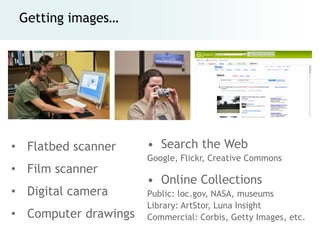
Getting images…


• Flatbed scanner     • Search the Web
                      Google, Flickr, Creative Commons
• Film scanner
                      • Online Collections
• Digital camera      Public: loc.gov, NASA, museums
                      Library: ArtStor, Luna Insight
• Computer drawings   Commercial: Corbis, Getty Images, etc.
Fair Use for teaching & research

Can you use it ?
1. Purpose for which you are using the work.

2. Natureof copyrighted work (phone
  directory vs creative expression).

3. Portionof work you intend to reproduce
  (small portion vs entirety).

4. Effect of your use on potential market,
      number of copies you make.
Copyright:Monday, June 15th (11:00 a.m. - Noon)
Finding Copyright-Free Media: Monday, June 15th (1:00 - 2:00 p.m.)
Technical background


   • What is a pixel-based image?

   • What is resolution?

   • What do I need to know about color?
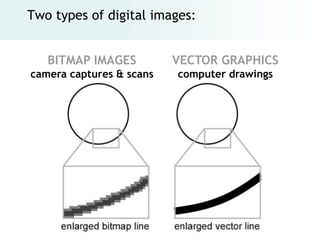
Two types of digital images:


   BITMAP IMAGES          VECTOR GRAPHICS
camera captures & scans   computer drawings
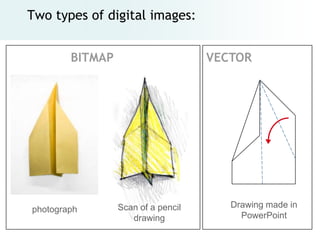
Two types of digital images:


        BITMAP                      VECTOR


                 Scan of a pencil      Drawing made in
photograph
                    drawing              PowerPoint
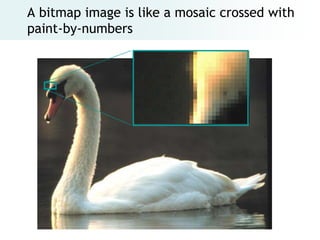
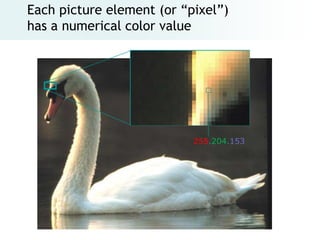
A bitmap image is like a mosaic crossed with
paint-by-numbers
Each picture element (or ―pixel‖)
has a numerical color value


                           255.204.153
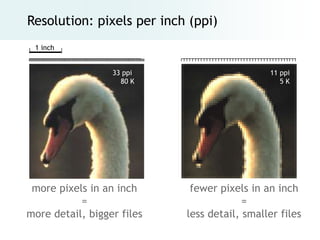
Resolution: pixels per inch (ppi)
 1 inch


                  33 ppi                      11 ppi
                    80 K                         5K


 more pixels in an inch      fewer pixels in an inch
           =                             =
more detail, bigger files   less detail, smaller files
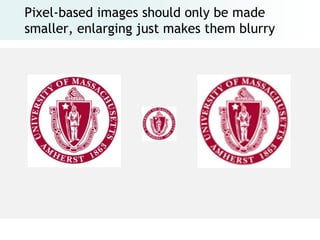
Pixel-based images should only be made
smaller, enlarging just makes them blurry
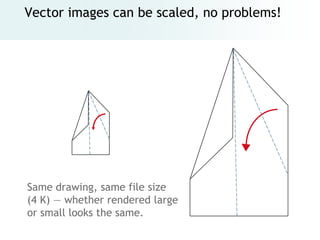
Vector images can be scaled, no problems!


Same drawing, same file size
(4 K) — whether rendered large
or small looks the same.
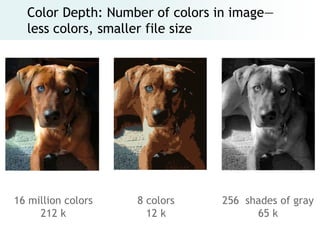
Color Depth: Number of colors in image—
  less colors, smaller file size


16 million colors   8 colors    256 shades of gray
     212 k            12 k            65 k
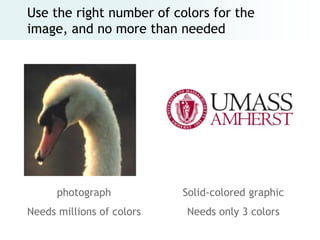
Use the right number of colors for the
image, and no more than needed


      photograph           Solid-colored graphic
Needs millions of colors   Needs only 3 colors
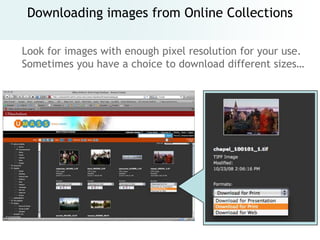
Downloading images from Online Collections

Look for images with enough pixel resolution for your use.
Sometimes you have a choice to download different sizes…
Formatting images for different uses…


         • Web

         • PowerPoint

         • Print
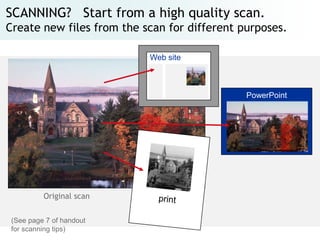
SCANNING? Start from a high quality scan.
Create new files from the scan for different purposes.
                           Web site


                                              PowerPoint


          Original scan


 (See page 7 of handout
 for scanning tips)
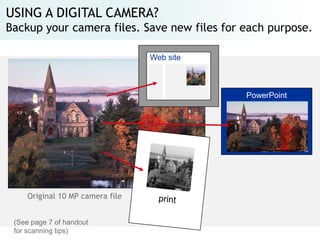
USING A DIGITAL CAMERA?
Backup your camera files. Save new files for each purpose.
                                  Web site


                                             PowerPoint


     Original 10 MP camera file


 (See page 7 of handout
 for scanning tips)
Some software will resize pictures for you…
• Camera software, Vista Photo Gallery,
  MS Picture Manager, Apple iPhoto or
  Apple Preview
  Look for …
      Email this picture
  Export for Web

• Web apps such as Flickror Facebook
  resize pictures for you.
      - Upload full sized file
      - A smaller, resized version is
        sent tovisitor’s browsers
HANDS-ON…


Locate a large image (at least 5 Megabytes).
We will show you how to…

1. Open in Photoshop

2. Crop

3. Adjust color

4. Resize for different uses
Formatting images for the Web


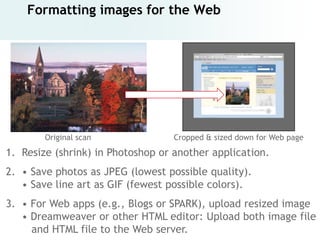
        Original scan              Cropped & sized down for Web page
1. Resize (shrink) in Photoshop or another application.
2. • Save photos as JPEG (lowest possible quality).
   • Save line art as GIF (fewest possible colors).
3. • For Web apps (e.g., Blogs or SPARK), upload resized image
   • Dreamweaver or other HTML editor: Upload both image file
     and HTML file to the Web server.
Sizing an image to fit on a Web page


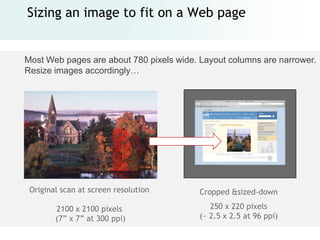
Most Web pages are about 780 pixels wide. Layout columns are narrower.
Resize images accordingly…


.

    Original scan at screen resolution    Cropped &sized-down

           2100 x 2100 pixels                250 x 220 pixels
           (7‖ x 7‖ at 300 ppi)           (~ 2.5 x 2.5 at 96 ppi)
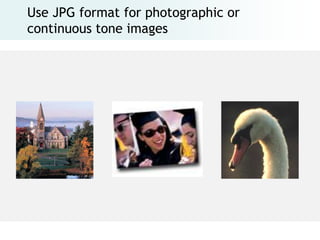
Use JPG format for photographic or
continuous tone images
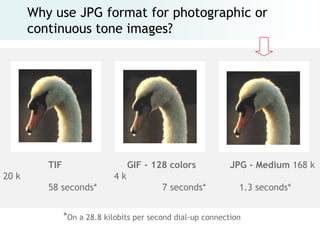
Why use JPG format for photographic or
       continuous tone images?


          TIF                     GIF - 128 colors            JPG - Medium 168 k
20 k                         4k
          58 seconds*                      7 seconds*           1.3 seconds*


                *On a 28.8 kilobits per second dial-up connection
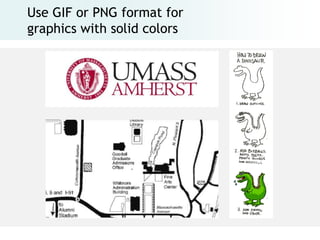
Use GIF or PNG format for
graphics with solid colors
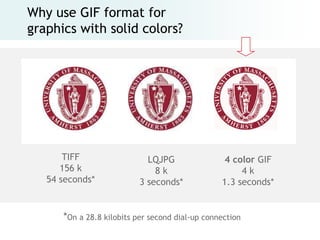
Why use GIF format for
graphics with solid colors?


       TIFF                  LQJPG                4 color GIF
      156 k                    8k                     4k
   54 seconds*             3 seconds*            1.3 seconds*


      *On a 28.8 kilobits per second dial-up connection
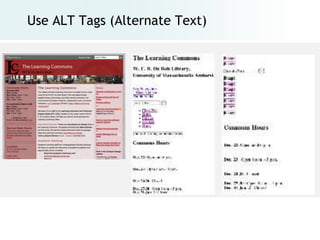
Use ALT Tags (Alternate Text)
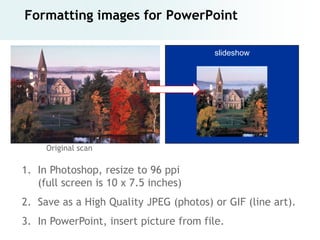
Formatting images for PowerPoint

                                        slideshow


     Original scan

1. In Photoshop, resize to 96 ppi
   (full screen is 10 x 7.5 inches)
2. Save as a High Quality JPEG (photos) or GIF (line art).
3. In PowerPoint, insert picture from file.
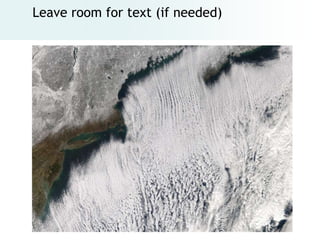
Leave room for text (if needed)
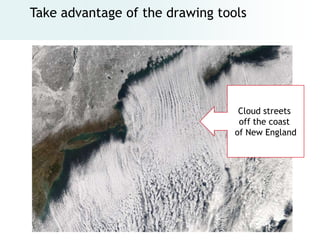
Take advantage of the drawing tools


                                  Cloud streets
                                  off the coast
                                 of New England
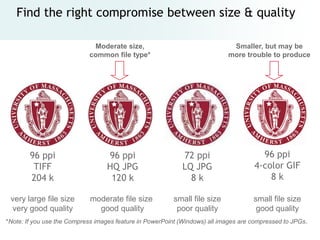
Find the right compromise between size & quality

                             Moderate size,                                  Smaller, but may be
                            common file type*                               more trouble to produce


        96 ppi                    96 ppi                    72 ppi                     96 ppi
         TIFF                     HQ JPG                    LQ JPG                   4-color GIF
        204 k                      120 k                      8k                         8k

 very large file size        moderate file size          small file size             small file size
 very good quality             good quality               poor quality                good quality
*Note: If you use the Compress images feature in PowerPoint (Windows) all images are compressed to JPGs.
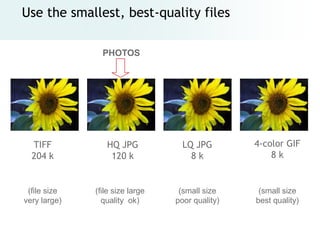
Use the smallest, best-quality files

                PHOTOS


  TIFF           HQ JPG            LQ JPG        4-color GIF
  204 k           120 k              8k              8k


 (file size   (file size large    (small size     (small size
very large)     quality ok)      poor quality)   best quality)
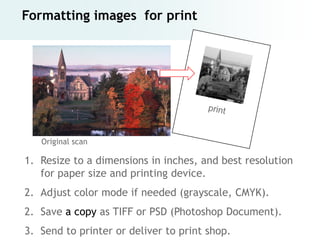
Formatting images for print


   Original scan

1. Resize to a dimensions in inches, and best resolution
   for paper size and printing device.
2. Adjust color mode if needed (grayscale, CMYK).
2. Save a copy as TIFF or PSD (Photoshop Document).
3. Send to printer or deliver to print shop.
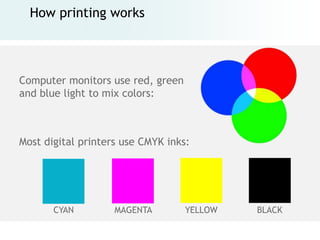
How printing works


Computer monitors use red, green
and blue light to mix colors:


Most digital printers use CMYK inks:


       CYAN         MAGENTA        YELLOW   BLACK
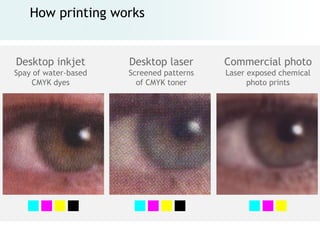
How printing works


Desktop inkjet        Desktop laser       Commercial photo
Spay of water-based   Screened patterns   Laser exposed chemical
    CMYK dyes           of CMYK toner           photo prints
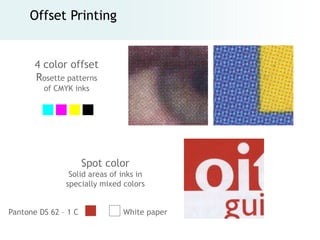
Offset Printing


       4 color offset
       Rosette patterns
         of CMYK inks


                      Spot color
                Solid areas of inks in
               specially mixed colors


Pantone DS 62 – 1 C            White paper
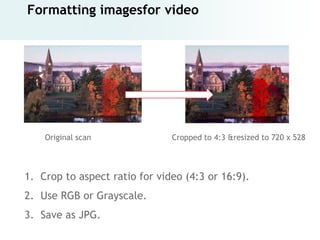
Formatting imagesfor video


    Original scan              Cropped to 4:3 &resized to 720 x 528


1. Crop to aspect ratio for video (4:3 or 16:9).
2. Use RGB or Grayscale.
3. Save as JPG.
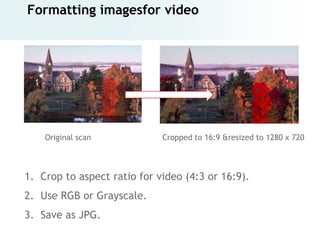
Formatting imagesfor video


    Original scan            Cropped to 16:9 &resized to 1280 x 720


1. Crop to aspect ratio for video (4:3 or 16:9).
2. Use RGB or Grayscale.
3. Save as JPG.
Digital Image Basics

Digital Image Basics

  • 1.
    An Introduction toDigital Images Michele Turre June 2009 Academic Computing Office of Information Technologies University of Massachusetts Amherst
  • 2.
    Getting images… • Flatbedscanner • Search the Web Google, Flickr, Creative Commons • Film scanner • Online Collections • Digital camera Public: loc.gov, NASA, museums Library: ArtStor, Luna Insight • Computer drawings Commercial: Corbis, Getty Images, etc.
  • 3.
    Fair Use forteaching & research Can you use it ? 1. Purpose for which you are using the work. 2. Natureof copyrighted work (phone directory vs creative expression). 3. Portionof work you intend to reproduce (small portion vs entirety). 4. Effect of your use on potential market, number of copies you make. Copyright:Monday, June 15th (11:00 a.m. - Noon) Finding Copyright-Free Media: Monday, June 15th (1:00 - 2:00 p.m.)
  • 4.
    Technical background • What is a pixel-based image? • What is resolution? • What do I need to know about color?
  • 5.
    Two types ofdigital images: BITMAP IMAGES VECTOR GRAPHICS camera captures & scans computer drawings
  • 6.
    Two types ofdigital images: BITMAP VECTOR Scan of a pencil Drawing made in photograph drawing PowerPoint
  • 7.
    A bitmap imageis like a mosaic crossed with paint-by-numbers
  • 8.
    Each picture element(or ―pixel‖) has a numerical color value 255.204.153
  • 9.
    Resolution: pixels perinch (ppi) 1 inch 33 ppi 11 ppi 80 K 5K more pixels in an inch fewer pixels in an inch = = more detail, bigger files less detail, smaller files
  • 10.
    Pixel-based images shouldonly be made smaller, enlarging just makes them blurry
  • 11.
    Vector images canbe scaled, no problems! Same drawing, same file size (4 K) — whether rendered large or small looks the same.
  • 12.
    Color Depth: Numberof colors in image— less colors, smaller file size 16 million colors 8 colors 256 shades of gray 212 k 12 k 65 k
  • 13.
    Use the rightnumber of colors for the image, and no more than needed photograph Solid-colored graphic Needs millions of colors Needs only 3 colors
  • 14.
    Downloading images fromOnline Collections Look for images with enough pixel resolution for your use. Sometimes you have a choice to download different sizes…
  • 15.
    Formatting images fordifferent uses… • Web • PowerPoint • Print
  • 16.
    SCANNING? Start froma high quality scan. Create new files from the scan for different purposes. Web site PowerPoint Original scan (See page 7 of handout for scanning tips)
  • 17.
    USING A DIGITALCAMERA? Backup your camera files. Save new files for each purpose. Web site PowerPoint Original 10 MP camera file (See page 7 of handout for scanning tips)
  • 18.
    Some software willresize pictures for you… • Camera software, Vista Photo Gallery, MS Picture Manager, Apple iPhoto or Apple Preview Look for … Email this picture Export for Web • Web apps such as Flickror Facebook resize pictures for you. - Upload full sized file - A smaller, resized version is sent tovisitor’s browsers
  • 19.
    HANDS-ON… Locate a largeimage (at least 5 Megabytes). We will show you how to… 1. Open in Photoshop 2. Crop 3. Adjust color 4. Resize for different uses
  • 20.
    Formatting images forthe Web Original scan Cropped & sized down for Web page 1. Resize (shrink) in Photoshop or another application. 2. • Save photos as JPEG (lowest possible quality). • Save line art as GIF (fewest possible colors). 3. • For Web apps (e.g., Blogs or SPARK), upload resized image • Dreamweaver or other HTML editor: Upload both image file and HTML file to the Web server.
  • 21.
    Sizing an imageto fit on a Web page Most Web pages are about 780 pixels wide. Layout columns are narrower. Resize images accordingly… . Original scan at screen resolution Cropped &sized-down 2100 x 2100 pixels 250 x 220 pixels (7‖ x 7‖ at 300 ppi) (~ 2.5 x 2.5 at 96 ppi)
  • 22.
    Use JPG formatfor photographic or continuous tone images
  • 23.
    Why use JPGformat for photographic or continuous tone images? TIF GIF - 128 colors JPG - Medium 168 k 20 k 4k 58 seconds* 7 seconds* 1.3 seconds* *On a 28.8 kilobits per second dial-up connection
  • 24.
    Use GIF orPNG format for graphics with solid colors
  • 25.
    Why use GIFformat for graphics with solid colors? TIFF LQJPG 4 color GIF 156 k 8k 4k 54 seconds* 3 seconds* 1.3 seconds* *On a 28.8 kilobits per second dial-up connection
  • 26.
    Use ALT Tags(Alternate Text)
  • 27.
    Formatting images forPowerPoint slideshow Original scan 1. In Photoshop, resize to 96 ppi (full screen is 10 x 7.5 inches) 2. Save as a High Quality JPEG (photos) or GIF (line art). 3. In PowerPoint, insert picture from file.
  • 30.
    Leave room fortext (if needed)
  • 31.
    Take advantage ofthe drawing tools Cloud streets off the coast of New England
  • 32.
    Find the rightcompromise between size & quality Moderate size, Smaller, but may be common file type* more trouble to produce 96 ppi 96 ppi 72 ppi 96 ppi TIFF HQ JPG LQ JPG 4-color GIF 204 k 120 k 8k 8k very large file size moderate file size small file size small file size very good quality good quality poor quality good quality *Note: If you use the Compress images feature in PowerPoint (Windows) all images are compressed to JPGs.
  • 33.
    Use the smallest,best-quality files PHOTOS TIFF HQ JPG LQ JPG 4-color GIF 204 k 120 k 8k 8k (file size (file size large (small size (small size very large) quality ok) poor quality) best quality)
  • 34.
    Formatting images forprint Original scan 1. Resize to a dimensions in inches, and best resolution for paper size and printing device. 2. Adjust color mode if needed (grayscale, CMYK). 2. Save a copy as TIFF or PSD (Photoshop Document). 3. Send to printer or deliver to print shop.
  • 35.
    How printing works Computermonitors use red, green and blue light to mix colors: Most digital printers use CMYK inks: CYAN MAGENTA YELLOW BLACK
  • 36.
    How printing works Desktopinkjet Desktop laser Commercial photo Spay of water-based Screened patterns Laser exposed chemical CMYK dyes of CMYK toner photo prints
  • 37.
    Offset Printing 4 color offset Rosette patterns of CMYK inks Spot color Solid areas of inks in specially mixed colors Pantone DS 62 – 1 C White paper
  • 38.
    Formatting imagesfor video Original scan Cropped to 4:3 &resized to 720 x 528 1. Crop to aspect ratio for video (4:3 or 16:9). 2. Use RGB or Grayscale. 3. Save as JPG.
  • 39.
    Formatting imagesfor video Original scan Cropped to 16:9 &resized to 1280 x 720 1. Crop to aspect ratio for video (4:3 or 16:9). 2. Use RGB or Grayscale. 3. Save as JPG.