PhoneGap
DEVELOPMENT, TESTING,
AND DEBUGGING
By
Dr.T.Abirami
Associate Professor
Department of Information Technology
Kongu Engineering College
Perundurai Erode
<!DOCTYPE html>
<html>
<head>
<meta http-equiv="Content-type" content="text/html; charset=utf-8">
<meta name="viewport" id="viewport“ content="width=device-width, height=device-
height, initial-scale=1.0, maximum-scale=1.0, user-scalable=no" />
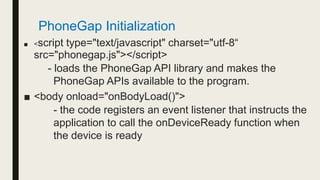
<script type="text/javascript" charset="utf-8“ src="phonegap.js"></script>
<script type="text/javascript" charset="utf-8">
function onBodyLoad()
{ document.addEventListener("deviceready",onDeviceReady, false); }
function onDeviceReady()
{ navigator.notification.alert("PhoneGap is ready!"); }
</script>
</head>
<body onload="onBodyLoad()">
<h1>HelloWorld2</h1>
<p>This is a sample PhoneGap application.</p>
</body>
</html>
PhoneGap Initialization
■ <Head> section of the web page are two new entries:
1. meta tags - describe the content type for the application
2. View port settings - used for the application and how to
scale the content on the screen
- to use the maximum height and width of the screen
- to specify (by the browser) to display the page zoom
level and dimension.
• content = "width = device-width" is used to set the pixel width of the
page or screen device.
• initial-scale = 1 sets the initial zoom level, when the page is loaded
for the first time.
■ <script type="text/javascript" charset="utf-8“
src="phonegap.js"></script>
- loads the PhoneGap API library and makes the
PhoneGap APIs available to the program.
■ <body onload="onBodyLoad()">
- the code registers an event listener that instructs the
application to call the onDeviceReady function when
the device is ready
PhoneGap Initialization
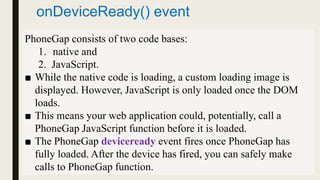
onDeviceReady() event
PhoneGap consists of two code bases:
1. native and
2. JavaScript.
■ While the native code is loading, a custom loading image is
displayed. However, JavaScript is only loaded once the DOM
loads.
■ This means your web application could, potentially, call a
PhoneGap JavaScript function before it is loaded.
■ The PhoneGap deviceready event fires once PhoneGap has
fully loaded. After the device has fired, you can safely make
calls to PhoneGap function.
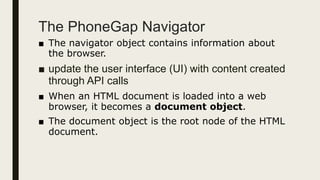
The PhoneGap Navigator
■ The navigator object contains information about
the browser.
■ update the user interface (UI) with content created
through API calls
■ When an HTML document is loaded into a web
browser, it becomes a document object.
■ The document object is the root node of the HTML
document.
Leveraging PhoneGap APIs
■ Updated the code in the onDeviceReady function
■ the program updates a portion of the application’s content
with an ID of appInfo with information about the device
running the application and the version of PhoneGap
used to build the application.
■ Device-specific information is available via the PhoneGap
device API
■ PhoneGap APIs: inconsistent implementation of an
API across different mobile device platforms. The call
to the device.platform API is supposed to return the
name of the mobile device platform the application is
running on.
Enhancing the User Interface of a
PhoneGap Application
■ to enhance the UI of a PhoneGap application using jQuery Mobile (jQM)
■ jQuery Mobile is a framework for creating mobile web applications.
■ JQuery Mobile is a user interface framework, built on jQuery Core and used
for developing responsive websites or applications that are accessible on
mobile, tablet, and desktop devices.
■ jQuery Mobile uses HTML5 & CSS3 for laying out pages with minimal
scripting.
https://www.quanzhanketang.com/jquerymobile/jquerymobile_intro.html
■ jQM currently supports most of the mobile platforms supported by
PhoneGap.
Why Use jQuery Mobile?
■ It creates web applications that it will work the same way on the
mobile, tablet, and desktop devices.
■ It is compatible with other frameworks such as PhoneGap,
Whitelight, etc.
■ It provides a set of touch-friendly form inputs and UI widgets.
■ The progressive enhancement brings a unique functionality to all
mobile, tablet, and desktop platforms and adds efficient page
loads and wider device support.
Testing and Debugging PhoneGap
Applications
■ Running a PhoneGap Application on a Device Simulator or
Emulator
■ Leveraging PhoneGap Debugging Capabilities
Debugging errors
■ console.log() is a function that writes a message to log on the debugging console,
such as Webkit or Firebug.
■ The console object is an extension to the DOM.
■ The console.log() should be used in code only during development and debugging.
Using the console object, developers can write messages to the browser’s console,
■ console.log("message");
■ console.warn("message");
■ console.error("message");
■ In a browser you will not see anything on the screen. It logs a message to a
debugging console. It is only available in Firefox with Firebug and in Webkit based
browsers (Chrome and Safari). It does not work well in all IE releases.
https://www.w3schools.com/jsref/met_console_log.as
p
Third-Party PhoneGap Debugging
Tools
■Ripple Mobile Environment
Emulator
■Weinre (Web Inspector Remote)
Dealing with Cross-Platform
Development Issues
■ API Consistency
■ Multiple PhoneGap JavaScript Files
■ Web Content Folder Structure
■ Application Requirements
■ Application Navigation and UI
■ Application Icons
Build An App
To compile and generate an executable file for
different platforms.
Following are the ways which you can use to build an
app.
■ Build An App Using PhoneGap Build
– By uploading a zip file
– Using GIT
■ Build An App Using CLI
https://build.phonegap.com/
Build An App Using PhoneGap
Build:
■ PhoneGap Build is a cloud service used to build apps
online.
■ All you have to do is to upload the project to PhoneGap Build
and it will create an executable file of apps for different
platforms.
It will generate:
■ APK for Android (Android Package)
■ IPA for IOS (iPhone application archive file )
■ XAP for Windows :Microsoft Cross-Platform Audio Creation
Tool (XACT) / (eXtensible Ajax Platform)
Steps
1. Open ‘PhoneGap Build‘ and sign up.
2. Log into the PhoneGap Build Account.
Now you have 2 ways to upload a project:
By Using GIT
■ You can keep your app open source or private. PhoneGap
Build has different plans for private apps.
■ You need to upload your project on GitHub and copy the link
of that repository and paste it here.
■ Now click on ‘Pull from .git repository‘. Your project will be
uploaded.
By Uploading A ZIP File
■ Click on the ‘private’ tab.
References
■ https://cordova.apache.org/docs/en/latest/cord
ova/events/events.html#deviceready
What is an API?
(Application Programming Interface)
■ It is a software intermediary that allows two applications to talk to each
other.
■ It is a software-to-software interface that enables two applications to
exchange data among each other.
■ The PhoneGap Build API allows applications to use the PhoneGap Build
web service to create, build, update, and download PhoneGap apps.
■ PhoneGap is defined as an API used for accessing the native mobile
resources that enables the developers to create mobile applications using
the standard web technologies.
For example:
■ Each time you use an app like Facebook, send an instant message, or
check the weather on your phone, you’re using an API.
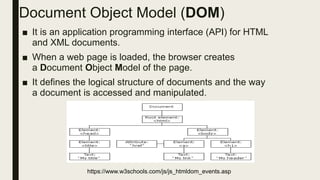
Document Object Model (DOM)
■ It is an application programming interface (API) for HTML
and XML documents.
■ When a web page is loaded, the browser creates
a Document Object Model of the page.
■ It defines the logical structure of documents and the way
a document is accessed and manipulated.
https://www.w3schools.com/js/js_htmldom_events.asp
addEventListener() method Syntax
element.addEventListener(event, function, useCapture);
■ The first parameter is the type of the event (like "click" or
"mousedown" or any other HTML DOM Event.)
■ The second parameter is the function we want to call when the
event occurs.
■ The third parameter is a boolean value specifying whether to use
event bubbling or event capturing. This parameter is optional.
Note that you don't use the "on" prefix for the event; use "click"
instead of "onclick".
document.addEventListener("deviceready",onDeviceReady, false);
https://www.w3schools.com/js/js_htmldom_eventlistener.asp

Phone gap development, testing, and debugging

  • 1.
    PhoneGap DEVELOPMENT, TESTING, AND DEBUGGING By Dr.T.Abirami AssociateProfessor Department of Information Technology Kongu Engineering College Perundurai Erode
  • 2.
    <!DOCTYPE html> <html> <head> <meta http-equiv="Content-type"content="text/html; charset=utf-8"> <meta name="viewport" id="viewport“ content="width=device-width, height=device- height, initial-scale=1.0, maximum-scale=1.0, user-scalable=no" /> <script type="text/javascript" charset="utf-8“ src="phonegap.js"></script> <script type="text/javascript" charset="utf-8"> function onBodyLoad() { document.addEventListener("deviceready",onDeviceReady, false); } function onDeviceReady() { navigator.notification.alert("PhoneGap is ready!"); } </script> </head> <body onload="onBodyLoad()"> <h1>HelloWorld2</h1> <p>This is a sample PhoneGap application.</p> </body> </html> PhoneGap Initialization
  • 3.
    PhoneGap Initialization ■ <Head>section of the web page are two new entries: 1. meta tags - describe the content type for the application 2. View port settings - used for the application and how to scale the content on the screen - to use the maximum height and width of the screen - to specify (by the browser) to display the page zoom level and dimension. • content = "width = device-width" is used to set the pixel width of the page or screen device. • initial-scale = 1 sets the initial zoom level, when the page is loaded for the first time.
  • 4.
    ■ <script type="text/javascript"charset="utf-8“ src="phonegap.js"></script> - loads the PhoneGap API library and makes the PhoneGap APIs available to the program. ■ <body onload="onBodyLoad()"> - the code registers an event listener that instructs the application to call the onDeviceReady function when the device is ready PhoneGap Initialization
  • 5.
    onDeviceReady() event PhoneGap consistsof two code bases: 1. native and 2. JavaScript. ■ While the native code is loading, a custom loading image is displayed. However, JavaScript is only loaded once the DOM loads. ■ This means your web application could, potentially, call a PhoneGap JavaScript function before it is loaded. ■ The PhoneGap deviceready event fires once PhoneGap has fully loaded. After the device has fired, you can safely make calls to PhoneGap function.
  • 6.
    The PhoneGap Navigator ■The navigator object contains information about the browser. ■ update the user interface (UI) with content created through API calls ■ When an HTML document is loaded into a web browser, it becomes a document object. ■ The document object is the root node of the HTML document.
  • 7.
    Leveraging PhoneGap APIs ■Updated the code in the onDeviceReady function ■ the program updates a portion of the application’s content with an ID of appInfo with information about the device running the application and the version of PhoneGap used to build the application. ■ Device-specific information is available via the PhoneGap device API ■ PhoneGap APIs: inconsistent implementation of an API across different mobile device platforms. The call to the device.platform API is supposed to return the name of the mobile device platform the application is running on.
  • 8.
    Enhancing the UserInterface of a PhoneGap Application ■ to enhance the UI of a PhoneGap application using jQuery Mobile (jQM) ■ jQuery Mobile is a framework for creating mobile web applications. ■ JQuery Mobile is a user interface framework, built on jQuery Core and used for developing responsive websites or applications that are accessible on mobile, tablet, and desktop devices. ■ jQuery Mobile uses HTML5 & CSS3 for laying out pages with minimal scripting. https://www.quanzhanketang.com/jquerymobile/jquerymobile_intro.html ■ jQM currently supports most of the mobile platforms supported by PhoneGap.
  • 9.
    Why Use jQueryMobile? ■ It creates web applications that it will work the same way on the mobile, tablet, and desktop devices. ■ It is compatible with other frameworks such as PhoneGap, Whitelight, etc. ■ It provides a set of touch-friendly form inputs and UI widgets. ■ The progressive enhancement brings a unique functionality to all mobile, tablet, and desktop platforms and adds efficient page loads and wider device support.
  • 10.
    Testing and DebuggingPhoneGap Applications ■ Running a PhoneGap Application on a Device Simulator or Emulator ■ Leveraging PhoneGap Debugging Capabilities
  • 11.
    Debugging errors ■ console.log()is a function that writes a message to log on the debugging console, such as Webkit or Firebug. ■ The console object is an extension to the DOM. ■ The console.log() should be used in code only during development and debugging. Using the console object, developers can write messages to the browser’s console, ■ console.log("message"); ■ console.warn("message"); ■ console.error("message"); ■ In a browser you will not see anything on the screen. It logs a message to a debugging console. It is only available in Firefox with Firebug and in Webkit based browsers (Chrome and Safari). It does not work well in all IE releases. https://www.w3schools.com/jsref/met_console_log.as p
  • 12.
    Third-Party PhoneGap Debugging Tools ■RippleMobile Environment Emulator ■Weinre (Web Inspector Remote)
  • 13.
    Dealing with Cross-Platform DevelopmentIssues ■ API Consistency ■ Multiple PhoneGap JavaScript Files ■ Web Content Folder Structure ■ Application Requirements ■ Application Navigation and UI ■ Application Icons
  • 14.
    Build An App Tocompile and generate an executable file for different platforms. Following are the ways which you can use to build an app. ■ Build An App Using PhoneGap Build – By uploading a zip file – Using GIT ■ Build An App Using CLI https://build.phonegap.com/
  • 15.
    Build An AppUsing PhoneGap Build: ■ PhoneGap Build is a cloud service used to build apps online. ■ All you have to do is to upload the project to PhoneGap Build and it will create an executable file of apps for different platforms. It will generate: ■ APK for Android (Android Package) ■ IPA for IOS (iPhone application archive file ) ■ XAP for Windows :Microsoft Cross-Platform Audio Creation Tool (XACT) / (eXtensible Ajax Platform)
  • 16.
    Steps 1. Open ‘PhoneGapBuild‘ and sign up. 2. Log into the PhoneGap Build Account. Now you have 2 ways to upload a project: By Using GIT ■ You can keep your app open source or private. PhoneGap Build has different plans for private apps. ■ You need to upload your project on GitHub and copy the link of that repository and paste it here. ■ Now click on ‘Pull from .git repository‘. Your project will be uploaded. By Uploading A ZIP File ■ Click on the ‘private’ tab.
  • 17.
  • 18.
    What is anAPI? (Application Programming Interface) ■ It is a software intermediary that allows two applications to talk to each other. ■ It is a software-to-software interface that enables two applications to exchange data among each other. ■ The PhoneGap Build API allows applications to use the PhoneGap Build web service to create, build, update, and download PhoneGap apps. ■ PhoneGap is defined as an API used for accessing the native mobile resources that enables the developers to create mobile applications using the standard web technologies. For example: ■ Each time you use an app like Facebook, send an instant message, or check the weather on your phone, you’re using an API.
  • 19.
    Document Object Model(DOM) ■ It is an application programming interface (API) for HTML and XML documents. ■ When a web page is loaded, the browser creates a Document Object Model of the page. ■ It defines the logical structure of documents and the way a document is accessed and manipulated. https://www.w3schools.com/js/js_htmldom_events.asp
  • 20.
    addEventListener() method Syntax element.addEventListener(event,function, useCapture); ■ The first parameter is the type of the event (like "click" or "mousedown" or any other HTML DOM Event.) ■ The second parameter is the function we want to call when the event occurs. ■ The third parameter is a boolean value specifying whether to use event bubbling or event capturing. This parameter is optional. Note that you don't use the "on" prefix for the event; use "click" instead of "onclick". document.addEventListener("deviceready",onDeviceReady, false); https://www.w3schools.com/js/js_htmldom_eventlistener.asp