Marco Neves
Warsaw, 9th-10th October - 2015
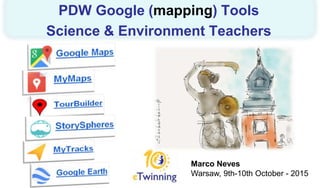
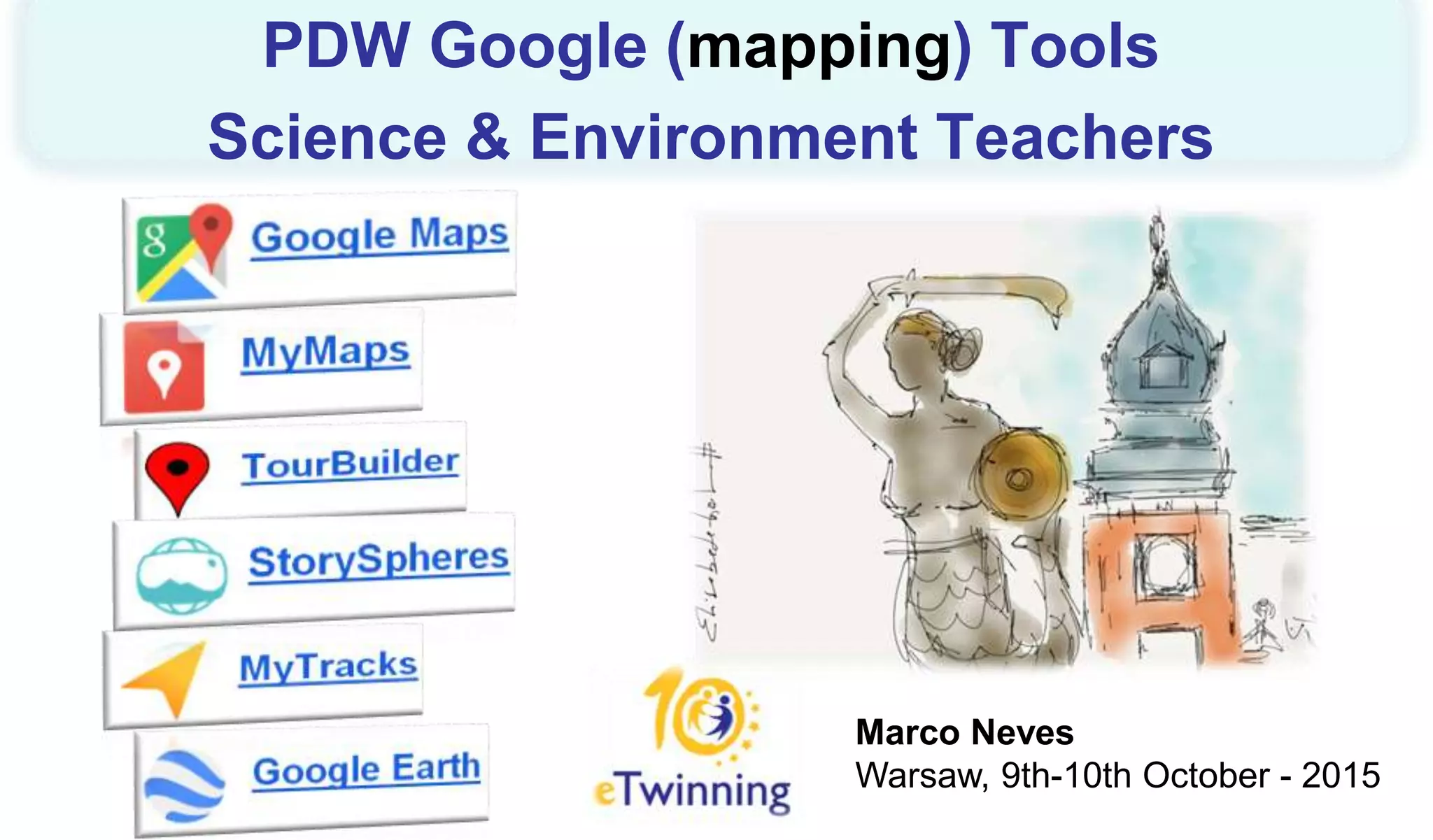
PDW Google (mapping) Tools
Science & Environment Teachers
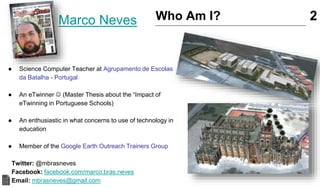
Marco Neves
● Science Computer Teacher at Agrupamento de Escolas
da Batalha - Portugal
● An eTwinner  (Master Thesis about the “Impact of
eTwinning in Portuguese Schools)
● An enthusiastic in what concerns to use of technology in
education
● Member of the Google Earth Outreach Trainers Group
Twitter: @mbrasneves
Facebook: facebook.com/marco.bras.neves
Email: mbrasneves@gmail.com
Who Am I? 2
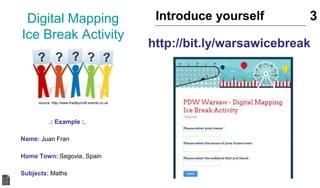
Digital Mapping
Ice Break Activity
.: Example :.
Name: Juan Fran
Home Town: Segovia, Spain
Subjects: Maths
Introduce yourself 3
source: http://www.fradleycroft-events.co.uk
http://bit.ly/warsawicebreak
http://bit.ly/pdwwarsaw
PDW - Site Support 4
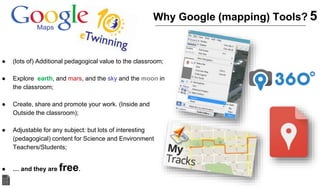
● (lots of) Additional pedagogical value to the classroom;
● Explore earth, and mars, and the sky and the moon in
the classroom;
● Create, share and promote your work. (Inside and
Outside the classroom);
● Adjustable for any subject: but lots of interesting
(pedagogical) content for Science and Environment
Teachers/Students;
● … and they are free.
Why Google (mapping) Tools? 5
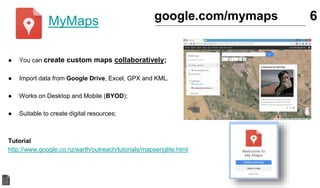
MyMaps
● You can create custom maps collaboratively;
● Import data from Google Drive, Excel, GPX and KML.
● Works on Desktop and Mobile (BYOD);
● Suitable to create digital resources;
Tutorial
http://www.google.co.nz/earth/outreach/tutorials/mapsenglite.html
6google.com/mymaps
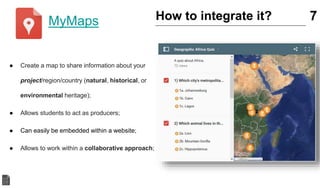
● Create a map to share information about your
project/region/country (natural, historical, or
environmental heritage);
● Allows students to act as producers;
● Can easily be embedded within a website;
● Allows to work within a collaborative approach;
7How to integrate it?MyMaps
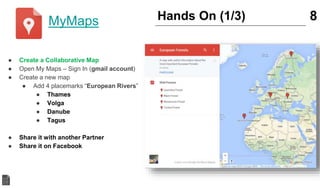
● Create a Collaborative Map
● Open My Maps – Sign In (gmail account)
● Create a new map
● Add 4 placemarks “European Rivers”
● Thames
● Volga
● Danube
● Tagus
● Share it with another Partner
● Share it on Facebook
8Hands On (1/3)MyMaps
PhotoSpheres
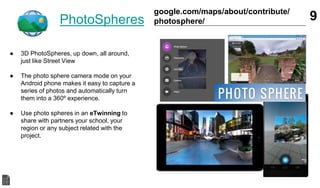
● 3D PhotoSpheres, up down, all around,
just like Street View
● The photo sphere camera mode on your
Android phone makes it easy to capture a
series of photos and automatically turn
them into a 360º experience.
● Use photo spheres in an eTwinning to
share with partners your school, your
region or any subject related with the
project.
9google.com/maps/about/contribute/
photosphere/
PhotoSpheres
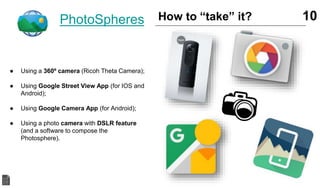
● Using a 360º camera (Ricoh Theta Camera);
● Using Google Street View App (for IOS and
Android);
● Using Google Camera App (for Android);
● Using a photo camera with DSLR feature
(and a software to compose the
Photosphere).
10How to “take” it?
StorySpheres
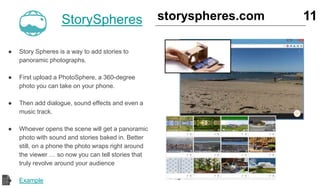
● Story Spheres is a way to add stories to
panoramic photographs.
● First upload a PhotoSphere, a 360-degree
photo you can take on your phone.
● Then add dialogue, sound effects and even a
music track.
● Whoever opens the scene will get a panoramic
photo with sound and stories baked in. Better
still, on a phone the photo wraps right around
the viewer … so now you can tell stories that
truly revolve around your audience
● Example
11storyspheres.com
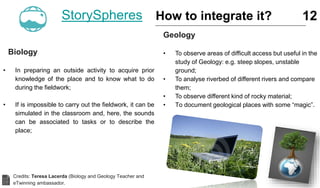
Biology
• In preparing an outside activity to acquire prior
knowledge of the place and to know what to do
during the fieldwork;
• If is impossible to carry out the fieldwork, it can be
simulated in the classroom and, here, the sounds
can be associated to tasks or to describe the
place;
12
Geology
• To observe areas of difficult access but useful in the
study of Geology: e.g. steep slopes, unstable
ground;
• To analyse riverbed of different rivers and compare
them;
• To observe different kind of rocky material;
• To document geological places with some “magic”.
StorySpheres How to integrate it?
Credits: Teresa Lacerda (Biology and Geology Teacher and
eTwinning ambassador.
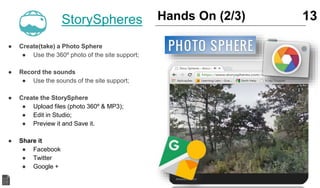
● Create(take) a Photo Sphere
● Use the 360º photo of the site support;
● Record the sounds
● Use the sounds of the site support;
● Create the StorySphere
● Upload files (photo 360º & MP3);
● Edit in Studio;
● Preview it and Save it.
● Share it
● Facebook
● Twitter
● Google +
13Hands On (2/3)StorySpheres
Google Earth
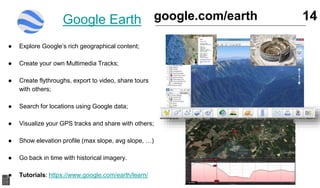
● Explore Google’s rich geographical content;
● Create your own Multimedia Tracks;
● Create flythroughs, export to video, share tours
with others;
● Search for locations using Google data;
● Visualize your GPS tracks and share with others;
● Show elevation profile (max slope, avg slope, …)
● Go back in time with historical imagery.
● Tutorials: https://www.google.com/earth/learn/
14google.com/earth
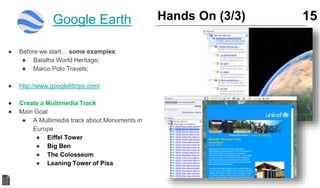
● Before we start… some examples:
● Batalha World Heritage;
● Marco Polo Travels;
● http://www.googlelittrips.com/
● Create a Multimedia Track
● Main Goal
● A Multimedia track about Monuments in
Europe
● Eiffel Tower
● Big Ben
● The Colosseum
● Leaning Tower of Pisa
15Hands On (3/3)Google Earth
MyTracks
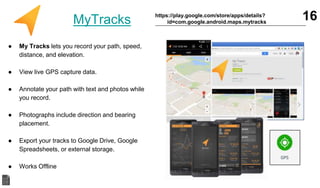
● My Tracks lets you record your path, speed,
distance, and elevation.
● View live GPS capture data.
● Annotate your path with text and photos while
you record.
● Photographs include direction and bearing
placement.
● Export your tracks to Google Drive, Google
Spreadsheets, or external storage.
● Works Offline
16https://play.google.com/store/apps/details?
id=com.google.android.maps.mytracks
TourBuilder 17tourbuilder.withgoogle.com
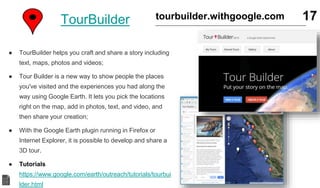
● TourBuilder helps you craft and share a story including
text, maps, photos and videos;
● Tour Builder is a new way to show people the places
you've visited and the experiences you had along the
way using Google Earth. It lets you pick the locations
right on the map, add in photos, text, and video, and
then share your creation;
● With the Google Earth plugin running in Firefox or
Internet Explorer, it is possible to develop and share a
3D tour.
● Tutorials
https://www.google.com/earth/outreach/tutorials/tourbui
lder.html
Tour Builder
● Create “tour stories” and share them with your
partners;
● Easier to use than Google Earth to create tours;
● Suitable to tell “eTwinning Stories” in an
eTwining project.
18
My Tracks
• Go out with your students and record the “world
live”;
• Automatically exports your tracks to Google Drive
and share them;
• Open your tracks on Google Earth (KML/KMZ files)
and improve them on the classroom;
• Post the results on a Blog/Website or even
TwinSpace for comments.
How to integrate it?
19Non – Google Tools
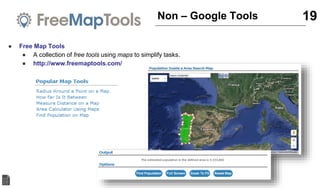
● Free Map Tools
● A collection of free tools using maps to simplify tasks.
● http://www.freemaptools.com/
20Go forward…..
● Arduino + Google Earth
● Putting together the power of Arduino and Google Earth
● e.g. Project DustDuino
● http://geojournalism.org/
● Fusion Tables
● Fusion Tables is a data visualization web application to
gather, visualize, and share data tables.
● https://support.google.com/fusiontables/answer/2527132
?hl=en
● Open Foris
● Open Foris is a set of free and open-source software
tools that facilitates flexible and efficient data collection,
analysis and reporting.
● http://www.openforis.org/
21For more Information
http://serc.carleton.edu/NAGTWorkshops/teaching_methods/google_earth
http://maps.google.com/help/maps/education/
https://sites.google.com/site/geomedialab/photo-sphere
http://www.thethinkingstick.com/10-ways-to-use-google-maps-in-the-classroom/
http://www.google.com/earth/outreach/stories/showcase.html
http://earthquake.usgs.gov/learn/kml.php
http://www.realworldmath.org/
bit.ly/pdwgoogle
Questions?
mbrasneves@gmail.com

PDW eTwinning - Google Mapping Tools - Warsaw

  • 1.
    Marco Neves Warsaw, 9th-10thOctober - 2015 PDW Google (mapping) Tools Science & Environment Teachers
  • 2.
    Marco Neves ● ScienceComputer Teacher at Agrupamento de Escolas da Batalha - Portugal ● An eTwinner  (Master Thesis about the “Impact of eTwinning in Portuguese Schools) ● An enthusiastic in what concerns to use of technology in education ● Member of the Google Earth Outreach Trainers Group Twitter: @mbrasneves Facebook: facebook.com/marco.bras.neves Email: mbrasneves@gmail.com Who Am I? 2
  • 3.
    Digital Mapping Ice BreakActivity .: Example :. Name: Juan Fran Home Town: Segovia, Spain Subjects: Maths Introduce yourself 3 source: http://www.fradleycroft-events.co.uk http://bit.ly/warsawicebreak
  • 4.
  • 5.
    ● (lots of)Additional pedagogical value to the classroom; ● Explore earth, and mars, and the sky and the moon in the classroom; ● Create, share and promote your work. (Inside and Outside the classroom); ● Adjustable for any subject: but lots of interesting (pedagogical) content for Science and Environment Teachers/Students; ● … and they are free. Why Google (mapping) Tools? 5
  • 6.
    MyMaps ● You cancreate custom maps collaboratively; ● Import data from Google Drive, Excel, GPX and KML. ● Works on Desktop and Mobile (BYOD); ● Suitable to create digital resources; Tutorial http://www.google.co.nz/earth/outreach/tutorials/mapsenglite.html 6google.com/mymaps
  • 7.
    ● Create amap to share information about your project/region/country (natural, historical, or environmental heritage); ● Allows students to act as producers; ● Can easily be embedded within a website; ● Allows to work within a collaborative approach; 7How to integrate it?MyMaps
  • 8.
    ● Create aCollaborative Map ● Open My Maps – Sign In (gmail account) ● Create a new map ● Add 4 placemarks “European Rivers” ● Thames ● Volga ● Danube ● Tagus ● Share it with another Partner ● Share it on Facebook 8Hands On (1/3)MyMaps
  • 9.
    PhotoSpheres ● 3D PhotoSpheres,up down, all around, just like Street View ● The photo sphere camera mode on your Android phone makes it easy to capture a series of photos and automatically turn them into a 360º experience. ● Use photo spheres in an eTwinning to share with partners your school, your region or any subject related with the project. 9google.com/maps/about/contribute/ photosphere/
  • 10.
    PhotoSpheres ● Using a360º camera (Ricoh Theta Camera); ● Using Google Street View App (for IOS and Android); ● Using Google Camera App (for Android); ● Using a photo camera with DSLR feature (and a software to compose the Photosphere). 10How to “take” it?
  • 11.
    StorySpheres ● Story Spheresis a way to add stories to panoramic photographs. ● First upload a PhotoSphere, a 360-degree photo you can take on your phone. ● Then add dialogue, sound effects and even a music track. ● Whoever opens the scene will get a panoramic photo with sound and stories baked in. Better still, on a phone the photo wraps right around the viewer … so now you can tell stories that truly revolve around your audience ● Example 11storyspheres.com
  • 12.
    Biology • In preparingan outside activity to acquire prior knowledge of the place and to know what to do during the fieldwork; • If is impossible to carry out the fieldwork, it can be simulated in the classroom and, here, the sounds can be associated to tasks or to describe the place; 12 Geology • To observe areas of difficult access but useful in the study of Geology: e.g. steep slopes, unstable ground; • To analyse riverbed of different rivers and compare them; • To observe different kind of rocky material; • To document geological places with some “magic”. StorySpheres How to integrate it? Credits: Teresa Lacerda (Biology and Geology Teacher and eTwinning ambassador.
  • 13.
    ● Create(take) aPhoto Sphere ● Use the 360º photo of the site support; ● Record the sounds ● Use the sounds of the site support; ● Create the StorySphere ● Upload files (photo 360º & MP3); ● Edit in Studio; ● Preview it and Save it. ● Share it ● Facebook ● Twitter ● Google + 13Hands On (2/3)StorySpheres
  • 14.
    Google Earth ● ExploreGoogle’s rich geographical content; ● Create your own Multimedia Tracks; ● Create flythroughs, export to video, share tours with others; ● Search for locations using Google data; ● Visualize your GPS tracks and share with others; ● Show elevation profile (max slope, avg slope, …) ● Go back in time with historical imagery. ● Tutorials: https://www.google.com/earth/learn/ 14google.com/earth
  • 15.
    ● Before westart… some examples: ● Batalha World Heritage; ● Marco Polo Travels; ● http://www.googlelittrips.com/ ● Create a Multimedia Track ● Main Goal ● A Multimedia track about Monuments in Europe ● Eiffel Tower ● Big Ben ● The Colosseum ● Leaning Tower of Pisa 15Hands On (3/3)Google Earth
  • 16.
    MyTracks ● My Trackslets you record your path, speed, distance, and elevation. ● View live GPS capture data. ● Annotate your path with text and photos while you record. ● Photographs include direction and bearing placement. ● Export your tracks to Google Drive, Google Spreadsheets, or external storage. ● Works Offline 16https://play.google.com/store/apps/details? id=com.google.android.maps.mytracks
  • 17.
    TourBuilder 17tourbuilder.withgoogle.com ● TourBuilderhelps you craft and share a story including text, maps, photos and videos; ● Tour Builder is a new way to show people the places you've visited and the experiences you had along the way using Google Earth. It lets you pick the locations right on the map, add in photos, text, and video, and then share your creation; ● With the Google Earth plugin running in Firefox or Internet Explorer, it is possible to develop and share a 3D tour. ● Tutorials https://www.google.com/earth/outreach/tutorials/tourbui lder.html
  • 18.
    Tour Builder ● Create“tour stories” and share them with your partners; ● Easier to use than Google Earth to create tours; ● Suitable to tell “eTwinning Stories” in an eTwining project. 18 My Tracks • Go out with your students and record the “world live”; • Automatically exports your tracks to Google Drive and share them; • Open your tracks on Google Earth (KML/KMZ files) and improve them on the classroom; • Post the results on a Blog/Website or even TwinSpace for comments. How to integrate it?
  • 19.
    19Non – GoogleTools ● Free Map Tools ● A collection of free tools using maps to simplify tasks. ● http://www.freemaptools.com/
  • 20.
    20Go forward….. ● Arduino+ Google Earth ● Putting together the power of Arduino and Google Earth ● e.g. Project DustDuino ● http://geojournalism.org/ ● Fusion Tables ● Fusion Tables is a data visualization web application to gather, visualize, and share data tables. ● https://support.google.com/fusiontables/answer/2527132 ?hl=en ● Open Foris ● Open Foris is a set of free and open-source software tools that facilitates flexible and efficient data collection, analysis and reporting. ● http://www.openforis.org/
  • 21.
  • 22.
  • 23.

Editor's Notes

  • #3 I recommend a visit to Batalha – Wolrd Heritage
  • #5 Referencia ao site de apoio
  • #9 1º Criar um mapa para mostrar os participantes 2º Criar um mapa passo a passo.
  • #11 Mostrar como se cria com a App: Google Camera Mostrar como se cria com a App: Google Street View
  • #12 Mostrar um exemplo….Arund the Field
  • #14 Utilizar a informação que está no Site de Suporte
  • #15 Mostrar funcionalidade do Google Earth Camadas: a nova camada Voyager, a Gallery, 3D Buildings,… Funcionalidades: Alternar (Mars, Sky, Moon), Distâncias (elevation profile),