
Pack Your Bags!
 Integrating Google Earth,
   Discovery Streaming,
            and
        Literature

       Cheryl Lykowski
         March, 2011
Image from: Doug Johnson
es. com
                                  kis pac
                         es .wi
               fer enc
            con
       t ech
  ttp://
h
     http
         ://t
                ools
                     4tech
                          .wik
                              ispa
                                  ces.
                                            com
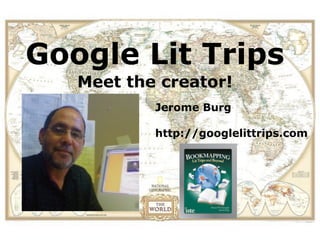
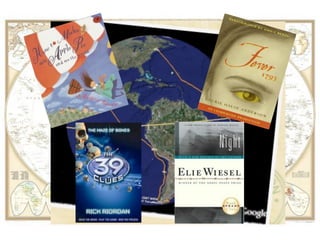
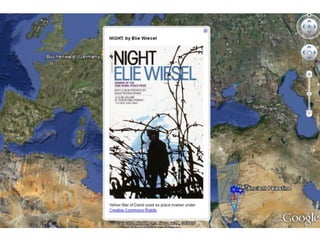
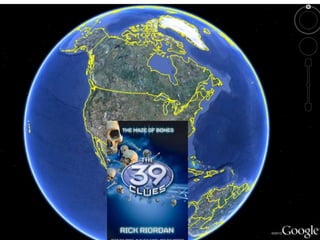
Google Lit Trips
   Meet the creator!
           Jerome Burg

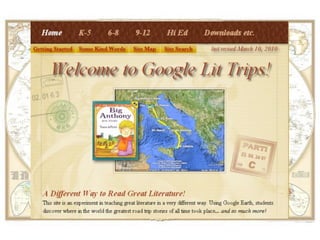
           http://googlelittrips.com
Why
should I
do this?
Literary Maps
     Multimedia
   + Google Earth
_________________
 A great classroom
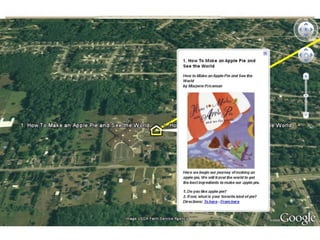
• Combining literary road trips
  with the interactive technology
  and satellite imagery of Google
  Earth puts your students right in
  the back seat" of an unfolding
  journey.
• Active engagement

• “It puts the kids right in the
  middle of the story rather
  than at a desk as the teacher
  teaches the story at
  them.“ (Jerome Burg)
• Media, literature, and the earth
  itself converge here in one of the
  most exemplary technology
  integration

• Virtual expeditions

• Multidimensional learning
  experience
Strategies that this multimedia
 tool support can include:

• Cues, questions, and advance
  organizers
• Non-linguistic representation
• Cooperative learning
• Summarizing and note-taking
Sounds
great! How
can I use
this in my
classroom?
• Choose a book or story that
has a strong sense of place.
• A good story for a lit trip
doesn't have to involve a long
journey.
• Choose a relevant activity that
involves various places.
• Amazing Race
• Skype Mystery Classes
•World Math/Spelling Day
•Around the World with 80 Classrooms
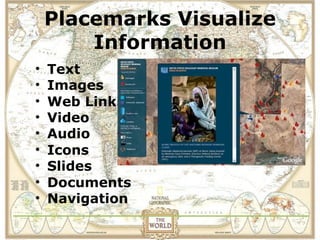
Placemarks Visualize
        Information
•   Text
•   Images
•   Web Links
•   Video
•   Audio
•   Icons
•   Slides
•   Documents
•   Navigation
You are only
limited by your
  imagination!
Still sounds
great! How
do I do it?
View the location of a field
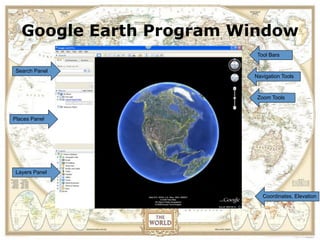
   Google Earth Program Window
    trip in Google Earth before
                            Tool Bars


          you actually visit.
 Search Panel
                           Navigation Tools


                            Zoom Tools


Places Panel


 Layers Panel


                              Coordinates, Elevation
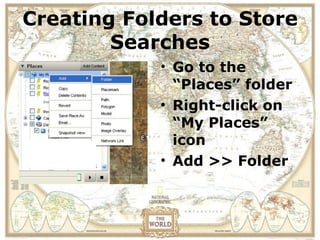
Creating Folders to Store
View the location of a field
         Searches before
trip in Google Earth
            • Go to the
    you actually visit.
                “Places” folder
              • Right-click on
                “My Places”
                icon
              • Add >> Folder
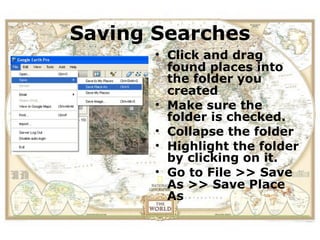
ViewSaving Searchesfield
       the location of a
trip in Google Earth before
               • Click and drag
      you actually folder you
                      visit.
                 found places into
                 the
                    created
                •   Make sure the
                    folder is checked.
                •   Collapse the folder
                •   Highlight the folder
                    by clicking on it.
                •   Go to File >> Save
                    As >> Save Place
                    As
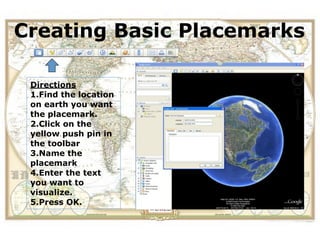
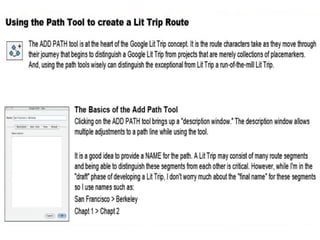
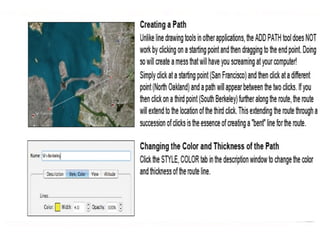
Creating Basic Placemarks
 View the location of a field
 trip in Google Earth before
       you actually visit.
 Directions
 1.Find the location
 on earth you want
 the placemark.
 2.Click on the
 yellow push pin in
 the toolbar
 3.Name the
 placemark
 4.Enter the text
 you want to
 visualize.
 5.Press OK.
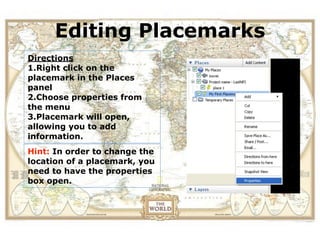
Editing Placemarks
View the location of a field
trip in Google Earth before
Directions
          you actually visit.
1.Right click on the
placemark in the Places
panel
2.Choose properties from
the menu
3.Placemark will open,
allowing you to add
information.
Hint: In order to change the
location of a placemark, you
need to have the properties
box open.
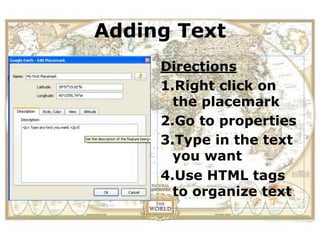
Adding Text
View the location of a field
trip in Google Earth before
              Directions
      you actually visit.
              1.Right click on
                the placemark
              2.Go to properties
              3.Type in the text
                you want
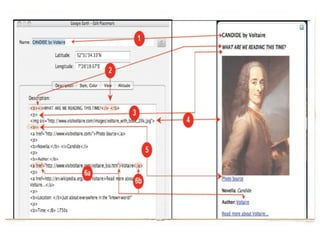
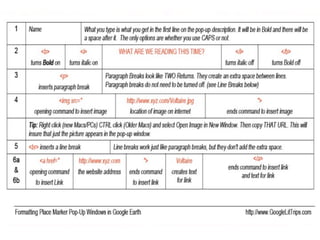
              4.Use HTML tags
                to organize text
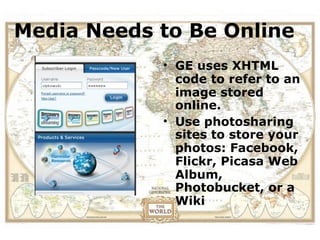
Mediathe location ofOnline
 View Needs to Be a field
trip in Google Earth before
               • GE uses XHTML
      you actually visit. to an
                 code to refer
                 image stored
                 online.
               • Use photosharing
                 sites to store your
                 photos: Facebook,
                 Flickr, Picasa Web
                 Album,
                 Photobucket, or a
                 Wiki
View the location of a field
trip in Google Earth before
      you actually visit.
View the location of a field
trip in Google Earth before
      you actually visit.
View the location of a field
trip in Google Earth before
      you actually visit.
View the location of a field
trip in Google Earth before
      you actually visit.
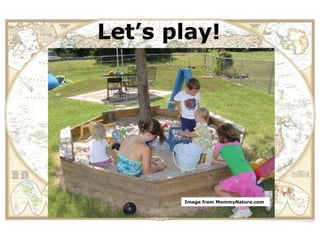
Let’s play!
View the location of a field
trip in Google Earth before
      you actually visit.


                Image from MommyNature.com
View the location of a field
 trip in Contact me:
         Google Earth before
       you actually visit.
web2.0explorer@gmail.com

techconferences.wikispaces.com
View the location of a field
trip in Google Earth before
      you actually visit.
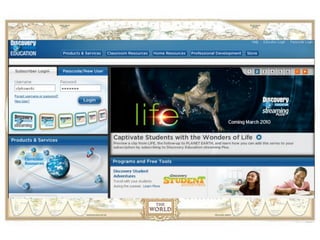
          http://discoveryeducation.com/

   http://googlelittrips.com/GoogleLit/Home.html

  http://www.thenetworkedlearner.com/index.html

Pack your bags!

  • 1.
    Pack Your Bags! Integrating Google Earth, Discovery Streaming, and Literature Cheryl Lykowski March, 2011
  • 2.
  • 3.
    es. com kis pac es .wi fer enc con t ech ttp:// h http ://t ools 4tech .wik ispa ces. com
  • 4.
    Google Lit Trips Meet the creator! Jerome Burg http://googlelittrips.com
  • 7.
  • 8.
    Literary Maps Multimedia + Google Earth _________________ A great classroom
  • 9.
    • Combining literaryroad trips with the interactive technology and satellite imagery of Google Earth puts your students right in the back seat" of an unfolding journey.
  • 10.
    • Active engagement •“It puts the kids right in the middle of the story rather than at a desk as the teacher teaches the story at them.“ (Jerome Burg)
  • 11.
    • Media, literature,and the earth itself converge here in one of the most exemplary technology integration • Virtual expeditions • Multidimensional learning experience
  • 12.
    Strategies that thismultimedia tool support can include: • Cues, questions, and advance organizers • Non-linguistic representation • Cooperative learning • Summarizing and note-taking
  • 17.
    Sounds great! How can Iuse this in my classroom?
  • 18.
    • Choose abook or story that has a strong sense of place. • A good story for a lit trip doesn't have to involve a long journey.
  • 19.
    • Choose arelevant activity that involves various places. • Amazing Race • Skype Mystery Classes •World Math/Spelling Day •Around the World with 80 Classrooms
  • 20.
    Placemarks Visualize Information • Text • Images • Web Links • Video • Audio • Icons • Slides • Documents • Navigation
  • 21.
    You are only limitedby your imagination!
  • 22.
  • 23.
    View the locationof a field Google Earth Program Window trip in Google Earth before Tool Bars you actually visit. Search Panel Navigation Tools Zoom Tools Places Panel Layers Panel Coordinates, Elevation
  • 24.
    Creating Folders toStore View the location of a field Searches before trip in Google Earth • Go to the you actually visit. “Places” folder • Right-click on “My Places” icon • Add >> Folder
  • 25.
    ViewSaving Searchesfield the location of a trip in Google Earth before • Click and drag you actually folder you visit. found places into the created • Make sure the folder is checked. • Collapse the folder • Highlight the folder by clicking on it. • Go to File >> Save As >> Save Place As
  • 26.
    Creating Basic Placemarks View the location of a field trip in Google Earth before you actually visit. Directions 1.Find the location on earth you want the placemark. 2.Click on the yellow push pin in the toolbar 3.Name the placemark 4.Enter the text you want to visualize. 5.Press OK.
  • 27.
    Editing Placemarks View thelocation of a field trip in Google Earth before Directions you actually visit. 1.Right click on the placemark in the Places panel 2.Choose properties from the menu 3.Placemark will open, allowing you to add information. Hint: In order to change the location of a placemark, you need to have the properties box open.
  • 28.
    Adding Text View thelocation of a field trip in Google Earth before Directions you actually visit. 1.Right click on the placemark 2.Go to properties 3.Type in the text you want 4.Use HTML tags to organize text
  • 29.
    Mediathe location ofOnline View Needs to Be a field trip in Google Earth before • GE uses XHTML you actually visit. to an code to refer image stored online. • Use photosharing sites to store your photos: Facebook, Flickr, Picasa Web Album, Photobucket, or a Wiki
  • 30.
    View the locationof a field trip in Google Earth before you actually visit.
  • 31.
    View the locationof a field trip in Google Earth before you actually visit.
  • 32.
    View the locationof a field trip in Google Earth before you actually visit.
  • 33.
    View the locationof a field trip in Google Earth before you actually visit.
  • 34.
    Let’s play! View thelocation of a field trip in Google Earth before you actually visit. Image from MommyNature.com
  • 35.
    View the locationof a field trip in Contact me: Google Earth before you actually visit. web2.0explorer@gmail.com techconferences.wikispaces.com
  • 36.
    View the locationof a field trip in Google Earth before you actually visit. http://discoveryeducation.com/ http://googlelittrips.com/GoogleLit/Home.html http://www.thenetworkedlearner.com/index.html

Editor's Notes