Operating SyStemSOperating SyStemS
and Utilityand Utility
prOgramSprOgramS
Group 3
BSIS 1-B
Personal Productivity using Information System
OverviewOverview
 Describe the two types of software
 Understand the startup process for a personal computer
 Describe the term user interface
 Explain features common to most operating systems
 Know the difference between stand-alone operating systems and ne
systems
 Identify various stand-alone oper
 Identify various network operatin
 Recognize devices that use embe
 Discuss the purpose of the follow
-file viewer, file compression, diagno
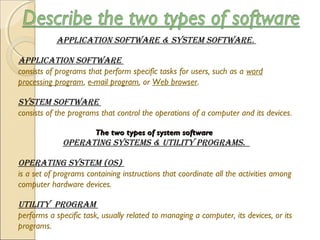
applicatiOn SOftware & SyStem SOftware.
applicatiOn SOftware
consists of programs that perform specific tasks for users, such as a word
processing program, e-mail program, or Web browser. 
SyStem SOftware
consists of the programs that control the operations of a computer and its devices.
The two types of system softwareThe two types of system software
Operating SyStemS & Utility prOgramS.
Operating SyStem (OS)
is a set of programs containing instructions that coordinate all the activities among
computer hardware devices.
Utility prOgram
performs a specific task, usually related to managing a computer, its devices, or its
programs.
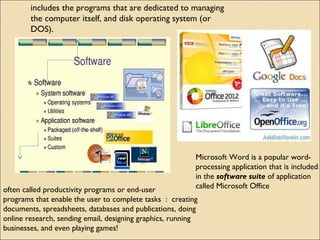
includes the programs that are dedicated to managing
the computer itself, and disk operating system (or
DOS).
often called productivity programs or end-user
programs that enable the user to complete tasks  :  creating
documents, spreadsheets, databases and publications, doing
online research, sending email, designing graphics, running
businesses, and even playing games! 
Microsoft Word is a popular word-
processing application that is included
in the software suite of application
called Microsoft Office
BOOting is the process of starting or restarting a computer. When you turn on the
computer, the power supply sends an electrical signal to devices located in the system
unit. The processor chip resets itself and looks for the ROM chip that contains
the BIOS (basic input/output system), which is firmware that holds the start-up
instructions. The BIOS executes the power-on self test (POST) to make sure
hardware is connected properly and operating correctly. The POST results are
compared with data in a CMOS chip on the motherboard. If the POST completes
successfully, the BIOS searches for specific operating system files called system files.
Once located, the boot drive (the drive from which your personal computer starts),
loads the system files from storage (the hard disk – usually drive C) into memory (RAM)
and executes them. Next, the kernel of the operating system loads into memory and
takes control of the computer. The operating system loads configuration information. In
Windows XP, the registry consists of several file that contain the system configuration
information. When complete, the Windows XP desktop and icons display, and programs
in the StartUp folder are executed.
BOOt SeqUence
BiOS
cpU
clOck tickS
pOwer-On Self teSt
cmOS
ram
pOrt
keyBOard
peripheral deviceS
driverS
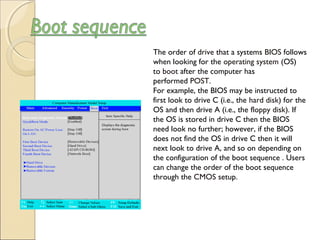
The order of drive that a systems BIOS follows
when looking for the operating system (OS)
to boot after the computer has
performed POST.
For example, the BIOS may be instructed to
first look to drive C (i.e., the hard disk) for the
OS and then drive A (i.e., the floppy disk). If
the OS is stored in drive C then the BIOS
need look no further; however, if the BIOS
does not find the OS in drive C then it will
next look to drive A, and so on depending on
the configuration of the boot sequence . Users
can change the order of the boot sequence
through the CMOS setup.
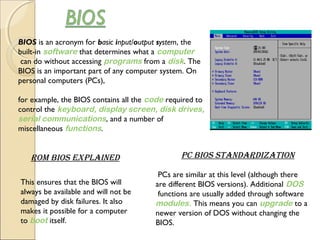
BIOS is an acronym for basic input/output system, the
built-in software that determines what a computer
 can do without accessing programs from a disk. The
BIOS is an important part of any computer system. On
personal computers (PCs),
for example, the BIOS contains all the code required to
control the keyboard, display screen, disk drives, 
serial communications, and a number of
miscellaneous functions.
rOm BiOS explained pc BiOS StandardizatiOn
This ensures that the BIOS will
always be available and will not be
damaged by disk failures. It also
makes it possible for a computer
to boot itself.
 PCs are similar at this level (although there
are different BIOS versions). Additional DOS
 functions are usually added through software 
modules. This means you can upgrade to a
newer version of DOS without changing the
BIOS.
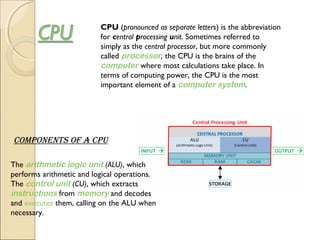
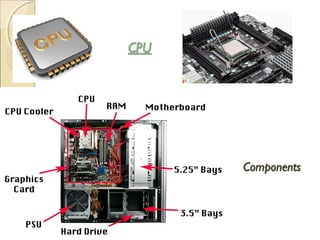
CPU (pronounced as separate letters) is the abbreviation
for central processing unit. Sometimes referred to
simply as the central processor, but more commonly
called processor, the CPU is the brains of the 
computer where most calculations take place. In
terms of computing power, the CPU is the most
important element of a computer system.
The arithmetic logic unit (ALU), which
performs arithmetic and logical operations.
The control unit (CU), which extracts 
instructions from memory and decodes
and executes them, calling on the ALU when
necessary.
cOmpOnentS Of a cpU
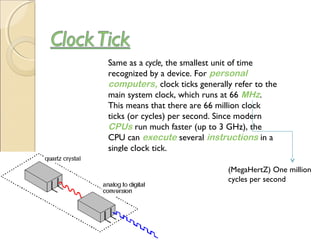
Same as a cycle, the smallest unit of time
recognized by a device. For personal
computers, clock ticks generally refer to the
main system clock, which runs at 66 MHz.
This means that there are 66 million clock
ticks (or cycles) per second. Since modern 
CPUs run much faster (up to 3 GHz), the
CPU can execute several instructions in a
single clock tick.
(MegaHertZ) One million
cycles per second
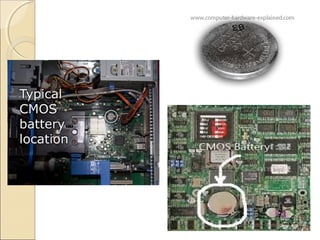
Short for complementary metal oxide semiconductor.
Pronounced see-moss, CMOS is a widely used type of 
semiconductor. CMOS semiconductors use both NMOS
(negative polarity) and PMOS (positive polarity) circuits.
Since only one of the circuit types is on at any given time,
CMOS chips require less power than chips using just one
type of transistor. This makes them particularly attractive for
use in battery-powered devices, such as portable computers
. Personal computers also contain a small amount of battery-
powered CMOS memory to hold the date, time, and system 
setup parameters.
RAM (pronounced ramm) is an acronym 
for random access memory, a type of 
computer memory  that can be 
accessed randomly; that is, any byte  of
memory can be accessed without touching the
preceding bytes. RAM is the most common
type of memory found in computers  and
other devices, such as printers.
Two Main Types of RaM
DRaM (
DynaMic RanDoM access MeMoRy)
DRAM supports access times of
about 60 nanoseconds
sRaM (sTaTic RanDoM access MeMoRy).
SRAM can give access times as low as 10
nanoseconds.  (faster)
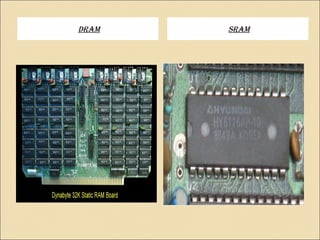
DRaM sRaM
PortPort
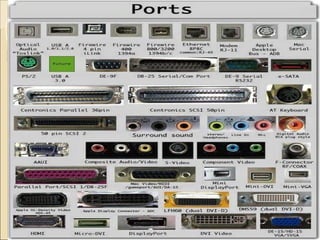
An interface on a computer to which you can
connect a device. Personal computers have
various types of ports. Internally, there are
several ports for connecting disk drives, 
display screens, and keyboards. Externally,
personal computers have ports for
connecting modems, printers, mice, and
other peripheral devices.
A computer keyboard is defined as the set of
typewriter-like keysthat enables you to enter 
data into a computer or other devices.
Computer keyboards are similar to electric-
typewriters but contain additional typing keys.
Standard
Classification =
Alphanumeric keys: The standard
letters and numbers.
Punctuation keys: The comma, period,
semicolon, and similar keys.
Special keys: This includes the function keys,
control keys, arrow keys, caps Lock key, and
so on.
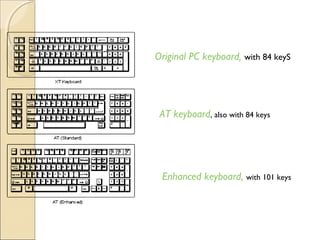
Original PC keyboard, with 84 keyS
AT keyboard, also with 84 keys
Enhanced keyboard, with 101 keys
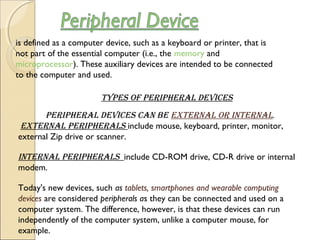
is defined as a computer device, such as a keyboard or printer, that is
not part of the essential computer (i.e., the memory and 
microprocessor). These auxiliary devices are intended to be connected
to the computer and used.
peRipheRal Devices can be exTeRnal oR inTeRnal.
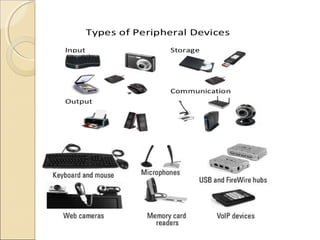
exTeRnal peRipheRals include mouse, keyboard, printer, monitor,
external Zip drive or scanner.
inTeRnal peRipheRals include CD-ROM drive, CD-R drive or internal
modem.
Today's new devices, such as tablets, smartphones and wearable computing
devices are considered peripherals as they can be connected and used on a
computer system. The difference, however, is that these devices can run
independently of the computer system, unlike a computer mouse, for
example.
Types of peRipheRal Devices 
A program that controls a device. Every device, whether it be
a printer, disk drive, or keyboard, must have a driver
program. Many drivers, such as the keyboard driver, come
with the operating system. For other devices, you may need
to load a new driver when you connect the device to your 
computer. In DOS systems, drivers are files with a.SYS 
extension. In Windows environments, drivers often have
a.DRVextension.
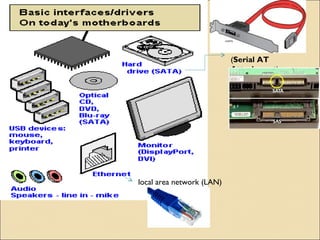
 local area network (LAN)
(Serial AT
Attachment)
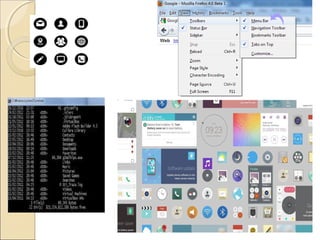
User interface controls how you enter data and instructions and how
information displays on the screen.
two types of User interfaces are
command-line and graphical.
command-line interface, you type keywords or press special keys to
enter data or instructions.
graphical User interface (gUi) allows you to use menus and visual
images such as icons, buttons, and other graphical objects to issue commands.
menU is a set of commands from which you can choose.
 icon is a small image that represents a program, an instruction, a file, or some
other object.
Most operating systems perform similar functions that include managing
programs, managing memory, scheduling jobs, configuring devices, accessing the
Web, monitoring performance, providing housekeeping services, and
administering security. Managing programs directly affects your productivity.
Single user/single tasking operating system allows only one user to run one
program at a time.
Multitasking operating system allows a single user to work on two or more
applications that reside in memory at the same time.
Multi-user operating system enables two or more users to run a program
simultaneously.
Multiprocessing operating system can support two or more CPUs running
programs at the same time. Managing memory involves assigning items to an area of
memory while they are being processed.
The purpose of memory management is to optimize use of random access memory
(RAM). With virtual memory (VM), the operating system optimizes memory by
allocating a portion of a storage medium, usually the hard disk, to function as additional
RAM. Scheduling jobs (operations the processor manages) involves determining the
order in which jobs are processed.
Spooling increases efficiency by placing print jobs in a buffer (an area of memory or
storage where data resides while waiting to be transferred) until the printer is ready,
freeing the processor for other tasks. Configuring devices establishes communication
with each device in the computer.
Device driver is a small program that tells the operating system how to communicate
with a device. Accessing the Web may entail including a Web browser and e-mail program
in the operating system. Monitoring performance helps to identify and solve system
problems.
Performance monitor is a program that assesses and reports information about
various system resources and devices. Providing housekeeping services entails
performing storage and file management functions.
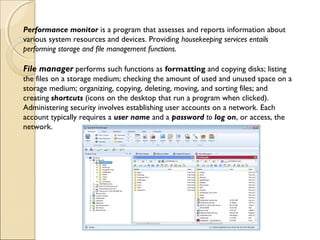
File manager performs such functions as formatting and copying disks; listing
the files on a storage medium; checking the amount of used and unused space on a
storage medium; organizing, copying, deleting, moving, and sorting files; and
creating shortcuts (icons on the desktop that run a program when clicked).
Administering security involves establishing user accounts on a network. Each
account typically requires a user name and a password to log on, or access, the
network.
Stand-alone operating system is a complete operating system that works on a
desktop or notebook computer.
Network operating system (also called network OS or NOS) is an operating
system that supports a network.
Network is a collection of computers and devices connected together via
communications media and devices such as cables, telephone lines, and modems. In
some networks, the server is the computer that controls access to the hardware and
software on a network and provides a centralized storage area. The other computers
on the network, called clients, rely on the server(s) for resources.
Stand-alone operating systems
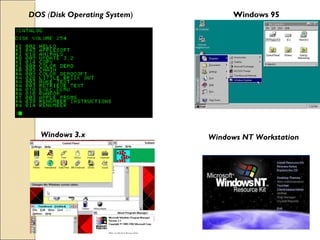
include DOS , Windows 3.x, Windows 95, Windows NT Workstation, Windows
98, Windows 2000 Professional, Windows Millennium Edition, Windows XP Home
Edition, Windows XP Professional Edition, Mac OS, OS/2 Warp Client, UNIX, and
Linux. UNIX and Linux also function as network operating systems.
DOS (Disk Operating System) refers to several single user, command-line and menu-
driven operating systems developed in the early 1980s for personal computers. 
Windows 3.x refers to early operating environments that, although not operating
systems, provided a graphical user interface to work in combination with DOS and
simplify its use. 
Windows 95 is a true multitasking operating system – not an operating environment –
with an improved graphical interface. 
Windows NT Workstation is a client operating system that can connect to a Windows
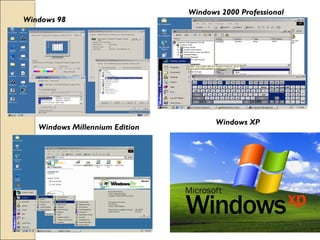
NT Server. Developed as an upgrade to Windows 95,
Windows 98 operating system is easier to use and more integrated with the Internet.
Windows 98 includes Microsoft Internet Explorer, a popular Web browser, Windows
Explorer, a file manager, and an Active Desktop™  that works similarly to Web links. 
Windows 2000 Professional is a complete, reliable multitasking client operating system
for business desktop and business notebook computers. 
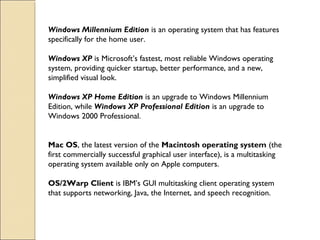
Windows Millennium Edition is an operating system that has features
specifically for the home user. 
Windows XP is Microsoft’s fastest, most reliable Windows operating
system, providing quicker startup, better performance, and a new,
simplified visual look. 
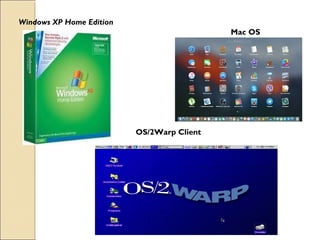
Windows XP Home Edition is an upgrade to Windows Millennium
Edition, while Windows XP Professional Edition is an upgrade to
Windows 2000 Professional.
Mac OS, the latest version of the Macintosh operating system (the
first commercially successful graphical user interface), is a multitasking
operating system available only on Apple computers.
OS/2Warp Client is IBM’s GUI multitasking client operating system
that supports networking, Java, the Internet, and speech recognition.
DOS (Disk Operating System)
Windows 3.x 
Windows 95
Windows NT Workstation
Windows 98
Windows 2000 Professional
Windows Millennium Edition
Windows XP
Windows XP Home Edition
Mac OS
OS/2Warp Client
Network operating systems include NetWare, Windows NT Server, Windows 2000 Server,
Windows .NET Server, OS/2 Warp Server for E-business, UNIX, Linux, and Solaris™.
Novell’s NetWare is a widely used network operating system designed for client/server
networks. 
Windows NT Server is the operating system used by servers in the Windows NT
client/server network environment.
Windows 2000 Server family consists of three products: Windows 2000 Server (for
the typical business network), Windows 2000 Advanced Server (for e-commerce
applications), and Windows 2000 Database server (for demanding, large-scale
applications). Windows .NET Server is an upgrade to Windows 2000 Server.
Windows .NET Server family includes four products: Windows .NET Standard
Server(for the typical small- to medium-sized business network), Windows .NET
Enterprise Server (for medium- to large-sized businesses, including those with e-
commerce applications), Windows .NET
Datacenter (for business with huge volumes of transactions and large-scale
databases), and Windows .NET Web Server (for Web server and Web hosting
businesses).
OS/2 Warp Server for E-business is IBM’s (International Business Machines )
network operating system designed for all sizes of business.
UNIX is a multitasking, command-line operating system implemented on many
different types of computers. Because it is both a stand-alone operating system and
a network operating system, some call UNIX a multipurpose operating
system. 
Linux is a popular, free, multitasking UNIX-type operating system. 
Solaris™, a version of UNIX developed by Sun Microsystems, is a network
operating system designed for e-commerce applications.
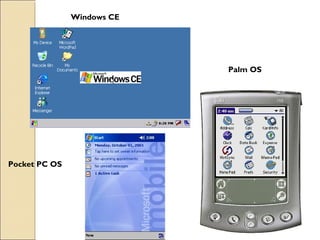
The operating system on most handheld computers and small devices, called
an embedded operating system, resides on a ROM chip. Popular
embedded operating systems include Windows CE, Pocket PC OS, and Palm
OS®
.
 Windows CE is a scaled-down Windows operating system designed for use
on wireless communications devices and smaller computers such as handheld
computers, in-vehicle devices, and Web-enabled devices. 
Pocket PC OS is a scaled-down operating system developed by Microsoft
that works on a specific type of handheld computer, called a Pocket PC.
Palm OS®
 is the operating system used on Palm handheld computers from
Palm, Inc., and Visor handheld computers from Handspring™.
Palm OS
Pocket PC OS
Windows CE
Most operating systems include several utility programs that perform
specific tasks related to managing a computer, its devices, or its programs.
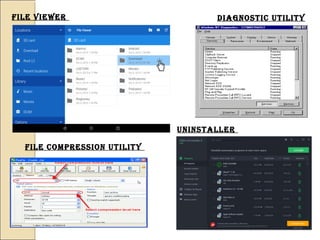
File viewer Is a utility that allows you to display and copy the contents
of a file.
File compression utility  shrinks the size of a file.
Diagnostic utility compiles technical information about a computer’s
hardware and certain system software programs and then prepares a
report outlining any identified problems.
uninstaller Is a utility that removes an application, as well as any associated
entries in the system files.
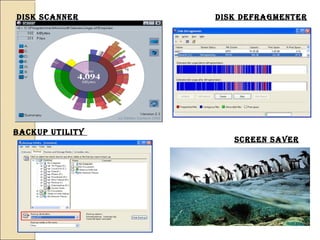
Disk scanner Is a utility that
(1)detects and corrects both physical and logical problems on a hard disk
(2)(2) searches for and removes unnecessary files
Disk DeFragmenter is a utility that reorganizes files and unused space on a
computer’s hard disk so data can be accessed more quickly and programs can run faster.
Backup utility copies, or backs up, selected files or an entire hard drive onto
another disk or tape.
screen saver is a utility that causes the monitor’s screen to display a moving
image on a blank screen if no keyboard activity occurs for a specified period.
File viewer
File compression utility
Diagnostic utility 
uninstaller
Disk scanner Disk DeFragmenter
Backup utility
screen saver 
Dela Flor
Dedoroy
Decena
De La Cruz
Thankyou !
The End.

Osup.f inal

  • 1.
    Operating SyStemSOperating SyStemS andUtilityand Utility prOgramSprOgramS Group 3 BSIS 1-B Personal Productivity using Information System
  • 2.
    OverviewOverview  Describe thetwo types of software  Understand the startup process for a personal computer  Describe the term user interface  Explain features common to most operating systems  Know the difference between stand-alone operating systems and ne systems  Identify various stand-alone oper  Identify various network operatin  Recognize devices that use embe  Discuss the purpose of the follow -file viewer, file compression, diagno
  • 4.
    applicatiOn SOftware &SyStem SOftware. applicatiOn SOftware consists of programs that perform specific tasks for users, such as a word processing program, e-mail program, or Web browser.  SyStem SOftware consists of the programs that control the operations of a computer and its devices. The two types of system softwareThe two types of system software Operating SyStemS & Utility prOgramS. Operating SyStem (OS) is a set of programs containing instructions that coordinate all the activities among computer hardware devices. Utility prOgram performs a specific task, usually related to managing a computer, its devices, or its programs.
  • 5.
    includes the programsthat are dedicated to managing the computer itself, and disk operating system (or DOS). often called productivity programs or end-user programs that enable the user to complete tasks  :  creating documents, spreadsheets, databases and publications, doing online research, sending email, designing graphics, running businesses, and even playing games!  Microsoft Word is a popular word- processing application that is included in the software suite of application called Microsoft Office
  • 6.
    BOOting is theprocess of starting or restarting a computer. When you turn on the computer, the power supply sends an electrical signal to devices located in the system unit. The processor chip resets itself and looks for the ROM chip that contains the BIOS (basic input/output system), which is firmware that holds the start-up instructions. The BIOS executes the power-on self test (POST) to make sure hardware is connected properly and operating correctly. The POST results are compared with data in a CMOS chip on the motherboard. If the POST completes successfully, the BIOS searches for specific operating system files called system files. Once located, the boot drive (the drive from which your personal computer starts), loads the system files from storage (the hard disk – usually drive C) into memory (RAM) and executes them. Next, the kernel of the operating system loads into memory and takes control of the computer. The operating system loads configuration information. In Windows XP, the registry consists of several file that contain the system configuration information. When complete, the Windows XP desktop and icons display, and programs in the StartUp folder are executed.
  • 7.
    BOOt SeqUence BiOS cpU clOck tickS pOwer-OnSelf teSt cmOS ram pOrt keyBOard peripheral deviceS driverS
  • 8.
    The order of drive thata systems BIOS follows when looking for the operating system (OS) to boot after the computer has performed POST. For example, the BIOS may be instructed to first look to drive C (i.e., the hard disk) for the OS and then drive A (i.e., the floppy disk). If the OS is stored in drive C then the BIOS need look no further; however, if the BIOS does not find the OS in drive C then it will next look to drive A, and so on depending on the configuration of the boot sequence . Users can change the order of the boot sequence through the CMOS setup.
  • 9.
    BIOS is an acronymfor basic input/output system, the built-in software that determines what a computer  can do without accessing programs from a disk. The BIOS is an important part of any computer system. On personal computers (PCs), for example, the BIOS contains all the code required to control the keyboard, display screen, disk drives,  serial communications, and a number of miscellaneous functions. rOm BiOS explained pc BiOS StandardizatiOn This ensures that the BIOS will always be available and will not be damaged by disk failures. It also makes it possible for a computer to boot itself.  PCs are similar at this level (although there are different BIOS versions). Additional DOS  functions are usually added through software  modules. This means you can upgrade to a newer version of DOS without changing the BIOS.
  • 10.
    CPU (pronounced as separateletters) is the abbreviation for central processing unit. Sometimes referred to simply as the central processor, but more commonly called processor, the CPU is the brains of the  computer where most calculations take place. In terms of computing power, the CPU is the most important element of a computer system. The arithmetic logic unit (ALU), which performs arithmetic and logical operations. The control unit (CU), which extracts  instructions from memory and decodes and executes them, calling on the ALU when necessary. cOmpOnentS Of a cpU
  • 12.
    Same as a cycle, thesmallest unit of time recognized by a device. For personal computers, clock ticks generally refer to the main system clock, which runs at 66 MHz. This means that there are 66 million clock ticks (or cycles) per second. Since modern  CPUs run much faster (up to 3 GHz), the CPU can execute several instructions in a single clock tick. (MegaHertZ) One million cycles per second
  • 13.
    Short for complementary metal oxide semiconductor. Pronounced see-moss, CMOSis a widely used type of  semiconductor. CMOS semiconductors use both NMOS (negative polarity) and PMOS (positive polarity) circuits. Since only one of the circuit types is on at any given time, CMOS chips require less power than chips using just one type of transistor. This makes them particularly attractive for use in battery-powered devices, such as portable computers . Personal computers also contain a small amount of battery- powered CMOS memory to hold the date, time, and system  setup parameters.
  • 15.
    RAM (pronounced ramm)is an acronym  for random access memory, a type of  computer memory  that can be  accessed randomly; that is, any byte  of memory can be accessed without touching the preceding bytes. RAM is the most common type of memory found in computers  and other devices, such as printers. Two Main Types of RaM DRaM ( DynaMic RanDoM access MeMoRy) DRAM supports access times of about 60 nanoseconds sRaM (sTaTic RanDoM access MeMoRy). SRAM can give access times as low as 10 nanoseconds.  (faster)
  • 16.
  • 17.
    PortPort An interface on a computer to whichyou can connect a device. Personal computers have various types of ports. Internally, there are several ports for connecting disk drives,  display screens, and keyboards. Externally, personal computers have ports for connecting modems, printers, mice, and other peripheral devices.
  • 19.
    A computer keyboardis defined as the set of typewriter-like keysthat enables you to enter  data into a computer or other devices. Computer keyboards are similar to electric- typewriters but contain additional typing keys. Standard Classification = Alphanumeric keys: The standard letters and numbers. Punctuation keys: The comma, period, semicolon, and similar keys. Special keys: This includes the function keys, control keys, arrow keys, caps Lock key, and so on.
  • 20.
    Original PC keyboard,with 84 keyS AT keyboard, also with 84 keys Enhanced keyboard, with 101 keys
  • 21.
    is defined asa computer device, such as a keyboard or printer, that is not part of the essential computer (i.e., the memory and  microprocessor). These auxiliary devices are intended to be connected to the computer and used. peRipheRal Devices can be exTeRnal oR inTeRnal. exTeRnal peRipheRals include mouse, keyboard, printer, monitor, external Zip drive or scanner. inTeRnal peRipheRals include CD-ROM drive, CD-R drive or internal modem. Today's new devices, such as tablets, smartphones and wearable computing devices are considered peripherals as they can be connected and used on a computer system. The difference, however, is that these devices can run independently of the computer system, unlike a computer mouse, for example. Types of peRipheRal Devices 
  • 23.
    A program that controls a device.Every device, whether it be a printer, disk drive, or keyboard, must have a driver program. Many drivers, such as the keyboard driver, come with the operating system. For other devices, you may need to load a new driver when you connect the device to your  computer. In DOS systems, drivers are files with a.SYS  extension. In Windows environments, drivers often have a.DRVextension.
  • 24.
     local area network(LAN) (Serial AT Attachment)
  • 25.
    User interface controls howyou enter data and instructions and how information displays on the screen. two types of User interfaces are command-line and graphical. command-line interface, you type keywords or press special keys to enter data or instructions. graphical User interface (gUi) allows you to use menus and visual images such as icons, buttons, and other graphical objects to issue commands. menU is a set of commands from which you can choose.  icon is a small image that represents a program, an instruction, a file, or some other object.
  • 27.
    Most operating systemsperform similar functions that include managing programs, managing memory, scheduling jobs, configuring devices, accessing the Web, monitoring performance, providing housekeeping services, and administering security. Managing programs directly affects your productivity. Single user/single tasking operating system allows only one user to run one program at a time. Multitasking operating system allows a single user to work on two or more applications that reside in memory at the same time. Multi-user operating system enables two or more users to run a program simultaneously.
  • 28.
    Multiprocessing operating system cansupport two or more CPUs running programs at the same time. Managing memory involves assigning items to an area of memory while they are being processed. The purpose of memory management is to optimize use of random access memory (RAM). With virtual memory (VM), the operating system optimizes memory by allocating a portion of a storage medium, usually the hard disk, to function as additional RAM. Scheduling jobs (operations the processor manages) involves determining the order in which jobs are processed. Spooling increases efficiency by placing print jobs in a buffer (an area of memory or storage where data resides while waiting to be transferred) until the printer is ready, freeing the processor for other tasks. Configuring devices establishes communication with each device in the computer. Device driver is a small program that tells the operating system how to communicate with a device. Accessing the Web may entail including a Web browser and e-mail program in the operating system. Monitoring performance helps to identify and solve system problems.
  • 29.
    Performance monitor is aprogram that assesses and reports information about various system resources and devices. Providing housekeeping services entails performing storage and file management functions. File manager performs such functions as formatting and copying disks; listing the files on a storage medium; checking the amount of used and unused space on a storage medium; organizing, copying, deleting, moving, and sorting files; and creating shortcuts (icons on the desktop that run a program when clicked). Administering security involves establishing user accounts on a network. Each account typically requires a user name and a password to log on, or access, the network.
  • 30.
    Stand-alone operating system isa complete operating system that works on a desktop or notebook computer. Network operating system (also called network OS or NOS) is an operating system that supports a network. Network is a collection of computers and devices connected together via communications media and devices such as cables, telephone lines, and modems. In some networks, the server is the computer that controls access to the hardware and software on a network and provides a centralized storage area. The other computers on the network, called clients, rely on the server(s) for resources.
  • 31.
    Stand-alone operating systems includeDOS , Windows 3.x, Windows 95, Windows NT Workstation, Windows 98, Windows 2000 Professional, Windows Millennium Edition, Windows XP Home Edition, Windows XP Professional Edition, Mac OS, OS/2 Warp Client, UNIX, and Linux. UNIX and Linux also function as network operating systems.
  • 32.
    DOS (Disk Operating System)refers to several single user, command-line and menu- driven operating systems developed in the early 1980s for personal computers.  Windows 3.x refers to early operating environments that, although not operating systems, provided a graphical user interface to work in combination with DOS and simplify its use.  Windows 95 is a true multitasking operating system – not an operating environment – with an improved graphical interface.  Windows NT Workstation is a client operating system that can connect to a Windows NT Server. Developed as an upgrade to Windows 95, Windows 98 operating system is easier to use and more integrated with the Internet. Windows 98 includes Microsoft Internet Explorer, a popular Web browser, Windows Explorer, a file manager, and an Active Desktop™  that works similarly to Web links.  Windows 2000 Professional is a complete, reliable multitasking client operating system for business desktop and business notebook computers. 
  • 33.
    Windows Millennium Edition isan operating system that has features specifically for the home user.  Windows XP is Microsoft’s fastest, most reliable Windows operating system, providing quicker startup, better performance, and a new, simplified visual look.  Windows XP Home Edition is an upgrade to Windows Millennium Edition, while Windows XP Professional Edition is an upgrade to Windows 2000 Professional. Mac OS, the latest version of the Macintosh operating system (the first commercially successful graphical user interface), is a multitasking operating system available only on Apple computers. OS/2Warp Client is IBM’s GUI multitasking client operating system that supports networking, Java, the Internet, and speech recognition.
  • 34.
    DOS (Disk Operating System) Windows3.x  Windows 95 Windows NT Workstation
  • 35.
    Windows 98 Windows 2000Professional Windows Millennium Edition Windows XP
  • 36.
    Windows XP HomeEdition Mac OS OS/2Warp Client
  • 37.
    Network operating systemsinclude NetWare, Windows NT Server, Windows 2000 Server, Windows .NET Server, OS/2 Warp Server for E-business, UNIX, Linux, and Solaris™. Novell’s NetWare is a widely used network operating system designed for client/server networks.  Windows NT Server is the operating system used by servers in the Windows NT client/server network environment. Windows 2000 Server family consists of three products: Windows 2000 Server (for the typical business network), Windows 2000 Advanced Server (for e-commerce applications), and Windows 2000 Database server (for demanding, large-scale applications). Windows .NET Server is an upgrade to Windows 2000 Server. Windows .NET Server family includes four products: Windows .NET Standard Server(for the typical small- to medium-sized business network), Windows .NET
  • 38.
    Enterprise Server (for medium-to large-sized businesses, including those with e- commerce applications), Windows .NET Datacenter (for business with huge volumes of transactions and large-scale databases), and Windows .NET Web Server (for Web server and Web hosting businesses). OS/2 Warp Server for E-business is IBM’s (International Business Machines ) network operating system designed for all sizes of business. UNIX is a multitasking, command-line operating system implemented on many different types of computers. Because it is both a stand-alone operating system and a network operating system, some call UNIX a multipurpose operating system.  Linux is a popular, free, multitasking UNIX-type operating system.  Solaris™, a version of UNIX developed by Sun Microsystems, is a network operating system designed for e-commerce applications.
  • 39.
    The operating systemon most handheld computers and small devices, called an embedded operating system, resides on a ROM chip. Popular embedded operating systems include Windows CE, Pocket PC OS, and Palm OS® .  Windows CE is a scaled-down Windows operating system designed for use on wireless communications devices and smaller computers such as handheld computers, in-vehicle devices, and Web-enabled devices.  Pocket PC OS is a scaled-down operating system developed by Microsoft that works on a specific type of handheld computer, called a Pocket PC. Palm OS®  is the operating system used on Palm handheld computers from Palm, Inc., and Visor handheld computers from Handspring™.
  • 40.
    Palm OS Pocket PCOS Windows CE
  • 41.
    Most operating systemsinclude several utility programs that perform specific tasks related to managing a computer, its devices, or its programs. File viewer Is a utility that allows you to display and copy the contents of a file. File compression utility  shrinks the size of a file. Diagnostic utility compiles technical information about a computer’s hardware and certain system software programs and then prepares a report outlining any identified problems.
  • 42.
    uninstaller Is autility that removes an application, as well as any associated entries in the system files. Disk scanner Is a utility that (1)detects and corrects both physical and logical problems on a hard disk (2)(2) searches for and removes unnecessary files Disk DeFragmenter is a utility that reorganizes files and unused space on a computer’s hard disk so data can be accessed more quickly and programs can run faster. Backup utility copies, or backs up, selected files or an entire hard drive onto another disk or tape. screen saver is a utility that causes the monitor’s screen to display a moving image on a blank screen if no keyboard activity occurs for a specified period.
  • 43.
    File viewer File compressionutility Diagnostic utility  uninstaller
  • 44.
    Disk scanner DiskDeFragmenter Backup utility screen saver 
  • 45.
    Dela Flor Dedoroy Decena De LaCruz Thankyou ! The End.