Tips, Tricks, Hacks and Add-Ons
email has become the cornerstone of personal and professional
communications
We can enhance output to next level by organizing, searching, and
automating email
Gmail being very commonly used and official medium for many organizations
and individual, we will focus on it but most of the techniques could be used
with any other email system
We will divide improvements into four main sections:
1. Optimize Inbox.
2. Using Labels.
3. Search and Filters.
4. Add-ons and Plugins.
Optimize Inbox
1. Keyboard Shortcuts
2. Delete first
3. Right Inbox Look
4. Display Density
5. Personal Level Indicators
6. Mute Conversations
7. Archiving
8. Reuse
9. Mailing groups
Optimize Inbox
Keyboard Shortcuts
By default, Gmail has a few shortcuts enabled, but be sure to turn on the full
set of commands. To do so:
• click on the gear icon at the top right of your inbox,
• select "Settings"
• In the default "General" tab scroll to the “Keyboard Shortcuts” section.
• Click the bullet beside “Keyboard shortcuts on”
• save your settings.
Optimize Inbox
Keyboard Shortcuts
Some important shortcuts to remember are:
• [ - Archive the current conversation and opens the next conversation
• gi - Return to the inbox from any page within Gmail
• k and j - Navigate between newer and older conversations
• r - Reply to the conversation you’re viewing
• l - Add a label to the conversation you’re viewing
• / - Place the cursor in the Gmail search box
These shortcuts can be customize if you turn on custom keyboard shortcuts
in the Gmail Labs settings
More details are available at :
http://www.howtogeek.com/113719/how-to-use-gmails-keyboard-shortcuts-
create-custom-shortcuts/
Optimize Inbox
Delete first
Delete unnecessary messages, without opening them at all.
Sound dangerous! :D
Don’t worry they are just moved to trash. If you realize later in the day you
needed a message, you can still retrieve it
Optimize Inbox
Right Inbox Look
There are five ways to sort your inbox, plus a tabbed system that
automatically sorts emails based on subject matter. To change inbox layout:
• Go to settings (gear icon),
• Click on the "Inbox" tab,
• Select required layout from the drop-down next to "Inbox type:“
There are 5 available options:
1. Default: It shows emails in the order that they came in. Default inbox
comes with the option to enable Categories, which automatically
categorizes your messages into tabs that appear above your inbox. This
effectively gives users up to five sorted inboxes to filter their mail:
i. "Primary" for personal messages,
ii. "Promotions" for offers,
iii. "Social" for social networking alerts,
iv. "Updates" for things like receipts, and
v. "Forums" for online discussions
Optimize Inbox
Right Inbox Look
2. Important first: Gmail employs its importance ranking—a prediction of
which incoming email are most important, noted by a yellow marker—to
make high-priority messages rise to the top of your inbox, taking
precedence over the timeliness of the message
3. Unread first: This one is for the folks who are tempted to read the most
interesting emails first, even if they’re halfway down your inbox. This
inbox filter simply makes all unread messages in your inbox take priority
over recent messages.
4. Starred first: The starred first layout is very similar to the important first
layout—in other words, if you use stars to prioritize your inbox in addition
to or in replacement of the importance marker
Optimize Inbox
Right Inbox Look
5. Priority inbox: Gmail uses a variety of signals to prioritize your incoming
messages, including who you’ve emailed and chatted with most and which
keywords appear frequently in the messages you opened recently. This can
be extremely powerful when Gmail begins to really understand your email
habits, but until it gets there for you, beware that messages can get lost in
the shuffle.
Optimize Inbox
Display Density
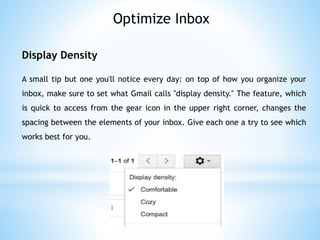
A small tip but one you'll notice every day: on top of how you organize your
inbox, make sure to set what Gmail calls "display density." The feature, which
is quick to access from the gear icon in the upper right corner, changes the
spacing between the elements of your inbox. Give each one a try to see which
works best for you.
Optimize Inbox
Personal Level Indicators
Notice the little arrows inside the yellow markers? Those arrows aren't to
further call your attention to the message, but to let you know if that email
is only to you, a group of people or a mailing list.
• >> - Only to you
• > - To a group of people
• No arrow - To a mailing list
To turn on personal level indicators, visit the general tab in settings.
Optimize Inbox
Mute Conversations
If you're stuck in a group email thread and it's no longer relevant to you,
there's a quick way out without deleting the conversation—"mute" it. To do
this, click on the "More" icon when the message is open and click "Mute".
Optimize Inbox
Archiving
Gmail’s default behavior is to archive messages rather than delete them,
making the entire backlog of your email easily searchable. So after you read
a message, you can "Archive" it with confidence that you'll be able to find it
later, especially if you take advantage of labels.
Reuse
Save time by reusing both messages and subject lines.
Mailing Groups
Use mailing groups for commonly/repeatedly used groups. To create and
Manage:
• Click Gmail at the top-left corner of your Gmail page, then choose
Contacts.
• Select contacts that you want to add to a group, click the Groups button.
then Create new.
• Enter the name of the group.
• Click OK.
Using Labels
In lieu of an out-of-control stack of folders, Gmail uses labels to tag and
organize content into sets that work the way you want. Labels are a great way
to narrow the hundreds of messages you receive into manageable, searchable
categories.
Using Labels
• Use multiple labels:
This enables more searching options.
• label conversations when you send an email:
So you don’t lose track of the thread later.
Using Labels
• Use Hashtags for Super Deep Labeling:
The concept is pretty simple: just pick a #hashtag, and include it in the
body of emails that you want to group together. Then you can take
advantage of Gmail’s ultra-powerful search to track down any messages
with that hashtag in the body of an email.
Search and Filters
By clicking on the small grey arrow on the right-hand side of the search box,
you can reveal a bunch of different ways to slice-and-dice your search. In
advanced search, Gmail lets you filter by:
• Folders or Labels,
• Senders and receivers
• Subject lines
• Words within the email body
• Messages that include attachments
• Size of those attachments)
• The date range when the email was
received
Search and Filters
Using operators and keywords in search bar can save time and effort. A list of
few important ones (worth memorizing) is:
• Label: - Labels are one of the simplest ways to sort your inbox, and this
query lets you quickly find messages with a specific label. On its own, that’s
not much better than just selecting a label, but you can then refine the
search by sender or subject line.
• Is: - You can pair the is: function with many different operators,
like starred, read, and important.
• Has: - John from the office swears he sent you that generic corporate
report last week—find it quickly by using has:attachment to show any email
with an attachment. This function can be paired with attachment, circle,
star, check and many more.
Add-ons and Plugins
• Unroll.me:
lets you either unsubscribe in one click or add the newsletter to a regular
"roll up“
• Email Replies:
Instead of keeping the full email as part of your reply, highlight only the part
you're referring to in your answer and then click "reply". This pulls out this
text and shows it as the email that came before your reply.
• Quick Links
If you have a search filter that you use all the time, you can use a Gmail Labs
feature called Quick Links to bookmark specific views
• Gmelius:
Search Gmail from Chrome’s Address Bar
• FollowUp.cc:
automate your inbox by scheduling reminders
• Boomerang:
send an email at a specified time.
• canned responses:
create an easy to access template to be sent in email. To enable/use click
the "More options" arrow at the bottom right of a compose window and either
select, add or delete a canned response
Add-ons and Plugins
• Zapier:
With Zapier, you could have a new email in your inbox create a new note in
Evernote, message in Slack or HipChat, item in Todolist or Toodledo, or task
in Basecamp or Asana.
• Sidekick:
Keeps a track of your sent email and pops when email is read by any
recipient.
The Hack
• Most popular solution published by “Jesse Chapman” in October 2010.
Four main tasks you’ll do with an email:
1. Respond to it
2. Wait for someone else to respond to it
3. Keep it for reference
4. Delete it
• Two Major steps to organize.
1. Create labels and
2. Enable them as multiple inboxes.
The Hack
Step 1:
• Respond to all emails you need to respond to immediately.
• Create two labels:
1. 01.Follow-Up (You can have your own flavor like To-Do, Respond
To…..)
Label emails you need to respond to as “Follow-up.”. Email in your
to-do list.
2. 02.Hold (You can have your own flavor like Pending, Waiting On…..)
Label emails you’re waiting on a response from “Hold.”. Emails you
are waiting for someone else to respond to.
• Select all the emails you won’t need to read ever again and click
Delete.
• Select everything in your inbox—including your Follow-Up and Hold
messages—and click Archive.
The Hack
Step 2:
• Go to your Gmail settings and click on “Labs”.
• Scroll down to Multiple Inboxes, click “Enable”, and Save Changes.
• Gmail will reload. Go back into your settings and you’ll notice a new tab that
says “Multiple inboxes”.
New Tab will look like:
The Hack
Step 2:
On the “Multiple inboxes” tab
• In Pane 0, enter “label:01.-follow-up” in the first box, then “Follow-up” in
the second box.
• In Pane 1, enter “label:02.-hold” in the first box, then “Hold” in the second
box.
• Enter “50” in the maximum page size. Make sure that “Below the inbox” is
selected.
• Click “Save Changes”
The Hack
How to process your fancy new inbox:
1. When emails come in, they’ll appear in your main inbox at the top.
2. If you don’t want to respond, Delete it.
3. If you are able to respond to it immediately, do it!
4. If you aren’t able to respond immediately, label it Follow-up label. Remove
inbox label.
5. If you send an email that requires a response, label it “Hold”. Remove inbox
label.
6. When you’re done responding to (or waiting on responses from) an email,
remove the labels from those emails.
Hope this will help you more in organizing your email
Thank You.

Optimizing gmail

  • 1.
  • 2.
    email has becomethe cornerstone of personal and professional communications We can enhance output to next level by organizing, searching, and automating email Gmail being very commonly used and official medium for many organizations and individual, we will focus on it but most of the techniques could be used with any other email system We will divide improvements into four main sections: 1. Optimize Inbox. 2. Using Labels. 3. Search and Filters. 4. Add-ons and Plugins.
  • 3.
    Optimize Inbox 1. KeyboardShortcuts 2. Delete first 3. Right Inbox Look 4. Display Density 5. Personal Level Indicators 6. Mute Conversations 7. Archiving 8. Reuse 9. Mailing groups
  • 4.
    Optimize Inbox Keyboard Shortcuts Bydefault, Gmail has a few shortcuts enabled, but be sure to turn on the full set of commands. To do so: • click on the gear icon at the top right of your inbox, • select "Settings" • In the default "General" tab scroll to the “Keyboard Shortcuts” section. • Click the bullet beside “Keyboard shortcuts on” • save your settings.
  • 5.
    Optimize Inbox Keyboard Shortcuts Someimportant shortcuts to remember are: • [ - Archive the current conversation and opens the next conversation • gi - Return to the inbox from any page within Gmail • k and j - Navigate between newer and older conversations • r - Reply to the conversation you’re viewing • l - Add a label to the conversation you’re viewing • / - Place the cursor in the Gmail search box These shortcuts can be customize if you turn on custom keyboard shortcuts in the Gmail Labs settings More details are available at : http://www.howtogeek.com/113719/how-to-use-gmails-keyboard-shortcuts- create-custom-shortcuts/
  • 6.
    Optimize Inbox Delete first Deleteunnecessary messages, without opening them at all. Sound dangerous! :D Don’t worry they are just moved to trash. If you realize later in the day you needed a message, you can still retrieve it
  • 7.
    Optimize Inbox Right InboxLook There are five ways to sort your inbox, plus a tabbed system that automatically sorts emails based on subject matter. To change inbox layout: • Go to settings (gear icon), • Click on the "Inbox" tab, • Select required layout from the drop-down next to "Inbox type:“ There are 5 available options: 1. Default: It shows emails in the order that they came in. Default inbox comes with the option to enable Categories, which automatically categorizes your messages into tabs that appear above your inbox. This effectively gives users up to five sorted inboxes to filter their mail: i. "Primary" for personal messages, ii. "Promotions" for offers, iii. "Social" for social networking alerts, iv. "Updates" for things like receipts, and v. "Forums" for online discussions
  • 8.
    Optimize Inbox Right InboxLook 2. Important first: Gmail employs its importance ranking—a prediction of which incoming email are most important, noted by a yellow marker—to make high-priority messages rise to the top of your inbox, taking precedence over the timeliness of the message 3. Unread first: This one is for the folks who are tempted to read the most interesting emails first, even if they’re halfway down your inbox. This inbox filter simply makes all unread messages in your inbox take priority over recent messages. 4. Starred first: The starred first layout is very similar to the important first layout—in other words, if you use stars to prioritize your inbox in addition to or in replacement of the importance marker
  • 9.
    Optimize Inbox Right InboxLook 5. Priority inbox: Gmail uses a variety of signals to prioritize your incoming messages, including who you’ve emailed and chatted with most and which keywords appear frequently in the messages you opened recently. This can be extremely powerful when Gmail begins to really understand your email habits, but until it gets there for you, beware that messages can get lost in the shuffle.
  • 10.
    Optimize Inbox Display Density Asmall tip but one you'll notice every day: on top of how you organize your inbox, make sure to set what Gmail calls "display density." The feature, which is quick to access from the gear icon in the upper right corner, changes the spacing between the elements of your inbox. Give each one a try to see which works best for you.
  • 11.
    Optimize Inbox Personal LevelIndicators Notice the little arrows inside the yellow markers? Those arrows aren't to further call your attention to the message, but to let you know if that email is only to you, a group of people or a mailing list. • >> - Only to you • > - To a group of people • No arrow - To a mailing list To turn on personal level indicators, visit the general tab in settings.
  • 12.
    Optimize Inbox Mute Conversations Ifyou're stuck in a group email thread and it's no longer relevant to you, there's a quick way out without deleting the conversation—"mute" it. To do this, click on the "More" icon when the message is open and click "Mute".
  • 13.
    Optimize Inbox Archiving Gmail’s defaultbehavior is to archive messages rather than delete them, making the entire backlog of your email easily searchable. So after you read a message, you can "Archive" it with confidence that you'll be able to find it later, especially if you take advantage of labels. Reuse Save time by reusing both messages and subject lines. Mailing Groups Use mailing groups for commonly/repeatedly used groups. To create and Manage: • Click Gmail at the top-left corner of your Gmail page, then choose Contacts. • Select contacts that you want to add to a group, click the Groups button. then Create new. • Enter the name of the group. • Click OK.
  • 14.
    Using Labels In lieuof an out-of-control stack of folders, Gmail uses labels to tag and organize content into sets that work the way you want. Labels are a great way to narrow the hundreds of messages you receive into manageable, searchable categories.
  • 15.
    Using Labels • Usemultiple labels: This enables more searching options. • label conversations when you send an email: So you don’t lose track of the thread later.
  • 16.
    Using Labels • UseHashtags for Super Deep Labeling: The concept is pretty simple: just pick a #hashtag, and include it in the body of emails that you want to group together. Then you can take advantage of Gmail’s ultra-powerful search to track down any messages with that hashtag in the body of an email.
  • 17.
    Search and Filters Byclicking on the small grey arrow on the right-hand side of the search box, you can reveal a bunch of different ways to slice-and-dice your search. In advanced search, Gmail lets you filter by: • Folders or Labels, • Senders and receivers • Subject lines • Words within the email body • Messages that include attachments • Size of those attachments) • The date range when the email was received
  • 18.
    Search and Filters Usingoperators and keywords in search bar can save time and effort. A list of few important ones (worth memorizing) is: • Label: - Labels are one of the simplest ways to sort your inbox, and this query lets you quickly find messages with a specific label. On its own, that’s not much better than just selecting a label, but you can then refine the search by sender or subject line. • Is: - You can pair the is: function with many different operators, like starred, read, and important. • Has: - John from the office swears he sent you that generic corporate report last week—find it quickly by using has:attachment to show any email with an attachment. This function can be paired with attachment, circle, star, check and many more.
  • 19.
    Add-ons and Plugins •Unroll.me: lets you either unsubscribe in one click or add the newsletter to a regular "roll up“ • Email Replies: Instead of keeping the full email as part of your reply, highlight only the part you're referring to in your answer and then click "reply". This pulls out this text and shows it as the email that came before your reply. • Quick Links If you have a search filter that you use all the time, you can use a Gmail Labs feature called Quick Links to bookmark specific views • Gmelius: Search Gmail from Chrome’s Address Bar • FollowUp.cc: automate your inbox by scheduling reminders • Boomerang: send an email at a specified time. • canned responses: create an easy to access template to be sent in email. To enable/use click the "More options" arrow at the bottom right of a compose window and either select, add or delete a canned response
  • 20.
    Add-ons and Plugins •Zapier: With Zapier, you could have a new email in your inbox create a new note in Evernote, message in Slack or HipChat, item in Todolist or Toodledo, or task in Basecamp or Asana. • Sidekick: Keeps a track of your sent email and pops when email is read by any recipient.
  • 21.
    The Hack • Mostpopular solution published by “Jesse Chapman” in October 2010. Four main tasks you’ll do with an email: 1. Respond to it 2. Wait for someone else to respond to it 3. Keep it for reference 4. Delete it • Two Major steps to organize. 1. Create labels and 2. Enable them as multiple inboxes.
  • 22.
    The Hack Step 1: •Respond to all emails you need to respond to immediately. • Create two labels: 1. 01.Follow-Up (You can have your own flavor like To-Do, Respond To…..) Label emails you need to respond to as “Follow-up.”. Email in your to-do list. 2. 02.Hold (You can have your own flavor like Pending, Waiting On…..) Label emails you’re waiting on a response from “Hold.”. Emails you are waiting for someone else to respond to. • Select all the emails you won’t need to read ever again and click Delete. • Select everything in your inbox—including your Follow-Up and Hold messages—and click Archive.
  • 23.
    The Hack Step 2: •Go to your Gmail settings and click on “Labs”. • Scroll down to Multiple Inboxes, click “Enable”, and Save Changes. • Gmail will reload. Go back into your settings and you’ll notice a new tab that says “Multiple inboxes”. New Tab will look like:
  • 24.
    The Hack Step 2: Onthe “Multiple inboxes” tab • In Pane 0, enter “label:01.-follow-up” in the first box, then “Follow-up” in the second box. • In Pane 1, enter “label:02.-hold” in the first box, then “Hold” in the second box. • Enter “50” in the maximum page size. Make sure that “Below the inbox” is selected. • Click “Save Changes”
  • 25.
    The Hack How toprocess your fancy new inbox: 1. When emails come in, they’ll appear in your main inbox at the top. 2. If you don’t want to respond, Delete it. 3. If you are able to respond to it immediately, do it! 4. If you aren’t able to respond immediately, label it Follow-up label. Remove inbox label. 5. If you send an email that requires a response, label it “Hold”. Remove inbox label. 6. When you’re done responding to (or waiting on responses from) an email, remove the labels from those emails.
  • 26.
    Hope this willhelp you more in organizing your email Thank You.