Thank You for Tuning In!


 10 Gmail Tips & Tricks
    Tips and tricks to help you work smarter in Gmail


     © Stefanie A. Hahn | www.StefanieHahn.com| September 2012
Get Into Settings
        Get familiar with your Gmail Settings.
        Click on the gear (top right) and then
        click on Settings.

        From Settings, you can turn your
        conversation view on/off, adjust or
        turn off web clips (those little ads),
        turn “priority” inbox on/off, work with
        accounts, enable labs and much more!

        GEAR icon > Settings
 © Stefanie A. Hahn | www.StefanieHahn.com| September 2012
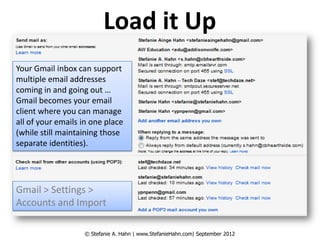
Load it Up
Your Gmail inbox can support
multiple email addresses
coming in and going out …
Gmail becomes your email
client where you can manage
all of your emails in one place
(while still maintaining those
separate identities).


Gmail > Settings >
Accounts and Import

                   © Stefanie A. Hahn | www.StefanieHahn.com| September 2012
Multiple Signatures


Create signatures for every account you want to send out
from on Gmail. The account you chose as your default will
automatically be the account you send from, but you can
always switch between accounts when you are composing.

Settings > General tab > Signatures

              © Stefanie A. Hahn | www.StefanieHahn.com| September 2012
Label it!


Create (and even nest) labels at:
Settings > Labels
                   © Stefanie Hahn | www.StefanieHahn.net | June 2012
Add Some Color


Labels can be colored by moving your
mouse over just to the right of the label
name in your label list (left side of Gmail).

Do this in your Inbox!


               © Stefanie A. Hahn | www.StefanieHahn.com| September 2012
Set-Up Filters
                                 Take the time to
                                 set up filters that
                                 will sort your
                                 email for you
                                 automatically
                                 based on criteria
                                 that you define.


Once you’ve decided WHAT to filter,
tell Gmail HOW to treat the email.
Click create (and apply to matching
conversations) when done >>>>>
Settings > Filters© Stefanie A. Hahn | www.StefanieHahn.com| September 2012
Try a Lab or 10
   Refresh POP Accounts
   Send and Archive
   Signature Tweaks
   Smart Labels
   Undo Send
   Unread Message Icon
   Authentication Icon
   Canned Responses
                                                Settings > Labs > Enable
   Mark As Read


               © Stefanie A. Hahn | www.StefanieHahn.com| September 2012
Add Rapportive
Get the skinny on your contacts INSIDE of Gmail! When you
add Rapportive to Gmail, you will see a photo and contact
information, social networks, recent posts, recent emails and
more when you are composing or reading an email.


   Go to rapportive.com > Add to Gmail


               © Stefanie A. Hahn | www.StefanieHahn.com| September 2012
Create Groups


To create a group …
Click on Contacts and then New Group in the left nav
Add contacts to group

Gmail drop-down > Contacts > New Group


                © Stefanie Hahn | www.StefanieHahn.net | June 2012
Chat w/Hangouts
                                                       Google allows
                                                       you to Start a
                                                       Hangout with up
                                                       to 9 friends right
                                                       from inside your
                                                       Gmail inbox.

                                                       Simply turn your
                                                       chat on, add
                                                       names, circles or
                                                       email addresses
                                                       and click Hang
                                                       out!
 © Stefanie A. Hahn | www.StefanieHahn.com| September 2012
Thank You!
Thank you for watching. I hope
these tips and tricks help you
tame your inbox and have fun in
the process!

                                                   Stefanie Hahn
                                      stefanie@stefaniehahn.com
                                          www.StefanieHahn.com


          © Stefanie A. Hahn | www.StefanieHahn.com| September 2012

10 Gmail Tips and Tricks

  • 1.
    Thank You forTuning In! 10 Gmail Tips & Tricks Tips and tricks to help you work smarter in Gmail © Stefanie A. Hahn | www.StefanieHahn.com| September 2012
  • 2.
    Get Into Settings Get familiar with your Gmail Settings. Click on the gear (top right) and then click on Settings. From Settings, you can turn your conversation view on/off, adjust or turn off web clips (those little ads), turn “priority” inbox on/off, work with accounts, enable labs and much more! GEAR icon > Settings © Stefanie A. Hahn | www.StefanieHahn.com| September 2012
  • 3.
    Load it Up YourGmail inbox can support multiple email addresses coming in and going out … Gmail becomes your email client where you can manage all of your emails in one place (while still maintaining those separate identities). Gmail > Settings > Accounts and Import © Stefanie A. Hahn | www.StefanieHahn.com| September 2012
  • 4.
    Multiple Signatures Create signaturesfor every account you want to send out from on Gmail. The account you chose as your default will automatically be the account you send from, but you can always switch between accounts when you are composing. Settings > General tab > Signatures © Stefanie A. Hahn | www.StefanieHahn.com| September 2012
  • 5.
    Label it! Create (andeven nest) labels at: Settings > Labels © Stefanie Hahn | www.StefanieHahn.net | June 2012
  • 6.
    Add Some Color Labelscan be colored by moving your mouse over just to the right of the label name in your label list (left side of Gmail). Do this in your Inbox! © Stefanie A. Hahn | www.StefanieHahn.com| September 2012
  • 7.
    Set-Up Filters Take the time to set up filters that will sort your email for you automatically based on criteria that you define. Once you’ve decided WHAT to filter, tell Gmail HOW to treat the email. Click create (and apply to matching conversations) when done >>>>> Settings > Filters© Stefanie A. Hahn | www.StefanieHahn.com| September 2012
  • 8.
    Try a Labor 10  Refresh POP Accounts  Send and Archive  Signature Tweaks  Smart Labels  Undo Send  Unread Message Icon  Authentication Icon  Canned Responses Settings > Labs > Enable  Mark As Read © Stefanie A. Hahn | www.StefanieHahn.com| September 2012
  • 9.
    Add Rapportive Get theskinny on your contacts INSIDE of Gmail! When you add Rapportive to Gmail, you will see a photo and contact information, social networks, recent posts, recent emails and more when you are composing or reading an email. Go to rapportive.com > Add to Gmail © Stefanie A. Hahn | www.StefanieHahn.com| September 2012
  • 10.
    Create Groups To createa group … Click on Contacts and then New Group in the left nav Add contacts to group Gmail drop-down > Contacts > New Group © Stefanie Hahn | www.StefanieHahn.net | June 2012
  • 11.
    Chat w/Hangouts Google allows you to Start a Hangout with up to 9 friends right from inside your Gmail inbox. Simply turn your chat on, add names, circles or email addresses and click Hang out! © Stefanie A. Hahn | www.StefanieHahn.com| September 2012
  • 12.
    Thank You! Thank youfor watching. I hope these tips and tricks help you tame your inbox and have fun in the process! Stefanie Hahn stefanie@stefaniehahn.com www.StefanieHahn.com © Stefanie A. Hahn | www.StefanieHahn.com| September 2012