OPNFV Arno Installation &
Validation Walk-Through
Nauman Ahad, Wenjing Chu
Dell, Inc.
02/07/2015 DELL, INC. 1
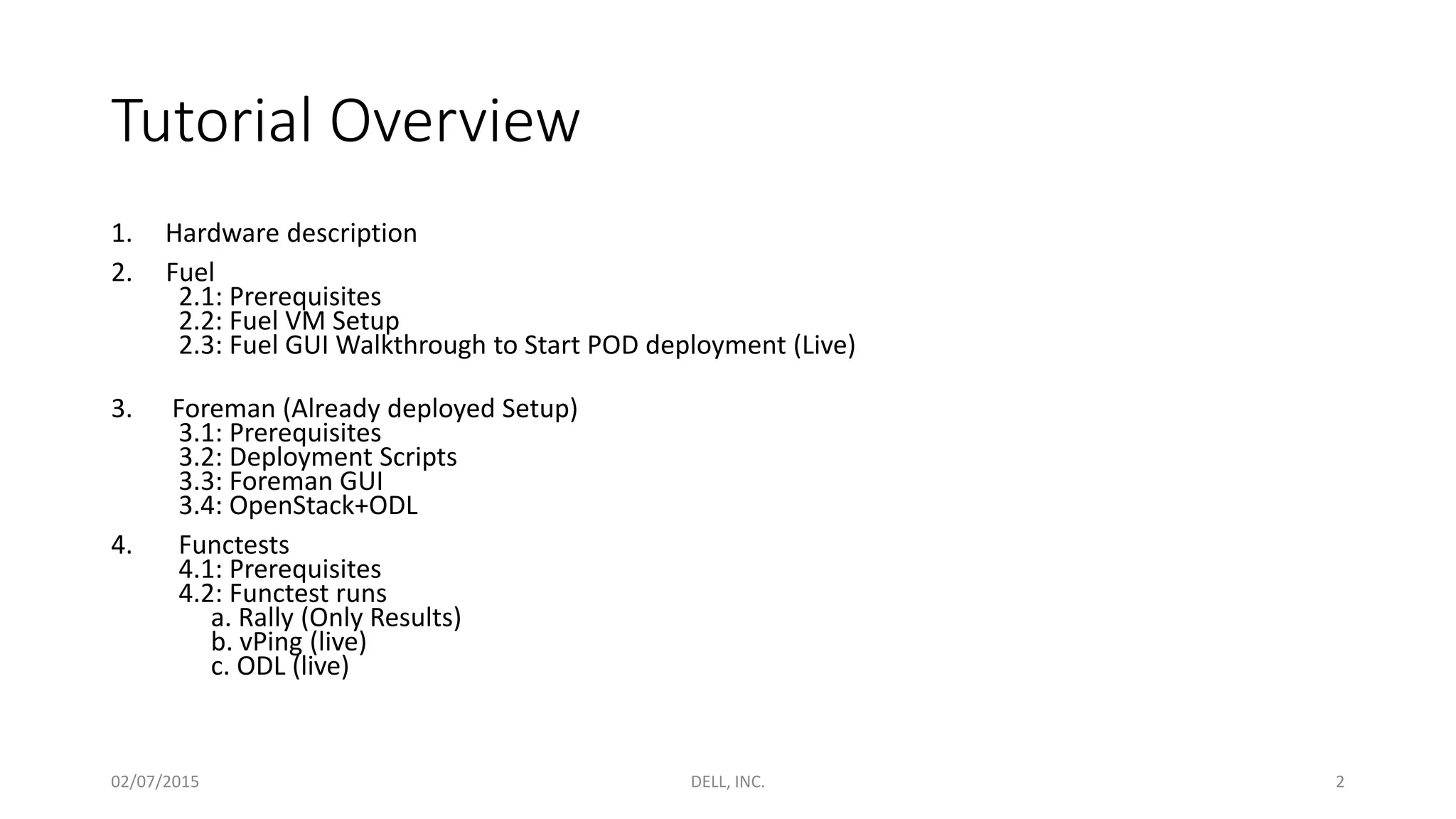
Tutorial Overview
1. Hardware description
2. Fuel
2.1: Prerequisites
2.2: Fuel VM Setup
2.3: Fuel GUI Walkthrough to Start POD deployment (Live)
3. Foreman (Already deployed Setup)
3.1: Prerequisites
3.2: Deployment Scripts
3.3: Foreman GUI
3.4: OpenStack+ODL
4. Functests
4.1: Prerequisites
4.2: Functest runs
a. Rally (Only Results)
b. vPing (live)
c. ODL (live)
02/07/2015 DELL, INC. 2
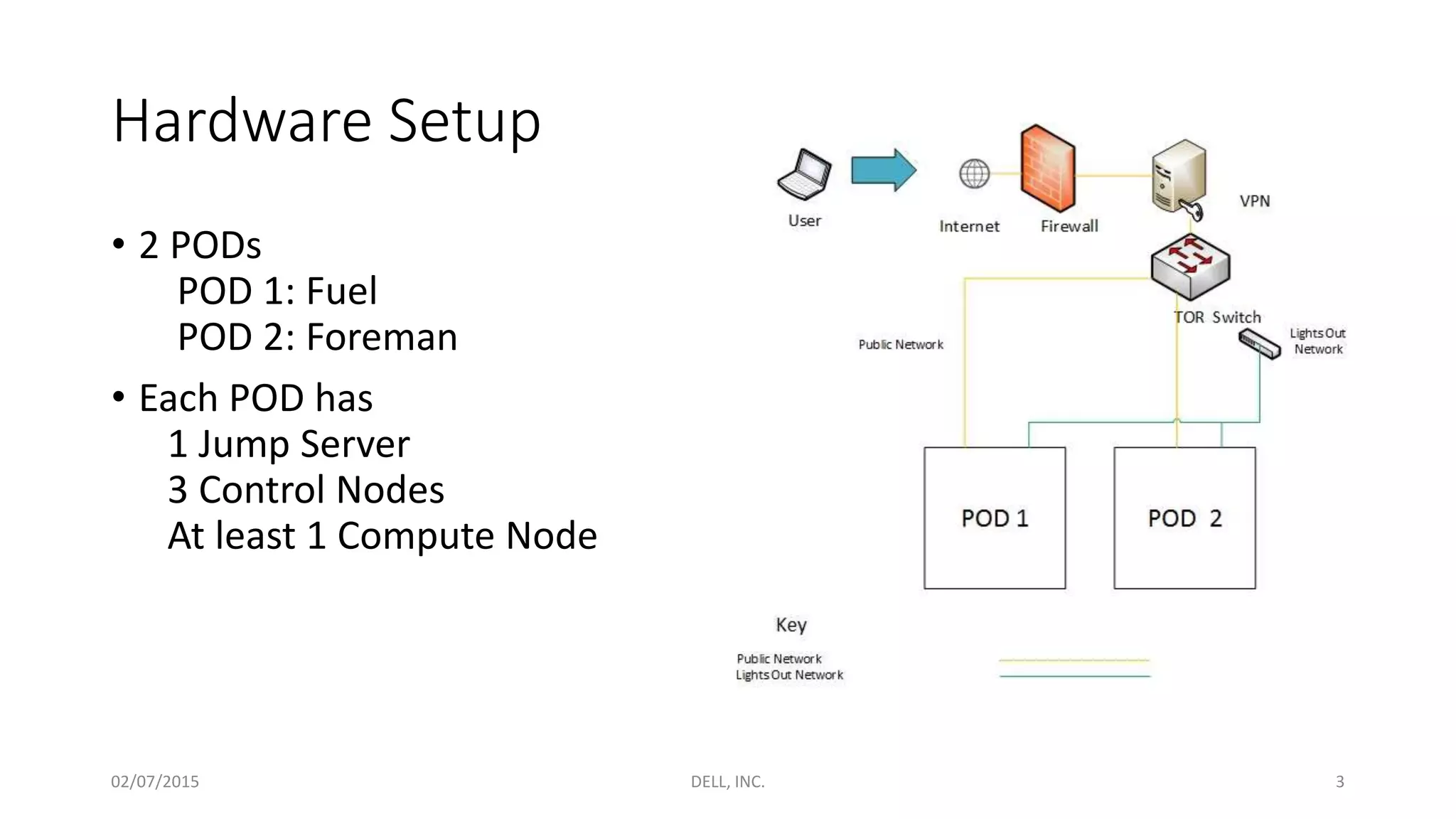
Hardware Setup
• 2 PODs
POD 1: Fuel
POD 2: Foreman
• Each POD has
1 Jump Server
3 Control Nodes
At least 1 Compute Node
02/07/2015 DELL, INC. 3
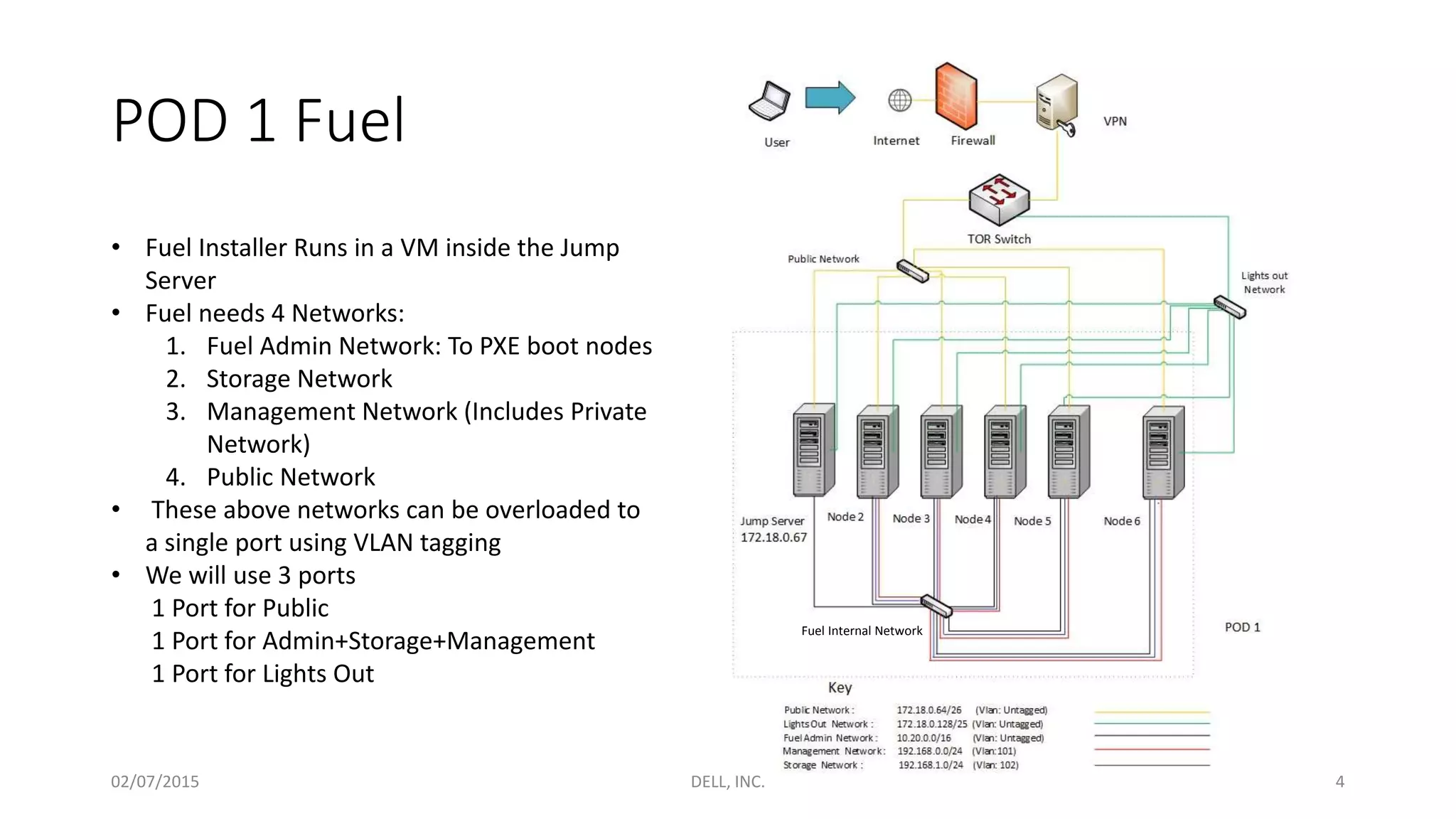
POD 1 Fuel
• Fuel Installer Runs in a VM inside the Jump
Server
• Fuel needs 4 Networks:
1. Fuel Admin Network: To PXE boot nodes
2. Storage Network
3. Management Network (Includes Private
Network)
4. Public Network
• These above networks can be overloaded to
a single port using VLAN tagging
• We will use 3 ports
1 Port for Public
1 Port for Admin+Storage+Management
1 Port for Lights Out
Fuel Internal Network
02/07/2015 DELL, INC. 4
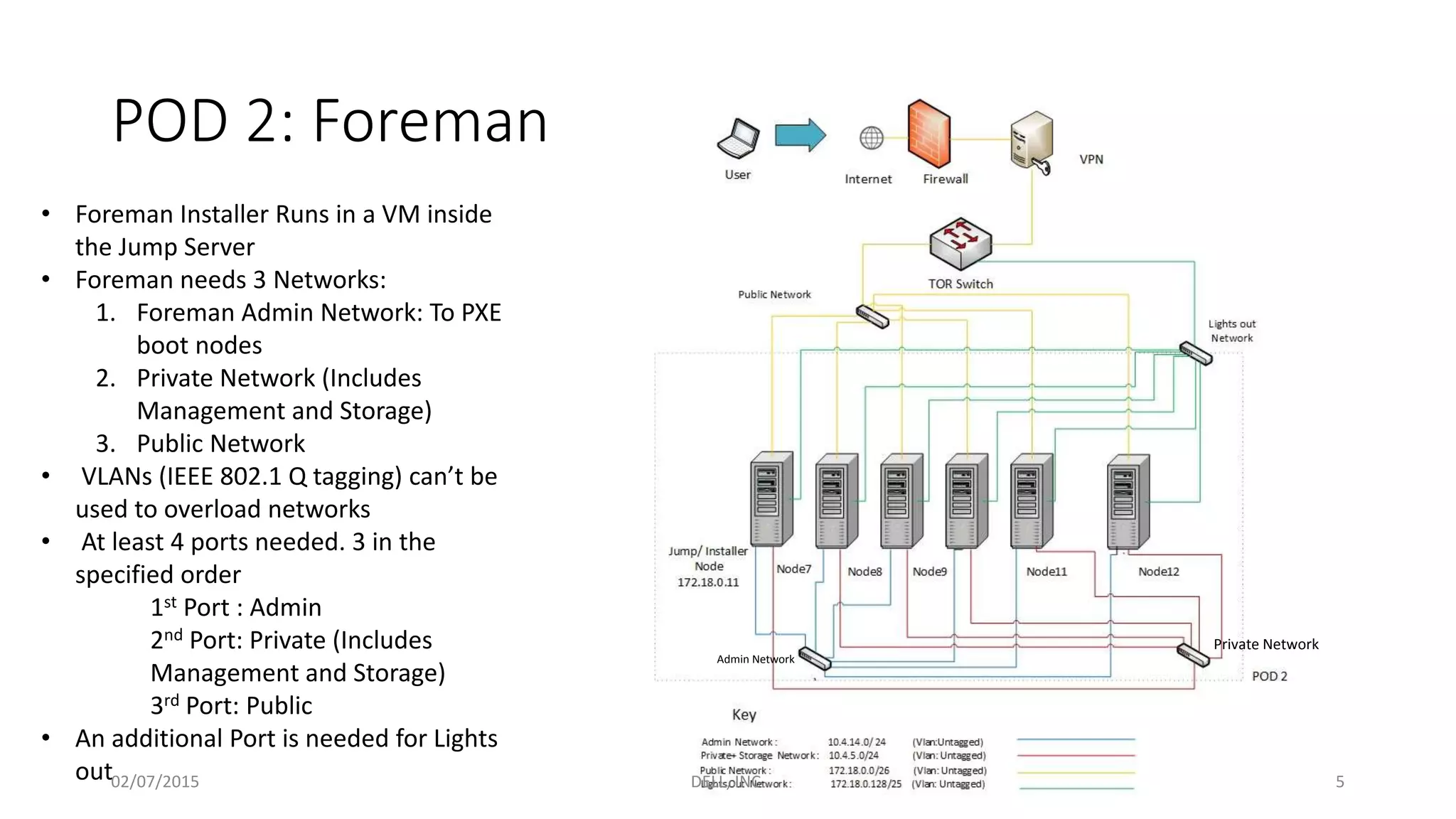
POD 2: Foreman
• Foreman Installer Runs in a VM inside
the Jump Server
• Foreman needs 3 Networks:
1. Foreman Admin Network: To PXE
boot nodes
2. Private Network (Includes
Management and Storage)
3. Public Network
• VLANs (IEEE 802.1 Q tagging) can’t be
used to overload networks
• At least 4 ports needed. 3 in the
specified order
1st Port : Admin
2nd Port: Private (Includes
Management and Storage)
3rd Port: Public
• An additional Port is needed for Lights
out
Admin Network
Private Network
02/07/2015 DELL, INC. 5
OPNFV-Arno Installation (Fuel)
02/07/2015 DELL, INC. 6
Fetching the Fuel ISO
• Get the Fuel ISO from: https://www.opnfv.org/software/download
• Run the ISO in a VM on the Jump Server
02/07/2015 DELL, INC. 7
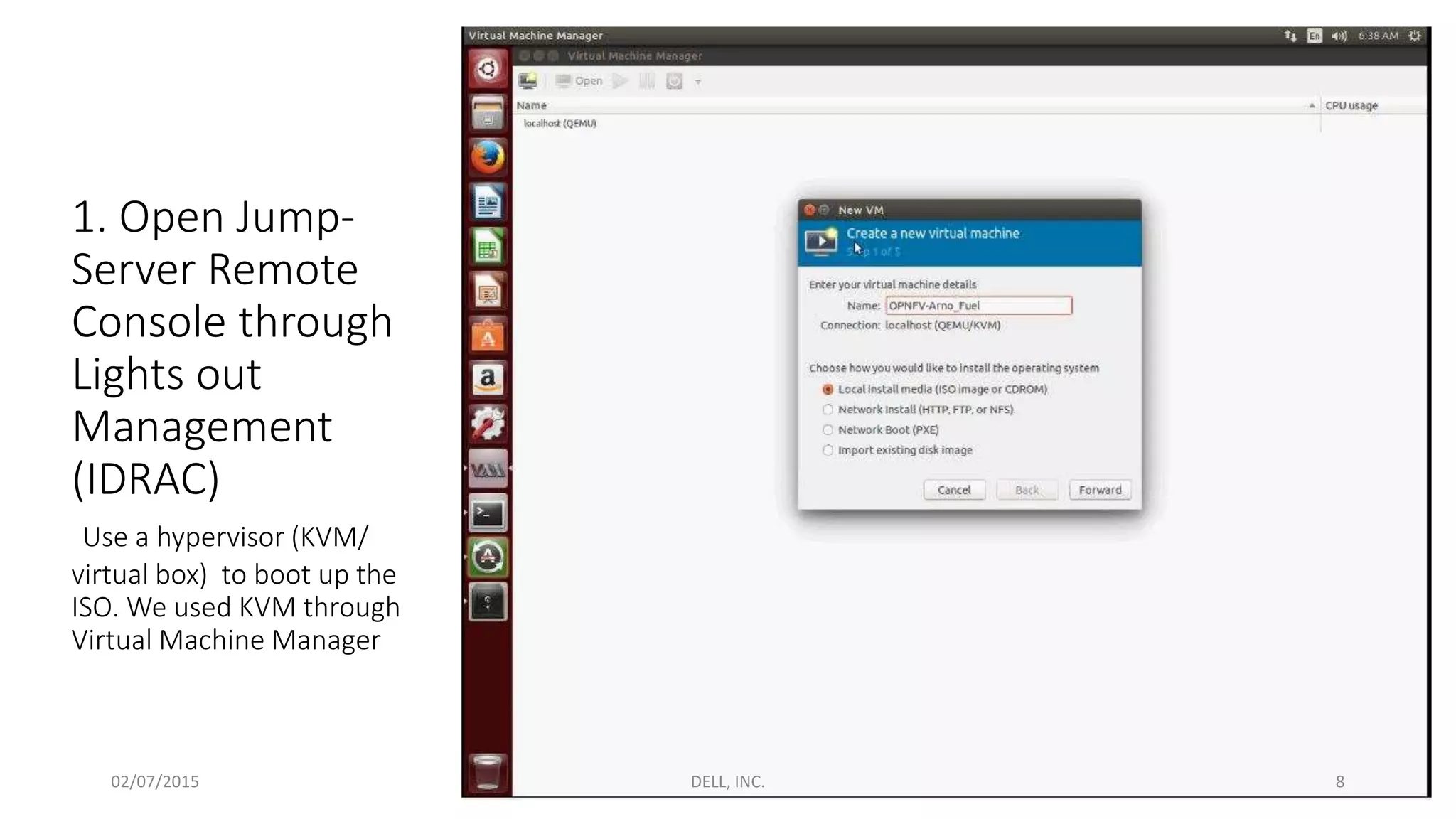
1. Open Jump-
Server Remote
Console through
Lights out
Management
(IDRAC)
Use a hypervisor (KVM/
virtual box) to boot up the
ISO. We used KVM through
Virtual Machine Manager
02/07/2015 DELL, INC. 8
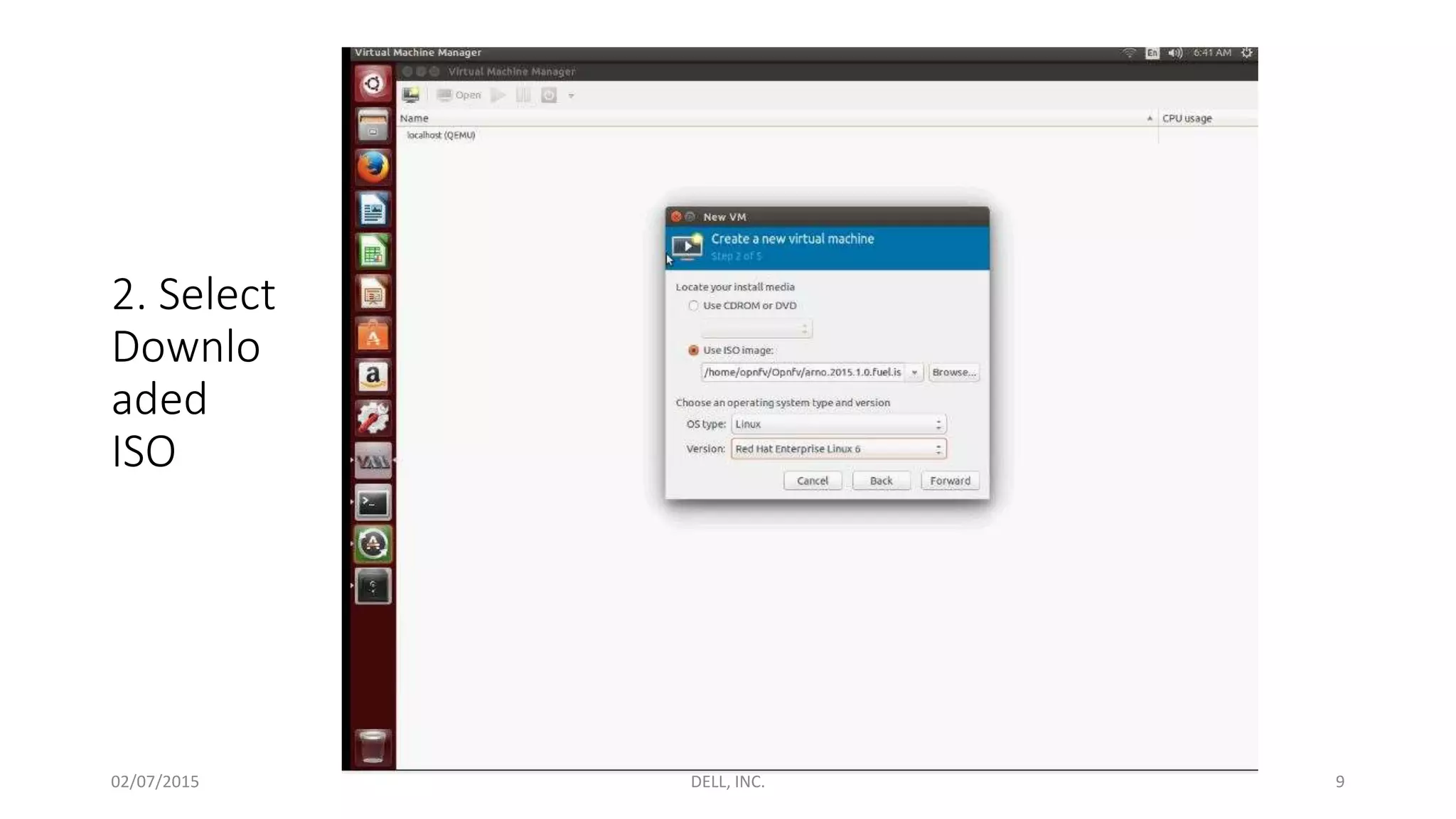
2. Select
Downlo
aded
ISO
02/07/2015 DELL, INC. 9
3. Set
Memory
and CPUs
for the VM
02/07/2015 DELL, INC. 10
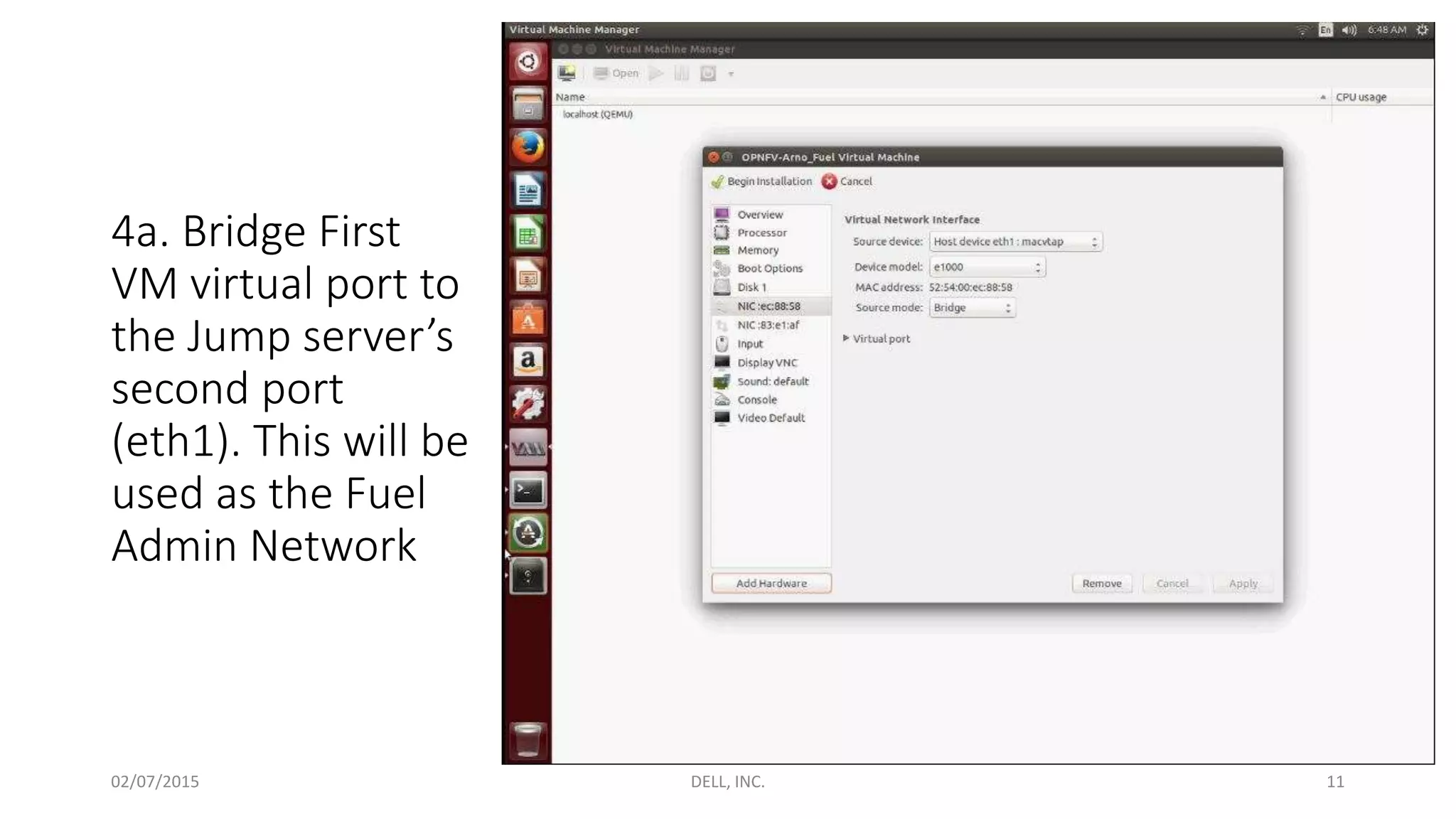
4a. Bridge First
VM virtual port to
the Jump server’s
second port
(eth1). This will be
used as the Fuel
Admin Network
02/07/2015 DELL, INC. 11
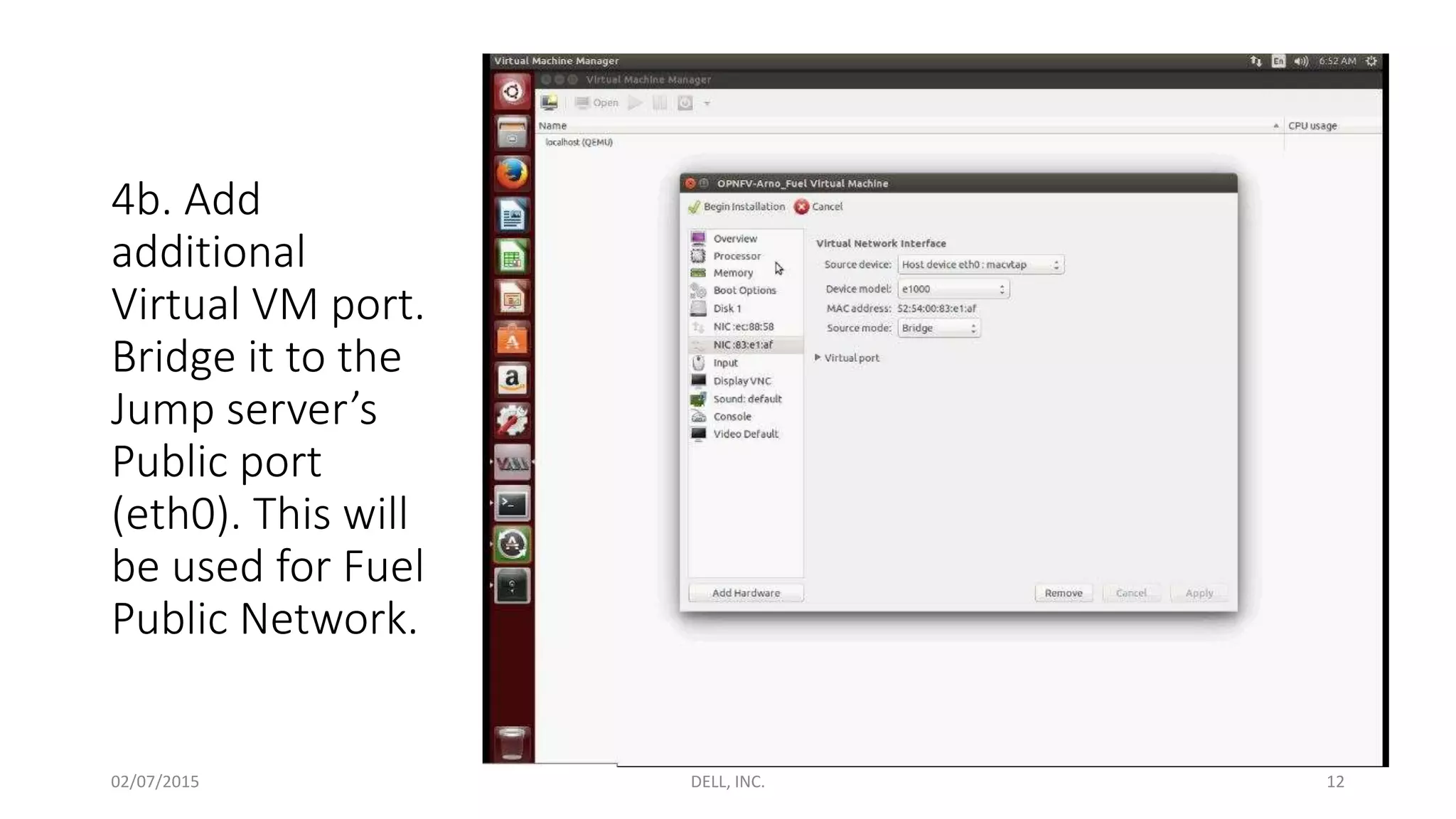
4b. Add
additional
Virtual VM port.
Bridge it to the
Jump server’s
Public port
(eth0). This will
be used for Fuel
Public Network.
02/07/2015 DELL, INC. 12
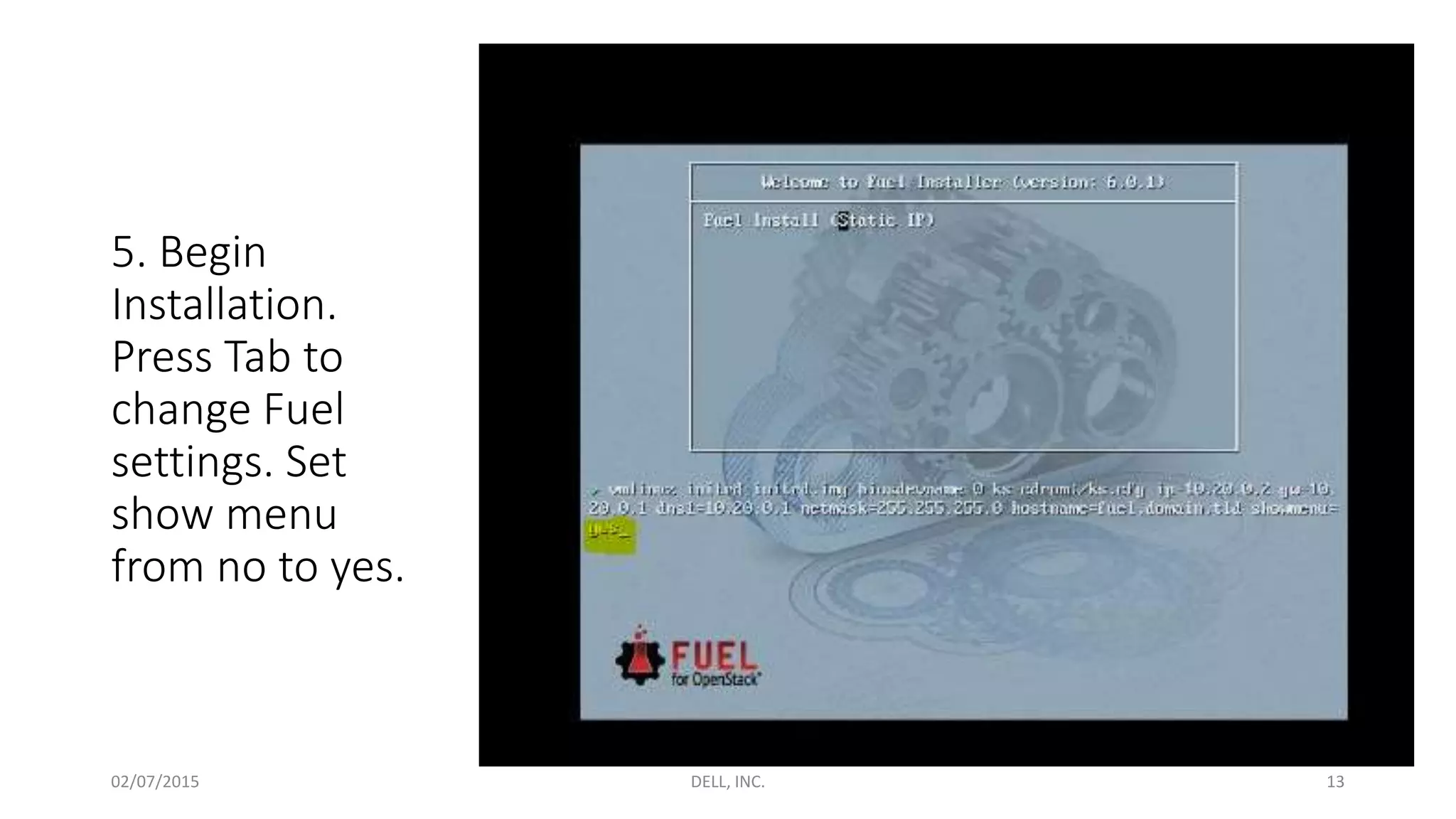
5. Begin
Installation.
Press Tab to
change Fuel
settings. Set
show menu
from no to yes.
02/07/2015 DELL, INC. 13
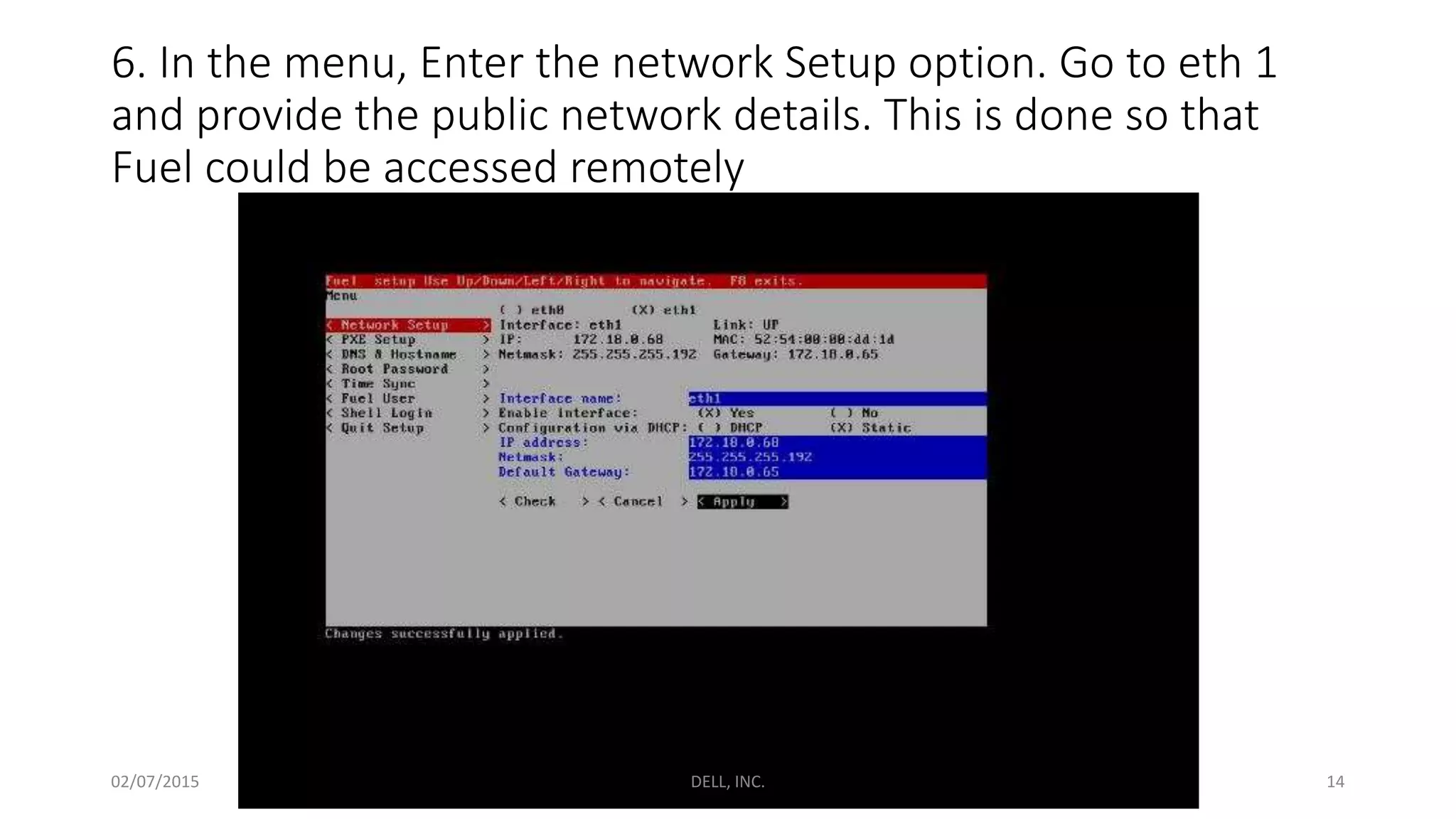
6. In the menu, Enter the network Setup option. Go to eth 1
and provide the public network details. This is done so that
Fuel could be accessed remotely
02/07/2015 DELL, INC. 14
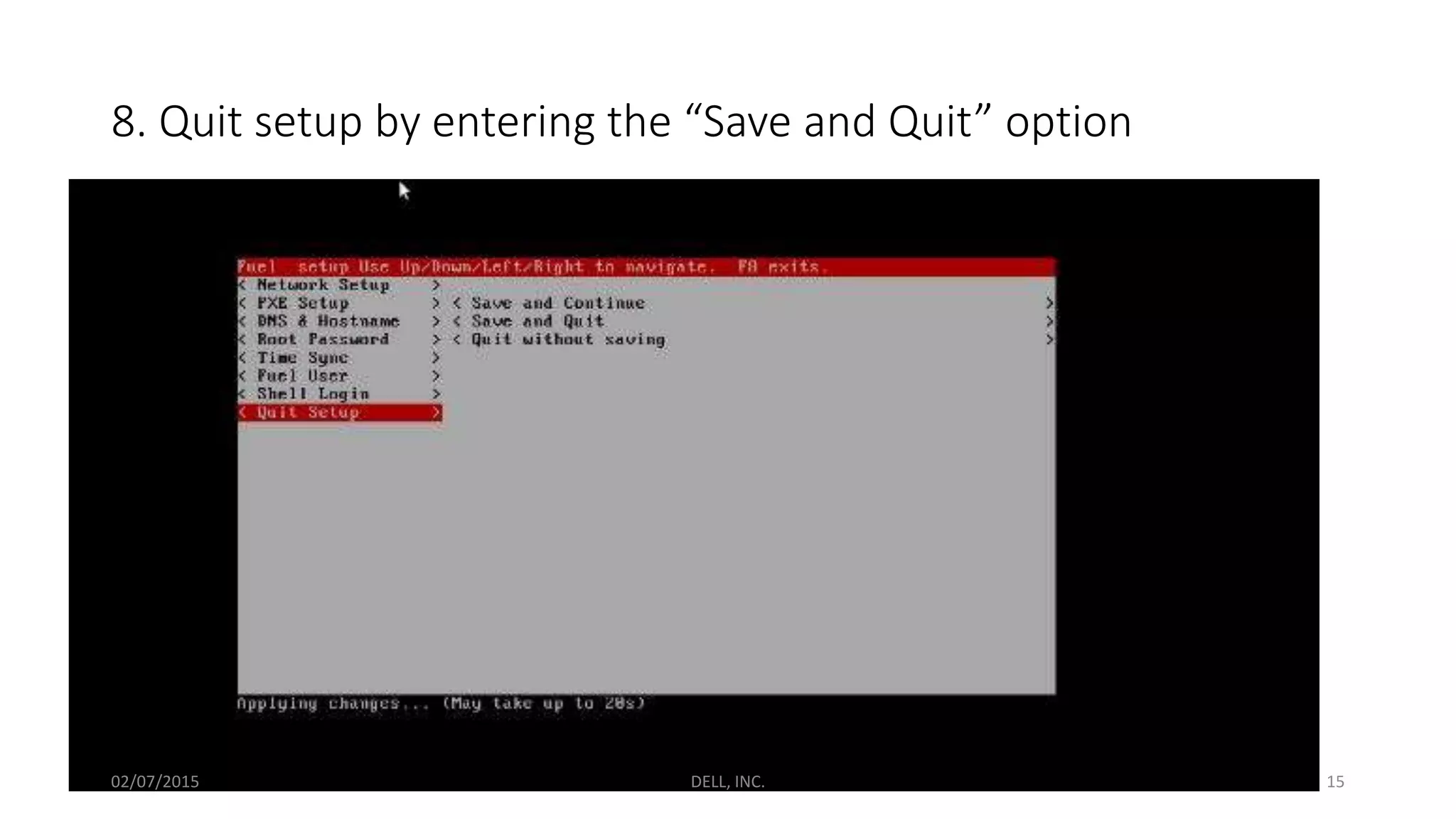
8. Quit setup by entering the “Save and Quit” option
02/07/2015 DELL, INC. 15
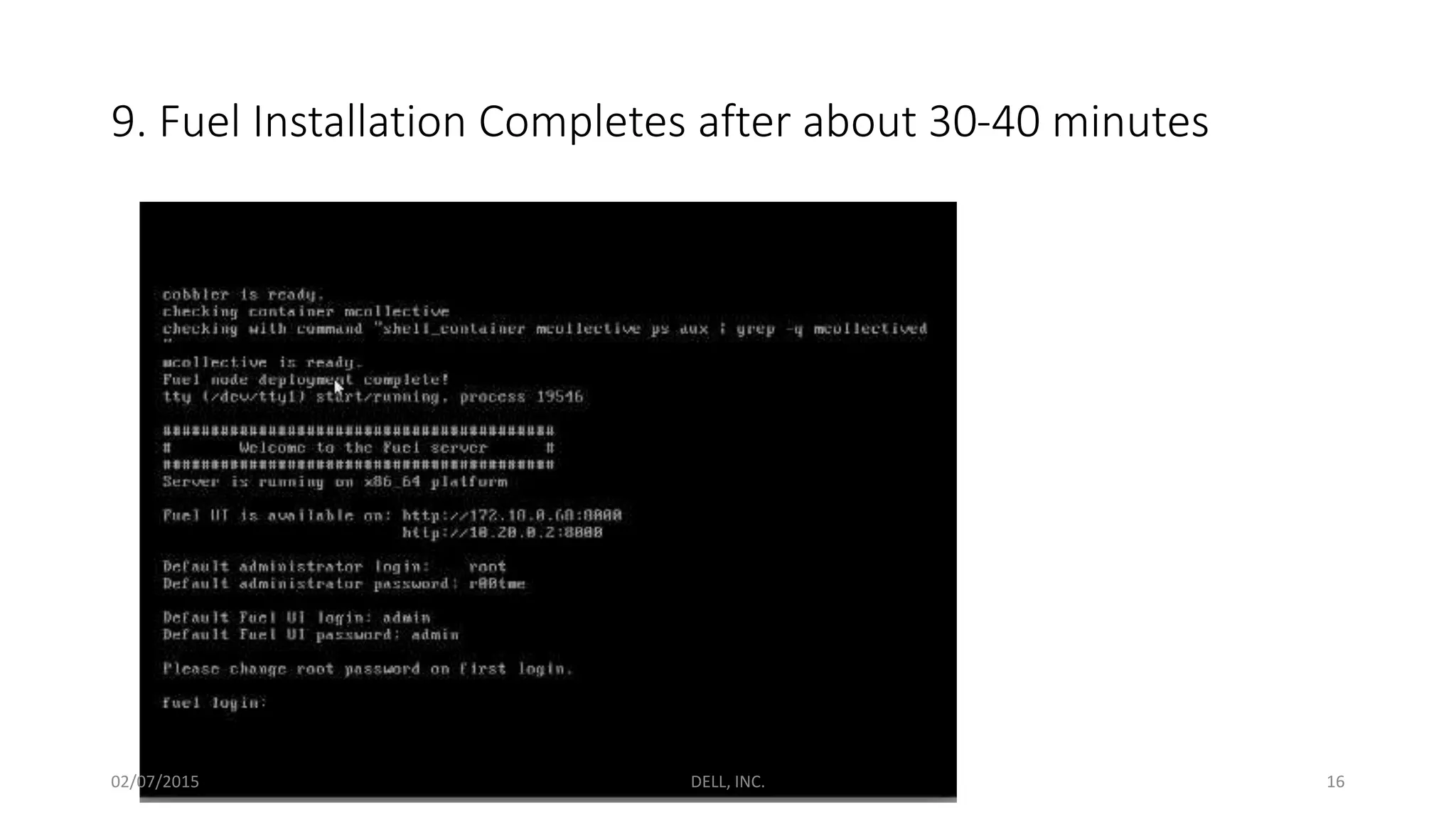
9. Fuel Installation Completes after about 30-40 minutes
02/07/2015 DELL, INC. 16
Deploying a POD using OPNFV-
Arno (Fuel)
02/07/2015 DELL, INC. 17
OPNFV-Fuel POD Deployment (Interactive Session)
02/07/2015 DELL, INC. 18
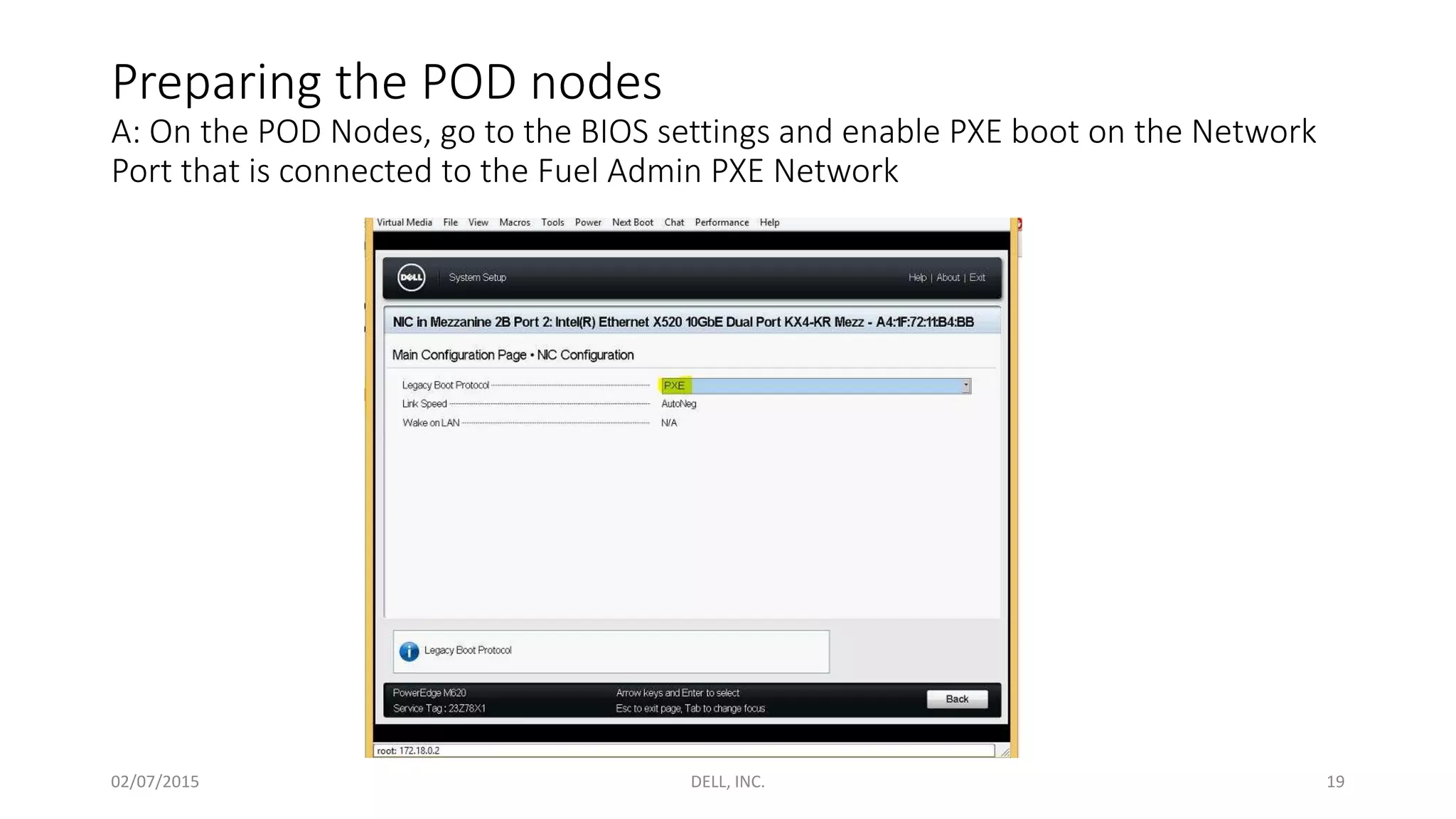
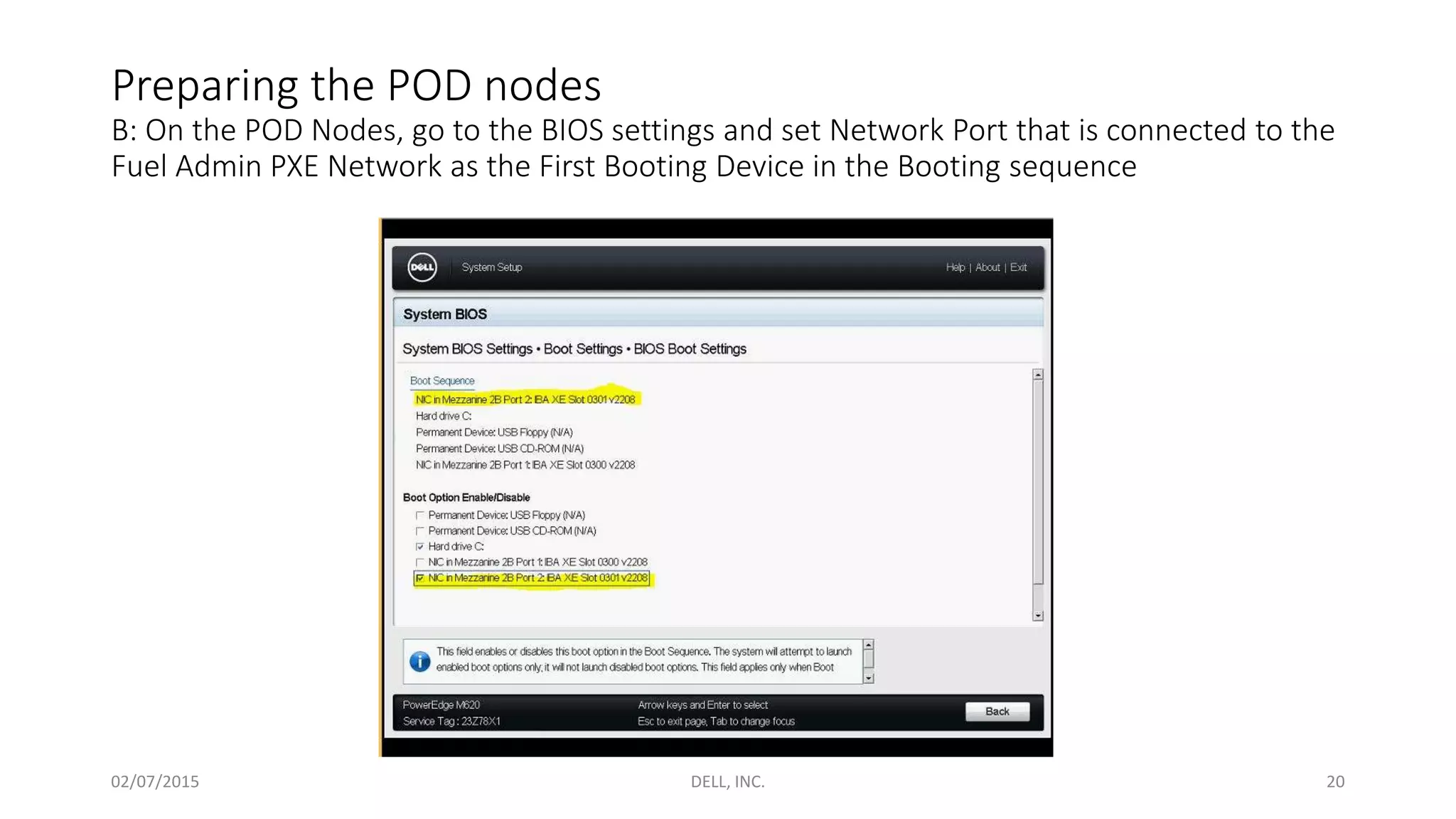
Preparing the POD nodes
A: On the POD Nodes, go to the BIOS settings and enable PXE boot on the Network
Port that is connected to the Fuel Admin PXE Network
02/07/2015 DELL, INC. 19
Preparing the POD nodes
B: On the POD Nodes, go to the BIOS settings and set Network Port that is connected to the
Fuel Admin PXE Network as the First Booting Device in the Booting sequence
02/07/2015 DELL, INC. 20
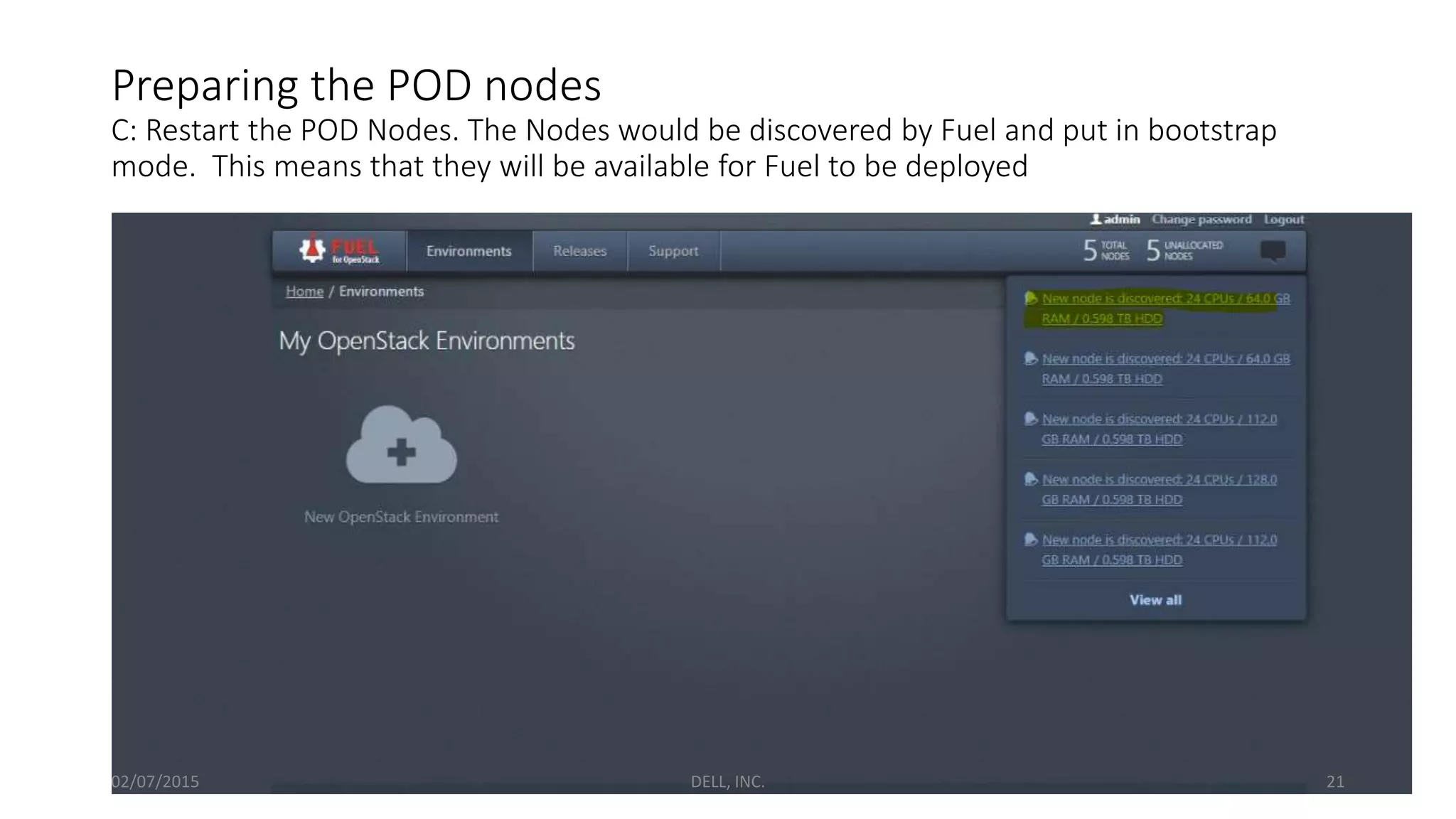
Preparing the POD nodes
C: Restart the POD Nodes. The Nodes would be discovered by Fuel and put in bootstrap
mode. This means that they will be available for Fuel to be deployed
02/07/2015 DELL, INC. 21
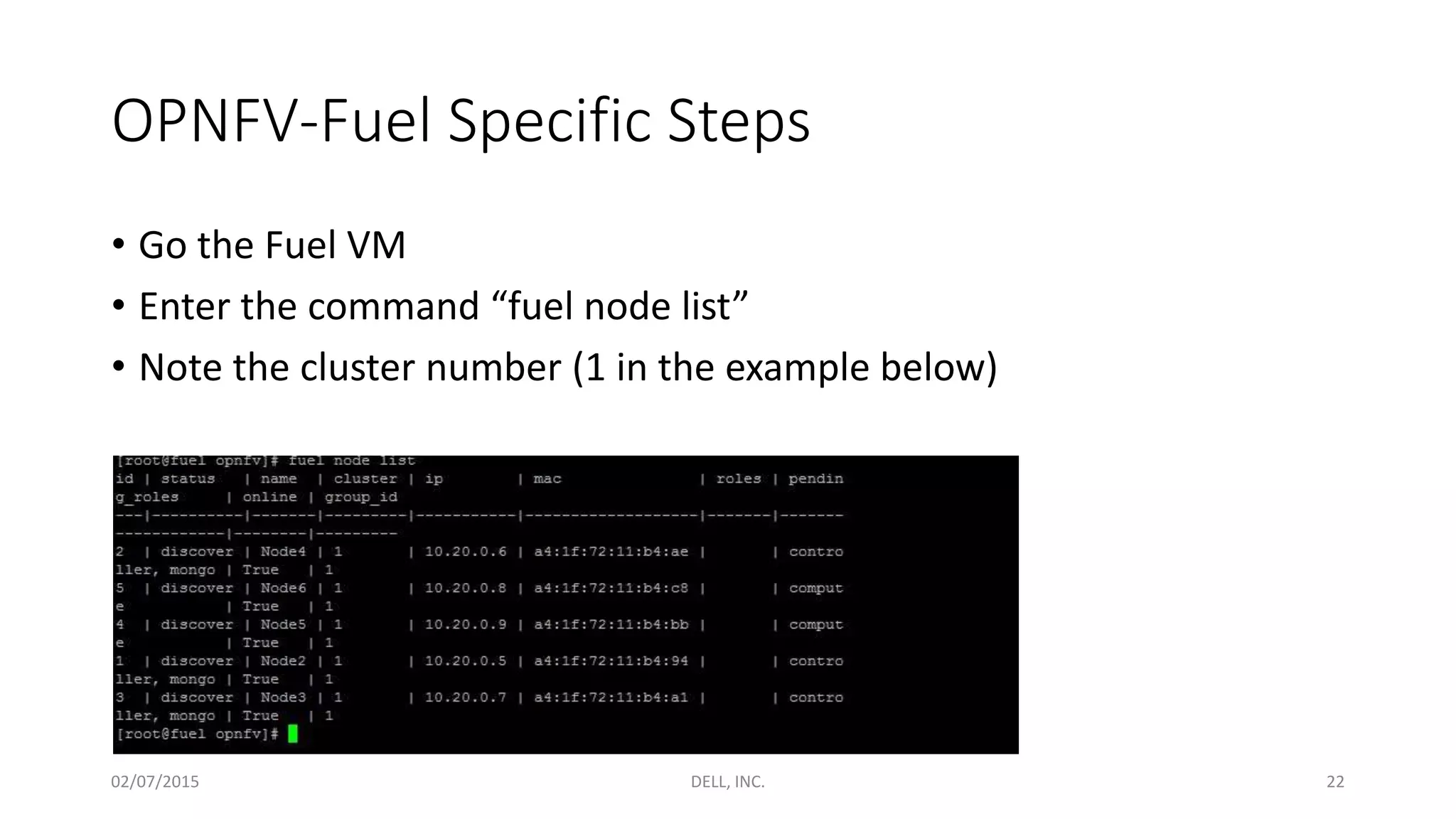
OPNFV-Fuel Specific Steps
• Go the Fuel VM
• Enter the command “fuel node list”
• Note the cluster number (1 in the example below)
02/07/2015 DELL, INC. 22
OPNFV-Fuel Specific Steps
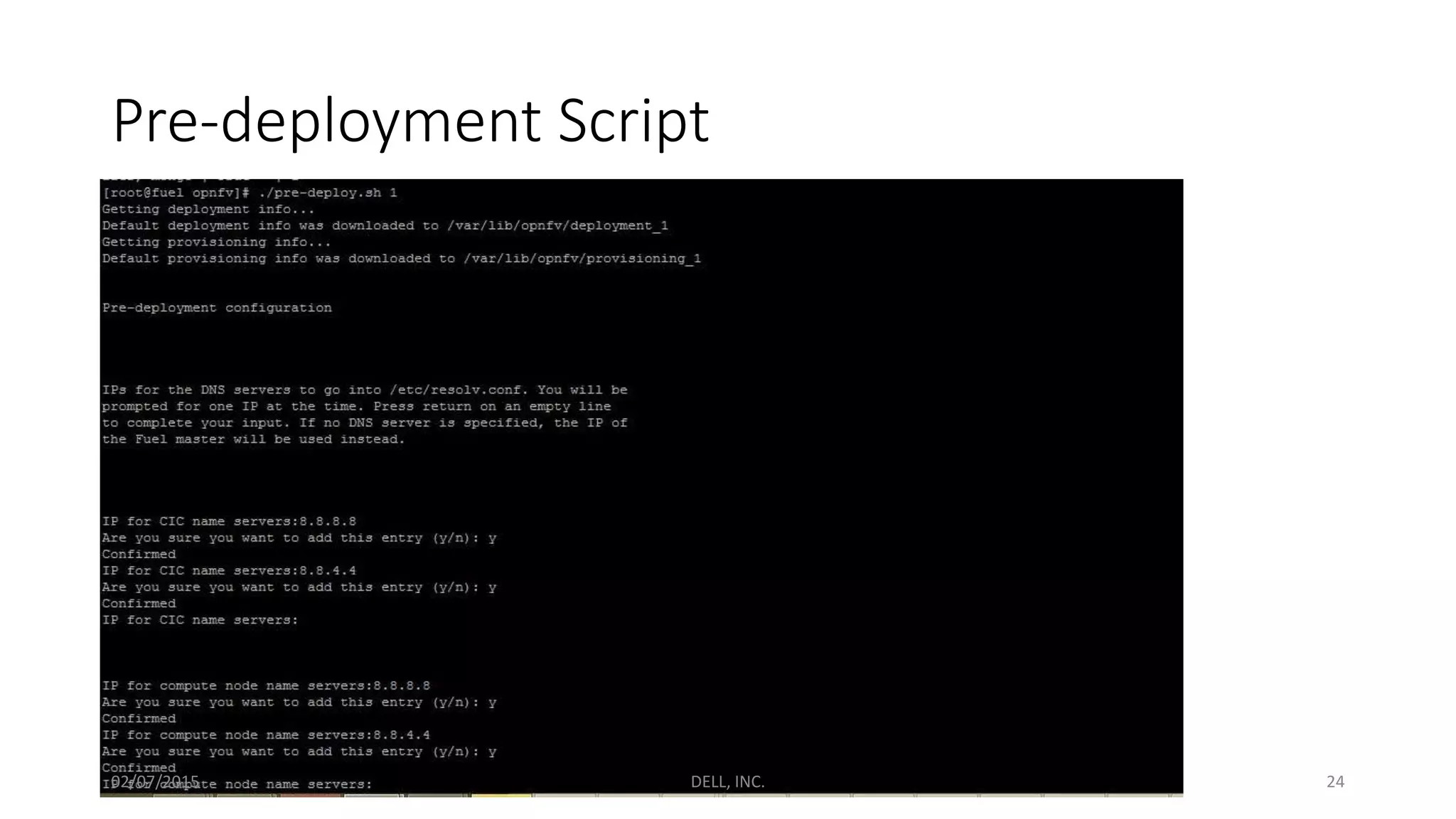
• Run the command “ ./opt/opnfv/pre-deploy.sh <Cluster Number>”
• The script modifies the Fuel Deployment environment so that
provisioned Nodes contain ODL files and scripts.
02/07/2015 DELL, INC. 23
Pre-deployment Script
02/07/2015 DELL, INC. 24
After running the pre deployment scripts, press start
deployment on the GUI
02/07/2015 DELL, INC. 25
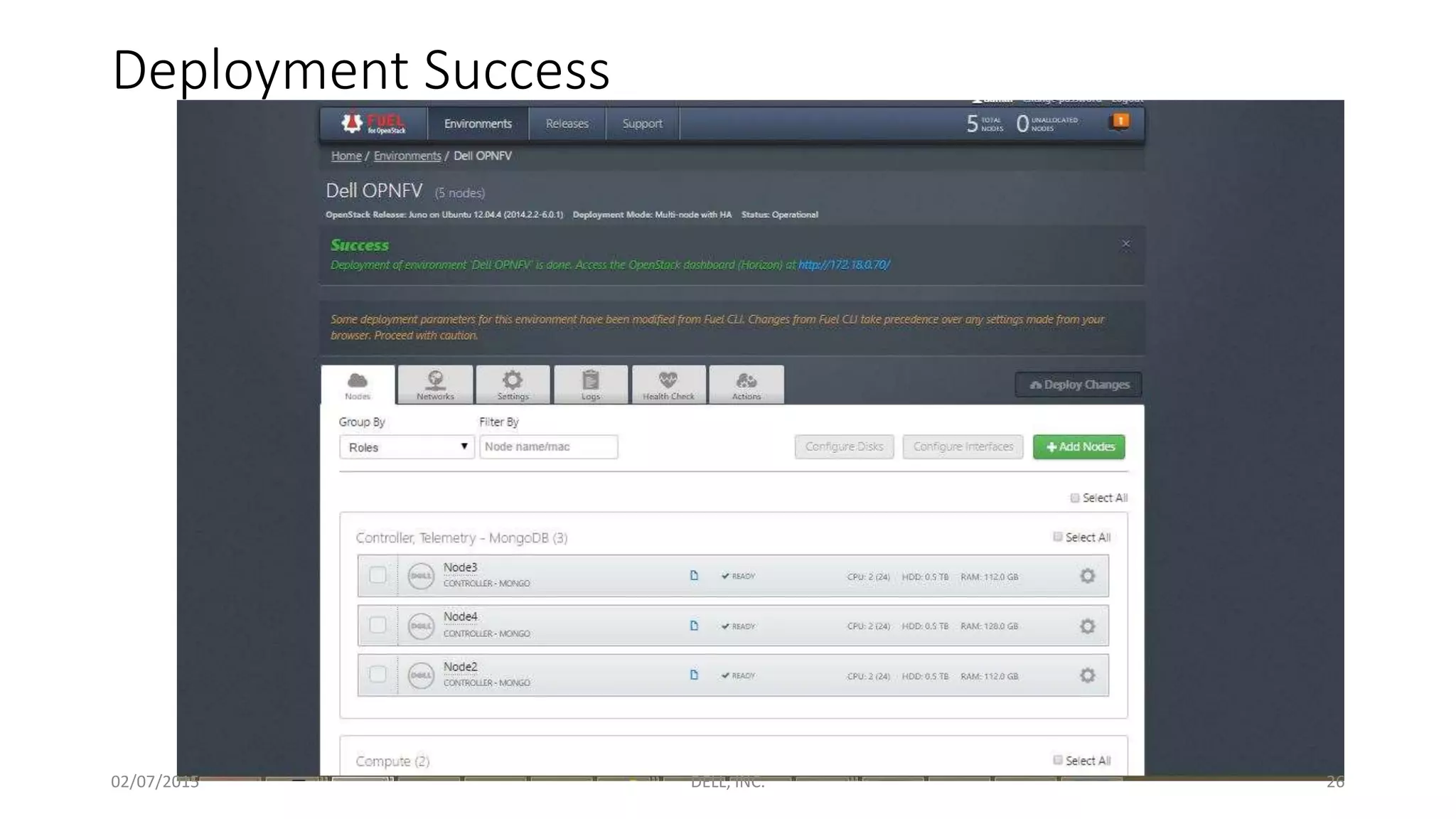
Deployment Success
02/07/2015 DELL, INC. 26
Fuel-OPNFV Post Deployment
02/07/2015 DELL, INC. 27
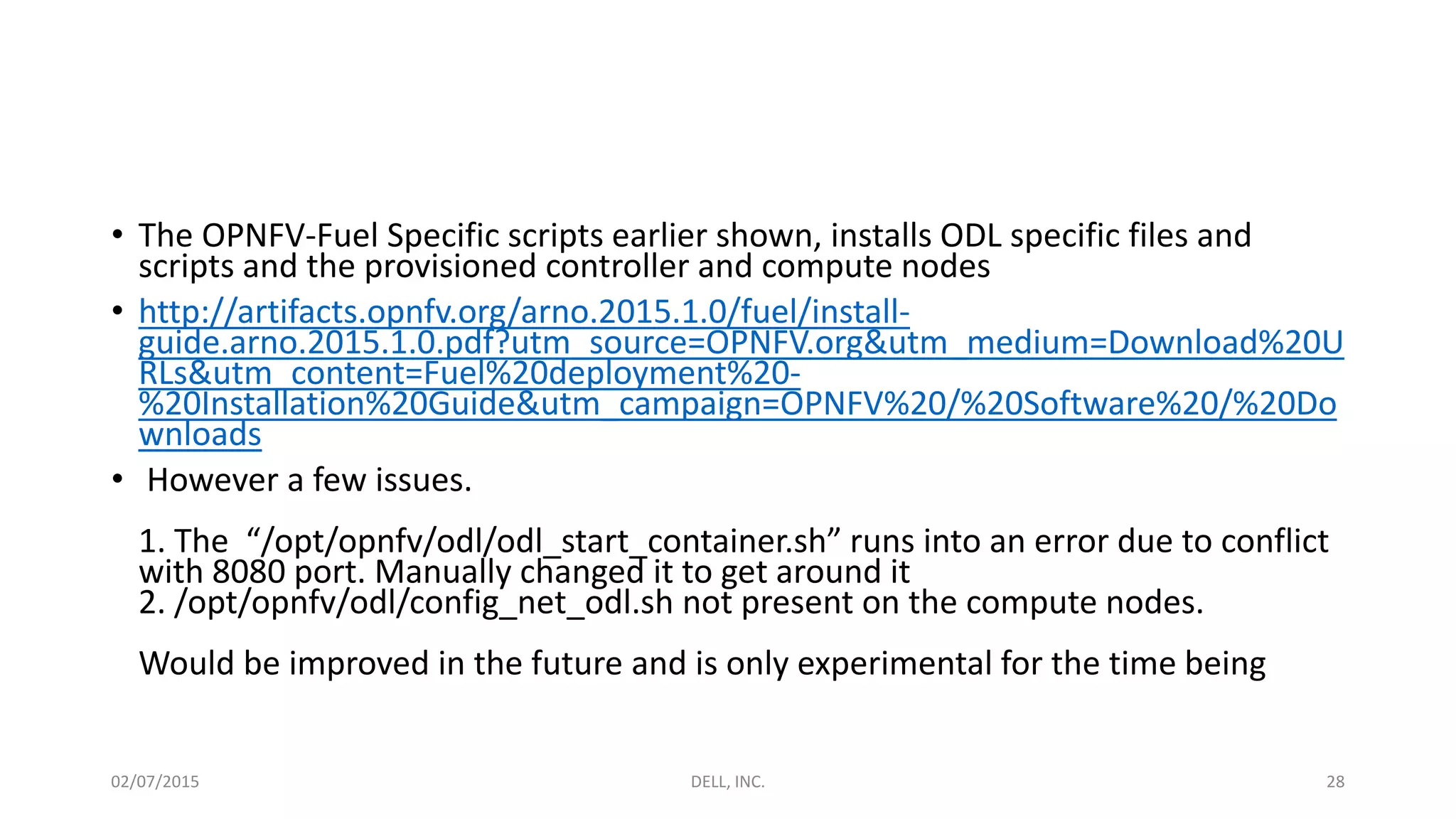
• The OPNFV-Fuel Specific scripts earlier shown, installs ODL specific files and
scripts and the provisioned controller and compute nodes
• http://artifacts.opnfv.org/arno.2015.1.0/fuel/install-
guide.arno.2015.1.0.pdf?utm_source=OPNFV.org&utm_medium=Download%20U
RLs&utm_content=Fuel%20deployment%20-
%20Installation%20Guide&utm_campaign=OPNFV%20/%20Software%20/%20Do
wnloads
• However a few issues.
1. The “/opt/opnfv/odl/odl_start_container.sh” runs into an error due to conflict
with 8080 port. Manually changed it to get around it
2. /opt/opnfv/odl/config_net_odl.sh not present on the compute nodes.
Would be improved in the future and is only experimental for the time being
02/07/2015 DELL, INC. 28
OPNFV-Arno (Foreman)
02/07/2015 DELL, INC. 29
Prerequisites
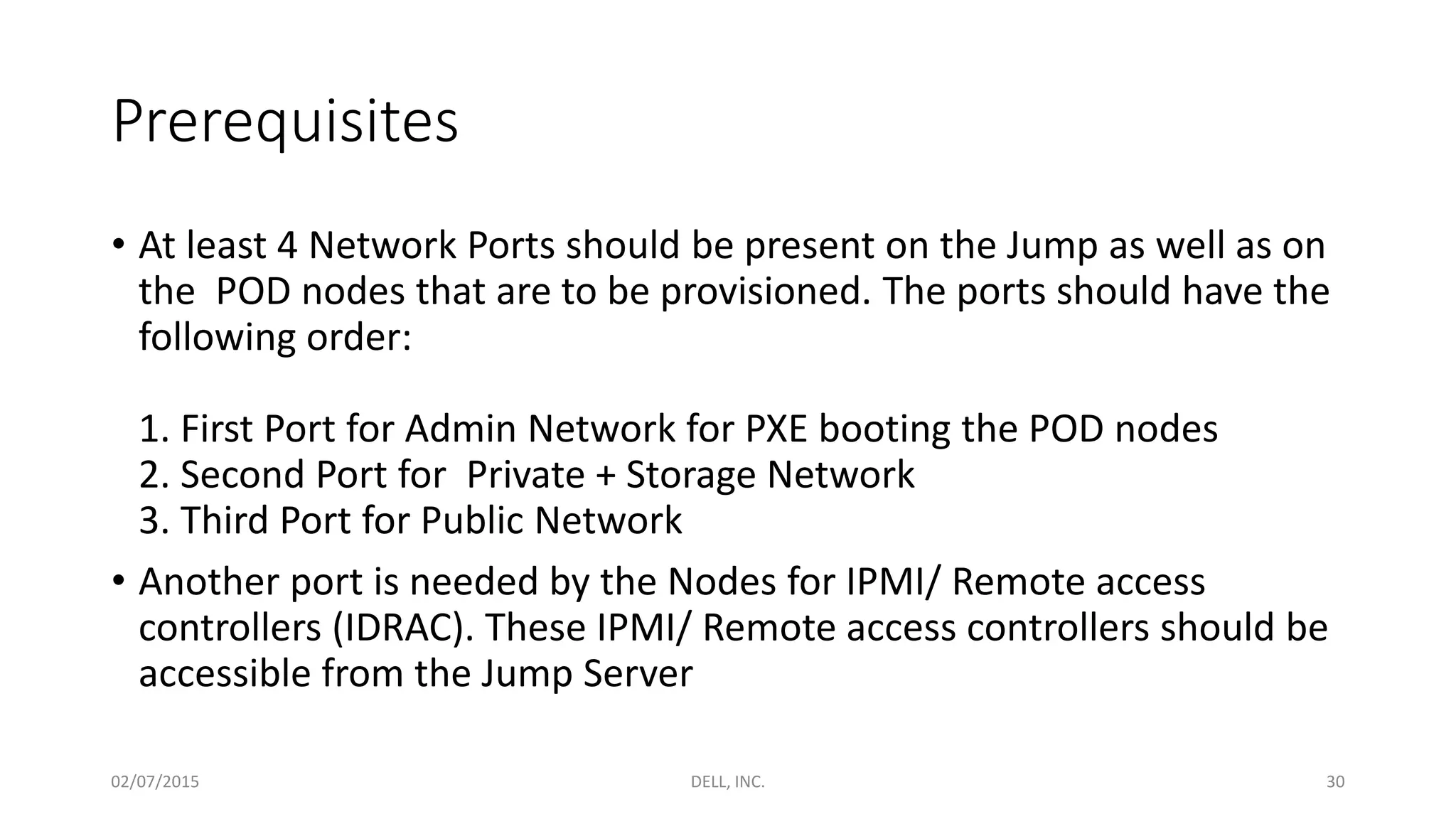
• At least 4 Network Ports should be present on the Jump as well as on
the POD nodes that are to be provisioned. The ports should have the
following order:
1. First Port for Admin Network for PXE booting the POD nodes
2. Second Port for Private + Storage Network
3. Third Port for Public Network
• Another port is needed by the Nodes for IPMI/ Remote access
controllers (IDRAC). These IPMI/ Remote access controllers should be
accessible from the Jump Server
02/07/2015 DELL, INC. 30
Getting the deployment Files
• Use Foreman ISO to install CentOS7 on the Foreman Jump-Server
https://www.opnfv.org/software/download
This ISO packs the required files to deploy Foreman installation
• Or download the required deployment files on a Jump-Server
installed with CentOS7:
https://github.com/trozet/bgs_vagrant/releases/tag/v1.0
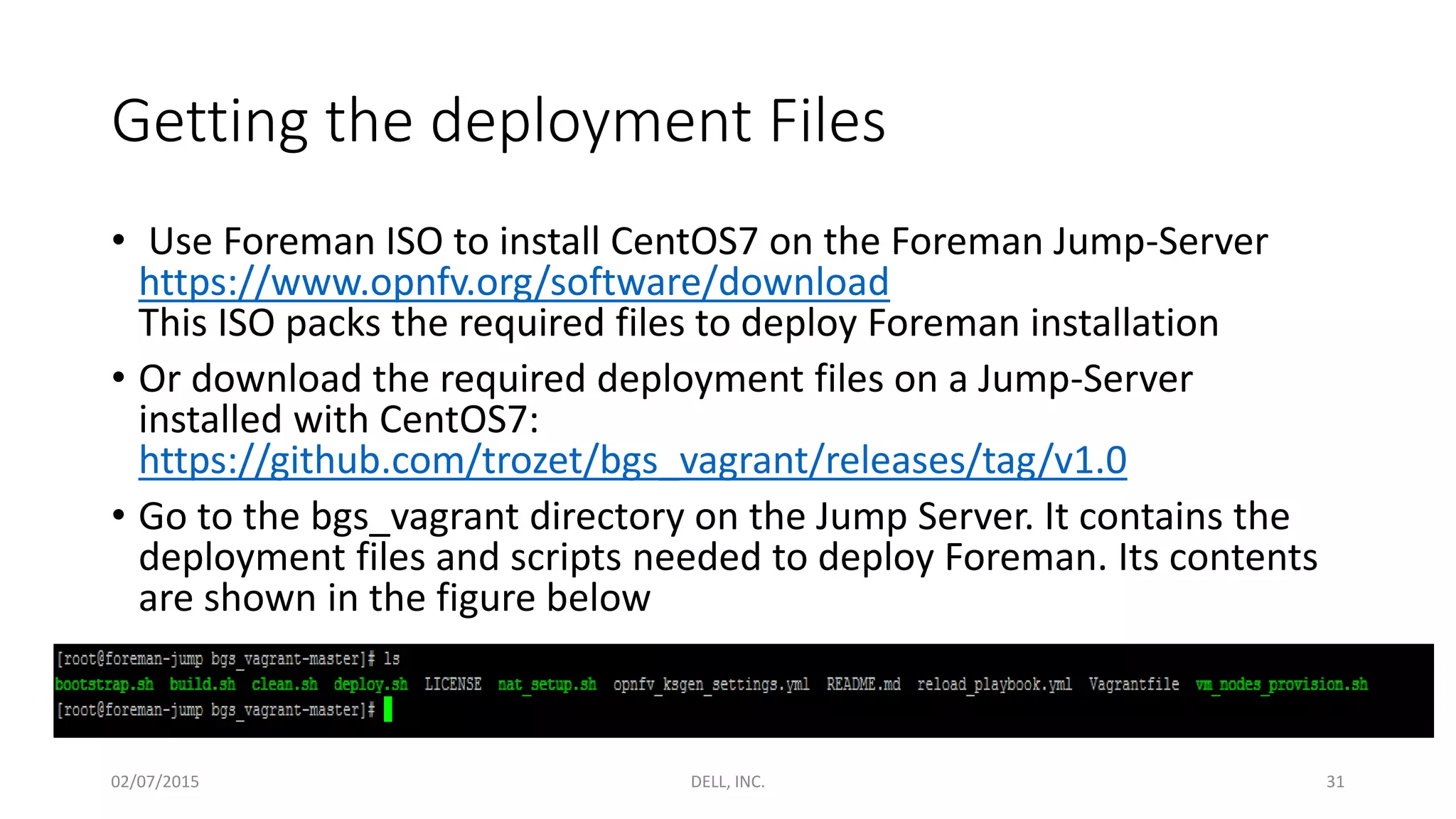
• Go to the bgs_vagrant directory on the Jump Server. It contains the
deployment files and scripts needed to deploy Foreman. Its contents
are shown in the figure below
02/07/2015 DELL, INC. 31
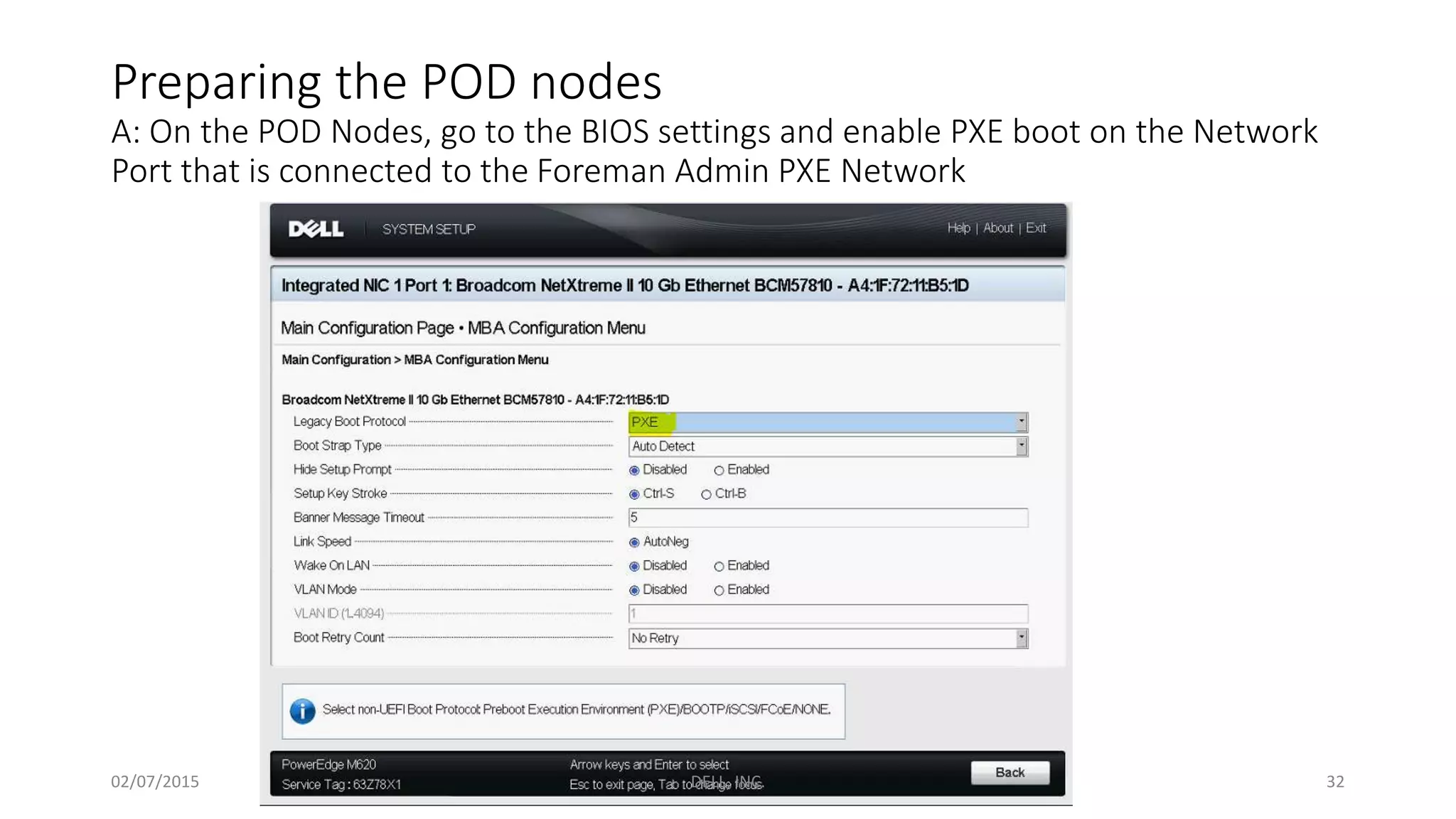
Preparing the POD nodes
A: On the POD Nodes, go to the BIOS settings and enable PXE boot on the Network
Port that is connected to the Foreman Admin PXE Network
02/07/2015 DELL, INC. 32
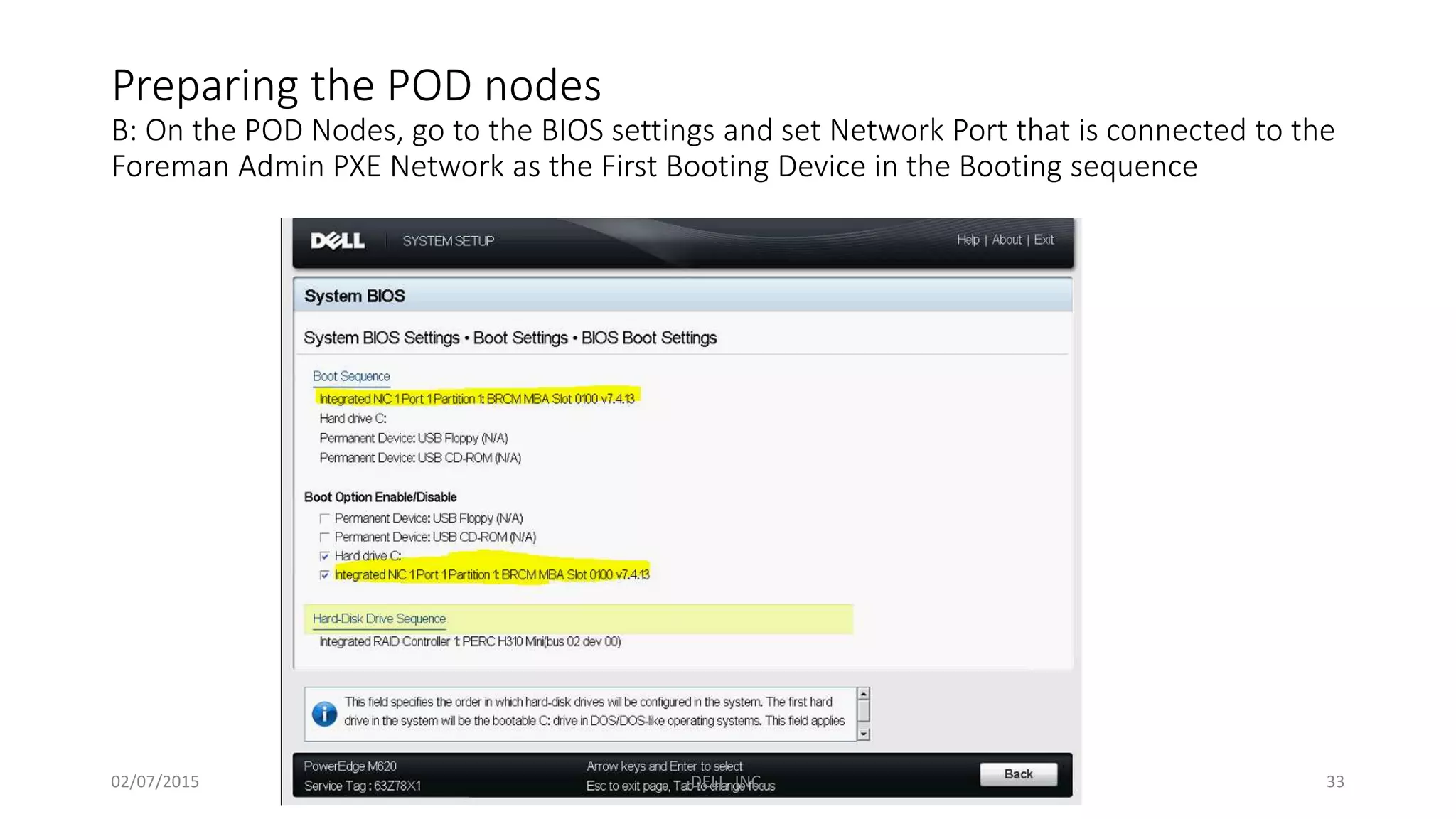
Preparing the POD nodes
B: On the POD Nodes, go to the BIOS settings and set Network Port that is connected to the
Foreman Admin PXE Network as the First Booting Device in the Booting sequence
02/07/2015 DELL, INC. 33
Configuring deployment for the Testbed
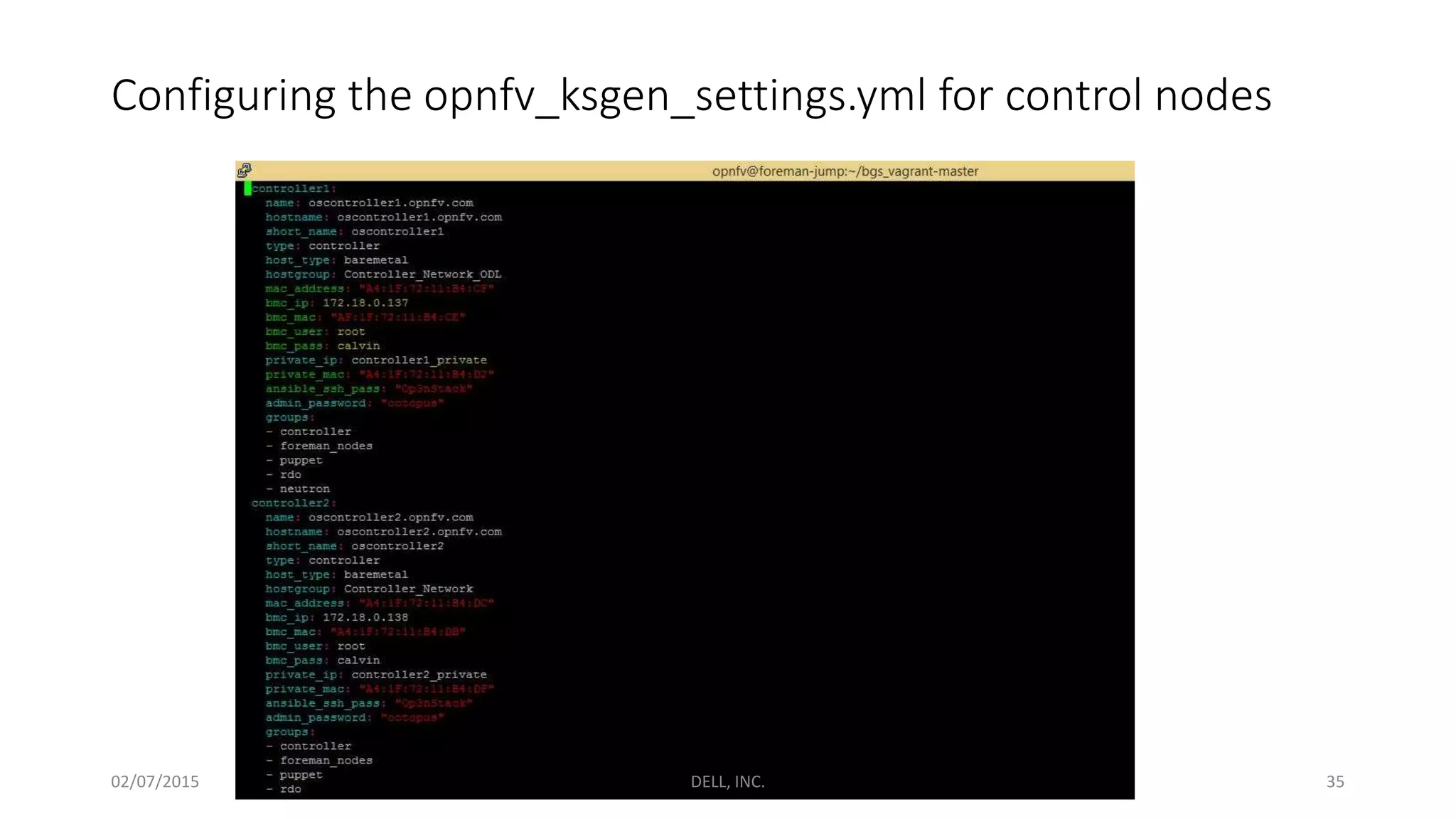
• The configuration for the bare metal nodes to be deployed in the
Foreman POD is to be given in the “opnfv_ksgen_settings.yml” file
• Find the control nodes within the file and edit the following:
1. Mac Address for the port connected to Admin PXE network
2. IP for the Remote Access Controller (IDRAC)
3. Mac Address for the Remote Access Controller (IDRAC)
4. Mac Address for the port connected to the Private Network
02/07/2015 DELL, INC. 34
Configuring the opnfv_ksgen_settings.yml for control nodes
02/07/2015 DELL, INC. 35
• Find the compute nodes within the file and edit the following:
1. Mac Address for the port connected to Admin PXE network
2. IP for the Remote Access Controller (IDRAC)
3. Mac Address for the Remote Access Controller (IDRAC)
• For each compute node, ensure that the names are different too
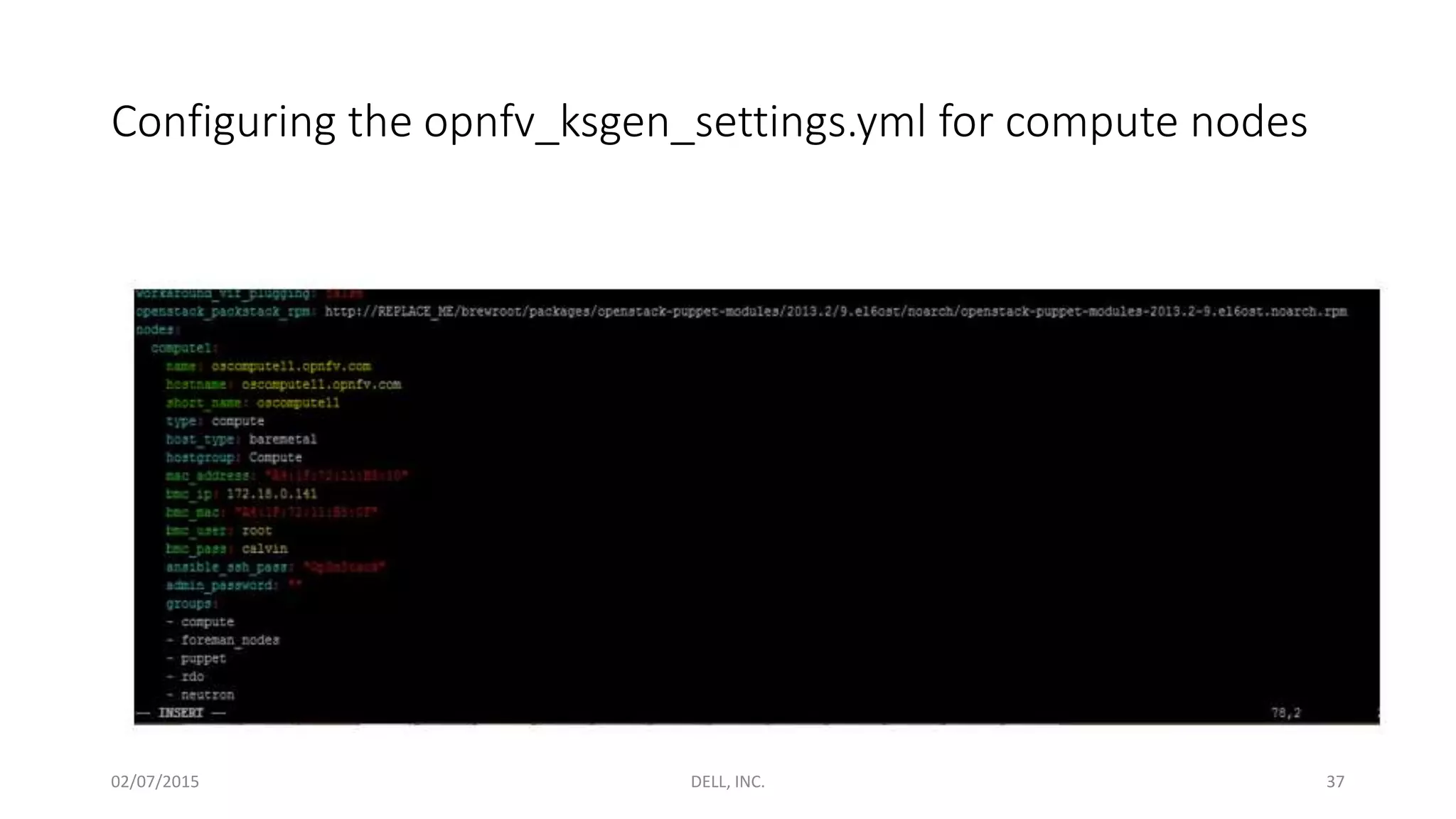
within the file
02/07/2015 DELL, INC. 36
Configuring the opnfv_ksgen_settings.yml for compute nodes
02/07/2015 DELL, INC. 37
Running the deployment Script
• Go to the folder bgs_vagrant
• Run the command: “./deploy.sh –base_config <location of the
opnfv_ksgen_setting.yaml>
02/07/2015 DELL, INC. 38
Deployment Starts
• Continues for 2 hours and deploys OpenStack setup with ODL
controller
02/07/2015 DELL, INC. 39
How the Deployment Works
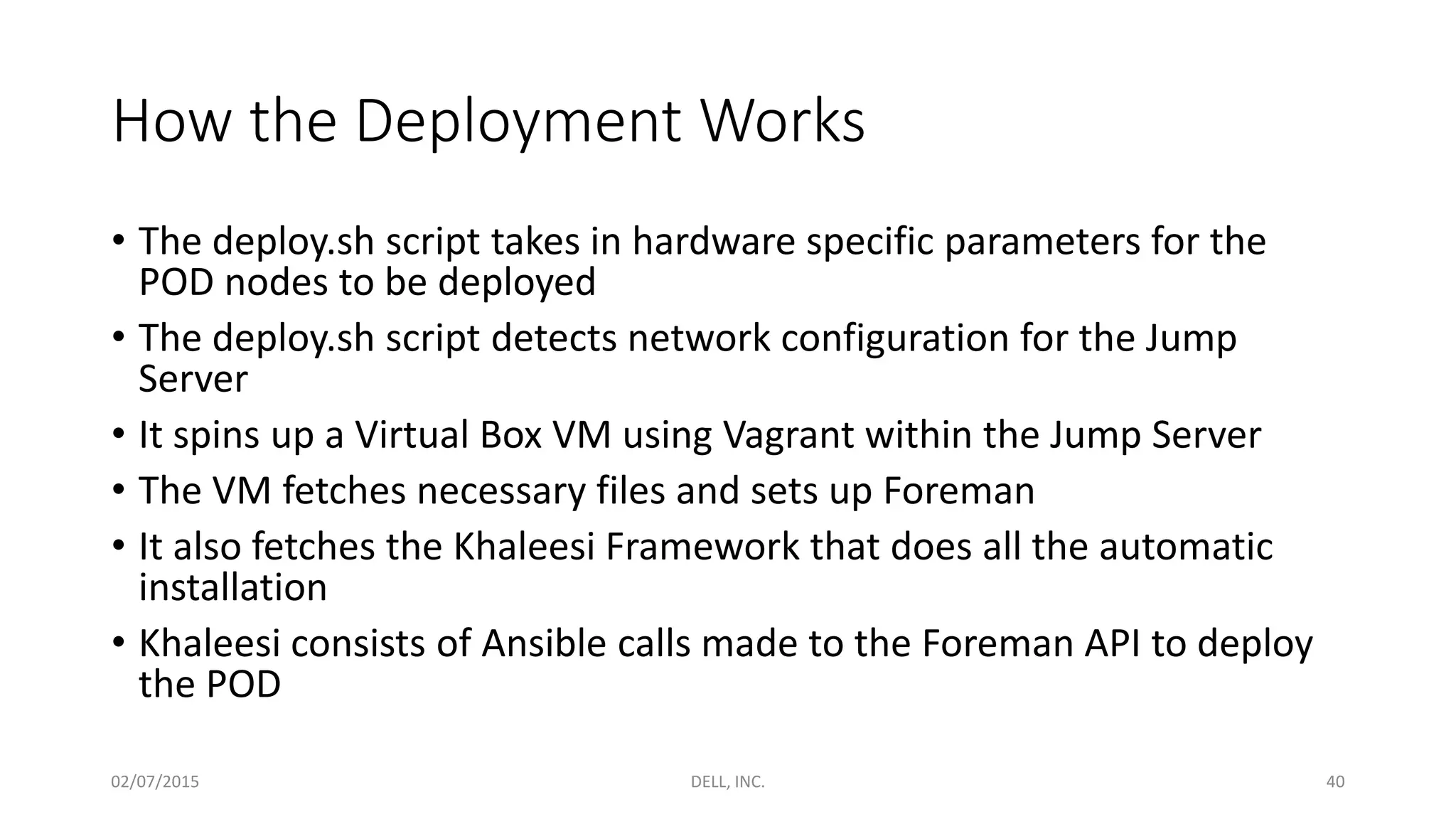
• The deploy.sh script takes in hardware specific parameters for the
POD nodes to be deployed
• The deploy.sh script detects network configuration for the Jump
Server
• It spins up a Virtual Box VM using Vagrant within the Jump Server
• The VM fetches necessary files and sets up Foreman
• It also fetches the Khaleesi Framework that does all the automatic
installation
• Khaleesi consists of Ansible calls made to the Foreman API to deploy
the POD
02/07/2015 DELL, INC. 40
Foreman GUI
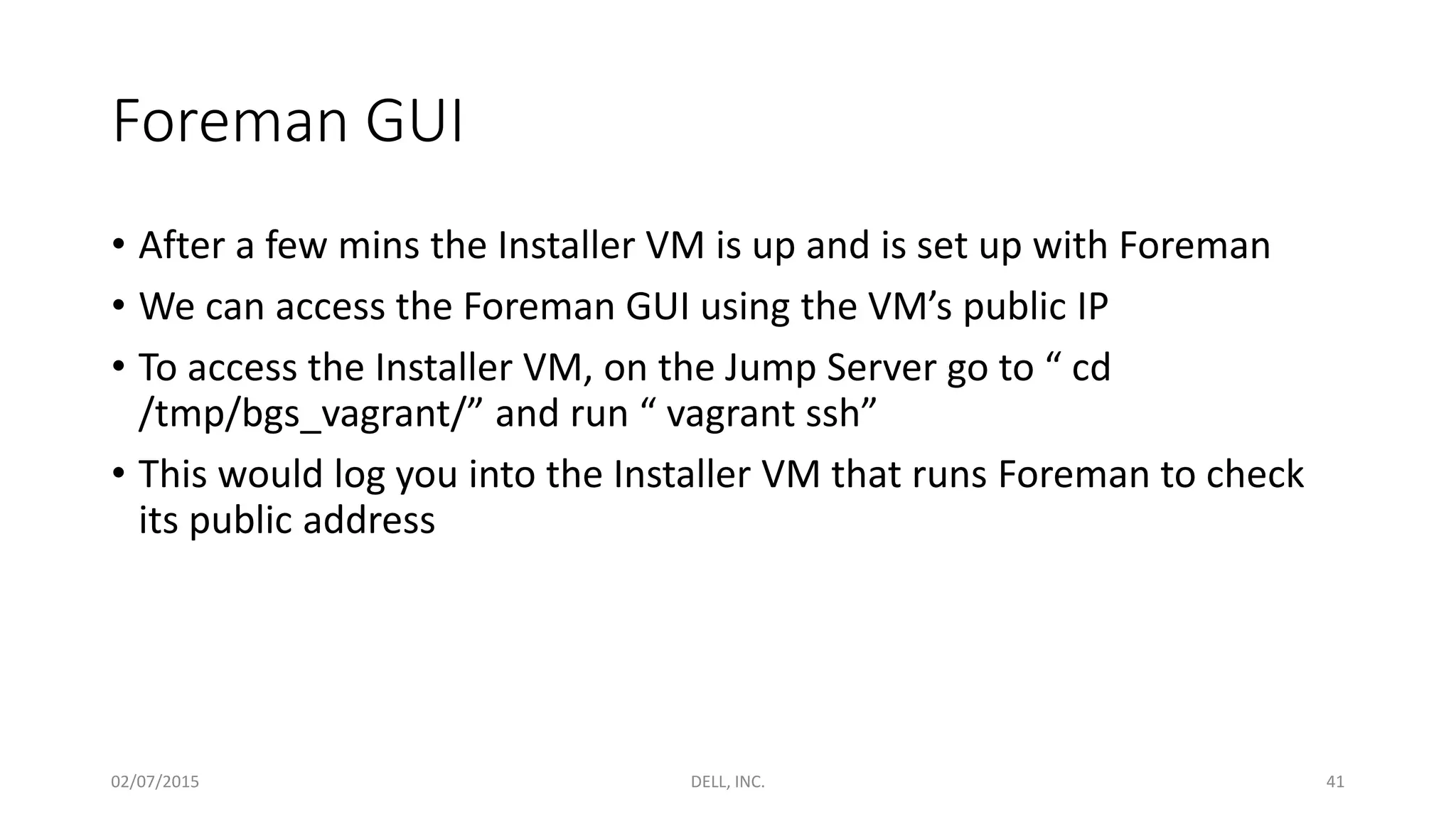
• After a few mins the Installer VM is up and is set up with Foreman
• We can access the Foreman GUI using the VM’s public IP
• To access the Installer VM, on the Jump Server go to “ cd
/tmp/bgs_vagrant/” and run “ vagrant ssh”
• This would log you into the Installer VM that runs Foreman to check
its public address
02/07/2015 DELL, INC. 41
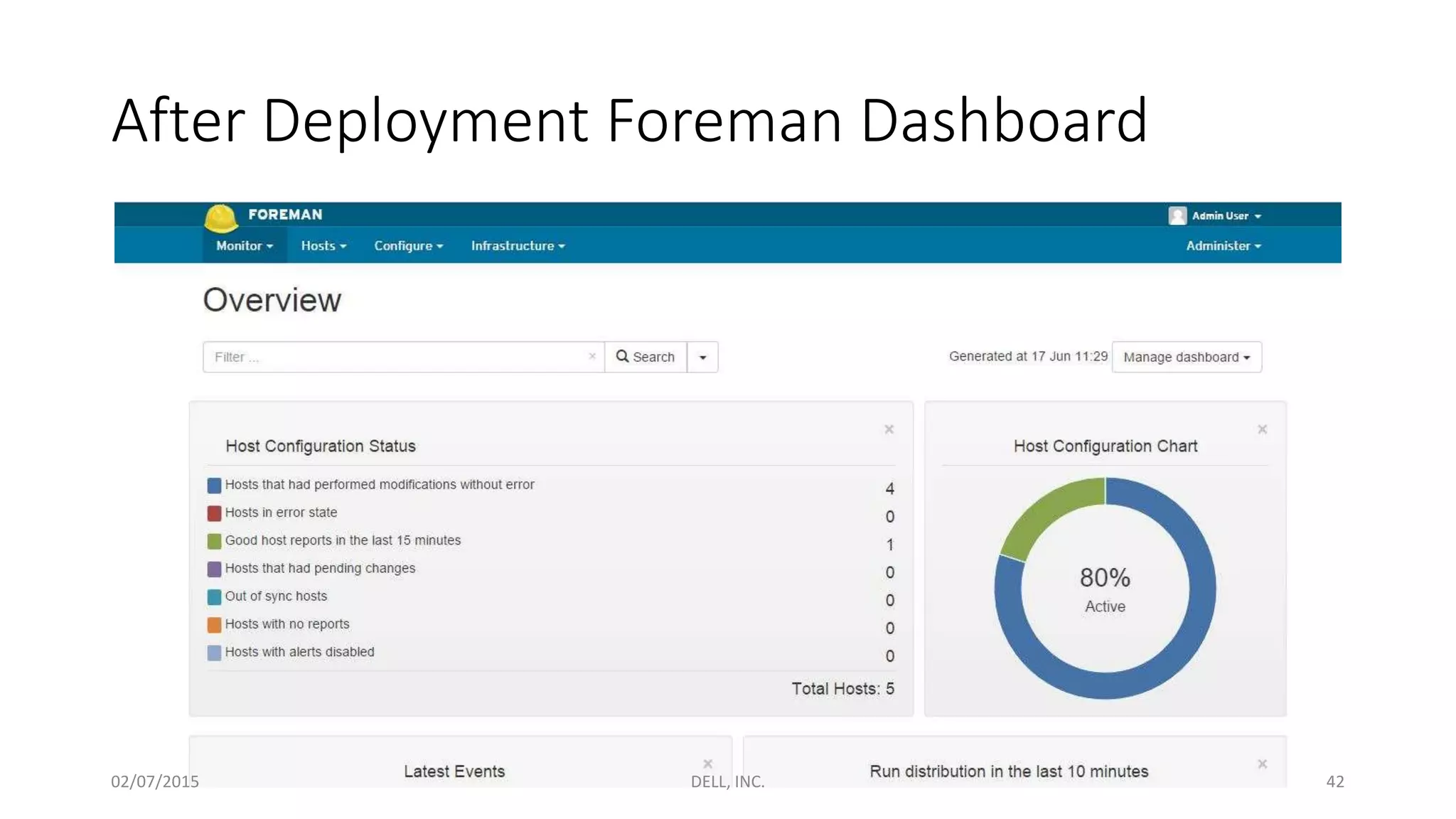
After Deployment Foreman Dashboard
02/07/2015 DELL, INC. 42
ODL
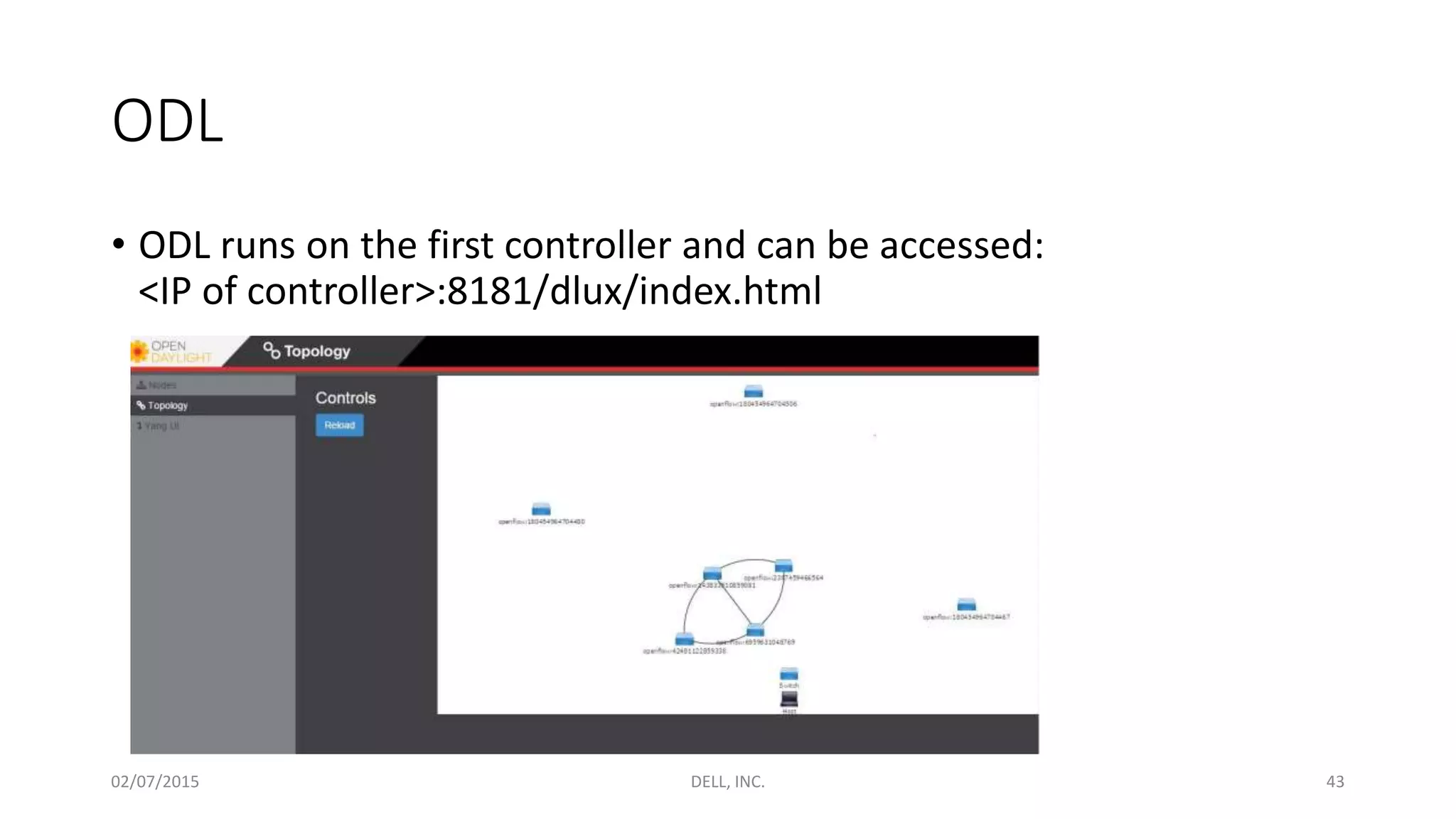
• ODL runs on the first controller and can be accessed:
<IP of controller>:8181/dlux/index.html
02/07/2015 DELL, INC. 43
Functests
02/07/2015 DELL, INC. 44
Fetching Functests
• On the Jump Server, Clone the Functest repository by running
“git clone https://gerrit.opnfv.org/gerrit/functest”
• Fetch the OpenStack RC file for the deployment to be tested
• Source the download admin-openrc file
• Go to the functest repository that is cloned
• Go to testcases directory and run : python config_python –d
<functest repository location>
02/07/2015 DELL, INC. 45
• This script fetches the needed testing tools that are used by Functests
• Includes:
1. Rally
2. Tempest
3. Vping
4. Robot
5. Downloads Glance Images
02/07/2015 DELL, INC. 46
Running Tests
• http://artifacts.opnfv.org/arno.2015.1.0/docs/functest.arno.2015.1.0.
pdf
02/07/2015 DELL, INC. 47
Rally Tests
• Rally bench suite can be used to benchmark OpenStack components
such as glance, Nova, Neutron, Cinder etc and generate results in
.html pages
• To run:
“python <functest dir>/testcases/VIM/OpenStack/CI/libraries/run_rally.py <functest dir> <test>
Where test can be
1. Authentication
2. Cinder
3. Glance
4. Nova
5. Neutron
6. all (runs all above)
02/07/2015 DELL, INC. 48
Tempest Tests
• Rally uses Tempest to run smoke tests
• Run “ rally verify start smoke”
02/07/2015 DELL, INC. 49
vPING (Live)
• Uses OpenStack to create 2 VMs and one network. The 2 VMs are
connected to this created network and are assigned Ips
• A simple Ping test is performed between these 2 VMs
• To run: “python <functest_dir>/testcases/vPing/CI/libraries/vPing.py –d <functest_dir>”
02/07/2015 DELL, INC. 50
ODL Tests (Live)
• Checks if ODL is accessible and performs basic testing
• Run “. <functest_dir>/testcases/Controllers/ODL/CI/start_tests.sh”
02/07/2015 DELL, INC. 51

OPNFV Arno Installation and Validation Walk Through

  • 1.
    OPNFV Arno Installation& Validation Walk-Through Nauman Ahad, Wenjing Chu Dell, Inc. 02/07/2015 DELL, INC. 1
  • 2.
    Tutorial Overview 1. Hardwaredescription 2. Fuel 2.1: Prerequisites 2.2: Fuel VM Setup 2.3: Fuel GUI Walkthrough to Start POD deployment (Live) 3. Foreman (Already deployed Setup) 3.1: Prerequisites 3.2: Deployment Scripts 3.3: Foreman GUI 3.4: OpenStack+ODL 4. Functests 4.1: Prerequisites 4.2: Functest runs a. Rally (Only Results) b. vPing (live) c. ODL (live) 02/07/2015 DELL, INC. 2
  • 3.
    Hardware Setup • 2PODs POD 1: Fuel POD 2: Foreman • Each POD has 1 Jump Server 3 Control Nodes At least 1 Compute Node 02/07/2015 DELL, INC. 3
  • 4.
    POD 1 Fuel •Fuel Installer Runs in a VM inside the Jump Server • Fuel needs 4 Networks: 1. Fuel Admin Network: To PXE boot nodes 2. Storage Network 3. Management Network (Includes Private Network) 4. Public Network • These above networks can be overloaded to a single port using VLAN tagging • We will use 3 ports 1 Port for Public 1 Port for Admin+Storage+Management 1 Port for Lights Out Fuel Internal Network 02/07/2015 DELL, INC. 4
  • 5.
    POD 2: Foreman •Foreman Installer Runs in a VM inside the Jump Server • Foreman needs 3 Networks: 1. Foreman Admin Network: To PXE boot nodes 2. Private Network (Includes Management and Storage) 3. Public Network • VLANs (IEEE 802.1 Q tagging) can’t be used to overload networks • At least 4 ports needed. 3 in the specified order 1st Port : Admin 2nd Port: Private (Includes Management and Storage) 3rd Port: Public • An additional Port is needed for Lights out Admin Network Private Network 02/07/2015 DELL, INC. 5
  • 6.
  • 7.
    Fetching the FuelISO • Get the Fuel ISO from: https://www.opnfv.org/software/download • Run the ISO in a VM on the Jump Server 02/07/2015 DELL, INC. 7
  • 8.
    1. Open Jump- ServerRemote Console through Lights out Management (IDRAC) Use a hypervisor (KVM/ virtual box) to boot up the ISO. We used KVM through Virtual Machine Manager 02/07/2015 DELL, INC. 8
  • 9.
  • 10.
    3. Set Memory and CPUs forthe VM 02/07/2015 DELL, INC. 10
  • 11.
    4a. Bridge First VMvirtual port to the Jump server’s second port (eth1). This will be used as the Fuel Admin Network 02/07/2015 DELL, INC. 11
  • 12.
    4b. Add additional Virtual VMport. Bridge it to the Jump server’s Public port (eth0). This will be used for Fuel Public Network. 02/07/2015 DELL, INC. 12
  • 13.
    5. Begin Installation. Press Tabto change Fuel settings. Set show menu from no to yes. 02/07/2015 DELL, INC. 13
  • 14.
    6. In themenu, Enter the network Setup option. Go to eth 1 and provide the public network details. This is done so that Fuel could be accessed remotely 02/07/2015 DELL, INC. 14
  • 15.
    8. Quit setupby entering the “Save and Quit” option 02/07/2015 DELL, INC. 15
  • 16.
    9. Fuel InstallationCompletes after about 30-40 minutes 02/07/2015 DELL, INC. 16
  • 17.
    Deploying a PODusing OPNFV- Arno (Fuel) 02/07/2015 DELL, INC. 17
  • 18.
    OPNFV-Fuel POD Deployment(Interactive Session) 02/07/2015 DELL, INC. 18
  • 19.
    Preparing the PODnodes A: On the POD Nodes, go to the BIOS settings and enable PXE boot on the Network Port that is connected to the Fuel Admin PXE Network 02/07/2015 DELL, INC. 19
  • 20.
    Preparing the PODnodes B: On the POD Nodes, go to the BIOS settings and set Network Port that is connected to the Fuel Admin PXE Network as the First Booting Device in the Booting sequence 02/07/2015 DELL, INC. 20
  • 21.
    Preparing the PODnodes C: Restart the POD Nodes. The Nodes would be discovered by Fuel and put in bootstrap mode. This means that they will be available for Fuel to be deployed 02/07/2015 DELL, INC. 21
  • 22.
    OPNFV-Fuel Specific Steps •Go the Fuel VM • Enter the command “fuel node list” • Note the cluster number (1 in the example below) 02/07/2015 DELL, INC. 22
  • 23.
    OPNFV-Fuel Specific Steps •Run the command “ ./opt/opnfv/pre-deploy.sh <Cluster Number>” • The script modifies the Fuel Deployment environment so that provisioned Nodes contain ODL files and scripts. 02/07/2015 DELL, INC. 23
  • 24.
  • 25.
    After running thepre deployment scripts, press start deployment on the GUI 02/07/2015 DELL, INC. 25
  • 26.
  • 27.
  • 28.
    • The OPNFV-FuelSpecific scripts earlier shown, installs ODL specific files and scripts and the provisioned controller and compute nodes • http://artifacts.opnfv.org/arno.2015.1.0/fuel/install- guide.arno.2015.1.0.pdf?utm_source=OPNFV.org&utm_medium=Download%20U RLs&utm_content=Fuel%20deployment%20- %20Installation%20Guide&utm_campaign=OPNFV%20/%20Software%20/%20Do wnloads • However a few issues. 1. The “/opt/opnfv/odl/odl_start_container.sh” runs into an error due to conflict with 8080 port. Manually changed it to get around it 2. /opt/opnfv/odl/config_net_odl.sh not present on the compute nodes. Would be improved in the future and is only experimental for the time being 02/07/2015 DELL, INC. 28
  • 29.
  • 30.
    Prerequisites • At least4 Network Ports should be present on the Jump as well as on the POD nodes that are to be provisioned. The ports should have the following order: 1. First Port for Admin Network for PXE booting the POD nodes 2. Second Port for Private + Storage Network 3. Third Port for Public Network • Another port is needed by the Nodes for IPMI/ Remote access controllers (IDRAC). These IPMI/ Remote access controllers should be accessible from the Jump Server 02/07/2015 DELL, INC. 30
  • 31.
    Getting the deploymentFiles • Use Foreman ISO to install CentOS7 on the Foreman Jump-Server https://www.opnfv.org/software/download This ISO packs the required files to deploy Foreman installation • Or download the required deployment files on a Jump-Server installed with CentOS7: https://github.com/trozet/bgs_vagrant/releases/tag/v1.0 • Go to the bgs_vagrant directory on the Jump Server. It contains the deployment files and scripts needed to deploy Foreman. Its contents are shown in the figure below 02/07/2015 DELL, INC. 31
  • 32.
    Preparing the PODnodes A: On the POD Nodes, go to the BIOS settings and enable PXE boot on the Network Port that is connected to the Foreman Admin PXE Network 02/07/2015 DELL, INC. 32
  • 33.
    Preparing the PODnodes B: On the POD Nodes, go to the BIOS settings and set Network Port that is connected to the Foreman Admin PXE Network as the First Booting Device in the Booting sequence 02/07/2015 DELL, INC. 33
  • 34.
    Configuring deployment forthe Testbed • The configuration for the bare metal nodes to be deployed in the Foreman POD is to be given in the “opnfv_ksgen_settings.yml” file • Find the control nodes within the file and edit the following: 1. Mac Address for the port connected to Admin PXE network 2. IP for the Remote Access Controller (IDRAC) 3. Mac Address for the Remote Access Controller (IDRAC) 4. Mac Address for the port connected to the Private Network 02/07/2015 DELL, INC. 34
  • 35.
    Configuring the opnfv_ksgen_settings.ymlfor control nodes 02/07/2015 DELL, INC. 35
  • 36.
    • Find thecompute nodes within the file and edit the following: 1. Mac Address for the port connected to Admin PXE network 2. IP for the Remote Access Controller (IDRAC) 3. Mac Address for the Remote Access Controller (IDRAC) • For each compute node, ensure that the names are different too within the file 02/07/2015 DELL, INC. 36
  • 37.
    Configuring the opnfv_ksgen_settings.ymlfor compute nodes 02/07/2015 DELL, INC. 37
  • 38.
    Running the deploymentScript • Go to the folder bgs_vagrant • Run the command: “./deploy.sh –base_config <location of the opnfv_ksgen_setting.yaml> 02/07/2015 DELL, INC. 38
  • 39.
    Deployment Starts • Continuesfor 2 hours and deploys OpenStack setup with ODL controller 02/07/2015 DELL, INC. 39
  • 40.
    How the DeploymentWorks • The deploy.sh script takes in hardware specific parameters for the POD nodes to be deployed • The deploy.sh script detects network configuration for the Jump Server • It spins up a Virtual Box VM using Vagrant within the Jump Server • The VM fetches necessary files and sets up Foreman • It also fetches the Khaleesi Framework that does all the automatic installation • Khaleesi consists of Ansible calls made to the Foreman API to deploy the POD 02/07/2015 DELL, INC. 40
  • 41.
    Foreman GUI • Aftera few mins the Installer VM is up and is set up with Foreman • We can access the Foreman GUI using the VM’s public IP • To access the Installer VM, on the Jump Server go to “ cd /tmp/bgs_vagrant/” and run “ vagrant ssh” • This would log you into the Installer VM that runs Foreman to check its public address 02/07/2015 DELL, INC. 41
  • 42.
    After Deployment ForemanDashboard 02/07/2015 DELL, INC. 42
  • 43.
    ODL • ODL runson the first controller and can be accessed: <IP of controller>:8181/dlux/index.html 02/07/2015 DELL, INC. 43
  • 44.
  • 45.
    Fetching Functests • Onthe Jump Server, Clone the Functest repository by running “git clone https://gerrit.opnfv.org/gerrit/functest” • Fetch the OpenStack RC file for the deployment to be tested • Source the download admin-openrc file • Go to the functest repository that is cloned • Go to testcases directory and run : python config_python –d <functest repository location> 02/07/2015 DELL, INC. 45
  • 46.
    • This scriptfetches the needed testing tools that are used by Functests • Includes: 1. Rally 2. Tempest 3. Vping 4. Robot 5. Downloads Glance Images 02/07/2015 DELL, INC. 46
  • 47.
  • 48.
    Rally Tests • Rallybench suite can be used to benchmark OpenStack components such as glance, Nova, Neutron, Cinder etc and generate results in .html pages • To run: “python <functest dir>/testcases/VIM/OpenStack/CI/libraries/run_rally.py <functest dir> <test> Where test can be 1. Authentication 2. Cinder 3. Glance 4. Nova 5. Neutron 6. all (runs all above) 02/07/2015 DELL, INC. 48
  • 49.
    Tempest Tests • Rallyuses Tempest to run smoke tests • Run “ rally verify start smoke” 02/07/2015 DELL, INC. 49
  • 50.
    vPING (Live) • UsesOpenStack to create 2 VMs and one network. The 2 VMs are connected to this created network and are assigned Ips • A simple Ping test is performed between these 2 VMs • To run: “python <functest_dir>/testcases/vPing/CI/libraries/vPing.py –d <functest_dir>” 02/07/2015 DELL, INC. 50
  • 51.
    ODL Tests (Live) •Checks if ODL is accessible and performs basic testing • Run “. <functest_dir>/testcases/Controllers/ODL/CI/start_tests.sh” 02/07/2015 DELL, INC. 51