Deploying DPDK
powered cloud with
OpenDaylightPramod Raghavendra Jayathirth
OpenSource Technology Center At Intel
Agenda
•  Overview
•  Deployment with OpenDayLight and
DPDK
•  Demo
•  Conclusion
2
3
Overview
!  Stable deployment of OpenStack, OpenDayLight and DPDK
!  Needed for development and Deployment
!  Need to ease the deployment with minimal debugging
!  OPNFV Fuel is a deployment tool which eases the task of
!  Deploy and manage various OpenStack distributions
!  Support third party plugins like OpenDayLight
!  Abstracts out various configuration complexities ( Ex:- devstack)
Fuel
•  Fuel is a OpenStack management Project developed by OpenStack
community
•  GUI based – Ease of use
•  Reduces complexity of deployment through orchestration of Operating
Systems
Other Alternatives
•  OpenStack-ansible, OpenStack-Kolla and Devstack
4
Agenda
•  Overview
•  Deployment with OpenDayLight and
DPDK
•  Demo
•  Conclusion
5
6
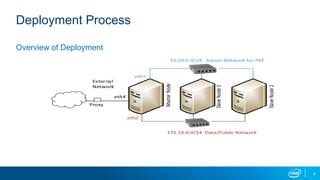
Deployment Process
Overview of Deployment
172.16.0.0/24		Data/Public	Network
Master	Node
Slave	Node	1
Slave	Node	2
10.20.0.0/24			Admin	Network	for	PXE
External	
Network
Proxy
ethZ
ethY
ethX
7
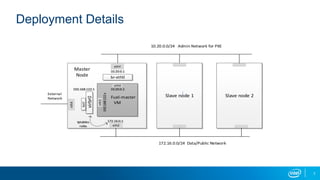
Deployment Details
Slave	node	1										Fuel-master	
VM
br-eth0
NAT
192.168.122.1
ethX
ethY
virbr0
eth0
eth2
10.20.0.2
172.16.0.1
10.20.0.1
Slave	node	2
Master	
Node
ethZ
172.16.0.0/24		Data/Public	Network
10.20.0.0/24			Admin	Network	for	PXE
192.168.122.x
Iptables
rules
External	
Network
8
Steps for the Installation and Deployment
1.  Installation of Fuel Deployer
2.  Deployment of Cloud Environment
1. Installation of Fuel Deployer
•  Setup the Servers as per the required configuration
•  Download the scripts from github which would help in installation
•  Make the necessary changes with respect to Interface configuration
•  Select the support for DPDK Installation
•  Run the scripts in the order of the number
2. Deployment of Cloud Enviroment
!  Create the deployment and select the configuration
!  Selection of Nodes (OpenDaylight Plugin is required)
!  Network Connectivity Check
!  Operating System orchestration
!  OpenStack and OpenDayLight Installation with DPDK
!  Tests for installation of Services
9
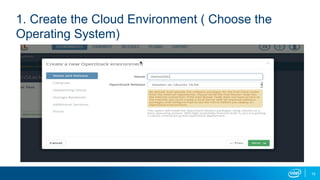
1. Create the Cloud Environment ( Choose the
Operating System)
10
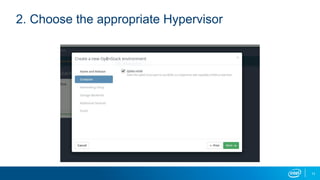
2. Choose the appropriate Hypervisor
11
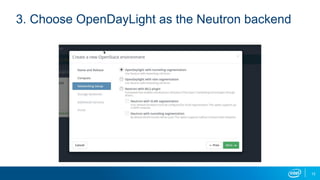
3. Choose OpenDayLight as the Neutron backend
12
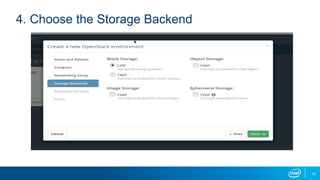
4. Choose the Storage Backend
13
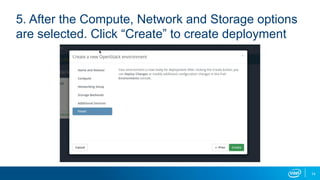
5. After the Compute, Network and Storage options
are selected. Click “Create” to create deployment
14
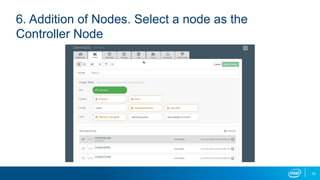
6. Addition of Nodes. Select a node as the
Controller Node
15
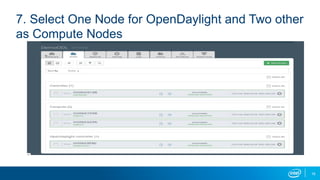
7. Select One Node for OpenDaylight and Two other
as Compute Nodes
16
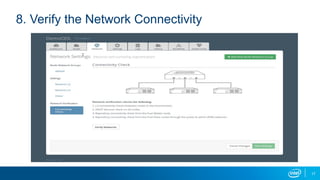
8. Verify the Network Connectivity
17
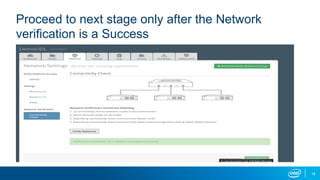
Proceed to next stage only after the Network
verification is a Success
18
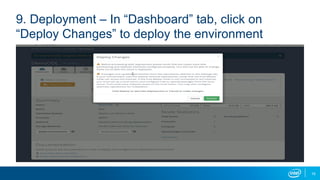
9. Deployment – In “Dashboard” tab, click on
“Deploy Changes” to deploy the environment
19
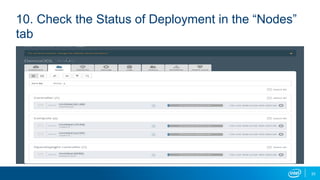
10. Check the Status of Deployment in the “Nodes”
tab
20
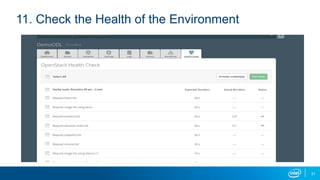
11. Check the Health of the Environment
21
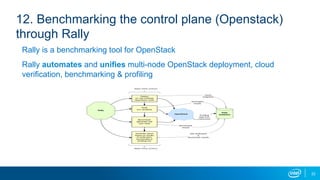
12. Benchmarking the control plane (Openstack)
through Rally
Rally is a benchmarking tool for OpenStack
Rally automates and unifies multi-node OpenStack deployment, cloud
verification, benchmarking & profiling
22
Benchmarking
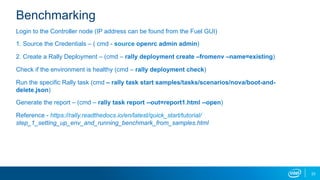
Login to the Controller node (IP address can be found from the Fuel GUI)
1. Source the Credentials – ( cmd - source openrc admin admin)
2. Create a Rally Deployment – (cmd – rally deployment create –fromenv –name=existing)
Check if the environment is healthy (cmd – rally deployment check)
Run the specific Rally task (cmd – rally task start samples/tasks/scenarios/nova/boot-and-
delete.json)
Generate the report – (cmd – rally task report --out=report1.html --open)
Reference - https://rally.readthedocs.io/en/latest/quick_start/tutorial/
step_1_setting_up_env_and_running_benchmark_from_samples.html
23
Agenda
•  Summary
•  Deployment with OpenDayLight
•  Demo
•  Conclusion
24
Agenda
•  Summary
•  Deployment with OpenDayLight
•  Demo
•  Conclusion
25
Conclusion
•  Ease of setting up the cloud with OpenDayLight and OVS+DPDK with
minimal configuration
•  Multiple deployments under single environment
•  Testing the Environment with Sanity and Functional tests
•  Benchmarking the control plane cloud using Rally
•  GUI based for better visualization of the Environment
26
References
Installation Scripts - https://github.com/openstack/fuel-plugin-ovs/
Fuel Image - http://artifacts.opnfv.org/fuel.html
IRC Handle – MasterOfBugs
Email – pramod.Raghavendra.Jayathirth@intel.com
28

OpenStack & OpenDaylight Hands-on Lab

  • 1.
    Deploying DPDK powered cloudwith OpenDaylightPramod Raghavendra Jayathirth OpenSource Technology Center At Intel
  • 2.
    Agenda •  Overview •  Deploymentwith OpenDayLight and DPDK •  Demo •  Conclusion 2
  • 3.
    3 Overview !  Stable deploymentof OpenStack, OpenDayLight and DPDK !  Needed for development and Deployment !  Need to ease the deployment with minimal debugging !  OPNFV Fuel is a deployment tool which eases the task of !  Deploy and manage various OpenStack distributions !  Support third party plugins like OpenDayLight !  Abstracts out various configuration complexities ( Ex:- devstack)
  • 4.
    Fuel •  Fuel isa OpenStack management Project developed by OpenStack community •  GUI based – Ease of use •  Reduces complexity of deployment through orchestration of Operating Systems Other Alternatives •  OpenStack-ansible, OpenStack-Kolla and Devstack 4
  • 5.
    Agenda •  Overview •  Deploymentwith OpenDayLight and DPDK •  Demo •  Conclusion 5
  • 6.
    6 Deployment Process Overview ofDeployment 172.16.0.0/24 Data/Public Network Master Node Slave Node 1 Slave Node 2 10.20.0.0/24 Admin Network for PXE External Network Proxy ethZ ethY ethX
  • 7.
  • 8.
    8 Steps for theInstallation and Deployment 1.  Installation of Fuel Deployer 2.  Deployment of Cloud Environment 1. Installation of Fuel Deployer •  Setup the Servers as per the required configuration •  Download the scripts from github which would help in installation •  Make the necessary changes with respect to Interface configuration •  Select the support for DPDK Installation •  Run the scripts in the order of the number
  • 9.
    2. Deployment ofCloud Enviroment !  Create the deployment and select the configuration !  Selection of Nodes (OpenDaylight Plugin is required) !  Network Connectivity Check !  Operating System orchestration !  OpenStack and OpenDayLight Installation with DPDK !  Tests for installation of Services 9
  • 10.
    1. Create theCloud Environment ( Choose the Operating System) 10
  • 11.
    2. Choose theappropriate Hypervisor 11
  • 12.
    3. Choose OpenDayLightas the Neutron backend 12
  • 13.
    4. Choose theStorage Backend 13
  • 14.
    5. After theCompute, Network and Storage options are selected. Click “Create” to create deployment 14
  • 15.
    6. Addition ofNodes. Select a node as the Controller Node 15
  • 16.
    7. Select OneNode for OpenDaylight and Two other as Compute Nodes 16
  • 17.
    8. Verify theNetwork Connectivity 17
  • 18.
    Proceed to nextstage only after the Network verification is a Success 18
  • 19.
    9. Deployment –In “Dashboard” tab, click on “Deploy Changes” to deploy the environment 19
  • 20.
    10. Check theStatus of Deployment in the “Nodes” tab 20
  • 21.
    11. Check theHealth of the Environment 21
  • 22.
    12. Benchmarking thecontrol plane (Openstack) through Rally Rally is a benchmarking tool for OpenStack Rally automates and unifies multi-node OpenStack deployment, cloud verification, benchmarking & profiling 22
  • 23.
    Benchmarking Login to theController node (IP address can be found from the Fuel GUI) 1. Source the Credentials – ( cmd - source openrc admin admin) 2. Create a Rally Deployment – (cmd – rally deployment create –fromenv –name=existing) Check if the environment is healthy (cmd – rally deployment check) Run the specific Rally task (cmd – rally task start samples/tasks/scenarios/nova/boot-and- delete.json) Generate the report – (cmd – rally task report --out=report1.html --open) Reference - https://rally.readthedocs.io/en/latest/quick_start/tutorial/ step_1_setting_up_env_and_running_benchmark_from_samples.html 23
  • 24.
    Agenda •  Summary •  Deploymentwith OpenDayLight •  Demo •  Conclusion 24
  • 25.
    Agenda •  Summary •  Deploymentwith OpenDayLight •  Demo •  Conclusion 25
  • 26.
    Conclusion •  Ease ofsetting up the cloud with OpenDayLight and OVS+DPDK with minimal configuration •  Multiple deployments under single environment •  Testing the Environment with Sanity and Functional tests •  Benchmarking the control plane cloud using Rally •  GUI based for better visualization of the Environment 26
  • 28.
    References Installation Scripts -https://github.com/openstack/fuel-plugin-ovs/ Fuel Image - http://artifacts.opnfv.org/fuel.html IRC Handle – MasterOfBugs Email – pramod.Raghavendra.Jayathirth@intel.com 28