OpenStack
4th days
KOSS Lab.
Mario Cho
Hephaex@gmail.com
Who am I ?
Development Experience
◆ Image Recognition using Neural Network
◆ Bio-Medical Data Processing
◆ Human Brain Mapping on High Performance
Computing
◆ Medical Image Reconstruction
(Computer Tomography)
◆ Enterprise System
◆ Open Source Software Developer
Open Source Software Developer
◆ Linux Kernel & LLVM
◆ OPNFV (NFV&SDN) & OpenStack
◆ Machine Learning (TensorFlow)
Book
◆ Unix V6 Kernel
Korea Open Source Software Lab.
Mario Cho
hephaex@gmail.com
Packstack 준비
• # yum update –y
• # setenforce 0
• # edit /etc/selinux/config -> Edit (vi or nano) selinux disabled 확인
• # # systemctl stop firewalld
• # systemctl disable firewalld
• # systemctl disable NetworkManager
• # yum install gcc python-devel
• # rmp –iUvh http://dl.fedoraproject.org/pub/epel/7/x86_64/e/epel-release-
7.8.noarch.rpm
• # yum install python-pip
• # pip install oslo.concurrency
• # pip install netifaces
• # yum install –y http://rdoproject.org/repos/openstack-liberty.rpm
• # yum install openstack-packstack
• # packstack --gen-answer-file=/root/answer.txt
Edit answer.txt
• # NTP Server
• CONFIG_NTP_SERVERS=<NTP_Server_IP>
• # Disable Demo Version
• CONFIG_PROVISION_DEMO=n
• # Set KeyStone Admin Password or Admin user Password
• CONFIG_KEYSTONE_ADMIN_PW=<password>
• # Config Horizon over SSL
• CONFIG_HORIZON_SSL=y
• # Disable Nagios
• CONFIG_NAGIOS_INSTALL=n
Packstack 설치
• # Edit (vi or nano) /root/answer.txt
• # packstack --answer-file /root/answer.txt
• Identity Tab –> Projects and Click on Create Project.
• Identify Tab–> Users–> Click on ‘Create User’
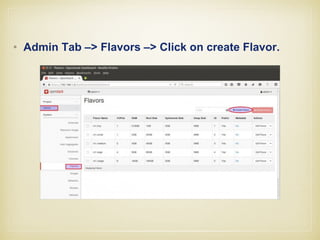
• Admin Tab –> Flavors –> Click on create Flavor.
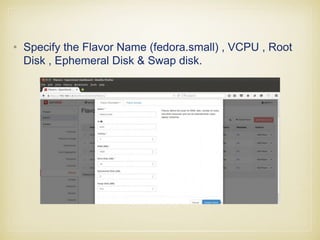
• Specify the Flavor Name (fedora.small) , VCPU , Root
Disk , Ephemeral Disk & Swap disk.
Image 생성:
• Admin Tab –> Images—> Click on Create Image.
• Network Tab —> Click on Networks —> then Click
on Create Network
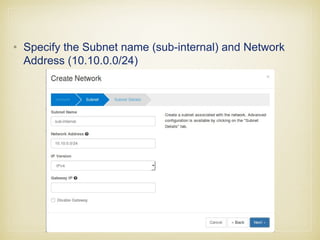
• Specify the Subnet name (sub-internal) and Network
Address (10.10.0.0/24)
Create External Network .
• Click on “Create Network” again , Specify Network
Name as “external”
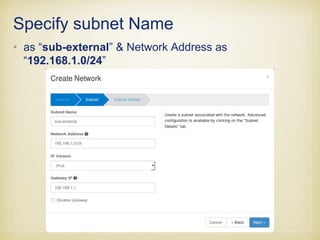
Specify subnet Name
• as “sub-external” & Network Address as
“192.168.1.0/24”
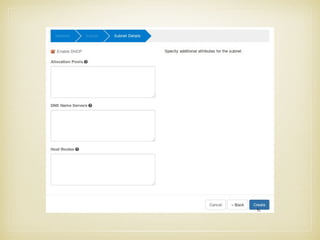
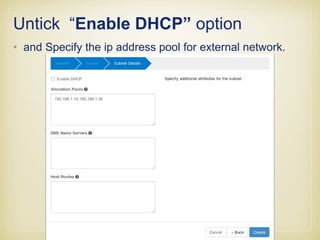
Untick “Enable DHCP” option
• and Specify the ip address pool for external network.
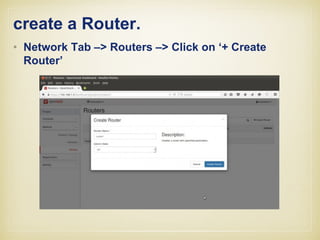
create a Router.
• Network Tab –> Routers –> Click on ‘+ Create
Router’
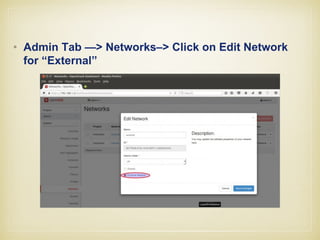
• Admin Tab —> Networks–> Click on Edit Network
for “External”
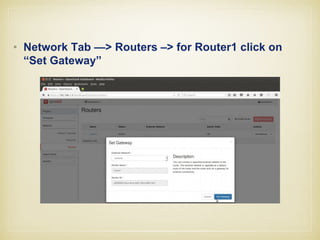
• Network Tab —> Routers –> for Router1 click on
“Set Gateway”
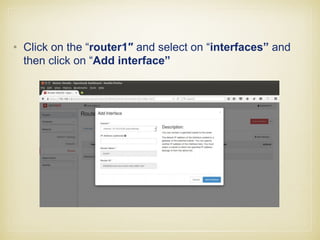
• Click on the “router1″ and select on “interfaces” and
then click on “Add interface”
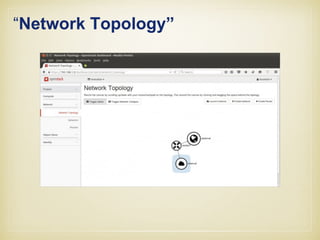
“Network Topology”
• Access & Security’ Tab —> Click on Key Pairs –>
then click on ‘Create Key Pair‘
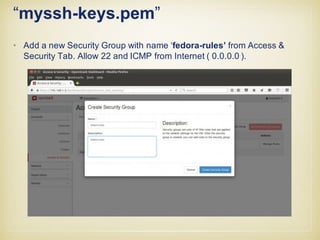
“myssh-keys.pem”
• Add a new Security Group with name ‘fedora-rules’ from Access &
Security Tab. Allow 22 and ICMP from Internet ( 0.0.0.0 ).
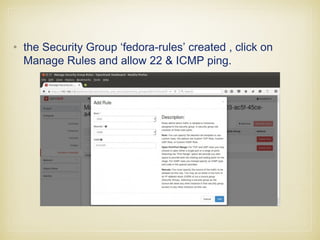
• the Security Group ‘fedora-rules’ created , click on
Manage Rules and allow 22 & ICMP ping.
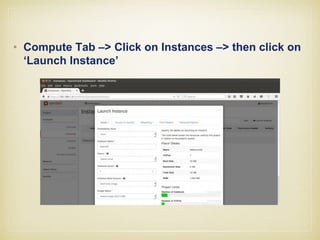
• Compute Tab –> Click on Instances –> then click on
‘Launch Instance’
• Click on ‘Access & Security’ and Select the Security
Group ‘fedora-rules’ & Key Pair ”myssh-keys‘
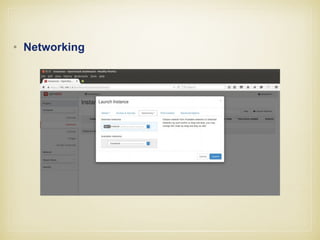
• Networking
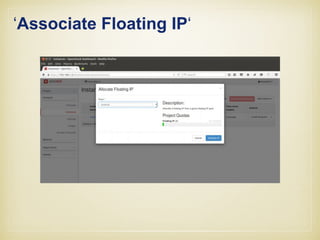
• Once the VM is launched , Associate a floating ip so that
we can access the VM.
‘Associate Floating IP‘
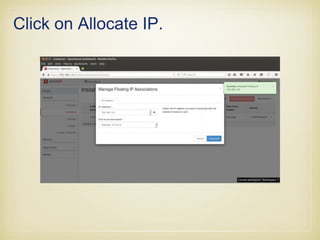
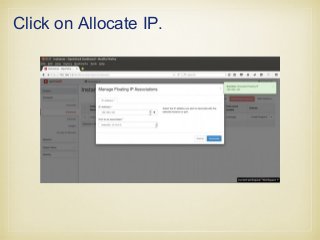
Click on Allocate IP.
Click on Associate
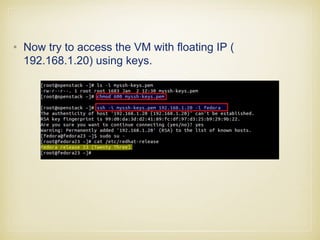
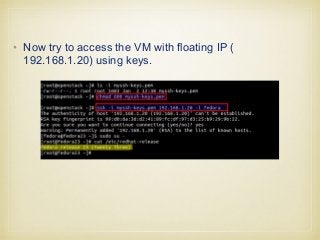
• Now try to access the VM with floating IP (
192.168.1.20) using keys.

Open stack 4day

  • 1.
  • 2.
    Who am I? Development Experience ◆ Image Recognition using Neural Network ◆ Bio-Medical Data Processing ◆ Human Brain Mapping on High Performance Computing ◆ Medical Image Reconstruction (Computer Tomography) ◆ Enterprise System ◆ Open Source Software Developer Open Source Software Developer ◆ Linux Kernel & LLVM ◆ OPNFV (NFV&SDN) & OpenStack ◆ Machine Learning (TensorFlow) Book ◆ Unix V6 Kernel Korea Open Source Software Lab. Mario Cho hephaex@gmail.com
  • 3.
    Packstack 준비 • #yum update –y • # setenforce 0 • # edit /etc/selinux/config -> Edit (vi or nano) selinux disabled 확인 • # # systemctl stop firewalld • # systemctl disable firewalld • # systemctl disable NetworkManager • # systemctl disable NetworkManager • # yum install gcc python-devel • # rmp –iUvh http://dl.fedoraproject.org/pub/epel/7/x86_64/e/epel-release- 7.8.noarch.rpm • # yum install python-pip • # pip install oslo.concurrency • # pip install netifaces • # yum install –y http://rdoproject.org/repos/openstack-liberty.rpm • # yum install openstack-packstack • # packstack --gen-answer-file=/root/answer.txt
  • 4.
    Edit answer.txt • #NTP Server • CONFIG_NTP_SERVERS=<NTP_Server_IP> • # Disable Demo Version • CONFIG_PROVISION_DEMO=n • # Set KeyStone Admin Password or Admin user Password • CONFIG_KEYSTONE_ADMIN_PW=<password> • # Config Horizon over SSL • CONFIG_HORIZON_SSL=y • # Disable Nagios • CONFIG_NAGIOS_INSTALL=n
  • 5.
    Packstack 설치 • #Edit (vi or nano) /root/answer.txt • # packstack --answer-file /root/answer.txt
  • 6.
    • Identity Tab–> Projects and Click on Create Project.
  • 7.
    • Identify Tab–>Users–> Click on ‘Create User’
  • 8.
    • Admin Tab–> Flavors –> Click on create Flavor.
  • 9.
    • Specify theFlavor Name (fedora.small) , VCPU , Root Disk , Ephemeral Disk & Swap disk.
  • 10.
    Image 생성: • AdminTab –> Images—> Click on Create Image.
  • 11.
    • Network Tab—> Click on Networks —> then Click on Create Network
  • 12.
    • Specify theSubnet name (sub-internal) and Network Address (10.10.0.0/24)
  • 14.
    Create External Network. • Click on “Create Network” again , Specify Network Name as “external”
  • 15.
    Specify subnet Name •as “sub-external” & Network Address as “192.168.1.0/24”
  • 16.
    Untick “Enable DHCP”option • and Specify the ip address pool for external network.
  • 17.
    create a Router. •Network Tab –> Routers –> Click on ‘+ Create Router’
  • 18.
    • Admin Tab—> Networks–> Click on Edit Network for “External”
  • 19.
    • Network Tab—> Routers –> for Router1 click on “Set Gateway”
  • 20.
    • Click onthe “router1″ and select on “interfaces” and then click on “Add interface”
  • 21.
  • 22.
    • Access &Security’ Tab —> Click on Key Pairs –> then click on ‘Create Key Pair‘
  • 23.
    “myssh-keys.pem” • Add anew Security Group with name ‘fedora-rules’ from Access & Security Tab. Allow 22 and ICMP from Internet ( 0.0.0.0 ).
  • 24.
    • the SecurityGroup ‘fedora-rules’ created , click on Manage Rules and allow 22 & ICMP ping.
  • 25.
    • Compute Tab–> Click on Instances –> then click on ‘Launch Instance’
  • 26.
    • Click on‘Access & Security’ and Select the Security Group ‘fedora-rules’ & Key Pair ”myssh-keys‘
  • 27.
  • 28.
    • Once theVM is launched , Associate a floating ip so that we can access the VM.
  • 29.
  • 30.
  • 31.
  • 32.
    • Now tryto access the VM with floating IP ( 192.168.1.20) using keys.