Justin Georgesjo-georges@wiu.eduInstructional Materials Specialist University Libraries-Western Illinois UniversityTeaching in the Cloud (On a Shoestring Budget)
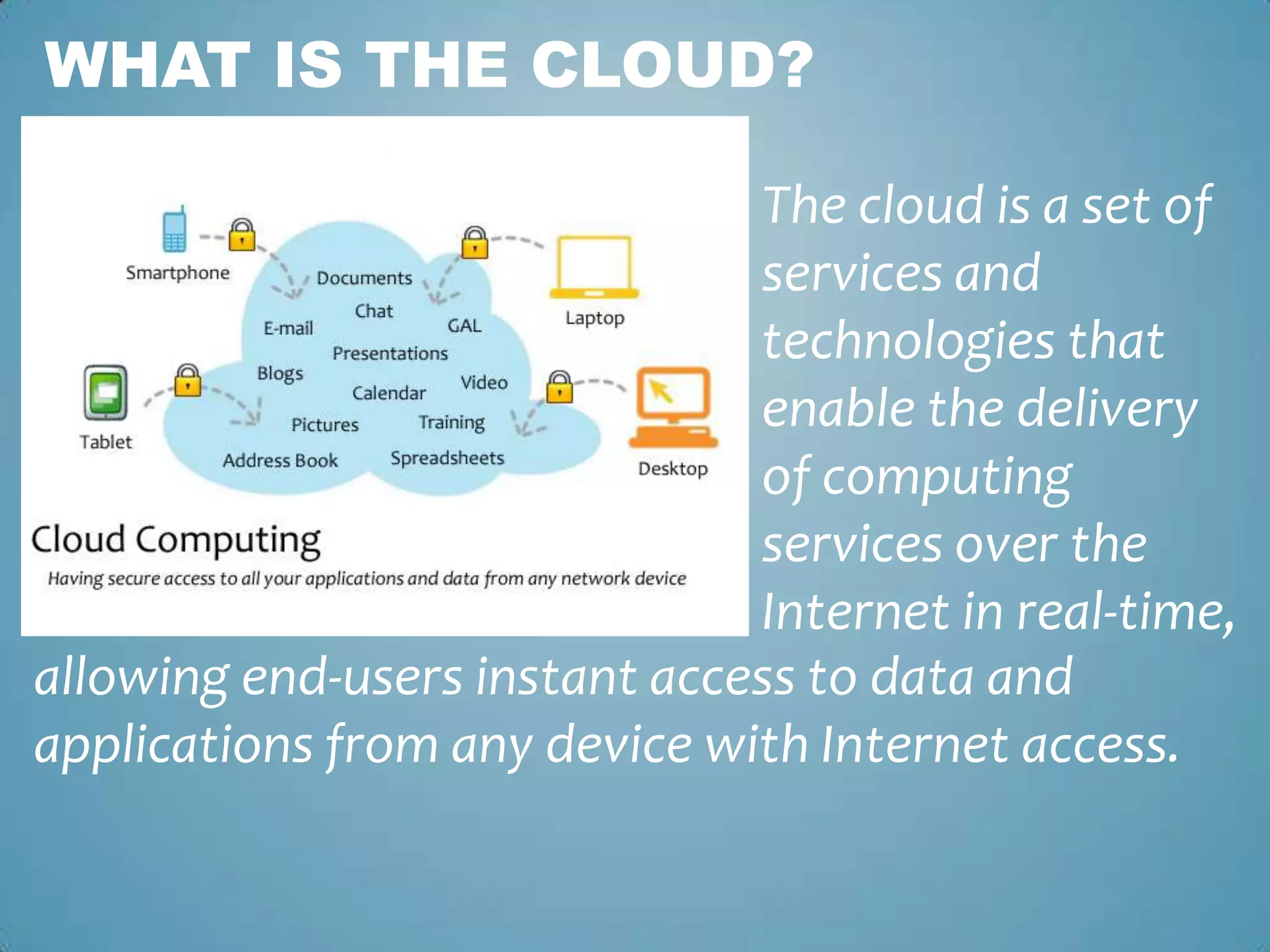
What is the Cloud?The cloud is a set of                                                 services and technologies that enable the delivery of computing services over the Internet in real-time, allowing end-users instant access to data and applications from any device with Internet access.
Cloud ApplicationsApplications delivered over the Internet, usually through a Web browser. Activities that are managed from central locations rather than at each customer's site, enabling customers to access applications remotely via the WebCentralized feature updating, which eliminates the need for downloadable patches and upgrades
DropboxJingWordleDiigoPicnikPoll EverywhereTopics Covered Today Include:
Put your files into your Dropbox on one computer, and they'll be instantly available on any of your other computers that you've installed Dropbox on Windows and MAC compatable!Your files are stored on Dropbox's secure servers. You can also access them from any computer or mobile deviceCan install mobile application on phone to access filesDropbox keeps a history of all changes made and you can login to the website and revert back to any previous versions of files. Works even when offline. You always have your files, whether or not you have a connection.Cloud Storage
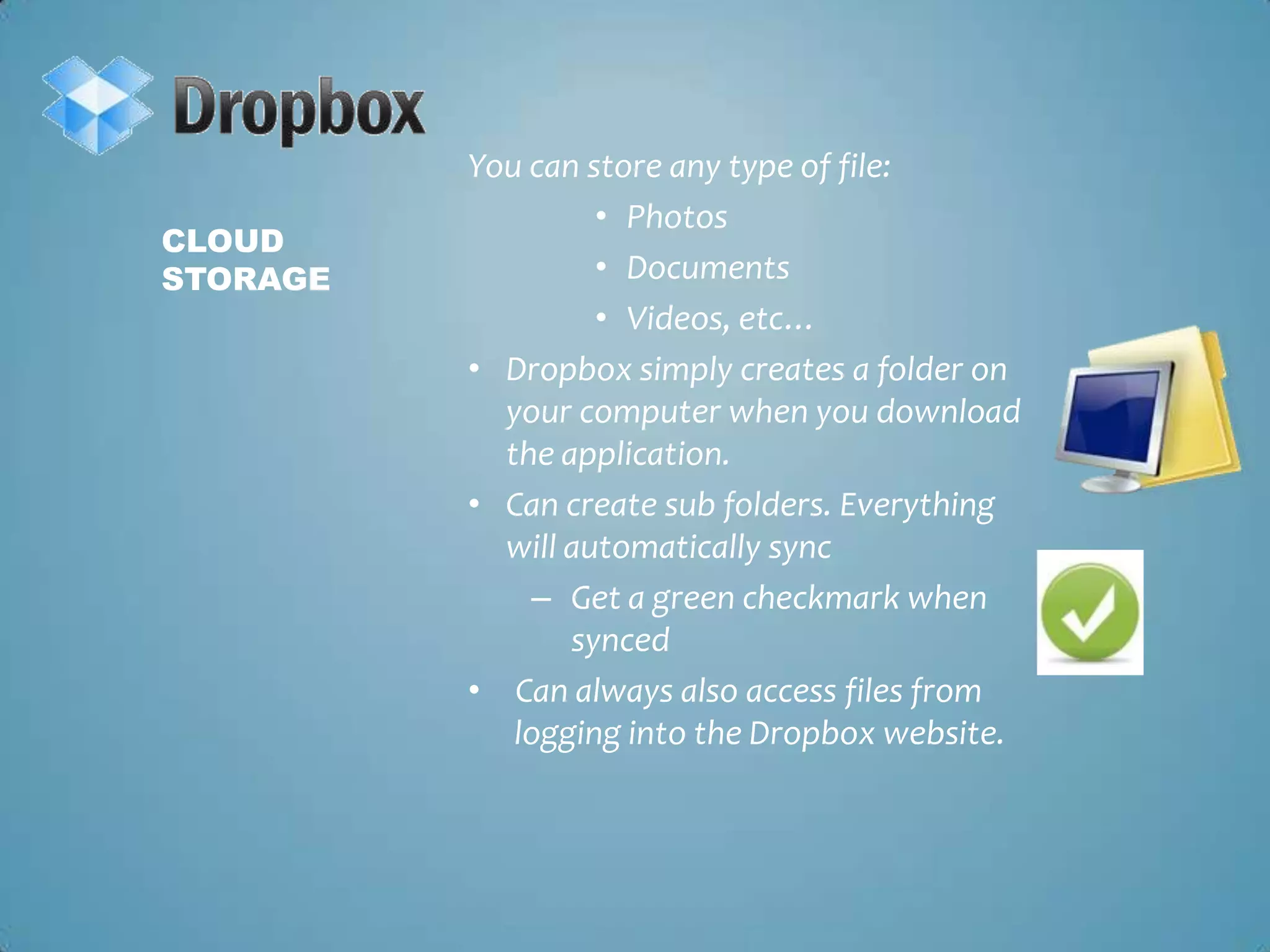
You can store any type of file:Photos DocumentsVideos, etc…Dropbox simply creates a folder on your computer when you download the application.Can create sub folders. Everything will automatically syncGet a green checkmark when syncedCan always also access files from logging into the Dropbox website. Cloud Storage
Up to 2GB’s of storage FREE!!!That’s approximately 400 decent quality pictures or 70,000 word pages (depends on file size)You can pay for more storage if needed.Similar to Mozy and MobileMeEliminates need for a USB driveThe Dropbox public folder is a great way to share files with others who don’t have a shared folder in Dropbox. Simply drop file in “Public Folder” and a link is automatically created. Right click on this file and go to the  “Dropbox” menu and select “Copy Public Link”Now you can paste and share this link with others. Think of it as your own public web server storage space that can be used as web hosting.The Features
With Dropbox, you can share a folder with users which can be used as an assignment drop box or collaborative area. You can put files in the public area and send links out. When you sign others up, you will get more storage space, free!!!A great way to store and share larger files. Create an accountInstall the applicationCreate a folderShare that folder (Right click on folder) with someone elseWe’ll start adding items to this folder. ..Collaborative uses for education
The always-ready program that instantly captures and shares images and video.Windows and MAC compatible!Easily share your capture by creating a link.Can easily embed video into website or blog. Up to 2GB’s of storage FREE!!!This storage is on the TechSmith servers.Eliminate the hassle of storing it that and just drag into Dropbox to share with others.  You can access it from anywhere.Screen Capture toolFeatures
Capture anything you see on your screen and annotate that image.After you have installed the application, use the Jing sun from your desktopHover over the sun and select the cross hairs icon.Click and drag area of the screen thatyou want to capture.Release button and decide to click to capture the image or video. You will be re-directed to editing interface.  Add callouts and text.Name image and save to your Dropbox shared folder.Getting Started
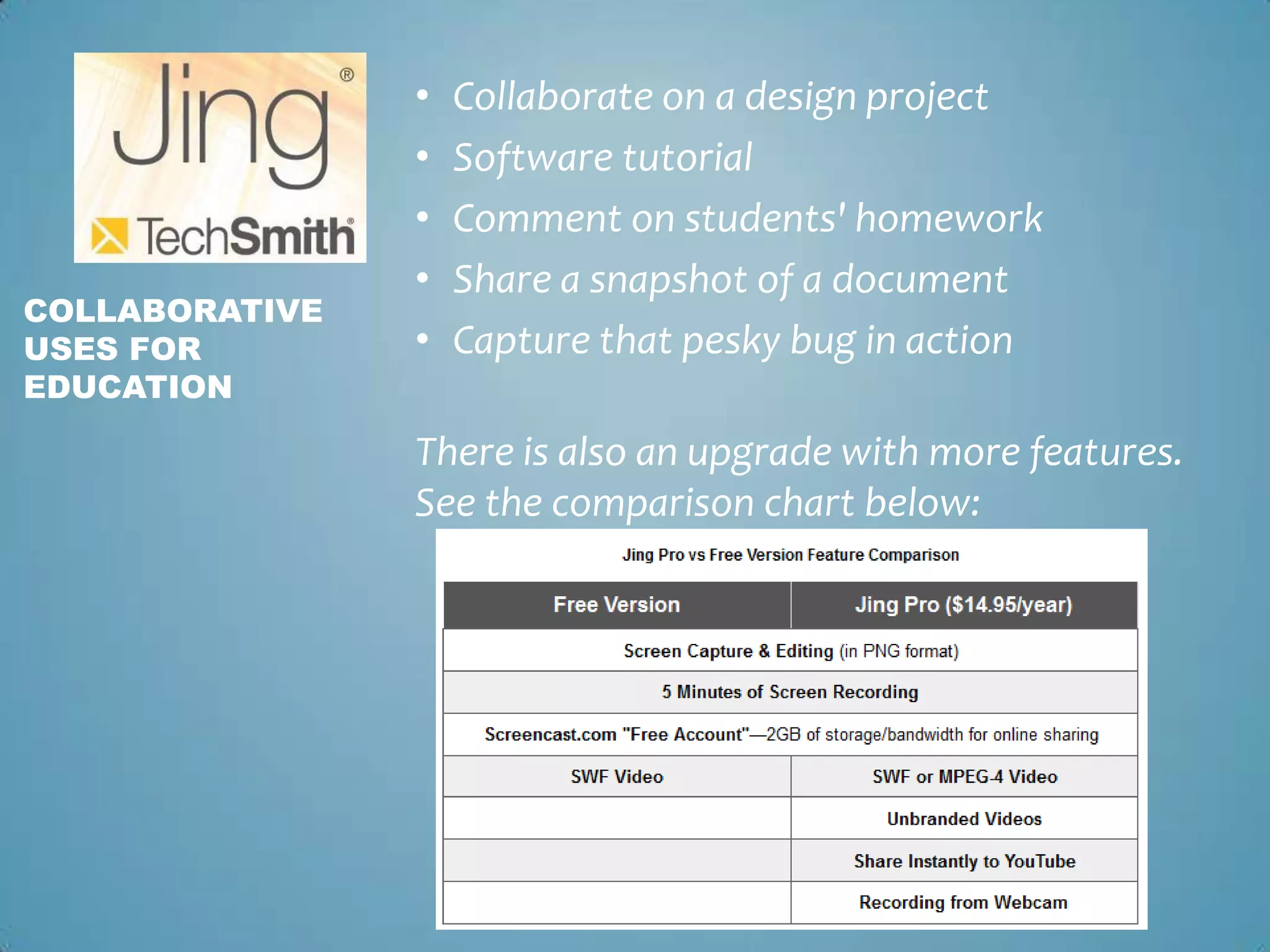
Collaborate on a design projectSoftware tutorialComment on students' homeworkShare a snapshot of a documentCapture that pesky bug in actionThere is also an upgrade with more features. See the comparison chart below:Collaborative uses for education
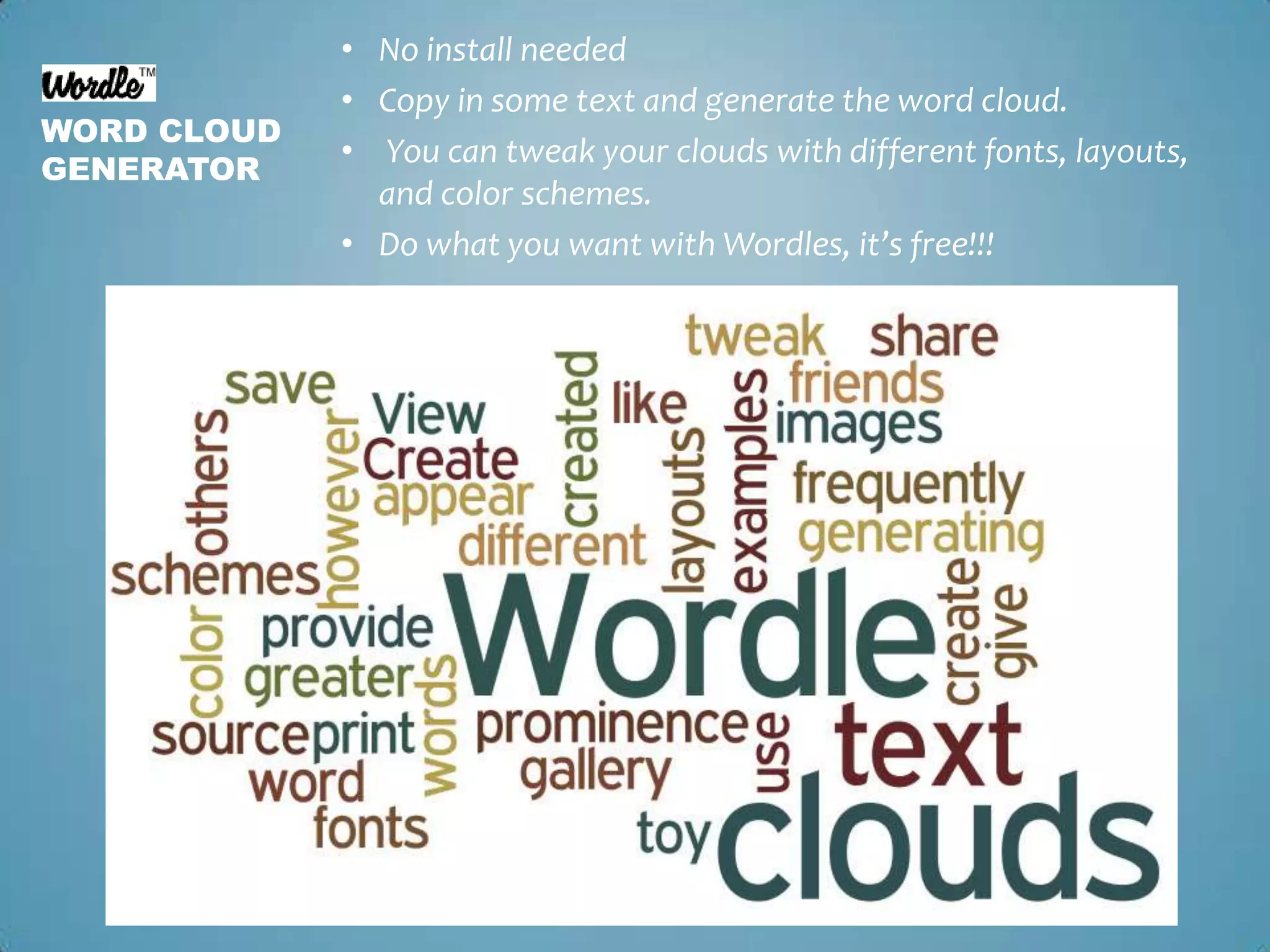
No install neededCopy in some text and generate the word cloud. You can tweak your clouds with different fonts, layouts, and color schemes.Do what you want with Wordles, it’s free!!!Word cloud generator
Click “Create”Copy some text from someplacePaste the text in the boxClick “Go”Make modifications using the menu at the top of the Wordle windowThe featuresSAVING WORDLESWordle is a Java applet, and Java applets are not permitted to write anything to your disk. So, while the applet could generate a jpeg, it wouldn't be able to give it to you! Solve this by using Jing to capture the wordle.Save your wordle to your shared dropbox folder. You can print wordles.
Great to create artwork for a classroom.Some have used to create a poster for class doors the first day of class.See the Advanced page on Wordle for some really neat features!The Wordle front page will never feature images or links that are inappropriate for classroom use. Therefore, it's possible to configure an institution's "site-blocking" software to keep Wordle safe for classroom use. Collaborative uses for education
Collect and access information on the web.Store that information and retrieve it for laterAccess from any web browser or mobile device.Everything stored on Diigo Server in your own library space stored in the cloud.Add digital highlights and interactive sticky notes. Install browser add on for easier access. Save pages and access them later, even if you don’t have internet access.InformationManagementSystem
Save all bookmarks in one location in the cloudOrganize these bookmarks by tags for better reference.Use snapshot to archive an entire webpage. Mark things to read laterCapture tool built right in!!!Annotate screenshot with shapes, arrow and textStore image in diigo library.Use the Digolet, Diigo Toolbar, Power Note for Android, extension for Chrome and iPhoneThe Features
You can keep things private or public, or shared with a group. Publish your findings to your blog by using "Send to Blog" feature, by setting up automatic daily posting, or by adding linkrolls and tagrolls to your blog. You can also easily post to other sites like twitter, facebook, delicious, etc.Use "Annotated links" to share your "diigoed" page with anyone! The recipient can see your annotated page without needing any software installed!Get a stream of updates from people you follow, where you find interesting resources and conversations can occur easily and naturally.Sharing
Sticky notes and highlights are great for interactive e-reading and better retention.Create a private or public group for your company, class, and teamGroup members can share bookmarks for a particular project or research paper.When adding sticky notes, you can make them private, public, or viewable only by members of a certain group. With group sticky notes, group members can interact and discuss important points right on the web page, preserving the original context.Group tag dictionary to enforce tagging consistencyCollaborative uses for Education

CyberCamp 2011

  • 1.
    Justin Georgesjo-georges@wiu.eduInstructional MaterialsSpecialist University Libraries-Western Illinois UniversityTeaching in the Cloud (On a Shoestring Budget)
  • 2.
    What is theCloud?The cloud is a set of services and technologies that enable the delivery of computing services over the Internet in real-time, allowing end-users instant access to data and applications from any device with Internet access.
  • 3.
    Cloud ApplicationsApplications deliveredover the Internet, usually through a Web browser. Activities that are managed from central locations rather than at each customer's site, enabling customers to access applications remotely via the WebCentralized feature updating, which eliminates the need for downloadable patches and upgrades
  • 4.
  • 5.
    Put your filesinto your Dropbox on one computer, and they'll be instantly available on any of your other computers that you've installed Dropbox on Windows and MAC compatable!Your files are stored on Dropbox's secure servers. You can also access them from any computer or mobile deviceCan install mobile application on phone to access filesDropbox keeps a history of all changes made and you can login to the website and revert back to any previous versions of files. Works even when offline. You always have your files, whether or not you have a connection.Cloud Storage
  • 6.
    You can storeany type of file:Photos DocumentsVideos, etc…Dropbox simply creates a folder on your computer when you download the application.Can create sub folders. Everything will automatically syncGet a green checkmark when syncedCan always also access files from logging into the Dropbox website. Cloud Storage
  • 7.
    Up to 2GB’sof storage FREE!!!That’s approximately 400 decent quality pictures or 70,000 word pages (depends on file size)You can pay for more storage if needed.Similar to Mozy and MobileMeEliminates need for a USB driveThe Dropbox public folder is a great way to share files with others who don’t have a shared folder in Dropbox. Simply drop file in “Public Folder” and a link is automatically created. Right click on this file and go to the “Dropbox” menu and select “Copy Public Link”Now you can paste and share this link with others. Think of it as your own public web server storage space that can be used as web hosting.The Features
  • 8.
    With Dropbox, youcan share a folder with users which can be used as an assignment drop box or collaborative area. You can put files in the public area and send links out. When you sign others up, you will get more storage space, free!!!A great way to store and share larger files. Create an accountInstall the applicationCreate a folderShare that folder (Right click on folder) with someone elseWe’ll start adding items to this folder. ..Collaborative uses for education
  • 9.
    The always-ready programthat instantly captures and shares images and video.Windows and MAC compatible!Easily share your capture by creating a link.Can easily embed video into website or blog. Up to 2GB’s of storage FREE!!!This storage is on the TechSmith servers.Eliminate the hassle of storing it that and just drag into Dropbox to share with others. You can access it from anywhere.Screen Capture toolFeatures
  • 10.
    Capture anything yousee on your screen and annotate that image.After you have installed the application, use the Jing sun from your desktopHover over the sun and select the cross hairs icon.Click and drag area of the screen thatyou want to capture.Release button and decide to click to capture the image or video. You will be re-directed to editing interface. Add callouts and text.Name image and save to your Dropbox shared folder.Getting Started
  • 11.
    Collaborate on adesign projectSoftware tutorialComment on students' homeworkShare a snapshot of a documentCapture that pesky bug in actionThere is also an upgrade with more features. See the comparison chart below:Collaborative uses for education
  • 12.
    No install neededCopyin some text and generate the word cloud. You can tweak your clouds with different fonts, layouts, and color schemes.Do what you want with Wordles, it’s free!!!Word cloud generator
  • 13.
    Click “Create”Copy sometext from someplacePaste the text in the boxClick “Go”Make modifications using the menu at the top of the Wordle windowThe featuresSAVING WORDLESWordle is a Java applet, and Java applets are not permitted to write anything to your disk. So, while the applet could generate a jpeg, it wouldn't be able to give it to you! Solve this by using Jing to capture the wordle.Save your wordle to your shared dropbox folder. You can print wordles.
  • 14.
    Great to createartwork for a classroom.Some have used to create a poster for class doors the first day of class.See the Advanced page on Wordle for some really neat features!The Wordle front page will never feature images or links that are inappropriate for classroom use. Therefore, it's possible to configure an institution's "site-blocking" software to keep Wordle safe for classroom use. Collaborative uses for education
  • 15.
    Collect and accessinformation on the web.Store that information and retrieve it for laterAccess from any web browser or mobile device.Everything stored on Diigo Server in your own library space stored in the cloud.Add digital highlights and interactive sticky notes. Install browser add on for easier access. Save pages and access them later, even if you don’t have internet access.InformationManagementSystem
  • 16.
    Save all bookmarksin one location in the cloudOrganize these bookmarks by tags for better reference.Use snapshot to archive an entire webpage. Mark things to read laterCapture tool built right in!!!Annotate screenshot with shapes, arrow and textStore image in diigo library.Use the Digolet, Diigo Toolbar, Power Note for Android, extension for Chrome and iPhoneThe Features
  • 17.
    You can keepthings private or public, or shared with a group. Publish your findings to your blog by using "Send to Blog" feature, by setting up automatic daily posting, or by adding linkrolls and tagrolls to your blog. You can also easily post to other sites like twitter, facebook, delicious, etc.Use "Annotated links" to share your "diigoed" page with anyone! The recipient can see your annotated page without needing any software installed!Get a stream of updates from people you follow, where you find interesting resources and conversations can occur easily and naturally.Sharing
  • 18.
    Sticky notes andhighlights are great for interactive e-reading and better retention.Create a private or public group for your company, class, and teamGroup members can share bookmarks for a particular project or research paper.When adding sticky notes, you can make them private, public, or viewable only by members of a certain group. With group sticky notes, group members can interact and discuss important points right on the web page, preserving the original context.Group tag dictionary to enforce tagging consistencyCollaborative uses for Education