
Content and Collaboration in Office 365
Simon Hudson Sam Marshall© 2016, Cloud2 Limited
© 2016, ClearBox Consulting Limited
Director of Cloud2
• 21 years in intranets and knowledge management
• Founder of Cloud2, SharePoint User GroupYorkshire
• Designed the first Out of the Box SharePoint intranet
• Physics, Medical Devices, International Marketing &
KM background
Simon Hudson
simon.hudson@cloud2.co.uk @simonjhudson / @cloud2ltd
Digital transformation specialists:
 Digital workplaces
 Portals
 Applications
 eProcesses and eForms
 Intranets
 Analytics
 Office 365 and Azure
Enable digital transformation
@Cloud2ltd
Director of ClearBox Consulting
• 18 years intranet and digital workplace
• Former global portal manager at Unilever
• Consulted on over 100 intranets
• Comms, KM & IT background
Sam Marshall
sam@clearbox.co.uk @sammarshall
v
• Intranet, SharePoint and digital
workplace
• Strategy
• Governance
• Collaboration
• Communities
• Adoption
• Training
• Practical experience
• Transparent
• Vendor-neutral
Intranets in-a-box
Get 10% off
with code:
C2Web10
Housekeeping
Recording
Slideshare
Interaction
Social media: #makeO365work
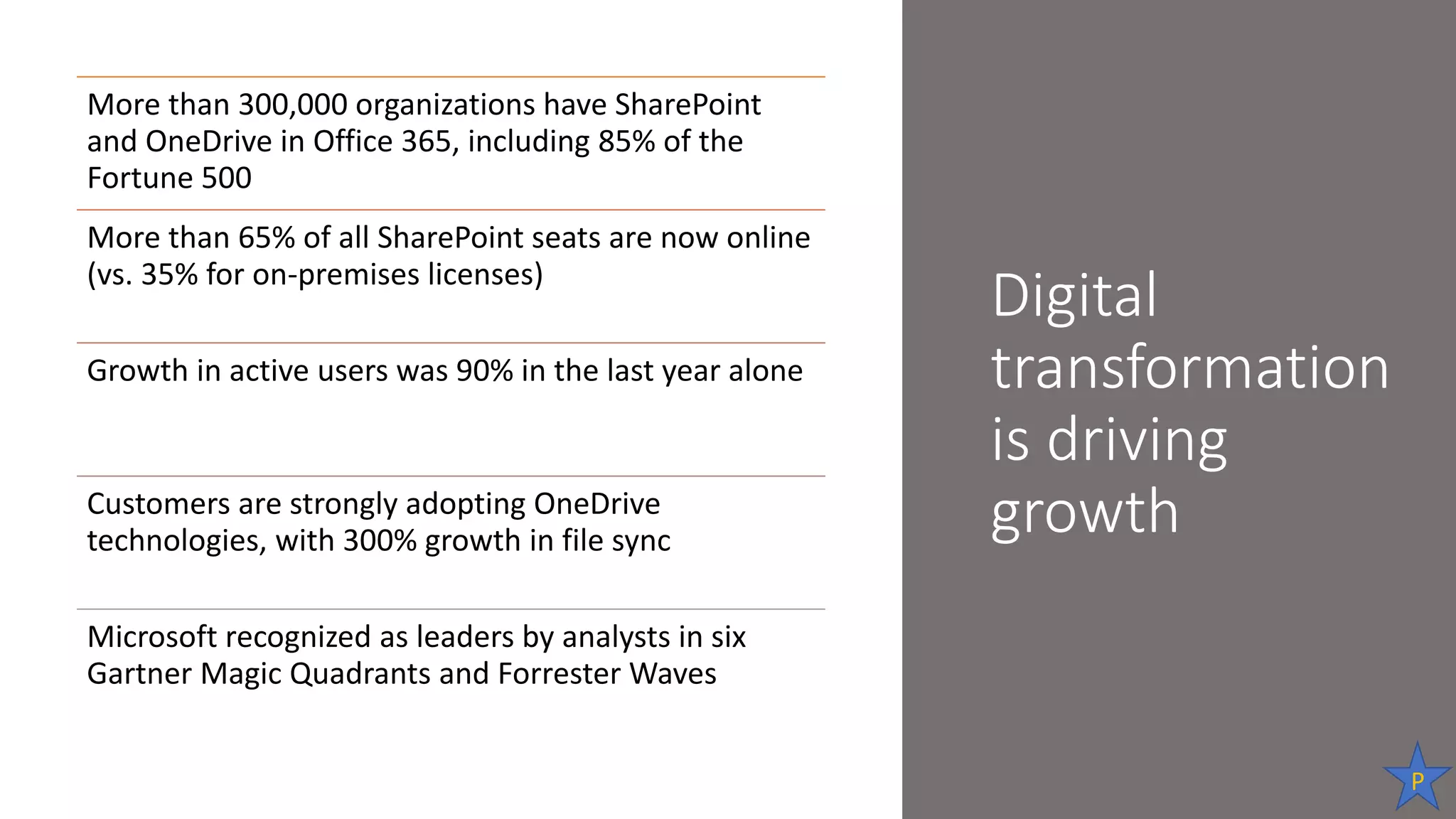
Digital
transformation
is driving
growth
More than 300,000 organizations have SharePoint
and OneDrive in Office 365, including 85% of the
Fortune 500
More than 65% of all SharePoint seats are now online
(vs. 35% for on-premises licenses)
Growth in active users was 90% in the last year alone
Customers are strongly adopting OneDrive
technologies, with 300% growth in file sync
Microsoft recognized as leaders by analysts in six
Gartner Magic Quadrants and Forrester Waves
P
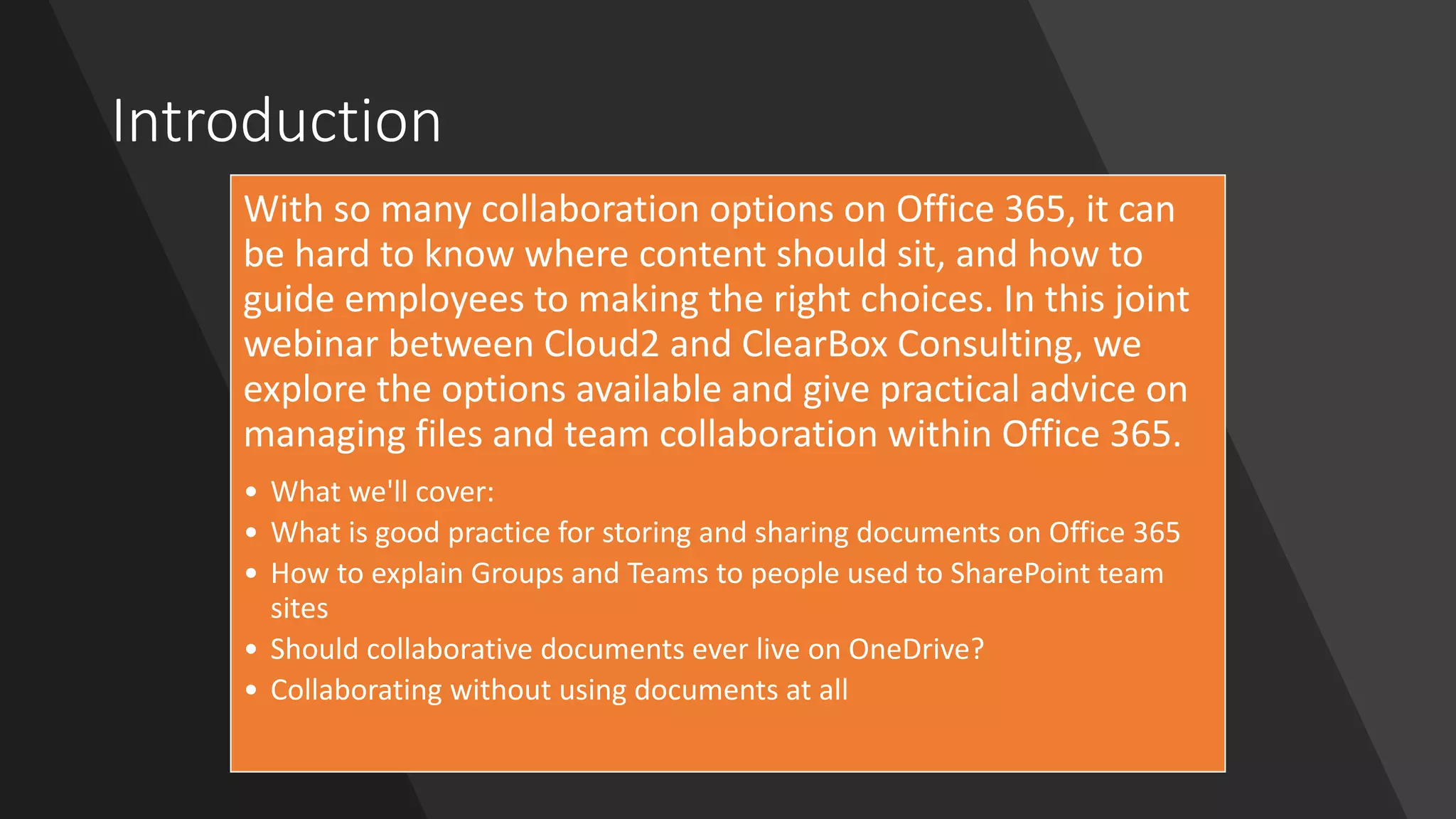
Introduction
With so many collaboration options on Office 365, it can
be hard to know where content should sit, and how to
guide employees to making the right choices. In this joint
webinar between Cloud2 and ClearBox Consulting, we
explore the options available and give practical advice on
managing files and team collaboration within Office 365.
• What we'll cover:
• What is good practice for storing and sharing documents on Office 365
• How to explain Groups and Teams to people used to SharePoint team
sites
• Should collaborative documents ever live on OneDrive?
• Collaborating without using documents at all
Making sense of O365 content and collaboration
options
Simon Hudson
simon.hudson@cloud2.co.uk @simonjhudson / @cloud2ltd
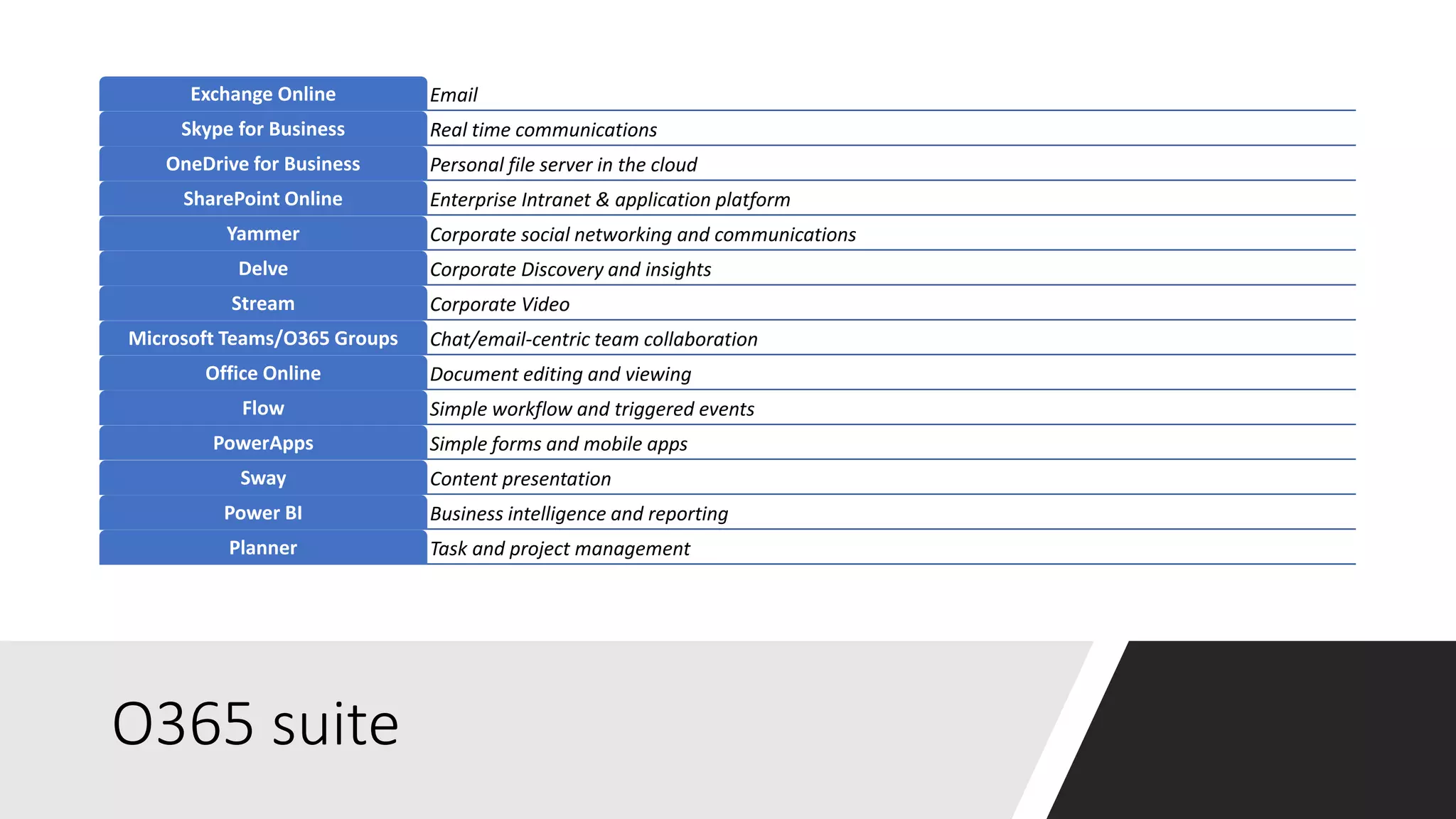
O365 suite
EmailExchange Online
Real time communicationsSkype for Business
Personal file server in the cloudOneDrive for Business
Enterprise Intranet & application platformSharePoint Online
Corporate social networking and communicationsYammer
Corporate Discovery and insightsDelve
Corporate VideoStream
Chat/email-centric team collaborationMicrosoft Teams/O365 Groups
Document editing and viewingOffice Online
Simple workflow and triggered eventsFlow
Simple forms and mobile appsPowerApps
Content presentationSway
Business intelligence and reportingPower BI
Task and project managementPlanner
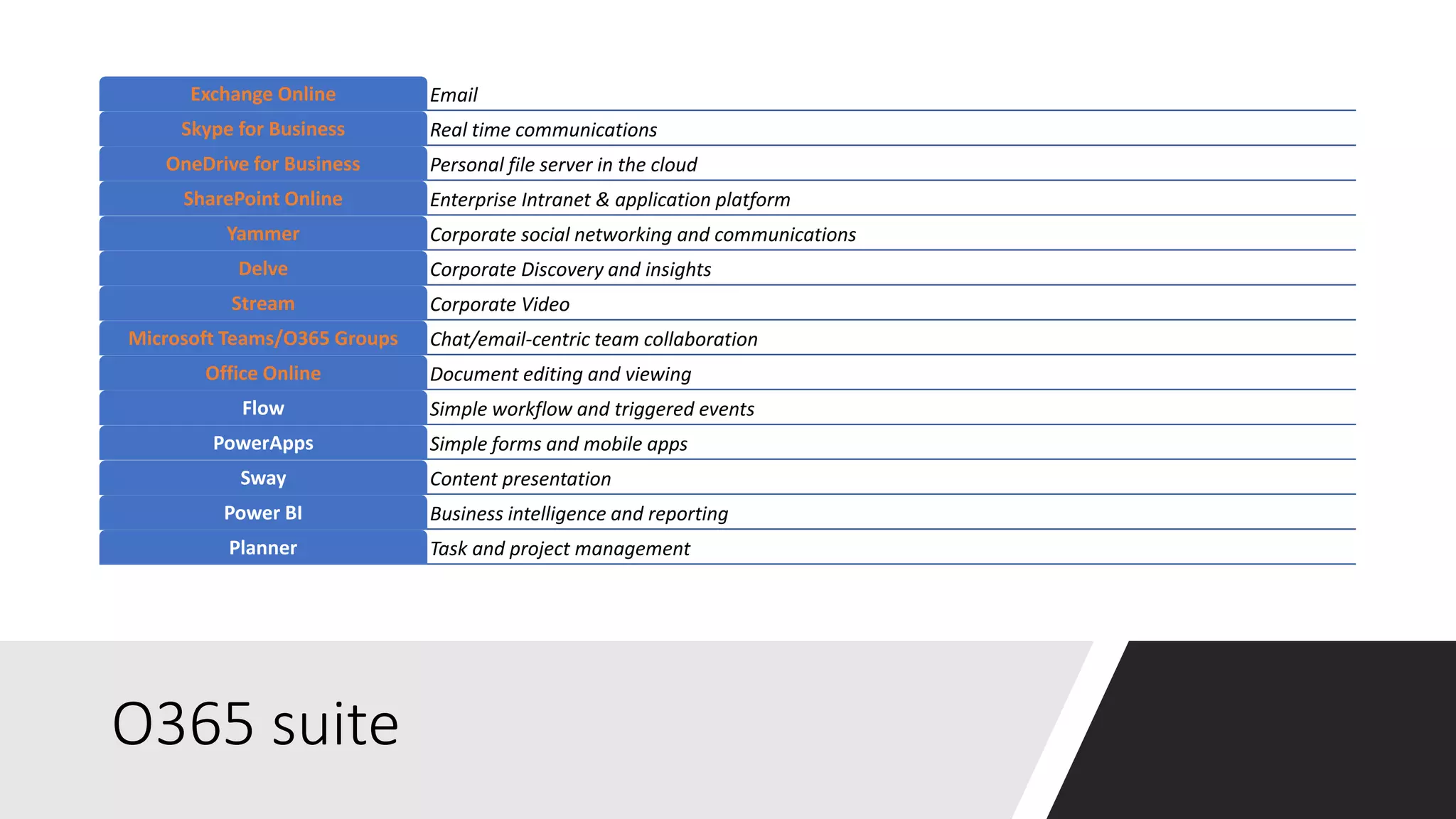
O365 suite
EmailExchange Online
Real time communicationsSkype for Business
Personal file server in the cloudOneDrive for Business
Enterprise Intranet & application platformSharePoint Online
Corporate social networking and communicationsYammer
Corporate Discovery and insightsDelve
Corporate VideoStream
Chat/email-centric team collaborationMicrosoft Teams/O365 Groups
Document editing and viewingOffice Online
Simple workflow and triggered eventsFlow
Simple forms and mobile appsPowerApps
Content presentationSway
Business intelligence and reportingPower BI
Task and project managementPlanner
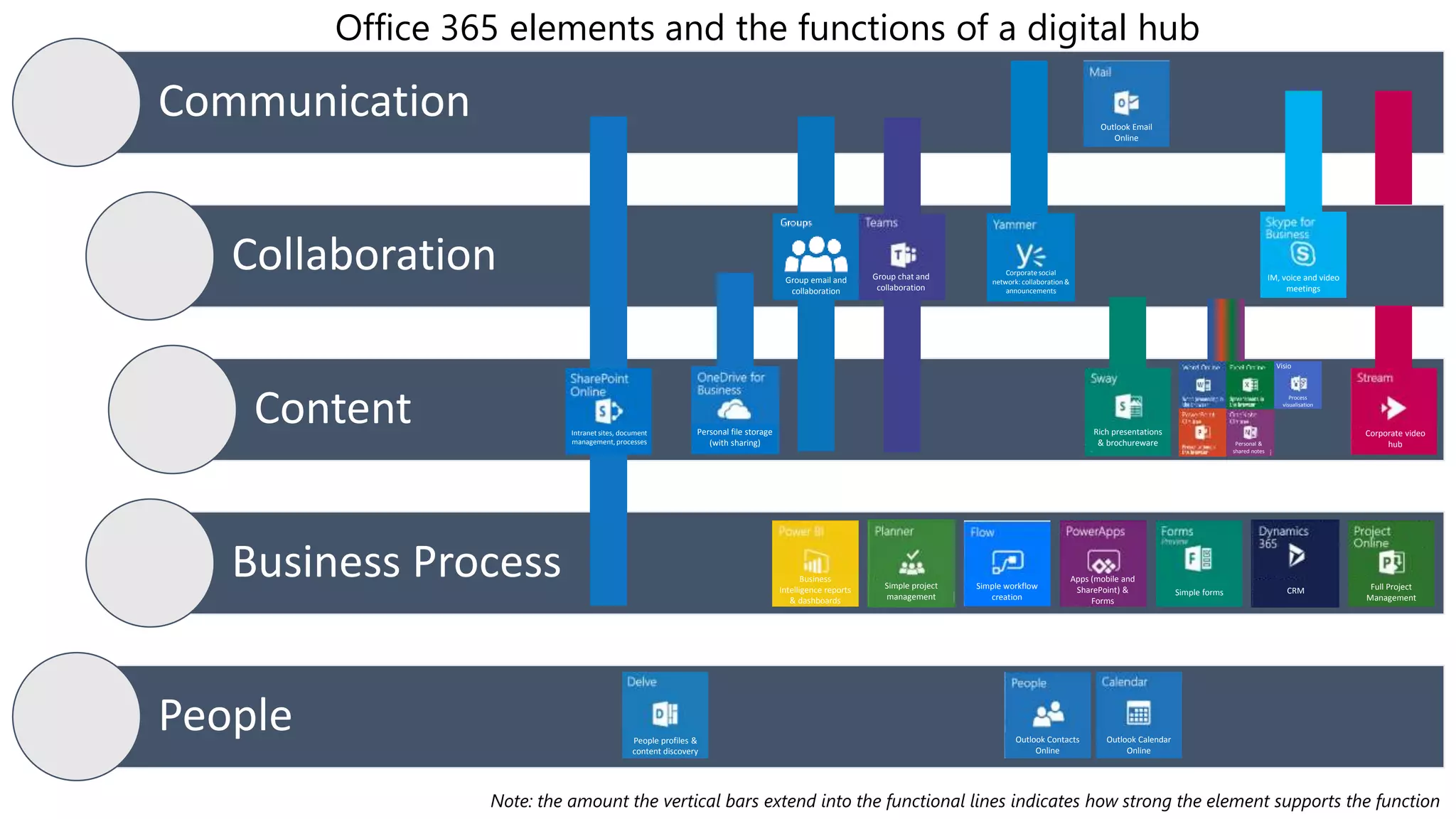
Communication
Collaboration
Content
Business Process
People
Group email and
collaboration
Group chat and
collaboration
Intranet sites, document
management, processes
Corporate video
hub
IM, voice and video
meetings
Corporate social
network: collaboration&
announcements
Rich presentations
& brochureware
Office 365 elements and the functions of a digital hub
Note: the amount the vertical bars extend into the functional lines indicates how strong the element supports the function
CRM
Personal &
shared notes
Visio
Process
visualisation
Personal file storage
(with sharing)
Simple workflow
creation
Simple project
management
Business
Intelligence reports
& dashboards
Apps (mobile and
SharePoint) &
Forms
Simple forms
Full Project
Management
Outlook Calendar
Online
Outlook Contacts
Online
Outlook Email
Online
People profiles &
content discovery
SharePoint vs. O365
Groups vs. Microsoft
Teams
•Why all three?
•Which should I choose?
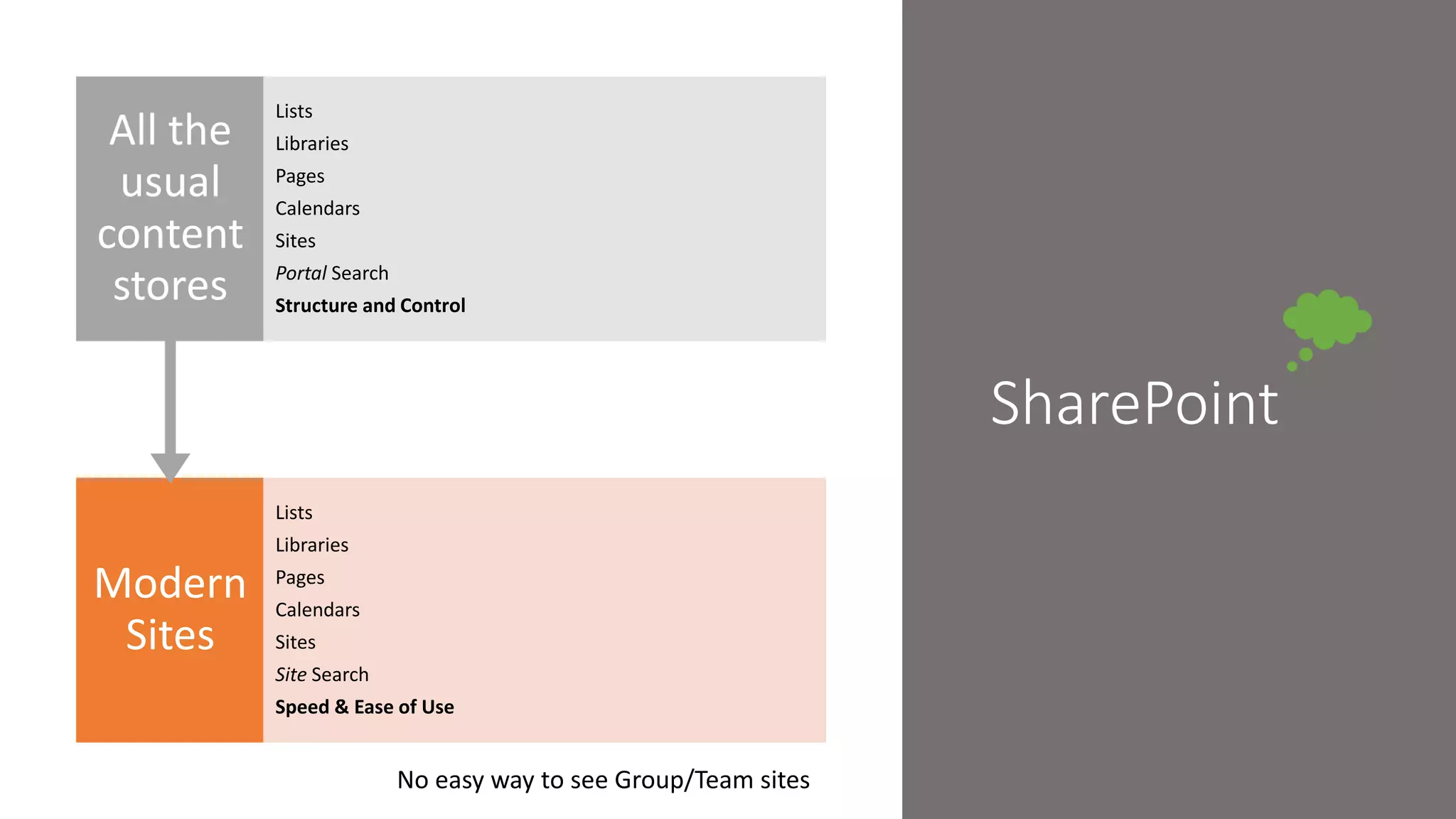
SharePoint
Modern
Sites
Lists
Libraries
Pages
Calendars
Sites
Site Search
Speed & Ease of Use
All the
usual
content
stores
Lists
Libraries
Pages
Calendars
Sites
Portal Search
Structure and Control
No easy way to see Group/Team sites
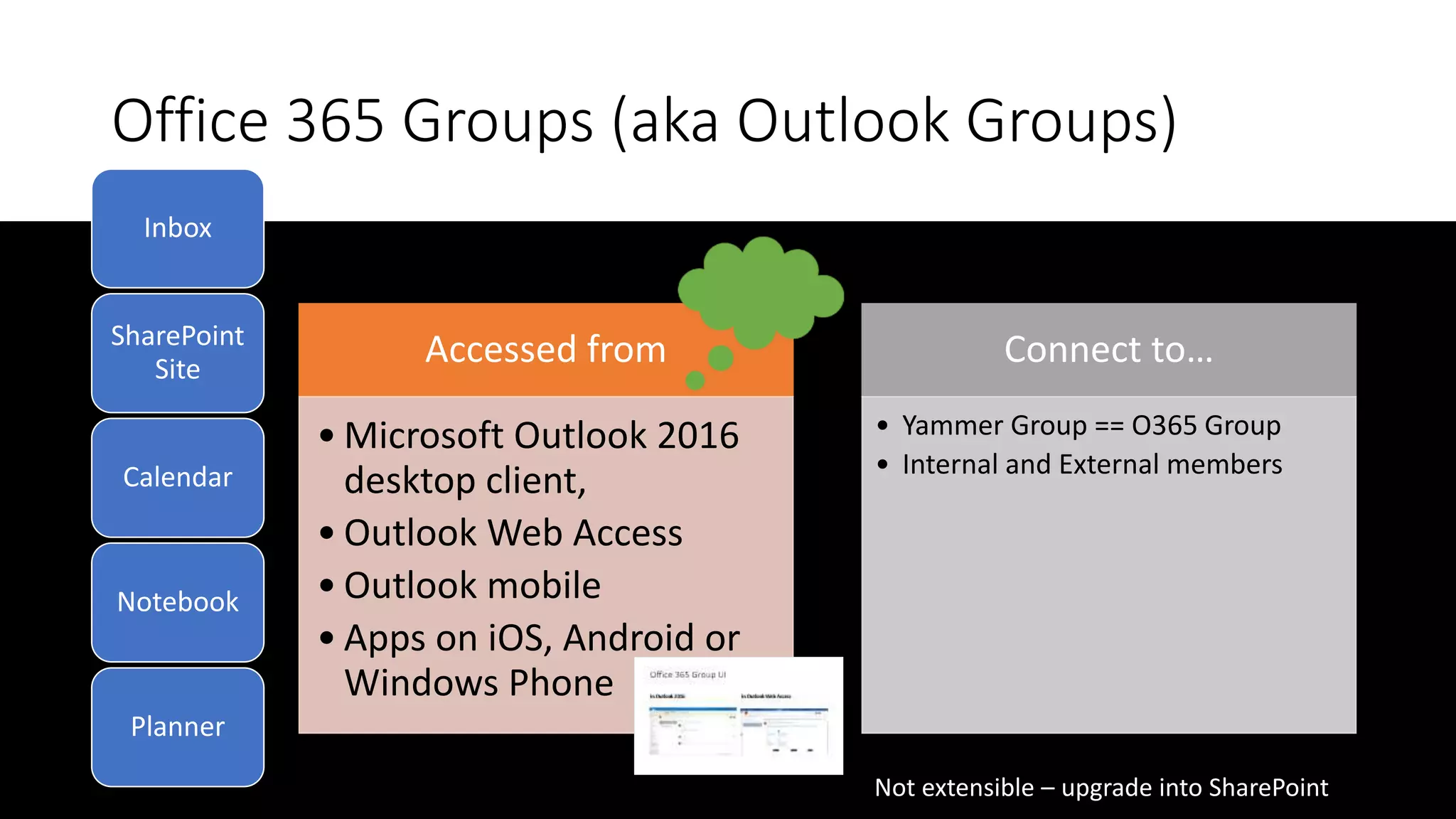
Office 365 Groups (aka Outlook Groups)
Accessed from
• Microsoft Outlook 2016
desktop client,
• Outlook Web Access
• Outlook mobile
• Apps on iOS, Android or
Windows Phone
Connect to…
• Yammer Group == O365 Group
• Internal and External members
Inbox
SharePoint
Site
Calendar
Notebook
Planner
Not extensible – upgrade into SharePoint
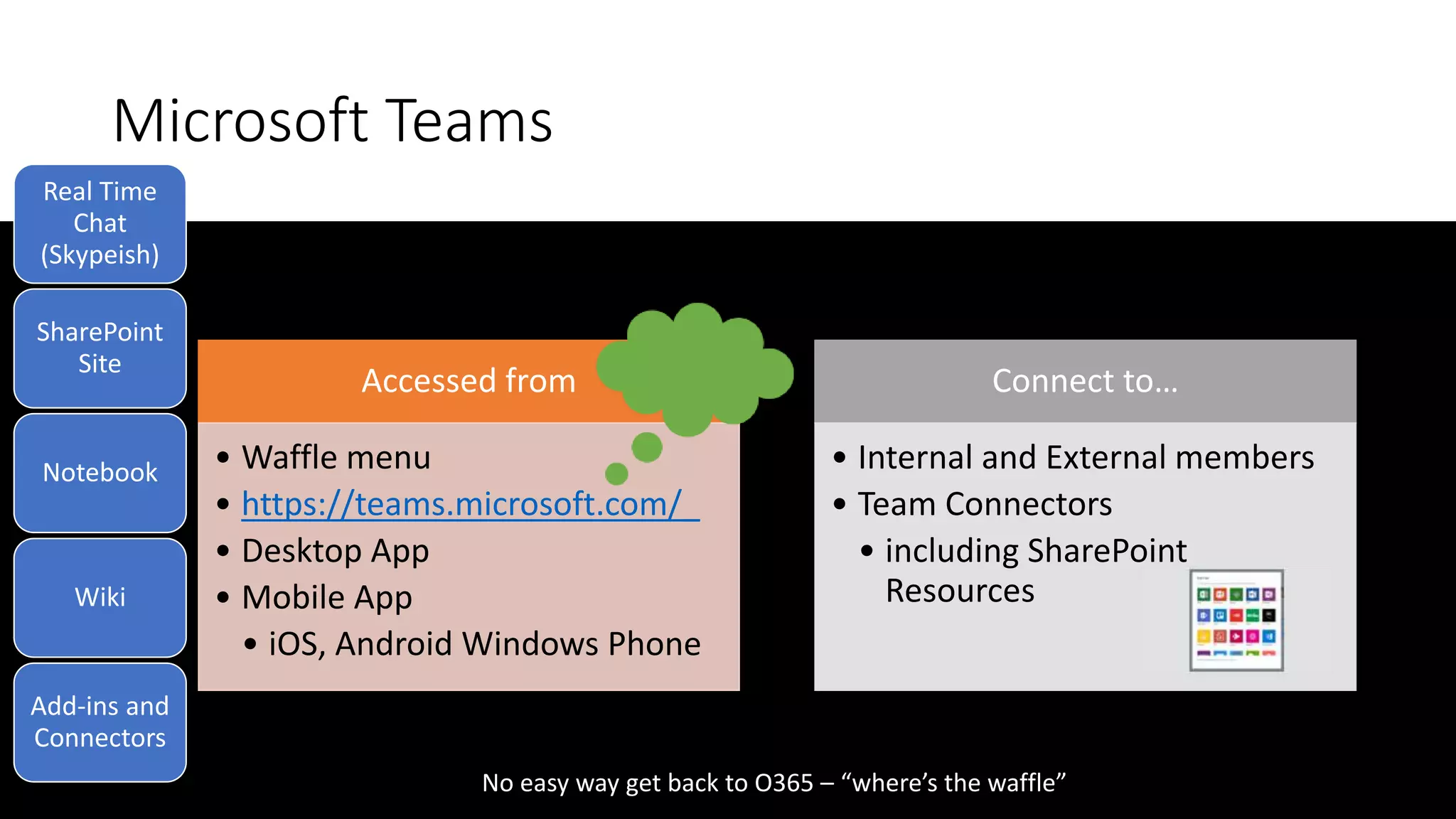
Microsoft Teams
Accessed from
• Waffle menu
• https://teams.microsoft.com/_
• Desktop App
• Mobile App
• iOS, Android Windows Phone
Connect to…
• Internal and External members
• Team Connectors
• including SharePoint
Resources
Real Time
Chat
(Skypeish)
SharePoint
Site
Notebook
Wiki
Add-ins and
Connectors
No easy way get back to O365 – “where’s the waffle”
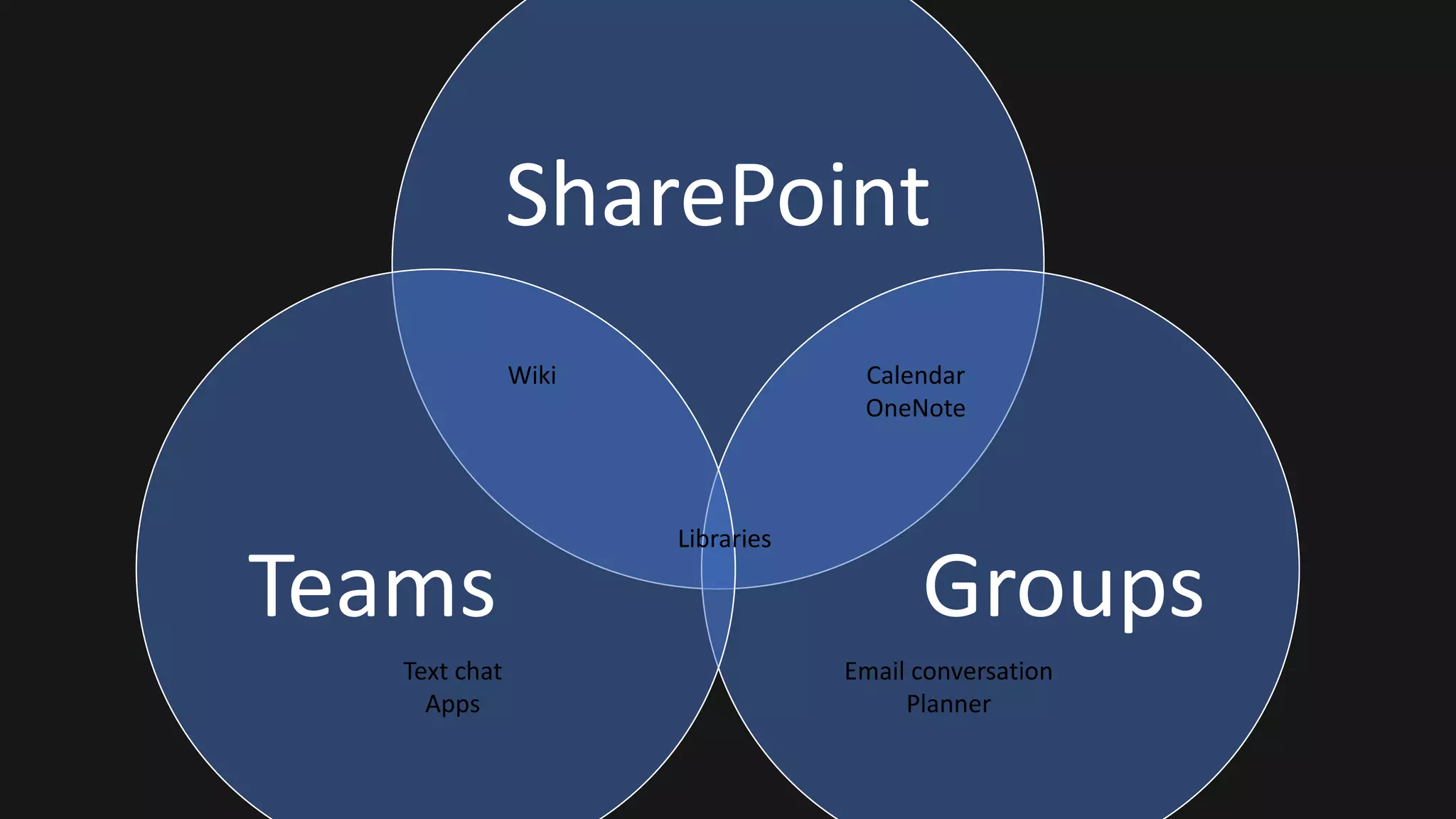
SharePoint
GroupsTeams
Libraries
Email conversation
Planner
Text chat
Apps
Calendar
OneNote
Wiki
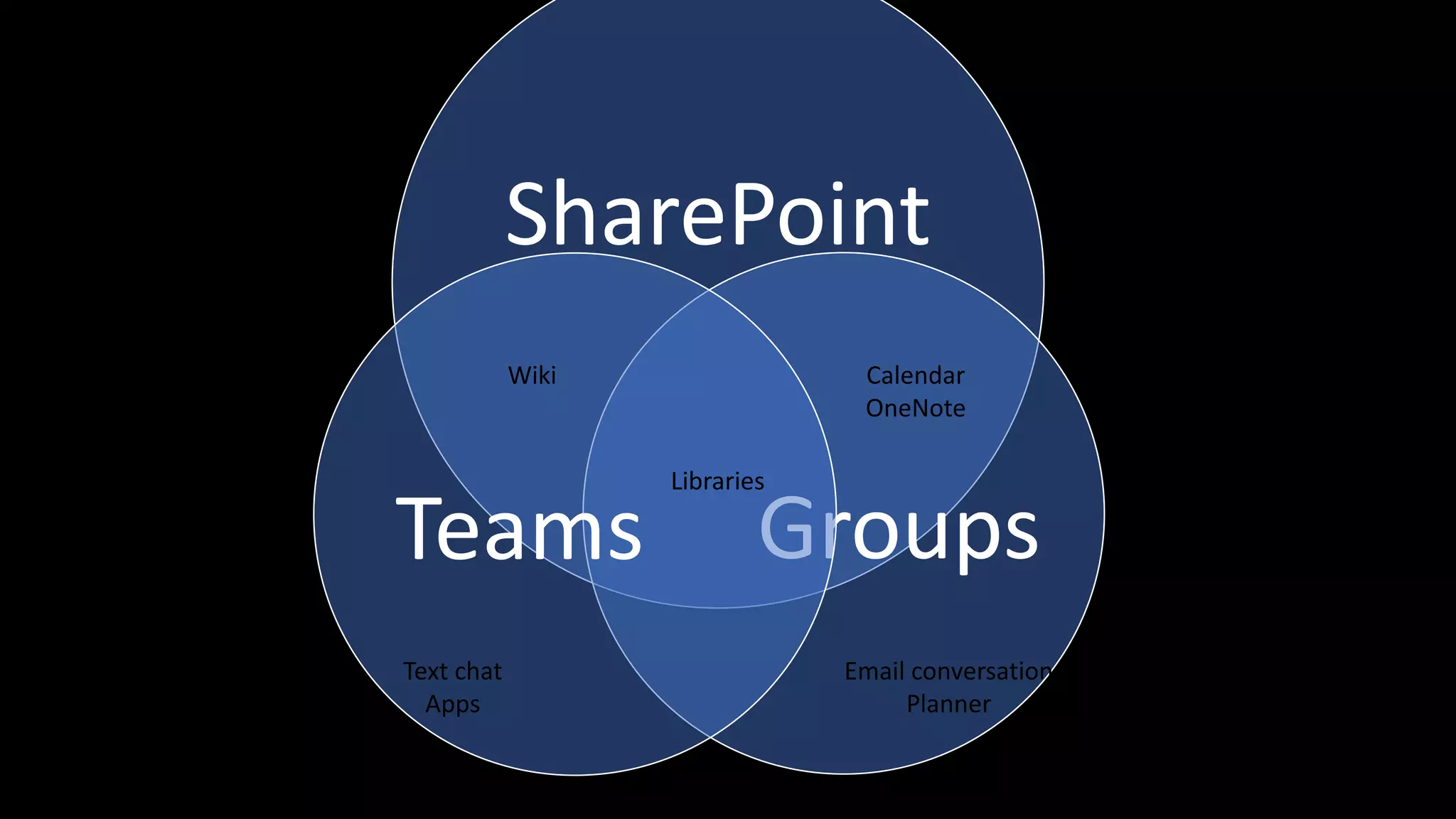
SharePoint
GroupsTeams
Libraries
Email conversation
Planner
Text chat
Apps
Calendar
OneNote
Wiki
How else to get to your stuff –
OneDrive and Outlook Experience
• Sites & Groups in OD4B
• Libraries in OD4B
• Groups in Outlook
• Library in Groups
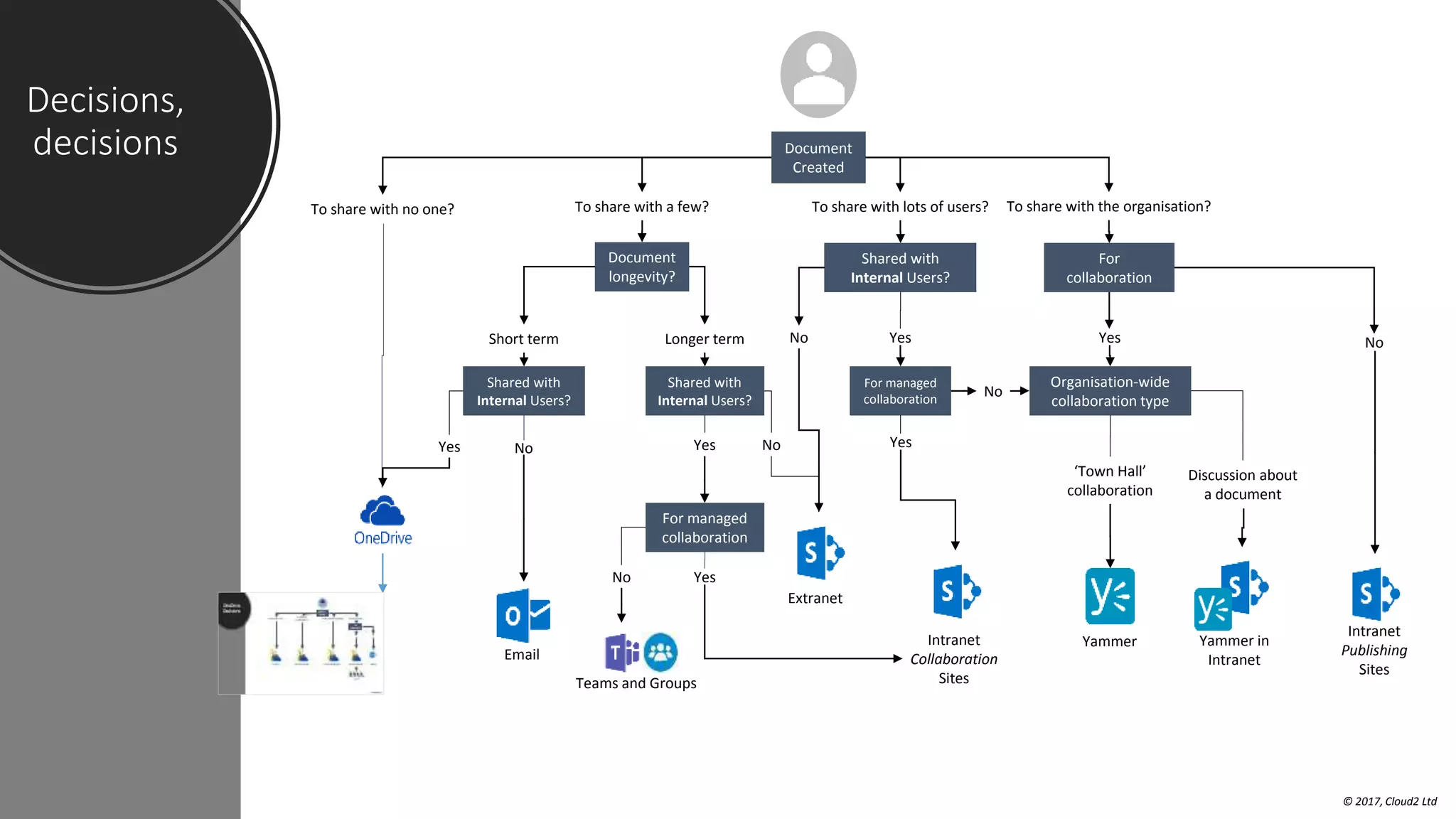
Decisions,
decisions
© 2017, Cloud2 Ltd
Document
Created
To share with no one? To share with lots of users?
Short term Longer term
To share with a few?
Document
longevity?
To share with the organisation?
For managed
collaboration
Shared with
Internal Users?
Yes No
Shared with
Internal Users?
Yes
Extranet
No
Shared with
Internal Users?
No Yes
Intranet
Collaboration
Sites
For
collaboration
Yammer
Intranet
Publishing
Sites
Yes
Yes
No
For managed
collaboration
No Yes
No
Teams and Groups
Yammer in
IntranetEmail
Organisation-wide
collaboration type
Discussion about
a document
‘Town Hall’
collaboration
OneDrive
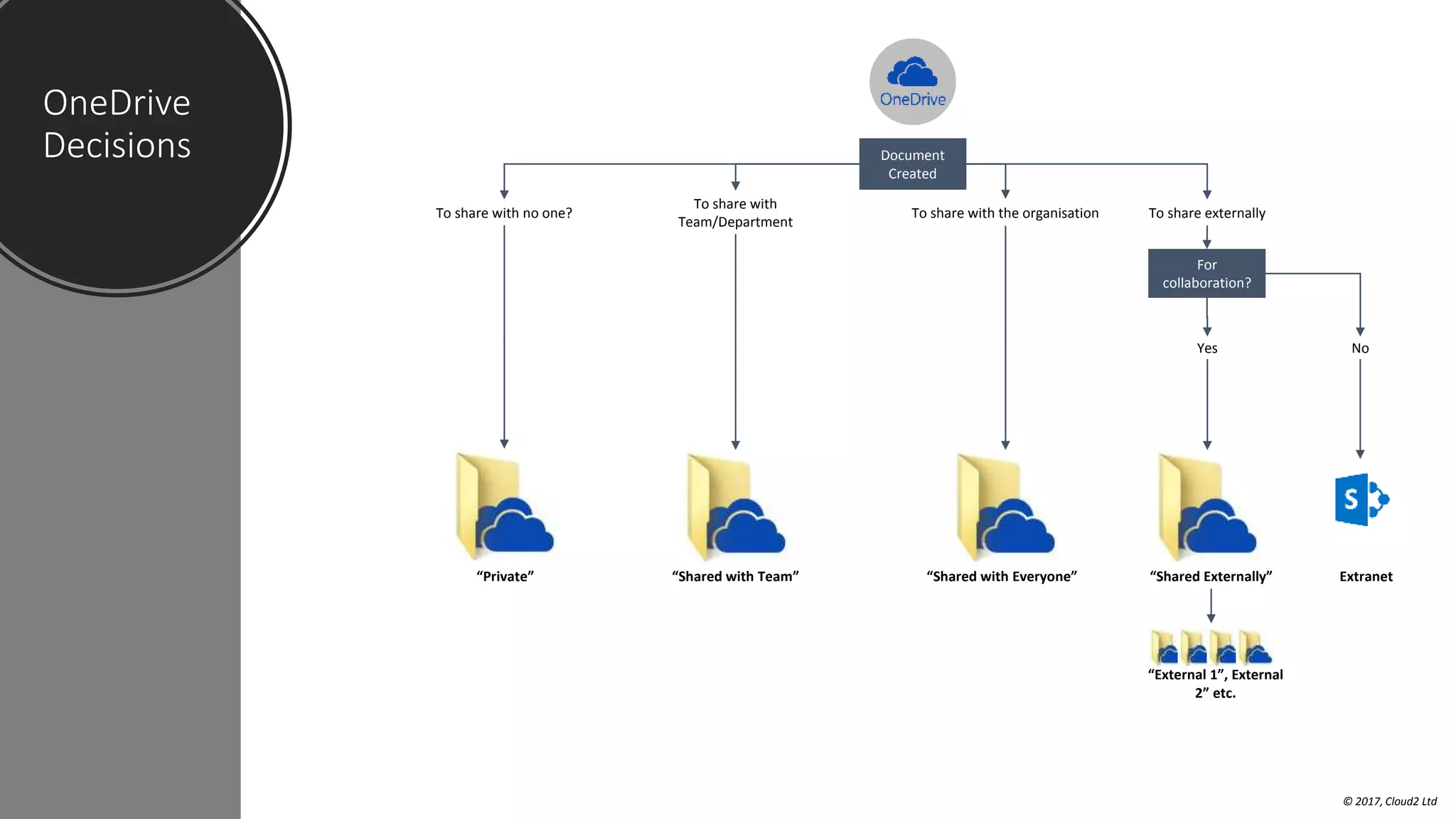
Decisions
© 2017, Cloud2 Ltd
Document
Created
To share with no one? To share with the organisation
“Private”
To share with
Team/Department
To share externally
For
collaboration?
Extranet
Yes
“Shared with Team” “Shared with Everyone”
No
“Shared Externally”
“External 1”, External
2” etc.
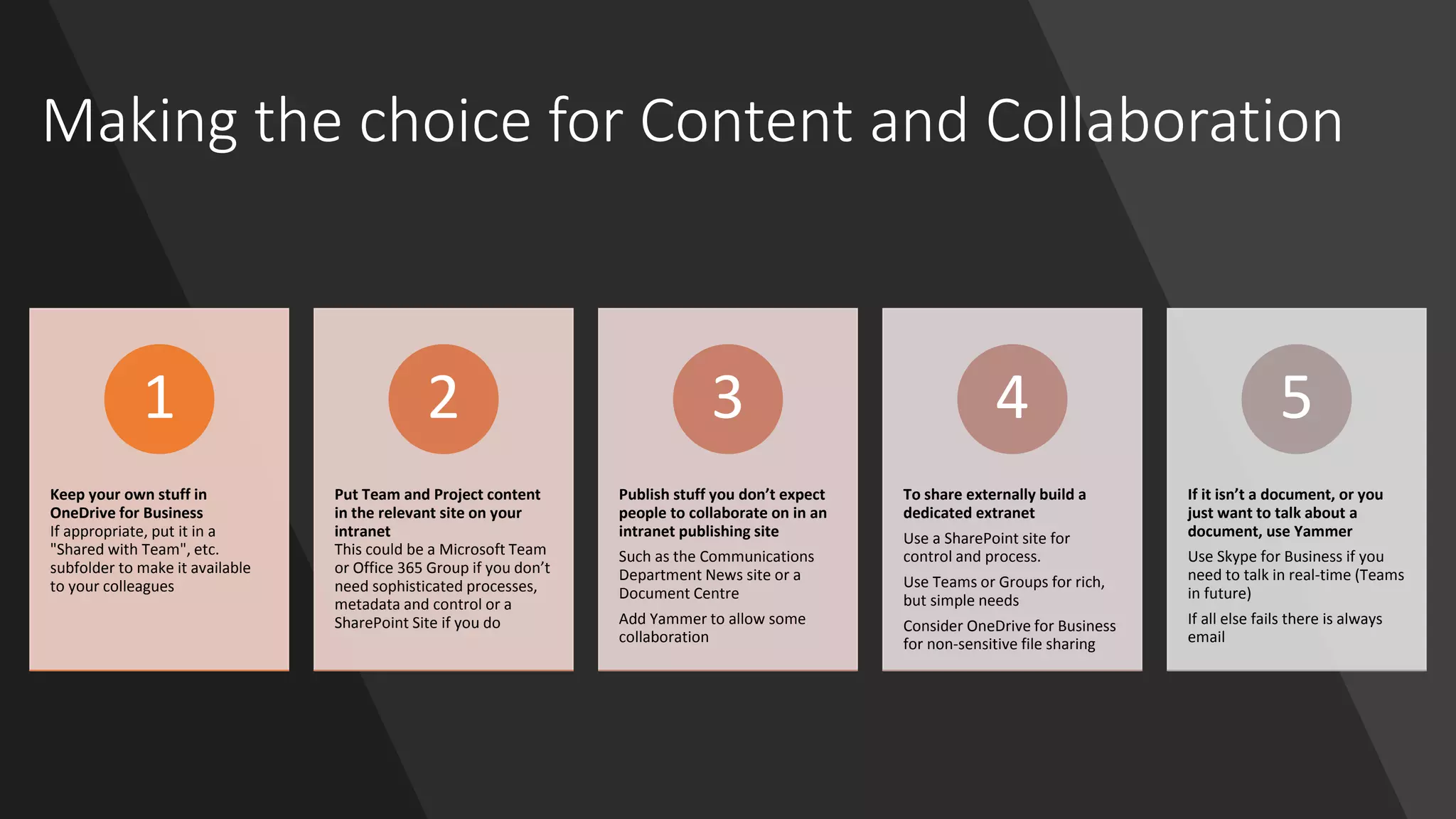
Making the choice for Content and Collaboration
Keep your own stuff in
OneDrive for Business
If appropriate, put it in a
"Shared with Team", etc.
subfolder to make it available
to your colleagues
1
Put Team and Project content
in the relevant site on your
intranet
This could be a Microsoft Team
or Office 365 Group if you don’t
need sophisticated processes,
metadata and control or a
SharePoint Site if you do
2
Publish stuff you don’t expect
people to collaborate on in an
intranet publishing site
Such as the Communications
Department News site or a
Document Centre
Add Yammer to allow some
collaboration
3
To share externally build a
dedicated extranet
Use a SharePoint site for
control and process.
Use Teams or Groups for rich,
but simple needs
Consider OneDrive for Business
for non-sensitive file sharing
4
If it isn’t a document, or you
just want to talk about a
document, use Yammer
Use Skype for Business if you
need to talk in real-time (Teams
in future)
If all else fails there is always
email
5
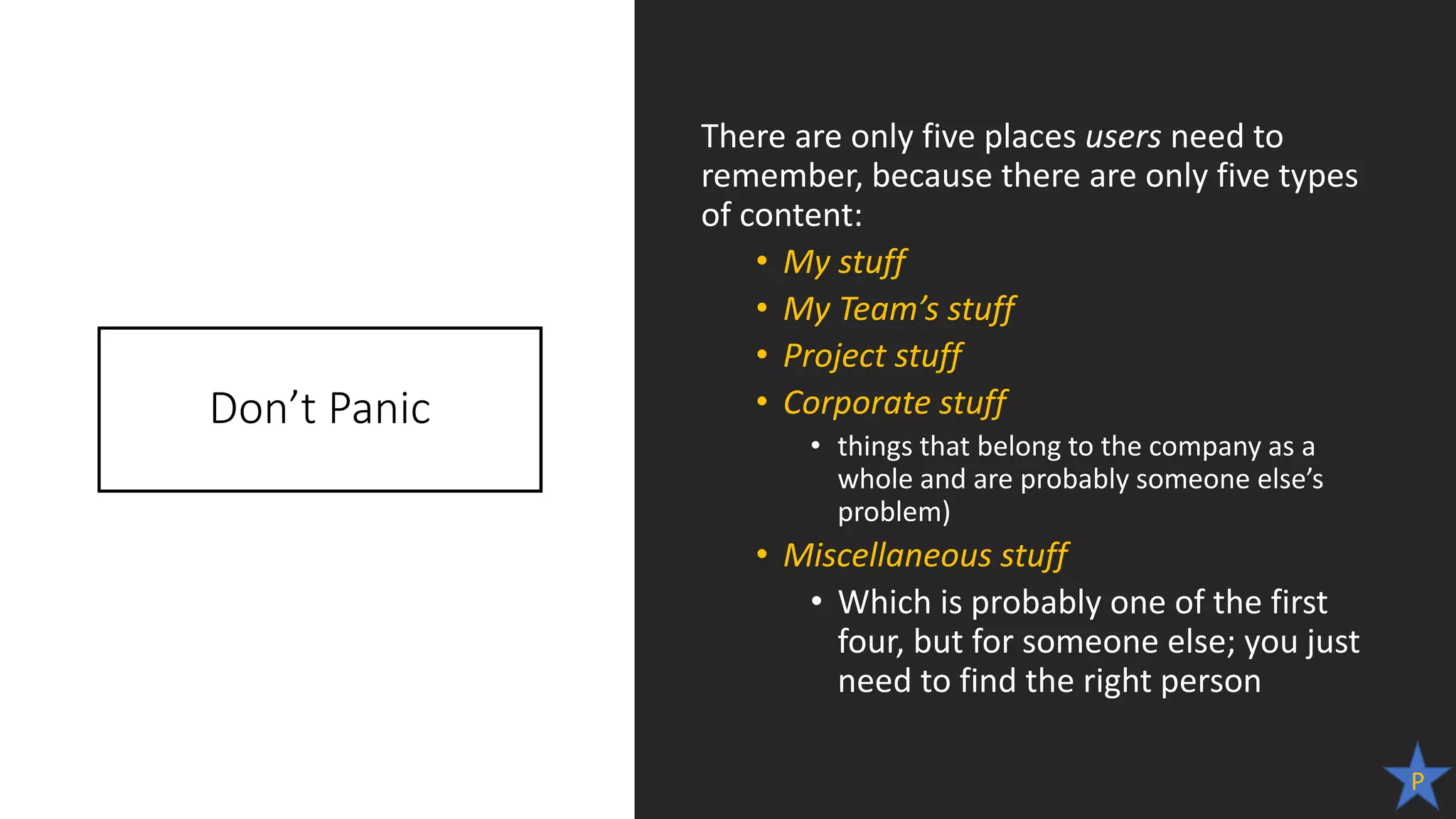
Don’t Panic
There are only five places users need to
remember, because there are only five types
of content:
• My stuff
• My Team’s stuff
• Project stuff
• Corporate stuff
• things that belong to the company as a
whole and are probably someone else’s
problem)
• Miscellaneous stuff
• Which is probably one of the first
four, but for someone else; you just
need to find the right person
P
What to use when : collaboration styles
31
Sam Marshall
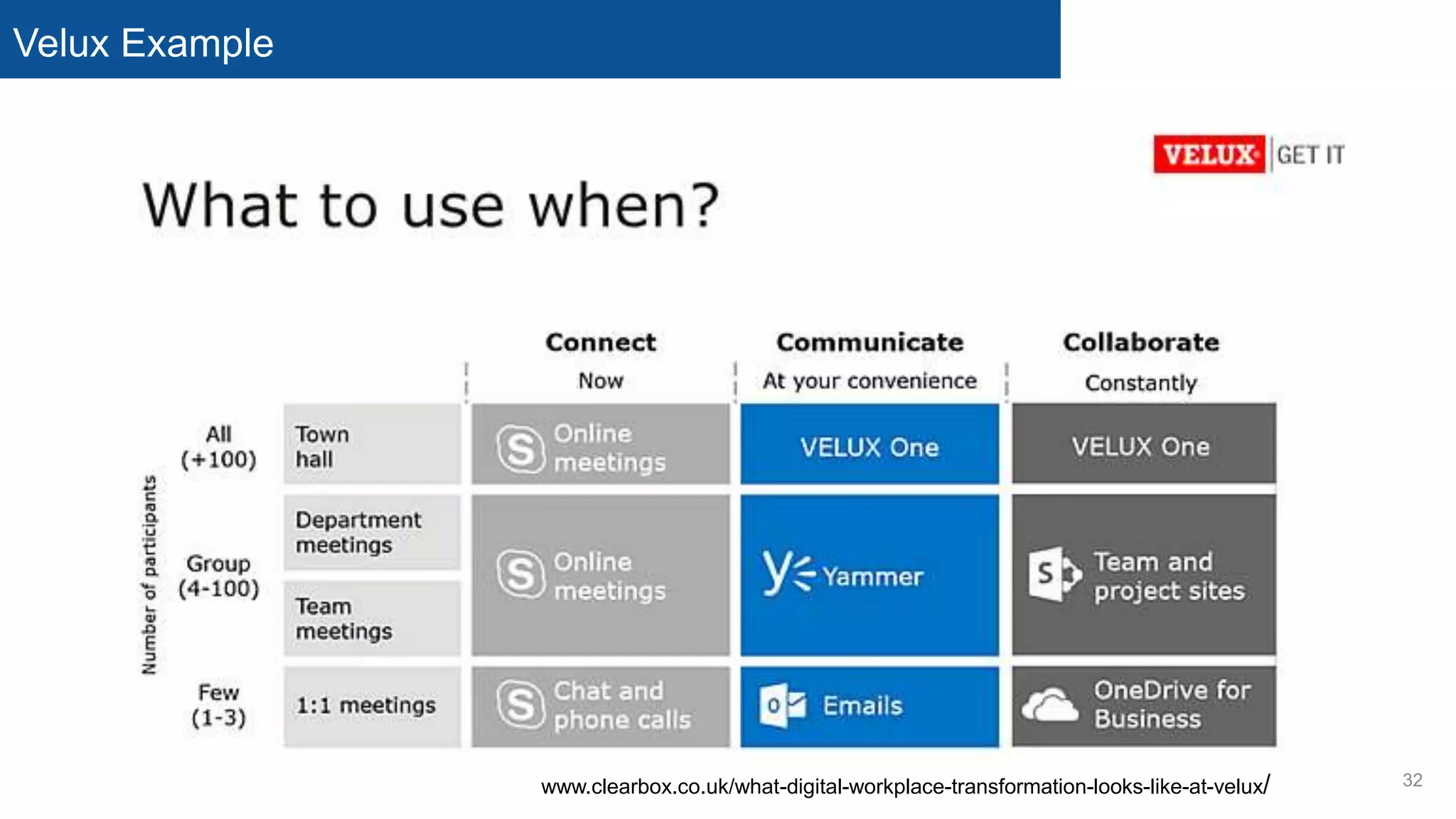
Velux Example
32www.clearbox.co.uk/what-digital-workplace-transformation-looks-like-at-velux/
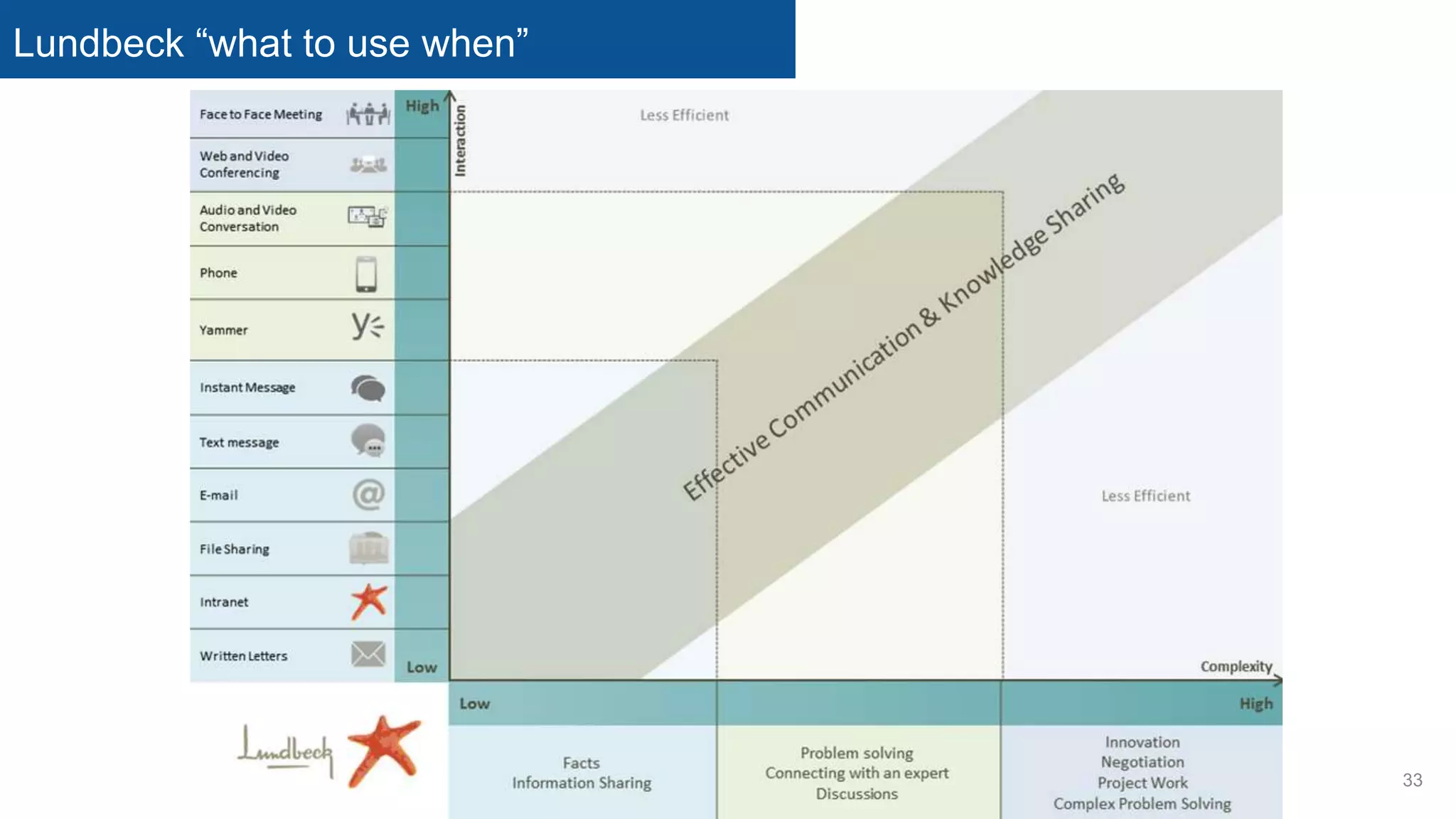
Lundbeck “what to use when”
33
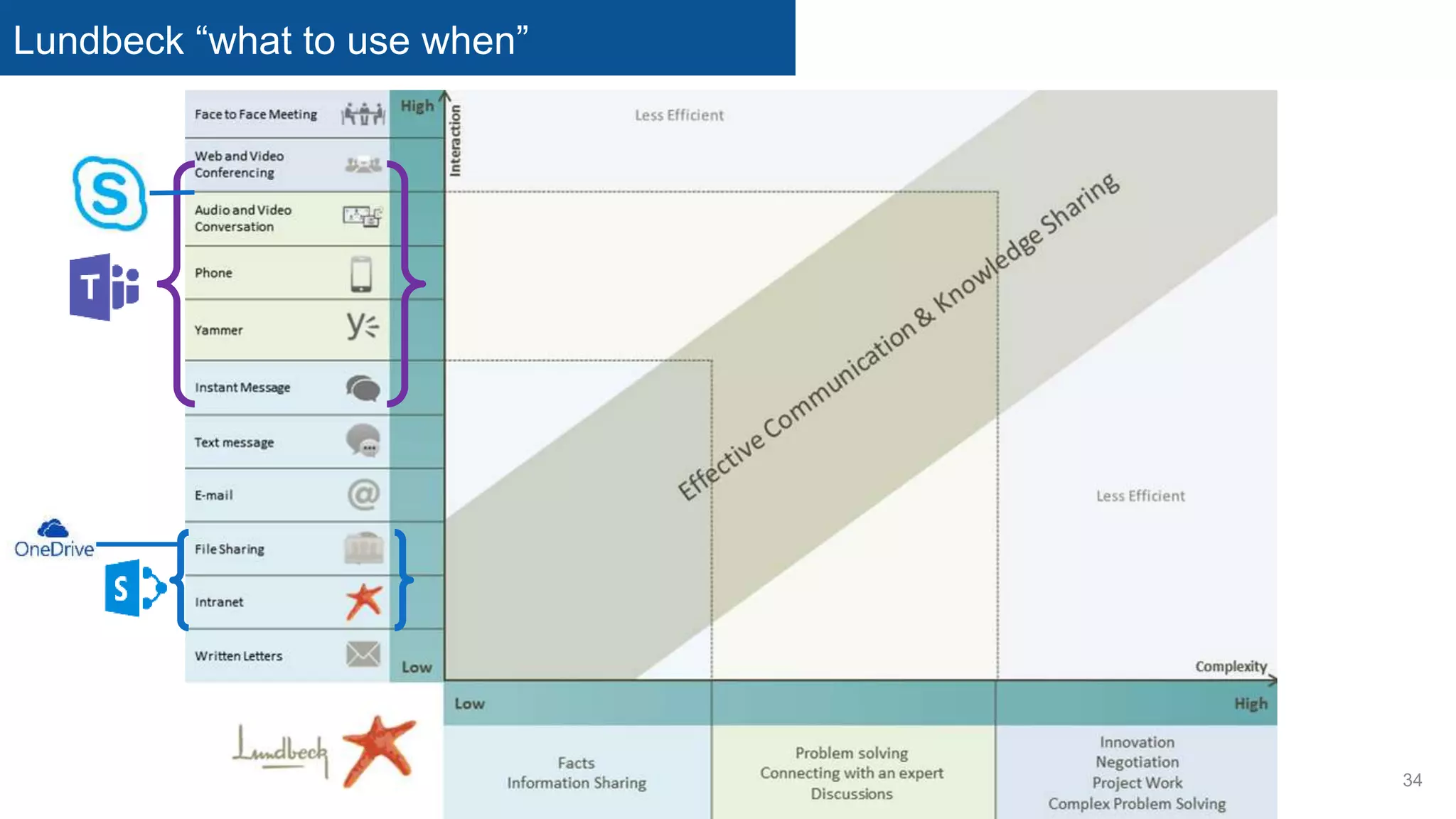
Lundbeck “what to use when”
34
hours days weeks yearsmonths
suitability
Email
Phone
Skype
duration of
collaboration
Yammer
SharePoint Team Sites /
Doc Repository.
mins.
Teams
OneDrive
Collaboration Tool Landscape
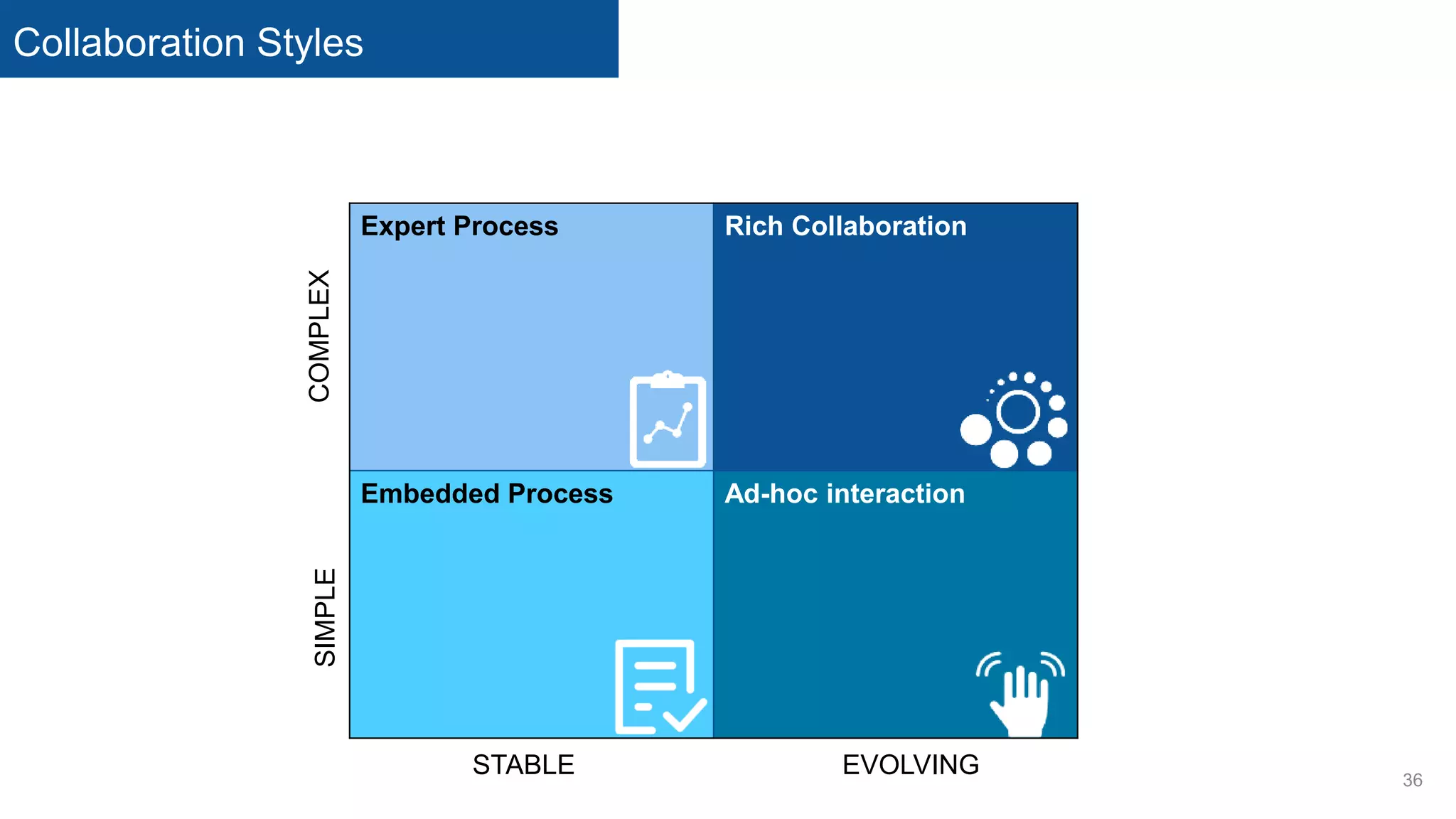
Collaboration Styles
36
Expert Process Rich Collaboration
Embedded Process Ad-hoc interaction
EVOLVING
SIMPLE
STABLE
COMPLEX
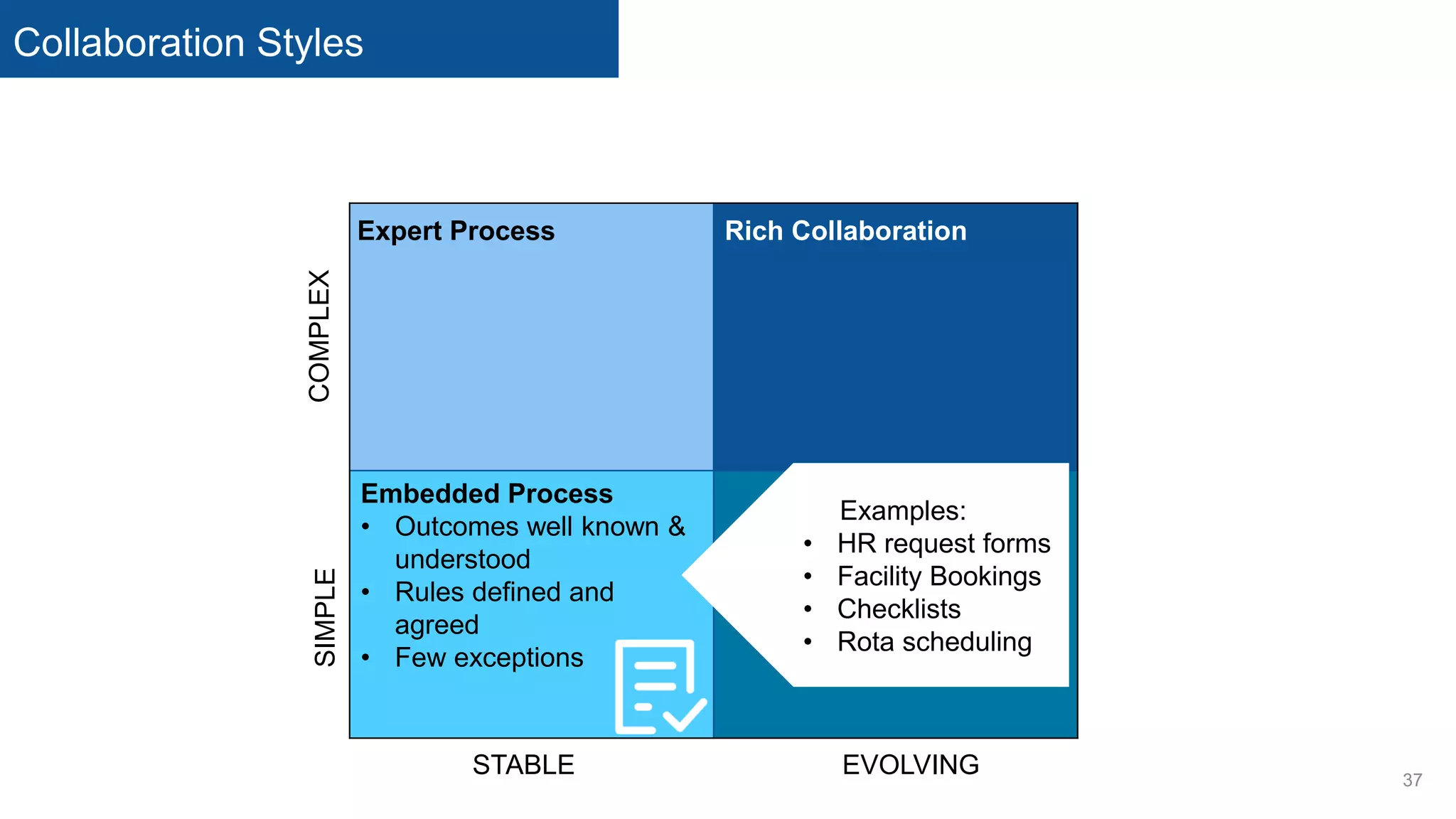
Collaboration Styles
37
Embedded Process
• Outcomes well known &
understood
• Rules defined and
agreed
• Few exceptions
EVOLVING
SIMPLE
STABLE
COMPLEX
Examples:
• HR request forms
• Facility Bookings
• Checklists
• Rota scheduling
Expert Process Rich Collaboration
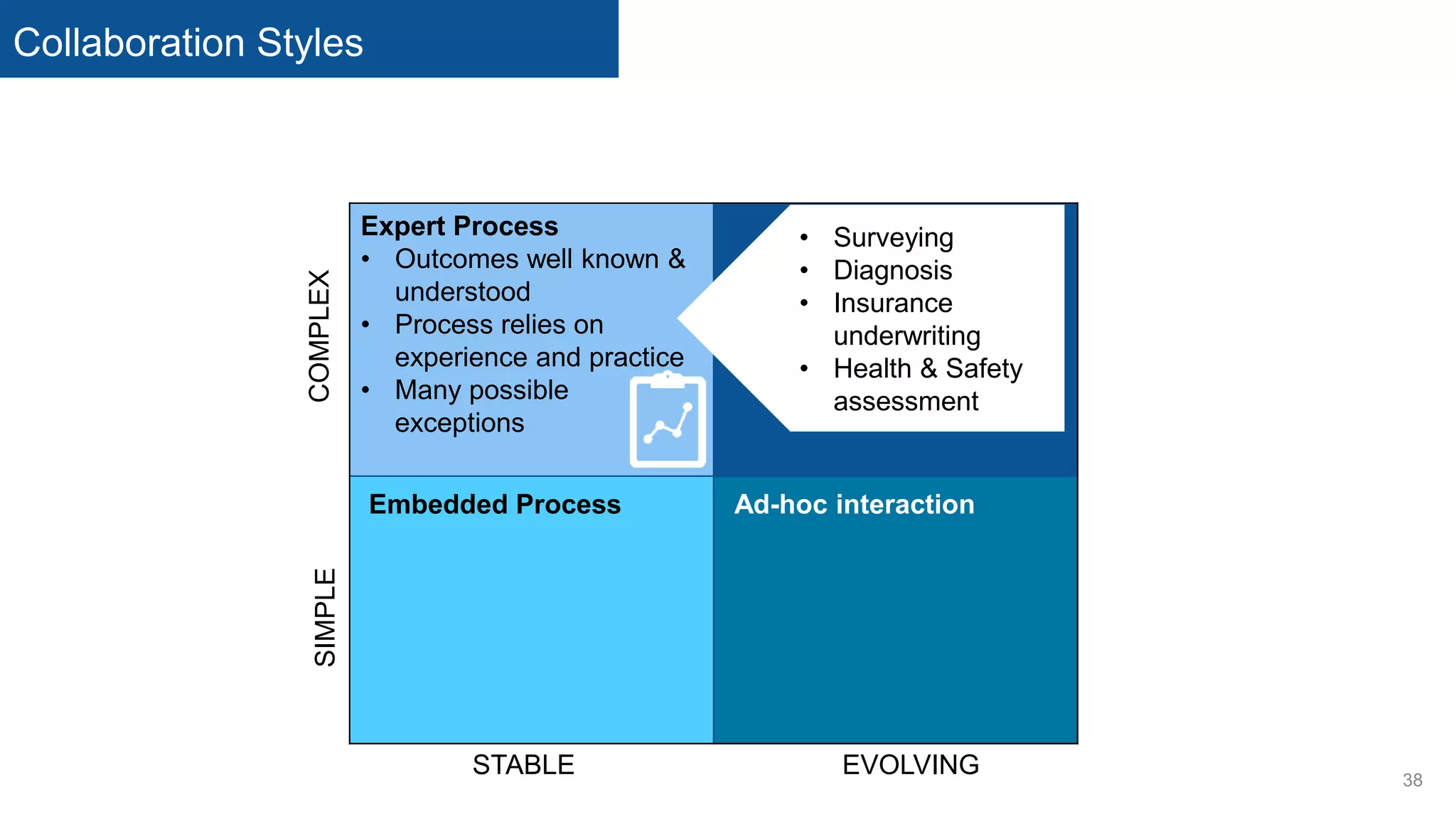
Collaboration Styles
38
Expert Process
• Outcomes well known &
understood
• Process relies on
experience and practice
• Many possible
exceptions
EVOLVING
SIMPLE
STABLE
COMPLEX
• Surveying
• Diagnosis
• Insurance
underwriting
• Health & Safety
assessment
Embedded Process Ad-hoc interaction
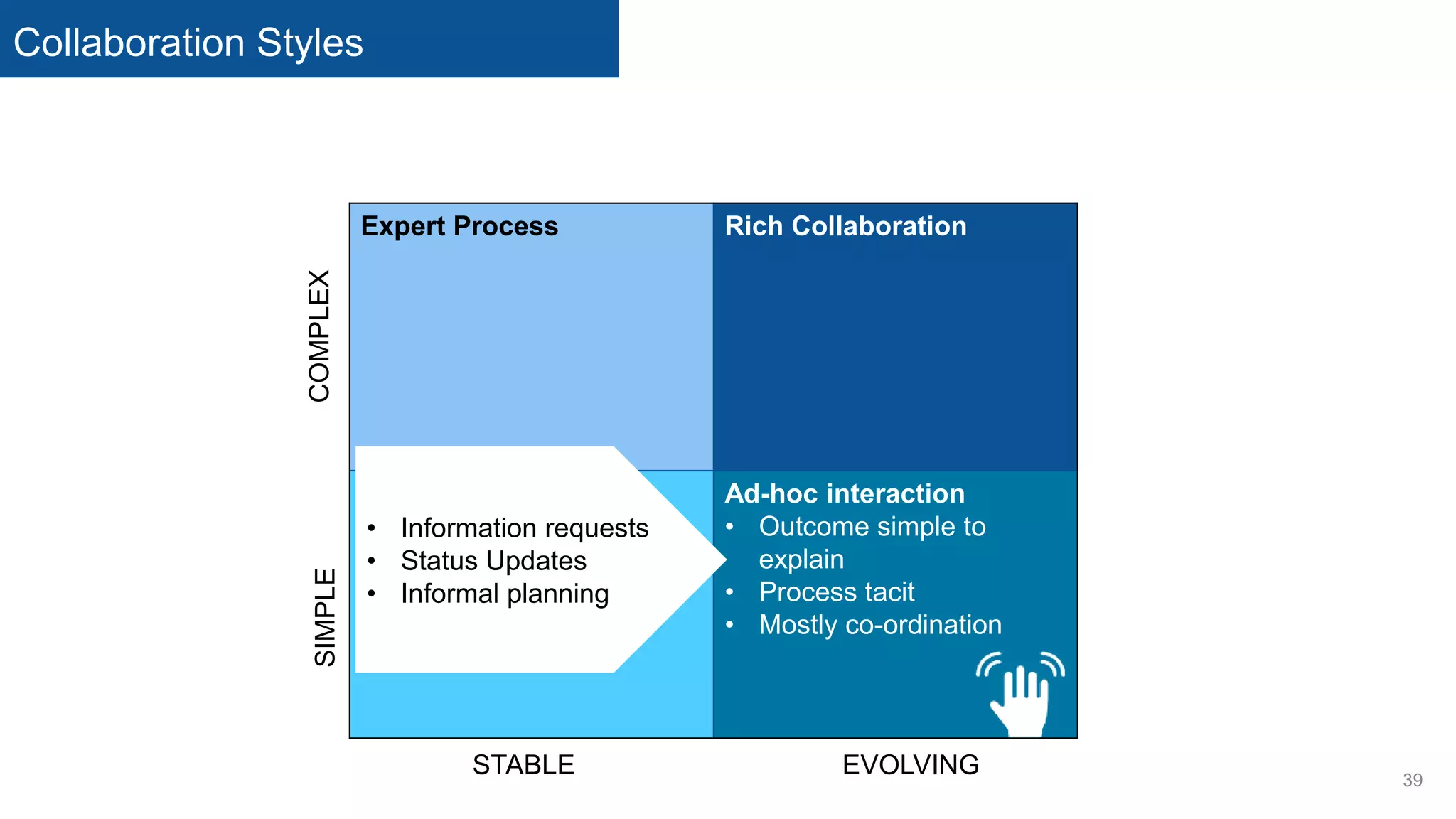
Collaboration Styles
39
Expert Process Rich Collaboration
Embedded Process Ad-hoc interaction
• Outcome simple to
explain
• Process tacit
• Mostly co-ordination
EVOLVING
SIMPLE
STABLE
COMPLEX
• Information requests
• Status Updates
• Informal planning
Collaboration Styles
40
Expert Process Rich Collaboration
• Outcome exploratory
• Route to answer
uncertain
• Innovation
Embedded Process Ad-hoc interaction
EVOLVING
SIMPLE
STABLE
COMPLEX
• Product development
• System
implementation
• Service design
Collaboration Styles
41
Expert Process
• Outcomes well known &
understood
• Process relies on
experience and practice
• Many possible
exceptions
Rich Collaboration
• Outcome exploratory
• Route to answer
uncertain
• Innovation
Embedded Process
• Outcomes well known &
understood
• Rules defined and
agreed
• Few exceptions
Ad-hoc interaction
• Outcome simple to
explain
• Process tacit
• Mostly co-ordination
EVOLVING
SIMPLE
STABLE
COMPLEX
Collaboration Styles - Tools
42
Expert Process
• Workflow tools
• Data manipulation
• Search & reference
• Checklists
• Customised tools
(e.g. Excel macros)
Rich Collaboration
• Document versioning
• Joint viewing & editing
• Online discussions
• Group knowledge
management
• Status sharing
Embedded Process
• Online Forms
• Notifications
• Status tracking
• Process documentation
Ad-hoc interaction
• Simple comms (IM,
email, phone)
• Info-sharing (Dropbox
etc.)
• Social networks
EVOLVING
SIMPLE
STABLE
COMPLEX
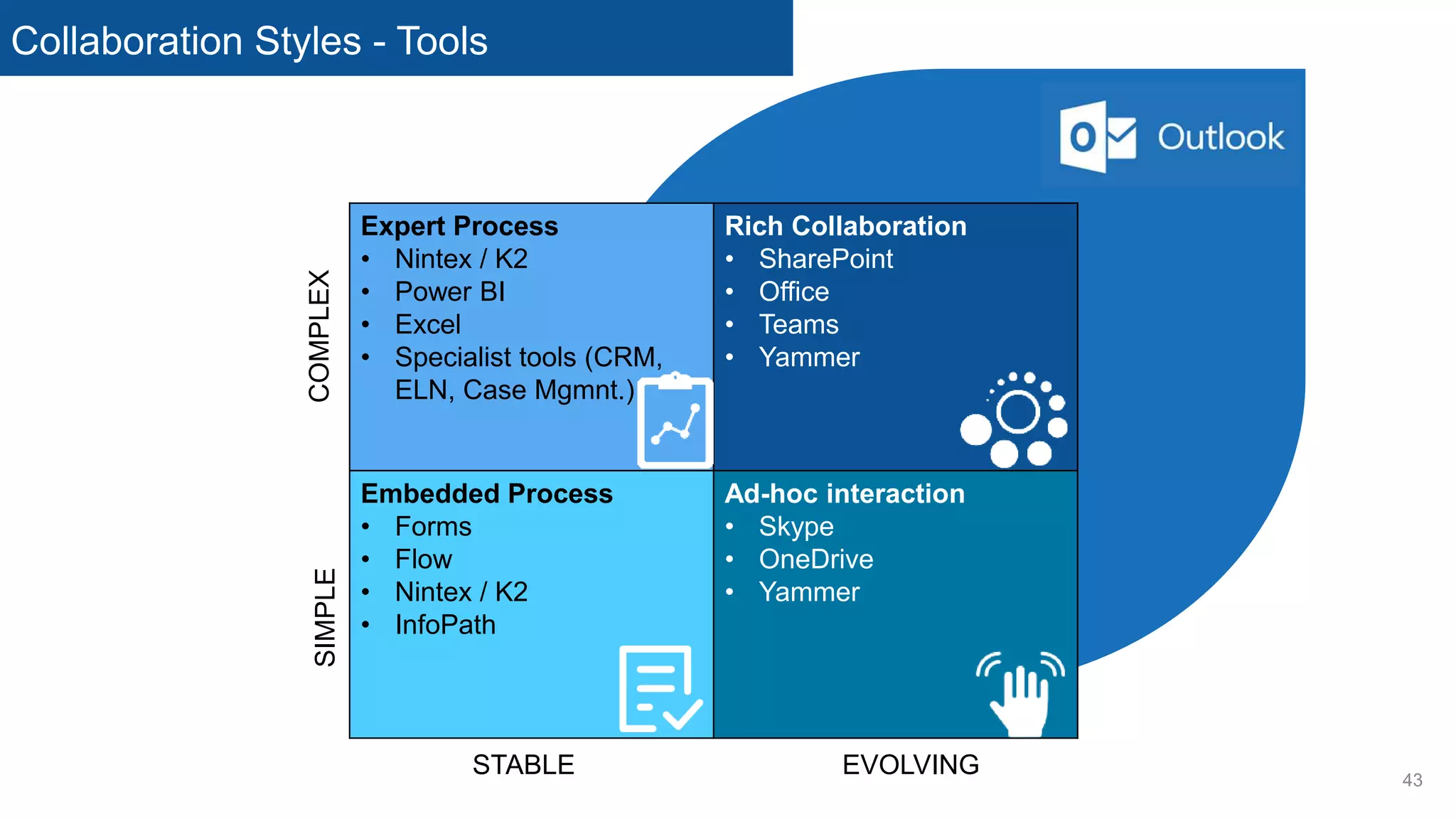
Collaboration Styles - Tools
43
Expert Process
• Nintex / K2
• Power BI
• Excel
• Specialist tools (CRM,
ELN, Case Mgmnt.)
Rich Collaboration
• SharePoint
• Office
• Teams
• Yammer
Embedded Process
• Forms
• Flow
• Nintex / K2
• InfoPath
Ad-hoc interaction
• Skype
• OneDrive
• Yammer
EVOLVING
SIMPLE
STABLE
COMPLEX
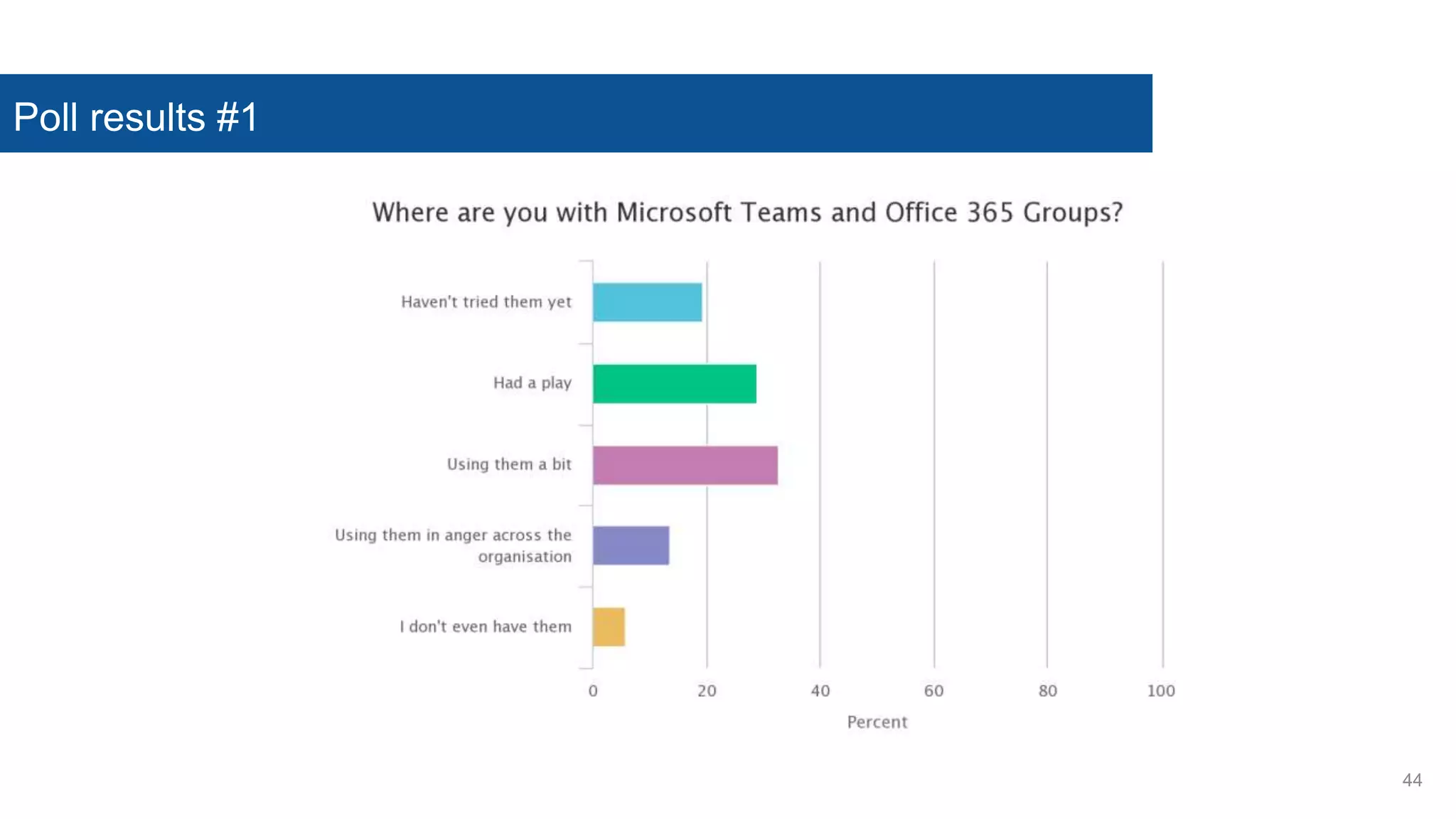
Poll results #1
44
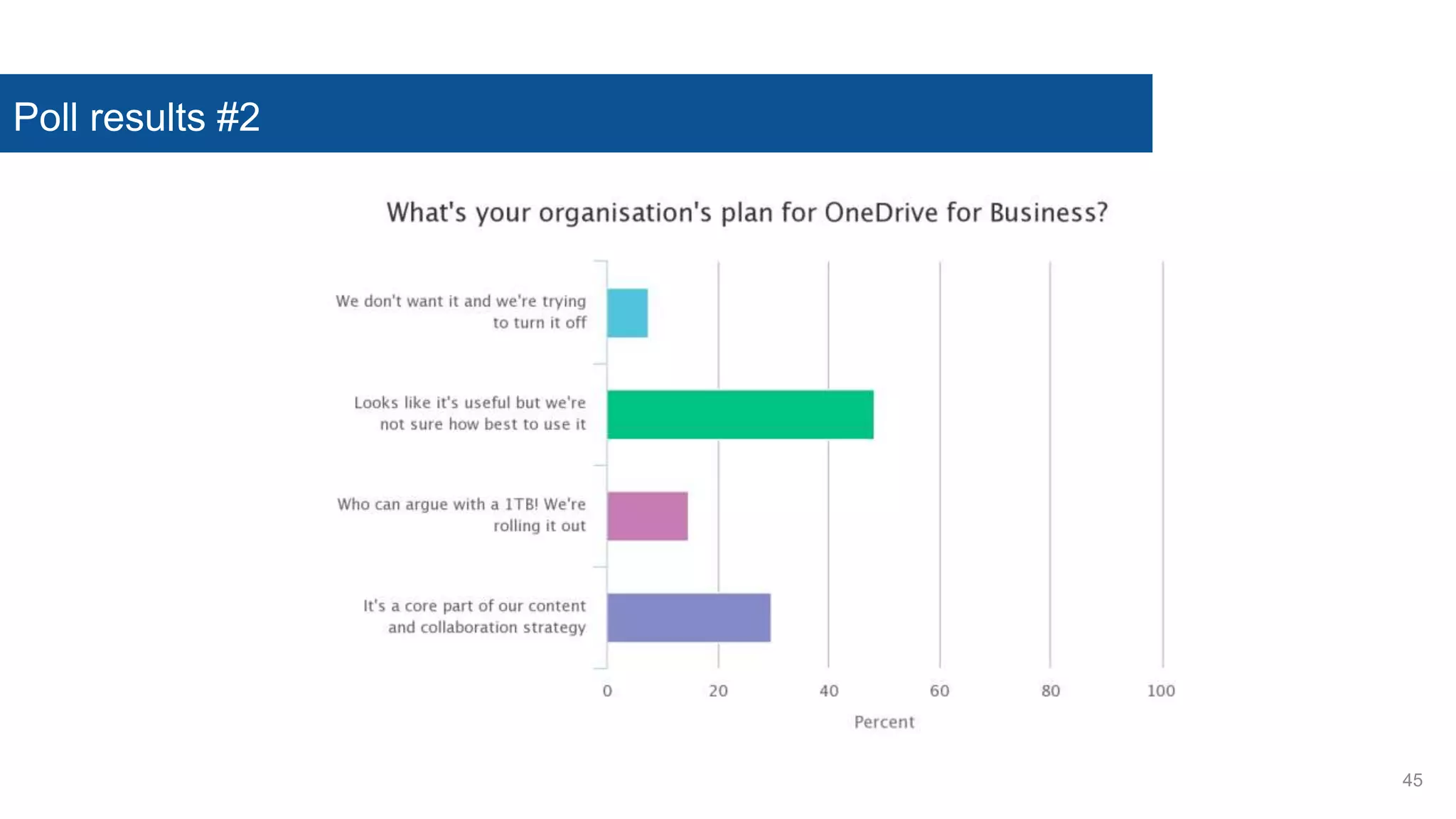
Poll results #2
45
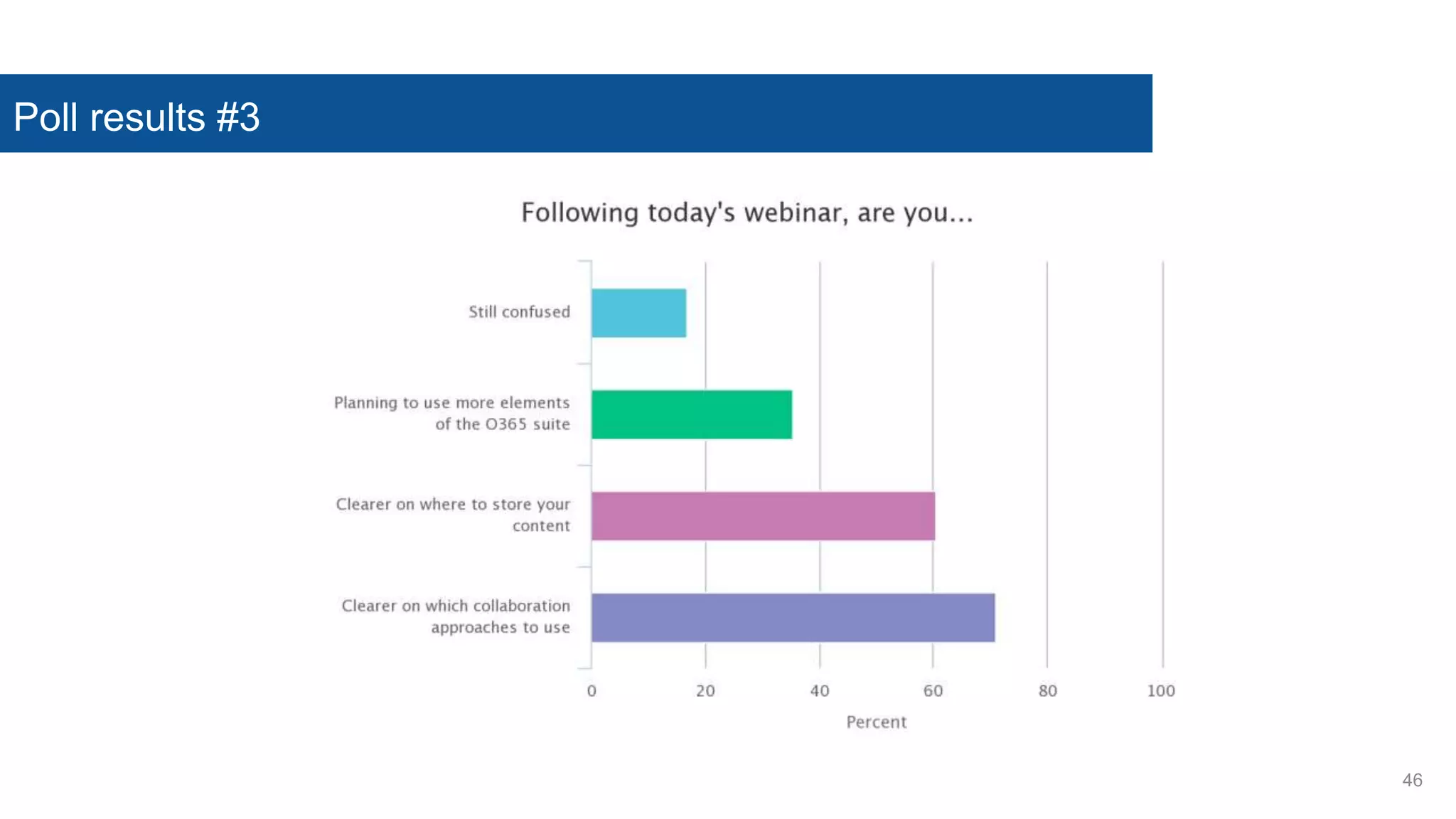
Poll results #3
46
Questions and Answers
47P
What do you use the wiki for?
 Actually, not much. It’s really simple, doesn’t have actual [[wiki ]]
functionality and is little more than an html editable page.
 We would always use the OneNote notes in preference
48
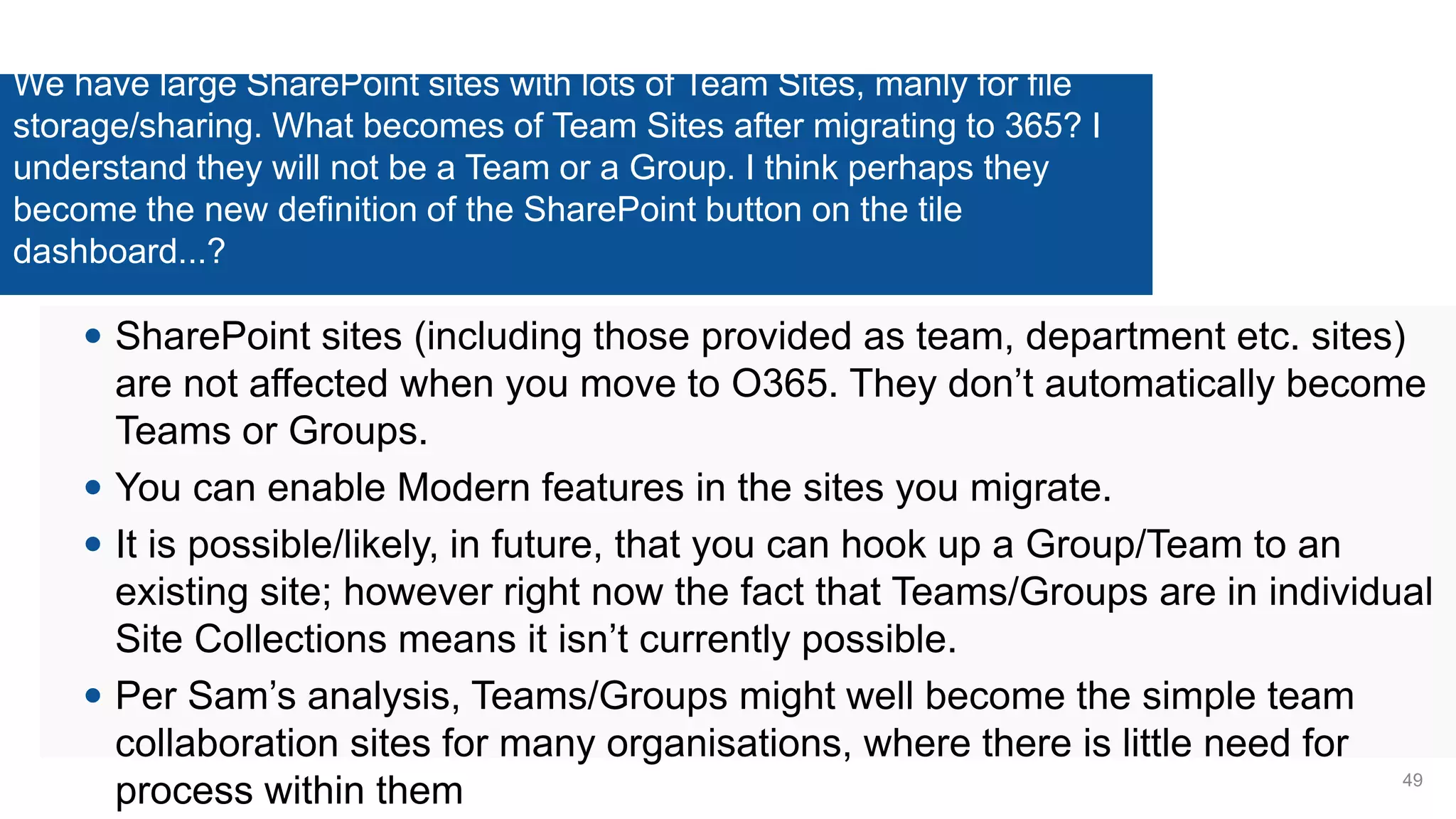
We have large SharePoint sites with lots of Team Sites, manly for file
storage/sharing. What becomes of Team Sites after migrating to 365? I
understand they will not be a Team or a Group. I think perhaps they
become the new definition of the SharePoint button on the tile
dashboard...?
 SharePoint sites (including those provided as team, department etc. sites)
are not affected when you move to O365. They don’t automatically become
Teams or Groups.
 You can enable Modern features in the sites you migrate.
 It is possible/likely, in future, that you can hook up a Group/Team to an
existing site; however right now the fact that Teams/Groups are in individual
Site Collections means it isn’t currently possible.
 Per Sam’s analysis, Teams/Groups might well become the simple team
collaboration sites for many organisations, where there is little need for
process within them 49
We're keen to switch on Teams for our organisation of nearly 15000
people... any tips for things we should be doing in preparation of that?
What about ways to provision and ensure there is no duplication?
 Think carefully about the lack of visibility and governance that currently exists.
Have a plan for that (perhaps with a query on an admin page to show all Groups,
recent groups etc – that’s what we are developing), backed by a policy and a
process for reviewing what is being created.
 Check out what you might do with PowerShell etc to manage the creation process.
 Develop a plan for which experience is needed for which sites – Groups and
Teams serve a similar purpose but look and feel quite different and the Inbox (with
shared calendar) feels very different to the chat experience.
 Check that a single library is sufficient for what the team needs – you can add
more in the SharePoint site, but these have to be manually added to the Teams
menu 50
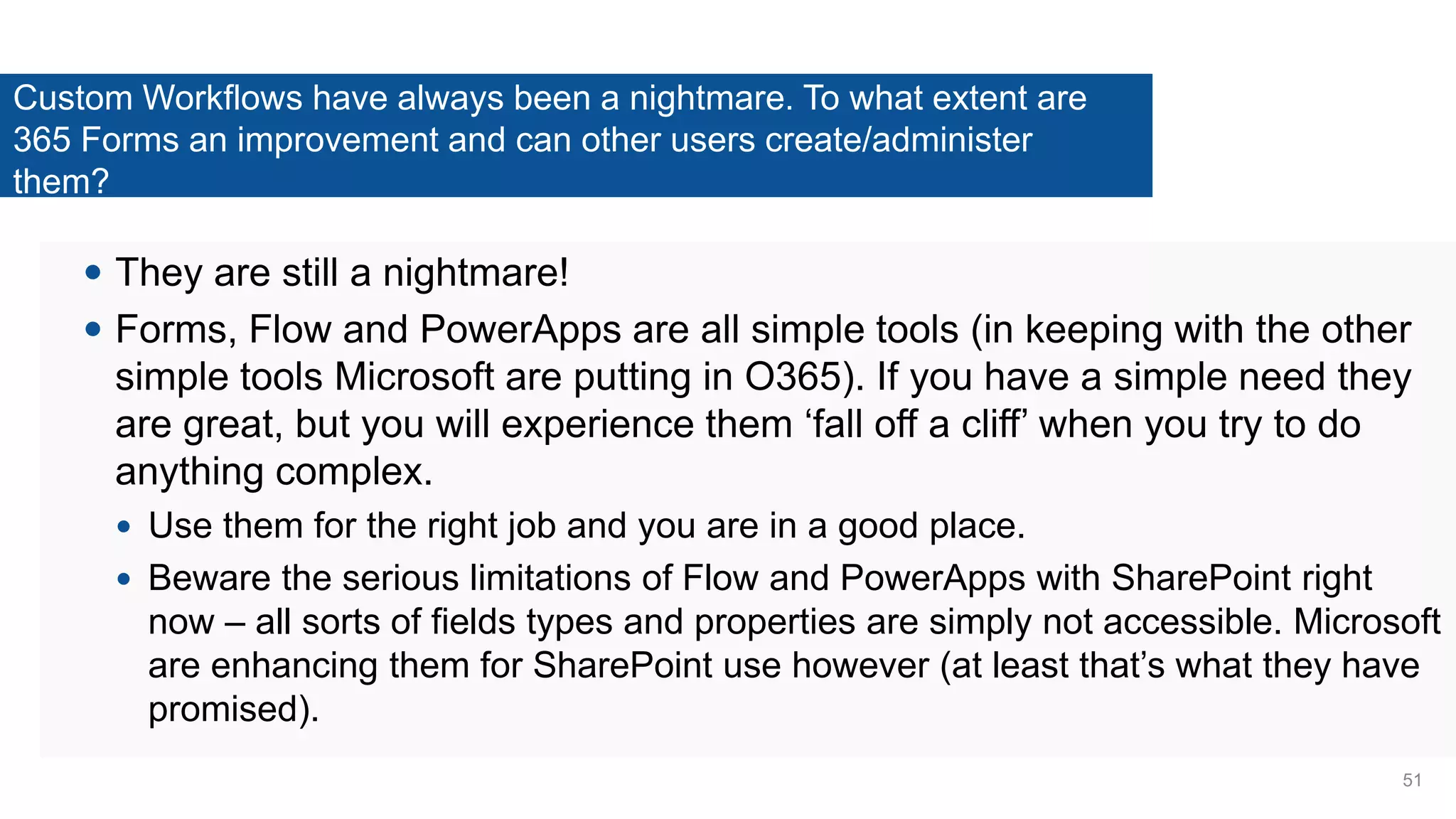
Custom Workflows have always been a nightmare. To what extent are
365 Forms an improvement and can other users create/administer
them?
 They are still a nightmare!
 Forms, Flow and PowerApps are all simple tools (in keeping with the other
simple tools Microsoft are putting in O365). If you have a simple need they
are great, but you will experience them ‘fall off a cliff’ when you try to do
anything complex.
 Use them for the right job and you are in a good place.
 Beware the serious limitations of Flow and PowerApps with SharePoint right
now – all sorts of fields types and properties are simply not accessible. Microsoft
are enhancing them for SharePoint use however (at least that’s what they have
promised).
51
Thanks for
the positive
feedback
on our
sessionFeel free to ask more questions
52
Intranet, SharePoint and DigitalWorkplace
• Strategy
• Governance
• Implementation
• Collaboration
• Training
www.clearbox.co.uk
54
Content and Collaboration in Office 365
Thank you
arzu.kanval@cloud2.co.uk
cloud2.co.uk
sam@clearbox.co.uk
clearbox.co.uk

Office 365 choices for content and collaboration

  • 1.
    Content and Collaborationin Office 365 Simon Hudson Sam Marshall© 2016, Cloud2 Limited © 2016, ClearBox Consulting Limited
  • 2.
    Director of Cloud2 •21 years in intranets and knowledge management • Founder of Cloud2, SharePoint User GroupYorkshire • Designed the first Out of the Box SharePoint intranet • Physics, Medical Devices, International Marketing & KM background Simon Hudson simon.hudson@cloud2.co.uk @simonjhudson / @cloud2ltd
  • 3.
    Digital transformation specialists: Digital workplaces  Portals  Applications  eProcesses and eForms  Intranets  Analytics  Office 365 and Azure Enable digital transformation @Cloud2ltd
  • 4.
    Director of ClearBoxConsulting • 18 years intranet and digital workplace • Former global portal manager at Unilever • Consulted on over 100 intranets • Comms, KM & IT background Sam Marshall sam@clearbox.co.uk @sammarshall
  • 5.
    v • Intranet, SharePointand digital workplace • Strategy • Governance • Collaboration • Communities • Adoption • Training • Practical experience • Transparent • Vendor-neutral
  • 6.
    Intranets in-a-box Get 10%off with code: C2Web10
  • 7.
  • 8.
    Digital transformation is driving growth More than300,000 organizations have SharePoint and OneDrive in Office 365, including 85% of the Fortune 500 More than 65% of all SharePoint seats are now online (vs. 35% for on-premises licenses) Growth in active users was 90% in the last year alone Customers are strongly adopting OneDrive technologies, with 300% growth in file sync Microsoft recognized as leaders by analysts in six Gartner Magic Quadrants and Forrester Waves P
  • 9.
    Introduction With so manycollaboration options on Office 365, it can be hard to know where content should sit, and how to guide employees to making the right choices. In this joint webinar between Cloud2 and ClearBox Consulting, we explore the options available and give practical advice on managing files and team collaboration within Office 365. • What we'll cover: • What is good practice for storing and sharing documents on Office 365 • How to explain Groups and Teams to people used to SharePoint team sites • Should collaborative documents ever live on OneDrive? • Collaborating without using documents at all
  • 10.
    Making sense ofO365 content and collaboration options Simon Hudson simon.hudson@cloud2.co.uk @simonjhudson / @cloud2ltd
  • 11.
    O365 suite EmailExchange Online Realtime communicationsSkype for Business Personal file server in the cloudOneDrive for Business Enterprise Intranet & application platformSharePoint Online Corporate social networking and communicationsYammer Corporate Discovery and insightsDelve Corporate VideoStream Chat/email-centric team collaborationMicrosoft Teams/O365 Groups Document editing and viewingOffice Online Simple workflow and triggered eventsFlow Simple forms and mobile appsPowerApps Content presentationSway Business intelligence and reportingPower BI Task and project managementPlanner
  • 12.
    O365 suite EmailExchange Online Realtime communicationsSkype for Business Personal file server in the cloudOneDrive for Business Enterprise Intranet & application platformSharePoint Online Corporate social networking and communicationsYammer Corporate Discovery and insightsDelve Corporate VideoStream Chat/email-centric team collaborationMicrosoft Teams/O365 Groups Document editing and viewingOffice Online Simple workflow and triggered eventsFlow Simple forms and mobile appsPowerApps Content presentationSway Business intelligence and reportingPower BI Task and project managementPlanner
  • 13.
    Communication Collaboration Content Business Process People Group emailand collaboration Group chat and collaboration Intranet sites, document management, processes Corporate video hub IM, voice and video meetings Corporate social network: collaboration& announcements Rich presentations & brochureware Office 365 elements and the functions of a digital hub Note: the amount the vertical bars extend into the functional lines indicates how strong the element supports the function CRM Personal & shared notes Visio Process visualisation Personal file storage (with sharing) Simple workflow creation Simple project management Business Intelligence reports & dashboards Apps (mobile and SharePoint) & Forms Simple forms Full Project Management Outlook Calendar Online Outlook Contacts Online Outlook Email Online People profiles & content discovery
  • 14.
    SharePoint vs. O365 Groupsvs. Microsoft Teams •Why all three? •Which should I choose?
  • 15.
    SharePoint Modern Sites Lists Libraries Pages Calendars Sites Site Search Speed &Ease of Use All the usual content stores Lists Libraries Pages Calendars Sites Portal Search Structure and Control No easy way to see Group/Team sites
  • 16.
    Office 365 Groups(aka Outlook Groups) Accessed from • Microsoft Outlook 2016 desktop client, • Outlook Web Access • Outlook mobile • Apps on iOS, Android or Windows Phone Connect to… • Yammer Group == O365 Group • Internal and External members Inbox SharePoint Site Calendar Notebook Planner Not extensible – upgrade into SharePoint
  • 17.
    Microsoft Teams Accessed from •Waffle menu • https://teams.microsoft.com/_ • Desktop App • Mobile App • iOS, Android Windows Phone Connect to… • Internal and External members • Team Connectors • including SharePoint Resources Real Time Chat (Skypeish) SharePoint Site Notebook Wiki Add-ins and Connectors No easy way get back to O365 – “where’s the waffle”
  • 18.
  • 19.
  • 20.
    How else toget to your stuff – OneDrive and Outlook Experience • Sites & Groups in OD4B • Libraries in OD4B • Groups in Outlook • Library in Groups
  • 21.
    Decisions, decisions © 2017, Cloud2Ltd Document Created To share with no one? To share with lots of users? Short term Longer term To share with a few? Document longevity? To share with the organisation? For managed collaboration Shared with Internal Users? Yes No Shared with Internal Users? Yes Extranet No Shared with Internal Users? No Yes Intranet Collaboration Sites For collaboration Yammer Intranet Publishing Sites Yes Yes No For managed collaboration No Yes No Teams and Groups Yammer in IntranetEmail Organisation-wide collaboration type Discussion about a document ‘Town Hall’ collaboration
  • 22.
    OneDrive Decisions © 2017, Cloud2Ltd Document Created To share with no one? To share with the organisation “Private” To share with Team/Department To share externally For collaboration? Extranet Yes “Shared with Team” “Shared with Everyone” No “Shared Externally” “External 1”, External 2” etc.
  • 23.
    Making the choicefor Content and Collaboration Keep your own stuff in OneDrive for Business If appropriate, put it in a "Shared with Team", etc. subfolder to make it available to your colleagues 1 Put Team and Project content in the relevant site on your intranet This could be a Microsoft Team or Office 365 Group if you don’t need sophisticated processes, metadata and control or a SharePoint Site if you do 2 Publish stuff you don’t expect people to collaborate on in an intranet publishing site Such as the Communications Department News site or a Document Centre Add Yammer to allow some collaboration 3 To share externally build a dedicated extranet Use a SharePoint site for control and process. Use Teams or Groups for rich, but simple needs Consider OneDrive for Business for non-sensitive file sharing 4 If it isn’t a document, or you just want to talk about a document, use Yammer Use Skype for Business if you need to talk in real-time (Teams in future) If all else fails there is always email 5
  • 24.
    Don’t Panic There areonly five places users need to remember, because there are only five types of content: • My stuff • My Team’s stuff • Project stuff • Corporate stuff • things that belong to the company as a whole and are probably someone else’s problem) • Miscellaneous stuff • Which is probably one of the first four, but for someone else; you just need to find the right person P
  • 25.
    What to usewhen : collaboration styles 31 Sam Marshall
  • 26.
  • 27.
    Lundbeck “what touse when” 33
  • 28.
    Lundbeck “what touse when” 34
  • 29.
    hours days weeksyearsmonths suitability Email Phone Skype duration of collaboration Yammer SharePoint Team Sites / Doc Repository. mins. Teams OneDrive Collaboration Tool Landscape
  • 30.
    Collaboration Styles 36 Expert ProcessRich Collaboration Embedded Process Ad-hoc interaction EVOLVING SIMPLE STABLE COMPLEX
  • 31.
    Collaboration Styles 37 Embedded Process •Outcomes well known & understood • Rules defined and agreed • Few exceptions EVOLVING SIMPLE STABLE COMPLEX Examples: • HR request forms • Facility Bookings • Checklists • Rota scheduling Expert Process Rich Collaboration
  • 32.
    Collaboration Styles 38 Expert Process •Outcomes well known & understood • Process relies on experience and practice • Many possible exceptions EVOLVING SIMPLE STABLE COMPLEX • Surveying • Diagnosis • Insurance underwriting • Health & Safety assessment Embedded Process Ad-hoc interaction
  • 33.
    Collaboration Styles 39 Expert ProcessRich Collaboration Embedded Process Ad-hoc interaction • Outcome simple to explain • Process tacit • Mostly co-ordination EVOLVING SIMPLE STABLE COMPLEX • Information requests • Status Updates • Informal planning
  • 34.
    Collaboration Styles 40 Expert ProcessRich Collaboration • Outcome exploratory • Route to answer uncertain • Innovation Embedded Process Ad-hoc interaction EVOLVING SIMPLE STABLE COMPLEX • Product development • System implementation • Service design
  • 35.
    Collaboration Styles 41 Expert Process •Outcomes well known & understood • Process relies on experience and practice • Many possible exceptions Rich Collaboration • Outcome exploratory • Route to answer uncertain • Innovation Embedded Process • Outcomes well known & understood • Rules defined and agreed • Few exceptions Ad-hoc interaction • Outcome simple to explain • Process tacit • Mostly co-ordination EVOLVING SIMPLE STABLE COMPLEX
  • 36.
    Collaboration Styles -Tools 42 Expert Process • Workflow tools • Data manipulation • Search & reference • Checklists • Customised tools (e.g. Excel macros) Rich Collaboration • Document versioning • Joint viewing & editing • Online discussions • Group knowledge management • Status sharing Embedded Process • Online Forms • Notifications • Status tracking • Process documentation Ad-hoc interaction • Simple comms (IM, email, phone) • Info-sharing (Dropbox etc.) • Social networks EVOLVING SIMPLE STABLE COMPLEX
  • 37.
    Collaboration Styles -Tools 43 Expert Process • Nintex / K2 • Power BI • Excel • Specialist tools (CRM, ELN, Case Mgmnt.) Rich Collaboration • SharePoint • Office • Teams • Yammer Embedded Process • Forms • Flow • Nintex / K2 • InfoPath Ad-hoc interaction • Skype • OneDrive • Yammer EVOLVING SIMPLE STABLE COMPLEX
  • 38.
  • 39.
  • 40.
  • 41.
  • 42.
    What do youuse the wiki for?  Actually, not much. It’s really simple, doesn’t have actual [[wiki ]] functionality and is little more than an html editable page.  We would always use the OneNote notes in preference 48
  • 43.
    We have largeSharePoint sites with lots of Team Sites, manly for file storage/sharing. What becomes of Team Sites after migrating to 365? I understand they will not be a Team or a Group. I think perhaps they become the new definition of the SharePoint button on the tile dashboard...?  SharePoint sites (including those provided as team, department etc. sites) are not affected when you move to O365. They don’t automatically become Teams or Groups.  You can enable Modern features in the sites you migrate.  It is possible/likely, in future, that you can hook up a Group/Team to an existing site; however right now the fact that Teams/Groups are in individual Site Collections means it isn’t currently possible.  Per Sam’s analysis, Teams/Groups might well become the simple team collaboration sites for many organisations, where there is little need for process within them 49
  • 44.
    We're keen toswitch on Teams for our organisation of nearly 15000 people... any tips for things we should be doing in preparation of that? What about ways to provision and ensure there is no duplication?  Think carefully about the lack of visibility and governance that currently exists. Have a plan for that (perhaps with a query on an admin page to show all Groups, recent groups etc – that’s what we are developing), backed by a policy and a process for reviewing what is being created.  Check out what you might do with PowerShell etc to manage the creation process.  Develop a plan for which experience is needed for which sites – Groups and Teams serve a similar purpose but look and feel quite different and the Inbox (with shared calendar) feels very different to the chat experience.  Check that a single library is sufficient for what the team needs – you can add more in the SharePoint site, but these have to be manually added to the Teams menu 50
  • 45.
    Custom Workflows havealways been a nightmare. To what extent are 365 Forms an improvement and can other users create/administer them?  They are still a nightmare!  Forms, Flow and PowerApps are all simple tools (in keeping with the other simple tools Microsoft are putting in O365). If you have a simple need they are great, but you will experience them ‘fall off a cliff’ when you try to do anything complex.  Use them for the right job and you are in a good place.  Beware the serious limitations of Flow and PowerApps with SharePoint right now – all sorts of fields types and properties are simply not accessible. Microsoft are enhancing them for SharePoint use however (at least that’s what they have promised). 51
  • 46.
    Thanks for the positive feedback onour sessionFeel free to ask more questions 52
  • 47.
    Intranet, SharePoint andDigitalWorkplace • Strategy • Governance • Implementation • Collaboration • Training www.clearbox.co.uk
  • 48.
    54 Content and Collaborationin Office 365 Thank you arzu.kanval@cloud2.co.uk cloud2.co.uk sam@clearbox.co.uk clearbox.co.uk