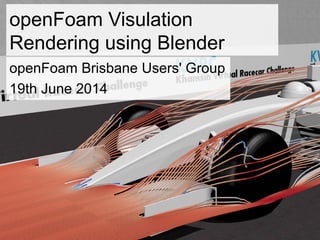
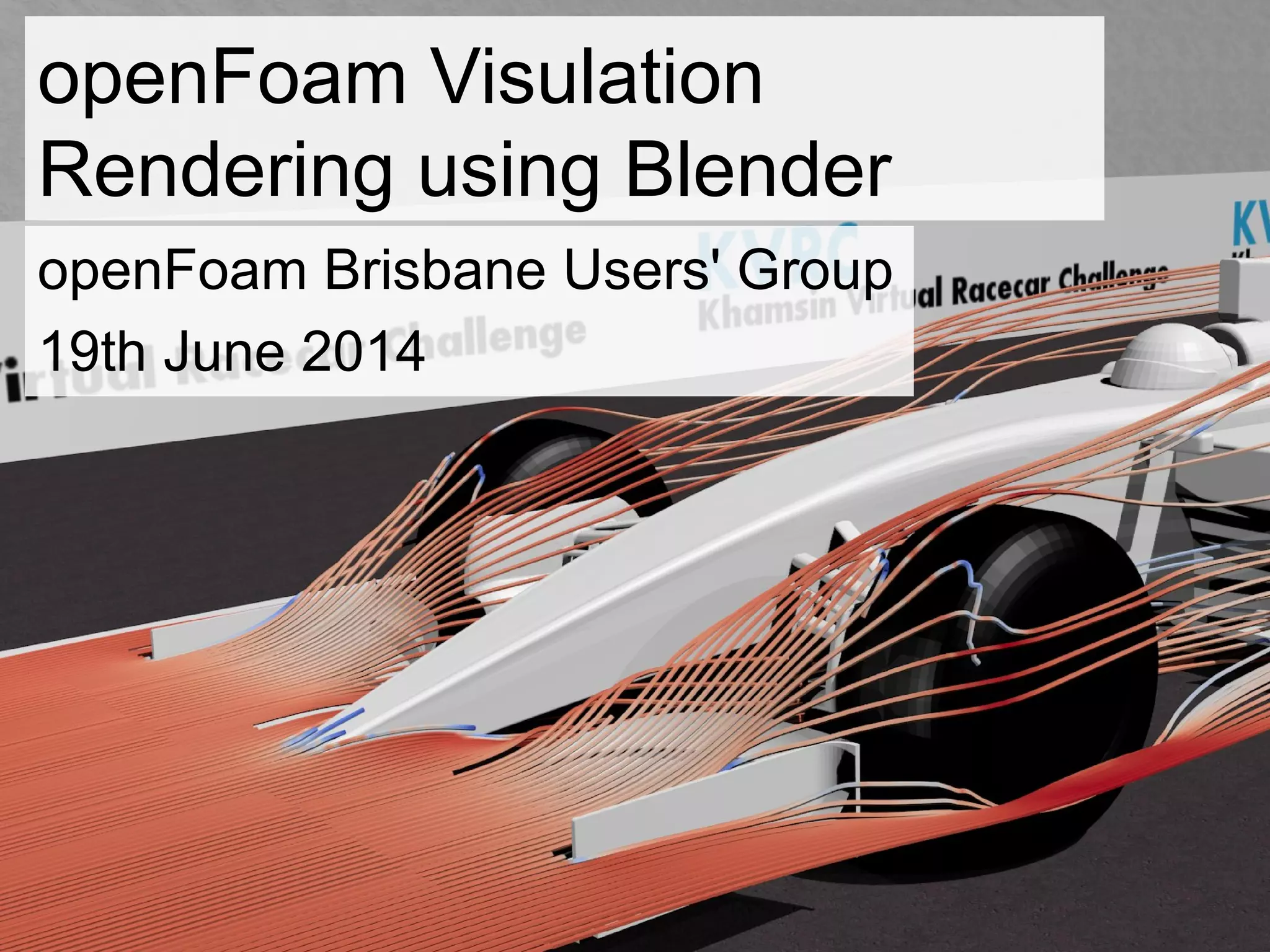
openFoam Visulation
Rendering using Blender
openFoam Brisbane Users' Group
19th June 2014
Objectives
• Learn how to
generate high
resolution render of
openFoam CFD
results using Blender
Thanks
• CAEdevice www.caedevice.net for enabling the use of
his design geometry
• KVRC www.khamsinvirtualracecarchallenge.com and its
partners: Competition Car Engineering and Hibou
Scientific Software
• Matt Cragun, Total Sim USA for his presentation "Data
Visualisation and Rendering with Blender and VTK"
Blender
• A few basics - please
refer to Matt Cragun's
presentation:
http://www.openfoamworkshop.org/6th
_OpenFOAM_Workshop_2011/Progra
m/Training/cragun_slides.pdf
Be prepared, the learning
curve is steep...
Shortcut Action
RMB Select
Shift+MMB Pan
Shift+D Duplicate
G Grab (to move an
object)
R Rotate
(G, R) >> (X, Y, Z) Specify the axis to
be used to
move/rotate object
X Delete
F12 Render
F3 Save image
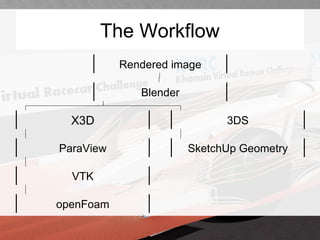
The Workflow
Rendered image
Blender
X3D 3DS
SketchUp GeometryParaView
VTK
openFoam
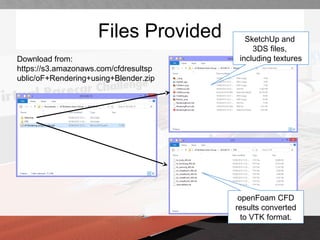
Files Provided SketchUp and
3DS files,
including textures
openFoam CFD
results converted
to VTK format.
Download from:
https://s3.amazonaws.com/cfdresultsp
ublic/oF+Rendering+using+Blender.zip
ParaView
• Start ParaView;
• Open files:
– bc_body_480.vtk
– bc_frontwing_480.vtk
– bc_rearwing_480.vtk
– bc_wheelback1_480.vtk
– bc_wheelback2_480.vtk
– bc_wheelfront1_480.vtk
– bc_wheelfront2_480.vtk
ParaView
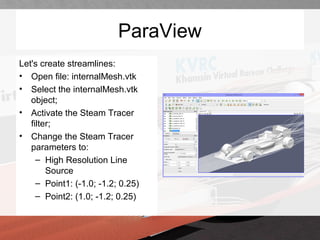
Let's create streamlines:
• Open file: internalMesh.vtk
• Select the internalMesh.vtk
object;
• Activate the Steam Tracer
filter;
• Change the Steam Tracer
parameters to:
– High Resolution Line
Source
– Point1: (-1.0; -1.2; 0.25)
– Point2: (1.0; -1.2; 0.25)
ParaView
And color them:
• Select the StreamTracer object;
• Select the Tube filter;
– Radius: 0.005
• Change the color variable to "U"
Then do a little bit of house keeping
and export:
• Hide the car geometry;
• Select Edit View Option:
– Turn off Orientation Axes
• Export scene as X3D
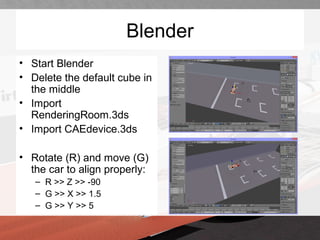
Blender
• Start Blender
• Delete the default cube in
the middle
• Import
RenderingRoom.3ds
• Import CAEdevice.3ds
• Rotate (R) and move (G)
the car to align properly:
– R >> Z >> -90
– G >> X >> 1.5
– G >> Y >> 5
Blender
• Import results.x3d saved from
ParaView
• Delete by right-click in the
object view and select Delete:
– TODO to TODO.006
– ViewPoint
• Select the ParaView object
(ShapeIndexedFaceSet);
• Rotate and position:
– R >> X >> 90
– R >> Z >> 90
– G >> X >> 1.5
– G >> Y >> 5
Blender
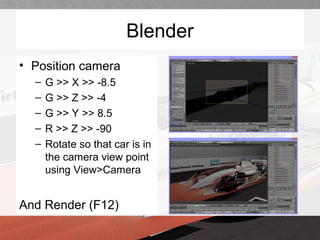
• Position camera
– G >> X >> -8.5
– G >> Z >> -4
– G >> Y >> 8.5
– R >> Z >> -90
– Rotate so that car is in
the camera view point
using View>Camera
And Render (F12)
Blender
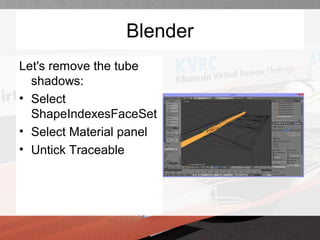
Let's remove the tube
shadows:
• Select
ShapeIndexesFaceSet
• Select Material panel
• Untick Traceable
Blender
Add lighting:
• Select existing
light;
• Copy (Shift+D);
• Move the copied
light (X, Y, Z);
• Repeat above step
twice for key and
fill lights
Fill Key
Blender
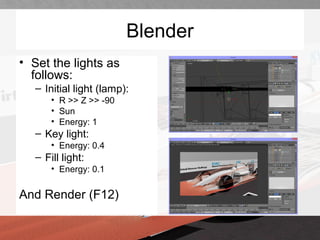
• Set the lights as
follows:
– Initial light (lamp):
• R >> Z >> -90
• Sun
• Energy: 1
– Key light:
• Energy: 0.4
– Fill light:
• Energy: 0.1
And Render (F12)
Blender
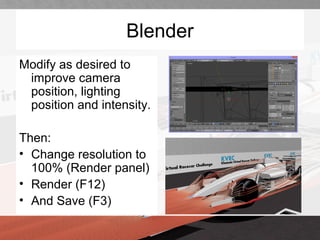
Modify as desired to
improve camera
position, lighting
position and intensity.
Then:
• Change resolution to
100% (Render panel)
• Render (F12)
• And Save (F3)
Blender
• Repeat with showing
the pressure
distribution on the car.
• Tricks:
– In ParaView:
• Group the various car
parts in one dataset
• Coarsen the mesh
using Quadratic
Clustering filter
Happy Rendering
Thank you for your time and attention...
Please, tweet your rendering pictures to
@HibouSoftware
and
on Fridays use #simulationfriday

openFoam Visualisation Rendering Using Blender

  • 1.
    openFoam Visulation Rendering usingBlender openFoam Brisbane Users' Group 19th June 2014
  • 2.
    Objectives • Learn howto generate high resolution render of openFoam CFD results using Blender
  • 3.
    Thanks • CAEdevice www.caedevice.netfor enabling the use of his design geometry • KVRC www.khamsinvirtualracecarchallenge.com and its partners: Competition Car Engineering and Hibou Scientific Software • Matt Cragun, Total Sim USA for his presentation "Data Visualisation and Rendering with Blender and VTK"
  • 4.
    Blender • A fewbasics - please refer to Matt Cragun's presentation: http://www.openfoamworkshop.org/6th _OpenFOAM_Workshop_2011/Progra m/Training/cragun_slides.pdf Be prepared, the learning curve is steep... Shortcut Action RMB Select Shift+MMB Pan Shift+D Duplicate G Grab (to move an object) R Rotate (G, R) >> (X, Y, Z) Specify the axis to be used to move/rotate object X Delete F12 Render F3 Save image
  • 5.
    The Workflow Rendered image Blender X3D3DS SketchUp GeometryParaView VTK openFoam
  • 6.
    Files Provided SketchUpand 3DS files, including textures openFoam CFD results converted to VTK format. Download from: https://s3.amazonaws.com/cfdresultsp ublic/oF+Rendering+using+Blender.zip
  • 7.
    ParaView • Start ParaView; •Open files: – bc_body_480.vtk – bc_frontwing_480.vtk – bc_rearwing_480.vtk – bc_wheelback1_480.vtk – bc_wheelback2_480.vtk – bc_wheelfront1_480.vtk – bc_wheelfront2_480.vtk
  • 8.
    ParaView Let's create streamlines: •Open file: internalMesh.vtk • Select the internalMesh.vtk object; • Activate the Steam Tracer filter; • Change the Steam Tracer parameters to: – High Resolution Line Source – Point1: (-1.0; -1.2; 0.25) – Point2: (1.0; -1.2; 0.25)
  • 9.
    ParaView And color them: •Select the StreamTracer object; • Select the Tube filter; – Radius: 0.005 • Change the color variable to "U" Then do a little bit of house keeping and export: • Hide the car geometry; • Select Edit View Option: – Turn off Orientation Axes • Export scene as X3D
  • 10.
    Blender • Start Blender •Delete the default cube in the middle • Import RenderingRoom.3ds • Import CAEdevice.3ds • Rotate (R) and move (G) the car to align properly: – R >> Z >> -90 – G >> X >> 1.5 – G >> Y >> 5
  • 11.
    Blender • Import results.x3dsaved from ParaView • Delete by right-click in the object view and select Delete: – TODO to TODO.006 – ViewPoint • Select the ParaView object (ShapeIndexedFaceSet); • Rotate and position: – R >> X >> 90 – R >> Z >> 90 – G >> X >> 1.5 – G >> Y >> 5
  • 12.
    Blender • Position camera –G >> X >> -8.5 – G >> Z >> -4 – G >> Y >> 8.5 – R >> Z >> -90 – Rotate so that car is in the camera view point using View>Camera And Render (F12)
  • 13.
    Blender Let's remove thetube shadows: • Select ShapeIndexesFaceSet • Select Material panel • Untick Traceable
  • 14.
    Blender Add lighting: • Selectexisting light; • Copy (Shift+D); • Move the copied light (X, Y, Z); • Repeat above step twice for key and fill lights Fill Key
  • 15.
    Blender • Set thelights as follows: – Initial light (lamp): • R >> Z >> -90 • Sun • Energy: 1 – Key light: • Energy: 0.4 – Fill light: • Energy: 0.1 And Render (F12)
  • 16.
    Blender Modify as desiredto improve camera position, lighting position and intensity. Then: • Change resolution to 100% (Render panel) • Render (F12) • And Save (F3)
  • 17.
    Blender • Repeat withshowing the pressure distribution on the car. • Tricks: – In ParaView: • Group the various car parts in one dataset • Coarsen the mesh using Quadratic Clustering filter
  • 18.
    Happy Rendering Thank youfor your time and attention... Please, tweet your rendering pictures to @HibouSoftware and on Fridays use #simulationfriday