Leveraging Surveys: Completing
the feedback loop to engage
students and parents
Erin Garland and Maureen Tuchowski
K12 Professional Services
Session Objectives
 Understand the quantitative vs.
qualitative survey options available in
Naviance
 Identify four concise steps to survey
implementation
 Demonstrate different methods for
deploying surveys to a targeted
audience
 Design surveys to engage students
and parents
Session Agenda
 Introductions
 The Power of the Survey
 The four steps to creating and administering
surveys that produce the results you need
 Plan: Beginning with the end in mind
 Build: Creating a Survey in Naviance
 Deploy: Methods for distributing a survey to a
targeted audience
 Measure: Analyzing your Results
 Conclusion and additional resources and
supports
Introductions: Erin Garland
and Maureen Tuchowski
The Power of the Survey:
empowering your students to affect
change, ascertaining vs.
assuming, and using data to drive
decisions
The Power of the Survey
Empowering your students to affect change:
Provide opportunities for choice (communication,
presentation formats, identifying preferences)
Gathering feedback on past events to ensure
future success
Fostering leadership opportunities in students
Ascertaining vs. Assuming:
The student voice – are we really listening?
The assumptions that we make as staff may not
accurately reflect the wants/needs of the collective
student perspective
Using Data to Drive Decisions:
Being more responsive and less reactive to what
our students are looking for from their education
Demonstrating actions tied to student survey
feedback
The four steps to creating and administering
surveys that produce the results you need
 Plan: beginning with the end in
mind
 Build: creating a survey in
Naviance
 Deploy: methods for distributing
your survey to the right audience
 Measure: analyzing your results
Plan: Beginning with the end in mind
Statistical summaries of
quantitative responses
will be available in “View
Responses” for surveys
and individual results will
appear in the student
folder
A summary list of qualitative
responses will be available
in “View Responses” for
surveys and individual
student responses will appear
in the student folder
Qualitative responses:
data that can be observed
but not measured – open
responses
Quantitative responses:
identify the smallest
measurable components
necessary to achieve
statistical results for an
entire group
Plan: Beginning with the end in mind
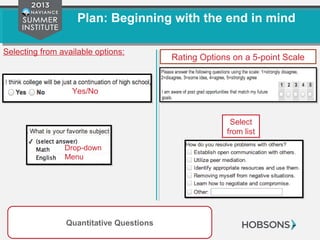
Selecting from available options:
Rating Options on a 5-point Scale
Quantitative Questions
Yes/No
Drop-down
Menu
Select
from list
Plan: Beginning with the end in mind
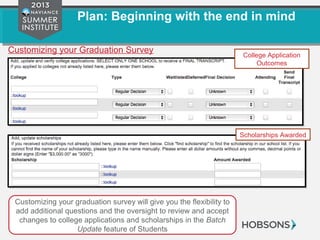
College Application
Outcomes
Customizing your Graduation Survey
Customizing your graduation survey will give you the flexibility to
add additional questions and the oversight to review and accept
changes to college applications and scholarships in the Batch
Update feature of Students
Scholarships Awarded
Plan: Beginning with the end in mind
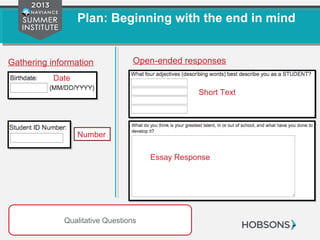
Open-ended responses
Short Text
Essay Response
Gathering information
Qualitative Questions
Date
Number
Build: Creating a survey in Naviance
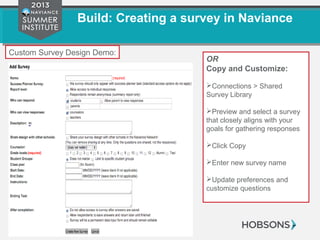
OR
Copy and Customize:
Connections > Shared
Survey Library
Preview and select a survey
that closely aligns with your
goals for gathering responses
Click Copy
Enter new survey name
Update preferences and
customize questions
Custom Survey Design Demo:
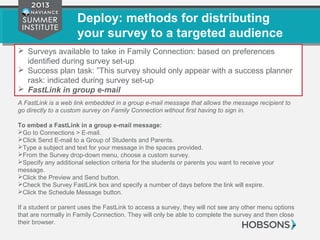
Deploy: methods for distributing
your survey to a targeted audience
 Surveys available to take in Family Connection: based on preferences
identified during survey set-up
 Success plan task: ”This survey should only appear with a success planner
rask: indicated during survey set-up
 FastLink in group e-mail
A FastLink is a web link embedded in a group e-mail message that allows the message recipient to
go directly to a custom survey on Family Connection without first having to sign in.
To embed a FastLink in a group e-mail message:
Go to Connections > E-mail.
Click Send E-mail to a Group of Students and Parents.
Type a subject and text for your message in the spaces provided.
From the Survey drop-down menu, choose a custom survey.
Specify any additional selection criteria for the students or parents you want to receive your
message.
Click the Preview and Send button.
Check the Survey FastLink box and specify a number of days before the link will expire.
Click the Schedule Message button.
If a student or parent uses the FastLink to access a survey, they will not see any other menu options
that are normally in Family Connection. They will only be able to complete the survey and then close
their browser.
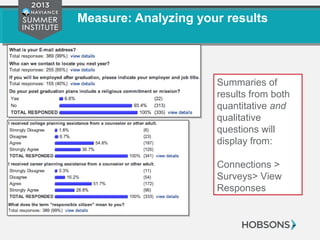
Measure: Analyzing your results
Summaries of
results from both
quantitative and
qualitative
questions will
display from:
Connections >
Surveys> View
Responses
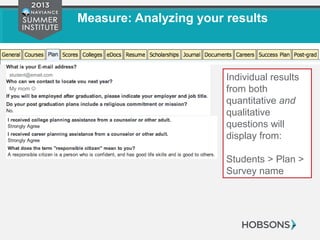
Measure: Analyzing your results
Individual results
from both
quantitative and
qualitative
questions will
display from:
Students > Plan >
Survey name
student@email.com
My mom 
Conclusion and additional
resources and supports
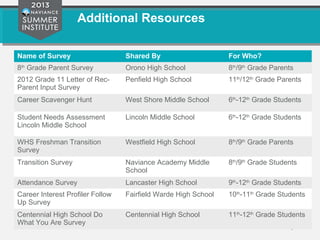
Additional Resources
Name of Survey Shared By For Who?
8th
Grade Parent Survey Orono High School 8th
/9th
Grade Parents
2012 Grade 11 Letter of Rec-
Parent Input Survey
Penfield High School 11th
/12th
Grade Parents
Career Scavenger Hunt West Shore Middle School 6th
-12th
Grade Students
Student Needs Assessment
Lincoln Middle School
Lincoln Middle School 6th
-12th
Grade Students
WHS Freshman Transition
Survey
Westfield High School 8th
/9th
Grade Parents
Transition Survey Naviance Academy Middle
School
8th
/9th
Grade Students
Attendance Survey Lancaster High School 9th
-12th
Grade Students
Career Interest Profiler Follow
Up Survey
Fairfield Warde High School 10th
-11th
Grade Students
Centennial High School Do
What You Are Survey
Centennial High School 11th
-12th
Grade Students
The Naviance Network Online
Community
Log on to the Naviance Network to:
•Find this presentation!
•Connect with colleagues from NSI
•Participate in community discussions
•Learn how to better utilize Naviance from peers and from Naviance support
specialists with a new articles and guides in the Help Library
•Provide product feedback and suggestions via the Idea Exchange
Your Feedback Matters!
Thank you for attending the
Naviance Summer Institute 2013!
We greatly appreciate your feedback, please
complete a brief evaluation for this session at:
http://go.naviance.com/evaluations

Feature Forum: Leveraging Surveys

  • 1.
    Leveraging Surveys: Completing thefeedback loop to engage students and parents Erin Garland and Maureen Tuchowski K12 Professional Services
  • 2.
    Session Objectives  Understandthe quantitative vs. qualitative survey options available in Naviance  Identify four concise steps to survey implementation  Demonstrate different methods for deploying surveys to a targeted audience  Design surveys to engage students and parents
  • 3.
    Session Agenda  Introductions The Power of the Survey  The four steps to creating and administering surveys that produce the results you need  Plan: Beginning with the end in mind  Build: Creating a Survey in Naviance  Deploy: Methods for distributing a survey to a targeted audience  Measure: Analyzing your Results  Conclusion and additional resources and supports
  • 4.
  • 5.
    The Power ofthe Survey: empowering your students to affect change, ascertaining vs. assuming, and using data to drive decisions
  • 6.
    The Power ofthe Survey Empowering your students to affect change: Provide opportunities for choice (communication, presentation formats, identifying preferences) Gathering feedback on past events to ensure future success Fostering leadership opportunities in students Ascertaining vs. Assuming: The student voice – are we really listening? The assumptions that we make as staff may not accurately reflect the wants/needs of the collective student perspective Using Data to Drive Decisions: Being more responsive and less reactive to what our students are looking for from their education Demonstrating actions tied to student survey feedback
  • 7.
    The four stepsto creating and administering surveys that produce the results you need  Plan: beginning with the end in mind  Build: creating a survey in Naviance  Deploy: methods for distributing your survey to the right audience  Measure: analyzing your results
  • 8.
    Plan: Beginning withthe end in mind Statistical summaries of quantitative responses will be available in “View Responses” for surveys and individual results will appear in the student folder A summary list of qualitative responses will be available in “View Responses” for surveys and individual student responses will appear in the student folder Qualitative responses: data that can be observed but not measured – open responses Quantitative responses: identify the smallest measurable components necessary to achieve statistical results for an entire group
  • 9.
    Plan: Beginning withthe end in mind Selecting from available options: Rating Options on a 5-point Scale Quantitative Questions Yes/No Drop-down Menu Select from list
  • 10.
    Plan: Beginning withthe end in mind College Application Outcomes Customizing your Graduation Survey Customizing your graduation survey will give you the flexibility to add additional questions and the oversight to review and accept changes to college applications and scholarships in the Batch Update feature of Students Scholarships Awarded
  • 11.
    Plan: Beginning withthe end in mind Open-ended responses Short Text Essay Response Gathering information Qualitative Questions Date Number
  • 12.
    Build: Creating asurvey in Naviance OR Copy and Customize: Connections > Shared Survey Library Preview and select a survey that closely aligns with your goals for gathering responses Click Copy Enter new survey name Update preferences and customize questions Custom Survey Design Demo:
  • 13.
    Deploy: methods fordistributing your survey to a targeted audience  Surveys available to take in Family Connection: based on preferences identified during survey set-up  Success plan task: ”This survey should only appear with a success planner rask: indicated during survey set-up  FastLink in group e-mail A FastLink is a web link embedded in a group e-mail message that allows the message recipient to go directly to a custom survey on Family Connection without first having to sign in. To embed a FastLink in a group e-mail message: Go to Connections > E-mail. Click Send E-mail to a Group of Students and Parents. Type a subject and text for your message in the spaces provided. From the Survey drop-down menu, choose a custom survey. Specify any additional selection criteria for the students or parents you want to receive your message. Click the Preview and Send button. Check the Survey FastLink box and specify a number of days before the link will expire. Click the Schedule Message button. If a student or parent uses the FastLink to access a survey, they will not see any other menu options that are normally in Family Connection. They will only be able to complete the survey and then close their browser.
  • 14.
    Measure: Analyzing yourresults Summaries of results from both quantitative and qualitative questions will display from: Connections > Surveys> View Responses
  • 15.
    Measure: Analyzing yourresults Individual results from both quantitative and qualitative questions will display from: Students > Plan > Survey name student@email.com My mom 
  • 16.
  • 17.
    Additional Resources Name ofSurvey Shared By For Who? 8th Grade Parent Survey Orono High School 8th /9th Grade Parents 2012 Grade 11 Letter of Rec- Parent Input Survey Penfield High School 11th /12th Grade Parents Career Scavenger Hunt West Shore Middle School 6th -12th Grade Students Student Needs Assessment Lincoln Middle School Lincoln Middle School 6th -12th Grade Students WHS Freshman Transition Survey Westfield High School 8th /9th Grade Parents Transition Survey Naviance Academy Middle School 8th /9th Grade Students Attendance Survey Lancaster High School 9th -12th Grade Students Career Interest Profiler Follow Up Survey Fairfield Warde High School 10th -11th Grade Students Centennial High School Do What You Are Survey Centennial High School 11th -12th Grade Students
  • 18.
    The Naviance NetworkOnline Community Log on to the Naviance Network to: •Find this presentation! •Connect with colleagues from NSI •Participate in community discussions •Learn how to better utilize Naviance from peers and from Naviance support specialists with a new articles and guides in the Help Library •Provide product feedback and suggestions via the Idea Exchange
  • 19.
    Your Feedback Matters! Thankyou for attending the Naviance Summer Institute 2013! We greatly appreciate your feedback, please complete a brief evaluation for this session at: http://go.naviance.com/evaluations

Editor's Notes

  • #6 Empowering your students to affect change: Provide opportunities for choice (communication, presentation formats, identifying preferences) Gathering feedback on past events to ensure future success Fostering leadership opportunities in students Ascertaining vs. Assuming: The student voice – are we really listening? The assumptions that we make as staff may not accurately reflect the wants/needs of the collective student perspective Using Data to Drive Decisions: Being more responsive and less reactive to what our students are looking for from their education Demonstrating actions tied to student survey feedback
  • #13 ** Emphasize Start/End Date; Anonymous v. Open; Response Type in Demonstration
  • #14 Demo FastLink in group e-mail message
  • #15 Demo aggregate responses from NSI 2013 Sample Survey
  • #16 Demo individual responses to NSI 2013 Sample Survey for Roger Federer