TEACHERS’ GUIDE 
1. Introduction ………………..... 2 10. Manage Your School …………..... 15 
2. General Overview ………....... 3 11. Purchase Premium Seats ……....... 17 
3. Registration / Login ………..... 4 12. The Class Page ……………............ 19 
4. Getting Started …………........ 6 13. The My English Page …………...... 20 
5. Creating A Class …………..... 7 14. The Profile Page ………………...... 21 
6. Set Goals …………………....... 8 15. The Video Player ……………........ 22 
7. Assign Curriculum ………...... 9 16. Vocabulary Study ……………...... 24 
8. Enroll Students …………........ 11 17. Pronunciation …………………..... 25 
9. View Reports ……………....... 13 18. Getting Help …………………....... 26 
Dive Into An Ocean Of Video 
www.englishcentral.com/academic
EnglishCentral makes teaching English fun and effective by turning popular web videos into 
powerful language learning experiences. EnglishCentral allows teachers to sign up students, 
select video curriculum, assign goals and track student progress. Perfect for any blended learning 
approach and the 21st century digital classroom. 
Top 10 Reasons To Use EnglishCentral
Your students can access EnglishCentral on 
all devices by using our mobile apps! 
Mobile Features: 
- Access to all EnglishCentral videos from 
your mobile device 
- Student progress is synchronized between 
EnglishCentral and the student / teacher's 
mobile device. 
- You can practice Watch and Learn of any 
video you have download to your mobile 
device while you are offline. Speaking 
required wifi access 
- View class and course videos through the 
top drop down menu 
- View our demo video showing all 
features.
On EnglishCentral students learn through our unique immersive approach of …. 
We use patented speech recognition technology to assess student speaking and motivate 
learners. Students study vocabulary in the context of the video lesson and a process of spaced – 
time repetition. 
In order to make significant progress and increase test scores, we recommend that each week 
students 
Teachers have free access to our learning management system,“Teacher Tools”, where classes 
can be set up, students invited and enrolled, video lessons and curriculum assigned and progress 
tracked. We track student progress across a wide variety of data making assessment simple. 
Come join in the video teaching revolution and dive into an ocean of video content!
TEACHERS: 
Teachers register through our Academic Use page: http://www.englishcentral.com/academic 
Simply type in a school name (don’t worry you can delete it later and make a new “official” 
school) and basic personal information. Use your account page to change any of this information 
or settings. 
Visit our Academic Use area and find out more about the academic quality of the EnglishCentral 
platform. Read research reports and case studies on how other teachers are using EnglishCentral 
around the world. 
All newly registered teachers get a full trial! Invite your students and upgrade them to Academic 
Premium – a $1,500 value. Contact us to start your trial today!
STUDENTS: 
Students can register in several ways; 
1 
2 
3 
Regular log in and sign up through our student login page: http://www.englishcentral.com/student. 
Teacher Invite and enrollment in the class through the Class Page URL.Students will automatically 
get upgraded to Academic Premium if the school has valid trial or paid seats in their account. 
Prepaid Access Cards bought directly from the school or the school bookstore. Students 
enter the access code on their account page or when prompted from the Class Page. 
Students should use their Account Page to edit registration information and personal settings.
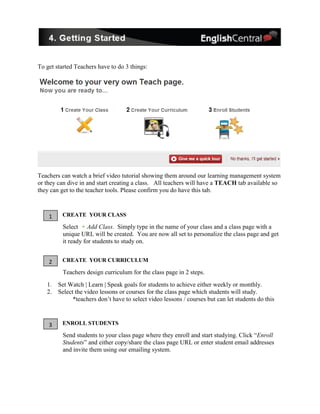
To get started Teachers have to do 3 things: 
Teachers can watch a brief video tutorial showing them around our learning management system 
or they can dive in and start creating a class. All teachers will have a TEACH tab available so 
they can get to the teacher tools. Please confirm you do have this tab. 
1 
2 
3 
CREATE YOUR CLASS 
Select + Add Class. Simply type in the name of your class and a class page with a 
unique URL will be created. You are now all set to personalize the class page and get 
it ready for students to study on. 
CREATE YOUR CURRICULUM 
Teachers design curriculum for the class page in 2 steps. 
1. Set Watch | Learn | Speak goals for students to achieve either weekly or monthly. 
2. Select the video lessons or courses for the class page which students will study. 
*teachers don’t have to select video lessons / courses but can let students do this 
ENROLL STUDENTS 
Send students to your class page where they enroll and start studying. Click “Enroll 
Students” and either copy/share the class page URL or enter student email addresses 
and invite them using our emailing system.
The first thing that teachers have to do after registration is create a class. 
Select the + Add button and add a class. Also use the + Add button at the top of the Teacher 
Tools, to add additional schools, classes, groups or even students.
There are 2 basic things teachers need to do to make curriculum for student study. Set Goals & 
Choose Video Lessons and Courses. 
1. SET GOALS 
Goals are a great way to keep your students motivated and helpful in assessing student 
achievement. Simply do the following 3 things to set goals: 
1. Enter the number of videos you want your students to Watch | Learn | Speak 
2. Decide if the goals will be achieved only by what you assign to study or by any videos or 
courses students study on EnglishCentral 
3. Decide if you will set weekly goals (and the due day) or monthly goals. (All goal 
deadlines are 11:59pm GMT. We’ll show students the local time on the class page) 
The goals you set will appear at the top of the class page so students will know exactly what they 
have to achieve and the due date. As students study, we’ll show them how close they are getting 
to achieving their goals. Students can hold their cursor over a “goal pie” and get their progress 
history. Students also can get past goal completion history by clicking on the available calendar. 
** Our Vocabulary "cliplist" courses do not count for "Learn Words". Students presently only 
get credit for Learned Words by successful completion of the Vocabulary Quiz.
We’ve made it very easy for teachers to select the video lessons and courses they want students 
to study. 
There are 3 options for teachers when deciding on the class video curriculum. 
1 
2 
3 
TEACHER SELECTS A COURSE 
Teachers simply go to our Video Course Catalog, browse, try, and select the course 
they’d like students to study. Select “ADD THIS COURSE” and select the 
class to add the course to. Students can start studying it right away! 
TEACHER SELECTS VIDEO LESSONS 
Teachers can select individual video lessons and create their own course on the class 
page. Simply select the + icon that appears on any video and select the class to add 
the video lesson. 
STUDENT SELECTS 
It can be very motivating to allow students to browse our whole catalog and let them 
select the video lessons and courses they’d like to study. All students have individual 
interests and we make it easy for teachers to differentiate and personalize the class 
curriculum to meet individual student needs.
EnglishCentral has a library of over 10,000 video lessons and 50 courses that teachers can select 
as their class curriculum. We’ve organized our video lesson and course catalog so you can select 
by topic and difficulty/level. 
Visit our Browse page to view both video lessons and courses. 
Our pronunciation and vocabulary courses will help your students succeed in these two 
challenging areas. We have full video courses from many of the leading ELT publishers – please 
take a look at our course catalog.
The most important thing to know about enrollment is that students should enroll on the class 
page. Each class page has a unique URL which teachers share with students. 
http://www.englishcentral.com/class/classname 
You will be provided with a longer version but this shorter version will work also. It is on this 
page that your students will arrive and enroll into your class. 
Teachers have several options to provide this URL to students: 
1 
2 
Directly share the URL with students 
Select “Enroll Students” and view the class URL. Copy / paste, print and handout 
to students. Or write the URL on the board and have students go directly there. 
Share the URL by email invitation 
EnglishCentral allows you to easily 
share your class page URL with 
students by email. 
Simply type in or copy student email 
addresses and send an invite 
message. Students just click 
on the link and go to the class page to 
enroll and start studying. If students 
are already registered on 
EnglishCentral and you don’t want to 
have them get an email – you can 
check the box to not send them 
email. In all cases students will 
immediately appear on your student 
list.
Here is what a class list looks like after students have been enrolled. 
When students go to the Class Page they will be asked to “Enroll Now” and then if not 
registered, to complete a simple user id / password sign up. Then they will be set to study. 
If students already have an account, they select, "Sign In" and will then be enrolled.
There are nine different reports available from the REPORT tab. 
Each report gives clear data about student achievement and can be 
filtered by student achievement or alphabetically. 
Each report may be printed out for reference. All reporting data 
may also be exported in a handy excel file. 
Teachers need to be sure to verify that the correct goal filter and 
calendar settings are applied. 
Here is a typical report showing students who have met the weekly goal and those who have not. 
Our pronunciation reports show student weaknesses in each phoneme of English. 
Red = Weak Yellow = average Green = strong
Listen In 
One of the unique reporting features EnglishCentral offers is the “Listen In” report. 
We give teachers the ability to “Listen In” to their students’ recordings. Teachers can see the 
grades of their students, the feedback that our speech engine gave the students and also listen to 
the students’ audio recording. It is like a time machine! 
Here is what the “Listen In” library for a student looks like. Simply click on a 
video they’ve recorded and listen in. Access the “Listen In” report through the 
Speaking Points report or by selecting the Listen In icon. 
* Both the pronunciation and “Listen In” reports require that students be Premium members. 
Teacher Tips: 
Scroll over a student’s name on the report class list and get a 
snapshot of recent activity. 
Drill down and see more in depth activity by clicking the report icon 
beside a student’s name. 
Can’t remember who is who in your class? Edit student names to 
something you are familiar with using the Manage – Student tab, 
class list.
Besides making curriculum and tracking students, you can manage students and invite 
fellow teachers to join you and teach on EnglishCentral. This is all done through the Manage tab 
on the Teacher Tools. Teachers can also add/delete schools, classes, groups, teachers, students. 
When in Manage – select the School / Class or Group 
you wish to manage from the top left drop down list. 
You will be able to: 
1. Invite fellow teachers to your school / class as a teacher / co-teacher 
2. Join and become a student in your own class. 
3. Add / Delete Schools / Classes / Groups 
4. Group students in levels (and assign specific videos for them) 
5. Add / Remove students from the School or classes / groups. 
6. Edit student names and give them an alias. 
7. Upgrade students. Assign seats that you have purchased to give your students Premium 
Access. 
The teacher that originally created the school is an administrator. Other teachers may be 
made administrators of a school and be able to manage the teachers / students in the school 
roster. Administration status can also be removed. Administrators access school classes by 
selecting Teachers and selecting the class they wish to administrate. 
** Please be careful when deleting your school, classes or groups. You’ll get a confirmation 
message when deleting a school or class but please be careful!
Other Important Features 
Teachers can view the Class Page at any time by selecting “View Class Page”. 
Teachers can put a Class Announcement on the Class 
Page and include links to important online content 
that students can access. 
Teachers can upload a logo 
to their school. The logo 
will appear on every class 
page under the school. Best to upload an image that 
is like a banner: long and narrow.
Teachers are like royalty to us! Teachers are automatically Academic Premium when they 
have one or more Academic Premium student seats in their school or class account. New 
teachers can contact us and get 50 free monthly Academic Premium seats to try out 
EnglishCentral with their students. Try it and you'll definitely see the benefits! 
We have hundreds of universities and schools around the world using EnglishCentral Premium. 
If you’d like to get Premium seats for your school, simply contact us and we’ll provide you with 
a personalized quote. Our Academic Pricing starts at 70% off the list / individual price! 
Contact us at premium@englishcentral.com 
Teachers who are provided with an access code for Premium seats can easily get those seats. 
Simply, go to Purchase and put in the 12 digit access code. Click Submit. The seats will be put 
into your Teacher Tool account and be ready for you to assign to students. 
Your school and class Premium seat indicator will always show you how many Premium seats 
you have available to assign to students. Premium seats offer flexibility and convenience. They 
are always fully controlled by the school or teacher and can be removed at any time from a 
student. Premium seats start to expire when they are added to the school or class account.
Our Academic Pricing is available by the month / semester (4 months) or year. 
It includes: 
Unlimited Student Access 
Unlimited Premium course access 
 Teacher Tools LMS 
 Full customer service & ongoing teacher training sessions 
Premium students can study without restriction and practice enough to make significant 
improvements in fluency. 
Here is an overview of what each subscription level gets both teachers and students.
Your Class Page is where all the action takes place! Your students enroll here, study here, 
get messages here. They can also compete with classmates for the weekly “Top 5” ranking. 
Teacher selected video lessons and courses will appear on the class page for students to study. 
At the top, each student will see their progress towards the goals you’ve set for them. 
A great motivator! They can also review their goal history by clicking the calendar. 
Teachers can view the class page at any time and also study on the class page just like they are a 
student. It is a great way to see EnglishCentral from the perspective of your students. Put your 
cursor over the progress pies to see progress history for study before the current week or month. 
Students access their class page by selecting “My Classes” from the top menu.
Each student also has a My English page. This is where students can see the history of the 
courses they've started, studied or the video lessons they've studied. 
Students also have a "Progress Bar". Here, they can: 
1. See the "Experience Points" total they've earned for completing video lesson activities. 
2. Review and restudy the vocabulary they've already studied or favorited. 
3. View their pronunciation profile and get remedial courses for each othe phonemes/ 
sounds that they are weak or average in.
Each registered teacher or student has 
their own profile page. 
Go to your account page by clicking your 
profile icon at the top of every page. Or go 
to http://www.englishcentral.com/account 
On the Profile page all members can: 
1. Edit personal information (Username / Password etc….) 
2. Upload a profile photo. 
3. Edit default language settings 
4. Set how you appear on the site and how we contact you. 
5. Upgrade to Premium. View billing information / invoices. 
6. Contact us to upgrade to a teacher account (if you registered as a student by mistake)
The EnglishCentral video player is at the core of the student learning experience. 
Teachers should become familiar with the player and its options, demonstrating these for 
students. Or better yet, appoint a student as the "technology expert" who is tasked to learn about 
the player and help his or her classmates. 
Students Watch | Learn | Speak in the video player and must fully complete all 
parts to get credit. When students speak, they get detailed pronunciation feedback 
that helps them improve their speaking skills. The player is fluid and dynamic and 
offers the students many features to control their learning experience. 
The player offers students the following: 
1. Compare: instantly compare their own speech to the native speaking model. 
2. Repeat: playback the line again to improve listening skills 
3. Slow Down: our unique "slow" button repeats the line slowly. 
4. In Video Dictionary: click any word / phrase and get a definition and learn its pronunciation. 
5. Subtitles: turn them on or off. English or selected site languages available. 
6. Scrolling: quickly scroll through the video and play any line. 
7. Hidden Challenge: an advanced listening cloze available in the settings. 
8. Listening: students listen for selected vocabulary in the LEARN mode 
9. Speaking: click the microphone, speak lines and get corrective feedback, points and a grade. 
Students will get a prompt screen to start each learning exercise.
In LEARN students type in the words to complete the exercise. 
Select the Settings tab to change the player settings. 
Here is a sample of pronunciation feedback give to students.
The Vocabulary study features of EnglishCentral are unique and EnglishCentral can be thought 
of as a very large video corpus. We give students the tools to learn words in video context and 
use, a vastly superior method than any other. We track each word students Watch | Learn | Speak 
and provide a complete lexical profile of student learning. Our unique spaced time repetition 
system assures students have really learned the vocabulary. 
There are a number of ways to study vocabulary on EnglishCentral. 
1. In the video player through the LEARN mode (*does not count toward student word goals) 
2. Select Learn Words on any video detail page and launch the video quiz for the video. 
3. Search for a word. Select the WORD tab and study words in detailed cliplists. 
4. In a course Quiz app to study all the vocabulary from a course unit. 
5. Review. On My English students can see all the words they've studied and restudy them. 
6. Vocabulary Course. We have many including the Academic Word List. 
Here is a view of our quiz application. Students answer video based questions. 2 correct answers 
of the same word means the student will get credit for the word being learned - "Success". 
View our "How To Study Vocabulary" guide.
Pronunciation is what we do best and we 
are the only speech recognition based 
pronunciation tool available in a web 
browser. 
We track and develop a complete profile 
of all students. Teachers can find out if the 
students have weak / average /strong pronunciation in all of 44 phonemes of English. Students 
can visit their My English page and see their Pronunciation Score and get details about which 
sounds of English they need to work on. 
Students who need extra help can take one of our comprehensive courses in any of the sounds of 
English, guided by Pamela our in-house pronunciation expert. 
Learn more by reading our "How To Study Vocabulary" guide.
We are never far away and here to help all teachers and students. 
Teachers should view our Academic Use area to get familiar with our service. Further, 
we offer both a weekly webinar held in a video conference room or can provide personal 
tours at a convenient time for schools/teachers thinking of adopting EnglishCentral as 
their English language learning solution. 
There are a number of ways to get help on EnglishCentral. 
1. Select "Get Help" in our Teacher Tools or click "Help" at the bottom of all pages. 
Check our knowledge database to see if you can find an answer to your question. If you don't 
find an answer, contact support by making a support request. Your inquiry will be answered 
promptly. Students may also do this same thing. 
2. Contact us directly HERE. Or use our email address - teachers@englishcentral.com 
3. Premium members get preferred help and can use - premium@englishcentral.com 
We have many resources and helpful tips for teachers on our blog or teacher resource page 
Visit the blog resources page for many downloadables 
to help you in class! Workbooks, presentations, 
rubrics and more ....
VIEW OUR COURSE CATALOG 
Download

Teachers' Guide

  • 1.
    TEACHERS’ GUIDE 1.Introduction ………………..... 2 10. Manage Your School …………..... 15 2. General Overview ………....... 3 11. Purchase Premium Seats ……....... 17 3. Registration / Login ………..... 4 12. The Class Page ……………............ 19 4. Getting Started …………........ 6 13. The My English Page …………...... 20 5. Creating A Class …………..... 7 14. The Profile Page ………………...... 21 6. Set Goals …………………....... 8 15. The Video Player ……………........ 22 7. Assign Curriculum ………...... 9 16. Vocabulary Study ……………...... 24 8. Enroll Students …………........ 11 17. Pronunciation …………………..... 25 9. View Reports ……………....... 13 18. Getting Help …………………....... 26 Dive Into An Ocean Of Video www.englishcentral.com/academic
  • 2.
    EnglishCentral makes teachingEnglish fun and effective by turning popular web videos into powerful language learning experiences. EnglishCentral allows teachers to sign up students, select video curriculum, assign goals and track student progress. Perfect for any blended learning approach and the 21st century digital classroom. Top 10 Reasons To Use EnglishCentral
  • 3.
    Your students canaccess EnglishCentral on all devices by using our mobile apps! Mobile Features: - Access to all EnglishCentral videos from your mobile device - Student progress is synchronized between EnglishCentral and the student / teacher's mobile device. - You can practice Watch and Learn of any video you have download to your mobile device while you are offline. Speaking required wifi access - View class and course videos through the top drop down menu - View our demo video showing all features.
  • 4.
    On EnglishCentral studentslearn through our unique immersive approach of …. We use patented speech recognition technology to assess student speaking and motivate learners. Students study vocabulary in the context of the video lesson and a process of spaced – time repetition. In order to make significant progress and increase test scores, we recommend that each week students Teachers have free access to our learning management system,“Teacher Tools”, where classes can be set up, students invited and enrolled, video lessons and curriculum assigned and progress tracked. We track student progress across a wide variety of data making assessment simple. Come join in the video teaching revolution and dive into an ocean of video content!
  • 5.
    TEACHERS: Teachers registerthrough our Academic Use page: http://www.englishcentral.com/academic Simply type in a school name (don’t worry you can delete it later and make a new “official” school) and basic personal information. Use your account page to change any of this information or settings. Visit our Academic Use area and find out more about the academic quality of the EnglishCentral platform. Read research reports and case studies on how other teachers are using EnglishCentral around the world. All newly registered teachers get a full trial! Invite your students and upgrade them to Academic Premium – a $1,500 value. Contact us to start your trial today!
  • 6.
    STUDENTS: Students canregister in several ways; 1 2 3 Regular log in and sign up through our student login page: http://www.englishcentral.com/student. Teacher Invite and enrollment in the class through the Class Page URL.Students will automatically get upgraded to Academic Premium if the school has valid trial or paid seats in their account. Prepaid Access Cards bought directly from the school or the school bookstore. Students enter the access code on their account page or when prompted from the Class Page. Students should use their Account Page to edit registration information and personal settings.
  • 7.
    To get startedTeachers have to do 3 things: Teachers can watch a brief video tutorial showing them around our learning management system or they can dive in and start creating a class. All teachers will have a TEACH tab available so they can get to the teacher tools. Please confirm you do have this tab. 1 2 3 CREATE YOUR CLASS Select + Add Class. Simply type in the name of your class and a class page with a unique URL will be created. You are now all set to personalize the class page and get it ready for students to study on. CREATE YOUR CURRICULUM Teachers design curriculum for the class page in 2 steps. 1. Set Watch | Learn | Speak goals for students to achieve either weekly or monthly. 2. Select the video lessons or courses for the class page which students will study. *teachers don’t have to select video lessons / courses but can let students do this ENROLL STUDENTS Send students to your class page where they enroll and start studying. Click “Enroll Students” and either copy/share the class page URL or enter student email addresses and invite them using our emailing system.
  • 8.
    The first thingthat teachers have to do after registration is create a class. Select the + Add button and add a class. Also use the + Add button at the top of the Teacher Tools, to add additional schools, classes, groups or even students.
  • 9.
    There are 2basic things teachers need to do to make curriculum for student study. Set Goals & Choose Video Lessons and Courses. 1. SET GOALS Goals are a great way to keep your students motivated and helpful in assessing student achievement. Simply do the following 3 things to set goals: 1. Enter the number of videos you want your students to Watch | Learn | Speak 2. Decide if the goals will be achieved only by what you assign to study or by any videos or courses students study on EnglishCentral 3. Decide if you will set weekly goals (and the due day) or monthly goals. (All goal deadlines are 11:59pm GMT. We’ll show students the local time on the class page) The goals you set will appear at the top of the class page so students will know exactly what they have to achieve and the due date. As students study, we’ll show them how close they are getting to achieving their goals. Students can hold their cursor over a “goal pie” and get their progress history. Students also can get past goal completion history by clicking on the available calendar. ** Our Vocabulary "cliplist" courses do not count for "Learn Words". Students presently only get credit for Learned Words by successful completion of the Vocabulary Quiz.
  • 10.
    We’ve made itvery easy for teachers to select the video lessons and courses they want students to study. There are 3 options for teachers when deciding on the class video curriculum. 1 2 3 TEACHER SELECTS A COURSE Teachers simply go to our Video Course Catalog, browse, try, and select the course they’d like students to study. Select “ADD THIS COURSE” and select the class to add the course to. Students can start studying it right away! TEACHER SELECTS VIDEO LESSONS Teachers can select individual video lessons and create their own course on the class page. Simply select the + icon that appears on any video and select the class to add the video lesson. STUDENT SELECTS It can be very motivating to allow students to browse our whole catalog and let them select the video lessons and courses they’d like to study. All students have individual interests and we make it easy for teachers to differentiate and personalize the class curriculum to meet individual student needs.
  • 11.
    EnglishCentral has alibrary of over 10,000 video lessons and 50 courses that teachers can select as their class curriculum. We’ve organized our video lesson and course catalog so you can select by topic and difficulty/level. Visit our Browse page to view both video lessons and courses. Our pronunciation and vocabulary courses will help your students succeed in these two challenging areas. We have full video courses from many of the leading ELT publishers – please take a look at our course catalog.
  • 12.
    The most importantthing to know about enrollment is that students should enroll on the class page. Each class page has a unique URL which teachers share with students. http://www.englishcentral.com/class/classname You will be provided with a longer version but this shorter version will work also. It is on this page that your students will arrive and enroll into your class. Teachers have several options to provide this URL to students: 1 2 Directly share the URL with students Select “Enroll Students” and view the class URL. Copy / paste, print and handout to students. Or write the URL on the board and have students go directly there. Share the URL by email invitation EnglishCentral allows you to easily share your class page URL with students by email. Simply type in or copy student email addresses and send an invite message. Students just click on the link and go to the class page to enroll and start studying. If students are already registered on EnglishCentral and you don’t want to have them get an email – you can check the box to not send them email. In all cases students will immediately appear on your student list.
  • 13.
    Here is whata class list looks like after students have been enrolled. When students go to the Class Page they will be asked to “Enroll Now” and then if not registered, to complete a simple user id / password sign up. Then they will be set to study. If students already have an account, they select, "Sign In" and will then be enrolled.
  • 14.
    There are ninedifferent reports available from the REPORT tab. Each report gives clear data about student achievement and can be filtered by student achievement or alphabetically. Each report may be printed out for reference. All reporting data may also be exported in a handy excel file. Teachers need to be sure to verify that the correct goal filter and calendar settings are applied. Here is a typical report showing students who have met the weekly goal and those who have not. Our pronunciation reports show student weaknesses in each phoneme of English. Red = Weak Yellow = average Green = strong
  • 15.
    Listen In Oneof the unique reporting features EnglishCentral offers is the “Listen In” report. We give teachers the ability to “Listen In” to their students’ recordings. Teachers can see the grades of their students, the feedback that our speech engine gave the students and also listen to the students’ audio recording. It is like a time machine! Here is what the “Listen In” library for a student looks like. Simply click on a video they’ve recorded and listen in. Access the “Listen In” report through the Speaking Points report or by selecting the Listen In icon. * Both the pronunciation and “Listen In” reports require that students be Premium members. Teacher Tips: Scroll over a student’s name on the report class list and get a snapshot of recent activity. Drill down and see more in depth activity by clicking the report icon beside a student’s name. Can’t remember who is who in your class? Edit student names to something you are familiar with using the Manage – Student tab, class list.
  • 16.
    Besides making curriculumand tracking students, you can manage students and invite fellow teachers to join you and teach on EnglishCentral. This is all done through the Manage tab on the Teacher Tools. Teachers can also add/delete schools, classes, groups, teachers, students. When in Manage – select the School / Class or Group you wish to manage from the top left drop down list. You will be able to: 1. Invite fellow teachers to your school / class as a teacher / co-teacher 2. Join and become a student in your own class. 3. Add / Delete Schools / Classes / Groups 4. Group students in levels (and assign specific videos for them) 5. Add / Remove students from the School or classes / groups. 6. Edit student names and give them an alias. 7. Upgrade students. Assign seats that you have purchased to give your students Premium Access. The teacher that originally created the school is an administrator. Other teachers may be made administrators of a school and be able to manage the teachers / students in the school roster. Administration status can also be removed. Administrators access school classes by selecting Teachers and selecting the class they wish to administrate. ** Please be careful when deleting your school, classes or groups. You’ll get a confirmation message when deleting a school or class but please be careful!
  • 17.
    Other Important Features Teachers can view the Class Page at any time by selecting “View Class Page”. Teachers can put a Class Announcement on the Class Page and include links to important online content that students can access. Teachers can upload a logo to their school. The logo will appear on every class page under the school. Best to upload an image that is like a banner: long and narrow.
  • 18.
    Teachers are likeroyalty to us! Teachers are automatically Academic Premium when they have one or more Academic Premium student seats in their school or class account. New teachers can contact us and get 50 free monthly Academic Premium seats to try out EnglishCentral with their students. Try it and you'll definitely see the benefits! We have hundreds of universities and schools around the world using EnglishCentral Premium. If you’d like to get Premium seats for your school, simply contact us and we’ll provide you with a personalized quote. Our Academic Pricing starts at 70% off the list / individual price! Contact us at premium@englishcentral.com Teachers who are provided with an access code for Premium seats can easily get those seats. Simply, go to Purchase and put in the 12 digit access code. Click Submit. The seats will be put into your Teacher Tool account and be ready for you to assign to students. Your school and class Premium seat indicator will always show you how many Premium seats you have available to assign to students. Premium seats offer flexibility and convenience. They are always fully controlled by the school or teacher and can be removed at any time from a student. Premium seats start to expire when they are added to the school or class account.
  • 19.
    Our Academic Pricingis available by the month / semester (4 months) or year. It includes: Unlimited Student Access Unlimited Premium course access  Teacher Tools LMS  Full customer service & ongoing teacher training sessions Premium students can study without restriction and practice enough to make significant improvements in fluency. Here is an overview of what each subscription level gets both teachers and students.
  • 20.
    Your Class Pageis where all the action takes place! Your students enroll here, study here, get messages here. They can also compete with classmates for the weekly “Top 5” ranking. Teacher selected video lessons and courses will appear on the class page for students to study. At the top, each student will see their progress towards the goals you’ve set for them. A great motivator! They can also review their goal history by clicking the calendar. Teachers can view the class page at any time and also study on the class page just like they are a student. It is a great way to see EnglishCentral from the perspective of your students. Put your cursor over the progress pies to see progress history for study before the current week or month. Students access their class page by selecting “My Classes” from the top menu.
  • 21.
    Each student alsohas a My English page. This is where students can see the history of the courses they've started, studied or the video lessons they've studied. Students also have a "Progress Bar". Here, they can: 1. See the "Experience Points" total they've earned for completing video lesson activities. 2. Review and restudy the vocabulary they've already studied or favorited. 3. View their pronunciation profile and get remedial courses for each othe phonemes/ sounds that they are weak or average in.
  • 22.
    Each registered teacheror student has their own profile page. Go to your account page by clicking your profile icon at the top of every page. Or go to http://www.englishcentral.com/account On the Profile page all members can: 1. Edit personal information (Username / Password etc….) 2. Upload a profile photo. 3. Edit default language settings 4. Set how you appear on the site and how we contact you. 5. Upgrade to Premium. View billing information / invoices. 6. Contact us to upgrade to a teacher account (if you registered as a student by mistake)
  • 23.
    The EnglishCentral videoplayer is at the core of the student learning experience. Teachers should become familiar with the player and its options, demonstrating these for students. Or better yet, appoint a student as the "technology expert" who is tasked to learn about the player and help his or her classmates. Students Watch | Learn | Speak in the video player and must fully complete all parts to get credit. When students speak, they get detailed pronunciation feedback that helps them improve their speaking skills. The player is fluid and dynamic and offers the students many features to control their learning experience. The player offers students the following: 1. Compare: instantly compare their own speech to the native speaking model. 2. Repeat: playback the line again to improve listening skills 3. Slow Down: our unique "slow" button repeats the line slowly. 4. In Video Dictionary: click any word / phrase and get a definition and learn its pronunciation. 5. Subtitles: turn them on or off. English or selected site languages available. 6. Scrolling: quickly scroll through the video and play any line. 7. Hidden Challenge: an advanced listening cloze available in the settings. 8. Listening: students listen for selected vocabulary in the LEARN mode 9. Speaking: click the microphone, speak lines and get corrective feedback, points and a grade. Students will get a prompt screen to start each learning exercise.
  • 24.
    In LEARN studentstype in the words to complete the exercise. Select the Settings tab to change the player settings. Here is a sample of pronunciation feedback give to students.
  • 25.
    The Vocabulary studyfeatures of EnglishCentral are unique and EnglishCentral can be thought of as a very large video corpus. We give students the tools to learn words in video context and use, a vastly superior method than any other. We track each word students Watch | Learn | Speak and provide a complete lexical profile of student learning. Our unique spaced time repetition system assures students have really learned the vocabulary. There are a number of ways to study vocabulary on EnglishCentral. 1. In the video player through the LEARN mode (*does not count toward student word goals) 2. Select Learn Words on any video detail page and launch the video quiz for the video. 3. Search for a word. Select the WORD tab and study words in detailed cliplists. 4. In a course Quiz app to study all the vocabulary from a course unit. 5. Review. On My English students can see all the words they've studied and restudy them. 6. Vocabulary Course. We have many including the Academic Word List. Here is a view of our quiz application. Students answer video based questions. 2 correct answers of the same word means the student will get credit for the word being learned - "Success". View our "How To Study Vocabulary" guide.
  • 26.
    Pronunciation is whatwe do best and we are the only speech recognition based pronunciation tool available in a web browser. We track and develop a complete profile of all students. Teachers can find out if the students have weak / average /strong pronunciation in all of 44 phonemes of English. Students can visit their My English page and see their Pronunciation Score and get details about which sounds of English they need to work on. Students who need extra help can take one of our comprehensive courses in any of the sounds of English, guided by Pamela our in-house pronunciation expert. Learn more by reading our "How To Study Vocabulary" guide.
  • 27.
    We are neverfar away and here to help all teachers and students. Teachers should view our Academic Use area to get familiar with our service. Further, we offer both a weekly webinar held in a video conference room or can provide personal tours at a convenient time for schools/teachers thinking of adopting EnglishCentral as their English language learning solution. There are a number of ways to get help on EnglishCentral. 1. Select "Get Help" in our Teacher Tools or click "Help" at the bottom of all pages. Check our knowledge database to see if you can find an answer to your question. If you don't find an answer, contact support by making a support request. Your inquiry will be answered promptly. Students may also do this same thing. 2. Contact us directly HERE. Or use our email address - teachers@englishcentral.com 3. Premium members get preferred help and can use - premium@englishcentral.com We have many resources and helpful tips for teachers on our blog or teacher resource page Visit the blog resources page for many downloadables to help you in class! Workbooks, presentations, rubrics and more ....
  • 28.
    VIEW OUR COURSECATALOG Download