UNCLASSIFIED //FOUO
UNCLASSIFIED FOUO

   UNCLASSIFIED / FOUO


                           National Guard
                          Black Belt Training
                                Module 11

                         CPI Project Tracking Tool

                               Power Steering

                                 UNCLASSIFIED            UNCLASSIFIED / FOUO
                                                                               1
                                                     UNCLASSIFIED / FOUO
                                                             UNCLASSIFIED / FOUO
UNCLASSIFIED / FOUO


CPI Roadmap – Define
                                                             8-STEP PROCESS
                                                                                                       6. See
   1.Validate          2. Identify           3. Set          4. Determine          5. Develop                           7. Confirm     8. Standardize
                                                                                                      Counter-
      the             Performance         Improvement            Root               Counter-                             Results         Successful
                                                                                                      Measures
    Problem               Gaps              Targets              Cause             Measures                             & Process         Processes
                                                                                                      Through

       Define                   Measure                       Analyze                           Improve                         Control


                                           ACTIVITIES                                TOOLS
                           •   Identify Problem                                  •Project Charter
                           •   Validate Problem Statement                        •Project Selection Tools
                           •   Establish Strategic Alignment                     •Value Stream Map
                           •   Gather Voice of the Customer & Business           •Various Financial Analysis
                           •   Create Goal Statement                             •Effective Meeting Skills
                           •   Validate Business Case                            •Stakeholder Analysis
                           •   Determine Project Scope                           •Communication Plan
                           •   Select and Launch Team                            •SIPOC Map
                           •   Develop Project Timeline                          •High-Level Process Map
                           •   Create Communication Plan                         •Project Management Tools
                           •   Prepare High-Level Process Map / SIPOC            •VOC and Kano Analysis
                           •   Complete Define Tollgate                          •RACI and Quad Charts
                                                                                 •Strategic Alignment
                                                                                                                                                        2
                       Note: Activities and tools vary by project. Lists provided here are not necessarily all-inclusive.   UNCLASSIFIED / FOUO
UNCLASSIFIED / FOUO


Learning Objectives

      • Learn how to navigate through the Power
        Steering tool
      • Understand the Black Belt‟s responsibility
      • Understand how to use the tool to track
        projects progress


                                                                 3
                                           UNCLASSIFIED / FOUO
UNCLASSIFIED / FOUO


Power Steering

   Power Steering is a knowledge management and
     project tracking tool used to:
   • Track DoD CPI projects
   • Access and store project tools and templates
   • Track project progress by phase
   • Manage gate approvals
   • Share project best practices and provide
     replication opportunities

               DEPMS – Defense Enterprise Project Management System

                                                                                   4
                                                             UNCLASSIFIED / FOUO
UNCLASSIFIED / FOUO


Accessing Power Steering
     To get into PowerSteering, you need the following:
           1)         PowerSteering URL
           2)         User name and password


      • National Guard students who attend Black Belt training will have a PS
      account set up for them
      • You will receive an email with your PowerSteering URL and login
      information
           - User name: Your email address
           - Password: A temporary password will be sent in the email


                                   BLACK BELT ROLE:
                              Enter your project into Power Steering
                                    Keep your project updated
                                                                                             5
                                                                       UNCLASSIFIED / FOUO
UNCLASSIFIED / FOUO


General Navigation


Power Steering Navigation Menu (blue bar)
• Home                Takes you back to Home page
• Inbox               View Questions, Alerts and Status Reports Due
• Browse              Various Power Steering functions that you can access
• Important Links Quick links to import areas on the site
• Last Visited        Tracks your most recent activities for quick reference
• Search              Simple keyword search
                                                                                      6
                                                                UNCLASSIFIED / FOUO
UNCLASSIFIED / FOUO


General Navigation


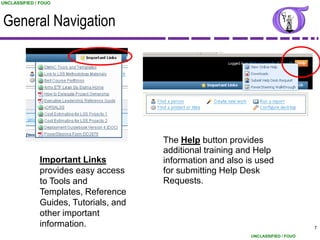
                                       The Help button provides
                                       additional training and Help
              Important Links          information and also is used
              provides easy access     for submitting Help Desk
              to Tools and             Requests.
              Templates, Reference
              Guides, Tutorials, and
              other important
              information.                                                         7
                                                             UNCLASSIFIED / FOUO
UNCLASSIFIED / FOUO


General Navigation


        Click on Browse to access various options as shown including
        updating your profile and customizing your PowerSteering views.

        Work Tree contains special information folders. You can also start a
        new project from here by clicking on “Create New Work”.


                                                                                       8
                                                                 UNCLASSIFIED / FOUO
UNCLASSIFIED / FOUO


General Navigation


      From the Home Page, use these Quick Links that provide shortcuts to
      common tasks.

      Note the option to Create New Work from here versus clicking “Browse”
      then “Create New Work”. They both get you to the same page for
      creating a new project.


                                                                                    9
                                                              UNCLASSIFIED / FOUO
UNCLASSIFIED / FOUO


General Navigation


   Under Browse, >My Settings, > Preferences you can customize your Home Page.

   You can display various formats on your home page. For instance, “Dashboard”
   provides an overview of all projects that you are involved with.

   This is informational - the default is already set to display basic home page                10
   information.                                                           UNCLASSIFIED / FOUO
UNCLASSIFIED / FOUO


Updating Your Power Steering Profile

                                            Access your profile at the top right
                                            corner or under “Browse”. Click on
                                            your name and select Edit Profile.


              Make sure all of your information is up-to-date, especially this
              section, which is used to give your organization credit for your
              training (for organizations who use Power Steering as their
              primary CPI data collection system).
                                                                                           11
                                                                     UNCLASSIFIED / FOUO
UNCLASSIFIED / FOUO


Inviting A New Power Steering User
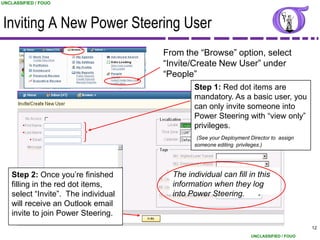
                                      From the “Browse” option, select
                                      “Invite/Create New User” under
                                      “People”
                                              Step 1: Red dot items are
                                              mandatory. As a basic user, you
                                              can only invite someone into
                                              Power Steering with “view only”
                                              privileges.
                                               (See your Deployment Director to assign
                                              someone editing privileges.)


    Step 2: Once you‟re finished        The individual can fill in this
    filling in the red dot items,       information when they log
    select “Invite”. The individual     into Power Steering.
    will receive an Outlook email
    invite to join Power Steering.
                                                                                          12
                                                                    UNCLASSIFIED / FOUO
UNCLASSIFIED / FOUO


Locating An Existing Project


      Find existing projects easily using any of the following methods:

      (1) On your Home page - your projects should be listed per your User
          Preference setup.
      (2) Use the Search button.
      (3) Select Browse, Work Tree, find your organization, then select your
          project.
      (4) Use the Quick Link Find a project or idea and enter search words.

                                                                                        13
                                                                  UNCLASSIFIED / FOUO
UNCLASSIFIED / FOUO


 Replication Check Define Template
    I confirm that:
     DEPMS (DoD Enterprise Performance Management System) has been
        searched for similar projects: Yes / No

     Replication: List relevant initiatives / potential replication projects found
      (if any):
      • Project 1: (DEPMS # or other tracking tool project number)
      • Project 2:

     Collaboration: Identify organizations that can/should be considered for
      working this project collaboratively:
      • Organization 1:
      • Organization 2:

                                                  Required Deliverable                         14
                                                                         UNCLASSIFIED / FOUO
UNCLASSIFIED / FOUO


Creating a DMAIC Project


                                   1) Click on Create New Work
                                   2) Select project work type
                                      from the pull-down menu
                                   3) Select Continue

                      Most common Project Work Types:
                      •Non-gated project (AKA “Just Do It”
                       or JDI)
                      •Rapid Improvement Event (RIE)
                      •DMAIC gated project                                15
                                                    UNCLASSIFIED / FOUO
UNCLASSIFIED / FOUO


Creating a DMAIC Project

                           Fields with red dot are
                           required.


                           Enter your project name.

                           Hint: Enter the full name of
                           the project - spelled out.
                           Also include acronyms - it
                           helps when searching for
                           your project.


                           Enter organization
                           information.
                                                            16
                                      UNCLASSIFIED / FOUO
UNCLASSIFIED / FOUO


Creating a DMAIC Project
                           Under Parent, click the drop
                           down to select your project
                           location in the Work Tree; this
                           pop up window of the work tree
                           will appear.
                               Use the drop downs to select
                               your organization levels – this
                               is the organization who is the
                               lead and will get credit for the
                                          project.
                                 Go as low as you can go!
                               Important: This is the most
                               common error people tend to make.
                               Select exactly where you want the
                               project to reside under. Look to
                               find your sub-organization under
                               the parent org.                   17
                                                UNCLASSIFIED / FOUO
UNCLASSIFIED / FOUO


Creating a DMAIC Project

                           Mandatory fields to fill out:

                           • Your project‟s problem
                             statement

                           • The project‟s business
                             case – why is it important
                             to the organization?

                           • The project‟s goal
                             statement

                           • Team members

                           • Scope of the project

                                                               18
                                         UNCLASSIFIED / FOUO
UNCLASSIFIED / FOUO


Creating a DMAIC Project
           Step 1                                 To add Team Members:
                                                  1) Search by a person‟s name/partial name. If
                                                       the person‟s name doesn‟t appear, then
                                                       they are not registered in PowerSteering
                                                       and you cannot add them as part of the
                                                       team in this section. See your
                                                       Deployment Director or Master Black Belt
                                                       to determine if that person should be
                                                       registered in PowerSteering.
                      Step 2
                                                  2) Drag and drop the name under the
                                                       appropriate role:
                                                  a)   Project Lead: The person creating the
                                                       project is automatically set as Project
                                                       Lead. If the Lead drags & drops another
                                                       into the role (in this example, Anne-marie
                                                       is entered), that person will receive a
            Mandatory fields;                          notice to accept the role as Project Lead.
                                                       In the meantime, the project originator
            • Project Owner (Lead)                     remains as the Lead and Anne-marie will
                                                       be listed with an hour-glass beside her
            • Gate Approver (for gated                 name, indicating that she has not yet
              projects)                                accepted the role.

                                                  b)   Other roles- the members will be listed
                                                       with an hour-glass beside their name
            Optional field:                            until they accept the invite.
            • Project Mentors (your MBB)
            • NOTE: For National Guard            Select “Finish & Create”. We recommend this,
                                                       versus “Continue” to ensure you don‟t
              students, this field is mandatory        lose your work.
                                                                                                    19
                                                                     UNCLASSIFIED / FOUO
UNCLASSIFIED / FOUO


Creating a DMAIC Project


      Finally, select dates to indicate planned timeline for completion by phase

      Then select Finish & Create.
       (We recommend this, versus “Continue” to ensure you don’t lose your
       work.)


                                                                                        20
                                                                  UNCLASSIFIED / FOUO
UNCLASSIFIED / FOUO


Adding Important Project Information
        After selecting “finish and create”, the screen will refresh to your project‟s
        Summary page. However, you still need to provide a few more pieces of
        information. Go into the Edit mode for the Project Details section.


                                                                                                  21
                                                                            UNCLASSIFIED / FOUO
UNCLASSIFIED / FOUO


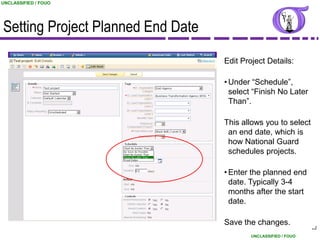
Setting Project Planned End Date
                                   Edit Project Details:

                                   • Under “Schedule”,
                                     select “Finish No Later
                                     Than”.

                                   This allows you to select
                                    an end date, which is
                                    how National Guard
                                    schedules projects.

                                   • Enter the planned end
                                     date. Typically 3-4
                                     months after the start
                                     date.

                                   Save the changes.
                                                                 22
                                           UNCLASSIFIED / FOUO
UNCLASSIFIED / FOUO


Updating Tollgate Status & Dates

                                   Use the “Update
                                   Status” button to
                                   change the status
                                   of the Tollgate or
                                   the Tollgate End
                                   Date


                                                                23
                                          UNCLASSIFIED / FOUO
UNCLASSIFIED / FOUO


Requesting Gate Approval


                      Before you request a tollgate approval, make
                      sure any required documents are attached to
                      the tollgate and that you‟ve met your
                      organization‟s requirements for tollgate
                      completion.

                                                                                       24
                                                                 UNCLASSIFIED / FOUO
UNCLASSIFIED / FOUO


Requesting Gate Approval
                      This is the view only seen by the Project Lead-
                      notice the “Request Approval” box

                      Once you are ready, click this box to send an
                      email to your Gate Approver.

         A box will then appear where
         you can type a message to
         your gate approver. Select
         “Request Approval”


                                                                                              25
                                                                        UNCLASSIFIED / FOUO
UNCLASSIFIED / FOUO


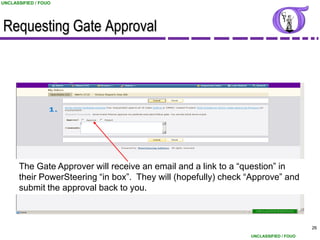
Requesting Gate Approval


      The Gate Approver will receive an email and a link to a “question” in
      their PowerSteering “in box”. They will (hopefully) check “Approve” and
      submit the approval back to you.


                                                                                      26
                                                                UNCLASSIFIED / FOUO
UNCLASSIFIED / FOUO


Requesting Gate Approval


     After the Gate Approver approves your gate, the project will automatically
        update by:
     1) Making your next gate active (notice the green color in the “Measure”
        tollgate bar)
     2) Marking the approved gate as “complete” (see the “Define” tollgate status)          27
                                                                      UNCLASSIFIED / FOUO
UNCLASSIFIED / FOUO


DMAIC Project Summary Page


       Basic project information shows whether the project is on track, %
       complete, and which phase of the project you are in. In this case, the
       project is in the Control phase (notice the green color) and is on track.
       Green=on track, Yellow=needs attention, Red=off track, Grey=complete.

       Scroll further down to see the various stages and documentation.                 28
                                                                  UNCLASSIFIED / FOUO
UNCLASSIFIED / FOUO


Project Status Reports
                                                                         Status Report: Click
                                                                         “add new” to add a
                                                                         status report. Status
                                                                         reports are used to
                                                                         update your team and
                                                                         your MBB regarding
                                                                         what‟s going on with
                                                                         the project. For
                                                                         example, this is the
                                                                         place where you can
                                                                         let everyone know
                                                                         when you are briefing
                                                                         the project champion.

                                                             Notice this project has two gate
                                                             approvers-one is the project
                                                             MBB and one is the project
                                                             champion. See your MBB or
                                                             your organization‟s DD to find
                                                             out who should be in the “Gate
          Click on a Phase to view the documentation and     Approver” box-each
          status, “Improve” is shown as an example. Note     organization has its own
          that there are currently no “required” documents   business rule.
          established for any of the phases.                                                      29
                                                                            UNCLASSIFIED / FOUO
UNCLASSIFIED / FOUO


Adding Documents

                      Use the
                      “Add/Remove”
                      button to add
                      documents. You can
                      then specify the
                      document type and
                      the Gate to which the
                      document is
                      attached.


                                              30
                        UNCLASSIFIED / FOUO
UNCLASSIFIED / FOUO


Deployment Director Options
    • Deployment Directors have additional capabilities that basic
      users do not have. Deployment Directors can:
          –   Delete projects
          –   Move a project from one organization to another
          –   Create a completed project
          –   Invite “no access” users (user will not receive any email notification)
          –   Assign a user license (basic users can invite someone, but with
              view-only capability)

    • Deployment Directors cannot delete people profiles-contact
      the NGB Program Office to delete a profile


                                                                                            31
                                                                      UNCLASSIFIED / FOUO
UNCLASSIFIED / FOUO


      Takeaways

      • Power Steering tracks projects through the
        cycle
      • Power Steering is not an „Optional‟ tool
      • It is the Black Belt‟s responsibility to
        update and keep record current


                                                                32
                                          UNCLASSIFIED / FOUO
UNCLASSIFIED / FOUO


         What other comments or questions
                   do you have?


                                                         33
                                   UNCLASSIFIED / FOUO

NG BB 11 Power Steering

  • 1.
    UNCLASSIFIED //FOUO UNCLASSIFIED FOUO UNCLASSIFIED / FOUO National Guard Black Belt Training Module 11 CPI Project Tracking Tool Power Steering UNCLASSIFIED UNCLASSIFIED / FOUO 1 UNCLASSIFIED / FOUO UNCLASSIFIED / FOUO
  • 2.
    UNCLASSIFIED / FOUO CPIRoadmap – Define 8-STEP PROCESS 6. See 1.Validate 2. Identify 3. Set 4. Determine 5. Develop 7. Confirm 8. Standardize Counter- the Performance Improvement Root Counter- Results Successful Measures Problem Gaps Targets Cause Measures & Process Processes Through Define Measure Analyze Improve Control ACTIVITIES TOOLS • Identify Problem •Project Charter • Validate Problem Statement •Project Selection Tools • Establish Strategic Alignment •Value Stream Map • Gather Voice of the Customer & Business •Various Financial Analysis • Create Goal Statement •Effective Meeting Skills • Validate Business Case •Stakeholder Analysis • Determine Project Scope •Communication Plan • Select and Launch Team •SIPOC Map • Develop Project Timeline •High-Level Process Map • Create Communication Plan •Project Management Tools • Prepare High-Level Process Map / SIPOC •VOC and Kano Analysis • Complete Define Tollgate •RACI and Quad Charts •Strategic Alignment 2 Note: Activities and tools vary by project. Lists provided here are not necessarily all-inclusive. UNCLASSIFIED / FOUO
  • 3.
    UNCLASSIFIED / FOUO LearningObjectives • Learn how to navigate through the Power Steering tool • Understand the Black Belt‟s responsibility • Understand how to use the tool to track projects progress 3 UNCLASSIFIED / FOUO
  • 4.
    UNCLASSIFIED / FOUO PowerSteering Power Steering is a knowledge management and project tracking tool used to: • Track DoD CPI projects • Access and store project tools and templates • Track project progress by phase • Manage gate approvals • Share project best practices and provide replication opportunities DEPMS – Defense Enterprise Project Management System 4 UNCLASSIFIED / FOUO
  • 5.
    UNCLASSIFIED / FOUO AccessingPower Steering To get into PowerSteering, you need the following: 1) PowerSteering URL 2) User name and password • National Guard students who attend Black Belt training will have a PS account set up for them • You will receive an email with your PowerSteering URL and login information - User name: Your email address - Password: A temporary password will be sent in the email BLACK BELT ROLE: Enter your project into Power Steering Keep your project updated 5 UNCLASSIFIED / FOUO
  • 6.
    UNCLASSIFIED / FOUO GeneralNavigation Power Steering Navigation Menu (blue bar) • Home Takes you back to Home page • Inbox View Questions, Alerts and Status Reports Due • Browse Various Power Steering functions that you can access • Important Links Quick links to import areas on the site • Last Visited Tracks your most recent activities for quick reference • Search Simple keyword search 6 UNCLASSIFIED / FOUO
  • 7.
    UNCLASSIFIED / FOUO GeneralNavigation The Help button provides additional training and Help Important Links information and also is used provides easy access for submitting Help Desk to Tools and Requests. Templates, Reference Guides, Tutorials, and other important information. 7 UNCLASSIFIED / FOUO
  • 8.
    UNCLASSIFIED / FOUO GeneralNavigation Click on Browse to access various options as shown including updating your profile and customizing your PowerSteering views. Work Tree contains special information folders. You can also start a new project from here by clicking on “Create New Work”. 8 UNCLASSIFIED / FOUO
  • 9.
    UNCLASSIFIED / FOUO GeneralNavigation From the Home Page, use these Quick Links that provide shortcuts to common tasks. Note the option to Create New Work from here versus clicking “Browse” then “Create New Work”. They both get you to the same page for creating a new project. 9 UNCLASSIFIED / FOUO
  • 10.
    UNCLASSIFIED / FOUO GeneralNavigation Under Browse, >My Settings, > Preferences you can customize your Home Page. You can display various formats on your home page. For instance, “Dashboard” provides an overview of all projects that you are involved with. This is informational - the default is already set to display basic home page 10 information. UNCLASSIFIED / FOUO
  • 11.
    UNCLASSIFIED / FOUO UpdatingYour Power Steering Profile Access your profile at the top right corner or under “Browse”. Click on your name and select Edit Profile. Make sure all of your information is up-to-date, especially this section, which is used to give your organization credit for your training (for organizations who use Power Steering as their primary CPI data collection system). 11 UNCLASSIFIED / FOUO
  • 12.
    UNCLASSIFIED / FOUO InvitingA New Power Steering User From the “Browse” option, select “Invite/Create New User” under “People” Step 1: Red dot items are mandatory. As a basic user, you can only invite someone into Power Steering with “view only” privileges. (See your Deployment Director to assign someone editing privileges.) Step 2: Once you‟re finished The individual can fill in this filling in the red dot items, information when they log select “Invite”. The individual into Power Steering. will receive an Outlook email invite to join Power Steering. 12 UNCLASSIFIED / FOUO
  • 13.
    UNCLASSIFIED / FOUO LocatingAn Existing Project Find existing projects easily using any of the following methods: (1) On your Home page - your projects should be listed per your User Preference setup. (2) Use the Search button. (3) Select Browse, Work Tree, find your organization, then select your project. (4) Use the Quick Link Find a project or idea and enter search words. 13 UNCLASSIFIED / FOUO
  • 14.
    UNCLASSIFIED / FOUO Replication Check Define Template I confirm that:  DEPMS (DoD Enterprise Performance Management System) has been searched for similar projects: Yes / No  Replication: List relevant initiatives / potential replication projects found (if any): • Project 1: (DEPMS # or other tracking tool project number) • Project 2:  Collaboration: Identify organizations that can/should be considered for working this project collaboratively: • Organization 1: • Organization 2: Required Deliverable 14 UNCLASSIFIED / FOUO
  • 15.
    UNCLASSIFIED / FOUO Creatinga DMAIC Project 1) Click on Create New Work 2) Select project work type from the pull-down menu 3) Select Continue Most common Project Work Types: •Non-gated project (AKA “Just Do It” or JDI) •Rapid Improvement Event (RIE) •DMAIC gated project 15 UNCLASSIFIED / FOUO
  • 16.
    UNCLASSIFIED / FOUO Creatinga DMAIC Project Fields with red dot are required. Enter your project name. Hint: Enter the full name of the project - spelled out. Also include acronyms - it helps when searching for your project. Enter organization information. 16 UNCLASSIFIED / FOUO
  • 17.
    UNCLASSIFIED / FOUO Creatinga DMAIC Project Under Parent, click the drop down to select your project location in the Work Tree; this pop up window of the work tree will appear. Use the drop downs to select your organization levels – this is the organization who is the lead and will get credit for the project. Go as low as you can go! Important: This is the most common error people tend to make. Select exactly where you want the project to reside under. Look to find your sub-organization under the parent org. 17 UNCLASSIFIED / FOUO
  • 18.
    UNCLASSIFIED / FOUO Creatinga DMAIC Project Mandatory fields to fill out: • Your project‟s problem statement • The project‟s business case – why is it important to the organization? • The project‟s goal statement • Team members • Scope of the project 18 UNCLASSIFIED / FOUO
  • 19.
    UNCLASSIFIED / FOUO Creatinga DMAIC Project Step 1 To add Team Members: 1) Search by a person‟s name/partial name. If the person‟s name doesn‟t appear, then they are not registered in PowerSteering and you cannot add them as part of the team in this section. See your Deployment Director or Master Black Belt to determine if that person should be registered in PowerSteering. Step 2 2) Drag and drop the name under the appropriate role: a) Project Lead: The person creating the project is automatically set as Project Lead. If the Lead drags & drops another into the role (in this example, Anne-marie is entered), that person will receive a Mandatory fields; notice to accept the role as Project Lead. In the meantime, the project originator • Project Owner (Lead) remains as the Lead and Anne-marie will be listed with an hour-glass beside her • Gate Approver (for gated name, indicating that she has not yet projects) accepted the role. b) Other roles- the members will be listed with an hour-glass beside their name Optional field: until they accept the invite. • Project Mentors (your MBB) • NOTE: For National Guard Select “Finish & Create”. We recommend this, versus “Continue” to ensure you don‟t students, this field is mandatory lose your work. 19 UNCLASSIFIED / FOUO
  • 20.
    UNCLASSIFIED / FOUO Creatinga DMAIC Project Finally, select dates to indicate planned timeline for completion by phase Then select Finish & Create. (We recommend this, versus “Continue” to ensure you don’t lose your work.) 20 UNCLASSIFIED / FOUO
  • 21.
    UNCLASSIFIED / FOUO AddingImportant Project Information After selecting “finish and create”, the screen will refresh to your project‟s Summary page. However, you still need to provide a few more pieces of information. Go into the Edit mode for the Project Details section. 21 UNCLASSIFIED / FOUO
  • 22.
    UNCLASSIFIED / FOUO SettingProject Planned End Date Edit Project Details: • Under “Schedule”, select “Finish No Later Than”. This allows you to select an end date, which is how National Guard schedules projects. • Enter the planned end date. Typically 3-4 months after the start date. Save the changes. 22 UNCLASSIFIED / FOUO
  • 23.
    UNCLASSIFIED / FOUO UpdatingTollgate Status & Dates Use the “Update Status” button to change the status of the Tollgate or the Tollgate End Date 23 UNCLASSIFIED / FOUO
  • 24.
    UNCLASSIFIED / FOUO RequestingGate Approval Before you request a tollgate approval, make sure any required documents are attached to the tollgate and that you‟ve met your organization‟s requirements for tollgate completion. 24 UNCLASSIFIED / FOUO
  • 25.
    UNCLASSIFIED / FOUO RequestingGate Approval This is the view only seen by the Project Lead- notice the “Request Approval” box Once you are ready, click this box to send an email to your Gate Approver. A box will then appear where you can type a message to your gate approver. Select “Request Approval” 25 UNCLASSIFIED / FOUO
  • 26.
    UNCLASSIFIED / FOUO RequestingGate Approval The Gate Approver will receive an email and a link to a “question” in their PowerSteering “in box”. They will (hopefully) check “Approve” and submit the approval back to you. 26 UNCLASSIFIED / FOUO
  • 27.
    UNCLASSIFIED / FOUO RequestingGate Approval After the Gate Approver approves your gate, the project will automatically update by: 1) Making your next gate active (notice the green color in the “Measure” tollgate bar) 2) Marking the approved gate as “complete” (see the “Define” tollgate status) 27 UNCLASSIFIED / FOUO
  • 28.
    UNCLASSIFIED / FOUO DMAICProject Summary Page Basic project information shows whether the project is on track, % complete, and which phase of the project you are in. In this case, the project is in the Control phase (notice the green color) and is on track. Green=on track, Yellow=needs attention, Red=off track, Grey=complete. Scroll further down to see the various stages and documentation. 28 UNCLASSIFIED / FOUO
  • 29.
    UNCLASSIFIED / FOUO ProjectStatus Reports Status Report: Click “add new” to add a status report. Status reports are used to update your team and your MBB regarding what‟s going on with the project. For example, this is the place where you can let everyone know when you are briefing the project champion. Notice this project has two gate approvers-one is the project MBB and one is the project champion. See your MBB or your organization‟s DD to find out who should be in the “Gate Click on a Phase to view the documentation and Approver” box-each status, “Improve” is shown as an example. Note organization has its own that there are currently no “required” documents business rule. established for any of the phases. 29 UNCLASSIFIED / FOUO
  • 30.
    UNCLASSIFIED / FOUO AddingDocuments Use the “Add/Remove” button to add documents. You can then specify the document type and the Gate to which the document is attached. 30 UNCLASSIFIED / FOUO
  • 31.
    UNCLASSIFIED / FOUO DeploymentDirector Options • Deployment Directors have additional capabilities that basic users do not have. Deployment Directors can: – Delete projects – Move a project from one organization to another – Create a completed project – Invite “no access” users (user will not receive any email notification) – Assign a user license (basic users can invite someone, but with view-only capability) • Deployment Directors cannot delete people profiles-contact the NGB Program Office to delete a profile 31 UNCLASSIFIED / FOUO
  • 32.
    UNCLASSIFIED / FOUO Takeaways • Power Steering tracks projects through the cycle • Power Steering is not an „Optional‟ tool • It is the Black Belt‟s responsibility to update and keep record current 32 UNCLASSIFIED / FOUO
  • 33.
    UNCLASSIFIED / FOUO What other comments or questions do you have? 33 UNCLASSIFIED / FOUO