This document is provided for informational purposes only. All warranties relating to the information
in this document, either express or implied, are disclaimed to the maximum extent allowed by law.
The information in this document is subject to change without notice. Copyright © 2013 Symantec
Corporation. All rights reserved. Symantec, the Symantec Logo, and the Checkmark Logo are
trademarks or registered trademarks of Symantec Corporation or its affiliates in the U.S. and other
countries. Other names may be trademarks of their respective owners.
NetBackup 7.6 Feature Briefing
Direct virtual machine creation from
backup with BMR
Version number: 1.0
Issue date: 5th
November 2013
This document describes a feature introduced in NetBackup7.6 and available in this and higher releases.
If you have any feedback or questions about this document please email them to IMG-TPM-Requests@symantec.com
stating the document title.
NETBACKUP7.6FEATUREBRIEFING
DIRECTVIRTUALMACHINECREATIONFROM
BACKUPWITHBMR
Page 1
NetBackup 7.6 Feature Briefing - Direct virtual machine creation from backup with BMR
Feature Description
The last few years have seen a significant growth in the adoption of virtualized servers in data centers
with many organizations converting to purely virtual environments. Even organizations that use physical
servers in their production environments are starting to see the benefits of using virtualization in their
disaster recovery and test and development environments. NetBackup’s Bare Metal Restore (BMR)
feature has always provided an effective mechanism for migrating between physical and virtual
environments by recovering backups of physical servers to virtual servers. In NetBackup 7.6 this
“physical to virtual” recovery model has been greatly simplified allowing customers to achieve rapid
physical to virtual migration and disaster recovery to virtual environments for Windows servers in both
local and remote (disaster recovery) sites.
Business Value
The Bare Metal Restore “physical to virtual” recovery capability allows customers to recover backups of
physical Windows servers to VMware virtual machines. Using VMware virtualization in a disaster
recovery data center can significantly reduce both the capital and operational costs associated with
maintaining a disaster recovery position by allowing a “lights out” facility to be rapidly spun up in the
event of a site loss.
Bare Metal Restore “physical to virtual” can be combined the NetBackup Auto Image Replication
feature, allowing backup of physical servers to be replicated to a remote data center. VMware ESX
servers at this disaster recovery facility can be left powered off until required and then powered up.
Once the ESX servers are available the replicated backups of the physical servers at the product site can
be quickly restored to virtual machines running on the ESX servers rather than needing to deploy
physical servers.
For disaster recovery testing purposes the virtual machines created during the recovery process can
simply be deleted once the testing activities are complete.
A similar approach can be used in test and development environments with backups from physical
production servers being used to create virtual test servers.
Page 2
NetBackup 7.6 Feature Briefing - Direct virtual machine creation from backup with BMR
Underlying Principles
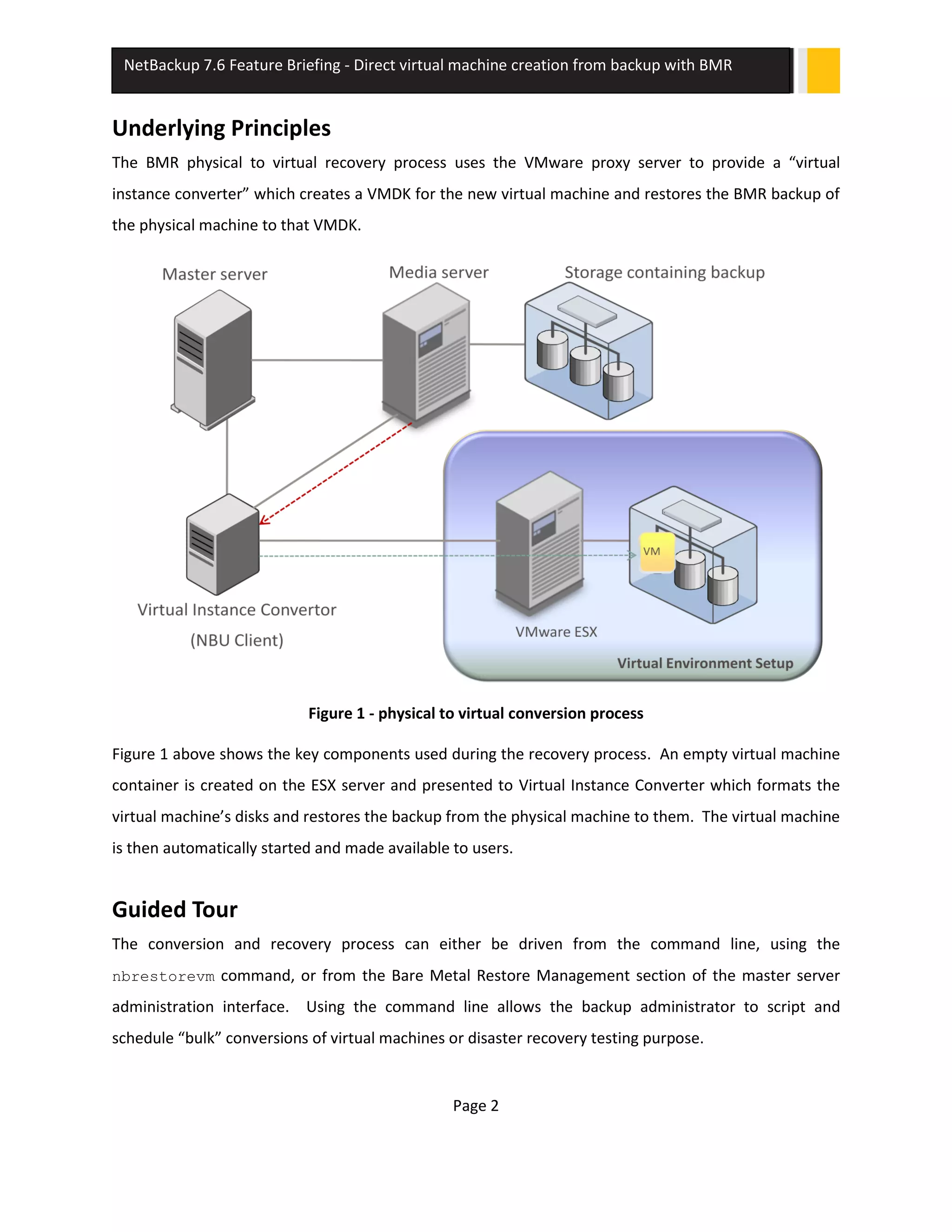
The BMR physical to virtual recovery process uses the VMware proxy server to provide a “virtual
instance converter” which creates a VMDK for the new virtual machine and restores the BMR backup of
the physical machine to that VMDK.
Figure 1 - physical to virtual conversion process
Figure 1 above shows the key components used during the recovery process. An empty virtual machine
container is created on the ESX server and presented to Virtual Instance Converter which formats the
virtual machine’s disks and restores the backup from the physical machine to them. The virtual machine
is then automatically started and made available to users.
Guided Tour
The conversion and recovery process can either be driven from the command line, using the
nbrestorevm command, or from the Bare Metal Restore Management section of the master server
administration interface. Using the command line allows the backup administrator to script and
schedule “bulk” conversions of virtual machines or disaster recovery testing purpose.
Page 3
NetBackup 7.6 Feature Briefing - Direct virtual machine creation from backup with BMR
This “guided tour” provides examples from the administration interface “GUI driven” conversion
method.
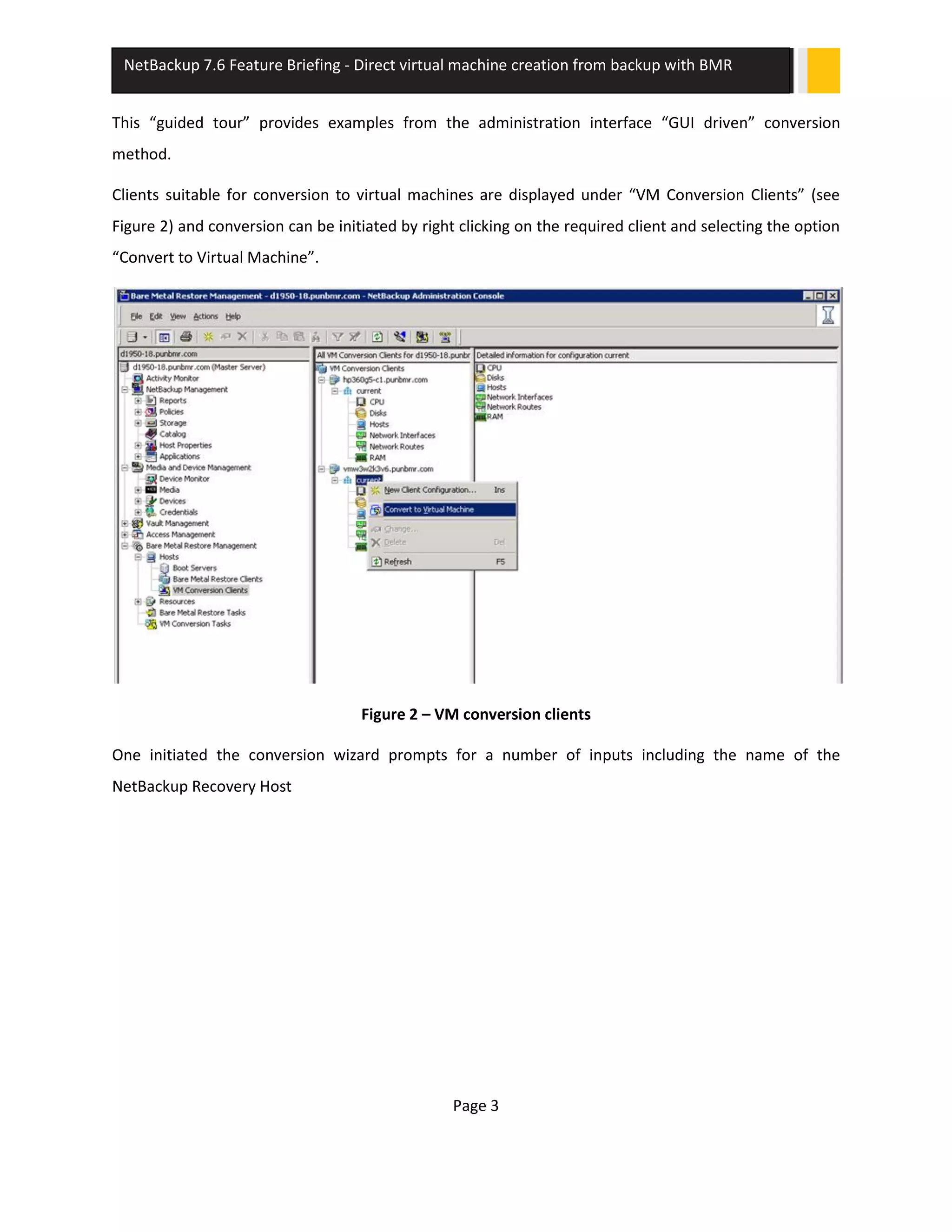
Clients suitable for conversion to virtual machines are displayed under “VM Conversion Clients” (see
Figure 2) and conversion can be initiated by right clicking on the required client and selecting the option
“Convert to Virtual Machine”.
Figure 2 – VM conversion clients
One initiated the conversion wizard prompts for a number of inputs including the name of the
NetBackup Recovery Host
Page 4
NetBackup 7.6 Feature Briefing - Direct virtual machine creation from backup with BMR
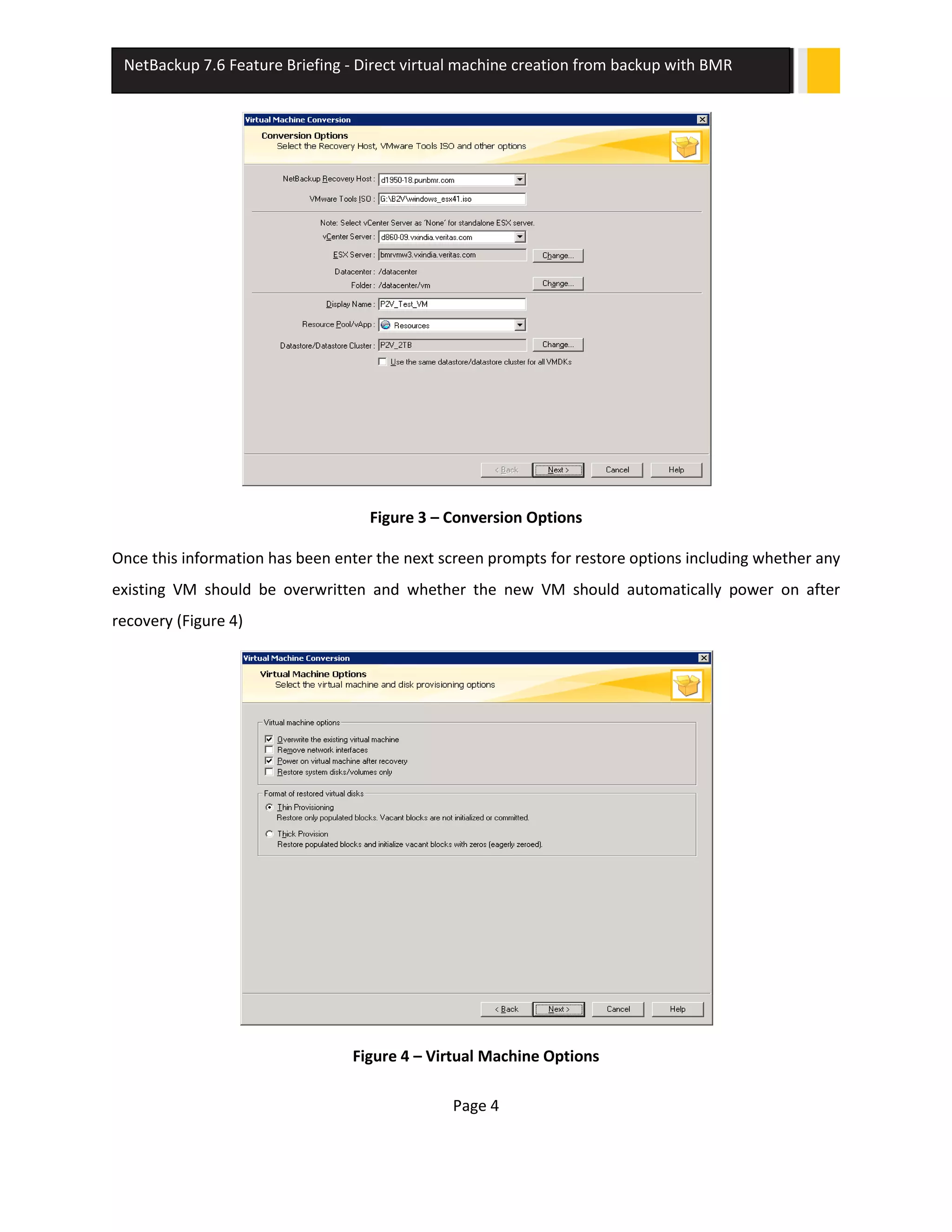
Figure 3 – Conversion Options
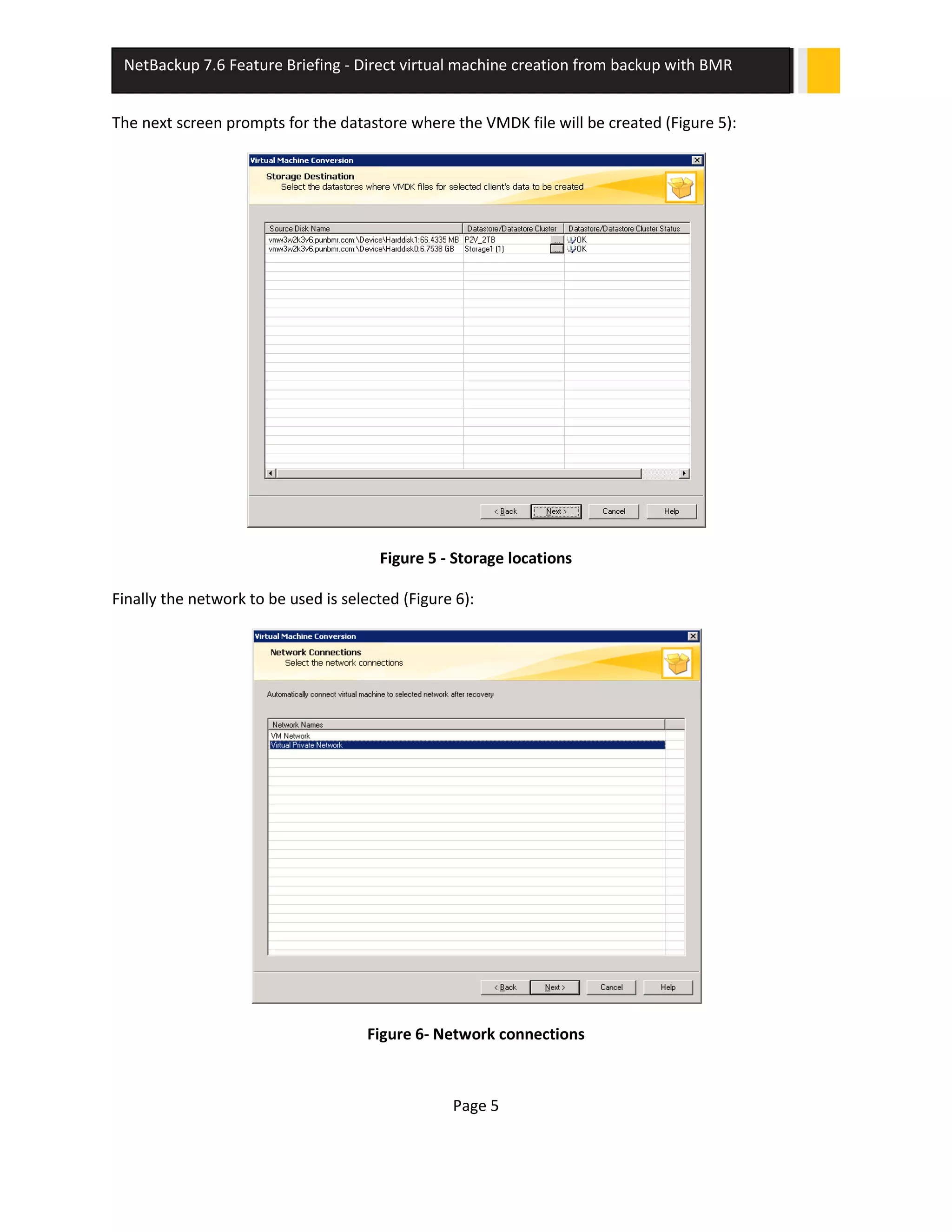
Once this information has been enter the next screen prompts for restore options including whether any
existing VM should be overwritten and whether the new VM should automatically power on after
recovery (Figure 4)
Figure 4 – Virtual Machine Options
Page 5
NetBackup 7.6 Feature Briefing - Direct virtual machine creation from backup with BMR
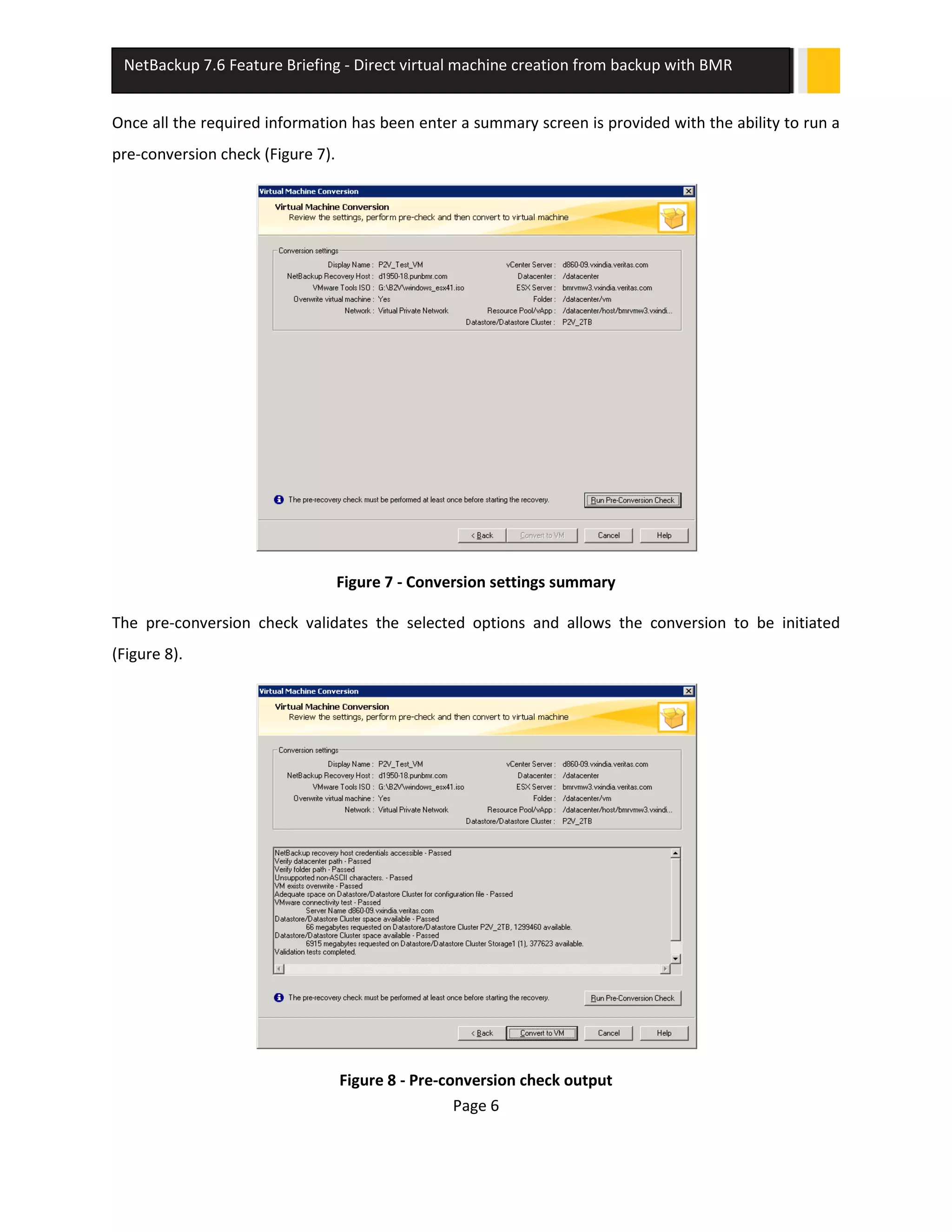
The next screen prompts for the datastore where the VMDK file will be created (Figure 5):
Figure 5 - Storage locations
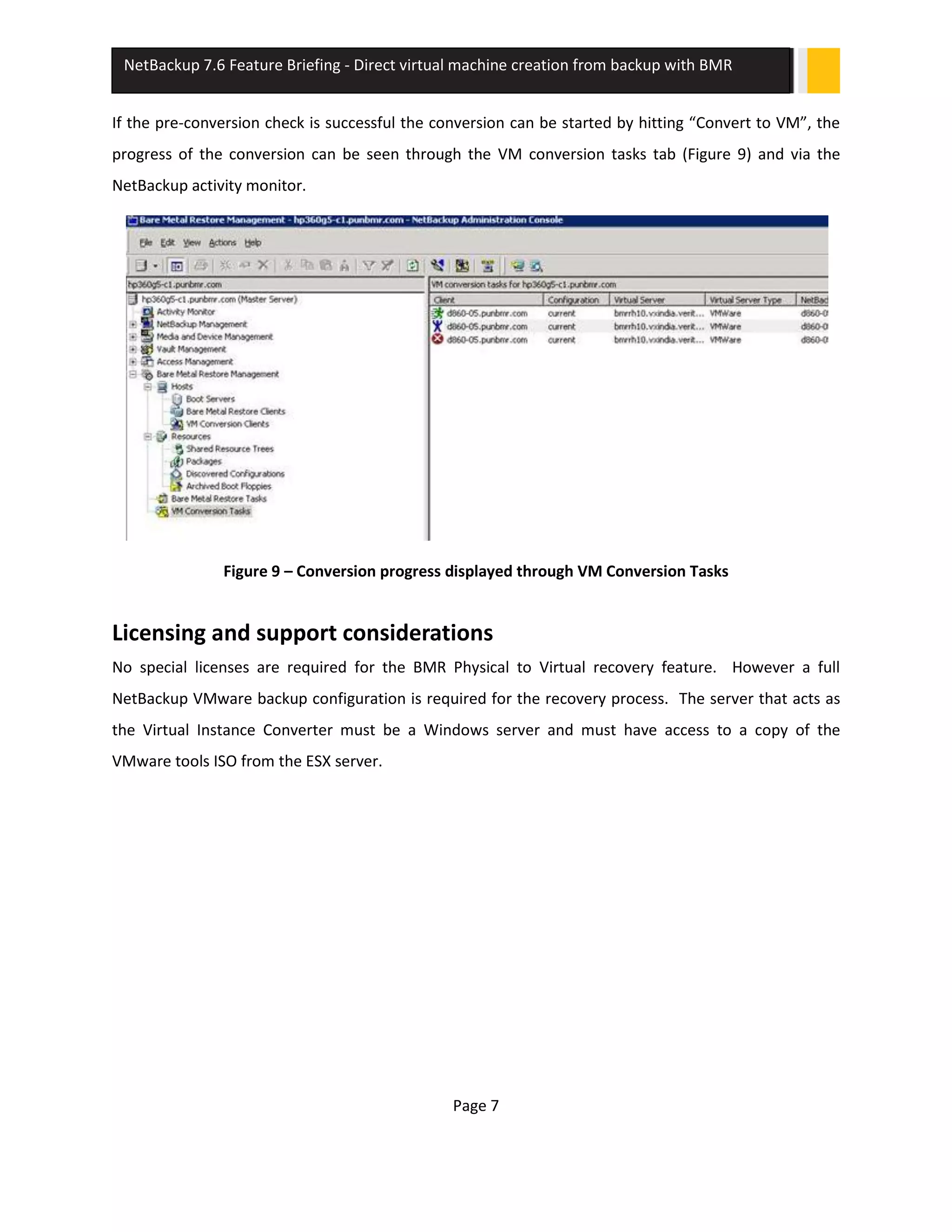
Finally the network to be used is selected (Figure 6):
Figure 6- Network connections
Page 6
NetBackup 7.6 Feature Briefing - Direct virtual machine creation from backup with BMR
Once all the required information has been enter a summary screen is provided with the ability to run a
pre-conversion check (Figure 7).
Figure 7 - Conversion settings summary
The pre-conversion check validates the selected options and allows the conversion to be initiated
(Figure 8).
Figure 8 - Pre-conversion check output
Page 7
NetBackup 7.6 Feature Briefing - Direct virtual machine creation from backup with BMR
If the pre-conversion check is successful the conversion can be started by hitting “Convert to VM”, the
progress of the conversion can be seen through the VM conversion tasks tab (Figure 9) and via the
NetBackup activity monitor.
Figure 9 – Conversion progress displayed through VM Conversion Tasks
Licensing and support considerations
No special licenses are required for the BMR Physical to Virtual recovery feature. However a full
NetBackup VMware backup configuration is required for the recovery process. The server that acts as
the Virtual Instance Converter must be a Windows server and must have access to a copy of the
VMware tools ISO from the ESX server.
About Symantec:
Symantec is a global leader in
providing security, storage, and
systems management solutions to
help consumers and organizations
secure and manage their
information-driven world. Our
software and services protect
against more risks at more points,
more completely and efficiently,
enabling confidence wherever
information is used or stored.
Headquartered in Mountain View,
Calif., Symantec has operations in
40 countries. More information is
available at www.symantec.com.
For specific country offices and
contact numbers, please visit our Web
site: www.symantec.com
Symantec Corporation
World Headquarters
350 Ellis Street
Mountain View, CA 94043 USA
+1 (650) 527 8000
+1 (800) 721 3934
Copyright © 2013 Symantec
Corporation. All rights reserved.
Symantec and the Symantec logo
are trademarks or registered
trademarks of Symantec
Corporation or its affiliates in the
U.S. and other countries. Other
names may be trademarks of their
respective owners.

FEATRURE BRIEF▶ NetBackup 7.6 - Direct virtual machine creation from backup with BMR

  • 1.
    This document isprovided for informational purposes only. All warranties relating to the information in this document, either express or implied, are disclaimed to the maximum extent allowed by law. The information in this document is subject to change without notice. Copyright © 2013 Symantec Corporation. All rights reserved. Symantec, the Symantec Logo, and the Checkmark Logo are trademarks or registered trademarks of Symantec Corporation or its affiliates in the U.S. and other countries. Other names may be trademarks of their respective owners. NetBackup 7.6 Feature Briefing Direct virtual machine creation from backup with BMR Version number: 1.0 Issue date: 5th November 2013 This document describes a feature introduced in NetBackup7.6 and available in this and higher releases. If you have any feedback or questions about this document please email them to IMG-TPM-Requests@symantec.com stating the document title. NETBACKUP7.6FEATUREBRIEFING DIRECTVIRTUALMACHINECREATIONFROM BACKUPWITHBMR
  • 3.
    Page 1 NetBackup 7.6Feature Briefing - Direct virtual machine creation from backup with BMR Feature Description The last few years have seen a significant growth in the adoption of virtualized servers in data centers with many organizations converting to purely virtual environments. Even organizations that use physical servers in their production environments are starting to see the benefits of using virtualization in their disaster recovery and test and development environments. NetBackup’s Bare Metal Restore (BMR) feature has always provided an effective mechanism for migrating between physical and virtual environments by recovering backups of physical servers to virtual servers. In NetBackup 7.6 this “physical to virtual” recovery model has been greatly simplified allowing customers to achieve rapid physical to virtual migration and disaster recovery to virtual environments for Windows servers in both local and remote (disaster recovery) sites. Business Value The Bare Metal Restore “physical to virtual” recovery capability allows customers to recover backups of physical Windows servers to VMware virtual machines. Using VMware virtualization in a disaster recovery data center can significantly reduce both the capital and operational costs associated with maintaining a disaster recovery position by allowing a “lights out” facility to be rapidly spun up in the event of a site loss. Bare Metal Restore “physical to virtual” can be combined the NetBackup Auto Image Replication feature, allowing backup of physical servers to be replicated to a remote data center. VMware ESX servers at this disaster recovery facility can be left powered off until required and then powered up. Once the ESX servers are available the replicated backups of the physical servers at the product site can be quickly restored to virtual machines running on the ESX servers rather than needing to deploy physical servers. For disaster recovery testing purposes the virtual machines created during the recovery process can simply be deleted once the testing activities are complete. A similar approach can be used in test and development environments with backups from physical production servers being used to create virtual test servers.
  • 4.
    Page 2 NetBackup 7.6Feature Briefing - Direct virtual machine creation from backup with BMR Underlying Principles The BMR physical to virtual recovery process uses the VMware proxy server to provide a “virtual instance converter” which creates a VMDK for the new virtual machine and restores the BMR backup of the physical machine to that VMDK. Figure 1 - physical to virtual conversion process Figure 1 above shows the key components used during the recovery process. An empty virtual machine container is created on the ESX server and presented to Virtual Instance Converter which formats the virtual machine’s disks and restores the backup from the physical machine to them. The virtual machine is then automatically started and made available to users. Guided Tour The conversion and recovery process can either be driven from the command line, using the nbrestorevm command, or from the Bare Metal Restore Management section of the master server administration interface. Using the command line allows the backup administrator to script and schedule “bulk” conversions of virtual machines or disaster recovery testing purpose.
  • 5.
    Page 3 NetBackup 7.6Feature Briefing - Direct virtual machine creation from backup with BMR This “guided tour” provides examples from the administration interface “GUI driven” conversion method. Clients suitable for conversion to virtual machines are displayed under “VM Conversion Clients” (see Figure 2) and conversion can be initiated by right clicking on the required client and selecting the option “Convert to Virtual Machine”. Figure 2 – VM conversion clients One initiated the conversion wizard prompts for a number of inputs including the name of the NetBackup Recovery Host
  • 6.
    Page 4 NetBackup 7.6Feature Briefing - Direct virtual machine creation from backup with BMR Figure 3 – Conversion Options Once this information has been enter the next screen prompts for restore options including whether any existing VM should be overwritten and whether the new VM should automatically power on after recovery (Figure 4) Figure 4 – Virtual Machine Options
  • 7.
    Page 5 NetBackup 7.6Feature Briefing - Direct virtual machine creation from backup with BMR The next screen prompts for the datastore where the VMDK file will be created (Figure 5): Figure 5 - Storage locations Finally the network to be used is selected (Figure 6): Figure 6- Network connections
  • 8.
    Page 6 NetBackup 7.6Feature Briefing - Direct virtual machine creation from backup with BMR Once all the required information has been enter a summary screen is provided with the ability to run a pre-conversion check (Figure 7). Figure 7 - Conversion settings summary The pre-conversion check validates the selected options and allows the conversion to be initiated (Figure 8). Figure 8 - Pre-conversion check output
  • 9.
    Page 7 NetBackup 7.6Feature Briefing - Direct virtual machine creation from backup with BMR If the pre-conversion check is successful the conversion can be started by hitting “Convert to VM”, the progress of the conversion can be seen through the VM conversion tasks tab (Figure 9) and via the NetBackup activity monitor. Figure 9 – Conversion progress displayed through VM Conversion Tasks Licensing and support considerations No special licenses are required for the BMR Physical to Virtual recovery feature. However a full NetBackup VMware backup configuration is required for the recovery process. The server that acts as the Virtual Instance Converter must be a Windows server and must have access to a copy of the VMware tools ISO from the ESX server.
  • 10.
    About Symantec: Symantec isa global leader in providing security, storage, and systems management solutions to help consumers and organizations secure and manage their information-driven world. Our software and services protect against more risks at more points, more completely and efficiently, enabling confidence wherever information is used or stored. Headquartered in Mountain View, Calif., Symantec has operations in 40 countries. More information is available at www.symantec.com. For specific country offices and contact numbers, please visit our Web site: www.symantec.com Symantec Corporation World Headquarters 350 Ellis Street Mountain View, CA 94043 USA +1 (650) 527 8000 +1 (800) 721 3934 Copyright © 2013 Symantec Corporation. All rights reserved. Symantec and the Symantec logo are trademarks or registered trademarks of Symantec Corporation or its affiliates in the U.S. and other countries. Other names may be trademarks of their respective owners.