
Introduction to WordPress
Jamshid Hashimi
Trainer, Cresco Solution
http://www.jamshidhashimi.com
jamshid@netlinks.af
@jamshidhashimi
ajamshidhashimi
Agenda
• Introduction to WordPress
• The importance of the name you choose
• Posting your first blog
• Best Practices For Posting
• Adding images, video or sound
• Using the Dashboard
• Entering your public profile
Introduction to WordPress
• What’s a blog?
•
•
•
•

A blog is a collection of commentary posted on the internet.
“weblog” or a “web log”.
online journal or diary, online journalism.
Types
• Personal, corporate, political, podcasts, photographic, and more.

• Displayed

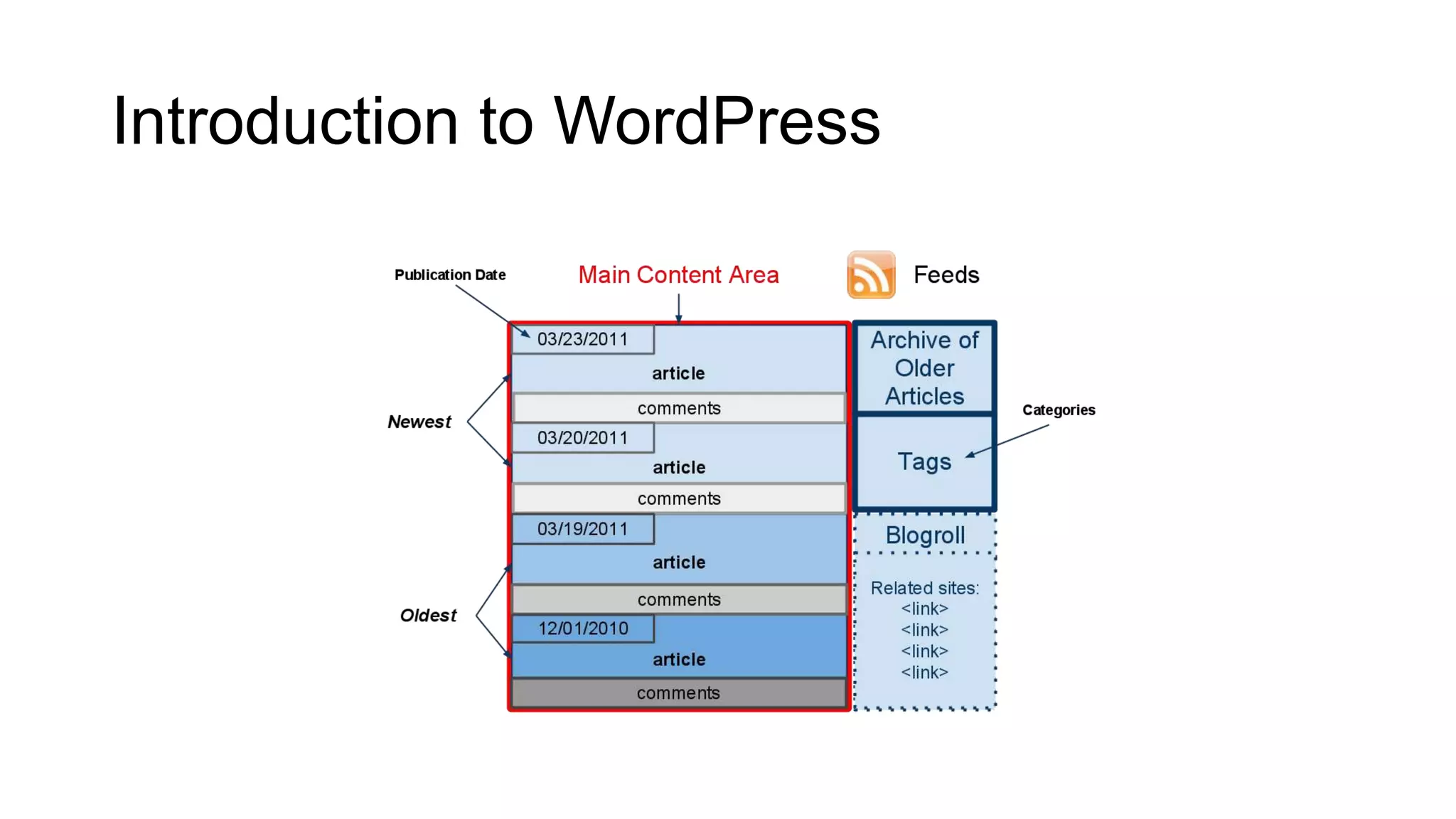
• Reverse-chronological order with the latest posts at the top.

• Community & Discussion

• Many blogs allow readers to comment on the blogger’s post, which can create a sense of
community and encourage discussion.

• A blogger is someone who blogs, or writes content for a blog.
• Blogging is the act of writing a post for a blog
Introduction to WordPress
• What is WordPress.com?
• WordPress.com lets you easily create your own blog and write about the
things that interest you.
• It is a blogging community managed by makers of the open source
WordPress software.
• WordPress.com vs. WordPress.org
• WordPress.com blogs are free with the option of adding upgrades such as personalized
domain names, custom CSS, video storage, and more. In comparison, a self-hosted
WordPress.org blog does not have upgrades and must be installed on a web hosting
account separately.
Introduction to WordPress
• How much does WordPress.com cost?
• WordPress.com blogs are free.
• Paid upgrades available but they are entirely optional.
Introduction to WordPress
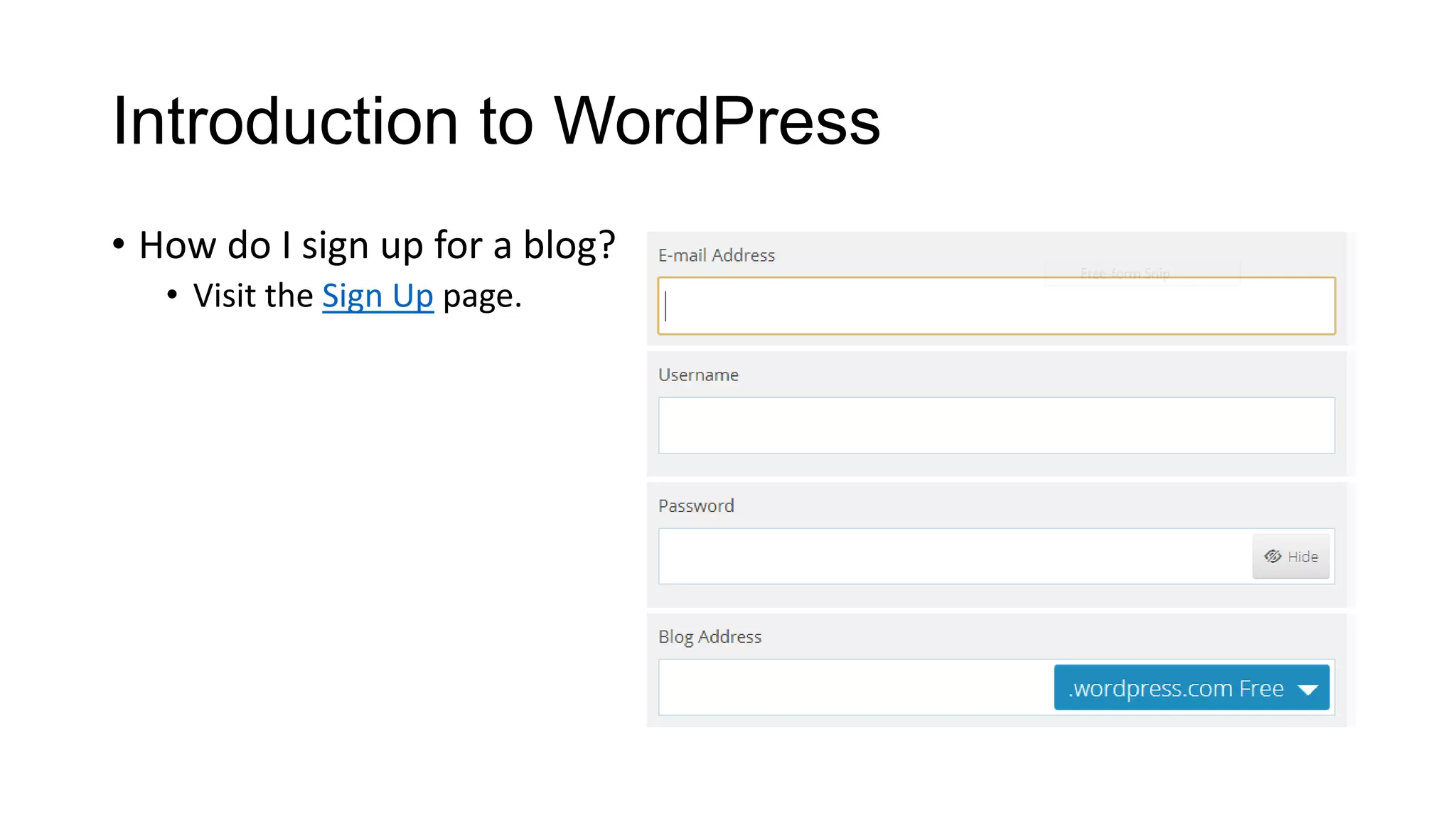
• How do I sign up for a blog?
• Visit the Sign Up page.
The importance of the name you choose
• It reflects your content
• Easy access through search engines
• Social Media
• Easy to remember
Posting your first blog
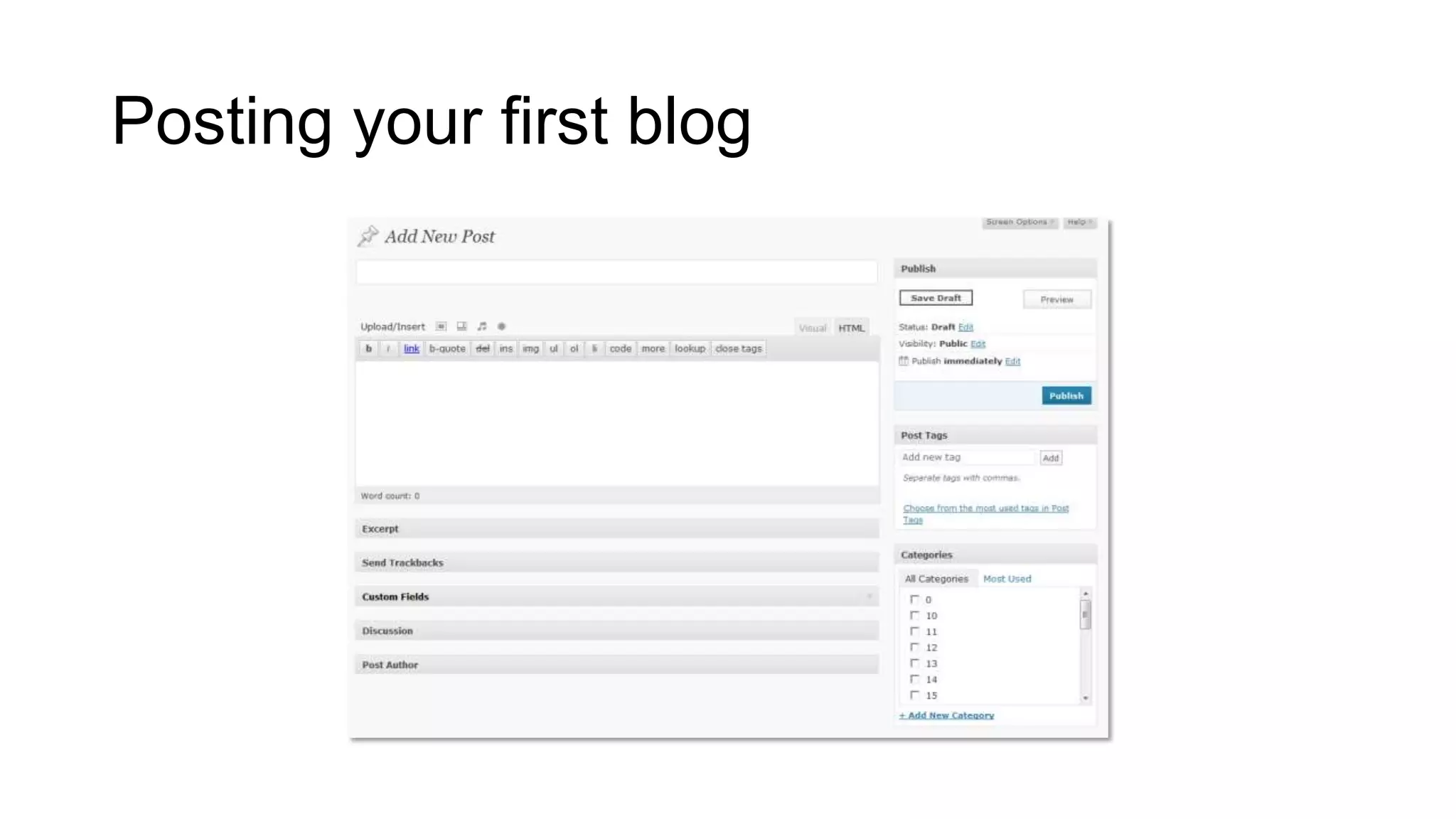
• Posts are the entries that display in reverse chronological order on your home
page. In contrast to pages, posts usually have comments fields beneath them and
are included in your site's RSS feed.
To write a post:
1) Log in to your WordPress Administration Panel (Dashboard).
2) Click the 'Posts' tab.
3) Click the 'Add New' sub-tab.
4) Start filling in the blanks: enter your post title in the upper field, and enter your
post body content in the main post editing box below it.
5) As needed, select a category, add tags, and make other selections from the
sections below the post.
6) When you are ready, click Publish.
Posting your first blog
• Descriptions of Post Fields
•
•
•
•

Title
Post Editing Area
Preview button
Publish box
•
•
•
•

Published
Pending Review
Draft
Visibility
• Public
• Password protected
• Private

• Permalink

• Permanent Link

• Save

• Draft / Pending review

• Publish
Posting your first blog
• Post Tags
• Categories
• Excerpt
• First 55 words
• Or the excerpt field

•
•
•
•
•

Send Trackbacks
Custom Fields
Discussion
Post Author
Revisions
Best Practices For Posting
• Practice Accessibility
• ALT and Title

• Use Paragraphs
• Double spaces

• Use Headings
• Think before you post
• Write about what you like
• Write frequently
• Don’t use too much slang
Best Practices For Posting
• Don't hide your emotions
• Consider your readers
• Anonymity

• Make use of comments
• Worry about blog design later
• Don’t play too safe
• Use pictures and videos
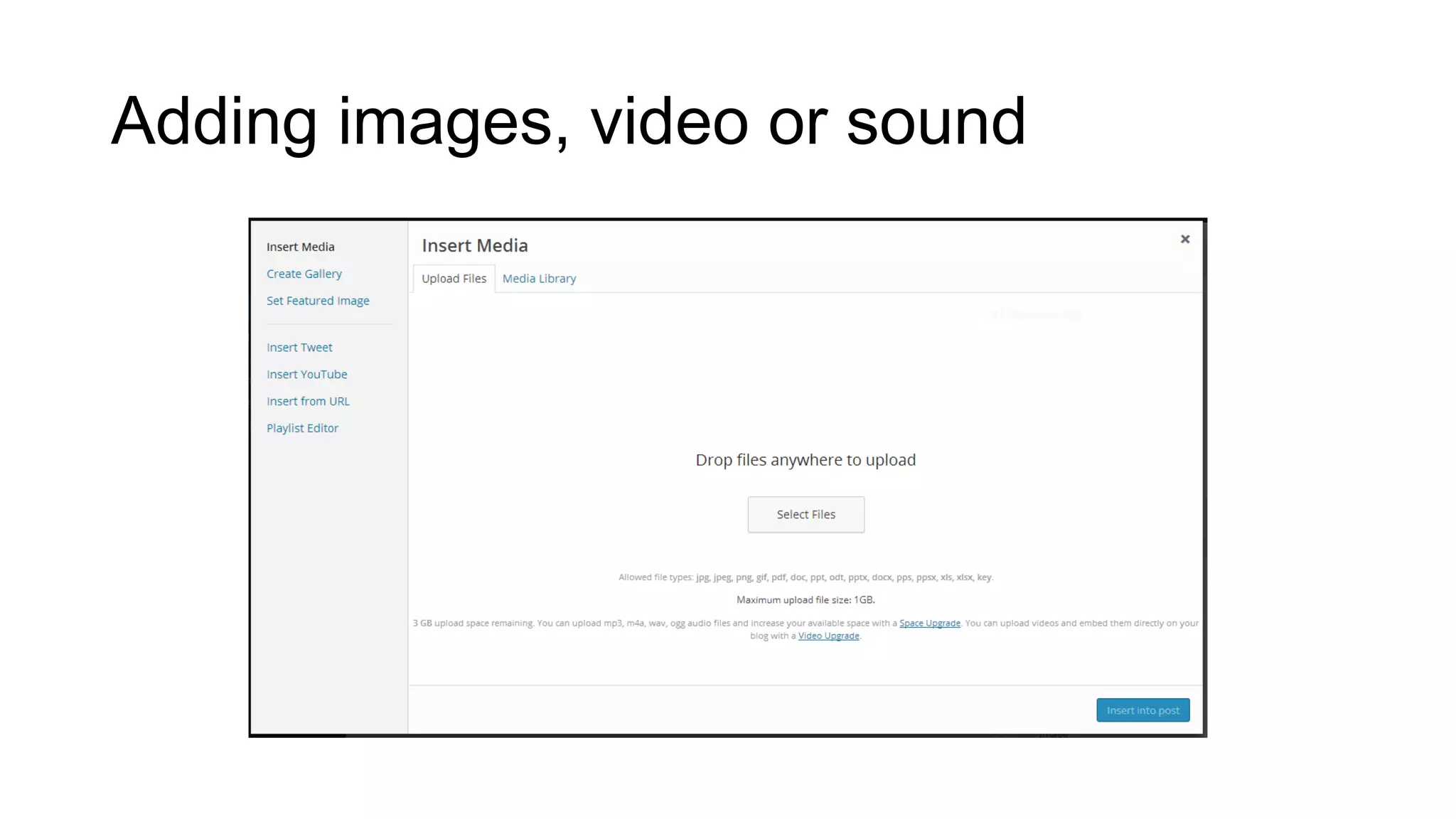
Adding images, video or sound
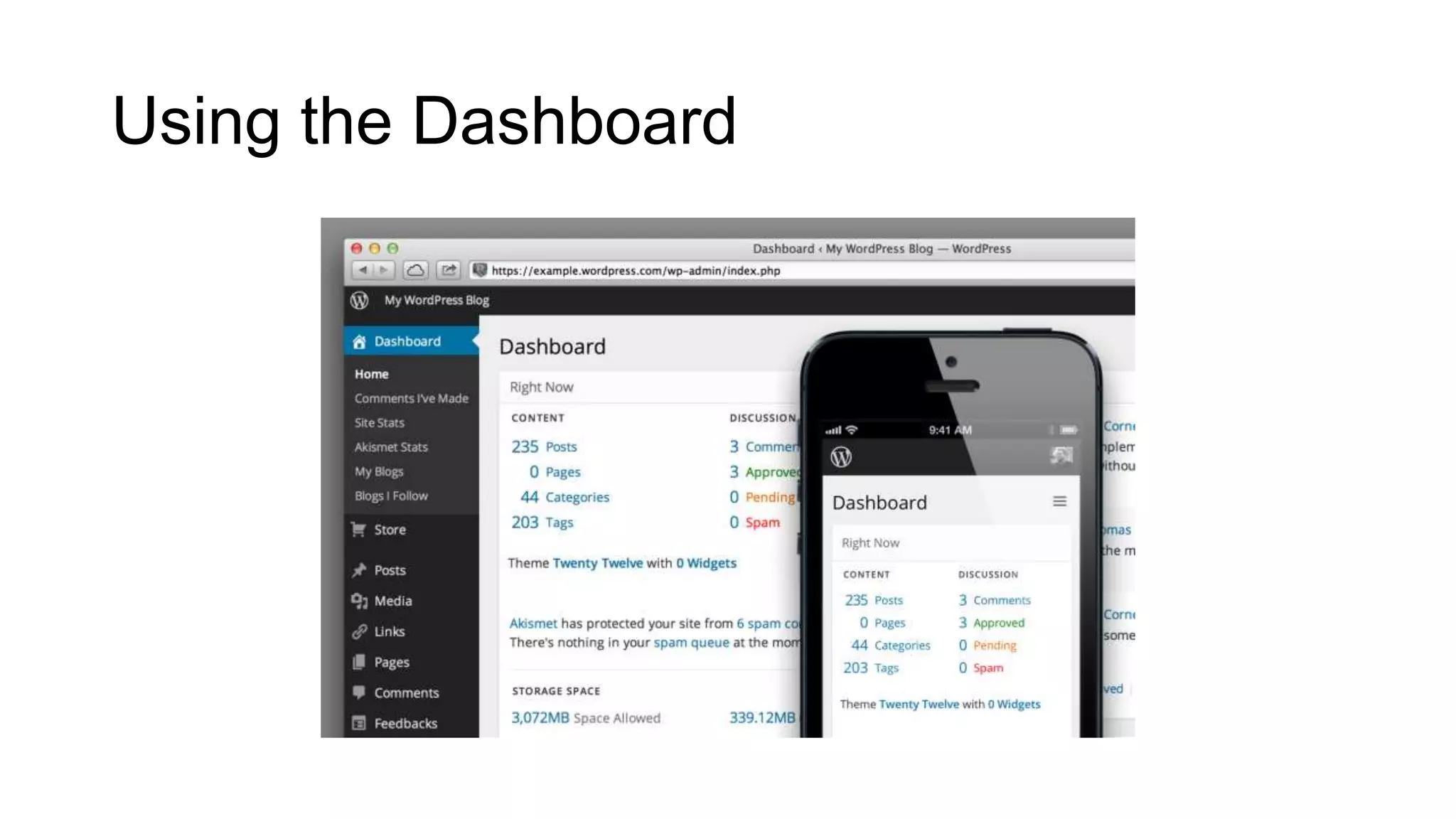
Using the Dashboard
• The Dashboard is where to manage your blog.
• You can use Dashboard to:
•
•
•
•
•
•
•

Change settings
Select themes
Write or manage content
Add or remove users
Add images
Buy upgrades
And more..
Using the Dashboard
Using the Dashboard
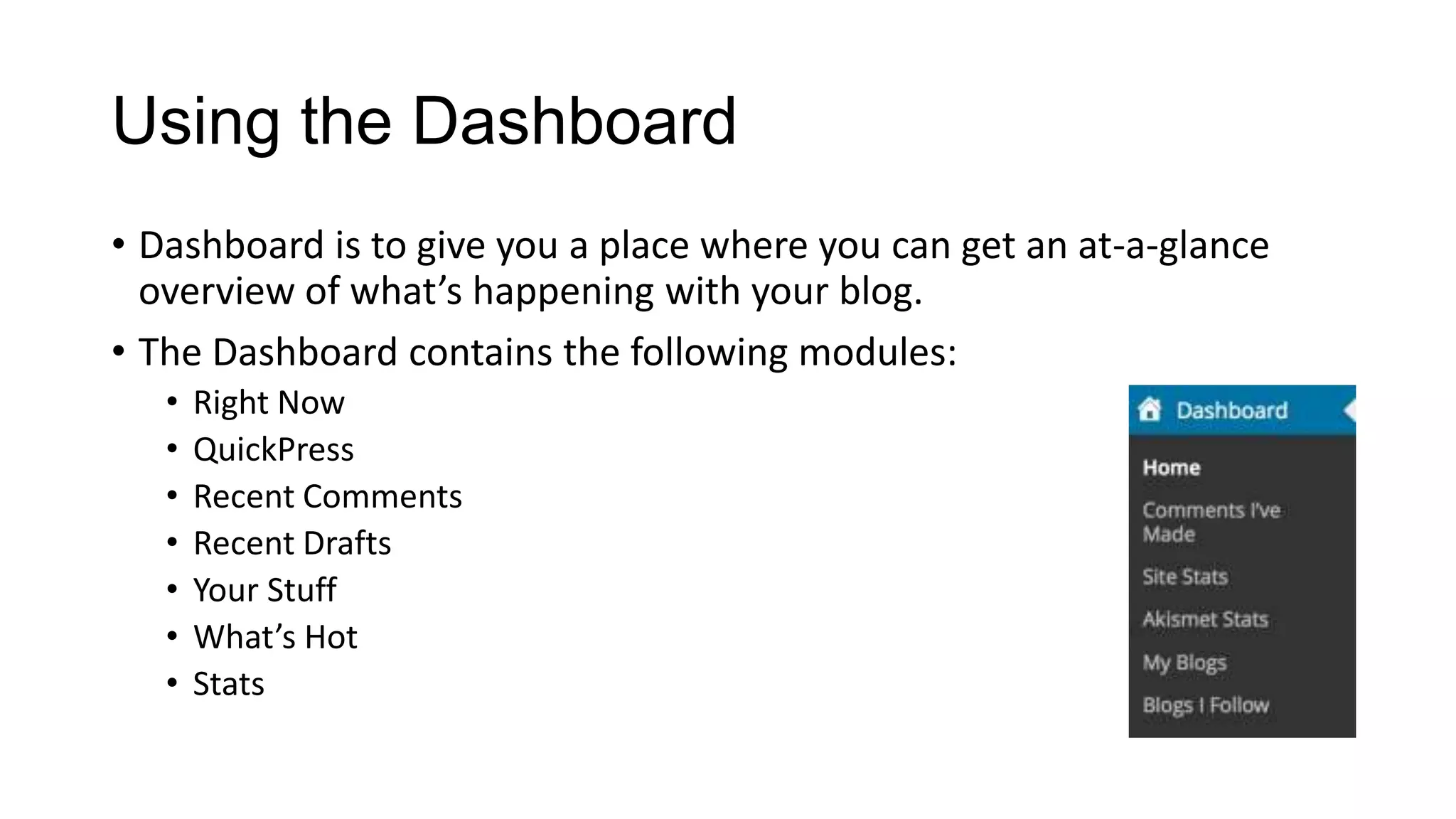
• Dashboard is to give you a place where you can get an at-a-glance
overview of what’s happening with your blog.
• The Dashboard contains the following modules:
•
•
•
•
•
•
•

Right Now
QuickPress
Recent Comments
Recent Drafts
Your Stuff
What’s Hot
Stats
Using the Dashboard
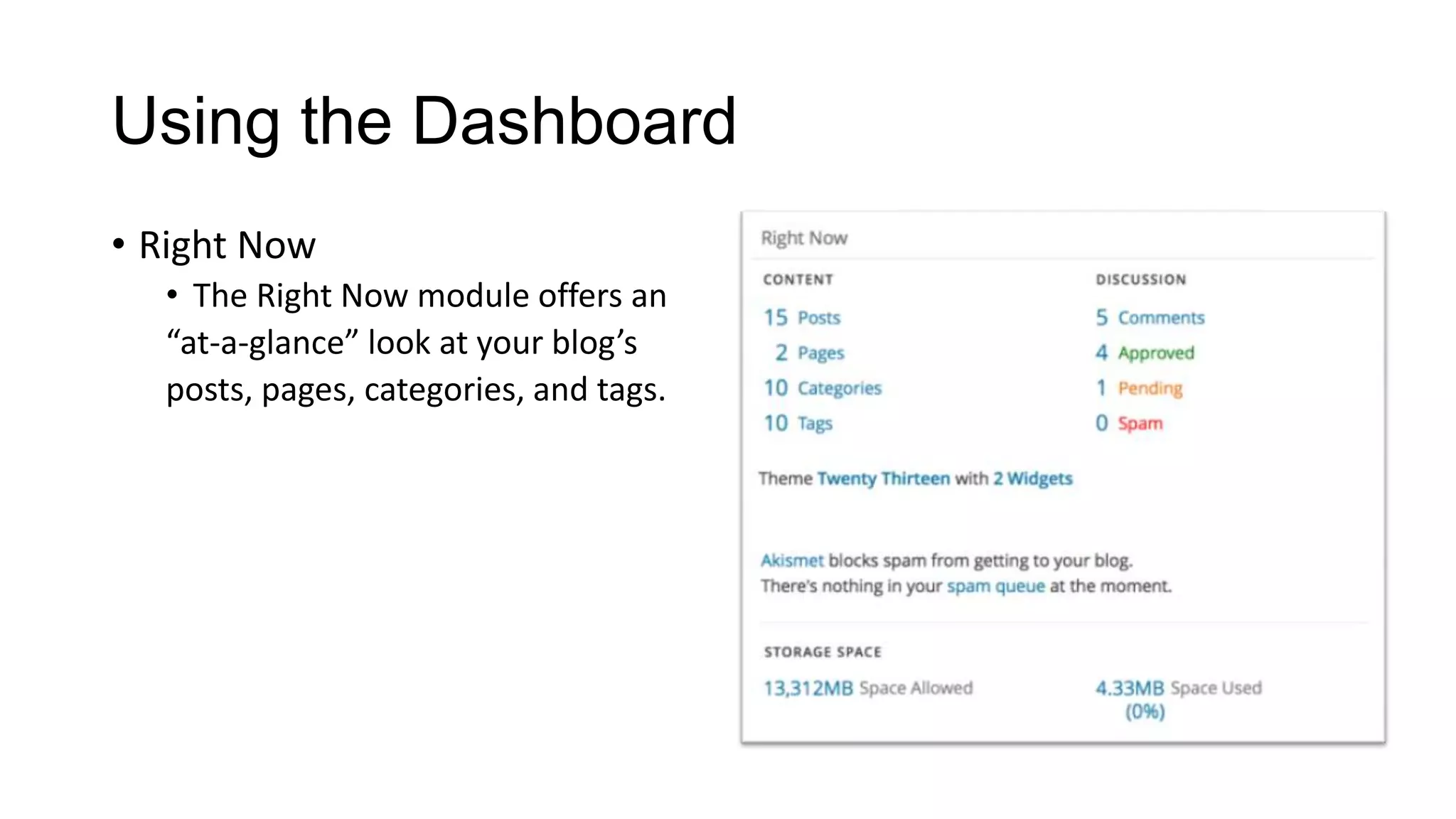
• Right Now
• The Right Now module offers an
“at-a-glance” look at your blog’s
posts, pages, categories, and tags.
Using the Dashboard
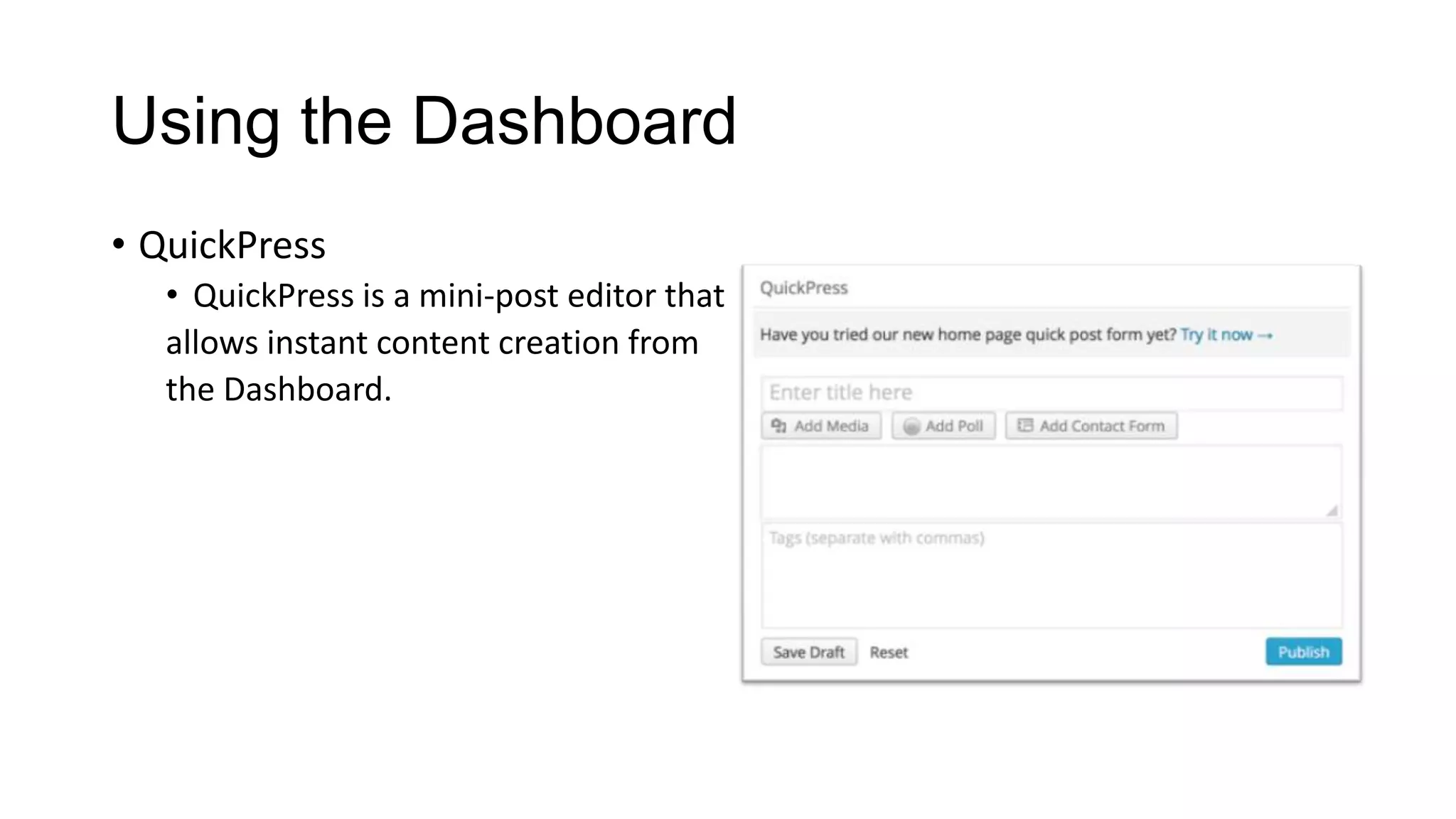
• QuickPress
• QuickPress is a mini-post editor that
allows instant content creation from
the Dashboard.
Using the Dashboard
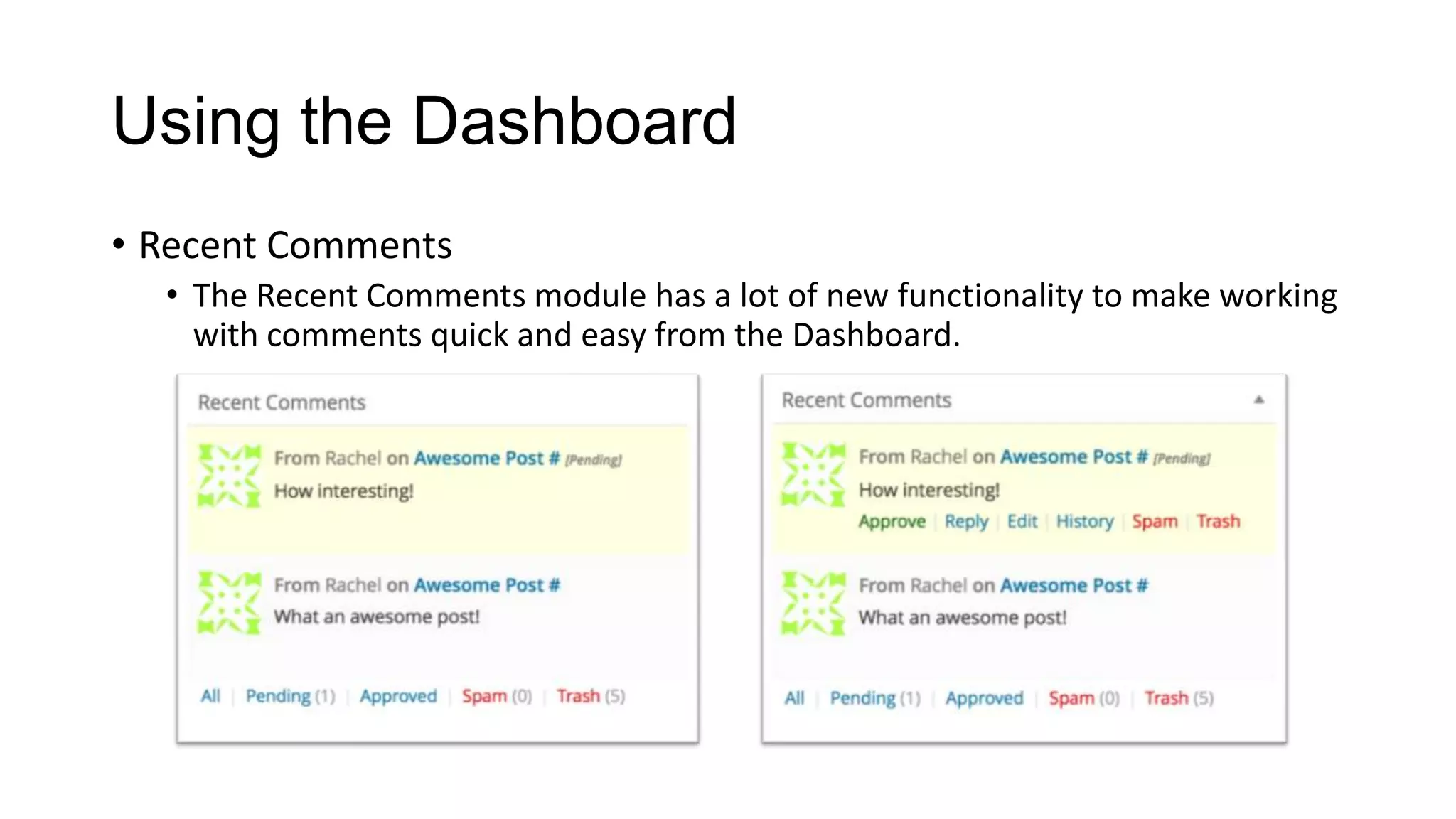
• Recent Comments
• The Recent Comments module has a lot of new functionality to make working
with comments quick and easy from the Dashboard.
Using the Dashboard
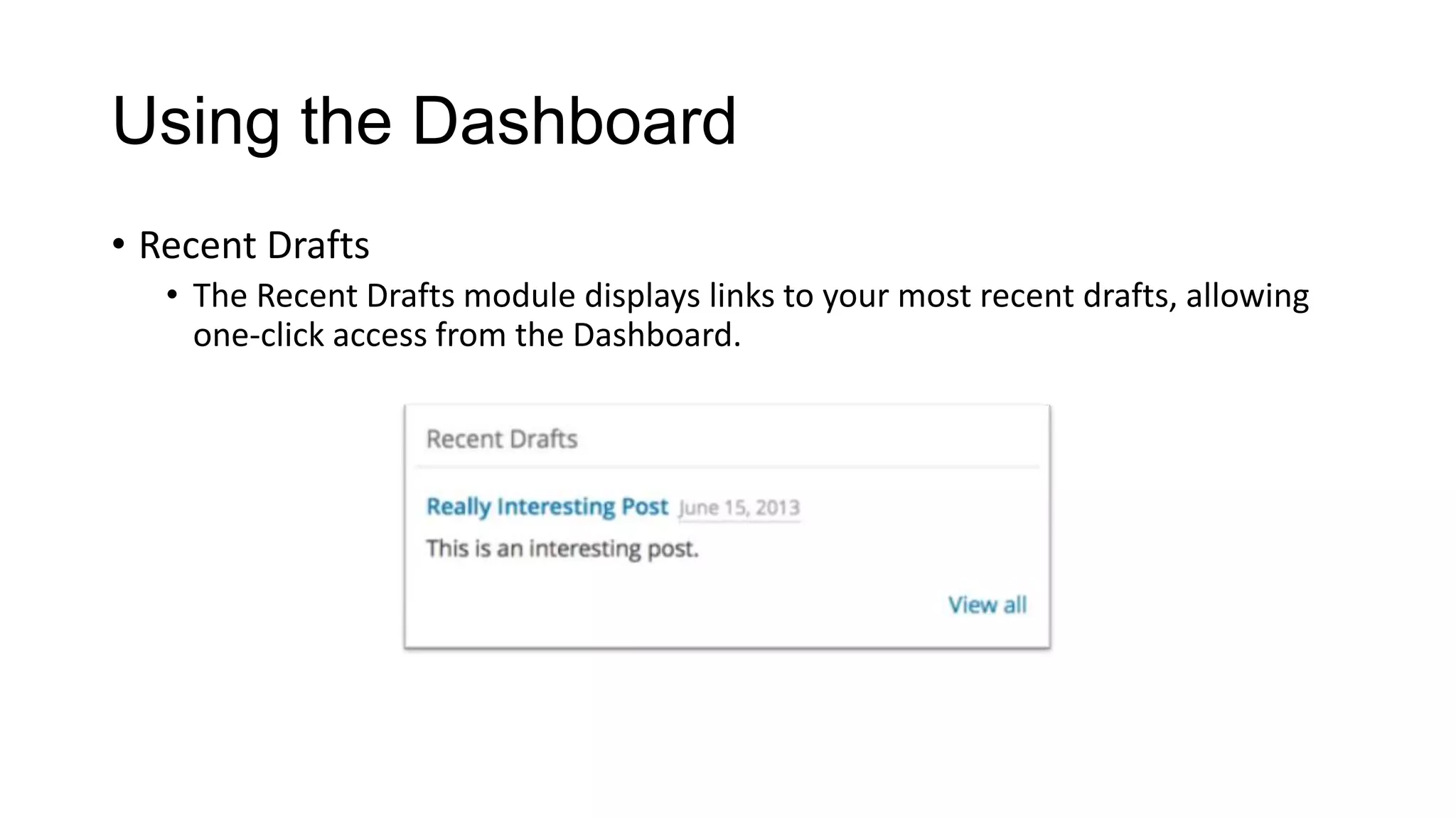
• Recent Drafts
• The Recent Drafts module displays links to your most recent drafts, allowing
one-click access from the Dashboard.
Using the Dashboard
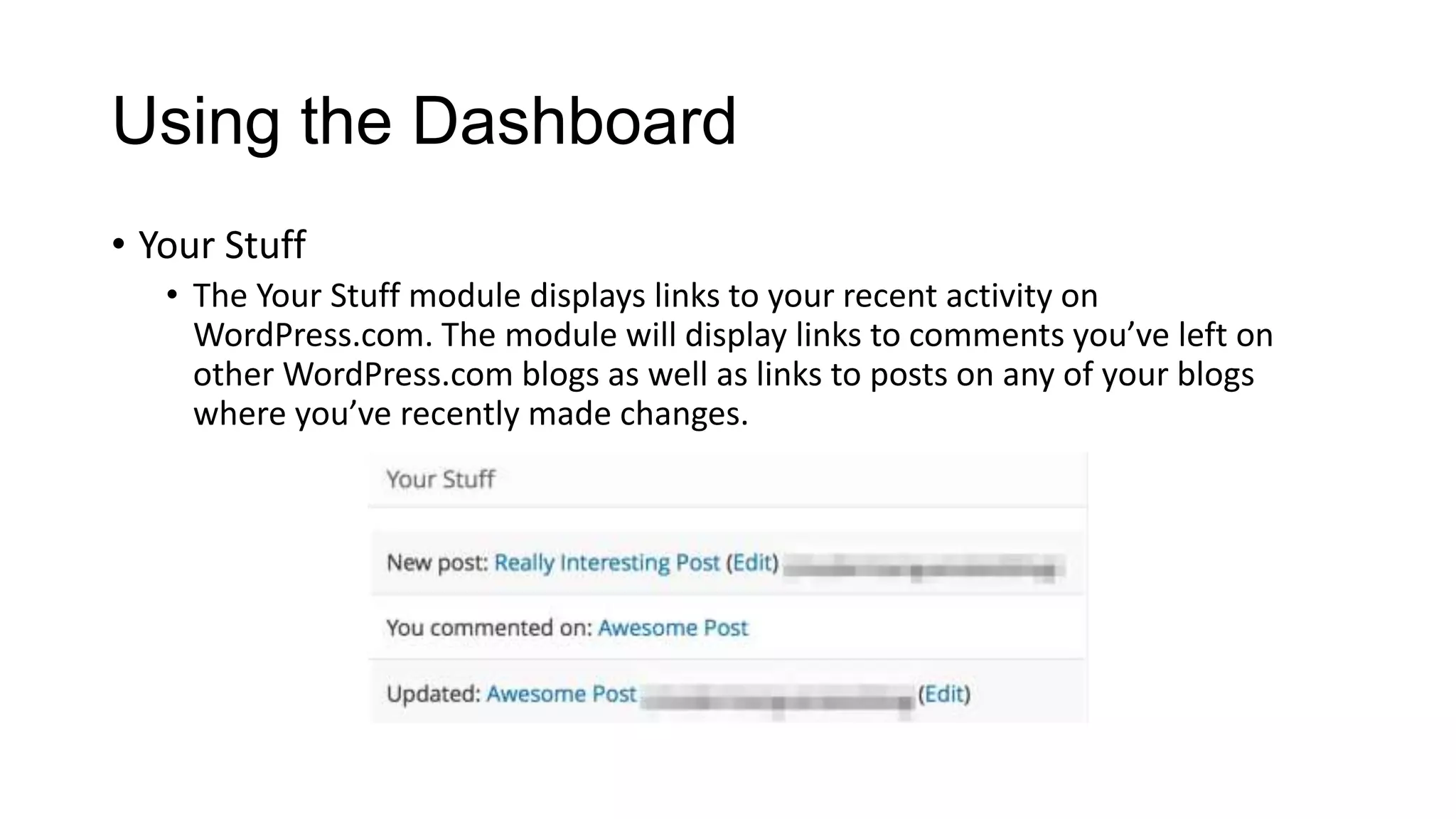
• Your Stuff
• The Your Stuff module displays links to your recent activity on
WordPress.com. The module will display links to comments you’ve left on
other WordPress.com blogs as well as links to posts on any of your blogs
where you’ve recently made changes.
Using the Dashboard
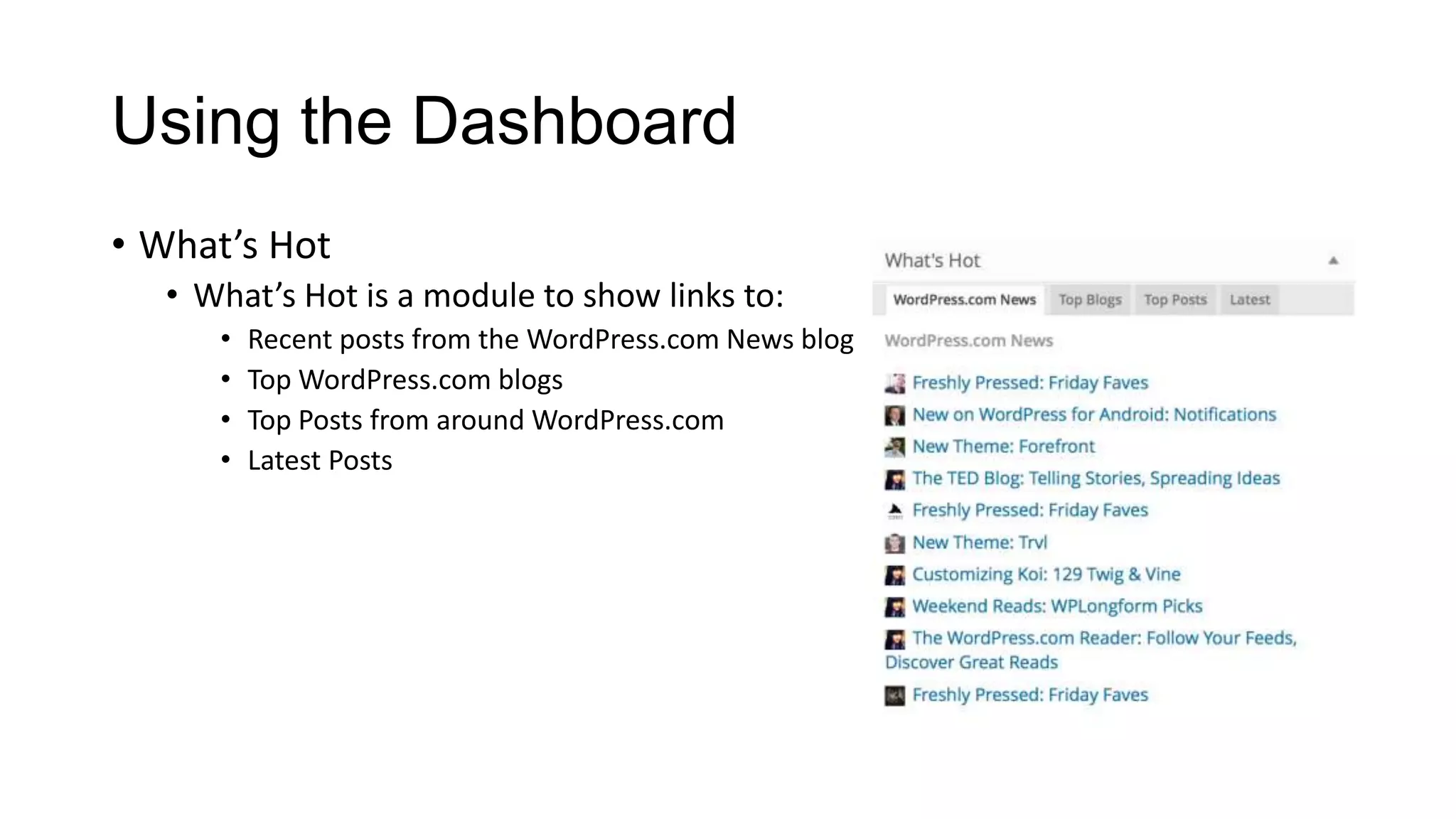
• What’s Hot
• What’s Hot is a module to show links to:
•
•
•
•

Recent posts from the WordPress.com News blog
Top WordPress.com blogs
Top Posts from around WordPress.com
Latest Posts
Using the Dashboard
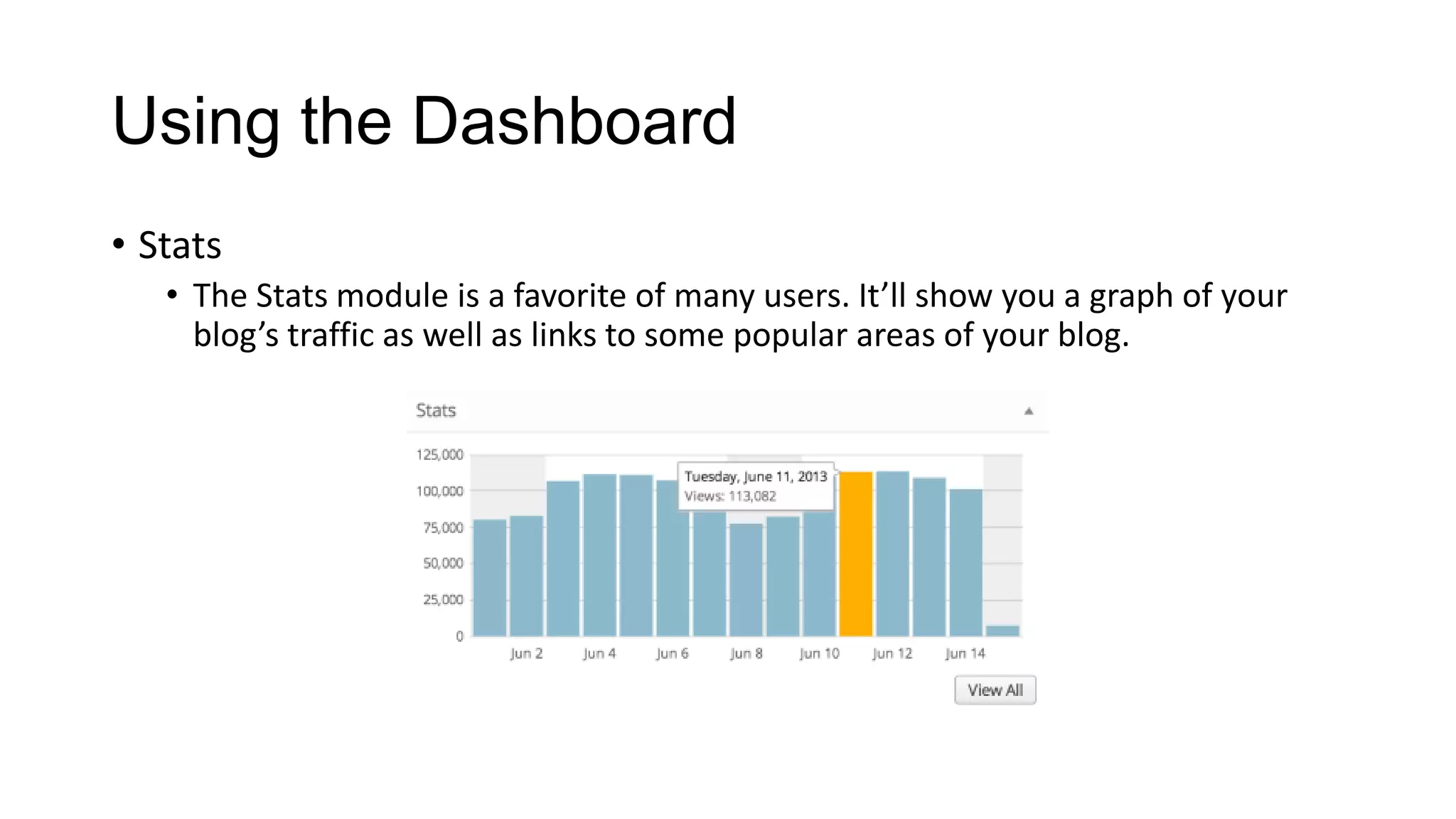
• Stats
• The Stats module is a favorite of many users. It’ll show you a graph of your
blog’s traffic as well as links to some popular areas of your blog.
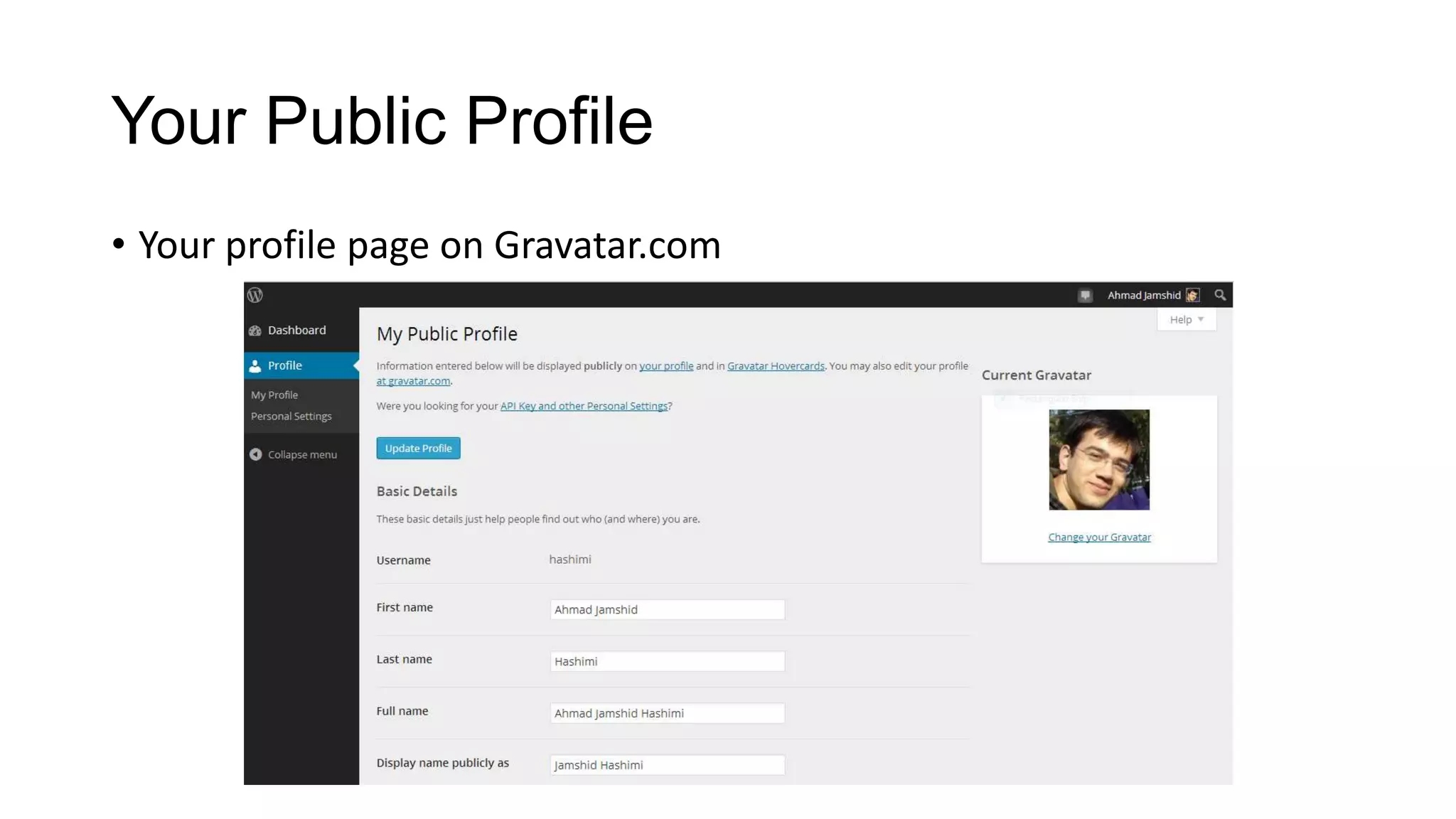
Your Public Profile
• Your profile page on Gravatar.com
Resources
• http://john.do/blog-blogger-blogging/
• http://en.support.wordpress.com
• http://codex.wordpress.org
THANK YOU!

Introduction to Wordpress

  • 1.
    Introduction to WordPress JamshidHashimi Trainer, Cresco Solution http://www.jamshidhashimi.com jamshid@netlinks.af @jamshidhashimi ajamshidhashimi
  • 2.
    Agenda • Introduction toWordPress • The importance of the name you choose • Posting your first blog • Best Practices For Posting • Adding images, video or sound • Using the Dashboard • Entering your public profile
  • 3.
    Introduction to WordPress •What’s a blog? • • • • A blog is a collection of commentary posted on the internet. “weblog” or a “web log”. online journal or diary, online journalism. Types • Personal, corporate, political, podcasts, photographic, and more. • Displayed • Reverse-chronological order with the latest posts at the top. • Community & Discussion • Many blogs allow readers to comment on the blogger’s post, which can create a sense of community and encourage discussion. • A blogger is someone who blogs, or writes content for a blog. • Blogging is the act of writing a post for a blog
  • 4.
  • 5.
    Introduction to WordPress •What is WordPress.com? • WordPress.com lets you easily create your own blog and write about the things that interest you. • It is a blogging community managed by makers of the open source WordPress software. • WordPress.com vs. WordPress.org • WordPress.com blogs are free with the option of adding upgrades such as personalized domain names, custom CSS, video storage, and more. In comparison, a self-hosted WordPress.org blog does not have upgrades and must be installed on a web hosting account separately.
  • 6.
    Introduction to WordPress •How much does WordPress.com cost? • WordPress.com blogs are free. • Paid upgrades available but they are entirely optional.
  • 7.
    Introduction to WordPress •How do I sign up for a blog? • Visit the Sign Up page.
  • 8.
    The importance ofthe name you choose • It reflects your content • Easy access through search engines • Social Media • Easy to remember
  • 9.
    Posting your firstblog • Posts are the entries that display in reverse chronological order on your home page. In contrast to pages, posts usually have comments fields beneath them and are included in your site's RSS feed. To write a post: 1) Log in to your WordPress Administration Panel (Dashboard). 2) Click the 'Posts' tab. 3) Click the 'Add New' sub-tab. 4) Start filling in the blanks: enter your post title in the upper field, and enter your post body content in the main post editing box below it. 5) As needed, select a category, add tags, and make other selections from the sections below the post. 6) When you are ready, click Publish.
  • 10.
  • 11.
    Posting your firstblog • Descriptions of Post Fields • • • • Title Post Editing Area Preview button Publish box • • • • Published Pending Review Draft Visibility • Public • Password protected • Private • Permalink • Permanent Link • Save • Draft / Pending review • Publish
  • 12.
    Posting your firstblog • Post Tags • Categories • Excerpt • First 55 words • Or the excerpt field • • • • • Send Trackbacks Custom Fields Discussion Post Author Revisions
  • 13.
    Best Practices ForPosting • Practice Accessibility • ALT and Title • Use Paragraphs • Double spaces • Use Headings • Think before you post • Write about what you like • Write frequently • Don’t use too much slang
  • 14.
    Best Practices ForPosting • Don't hide your emotions • Consider your readers • Anonymity • Make use of comments • Worry about blog design later • Don’t play too safe • Use pictures and videos
  • 15.
  • 16.
    Using the Dashboard •The Dashboard is where to manage your blog. • You can use Dashboard to: • • • • • • • Change settings Select themes Write or manage content Add or remove users Add images Buy upgrades And more..
  • 17.
  • 18.
    Using the Dashboard •Dashboard is to give you a place where you can get an at-a-glance overview of what’s happening with your blog. • The Dashboard contains the following modules: • • • • • • • Right Now QuickPress Recent Comments Recent Drafts Your Stuff What’s Hot Stats
  • 19.
    Using the Dashboard •Right Now • The Right Now module offers an “at-a-glance” look at your blog’s posts, pages, categories, and tags.
  • 20.
    Using the Dashboard •QuickPress • QuickPress is a mini-post editor that allows instant content creation from the Dashboard.
  • 21.
    Using the Dashboard •Recent Comments • The Recent Comments module has a lot of new functionality to make working with comments quick and easy from the Dashboard.
  • 22.
    Using the Dashboard •Recent Drafts • The Recent Drafts module displays links to your most recent drafts, allowing one-click access from the Dashboard.
  • 23.
    Using the Dashboard •Your Stuff • The Your Stuff module displays links to your recent activity on WordPress.com. The module will display links to comments you’ve left on other WordPress.com blogs as well as links to posts on any of your blogs where you’ve recently made changes.
  • 24.
    Using the Dashboard •What’s Hot • What’s Hot is a module to show links to: • • • • Recent posts from the WordPress.com News blog Top WordPress.com blogs Top Posts from around WordPress.com Latest Posts
  • 25.
    Using the Dashboard •Stats • The Stats module is a favorite of many users. It’ll show you a graph of your blog’s traffic as well as links to some popular areas of your blog.
  • 26.
    Your Public Profile •Your profile page on Gravatar.com
  • 27.
  • 28.