4.1. Uploading your form
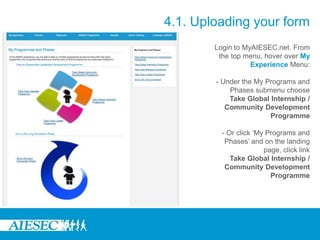
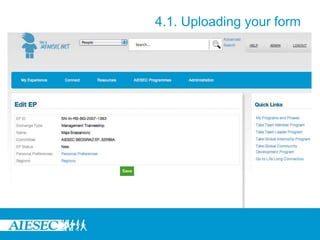
Login to MyAIESEC.net. From
the top menu, hover over My
Experience Menu:
- Under the My Programs and
Phases submenu choose
Take Global Internship /
Community Development
Programme
- Or click ‘My Programs and
Phases’ and on the landing
page, click link
Take Global Internship /
Community Development
Programme
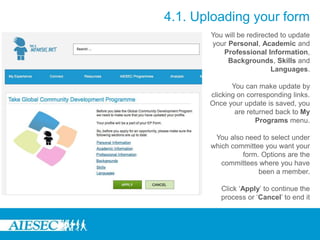
You will be redirected to update
your Personal, Academic and
Professional Information,
Backgrounds, Skills and
Languages.
You can make update by
clicking on corresponding links.
Once your update is saved, you
are returned back to My
Programs menu.
You also need to select under
which committee you want your
form. Options are the
committees where you have
been a member.
Click ‘Apply’ to continue the
process or ‘Cancel’ to end it
4.1. Uploading your form
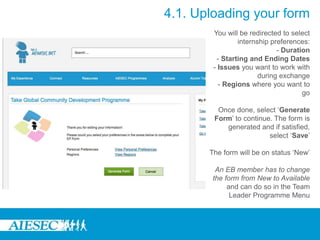
You will be redirected to select
internship preferences:
- Duration
- Starting and Ending Dates
- Issues you want to work with
during exchange
- Regions where you want to
go
Once done, select ‘Generate
Form’ to continue. The form is
generated and if satisfied,
select ‘Save’
The form will be on status ‘New’
An EB member has to change
the form from New to Available
and can do so in the Team
Leader Programme Menu
4.1. Uploading your form
4.2. Browsing internships
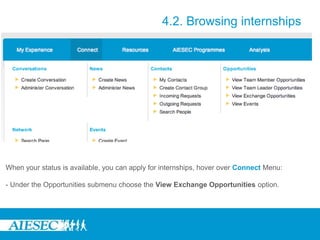
When your status is available, you can apply for internships, hover over Connect Menu:
- Under the Opportunities submenu choose the View Exchange Opportunities option.
4.2. Browsing internships
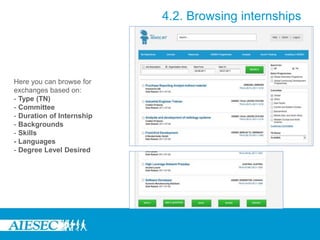
Here you can browse for
exchanges based on:
- Type (TN)
- Committee
- Duration of Internship
- Backgrounds
- Skills
- Languages
- Degree Level Desired
4.2. Browsing internships
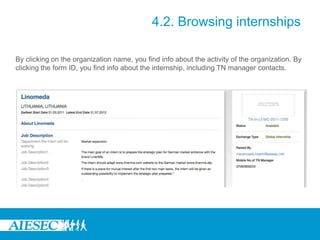
By clicking on the organization name, you find info about the activity of the organization. By
clicking the form ID, you find info about the internship, including TN manager contacts.
4.3. Applying for an internship
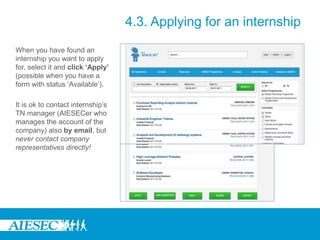
When you have found an
internship you want to apply
for, select it and click ‘Apply’
(possible when you have a
form with status ‘Available’).
It is ok to contact internship’s
TN manager (AIESECer who
manages the account of the
company) also by email, but
never contact company
representatives directly!
4.3. Applying for an internship
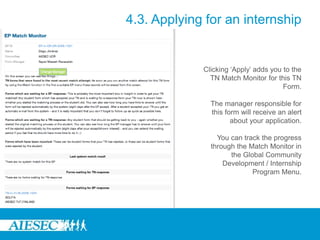
Clicking ‘Apply’ adds you to the
TN Match Monitor for this TN
Form.
The manager responsible for
this form will receive an alert
about your application.
You can track the progress
through the Match Monitor in
the Global Community
Development / Internship
Program Menu.
4.4. Matching in practice
In Global Community Development / Internship Program menu you can
manage your exchange experience through following functions:
- Managing and updating their EP Forms and save TN Forms of interests
through the ‘My Forms’ Menu
- Tracking the progress of their matching through the ‘Match Monitor’
- Searching for and applying for opportunities through ‘Browse Exchanges’
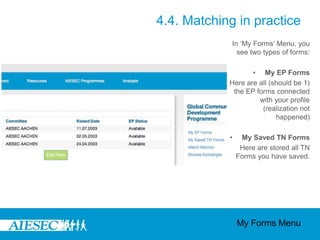
In ‘My Forms’ Menu, you
see two types of forms:
• My EP Forms
Here are all (should be 1)
the EP forms connected
with your profile
(realization not
happened)
• My Saved TN Forms
Here are stored all TN
Forms you have saved.
My Forms Menu
4.4. Matching in practice
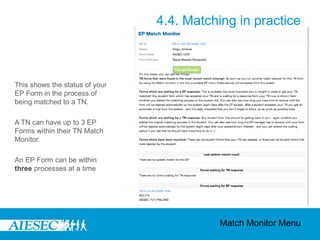
This shows the status of your
EP Form in the process of
being matched to a TN.
A TN can have up to 3 EP
Forms within their TN Match
Monitor.
An EP Form can be within
three processes at a time
Match Monitor Menu
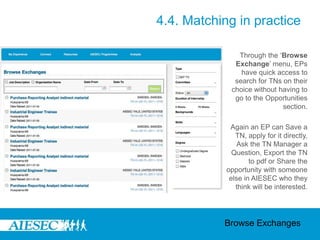
4.4. Matching in practice
Through the ‘Browse
Exchange’ menu, EPs
have quick access to
search for TNs on their
choice without having to
go to the Opportunities
section.
Again an EP can Save a
TN, apply for it directly,
Ask the TN Manager a
Question, Export the TN
to pdf or Share the
opportunity with someone
else in AIESEC who they
think will be interested.
Browse Exchanges
4.4. Matching in practice
4.5. After the match
Congratulations! You have found a suitable TN, applied for it and got approved.
But this is not yet a binding approval. Next:
- Send official EP Acceptance Note (in your EP package)
- Receive official TN Acceptance Note
Only send Acceptance Note if you are completely sure you want to commit to
this internship! Acceptance Note is a binding agreement. No need to send
original copies, scanned documents via email are enough.
Acceptance is valid for 10 days. If TN has not responded to official acceptance
in 10 days, you can apply for other internships again.
4.5. After the match
Before you leave:
- Acquire visa, insurance, working permit, medical certifications and other required
documents, vaccinations, insurance etc.
- Buy travel tickets
- Communicate with home and host LCs
- Submit evaluation forms in MyAIESEC.net in the beginning of the traineeship, in half-
way of the traineeship, right after the traineeship and one year after the traineeship.
- Prepare for cultural presentation about Finland
- Prepare to represent AIESEC at your workplace and if you get them interested in
having another trainee after you, tell your host LC.
- Find out information about the country and prepare to proactively take part in
activities outside AIESEC.

My.aiesec.net training

  • 1.
  • 2.
    4.1. Uploading yourform Login to MyAIESEC.net. From the top menu, hover over My Experience Menu: - Under the My Programs and Phases submenu choose Take Global Internship / Community Development Programme - Or click ‘My Programs and Phases’ and on the landing page, click link Take Global Internship / Community Development Programme
  • 3.
    You will beredirected to update your Personal, Academic and Professional Information, Backgrounds, Skills and Languages. You can make update by clicking on corresponding links. Once your update is saved, you are returned back to My Programs menu. You also need to select under which committee you want your form. Options are the committees where you have been a member. Click ‘Apply’ to continue the process or ‘Cancel’ to end it 4.1. Uploading your form
  • 4.
    You will beredirected to select internship preferences: - Duration - Starting and Ending Dates - Issues you want to work with during exchange - Regions where you want to go Once done, select ‘Generate Form’ to continue. The form is generated and if satisfied, select ‘Save’ The form will be on status ‘New’ An EB member has to change the form from New to Available and can do so in the Team Leader Programme Menu 4.1. Uploading your form
  • 5.
  • 6.
  • 7.
    When your statusis available, you can apply for internships, hover over Connect Menu: - Under the Opportunities submenu choose the View Exchange Opportunities option. 4.2. Browsing internships
  • 8.
    Here you canbrowse for exchanges based on: - Type (TN) - Committee - Duration of Internship - Backgrounds - Skills - Languages - Degree Level Desired 4.2. Browsing internships
  • 9.
    4.2. Browsing internships Byclicking on the organization name, you find info about the activity of the organization. By clicking the form ID, you find info about the internship, including TN manager contacts.
  • 10.
    4.3. Applying foran internship
  • 11.
    4.3. Applying foran internship When you have found an internship you want to apply for, select it and click ‘Apply’ (possible when you have a form with status ‘Available’). It is ok to contact internship’s TN manager (AIESECer who manages the account of the company) also by email, but never contact company representatives directly!
  • 12.
    4.3. Applying foran internship Clicking ‘Apply’ adds you to the TN Match Monitor for this TN Form. The manager responsible for this form will receive an alert about your application. You can track the progress through the Match Monitor in the Global Community Development / Internship Program Menu.
  • 13.
  • 14.
    4.4. Matching inpractice In Global Community Development / Internship Program menu you can manage your exchange experience through following functions: - Managing and updating their EP Forms and save TN Forms of interests through the ‘My Forms’ Menu - Tracking the progress of their matching through the ‘Match Monitor’ - Searching for and applying for opportunities through ‘Browse Exchanges’
  • 15.
    In ‘My Forms’Menu, you see two types of forms: • My EP Forms Here are all (should be 1) the EP forms connected with your profile (realization not happened) • My Saved TN Forms Here are stored all TN Forms you have saved. My Forms Menu 4.4. Matching in practice
  • 16.
    This shows thestatus of your EP Form in the process of being matched to a TN. A TN can have up to 3 EP Forms within their TN Match Monitor. An EP Form can be within three processes at a time Match Monitor Menu 4.4. Matching in practice
  • 17.
    Through the ‘Browse Exchange’menu, EPs have quick access to search for TNs on their choice without having to go to the Opportunities section. Again an EP can Save a TN, apply for it directly, Ask the TN Manager a Question, Export the TN to pdf or Share the opportunity with someone else in AIESEC who they think will be interested. Browse Exchanges 4.4. Matching in practice
  • 18.
  • 19.
    4.5. After thematch Congratulations! You have found a suitable TN, applied for it and got approved. But this is not yet a binding approval. Next: - Send official EP Acceptance Note (in your EP package) - Receive official TN Acceptance Note Only send Acceptance Note if you are completely sure you want to commit to this internship! Acceptance Note is a binding agreement. No need to send original copies, scanned documents via email are enough. Acceptance is valid for 10 days. If TN has not responded to official acceptance in 10 days, you can apply for other internships again.
  • 20.
    4.5. After thematch Before you leave: - Acquire visa, insurance, working permit, medical certifications and other required documents, vaccinations, insurance etc. - Buy travel tickets - Communicate with home and host LCs - Submit evaluation forms in MyAIESEC.net in the beginning of the traineeship, in half- way of the traineeship, right after the traineeship and one year after the traineeship. - Prepare for cultural presentation about Finland - Prepare to represent AIESEC at your workplace and if you get them interested in having another trainee after you, tell your host LC. - Find out information about the country and prepare to proactively take part in activities outside AIESEC.

Editor's Notes

  • #4 Explain the reason why this specific information needs to be updated
  • #5 Explain the reason why this specific information needs to be updated
  • #6 Image of an EP Form
  • #13 Get an image of the TN Match Monitor with the content inside