Student Registration ProcessCity Vision College
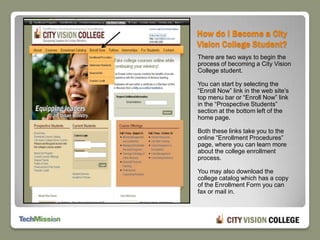
How do I Become a City Vision College Student?There are two ways to begin the process of becoming a City Vision College student.  You can start by selecting the “Enroll Now” link in the web site’s top menu bar or “Enroll Now” link in the “Prospective Students” section at the bottom left of the home page. Both these links take you to the online “Enrollment Procedures” page, where you can learn more about the college enrollment process.You may also download the college catalog which has a copy of the Enrollment Form you can fax or mail in.
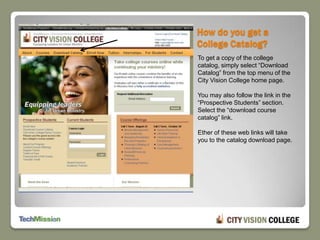
How do you get a College Catalog?To get a copy of the college catalog, simply select “Download Catalog” from the top menu of the City Vision College home page.You may also follow the link in the “Prospective Students” section. Select the “download course catalog” link.Ether of these web links will take you to the catalog download page.
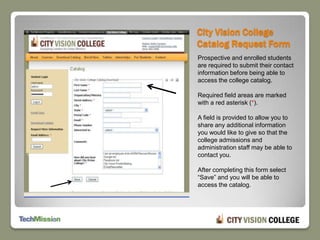
City Vision College Catalog Request FormProspective and enrolled students are required to submit their contact information before being able to access the college catalog.Required field areas are marked with a red asterisk (*).A field is provided to allow you to share any additional information you would like to give so that the college admissions and administration staff may be able to contact you.After completing this form select “Save” and you will be able to access the catalog.
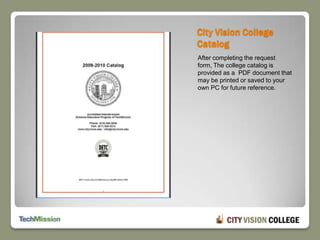
City Vision College CatalogAfter completing the request form, The college catalog is provided as a  PDF document that may be printed or saved to your own PC for future reference.
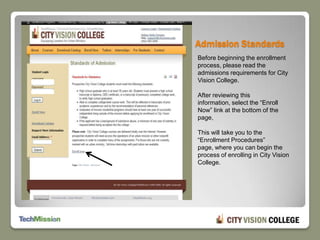
Admission Standards Before beginning the enrollment process, please read the admissions requirements for City Vision College.After reviewing this information, select the “Enroll Now” link at the bottom of the page, This will take you to the “Enrollment Procedures” page, where you can begin the process of enrolling in City Vision College.
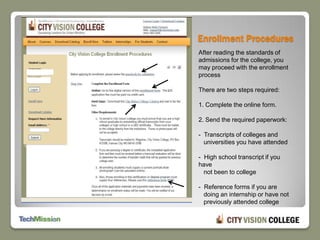
Enrollment ProceduresAfter reading the standards of admissions for the college, you may proceed with the enrollment process  There are two steps required:1. Complete the online form.2. Send the required paperwork:-  Transcripts of colleges and    universities you have attended-  High school transcript if you have    not been to college-  Reference forms if you are    doing an internship or have not    previously attended college
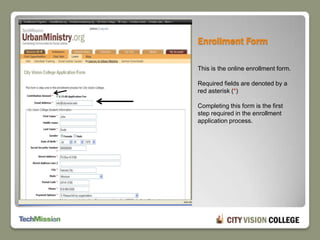
Enrollment FormThis is the online enrollment form.Required fields are denoted by a red asterisk (*)Completing this form is the first step required in the enrollment application process.
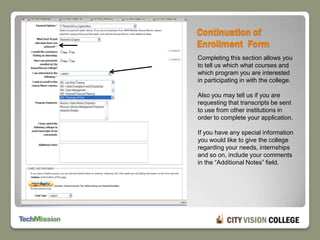
Continuation of Enrollment  FormCompleting this section allows you to tell us which what courses and which program you are interested in participating in with the college.Also you may tell us if you are requesting that transcripts be sent to use from other institutions in order to complete your application.If you have any special information you would like to give the college regarding your needs, internships and so on, include your comments in the “Additional Notes” field.
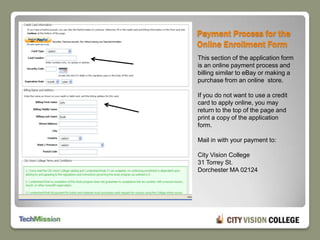
Payment Process for the Online Enrollment FormThis section of the application form is an online payment process and billing similar to eBay or making a purchase from an online  store.If you do not want to use a credit card to apply online, you may return to the top of the page and print a copy of the application form.Mail in with your payment to:City Vision College31 Torrey St.Dorchester MA 02124
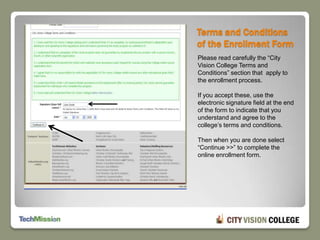
Terms and Conditions of the Enrollment FormPlease read carefully the “City Vision College Terms and Conditions” section that  apply to the enrollment process.If you accept these, use the electronic signature field at the end of the form to indicate that you understand and agree to the college’s terms and conditions. Then when you are done select “Continue >>” to complete the online enrollment form.
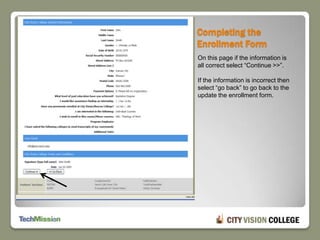
Completing the Enrollment FormOn this page if the information is all correct select “Continue >>”.If the information is incorrect then select “go back” to go back to the update the enrollment form.
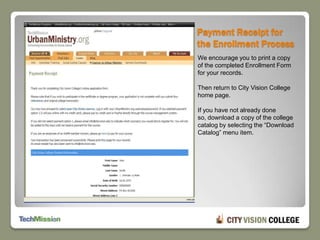
Payment Receipt for the Enrollment ProcessWe encourage you to print a copy of the completed Enrollment Form for your records.Then return to City Vision College home page.If you have not already done so, download a copy of the college catalog by selecting the “Download Catalog” menu item.
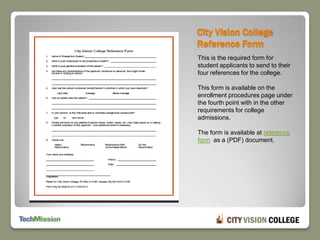
City Vision College Reference FormThis is the required form for student applicants to send to their four references for the college.This form is available on the enrollment procedures page under the fourth point with in the other requirements for college admissions.The form is available at reference form  as a (PDF) document.
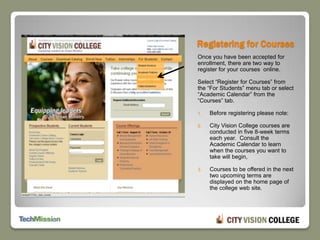
Registering for CoursesOnce you have been accepted for enrollment, there are two way to register for your courses  online. Select “Register for Courses” from the “For Students” menu tab or select “Academic Calendar” from the “Courses” tab.Before registering please note: City Vision College courses are conducted in five 8-week terms each year.  Consult the Academic Calendar to learn when the courses you want to take will begin, Courses to be offered in the next two upcoming terms are displayed on the home page of the college web site.
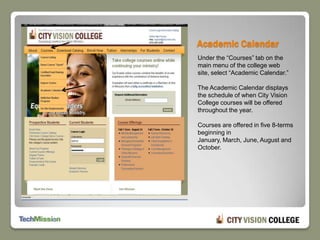
Academic CalendarUnder the “Courses” tab on the main menu of the college web site, select “Academic Calendar.”The Academic Calendar displays the schedule of when City Vision College courses will be offered throughout the year.  Courses are offered in five 8-terms beginning in January, March, June, August and October.
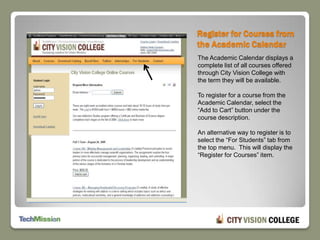
Register for Courses from the Academic CalendarThe Academic Calendar displays a complete list of all courses offered through City Vision College with the term they will be available.To register for a course from the Academic Calendar, select the “Add to Cart” button under the course description.An alternative way to register is to select the “For Students” tab from the top menu.  This will display the “Register for Courses” item.
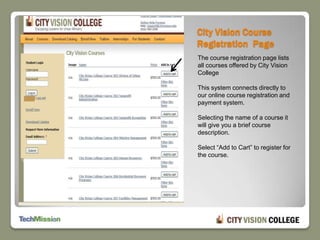
City Vision Course Registration  PageThe course registration page lists all courses offered by City Vision College  This system connects directly to our online course registration and payment system.Selecting the name of a course it will give you a brief course description. Select “Add to Cart” to register for the course.
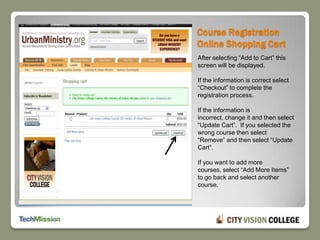
Course Registration Online Shopping CartAfter selecting “Add to Cart” this screen will be displayed.If the information is correct select “Checkout” to complete the registration process.If the information is incorrect, change it and then select “Update Cart”.  If you selected the wrong course then select “Remove” and then select “Update Cart”.If you want to add more courses, select “Add More Items” to go back and select another course.
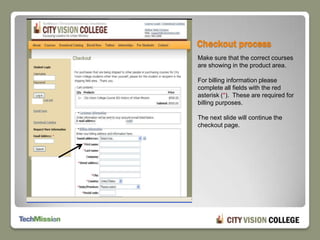
Checkout process Make sure that the correct courses are showing in the product area.For billing information please complete all fields with the red asterisk (*).  These are required for billing purposes.The next slide will continue the checkout page.
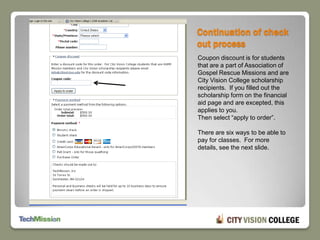
Continuation of check out processCoupon discount is for students that are a part of Association of Gospel Rescue Missions and are City Vision College scholarship recipients.  If you filled out the scholarship form on the financial aid page and are excepted, this applies to you.Then select “apply to order”.There are six ways to be able to pay for classes.  For more details, see the next slide.
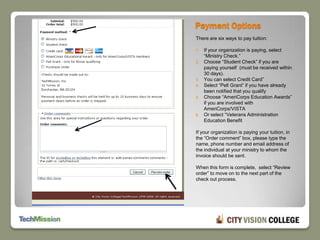
Payment OptionsThere are six ways to pay tuition:If your organization is paying, select “Ministry Check.”Choose “Student Check” if you are paying yourself  (must be received within 30 days).You can select Credit Card”Select “Pell Grant” if you have already been notified that you qualifyChoose “AmeriCorps Education Awards” if you are involved with AmeriCorps/VISTAOr select “Veterans Administration Education BenefitIf your organization is paying your tuition, in the “Order comment” box, please type the name, phone number and email address of the individual at your ministry to whom the invoice should be sent.When this form is complete,  select “Review order” to move on to the next part of the check out process.
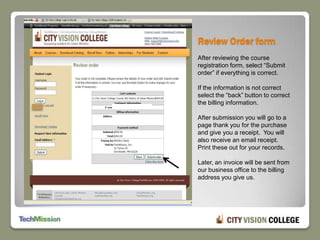
Review Order formAfter reviewing the course registration form, select “Submit order” if everything is correct.If the information is not correct select the “back” button to correct the billing information.After submission you will go to a page thank you for the purchase and give you a receipt.  You will also receive an email receipt.  Print these out for your records.Later, an invoice will be sent from our business office to the billing address you give us.
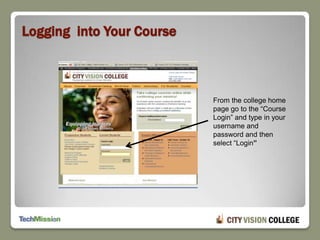
Logging  into Your CourseFrom the college home page go to the “Course Login” and type in your username and password and then select “Login”
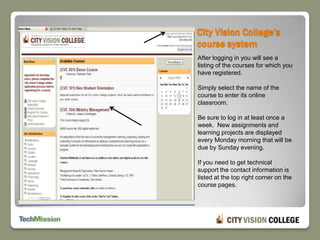
City Vision College’s course systemAfter logging in you will see a listing of the courses for which you have registered.Simply select the name of the course to enter its online classroom.Be sure to log in at least once a week.  New assignments and learning projects are displayed every Monday morning that will be due by Sunday evening.If you need to get technical support the contact information is listed at the top right corner on the course pages.
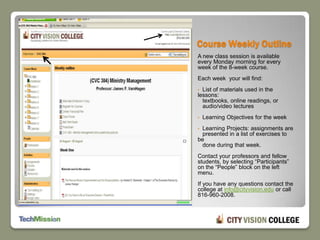
Course Weekly OutlineA new class session is available every Monday morning for every week of the 8-week course.Each week  your will find:  List of materials used in the lessons:     textbooks, online readings, or    audio/video lectures

City Vision College Registration Walkthrough

  • 1.
  • 2.
    How do IBecome a City Vision College Student?There are two ways to begin the process of becoming a City Vision College student. You can start by selecting the “Enroll Now” link in the web site’s top menu bar or “Enroll Now” link in the “Prospective Students” section at the bottom left of the home page. Both these links take you to the online “Enrollment Procedures” page, where you can learn more about the college enrollment process.You may also download the college catalog which has a copy of the Enrollment Form you can fax or mail in.
  • 3.
    How do youget a College Catalog?To get a copy of the college catalog, simply select “Download Catalog” from the top menu of the City Vision College home page.You may also follow the link in the “Prospective Students” section. Select the “download course catalog” link.Ether of these web links will take you to the catalog download page.
  • 4.
    City Vision CollegeCatalog Request FormProspective and enrolled students are required to submit their contact information before being able to access the college catalog.Required field areas are marked with a red asterisk (*).A field is provided to allow you to share any additional information you would like to give so that the college admissions and administration staff may be able to contact you.After completing this form select “Save” and you will be able to access the catalog.
  • 5.
    City Vision CollegeCatalogAfter completing the request form, The college catalog is provided as a PDF document that may be printed or saved to your own PC for future reference.
  • 6.
    Admission Standards Beforebeginning the enrollment process, please read the admissions requirements for City Vision College.After reviewing this information, select the “Enroll Now” link at the bottom of the page, This will take you to the “Enrollment Procedures” page, where you can begin the process of enrolling in City Vision College.
  • 7.
    Enrollment ProceduresAfter readingthe standards of admissions for the college, you may proceed with the enrollment process There are two steps required:1. Complete the online form.2. Send the required paperwork:- Transcripts of colleges and universities you have attended- High school transcript if you have not been to college- Reference forms if you are doing an internship or have not previously attended college
  • 8.
    Enrollment FormThis isthe online enrollment form.Required fields are denoted by a red asterisk (*)Completing this form is the first step required in the enrollment application process.
  • 9.
    Continuation of Enrollment FormCompleting this section allows you to tell us which what courses and which program you are interested in participating in with the college.Also you may tell us if you are requesting that transcripts be sent to use from other institutions in order to complete your application.If you have any special information you would like to give the college regarding your needs, internships and so on, include your comments in the “Additional Notes” field.
  • 10.
    Payment Process forthe Online Enrollment FormThis section of the application form is an online payment process and billing similar to eBay or making a purchase from an online store.If you do not want to use a credit card to apply online, you may return to the top of the page and print a copy of the application form.Mail in with your payment to:City Vision College31 Torrey St.Dorchester MA 02124
  • 11.
    Terms and Conditionsof the Enrollment FormPlease read carefully the “City Vision College Terms and Conditions” section that apply to the enrollment process.If you accept these, use the electronic signature field at the end of the form to indicate that you understand and agree to the college’s terms and conditions. Then when you are done select “Continue >>” to complete the online enrollment form.
  • 12.
    Completing the EnrollmentFormOn this page if the information is all correct select “Continue >>”.If the information is incorrect then select “go back” to go back to the update the enrollment form.
  • 13.
    Payment Receipt forthe Enrollment ProcessWe encourage you to print a copy of the completed Enrollment Form for your records.Then return to City Vision College home page.If you have not already done so, download a copy of the college catalog by selecting the “Download Catalog” menu item.
  • 14.
    City Vision CollegeReference FormThis is the required form for student applicants to send to their four references for the college.This form is available on the enrollment procedures page under the fourth point with in the other requirements for college admissions.The form is available at reference form as a (PDF) document.
  • 15.
    Registering for CoursesOnceyou have been accepted for enrollment, there are two way to register for your courses online. Select “Register for Courses” from the “For Students” menu tab or select “Academic Calendar” from the “Courses” tab.Before registering please note: City Vision College courses are conducted in five 8-week terms each year. Consult the Academic Calendar to learn when the courses you want to take will begin, Courses to be offered in the next two upcoming terms are displayed on the home page of the college web site.
  • 16.
    Academic CalendarUnder the“Courses” tab on the main menu of the college web site, select “Academic Calendar.”The Academic Calendar displays the schedule of when City Vision College courses will be offered throughout the year. Courses are offered in five 8-terms beginning in January, March, June, August and October.
  • 17.
    Register for Coursesfrom the Academic CalendarThe Academic Calendar displays a complete list of all courses offered through City Vision College with the term they will be available.To register for a course from the Academic Calendar, select the “Add to Cart” button under the course description.An alternative way to register is to select the “For Students” tab from the top menu. This will display the “Register for Courses” item.
  • 18.
    City Vision CourseRegistration PageThe course registration page lists all courses offered by City Vision College This system connects directly to our online course registration and payment system.Selecting the name of a course it will give you a brief course description. Select “Add to Cart” to register for the course.
  • 19.
    Course Registration OnlineShopping CartAfter selecting “Add to Cart” this screen will be displayed.If the information is correct select “Checkout” to complete the registration process.If the information is incorrect, change it and then select “Update Cart”. If you selected the wrong course then select “Remove” and then select “Update Cart”.If you want to add more courses, select “Add More Items” to go back and select another course.
  • 20.
    Checkout process Makesure that the correct courses are showing in the product area.For billing information please complete all fields with the red asterisk (*). These are required for billing purposes.The next slide will continue the checkout page.
  • 21.
    Continuation of checkout processCoupon discount is for students that are a part of Association of Gospel Rescue Missions and are City Vision College scholarship recipients. If you filled out the scholarship form on the financial aid page and are excepted, this applies to you.Then select “apply to order”.There are six ways to be able to pay for classes. For more details, see the next slide.
  • 22.
    Payment OptionsThere aresix ways to pay tuition:If your organization is paying, select “Ministry Check.”Choose “Student Check” if you are paying yourself (must be received within 30 days).You can select Credit Card”Select “Pell Grant” if you have already been notified that you qualifyChoose “AmeriCorps Education Awards” if you are involved with AmeriCorps/VISTAOr select “Veterans Administration Education BenefitIf your organization is paying your tuition, in the “Order comment” box, please type the name, phone number and email address of the individual at your ministry to whom the invoice should be sent.When this form is complete, select “Review order” to move on to the next part of the check out process.
  • 23.
    Review Order formAfterreviewing the course registration form, select “Submit order” if everything is correct.If the information is not correct select the “back” button to correct the billing information.After submission you will go to a page thank you for the purchase and give you a receipt. You will also receive an email receipt. Print these out for your records.Later, an invoice will be sent from our business office to the billing address you give us.
  • 24.
    Logging intoYour CourseFrom the college home page go to the “Course Login” and type in your username and password and then select “Login”
  • 25.
    City Vision College’scourse systemAfter logging in you will see a listing of the courses for which you have registered.Simply select the name of the course to enter its online classroom.Be sure to log in at least once a week. New assignments and learning projects are displayed every Monday morning that will be due by Sunday evening.If you need to get technical support the contact information is listed at the top right corner on the course pages.
  • 26.
    Course Weekly OutlineAnew class session is available every Monday morning for every week of the 8-week course.Each week your will find: List of materials used in the lessons: textbooks, online readings, or audio/video lectures