MULE MAVEN
 Maven is a project management utility
that you can use to develop projects in
Mule. Mule provides built-in Maven
functionality, including the features listed
below.
In Anypoint Studio:
 Building a Mule application with Maven
in Studio
 Enabling Maven support for an existing
Studio project
 Importing a Maven project into Studio
 In Mule ESB:
 Maven-Mule ESB functionality is
provided by two Mule plugins for Maven.
 Maven tools for Mule ESB is a plugin
that provides archetypes for building
regular Mule applications, allowing you
to develop Mule applications from within
Maven
 The muleesb-maven-plugin allows you to
control Mule ESB instances from within a
Maven environment
Building a Mule Application with
Maven in Studio :
 Build a Simple Project
1. Drag an HTTP Connector and a Set Payload
Component into your flow as shown in the
figure in next slide.
2. Open the connector’s properties editor and
Create a new Conector
Configuration element by clicking the green
plus sign.
3. Fill in the two required fields: Host and Port.
Set the host to localhost and leave the port
as the default value 8081 as shown in the
figure in next slide.
 Back in the connecotr’s properties
editor, leave the path as the default "/"
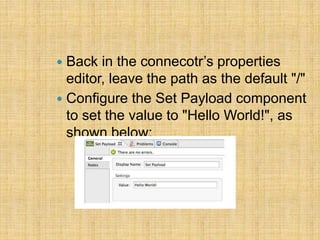
 Configure the Set Payload component
to set the value to "Hello World!", as
shown below:
 Now try it out by running your project
on the embedded server within
Anypoint Studio. Click the project
name, then Run As > Mule
Application.
 Open a browser window and go
to http://localhost:8081.
 You should see a "Hello World!"
message in your browser.
Enabling Maven Support for a
Studio Project :
 Get existing Mule project that was
already created in Anypoint Studio and
add Maven functionality to it.
 Maven can make your project more
easily shareable with other developers
as it takes care of its dependencies
and helps automate your project’s
build process.
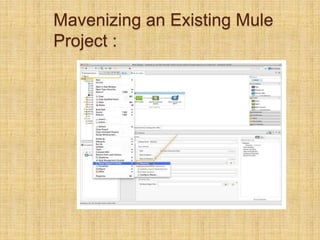
Mavenizing an Existing Mule
Project :
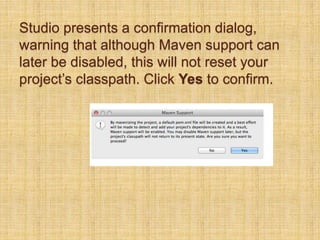
Studio presents a confirmation dialog,
warning that although Maven support can
later be disabled, this will not reset your
project’s classpath. Click Yes to confirm.
Importing a Maven Project into
Studio :
 If you have a Mule project that was built
using http://maven.apache.org/[Maven]
outside Anypoint Studio, you can still
import it into Studio and continue to work
on it with the benefits of the Studio IDE.
 Studio has a built-in functionality to
import a Maven project.
 In Studio, go to File > Import…​
 Select Mule > Maven-based Mule
Project from pom.xml, then click Next.
Import as shown below :
ThankYou!!!!

Mule maven

  • 1.
  • 2.
     Maven isa project management utility that you can use to develop projects in Mule. Mule provides built-in Maven functionality, including the features listed below. In Anypoint Studio:  Building a Mule application with Maven in Studio  Enabling Maven support for an existing Studio project  Importing a Maven project into Studio
  • 3.
     In MuleESB:  Maven-Mule ESB functionality is provided by two Mule plugins for Maven.  Maven tools for Mule ESB is a plugin that provides archetypes for building regular Mule applications, allowing you to develop Mule applications from within Maven  The muleesb-maven-plugin allows you to control Mule ESB instances from within a Maven environment
  • 4.
    Building a MuleApplication with Maven in Studio :  Build a Simple Project 1. Drag an HTTP Connector and a Set Payload Component into your flow as shown in the figure in next slide. 2. Open the connector’s properties editor and Create a new Conector Configuration element by clicking the green plus sign. 3. Fill in the two required fields: Host and Port. Set the host to localhost and leave the port as the default value 8081 as shown in the figure in next slide.
  • 6.
     Back inthe connecotr’s properties editor, leave the path as the default "/"  Configure the Set Payload component to set the value to "Hello World!", as shown below:
  • 7.
     Now tryit out by running your project on the embedded server within Anypoint Studio. Click the project name, then Run As > Mule Application.  Open a browser window and go to http://localhost:8081.  You should see a "Hello World!" message in your browser.
  • 8.
    Enabling Maven Supportfor a Studio Project :  Get existing Mule project that was already created in Anypoint Studio and add Maven functionality to it.  Maven can make your project more easily shareable with other developers as it takes care of its dependencies and helps automate your project’s build process.
  • 9.
    Mavenizing an ExistingMule Project :
  • 10.
    Studio presents aconfirmation dialog, warning that although Maven support can later be disabled, this will not reset your project’s classpath. Click Yes to confirm.
  • 11.
    Importing a MavenProject into Studio :  If you have a Mule project that was built using http://maven.apache.org/[Maven] outside Anypoint Studio, you can still import it into Studio and continue to work on it with the benefits of the Studio IDE.  Studio has a built-in functionality to import a Maven project.  In Studio, go to File > Import…​  Select Mule > Maven-based Mule Project from pom.xml, then click Next.
  • 12.
  • 13.