TCat Server
Install Tcat Server on One Machine
• This process explains how to install the Tcat
Server and the Tcat Administration Console on
one machine, then use the Console to manage
the Server and deploy a new application
Obtain Installer
• Download the Tcat Server installer for
Windows (.exe), Linux (.sh), and MacOS (.dmg)
from
link:http://www.mulesoft.com/download-
tcat-server-enterprise-tomcat
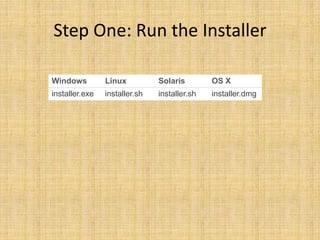
Step One: Run the Installer
Windows Linux Solaris OS X
installer.exe installer.sh installer.sh installer.dmg
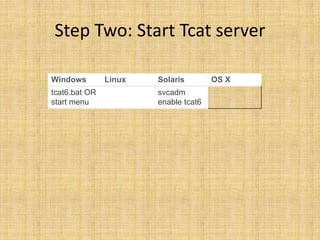
Step Two: Start Tcat server
Windows Linux Solaris OS X
tcat6.bat OR
start menu
svcadm
enable tcat6
Step Four: Register the Server with the
Console
1. In the left panel, click Unregistered
2. The local Tcat server instance appears to the
right
3. Click the checkbox next to Server Name
4. Click Register
5. The local server instance now appears in the
All group with a green status indicator
Step Five: Manage the Tcat Instance
1. Click the All list in the left panel
2. Click on Server Name
3. The Server Details panel appears
4. Click through the tabs to view the
information and operations available
Step Six: Add a New Application
1. Click the Deployments tab
2. Click New Package at top right
3. Click Upload New Application
4. Browse to local file system to select a .war
file
Step Six: Add a New Application
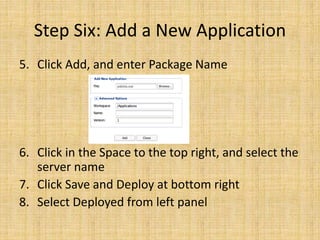
5. Click Add, and enter Package Name
6. Click in the Space to the top right, and select the
server name
7. Click Save and Deploy at bottom right
8. Select Deployed from left panel
Step Six: Add a New Application
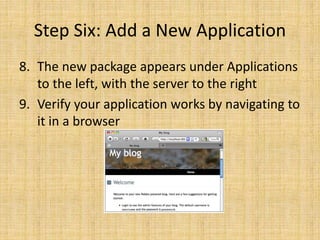
8. The new package appears under Applications
to the left, with the server to the right
9. Verify your application works by navigating to
it in a browser
Install Tcat Server on Multiple
Machines
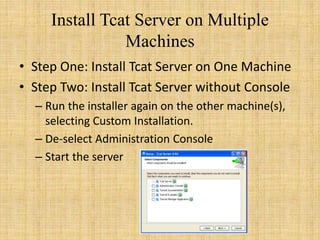
• Step One: Install Tcat Server on One Machine
• Step Two: Install Tcat Server without Console
– Run the installer again on the other machine(s),
selecting Custom Installation.
– De-select Administration Console
– Start the server
Install Tcat Server on Multiple
Machines
• Step Three: Pair the New Tcat Server with the
Administration Console
– In the Administration Console of the first server
installed, click on the Servers tab
– The newly installed instance appears in the
Unregistered group
– Click the checkbox next to Server Name
– Click Register
Install Tcat Server on Multiple
Machines
• Step Three: Pair the New Tcat Server with the
Administration Console
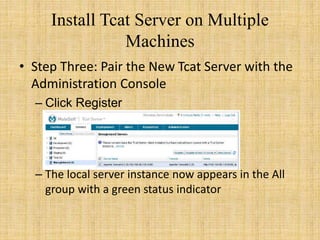
– Click Register
– The local server instance now appears in the All
group with a green status indicator
Install Tcat Server on Multiple
Machines
• Step Four: Add Servers to Group
– From the Servers tab in the Administration
Console, click New Group
– Enter "Beta" and click OK
– From the list of all servers which is displayed,
select both server instances
– Click Add to Group, and select the Beta group
from the dropmenu
Install Tcat Server on Multiple
Machines
• Step Four: Add Servers to Group
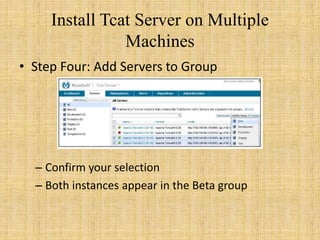
– Confirm your selection
– Both instances appear in the Beta group
Question and answer

Tcat server

  • 1.
  • 2.
    Install Tcat Serveron One Machine • This process explains how to install the Tcat Server and the Tcat Administration Console on one machine, then use the Console to manage the Server and deploy a new application
  • 3.
    Obtain Installer • Downloadthe Tcat Server installer for Windows (.exe), Linux (.sh), and MacOS (.dmg) from link:http://www.mulesoft.com/download- tcat-server-enterprise-tomcat
  • 4.
    Step One: Runthe Installer Windows Linux Solaris OS X installer.exe installer.sh installer.sh installer.dmg
  • 5.
    Step Two: StartTcat server Windows Linux Solaris OS X tcat6.bat OR start menu svcadm enable tcat6
  • 6.
    Step Four: Registerthe Server with the Console 1. In the left panel, click Unregistered 2. The local Tcat server instance appears to the right 3. Click the checkbox next to Server Name 4. Click Register 5. The local server instance now appears in the All group with a green status indicator
  • 7.
    Step Five: Managethe Tcat Instance 1. Click the All list in the left panel 2. Click on Server Name 3. The Server Details panel appears 4. Click through the tabs to view the information and operations available
  • 8.
    Step Six: Adda New Application 1. Click the Deployments tab 2. Click New Package at top right 3. Click Upload New Application 4. Browse to local file system to select a .war file
  • 9.
    Step Six: Adda New Application 5. Click Add, and enter Package Name 6. Click in the Space to the top right, and select the server name 7. Click Save and Deploy at bottom right 8. Select Deployed from left panel
  • 10.
    Step Six: Adda New Application 8. The new package appears under Applications to the left, with the server to the right 9. Verify your application works by navigating to it in a browser
  • 11.
    Install Tcat Serveron Multiple Machines • Step One: Install Tcat Server on One Machine • Step Two: Install Tcat Server without Console – Run the installer again on the other machine(s), selecting Custom Installation. – De-select Administration Console – Start the server
  • 12.
    Install Tcat Serveron Multiple Machines • Step Three: Pair the New Tcat Server with the Administration Console – In the Administration Console of the first server installed, click on the Servers tab – The newly installed instance appears in the Unregistered group – Click the checkbox next to Server Name – Click Register
  • 13.
    Install Tcat Serveron Multiple Machines • Step Three: Pair the New Tcat Server with the Administration Console – Click Register – The local server instance now appears in the All group with a green status indicator
  • 14.
    Install Tcat Serveron Multiple Machines • Step Four: Add Servers to Group – From the Servers tab in the Administration Console, click New Group – Enter "Beta" and click OK – From the list of all servers which is displayed, select both server instances – Click Add to Group, and select the Beta group from the dropmenu
  • 15.
    Install Tcat Serveron Multiple Machines • Step Four: Add Servers to Group – Confirm your selection – Both instances appear in the Beta group
  • 16.