MSK COMPUTER
DIPLOMA IN INFORMATION TECHNOLOGY – BASIC LAB
12/02/2021
MSK DIT
1
http://www.mskonline.rf.gd
LESSON 1
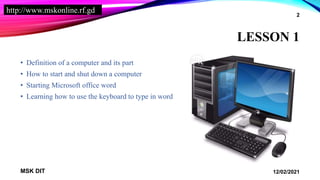
• Definition of a computer and its part
• How to start and shut down a computer
• Starting Microsoft office word
• Learning how to use the keyboard to type in word
12/02/2021
MSK DIT
2
http://www.mskonline.rf.gd
DEFINITION OF A COMPUTER
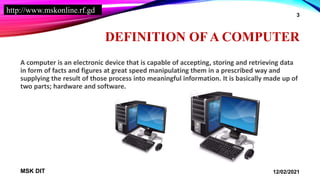
A computer is an electronic device that is capable of accepting, storing and retrieving data
in form of facts and figures at great speed manipulating them in a prescribed way and
supplying the result of those process into meaningful information. It is basically made up of
two parts; hardware and software.
12/02/2021
MSK DIT
3
http://www.mskonline.rf.gd
HARDWARE
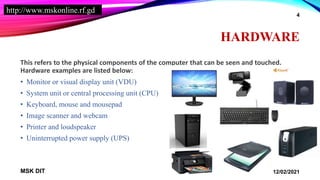
This refers to the physical components of the computer that can be seen and touched.
Hardware examples are listed below:
• Monitor or visual display unit (VDU)
• System unit or central processing unit (CPU)
• Keyboard, mouse and mousepad
• Image scanner and webcam
• Printer and loudspeaker
• Uninterrupted power supply (UPS)
12/02/2021
MSK DIT
4
http://www.mskonline.rf.gd
SOFTWARE
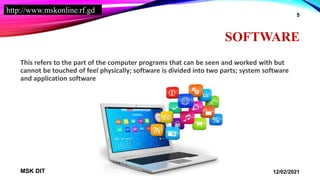
This refers to the part of the computer programs that can be seen and worked with but
cannot be touched of feel physically; software is divided into two parts; system software
and application software
12/02/2021
MSK DIT
5
http://www.mskonline.rf.gd
SYSTEM SOFTWARE
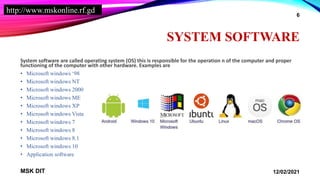
System software are called operating system (OS) this is responsible for the operation n of the computer and proper
functioning of the computer with other hardware. Examples are
• Microsoft windows ‘98
• Microsoft windows NT
• Microsoft windows 2000
• Microsoft windows ME
• Microsoft windows XP
• Microsoft windows Vista
• Microsoft windows 7
• Microsoft windows 8
• Microsoft windows 8.1
• Microsoft windows 10
• Application software
12/02/2021
MSK DIT
6
http://www.mskonline.rf.gd
APPLICATION SOFTWARE
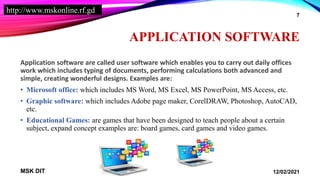
Application software are called user software which enables you to carry out daily offices
work which includes typing of documents, performing calculations both advanced and
simple, creating wonderful designs. Examples are:
• Microsoft office: which includes MS Word, MS Excel, MS PowerPoint, MS Access, etc.
• Graphic software: which includes Adobe page maker, CorelDRAW, Photoshop, AutoCAD,
etc.
• Educational Games: are games that have been designed to teach people about a certain
subject, expand concept examples are: board games, card games and video games.
12/02/2021
MSK DIT
7
http://www.mskonline.rf.gd
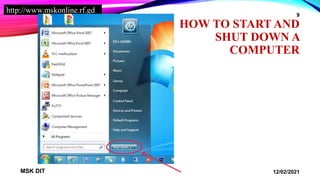
HOW TO START AND SHUT DOWN
A COMPUTER
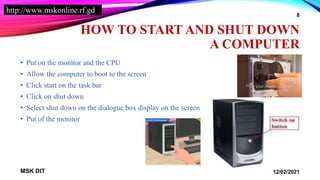
• Put on the monitor and the CPU
• Allow the computer to boot to the screen
• Click start on the task bar
• Click on shut down
• Select shut down on the dialogue box display on the screen
• Put of the monitor
12/02/2021
MSK DIT
8
http://www.mskonline.rf.gd
HOW TO START AND
SHUT DOWN A
COMPUTER
12/02/2021
MSK DIT
9
http://www.mskonline.rf.gd
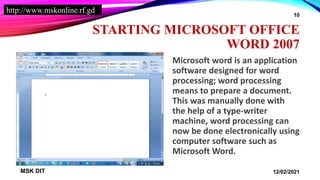
STARTING MICROSOFT OFFICE
WORD 2007
Microsoft word is an application
software designed for word
processing; word processing
means to prepare a document.
This was manually done with
the help of a type-writer
machine, word processing can
now be done electronically using
computer software such as
Microsoft Word.
12/02/2021
MSK DIT
10
http://www.mskonline.rf.gd
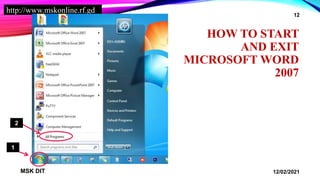
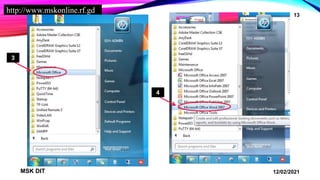
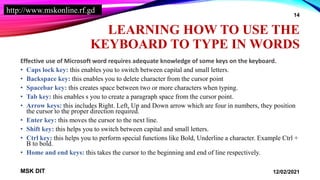
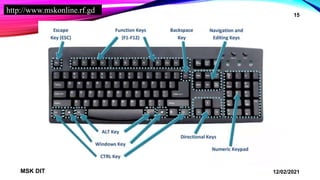
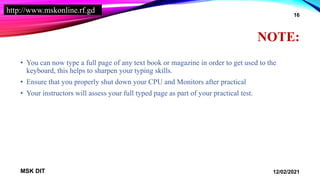
HOW TO START AND EXIT
MICROSOFT WORD 2007
• Click start on the taskbar
• Select all programs
• Click Microsoft office
• Select Microsoft word 2007
• Click Microsoft office button
• Click exit word
12/02/2021
MSK DIT
11
http://www.mskonline.rf.gd
HOW TO START
AND EXIT
MICROSOFT WORD
2007
12/02/2021
MSK DIT
12
1
2
http://www.mskonline.rf.gd
12/02/2021
MSK DIT
13
3
4
http://www.mskonline.rf.gd
LEARNING HOW TO USE THE
KEYBOARD TO TYPE IN WORDS
Effective use of Microsoft word requires adequate knowledge of some keys on the keyboard.
• Caps lock key: this enables you to switch between capital and small letters.
• Backspace key: this enables you to delete character from the cursor point
• Spacebar key: this creates space between two or more characters when typing.
• Tab key: this enables s you to create a paragraph space from the cursor point.
• Arrow keys: this includes Right. Left, Up and Down arrow which are four in numbers, they position
the cursor to the proper direction required.
• Enter key: this moves the cursor to the next line.
• Shift key: this helps you to switch between capital and small letters.
• Ctrl key: this helps you to perform special functions like Bold, Underline a character. Example Ctrl +
B to bold.
• Home and end keys: this takes the cursor to the beginning and end of line respectively.
12/02/2021
MSK DIT
14
http://www.mskonline.rf.gd
12/02/2021
MSK DIT
15
http://www.mskonline.rf.gd
NOTE:
• You can now type a full page of any text book or magazine in order to get used to the
keyboard, this helps to sharpen your typing skills.
• Ensure that you properly shut down your CPU and Monitors after practical
• Your instructors will assess your full typed page as part of your practical test.
12/02/2021
MSK DIT
16
http://www.mskonline.rf.gd
LESSON 2
• Microsoft office screen layout
• A description of Microsoft office word
• Saving a document on the computer
• Renaming a saved document on the computer
• Opening an existing document on the computer
• Saving documents on external storage devices
12/02/2021
MSK DIT
17
http://www.mskonline.rf.gd
MICROSOFT OFFICE SCREEN
LAYOUT
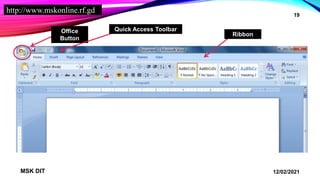
Microsoft office screen layout consist of three important features, these features contain many
functions that have been in menu of previous versions of Microsoft Word.
• Microsoft office button: the Microsoft office button performs many of the functions that were
located in the file menu of older versions of Word. This button allows you to create a new document,
open an existing document, save or save as, print, send (through mail or fax), publish or close (this is
found at the top left side of the screen).
• The quick access tool bar: the quick access toolbar is a customizable toolbar that contains
commands that you may want to use. You can place the quick access toolbar above or below the
ribbon. To change the location of the quick access toolbar, click on the arrow at the end of the toolbar
and click on show below the ribbon.
• The ribbon: the ribbon is the panel at the top portion of the document. It has seven tabs: home, insert,
page layout, references, mailing, review and view that contain many new and existing features of
word. Each tab is divided into groups.
12/02/2021
MSK DIT
18
http://www.mskonline.rf.gd
12/02/2021
MSK DIT
19
Office
Button
Ribbon
Quick Access Toolbar
http://www.mskonline.rf.gd
A DESCRIPTION OF MICROSOFT
OFFICE WORD
When you launch Microsoft office word, you will see the following
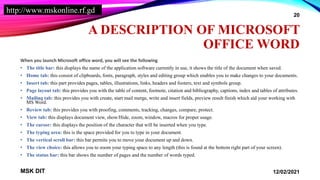
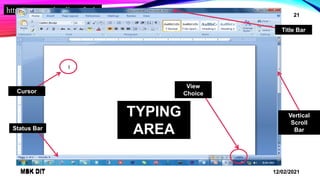
• The title bar: this displays the name of the application software currently in use, it shows the title of the document when saved.
• Home tab: this consist of clipboards, fonts, paragraph, styles and editing group which enables you to make changes to your documents.
• Insert tab: this part provides pages, tables, illustrations, links, headers and footers, text and symbols group.
• Page layout tab: this provides you with the table of content, footnote, citation and bibliography, captions, index and tables of attributes.
• Mailing tab: this provides you with create, start mail merge, write and insert fields, preview result finish which aid your working with
MS Word.
• Review tab: this provides you with proofing, comments, tracking, changes, compare, protect.
• View tab: this displays document view, show/Hide, zoom, window, macros for proper usage.
• The cursor: this displays the position of the character that will be inserted when you type.
• The typing area: this is the space provided for you to type in your document.
• The vertical scroll bar: this bar permits you to move your document up and down.
• The view choice: this allows you to zoom your typing space to any length (this is found at the bottom right part of your screen).
• The status bar: this bar shows the number of pages and the number of words typed.
12/02/2021
MSK DIT
20
http://www.mskonline.rf.gd
12/02/2021
MSK DIT
21
12/02/2021
MSK DIT
21
Cursor
Title Bar
Vertical
Scroll
Bar
TYPING
AREA
View
Choice
Status Bar
http://www.mskonline.rf.gd
SAVING A DOCUMENT ON THE
COMPUTER
Files are prepared documents. Every document you create in Microsoft office word must be
given a name for easy restoring when needed. Below are simple steps to save
• Start Microsoft office word 2007
• Type in a sentence “I am the best in the world”
• Click on Microsoft office button
• Click on save or press Ctrl + S
• On the save as dialog box display on screen, click document at the left part as folder to save
in
• Type in the file name e.g., your name and click save again.
12/02/2021
MSK DIT
22
File
http://www.mskonline.rf.gd
RENAMING A SAVED DOCUMENT
ON THE COMPUTER
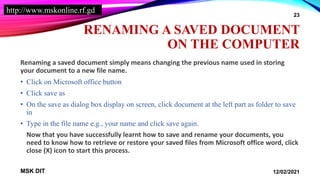
Renaming a saved document simply means changing the previous name used in storing
your document to a new file name.
• Click on Microsoft office button
• Click save as
• On the save as dialog box display on screen, click document at the left part as folder to save
in
• Type in the file name e.g., your name and click save again.
Now that you have successfully learnt how to save and rename your documents, you
need to know how to retrieve or restore your saved files from Microsoft office word, click
close (X) icon to start this process.
12/02/2021
MSK DIT
23
http://www.mskonline.rf.gd
OPENING AN EXISTING
DOCUMENT ON THE COMPUTER
• Start Microsoft office word 2007
• Click on Microsoft office button
• Click on open or press Ctrl + O
• Type in the file name or select the file name
• Click open again to view the document.
12/02/2021
MSK DIT
24
File
http://www.mskonline.rf.gd
SAVING DOCUMENT ON
EXTERNAL STORAGE DEVICES
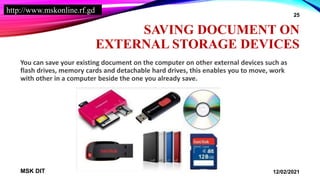
You can save your existing document on the computer on other external devices such as
flash drives, memory cards and detachable hard drives, this enables you to move, work
with other in a computer beside the one you already save.
12/02/2021
MSK DIT
25
http://www.mskonline.rf.gd
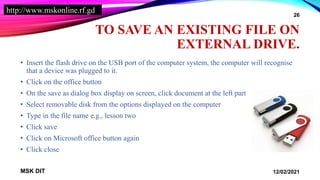
TO SAVE AN EXISTING FILE ON
EXTERNAL DRIVE.
• Insert the flash drive on the USB port of the computer system, the computer will recognise
that a device was plugged to it.
• Click on the office button
• On the save as dialog box display on screen, click document at the left part
• Select removable disk from the options displayed on the computer
• Type in the file name e.g., lesson two
• Click save
• Click on Microsoft office button again
• Click close
12/02/2021
MSK DIT
26
http://www.mskonline.rf.gd
TO OPEN AN EXISTING FILE O
EXTERNAL DRIVE
• Start Microsoft office word 2007
• Click on the Microsoft office button
• Click open
• On the open dialog box display on screen, click document at the left part
• Select file name e.g., lesson two
• Click open again to view document or flash drive
• Click close icon (X) to close MS Word
• Click flash drive icon on the taskbar
• Select safely remove flash drive on option display on the screen
• Calmly remove the flash drive from the system
12/02/2021
MSK DIT
27
http://www.mskonline.rf.gd
LESSON 3
12/02/2021
MSK DIT
28
http://www.mskonline.rf.gd
FORMATTING TEXT WITH
MICROSOFT OFFICE WORD
• To change the font type face
• To change the font size
• To change the style an effect of text (bold/italics/underline)
• To change text colours
• To change paragraph alignment
• To add bullet or number to text
• To change text to superscript or subscript
• To add double strike through to text
• To insert symbols, special text & equation
• To change spacing between paragraph & lines
12/02/2021
MSK DIT
29
http://www.mskonline.rf.gd
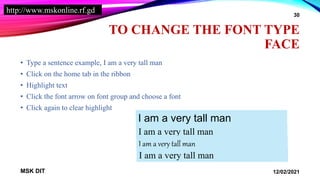
TO CHANGE THE FONT TYPE
FACE
• Type a sentence example, I am a very tall man
• Click on the home tab in the ribbon
• Highlight text
• Click the font arrow on font group and choose a font
• Click again to clear highlight
12/02/2021
MSK DIT
30
I am a very tall man
http://www.mskonline.rf.gd
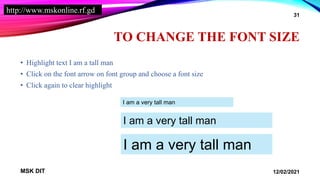
TO CHANGE THE FONT SIZE
• Highlight text I am a tall man
• Click on the font arrow on font group and choose a font size
• Click again to clear highlight
12/02/2021
MSK DIT
31
I am a very tall man
http://www.mskonline.rf.gd
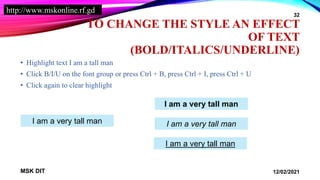
TO CHANGE THE STYLE AN EFFECT
OF TEXT
(BOLD/ITALICS/UNDERLINE)
• Highlight text I am a tall man
• Click B/I/U on the font group or press Ctrl + B, press Ctrl + I, press Ctrl + U
• Click again to clear highlight
12/02/2021
MSK DIT
32
I am a very tall man
http://www.mskonline.rf.gd
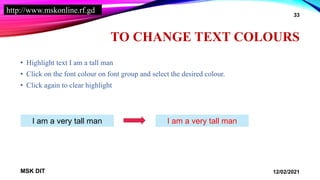
TO CHANGE TEXT COLOURS
• Highlight text I am a tall man
• Click on the font colour on font group and select the desired colour.
• Click again to clear highlight
12/02/2021
MSK DIT
33
I am a very tall man I am a very tall man
http://www.mskonline.rf.gd
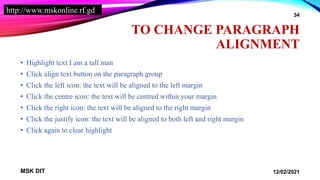
TO CHANGE PARAGRAPH
ALIGNMENT
• Highlight text I am a tall man
• Click align text button on the paragraph group
• Click the left icon: the text will be aligned to the left margin
• Click the centre icon: the text will be centred within your margin
• Click the right icon: the text will be aligned to the right margin
• Click the justify icon: the text will be aligned to both left and right margin
• Click again to clear highlight
12/02/2021
MSK DIT
34
http://www.mskonline.rf.gd
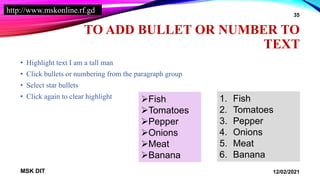
TO ADD BULLET OR NUMBER TO
TEXT
• Highlight text I am a tall man
• Click bullets or numbering from the paragraph group
• Select star bullets
• Click again to clear highlight
12/02/2021
MSK DIT
35
Fish
Tomatoes
Pepper
Onions
Meat
Banana
1. Fish
2. Tomatoes
3. Pepper
4. Onions
5. Meat
6. Banana
http://www.mskonline.rf.gd
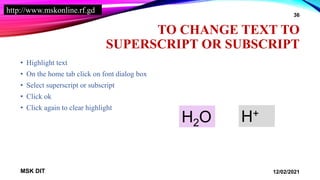
TO CHANGE TEXT TO
SUPERSCRIPT OR SUBSCRIPT
• Highlight text
• On the home tab click on font dialog box
• Select superscript or subscript
• Click ok
• Click again to clear highlight
12/02/2021
MSK DIT
36
H2O H+
http://www.mskonline.rf.gd
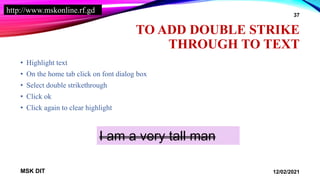
TO ADD DOUBLE STRIKE
THROUGH TO TEXT
• Highlight text
• On the home tab click on font dialog box
• Select double strikethrough
• Click ok
• Click again to clear highlight
12/02/2021
MSK DIT
37
I am a very tall man
http://www.mskonline.rf.gd
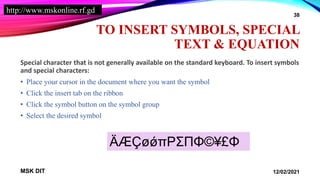
TO INSERT SYMBOLS, SPECIAL
TEXT & EQUATION
Special character that is not generally available on the standard keyboard. To insert symbols
and special characters:
• Place your cursor in the document where you want the symbol
• Click the insert tab on the ribbon
• Click the symbol button on the symbol group
• Select the desired symbol
12/02/2021
MSK DIT
38
ÄÆÇøǿπΡΣΠΦ©¥£Φ
http://www.mskonline.rf.gd
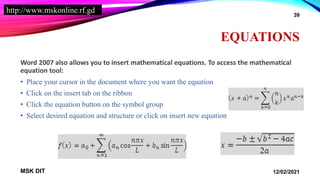
EQUATIONS
Word 2007 also allows you to insert mathematical equations. To access the mathematical
equation tool:
• Place your cursor in the document where you want the equation
• Click on the insert tab on the ribbon
• Click the equation button on the symbol group
• Select desired equation and structure or click on insert new equation
12/02/2021
MSK DIT
39
http://www.mskonline.rf.gd
TO CHANGE SPACING BETWEEN
PARAGRAPH & LINES
You can change spaces paragraph lines and paragraphs by doing the following:
• Highlight the paragraph you wish to change
• On the home tab, click the paragraph dialog box
• Click the indent and spacing tab
• In the line spacing section select 1.5 as spacing
• Click on Ok and click again to clear highlight
12/02/2021
MSK DIT
40
http://www.mskonline.rf.gd
LESSON 4
• To check the spelling and grammar of a document
• To find and replace a text
• To insert word art
• To insert headers and footers
• To insert watermark
• To insert page numbers
• To insert page break
• To add smart word/art
• To drop cap a text
• To insert footnote
• To copy, cut and paste
12/02/2021
MSK DIT
41
http://www.mskonline.rf.gd
TO CHECK THE SPELLING AND
GRAMMAR OF A DOCUMENT
• Type a sentence containing wrong speeling of a word in small letters
• Place the cursor at the beginning of your document
• Click the review tab on the ribbon
• Click spelling ang grammar button on the proofing group of press f7
• Select the correct word and click change
• Click ok
• Repeat the process for other sentences
12/02/2021
MSK DIT
42
http://www.mskonline.rf.gd
THESAURUS
• The thesaurus allows you to view synonyms. To use the thesaurus:
• Click on the review tab of the ribbon
• Click on the thesaurus button on the proofing group
• The thesaurus too will appear on the right side of the screen and you can view word options.
12/02/2021
MSK DIT
43
http://www.mskonline.rf.gd
TO FIND AND REPLACE A TEXT
• Click on the home tab on the ribbon
• Click on find on the editing group
• Type in the text to find and click replace tab type in text to replace
• Click replace (to replace all the words you want to change)
• Click close.
12/02/2021
MSK DIT
44
http://www.mskonline.rf.gd
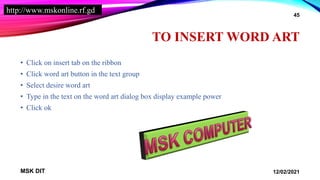
TO INSERT WORD ART
• Click on insert tab on the ribbon
• Click word art button in the text group
• Select desire word art
• Type in the text on the word art dialog box display example power
• Click ok
12/02/2021
MSK DIT
45
http://www.mskonline.rf.gd
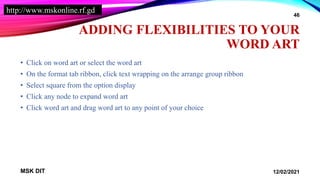
ADDING FLEXIBILITIES TO YOUR
WORD ART
• Click on word art or select the word art
• On the format tab ribbon, click text wrapping on the arrange group ribbon
• Select square from the option display
• Click any node to expand word art
• Click word art and drag word art to any point of your choice
12/02/2021
MSK DIT
46
http://www.mskonline.rf.gd
TO INSERT WATERMARKS
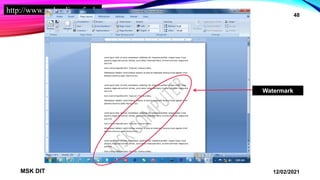
A watermark is a see-through image that appears behind the primary text in a document. To
insert watermark:
• Click on the page layout tab in the ribbon
• Click on the watermark button in the page background group
• Select custom watermark – this enables you to create your own watermark
• Click text watermark
• Type your own text in the text space
• Select black as the colour of text in the colour option
• Click ok
12/02/2021
MSK DIT
47
http://www.mskonline.rf.gd
12/02/2021
MSK DIT
48
Watermark
http://www.mskonline.rf.gd
TO REMOVE WATERMARK
• To remove watermark, follow these steps:
• Click on page layout tab in the ribbon
• Click the watermark button in the page background group
• Select remove watermark
12/02/2021
MSK DIT
49
http://www.mskonline.rf.gd
TO INSERT PAGE NUMBER
• Click on the insert tab on the ribbon
• Click page number button on header and footer group
• Click format page number
• Select desire number format
• Tick the start at option under page numbering
• Click ok
• Click page number button on header and footer group again
• Click top of the page
• Select plain number 1
• Click close header and footer on the close group
12/02/2021
MSK DIT
50
http://www.mskonline.rf.gd
TO INSERT PAGE BREAK
• Click on the insertion on the page to break
• Click insert tab on the ribbon
• Click page break button on pages group (this adds more pages to your documents)
• Or
• Click insertion point adds on page to break
• Press ctrl + enter
12/02/2021
MSK DIT
51
http://www.mskonline.rf.gd
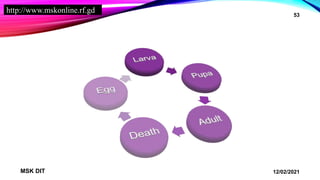
TO ADD SMART WORD
Smart art is a collection of graphics you can utilize to organize information within your
document. It includes timelines, processes, or workflow. To insert smart art.
• Place your cursor in the document where you want the illustration/picture
• Click the insert tab on the ribbon
• Click the smart art button in the illustration group
• Click the smart art you wish to include in your document
• Click the arrow on the left side of the graphics to insert text or type the text in the graphic.
12/02/2021
MSK DIT
52
http://www.mskonline.rf.gd
12/02/2021
MSK DIT
53
http://www.mskonline.rf.gd
TO INSERT HEADER & FOOTER
• Click the insert tab on the ribbon
• Click the header or footer button on header and footer group
• Type in header
• Click go to footer button on navigation group
• Type in footer
• Click close header & footer on close group
12/02/2021
MSK DIT
54
http://www.mskonline.rf.gd
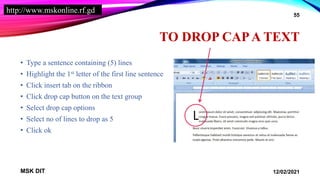
TO DROP CAPA TEXT
• Type a sentence containing (5) lines
• Highlight the 1st letter of the first line sentence
• Click insert tab on the ribbon
• Click drop cap button on the text group
• Select drop cap options
• Select no of lines to drop as 5
• Click ok
12/02/2021
MSK DIT
55
http://www.mskonline.rf.gd
TO INSERT FOOTNOTE
• Academic writer utilizes footnotes. Insert a footnote:
• Click the references tab on the ribbon
• Click insert footnote (or insert endnote depending on your needs)
• Begin type the footnote
12/02/2021
MSK DIT
56
http://www.mskonline.rf.gd
TO CUT, COPY AND PASTE TEXT:
• Text can be inserted in a document at any point using any of the following methods:
• Type text and highlight text
• Click home tab on the ribbon
• Click copy icon or cut icon on clipboard group
• Place cursor on where to paste
• Click paste icon on clipboard group or (press ctrl + v to paste)
12/02/2021
MSK DIT
57
http://www.mskonline.rf.gd
LESSON 5
• To insert picture/clipart
• To resize a clipart
• To create a new document
• To draw a shape or change border style of a shape
• To add border and shading to a document
• To apply styles to text
• To insert page cover
12/02/2021
MSK DIT
58
http://www.mskonline.rf.gd
INSERT A PICTURE /CLIPART
• Click on the insert tab on the ribbon
• Click clipart button on the illustration group
• On the right side task pane display click organize clips
• Click + sign on the office collections
• Under office collection display select food
• Click on the desired clipart on food
• Click on copy icon
• Click on the minimize button
• Press ctrl +V to paste OR
• Click home tab on the ribbon
• Click paste icon on clipboard group
12/02/2021
MSK DIT
59
http://www.mskonline.rf.gd
TO INSERT PICTURE
• Click on the insert tab on the ribbon
• Click clipart button on the illustration group
• Double click on sample pictures
• Select desired pictures
• Click insert
• View picture display on page
12/02/2021
MSK DIT
60
http://www.mskonline.rf.gd
RESIZE A PICTURE/CLIPART
• Pictures or clipart can be resized by
• Click the image
• Click one corner of the image and dragging the cursor to the size you want the picture or
clipart to be.
12/02/2021
MSK DIT
61
http://www.mskonline.rf.gd
TO CREATE A NEW DOCUMENT
• Click Microsoft office button
• Click new
• Click create or press ctrl + N to create a new document
12/02/2021
MSK DIT
62
http://www.mskonline.rf.gd
TO DRAW A SHAPE
• Click insert tab on the ribbon
• Click the shape dropdown arrow button
• Under flow chart, select desired shape
• Click and drag on any point to insert
12/02/2021
MSK DIT
63
http://www.mskonline.rf.gd
ADDING COLOUR TO SHAPE
• Click shape
• The format tab ribbon displays
• Click the shape outline drop down arrow button on shape style group
• Select red colour from the colour option display
• Click the shape outline drop down arrow button on shape style group again
• Click weight, select 21/4 pt. as the thickness border
• Click the shape outline drop down arrow button on shape style group again
• Click dashes, select desire dash to shape.
•
12/02/2021
MSK DIT
64
http://www.mskonline.rf.gd
TO TYPE TEXT IN SHAPE
• Click shape
• The format tab ribbon displays
• Click edit text button on insert shape group
• Type in text
12/02/2021
MSK DIT
65
http://www.mskonline.rf.gd
TO DRAW STARS AND LINES
• Click insert tab on the ribbon
• Click the shape dropdown arrow button
• Under line or stars and banner, select desire shape
• Click and drag on any point to insert
12/02/2021
MSK DIT
66
http://www.mskonline.rf.gd
TO COPY AND PASTE SHAPE
• Click shape
• Press ctrl + c to copy
• Position cursor where to paste
• Press ctrl + V to paste
12/02/2021
MSK DIT
67
http://www.mskonline.rf.gd
NOTE: THE FORMAT RIBBON
DISPLAY ONLY WHEN FORMAT
OBJECT ARE SELECTED.
12/02/2021
MSK DIT
68
http://www.mskonline.rf.gd
TO ADD BORDER AND SHADINGS
TO DOCUMENT
Border and shading: you can add borders and shading to paragraph and entire pages. To
create a border around a paragraph or entire pages
• On the home tab, click the borders button on the paragraph group
• Click the borders and shading
• Click page border tab
• On the art section, click the dropdown arrow to view options
• Select desire border
• Click ok
12/02/2021
MSK DIT
69
http://www.mskonline.rf.gd
TO APPLY STYLES TO TEXT
Style are a present collection of formatting that you can apply to text. To utilize quick styles:
• Highlight the text you wish to format
• Click the dialog box next to the styles group on the home tab
• Click the style you wish to apply.
12/02/2021
MSK DIT
70
http://www.mskonline.rf.gd
TO INSERT PAGE COVER
• Click the insert tab on the ribbon
• Click the cover page button on the page group
• Choose any style for the cover page
12/02/2021
MSK DIT
71
http://www.mskonline.rf.gd
LESSON 6
12/02/2021
MSK DIT
72
http://www.mskonline.rf.gd
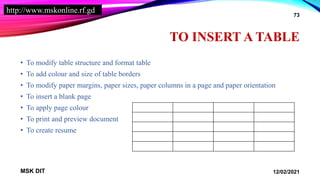
TO INSERT A TABLE
• To modify table structure and format table
• To add colour and size of table borders
• To modify paper margins, paper sizes, paper columns in a page and paper orientation
• To insert a blank page
• To apply page colour
• To print and preview document
• To create resume
12/02/2021
MSK DIT
73
http://www.mskonline.rf.gd
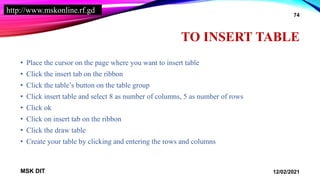
TO INSERT TABLE
• Place the cursor on the page where you want to insert table
• Click the insert tab on the ribbon
• Click the table’s button on the table group
• Click insert table and select 8 as number of columns, 5 as number of rows
• Click ok
• Click on insert tab on the ribbon
• Click the draw table
• Create your table by clicking and entering the rows and columns
12/02/2021
MSK DIT
74
http://www.mskonline.rf.gd
TO MODIFY TABLE STRUCTURE
AND FORMAT TABLE
When you click a table you will notice that you have two new tabs on the ribbon: design
and layout. These pertains to the table design and layout.
12/02/2021
MSK DIT
75
http://www.mskonline.rf.gd
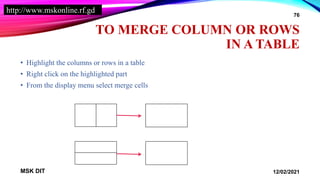
TO MERGE COLUMN OR ROWS
IN A TABLE
• Highlight the columns or rows in a table
• Right click on the highlighted part
• From the display menu select merge cells
12/02/2021
MSK DIT
76
http://www.mskonline.rf.gd
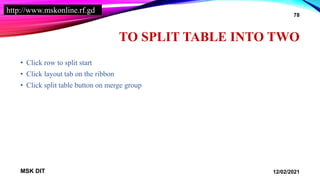
TO SPLIT COLUMNS OR ROWS
• Click rows or column cells to split
• Click layout tab on the ribbon
• Click split cells button on merge group
• Select number of rows and Colum to split
• Click ok
12/02/2021
MSK DIT
77
http://www.mskonline.rf.gd
TO SPLIT TABLE INTO TWO
• Click row to split start
• Click layout tab on the ribbon
• Click split table button on merge group
12/02/2021
MSK DIT
78
http://www.mskonline.rf.gd
TO INSERT MORE ROWS OR
COLUMN IN A TABLE
• Type in text in the 1 and 2 row or 1 and 2 column
• Click layout tab on the ribbon
• Click insert right/ left/above/below button on rows and columns groups
12/02/2021
MSK DIT
79
http://www.mskonline.rf.gd
TO ALIGN TEXT IN A TABLE
• Type in text in the column 1 to 5
• Click layout tab on the ribbon
• Click align top/down/centre button on alignment group
12/02/2021
MSK DIT
80
http://www.mskonline.rf.gd
TO DELETE A ROW OR COLUMN
IN A TABLE
• Select row or columns to delete
• Click layout tab on the ribbon
• Click delete button on rows and column group
• Click delete column/row/table/cells
12/02/2021
MSK DIT
81
http://www.mskonline.rf.gd
TO ADD COLOUR AND SIZE OF A
TABLE BORDER
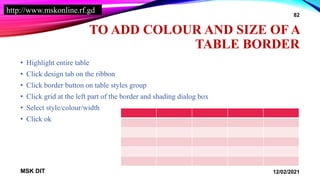
• Highlight entire table
• Click design tab on the ribbon
• Click border button on table styles group
• Click grid at the left part of the border and shading dialog box
• Select style/colour/width
• Click ok
12/02/2021
MSK DIT
82
http://www.mskonline.rf.gd
TO MODIFY PAPER MARGINS
• Click on page layout on the ribbon
• Click margin button on the page setup group
• Select any desire margins from option display or
• Click custom margin and a complete dialog box to change the orientation, size of the page or
column displays
12/02/2021
MSK DIT
83
http://www.mskonline.rf.gd
TO SET PAPER SIZE
• Click page layout on the ribbon
• Click size button on the page setup group
• Select any desire paper size
12/02/2021
MSK DIT
84
http://www.mskonline.rf.gd
TO INSERT PAPER COLUMN IN A
PAGE
• Type in text in 5 lines
• Click page layout on the ribbon
• Click column button on the page setup group
• Select three columns
12/02/2021
MSK DIT
85
http://www.mskonline.rf.gd
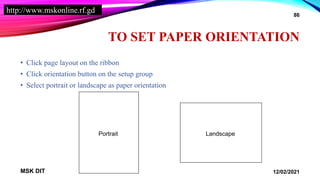
TO SET PAPER ORIENTATION
• Click page layout on the ribbon
• Click orientation button on the setup group
• Select portrait or landscape as paper orientation
12/02/2021
MSK DIT
86
Portrait Landscape
http://www.mskonline.rf.gd
TO INSERT A BLANK PAGE
• Click insert tab on the ribbon
• Click the blank page button on the page group
12/02/2021
MSK DIT
87
http://www.mskonline.rf.gd
TO APPLY PAGE COLOUR
• Click the page layout tab on the ribbon
• Click the page colour button on the page background group, drop down menu
• Select desire page colour
12/02/2021
MSK DIT
88
http://www.mskonline.rf.gd
TO PREVIEW A DOCUMENT
• Click the office button
• Click the arrow in front of print
• Select print preview (this enable you to preview your document)
• Click close print preview button on preview group
12/02/2021
MSK DIT
89
http://www.mskonline.rf.gd
TO PRINT A DOCUMENT
• Click Microsoft office button
• Click print or press Ctrl + P
• Select printer name (this depends on the printer attach to your system)
• Under page range section, select all
• Select the numbers of copies you want to print
• Click ok
12/02/2021
MSK DIT
90
http://www.mskonline.rf.gd
TO CREATE RESUME
• Resume helps you to create your CV (curriculum vitae) by using the installed templates
• Click the Microsoft office button
• Click new
• Click installed templates
• Select equity resume from template option
• Click create
• Enter details of your information
• Save document
12/02/2021
MSK DIT
91
http://www.mskonline.rf.gd
PRACTICAL EXAM TEST FOR
MICROSOFT WORD 2007
This is to test your ability bases on the lesson you have been taught, the very essence of
this practical exams test is to strengthen your capacity in terms of using Microsoft office
word to its fullness.
• Your lecturers will access your exams after completion
• Your lecturers will correct your errors for you
• Ensure you do them by yourself
• Creative works/nice work attract good grade
• All exams should be done on the system
• One week submission after the last lesson has taken place and properly practice.
• All exams test should be saved in the same document with one file name
12/02/2021
MSK DIT
92
http://www.mskonline.rf.gd
12/02/2021
MSK DIT
93
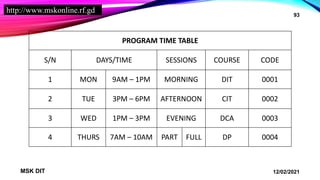
PROGRAM TIME TABLE
S/N DAYS/TIME SESSIONS COURSE CODE
1 MON 9AM – 1PM MORNING DIT 0001
2 TUE 3PM – 6PM AFTERNOON CIT 0002
3 WED 1PM – 3PM EVENING DCA 0003
4 THURS 7AM – 10AM PART FULL DP 0004
http://www.mskonline.rf.gd
EXAM TEST
• Design a program time table as shown above, use Arial as font and 14 as font size, count
numbers of rows and columns properly
• Type two document page of any text book or newspaper with font size 12 and line spacing
1.5
• Design letter headed paper for MSK COMPUTERS
• Create your resume using installed templates
• Design a list of course flow using smart art
12/02/2021
MSK DIT
94

Msk Computer Institute Lecture Slides

  • 1.
    MSK COMPUTER DIPLOMA ININFORMATION TECHNOLOGY – BASIC LAB 12/02/2021 MSK DIT 1
  • 2.
    http://www.mskonline.rf.gd LESSON 1 • Definitionof a computer and its part • How to start and shut down a computer • Starting Microsoft office word • Learning how to use the keyboard to type in word 12/02/2021 MSK DIT 2
  • 3.
    http://www.mskonline.rf.gd DEFINITION OF ACOMPUTER A computer is an electronic device that is capable of accepting, storing and retrieving data in form of facts and figures at great speed manipulating them in a prescribed way and supplying the result of those process into meaningful information. It is basically made up of two parts; hardware and software. 12/02/2021 MSK DIT 3
  • 4.
    http://www.mskonline.rf.gd HARDWARE This refers tothe physical components of the computer that can be seen and touched. Hardware examples are listed below: • Monitor or visual display unit (VDU) • System unit or central processing unit (CPU) • Keyboard, mouse and mousepad • Image scanner and webcam • Printer and loudspeaker • Uninterrupted power supply (UPS) 12/02/2021 MSK DIT 4
  • 5.
    http://www.mskonline.rf.gd SOFTWARE This refers tothe part of the computer programs that can be seen and worked with but cannot be touched of feel physically; software is divided into two parts; system software and application software 12/02/2021 MSK DIT 5
  • 6.
    http://www.mskonline.rf.gd SYSTEM SOFTWARE System softwareare called operating system (OS) this is responsible for the operation n of the computer and proper functioning of the computer with other hardware. Examples are • Microsoft windows ‘98 • Microsoft windows NT • Microsoft windows 2000 • Microsoft windows ME • Microsoft windows XP • Microsoft windows Vista • Microsoft windows 7 • Microsoft windows 8 • Microsoft windows 8.1 • Microsoft windows 10 • Application software 12/02/2021 MSK DIT 6
  • 7.
    http://www.mskonline.rf.gd APPLICATION SOFTWARE Application softwareare called user software which enables you to carry out daily offices work which includes typing of documents, performing calculations both advanced and simple, creating wonderful designs. Examples are: • Microsoft office: which includes MS Word, MS Excel, MS PowerPoint, MS Access, etc. • Graphic software: which includes Adobe page maker, CorelDRAW, Photoshop, AutoCAD, etc. • Educational Games: are games that have been designed to teach people about a certain subject, expand concept examples are: board games, card games and video games. 12/02/2021 MSK DIT 7
  • 8.
    http://www.mskonline.rf.gd HOW TO STARTAND SHUT DOWN A COMPUTER • Put on the monitor and the CPU • Allow the computer to boot to the screen • Click start on the task bar • Click on shut down • Select shut down on the dialogue box display on the screen • Put of the monitor 12/02/2021 MSK DIT 8
  • 9.
    http://www.mskonline.rf.gd HOW TO STARTAND SHUT DOWN A COMPUTER 12/02/2021 MSK DIT 9
  • 10.
    http://www.mskonline.rf.gd STARTING MICROSOFT OFFICE WORD2007 Microsoft word is an application software designed for word processing; word processing means to prepare a document. This was manually done with the help of a type-writer machine, word processing can now be done electronically using computer software such as Microsoft Word. 12/02/2021 MSK DIT 10
  • 11.
    http://www.mskonline.rf.gd HOW TO STARTAND EXIT MICROSOFT WORD 2007 • Click start on the taskbar • Select all programs • Click Microsoft office • Select Microsoft word 2007 • Click Microsoft office button • Click exit word 12/02/2021 MSK DIT 11
  • 12.
    http://www.mskonline.rf.gd HOW TO START ANDEXIT MICROSOFT WORD 2007 12/02/2021 MSK DIT 12 1 2
  • 13.
  • 14.
    http://www.mskonline.rf.gd LEARNING HOW TOUSE THE KEYBOARD TO TYPE IN WORDS Effective use of Microsoft word requires adequate knowledge of some keys on the keyboard. • Caps lock key: this enables you to switch between capital and small letters. • Backspace key: this enables you to delete character from the cursor point • Spacebar key: this creates space between two or more characters when typing. • Tab key: this enables s you to create a paragraph space from the cursor point. • Arrow keys: this includes Right. Left, Up and Down arrow which are four in numbers, they position the cursor to the proper direction required. • Enter key: this moves the cursor to the next line. • Shift key: this helps you to switch between capital and small letters. • Ctrl key: this helps you to perform special functions like Bold, Underline a character. Example Ctrl + B to bold. • Home and end keys: this takes the cursor to the beginning and end of line respectively. 12/02/2021 MSK DIT 14
  • 15.
  • 16.
    http://www.mskonline.rf.gd NOTE: • You cannow type a full page of any text book or magazine in order to get used to the keyboard, this helps to sharpen your typing skills. • Ensure that you properly shut down your CPU and Monitors after practical • Your instructors will assess your full typed page as part of your practical test. 12/02/2021 MSK DIT 16
  • 17.
    http://www.mskonline.rf.gd LESSON 2 • Microsoftoffice screen layout • A description of Microsoft office word • Saving a document on the computer • Renaming a saved document on the computer • Opening an existing document on the computer • Saving documents on external storage devices 12/02/2021 MSK DIT 17
  • 18.
    http://www.mskonline.rf.gd MICROSOFT OFFICE SCREEN LAYOUT Microsoftoffice screen layout consist of three important features, these features contain many functions that have been in menu of previous versions of Microsoft Word. • Microsoft office button: the Microsoft office button performs many of the functions that were located in the file menu of older versions of Word. This button allows you to create a new document, open an existing document, save or save as, print, send (through mail or fax), publish or close (this is found at the top left side of the screen). • The quick access tool bar: the quick access toolbar is a customizable toolbar that contains commands that you may want to use. You can place the quick access toolbar above or below the ribbon. To change the location of the quick access toolbar, click on the arrow at the end of the toolbar and click on show below the ribbon. • The ribbon: the ribbon is the panel at the top portion of the document. It has seven tabs: home, insert, page layout, references, mailing, review and view that contain many new and existing features of word. Each tab is divided into groups. 12/02/2021 MSK DIT 18
  • 19.
  • 20.
    http://www.mskonline.rf.gd A DESCRIPTION OFMICROSOFT OFFICE WORD When you launch Microsoft office word, you will see the following • The title bar: this displays the name of the application software currently in use, it shows the title of the document when saved. • Home tab: this consist of clipboards, fonts, paragraph, styles and editing group which enables you to make changes to your documents. • Insert tab: this part provides pages, tables, illustrations, links, headers and footers, text and symbols group. • Page layout tab: this provides you with the table of content, footnote, citation and bibliography, captions, index and tables of attributes. • Mailing tab: this provides you with create, start mail merge, write and insert fields, preview result finish which aid your working with MS Word. • Review tab: this provides you with proofing, comments, tracking, changes, compare, protect. • View tab: this displays document view, show/Hide, zoom, window, macros for proper usage. • The cursor: this displays the position of the character that will be inserted when you type. • The typing area: this is the space provided for you to type in your document. • The vertical scroll bar: this bar permits you to move your document up and down. • The view choice: this allows you to zoom your typing space to any length (this is found at the bottom right part of your screen). • The status bar: this bar shows the number of pages and the number of words typed. 12/02/2021 MSK DIT 20
  • 21.
    http://www.mskonline.rf.gd 12/02/2021 MSK DIT 21 12/02/2021 MSK DIT 21 Cursor TitleBar Vertical Scroll Bar TYPING AREA View Choice Status Bar
  • 22.
    http://www.mskonline.rf.gd SAVING A DOCUMENTON THE COMPUTER Files are prepared documents. Every document you create in Microsoft office word must be given a name for easy restoring when needed. Below are simple steps to save • Start Microsoft office word 2007 • Type in a sentence “I am the best in the world” • Click on Microsoft office button • Click on save or press Ctrl + S • On the save as dialog box display on screen, click document at the left part as folder to save in • Type in the file name e.g., your name and click save again. 12/02/2021 MSK DIT 22 File
  • 23.
    http://www.mskonline.rf.gd RENAMING A SAVEDDOCUMENT ON THE COMPUTER Renaming a saved document simply means changing the previous name used in storing your document to a new file name. • Click on Microsoft office button • Click save as • On the save as dialog box display on screen, click document at the left part as folder to save in • Type in the file name e.g., your name and click save again. Now that you have successfully learnt how to save and rename your documents, you need to know how to retrieve or restore your saved files from Microsoft office word, click close (X) icon to start this process. 12/02/2021 MSK DIT 23
  • 24.
    http://www.mskonline.rf.gd OPENING AN EXISTING DOCUMENTON THE COMPUTER • Start Microsoft office word 2007 • Click on Microsoft office button • Click on open or press Ctrl + O • Type in the file name or select the file name • Click open again to view the document. 12/02/2021 MSK DIT 24 File
  • 25.
    http://www.mskonline.rf.gd SAVING DOCUMENT ON EXTERNALSTORAGE DEVICES You can save your existing document on the computer on other external devices such as flash drives, memory cards and detachable hard drives, this enables you to move, work with other in a computer beside the one you already save. 12/02/2021 MSK DIT 25
  • 26.
    http://www.mskonline.rf.gd TO SAVE ANEXISTING FILE ON EXTERNAL DRIVE. • Insert the flash drive on the USB port of the computer system, the computer will recognise that a device was plugged to it. • Click on the office button • On the save as dialog box display on screen, click document at the left part • Select removable disk from the options displayed on the computer • Type in the file name e.g., lesson two • Click save • Click on Microsoft office button again • Click close 12/02/2021 MSK DIT 26
  • 27.
    http://www.mskonline.rf.gd TO OPEN ANEXISTING FILE O EXTERNAL DRIVE • Start Microsoft office word 2007 • Click on the Microsoft office button • Click open • On the open dialog box display on screen, click document at the left part • Select file name e.g., lesson two • Click open again to view document or flash drive • Click close icon (X) to close MS Word • Click flash drive icon on the taskbar • Select safely remove flash drive on option display on the screen • Calmly remove the flash drive from the system 12/02/2021 MSK DIT 27
  • 28.
  • 29.
    http://www.mskonline.rf.gd FORMATTING TEXT WITH MICROSOFTOFFICE WORD • To change the font type face • To change the font size • To change the style an effect of text (bold/italics/underline) • To change text colours • To change paragraph alignment • To add bullet or number to text • To change text to superscript or subscript • To add double strike through to text • To insert symbols, special text & equation • To change spacing between paragraph & lines 12/02/2021 MSK DIT 29
  • 30.
    http://www.mskonline.rf.gd TO CHANGE THEFONT TYPE FACE • Type a sentence example, I am a very tall man • Click on the home tab in the ribbon • Highlight text • Click the font arrow on font group and choose a font • Click again to clear highlight 12/02/2021 MSK DIT 30 I am a very tall man I am a very tall man I am a very tall man I am a very tall man
  • 31.
    http://www.mskonline.rf.gd TO CHANGE THEFONT SIZE • Highlight text I am a tall man • Click on the font arrow on font group and choose a font size • Click again to clear highlight 12/02/2021 MSK DIT 31 I am a very tall man I am a very tall man I am a very tall man
  • 32.
    http://www.mskonline.rf.gd TO CHANGE THESTYLE AN EFFECT OF TEXT (BOLD/ITALICS/UNDERLINE) • Highlight text I am a tall man • Click B/I/U on the font group or press Ctrl + B, press Ctrl + I, press Ctrl + U • Click again to clear highlight 12/02/2021 MSK DIT 32 I am a very tall man I am a very tall man I am a very tall man I am a very tall man
  • 33.
    http://www.mskonline.rf.gd TO CHANGE TEXTCOLOURS • Highlight text I am a tall man • Click on the font colour on font group and select the desired colour. • Click again to clear highlight 12/02/2021 MSK DIT 33 I am a very tall man I am a very tall man
  • 34.
    http://www.mskonline.rf.gd TO CHANGE PARAGRAPH ALIGNMENT •Highlight text I am a tall man • Click align text button on the paragraph group • Click the left icon: the text will be aligned to the left margin • Click the centre icon: the text will be centred within your margin • Click the right icon: the text will be aligned to the right margin • Click the justify icon: the text will be aligned to both left and right margin • Click again to clear highlight 12/02/2021 MSK DIT 34
  • 35.
    http://www.mskonline.rf.gd TO ADD BULLETOR NUMBER TO TEXT • Highlight text I am a tall man • Click bullets or numbering from the paragraph group • Select star bullets • Click again to clear highlight 12/02/2021 MSK DIT 35 Fish Tomatoes Pepper Onions Meat Banana 1. Fish 2. Tomatoes 3. Pepper 4. Onions 5. Meat 6. Banana
  • 36.
    http://www.mskonline.rf.gd TO CHANGE TEXTTO SUPERSCRIPT OR SUBSCRIPT • Highlight text • On the home tab click on font dialog box • Select superscript or subscript • Click ok • Click again to clear highlight 12/02/2021 MSK DIT 36 H2O H+
  • 37.
    http://www.mskonline.rf.gd TO ADD DOUBLESTRIKE THROUGH TO TEXT • Highlight text • On the home tab click on font dialog box • Select double strikethrough • Click ok • Click again to clear highlight 12/02/2021 MSK DIT 37 I am a very tall man
  • 38.
    http://www.mskonline.rf.gd TO INSERT SYMBOLS,SPECIAL TEXT & EQUATION Special character that is not generally available on the standard keyboard. To insert symbols and special characters: • Place your cursor in the document where you want the symbol • Click the insert tab on the ribbon • Click the symbol button on the symbol group • Select the desired symbol 12/02/2021 MSK DIT 38 ÄÆÇøǿπΡΣΠΦ©¥£Φ
  • 39.
    http://www.mskonline.rf.gd EQUATIONS Word 2007 alsoallows you to insert mathematical equations. To access the mathematical equation tool: • Place your cursor in the document where you want the equation • Click on the insert tab on the ribbon • Click the equation button on the symbol group • Select desired equation and structure or click on insert new equation 12/02/2021 MSK DIT 39
  • 40.
    http://www.mskonline.rf.gd TO CHANGE SPACINGBETWEEN PARAGRAPH & LINES You can change spaces paragraph lines and paragraphs by doing the following: • Highlight the paragraph you wish to change • On the home tab, click the paragraph dialog box • Click the indent and spacing tab • In the line spacing section select 1.5 as spacing • Click on Ok and click again to clear highlight 12/02/2021 MSK DIT 40
  • 41.
    http://www.mskonline.rf.gd LESSON 4 • Tocheck the spelling and grammar of a document • To find and replace a text • To insert word art • To insert headers and footers • To insert watermark • To insert page numbers • To insert page break • To add smart word/art • To drop cap a text • To insert footnote • To copy, cut and paste 12/02/2021 MSK DIT 41
  • 42.
    http://www.mskonline.rf.gd TO CHECK THESPELLING AND GRAMMAR OF A DOCUMENT • Type a sentence containing wrong speeling of a word in small letters • Place the cursor at the beginning of your document • Click the review tab on the ribbon • Click spelling ang grammar button on the proofing group of press f7 • Select the correct word and click change • Click ok • Repeat the process for other sentences 12/02/2021 MSK DIT 42
  • 43.
    http://www.mskonline.rf.gd THESAURUS • The thesaurusallows you to view synonyms. To use the thesaurus: • Click on the review tab of the ribbon • Click on the thesaurus button on the proofing group • The thesaurus too will appear on the right side of the screen and you can view word options. 12/02/2021 MSK DIT 43
  • 44.
    http://www.mskonline.rf.gd TO FIND ANDREPLACE A TEXT • Click on the home tab on the ribbon • Click on find on the editing group • Type in the text to find and click replace tab type in text to replace • Click replace (to replace all the words you want to change) • Click close. 12/02/2021 MSK DIT 44
  • 45.
    http://www.mskonline.rf.gd TO INSERT WORDART • Click on insert tab on the ribbon • Click word art button in the text group • Select desire word art • Type in the text on the word art dialog box display example power • Click ok 12/02/2021 MSK DIT 45
  • 46.
    http://www.mskonline.rf.gd ADDING FLEXIBILITIES TOYOUR WORD ART • Click on word art or select the word art • On the format tab ribbon, click text wrapping on the arrange group ribbon • Select square from the option display • Click any node to expand word art • Click word art and drag word art to any point of your choice 12/02/2021 MSK DIT 46
  • 47.
    http://www.mskonline.rf.gd TO INSERT WATERMARKS Awatermark is a see-through image that appears behind the primary text in a document. To insert watermark: • Click on the page layout tab in the ribbon • Click on the watermark button in the page background group • Select custom watermark – this enables you to create your own watermark • Click text watermark • Type your own text in the text space • Select black as the colour of text in the colour option • Click ok 12/02/2021 MSK DIT 47
  • 48.
  • 49.
    http://www.mskonline.rf.gd TO REMOVE WATERMARK •To remove watermark, follow these steps: • Click on page layout tab in the ribbon • Click the watermark button in the page background group • Select remove watermark 12/02/2021 MSK DIT 49
  • 50.
    http://www.mskonline.rf.gd TO INSERT PAGENUMBER • Click on the insert tab on the ribbon • Click page number button on header and footer group • Click format page number • Select desire number format • Tick the start at option under page numbering • Click ok • Click page number button on header and footer group again • Click top of the page • Select plain number 1 • Click close header and footer on the close group 12/02/2021 MSK DIT 50
  • 51.
    http://www.mskonline.rf.gd TO INSERT PAGEBREAK • Click on the insertion on the page to break • Click insert tab on the ribbon • Click page break button on pages group (this adds more pages to your documents) • Or • Click insertion point adds on page to break • Press ctrl + enter 12/02/2021 MSK DIT 51
  • 52.
    http://www.mskonline.rf.gd TO ADD SMARTWORD Smart art is a collection of graphics you can utilize to organize information within your document. It includes timelines, processes, or workflow. To insert smart art. • Place your cursor in the document where you want the illustration/picture • Click the insert tab on the ribbon • Click the smart art button in the illustration group • Click the smart art you wish to include in your document • Click the arrow on the left side of the graphics to insert text or type the text in the graphic. 12/02/2021 MSK DIT 52
  • 53.
  • 54.
    http://www.mskonline.rf.gd TO INSERT HEADER& FOOTER • Click the insert tab on the ribbon • Click the header or footer button on header and footer group • Type in header • Click go to footer button on navigation group • Type in footer • Click close header & footer on close group 12/02/2021 MSK DIT 54
  • 55.
    http://www.mskonline.rf.gd TO DROP CAPATEXT • Type a sentence containing (5) lines • Highlight the 1st letter of the first line sentence • Click insert tab on the ribbon • Click drop cap button on the text group • Select drop cap options • Select no of lines to drop as 5 • Click ok 12/02/2021 MSK DIT 55
  • 56.
    http://www.mskonline.rf.gd TO INSERT FOOTNOTE •Academic writer utilizes footnotes. Insert a footnote: • Click the references tab on the ribbon • Click insert footnote (or insert endnote depending on your needs) • Begin type the footnote 12/02/2021 MSK DIT 56
  • 57.
    http://www.mskonline.rf.gd TO CUT, COPYAND PASTE TEXT: • Text can be inserted in a document at any point using any of the following methods: • Type text and highlight text • Click home tab on the ribbon • Click copy icon or cut icon on clipboard group • Place cursor on where to paste • Click paste icon on clipboard group or (press ctrl + v to paste) 12/02/2021 MSK DIT 57
  • 58.
    http://www.mskonline.rf.gd LESSON 5 • Toinsert picture/clipart • To resize a clipart • To create a new document • To draw a shape or change border style of a shape • To add border and shading to a document • To apply styles to text • To insert page cover 12/02/2021 MSK DIT 58
  • 59.
    http://www.mskonline.rf.gd INSERT A PICTURE/CLIPART • Click on the insert tab on the ribbon • Click clipart button on the illustration group • On the right side task pane display click organize clips • Click + sign on the office collections • Under office collection display select food • Click on the desired clipart on food • Click on copy icon • Click on the minimize button • Press ctrl +V to paste OR • Click home tab on the ribbon • Click paste icon on clipboard group 12/02/2021 MSK DIT 59
  • 60.
    http://www.mskonline.rf.gd TO INSERT PICTURE •Click on the insert tab on the ribbon • Click clipart button on the illustration group • Double click on sample pictures • Select desired pictures • Click insert • View picture display on page 12/02/2021 MSK DIT 60
  • 61.
    http://www.mskonline.rf.gd RESIZE A PICTURE/CLIPART •Pictures or clipart can be resized by • Click the image • Click one corner of the image and dragging the cursor to the size you want the picture or clipart to be. 12/02/2021 MSK DIT 61
  • 62.
    http://www.mskonline.rf.gd TO CREATE ANEW DOCUMENT • Click Microsoft office button • Click new • Click create or press ctrl + N to create a new document 12/02/2021 MSK DIT 62
  • 63.
    http://www.mskonline.rf.gd TO DRAW ASHAPE • Click insert tab on the ribbon • Click the shape dropdown arrow button • Under flow chart, select desired shape • Click and drag on any point to insert 12/02/2021 MSK DIT 63
  • 64.
    http://www.mskonline.rf.gd ADDING COLOUR TOSHAPE • Click shape • The format tab ribbon displays • Click the shape outline drop down arrow button on shape style group • Select red colour from the colour option display • Click the shape outline drop down arrow button on shape style group again • Click weight, select 21/4 pt. as the thickness border • Click the shape outline drop down arrow button on shape style group again • Click dashes, select desire dash to shape. • 12/02/2021 MSK DIT 64
  • 65.
    http://www.mskonline.rf.gd TO TYPE TEXTIN SHAPE • Click shape • The format tab ribbon displays • Click edit text button on insert shape group • Type in text 12/02/2021 MSK DIT 65
  • 66.
    http://www.mskonline.rf.gd TO DRAW STARSAND LINES • Click insert tab on the ribbon • Click the shape dropdown arrow button • Under line or stars and banner, select desire shape • Click and drag on any point to insert 12/02/2021 MSK DIT 66
  • 67.
    http://www.mskonline.rf.gd TO COPY ANDPASTE SHAPE • Click shape • Press ctrl + c to copy • Position cursor where to paste • Press ctrl + V to paste 12/02/2021 MSK DIT 67
  • 68.
    http://www.mskonline.rf.gd NOTE: THE FORMATRIBBON DISPLAY ONLY WHEN FORMAT OBJECT ARE SELECTED. 12/02/2021 MSK DIT 68
  • 69.
    http://www.mskonline.rf.gd TO ADD BORDERAND SHADINGS TO DOCUMENT Border and shading: you can add borders and shading to paragraph and entire pages. To create a border around a paragraph or entire pages • On the home tab, click the borders button on the paragraph group • Click the borders and shading • Click page border tab • On the art section, click the dropdown arrow to view options • Select desire border • Click ok 12/02/2021 MSK DIT 69
  • 70.
    http://www.mskonline.rf.gd TO APPLY STYLESTO TEXT Style are a present collection of formatting that you can apply to text. To utilize quick styles: • Highlight the text you wish to format • Click the dialog box next to the styles group on the home tab • Click the style you wish to apply. 12/02/2021 MSK DIT 70
  • 71.
    http://www.mskonline.rf.gd TO INSERT PAGECOVER • Click the insert tab on the ribbon • Click the cover page button on the page group • Choose any style for the cover page 12/02/2021 MSK DIT 71
  • 72.
  • 73.
    http://www.mskonline.rf.gd TO INSERT ATABLE • To modify table structure and format table • To add colour and size of table borders • To modify paper margins, paper sizes, paper columns in a page and paper orientation • To insert a blank page • To apply page colour • To print and preview document • To create resume 12/02/2021 MSK DIT 73
  • 74.
    http://www.mskonline.rf.gd TO INSERT TABLE •Place the cursor on the page where you want to insert table • Click the insert tab on the ribbon • Click the table’s button on the table group • Click insert table and select 8 as number of columns, 5 as number of rows • Click ok • Click on insert tab on the ribbon • Click the draw table • Create your table by clicking and entering the rows and columns 12/02/2021 MSK DIT 74
  • 75.
    http://www.mskonline.rf.gd TO MODIFY TABLESTRUCTURE AND FORMAT TABLE When you click a table you will notice that you have two new tabs on the ribbon: design and layout. These pertains to the table design and layout. 12/02/2021 MSK DIT 75
  • 76.
    http://www.mskonline.rf.gd TO MERGE COLUMNOR ROWS IN A TABLE • Highlight the columns or rows in a table • Right click on the highlighted part • From the display menu select merge cells 12/02/2021 MSK DIT 76
  • 77.
    http://www.mskonline.rf.gd TO SPLIT COLUMNSOR ROWS • Click rows or column cells to split • Click layout tab on the ribbon • Click split cells button on merge group • Select number of rows and Colum to split • Click ok 12/02/2021 MSK DIT 77
  • 78.
    http://www.mskonline.rf.gd TO SPLIT TABLEINTO TWO • Click row to split start • Click layout tab on the ribbon • Click split table button on merge group 12/02/2021 MSK DIT 78
  • 79.
    http://www.mskonline.rf.gd TO INSERT MOREROWS OR COLUMN IN A TABLE • Type in text in the 1 and 2 row or 1 and 2 column • Click layout tab on the ribbon • Click insert right/ left/above/below button on rows and columns groups 12/02/2021 MSK DIT 79
  • 80.
    http://www.mskonline.rf.gd TO ALIGN TEXTIN A TABLE • Type in text in the column 1 to 5 • Click layout tab on the ribbon • Click align top/down/centre button on alignment group 12/02/2021 MSK DIT 80
  • 81.
    http://www.mskonline.rf.gd TO DELETE AROW OR COLUMN IN A TABLE • Select row or columns to delete • Click layout tab on the ribbon • Click delete button on rows and column group • Click delete column/row/table/cells 12/02/2021 MSK DIT 81
  • 82.
    http://www.mskonline.rf.gd TO ADD COLOURAND SIZE OF A TABLE BORDER • Highlight entire table • Click design tab on the ribbon • Click border button on table styles group • Click grid at the left part of the border and shading dialog box • Select style/colour/width • Click ok 12/02/2021 MSK DIT 82
  • 83.
    http://www.mskonline.rf.gd TO MODIFY PAPERMARGINS • Click on page layout on the ribbon • Click margin button on the page setup group • Select any desire margins from option display or • Click custom margin and a complete dialog box to change the orientation, size of the page or column displays 12/02/2021 MSK DIT 83
  • 84.
    http://www.mskonline.rf.gd TO SET PAPERSIZE • Click page layout on the ribbon • Click size button on the page setup group • Select any desire paper size 12/02/2021 MSK DIT 84
  • 85.
    http://www.mskonline.rf.gd TO INSERT PAPERCOLUMN IN A PAGE • Type in text in 5 lines • Click page layout on the ribbon • Click column button on the page setup group • Select three columns 12/02/2021 MSK DIT 85
  • 86.
    http://www.mskonline.rf.gd TO SET PAPERORIENTATION • Click page layout on the ribbon • Click orientation button on the setup group • Select portrait or landscape as paper orientation 12/02/2021 MSK DIT 86 Portrait Landscape
  • 87.
    http://www.mskonline.rf.gd TO INSERT ABLANK PAGE • Click insert tab on the ribbon • Click the blank page button on the page group 12/02/2021 MSK DIT 87
  • 88.
    http://www.mskonline.rf.gd TO APPLY PAGECOLOUR • Click the page layout tab on the ribbon • Click the page colour button on the page background group, drop down menu • Select desire page colour 12/02/2021 MSK DIT 88
  • 89.
    http://www.mskonline.rf.gd TO PREVIEW ADOCUMENT • Click the office button • Click the arrow in front of print • Select print preview (this enable you to preview your document) • Click close print preview button on preview group 12/02/2021 MSK DIT 89
  • 90.
    http://www.mskonline.rf.gd TO PRINT ADOCUMENT • Click Microsoft office button • Click print or press Ctrl + P • Select printer name (this depends on the printer attach to your system) • Under page range section, select all • Select the numbers of copies you want to print • Click ok 12/02/2021 MSK DIT 90
  • 91.
    http://www.mskonline.rf.gd TO CREATE RESUME •Resume helps you to create your CV (curriculum vitae) by using the installed templates • Click the Microsoft office button • Click new • Click installed templates • Select equity resume from template option • Click create • Enter details of your information • Save document 12/02/2021 MSK DIT 91
  • 92.
    http://www.mskonline.rf.gd PRACTICAL EXAM TESTFOR MICROSOFT WORD 2007 This is to test your ability bases on the lesson you have been taught, the very essence of this practical exams test is to strengthen your capacity in terms of using Microsoft office word to its fullness. • Your lecturers will access your exams after completion • Your lecturers will correct your errors for you • Ensure you do them by yourself • Creative works/nice work attract good grade • All exams should be done on the system • One week submission after the last lesson has taken place and properly practice. • All exams test should be saved in the same document with one file name 12/02/2021 MSK DIT 92
  • 93.
    http://www.mskonline.rf.gd 12/02/2021 MSK DIT 93 PROGRAM TIMETABLE S/N DAYS/TIME SESSIONS COURSE CODE 1 MON 9AM – 1PM MORNING DIT 0001 2 TUE 3PM – 6PM AFTERNOON CIT 0002 3 WED 1PM – 3PM EVENING DCA 0003 4 THURS 7AM – 10AM PART FULL DP 0004
  • 94.
    http://www.mskonline.rf.gd EXAM TEST • Designa program time table as shown above, use Arial as font and 14 as font size, count numbers of rows and columns properly • Type two document page of any text book or newspaper with font size 12 and line spacing 1.5 • Design letter headed paper for MSK COMPUTERS • Create your resume using installed templates • Design a list of course flow using smart art 12/02/2021 MSK DIT 94