MOBILE APPLICATIONS DEVELOPMENT -ANDROID BY SIVASANKARI
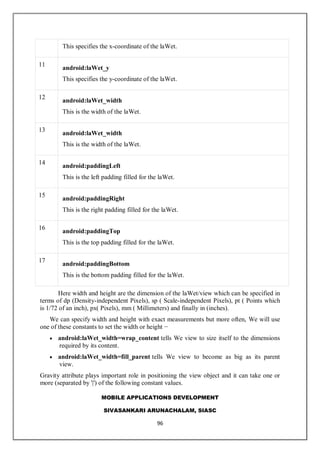
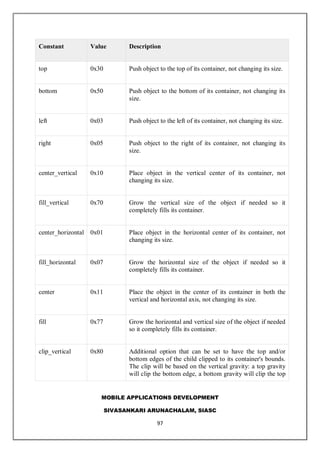
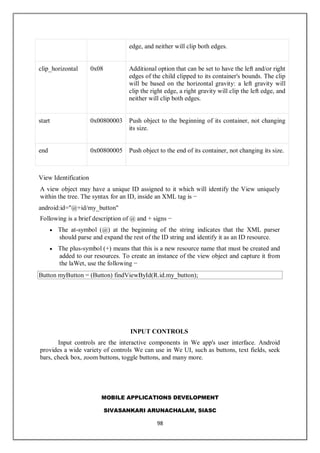
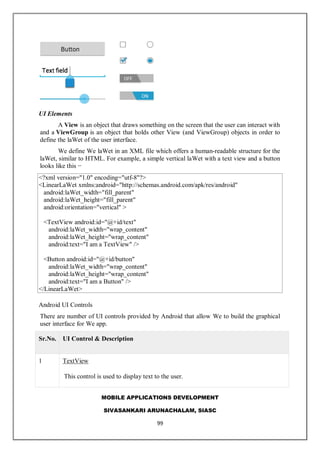
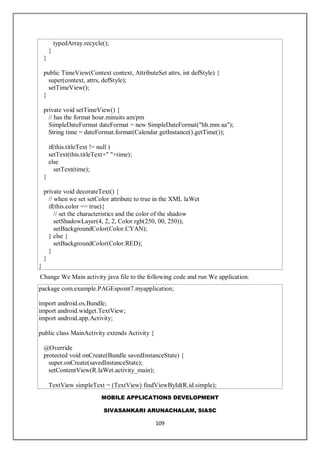
The document provides an extensive overview of mobile application development, focusing on native, web, and hybrid apps, including their characteristics, advantages, and disadvantages. It covers the development process, programming languages, frameworks, and essential tools for each app type, while explaining the differences between them. Additionally, it outlines the importance of mobile operating systems and how they influence app development strategies.
Introduction to Mobile Applications by Sivasankari Arunachalam; Course objectives and syllabus details covering Android programming fundamentals.
Types of mobile applications: Native, Web, and Hybrid apps with pros and cons, development methodologies, and associated technologies.
Differences between Web and Native Apps, introduction to Progressive Web Apps; benefits and limitations discussed.
Definition and working of hybrid apps, including their advantages, disadvantages, and performance implications.Popular mobile operating systems e.g. Android, iOS, and Mobile Database concepts for mobile app support.
Introduction to Android OS features, prerequisites for development, Android IDE setup, including libraries and frameworks.
Overview of Android architecture, understanding application components like Activities, Services, and Broadcast Receivers. User interface components in Android, creating layouts and managing UI elements like buttons and text fields in various layouts.
Detailed Android application components including Activities, Services, and Broadcast Receivers; their lifecycle explained.
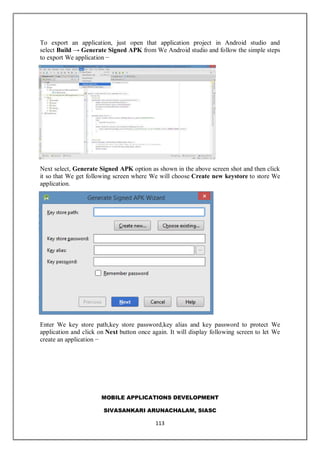
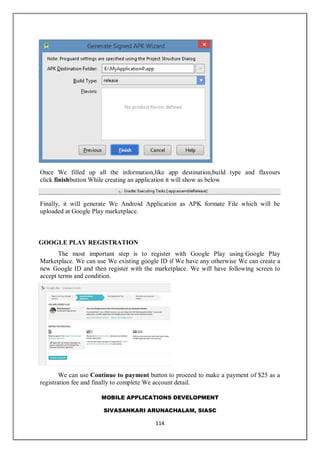
Publishing process for Android applications on Google Play, including steps for generating and exporting APK.
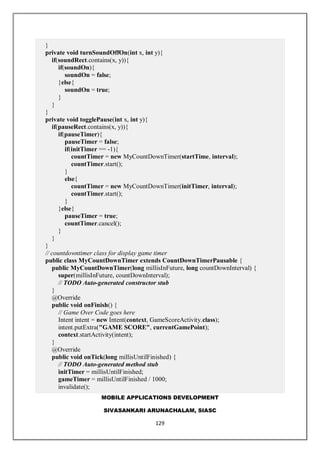
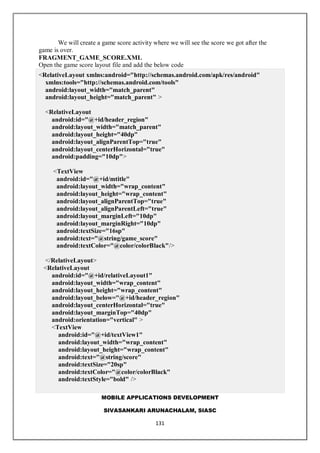
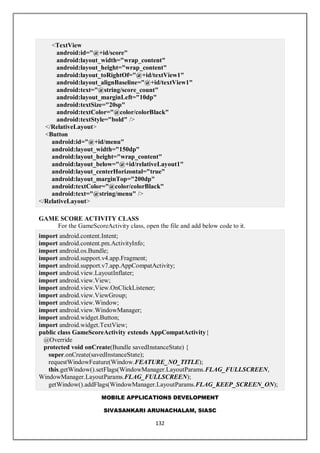
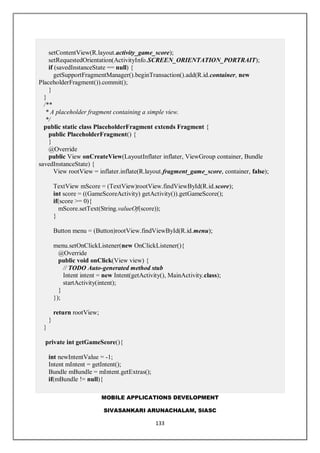
Detailed steps to build an Android game app highlighting game view, interaction management, and game flow.
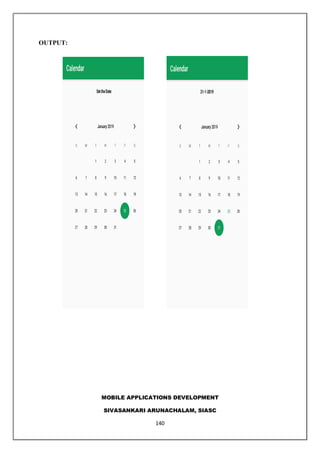
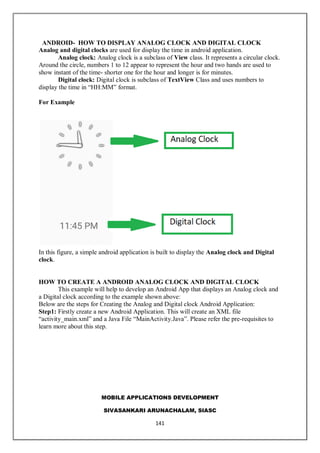
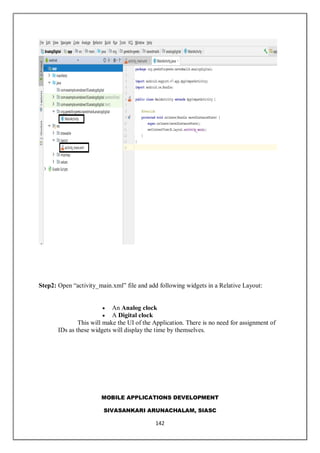
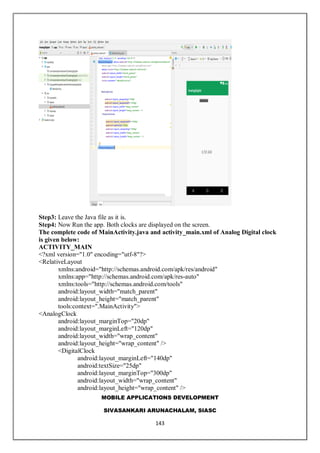
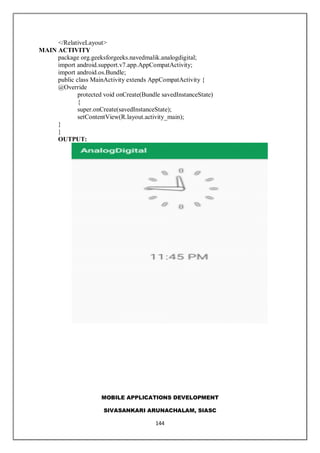
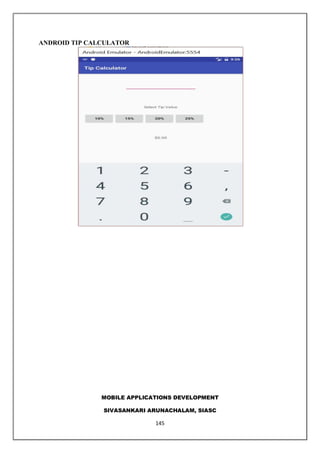
Steps to create an application for displaying an analog and digital clock along with understanding Android CalendarView component.Insights into developing a Tip Calculator app as a practical example of Android application functionality.
MOBILE APPLICATIONS DEVELOPMENT -ANDROID BY SIVASANKARI
1.
MOBILE APPLICATIONS DEVELOPMENT
SIVASANKARIARUNACHALAM, SIASC
1
E- NOTES
MOBILE APPLICATIONS DEVELOPMENT
DEPARTMENT OF COMPUTER SCIENCE AND COMPUTER APPLICATIONS
Ms. A. SIVASANKARI
ASSISTANT PROFESSOR
DEPT OF COMPUTER SCIENCE
SHANMUGA INDUSTRIES ARTS AND SCIENCE COLLEGE,
TIRUVANNAMALAI,
606601.
sivasankaridkm@gmail.com
.
2.
MOBILE APPLICATIONS DEVELOPMENT
SIVASANKARIARUNACHALAM, SIASC
2
SYLLABUS
MOBILE APPLICATIONS DEVELOPMENT
Objectives:
This course aims to provide the students with a detailed knowledge on Mobile Application and
Development and covers Android programming from fundamentals to building mobile
applications for smart gadgets.
UNIT I Introduction to Mobile Applications:
Native and web applications - Mobile operating systems and applications - Mobile Databases.
Android: History of Android - Android Features – OSS – OHA - Android Versions and
compatibility - Android devices - Prerequisites to learn Android -– Setting up software – IDE -
XML. Android Architecture: Android Stack - Linux Kernel - Android Runtime - Dalvik VM -
Application Framework - Android emulator - Android applications.
UNIT II Android development:
Java - Android Studio – Eclipse – Virtualization – APIs and Android tools – Debugging with
DDMS – Android File system – Working with emulator and smart devices - A Basic Android
Application - Deployment. Android Activities: The Activity Lifecycle – Lifecycle methods –
Creating Activity. Intents – Intent Filters – Activity stack.
UNIT III Android Services:
Simple services – Binding and Querying the service – Executing services.- Broadcast Receivers:
Creating and managing receivers – Receiver intents – ordered broadcasts. Content Providers:
Creating and using content providers – Content resolver. Working with databases: SQLite –
coding for SQLite using Android – Sample database applications – Data analysis.
UNIT IV Android User Interface:
Android Layouts – Attributes – Layout styles - Linear – Relative – Table – Grid – Frame. Menus:
Option menu – context menu - pop-up menu – Lists and Notifications: creation and display. Input
Controls: Buttons-Text Fields-Checkboxes-alert dialogs-Spinners-rating bar-progress bar.
UNIT V Publishing and Internationalizing mobile applications :
Live mobile application development: Game, Clock, Calendar, Convertor, Phone book. App
Deployment and Testing: Doodlz app – Tip calculator app – Weather viewer app.
3.
MOBILE APPLICATIONS DEVELOPMENT
SIVASANKARIARUNACHALAM, SIASC
3
Text Books
1. Barry Burd, “Android Application Development – All-in-one for Dummies”, 2nd Edition,
Wiley India, 2016.
Reference
1. Paul Deitel, Harvey Deitel, Alexander Wald, “ Android 6 for Programmers – An App-driven
Approach”, 3rd edition, Pearson education, 2016.
2. Jerome (J. F) DiMarzio, “Android – A Programmer‟s Guide”, McGraw Hill Education, 8th
reprint, 2015.
3. http://www.developer.android.com
4.
MOBILE APPLICATIONS DEVELOPMENT
SIVASANKARIARUNACHALAM, SIASC
4
MOBILE APPLICATION DEVELOPMENT
UNIT I
INTRODUCTION TO MOBILE APPLICATIONS
Developing a mobile app involves elaborate planning and processes. It starts with an
app idea, then goes on to planning, app design, app development, testing and finally,
deployment of the app to the intended mobile device or devices.
There are three main mobile app types we can explore for our mobile app
development project:
1. Native Apps
2. Web App and
3. Hybrid App
NATIVE AND WEB APPLICATIONS
Native Apps
A Native App is an app developed essentially for one particular mobile device and is
installed directly onto the device itself. Users of native apps usually download them via app
stores online or the app marketplace, such as the Apple App Store, the Google Play store and
so on. An example of a native app is the Camera+ app for Apple’s iOS devices.
Native apps are built for specific mobile operating system such as Apple iOS or
Android OS. An app made for Apple iOS will no work on Android OS or Windows OS. So if
you want your app to work across all major mobile operating systems, you must build
separate apps for each operating system. This means money and more effort (time,
resources).
Before deciding whether to build a native app, you need to know the Pros and Cons of
such an approach.
Pros
They can be used offline, which makes them faster to open and access anytime.
In some cases, the performance is faster because they store information locally and
only synchronise with the server after the user is done using the app.
They allow the user to use device-specific hand gestures. Android and iOS are
gradually developing different conventions for interaction, and a native app responds
the way its user expects.
Native apps get the approval of the app store they are intended for, which means most
of the time the user can be assured of improved safety and security of the app.
They allow direct access to device hardware that is either more difficult or impossible
with a mobile app (camera, accelerometer, etc.)
Cons
More expensive to develop, especially when the app needs to be compatible with
multiple mobile operating systems, thus multiplying the development costs.
Cost of app maintenance is higher (especially if this app supports more than one
mobile platform).
Getting the app approved for the various app stores can prove to be long and tedious
for the developer
Use of the app is contingent on the user's willingness to download and install the app
onto their mobile device
5.
MOBILE APPLICATIONS DEVELOPMENT
SIVASANKARIARUNACHALAM, SIASC
5
Native App Development
Native mobile apps are the most common type of app. They are built for specific
platforms and are written in languages that the platform accepts.
For example, Swift and Objective-C for native iOS apps and Java or Kotlin for native
Android apps. Native apps are also built using the specific Integrated Development
Environment (IDE) for the selected operating systems.
Both Apple and Google provide app developers with their own development tools,
interface elements, and SDK (Software Development Kit). Most companies will invest
in native mobile app development.
Advantages of Native Apps
Native apps deliver the best performance.
Native apps receive complete support from app stores and the overall app
marketplace. Distribution in app stores helps with discoverability.
Native apps are interactive, intuitive, and run more smoothly in terms of user input
and output.
Native development allows developers to access the full feature set of the selected
operating system.
The user experience of native apps is far superior to web apps or hybrid apps. To the
user, the flow is more natural because of each mobile operating system’s specific UI
guidelines and standards.
A native app must be approved by its respective operating system which assures
quality, security, and device compatibility.
Disadvantages of Native Apps
Native apps use difficult programming languages which require experienced
developers.
Expenses are more costly upfront for native apps compared to web or hybrid apps.
Native apps are not the best option for simple applications.
While the initial cost of native mobile app development may be higher than other options,
this development approach will save money over time. By offering a great user experience,
better performance and accessibility, native apps are able to offer users a more personalized
product. The multiple advantages of native apps will result in higher conversion rates and
long-term customer loyalty.
WEB APPLICATIONS
A Web App, are basically Internet-enabled apps that are accessible via the mobile
device’s web browser. They need not be downloaded onto the user’s mobile device in order
to be accessed. The Safari browser is a good example of a mobile Web app.
The app is written as web pages in HTML and CSS, with the interactive parts in
Jquery, JavaScript or similar language. Meaning that single web app can be used on most
devices capable of surfing the web, regardless of the operating system they use.
Web apps different from websites
A website typically offers more information than a web app can display, therefore
web apps condense website content to improve functionality. A web app loads in browsers
like Chrome, Safari, or Firefox, and doesn’t need to be downloaded from app stores like
native mobile apps. Web apps also don’t take up storage on the user’s device.
6.
MOBILE APPLICATIONS DEVELOPMENT
SIVASANKARIARUNACHALAM, SIASC
6
To build a Web app, you need to know the Pros and Cons of such an approach
Pros
They are instantly accessible to users via a browser across a range of devices (iPhone,
Android, Windows, etc.).
They are much easier to update or maintain by the developer. If you want to change
the design or content of a mobile web app, you simply publish the update to the server
and the changes are immediately visible.
They are much easier for users to discover since their pages can be displayed in
search results and listed in common search engines such as Google or Bing.
Visitors to your regular website can be automatically sent to the mobile web app when
they are on a handheld mobile device (using device detection).
Just like a standard website, mobile websites / web app can be developed as database-
driven web applications that act very much like native apps.
The development is considerably more time and cost-effective than development of a
native app, using programming languages and technologies that are more commonly
understood and have a much larger developer base.
Cons
Mobile Web apps only have limited scope as far as accessing a mobile device's
features is concerned (device-specific hand gestures, sensors, etc.).
There are so many variations between web browsers and browser versions and phones
that it makes it challenging to develop a stable web-app that runs on all devices
without any issues.
They are not listed in 'App Stores'. So if someone is looking for your app in the app
store, they will be unable to discover it though such means.
Since there is no regularised quality control system for Web apps, users may not
always be guaranteed safety and security of the app.
Web apps are unavailable when offline, even as a basic version.
Web App Development
If our goal is to offer mobile-friendly content to a wide range of users, a web app
might be the appropriate development path. Web apps are a cost-effective way to put your
product in the hands of a lot of users. Users are easily frustrated with performance and
usability issues like load times, small images, and network availability.
Build a Web App
Web apps are built in JavaScript, CSS, and HTML5 and run inside a web browser.
There is no software development kit for developers to use; however, there are templates for
them to work with. If you choose to develop a web app, it can be straightforward and quick to
build. Although, web apps are often oversimplified and don’t offer the same features a native
app can deliver.
Progressive Web Apps
7.
MOBILE APPLICATIONS DEVELOPMENT
SIVASANKARIARUNACHALAM, SIASC
7
Progressive web apps (PWAs) are hybrids of regular web pages and native apps. Overall,
web apps lack the functionality of native apps, such as sending push notifications or working
offline. Browsers and web apps, however, are becoming more advanced. Now, PWAs can
leverage features similar to native apps.
Improved functionalities include:
Sending push notifications
Access to device hardware like vibration
Improved touch gestures
Despite these improvements, PWAs are only compatible with Google Chrome. This
means iOS users can’t use this type of web app. Depending on your business goals and
monetization strategy, excluding iOS users can be a huge disadvantage because iOS users
spend the most money on apps and on in-app purchases.
Advantages of Web Apps
Web apps are relatively easy to maintain because they use a common code base across
multiple mobile platforms.
Web apps can be built for all platforms as long as they can run in an appropriate web
browser.
Compared to native apps, web apps are less expensive up front.
Web apps don’t adhere to standard operating system protocols and don’t require
approval from the app marketplace; they can be released at any time and in any
format.
Updates to web apps don’t need to go through an app store meaning the user doesn’t
have to manage updates manually. The newest version always loads when a user
opens a web app.
Disadvantages of Web Apps
Web apps have a much smaller scope when it comes to leveraging device features and
hardware.
A browser is required to run a web app. Users have to take more steps to use a web
app, whether that’s searching for the page or typing in a URL. Either way, more effort
complicates the user experience.
Users interact with different web browsers and as a result, the usage patterns and
performance metrics used to create a product roadmap are more difficult to collect.
Unless a web app marketed well, web apps have poor discoverability because they’re
not listed in the app store.
Web apps are slower and much less responsive than native apps.
Web apps are less interactive and intuitive compared to native apps.
There are fewer branding opportunities with web apps. An app store listing presents
an invaluable opportunity to convey an app’s unique value proposition.
The Difference between Native and Web Apps
1. User Interface
8.
MOBILE APPLICATIONS DEVELOPMENT
SIVASANKARIARUNACHALAM, SIASC
8
From the point of the mobile device user, some native and web apps look and work much
the same way, with very little difference between them. The choice between these two types
of apps has to be made only when you have to decide whether to develop a user-centric app
or an application-centric app. Some companies develop both native and web apps, so as to
widen the reach of their apps, while also provide a good overall user experience.
2. App Development Process
The app development process of these two types of apps is distinguishes them from each
other.
Each mobile platform that the native app is developed for, stipulates its own unique
development process. In the case of web apps running on a mobile device’s web
browser, the problem that arises is that each of these mobile devices have unique
features and come with their unique problems as well.
Every mobile platform uses a different native programming language. While iOS uses
Objective-C, Android uses Java, Windows Mobile uses C++ and so on. Web apps, on
the other hand, use languages such as JavaScript, HTML 5, CSS3 or other web
application frameworks as per the developer’s preferences.
Each mobile platform offers the developer its own standardized SDK, development
tools and other user interface elements, which they can use to develop their native app
with relative ease. In the case of web apps, though, there is no such standardization
and the developer has no access to SDKs or tools of any sort.
There are several tools and frameworks available to the developer, using which they can
deploy apps to multiple mobile platforms and web browsers.
3. Accessibility
A native app is totally compatible with the device’s hardware and native features,
such as an accelerometer, camera and so on. Web apps, on the other hand, can access only a
limited amount of a device’s native features.
While a native app works as a standalone entity, the problem is that the user has to
keep downloading updates. A web app, on the other hand, updates itself without the need for
user intervention. However, it necessarily needs to be accessed via a mobile device’s
browser.
4. Making Money on Apps
App monetization with native apps can be tricky, since certain mobile device
manufacturers may lay restrictions on integrating services with certain mobile ad platforms
and networks.
Conversely, web apps enable you to monetize apps by way of advertisements,
charging membership fees and so on. However, while the app store takes care of your
revenue and commissions in the case of native app, you need to setup your own payment
system in case of a web app.
5. Efficiency
Native apps are more expensive to develop. However, they are faster and more
efficient, as they work in tandem with the mobile device they are developed for. Also, they
are assured of quality, as users can access them only via app stores online.
Web apps may result in higher costs of maintenance across multiple mobile platforms.
Also, there is no specific regulatory authority to control quality standards of these apps. The
Apple App Store, though, features a listing of Apple’s web apps.
HYBRID APP
9.
MOBILE APPLICATIONS DEVELOPMENT
SIVASANKARIARUNACHALAM, SIASC
9
Hybrid apps work across multiple platforms and behave like native apps. A hybrid
app is essentially a combination of a native app and a web app. Although this type of app can
be installed on a device like a native app, it technically is a web app. These types of apps are
built with HTML, CSS, or JavaScript and run in a webview.
Hybrid App Development
Hybrid app development is essentially a web app that incorporates additional
native features. Including native features is possible when you deploy a wrapper to act as a
bridge between platforms.
A hybrid app consists of two parts:
The backend code. Hybrid code is written in languages like HTML, CSS, or
JavaScript.
A native shell. This shell is downloadable and loads the code using a webview.
Advantages of Hybrid App Development
Hybrid apps don’t need a web browser like web apps.
Hybrid apps have access to a device’s internal APIs and device hardware.
Only one codebase is needed for hybrid apps.
Disadvantages of Hybrid App Development
Hybrid apps are much slower than native apps.
With hybrid app development, you’re dependent on a third-party platform to deploy
the app’s wrapper.
The more customization the app requires takes away from hybrid development, which
costs more money that can be saved with native app development.
With hybrid app development, to contend with issues that stem from both native
systems and hybrid systems, which makes bug fixing more difficult. Performance is also a
disadvantage because hybrid apps load in a webview. The user experience is often sacrificed
with a hybrid app as you cannot customize the app based on the platform.
Customizability is a significant disadvantage to hybrid apps. The more customization
you do, the more you’re steering toward a native solution. If customization is important to
you, taking the native approach to development will be more beneficial. In fact, the more
customization you want in your hybrid app, the more expensive the project will be, and
therefore a native solution will end up being more cost-effective.
What is a Mobile Operating System (Mobile OS)?
Much like the Linux or Windows operating system controls our desktop or laptop
computer, a mobile operating system is the software platform on top of which other programs
can run on mobile devices. The operating system is responsible for determining the functions
and features available on We device, such as thumb wheel, keyboards, WAP, synchronization
10.
MOBILE APPLICATIONS DEVELOPMENT
SIVASANKARIARUNACHALAM, SIASC
10
with applications, email, text messaging and more. The mobile OS will also determine which
third-party applications (mobile apps) can be used on We device.
Types of Mobile Operating Systems
When we purchase a mobile device the manufacturer will have chosen the operating
system for that specific device. Often, We will want to learn about the mobile operating
system before We purchase a device to ensure compatibility and support for the mobile
applications We want to use.
Popular Mobile Operating Systems
1. Android OS (Google Inc.)
The Android mobile operating system is Google's open and free software stack that
includes an operating system, middleware and also key applications for use on mobile
devices, including smartphones. Updates for the open source Android mobile operating
system have been developed under "dessert-inspired" version names (Cupcake, Donut, Eclair,
Gingerbread, Honeycomb, Ice Cream Sandwich) with each new version arriving in
alphabetical order with new enhancements and improvements.
2. Bada (Samsung Electronics)
Bada is a proprietary Samsung mobile OS that was first launched in 2010. The
Samsung Wave was the first smartphone to use this mobile OS. Bada provides mobile
features such as multipoint-touch, 3D graphics and of course, application downloads and
installation.
3. BlackBerry OS (Research In Motion)
The BlackBerry OS is a proprietary mobile operating system developed by Research
In Motion for use on the company’s popular BlackBerry handheld devices. The BlackBerry
platform is popular with corporate users as it offers synchronization with Microsoft
Exchange, Lotus Domino, Novell GroupWise email and other business software, when used
with the BlackBerry Enterprise Server.
4. iPhone OS / iOS (Apple)
Apple's iPhone OS was originally developed for use on its iPhone devices. Now, the
mobile operating system is referred to as iOS and is supported on a number of Apple devices
including the iPhone, iPad, iPad 2 and iPod Touch. The iOS mobile operating system is
available only on Apple's own manufactured devices as the company does not license the OS
for third-party hardware. Apple iOS is derived from Apple's Mac OS X operating system.
5. MeeGo OS (Nokia and Intel)
A joint open source mobile operating system which is the result of merging two
products based on open source technologies: Maemo (Nokia) and Moblin (Intel). MeeGo is a
mobile OS designed to work on a number of devices including smartphones, netbooks,
11.
MOBILE APPLICATIONS DEVELOPMENT
SIVASANKARIARUNACHALAM, SIASC
11
tablets, in-vehicle information systems and various devices using Intel Atom and ARMv7
architectures.
6. Palm OS (Garnet OS)
The Palm OS is a proprietary mobile operating system (PDA operating system) that
was originally released in 1996 on the Pilot 1000 handheld. NeWe versions of the Palm OS
have added support for expansion ports, new processors, external memory cards, improved
security and support for ARM processors and smartphones. Palm OS 5 was extended to
provide support for a broad range of screen resolutions, wireless connections and enhanced
multimedia capabilities and is called Garnet OS.
7. Symbian OS (Nokia)
Symbian is a mobile operating system (OS) targeted at mobile phones that offers a
high-level of integration with communication and personal information management (PIM)
functionality. Symbian OS combines middleware with wireless communications through an
integrated mailbox and the integration of Java and PIM functionality (agenda and contacts).
Nokia has made the Symbian platform available under an alternative, open and direct model,
to work with some OEMs and the small community of platform development collaborators.
Nokia does not maintain Symbian as an open source development project.
8. webOS (Palm/HP)
WebOS is a mobile operating system that runs on the Linux kernel. WebOS was
initially developed by Palm as the successor to its Palm OS mobile operating system. It is a
proprietary Mobile OS which was eventually acquired by HP and now referred to as webOS
(loWe-case w) in HP literature. HP uses webOS in a number of devices including several
smartphones and HP TouchPads. HP has pushed its webOS into the enterprise mobile market
by focusing on improving security features and management with the release of webOS 3.x.
HP has also announced plans for a version of webOS to run within the Microsoft Windows
operating system and to be installed on all HP desktop and notebook computers in 2012.
9. Windows Mobile (Windows Phone)
Windows Mobile is Microsoft's mobile operating system used in smartphones and
mobile devices – with or without touchscreens. The Mobile OS is based on the Windows CE
5.2 kernel. In 2010 Microsoft announced a new smartphone platform called Windows Phone
7.
12.
MOBILE APPLICATIONS DEVELOPMENT
SIVASANKARIARUNACHALAM, SIASC
12
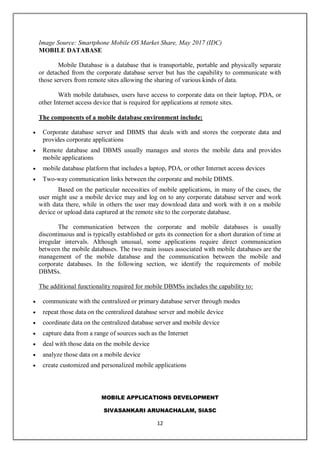
Image Source: Smartphone Mobile OS Market Share, May 2017 (IDC)
MOBILE DATABASE
Mobile Database is a database that is transportable, portable and physically separate
or detached from the corporate database server but has the capability to communicate with
those servers from remote sites allowing the sharing of various kinds of data.
With mobile databases, users have access to corporate data on their laptop, PDA, or
other Internet access device that is required for applications at remote sites.
The components of a mobile database environment include:
Corporate database server and DBMS that deals with and stores the corporate data and
provides corporate applications
Remote database and DBMS usually manages and stores the mobile data and provides
mobile applications
mobile database platform that includes a laptop, PDA, or other Internet access devices
Two-way communication links between the corporate and mobile DBMS.
Based on the particular necessities of mobile applications, in many of the cases, the
user might use a mobile device may and log on to any corporate database server and work
with data there, while in others the user may download data and work with it on a mobile
device or upload data captured at the remote site to the corporate database.
The communication between the corporate and mobile databases is usually
discontinuous and is typically established or gets its connection for a short duration of time at
irregular intervals. Although unusual, some applications require direct communication
between the mobile databases. The two main issues associated with mobile databases are the
management of the mobile database and the communication between the mobile and
corporate databases. In the following section, we identify the requirements of mobile
DBMSs.
The additional functionality required for mobile DBMSs includes the capability to:
communicate with the centralized or primary database server through modes
repeat those data on the centralized database server and mobile device
coordinate data on the centralized database server and mobile device
capture data from a range of sources such as the Internet
deal with those data on the mobile device
analyze those data on a mobile device
create customized and personalized mobile applications
13.
MOBILE APPLICATIONS DEVELOPMENT
SIVASANKARIARUNACHALAM, SIASC
13
ANDROID
Android is an open source and Linux-based operating system for mobile devices such
as smartphones and tablet computers. Android was developed by the Open Handset
Alliance, led by Google, and other companies. This PAGE will teach We basic Android
programming and will also take We through some advance concepts related to Android
application development.
Prerequisites
Android programming is based on Java programming language so if We have basic
understanding on Java programming then it will be a fun to learn Android application
development.
What is Android?
Android is an open source and Linux-
based Operating System for mobile devices such as
smartphones and tablet computers. Android was developed
by the Open Handset Alliance, led by Google, and other
companies.
Android offers a unified approach to application
development for mobile devices which means developers
need only develop for Android, and their applications
should be able to run on different devices poWeed by
Android.
The first beta version of the Android Software
Development Kit (SDK) was released by Google in 2007 where as the first commercial
version, Android 1.0, was released in September 2008.
On June 27, 2012, at the Google I/O conference, Google announced the next Android
version, 4.1 Jelly Bean. Jelly Bean is an incremental update, with the primary aim of
improving the user interface, both in terms of functionality and performance.
The source code for Android is available under free and open source software
licenses. Google publishes most of the code under the Apache License version 2.0 and the
rest, Linux kernel changes, under the GNU General Public License version 2.
Why Android ?
14.
MOBILE APPLICATIONS DEVELOPMENT
SIVASANKARIARUNACHALAM, SIASC
14
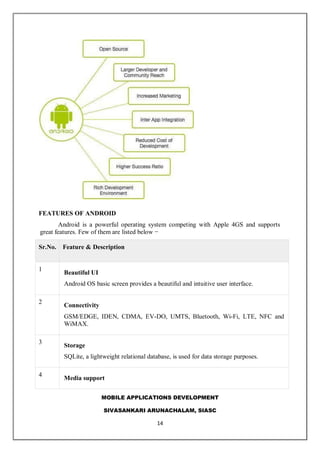
FEATURES OF ANDROID
Android is a powerful operating system competing with Apple 4GS and supports
great features. Few of them are listed below −
Sr.No. Feature & Description
1
Beautiful UI
Android OS basic screen provides a beautiful and intuitive user interface.
2
Connectivity
GSM/EDGE, IDEN, CDMA, EV-DO, UMTS, Bluetooth, Wi-Fi, LTE, NFC and
WiMAX.
3
Storage
SQLite, a lightweight relational database, is used for data storage purposes.
4
Media support
15.
MOBILE APPLICATIONS DEVELOPMENT
SIVASANKARIARUNACHALAM, SIASC
15
H.263, H.264, MPEG-4 SP, AMR, AMR-WB, AAC, HE-AAC, AAC 5.1, MP3,
MIDI, Ogg Vorbis, WAV, JPEG, PNG, GIF, and BMP.
5
Messaging
SMS and MMS
6
Web browser
Based on the open-source WebKit laWet engine, coupled with Chrome's V8
JavaScript engine supporting HTML5 and CSS3.
7
Multi-touch
Android has native support for multi-touch which was initially made available in
handsets such as the HTC Hero.
8
Multi-tasking
User can jump from one task to another and same time various application can run
simultaneously.
9
Resizable widgets
Widgets are resizable, so users can expand them to show more content or shrink
them to save space.
10
Multi-Language
Supports single direction and bi-directional text.
11
GCM
Google Cloud Messaging (GCM) is a service that lets developers send short message
data to their users on Android devices, without needing a proprietary sync solution.
12
Wi-Fi Direct
A technology that lets apps discover and pair directly, over a high-bandwidth peer-
to-peer connection.
13
Android Beam
16.
MOBILE APPLICATIONS DEVELOPMENT
SIVASANKARIARUNACHALAM, SIASC
16
A popular NFC-based technology that lets users instantly share, just by touching two
NFC-enabled phones together.
ANDROID APPLICATIONS
Android applications are usually developed in the Java language using the Android
Software Development Kit.
Once developed, Android applications can be packaged easily and sold out either
through a store such as Google Play, SlideME, Opera Mobile Store, Mobango, F-
droid and the Amazon Appstore.
Android powers hundreds of millions of mobile devices in more than 190 countries
around the world. It's the largest installed base of any mobile platform and growing fast.
Every day more than 1 million new Android devices are activated worldwide.
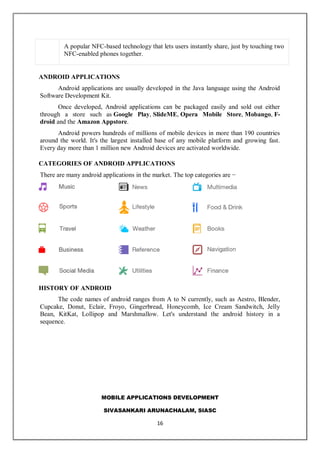
CATEGORIES OF ANDROID APPLICATIONS
There are many android applications in the market. The top categories are −
HISTORY OF ANDROID
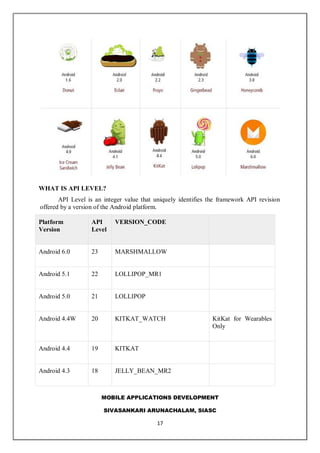
The code names of android ranges from A to N currently, such as Aestro, Blender,
Cupcake, Donut, Eclair, Froyo, Gingerbread, Honeycomb, Ice Cream Sandwitch, Jelly
Bean, KitKat, Lollipop and Marshmallow. Let's understand the android history in a
sequence.
17.
MOBILE APPLICATIONS DEVELOPMENT
SIVASANKARIARUNACHALAM, SIASC
17
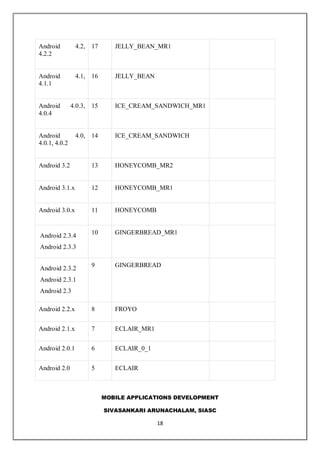
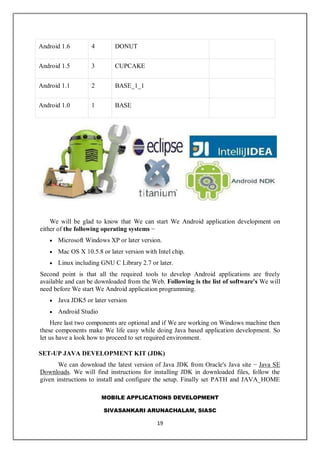
WHAT IS API LEVEL?
API Level is an integer value that uniquely identifies the framework API revision
offered by a version of the Android platform.
Platform
Version
API
Level
VERSION_CODE
Android 6.0 23 MARSHMALLOW
Android 5.1 22 LOLLIPOP_MR1
Android 5.0 21 LOLLIPOP
Android 4.4W 20 KITKAT_WATCH KitKat for Wearables
Only
Android 4.4 19 KITKAT
Android 4.3 18 JELLY_BEAN_MR2
MOBILE APPLICATIONS DEVELOPMENT
SIVASANKARIARUNACHALAM, SIASC
19
Android 1.6 4 DONUT
Android 1.5 3 CUPCAKE
Android 1.1 2 BASE_1_1
Android 1.0 1 BASE
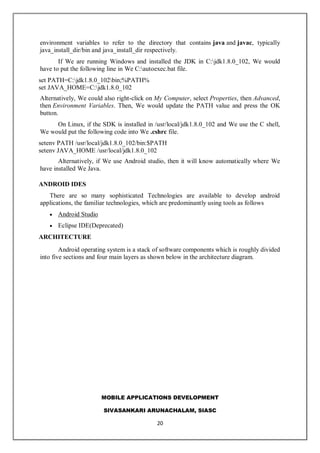
We will be glad to know that We can start We Android application development on
either of the following operating systems −
Microsoft Windows XP or later version.
Mac OS X 10.5.8 or later version with Intel chip.
Linux including GNU C Library 2.7 or later.
Second point is that all the required tools to develop Android applications are freely
available and can be downloaded from the Web. Following is the list of software's We will
need before We start We Android application programming.
Java JDK5 or later version
Android Studio
Here last two components are optional and if We are working on Windows machine then
these components make We life easy while doing Java based application development. So
let us have a look how to proceed to set required environment.
SET-UP JAVA DEVELOPMENT KIT (JDK)
We can download the latest version of Java JDK from Oracle's Java site − Java SE
Downloads. We will find instructions for installing JDK in downloaded files, follow the
given instructions to install and configure the setup. Finally set PATH and JAVA_HOME
20.
MOBILE APPLICATIONS DEVELOPMENT
SIVASANKARIARUNACHALAM, SIASC
20
environment variables to refer to the directory that contains java and javac, typically
java_install_dir/bin and java_install_dir respectively.
If We are running Windows and installed the JDK in C:jdk1.8.0_102, We would
have to put the following line in We C:autoexec.bat file.
set PATH=C:jdk1.8.0_102bin;%PATH%
set JAVA_HOME=C:jdk1.8.0_102
Alternatively, We could also right-click on My Computer, select Properties, then Advanced,
then Environment Variables. Then, We would update the PATH value and press the OK
button.
On Linux, if the SDK is installed in /usr/local/jdk1.8.0_102 and We use the C shell,
We would put the following code into We .cshrc file.
setenv PATH /usr/local/jdk1.8.0_102/bin:$PATH
setenv JAVA_HOME /usr/local/jdk1.8.0_102
Alternatively, if We use Android studio, then it will know automatically where We
have installed We Java.
ANDROID IDES
There are so many sophisticated Technologies are available to develop android
applications, the familiar technologies, which are predominantly using tools as follows
Android Studio
Eclipse IDE(Deprecated)
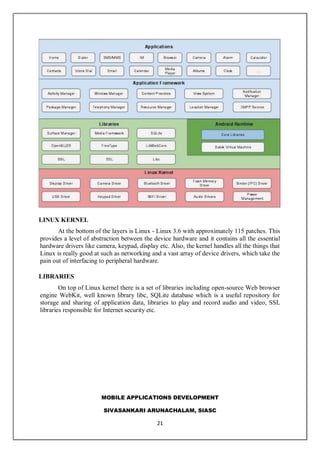
ARCHITECTURE
Android operating system is a stack of software components which is roughly divided
into five sections and four main layers as shown below in the architecture diagram.
21.
MOBILE APPLICATIONS DEVELOPMENT
SIVASANKARIARUNACHALAM, SIASC
21
LINUX KERNEL
At the bottom of the layers is Linux - Linux 3.6 with approximately 115 patches. This
provides a level of abstraction between the device hardware and it contains all the essential
hardware drivers like camera, keypad, display etc. Also, the kernel handles all the things that
Linux is really good at such as networking and a vast array of device drivers, which take the
pain out of interfacing to peripheral hardware.
LIBRARIES
On top of Linux kernel there is a set of libraries including open-source Web browser
engine WebKit, well known library libc, SQLite database which is a useful repository for
storage and sharing of application data, libraries to play and record audio and video, SSL
libraries responsible for Internet security etc.
22.
MOBILE APPLICATIONS DEVELOPMENT
SIVASANKARIARUNACHALAM, SIASC
22
UNIT 2
ANDROID DEVELOPMENT
ANDROID LIBRARIES
This category encompasses those Java-based libraries that are specific to Android
development. Examples of libraries in this category include the application framework
libraries in addition to those that facilitate user interface building, graphics drawing and
database access. A summary of some key core Android libraries available to the Android
developer is as follows −
android.app − Provides access to the application model and is the cornerstone of all
Android applications.
android.content − Facilitates content access, publishing and messaging between
applications and application components.
android.database − Used to access data published by content providers and includes
SQLite database management classes.
android.opengl − A Java interface to the OpenGL ES 3D graphics rendering API.
android.os − Provides applications with access to standard operating system services
including messages, system services and inter-process communication.
android.text − Used to render and manipulate text on a device display.
android.view − The fundamental building blocks of application user interfaces.
android.widget − A rich collection of pre-built user interface components such as
buttons, labels, list views, laWet managers, radio buttons etc.
android.webkit − A set of classes intended to allow web-browsing capabilities to be
built into applications.
Having covered the Java-based core libraries in the Android runtime, it is now time to
turn our attention to the C/C++ based libraries contained in this layer of the Android
software stack.
ANDROID RUNTIME
This is the third section of the architecture and available on the second layer from the
bottom. This section provides a key component called Dalvik Virtual Machine which is a
kind of Java Virtual Machine specially designed and optimized for Android.
The Dalvik VM makes use of Linux core features like memory management and
multi-threading, which is intrinsic in the Java language. The Dalvik VM enables every
Android application to run in its own process, with its own instance of the Dalvik virtual
machine.
The Android runtime also provides a set of core libraries which enable Android
application developers to write Android applications using standard Java programming
language.
23.
MOBILE APPLICATIONS DEVELOPMENT
SIVASANKARIARUNACHALAM, SIASC
23
APPLICATION FRAMEWORK
The Application Framework layer provides many higher-level services to
applications in the form of Java classes. Application developers are allowed to make use of
these services in their applications.
The Android framework includes the following key services −
Activity Manager − Controls all aspects of the application lifecycle and activity
stack.
Content Providers − Allows applications to publish and share data with other
applications.
Resource Manager − Provides access to non-code embedded resources such as
strings, color settings and user interface laWets.
Notifications Manager − Allows applications to display alerts and notifications to
the user.
View System − An extensible set of views used to create application user interfaces.
ANDROID APPLICATIONS
We will find all the Android application at the top layer. We will write We
application to be installed on this layer only. Examples of such applications are Contacts
Books, Browser, Games etc.
APPLICATION COMPONENTS
Application components are the essential building blocks of an Android application.
These components are loosely coupled by the application manifest
file AndroidManifest.xml that describes each component of the application and how they
interact.
There are following four main components that can be used within an Android
application −
Sr.No Components & Description
1 Activities
They dictate the UI and handle the user interaction to the smart phone screen.
2
Services
They handle background processing associated with an application.
3 Broadcast Receivers
24.
MOBILE APPLICATIONS DEVELOPMENT
SIVASANKARIARUNACHALAM, SIASC
24
They handle communication between Android OS and applications.
4 Content Providers
They handle data and database management issues.
ANDROID ACTIVITIES
An activity represents a single screen with a user interface,in-short Activity performs
actions on the screen. For example, an email application might have one activity that shows
a list of new emails, another activity to compose an email, and another activity for reading
emails. If an application has more than one activity, then one of them should be marked as
the activity that is presented when the application is launched.
An activity is implemented as a subclass of Activity class as follows −
public class MainActivity extends Activity {
}
CONTENT PROVIDERS
A content provider component supplies data from one application to others on
request. Such requests are handled by the methods of the ContentResolver class. The data
may be stored in the file system, the database or somewhere else entirely.
A content provider is implemented as a subclass of ContentProvider class and must
implement a standard set of APIs that enable other applications to perform transactions.
public class MyContentProvider extends ContentProvider {
public void onCreate(){}
}
We will go through these tags in detail while covering application components in individual
chapters.
Additional Components
There are additional components which will be used in the construction of above mentioned
entities, their logic, and wiring between them. These components are −
S.No Components & Description
1 Fragments
Represents a portion of user interface in an Activity.
25.
MOBILE APPLICATIONS DEVELOPMENT
SIVASANKARIARUNACHALAM, SIASC
25
2
Views
UI elements that are drawn on-screen including buttons, lists forms etc.
3
LaWets
View hierarchies that control screen format and appearance of the views.
4
Intents
Messages wiring components together.
5
Resources
External elements, such as strings, constants and drawable pictures.
6 Manifest
Configuration file for the application.
EXAMPLE: HELLO WORLD
Let us start actual programming with Android Framework. Before We start writing
We first example using Android SDK, We have to make sure that We have set-up We
Android development environment properly as explained in Android - Environment Set-
up PAGE. I also assume that We have a little bit working knowledge with Android studio.
So let us proceed to write a simple Android Application which will print "Hello World!".
Create Android Application
The first step is to create a simple Android Application using Android studio. When We
click on Android studio icon, it will show screen as shown below
26.
MOBILE APPLICATIONS DEVELOPMENT
SIVASANKARIARUNACHALAM, SIASC
26
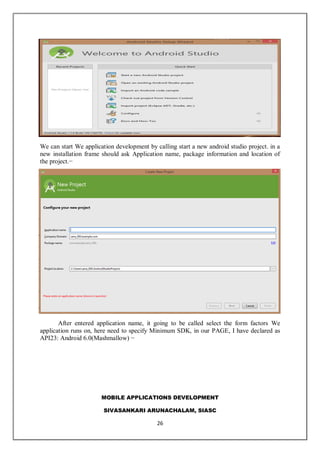
We can start We application development by calling start a new android studio project. in a
new installation frame should ask Application name, package information and location of
the project.−
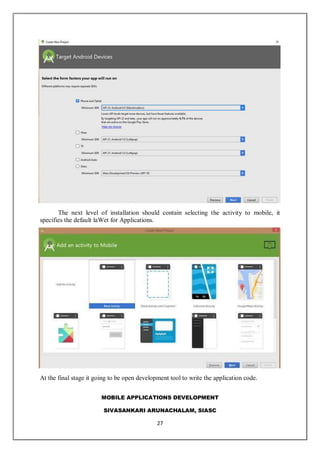
After entered application name, it going to be called select the form factors We
application runs on, here need to specify Minimum SDK, in our PAGE, I have declared as
API23: Android 6.0(Mashmallow) −
27.
MOBILE APPLICATIONS DEVELOPMENT
SIVASANKARIARUNACHALAM, SIASC
27
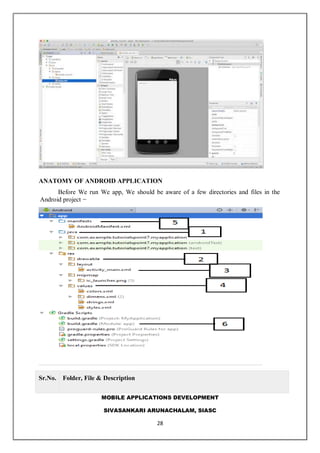
The next level of installation should contain selecting the activity to mobile, it
specifies the default laWet for Applications.
At the final stage it going to be open development tool to write the application code.
28.
MOBILE APPLICATIONS DEVELOPMENT
SIVASANKARIARUNACHALAM, SIASC
28
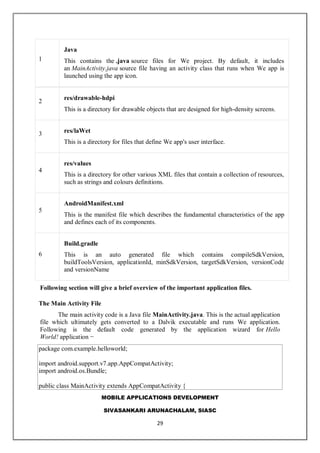
ANATOMY OF ANDROID APPLICATION
Before We run We app, We should be aware of a few directories and files in the
Android project −
Sr.No. Folder, File & Description
29.
MOBILE APPLICATIONS DEVELOPMENT
SIVASANKARIARUNACHALAM, SIASC
29
1
Java
This contains the .java source files for We project. By default, it includes
an MainActivity.java source file having an activity class that runs when We app is
launched using the app icon.
2
res/drawable-hdpi
This is a directory for drawable objects that are designed for high-density screens.
3 res/laWet
This is a directory for files that define We app's user interface.
4
res/values
This is a directory for other various XML files that contain a collection of resources,
such as strings and colours definitions.
5
AndroidManifest.xml
This is the manifest file which describes the fundamental characteristics of the app
and defines each of its components.
6
Build.gradle
This is an auto generated file which contains compileSdkVersion,
buildToolsVersion, applicationId, minSdkVersion, targetSdkVersion, versionCode
and versionName
Following section will give a brief overview of the important application files.
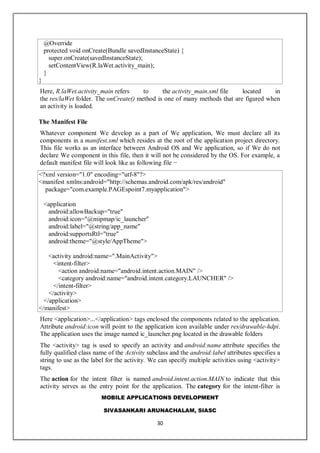
The Main Activity File
The main activity code is a Java file MainActivity.java. This is the actual application
file which ultimately gets converted to a Dalvik executable and runs We application.
Following is the default code generated by the application wizard for Hello
World! application −
package com.example.helloworld;
import android.support.v7.app.AppCompatActivity;
import android.os.Bundle;
public class MainActivity extends AppCompatActivity {
30.
MOBILE APPLICATIONS DEVELOPMENT
SIVASANKARIARUNACHALAM, SIASC
30
@Override
protected void onCreate(Bundle savedInstanceState) {
super.onCreate(savedInstanceState);
setContentView(R.laWet.activity_main);
}
}
Here, R.laWet.activity_main refers to the activity_main.xml file located in
the res/laWet folder. The onCreate() method is one of many methods that are figured when
an activity is loaded.
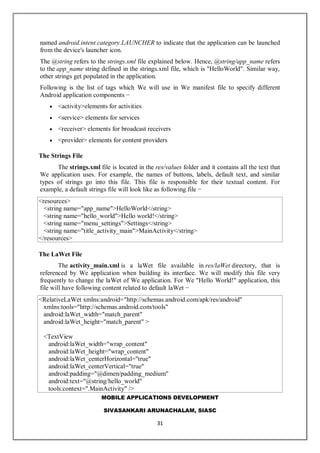
The Manifest File
Whatever component We develop as a part of We application, We must declare all its
components in a manifest.xml which resides at the root of the application project directory.
This file works as an interface between Android OS and We application, so if We do not
declare We component in this file, then it will not be considered by the OS. For example, a
default manifest file will look like as following file −
<?xml version="1.0" encoding="utf-8"?>
<manifest xmlns:android="http://schemas.android.com/apk/res/android"
package="com.example.PAGEspoint7.myapplication">
<application
android:allowBackup="true"
android:icon="@mipmap/ic_launcher"
android:label="@string/app_name"
android:supportsRtl="true"
android:theme="@style/AppTheme">
<activity android:name=".MainActivity">
<intent-filter>
<action android:name="android.intent.action.MAIN" />
<category android:name="android.intent.category.LAUNCHER" />
</intent-filter>
</activity>
</application>
</manifest>
Here <application>...</application> tags enclosed the components related to the application.
Attribute android:icon will point to the application icon available under res/drawable-hdpi.
The application uses the image named ic_launcher.png located in the drawable folders
The <activity> tag is used to specify an activity and android:name attribute specifies the
fully qualified class name of the Activity subclass and the android:label attributes specifies a
string to use as the label for the activity. We can specify multiple activities using <activity>
tags.
The action for the intent filter is named android.intent.action.MAIN to indicate that this
activity serves as the entry point for the application. The category for the intent-filter is
31.
MOBILE APPLICATIONS DEVELOPMENT
SIVASANKARIARUNACHALAM, SIASC
31
named android.intent.category.LAUNCHER to indicate that the application can be launched
from the device's launcher icon.
The @string refers to the strings.xml file explained below. Hence, @string/app_name refers
to the app_name string defined in the strings.xml file, which is "HelloWorld". Similar way,
other strings get populated in the application.
Following is the list of tags which We will use in We manifest file to specify different
Android application components −
<activity>elements for activities
<service> elements for services
<receiver> elements for broadcast receivers
<provider> elements for content providers
The Strings File
The strings.xml file is located in the res/values folder and it contains all the text that
We application uses. For example, the names of buttons, labels, default text, and similar
types of strings go into this file. This file is responsible for their textual content. For
example, a default strings file will look like as following file −
<resources>
<string name="app_name">HelloWorld</string>
<string name="hello_world">Hello world!</string>
<string name="menu_settings">Settings</string>
<string name="title_activity_main">MainActivity</string>
</resources>
The LaWet File
The activity_main.xml is a laWet file available in res/laWet directory, that is
referenced by We application when building its interface. We will modify this file very
frequently to change the laWet of We application. For We "Hello World!" application, this
file will have following content related to default laWet −
<RelativeLaWet xmlns:android="http://schemas.android.com/apk/res/android"
xmlns:tools="http://schemas.android.com/tools"
android:laWet_width="match_parent"
android:laWet_height="match_parent" >
<TextView
android:laWet_width="wrap_content"
android:laWet_height="wrap_content"
android:laWet_centerHorizontal="true"
android:laWet_centerVertical="true"
android:padding="@dimen/padding_medium"
android:text="@string/hello_world"
tools:context=".MainActivity" />
32.
MOBILE APPLICATIONS DEVELOPMENT
SIVASANKARIARUNACHALAM, SIASC
32
</RelativeLaWet>
This is an example of simple RelativeLaWet which we will study in a separate
chapter. The TextView is an Android control used to build the GUI and it have various
attributes like android:laWet_width, android:laWet_height etc which are being used to set
its width and height etc.. The @string refers to the strings.xml file located in the res/values
folder. Hence, @string/hello_world refers to the hello string defined in the strings.xml file,
which is "Hello World!".
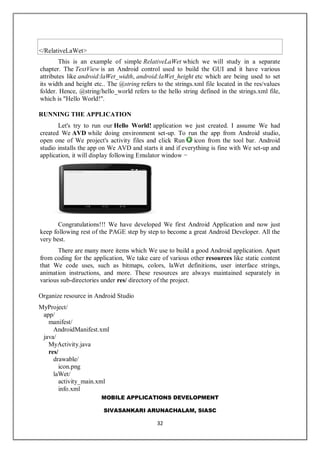
RUNNING THE APPLICATION
Let's try to run our Hello World! application we just created. I assume We had
created We AVD while doing environment set-up. To run the app from Android studio,
open one of We project's activity files and click Run icon from the tool bar. Android
studio installs the app on We AVD and starts it and if everything is fine with We set-up and
application, it will display following Emulator window −
Congratulations!!! We have developed We first Android Application and now just
keep following rest of the PAGE step by step to become a great Android Developer. All the
very best.
There are many more items which We use to build a good Android application. Apart
from coding for the application, We take care of various other resources like static content
that We code uses, such as bitmaps, colors, laWet definitions, user interface strings,
animation instructions, and more. These resources are always maintained separately in
various sub-directories under res/ directory of the project.
Organize resource in Android Studio
MyProject/
app/
manifest/
AndroidManifest.xml
java/
MyActivity.java
res/
drawable/
icon.png
laWet/
activity_main.xml
info.xml
33.
MOBILE APPLICATIONS DEVELOPMENT
SIVASANKARIARUNACHALAM, SIASC
33
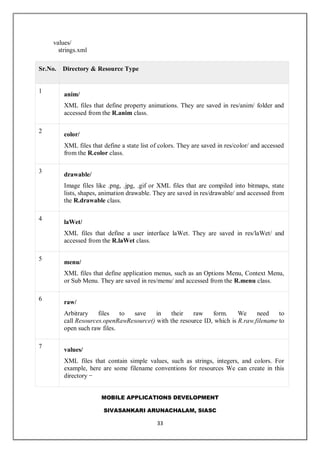
values/
strings.xml
Sr.No. Directory & Resource Type
1
anim/
XML files that define property animations. They are saved in res/anim/ folder and
accessed from the R.anim class.
2
color/
XML files that define a state list of colors. They are saved in res/color/ and accessed
from the R.color class.
3
drawable/
Image files like .png, .jpg, .gif or XML files that are compiled into bitmaps, state
lists, shapes, animation drawable. They are saved in res/drawable/ and accessed from
the R.drawable class.
4
laWet/
XML files that define a user interface laWet. They are saved in res/laWet/ and
accessed from the R.laWet class.
5
menu/
XML files that define application menus, such as an Options Menu, Context Menu,
or Sub Menu. They are saved in res/menu/ and accessed from the R.menu class.
6
raw/
Arbitrary files to save in their raw form. We need to
call Resources.openRawResource() with the resource ID, which is R.raw.filename to
open such raw files.
7
values/
XML files that contain simple values, such as strings, integers, and colors. For
example, here are some filename conventions for resources We can create in this
directory −
34.
MOBILE APPLICATIONS DEVELOPMENT
SIVASANKARIARUNACHALAM, SIASC
34
arrays.xml for resource arrays, and accessed from the R.array class.
integers.xml for resource integers, and accessed from the R.integerclass.
bools.xml for resource boolean, and accessed from the R.bool class.
colors.xml for color values, and accessed from the R.color class.
dimens.xml for dimension values, and accessed from the R.dimen class.
strings.xml for string values, and accessed from the R.string class.
styles.xml for styles, and accessed from the R.style class.
8
xml/
Arbitrary XML files that can be read at runtime by calling Resources.getXML(). We
can save various configuration files here which will be used at run time.
ALTERNATIVE RESOURCES
We application should provide alternative resources to support specific device
configurations. For example, We should include alternative drawable resources ( i.e.images )
for different screen resolution and alternative string resources for different languages. At
runtime, Android detects the current device configuration and loads the appropriate
resources for We application.
To specify configuration-specific alternatives for a set of resources, follow the following
steps −
Create a new directory in res/ named in the form <resources_name>-
<config_qualifier>. Here resources_name will be any of the resources mentioned
in the above table, like laWet, drawable etc. The qualifier will specify an individual
configuration for which these resources are to be used. We can check official
documentation for a complete list of qualifiers for different type of resources.
Save the respective alternative resources in this new directory. The resource files
must be named exactly the same as the default resource files as shown in the below
example, but these files will have content specific to the alternative. For example
though image file name will be same but for high resolution screen, its resolution
will be high.
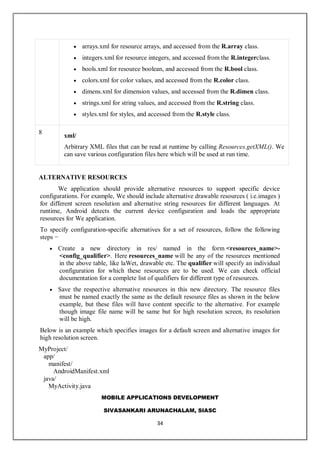
Below is an example which specifies images for a default screen and alternative images for
high resolution screen.
MyProject/
app/
manifest/
AndroidManifest.xml
java/
MyActivity.java
35.
MOBILE APPLICATIONS DEVELOPMENT
SIVASANKARIARUNACHALAM, SIASC
35
res/
drawable/
icon.png
background.png
drawable-hdpi/
icon.png
background.png
laWet/
activity_main.xml
info.xml
values/
strings.xml
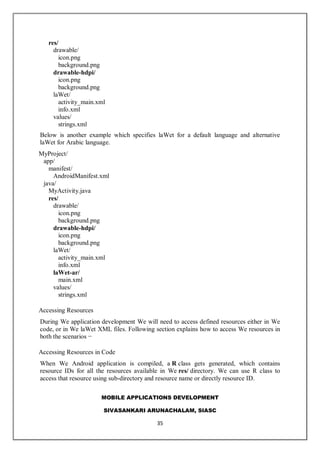
Below is another example which specifies laWet for a default language and alternative
laWet for Arabic language.
MyProject/
app/
manifest/
AndroidManifest.xml
java/
MyActivity.java
res/
drawable/
icon.png
background.png
drawable-hdpi/
icon.png
background.png
laWet/
activity_main.xml
info.xml
laWet-ar/
main.xml
values/
strings.xml
Accessing Resources
During We application development We will need to access defined resources either in We
code, or in We laWet XML files. Following section explains how to access We resources in
both the scenarios −
Accessing Resources in Code
When We Android application is compiled, a R class gets generated, which contains
resource IDs for all the resources available in We res/ directory. We can use R class to
access that resource using sub-directory and resource name or directly resource ID.
36.
MOBILE APPLICATIONS DEVELOPMENT
SIVASANKARIARUNACHALAM, SIASC
36
Example
To access res/drawable/myimage.png and set an ImageView We will use following code −
ImageView imageView = (ImageView) findViewById(R.id.myimageview);
imageView.setImageResource(R.drawable.myimage);
Here first line of the code make use of R.id.myimageview to get ImageView defined with
id myimageview in a LaWet file. Second line of code makes use of R.drawable.myimage to
get an image with name myimage available in drawable sub-directory under /res.
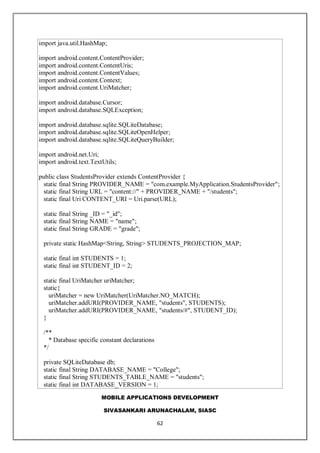
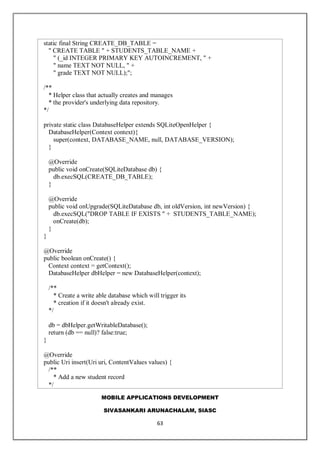
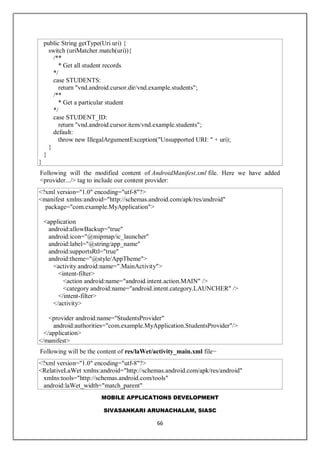
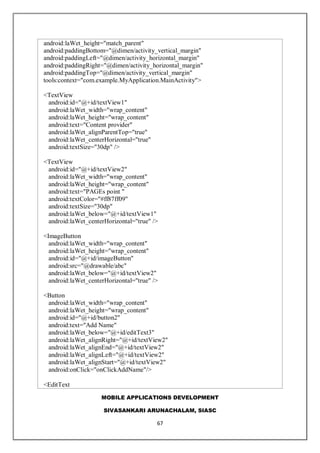
Example
Consider next example where res/values/strings.xml has following definition −
<?xml version="1.0" encoding="utf-8"?>
<resources>
<string name="hello">Hello, World!</string>
</resources>
Now We can set the text on a TextView object with ID msg using a resource ID as follows −
TextView msgTextView = (TextView) findViewById(R.id.msg);
msgTextView.setText(R.string.hello);
Example
Consider a laWet res/laWet/activity_main.xml with the following definition −
<?xml version="1.0" encoding="utf-8"?>
<LinearLaWet xmlns:android="http://schemas.android.com/apk/res/android"
android:laWet_width="fill_parent"
android:laWet_height="fill_parent"
android:orientation="vertical" >
<TextView android:id="@+id/text"
android:laWet_width="wrap_content"
android:laWet_height="wrap_content"
android:text="Hello, I am a TextView" />
<Button android:id="@+id/button"
android:laWet_width="wrap_content"
android:laWet_height="wrap_content"
android:text="Hello, I am a Button" />
</LinearLaWet>
This application code will load this laWet for an Activity, in the onCreate() method as
follows −
37.
MOBILE APPLICATIONS DEVELOPMENT
SIVASANKARIARUNACHALAM, SIASC
37
public void onCreate(Bundle savedInstanceState) {
super.onCreate(savedInstanceState);
setContentView(R.laWet.activity_main);
}
Accessing Resources in XML
Consider the following resource XML res/values/strings.xml file that includes a color
resource and a string resource −
<?xml version="1.0" encoding="utf-8"?>
<resources>
<color name="opaque_red">#f00</color>
<string name="hello">Hello!</string>
</resources>
Now We can use these resources in the following laWet file to set the text color and text
string as follows −
<?xml version="1.0" encoding="utf-8"?>
<EditText xmlns:android="http://schemas.android.com/apk/res/android"
android:laWet_width="fill_parent"
android:laWet_height="fill_parent"
android:textColor="@color/opaque_red"
android:text="@string/hello" />
Now if We will go through previous chapter once again where I have explained Hello
World!example, and I'm sure We will have better understanding on all the concepts
explained in this chapter. So I highly recommend to check previous chapter for working
example and check how I have used various resources at very basic level.
ACTIVITIES
An activity represents a single screen with a user interface just like window or frame of
Java.Android activity is the subclass of ContextThemeWrapper class.
If We have worked with C, C++ or Java programming language then We must have
seen that We program starts from main() function. Very similar way, Android system
initiates its program with in an Activity starting with a call on onCreate() callback method.
There is a sequence of callback methods that start up an activity and a sequence of callback
methods that tear down an activity as shown in the below Activity life cycle diagram:
38.
MOBILE APPLICATIONS DEVELOPMENT
SIVASANKARIARUNACHALAM, SIASC
38
(image courtesy : android.com )
The Activity class defines the following call backs i.e. events. We don't need to
implement all the callbacks methods. However, it's important that We understand each one
and implement those that ensure We app behaves the way users expect.
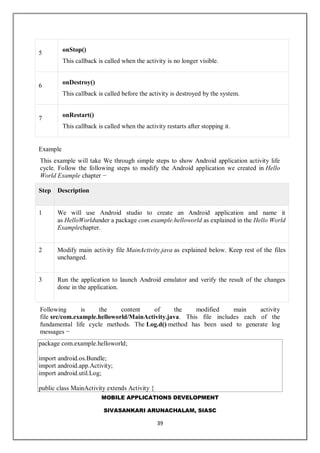
Sr.No Callback & Description
1 onCreate()
This is the first callback and called when the activity is first created.
2
onStart()
This callback is called when the activity becomes visible to the user.
3
onResume()
This is called when the user starts interacting with the application.
4
onPause()
The paused activity does not receive user input and cannot execute any code and
called when the current activity is being paused and the previous activity is being
resumed.
39.
MOBILE APPLICATIONS DEVELOPMENT
SIVASANKARIARUNACHALAM, SIASC
39
5
onStop()
This callback is called when the activity is no longer visible.
6
onDestroy()
This callback is called before the activity is destroyed by the system.
7
onRestart()
This callback is called when the activity restarts after stopping it.
Example
This example will take We through simple steps to show Android application activity life
cycle. Follow the following steps to modify the Android application we created in Hello
World Example chapter −
Step Description
1 We will use Android studio to create an Android application and name it
as HelloWorldunder a package com.example.helloworld as explained in the Hello World
Examplechapter.
2 Modify main activity file MainActivity.java as explained below. Keep rest of the files
unchanged.
3 Run the application to launch Android emulator and verify the result of the changes
done in the application.
Following is the content of the modified main activity
file src/com.example.helloworld/MainActivity.java. This file includes each of the
fundamental life cycle methods. The Log.d() method has been used to generate log
messages −
package com.example.helloworld;
import android.os.Bundle;
import android.app.Activity;
import android.util.Log;
public class MainActivity extends Activity {
40.
MOBILE APPLICATIONS DEVELOPMENT
SIVASANKARIARUNACHALAM, SIASC
40
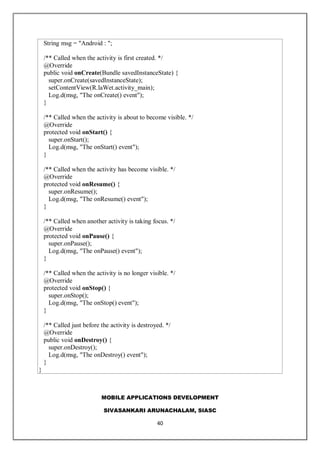
String msg = "Android : ";
/** Called when the activity is first created. */
@Override
public void onCreate(Bundle savedInstanceState) {
super.onCreate(savedInstanceState);
setContentView(R.laWet.activity_main);
Log.d(msg, "The onCreate() event");
}
/** Called when the activity is about to become visible. */
@Override
protected void onStart() {
super.onStart();
Log.d(msg, "The onStart() event");
}
/** Called when the activity has become visible. */
@Override
protected void onResume() {
super.onResume();
Log.d(msg, "The onResume() event");
}
/** Called when another activity is taking focus. */
@Override
protected void onPause() {
super.onPause();
Log.d(msg, "The onPause() event");
}
/** Called when the activity is no longer visible. */
@Override
protected void onStop() {
super.onStop();
Log.d(msg, "The onStop() event");
}
/** Called just before the activity is destroyed. */
@Override
public void onDestroy() {
super.onDestroy();
Log.d(msg, "The onDestroy() event");
}
}
41.
MOBILE APPLICATIONS DEVELOPMENT
SIVASANKARIARUNACHALAM, SIASC
41
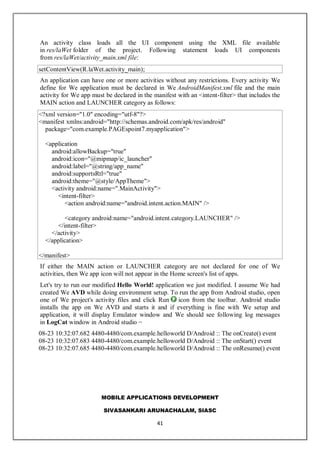
An activity class loads all the UI component using the XML file available
in res/laWet folder of the project. Following statement loads UI components
from res/laWet/activity_main.xml file:
setContentView(R.laWet.activity_main);
An application can have one or more activities without any restrictions. Every activity We
define for We application must be declared in We AndroidManifest.xml file and the main
activity for We app must be declared in the manifest with an <intent-filter> that includes the
MAIN action and LAUNCHER category as follows:
<?xml version="1.0" encoding="utf-8"?>
<manifest xmlns:android="http://schemas.android.com/apk/res/android"
package="com.example.PAGEspoint7.myapplication">
<application
android:allowBackup="true"
android:icon="@mipmap/ic_launcher"
android:label="@string/app_name"
android:supportsRtl="true"
android:theme="@style/AppTheme">
<activity android:name=".MainActivity">
<intent-filter>
<action android:name="android.intent.action.MAIN" />
<category android:name="android.intent.category.LAUNCHER" />
</intent-filter>
</activity>
</application>
</manifest>
If either the MAIN action or LAUNCHER category are not declared for one of We
activities, then We app icon will not appear in the Home screen's list of apps.
Let's try to run our modified Hello World! application we just modified. I assume We had
created We AVD while doing environment setup. To run the app from Android studio, open
one of We project's activity files and click Run icon from the toolbar. Android studio
installs the app on We AVD and starts it and if everything is fine with We setup and
application, it will display Emulator window and We should see following log messages
in LogCat window in Android studio −
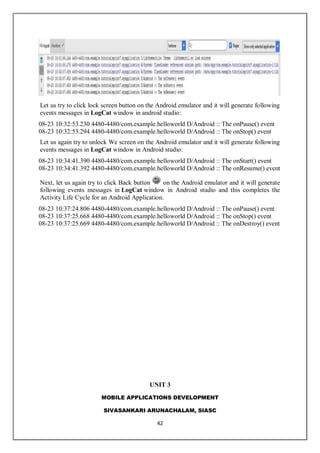
08-23 10:32:07.682 4480-4480/com.example.helloworld D/Android :: The onCreate() event
08-23 10:32:07.683 4480-4480/com.example.helloworld D/Android :: The onStart() event
08-23 10:32:07.685 4480-4480/com.example.helloworld D/Android :: The onResume() event
42.
MOBILE APPLICATIONS DEVELOPMENT
SIVASANKARIARUNACHALAM, SIASC
42
Let us try to click lock screen button on the Android emulator and it will generate following
events messages in LogCat window in android studio:
08-23 10:32:53.230 4480-4480/com.example.helloworld D/Android :: The onPause() event
08-23 10:32:53.294 4480-4480/com.example.helloworld D/Android :: The onStop() event
Let us again try to unlock We screen on the Android emulator and it will generate following
events messages in LogCat window in Android studio:
08-23 10:34:41.390 4480-4480/com.example.helloworld D/Android :: The onStart() event
08-23 10:34:41.392 4480-4480/com.example.helloworld D/Android :: The onResume() event
Next, let us again try to click Back button on the Android emulator and it will generate
following events messages in LogCat window in Android studio and this completes the
Activity Life Cycle for an Android Application.
08-23 10:37:24.806 4480-4480/com.example.helloworld D/Android :: The onPause() event
08-23 10:37:25.668 4480-4480/com.example.helloworld D/Android :: The onStop() event
08-23 10:37:25.669 4480-4480/com.example.helloworld D/Android :: The onDestroy() event
UNIT 3
43.
MOBILE APPLICATIONS DEVELOPMENT
SIVASANKARIARUNACHALAM, SIASC
43
ANDROID SERVICES
A service is a component that runs in the background to perform long-running operations
without needing to interact with the user and it works even if application is destroyed. A
service can essentially take two states −
Sr.No. State & Description
1
Started
A service is started when an application component, such as an activity, starts it by
calling startService(). Once started, a service can run in the background indefinitely,
even if the component that started it is destroyed.
2
Bound
A service is bound when an application component binds to it by
calling bindService(). A bound service offers a client-server interface that allows
components to interact with the service, send requests, get results, and even do so
across processes with interprocess communication (IPC).
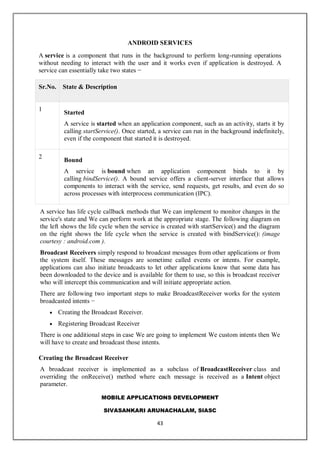
A service has life cycle callback methods that We can implement to monitor changes in the
service's state and We can perform work at the appropriate stage. The following diagram on
the left shows the life cycle when the service is created with startService() and the diagram
on the right shows the life cycle when the service is created with bindService(): (image
courtesy : android.com ).
Broadcast Receivers simply respond to broadcast messages from other applications or from
the system itself. These messages are sometime called events or intents. For example,
applications can also initiate broadcasts to let other applications know that some data has
been downloaded to the device and is available for them to use, so this is broadcast receiver
who will intercept this communication and will initiate appropriate action.
There are following two important steps to make BroadcastReceiver works for the system
broadcasted intents −
Creating the Broadcast Receiver.
Registering Broadcast Receiver
There is one additional steps in case We are going to implement We custom intents then We
will have to create and broadcast those intents.
Creating the Broadcast Receiver
A broadcast receiver is implemented as a subclass of BroadcastReceiver class and
overriding the onReceive() method where each message is received as a Intent object
parameter.
44.
MOBILE APPLICATIONS DEVELOPMENT
SIVASANKARIARUNACHALAM, SIASC
44
public class MyReceiver extends BroadcastReceiver {
@Override
public void onReceive(Context context, Intent intent) {
Toast.makeText(context, "Intent Detected.", Toast.LENGTH_LONG).show();
}
}
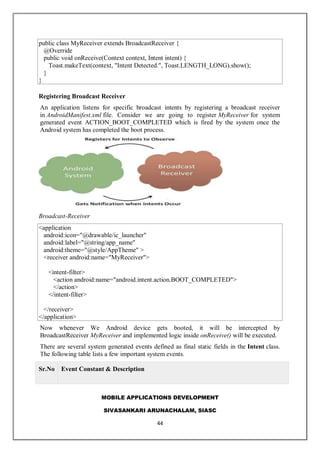
Registering Broadcast Receiver
An application listens for specific broadcast intents by registering a broadcast receiver
in AndroidManifest.xml file. Consider we are going to register MyReceiver for system
generated event ACTION_BOOT_COMPLETED which is fired by the system once the
Android system has completed the boot process.
Broadcast-Receiver
<application
android:icon="@drawable/ic_launcher"
android:label="@string/app_name"
android:theme="@style/AppTheme" >
<receiver android:name="MyReceiver">
<intent-filter>
<action android:name="android.intent.action.BOOT_COMPLETED">
</action>
</intent-filter>
</receiver>
</application>
Now whenever We Android device gets booted, it will be intercepted by
BroadcastReceiver MyReceiver and implemented logic inside onReceive() will be executed.
There are several system generated events defined as final static fields in the Intent class.
The following table lists a few important system events.
Sr.No Event Constant & Description
45.
MOBILE APPLICATIONS DEVELOPMENT
SIVASANKARIARUNACHALAM, SIASC
45
1
android.intent.action.BATTERY_CHANGED
Sticky broadcast containing the charging state, level, and other information about the
battery.
2 android.intent.action.BATTERY_LOW
Indicates low battery condition on the device.
3 android.intent.action.BATTERY_OKAY
Indicates the battery is now okay after being low.
4 android.intent.action.BOOT_COMPLETED
This is broadcast once, after the system has finished booting.
5 android.intent.action.BUG_REPORT
Show activity for reporting a bug.
6
android.intent.action.CALL
Perform a call to someone specified by the data.
7
android.intent.action.CALL_BUTTON
The user pressed the "call" button to go to the dialer or other appropriate UI for
placing a call.
8 android.intent.action.DATE_CHANGED
The date has changed.
9 android.intent.action.REBOOT
Have the device reboot.
Broadcasting Custom Intents
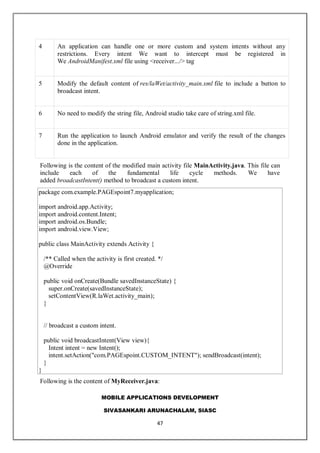
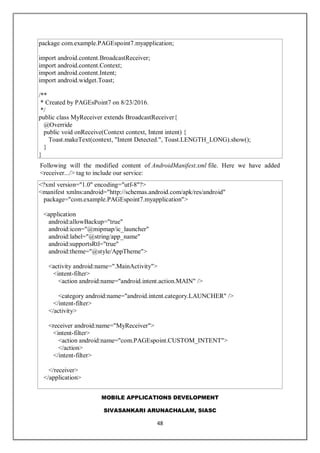
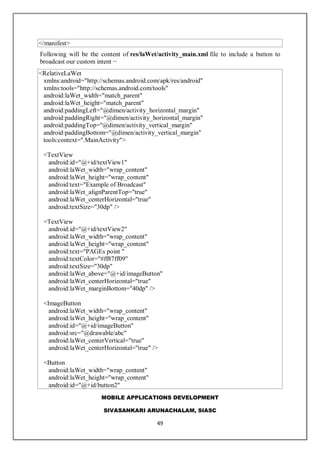
If We want We application itself should generate and send custom intents then We will have
to create and send those intents by using the sendBroadcast() method inside We activity
46.
MOBILE APPLICATIONS DEVELOPMENT
SIVASANKARIARUNACHALAM, SIASC
46
class. If We use the sendStickyBroadcast(Intent) method, the Intent is sticky, meaning
the Intent We are sending stays around after the broadcast is complete.
public void broadcastIntent(View view) {
Intent intent = new Intent();
intent.setAction("com.PAGEspoint.CUSTOM_INTENT");
sendBroadcast(intent);
}
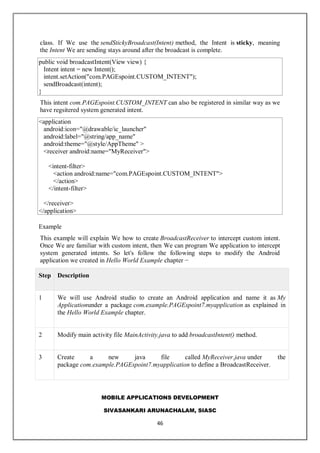
This intent com.PAGEspoint.CUSTOM_INTENT can also be registered in similar way as we
have regsitered system generated intent.
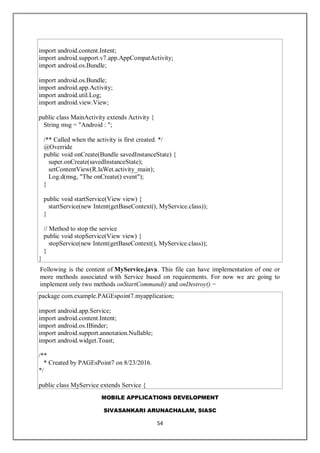
<application
android:icon="@drawable/ic_launcher"
android:label="@string/app_name"
android:theme="@style/AppTheme" >
<receiver android:name="MyReceiver">
<intent-filter>
<action android:name="com.PAGEspoint.CUSTOM_INTENT">
</action>
</intent-filter>
</receiver>
</application>
Example
This example will explain We how to create BroadcastReceiver to intercept custom intent.
Once We are familiar with custom intent, then We can program We application to intercept
system generated intents. So let's follow the following steps to modify the Android
application we created in Hello World Example chapter −
Step Description
1 We will use Android studio to create an Android application and name it as My
Applicationunder a package com.example.PAGEspoint7.myapplication as explained in
the Hello World Example chapter.
2 Modify main activity file MainActivity.java to add broadcastIntent() method.
3 Create a new java file called MyReceiver.java under the
package com.example.PAGEspoint7.myapplication to define a BroadcastReceiver.
47.
MOBILE APPLICATIONS DEVELOPMENT
SIVASANKARIARUNACHALAM, SIASC
47
4 An application can handle one or more custom and system intents without any
restrictions. Every intent We want to intercept must be registered in
We AndroidManifest.xml file using <receiver.../> tag
5 Modify the default content of res/laWet/activity_main.xml file to include a button to
broadcast intent.
6 No need to modify the string file, Android studio take care of string.xml file.
7 Run the application to launch Android emulator and verify the result of the changes
done in the application.
Following is the content of the modified main activity file MainActivity.java. This file can
include each of the fundamental life cycle methods. We have
added broadcastIntent() method to broadcast a custom intent.
package com.example.PAGEspoint7.myapplication;
import android.app.Activity;
import android.content.Intent;
import android.os.Bundle;
import android.view.View;
public class MainActivity extends Activity {
/** Called when the activity is first created. */
@Override
public void onCreate(Bundle savedInstanceState) {
super.onCreate(savedInstanceState);
setContentView(R.laWet.activity_main);
}
// broadcast a custom intent.
public void broadcastIntent(View view){
Intent intent = new Intent();
intent.setAction("com.PAGEspoint.CUSTOM_INTENT"); sendBroadcast(intent);
}
}
Following is the content of MyReceiver.java:
48.
MOBILE APPLICATIONS DEVELOPMENT
SIVASANKARIARUNACHALAM, SIASC
48
package com.example.PAGEspoint7.myapplication;
import android.content.BroadcastReceiver;
import android.content.Context;
import android.content.Intent;
import android.widget.Toast;
/**
* Created by PAGEsPoint7 on 8/23/2016.
*/
public class MyReceiver extends BroadcastReceiver{
@Override
public void onReceive(Context context, Intent intent) {
Toast.makeText(context, "Intent Detected.", Toast.LENGTH_LONG).show();
}
}
Following will the modified content of AndroidManifest.xml file. Here we have added
<receiver.../> tag to include our service:
<?xml version="1.0" encoding="utf-8"?>
<manifest xmlns:android="http://schemas.android.com/apk/res/android"
package="com.example.PAGEspoint7.myapplication">
<application
android:allowBackup="true"
android:icon="@mipmap/ic_launcher"
android:label="@string/app_name"
android:supportsRtl="true"
android:theme="@style/AppTheme">
<activity android:name=".MainActivity">
<intent-filter>
<action android:name="android.intent.action.MAIN" />
<category android:name="android.intent.category.LAUNCHER" />
</intent-filter>
</activity>
<receiver android:name="MyReceiver">
<intent-filter>
<action android:name="com.PAGEspoint.CUSTOM_INTENT">
</action>
</intent-filter>
</receiver>
</application>
49.
MOBILE APPLICATIONS DEVELOPMENT
SIVASANKARIARUNACHALAM, SIASC
49
</manifest>
Following will be the content of res/laWet/activity_main.xml file to include a button to
broadcast our custom intent −
<RelativeLaWet
xmlns:android="http://schemas.android.com/apk/res/android"
xmlns:tools="http://schemas.android.com/tools"
android:laWet_width="match_parent"
android:laWet_height="match_parent"
android:paddingLeft="@dimen/activity_horizontal_margin"
android:paddingRight="@dimen/activity_horizontal_margin"
android:paddingTop="@dimen/activity_vertical_margin"
android:paddingBottom="@dimen/activity_vertical_margin"
tools:context=".MainActivity">
<TextView
android:id="@+id/textView1"
android:laWet_width="wrap_content"
android:laWet_height="wrap_content"
android:text="Example of Broadcast"
android:laWet_alignParentTop="true"
android:laWet_centerHorizontal="true"
android:textSize="30dp" />
<TextView
android:id="@+id/textView2"
android:laWet_width="wrap_content"
android:laWet_height="wrap_content"
android:text="PAGEs point "
android:textColor="#ff87ff09"
android:textSize="30dp"
android:laWet_above="@+id/imageButton"
android:laWet_centerHorizontal="true"
android:laWet_marginBottom="40dp" />
<ImageButton
android:laWet_width="wrap_content"
android:laWet_height="wrap_content"
android:id="@+id/imageButton"
android:src="@drawable/abc"
android:laWet_centerVertical="true"
android:laWet_centerHorizontal="true" />
<Button
android:laWet_width="wrap_content"
android:laWet_height="wrap_content"
android:id="@+id/button2"
50.
MOBILE APPLICATIONS DEVELOPMENT
SIVASANKARIARUNACHALAM, SIASC
50
android:text="Broadcast Intent"
android:onClick="broadcastIntent"
android:laWet_below="@+id/imageButton"
android:laWet_centerHorizontal="true" />
</RelativeLaWet>
BROADCAST
Let's try to run our modified Hello World! application we just modified. I assume
We had created We AVD while doing environment set-up. To run the app from Android
studio, open one of We project's activity files and click Run icon from the tool bar.
Android Studio installs the app on We AVD and starts it and if everything is fine with We
set-up and application, it will display following Emulator window −
Now to broadcast our custom intent, let's click on Broadcast Intent button, this will
broadcast our custom intent "com.PAGEspoint.CUSTOM_INTENT" which will be
intercepted by our registered BroadcastReceiver i.e. MyReceiver and as per our
implemented logic a toast will appear on the bottom of the the simulator as follows −
We can try implementing other BroadcastReceiver to intercept system generated
intents like system boot up, date changed, low battery etc.
To create an service, We create a Java class that extends the Service base class or one
of its existing subclasses. The Service base class defines various callback methods and the
most important are given below. We don't need to implement all the callbacks methods.
However, it's important that We understand each one and implement those that ensure We
app behaves the way users expect.
51.
MOBILE APPLICATIONS DEVELOPMENT
SIVASANKARIARUNACHALAM, SIASC
51
Sr.No. Callback & Description
1
onStartCommand()
The system calls this method when another component, such as an activity, requests
that the service be started, by calling startService(). If We implement this method, it
is We responsibility to stop the service when its work is done, by
calling stopSelf() or stopService() methods.
2
onBind()
The system calls this method when another component wants to bind with the
service by calling bindService(). If We implement this method, We must provide an
interface that clients use to communicate with the service, by returning
an IBinder object. We must always implement this method, but if We don't want to
allow binding, then We should return null.
3
onUnbind()
The system calls this method when all clients have disconnected from a particular
interface published by the service.
4
onRebind()
The system calls this method when new clients have connected to the service, after it
had previously been notified that all had disconnected in its onUnbind(Intent).
5
onCreate()
The system calls this method when the service is first created
using onStartCommand() or onBind(). This call is required to perform one-time set-
up.
6
onDestroy()
The system calls this method when the service is no longer used and is being
destroyed. We service should implement this to clean up any resources such as
threads, registered listeners, receivers, etc.
The following skeleton service demonstrates each of the life cycle methods −
package com.PAGEspoint;
import android.app.Service;
52.
MOBILE APPLICATIONS DEVELOPMENT
SIVASANKARIARUNACHALAM, SIASC
52
import android.os.IBinder;
import android.content.Intent;
import android.os.Bundle;
public class HelloService extends Service {
/** indicates how to behave if the service is killed */
int mStartMode;
/** interface for clients that bind */
IBinder mBinder;
/** indicates whether onRebind should be used */
boolean mAllowRebind;
/** Called when the service is being created. */
@Override
public void onCreate() {
}
/** The service is starting, due to a call to startService() */
@Override
public int onStartCommand(Intent intent, int flags, int startId) {
return mStartMode;
}
/** A client is binding to the service with bindService() */
@Override
public IBinder onBind(Intent intent) {
return mBinder;
}
/** Called when all clients have unbound with unbindService() */
@Override
public boolean onUnbind(Intent intent) {
return mAllowRebind;
}
/** Called when a client is binding to the service with bindService()*/
@Override
public void onRebind(Intent intent) {
}
/** Called when The service is no longer used and is being destroyed */
@Override
53.
MOBILE APPLICATIONS DEVELOPMENT
SIVASANKARIARUNACHALAM, SIASC
53
public void onDestroy() {
}
}
Example
This example will take We through simple steps to show how to create We own Android
Service. Follow the following steps to modify the Android application we created in Hello
World Example chapter −
Step Description
1 We will use Android StudioIDE to create an Android application and name it as My
Application under a package com.example.PAGEspoint7.myapplication as explained in
the Hello World Example chapter.
2 Modify main activity file MainActivity.java to
add startService() and stopService() methods.
3 Create a new java file MyService.java under the package com.example.My Application.
This file will have implementation of Android service related methods.
4 Define We service in AndroidManifest.xml file using <service.../> tag. An application
can have one or more services without any restrictions.
5 Modify the default content of res/laWet/activity_main.xml file to include two buttons in
linear laWet.
6 No need to change any constants in res/values/strings.xml file. Android studio take care
of string values
7 Run the application to launch Android emulator and verify the result of the changes
done in the application.
Following is the content of the modified main activity file MainActivity.java. This file can
include each of the fundamental life cycle methods. We have
added startService() and stopService() methods to start and stop the service.
package com.example.PAGEspoint7.myapplication;
54.
MOBILE APPLICATIONS DEVELOPMENT
SIVASANKARIARUNACHALAM, SIASC
54
import android.content.Intent;
import android.support.v7.app.AppCompatActivity;
import android.os.Bundle;
import android.app.Activity;
import android.util.Log;
import android.view.View;
public class MainActivity extends Activity {
String msg = "Android : ";
/** Called when the activity is first created. */
@Override
public void onCreate(Bundle savedInstanceState) {
super.onCreate(savedInstanceState);
setContentView(R.laWet.activity_main);
Log.d(msg, "The onCreate() event");
}
public void startService(View view) {
startService(new Intent(getBaseContext(), MyService.class));
}
// Method to stop the service
public void stopService(View view) {
stopService(new Intent(getBaseContext(), MyService.class));
}
}
Following is the content of MyService.java. This file can have implementation of one or
more methods associated with Service based on requirements. For now we are going to
implement only two methods onStartCommand() and onDestroy() −
package com.example.PAGEspoint7.myapplication;
import android.app.Service;
import android.content.Intent;
import android.os.IBinder;
import android.support.annotation.Nullable;
import android.widget.Toast;
/**
* Created by PAGEsPoint7 on 8/23/2016.
*/
public class MyService extends Service {
55.
MOBILE APPLICATIONS DEVELOPMENT
SIVASANKARIARUNACHALAM, SIASC
55
@Nullable
@Override
public IBinder onBind(Intent intent) {
return null;
}
@Override
public int onStartCommand(Intent intent, int flags, int startId) {
// Let it continue running until it is stopped.
Toast.makeText(this, "Service Started", Toast.LENGTH_LONG).show();
return START_STICKY;
}
@Override
public void onDestroy() {
super.onDestroy();
Toast.makeText(this, "Service Destroyed", Toast.LENGTH_LONG).show();
}
}
Following will the modified content of AndroidManifest.xml file. Here we have added
<service.../> tag to include our service −
<?xml version="1.0" encoding="utf-8"?>
<manifest xmlns:android="http://schemas.android.com/apk/res/android"
package="com.example.PAGEspoint7.myapplication">
<application
android:allowBackup="true"
android:icon="@mipmap/ic_launcher"
android:label="@string/app_name"
android:supportsRtl="true"
android:theme="@style/AppTheme">
<activity android:name=".MainActivity">
<intent-filter>
<action android:name="android.intent.action.MAIN" />
<category android:name="android.intent.category.LAUNCHER" />
</intent-filter>
</activity>
<service android:name=".MyService" />
</application>
</manifest>
Following will be the content of res/laWet/activity_main.xml file to include two buttons −
MOBILE APPLICATIONS DEVELOPMENT
SIVASANKARIARUNACHALAM, SIASC
57
android:laWet_width="wrap_content"
android:laWet_height="wrap_content"
android:text="Stop Services"
android:id="@+id/button"
android:onClick="stopService"
android:laWet_below="@+id/button2"
android:laWet_alignLeft="@+id/button2"
android:laWet_alignStart="@+id/button2"
android:laWet_alignRight="@+id/button2"
android:laWet_alignEnd="@+id/button2" />
</RelativeLaWet>
Let's try to run our modified Hello World! application we just modified. I assume We had
created We AVD while doing environment setup. To run the app from Android studio, open
one of We project's activity files and click Run icon from the tool bar. Android Studio
installs the app on We AVD and starts it and if everything is fine with We set-up and
application, it will display following Emulator window –
CONTENT PROVIDER
A content provider component supplies data from one application to others on
request. Such requests are handled by the methods of the ContentResolver class. A content
provider can use different ways to store its data and the data can be stored in a database, in
files, or even over a network.
ContentProvider
sometimes it is required to share data across applications. This is where content
providers become very useful.
Content providers let We centralize content in one place and have many different
applications access it as needed. A content provider behaves very much like a database
where We can query it, edit its content, as well as add or delete content using insert(),
update(), delete(), and query() methods. In most cases this data is stored in
an SQlite database.
A content provider is implemented as a subclass of ContentProvider class and must
implement a standard set of APIs that enable other applications to perform transactions.
58.
MOBILE APPLICATIONS DEVELOPMENT
SIVASANKARIARUNACHALAM, SIASC
58
public class My Application extends ContentProvider {
}
Content URIs
To query a content provider, We specify the query string in the form of a URI which has
following format −
<prefix>://<authority>/<data_type>/<id>
Here is the detail of various parts of the URI −
Sr.No Part & Description
1 prefix
This is always set to content://
2
authority
This specifies the name of the content provider, for example contacts, browser etc.
For third-party content providers, this could be the fully qualified name, such
as com.PAGEspoint.statusprovider
3
data_type
This indicates the type of data that this particular provider provides. For example, if
We are getting all the contacts from the Contacts content provider, then the data path
would be people and URI would look like thiscontent://contacts/people
4
id
This specifies the specific record requested. For example, if We are looking for
contact number 5 in the Contacts content provider then URI would look like
this content://contacts/people/5.
Create Content Provider
This involves number of simple steps to create We own content provider.
First of all We need to create a Content Provider class that extends
the ContentProviderbaseclass.
Second, We need to define We content provider URI address which will be used to
access the content.
59.
MOBILE APPLICATIONS DEVELOPMENT
SIVASANKARIARUNACHALAM, SIASC
59
Next We will need to create We own database to keep the content. Usually, Android
uses SQLite database and framework needs to override onCreate() method which
will use SQLite Open Helper method to create or open the provider's database. When
We application is launched, the onCreate() handler of each of its Content Providers
is called on the main application thread.
Next We will have to implement Content Provider queries to perform different
database specific operations.
Finally register We Content Provider in We activity file using <provider> tag.
Here is the list of methods which We need to override in Content Provider class to have We
Content Provider working −
ContentProvider
onCreate() This method is called when the provider is started.
query() This method receives a request from a client. The result is returned as a
Cursor object.
insert()This method inserts a new record into the content provider.
delete() This method deletes an existing record from the content provider.
update() This method updates an existing record from the content provider.
getType() This method returns the MIME type of the data at the given URI.
Example
This example will explain We how to create We own ContentProvider. So let's follow the
following steps to similar to what we followed while creating Hello World Example−
Step Description
1 We will use Android StudioIDE to create an Android application and name it as My
60.
MOBILE APPLICATIONS DEVELOPMENT
SIVASANKARIARUNACHALAM, SIASC
60
Application under a package com.example.MyApplication, with blank Activity.
2 Modify main activity file MainActivity.java to add two new
methods onClickAddName() and onClickRetrieveStudents().
3 Create a new java file called StudentsProvider.java under the
package com.example.MyApplication to define We actual provider and associated
methods.
4 Register We content provider in We AndroidManifest.xml file using <provider.../> tag
5 Modify the default content of res/laWet/activity_main.xml file to include a small GUI to
add students records.
6 No need to change string.xml.Android studio take care of string.xml file.
7 Run the application to launch Android emulator and verify the result of the changes
done in the application.
Following is the content of the modified main activity
file src/com.example.MyApplication/MainActivity.java. This file can include each of the
fundamental life cycle methods. We have added two new
methods onClickAddName() and onClickRetrieveStudents() to handle user interaction with
the application.
package com.example.MyApplication;
import android.net.Uri;
import android.os.Bundle;
import android.app.Activity;
import android.content.ContentValues;
import android.content.CursorLoader;
import android.database.Cursor;
import android.view.Menu;
import android.view.View;
import android.widget.EditText;
61.
MOBILE APPLICATIONS DEVELOPMENT
SIVASANKARIARUNACHALAM, SIASC
61
import android.widget.Toast;
public class MainActivity extends Activity {
@Override
protected void onCreate(Bundle savedInstanceState) {
super.onCreate(savedInstanceState);
setContentView(R.laWet.activity_main);
}
public void onClickAddName(View view) {
// Add a new student record
ContentValues values = new ContentValues();
values.put(StudentsProvider.NAME,
((EditText)findViewById(R.id.editText2)).getText().toString());
values.put(StudentsProvider.GRADE,
((EditText)findViewById(R.id.editText3)).getText().toString());
Uri uri = getContentResolver().insert(
StudentsProvider.CONTENT_URI, values);
Toast.makeText(getBaseContext(),
uri.toString(), Toast.LENGTH_LONG).show();
}
public void onClickRetrieveStudents(View view) {
// Retrieve student records
String URL = "content://com.example.MyApplication.StudentsProvider";
Uri students = Uri.parse(URL);
Cursor c = managedQuery(students, null, null, null, "name");
if (c.moveToFirst()) {
do{
Toast.makeText(this,
c.getString(c.getColumnIndex(StudentsProvider._ID)) +
", " + c.getString(c.getColumnIndex( StudentsProvider.NAME)) +
", " + c.getString(c.getColumnIndex( StudentsProvider.GRADE)),
Toast.LENGTH_SHORT).show();
} while (c.moveToNext());
}
}
}
Create new file StudentsProvider.java under com.example.MyApplication package and
following is the content of src/com.example.MyApplication/StudentsProvider.java −
package com.example.MyApplication;
62.
MOBILE APPLICATIONS DEVELOPMENT
SIVASANKARIARUNACHALAM, SIASC
62
import java.util.HashMap;
import android.content.ContentProvider;
import android.content.ContentUris;
import android.content.ContentValues;
import android.content.Context;
import android.content.UriMatcher;
import android.database.Cursor;
import android.database.SQLException;
import android.database.sqlite.SQLiteDatabase;
import android.database.sqlite.SQLiteOpenHelper;
import android.database.sqlite.SQLiteQueryBuilder;
import android.net.Uri;
import android.text.TextUtils;
public class StudentsProvider extends ContentProvider {
static final String PROVIDER_NAME = "com.example.MyApplication.StudentsProvider";
static final String URL = "content://" + PROVIDER_NAME + "/students";
static final Uri CONTENT_URI = Uri.parse(URL);
static final String _ID = "_id";
static final String NAME = "name";
static final String GRADE = "grade";
private static HashMap<String, String> STUDENTS_PROJECTION_MAP;
static final int STUDENTS = 1;
static final int STUDENT_ID = 2;
static final UriMatcher uriMatcher;
static{
uriMatcher = new UriMatcher(UriMatcher.NO_MATCH);
uriMatcher.addURI(PROVIDER_NAME, "students", STUDENTS);
uriMatcher.addURI(PROVIDER_NAME, "students/#", STUDENT_ID);
}
/**
* Database specific constant declarations
*/
private SQLiteDatabase db;
static final String DATABASE_NAME = "College";
static final String STUDENTS_TABLE_NAME = "students";
static final int DATABASE_VERSION = 1;
63.
MOBILE APPLICATIONS DEVELOPMENT
SIVASANKARIARUNACHALAM, SIASC
63
static final String CREATE_DB_TABLE =
" CREATE TABLE " + STUDENTS_TABLE_NAME +
" (_id INTEGER PRIMARY KEY AUTOINCREMENT, " +
" name TEXT NOT NULL, " +
" grade TEXT NOT NULL);";
/**
* Helper class that actually creates and manages
* the provider's underlying data repository.
*/
private static class DatabaseHelper extends SQLiteOpenHelper {
DatabaseHelper(Context context){
super(context, DATABASE_NAME, null, DATABASE_VERSION);
}
@Override
public void onCreate(SQLiteDatabase db) {
db.execSQL(CREATE_DB_TABLE);
}
@Override
public void onUpgrade(SQLiteDatabase db, int oldVersion, int newVersion) {
db.execSQL("DROP TABLE IF EXISTS " + STUDENTS_TABLE_NAME);
onCreate(db);
}
}
@Override
public boolean onCreate() {
Context context = getContext();
DatabaseHelper dbHelper = new DatabaseHelper(context);
/**
* Create a write able database which will trigger its
* creation if it doesn't already exist.
*/
db = dbHelper.getWritableDatabase();
return (db == null)? false:true;
}
@Override
public Uri insert(Uri uri, ContentValues values) {
/**
* Add a new student record
*/
64.
MOBILE APPLICATIONS DEVELOPMENT
SIVASANKARIARUNACHALAM, SIASC
64
long rowID = db.insert( STUDENTS_TABLE_NAME, "", values);
/**
* If record is added successfully
*/
if (rowID > 0) {
Uri _uri = ContentUris.withAppendedId(CONTENT_URI, rowID);
getContext().getContentResolver().notifyChange(_uri, null);
return _uri;
}
throw new SQLException("Failed to add a record into " + uri);
}
@Override
public Cursor query(Uri uri, String[] projection,
String selection,String[] selectionArgs, String sortOrder) {
SQLiteQueryBuilder qb = new SQLiteQueryBuilder();
qb.setTables(STUDENTS_TABLE_NAME);
switch (uriMatcher.match(uri)) {
case STUDENTS:
qb.setProjectionMap(STUDENTS_PROJECTION_MAP);
break;
case STUDENT_ID:
qb.appendWhere( _ID + "=" + uri.getPathSegments().get(1));
break;
default:
}
if (sortOrder == null || sortOrder == ""){
/**
* By default sort on student names
*/
sortOrder = NAME;
}
Cursor c = qb.query(db, projection, selection,
selectionArgs,null, null, sortOrder);
/**
* register to watch a content URI for changes
*/
c.setNotificationUri(getContext().getContentResolver(), uri);
return c;
}
65.
MOBILE APPLICATIONS DEVELOPMENT
SIVASANKARIARUNACHALAM, SIASC
65
@Override
public int delete(Uri uri, String selection, String[] selectionArgs) {
int count = 0;
switch (uriMatcher.match(uri)){
case STUDENTS:
count = db.delete(STUDENTS_TABLE_NAME, selection, selectionArgs);
break;
case STUDENT_ID:
String id = uri.getPathSegments().get(1);
count = db.delete( STUDENTS_TABLE_NAME, _ID + " = " + id +
(!TextUtils.isEmpty(selection) ? "
AND (" + selection + ')' : ""), selectionArgs);
break;
default:
throw new IllegalArgumentException("Unknown URI " + uri);
}
getContext().getContentResolver().notifyChange(uri, null);
return count;
}
@Override
public int update(Uri uri, ContentValues values,
String selection, String[] selectionArgs) {
int count = 0;
switch (uriMatcher.match(uri)) {
case STUDENTS:
count = db.update(STUDENTS_TABLE_NAME, values, selection, selectionArgs);
break;
case STUDENT_ID:
count = db.update(STUDENTS_TABLE_NAME, values,
_ID + " = " + uri.getPathSegments().get(1) +
(!TextUtils.isEmpty(selection) ? "
AND (" +selection + ')' : ""), selectionArgs);
break;
default:
throw new IllegalArgumentException("Unknown URI " + uri );
}
getContext().getContentResolver().notifyChange(uri, null);
return count;
}
@Override
66.
MOBILE APPLICATIONS DEVELOPMENT
SIVASANKARIARUNACHALAM, SIASC
66
public String getType(Uri uri) {
switch (uriMatcher.match(uri)){
/**
* Get all student records
*/
case STUDENTS:
return "vnd.android.cursor.dir/vnd.example.students";
/**
* Get a particular student
*/
case STUDENT_ID:
return "vnd.android.cursor.item/vnd.example.students";
default:
throw new IllegalArgumentException("Unsupported URI: " + uri);
}
}
}
Following will the modified content of AndroidManifest.xml file. Here we have added
<provider.../> tag to include our content provider:
<?xml version="1.0" encoding="utf-8"?>
<manifest xmlns:android="http://schemas.android.com/apk/res/android"
package="com.example.MyApplication">
<application
android:allowBackup="true"
android:icon="@mipmap/ic_launcher"
android:label="@string/app_name"
android:supportsRtl="true"
android:theme="@style/AppTheme">
<activity android:name=".MainActivity">
<intent-filter>
<action android:name="android.intent.action.MAIN" />
<category android:name="android.intent.category.LAUNCHER" />
</intent-filter>
</activity>
<provider android:name="StudentsProvider"
android:authorities="com.example.MyApplication.StudentsProvider"/>
</application>
</manifest>
Following will be the content of res/laWet/activity_main.xml file−
<?xml version="1.0" encoding="utf-8"?>
<RelativeLaWet xmlns:android="http://schemas.android.com/apk/res/android"
xmlns:tools="http://schemas.android.com/tools"
android:laWet_width="match_parent"
MOBILE APPLICATIONS DEVELOPMENT
SIVASANKARIARUNACHALAM, SIASC
68
android:laWet_width="wrap_content"
android:laWet_height="wrap_content"
android:id="@+id/editText"
android:laWet_below="@+id/imageButton"
android:laWet_alignRight="@+id/imageButton"
android:laWet_alignEnd="@+id/imageButton" />
<EditText
android:laWet_width="wrap_content"
android:laWet_height="wrap_content"
android:id="@+id/editText2"
android:laWet_alignTop="@+id/editText"
android:laWet_alignLeft="@+id/textView1"
android:laWet_alignStart="@+id/textView1"
android:laWet_alignRight="@+id/textView1"
android:laWet_alignEnd="@+id/textView1"
android:hint="Name"
android:textColorHint="@android:color/holo_blue_light" />
<EditText
android:laWet_width="wrap_content"
android:laWet_height="wrap_content"
android:id="@+id/editText3"
android:laWet_below="@+id/editText"
android:laWet_alignLeft="@+id/editText2"
android:laWet_alignStart="@+id/editText2"
android:laWet_alignRight="@+id/editText2"
android:laWet_alignEnd="@+id/editText2"
android:hint="Grade"
android:textColorHint="@android:color/holo_blue_bright" />
<Button
android:laWet_width="wrap_content"
android:laWet_height="wrap_content"
android:text="Retrive student"
android:id="@+id/button"
android:laWet_below="@+id/button2"
android:laWet_alignRight="@+id/editText3"
android:laWet_alignEnd="@+id/editText3"
android:laWet_alignLeft="@+id/button2"
android:laWet_alignStart="@+id/button2"
android:onClick="onClickRetrieveStudents"/>
</RelativeLaWet>
Make sure We have following content of res/values/strings.xml file:
<?xml version="1.0" encoding="utf-8"?>
<resources>
69.
MOBILE APPLICATIONS DEVELOPMENT
SIVASANKARIARUNACHALAM, SIASC
69
<string name="app_name">My Application</string>
</resources>;
Let's try to run our modified My Application application we just created. I assume
We had created We AVD while doing environment set-up. To run the app from Android
Studio IDE, open one of We project's activity files and click Run icon from the tool bar.
Android Studio installs the app on We AVD and starts it and if everything is fine with We
set-up and application, it will display following Emulator window, be patience because it
may take sometime based on We computer speed −
Now let's enter student Name and Grade and finally click on Add Name button, this
will add student record in the database and will flash a message at the bottom showing
ContentProvider URI along with record number added in the database. This operation makes
use of our insert() method. Let's repeat this process to add few more students in the database
of our content provider.
Once We are done with adding records in the database, now its time to ask
ContentProvider to give us those records back, so let's click Retrieve Students button which
will fetch and display all the records one by one which is as per our the implementation of
our query()method.
70.
MOBILE APPLICATIONS DEVELOPMENT
SIVASANKARIARUNACHALAM, SIASC
70
We can write activities against update and delete operations by providing callback
functions in MainActivity.java file and then modify user interface to have buttons for
update and deleted operations in the same way as we have done for add and read operations.
This way We can use existing Content Provider like Address Book or We can use
Content Provider concept in developing nice database oriented applications where We can
perform all sort of database operations like read, write, update and delete as explained above
in the example.
FRAGMENTS
A Fragment is a piece of an activity which enable more modular activity design. It will not
be wrong if we say, a fragment is a kind of sub-activity.
Following are important points about fragment −
A fragment has its own laWet and its own behaviour with its own life cycle
callbacks.
We can add or remove fragments in an activity while the activity is running.
We can combine multiple fragments in a single activity to build a multi-pane UI.
A fragment can be used in multiple activities.
Fragment life cycle is closely related to the life cycle of its host activity which means
when the activity is paused, all the fragments available in the activity will also be
stopped.
A fragment can implement a behaviour that has no user interface component.
Fragments Wee added to the Android API in Honeycomb version of Android which
API version 11.
We create fragments by extending Fragment class and We can insert a fragment into We
activity laWet by declaring the fragment in the activity's laWet file, as
a <fragment> element.
Prior to fragment introduction, we had a limitation because we can show only a single
activity on the screen at one given point in time. So we Wee not able to divide device screen
and control different parts separately. But with the introduction of fragment we got more
flexibility and removed the limitation of having a single activity on the screen at a time.
Now we can have a single activity but each activity can comprise of multiple fragments
which will have their own laWet, events and complete life cycle.
Following is a typical example of how two UI modules defined by fragments can be
combined into one activity for a tablet design, but separated for a handset design.
71.
MOBILE APPLICATIONS DEVELOPMENT
SIVASANKARIARUNACHALAM, SIASC
71
The application can embed two fragments in Activity A, when running on a tablet-
sized device. However, on a handset-sized screen, there's not enough room for both
fragments, so Activity A includes only the fragment for the list of articles, and when the user
selects an article, it starts Activity B, which includes the second fragment to read the article.
Fragment Life Cycle
Android fragments have their own life cycle very similar to an android activity. This
section briefs different stages of its life cycle.
Fragment lifecycle
Here is the list of methods which We can to override in We fragment class −
onAttach()The fragment instance is associated with an activity instance.The
fragment and the activity is not fully initialized. Typically We get in this method a
reference to the activity which uses the fragment for further initialization work.
72.
MOBILE APPLICATIONS DEVELOPMENT
SIVASANKARIARUNACHALAM, SIASC
72
onCreate() The system calls this method when creating the fragment. We should
initialize essential components of the fragment that We want to retain when the
fragment is paused or stopped, then resumed.
onCreateView() The system calls this callback when it's time for the fragment to
draw its user interface for the first time. To draw a UI for We fragment, We must
return a View component from this method that is the root of We fragment's laWet.
We can return null if the fragment does not provide a UI.
onActivityCreated()The onActivityCreated() is called after the onCreateView()
method when the host activity is created. Activity and fragment instance have been
created as well as the view hierarchy of the activity. At this point, view can be
accessed with the findViewById() method. example. In this method We can
instantiate objects which require a Context object
onStart()The onStart() method is called once the fragment gets visible.
onResume()Fragment becomes active.
onPause() The system calls this method as the first indication that the user is leaving
the fragment. This is usually where We should commit any changes that should be
persisted beyond the current user session.
onStop()Fragment going to be stopped by calling onStop()
onDestroyView()Fragment view will destroy after call this method
onDestroy()onDestroy() called to do final clean up of the fragment's state but Not
guaranteed to be called by the Android platform.
How to use Fragments?
This involves number of simple steps to create Fragments.
First of all decide how many fragments We want to use in an activity. For example
let's we want to use two fragments to handle landscape and portrait modes of the
device.
Next based on number of fragments, create classes which will extend
the Fragmentclass. The Fragment class has above mentioned callback functions. We
can override any of the functions based on We requirements.
Corresponding to each fragment, We will need to create laWet files in XML file.
These files will have laWet for the defined fragments.
Finally modify activity file to define the actual logic of replacing fragments based on
We requirement.
Types of Fragments
Basically fragments are divided as three stages as shown below.
Single frame fragments − Single frame fragments are using for hand hold devices like
mobiles, here we can show only one fragment as a view.
73.
MOBILE APPLICATIONS DEVELOPMENT
SIVASANKARIARUNACHALAM, SIASC
73
List fragments − fragments having special list view is called as list fragment
Fragments transaction − Using with fragment transaction. we can move one fragment
to another fragment.
ANDROID INTENT
An Android Intent is an abstract description of an operation to be performed. It can
be used with startActivity to launch an Activity, broadcastIntent to send it to any
interested BroadcastReceiver components, and startService(Intent) or bindService(Intent,
ServiceConnection, int) to communicate with a background Service.
The intent itself, an Intent object, is a passive data structure holding an abstract
description of an operation to be performed.
For example, let's assume that We have an Activity that needs to launch an email
client and sends an email using We Android device. For this purpose, We Activity would
send an ACTION_SEND along with appropriate chooser, to the Android Intent Resolver.
The specified chooser gives the proper interface for the user to pick how to send We email
data.
Intent email = new Intent(Intent.ACTION_SEND, Uri.parse("mailto:"));
email.putExtra(Intent.EXTRA_EMAIL, recipients);
email.putExtra(Intent.EXTRA_SUBJECT, subject.getText().toString());
email.putExtra(Intent.EXTRA_TEXT, body.getText().toString());
startActivity(Intent.createChooser(email, "Choose an email client from..."));
Above syntax is calling startActivity method to start an email activity and result should be as
shown below −
For example, assume that We have an Activity that needs to open URL in a web
browser on We Android device. For this purpose, We Activity will send
ACTION_WEB_SEARCH Intent to the Android Intent Resolver to open given URL in the
web browser. The Intent Resolver parses through a list of Activities and chooses the one that
74.
MOBILE APPLICATIONS DEVELOPMENT
SIVASANKARIARUNACHALAM, SIASC
74
would best match We Intent, in this case, the Web Browser Activity. The Intent Resolver
then passes We web page to the web browser and starts the Web Browser Activity.
String q = "PAGEspoint";
Intent intent = new Intent(Intent.ACTION_WEB_SEARCH );
intent.putExtra(SearchManager.QUERY, q);
startActivity(intent);
There are separate mechanisms for delivering intents to each type of component −
activities, services, and broadcast receivers.
Sr.No Method & Description
1
Context.startActivity()
The Intent object is passed to this method to launch a new activity or get an existing
activity to do something new.
2
Context.startService()
The Intent object is passed to this method to initiate a service or deliver new
instructions to an ongoing service.
3
Context.sendBroadcast()
The Intent object is passed to this method to deliver the message to all interested
broadcast receivers.
Intent Objects
An Intent object is a bundle of information which is used by the component that receives the
intent as well as information used by the Android system.
An Intent object can contain the following components based on what it is communicating
or going to perform −
Action
This is mandatory part of the Intent object and is a string naming the action to be performed
— or, in the case of broadcast intents, the action that took place and is being reported. The
action largely determines how the rest of the intent object is structured . The Intent class
defines a number of action constants corresponding to different intents. Here is a list
of Android Intent Standard Actions
The action in an Intent object can be set by the setAction() method and read by getAction().
Data
75.
MOBILE APPLICATIONS DEVELOPMENT
SIVASANKARIARUNACHALAM, SIASC
75
Adds a data specification to an intent filter. The specification can be just a data type (the
mimeType attribute), just a URI, or both a data type and a URI. A URI is specified by
separate attributes for each of its parts −
These attributes that specify the URL format are optional, but also mutually dependent −
If a scheme is not specified for the intent filter, all the other URI attributes are
ignored.
If a host is not specified for the filter, the port attribute and all the path attributes are
ignored.
The setData() method specifies data only as a URI, setType() specifies it only as a MIME
type, and setDataAndType() specifies it as both a URI and a MIME type. The URI is read by
getData() and the type by getType().
Some examples of action/data pairs are −
Sr.No. Action/Data Pair & Description
1 ACTION_VIEW content://contacts/people/1
Display information about the person whose identifier is "1".
2
ACTION_DIAL content://contacts/people/1
Display the phone dialer with the person filled in.
3
ACTION_VIEW tel:123
Display the phone dialer with the given number filled in.
4
ACTION_DIAL tel:123
Display the phone dialer with the given number filled in.
5 ACTION_EDIT content://contacts/people/1
Edit information about the person whose identifier is "1".
6 ACTION_VIEW content://contacts/people/
Display a list of people, which the user can browse through.
7 ACTION_SET_WALLPAPER
76.
MOBILE APPLICATIONS DEVELOPMENT
SIVASANKARIARUNACHALAM, SIASC
76
Show settings for choosing wallpaper
8 ACTION_SYNC
It going to be synchronous the data,Constant Value is android.intent.action.SYNC
9 ACTION_SYSTEM_PAGE
It will start the platform-defined PAGE(Default PAGE or start up PAGE)
10 ACTION_TIMEZONE_CHANGED
It intimates when time zone has changed
11
ACTION_UNINSTALL_PACKAGE
It is used to run default uninstaller
Category
The category is an optional part of Intent object and it's a string containing additional
information about the kind of component that should handle the intent. The addCategory()
method places a category in an Intent object, removeCategory() deletes a category
previously added, and getCategories() gets the set of all categories currently in the object.
Here is a list of Android Intent Standard Categories.
We can check detail on Intent Filters in below section to understand how do we use
categories to choose appropriate activity corresponding to an Intent.
Extras
This will be in key-value pairs for additional information that should be delivered to the
component handling the intent. The extras can be set and read using the putExtras() and
getExtras() methods respectively. Here is a list of Android Intent Standard Extra Data
Flags
These flags are optional part of Intent object and instruct the Android system how to launch
an activity, and how to treat it after it's launched etc.
Sr.No Flags & Description
1
FLAG_ACTIVITY_CLEAR_TASK
77.
MOBILE APPLICATIONS DEVELOPMENT
SIVASANKARIARUNACHALAM, SIASC
77
If set in an Intent passed to Context.startActivity(), this flag will cause any existing
task that would be associated with the activity to be cleared before the activity is
started. That is, the activity becomes the new root of an otherwise empty task, and
any old activities are finished. This can only be used in conjunction with
FLAG_ACTIVITY_NEW_TASK.
2
FLAG_ACTIVITY_CLEAR_TOP
If set, and the activity being launched is already running in the current task, then
instead of launching a new instance of that activity, all of the other activities on top
of it will be closed and this Intent will be delivered to the (now on top) old activity as
a new Intent.
3
FLAG_ACTIVITY_NEW_TASK
This flag is generally used by activities that want to present a "launcher" style
behavior: they give the user a list of separate things that can be done, which
otherwise run completely independently of the activity launching them.
Component Name
This optional field is an android ComponentName object representing either Activity,
Service or BroadcastReceiver class. If it is set, the Intent object is delivered to an instance of
the designated class otherwise Android uses other information in the Intent object to locate a
suitable target.
The component name is set by setComponent(), setClass(), or setClassName() and read by
getComponent().
TYPES OF INTENTS
There are following two types of intents supported by Android
EXPLICIT INTENTS
Explicit intent going to be connected internal world of application,suppose if We wants to
connect one activity to another activity, we can do this quote by explicit intent, below image
is connecting first activity to second activity by clicking button.
78.
MOBILE APPLICATIONS DEVELOPMENT
SIVASANKARIARUNACHALAM, SIASC
78
These intents designate the target component by its name and they are typically used for
application-internal messages - such as an activity starting a subordinate service or
launching a sister activity. For example −
// Explicit Intent by specifying its class name
Intent i = new Intent(FirstActivity.this, SecondActivity.class);
// Starts TargetActivity
startActivity(i);
IMPLICIT INTENTS
These intents do not name a target and the field for the component name is left blank.
Implicit intents are often used to activate components in other applications. For example −
Intent read1=new Intent();
read1.setAction(android.content.Intent.ACTION_VIEW);
read1.setData(ContactsContract.Contacts.CONTENT_URI);
startActivity(read1);
Above code will give result as shown below
79.
MOBILE APPLICATIONS DEVELOPMENT
SIVASANKARIARUNACHALAM, SIASC
79
The target component which receives the intent can use the getExtras() method to get the
extra data sent by the source component. For example −
// Get bundle object at appropriate place in We code
Bundle extras = getIntent().getExtras();
// Extract data using passed keys
String value1 = extras.getString("Key1");
String value2 = extras.getString("Key2");
Example
Following example shows the functionality of a Android Intent to launch various Android
built-in applications.
Step Description
80.
MOBILE APPLICATIONS DEVELOPMENT
SIVASANKARIARUNACHALAM, SIASC
80
1 We will use Android studio IDE to create an Android application and name it as My
Application under a package com.example.saira_000.myapplication.
2 Modify src/main/java/MainActivity.java file and add the code to define two listeners
corresponding two buttons ie. Start Browser and Start Phone.
3 Modify laWet XML file res/laWet/activity_main.xml to add three buttons in linear
laWet.
4 Run the application to launch Android emulator and verify the result of the changes
done in the application.
Following is the content of the modified main activity file src/com.example.My
Application/MainActivity.java.
package com.example.saira_000.myapplication;
import android.content.Intent;
import android.net.Uri;
import android.support.v7.app.AppCompatActivity;
import android.os.Bundle;
import android.view.View;
import android.widget.Button;
public class MainActivity extends AppCompatActivity {
Button b1,b2;
@Override
protected void onCreate(Bundle savedInstanceState) {
super.onCreate(savedInstanceState);
setContentView(R.laWet.activity_main);
b1=(Button)findViewById(R.id.button);
b1.setOnClickListener(new View.OnClickListener() {
@Override
public void onClick(View v) {
Intent i = new Intent(android.content.Intent.ACTION_VIEW,
Uri.parse("http://www.example.com"));
startActivity(i);
}
});
81.
MOBILE APPLICATIONS DEVELOPMENT
SIVASANKARIARUNACHALAM, SIASC
81
b2=(Button)findViewById(R.id.button2);
b2.setOnClickListener(new View.OnClickListener() {
@Override
public void onClick(View v) {
Intent i = new Intent(android.content.Intent.ACTION_VIEW,
Uri.parse("tel:9510300000"));
startActivity(i);
}
});
}
}
Following will be the content of res/laWet/activity_main.xml file −
<?xml version="1.0" encoding="utf-8"?>
<RelativeLaWet xmlns:android="http://schemas.android.com/apk/res/android"
xmlns:tools="http://schemas.android.com/tools"
android:laWet_width="match_parent"
android:laWet_height="match_parent"
android:paddingLeft="@dimen/activity_horizontal_margin"
android:paddingRight="@dimen/activity_horizontal_margin"
android:paddingTop="@dimen/activity_vertical_margin"
android:paddingBottom="@dimen/activity_vertical_margin"
tools:context=".MainActivity">
<TextView
android:id="@+id/textView1"
android:laWet_width="wrap_content"
android:laWet_height="wrap_content"
android:text="Intent Example"
android:laWet_alignParentTop="true"
android:laWet_centerHorizontal="true"
android:textSize="30dp" />
<TextView
android:id="@+id/textView2"
android:laWet_width="wrap_content"
android:laWet_height="wrap_content"
android:text="PAGEs point"
android:textColor="#ff87ff09"
android:textSize="30dp"
android:laWet_below="@+id/textView1"
android:laWet_centerHorizontal="true" />
<ImageButton
android:laWet_width="wrap_content"
android:laWet_height="wrap_content"
android:id="@+id/imageButton"
82.
MOBILE APPLICATIONS DEVELOPMENT
SIVASANKARIARUNACHALAM, SIASC
82
android:src="@drawable/abc"
android:laWet_below="@+id/textView2"
android:laWet_centerHorizontal="true" />
<EditText
android:laWet_width="wrap_content"
android:laWet_height="wrap_content"
android:id="@+id/editText"
android:laWet_below="@+id/imageButton"
android:laWet_alignRight="@+id/imageButton"
android:laWet_alignEnd="@+id/imageButton" />
<Button
android:laWet_width="wrap_content"
android:laWet_height="wrap_content"
android:text="Start Browser"
android:id="@+id/button"
android:laWet_alignTop="@+id/editText"
android:laWet_alignRight="@+id/textView1"
android:laWet_alignEnd="@+id/textView1"
android:laWet_alignLeft="@+id/imageButton"
android:laWet_alignStart="@+id/imageButton" />
<Button
android:laWet_width="wrap_content"
android:laWet_height="wrap_content"
android:text="Start Phone"
android:id="@+id/button2"
android:laWet_below="@+id/button"
android:laWet_alignLeft="@+id/button"
android:laWet_alignStart="@+id/button"
android:laWet_alignRight="@+id/textView2"
android:laWet_alignEnd="@+id/textView2" />
</RelativeLaWet>
Following will be the content of res/values/strings.xml to define two new constants −
<?xml version="1.0" encoding="utf-8"?>
<resources>
<string name="app_name">My Applicaiton</string>
</resources>
Following is the default content of AndroidManifest.xml −
<?xml version="1.0" encoding="utf-8"?>
<manifest xmlns:android="http://schemas.android.com/apk/res/android"
package="com.example.saira_000.myapplication">
<application
83.
MOBILE APPLICATIONS DEVELOPMENT
SIVASANKARIARUNACHALAM, SIASC
83
android:allowBackup="true"
android:icon="@mipmap/ic_launcher"
android:label="@string/app_name"
android:supportsRtl="true"
android:theme="@style/AppTheme">
<activity android:name=".MainActivity">
<intent-filter>
<action android:name="android.intent.action.MAIN" />
<category android:name="android.intent.category.LAUNCHER" />
</intent-filter>
</activity>
</application>
</manifest>
Let's try to run We My Application application. I assume We had created
We AVD while doing environment setup. To run the app from Android Studio, open one of
We project's activity files and click Run icon from the toolbar.Android Studio installs the
app on We AVD and starts it and if everything is fine with We setup and application, it will
display following Emulator window −
Now click on Start Browser button, which will start a browser configured and display
http://www.example.com as shown below −
84.
MOBILE APPLICATIONS DEVELOPMENT
SIVASANKARIARUNACHALAM, SIASC
84
Similar way We can launch phone interface using Start Phone button, which will
allow We to dial already given phone number.
INTENT FILTERS
We have seen how an Intent has been used to call an another activity. Android OS
uses filters to pinpoint the set of Activities, Services, and Broadcast receivers that can
handle the Intent with help of specified set of action, categories, data scheme associated with
an Intent. We will use <intent-filter> element in the manifest file to list down actions,
categories and data types associated with any activity, service, or broadcast receiver.
Following is an example of a part of AndroidManifest.xml file to specify an
activity com.example.My Application.CustomActivity which can be invoked by either of
the two mentioned actions, one category, and one data −
<activity android:name=".CustomActivity"
android:label="@string/app_name">
<intent-filter>
<action android:name="android.intent.action.VIEW" />
<action android:name="com.example.My Application.LAUNCH" />
<category android:name="android.intent.category.DEFAULT" />
<data android:scheme="http" />
</intent-filter>
</activity>
Once this activity is defined along with above mentioned filters, other activities will
be able to invoke this activity using either the android.intent.action.VIEW, or using
the com.example.My Application.LAUNCH action provided their category
is android.intent.category.DEFAULT.
The <data> element specifies the data type expected by the activity to be called and
for above example our custom activity expects the data to start with the "http://"
85.
MOBILE APPLICATIONS DEVELOPMENT
SIVASANKARIARUNACHALAM, SIASC
85
There may be a situation that an intent can pass through the filters of more than one
activity or service, the user may be asked which component to activate. An exception is
raised if no target can be found.
There are following test Android checks before invoking an activity −
A filter <intent-filter> may list more than one action as shown above but this list
cannot be empty; a filter must contain at least one <action> element, otherwise it will
block all intents. If more than one actions are mentioned then Android tries to match
one of the mentioned actions before invoking the activity.
A filter <intent-filter> may list zero, one or more than one categories. if there is no
category mentioned then Android always pass this test but if more than one
categories are mentioned then for an intent to pass the category test, every category
in the Intent object must match a category in the filter.
Each <data> element can specify a URI and a data type (MIME media type). There
are separate attributes like scheme, host, port, and path for each part of the URI. An
Intent object that contains both a URI and a data type passes the data type part of the
test only if its type matches a type listed in the filter.
Example
Following example is a modification of the above example. Here we will see how Android
resolves conflict if one intent is invoking two activities defined in , next how to invoke a
custom activity using a filter and third one is an exception case if Android does not file
appropriate activity defined for an intent.
Step Description
1 We will use android studio to create an Android application and name it as My
Applicationunder a package com.example.PAGEspoint7.myapplication;.
2 Modify src/Main/Java/MainActivity.java file and add the code to define three listeners
corresponding to three buttons defined in laWet file.
3 Add a new src/Main/Java/CustomActivity.java file to have one custom activity which
will be invoked by different intents.
4 Modify laWet XML file res/laWet/activity_main.xml to add three buttons in linear
laWet.
5 Add one laWet XML file res/laWet/custom_view.xml to add a simple <TextView> to
86.
MOBILE APPLICATIONS DEVELOPMENT
SIVASANKARIARUNACHALAM, SIASC
86
show the passed data through intent.
6 Modify AndroidManifest.xml to add <intent-filter> to define rules for We intent to
invoke custom activity.
7 Run the application to launch Android emulator and verify the result of the changes
done in the application.
Following is the content of the modified main activity file src/MainActivity.java.
package com.example.PAGEspoint7.myapplication;
import android.content.Intent;
import android.net.Uri;
import android.support.v7.app.AppCompatActivity;
import android.os.Bundle;
import android.view.View;
import android.widget.Button;
public class MainActivity extends AppCompatActivity {
Button b1,b2,b3;
@Override
protected void onCreate(Bundle savedInstanceState) {
super.onCreate(savedInstanceState);
setContentView(R.laWet.activity_main);
b1=(Button)findViewById(R.id.button);
b1.setOnClickListener(new View.OnClickListener() {
@Override
public void onClick(View v) {
Intent i = new Intent(android.content.Intent.ACTION_VIEW,
Uri.parse("http://www.example.com"));
startActivity(i);
}
});
b2 = (Button)findViewById(R.id.button2);
b2.setOnClickListener(new View.OnClickListener() {
@Override
public void onClick(View v) {
Intent i = new Intent("com.example.
PAGEspoint7.myapplication.
LAUNCH",Uri.parse("http://www.example.com"));
startActivity(i);
87.
MOBILE APPLICATIONS DEVELOPMENT
SIVASANKARIARUNACHALAM, SIASC
87
}
});
b3 = (Button)findViewById(R.id.button3);
b3.setOnClickListener(new View.OnClickListener() {
@Override
public void onClick(View v) {
Intent i = new Intent("com.example.
My Application.LAUNCH",
Uri.parse("https://www.example.com"));
startActivity(i);
}
});
}
}
Following is the content of the modified main activity file src/com.example.My
Application/CustomActivity.java.
package com.example.PAGEspoint7.myapplication;
import android.app.Activity;
import android.net.Uri;
import android.os.Bundle;
import android.widget.TextView;
/**
* Created by PAGEsPoint7 on 8/23/2016.
*/
public class CustomActivity extends Activity {
@Override
public void onCreate(Bundle savedInstanceState) {
super.onCreate(savedInstanceState);
setContentView(R.laWet.custom_view);
TextView label = (TextView) findViewById(R.id.show_data);
Uri url = getIntent().getData();
label.setText(url.toString());
}
}
Following will be the content of res/laWet/activity_main.xml file −
<?xml version="1.0" encoding="utf-8"?>
<RelativeLaWet
xmlns:android="http://schemas.android.com/apk/res/android"
xmlns:tools="http://schemas.android.com/tools"
android:laWet_width="match_parent"
android:laWet_height="match_parent"
android:paddingBottom="@dimen/activity_vertical_margin"
MOBILE APPLICATIONS DEVELOPMENT
SIVASANKARIARUNACHALAM, SIASC
89
android:laWet_alignStart="@+id/imageButton"
android:laWet_alignEnd="@+id/imageButton" />
<Button
android:laWet_width="wrap_content"
android:laWet_height="wrap_content"
android:text="Start browsing with launch action"
android:id="@+id/button2"
android:laWet_below="@+id/button"
android:laWet_alignLeft="@+id/button"
android:laWet_alignStart="@+id/button"
android:laWet_alignEnd="@+id/button" />
<Button
android:laWet_width="wrap_content"
android:laWet_height="wrap_content"
android:text="Exceptional condition"
android:id="@+id/button3"
android:laWet_below="@+id/button2"
android:laWet_alignLeft="@+id/button2"
android:laWet_alignStart="@+id/button2"
android:laWet_toStartOf="@+id/editText"
android:laWet_alignParentEnd="true" />
</RelativeLaWet>
Following will be the content of res/laWet/custom_view.xml file −
<?xml version="1.0" encoding="utf-8"?>
<LinearLaWet xmlns:android="http://schemas.android.com/apk/res/android"
android:orientation="vertical" android:laWet_width="match_parent"
android:laWet_height="match_parent">
<TextView android:id="@+id/show_data"
android:laWet_width="fill_parent"
android:laWet_height="400dp"/>
</LinearLaWet>
Following will be the content of res/values/strings.xml to define two new constants −
<?xml version="1.0" encoding="utf-8"?>
<resources>
<string name="app_name">My Application</string>
</resources>
Following is the default content of AndroidManifest.xml −
<?xml version="1.0" encoding="utf-8"?>
<manifest xmlns:android="http://schemas.android.com/apk/res/android"
package="com.example.PAGEspoint7.myapplication">
<application
android:allowBackup = "true"
90.
MOBILE APPLICATIONS DEVELOPMENT
SIVASANKARIARUNACHALAM, SIASC
90
android:icon = "@mipmap/ic_launcher"
android:label = "@string/app_name"
android:supportsRtl = "true"
android:theme = "@style/AppTheme">
<activity android:name = ".MainActivity">
<intent-filter>
<action android:name = "android.intent.action.MAIN" />
<category android:name = "android.intent.category.LAUNCHER" />
</intent-filter>
</activity>
<activity android:name="com.example.PAGEspoint7.myapplication.CustomActivity">
<intent-filter>
<action android:name = "android.intent.action.VIEW" />
<action android:name = "com.example.PAGEspoint7.myapplication.LAUNCH" />
<category android:name = "android.intent.category.DEFAULT" />
<data android:scheme = "http" />
</intent-filter>
</activity>
</application>
</manifest>
Let's try to run We My Application application. I assume We had created
We AVD while doing environment setup. To run the app from Android Studio, open one of
We project's activity files and click Run icon from the toolbar. Android Studio installs the
app on We AVD and starts it and if everything is fine with We setup and application, it will
display following Emulator window −
91.
MOBILE APPLICATIONS DEVELOPMENT
SIVASANKARIARUNACHALAM, SIASC
91
Now let's start with first button "Start Browser with VIEW Action". Here we have
defined our custom activity with a filter "android.intent.action.VIEW", and there is already
one default activity against VIEW action defined by Android which is launching web
browser, So android displays following two options to select the activity We want to launch.
Now if We select Browser, then Android will launch web browser and open example.com
website but if We select IndentDemo option then Android will launch CustomActivity
which does nothing but just capture passed data and displays in a text view as follows −
Now go back using back button and click on "Start Browser with LAUNCH Action" button,
here Android applies filter to choose define activity and it simply launch We custom activity
Again, go back using back button and click on "Exception Condition" button, here Android
tries to find out a valid filter for the given intent but it does not find a valid activity defined
because this time we have used data as https instead of http though we are giving a correct
action, so Android raises an exception and shows following screen −
92.
MOBILE APPLICATIONS DEVELOPMENT
SIVASANKARIARUNACHALAM, SIASC
92
UNIT 4
ANDROID USER INETRFACE
The basic building block for user interface is a View object which is created from the
View class and occupies a rectangular area on the screen and is responsible for drawing and
event handling. View is the base class for widgets, which are used to create interactive UI
components like buttons, text fields, etc.
The ViewGroup is a subclass of View and provides invisible container that hold other
Views or other ViewGroups and define their laWet properties.
At third level we have different laWets which are subclasses of ViewGroup class and a
typical laWet defines the visual structure for an Android user interface and can be created
either at run time using View/ViewGroup objects or We can declare We laWet using simple
XML file main_laWet.xml which is located in the res/laWet folder of We project.
93.
MOBILE APPLICATIONS DEVELOPMENT
SIVASANKARIARUNACHALAM, SIASC
93
LaWet params
This Paper is more about creating We GUI based on laWets defined in XML file. A laWet
may contain any type of widgets such as buttons, labels, textboxes, and so on. Following is a
simple example of XML file having LinearLaWet −
<?xml version="1.0" encoding="utf-8"?>
<LinearLaWet xmlns:android="http://schemas.android.com/apk/res/android"
android:laWet_width="fill_parent"
android:laWet_height="fill_parent"
android:orientation="vertical" >
<TextView android:id="@+id/text"
android:laWet_width="wrap_content"
android:laWet_height="wrap_content"
android:text="This is a TextView" />
<Button android:id="@+id/button"
android:laWet_width="wrap_content"
android:laWet_height="wrap_content"
android:text="This is a Button" />
<!-- More GUI components go here -->
</LinearLaWet>
Once We laWet has created, We can load the laWet resource from We application code, in
We Activity.onCreate() callback implementation as shown below −
public void onCreate(Bundle savedInstanceState) {
super.onCreate(savedInstanceState);
setContentView(R.laWet.activity_main);
}
94.
MOBILE APPLICATIONS DEVELOPMENT
SIVASANKARIARUNACHALAM, SIASC
94
Android LaWet Types
There are number of LaWets provided by Android which We will use in almost all the
Android applications to provide different view, look and feel.
Sr.No LaWet & Description
1 Linear LaWet
LinearLaWet is a view group that aligns all children in a single direction, vertically
or horizontally.
2 Relative LaWet
RelativeLaWet is a view group that displays child views in relative positions.
3 Table LaWet
TableLaWet is a view that groups views into rows and columns.
4 Absolute LaWet
AbsoluteLaWet enables We to specify the exact location of its children.
5 Frame LaWet
The FrameLaWet is a placeholder on screen that We can use to display a single view.
6 List View
ListView is a view group that displays a list of scrollable items.
7 Grid View
GridView is a ViewGroup that displays items in a two-dimensional, scrollable grid.
LaWet Attributes
Each laWet has a set of attributes which define the visual properties of that laWet.
There are few common attributes among all the laWets and their are other attributes which
are specific to that laWet. Following are common attributes and will be applied to all the
laWets:
95.
MOBILE APPLICATIONS DEVELOPMENT
SIVASANKARIARUNACHALAM, SIASC
95
Sr.No Attribute & Description
1
android:id
This is the ID which uniquely identifies the view.
2
android:laWet_width
This is the width of the laWet.
3
android:laWet_height
This is the height of the laWet
4
android:laWet_marginTop
This is the extra space on the top side of the laWet.
5
android:laWet_marginBottom
This is the extra space on the bottom side of the laWet.
6
android:laWet_marginLeft
This is the extra space on the left side of the laWet.
7
android:laWet_marginRight
This is the extra space on the right side of the laWet.
8
android:laWet_gravity
This specifies how child Views are positioned.
9
android:laWet_weight
This specifies how much of the extra space in the laWet should be allocated to the
View.
10
android:laWet_x
96.
MOBILE APPLICATIONS DEVELOPMENT
SIVASANKARIARUNACHALAM, SIASC
96
This specifies the x-coordinate of the laWet.
11
android:laWet_y
This specifies the y-coordinate of the laWet.
12
android:laWet_width
This is the width of the laWet.
13
android:laWet_width
This is the width of the laWet.
14
android:paddingLeft
This is the left padding filled for the laWet.
15
android:paddingRight
This is the right padding filled for the laWet.
16
android:paddingTop
This is the top padding filled for the laWet.
17
android:paddingBottom
This is the bottom padding filled for the laWet.
Here width and height are the dimension of the laWet/view which can be specified in
terms of dp (Density-independent Pixels), sp ( Scale-independent Pixels), pt ( Points which
is 1/72 of an inch), px( Pixels), mm ( Millimeters) and finally in (inches).
We can specify width and height with exact measurements but more often, We will use
one of these constants to set the width or height −
android:laWet_width=wrap_content tells We view to size itself to the dimensions
required by its content.
android:laWet_width=fill_parent tells We view to become as big as its parent
view.
Gravity attribute plays important role in positioning the view object and it can take one or
more (separated by '|') of the following constant values.
97.
MOBILE APPLICATIONS DEVELOPMENT
SIVASANKARIARUNACHALAM, SIASC
97
Constant Value Description
top 0x30 Push object to the top of its container, not changing its size.
bottom 0x50 Push object to the bottom of its container, not changing its
size.
left 0x03 Push object to the left of its container, not changing its size.
right 0x05 Push object to the right of its container, not changing its
size.
center_vertical 0x10 Place object in the vertical center of its container, not
changing its size.
fill_vertical 0x70 Grow the vertical size of the object if needed so it
completely fills its container.
center_horizontal 0x01 Place object in the horizontal center of its container, not
changing its size.
fill_horizontal 0x07 Grow the horizontal size of the object if needed so it
completely fills its container.
center 0x11 Place the object in the center of its container in both the
vertical and horizontal axis, not changing its size.
fill 0x77 Grow the horizontal and vertical size of the object if needed
so it completely fills its container.
clip_vertical 0x80 Additional option that can be set to have the top and/or
bottom edges of the child clipped to its container's bounds.
The clip will be based on the vertical gravity: a top gravity
will clip the bottom edge, a bottom gravity will clip the top
98.
MOBILE APPLICATIONS DEVELOPMENT
SIVASANKARIARUNACHALAM, SIASC
98
edge, and neither will clip both edges.
clip_horizontal 0x08 Additional option that can be set to have the left and/or right
edges of the child clipped to its container's bounds. The clip
will be based on the horizontal gravity: a left gravity will
clip the right edge, a right gravity will clip the left edge, and
neither will clip both edges.
start 0x00800003 Push object to the beginning of its container, not changing
its size.
end 0x00800005 Push object to the end of its container, not changing its size.
View Identification
A view object may have a unique ID assigned to it which will identify the View uniquely
within the tree. The syntax for an ID, inside an XML tag is −
android:id="@+id/my_button"
Following is a brief description of @ and + signs −
The at-symbol (@) at the beginning of the string indicates that the XML parser
should parse and expand the rest of the ID string and identify it as an ID resource.
The plus-symbol (+) means that this is a new resource name that must be created and
added to our resources. To create an instance of the view object and capture it from
the laWet, use the following −
Button myButton = (Button) findViewById(R.id.my_button);
INPUT CONTROLS
Input controls are the interactive components in We app's user interface. Android
provides a wide variety of controls We can use in We UI, such as buttons, text fields, seek
bars, check box, zoom buttons, toggle buttons, and many more.
99.
MOBILE APPLICATIONS DEVELOPMENT
SIVASANKARIARUNACHALAM, SIASC
99
UI Elements
A View is an object that draws something on the screen that the user can interact with
and a ViewGroup is an object that holds other View (and ViewGroup) objects in order to
define the laWet of the user interface.
We define We laWet in an XML file which offers a human-readable structure for the
laWet, similar to HTML. For example, a simple vertical laWet with a text view and a button
looks like this −
<?xml version="1.0" encoding="utf-8"?>
<LinearLaWet xmlns:android="http://schemas.android.com/apk/res/android"
android:laWet_width="fill_parent"
android:laWet_height="fill_parent"
android:orientation="vertical" >
<TextView android:id="@+id/text"
android:laWet_width="wrap_content"
android:laWet_height="wrap_content"
android:text="I am a TextView" />
<Button android:id="@+id/button"
android:laWet_width="wrap_content"
android:laWet_height="wrap_content"
android:text="I am a Button" />
</LinearLaWet>
Android UI Controls
There are number of UI controls provided by Android that allow We to build the graphical
user interface for We app.
Sr.No. UI Control & Description
1 TextView
This control is used to display text to the user.
100.
MOBILE APPLICATIONS DEVELOPMENT
SIVASANKARIARUNACHALAM, SIASC
100
2 EditText
EditText is a predefined subclass of TextView that includes rich editing capabilities.
3 AutoCompleteTextView
The AutoCompleteTextView is a view that is similar to EditText, except that it
shows a list of completion suggestions automatically while the user is typing.
4 Button
A push-button that can be pressed, or clicked, by the user to perform an action.
5 ImageButton
An ImageButton is an AbsoluteLaWet which enables We to specify the exact
location of its children. This shows a button with an image (instead of text) that can
be pressed or clicked by the user.
6 CheckBox
An on/off switch that can be toggled by the user. We should use check box when
presenting users with a group of selectable options that are not mutually exclusive.
7 ToggleButton
An on/off button with a light indicator.
8 RadioButton
The RadioButton has two states: either checked or unchecked.
9 RadioGroup
A RadioGroup is used to group together one or more RadioButtons.
10 ProgressBar
The ProgressBar view provides visual feedback about some ongoing tasks, such as
when We are performing a task in the background.
11 Spinner
A drop-down list that allows users to select one value from a set.
101.
MOBILE APPLICATIONS DEVELOPMENT
SIVASANKARIARUNACHALAM, SIASC
101
12 TimePicker
The TimePicker view enables users to select a time of the day, in either 24-hour
mode or AM/PM mode.
13 DatePicker
The DatePicker view enables users to select a date of the day.
Create UI Controls
Input controls are the interactive components in We app's user interface. Android
provides a wide variety of controls We can use in We UI, such as buttons, text fields, seek
bars, check box, zoom buttons, toggle buttons, and many more.
As explained in previous chapter, a view object may have a unique ID assigned to it
which will identify the View uniquely within the tree. The syntax for an ID, inside an XML
tag is −
android:id="@+id/text_id"
To create a UI Control/View/Widget We will have to define a view/widget in the
laWet file and assign it a unique ID as follows −
<?xml version="1.0" encoding="utf-8"?>
<LinearLaWet xmlns:android="http://schemas.android.com/apk/res/android"
android:laWet_width="fill_parent"
android:laWet_height="fill_parent"
android:orientation="vertical" >
<TextView android:id="@+id/text_id"
android:laWet_width="wrap_content"
android:laWet_height="wrap_content"
android:text="I am a TextView" />
</LinearLaWet>
Then finally create an instance of the Control object and capture it from the laWet, use the
following −
TextView myText = (TextView) findViewById(R.id.text_id);
Events are a useful way to collect data about a user's interaction with interactive
components of Applications. Like button presses or screen touch etc. The Android
framework maintains an event queue as first-in, first-out (FIFO) basis. We can capture these
events in We program and take appropriate action as per requirements.
There are following three concepts related to Android Event Management −
102.
MOBILE APPLICATIONS DEVELOPMENT
SIVASANKARIARUNACHALAM, SIASC
102
Event Listeners − An event listener is an interface in the View class that contains a
single callback method. These methods will be called by the Android framework
when the View to which the listener has been registered is triggered by user
interaction with the item in the UI.
Event Listeners Registration − Event Registration is the process by which an Event
Handler gets registered with an Event Listener so that the handler is called when the
Event Listener fires the event.
Event Handlers − When an event happens and we have registered an event listener
for the event, the event listener calls the Event Handlers, which is the method that
actually handles the event.
Event Listeners & Event Handlers
Event Handler Event Listener & Description
onClick()
OnClickListener()
This is called when the user either clicks or touches or focuses
upon any widget like button, text, image etc. We will use onClick()
event handler to handle such event.
onLongClick()
OnLongClickListener()
This is called when the user either clicks or touches or focuses
upon any widget like button, text, image etc. for one or more
seconds. We will use onLongClick() event handler to handle such
event.
onFocusChange()
OnFocusChangeListener()
This is called when the widget looses its focus ie. user goes away
from the view item. We will use onFocusChange() event handler to
handle such event.
onKey()
OnFocusChangeListener()
This is called when the user is focused on the item and presses or
releases a hardware key on the device. We will use onKey() event
handler to handle such event.
onTouch() OnTouchListener()
This is called when the user presses the key, releases the key, or
103.
MOBILE APPLICATIONS DEVELOPMENT
SIVASANKARIARUNACHALAM, SIASC
103
any movement gesture on the screen. We will use onTouch() event
handler to handle such event.
onMenuItemClick()
OnMenuItemClickListener()
This is called when the user selects a menu item. We will use
onMenuItemClick() event handler to handle such event.
onCreateContextMenu()
onCreateContextMenuItemListener()
This is called when the context menu is being built(as the result of
a sustained "long click)
There are many more event listeners available as a part of View class like OnHoverListener,
OnDragListener etc which may be needed for We application. So I recommend to refer
official documentation for Android application development in case We are going to
develop a sophisticated apps.
Event Listeners Registration
Event Registration is the process by which an Event Handler gets registered with an Event
Listener so that the handler is called when the Event Listener fires the event. Though there
are several tricky ways to register We event listener for any event, but I'm going to list down
only top 3 ways, out of which We can use any of them based on the situation.
Using an Anonymous Inner Class
Activity class implements the Listener interface.
Using LaWet file activity_main.xml to specify event handler directly.
Below section will provide We detailed examples on all the three scenarios −
Touch Mode
Users can interact with their devices by using hardware keys or buttons or touching the
screen.Touching the screen puts the device into touch mode. The user can then interact with
it by touching the on-screen virtual buttons, images, etc.We can check if the device is in
touch mode by calling the View class’s isInTouchMode() method.
Focus
A view or widget is usually highlighted or displays a flashing cursor when it’s in focus. This
indicates that it’s ready to accept input from the user.
isFocusable() − it returns true or false
isFocusableInTouchMode() − checks to see if the view is focusable in touch mode.
(A view may be focusable when using a hardware key but not when the device is in
touch mode)
104.
MOBILE APPLICATIONS DEVELOPMENT
SIVASANKARIARUNACHALAM, SIASC
104
android:foucsUp="@=id/button_l"
onTouchEvent()
public boolean onTouchEvent(motionEvent event){
switch(event.getAction()){
case TOUCH_DOWN:
Toast.makeText(this,"We have clicked down Touch
button",Toast.LENTH_LONG).show();
break();
case TOUCH_UP:
Toast.makeText(this,"We have clicked up touch button",Toast.LENTH_LONG).show();
break;
case TOUCH_MOVE:
Toast.makeText(this,"We have clicked move touch
button"Toast.LENTH_LONG).show();
break;
}
return super.onTouchEvent(event) ;
}
ANDROID THEMES
A theme is nothing but an Android style applied to an entire Activity or application,
rather than an individual View.
Thus, when a style is applied as a theme, every View in the Activity or application
will apply each style property that it supports. For example, We can apply the
same CustomFontStylestyle as a theme for an Activity and then all text inside
that Activity will have green monospace font.
To set a theme for all the activities of We application, open
the AndroidManifest.xml file and edit the <application> tag to include
the android:theme attribute with the style name. For example −
<application android:theme="@style/CustomFontStyle">
But if We want a theme applied to just one Activity in We application, then add the
android:theme attribute to the <activity> tag only. For example −
<activity android:theme="@style/CustomFontStyle">
There are number of default themes defined by Android which We can use directly or inherit
them using parent attribute as follows −
<style name="CustomTheme" parent="android:Theme.Light">
...
</style>
To understand the concept related to Android Theme, We can check Theme Demo Example.
105.
MOBILE APPLICATIONS DEVELOPMENT
SIVASANKARIARUNACHALAM, SIASC
105
Styling the colour palette
The laWet design can implementable based on them based colours, for example as following
design is designed based on them colour(blue)
Above laWet has designed based on style.xml file,Which has placed at res/values/
<resource>
<style name="AppTheme" parent="android:Theme.Material">
<item name ="android:color/primary">@color/primary</item>
<item name ="android:color/primaryDark">@color/primary_dark</item>
<item name ="android:colorAccent/primary">@color/accent</item>
</style>
<resource>
DEFAULT STYLES & THEMES
The Android platform provides a large collection of styles and themes that We can use in
We applications. We can find a reference of all available styles in the R.style class. To use
the styles listed here, replace all underscores in the style name with a period. For example,
We can apply the Theme_NoTitleBar theme with "@android:style/Theme.NoTitleBar". We
can see the following source code for Android styles and themes −
Android Styles (styles.xml)
Android Themes (themes.xml)
Implementing own components in pre built-in components with extending subclass with
own defined class
Android offers a great list of pre-built widgets like Button, TextView, EditText, ListView,
CheckBox, RadioButton, Gallery, Spinner, AutoCompleteTextView etc. which We can use
106.
MOBILE APPLICATIONS DEVELOPMENT
SIVASANKARIARUNACHALAM, SIASC
106
directly in We Android application development, but there may be a situation when We are
not satisfied with existing functionality of any of the available widgets. Android provides
We with means of creating We own custom components which We can customized to suit
We needs.
If We only need to make small adjustments to an existing widget or laWet, We can simply
subclass the widget or laWet and override its methods which will give We precise control
over the appearance and function of a screen element.
This PAGE explains We how to create custom Views and use them in We application using
simple and easy steps.
Example of Custom Components in Custom View hierarchy
Creating a Simple Custom Component
Step Description
1 We will use Android studio IDE to create an Android application and name it
as myapplication under a package com.example.PAGEspoint7.myapplication as
explained in the Hello World Example chapter.
2 Create an XML res/values/attrs.xml file to define new attributes along with their data
type.
3 Create src/mainactivity.java file and add the code to define We custom component
4 Modify res/laWet/activity_main.xml file and add the code to create Colour compound
view instance along with few default attributes and new attributes.
107.
MOBILE APPLICATIONS DEVELOPMENT
SIVASANKARIARUNACHALAM, SIASC
107
5 Run the application to launch Android emulator and verify the result of the changes
done in the application.
Create the following attributes file called attrs.xml in We res/values folder.
<?xml version="1.0" encoding="utf-8"?>
<resources>
<declare-styleable name="TimeView">
<attr name="title" format="string" />
<attr name="setColor" format="boolean"/>
</declare-styleable>
</resources>
Change the laWet file used by the activity to the following.
<?xml version="1.0" encoding="utf-8"?>
<RelativeLaWet xmlns:android="http://schemas.android.com/apk/res/android"
xmlns:tools="http://schemas.android.com/tools"
xmlns:custom="http://schemas.android.com/apk/res-auto"
android:laWet_width="match_parent"
android:laWet_height="match_parent"
tools:context=".MainActivity" >
<com.example.PAGEspoint7.myapplication.TimeView
android:id="@+id/timeView"
android:laWet_width="match_parent"
android:laWet_height="wrap_content"
android:textColor="#fff"
android:textSize="40sp"
custom:title="my time view"
custom:setColor="true" />
<TextView
android:laWet_width="match_parent"
android:laWet_height="wrap_content"
android:id="@+id/simple"
android:laWet_below="@id/timeView"
android:laWet_marginTop="10dp" />
</RelativeLaWet>
Create the following java file called timeview for We compound view.
package com.example.PAGEspoint7.myapplication;
/**
* Created by PAGEsPoint7 on 9/14/2016.
*/
108.
MOBILE APPLICATIONS DEVELOPMENT
SIVASANKARIARUNACHALAM, SIASC
108
import java.text.SimpleDateFormat;
import java.util.Calendar;
import android.content.Context;
import android.content.res.TypedArray;
import android.graphics.Color;
import android.util.AttributeSet;
import android.widget.TextView;
public class TimeView extends TextView {
private String titleText;
private boolean color;
public TimeView(Context context) {
super(context);
setTimeView();
}
public TimeView(Context context, AttributeSet attrs) {
super(context, attrs);
// retrieved values correspond to the positions of the attributes
TypedArray typedArray = context.obtainStyledAttributes(attrs,
R.styleable.TimeView);
int count = typedArray.getIndexCount();
try{
for (int i = 0; i < count; ++i) {
int attr = typedArray.getIndex(i);
// the attr corresponds to the title attribute
if(attr == R.styleable.TimeView_title) {
// set the text from the laWet
titleText = typedArray.getString(attr);
setTimeView();
} else if(attr == R.styleable.TimeView_setColor) {
// set the color of the attr "setColor"
color = typedArray.getBoolean(attr, false);
decorateText();
}
}
}
// the recycle() will be executed obligatorily
finally {
// for reuse
109.
MOBILE APPLICATIONS DEVELOPMENT
SIVASANKARIARUNACHALAM, SIASC
109
typedArray.recycle();
}
}
public TimeView(Context context, AttributeSet attrs, int defStyle) {
super(context, attrs, defStyle);
setTimeView();
}
private void setTimeView() {
// has the format hour.minuits am/pm
SimpleDateFormat dateFormat = new SimpleDateFormat("hh.mm aa");
String time = dateFormat.format(Calendar.getInstance().getTime());
if(this.titleText != null )
setText(this.titleText+" "+time);
else
setText(time);
}
private void decorateText() {
// when we set setColor attribute to true in the XML laWet
if(this.color == true){
// set the characteristics and the color of the shadow
setShadowLayer(4, 2, 2, Color.rgb(250, 00, 250));
setBackgroundColor(Color.CYAN);
} else {
setBackgroundColor(Color.RED);
}
}
}
Change We Main activity java file to the following code and run We application.
package com.example.PAGEspoint7.myapplication;
import android.os.Bundle;
import android.widget.TextView;
import android.app.Activity;
public class MainActivity extends Activity {
@Override
protected void onCreate(Bundle savedInstanceState) {
super.onCreate(savedInstanceState);
setContentView(R.laWet.activity_main);
TextView simpleText = (TextView) findViewById(R.id.simple);
110.
MOBILE APPLICATIONS DEVELOPMENT
SIVASANKARIARUNACHALAM, SIASC
110
simpleText.setText("That is a simple TextView");
}
}
The running application should look like the following screen shot.
UNIT 5
PUBLISHING ANDROID APPLICATION
Android application publishing is a process that makes We Android applications
available to users. Infect, publishing is the last phase of the Android application
development process.
ANDROID DEVELOPMENT LIFE CYCLE
Once We developed and fully tested We Android Application, We can start selling or
distributing free using Google Play (A famous Android marketplace). We can also release
111.
MOBILE APPLICATIONS DEVELOPMENT
SIVASANKARIARUNACHALAM, SIASC
111
We applications by sending them directly to users or by letting users download them from
We own website.
We can check a detailed publishing process at Android official website, but this
PAGE will take We through simple steps to launch We application on Google Play. Here is
a simplified check list which will help We in launching We Android application −
Step Activity
1 Regression Testing Before We publish We application, We need to make sure that its
meeting the basic quality expectations for all Android apps, on all of the devices that
We are targeting. So perform all the required testing on different devices including
phone and tablets.
2 Application Rating When We will publish We application at Google Play, We will
have to specify a content rating for We app, which informs Google Play users of its
maturity level. Currently available ratings are (a) Everyone (b) Low maturity (c)
Medium maturity (d) High maturity.
3 Targeted Regions Google Play lets We control what countries and territories where
We application will be sold. Accordingly We must take care of setting up time zone,
localization or any other specific requirement as per the targeted region.
4 Application Size Currently, the maximum size for an APK published on Google Play is
50 MB. If We app exceeds that size, or if We want to offer a secondary download, We
can use APK Expansion Files, which Google Play will host for free on its server
infrastructure and automatically handle the download to devices.
5 SDK and Screen Compatibility It is important to make sure that We app is designed to
run properly on the Android platform versions and device screen sizes that We want to
target.
6 Application Pricing Deciding whether We app will be free or paid is important
because, on Google Play, free app's must remain free. If We want to sell We application
then We will have to specify its price in different currencies.
7 Promotional Content It is a good marketing practice to supply a variety of high-quality
graphic assets to showcase We app or brand. After We publish, these appear on We
product details page, in store listings and search results, and elsewhere.
112.
MOBILE APPLICATIONS DEVELOPMENT
SIVASANKARIARUNACHALAM, SIASC
112
8 Build and Upload release-ready APK The release-ready APK is what We We will
upload to the Developer Console and distribute to users. We can check complete detail
on how to create a release-ready version of We app: Preparing for Release.
9 Finalize Application Detail Google Play gives We a variety of ways to promote We
app and engage with users on We product details page, from colourful graphics, screen
shots, and videos to localized descriptions, release details, and links to We other apps.
So We can decorate We application page and provide as much as clear crisp detail We
can provide.
Export Android Application Process
Apk development process
Before exporting the apps, We must some of tools
Dx tools(Dalvik executable tools ): It going to convert .class file to .dex file. it has
useful for memory optimization and reduce the boot-up speed time
AAPT(Android assistance packaging tool):it has useful to convert .Dex file to.Apk
APK(Android packaging kit): The final stage of deployment process is called as .apk.
We will need to export We application as an APK (Android Package) file before We upload
it Google Play marketplace.
113.
MOBILE APPLICATIONS DEVELOPMENT
SIVASANKARIARUNACHALAM, SIASC
113
To export an application, just open that application project in Android studio and
select Build → Generate Signed APK from We Android studio and follow the simple steps
to export We application −
Next select, Generate Signed APK option as shown in the above screen shot and then click
it so that We get following screen where We will choose Create new keystore to store We
application.
Enter We key store path,key store password,key alias and key password to protect We
application and click on Next button once again. It will display following screen to let We
create an application −
114.
MOBILE APPLICATIONS DEVELOPMENT
SIVASANKARIARUNACHALAM, SIASC
114
Once We filled up all the information,like app destination,build type and flavours
click finishbutton While creating an application it will show as below
Finally, it will generate We Android Application as APK formate File which will be
uploaded at Google Play marketplace.
GOOGLE PLAY REGISTRATION
The most important step is to register with Google Play using Google Play
Marketplace. We can use We existing google ID if We have any otherwise We can create a
new Google ID and then register with the marketplace. We will have following screen to
accept terms and condition.
We can use Continue to payment button to proceed to make a payment of $25 as a
registration fee and finally to complete We account detail.
115.
MOBILE APPLICATIONS DEVELOPMENT
SIVASANKARIARUNACHALAM, SIASC
115
Once We are a registered user at Google Play, We can upload release-ready APK for We
application and finally We will complete application detail using application detail page as
mentioned in step 9 of the above mentioned checklist.
Signing We App Manually
We do not need Android Studio to sign We app. We can sign We app from the command
line using standard tools from the Android SDK and the JDK. To sign an app in release
mode from the command line −
Generate a private key using keytool
$ keytool -genkey -v -keystore my-release-key.keystore
-alias alias_name -keyalg RSA -keysize 2048 -validity 10000
Compile We app in release mode to obtain an unsigned APK
Sign We app with We private key using jarsigner
$ jarsigner -verbose -sigalg SHA1withRSA -digestalg SHA1
-keystore my-release-key.keystore my_application.apk alias_name
Verify that We APK is signed. For example −
$ jarsigner -verify -verbose -certs my_application.apk
Align the final APK package using zipalign.
$ zipalign -v 4 We_project_name-unaligned.apk We_project_name.apk
116.
MOBILE APPLICATIONS DEVELOPMENT
SIVASANKARIARUNACHALAM, SIASC
116
MOBILE APPLICATION DEVELOPMENT
GAME CREATION
CALENDAR CREATION
CLOCK
TIP CALCULATOR
CONVERTOR
DOODLE VIEW
WEATHER VIEWER
A SIMPLE ANDROID NUMBER MATCHING GAME
The android game we will create is simple. When it starts, it will populate major part of
the canvas with buttons in 8 by 8 pattern.
The bottom part of the game will contain a timer, the current display number to match and
sound controls.
If you want to test the game before hand, you can download the game android apk file
here. Feel free to modify the source code to suit your project requirement.
Before we dive into more details, it is important for us to understand what we are planning to
achieve. Below is the screen-shot of the application we will be creating.
To create a new android application project, follow the steps as stipulated below.
Go to File menu
Click on New menu
Click on Android Application
Enter Project name: AndroidAdmob
Package: com.inducesmile.androidadmob
Select Blank Activity
Name your activity : GameActivity
Keep other default selections
Continue to click on next button until Finish button is active, then click on Finish Button.
STRINGS.XML
We are going to update our project strings.xml file located in the values folder inside
the res folder. Open the file and add the code below to it. In the ad_unit_id, make sure you
add your admob id.
117.
MOBILE APPLICATIONS DEVELOPMENT
SIVASANKARIARUNACHALAM, SIASC
117
<string name="app_name">Android Game Example</string>
<resources>
<string name="app_name">Android Game Example</string>
<string name="score_count"> 200</string>
<string name="score">Score : </string>
<string name="menu"> Main Menu</string>
<string name="game_score">Game Score</string>
<string name="start_game">Start Game</string>
</resources>
COLORS.XML
Open the colors.xml file in the same location as the strings.xml file and add the code below to
the file.
<?xml version="1.0" encoding="utf-8"?>
<resources>
<color name="colorPrimary">#3F51B5</color>
<color name="colorPrimaryDark">#303F9F</color>
<color name="colorAccent">#FF4081</color>
<color name="colorBlack">#000000</color>
</resources>
DRAWABLE RESOURCES
I have added the images that are need for this application. You can download it from
my website. You can as well recreate the images with your own color pattern and shape.
RAW FOLDER
Right click on the res folder and choose the option to create a folder from the menu
window. Name the directory raw. We are going to save our sound files in this folder. Add
your own sound file or you can download the sound file used in this project.
GAME ACTIVITY CLASS
Open the default Activity class created for us when we created the project in Android
Studio. The activity class is name GameActivity.
Add the following code inside this class
import android.content.DialogInterface;
import android.content.Intent;
import android.content.pm.ActivityInfo;
import android.os.Bundle;
import android.support.v7.app.AlertDialog;
import android.support.v7.app.AppCompatActivity;
import android.view.Window;
import android.view.WindowManager;
public class GameActivity extends AppCompatActivity {
private static GameView gameView;
@Override
protected void onCreate(Bundle savedInstanceState) {
requestWindowFeature(Window.FEATURE_NO_TITLE);
118.
MOBILE APPLICATIONS DEVELOPMENT
SIVASANKARIARUNACHALAM, SIASC
118
getWindow().setFlags(WindowManager.LayoutParams.FLAG_FULLSCREEN,
WindowManager.LayoutParams.FLAG_FULLSCREEN);
gameView = new GameView(GameActivity.this);
super.onCreate(savedInstanceState);
setContentView(gameView);
setRequestedOrientation(ActivityInfo.SCREEN_ORIENTATION_PORTRAIT);
if(getSupportActionBar() != null){
getSupportActionBar().hide();
}
}
private void displayAlertDialogBox(){
AlertDialog.Builder alertBox = new AlertDialog.Builder(this);
alertBox.setTitle("Quit Maths Game");
String messagebox = "You are sure you want to quit game";
alertBox.setMessage(messagebox);
//alertBox.setButton
alertBox.setPositiveButton("Yes", new DialogInterface.OnClickListener() {
@Override
public void onClick(DialogInterface dialog, int which) {
// TODO Auto-generated method stub
gameView.countTimer.cancel();
Intent mIntent = new Intent(GameActivity.this, MainActivity.class);
startActivity(mIntent);
}
});
alertBox.setNegativeButton("Continue", new DialogInterface.OnClickListener() {
@Override
public void onClick(DialogInterface dialog, int which) {
// TODO Auto-generated method stub
dialog.dismiss();
}
});
alertBox.show();
}
}
You can see that there is little thing going on there. We will pay attention to this line of code
setContentView(gameView);
Here we are using the object of a View class as a parameter to setContentView() method of
this class.
Next, let us create the GameView class which will inherit from the default Android View
class.
GAME VIEW
In the package folder, right click and select new and then choose Java class. Name the
file GameView. Open the file and add the below code in it.
import android.content.Context;
MOBILE APPLICATIONS DEVELOPMENT
SIVASANKARIARUNACHALAM, SIASC
120
@SuppressWarnings("unused")
private ButtonClass clickObject;
@SuppressWarnings("unused")
private Bitmap[ ][ ] mBackgroundBitmap;
private ButtonClass[ ] [ ] boardGame;
private int currentGamePoint = 0;
private boolean changeQuestion;
private int startCount = 0;
private Rect headerRect;
private Rect soundRect;
private Rect questionRect;
private Paint mPaint;
private Rect pauseRect;
private SoundPool makeSound;
private int soundPoolId;
private boolean isSoundLoaded = false;
private boolean soundOn;
public MyCountDownTimer countTimer;
private final long startTime = 120 * 1000;
private final long interval = 1000;
private long gameTimer;
@SuppressWarnings("unused")
private boolean controlTimer = false;
private boolean pauseTimer = false;
private long initTimer = -1;
public GameView(Context context) {
super(context);
// TODO Auto-generated constructor stub
init(context);
}
public GameView(Context context, AttributeSet attrs) {
super(context, attrs);
init(context);
}
private void init(Context context){
setFocusable(true);
soundOn = true;
myListButton = new ArrayList<ButtonClass>();
countTimer = new MyCountDownTimer(startTime, interval);
countTimer.start();
makeSound = new SoundPool(10, AudioManager.STREAM_MUSIC, 0);
soundPoolId = makeSound.load(context, R.raw.clickone, 1);
makeSound.setOnLoadCompleteListener(new
SoundPool.OnLoadCompleteListener(){
@Override
public void onLoadComplete(SoundPool soundPool, int sampleId, int status) {
// TODO Auto-generated method stub
121.
MOBILE APPLICATIONS DEVELOPMENT
SIVASANKARIARUNACHALAM, SIASC
121
isSoundLoaded = true;
}
});
this.context = context;
this.backgroundPaint = new Paint();
this.backgroundPaint.setColor(Color.parseColor("#D6DCB8"));
mPaint = new Paint();
mPaint.setColor(Color.parseColor("#99bdbd"));
paint = new Paint();
paint.setColor(Color.BLUE);
skyBitmap = BitmapFactory.decodeResource(getResources(),
R.drawable.buttonon);
purpleBitmap = BitmapFactory.decodeResource(getResources(),
R.drawable.buttontw);
blueBitmap = BitmapFactory.decodeResource(getResources(),
R.drawable.buttonthre);
overlayer = BitmapFactory.decodeResource(getResources(), R.drawable.overlayer);
backgroundOverlayer = BitmapFactory.decodeResource(getResources(),
R.drawable.backgroundoverlayer);
pauseButton = BitmapFactory.decodeResource(getResources(), R.drawable.pause);
sound = BitmapFactory.decodeResource(getResources(), R.drawable.sound);
soundmute = BitmapFactory.decodeResource(getResources(),
R.drawable.soundmute);
mForeground = new Paint(Paint.ANTI_ALIAS_FLAG);
mForeground.setColor(Color.parseColor("#41266b"));
mForeground.setStrokeWidth(2);
mForeground.setStyle(Paint.Style.FILL_AND_STROKE);
// Draw the numbers...
// Define color and style for numbers
foreground = new Paint(Paint.ANTI_ALIAS_FLAG);
foreground.setColor(Color.BLACK);
foreground.setStyle(Paint.Style.FILL);
foreground.setTextAlign(Paint.Align.CENTER);
// generate and store all text contents
buttonValues = getWrittenValues();
// generate a new question
numberGenerated = generateBasicMathsNumber(17, 3);
}
/* (non-Javadoc)
* @see android.view.View#onDraw(android.graphics.Canvas)
*/
@Override
protected void onDraw(Canvas canvas) {
//super.onDraw(canvas);
gameOver();
newCanvas.drawColor(Color.TRANSPARENT);
canvas.drawColor(Color.TRANSPARENT);
122.
MOBILE APPLICATIONS DEVELOPMENT
SIVASANKARIARUNACHALAM, SIASC
122
canvas.drawColor(Color.parseColor("#9fb711"));
newCanvas.drawColor(Color.parseColor("#9fb711"));
foreground.setTextSize(blockHeight * 0.5f);
Paint.FontMetrics fm = foreground.getFontMetrics();
// draw the header of the game here before the main game
/*canvas.drawRect(headerRect, mPaint);
canvas.drawText("Maths Trick", 60, 30, foreground);
canvas.drawText("Score : " + String.valueOf(currentGamePoint), mWidth - 60, 30,
foreground);
newCanvas.drawRect(headerRect, paint);*/
for(int i = 0; i < 8; i++){
for(int j = 0; j < 8; j++){
ButtonClass gameSquareObject = boardGame[i][j];
if(gameSquareObject.getSelected() && !gameSquareObject.getAnswer()){
newCanvas.drawBitmap(overlayer, null,
gameSquareObject.getCoordinate(), paint);
}
else if(gameSquareObject.getSelected() && gameSquareObject.getAnswer()){
newCanvas.drawBitmap(backgroundOverlayer, null,
gameSquareObject.getCoordinate(), paint);
}
else{
newCanvas.drawBitmap(gameSquareObject.getButtonBitmap(), null,
gameSquareObject.getCoordinate(), paint);
}
}
}
//Draw Button fonts and values of the bitmap
int x = blockHeight / 2;
float y = blockHeight / 2 - (fm.ascent + fm.descent) / 2;
for(int i = 0; i < 8; i++){
for(int j = 0; j < 8; j++){
ButtonClass gameSquareObject = boardGame[i][j];
if(gameSquareObject.getAnswer()){
//newCanvas.drawText(String.valueOf(gameSquareObject.getWrittenNumber()),
i * blockHeight + x, j * blockHeight + y, foreground);
}else{
newCanvas.drawText(String.valueOf(gameSquareObject.getWrittenNumber()),
i * blockHeight + x, j * blockHeight + y, foreground);
}
}
}
newCanvas.drawLine(0, newCanvas.getHeight(), mWidth, newCanvas.getHeight(),
mForeground);
canvas.drawBitmap(createBitmap, 0, 50, null);
//check if a number is click and check if a result has been acheived
foreground.setTextSize(blockHeight);
123.
MOBILE APPLICATIONS DEVELOPMENT
SIVASANKARIARUNACHALAM, SIASC
123
if(startCount == 0){
String numberString = String.valueOf(numberGenerated);
canvas.drawRect(questionRect, backgroundPaint);
int xs = (30 + questionRect.left + questionRect.width()) / 2;
int ys = questionRect.top + 15 + (questionRect.height() / 2) ;
canvas.drawText(numberString, xs, ys, foreground);
}
if(soundOn){
canvas.drawBitmap(sound, null, soundRect, backgroundPaint);
}else{
canvas.drawBitmap(soundmute, null, soundRect, backgroundPaint);
}
canvas.drawBitmap(pauseButton, null, pauseRect, backgroundPaint);
canvas.drawText(String.valueOf(gameTimer), mWidth / 2, mHeight - 50,
foreground);
if(touching){
}
else{
System.out.println("It is not touching");
if(changeQuestion){
//display the question to be asked
String numberString = String.valueOf(numberGenerated);
canvas.drawRect(questionRect, backgroundPaint);
int xs = ((questionRect.left + questionRect.width()) / 2);
int ys = questionRect.top + 15 + (questionRect.height() / 2) ;
foreground.setTextSize(blockHeight);
canvas.drawText(numberString, xs, ys, foreground);
}
}
}
// get all the bitmap for each object
private Bitmap[][] returnDrawBitmap(){
Bitmap[] buttonBitmap = new Bitmap[3];
buttonBitmap[0] = sky;
buttonBitmap[1] = purple;
buttonBitmap[2] = blue;
Bitmap[][] allTiless = new Bitmap[8][8];
for(int i = 0; i < allTiless.length; i++){
for(int j = 0; j < allTiless.length; j++){
int index = generateBasicMathsNumber(2, 0);
Bitmap mBitmap = buttonBitmap[index];
allTiless[i][j] = mBitmap;
}
}
return allTiless;
}
//get all the rectangle in the object class
124.
MOBILE APPLICATIONS DEVELOPMENT
SIVASANKARIARUNACHALAM, SIASC
124
private Rect[][] returnRect(){
Rect[][] allRect = new Rect[8][8];
for(int i = 0; i < 8; i++){
for(int j = 0; j < 8; j++){
allRect[i][j] = new Rect(i * blockWidth - 1, j * blockWidth - 1, (1 + i) *
blockWidth, (1 + j) * blockWidth);
}
}
return allRect;
}
// Get all the written text in the button
private int[][] getWrittenValues(){
int[][] textValues = new int[8][8];
for(int i = 0; i < 8; i++){
for(int j = 0; j < 8; j++){
int newValue = generateBasicMathsNumber(9, 1);
textValues[i][j] = newValue;
}
}
return textValues;
}
// Get all selection
private boolean[][] getSelecedButtons(){
boolean[][] textValues = new boolean[8][8];
for(int i = 0; i < 8; i++){
for(int j = 0; j < 8; j++){
textValues[i][j] = false;
}
}
return textValues;
}
// Get all answer
private boolean[][] getAnswers(){
boolean[][] textValues = new boolean[8][8];
for(int i = 0; i < 8; i++){
for(int j = 0; j < 8; j++){
textValues[i][j] = false;
}
}
return textValues;
}
private ButtonClass[][] mathBoardValues(){
Bitmap[][] buttonImage = returnDrawBitmap();
int[][] text = getWrittenValues();
Rect[][] mRect = returnRect();
boolean[][] selected = getSelecedButtons();
boolean[][] answered = getAnswers();
125.
MOBILE APPLICATIONS DEVELOPMENT
SIVASANKARIARUNACHALAM, SIASC
125
ButtonClass[][] mGameBoard = new ButtonClass[8][8];
for(int i = 0; i < 8; i++){
for(int j = 0; j < 8; j++){
Bitmap bObject = buttonImage[i][j];
int mText = text[i][j];
Rect rect = mRect[i][j];
boolean select = selected[i][j];
boolean answer = answered[i][j];
ButtonClass mButtonClass = new ButtonClass(bObject, mText, rect, select,
answer);
mGameBoard[i][j] = mButtonClass;
}
}
return mGameBoard;
}
private static int generateBasicMathsNumber(int max, int min){
Random r = new Random();
int i = r.nextInt(max - min + 1) + min;
return i;
}
/* (non-Javadoc)
* @see android.view.View#onSizeChanged(int, int, int, int)
*/
@Override
protected void onSizeChanged(int w, int h, int oldw, int oldh) {
// TODO Auto-generated method stub
blockWidth = (int) (w / 8f);
blockHeight = blockWidth;
mWidth = w;
mHeight = h;
sky = Bitmap.createScaledBitmap(skyBitmap, blockWidth, blockWidth, false);
purple = Bitmap.createScaledBitmap(purpleBitmap, blockWidth, blockWidth,
false);
blue = Bitmap.createScaledBitmap(blueBitmap, blockWidth, blockWidth, false);
overlayer = Bitmap.createScaledBitmap(overlayer, blockWidth, blockWidth, false);
backgroundOverlayer = Bitmap.createScaledBitmap(backgroundOverlayer,
blockWidth, blockWidth, false);
sound = Bitmap.createScaledBitmap(sound, 50, 40, false);
soundmute = Bitmap.createScaledBitmap(soundmute, 50, 40, false);
pauseButton = Bitmap.createScaledBitmap(pauseButton, 50, 50, false);
mBackgroundBitmap = returnDrawBitmap();
boardGame = mathBoardValues();
createBitmap = Bitmap.createBitmap(mWidth, blockWidth * 8,
Bitmap.Config.ARGB_8888);
newCanvas = new Canvas(createBitmap);
headerRect = new Rect(0, 0, mWidth, 80);
soundRect = new Rect(w - 60, h - 80, w - 10, h - 40);
126.
MOBILE APPLICATIONS DEVELOPMENT
SIVASANKARIARUNACHALAM, SIASC
126
pauseRect = new Rect(w - 120, h - 85, w - 70, h - 35);
questionRect = new Rect(10, mHeight - 20, 110, mHeight - 100);
super.onSizeChanged(w, h, oldw, oldh);
}
/* (non-Javadoc)
* @see android.view.View#onMeasure(int, int)
*/
@Override
protected void onMeasure(int widthMeasureSpec, int heightMeasureSpec) {
// TODO Auto-generated method stub
super.onMeasure(widthMeasureSpec, heightMeasureSpec);
//Get size requested and size mode
int widthMode = MeasureSpec.getMode(widthMeasureSpec);
int widthSize = MeasureSpec.getSize(widthMeasureSpec);
int heightMode = MeasureSpec.getMode(heightMeasureSpec);
int heightSize = MeasureSpec.getSize(heightMeasureSpec);
int width, height = 0;
//Determine Width
switch(widthMode){
case MeasureSpec.EXACTLY:
width = widthSize;
break;
case MeasureSpec.AT_MOST:
width = Math.min(widthSize, widthSize);
break;
case MeasureSpec.UNSPECIFIED:
default:
width = widthSize;
break;
}
//Determine Height
switch(heightMode){
case MeasureSpec.EXACTLY:
height = heightSize;
break;
case MeasureSpec.AT_MOST:
height = Math.min(heightSize, heightSize);
break;
case MeasureSpec.UNSPECIFIED:
default:
height = heightSize;
break;
}
setMeasuredDimension(width, height);
}
/* (non-Javadoc)
* @see android.view.View#onTouchEvent(android.view.MotionEvent)
127.
MOBILE APPLICATIONS DEVELOPMENT
SIVASANKARIARUNACHALAM, SIASC
127
*/
@Override
public boolean onTouchEvent(MotionEvent event) {
// TODO Auto-generated method stub
final int action = event.getAction();
int x = (int)event.getX();
int y = (int)event.getY();
turnSoundOffOn(x, y);
System.out.println("The coordinates are " + "Y " + y + " x " + x);
if (action==MotionEvent.ACTION_DOWN) {
checkCollision(x, y);
checkSelectedAnswers();
togglePause(x, y);
touching = true;
// check if there is collision
}
if(action == MotionEvent.ACTION_UP){
touching = false;
}
invalidate();
return true;
}
private void checkCollision(int x, int y){
for(int i = 0; i < 8; i++){
for(int j = 0; j < 8; j++){
ButtonClass gameSquareObject = boardGame[i][j];
if(gameSquareObject.getCoordinate().contains(x, y - 50)){
//System.out.println("Pointers " + y + " " + x);
if(gameSquareObject.getSelected() && gameSquareObject.getAnswer()){
return;
}
if(gameSquareObject.getSelected() && !gameSquareObject.getAnswer()){
gameSquareObject.setSelected(false);
}else{
gameSquareObject.setSelected(true);
}
}
}
}
}
private void checkSelectedAnswers(){
int mAnswers = 0;
for(int i = 0; i < 8; i++){
for(int j = 0; j < 8; j++){
ButtonClass gameSquareObject = boardGame[i][j];
if(gameSquareObject.getSelected() && !gameSquareObject.getAnswer()){
mAnswers += gameSquareObject.getWrittenNumber();
128.
MOBILE APPLICATIONS DEVELOPMENT
SIVASANKARIARUNACHALAM, SIASC
128
}
}
}
if(mAnswers > numberGenerated){
// reset all the selected columns
resetAllSelectedAnswers();
}
if(mAnswers == numberGenerated){
//Assign a game point
currentGamePoint += 100;
playSound();
// delete all the current selected buttons
System.out.println("Remaining values " + checkNumberofButtonRemaining());
if(assignFinalNumber()){
numberGenerated = checkNumberofButtonRemaining();
}else{
numberGenerated = questionNumberGeneration();
}
startCount = 1;
markButtonForDeleted();
changeQuestion = true;
}
}
private void resetAllSelectedAnswers(){
for(int i = 0; i < 8; i++){
for(int j = 0; j < 8; j++){
ButtonClass gameSquareObject = boardGame[i][j];
if(gameSquareObject.getSelected() && !gameSquareObject.getAnswer()){
gameSquareObject.setSelected(false);
}
}
}
}
private void markButtonForDeleted(){
for(int i = 0; i < 8; i++){
for(int j = 0; j < 8; j++){
ButtonClass gameSquareObject = boardGame[i][j];
if(gameSquareObject.getSelected()){
gameSquareObject.setAnswer(true);
}
}
}
}
private void playSound(){
if(isSoundLoaded && soundOn){
makeSound.play(soundPoolId, 1, 1, 0, 0, 1);
}
129.
MOBILE APPLICATIONS DEVELOPMENT
SIVASANKARIARUNACHALAM, SIASC
129
}
private void turnSoundOffOn(int x, int y){
if(soundRect.contains(x, y)){
if(soundOn){
soundOn = false;
}else{
soundOn = true;
}
}
}
private void togglePause(int x, int y){
if(pauseRect.contains(x, y)){
if(pauseTimer){
pauseTimer = false;
if(initTimer == -1){
countTimer = new MyCountDownTimer(startTime, interval);
countTimer.start();
}
else{
countTimer = new MyCountDownTimer(initTimer, interval);
countTimer.start();
}
}else{
pauseTimer = true;
countTimer.cancel();
}
}
}
// countdowntimer class for display game timer
public class MyCountDownTimer extends CountDownTimerPausable {
public MyCountDownTimer(long millisInFuture, long countDownInterval) {
super(millisInFuture, countDownInterval);
// TODO Auto-generated constructor stub
}
@Override
public void onFinish() {
// Game Over Code goes here
Intent intent = new Intent(context, GameScoreActivity.class);
intent.putExtra("GAME SCORE", currentGamePoint);
context.startActivity(intent);
}
@Override
public void onTick(long millisUntilFinished) {
// TODO Auto-generated method stub
initTimer = millisUntilFinished;
gameTimer = millisUntilFinished / 1000;
invalidate();
130.
MOBILE APPLICATIONS DEVELOPMENT
SIVASANKARIARUNACHALAM, SIASC
130
}
}
private int checkNumberofButtonRemaining(){
int numRemaining = 0;
for(int i = 0; i < 8; i++){
for(int j = 0; j < 8; j++){
ButtonClass gameSquareObject = boardGame[i][j];
if(!gameSquareObject.getSelected() && !gameSquareObject.getAnswer()){
numRemaining += gameSquareObject.getWrittenNumber();
}
}
}
return numRemaining;
}
private int questionNumberGeneration(){
int returnValue = 0;
List<String> data = new ArrayList<String>();
for(int i = 0; i < 8; i++){
for(int j = 0; j < 8; j++){
ButtonClass gameSquareObject = boardGame[i][j];
if(!gameSquareObject.getSelected() && !gameSquareObject.getAnswer()){
String values = String.valueOf(gameSquareObject.getWrittenNumber());
data.add(values);
}
}
}
Collections.shuffle(data);
returnValue = Integer.parseInt(data.get(0)) + Integer.parseInt(data.get(0));
return returnValue;
}
private boolean assignFinalNumber(){
int numLeft = checkNumberofButtonRemaining();
if(numLeft <= 10){
return true;
}
return false;
}
private void gameOver(){
if(numberGenerated == 0){
Intent intent = new Intent(context, GameScoreActivity.class);
intent.putExtra("GAME SCORE", currentGamePoint);
context.startActivity(intent);
}
}
//End of the game class
}
131.
MOBILE APPLICATIONS DEVELOPMENT
SIVASANKARIARUNACHALAM, SIASC
131
We will create a game score activity where we will see the score we got after the
game is over.
FRAGMENT_GAME_SCORE.XML
Open the game score layout file and add the below code
<RelativeLayout xmlns:android="http://schemas.android.com/apk/res/android"
xmlns:tools="http://schemas.android.com/tools"
android:layout_width="match_parent"
android:layout_height="match_parent" >
<RelativeLayout
android:id="@+id/header_region"
android:layout_width="match_parent"
android:layout_height="40dp"
android:layout_alignParentTop="true"
android:layout_centerHorizontal="true"
android:padding="10dp">
<TextView
android:id="@+id/mtitle"
android:layout_width="wrap_content"
android:layout_height="wrap_content"
android:layout_alignParentTop="true"
android:layout_alignParentLeft="true"
android:layout_marginLeft="10dp"
android:layout_marginRight="10dp"
android:textSize="16sp"
android:text="@string/game_score"
android:textColor="@color/colorBlack"/>
</RelativeLayout>
<RelativeLayout
android:id="@+id/relativeLayout1"
android:layout_width="wrap_content"
android:layout_height="wrap_content"
android:layout_below="@+id/header_region"
android:layout_centerHorizontal="true"
android:layout_marginTop="40dp"
android:orientation="vertical" >
<TextView
android:id="@+id/textView1"
android:layout_width="wrap_content"
android:layout_height="wrap_content"
android:text="@string/score"
android:textSize="20sp"
android:textColor="@color/colorBlack"
android:textStyle="bold" />
132.
MOBILE APPLICATIONS DEVELOPMENT
SIVASANKARIARUNACHALAM, SIASC
132
<TextView
android:id="@+id/score"
android:layout_width="wrap_content"
android:layout_height="wrap_content"
android:layout_toRightOf="@+id/textView1"
android:layout_alignBaseline="@+id/textView1"
android:text="@string/score_count"
android:layout_marginLeft="10dp"
android:textSize="20sp"
android:textColor="@color/colorBlack"
android:textStyle="bold" />
</RelativeLayout>
<Button
android:id="@+id/menu"
android:layout_width="150dp"
android:layout_height="wrap_content"
android:layout_below="@+id/relativeLayout1"
android:layout_centerHorizontal="true"
android:layout_marginTop="200dp"
android:textColor="@color/colorBlack"
android:text="@string/menu" />
</RelativeLayout>
GAME SCORE ACTIVITY CLASS
For the GameScoreActivity class, open the file and add below code to it.
import android.content.Intent;
import android.content.pm.ActivityInfo;
import android.os.Bundle;
import android.support.v4.app.Fragment;
import android.support.v7.app.AppCompatActivity;
import android.view.LayoutInflater;
import android.view.View;
import android.view.View.OnClickListener;
import android.view.ViewGroup;
import android.view.Window;
import android.view.WindowManager;
import android.widget.Button;
import android.widget.TextView;
public class GameScoreActivity extends AppCompatActivity{
@Override
protected void onCreate(Bundle savedInstanceState) {
super.onCreate(savedInstanceState);
requestWindowFeature(Window.FEATURE_NO_TITLE);
this.getWindow().setFlags(WindowManager.LayoutParams.FLAG_FULLSCREEN,
WindowManager.LayoutParams.FLAG_FULLSCREEN);
getWindow().addFlags(WindowManager.LayoutParams.FLAG_KEEP_SCREEN_ON);
133.
MOBILE APPLICATIONS DEVELOPMENT
SIVASANKARIARUNACHALAM, SIASC
133
setContentView(R.layout.activity_game_score);
setRequestedOrientation(ActivityInfo.SCREEN_ORIENTATION_PORTRAIT);
if (savedInstanceState == null) {
getSupportFragmentManager().beginTransaction().add(R.id.container, new
PlaceholderFragment()).commit();
}
}
/**
* A placeholder fragment containing a simple view.
*/
public static class PlaceholderFragment extends Fragment {
public PlaceholderFragment() {
}
@Override
public View onCreateView(LayoutInflater inflater, ViewGroup container, Bundle
savedInstanceState) {
View rootView = inflater.inflate(R.layout.fragment_game_score, container, false);
TextView mScore = (TextView)rootView.findViewById(R.id.score);
int score = ((GameScoreActivity) getActivity()).getGameScore();
if(score >= 0){
mScore.setText(String.valueOf(score));
}
Button menu = (Button)rootView.findViewById(R.id.menu);
menu.setOnClickListener(new OnClickListener(){
@Override
public void onClick(View view) {
// TODO Auto-generated method stub
Intent intent = new Intent(getActivity(), MainActivity.class);
startActivity(intent);
}
});
return rootView;
}
}
private int getGameScore(){
int newIntentValue = -1;
Intent mIntent = getIntent();
Bundle mBundle = mIntent.getExtras();
if(mBundle != null){
134.
MOBILE APPLICATIONS DEVELOPMENT
SIVASANKARIARUNACHALAM, SIASC
134
newIntentValue = mBundle.getInt("GAME SCORE");
}
return newIntentValue;
}
/* (non-Javadoc)
* @see android.support.v7.app.ActionBarActivity#onBackPressed()
*/
@Override
public void onBackPressed() {
Intent mIntent = new Intent(GameScoreActivity.this, MainActivity.class);
startActivity(mIntent);
}
}
OUTPUT:
MOBILE APPLICATIONS DEVELOPMENT
SIVASANKARIARUNACHALAM, SIASC
136
ANDROID - CREATING A CALENDAR VIEW APP
This concept shows how to create an android application for displaying the Calendar
using CalendarView. It also provides the selection of the current date and displaying the
date. The setOnDateChangeListener Interface is used which provide onSelectedDayChange
method.
1. onSelectedDayChange: In this method, we get the values of days, months and years
that is selected by the user.
Below are the steps for creating Android Application of the Calendar.
Step 1: Create a new project and you will have a layout XML file and java file. Your
screen will look like the image below.
Step 2: Open your xml file and add CalendarView and TextView. And assign id to
TextView and CalendarView. After completing this process, the xml file screen
looks like given below.
137.
MOBILE APPLICATIONS DEVELOPMENT
SIVASANKARIARUNACHALAM, SIASC
137
Step 3: Now, open up the activity java file and define the CalendarView and TextView
type variable, and also use findViewById() to get the Calendarview and textview.
Step 4: Now, add setOnDateChangeListener interface in object of CalendarView which
provides setOnDateChangeListener method. In this method we get the Dates(days,
months, years) and set the dates in TextView for Display.
Step 5: Now run the app and set the current date which will be shown on the top of the
screen.
Complete code of MainActivity.java or activity_main.xml of Calendar is given
below.
<?xml version="1.0" encoding="utf-8"?>
<RelativeLayout
xmlns:android="http://schemas.android.com/apk/res/android"
xmlns:app="http://schemas.android.com/apk/res-auto"
xmlns:tools="http://schemas.android.com/tools"
android:layout_width="match_parent"
android:layout_height="match_parent"
138.
MOBILE APPLICATIONS DEVELOPMENT
SIVASANKARIARUNACHALAM, SIASC
138
tools:context=".MainActivity">
<!-- Add TextView to display the date -->
<TextView
android:id="@+id/date_view"
android:layout_width="wrap_content"
android:layout_height="wrap_content"
android:layout_marginLeft="150dp"
android:layout_marginTop="20dp"
android:text="Set the Date"
android:textColor="@android:color/background_dark"
android:textStyle="bold" />
<!-- Add CalenderView to display the Calender -->
<CalendarView
android:id="@+id/calender"
android:layout_marginTop="80dp"
android:layout_marginLeft="19dp"
android:layout_width="wrap_content"
android:layout_height="wrap_content">
</CalendarView>
</RelativeLayout>
MainActivity.
package org.geeksforgeeks.navedmalik.calendar;
import android.support.annotation.NonNull;
import android.support.v7.app.AppCompatActivity;
import android.os.Bundle;
import android.widget.Button;
import android.widget.CalendarView;
import android.widget.TextView;
public class MainActivity extends AppCompatActivity {
// Define the variable of CalendarView type
// and TextView type;
CalendarView calender;
TextView date_view;
@Override
protected void onCreate(Bundle savedInstanceState)
{
super.onCreate(savedInstanceState);
setContentView(R.layout.activity_main);
// By ID we can use each component
// which id is assign in xml file
// use findViewById() to get the
// CalendarView and TextView
calender = (CalendarView)
findViewById(R.id.calender);
date_view = (TextView)
findViewById(R.id.date_view);
// Add Listener in calendar
139.
MOBILE APPLICATIONS DEVELOPMENT
SIVASANKARIARUNACHALAM, SIASC
139
calender
.setOnDateChangeListener(
new CalendarView
.OnDateChangeListener() {
@Override
// In this Listener have one method
// and in this method we will
// get the value of DAYS, MONTH, YEARS
public void onSelectedDayChange(
@NonNull CalendarView view,
int year,
int month,
int dayOfMonth)
{
// Store the value of date with
// format in String type Variable
// Add 1 in month because month
// index is start with 0
String Date
= dayOfMonth + "-"
+ (month + 1) + "-" + year;
// set this date in TextView for Display
date_view.setText(Date);
}
});
}
}
MOBILE APPLICATIONS DEVELOPMENT
SIVASANKARIARUNACHALAM, SIASC
141
ANDROID- HOW TO DISPLAY ANALOG CLOCK AND DIGITAL CLOCK
Analog and digital clocks are used for display the time in android application.
Analog clock: Analog clock is a subclass of View class. It represents a circular clock.
Around the circle, numbers 1 to 12 appear to represent the hour and two hands are used to
show instant of the time- shorter one for the hour and longer is for minutes.
Digital clock: Digital clock is subclass of TextView Class and uses numbers to
display the time in “HH:MM” format.
For Example
In this figure, a simple android application is built to display the Analog clock and Digital
clock.
HOW TO CREATE A ANDROID ANALOG CLOCK AND DIGITAL CLOCK
This example will help to develop an Android App that displays an Analog clock and
a Digital clock according to the example shown above:
Below are the steps for Creating the Analog and Digital clock Android Application:
Step1: Firstly create a new Android Application. This will create an XML file
“activity_main.xml” and a Java File “MainActivity.Java”. Please refer the pre-requisites to
learn more about this step.
142.
MOBILE APPLICATIONS DEVELOPMENT
SIVASANKARIARUNACHALAM, SIASC
142
Step2: Open “activity_main.xml” file and add following widgets in a Relative Layout:
An Analog clock
A Digital clock
This will make the UI of the Application. There is no need for assignment of
IDs as these widgets will display the time by themselves.
143.
MOBILE APPLICATIONS DEVELOPMENT
SIVASANKARIARUNACHALAM, SIASC
143
Step3: Leave the Java file as it is.
Step4: Now Run the app. Both clocks are displayed on the screen.
The complete code of MainActivity.java and activity_main.xml of Analog Digital clock
is given below:
ACTIVITY_MAIN
<?xml version="1.0" encoding="utf-8"?>
<RelativeLayout
xmlns:android="http://schemas.android.com/apk/res/android"
xmlns:app="http://schemas.android.com/apk/res-auto"
xmlns:tools="http://schemas.android.com/tools"
android:layout_width="match_parent"
android:layout_height="match_parent"
tools:context=".MainActivity">
<AnalogClock
android:layout_marginTop="20dp"
android:layout_marginLeft="120dp"
android:layout_width="wrap_content"
android:layout_height="wrap_content" />
<DigitalClock
android:layout_marginLeft="140dp"
android:textSize="25dp"
android:layout_marginTop="300dp"
android:layout_width="wrap_content"
android:layout_height="wrap_content" />
144.
MOBILE APPLICATIONS DEVELOPMENT
SIVASANKARIARUNACHALAM, SIASC
144
</RelativeLayout>
MAIN ACTIVITY
package org.geeksforgeeks.navedmalik.analogdigital;
import android.support.v7.app.AppCompatActivity;
import android.os.Bundle;
public class MainActivity extends AppCompatActivity {
@Override
protected void onCreate(Bundle savedInstanceState)
{
super.onCreate(savedInstanceState);
setContentView(R.layout.activity_main);
}
}
OUTPUT:
MOBILE APPLICATIONS DEVELOPMENT
SIVASANKARIARUNACHALAM, SIASC
146
Acknowledgement
Authors Profile
Prof.A.Sivasankari, Assistant Professor, Department of Computer
Science, Shanmuga Industries Arts and Science College, Tiruvannamalai,
Tamilnadu. She obtained her M.Sc Computer Science in Kamban College
of Arts and Science for Women in 2006 and M.Phil Computer Science
from Sacred Heart College, Tirupattur in 2007. She is working 12 years
of experience in Teaching Profession. She is a Research supervisor for
M.Phil Scholars and guided 27 M.Phil Scholars. She is published 87
research articles in reputed journals. She is presented more than 57 papers both national and
International conferences