UNIT-I
Mobile Application
Development
Topics
Chapter 1: Java FX Technology
• Introduction to MAD
• Trends,
• Various platforms,
• Introduction to smart phones
Chapter 2:
• Android platform features and architecture
• Versions
• ART(Android Runtime)
• ADB(Android Debug Bridge).
Chapter 3:
• Android studio and its working environment
• Gradle build system
• Emulator setup
• Application Framework Basics
-Resources , layout, values,
-Asset XML representation and
-Generated R.Javafile , Android manifest file.
-Creating a simple application
JavaFX Technology
• JavaFX is a Java library used to develop Desktop applications
as well as Rich Internet Applications (RIA). The applications
built in JavaFX, can run on multiple platforms including Web,
Mobile and Desktops.
• JavaFX also provides its own components and doesn't
depend upon the operating system.
• It is lightweight and hardware accelerated. It supports
various operating systems including Windows, Linux and
Mac OS.
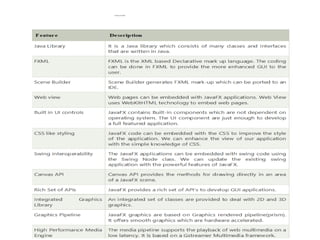
Features of JavaFX
Mobile Application Development
• Mobile application development is the process
of creating software applications that run on
a mobile device, and a typical mobile
application utilizes a network connection to
work with remote computing resources.
• Mobile App is a software application designed
to run on smart phone , tablet and other
mobile devices.
Features
• Simplicity in design & Incorporating search
features
• Mobile screen touch features
• Provide the ability for apps to work offline
• Extensive cross platform coverage
• Robust & security
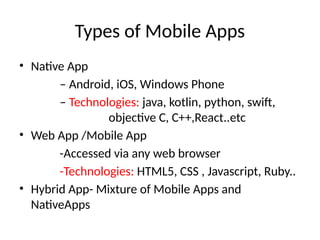
Types of Mobile Apps
• Native App
– Android, iOS, Windows Phone
– Technologies: java, kotlin, python, swift,
objective C, C++,React..etc
• Web App /Mobile App
-Accessed via any web browser
-Technologies: HTML5, CSS , Javascript, Ruby..
• Hybrid App- Mixture of Mobile Apps and
NativeApps
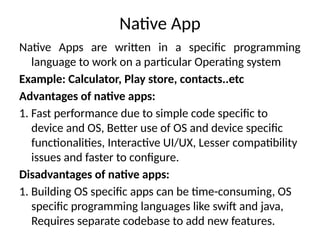
Native App
Native Apps are written in a specific programming
language to work on a particular Operating system
Example: Calculator, Play store, contacts..etc
Advantages of native apps:
1. Fast performance due to simple code specific to
device and OS, Better use of OS and device specific
functionalities, Interactive UI/UX, Lesser compatibility
issues and faster to configure.
Disadvantages of native apps:
1. Building OS specific apps can be time-consuming, OS
specific programming languages like swift and java,
Requires separate codebase to add new features.
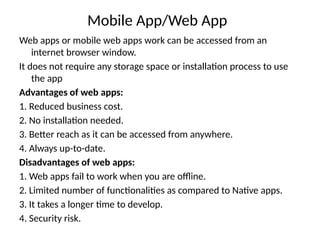
Mobile App/Web App
Web apps or mobile web apps work can be accessed from an
internet browser window.
It does not require any storage space or installation process to use
the app
Advantages of web apps:
1. Reduced business cost.
2. No installation needed.
3. Better reach as it can be accessed from anywhere.
4. Always up-to-date.
Disadvantages of web apps:
1. Web apps fail to work when you are offline.
2. Limited number of functionalities as compared to Native apps.
3. It takes a longer time to develop.
4. Security risk.
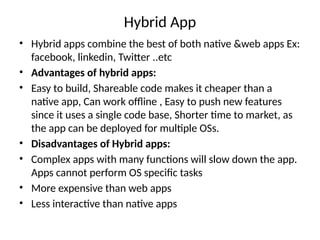
Hybrid App
• Hybrid apps combine the best of both native &web apps Ex:
facebook, linkedin, Twitter ..etc
• Advantages of hybrid apps:
• Easy to build, Shareable code makes it cheaper than a
native app, Can work offline , Easy to push new features
since it uses a single code base, Shorter time to market, as
the app can be deployed for multiple OSs.
• Disadvantages of Hybrid apps:
• Complex apps with many functions will slow down the app.
Apps cannot perform OS specific tasks
• More expensive than web apps
• Less interactive than native apps
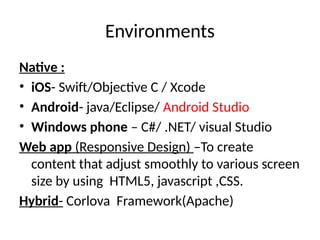
Environments
Native :
• iOS- Swift/Objective C / Xcode
• Android- java/Eclipse/ Android Studio
• Windows phone – C#/ .NET/ visual Studio
Web app (Responsive Design) –To create
content that adjust smoothly to various screen
size by using HTML5, javascript ,CSS.
Hybrid- Corlova Framework(Apache)
Trends
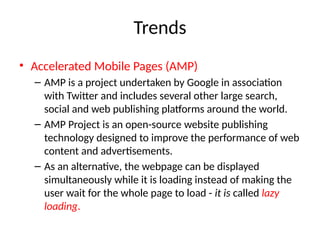
• Accelerated Mobile Pages (AMP)
– AMP is a project undertaken by Google in association
with Twitter and includes several other large search,
social and web publishing platforms around the world.
– AMP Project is an open-source website publishing
technology designed to improve the performance of web
content and advertisements.
– As an alternative, the webpage can be displayed
simultaneously while it is loading instead of making the
user wait for the whole page to load - it is called lazy
loading.
Trends
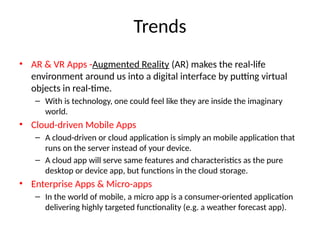
• AR & VR Apps -Augmented Reality (AR) makes the real-life
environment around us into a digital interface by putting virtual
objects in real-time.
– With is technology, one could feel like they are inside the imaginary
world.
• Cloud-driven Mobile Apps
– A cloud-driven or cloud application is simply an mobile application that
runs on the server instead of your device.
– A cloud app will serve same features and characteristics as the pure
desktop or device app, but functions in the cloud storage.
• Enterprise Apps & Micro-apps
– In the world of mobile, a micro app is a consumer-oriented application
delivering highly targeted functionality (e.g. a weather forecast app).
Trends
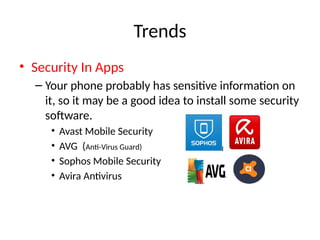
• Security In Apps
– Your phone probably has sensitive information on
it, so it may be a good idea to install some security
software.
• Avast Mobile Security
• AVG (Anti-Virus Guard)
• Sophos Mobile Security
• Avira Antivirus
Trends
• IoT Apps-
A mobile app is a medium between an IoT
device and a mobile phone. The app works as
the primary interface through which we can
manage smart things.
• Location Based Services
Trends
• Wearable –fitness watches
• Mobile Wallets: Mobile wallets have simplified online payments
and made them accessible to everyone.
• Cloud-based Apps: Booking a cab ,ordering a food
• Beacon Technology: Retail stores can also use this to enable
cashless and queue-less checkouts.
• Artificial Intelligence and Machine Learning: Chat bots , Speech
Recognition, Text Prediction, financial forecasting
• Block Chain, 5G, Predictive Analytics, Foldable H/w friendly apps
Mobile Application Development
Platforms(MADP)
• It is a type of software that allows a business
to rapidly build test and perhaps deploy
mobile apps for smart phones and tablets.
• Build your own application development
platform
• Buy one of the many third party products .
– Backend as a service, frontend development tools,
many tools for APIs
• MADP is also provide native, mobile ,hybrid app
development capabilities , as well as mobile
application management tools and security apps.
• Mobile Application Development products
providers:
– Apple X code
– Android Studio
– Kony
– Saleforce
– Microsoft Xamarin
– Kinvey
– Redhat
• Kinvey offers cross platform development for
both iOS and Android
• Redhat – it allows the users to build and deploy
apps in agile Environment.
• Best application development platforms should
allow developers to build, test, debug, deploy
and maintain apps through out life cycles.
• MADP should have extensive middleware and
back end services that deliver key features: push
notifications, authentication, and data storage.
Cross platform mobile app development
• It is a process of building hybrid or Web or
native apps that can run on multiple OS.
• A cross platform tool automatically generates
a code for the target OS
PLATFORMS
1. Appery.io.
2. Mobile Roadie.
3. TheAppBuilder.
4. Good Barber.
5. Appy Pie.
6. AppMachine.
7. GameSalad.
8. BiznessApps.
9. AppMakr
10. ShoutEm
Smart phones
• A smart phone is a mobile phone with more
advanced computing capabilities and
connectivity than basic feature phones.
• Combined features like PDA, Media player,
digital camera, GPS navigation unit.
A BRIEF HISTORY OF SMARTPHONES
• The first smartphones, the IBM Simon and Nokia Communicator 9000 were
released way back in 1994 and 1996 respectively, and
• integrated the features of a mobile phone and a personal digital assistant (PDA)
for managing calendars and contacts. Both were much larger than regular
phones.
• It wasn’t until 2000 that the first real smartphone, the Ericsson R380, was
released.
• It wasn’t any larger than a regular phone, and in the early 2000s many others
followed suit, with phones like the Palm and BlackBerry achieving big success.
• In 2007, Apple released the iPhone, which eschewed hardware buttons for full
touchscreen control and has been the template for smartphones ever since
A Smartphone can:
• Make voice calls
• Make video calls
• Access the internet and browse the web
• Take photos, and upload them to the web
• Navigate with GPS if the phone has GPS built-in
• Play back music and video stored on the phone
• Manage your contacts and appointments
• Send emails
• Play in-built games
• Run new applications and games downloaded from the
internet
ANDROID PLATFORM
Introduction
• Android is a open source linux based
operating system intended for mobile
computing platforms.
• It is a software stack for mobile operating
system.
• Android is under development by Google and
OHA(Open Handset Alliance)
OHA includes several Companies
• Android is a complete set of software for
mobile devices such as tablet computers,
notebooks, smart phones, electronic book
readers, set-top boxes etc
• The Android Platform was launched in 2007 by
the Open Handset Alliance, an alliance of
prominent companies that includes Google,
HTC, Motorola, Texas Instruments and others.
• the applications that run on the Android
Platform are written in Java, there is no Java
Virtual Machine(JVM). Instead, the Java classes
are first compiled into what are known as
Dalvik Executables and run on the Dalvik
Virtual Machine(DVM).
• To create an application for the platform, a
developer requires the Android SDK, which
includes tools and APIs.
• The SDK is supported in many environments including
Linux, Windows, and OS X and can be downloaded
free from http://developer. android.com.
• It contains a linux-based Operating
System, middleware and key mobile applications.
• It can be thought of as a mobile operating system.
But it is not limited to mobile only. It is currently used
in various devices such as mobiles, tablets, televisions
etc.
History of Android
1) Initially, Andy Rubin founded Android
Incorporation in Palo Alto, California, United
States in October, 2003.
2) In 17th August 2005, Google acquired android
Incorporation. Since then, it is in the subsidiary
of Google Incorporation.
3) The key employees of Android Incorporation
are Andy Rubin, Rich Miner, Chris
White and Nick Sears.
4) Originally intended for camera but shifted to
smart phones later because of low market for
camera only.
5) Android is the nick name of Andy Rubin given by
coworkers because of his love to robots.
6) In 2007, Google announces the development of
android OS( Android Beta SDK released 12th
Nov).
7) In 2008, HTC launched the first android mobile.
Android Features
• Messaging
– SMS and MMS
• Web browser
– Based on the open-source WebKit layout engine,
coupled with Chrome's V8 JavaScript engine
supporting HTML5 and CSS3.
• Multi-touch
– Supports multi-touch screens
Android Features
• Multitasking
– User can jump from one task to another and same
time various application can run simultaneously.
• Multiple language support
– Location Specific language and culture can be
adopted
• Connectivity
– GSM/EDGE, IDEN, CDMA, EV-DO, UMTS,
Bluetooth, Wi-Fi, LTE, NFC and WiMAX.
Android Features
• Media support
– H.263, H.264, MPEG-4 SP, AMR, AMR-WB, AAC, HE-AAC, AAC 5.1,
MP3, MIDI, Ogg Vorbis, WAV, JPEG, PNG, GIF, and BMP.
• External storage
– SQLite, a lightweight relational database, is used for data storage
purposes.
Tethering — Supports sharing of Internet connections as a
wired/wireless hotspot
• Flash support — Android 2.3 supports Flash 10.1.Bluetooth
• Streaming media support
• Includes support for the following media: H.263, H.264 (in 3GP
or MP4 container), MPEG-4 SP, AMR, AMR-WB (in 3GP
container), AAC, HE-AAC (in MP4 or 3GP container), MP3, MIDI,
Ogg Vorbis, WAV, JPEG, PNG, GIF, and BMP
Android Features
• Media support — Includes support for the
following media: H.263, H.264 (in 3GP or MP4
container), MPEG-4 SP, AMR, AMR-WB (in 3GP
container), AAC, HE-AAC (in MP4 or 3GP
container), MP3, MIDI, Ogg Vorbis, WAV, JPEG,
PNG, GIF, and BMP
• Hardware support — Accelerometer Sensor,
Camera, Digital Compass, Proximity Sensor,
and GPS
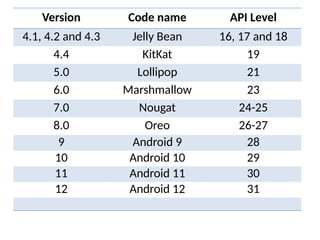
Android Versions, Codename and AP
Version Code name API Level
1.0 Unnamed 1
1.1 Unnamed 2
1.5 Cupcake 3
1.6 Donut 4
2.1 Eclair 7
2.2 Froyo 8
2.3 Gingerbread 9 and 10
3.1 and 3.3 Honeycomb 12 and 13
4.0 Ice Cream
Sandwitch
15
Version Code name API Level
4.1, 4.2 and 4.3 Jelly Bean 16, 17 and 18
4.4 KitKat 19
5.0 Lollipop 21
6.0 Marshmallow 23
7.0 Nougat 24-25
8.0 Oreo 26-27
9 Android 9 28
10 Android 10 29
11 Android 11 30
12 Android 12 31
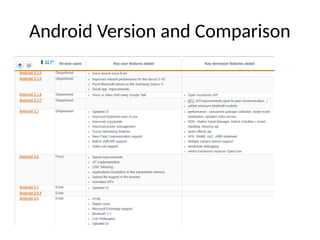
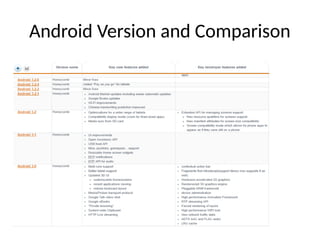
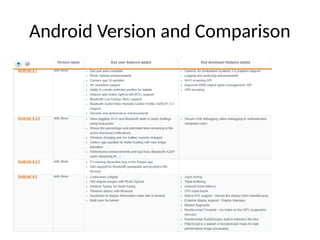
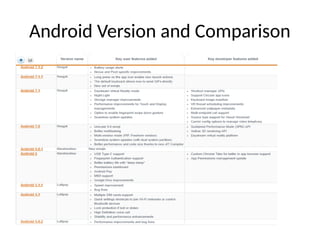
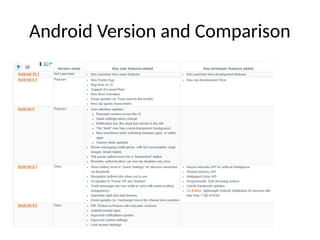
Android Version and Comparison
Android Architecture
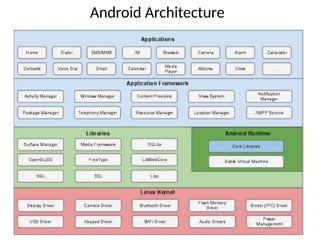
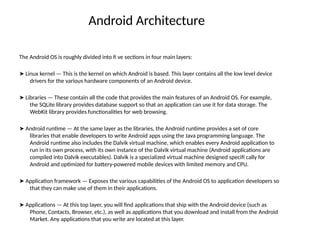
The Android OS is roughly divided into fi ve sections in four main layers:
➤ Linux kernel — This is the kernel on which Android is based. This layer contains all the low level device
drivers for the various hardware components of an Android device.
➤ Libraries — These contain all the code that provides the main features of an Android OS. For example,
the SQLite library provides database support so that an application can use it for data storage. The
WebKit library provides functionalities for web browsing.
➤ Android runtime — At the same layer as the libraries, the Android runtime provides a set of core
libraries that enable developers to write Android apps using the Java programming language. The
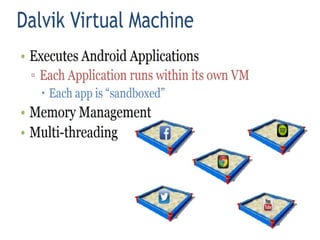
Android runtime also includes the Dalvik virtual machine, which enables every Android application to
run in its own process, with its own instance of the Dalvik virtual machine (Android applications are
compiled into Dalvik executables). Dalvik is a specialized virtual machine designed specifi cally for
Android and optimized for battery-powered mobile devices with limited memory and CPU.
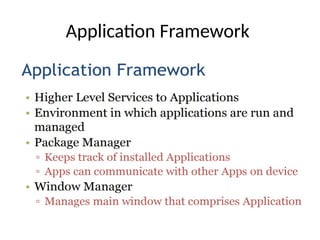
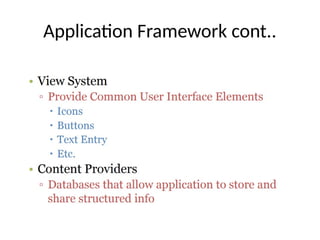
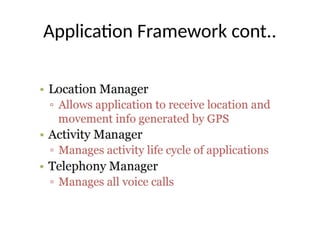
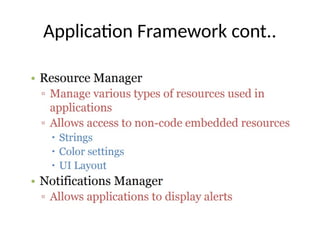
➤ Application framework — Exposes the various capabilities of the Android OS to application developers so
that they can make use of them in their applications.
➤ Applications — At this top layer, you will find applications that ship with the Android device (such as
Phone, Contacts, Browser, etc.), as well as applications that you download and install from the Android
Market. Any applications that you write are located at this layer.
Linux kernel
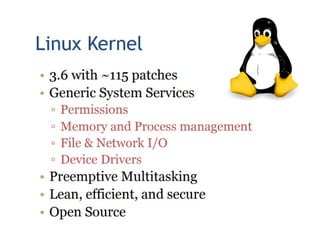
• At the bottom of the layers is Linux - Linux 3.6
with approximately 115 patches.
• This provides a level of abstraction between the
device hardware and Operating System. it
contains all the essential hardware drivers like
camera, keypad, display etc.
• Also, the kernel handles all the things that Linux
is really good at such as networking and a vast
array of device drivers.
Hardware Abstraction Layer (HAL)
• The hardware abstraction layer (HAL) provides standard
interfaces that expose device hardware capabilities to
the higher-level Java API framework.
• The HAL consists of multiple library modules, each of
which implements an interface for a specific type of
hardware component, such as the camera or bluetooth
module. When a framework API makes a call to access
device hardware, the Android system loads the library
module for that hardware component.
• Wat type of action?
Libraries
• On top of Linux kernel there is a set of libraries
including open-source Web browser engine,
well known library libc, SQLite database which
is a useful repository for storage and sharing
of application data, libraries to play and record
audio and video, SSL libraries responsible for
Internet security etc.
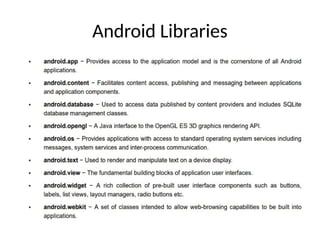
Android Libraries
Android Runtime
Application Framework
Application Framework cont..
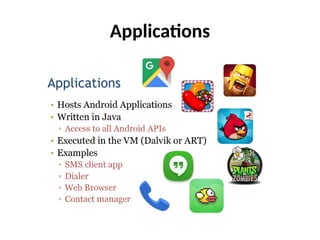
Applications
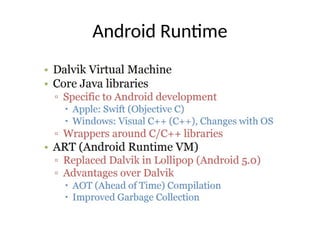
Android Runtime (ART)
• Android Runtime (ART) is an application runtime
environment used by the Android operating system.
• Replacing Dalvik, the process virtual machine originally
used by Android, ART performs the translation of the
application’s bytecode into native instructions that are
later executed by the device’s runtime environment.
(ART introduced in Android L).
• ART is software layer between applications and
operating system.
• It provide mechanism for executing java language.
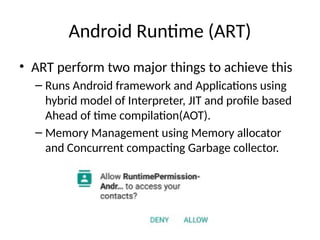
Android Runtime (ART)
• ART perform two major things to achieve this
– Runs Android framework and Applications using
hybrid model of Interpreter, JIT and profile based
Ahead of time compilation(AOT).
– Memory Management using Memory allocator
and Concurrent compacting Garbage collector.
Android Debug Bridge(ADB)
• Android Debug Bridge (adb) is a versatile command-
line tool that lets you communicate with a device.
• The adb command facilitates a variety of device
actions, such as installing and debugging apps, and it
provides access to a Unix shell that you can use to
run a variety of commands on a device.
• It is a client-server program that includes three
components:
– A client, which sends commands. The client runs on your
development machine. You can invoke a client from a
command-line terminal by issuing an adb command.
Android Debug Bridge(ADB)
– A daemon (adbd), which runs commands on a
device. The daemon runs as a background process
on each device.
– A server, which manages communication between
the client and the daemon. The server runs as a
background process on your development
machine.
Android Studio Features
• Android Studio offers even more features that enhance
your productivity when building Android apps, such as:
– A flexible Gradle-based build system
– A fast and feature-rich emulator
– A unified environment where you can develop for all
Android devices
– Instant Run to push changes to your running app without
building a new APK
– Code templates and GitHub integration to help you build
common app features and import sample code
– Extensive testing tools and frameworks.
Android Studio Features
– Lint tools to catch performance, usability, version
compatibility, and other problems
– C++ and NDK support
– Built-in support for Google Cloud Platform, making
it easy to integrate Google Cloud Messaging and
App Engine
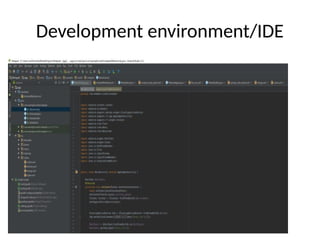
Development environment/IDE
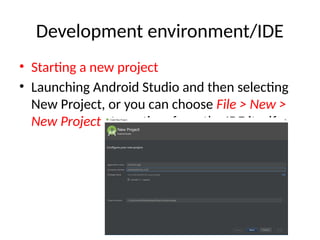
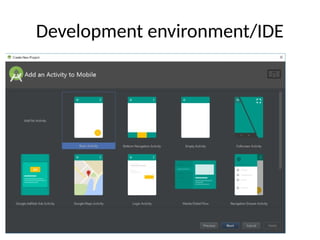
• Starting a new project
• Launching Android Studio and then selecting
New Project, or you can choose File > New >
New Project at any time from the IDE itself.
Development environment/IDE
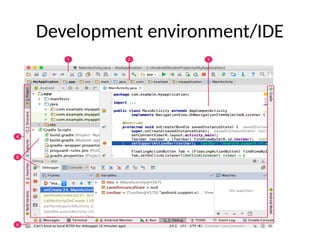
• 1. Toolbar lets you carry out a wide range of actions, including
running your app and launching Android tools.
• 2. Navigation bar helps you navigate through your project and
open files for editing. It provides a more compact view of the
structure visible in the Project window.
• 3. Editor window is where you create and modify code.
Depending on the current file type, the editor can change. For
example, when viewing a layout file, the editor displays the
Layout Editor.
• 4. Tool window bar runs around the outside of the IDE window
and contains the buttons that allow you to expand or collapse
individual tool windows.
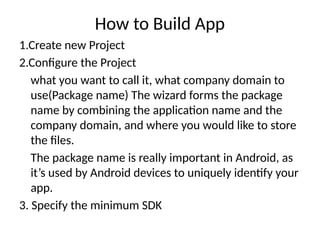
How to Build App
1.Create new Project
2.Configure the Project
what you want to call it, what company domain to
use(Package name) The wizard forms the package
name by combining the application name and the
company domain, and where you would like to store
the files.
The package name is really important in Android, as
it’s used by Android devices to uniquely identify your
app.
3. Specify the minimum SDK
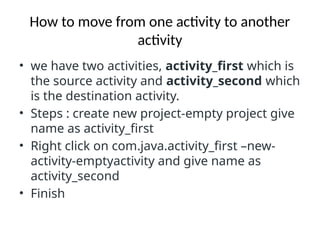
How to move from one activity to another
activity
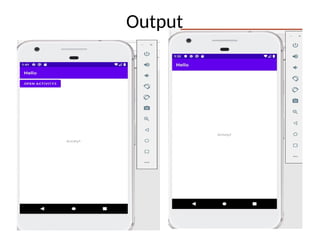
• we have two activities, activity_first which is
the source activity and activity_second which
is the destination activity.
• Steps : create new project-empty project give
name as activity_first
• Right click on com.java.activity_first –new-
activity-emptyactivity and give name as
activity_second
• Finish
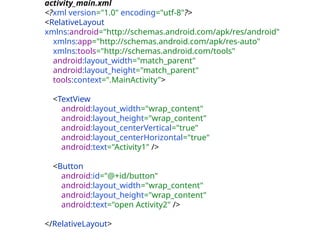
activity_main.xml
<?xml version="1.0" encoding="utf-8"?>
<RelativeLayout
xmlns:android="http://schemas.android.com/apk/res/android"
xmlns:app="http://schemas.android.com/apk/res-auto"
xmlns:tools="http://schemas.android.com/tools"
android:layout_width="match_parent"
android:layout_height="match_parent"
tools:context=".MainActivity">
<TextView
android:layout_width="wrap_content"
android:layout_height="wrap_content"
android:layout_centerVertical="true"
android:layout_centerHorizontal="true"
android:text="Activity1" />
<Button
android:id="@+id/button"
android:layout_width="wrap_content"
android:layout_height="wrap_content"
android:text="open Activity2" />
</RelativeLayout>
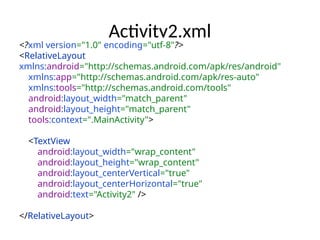
Activity2.xml
<?xml version="1.0" encoding="utf-8"?>
<RelativeLayout
xmlns:android="http://schemas.android.com/apk/res/android"
xmlns:app="http://schemas.android.com/apk/res-auto"
xmlns:tools="http://schemas.android.com/tools"
android:layout_width="match_parent"
android:layout_height="match_parent"
tools:context=".MainActivity">
<TextView
android:layout_width="wrap_content"
android:layout_height="wrap_content"
android:layout_centerVertical="true"
android:layout_centerHorizontal="true"
android:text="Activity2" />
</RelativeLayout>
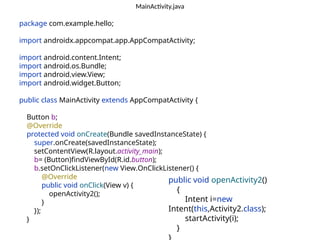
MainActivity.java
package com.example.hello;
import androidx.appcompat.app.AppCompatActivity;
import android.content.Intent;
import android.os.Bundle;
import android.view.View;
import android.widget.Button;
public class MainActivity extends AppCompatActivity {
Button b;
@Override
protected void onCreate(Bundle savedInstanceState) {
super.onCreate(savedInstanceState);
setContentView(R.layout.activity_main);
b= (Button)findViewById(R.id.button);
b.setOnClickListener(new View.OnClickListener() {
@Override
public void onClick(View v) {
openActivity2();
}
});
}
public void openActivity2()
{
Intent i=new
Intent(this,Activity2.class);
startActivity(i);
}
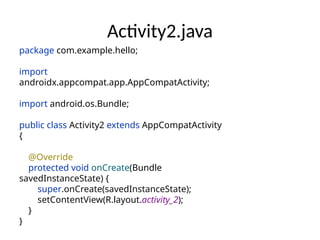
Activity2.java
package com.example.hello;
import
androidx.appcompat.app.AppCompatActivity;
import android.os.Bundle;
public class Activity2 extends AppCompatActivity
{
@Override
protected void onCreate(Bundle
savedInstanceState) {
super.onCreate(savedInstanceState);
setContentView(R.layout.activity_2);
}
}
Output
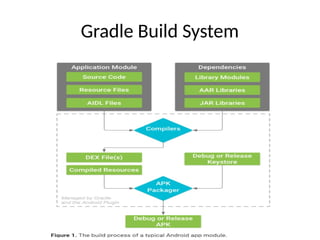
Gradle Build System
Gradle Build System cont..
• Android Studio uses Gradle, an advanced
build toolkit, to automate and manage
the build process, while allowing you to
define flexible custom build configurations.
• Each build configuration can define its
own set of code and resources, while
reusing the parts common to all versions
of your app.
Gradle Build System cont..
• Android Studio supports Gradle for doing
the actual building of the app. There's a
class called BuildConfig. java which is
automatically generated by the build
system. This class is updated
automatically by Android's build system
(like the R class)
• Every Android project needs a Gradle for
generating an apk (Android Application
Package)from the .java and .xml files in the
project.
• Simply put, a gradle takes all the source files
(java and XML) and applies appropriate
tools, e.g., converts the java files into dex
files and compresses all of them into a
single file known as apk that is actually used.
• There are two types of build.gradle scripts
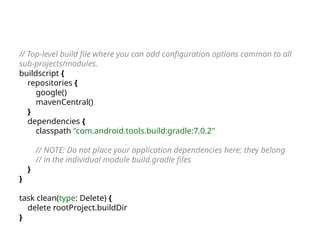
• Top-level build.gradle
• Module-level build.gradle
Top-level build.gradle
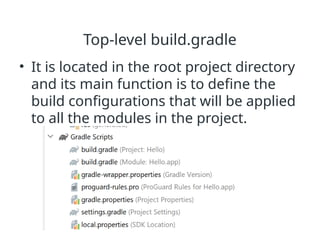
• It is located in the root project directory
and its main function is to define the
build configurations that will be applied
to all the modules in the project.
// Top-level build file where you can add configuration options common to all
sub-projects/modules.
buildscript {
repositories {
google()
mavenCentral()
}
dependencies {
classpath "com.android.tools.build:gradle:7.0.2"
// NOTE: Do not place your application dependencies here; they belong
// in the individual module build.gradle files
}
}
task clean(type: Delete) {
delete rootProject.buildDir
}
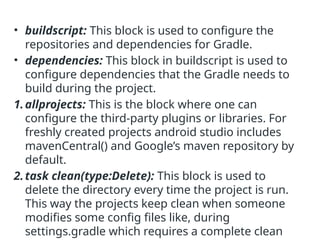
• buildscript: This block is used to configure the
repositories and dependencies for Gradle.
• dependencies: This block in buildscript is used to
configure dependencies that the Gradle needs to
build during the project.
1.allprojects: This is the block where one can
configure the third-party plugins or libraries. For
freshly created projects android studio includes
mavenCentral() and Google’s maven repository by
default.
2.task clean(type:Delete): This block is used to
delete the directory every time the project is run.
This way the projects keep clean when someone
modifies some config files like, during
settings.gradle which requires a complete clean
Module-level build.gradle
• Located in the project/module directory
of the project this Gradle script is where
all the dependencies are defined and
where the SDK versions are declared.
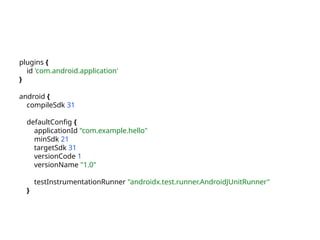
plugins {
id 'com.android.application'
}
android {
compileSdk 31
defaultConfig {
applicationId "com.example.hello"
minSdk 21
targetSdk 31
versionCode 1
versionName "1.0"
testInstrumentationRunner "androidx.test.runner.AndroidJUnitRunner"
}
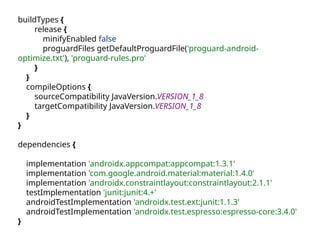
buildTypes {
release {
minifyEnabled false
proguardFiles getDefaultProguardFile('proguard-android-
optimize.txt'), 'proguard-rules.pro'
}
}
compileOptions {
sourceCompatibility JavaVersion.VERSION_1_8
targetCompatibility JavaVersion.VERSION_1_8
}
}
dependencies {
implementation 'androidx.appcompat:appcompat:1.3.1'
implementation 'com.google.android.material:material:1.4.0'
implementation 'androidx.constraintlayout:constraintlayout:2.1.1'
testImplementation 'junit:junit:4.+'
androidTestImplementation 'androidx.test.ext:junit:1.1.3'
androidTestImplementation 'androidx.test.espresso:espresso-core:3.4.0'
}
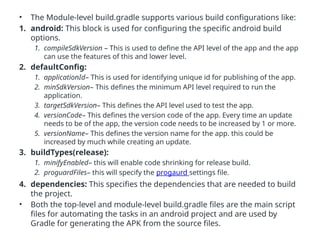
• The Module-level build.gradle supports various build configurations like:
1. android: This block is used for configuring the specific android build
options.
1. compileSdkVersion – This is used to define the API level of the app and the app
can use the features of this and lower level.
2. defaultConfig:
1. applicationId– This is used for identifying unique id for publishing of the app.
2. minSdkVersion– This defines the minimum API level required to run the
application.
3. targetSdkVersion– This defines the API level used to test the app.
4. versionCode– This defines the version code of the app. Every time an update
needs to be of the app, the version code needs to be increased by 1 or more.
5. versionName– This defines the version name for the app. this could be
increased by much while creating an update.
3. buildTypes(release):
1. minifyEnabled– this will enable code shrinking for release build.
2. proguardFiles– this will specify the progaurd settings file.
4. dependencies: This specifies the dependencies that are needed to build
the project.
• Both the top-level and module-level build.gradle files are the main script
files for automating the tasks in an android project and are used by
Gradle for generating the APK from the source files.
Emulator Setup
• The emulator lets you prototype, develop and test
Android applications without using a physical device.
• Creating AVD
– If you want to emulate a real device, first crate an AVD
with the same device configurations as real device, then
launch this AVD from AVD manager.
• Changing Orientation
– Usually by default when you launch the emulator, its
orientation is vertical, but you can change it orientation by
pressing Ctrl+F11 key from keyboard.
To start the emulator:
1.Open the AVD Manager.
2.Double-click an AVD, or click Run
3.The Android Emulator loads.
• While the emulator is running, you can
run Android Studio projects and choose
the emulator as the target device.
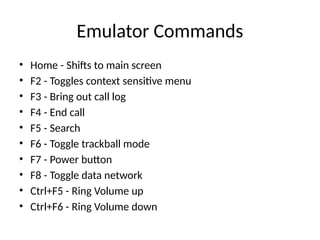
Emulator Commands
• Home - Shifts to main screen
• F2 - Toggles context sensitive menu
• F3 - Bring out call log
• F4 - End call
• F5 - Search
• F6 - Toggle trackball mode
• F7 - Power button
• F8 - Toggle data network
• Ctrl+F5 - Ring Volume up
• Ctrl+F6 - Ring Volume down
Android Frame work Basics
• Resorses
• Layouts
• Values
Apart from coding for the application, we can take care
of various other resources like static content that your
code uses, such as bitmaps, colors, layout definitions,
user interface strings, animation instructions, and more.
These resources are always maintained separately in
various sub-directories under res/ directory of the
project.
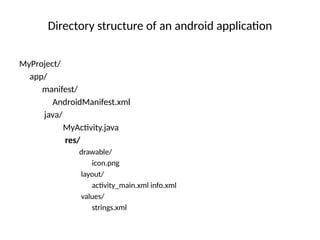
Directory structure of an android application
MyProject/
app/
manifest/
AndroidManifest.xml
java/
MyActivity.java
res/
drawable/
icon.png
layout/
activity_main.xml info.xml
values/
strings.xml
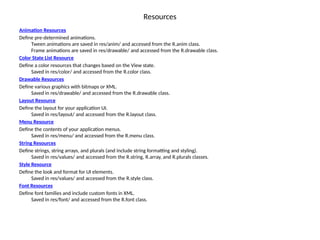
Resources
Animation Resources
Define pre-determined animations.
Tween animations are saved in res/anim/ and accessed from the R.anim class.
Frame animations are saved in res/drawable/ and accessed from the R.drawable class.
Color State List Resource
Define a color resources that changes based on the View state.
Saved in res/color/ and accessed from the R.color class.
Drawable Resources
Define various graphics with bitmaps or XML.
Saved in res/drawable/ and accessed from the R.drawable class.
Layout Resource
Define the layout for your application UI.
Saved in res/layout/ and accessed from the R.layout class.
Menu Resource
Define the contents of your application menus.
Saved in res/menu/ and accessed from the R.menu class.
String Resources
Define strings, string arrays, and plurals (and include string formatting and styling).
Saved in res/values/ and accessed from the R.string, R.array, and R.plurals classes.
Style Resource
Define the look and format for UI elements.
Saved in res/values/ and accessed from the R.style class.
Font Resources
Define font families and include custom fonts in XML.
Saved in res/font/ and accessed from the R.font class.
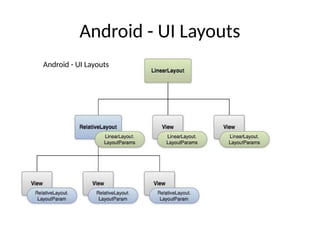
Android - UI Layouts
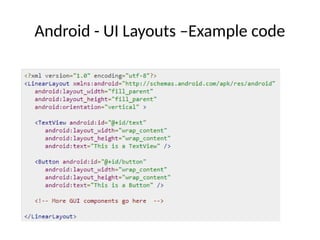
Android - UI Layouts –Example code
Android Layout Types
• Linear Layout is a view group that aligns all children in
a single direction, vertically or horizontally.
• Relative Layout is a view group that displays child
views in relative positions.
• Table Layout is a view that groups views into rows and
columns.
• Absolute Layout enables you to specify the exact
location of its children.
• Frame Layout is a placeholder on screen that you can
use to display a single view.
Android Layout Types
• List View is a view group that displays a list of
scrollable items.
• Grid View is a View Group that displays items
in a two-dimensional, scrollable grid.
Layout Attributes
• android:id - This is the ID which uniquely identifies the view.
• android:layout_width - This is the width of the layout.
• android:layout_height - This is the height of the layout
• android:layout_marginTop - This is the extra space on the top
side of the layout.
• android:layout_marginBottom - This is the extra space on the
bottom side of the layout.
• android:layout_marginLeft - This is the extra space on the left
side of the layout.
• android:layout_marginRight - This is the extra space on the
right side of the layout.
Layout Attributes
• android:layout_gravity - This specifies how child Views
are positioned.
• android:layout_weight - This specifies how much of the
extra space in the layout should be allocated to the View.
• android:layout_x - This specifies the x-coordinate of the
layout.
• android:layout_y - This specifies the y-coordinate of the
layout.
• android:layout_width - This is the width of the layout.
Layout Attributes
• android:paddingLeft - This is the left padding
filled for the layout.
• android:paddingRight - This is the right
padding filled for the layout.
• android:paddingTop - This is the top padding
filled for the layout.
• android:paddingBottom - This is the bottom
padding filled for the layout.
values
• XML files that contain simple values, such as strings, integers, and colors.
For example, here are some filename conventions for resources you can
create in this directory −
o arrays.xml for resource arrays, and accessed from the R.array class.
o integers.xml for resource integers, and accessed from the R.integer class.
o bools.xml for resource boolean, and accessed from the R.bool class.
o colors.xml for color values, and accessed from the R.color class.
o dimens.xml for dimension values, and accessed from the R.dimen class.
o strings.xml for string values, and accessed from the R.string class.
o styles.xml for styles, and accessed from the R.style class.
Assets
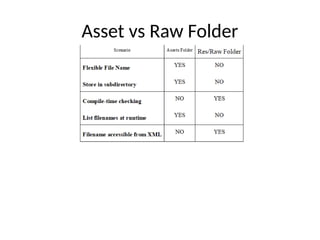
• Assets provide a way to add arbitrary files like text, XML, HTML, fonts,
music, and video in the application.
• If one tries to add these files as “resources“, Android will treat them
into its resource system and you will be unable to get the raw data.
• In Android one can store the raw asset file like JSON, Text, mp3,
HTML, pdf, etc in two possible locations:
• assets
• res/raw folder
Both of them appears to be the same, as they can read the file and
generate InputStream as below
• From assets
assets.open(assetPathFilename)
• From res/raw
resources.openRawResource(resourceRawFilename)
Asset vs Raw Folder
XML representation
• XML stands for Extensible Mark-up Language.
• XML is a very popular format and commonly
used for sharing data on the internet.
• Android provides three types of XML parsers
which are DOM,SAX and XMLPullParser.
• Among all of them android recommend
XMLPullParser because it is efficient and easy
to use.
XML representation
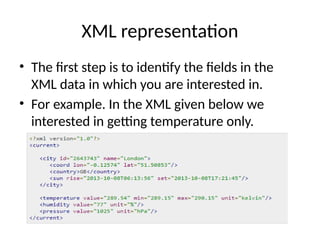
• The first step is to identify the fields in the
XML data in which you are interested in.
• For example. In the XML given below we
interested in getting temperature only.
XML Elements
• Prolog - An XML file starts with a prolog. The first line
that contains the information about a file is prolog
• Events - An XML file has many events. Event could be
like this. Document starts , Document ends, Tag start ,
Tag end and Text e.t.
• Text - Apart from tags and events, and xml file also
contains simple text. Such as GB is a text in the country
tag.
• Attributes - Attributes are the additional properties of
a tag such as value e.t.c
Generated R.Javafile
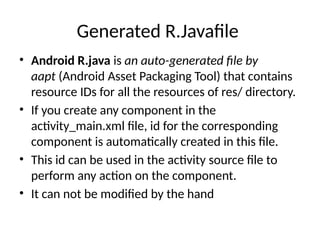
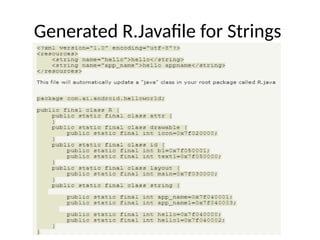
• Android R.java is an auto-generated file by
aapt (Android Asset Packaging Tool) that contains
resource IDs for all the resources of res/ directory.
• If you create any component in the
activity_main.xml file, id for the corresponding
component is automatically created in this file.
• This id can be used in the activity source file to
perform any action on the component.
• It can not be modified by the hand
Generated R.Javafile for Strings
Android Manifest file
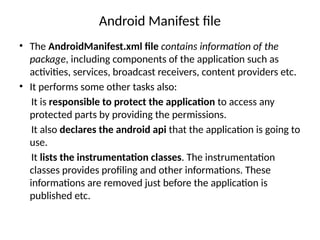
• The AndroidManifest.xml file contains information of the
package, including components of the application such as
activities, services, broadcast receivers, content providers etc.
• It performs some other tasks also:
It is responsible to protect the application to access any
protected parts by providing the permissions.
It also declares the android api that the application is going to
use.
It lists the instrumentation classes. The instrumentation
classes provides profiling and other informations. These
informations are removed just before the application is
published etc.
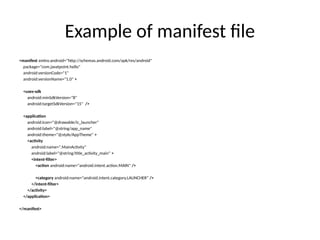
Example of manifest file
<manifest xmlns:android="http://schemas.android.com/apk/res/android"
package="com.javatpoint.hello"
android:versionCode="1"
android:versionName="1.0" >
<uses-sdk
android:minSdkVersion="8"
android:targetSdkVersion="15" />
<application
android:icon="@drawable/ic_launcher"
android:label="@string/app_name"
android:theme="@style/AppTheme" >
<activity
android:name=".MainActivity"
android:label="@string/title_activity_main" >
<intent-filter>
<action android:name="android.intent.action.MAIN" />
<category android:name="android.intent.category.LAUNCHER" />
</intent-filter>
</activity>
</application>
</manifest>
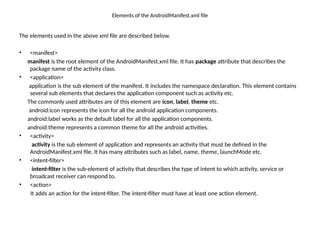
Elements of the AndroidManifest.xml file
The elements used in the above xml file are described below.
• <manifest>
manifest is the root element of the AndroidManifest.xml file. It has package attribute that describes the
package name of the activity class.
• <application>
application is the sub element of the manifest. It includes the namespace declaration. This element contains
several sub elements that declares the application component such as activity etc.
The commonly used attributes are of this element are icon, label, theme etc.
android:icon represents the icon for all the android application components.
android:label works as the default label for all the application components.
android:theme represents a common theme for all the android activities.
• <activity>
activity is the sub element of application and represents an activity that must be defined in the
AndroidManifest.xml file. It has many attributes such as label, name, theme, launchMode etc.
• <intent-filter>
intent-filter is the sub-element of activity that describes the type of intent to which activity, service or
broadcast receiver can respond to.
• <action>
It adds an action for the intent-filter. The intent-filter must have at least one action element.
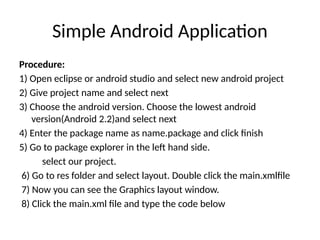
Simple Android Application
Procedure:
1) Open eclipse or android studio and select new android project
2) Give project name and select next
3) Choose the android version. Choose the lowest android
version(Android 2.2)and select next
4) Enter the package name as name.package and click finish
5) Go to package explorer in the left hand side.
select our project.
6) Go to res folder and select layout. Double click the main.xmlfile
7) Now you can see the Graphics layout window.
8) Click the main.xml file and type the code below
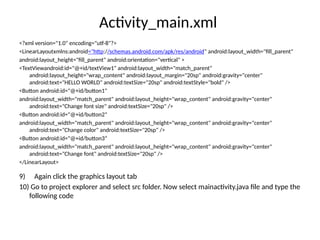
Activity_main.xml
<?xml version="1.0" encoding="utf-8"?>
<LinearLayoutxmlns:android="http://schemas.android.com/apk/res/android" android:layout_width="fill_parent"
android:layout_height="fill_parent" android:orientation="vertical" >
<TextViewandroid:id="@+id/textView1" android:layout_width="match_parent"
android:layout_height="wrap_content" android:layout_margin="20sp" android:gravity="center"
android:text="HELLO WORLD" android:textSize="20sp" android:textStyle="bold" />
<Button android:id="@+id/button1"
android:layout_width="match_parent" android:layout_height="wrap_content" android:gravity="center"
android:text="Change font size" android:textSize="20sp" />
<Button android:id="@+id/button2"
android:layout_width="match_parent" android:layout_height="wrap_content" android:gravity="center"
android:text="Change color" android:textSize="20sp" />
<Button android:id="@+id/button3“
android:layout_width="match_parent" android:layout_height="wrap_content" android:gravity="center"
android:text="Change font" android:textSize="20sp" />
</LinearLayout>
9) Again click the graphics layout tab
10) Go to project explorer and select src folder. Now select mainactivity.java file and type the
following code
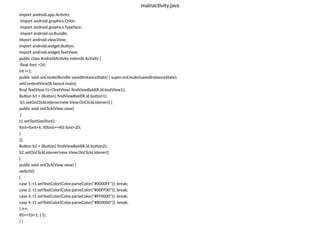
mainactivity.java
import android.app.Activity;
import android.graphics.Color;
import android.graphics.Typeface;
import android.os.Bundle;
import android.view.View;
import android.widget.Button;
import android.widget.TextView;
public class AndroidActivity extends Activity {
float font =24;
int i=1;
public void onCreate(Bundle savedInstanceState) { super.onCreate(savedInstanceState);
setContentView(R.layout.main);
final TextView t1=(TextView) findViewById(R.id.textView1);
Button b1 = (Button) findViewById(R.id.button1);
b1.setOnClickListener(new View.OnClickListener() {
public void onClick(View view)
{
t1.setTextSize(font);
font=font+4; if(font==40) font=20;
}
});
Button b2 = (Button) findViewById(R.id.button2);
b2.setOnClickListener(new View.OnClickListener()
{
public void onClick(View view) {
switch(i)
{
case 1: t1.setTextColor(Color.parseColor("#0000FF")); break;
case 2: t1.setTextColor(Color.parseColor("#00FF00")); break;
case 3: t1.setTextColor(Color.parseColor("#FF0000")); break;
case 4: t1.setTextColor(Color.parseColor("#800000")); break;
} i++;
if(i==5)i=1; } });
} }
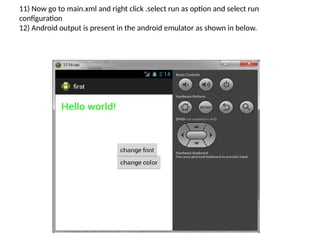
11) Now go to main.xml and right click .select run as option and select run
configuration
12) Android output is present in the android emulator as shown in below.
Mobile Application Development Unit 1.pptx

  • 1.
  • 2.
    Topics Chapter 1: JavaFX Technology • Introduction to MAD • Trends, • Various platforms, • Introduction to smart phones Chapter 2: • Android platform features and architecture • Versions • ART(Android Runtime) • ADB(Android Debug Bridge). Chapter 3: • Android studio and its working environment • Gradle build system • Emulator setup • Application Framework Basics -Resources , layout, values, -Asset XML representation and -Generated R.Javafile , Android manifest file. -Creating a simple application
  • 3.
    JavaFX Technology • JavaFXis a Java library used to develop Desktop applications as well as Rich Internet Applications (RIA). The applications built in JavaFX, can run on multiple platforms including Web, Mobile and Desktops. • JavaFX also provides its own components and doesn't depend upon the operating system. • It is lightweight and hardware accelerated. It supports various operating systems including Windows, Linux and Mac OS.
  • 4.
  • 5.
    Mobile Application Development •Mobile application development is the process of creating software applications that run on a mobile device, and a typical mobile application utilizes a network connection to work with remote computing resources. • Mobile App is a software application designed to run on smart phone , tablet and other mobile devices.
  • 6.
    Features • Simplicity indesign & Incorporating search features • Mobile screen touch features • Provide the ability for apps to work offline • Extensive cross platform coverage • Robust & security
  • 7.
    Types of MobileApps • Native App – Android, iOS, Windows Phone – Technologies: java, kotlin, python, swift, objective C, C++,React..etc • Web App /Mobile App -Accessed via any web browser -Technologies: HTML5, CSS , Javascript, Ruby.. • Hybrid App- Mixture of Mobile Apps and NativeApps
  • 8.
    Native App Native Appsare written in a specific programming language to work on a particular Operating system Example: Calculator, Play store, contacts..etc Advantages of native apps: 1. Fast performance due to simple code specific to device and OS, Better use of OS and device specific functionalities, Interactive UI/UX, Lesser compatibility issues and faster to configure. Disadvantages of native apps: 1. Building OS specific apps can be time-consuming, OS specific programming languages like swift and java, Requires separate codebase to add new features.
  • 9.
    Mobile App/Web App Webapps or mobile web apps work can be accessed from an internet browser window. It does not require any storage space or installation process to use the app Advantages of web apps: 1. Reduced business cost. 2. No installation needed. 3. Better reach as it can be accessed from anywhere. 4. Always up-to-date. Disadvantages of web apps: 1. Web apps fail to work when you are offline. 2. Limited number of functionalities as compared to Native apps. 3. It takes a longer time to develop. 4. Security risk.
  • 10.
    Hybrid App • Hybridapps combine the best of both native &web apps Ex: facebook, linkedin, Twitter ..etc • Advantages of hybrid apps: • Easy to build, Shareable code makes it cheaper than a native app, Can work offline , Easy to push new features since it uses a single code base, Shorter time to market, as the app can be deployed for multiple OSs. • Disadvantages of Hybrid apps: • Complex apps with many functions will slow down the app. Apps cannot perform OS specific tasks • More expensive than web apps • Less interactive than native apps
  • 11.
    Environments Native : • iOS-Swift/Objective C / Xcode • Android- java/Eclipse/ Android Studio • Windows phone – C#/ .NET/ visual Studio Web app (Responsive Design) –To create content that adjust smoothly to various screen size by using HTML5, javascript ,CSS. Hybrid- Corlova Framework(Apache)
  • 12.
    Trends • Accelerated MobilePages (AMP) – AMP is a project undertaken by Google in association with Twitter and includes several other large search, social and web publishing platforms around the world. – AMP Project is an open-source website publishing technology designed to improve the performance of web content and advertisements. – As an alternative, the webpage can be displayed simultaneously while it is loading instead of making the user wait for the whole page to load - it is called lazy loading.
  • 13.
    Trends • AR &VR Apps -Augmented Reality (AR) makes the real-life environment around us into a digital interface by putting virtual objects in real-time. – With is technology, one could feel like they are inside the imaginary world. • Cloud-driven Mobile Apps – A cloud-driven or cloud application is simply an mobile application that runs on the server instead of your device. – A cloud app will serve same features and characteristics as the pure desktop or device app, but functions in the cloud storage. • Enterprise Apps & Micro-apps – In the world of mobile, a micro app is a consumer-oriented application delivering highly targeted functionality (e.g. a weather forecast app).
  • 14.
    Trends • Security InApps – Your phone probably has sensitive information on it, so it may be a good idea to install some security software. • Avast Mobile Security • AVG (Anti-Virus Guard) • Sophos Mobile Security • Avira Antivirus
  • 15.
    Trends • IoT Apps- Amobile app is a medium between an IoT device and a mobile phone. The app works as the primary interface through which we can manage smart things. • Location Based Services
  • 16.
    Trends • Wearable –fitnesswatches • Mobile Wallets: Mobile wallets have simplified online payments and made them accessible to everyone. • Cloud-based Apps: Booking a cab ,ordering a food • Beacon Technology: Retail stores can also use this to enable cashless and queue-less checkouts. • Artificial Intelligence and Machine Learning: Chat bots , Speech Recognition, Text Prediction, financial forecasting • Block Chain, 5G, Predictive Analytics, Foldable H/w friendly apps
  • 17.
    Mobile Application Development Platforms(MADP) •It is a type of software that allows a business to rapidly build test and perhaps deploy mobile apps for smart phones and tablets. • Build your own application development platform • Buy one of the many third party products . – Backend as a service, frontend development tools, many tools for APIs
  • 18.
    • MADP isalso provide native, mobile ,hybrid app development capabilities , as well as mobile application management tools and security apps. • Mobile Application Development products providers: – Apple X code – Android Studio – Kony – Saleforce – Microsoft Xamarin – Kinvey – Redhat
  • 19.
    • Kinvey offerscross platform development for both iOS and Android • Redhat – it allows the users to build and deploy apps in agile Environment. • Best application development platforms should allow developers to build, test, debug, deploy and maintain apps through out life cycles. • MADP should have extensive middleware and back end services that deliver key features: push notifications, authentication, and data storage.
  • 20.
    Cross platform mobileapp development • It is a process of building hybrid or Web or native apps that can run on multiple OS. • A cross platform tool automatically generates a code for the target OS
  • 21.
    PLATFORMS 1. Appery.io. 2. MobileRoadie. 3. TheAppBuilder. 4. Good Barber. 5. Appy Pie. 6. AppMachine. 7. GameSalad. 8. BiznessApps. 9. AppMakr 10. ShoutEm
  • 22.
    Smart phones • Asmart phone is a mobile phone with more advanced computing capabilities and connectivity than basic feature phones. • Combined features like PDA, Media player, digital camera, GPS navigation unit.
  • 23.
    A BRIEF HISTORYOF SMARTPHONES • The first smartphones, the IBM Simon and Nokia Communicator 9000 were released way back in 1994 and 1996 respectively, and • integrated the features of a mobile phone and a personal digital assistant (PDA) for managing calendars and contacts. Both were much larger than regular phones. • It wasn’t until 2000 that the first real smartphone, the Ericsson R380, was released. • It wasn’t any larger than a regular phone, and in the early 2000s many others followed suit, with phones like the Palm and BlackBerry achieving big success. • In 2007, Apple released the iPhone, which eschewed hardware buttons for full touchscreen control and has been the template for smartphones ever since
  • 24.
    A Smartphone can: •Make voice calls • Make video calls • Access the internet and browse the web • Take photos, and upload them to the web • Navigate with GPS if the phone has GPS built-in • Play back music and video stored on the phone • Manage your contacts and appointments • Send emails • Play in-built games • Run new applications and games downloaded from the internet
  • 25.
  • 26.
    Introduction • Android isa open source linux based operating system intended for mobile computing platforms. • It is a software stack for mobile operating system. • Android is under development by Google and OHA(Open Handset Alliance)
  • 27.
  • 28.
    • Android isa complete set of software for mobile devices such as tablet computers, notebooks, smart phones, electronic book readers, set-top boxes etc • The Android Platform was launched in 2007 by the Open Handset Alliance, an alliance of prominent companies that includes Google, HTC, Motorola, Texas Instruments and others.
  • 29.
    • the applicationsthat run on the Android Platform are written in Java, there is no Java Virtual Machine(JVM). Instead, the Java classes are first compiled into what are known as Dalvik Executables and run on the Dalvik Virtual Machine(DVM). • To create an application for the platform, a developer requires the Android SDK, which includes tools and APIs.
  • 30.
    • The SDKis supported in many environments including Linux, Windows, and OS X and can be downloaded free from http://developer. android.com. • It contains a linux-based Operating System, middleware and key mobile applications. • It can be thought of as a mobile operating system. But it is not limited to mobile only. It is currently used in various devices such as mobiles, tablets, televisions etc.
  • 31.
    History of Android 1)Initially, Andy Rubin founded Android Incorporation in Palo Alto, California, United States in October, 2003. 2) In 17th August 2005, Google acquired android Incorporation. Since then, it is in the subsidiary of Google Incorporation. 3) The key employees of Android Incorporation are Andy Rubin, Rich Miner, Chris White and Nick Sears.
  • 32.
    4) Originally intendedfor camera but shifted to smart phones later because of low market for camera only. 5) Android is the nick name of Andy Rubin given by coworkers because of his love to robots. 6) In 2007, Google announces the development of android OS( Android Beta SDK released 12th Nov). 7) In 2008, HTC launched the first android mobile.
  • 33.
    Android Features • Messaging –SMS and MMS • Web browser – Based on the open-source WebKit layout engine, coupled with Chrome's V8 JavaScript engine supporting HTML5 and CSS3. • Multi-touch – Supports multi-touch screens
  • 34.
    Android Features • Multitasking –User can jump from one task to another and same time various application can run simultaneously. • Multiple language support – Location Specific language and culture can be adopted • Connectivity – GSM/EDGE, IDEN, CDMA, EV-DO, UMTS, Bluetooth, Wi-Fi, LTE, NFC and WiMAX.
  • 35.
    Android Features • Mediasupport – H.263, H.264, MPEG-4 SP, AMR, AMR-WB, AAC, HE-AAC, AAC 5.1, MP3, MIDI, Ogg Vorbis, WAV, JPEG, PNG, GIF, and BMP. • External storage – SQLite, a lightweight relational database, is used for data storage purposes. Tethering — Supports sharing of Internet connections as a wired/wireless hotspot • Flash support — Android 2.3 supports Flash 10.1.Bluetooth • Streaming media support • Includes support for the following media: H.263, H.264 (in 3GP or MP4 container), MPEG-4 SP, AMR, AMR-WB (in 3GP container), AAC, HE-AAC (in MP4 or 3GP container), MP3, MIDI, Ogg Vorbis, WAV, JPEG, PNG, GIF, and BMP
  • 36.
    Android Features • Mediasupport — Includes support for the following media: H.263, H.264 (in 3GP or MP4 container), MPEG-4 SP, AMR, AMR-WB (in 3GP container), AAC, HE-AAC (in MP4 or 3GP container), MP3, MIDI, Ogg Vorbis, WAV, JPEG, PNG, GIF, and BMP • Hardware support — Accelerometer Sensor, Camera, Digital Compass, Proximity Sensor, and GPS
  • 37.
    Android Versions, Codenameand AP Version Code name API Level 1.0 Unnamed 1 1.1 Unnamed 2 1.5 Cupcake 3 1.6 Donut 4 2.1 Eclair 7 2.2 Froyo 8 2.3 Gingerbread 9 and 10 3.1 and 3.3 Honeycomb 12 and 13 4.0 Ice Cream Sandwitch 15
  • 38.
    Version Code nameAPI Level 4.1, 4.2 and 4.3 Jelly Bean 16, 17 and 18 4.4 KitKat 19 5.0 Lollipop 21 6.0 Marshmallow 23 7.0 Nougat 24-25 8.0 Oreo 26-27 9 Android 9 28 10 Android 10 29 11 Android 11 30 12 Android 12 31
  • 39.
  • 40.
  • 41.
  • 42.
  • 43.
  • 44.
  • 45.
  • 46.
    Android Architecture The AndroidOS is roughly divided into fi ve sections in four main layers: ➤ Linux kernel — This is the kernel on which Android is based. This layer contains all the low level device drivers for the various hardware components of an Android device. ➤ Libraries — These contain all the code that provides the main features of an Android OS. For example, the SQLite library provides database support so that an application can use it for data storage. The WebKit library provides functionalities for web browsing. ➤ Android runtime — At the same layer as the libraries, the Android runtime provides a set of core libraries that enable developers to write Android apps using the Java programming language. The Android runtime also includes the Dalvik virtual machine, which enables every Android application to run in its own process, with its own instance of the Dalvik virtual machine (Android applications are compiled into Dalvik executables). Dalvik is a specialized virtual machine designed specifi cally for Android and optimized for battery-powered mobile devices with limited memory and CPU. ➤ Application framework — Exposes the various capabilities of the Android OS to application developers so that they can make use of them in their applications. ➤ Applications — At this top layer, you will find applications that ship with the Android device (such as Phone, Contacts, Browser, etc.), as well as applications that you download and install from the Android Market. Any applications that you write are located at this layer.
  • 47.
    Linux kernel • Atthe bottom of the layers is Linux - Linux 3.6 with approximately 115 patches. • This provides a level of abstraction between the device hardware and Operating System. it contains all the essential hardware drivers like camera, keypad, display etc. • Also, the kernel handles all the things that Linux is really good at such as networking and a vast array of device drivers.
  • 49.
    Hardware Abstraction Layer(HAL) • The hardware abstraction layer (HAL) provides standard interfaces that expose device hardware capabilities to the higher-level Java API framework. • The HAL consists of multiple library modules, each of which implements an interface for a specific type of hardware component, such as the camera or bluetooth module. When a framework API makes a call to access device hardware, the Android system loads the library module for that hardware component. • Wat type of action?
  • 50.
    Libraries • On topof Linux kernel there is a set of libraries including open-source Web browser engine, well known library libc, SQLite database which is a useful repository for storage and sharing of application data, libraries to play and record audio and video, SSL libraries responsible for Internet security etc.
  • 51.
  • 52.
  • 54.
  • 55.
  • 56.
  • 57.
  • 58.
  • 59.
    Android Runtime (ART) •Android Runtime (ART) is an application runtime environment used by the Android operating system. • Replacing Dalvik, the process virtual machine originally used by Android, ART performs the translation of the application’s bytecode into native instructions that are later executed by the device’s runtime environment. (ART introduced in Android L). • ART is software layer between applications and operating system. • It provide mechanism for executing java language.
  • 60.
    Android Runtime (ART) •ART perform two major things to achieve this – Runs Android framework and Applications using hybrid model of Interpreter, JIT and profile based Ahead of time compilation(AOT). – Memory Management using Memory allocator and Concurrent compacting Garbage collector.
  • 61.
    Android Debug Bridge(ADB) •Android Debug Bridge (adb) is a versatile command- line tool that lets you communicate with a device. • The adb command facilitates a variety of device actions, such as installing and debugging apps, and it provides access to a Unix shell that you can use to run a variety of commands on a device. • It is a client-server program that includes three components: – A client, which sends commands. The client runs on your development machine. You can invoke a client from a command-line terminal by issuing an adb command.
  • 62.
    Android Debug Bridge(ADB) –A daemon (adbd), which runs commands on a device. The daemon runs as a background process on each device. – A server, which manages communication between the client and the daemon. The server runs as a background process on your development machine.
  • 63.
    Android Studio Features •Android Studio offers even more features that enhance your productivity when building Android apps, such as: – A flexible Gradle-based build system – A fast and feature-rich emulator – A unified environment where you can develop for all Android devices – Instant Run to push changes to your running app without building a new APK – Code templates and GitHub integration to help you build common app features and import sample code – Extensive testing tools and frameworks.
  • 64.
    Android Studio Features –Lint tools to catch performance, usability, version compatibility, and other problems – C++ and NDK support – Built-in support for Google Cloud Platform, making it easy to integrate Google Cloud Messaging and App Engine
  • 65.
    Development environment/IDE • Startinga new project • Launching Android Studio and then selecting New Project, or you can choose File > New > New Project at any time from the IDE itself.
  • 66.
  • 67.
  • 68.
  • 69.
    Development environment/IDE • 1.Toolbar lets you carry out a wide range of actions, including running your app and launching Android tools. • 2. Navigation bar helps you navigate through your project and open files for editing. It provides a more compact view of the structure visible in the Project window. • 3. Editor window is where you create and modify code. Depending on the current file type, the editor can change. For example, when viewing a layout file, the editor displays the Layout Editor. • 4. Tool window bar runs around the outside of the IDE window and contains the buttons that allow you to expand or collapse individual tool windows.
  • 70.
    How to BuildApp 1.Create new Project 2.Configure the Project what you want to call it, what company domain to use(Package name) The wizard forms the package name by combining the application name and the company domain, and where you would like to store the files. The package name is really important in Android, as it’s used by Android devices to uniquely identify your app. 3. Specify the minimum SDK
  • 71.
    How to movefrom one activity to another activity • we have two activities, activity_first which is the source activity and activity_second which is the destination activity. • Steps : create new project-empty project give name as activity_first • Right click on com.java.activity_first –new- activity-emptyactivity and give name as activity_second • Finish
  • 72.
  • 73.
  • 74.
    MainActivity.java package com.example.hello; import androidx.appcompat.app.AppCompatActivity; importandroid.content.Intent; import android.os.Bundle; import android.view.View; import android.widget.Button; public class MainActivity extends AppCompatActivity { Button b; @Override protected void onCreate(Bundle savedInstanceState) { super.onCreate(savedInstanceState); setContentView(R.layout.activity_main); b= (Button)findViewById(R.id.button); b.setOnClickListener(new View.OnClickListener() { @Override public void onClick(View v) { openActivity2(); } }); } public void openActivity2() { Intent i=new Intent(this,Activity2.class); startActivity(i); }
  • 75.
    Activity2.java package com.example.hello; import androidx.appcompat.app.AppCompatActivity; import android.os.Bundle; publicclass Activity2 extends AppCompatActivity { @Override protected void onCreate(Bundle savedInstanceState) { super.onCreate(savedInstanceState); setContentView(R.layout.activity_2); } }
  • 76.
  • 77.
  • 78.
    Gradle Build Systemcont.. • Android Studio uses Gradle, an advanced build toolkit, to automate and manage the build process, while allowing you to define flexible custom build configurations. • Each build configuration can define its own set of code and resources, while reusing the parts common to all versions of your app.
  • 79.
    Gradle Build Systemcont.. • Android Studio supports Gradle for doing the actual building of the app. There's a class called BuildConfig. java which is automatically generated by the build system. This class is updated automatically by Android's build system (like the R class)
  • 80.
    • Every Androidproject needs a Gradle for generating an apk (Android Application Package)from the .java and .xml files in the project. • Simply put, a gradle takes all the source files (java and XML) and applies appropriate tools, e.g., converts the java files into dex files and compresses all of them into a single file known as apk that is actually used. • There are two types of build.gradle scripts • Top-level build.gradle • Module-level build.gradle
  • 81.
    Top-level build.gradle • Itis located in the root project directory and its main function is to define the build configurations that will be applied to all the modules in the project.
  • 82.
    // Top-level buildfile where you can add configuration options common to all sub-projects/modules. buildscript { repositories { google() mavenCentral() } dependencies { classpath "com.android.tools.build:gradle:7.0.2" // NOTE: Do not place your application dependencies here; they belong // in the individual module build.gradle files } } task clean(type: Delete) { delete rootProject.buildDir }
  • 83.
    • buildscript: Thisblock is used to configure the repositories and dependencies for Gradle. • dependencies: This block in buildscript is used to configure dependencies that the Gradle needs to build during the project. 1.allprojects: This is the block where one can configure the third-party plugins or libraries. For freshly created projects android studio includes mavenCentral() and Google’s maven repository by default. 2.task clean(type:Delete): This block is used to delete the directory every time the project is run. This way the projects keep clean when someone modifies some config files like, during settings.gradle which requires a complete clean
  • 84.
    Module-level build.gradle • Locatedin the project/module directory of the project this Gradle script is where all the dependencies are defined and where the SDK versions are declared.
  • 85.
    plugins { id 'com.android.application' } android{ compileSdk 31 defaultConfig { applicationId "com.example.hello" minSdk 21 targetSdk 31 versionCode 1 versionName "1.0" testInstrumentationRunner "androidx.test.runner.AndroidJUnitRunner" }
  • 86.
    buildTypes { release { minifyEnabledfalse proguardFiles getDefaultProguardFile('proguard-android- optimize.txt'), 'proguard-rules.pro' } } compileOptions { sourceCompatibility JavaVersion.VERSION_1_8 targetCompatibility JavaVersion.VERSION_1_8 } } dependencies { implementation 'androidx.appcompat:appcompat:1.3.1' implementation 'com.google.android.material:material:1.4.0' implementation 'androidx.constraintlayout:constraintlayout:2.1.1' testImplementation 'junit:junit:4.+' androidTestImplementation 'androidx.test.ext:junit:1.1.3' androidTestImplementation 'androidx.test.espresso:espresso-core:3.4.0' }
  • 87.
    • The Module-levelbuild.gradle supports various build configurations like: 1. android: This block is used for configuring the specific android build options. 1. compileSdkVersion – This is used to define the API level of the app and the app can use the features of this and lower level. 2. defaultConfig: 1. applicationId– This is used for identifying unique id for publishing of the app. 2. minSdkVersion– This defines the minimum API level required to run the application. 3. targetSdkVersion– This defines the API level used to test the app. 4. versionCode– This defines the version code of the app. Every time an update needs to be of the app, the version code needs to be increased by 1 or more. 5. versionName– This defines the version name for the app. this could be increased by much while creating an update. 3. buildTypes(release): 1. minifyEnabled– this will enable code shrinking for release build. 2. proguardFiles– this will specify the progaurd settings file. 4. dependencies: This specifies the dependencies that are needed to build the project. • Both the top-level and module-level build.gradle files are the main script files for automating the tasks in an android project and are used by Gradle for generating the APK from the source files.
  • 88.
    Emulator Setup • Theemulator lets you prototype, develop and test Android applications without using a physical device. • Creating AVD – If you want to emulate a real device, first crate an AVD with the same device configurations as real device, then launch this AVD from AVD manager. • Changing Orientation – Usually by default when you launch the emulator, its orientation is vertical, but you can change it orientation by pressing Ctrl+F11 key from keyboard.
  • 89.
    To start theemulator: 1.Open the AVD Manager. 2.Double-click an AVD, or click Run 3.The Android Emulator loads. • While the emulator is running, you can run Android Studio projects and choose the emulator as the target device.
  • 90.
    Emulator Commands • Home- Shifts to main screen • F2 - Toggles context sensitive menu • F3 - Bring out call log • F4 - End call • F5 - Search • F6 - Toggle trackball mode • F7 - Power button • F8 - Toggle data network • Ctrl+F5 - Ring Volume up • Ctrl+F6 - Ring Volume down
  • 91.
    Android Frame workBasics • Resorses • Layouts • Values Apart from coding for the application, we can take care of various other resources like static content that your code uses, such as bitmaps, colors, layout definitions, user interface strings, animation instructions, and more. These resources are always maintained separately in various sub-directories under res/ directory of the project.
  • 92.
    Directory structure ofan android application MyProject/ app/ manifest/ AndroidManifest.xml java/ MyActivity.java res/ drawable/ icon.png layout/ activity_main.xml info.xml values/ strings.xml
  • 93.
    Resources Animation Resources Define pre-determinedanimations. Tween animations are saved in res/anim/ and accessed from the R.anim class. Frame animations are saved in res/drawable/ and accessed from the R.drawable class. Color State List Resource Define a color resources that changes based on the View state. Saved in res/color/ and accessed from the R.color class. Drawable Resources Define various graphics with bitmaps or XML. Saved in res/drawable/ and accessed from the R.drawable class. Layout Resource Define the layout for your application UI. Saved in res/layout/ and accessed from the R.layout class. Menu Resource Define the contents of your application menus. Saved in res/menu/ and accessed from the R.menu class. String Resources Define strings, string arrays, and plurals (and include string formatting and styling). Saved in res/values/ and accessed from the R.string, R.array, and R.plurals classes. Style Resource Define the look and format for UI elements. Saved in res/values/ and accessed from the R.style class. Font Resources Define font families and include custom fonts in XML. Saved in res/font/ and accessed from the R.font class.
  • 94.
    Android - UILayouts Android - UI Layouts
  • 95.
    Android - UILayouts –Example code
  • 96.
    Android Layout Types •Linear Layout is a view group that aligns all children in a single direction, vertically or horizontally. • Relative Layout is a view group that displays child views in relative positions. • Table Layout is a view that groups views into rows and columns. • Absolute Layout enables you to specify the exact location of its children. • Frame Layout is a placeholder on screen that you can use to display a single view.
  • 97.
    Android Layout Types •List View is a view group that displays a list of scrollable items. • Grid View is a View Group that displays items in a two-dimensional, scrollable grid.
  • 98.
    Layout Attributes • android:id- This is the ID which uniquely identifies the view. • android:layout_width - This is the width of the layout. • android:layout_height - This is the height of the layout • android:layout_marginTop - This is the extra space on the top side of the layout. • android:layout_marginBottom - This is the extra space on the bottom side of the layout. • android:layout_marginLeft - This is the extra space on the left side of the layout. • android:layout_marginRight - This is the extra space on the right side of the layout.
  • 99.
    Layout Attributes • android:layout_gravity- This specifies how child Views are positioned. • android:layout_weight - This specifies how much of the extra space in the layout should be allocated to the View. • android:layout_x - This specifies the x-coordinate of the layout. • android:layout_y - This specifies the y-coordinate of the layout. • android:layout_width - This is the width of the layout. • android:layout_width - This is the width of the layout.
  • 100.
    Layout Attributes • android:paddingLeft- This is the left padding filled for the layout. • android:paddingRight - This is the right padding filled for the layout. • android:paddingTop - This is the top padding filled for the layout. • android:paddingBottom - This is the bottom padding filled for the layout.
  • 101.
    values • XML filesthat contain simple values, such as strings, integers, and colors. For example, here are some filename conventions for resources you can create in this directory − o arrays.xml for resource arrays, and accessed from the R.array class. o integers.xml for resource integers, and accessed from the R.integer class. o bools.xml for resource boolean, and accessed from the R.bool class. o colors.xml for color values, and accessed from the R.color class. o dimens.xml for dimension values, and accessed from the R.dimen class. o strings.xml for string values, and accessed from the R.string class. o styles.xml for styles, and accessed from the R.style class.
  • 102.
    Assets • Assets providea way to add arbitrary files like text, XML, HTML, fonts, music, and video in the application. • If one tries to add these files as “resources“, Android will treat them into its resource system and you will be unable to get the raw data. • In Android one can store the raw asset file like JSON, Text, mp3, HTML, pdf, etc in two possible locations: • assets • res/raw folder Both of them appears to be the same, as they can read the file and generate InputStream as below • From assets assets.open(assetPathFilename) • From res/raw resources.openRawResource(resourceRawFilename)
  • 103.
  • 104.
    XML representation • XMLstands for Extensible Mark-up Language. • XML is a very popular format and commonly used for sharing data on the internet. • Android provides three types of XML parsers which are DOM,SAX and XMLPullParser. • Among all of them android recommend XMLPullParser because it is efficient and easy to use.
  • 105.
    XML representation • Thefirst step is to identify the fields in the XML data in which you are interested in. • For example. In the XML given below we interested in getting temperature only.
  • 106.
    XML Elements • Prolog- An XML file starts with a prolog. The first line that contains the information about a file is prolog • Events - An XML file has many events. Event could be like this. Document starts , Document ends, Tag start , Tag end and Text e.t. • Text - Apart from tags and events, and xml file also contains simple text. Such as GB is a text in the country tag. • Attributes - Attributes are the additional properties of a tag such as value e.t.c
  • 107.
    Generated R.Javafile • AndroidR.java is an auto-generated file by aapt (Android Asset Packaging Tool) that contains resource IDs for all the resources of res/ directory. • If you create any component in the activity_main.xml file, id for the corresponding component is automatically created in this file. • This id can be used in the activity source file to perform any action on the component. • It can not be modified by the hand
  • 108.
  • 109.
    Android Manifest file •The AndroidManifest.xml file contains information of the package, including components of the application such as activities, services, broadcast receivers, content providers etc. • It performs some other tasks also: It is responsible to protect the application to access any protected parts by providing the permissions. It also declares the android api that the application is going to use. It lists the instrumentation classes. The instrumentation classes provides profiling and other informations. These informations are removed just before the application is published etc.
  • 110.
    Example of manifestfile <manifest xmlns:android="http://schemas.android.com/apk/res/android" package="com.javatpoint.hello" android:versionCode="1" android:versionName="1.0" > <uses-sdk android:minSdkVersion="8" android:targetSdkVersion="15" /> <application android:icon="@drawable/ic_launcher" android:label="@string/app_name" android:theme="@style/AppTheme" > <activity android:name=".MainActivity" android:label="@string/title_activity_main" > <intent-filter> <action android:name="android.intent.action.MAIN" /> <category android:name="android.intent.category.LAUNCHER" /> </intent-filter> </activity> </application> </manifest>
  • 111.
    Elements of theAndroidManifest.xml file The elements used in the above xml file are described below. • <manifest> manifest is the root element of the AndroidManifest.xml file. It has package attribute that describes the package name of the activity class. • <application> application is the sub element of the manifest. It includes the namespace declaration. This element contains several sub elements that declares the application component such as activity etc. The commonly used attributes are of this element are icon, label, theme etc. android:icon represents the icon for all the android application components. android:label works as the default label for all the application components. android:theme represents a common theme for all the android activities. • <activity> activity is the sub element of application and represents an activity that must be defined in the AndroidManifest.xml file. It has many attributes such as label, name, theme, launchMode etc. • <intent-filter> intent-filter is the sub-element of activity that describes the type of intent to which activity, service or broadcast receiver can respond to. • <action> It adds an action for the intent-filter. The intent-filter must have at least one action element.
  • 112.
    Simple Android Application Procedure: 1)Open eclipse or android studio and select new android project 2) Give project name and select next 3) Choose the android version. Choose the lowest android version(Android 2.2)and select next 4) Enter the package name as name.package and click finish 5) Go to package explorer in the left hand side. select our project. 6) Go to res folder and select layout. Double click the main.xmlfile 7) Now you can see the Graphics layout window. 8) Click the main.xml file and type the code below
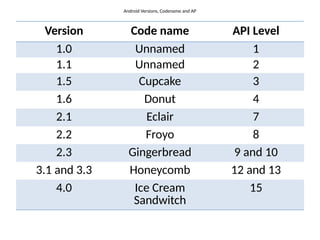
  • 113.
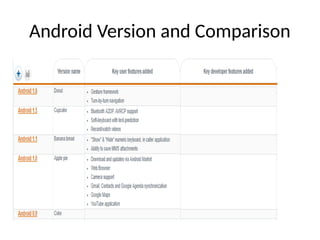
    Activity_main.xml <?xml version="1.0" encoding="utf-8"?> <LinearLayoutxmlns:android="http://schemas.android.com/apk/res/android"android:layout_width="fill_parent" android:layout_height="fill_parent" android:orientation="vertical" > <TextViewandroid:id="@+id/textView1" android:layout_width="match_parent" android:layout_height="wrap_content" android:layout_margin="20sp" android:gravity="center" android:text="HELLO WORLD" android:textSize="20sp" android:textStyle="bold" /> <Button android:id="@+id/button1" android:layout_width="match_parent" android:layout_height="wrap_content" android:gravity="center" android:text="Change font size" android:textSize="20sp" /> <Button android:id="@+id/button2" android:layout_width="match_parent" android:layout_height="wrap_content" android:gravity="center" android:text="Change color" android:textSize="20sp" /> <Button android:id="@+id/button3“ android:layout_width="match_parent" android:layout_height="wrap_content" android:gravity="center" android:text="Change font" android:textSize="20sp" /> </LinearLayout> 9) Again click the graphics layout tab 10) Go to project explorer and select src folder. Now select mainactivity.java file and type the following code
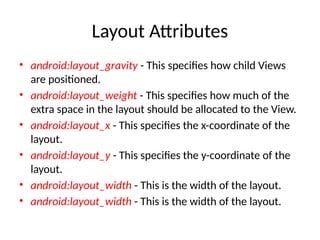
  • 114.
    mainactivity.java import android.app.Activity; import android.graphics.Color; importandroid.graphics.Typeface; import android.os.Bundle; import android.view.View; import android.widget.Button; import android.widget.TextView; public class AndroidActivity extends Activity { float font =24; int i=1; public void onCreate(Bundle savedInstanceState) { super.onCreate(savedInstanceState); setContentView(R.layout.main); final TextView t1=(TextView) findViewById(R.id.textView1); Button b1 = (Button) findViewById(R.id.button1); b1.setOnClickListener(new View.OnClickListener() { public void onClick(View view) { t1.setTextSize(font); font=font+4; if(font==40) font=20; } }); Button b2 = (Button) findViewById(R.id.button2); b2.setOnClickListener(new View.OnClickListener() { public void onClick(View view) { switch(i) { case 1: t1.setTextColor(Color.parseColor("#0000FF")); break; case 2: t1.setTextColor(Color.parseColor("#00FF00")); break; case 3: t1.setTextColor(Color.parseColor("#FF0000")); break; case 4: t1.setTextColor(Color.parseColor("#800000")); break; } i++; if(i==5)i=1; } }); } }
  • 115.
    11) Now goto main.xml and right click .select run as option and select run configuration 12) Android output is present in the android emulator as shown in below.