Let’s know more about
and how to use it ?
Let’s start of Organisational Hierarchy
Your Account
Workspace ?
What is workspace?
Workspace - Is a Container for everything
that your working on Clickup.
One running a business can create one workspace
to manage their business.
How to create a workspace in
?
Click the plussign in order to create a workspace
You can always create different workspace within your
account and you can switch between then anytime
• Back to Organisational Hierarchy
Workspace
Space ?
What is a Space in
?
Spaces- break up your workspace at a high level, which can be used
to organise things like departments within your business or teams
This is your space.
ClickUp is fully Customisable
You can change your space
view by clicking
Sidebar Settings, Then Layout
size & style
You can any layout size & style of your preference
You can Create a folder within
your space by clicking here.
Then select New folder
● Back to Organisational Hierarchy
Space
Folder ?
What are Folders in
?
A Folder houses lists. Folders can be things like
projects, clients, anything
that help you break up that space
After you create your
Folder, you can create List.
● Back to Organisational Hierarchy
Folder
List ?
What are Lists in
?
Lists are where tasks live.
They're task lists. Each task must belong to a List
This is your Lists as an example:
● Back to Organisational Hierarchy
List
Task ?
What are Task in
?
Task - a piece of work to be done or undertaken
Highlighted here is a task to be done.
Every task lives within a list, where
the majority of your time in
Each Task has assignees.
You can assign the task to yourself
or other team members. Click Here.
You can click the task, for you to create a subtasks if needed.
This is inside a Task. Scroll down.
Add your Substask or a Checklist here
By scrolling down you add an attachment within your task
You can attach a file from different sources.
To be more efficient, a task should have a due date. Click Here.
Select the most realistic due date on your task.
Good feature is you can set as recurring task.
You can choose the frequency of your task.
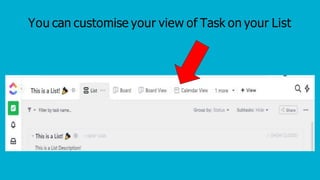
You can customise your view of Task on your List
You Have
Noticed a Plus
sign at the lower
right bottom
It reveals
additional
functions and
shortcuts.
You still got other
functions available
at the very left
portion
Notifications
Emails and Reminders
Dashboards
Documents
Help & Support
Goals
Portfolios
Reporting
Very Cool, right ?
Let’s try to do something using
Let’s say you’ll start a new project and need to create
a workspace. Click Here.
Click Add
Workspace
You will be ask who
will be joining this
new workspace.
The next steps in creating a new
Workspace are just like how we
started in setting up the account.
We can have a Recap.
For Single User
For Group or Team User
Inviting members onset of creating your
Workspace
Invite members or clients
to be part of your created
workspace.
Enter their email address/es
Some will also invite you to be there in their
own workspace.
Ican show you an EXAMPLE.
Example :You’ll receive an email invitation. Click Accept.
A pop up will appear, Just Click Join.
It will show now that
you have your
Other workspaces.
Create a new folder by clicking folder settings here
Type here your desired name of your folder
Your name will appear here along with other
members, colleagues your working with.
Highlight here for tasks that needs to be accomplished.
Assign a task to yourself or whoever who will be doing it.
You will know right away who are assigned to each task based on Avatars
Due dates are just beside the assignee.
What will happen if did not do your task on
assigned due date?
Overdue will show here
An email will also be received
to remind you of your task.
Oh, No!!!!
To prevent
delays and
overdues,
It is available
on mobile
howtouseclickup update.pptx

howtouseclickup update.pptx