TransparentChoice Training
Changing the world one
decision at a time
Filling in a Survey (Alternatives)
What is TransparentChoice?
• TransparentChoice is a collaborative tool to help
organizations make key decisions
• To do this, we need your input
• Specifically, we want you to help us to score
different alternatives (e.g. vendors, technology
options, initiatives) that are possible outcomes of
this decision
• In this survey we will ask you a series of questions
in the form “Rate this alternative in the context
of…”
A word on context
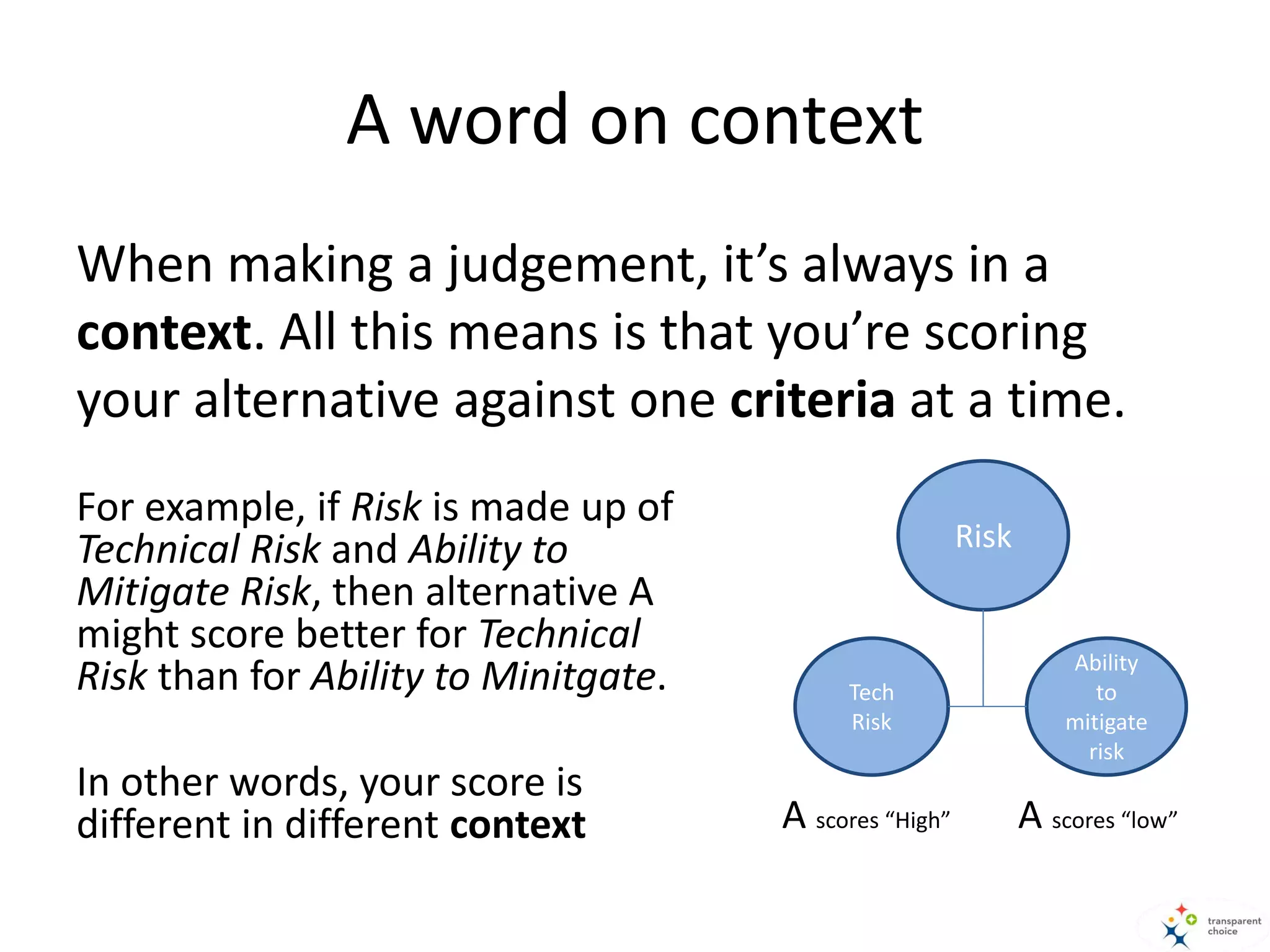
When making a judgement, it’s always in a
context. All this means is that you’re scoring
your alternative against one criteria at a time.
Risk
Ability
to
mitigate
risk
Tech
Risk
A scores “High”
For example, if Risk is made up of
Technical Risk and Ability to
Mitigate Risk, then alternative A
might score better for Technical
Risk than for Ability to Minitgate.
In other words, your score is
different in different context A scores “low”
A word on scales
• You will be using scales to score your alternatives
• A scale gives you a way to quantify an aspect or
property of your alternatives
• The option you pick will translate into a score that
TransparentChoice will combine with criteria weights,
calculating an overall score for each alternative
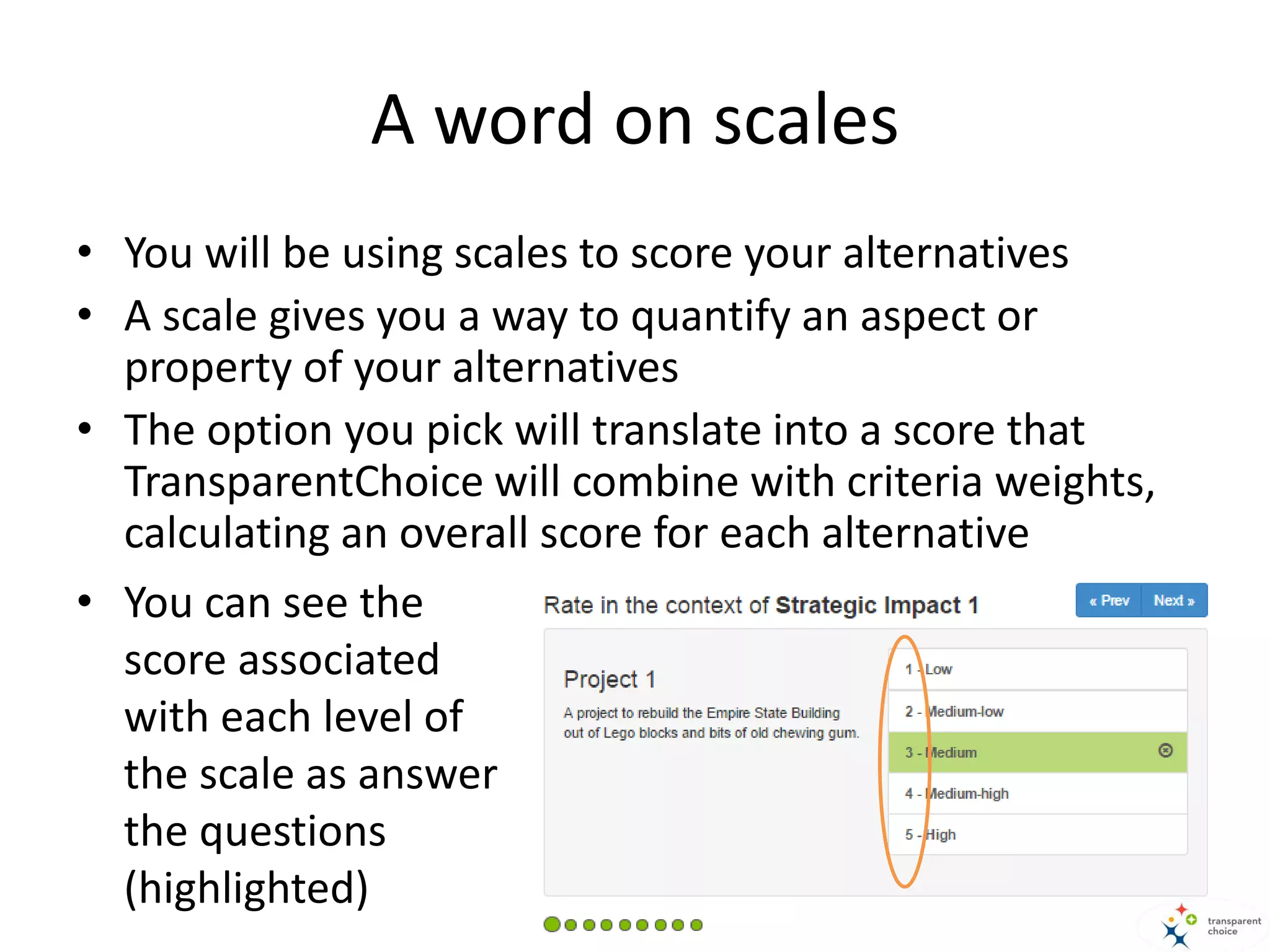
• You can see the
score associated
with each level of
the scale as answer
the questions
(highlighted)
Making judgements and navigation
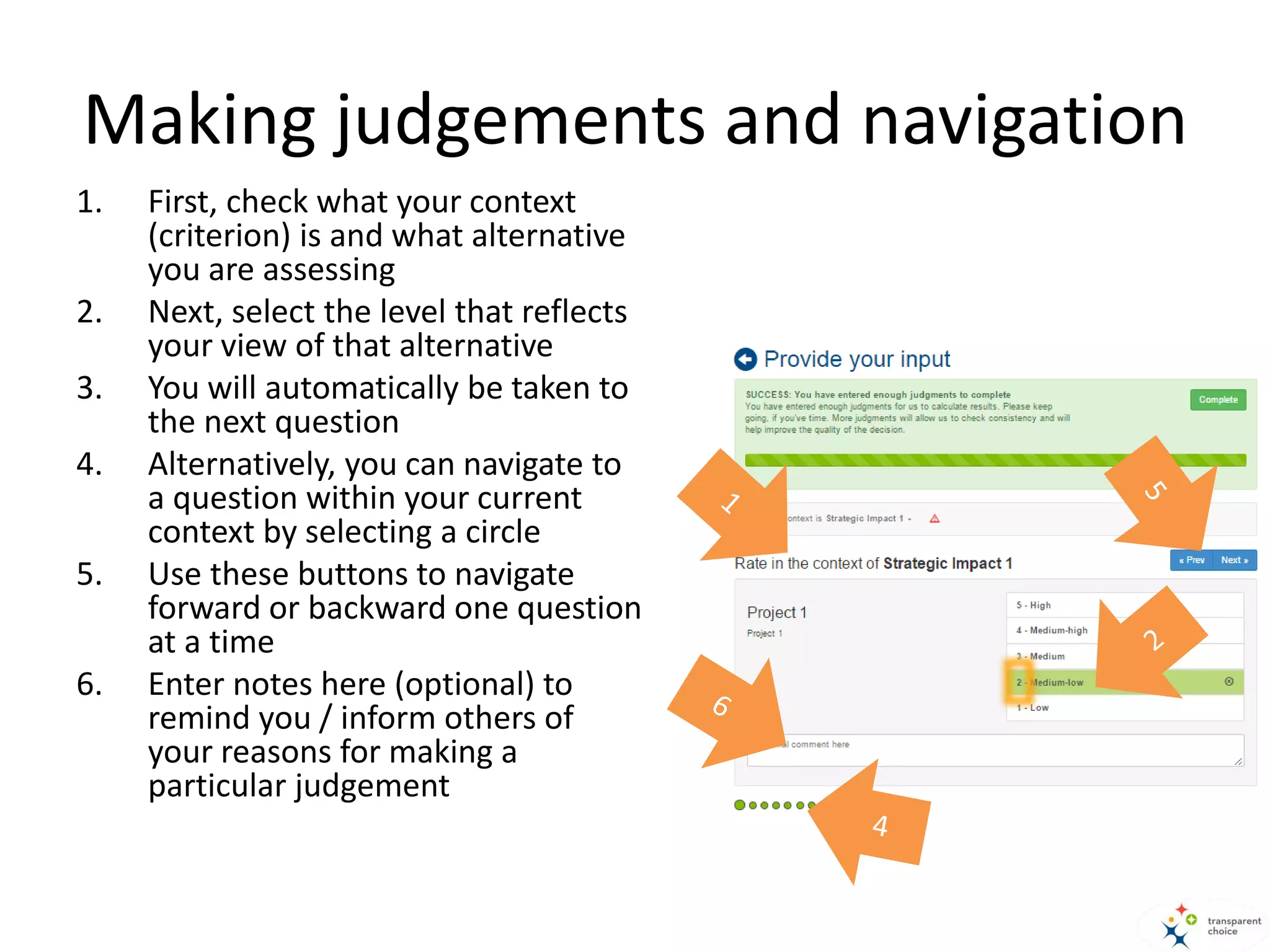
1. First, check what your context
(criterion) is and what alternative
you are assessing
2. Next, select the level that reflects
your view of that alternative
3. You will automatically be taken to
the next question
4. Alternatively, you can navigate to
a question within your current
context by selecting a circle
5. Use these buttons to navigate
forward or backward one question
at a time
6. Enter notes here (optional) to
remind you / inform others of
your reasons for making a
particular judgement
Changing context
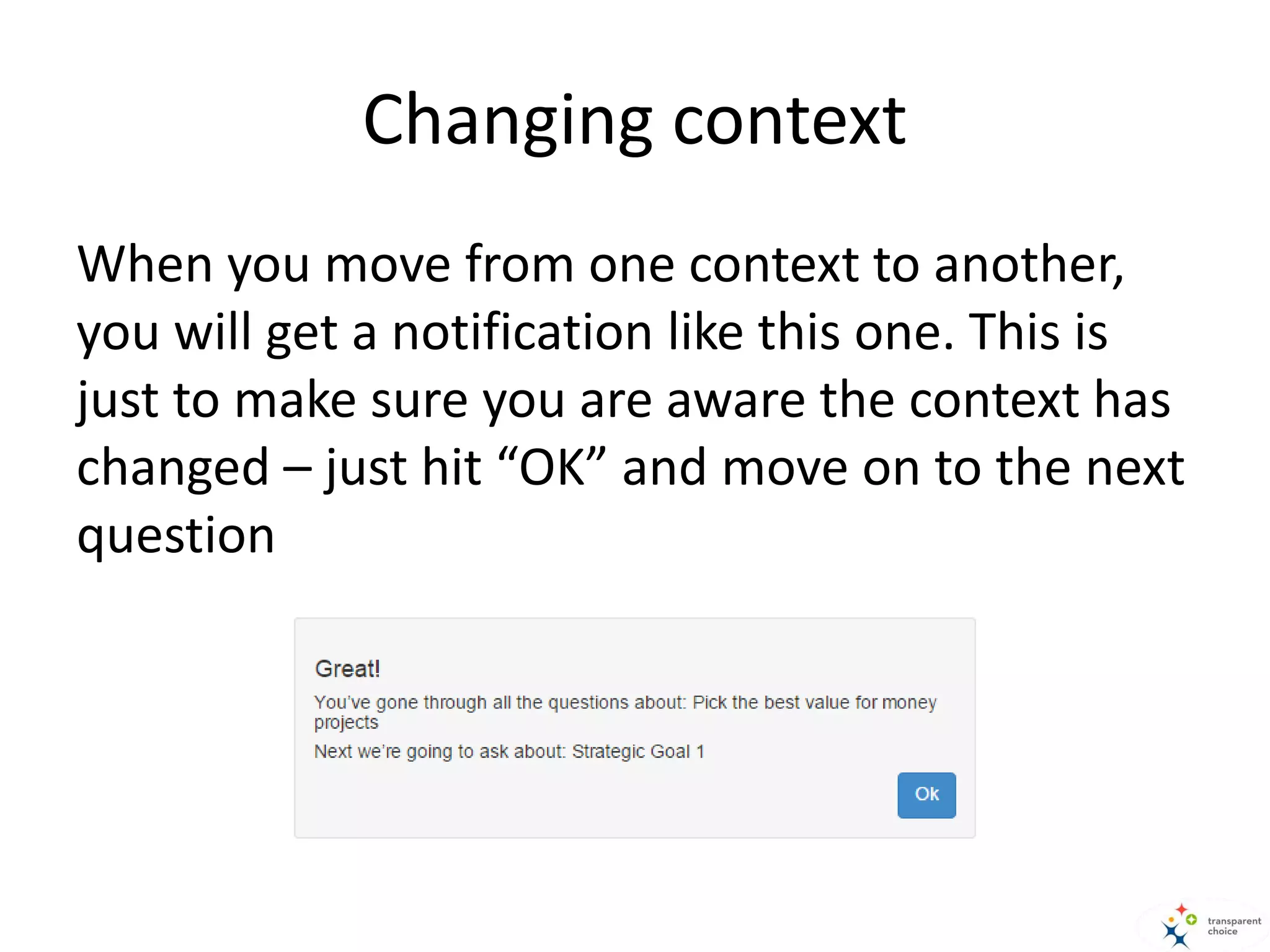
When you move from one context to another,
you will get a notification like this one. This is
just to make sure you are aware the context has
changed – just hit “OK” and move on to the next
question
Advanced navigation
1. You can navigate to a specific context (criterion)
if, for example, you only want to comment on a
specific area of expertise.
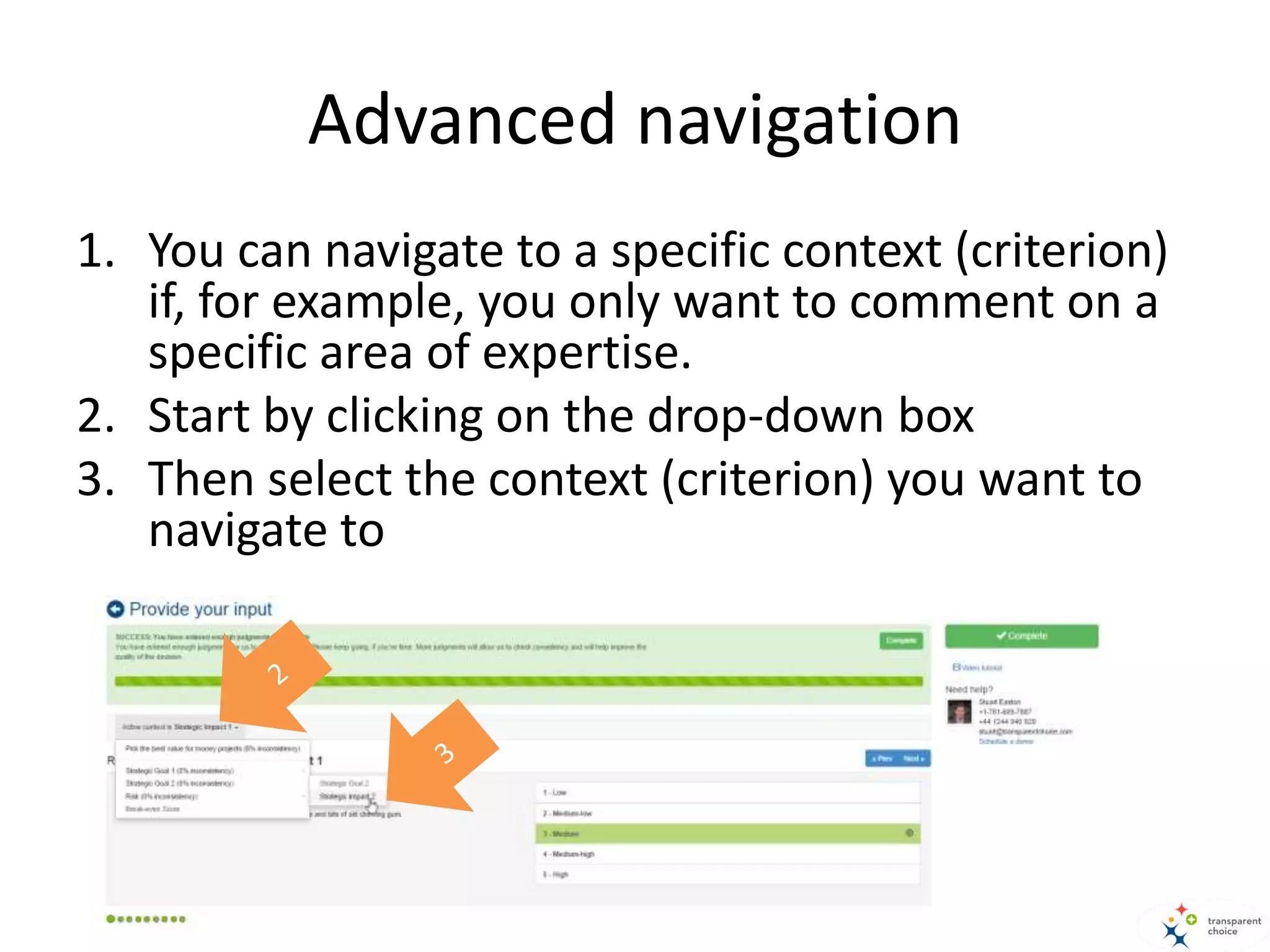
2. Start by clicking on the drop-down box
3. Then select the context (criterion) you want to
navigate to
Finish entering data
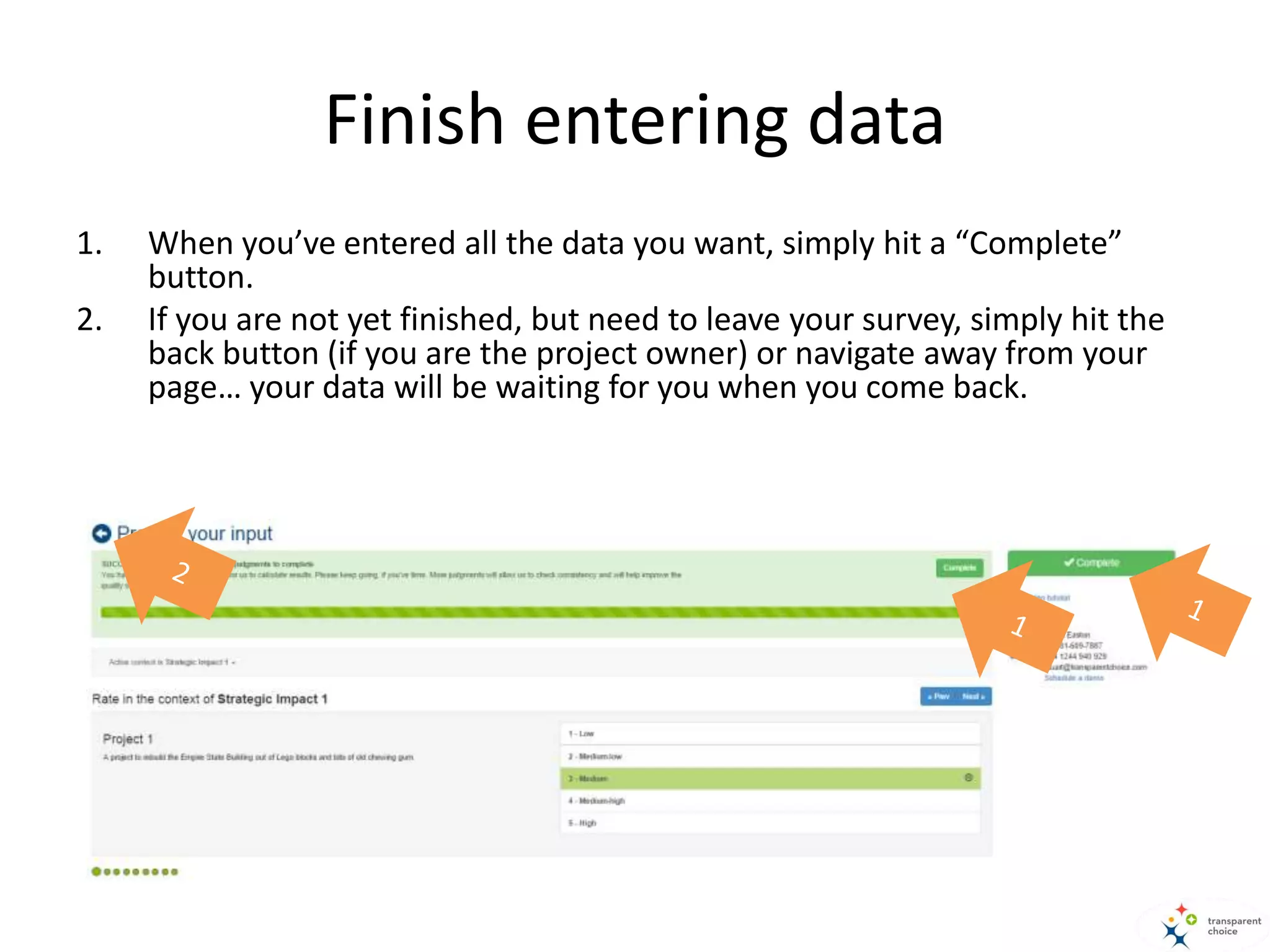
1. When you’ve entered all the data you want, simply hit a “Complete”
button.
2. If you are not yet finished, but need to leave your survey, simply hit the
back button (if you are the project owner) or navigate away from your
page… your data will be waiting for you when you come back.

Filling in a TransparentChoice survey (Alternatives)

  • 1.
    TransparentChoice Training Changing theworld one decision at a time
  • 2.
    Filling in aSurvey (Alternatives)
  • 3.
    What is TransparentChoice? •TransparentChoice is a collaborative tool to help organizations make key decisions • To do this, we need your input • Specifically, we want you to help us to score different alternatives (e.g. vendors, technology options, initiatives) that are possible outcomes of this decision • In this survey we will ask you a series of questions in the form “Rate this alternative in the context of…”
  • 4.
    A word oncontext When making a judgement, it’s always in a context. All this means is that you’re scoring your alternative against one criteria at a time. Risk Ability to mitigate risk Tech Risk A scores “High” For example, if Risk is made up of Technical Risk and Ability to Mitigate Risk, then alternative A might score better for Technical Risk than for Ability to Minitgate. In other words, your score is different in different context A scores “low”
  • 5.
    A word onscales • You will be using scales to score your alternatives • A scale gives you a way to quantify an aspect or property of your alternatives • The option you pick will translate into a score that TransparentChoice will combine with criteria weights, calculating an overall score for each alternative • You can see the score associated with each level of the scale as answer the questions (highlighted)
  • 6.
    Making judgements andnavigation 1. First, check what your context (criterion) is and what alternative you are assessing 2. Next, select the level that reflects your view of that alternative 3. You will automatically be taken to the next question 4. Alternatively, you can navigate to a question within your current context by selecting a circle 5. Use these buttons to navigate forward or backward one question at a time 6. Enter notes here (optional) to remind you / inform others of your reasons for making a particular judgement
  • 7.
    Changing context When youmove from one context to another, you will get a notification like this one. This is just to make sure you are aware the context has changed – just hit “OK” and move on to the next question
  • 8.
    Advanced navigation 1. Youcan navigate to a specific context (criterion) if, for example, you only want to comment on a specific area of expertise. 2. Start by clicking on the drop-down box 3. Then select the context (criterion) you want to navigate to
  • 9.
    Finish entering data 1.When you’ve entered all the data you want, simply hit a “Complete” button. 2. If you are not yet finished, but need to leave your survey, simply hit the back button (if you are the project owner) or navigate away from your page… your data will be waiting for you when you come back.