Orientation: Mechanical Engineering
Kathleen Baril, Heterick Memorial
Library
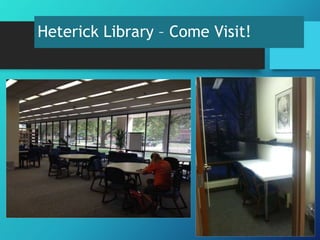
Heterick Library – Come Visit!
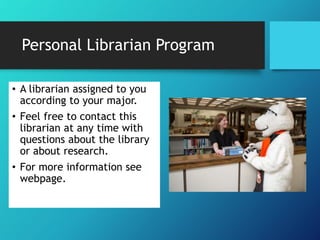
Personal Librarian Program
‱ A librarian assigned to you
according to your major.
‱ Feel free to contact this
librarian at any time with
questions about the library
or about research.
‱ For more information see
webpage.
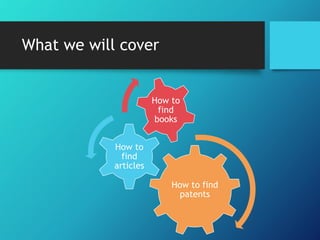
What we will cover
How to find
patents
How to
find
articles
How to
find
books
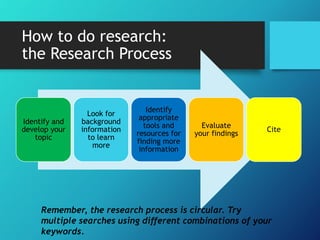
How to do research:
the Research Process
Identify and
develop your
topic
Look for
background
information
to learn
more
Identify
appropriate
tools and
resources for
finding more
information
Evaluate
your findings
Cite
Remember, the research process is circular. Try
multiple searches using different combinations of your
keywords.
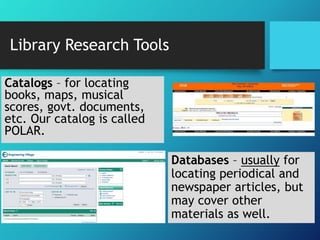
Catalogs – for locating
books, maps, musical
scores, govt. documents,
etc. Our catalog is called
POLAR.
Databases – usually for
locating periodical and
newspaper articles, but
may cover other
materials as well.
Library Research Tools
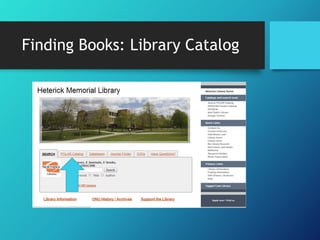
Finding Books: Library Catalog
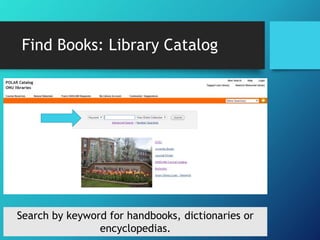
Find Books: Library Catalog
Search by keyword for handbooks, dictionaries or
encyclopedias.
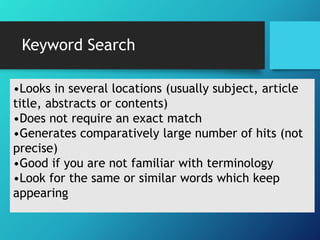
Keyword Search
‱Looks in several locations (usually subject, article
title, abstracts or contents)
‱Does not require an exact match
‱Generates comparatively large number of hits (not
precise)
‱Good if you are not familiar with terminology
‱Look for the same or similar words which keep
appearing
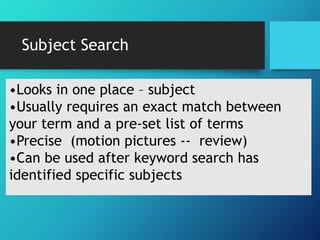
Subject Search
‱Looks in one place – subject
‱Usually requires an exact match between
your term and a pre-set list of terms
‱Precise (motion pictures -- review)
‱Can be used after keyword search has
identified specific subjects
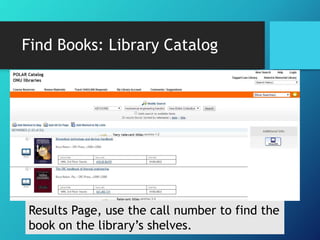
Find Books: Library Catalog
Results Page, use the call number to find the
book on the library’s shelves.
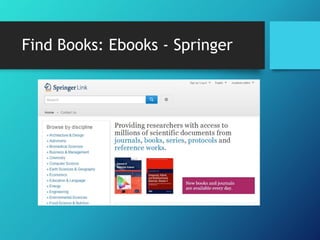
Find Books: Ebooks - Springer
The Springer
ebooks collection
contains many
online books
concerning
engineering.
These books can
be accessed 24/7
online.
Find Books: Ebooks - Springer
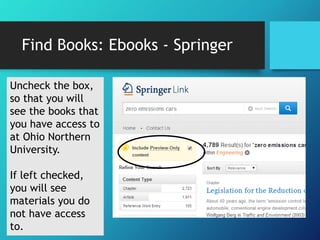
Uncheck the box,
so that you will
see the books that
you have access to
at Ohio Northern
University.
If left checked,
you will see
materials you do
not have access
to.
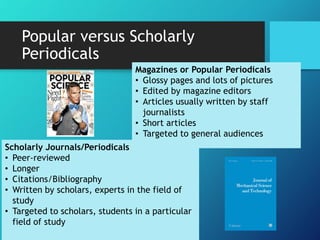
Magazines or Popular Periodicals
‱ Glossy pages and lots of pictures
‱ Edited by magazine editors
‱ Articles usually written by staff
journalists
‱ Short articles
‱ Targeted to general audiences
Scholarly Journals/Periodicals
‱ Peer-reviewed
‱ Longer
‱ Citations/Bibliography
‱ Written by scholars, experts in the field of
study
‱ Targeted to scholars, students in a particular
field of study
Popular versus Scholarly
Periodicals
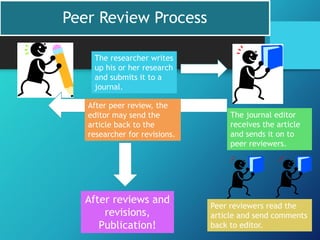
Peer Review Process
The researcher writes
up his or her research
and submits it to a
journal.
The journal editor
receives the article
and sends it on to
peer reviewers.
Peer reviewers read the
article and send comments
back to editor.
After peer review, the
editor may send the
article back to the
researcher for revisions.
After reviews and
revisions,
Publication!
Compendex
What is Compendex?
‱ Compendex is an engineering database that
covers the engineering literature from 190
engineering disciplines.
‱ Indexes journal articles, conference articles,
conferences proceedings, book chapters,
etc.
‱ Index database, so you must link out to find
the full-text of the materials in this
resource.
Compendex
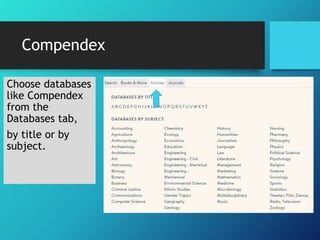
Choose databases
like Compendex
from the
Databases tab,
by title or by
subject.
Compendex
Enter keywords in search boxes.
Compendex
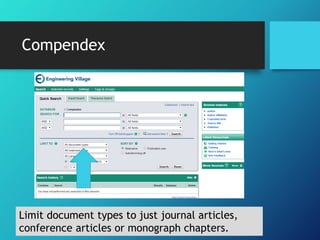
Limit document types to just journal articles,
conference articles or monograph chapters.
Compendex: Results Page
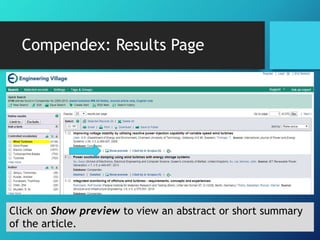
Click on Show preview to view an abstract or short summary
of the article.
Compendex :Results Page
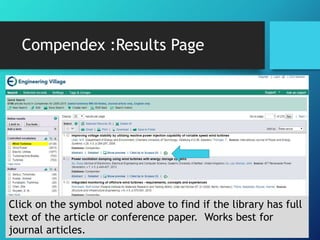
Click on the symbol noted above to find if the library has full
text of the article or conference paper. Works best for
journal articles.
Compendex: Results Page
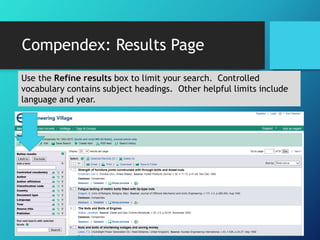
Use the Refine results box to limit your search. Controlled
vocabulary contains subject headings. Other helpful limits include
language and year.
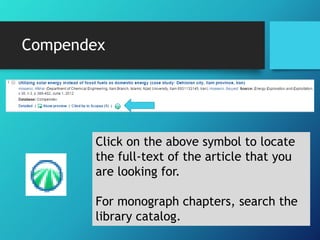
Compendex
Click on the above symbol to locate
the full-text of the article that you
are looking for.
For monograph chapters, search the
library catalog.
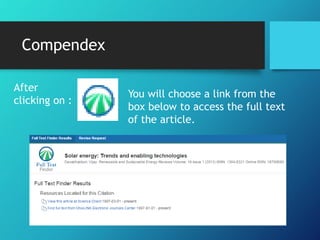
Compendex
After
clicking on :
You will choose a link from the
box below to access the full text
of the article.
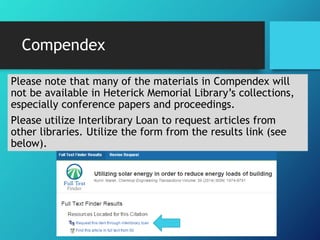
Compendex
Please note that many of the materials in Compendex will
not be available in Heterick Memorial Library’s collections,
especially conference papers and proceedings.
Please utilize Interlibrary Loan to request articles from
other libraries. Utilize the form from the results link (see
below).
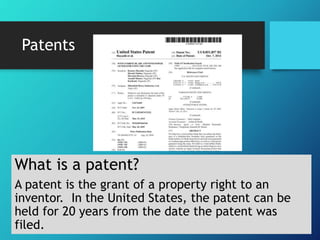
Patents
What is a patent?
A patent is the grant of a property right to an
inventor. In the United States, the patent can be
held for 20 years from the date the patent was
filed.
Patents – United States
What is a patent?
“A patent is an intellectual property right
granted by the Government of the United States
of America to an inventor “to exclude others
from making, using, offering for sale, or selling
the invention throughout the United States or
importing the invention into the United States”
for a limited time in exchange for public
disclosure of the invention when the patent is
granted.”
From http://www.uspto.gov/patents/.
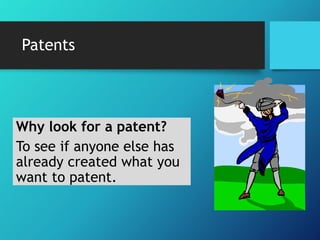
Patents
Why look for a patent?
To see if anyone else has
already created what you
want to patent.
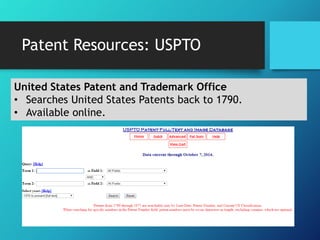
Patent Resources: USPTO
United States Patent and Trademark Office
‱ Searches United States Patents back to 1790.
‱ Available online.
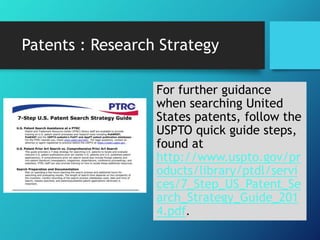
Patents : Research Strategy
For further guidance
when searching United
States patents, follow the
USPTO quick guide steps,
found at
http://www.uspto.gov/pr
oducts/library/ptdl/servi
ces/7_Step_US_Patent_Se
arch_Strategy_Guide_201
4.pdf.
Patent Resources:
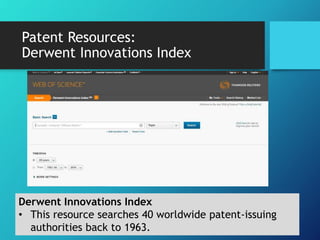
Derwent Innovations Index
‱ This resource searches 40 worldwide patent-issuing
authorities back to 1963.
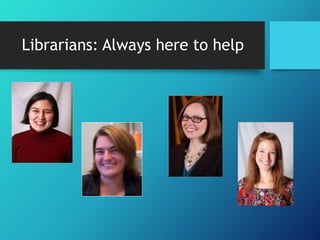
Librarians: Always here to help
Need Help?
‱ Ask at the Reference Desk or call for help: x2185
‱ Contact us by email: reference@onu.edu
‱ Make an individual appointment with a librarian for more
extensive research assistance.
‱ Librarians on duty:
‱ Monday – Thursday
‱ 8:00 AM – 4:30 PM
‱ 6:00 PM – 9:00 PM
‱ Friday
‱ 8:00 AM – 4:30 PM

Mech eng orientation fall 2015

  • 1.
    Orientation: Mechanical Engineering KathleenBaril, Heterick Memorial Library
  • 2.
  • 3.
    Personal Librarian Program ‱A librarian assigned to you according to your major. ‱ Feel free to contact this librarian at any time with questions about the library or about research. ‱ For more information see webpage.
  • 4.
    What we willcover How to find patents How to find articles How to find books
  • 5.
    How to doresearch: the Research Process Identify and develop your topic Look for background information to learn more Identify appropriate tools and resources for finding more information Evaluate your findings Cite Remember, the research process is circular. Try multiple searches using different combinations of your keywords.
  • 6.
    Catalogs – forlocating books, maps, musical scores, govt. documents, etc. Our catalog is called POLAR. Databases – usually for locating periodical and newspaper articles, but may cover other materials as well. Library Research Tools
  • 7.
  • 8.
    Find Books: LibraryCatalog Search by keyword for handbooks, dictionaries or encyclopedias.
  • 9.
    Keyword Search ‱Looks inseveral locations (usually subject, article title, abstracts or contents) ‱Does not require an exact match ‱Generates comparatively large number of hits (not precise) ‱Good if you are not familiar with terminology ‱Look for the same or similar words which keep appearing
  • 10.
    Subject Search ‱Looks inone place – subject ‱Usually requires an exact match between your term and a pre-set list of terms ‱Precise (motion pictures -- review) ‱Can be used after keyword search has identified specific subjects
  • 11.
    Find Books: LibraryCatalog Results Page, use the call number to find the book on the library’s shelves.
  • 12.
    Find Books: Ebooks- Springer The Springer ebooks collection contains many online books concerning engineering. These books can be accessed 24/7 online.
  • 13.
  • 14.
    Find Books: Ebooks- Springer Uncheck the box, so that you will see the books that you have access to at Ohio Northern University. If left checked, you will see materials you do not have access to.
  • 15.
    Magazines or PopularPeriodicals ‱ Glossy pages and lots of pictures ‱ Edited by magazine editors ‱ Articles usually written by staff journalists ‱ Short articles ‱ Targeted to general audiences Scholarly Journals/Periodicals ‱ Peer-reviewed ‱ Longer ‱ Citations/Bibliography ‱ Written by scholars, experts in the field of study ‱ Targeted to scholars, students in a particular field of study Popular versus Scholarly Periodicals
  • 16.
    Peer Review Process Theresearcher writes up his or her research and submits it to a journal. The journal editor receives the article and sends it on to peer reviewers. Peer reviewers read the article and send comments back to editor. After peer review, the editor may send the article back to the researcher for revisions. After reviews and revisions, Publication!
  • 17.
    Compendex What is Compendex? ‱Compendex is an engineering database that covers the engineering literature from 190 engineering disciplines. ‱ Indexes journal articles, conference articles, conferences proceedings, book chapters, etc. ‱ Index database, so you must link out to find the full-text of the materials in this resource.
  • 18.
    Compendex Choose databases like Compendex fromthe Databases tab, by title or by subject.
  • 19.
  • 20.
    Compendex Limit document typesto just journal articles, conference articles or monograph chapters.
  • 21.
    Compendex: Results Page Clickon Show preview to view an abstract or short summary of the article.
  • 22.
    Compendex :Results Page Clickon the symbol noted above to find if the library has full text of the article or conference paper. Works best for journal articles.
  • 23.
    Compendex: Results Page Usethe Refine results box to limit your search. Controlled vocabulary contains subject headings. Other helpful limits include language and year.
  • 24.
    Compendex Click on theabove symbol to locate the full-text of the article that you are looking for. For monograph chapters, search the library catalog.
  • 25.
    Compendex After clicking on : Youwill choose a link from the box below to access the full text of the article.
  • 26.
    Compendex Please note thatmany of the materials in Compendex will not be available in Heterick Memorial Library’s collections, especially conference papers and proceedings. Please utilize Interlibrary Loan to request articles from other libraries. Utilize the form from the results link (see below).
  • 27.
    Patents What is apatent? A patent is the grant of a property right to an inventor. In the United States, the patent can be held for 20 years from the date the patent was filed.
  • 28.
    Patents – UnitedStates What is a patent? “A patent is an intellectual property right granted by the Government of the United States of America to an inventor “to exclude others from making, using, offering for sale, or selling the invention throughout the United States or importing the invention into the United States” for a limited time in exchange for public disclosure of the invention when the patent is granted.” From http://www.uspto.gov/patents/.
  • 29.
    Patents Why look fora patent? To see if anyone else has already created what you want to patent.
  • 30.
    Patent Resources: USPTO UnitedStates Patent and Trademark Office ‱ Searches United States Patents back to 1790. ‱ Available online.
  • 31.
    Patents : ResearchStrategy For further guidance when searching United States patents, follow the USPTO quick guide steps, found at http://www.uspto.gov/pr oducts/library/ptdl/servi ces/7_Step_US_Patent_Se arch_Strategy_Guide_201 4.pdf.
  • 32.
    Patent Resources: Derwent InnovationsIndex Derwent Innovations Index ‱ This resource searches 40 worldwide patent-issuing authorities back to 1963.
  • 33.
  • 34.
    Need Help? ‱ Askat the Reference Desk or call for help: x2185 ‱ Contact us by email: reference@onu.edu ‱ Make an individual appointment with a librarian for more extensive research assistance. ‱ Librarians on duty: ‱ Monday – Thursday ‱ 8:00 AM – 4:30 PM ‱ 6:00 PM – 9:00 PM ‱ Friday ‱ 8:00 AM – 4:30 PM

Editor's Notes

  • #2 Warhol Colored Gears (Intermediate)   To reproduce the video effects on this slide, do the following: On the Home tab, in the Slides group, click Layout, and then click Blank. On the Design tab, in the Themes group, click the arrow next to Colors and then click Metro. On the Insert tab, in the Media group, click Video, and then click Video from File. In the left pane of the Insert Video dialog box, click the drive or library that contains the video. In the right pane of the dialog box, click the first video that you want and then click Insert. Under Video Tools, on the Format tab in the Size group, click the arrow at the bottom right corner to launch the Format Video dialog box. Select Size in the left pane, and then in the Size pane do the following: Under Scale, clear the Lock Aspect Ratio box. Under Size and Rotate, set Height to 3.13” and Width to 4.17”. Also in the Format Video dialog box, select Position in the left pane, and then in the Position pane do the following: In the Horizontal box, enter 0.64” From Top Left Corner. In the Vertical box, enter 0.47” From Top Left Corner. Also in the Format Video dialog box, select Border Color in the left pane, and then in the Border Color pane select Solid Line. Click the arrow to the right of Color and under Theme Colors select Black, Text 1 (first row, second option). Also in the Format Video dialog box, select Border Style in the left pane, and then in the Border Style pane, in the Width box, enter 0.75”. Also in the Format Video dialog box, select Shadow in the left pane, and then in the Shadow pane do the following: Click the arrow to the right of Color and under Theme Colors select Black, Text 1 (first row, second option). In the Transparency box, enter 40%. In the Size box, enter 102%. In the Blur box, enter 5 pt. In the Angle box, enter 0 degrees. In the Distance box, enter 0 pt. Close the Format Video dialog box. Under Video Tools, on the Format tab, in the Adjust group, click the arrow under Color, and then under Recolor select Periwinkle, Accent color 5 Dark (second row, sixth option from left). On the Animations tab, in the Timing group, select the arrow to the right of Start and select With Previous. On the Insert tab, in the Media group, click Video, and then click Video from file. In the left pane of the Insert Video dialog box, click the drive or library that contains the video. In the right pane of the dialog box, click the second video that you want and then click Insert. Under Video Tools, on the Format tab in the Size group, click the arrow at the bottom right corner to launch the Format Video dialog box, select Size in the left pane, and then in the Size pane do the following: Under Scale, clear the Lock Aspect Ratio box. Under Size and Rotate, set the Height to 3.13” and the Width to 4.17”. Also in the Format Video dialog box, select Position in the left pane, and then in the Position pane do the following: In the Horizontal box, enter 5.19” From Top Left Corner. In the Vertical box, enter 0.47” From Top Left Corner. Also in the Format Video dialog box, select Border Color in the left pane, and then in the Border Color pane select Solid Line. Click the arrow to the right of Color and under Theme Colors select Black, Text1 (first row, second option). Also in the Format Video dialog box, select Border Style in the left pane, and then in the Border Style pane, in the Width box, enter 0.75”. Also in the Format Video dialog box, select Shadow in the left pane, and then in the Shadow pane do the following: Click the arrow to the right of Color and under Theme Colors select Black, Text 1 (first row, second option). In the Transparency box, enter 40%. In the Size box, enter 102%. In the Blur box, enter 5 pt. In the Angle box, enter 0 degrees. In the Distance box, enter 0 pt. Close the Format Video dialog box. Under Video Tools, on the Format tab, in the Adjust group, click the arrow under Color, and then under Recolor select Pink, Accent color 2 Dark (second row, third option from left). On the Animations tab, in the Timing group, select the arrow to the right of Start and select With Previous. Press and hold CTRL and select both videos. On the Home tab, in the Clipboard group, click the arrow to the right of Copy, and then select Duplicate. Select the duplicated right video. Under Video tools, on the Format tab, in the Size group, click the arrow at the bottom right to launch the Format Video dialog box, select Position in the left pane and then in the Position pane do the following: In the Horizontal box, enter 0.64” From Top Left Corner. In the Vertical box, enter 3.91” From Top Left Corner. Close the Format Video dialog box. Select the duplicated right video. Under Video Tools, on the Format tab, in the Arrange group click the arrow to the right of Rotate and then do the following: Flip Vertical. Flip Horizontal. With the video still selected, under Video Tools, on the Format tab, in the Adjust group, click the arrow under Color, and then under Recolor select Green, Accent color 1 Dark (second row, second option from left). Select the duplicated left video, under Video tools, on the Format tab, in the Size group, click the arrow at the bottom right to launch the Format Video dialog box, select Position in the left pane and then in the Position pane do the following: In the Horizontal box, enter 5.19” From Top Left Corner. In the Vertical box, enter 3.91” From Top Left Corner. Close the Format Video dialog box. Select the duplicated left video. Under Video Tools, on the Format tab, in the Arrange group click the arrow to the right of Rotate and then do the following: Flip Vertical. Flip Horizontal. With the video still selected, under Video Tools, on the Format tab, in the Adjust group, click the arrow under Color, and then under Recolor select Gold, Accent color 3 Dark (second row, fourth option from left).     Â