IBM Maximo Asset Management Training 
Getting Started 
© 2014 IBM Corporation 
Bruno Portaluri 
Maximo Technical Solution Architect 
Last Update: 2014-11-12
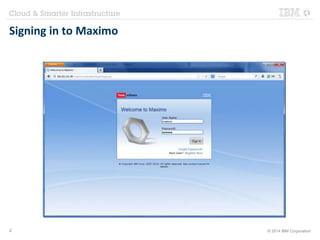
Signing in to Maximo 
2 © 2014 IBM Corporation
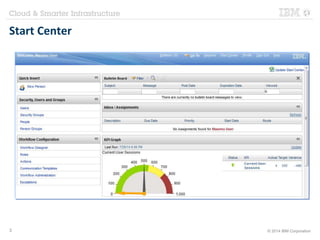
Start Center 
3 © 2014 IBM Corporation
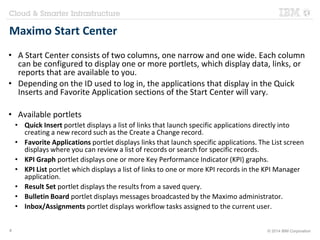
Maximo Start Center 
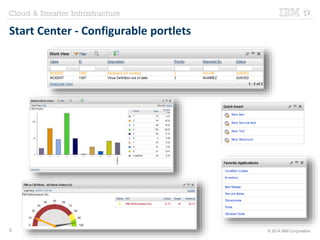
• A Start Center consists of two columns, one narrow and one wide. Each column 
can be configured to display one or more portlets, which display data, links, or 
reports that are available to you. 
• Depending on the ID used to log in, the applications that display in the Quick 
Inserts and Favorite Application sections of the Start Center will vary. 
• Available portlets 
• Quick Insert portlet displays a list of links that launch specific applications directly into 
creating a new record such as the Create a Change record. 
• Favorite Applications portlet displays links that launch specific applications. The List screen 
displays where you can review a list of records or search for specific records. 
• KPI Graph portlet displays one or more Key Performance Indicator (KPI) graphs. 
• KPI List portlet which displays a list of links to one or more KPI records in the KPI Manager 
application. 
• Result Set portlet displays the results from a saved query. 
• Bulletin Board portlet displays messages broadcasted by the Maximo administrator. 
• Inbox/Assignments portlet displays workflow tasks assigned to the current user. 
4 © 2014 IBM Corporation
Start Center - Configurable portlets 
5 © 2014 IBM Corporation
Navigation Bar 
Bulletins 
Displays the Bullettin 
Board to view 
broadcast messages 
Go To Menu 
Displays the list of modules 
and applications available 
to the current user 
Help 
Displays the help 
Sign Out 
Logs out the 
current user 
Start Center 
Returns to the home page 
Reports 
Allows to 
generate reports 
Profile 
Allows to manage user 
information such as language, 
site, time zone, etc. 
Title 
Displays the current logged 
user or the current 
application name 
6 © 2014 IBM Corporation
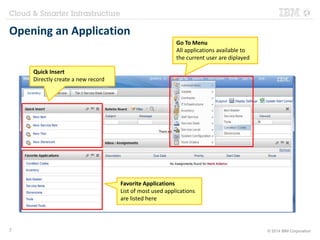
Opening an Application 
Go To Menu 
All applications available to 
the current user are diplayed 
Favorite Applications 
List of most used applications 
are listed here 
Quick Insert 
Directly create a new record 
7 © 2014 IBM Corporation
Application Elements 
Toolbar 
Tabs 
Adv. Search 
Search fields 
Table 
8 © 2014 IBM Corporation
Toolbar 
Saved Queries Quick Find Adv. Search Action Menu Buttons 
9 © 2014 IBM Corporation
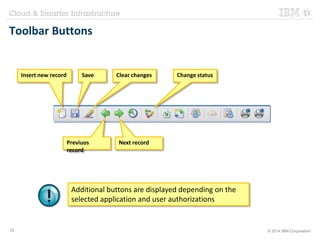
Toolbar Buttons 
Insert new record Save Clear changes 
Previuos 
record 
Next record 
Change status 
Additional buttons are displayed depending on the 
selected application and user authorizations 
10 © 2014 IBM Corporation
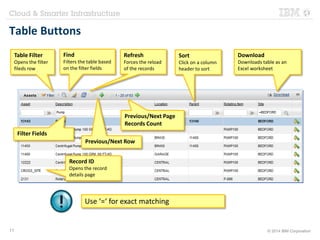
Table Buttons 
Table Filter 
Opens the filter 
fileds row 
Find 
Filters the table based 
on the filter fields 
Refresh 
Forces the reload 
of the records 
Previous/Next Page 
Records Count 
Previous/Next Row 
Record ID 
Opens the record 
details page 
Use ‘=‘ for exact matching 
Download 
Downloads table as an 
Excel worksheet 
Filter Fields 
Sort 
Click on a column 
header to sort 
11 © 2014 IBM Corporation
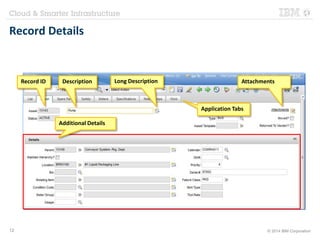
Record Details 
Record ID Description Long Description Attachments 
Application Tabs 
Additional Details 
12 © 2014 IBM Corporation
Attachments 
When selecting view attachments from one record you can 
access documents attached to all related records 
13 © 2014 IBM Corporation
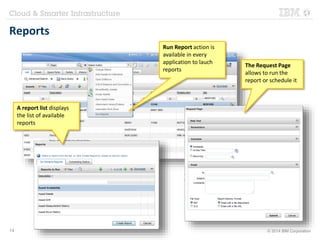
Reports 
Run Report action is 
available in every 
application to lauch 
reports 
A report list displays 
the list of available 
reports 
The Request Page 
allows to run the 
report or schedule it 
14 © 2014 IBM Corporation
Various Tips 
• ALT+F1 displays help on any field 
• Never use the browser Back button 
• Tab key perform validations 
• When you do not understand how to do something, 
take a look at ‘Select Action’ menu 
15 © 2014 IBM Corporation
16 © 2014 IBM Corporation

Maximo training - Getting Started

  • 1.
    IBM Maximo AssetManagement Training Getting Started © 2014 IBM Corporation Bruno Portaluri Maximo Technical Solution Architect Last Update: 2014-11-12
  • 2.
    Signing in toMaximo 2 © 2014 IBM Corporation
  • 3.
    Start Center 3© 2014 IBM Corporation
  • 4.
    Maximo Start Center • A Start Center consists of two columns, one narrow and one wide. Each column can be configured to display one or more portlets, which display data, links, or reports that are available to you. • Depending on the ID used to log in, the applications that display in the Quick Inserts and Favorite Application sections of the Start Center will vary. • Available portlets • Quick Insert portlet displays a list of links that launch specific applications directly into creating a new record such as the Create a Change record. • Favorite Applications portlet displays links that launch specific applications. The List screen displays where you can review a list of records or search for specific records. • KPI Graph portlet displays one or more Key Performance Indicator (KPI) graphs. • KPI List portlet which displays a list of links to one or more KPI records in the KPI Manager application. • Result Set portlet displays the results from a saved query. • Bulletin Board portlet displays messages broadcasted by the Maximo administrator. • Inbox/Assignments portlet displays workflow tasks assigned to the current user. 4 © 2014 IBM Corporation
  • 5.
    Start Center -Configurable portlets 5 © 2014 IBM Corporation
  • 6.
    Navigation Bar Bulletins Displays the Bullettin Board to view broadcast messages Go To Menu Displays the list of modules and applications available to the current user Help Displays the help Sign Out Logs out the current user Start Center Returns to the home page Reports Allows to generate reports Profile Allows to manage user information such as language, site, time zone, etc. Title Displays the current logged user or the current application name 6 © 2014 IBM Corporation
  • 7.
    Opening an Application Go To Menu All applications available to the current user are diplayed Favorite Applications List of most used applications are listed here Quick Insert Directly create a new record 7 © 2014 IBM Corporation
  • 8.
    Application Elements Toolbar Tabs Adv. Search Search fields Table 8 © 2014 IBM Corporation
  • 9.
    Toolbar Saved QueriesQuick Find Adv. Search Action Menu Buttons 9 © 2014 IBM Corporation
  • 10.
    Toolbar Buttons Insertnew record Save Clear changes Previuos record Next record Change status Additional buttons are displayed depending on the selected application and user authorizations 10 © 2014 IBM Corporation
  • 11.
    Table Buttons TableFilter Opens the filter fileds row Find Filters the table based on the filter fields Refresh Forces the reload of the records Previous/Next Page Records Count Previous/Next Row Record ID Opens the record details page Use ‘=‘ for exact matching Download Downloads table as an Excel worksheet Filter Fields Sort Click on a column header to sort 11 © 2014 IBM Corporation
  • 12.
    Record Details RecordID Description Long Description Attachments Application Tabs Additional Details 12 © 2014 IBM Corporation
  • 13.
    Attachments When selectingview attachments from one record you can access documents attached to all related records 13 © 2014 IBM Corporation
  • 14.
    Reports Run Reportaction is available in every application to lauch reports A report list displays the list of available reports The Request Page allows to run the report or schedule it 14 © 2014 IBM Corporation
  • 15.
    Various Tips •ALT+F1 displays help on any field • Never use the browser Back button • Tab key perform validations • When you do not understand how to do something, take a look at ‘Select Action’ menu 15 © 2014 IBM Corporation
  • 16.
    16 © 2014IBM Corporation