NAVIGATION
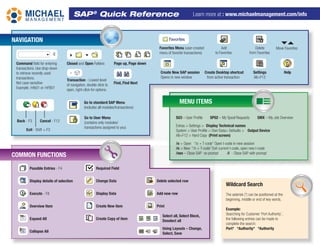
Command field for entering
transactions. Use drop-down
to retrieve recently used
transactions.
Not case-sensitive
Example: /nfb01 or /nFB01
Closed and Open Folders
Back - F3 Cancel - F12
Exit - Shift + F3
Transaction - Lowest level
of navigation, double-click to
open, right-click for options.
Go to User Menu
(contains only modules/
transactions assigned to you)
Go to standard SAP Menu
(includes all modules/transactions)
Find, Find Next
Favorites Menu (user-created
menu of favorite transactions)
Create New SAP session
Opens in new window
Create Desktop shortcut
from active transaction
Settings
Alt+F12
SU3 – User Profile SP02 – My Spool Requests SMX – My Job Overview
Extras > Settings > Display Technical names
System > User Profile > Own Data> Defaults > Output Device
Alt+F12 > Hard Copy (Print screen)
/o = Open “/o + T-code” Open t-code in new session
/n = New “/n + T-code” Exit current t-code, open new t-code
/nex – Close SAP no prompt /i - Close SAP with prompt
MENU ITEMS
COMMON FUNCTIONS
Possible Entries - F4 Required Field
Display details of selection Change Data
Execute - F8 Display Data
Overview Item Create New item
Expand All Create Copy of item
Collapse All
Delete selected row
Add new row
Print
Select all, Select Block,
Deselect all
Using Layouts – Change,
Select, Save
Wildcard Search
The asterisk (*) can be positioned at the
beginning, middle or end of key words.
Example:
Searching for Customer ‘Port Authority’,
the following entries can be made to
complete the search:
Port* *Authority* *Authority
Page up, Page down
Delete
from Favorites
Add
to Favorites
SAP®
Quick Reference Learn more at : www.michaelmanagement.com/info
Move Favorites
Help
BASIC SELECTION CRITERIA
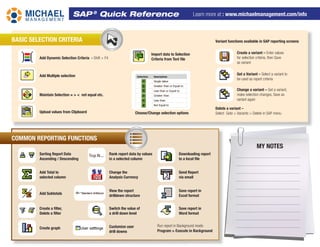
Add Dynamic Selection Criteria - Shift + F4
Add Multiple selection
Maintain Selection = > < not equal etc.
Choose/Change selection options
Upload values from Clipboard
Import data to Selection
Criteria from Text file
Create a variant – Enter values
for selection criteria, then Save
as variant
Get a Variant – Select a variant to
be used as report criteria
Change a variant – Get a variant,
make selection changes, Save as
variant again
Delete a variant –
Select Goto > Variants > Delete in SAP menu
Variant functions available in SAP reporting screens
COMMON REPORTING FUNCTIONS
Sorting Report Data
Ascending / Descending
Add Total to
selected column
Add Subtotals
Create a filter,
Delete a filter
Create graph
Rank report data by values
in a selected column
Change the
Analysis Currency
View the report
drilldown structure
Switch the value of
a drill down level
Customize user
drill downs
Downloading report
to a local file
Send Report
via email
Save report in
Excel format
Save report in
Word format
Run report in Background mode:
Program > Execute in Background
SAP ®
Quick Reference Learn more at : www.michaelmanagement.com/info
MY NOTES

SAP Cheat Sheet.pdf

  • 1.
    NAVIGATION Command field forentering transactions. Use drop-down to retrieve recently used transactions. Not case-sensitive Example: /nfb01 or /nFB01 Closed and Open Folders Back - F3 Cancel - F12 Exit - Shift + F3 Transaction - Lowest level of navigation, double-click to open, right-click for options. Go to User Menu (contains only modules/ transactions assigned to you) Go to standard SAP Menu (includes all modules/transactions) Find, Find Next Favorites Menu (user-created menu of favorite transactions) Create New SAP session Opens in new window Create Desktop shortcut from active transaction Settings Alt+F12 SU3 – User Profile SP02 – My Spool Requests SMX – My Job Overview Extras > Settings > Display Technical names System > User Profile > Own Data> Defaults > Output Device Alt+F12 > Hard Copy (Print screen) /o = Open “/o + T-code” Open t-code in new session /n = New “/n + T-code” Exit current t-code, open new t-code /nex – Close SAP no prompt /i - Close SAP with prompt MENU ITEMS COMMON FUNCTIONS Possible Entries - F4 Required Field Display details of selection Change Data Execute - F8 Display Data Overview Item Create New item Expand All Create Copy of item Collapse All Delete selected row Add new row Print Select all, Select Block, Deselect all Using Layouts – Change, Select, Save Wildcard Search The asterisk (*) can be positioned at the beginning, middle or end of key words. Example: Searching for Customer ‘Port Authority’, the following entries can be made to complete the search: Port* *Authority* *Authority Page up, Page down Delete from Favorites Add to Favorites SAP® Quick Reference Learn more at : www.michaelmanagement.com/info Move Favorites Help
  • 2.
    BASIC SELECTION CRITERIA AddDynamic Selection Criteria - Shift + F4 Add Multiple selection Maintain Selection = > < not equal etc. Choose/Change selection options Upload values from Clipboard Import data to Selection Criteria from Text file Create a variant – Enter values for selection criteria, then Save as variant Get a Variant – Select a variant to be used as report criteria Change a variant – Get a variant, make selection changes, Save as variant again Delete a variant – Select Goto > Variants > Delete in SAP menu Variant functions available in SAP reporting screens COMMON REPORTING FUNCTIONS Sorting Report Data Ascending / Descending Add Total to selected column Add Subtotals Create a filter, Delete a filter Create graph Rank report data by values in a selected column Change the Analysis Currency View the report drilldown structure Switch the value of a drill down level Customize user drill downs Downloading report to a local file Send Report via email Save report in Excel format Save report in Word format Run report in Background mode: Program > Execute in Background SAP ® Quick Reference Learn more at : www.michaelmanagement.com/info MY NOTES