SOFTWARE TOOLS - I
UNDER GUIDANCE
PROF. XXXXXXX
PREPARED BY
NAEEM LASHKARWALA
XXXXXXXXXXX
ACADEMIC YEAR (2023-2025)
MASTER OF TECHNOLOGY (XXXXXXXXXXX)
MICROSOFT PROJECT
MICROSOFT
PROJECT
2016
BRIEF DETAILS OF PRESENTATION
IN THIS PRESENTATION WE WILL COVER FOLLOWING TOPICS
I. INTRODUCTION TO THE SCREEN / USER
INTERFACE
II. INITIAL SETTINGS SHOULD BE DONE BEFORE
STARTING
III. DIFFERENT OPRATIONS IN PROJECT
IV. FINDING CRITICAL PATH
V. FORMATING OF BAR
VI. PROJECT SUMMARY TASK
VII. ALL ABOUT CALENDER IN MS PROJECT
VIII. ADDING NEW COLUMNS
IX. ADDING RESOURCES AND RESOURCE’S
SHEET
X. ASSIGNING OF RESOURCES
INTRODUCTION OF THE SCREEN /
USER INTERFACE
1
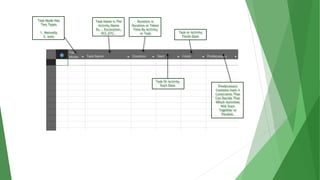
Task Mode Has
Two Types
1. Manually
2. auto
Task Name is The
Activity Name
Ex.., Excavation,
PCC,ETC..
Duration is
Duration or Taken
Time By Activity
or Task
Task Or Activity
Start Date
Task or Activity
Finish Date
Predecessors
Contains main 4
Constraints That
Can Decide That
Which Activities
Will Start
Together or
Parallel.
INITIAL SETTINGS SHOULD BE DONE
BEFORE STARTING
2
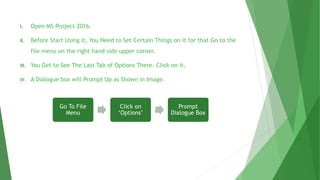
I. Open MS Project 2016.
II. Before Start Using it, You Need to Set Certain Things on it for that Go to the
file menu on the right hand side upper corner.
III. You Get to See The Last Tab of Options There. Click on it.
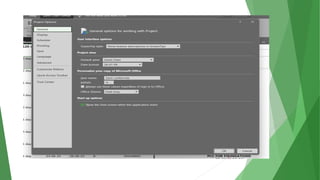
IV. A Dialogue box will Prompt Up as Shown in Image.
Go To File
Menu
Click on
‘Options’
Prompt
Dialogue Box
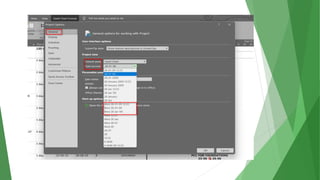
GENERAL TAB
In General TAB You Need to Set the DATE & Time
Format From Any of The Options above but
Generally Use DD-MM-YY
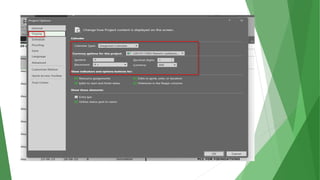
DISPLAY TAB
In Display Tab Set Currency and Calendar According
to Your Project and Country.
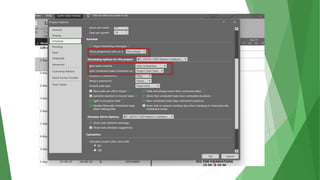
SCHEDULE TAB
In Schedule TAB Set Your Work Timing and Change
Assignment Unit Percentage to Decimal and Change
Task Mode to Manually to Auto for Ease of Work.
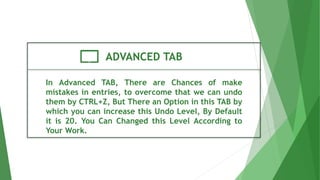
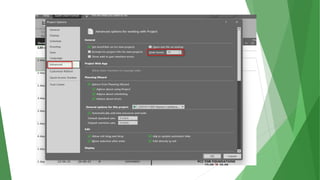
ADVANCED TAB
In Advanced TAB, There are Chances of make
mistakes in entries, to overcome that we can undo
them by CTRL+Z, But There an Option in this TAB by
which you can increase this Undo Level, By Default
it is 20. You Can Changed this Level According to
Your Work.
DIFFERENT OPRATIONS IN PROJECT
/ PRACTICAL EXAMPLE
3
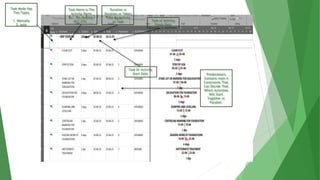
Task Mode Has
Two Types
1. Manually
2. auto
Task Name is The
Activity Name
Ex.., Excavation,
PCC,ETC..
Duration is
Duration or Taken
Time By Activity
or Task
Task Or Activity
Start Date
Task or Activity
Finish Date
Predecessors
Contains main 4
Constraints That
Can Decide That
Which Activities
Will Start
Together or
Parallel.
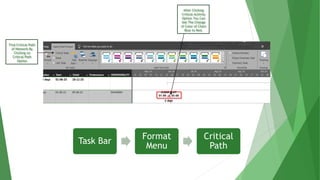
FINDING CRITICAL PATH
4
Find Critical Path
of Network By
Clicking on
Critical Path
Option
After Clicking
Critical Activity
Option You Can
See The Change
of Color of Chart
Blue to Red.
Task Bar
Format
Menu
Critical
Path
FORMATING OF BAR
5
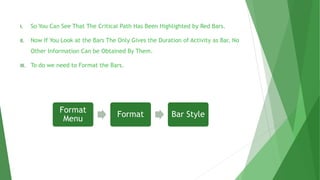
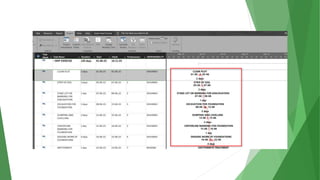
I. So You Can See That The Critical Path Has Been Highlighted by Red Bars.
II. Now If You Look at the Bars The Only Gives the Duration of Activity as Bar, No
Other Information Can be Obtained By Them.
III. To do we need to Format the Bars.
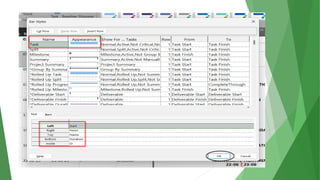
Format
Menu
Format Bar Style
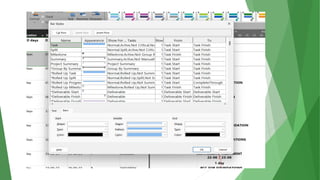
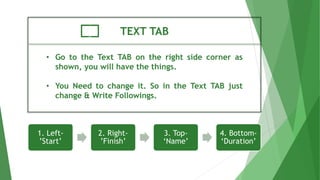
TEXT TAB
• Go to the Text TAB on the right side corner as
shown, you will have the things.
• You Need to change it. So in the Text TAB just
change & Write Followings.
1. Left-
’Start’
2. Right-
’Finish’
3. Top-
‘Name’
4. Bottom-
‘Duration’
PROJECT SUMMARY TASK
6
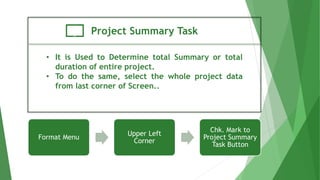
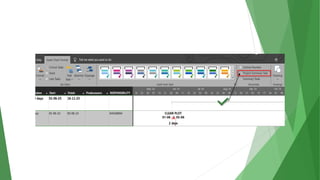
Project Summary Task
• It is Used to Determine total Summary or total
duration of entire project.
• To do the same, select the whole project data
from last corner of Screen..
Format Menu
Upper Left
Corner
Chk. Mark to
Project Summary
Task Button
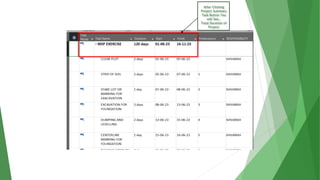
After Clicking
Project Summary
Task Button You
will See..
Total Duration of
Project
CALENDER IN MS PROJECT
7
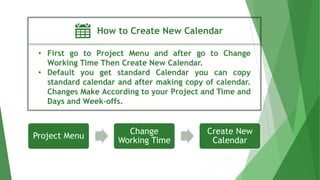
How to Create New Calendar
• First go to Project Menu and after go to Change
Working Time Then Create New Calendar.
• Default you get standard Calendar you can copy
standard calendar and after making copy of calendar.
Changes Make According to your Project and Time and
Days and Week-offs.
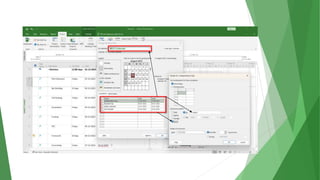
Project Menu
Change
Working Time
Create New
Calendar
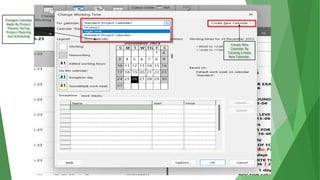
Changed Calendar
Made By Project
Planner During
Project Planning
and Scheduling
Create New
Calendar By
Clicking Create
New Calendar.
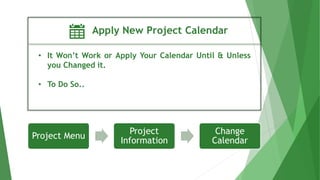
Apply New Project Calendar
• It Won’t Work or Apply Your Calendar Until & Unless
you Changed it.
• To Do So..
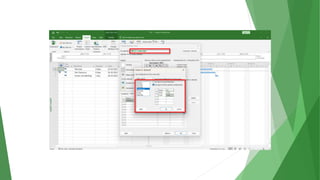
Project Menu
Project
Information
Change
Calendar
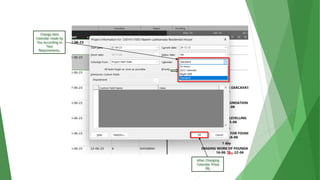
Change New
Calendar made by
You According to
Your
Requirements.
After Changing
Calendar Press
OK.
Yearly Exception
• Let us take example of 15th August That Occurs as Holiday
in Calendar Every Year.
• So You don’t need to add exception every year manually.
• To do so 1st Create the Exception of Independence Day for
Current Year & Double Click on It.
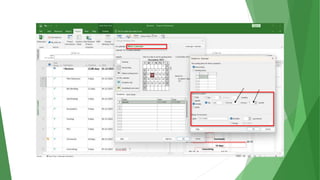
Project Menu
Change
Working Time
Select The
Calendar
Exception
[Details]
2023 Calendar
Weekly Exception
• Let us Take any Company that has alternate Saturday or
Sunday holiday.
• To do So Create an Exception..
Project
Menu
Change
Working
Time
Select The
Calendar
Work Weeks
[Details]
2023 Calendar
Monthly Exception
• Let us Take any Company that has Saturday or Sunday
holiday.
• To do So Create an Exception..
Project
Menu
Change
Working
Time
Select The
Calendar
Exception
[Details]
2023 Calendar
Adding New Columns
8
New Columns (Responsibility)
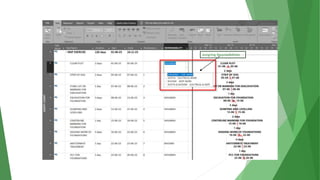
• Let Us Take You want to Add Responsible Person For Any
Activity or Task You Have to Add New Column for it..
• To Do So
Add New Column
[Right Click]
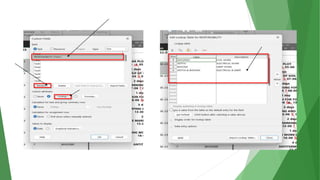
Column Fields
Rename TEXT 1
[Responsibilities]
Custom
Attributes
Look Up Add Value
Add Description /
Name
Assigning Responsibilities
Adding Resources and Sheet
9
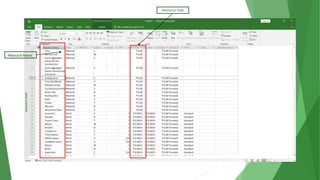
Resource Sheet
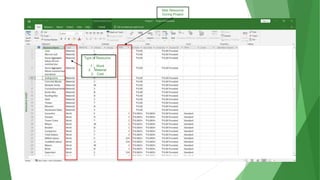
• In Resource Sheet We Add All Resources Who’s Needed
During an Overall Project.
• To Do So
Task Menu
Gantt Bar
Chart
[Dropdown]
Resource
Sheet
Resource Name
Resource Rate
Max Resource
During Project
Type of Resource
1. Work
2. Material
3. Cost
Resource Assigning
10
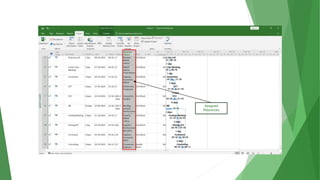
Resource Assign
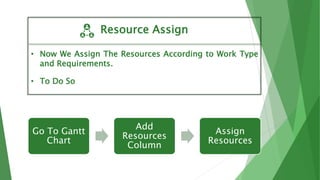
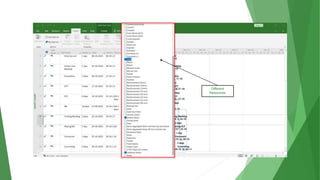
• Now We Assign The Resources According to Work Type
and Requirements.
• To Do So
Go To Gantt
Chart
Add
Resources
Column
Assign
Resources
Different
Resources
Assigned
Resources
Mastering Project Planning with Microsoft Project 2016.pptx

Mastering Project Planning with Microsoft Project 2016.pptx

  • 1.
    SOFTWARE TOOLS -I UNDER GUIDANCE PROF. XXXXXXX PREPARED BY NAEEM LASHKARWALA XXXXXXXXXXX ACADEMIC YEAR (2023-2025) MASTER OF TECHNOLOGY (XXXXXXXXXXX) MICROSOFT PROJECT
  • 2.
  • 3.
    BRIEF DETAILS OFPRESENTATION IN THIS PRESENTATION WE WILL COVER FOLLOWING TOPICS I. INTRODUCTION TO THE SCREEN / USER INTERFACE II. INITIAL SETTINGS SHOULD BE DONE BEFORE STARTING III. DIFFERENT OPRATIONS IN PROJECT IV. FINDING CRITICAL PATH V. FORMATING OF BAR VI. PROJECT SUMMARY TASK VII. ALL ABOUT CALENDER IN MS PROJECT VIII. ADDING NEW COLUMNS IX. ADDING RESOURCES AND RESOURCE’S SHEET X. ASSIGNING OF RESOURCES
  • 4.
    INTRODUCTION OF THESCREEN / USER INTERFACE 1
  • 5.
    Task Mode Has TwoTypes 1. Manually 2. auto Task Name is The Activity Name Ex.., Excavation, PCC,ETC.. Duration is Duration or Taken Time By Activity or Task Task Or Activity Start Date Task or Activity Finish Date Predecessors Contains main 4 Constraints That Can Decide That Which Activities Will Start Together or Parallel.
  • 6.
    INITIAL SETTINGS SHOULDBE DONE BEFORE STARTING 2
  • 7.
    I. Open MSProject 2016. II. Before Start Using it, You Need to Set Certain Things on it for that Go to the file menu on the right hand side upper corner. III. You Get to See The Last Tab of Options There. Click on it. IV. A Dialogue box will Prompt Up as Shown in Image. Go To File Menu Click on ‘Options’ Prompt Dialogue Box
  • 9.
    GENERAL TAB In GeneralTAB You Need to Set the DATE & Time Format From Any of The Options above but Generally Use DD-MM-YY
  • 11.
    DISPLAY TAB In DisplayTab Set Currency and Calendar According to Your Project and Country.
  • 13.
    SCHEDULE TAB In ScheduleTAB Set Your Work Timing and Change Assignment Unit Percentage to Decimal and Change Task Mode to Manually to Auto for Ease of Work.
  • 15.
    ADVANCED TAB In AdvancedTAB, There are Chances of make mistakes in entries, to overcome that we can undo them by CTRL+Z, But There an Option in this TAB by which you can increase this Undo Level, By Default it is 20. You Can Changed this Level According to Your Work.
  • 17.
    DIFFERENT OPRATIONS INPROJECT / PRACTICAL EXAMPLE 3
  • 18.
    Task Mode Has TwoTypes 1. Manually 2. auto Task Name is The Activity Name Ex.., Excavation, PCC,ETC.. Duration is Duration or Taken Time By Activity or Task Task Or Activity Start Date Task or Activity Finish Date Predecessors Contains main 4 Constraints That Can Decide That Which Activities Will Start Together or Parallel.
  • 19.
  • 20.
    Find Critical Path ofNetwork By Clicking on Critical Path Option After Clicking Critical Activity Option You Can See The Change of Color of Chart Blue to Red. Task Bar Format Menu Critical Path
  • 21.
  • 22.
    I. So YouCan See That The Critical Path Has Been Highlighted by Red Bars. II. Now If You Look at the Bars The Only Gives the Duration of Activity as Bar, No Other Information Can be Obtained By Them. III. To do we need to Format the Bars. Format Menu Format Bar Style
  • 24.
    TEXT TAB • Goto the Text TAB on the right side corner as shown, you will have the things. • You Need to change it. So in the Text TAB just change & Write Followings. 1. Left- ’Start’ 2. Right- ’Finish’ 3. Top- ‘Name’ 4. Bottom- ‘Duration’
  • 27.
  • 28.
    Project Summary Task •It is Used to Determine total Summary or total duration of entire project. • To do the same, select the whole project data from last corner of Screen.. Format Menu Upper Left Corner Chk. Mark to Project Summary Task Button
  • 30.
    After Clicking Project Summary TaskButton You will See.. Total Duration of Project
  • 31.
    CALENDER IN MSPROJECT 7
  • 32.
    How to CreateNew Calendar • First go to Project Menu and after go to Change Working Time Then Create New Calendar. • Default you get standard Calendar you can copy standard calendar and after making copy of calendar. Changes Make According to your Project and Time and Days and Week-offs. Project Menu Change Working Time Create New Calendar
  • 33.
    Changed Calendar Made ByProject Planner During Project Planning and Scheduling Create New Calendar By Clicking Create New Calendar.
  • 34.
    Apply New ProjectCalendar • It Won’t Work or Apply Your Calendar Until & Unless you Changed it. • To Do So.. Project Menu Project Information Change Calendar
  • 35.
    Change New Calendar madeby You According to Your Requirements. After Changing Calendar Press OK.
  • 36.
    Yearly Exception • Letus take example of 15th August That Occurs as Holiday in Calendar Every Year. • So You don’t need to add exception every year manually. • To do so 1st Create the Exception of Independence Day for Current Year & Double Click on It. Project Menu Change Working Time Select The Calendar Exception [Details]
  • 37.
  • 38.
    Weekly Exception • Letus Take any Company that has alternate Saturday or Sunday holiday. • To do So Create an Exception.. Project Menu Change Working Time Select The Calendar Work Weeks [Details]
  • 39.
  • 40.
    Monthly Exception • Letus Take any Company that has Saturday or Sunday holiday. • To do So Create an Exception.. Project Menu Change Working Time Select The Calendar Exception [Details]
  • 41.
  • 42.
  • 43.
    New Columns (Responsibility) •Let Us Take You want to Add Responsible Person For Any Activity or Task You Have to Add New Column for it.. • To Do So Add New Column [Right Click] Column Fields Rename TEXT 1 [Responsibilities] Custom Attributes Look Up Add Value Add Description / Name
  • 45.
  • 46.
  • 47.
    Resource Sheet • InResource Sheet We Add All Resources Who’s Needed During an Overall Project. • To Do So Task Menu Gantt Bar Chart [Dropdown] Resource Sheet
  • 48.
  • 49.
    Max Resource During Project Typeof Resource 1. Work 2. Material 3. Cost
  • 50.
  • 51.
    Resource Assign • NowWe Assign The Resources According to Work Type and Requirements. • To Do So Go To Gantt Chart Add Resources Column Assign Resources
  • 52.
  • 53.