LTE KPIs Calculation using TEMS Discovery 13.0 Internal use
LTE KPIs Calculation Using TEMS Discovery
13.1.1
For LTE Radio Network Optimization
Huawei Technologies Co., LTD
All rights reserved
LTE KPIs Calculation using TEMS Discovery 13.0 Internal use
Release history
Date Version Description Author
2012-05-22 V1.00 Draft Ahmed Awwad
LTE KPIs Calculation using TEMS Discovery 13.0 Internal use
Content
i. TEMS Discovery start and Log Files data base creation
ii. Log Files validation after receiving from the DT team
iii. Download Throughput calculation
iv. Upload Throughput calculation
v. Ping Latency
vi. Handover Success Rate
vii. Ps session Drop rate
viii. ERAB Setup Success Rate
ix. EPS Bearer Setup Time
x. ERAB Setup Time
A. Summary
LTE KPIs Calculation using TEMS Discovery 13.0 Internal use
C. KPIs Calculation
I. TEMS Discovery start and Log Files data base creation
1. Open TEMS Discovery then Create New project and name it as example (LOS_020_R1_DL)
2. Import the log files (Note: takes long time so start importing at least 4 hours before you will start
work in the cluster)
LTE KPIs Calculation using TEMS Discovery 13.0 Internal use
3. After importing the logfiles open the project by duple click , you will find the log files in DataSets
folder and they are separated.
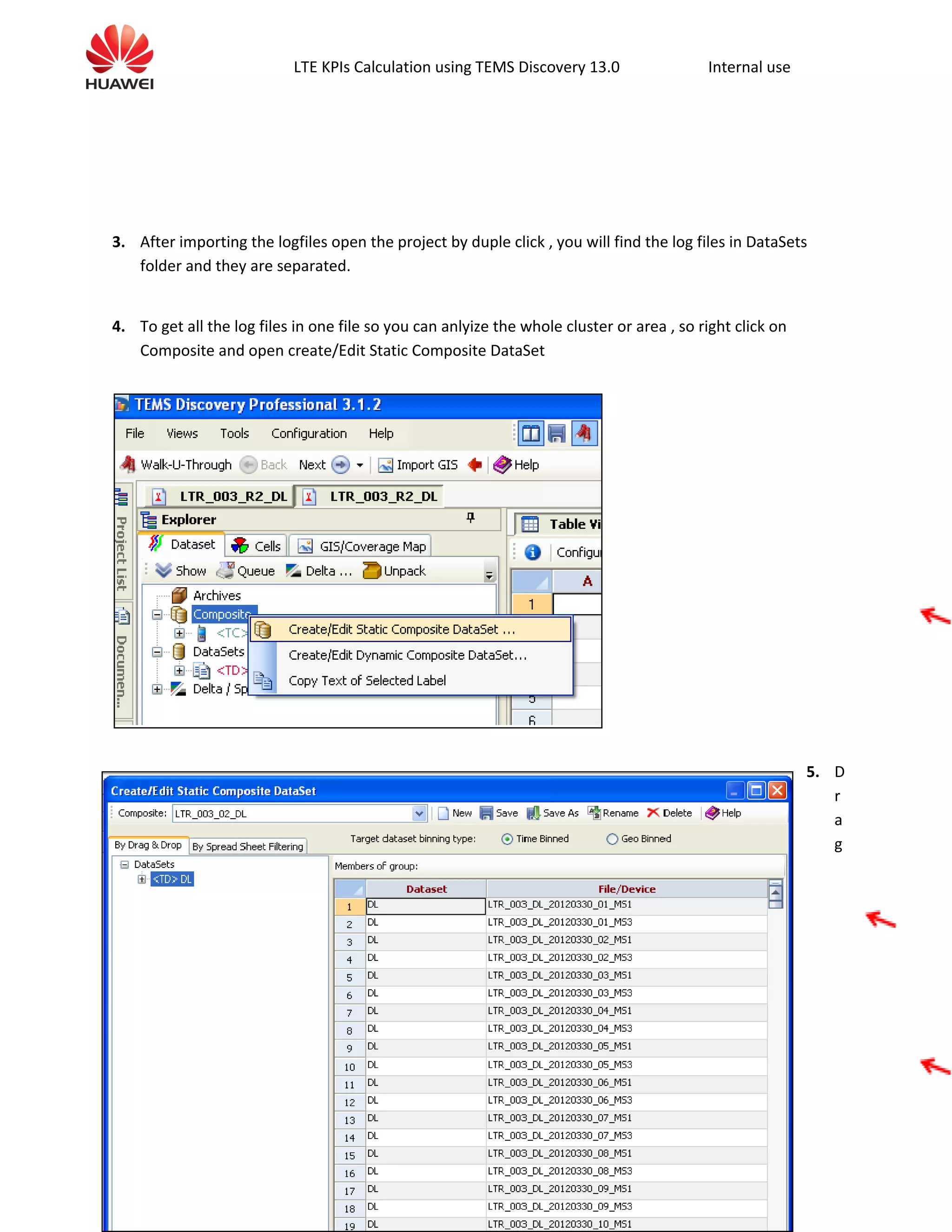
4. To get all the log files in one file so you can anlyize the whole cluster or area , so right click on
Composite and open create/Edit Static Composite DataSet
5. D
r
a
g
LTE KPIs Calculation using TEMS Discovery 13.0 Internal use
and drop the file <TD>DL into the data base field then save it , so now you can open the whole
project from the Composite folder , create 3 different folders for the uplink , downlink & Ping
II. Log Files validation after receiving from the DT team
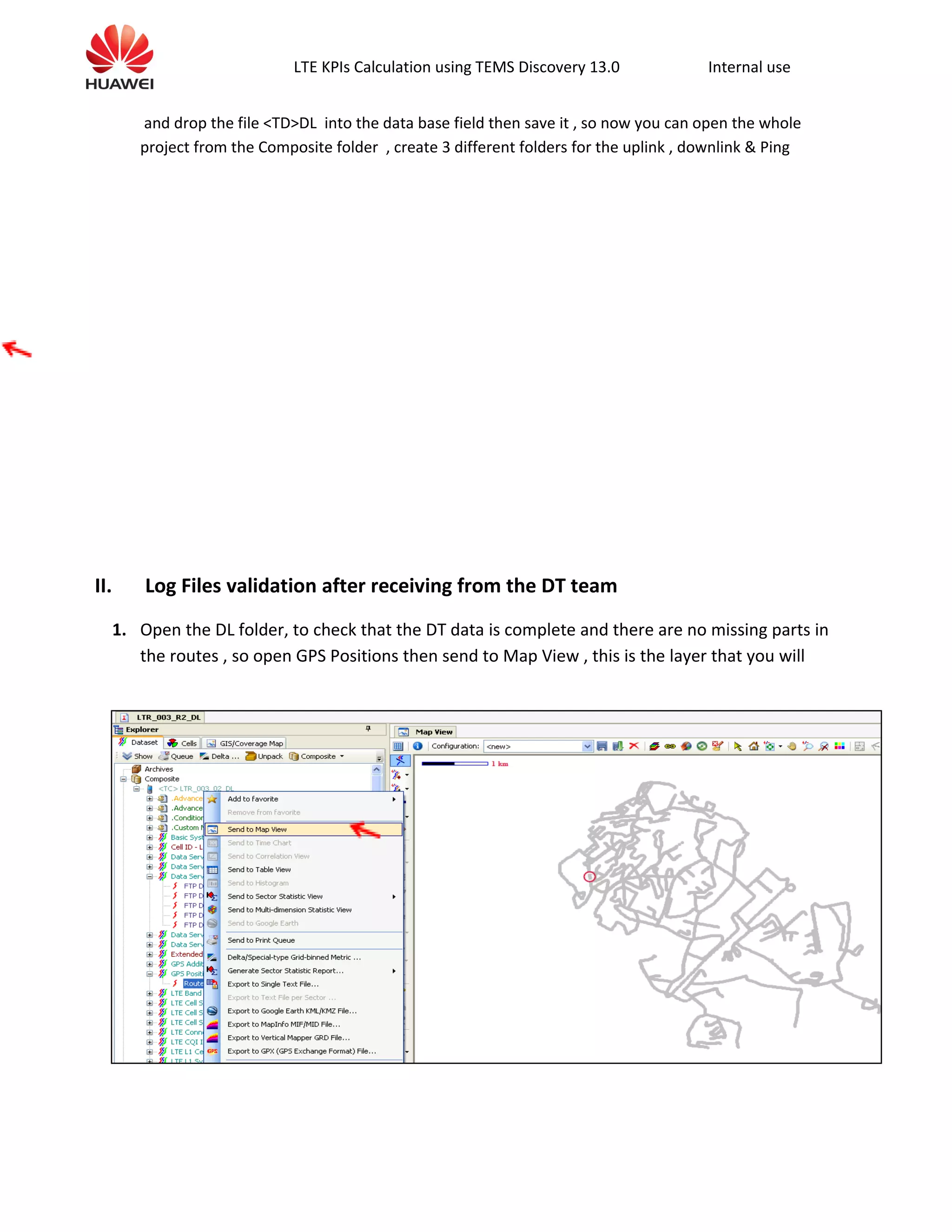
1. Open the DL folder, to check that the DT data is complete and there are no missing parts in
the routes , so open GPS Positions then send to Map View , this is the layer that you will
LTE KPIs Calculation using TEMS Discovery 13.0 Internal use
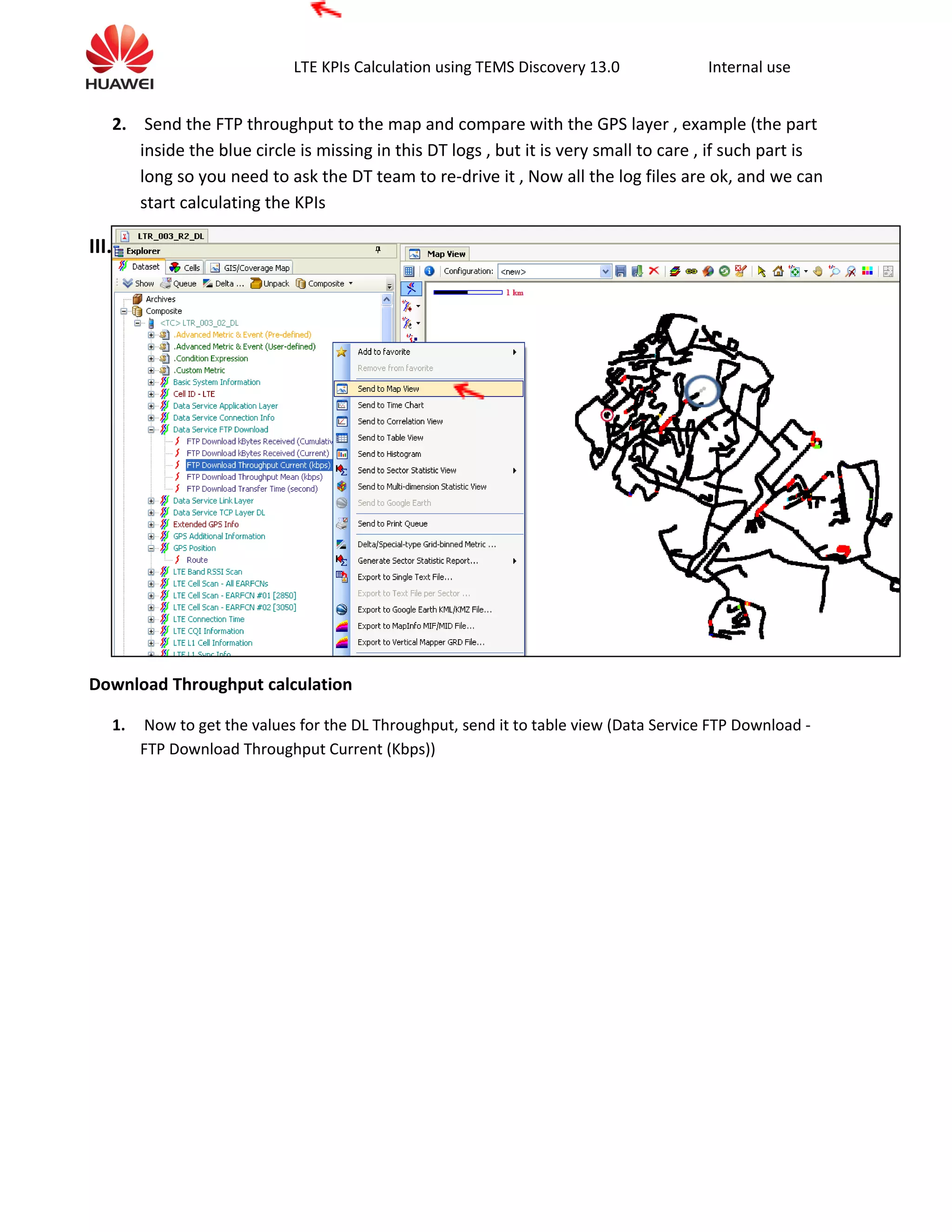
2. Send the FTP throughput to the map and compare with the GPS layer , example (the part
inside the blue circle is missing in this DT logs , but it is very small to care , if such part is
long so you need to ask the DT team to re-drive it , Now all the log files are ok, and we can
start calculating the KPIs
III.
Download Throughput calculation
1. Now to get the values for the DL Throughput, send it to table view (Data Service FTP Download -
FTP Download Throughput Current (Kbps))
LTE KPIs Calculation using TEMS Discovery 13.0 Internal use
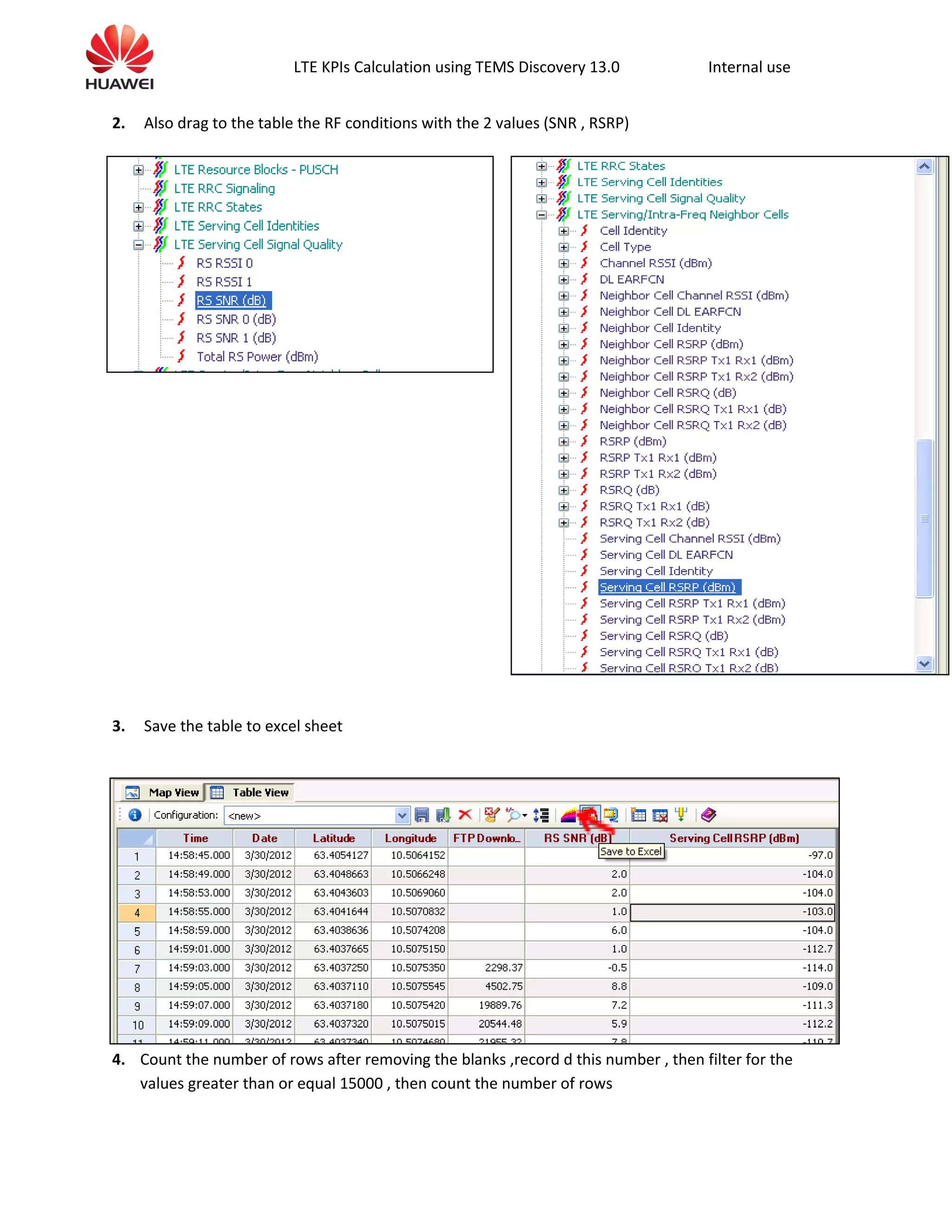
2. Also drag to the table the RF conditions with the 2 values (SNR , RSRP)
3. Save the table to excel sheet
4. Count the number of rows after removing the blanks ,record d this number , then filter for the
values greater than or equal 15000 , then count the number of rows
LTE KPIs Calculation using TEMS Discovery 13.0 Internal use
% of High Throughput data =100* ( # of samples >=15000 / # all samples)
Average Throughput & Max throughput could be easily calculated
Note 1 : this value 15000 kbps could be different from project to another according to the contracted
KPIs
Note 2 : as the LTE is a new technology so there is a lot of areas which is not covered yet by LTE sites ,
so those areas & surroundings will have a very low throughput due to low RSRP & SNR , and that will
harmfully affecting the acceptance of the clusters , so what we should do and that also should be in
the contract is to recalculate the high throughput samples after filtering out the samples which has
RSRP <= -110 & SNR <= -3 , that what we will see at next step .
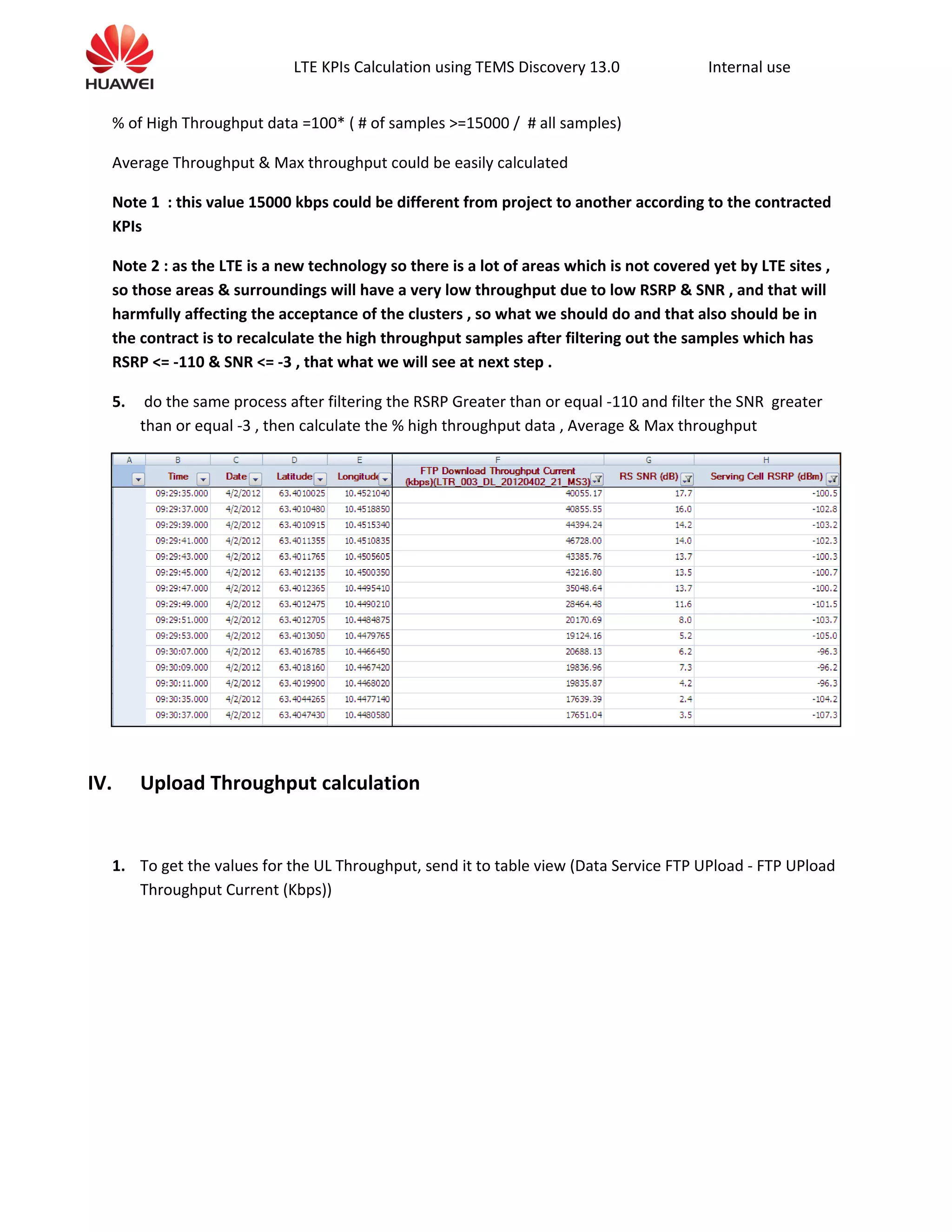
5. do the same process after filtering the RSRP Greater than or equal -110 and filter the SNR greater
than or equal -3 , then calculate the % high throughput data , Average & Max throughput
IV. Upload Throughput calculation
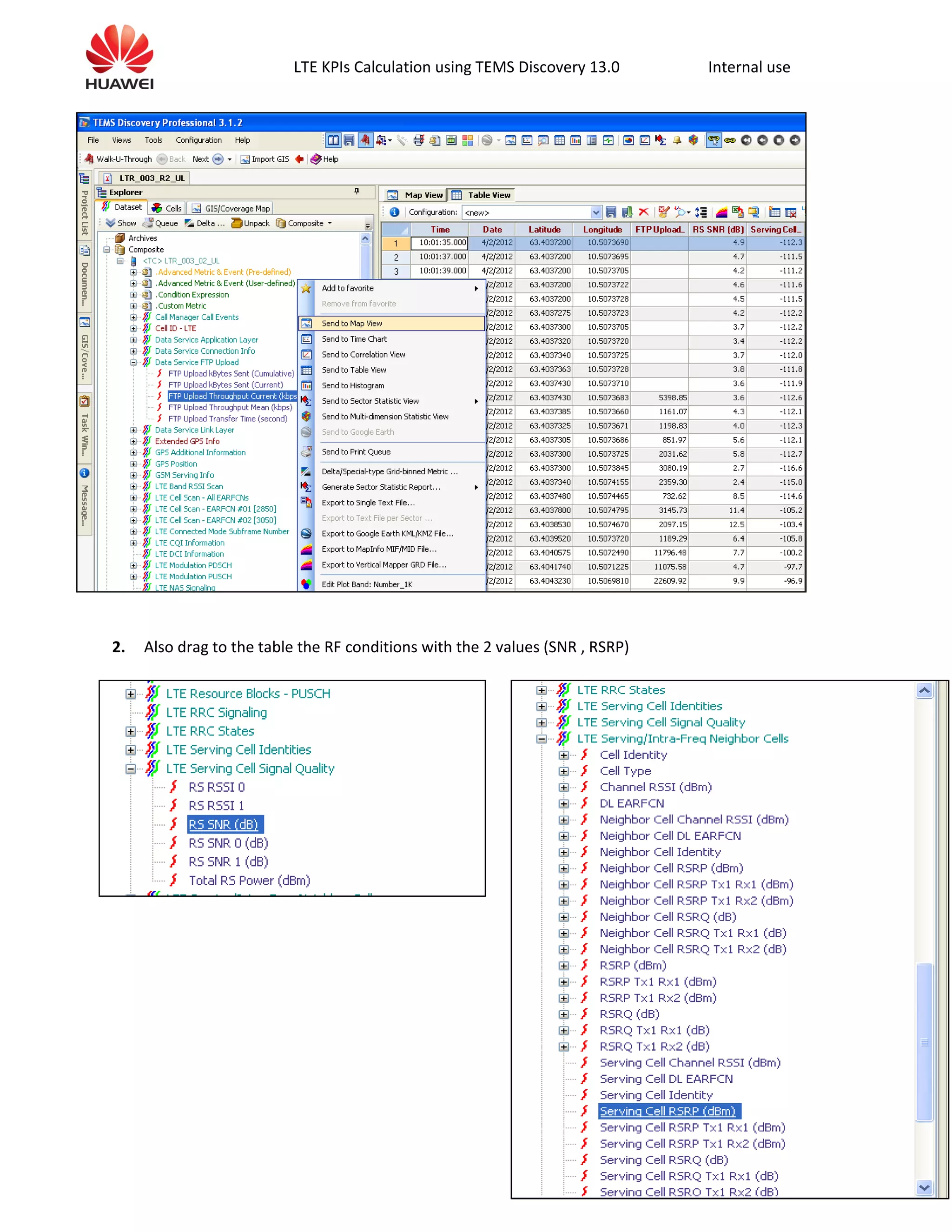
1. To get the values for the UL Throughput, send it to table view (Data Service FTP UPload - FTP UPload
Throughput Current (Kbps))
LTE KPIs Calculation using TEMS Discovery 13.0 Internal use
2. Also drag to the table the RF conditions with the 2 values (SNR , RSRP)
LTE KPIs Calculation using TEMS Discovery 13.0 Internal use
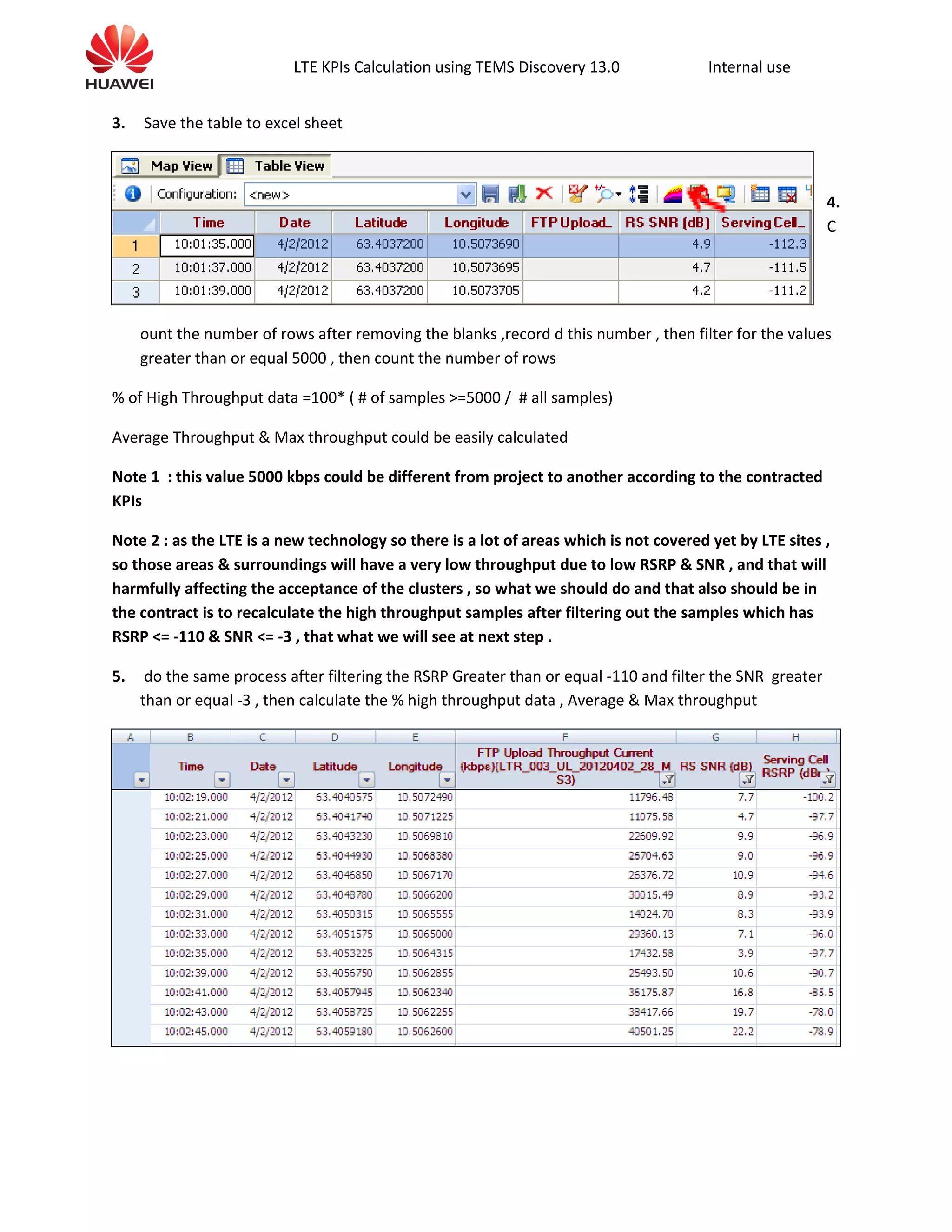
3. Save the table to excel sheet
4.
C
ount the number of rows after removing the blanks ,record d this number , then filter for the values
greater than or equal 5000 , then count the number of rows
% of High Throughput data =100* ( # of samples >=5000 / # all samples)
Average Throughput & Max throughput could be easily calculated
Note 1 : this value 5000 kbps could be different from project to another according to the contracted
KPIs
Note 2 : as the LTE is a new technology so there is a lot of areas which is not covered yet by LTE sites ,
so those areas & surroundings will have a very low throughput due to low RSRP & SNR , and that will
harmfully affecting the acceptance of the clusters , so what we should do and that also should be in
the contract is to recalculate the high throughput samples after filtering out the samples which has
RSRP <= -110 & SNR <= -3 , that what we will see at next step .
5. do the same process after filtering the RSRP Greater than or equal -110 and filter the SNR greater
than or equal -3 , then calculate the % high throughput data , Average & Max throughput
LTE KPIs Calculation using TEMS Discovery 13.0 Internal use
V. Ping Latency
1. Open the ping Project; check the logs competency as before
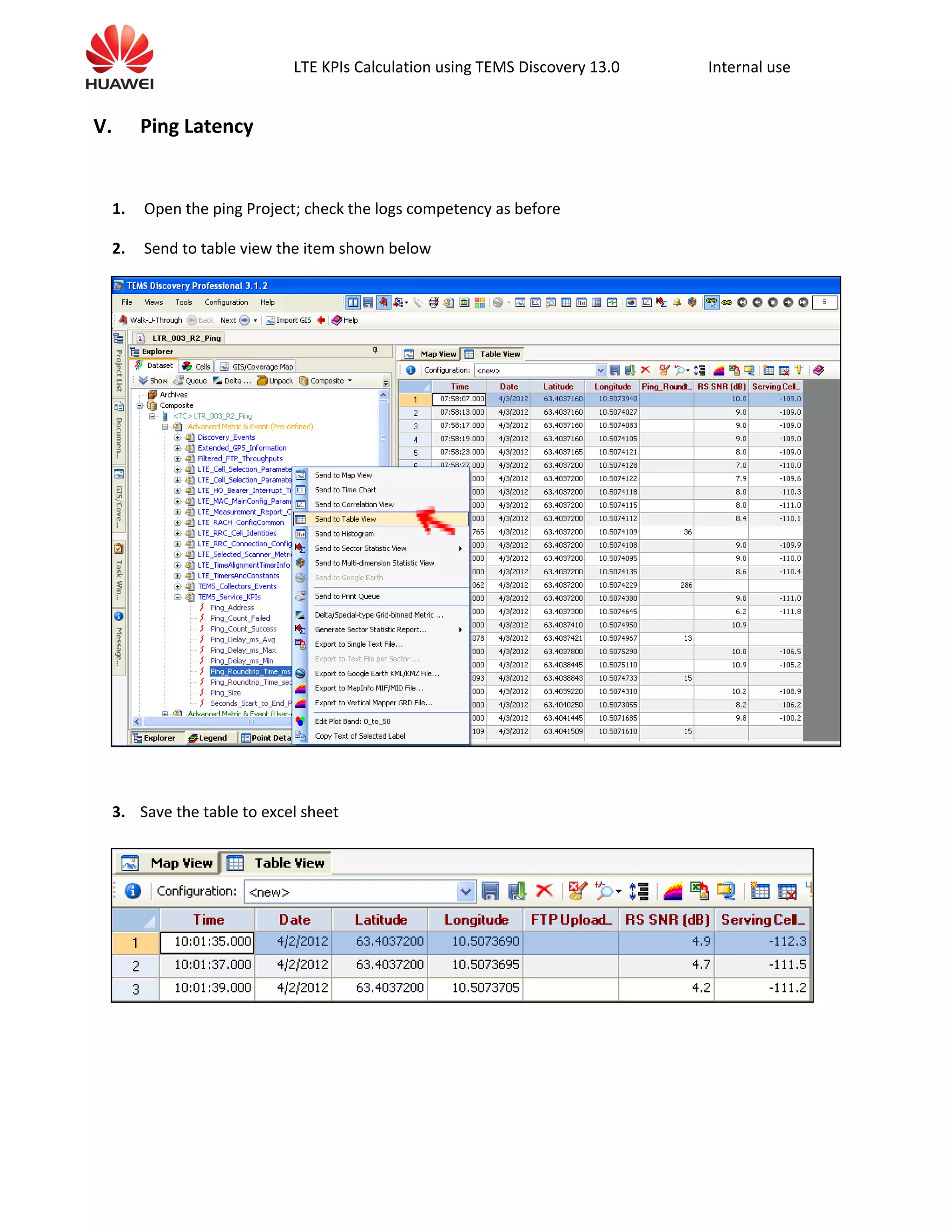
2. Send to table view the item shown below
3. Save the table to excel sheet
LTE KPIs Calculation using TEMS Discovery 13.0 Internal use
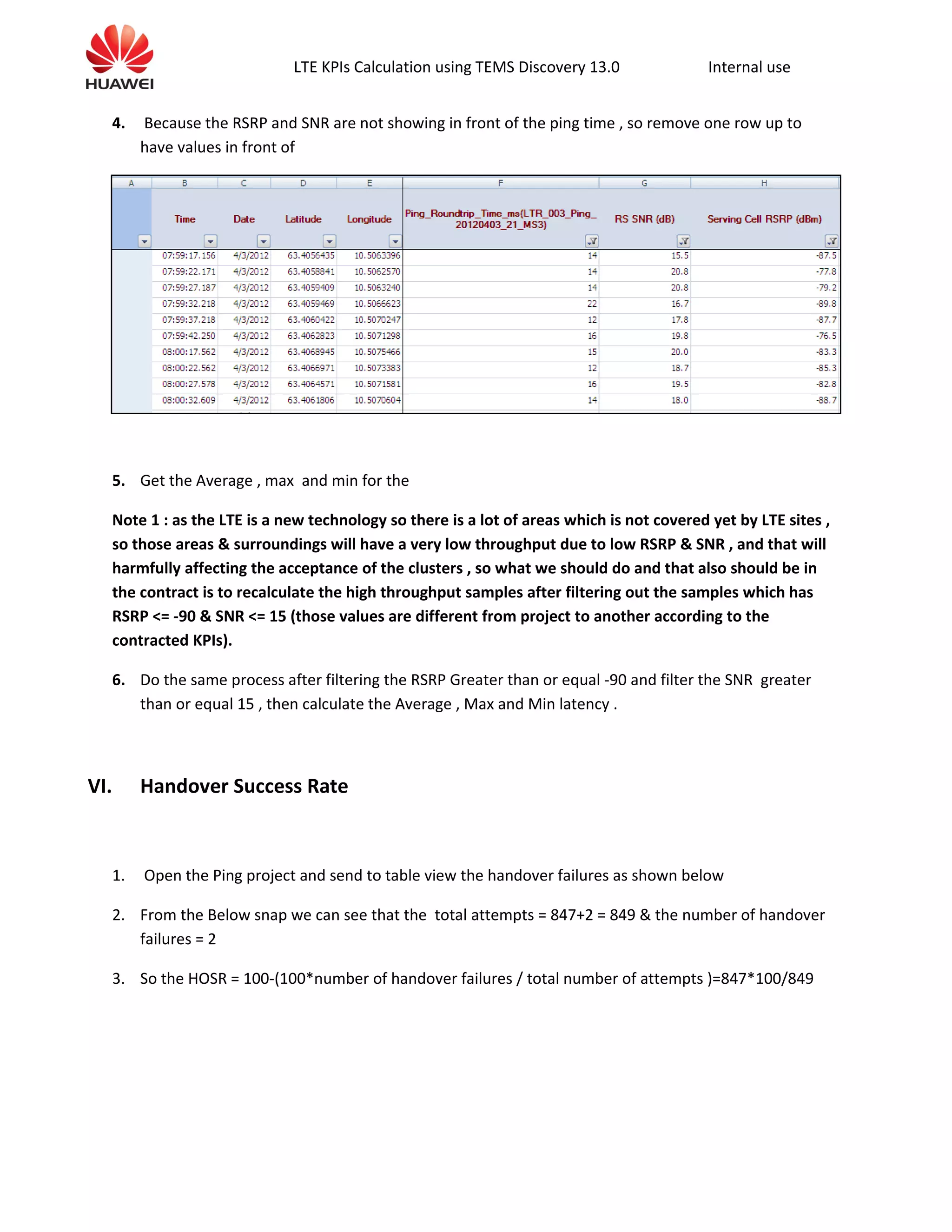
4. Because the RSRP and SNR are not showing in front of the ping time , so remove one row up to
have values in front of
5. Get the Average , max and min for the
Note 1 : as the LTE is a new technology so there is a lot of areas which is not covered yet by LTE sites ,
so those areas & surroundings will have a very low throughput due to low RSRP & SNR , and that will
harmfully affecting the acceptance of the clusters , so what we should do and that also should be in
the contract is to recalculate the high throughput samples after filtering out the samples which has
RSRP <= -90 & SNR <= 15 (those values are different from project to another according to the
contracted KPIs).
6. Do the same process after filtering the RSRP Greater than or equal -90 and filter the SNR greater
than or equal 15 , then calculate the Average , Max and Min latency .
VI. Handover Success Rate
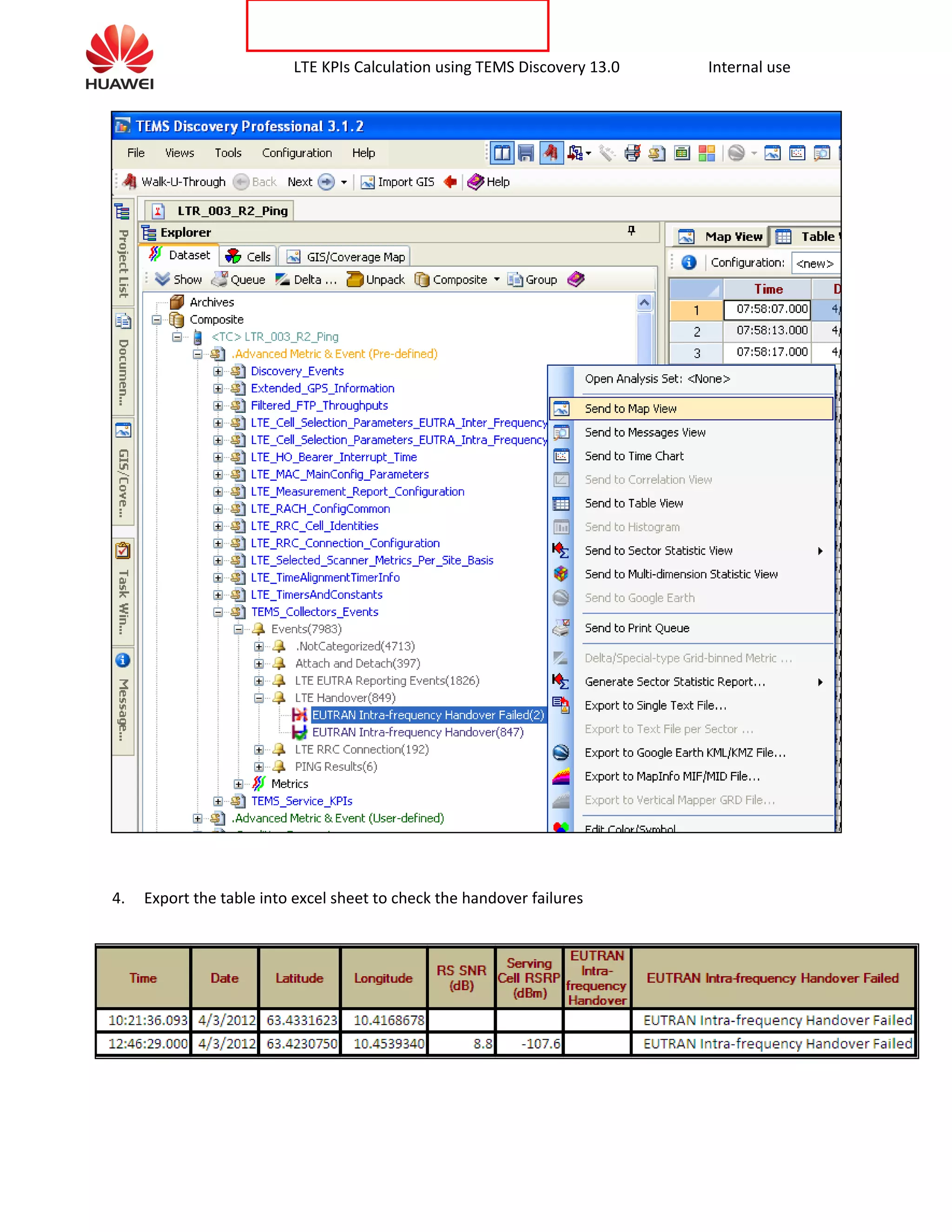
1. Open the Ping project and send to table view the handover failures as shown below
2. From the Below snap we can see that the total attempts = 847+2 = 849 & the number of handover
failures = 2
3. So the HOSR = 100-(100*number of handover failures / total number of attempts )=847*100/849
LTE KPIs Calculation using TEMS Discovery 13.0 Internal use
4. Export the table into excel sheet to check the handover failures
LTE KPIs Calculation using TEMS Discovery 13.0 Internal use
5. So now you see that the 2 handover failures happened at Times 10:21:36.093 & 12:46:29.000
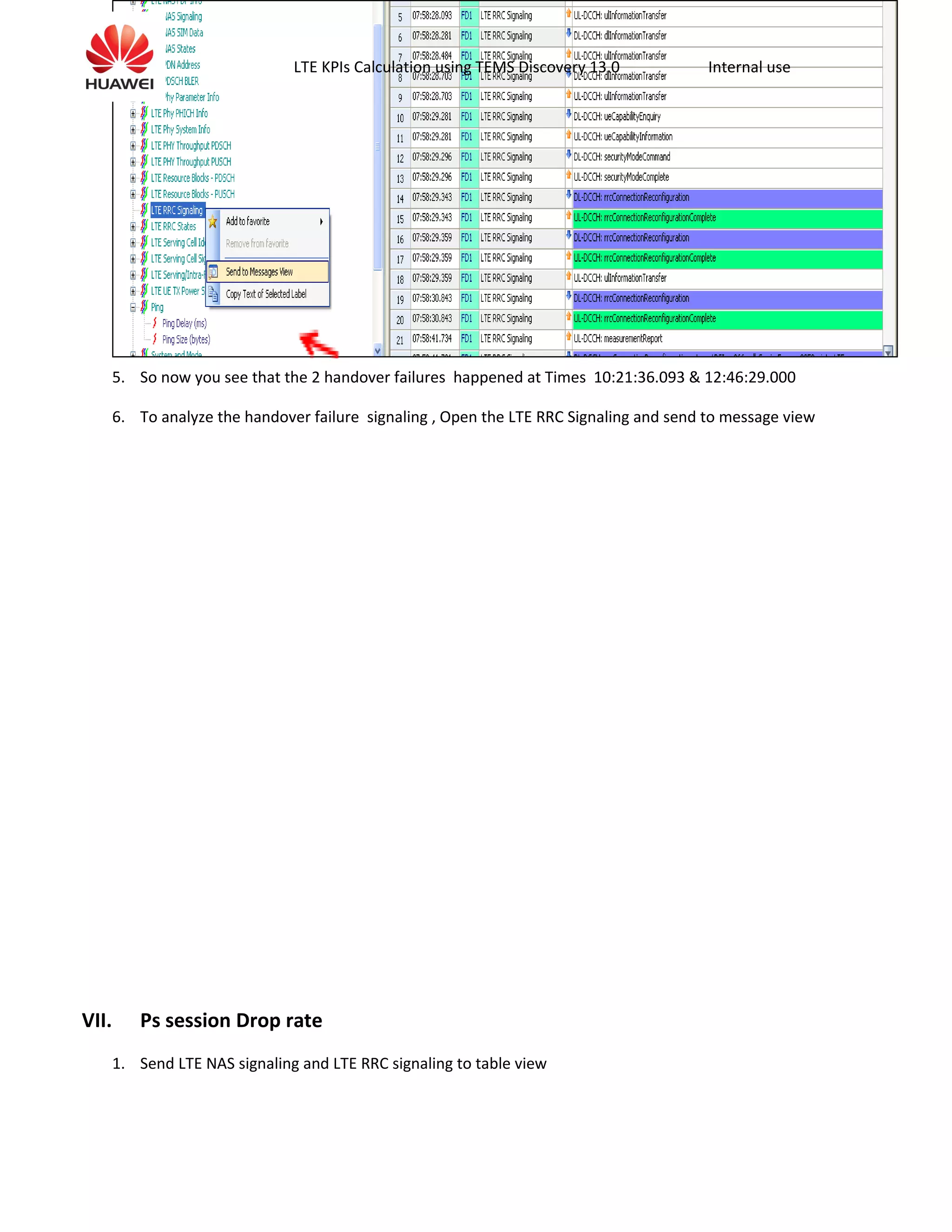
6. To analyze the handover failure signaling , Open the LTE RRC Signaling and send to message view
VII. Ps session Drop rate
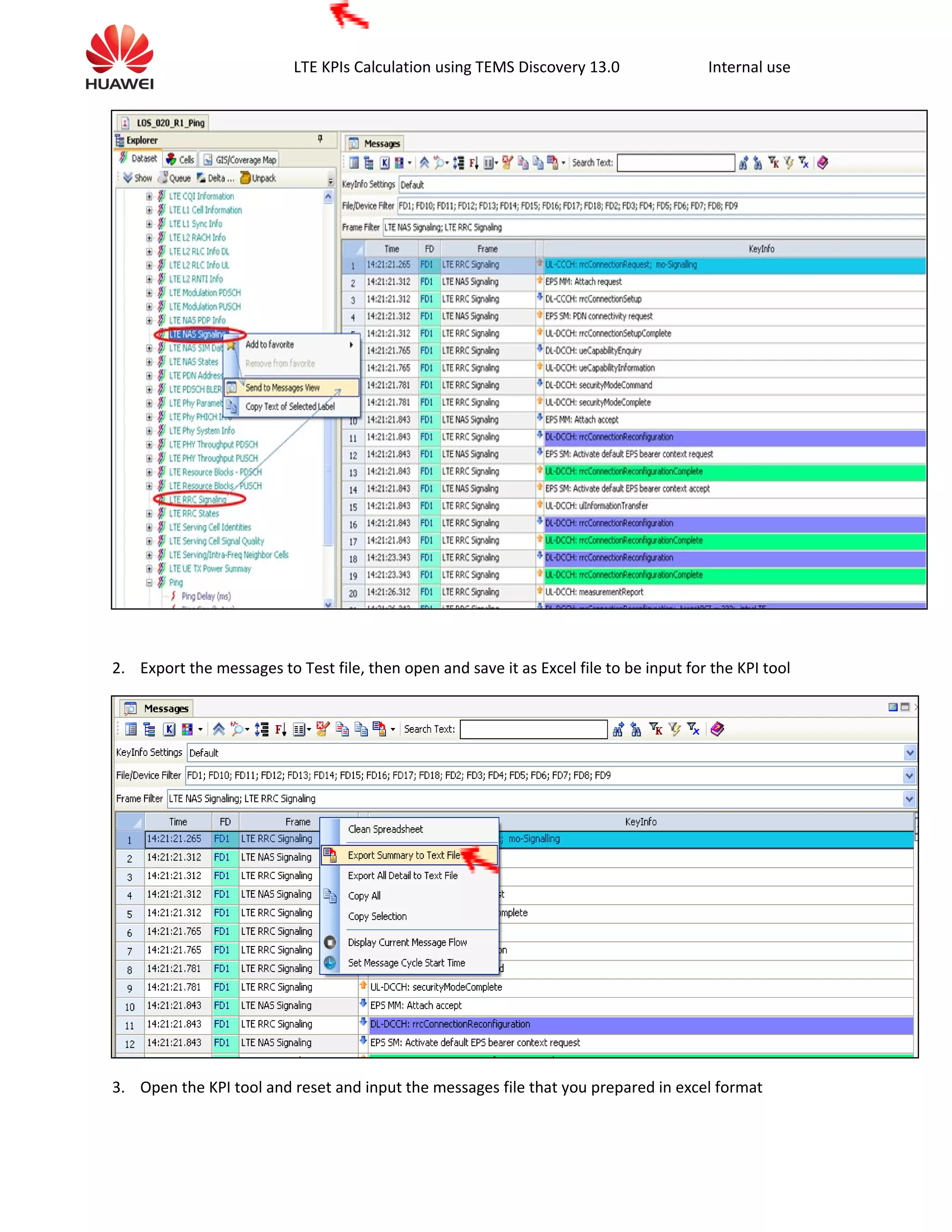
1. Send LTE NAS signaling and LTE RRC signaling to table view
LTE KPIs Calculation using TEMS Discovery 13.0 Internal use
2. Export the messages to Test file, then open and save it as Excel file to be input for the KPI tool
3. Open the KPI tool and reset and input the messages file that you prepared in excel format
LTE KPIs Calculation using TEMS Discovery 13.0 Internal use
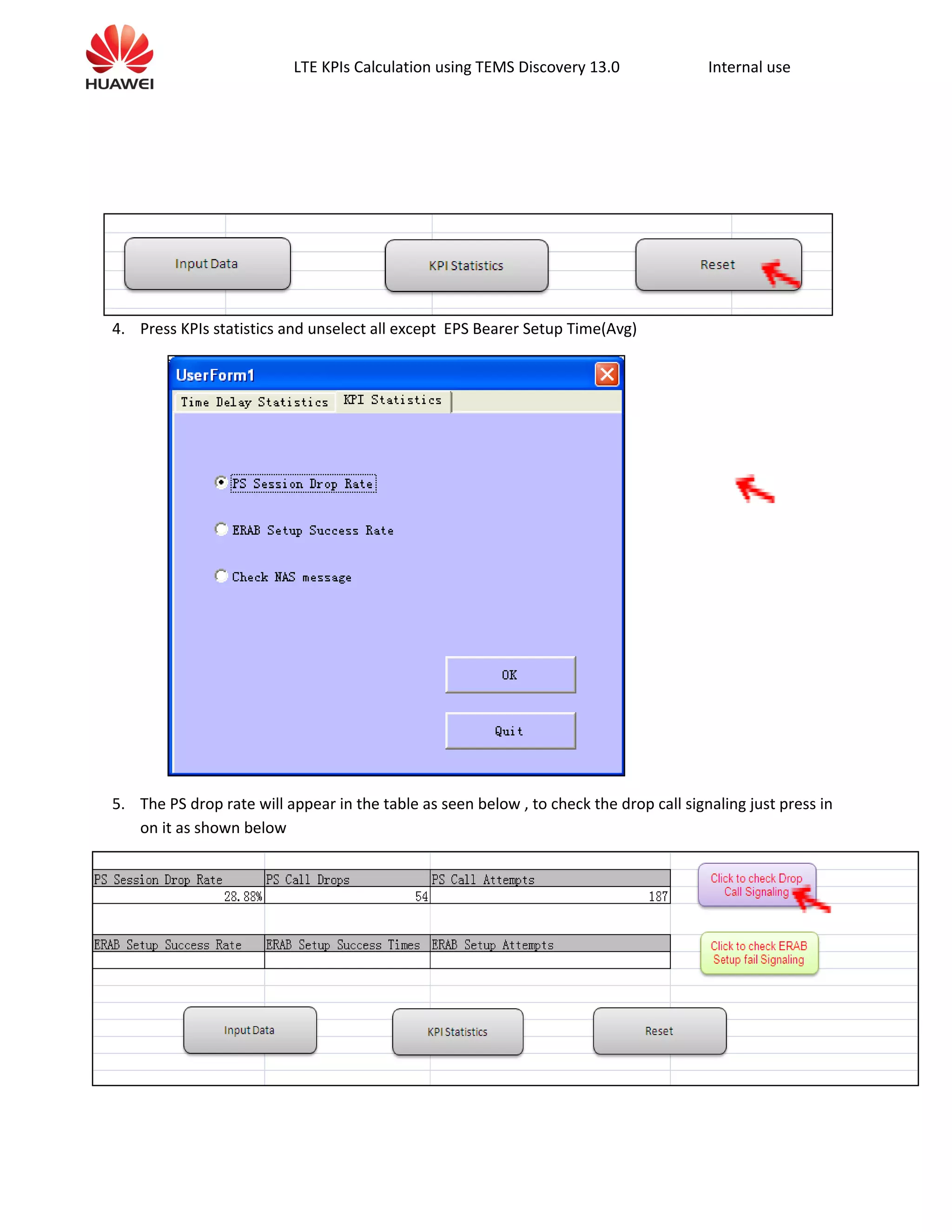
4. Press KPIs statistics and unselect all except EPS Bearer Setup Time(Avg)
5. The PS drop rate will appear in the table as seen below , to check the drop call signaling just press in
on it as shown below
LTE KPIs Calculation using TEMS Discovery 13.0 Internal use
VIII. ERAB Setup Success Rate
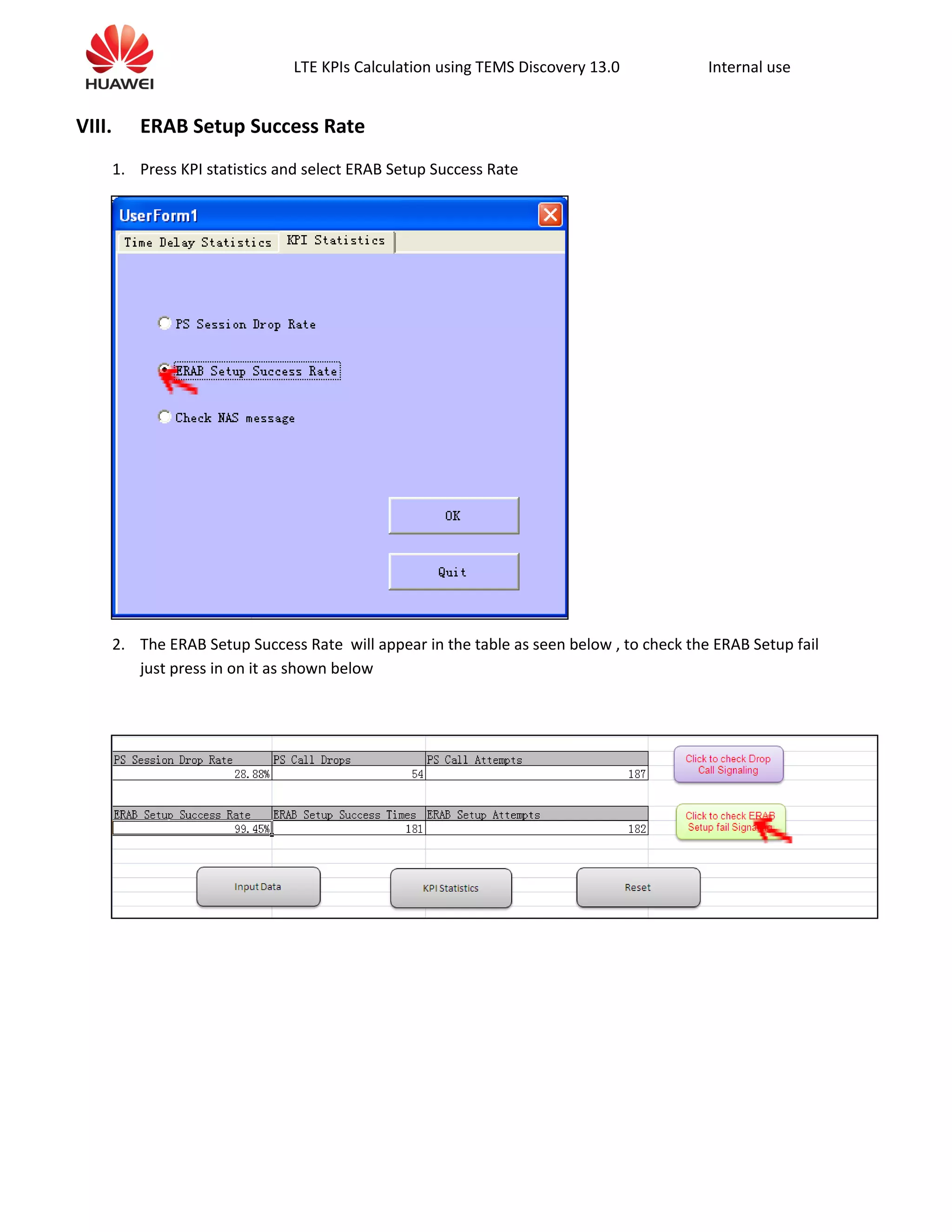
1. Press KPI statistics and select ERAB Setup Success Rate
2. The ERAB Setup Success Rate will appear in the table as seen below , to check the ERAB Setup fail
just press in on it as shown below
LTE KPIs Calculation using TEMS Discovery 13.0 Internal use
IX. EPS Bearer Setup Time
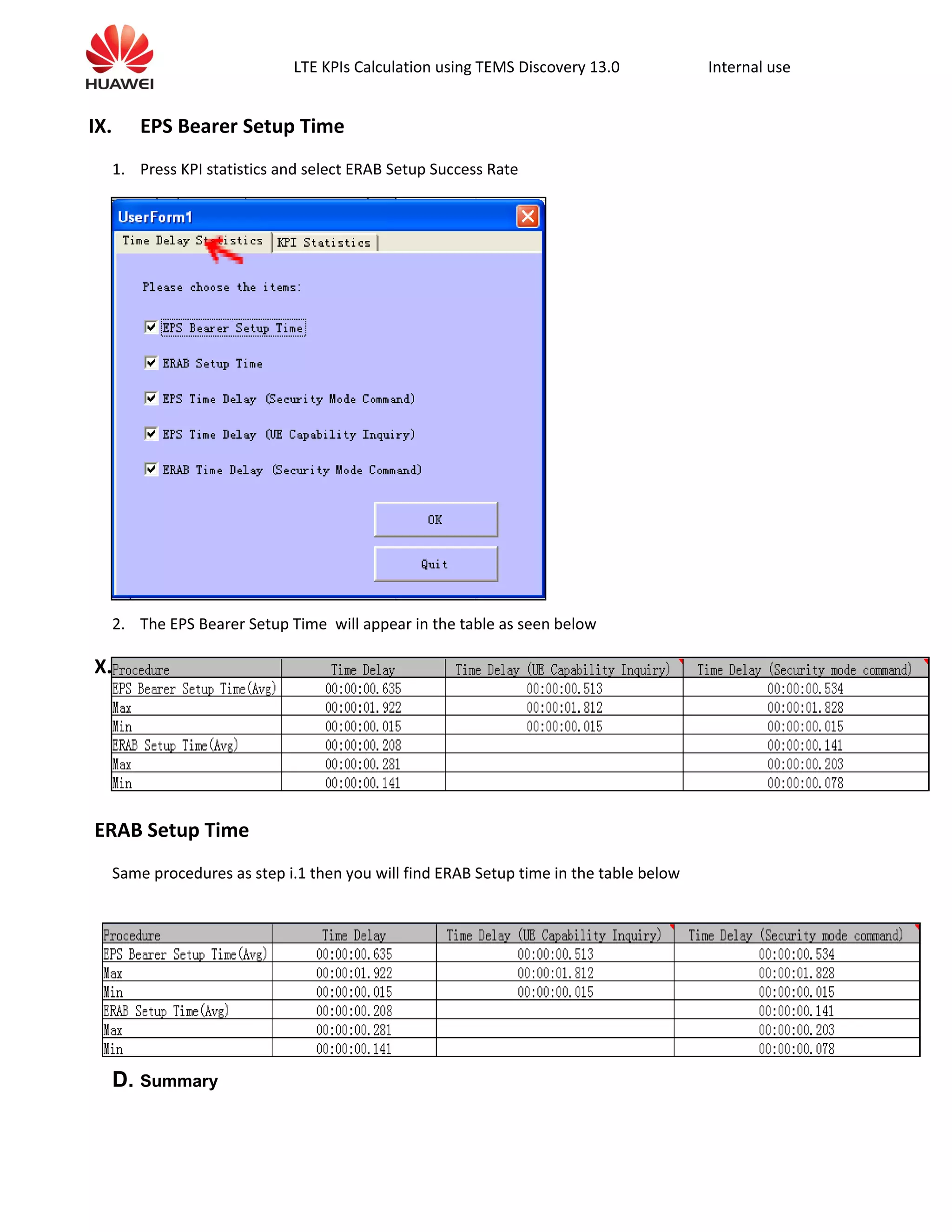
1. Press KPI statistics and select ERAB Setup Success Rate
2. The EPS Bearer Setup Time will appear in the table as seen below
X.
ERAB Setup Time
Same procedures as step i.1 then you will find ERAB Setup time in the table below
D. Summary
LTE KPIs Calculation using TEMS Discovery 13.0 Internal use
This document briefly described the most important LTE KPIs that the operators will be
searching for while having a new LTE network,
TEMS discovery is a sufficient tool that we can use to calculate LTE KPIs in an accurate way

Lte kp is calculation

  • 1.
    LTE KPIs Calculationusing TEMS Discovery 13.0 Internal use LTE KPIs Calculation Using TEMS Discovery 13.1.1 For LTE Radio Network Optimization Huawei Technologies Co., LTD All rights reserved
  • 2.
    LTE KPIs Calculationusing TEMS Discovery 13.0 Internal use Release history Date Version Description Author 2012-05-22 V1.00 Draft Ahmed Awwad
  • 3.
    LTE KPIs Calculationusing TEMS Discovery 13.0 Internal use Content i. TEMS Discovery start and Log Files data base creation ii. Log Files validation after receiving from the DT team iii. Download Throughput calculation iv. Upload Throughput calculation v. Ping Latency vi. Handover Success Rate vii. Ps session Drop rate viii. ERAB Setup Success Rate ix. EPS Bearer Setup Time x. ERAB Setup Time A. Summary
  • 4.
    LTE KPIs Calculationusing TEMS Discovery 13.0 Internal use C. KPIs Calculation I. TEMS Discovery start and Log Files data base creation 1. Open TEMS Discovery then Create New project and name it as example (LOS_020_R1_DL) 2. Import the log files (Note: takes long time so start importing at least 4 hours before you will start work in the cluster)
  • 5.
    LTE KPIs Calculationusing TEMS Discovery 13.0 Internal use 3. After importing the logfiles open the project by duple click , you will find the log files in DataSets folder and they are separated. 4. To get all the log files in one file so you can anlyize the whole cluster or area , so right click on Composite and open create/Edit Static Composite DataSet 5. D r a g
  • 6.
    LTE KPIs Calculationusing TEMS Discovery 13.0 Internal use and drop the file <TD>DL into the data base field then save it , so now you can open the whole project from the Composite folder , create 3 different folders for the uplink , downlink & Ping II. Log Files validation after receiving from the DT team 1. Open the DL folder, to check that the DT data is complete and there are no missing parts in the routes , so open GPS Positions then send to Map View , this is the layer that you will
  • 7.
    LTE KPIs Calculationusing TEMS Discovery 13.0 Internal use 2. Send the FTP throughput to the map and compare with the GPS layer , example (the part inside the blue circle is missing in this DT logs , but it is very small to care , if such part is long so you need to ask the DT team to re-drive it , Now all the log files are ok, and we can start calculating the KPIs III. Download Throughput calculation 1. Now to get the values for the DL Throughput, send it to table view (Data Service FTP Download - FTP Download Throughput Current (Kbps))
  • 8.
    LTE KPIs Calculationusing TEMS Discovery 13.0 Internal use 2. Also drag to the table the RF conditions with the 2 values (SNR , RSRP) 3. Save the table to excel sheet 4. Count the number of rows after removing the blanks ,record d this number , then filter for the values greater than or equal 15000 , then count the number of rows
  • 9.
    LTE KPIs Calculationusing TEMS Discovery 13.0 Internal use % of High Throughput data =100* ( # of samples >=15000 / # all samples) Average Throughput & Max throughput could be easily calculated Note 1 : this value 15000 kbps could be different from project to another according to the contracted KPIs Note 2 : as the LTE is a new technology so there is a lot of areas which is not covered yet by LTE sites , so those areas & surroundings will have a very low throughput due to low RSRP & SNR , and that will harmfully affecting the acceptance of the clusters , so what we should do and that also should be in the contract is to recalculate the high throughput samples after filtering out the samples which has RSRP <= -110 & SNR <= -3 , that what we will see at next step . 5. do the same process after filtering the RSRP Greater than or equal -110 and filter the SNR greater than or equal -3 , then calculate the % high throughput data , Average & Max throughput IV. Upload Throughput calculation 1. To get the values for the UL Throughput, send it to table view (Data Service FTP UPload - FTP UPload Throughput Current (Kbps))
  • 10.
    LTE KPIs Calculationusing TEMS Discovery 13.0 Internal use 2. Also drag to the table the RF conditions with the 2 values (SNR , RSRP)
  • 11.
    LTE KPIs Calculationusing TEMS Discovery 13.0 Internal use 3. Save the table to excel sheet 4. C ount the number of rows after removing the blanks ,record d this number , then filter for the values greater than or equal 5000 , then count the number of rows % of High Throughput data =100* ( # of samples >=5000 / # all samples) Average Throughput & Max throughput could be easily calculated Note 1 : this value 5000 kbps could be different from project to another according to the contracted KPIs Note 2 : as the LTE is a new technology so there is a lot of areas which is not covered yet by LTE sites , so those areas & surroundings will have a very low throughput due to low RSRP & SNR , and that will harmfully affecting the acceptance of the clusters , so what we should do and that also should be in the contract is to recalculate the high throughput samples after filtering out the samples which has RSRP <= -110 & SNR <= -3 , that what we will see at next step . 5. do the same process after filtering the RSRP Greater than or equal -110 and filter the SNR greater than or equal -3 , then calculate the % high throughput data , Average & Max throughput
  • 12.
    LTE KPIs Calculationusing TEMS Discovery 13.0 Internal use V. Ping Latency 1. Open the ping Project; check the logs competency as before 2. Send to table view the item shown below 3. Save the table to excel sheet
  • 13.
    LTE KPIs Calculationusing TEMS Discovery 13.0 Internal use 4. Because the RSRP and SNR are not showing in front of the ping time , so remove one row up to have values in front of 5. Get the Average , max and min for the Note 1 : as the LTE is a new technology so there is a lot of areas which is not covered yet by LTE sites , so those areas & surroundings will have a very low throughput due to low RSRP & SNR , and that will harmfully affecting the acceptance of the clusters , so what we should do and that also should be in the contract is to recalculate the high throughput samples after filtering out the samples which has RSRP <= -90 & SNR <= 15 (those values are different from project to another according to the contracted KPIs). 6. Do the same process after filtering the RSRP Greater than or equal -90 and filter the SNR greater than or equal 15 , then calculate the Average , Max and Min latency . VI. Handover Success Rate 1. Open the Ping project and send to table view the handover failures as shown below 2. From the Below snap we can see that the total attempts = 847+2 = 849 & the number of handover failures = 2 3. So the HOSR = 100-(100*number of handover failures / total number of attempts )=847*100/849
  • 14.
    LTE KPIs Calculationusing TEMS Discovery 13.0 Internal use 4. Export the table into excel sheet to check the handover failures
  • 15.
    LTE KPIs Calculationusing TEMS Discovery 13.0 Internal use 5. So now you see that the 2 handover failures happened at Times 10:21:36.093 & 12:46:29.000 6. To analyze the handover failure signaling , Open the LTE RRC Signaling and send to message view VII. Ps session Drop rate 1. Send LTE NAS signaling and LTE RRC signaling to table view
  • 16.
    LTE KPIs Calculationusing TEMS Discovery 13.0 Internal use 2. Export the messages to Test file, then open and save it as Excel file to be input for the KPI tool 3. Open the KPI tool and reset and input the messages file that you prepared in excel format
  • 17.
    LTE KPIs Calculationusing TEMS Discovery 13.0 Internal use 4. Press KPIs statistics and unselect all except EPS Bearer Setup Time(Avg) 5. The PS drop rate will appear in the table as seen below , to check the drop call signaling just press in on it as shown below
  • 18.
    LTE KPIs Calculationusing TEMS Discovery 13.0 Internal use VIII. ERAB Setup Success Rate 1. Press KPI statistics and select ERAB Setup Success Rate 2. The ERAB Setup Success Rate will appear in the table as seen below , to check the ERAB Setup fail just press in on it as shown below
  • 19.
    LTE KPIs Calculationusing TEMS Discovery 13.0 Internal use IX. EPS Bearer Setup Time 1. Press KPI statistics and select ERAB Setup Success Rate 2. The EPS Bearer Setup Time will appear in the table as seen below X. ERAB Setup Time Same procedures as step i.1 then you will find ERAB Setup time in the table below D. Summary
  • 20.
    LTE KPIs Calculationusing TEMS Discovery 13.0 Internal use This document briefly described the most important LTE KPIs that the operators will be searching for while having a new LTE network, TEMS discovery is a sufficient tool that we can use to calculate LTE KPIs in an accurate way