1
So you’re new to Linux?

    • Just got thrown a Red Hat cd and need to get
      going?
    • Told to change a few files?
    • Scared to death you’ll destroy something?
    • Yeah… we know. This will get you through the
      tough stuff


www.StrongbackConsulting.com                         2
Basics – getting connected

    •      First, you need to launch a console
    •      DOS it is NOT
         –        Use / not 
         –        No such thing and C: drives or D: drives
    •      If you’re on the Linux Desktop, use these command consoles:
         –        Gnome Console (Gnome)
         –        Konsole (KDE)


www.StrongbackConsulting.com
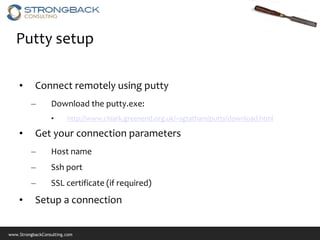
Putty setup

    •      Connect remotely using putty
         –        Download the putty.exe:
                  •      http://www.chiark.greenend.org.uk/~sgtatham/putty/download.html

    •      Get your connection parameters
         –        Host name
         –        Ssh port
         –        SSL certificate (if required)
    •      Setup a connection


www.StrongbackConsulting.com
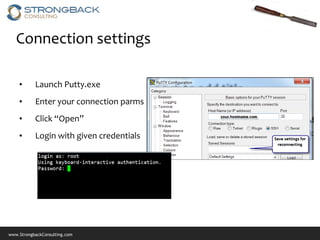
Connection settings

    •      Launch Putty.exe
    •      Enter your connection parms
    •      Click “Open”
    •      Login with given credentials


www.StrongbackConsulting.com
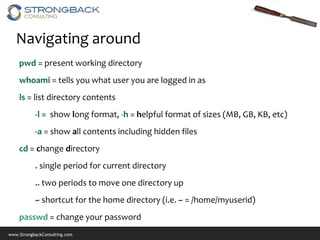
Navigating around
    pwd = present working directory
    whoami = tells you what user you are logged in as
    ls = list directory contents
           -l = show long format, -h = helpful format of sizes (MB, GB, KB, etc)
           -a = show all contents including hidden files
    cd = change directory
           . single period for current directory
           .. two periods to move one directory up
           ~ shortcut for the home directory (i.e. ~ = /home/myuserid)
    passwd = change your password
www.StrongbackConsulting.com
Reading up (or down)

    cat = concatenate file to standard output (i.e. spit out the contents to the console)

           -this is good for short files, but for long files, try…

    more = take a long file and page through it, one screen at a time

           +num = switch to cause more to start at line number num

    tail = show the tail end of a file

           -x = show x numbers of lines from the bottom up. (i.e. tail -50)

    less = similar to more but allows backward movement in the file, and starts faster


www.StrongbackConsulting.com
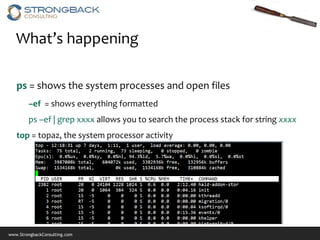
What’s happening

   ps = shows the system processes and open files
        –ef = shows everything formatted
        ps –ef | grep xxxx allows you to search the process stack for string xxxx
   top = topaz, the system processor activity


www.StrongbackConsulting.com
Managing Files & Directories
    rm = remove file or directory
           -r = recourse through and remove directory
    chmod = change mode, or file permissions (read, write, execute)
           ex: chmod 755 install.sh, gives this a permission set of rwxr-xr-x
    chown = change owner
           ex: chown jdoe:users install.sh
    mkdir = make directory
    touch = create an empty file, or update timestamps on a file
    cp = copy , mv = move

www.StrongbackConsulting.com
Directory Permissions
    •      Read, Write, & Execute.
         –        read = 1
         –        write = 2
         –        execute = 4
    •      Add them together to get the sum permission.
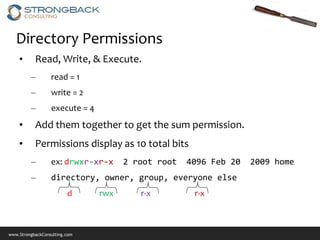
    •      Permissions display as 10 total bits
         –        ex: drwxr-xr-x      2 root root   4096 Feb 20   2009 home
         –        directory, owner, group, everyone else
                         d      rwx      r-x         r-x


www.StrongbackConsulting.com
Editing – vi(m)
    •        Universal editor for Linux / Unix
    •        vim is the successor to vi
         –        More capable, syntax highlighting, extensible configuration file, etc.

    Two modes, command mode and edit mode
    Command mode commands
        i = insert at cursor position, a = append after cursor position (both
    change into the edit mode)
             x = delete character, dd = delete line
             ESC = escape back to command mode
       :q = quit, :w = write (or save), :wq = write then quit, :q! quit and
    abandon changes

www.StrongbackConsulting.com
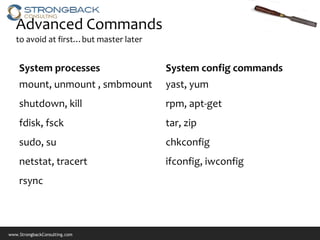
Advanced Commands
   to avoid at first…but master later


    System processes                    System config commands
    mount, unmount , smbmount           yast, yum
    shutdown, kill                      rpm, apt-get
    fdisk, fsck                         tar, zip
    sudo, su                            chkconfig
    netstat, tracert                    ifconfig, iwconfig
    rsync


www.StrongbackConsulting.com
Linux Resources

    • One URL to rule them all:
                      https://delicious.com/strongback/linux


    *Delicious is a social bookmark sharing site. This URL above is for linux, but you an easily find
    our other links on other subjects by navigating to other tags. The tag is the last word in the
    URL.


www.StrongbackConsulting.com
Connect with us
                      Subscribe to us at
                      http://feeds.feedburner.com/StrongbackConsulting

                       Discover us at:
                       http://www.strongback.us


                       Socialize with us on Facebook & LinkedIn
                       http://www.facebook.com/StrongbackConsulting

                       http://www.linkedin.com/company/290754


                         Watch Us at Youtube and Vimeo
                         http://www.youtube.com/user/strongbackconsulting
                         https://vimeo.com/user7519232


www.StrongbackConsulting.com

Linux 101

  • 1.
  • 2.
    So you’re newto Linux? • Just got thrown a Red Hat cd and need to get going? • Told to change a few files? • Scared to death you’ll destroy something? • Yeah… we know. This will get you through the tough stuff www.StrongbackConsulting.com 2
  • 3.
    Basics – gettingconnected • First, you need to launch a console • DOS it is NOT – Use / not – No such thing and C: drives or D: drives • If you’re on the Linux Desktop, use these command consoles: – Gnome Console (Gnome) – Konsole (KDE) www.StrongbackConsulting.com
  • 4.
    Putty setup • Connect remotely using putty – Download the putty.exe: • http://www.chiark.greenend.org.uk/~sgtatham/putty/download.html • Get your connection parameters – Host name – Ssh port – SSL certificate (if required) • Setup a connection www.StrongbackConsulting.com
  • 5.
    Connection settings • Launch Putty.exe • Enter your connection parms • Click “Open” • Login with given credentials www.StrongbackConsulting.com
  • 6.
    Navigating around pwd = present working directory whoami = tells you what user you are logged in as ls = list directory contents -l = show long format, -h = helpful format of sizes (MB, GB, KB, etc) -a = show all contents including hidden files cd = change directory . single period for current directory .. two periods to move one directory up ~ shortcut for the home directory (i.e. ~ = /home/myuserid) passwd = change your password www.StrongbackConsulting.com
  • 7.
    Reading up (ordown) cat = concatenate file to standard output (i.e. spit out the contents to the console) -this is good for short files, but for long files, try… more = take a long file and page through it, one screen at a time +num = switch to cause more to start at line number num tail = show the tail end of a file -x = show x numbers of lines from the bottom up. (i.e. tail -50) less = similar to more but allows backward movement in the file, and starts faster www.StrongbackConsulting.com
  • 8.
    What’s happening ps = shows the system processes and open files –ef = shows everything formatted ps –ef | grep xxxx allows you to search the process stack for string xxxx top = topaz, the system processor activity www.StrongbackConsulting.com
  • 9.
    Managing Files &Directories rm = remove file or directory -r = recourse through and remove directory chmod = change mode, or file permissions (read, write, execute) ex: chmod 755 install.sh, gives this a permission set of rwxr-xr-x chown = change owner ex: chown jdoe:users install.sh mkdir = make directory touch = create an empty file, or update timestamps on a file cp = copy , mv = move www.StrongbackConsulting.com
  • 10.
    Directory Permissions • Read, Write, & Execute. – read = 1 – write = 2 – execute = 4 • Add them together to get the sum permission. • Permissions display as 10 total bits – ex: drwxr-xr-x 2 root root 4096 Feb 20 2009 home – directory, owner, group, everyone else d rwx r-x r-x www.StrongbackConsulting.com
  • 11.
    Editing – vi(m) • Universal editor for Linux / Unix • vim is the successor to vi – More capable, syntax highlighting, extensible configuration file, etc. Two modes, command mode and edit mode Command mode commands i = insert at cursor position, a = append after cursor position (both change into the edit mode) x = delete character, dd = delete line ESC = escape back to command mode :q = quit, :w = write (or save), :wq = write then quit, :q! quit and abandon changes www.StrongbackConsulting.com
  • 12.
    Advanced Commands to avoid at first…but master later System processes System config commands mount, unmount , smbmount yast, yum shutdown, kill rpm, apt-get fdisk, fsck tar, zip sudo, su chkconfig netstat, tracert ifconfig, iwconfig rsync www.StrongbackConsulting.com
  • 13.
    Linux Resources • One URL to rule them all: https://delicious.com/strongback/linux *Delicious is a social bookmark sharing site. This URL above is for linux, but you an easily find our other links on other subjects by navigating to other tags. The tag is the last word in the URL. www.StrongbackConsulting.com
  • 14.
    Connect with us Subscribe to us at http://feeds.feedburner.com/StrongbackConsulting Discover us at: http://www.strongback.us Socialize with us on Facebook & LinkedIn http://www.facebook.com/StrongbackConsulting http://www.linkedin.com/company/290754 Watch Us at Youtube and Vimeo http://www.youtube.com/user/strongbackconsulting https://vimeo.com/user7519232 www.StrongbackConsulting.com