More Linux Commands and Tools
CSI 1320
Anyi Liu
Scientific Findings Worthwhile Sharing
Watch This Video
https://www.lowyinstitute.org/event/preparing-global-
challenges-conversation-bill-gates
How to earn extra credit?
1. Watch this video
2. Write an essay to
summarize this talk (1
page)
3. Give a presentation in
the class (5 minutes)
Outline
• First, we will recap the Unix commands of the previous class
• Then, we will cover more Unix concepts, commands, and tools
– Edit your file
– Create new users/groups
– Change file permission
– Become a super user
– Install software
– Compression tools
– Pipe and Redirection
– Filtering
– Some system-le
• Q/A for labs and HWs
Unix Recap
Case Sensitivity
• In Unix system, naming (e.g., the command line and file names) are case-
sensitive.
– “MYFILE.doc” ≠ “ Myfile.doc” ≠ “mYfiLe.Doc”
Online Manual
• Unix has very well-written online manuals
– Type man command_name <enter>
Basic Commands
How to run Unix commands
• Bring up shell terminal Applications  Accessories => Terminal
– Or Press Ctrl+Alt+T on the keyboard to open the terminal
• When you bring up a shell terminal, you will see a command prompt
$
• One command consists of three parts, i.e. command name, options,
arguments. For example,
$ command-name [options] [arguments]
Basic Commands
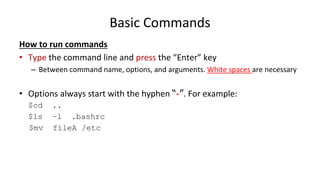
How to run commands
• Type the command line and press the “Enter” key
– Between command name, options, and arguments. White spaces are necessary
• Options always start with the hyphen “-”. For example:
$cd ..
$ls –l .bashrc
$mv fileA /etc
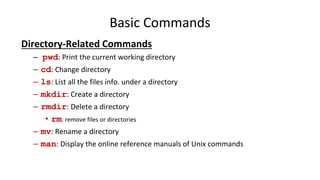
Basic Commands
Directory-Related Commands
– pwd: Print the current working directory
– cd: Change directory
– ls: List all the files info. under a directory
– mkdir: Create a directory
– rmdir: Delete a directory
• rm: remove files or directories
– mv: Rename a directory
– man: Display the online reference manuals of Unix commands
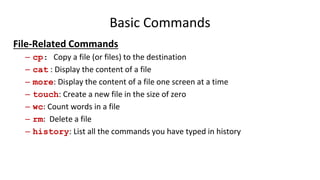
Basic Commands
File-Related Commands
– cp: Copy a file (or files) to the destination
– cat : Display the content of a file
– more: Display the content of a file one screen at a time
– touch: Create a new file in the size of zero
– wc: Count words in a file
– rm: Delete a file
– history: List all the commands you have typed in history
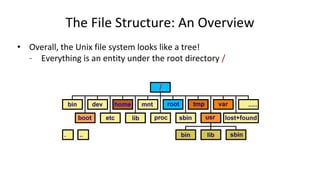
The File Structure: An Overview
• Overall, the Unix file system looks like a tree!
– Everything is an entity under the root directory /
Outline
• Edit your file
• Create new users/groups
• Change file permission
• Become a super user
• Install software
• Compression tools
• Pipe and Redirection
• Filtering
• Some system-level commands
Outline
• Edit your file
• Create new users/groups
• Change file permission
• Become a super user
• Install software
• Compression tools
• Pipe and Redirection
• Filtering
• Some system-level commands
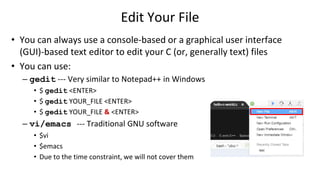
Edit Your File
• You can always use a console-based or a graphical user interface
(GUI)-based text editor to edit your C (or, generally text) files
• You can use:
– gedit --- Very similar to Notepad++ in Windows
• $ gedit <ENTER>
• $ gedit YOUR_FILE <ENTER>
• $ gedit YOUR_FILE & <ENTER>
– vi/emacs --- Traditional GNU software
• $vi
• $emacs
• Due to the time constraint, we will not cover them
Other Text Editors: vi/emacs
• vi tutorial
– http://heather.cs.ucdavis.edu/~matloff/UnixAndC/Editors/ViIntro.ht
ml
• emacs tutorial
– http://www.jesshamrick.com/2012/09/10/absolute-beginners-guide-
to-emacs/
– https://www.youtube.com/watch?v=ujODL7MD04Q
Outline
• Edit your file
• Create new users/groups
• Change file permission
• Become a super user
• Install software
• Compression tools
• Pipe and Redirection
• Filtering
• Some system-level commands
Users and Groups Overview
• Users and Groups are used by *inux for access control—that is, to control access to the
system's files, directories, and peripherals
• A user is anyone who can use the *inux system.
– It may be Mary or Bill  they may use the names Dragonlady or Pirate in place of their real
name. All that matters is that the computer has a name for each account it creates, and it is the
name by which a person gains access to use a computer.
– Some system services also run using restricted or privileged user accounts.
• Managing users is done for the purpose of security by limiting access in certain ways.
– The superuser (root) has complete access to the operating system and its configuration; It is
intended for administrative use only.
– Unprivileged users can use the su and sudo commands for controlled privilege escalation.
• Any individual may have more than one user’s account, as long as they use a different
name for each account.
– Users may be grouped as a group
– Users may be added to an existing group to utilize the privileged access it grants.
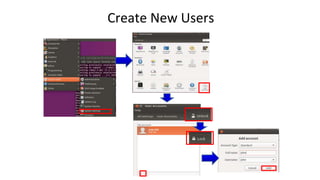
Create New Users
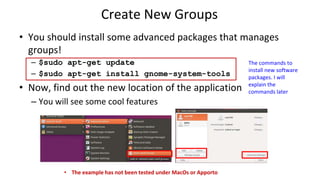
Create New Groups
• You should install some advanced packages that manages
groups!
– $sudo apt-get update
– $sudo apt-get install gnome-system-tools
• Now, find out the new location of the application
– You will see some cool features
The commands to
install new software
packages. I will
explain the
commands later
• The example has not been tested under MacOs or Apporto
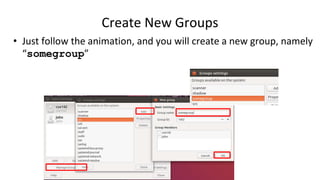
Create New Groups
• Just follow the animation, and you will create a new group, namely
“somegroup”
Outline
• Edit your file
• Create new users/groups
• Change file permission
• Become a super user
• Install software
• Compression tools
• Pipe and Redirection
• Filtering
• Some system-level commands
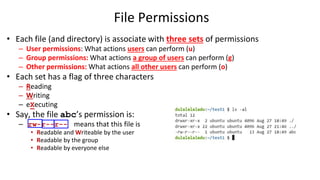
File Permissions
• Each file (and directory) is associate with three sets of permissions
– User permissions: What actions users can perform (u)
– Group permissions: What actions a group of users can perform (g)
– Other permissions: What actions all other users can perform (o)
• Each set has a flag of three characters
– Reading
– Writing
– eXecuting
• Say, the file abc’s permission is:
– rw-r--r-- means that this file is
• Readable and Writeable by the user
• Readable by the group
• Readable by everyone else
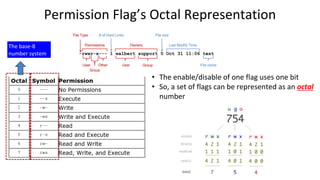
Permission Flag’s Octal Representation
The base-8
number system
• The enable/disable of one flag uses one bit
• So, a set of flags can be represented as an octal
number
Changing File Permissions
• chmod : changes permissions
– See man/info page for full details
– -R : recursive
– $ chmod mode[,mode] file(s)
– Each mode consists of three parts:
• 1. [ugoa] for user, group, other, or all
• 2. [+-=] to add, remove, or exactly set the permissions
• 3. [rwx] for reading, writing, or executing
• e.g., chmod -R o+w public/ will recursively make everything in the public
directory writeable by anyone
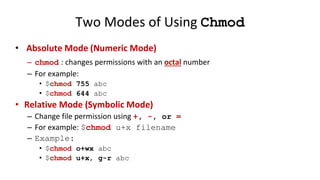
Two Modes of Using Chmod
• Absolute Mode (Numeric Mode)
– chmod : changes permissions with an octal number
– For example:
• $chmod 755 abc
• $chmod 644 abc
• Relative Mode (Symbolic Mode)
– Change file permission using +, -, or =
– For example: $chmod u+x filename
– Example:
• $chmod o+wx abc
• $chmod u+x, g-r abc
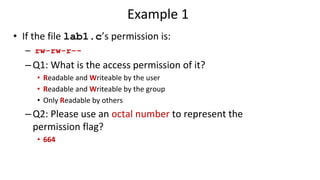
Example 1
• If the file lab1.c’s permission is:
– rw-rw-r--
–Q1: What is the access permission of it?
• Readable and Writeable by the user
• Readable and Writeable by the group
• Only Readable by others
–Q2: Please use an octal number to represent the
permission flag?
• 664
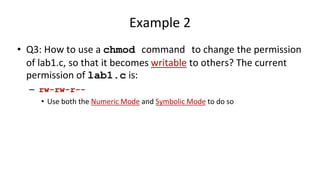
Example 2
• Q3: How to use a chmod command to change the permission
of lab1.c, so that it becomes writable to others? The current
permission of lab1.c is:
– rw-rw-r--
• Use both the Numeric Mode and Symbolic Mode to do so
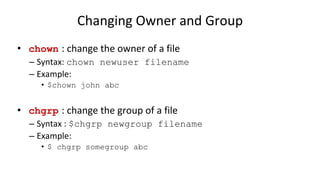
Changing Owner and Group
• chown : change the owner of a file
– Syntax: chown newuser filename
– Example:
• $chown john abc
• chgrp : change the group of a file
– Syntax : $chgrp newgroup filename
– Example:
• $ chgrp somegroup abc
Outline
• Edit your file
• Create new users/groups
• Change file permission
• Become a super user
• Install software
• Compression tools
• Pipe and Redirection
• Filtering
• Some system-level commands
Super-user (Root) Privileges
• By default, Linux OS has an account called "root" that is the
super-user or administrator
– root can do ANYTHING (good or BAD!) in the computer!
• It is a great time to enjoy as a root. However,
– It is EXTREMELY dangerous to do anything as a root!!!! – Why?
• Best practice
– Always login in as a non-root user
– Use the “sudo” command only when it is necessary!
– Strongly un-recommended: $sudo -s <ENTER>
– Exit soon!
Outline
• Edit your file
• Create new users/groups
• Change file permission
• Become a super user
• Install software
• Compression tools
• Pipe and Redirection
• Filtering
• Some system-level commands
Installing software
• Linux allows you to use several ways to install software (most
of them are free!)
– Using apt-get command
– Using GUI Tools
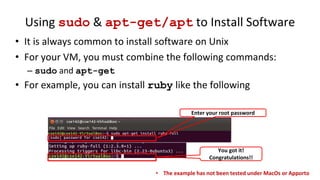
Using sudo & apt-get/apt to Install Software
• It is always common to install software on Unix
• For your VM, you must combine the following commands:
– sudo and apt-get
• For example, you can install ruby like the following
Enter your root password
You got it!
Congratulations!!
• The example has not been tested under MacOs or Apporto
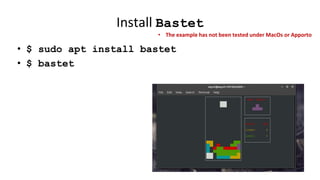
Install Bastet
• $ sudo apt install bastet
• $ bastet
• The example has not been tested under MacOs or Apporto
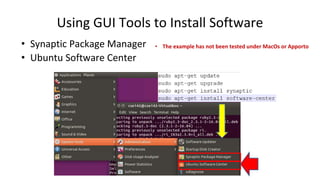
Using GUI Tools to Install Software
• Synaptic Package Manager
• Ubuntu Software Center
• The example has not been tested under MacOs or Apporto
Outline
• Edit your file
• Create new users/groups
• Change file permission
• Become a super user
• Install software
• Compression tools
• Pipe and Redirection
• Filtering
• Some system-level commands
Compressing Tools
• Linux provides many tools for compressing and decompressing
files (most of them are free!)
– Using tar and zip commands
tar
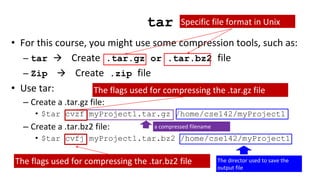
• For this course, you might use some compression tools, such as:
– tar  Create .tar.gz or .tar.bz2 file
– Zip  Create .zip file
• Use tar:
– Create a .tar.gz file:
• $tar cvzf myProject1.tar.gz /home/cse142/myProject1
– Create a .tar.bz2 file:
• $tar cvfj myProject1.tar.bz2 /home/cse142/myProject1
Specific file format in Unix
a compressed filename
The director used to save the
output file
The flags used for compressing the .tar.gz file
The flags used for compressing the .tar.bz2 file
tar
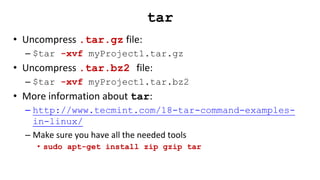
• Uncompress .tar.gz file:
– $tar -xvf myProject1.tar.gz
• Uncompress .tar.bz2 file:
– $tar -xvf myProject1.tar.bz2
• More information about tar:
– http://www.tecmint.com/18-tar-command-examples-
in-linux/
– Make sure you have all the needed tools
• sudo apt-get install zip gzip tar
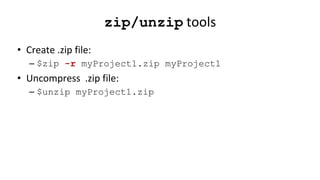
zip/unzip tools
• Create .zip file:
– $zip -r myProject1.zip myProject1
• Uncompress .zip file:
– $unzip myProject1.zip
Install Software from Tarballs
• A huge amount of freeware in Linux were distributed via tarballs
(e.g., tar.gz or tar.bz2 files)
– From github, bitbucket, etc.
• Once you downloaded the tarballs, you may need to do the
following:
– Uncompressing the tarball; and
– Installing the software from the source code
• Let’s play with an example!
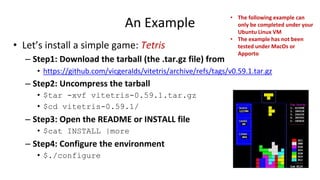
An Example
• Let’s install a simple game: Tetris
– Step1: Download the tarball (the .tar.gz file) from
• https://github.com/vicgeralds/vitetris/archive/refs/tags/v0.59.1.tar.gz
– Step2: Uncompress the tarball
• $tar -xvf vitetris-0.59.1.tar.gz
• $cd vitetris-0.59.1/
– Step3: Open the README or INSTALL file
• $cat INSTALL |more
– Step4: Configure the environment
• $./configure
• The following example can
only be completed under your
Ubuntu Linux VM
• The example has not been
tested under MacOs or
Apporto
An Example
– Step5: Make from the source
• $make
– Step6: Installation [Optional]
• $sudo make install
– Step7: Run and have fun!
• $./tetris
• You can follow similar steps to install most
of the tarball!
• Always find README and/or INSTALL file
and follow the instruction
Boston Dynamics Atlas Then and Now
Outline
• Edit your file
• Create new users/groups
• Change file permission
• Become a super user
• Install software
• Compression tools
• Pipe and Redirection
• Filtering
• Some system-level commands
Combine Unix Commands
• Unix provides particular features
– Redirection
– Pipes
• In the Unix domain, every peripheral device or artifact is a FILE!
– One of crucial concepts of UNIX
– It provides a unified manner of accessing a wide range of input/output devices:
• Documents,
• Directories,
• Hard-drives,
• CD-ROMs,
• Network card,
• Keyboards,
• Printers,
• Monitors,
• Terminals, and
• Even some network communications
Do they have
permissions? YES
The Concept of Input and Output
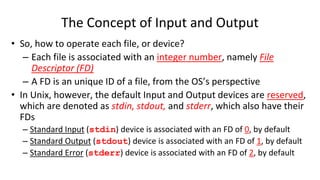
• So, how to operate each file, or device?
– Each file is associated with an integer number, namely File
Descriptor (FD)
– A FD is an unique ID of a file, from the OS’s perspective
• In Unix, however, the default Input and Output devices are reserved,
which are denoted as stdin, stdout, and stderr, which also have their
FDs
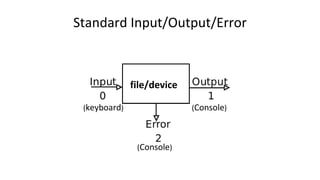
– Standard Input (stdin) device is associated with an FD of 0, by default
– Standard Output (stdout) device is associated with an FD of 1, by default
– Standard Error (stderr) device is associated with an FD of 2, by default
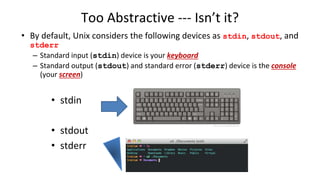
Too Abstractive --- Isn’t it?
• stdin
• stdout
• stderr
• By default, Unix considers the following devices as stdin, stdout, and
stderr
– Standard input (stdin) device is your keyboard
– Standard output (stdout) and standard error (stderr) device is the console
(your screen)
Standard Input/Output/Error
file/device
(keyboard)
(Console)
(Console)
Redirection
• The notion of redirection
– Redirection is a kind of override to the default definition
• Instead of writing to the screen, it allows a program to write to a file
• Instead of reading from the keyboard, it allows a program to read from a
file
– Output redirection: The output of a command (generally intended for
standard output) can be diverted to a file
• The ">“ (greater than) character is used to write standard output to a file
• The ">>“ (double greater than) character is used to append the standard output to a file
– input redirection: The input of a command can be redirected from a file
• The “<“ (less than) character is used to redirect standard output to a file
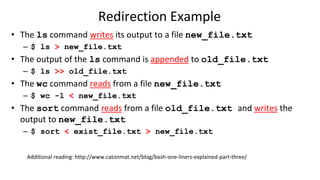
Redirection Example
• The ls command writes its output to a file new_file.txt
– $ ls > new_file.txt
• The output of the ls command is appended to old_file.txt
– $ ls >> old_file.txt
• The wc command reads from a file new_file.txt
– $ wc -l < new_file.txt
• The sort command reads from a file old_file.txt and writes the
output to new_file.txt
– $ sort < exist_file.txt > new_file.txt
Additional reading: http://www.catonmat.net/blog/bash-one-liners-explained-part-three/
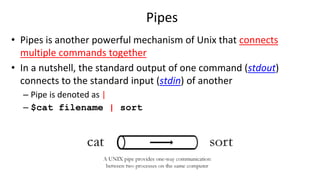
Pipes
• Pipes is another powerful mechanism of Unix that connects
multiple commands together
• In a nutshell, the standard output of one command (stdout)
connects to the standard input (stdin) of another
– Pipe is denoted as |
– $cat filename | sort
Filtering
• An useful application of pipes is for filtering
– Let’s introduce one more Unix command first
• grep: searching files for lines containing a match to the given
pattern.
– Syntax: grep [OPTIONS] PATTERN [FILE...]
– Example:
• $grep ”abc" [file_name]
• Pattern may or may not need the “” mark
– The file should be the text file, not the binary file
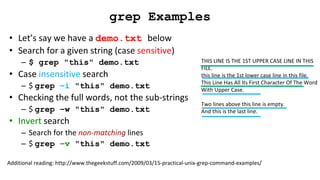
THIS LINE IS THE 1ST UPPER CASE LINE IN THIS
FILE.
this line is the 1st lower case line in this file.
This Line Has All Its First Character Of The Word
With Upper Case.
Two lines above this line is empty.
And this is the last line.
grep Examples
• Let’s say we have a demo.txt below
• Search for a given string (case sensitive)
– $ grep "this" demo.txt
• Case insensitive search
– $ grep –i "this" demo.txt
• Checking the full words, not the sub-strings
– $ grep –w "this" demo.txt
• Invert search
– Search for the non-matching lines
– $ grep –v "this" demo.txt
Additional reading: http://www.thegeekstuff.com/2009/03/15-practical-unix-grep-command-examples/
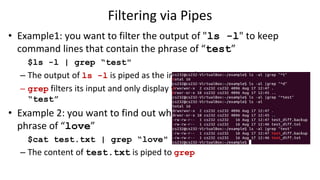
Filtering via Pipes
• Example1: you want to filter the output of "ls -l" to keep
command lines that contain the phrase of “test”
$ls -l | grep “test"
– The output of ls -l is piped as the input of grep
– grep filters its input and only display the lines that contain the pattern
“test”
• Example 2: you want to find out whether test.txt contains the
phrase of “love”
$cat test.txt | grep “love"
– The content of test.txt is piped to grep
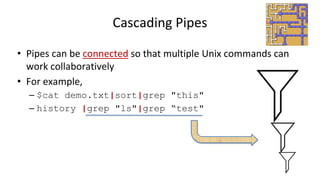
Cascading Pipes
• Pipes can be connected so that multiple Unix commands can
work collaboratively
• For example,
– $cat demo.txt|sort|grep "this"
– history |grep "ls"|grep “test"
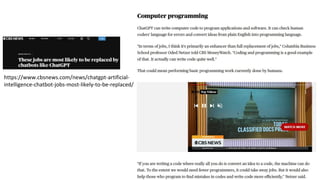
https://www.cbsnews.com/news/chatgpt-artificial-
intelligence-chatbot-jobs-most-likely-to-be-replaced/
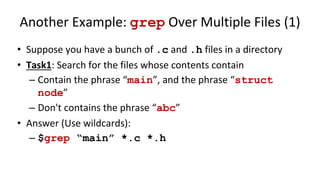
Another Example: grep Over Multiple Files (1)
• Suppose you have a bunch of .c and .h files in a directory
• Task1: Search for the files whose contents contain
– Contain the phrase “main”, and the phrase “struct
node”
– Don't contains the phrase “abc”
• Answer (Use wildcards):
– $grep “main” *.c *.h
Another Example: grep Over Multiple Files (2)
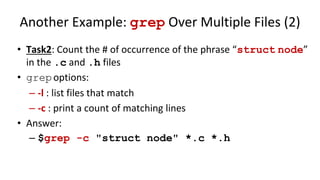
• Task2: Count the # of occurrence of the phrase “struct node”
in the .c and .h files
• grepoptions:
– -l : list files that match
– -c : print a count of matching lines
• Answer:
– $grep -c "struct node" *.c *.h
Other Useful grep Switches
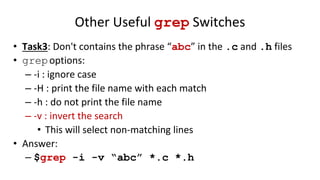
• Task3: Don't contains the phrase “abc” in the .c and .h files
• grepoptions:
– -i : ignore case
– -H : print the file name with each match
– -h : do not print the file name
– -v : invert the search
• This will select non-matching lines
• Answer:
– $grep -i -v “abc” *.c *.h
The find Command
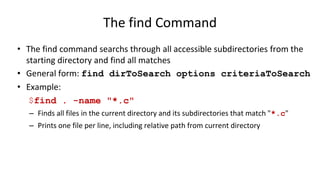
• The find command searchs through all accessible subdirectories from the
starting directory and find all matches
• General form: find dirToSearch options criteriaToSearch
• Example:
$find . -name "*.c"
– Finds all files in the current directory and its subdirectories that match "*.c"
– Prints one file per line, including relative path from current directory
history: Recalling Old Commands
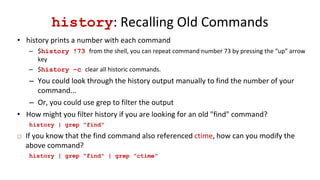
• history prints a number with each command
– $history !73 from the shell, you can repeat command number 73 by pressing the “up” arrow
key
– $history –c clear all historic commands.
– You could look through the history output manually to find the number of your
command...
– Or, you could use grep to filter the output
• How might you filter history if you are looking for an old "find" command?
history | grep "find"
 If you know that the find command also referenced ctime, how can you modify the
above command?
history | grep "find" | grep "ctime"
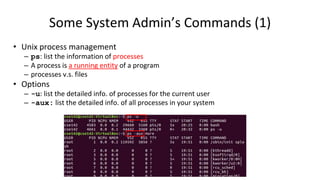
Some System Admin’s Commands (1)
• Unix process management
– ps: list the information of processes
– A process is a running entity of a program
– processes v.s. files
• Options
– -u: list the detailed info. of processes for the current user
– -aux: list the detailed info. of all processes in your system
Some System Admin’s Commands (2)
• pstree: list the information of processes’ family tree
• Syntax:
– $pstree
Some System Admin’s Commands (3)
• kill: kill a process
• Syntax:
– $kill [PID]
• Options
– -9: kill a process!  it definitely works!!!
– Use it with great care  there is no way back!
– Use this option only when you have tried all the rest in the world!
Summary
• We have covered In this lecture, we have covered some Unix
commands
– Edit your file
– Create new users/groups
– Change file permission
– Become root
– Install software
– tar/zip tools and tarball
– Pipe and Redirection
– Filtering
– Some system-level commands
Exercise & Homework
• In class:
– Work on HW1
• Prepare:
– Read Chapter 2 of “C: How to program.”
• Cover the preliminaries of C
– A pre-lecture quiz will be given in the next class
• Covers this lecture and your reading
– If you have a laptop, bring it to the classroom!

Topic 3-1_More_Linux_Commands.pptx

  • 1.
    More Linux Commandsand Tools CSI 1320 Anyi Liu
  • 2.
  • 3.
    Watch This Video https://www.lowyinstitute.org/event/preparing-global- challenges-conversation-bill-gates Howto earn extra credit? 1. Watch this video 2. Write an essay to summarize this talk (1 page) 3. Give a presentation in the class (5 minutes)
  • 4.
    Outline • First, wewill recap the Unix commands of the previous class • Then, we will cover more Unix concepts, commands, and tools – Edit your file – Create new users/groups – Change file permission – Become a super user – Install software – Compression tools – Pipe and Redirection – Filtering – Some system-le • Q/A for labs and HWs
  • 5.
    Unix Recap Case Sensitivity •In Unix system, naming (e.g., the command line and file names) are case- sensitive. – “MYFILE.doc” ≠ “ Myfile.doc” ≠ “mYfiLe.Doc” Online Manual • Unix has very well-written online manuals – Type man command_name <enter>
  • 6.
    Basic Commands How torun Unix commands • Bring up shell terminal Applications  Accessories => Terminal – Or Press Ctrl+Alt+T on the keyboard to open the terminal • When you bring up a shell terminal, you will see a command prompt $ • One command consists of three parts, i.e. command name, options, arguments. For example, $ command-name [options] [arguments]
  • 7.
    Basic Commands How torun commands • Type the command line and press the “Enter” key – Between command name, options, and arguments. White spaces are necessary • Options always start with the hyphen “-”. For example: $cd .. $ls –l .bashrc $mv fileA /etc
  • 8.
    Basic Commands Directory-Related Commands –pwd: Print the current working directory – cd: Change directory – ls: List all the files info. under a directory – mkdir: Create a directory – rmdir: Delete a directory • rm: remove files or directories – mv: Rename a directory – man: Display the online reference manuals of Unix commands
  • 9.
    Basic Commands File-Related Commands –cp: Copy a file (or files) to the destination – cat : Display the content of a file – more: Display the content of a file one screen at a time – touch: Create a new file in the size of zero – wc: Count words in a file – rm: Delete a file – history: List all the commands you have typed in history
  • 10.
    The File Structure:An Overview • Overall, the Unix file system looks like a tree! – Everything is an entity under the root directory /
  • 11.
    Outline • Edit yourfile • Create new users/groups • Change file permission • Become a super user • Install software • Compression tools • Pipe and Redirection • Filtering • Some system-level commands
  • 12.
    Outline • Edit yourfile • Create new users/groups • Change file permission • Become a super user • Install software • Compression tools • Pipe and Redirection • Filtering • Some system-level commands
  • 13.
    Edit Your File •You can always use a console-based or a graphical user interface (GUI)-based text editor to edit your C (or, generally text) files • You can use: – gedit --- Very similar to Notepad++ in Windows • $ gedit <ENTER> • $ gedit YOUR_FILE <ENTER> • $ gedit YOUR_FILE & <ENTER> – vi/emacs --- Traditional GNU software • $vi • $emacs • Due to the time constraint, we will not cover them
  • 14.
    Other Text Editors:vi/emacs • vi tutorial – http://heather.cs.ucdavis.edu/~matloff/UnixAndC/Editors/ViIntro.ht ml • emacs tutorial – http://www.jesshamrick.com/2012/09/10/absolute-beginners-guide- to-emacs/ – https://www.youtube.com/watch?v=ujODL7MD04Q
  • 15.
    Outline • Edit yourfile • Create new users/groups • Change file permission • Become a super user • Install software • Compression tools • Pipe and Redirection • Filtering • Some system-level commands
  • 16.
    Users and GroupsOverview • Users and Groups are used by *inux for access control—that is, to control access to the system's files, directories, and peripherals • A user is anyone who can use the *inux system. – It may be Mary or Bill  they may use the names Dragonlady or Pirate in place of their real name. All that matters is that the computer has a name for each account it creates, and it is the name by which a person gains access to use a computer. – Some system services also run using restricted or privileged user accounts. • Managing users is done for the purpose of security by limiting access in certain ways. – The superuser (root) has complete access to the operating system and its configuration; It is intended for administrative use only. – Unprivileged users can use the su and sudo commands for controlled privilege escalation. • Any individual may have more than one user’s account, as long as they use a different name for each account. – Users may be grouped as a group – Users may be added to an existing group to utilize the privileged access it grants.
  • 17.
  • 18.
    Create New Groups •You should install some advanced packages that manages groups! – $sudo apt-get update – $sudo apt-get install gnome-system-tools • Now, find out the new location of the application – You will see some cool features The commands to install new software packages. I will explain the commands later • The example has not been tested under MacOs or Apporto
  • 19.
    Create New Groups •Just follow the animation, and you will create a new group, namely “somegroup”
  • 20.
    Outline • Edit yourfile • Create new users/groups • Change file permission • Become a super user • Install software • Compression tools • Pipe and Redirection • Filtering • Some system-level commands
  • 21.
    File Permissions • Eachfile (and directory) is associate with three sets of permissions – User permissions: What actions users can perform (u) – Group permissions: What actions a group of users can perform (g) – Other permissions: What actions all other users can perform (o) • Each set has a flag of three characters – Reading – Writing – eXecuting • Say, the file abc’s permission is: – rw-r--r-- means that this file is • Readable and Writeable by the user • Readable by the group • Readable by everyone else
  • 22.
    Permission Flag’s OctalRepresentation The base-8 number system • The enable/disable of one flag uses one bit • So, a set of flags can be represented as an octal number
  • 23.
    Changing File Permissions •chmod : changes permissions – See man/info page for full details – -R : recursive – $ chmod mode[,mode] file(s) – Each mode consists of three parts: • 1. [ugoa] for user, group, other, or all • 2. [+-=] to add, remove, or exactly set the permissions • 3. [rwx] for reading, writing, or executing • e.g., chmod -R o+w public/ will recursively make everything in the public directory writeable by anyone
  • 24.
    Two Modes ofUsing Chmod • Absolute Mode (Numeric Mode) – chmod : changes permissions with an octal number – For example: • $chmod 755 abc • $chmod 644 abc • Relative Mode (Symbolic Mode) – Change file permission using +, -, or = – For example: $chmod u+x filename – Example: • $chmod o+wx abc • $chmod u+x, g-r abc
  • 25.
    Example 1 • Ifthe file lab1.c’s permission is: – rw-rw-r-- –Q1: What is the access permission of it? • Readable and Writeable by the user • Readable and Writeable by the group • Only Readable by others –Q2: Please use an octal number to represent the permission flag? • 664
  • 26.
    Example 2 • Q3:How to use a chmod command to change the permission of lab1.c, so that it becomes writable to others? The current permission of lab1.c is: – rw-rw-r-- • Use both the Numeric Mode and Symbolic Mode to do so
  • 27.
    Changing Owner andGroup • chown : change the owner of a file – Syntax: chown newuser filename – Example: • $chown john abc • chgrp : change the group of a file – Syntax : $chgrp newgroup filename – Example: • $ chgrp somegroup abc
  • 28.
    Outline • Edit yourfile • Create new users/groups • Change file permission • Become a super user • Install software • Compression tools • Pipe and Redirection • Filtering • Some system-level commands
  • 29.
    Super-user (Root) Privileges •By default, Linux OS has an account called "root" that is the super-user or administrator – root can do ANYTHING (good or BAD!) in the computer! • It is a great time to enjoy as a root. However, – It is EXTREMELY dangerous to do anything as a root!!!! – Why? • Best practice – Always login in as a non-root user – Use the “sudo” command only when it is necessary! – Strongly un-recommended: $sudo -s <ENTER> – Exit soon!
  • 30.
    Outline • Edit yourfile • Create new users/groups • Change file permission • Become a super user • Install software • Compression tools • Pipe and Redirection • Filtering • Some system-level commands
  • 31.
    Installing software • Linuxallows you to use several ways to install software (most of them are free!) – Using apt-get command – Using GUI Tools
  • 32.
    Using sudo &apt-get/apt to Install Software • It is always common to install software on Unix • For your VM, you must combine the following commands: – sudo and apt-get • For example, you can install ruby like the following Enter your root password You got it! Congratulations!! • The example has not been tested under MacOs or Apporto
  • 33.
    Install Bastet • $sudo apt install bastet • $ bastet • The example has not been tested under MacOs or Apporto
  • 34.
    Using GUI Toolsto Install Software • Synaptic Package Manager • Ubuntu Software Center • The example has not been tested under MacOs or Apporto
  • 35.
    Outline • Edit yourfile • Create new users/groups • Change file permission • Become a super user • Install software • Compression tools • Pipe and Redirection • Filtering • Some system-level commands
  • 36.
    Compressing Tools • Linuxprovides many tools for compressing and decompressing files (most of them are free!) – Using tar and zip commands
  • 37.
    tar • For thiscourse, you might use some compression tools, such as: – tar  Create .tar.gz or .tar.bz2 file – Zip  Create .zip file • Use tar: – Create a .tar.gz file: • $tar cvzf myProject1.tar.gz /home/cse142/myProject1 – Create a .tar.bz2 file: • $tar cvfj myProject1.tar.bz2 /home/cse142/myProject1 Specific file format in Unix a compressed filename The director used to save the output file The flags used for compressing the .tar.gz file The flags used for compressing the .tar.bz2 file
  • 38.
    tar • Uncompress .tar.gzfile: – $tar -xvf myProject1.tar.gz • Uncompress .tar.bz2 file: – $tar -xvf myProject1.tar.bz2 • More information about tar: – http://www.tecmint.com/18-tar-command-examples- in-linux/ – Make sure you have all the needed tools • sudo apt-get install zip gzip tar
  • 39.
    zip/unzip tools • Create.zip file: – $zip -r myProject1.zip myProject1 • Uncompress .zip file: – $unzip myProject1.zip
  • 40.
    Install Software fromTarballs • A huge amount of freeware in Linux were distributed via tarballs (e.g., tar.gz or tar.bz2 files) – From github, bitbucket, etc. • Once you downloaded the tarballs, you may need to do the following: – Uncompressing the tarball; and – Installing the software from the source code • Let’s play with an example!
  • 41.
    An Example • Let’sinstall a simple game: Tetris – Step1: Download the tarball (the .tar.gz file) from • https://github.com/vicgeralds/vitetris/archive/refs/tags/v0.59.1.tar.gz – Step2: Uncompress the tarball • $tar -xvf vitetris-0.59.1.tar.gz • $cd vitetris-0.59.1/ – Step3: Open the README or INSTALL file • $cat INSTALL |more – Step4: Configure the environment • $./configure • The following example can only be completed under your Ubuntu Linux VM • The example has not been tested under MacOs or Apporto
  • 42.
    An Example – Step5:Make from the source • $make – Step6: Installation [Optional] • $sudo make install – Step7: Run and have fun! • $./tetris • You can follow similar steps to install most of the tarball! • Always find README and/or INSTALL file and follow the instruction
  • 43.
  • 44.
    Outline • Edit yourfile • Create new users/groups • Change file permission • Become a super user • Install software • Compression tools • Pipe and Redirection • Filtering • Some system-level commands
  • 45.
    Combine Unix Commands •Unix provides particular features – Redirection – Pipes • In the Unix domain, every peripheral device or artifact is a FILE! – One of crucial concepts of UNIX – It provides a unified manner of accessing a wide range of input/output devices: • Documents, • Directories, • Hard-drives, • CD-ROMs, • Network card, • Keyboards, • Printers, • Monitors, • Terminals, and • Even some network communications Do they have permissions? YES
  • 46.
    The Concept ofInput and Output • So, how to operate each file, or device? – Each file is associated with an integer number, namely File Descriptor (FD) – A FD is an unique ID of a file, from the OS’s perspective • In Unix, however, the default Input and Output devices are reserved, which are denoted as stdin, stdout, and stderr, which also have their FDs – Standard Input (stdin) device is associated with an FD of 0, by default – Standard Output (stdout) device is associated with an FD of 1, by default – Standard Error (stderr) device is associated with an FD of 2, by default
  • 47.
    Too Abstractive ---Isn’t it? • stdin • stdout • stderr • By default, Unix considers the following devices as stdin, stdout, and stderr – Standard input (stdin) device is your keyboard – Standard output (stdout) and standard error (stderr) device is the console (your screen)
  • 48.
  • 49.
    Redirection • The notionof redirection – Redirection is a kind of override to the default definition • Instead of writing to the screen, it allows a program to write to a file • Instead of reading from the keyboard, it allows a program to read from a file – Output redirection: The output of a command (generally intended for standard output) can be diverted to a file • The ">“ (greater than) character is used to write standard output to a file • The ">>“ (double greater than) character is used to append the standard output to a file – input redirection: The input of a command can be redirected from a file • The “<“ (less than) character is used to redirect standard output to a file
  • 50.
    Redirection Example • Thels command writes its output to a file new_file.txt – $ ls > new_file.txt • The output of the ls command is appended to old_file.txt – $ ls >> old_file.txt • The wc command reads from a file new_file.txt – $ wc -l < new_file.txt • The sort command reads from a file old_file.txt and writes the output to new_file.txt – $ sort < exist_file.txt > new_file.txt Additional reading: http://www.catonmat.net/blog/bash-one-liners-explained-part-three/
  • 51.
    Pipes • Pipes isanother powerful mechanism of Unix that connects multiple commands together • In a nutshell, the standard output of one command (stdout) connects to the standard input (stdin) of another – Pipe is denoted as | – $cat filename | sort
  • 52.
    Filtering • An usefulapplication of pipes is for filtering – Let’s introduce one more Unix command first • grep: searching files for lines containing a match to the given pattern. – Syntax: grep [OPTIONS] PATTERN [FILE...] – Example: • $grep ”abc" [file_name] • Pattern may or may not need the “” mark – The file should be the text file, not the binary file
  • 53.
    THIS LINE ISTHE 1ST UPPER CASE LINE IN THIS FILE. this line is the 1st lower case line in this file. This Line Has All Its First Character Of The Word With Upper Case. Two lines above this line is empty. And this is the last line. grep Examples • Let’s say we have a demo.txt below • Search for a given string (case sensitive) – $ grep "this" demo.txt • Case insensitive search – $ grep –i "this" demo.txt • Checking the full words, not the sub-strings – $ grep –w "this" demo.txt • Invert search – Search for the non-matching lines – $ grep –v "this" demo.txt Additional reading: http://www.thegeekstuff.com/2009/03/15-practical-unix-grep-command-examples/
  • 54.
    Filtering via Pipes •Example1: you want to filter the output of "ls -l" to keep command lines that contain the phrase of “test” $ls -l | grep “test" – The output of ls -l is piped as the input of grep – grep filters its input and only display the lines that contain the pattern “test” • Example 2: you want to find out whether test.txt contains the phrase of “love” $cat test.txt | grep “love" – The content of test.txt is piped to grep
  • 55.
    Cascading Pipes • Pipescan be connected so that multiple Unix commands can work collaboratively • For example, – $cat demo.txt|sort|grep "this" – history |grep "ls"|grep “test"
  • 58.
  • 59.
    Another Example: grepOver Multiple Files (1) • Suppose you have a bunch of .c and .h files in a directory • Task1: Search for the files whose contents contain – Contain the phrase “main”, and the phrase “struct node” – Don't contains the phrase “abc” • Answer (Use wildcards): – $grep “main” *.c *.h
  • 60.
    Another Example: grepOver Multiple Files (2) • Task2: Count the # of occurrence of the phrase “struct node” in the .c and .h files • grepoptions: – -l : list files that match – -c : print a count of matching lines • Answer: – $grep -c "struct node" *.c *.h
  • 61.
    Other Useful grepSwitches • Task3: Don't contains the phrase “abc” in the .c and .h files • grepoptions: – -i : ignore case – -H : print the file name with each match – -h : do not print the file name – -v : invert the search • This will select non-matching lines • Answer: – $grep -i -v “abc” *.c *.h
  • 62.
    The find Command •The find command searchs through all accessible subdirectories from the starting directory and find all matches • General form: find dirToSearch options criteriaToSearch • Example: $find . -name "*.c" – Finds all files in the current directory and its subdirectories that match "*.c" – Prints one file per line, including relative path from current directory
  • 63.
    history: Recalling OldCommands • history prints a number with each command – $history !73 from the shell, you can repeat command number 73 by pressing the “up” arrow key – $history –c clear all historic commands. – You could look through the history output manually to find the number of your command... – Or, you could use grep to filter the output • How might you filter history if you are looking for an old "find" command? history | grep "find"  If you know that the find command also referenced ctime, how can you modify the above command? history | grep "find" | grep "ctime"
  • 64.
    Some System Admin’sCommands (1) • Unix process management – ps: list the information of processes – A process is a running entity of a program – processes v.s. files • Options – -u: list the detailed info. of processes for the current user – -aux: list the detailed info. of all processes in your system
  • 65.
    Some System Admin’sCommands (2) • pstree: list the information of processes’ family tree • Syntax: – $pstree
  • 66.
    Some System Admin’sCommands (3) • kill: kill a process • Syntax: – $kill [PID] • Options – -9: kill a process!  it definitely works!!! – Use it with great care  there is no way back! – Use this option only when you have tried all the rest in the world!
  • 67.
    Summary • We havecovered In this lecture, we have covered some Unix commands – Edit your file – Create new users/groups – Change file permission – Become root – Install software – tar/zip tools and tarball – Pipe and Redirection – Filtering – Some system-level commands
  • 68.
    Exercise & Homework •In class: – Work on HW1 • Prepare: – Read Chapter 2 of “C: How to program.” • Cover the preliminaries of C – A pre-lecture quiz will be given in the next class • Covers this lecture and your reading – If you have a laptop, bring it to the classroom!

Editor's Notes

  • #9 “ls” stands for list. Pwd stands for present working directory
  • #10 “ls” stands for list. Pwd stands for present working directory