HTML PROGRAMMING
Lesson 6: Adding other media
Lesson Objectives
 By the end of this lesson:
 All students will be able to explain the problems
associated with multimedia websites
 Most students will be able to embed a sound clip
to a webpage
 Some students will be able to embed a You Tube
video to a webpage
Starter
 Many modern websites are classed as being
‘multimedia’, which means that they contain
the following:
 Images
 Sound
 Video
 Animation
 Can you think of any potential issues that
should be considered when creating a
multimedia website?
Potential issues...
 Depending on the user’s setup, they may not
have the required software installed to view
the website properly
 If the user has a slow connection, it could take
a long time for the website to load
 Too much media could prove to be a
distraction and could put the user off, do you
remember this delightful website?
Sound formats...
Format Description
Midi (.mid) These are small files which give instructions of which notes
and instruments should be played by your computer’s sound
card. The quality depends on how good your sound card is,
but the plus point is that they don’t take up much storage
space.
Wave (.wav) Wave files are supported by all PCs and all browsers apart
from Google Chrome. The downside is that they can take up
a lot of storage space!
WMA (.wma) WMA files are usually good quality and can be played on
most devices apart from IPods.
MP3 (.mp3) MP3 files provide good quality sound and low storage space,
this has resulted in them becoming very popular when using
sound on websites.
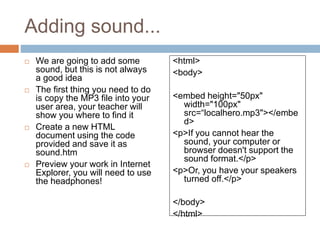
Adding sound...
 We are going to add some
sound, but this is not always
a good idea
 The first thing you need to do
is copy the MP3 file into your
user area, your teacher will
show you where to find it
 Create a new HTML
document using the code
provided and save it as
sound.htm
 Preview your work in Internet
Explorer, you will need to use
the headphones!
<html>
<body>
<embed height="50px"
width="100px"
src=“localhero.mp3"></embe
d>
<p>If you cannot hear the
sound, your computer or
browser doesn't support the
sound format.</p>
<p>Or, you have your speakers
turned off.</p>
</body>
</html>
Video formats...
Format Description
AVI (.avi) AVI files are pretty common on the Internet, but it is not
always possible to use them on non-Windows computers.
WMV (.wmv) WMV files are also pretty common, but if you have a non-
Windows computer you may have to install additional
software to view them.
MPEG (.mpg) MPEGs are the most popular type of video on the Internet, as
they are compatible with Windows and Macs and all of the
major web browsers.
Quicktime
(.mov)
Quicktime files are popular, but in order to view them on a
Windows machine you need to install additional software.
Flash (.swf or
.flv)
Flash videos are again popular, but once again you may have
to install additional software to view them properly.
Adding video...
 Adding video to a
webpage can be
problematic to say the
least!
 The easiest way to
embed a video directly
from YouTube
 Type in the code
provided and save your
work as video.htm
 Preview your work in
Internet Explorer to see
if it works... or not!
<html>
<body>
<embed
width="420" height="345"
src="http://www.youtube.co
m/v/XGSy3_Czz8k"
type="application/x-
shockwave-flash">
</embed>
</body>
</html>
Your task...
 Using your Newcastle.htm file, do the
following:
 Embed the X Factor video from You Tube to your
website (I know it’s got nothing to do with
Newcastle, but it’s better than Jimmy Nail!)
 Add the Local Hero sound clip to your website
 Save your work and then preview your work in
internet Explorer to check that it has worked.
Plenary...
 Complete your HTML tag table by explaining
the following tag:
 <embed>
 Complete the ‘Evaluation’ worksheet provided
in your booklet.
 If you do not manage to complete this you
should take it home and bring it in next lesson.
 REMEMBER to answer in detail and try to
explain your answers!
Summary
 In this lesson you have:
 Explained the problems associated with
multimedia websites
 Embedded a sound clip to a webpage
 Embedded a You Tube video to a webpage

Lesson 6

  • 1.
    HTML PROGRAMMING Lesson 6:Adding other media
  • 2.
    Lesson Objectives  Bythe end of this lesson:  All students will be able to explain the problems associated with multimedia websites  Most students will be able to embed a sound clip to a webpage  Some students will be able to embed a You Tube video to a webpage
  • 3.
    Starter  Many modernwebsites are classed as being ‘multimedia’, which means that they contain the following:  Images  Sound  Video  Animation  Can you think of any potential issues that should be considered when creating a multimedia website?
  • 4.
    Potential issues...  Dependingon the user’s setup, they may not have the required software installed to view the website properly  If the user has a slow connection, it could take a long time for the website to load  Too much media could prove to be a distraction and could put the user off, do you remember this delightful website?
  • 5.
    Sound formats... Format Description Midi(.mid) These are small files which give instructions of which notes and instruments should be played by your computer’s sound card. The quality depends on how good your sound card is, but the plus point is that they don’t take up much storage space. Wave (.wav) Wave files are supported by all PCs and all browsers apart from Google Chrome. The downside is that they can take up a lot of storage space! WMA (.wma) WMA files are usually good quality and can be played on most devices apart from IPods. MP3 (.mp3) MP3 files provide good quality sound and low storage space, this has resulted in them becoming very popular when using sound on websites.
  • 6.
    Adding sound...  Weare going to add some sound, but this is not always a good idea  The first thing you need to do is copy the MP3 file into your user area, your teacher will show you where to find it  Create a new HTML document using the code provided and save it as sound.htm  Preview your work in Internet Explorer, you will need to use the headphones! <html> <body> <embed height="50px" width="100px" src=“localhero.mp3"></embe d> <p>If you cannot hear the sound, your computer or browser doesn't support the sound format.</p> <p>Or, you have your speakers turned off.</p> </body> </html>
  • 7.
    Video formats... Format Description AVI(.avi) AVI files are pretty common on the Internet, but it is not always possible to use them on non-Windows computers. WMV (.wmv) WMV files are also pretty common, but if you have a non- Windows computer you may have to install additional software to view them. MPEG (.mpg) MPEGs are the most popular type of video on the Internet, as they are compatible with Windows and Macs and all of the major web browsers. Quicktime (.mov) Quicktime files are popular, but in order to view them on a Windows machine you need to install additional software. Flash (.swf or .flv) Flash videos are again popular, but once again you may have to install additional software to view them properly.
  • 8.
    Adding video...  Addingvideo to a webpage can be problematic to say the least!  The easiest way to embed a video directly from YouTube  Type in the code provided and save your work as video.htm  Preview your work in Internet Explorer to see if it works... or not! <html> <body> <embed width="420" height="345" src="http://www.youtube.co m/v/XGSy3_Czz8k" type="application/x- shockwave-flash"> </embed> </body> </html>
  • 9.
    Your task...  Usingyour Newcastle.htm file, do the following:  Embed the X Factor video from You Tube to your website (I know it’s got nothing to do with Newcastle, but it’s better than Jimmy Nail!)  Add the Local Hero sound clip to your website  Save your work and then preview your work in internet Explorer to check that it has worked.
  • 10.
    Plenary...  Complete yourHTML tag table by explaining the following tag:  <embed>  Complete the ‘Evaluation’ worksheet provided in your booklet.  If you do not manage to complete this you should take it home and bring it in next lesson.  REMEMBER to answer in detail and try to explain your answers!
  • 11.
    Summary  In thislesson you have:  Explained the problems associated with multimedia websites  Embedded a sound clip to a webpage  Embedded a You Tube video to a webpage