HTML PROGRAMMING
Lesson 2: Hyperlinks and formatting
Starter
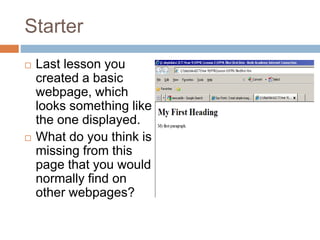
 Last lesson you
created a basic
webpage, which
looks something like
the one displayed.
 What do you think is
missing from this
page that you would
normally find on
other webpages?
Lesson Objectives
 By the end of this lesson:
 All students will be able to use the different
available HTML tags to change a heading
 Most students will be able to make effective use
of paragraphs and line breaks in a HTML
document
 Some students will be able to use hyperlinks to
link to another HTML document
Using headings
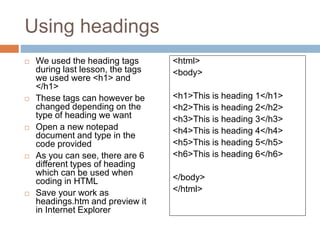
 We used the heading tags
during last lesson, the tags
we used were <h1> and
</h1>
 These tags can however be
changed depending on the
type of heading we want
 Open a new notepad
document and type in the
code provided
 As you can see, there are 6
different types of heading
which can be used when
coding in HTML
 Save your work as
headings.htm and preview it
in Internet Explorer
<html>
<body>
<h1>This is heading 1</h1>
<h2>This is heading 2</h2>
<h3>This is heading 3</h3>
<h4>This is heading 4</h4>
<h5>This is heading 5</h5>
<h6>This is heading 6</h6>
</body>
</html>
Using paragraphs and breaks
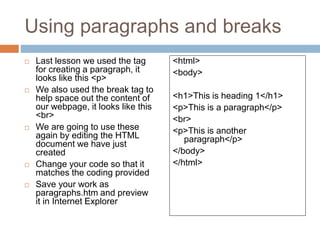
 Last lesson we used the tag
for creating a paragraph, it
looks like this <p>
 We also used the break tag to
help space out the content of
our webpage, it looks like this
<br>
 We are going to use these
again by editing the HTML
document we have just
created
 Change your code so that it
matches the coding provided
 Save your work as
paragraphs.htm and preview
it in Internet Explorer
<html>
<body>
<h1>This is heading 1</h1>
<p>This is a paragraph</p>
<br>
<p>This is another
paragraph</p>
</body>
</html>
Adding a hyperlink
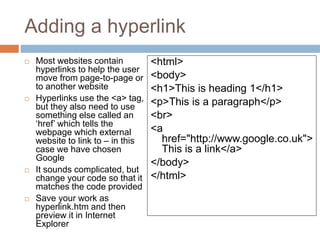
 Most websites contain
hyperlinks to help the user
move from page-to-page or
to another website
 Hyperlinks use the <a> tag,
but they also need to use
something else called an
‘href’ which tells the
webpage which external
website to link to – in this
case we have chosen
Google
 It sounds complicated, but
change your code so that it
matches the code provided
 Save your work as
hyperlink.htm and then
preview it in Internet
Explorer
<html>
<body>
<h1>This is heading 1</h1>
<p>This is a paragraph</p>
<br>
<a
href="http://www.google.co.uk">
This is a link</a>
</body>
</html>
Your task...
 Using your existing code, make the following
changes:
 Change the style of the heading to <h2>
 Change the actual heading to ‘Welcome to
Newcastle!’
 Change the paragraph to say:
 ‘Newcastle is a large town in the north east of England.
The population of Newcastle is 292, 000.’
 Change the hyperlink to link to:
 www.visitnewcastle.org.uk
 Change the link text to ‘Newcastle tourist information’
 Save your work as Newcastle.htm then preview it
in Internet Explorer
Summary
 In this lesson you have:
 Used the different available HTML tags to change
a heading
 Made effective use of paragraphs and line breaks
in a HTML document
 Used hyperlinks to link to another HTML
document

Lesson 2

  • 1.
    HTML PROGRAMMING Lesson 2:Hyperlinks and formatting
  • 2.
    Starter  Last lessonyou created a basic webpage, which looks something like the one displayed.  What do you think is missing from this page that you would normally find on other webpages?
  • 3.
    Lesson Objectives  Bythe end of this lesson:  All students will be able to use the different available HTML tags to change a heading  Most students will be able to make effective use of paragraphs and line breaks in a HTML document  Some students will be able to use hyperlinks to link to another HTML document
  • 4.
    Using headings  Weused the heading tags during last lesson, the tags we used were <h1> and </h1>  These tags can however be changed depending on the type of heading we want  Open a new notepad document and type in the code provided  As you can see, there are 6 different types of heading which can be used when coding in HTML  Save your work as headings.htm and preview it in Internet Explorer <html> <body> <h1>This is heading 1</h1> <h2>This is heading 2</h2> <h3>This is heading 3</h3> <h4>This is heading 4</h4> <h5>This is heading 5</h5> <h6>This is heading 6</h6> </body> </html>
  • 5.
    Using paragraphs andbreaks  Last lesson we used the tag for creating a paragraph, it looks like this <p>  We also used the break tag to help space out the content of our webpage, it looks like this <br>  We are going to use these again by editing the HTML document we have just created  Change your code so that it matches the coding provided  Save your work as paragraphs.htm and preview it in Internet Explorer <html> <body> <h1>This is heading 1</h1> <p>This is a paragraph</p> <br> <p>This is another paragraph</p> </body> </html>
  • 6.
    Adding a hyperlink Most websites contain hyperlinks to help the user move from page-to-page or to another website  Hyperlinks use the <a> tag, but they also need to use something else called an ‘href’ which tells the webpage which external website to link to – in this case we have chosen Google  It sounds complicated, but change your code so that it matches the code provided  Save your work as hyperlink.htm and then preview it in Internet Explorer <html> <body> <h1>This is heading 1</h1> <p>This is a paragraph</p> <br> <a href="http://www.google.co.uk"> This is a link</a> </body> </html>
  • 7.
    Your task...  Usingyour existing code, make the following changes:  Change the style of the heading to <h2>  Change the actual heading to ‘Welcome to Newcastle!’  Change the paragraph to say:  ‘Newcastle is a large town in the north east of England. The population of Newcastle is 292, 000.’  Change the hyperlink to link to:  www.visitnewcastle.org.uk  Change the link text to ‘Newcastle tourist information’  Save your work as Newcastle.htm then preview it in Internet Explorer
  • 8.
    Summary  In thislesson you have:  Used the different available HTML tags to change a heading  Made effective use of paragraphs and line breaks in a HTML document  Used hyperlinks to link to another HTML document