HTML PROGRAMMING
Lesson 5: Using tables and lists
Lesson Objectives
 By the end of this lesson you will be able to:
 Create tables to display information
 Make effective use of lists to display information
 Change how information is displayed in a table
Starter
 In this lesson you are going to display
information as lists and in tables, can you think
of any software packages that you have used
tables or lists?
 Why do we use tables and lists?
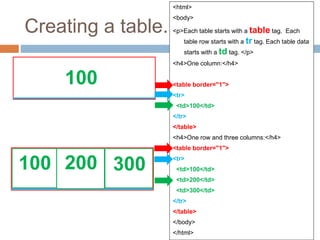
Creating a table...
<html>
<body>
<p>Each table starts with a table tag. Each
table row starts with a tr tag. Each table data
starts with a td tag. </p>
<h4>One column:</h4>
<table border="1">
<tr>
<td>100</td>
</tr>
</table>
<h4>One row and three columns:</h4>
<table border="1">
<tr>
<td>100</td>
<td>200</td>
<td>300</td>
</tr>
</table>
</body>
</html>
100
100 200 300
Create a table
 Using tables can help to display
information in a neat way
 You have used tables before in
other software, but they are
slightly more difficult to create
in HTML
 Using the code provided, create
a new webpage and save it as
table.htm
 Preview the website in Internet
Explorer when finished. You
might also want to try changing
the size of the table border to
see what happens.
<html>
<body>
<p>Each table starts with a table tag. Each
table row starts with a tr tag. Each table data
starts with a td tag. </p>
<h4>One column:</h4>
<table border="1">
<tr>
<td>100</td>
</tr>
</table>
<h4>One row and three columns:</h4>
<table border="1">
<tr>
<td>100</td>
<td>200</td>
<td>300</td>
</tr>
</table>
</body>
</html>
Using lists...
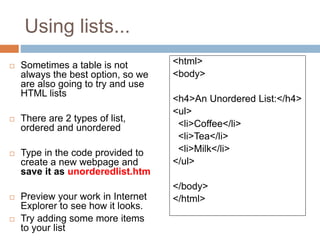
 Sometimes a table is not
always the best option, so we
are also going to try and use
HTML lists
 There are 2 types of list,
ordered and unordered
 Type in the code provided to
create a new webpage and
save it as unorderedlist.htm
 Preview your work in Internet
Explorer to see how it looks.
 Try adding some more items
to your list
<html>
<body>
<h4>An Unordered List:</h4>
<ul>
<li>Coffee</li>
<li>Tea</li>
<li>Milk</li>
</ul>
</body>
</html>
More lists...
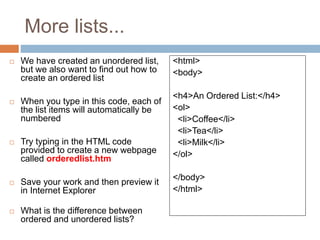
 We have created an unordered list,
but we also want to find out how to
create an ordered list
 When you type in this code, each of
the list items will automatically be
numbered
 Try typing in the HTML code
provided to create a new webpage
called orderedlist.htm
 Save your work and then preview it
in Internet Explorer
 What is the difference between
ordered and unordered lists?
<html>
<body>
<h4>An Ordered List:</h4>
<ol>
<li>Coffee</li>
<li>Tea</li>
<li>Milk</li>
</ol>
</body>
</html>
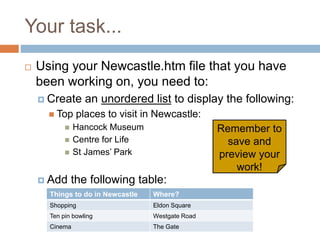
Your task...
 Using your Newcastle.htm file that you have
been working on, you need to:
 Create an unordered list to display the following:
 Top places to visit in Newcastle:
 Hancock Museum
 Centre for Life
 St James’ Park
 Add the following table:
Things to do in Newcastle Where?
Shopping Eldon Square
Ten pin bowling Westgate Road
Cinema The Gate
Remember to
save and
preview your
work!
Extension...
 If you have reached this stage then you are
doing exceptionally well – congratulations!
 Here is a challenge for you:
 Using the Internet, find out how to:
 Change the colour of the cells in the table you have
created
 Change the colour of the text in the table you have
created
 Save your work then preview it in Internet
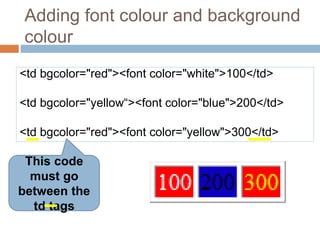
Adding font colour and background
colour
<td bgcolor="red"><font color="white">100</td>
<td bgcolor="yellow“><font color="blue">200</td>
<td bgcolor="red"><font color="yellow">300</td>
This code
must go
between the
td tags
Add a moving marquee
 <font size="5" face="verdana" color="white">
 <marquee>Newcastle are the
BEST!!</marquee>
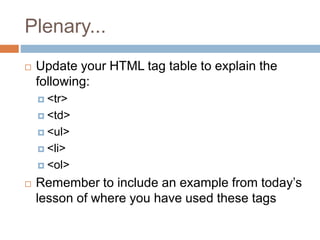
Plenary...
 Update your HTML tag table to explain the
following:
 <tr>
 <td>
 <ul>
 <li>
 <ol>
 Remember to include an example from today’s
lesson of where you have used these tags
Summary
 In this lesson you have:
 Created tables to display information
 Made effective use of lists to display information
 Changed how information is displayed in a table

Lesson 5

  • 1.
    HTML PROGRAMMING Lesson 5:Using tables and lists
  • 2.
    Lesson Objectives  Bythe end of this lesson you will be able to:  Create tables to display information  Make effective use of lists to display information  Change how information is displayed in a table
  • 3.
    Starter  In thislesson you are going to display information as lists and in tables, can you think of any software packages that you have used tables or lists?  Why do we use tables and lists?
  • 4.
    Creating a table... <html> <body> <p>Eachtable starts with a table tag. Each table row starts with a tr tag. Each table data starts with a td tag. </p> <h4>One column:</h4> <table border="1"> <tr> <td>100</td> </tr> </table> <h4>One row and three columns:</h4> <table border="1"> <tr> <td>100</td> <td>200</td> <td>300</td> </tr> </table> </body> </html> 100 100 200 300
  • 5.
    Create a table Using tables can help to display information in a neat way  You have used tables before in other software, but they are slightly more difficult to create in HTML  Using the code provided, create a new webpage and save it as table.htm  Preview the website in Internet Explorer when finished. You might also want to try changing the size of the table border to see what happens. <html> <body> <p>Each table starts with a table tag. Each table row starts with a tr tag. Each table data starts with a td tag. </p> <h4>One column:</h4> <table border="1"> <tr> <td>100</td> </tr> </table> <h4>One row and three columns:</h4> <table border="1"> <tr> <td>100</td> <td>200</td> <td>300</td> </tr> </table> </body> </html>
  • 6.
    Using lists...  Sometimesa table is not always the best option, so we are also going to try and use HTML lists  There are 2 types of list, ordered and unordered  Type in the code provided to create a new webpage and save it as unorderedlist.htm  Preview your work in Internet Explorer to see how it looks.  Try adding some more items to your list <html> <body> <h4>An Unordered List:</h4> <ul> <li>Coffee</li> <li>Tea</li> <li>Milk</li> </ul> </body> </html>
  • 7.
    More lists...  Wehave created an unordered list, but we also want to find out how to create an ordered list  When you type in this code, each of the list items will automatically be numbered  Try typing in the HTML code provided to create a new webpage called orderedlist.htm  Save your work and then preview it in Internet Explorer  What is the difference between ordered and unordered lists? <html> <body> <h4>An Ordered List:</h4> <ol> <li>Coffee</li> <li>Tea</li> <li>Milk</li> </ol> </body> </html>
  • 8.
    Your task...  Usingyour Newcastle.htm file that you have been working on, you need to:  Create an unordered list to display the following:  Top places to visit in Newcastle:  Hancock Museum  Centre for Life  St James’ Park  Add the following table: Things to do in Newcastle Where? Shopping Eldon Square Ten pin bowling Westgate Road Cinema The Gate Remember to save and preview your work!
  • 9.
    Extension...  If youhave reached this stage then you are doing exceptionally well – congratulations!  Here is a challenge for you:  Using the Internet, find out how to:  Change the colour of the cells in the table you have created  Change the colour of the text in the table you have created  Save your work then preview it in Internet
  • 10.
    Adding font colourand background colour <td bgcolor="red"><font color="white">100</td> <td bgcolor="yellow“><font color="blue">200</td> <td bgcolor="red"><font color="yellow">300</td> This code must go between the td tags
  • 11.
    Add a movingmarquee  <font size="5" face="verdana" color="white">  <marquee>Newcastle are the BEST!!</marquee>
  • 12.
    Plenary...  Update yourHTML tag table to explain the following:  <tr>  <td>  <ul>  <li>  <ol>  Remember to include an example from today’s lesson of where you have used these tags
  • 13.
    Summary  In thislesson you have:  Created tables to display information  Made effective use of lists to display information  Changed how information is displayed in a table