Web Technology
Lab 1: HTML
Course Outline
1. Hypertext Markup Language (HTML)
2. Cascading Style Sheets (CSS)
3. Java Script (JS)
4. Programming in PHP
5. MYSQL
6. Laravel framework
Web Development
developing a website for the Internet.
Web development can range from
developing a simple single static page of
plain text to complex web applications,
and social network services
Frontend design
• “Frontend” Focuses on layout,
animation, content organization,
navigation, graphics.
• Technologies and Programing
Languages:
• HTML
• CSS
• JavaScript
• jQuery
• Bootstrap
Backend development
• “Backend” Focuses on building code,
debugging, database management.
• Programing Languages:
• PHP, Node.js, Ruby, ASP.NET, Java, and
other programming languages
If you study hard this course, you
will be full stack developer and
can join any company
Tools
Browser (Internet Explorer, Chrome, …)
Editor:
Notepad++, Visual Studio Code
HTML 5 (Part 1)
HTML 5
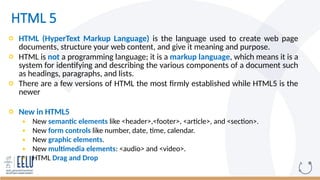
 HTML (HyperText Markup Language) is the language used to create web page
documents, structure your web content, and give it meaning and purpose.
 HTML is not a programming language; it is a markup language, which means it is a
system for identifying and describing the various components of a document such
as headings, paragraphs, and lists.
 There are a few versions of HTML the most firmly established while HTML5 is the
newer
 New in HTML5
 New semantic elements like <header>,<footer>, <article>, and <section>.
 New form controls like number, date, time, calendar.
 New graphic elements.
 New multimedia elements: <audio> and <video>.
 HTML Drag and Drop
10
HTML PAGE FORMAT
 HTML tags are keywords (tag names) surrounded by angle brackets:
<tagname> content </tagname>
 Types of Tags:
 Paired Tags: is the start tag, the second tag is the end tag like
<p> and </p>
 Unpaired Tags: only has an opening tag and does not have a closing.
<hr>, <br>
 Self-Closing Tags: do not have a partner tag, the first tag is the only necessary tag Like
<img>
11
HTML PAGE FORMAT
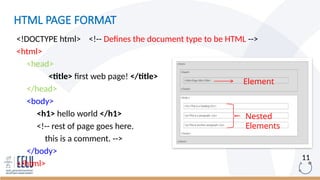
<!DOCTYPE html> <!-- Defines the document type to be HTML -->
<html>
<head>
<title> first web page! </title>
</head>
<body>
<h1> hello world </h1>
<!-- rest of page goes here.
this is a comment. -->
</body>
</html>
Element
Nested
Elements
12
HTML ATTRIBUTES
<body attribute_name = "attribute_value" >
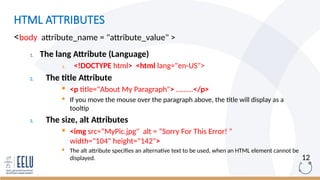
1. The lang Attribute (Language)
1. <!DOCTYPE html> <html lang="en-US">
2. The title Attribute
 <p title="About My Paragraph"> ……...</p>
 If you move the mouse over the paragraph above, the title will display as a
tooltip
3. The size, alt Attributes
 <img src=“MyPic.jpg" alt = “Sorry For This Error! "
width="104" height="142">
 The alt attribute specifies an alternative text to be used, when an HTML element cannot be
displayed.
HTML TAGS
14
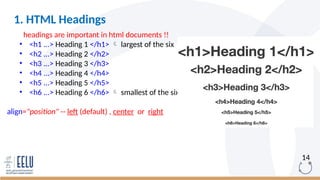
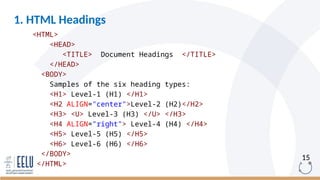
1. HTML Headings
headings are important in html documents !!
• <h1 ...> Heading 1 </h1>  largest of the six
• <h2 ...> Heading 2 </h2>
• <h3 ...> Heading 3 </h3>
• <h4 ...> Heading 4 </h4>
• <h5 ...> Heading 5 </h5>
• <h6 ...> Heading 6 </h6>  smallest of the six
align="position" -- left (default) , center or right
15
<HTML>
<HEAD>
<TITLE> Document Headings </TITLE>
</HEAD>
<BODY>
Samples of the six heading types:
<H1> Level-1 (H1) </H1>
<H2 ALIGN="center">Level-2 (H2)</H2>
<H3> <U> Level-3 (H3) </U> </H3>
<H4 ALIGN="right"> Level-4 (H4) </H4>
<H5> Level-5 (H5) </H5>
<H6> Level-6 (H6) </H6>
</BODY>
</HTML>
1. HTML Headings
16
1. HTML Headings
Output
17
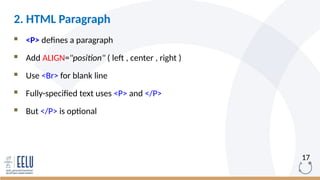
 <P> defines a paragraph
 Add ALIGN="position" ( left , center , right )
 Use <Br> for blank line
 Fully-specified text uses <P> and </P>
 But </P> is optional
2. HTML Paragraph
18
<HTML>
<HEAD>
<TITLE> Document Paragraph </TITLE>
</HEAD>
<BODY>
<P> Here is some text </P>
<P ALIGN="center"> Centered text </P>
<br><br><br>
<P ALIGN="right"> Right-justified text
<!-- Note: no closing /P tag is not a problem -->
</BODY>
</HTML>
2. HTML Paragraph
19
2. HTML Paragraph
Output
20
 <Pre> defines a Preformatted
 Text in a <pre> element is displayed in a fixed-width font, and the text
preserves both spaces and line breaks. The text will be displayed exactly as
written in the HTML source code.
3. HTML Preformatted
21
<HTML>
<HEAD>
<TITLE> Preformatted Text </TITLE>
</HEAD>
<BODY>
<h5> The pre tag is needed for displaying poems: </h5>
<PRE>
if (a < b) {
a++;
b = c * d;
}
</PRE>
<h5> The p tag is needed for displaying poems: </h5>
<p>
if (a < b) {
a++;
b = c * d;
}
</p>
</BODY>
</HTML>
3. HTML Preformatted
22
3. HTML Preformatted
Output
23
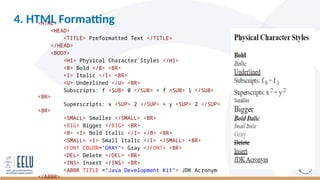
<HTML>
<HEAD>
<TITLE> Preformatted Text </TITLE>
</HEAD>
<BODY>
<H1> Physical Character Styles </H1>
<B> Bold </B> <BR>
<I> Italic </I> <BR>
<U> Underlined </U> <BR>
Subscripts: f <SUB> 0 </SUB> + f <SUB> 1 </SUB>
<BR>
Superscripts: x <SUP> 2 </SUP> + y <SUP> 2 </SUP>
<BR>
<SMALL> Smaller </SMALL> <BR>
<BIG> Bigger </BIG> <BR>
<B> <I> Bold Italic </I> </B> <BR>
<SMALL> <I> Small Italic </I> </SMALL> <BR>
<FONT COLOR="GRAY"> Gray </FONT> <BR>
<DEL> Delete </DEL> <BR>
<INS> Insert </INS> <BR>
<ABBR TITLE ="Java Development Kit"> JDK Acronym
</ABBR>
4. HTML Formatting
24
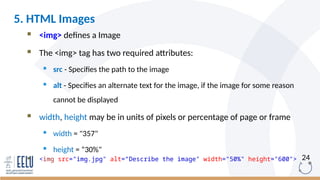
 <img> defines a Image
 The <img> tag has two required attributes:
 src - Specifies the path to the image
 alt - Specifies an alternate text for the image, if the image for some reason
cannot be displayed
 width, height may be in units of pixels or percentage of page or frame
 width = "357"
 height = “30%"
 <img src="img.jpg" alt=“Describe the image" width="50%" height="600">
5. HTML Images
25
5. HTML Images
Align = position Image / Text Placement
Left Image on left edge; text flows to right of image
Right Image on right edge; text flows to left
Top Image is left; words align with top of image
Bottom Image is left; words align with bottom of image
Middle Words align with middle of image
26
<HTML>
<HEAD>
<TITLE> Images </TITLE>
</HEAD>
<BODY>
<img src="dolphin.jpg" align="left"
width="150" height="150" alt="dolphin
jump!">
This is a very cute dolphin on the left!
<br>
This is a very cute dolphin on the left!
<br>
This is a very cute dolphin on the left!
<br>
This is a very cute dolphin on the left!
<br>
You can see text wrap around it <br>
</BODY>
</HTML>
5. HTML Images
align="left"
27
<HTML>
<HEAD>
<TITLE> Images </TITLE>
</HEAD>
<BODY>
<img src="dolphin.jpg" align="right" width="150“ height="150" alt="dolphin
jump!">
This is a very cute dolphin on the left! <br>
You can see text wrap around it <br>
</BODY>
</HTML>
5. HTML Images
align="right"
28
 <a> defines a hyperlink
 A hyperlink is an element, a text, or an image that you can click on, and
jump to another document.
 The most important attribute of the <a> element is the href attribute, which
indicates the link's destination.
 _blank : Opens the linked document in a new window or tab
 _self : Opens the linked document in a same frame (default)
6. HTML Hyperlinks
29
<HTML>
<HEAD>
<TITLE> HyperLinks </TITLE>
</HEAD>
<BODY>
Welcome to
<a href="http://www.eelu.edu.eg" target="_blank">
<STRONG> EELU </STRONG>
</a>
at the <a href ="www.eelu.edu.eg"> EELU University.</a>
</BODY>
</HTML>
(Element) Hyperlinks
6. HTML Hyperlinks
30
<HTML>
<HEAD>
<TITLE> HyperLinks </TITLE>
</HEAD>
<BODY>
Welcome to
<a href="http://www.eelu.edu.eg" target="_self">
<img src="smiley.gif" alt="HTML tutorial">
</a>
at the <a href ="www.eelu.edu.eg"> EELU University.</a>
</BODY>
</HTML>
(Image) Hyperlinks
6. HTML Hyperlinks
31
 <video> tag is used to embed video content in a document, such as a movie
clip or other video streams.
 The <video> tag contains one or more <source> tags with different video
sources.
 controls : adds video controls, like play, pause, and volume.
 src : Specifies the URL of the video file
 autoplay : to start a video automatically.
7. HTML Videos
32
<video width="320" height="240" controls>
<source src="movie.mp4" type="video/mp4">
<source src="movie.ogg" type="video/ogg">
Your browser does not support the video tag.
</video>
7. HTML Videos
33
 <audio> tag is used to embed sound content in a document, such as music
or other audio streams.
 The <audio> tag contains one or more <source> tags with different audio
sources.
 controls : adds video controls, like play, pause, and volume.
 src : Specifies the URL of the video file
 autoplay : to start a video automatically.
8. HTML Audios

34
<audio controls>
<source src="horse.mp3" type="audio/mpeg">
Your browser does not support the audio tag.
</audio>
8. HTML Audios
Section1 HTML (part 1) Web technology for b

Section1 HTML (part 1) Web technology for b

  • 1.
  • 2.
    Course Outline 1. HypertextMarkup Language (HTML) 2. Cascading Style Sheets (CSS) 3. Java Script (JS) 4. Programming in PHP 5. MYSQL 6. Laravel framework
  • 3.
    Web Development developing awebsite for the Internet. Web development can range from developing a simple single static page of plain text to complex web applications, and social network services
  • 4.
    Frontend design • “Frontend”Focuses on layout, animation, content organization, navigation, graphics. • Technologies and Programing Languages: • HTML • CSS • JavaScript • jQuery • Bootstrap Backend development • “Backend” Focuses on building code, debugging, database management. • Programing Languages: • PHP, Node.js, Ruby, ASP.NET, Java, and other programming languages
  • 6.
    If you studyhard this course, you will be full stack developer and can join any company
  • 7.
    Tools Browser (Internet Explorer,Chrome, …) Editor: Notepad++, Visual Studio Code
  • 8.
  • 9.
    HTML 5  HTML(HyperText Markup Language) is the language used to create web page documents, structure your web content, and give it meaning and purpose.  HTML is not a programming language; it is a markup language, which means it is a system for identifying and describing the various components of a document such as headings, paragraphs, and lists.  There are a few versions of HTML the most firmly established while HTML5 is the newer  New in HTML5  New semantic elements like <header>,<footer>, <article>, and <section>.  New form controls like number, date, time, calendar.  New graphic elements.  New multimedia elements: <audio> and <video>.  HTML Drag and Drop
  • 10.
    10 HTML PAGE FORMAT HTML tags are keywords (tag names) surrounded by angle brackets: <tagname> content </tagname>  Types of Tags:  Paired Tags: is the start tag, the second tag is the end tag like <p> and </p>  Unpaired Tags: only has an opening tag and does not have a closing. <hr>, <br>  Self-Closing Tags: do not have a partner tag, the first tag is the only necessary tag Like <img>
  • 11.
    11 HTML PAGE FORMAT <!DOCTYPEhtml> <!-- Defines the document type to be HTML --> <html> <head> <title> first web page! </title> </head> <body> <h1> hello world </h1> <!-- rest of page goes here. this is a comment. --> </body> </html> Element Nested Elements
  • 12.
    12 HTML ATTRIBUTES <body attribute_name= "attribute_value" > 1. The lang Attribute (Language) 1. <!DOCTYPE html> <html lang="en-US"> 2. The title Attribute  <p title="About My Paragraph"> ……...</p>  If you move the mouse over the paragraph above, the title will display as a tooltip 3. The size, alt Attributes  <img src=“MyPic.jpg" alt = “Sorry For This Error! " width="104" height="142">  The alt attribute specifies an alternative text to be used, when an HTML element cannot be displayed.
  • 13.
  • 14.
    14 1. HTML Headings headingsare important in html documents !! • <h1 ...> Heading 1 </h1>  largest of the six • <h2 ...> Heading 2 </h2> • <h3 ...> Heading 3 </h3> • <h4 ...> Heading 4 </h4> • <h5 ...> Heading 5 </h5> • <h6 ...> Heading 6 </h6>  smallest of the six align="position" -- left (default) , center or right
  • 15.
    15 <HTML> <HEAD> <TITLE> Document Headings</TITLE> </HEAD> <BODY> Samples of the six heading types: <H1> Level-1 (H1) </H1> <H2 ALIGN="center">Level-2 (H2)</H2> <H3> <U> Level-3 (H3) </U> </H3> <H4 ALIGN="right"> Level-4 (H4) </H4> <H5> Level-5 (H5) </H5> <H6> Level-6 (H6) </H6> </BODY> </HTML> 1. HTML Headings
  • 16.
  • 17.
    17  <P> definesa paragraph  Add ALIGN="position" ( left , center , right )  Use <Br> for blank line  Fully-specified text uses <P> and </P>  But </P> is optional 2. HTML Paragraph
  • 18.
    18 <HTML> <HEAD> <TITLE> Document Paragraph</TITLE> </HEAD> <BODY> <P> Here is some text </P> <P ALIGN="center"> Centered text </P> <br><br><br> <P ALIGN="right"> Right-justified text <!-- Note: no closing /P tag is not a problem --> </BODY> </HTML> 2. HTML Paragraph
  • 19.
  • 20.
    20  <Pre> definesa Preformatted  Text in a <pre> element is displayed in a fixed-width font, and the text preserves both spaces and line breaks. The text will be displayed exactly as written in the HTML source code. 3. HTML Preformatted
  • 21.
    21 <HTML> <HEAD> <TITLE> Preformatted Text</TITLE> </HEAD> <BODY> <h5> The pre tag is needed for displaying poems: </h5> <PRE> if (a < b) { a++; b = c * d; } </PRE> <h5> The p tag is needed for displaying poems: </h5> <p> if (a < b) { a++; b = c * d; } </p> </BODY> </HTML> 3. HTML Preformatted
  • 22.
  • 23.
    23 <HTML> <HEAD> <TITLE> Preformatted Text</TITLE> </HEAD> <BODY> <H1> Physical Character Styles </H1> <B> Bold </B> <BR> <I> Italic </I> <BR> <U> Underlined </U> <BR> Subscripts: f <SUB> 0 </SUB> + f <SUB> 1 </SUB> <BR> Superscripts: x <SUP> 2 </SUP> + y <SUP> 2 </SUP> <BR> <SMALL> Smaller </SMALL> <BR> <BIG> Bigger </BIG> <BR> <B> <I> Bold Italic </I> </B> <BR> <SMALL> <I> Small Italic </I> </SMALL> <BR> <FONT COLOR="GRAY"> Gray </FONT> <BR> <DEL> Delete </DEL> <BR> <INS> Insert </INS> <BR> <ABBR TITLE ="Java Development Kit"> JDK Acronym </ABBR> 4. HTML Formatting
  • 24.
    24  <img> definesa Image  The <img> tag has two required attributes:  src - Specifies the path to the image  alt - Specifies an alternate text for the image, if the image for some reason cannot be displayed  width, height may be in units of pixels or percentage of page or frame  width = "357"  height = “30%"  <img src="img.jpg" alt=“Describe the image" width="50%" height="600"> 5. HTML Images
  • 25.
    25 5. HTML Images Align= position Image / Text Placement Left Image on left edge; text flows to right of image Right Image on right edge; text flows to left Top Image is left; words align with top of image Bottom Image is left; words align with bottom of image Middle Words align with middle of image
  • 26.
    26 <HTML> <HEAD> <TITLE> Images </TITLE> </HEAD> <BODY> <imgsrc="dolphin.jpg" align="left" width="150" height="150" alt="dolphin jump!"> This is a very cute dolphin on the left! <br> This is a very cute dolphin on the left! <br> This is a very cute dolphin on the left! <br> This is a very cute dolphin on the left! <br> You can see text wrap around it <br> </BODY> </HTML> 5. HTML Images align="left"
  • 27.
    27 <HTML> <HEAD> <TITLE> Images </TITLE> </HEAD> <BODY> <imgsrc="dolphin.jpg" align="right" width="150“ height="150" alt="dolphin jump!"> This is a very cute dolphin on the left! <br> This is a very cute dolphin on the left! <br> This is a very cute dolphin on the left! <br> This is a very cute dolphin on the left! <br> You can see text wrap around it <br> </BODY> </HTML> 5. HTML Images align="right"
  • 28.
    28  <a> definesa hyperlink  A hyperlink is an element, a text, or an image that you can click on, and jump to another document.  The most important attribute of the <a> element is the href attribute, which indicates the link's destination.  _blank : Opens the linked document in a new window or tab  _self : Opens the linked document in a same frame (default) 6. HTML Hyperlinks
  • 29.
    29 <HTML> <HEAD> <TITLE> HyperLinks </TITLE> </HEAD> <BODY> Welcometo <a href="http://www.eelu.edu.eg" target="_blank"> <STRONG> EELU </STRONG> </a> at the <a href ="www.eelu.edu.eg"> EELU University.</a> </BODY> </HTML> (Element) Hyperlinks 6. HTML Hyperlinks
  • 30.
    30 <HTML> <HEAD> <TITLE> HyperLinks </TITLE> </HEAD> <BODY> Welcometo <a href="http://www.eelu.edu.eg" target="_self"> <img src="smiley.gif" alt="HTML tutorial"> </a> at the <a href ="www.eelu.edu.eg"> EELU University.</a> </BODY> </HTML> (Image) Hyperlinks 6. HTML Hyperlinks
  • 31.
    31  <video> tagis used to embed video content in a document, such as a movie clip or other video streams.  The <video> tag contains one or more <source> tags with different video sources.  controls : adds video controls, like play, pause, and volume.  src : Specifies the URL of the video file  autoplay : to start a video automatically. 7. HTML Videos
  • 32.
    32 <video width="320" height="240"controls> <source src="movie.mp4" type="video/mp4"> <source src="movie.ogg" type="video/ogg"> Your browser does not support the video tag. </video> 7. HTML Videos
  • 33.
    33  <audio> tagis used to embed sound content in a document, such as music or other audio streams.  The <audio> tag contains one or more <source> tags with different audio sources.  controls : adds video controls, like play, pause, and volume.  src : Specifies the URL of the video file  autoplay : to start a video automatically. 8. HTML Audios
  • 34.
    34 <audio controls> <source src="horse.mp3"type="audio/mpeg"> Your browser does not support the audio tag. </audio> 8. HTML Audios