By : Eyad Almassri
Lecture 2: Android Introduction
2020
Design Goals*
• Enchant me
– Sleek and aesthetically pleasing design
• Simplify my life
– Make life easier
• Make me amazing
– Empower people to try new things and to
use apps in inventive new ways
* Taken from Android Web site for developers at
http://developer.android.com/design/get-
started/creative-vision.html2
Memory Management
• Handled by the Linux kernel: supported by several
software modifications
– Works successfully on limited main memory
and slower CPU devices
• Resources utilized only as needed
• Sleep-like state when dormant
• Open app remains resident in main memory
– Least recently used (LRU) algorithm for
tracking
– Low memory killer (LMK) frees memory when
memory becomes scarce
3
Processor Management
• Requires four key objects: manifest, activities, tasks,
and intents
• Manifest: file that holds essential information that the
system must have before it can run an application
– AndroidManifest.xml
• Activity: application component that defines the user
interface screen that the individual uses to interact
with the application
4
Processor Management
(cont’d.)
• Task: “sequence of activities a user
follows to accomplish a goal”
– Can involve one or many apps
– Service: task that runs in the background
• Intent: mechanism that one app uses
to signal to another app that its
cooperation is requested to accomplish
something
– Allows apps to call on one another as
needed to meet a user’s request5
Activity States
• Created state: transient state when the
activity has just begun
• Started state: software initialization
begins and the first screen can be
drawn
– Generally considered the main screen
• Resumed state (running state):
activities execute until they are
interrupted by another activity or a user
command6
Activity States (cont’d.)
• Paused state: a stop for an activity
that is interrupted and ready to go
into a “background” mode
• Stopped state: activities disappear
from the user’s view
– Subsequently, activity may be
terminated or it may be recalled
7
Activity States (cont’d.)
• Destroyed state: formal indication
that the activity is terminated
– Will be removed completely from
system memory
– Background activities closed properly to
prevent memory leaks
8
9
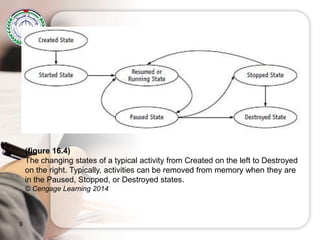
(figure 16.4)
The changing states of a typical activity from Created on the left to Destroyed
on the right. Typically, activities can be removed from memory when they are
in the Paused, Stopped, or Destroyed states.
© Cengage Learning 2014
Activity States (cont’d.)
• Back stack: data structure
– When new app is loaded, replaced app is
moved onto the stack
– Loading and unloading uses last-in, first-
out (LIFO) scheme
– User navigates previously viewed apps
using the screen’s “back” button
10
11
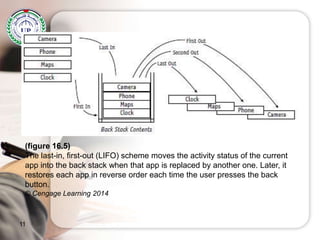
(figure 16.5)
The last-in, first-out (LIFO) scheme moves the activity status of the current
app into the back stack when that app is replaced by another one. Later, it
restores each app in reverse order each time the user presses the back
button.
© Cengage Learning 2014
12
(figure 16.6)
Detailed view of the Activity Lifecycle and the system callbacks that move an
activity from one state to another.
(Illustration source: http://developer.android.com/training/basics/activity-
lifecycle/starting.html, 2012)
© Cengage Learning 2014
Activity States (cont’d.)
• Smoothly running Android system
– App developers
• Must remain aware of the many ways in which
an app can be terminated and impact on
resource allocation
• Ensure each app ends gracefully when
terminated by user regardless of app’s state at
the time
13
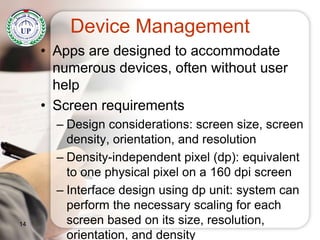
Device Management
• Apps are designed to accommodate
numerous devices, often without user
help
• Screen requirements
– Design considerations: screen size, screen
density, orientation, and resolution
– Density-independent pixel (dp): equivalent
to one physical pixel on a 160 dpi screen
– Interface design using dp unit: system can
perform the necessary scaling for each
screen based on its size, resolution,
orientation, and density
14
15
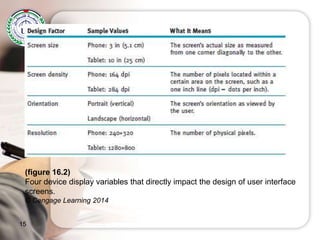
(figure 16.2)
Four device display variables that directly impact the design of user interface
screens.
© Cengage Learning 2014
Understanding Operating
Systems, 7e
16
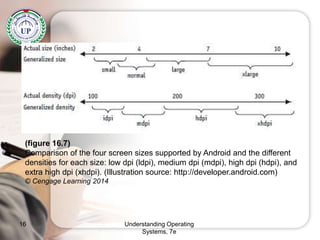
(figure 16.7)
Comparison of the four screen sizes supported by Android and the different
densities for each size: low dpi (ldpi), medium dpi (mdpi), high dpi (hdpi), and
extra high dpi (xhdpi). (Illustration source: http://developer.android.com)
© Cengage Learning 2014
Device Management (cont’d.)
• Battery management
– Android device’s battery usage
information: Settings tab
– Ways to improver battery availability
• Users choose to leave certain functions
turned off until they are actually needed, e.g.,
GPS, Bluetooth communications, background
file syncing, etc.
• Wi-Fi instead of telephony: saves power
17
Understanding Operating
Systems, 7e
18
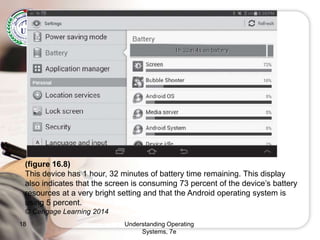
(figure 16.8)
This device has 1 hour, 32 minutes of battery time remaining. This display
also indicates that the screen is consuming 73 percent of the device’s battery
resources at a very bright setting and that the Android operating system is
using 5 percent.
© Cengage Learning 2014
File Management
•Linux-managed at the kernel level
•User ID: the part of the operating system
that is the user’s own protected mode and
that allows it to manage the files it creates
and executes
–Each application has its own
–Not shared: no other apps can read or alter
the app’s files
–Two apps with same User ID: data is shared
•Supplementary appsUnderstanding Operating
Systems, 7e
19
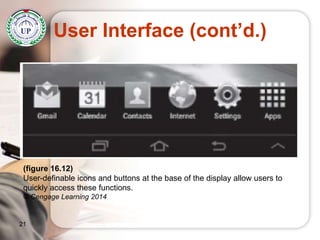
User Interface
• Touch screen
– Features icons that are manipulated by
the user
– User-selected apps that remain in place
when the user swipes the screen from
side-to-side
– “Soft buttons” along screen bottom:
allow the user to perform critical tasks,
e.g., go home, go back, or view open
tasks
20
User Interface (cont’d.)
21
(figure 16.12)
User-definable icons and buttons at the base of the display allow users to
quickly access these functions.
© Cengage Learning 2014
Touch Screen Controls
22
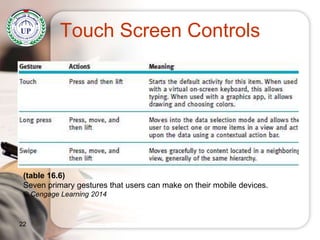
(table 16.6)
Seven primary gestures that users can make on their mobile devices.
© Cengage Learning 2014
Touch Screen Controls (cont’d.)
23
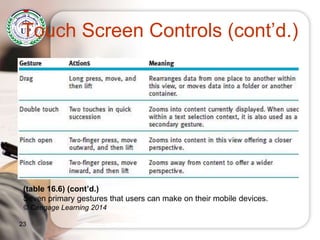
(table 16.6) (cont’d.)
Seven primary gestures that users can make on their mobile devices.
© Cengage Learning 2014

Lecture 2: Android Introduction

  • 1.
    By : EyadAlmassri Lecture 2: Android Introduction 2020
  • 2.
    Design Goals* • Enchantme – Sleek and aesthetically pleasing design • Simplify my life – Make life easier • Make me amazing – Empower people to try new things and to use apps in inventive new ways * Taken from Android Web site for developers at http://developer.android.com/design/get- started/creative-vision.html2
  • 3.
    Memory Management • Handledby the Linux kernel: supported by several software modifications – Works successfully on limited main memory and slower CPU devices • Resources utilized only as needed • Sleep-like state when dormant • Open app remains resident in main memory – Least recently used (LRU) algorithm for tracking – Low memory killer (LMK) frees memory when memory becomes scarce 3
  • 4.
    Processor Management • Requiresfour key objects: manifest, activities, tasks, and intents • Manifest: file that holds essential information that the system must have before it can run an application – AndroidManifest.xml • Activity: application component that defines the user interface screen that the individual uses to interact with the application 4
  • 5.
    Processor Management (cont’d.) • Task:“sequence of activities a user follows to accomplish a goal” – Can involve one or many apps – Service: task that runs in the background • Intent: mechanism that one app uses to signal to another app that its cooperation is requested to accomplish something – Allows apps to call on one another as needed to meet a user’s request5
  • 6.
    Activity States • Createdstate: transient state when the activity has just begun • Started state: software initialization begins and the first screen can be drawn – Generally considered the main screen • Resumed state (running state): activities execute until they are interrupted by another activity or a user command6
  • 7.
    Activity States (cont’d.) •Paused state: a stop for an activity that is interrupted and ready to go into a “background” mode • Stopped state: activities disappear from the user’s view – Subsequently, activity may be terminated or it may be recalled 7
  • 8.
    Activity States (cont’d.) •Destroyed state: formal indication that the activity is terminated – Will be removed completely from system memory – Background activities closed properly to prevent memory leaks 8
  • 9.
    9 (figure 16.4) The changingstates of a typical activity from Created on the left to Destroyed on the right. Typically, activities can be removed from memory when they are in the Paused, Stopped, or Destroyed states. © Cengage Learning 2014
  • 10.
    Activity States (cont’d.) •Back stack: data structure – When new app is loaded, replaced app is moved onto the stack – Loading and unloading uses last-in, first- out (LIFO) scheme – User navigates previously viewed apps using the screen’s “back” button 10
  • 11.
    11 (figure 16.5) The last-in,first-out (LIFO) scheme moves the activity status of the current app into the back stack when that app is replaced by another one. Later, it restores each app in reverse order each time the user presses the back button. © Cengage Learning 2014
  • 12.
    12 (figure 16.6) Detailed viewof the Activity Lifecycle and the system callbacks that move an activity from one state to another. (Illustration source: http://developer.android.com/training/basics/activity- lifecycle/starting.html, 2012) © Cengage Learning 2014
  • 13.
    Activity States (cont’d.) •Smoothly running Android system – App developers • Must remain aware of the many ways in which an app can be terminated and impact on resource allocation • Ensure each app ends gracefully when terminated by user regardless of app’s state at the time 13
  • 14.
    Device Management • Appsare designed to accommodate numerous devices, often without user help • Screen requirements – Design considerations: screen size, screen density, orientation, and resolution – Density-independent pixel (dp): equivalent to one physical pixel on a 160 dpi screen – Interface design using dp unit: system can perform the necessary scaling for each screen based on its size, resolution, orientation, and density 14
  • 15.
    15 (figure 16.2) Four devicedisplay variables that directly impact the design of user interface screens. © Cengage Learning 2014
  • 16.
    Understanding Operating Systems, 7e 16 (figure16.7) Comparison of the four screen sizes supported by Android and the different densities for each size: low dpi (ldpi), medium dpi (mdpi), high dpi (hdpi), and extra high dpi (xhdpi). (Illustration source: http://developer.android.com) © Cengage Learning 2014
  • 17.
    Device Management (cont’d.) •Battery management – Android device’s battery usage information: Settings tab – Ways to improver battery availability • Users choose to leave certain functions turned off until they are actually needed, e.g., GPS, Bluetooth communications, background file syncing, etc. • Wi-Fi instead of telephony: saves power 17
  • 18.
    Understanding Operating Systems, 7e 18 (figure16.8) This device has 1 hour, 32 minutes of battery time remaining. This display also indicates that the screen is consuming 73 percent of the device’s battery resources at a very bright setting and that the Android operating system is using 5 percent. © Cengage Learning 2014
  • 19.
    File Management •Linux-managed atthe kernel level •User ID: the part of the operating system that is the user’s own protected mode and that allows it to manage the files it creates and executes –Each application has its own –Not shared: no other apps can read or alter the app’s files –Two apps with same User ID: data is shared •Supplementary appsUnderstanding Operating Systems, 7e 19
  • 20.
    User Interface • Touchscreen – Features icons that are manipulated by the user – User-selected apps that remain in place when the user swipes the screen from side-to-side – “Soft buttons” along screen bottom: allow the user to perform critical tasks, e.g., go home, go back, or view open tasks 20
  • 21.
    User Interface (cont’d.) 21 (figure16.12) User-definable icons and buttons at the base of the display allow users to quickly access these functions. © Cengage Learning 2014
  • 22.
    Touch Screen Controls 22 (table16.6) Seven primary gestures that users can make on their mobile devices. © Cengage Learning 2014
  • 23.
    Touch Screen Controls(cont’d.) 23 (table 16.6) (cont’d.) Seven primary gestures that users can make on their mobile devices. © Cengage Learning 2014