Disclaimer:This presentation is prepared by trainees of
baabtra as a part of mentoring program. This is not official
document of baabtra –Mentoring Partner
Baabtra-Mentoring Partner is the mentoring division of baabte System Technologies Pvt .
Ltd
LAYOUTS IN
 ANDROID
     Ashwin Anand V
     Email:ashwinanand99@gmail.com
     Facebook id:ashwinanand99@gmail.com
Android Layout
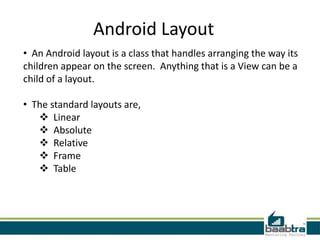
• An Android layout is a class that handles arranging the way its
children appear on the screen. Anything that is a View can be a
child of a layout.

• The standard layouts are,
    Linear
    Absolute
    Relative
    Frame
    Table
Absolute Layout
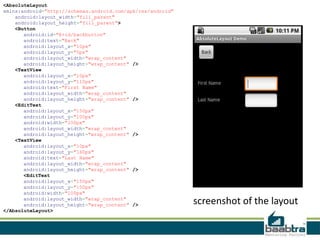
Absolute Layout is based on the simple idea of placing each
control at an absolute position.
    Specify the exact x and y coordinates on the screen for
   each control
    It was used rarely because it makes inflexibilities so very
   risk to maintain
<AbsoluteLayout
xmlns:android="http://schemas.android.com/apk/res/android"
    android:layout_width="fill_parent"
    android:layout_height="fill_parent">
    <Button
       android:id="@+id/backbutton"
       android:text="Back"
       android:layout_x="10px"
       android:layout_y="5px"
       android:layout_width="wrap_content"
       android:layout_height="wrap_content" />
    <TextView
       android:layout_x="10px"
       android:layout_y="110px"
       android:text="First Name"
       android:layout_width="wrap_content"
       android:layout_height="wrap_content" />
    <EditText
       android:layout_x="150px"
       android:layout_y="100px"
       android:width="100px"
       android:layout_width="wrap_content"
       android:layout_height="wrap_content" />
    <TextView
       android:layout_x="10px"
       android:layout_y="160px"
       android:text="Last Name"
       android:layout_width="wrap_content"
       android:layout_height="wrap_content" />
       <EditText
       android:layout_x="150px"
       android:layout_y="150px"
       android:width="100px"
       android:layout_width="wrap_content"
       android:layout_height="wrap_content" />               screenshot of the layout
</AbsoluteLayout>
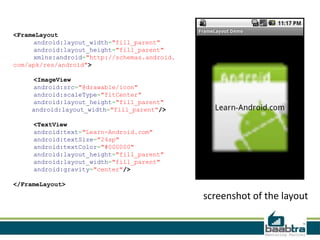
Frame Layout
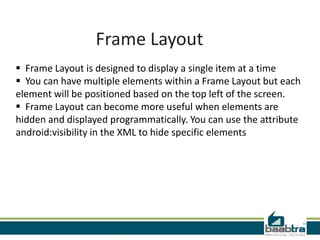
 Frame Layout is designed to display a single item at a time
 You can have multiple elements within a Frame Layout but each
element will be positioned based on the top left of the screen.
 Frame Layout can become more useful when elements are
hidden and displayed programmatically. You can use the attribute
android:visibility in the XML to hide specific elements
<FrameLayout
     android:layout_width="fill_parent"
     android:layout_height="fill_parent"
     xmlns:android="http://schemas.android.
com/apk/res/android">

    <ImageView
    android:src="@drawable/icon"
    android:scaleType="fitCenter"
    android:layout_height="fill_parent"
    android:layout_width="fill_parent"/>

     <TextView
     android:text="Learn-Android.com"
     android:textSize="24sp"
     android:textColor="#000000"
     android:layout_height="fill_parent"
     android:layout_width="fill_parent"
     android:gravity="center"/>

</FrameLayout>

                                              screenshot of the layout
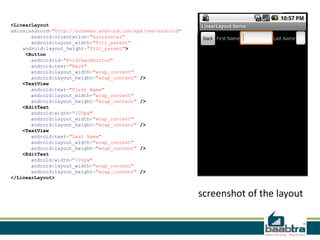
Linear Layout
Linear Layout organizes elements along a single line. You
specify whether that line is vertical or horizontal using
android:orientation. Here is a sample Layout XML using Linear
Layout.
<LinearLayout
xmlns:android="http://schemas.android.com/apk/res/android"
       android:orientation="horizontal"
       android:layout_width="fill_parent"
    android:layout_height="fill_parent">
     <Button
       android:id="@+id/backbutton"
       android:text="Back"
       android:layout_width="wrap_content"
       android:layout_height="wrap_content" />
    <TextView
       android:text="First Name"
       android:layout_width="wrap_content"
       android:layout_height="wrap_content" />
    <EditText
       android:width="100px"
       android:layout_width="wrap_content"
       android:layout_height="wrap_content" />
    <TextView
       android:text="Last Name"
       android:layout_width="wrap_content"
       android:layout_height="wrap_content" />
    <EditText
       android:width="100px"
       android:layout_width="wrap_content"
       android:layout_height="wrap_content" />
</LinearLayout>


                                                             screenshot of the layout
Relative Layout
Relative Layout lays out elements based on their relationships
with one another, and with the parent container. This is arguably
the most complicated layout, and we need several properties to
actually get the layout we want.
Relative To Container
These properties will layout elements relative to the parent
container:

•android:layout_alignParentBottom – Places the bottom of the element on the bottom
of the container
•android:layout_alignParentLeft – Places the left of the element on the left side of the
container
•android:layout_alignParentRight – Places the right of the element on the right side of
the container
•android:layout_alignParentTop – Places the element at the top of the container
•android:layout_centerHorizontal – Centers the element horizontally within its parent
container
•android:layout_centerInParent – Centers the element both horizontally and vertically
within its container
•android:layout_centerVertical – Centers the element vertically within its parent
container
Relative To Other Elements
• android:layout_above – Places the element above the specified element
• android:layout_below – Places the element below the specified element
• android:layout_toLeftOf – Places the element to the left of the specified element
• android:layout_toRightOf – Places the element to the right of the specified element

            Alignment With Other Elements
• android:layout_alignBaseline – Aligns baseline of the new element with the baseline
of the specified element
• android:layout_alignBottom – Aligns the bottom of new element in with the bottom
of the specified element
• android:layout_alignLeft – Aligns left edge of the new element with the left edge of
the specified element
• android:layout_alignRight – Aligns right edge of the new element with the right edge
of the specified element
• android:layout_alignTop – Places top of the new element in alignment with the top
of the specified element
<RelativeLayout
       android:layout_width="fill_parent"
       android:layout_height="fill_parent"
       xmlns:android="http://schemas.android.com/apk/res/android">
       <Button
              android:id="@+id/backbutton"
              android:text="Back"
              android:layout_width="wrap_content"
              android:layout_height="wrap_content" />
       <TextView
              android:id="@+id/firstName"
              android:text="First Name"
              android:layout_width="wrap_content"
              android:layout_height="wrap_content"
              android:layout_below="@id/backbutton" />
       <EditText
              android:id="@+id/editFirstName"
              android:width="100px"
              android:layout_width="wrap_content"
              android:layout_height="wrap_content"
              android:layout_toRightOf="@id/firstName"
              android:layout_below="@id/backbutton"/>
       <EditText
              android:id="@+id/editLastName"
              android:width="100px"
              android:layout_width="wrap_content"
              android:layout_height="wrap_content"
              android:layout_below="@id/editFirstName"
              android:layout_alignLeft="@id/editFirstName"/>
       <TextView
              android:id="@+id/lastName"
              android:text="Last Name"
              android:layout_width="wrap_content"
              android:layout_height="wrap_content"
              android:layout_toLeftOf="@id/editLastName"
              android:layout_below="@id/editFirstName" />
</RelativeLayout>
Table Layout
Table Layout organizes content into rows and columns. The rows
are defined in the layout XML, and the columns are determined
automatically by Android. This is done by creating at least one
column for each element.
You can specify that an element should occupy more than one
column using android:layout_span. This can increase the total
column count as well, so if we have a row with two elements
and each element has android:layout_span=”3″ then you will
have at least six columns in your table.
<TableLayout
       android:layout_width="fill_parent"
       android:layout_height="fill_parent"
       xmlns:android="http://schemas.android.com/apk/res/an
droid">
       <TableRow>
              <Button
              android:id="@+id/backbutton"
              android:text="Back"
              android:layout_width="wrap_content"
              android:layout_height="wrap_content" />
       </TableRow>
       <TableRow>
              <TextView
              android:text="First Name"
              android:layout_width="wrap_content"
              android:layout_height="wrap_content"
              android:layout_column="1" />
              <EditText
              android:width="100px"
              android:layout_width="wrap_content"
              android:layout_height="wrap_content" />
       </TableRow>
       <TableRow>
              <TextView
              android:text="Last Name"
              android:layout_width="wrap_content"
              android:layout_height="wrap_content"
              android:layout_column="1" />
              <EditText
              android:width="100px"
              android:layout_width="wrap_content"
              android:layout_height="wrap_content" />
       </TableRow>
</TableLayout>
• If this presentation helped you, please visit
  our page facebook.com/baabtra and like it.
  Thanks in advance.

• www.baabtra.com | www.massbaab.com |ww
  w.baabte.com
Thank you
Contact Us

Layouts in android

  • 2.
    Disclaimer:This presentation isprepared by trainees of baabtra as a part of mentoring program. This is not official document of baabtra –Mentoring Partner Baabtra-Mentoring Partner is the mentoring division of baabte System Technologies Pvt . Ltd
  • 3.
    LAYOUTS IN ANDROID Ashwin Anand V Email:ashwinanand99@gmail.com Facebook id:ashwinanand99@gmail.com
  • 4.
    Android Layout • AnAndroid layout is a class that handles arranging the way its children appear on the screen. Anything that is a View can be a child of a layout. • The standard layouts are,  Linear  Absolute  Relative  Frame  Table
  • 5.
    Absolute Layout Absolute Layoutis based on the simple idea of placing each control at an absolute position.  Specify the exact x and y coordinates on the screen for each control  It was used rarely because it makes inflexibilities so very risk to maintain
  • 6.
    <AbsoluteLayout xmlns:android="http://schemas.android.com/apk/res/android" android:layout_width="fill_parent" android:layout_height="fill_parent"> <Button android:id="@+id/backbutton" android:text="Back" android:layout_x="10px" android:layout_y="5px" android:layout_width="wrap_content" android:layout_height="wrap_content" /> <TextView android:layout_x="10px" android:layout_y="110px" android:text="First Name" android:layout_width="wrap_content" android:layout_height="wrap_content" /> <EditText android:layout_x="150px" android:layout_y="100px" android:width="100px" android:layout_width="wrap_content" android:layout_height="wrap_content" /> <TextView android:layout_x="10px" android:layout_y="160px" android:text="Last Name" android:layout_width="wrap_content" android:layout_height="wrap_content" /> <EditText android:layout_x="150px" android:layout_y="150px" android:width="100px" android:layout_width="wrap_content" android:layout_height="wrap_content" /> screenshot of the layout </AbsoluteLayout>
  • 7.
    Frame Layout  FrameLayout is designed to display a single item at a time  You can have multiple elements within a Frame Layout but each element will be positioned based on the top left of the screen.  Frame Layout can become more useful when elements are hidden and displayed programmatically. You can use the attribute android:visibility in the XML to hide specific elements
  • 8.
    <FrameLayout android:layout_width="fill_parent" android:layout_height="fill_parent" xmlns:android="http://schemas.android. com/apk/res/android"> <ImageView android:src="@drawable/icon" android:scaleType="fitCenter" android:layout_height="fill_parent" android:layout_width="fill_parent"/> <TextView android:text="Learn-Android.com" android:textSize="24sp" android:textColor="#000000" android:layout_height="fill_parent" android:layout_width="fill_parent" android:gravity="center"/> </FrameLayout> screenshot of the layout
  • 9.
    Linear Layout Linear Layoutorganizes elements along a single line. You specify whether that line is vertical or horizontal using android:orientation. Here is a sample Layout XML using Linear Layout.
  • 10.
    <LinearLayout xmlns:android="http://schemas.android.com/apk/res/android" android:orientation="horizontal" android:layout_width="fill_parent" android:layout_height="fill_parent"> <Button android:id="@+id/backbutton" android:text="Back" android:layout_width="wrap_content" android:layout_height="wrap_content" /> <TextView android:text="First Name" android:layout_width="wrap_content" android:layout_height="wrap_content" /> <EditText android:width="100px" android:layout_width="wrap_content" android:layout_height="wrap_content" /> <TextView android:text="Last Name" android:layout_width="wrap_content" android:layout_height="wrap_content" /> <EditText android:width="100px" android:layout_width="wrap_content" android:layout_height="wrap_content" /> </LinearLayout> screenshot of the layout
  • 11.
    Relative Layout Relative Layoutlays out elements based on their relationships with one another, and with the parent container. This is arguably the most complicated layout, and we need several properties to actually get the layout we want.
  • 12.
    Relative To Container Theseproperties will layout elements relative to the parent container: •android:layout_alignParentBottom – Places the bottom of the element on the bottom of the container •android:layout_alignParentLeft – Places the left of the element on the left side of the container •android:layout_alignParentRight – Places the right of the element on the right side of the container •android:layout_alignParentTop – Places the element at the top of the container •android:layout_centerHorizontal – Centers the element horizontally within its parent container •android:layout_centerInParent – Centers the element both horizontally and vertically within its container •android:layout_centerVertical – Centers the element vertically within its parent container
  • 13.
    Relative To OtherElements • android:layout_above – Places the element above the specified element • android:layout_below – Places the element below the specified element • android:layout_toLeftOf – Places the element to the left of the specified element • android:layout_toRightOf – Places the element to the right of the specified element Alignment With Other Elements • android:layout_alignBaseline – Aligns baseline of the new element with the baseline of the specified element • android:layout_alignBottom – Aligns the bottom of new element in with the bottom of the specified element • android:layout_alignLeft – Aligns left edge of the new element with the left edge of the specified element • android:layout_alignRight – Aligns right edge of the new element with the right edge of the specified element • android:layout_alignTop – Places top of the new element in alignment with the top of the specified element
  • 14.
    <RelativeLayout android:layout_width="fill_parent" android:layout_height="fill_parent" xmlns:android="http://schemas.android.com/apk/res/android"> <Button android:id="@+id/backbutton" android:text="Back" android:layout_width="wrap_content" android:layout_height="wrap_content" /> <TextView android:id="@+id/firstName" android:text="First Name" android:layout_width="wrap_content" android:layout_height="wrap_content" android:layout_below="@id/backbutton" /> <EditText android:id="@+id/editFirstName" android:width="100px" android:layout_width="wrap_content" android:layout_height="wrap_content" android:layout_toRightOf="@id/firstName" android:layout_below="@id/backbutton"/> <EditText android:id="@+id/editLastName" android:width="100px" android:layout_width="wrap_content" android:layout_height="wrap_content" android:layout_below="@id/editFirstName" android:layout_alignLeft="@id/editFirstName"/> <TextView android:id="@+id/lastName" android:text="Last Name" android:layout_width="wrap_content" android:layout_height="wrap_content" android:layout_toLeftOf="@id/editLastName" android:layout_below="@id/editFirstName" /> </RelativeLayout>
  • 15.
    Table Layout Table Layoutorganizes content into rows and columns. The rows are defined in the layout XML, and the columns are determined automatically by Android. This is done by creating at least one column for each element. You can specify that an element should occupy more than one column using android:layout_span. This can increase the total column count as well, so if we have a row with two elements and each element has android:layout_span=”3″ then you will have at least six columns in your table.
  • 16.
    <TableLayout android:layout_width="fill_parent" android:layout_height="fill_parent" xmlns:android="http://schemas.android.com/apk/res/an droid"> <TableRow> <Button android:id="@+id/backbutton" android:text="Back" android:layout_width="wrap_content" android:layout_height="wrap_content" /> </TableRow> <TableRow> <TextView android:text="First Name" android:layout_width="wrap_content" android:layout_height="wrap_content" android:layout_column="1" /> <EditText android:width="100px" android:layout_width="wrap_content" android:layout_height="wrap_content" /> </TableRow> <TableRow> <TextView android:text="Last Name" android:layout_width="wrap_content" android:layout_height="wrap_content" android:layout_column="1" /> <EditText android:width="100px" android:layout_width="wrap_content" android:layout_height="wrap_content" /> </TableRow> </TableLayout>
  • 17.
    • If thispresentation helped you, please visit our page facebook.com/baabtra and like it. Thanks in advance. • www.baabtra.com | www.massbaab.com |ww w.baabte.com
  • 18.
  • 19.