【参考】log4net
• log4netが使われているもよう
2015/8/3 11
>Get-AWSPowerShellVersion
AWS Tools for Windows PowerShell
Version 3.1.2.0
Copyright 2012-2015 Amazon.com, Inc. or its affiliates. All Rights Reserved.
Amazon Web Services SDK for .NET
Version 3.1.0.0
Copyright 2009-2015 Amazon.com, Inc. or its affiliates. All Rights Reserved.
Release notes: https://aws.amazon.com/releasenotes/PowerShell
This software includes third party software subject to the following copyrights:
- Logging from log4net, Apache License
[http://logging.apache.org/log4net/license.html]
![2
cat << EOF > me.json
{
“name” : “Nobuhiro Nakayama”,
“company” : “UCHIDAYOKO CO., LTD.”,
“favorite aws services” : [
“Directory Service”, “IAM”, “CLI”
],
“twitter” : ”@domokun70cm”,
“facebook” : ” nobuhiro.nakayama.12”,
“certifications” : [
“AWS Certified Solutions Architect-Professional”,
“AWS Certified SysOps Administrator-Associate”,
“Microsoft Certified Solutions Expert Server Infrastructure / SharePoint”,
“IPA Network Specialist”, “IPA Information Security Specialist”
]
}
EOF](https://image.slidesharecdn.com/jawsug-cli25powershell-150803114802-lva1-app6892/85/JAWS-UG-CLI-25-LT-AWS-Tools-for-Windows-PowerShell-2-320.jpg)

![Metrics Logging/Logging Listener
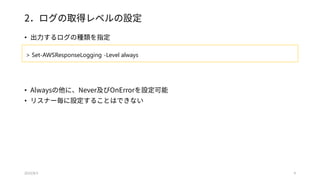
• 実行結果のログを取得できます(Get-EC2AvailabilityZoneの例)
• 実行結果の他、実行に要した時間なども出力される(Linuxのtimeコマンドのようなもの)
2015/8/3 5
Amazon Verbose: 0 : Received response (truncated to 1024 bytes): [<?xml version="1.0" encoding="UTF-
8"?><DescribeAvailabilityZonesResponse xmlns="http://ec2.amazonaws.com/doc/2015-04-15/"> <requestId>577e1785-a53a-42fa-
8119-2f7d9100376d</requestId> <availabilityZoneInfo> <item> <zoneName>ap-northeast-1a</zoneName>
<zoneState>available</zoneState> <regionName>ap-northeast-1</regionName> <messageSet/> </item>
<item> <zoneName>ap-northeast-1c</zoneName> <zoneState>available</zoneState> <regionName>ap-
northeast-1</regionName> <messageSet/> </item> </availabilityZoneInfo></DescribeAvailabilityZonesResponse>]
Amazon Information: 1 : Request metrics: AsyncCall = False; CanonicalRequest = POST¥n/¥n¥ncontent-type:application/x-www-form-
urlencoded; charset=utf-8¥nhost:ec2.ap-northeast-1.amazonaws.com¥nuser-agent:AWSPowerShell/2.3.46.0 .NET Runtime/4.0 .NET
Framework/4.0 OS/6.1.7601.65536 WindowsPowerShell/4.-1 ClientSync¥nx-amz-content-
sha256:a4541cc6cd06d90dbf380a65d6eaab5b64476077df590c1b7d34985c7100f489¥nx-amz-date:20150802T113641Z¥n¥ncontent-
type;host;user-agent;x-amz-content-sha256;x-amz-date¥na4541cc6cd06d90dbf380a65d6eaab5b64476077df590c1b7d34985c7100f489;
StringToSign = AWS4-HMAC-SHA256¥n20150802T113641Z¥n20150802/ap-northeast-
1/ec2/aws4_request¥n32b22900d41c9cc4d2cef2d35cc6b1ef67966f8d0a50ed6ecc887c43b23ca720; ServiceName = Amazon.EC2;
ServiceEndpoint = https://ec2.ap-northeast-1.amazonaws.com/; MethodName = DescribeAvailabilityZonesRequest; RequestSize = 51;
StatusCode = OK; BytesProcessed = -1; AWSRequestID = 577e1785-a53a-42fa-8119-2f7d9100376d; CredentialsRequestTime =
00:00:00.0000027; RequestSigningTime = 00:00:00.0008425; HttpRequestTime = 00:00:00.0990260; ResponseUnmarshallTime =
00:00:00.0002682; ResponseProcessingTime = 00:00:00.0022254; ClientExecuteTime = 00:00:00.1327580;](https://image.slidesharecdn.com/jawsug-cli25powershell-150803114802-lva1-app6892/85/JAWS-UG-CLI-25-LT-AWS-Tools-for-Windows-PowerShell-5-320.jpg)


![【参考】log4net
• log4netが使われているもよう
2015/8/3 11
> Get-AWSPowerShellVersion
AWS Tools for Windows PowerShell
Version 3.1.2.0
Copyright 2012-2015 Amazon.com, Inc. or its affiliates. All Rights Reserved.
Amazon Web Services SDK for .NET
Version 3.1.0.0
Copyright 2009-2015 Amazon.com, Inc. or its affiliates. All Rights Reserved.
Release notes: https://aws.amazon.com/releasenotes/PowerShell
This software includes third party software subject to the following copyrights:
- Logging from log4net, Apache License
[http://logging.apache.org/log4net/license.html]](https://image.slidesharecdn.com/jawsug-cli25powershell-150803114802-lva1-app6892/85/JAWS-UG-CLI-25-LT-AWS-Tools-for-Windows-PowerShell-11-320.jpg)



![[NDC18] 야생의 땅 듀랑고의 데이터 엔지니어링 이야기: 로그 시스템 구축 경험 공유 (2부)](https://cdn.slidesharecdn.com/ss_thumbnails/ndc2018-2-180430180517-thumbnail.jpg?width=640&height=640&fit=bounds)


![[Black Belt Online Seminar] AWS上でのログ管理](https://cdn.slidesharecdn.com/ss_thumbnails/aws-log-mgmt-161201043056-thumbnail.jpg?width=640&height=640&fit=bounds)


![[AWSマイスターシリーズ] AWS CLI / AWS Tools for Windows PowerShell](https://cdn.slidesharecdn.com/ss_thumbnails/20140115aws-meister-regenerate-awsclipowershell-140130055421-phpapp01-thumbnail.jpg?width=640&height=640&fit=bounds)

![[Sumo Logic x AWS 共催セミナー_20190829] Sumo Logic on AWS -AWS を活用したログ分析とセキュリティモニ...](https://cdn.slidesharecdn.com/ss_thumbnails/sumologiconaws-loganalysisandsecuritymonitoringusingaws-20190829-190829114856-thumbnail.jpg?width=640&height=640&fit=bounds)


