Java Swing
Introduction
 Java Swing tutorial is a part of Java Foundation
Classes (JFC) that is used to create window-based
applications.
 It is built on the top of AWT (Abstract
Windowing Toolkit) API and entirely written in
java.
 The javax.swing package provides classes for java
swing API such as JButton, JTextField, JTextArea,
JRadioButton, JCheckbox, JMenu, JColorChooser
etc.
Difference between AWT and
Swing
AWT
 AWT components are platform-dependent.
 AWT components are heavyweight.
 AWT doesn't support pluggable look and feel.
 AWT provides less components than Swing.
 AWT doesn't follows MVC(Model View
Controller) where model represents data, view
represents presentation and controller acts as an
interface between model and view.
Contd..
Swing
 Java swing components are platform-
independent.
 Swing components are lightweight.
 Swing supports pluggable look and feel.
 Swing provides more powerful components
such as tables, lists, scrollpanes, colorchooser,
tabbedpane etc.
 Swing follows MVC.
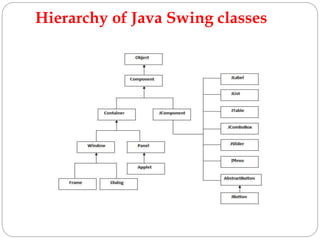
Hierarchy of Java Swing classes
MVC
Simple Java Swing Example
import javax.swing.*;
public class FirstSwingExample {
public static void main(String[] args) {
JFrame f=new JFrame();//creating instance of JFrame
JButton b=new JButton("click");//creating instance of JButton
b.setBounds(130,100,100, 40);//x axis, y axis, width, height
f.add(b);//adding button in JFrame
f.setSize(400,500);//400 width and 500 height
f.setLayout(null);//using no layout managers
f.setVisible(true);//making the frame visible
}
}
import javax.swing.*;
public class Simple2 extends JFrame{//inheriting JFrame
JFrame f;
Simple2(){
JButton b=new JButton("click");//create button
b.setBounds(130,100,100, 40);
add(b);//adding button on frame
setSize(400,500);
setLayout(null);
setVisible(true);
}
public static void main(String[] args) {
new Simple2();
}}
JButton
 The JButton class is used to create a labeled
button that has platform independent
implementation.
 The application result in some action when the
button is pushed. It inherits AbstractButton class.
 JButton() -- It creates a button with no text and
icon.
JButton(String s)-- It creates a button with the
specified text.
JButton(Icon i) -- It creates a button with the
specified icon object.
import javax.swing.*;
public class ButtonExample{
ButtonExample(){
JFrame f=new JFrame("Button Example");
JButton b=new JButton(new ImageIcon("D:img.png"));
b.setBounds(100,100,100, 40);
f.add(b);
f.setSize(300,400);
f.setLayout(null);
f.setVisible(true);
f.setDefaultCloseOperation(JFrame.EXIT_ON_CLOSE);
}
public static void main(String[] args) {
new ButtonExample();
}
}
import java.awt.event.*;
import javax.swing.*;
public class ButtonExample {
public static void main(String[] args) {
JFrame f=new JFrame("Button Example");
final JTextField tf=new JTextField();
tf.setBounds(50,50, 150,20);
JButton b=new JButton("Click Here");
b.setBounds(50,100,95,30);
b.addActionListener(new ActionListener(){
public void actionPerformed(ActionEvent e){
tf.setText("Welcome to Javatpoint.");
}
});
f.add(b);f.add(tf);
f.setSize(400,400);
f.setLayout(null);
f.setVisible(true);
}
}
JOptionPane
 The JOptionPane class is used to provide standard
dialog boxes such as message dialog box, confirm
dialog box and input dialog box.
 These dialog boxes are used to display information or
get input from the user. The JOptionPane class
inherits JComponent class.
 JOptionPane() -It is used to create a JOptionPane
with a test message.
 JOptionPane(Object message) -It is used to create an
instance of JOptionPane to display a message.
 JOptionPane(Object message, int messageType )-It is
used to create an instance of JOptionPane to display
a message with specified message type and default
options.
Java Swing Layouts
 In Java swing, Layout manager is used to position all
its components, with setting properties, such as the
size, the shape, and the arrangement.
The following layout managers are:
 FlowLayout
 BorderLayout
 CardLayout
 BoxLayout
 GridLayout
 GridBagLayout
 GroupLayout
 SpringLayout
FlowLayout
The FlowLayout arranges the components in a
directional flow, either from left to right or from right to
left. Normally all components are set to one row,
according to the order of different components. If all
components can not be fit into one row, it will start a
new row and fit the rest in.
To construct a FlowLayout, three options could be
chosen:
 FlowLayout(): construct a new FlowLayout object with
center alignment and horizontal and vertical gap to
be default size of 5 pixels.
 FlowLayout(int align): construct similar object with
different settings on alignment
 FlowLayout(int align, int hgap, int vgap): construct
similar object with different settings on alignment and
gaps between components.
BorderLayout
A BorderLayout lays out a container, arranging its
components to fit into five regions: NORTH,
SOUTH, EAST, WEST and CENTER. For each
region, it may contain no more than one
component.
For BorderLayout, it can be constructed like below:
 BorderLayout(): construct a border layout with no
gaps between components.
 BorderLayout(int hgap, int vgap): construct a
border layout with specified gaps between
components.
CardLayout
For CardLayout, it treats the components as a stack and
every time, what you can see is only one component.
BoxLayout
BoxLayout with two different axis options: X_AXIS and
Y_AXIS. In X_AXIS, components are laid out horizontally
from left to right, while in Y_AXIS vertically from top to
bottom.
GridLayout
 The GridLayout manager is used to lay out the
components in a rectangle grid, which has been divided
into equal-sized rectangles and one component is placed
in each rectangle. It can constructed with following
methods:
 GridLayout(): construct a grid layout with one column per
component in a single row.
 GridLayout(int row, int col): construct a grid layout with
specified numbers of rows and columns.
 GridLayout(int row, int col, int hgap, int vgap): construct a
grid layout with specified rows, columns and gaps between
components.
Java JTabbedPane
The JTabbedPane class is used to switch between
a group of components by clicking on a tab with a
given title or icon. It inherits JComponent class.
JTabbedPane() Creates an empty TabbedPane
with a default tab placement of
JTabbedPane.Top.
JTabbedPane(int tabPlacement) Creates an
empty TabbedPane with a specified tab
placement.
JTabbedPane(int tabPlacement, int
tabLayoutPolicy) Creates an empty TabbedPane
with a specified tab placement and tab layout
policy.
JTree
JTree class is used to display the tree structured data or
hierarchical data. JTree is a complex component. It has a
'root node' at the top most which is a parent for all
nodes in the tree. It inherits JComponent class.
JTree() Creates a JTree with a sample model.
JTree(Object[] value) Creates a JTree with every
element of the specified array as the child of a new root
node.
JTree(TreeNode root) Creates a JTree with the specified
TreeNode as its root, which displays the root node.
Mnemonics and Accelerators to
Menu Items
 Menus support two kinds of keyboard
alternatives: mnemonics and accelerators.
 Mnemonics offer a way to use the keyboard to
navigate the menu hierarchy, increasing the
accessibility of programs.
 Accelerators, on the other hand, offer keyboard
shortcuts to bypass navigating the menu
hierarchy.
 The menu created in the preceding example is
functional, but it is possible to make it better.
 In real applications, a menu usually includes
support for keyboard shortcuts because they give
an experienced user the ability to select menu
items rapidly.
 Keyboard shortcuts come in two forms:
mnemonics and accelerators. As it applies to
menus, a mnemonic defines a key that lets you
select an item from an active menu by typing the
key.
 Thus, a mnemonic allows you to use the
keyboard to select an item from a menu that is
already being displayed.
 An accelerator is a key that lets you select a
menu item without having to first activate the
 To specify a mnemonic for JMenu, you must call
setMnemonic( ). This method is inherited by both
classes from AbstractButton and is shown next:
 void setMnemonic(int mnem)

Java swing

  • 1.
  • 2.
    Introduction  Java Swingtutorial is a part of Java Foundation Classes (JFC) that is used to create window-based applications.  It is built on the top of AWT (Abstract Windowing Toolkit) API and entirely written in java.  The javax.swing package provides classes for java swing API such as JButton, JTextField, JTextArea, JRadioButton, JCheckbox, JMenu, JColorChooser etc.
  • 3.
    Difference between AWTand Swing AWT  AWT components are platform-dependent.  AWT components are heavyweight.  AWT doesn't support pluggable look and feel.  AWT provides less components than Swing.  AWT doesn't follows MVC(Model View Controller) where model represents data, view represents presentation and controller acts as an interface between model and view.
  • 4.
    Contd.. Swing  Java swingcomponents are platform- independent.  Swing components are lightweight.  Swing supports pluggable look and feel.  Swing provides more powerful components such as tables, lists, scrollpanes, colorchooser, tabbedpane etc.  Swing follows MVC.
  • 5.
    Hierarchy of JavaSwing classes
  • 6.
  • 8.
    Simple Java SwingExample import javax.swing.*; public class FirstSwingExample { public static void main(String[] args) { JFrame f=new JFrame();//creating instance of JFrame JButton b=new JButton("click");//creating instance of JButton b.setBounds(130,100,100, 40);//x axis, y axis, width, height f.add(b);//adding button in JFrame f.setSize(400,500);//400 width and 500 height f.setLayout(null);//using no layout managers f.setVisible(true);//making the frame visible } }
  • 10.
    import javax.swing.*; public classSimple2 extends JFrame{//inheriting JFrame JFrame f; Simple2(){ JButton b=new JButton("click");//create button b.setBounds(130,100,100, 40); add(b);//adding button on frame setSize(400,500); setLayout(null); setVisible(true); } public static void main(String[] args) { new Simple2(); }}
  • 11.
    JButton  The JButtonclass is used to create a labeled button that has platform independent implementation.  The application result in some action when the button is pushed. It inherits AbstractButton class.  JButton() -- It creates a button with no text and icon. JButton(String s)-- It creates a button with the specified text. JButton(Icon i) -- It creates a button with the specified icon object.
  • 12.
    import javax.swing.*; public classButtonExample{ ButtonExample(){ JFrame f=new JFrame("Button Example"); JButton b=new JButton(new ImageIcon("D:img.png")); b.setBounds(100,100,100, 40); f.add(b); f.setSize(300,400); f.setLayout(null); f.setVisible(true); f.setDefaultCloseOperation(JFrame.EXIT_ON_CLOSE); } public static void main(String[] args) { new ButtonExample(); } }
  • 13.
    import java.awt.event.*; import javax.swing.*; publicclass ButtonExample { public static void main(String[] args) { JFrame f=new JFrame("Button Example"); final JTextField tf=new JTextField(); tf.setBounds(50,50, 150,20); JButton b=new JButton("Click Here"); b.setBounds(50,100,95,30); b.addActionListener(new ActionListener(){ public void actionPerformed(ActionEvent e){ tf.setText("Welcome to Javatpoint."); } }); f.add(b);f.add(tf); f.setSize(400,400); f.setLayout(null); f.setVisible(true); } }
  • 14.
    JOptionPane  The JOptionPaneclass is used to provide standard dialog boxes such as message dialog box, confirm dialog box and input dialog box.  These dialog boxes are used to display information or get input from the user. The JOptionPane class inherits JComponent class.  JOptionPane() -It is used to create a JOptionPane with a test message.  JOptionPane(Object message) -It is used to create an instance of JOptionPane to display a message.  JOptionPane(Object message, int messageType )-It is used to create an instance of JOptionPane to display a message with specified message type and default options.
  • 15.
    Java Swing Layouts In Java swing, Layout manager is used to position all its components, with setting properties, such as the size, the shape, and the arrangement. The following layout managers are:  FlowLayout  BorderLayout  CardLayout  BoxLayout  GridLayout  GridBagLayout  GroupLayout  SpringLayout
  • 16.
    FlowLayout The FlowLayout arrangesthe components in a directional flow, either from left to right or from right to left. Normally all components are set to one row, according to the order of different components. If all components can not be fit into one row, it will start a new row and fit the rest in. To construct a FlowLayout, three options could be chosen:  FlowLayout(): construct a new FlowLayout object with center alignment and horizontal and vertical gap to be default size of 5 pixels.  FlowLayout(int align): construct similar object with different settings on alignment  FlowLayout(int align, int hgap, int vgap): construct similar object with different settings on alignment and gaps between components.
  • 17.
    BorderLayout A BorderLayout laysout a container, arranging its components to fit into five regions: NORTH, SOUTH, EAST, WEST and CENTER. For each region, it may contain no more than one component. For BorderLayout, it can be constructed like below:  BorderLayout(): construct a border layout with no gaps between components.  BorderLayout(int hgap, int vgap): construct a border layout with specified gaps between components.
  • 18.
    CardLayout For CardLayout, ittreats the components as a stack and every time, what you can see is only one component. BoxLayout BoxLayout with two different axis options: X_AXIS and Y_AXIS. In X_AXIS, components are laid out horizontally from left to right, while in Y_AXIS vertically from top to bottom. GridLayout  The GridLayout manager is used to lay out the components in a rectangle grid, which has been divided into equal-sized rectangles and one component is placed in each rectangle. It can constructed with following methods:  GridLayout(): construct a grid layout with one column per component in a single row.  GridLayout(int row, int col): construct a grid layout with specified numbers of rows and columns.  GridLayout(int row, int col, int hgap, int vgap): construct a grid layout with specified rows, columns and gaps between components.
  • 19.
    Java JTabbedPane The JTabbedPaneclass is used to switch between a group of components by clicking on a tab with a given title or icon. It inherits JComponent class. JTabbedPane() Creates an empty TabbedPane with a default tab placement of JTabbedPane.Top. JTabbedPane(int tabPlacement) Creates an empty TabbedPane with a specified tab placement. JTabbedPane(int tabPlacement, int tabLayoutPolicy) Creates an empty TabbedPane with a specified tab placement and tab layout policy.
  • 20.
    JTree JTree class isused to display the tree structured data or hierarchical data. JTree is a complex component. It has a 'root node' at the top most which is a parent for all nodes in the tree. It inherits JComponent class. JTree() Creates a JTree with a sample model. JTree(Object[] value) Creates a JTree with every element of the specified array as the child of a new root node. JTree(TreeNode root) Creates a JTree with the specified TreeNode as its root, which displays the root node.
  • 21.
    Mnemonics and Acceleratorsto Menu Items  Menus support two kinds of keyboard alternatives: mnemonics and accelerators.  Mnemonics offer a way to use the keyboard to navigate the menu hierarchy, increasing the accessibility of programs.  Accelerators, on the other hand, offer keyboard shortcuts to bypass navigating the menu hierarchy.
  • 22.
     The menucreated in the preceding example is functional, but it is possible to make it better.  In real applications, a menu usually includes support for keyboard shortcuts because they give an experienced user the ability to select menu items rapidly.  Keyboard shortcuts come in two forms: mnemonics and accelerators. As it applies to menus, a mnemonic defines a key that lets you select an item from an active menu by typing the key.  Thus, a mnemonic allows you to use the keyboard to select an item from a menu that is already being displayed.  An accelerator is a key that lets you select a menu item without having to first activate the
  • 23.
     To specifya mnemonic for JMenu, you must call setMnemonic( ). This method is inherited by both classes from AbstractButton and is shown next:  void setMnemonic(int mnem)