• Java Swing
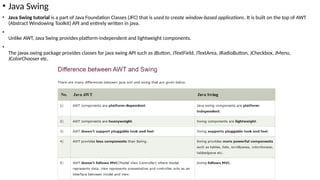
• Java Swing tutorial is a part of Java Foundation Classes (JFC) that is used to create window-based applications. It is built on the top of AWT
(Abstract Windowing Toolkit) API and entirely written in java.
•
Unlike AWT, Java Swing provides platform-independent and lightweight components.
•
The javax.swing package provides classes for java swing API such as JButton, JTextField, JTextArea, JRadioButton, JCheckbox, JMenu,
JColorChooser etc.
• What is JFC
•
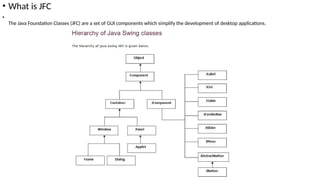
The Java Foundation Classes (JFC) are a set of GUI components which simplify the development of desktop applications.
• Commonly used Methods of Component class
•
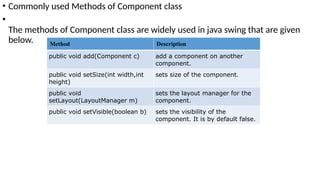
The methods of Component class are widely used in java swing that are given
below. Method Description
public void add(Component c) add a component on another
component.
public void setSize(int width,int
height)
sets size of the component.
public void
setLayout(LayoutManager m)
sets the layout manager for the
component.
public void setVisible(boolean b) sets the visibility of the
component. It is by default false.
• Java Swing Examples
•
There are two ways to create a frame:
• By creating the object of Frame class (association)
• By extending Frame class (inheritance)
• We can write the code of swing inside the main(), constructor or any other method.
• Simple Java Swing Example
•
import javax.swing.*;
• public class FirstSwingExample {
• public static void main(String[] args) {
• JFrame f=new JFrame();//creating instance of JFrame
•
• JButton b=new JButton("click");//creating instance of JButton
• b.setBounds(130,100,100, 40);//x axis, y axis, width, height
•
• f.add(b);//adding button in JFrame
•
• f.setSize(400,500);//400 width and 500 height
• f.setLayout(null);//using no layout managers
• f.setVisible(true);//making the frame visible
• }
• }
• Example of Swing by Association inside constructor
•
We can also write all the codes of creating JFrame, JButton and method call inside the java constructor.
•
import javax.swing.*;
• public class Simple {
• JFrame f;
• Simple(){
• f=new JFrame();//creating instance of JFrame
•
• JButton b=new JButton("click");//creating instance of JButton
• b.setBounds(130,100,100, 40);
•
• f.add(b);//adding button in JFrame
•
• f.setSize(400,500);//400 width and 500 height
• f.setLayout(null);//using no layout managers
• f.setVisible(true);//making the frame visible
• }
•
• public static void main(String[] args) {
• new Simple();
• }
• }
• Simple example of Swing by inheritance
•
We can also inherit the JFrame class, so there is no need to create the instance of JFrame class explicitly.
•
import javax.swing.*;
• public class Simple2 extends JFrame{//inheriting JFrame
• JFrame f;
• Simple2(){
• JButton b=new JButton("click");//create button
• b.setBounds(130,100,100, 40);
•
• add(b);//adding button on frame
• setSize(400,500);
• setLayout(null);
• setVisible(true);
• }
• public static void main(String[] args) {
• new Simple2();
• }}
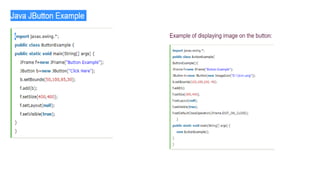
• Java JButton
•
The JButton class is used to create a labeled button that has platform independent implementation. The application result in some
action when the button is pushed. It inherits AbstractButton class.
•
JButton class declaration
•
public class JButton extends AbstractButton implements Accessible
•
Commonly used Constructors:
• Commonly used Methods of AbstractButton class:
Constructor Description
JButton() It creates a button with no text
and icon.
JButton(String s) It creates a button with the
specified text.
JButton(Icon i) It creates a button with the
specified icon object.
Methods Description
void setText(String s) It is used to set specified text on button
String getText() It is used to return the text of the button.
void setEnabled(boolean b) It is used to enable or disable the button.
void setIcon(Icon b) It is used to set the specified Icon on the button.
Icon getIcon() It is used to get the Icon of the button.
void setMnemonic(int a) It is used to set the mnemonic on the button.
void addActionListener(ActionListener a) It is used to add the action listener to this object.
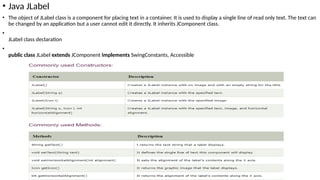
• Java JLabel
• The object of JLabel class is a component for placing text in a container. It is used to display a single line of read only text. The text can
be changed by an application but a user cannot edit it directly. It inherits JComponent class.
•
JLabel class declaration
•
public class JLabel extends JComponent implements SwingConstants, Accessible
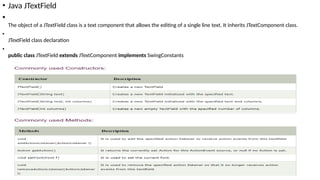
• Java JTextField
•
The object of a JTextField class is a text component that allows the editing of a single line text. It inherits JTextComponent class.
•
JTextField class declaration
•
public class JTextField extends JTextComponent implements SwingConstants
• Java JTextField Example
•
import javax.swing.*;
• class TextFieldExample
• {
• public static void main(String args[])
• {
• JFrame f= new JFrame("TextField Example");
• JTextField t1,t2;
• t1=new JTextField("Welcome to Way To Code.");
• t1.setBounds(50,100, 200,30);
• t2=new JTextField("AWT Tutorial");
• t2.setBounds(50,150, 200,30);
• f.add(t1); f.add(t2);
• f.setSize(400,400);
• f.setLayout(null);
• f.setVisible(true);
• }
• }
• Java JTextArea
• The object of a JTextArea class is a multi line region that displays text. It allows the editing of multiple line text. It inherits JTextComponent class
• JTextArea class declaration
•
public class JTextArea extends JTextComponent
•
Java JTextArea Example
•
import javax.swing.*;
• public class TextAreaExample
• {
• TextAreaExample(){
• JFrame f= new JFrame();
• JTextArea area=new JTextArea("Welcome to way to code");
• area.setBounds(10,30, 200,200);
• f.add(area);
• f.setSize(300,300);
• f.setLayout(null);
• f.setVisible(true);
• }
• public static void main(String args[])
• {
• new TextAreaExample();
• }}
• Java JPasswordField
•
The object of a JPasswordField class is a text component specialized for password entry. It allows the editing of a single line of text. It inherits
JTextField class.
•
JPasswordField class declaration
•
public class JPasswordField extends JTextField
•
import javax.swing.*;
• public class PasswordFieldExample {
• public static void main(String[] args) {
• JFrame f=new JFrame("Password Field Example");
• JPasswordField value = new JPasswordField();
• JLabel l1=new JLabel("Password:");
• l1.setBounds(20,100, 80,30);
• value.setBounds(100,100,100,30);
• f.add(value); f.add(l1);
• f.setSize(300,300);
• f.setLayout(null);
• f.setVisible(true);
• }
• }
• Java JCheckBox
•
The JCheckBox class is used to create a checkbox. It is used to turn an option on (true) or off (false). Clicking on a CheckBox changes its state from "on" to "off" or from "off" to "on ".It inherits JToggleButton
class.
•
JCheckBox class declaration
• public class JCheckBox extends JToggleButton implements Accessible
•
import javax.swing.*;
• public class CheckBoxExample
• {
• CheckBoxExample(){
• JFrame f= new JFrame("CheckBox Example");
• JCheckBox checkBox1 = new JCheckBox("C++");
• checkBox1.setBounds(100,100, 50,50);
• JCheckBox checkBox2 = new JCheckBox("Java", true);
• checkBox2.setBounds(100,150, 50,50);
• f.add(checkBox1);
• f.add(checkBox2);
• f.setSize(400,400);
• f.setLayout(null);
• f.setVisible(true); }
• public static void main(String args[]) {
• new CheckBoxExample();
• }}
Java JRadioButton
•
The JRadioButton class is used to create a radio button. It is used to choose one option from multiple options. It is widely used in exam systems or quiz.
• It should be added in ButtonGroup to select one radio button only.
• JRadioButton class declaration
• public class JRadioButton extends JToggleButton implements Accessible
• import javax.swing.*;
• public class RadioButtonExample {
• JFrame f;
• RadioButtonExample(){
• f=new JFrame();
• JRadioButton r1=new JRadioButton("A) Male");
• JRadioButton r2=new JRadioButton("B) Female");
• r1.setBounds(75,50,100,30);
• r2.setBounds(75,100,100,30);
• ButtonGroup bg=new ButtonGroup();
• bg.add(r1);bg.add(r2);
• f.add(r1);f.add(r2);
• f.setSize(300,300);
• f.setLayout(null);
• f.setVisible(true);
• }
• public static void main(String[] args) {
• new RadioButtonExample();
• }
• }
• Java JComboBox
• The object of Choice class is used to show popup menu of choices. Choice selected by user is shown on the top of a menu. It inherits JComponent class.
• JComboBox class declaration
• public class JComboBox extends JComponent implements ItemSelectable, ListDataListener, ActionListener, Accessible
• import javax.swing.*;
• public class ComboBoxExample {
• JFrame f;
• ComboBoxExample(){
• f=new JFrame("ComboBox Example");
• String country[]={"India","Aus","U.S.A","England","Newzealand"};
• JComboBox cb=new JComboBox(country);
• cb.setBounds(50, 50,90,20);
• f.add(cb);
• f.setLayout(null);
• f.setSize(400,500);
• f.setVisible(true);
• }
• public static void main(String[] args) {
• new ComboBoxExample();
• }
• }
• Java JTable
•
The JTable class is used to display data in tabular form. It is composed of rows and columns.
• import javax.swing.*;
• public class TableExample {
• JFrame f;
• TableExample(){
• f=new JFrame();
• String data[][]={ {"101","Amit","670000"},
• {"102","Jai","780000"},
• {"101","Sachin","700000"}};
• String column[]={"ID","NAME","SALARY"};
• JTable jt=new JTable(data,column);
• jt.setBounds(30,40,200,300);
• JScrollPane sp=new JScrollPane(jt);
• f.add(sp);
• f.setSize(300,400);
• f.setVisible(true);
• }
• public static void main(String[] args) {
• new TableExample();
• }
• }
• Java JList
• The object of JList class represents a list of text items. The list of text items can be set up so that the user can choose either one item or multiple items. It inherits
JComponent class.
•
JList class declaration
• public class JList extends JComponent implements Scrollable, Accessible
• import javax.swing.*;
• public class ListExample {
• ListExample(){
• JFrame f= new JFrame();
• DefaultListModel<String> l1 = new DefaultListModel<>();
• l1.addElement("Item1");
• l1.addElement("Item2");
• l1.addElement("Item3");
• l1.addElement("Item4");
• JList<String> list = new JList<>(l1);
• list.setBounds(100,100, 75,75);
• f.add(list);
• f.setSize(400,400);
• f.setLayout(null);
• f.setVisible(true); }
• public static void main(String args[]) {
• new ListExample();
• }}
• Java JOptionPane
•
The JOptionPane class is used to provide standard dialog boxes such as message dialog box, confirm dialog box and input dialog box. These dialog boxes are used to
display information or get input from the user. The JOptionPane class inherits JComponent class.
•
JOptionPane class declaration
•
public class JOptionPane extends JComponent implements Accessible
• import javax.swing.*;
• public class OptionPaneExample {
• JFrame f;
• OptionPaneExample(){
• f=new JFrame();
• JOptionPane.showMessageDialog(f,"Hello, Welcome to way to code.");
• }
• public static void main(String[] args) {
• new OptionPaneExample();
• }
• }
•
• Java JScrollBar
•
The object of JScrollbar class is used to add horizontal and vertical scrollbar. It is an implementation of a scrollbar. It inherits JComponent class.
•
JScrollBar class declaration
•
public class JScrollBar extends JComponent implements Adjustable, Accessible
•
import javax.swing.*;
• class ScrollBarExample {
• ScrollBarExample(){
• JFrame f= new JFrame("Scrollbar Example");
• JScrollBar s=new JScrollBar();
• s.setBounds(100,100, 50,100);
• f.add(s);
• f.setSize(400,400);
• f.setLayout(null);
• f.setVisible(true);
• }
• public static void main(String args[]) {
• new ScrollBarExample();
• }}
•
• Java JMenuBar, JMenu and JMenuItem
•
The JMenuBar class is used to display menubar on the window or frame. It may have several menus.
• The object of JMenu class is a pull down menu component which is displayed from the menu bar. It inherits the JMenuItem class.
• The object of JMenuItem class adds a simple labeled menu item. The items used in a menu must belong to the JMenuItem or any of its subclass.
• JMenuBar class declaration
•
public class JMenuBar extends JComponent implements MenuElement, Accessible
•
JMenu class declaration
•
public class JMenu extends JMenuItem implements MenuElement, Accessible
• JMenuItem class declaration
•
public class JMenuItem extends AbstractButton implements Accessible, MenuElement
•
• import javax.swing.*;
• class MenuExample {
• JMenu menu, submenu;
• JMenuItem i1, i2, i3, i4, i5;
• MenuExample(){
• JFrame f= new JFrame("Menu and MenuItem Example");
• JMenuBar mb=new JMenuBar();
• menu=new JMenu("Menu");
• submenu=new JMenu("Sub Menu");
• i1=new JMenuItem("Item 1");
• i2=new JMenuItem("Item 2");
• i3=new JMenuItem("Item 3");
• i4=new JMenuItem("Item 4");
• i5=new JMenuItem("Item 5");
• menu.add(i1); menu.add(i2); menu.add(i3);
• submenu.add(i4); submenu.add(i5);
• menu.add(submenu);
• mb.add(menu);
• f.setJMenuBar(mb);
• f.setSize(400,400);
• f.setLayout(null);
• f.setVisible(true); }
• public static void main(String args[]) {
• new MenuExample();
• }}
• Java JPopupMenu
•
PopupMenu can be dynamically popped up at specific position within a component. It inherits the JComponent class.
• JPopupMenu class declaration
• public class JPopupMenu extends JComponent implements Accessible, MenuElement
• import javax.swing.*;
• import java.awt.event.*;
• class PopupMenuExample {
• PopupMenuExample(){
• final JFrame f= new JFrame("PopupMenu Example");
• final JPopupMenu popupmenu = new JPopupMenu("Edit");
• JMenuItem cut = new JMenuItem("Cut");
• JMenuItem copy = new JMenuItem("Copy");
• JMenuItem paste = new JMenuItem("Paste");
• popupmenu.add(cut); popupmenu.add(copy); popupmenu.add(paste);
• f.addMouseListener(new MouseAdapter() {
• public void mouseClicked(MouseEvent e) {
• popupmenu.show(f , e.getX(), e.getY()); } });
• f.add(popupmenu);
• f.setSize(300,300);
• f.setLayout(null);
• f.setVisible(true); }
• public static void main(String args[])
• {
• new PopupMenuExample();
• }}

Java Swing Presentation made by aarav patel

  • 1.
    • Java Swing •Java Swing tutorial is a part of Java Foundation Classes (JFC) that is used to create window-based applications. It is built on the top of AWT (Abstract Windowing Toolkit) API and entirely written in java. • Unlike AWT, Java Swing provides platform-independent and lightweight components. • The javax.swing package provides classes for java swing API such as JButton, JTextField, JTextArea, JRadioButton, JCheckbox, JMenu, JColorChooser etc.
  • 2.
    • What isJFC • The Java Foundation Classes (JFC) are a set of GUI components which simplify the development of desktop applications.
  • 3.
    • Commonly usedMethods of Component class • The methods of Component class are widely used in java swing that are given below. Method Description public void add(Component c) add a component on another component. public void setSize(int width,int height) sets size of the component. public void setLayout(LayoutManager m) sets the layout manager for the component. public void setVisible(boolean b) sets the visibility of the component. It is by default false.
  • 4.
    • Java SwingExamples • There are two ways to create a frame: • By creating the object of Frame class (association) • By extending Frame class (inheritance) • We can write the code of swing inside the main(), constructor or any other method. • Simple Java Swing Example • import javax.swing.*; • public class FirstSwingExample { • public static void main(String[] args) { • JFrame f=new JFrame();//creating instance of JFrame • • JButton b=new JButton("click");//creating instance of JButton • b.setBounds(130,100,100, 40);//x axis, y axis, width, height • • f.add(b);//adding button in JFrame • • f.setSize(400,500);//400 width and 500 height • f.setLayout(null);//using no layout managers • f.setVisible(true);//making the frame visible • } • }
  • 5.
    • Example ofSwing by Association inside constructor • We can also write all the codes of creating JFrame, JButton and method call inside the java constructor. • import javax.swing.*; • public class Simple { • JFrame f; • Simple(){ • f=new JFrame();//creating instance of JFrame • • JButton b=new JButton("click");//creating instance of JButton • b.setBounds(130,100,100, 40); • • f.add(b);//adding button in JFrame • • f.setSize(400,500);//400 width and 500 height • f.setLayout(null);//using no layout managers • f.setVisible(true);//making the frame visible • } • • public static void main(String[] args) { • new Simple(); • } • }
  • 6.
    • Simple exampleof Swing by inheritance • We can also inherit the JFrame class, so there is no need to create the instance of JFrame class explicitly. • import javax.swing.*; • public class Simple2 extends JFrame{//inheriting JFrame • JFrame f; • Simple2(){ • JButton b=new JButton("click");//create button • b.setBounds(130,100,100, 40); • • add(b);//adding button on frame • setSize(400,500); • setLayout(null); • setVisible(true); • } • public static void main(String[] args) { • new Simple2(); • }}
  • 7.
    • Java JButton • TheJButton class is used to create a labeled button that has platform independent implementation. The application result in some action when the button is pushed. It inherits AbstractButton class. • JButton class declaration • public class JButton extends AbstractButton implements Accessible • Commonly used Constructors: • Commonly used Methods of AbstractButton class: Constructor Description JButton() It creates a button with no text and icon. JButton(String s) It creates a button with the specified text. JButton(Icon i) It creates a button with the specified icon object. Methods Description void setText(String s) It is used to set specified text on button String getText() It is used to return the text of the button. void setEnabled(boolean b) It is used to enable or disable the button. void setIcon(Icon b) It is used to set the specified Icon on the button. Icon getIcon() It is used to get the Icon of the button. void setMnemonic(int a) It is used to set the mnemonic on the button. void addActionListener(ActionListener a) It is used to add the action listener to this object.
  • 9.
    • Java JLabel •The object of JLabel class is a component for placing text in a container. It is used to display a single line of read only text. The text can be changed by an application but a user cannot edit it directly. It inherits JComponent class. • JLabel class declaration • public class JLabel extends JComponent implements SwingConstants, Accessible
  • 11.
    • Java JTextField • Theobject of a JTextField class is a text component that allows the editing of a single line text. It inherits JTextComponent class. • JTextField class declaration • public class JTextField extends JTextComponent implements SwingConstants
  • 12.
    • Java JTextFieldExample • import javax.swing.*; • class TextFieldExample • { • public static void main(String args[]) • { • JFrame f= new JFrame("TextField Example"); • JTextField t1,t2; • t1=new JTextField("Welcome to Way To Code."); • t1.setBounds(50,100, 200,30); • t2=new JTextField("AWT Tutorial"); • t2.setBounds(50,150, 200,30); • f.add(t1); f.add(t2); • f.setSize(400,400); • f.setLayout(null); • f.setVisible(true); • } • }
  • 14.
    • Java JTextArea •The object of a JTextArea class is a multi line region that displays text. It allows the editing of multiple line text. It inherits JTextComponent class • JTextArea class declaration • public class JTextArea extends JTextComponent • Java JTextArea Example • import javax.swing.*; • public class TextAreaExample • { • TextAreaExample(){ • JFrame f= new JFrame(); • JTextArea area=new JTextArea("Welcome to way to code"); • area.setBounds(10,30, 200,200); • f.add(area); • f.setSize(300,300); • f.setLayout(null); • f.setVisible(true); • } • public static void main(String args[]) • { • new TextAreaExample(); • }}
  • 15.
    • Java JPasswordField • Theobject of a JPasswordField class is a text component specialized for password entry. It allows the editing of a single line of text. It inherits JTextField class. • JPasswordField class declaration • public class JPasswordField extends JTextField • import javax.swing.*; • public class PasswordFieldExample { • public static void main(String[] args) { • JFrame f=new JFrame("Password Field Example"); • JPasswordField value = new JPasswordField(); • JLabel l1=new JLabel("Password:"); • l1.setBounds(20,100, 80,30); • value.setBounds(100,100,100,30); • f.add(value); f.add(l1); • f.setSize(300,300); • f.setLayout(null); • f.setVisible(true); • } • }
  • 16.
    • Java JCheckBox • TheJCheckBox class is used to create a checkbox. It is used to turn an option on (true) or off (false). Clicking on a CheckBox changes its state from "on" to "off" or from "off" to "on ".It inherits JToggleButton class. • JCheckBox class declaration • public class JCheckBox extends JToggleButton implements Accessible • import javax.swing.*; • public class CheckBoxExample • { • CheckBoxExample(){ • JFrame f= new JFrame("CheckBox Example"); • JCheckBox checkBox1 = new JCheckBox("C++"); • checkBox1.setBounds(100,100, 50,50); • JCheckBox checkBox2 = new JCheckBox("Java", true); • checkBox2.setBounds(100,150, 50,50); • f.add(checkBox1); • f.add(checkBox2); • f.setSize(400,400); • f.setLayout(null); • f.setVisible(true); } • public static void main(String args[]) { • new CheckBoxExample(); • }}
  • 17.
    Java JRadioButton • The JRadioButtonclass is used to create a radio button. It is used to choose one option from multiple options. It is widely used in exam systems or quiz. • It should be added in ButtonGroup to select one radio button only. • JRadioButton class declaration • public class JRadioButton extends JToggleButton implements Accessible • import javax.swing.*; • public class RadioButtonExample { • JFrame f; • RadioButtonExample(){ • f=new JFrame(); • JRadioButton r1=new JRadioButton("A) Male"); • JRadioButton r2=new JRadioButton("B) Female"); • r1.setBounds(75,50,100,30); • r2.setBounds(75,100,100,30); • ButtonGroup bg=new ButtonGroup(); • bg.add(r1);bg.add(r2); • f.add(r1);f.add(r2); • f.setSize(300,300); • f.setLayout(null); • f.setVisible(true); • } • public static void main(String[] args) { • new RadioButtonExample(); • } • }
  • 18.
    • Java JComboBox •The object of Choice class is used to show popup menu of choices. Choice selected by user is shown on the top of a menu. It inherits JComponent class. • JComboBox class declaration • public class JComboBox extends JComponent implements ItemSelectable, ListDataListener, ActionListener, Accessible • import javax.swing.*; • public class ComboBoxExample { • JFrame f; • ComboBoxExample(){ • f=new JFrame("ComboBox Example"); • String country[]={"India","Aus","U.S.A","England","Newzealand"}; • JComboBox cb=new JComboBox(country); • cb.setBounds(50, 50,90,20); • f.add(cb); • f.setLayout(null); • f.setSize(400,500); • f.setVisible(true); • } • public static void main(String[] args) { • new ComboBoxExample(); • } • }
  • 19.
    • Java JTable • TheJTable class is used to display data in tabular form. It is composed of rows and columns. • import javax.swing.*; • public class TableExample { • JFrame f; • TableExample(){ • f=new JFrame(); • String data[][]={ {"101","Amit","670000"}, • {"102","Jai","780000"}, • {"101","Sachin","700000"}}; • String column[]={"ID","NAME","SALARY"}; • JTable jt=new JTable(data,column); • jt.setBounds(30,40,200,300); • JScrollPane sp=new JScrollPane(jt); • f.add(sp); • f.setSize(300,400); • f.setVisible(true); • } • public static void main(String[] args) { • new TableExample(); • } • }
  • 20.
    • Java JList •The object of JList class represents a list of text items. The list of text items can be set up so that the user can choose either one item or multiple items. It inherits JComponent class. • JList class declaration • public class JList extends JComponent implements Scrollable, Accessible • import javax.swing.*; • public class ListExample { • ListExample(){ • JFrame f= new JFrame(); • DefaultListModel<String> l1 = new DefaultListModel<>(); • l1.addElement("Item1"); • l1.addElement("Item2"); • l1.addElement("Item3"); • l1.addElement("Item4"); • JList<String> list = new JList<>(l1); • list.setBounds(100,100, 75,75); • f.add(list); • f.setSize(400,400); • f.setLayout(null); • f.setVisible(true); } • public static void main(String args[]) { • new ListExample(); • }}
  • 21.
    • Java JOptionPane • TheJOptionPane class is used to provide standard dialog boxes such as message dialog box, confirm dialog box and input dialog box. These dialog boxes are used to display information or get input from the user. The JOptionPane class inherits JComponent class. • JOptionPane class declaration • public class JOptionPane extends JComponent implements Accessible • import javax.swing.*; • public class OptionPaneExample { • JFrame f; • OptionPaneExample(){ • f=new JFrame(); • JOptionPane.showMessageDialog(f,"Hello, Welcome to way to code."); • } • public static void main(String[] args) { • new OptionPaneExample(); • } • } •
  • 22.
    • Java JScrollBar • Theobject of JScrollbar class is used to add horizontal and vertical scrollbar. It is an implementation of a scrollbar. It inherits JComponent class. • JScrollBar class declaration • public class JScrollBar extends JComponent implements Adjustable, Accessible • import javax.swing.*; • class ScrollBarExample { • ScrollBarExample(){ • JFrame f= new JFrame("Scrollbar Example"); • JScrollBar s=new JScrollBar(); • s.setBounds(100,100, 50,100); • f.add(s); • f.setSize(400,400); • f.setLayout(null); • f.setVisible(true); • } • public static void main(String args[]) { • new ScrollBarExample(); • }} •
  • 23.
    • Java JMenuBar,JMenu and JMenuItem • The JMenuBar class is used to display menubar on the window or frame. It may have several menus. • The object of JMenu class is a pull down menu component which is displayed from the menu bar. It inherits the JMenuItem class. • The object of JMenuItem class adds a simple labeled menu item. The items used in a menu must belong to the JMenuItem or any of its subclass. • JMenuBar class declaration • public class JMenuBar extends JComponent implements MenuElement, Accessible • JMenu class declaration • public class JMenu extends JMenuItem implements MenuElement, Accessible • JMenuItem class declaration • public class JMenuItem extends AbstractButton implements Accessible, MenuElement •
  • 24.
    • import javax.swing.*; •class MenuExample { • JMenu menu, submenu; • JMenuItem i1, i2, i3, i4, i5; • MenuExample(){ • JFrame f= new JFrame("Menu and MenuItem Example"); • JMenuBar mb=new JMenuBar(); • menu=new JMenu("Menu"); • submenu=new JMenu("Sub Menu"); • i1=new JMenuItem("Item 1"); • i2=new JMenuItem("Item 2"); • i3=new JMenuItem("Item 3"); • i4=new JMenuItem("Item 4"); • i5=new JMenuItem("Item 5"); • menu.add(i1); menu.add(i2); menu.add(i3); • submenu.add(i4); submenu.add(i5); • menu.add(submenu); • mb.add(menu); • f.setJMenuBar(mb); • f.setSize(400,400); • f.setLayout(null); • f.setVisible(true); } • public static void main(String args[]) { • new MenuExample(); • }}
  • 25.
    • Java JPopupMenu • PopupMenucan be dynamically popped up at specific position within a component. It inherits the JComponent class. • JPopupMenu class declaration • public class JPopupMenu extends JComponent implements Accessible, MenuElement • import javax.swing.*; • import java.awt.event.*; • class PopupMenuExample { • PopupMenuExample(){ • final JFrame f= new JFrame("PopupMenu Example"); • final JPopupMenu popupmenu = new JPopupMenu("Edit"); • JMenuItem cut = new JMenuItem("Cut"); • JMenuItem copy = new JMenuItem("Copy"); • JMenuItem paste = new JMenuItem("Paste"); • popupmenu.add(cut); popupmenu.add(copy); popupmenu.add(paste); • f.addMouseListener(new MouseAdapter() { • public void mouseClicked(MouseEvent e) { • popupmenu.show(f , e.getX(), e.getY()); } }); • f.add(popupmenu); • f.setSize(300,300); • f.setLayout(null); • f.setVisible(true); } • public static void main(String args[]) • { • new PopupMenuExample(); • }}