GUI Helper Classes
3
Thehelper classes are not subclasses
of Component. They are used to
describe the properties of GUI
components such as graphics
context, colors, fonts, and
dimension.
Dimension
Font
FontMetrics
Component
Graphics
Object Color
Container
Panel Applet
Frame
Dialog
Window
JComponent
JApplet
JFrame
JDialog
Swing Components
in the javax.swing package
Lightweight
Heavyweight
Classes in the java.awt
package
1
LayoutManager
*
JPanel
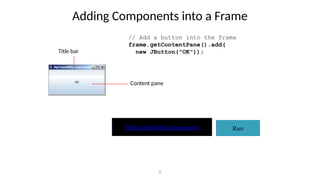
Adding Components intoa Frame
8
// Add a button into the frame
frame.getContentPane().add(
new JButton("OK"));
Run
MyFrameWithComponents
Title bar
Content pane
9.
Content Pane Delegationin JDK 1.5
9
// Add a button into the frame
frame.getContentPane().add(
new JButton("OK"));
Run
MyFrameWithComponents
Title bar
Content pane
// Add a button into the frame
frame.add(
new JButton("OK"));
10.
JFrame Class
10
javax.swing.JFrame
+JFrame()
+JFrame(title: String)
+getSize(width:int, height: int): void
+setLocation(x: int, y: int): void
+setVisible(visible: boolean): void
+setDefaultCloseOperation(mode: int): void
+setLocationRelativeTo (c: Component):
void
Creates a default frame with no title.
Creates a frame with the specified title.
Specifies the size of the frame.
Specifies the upper-left corner location of the frame.
Sets true to display the frame.
Specifies the operation when the frame is closed.
Sets the location of the frame relative to the specified component.
If the component is null, the frame is centered on the screen.
11.
JFrame example
• Aprogram that sets several properties of the JFrame:
import java.awt.*;
import javax.swing.*;
public class SimpleFrame2 {
public static void main(String[] args) {
JFrame frame = new JFrame();
frame.setForeground(Color.WHITE);
frame.setDefaultCloseOperation(JFrame.EXIT_ON_CLOSE);
frame.setLocation(new Point(10, 50));
frame.setSize(new Dimension(300, 120));
frame.setTitle("A frame");
frame.setVisible(true);
}
}
• Graphical output:
11
12.
JFrame properties
• JFrameshave the following unique properties
that you can get or set in your graphical
programs:
12
name type description methods
default
close
operation
int what should
happen when frame
is closed
getDefaultCloseOperation,
setDefaultCloseOperation
icon image Image icon in the
window's title bar
getIconImage,
setIconImage
layout LayoutManager how the frame
should position its
components
getLayout, setLayout
resizable boolean whether the
window can be
resized
isResizable,
setResizable
title String window's title bar
text
getTitle, setTitle
13.
Component properties
• Allcomponents also have the following
properties:
13
name type description methods
background Color background color getBackground,
setBackground
enabled boolean whether the component
can be interacted with
isEnabled, setEnabled
font Font font used to display any
text on the component
getFont, setFont
foreground Color foreground color getForeground,
setForeground
location Point (x, y) position of
component on screen
getLocation,
setLocation
size Dimension width, height of
component
getSize, setSize
preferred
size
Dimension width, height that the
component wants to be
getPreferredSize,
setPreferredSize
visible boolean whether the component
can be seen on screen
isVisible, setVisible
14.
JButton
• you canassociate an icon with a Swing button.
• you can define different icons that are displayed for the
component when it is disabled, pressed, or selected.
• Another icon can be used as a rollover icon,
• which is displayed when the mouse is positioned over
that component.
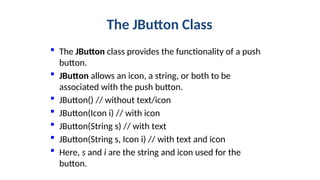
The JButton Class
The JButton class provides the functionality of a push
button.
JButton allows an icon, a string, or both to be
associated with the push button.
JButton() // without text/icon
JButton(Icon i) // with icon
JButton(String s) // with text
JButton(String s, Icon i) // with text and icon
Here, s and i are the string and icon used for the
button.
17.
JButton
• The textassociated with a button can be read and written via
the following methods:
• String getText( )
• void setText(String s)
• Here, s is the text to be associated with the button.
JCheckBox
• If userneed some way to select multiple options from many
options
then checkbox is useful
• JCheckBox class has some advantages over awt checkbox class
• Able to display images
21.
JCheckBox
• The JCheckBoxclass, which provides the functionality of a
check box,
• JCheckBox(Icon i)
• JCheckBox(Icon i, boolean state)
• JCheckBox(String s)
• JCheckBox(String s, boolean state)
• JCheckBox(String s, Icon i)
• JCheckBox(String s, Icon i, boolean state)
• If state is true,
• the check box is initially selected.
• Otherwise, it is not.
22.
• import java.awt.*;importjavax.swing.*;
• class checkbox1 extends JFrame
• { JCheckBox check1, check2, check3, check4;
• JTextField text;
• public checkbox1()
• { Container contentPane = getContentPane();
• contentPane.setLayout(new FlowLayout());
• check1 = new JCheckBox("check 1",new ImageIcon("HELP.gif"));
• check2 = new JCheckBox("Check 2",true);
• check3 = new JCheckBox(new ImageIcon("palette_draw.gif"));
• check4 = new JCheckBox("Check 4");
• contentPane.add(check1);
• contentPane.add(check2);
• contentPane.add(check3);
• contentPane.add(check4);
• text = new JTextField(20);
• contentPane.add(text);
• } }
• public class checkboxdemo1
• {public static void main(String []a)
• checkbox1 cb1=new checkbox1();
• cb1.setSize(300,400);
• cb1.setVisible(true);
• }}
24.
• void setSelected(booleanstate)
• The state of the check box can be changed
• state is true if the check box should be checked.
• String getLabel() gets the label
• boolean isSelected()
• determine whether selected or deselected
• When a check box is selected or deselected, an item event
is generated.
• This is handled by itemStateChanged( ).
• the getItem( ) method gets the JCheckBox object that
generated the event.
• The getText( ) method gets the text for that check box and
uses it to set the text inside the text field.
25.
• import javax.swing.*;import java.awt.event.*; import java.awt.*;
• class myframe extends JFrame implements ItemListener {
• JTextField jtf; JCheckBox cb1,cb2,cb3;
• public myframe() {
• // Get content pane
• Container c = getContentPane();
• c.setLayout(new FlowLayout());
• // Create icons
• ImageIcon normal = new ImageIcon("normal.gif");
• // Add check boxes to the content pane
• cb1= new JCheckBox("C", normal);
• cb1.addItemListener(this);
• c.add(cb1);
• cb2= new JCheckBox("C++");
• cb2.addItemListener(this);
• c.add(cb2);
• cb3= new JCheckBox("Java");
• cb3.addItemListener(this);
• c.add(cb3);
• // Add text field to the content pane
• jtf = new JTextField(15);
• c.add(jtf); }
26.
• public voiditemStateChanged(ItemEvent ie)
• {
• if(ie.getItem()==cb1)
• jtf.setText(cb1.getText());
• if(ie.getItem()==cb2)
• jtf.setText(cb2.getText());
• if(ie.getItem()==cb3)
• jtf.setText(cb3.getText());
• }
• }
• public class checkboxdemo1
• {
• public static void main(String[] args) {
• myframe frame = new myframe();
• frame.setSize(400,400);
• frame.setVisible(true);
• }
• }
28.
JRadioButton
• If userneed some way to select only one options from many
options
• Then JRadioButton is used
class has some advantages over awt checkbox class
• Able to display images
29.
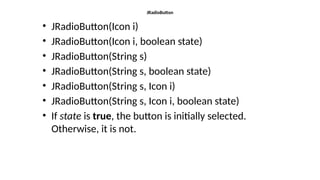
JRadioButton
• JRadioButton(Icon i)
•JRadioButton(Icon i, boolean state)
• JRadioButton(String s)
• JRadioButton(String s, boolean state)
• JRadioButton(String s, Icon i)
• JRadioButton(String s, Icon i, boolean state)
• If state is true, the button is initially selected.
Otherwise, it is not.
30.
• Container c=getContentPane();
•JRadioButton rb1 = new JRadioButton("C");
• JRadioButton rb2 = new JRadioButton(“java”);
• c.add(rb1);
• c.add(rb2);
• Radio buttons must be configured into a group.
• Only one of the buttons in that group can be selected at any
time.
• ButtonGroup bg = new ButtonGroup();
• bg.add(rb1);
• bg.add(rb2);
31.
JRadioButton
• JRadioButton rb1= new JRadioButton("A");
• c.add(rb1);
• JRadioButton rb2 = new JRadioButton("B");
• c.add(rb2);
• JRadioButton rb3 = new JRadioButton("C");
• c.add(rb3);
• ButtonGroup bg = new ButtonGroup();
• bg.add(rb1);
• bg.add(rb2);
• bg.add(rb3);
JComboBox
• combo box
•(a combination of a text field and a drop-down list)
– Editable - setEditable(boolean)
• A combo box normally displays one entry.
• JComboBox( )
• JComboBox(Vector v)
• void addItem(Object obj)
• adds Items to the combo box
48
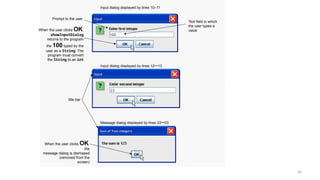
Simple GUI-Based Input/Outputwith JOptionPane
• Dialog boxes
– Used by applications to interact with the user
– Provided by Java’s JOptionPane class
• Contains input dialogs and message dialogs
49.
1 // Fig.11.2: Addition.java
2 // Addition program that uses JOptionPane for input and output.
3 import javax.swing.JOptionPane; // program uses JOptionPane
4
5 public class Addition
6 {
7 public static void main( String args[] )
8 {
9 // obtain user input from JOptionPane input dialogs
10 String firstNumber =
11 JOptionPane.showInputDialog( "Enter first integer" );
12 String secondNumber =
13 JOptionPane.showInputDialog( "Enter second integer" );
14
15 // convert String inputs to int values for use in a calculation
16 int number1 = Integer.parseInt( firstNumber );
17 int number2 = Integer.parseInt( secondNumber );
18
19 int sum = number1 + number2; // add numbers
20
21 // display result in a JOptionPane message dialog
22 JOptionPane.showMessageDialog( null, "The sum is " + sum,
23 "Sum of Two Integers", JOptionPane.PLAIN_MESSAGE );
24 } // end method main
25 } // end class Addition
Show input dialog to receive first
integer
Show input dialog to receive
second integer
Show message dialog to output
sum to user
50.
50
Input dialog displayedby lines 10–11
Input dialog displayed by lines 12–13
Message dialog displayed by lines 22–23
Text field in which
the user types a
value
Prompt to the user
When the user clicks OK,
showInputDialog
returns to the program
the 100 typed by the
user as a String. The
program must convert
the String to an int
title bar
When the user clicks OK,
the
message dialog is dismissed
(removed from the
screen)
51.
51
| JOptionPane staticconstants for message dialogs.
Message dialog type Icon Description
ERROR_MESSAGE A dialog that indicates an error to the user.
INFORMATION_MESSAGE A dialog with an informational message to the
user.
WARNING_MESSAGE A dialog warning the user of a potential
problem.
QUESTION_MESSAGE A dialog that poses a question to the user. This
dialog normally requires a response, such as
clicking a Yes or a No button.
PLAIN_MESSAGE no icon A dialog that contains a message, but no icon.
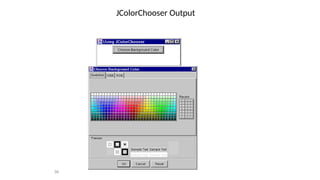
JColorChooser
• To Opena Color Palate
– Call JColorChooser.showDialog
• First argument: parent component
• Second argument: title string
• Third argument: initially-selected Color
• Return value
– Selected Color if "OK" chosen
– null if "Cancel" chosen
54
55.
JColorChooser Example
• Buttonthat lets you change color of window
public void actionPerformed(ActionEvent e) {
Color bgColor
= JColorChooser.showDialog
(this,"Choose Background Color",
getBackground());
if (bgColor != null)
setBackground(bgColor);
}
55
JTable
• Is auser-interface component that presents
data in a two-dimensional table format.
• Displays a grid of data consisting of rows and
columns similar to a spreadsheet.
57
58.
Features of JTable
•Reassessable and reorderable columns.
• Cells that can be displayed using any
components through the use of the Renderer
interface. For example, cells can be equipped
with Checkbox controls, choice controls, and
so on.
• Cells that can be edited using an editor
interface.
• Support for large data sets.
58
59.
JTable Example
Columns ofa Table
String[ ] columnNames = {"First Name", "Last Name", "Sport", "# of
Years", "Vegetarian"};
Data to be displayed on the Table
Object[][] data = { {"Mary", "Campione", "Snowboarding", new
Integer(5), new Boolean(false)}, {"Alison", "Huml", "Rowing",
new Integer(3), new Boolean(true)}, {"Kathy", "Walrath",
"Knitting", new Integer(2), new Boolean(false)}, {"Sharon",
"Zakhour", "Speed reading", new Integer(20), new
Boolean(true)}, {"Philip", "Milne", "Pool", new Integer(10), new
Boolean(false)} };
Constructing the Table
JTable table = new JTable(data, columnNames);
59
JTableModel
• Every tableobject uses a table model object to manage the
actual table data. A table model object must implement the
TableModel interface.
• If the programmer does not provide a table model object,
JTable automatically creates an instance of DefaultTableModel
61
62.
Test Your Understanding
1The Java Swing provides the multiple platform independent APIs
interfaces for interacting between the users and GUIs
components
a. true
b. false
• 2. All swing component classes are placed in
a. java.awt
b. javax.awt
c. javax.swing
d. java.swing
62
63.
Test Your Understanding(Contd.)
3 In MVC pattern the controller contols
a. the visual screen representation of a component
b. the objects state
c. a component in such a way that it responds to the user
input
d. the life cycle of an object
4. A vital part of Swing's pluggable L&F mechanism is a user-
interface (UI) object called a______________
a. model
b. object
c. class
d. delegate
63
64.
Test Your Understanding(Contd.)
5. The root class of the swing components is
a. JFrame class
b. JPanel class
c. JComponent class
d. JWindow class
6.Cross platform look and feel is also known as:
a. Metal
b.System look and feel
c.Windows look and feel
d. Motif look and feel
64
65.
Test Your Understanding(Contd.)
7. .Which component in swing represents data in rows and
columns?
a. JTextArea
b. JTable
c. JPanel
c. JtabbedPane
8. Every table object uses a table model object to manage the
actual table data
a. true
b. false
65
66.
Test Your Understanding(Contd.)
9. Consider the following code and select the correct option
String col[]={"FirstName","LastName","marks"};-----line1
Object [][]data={{"Mary","Adams",new Integer(90)},
{"Allen","Jones",new Integer(57)}};-----line 2
JTable table=new JTable(col,data); -----line 3
a. Compilation error at line 1
b. Compilation error at line 2
c. Compilation error at line 3
d. None of the above
66
67.
Test Your Understanding(Contd.)
10. If the programmer does not provide a table model object,
JTable automatically creates an instance of
a. DefaultTableModel
b. JTable
c. JDefaultTableModel
c. JTableModel
67
Editor's Notes
#55 Assuming that a frame consist of a button, which when clicked will allow a user to choose a color and will be applied to the background of the frame
#57 The JTable class is NOT a spreadsheet, but it supports many features that make it superior to a simple spreadsheet component.
#58 With the help of JDBC, the database-interface mechanism that is designed to be used with JFC, tables implemented using JTable are automatically database-connectable; that is, they can access and manipulate data stored in relational databases.
#59 A Table has to be added to a ScrollPane container or else the table columns will not be visible.
The Scroll pane is then added to the Frame or Applet
There are two JTable constructors that directly accept data (SimpleTableDemo uses the first):
JTable(Object[][] rowData, Object[] columnNames)
JTable(Vector rowData, Vector columnNames)
#61 One can make a Custom TableModel by extending the AbstractTableModel and overriding the methods as required by the Application.
Then a JTable can be created by passing the Custom TableModel as a parameter while constructing the JTable
Eg
Class MyTableModel extends AbstractTableModel
{private String[] column names;
private Object[][] data;
Override methods;
}
JTable jt=new JTable(new MyTable());




![JFrame example
• A program that sets several properties of the JFrame:
import java.awt.*;
import javax.swing.*;
public class SimpleFrame2 {
public static void main(String[] args) {
JFrame frame = new JFrame();
frame.setForeground(Color.WHITE);
frame.setDefaultCloseOperation(JFrame.EXIT_ON_CLOSE);
frame.setLocation(new Point(10, 50));
frame.setSize(new Dimension(300, 120));
frame.setTitle("A frame");
frame.setVisible(true);
}
}
• Graphical output:
11](https://image.slidesharecdn.com/swingcompo-250317182851-608c5875/85/swing_compo-pptxsfdsfffdfdfdfdgwrwrwwtry-11-320.jpg)



![• import javax.swing.*;
• public class ButtonExample{
• ButtonExample(){
• JFrame f=new JFrame("Button Example");
• JButton b=new JButton(new ImageIcon("D:icon.png"));
• b.setBounds(100,100,100, 40);
• f.add(b);
• f.setSize(300,400);
• f.setLayout(null);
• f.setVisible(true);
• f.setDefaultCloseOperation(JFrame.EXIT_ON_CLOSE);
• }
• public static void main(String[] args) {
• new ButtonExample();
• }
• }](https://image.slidesharecdn.com/swingcompo-250317182851-608c5875/85/swing_compo-pptxsfdsfffdfdfdfdgwrwrwwtry-18-320.jpg)
![JLabel
• import javax.swing.*;
• class LabelExample
• {
• public static void main(String args[])
• {
• JFrame f= new JFrame("Label Example");
• JLabel l1,l2;
• l1=new JLabel("First Label.");
• l1.setBounds(50,50, 100,30);
• l2=new JLabel("Second Label.");
• l2.setBounds(50,100, 100,30);
• f.add(l1); f.add(l2);
• f.setSize(300,300);
• f.setLayout(null);
• f.setVisible(true);
• }
• }](https://image.slidesharecdn.com/swingcompo-250317182851-608c5875/85/swing_compo-pptxsfdsfffdfdfdfdgwrwrwwtry-19-320.jpg)


![• import java.awt.*;import javax.swing.*;
• class checkbox1 extends JFrame
• { JCheckBox check1, check2, check3, check4;
• JTextField text;
• public checkbox1()
• { Container contentPane = getContentPane();
• contentPane.setLayout(new FlowLayout());
• check1 = new JCheckBox("check 1",new ImageIcon("HELP.gif"));
• check2 = new JCheckBox("Check 2",true);
• check3 = new JCheckBox(new ImageIcon("palette_draw.gif"));
• check4 = new JCheckBox("Check 4");
• contentPane.add(check1);
• contentPane.add(check2);
• contentPane.add(check3);
• contentPane.add(check4);
• text = new JTextField(20);
• contentPane.add(text);
• } }
• public class checkboxdemo1
• {public static void main(String []a)
• checkbox1 cb1=new checkbox1();
• cb1.setSize(300,400);
• cb1.setVisible(true);
• }}](https://image.slidesharecdn.com/swingcompo-250317182851-608c5875/85/swing_compo-pptxsfdsfffdfdfdfdgwrwrwwtry-22-320.jpg)


![• public void itemStateChanged(ItemEvent ie)
• {
• if(ie.getItem()==cb1)
• jtf.setText(cb1.getText());
• if(ie.getItem()==cb2)
• jtf.setText(cb2.getText());
• if(ie.getItem()==cb3)
• jtf.setText(cb3.getText());
• }
• }
• public class checkboxdemo1
• {
• public static void main(String[] args) {
• myframe frame = new myframe();
• frame.setSize(400,400);
• frame.setVisible(true);
• }
• }](https://image.slidesharecdn.com/swingcompo-250317182851-608c5875/85/swing_compo-pptxsfdsfffdfdfdfdgwrwrwwtry-26-320.jpg)




![• c=getContentPane();
• c.setLayout(new FlowLayout());
• c.add(b1);
• c.add(b2);
• c.add(b3);
• c.add(b4);
• c.add(l1=new JLabel(""));
• }
• }
• public class radiobutton1
• {public static void main(String []a)
• {
• radiobutton r=new radiobutton();
• r.setSize(300,400);
• r.setVisible(true);
• }}](https://image.slidesharecdn.com/swingcompo-250317182851-608c5875/85/swing_compo-pptxsfdsfffdfdfdfdgwrwrwwtry-33-320.jpg)


![• c.add(b1);
• c.add(b2);
• c.add(text = new JTextField(20));
• }
• public void actionPerformed(ActionEvent ae)
• {
• if(ae.getSource()==b1)
• text.setText(b1.getText());
• else
• text.setText(b2.getText());
• }
• }
• public class radiobutton2
• {
• public static void main(String []a)
• { radiobutton r=new radiobutton();
• r.setSize(300,400);
• r.setVisible(true);
• }}](https://image.slidesharecdn.com/swingcompo-250317182851-608c5875/85/swing_compo-pptxsfdsfffdfdfdfdgwrwrwwtry-36-320.jpg)


![or
• String []s={"France", "Germany", "Italy","Japan"};
• JComboBox jc = new JComboBox(s);](https://image.slidesharecdn.com/swingcompo-250317182851-608c5875/85/swing_compo-pptxsfdsfffdfdfdfdgwrwrwwtry-40-320.jpg)

![• public void itemStateChanged(ItemEvent ie)
• {
• jtf.setText((String)ie.getItem());
• }
• }
• public class comboboxdemo1
• {
• public static void main(String[] args) {
• myframe frame = new myframe();
• frame.setSize(400,400);
• frame.setVisible(true);
• }
• }](https://image.slidesharecdn.com/swingcompo-250317182851-608c5875/85/swing_compo-pptxsfdsfffdfdfdfdgwrwrwwtry-42-320.jpg)


![• bg.add(rb1);
• bg.add(rb2);
• String []s={"France", "Germany", "Italy","Japan"};
• JComboBox jc = new JComboBox(s);
• t4=new JTextField(12);
• t5=new JTextField(12);
• //t1.setHorizontalAlignment(JTextField.RIGHT);
• //add action listenter
• b1=new JButton("SUBMIT");
• // JTextField(String s,int length)
• //set layout
• c.setLayout(new FlowLayout(FlowLayout.LEFT));
• c.add(new JLabel("RESUME"));
• c.add(new JLabel(""));
• c.add(l1);
• c.add(t1);
• c.add(l2);
• c.add(t2);](https://image.slidesharecdn.com/swingcompo-250317182851-608c5875/85/swing_compo-pptxsfdsfffdfdfdfdgwrwrwwtry-45-320.jpg)
![• c.add(l3);
• c.add(rb1);
• c.add(rb2);
• c.add(l4);
• c.add(jc);
• c.add(l5);
• c.add(t5);
• c.add(b1);
• }
• public void actionPerformed(ActionEvent ae)
• {}
• }
• public class allcompnts2
• {
• public static void main(String []a)
• {
• myframe1 f=new myframe1();
• f.setSize(300,300);
• f.setVisible(true);
• }}](https://image.slidesharecdn.com/swingcompo-250317182851-608c5875/85/swing_compo-pptxsfdsfffdfdfdfdgwrwrwwtry-46-320.jpg)


![1 // Fig. 11.2: Addition.java
2 // Addition program that uses JOptionPane for input and output.
3 import javax.swing.JOptionPane; // program uses JOptionPane
4
5 public class Addition
6 {
7 public static void main( String args[] )
8 {
9 // obtain user input from JOptionPane input dialogs
10 String firstNumber =
11 JOptionPane.showInputDialog( "Enter first integer" );
12 String secondNumber =
13 JOptionPane.showInputDialog( "Enter second integer" );
14
15 // convert String inputs to int values for use in a calculation
16 int number1 = Integer.parseInt( firstNumber );
17 int number2 = Integer.parseInt( secondNumber );
18
19 int sum = number1 + number2; // add numbers
20
21 // display result in a JOptionPane message dialog
22 JOptionPane.showMessageDialog( null, "The sum is " + sum,
23 "Sum of Two Integers", JOptionPane.PLAIN_MESSAGE );
24 } // end method main
25 } // end class Addition
Show input dialog to receive first
integer
Show input dialog to receive
second integer
Show message dialog to output
sum to user](https://image.slidesharecdn.com/swingcompo-250317182851-608c5875/85/swing_compo-pptxsfdsfffdfdfdfdgwrwrwwtry-49-320.jpg)

![• import java.awt.*;
• class SampleFrame extends Frame {
• SampleFrame(String title) {
• super(title);
• }
• }
• // Create frame window.
• class FD {
• public static void main(String args[]) {
• Frame f = new SampleFrame("File Dialog Demo");
• f.setVisible(true);
• f.setSize(100, 100);
• FileDialog fd = new FileDialog(f, "File Dialog");
• fd.setVisible(true);
• }
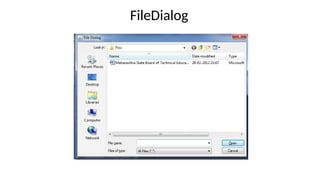
• }](https://image.slidesharecdn.com/swingcompo-250317182851-608c5875/85/swing_compo-pptxsfdsfffdfdfdfdgwrwrwwtry-52-320.jpg)



![JTable Example
Columns of a Table
String[ ] columnNames = {"First Name", "Last Name", "Sport", "# of
Years", "Vegetarian"};
Data to be displayed on the Table
Object[][] data = { {"Mary", "Campione", "Snowboarding", new
Integer(5), new Boolean(false)}, {"Alison", "Huml", "Rowing",
new Integer(3), new Boolean(true)}, {"Kathy", "Walrath",
"Knitting", new Integer(2), new Boolean(false)}, {"Sharon",
"Zakhour", "Speed reading", new Integer(20), new
Boolean(true)}, {"Philip", "Milne", "Pool", new Integer(10), new
Boolean(false)} };
Constructing the Table
JTable table = new JTable(data, columnNames);
59](https://image.slidesharecdn.com/swingcompo-250317182851-608c5875/85/swing_compo-pptxsfdsfffdfdfdfdgwrwrwwtry-59-320.jpg)


![Test Your Understanding (Contd.)
9. Consider the following code and select the correct option
String col[]={"FirstName","LastName","marks"};-----line1
Object [][]data={{"Mary","Adams",new Integer(90)},
{"Allen","Jones",new Integer(57)}};-----line 2
JTable table=new JTable(col,data); -----line 3
a. Compilation error at line 1
b. Compilation error at line 2
c. Compilation error at line 3
d. None of the above
66](https://image.slidesharecdn.com/swingcompo-250317182851-608c5875/85/swing_compo-pptxsfdsfffdfdfdfdgwrwrwwtry-66-320.jpg)


