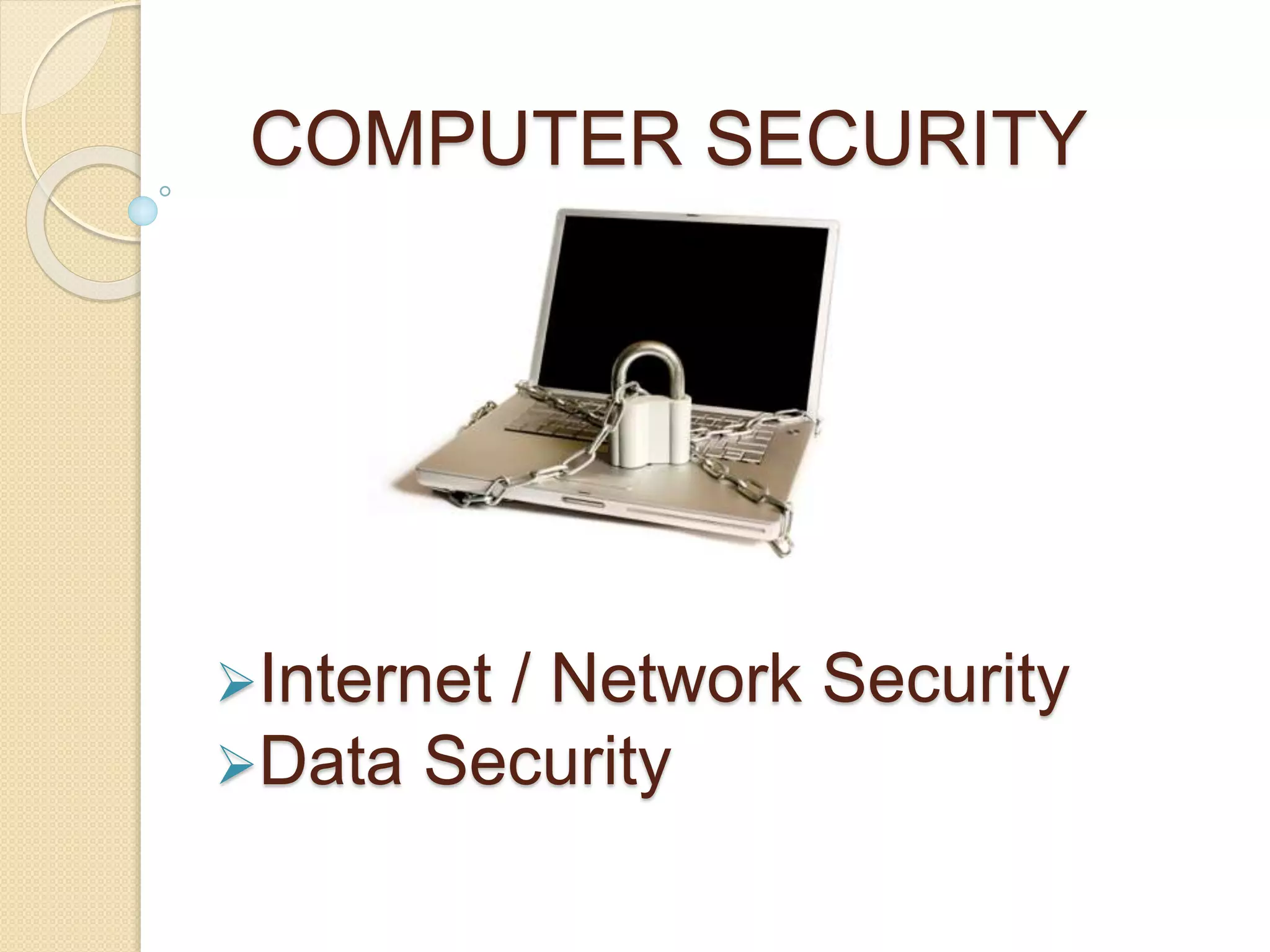
COMPUTER SECURITY
Internet / Network Security
Data Security
Today's Discussions
 Overview of Computer and Internet
Security
 What is Computer and Internet Security
 Who Should be Concerned
 Why Should I Care
 General Computer Security Tips
 Securing Mobile Devices and Social
Networks
 Mobile Devices – Risks
 How are Location Sharing Technologies
used
 Risks of Location Sharing Technologies
What is Computer and Internet
Security
 Protecting computers, information, and
services from unauthorized access,
change or destruction.
 Internet security extends this concept to
systems that are connected to the
Internet
 Browsing the Internet
 Electronic Commerce
 Social Networking
 Emailing
Who Should be concerned
 Anyone who uses
 Computers
 Mobile Devices
 The Internet
 Email
 Social Networks
Why Should I Care?
 Infections from viruses, spyware, or malware
 Virus - Program designed to infect your computer, replicates itself ,
and usually causes lost or corrupt data
 Spyware is a type of malicious code that tracks your habits on the
internet without you knowing it; usually collects personal information
 Phishing, Hoaxes, Malware, Scams and Spam
 The most prevalent and persistent threats to your security come to
you in your Inbox. They come by different names and may even
appear legitimate and even supposedly from people you may know.
 They all have this in common: they are designed to get you to click
on an item like an attachment, link or picture.
 Broken device
 Devices that do not work when needed or as expected.
 Privacy and personal security concerns
 Preventing private, personal, or sensitive information from being
disclosed
Basic Approaches to Security
 Use anti-virus and anti-spyware
Software
 Detects and removes viruses and
spyware
 from your computer
 Must be kept up to date
 Install security patches
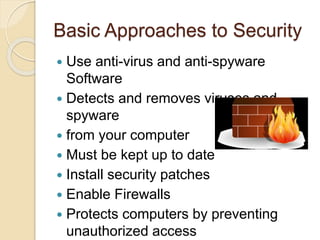
 Enable Firewalls
 Protects computers by preventing
unauthorized access
Basic Approaches to Security
 Use strong passwords to protect
computers
 Be cautious about downloading free
software or files from untrusted sites
 Most prevalent threats to your security
come to you in your Inbox; are all
designed to get you to click on an item
like an attachment, link or picture.
 If you click, you could launch harmful
programs or be directed to a harmful
web site.
Basic Approaches to Security
 Think before you click on links
 Most threats are targeted in hopes that you will click on
a
 harmful link, attachment, picture, video or icon in an
email or web page
 Stop: Do not automatically click on Internet links until
you have confidence in them.
 Think: Look at the actual address for the links in
question
 For instance if the link indicates “Click Here” be sure to
hover your mouse pointer over the link and investigate
before you proceed.
 Click: Only after you are confident that the site is safe.
Security for Mobile Devices and
Social Networks
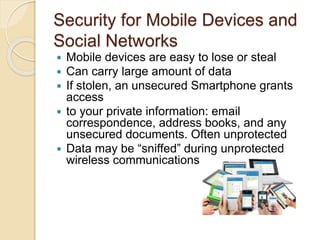
 Mobile devices are easy to lose or steal
 Can carry large amount of data
 If stolen, an unsecured Smartphone grants
access
 to your private information: email
correspondence, address books, and any
unsecured documents. Often unprotected
 Data may be “sniffed” during unprotected
wireless communications
Mobile Devices - Risks
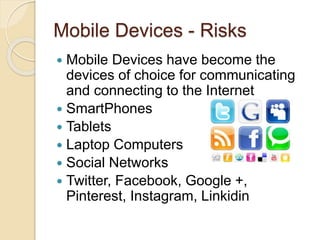
 Mobile Devices have become the
devices of choice for communicating
and connecting to the Internet
 SmartPhones
 Tablets
 Laptop Computers
 Social Networks
 Twitter, Facebook, Google +,
Pinterest, Instagram, Linkidin
Mobile Devices - Risks
 Location Sharing
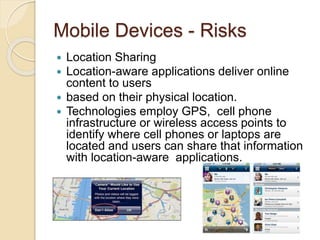
 Location-aware applications deliver online
content to users
 based on their physical location.
 Technologies employ GPS, cell phone
infrastructure or wireless access points to
identify where cell phones or laptops are
located and users can share that information
with location-aware applications.
Mobile Devices - How are
Location
Sharing Technologies used?
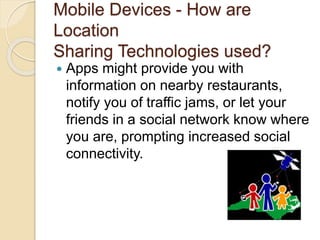
 Apps might provide you with
information on nearby restaurants,
notify you of traffic jams, or let your
friends in a social network know where
you are, prompting increased social
connectivity.
Risks of Location Sharing
Technologies
 Makes users “human homing
beacons”
 Increases the chances of being
stalked
 May reveal when you are home or
away
Security Guidelines for Location
Sharing Technologies
 Most apps offer privacy controls –
enable them
 Some privacy controls are not always
easy to access
 Defaults may be too open
 Know what applications you have and
research privacy controls
 Disable GPS capabilities and
geotagging features
Security Guidelines Mobile
Devices
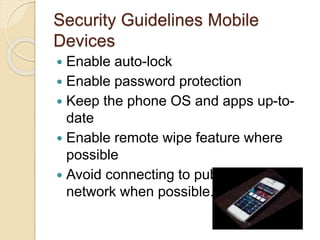
 Enable auto-lock
 Enable password protection
 Keep the phone OS and apps up-to-
date
 Enable remote wipe feature where
possible
 Avoid connecting to public wireless
network when possible.
Security Guidelines - Social
Networks
 Security Guidelines
 Before you post, ask the following:
 Will this post/picture cause a problem
for me?
 Would I say this in front of my mother?
 Limit the number of people that see it
 Share public information with the
public
 Share inner thoughts and personal
feelings with close friends
Security Guidelines - Social
Networks
 Limit your visibility on services
 Do not Friend or Connect with people
that you have not met in person or
know well
 Limit your check-in information to
friends only
 Never check in at your home, school,
work
 A mayorship is a public “office”
Security Guidelines - Social
Networks
 Avoid public lists for a location
 Review posts you are tagged in
 Turn off geo location data in photos
 Turn off “find my face” in photos and
videos
 Disable location data for tweets
 Delete old location data too

IT Security

  • 1.
    COMPUTER SECURITY Internet /Network Security Data Security
  • 2.
    Today's Discussions  Overviewof Computer and Internet Security  What is Computer and Internet Security  Who Should be Concerned  Why Should I Care  General Computer Security Tips  Securing Mobile Devices and Social Networks  Mobile Devices – Risks  How are Location Sharing Technologies used  Risks of Location Sharing Technologies
  • 3.
    What is Computerand Internet Security  Protecting computers, information, and services from unauthorized access, change or destruction.  Internet security extends this concept to systems that are connected to the Internet  Browsing the Internet  Electronic Commerce  Social Networking  Emailing
  • 4.
    Who Should beconcerned  Anyone who uses  Computers  Mobile Devices  The Internet  Email  Social Networks
  • 5.
    Why Should ICare?  Infections from viruses, spyware, or malware  Virus - Program designed to infect your computer, replicates itself , and usually causes lost or corrupt data  Spyware is a type of malicious code that tracks your habits on the internet without you knowing it; usually collects personal information  Phishing, Hoaxes, Malware, Scams and Spam  The most prevalent and persistent threats to your security come to you in your Inbox. They come by different names and may even appear legitimate and even supposedly from people you may know.  They all have this in common: they are designed to get you to click on an item like an attachment, link or picture.  Broken device  Devices that do not work when needed or as expected.  Privacy and personal security concerns  Preventing private, personal, or sensitive information from being disclosed
  • 6.
    Basic Approaches toSecurity  Use anti-virus and anti-spyware Software  Detects and removes viruses and spyware  from your computer  Must be kept up to date  Install security patches  Enable Firewalls  Protects computers by preventing unauthorized access
  • 7.
    Basic Approaches toSecurity  Use strong passwords to protect computers  Be cautious about downloading free software or files from untrusted sites  Most prevalent threats to your security come to you in your Inbox; are all designed to get you to click on an item like an attachment, link or picture.  If you click, you could launch harmful programs or be directed to a harmful web site.
  • 8.
    Basic Approaches toSecurity  Think before you click on links  Most threats are targeted in hopes that you will click on a  harmful link, attachment, picture, video or icon in an email or web page  Stop: Do not automatically click on Internet links until you have confidence in them.  Think: Look at the actual address for the links in question  For instance if the link indicates “Click Here” be sure to hover your mouse pointer over the link and investigate before you proceed.  Click: Only after you are confident that the site is safe.
  • 9.
    Security for MobileDevices and Social Networks  Mobile devices are easy to lose or steal  Can carry large amount of data  If stolen, an unsecured Smartphone grants access  to your private information: email correspondence, address books, and any unsecured documents. Often unprotected  Data may be “sniffed” during unprotected wireless communications
  • 10.
    Mobile Devices -Risks  Mobile Devices have become the devices of choice for communicating and connecting to the Internet  SmartPhones  Tablets  Laptop Computers  Social Networks  Twitter, Facebook, Google +, Pinterest, Instagram, Linkidin
  • 11.
    Mobile Devices -Risks  Location Sharing  Location-aware applications deliver online content to users  based on their physical location.  Technologies employ GPS, cell phone infrastructure or wireless access points to identify where cell phones or laptops are located and users can share that information with location-aware applications.
  • 12.
    Mobile Devices -How are Location Sharing Technologies used?  Apps might provide you with information on nearby restaurants, notify you of traffic jams, or let your friends in a social network know where you are, prompting increased social connectivity.
  • 13.
    Risks of LocationSharing Technologies  Makes users “human homing beacons”  Increases the chances of being stalked  May reveal when you are home or away
  • 14.
    Security Guidelines forLocation Sharing Technologies  Most apps offer privacy controls – enable them  Some privacy controls are not always easy to access  Defaults may be too open  Know what applications you have and research privacy controls  Disable GPS capabilities and geotagging features
  • 15.
    Security Guidelines Mobile Devices Enable auto-lock  Enable password protection  Keep the phone OS and apps up-to- date  Enable remote wipe feature where possible  Avoid connecting to public wireless network when possible.
  • 16.
    Security Guidelines -Social Networks  Security Guidelines  Before you post, ask the following:  Will this post/picture cause a problem for me?  Would I say this in front of my mother?  Limit the number of people that see it  Share public information with the public  Share inner thoughts and personal feelings with close friends
  • 17.
    Security Guidelines -Social Networks  Limit your visibility on services  Do not Friend or Connect with people that you have not met in person or know well  Limit your check-in information to friends only  Never check in at your home, school, work  A mayorship is a public “office”
  • 18.
    Security Guidelines -Social Networks  Avoid public lists for a location  Review posts you are tagged in  Turn off geo location data in photos  Turn off “find my face” in photos and videos  Disable location data for tweets  Delete old location data too