iSalesDoc The i2D Cloud Service overview


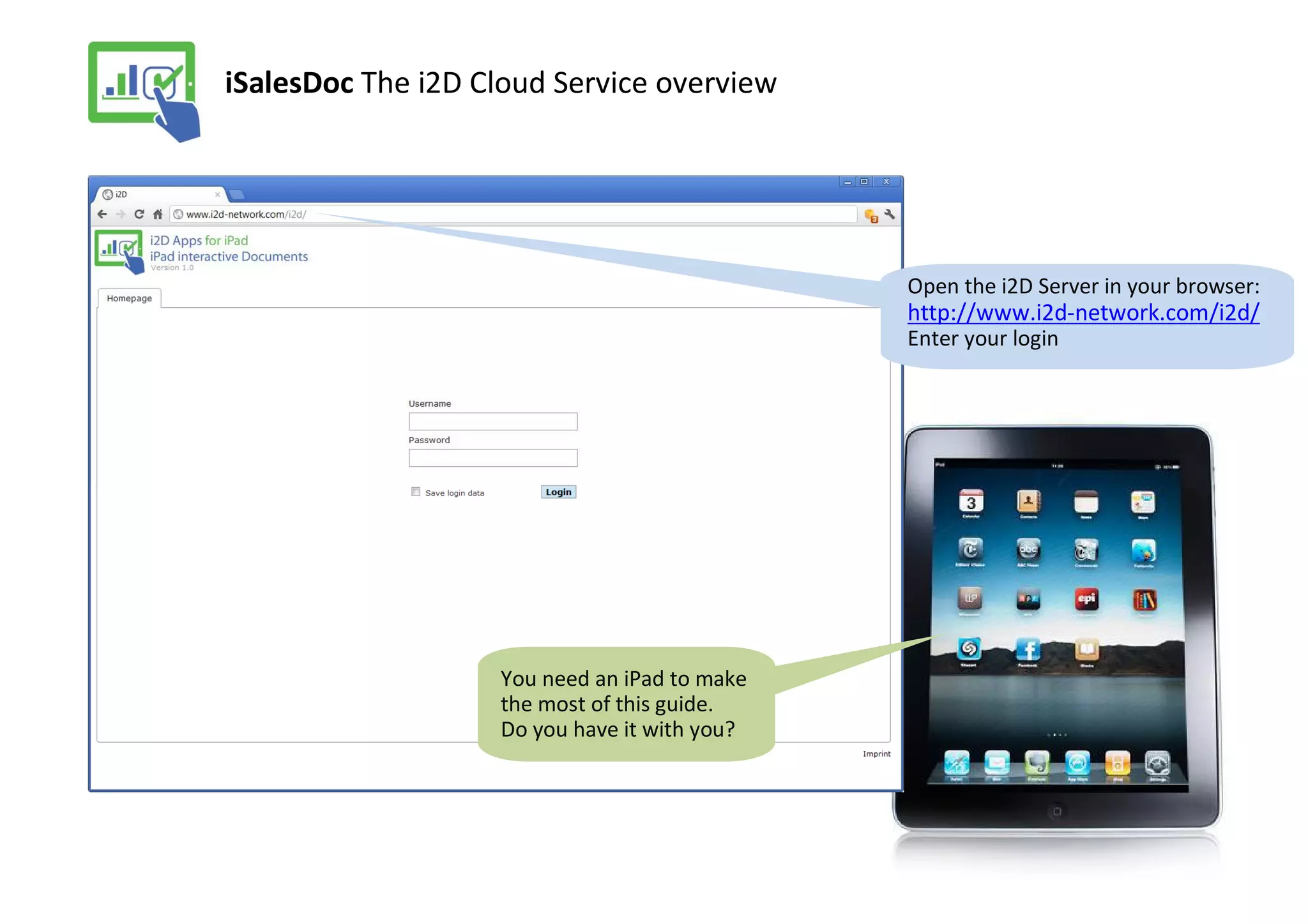
                                              Open the i2D Server in your browser:
                                              http://www.i2d-network.com/i2d/
                                              Enter your login


                   You need an iPad to make
                   the most of this guide.
                   Do you have it with you?
iSalesDoc Managing Apps and Accounts

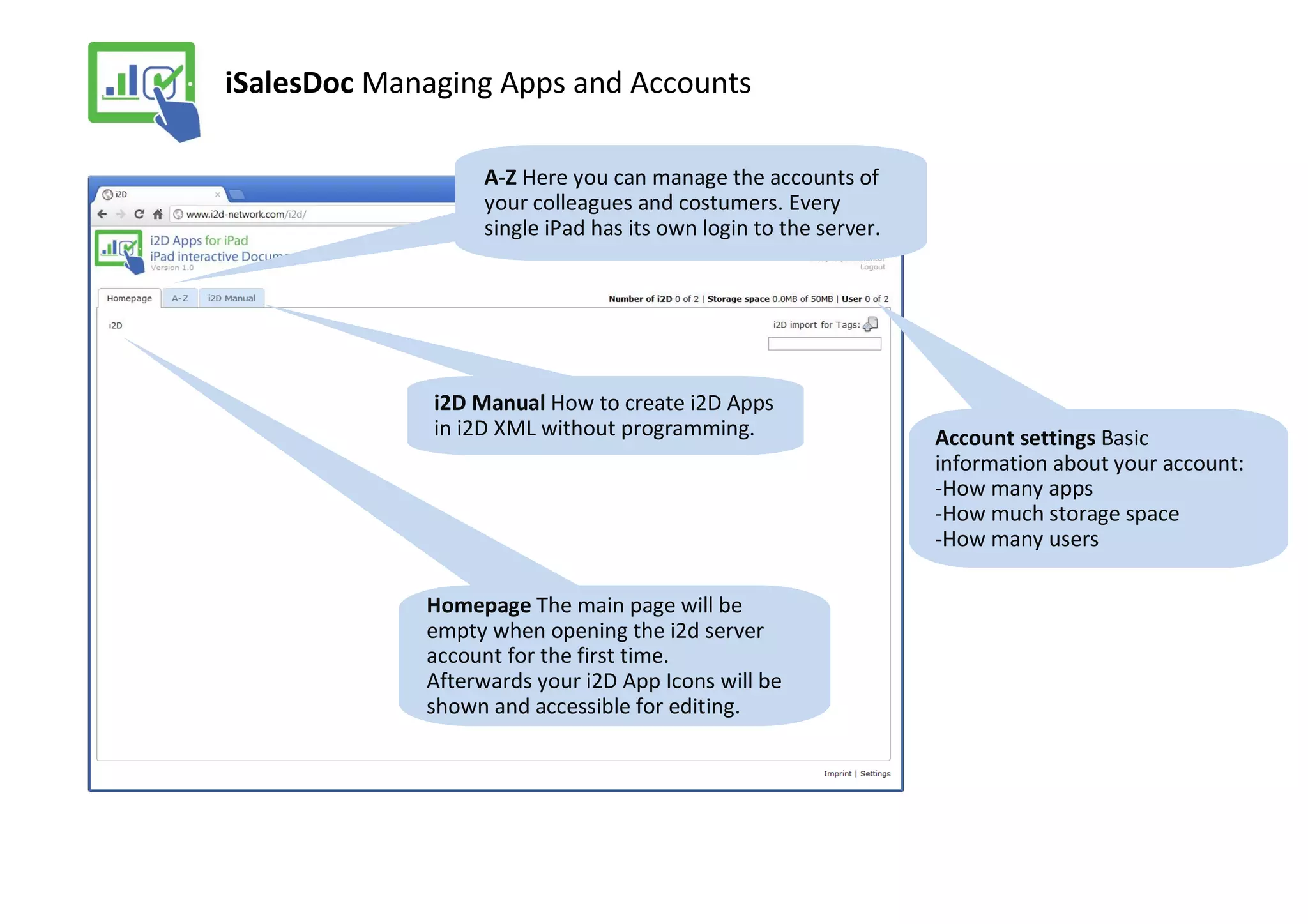
                   A-Z Here you can manage the accounts of
                   your colleagues and costumers. Every
                   single iPad has its own login to the server.


              i2D Manual How to create i2D Apps
              in i2D XML without programming.                     Account settings Basic
                                                                  information about your account:
                                                                  -How many apps
                                                                  -How much storage space
                                                                  -How many users

             Homepage The main page will be
             empty when opening the i2d server
             account for the first time.
             Afterwards your i2D App Icons will be
             shown and accessible for editing.
iSalesDoc Hello World! App

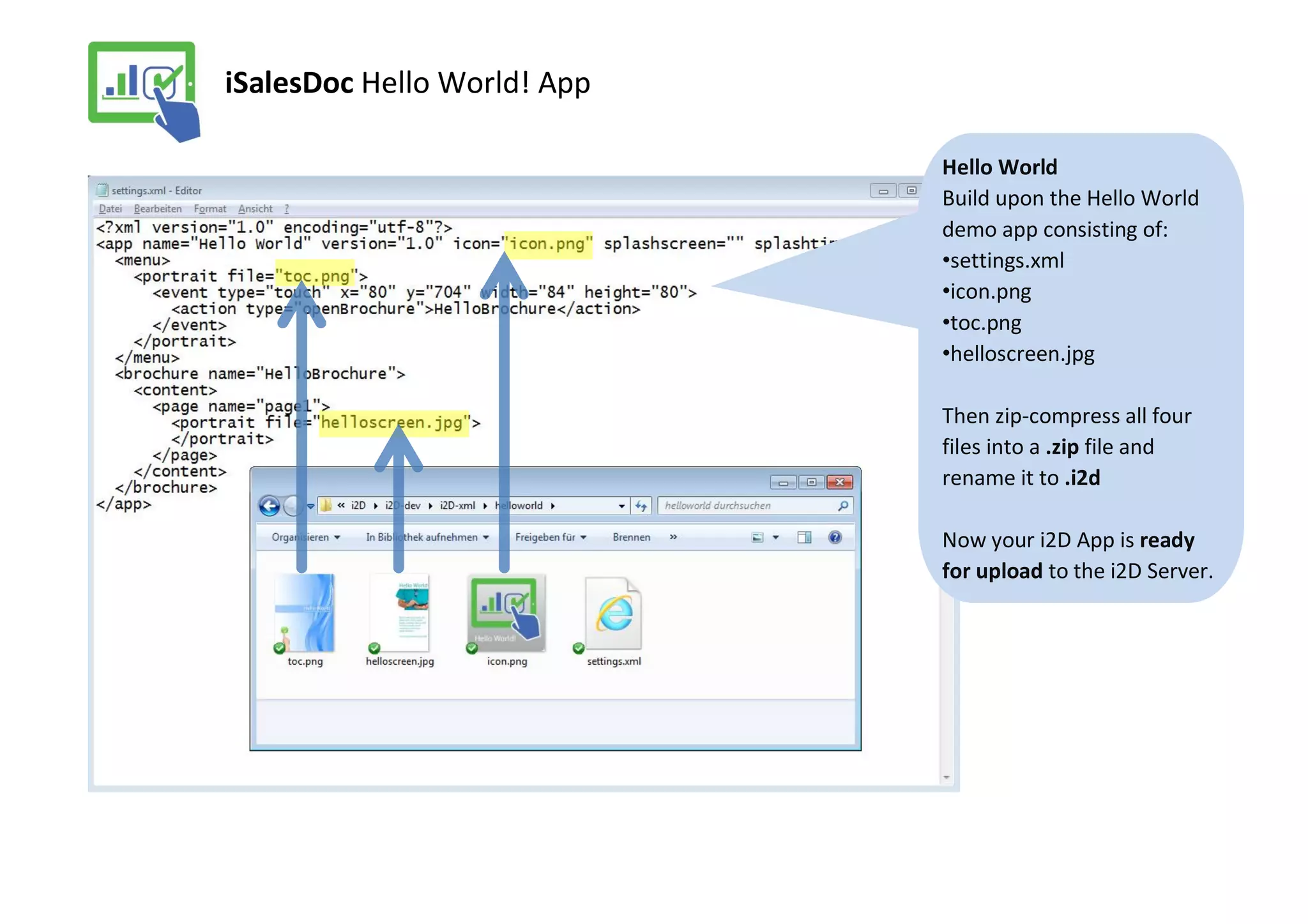
                             Hello World
                             Build upon the Hello World
                             demo app consisting of:
                             •settings.xml
                             •icon.png
                             •toc.png
                             •helloscreen.jpg

                             Then zip-compress all four
                             files into a .zip file and
                             rename it to .i2d

                             Now your i2D App is ready
                             for upload to the i2D Server.
iSalesDoc Tagging and uploading your Apps


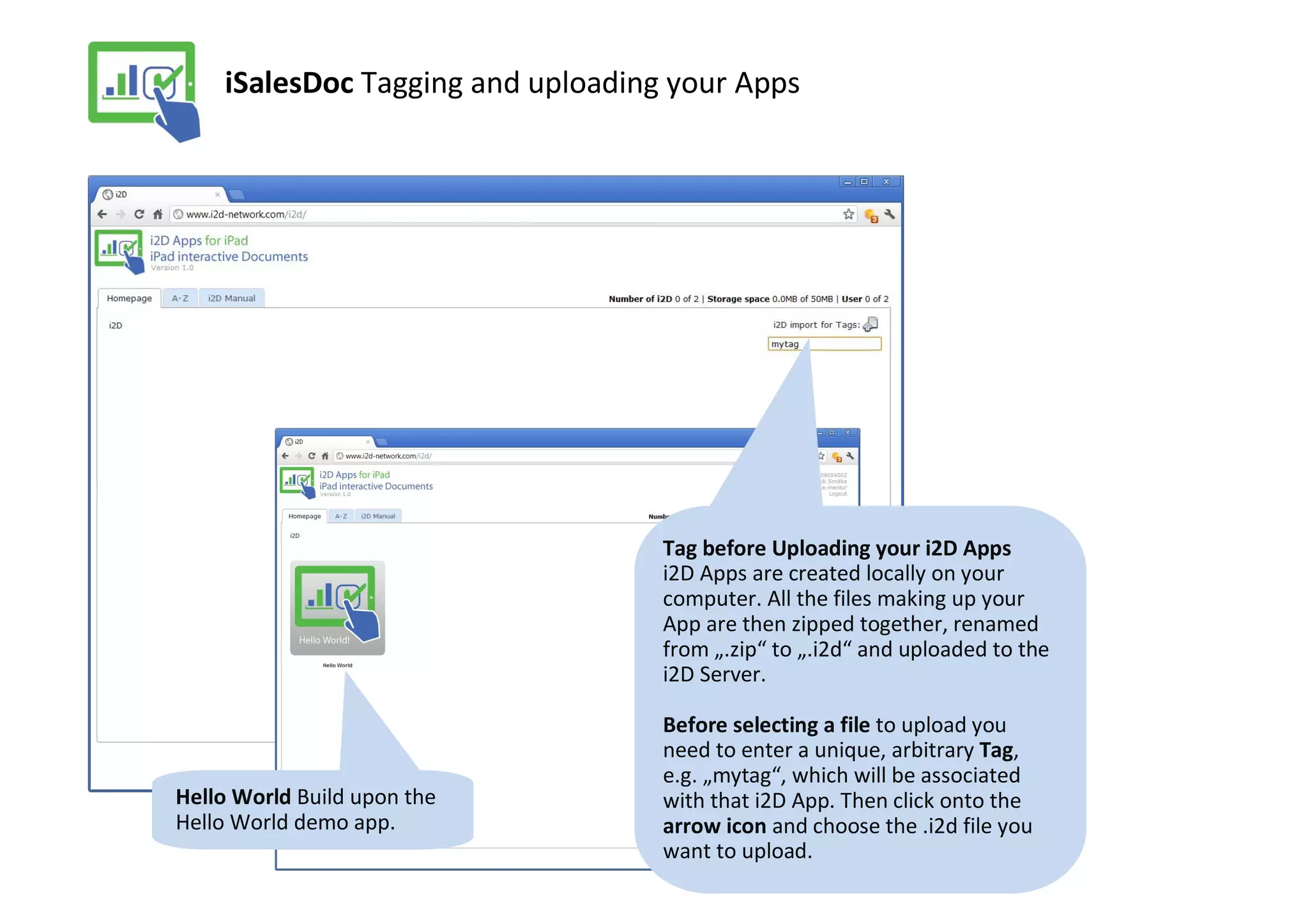
                                   Tag before Uploading your i2D Apps
                                   i2D Apps are created locally on your
                                   computer. All the files making up your
                                   App are then zipped together, renamed
                                   from „.zip“ to „.i2d“ and uploaded to the
                                   i2D Server.

                                   Before selecting a file to upload you
                                   need to enter a unique, arbitrary Tag,
                                   e.g. „mytag“, which will be associated
Hello World Build upon the         with that i2D App. Then click onto the
Hello World demo app.              arrow icon and choose the .i2d file you
                                   want to upload.
iSalesDoc Managing App metadata


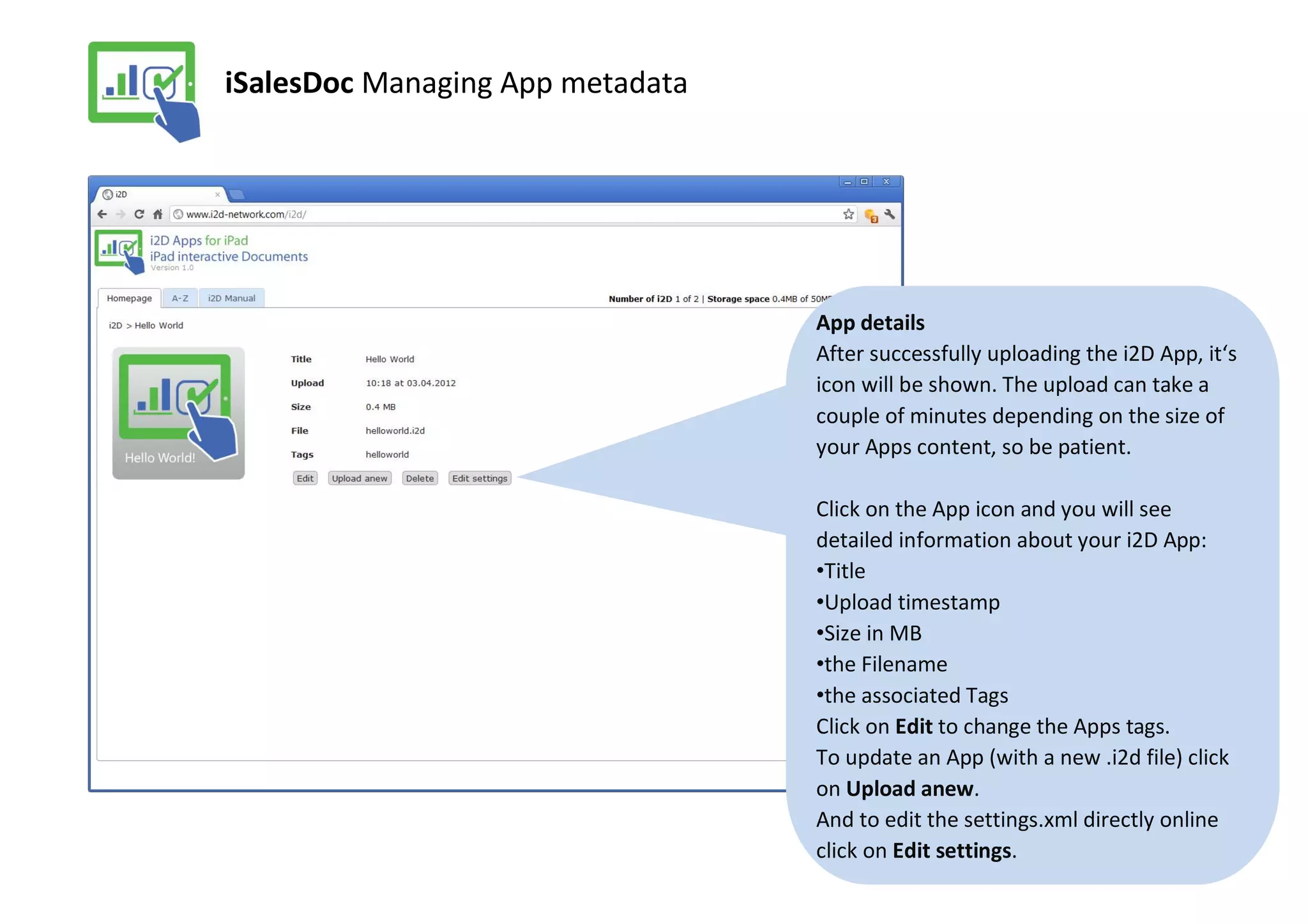
                                  App details
                                  After successfully uploading the i2D App, it‘s
                                  icon will be shown. The upload can take a
                                  couple of minutes depending on the size of
                                  your Apps content, so be patient.

                                  Click on the App icon and you will see
                                  detailed information about your i2D App:
                                  •Title
                                  •Upload timestamp
                                  •Size in MB
                                  •the Filename
                                  •the associated Tags
                                  Click on Edit to change the Apps tags.
                                  To update an App (with a new .i2d file) click
                                  on Upload anew.
                                  And to edit the settings.xml directly online
                                  click on Edit settings.
iSalesDoc Managing iPad user accounts


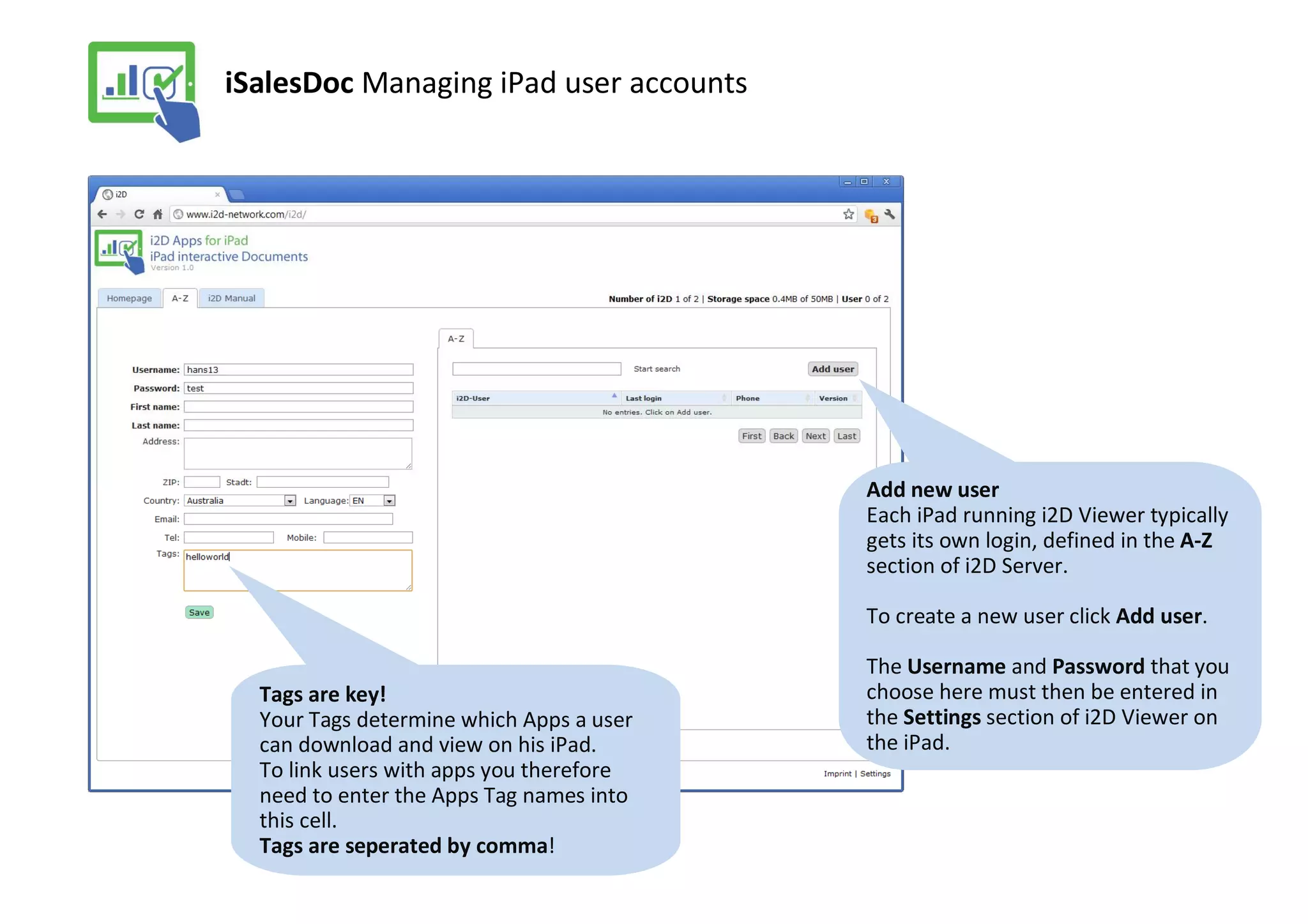
                                          Add new user
                                          Each iPad running i2D Viewer typically
                                          gets its own login, defined in the A-Z
                                          section of i2D Server.

                                          To create a new user click Add user.

                                          The Username and Password that you
  Tags are key!                           choose here must then be entered in
  Your Tags determine which Apps a user   the Settings section of i2D Viewer on
  can download and view on his iPad.      the iPad.
  To link users with apps you therefore
  need to enter the Apps Tag names into
  this cell.
  Tags are seperated by comma!
iSalesDoc Download i2D Viewer and edit settings


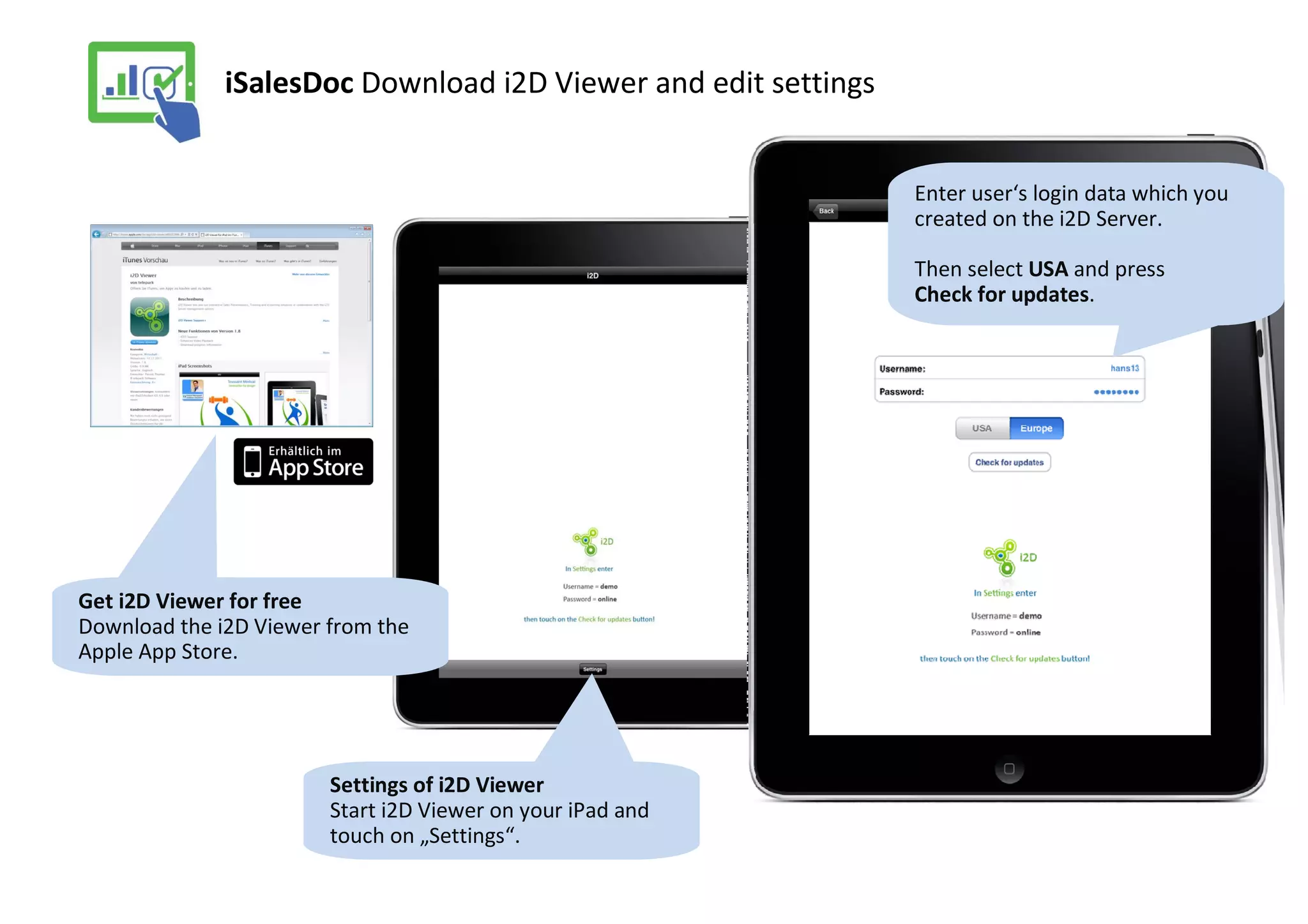
                                                                Enter user‘s login data which you
                                                                created on the i2D Server.

                                                                Then select USA and press
                                                                Check for updates.


Get i2D Viewer for free
Download the i2D Viewer from the
Apple App Store.


                        Settings of i2D Viewer
                        Start i2D Viewer on your iPad and
                        touch on „Settings“.
iSalesDoc Downloading your App to iPad
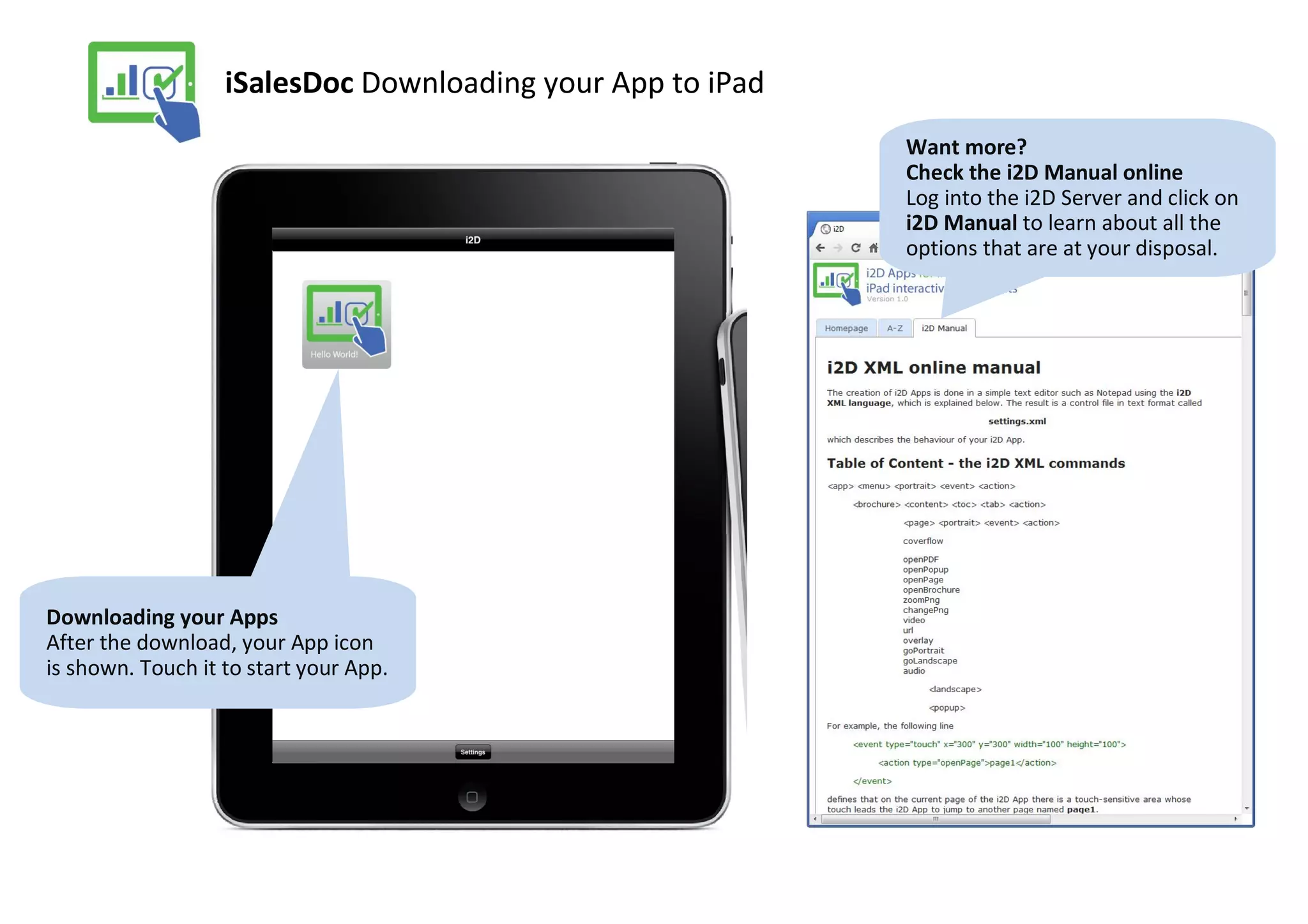
                                                            Want more?
                                                            Check the i2D Manual online
                                                            Log into the i2D Server and click on
                                                            i2D Manual to learn about all the
                                                            options that are at your disposal.


Downloading your Apps
After the download, your App icon
is shown. Touch it to start your App.

iSalesDoc Cloud Service

  • 1.
    iSalesDoc The i2DCloud Service overview Open the i2D Server in your browser: http://www.i2d-network.com/i2d/ Enter your login You need an iPad to make the most of this guide. Do you have it with you?
  • 2.
    iSalesDoc Managing Appsand Accounts A-Z Here you can manage the accounts of your colleagues and costumers. Every single iPad has its own login to the server. i2D Manual How to create i2D Apps in i2D XML without programming. Account settings Basic information about your account: -How many apps -How much storage space -How many users Homepage The main page will be empty when opening the i2d server account for the first time. Afterwards your i2D App Icons will be shown and accessible for editing.
  • 3.
    iSalesDoc Hello World!App Hello World Build upon the Hello World demo app consisting of: •settings.xml •icon.png •toc.png •helloscreen.jpg Then zip-compress all four files into a .zip file and rename it to .i2d Now your i2D App is ready for upload to the i2D Server.
  • 4.
    iSalesDoc Tagging anduploading your Apps Tag before Uploading your i2D Apps i2D Apps are created locally on your computer. All the files making up your App are then zipped together, renamed from „.zip“ to „.i2d“ and uploaded to the i2D Server. Before selecting a file to upload you need to enter a unique, arbitrary Tag, e.g. „mytag“, which will be associated Hello World Build upon the with that i2D App. Then click onto the Hello World demo app. arrow icon and choose the .i2d file you want to upload.
  • 5.
    iSalesDoc Managing Appmetadata App details After successfully uploading the i2D App, it‘s icon will be shown. The upload can take a couple of minutes depending on the size of your Apps content, so be patient. Click on the App icon and you will see detailed information about your i2D App: •Title •Upload timestamp •Size in MB •the Filename •the associated Tags Click on Edit to change the Apps tags. To update an App (with a new .i2d file) click on Upload anew. And to edit the settings.xml directly online click on Edit settings.
  • 6.
    iSalesDoc Managing iPaduser accounts Add new user Each iPad running i2D Viewer typically gets its own login, defined in the A-Z section of i2D Server. To create a new user click Add user. The Username and Password that you Tags are key! choose here must then be entered in Your Tags determine which Apps a user the Settings section of i2D Viewer on can download and view on his iPad. the iPad. To link users with apps you therefore need to enter the Apps Tag names into this cell. Tags are seperated by comma!
  • 7.
    iSalesDoc Download i2DViewer and edit settings Enter user‘s login data which you created on the i2D Server. Then select USA and press Check for updates. Get i2D Viewer for free Download the i2D Viewer from the Apple App Store. Settings of i2D Viewer Start i2D Viewer on your iPad and touch on „Settings“.
  • 8.
    iSalesDoc Downloading yourApp to iPad Want more? Check the i2D Manual online Log into the i2D Server and click on i2D Manual to learn about all the options that are at your disposal. Downloading your Apps After the download, your App icon is shown. Touch it to start your App.